



Giving Effective PresentationsPatrick R. Lowenthalpatrick.lowenthal@ucdenver.edu
Why are we here?Does this matter to me?2
AgendaLimitations of PowerPointDesign strategiesPresentation strategiesDistribution strategies3
Limitations of PowerPoint4
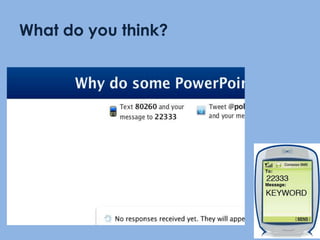
What do you think?Don’t forget: You can copy-paste this slide into other presentations, and move or resize the poll.
Articles about PowerPoint misuseDeath by PowerPoint
Official: PowerPoint is bad for Brains
Bad PowerPoint: When is enough enough?
PowerPoint: Shot with its own bullets
PowerPoint is evil
Does PowerPoint make us Stupid?
PowerPoint: Can software edit our thoughts?6
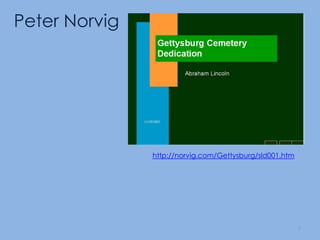
Peter Norvighttp://norvig.com/Gettysburg/sld001.htm7
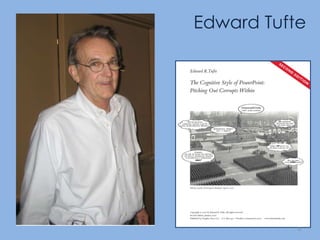
Edward Tufte8
Limitations of PowerPoint – TufteLow resolutionBullet outlines dilute thoughtDeeply hierarchical and linear structureFragments narrative and data Preoccupation with format, not contentDecoration and phluff9
Limitations of PowerPoint – TufteLow resolutionBullet outlines dilute thoughtDeeply hierarchical and linear structureFragments narrative and data Preoccupation with format, not contentDecoration and phluff10
Limitations of PowerPoint – TufteLow resolutionBullet outlines dilute thoughtDeeply hierarchical and linear structureFragments narrative and data Preoccupation with format, not contentDecoration and phluff11
Limitations of PowerPoint – TufteLow resolutionBullet outlines dilute thoughtDeeply hierarchical and linear structureFragments narrative and data Preoccupation with format, not contentDecoration and phluff12
Limitations of PowerPoint – TufteLow resolutionBullet outlines dilute thoughtDeeply hierarchical and linear structureFragments narrative and data Preoccupation with format, not contentDecoration and phluff13
Limitations of PowerPoint – TufteLow resolutionBullet outlines dilute thoughtDeeply hierarchical and linear structureFragments narrative and data Preoccupation with format, not contentDecoration and phluff14
http://www.youtube.com/watch?v=cagxPlVqrtM
Design Strategies16
Design Strategies: According to Tufte17
Use more useful visuals or give handoutsUse clear headings, numbered lists or very few bulleted outlinesDesign and leverage PowerPoint’s non-linear and non-hierarchical capabilitiesUse plain, non-distracting backgrounds; use information rich and relevant images18
Use more useful visuals or give handoutsUse clear headings, numbered lists or very few bulleted outlinesDesign and leverage PowerPoint’s non-linear and non-hierarchical capabilitiesUse plain, non-distracting backgrounds; use information rich and relevant images19
Use more useful visuals or give handoutsUse clear headings, numbered lists or very few bulleted outlinesDesign and leverage PowerPoint’s non-linear and non-hierarchical capabilitiesUse plain, non-distracting backgrounds; use information rich and relevant images20
Use more useful visuals or give handoutsUse clear headings, numbered lists or very few bulleted outlinesDesign and leverage PowerPoint’s non-linear and non-hierarchical capabilitiesUse plain, non-distracting backgrounds; use information rich and relevant images21
Design Strategies: According to Williams22
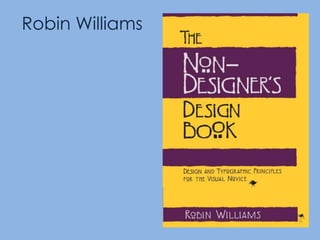
Robin Williams
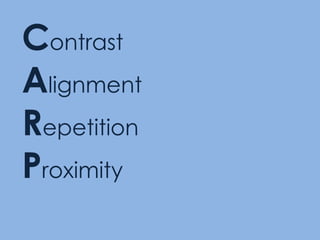
ContrastAlignmentRepetitionProximity
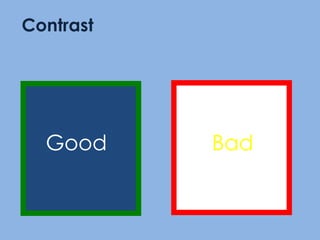
GoodContrastBad
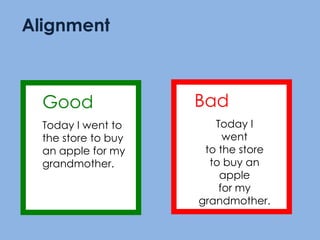
BadToday I went to the store to buy an apple for my grandmother.GoodToday I went to the store to buy an apple for my grandmother.Alignment
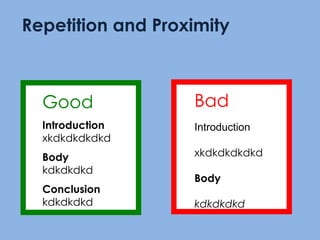
GoodIntroductionxkdkdkdkdkdBodykdkdkdkdConclusionkdkdkdkdRepetition and ProximityBadIntroductionxkdkdkdkdkdBodykdkdkdkd
Design Strategies: According to Patrick (me!)28
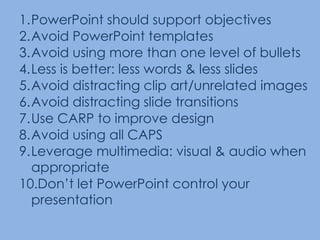
PowerPoint should support objectives Avoid PowerPoint templatesAvoid using more than one level of bulletsLess is better: less words & less slidesAvoid distracting clip art/unrelated imagesAvoid distracting slide transitionsUse CARP to improve designAvoid using all CAPSLeverage multimedia: visual & audio when appropriateDon’t let PowerPoint control your presentation
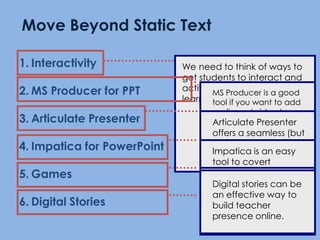
We need to think of ways to get students to interact and actively engage in their learning.MS Producer is a good tool if you want to add audio and video to your slides.It is also free!Articulate Presenter offers a seamless (but expensive) alternative to Producer.  Also has quiz making tools.Impatica is an easy tool to covert PowerPoint slides for the web.PowerPoint can used to create learning games to engage students onlineDigital stories can be an effective way to build teacher presence online.Move Beyond Static TextInteractivityMS Producer for PPTArticulate PresenterImpatica for PowerPointGamesDigital Stories
Design Strategies: According to PechaKucha et al.31
PechaKucha: 20 slides timed for 20 seconds each (total time=6 minutes 40 seconds) www.pecha-kucha.org(e.g., http://www.youtube.com/watch?v=9NZOt6BkhUg)Ignite: 20 slides timed for 15 seconds each (total time=5 minutes)http://ignite.oreilly.com/Guy Kawasaki: 10/20/30 rule – 10 slides, no more than 20 minutes, no font smaller than 3032
PechaKucha: 20 slides timed for 20 seconds each (total time=6 minutes 40 seconds) www.pecha-kucha.org(e.g., http://www.youtube.com/watch?v=9NZOt6BkhUg)Ignite: 20 slides timed for 15 seconds each (total time=5 minutes)http://ignite.oreilly.com/Guy Kawasaki: 10/20/30 rule – 10 slides, no more than 20 minutes, no font smaller than 3033
PechaKucha: 20 slides timed for 20 seconds each (total time=6 minutes 40 seconds) www.pecha-kucha.org(e.g., http://www.youtube.com/watch?v=9NZOt6BkhUg)Ignite: 20 slides timed for 15 seconds each (total time=5 minutes)http://ignite.oreilly.com/Guy Kawasaki: 10/20/30 rule – 10 slides, no more than 20 minutes, no font smaller than 3034
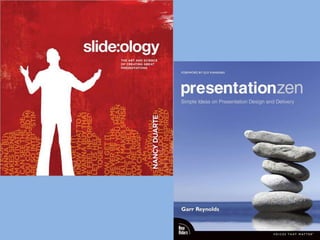
Design Strategies: According to the experts35
36
Presentation Strategies37
Practice your Presentation Test your PowerPoint before giving itLearn how to move from slide to slideUse the “B” key (or the “W”) Don’t be locked to your PPT or the podiumUse numbers to navigate your slidesHave a “plan B” if the technology fails

Giving Effective Presentations

  • 1.
    Giving Effective PresentationsPatrickR. Lowenthalpatrick.lowenthal@ucdenver.edu
  • 2.
    Why are wehere?Does this matter to me?2
  • 3.
    AgendaLimitations of PowerPointDesignstrategiesPresentation strategiesDistribution strategies3
  • 4.
  • 5.
    What do youthink?Don’t forget: You can copy-paste this slide into other presentations, and move or resize the poll.
  • 6.
    Articles about PowerPointmisuseDeath by PowerPoint
  • 7.
  • 8.
    Bad PowerPoint: Whenis enough enough?
  • 9.
    PowerPoint: Shot withits own bullets
  • 10.
  • 11.
  • 12.
    PowerPoint: Can softwareedit our thoughts?6
  • 13.
  • 14.
  • 15.
    Limitations of PowerPoint– TufteLow resolutionBullet outlines dilute thoughtDeeply hierarchical and linear structureFragments narrative and data Preoccupation with format, not contentDecoration and phluff9
  • 16.
    Limitations of PowerPoint– TufteLow resolutionBullet outlines dilute thoughtDeeply hierarchical and linear structureFragments narrative and data Preoccupation with format, not contentDecoration and phluff10
  • 17.
    Limitations of PowerPoint– TufteLow resolutionBullet outlines dilute thoughtDeeply hierarchical and linear structureFragments narrative and data Preoccupation with format, not contentDecoration and phluff11
  • 18.
    Limitations of PowerPoint– TufteLow resolutionBullet outlines dilute thoughtDeeply hierarchical and linear structureFragments narrative and data Preoccupation with format, not contentDecoration and phluff12
  • 19.
    Limitations of PowerPoint– TufteLow resolutionBullet outlines dilute thoughtDeeply hierarchical and linear structureFragments narrative and data Preoccupation with format, not contentDecoration and phluff13
  • 20.
    Limitations of PowerPoint– TufteLow resolutionBullet outlines dilute thoughtDeeply hierarchical and linear structureFragments narrative and data Preoccupation with format, not contentDecoration and phluff14
  • 21.
  • 22.
  • 23.
  • 24.
    Use more usefulvisuals or give handoutsUse clear headings, numbered lists or very few bulleted outlinesDesign and leverage PowerPoint’s non-linear and non-hierarchical capabilitiesUse plain, non-distracting backgrounds; use information rich and relevant images18
  • 25.
    Use more usefulvisuals or give handoutsUse clear headings, numbered lists or very few bulleted outlinesDesign and leverage PowerPoint’s non-linear and non-hierarchical capabilitiesUse plain, non-distracting backgrounds; use information rich and relevant images19
  • 26.
    Use more usefulvisuals or give handoutsUse clear headings, numbered lists or very few bulleted outlinesDesign and leverage PowerPoint’s non-linear and non-hierarchical capabilitiesUse plain, non-distracting backgrounds; use information rich and relevant images20
  • 27.
    Use more usefulvisuals or give handoutsUse clear headings, numbered lists or very few bulleted outlinesDesign and leverage PowerPoint’s non-linear and non-hierarchical capabilitiesUse plain, non-distracting backgrounds; use information rich and relevant images21
  • 28.
  • 29.
  • 30.
  • 31.
  • 32.
    BadToday I wentto the store to buy an apple for my grandmother.GoodToday I went to the store to buy an apple for my grandmother.Alignment
  • 33.
  • 34.
  • 35.
    PowerPoint should supportobjectives Avoid PowerPoint templatesAvoid using more than one level of bulletsLess is better: less words & less slidesAvoid distracting clip art/unrelated imagesAvoid distracting slide transitionsUse CARP to improve designAvoid using all CAPSLeverage multimedia: visual & audio when appropriateDon’t let PowerPoint control your presentation
  • 36.
    We need tothink of ways to get students to interact and actively engage in their learning.MS Producer is a good tool if you want to add audio and video to your slides.It is also free!Articulate Presenter offers a seamless (but expensive) alternative to Producer. Also has quiz making tools.Impatica is an easy tool to covert PowerPoint slides for the web.PowerPoint can used to create learning games to engage students onlineDigital stories can be an effective way to build teacher presence online.Move Beyond Static TextInteractivityMS Producer for PPTArticulate PresenterImpatica for PowerPointGamesDigital Stories
  • 37.
    Design Strategies: Accordingto PechaKucha et al.31
  • 38.
    PechaKucha: 20 slidestimed for 20 seconds each (total time=6 minutes 40 seconds) www.pecha-kucha.org(e.g., http://www.youtube.com/watch?v=9NZOt6BkhUg)Ignite: 20 slides timed for 15 seconds each (total time=5 minutes)http://ignite.oreilly.com/Guy Kawasaki: 10/20/30 rule – 10 slides, no more than 20 minutes, no font smaller than 3032
  • 39.
    PechaKucha: 20 slidestimed for 20 seconds each (total time=6 minutes 40 seconds) www.pecha-kucha.org(e.g., http://www.youtube.com/watch?v=9NZOt6BkhUg)Ignite: 20 slides timed for 15 seconds each (total time=5 minutes)http://ignite.oreilly.com/Guy Kawasaki: 10/20/30 rule – 10 slides, no more than 20 minutes, no font smaller than 3033
  • 40.
    PechaKucha: 20 slidestimed for 20 seconds each (total time=6 minutes 40 seconds) www.pecha-kucha.org(e.g., http://www.youtube.com/watch?v=9NZOt6BkhUg)Ignite: 20 slides timed for 15 seconds each (total time=5 minutes)http://ignite.oreilly.com/Guy Kawasaki: 10/20/30 rule – 10 slides, no more than 20 minutes, no font smaller than 3034
  • 41.
  • 42.
  • 43.
  • 44.
    Practice your PresentationTest your PowerPoint before giving itLearn how to move from slide to slideUse the “B” key (or the “W”) Don’t be locked to your PPT or the podiumUse numbers to navigate your slidesHave a “plan B” if the technology fails
  • 45.
    Practice your PresentationTest your PowerPoint before giving itLearn how to move from slide to slideUse the “B” key (or the “W”) Don’t be locked to your PPT or the podiumUse numbers to navigate your slidesHave a “plan B” if the technology fails
  • 46.
    Practice your PresentationTest your PowerPoint before giving itLearn how to move from slide to slideUse the “B” key (or the “W”) Don’t be locked to your PPT or the podiumUse numbers to navigate your slidesHave a “plan B” if the technology fails
  • 47.
    Practice your PresentationTest your PowerPoint before giving itLearn how to move from slide to slideUse the “B” key (or the “W”) Don’t be locked to your PPT or the podiumUse numbers to navigate your slidesHave a “plan B” if the technology fails
  • 48.
    Practice your PresentationTest your PowerPoint before giving itLearn how to move from slide to slideUse the “B” key (or the “W”) Don’t be locked to your PPT or the podiumUse numbers to navigate your slidesHave a “plan B” if the technology fails
  • 49.
    Practice your PresentationTest your PowerPoint before giving itLearn how to move from slide to slideUse the “B” key (or the “W”) Don’t be locked to your PPT or the podiumUse numbers to navigate your slidesHave a “plan B” if the technology fails

Editor's Notes

  • #5 PowerPointWhy are we discussing PowerPoint?Millions of PowerPoint are given each day.For many powerpoint=presentation.
  • #6 Press F5 or enter presentation mode to view the poll In an emergency during your presentation, if the poll isn't showing, navigate to this link in your web browser: http://www.polleverywhere.com/free_text_polls/MTQzODY2NDExNQIf you like, you can use this slide as a template for your own voting slides. You might use a slide like this if you feel your audience would benefit from the picture showing a text message on a phone.
  • #48 Show some bad ones/discuss themWork on the gettysburg address