TM
Freescale USB Academy
ARM® Cortex™-M0+ Hands On
FRDM-KL46Z @ www.mbed.org
L i b o r G E C N U K - F A E c E E
2014 APR 01 (v0.2)
TM
1
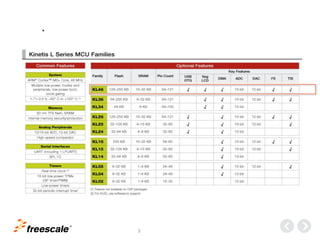
• Kinetis KL46Z256
• <USB>
• Kinetis L Freedom Board
• OpenSDA, Out of box, QuickStart
• internet & account & mbed.org
• Lab0 – mbed Blinky “Hello World” in 60 seconds
• Lab1 – mbed-USB-Device-HID-Mouse
• Lab2 – mbed-USB-Device-CDC-Serial
• Lab3 – mbed-USB-Host-MSD-Drive
TM
2
Kinetis KL46Z256
.
TM
3
.
TM
4
Analog Interfaces
System
Peripheral Bus
Energy Management
Power On
Reset
Low Voltage
Detector
Voltage Regulator
Clock Management
FLL
Timers
SRTC
Temp. Compensated
I/O PortsConnectivity
I2C x 2
12-bit
DAC
HSCMP
Flash
128-256K
RAM
16-32K
Debug
(SWD)
COP
RST
Unique ID
DMA 4-ch
TSI x
16ch
Up to 80 GPIO
(4 High Dive)
w/ 25 interrupt
LPO
(1KHz)
RST/
Input
LPTMR
Crystal
Oscillator
(low & high
range)
16b LPTPM
6ch x1, 2ch x 2
SPI x 2
ADC (SAR w/ DMA)
12/16-bit, up to 16ch
RunOperation in: Wait
VLLS
1
VLLS
0
Stop/
VLPS
VLLS
3
UART
x2
Connectivity
USB FS/LS
Transceiver
V Regulator
HMI
PLL
ARM Cortex-M0+ Core
Ultra-low power
48MHz bus freq.
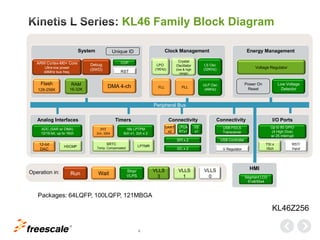
Packages: 64LQFP, 100LQFP, 121MBGA
LPUA
RTx1
IIS
x1
USB Controller
PIT
2ch, 32bit
KL46 Family Block Diagram
LS Osc
(32KHz)
ULP Osc
(4MHz)
Segment LCD
51x8/55x4
KL46Z256
TM
5
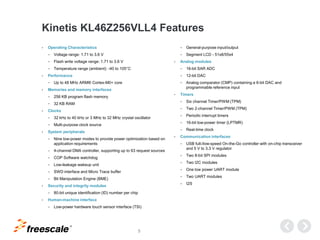
Kinetis KL46Z256VLL4 Features
• Operating Characteristics
− Voltage range: 1.71 to 3.6 V
− Flash write voltage range: 1.71 to 3.6 V
− Temperature range (ambient): -40 to 105°C
• Performance
− Up to 48 MHz ARM® Cortex-M0+ core
• Memories and memory interfaces
− 256 KB program flash memory
− 32 KB RAM
• Clocks
− 32 kHz to 40 kHz or 3 MHz to 32 MHz crystal oscillator
− Multi-purpose clock source
• System peripherals
− Nine low-power modes to provide power optimization based on
application requirements
− 4-channel DMA controller, supporting up to 63 request sources
− COP Software watchdog
− Low-leakage wakeup unit
− SWD interface and Micro Trace buffer
− Bit Manipulation Engine (BME)
• Security and integrity modules
− 80-bit unique identification (ID) number per chip
• Human-machine interface
− Low-power hardware touch sensor interface (TSI)
− General-purpose input/output
− Segment LCD - 51x8/55x4
• Analog modules
− 16-bit SAR ADC
− 12-bit DAC
− Analog comparator (CMP) containing a 6-bit DAC and
programmable reference input
• Timers
− Six channel Timer/PWM (TPM)
− Two 2-channel Timer/PWM (TPM)
− Periodic interrupt timers
− 16-bit low-power timer (LPTMR)
− Real-time clock
• Communication interfaces
− USB full-/low-speed On-the-Go controller with on-chip transceiver
and 5 V to 3.3 V regulator
− Two 8-bit SPI modules
− Two I2C modules
− One low power UART module
− Two UART modules
− I2S
TM
6
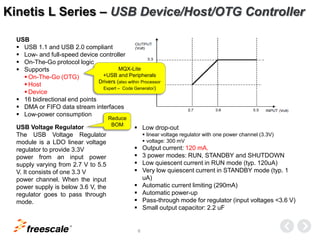
Kinetis L Series – USB Device/Host/OTG Controller
USB
 USB 1.1 and USB 2.0 compliant
 Low- and full-speed device controller
 On-The-Go protocol logic
 Supports
 On-The-Go (OTG)
 Host
 Device
 16 bidirectional end points
 DMA or FIFO data stream interfaces
 Low-power consumption
USB Voltage Regulator
The USB Voltage Regulator
module is a LDO linear voltage
regulator to provide 3.3V
power from an input power
supply varying from 2.7 V to 5.5
V. It consists of one 3.3 V
power channel. When the input
power supply is below 3.6 V, the
regulator goes to pass through
mode.
 Low drop-out
 linear voltage regulator with one power channel (3.3V)
 voltage: 300 mV
 Output current: 120 mA.
 3 power modes: RUN, STANDBY and SHUTDOWN
 Low quiescent current in RUN mode (typ. 120uA)
 Very low quiescent current in STANDBY mode (typ. 1
uA)
 Automatic current limiting (290mA)
 Automatic power-up
 Pass-through mode for regulator (input voltages <3.6 V)
 Small output capacitor: 2.2 uF
Reduce
BOM
MQX-Lite
+USB and Peripherals
Drivers (also within Processor
Expert – Code Generator)
TM
7
<USB>
.
TM
8
.
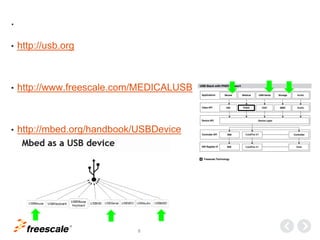
• http://usb.org
• http://www.freescale.com/MEDICALUSB
• http://mbed.org/handbook/USBDevice
TM
9
Kinetis L Freedom board
.
TM
10
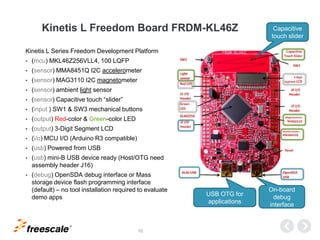
Kinetis L Freedom Board FRDM-KL46Z
Kinetis L Series Freedom Development Platform
• (mcu) MKL46Z256VLL4, 100 LQFP
• (sensor) MMA8451Q I2C accelerometer
• (sensor) MAG3110 I2C magnetometer
• (sensor) ambient light sensor
• (sensor) Capacitive touch “slider”
• (input ) SW1 & SW3 mechanical buttons
• (output) Red-color & Green-color LED
• (output) 3-Digit Segment LCD
• (i/o) MCU I/O (Arduino R3 compatible)
• (usb) Powered from USB
• (usb) mini-B USB device ready (Host/OTG need
assembly header J16)
• (debug) OpenSDA debug interface or Mass
storage device flash programming interface
(default) – no tool installation required to evaluate
demo apps
Capacitive
touch slider
On-board
debug
interface
USB OTG for
applications
TM
11
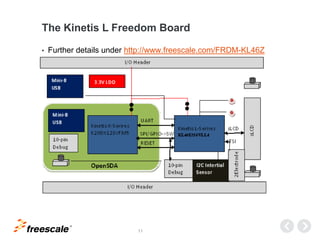
The Kinetis L Freedom Board
• Further details under http://www.freescale.com/FRDM-KL46Z
TM
12
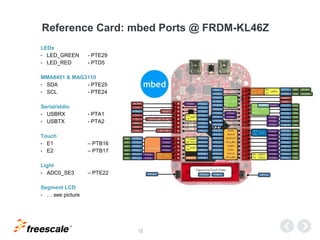
Reference Card: mbed Ports @ FRDM-KL46Z
LEDs
• LED_GREEN - PTE29
• LED_RED - PTD5
MMA8451 & MAG3110
• SDA - PTE25
• SCL - PTE24
Serial/stdio
• USBRX - PTA1
• USBTX - PTA2
Touch
• E1 – PTB16
• E2 – PTB17
Light
• ADC0_SE3 – PTE22
Segment LCD
• … see picture
TM
13
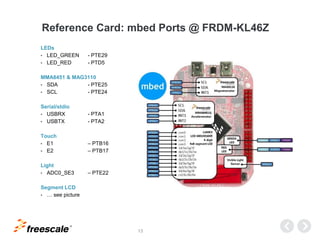
Reference Card: mbed Ports @ FRDM-KL46Z
LEDs
• LED_GREEN - PTE29
• LED_RED - PTD5
MMA8451 & MAG3110
• SDA - PTE25
• SCL - PTE24
Serial/stdio
• USBRX - PTA1
• USBTX - PTA2
Touch
• E1 – PTB16
• E2 – PTB17
Light
• ADC0_SE3 – PTE22
Segment LCD
• … see picture
TM
14
Open SDA, Out of box,
QuickStart.
TM
15
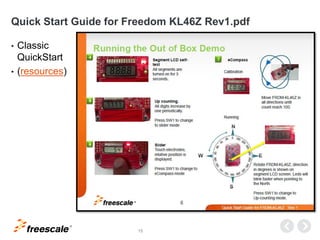
Quick Start Guide for Freedom KL46Z Rev1.pdf
• Classic
QuickStart
• (resources)
TM
16
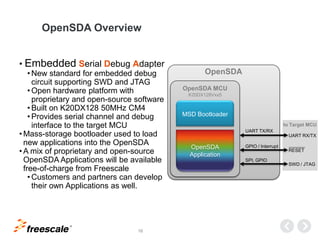
OpenSDA Overview
MSD Bootloader
OpenSDA MCU
K20DX128Vxx5
OpenSDA
Application
UART TX/RX
UART RX/TX
OpenSDA
SPI, GPIO
SWD / JTAG
GPIO / Interrupt
RESET
to Target MCU
• Embedded Serial Debug Adapter
• New standard for embedded debug
circuit supporting SWD and JTAG
• Open hardware platform with
proprietary and open-source software
• Built on K20DX128 50MHz CM4
• Provides serial channel and debug
interface to the target MCU
• Mass-storage bootloader used to load
new applications into the OpenSDA
• A mix of proprietary and open-source
OpenSDA Applications will be available
free-of-charge from Freescale
• Customers and partners can develop
their own Applications as well.
TM
17
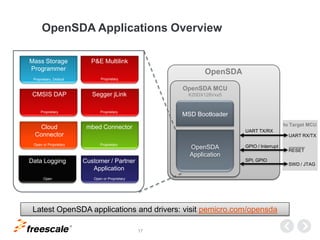
OpenSDA Applications Overview
MSD Bootloader
OpenSDA MCU
K20DX128Vxx5
OpenSDA
Application
UART TX/RX
UART RX/TX
OpenSDA
SPI, GPIO
SWD / JTAG
GPIO / Interrupt
RESET
Cloud
Connector
mbed Connector
Mass Storage
Programmer
P&E Multilink
Customer / Partner
Application
Proprietary
Proprietary
Open or Proprietary
Open or Proprietary
Proprietary, Default
to Target MCU
Data Logging
Open
Latest OpenSDA applications and drivers: visit pemicro.com/opensda
CMSIS DAP Segger jLink
ProprietaryProprietary
TM
18
to Target MCU
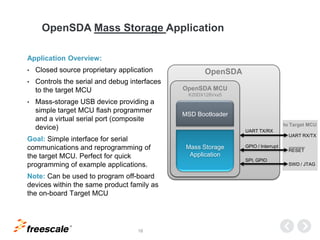
OpenSDA Mass Storage Application
Application Overview:
• Closed source proprietary application
• Controls the serial and debug interfaces
to the target MCU
• Mass-storage USB device providing a
simple target MCU flash programmer
and a virtual serial port (composite
device)
Goal: Simple interface for serial
communications and reprogramming of
the target MCU. Perfect for quick
programming of example applications.
Note: Can be used to program off-board
devices within the same product family as
the on-board Target MCU
MSD Bootloader
OpenSDA MCU
K20DX128Vxx5
Mass Storage
Application
UART TX/RX
UART RX/TX
OpenSDA
SPI, GPIO
SWD / JTAG
GPIO / Interrupt
RESET
TM
19
to Target MCU
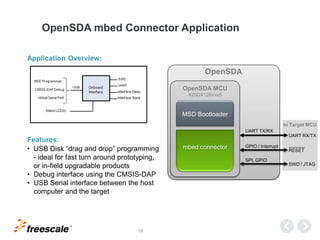
OpenSDA mbed Connector Application
Application Overview:
Features:
• USB Disk “drag and drop” programming
- ideal for fast turn around prototyping,
or in-field upgradable products
• Debug interface using the CMSIS-DAP
• USB Serial interface between the host
computer and the target
MSD Bootloader
OpenSDA MCU
K20DX128Vxx5
mbed connector
UART TX/RX
UART RX/TX
OpenSDA
SPI, GPIO
SWD / JTAG
GPIO / Interrupt
RESET
TM
20
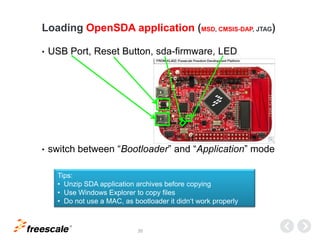
• USB Port, Reset Button, sda-firmware, LED
• switch between “Bootloader” and “Application” mode
Loading OpenSDA application (MSD, CMSIS-DAP, JTAG)
Tips:
• Unzip SDA application archives before copying
• Use Windows Explorer to copy files
• Do not use a MAC, as bootloader it didn‘t work properly
TM
23
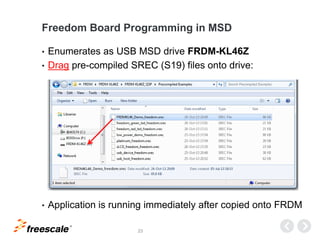
Freedom Board Programming in MSD
• Enumerates as USB MSD drive FRDM-KL46Z
• Drag pre-compiled SREC (S19) files onto drive:
• Application is running immediately after copied onto FRDM
TM
24
internet & account & mbed.org
.
TM
25
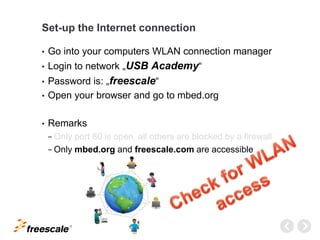
Set-up the Internet connection
• Go into your computers WLAN connection manager
• Login to network „USB Academy“
• Password is: „freescale“
• Open your browser and go to mbed.org
• Remarks
− Only port 80 is open, all others are blocked by a firewall
− Only mbed.org and freescale.com are accessible
TM
26
mbed Basics
• mbed is a online platform for fast, low-risk rapid prototyping
• mbed under Apache 2.0 license and can used in
commerciSDK is Open Source al projects with confidence
• mbed is for starters, engineers, students, sales, marketing
and distributors
• mbed provides API libraries build on top of CMSIS*
• mbed uses C/C++ and is portable to other IDEs
• mbed works on Windows, Mac and Linux and will run
under Internet Explorer, Firefox, Safari, Chrome, etc.
*Cortex Microcontroller Software Interface Standard
TM
27
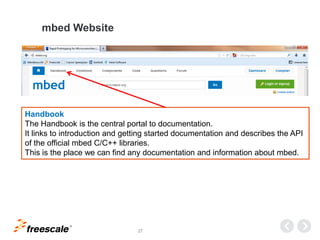
mbed Website
Handbook
The Handbook is the central portal to documentation.
It links to introduction and getting started documentation and describes the API
of the official mbed C/C++ libraries.
This is the place we can find any documentation and information about mbed.
TM
28
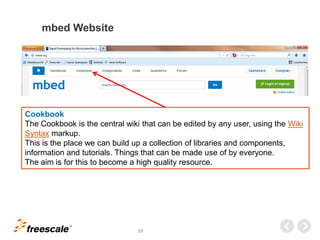
mbed Website
Cookbook
The Cookbook is the central wiki that can be edited by any user, using the Wiki
Syntax markup.
This is the place we can build up a collection of libraries and components,
information and tutorials. Things that can be made use of by everyone.
The aim is for this to become a high quality resource.
TM
29
mbed Website
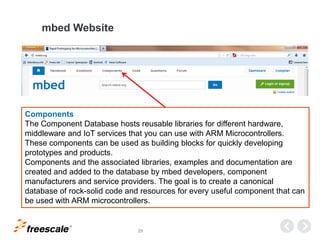
Components
The Component Database hosts reusable libraries for different hardware,
middleware and IoT services that you can use with ARM Microcontrollers.
These components can be used as building blocks for quickly developing
prototypes and products.
Components and the associated libraries, examples and documentation are
created and added to the database by mbed developers, component
manufacturers and service providers. The goal is to create a canonical
database of rock-solid code and resources for every useful component that can
be used with ARM microcontrollers.
TM
30
mbed Website
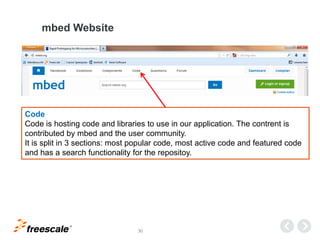
Code
Code is hosting code and libraries to use in our application. The contrent is
contributed by mbed and the user community.
It is split in 3 sections: most popular code, most active code and featured code
and has a search functionality for the repositoy.
TM
31
mbed Website
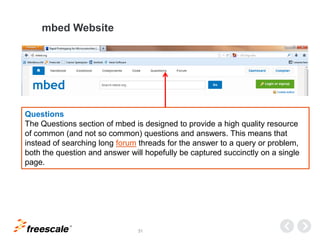
Questions
The Questions section of mbed is designed to provide a high quality resource
of common (and not so common) questions and answers. This means that
instead of searching long forum threads for the answer to a query or problem,
both the question and answer will hopefully be captured succinctly on a single
page.
TM
32
mbed Website
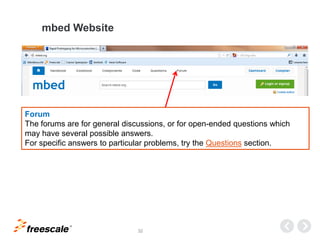
Forum
The forums are for general discussions, or for open-ended questions which
may have several possible answers.
For specific answers to particular problems, try the Questions section.
TM
33
mbed Website
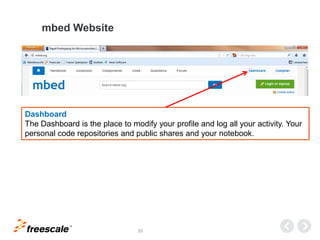
Dashboard
The Dashboard is the place to modify your profile and log all your activity. Your
personal code repositories and public shares and your notebook.
TM
34
mbed Website
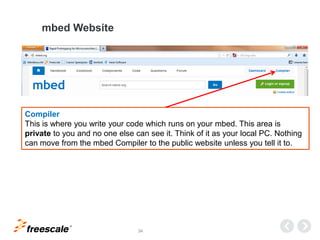
Compiler
This is where you write your code which runs on your mbed. This area is
private to you and no one else can see it. Think of it as your local PC. Nothing
can move from the mbed Compiler to the public website unless you tell it to.
TM
35
Lab0 “Hello World” in 60 seconds
. FRDM-KL46Z_Hands-On_Lab0123_vXX.docx
TM
36
mbed on Kinetis KL64Z Freedom Board
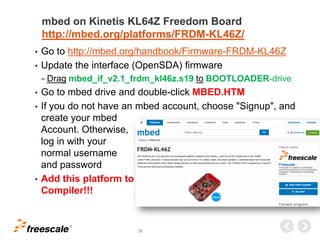
http://mbed.org/platforms/FRDM-KL46Z/
• Go to http://mbed.org/handbook/Firmware-FRDM-KL46Z
• Update the interface (OpenSDA) firmware
− Drag mbed_if_v2.1_frdm_kl46z.s19 to BOOTLOADER-drive
• Go to mbed drive and double-click MBED.HTM
• If you do not have an mbed account, choose "Signup", and
create your mbed
Account. Otherwise,
log in with your
normal username
and password
• Add this platform to
Compiler!!!
TM
37
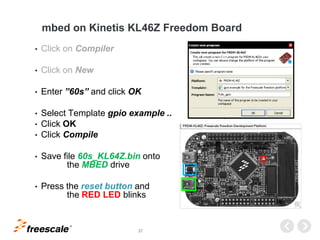
mbed on Kinetis KL46Z Freedom Board
• Click on Compiler
• Click on New
• Enter ”60s” and click OK
• Select Template gpio example ..
• Click OK
• Click Compile
• Save file 60s_KL64Z.bin onto
the MBED drive
• Press the reset button and
the RED LED blinks
TM
38
Lab1 – HID-Mouse
.
TM
39
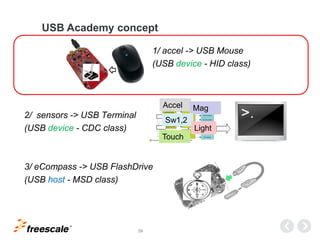
USB Academy concept
1/ accel -> USB Mouse
(USB device - HID class)
2/ sensors -> USB Terminal
(USB device - CDC class)
3/ eCompass -> USB FlashDrive
(USB host - MSD class)
Accel Mag
Sw1,2
Light
Touch
TM
40
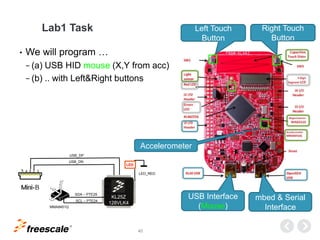
Lab1 Task
• We will program …
− (a) USB HID mouse (X,Y from acc)
− (b) .. with Left&Right buttons
KL25Z
128VLK4
Left Touch
Button
Right Touch
Button
Accelerometer
USB Interface
(Mouse)
I2C0
USB_DN
USB_DP
LED
SDA – PTE25
SCL – PTE24
MMA8451Q
LED_RED
mbed & Serial
Interface
TM
41
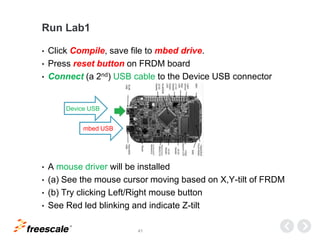
Run Lab1
• Click Compile, save file to mbed drive.
• Press reset button on FRDM board
• Connect (a 2nd) USB cable to the Device USB connector
• A mouse driver will be installed
• (a) See the mouse cursor moving based on X,Y-tilt of FRDM
• (b) Try clicking Left/Right mouse button
• See Red led blinking and indicate Z-tilt
Device USB
mbed USB
TM
42
Lab2 – CDC-Serial
.
TM
43
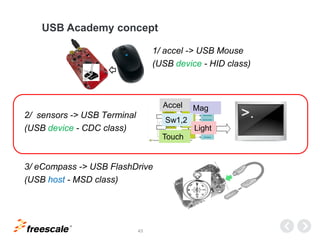
USB Academy concept
1/ accel -> USB Mouse
(USB device - HID class)
2/ sensors -> USB Terminal
(USB device - CDC class)
3/ eCompass -> USB FlashDrive
(USB host - MSD class)
Accel Mag
Sw1,2
Light
Touch
TM
44
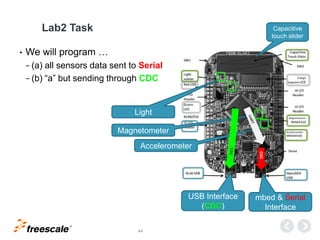
Lab2 Task
• We will program …
− (a) all sensors data sent to Serial
− (b) “a” but sending through CDC
Accelerometer
USB Interface
(CDC)
mbed & Serial
Interface
Light
Magnetometer
Capacitive
touch slider
CDC
TM
45
Serial Communication with a PC
• The mbed Microcontroller can communicate with a host PC
through a "USB Virtual Serial Port" over the same USB
cable that is used for programming.
• This enables you to:
− Print out messages to a host PC terminal (useful for
debugging!)
− Read input from the host PC keyboard
− Communicate with applications and programming languages
running on the host PC that can communicate with a serial port,
e.g. perl, python, java and so on.
TM
46
Check Serial Connection
• Your mbed Microcontroller can appear on your computer as a
serial port.
− On Mac and Linux, this will happen by default. For Windows, you
need to install a driver (../mbedWinSerial_16466.exe)
• You need a terminal application on your computer like TeraTerm
or puTTY. (../teraterm-4.78.exe)
• Identify the serial port
− Windows - Look under the "Ports" section in "Device Manager"
(''Start -> Control Panel -> System -> Hardware -> Device
Manager''). The name will be ''mbed Serial Port (COMx)'', where
''x'' is the number of the COM port allocated.
− Mac OS X - Use the command ls /dev/tty.usbmodem*
− Linux - Use the command ls /dev/ttyACM*
• Set serial connection to 115200 baud, 8 bits, 1 stop bit, no parity
TM
47
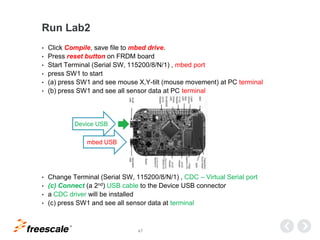
Run Lab2
• Click Compile, save file to mbed drive.
• Press reset button on FRDM board
• Start Terminal (Serial SW, 115200/8/N/1) , mbed port
• press SW1 to start
• (a) press SW1 and see mouse X,Y-tilt (mouse movement) at PC terminal
• (b) press SW1 and see all sensor data at PC terminal
• Change Terminal (Serial SW, 115200/8/N/1) , CDC – Virtual Serial port
• (c) Connect (a 2nd) USB cable to the Device USB connector
• a CDC driver will be installed
• (c) press SW1 and see all sensor data at terminal
Device USB
mbed USB
TM
48
Lab3 – MSD-Drive
.
TM
49
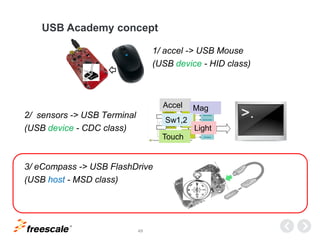
USB Academy concept
1/ accel -> USB Mouse
(USB device - HID class)
2/ sensors -> USB Terminal
(USB device - CDC class)
3/ eCompass -> USB FlashDrive
(USB host - MSD class)
Accel Mag
Sw1,2
Light
Touch
TM
50
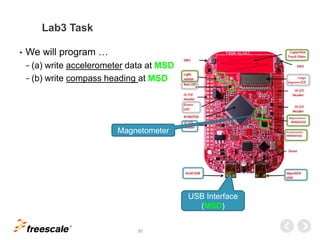
Lab3 Task
• We will program …
− (a) write accelerometer data at MSD
− (b) write compass heading at MSD
USB Interface
(MSD)
Magnetometer
TM
51
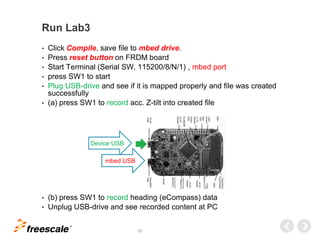
Run Lab3
• Click Compile, save file to mbed drive.
• Press reset button on FRDM board
• Start Terminal (Serial SW, 115200/8/N/1) , mbed port
• press SW1 to start
• Plug USB-drive and see if it is mapped properly and file was created
successfully
• (a) press SW1 to record acc. Z-tilt into created file
• (b) press SW1 to record heading (eCompass) data
• Unplug USB-drive and see recorded content at PC
Device USB
mbed USB
TM
© 2014 Freescale Semiconductor, Inc.
www.Freescale.com

FRDM-KL46Z_Hands-On_Presentation_v02

  • 1.
    TM Freescale USB Academy ARM®Cortex™-M0+ Hands On FRDM-KL46Z @ www.mbed.org L i b o r G E C N U K - F A E c E E 2014 APR 01 (v0.2)
  • 2.
    TM 1 • Kinetis KL46Z256 •<USB> • Kinetis L Freedom Board • OpenSDA, Out of box, QuickStart • internet & account & mbed.org • Lab0 – mbed Blinky “Hello World” in 60 seconds • Lab1 – mbed-USB-Device-HID-Mouse • Lab2 – mbed-USB-Device-CDC-Serial • Lab3 – mbed-USB-Host-MSD-Drive
  • 3.
  • 4.
  • 5.
    TM 4 Analog Interfaces System Peripheral Bus EnergyManagement Power On Reset Low Voltage Detector Voltage Regulator Clock Management FLL Timers SRTC Temp. Compensated I/O PortsConnectivity I2C x 2 12-bit DAC HSCMP Flash 128-256K RAM 16-32K Debug (SWD) COP RST Unique ID DMA 4-ch TSI x 16ch Up to 80 GPIO (4 High Dive) w/ 25 interrupt LPO (1KHz) RST/ Input LPTMR Crystal Oscillator (low & high range) 16b LPTPM 6ch x1, 2ch x 2 SPI x 2 ADC (SAR w/ DMA) 12/16-bit, up to 16ch RunOperation in: Wait VLLS 1 VLLS 0 Stop/ VLPS VLLS 3 UART x2 Connectivity USB FS/LS Transceiver V Regulator HMI PLL ARM Cortex-M0+ Core Ultra-low power 48MHz bus freq. Packages: 64LQFP, 100LQFP, 121MBGA LPUA RTx1 IIS x1 USB Controller PIT 2ch, 32bit KL46 Family Block Diagram LS Osc (32KHz) ULP Osc (4MHz) Segment LCD 51x8/55x4 KL46Z256
  • 6.
    TM 5 Kinetis KL46Z256VLL4 Features •Operating Characteristics − Voltage range: 1.71 to 3.6 V − Flash write voltage range: 1.71 to 3.6 V − Temperature range (ambient): -40 to 105°C • Performance − Up to 48 MHz ARM® Cortex-M0+ core • Memories and memory interfaces − 256 KB program flash memory − 32 KB RAM • Clocks − 32 kHz to 40 kHz or 3 MHz to 32 MHz crystal oscillator − Multi-purpose clock source • System peripherals − Nine low-power modes to provide power optimization based on application requirements − 4-channel DMA controller, supporting up to 63 request sources − COP Software watchdog − Low-leakage wakeup unit − SWD interface and Micro Trace buffer − Bit Manipulation Engine (BME) • Security and integrity modules − 80-bit unique identification (ID) number per chip • Human-machine interface − Low-power hardware touch sensor interface (TSI) − General-purpose input/output − Segment LCD - 51x8/55x4 • Analog modules − 16-bit SAR ADC − 12-bit DAC − Analog comparator (CMP) containing a 6-bit DAC and programmable reference input • Timers − Six channel Timer/PWM (TPM) − Two 2-channel Timer/PWM (TPM) − Periodic interrupt timers − 16-bit low-power timer (LPTMR) − Real-time clock • Communication interfaces − USB full-/low-speed On-the-Go controller with on-chip transceiver and 5 V to 3.3 V regulator − Two 8-bit SPI modules − Two I2C modules − One low power UART module − Two UART modules − I2S
  • 7.
    TM 6 Kinetis L Series– USB Device/Host/OTG Controller USB  USB 1.1 and USB 2.0 compliant  Low- and full-speed device controller  On-The-Go protocol logic  Supports  On-The-Go (OTG)  Host  Device  16 bidirectional end points  DMA or FIFO data stream interfaces  Low-power consumption USB Voltage Regulator The USB Voltage Regulator module is a LDO linear voltage regulator to provide 3.3V power from an input power supply varying from 2.7 V to 5.5 V. It consists of one 3.3 V power channel. When the input power supply is below 3.6 V, the regulator goes to pass through mode.  Low drop-out  linear voltage regulator with one power channel (3.3V)  voltage: 300 mV  Output current: 120 mA.  3 power modes: RUN, STANDBY and SHUTDOWN  Low quiescent current in RUN mode (typ. 120uA)  Very low quiescent current in STANDBY mode (typ. 1 uA)  Automatic current limiting (290mA)  Automatic power-up  Pass-through mode for regulator (input voltages <3.6 V)  Small output capacitor: 2.2 uF Reduce BOM MQX-Lite +USB and Peripherals Drivers (also within Processor Expert – Code Generator)
  • 8.
  • 9.
  • 10.
  • 11.
    TM 10 Kinetis L FreedomBoard FRDM-KL46Z Kinetis L Series Freedom Development Platform • (mcu) MKL46Z256VLL4, 100 LQFP • (sensor) MMA8451Q I2C accelerometer • (sensor) MAG3110 I2C magnetometer • (sensor) ambient light sensor • (sensor) Capacitive touch “slider” • (input ) SW1 & SW3 mechanical buttons • (output) Red-color & Green-color LED • (output) 3-Digit Segment LCD • (i/o) MCU I/O (Arduino R3 compatible) • (usb) Powered from USB • (usb) mini-B USB device ready (Host/OTG need assembly header J16) • (debug) OpenSDA debug interface or Mass storage device flash programming interface (default) – no tool installation required to evaluate demo apps Capacitive touch slider On-board debug interface USB OTG for applications
  • 12.
    TM 11 The Kinetis LFreedom Board • Further details under http://www.freescale.com/FRDM-KL46Z
  • 13.
    TM 12 Reference Card: mbedPorts @ FRDM-KL46Z LEDs • LED_GREEN - PTE29 • LED_RED - PTD5 MMA8451 & MAG3110 • SDA - PTE25 • SCL - PTE24 Serial/stdio • USBRX - PTA1 • USBTX - PTA2 Touch • E1 – PTB16 • E2 – PTB17 Light • ADC0_SE3 – PTE22 Segment LCD • … see picture
  • 14.
    TM 13 Reference Card: mbedPorts @ FRDM-KL46Z LEDs • LED_GREEN - PTE29 • LED_RED - PTD5 MMA8451 & MAG3110 • SDA - PTE25 • SCL - PTE24 Serial/stdio • USBRX - PTA1 • USBTX - PTA2 Touch • E1 – PTB16 • E2 – PTB17 Light • ADC0_SE3 – PTE22 Segment LCD • … see picture
  • 15.
    TM 14 Open SDA, Outof box, QuickStart.
  • 16.
    TM 15 Quick Start Guidefor Freedom KL46Z Rev1.pdf • Classic QuickStart • (resources)
  • 17.
    TM 16 OpenSDA Overview MSD Bootloader OpenSDAMCU K20DX128Vxx5 OpenSDA Application UART TX/RX UART RX/TX OpenSDA SPI, GPIO SWD / JTAG GPIO / Interrupt RESET to Target MCU • Embedded Serial Debug Adapter • New standard for embedded debug circuit supporting SWD and JTAG • Open hardware platform with proprietary and open-source software • Built on K20DX128 50MHz CM4 • Provides serial channel and debug interface to the target MCU • Mass-storage bootloader used to load new applications into the OpenSDA • A mix of proprietary and open-source OpenSDA Applications will be available free-of-charge from Freescale • Customers and partners can develop their own Applications as well.
  • 18.
    TM 17 OpenSDA Applications Overview MSDBootloader OpenSDA MCU K20DX128Vxx5 OpenSDA Application UART TX/RX UART RX/TX OpenSDA SPI, GPIO SWD / JTAG GPIO / Interrupt RESET Cloud Connector mbed Connector Mass Storage Programmer P&E Multilink Customer / Partner Application Proprietary Proprietary Open or Proprietary Open or Proprietary Proprietary, Default to Target MCU Data Logging Open Latest OpenSDA applications and drivers: visit pemicro.com/opensda CMSIS DAP Segger jLink ProprietaryProprietary
  • 19.
    TM 18 to Target MCU OpenSDAMass Storage Application Application Overview: • Closed source proprietary application • Controls the serial and debug interfaces to the target MCU • Mass-storage USB device providing a simple target MCU flash programmer and a virtual serial port (composite device) Goal: Simple interface for serial communications and reprogramming of the target MCU. Perfect for quick programming of example applications. Note: Can be used to program off-board devices within the same product family as the on-board Target MCU MSD Bootloader OpenSDA MCU K20DX128Vxx5 Mass Storage Application UART TX/RX UART RX/TX OpenSDA SPI, GPIO SWD / JTAG GPIO / Interrupt RESET
  • 20.
    TM 19 to Target MCU OpenSDAmbed Connector Application Application Overview: Features: • USB Disk “drag and drop” programming - ideal for fast turn around prototyping, or in-field upgradable products • Debug interface using the CMSIS-DAP • USB Serial interface between the host computer and the target MSD Bootloader OpenSDA MCU K20DX128Vxx5 mbed connector UART TX/RX UART RX/TX OpenSDA SPI, GPIO SWD / JTAG GPIO / Interrupt RESET
  • 21.
    TM 20 • USB Port,Reset Button, sda-firmware, LED • switch between “Bootloader” and “Application” mode Loading OpenSDA application (MSD, CMSIS-DAP, JTAG) Tips: • Unzip SDA application archives before copying • Use Windows Explorer to copy files • Do not use a MAC, as bootloader it didn‘t work properly
  • 22.
    TM 23 Freedom Board Programmingin MSD • Enumerates as USB MSD drive FRDM-KL46Z • Drag pre-compiled SREC (S19) files onto drive: • Application is running immediately after copied onto FRDM
  • 23.
  • 24.
    TM 25 Set-up the Internetconnection • Go into your computers WLAN connection manager • Login to network „USB Academy“ • Password is: „freescale“ • Open your browser and go to mbed.org • Remarks − Only port 80 is open, all others are blocked by a firewall − Only mbed.org and freescale.com are accessible
  • 25.
    TM 26 mbed Basics • mbedis a online platform for fast, low-risk rapid prototyping • mbed under Apache 2.0 license and can used in commerciSDK is Open Source al projects with confidence • mbed is for starters, engineers, students, sales, marketing and distributors • mbed provides API libraries build on top of CMSIS* • mbed uses C/C++ and is portable to other IDEs • mbed works on Windows, Mac and Linux and will run under Internet Explorer, Firefox, Safari, Chrome, etc. *Cortex Microcontroller Software Interface Standard
  • 26.
    TM 27 mbed Website Handbook The Handbookis the central portal to documentation. It links to introduction and getting started documentation and describes the API of the official mbed C/C++ libraries. This is the place we can find any documentation and information about mbed.
  • 27.
    TM 28 mbed Website Cookbook The Cookbookis the central wiki that can be edited by any user, using the Wiki Syntax markup. This is the place we can build up a collection of libraries and components, information and tutorials. Things that can be made use of by everyone. The aim is for this to become a high quality resource.
  • 28.
    TM 29 mbed Website Components The ComponentDatabase hosts reusable libraries for different hardware, middleware and IoT services that you can use with ARM Microcontrollers. These components can be used as building blocks for quickly developing prototypes and products. Components and the associated libraries, examples and documentation are created and added to the database by mbed developers, component manufacturers and service providers. The goal is to create a canonical database of rock-solid code and resources for every useful component that can be used with ARM microcontrollers.
  • 29.
    TM 30 mbed Website Code Code ishosting code and libraries to use in our application. The contrent is contributed by mbed and the user community. It is split in 3 sections: most popular code, most active code and featured code and has a search functionality for the repositoy.
  • 30.
    TM 31 mbed Website Questions The Questionssection of mbed is designed to provide a high quality resource of common (and not so common) questions and answers. This means that instead of searching long forum threads for the answer to a query or problem, both the question and answer will hopefully be captured succinctly on a single page.
  • 31.
    TM 32 mbed Website Forum The forumsare for general discussions, or for open-ended questions which may have several possible answers. For specific answers to particular problems, try the Questions section.
  • 32.
    TM 33 mbed Website Dashboard The Dashboardis the place to modify your profile and log all your activity. Your personal code repositories and public shares and your notebook.
  • 33.
    TM 34 mbed Website Compiler This iswhere you write your code which runs on your mbed. This area is private to you and no one else can see it. Think of it as your local PC. Nothing can move from the mbed Compiler to the public website unless you tell it to.
  • 34.
    TM 35 Lab0 “Hello World”in 60 seconds . FRDM-KL46Z_Hands-On_Lab0123_vXX.docx
  • 35.
    TM 36 mbed on KinetisKL64Z Freedom Board http://mbed.org/platforms/FRDM-KL46Z/ • Go to http://mbed.org/handbook/Firmware-FRDM-KL46Z • Update the interface (OpenSDA) firmware − Drag mbed_if_v2.1_frdm_kl46z.s19 to BOOTLOADER-drive • Go to mbed drive and double-click MBED.HTM • If you do not have an mbed account, choose "Signup", and create your mbed Account. Otherwise, log in with your normal username and password • Add this platform to Compiler!!!
  • 36.
    TM 37 mbed on KinetisKL46Z Freedom Board • Click on Compiler • Click on New • Enter ”60s” and click OK • Select Template gpio example .. • Click OK • Click Compile • Save file 60s_KL64Z.bin onto the MBED drive • Press the reset button and the RED LED blinks
  • 37.
  • 38.
    TM 39 USB Academy concept 1/accel -> USB Mouse (USB device - HID class) 2/ sensors -> USB Terminal (USB device - CDC class) 3/ eCompass -> USB FlashDrive (USB host - MSD class) Accel Mag Sw1,2 Light Touch
  • 39.
    TM 40 Lab1 Task • Wewill program … − (a) USB HID mouse (X,Y from acc) − (b) .. with Left&Right buttons KL25Z 128VLK4 Left Touch Button Right Touch Button Accelerometer USB Interface (Mouse) I2C0 USB_DN USB_DP LED SDA – PTE25 SCL – PTE24 MMA8451Q LED_RED mbed & Serial Interface
  • 40.
    TM 41 Run Lab1 • ClickCompile, save file to mbed drive. • Press reset button on FRDM board • Connect (a 2nd) USB cable to the Device USB connector • A mouse driver will be installed • (a) See the mouse cursor moving based on X,Y-tilt of FRDM • (b) Try clicking Left/Right mouse button • See Red led blinking and indicate Z-tilt Device USB mbed USB
  • 41.
  • 42.
    TM 43 USB Academy concept 1/accel -> USB Mouse (USB device - HID class) 2/ sensors -> USB Terminal (USB device - CDC class) 3/ eCompass -> USB FlashDrive (USB host - MSD class) Accel Mag Sw1,2 Light Touch
  • 43.
    TM 44 Lab2 Task • Wewill program … − (a) all sensors data sent to Serial − (b) “a” but sending through CDC Accelerometer USB Interface (CDC) mbed & Serial Interface Light Magnetometer Capacitive touch slider CDC
  • 44.
    TM 45 Serial Communication witha PC • The mbed Microcontroller can communicate with a host PC through a "USB Virtual Serial Port" over the same USB cable that is used for programming. • This enables you to: − Print out messages to a host PC terminal (useful for debugging!) − Read input from the host PC keyboard − Communicate with applications and programming languages running on the host PC that can communicate with a serial port, e.g. perl, python, java and so on.
  • 45.
    TM 46 Check Serial Connection •Your mbed Microcontroller can appear on your computer as a serial port. − On Mac and Linux, this will happen by default. For Windows, you need to install a driver (../mbedWinSerial_16466.exe) • You need a terminal application on your computer like TeraTerm or puTTY. (../teraterm-4.78.exe) • Identify the serial port − Windows - Look under the "Ports" section in "Device Manager" (''Start -> Control Panel -> System -> Hardware -> Device Manager''). The name will be ''mbed Serial Port (COMx)'', where ''x'' is the number of the COM port allocated. − Mac OS X - Use the command ls /dev/tty.usbmodem* − Linux - Use the command ls /dev/ttyACM* • Set serial connection to 115200 baud, 8 bits, 1 stop bit, no parity
  • 46.
    TM 47 Run Lab2 • ClickCompile, save file to mbed drive. • Press reset button on FRDM board • Start Terminal (Serial SW, 115200/8/N/1) , mbed port • press SW1 to start • (a) press SW1 and see mouse X,Y-tilt (mouse movement) at PC terminal • (b) press SW1 and see all sensor data at PC terminal • Change Terminal (Serial SW, 115200/8/N/1) , CDC – Virtual Serial port • (c) Connect (a 2nd) USB cable to the Device USB connector • a CDC driver will be installed • (c) press SW1 and see all sensor data at terminal Device USB mbed USB
  • 47.
  • 48.
    TM 49 USB Academy concept 1/accel -> USB Mouse (USB device - HID class) 2/ sensors -> USB Terminal (USB device - CDC class) 3/ eCompass -> USB FlashDrive (USB host - MSD class) Accel Mag Sw1,2 Light Touch
  • 49.
    TM 50 Lab3 Task • Wewill program … − (a) write accelerometer data at MSD − (b) write compass heading at MSD USB Interface (MSD) Magnetometer
  • 50.
    TM 51 Run Lab3 • ClickCompile, save file to mbed drive. • Press reset button on FRDM board • Start Terminal (Serial SW, 115200/8/N/1) , mbed port • press SW1 to start • Plug USB-drive and see if it is mapped properly and file was created successfully • (a) press SW1 to record acc. Z-tilt into created file • (b) press SW1 to record heading (eCompass) data • Unplug USB-drive and see recorded content at PC Device USB mbed USB
  • 51.
    TM © 2014 FreescaleSemiconductor, Inc. www.Freescale.com