Formatting your Web Page
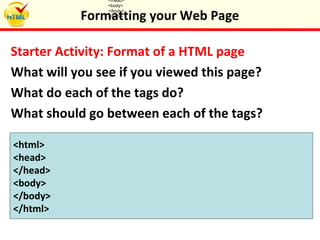
Starter Activity: Format of a HTML page
What will you see if you viewed this page?
What do each of the tags do?
What should go between each of the tags?
Formatting your Web Page
</head>
<body>
</body>
</html>
<html>
<head>
</head>
<body>
</body>
</html>
In this lesson you will learn how to add headings,
paragraphs and line breaks using html. You will
add paragraphs of text, headings and a list of
attractions to your zoo homepage.
Lesson
Objectives
 Be able to create paragraphs on a web page
 Be able to create line breaks on a web page
 Be able to add headings on a web page
 Understand how to create a list on a web page
Formatting your Web Page
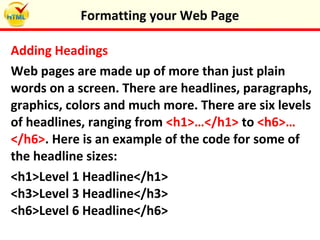
Adding Headings
Web pages are made up of more than just plain
words on a screen. There are headlines, paragraphs,
graphics, colors and much more. There are six levels
of headlines, ranging from <h1>…</h1> to <h6>…
</h6>. Here is an example of the code for some of
the headline sizes:
<h1>Level 1 Headline</h1>
<h3>Level 3 Headline</h3>
<h6>Level 6 Headline</h6>
Formatting your Web Page
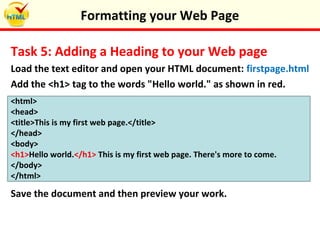
Task 5: Adding a Heading to your Web page
Load the text editor and open your HTML document: firstpage.html
Add the <h1> tag to the words "Hello world." as shown in red.
<html>
<head>
<title>This is my first web page.</title>
</head>
<body>
<h1>Hello world.</h1> This is my first web page. There's more to come.
</body>
</html>
Save the document and then preview your work.
Formatting your Web Page
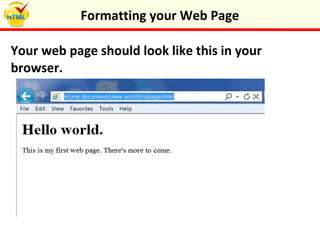
Your web page should look like this in your
browser.
Formatting your Web Page
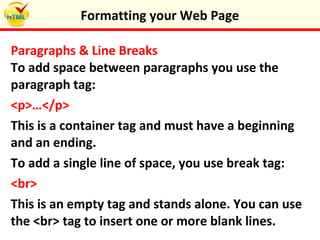
Paragraphs & Line Breaks
To add space between paragraphs you use the
paragraph tag:
<p>…</p>
This is a container tag and must have a beginning
and an ending.
To add a single line of space, you use break tag:
<br>
This is an empty tag and stands alone. You can use
the <br> tag to insert one or more blank lines.
Formatting your Web Page
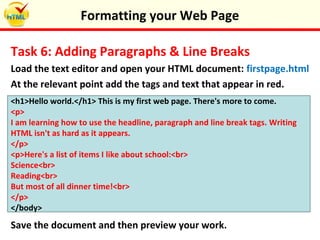
Task 6: Adding Paragraphs & Line Breaks
Load the text editor and open your HTML document: firstpage.html
At the relevant point add the tags and text that appear in red.
<h1>Hello world.</h1> This is my first web page. There's more to come.
<p>
I am learning how to use the headline, paragraph and line break tags. Writing
HTML isn't as hard as it appears.
</p>
<p>Here's a list of items I like about school:<br>
Science<br>
Reading<br>
But most of all dinner time!<br>
</p>
</body>
Save the document and then preview your work.
Formatting your Web Page
Your web page should look like this in your
browser.
Formatting your Web Page
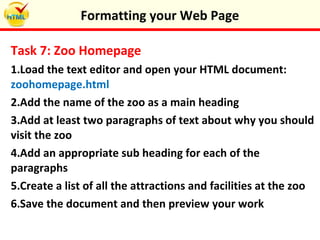
Task 7: Zoo Homepage
1.Load the text editor and open your HTML document:
zoohomepage.html
2.Add the name of the zoo as a main heading
3.Add at least two paragraphs of text about why you should
visit the zoo
4.Add an appropriate sub heading for each of the
paragraphs
5.Create a list of all the attractions and facilities at the zoo
6.Save the document and then preview your work
Formatting your Web Page
Plenary: Test your Partner
Write three questions to test what your elbow
partner has learnt today.
When ready, ask each other your questions.
Formatting your Web Page
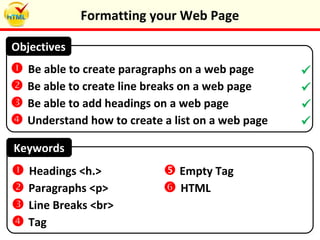
Keywords
 Be able to create paragraphs on a web page
 Be able to create line breaks on a web page
 Be able to add headings on a web page
 Understand how to create a list on a web page
Objectives
 Headings <h.>
 Paragraphs <p>
 Line Breaks <br>
 Tag
 Empty Tag
 HTML




Formatting your Web Page

Formatting your web page

  • 1.
  • 2.
    Starter Activity: Formatof a HTML page What will you see if you viewed this page? What do each of the tags do? What should go between each of the tags? Formatting your Web Page </head> <body> </body> </html> <html> <head> </head> <body> </body> </html>
  • 3.
    In this lessonyou will learn how to add headings, paragraphs and line breaks using html. You will add paragraphs of text, headings and a list of attractions to your zoo homepage. Lesson Objectives  Be able to create paragraphs on a web page  Be able to create line breaks on a web page  Be able to add headings on a web page  Understand how to create a list on a web page Formatting your Web Page
  • 4.
    Adding Headings Web pagesare made up of more than just plain words on a screen. There are headlines, paragraphs, graphics, colors and much more. There are six levels of headlines, ranging from <h1>…</h1> to <h6>… </h6>. Here is an example of the code for some of the headline sizes: <h1>Level 1 Headline</h1> <h3>Level 3 Headline</h3> <h6>Level 6 Headline</h6> Formatting your Web Page
  • 5.
    Task 5: Addinga Heading to your Web page Load the text editor and open your HTML document: firstpage.html Add the <h1> tag to the words "Hello world." as shown in red. <html> <head> <title>This is my first web page.</title> </head> <body> <h1>Hello world.</h1> This is my first web page. There's more to come. </body> </html> Save the document and then preview your work. Formatting your Web Page
  • 6.
    Your web pageshould look like this in your browser. Formatting your Web Page
  • 7.
    Paragraphs & LineBreaks To add space between paragraphs you use the paragraph tag: <p>…</p> This is a container tag and must have a beginning and an ending. To add a single line of space, you use break tag: <br> This is an empty tag and stands alone. You can use the <br> tag to insert one or more blank lines. Formatting your Web Page
  • 8.
    Task 6: AddingParagraphs & Line Breaks Load the text editor and open your HTML document: firstpage.html At the relevant point add the tags and text that appear in red. <h1>Hello world.</h1> This is my first web page. There's more to come. <p> I am learning how to use the headline, paragraph and line break tags. Writing HTML isn't as hard as it appears. </p> <p>Here's a list of items I like about school:<br> Science<br> Reading<br> But most of all dinner time!<br> </p> </body> Save the document and then preview your work. Formatting your Web Page
  • 9.
    Your web pageshould look like this in your browser. Formatting your Web Page
  • 10.
    Task 7: ZooHomepage 1.Load the text editor and open your HTML document: zoohomepage.html 2.Add the name of the zoo as a main heading 3.Add at least two paragraphs of text about why you should visit the zoo 4.Add an appropriate sub heading for each of the paragraphs 5.Create a list of all the attractions and facilities at the zoo 6.Save the document and then preview your work Formatting your Web Page
  • 11.
    Plenary: Test yourPartner Write three questions to test what your elbow partner has learnt today. When ready, ask each other your questions. Formatting your Web Page
  • 12.
    Keywords  Be ableto create paragraphs on a web page  Be able to create line breaks on a web page  Be able to add headings on a web page  Understand how to create a list on a web page Objectives  Headings <h.>  Paragraphs <p>  Line Breaks <br>  Tag  Empty Tag  HTML     Formatting your Web Page