Firefox Extension Development
Why Firefox?PerformanceSecurityUser friendly (ease to use)SecurityMemory efficiencyExtensibilityExtension, extension and extensionsIt has a strong development foundationwww.developer.mozilla.comwww.builder.mozillalabs.comAnd many more
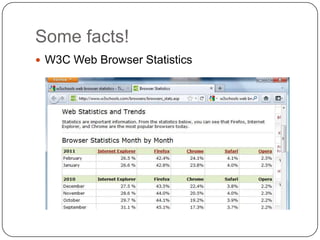
Some facts!W3C Web Browser Statistics
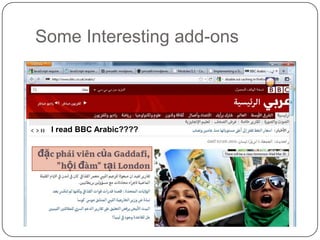
Some Interesting add-onsI read BBC Arabic????
Part I. Using Add-on SDK
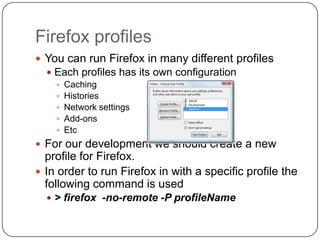
Firefox profilesYou can run Firefox in many different profilesEach profiles has its own configurationCachingHistoriesNetwork settingsAdd-onsEtcFor our development we should create a new profile for Firefox.In order to run Firefox in with a specific profile the following command is used> firefox  -no-remote -P profileName
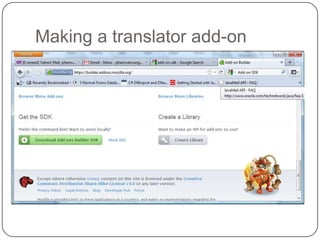
Making a translator add-on
SDK commandsGo to the add-on folder and type> bin\activate.batNow the add-on sdk is ready.You can now type>cfx docsThis will bring you to http://127.0.0.1:8888/This documentation has a complete guide on how to make one add-on
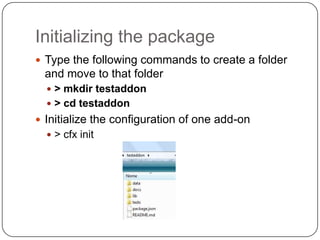
Initializing the packageType the following commands to create a folder and move to that folder> mkdirtestaddon> cd testaddonInitialize the configuration of one add-on> cfxinit
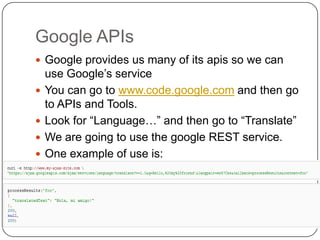
Google APIsGoogle provides us many of its apis so we can use Google’s serviceYou can go to www.code.google.com and then go to APIs and Tools.Look for “Language…” and then go to “Translate”We are going to use the google REST service.One example of use is:
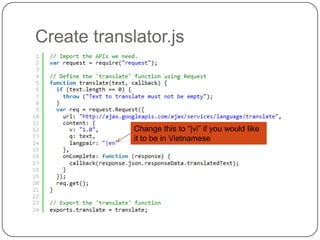
Create translator.jsChange this to “|vi” if you would like it to be in Vietnamese
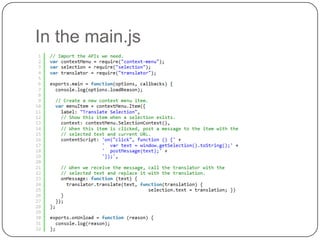
In the main.js
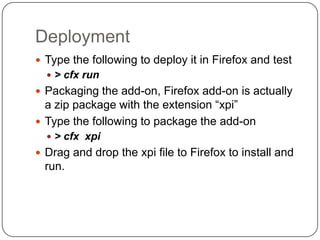
DeploymentType the following to deploy it in Firefox and test> cfx run Packaging the add-on, Firefox add-on is actually a zip package with the extension “xpi”Type the following to package the add-on> cfxxpiDrag and drop the xpi file to Firefox to install and run.
Add-on typical structure
Resource Description Framework (RDF)
XML User Interface Language (XUL)
Tabbed Browser
Firefox Interfaces and ServicesDeveloping a Firefox Add-On from scratch
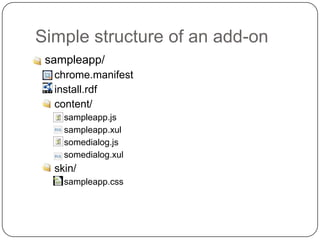
Simple structure of an add-onsampleapp/chrome.manifestinstall.rdfcontent/sampleapp.jssampleapp.xulsomedialog.jssomedialog.xulskin/sampleapp.css
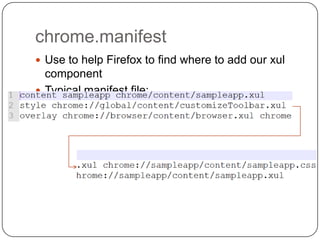
chrome.manifestUse to help Firefox to find where to add our xul componentTypical manifest file:
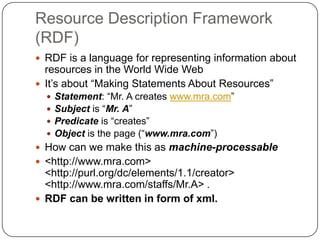
Resource Description Framework (RDF)RDF is a language for representing information about resources in the World Wide WebIt’s about “Making Statements About Resources”Statement: “Mr. A creates www.mra.com”Subject is “Mr. A”Predicate is “creates”Object is the page (“www.mra.com”)How can we make this as machine-processable<http://www.mra.com> <http://purl.org/dc/elements/1.1/creator> <http://www.mra.com/staffs/Mr.A> .RDF can be written in form of xml.
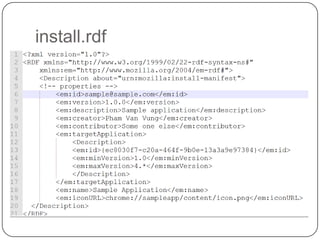
install.rdf
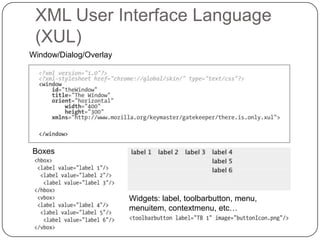
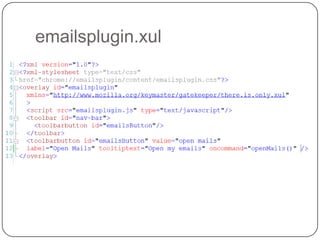
XML User Interface Language (XUL)Window/Dialog/OverlayBoxesWidgets: label, toolbarbutton, menu, menuitem, contextmenu, etc…
emailsplugin.xul
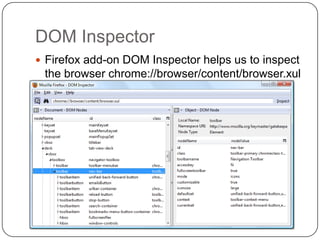
DOM InspectorFirefox add-on DOM Inspector helps us to inspect the browser chrome://browser/content/browser.xul
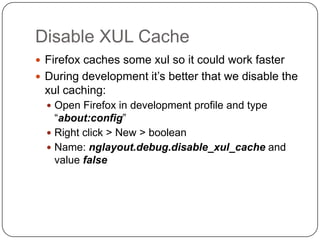
Disable XUL CacheFirefox caches some xul so it could work fasterDuring development it’s better that we disable the xul caching:Open Firefox in development profile and type “about:config”Right click > New > booleanName: nglayout.debug.disable_xul_cache and value false
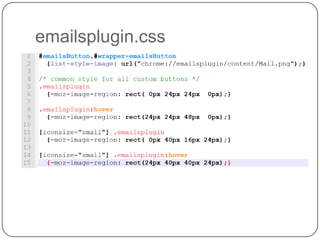
emailsplugin.css
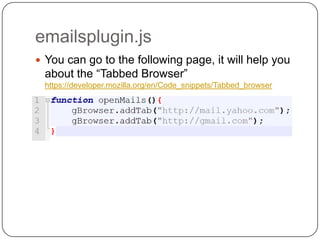
emailsplugin.jsYou can go to the following page, it will help you about the “Tabbed Browser” https://developer.mozilla.org/en/Code_snippets/Tabbed_browser
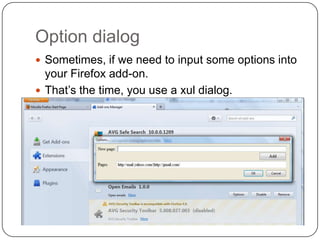
Option dialogSometimes, if we need to input some options into your Firefox add-on.That’s the time, you use a xul dialog.
Option DialogWe add the following filesoptionsDialog.xuloptionsDialog.jsoptionsDialog.cssChange the way we add new tab when user clicks the Open Mails button.Make a for loop and open all pages in the option fileAdd in the install.rdf one line describe about the option dialog:<em:optionsURL>chrome://emailsplugin/content/optionsDialog.xul</em:optionsURL>
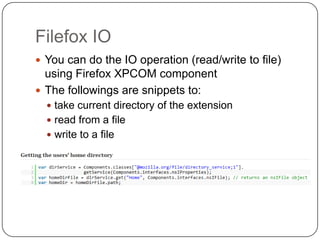
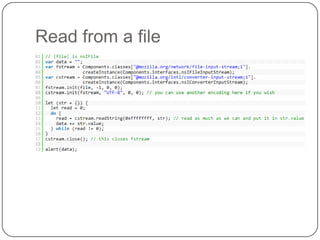
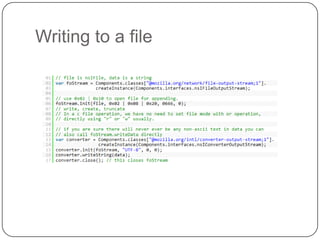
Filefox IOYou can do the IO operation (read/write to file) using Firefox XPCOM componentThe followings are snippets to:take current directory of the extensionread from a filewrite to a file

Firefox Extension Development

  • 1.
  • 2.
    Why Firefox?PerformanceSecurityUser friendly(ease to use)SecurityMemory efficiencyExtensibilityExtension, extension and extensionsIt has a strong development foundationwww.developer.mozilla.comwww.builder.mozillalabs.comAnd many more
  • 3.
    Some facts!W3C WebBrowser Statistics
  • 4.
    Some Interesting add-onsIread BBC Arabic????
  • 5.
    Part I. UsingAdd-on SDK
  • 6.
    Firefox profilesYou canrun Firefox in many different profilesEach profiles has its own configurationCachingHistoriesNetwork settingsAdd-onsEtcFor our development we should create a new profile for Firefox.In order to run Firefox in with a specific profile the following command is used> firefox -no-remote -P profileName
  • 7.
  • 8.
    SDK commandsGo tothe add-on folder and type> bin\activate.batNow the add-on sdk is ready.You can now type>cfx docsThis will bring you to http://127.0.0.1:8888/This documentation has a complete guide on how to make one add-on
  • 9.
    Initializing the packageTypethe following commands to create a folder and move to that folder> mkdirtestaddon> cd testaddonInitialize the configuration of one add-on> cfxinit
  • 10.
    Google APIsGoogle providesus many of its apis so we can use Google’s serviceYou can go to www.code.google.com and then go to APIs and Tools.Look for “Language…” and then go to “Translate”We are going to use the google REST service.One example of use is:
  • 11.
    Create translator.jsChange thisto “|vi” if you would like it to be in Vietnamese
  • 12.
  • 13.
    DeploymentType the followingto deploy it in Firefox and test> cfx run Packaging the add-on, Firefox add-on is actually a zip package with the extension “xpi”Type the following to package the add-on> cfxxpiDrag and drop the xpi file to Firefox to install and run.
  • 14.
  • 15.
  • 16.
    XML User InterfaceLanguage (XUL)
  • 17.
  • 18.
    Firefox Interfaces andServicesDeveloping a Firefox Add-On from scratch
  • 19.
    Simple structure ofan add-onsampleapp/chrome.manifestinstall.rdfcontent/sampleapp.jssampleapp.xulsomedialog.jssomedialog.xulskin/sampleapp.css
  • 20.
    chrome.manifestUse to helpFirefox to find where to add our xul componentTypical manifest file:
  • 21.
    Resource Description Framework(RDF)RDF is a language for representing information about resources in the World Wide WebIt’s about “Making Statements About Resources”Statement: “Mr. A creates www.mra.com”Subject is “Mr. A”Predicate is “creates”Object is the page (“www.mra.com”)How can we make this as machine-processable<http://www.mra.com> <http://purl.org/dc/elements/1.1/creator> <http://www.mra.com/staffs/Mr.A> .RDF can be written in form of xml.
  • 22.
  • 23.
    XML User InterfaceLanguage (XUL)Window/Dialog/OverlayBoxesWidgets: label, toolbarbutton, menu, menuitem, contextmenu, etc…
  • 24.
  • 25.
    DOM InspectorFirefox add-onDOM Inspector helps us to inspect the browser chrome://browser/content/browser.xul
  • 26.
    Disable XUL CacheFirefoxcaches some xul so it could work fasterDuring development it’s better that we disable the xul caching:Open Firefox in development profile and type “about:config”Right click > New > booleanName: nglayout.debug.disable_xul_cache and value false
  • 27.
  • 28.
    emailsplugin.jsYou can goto the following page, it will help you about the “Tabbed Browser” https://developer.mozilla.org/en/Code_snippets/Tabbed_browser
  • 29.
    Option dialogSometimes, ifwe need to input some options into your Firefox add-on.That’s the time, you use a xul dialog.
  • 30.
    Option DialogWe addthe following filesoptionsDialog.xuloptionsDialog.jsoptionsDialog.cssChange the way we add new tab when user clicks the Open Mails button.Make a for loop and open all pages in the option fileAdd in the install.rdf one line describe about the option dialog:<em:optionsURL>chrome://emailsplugin/content/optionsDialog.xul</em:optionsURL>
  • 31.
    Filefox IOYou cando the IO operation (read/write to file) using Firefox XPCOM componentThe followings are snippets to:take current directory of the extensionread from a filewrite to a file