Introduction to Firefox Add-ons
Firefox Add-ons
Agenda
•What is add-ons for firefox mean?
•What you should have to write an extension?
•Creating extension development profile
•Configure settings
•Creating folder structure & files
•Understanding chrome & overlay
•Understanding install.rdf & chrome.manifest
•XUL, JavaScript & DOM
•Examples
•Packaging & Installation
Firefox Add-ons

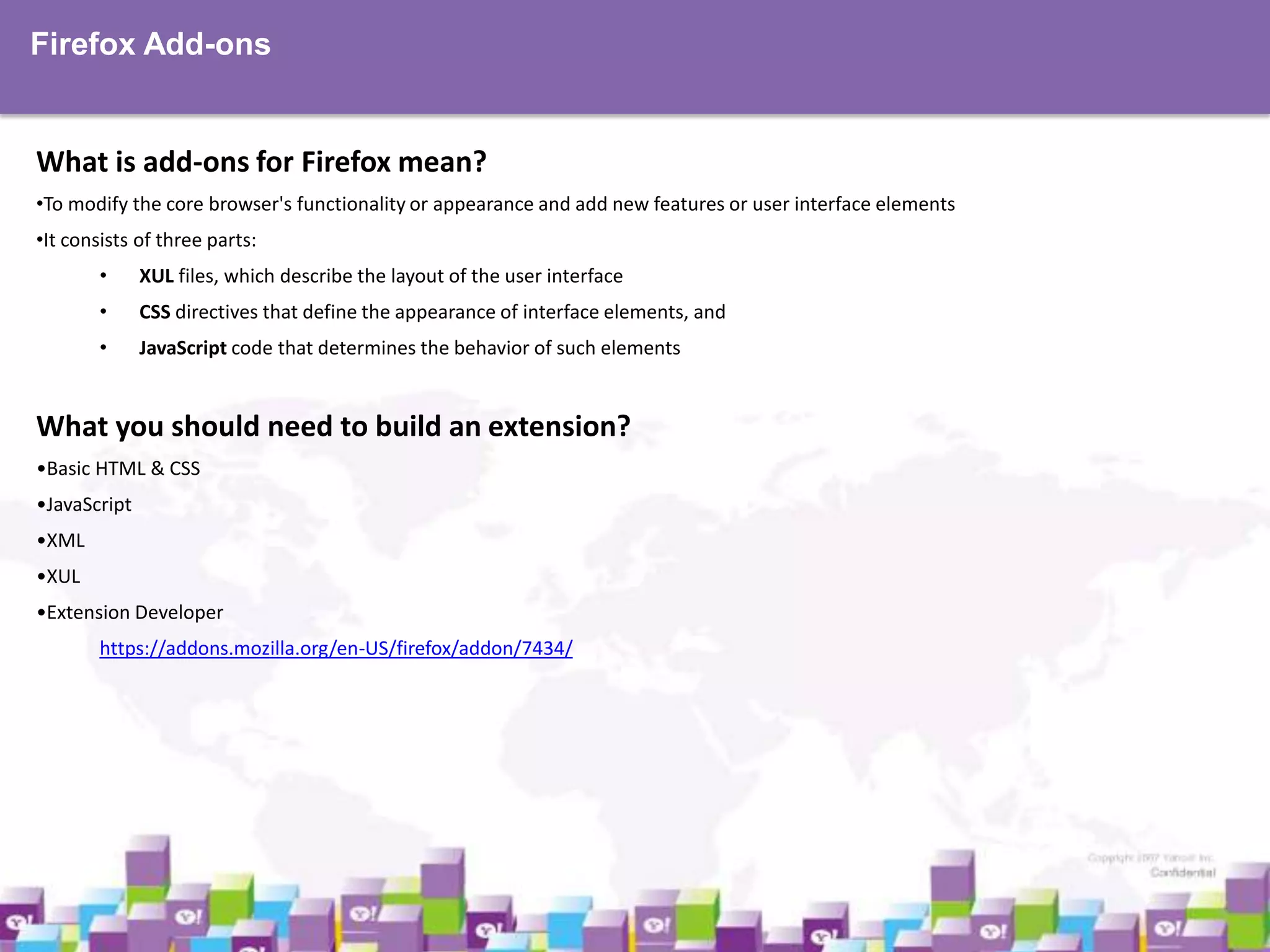
What is add-ons for Firefox mean?
•To modify the core browser's functionality or appearance and add new features or user interface elements
•It consists of three parts:
•

XUL files, which describe the layout of the user interface

•

CSS directives that define the appearance of interface elements, and

•

JavaScript code that determines the behavior of such elements

What you should need to build an extension?
•Basic HTML & CSS
•JavaScript
•XML
•XUL
•Extension Developer
https://addons.mozilla.org/en-US/firefox/addon/7434/
Firefox Add-ons

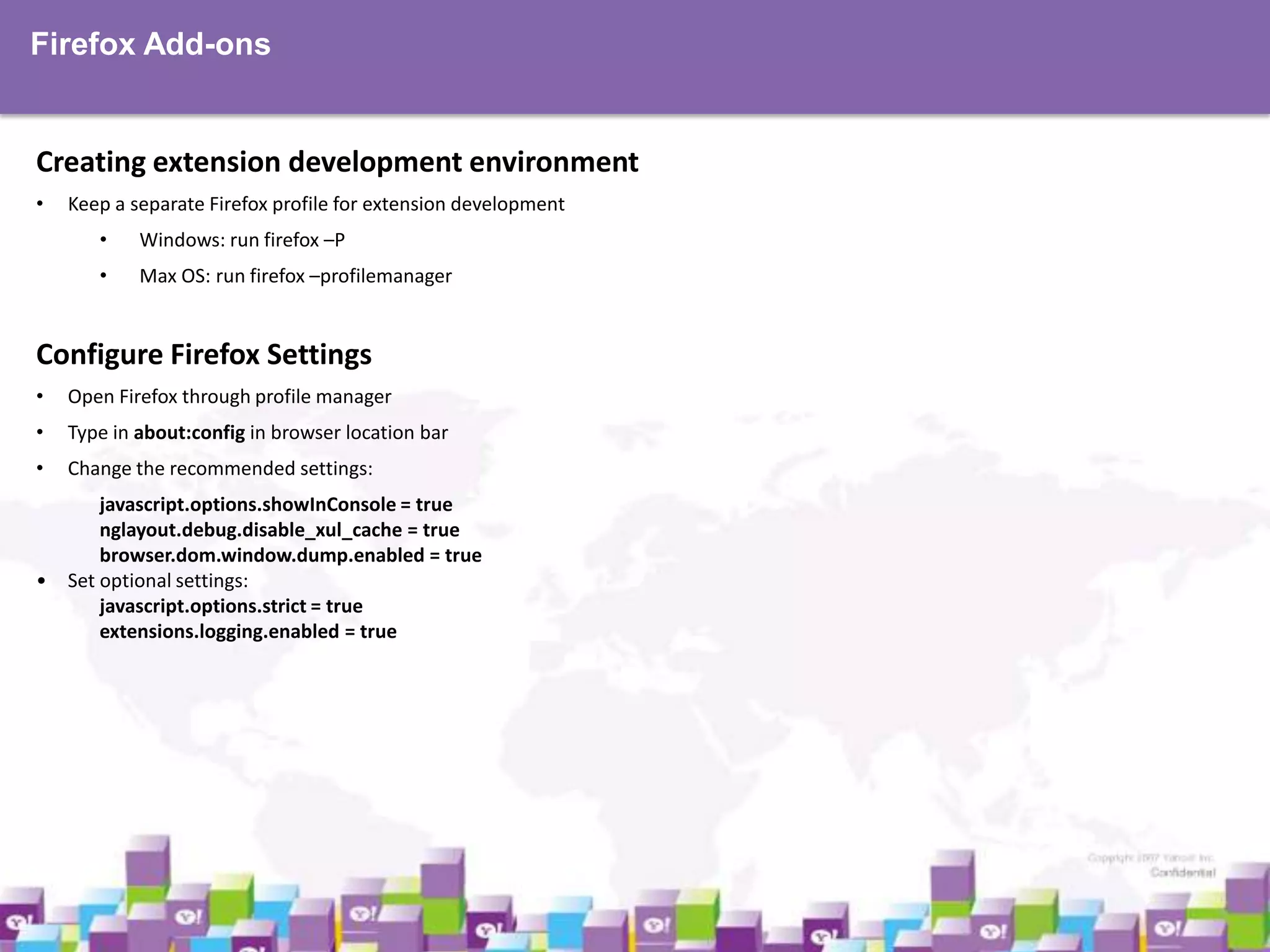
Creating extension development environment
•

Keep a separate Firefox profile for extension development
•

Windows: run firefox –P

•

Max OS: run firefox –profilemanager

Configure Firefox Settings
•

Open Firefox through profile manager

•

Type in about:config in browser location bar

•

Change the recommended settings:

•

javascript.options.showInConsole = true
nglayout.debug.disable_xul_cache = true
browser.dom.window.dump.enabled = true
Set optional settings:
javascript.options.strict = true
extensions.logging.enabled = true
Firefox Add-ons

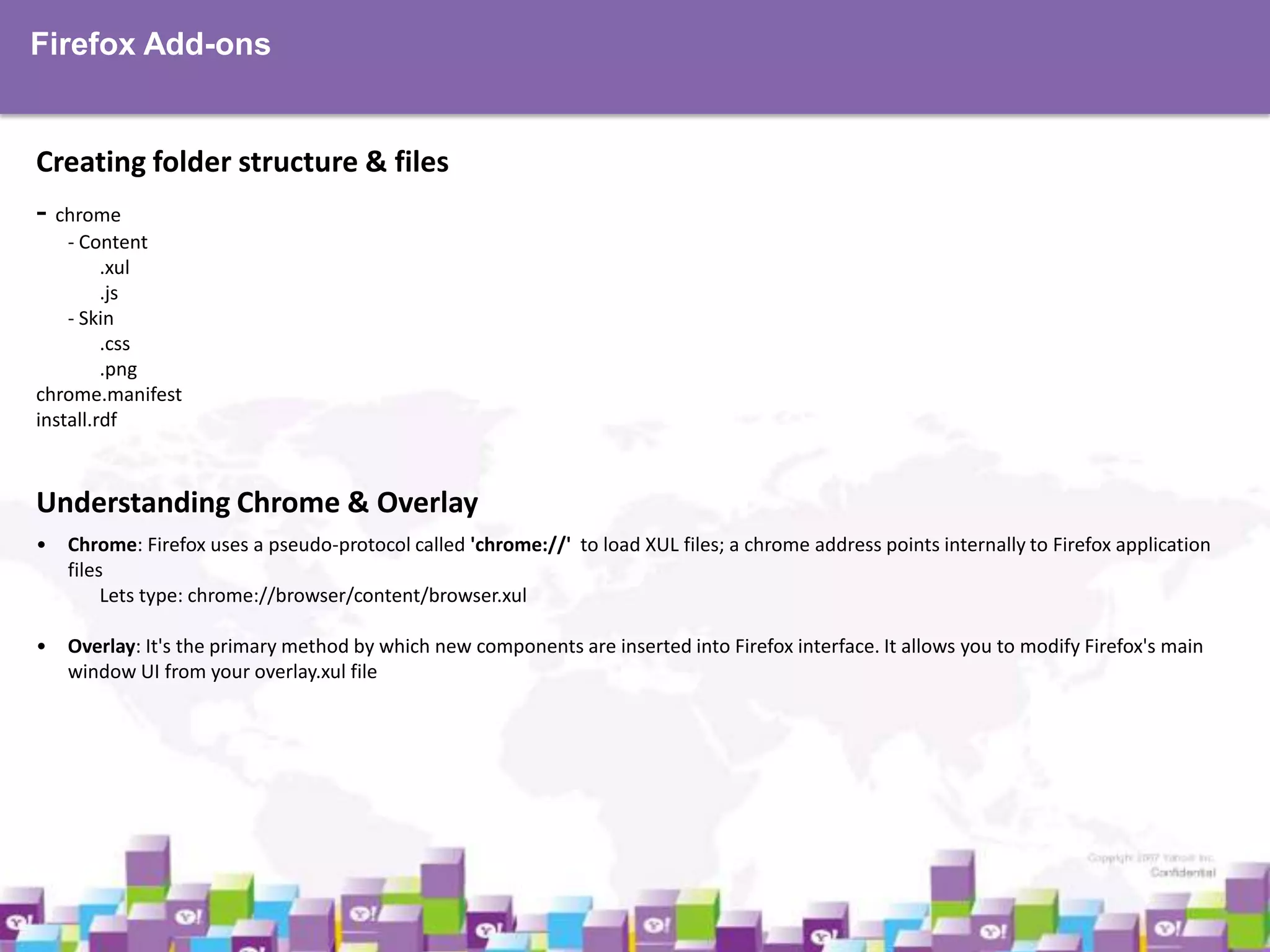
Creating folder structure & files
- chrome
- Content
.xul
.js
- Skin
.css
.png
chrome.manifest
install.rdf

Understanding Chrome & Overlay
•

Chrome: Firefox uses a pseudo-protocol called 'chrome://' to load XUL files; a chrome address points internally to Firefox application
files
Lets type: chrome://browser/content/browser.xul

•

Overlay: It's the primary method by which new components are inserted into Firefox interface. It allows you to modify Firefox's main
window UI from your overlay.xul file
Firefox Add-ons

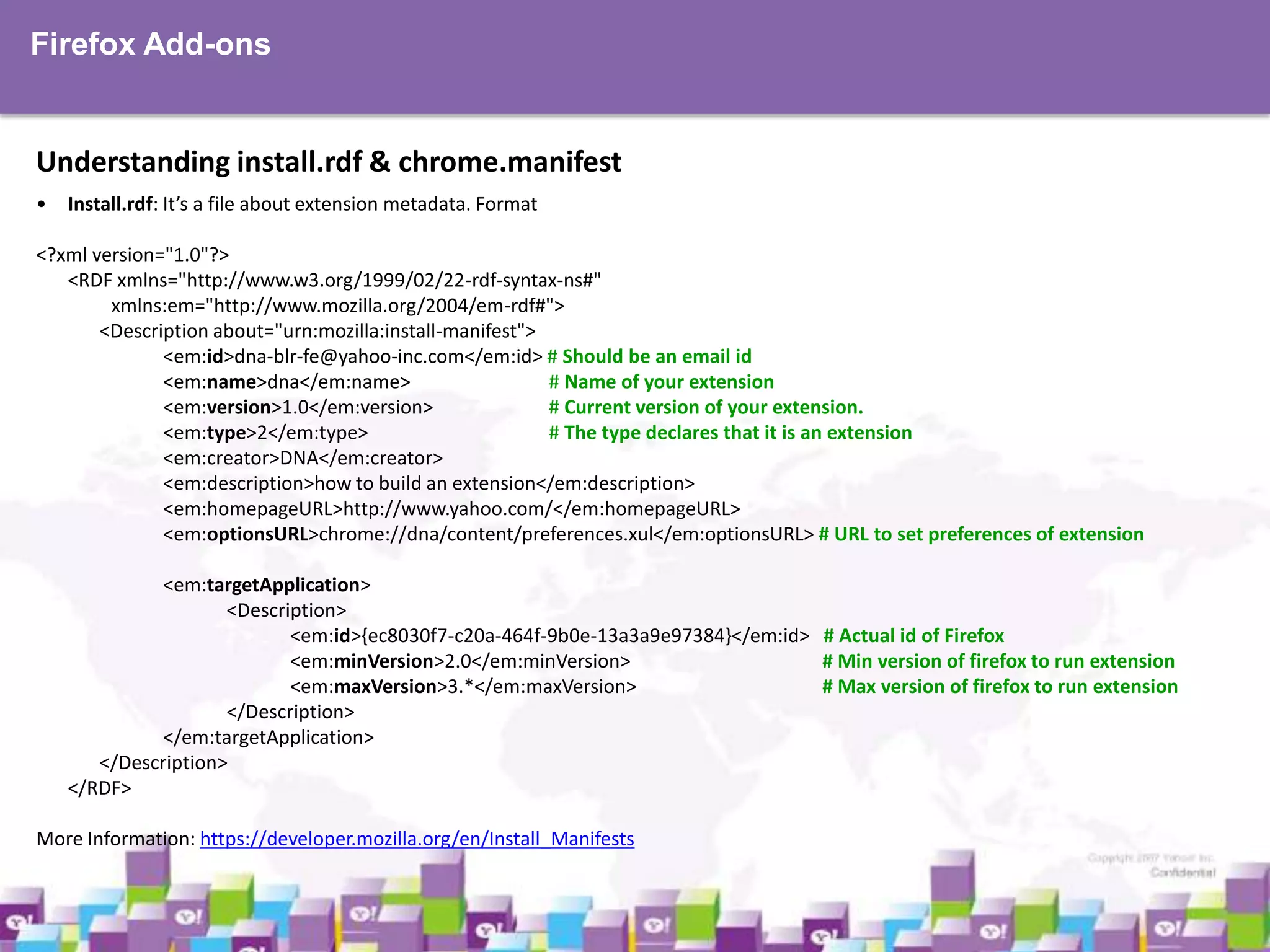
Understanding install.rdf & chrome.manifest
•

Install.rdf: It’s a file about extension metadata. Format

<?xml version="1.0"?>
<RDF xmlns="http://www.w3.org/1999/02/22-rdf-syntax-ns#"
xmlns:em="http://www.mozilla.org/2004/em-rdf#">
<Description about="urn:mozilla:install-manifest">
<em:id>dna-blr-fe@yahoo-inc.com</em:id> # Should be an email id
<em:name>dna</em:name>
# Name of your extension
<em:version>1.0</em:version>
# Current version of your extension.
<em:type>2</em:type>
# The type declares that it is an extension
<em:creator>DNA</em:creator>
<em:description>how to build an extension</em:description>
<em:homepageURL>http://www.yahoo.com/</em:homepageURL>
<em:optionsURL>chrome://dna/content/preferences.xul</em:optionsURL> # URL to set preferences of extension
<em:targetApplication>
<Description>
<em:id>{ec8030f7-c20a-464f-9b0e-13a3a9e97384}</em:id> # Actual id of Firefox
<em:minVersion>2.0</em:minVersion>
# Min version of firefox to run extension
<em:maxVersion>3.*</em:maxVersion>
# Max version of firefox to run extension
</Description>
</em:targetApplication>
</Description>
</RDF>
More Information: https://developer.mozilla.org/en/Install_Manifests
Firefox Add-ons

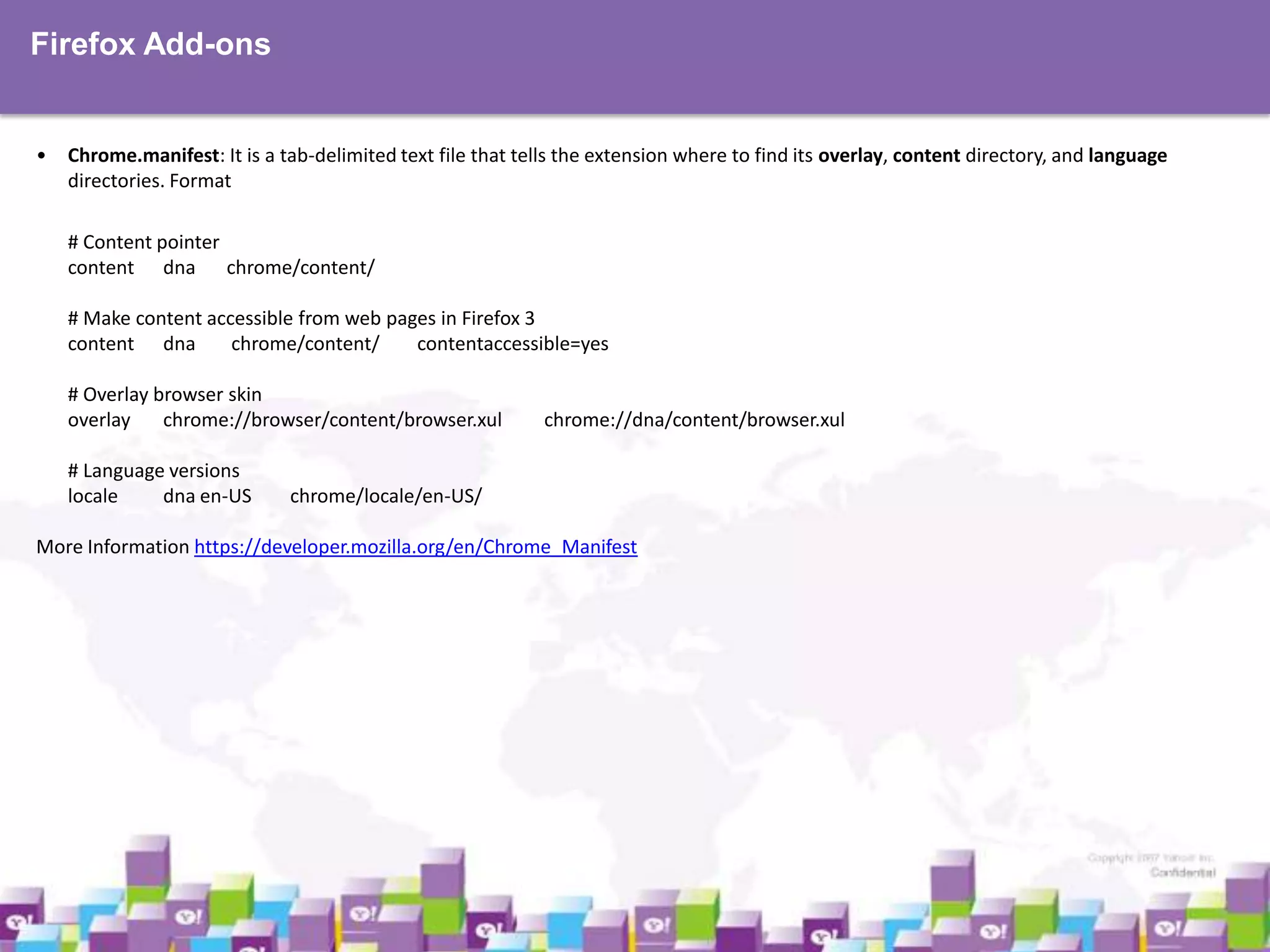
•

Chrome.manifest: It is a tab-delimited text file that tells the extension where to find its overlay, content directory, and language
directories. Format
# Content pointer
content dna chrome/content/
# Make content accessible from web pages in Firefox 3
content dna
chrome/content/
contentaccessible=yes
# Overlay browser skin
overlay
chrome://browser/content/browser.xul
# Language versions
locale
dna en-US

chrome://dna/content/browser.xul

chrome/locale/en-US/

More Information https://developer.mozilla.org/en/Chrome_Manifest
Firefox Add-ons

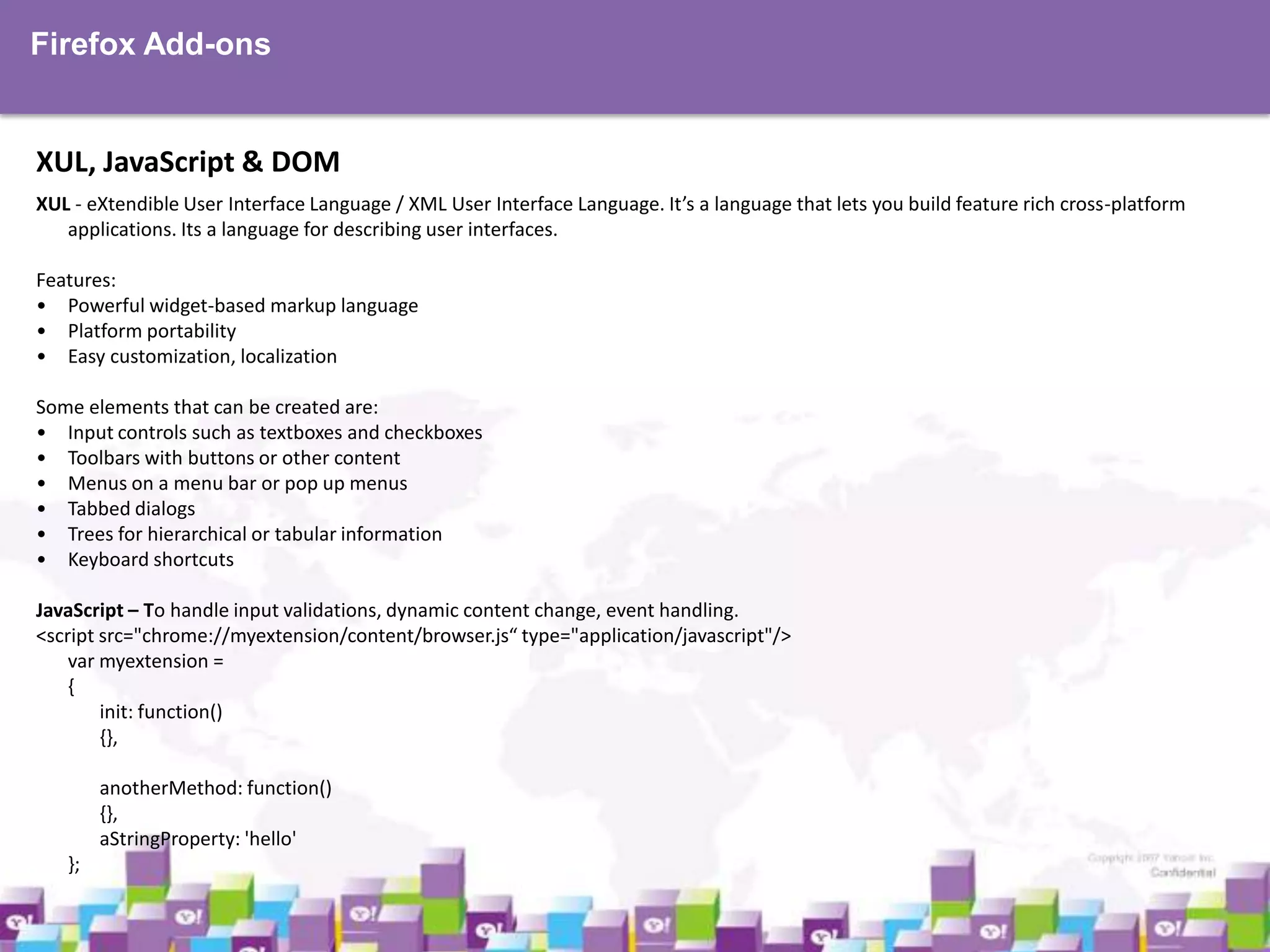
XUL, JavaScript & DOM
XUL - eXtendible User Interface Language / XML User Interface Language. It’s a language that lets you build feature rich cross-platform
applications. Its a language for describing user interfaces.
Features:
• Powerful widget-based markup language
• Platform portability
• Easy customization, localization
Some elements that can be created are:
• Input controls such as textboxes and checkboxes
• Toolbars with buttons or other content
• Menus on a menu bar or pop up menus
• Tabbed dialogs
• Trees for hierarchical or tabular information
• Keyboard shortcuts
JavaScript – To handle input validations, dynamic content change, event handling.
<script src="chrome://myextension/content/browser.js“ type="application/javascript"/>
var myextension =
{
init: function()
{},
anotherMethod: function()
{},
aStringProperty: 'hello'
};
Firefox Add-ons

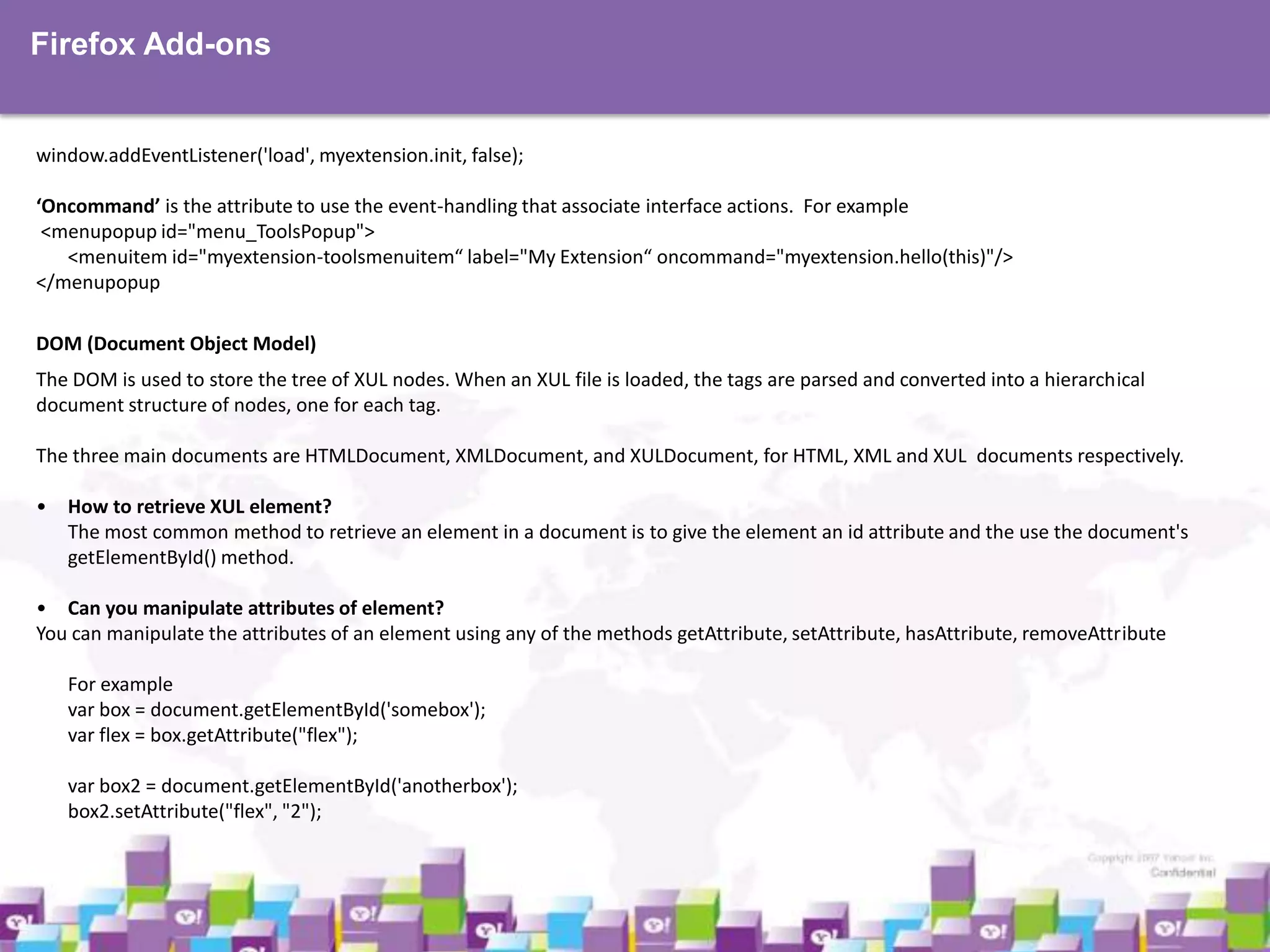
window.addEventListener('load', myextension.init, false);
‘Oncommand’ is the attribute to use the event-handling that associate interface actions. For example
<menupopup id="menu_ToolsPopup">
<menuitem id="myextension-toolsmenuitem“ label="My Extension“ oncommand="myextension.hello(this)"/>
</menupopup
DOM (Document Object Model)
The DOM is used to store the tree of XUL nodes. When an XUL file is loaded, the tags are parsed and converted into a hierarchical
document structure of nodes, one for each tag.
The three main documents are HTMLDocument, XMLDocument, and XULDocument, for HTML, XML and XUL documents respectively.

• How to retrieve XUL element?
The most common method to retrieve an element in a document is to give the element an id attribute and the use the document's
getElementById() method.
• Can you manipulate attributes of element?
You can manipulate the attributes of an element using any of the methods getAttribute, setAttribute, hasAttribute, removeAttribute
For example
var box = document.getElementById('somebox');
var flex = box.getAttribute("flex");
var box2 = document.getElementById('anotherbox');
box2.setAttribute("flex", "2");
Firefox Add-ons

Packaging & Installation
A file with the ‘.xpi’, cross platform install, file extension is a Firefox Browser Extension Archive file. It’s just a zipped file, that contains an
install script or a manifest at the root of the file and data files of an extension.
Packaging

• Select all files, and ZIP.
• Rename ZIP file to .xpi
Installation
• Drag your XPI file into Firefox
Tool for package creation
https://addons.mozilla.org/en-US/developers/tools/builder

Resources
•
•
•

https://developer.mozilla.org/en/XUL_School
https://developer.mozilla.org/en/Extensions
http://kb.mozillazine.org/Getting_started_with_extension_development
Thank You!

Thank you!

Firefox addons

  • 1.
  • 2.
    Firefox Add-ons Agenda •What isadd-ons for firefox mean? •What you should have to write an extension? •Creating extension development profile •Configure settings •Creating folder structure & files •Understanding chrome & overlay •Understanding install.rdf & chrome.manifest •XUL, JavaScript & DOM •Examples •Packaging & Installation
  • 3.
    Firefox Add-ons What isadd-ons for Firefox mean? •To modify the core browser's functionality or appearance and add new features or user interface elements •It consists of three parts: • XUL files, which describe the layout of the user interface • CSS directives that define the appearance of interface elements, and • JavaScript code that determines the behavior of such elements What you should need to build an extension? •Basic HTML & CSS •JavaScript •XML •XUL •Extension Developer https://addons.mozilla.org/en-US/firefox/addon/7434/
  • 4.
    Firefox Add-ons Creating extensiondevelopment environment • Keep a separate Firefox profile for extension development • Windows: run firefox –P • Max OS: run firefox –profilemanager Configure Firefox Settings • Open Firefox through profile manager • Type in about:config in browser location bar • Change the recommended settings: • javascript.options.showInConsole = true nglayout.debug.disable_xul_cache = true browser.dom.window.dump.enabled = true Set optional settings: javascript.options.strict = true extensions.logging.enabled = true
  • 5.
    Firefox Add-ons Creating folderstructure & files - chrome - Content .xul .js - Skin .css .png chrome.manifest install.rdf Understanding Chrome & Overlay • Chrome: Firefox uses a pseudo-protocol called 'chrome://' to load XUL files; a chrome address points internally to Firefox application files Lets type: chrome://browser/content/browser.xul • Overlay: It's the primary method by which new components are inserted into Firefox interface. It allows you to modify Firefox's main window UI from your overlay.xul file
  • 6.
    Firefox Add-ons Understanding install.rdf& chrome.manifest • Install.rdf: It’s a file about extension metadata. Format <?xml version="1.0"?> <RDF xmlns="http://www.w3.org/1999/02/22-rdf-syntax-ns#" xmlns:em="http://www.mozilla.org/2004/em-rdf#"> <Description about="urn:mozilla:install-manifest"> <em:id>dna-blr-fe@yahoo-inc.com</em:id> # Should be an email id <em:name>dna</em:name> # Name of your extension <em:version>1.0</em:version> # Current version of your extension. <em:type>2</em:type> # The type declares that it is an extension <em:creator>DNA</em:creator> <em:description>how to build an extension</em:description> <em:homepageURL>http://www.yahoo.com/</em:homepageURL> <em:optionsURL>chrome://dna/content/preferences.xul</em:optionsURL> # URL to set preferences of extension <em:targetApplication> <Description> <em:id>{ec8030f7-c20a-464f-9b0e-13a3a9e97384}</em:id> # Actual id of Firefox <em:minVersion>2.0</em:minVersion> # Min version of firefox to run extension <em:maxVersion>3.*</em:maxVersion> # Max version of firefox to run extension </Description> </em:targetApplication> </Description> </RDF> More Information: https://developer.mozilla.org/en/Install_Manifests
  • 7.
    Firefox Add-ons • Chrome.manifest: Itis a tab-delimited text file that tells the extension where to find its overlay, content directory, and language directories. Format # Content pointer content dna chrome/content/ # Make content accessible from web pages in Firefox 3 content dna chrome/content/ contentaccessible=yes # Overlay browser skin overlay chrome://browser/content/browser.xul # Language versions locale dna en-US chrome://dna/content/browser.xul chrome/locale/en-US/ More Information https://developer.mozilla.org/en/Chrome_Manifest
  • 8.
    Firefox Add-ons XUL, JavaScript& DOM XUL - eXtendible User Interface Language / XML User Interface Language. It’s a language that lets you build feature rich cross-platform applications. Its a language for describing user interfaces. Features: • Powerful widget-based markup language • Platform portability • Easy customization, localization Some elements that can be created are: • Input controls such as textboxes and checkboxes • Toolbars with buttons or other content • Menus on a menu bar or pop up menus • Tabbed dialogs • Trees for hierarchical or tabular information • Keyboard shortcuts JavaScript – To handle input validations, dynamic content change, event handling. <script src="chrome://myextension/content/browser.js“ type="application/javascript"/> var myextension = { init: function() {}, anotherMethod: function() {}, aStringProperty: 'hello' };
  • 9.
    Firefox Add-ons window.addEventListener('load', myextension.init,false); ‘Oncommand’ is the attribute to use the event-handling that associate interface actions. For example <menupopup id="menu_ToolsPopup"> <menuitem id="myextension-toolsmenuitem“ label="My Extension“ oncommand="myextension.hello(this)"/> </menupopup DOM (Document Object Model) The DOM is used to store the tree of XUL nodes. When an XUL file is loaded, the tags are parsed and converted into a hierarchical document structure of nodes, one for each tag. The three main documents are HTMLDocument, XMLDocument, and XULDocument, for HTML, XML and XUL documents respectively. • How to retrieve XUL element? The most common method to retrieve an element in a document is to give the element an id attribute and the use the document's getElementById() method. • Can you manipulate attributes of element? You can manipulate the attributes of an element using any of the methods getAttribute, setAttribute, hasAttribute, removeAttribute For example var box = document.getElementById('somebox'); var flex = box.getAttribute("flex"); var box2 = document.getElementById('anotherbox'); box2.setAttribute("flex", "2");
  • 10.
    Firefox Add-ons Packaging &Installation A file with the ‘.xpi’, cross platform install, file extension is a Firefox Browser Extension Archive file. It’s just a zipped file, that contains an install script or a manifest at the root of the file and data files of an extension. Packaging • Select all files, and ZIP. • Rename ZIP file to .xpi Installation • Drag your XPI file into Firefox Tool for package creation https://addons.mozilla.org/en-US/developers/tools/builder Resources • • • https://developer.mozilla.org/en/XUL_School https://developer.mozilla.org/en/Extensions http://kb.mozillazine.org/Getting_started_with_extension_development
  • 11.