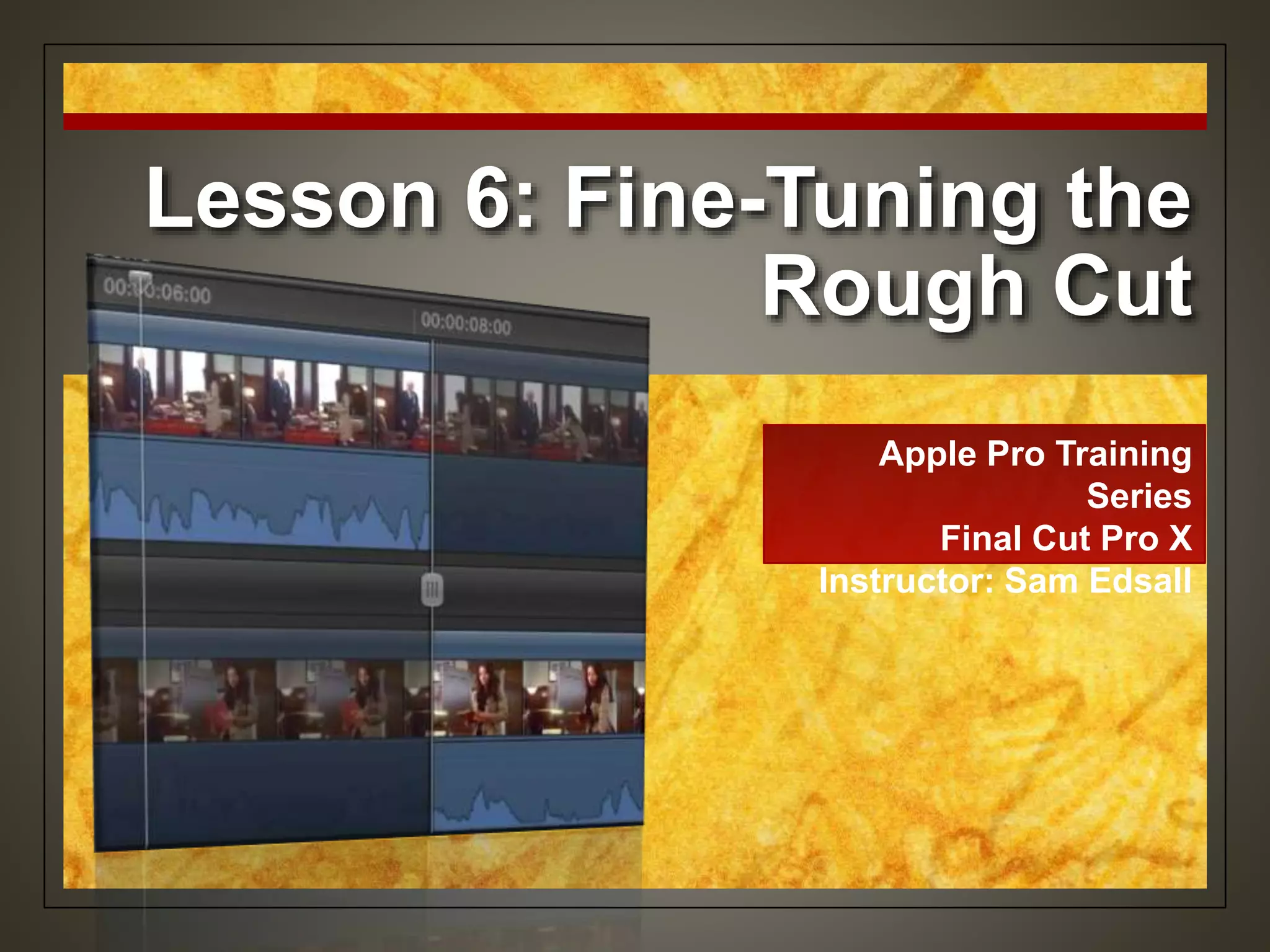
Lesson 6: Fine-Tuning the
Rough Cut
Apple Pro Training
Series
Final Cut Pro X
Instructor: Sam Edsall
Preparing the Project
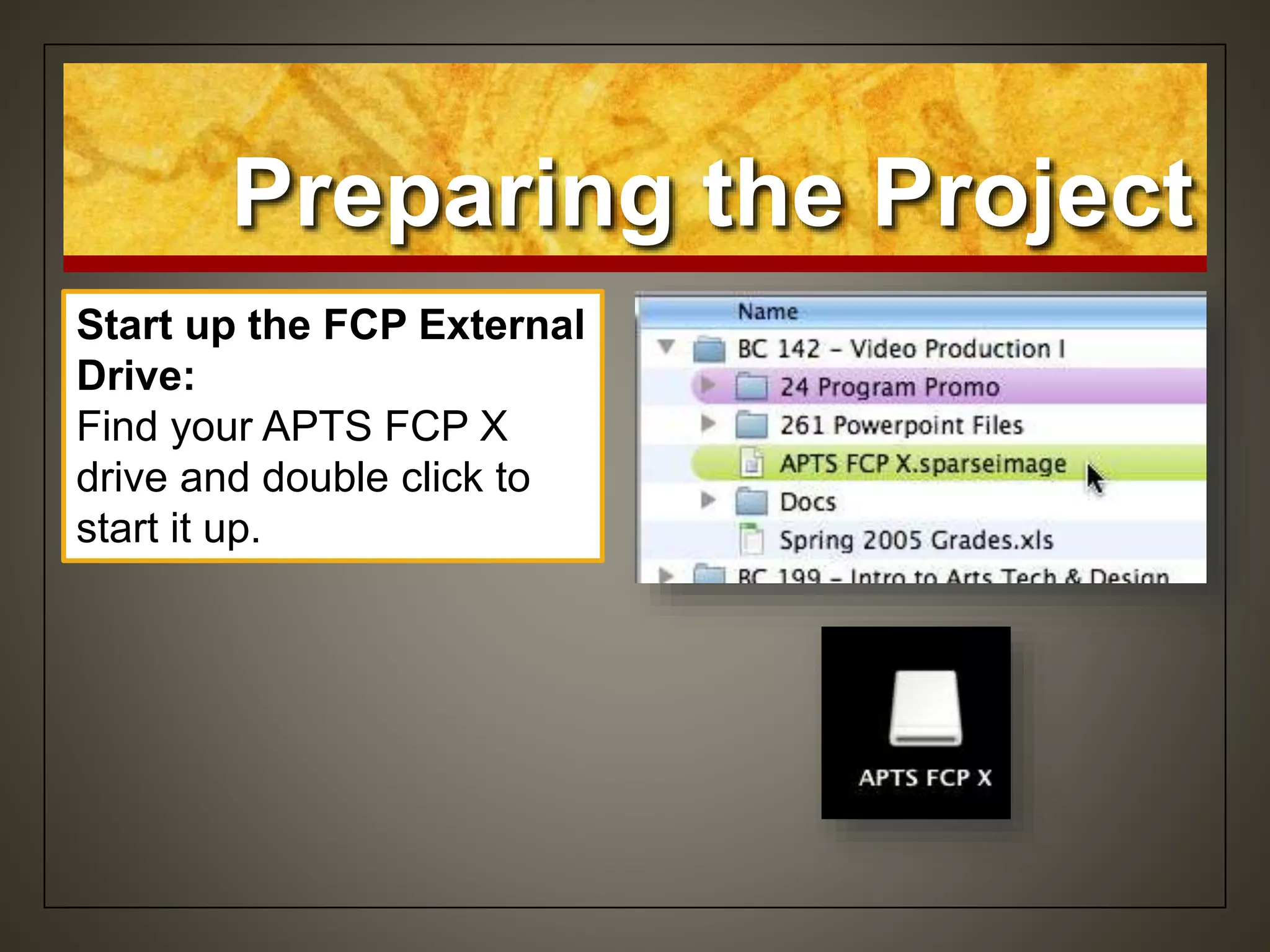
Start up the FCP External
Drive:
Find your APTS FCP X
drive and double click to
start it up.
Preparing the Project
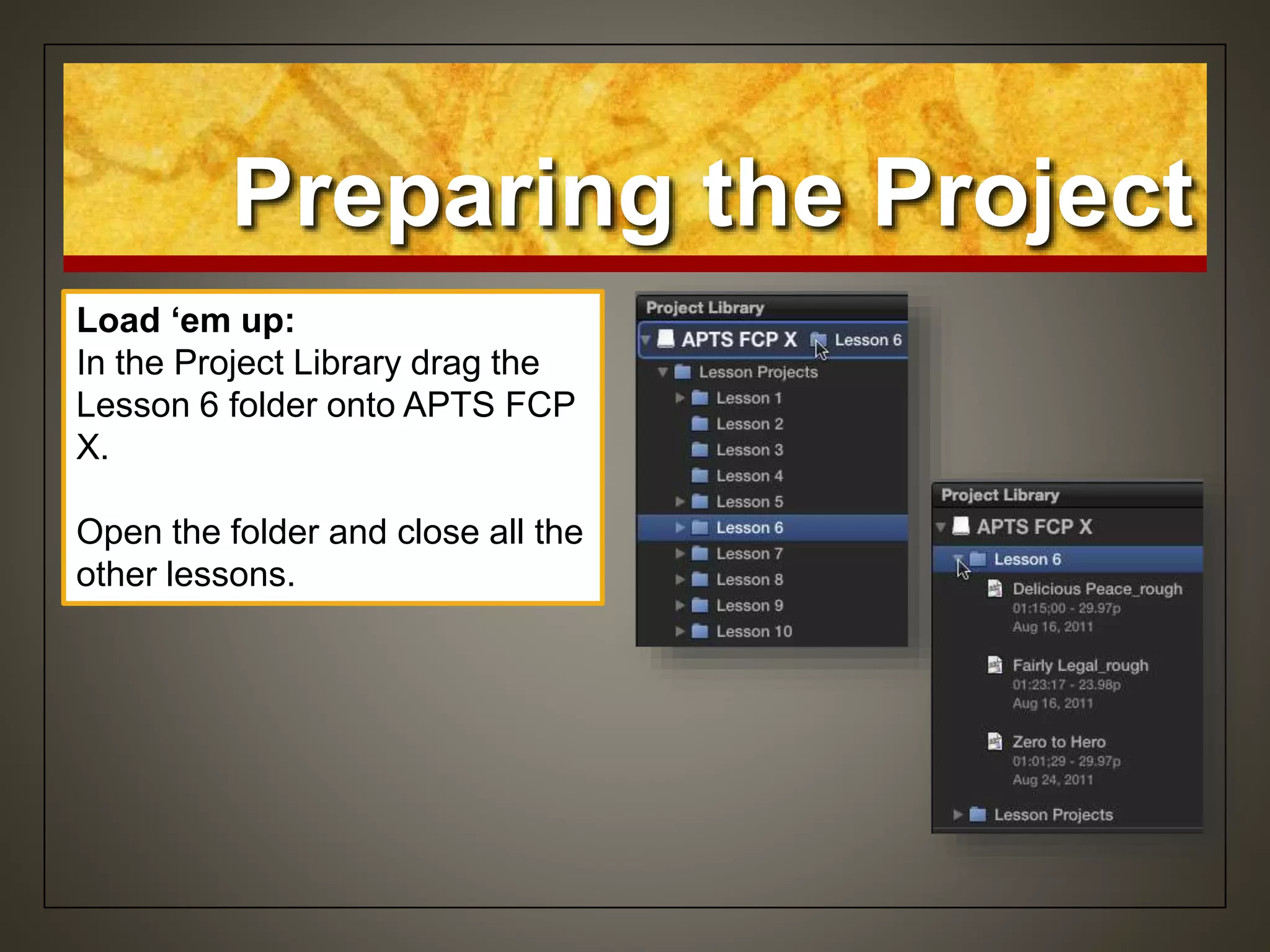
Load ‘em up:
In the Project Library drag the
Lesson 6 folder onto APTS FCP
X.
Open the folder and close all the
other lessons.
Renaming Clips
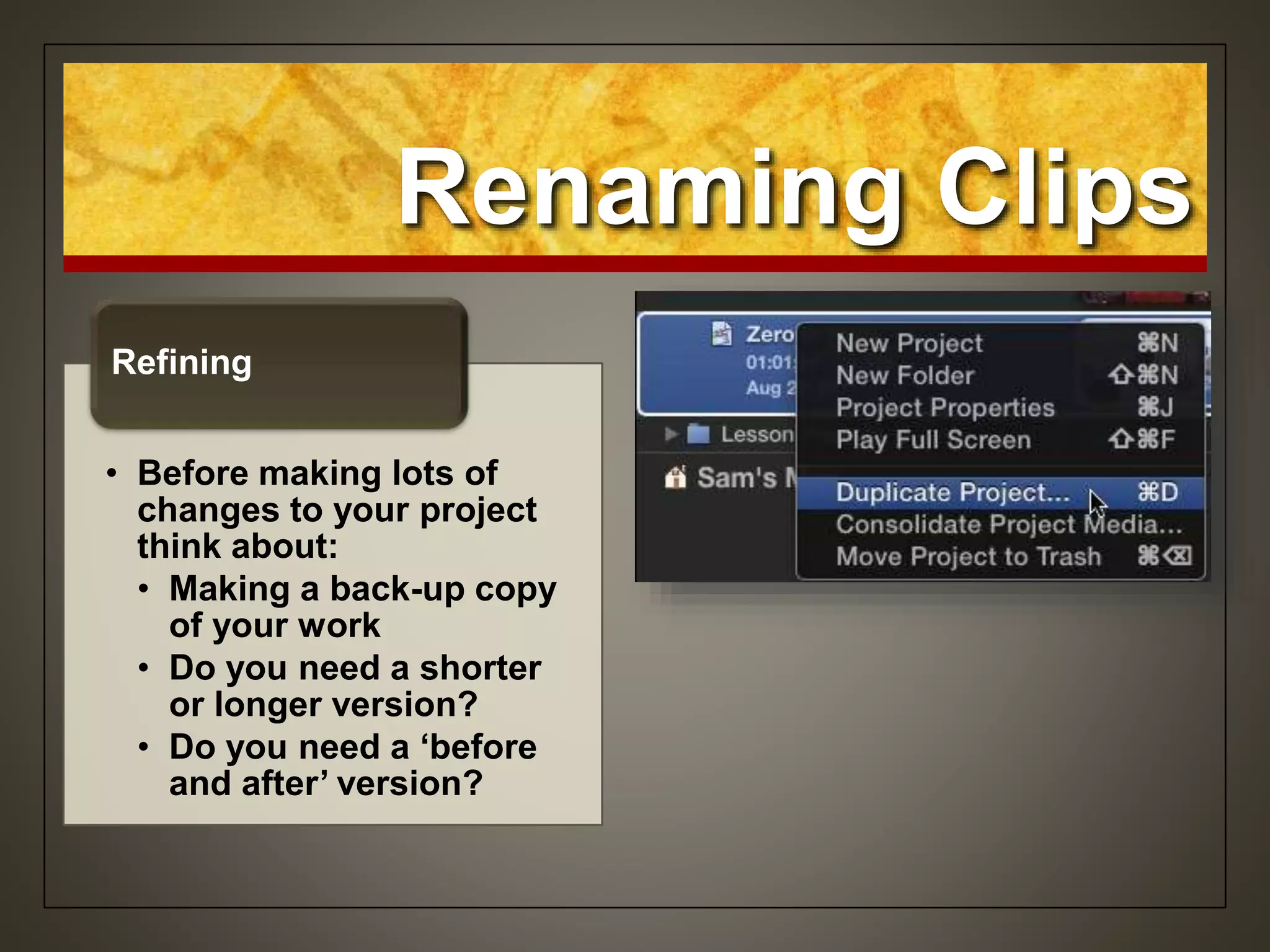
• Before making lots of
changes to your project
think about:
• Making a back-up copy
of your work
• Do you need a shorter
or longer version?
• Do you need a ‘before
and after’ version?
Refining
Duplicating the Project
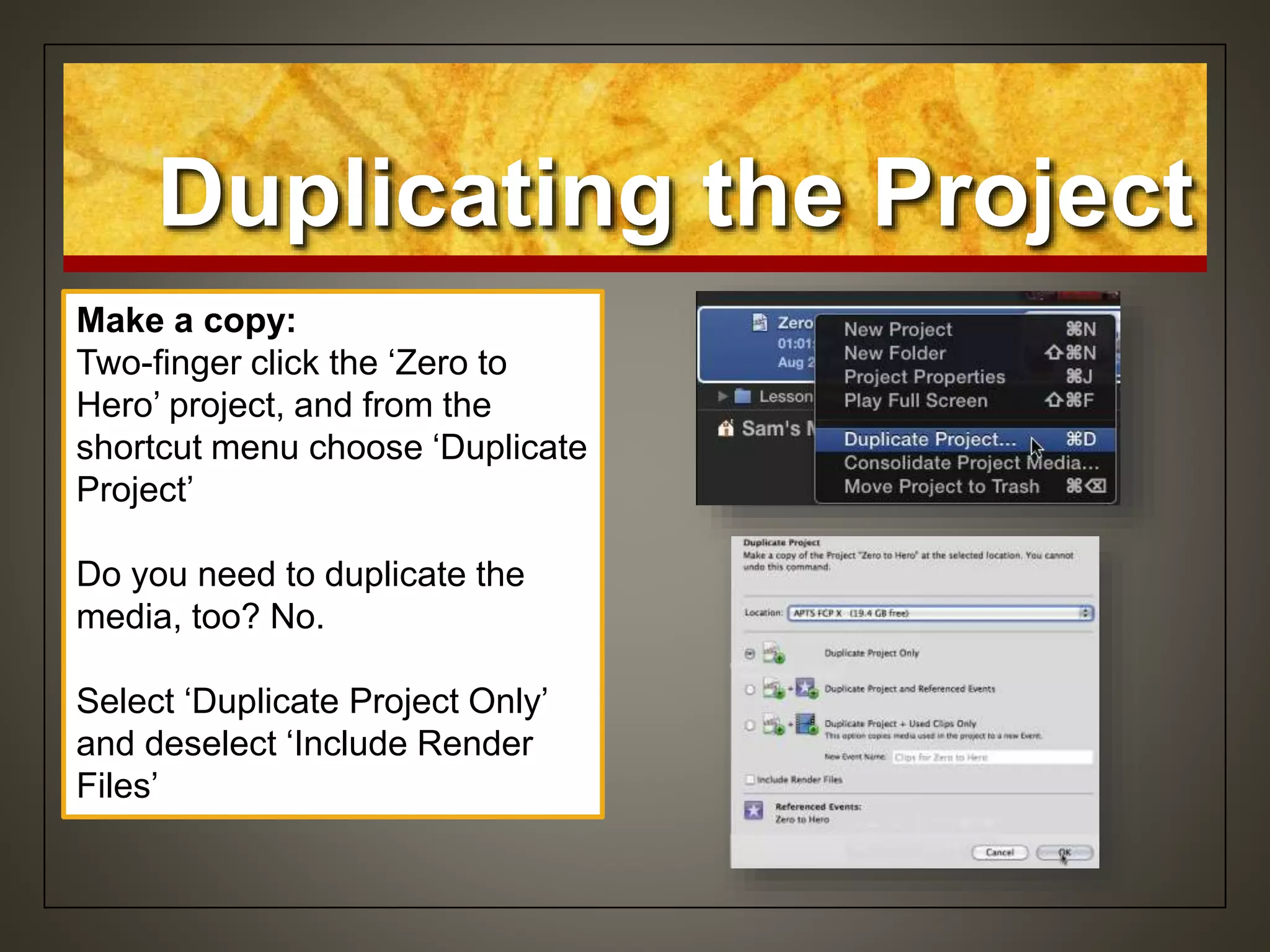
Make a copy:
Two-finger click the ‘Zero to
Hero’ project, and from the
shortcut menu choose ‘Duplicate
Project’
Do you need to duplicate the
media, too? No.
Select ‘Duplicate Project Only’
and deselect ‘Include Render
Files’
Duplicating the Project
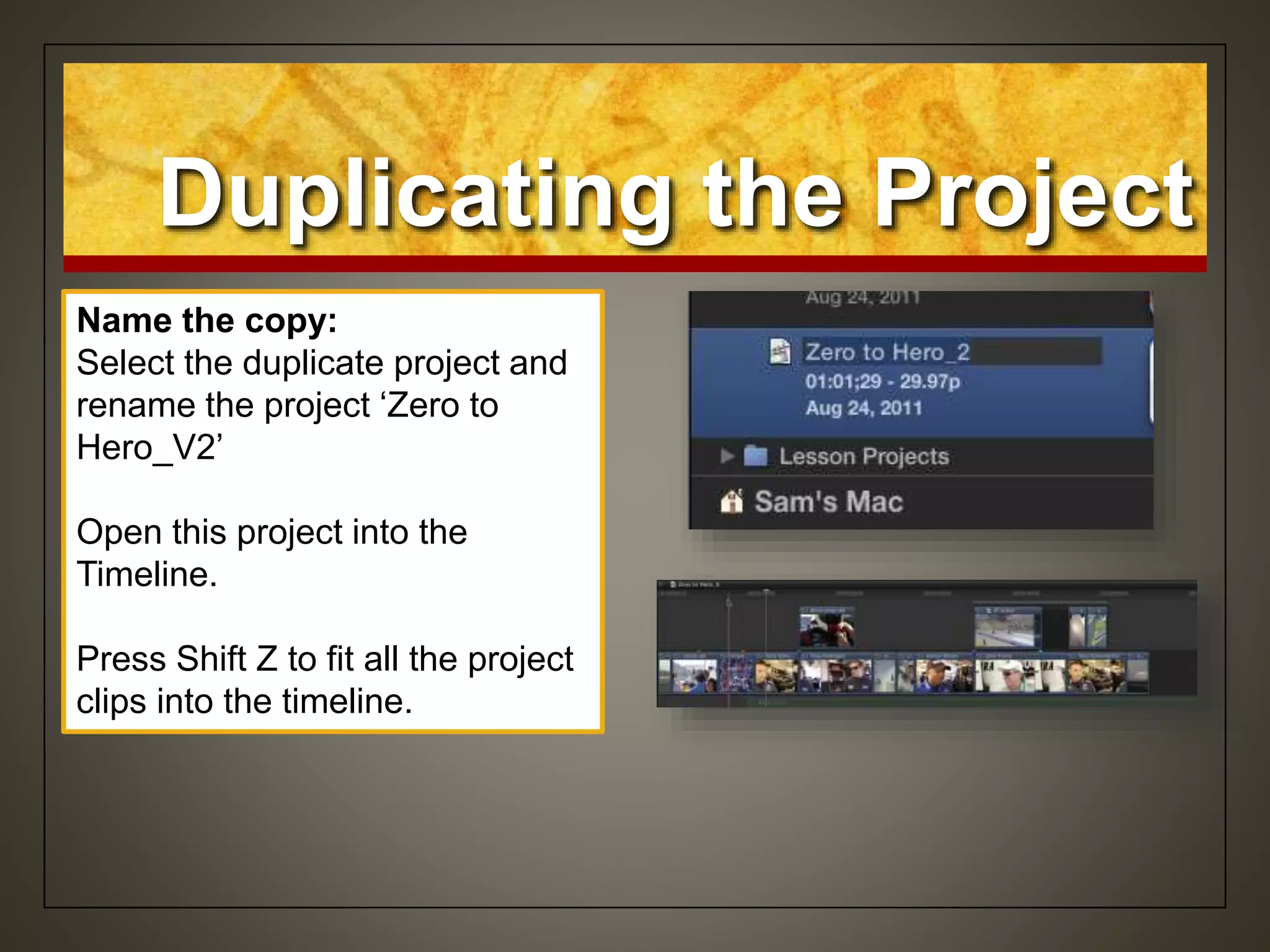
Name the copy:
Select the duplicate project and
rename the project ‘Zero to
Hero_V2’
Open this project into the
Timeline.
Press Shift Z to fit all the project
clips into the timeline.
Removing Clip
Selections & Adding
Gaps
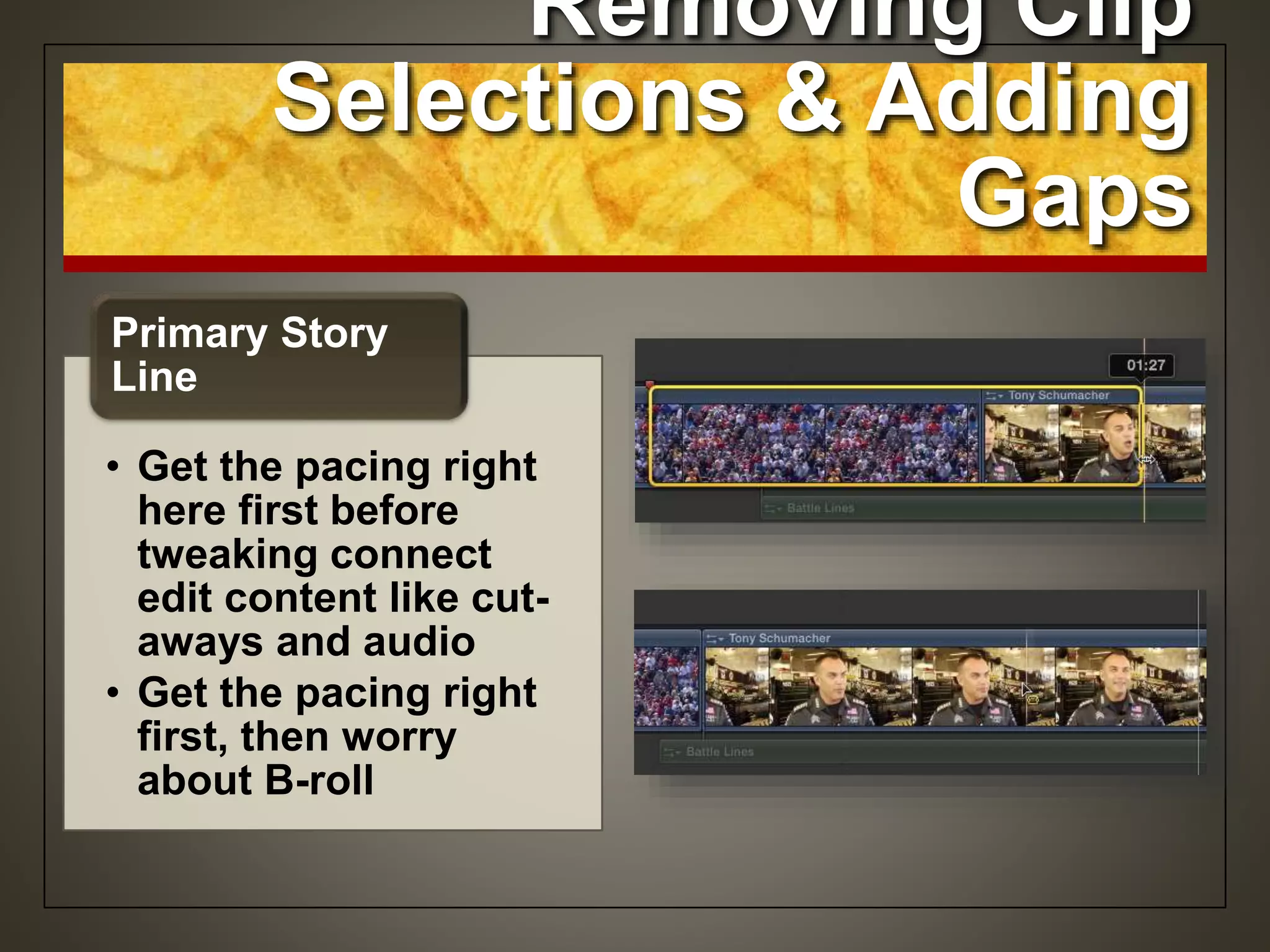
• Get the pacing right
here first before
tweaking connect
edit content like cut-
aways and audio
• Get the pacing right
first, then worry
about B-roll
Primary Story
Line
Removing Clip
Selections & Adding
Gaps
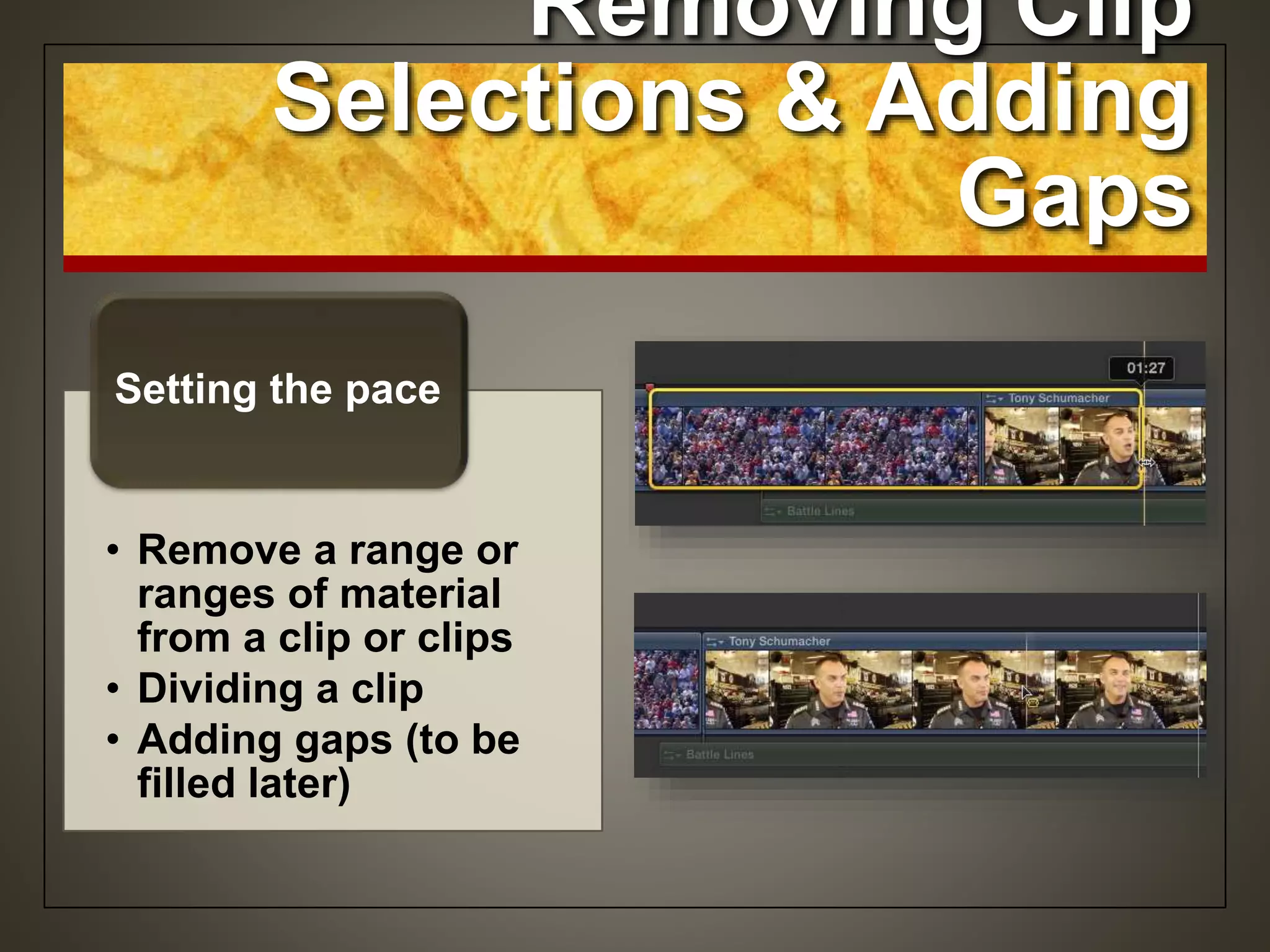
• Remove a range or
ranges of material
from a clip or clips
• Dividing a clip
• Adding gaps (to be
filled later)
Setting the pace
Remove a Range
from a Clip
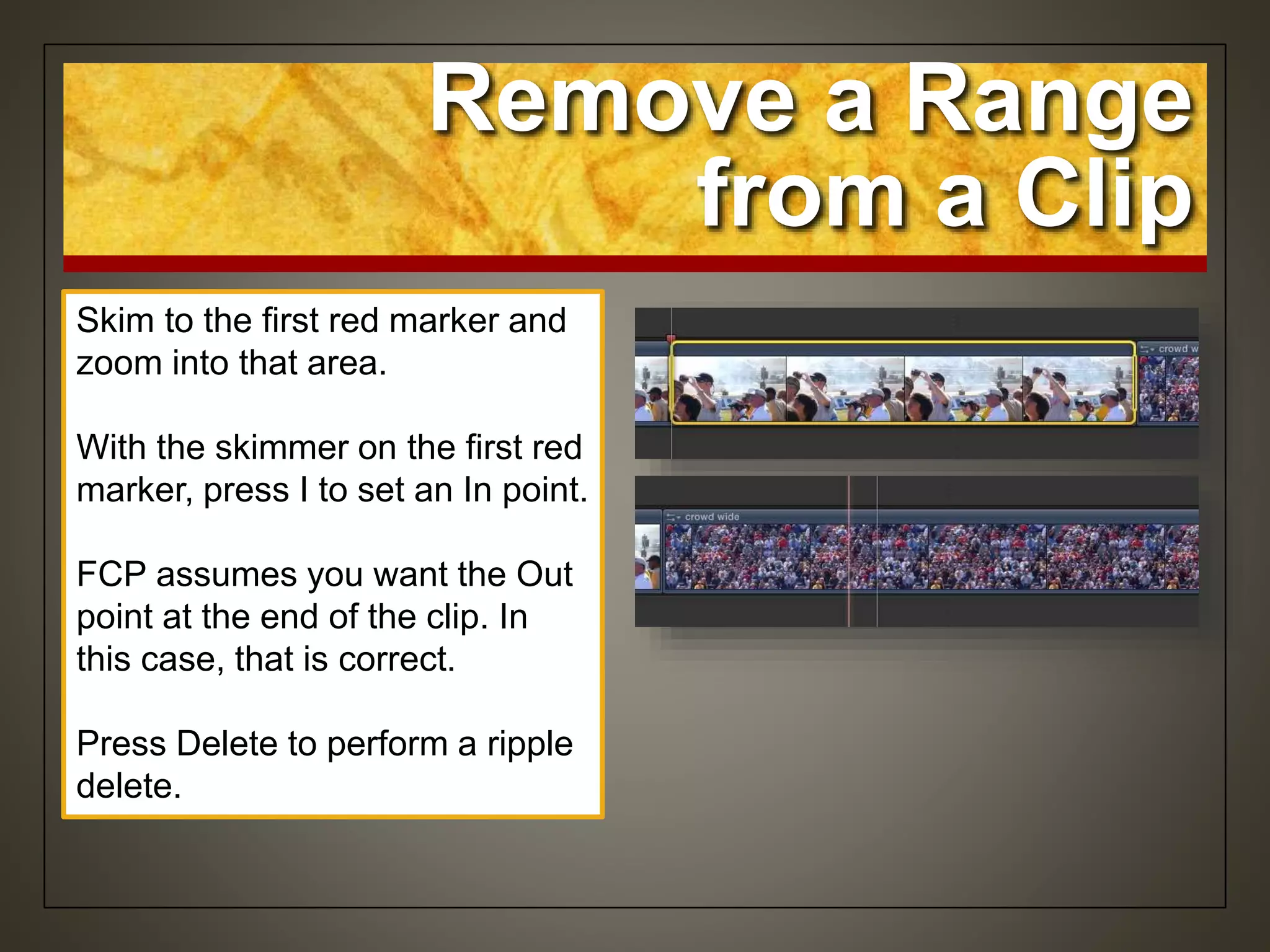
Skim to the first red marker and
zoom into that area.
With the skimmer on the first red
marker, press I to set an In point.
FCP assumes you want the Out
point at the end of the clip. In
this case, that is correct.
Press Delete to perform a ripple
delete.
Removing Clip
Selections & Adding
Gaps
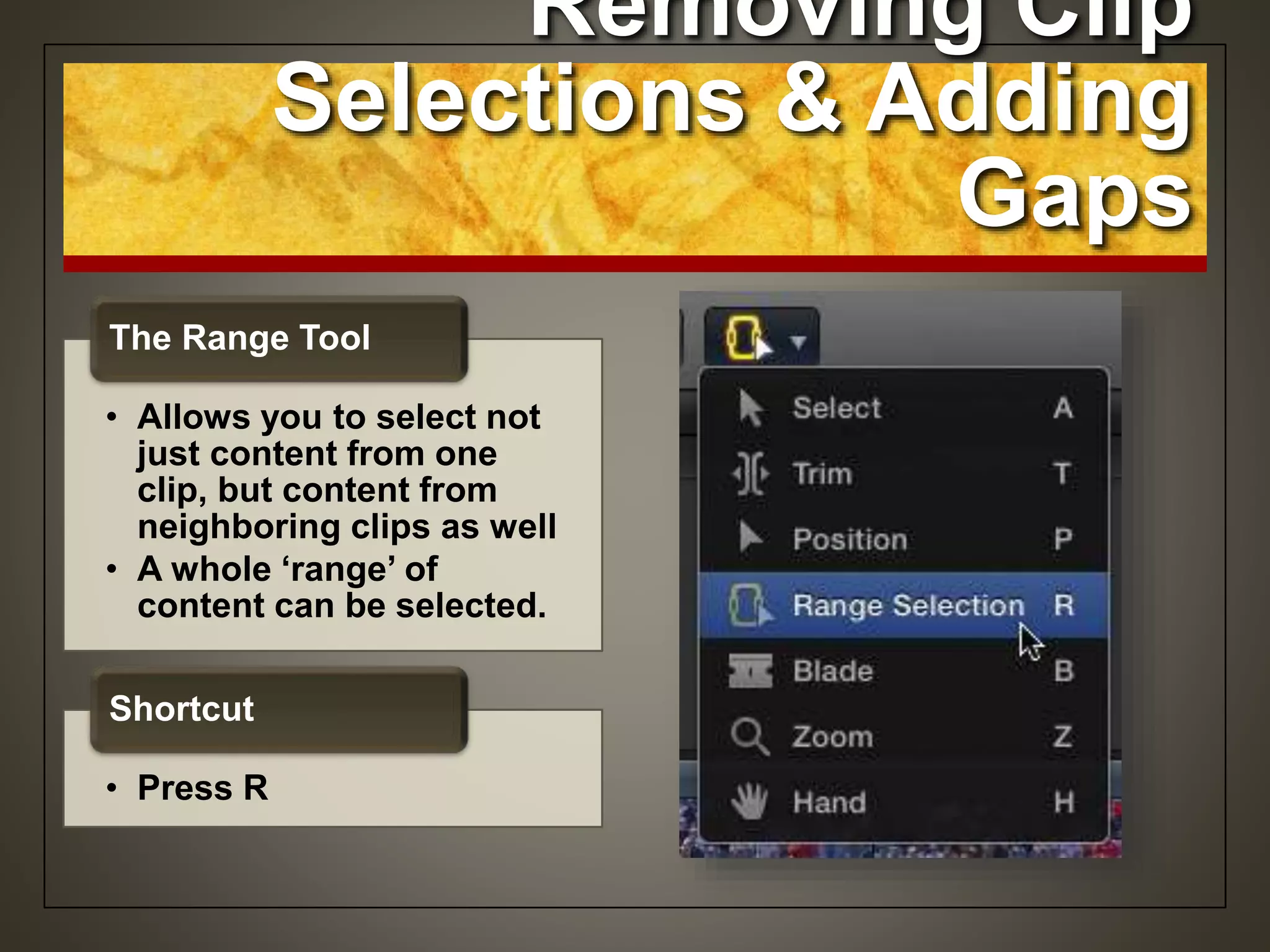
• Allows you to select not
just content from one
clip, but content from
neighboring clips as well
• A whole ‘range’ of
content can be selected.
The Range Tool
• Press R
Shortcut
Remove a Range
from More than One Clip
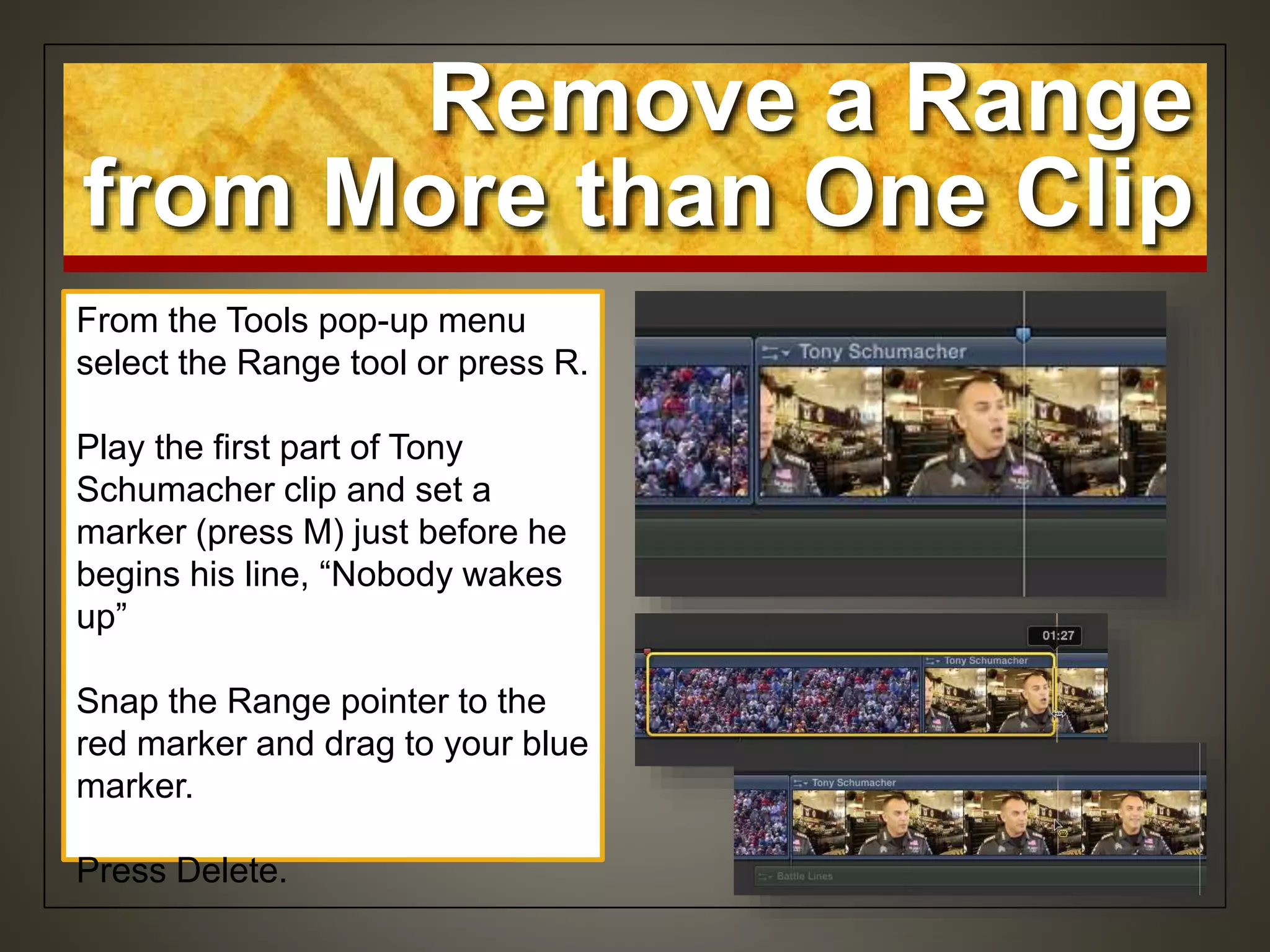
From the Tools pop-up menu
select the Range tool or press R.
Play the first part of Tony
Schumacher clip and set a
marker (press M) just before he
begins his line, “Nobody wakes
up”
Snap the Range pointer to the
red marker and drag to your blue
marker.
Press Delete.
Lifting Content
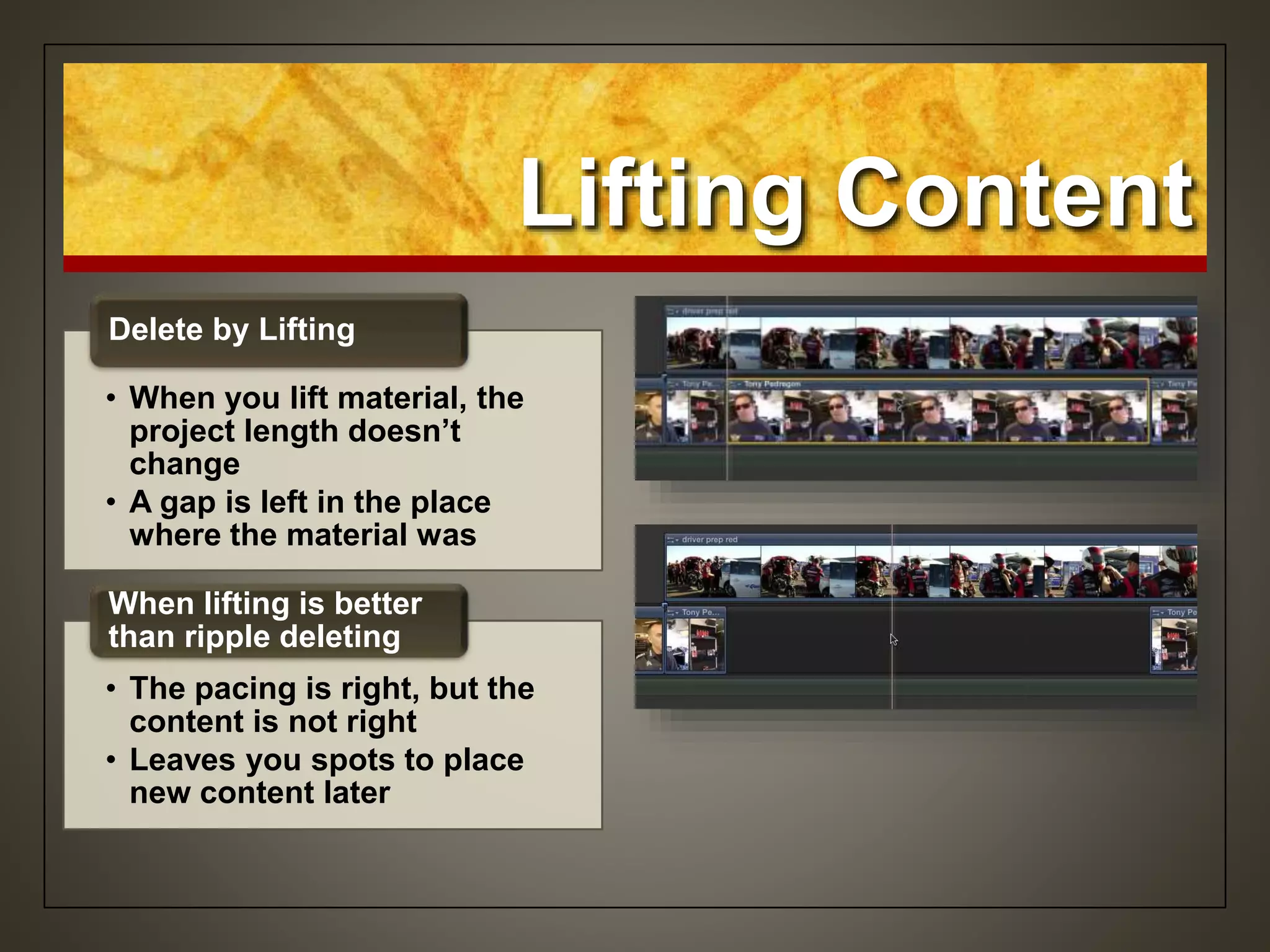
• When you lift material, the
project length doesn’t
change
• A gap is left in the place
where the material was
Delete by Lifting
• The pacing is right, but the
content is not right
• Leaves you spots to place
new content later
When lifting is better
than ripple deleting
Lifting Content
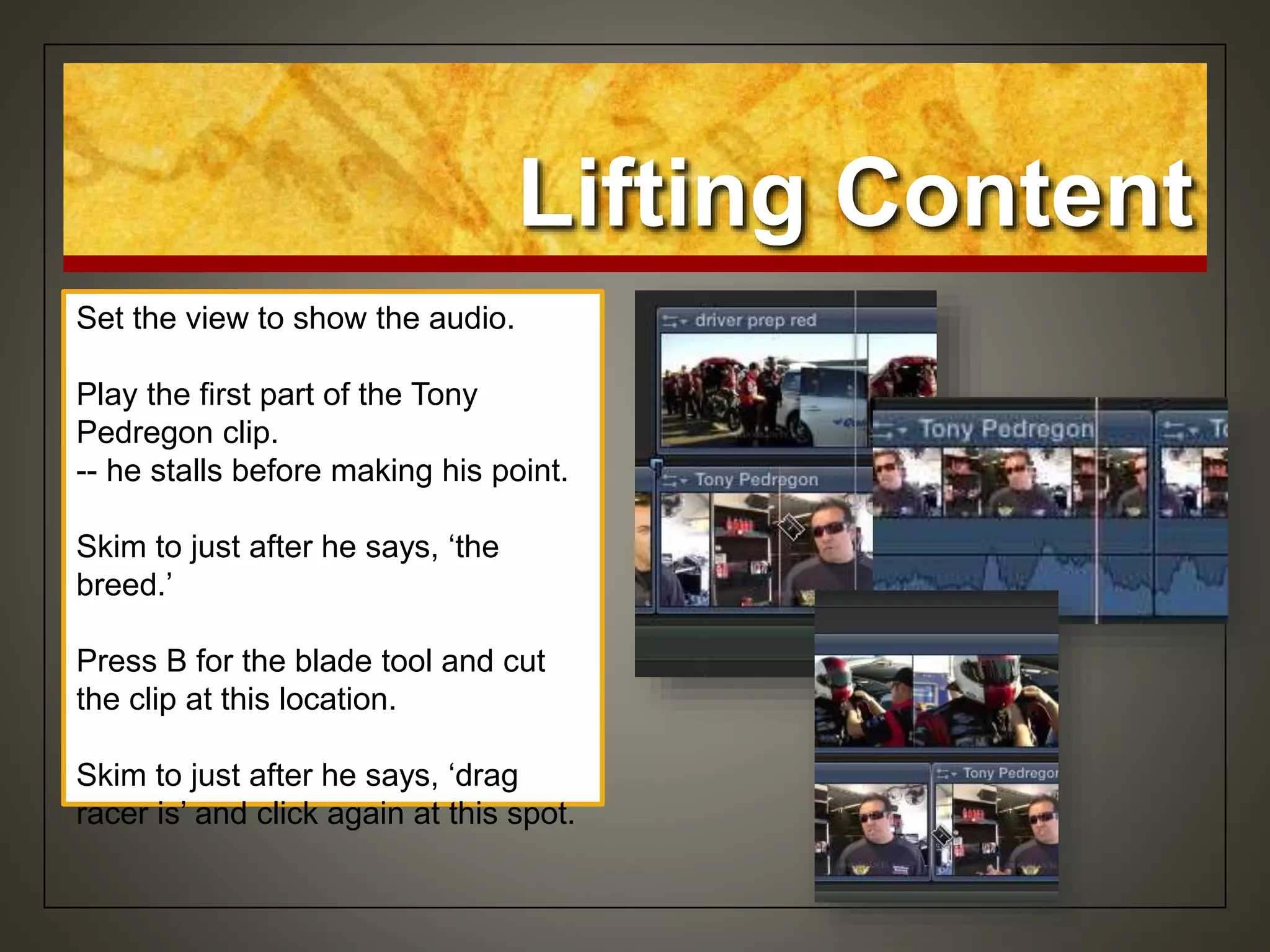
Set the view to show the audio.
Play the first part of the Tony
Pedregon clip.
-- he stalls before making his point.
Skim to just after he says, ‘the
breed.’
Press B for the blade tool and cut
the clip at this location.
Skim to just after he says, ‘drag
racer is’ and click again at this spot.
Lifting Content
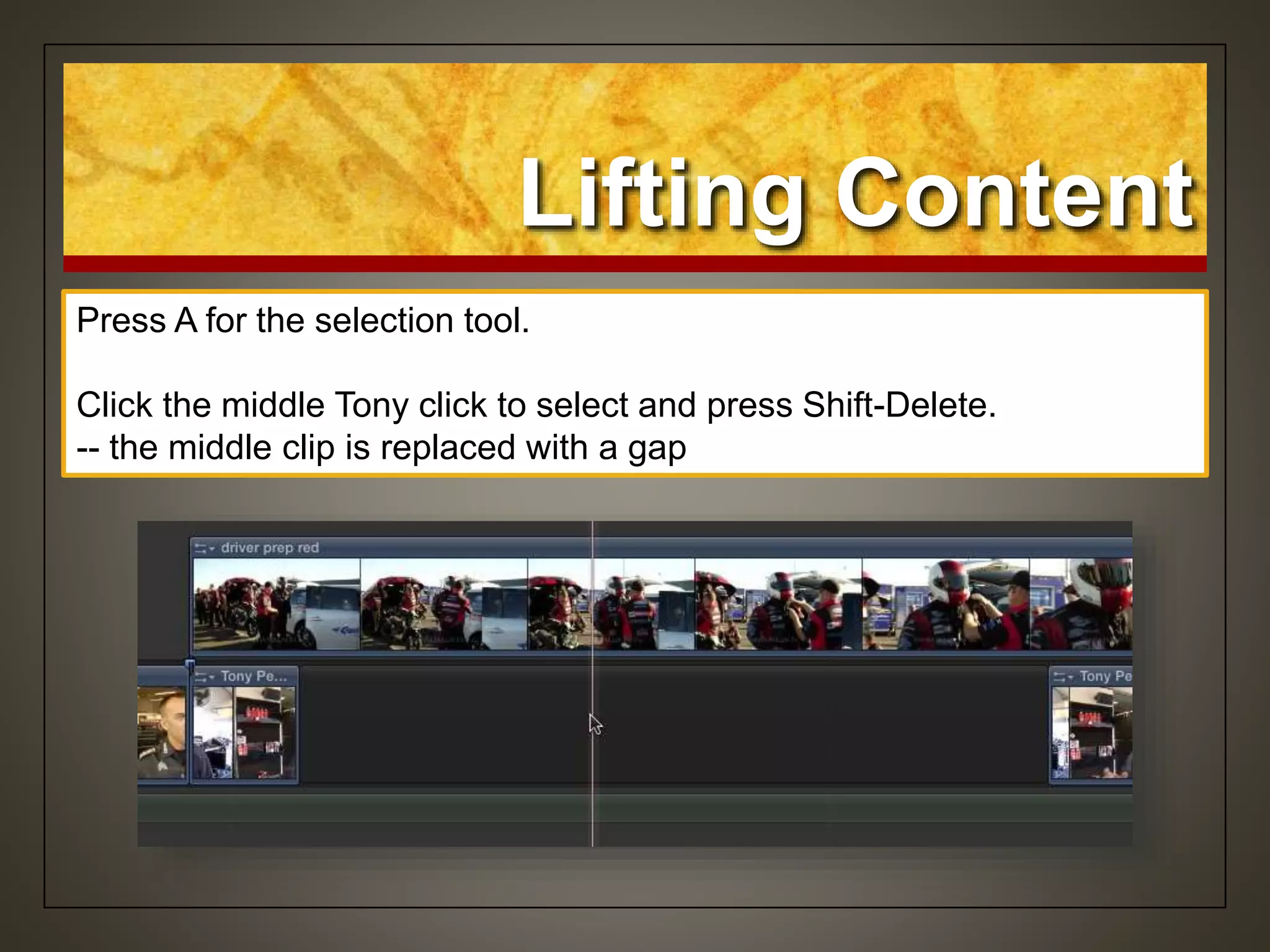
Press A for the selection tool.
Click the middle Tony click to select and press Shift-Delete.
-- the middle clip is replaced with a gap
Gaps
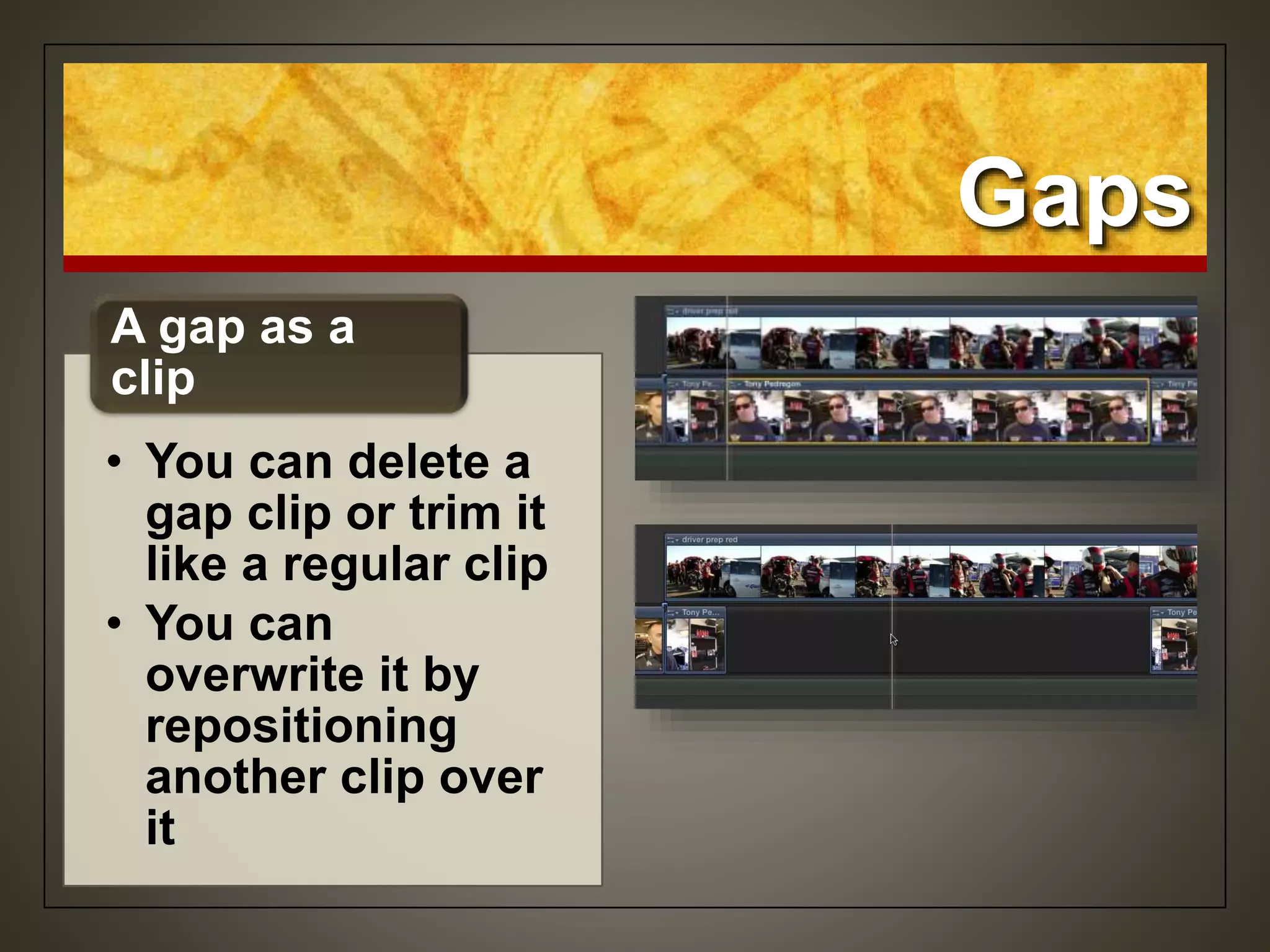
• You can delete a
gap clip or trim it
like a regular clip
• You can
overwrite it by
repositioning
another clip over
it
A gap as a
clip
Selection Tool vs.
Position Tool
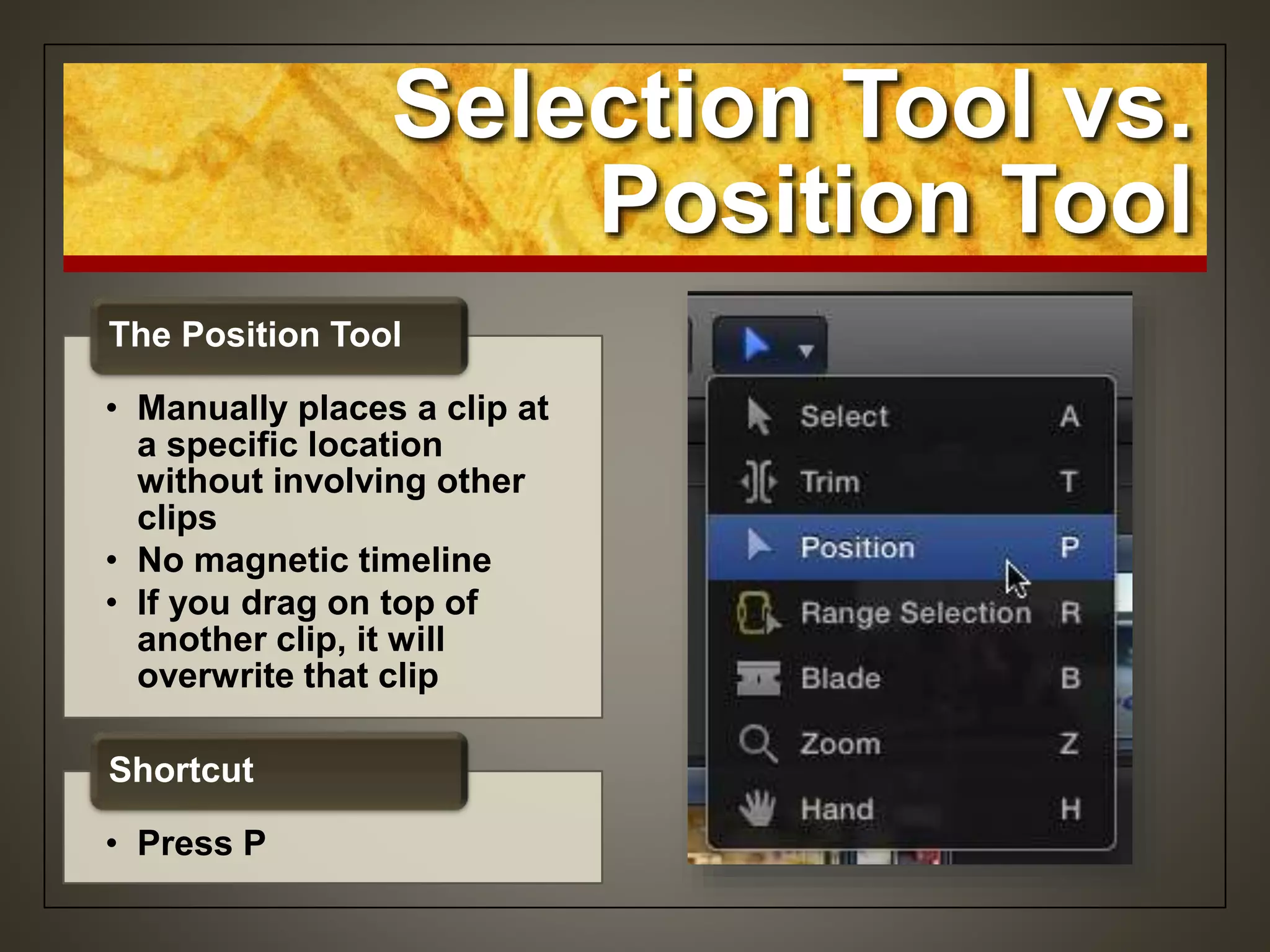
• Manually places a clip at
a specific location
without involving other
clips
• No magnetic timeline
• If you drag on top of
another clip, it will
overwrite that clip
The Position Tool
• Press P
Shortcut
Lifting Content
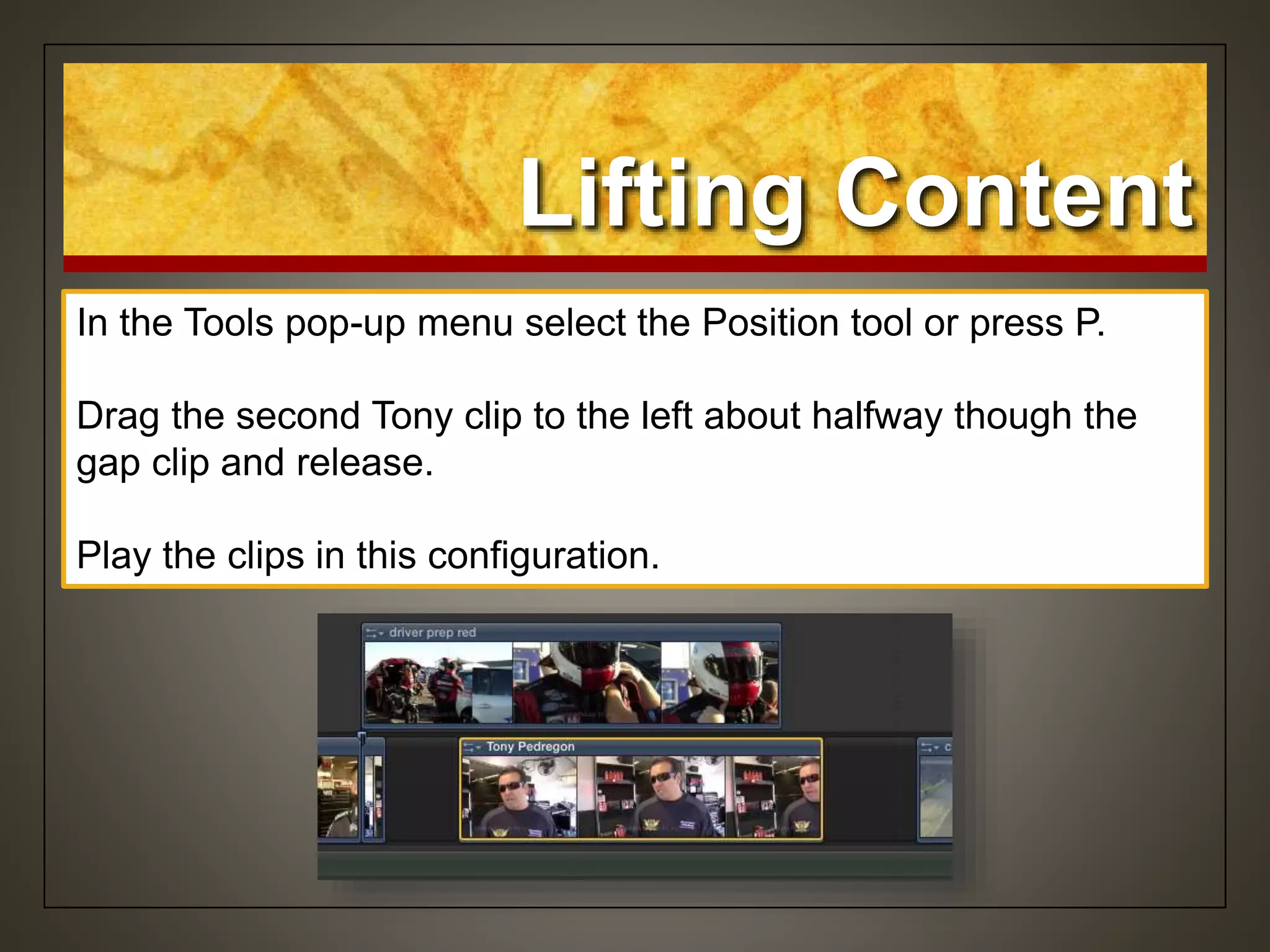
In the Tools pop-up menu select the Position tool or press P.
Drag the second Tony clip to the left about halfway though the
gap clip and release.
Play the clips in this configuration.
Making a Point
with a Pause
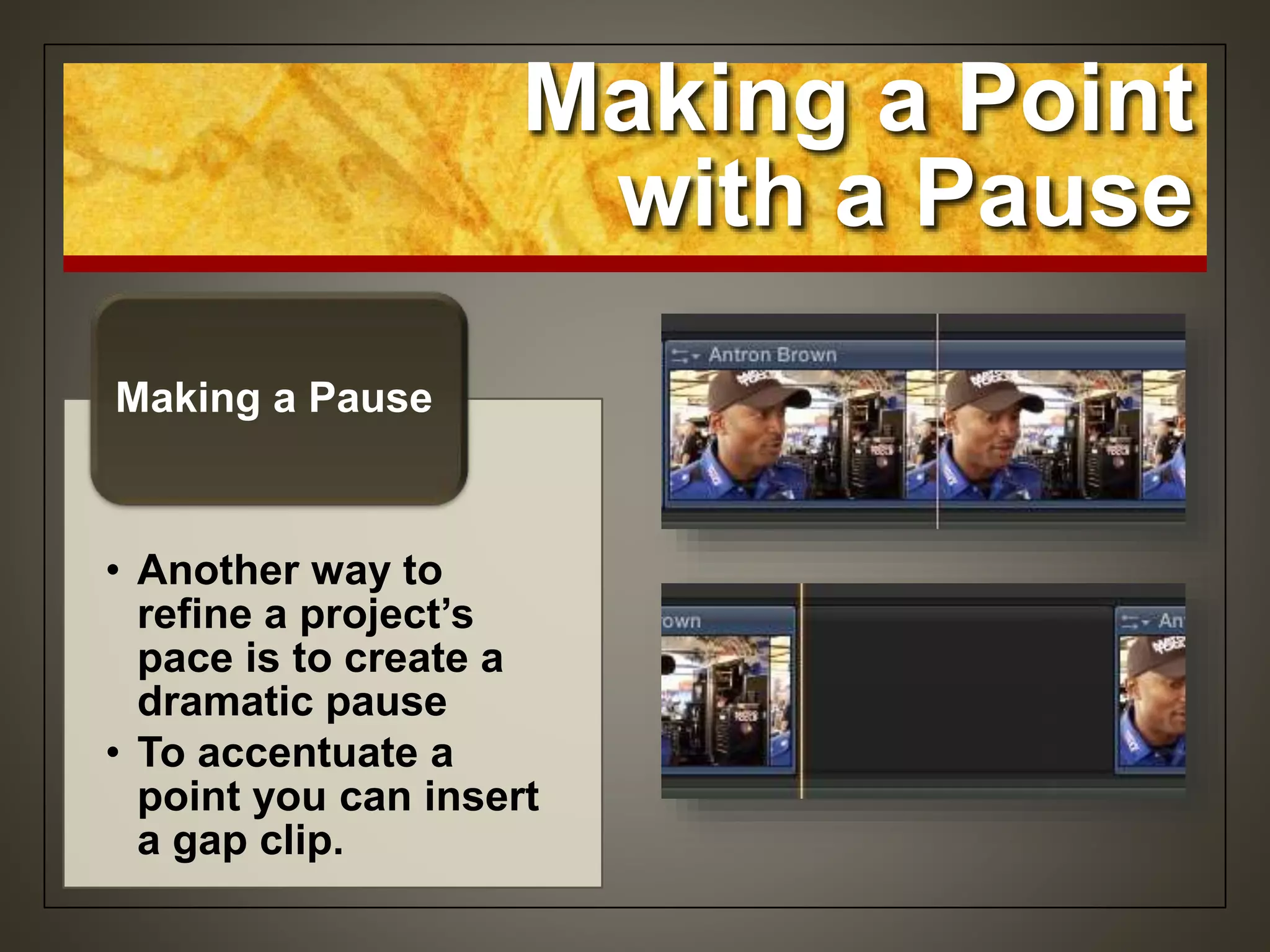
• Another way to
refine a project’s
pace is to create a
dramatic pause
• To accentuate a
point you can insert
a gap clip.
Making a Pause
Dramatic Pause
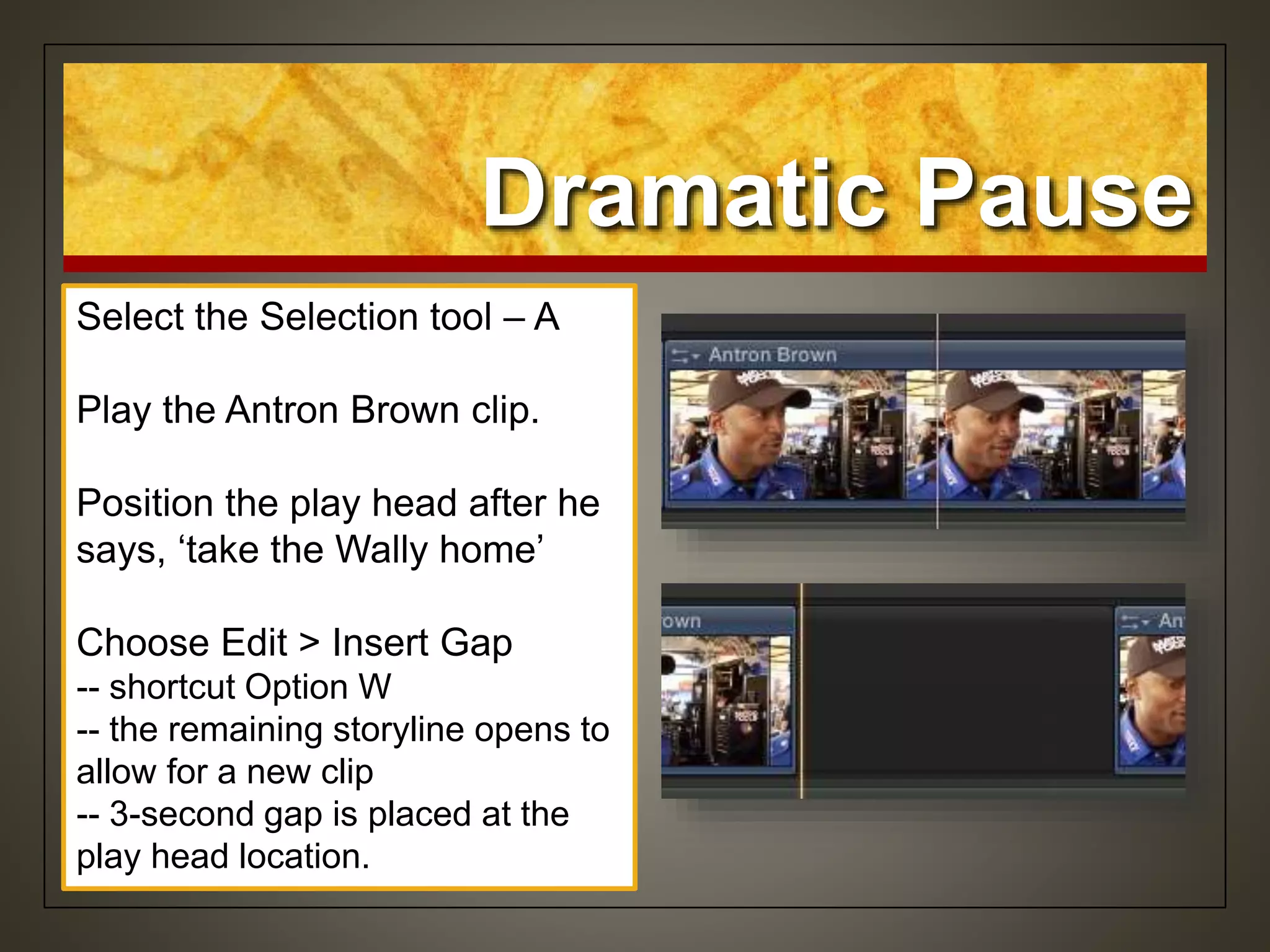
Select the Selection tool – A
Play the Antron Brown clip.
Position the play head after he
says, ‘take the Wally home’
Choose Edit > Insert Gap
-- shortcut Option W
-- the remaining storyline opens to
allow for a new clip
-- 3-second gap is placed at the
play head location.
Trimming
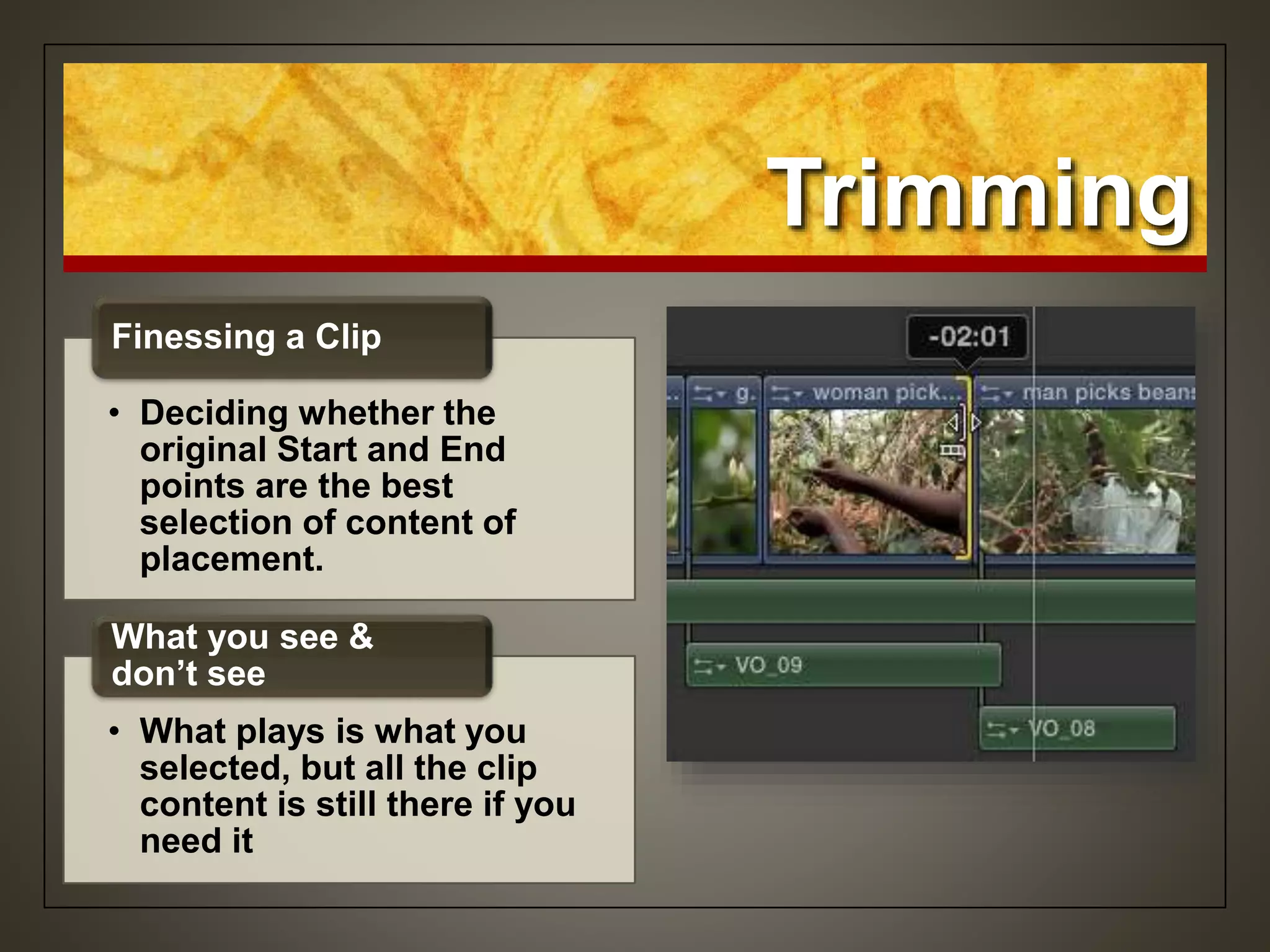
• Deciding whether the
original Start and End
points are the best
selection of content of
placement.
Finessing a Clip
• What plays is what you
selected, but all the clip
content is still there if you
need it
What you see &
don’t see
Trimming
• Easy and fast
Trimming with the
Selection tool
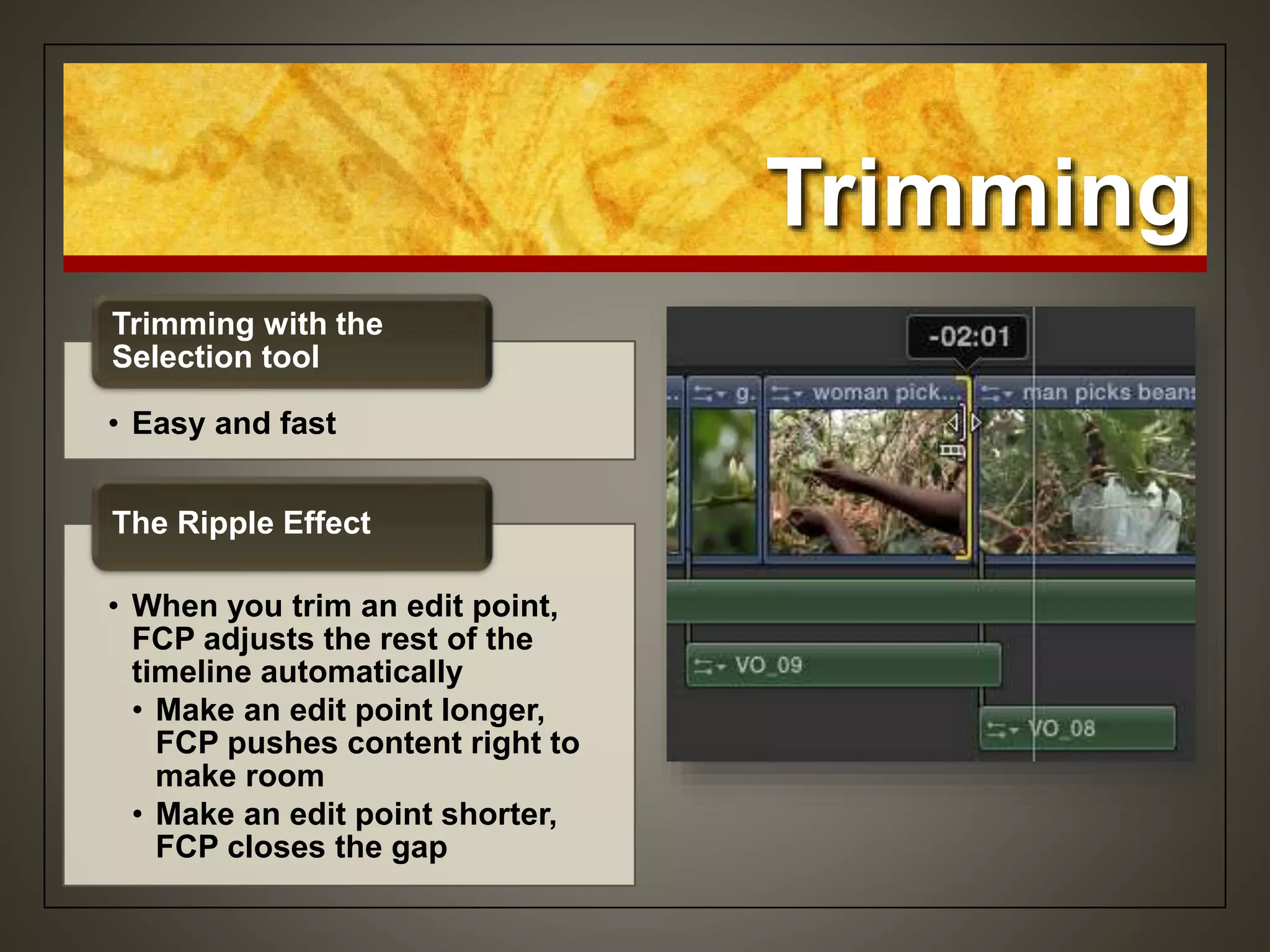
• When you trim an edit point,
FCP adjusts the rest of the
timeline automatically
• Make an edit point longer,
FCP pushes content right to
make room
• Make an edit point shorter,
FCP closes the gap
The Ripple Effect
Trimming
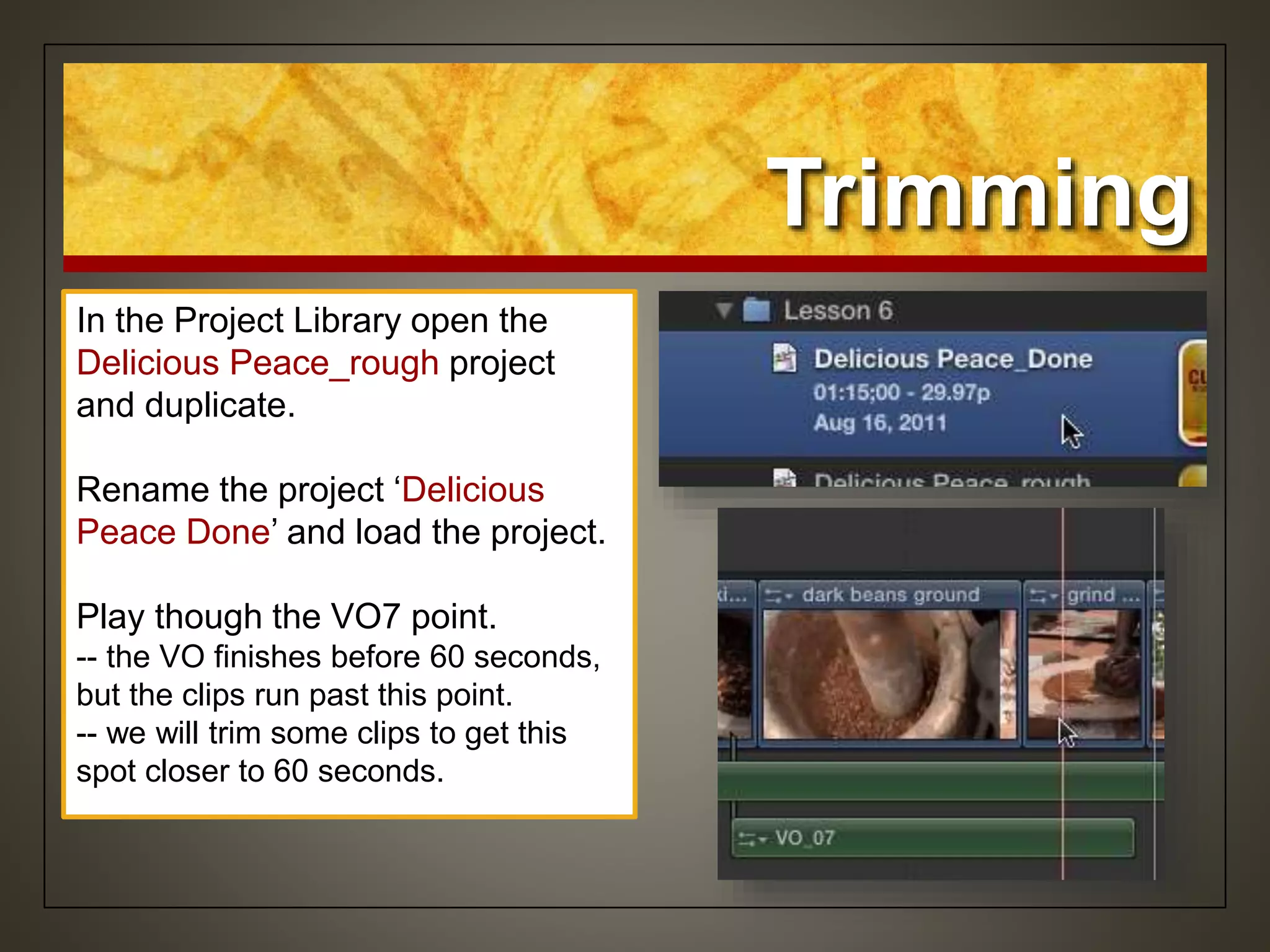
In the Project Library open the
Delicious Peace_rough project
and duplicate.
Rename the project ‘Delicious
Peace Done’ and load the project.
Play though the VO7 point.
-- the VO finishes before 60 seconds,
but the clips run past this point.
-- we will trim some clips to get this
spot closer to 60 seconds.
Have a Look Around
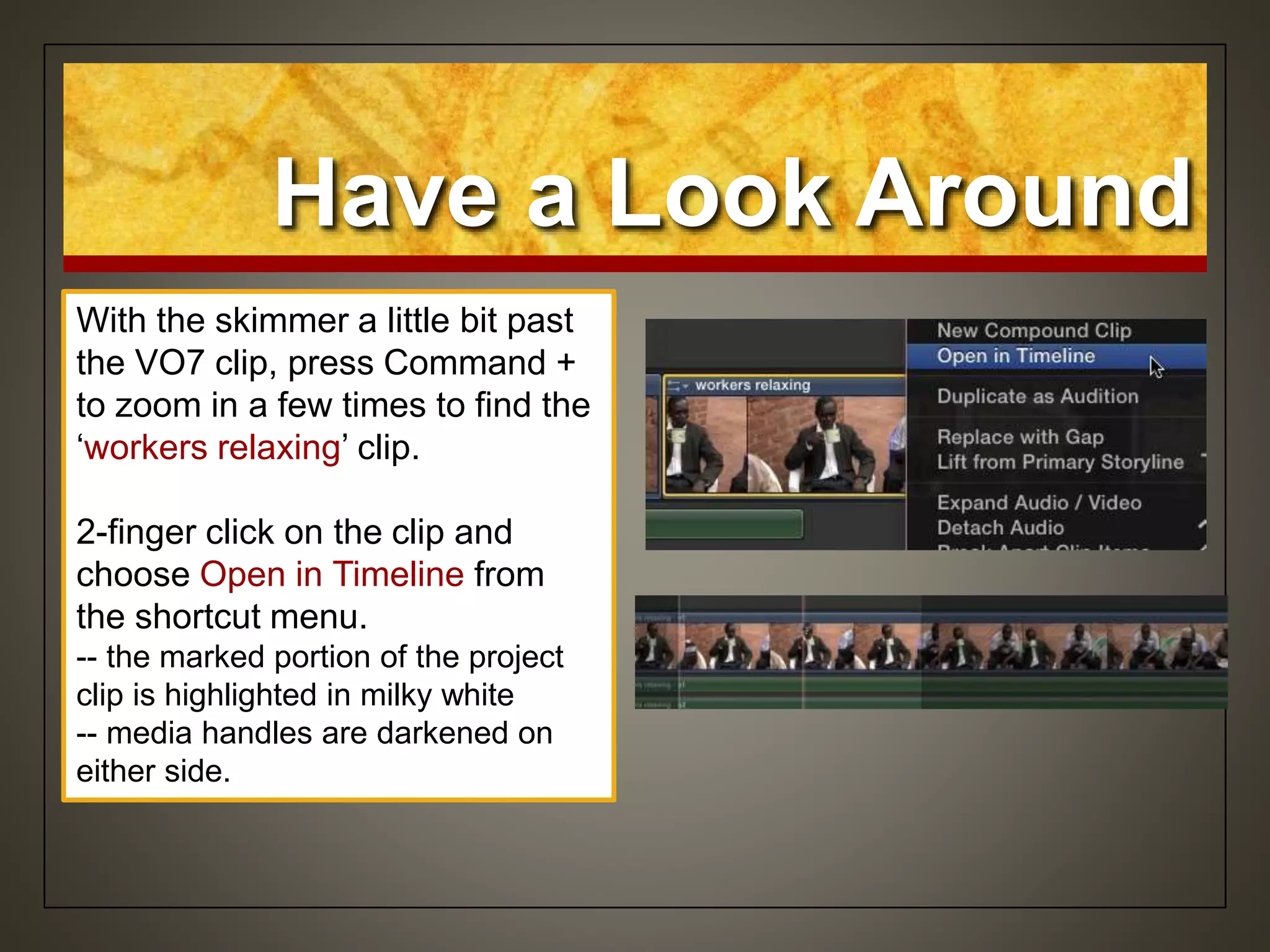
With the skimmer a little bit past
the VO7 clip, press Command +
to zoom in a few times to find the
‘workers relaxing’ clip.
2-finger click on the clip and
choose Open in Timeline from
the shortcut menu.
-- the marked portion of the project
clip is highlighted in milky white
-- media handles are darkened on
either side.
Make a Trim
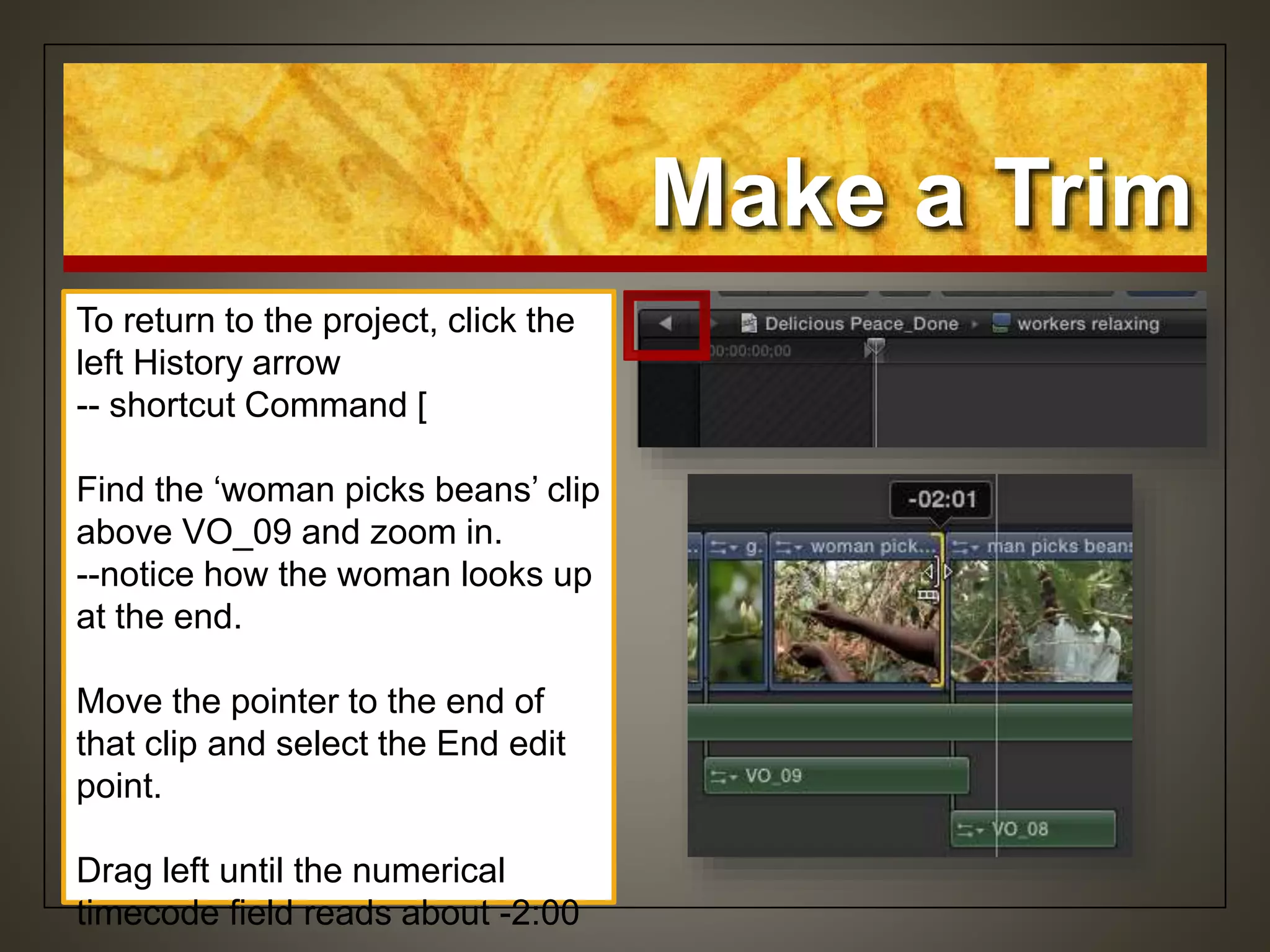
To return to the project, click the
left History arrow
-- shortcut Command [
Find the ‘woman picks beans’ clip
above VO_09 and zoom in.
--notice how the woman looks up
at the end.
Move the pointer to the end of
that clip and select the End edit
point.
Drag left until the numerical
timecode field reads about -2:00
Make a Trim
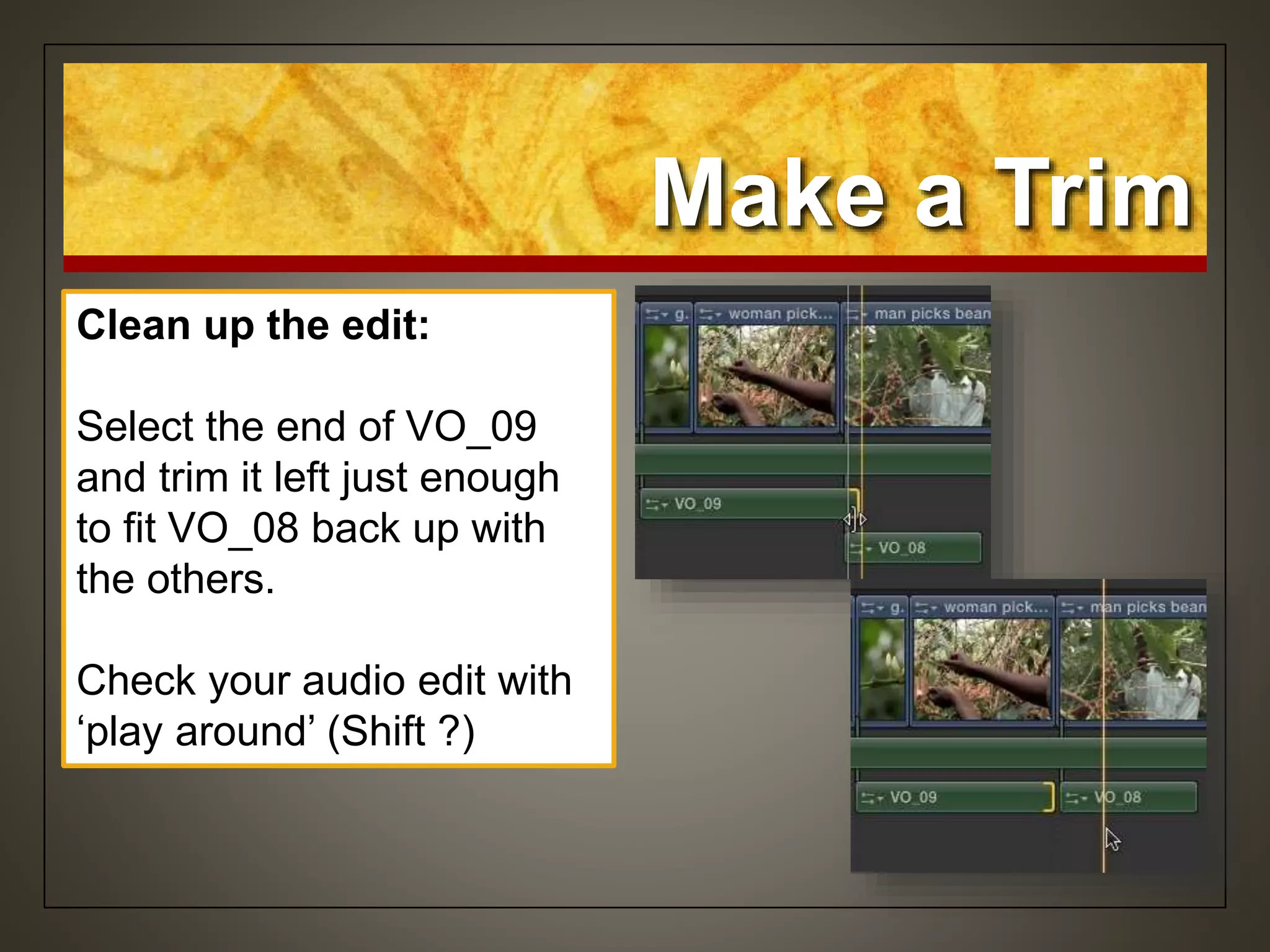
Clean up the edit:
Select the end of VO_09
and trim it left just enough
to fit VO_08 back up with
the others.
Check your audio edit with
‘play around’ (Shift ?)
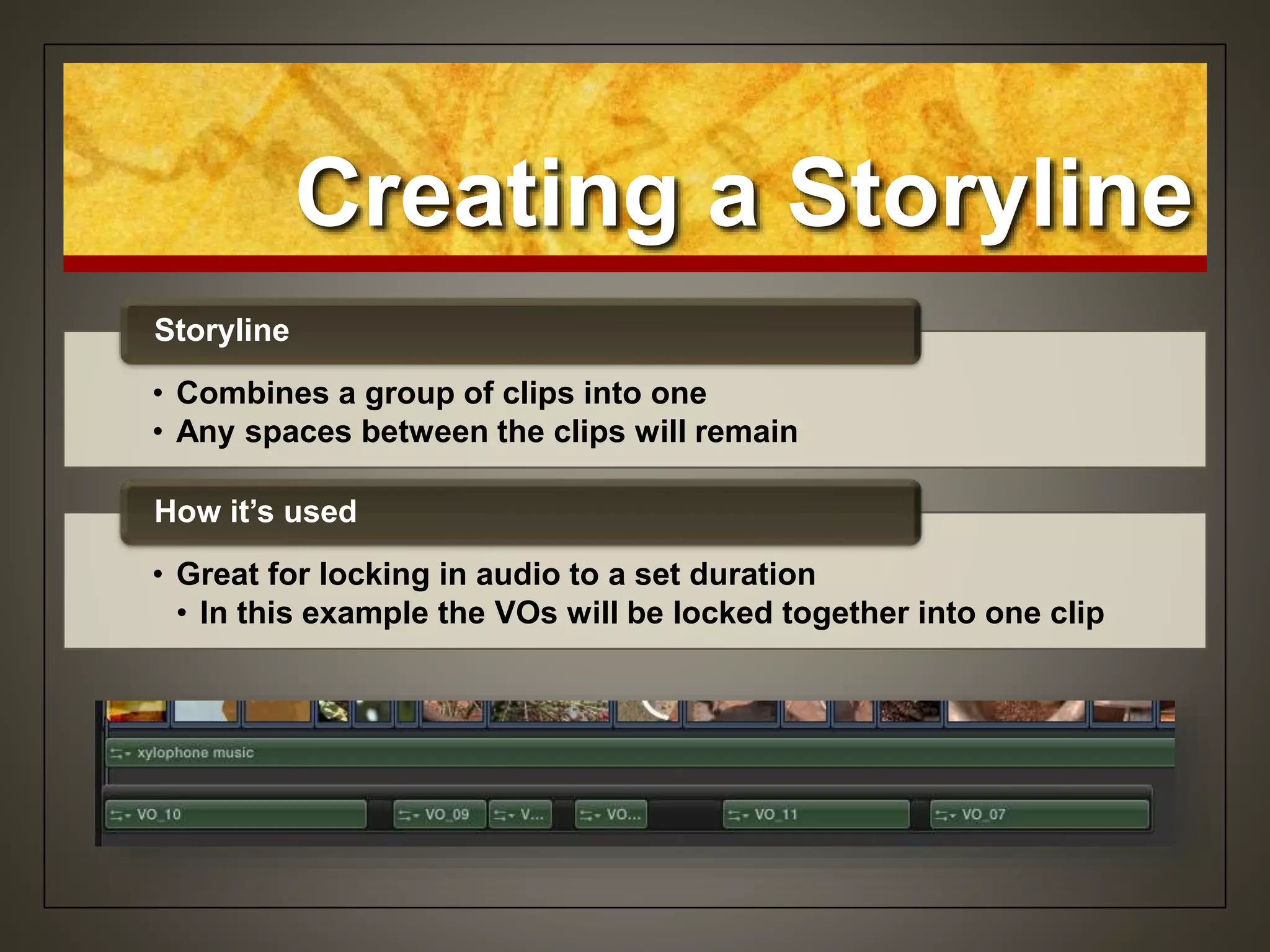
Creating a Storyline
• Combines a group of clips into one
• Any spaces between the clips will remain
Storyline
• Great for locking in audio to a set duration
• In this example the VOs will be locked together into one clip
How it’s used
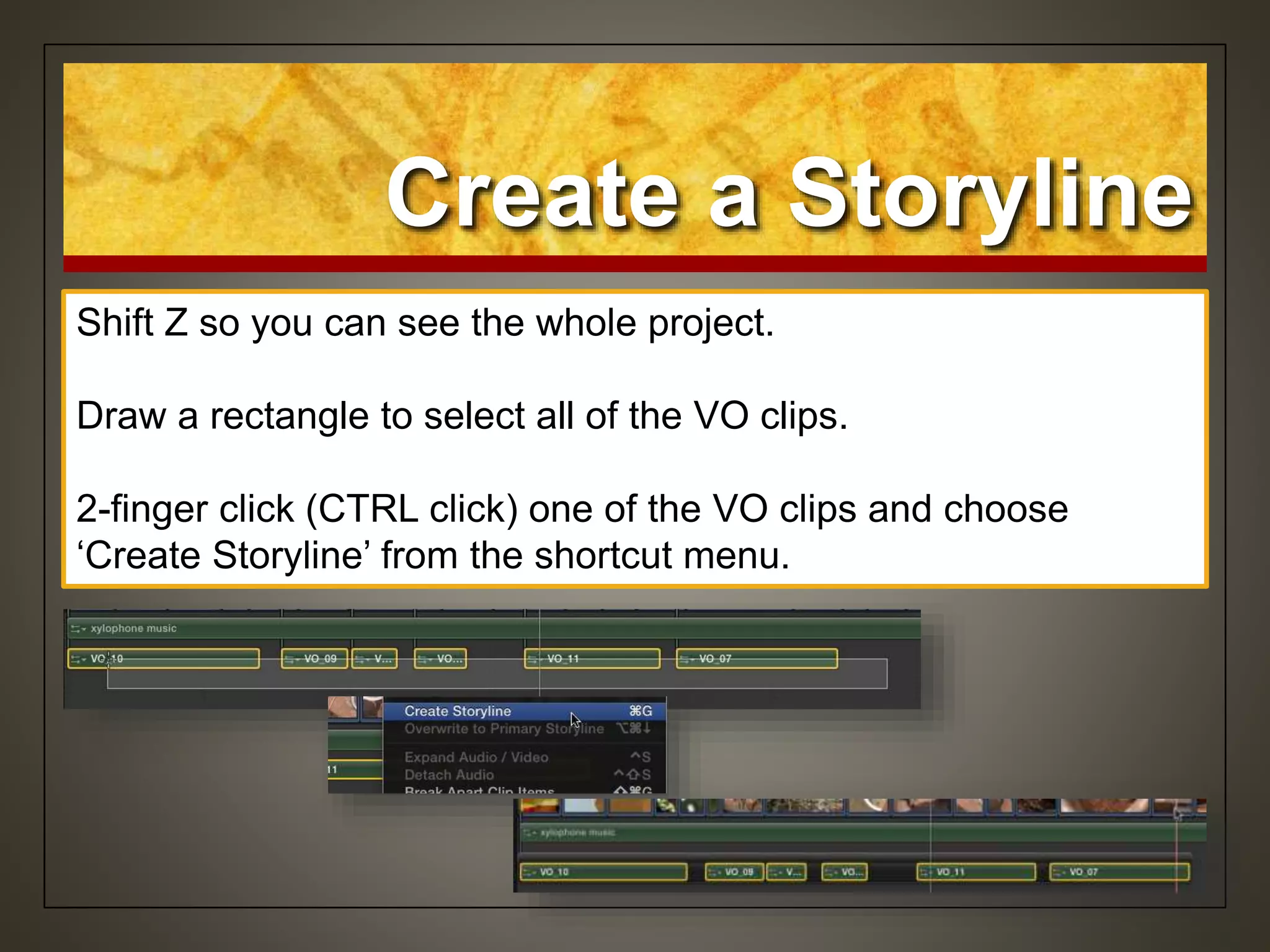
Create a Storyline
Shift Z so you can see the whole project.
Draw a rectangle to select all of the VO clips.
2-finger click (CTRL click) one of the VO clips and choose
‘Create Storyline’ from the shortcut menu.
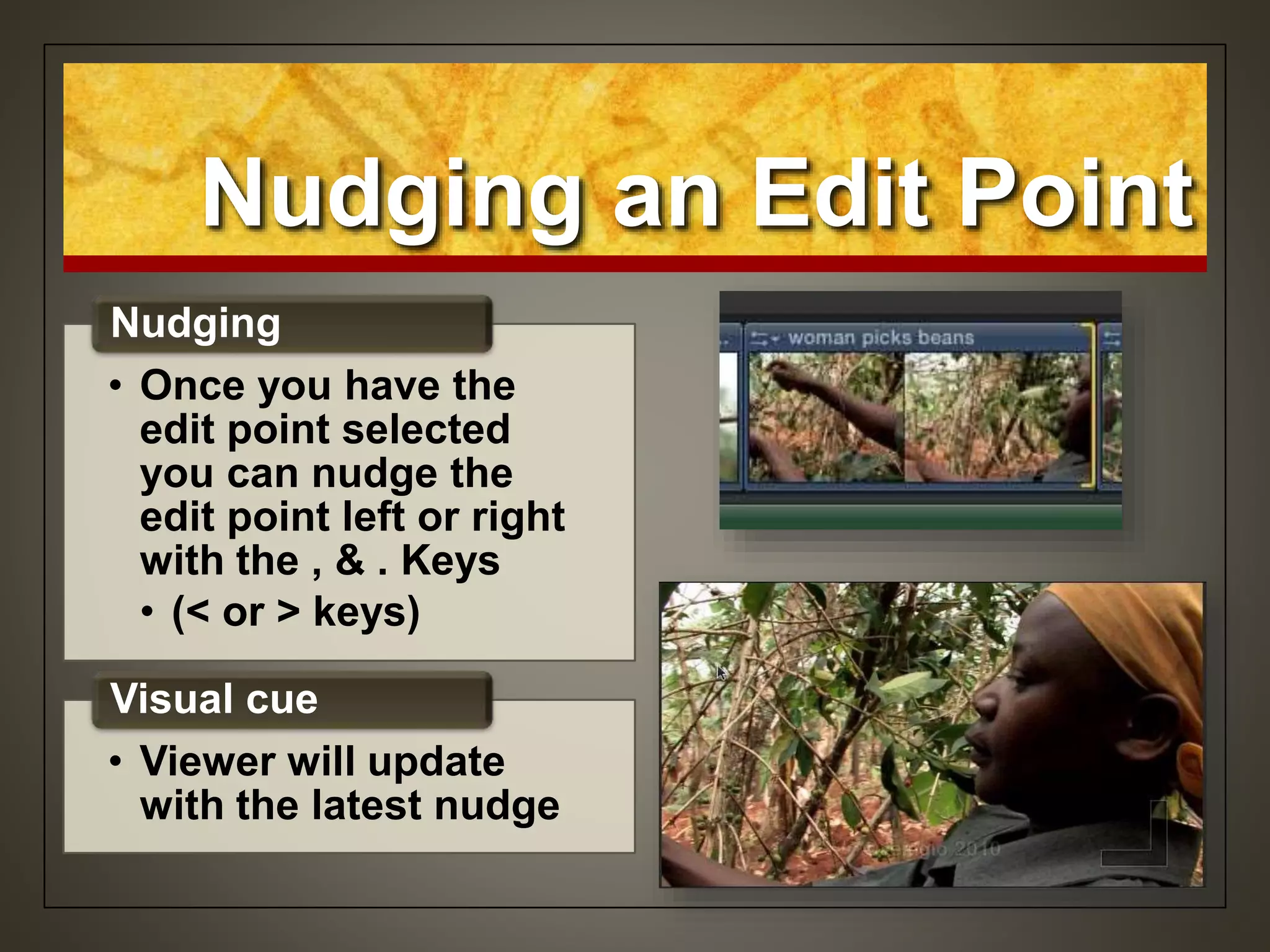
Nudging an Edit Point
• Once you have the
edit point selected
you can nudge the
edit point left or right
with the , & . Keys
• (< or > keys)
Nudging
• Viewer will update
with the latest nudge
Visual cue
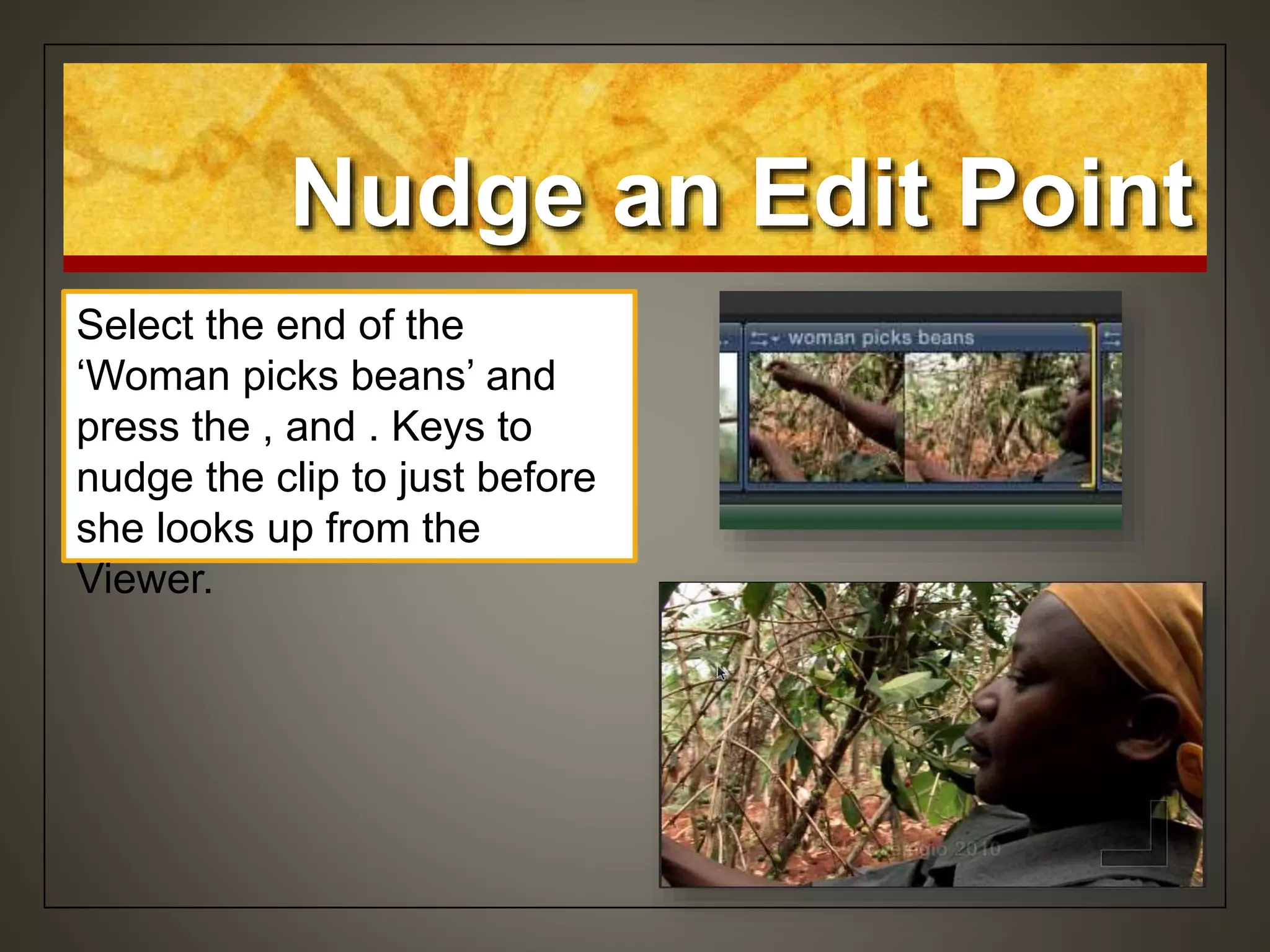
Nudge an Edit Point
Select the end of the
‘Woman picks beans’ and
press the , and . Keys to
nudge the clip to just before
she looks up from the
Viewer.
Checking Your Edit
• After changing your
edit point, press Shift
/ (Shift ?) to play
around the current
play head position
• The amount of pre-roll
and post-roll is set in
Preferences
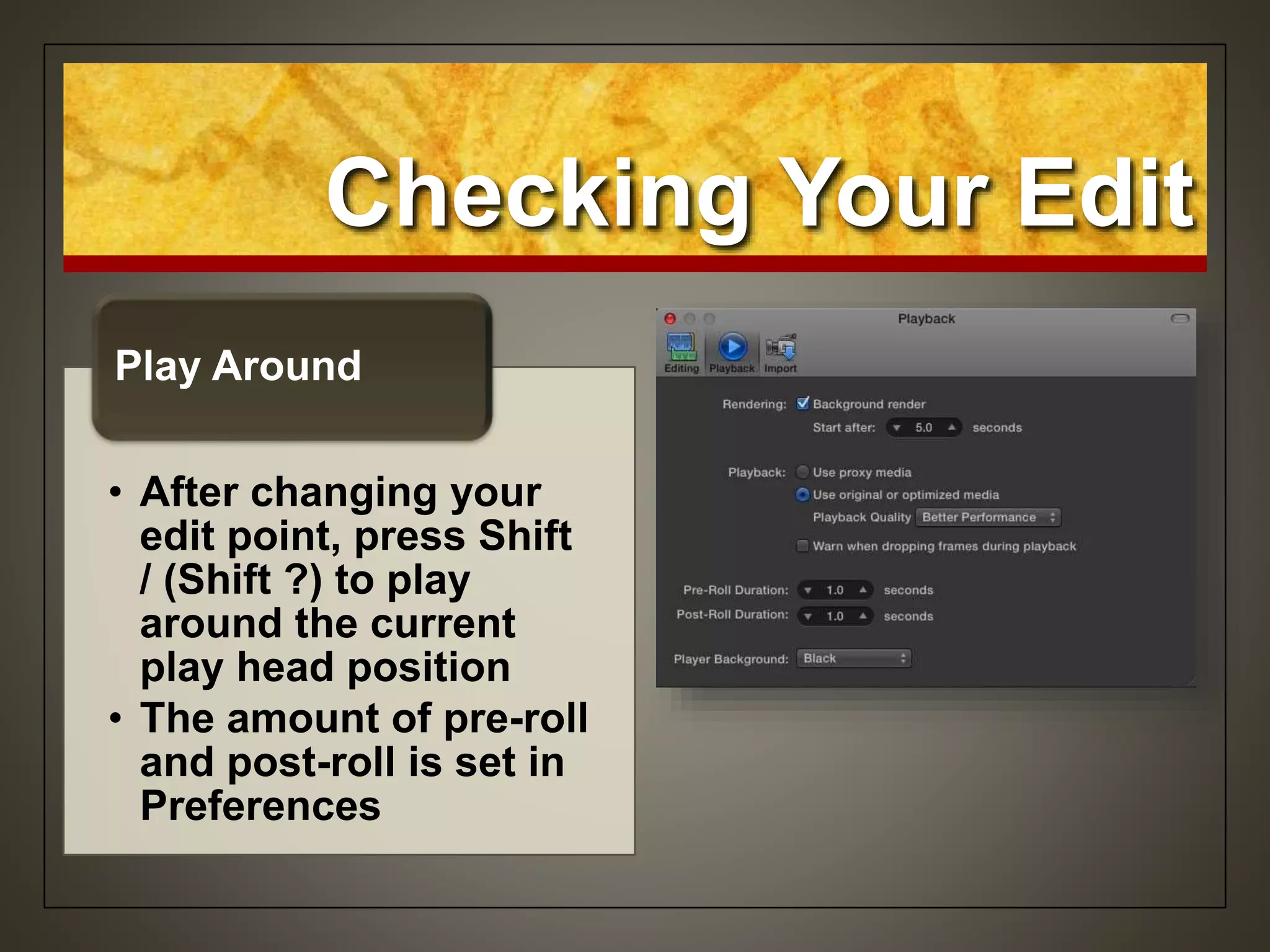
Play Around
Play Around the
Edit Point
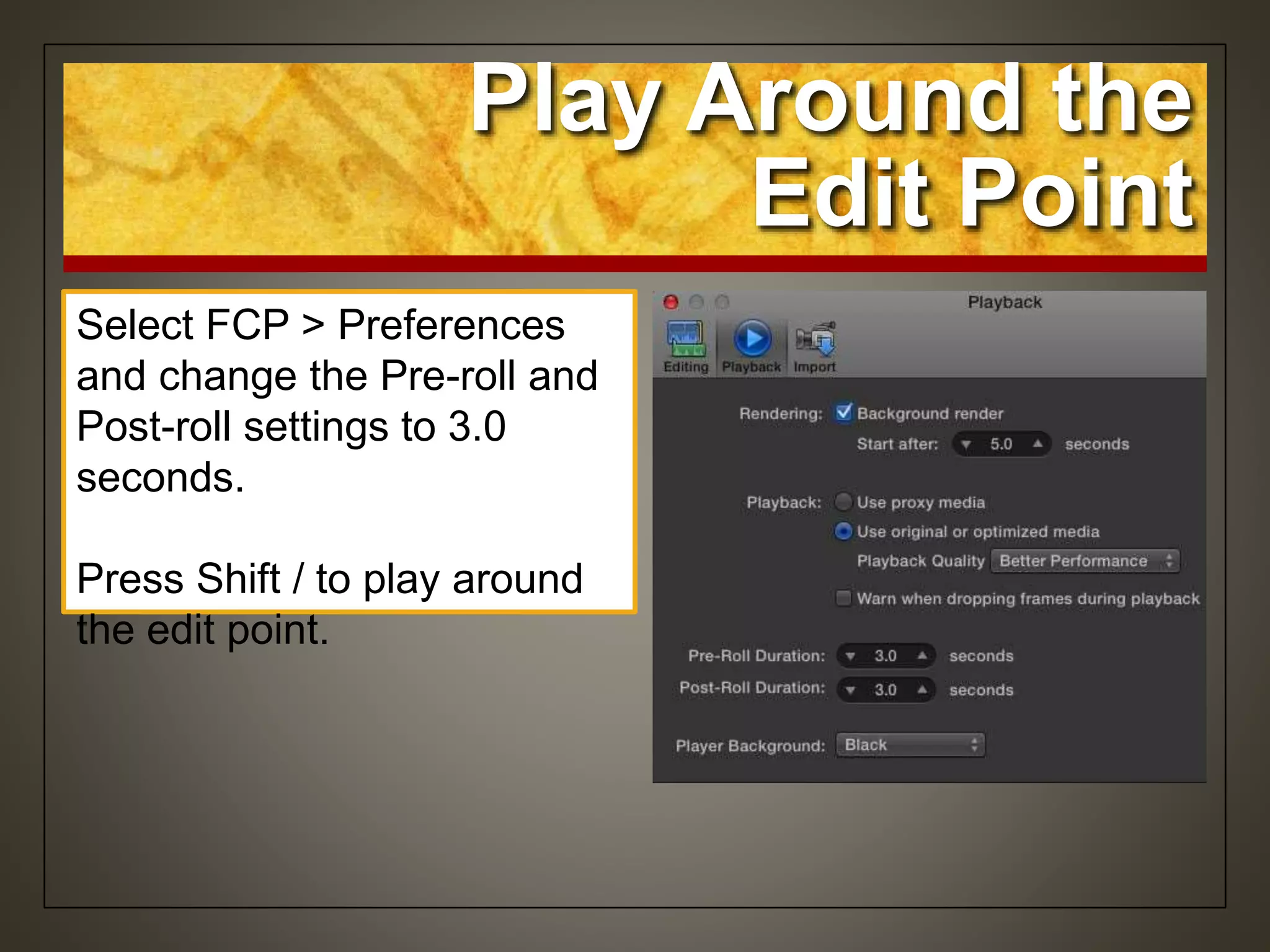
Select FCP > Preferences
and change the Pre-roll and
Post-roll settings to 3.0
seconds.
Press Shift / to play around
the edit point.
Set up for Detailed
Trimming
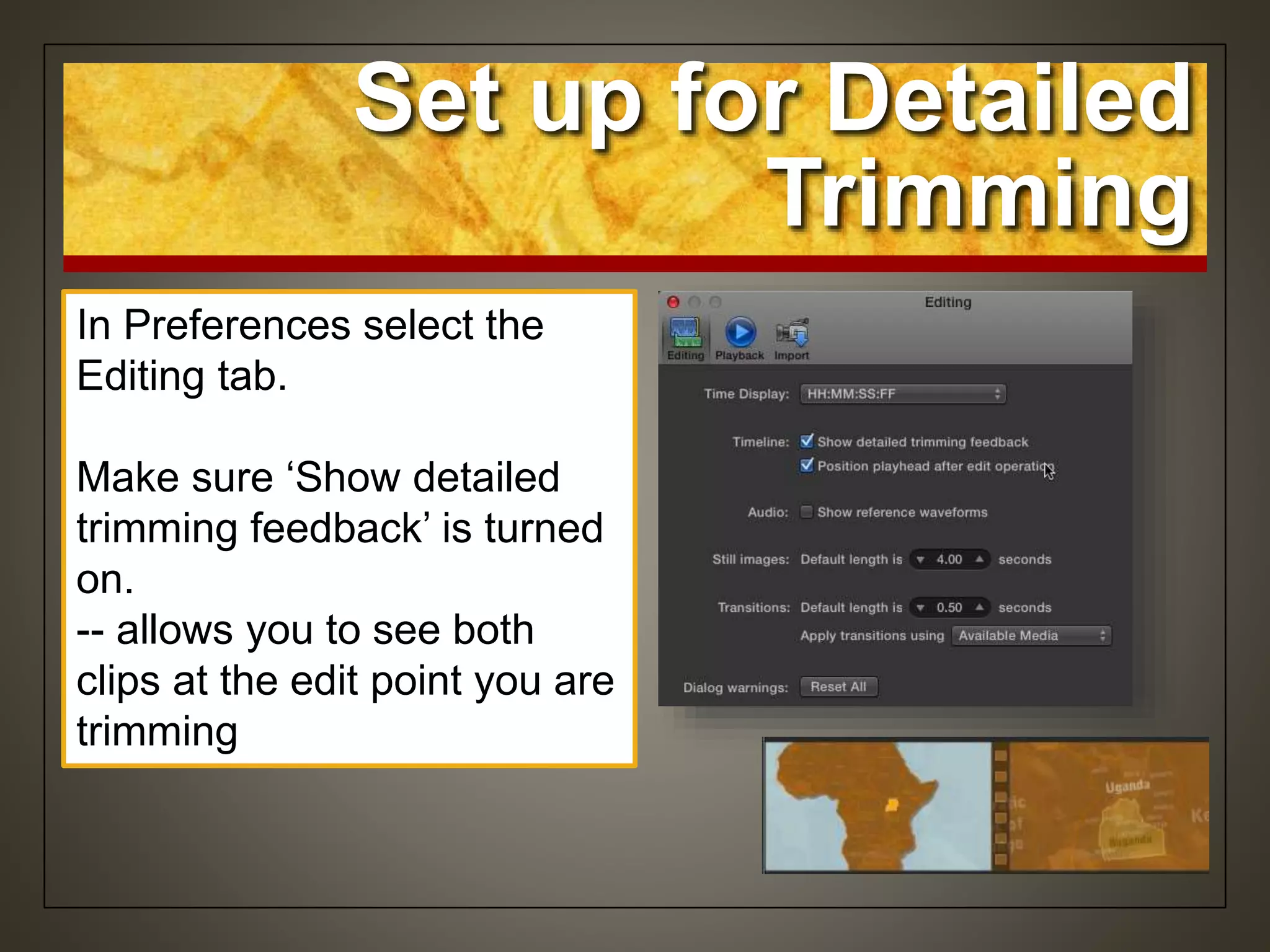
In Preferences select the
Editing tab.
Make sure ‘Show detailed
trimming feedback’ is turned
on.
-- allows you to see both
clips at the edit point you are
trimming
Trimming Indicators
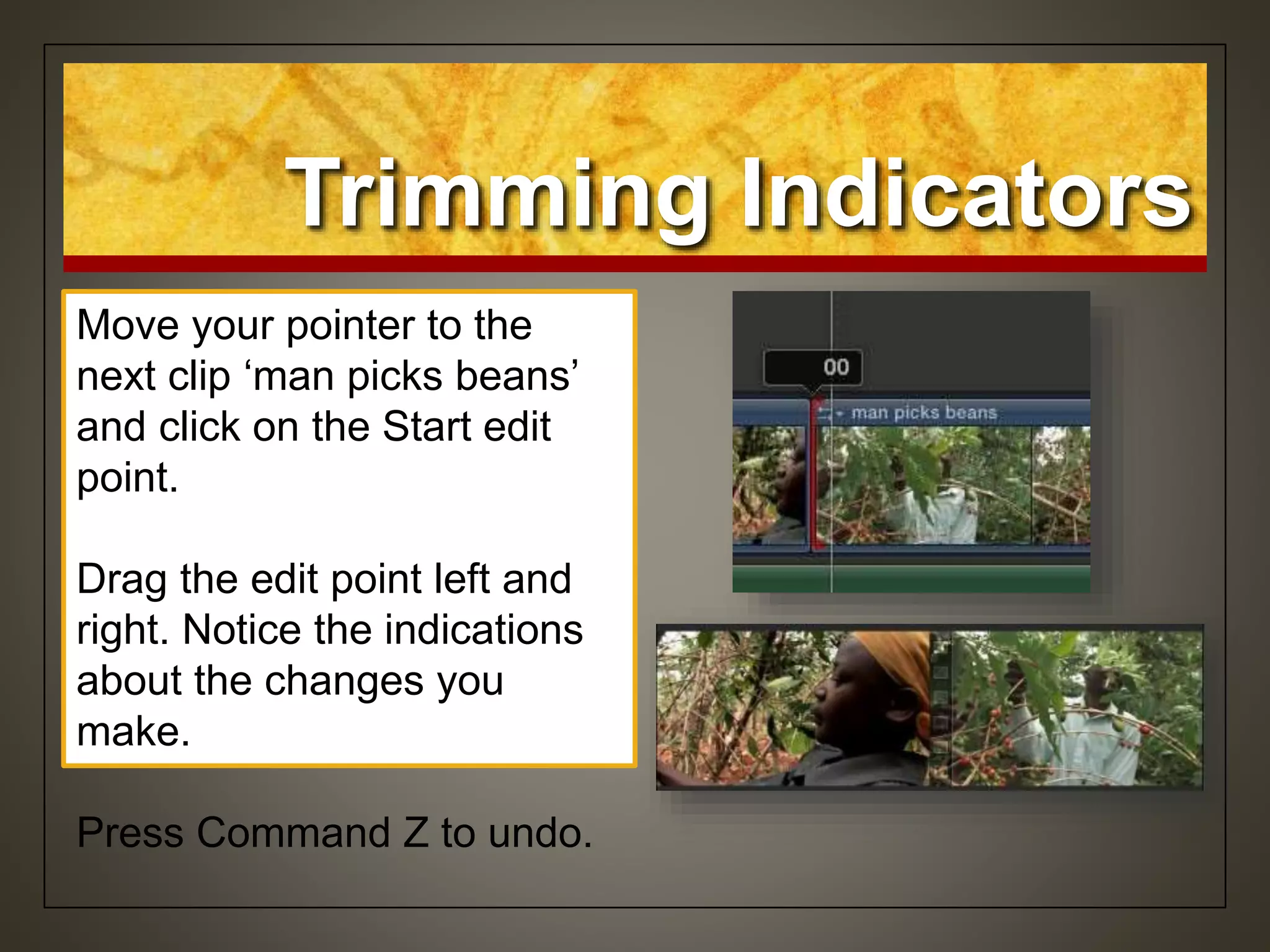
Move your pointer to the
next clip ‘man picks beans’
and click on the Start edit
point.
Drag the edit point left and
right. Notice the indications
about the changes you
make.
Press Command Z to undo.
Trimming Indicators
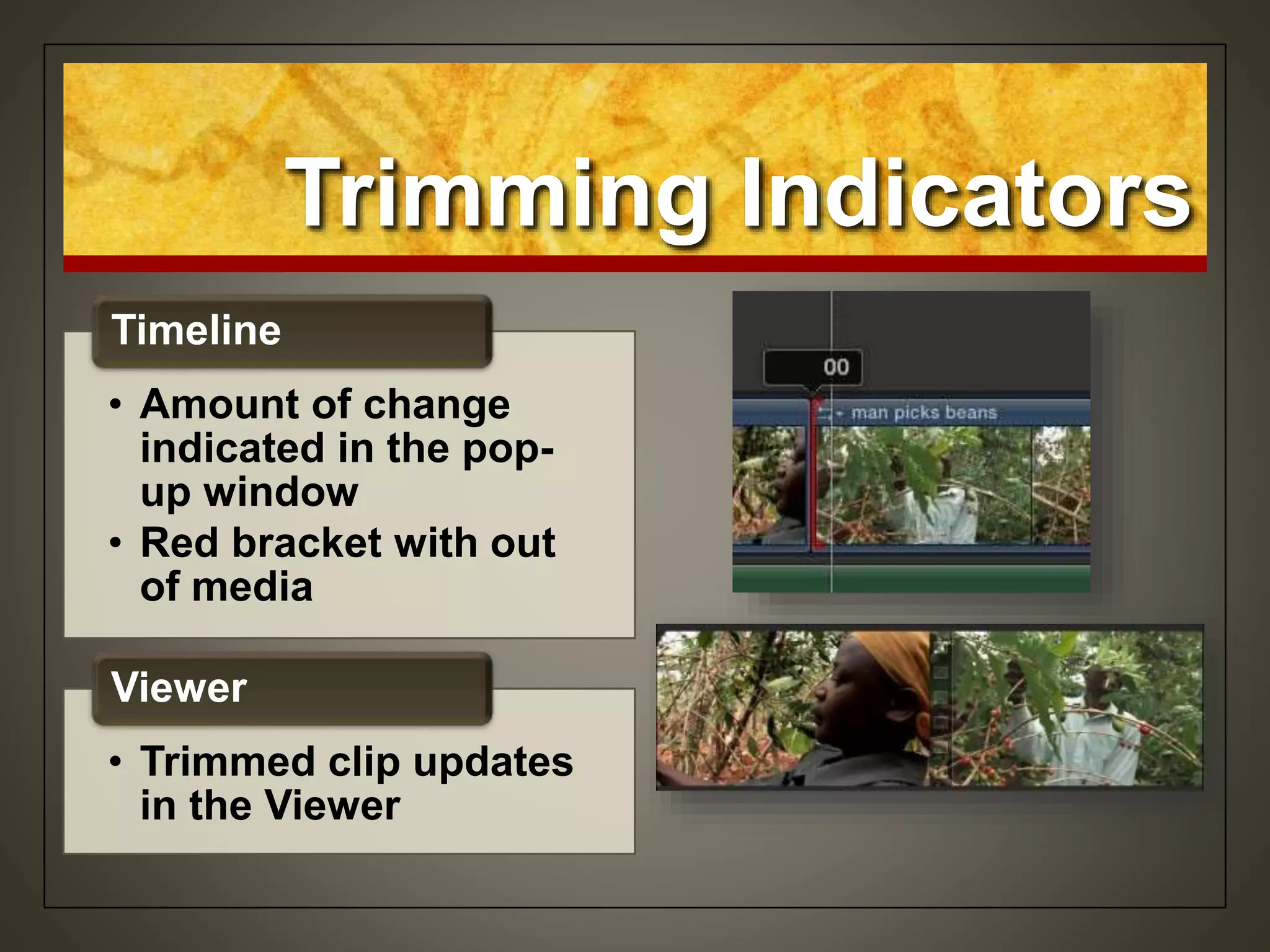
• Amount of change
indicated in the pop-
up window
• Red bracket with out
of media
Timeline
• Trimmed clip updates
in the Viewer
Viewer
Using the Play head as a
Trim Marker
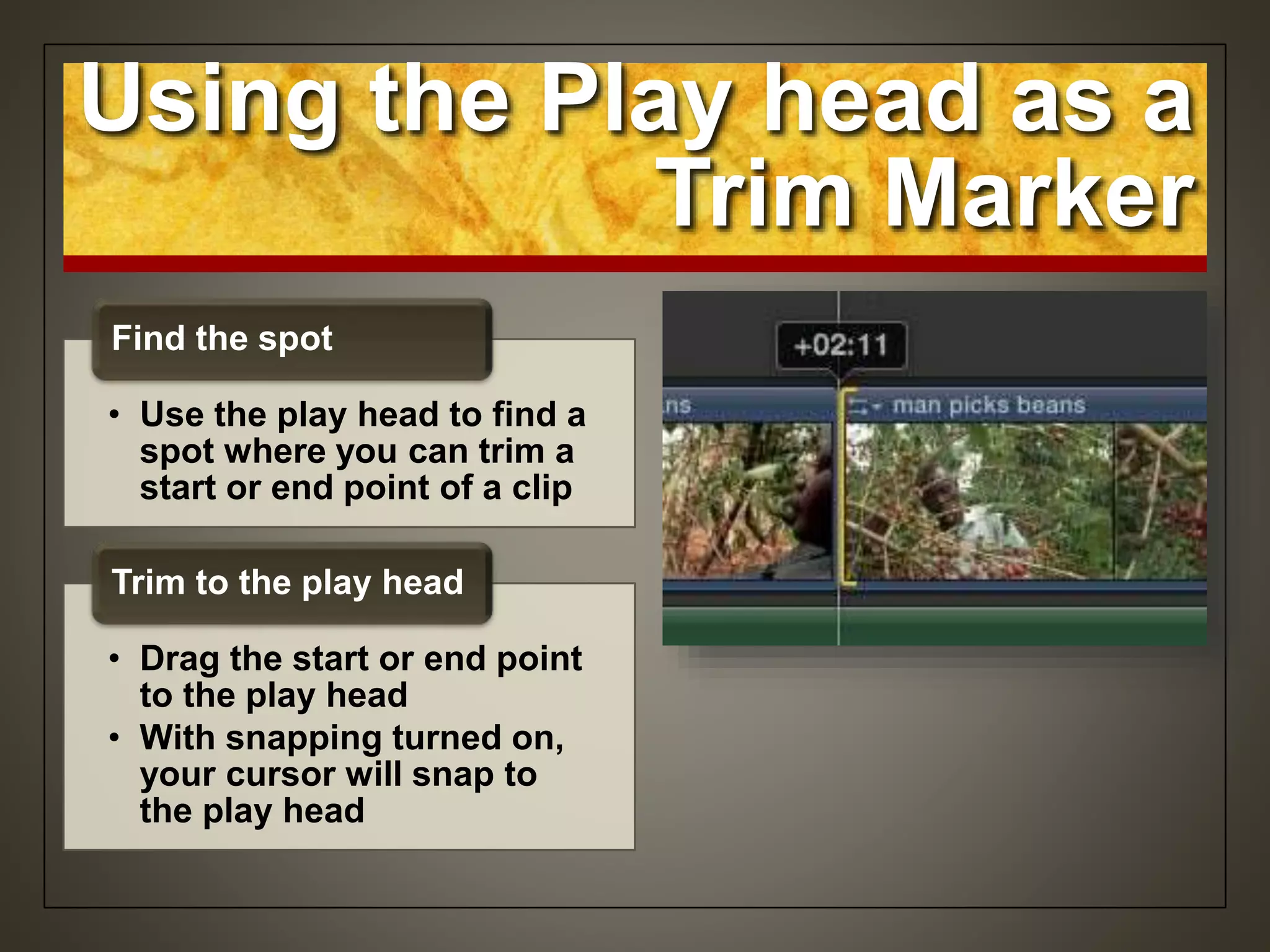
• Use the play head to find a
spot where you can trim a
start or end point of a clip
Find the spot
• Drag the start or end point
to the play head
• With snapping turned on,
your cursor will snap to
the play head
Trim to the play head
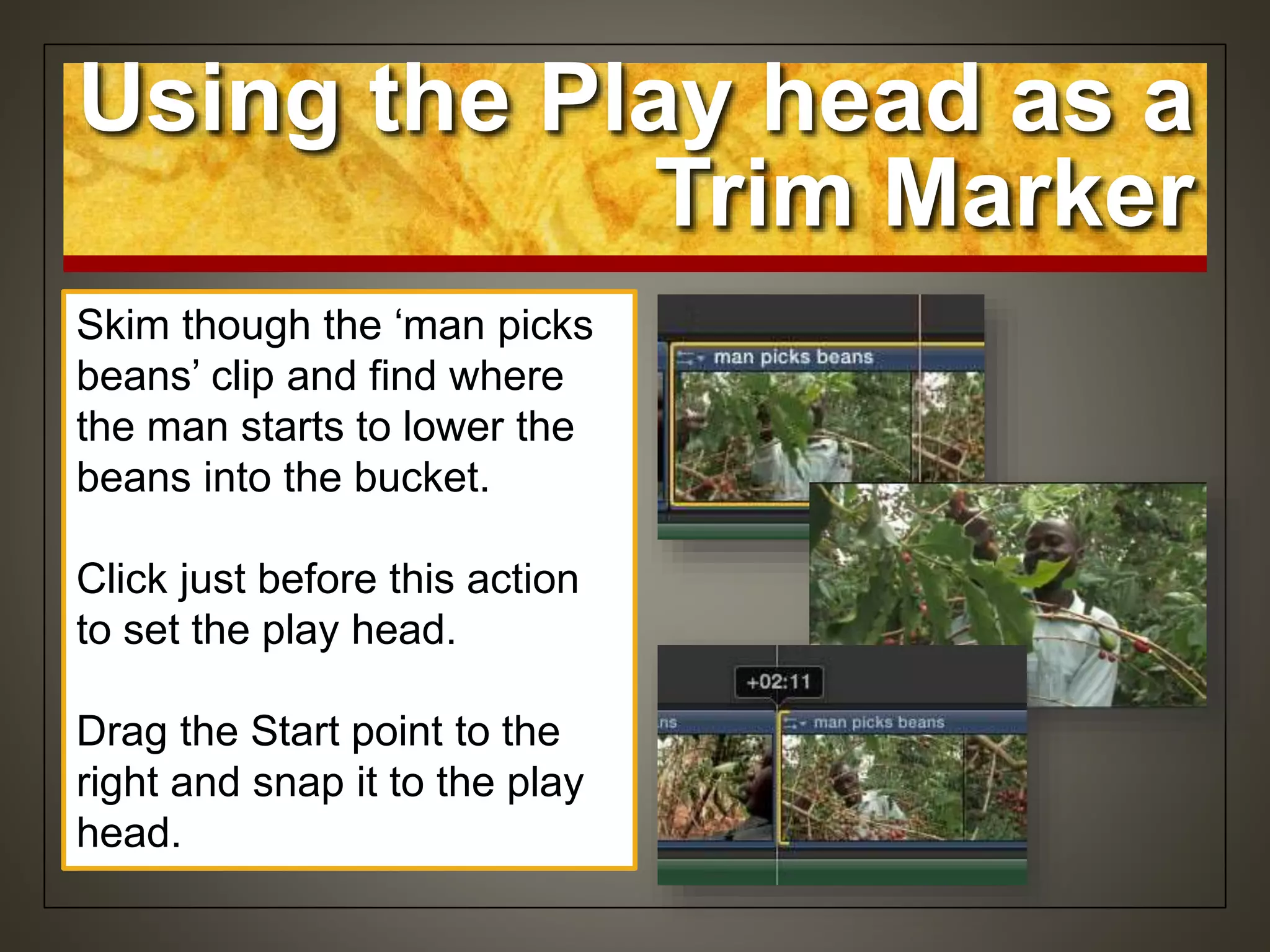
Skim though the ‘man picks
beans’ clip and find where
the man starts to lower the
beans into the bucket.
Click just before this action
to set the play head.
Drag the Start point to the
right and snap it to the play
head.
Using the Play head as a
Trim Marker
Trimming Shortcuts
• Option & right bracket
• Trims an End point to the skimmer
location
Option ]
• Option & left bracket
• Trims a Start point to the skimmer
location
Option [
• Press I and O to set a range in a clip
• Press Option  to trim the head and tail
material outside the selection
Option
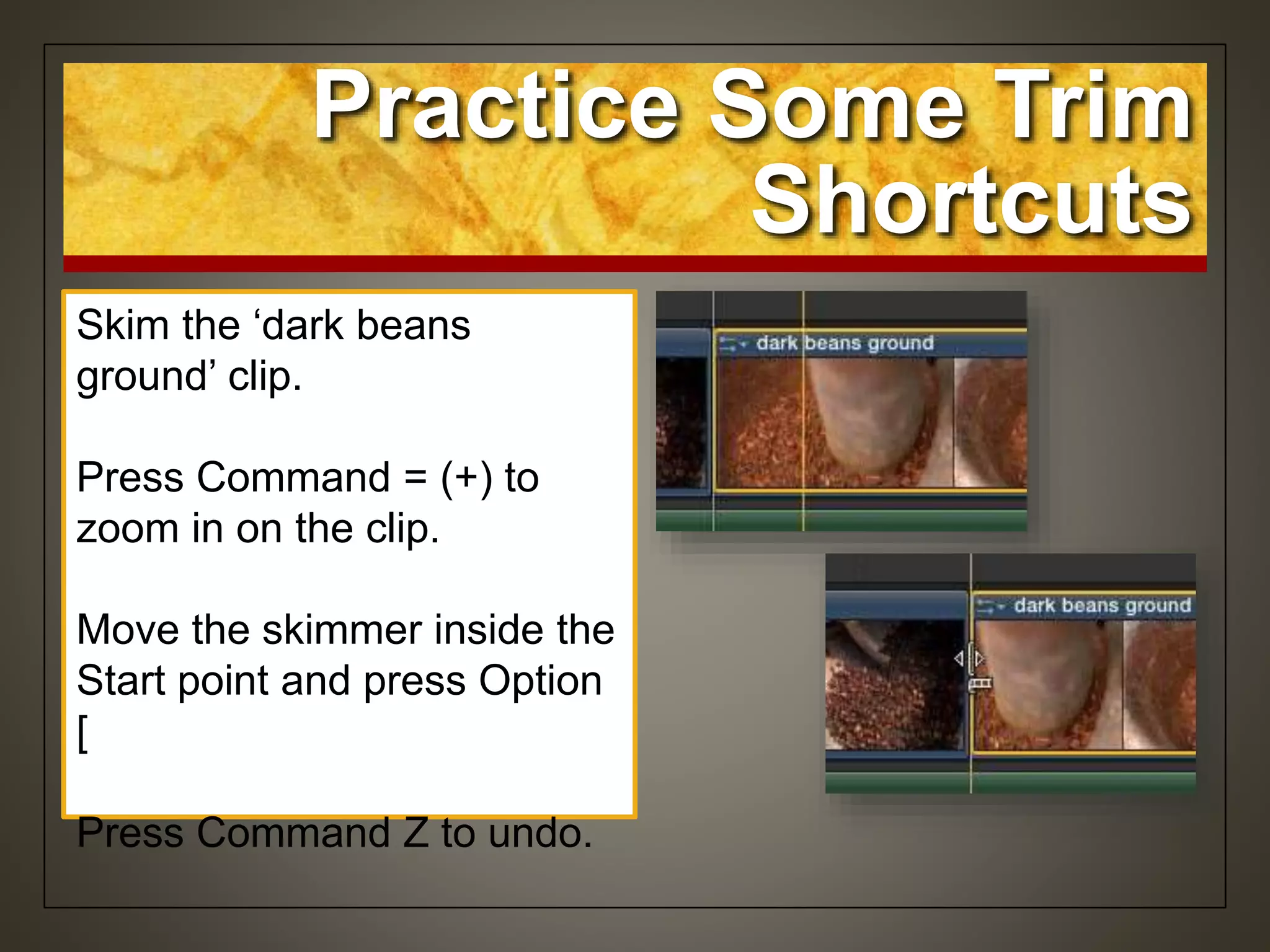
Skim the ‘dark beans
ground’ clip.
Press Command = (+) to
zoom in on the clip.
Move the skimmer inside the
Start point and press Option
[
Press Command Z to undo.
Practice Some Trim
Shortcuts
Move the skimmer inside the
End point to just before the
zoom out
Press Option ] to trim the
End point.
Press Command Z to undo.
Practice Some Trim
Shortcuts
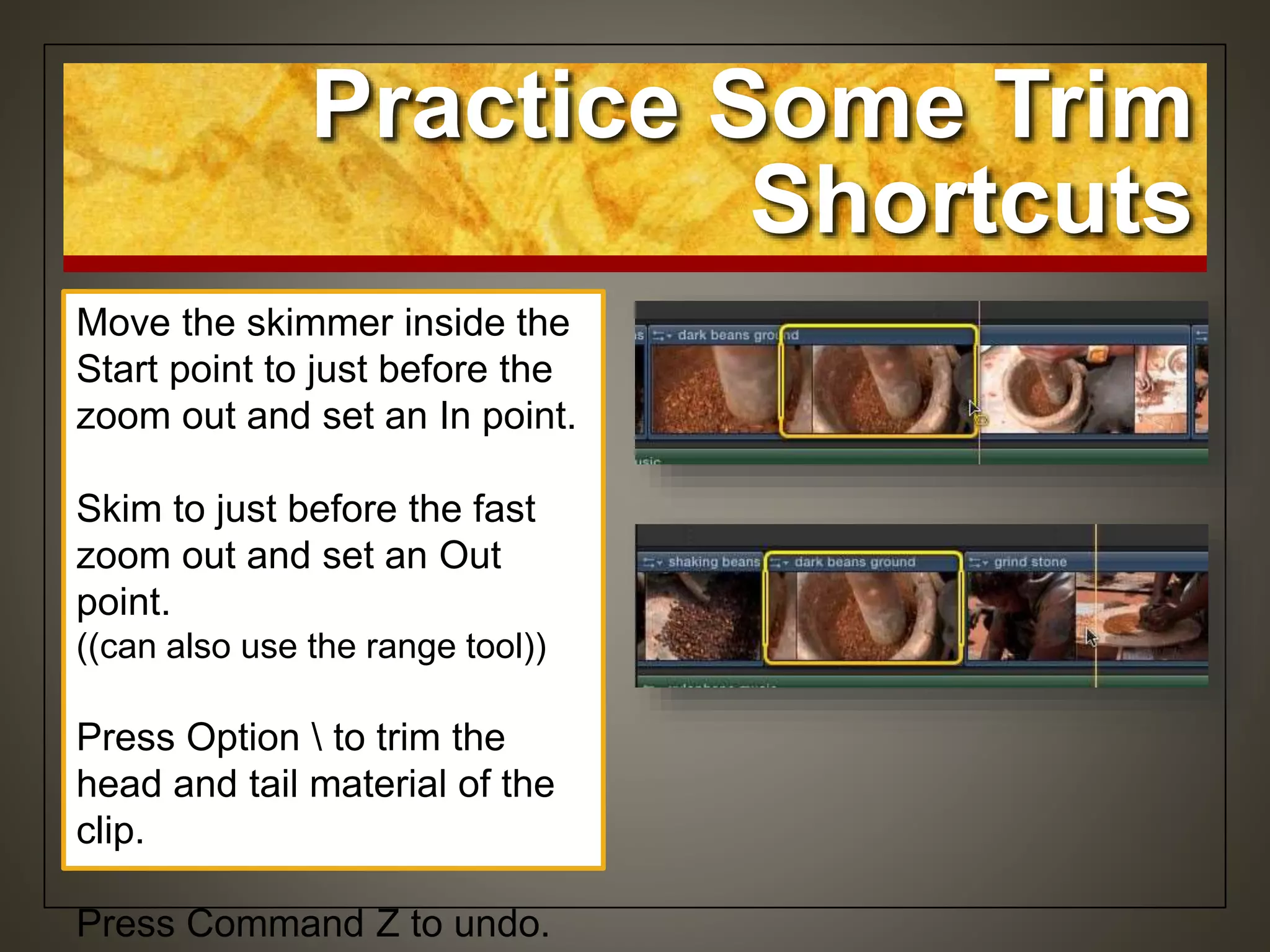
Move the skimmer inside the
Start point to just before the
zoom out and set an In point.
Skim to just before the fast
zoom out and set an Out
point.
((can also use the range tool))
Press Option  to trim the
head and tail material of the
clip.
Press Command Z to undo.
Practice Some Trim
Shortcuts
Extend Edit
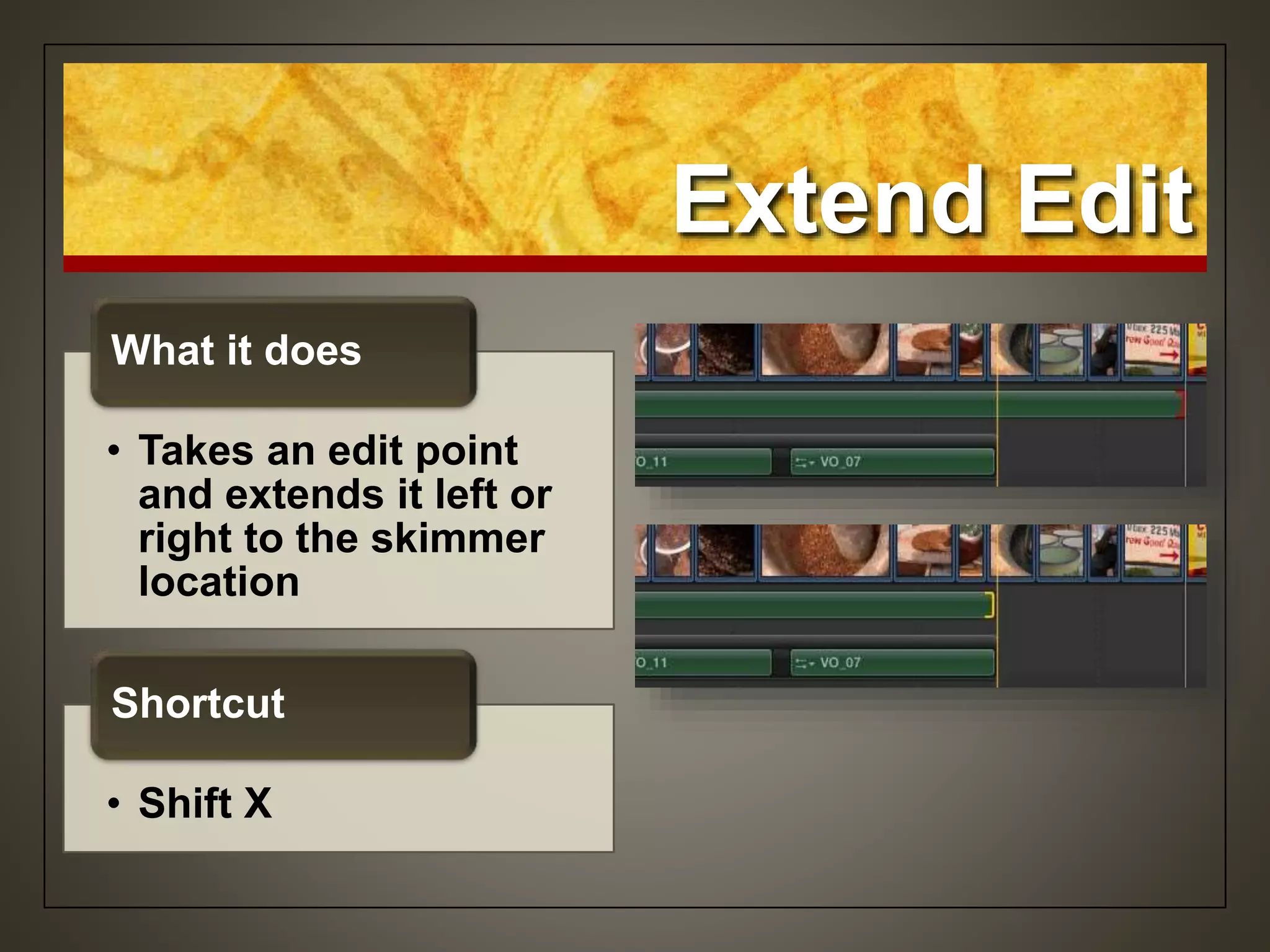
• Takes an edit point
and extends it left or
right to the skimmer
location
What it does
• Shift X
Shortcut
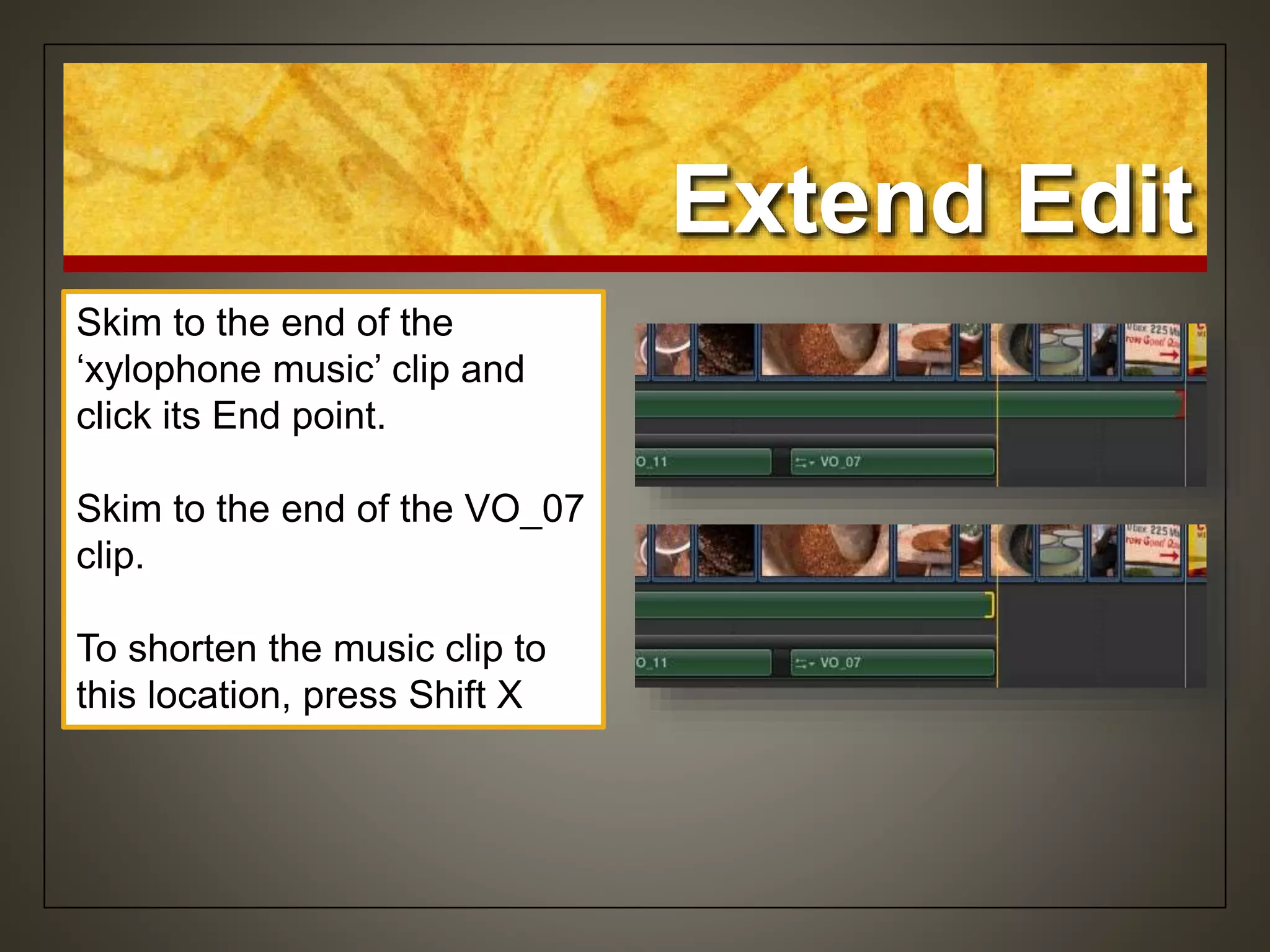
Skim to the end of the
‘xylophone music’ clip and
click its End point.
Skim to the end of the VO_07
clip.
To shorten the music clip to
this location, press Shift X
Extend Edit
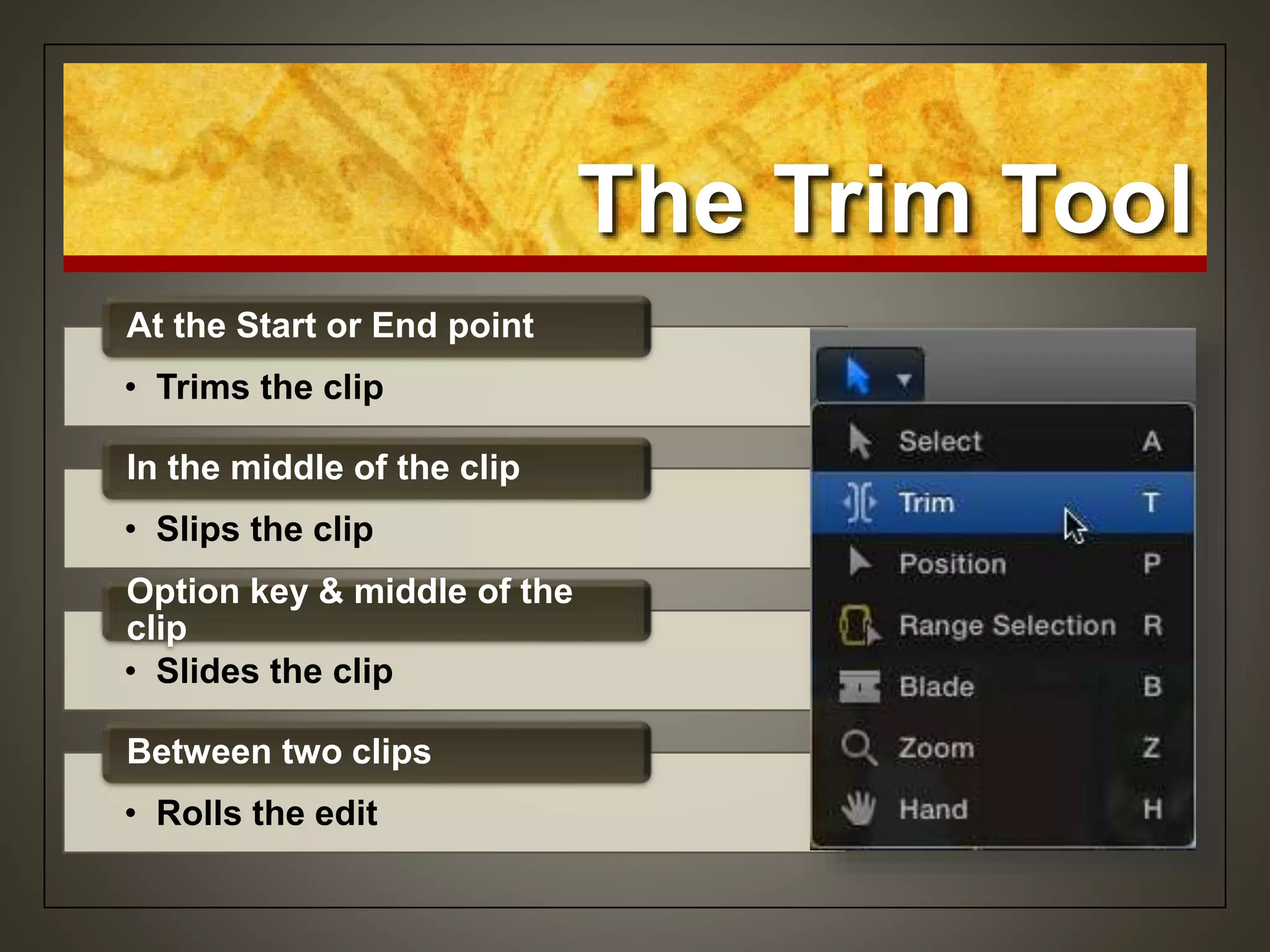
The Trim Tool
• Trims the clip
At the Start or End point
• Slips the clip
In the middle of the clip
• Slides the clip
Option key & middle of the
clip
• Rolls the edit
Between two clips
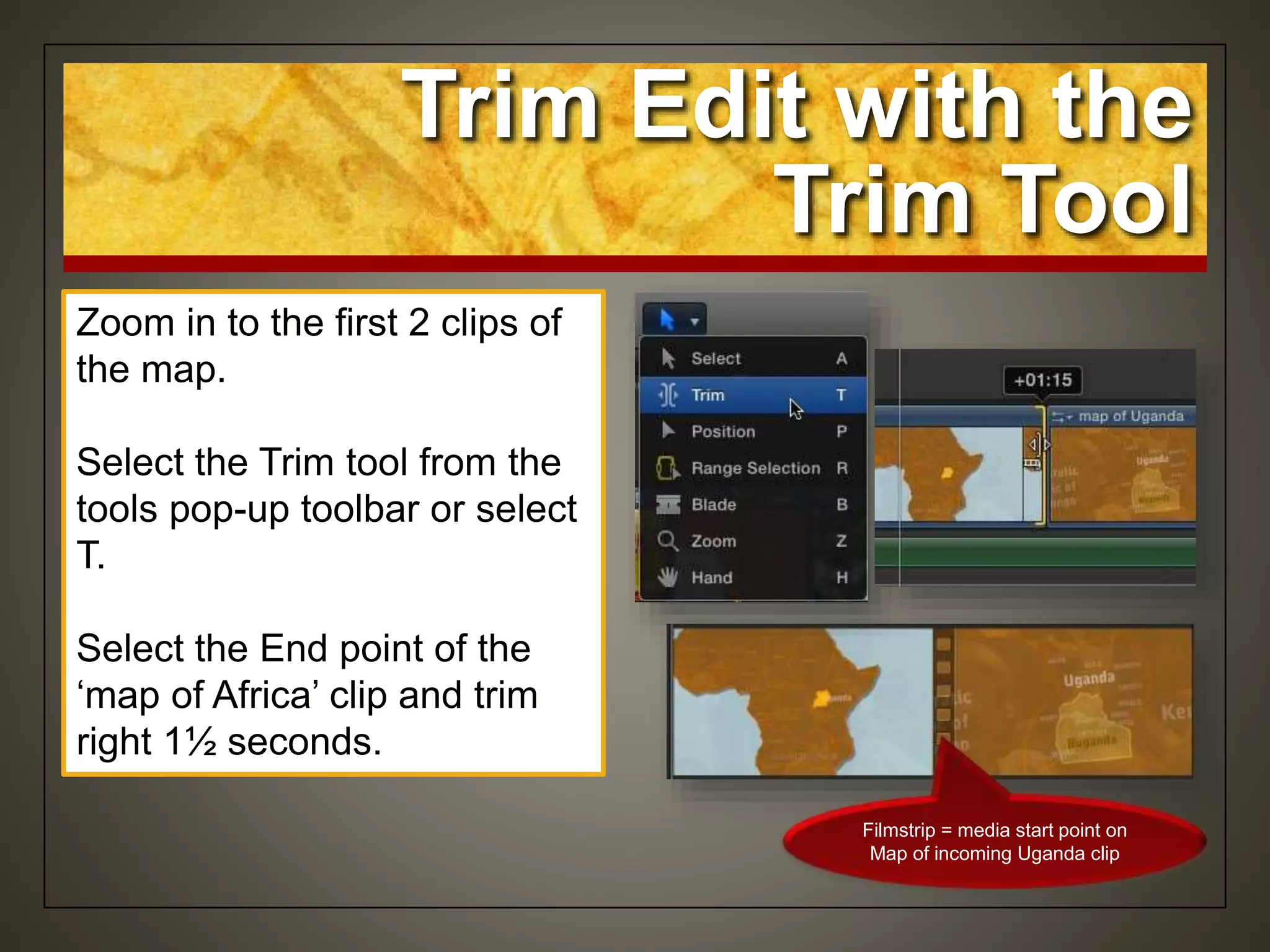
Zoom in to the first 2 clips of
the map.
Select the Trim tool from the
tools pop-up toolbar or select
T.
Select the End point of the
‘map of Africa’ clip and trim
right 1½ seconds.
Trim Edit with the
Trim Tool
Filmstrip = media start point on
Map of incoming Uganda clip
 MWF
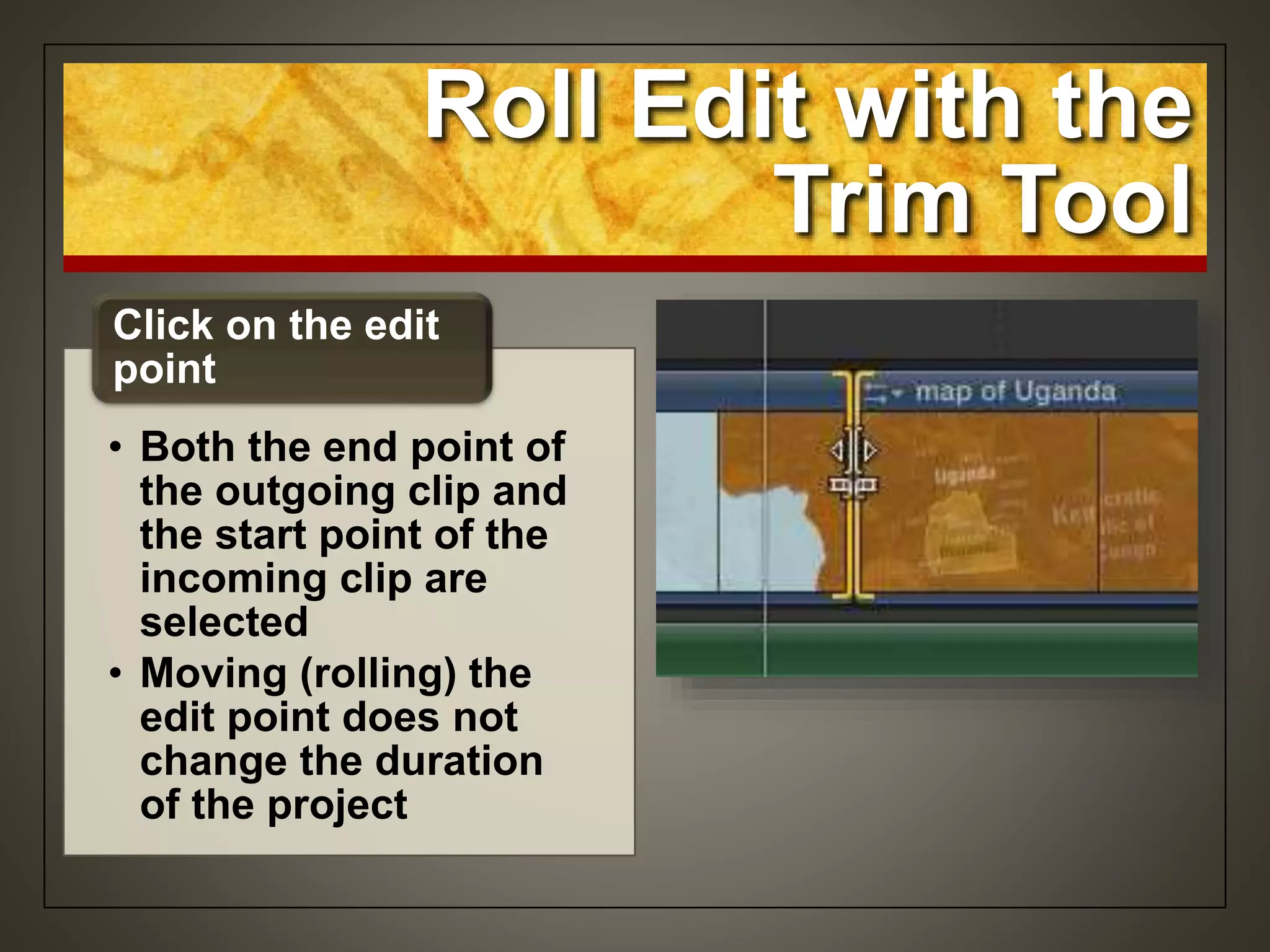
Roll Edit with the
Trim Tool
• Both the end point of
the outgoing clip and
the start point of the
incoming clip are
selected
• Moving (rolling) the
edit point does not
change the duration
of the project
Click on the edit
point
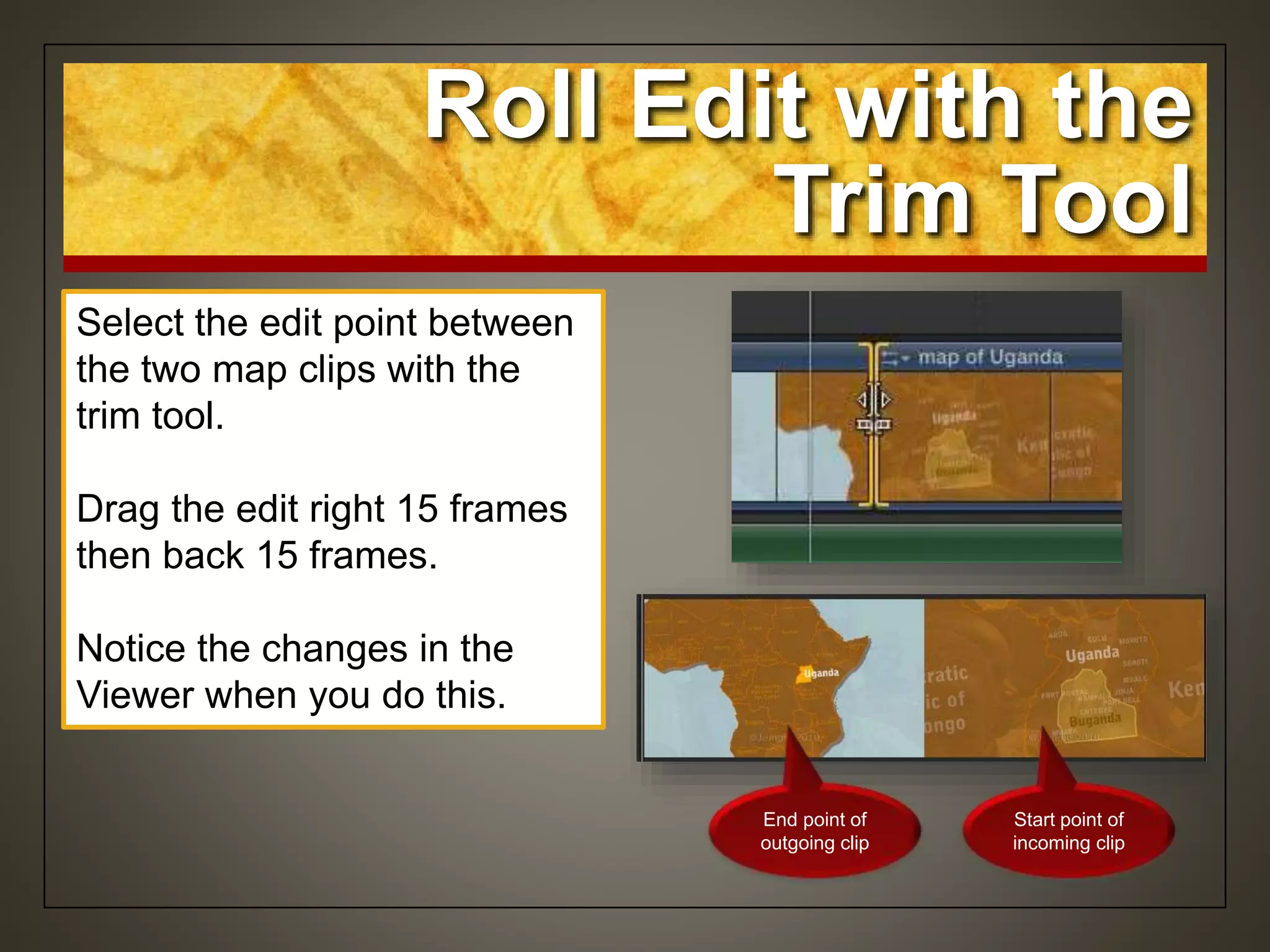
Select the edit point between
the two map clips with the
trim tool.
Drag the edit right 15 frames
then back 15 frames.
Notice the changes in the
Viewer when you do this.
Roll Edit with the
Trim Tool
End point of
outgoing clip
Start point of
incoming clip
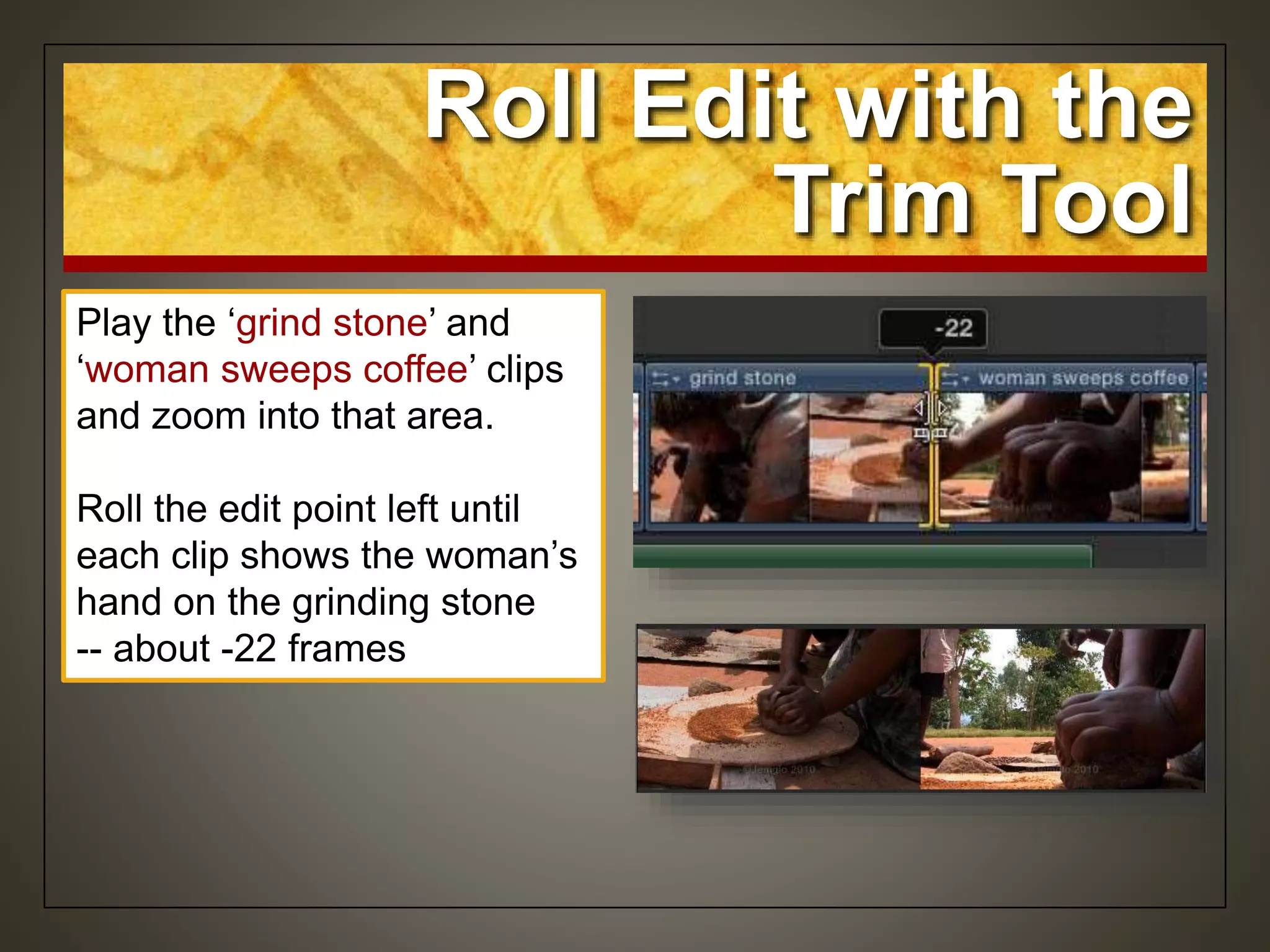
Play the ‘grind stone’ and
‘woman sweeps coffee’ clips
and zoom into that area.
Roll the edit point left until
each clip shows the woman’s
hand on the grinding stone
-- about -22 frames
Roll Edit with the
Trim Tool
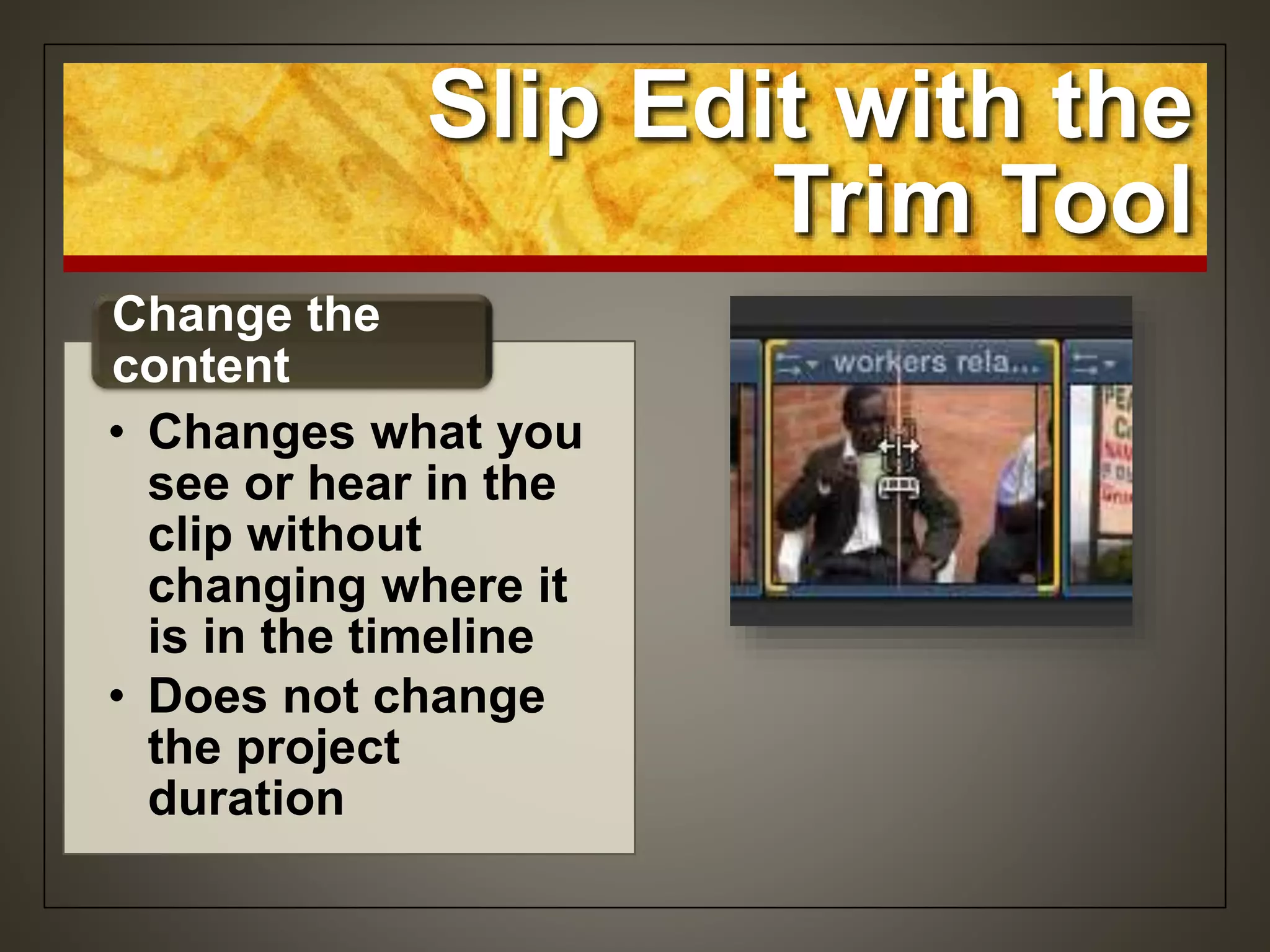
Slip Edit with the
Trim Tool
• Changes what you
see or hear in the
clip without
changing where it
is in the timeline
• Does not change
the project
duration
Change the
content
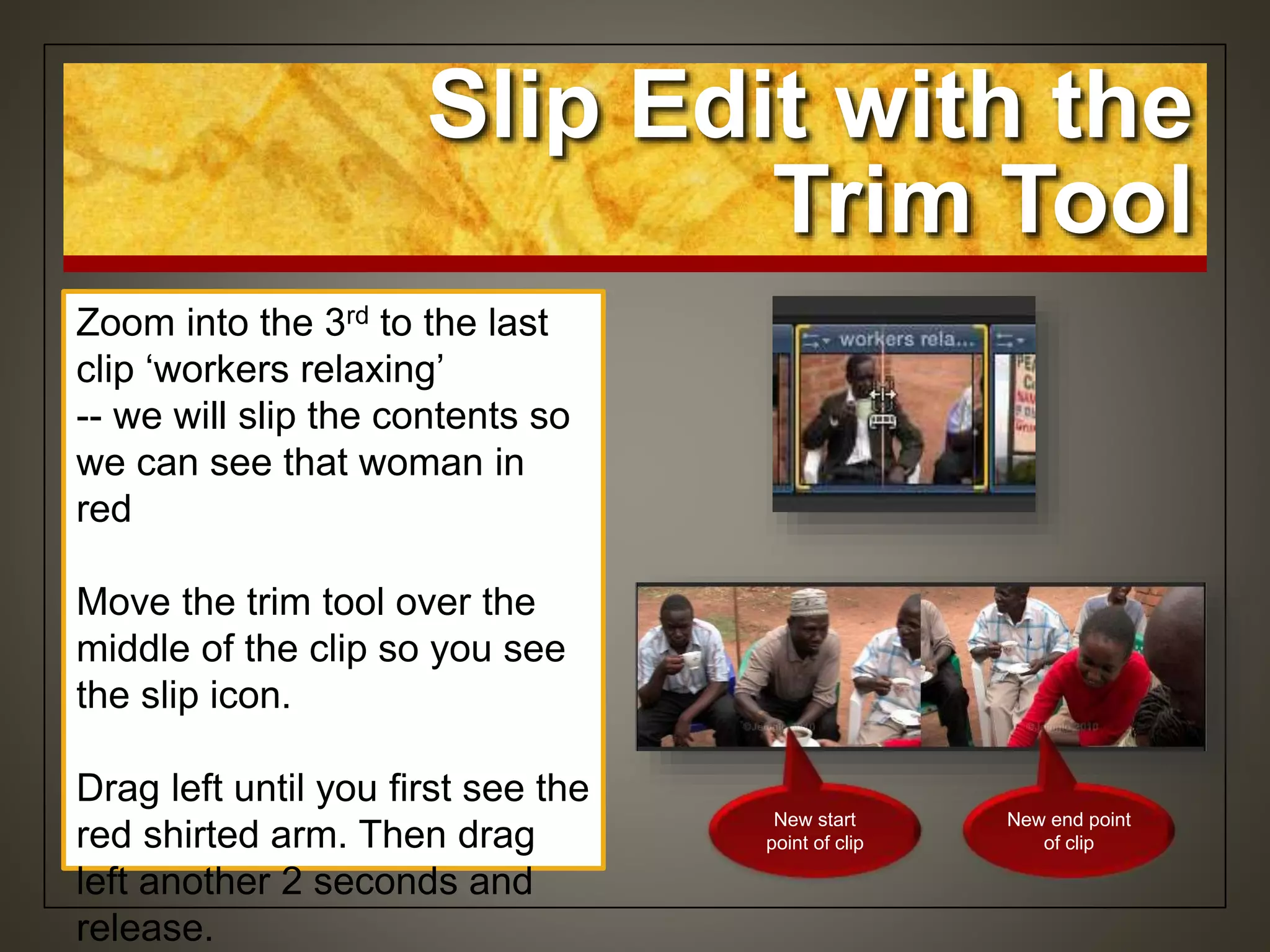
Zoom into the 3rd to the last
clip ‘workers relaxing’
-- we will slip the contents so
we can see that woman in
red
Move the trim tool over the
middle of the clip so you see
the slip icon.
Drag left until you first see the
red shirted arm. Then drag
left another 2 seconds and
release.
Slip Edit with the
Trim Tool
New start
point of clip
New end point
of clip
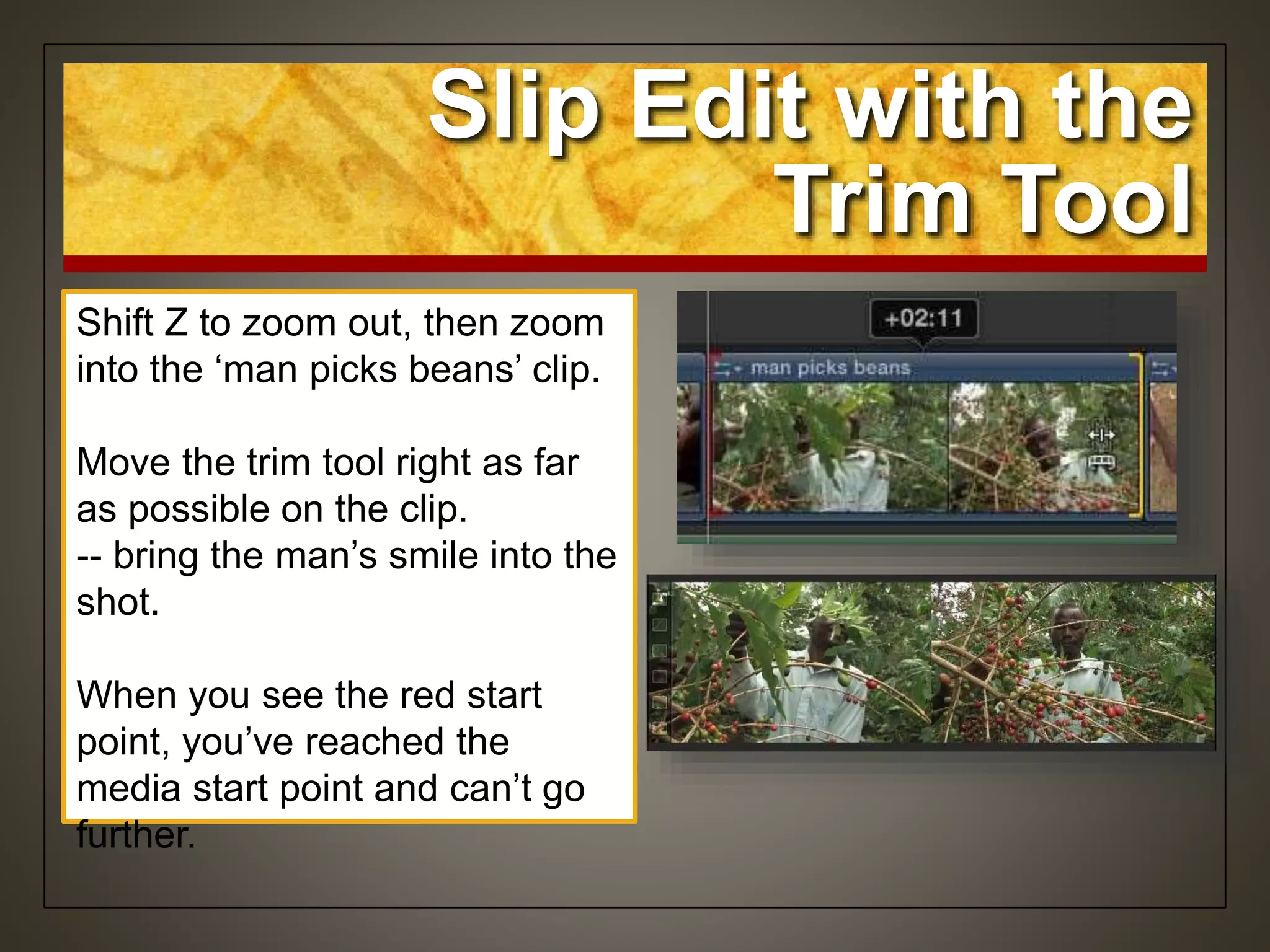
Shift Z to zoom out, then zoom
into the ‘man picks beans’ clip.
Move the trim tool right as far
as possible on the clip.
-- bring the man’s smile into the
shot.
When you see the red start
point, you’ve reached the
media start point and can’t go
further.
Slip Edit with the
Trim Tool
Slide Edit with the
Trim Tool
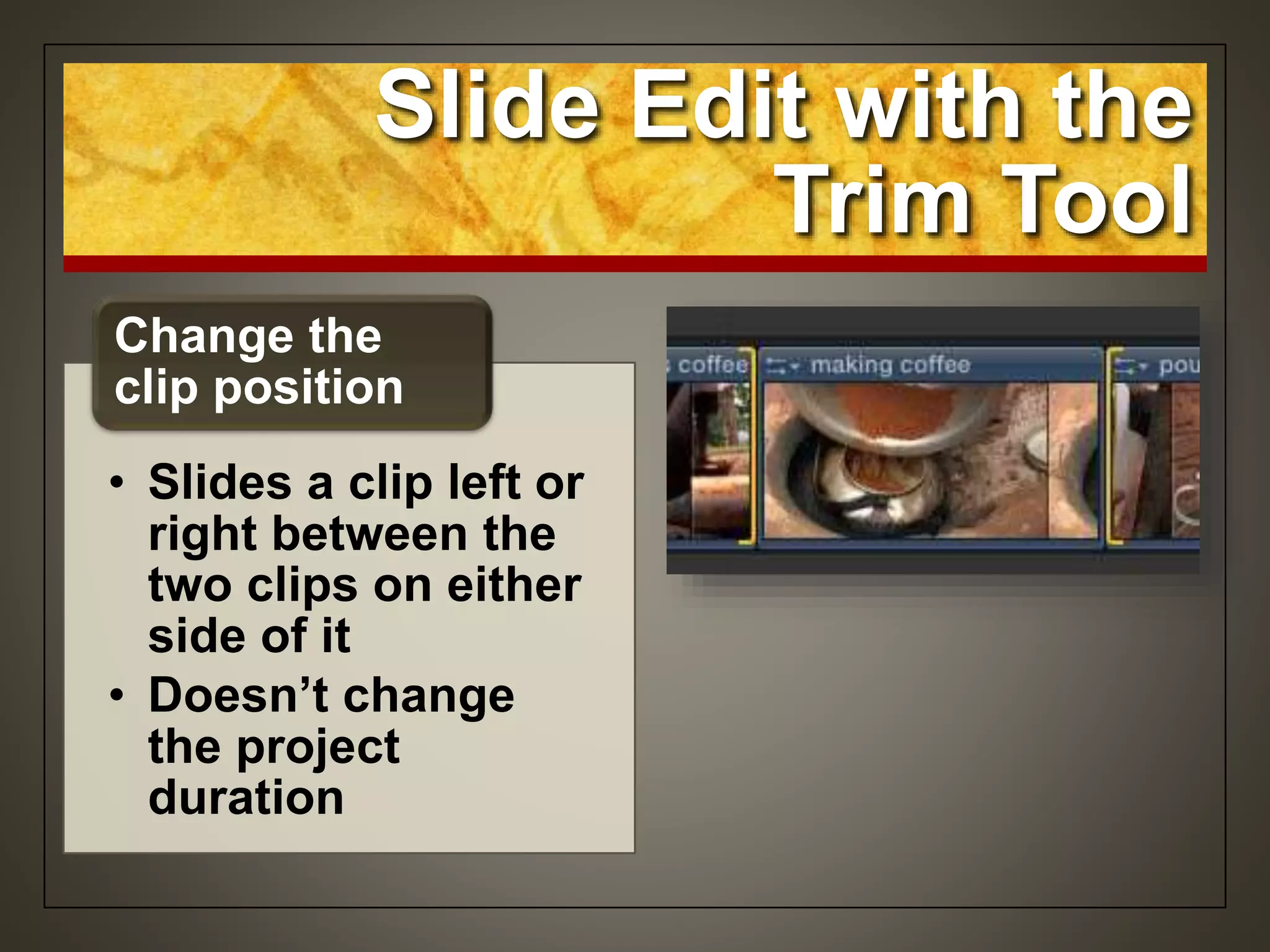
• Slides a clip left or
right between the
two clips on either
side of it
• Doesn’t change
the project
duration
Change the
clip position
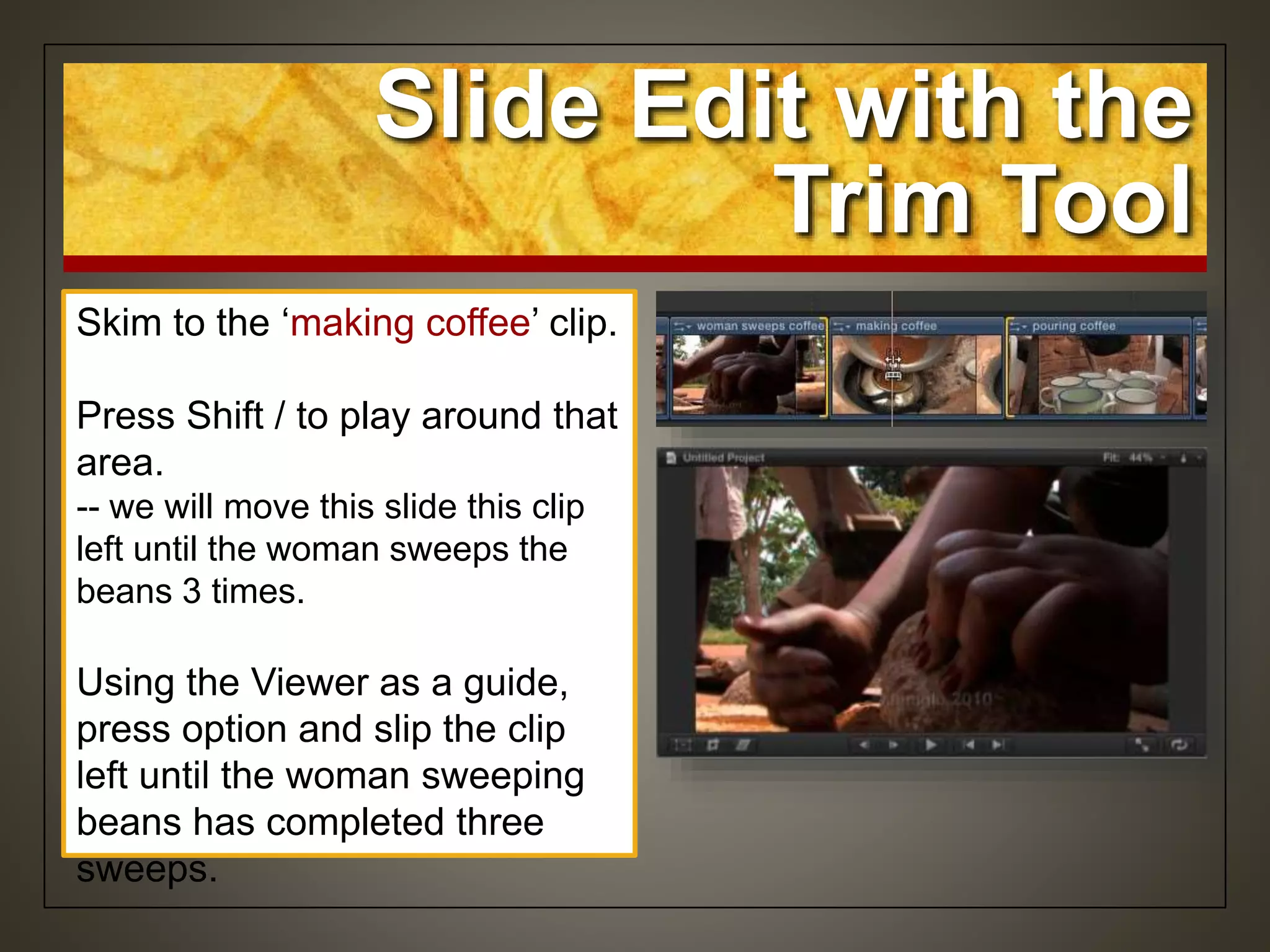
Skim to the ‘making coffee’ clip.
Press Shift / to play around that
area.
-- we will move this slide this clip
left until the woman sweeps the
beans 3 times.
Using the Viewer as a guide,
press option and slip the clip
left until the woman sweeping
beans has completed three
sweeps.
Slide Edit with the
Trim Tool
Trimming with Precision
• Look IN the edit
with the precision
editor for more
precise editing
• Allows you to
consider and
execute your trims
quickly and easily
Precision
Editor
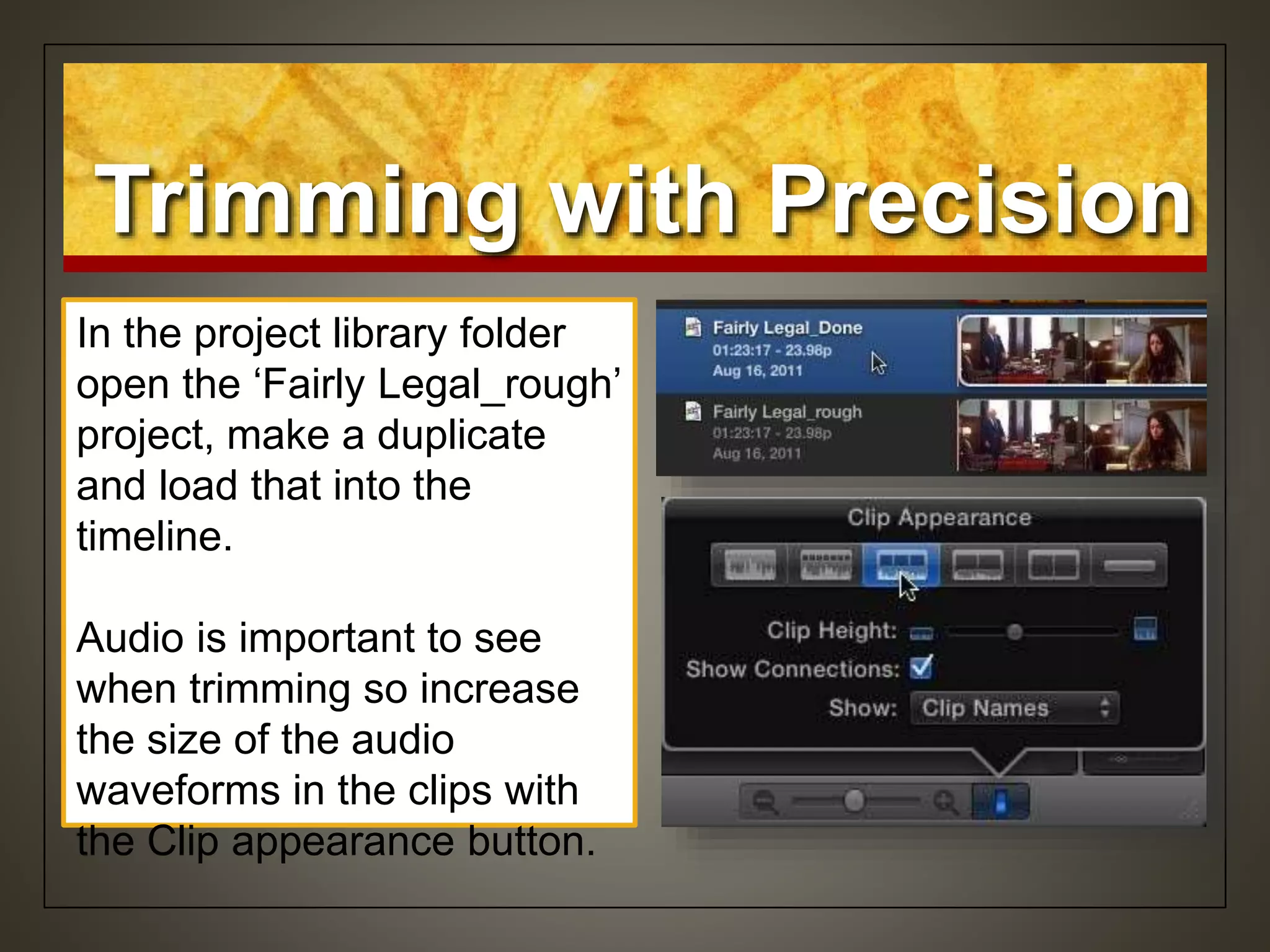
In the project library folder
open the ‘Fairly Legal_rough’
project, make a duplicate
and load that into the
timeline.
Audio is important to see
when trimming so increase
the size of the audio
waveforms in the clips with
the Clip appearance button.
Trimming with Precision
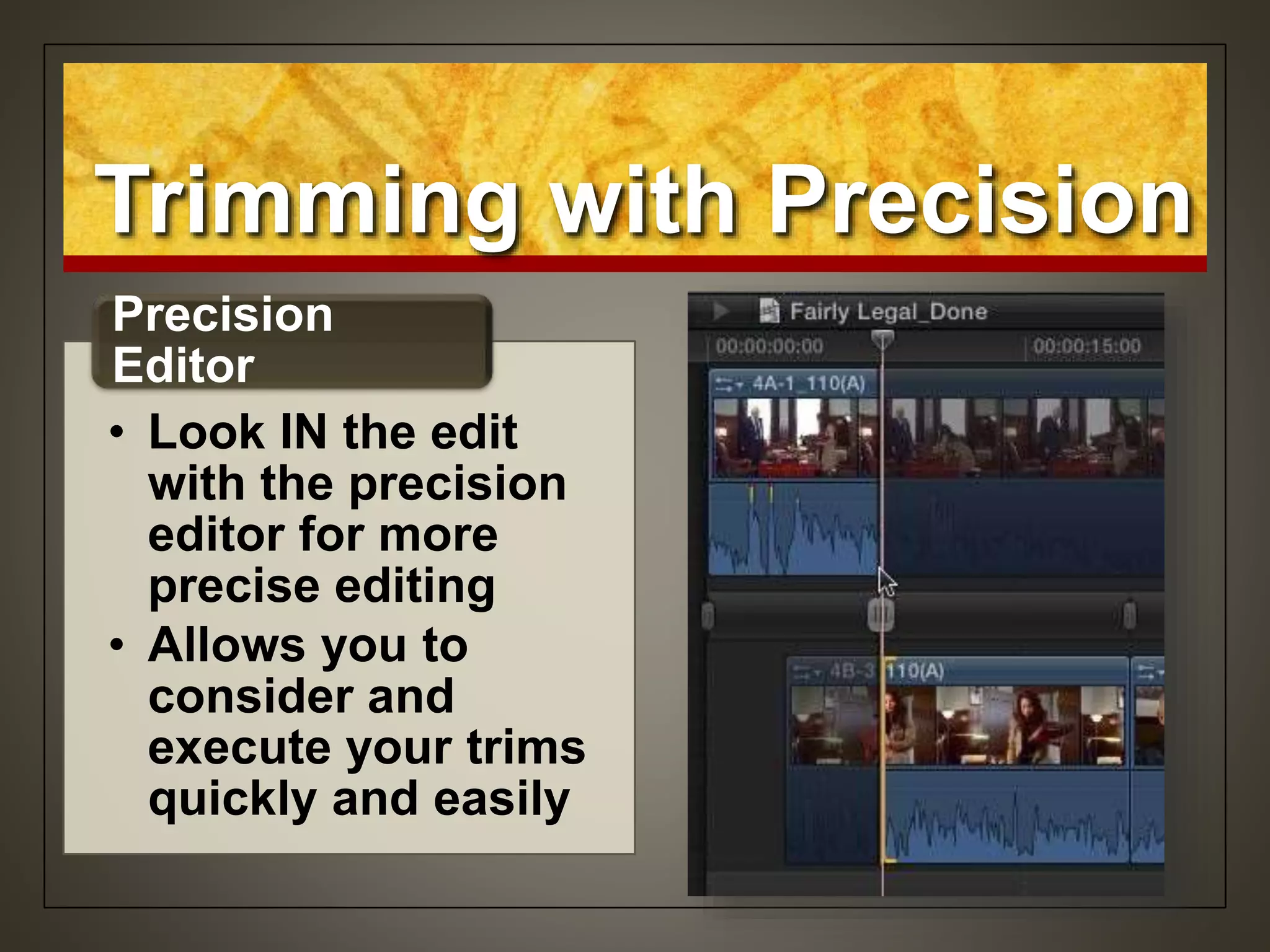
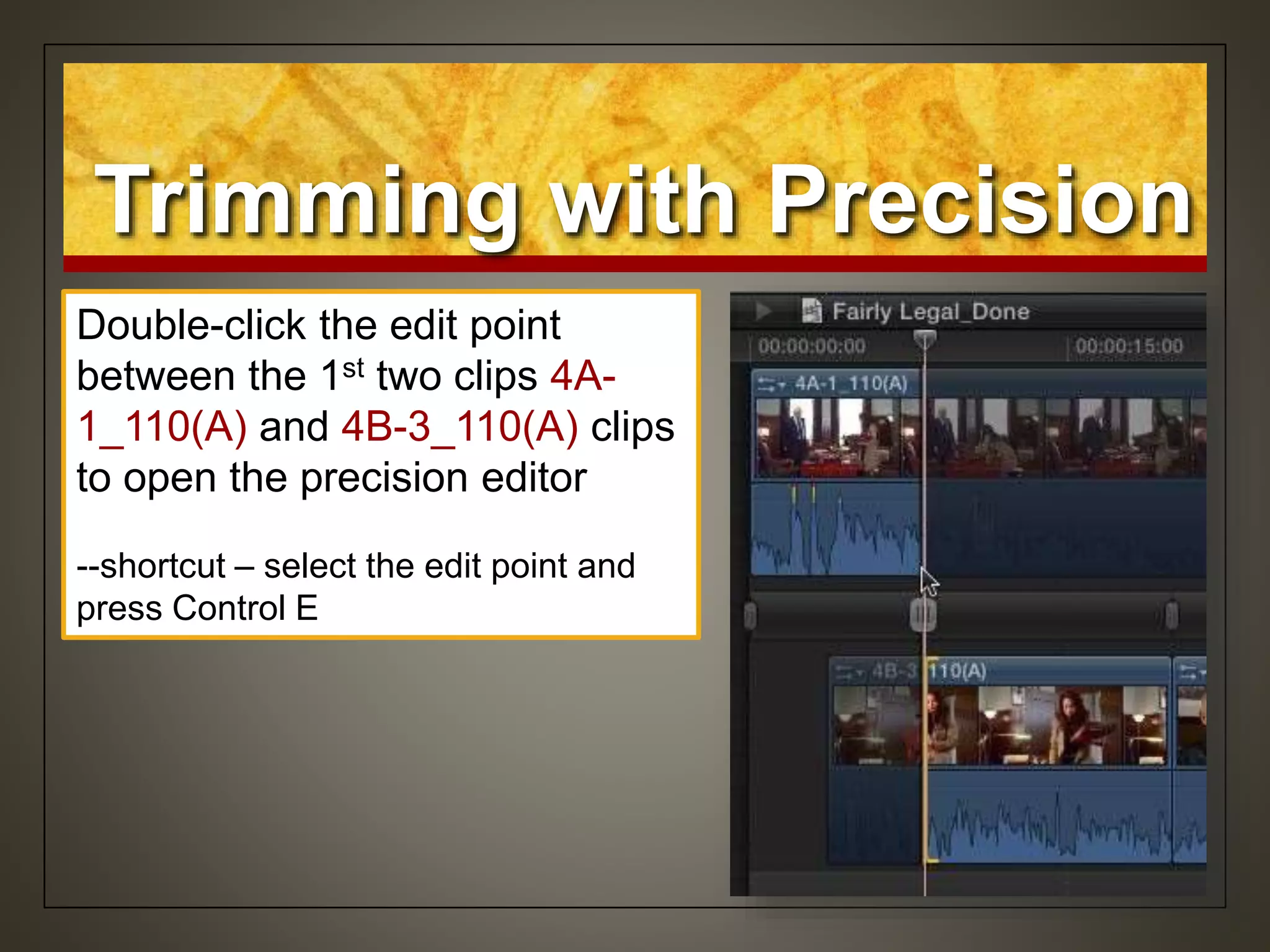
Double-click the edit point
between the 1st two clips 4A-
1_110(A) and 4B-3_110(A) clips
to open the precision editor
--shortcut – select the edit point and
press Control E
Trimming with Precision
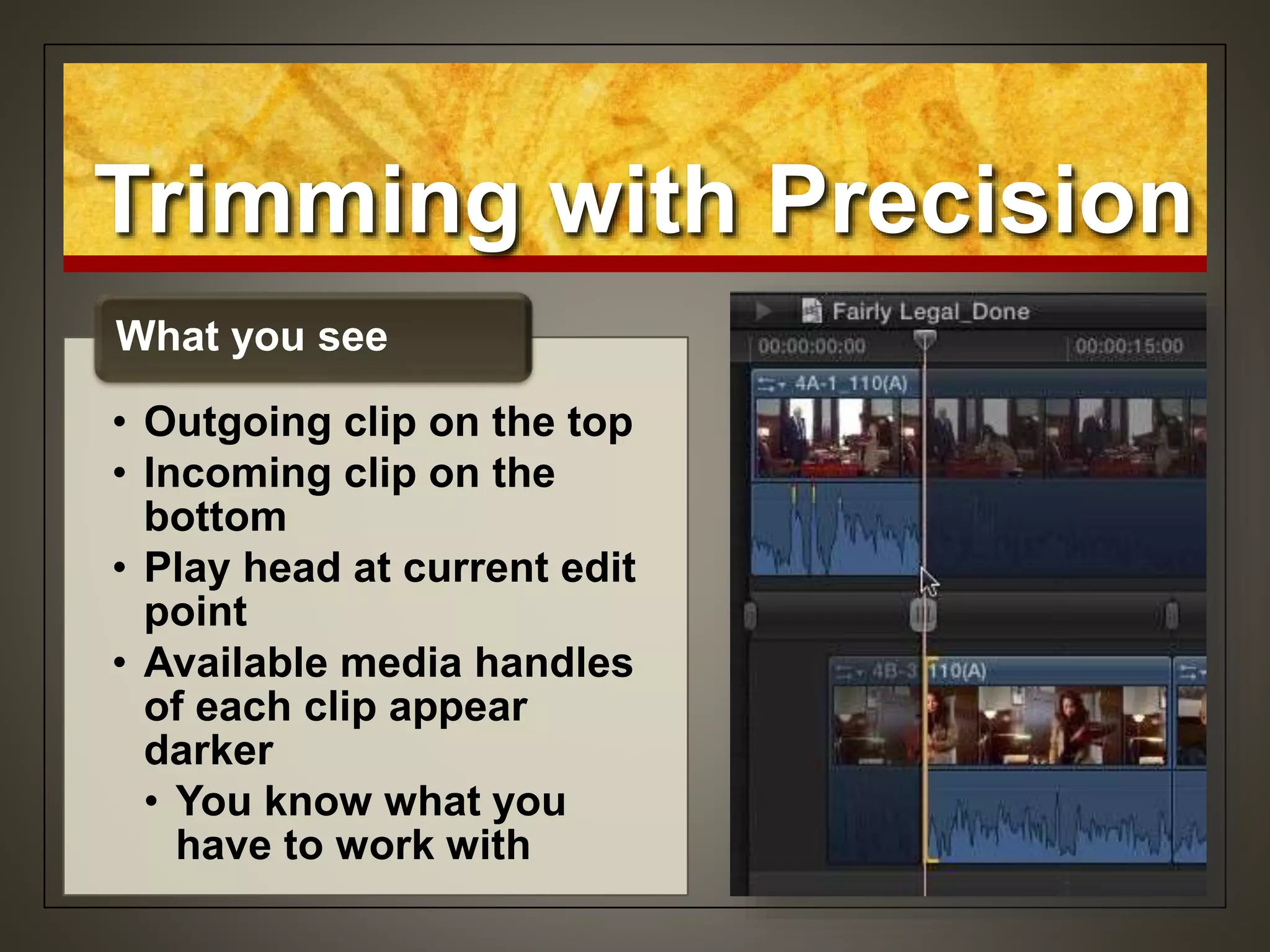
• Outgoing clip on the top
• Incoming clip on the
bottom
• Play head at current edit
point
• Available media handles
of each clip appear
darker
• You know what you
have to work with
What you see
Trimming with Precision
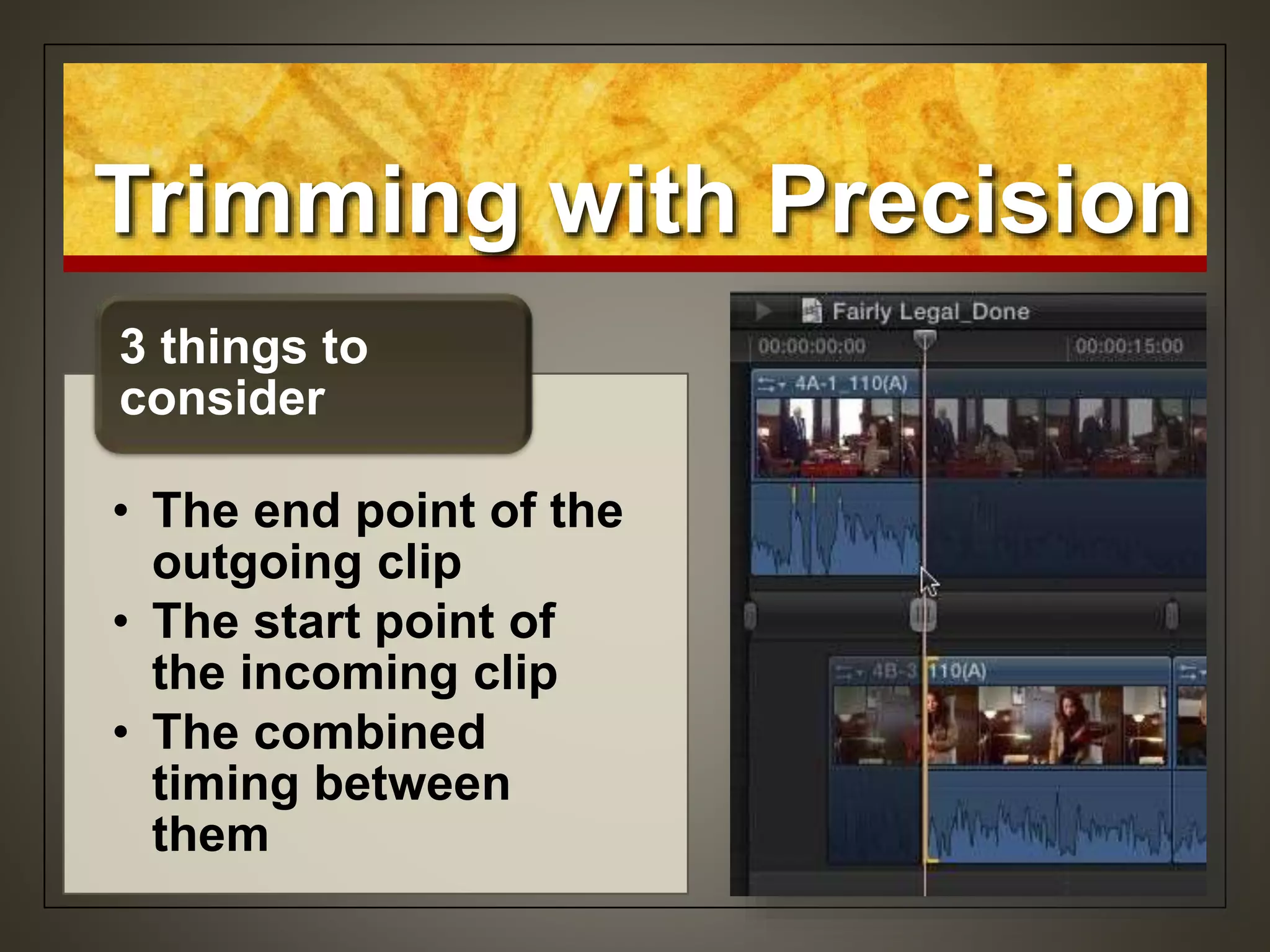
• The end point of the
outgoing clip
• The start point of
the incoming clip
• The combined
timing between
them
3 things to
consider
Selecting what to View
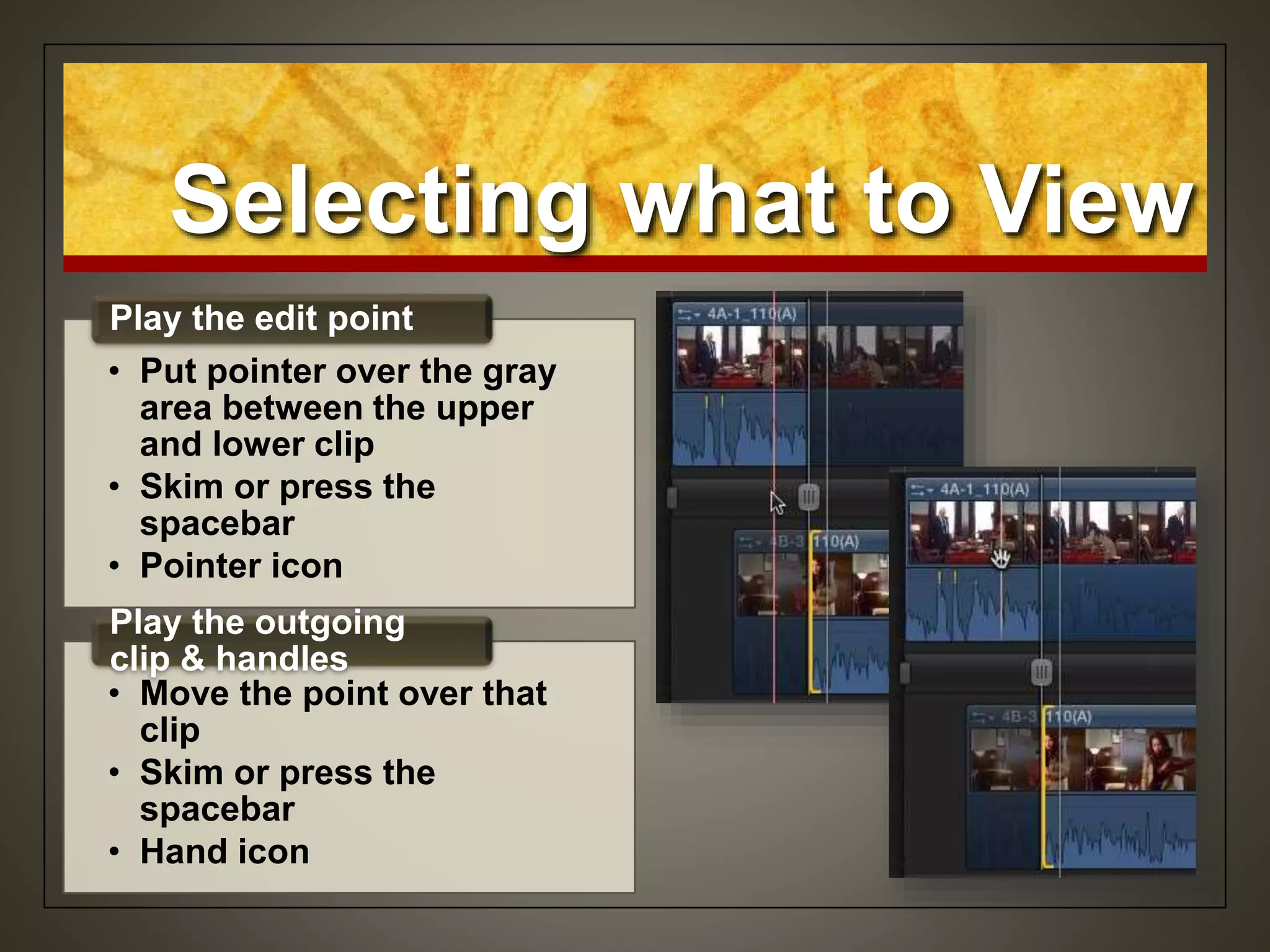
• Put pointer over the gray
area between the upper
and lower clip
• Skim or press the
spacebar
• Pointer icon
Play the edit point
• Move the point over that
clip
• Skim or press the
spacebar
• Hand icon
Play the outgoing
clip & handles
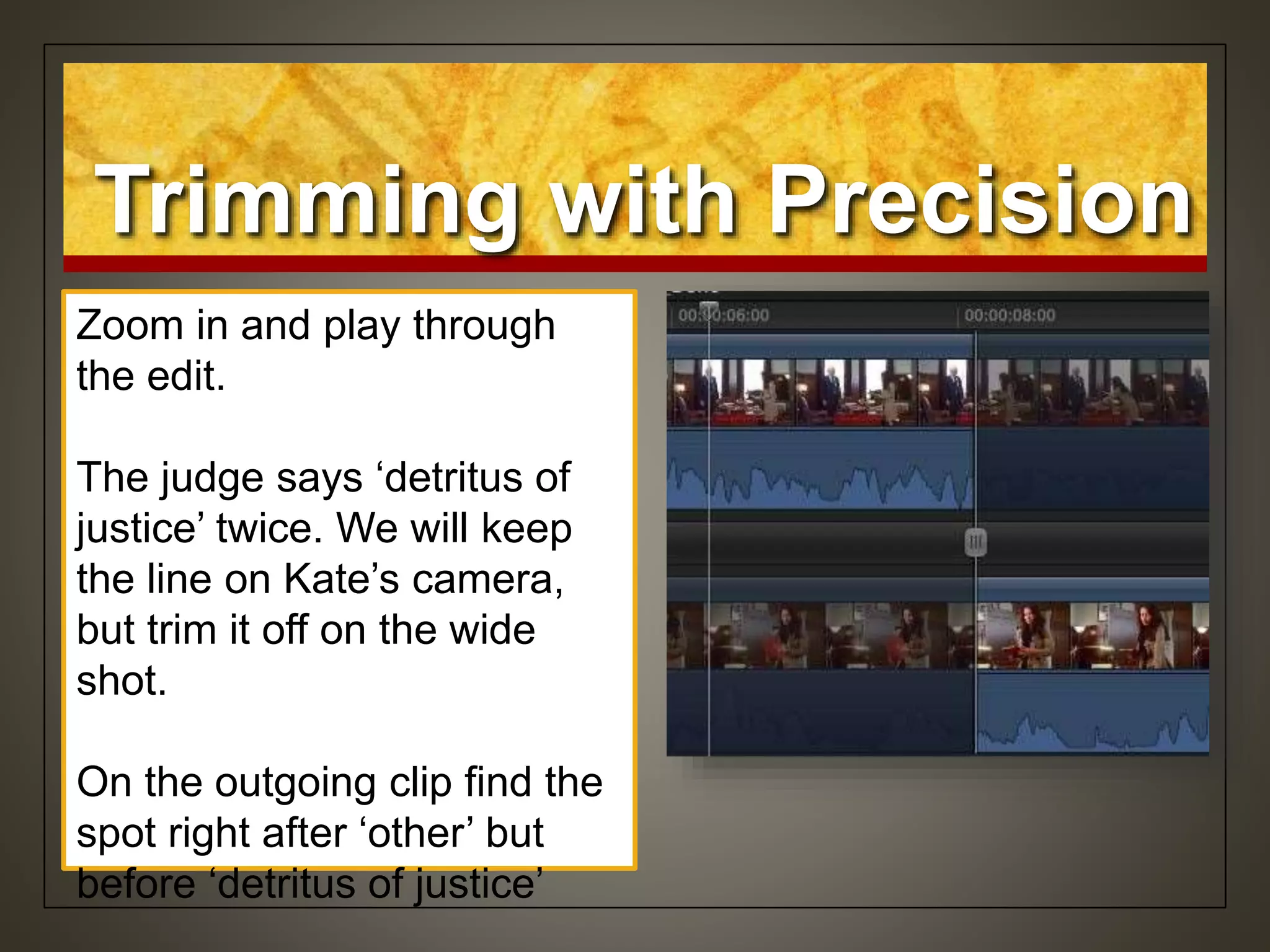
Zoom in and play through
the edit.
The judge says ‘detritus of
justice’ twice. We will keep
the line on Kate’s camera,
but trim it off on the wide
shot.
On the outgoing clip find the
spot right after ‘other’ but
before ‘detritus of justice’
Trimming with Precision
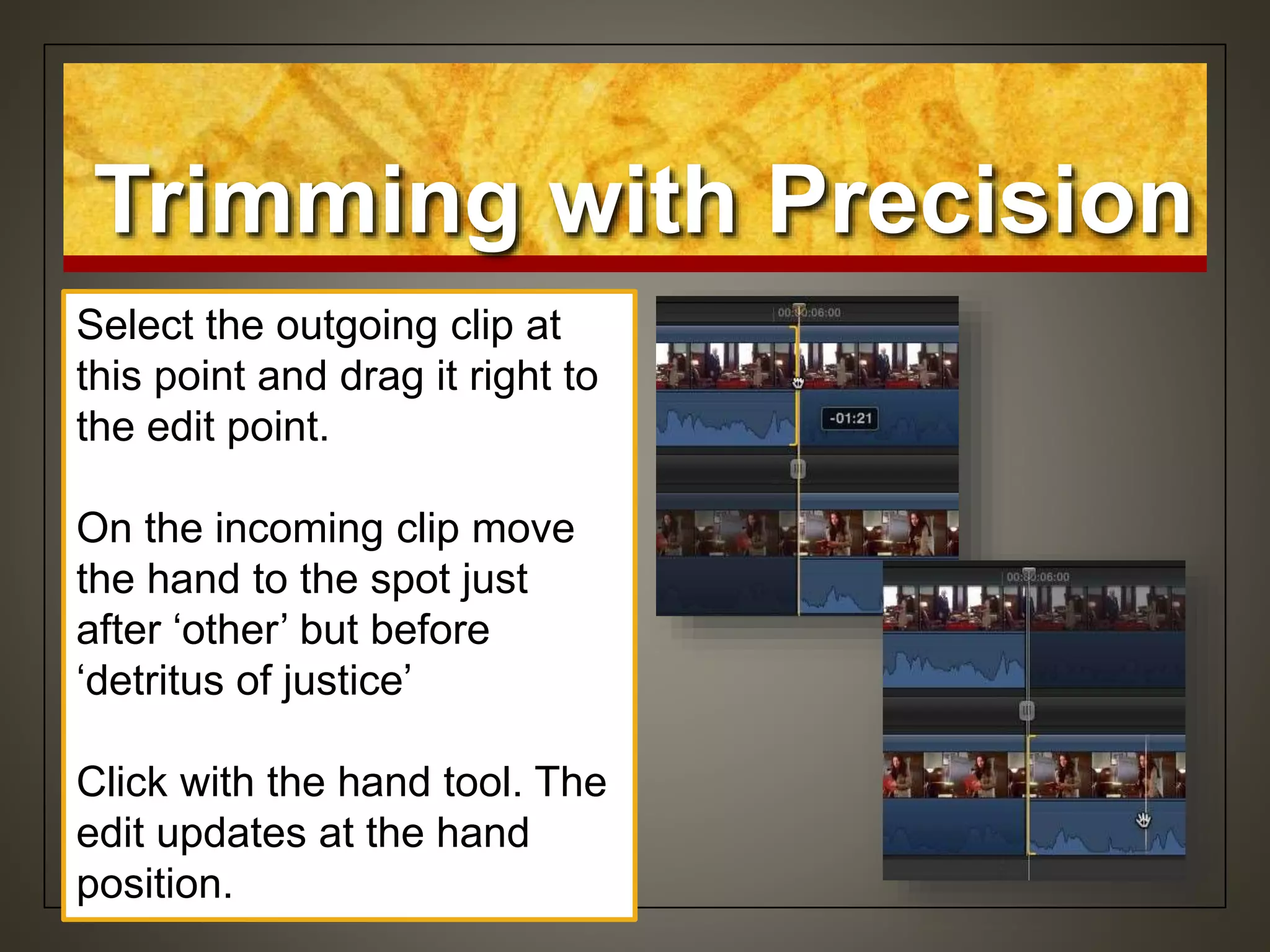
Select the outgoing clip at
this point and drag it right to
the edit point.
On the incoming clip move
the hand to the spot just
after ‘other’ but before
‘detritus of justice’
Click with the hand tool. The
edit updates at the hand
position.
Trimming with Precision
Rolling with Precision
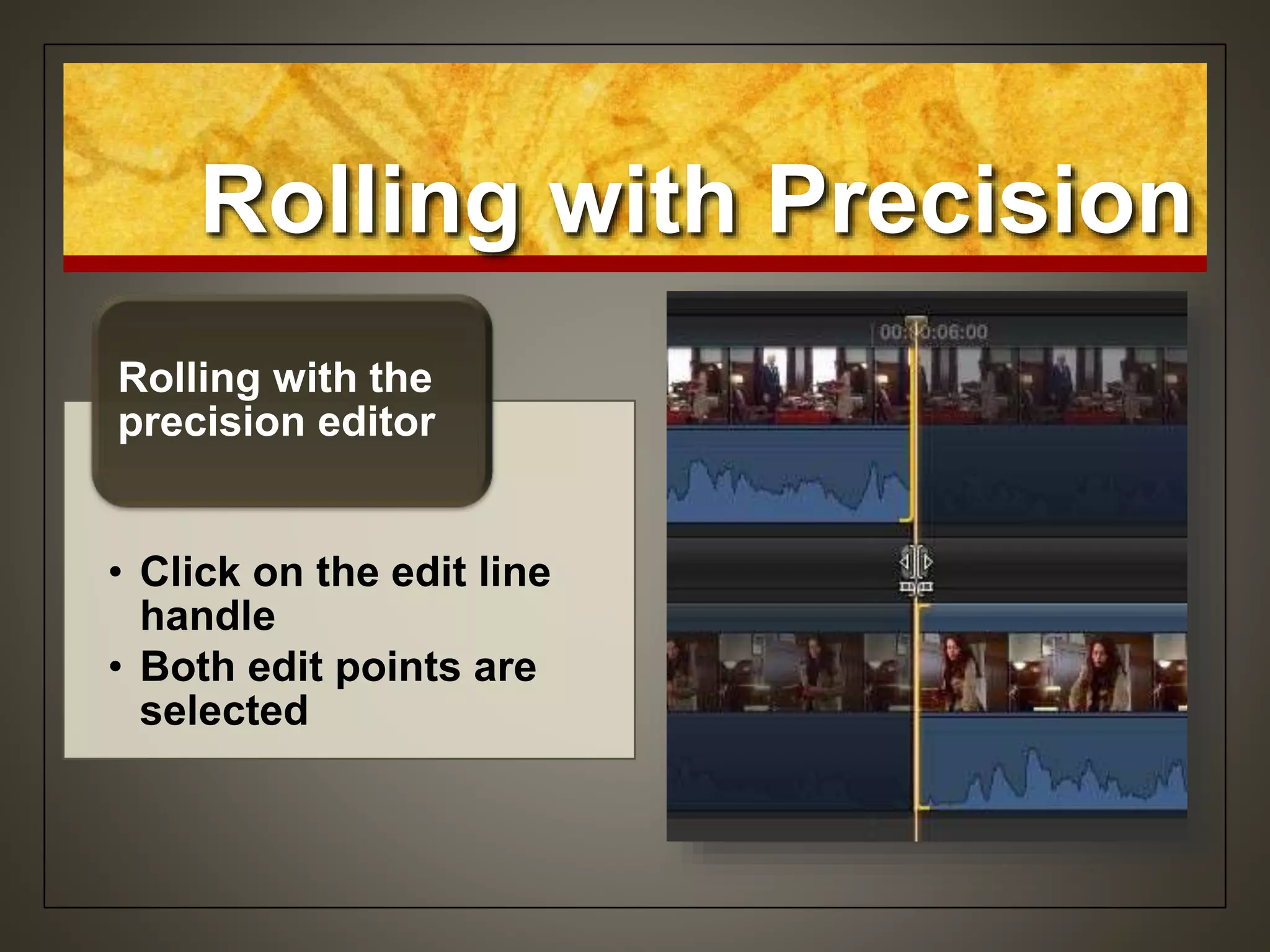
• Click on the edit line
handle
• Both edit points are
selected
Rolling with the
precision editor
Rolling with Precision
• Click on the edit line
handle
• Both edit points are
selected
Rolling with the
precision editor
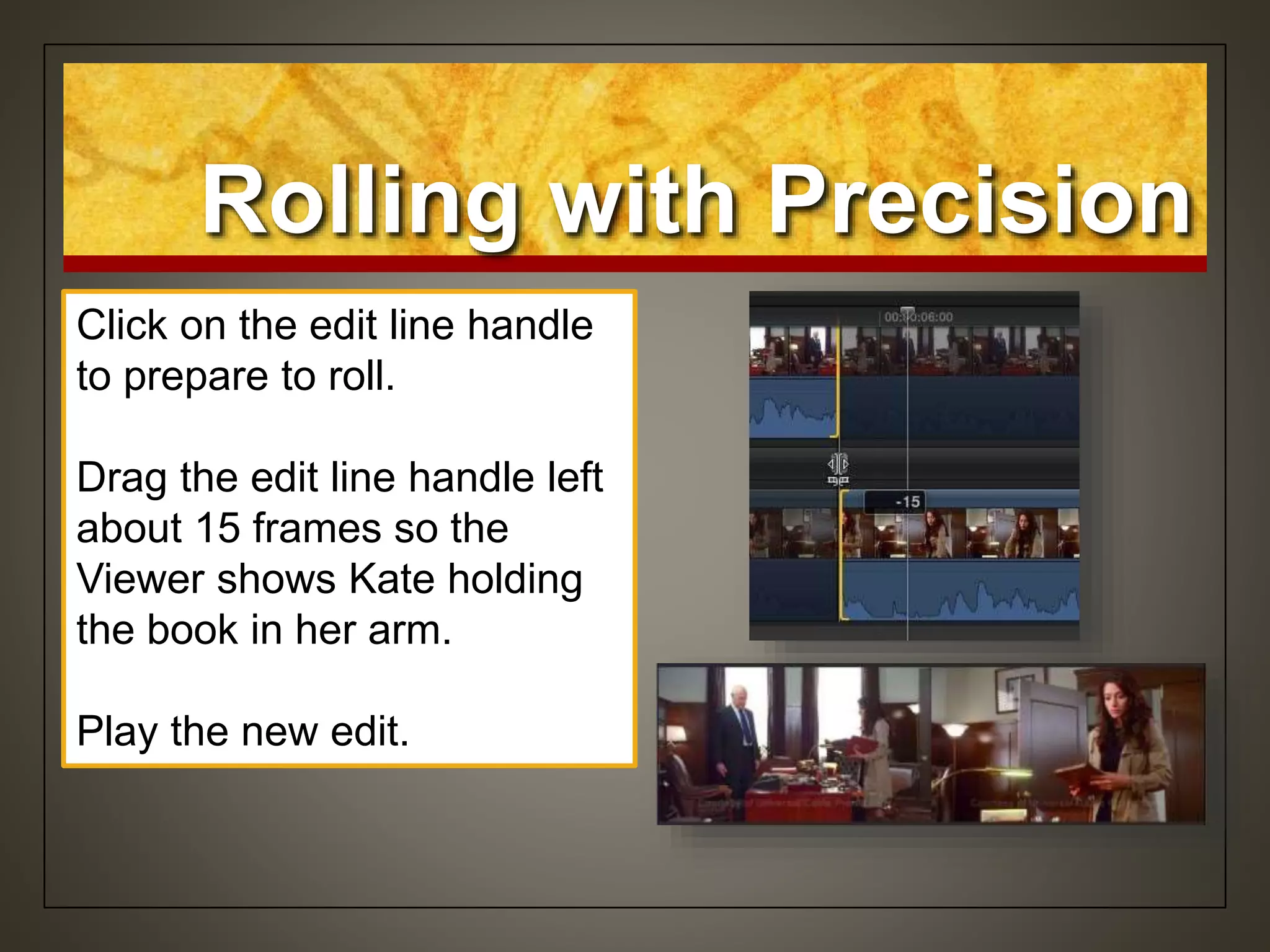
Click on the edit line handle
to prepare to roll.
Drag the edit line handle left
about 15 frames so the
Viewer shows Kate holding
the book in her arm.
Play the new edit.
Rolling with Precision
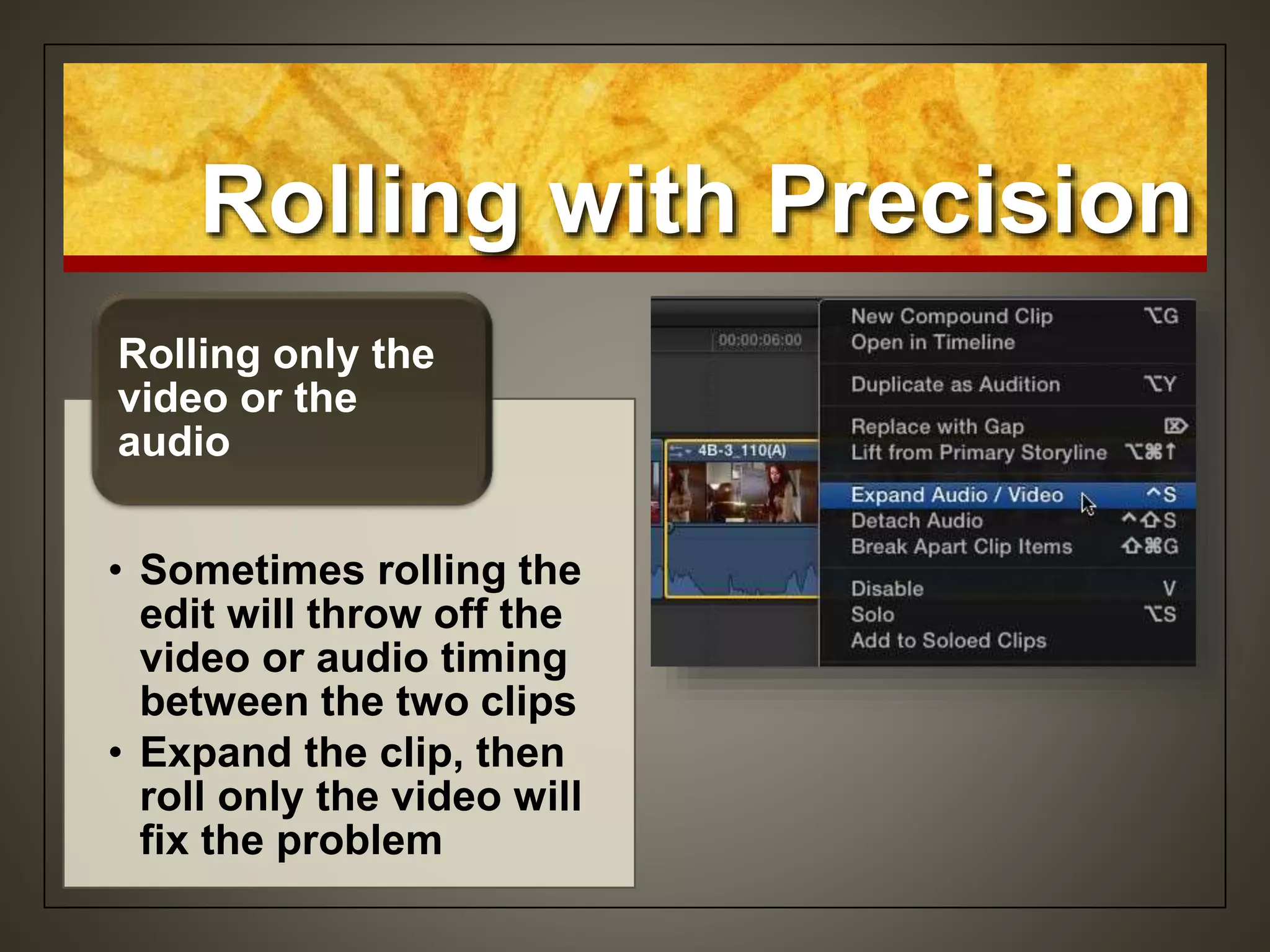
• Sometimes rolling the
edit will throw off the
video or audio timing
between the two clips
• Expand the clip, then
roll only the video will
fix the problem
Rolling only the
video or the
audio
Rolling with Precision
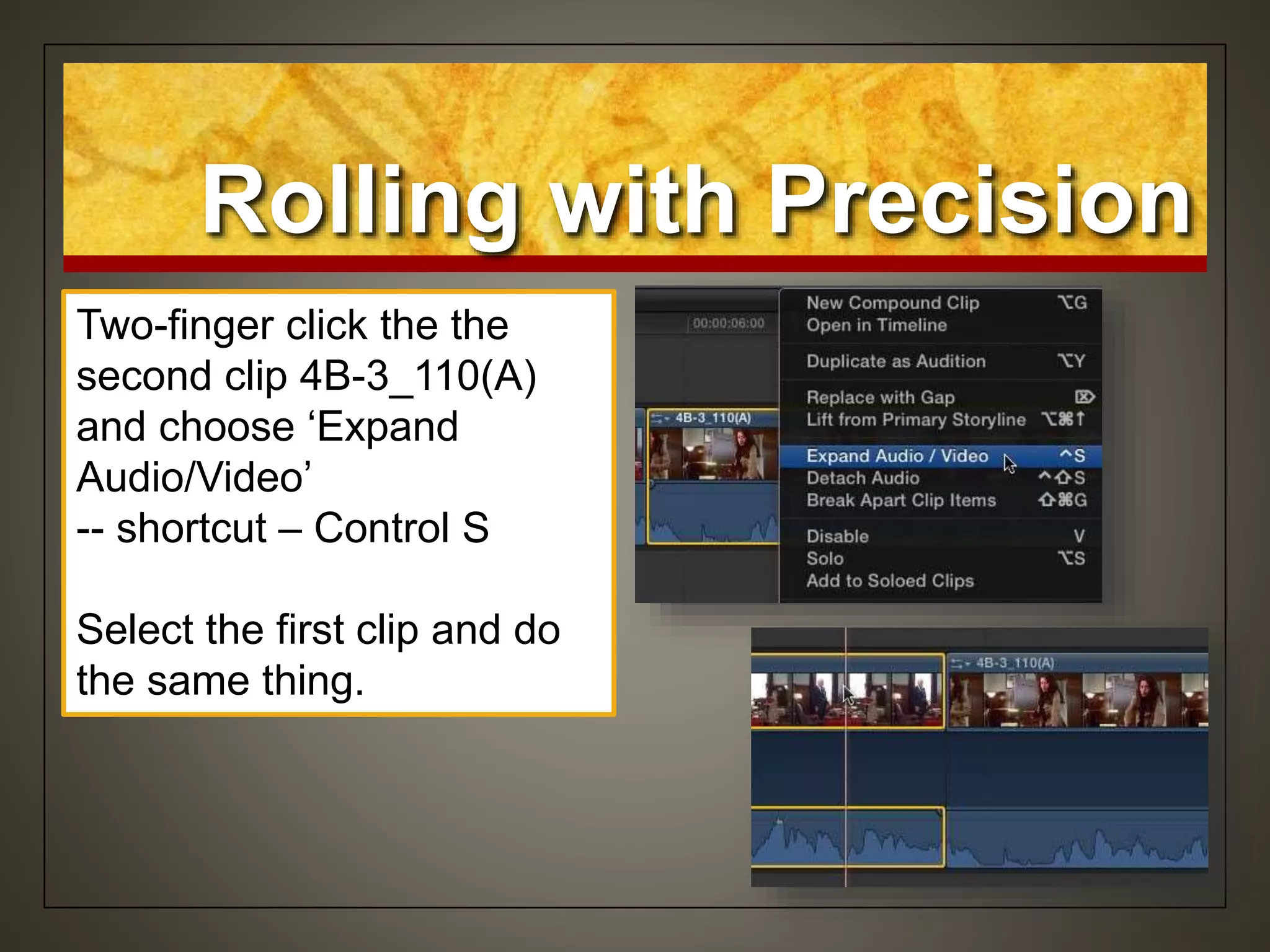
Two-finger click the the
second clip 4B-3_110(A)
and choose ‘Expand
Audio/Video’
-- shortcut – Control S
Select the first clip and do
the same thing.
Rolling with Precision
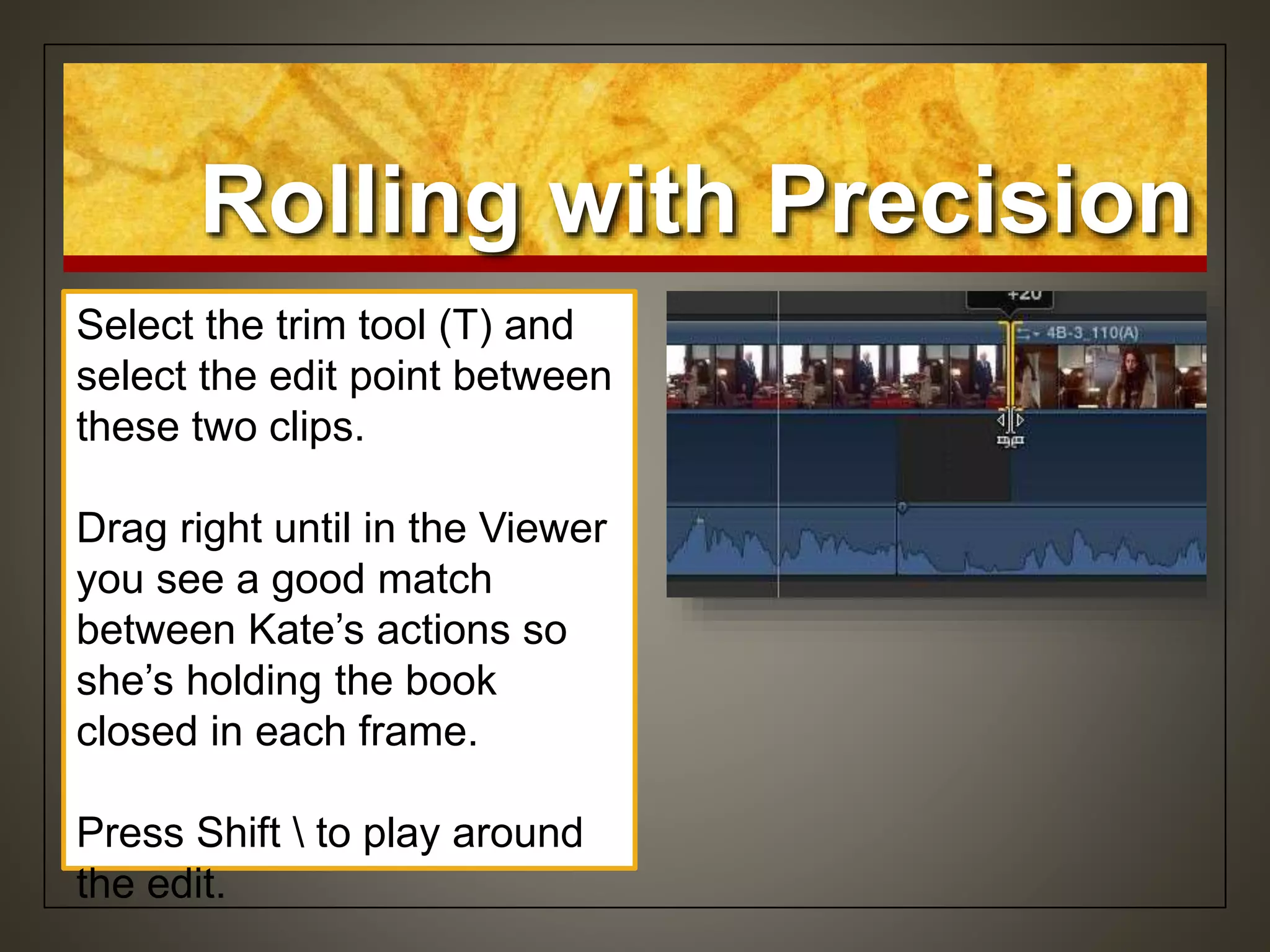
Select the trim tool (T) and
select the edit point between
these two clips.
Drag right until in the Viewer
you see a good match
between Kate’s actions so
she’s holding the book
closed in each frame.
Press Shift  to play around
the edit.
Shortcuts:
• Expand Audio/VideoControl S
• Insert a gap clipOption W
• Trim the End point and remove all frames
to the right of the skimmer location
Option ]
• Trim the Start point and remove all frames
to the left of the skimmer location
Option [
• Lift an item or section from the Timeline
and leave a gap
Shift Delete
• Play around an editShift /
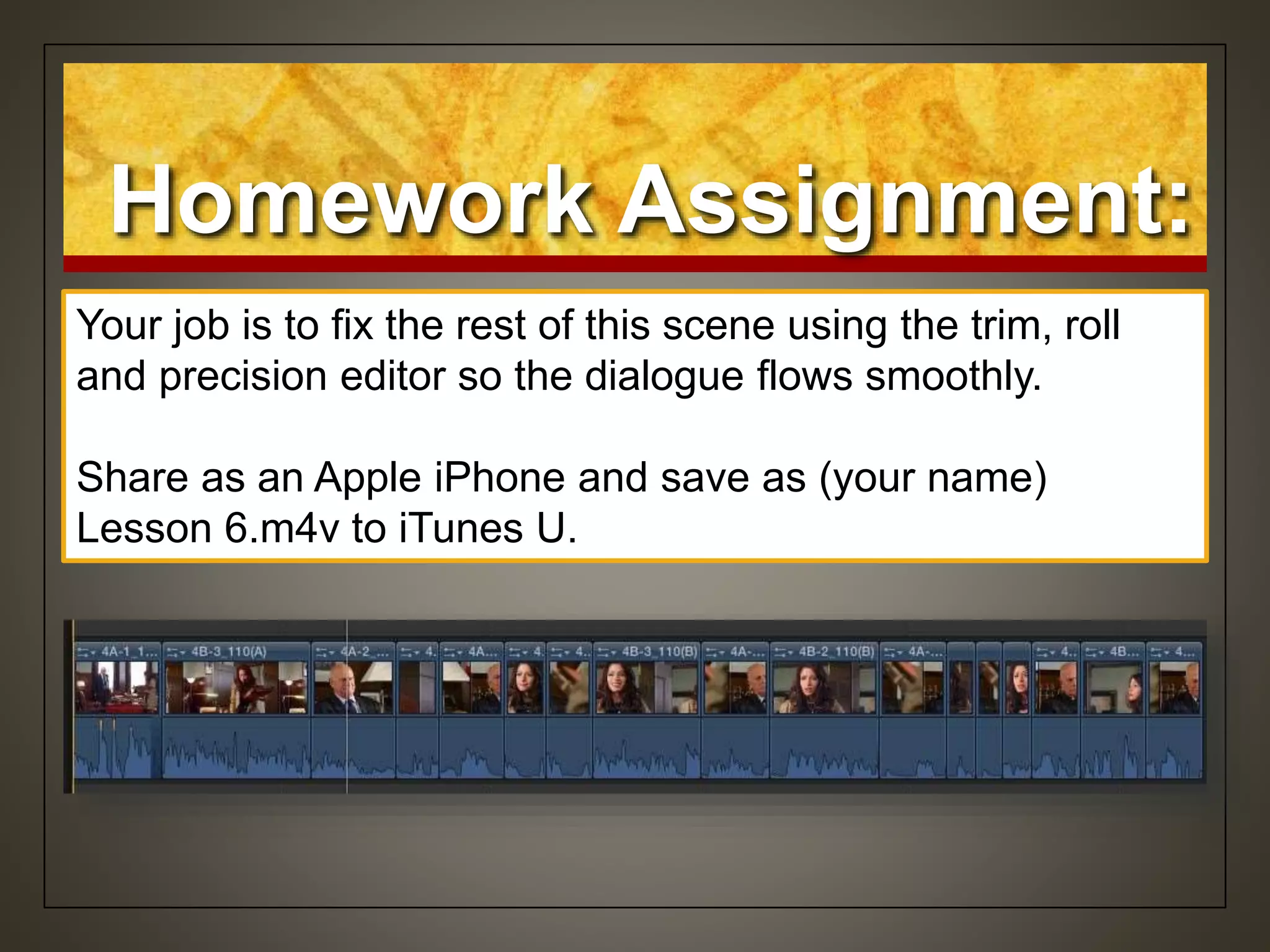
Homework Assignment:
Your job is to fix the rest of this scene using the trim, roll
and precision editor so the dialogue flows smoothly.
Share as an Apple iPhone and save as (your name)
Lesson 6.m4v to iTunes U.
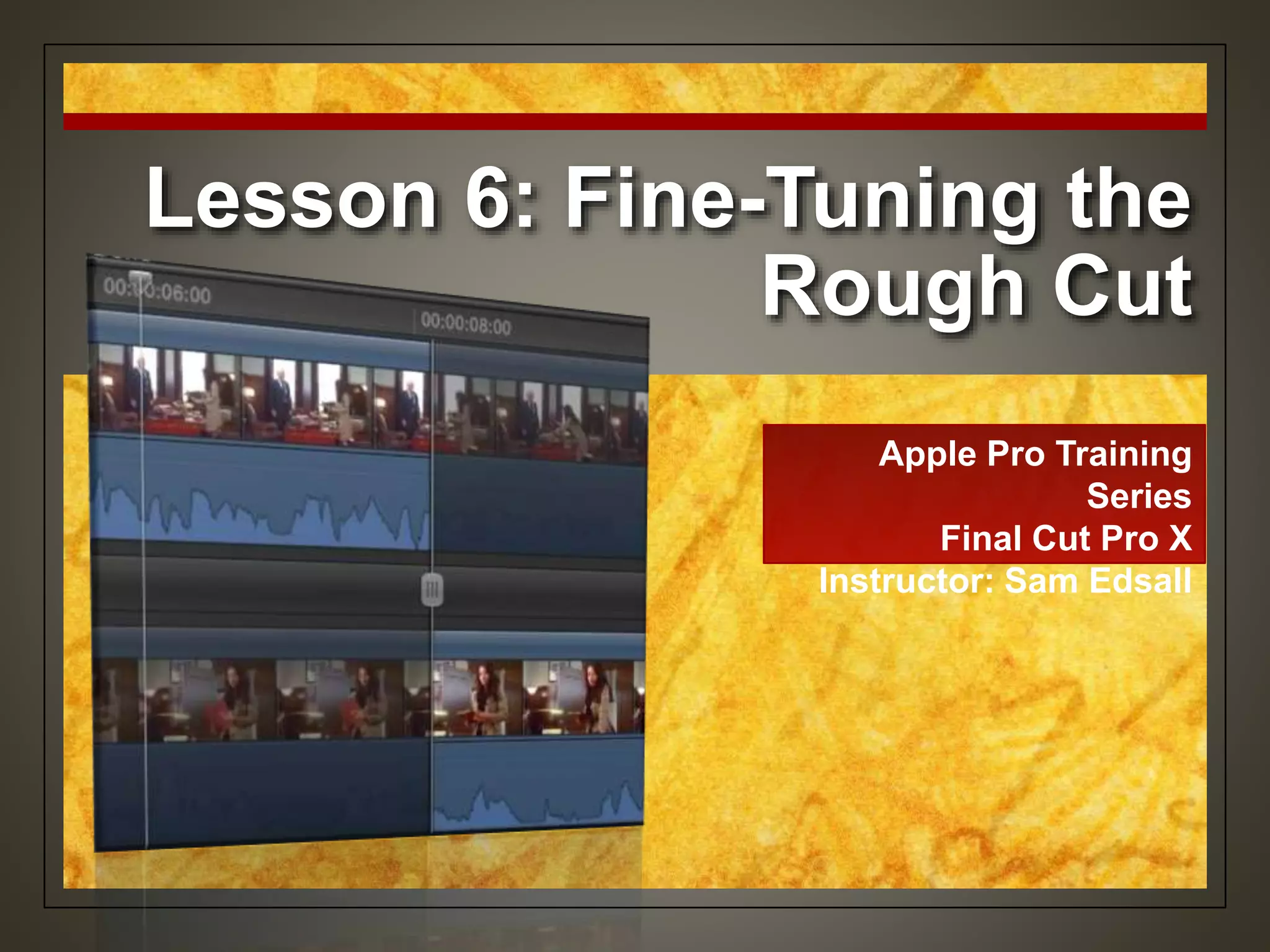
Lesson 6: Fine-Tuning the
Rough Cut
Apple Pro Training
Series
Final Cut Pro X
Instructor: Sam Edsall

Final Cut Pro X Certification Lesson 6

  • 1.
    Lesson 6: Fine-Tuningthe Rough Cut Apple Pro Training Series Final Cut Pro X Instructor: Sam Edsall
  • 2.
    Preparing the Project Startup the FCP External Drive: Find your APTS FCP X drive and double click to start it up.
  • 3.
    Preparing the Project Load‘em up: In the Project Library drag the Lesson 6 folder onto APTS FCP X. Open the folder and close all the other lessons.
  • 4.
    Renaming Clips • Beforemaking lots of changes to your project think about: • Making a back-up copy of your work • Do you need a shorter or longer version? • Do you need a ‘before and after’ version? Refining
  • 5.
    Duplicating the Project Makea copy: Two-finger click the ‘Zero to Hero’ project, and from the shortcut menu choose ‘Duplicate Project’ Do you need to duplicate the media, too? No. Select ‘Duplicate Project Only’ and deselect ‘Include Render Files’
  • 6.
    Duplicating the Project Namethe copy: Select the duplicate project and rename the project ‘Zero to Hero_V2’ Open this project into the Timeline. Press Shift Z to fit all the project clips into the timeline.
  • 7.
    Removing Clip Selections &Adding Gaps • Get the pacing right here first before tweaking connect edit content like cut- aways and audio • Get the pacing right first, then worry about B-roll Primary Story Line
  • 8.
    Removing Clip Selections &Adding Gaps • Remove a range or ranges of material from a clip or clips • Dividing a clip • Adding gaps (to be filled later) Setting the pace
  • 9.
    Remove a Range froma Clip Skim to the first red marker and zoom into that area. With the skimmer on the first red marker, press I to set an In point. FCP assumes you want the Out point at the end of the clip. In this case, that is correct. Press Delete to perform a ripple delete.
  • 10.
    Removing Clip Selections &Adding Gaps • Allows you to select not just content from one clip, but content from neighboring clips as well • A whole ‘range’ of content can be selected. The Range Tool • Press R Shortcut
  • 11.
    Remove a Range fromMore than One Clip From the Tools pop-up menu select the Range tool or press R. Play the first part of Tony Schumacher clip and set a marker (press M) just before he begins his line, “Nobody wakes up” Snap the Range pointer to the red marker and drag to your blue marker. Press Delete.
  • 12.
    Lifting Content • Whenyou lift material, the project length doesn’t change • A gap is left in the place where the material was Delete by Lifting • The pacing is right, but the content is not right • Leaves you spots to place new content later When lifting is better than ripple deleting
  • 13.
    Lifting Content Set theview to show the audio. Play the first part of the Tony Pedregon clip. -- he stalls before making his point. Skim to just after he says, ‘the breed.’ Press B for the blade tool and cut the clip at this location. Skim to just after he says, ‘drag racer is’ and click again at this spot.
  • 14.
    Lifting Content Press Afor the selection tool. Click the middle Tony click to select and press Shift-Delete. -- the middle clip is replaced with a gap
  • 15.
    Gaps • You candelete a gap clip or trim it like a regular clip • You can overwrite it by repositioning another clip over it A gap as a clip
  • 16.
    Selection Tool vs. PositionTool • Manually places a clip at a specific location without involving other clips • No magnetic timeline • If you drag on top of another clip, it will overwrite that clip The Position Tool • Press P Shortcut
  • 17.
    Lifting Content In theTools pop-up menu select the Position tool or press P. Drag the second Tony clip to the left about halfway though the gap clip and release. Play the clips in this configuration.
  • 18.
    Making a Point witha Pause • Another way to refine a project’s pace is to create a dramatic pause • To accentuate a point you can insert a gap clip. Making a Pause
  • 19.
    Dramatic Pause Select theSelection tool – A Play the Antron Brown clip. Position the play head after he says, ‘take the Wally home’ Choose Edit > Insert Gap -- shortcut Option W -- the remaining storyline opens to allow for a new clip -- 3-second gap is placed at the play head location.
  • 20.
    Trimming • Deciding whetherthe original Start and End points are the best selection of content of placement. Finessing a Clip • What plays is what you selected, but all the clip content is still there if you need it What you see & don’t see
  • 21.
    Trimming • Easy andfast Trimming with the Selection tool • When you trim an edit point, FCP adjusts the rest of the timeline automatically • Make an edit point longer, FCP pushes content right to make room • Make an edit point shorter, FCP closes the gap The Ripple Effect
  • 22.
    Trimming In the ProjectLibrary open the Delicious Peace_rough project and duplicate. Rename the project ‘Delicious Peace Done’ and load the project. Play though the VO7 point. -- the VO finishes before 60 seconds, but the clips run past this point. -- we will trim some clips to get this spot closer to 60 seconds.
  • 23.
    Have a LookAround With the skimmer a little bit past the VO7 clip, press Command + to zoom in a few times to find the ‘workers relaxing’ clip. 2-finger click on the clip and choose Open in Timeline from the shortcut menu. -- the marked portion of the project clip is highlighted in milky white -- media handles are darkened on either side.
  • 24.
    Make a Trim Toreturn to the project, click the left History arrow -- shortcut Command [ Find the ‘woman picks beans’ clip above VO_09 and zoom in. --notice how the woman looks up at the end. Move the pointer to the end of that clip and select the End edit point. Drag left until the numerical timecode field reads about -2:00
  • 25.
    Make a Trim Cleanup the edit: Select the end of VO_09 and trim it left just enough to fit VO_08 back up with the others. Check your audio edit with ‘play around’ (Shift ?)
  • 26.
    Creating a Storyline •Combines a group of clips into one • Any spaces between the clips will remain Storyline • Great for locking in audio to a set duration • In this example the VOs will be locked together into one clip How it’s used
  • 27.
    Create a Storyline ShiftZ so you can see the whole project. Draw a rectangle to select all of the VO clips. 2-finger click (CTRL click) one of the VO clips and choose ‘Create Storyline’ from the shortcut menu.
  • 28.
    Nudging an EditPoint • Once you have the edit point selected you can nudge the edit point left or right with the , & . Keys • (< or > keys) Nudging • Viewer will update with the latest nudge Visual cue
  • 29.
    Nudge an EditPoint Select the end of the ‘Woman picks beans’ and press the , and . Keys to nudge the clip to just before she looks up from the Viewer.
  • 30.
    Checking Your Edit •After changing your edit point, press Shift / (Shift ?) to play around the current play head position • The amount of pre-roll and post-roll is set in Preferences Play Around
  • 31.
    Play Around the EditPoint Select FCP > Preferences and change the Pre-roll and Post-roll settings to 3.0 seconds. Press Shift / to play around the edit point.
  • 32.
    Set up forDetailed Trimming In Preferences select the Editing tab. Make sure ‘Show detailed trimming feedback’ is turned on. -- allows you to see both clips at the edit point you are trimming
  • 33.
    Trimming Indicators Move yourpointer to the next clip ‘man picks beans’ and click on the Start edit point. Drag the edit point left and right. Notice the indications about the changes you make. Press Command Z to undo.
  • 34.
    Trimming Indicators • Amountof change indicated in the pop- up window • Red bracket with out of media Timeline • Trimmed clip updates in the Viewer Viewer
  • 35.
    Using the Playhead as a Trim Marker • Use the play head to find a spot where you can trim a start or end point of a clip Find the spot • Drag the start or end point to the play head • With snapping turned on, your cursor will snap to the play head Trim to the play head
  • 36.
    Skim though the‘man picks beans’ clip and find where the man starts to lower the beans into the bucket. Click just before this action to set the play head. Drag the Start point to the right and snap it to the play head. Using the Play head as a Trim Marker
  • 37.
    Trimming Shortcuts • Option& right bracket • Trims an End point to the skimmer location Option ] • Option & left bracket • Trims a Start point to the skimmer location Option [ • Press I and O to set a range in a clip • Press Option to trim the head and tail material outside the selection Option
  • 38.
    Skim the ‘darkbeans ground’ clip. Press Command = (+) to zoom in on the clip. Move the skimmer inside the Start point and press Option [ Press Command Z to undo. Practice Some Trim Shortcuts
  • 39.
    Move the skimmerinside the End point to just before the zoom out Press Option ] to trim the End point. Press Command Z to undo. Practice Some Trim Shortcuts
  • 40.
    Move the skimmerinside the Start point to just before the zoom out and set an In point. Skim to just before the fast zoom out and set an Out point. ((can also use the range tool)) Press Option to trim the head and tail material of the clip. Press Command Z to undo. Practice Some Trim Shortcuts
  • 41.
    Extend Edit • Takesan edit point and extends it left or right to the skimmer location What it does • Shift X Shortcut
  • 42.
    Skim to theend of the ‘xylophone music’ clip and click its End point. Skim to the end of the VO_07 clip. To shorten the music clip to this location, press Shift X Extend Edit
  • 43.
    The Trim Tool •Trims the clip At the Start or End point • Slips the clip In the middle of the clip • Slides the clip Option key & middle of the clip • Rolls the edit Between two clips
  • 44.
    Zoom in tothe first 2 clips of the map. Select the Trim tool from the tools pop-up toolbar or select T. Select the End point of the ‘map of Africa’ clip and trim right 1½ seconds. Trim Edit with the Trim Tool Filmstrip = media start point on Map of incoming Uganda clip
  • 45.
  • 46.
    Roll Edit withthe Trim Tool • Both the end point of the outgoing clip and the start point of the incoming clip are selected • Moving (rolling) the edit point does not change the duration of the project Click on the edit point
  • 47.
    Select the editpoint between the two map clips with the trim tool. Drag the edit right 15 frames then back 15 frames. Notice the changes in the Viewer when you do this. Roll Edit with the Trim Tool End point of outgoing clip Start point of incoming clip
  • 48.
    Play the ‘grindstone’ and ‘woman sweeps coffee’ clips and zoom into that area. Roll the edit point left until each clip shows the woman’s hand on the grinding stone -- about -22 frames Roll Edit with the Trim Tool
  • 49.
    Slip Edit withthe Trim Tool • Changes what you see or hear in the clip without changing where it is in the timeline • Does not change the project duration Change the content
  • 50.
    Zoom into the3rd to the last clip ‘workers relaxing’ -- we will slip the contents so we can see that woman in red Move the trim tool over the middle of the clip so you see the slip icon. Drag left until you first see the red shirted arm. Then drag left another 2 seconds and release. Slip Edit with the Trim Tool New start point of clip New end point of clip
  • 51.
    Shift Z tozoom out, then zoom into the ‘man picks beans’ clip. Move the trim tool right as far as possible on the clip. -- bring the man’s smile into the shot. When you see the red start point, you’ve reached the media start point and can’t go further. Slip Edit with the Trim Tool
  • 52.
    Slide Edit withthe Trim Tool • Slides a clip left or right between the two clips on either side of it • Doesn’t change the project duration Change the clip position
  • 53.
    Skim to the‘making coffee’ clip. Press Shift / to play around that area. -- we will move this slide this clip left until the woman sweeps the beans 3 times. Using the Viewer as a guide, press option and slip the clip left until the woman sweeping beans has completed three sweeps. Slide Edit with the Trim Tool
  • 54.
    Trimming with Precision •Look IN the edit with the precision editor for more precise editing • Allows you to consider and execute your trims quickly and easily Precision Editor
  • 55.
    In the projectlibrary folder open the ‘Fairly Legal_rough’ project, make a duplicate and load that into the timeline. Audio is important to see when trimming so increase the size of the audio waveforms in the clips with the Clip appearance button. Trimming with Precision
  • 56.
    Double-click the editpoint between the 1st two clips 4A- 1_110(A) and 4B-3_110(A) clips to open the precision editor --shortcut – select the edit point and press Control E Trimming with Precision
  • 57.
    Trimming with Precision •Outgoing clip on the top • Incoming clip on the bottom • Play head at current edit point • Available media handles of each clip appear darker • You know what you have to work with What you see
  • 58.
    Trimming with Precision •The end point of the outgoing clip • The start point of the incoming clip • The combined timing between them 3 things to consider
  • 59.
    Selecting what toView • Put pointer over the gray area between the upper and lower clip • Skim or press the spacebar • Pointer icon Play the edit point • Move the point over that clip • Skim or press the spacebar • Hand icon Play the outgoing clip & handles
  • 60.
    Zoom in andplay through the edit. The judge says ‘detritus of justice’ twice. We will keep the line on Kate’s camera, but trim it off on the wide shot. On the outgoing clip find the spot right after ‘other’ but before ‘detritus of justice’ Trimming with Precision
  • 61.
    Select the outgoingclip at this point and drag it right to the edit point. On the incoming clip move the hand to the spot just after ‘other’ but before ‘detritus of justice’ Click with the hand tool. The edit updates at the hand position. Trimming with Precision
  • 62.
    Rolling with Precision •Click on the edit line handle • Both edit points are selected Rolling with the precision editor
  • 63.
    Rolling with Precision •Click on the edit line handle • Both edit points are selected Rolling with the precision editor Click on the edit line handle to prepare to roll. Drag the edit line handle left about 15 frames so the Viewer shows Kate holding the book in her arm. Play the new edit.
  • 64.
    Rolling with Precision •Sometimes rolling the edit will throw off the video or audio timing between the two clips • Expand the clip, then roll only the video will fix the problem Rolling only the video or the audio
  • 65.
    Rolling with Precision Two-fingerclick the the second clip 4B-3_110(A) and choose ‘Expand Audio/Video’ -- shortcut – Control S Select the first clip and do the same thing.
  • 66.
    Rolling with Precision Selectthe trim tool (T) and select the edit point between these two clips. Drag right until in the Viewer you see a good match between Kate’s actions so she’s holding the book closed in each frame. Press Shift to play around the edit.
  • 67.
    Shortcuts: • Expand Audio/VideoControlS • Insert a gap clipOption W • Trim the End point and remove all frames to the right of the skimmer location Option ] • Trim the Start point and remove all frames to the left of the skimmer location Option [ • Lift an item or section from the Timeline and leave a gap Shift Delete • Play around an editShift /
  • 68.
    Homework Assignment: Your jobis to fix the rest of this scene using the trim, roll and precision editor so the dialogue flows smoothly. Share as an Apple iPhone and save as (your name) Lesson 6.m4v to iTunes U.
  • 69.
    Lesson 6: Fine-Tuningthe Rough Cut Apple Pro Training Series Final Cut Pro X Instructor: Sam Edsall