Excel
Excel program used to do advanced calculations with many functions
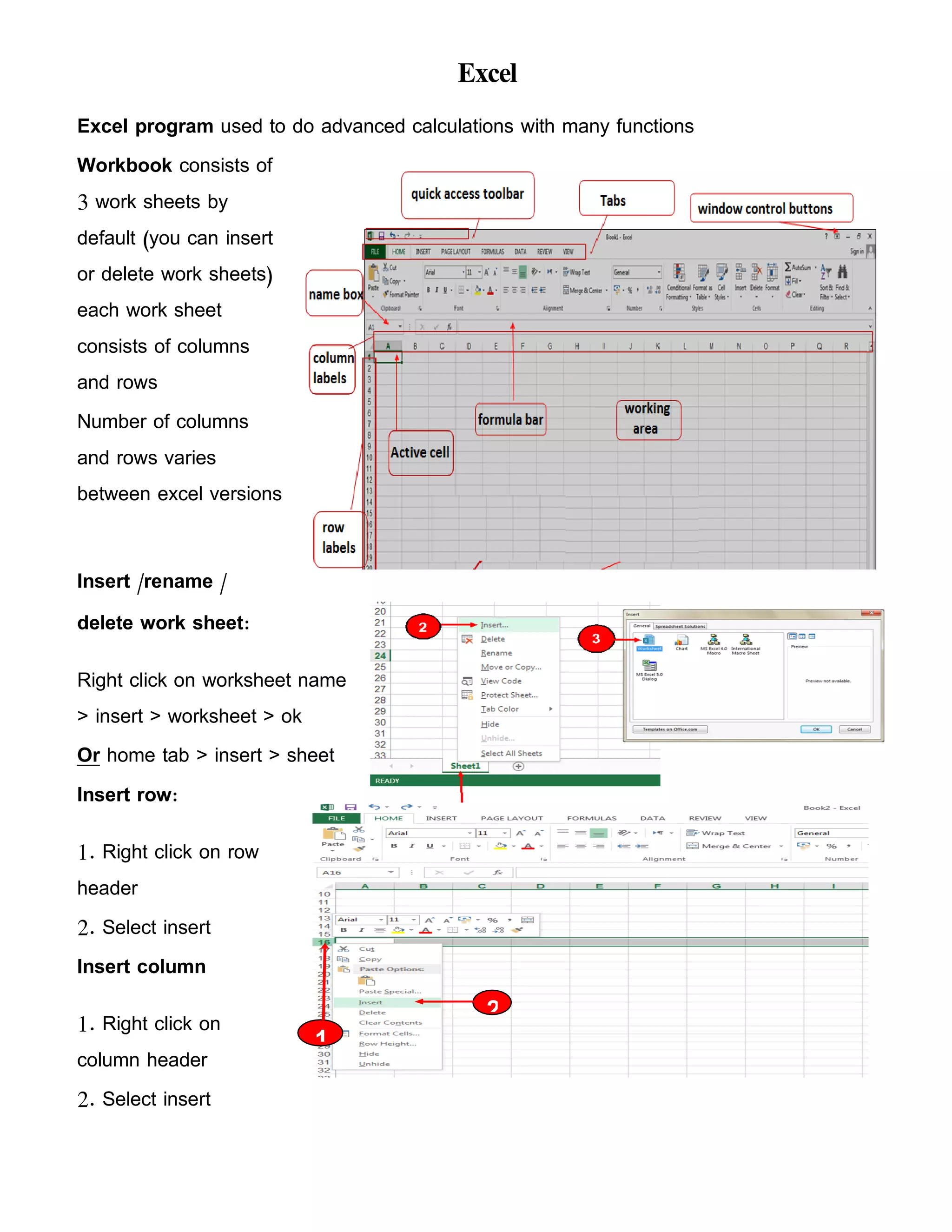
Workbook consists of
3 work sheets by
default (you can insert
or delete work sheets)
each work sheet
consists of columns
and rows
Number of columns
and rows varies
between excel versions
Insert /rename /
delete work sheet:
Right click on worksheet name
> insert > worksheet > ok
Or home tab > insert > sheet
Insert row:
1. Right click on row
header
2. Select insert
Insert column
1. Right click on
column header
2. Select insert
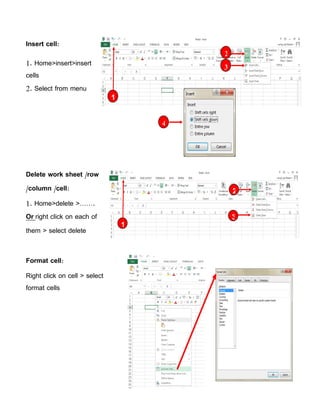
Insert cell:
1. Home>insert>insert
cells
2. Select from menu
Delete work sheet /row
/column /cell:
1. Home>delete >…….
Or right click on each of
them > select delete
Format cell:
Right click on cell > select
format cells
2
3
1
4
2
3
1
2
3
1
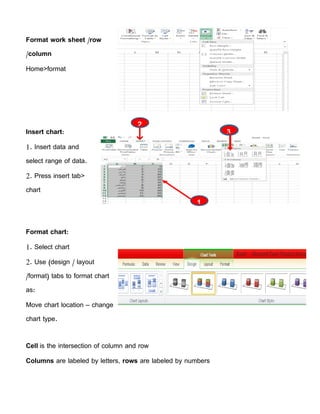
Format work sheet /row
/column
Home>format
Insert chart:
1. Insert data and
select range of data.
2. Press insert tab>
chart
Format chart:
1. Select chart
2. Use (design / layout
/format) tabs to format chart
as:
Move chart location – change
chart type.
Cell is the intersection of column and row
Columns are labeled by letters, rows are labeled by numbers
Formula starts with equal “=” sign
Function: Is built-in formula and can be used to perform simple or complex
Calculations.
Count Function counts the number of numeric entries in a list It will ignore blanks, text and
errors.
COUNTA Function counts the number of numeric or text entries in a list. It will ignore
blanks.
Sum Function finds the total of values
Average finds average values of some values
MAX Function finds the highest value of some values
MAX Function finds the lowest value of some values

Excel main points

  • 1.
    Excel Excel program usedto do advanced calculations with many functions Workbook consists of 3 work sheets by default (you can insert or delete work sheets) each work sheet consists of columns and rows Number of columns and rows varies between excel versions Insert /rename / delete work sheet: Right click on worksheet name > insert > worksheet > ok Or home tab > insert > sheet Insert row: 1. Right click on row header 2. Select insert Insert column 1. Right click on column header 2. Select insert
  • 2.
    Insert cell: 1. Home>insert>insert cells 2.Select from menu Delete work sheet /row /column /cell: 1. Home>delete >……. Or right click on each of them > select delete Format cell: Right click on cell > select format cells 2 3 1 4 2 3 1
  • 3.
    2 3 1 Format work sheet/row /column Home>format Insert chart: 1. Insert data and select range of data. 2. Press insert tab> chart Format chart: 1. Select chart 2. Use (design / layout /format) tabs to format chart as: Move chart location – change chart type. Cell is the intersection of column and row Columns are labeled by letters, rows are labeled by numbers
  • 4.
    Formula starts withequal “=” sign Function: Is built-in formula and can be used to perform simple or complex Calculations. Count Function counts the number of numeric entries in a list It will ignore blanks, text and errors. COUNTA Function counts the number of numeric or text entries in a list. It will ignore blanks. Sum Function finds the total of values Average finds average values of some values MAX Function finds the highest value of some values MAX Function finds the lowest value of some values