


MC University
EX03|Work Order Management Through MC Express
MC University
Agenda
Creating and Editing Work Orders
Work Order Lists and Filtering
Work Order Pages
Work Order Features
MC University
Creating and Editing Work Orders
Creating New Work Orders
Editing Existing Work Orders
MC University
Creating New Work Orders
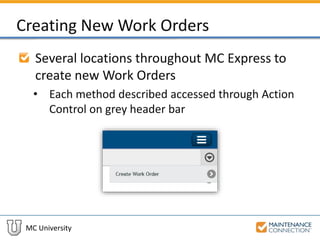
Several locations throughout MC Express to
create new Work Orders
• Each method described accessed through Action
Control on grey header bar
MC University
Creating New Work Orders (cont’d)
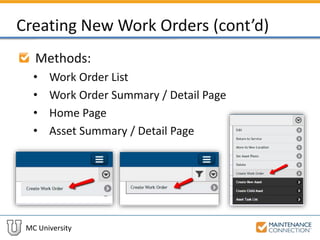
Methods:
• Work Order List
• Work Order Summary / Detail Page
• Home Page
• Asset Summary / Detail Page
MC University
Creating New Work Orders (cont’d)
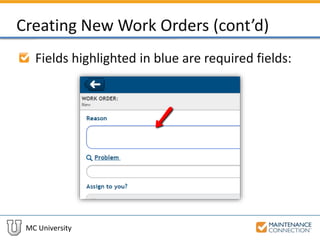
Fields highlighted in blue are required fields:
MC University
Editing Work Orders
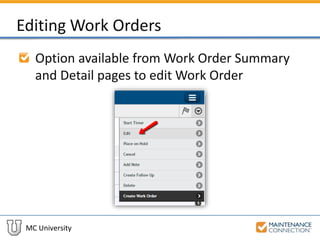
Option available from Work Order Summary
and Detail pages to edit Work Order
MC University
Editing Work Orders (cont’d)
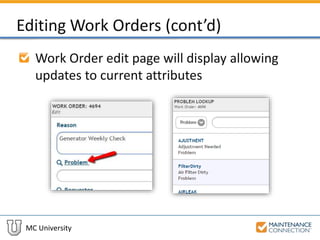
Work Order edit page will display allowing
updates to current attributes
MC University
Create a New Work Order: Example
Now let’s take a look at creating a new Work
Order in MC Express!
MC University
Work Order Lists and Filtering
List Options
Viewing Information
Work Order Icons
Repair Center and Shop Filtering
MC University
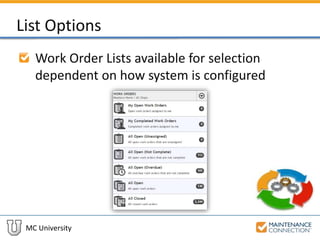
List Options
Work Order Lists available for selection
dependent on how system is configured
MC University
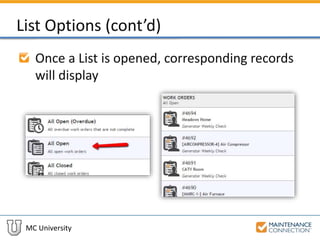
List Options (cont’d)
Once a List is opened, corresponding records
will display
MC University
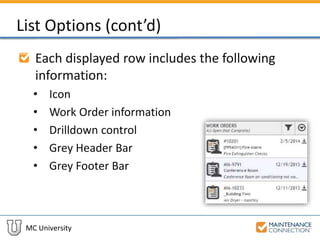
List Options (cont’d)
Each displayed row includes the following
information:
• Icon
• Work Order information
• Drilldown control
• Grey Header Bar
• Grey Footer Bar
MC University
Viewing Information
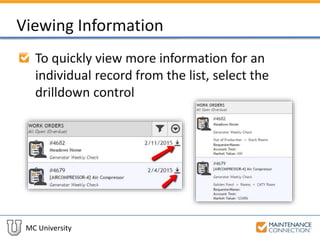
To quickly view more information for an
individual record from the list, select the
drilldown control
MC University
Viewing Information (cont’d)
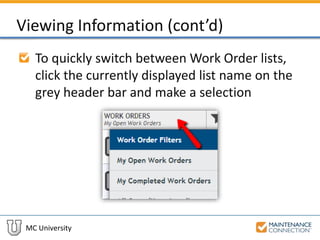
To quickly switch between Work Order lists,
click the currently displayed list name on the
grey header bar and make a selection
MC University
Work Order Icons
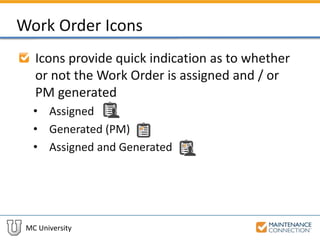
Icons provide quick indication as to whether
or not the Work Order is assigned and / or
PM generated
• Assigned
• Generated (PM)
• Assigned and Generated
MC University
Repair Center and Shop Filtering
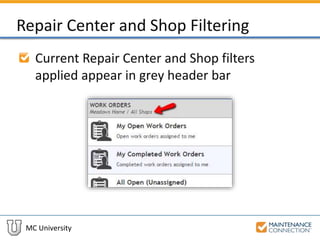
Current Repair Center and Shop filters
applied appear in grey header bar
MC University
Repair Center and Shop Filtering (cont’d)
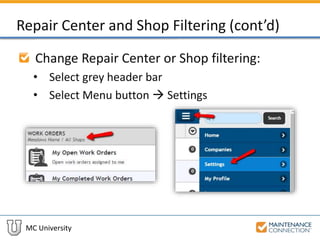
Change Repair Center or Shop filtering:
• Select grey header bar
• Select Menu button  Settings
MC University
Work Order Pages
Work Order Summary
Work Order Components
MC University
Work Order Summary
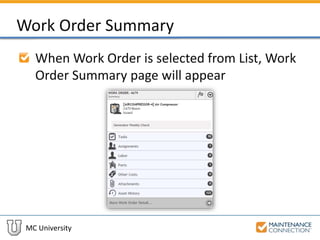
When Work Order is selected from List, Work
Order Summary page will appear
MC University
Work Order Summary (cont’d)
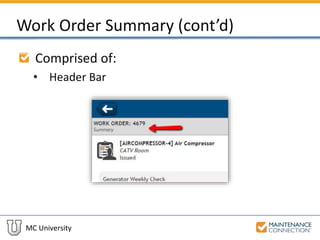
Comprised of:
• Header Bar
MC University
Work Order Summary (cont’d)
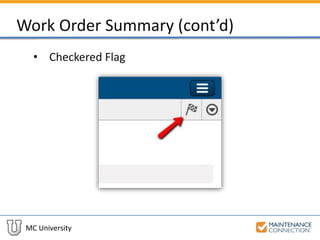
• Checkered Flag
MC University
Work Order Summary (cont’d)
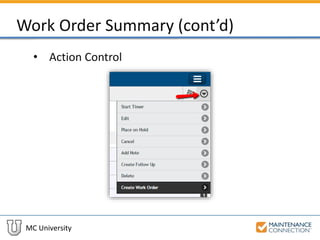
• Action Control
MC University
Work Order Summary (cont’d)
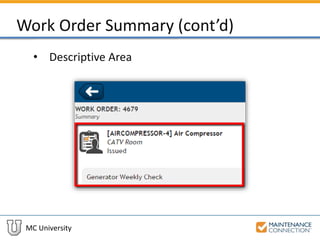
• Descriptive Area
MC University
Work Order Summary (cont’d)
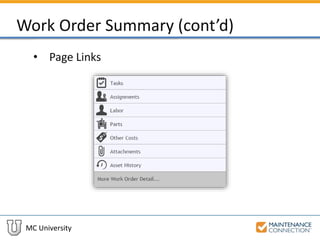
• Page Links
MC University
Work Order Summary (cont’d)
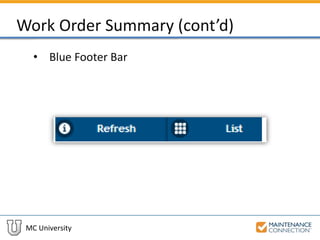
• Blue Footer Bar
MC University
Work Order Components
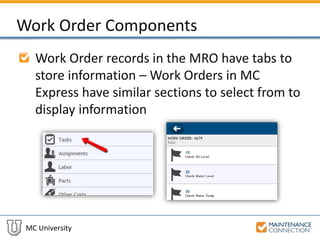
Work Order records in the MRO have tabs to
store information – Work Orders in MC
Express have similar sections to select from to
display information
MC University
Work Order Components (cont’d)
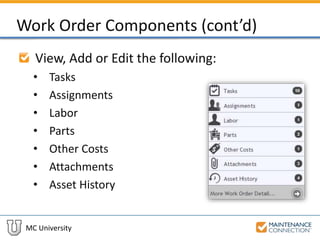
View, Add or Edit the following:
• Tasks
• Assignments
• Labor
• Parts
• Other Costs
• Attachments
• Asset History
MC University
Work Order Components (cont’d)
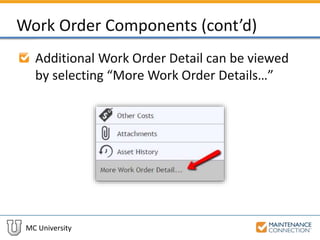
Additional Work Order Detail can be viewed
by selecting “More Work Order Details…”
MC University
Work Order Components (cont’d)
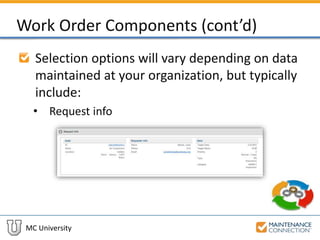
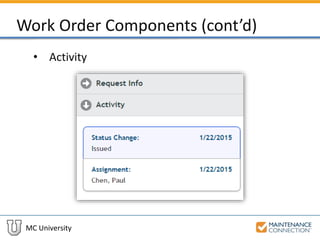
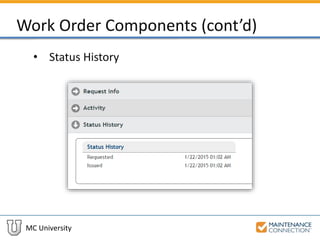
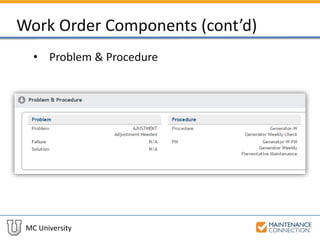
Selection options will vary depending on data
maintained at your organization, but typically
include:
• Request info
MC University
Work Order Components (cont’d)
• Activity
MC University
Work Order Components (cont’d)
• Status History
MC University
Work Order Components (cont’d)
• Problem & Procedure
MC University
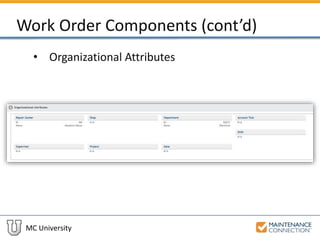
Work Order Components (cont’d)
• Organizational Attributes
MC University
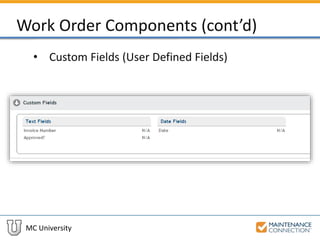
Work Order Components (cont’d)
• Custom Fields (User Defined Fields)
MC University
Navigating the Components of a Work Order: Example
Now let’s take a look at navigating the
different components of a Work Order in MC
Express!
MC University
Work Order Features
Start / Stop Work Order Timer
Status Updates
Add Note
Create Follow Up Work Order
Delete Work Order
MC University
Start / Stop Work Order Timer
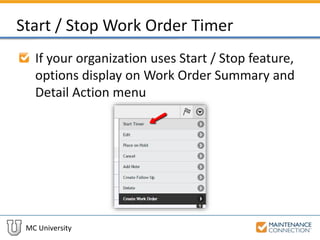
If your organization uses Start / Stop feature,
options display on Work Order Summary and
Detail Action menu
MC University
Start / Stop Work Order Timer (cont’d)
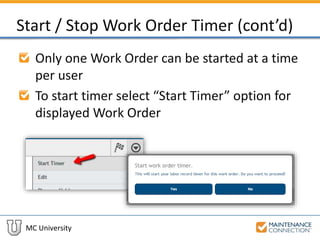
Only one Work Order can be started at a time
per user
To start timer select “Start Timer” option for
displayed Work Order
MC University
Start / Stop Work Order Timer (cont’d)
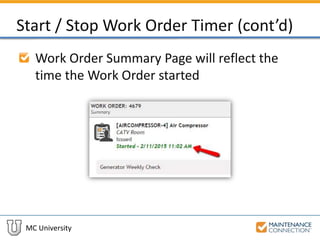
Work Order Summary Page will reflect the
time the Work Order started
MC University
Start / Stop Work Order Timer (cont’d)
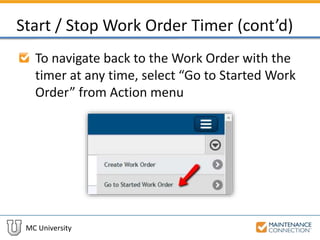
To navigate back to the Work Order with the
timer at any time, select “Go to Started Work
Order” from Action menu
MC University
Start / Stop Work Order Timer (cont’d)
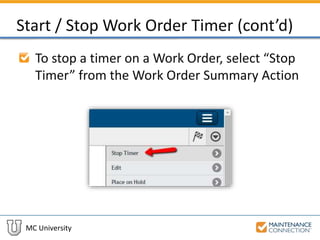
To stop a timer on a Work Order, select “Stop
Timer” from the Work Order Summary Action
MC University
Start / Stop Work Order Timer (cont’d)
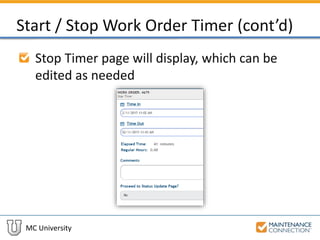
Stop Timer page will display, which can be
edited as needed
MC University
Status Updates
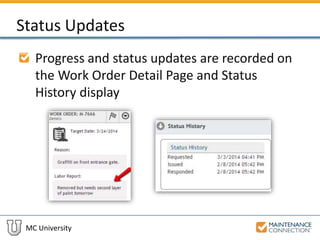
Progress and status updates are recorded on
the Work Order Detail Page and Status
History display
MC University
Status Updates (cont’d)
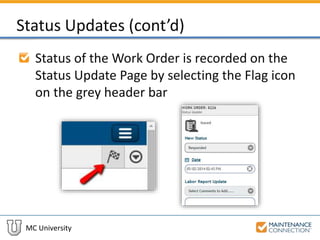
Status of the Work Order is recorded on the
Status Update Page by selecting the Flag icon
on the grey header bar
MC University
Status Updates (cont’d)
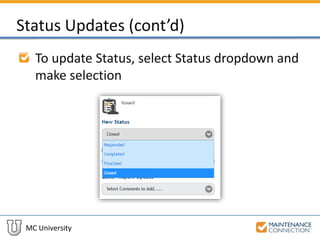
To update Status, select Status dropdown and
make selection
MC University
Status Updates (cont’d)
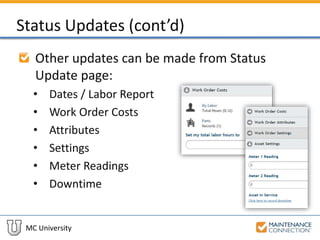
Other updates can be made from Status
Update page:
• Dates / Labor Report
• Work Order Costs
• Attributes
• Settings
• Meter Readings
• Downtime
MC University
Add Note
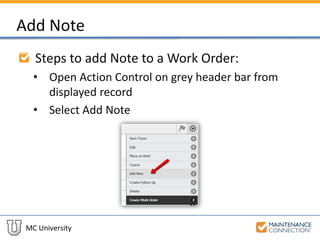
Steps to add Note to a Work Order:
• Open Action Control on grey header bar from
displayed record
• Select Add Note
MC University
Add Note (cont’d)
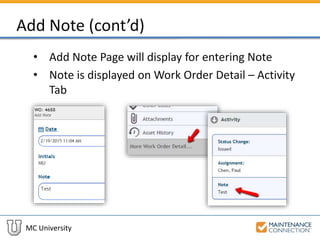
• Add Note Page will display for entering Note
• Note is displayed on Work Order Detail – Activity
Tab
MC University
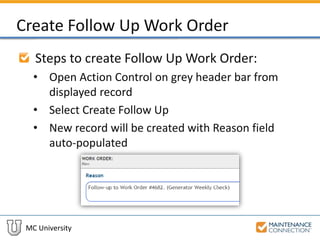
Create Follow Up Work Order
Steps to create Follow Up Work Order:
• Open Action Control on grey header bar from
displayed record
• Select Create Follow Up
• New record will be created with Reason field
auto-populated
MC University
Delete Work Order
Work Orders are rarely deleted – only if
created in error!
Require password to delete NOT used in MC
Express
MC University
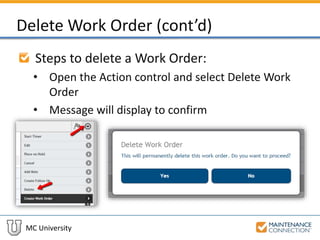
Delete Work Order (cont’d)
Steps to delete a Work Order:
• Open the Action control and select Delete Work
Order
• Message will display to confirm
MC University
Using the Start / Stop Timer: Example
Now let’s take a look at using the Start / Stop
Timer in MC Express!
Thank You for
Watching!

EX03 - Work Management Through MC Express

Editor's Notes