

Creating Work Order
Assignments (W04)
Work Management Track
1. Open Internet Explorer
2. Type into the address bar: www.maintenanceconnection.com
3. Click Log In button
4. Enter the following:
Member ID: W_CHECKPOINT
Password: Checkpoint2014
Note: During the seminar, please do not “Save” while following along with a
specific example unless directed to do so by your course instructor.
Wireless SSID: CHECKPOINT
Wireless Password: CHECKPOINT
Logon Instructions
Presenter Name: David Smith
Background information:
• Role and expertise at Maintenance
Connection
• Fun Fact
Presenter Bio
Viewing and Managing Assignments
Assigning Work Orders
Editing Assignments
Automatic Assignment
Agenda
Viewing and Managing Assignments
Overview
View Assignment Mode
Assignment List Tab View
Assignment Calendar Tab View
Assignment Calendar Controls
Viewing and Managing Assignments
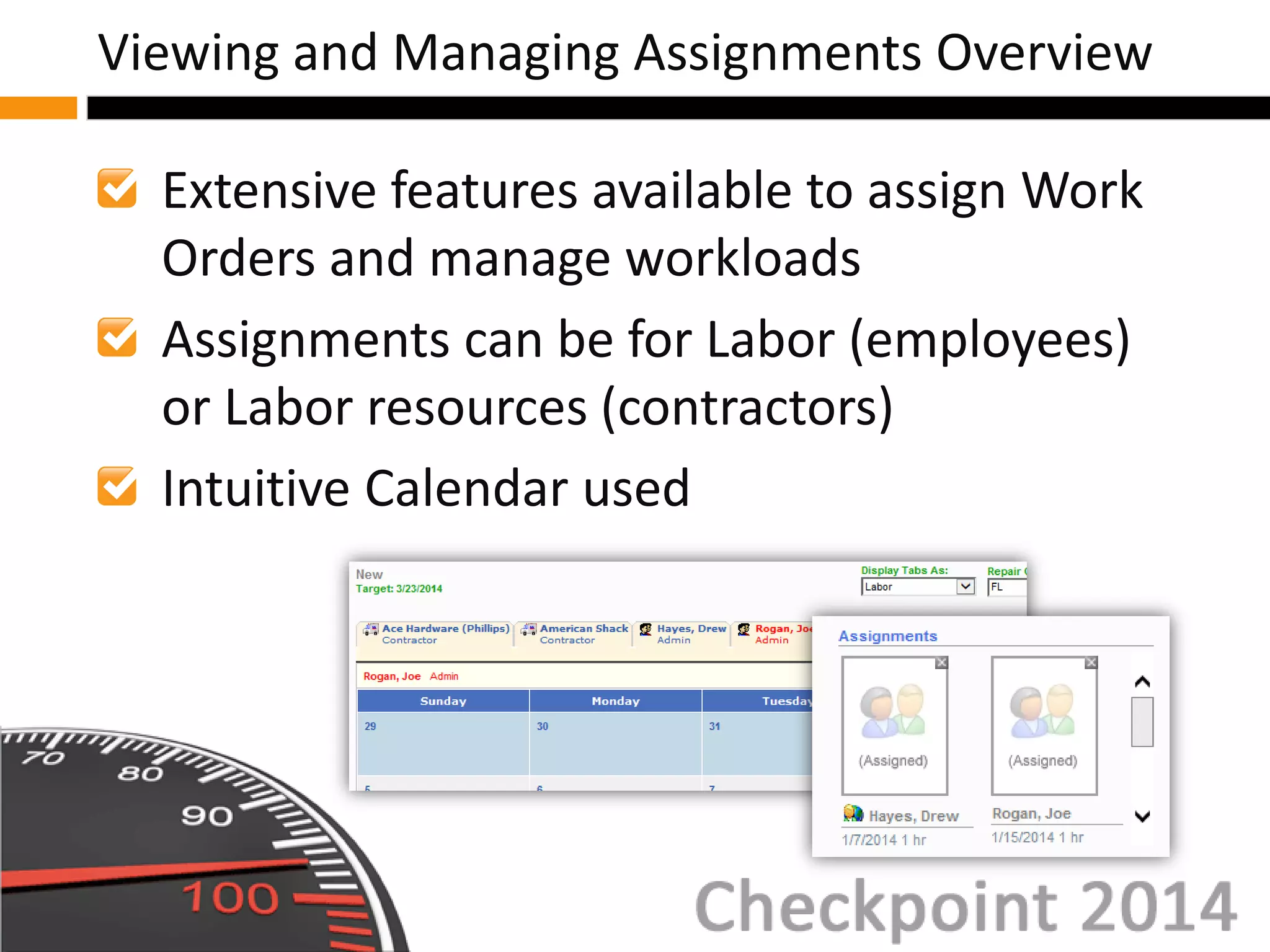
Extensive features available to assign Work
Orders and manage workloads
Assignments can be for Labor (employees)
or Labor resources (contractors)
Intuitive Calendar used
Viewing and Managing Assignments Overview
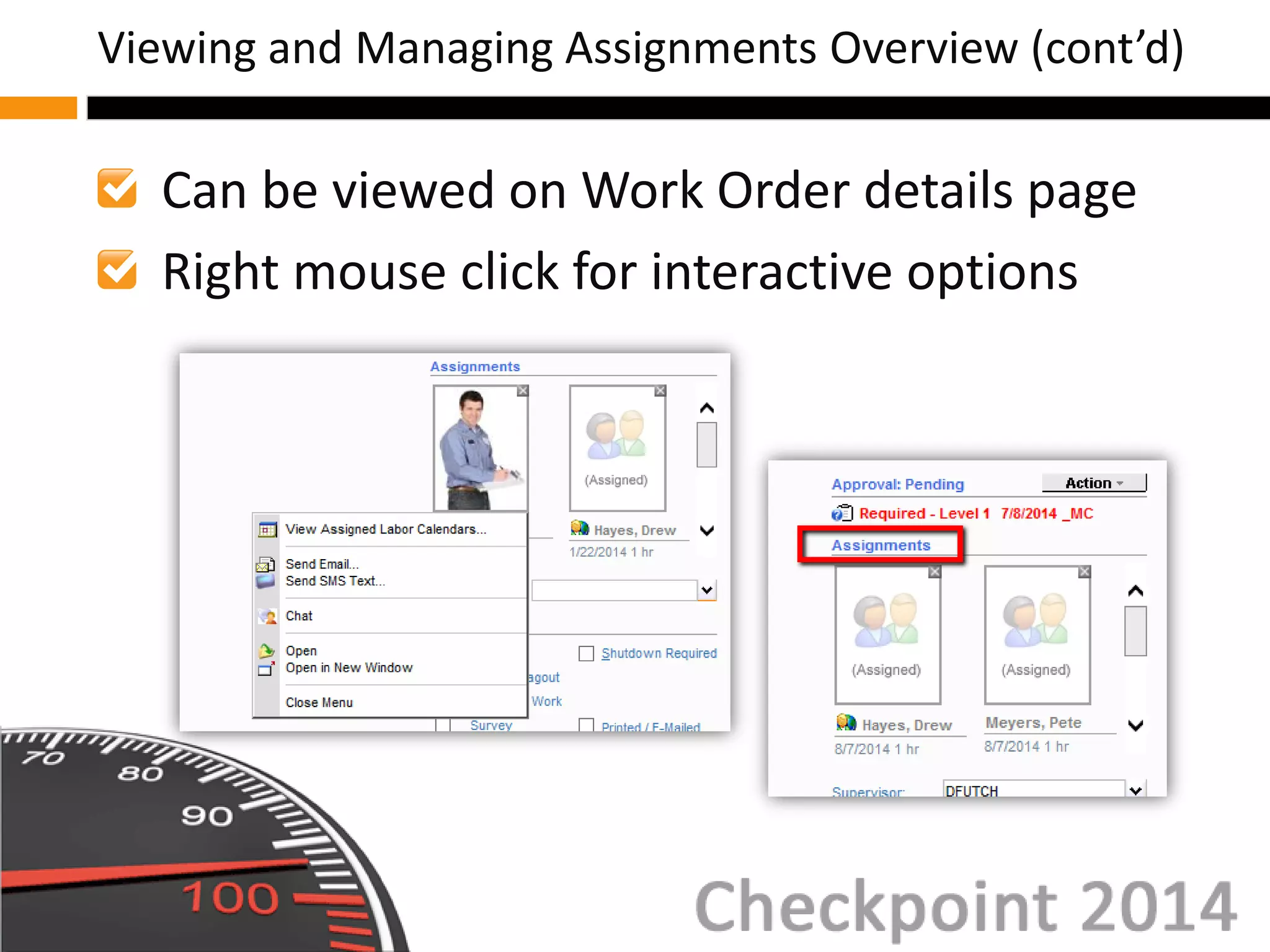
Can be viewed on Work Order details page
Right mouse click for interactive options
Viewing and Managing Assignments Overview (cont’d)
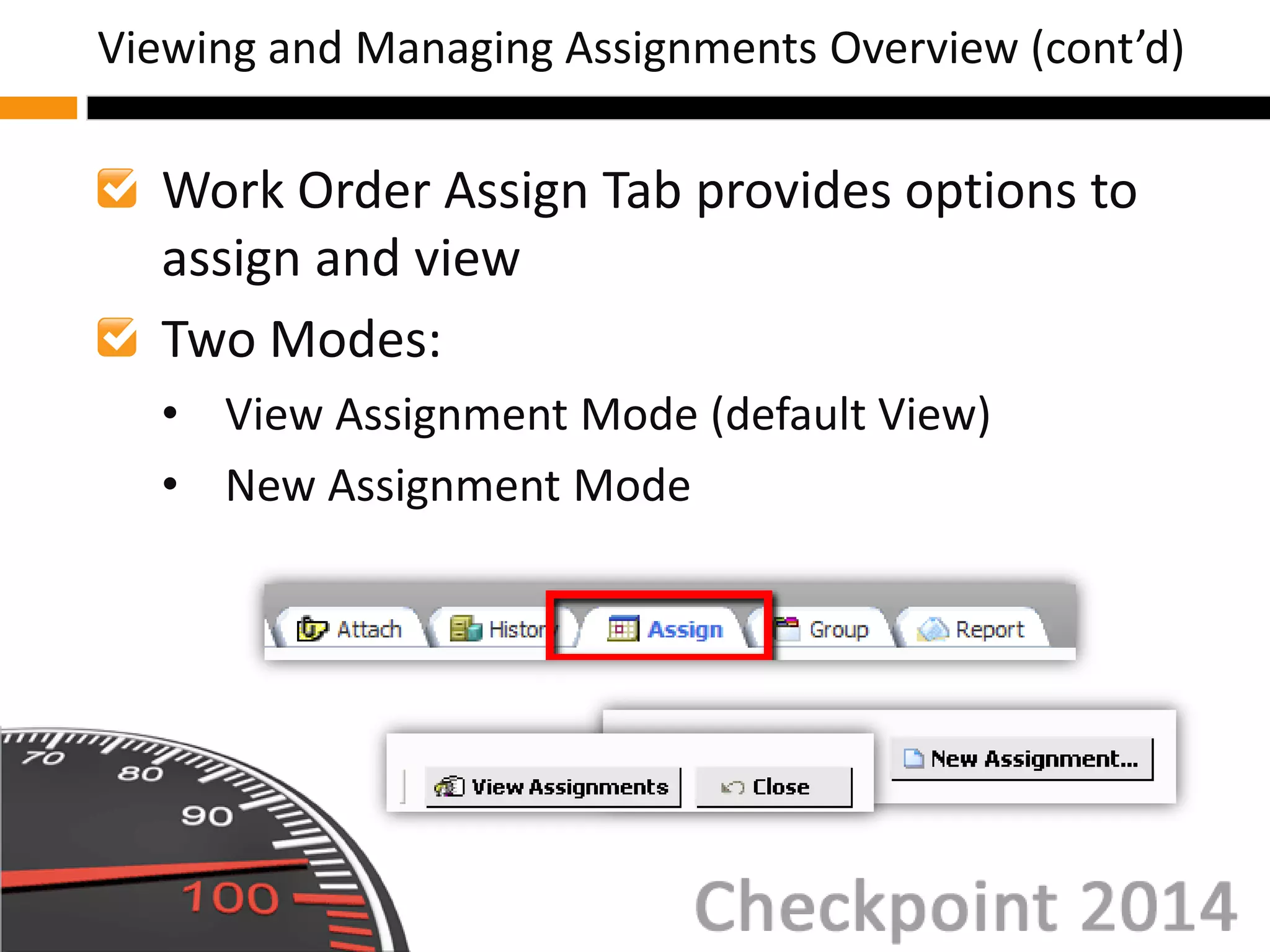
Work Order Assign Tab provides options to
assign and view
Two Modes:
• View Assignment Mode (default View)
• New Assignment Mode
Viewing and Managing Assignments Overview (cont’d)
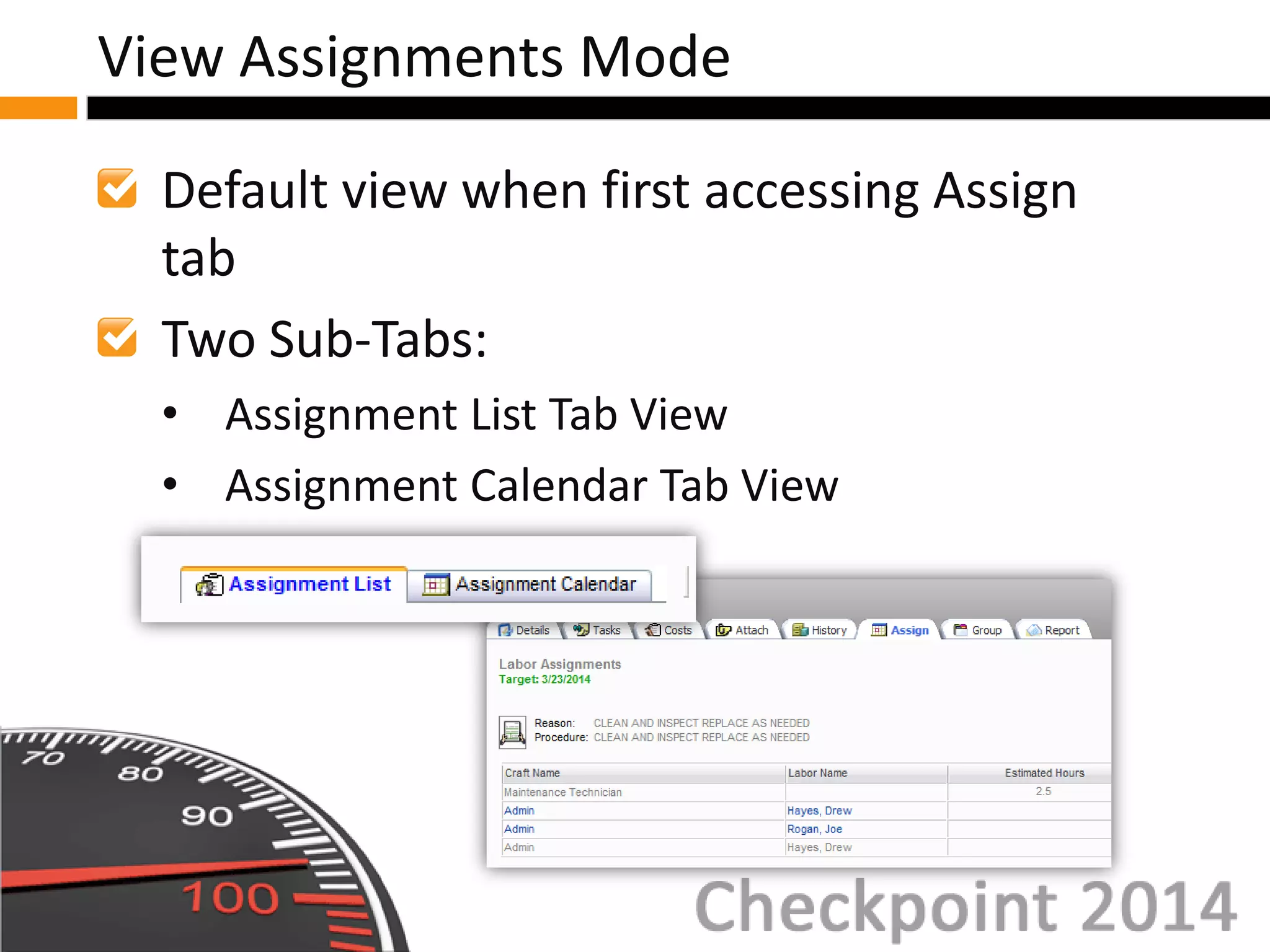
Default view when first accessing Assign
tab
Two Sub-Tabs:
• Assignment List Tab View
• Assignment Calendar Tab View
View Assignments Mode
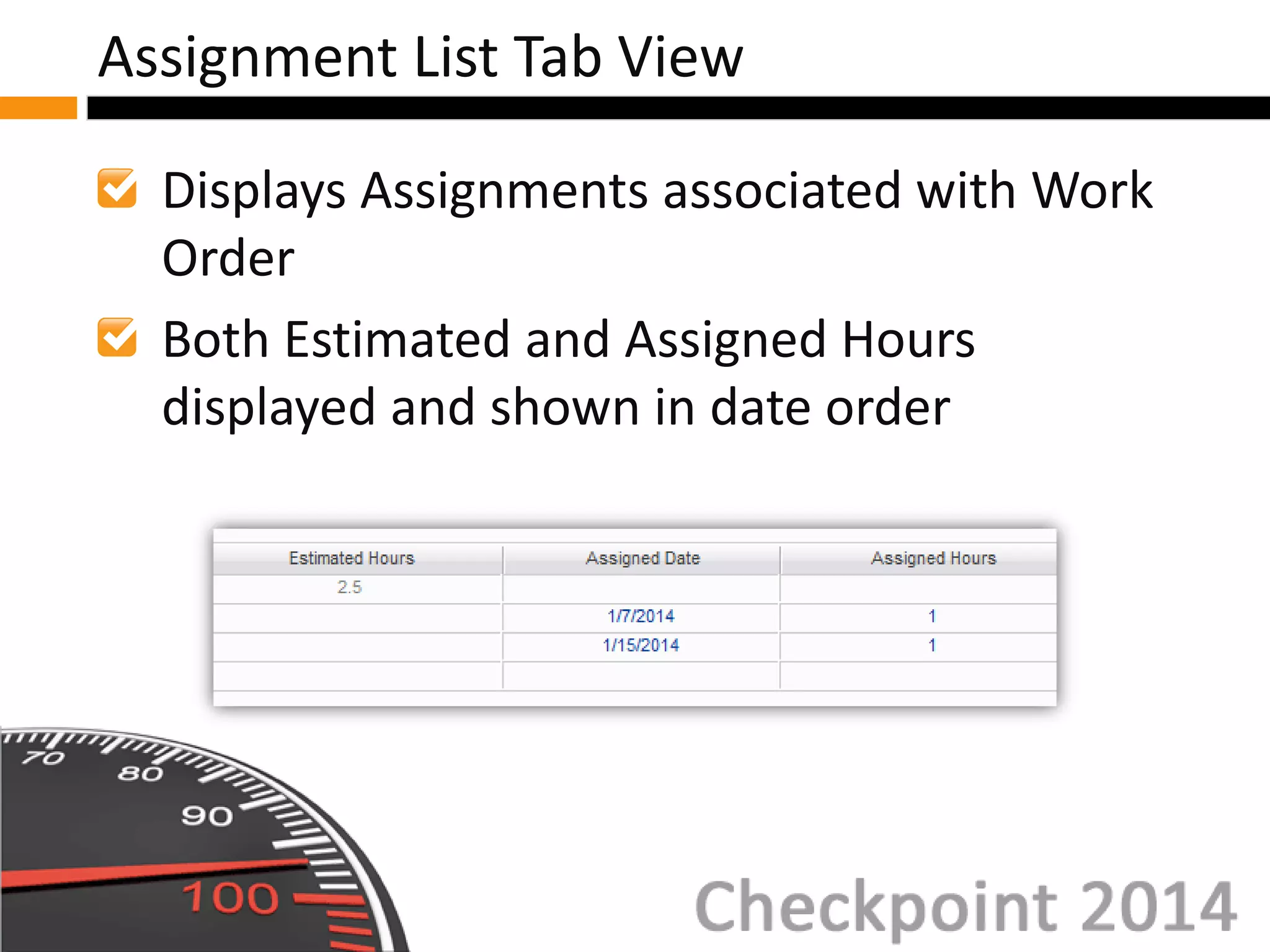
Displays Assignments associated with Work
Order
Both Estimated and Assigned Hours
displayed and shown in date order
Assignment List Tab View
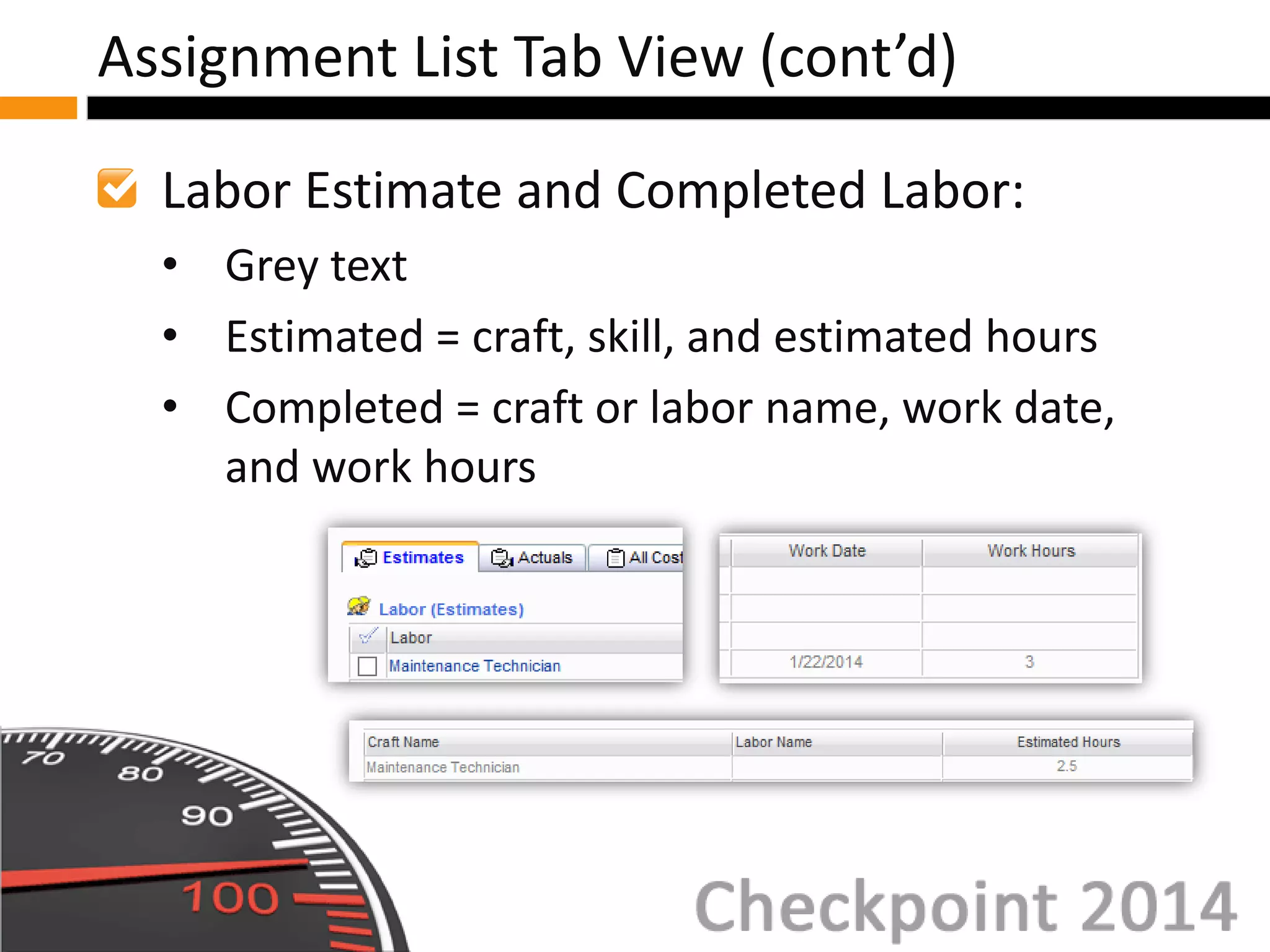
Labor Estimate and Completed Labor:
• Grey text
• Estimated = craft, skill, and estimated hours
• Completed = craft or labor name, work date,
and work hours
Assignment List Tab View (cont’d)
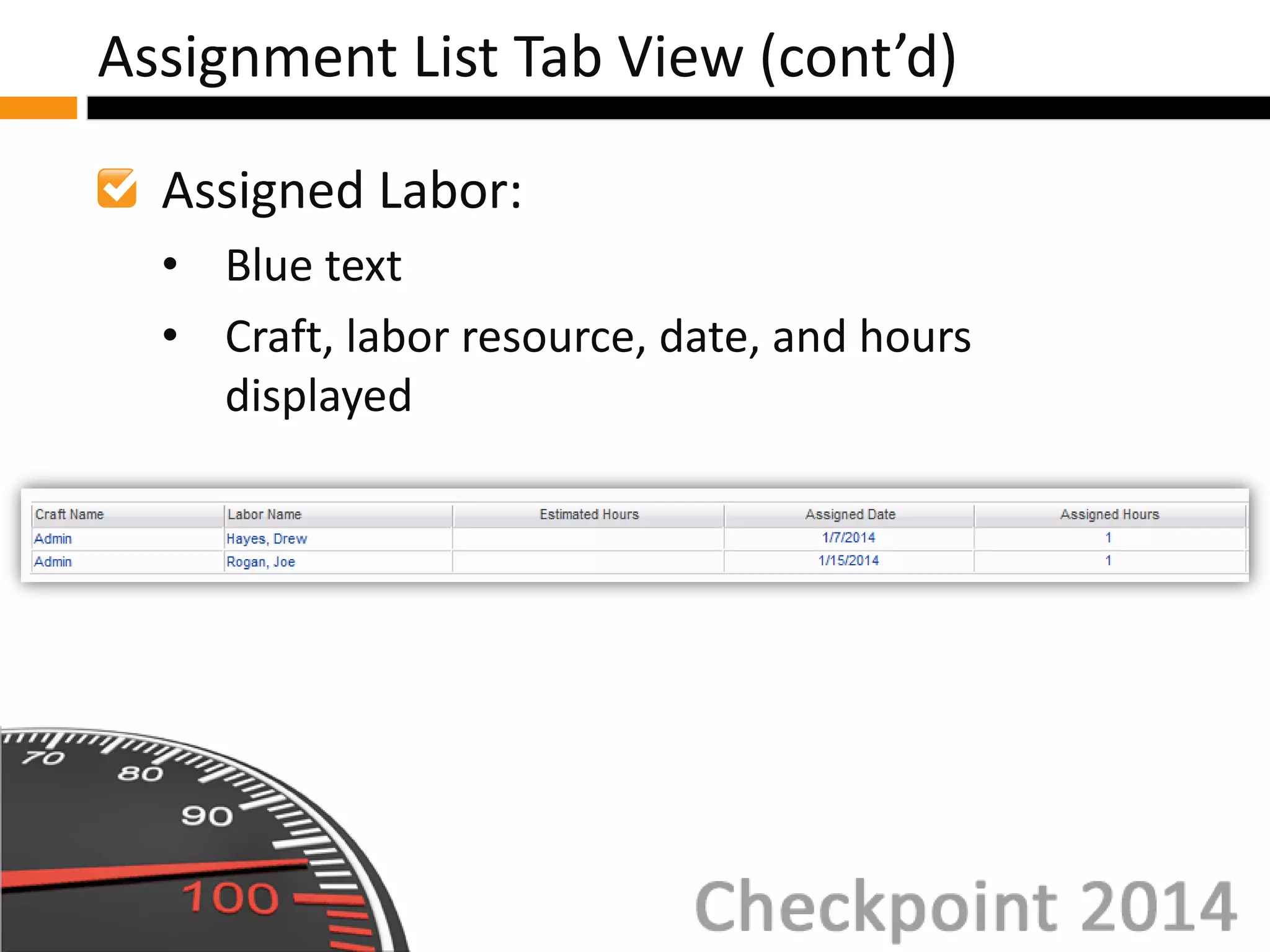
Assigned Labor:
• Blue text
• Craft, labor resource, date, and hours
displayed
Assignment List Tab View (cont’d)
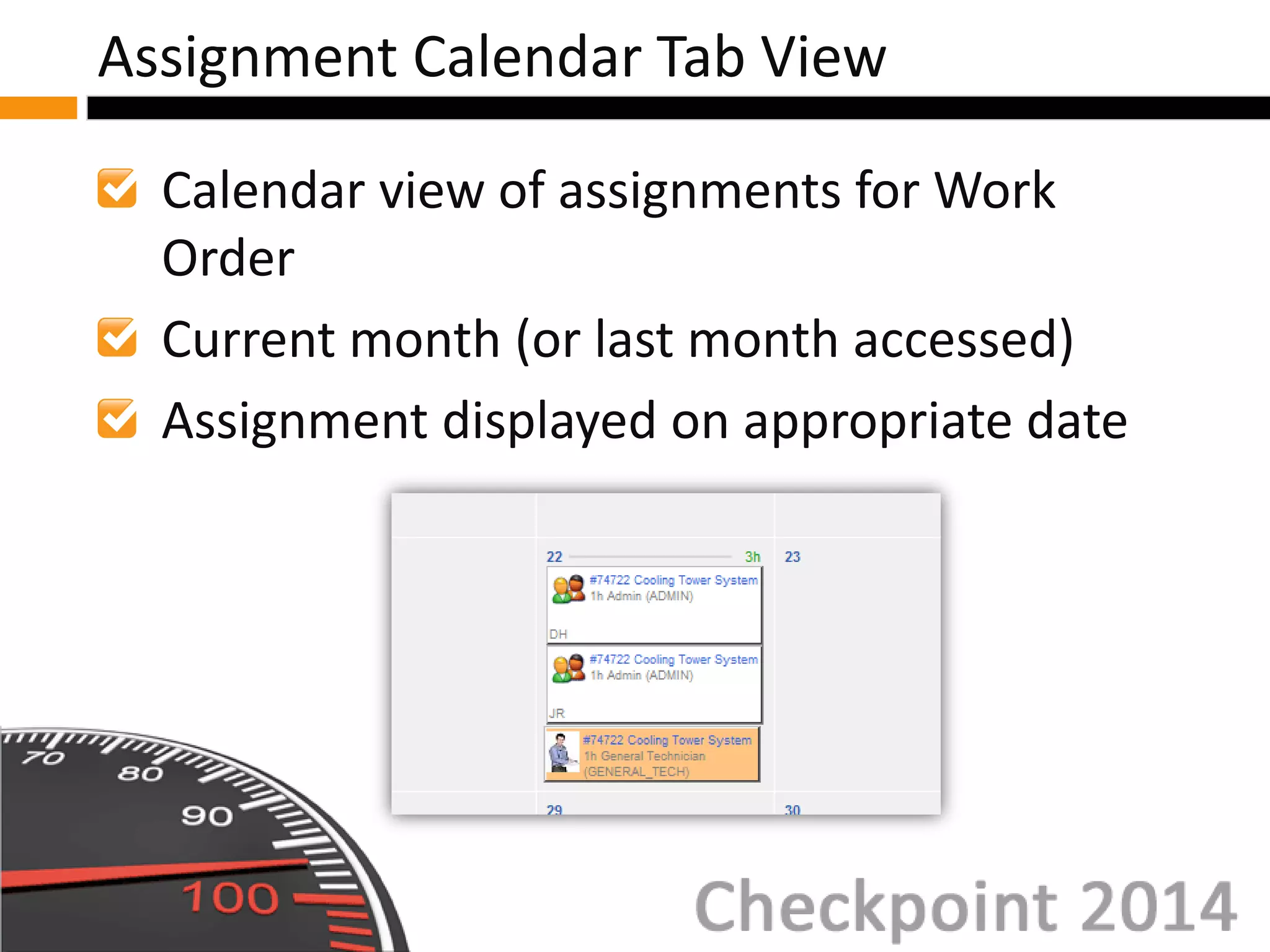
Calendar view of assignments for Work
Order
Current month (or last month accessed)
Assignment displayed on appropriate date
Assignment Calendar Tab View
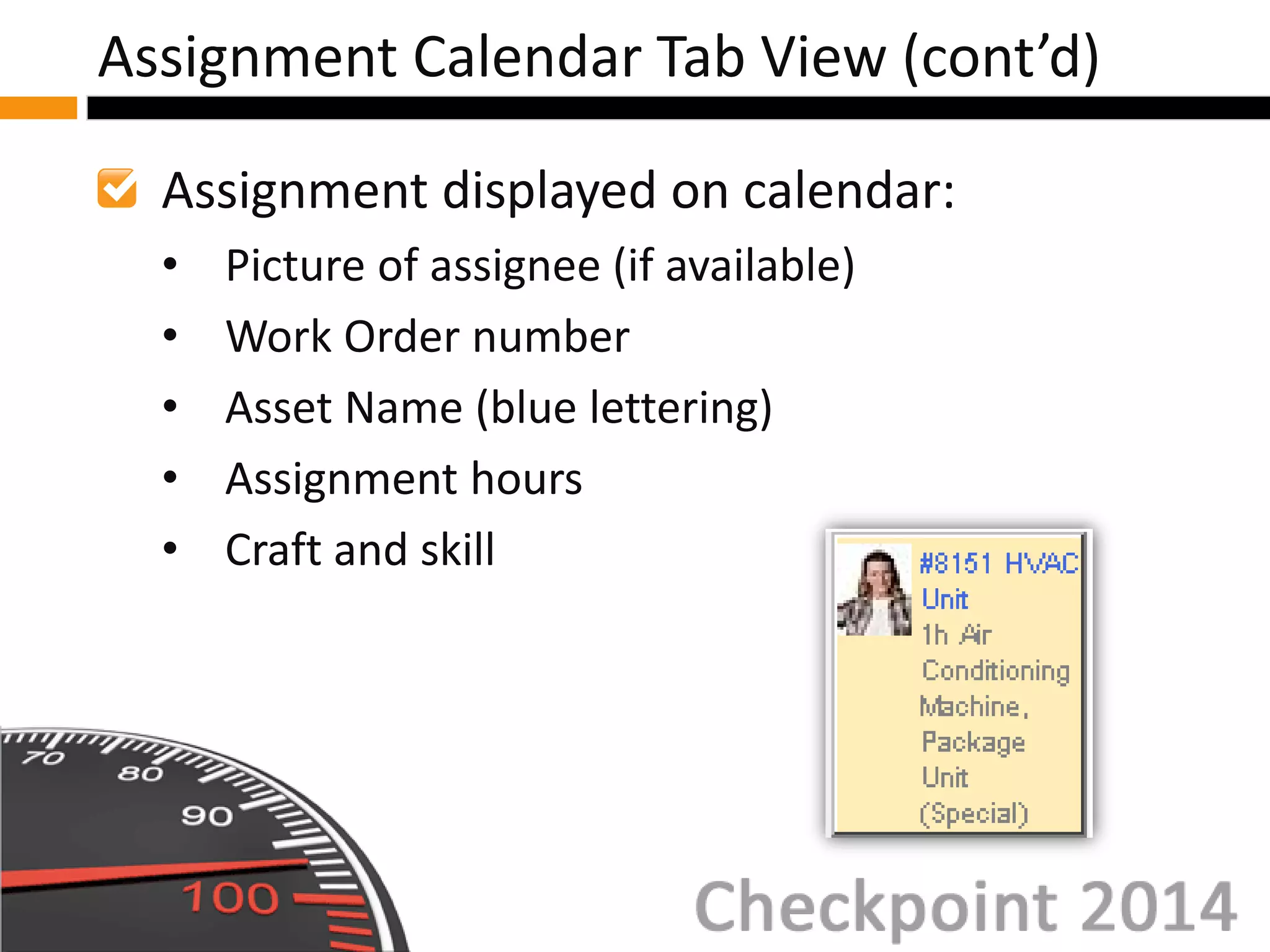
Assignment displayed on calendar:
• Picture of assignee (if available)
• Work Order number
• Asset Name (blue lettering)
• Assignment hours
• Craft and skill
Assignment Calendar Tab View (cont’d)
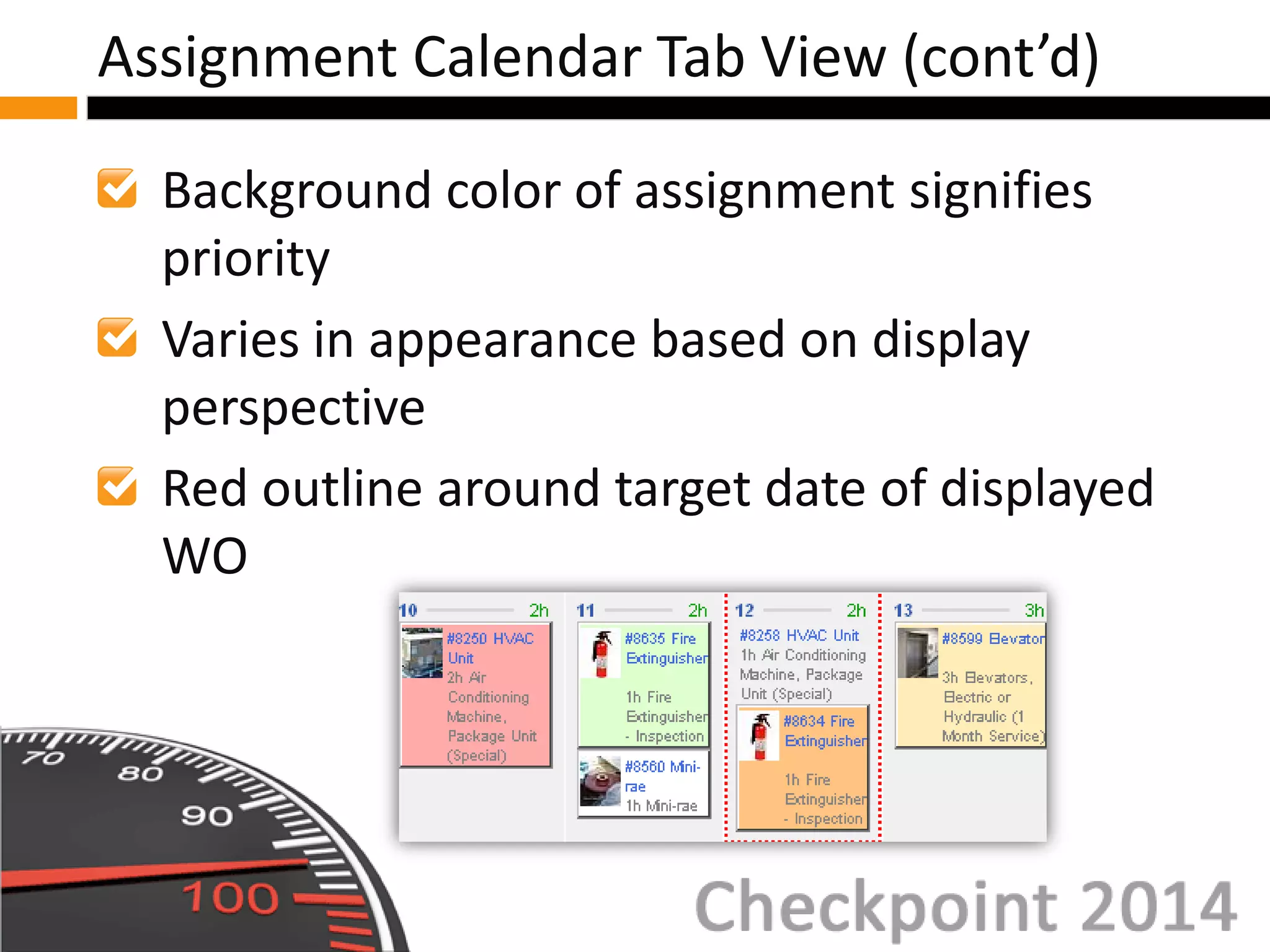
Background color of assignment signifies
priority
Varies in appearance based on display
perspective
Red outline around target date of displayed
WO
Assignment Calendar Tab View (cont’d)
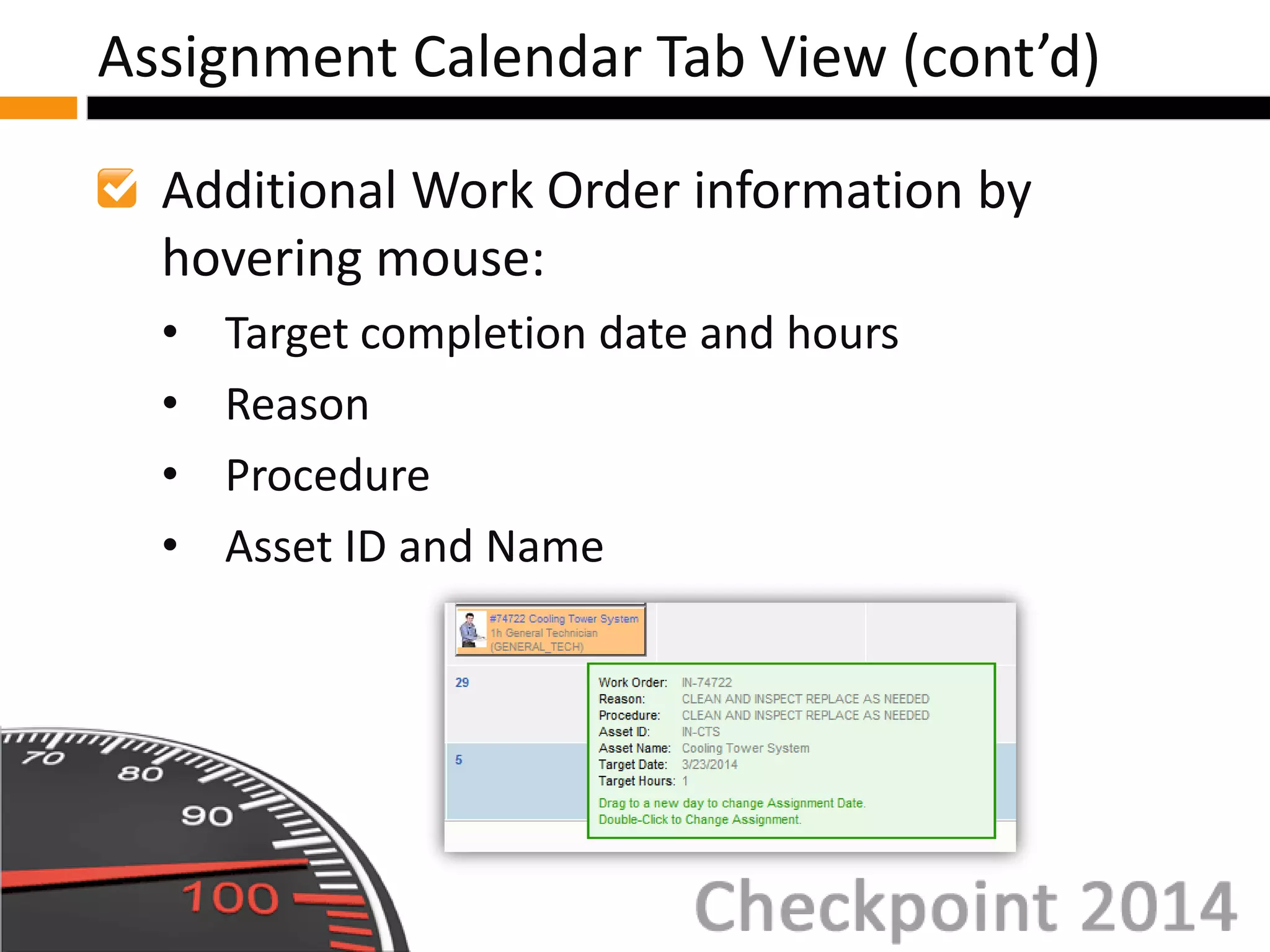
Additional Work Order information by
hovering mouse:
• Target completion date and hours
• Reason
• Procedure
• Asset ID and Name
Assignment Calendar Tab View (cont’d)
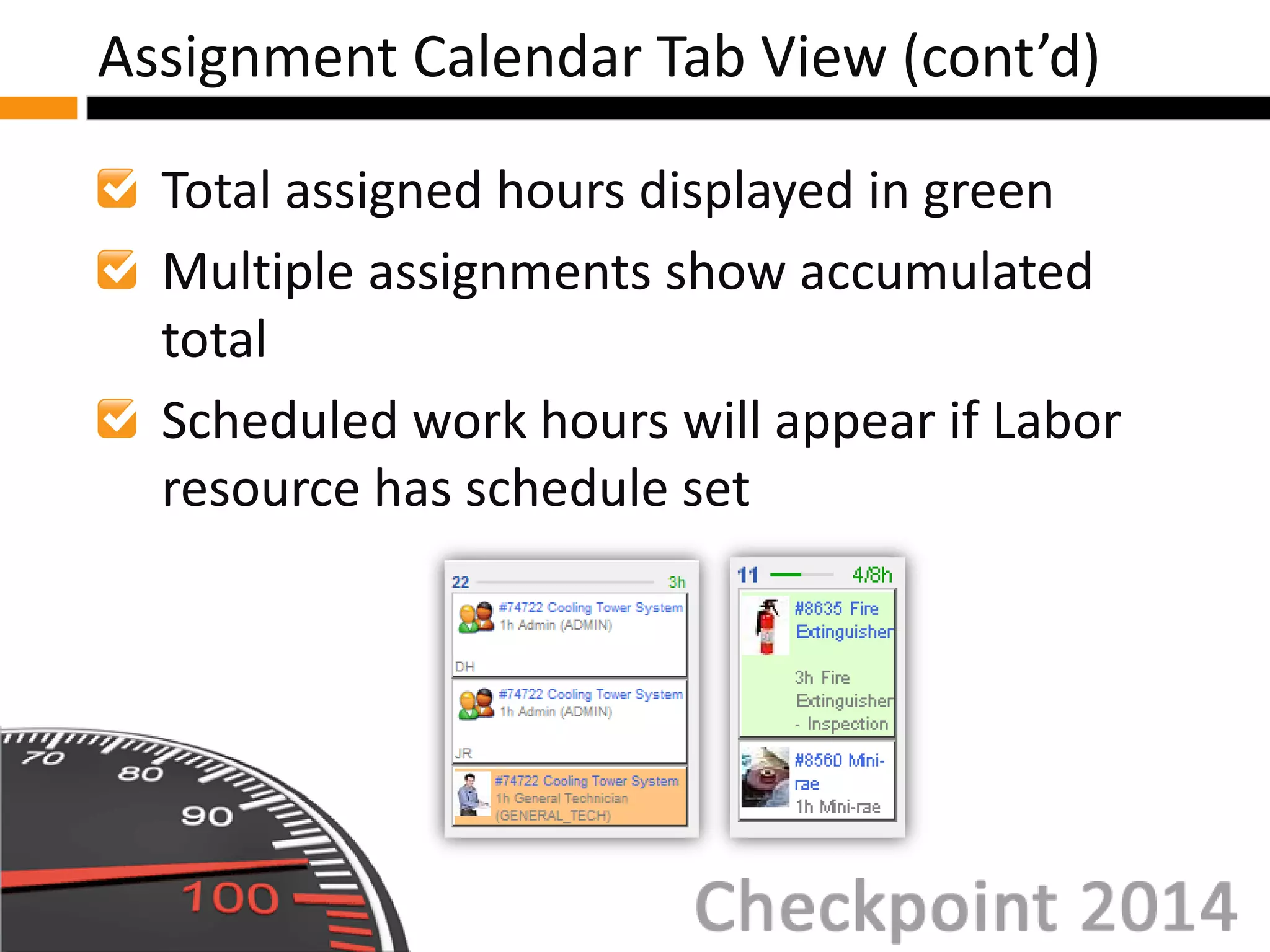
Total assigned hours displayed in green
Multiple assignments show accumulated
total
Scheduled work hours will appear if Labor
resource has schedule set
Assignment Calendar Tab View (cont’d)
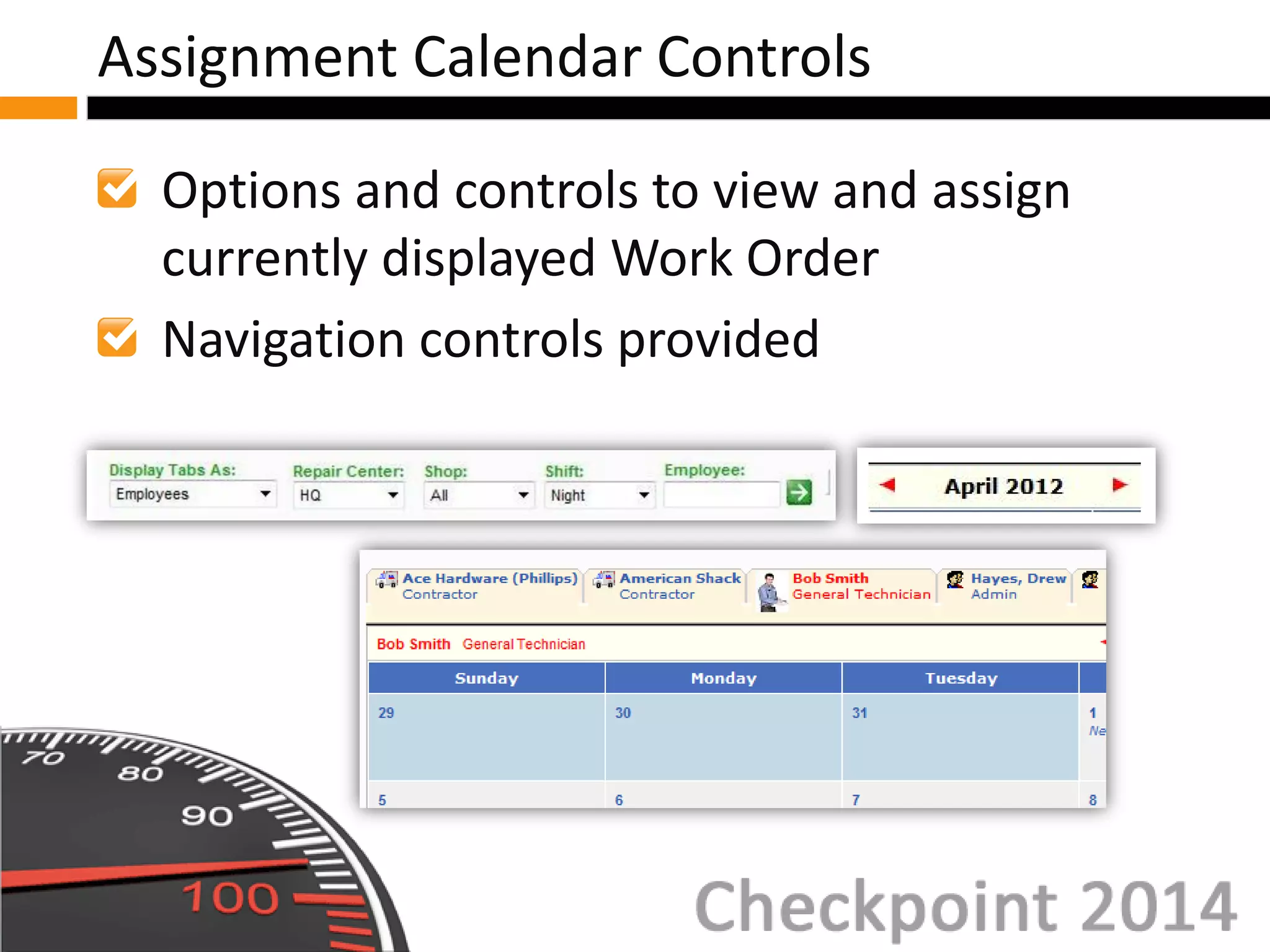
Options and controls to view and assign
currently displayed Work Order
Navigation controls provided
Assignment Calendar Controls
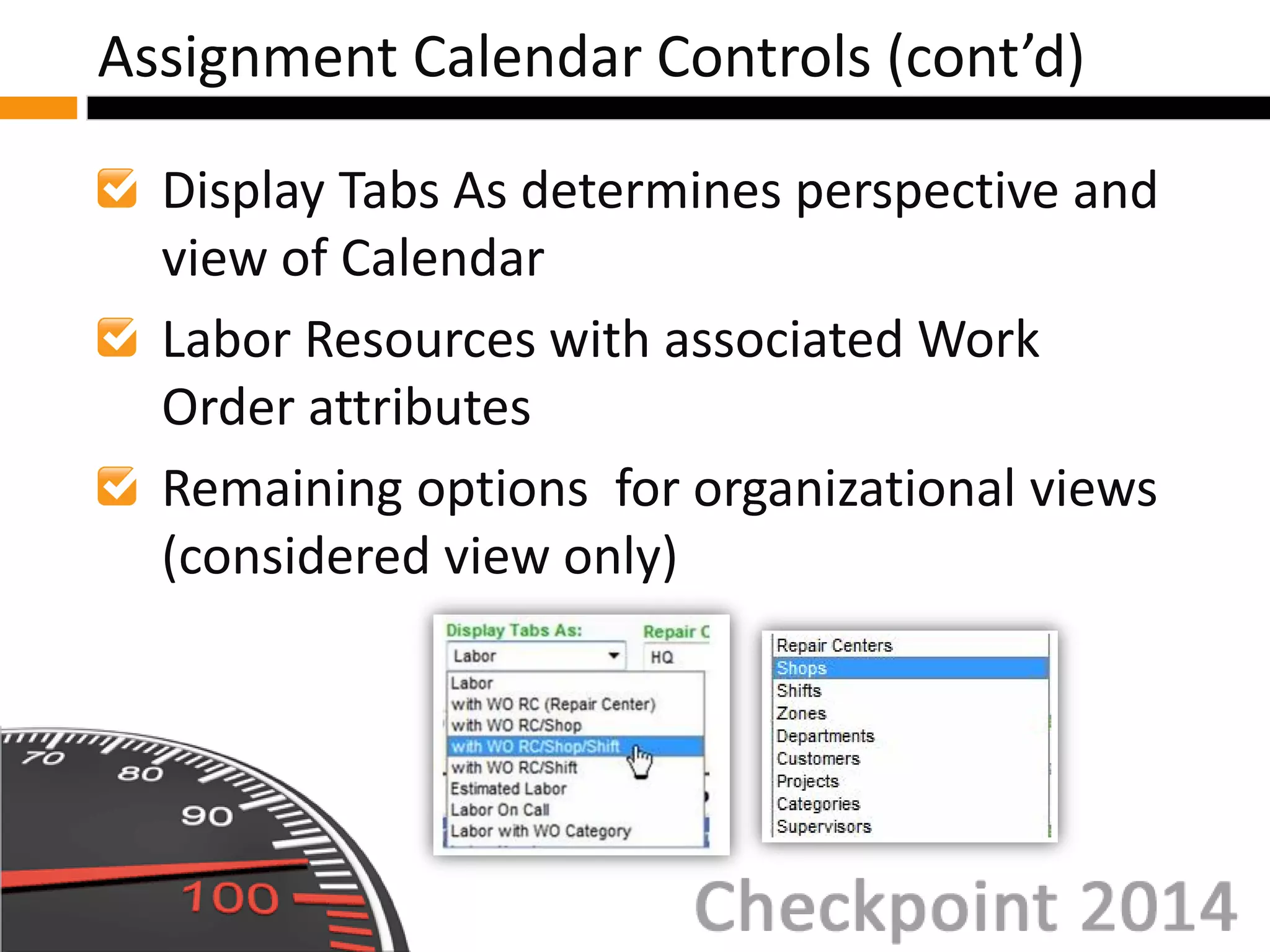
Display Tabs As determines perspective and
view of Calendar
Labor Resources with associated Work
Order attributes
Remaining options for organizational views
(considered view only)
Assignment Calendar Controls (cont’d)
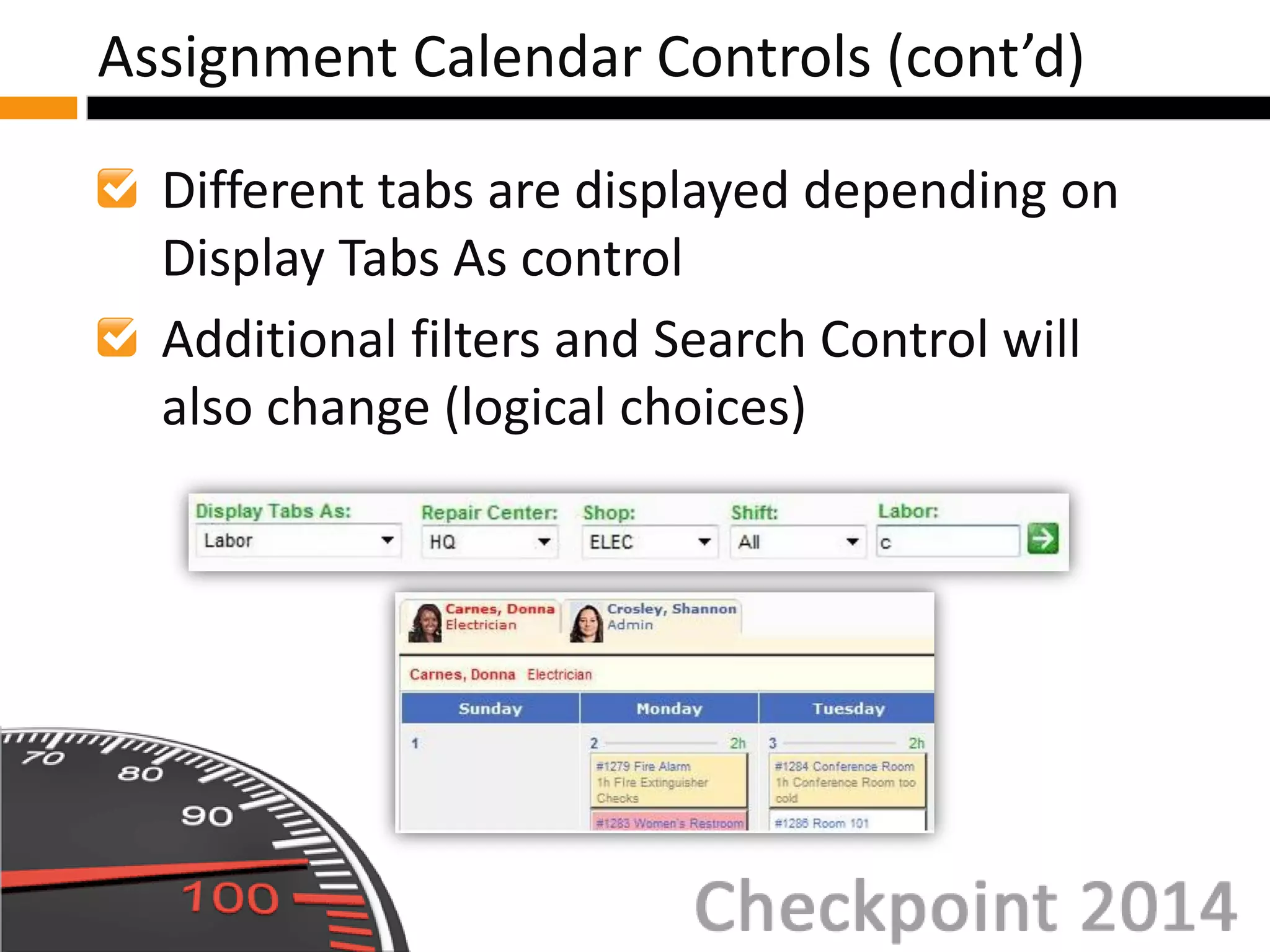
Different tabs are displayed depending on
Display Tabs As control
Additional filters and Search Control will
also change (logical choices)
Assignment Calendar Controls (cont’d)
Work Order Details
Labor Resource Perspective
Organizational and View Only Perspective
Assigning Work Orders
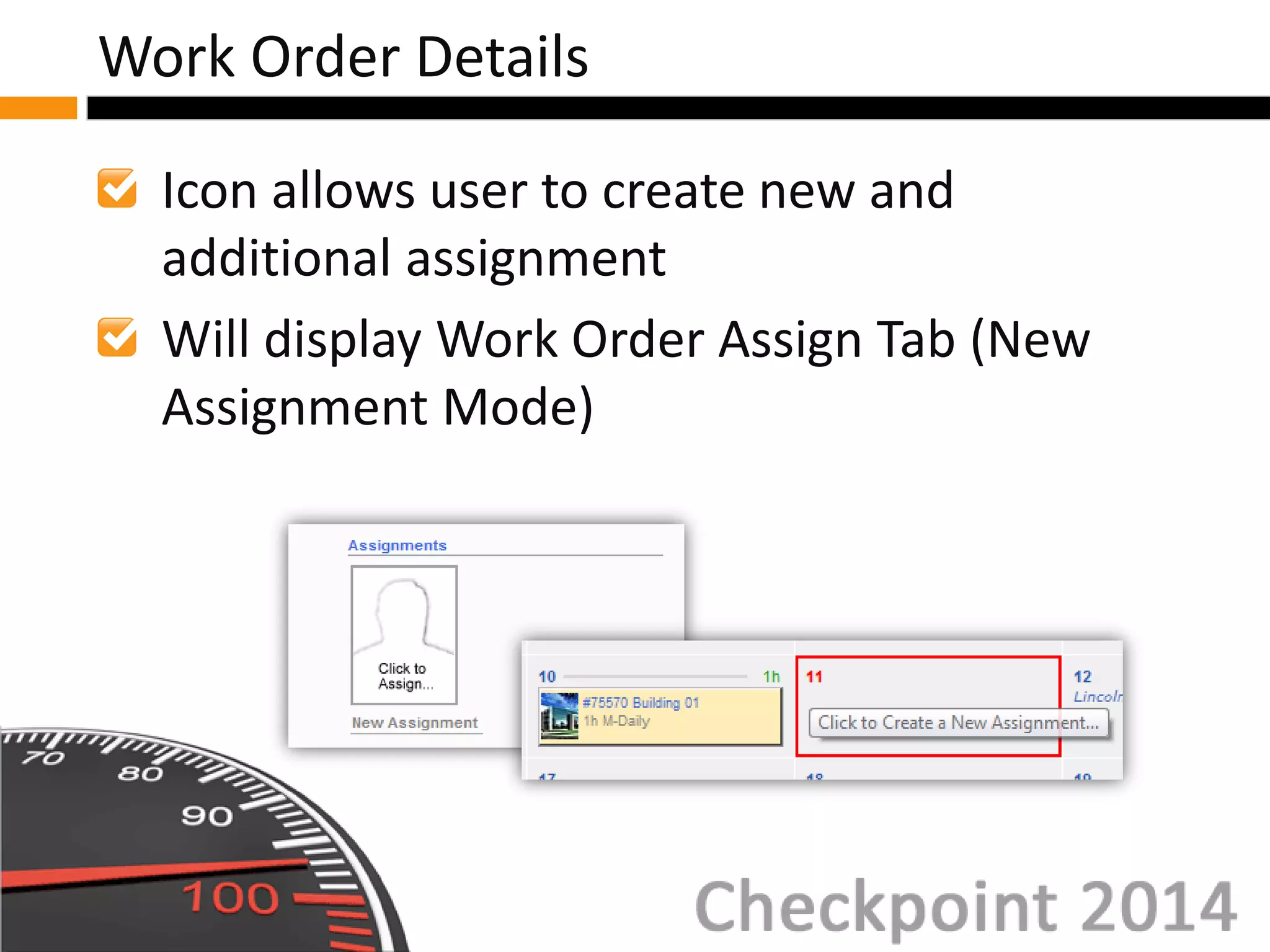
Icon allows user to create new and
additional assignment
Will display Work Order Assign Tab (New
Assignment Mode)
Work Order Details
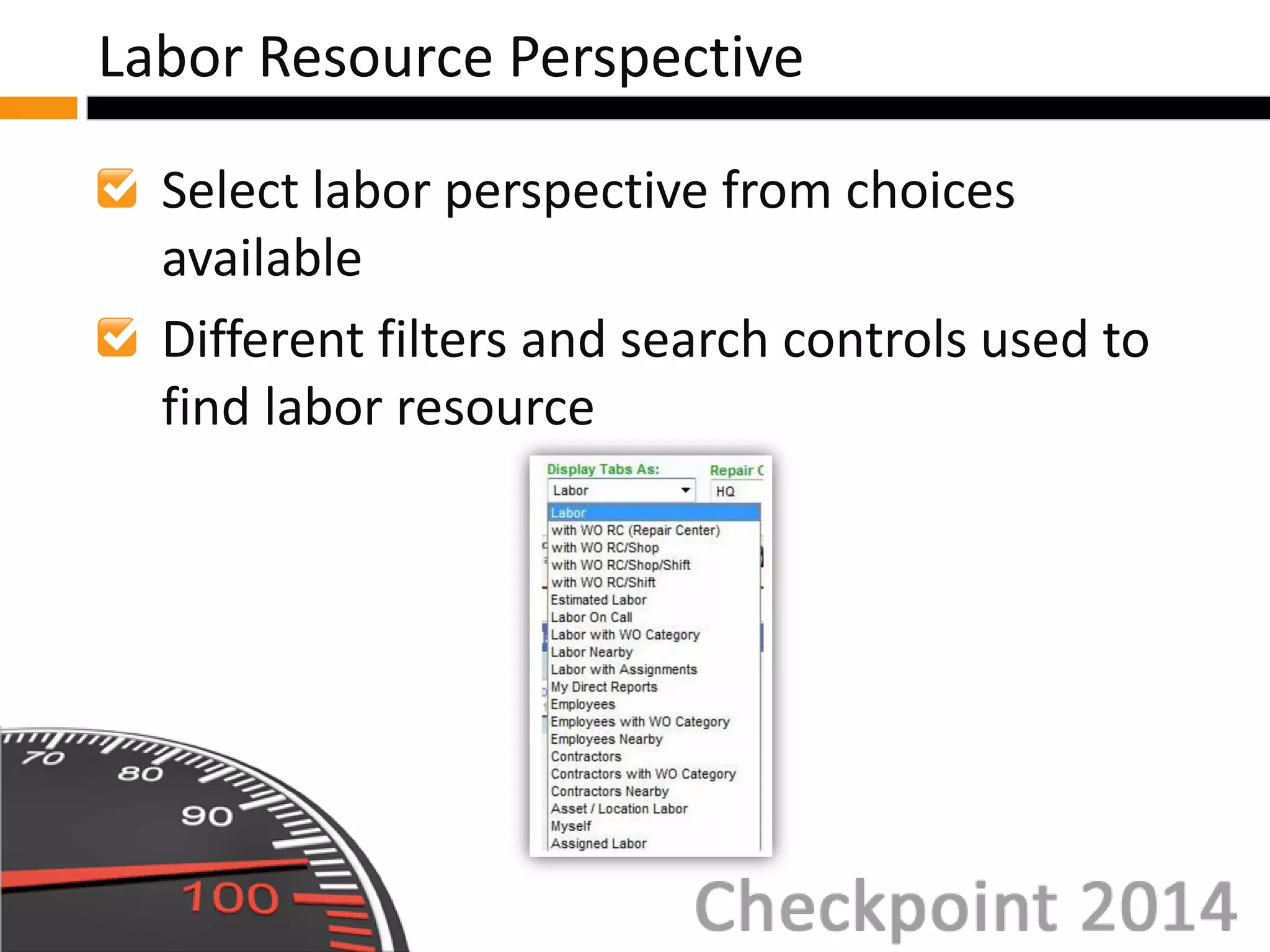
Select labor perspective from choices
available
Different filters and search controls used to
find labor resource
Labor Resource Perspective
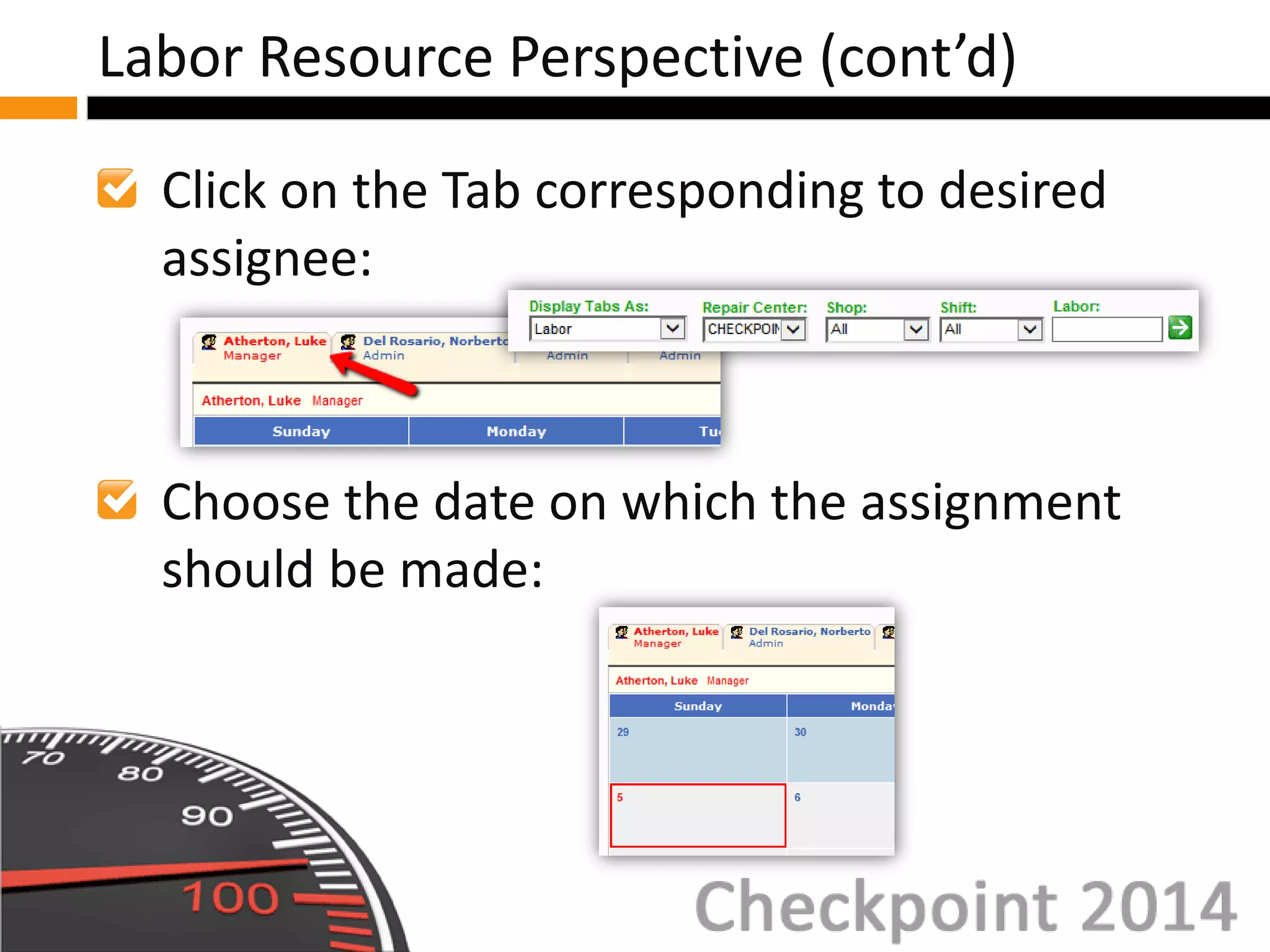
Click on the Tab corresponding to desired
assignee:
Choose the date on which the assignment
should be made:
Labor Resource Perspective (cont’d)
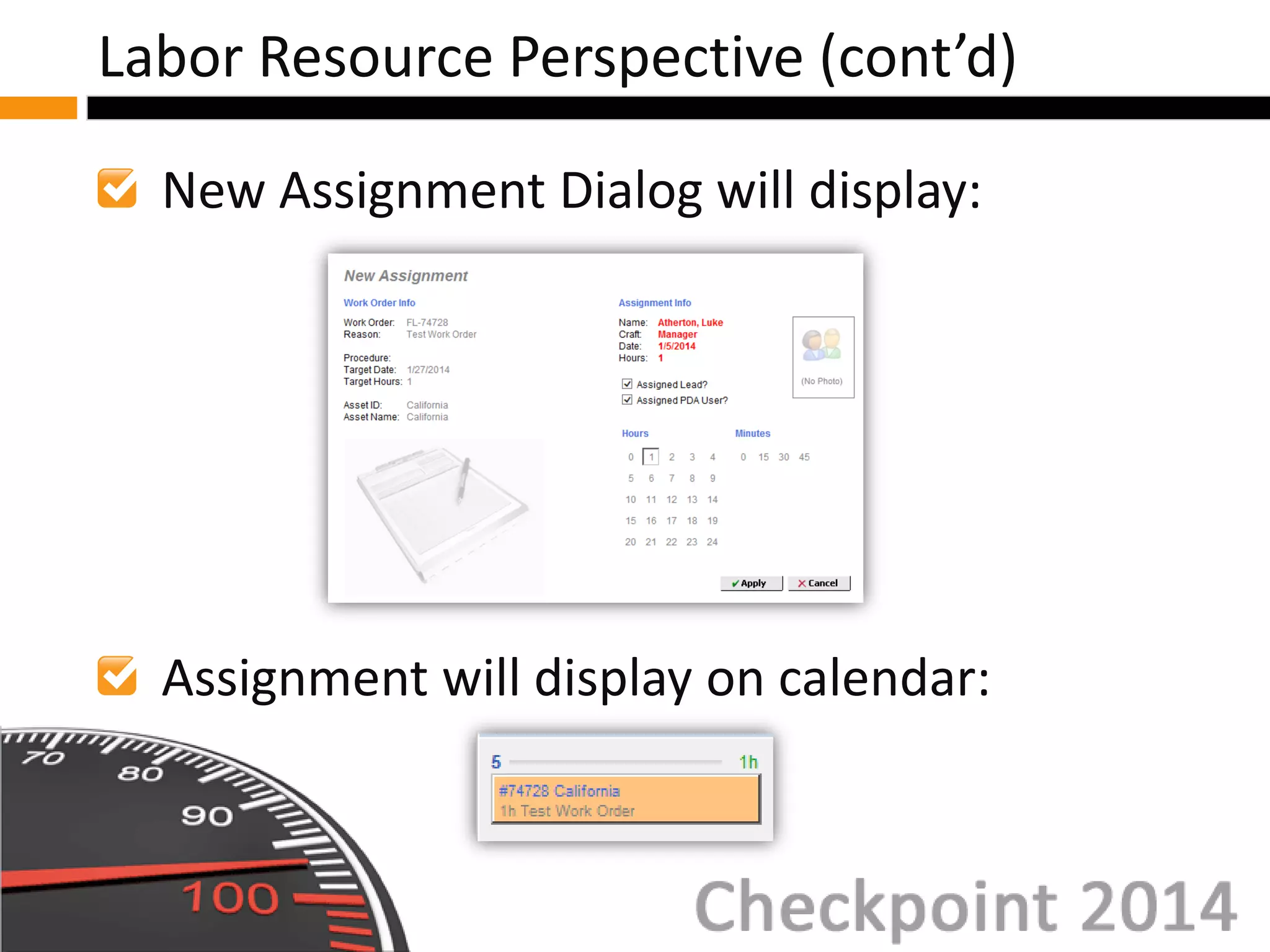
New Assignment Dialog will display:
Assignment will display on calendar:
Labor Resource Perspective (cont’d)
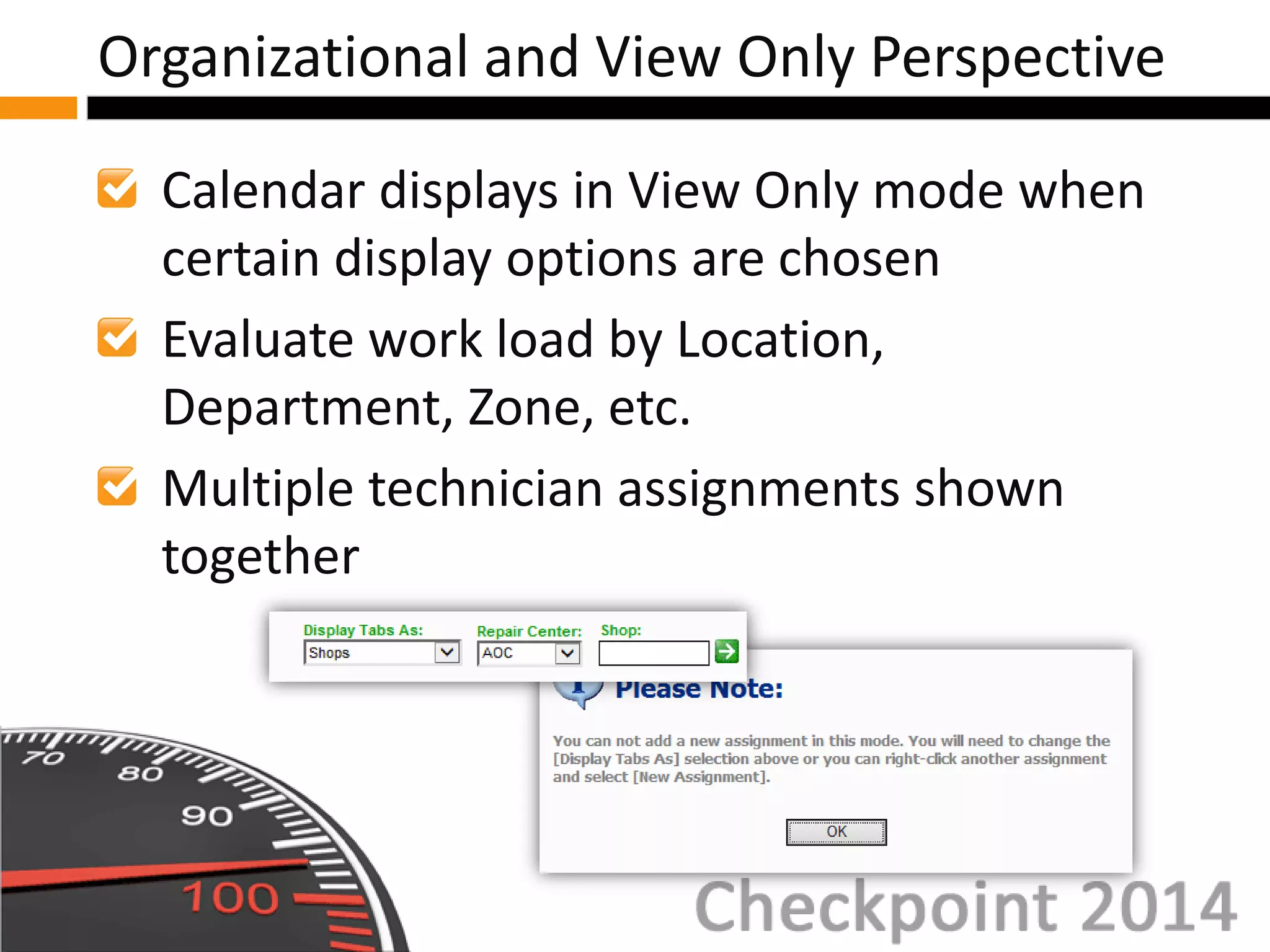
Calendar displays in View Only mode when
certain display options are chosen
Evaluate work load by Location,
Department, Zone, etc.
Multiple technician assignments shown
together
Organizational and View Only Perspective
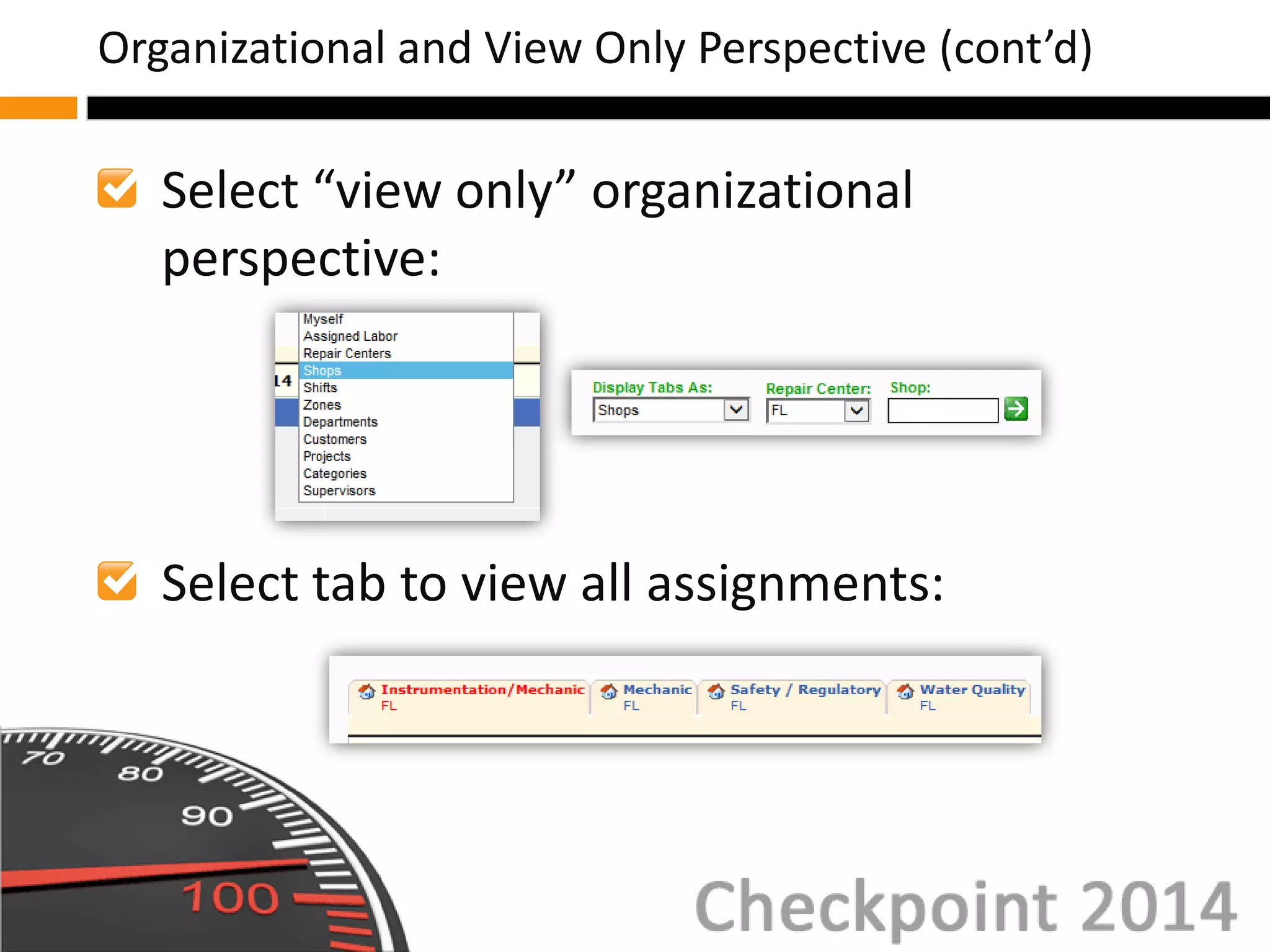
Select “view only” organizational
perspective:
Select tab to view all assignments:
Organizational and View Only Perspective (cont’d)
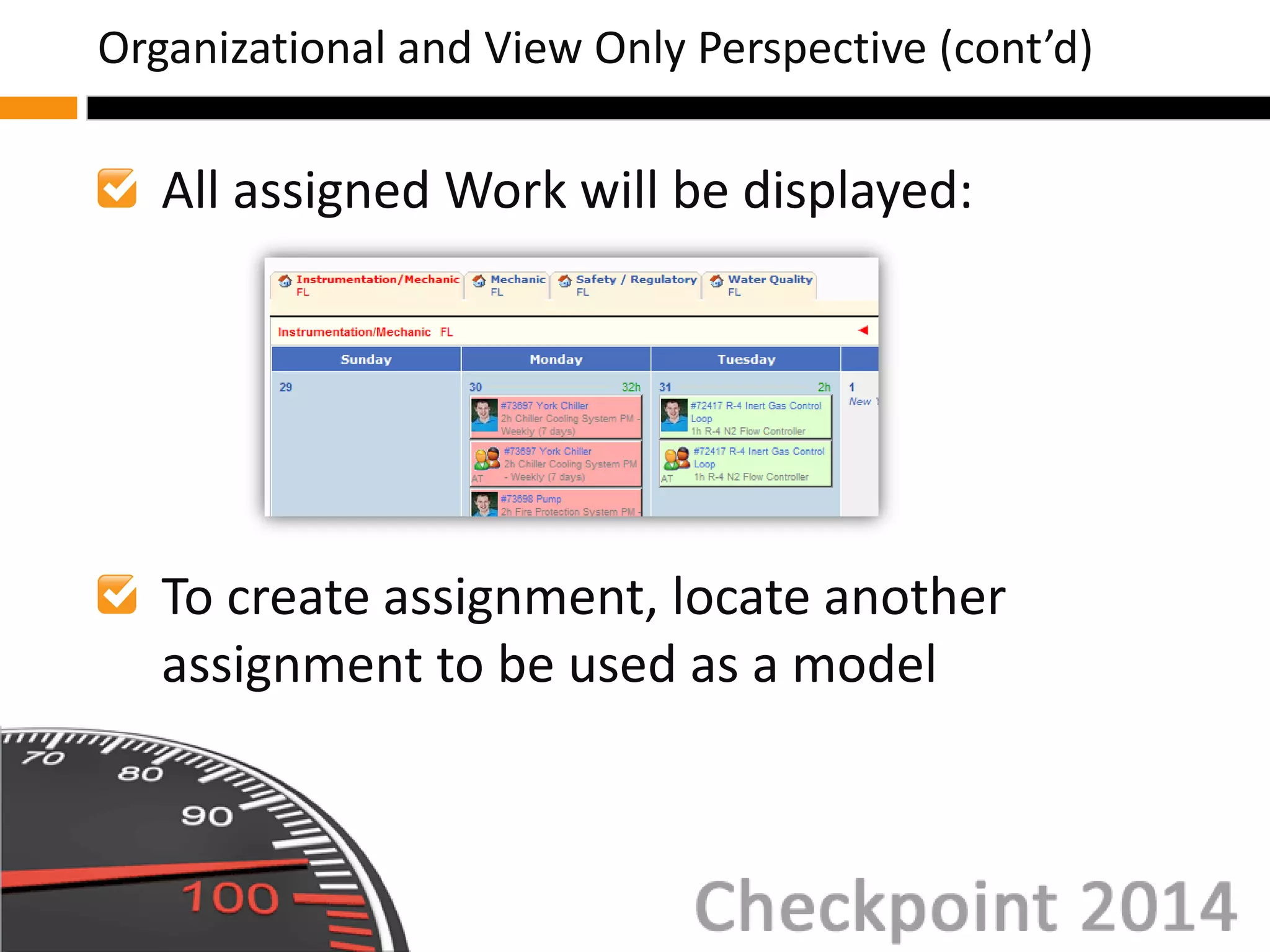
All assigned Work will be displayed:
To create assignment, locate another
assignment to be used as a model
Organizational and View Only Perspective (cont’d)
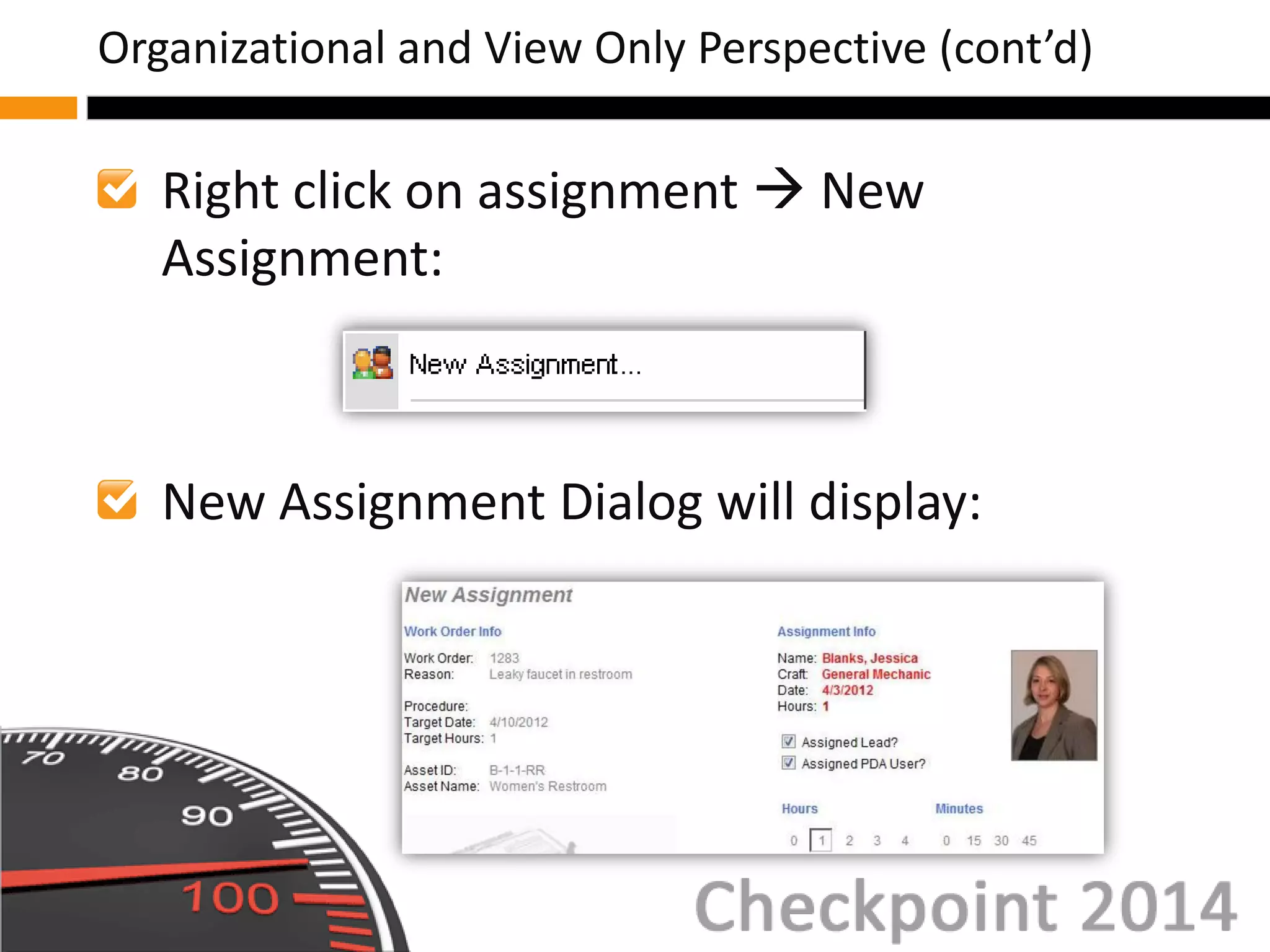
Right click on assignment  New
Assignment:
New Assignment Dialog will display:
Organizational and View Only Perspective (cont’d)
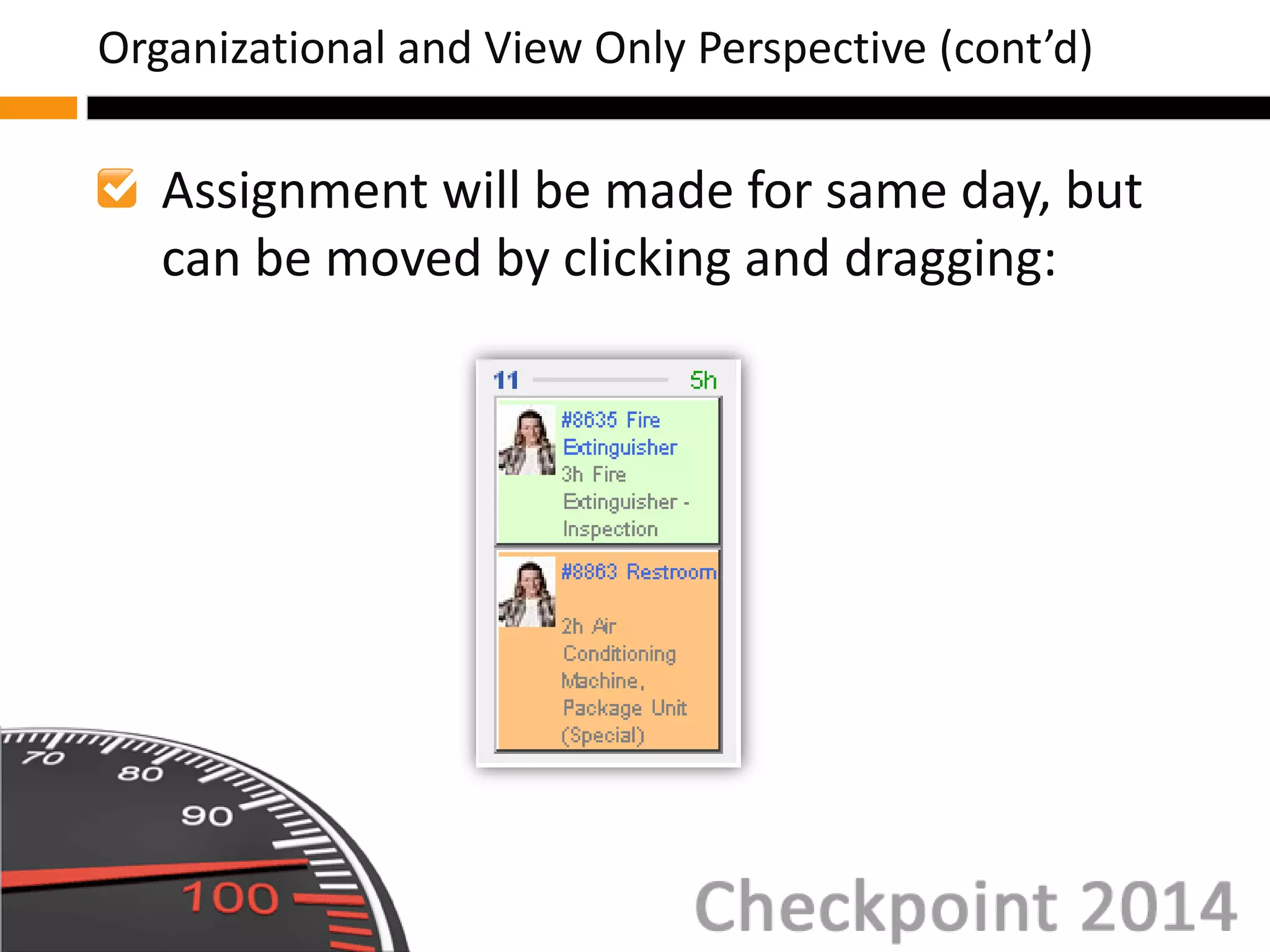
Assignment will be made for same day, but
can be moved by clicking and dragging:
Organizational and View Only Perspective (cont’d)
Now let’s practice creating a test Work
Order, and creating a new assignment!
Assigning a Work Order: Hands-On
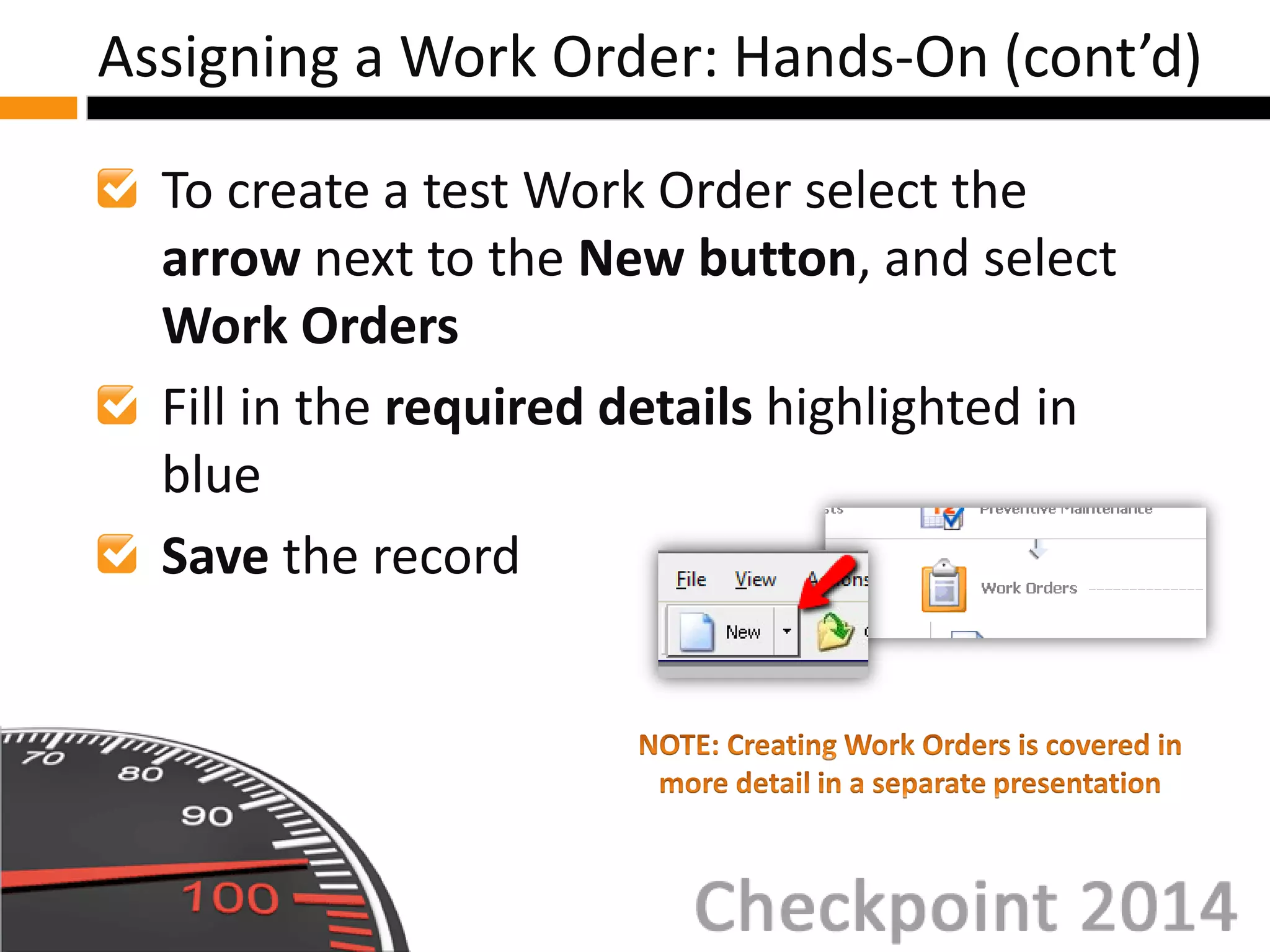
To create a test Work Order select the
arrow next to the New button, and select
Work Orders
Fill in the required details highlighted in
blue
Save the record
Assigning a Work Order: Hands-On (cont’d)
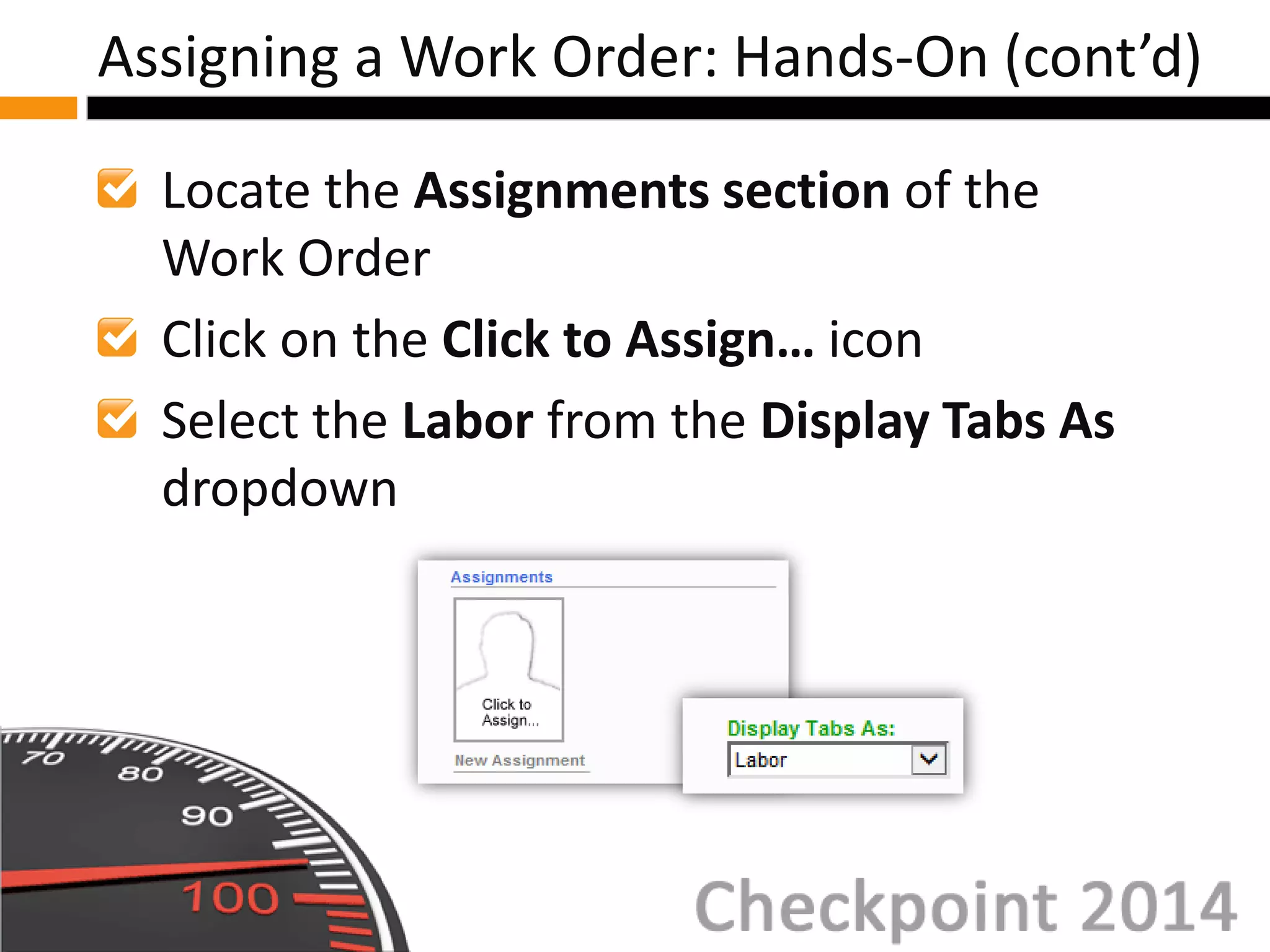
Locate the Assignments section of the
Work Order
Click on the Click to Assign… icon
Select the Labor from the Display Tabs As
dropdown
Assigning a Work Order: Hands-On (cont’d)
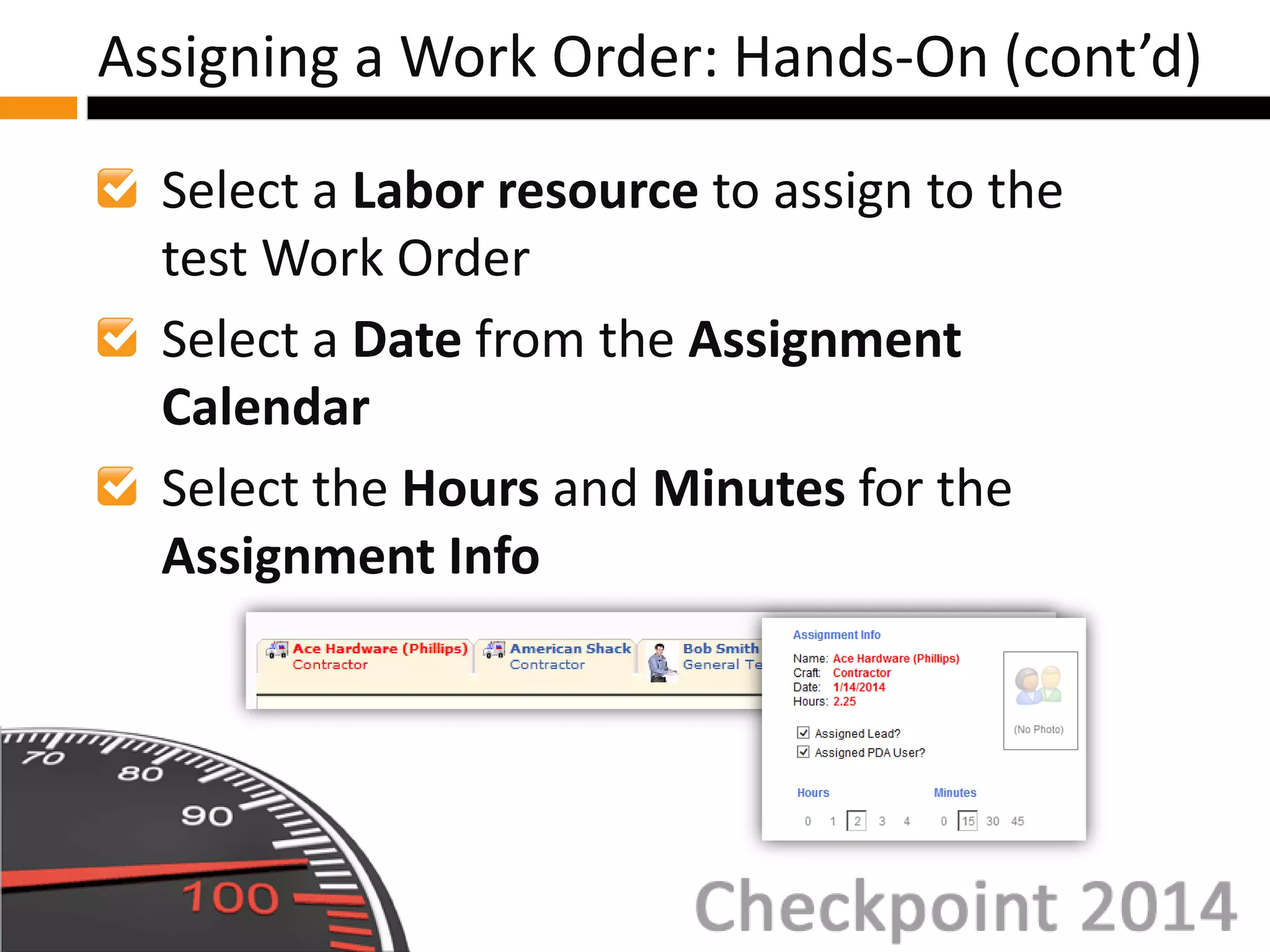
Select a Labor resource to assign to the
test Work Order
Select a Date from the Assignment
Calendar
Select the Hours and Minutes for the
Assignment Info
Assigning a Work Order: Hands-On (cont’d)
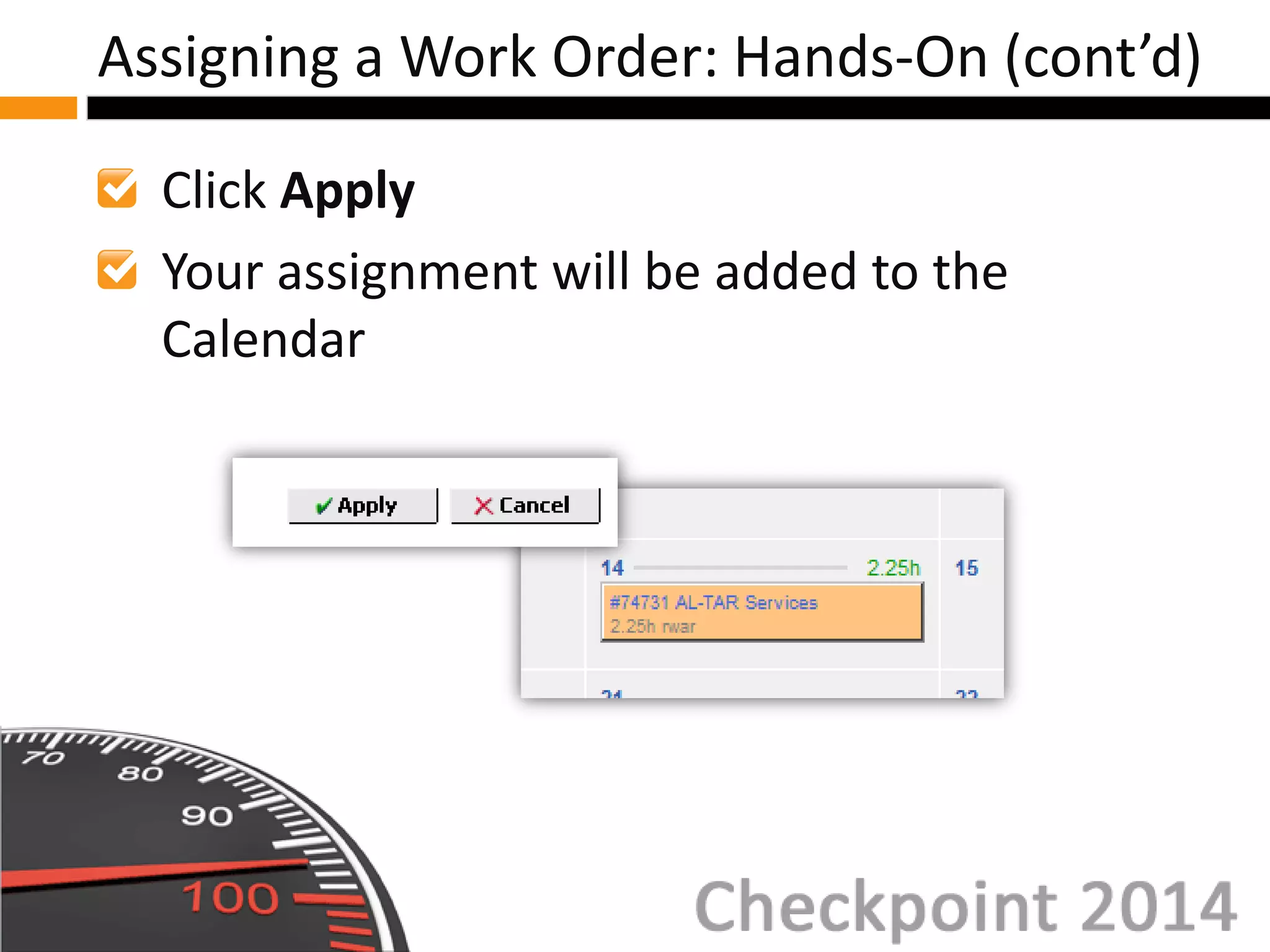
Click Apply
Your assignment will be added to the
Calendar
Assigning a Work Order: Hands-On (cont’d)
You have now successfully completed
creating a test Work Order and creating an
assignment!
Assigning a Work Order: Hands-On (cont’d)
Editing Assignments Info
Editing Assignment Date
Editing Assignments
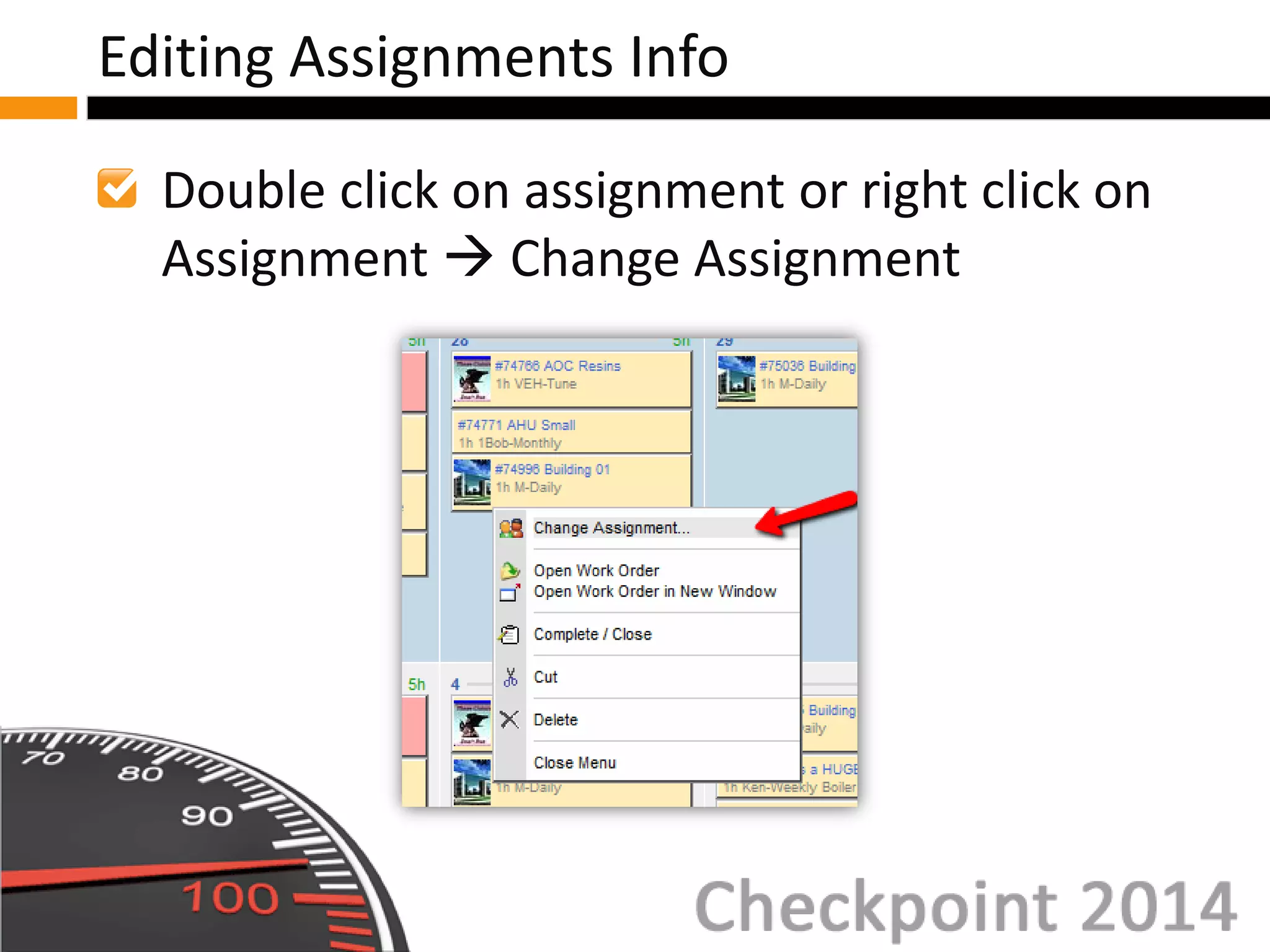
Double click on assignment or right click on
Assignment  Change Assignment
Editing Assignments Info
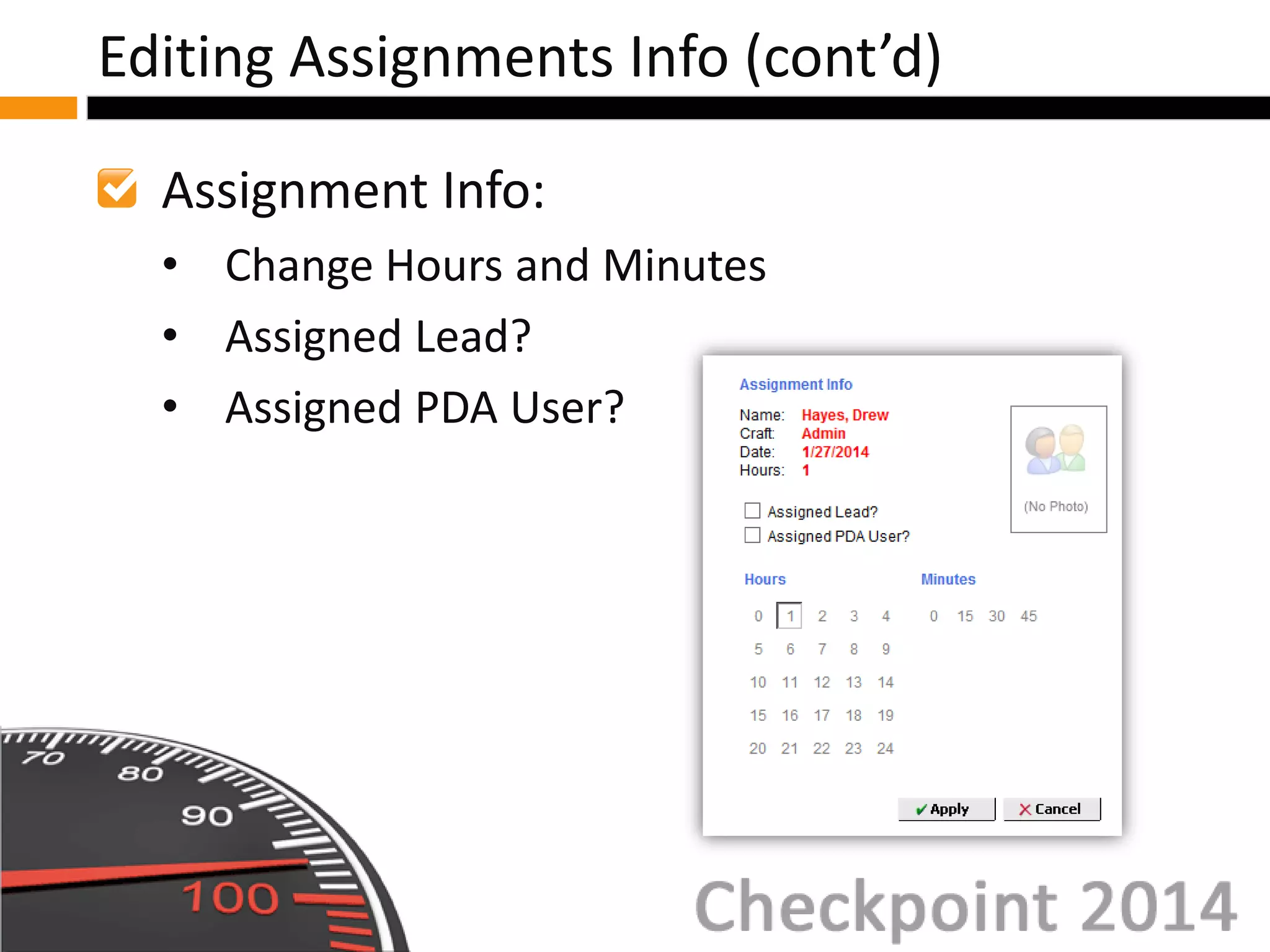
Assignment Info:
• Change Hours and Minutes
• Assigned Lead?
• Assigned PDA User?
Editing Assignments Info (cont’d)
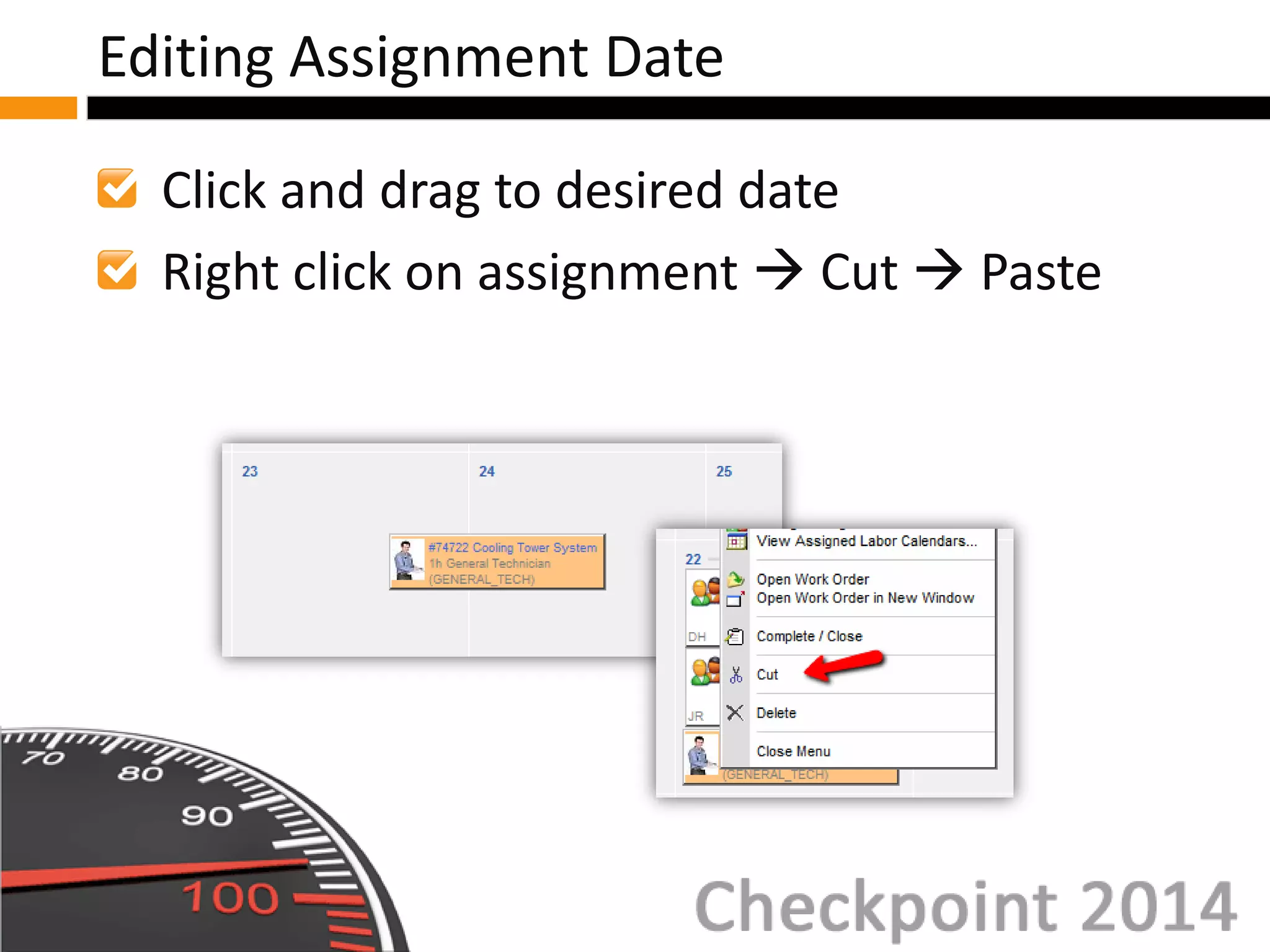
Click and drag to desired date
Right click on assignment  Cut  Paste
Editing Assignment Date
Automatic Assignments Overview
Rules Manager: Assignment Rules
Assign Labor from Asset
Assign Labor from Procedures
Automatic Assignments
Automatically assigning Work Orders:
• Decreases time spent assigning
• No assignment mistakes!
Options to auto-assign:
• Rules Manager
• Labor from Asset
• Labor from Procedure
Automatic Assignments Overview
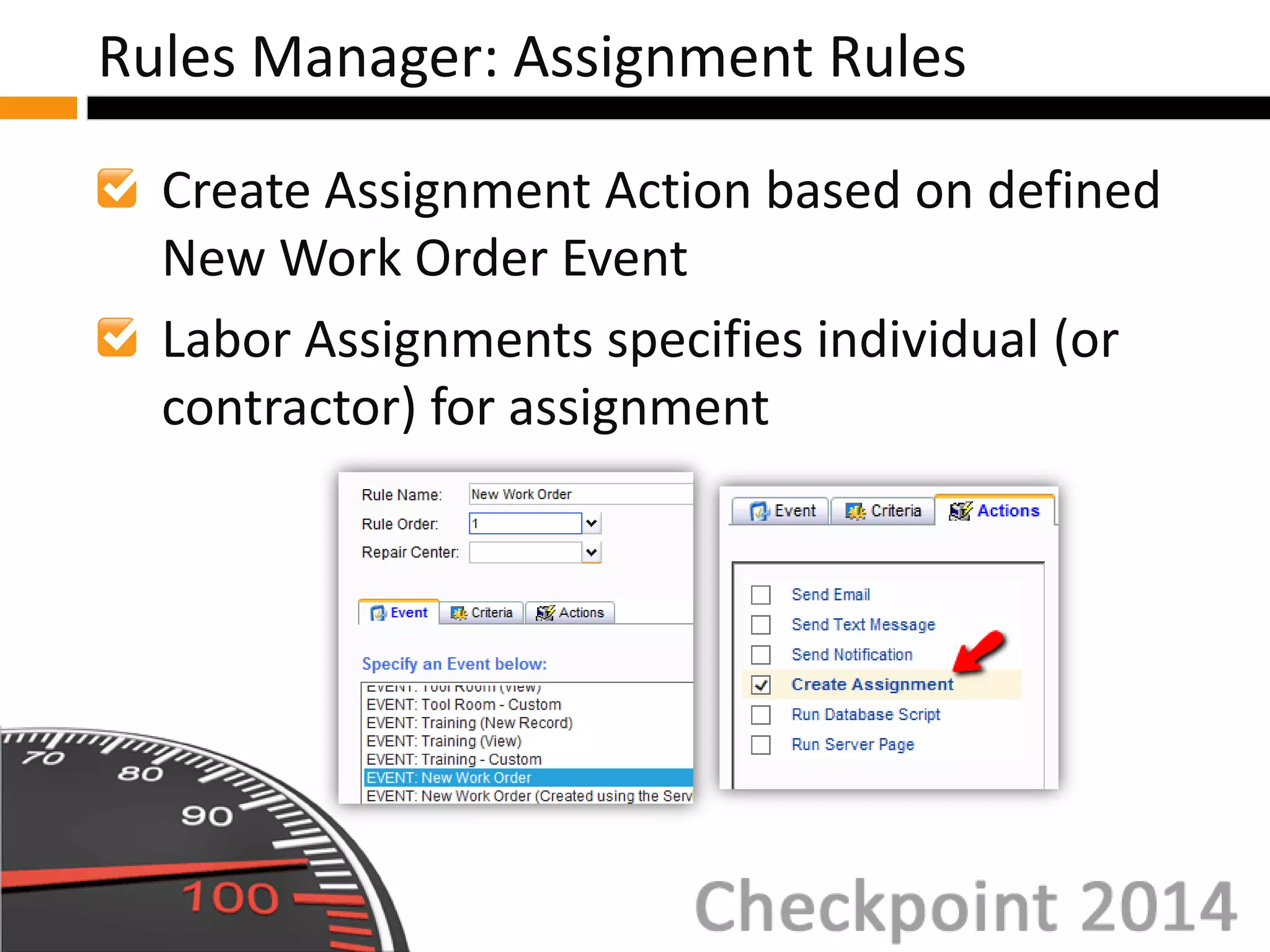
Create Assignment Action based on defined
New Work Order Event
Labor Assignments specifies individual (or
contractor) for assignment
Rules Manager: Assignment Rules
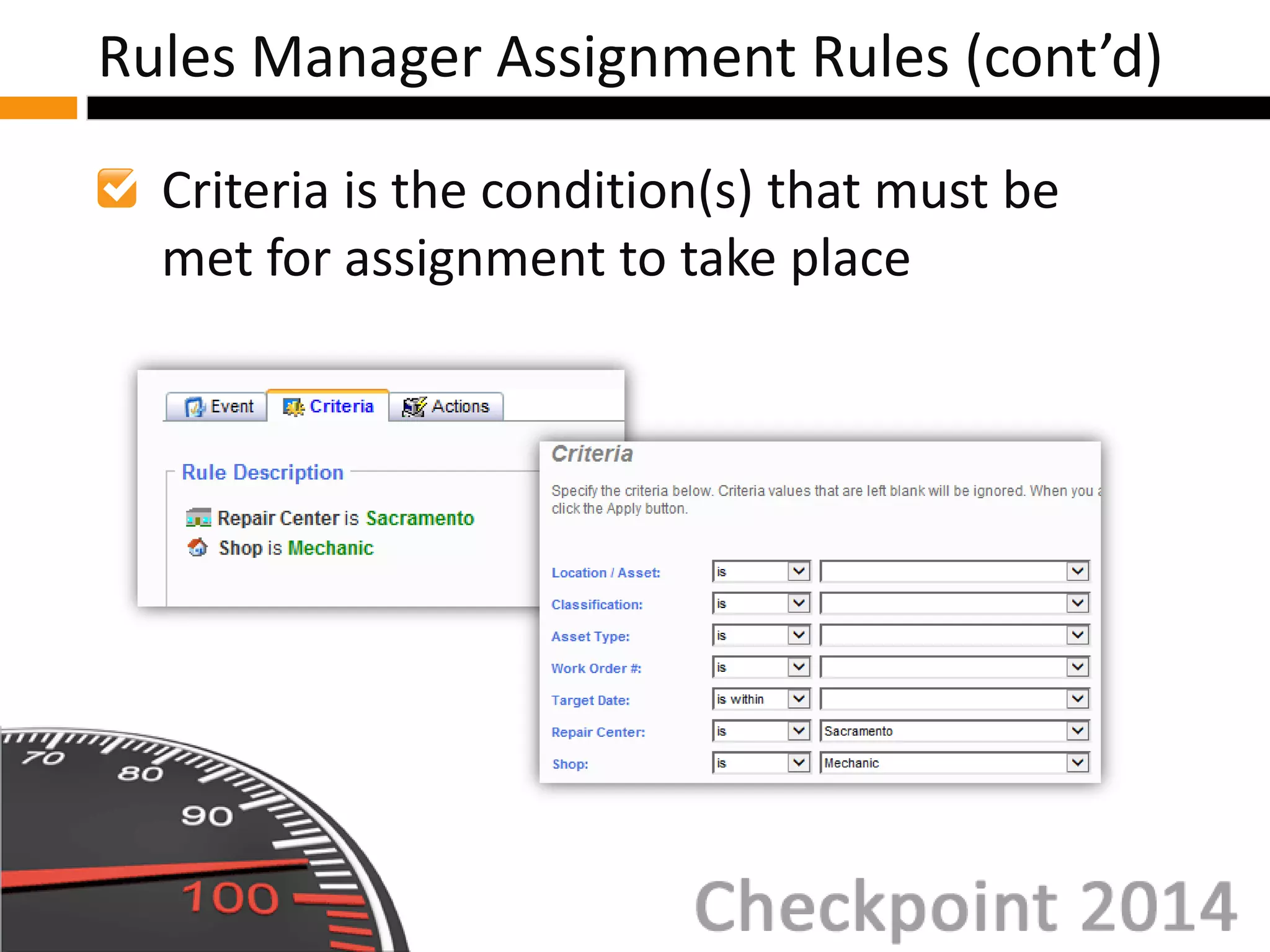
Criteria is the condition(s) that must be
met for assignment to take place
Rules Manager Assignment Rules (cont’d)
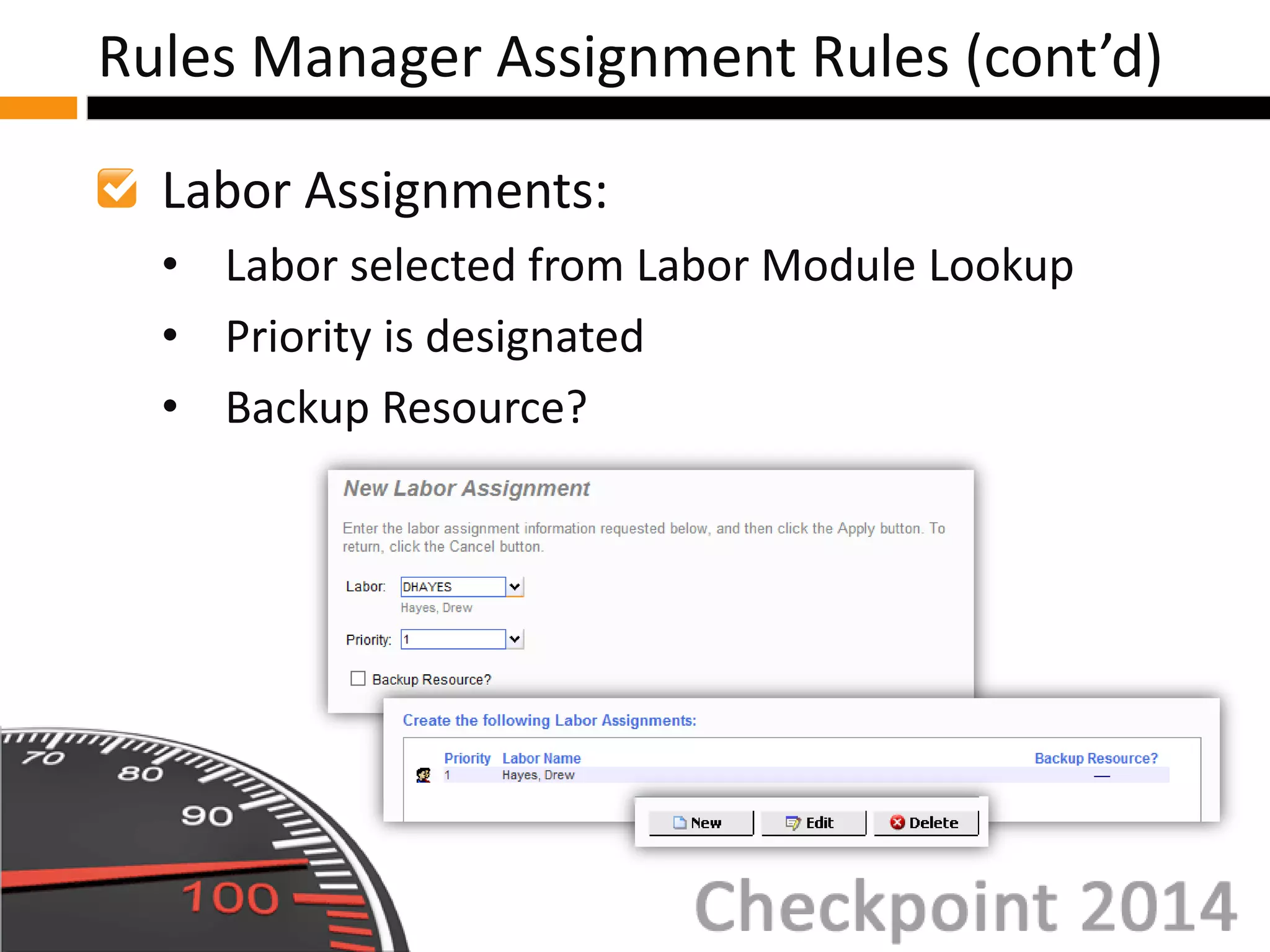
Labor Assignments:
• Labor selected from Labor Module Lookup
• Priority is designated
• Backup Resource?
Rules Manager Assignment Rules (cont’d)
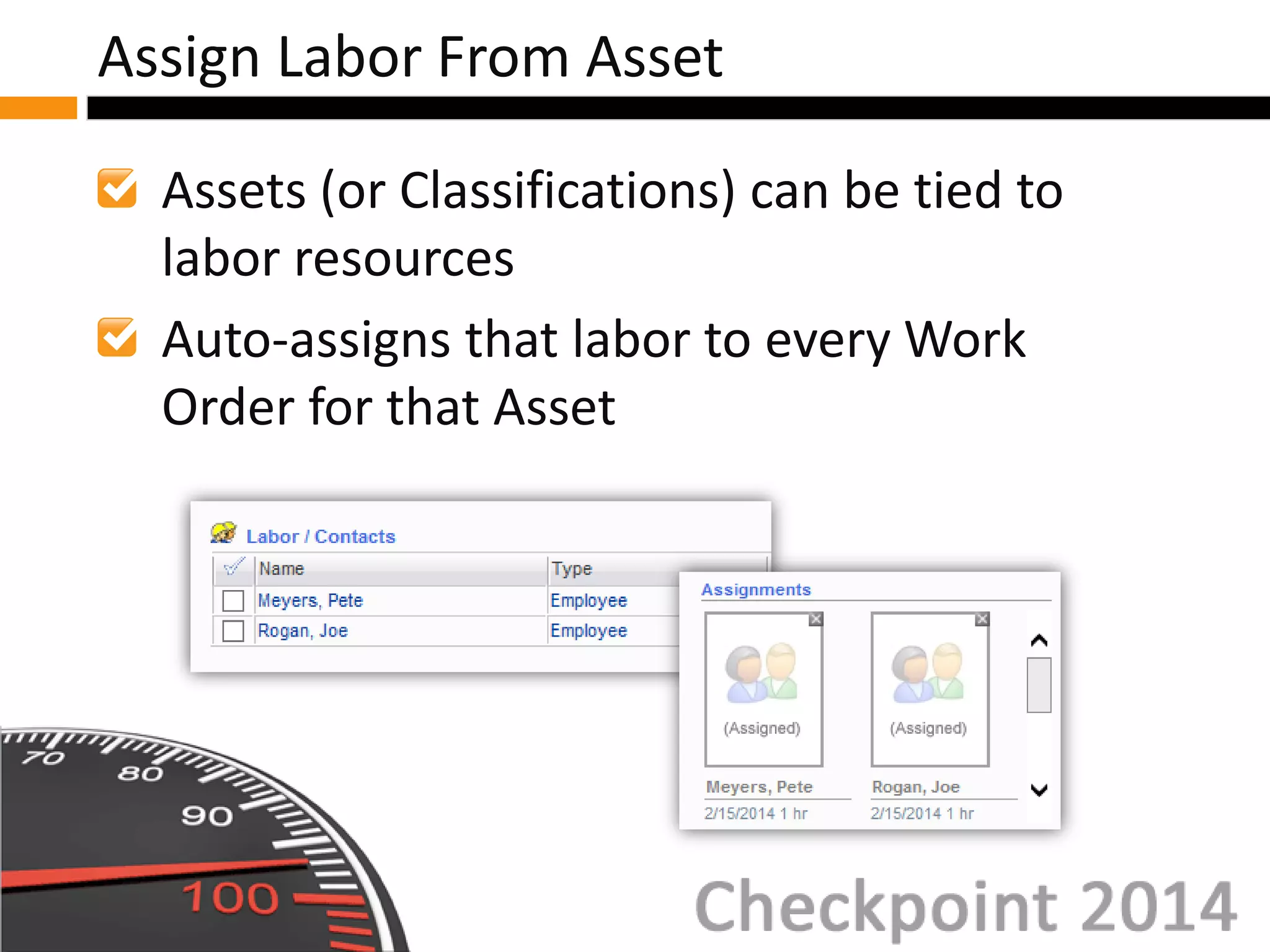
Assets (or Classifications) can be tied to
labor resources
Auto-assigns that labor to every Work
Order for that Asset
Assign Labor From Asset
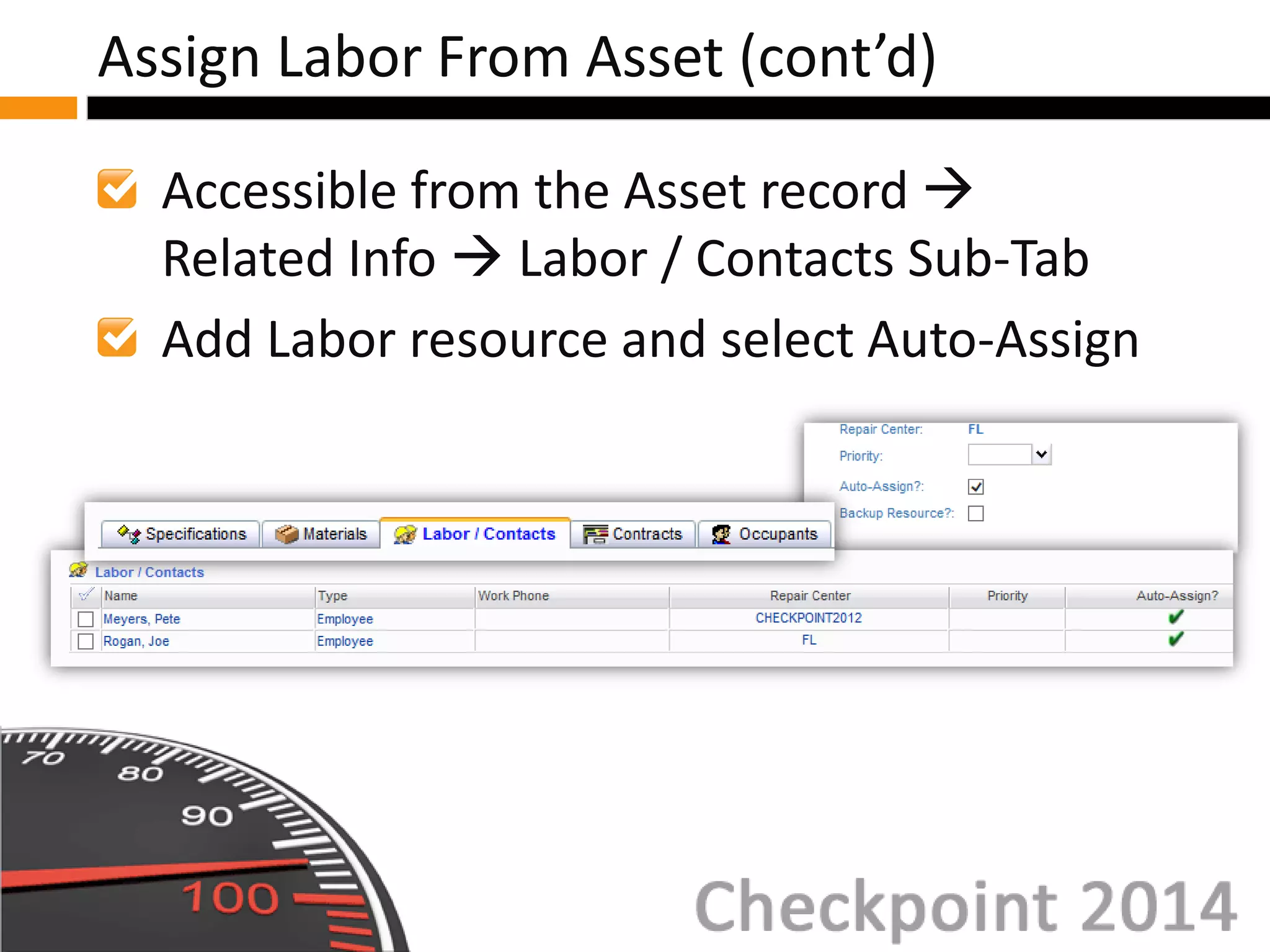
Accessible from the Asset record 
Related Info  Labor / Contacts Sub-Tab
Add Labor resource and select Auto-Assign
Assign Labor From Asset (cont’d)
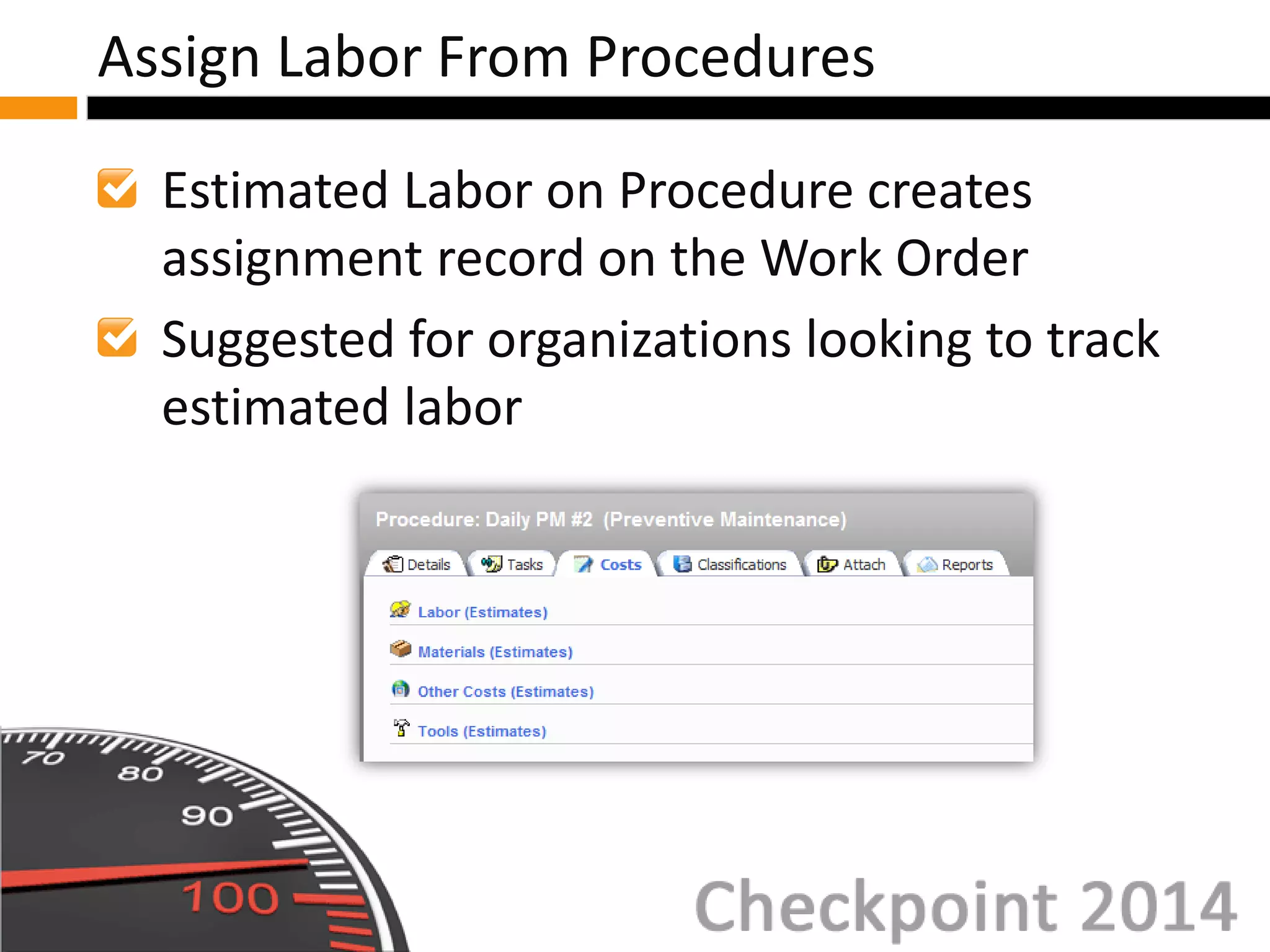
Estimated Labor on Procedure creates
assignment record on the Work Order
Suggested for organizations looking to track
estimated labor
Assign Labor From Procedures
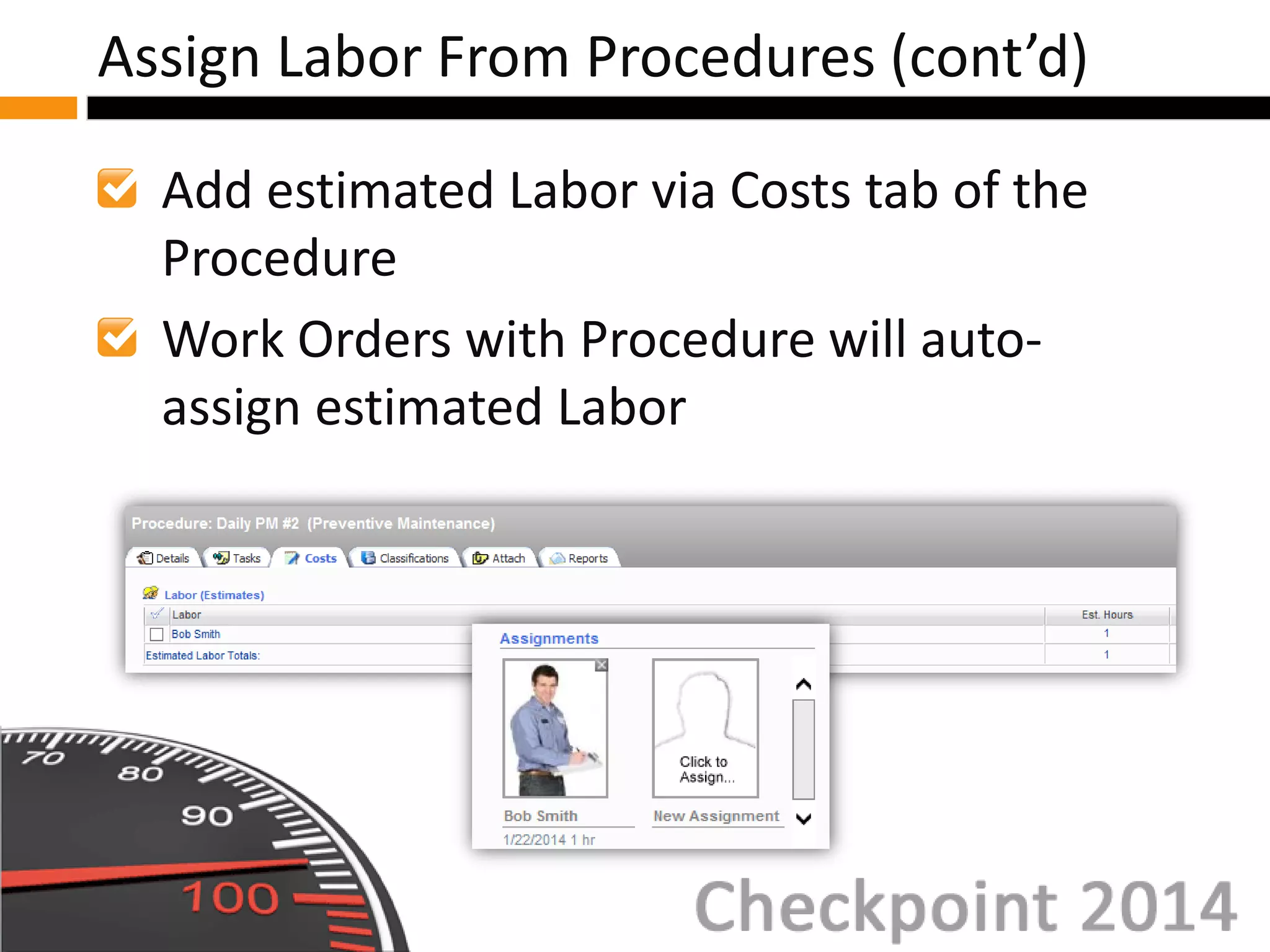
Add estimated Labor via Costs tab of the
Procedure
Work Orders with Procedure will auto-
assign estimated Labor
Assign Labor From Procedures (cont’d)
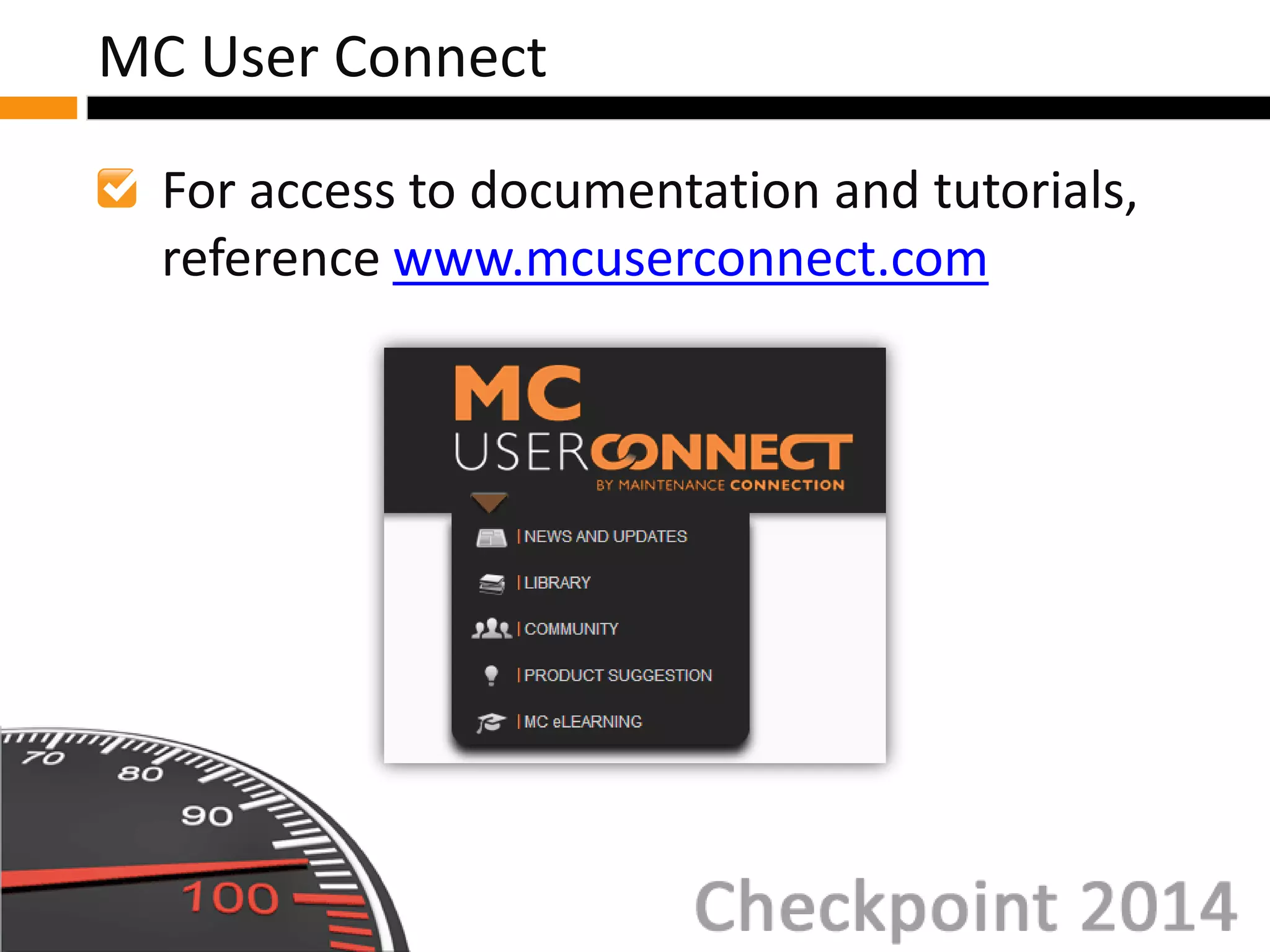
For access to documentation and tutorials,
reference www.mcuserconnect.com
MC User Connect
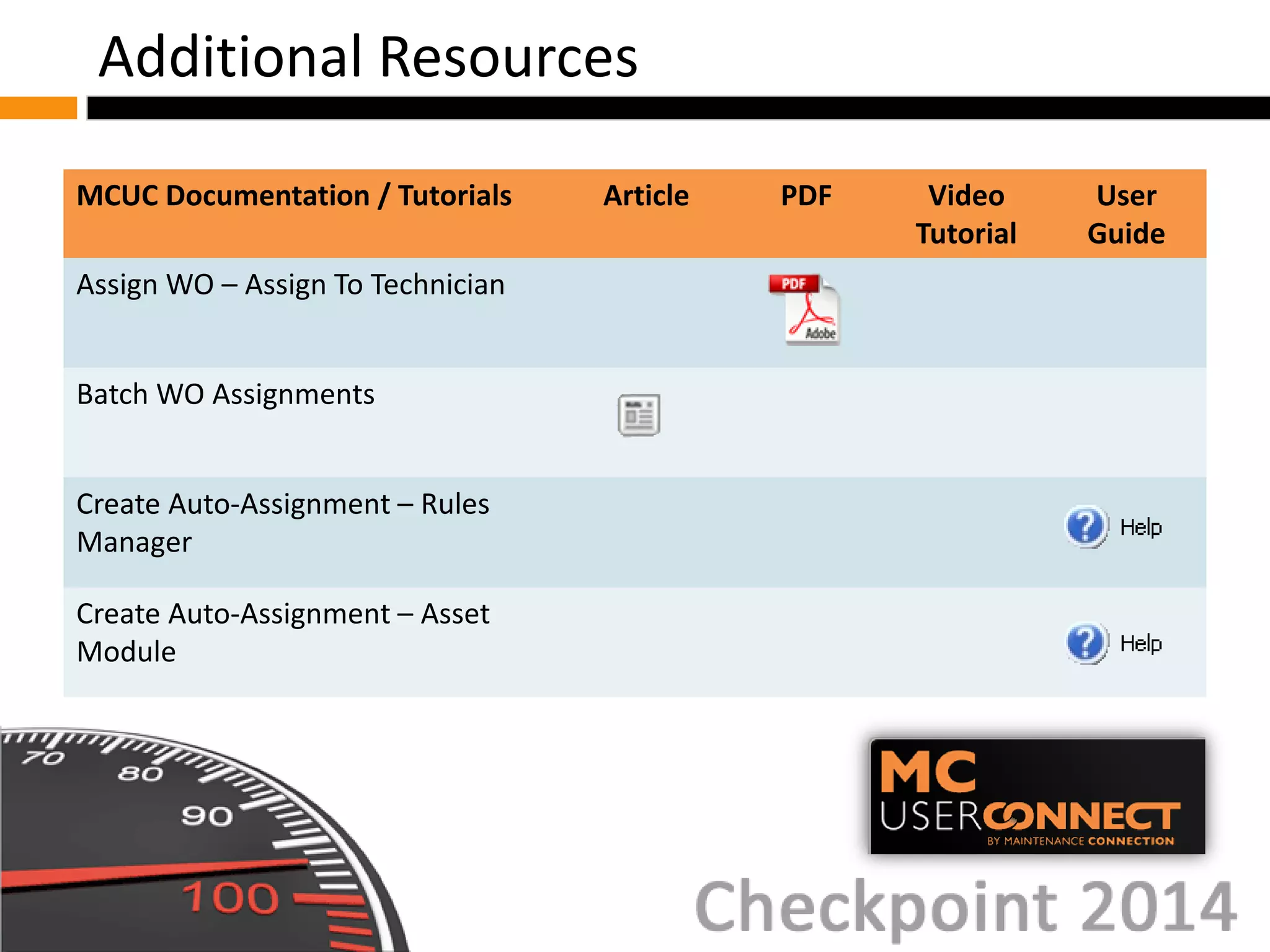
MCUC Documentation / Tutorials Article PDF Video
Tutorial
User
Guide
Assign WO – Assign To Technician
Batch WO Assignments
Create Auto-Assignment – Rules
Manager
Create Auto-Assignment – Asset
Module
Additional Resources

W04 - Creating Work Order Assignments

  • 1.
    Creating Work Order Assignments(W04) Work Management Track
  • 2.
    1. Open InternetExplorer 2. Type into the address bar: www.maintenanceconnection.com 3. Click Log In button 4. Enter the following: Member ID: W_CHECKPOINT Password: Checkpoint2014 Note: During the seminar, please do not “Save” while following along with a specific example unless directed to do so by your course instructor. Wireless SSID: CHECKPOINT Wireless Password: CHECKPOINT Logon Instructions
  • 3.
    Presenter Name: DavidSmith Background information: • Role and expertise at Maintenance Connection • Fun Fact Presenter Bio
  • 4.
    Viewing and ManagingAssignments Assigning Work Orders Editing Assignments Automatic Assignment Agenda
  • 5.
    Viewing and ManagingAssignments Overview View Assignment Mode Assignment List Tab View Assignment Calendar Tab View Assignment Calendar Controls Viewing and Managing Assignments
  • 6.
    Extensive features availableto assign Work Orders and manage workloads Assignments can be for Labor (employees) or Labor resources (contractors) Intuitive Calendar used Viewing and Managing Assignments Overview
  • 7.
    Can be viewedon Work Order details page Right mouse click for interactive options Viewing and Managing Assignments Overview (cont’d)
  • 8.
    Work Order AssignTab provides options to assign and view Two Modes: • View Assignment Mode (default View) • New Assignment Mode Viewing and Managing Assignments Overview (cont’d)
  • 9.
    Default view whenfirst accessing Assign tab Two Sub-Tabs: • Assignment List Tab View • Assignment Calendar Tab View View Assignments Mode
  • 10.
    Displays Assignments associatedwith Work Order Both Estimated and Assigned Hours displayed and shown in date order Assignment List Tab View
  • 11.
    Labor Estimate andCompleted Labor: • Grey text • Estimated = craft, skill, and estimated hours • Completed = craft or labor name, work date, and work hours Assignment List Tab View (cont’d)
  • 12.
    Assigned Labor: • Bluetext • Craft, labor resource, date, and hours displayed Assignment List Tab View (cont’d)
  • 13.
    Calendar view ofassignments for Work Order Current month (or last month accessed) Assignment displayed on appropriate date Assignment Calendar Tab View
  • 14.
    Assignment displayed oncalendar: • Picture of assignee (if available) • Work Order number • Asset Name (blue lettering) • Assignment hours • Craft and skill Assignment Calendar Tab View (cont’d)
  • 15.
    Background color ofassignment signifies priority Varies in appearance based on display perspective Red outline around target date of displayed WO Assignment Calendar Tab View (cont’d)
  • 16.
    Additional Work Orderinformation by hovering mouse: • Target completion date and hours • Reason • Procedure • Asset ID and Name Assignment Calendar Tab View (cont’d)
  • 17.
    Total assigned hoursdisplayed in green Multiple assignments show accumulated total Scheduled work hours will appear if Labor resource has schedule set Assignment Calendar Tab View (cont’d)
  • 18.
    Options and controlsto view and assign currently displayed Work Order Navigation controls provided Assignment Calendar Controls
  • 19.
    Display Tabs Asdetermines perspective and view of Calendar Labor Resources with associated Work Order attributes Remaining options for organizational views (considered view only) Assignment Calendar Controls (cont’d)
  • 20.
    Different tabs aredisplayed depending on Display Tabs As control Additional filters and Search Control will also change (logical choices) Assignment Calendar Controls (cont’d)
  • 21.
    Work Order Details LaborResource Perspective Organizational and View Only Perspective Assigning Work Orders
  • 22.
    Icon allows userto create new and additional assignment Will display Work Order Assign Tab (New Assignment Mode) Work Order Details
  • 23.
    Select labor perspectivefrom choices available Different filters and search controls used to find labor resource Labor Resource Perspective
  • 24.
    Click on theTab corresponding to desired assignee: Choose the date on which the assignment should be made: Labor Resource Perspective (cont’d)
  • 25.
    New Assignment Dialogwill display: Assignment will display on calendar: Labor Resource Perspective (cont’d)
  • 26.
    Calendar displays inView Only mode when certain display options are chosen Evaluate work load by Location, Department, Zone, etc. Multiple technician assignments shown together Organizational and View Only Perspective
  • 27.
    Select “view only”organizational perspective: Select tab to view all assignments: Organizational and View Only Perspective (cont’d)
  • 28.
    All assigned Workwill be displayed: To create assignment, locate another assignment to be used as a model Organizational and View Only Perspective (cont’d)
  • 29.
    Right click onassignment  New Assignment: New Assignment Dialog will display: Organizational and View Only Perspective (cont’d)
  • 30.
    Assignment will bemade for same day, but can be moved by clicking and dragging: Organizational and View Only Perspective (cont’d)
  • 31.
    Now let’s practicecreating a test Work Order, and creating a new assignment! Assigning a Work Order: Hands-On
  • 32.
    To create atest Work Order select the arrow next to the New button, and select Work Orders Fill in the required details highlighted in blue Save the record Assigning a Work Order: Hands-On (cont’d)
  • 33.
    Locate the Assignmentssection of the Work Order Click on the Click to Assign… icon Select the Labor from the Display Tabs As dropdown Assigning a Work Order: Hands-On (cont’d)
  • 34.
    Select a Laborresource to assign to the test Work Order Select a Date from the Assignment Calendar Select the Hours and Minutes for the Assignment Info Assigning a Work Order: Hands-On (cont’d)
  • 35.
    Click Apply Your assignmentwill be added to the Calendar Assigning a Work Order: Hands-On (cont’d)
  • 36.
    You have nowsuccessfully completed creating a test Work Order and creating an assignment! Assigning a Work Order: Hands-On (cont’d)
  • 37.
    Editing Assignments Info EditingAssignment Date Editing Assignments
  • 38.
    Double click onassignment or right click on Assignment  Change Assignment Editing Assignments Info
  • 39.
    Assignment Info: • ChangeHours and Minutes • Assigned Lead? • Assigned PDA User? Editing Assignments Info (cont’d)
  • 40.
    Click and dragto desired date Right click on assignment  Cut  Paste Editing Assignment Date
  • 41.
    Automatic Assignments Overview RulesManager: Assignment Rules Assign Labor from Asset Assign Labor from Procedures Automatic Assignments
  • 42.
    Automatically assigning WorkOrders: • Decreases time spent assigning • No assignment mistakes! Options to auto-assign: • Rules Manager • Labor from Asset • Labor from Procedure Automatic Assignments Overview
  • 43.
    Create Assignment Actionbased on defined New Work Order Event Labor Assignments specifies individual (or contractor) for assignment Rules Manager: Assignment Rules
  • 44.
    Criteria is thecondition(s) that must be met for assignment to take place Rules Manager Assignment Rules (cont’d)
  • 45.
    Labor Assignments: • Laborselected from Labor Module Lookup • Priority is designated • Backup Resource? Rules Manager Assignment Rules (cont’d)
  • 46.
    Assets (or Classifications)can be tied to labor resources Auto-assigns that labor to every Work Order for that Asset Assign Labor From Asset
  • 47.
    Accessible from theAsset record  Related Info  Labor / Contacts Sub-Tab Add Labor resource and select Auto-Assign Assign Labor From Asset (cont’d)
  • 48.
    Estimated Labor onProcedure creates assignment record on the Work Order Suggested for organizations looking to track estimated labor Assign Labor From Procedures
  • 49.
    Add estimated Laborvia Costs tab of the Procedure Work Orders with Procedure will auto- assign estimated Labor Assign Labor From Procedures (cont’d)
  • 50.
    For access todocumentation and tutorials, reference www.mcuserconnect.com MC User Connect
  • 51.
    MCUC Documentation /Tutorials Article PDF Video Tutorial User Guide Assign WO – Assign To Technician Batch WO Assignments Create Auto-Assignment – Rules Manager Create Auto-Assignment – Asset Module Additional Resources