Evolved BI
                with SQL Server 2012
                  (formerly known as “Denali”)
Andrew J. Brust, Founder/CEO         Fairfield / Westchester
Blue Badge Insights                  SQL Server User Group
Who Am I?
•   Founder, CEO, Blue Badge Insights
•   Microsoft Regional Director, MVP
•   Organizing team, Code Camp NYC
•   Co-chair Visual Studio Live!
    Co-moderator, NYC .NET Developers Group
    – http://www.nycdotnetdev.com
• Founder, MS BI User Group NYC
    – http://www.msbinyc.com


• brustblog.com, Twitter: @andrewbrust
• Redmond Roundup Plus dispatch? Just text the word
  “bluebadge” to 22828
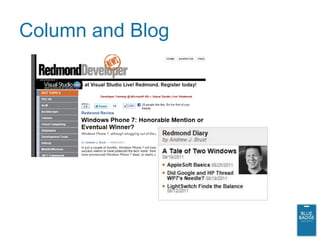
Column and Blog
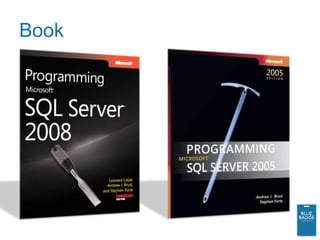
Book
Agenda
•   SQL Server BI – High Level
•   PowerPivot and Excel Services
•   Analysis Services Tabular Mode
•   PowerView (formerly “Crescent”)
•   Overview: Master Data Services
    and Data Quality Services
SQL SERVER BI OVERVIEW
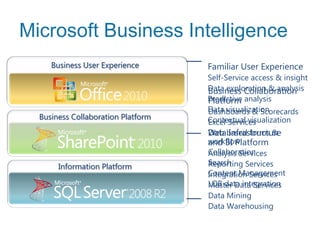
Microsoft Business Intelligence
     Business User Experience       Familiar User Experience
                                    Self-Service access & insight
                                    Data exploration & analysis
                                    Business Collaboration
                                    Predictive analysis
                                    Platform
                                    Data visualization
                                    Dashboards & Scorecards
  Business Collaboration Platform   Contextual visualization
                                    Excel Services
                                    Databased forms &
                                    Web Infrastructure
                                    workflow
                                    and BI Platform
                                    Collaboration
                                    Analysis Services
                                    Search
                                    Reporting Services
       Information Platform
                                    Content Management
                                    Integration Services
                                    LOB data integration
                                    Master Data Services
                                    Data Mining
                                    Data Warehousing
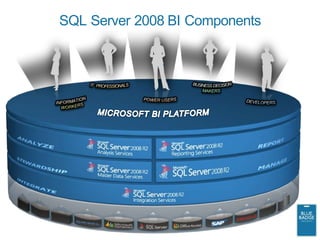
SQL Server 2008 BI Components
But Wait, There’s More!
• R2: PowerPivot
• R2: Report Parts in SSRS
• 2012: Analysis Services Tabular mode
   – And corresponding improvements in PowerPivot
• 2012: PowerView
• 2012: Data Quality Services
POWERPIVOT AND EXCEL
SERVICES
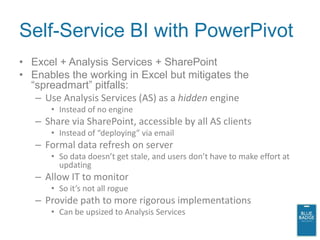
Self-Service BI with PowerPivot
• Excel + Analysis Services + SharePoint
• Enables the working in Excel but mitigates the
  “spreadmart” pitfalls:
   – Use Analysis Services (AS) as a hidden engine
      • Instead of no engine
   – Share via SharePoint, accessible by all AS clients
      • Instead of “deploying” via email
   – Formal data refresh on server
      • So data doesn’t get stale, and users don’t have to make effort at
        updating
   – Allow IT to monitor
      • So it’s not all rogue
   – Provide path to more rigorous implementations
      • Can be upsized to Analysis Services
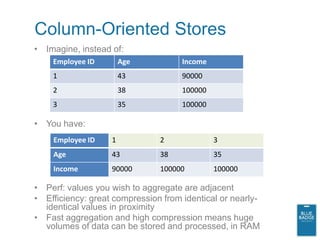
Column-Oriented Stores
• Imagine, instead of:
    Employee ID        Age           Income
    1                  43            90000
    2                  38            100000
    3                  35            100000

• You have:
    Employee ID    1           2              3
    Age            43          38             35
    Income         90000       100000         100000

• Perf: values you wish to aggregate are adjacent
• Efficiency: great compression from identical or nearly-
  identical values in proximity
• Fast aggregation and high compression means huge
  volumes of data can be stored and processed, in RAM
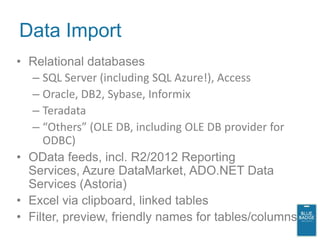
Data Import
• Relational databases
   – SQL Server (including SQL Azure!), Access
   – Oracle, DB2, Sybase, Informix
   – Teradata
   – “Others” (OLE DB, including OLE DB provider for
     ODBC)
• OData feeds, incl. R2/2012 Reporting
  Services, Azure DataMarket, ADO.NET Data
  Services (Astoria)
• Excel via clipboard, linked tables
• Filter, preview, friendly names for tables/columns
Calculated Columns and DAX
• Formula-based columns may be created
• Formula syntax is called DAX (Data Analysis
  eXpressions).
   – Not to be confused with MDX or DMX. Or DACs.
• DAX expressions are similar to Excel formulas
   – Work with tables and columns; similar to, but distinct
     from, worksheets and their columns (and rows)
• =FUNC('table name'[column name])
• =FUNCX('table name', <filter expression>)
• FILTER(Resellers,[ProductLine] = "Mountain")
• RELATED(Products[EnglishProductName])
• DAX expressions can be heavily nested
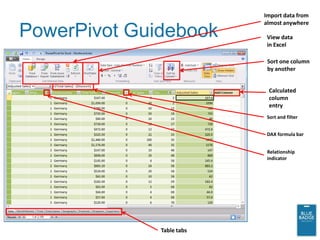
Import data from
                           almost anywhere
PowerPivot Guidebook        View data
                            in Excel

                            Sort one column
                            by another


                            Calculated
                            column
                            entry
                            Sort and filter


                            DAX formula bar


                            Relationship
                            indicator


              Table tabs
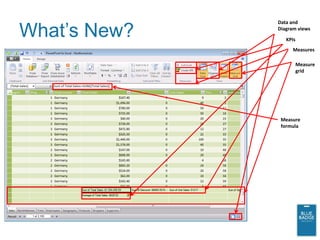
What’s New?
              Data and
              Diagram views

                 KPIs
                    Measures

                        Measure
                        grid


               Measure
               formula
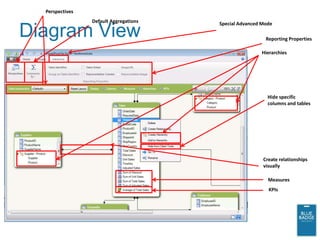
Perspectives
                 Default Aggregations   Special Advanced Mode

Diagram View                                              Reporting Properties

                                                        Hierarchies


                                                           Hide specific
                                                           columns and tables


                                                         Create relationships
                                                         visually

                                                           Measures
                                                           KPIs
PowerPivot Client
Excel Services
• A component of SharePoint Server 2007/2010;
  requires Enterprise CAL
• Allows export of workbook, worksheet, or individual
  items to SharePoint report library
   – Works great for PivotTables and Charts!
   – Also for sheets with CUBExxx formulas or conditional
     formatting-driven “scorecards”
• Content can be viewed in browser
   – Excel client not required
   – Drilldown interactivity maintained
   – Rendered in pure AJAX/HTML
   – Parameterization supported
PowerPivot Server
•   Publish to Excel Services
•   Viewing and interacting
•   Data Refresh
•   Treating as SSAS cube
     – URL to .xlsx as server name
         •Db name is GUID-based; best to discover it
    – Use Excel, Reporting Services as clients
       • And now PowerView too…more later
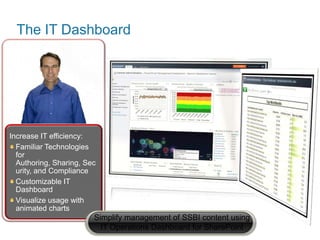
The IT Dashboard


Increase IT efficiency:
  Familiar Technologies
  for
  Authoring, Sharing, Sec
  urity, and Compliance
  Customizable IT
  Dashboard
  Visualize usage with
  animated charts
                        Simplify management of SSBI content using
                          IT Operations Dashboard for SharePoint
PowerPivot Server
ANALYSIS SERVICES
TABULAR MODE
Vocabulary
• MOLAP: Multidimensional OLAP
• UDM: Unified Dimensional Model
• Cube: Unit of schema in a dimensional database

• VertiPaq: PowerPivot/SSAS’ column store
  engine
• BISM: BI Semantic Model
• Tabular: A column store-based model
   – Because it uses tables, not cubes
Analysis Services Tabular Mode
• SSAS Tabular Mode is the enterprise/server
  implementation of PowerPivot
• You must have a dedicated tabular mode SSAS
  instance
• BI Developer Studio (BIDS) does PowerPivot
   – Implements equivalent tooling to PowerPivot Window
   – Can create an SSAS Tabular database project by
     importing an Excel workbook with PowerPivot model
• SSAS tabular models support partitions and roles
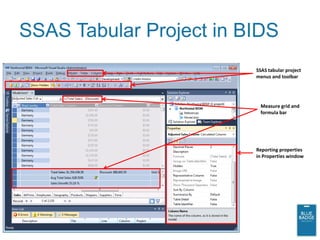
SSAS Tabular Project in BIDS
                         SSAS tabular project
                         menus and toolbar


                          Measure grid and
                          formula bar


                         Reporting properties
                         in Properties window
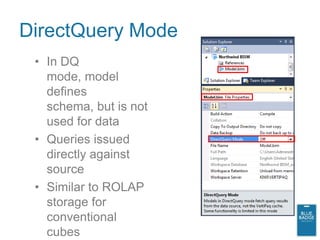
DirectQuery Mode
 • In DQ
   mode, model
   defines
   schema, but is not
   used for data
 • Queries issued
   directly against
   source
 • Similar to ROLAP
   storage for
   conventional
   cubes
SSAS Tabular Mode
POWERVIEW
What is PowerView?
•   Ad hoc reporting. Really!
•   Analysis, data Exploration
•   Data Visualization
•   In Silverlight, in the browser, in SharePoint
•   Feels a little like Excel BI
•   Is actually based on SSRS
     – PowerView makes a special RDL file
     – And wraps it in an RDLX
PowerView Data Sources
• PowerView works only against PowerPivot/SSAS
  Tabular models
   – DirectQuery mode supported, however
• For PowerPivot, click “Create Crescent Report”
  button or option on workbook in SharePoint report
  gallery
• For SSAS tabular model, create BISM data
  source, then click its “Create Crescent Report”
  button or option
   – BISM data sources can point to PowerPivot workbooks
     too, if you want.
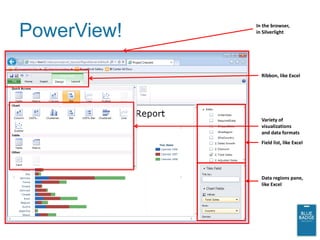
PowerView!   In the browser,
             in Silverlight


               Ribbon, like Excel


               Variety of
               visualizations
               and data formats
               Field list, like Excel


               Data regions pane,
               like Excel
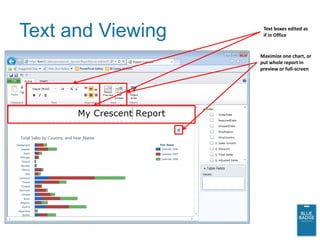
Text and Viewing    Text boxes edited as
                    if in Office


                   Maximize one chart, or
                   put whole report in
                   preview or full-screen
Constraining Your Data In
PowerView
• Tiles
   – A filtering mechanism within a visualization
• Highlighting
   – Selection in one visualization affects the others
• Slicers
   – Similar to Excel against PowerPivot
• True Filters
   – Checked drop-down list; very Excel-like
   – Right Hand Filter Pane, similar to SSRS and Excel
     Services
Scatter/Bubble Charts
• Allow for 3 measures by up to 4 dimensions
• One dimension is “playable” through a slider or
  animation
• Excellent way to visualize trends over time
Small Multipliers
• Multiple charts within a chart, in
  columns, rows, or a matrix
• Allows for visualizing an additional dimension
• Think of it like a clustered chart with each series
  shown individually
PowerView
Advanced Properties
• Setting the representative column and image
  tells PowerView how to summarize your
  data, and show stored images
• Other properties tell it about key attribute, default
  aggregation and more
• For SSAS tabular models, “Direct Query” mode
  tells PowerView to get data from relational data
  source instead of columnar cache
Apollo
• Implementation of VertiPaq columnar storage
  engine for SQL Server relational databases
• Use it by creating a column store index
   – CREATE COLUMNSTORE INDEX index ON
     table (col1, Col2, …)
• Can ignore it too:
   – OPTION (IGNORE_NONCLUSTERED_COLUMNSTORE_INDEX)
• Significantly increases performance of star join
  queries (i.e. aggregating queries with dimension
  lookups).
• Not as good as SSAS, but better than plain old
  GROUP BY
DATA ALERTS
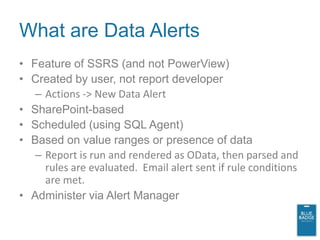
What are Data Alerts
• Feature of SSRS (and not PowerView)
• Created by user, not report developer
   – Actions -> New Data Alert
• SharePoint-based
• Scheduled (using SQL Agent)
• Based on value ranges or presence of data
   – Report is run and rendered as OData, then parsed and
     rules are evaluated. Email alert sent if rule conditions
     are met.
• Administer via Alert Manager
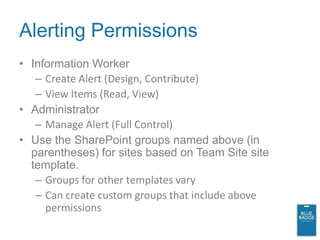
Alerting Permissions
• Information Worker
   – Create Alert (Design, Contribute)
   – View Items (Read, View)
• Administrator
   – Manage Alert (Full Control)
• Use the SharePoint groups named above (in
  parentheses) for sites based on Team Site site
  template.
   – Groups for other templates vary
   – Can create custom groups that include above
     permissions
Data Alerts
OVERVIEW:
MASTER DATA SERVICES
AND DATA QUALITY SERVICES
Microsoft’s Master Data
Management (MDM) tool
• Examples:
   – Sales states, countries, currencies, customer types
   – Customers, products
   – Think of “lookup tables” or just think of dimensions!
   – Slowly changing non-transactional entities in your data
• What gets stored:
   – Schemas
   – Any hierarchies
   – The data!
• Other features:
   – Collections, business rules, security, workflows
   – Versioning
Other Facts
• Result of acquisition of Stratature
• v1 was an ASP.NET application; UI is “different”
• New in v2:
   • Now Silverlight-based; UI is still “different”
   • Excel add-in for data entry; creation of entities and attributes
   • Perform matching with DQS before loading
• Includes .NET and Web Services APIs for reading/writing data
  and creating/editing models
• Does not integrate with Analysis Services tools even though
  many of its features and concepts mirror those of dimension
  designer
• Catalog kept in SQL Server database
• Deployment packages can be created, shared and deployed
Objects in MDS
• Models
  – Entities (like tables or SSAS dimensions)
         •Attributes (like columns/fields or SSAS attributes)
             –Common attributes are Name and Code
         •Attribute Groups
             –Used to taxonomize attributes within tabs in UI
         •Members (like rows/records or SSAS members)
         •Hierarchies (like SSAS hierarchies)
             –Derived or Explicit
         •Collections (like SSAS named sets)
   – Versions
   – Business rules
   – Workflows
Data Quality Services
• Data Cleansing Tool
• New to 2012
• Result of Zoomix Acquisition
• Uses Artificial Intelligence algorithms detect
  invalid data and perform matching (for de-
  duplication)
• Allows manual intervention, too
• Can integrate with MDS and SSIS
• Cleaner data = better adoption of your BI project
DQS Concepts
• Knowledge Bases
   – Domains
       • “semantic representation[s] of a type of data in a data
         field…[contain] a list of trusted values, invalid values, and
         erroneous data.”
   – Mapping
• Data Quality Projects
   – Cleansing (i.e. correcting)
       • Validate Using Reference Data Services and Use Azure DataMarket
         (or 3rd party providers)
   – Matching (i.e. de-duping)
   – Confidence
   – Profiling, Monitoring
Questions?

• Now?
• Later?
   – Andrew.Brust@BlueBadgeInsights.com
   – @andrewbrust on Twitter
   – www.brustblog.com

• Want to get the weekly Redmond Roundup Plus
  dispatch? Just text the word “bluebadge” to
  22828

Evolved BI with SQL Server 2012

  • 1.
    Evolved BI with SQL Server 2012 (formerly known as “Denali”) Andrew J. Brust, Founder/CEO Fairfield / Westchester Blue Badge Insights SQL Server User Group
  • 2.
    Who Am I? • Founder, CEO, Blue Badge Insights • Microsoft Regional Director, MVP • Organizing team, Code Camp NYC • Co-chair Visual Studio Live! Co-moderator, NYC .NET Developers Group – http://www.nycdotnetdev.com • Founder, MS BI User Group NYC – http://www.msbinyc.com • brustblog.com, Twitter: @andrewbrust • Redmond Roundup Plus dispatch? Just text the word “bluebadge” to 22828
  • 3.
  • 4.
  • 5.
    Agenda • SQL Server BI – High Level • PowerPivot and Excel Services • Analysis Services Tabular Mode • PowerView (formerly “Crescent”) • Overview: Master Data Services and Data Quality Services
  • 6.
    SQL SERVER BIOVERVIEW
  • 7.
    Microsoft Business Intelligence Business User Experience Familiar User Experience Self-Service access & insight Data exploration & analysis Business Collaboration Predictive analysis Platform Data visualization Dashboards & Scorecards Business Collaboration Platform Contextual visualization Excel Services Databased forms & Web Infrastructure workflow and BI Platform Collaboration Analysis Services Search Reporting Services Information Platform Content Management Integration Services LOB data integration Master Data Services Data Mining Data Warehousing
  • 8.
    SQL Server 2008BI Components
  • 9.
    But Wait, There’sMore! • R2: PowerPivot • R2: Report Parts in SSRS • 2012: Analysis Services Tabular mode – And corresponding improvements in PowerPivot • 2012: PowerView • 2012: Data Quality Services
  • 10.
  • 11.
    Self-Service BI withPowerPivot • Excel + Analysis Services + SharePoint • Enables the working in Excel but mitigates the “spreadmart” pitfalls: – Use Analysis Services (AS) as a hidden engine • Instead of no engine – Share via SharePoint, accessible by all AS clients • Instead of “deploying” via email – Formal data refresh on server • So data doesn’t get stale, and users don’t have to make effort at updating – Allow IT to monitor • So it’s not all rogue – Provide path to more rigorous implementations • Can be upsized to Analysis Services
  • 12.
    Column-Oriented Stores • Imagine,instead of: Employee ID Age Income 1 43 90000 2 38 100000 3 35 100000 • You have: Employee ID 1 2 3 Age 43 38 35 Income 90000 100000 100000 • Perf: values you wish to aggregate are adjacent • Efficiency: great compression from identical or nearly- identical values in proximity • Fast aggregation and high compression means huge volumes of data can be stored and processed, in RAM
  • 13.
    Data Import • Relationaldatabases – SQL Server (including SQL Azure!), Access – Oracle, DB2, Sybase, Informix – Teradata – “Others” (OLE DB, including OLE DB provider for ODBC) • OData feeds, incl. R2/2012 Reporting Services, Azure DataMarket, ADO.NET Data Services (Astoria) • Excel via clipboard, linked tables • Filter, preview, friendly names for tables/columns
  • 14.
    Calculated Columns andDAX • Formula-based columns may be created • Formula syntax is called DAX (Data Analysis eXpressions). – Not to be confused with MDX or DMX. Or DACs. • DAX expressions are similar to Excel formulas – Work with tables and columns; similar to, but distinct from, worksheets and their columns (and rows) • =FUNC('table name'[column name]) • =FUNCX('table name', <filter expression>) • FILTER(Resellers,[ProductLine] = "Mountain") • RELATED(Products[EnglishProductName]) • DAX expressions can be heavily nested
  • 15.
    Import data from almost anywhere PowerPivot Guidebook View data in Excel Sort one column by another Calculated column entry Sort and filter DAX formula bar Relationship indicator Table tabs
  • 16.
    What’s New? Data and Diagram views KPIs Measures Measure grid Measure formula
  • 17.
    Perspectives Default Aggregations Special Advanced Mode Diagram View Reporting Properties Hierarchies Hide specific columns and tables Create relationships visually Measures KPIs
  • 18.
  • 19.
    Excel Services • Acomponent of SharePoint Server 2007/2010; requires Enterprise CAL • Allows export of workbook, worksheet, or individual items to SharePoint report library – Works great for PivotTables and Charts! – Also for sheets with CUBExxx formulas or conditional formatting-driven “scorecards” • Content can be viewed in browser – Excel client not required – Drilldown interactivity maintained – Rendered in pure AJAX/HTML – Parameterization supported
  • 20.
    PowerPivot Server • Publish to Excel Services • Viewing and interacting • Data Refresh • Treating as SSAS cube – URL to .xlsx as server name •Db name is GUID-based; best to discover it – Use Excel, Reporting Services as clients • And now PowerView too…more later
  • 21.
    The IT Dashboard IncreaseIT efficiency: Familiar Technologies for Authoring, Sharing, Sec urity, and Compliance Customizable IT Dashboard Visualize usage with animated charts Simplify management of SSBI content using IT Operations Dashboard for SharePoint
  • 22.
  • 23.
  • 24.
    Vocabulary • MOLAP: MultidimensionalOLAP • UDM: Unified Dimensional Model • Cube: Unit of schema in a dimensional database • VertiPaq: PowerPivot/SSAS’ column store engine • BISM: BI Semantic Model • Tabular: A column store-based model – Because it uses tables, not cubes
  • 25.
    Analysis Services TabularMode • SSAS Tabular Mode is the enterprise/server implementation of PowerPivot • You must have a dedicated tabular mode SSAS instance • BI Developer Studio (BIDS) does PowerPivot – Implements equivalent tooling to PowerPivot Window – Can create an SSAS Tabular database project by importing an Excel workbook with PowerPivot model • SSAS tabular models support partitions and roles
  • 26.
    SSAS Tabular Projectin BIDS SSAS tabular project menus and toolbar Measure grid and formula bar Reporting properties in Properties window
  • 27.
    DirectQuery Mode •In DQ mode, model defines schema, but is not used for data • Queries issued directly against source • Similar to ROLAP storage for conventional cubes
  • 28.
  • 29.
  • 30.
    What is PowerView? • Ad hoc reporting. Really! • Analysis, data Exploration • Data Visualization • In Silverlight, in the browser, in SharePoint • Feels a little like Excel BI • Is actually based on SSRS – PowerView makes a special RDL file – And wraps it in an RDLX
  • 31.
    PowerView Data Sources •PowerView works only against PowerPivot/SSAS Tabular models – DirectQuery mode supported, however • For PowerPivot, click “Create Crescent Report” button or option on workbook in SharePoint report gallery • For SSAS tabular model, create BISM data source, then click its “Create Crescent Report” button or option – BISM data sources can point to PowerPivot workbooks too, if you want.
  • 32.
    PowerView! In the browser, in Silverlight Ribbon, like Excel Variety of visualizations and data formats Field list, like Excel Data regions pane, like Excel
  • 33.
    Text and Viewing Text boxes edited as if in Office Maximize one chart, or put whole report in preview or full-screen
  • 34.
    Constraining Your DataIn PowerView • Tiles – A filtering mechanism within a visualization • Highlighting – Selection in one visualization affects the others • Slicers – Similar to Excel against PowerPivot • True Filters – Checked drop-down list; very Excel-like – Right Hand Filter Pane, similar to SSRS and Excel Services
  • 35.
    Scatter/Bubble Charts • Allowfor 3 measures by up to 4 dimensions • One dimension is “playable” through a slider or animation • Excellent way to visualize trends over time
  • 36.
    Small Multipliers • Multiplecharts within a chart, in columns, rows, or a matrix • Allows for visualizing an additional dimension • Think of it like a clustered chart with each series shown individually
  • 37.
  • 38.
    Advanced Properties • Settingthe representative column and image tells PowerView how to summarize your data, and show stored images • Other properties tell it about key attribute, default aggregation and more • For SSAS tabular models, “Direct Query” mode tells PowerView to get data from relational data source instead of columnar cache
  • 39.
    Apollo • Implementation ofVertiPaq columnar storage engine for SQL Server relational databases • Use it by creating a column store index – CREATE COLUMNSTORE INDEX index ON table (col1, Col2, …) • Can ignore it too: – OPTION (IGNORE_NONCLUSTERED_COLUMNSTORE_INDEX) • Significantly increases performance of star join queries (i.e. aggregating queries with dimension lookups). • Not as good as SSAS, but better than plain old GROUP BY
  • 40.
  • 41.
    What are DataAlerts • Feature of SSRS (and not PowerView) • Created by user, not report developer – Actions -> New Data Alert • SharePoint-based • Scheduled (using SQL Agent) • Based on value ranges or presence of data – Report is run and rendered as OData, then parsed and rules are evaluated. Email alert sent if rule conditions are met. • Administer via Alert Manager
  • 42.
    Alerting Permissions • InformationWorker – Create Alert (Design, Contribute) – View Items (Read, View) • Administrator – Manage Alert (Full Control) • Use the SharePoint groups named above (in parentheses) for sites based on Team Site site template. – Groups for other templates vary – Can create custom groups that include above permissions
  • 43.
  • 44.
  • 45.
    Microsoft’s Master Data Management(MDM) tool • Examples: – Sales states, countries, currencies, customer types – Customers, products – Think of “lookup tables” or just think of dimensions! – Slowly changing non-transactional entities in your data • What gets stored: – Schemas – Any hierarchies – The data! • Other features: – Collections, business rules, security, workflows – Versioning
  • 46.
    Other Facts • Resultof acquisition of Stratature • v1 was an ASP.NET application; UI is “different” • New in v2: • Now Silverlight-based; UI is still “different” • Excel add-in for data entry; creation of entities and attributes • Perform matching with DQS before loading • Includes .NET and Web Services APIs for reading/writing data and creating/editing models • Does not integrate with Analysis Services tools even though many of its features and concepts mirror those of dimension designer • Catalog kept in SQL Server database • Deployment packages can be created, shared and deployed
  • 47.
    Objects in MDS •Models – Entities (like tables or SSAS dimensions) •Attributes (like columns/fields or SSAS attributes) –Common attributes are Name and Code •Attribute Groups –Used to taxonomize attributes within tabs in UI •Members (like rows/records or SSAS members) •Hierarchies (like SSAS hierarchies) –Derived or Explicit •Collections (like SSAS named sets) – Versions – Business rules – Workflows
  • 48.
    Data Quality Services •Data Cleansing Tool • New to 2012 • Result of Zoomix Acquisition • Uses Artificial Intelligence algorithms detect invalid data and perform matching (for de- duplication) • Allows manual intervention, too • Can integrate with MDS and SSIS • Cleaner data = better adoption of your BI project
  • 49.
    DQS Concepts • KnowledgeBases – Domains • “semantic representation[s] of a type of data in a data field…[contain] a list of trusted values, invalid values, and erroneous data.” – Mapping • Data Quality Projects – Cleansing (i.e. correcting) • Validate Using Reference Data Services and Use Azure DataMarket (or 3rd party providers) – Matching (i.e. de-duping) – Confidence – Profiling, Monitoring
  • 50.
    Questions? • Now? • Later? – Andrew.Brust@BlueBadgeInsights.com – @andrewbrust on Twitter – www.brustblog.com • Want to get the weekly Redmond Roundup Plus dispatch? Just text the word “bluebadge” to 22828