
EVERNOTE


Tomasz Walasek   Evernote.com – remember everything

                    This project has been funded with support from the European Commission.
                 This publication reflects the views only of the author, and the Commission cannot
                      be held responsible for any use which may be made of the information
                                                  contained therein.
Evernote
CAPTURE EVERYTHING, ACCESS ANYWHERE, FIND THINGS FAST


WHAT IS EVENOTE?
Evernote makes it easy to remember things big and small from your
notable life using your computer, phone and the web.
Chances are, if you can see it or think of it, Evernote can help you remember it. Type a text note. Clip a
web page. Snap a photo. Grab a screenshot. Evernote will keep it all safe.

Everything you capture is automatically processed, indexed, and made searchable. If you like, you can
add tags or organize notes into different notebooks.
Search for notes by keywords, titles, and tags. Evernote magically makes printed and handwritten text
inside your images searchable, too.

WHY DO I NEED IT?
With Evernote, your notes are always with you .
     Snap a photo of a business card with your phone, and have an easy way to store and access
      contacts,
     Keep notes from your meetings all in one place. Take a picture of a whiteboard and you’ll be
      able to find it later.
     Plan your next trip. Clip web pages, maps, and itineraries. Capture sights, sounds, tastes, and
      anything else.
     Remember the things you were supposed to remember. Create to-do lists, jot down random
      thoughts, leave a voice memo, and more.


                                     This work by Tomasz Walasek is licensed under Creative Commons BY-SA 3.0 License   .   Page 1
HOW TO USE IT?
A few terms that will be used throughout this document:
Note : A single item stored in Evernote.
Notebook : A container for notes.
Sync : The process by which your Evernote notes are kept up to date across all of your computers,
phones, devices and the Web.
Account : A username and password that allows Evernote to identify your notes and make them
available to you anywhere.


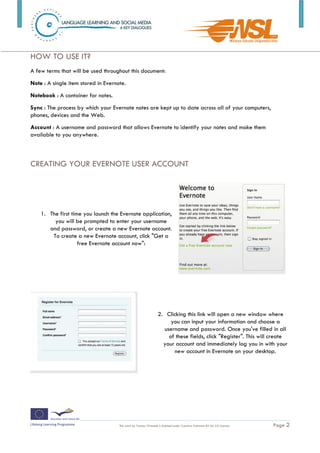
CREATING YOUR EVERNOTE USER ACCOUNT


    1. The first time you launch the Evernote application,
         you will be prompted to enter your username
       and password, or create a new Evernote account.
        To create a new Evernote account, click "Get a
                    free Evernote account now":


                                                                 2. Clicking this link will open a new window where
                                                                      you can input your information and choose a
                                                                   username and password. Once you've filled in all
                                                                     of these fields, click "Register". This will create
                                                                   your account and immediately log you in with your
                                                                       new account in Evernote on your desktop.


                                     This work by Tomasz Walasek is licensed under Creative Commons BY-SA 3.0 License   .   Page 2
Assignment 1: Create your first note
http://www.evernote.com/about/getting_started/#3


Assignment 2: Adding Your First Image
http://www.evernote.com/about/getting_started/#4


Assignment 3: Send your note by e-mail
Now, having created your first note and with a picture in it send it to your trainer. Ask if you don’t know
the e-mail address.


                                     This work by Tomasz Walasek is licensed under Creative Commons BY-SA 3.0 License   .   Page 3

Evernote EN

  • 1.
    EVERNOTE Tomasz Walasek Evernote.com – remember everything This project has been funded with support from the European Commission. This publication reflects the views only of the author, and the Commission cannot be held responsible for any use which may be made of the information contained therein.
  • 2.
    Evernote CAPTURE EVERYTHING, ACCESSANYWHERE, FIND THINGS FAST WHAT IS EVENOTE? Evernote makes it easy to remember things big and small from your notable life using your computer, phone and the web. Chances are, if you can see it or think of it, Evernote can help you remember it. Type a text note. Clip a web page. Snap a photo. Grab a screenshot. Evernote will keep it all safe. Everything you capture is automatically processed, indexed, and made searchable. If you like, you can add tags or organize notes into different notebooks. Search for notes by keywords, titles, and tags. Evernote magically makes printed and handwritten text inside your images searchable, too. WHY DO I NEED IT? With Evernote, your notes are always with you .  Snap a photo of a business card with your phone, and have an easy way to store and access contacts,  Keep notes from your meetings all in one place. Take a picture of a whiteboard and you’ll be able to find it later.  Plan your next trip. Clip web pages, maps, and itineraries. Capture sights, sounds, tastes, and anything else.  Remember the things you were supposed to remember. Create to-do lists, jot down random thoughts, leave a voice memo, and more. This work by Tomasz Walasek is licensed under Creative Commons BY-SA 3.0 License . Page 1
  • 3.
    HOW TO USEIT? A few terms that will be used throughout this document: Note : A single item stored in Evernote. Notebook : A container for notes. Sync : The process by which your Evernote notes are kept up to date across all of your computers, phones, devices and the Web. Account : A username and password that allows Evernote to identify your notes and make them available to you anywhere. CREATING YOUR EVERNOTE USER ACCOUNT 1. The first time you launch the Evernote application, you will be prompted to enter your username and password, or create a new Evernote account. To create a new Evernote account, click "Get a free Evernote account now": 2. Clicking this link will open a new window where you can input your information and choose a username and password. Once you've filled in all of these fields, click "Register". This will create your account and immediately log you in with your new account in Evernote on your desktop. This work by Tomasz Walasek is licensed under Creative Commons BY-SA 3.0 License . Page 2
  • 4.
    Assignment 1: Createyour first note http://www.evernote.com/about/getting_started/#3 Assignment 2: Adding Your First Image http://www.evernote.com/about/getting_started/#4 Assignment 3: Send your note by e-mail Now, having created your first note and with a picture in it send it to your trainer. Ask if you don’t know the e-mail address. This work by Tomasz Walasek is licensed under Creative Commons BY-SA 3.0 License . Page 3