®
  Microsoft Office
     ®
Excel 2007 Training

    Enter formulas
Course contents
• Overview: Goodbye, calculator

• Lesson 1: Get started

• Lesson 2: Use cell references

• Lesson 3: Simplify formulas by using functions


    Each lesson includes a list of suggested tasks.
Overview:
       Goodbye, calculator
Excel is great for working with numbers and math.
In this course you’ll learn how add, divide, multiply,
and subtract by typing formulas into Excel
worksheets.
You’ll also learn how to use simple formulas that
automatically update their results when values
change.
After picking up the techniques in this course, you’ll
be able to put your calculator away for good.
Course goals
• Do math by typing simple formulas to add, divide,
  multiply, and subtract.

• Use cell references in formulas, so that Excel can
  automatically update results when values change
  or when you copy formulas.
• Use functions (prewritten formulas) to add up
  values, calculate averages, and find the smallest or
  largest value in a range of values.
Lesson 1

Get started
Get started

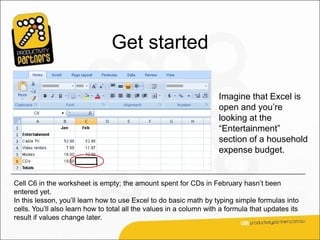
                                                                     Imagine that Excel is
                                                                     open and you’re
                                                                     looking at the
                                                                     “Entertainment”
                                                                     section of a household
                                                                     expense budget.


Cell C6 in the worksheet is empty; the amount spent for CDs in February hasn’t been
entered yet.
In this lesson, you’ll learn how to use Excel to do basic math by typing simple formulas into
cells. You’ll also learn how to total all the values in a column with a formula that updates its
result if values change later.
Begin with an equal sign


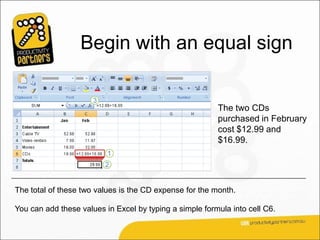
                                                         The two CDs
                                                         purchased in February
                                                         cost $12.99 and
                                                         $16.99.


The total of these two values is the CD expense for the month.

You can add these values in Excel by typing a simple formula into cell C6.
Begin with an equal sign


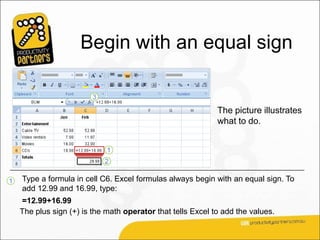
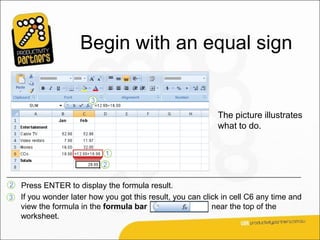
                                                             The picture illustrates
                                                             what to do.


1   Type a formula in cell C6. Excel formulas always begin with an equal sign. To
    add 12.99 and 16.99, type:
    =12.99+16.99
    The plus sign (+) is the math operator that tells Excel to add the values.
Begin with an equal sign


                                                             The picture illustrates
                                                             what to do.


2   Press ENTER to display the formula result.
3   If you wonder later how you got this result, you can click in cell C6 any time and
    view the formula in the formula bar                     near the top of the
    worksheet.
Use other math operators
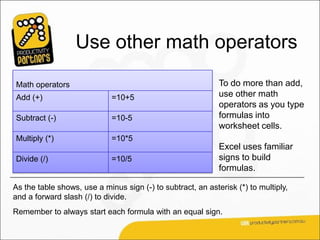
Math operators                                               To do more than add,
Add (+)                      =10+5                           use other math
                                                             operators as you type
Subtract (-)                 =10-5                           formulas into
                                                             worksheet cells.
Multiply (*)                 =10*5
                                                             Excel uses familiar
Divide (/)                   =10/5                           signs to build
                                                             formulas.
As the table shows, use a minus sign (-) to subtract, an asterisk (*) to multiply,
and a forward slash (/) to divide.
Remember to always start each formula with an equal sign.
Total all the values
                       in a column
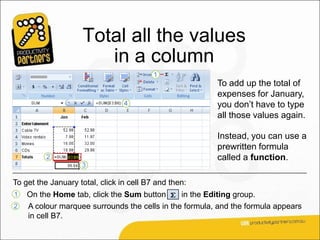
                                                        To add up the total of
                                                        expenses for January,
                                                        you don’t have to type
                                                        all those values again.

                                                        Instead, you can use a
                                                        prewritten formula
                                                        called a function.

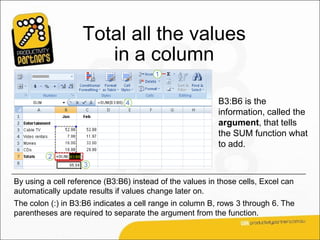
To get the January total, click in cell B7 and then:
1   On the Home tab, click the Sum button      in the Editing group.
2   A colour marquee surrounds the cells in the formula, and the formula appears
    in cell B7.
Total all the values
                      in a column
                                                          To add up the total of
                                                          expenses for January,
                                                          you don’t have to type
                                                          all those values again.

                                                          Instead, you can use a
                                                          prewritten formula
                                                          called a function.

To get the January total, click in cell B7 and then:
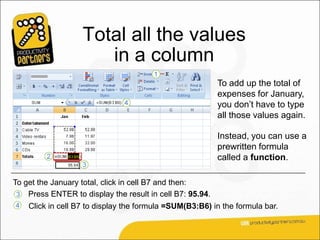
 3 Press ENTER to display the result in cell B7: 95.94.
4   Click in cell B7 to display the formula =SUM(B3:B6) in the formula bar.
Total all the values
                      in a column

                                                           B3:B6 is the
                                                           information, called the
                                                           argument, that tells
                                                           the SUM function what
                                                           to add.


By using a cell reference (B3:B6) instead of the values in those cells, Excel can
automatically update results if values change later on.
The colon (:) in B3:B6 indicates a cell range in column B, rows 3 through 6. The
parentheses are required to separate the argument from the function.
Copy a formula instead
               of creating a new one

                                                          Sometimes it’s easier
                                                          to copy formulas than
                                                          to create new ones.


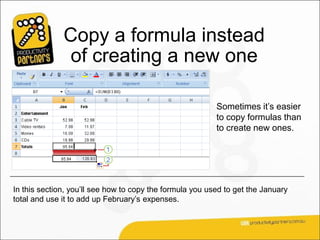
In this section, you’ll see how to copy the formula you used to get the January
total and use it to add up February’s expenses.
Copy a formula instead
                of creating a new one
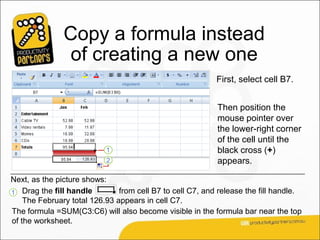
                                                           First, select cell B7.


                                                           Then position the
                                                           mouse pointer over
                                                           the lower-right corner
                                                           of the cell until the
                                                           black cross (+)
                                                           appears.

Next, as the picture shows:
1 Drag the fill handle         from cell B7 to cell C7, and release the fill handle.
    The February total 126.93 appears in cell C7.
The formula =SUM(C3:C6) will also become visible in the formula bar near the top
of the worksheet.
Copy a formula instead
                of creating a new one
                                                          First, select cell B7.

                                                          Then position the
                                                          mouse pointer over
                                                          the lower-right corner
                                                          of the cell until the
                                                          black cross (+)
                                                          appears.

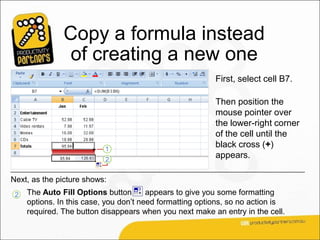
Next, as the picture shows:
 2   The Auto Fill Options button       appears to give you some formatting
     options. In this case, you don’t need formatting options, so no action is
     required. The button disappears when you next make an entry in the cell.
Suggestions for practice

1.Create a formula for addition.

2.Create other formulas.
3.Add up a column of numbers.

4.Add up a row of numbers.
Lesson 2

Use cell references
Use cell references
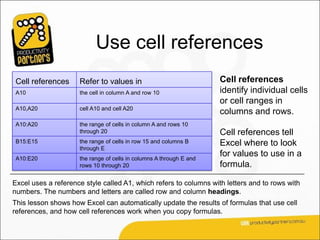
 Cell references     Refer to values in                              Cell references
 A10                 the cell in column A and row 10                 identify individual cells
                                                                     or cell ranges in
 A10,A20             cell A10 and cell A20
                                                                     columns and rows.
 A10:A20             the range of cells in column A and rows 10
                     through 20                                      Cell references tell
 B15:E15             the range of cells in row 15 and columns B      Excel where to look
                     through E
 A10:E20             the range of cells in columns A through E and
                                                                     for values to use in a
                     rows 10 through 20                              formula.

Excel uses a reference style called A1, which refers to columns with letters and to rows with
numbers. The numbers and letters are called row and column headings.
This lesson shows how Excel can automatically update the results of formulas that use cell
references, and how cell references work when you copy formulas.
Update formula results
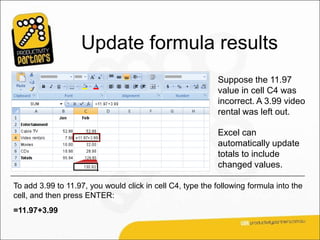
                                                            Suppose the 11.97
                                                            value in cell C4 was
                                                            incorrect. A 3.99 video
                                                            rental was left out.

                                                            Excel can
                                                            automatically update
                                                            totals to include
                                                            changed values.

To add 3.99 to 11.97, you would click in cell C4, type the following formula into the
cell, and then press ENTER:
=11.97+3.99
Update formula results

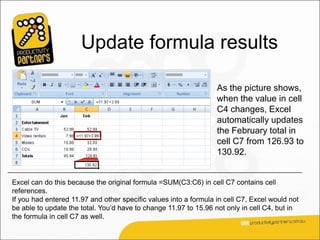
                                                                  As the picture shows,
                                                                  when the value in cell
                                                                  C4 changes, Excel
                                                                  automatically updates
                                                                  the February total in
                                                                  cell C7 from 126.93 to
                                                                  130.92.


Excel can do this because the original formula =SUM(C3:C6) in cell C7 contains cell
references.
If you had entered 11.97 and other specific values into a formula in cell C7, Excel would not
be able to update the total. You’d have to change 11.97 to 15.96 not only in cell C4, but in
the formula in cell C7 as well.
Other ways to enter
                    cell references
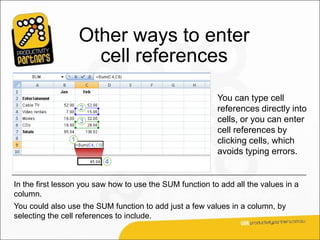
                                                          You can type cell
                                                          references directly into
                                                          cells, or you can enter
                                                          cell references by
                                                          clicking cells, which
                                                          avoids typing errors.


In the first lesson you saw how to use the SUM function to add all the values in a
column.
You could also use the SUM function to add just a few values in a column, by
selecting the cell references to include.
Other ways to enter
                    cell references
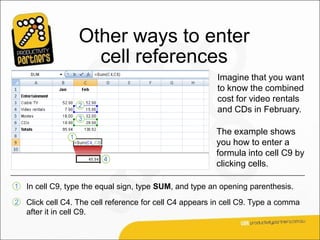
                                                          Imagine that you want
                                                          to know the combined
                                                          cost for video rentals
                                                          and CDs in February.

                                                          The example shows
                                                          you how to enter a
                                                          formula into cell C9 by
                                                          clicking cells.

1   In cell C9, type the equal sign, type SUM, and type an opening parenthesis.
2   Click cell C4. The cell reference for cell C4 appears in cell C9. Type a comma
    after it in cell C9.
Other ways to enter
                     cell references
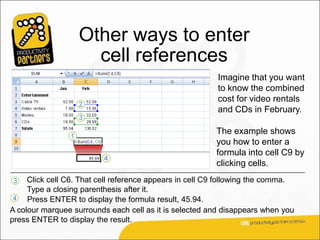
                                                         Imagine that you want
                                                         to know the combined
                                                         cost for video rentals
                                                         and CDs in February.

                                                         The example shows
                                                         you how to enter a
                                                         formula into cell C9 by
                                                         clicking cells.
3    Click cell C6. That cell reference appears in cell C9 following the comma.
     Type a closing parenthesis after it.
 4   Press ENTER to display the formula result, 45.94.
A colour marquee surrounds each cell as it is selected and disappears when you
press ENTER to display the result.
Other ways to enter
                   cell references

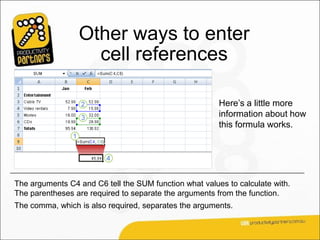
                                                        Here’s a little more
                                                        information about how
                                                        this formula works.


The arguments C4 and C6 tell the SUM function what values to calculate with.
The parentheses are required to separate the arguments from the function.
The comma, which is also required, separates the arguments.
Reference types
                                                        Now that you’ve
                                                        learned about using
                                                        cell references, it’s
                                                        time to talk about the
                                                        different types.

                                                        The picture shows two
                                                        types, relative and
                                                        absolute.

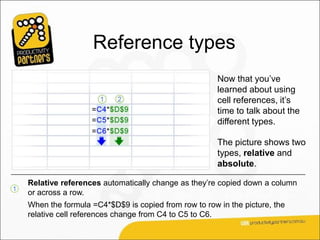
    Relative references automatically change as they’re copied down a column
1
    or across a row.
    When the formula =C4*$D$9 is copied from row to row in the picture, the
    relative cell references change from C4 to C5 to C6.
Reference types
                                                          Now that you’ve
                                                          learned about using
                                                          cell references, it’s
                                                          time to talk about the
                                                          different types.

                                                          The picture shows two
                                                          types, relative and
                                                          absolute.

2
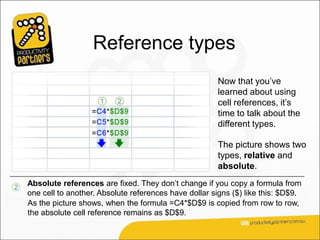
    Absolute references are fixed. They don’t change if you copy a formula from
    one cell to another. Absolute references have dollar signs ($) like this: $D$9.
    As the picture shows, when the formula =C4*$D$9 is copied from row to row,
    the absolute cell reference remains as $D$9.
Reference types
                                                          There’s one more type
                                                          of cell reference.

                                                         The mixed reference
                                                         has either an absolute
                                                         column and a relative
                                                         row, or an absolute
                                                         row and a relative
                                                         column.

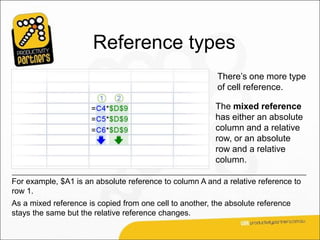
For example, $A1 is an absolute reference to column A and a relative reference to
row 1.
As a mixed reference is copied from one cell to another, the absolute reference
stays the same but the relative reference changes.
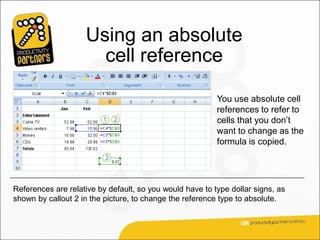
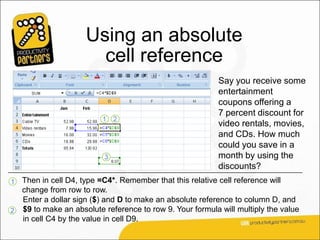
Using an absolute
                      cell reference

                                                          You use absolute cell
                                                          references to refer to
                                                          cells that you don’t
                                                          want to change as the
                                                          formula is copied.


References are relative by default, so you would have to type dollar signs, as
shown by callout 2 in the picture, to change the reference type to absolute.
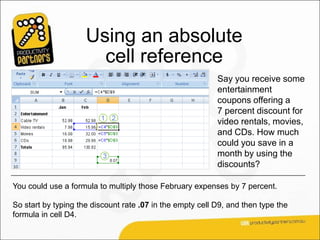
Using an absolute
                       cell reference
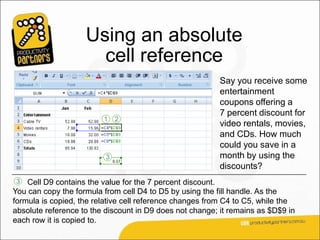
                                                           Say you receive some
                                                           entertainment
                                                           coupons offering a
                                                           7 percent discount for
                                                           video rentals, movies,
                                                           and CDs. How much
                                                           could you save in a
                                                           month by using the
                                                           discounts?

You could use a formula to multiply those February expenses by 7 percent.

So start by typing the discount rate .07 in the empty cell D9, and then type the
formula in cell D4.
Using an absolute
                       cell reference
                                                          Say you receive some
                                                          entertainment
                                                          coupons offering a
                                                          7 percent discount for
                                                          video rentals, movies,
                                                          and CDs. How much
                                                          could you save in a
                                                          month by using the
                                                          discounts?
1 Then in cell D4, type =C4*. Remember that this relative cell reference will
  change from row to row.
  Enter a dollar sign ($) and D to make an absolute reference to column D, and
2 $9 to make an absolute reference to row 9. Your formula will multiply the value
  in cell C4 by the value in cell D9.
Using an absolute
                      cell reference
                                                         Say you receive some
                                                         entertainment
                                                         coupons offering a
                                                         7 percent discount for
                                                         video rentals, movies,
                                                         and CDs. How much
                                                         could you save in a
                                                         month by using the
                                                         discounts?
3   Cell D9 contains the value for the 7 percent discount.
You can copy the formula from cell D4 to D5 by using the fill handle. As the
formula is copied, the relative cell reference changes from C4 to C5, while the
absolute reference to the discount in D9 does not change; it remains as $D$9 in
each row it is copied to.
Suggestions for practice

1.Type cell references in a formula.

2.Select cell references for a formula.

3.Use an absolute reference in a formula.

4.Add up several results.

5.Change values and totals.
Lesson 3

Simplify formulas by using
         functions
Simplify formulas
                         by using functions
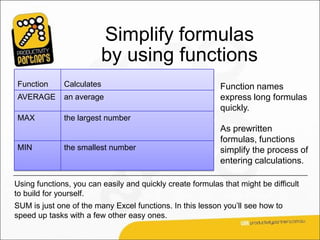
Function      Calculates                                    Function names
AVERAGE       an average                                    express long formulas
                                                            quickly.
MAX           the largest number
                                                            As prewritten
                                                            formulas, functions
MIN           the smallest number                           simplify the process of
                                                            entering calculations.

Using functions, you can easily and quickly create formulas that might be difficult
to build for yourself.
SUM is just one of the many Excel functions. In this lesson you’ll see how to
speed up tasks with a few other easy ones.
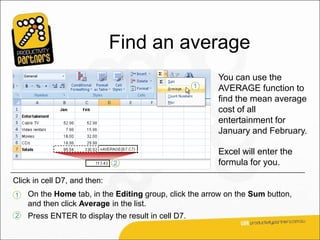
Find an average
                                                        You can use the
                                                        AVERAGE function to
                                                        find the mean average
                                                        cost of all
                                                        entertainment for
                                                        January and February.

                                                        Excel will enter the
                                                        formula for you.

Click in cell D7, and then:
1   On the Home tab, in the Editing group, click the arrow on the Sum button,
    and then click Average in the list.
2   Press ENTER to display the result in cell D7.
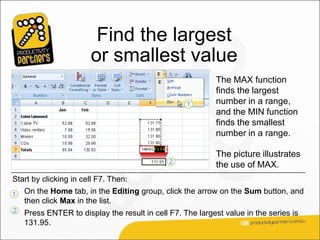
Find the largest
                       or smallest value
                                                           The MAX function
                                                           finds the largest
                                                           number in a range,
                                                           and the MIN function
                                                           finds the smallest
                                                           number in a range.

                                                           The picture illustrates
                                                           the use of MAX.
Start by clicking in cell F7. Then:
1   On the Home tab, in the Editing group, click the arrow on the Sum button, and
    then click Max in the list.
2   Press ENTER to display the result in cell F7. The largest value in the series is
    131.95.
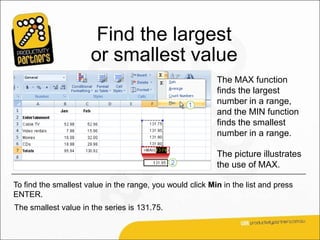
Find the largest
                      or smallest value
                                                           The MAX function
                                                           finds the largest
                                                           number in a range,
                                                           and the MIN function
                                                           finds the smallest
                                                           number in a range.

                                                           The picture illustrates
                                                           the use of MAX.

To find the smallest value in the range, you would click Min in the list and press
ENTER.
The smallest value in the series is 131.75.
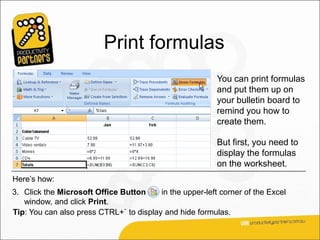
Print formulas
                                                        You can print formulas
                                                        and put them up on
                                                        your bulletin board to
                                                        remind you how to
                                                        create them.

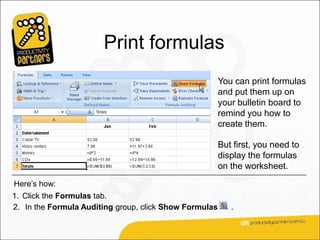
                                                        But first, you need to
                                                        display the formulas
                                                        on the worksheet.
Here’s how:
1. Click the Formulas tab.
2. In the Formula Auditing group, click Show Formulas      .
Print formulas
                                                          You can print formulas
                                                          and put them up on
                                                          your bulletin board to
                                                          remind you how to
                                                          create them.

                                                          But first, you need to
                                                          display the formulas
                                                          on the worksheet.
Here’s how:
3. Click the Microsoft Office Button     in the upper-left corner of the Excel
   window, and click Print.
Tip: You can also press CTRL+` to display and hide formulas.
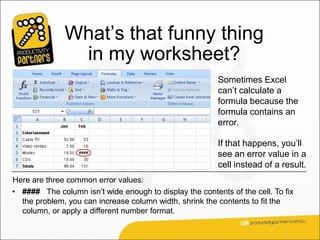
What’s that funny thing
               in my worksheet?
                                                         Sometimes Excel
                                                         can’t calculate a
                                                         formula because the
                                                         formula contains an
                                                         error.

                                                         If that happens, you’ll
                                                         see an error value in a
                                                         cell instead of a result.
Here are three common error values:
• #### The column isn’t wide enough to display the contents of the cell. To fix
  the problem, you can increase column width, shrink the contents to fit the
  column, or apply a different number format.
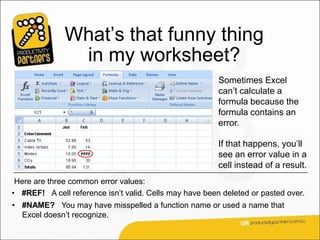
What’s that funny thing
               in my worksheet?
                                                         Sometimes Excel
                                                         can’t calculate a
                                                         formula because the
                                                         formula contains an
                                                         error.

                                                         If that happens, you’ll
                                                         see an error value in a
                                                         cell instead of a result.
 Here are three common error values:
• #REF! A cell reference isn’t valid. Cells may have been deleted or pasted over.
• #NAME? You may have misspelled a function name or used a name that
  Excel doesn’t recognize.
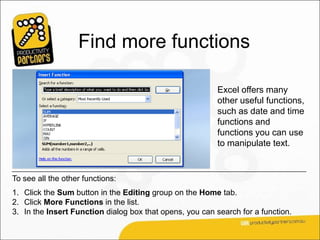
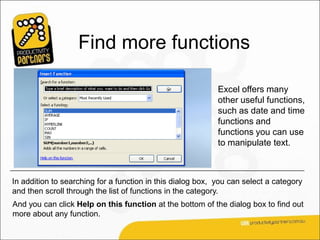
Find more functions

                                                          Excel offers many
                                                          other useful functions,
                                                          such as date and time
                                                          functions and
                                                          functions you can use
                                                          to manipulate text.


To see all the other functions:
1. Click the Sum button in the Editing group on the Home tab.
2. Click More Functions in the list.
3. In the Insert Function dialog box that opens, you can search for a function.
Find more functions

                                                            Excel offers many
                                                            other useful functions,
                                                            such as date and time
                                                            functions and
                                                            functions you can use
                                                            to manipulate text.


In addition to searching for a function in this dialog box, you can select a category
and then scroll through the list of functions in the category.
And you can click Help on this function at the bottom of the dialog box to find out
more about any function.
Suggestions for practice
1.Find an average.
2.Find the largest number.
3.Find the smallest number.
4.Display and hide formulas.
5.Create and fix error values.
6.Create and fix the error value #NAME?.

Enter formulas without_questions

  • 1.
    ® MicrosoftOffice ® Excel 2007 Training Enter formulas
  • 2.
    Course contents • Overview:Goodbye, calculator • Lesson 1: Get started • Lesson 2: Use cell references • Lesson 3: Simplify formulas by using functions Each lesson includes a list of suggested tasks.
  • 3.
    Overview: Goodbye, calculator Excel is great for working with numbers and math. In this course you’ll learn how add, divide, multiply, and subtract by typing formulas into Excel worksheets. You’ll also learn how to use simple formulas that automatically update their results when values change. After picking up the techniques in this course, you’ll be able to put your calculator away for good.
  • 4.
    Course goals • Domath by typing simple formulas to add, divide, multiply, and subtract. • Use cell references in formulas, so that Excel can automatically update results when values change or when you copy formulas. • Use functions (prewritten formulas) to add up values, calculate averages, and find the smallest or largest value in a range of values.
  • 5.
  • 6.
    Get started Imagine that Excel is open and you’re looking at the “Entertainment” section of a household expense budget. Cell C6 in the worksheet is empty; the amount spent for CDs in February hasn’t been entered yet. In this lesson, you’ll learn how to use Excel to do basic math by typing simple formulas into cells. You’ll also learn how to total all the values in a column with a formula that updates its result if values change later.
  • 7.
    Begin with anequal sign The two CDs purchased in February cost $12.99 and $16.99. The total of these two values is the CD expense for the month. You can add these values in Excel by typing a simple formula into cell C6.
  • 8.
    Begin with anequal sign The picture illustrates what to do. 1 Type a formula in cell C6. Excel formulas always begin with an equal sign. To add 12.99 and 16.99, type: =12.99+16.99 The plus sign (+) is the math operator that tells Excel to add the values.
  • 9.
    Begin with anequal sign The picture illustrates what to do. 2 Press ENTER to display the formula result. 3 If you wonder later how you got this result, you can click in cell C6 any time and view the formula in the formula bar near the top of the worksheet.
  • 10.
    Use other mathoperators Math operators To do more than add, Add (+) =10+5 use other math operators as you type Subtract (-) =10-5 formulas into worksheet cells. Multiply (*) =10*5 Excel uses familiar Divide (/) =10/5 signs to build formulas. As the table shows, use a minus sign (-) to subtract, an asterisk (*) to multiply, and a forward slash (/) to divide. Remember to always start each formula with an equal sign.
  • 11.
    Total all thevalues in a column To add up the total of expenses for January, you don’t have to type all those values again. Instead, you can use a prewritten formula called a function. To get the January total, click in cell B7 and then: 1 On the Home tab, click the Sum button in the Editing group. 2 A colour marquee surrounds the cells in the formula, and the formula appears in cell B7.
  • 12.
    Total all thevalues in a column To add up the total of expenses for January, you don’t have to type all those values again. Instead, you can use a prewritten formula called a function. To get the January total, click in cell B7 and then: 3 Press ENTER to display the result in cell B7: 95.94. 4 Click in cell B7 to display the formula =SUM(B3:B6) in the formula bar.
  • 13.
    Total all thevalues in a column B3:B6 is the information, called the argument, that tells the SUM function what to add. By using a cell reference (B3:B6) instead of the values in those cells, Excel can automatically update results if values change later on. The colon (:) in B3:B6 indicates a cell range in column B, rows 3 through 6. The parentheses are required to separate the argument from the function.
  • 14.
    Copy a formulainstead of creating a new one Sometimes it’s easier to copy formulas than to create new ones. In this section, you’ll see how to copy the formula you used to get the January total and use it to add up February’s expenses.
  • 15.
    Copy a formulainstead of creating a new one First, select cell B7. Then position the mouse pointer over the lower-right corner of the cell until the black cross (+) appears. Next, as the picture shows: 1 Drag the fill handle from cell B7 to cell C7, and release the fill handle. The February total 126.93 appears in cell C7. The formula =SUM(C3:C6) will also become visible in the formula bar near the top of the worksheet.
  • 16.
    Copy a formulainstead of creating a new one First, select cell B7. Then position the mouse pointer over the lower-right corner of the cell until the black cross (+) appears. Next, as the picture shows: 2 The Auto Fill Options button appears to give you some formatting options. In this case, you don’t need formatting options, so no action is required. The button disappears when you next make an entry in the cell.
  • 17.
    Suggestions for practice 1.Createa formula for addition. 2.Create other formulas. 3.Add up a column of numbers. 4.Add up a row of numbers.
  • 18.
  • 19.
    Use cell references Cell references Refer to values in Cell references A10 the cell in column A and row 10 identify individual cells or cell ranges in A10,A20 cell A10 and cell A20 columns and rows. A10:A20 the range of cells in column A and rows 10 through 20 Cell references tell B15:E15 the range of cells in row 15 and columns B Excel where to look through E A10:E20 the range of cells in columns A through E and for values to use in a rows 10 through 20 formula. Excel uses a reference style called A1, which refers to columns with letters and to rows with numbers. The numbers and letters are called row and column headings. This lesson shows how Excel can automatically update the results of formulas that use cell references, and how cell references work when you copy formulas.
  • 20.
    Update formula results Suppose the 11.97 value in cell C4 was incorrect. A 3.99 video rental was left out. Excel can automatically update totals to include changed values. To add 3.99 to 11.97, you would click in cell C4, type the following formula into the cell, and then press ENTER: =11.97+3.99
  • 21.
    Update formula results As the picture shows, when the value in cell C4 changes, Excel automatically updates the February total in cell C7 from 126.93 to 130.92. Excel can do this because the original formula =SUM(C3:C6) in cell C7 contains cell references. If you had entered 11.97 and other specific values into a formula in cell C7, Excel would not be able to update the total. You’d have to change 11.97 to 15.96 not only in cell C4, but in the formula in cell C7 as well.
  • 22.
    Other ways toenter cell references You can type cell references directly into cells, or you can enter cell references by clicking cells, which avoids typing errors. In the first lesson you saw how to use the SUM function to add all the values in a column. You could also use the SUM function to add just a few values in a column, by selecting the cell references to include.
  • 23.
    Other ways toenter cell references Imagine that you want to know the combined cost for video rentals and CDs in February. The example shows you how to enter a formula into cell C9 by clicking cells. 1 In cell C9, type the equal sign, type SUM, and type an opening parenthesis. 2 Click cell C4. The cell reference for cell C4 appears in cell C9. Type a comma after it in cell C9.
  • 24.
    Other ways toenter cell references Imagine that you want to know the combined cost for video rentals and CDs in February. The example shows you how to enter a formula into cell C9 by clicking cells. 3 Click cell C6. That cell reference appears in cell C9 following the comma. Type a closing parenthesis after it. 4 Press ENTER to display the formula result, 45.94. A colour marquee surrounds each cell as it is selected and disappears when you press ENTER to display the result.
  • 25.
    Other ways toenter cell references Here’s a little more information about how this formula works. The arguments C4 and C6 tell the SUM function what values to calculate with. The parentheses are required to separate the arguments from the function. The comma, which is also required, separates the arguments.
  • 26.
    Reference types Now that you’ve learned about using cell references, it’s time to talk about the different types. The picture shows two types, relative and absolute. Relative references automatically change as they’re copied down a column 1 or across a row. When the formula =C4*$D$9 is copied from row to row in the picture, the relative cell references change from C4 to C5 to C6.
  • 27.
    Reference types Now that you’ve learned about using cell references, it’s time to talk about the different types. The picture shows two types, relative and absolute. 2 Absolute references are fixed. They don’t change if you copy a formula from one cell to another. Absolute references have dollar signs ($) like this: $D$9. As the picture shows, when the formula =C4*$D$9 is copied from row to row, the absolute cell reference remains as $D$9.
  • 28.
    Reference types There’s one more type of cell reference. The mixed reference has either an absolute column and a relative row, or an absolute row and a relative column. For example, $A1 is an absolute reference to column A and a relative reference to row 1. As a mixed reference is copied from one cell to another, the absolute reference stays the same but the relative reference changes.
  • 29.
    Using an absolute cell reference You use absolute cell references to refer to cells that you don’t want to change as the formula is copied. References are relative by default, so you would have to type dollar signs, as shown by callout 2 in the picture, to change the reference type to absolute.
  • 30.
    Using an absolute cell reference Say you receive some entertainment coupons offering a 7 percent discount for video rentals, movies, and CDs. How much could you save in a month by using the discounts? You could use a formula to multiply those February expenses by 7 percent. So start by typing the discount rate .07 in the empty cell D9, and then type the formula in cell D4.
  • 31.
    Using an absolute cell reference Say you receive some entertainment coupons offering a 7 percent discount for video rentals, movies, and CDs. How much could you save in a month by using the discounts? 1 Then in cell D4, type =C4*. Remember that this relative cell reference will change from row to row. Enter a dollar sign ($) and D to make an absolute reference to column D, and 2 $9 to make an absolute reference to row 9. Your formula will multiply the value in cell C4 by the value in cell D9.
  • 32.
    Using an absolute cell reference Say you receive some entertainment coupons offering a 7 percent discount for video rentals, movies, and CDs. How much could you save in a month by using the discounts? 3 Cell D9 contains the value for the 7 percent discount. You can copy the formula from cell D4 to D5 by using the fill handle. As the formula is copied, the relative cell reference changes from C4 to C5, while the absolute reference to the discount in D9 does not change; it remains as $D$9 in each row it is copied to.
  • 33.
    Suggestions for practice 1.Typecell references in a formula. 2.Select cell references for a formula. 3.Use an absolute reference in a formula. 4.Add up several results. 5.Change values and totals.
  • 34.
    Lesson 3 Simplify formulasby using functions
  • 35.
    Simplify formulas by using functions Function Calculates Function names AVERAGE an average express long formulas quickly. MAX the largest number As prewritten formulas, functions MIN the smallest number simplify the process of entering calculations. Using functions, you can easily and quickly create formulas that might be difficult to build for yourself. SUM is just one of the many Excel functions. In this lesson you’ll see how to speed up tasks with a few other easy ones.
  • 36.
    Find an average You can use the AVERAGE function to find the mean average cost of all entertainment for January and February. Excel will enter the formula for you. Click in cell D7, and then: 1 On the Home tab, in the Editing group, click the arrow on the Sum button, and then click Average in the list. 2 Press ENTER to display the result in cell D7.
  • 37.
    Find the largest or smallest value The MAX function finds the largest number in a range, and the MIN function finds the smallest number in a range. The picture illustrates the use of MAX. Start by clicking in cell F7. Then: 1 On the Home tab, in the Editing group, click the arrow on the Sum button, and then click Max in the list. 2 Press ENTER to display the result in cell F7. The largest value in the series is 131.95.
  • 38.
    Find the largest or smallest value The MAX function finds the largest number in a range, and the MIN function finds the smallest number in a range. The picture illustrates the use of MAX. To find the smallest value in the range, you would click Min in the list and press ENTER. The smallest value in the series is 131.75.
  • 39.
    Print formulas You can print formulas and put them up on your bulletin board to remind you how to create them. But first, you need to display the formulas on the worksheet. Here’s how: 1. Click the Formulas tab. 2. In the Formula Auditing group, click Show Formulas .
  • 40.
    Print formulas You can print formulas and put them up on your bulletin board to remind you how to create them. But first, you need to display the formulas on the worksheet. Here’s how: 3. Click the Microsoft Office Button in the upper-left corner of the Excel window, and click Print. Tip: You can also press CTRL+` to display and hide formulas.
  • 41.
    What’s that funnything in my worksheet? Sometimes Excel can’t calculate a formula because the formula contains an error. If that happens, you’ll see an error value in a cell instead of a result. Here are three common error values: • #### The column isn’t wide enough to display the contents of the cell. To fix the problem, you can increase column width, shrink the contents to fit the column, or apply a different number format.
  • 42.
    What’s that funnything in my worksheet? Sometimes Excel can’t calculate a formula because the formula contains an error. If that happens, you’ll see an error value in a cell instead of a result. Here are three common error values: • #REF! A cell reference isn’t valid. Cells may have been deleted or pasted over. • #NAME? You may have misspelled a function name or used a name that Excel doesn’t recognize.
  • 43.
    Find more functions Excel offers many other useful functions, such as date and time functions and functions you can use to manipulate text. To see all the other functions: 1. Click the Sum button in the Editing group on the Home tab. 2. Click More Functions in the list. 3. In the Insert Function dialog box that opens, you can search for a function.
  • 44.
    Find more functions Excel offers many other useful functions, such as date and time functions and functions you can use to manipulate text. In addition to searching for a function in this dialog box, you can select a category and then scroll through the list of functions in the category. And you can click Help on this function at the bottom of the dialog box to find out more about any function.
  • 45.
    Suggestions for practice 1.Findan average. 2.Find the largest number. 3.Find the smallest number. 4.Display and hide formulas. 5.Create and fix error values. 6.Create and fix the error value #NAME?.