




Microsoft Excel Advanced Tips
MAGI East
06 May 2014
Mary K.D. D’Rozario
MSCR, MBA, CCRP, RAC, CCRA
Social Media for Health Care & Life Science
mary.drozario@crplink.com
@marydrozario
marydrozario
marykddrozario
1
Outcomes:
If you don’t already have these skills, by the end of
this presentation you will be able to:
ď‚§ Pull analytic information from text
ď‚§ Create multiple IF statement
ď‚§ Rock VLOOKUP and HLOOKUP
2
But First,
My #1 Advanced Excel Tip…
Someone else has already done it.
Not just the formula, but *exactly* what you are
trying to do.
And then they were so proud of themselves they
had to put it on the interwebz.
So be crazy specific in your search.
3
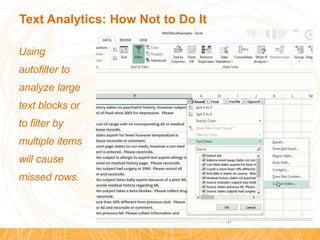
Text Analytics: How Not to Do It
Using
autofilter to
analyze large
text blocks or
to filter by
multiple items
will cause
missed rows.
4
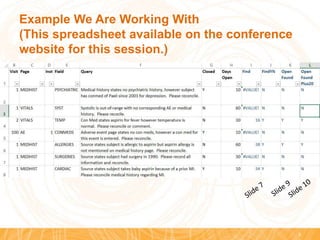
Example We Are Working With
(This spreadsheet available on the conference
website for this session.)
5
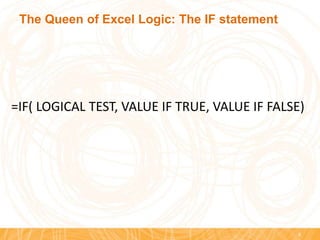
The Queen of Excel Logic: The IF statement
6
=IF( LOGICAL TEST, VALUE IF TRUE, VALUE IF FALSE)
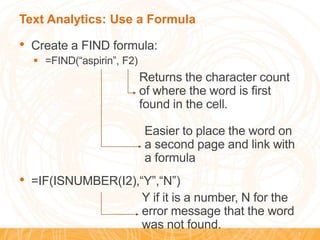
Text Analytics: Use a Formula
• Create a FIND formula:
 =FIND(“aspirin”, F2)
• =IF(ISNUMBER(I2),“Y”,“N”)
7
Easier to place the word on
a second page and link with
a formula
Returns the character count
of where the word is first
found in the cell.
Y if it is a number, N for the
error message that the word
was not found.
Tips for Multiple IF Statements
• Where possible, put each piece of the statement
in its own column.
• Un-nested statements are easier to troubleshoot,
easier to document, and easier to QC.
• When you have to nest, line breaks (Alt-Enter)
make the formula easier to read
8
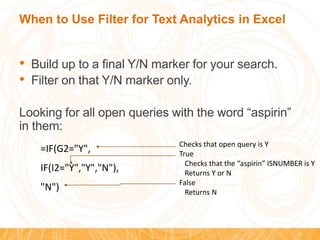
When to Use Filter for Text Analytics in Excel
• Build up to a final Y/N marker for your search.
• Filter on that Y/N marker only.
Looking for all open queries with the word “aspirin”
in them:
9
=IF(G2="Y",
IF(I2="Y","Y","N"),
"N")
Checks that open query is Y
True
Checks that the “aspirin” ISNUMBER is Y
Returns Y or N
False
Returns N
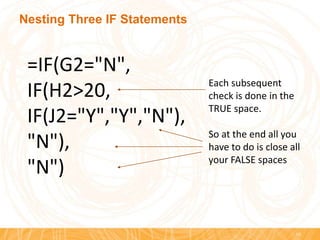
Nesting Three IF Statements
10
=IF(G2="N",
IF(H2>20,
IF(J2="Y","Y","N"),
"N"),
"N")
Each subsequent
check is done in the
TRUE space.
So at the end all you
have to do is close all
your FALSE spaces
The King of Combining Tables: The LOOKUPs
Much of the time the LOOKUPs are used, a more
robust table and a Pivot Table Can Get the Same
Result…
…but, Pivot Tables rebuild every time they are run.
LOOKUPs allow you to build tables where you can
then insert exceptions and make notes
ď‚§ Example: Out of range visit, and then a plan of visits to
get back onto the protocol schedule, with notes.
ď‚§ Example: Extra payment for a visit including unusual
SAE follow-up.
11
12
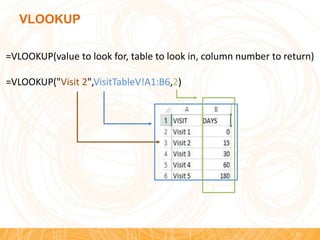
=VLOOKUP(value to look for, table to look in, column number to return)
=VLOOKUP("Visit 2",VisitTableV!A1:B6,2)
VLOOKUP
13
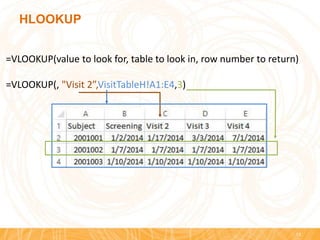
=VLOOKUP(value to look for, table to look in, row number to return)
=VLOOKUP(, "Visit 2”,VisitTableH!A1:E4,3)
HLOOKUP
LOOKUP Troubleshooting
• Your list is not being recognized as a list. (Some
of the columns fall off.)
ď‚§ Select all the cells that make up the list and right click.
 Select “define name”
ď‚§ Give the list a name.
• You have more than open cell with the same text
in the LOOKUP column/row
ď‚§ The formula will return the result from the first instance
it finds. It will NOT warn you that you have multiple
instances.
14
My #1 Advanced Excel Tip…
Start making formulae that get in the right direction.
You won’t build on all of them but…
…building something is the only way to get where
you are going.
15
My #2 Advanced Excel Tip…
You Don’t Need to Know How You are
Going to Get There,
You Just Need to Start
Questions
16

Microsoft Excel Advanced Tips

  • 1.
    Microsoft Excel AdvancedTips MAGI East 06 May 2014 Mary K.D. D’Rozario MSCR, MBA, CCRP, RAC, CCRA Social Media for Health Care & Life Science mary.drozario@crplink.com @marydrozario marydrozario marykddrozario 1
  • 2.
    Outcomes: If you don’talready have these skills, by the end of this presentation you will be able to:  Pull analytic information from text  Create multiple IF statement  Rock VLOOKUP and HLOOKUP 2
  • 3.
    But First, My #1Advanced Excel Tip… Someone else has already done it. Not just the formula, but *exactly* what you are trying to do. And then they were so proud of themselves they had to put it on the interwebz. So be crazy specific in your search. 3
  • 4.
    Text Analytics: HowNot to Do It Using autofilter to analyze large text blocks or to filter by multiple items will cause missed rows. 4
  • 5.
    Example We AreWorking With (This spreadsheet available on the conference website for this session.) 5
  • 6.
    The Queen ofExcel Logic: The IF statement 6 =IF( LOGICAL TEST, VALUE IF TRUE, VALUE IF FALSE)
  • 7.
    Text Analytics: Usea Formula • Create a FIND formula:  =FIND(“aspirin”, F2) • =IF(ISNUMBER(I2),“Y”,“N”) 7 Easier to place the word on a second page and link with a formula Returns the character count of where the word is first found in the cell. Y if it is a number, N for the error message that the word was not found.
  • 8.
    Tips for MultipleIF Statements • Where possible, put each piece of the statement in its own column. • Un-nested statements are easier to troubleshoot, easier to document, and easier to QC. • When you have to nest, line breaks (Alt-Enter) make the formula easier to read 8
  • 9.
    When to UseFilter for Text Analytics in Excel • Build up to a final Y/N marker for your search. • Filter on that Y/N marker only. Looking for all open queries with the word “aspirin” in them: 9 =IF(G2="Y", IF(I2="Y","Y","N"), "N") Checks that open query is Y True Checks that the “aspirin” ISNUMBER is Y Returns Y or N False Returns N
  • 10.
    Nesting Three IFStatements 10 =IF(G2="N", IF(H2>20, IF(J2="Y","Y","N"), "N"), "N") Each subsequent check is done in the TRUE space. So at the end all you have to do is close all your FALSE spaces
  • 11.
    The King ofCombining Tables: The LOOKUPs Much of the time the LOOKUPs are used, a more robust table and a Pivot Table Can Get the Same Result… …but, Pivot Tables rebuild every time they are run. LOOKUPs allow you to build tables where you can then insert exceptions and make notes  Example: Out of range visit, and then a plan of visits to get back onto the protocol schedule, with notes.  Example: Extra payment for a visit including unusual SAE follow-up. 11
  • 12.
    12 =VLOOKUP(value to lookfor, table to look in, column number to return) =VLOOKUP("Visit 2",VisitTableV!A1:B6,2) VLOOKUP
  • 13.
    13 =VLOOKUP(value to lookfor, table to look in, row number to return) =VLOOKUP(, "Visit 2”,VisitTableH!A1:E4,3) HLOOKUP
  • 14.
    LOOKUP Troubleshooting • Yourlist is not being recognized as a list. (Some of the columns fall off.)  Select all the cells that make up the list and right click.  Select “define name”  Give the list a name. • You have more than open cell with the same text in the LOOKUP column/row  The formula will return the result from the first instance it finds. It will NOT warn you that you have multiple instances. 14
  • 15.
    My #1 AdvancedExcel Tip… Start making formulae that get in the right direction. You won’t build on all of them but… …building something is the only way to get where you are going. 15 My #2 Advanced Excel Tip… You Don’t Need to Know How You are Going to Get There, You Just Need to Start
  • 16.