QUARTER III
CHAPTER IV
Common Productivity Tools
LEARNING COMPETENCIES
Cristine E. Simbul
 Uses common productivity tools effectively by maximizing
advanced application techniques CS_ICT11/12-ICTPT-Ic-d4
 Creates an original or derivative ICT content to effectively
communicate or present data or information related to specific
professional tracks CS_ICT11/12-ICTPT-Ic-d5
COMMON PRODUCTIVITY TOOLS
HarveyTabamo
 Office productivity tools are
applications that allow for the
viewing, creating and modifying of
general office documents (e.g.
spreadsheets, memos, presentations,
letters, personal database, form
generation, image editing, etc.).
 Office productivity tools also include
applications for managing employee
tasks.
COMMON PRODUCTIVITY TOOLS
HarveyTabamo
 Three basic functions of digital tools
are generally combined to support
decisions in business or management,
and in communication contexts.
 These 3 basic tools support writing,
numeracy and presentation skills.
 In earlier ICT-related courses or
academic subjects, these tools find
expression in essays, book reports,
and newsletters, as well as in
presentation of ideas contained in a
deck of digital slides.
COMMON PRODUCTIVITY TOOLS
HarveyTabamo
 Microsoft Office is the commercial
giant of productivity software.
 Experience with the suite is useful to
anybody.
 Literally millions of users work with
its programs and related file formats.
 Learning how to use the MS Office
suite helps you with everyday tasks,
as well as at work.
THREE BASIC TOOLS
HarveyTabamo
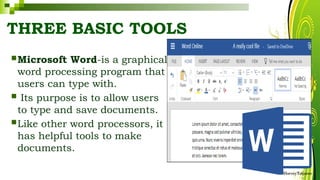
Microsoft Word-is a graphical
word processing program that
users can type with.
 Its purpose is to allow users
to type and save documents.
Like other word processors, it
has helpful tools to make
documents.
THREE BASIC TOOLS
HarveyTabamo
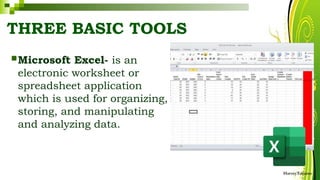
Microsoft Excel- is an
electronic worksheet or
spreadsheet application
which is used for organizing,
storing, and manipulating
and analyzing data.
THREE BASIC TOOLS
HarveyTabamo
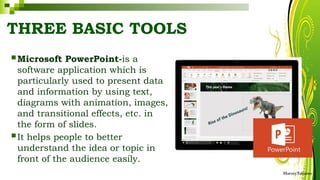
 Microsoft PowerPoint-is a
software application which is
particularly used to present data
and information by using text,
diagrams with animation, images,
and transitional effects, etc. in
the form of slides.
 It helps people to better
understand the idea or topic in
front of the audience easily.
INTEGRATING IMAGES AND EXTERNAL
MATERIALS
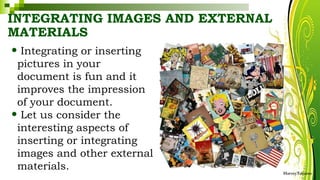
• Integrating or inserting
pictures in your
document is fun and it
improves the impression
of your document.
• Let us consider the
interesting aspects of
inserting or integrating
images and other external
materials. HarveyTabamo
KINDS OF MATERIALS
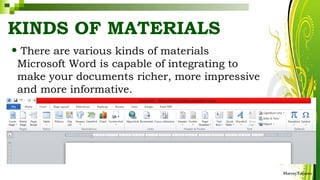
• There are various kinds of materials
Microsoft Word is capable of integrating to
make your documents richer, more impressive
and more informative.
HarveyTabamo
1. PICTURES
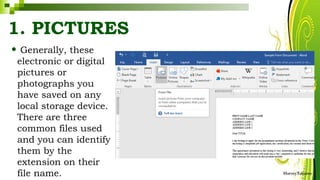
• Generally, these
electronic or digital
pictures or
photographs you
have saved on any
local storage device.
There are three
common files used
and you can identify
them by the
extension on their
file name. HarveyTabamo
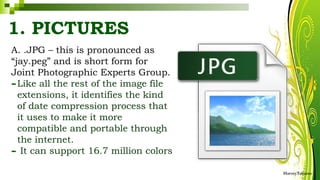
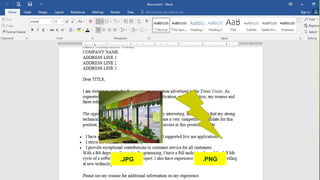
A. .JPG – this is pronounced as
“jay.peg” and is short form for
Joint Photographic Experts Group.
-Like all the rest of the image file
extensions, it identifies the kind
of date compression process that
it uses to make it more
compatible and portable through
the internet.
- It can support 16.7 million colors
HarveyTabamo
1. PICTURES
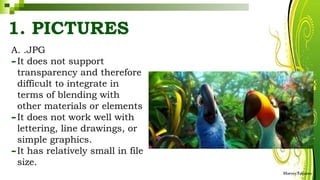
A. .JPG
-It does not support
transparency and therefore
difficult to integrate in
terms of blending with
other materials or elements
-It does not work well with
lettering, line drawings, or
simple graphics.
-It has relatively small in file
size.
HarveyTabamo
1. PICTURES
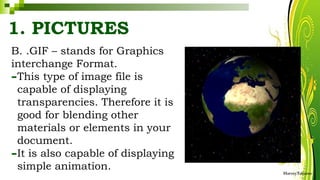
B. .GIF – stands for Graphics
interchange Format.
-This type of image file is
capable of displaying
transparencies. Therefore it is
good for blending other
materials or elements in your
document.
-It is also capable of displaying
simple animation. HarveyTabamo
1. PICTURES
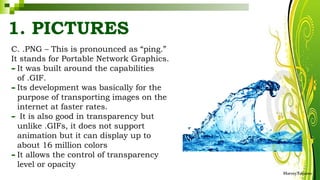
C. .PNG – This is pronounced as “ping.”
It stands for Portable Network Graphics.
-It was built around the capabilities
of .GIF.
-Its development was basically for the
purpose of transporting images on the
internet at faster rates.
- It is also good in transparency but
unlike .GIFs, it does not support
animation but it can display up to
about 16 million colors
-It allows the control of transparency
level or opacity
HarveyTabamo
1. PICTURES
2. CLIPART
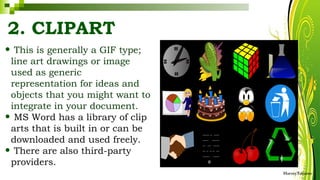
• This is generally a GIF type;
line art drawings or image
used as generic
representation for ideas and
objects that you might want to
integrate in your document.
• MS Word has a library of clip
arts that is built in or can be
downloaded and used freely.
• There are also third-party
providers.
HarveyTabamo
3. SHAPES
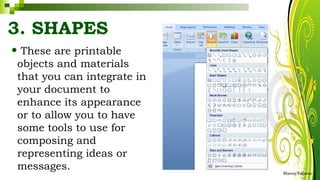
• These are printable
objects and materials
that you can integrate in
your document to
enhance its appearance
or to allow you to have
some tools to use for
composing and
representing ideas or
messages. HarveyTabamo
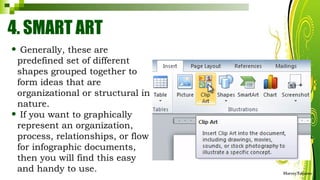
4. SMART ART
• Generally, these are
predefined set of different
shapes grouped together to
form ideas that are
organizational or structural in
nature.
• If you want to graphically
represent an organization,
process, relationships, or flow
for infographic documents,
then you will find this easy
and handy to use. HarveyTabamo
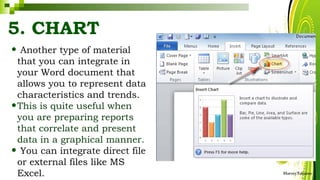
5. CHART
• Another type of material
that you can integrate in
your Word document that
allows you to represent data
characteristics and trends.
•This is quite useful when
you are preparing reports
that correlate and present
data in a graphical manner.
• You can integrate direct file
or external files like MS
Excel. HarveyTabamo
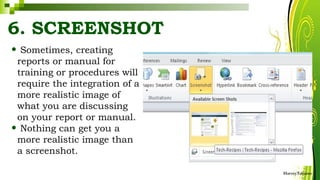
6. SCREENSHOT
• Sometimes, creating
reports or manual for
training or procedures will
require the integration of a
more realistic image of
what you are discussing
on your report or manual.
• Nothing can get you a
more realistic image than
a screenshot.
HarveyTabamo
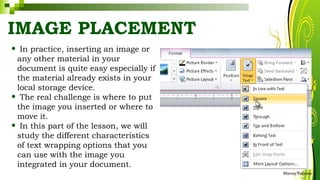
IMAGE PLACEMENT
• In practice, inserting an image or
any other material in your
document is quite easy especially if
the material already exists in your
local storage device.
• The real challenge is where to put
the image you inserted or where to
move it.
• In this part of the lesson, we will
study the different characteristics
of text wrapping options that you
can use with the image you
integrated in your document.
HarveyTabamo
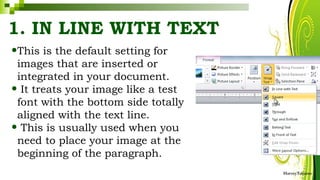
1. IN LINE WITH TEXT
•This is the default setting for
images that are inserted or
integrated in your document.
• It treats your image like a test
font with the bottom side totally
aligned with the text line.
• This is usually used when you
need to place your image at the
beginning of the paragraph.
HarveyTabamo
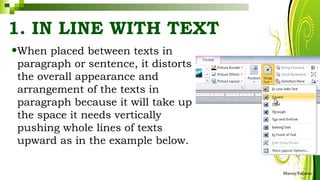
1. IN LINE WITH TEXT
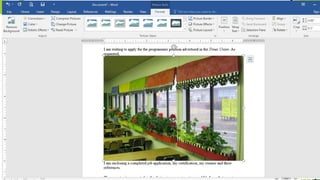
•When placed between texts in
paragraph or sentence, it distorts
the overall appearance and
arrangement of the texts in
paragraph because it will take up
the space it needs vertically
pushing whole lines of texts
upward as in the example below.
HarveyTabamo
HarveyTabamo
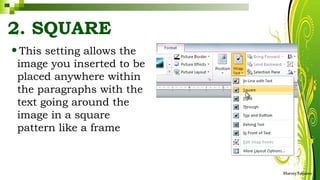
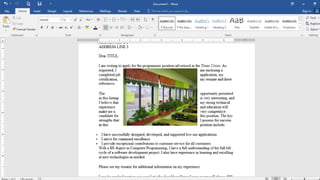
2. SQUARE
•This setting allows the
image you inserted to be
placed anywhere within
the paragraphs with the
text going around the
image in a square
pattern like a frame
HarveyTabamo
HarveyTabamo
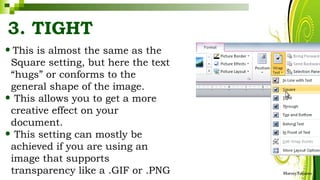
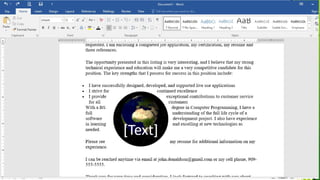
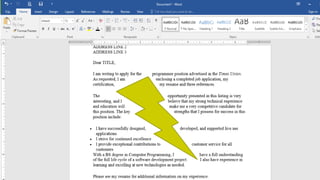
3. TIGHT
•This is almost the same as the
Square setting, but here the text
“hugs” or conforms to the
general shape of the image.
• This allows you to get a more
creative effect on your
document.
• This setting can mostly be
achieved if you are using an
image that supports
transparency like a .GIF or .PNG HarveyTabamo
HarveyTabamo
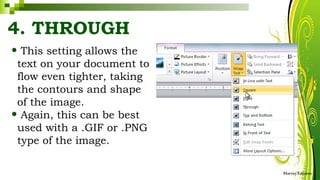
4. THROUGH
• This setting allows the
text on your document to
flow even tighter, taking
the contours and shape
of the image.
• Again, this can be best
used with a .GIF or .PNG
type of the image.
HarveyTabamo
HarveyTabamo
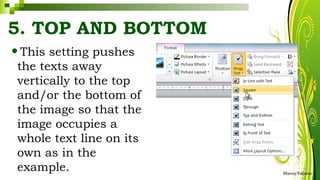
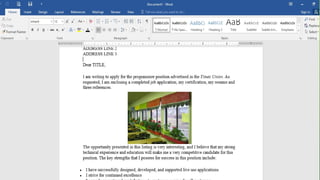
5. TOP AND BOTTOM
•This setting pushes
the texts away
vertically to the top
and/or the bottom of
the image so that the
image occupies a
whole text line on its
own as in the
example. HarveyTabamo
HarveyTabamo
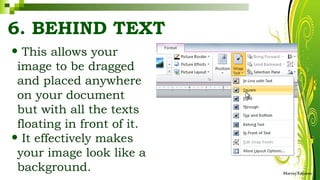
6. BEHIND TEXT
• This allows your
image to be dragged
and placed anywhere
on your document
but with all the texts
floating in front of it.
• It effectively makes
your image look like a
background. HarveyTabamo
HarveyTabamo
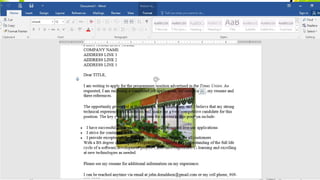
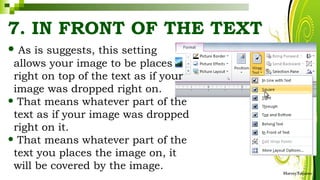
7. IN FRONT OF THE TEXT
• As is suggests, this setting
allows your image to be places
right on top of the text as if your
image was dropped right on.
• That means whatever part of the
text as if your image was dropped
right on it.
• That means whatever part of the
text you places the image on, it
will be covered by the image.
HarveyTabamo
HarveyTabamo
.JPG .PNG
MAIL MERGE AND LABEL
GENERATION
•One of the reasons
in using computers
per se is its ability to
do recurring tasks
automatically.
• No matter how good
or advance the
computer and
software is, it can
only be as good as
the person using it HarveyTabamo
MAIL MERGE
•As the name suggests,
this feature allows you to
create documents and
combine or merge theme
with another document or
data file.
• It is commonly used
when sending out
advertising materials to
various recipient. HarveyTabamo
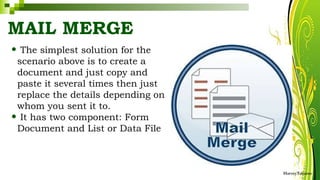
MAIL MERGE
• The simplest solution for the
scenario above is to create a
document and just copy and
paste it several times then just
replace the details depending on
whom you sent it to.
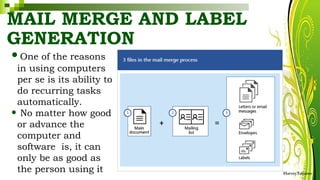
• It has two component: Form
Document and List or Data File
HarveyTabamo
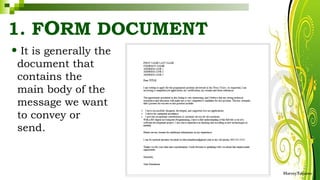
1. FORM DOCUMENT
• It is generally the
document that
contains the
main body of the
message we want
to convey or
send.
HarveyTabamo
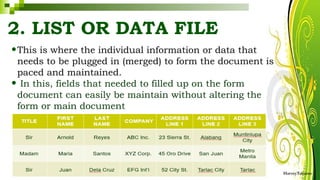
2. LIST OR DATA FILE
•This is where the individual information or data that
needs to be plugged in (merged) to form the document is
paced and maintained.
• In this, fields that needed to filled up on the form
document can easily be maintain without altering the
form or main document
HarveyTabamo
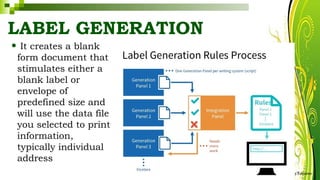
LABEL GENERATION
• It creates a blank
form document that
stimulates either a
blank label or
envelope of
predefined size and
will use the data file
you selected to print
information,
typically individual
address
HarveyTabamo
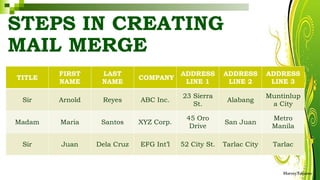
STEPS IN CREATING
MAIL MERGE
HarveyTabamo
TITLE
FIRST
NAME
LAST
NAME
COMPANY
ADDRESS
LINE 1
ADDRESS
LINE 2
ADDRESS
LINE 3
Sir Arnold Reyes ABC Inc.
23 Sierra
St.
Alabang
Muntinlup
a City
Madam Maria Santos XYZ Corp.
45 Oro
Drive
San Juan
Metro
Manila
Sir Juan Dela Cruz EFG Int’l 52 City St. Tarlac City Tarlac
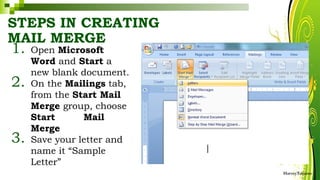
STEPS IN CREATING
MAIL MERGE
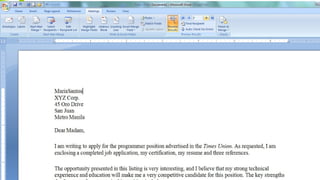
1. Open Microsoft
Word and Start a
new blank document.
2. On the Mailings tab,
from the Start Mail
Merge group, choose
Start Mail
Merge
3. Save your letter and
name it “Sample
Letter”
HarveyTabamo
STEPS IN CREATING MAIL MERGE
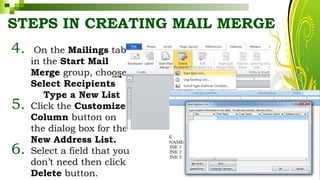
4. On the Mailings tab
in the Start Mail
Merge group, choose
Select Recipients
Type a New List
5. Click the Customize
Column button on
the dialog box for the
New Address List.
6. Select a field that you
don’t need then click
Delete button. HarveyTabamo
STEPS IN CREATING MAIL
MERGE
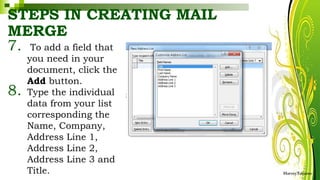
7. To add a field that
you need in your
document, click the
Add button.
8. Type the individual
data from your list
corresponding the
Name, Company,
Address Line 1,
Address Line 2,
Address Line 3 and
Title. HarveyTabamo
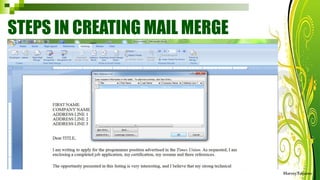
STEPS IN CREATING MAIL MERGE
HarveyTabamo
STEPS IN CREATING MAIL MERGE
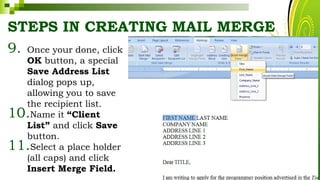
9. Once your done, click
OK button, a special
Save Address List
dialog pops up,
allowing you to save
the recipient list.
10.Name it “Client
List” and click Save
button.
11.Select a place holder
(all caps) and click
Insert Merge Field. HarveyTabamo
STEPS IN CREATING MAIL
MERGE
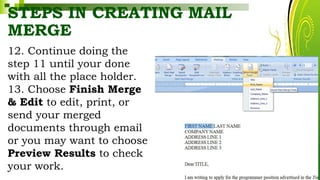
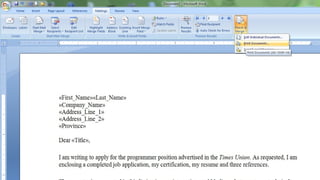
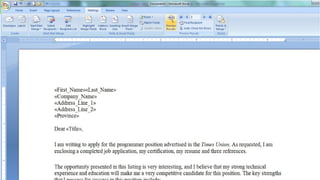
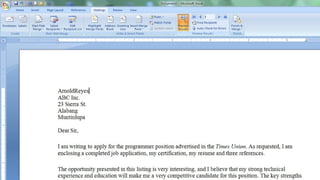
12. Continue doing the
step 11 until your done
with all the place holder.
13. Choose Finish Merge
& Edit to edit, print, or
send your merged
documents through email
or you may want to choose
Preview Results to check
your work. HarveyTabamo
ADVANCE SPREADSHEET
SKILLS
QUARTER I
CHAPTER IV
LESSON II
HarveyTabamo
OBJECTIVES
At the end of this lesson, you should be able
to:
• use common productivity tools effectively
by maximizing advanced application
techniques.
• creates an original or derivative ICT
content to effectively communicate or
present data or information related to
specific professional tracks. HarveyTabamo
ESTIMATING THE PRODUCT COST USING
MICROSOFT EXCEL
HarveyTabamo
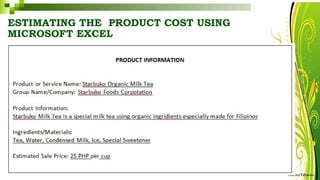
ESTIMATING THE PRODUCT COST USING
MICROSOFT EXCEL
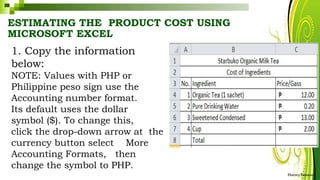
1. Copy the information
below:
NOTE: Values with PHP or
Philippine peso sign use the
Accounting number format.
Its default uses the dollar
symbol ($). To change this,
click the drop-down arrow at the
currency button select More
Accounting Formats, then
change the symbol to PHP.
HarveyTabamo
ESTIMATING THE PRODUCT COST USING
MICROSOFT EXCEL
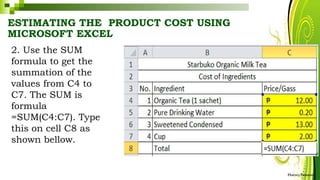
2. Use the SUM
formula to get the
summation of the
values from C4 to
C7. The SUM is
formula
=SUM(C4:C7). Type
this on cell C8 as
shown bellow.
HarveyTabamo
ESTIMATING THE PRODUCT COST USING
MICROSOFT EXCEL
HarveyTabamo
ESTIMATING THE PRODUCT COST
USING MICROSOFT EXCEL
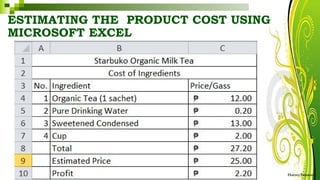
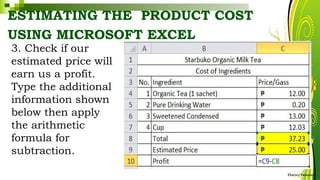
3. Check if our
estimated price will
earn us a profit.
Type the additional
information shown
below then apply
the arithmetic
formula for
subtraction.
HarveyTabamo
ESTIMATING THE PRODUCT COST USING MICROSOFT EXCEL
HarveyTabamo
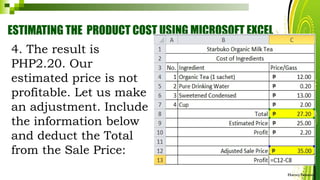
4. The result is
PHP2.20. Our
estimated price is not
profitable. Let us make
an adjustment. Include
the information below
and deduct the Total
from the Sale Price:
ESTIMATING THE PRODUCT
COST USING MICROSOFT EXCEL
HarveyTabamo
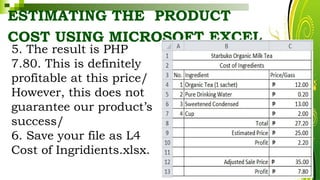
5. The result is PHP
7.80. This is definitely
profitable at this price/
However, this does not
guarantee our product’s
success/
6. Save your file as L4
Cost of Ingridients.xlsx.
ANALYZING DATA USING MICROSOFT EXCEL
HarveyTabamo
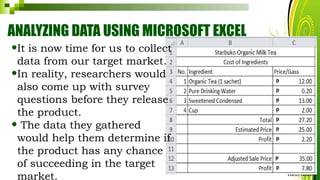
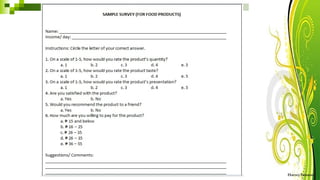
•It is now time for us to collect
data from our target market.
•In reality, researchers would
also come up with survey
questions before they release
the product.
• The data they gathered
would help them determine if
the product has any chance
of succeeding in the target
market.
HarveyTabamo
HarveyTabamo
ANALYZING DATA USING MICROSOFT
EXCEL
HarveyTabamo
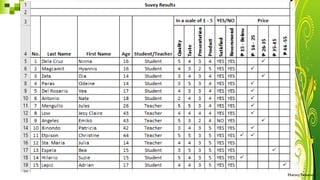
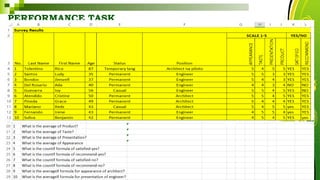
•Obviously, this data is raw. Assuming that we have a
huge sample, we have to apply several formulas to be
able to easily analyze the result of this survey.
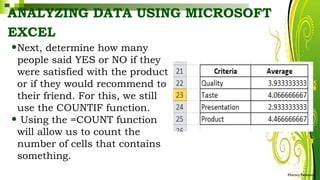
• Let us start by a simple average formula to determine
the average rating Quality, Taste, Presentation and
Product.
• The syntax would be = AVERAGE (Cell involved)
• Ex:
•Using the figure 1, determine the average for Quality:
= AVERAGE (F5:19)
ANALYZING DATA USING MICROSOFT
EXCEL
HarveyTabamo
•Next, determine how many
people said YES or NO if they
were satisfied with the product
or if they would recommend to
their friend. For this, we still
use the COUNTIF function.
• Using the =COUNT function
will allow us to count the
number of cells that contains
something.
ANALYZING DATA USING MICROSOFT
EXCEL
HarveyTabamo
•However, in this case. We just count the
ones that have YES or NO in them. For
this, we have to use the CONTIF function
•COUNTIF Function Syntax
=COUNTIF (range, criteria)
Range – the cell where the counting will
take place
Criteria –the label or value that determines
if is to be continued
ANALYZING DATA USING MICROSOFT
EXCEL
HarveyTabamo
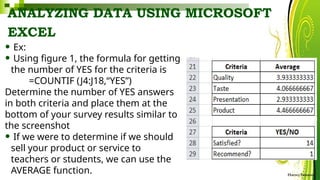
• Ex:
• Using figure 1, the formula for getting
the number of YES for the criteria is
=COUNTIF (J4:J18,“YES”)
Determine the number of YES answers
in both criteria and place them at the
bottom of your survey results similar to
the screenshot
• If we were to determine if we should
sell your product or service to
teachers or students, we can use the
AVERAGE function.
ANALYZING DATA USING MICROSOFT
EXCEL
HarveyTabamo
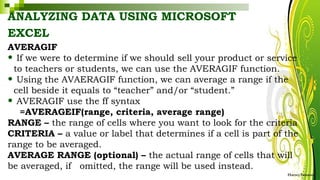
AVERAGIF
• If we were to determine if we should sell your product or service
to teachers or students, we can use the AVERAGIF function.
• Using the AVAERAGIF function, we can average a range if the
cell beside it equals to “teacher” and/or “student.”
• AVERAGIF use the ff syntax
=AVERAGEIF(range, criteria, average range)
RANGE – the range of cells where you want to look for the criteria
CRITERIA – a value or label that determines if a cell is part of the
range to be averaged.
AVERAGE RANGE (optional) – the actual range of cells that will
be averaged, if omitted, the range will be used instead.
ANALYZING DATA USING MICROSOFT
EXCEL
HarveyTabamo
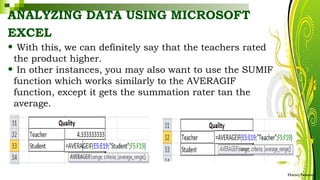
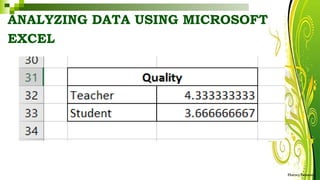
• With this, we can definitely say that the teachers rated
the product higher.
• In other instances, you may also want to use the SUMIF
function which works similarly to the AVERAGIF
function, except it gets the summation rater tan the
average.
ANALYZING DATA USING MICROSOFT
EXCEL
HarveyTabamo
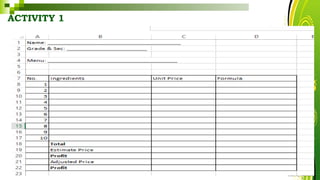
ACTIVITY 1
HarveyTabamo
PERFORMANCE TASK
HarveyTabamo
ADVANCE PRESENTATION
SKILLS
QUARTER I
CHAPTER IV
LESSON III
HarveyTabamo
OBJECTIVES
At the end of this lesson, you should be able
to:
• use common productivity tools effectively
by maximizing advanced application
techniques.
• creates an original or derivative ICT
content to effectively communicate or
present data or information related to
specific professional tracks. HarveyTabamo
CREATING AN EFFECTIVE
PRESENTATION
• Designing your presentation is the fun part of
creating a report for it gives you chance to be creative.
• Placing animations, transitions, and art could be your
mind right now.
• But whether or not these features would help is
generally up to you.
• Sometimes, these things could actually distract the
audience rather that help you.
• Here are some quick tips in creating an effective
presentation.
HarveyTabamo
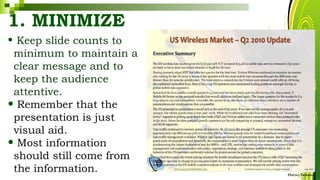
1. MINIMIZE
• Keep slide counts to
minimum to maintain a
clear message and to
keep the audience
attentive.
• Remember that the
presentation is just
visual aid.
• Most information
should still come from
the information. HarveyTabamo
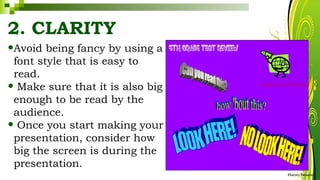
2. CLARITY
•Avoid being fancy by using a
font style that is easy to
read.
• Make sure that it is also big
enough to be read by the
audience.
• Once you start making your
presentation, consider how
big the screen is during the
presentation.
HarveyTabamo
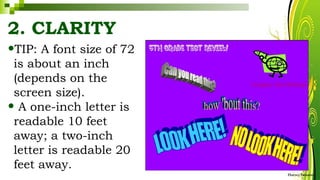
2. CLARITY
•TIP: A font size of 72
is about an inch
(depends on the
screen size).
• A one-inch letter is
readable 10 feet
away; a two-inch
letter is readable 20
feet away.
HarveyTabamo
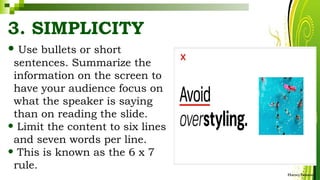
3. SIMPLICITY
• Use bullets or short
sentences. Summarize the
information on the screen to
have your audience focus on
what the speaker is saying
than on reading the slide.
• Limit the content to six lines
and seven words per line.
• This is known as the 6 x 7
rule.
HarveyTabamo
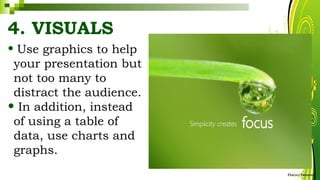
4. VISUALS
• Use graphics to help
your presentation but
not too many to
distract the audience.
• In addition, instead
of using a table of
data, use charts and
graphs.
HarveyTabamo
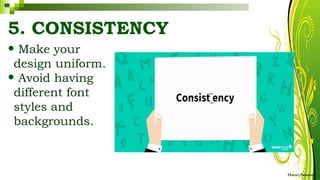
5. CONSISTENCY
• Make your
design uniform.
• Avoid having
different font
styles and
backgrounds.
HarveyTabamo
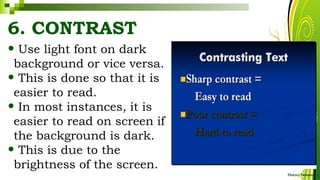
6. CONTRAST
• Use light font on dark
background or vice versa.
• This is done so that it is
easier to read.
• In most instances, it is
easier to read on screen if
the background is dark.
• This is due to the
brightness of the screen.
HarveyTabamo
USING HYPERLINKS IN
MICROSOFT PRESENTATION
•Using hyperlinks in
your presentation
is an easy way to
navigate slides
during your
presentation.
HarveyTabamo
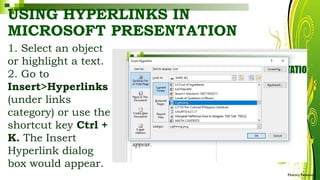
USING HYPERLINKS IN
MICROSOFT PRESENTATION
1. Select an object
or highlight a text.
2. Go to
Insert>Hyperlinks
(under links
category) or use the
shortcut key Ctrl +
K. The Insert
Hyperlink dialog
box would appear.
HarveyTabamo
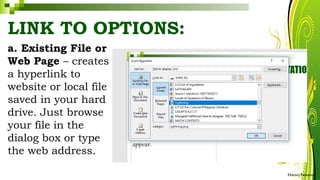
LINK TO OPTIONS:
a. Existing File or
Web Page – creates
a hyperlink to
website or local file
saved in your hard
drive. Just browse
your file in the
dialog box or type
the web address.
HarveyTabamo
LINK TO OPTIONS:
b. Place in this
Document –
creates a
hyperlink that
allows you to
jump to a
specific slide in
your
presentation.
HarveyTabamo
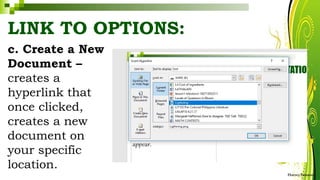
LINK TO OPTIONS:
c. Create a New
Document –
creates a
hyperlink that
once clicked,
creates a new
document on
your specific
location.
HarveyTabamo
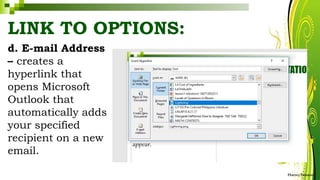
d. E-mail Address
– creates a
hyperlink that
opens Microsoft
Outlook that
automatically adds
your specified
recipient on a new
email.
HarveyTabamo
LINK TO OPTIONS:
USING HYPERLINKS IN
MICROSOFT PRESENTATION
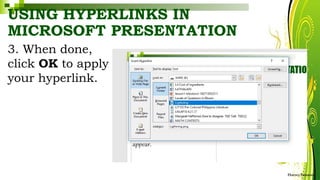
3. When done,
click OK to apply
your hyperlink.
HarveyTabamo
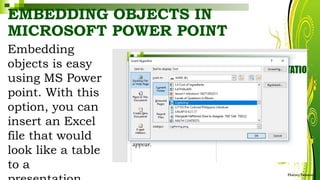
EMBEDDING OBJECTS IN
MICROSOFT POWER POINT
Embedding
objects is easy
using MS Power
point. With this
option, you can
insert an Excel
file that would
look like a table
to a
HarveyTabamo
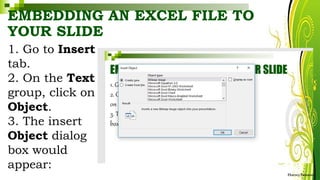
EMBEDDING AN EXCEL FILE TO
YOUR SLIDE
1. Go to Insert
tab.
2. On the Text
group, click on
Object.
3. The insert
Object dialog
box would
appear:
HarveyTabamo
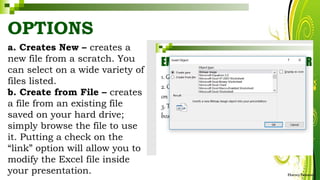
OPTIONS
a. Creates New – creates a
new file from a scratch. You
can select on a wide variety of
files listed.
b. Create from File – creates
a file from an existing file
saved on your hard drive;
simply browse the file to use
it. Putting a check on the
“link” option will allow you to
modify the Excel file inside
your presentation. HarveyTabamo
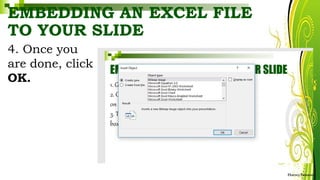
EMBEDDING AN EXCEL FILE
TO YOUR SLIDE
4. Once you
are done, click
OK.
HarveyTabamo
GROUP ACTIVITY
1. Group the class into 4 groups.
2. Assuming that we’re done with
the business week or School
Bazaar.
3. Create your PowerPoint
presentation in manila paper or
cartolina and follow the
following content.
4. Use appropriate design, table,
chart and diagram if applicable.
HarveyTabamo
USING HYPERLINKS IN
MICROSOFT PRESENTATION
HarveyTabamo
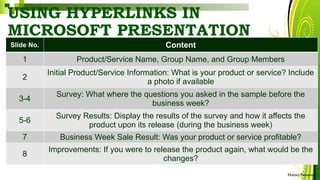
Slide No. Content
1 Product/Service Name, Group Name, and Group Members
2
Initial Product/Service Information: What is your product or service? Include
a photo if available
3-4
Survey: What where the questions you asked in the sample before the
business week?
5-6
Survey Results: Display the results of the survey and how it affects the
product upon its release (during the business week)
7 Business Week Sale Result: Was your product or service profitable?
8
Improvements: If you were to release the product again, what would be the
changes?
Serenade Services
Raye Erilka Ortiz
Aaron Kyle Bautista
Jelyn Llanera
Annabelle Potato
Emirose Sanchez
Right in the Hertz
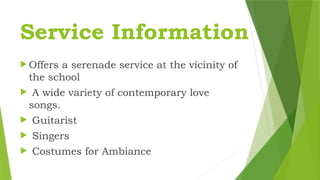
Service Information
 Offers a serenade service at the vicinity of
the school
 A wide variety of contemporary love
songs.
 Guitarist
 Singers
 Costumes for Ambiance
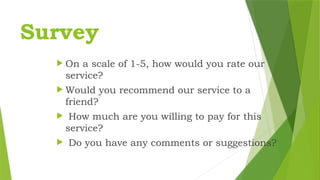
Survey
 On a scale of 1-5, how would you rate our
service?
 Would you recommend our service to a
friend?
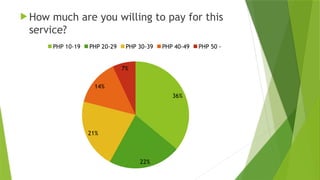
 How much are you willing to pay for this
service?
 Do you have any comments or suggestions?
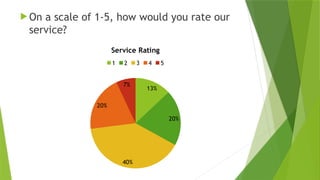
 On a scale of 1-5, how would you rate our
service?
13%
20%
40%
20%
7%
Service Rating
1 2 3 4 5
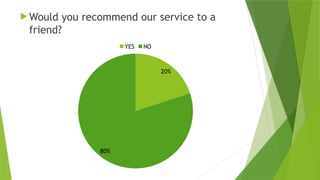
 Would you recommend our service to a
friend?
20%
80%
YES NO
 How much are you willing to pay for this
service?
36%
22%
21%
14%
7%
PHP 10-19 PHP 20-29 PHP 30-39 PHP 40-49 PHP 50 -
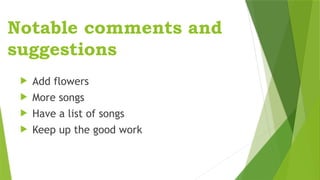
Notable comments and
suggestions
 Add flowers
 More songs
 Have a list of songs
 Keep up the good work
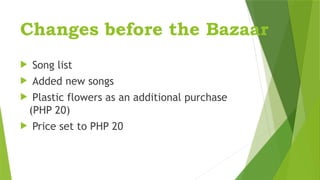
Changes before the Bazaar
 Song list
 Added new songs
 Plastic flowers as an additional purchase
(PHP 20)
 Price set to PHP 20
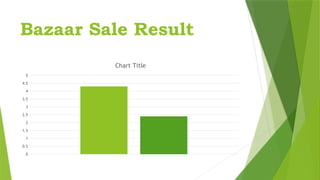
Bazaar Sale Result
0
0.5
1
1.5
2
2.5
3
3.5
4
4.5
5
Chart Title
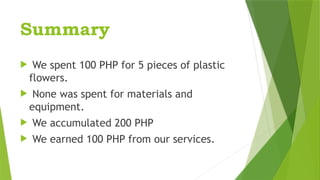
Summary
 We spent 100 PHP for 5 pieces of plastic
flowers.
 None was spent for materials and
equipment.
 We accumulated 200 PHP
 We earned 100 PHP from our services.
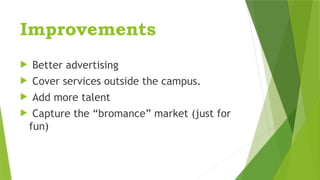
Improvements
 Better advertising
 Cover services outside the campus.
 Add more talent
 Capture the “bromance” market (just for
fun)
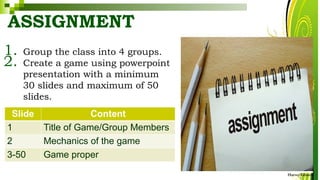
ASSIGNMENT
1. Group the class into 4 groups.
2. Create a game using powerpoint
presentation with a minimum
30 slides and maximum of 50
slides.
HarveyTabamo
Slide Content
1 Title of Game/Group Members
2 Mechanics of the game
3-50 Game proper

Q3-W3-EMPOWERMENT-TECHNOLOGIES lesson 3

  • 1.
  • 2.
    LEARNING COMPETENCIES Cristine E.Simbul  Uses common productivity tools effectively by maximizing advanced application techniques CS_ICT11/12-ICTPT-Ic-d4  Creates an original or derivative ICT content to effectively communicate or present data or information related to specific professional tracks CS_ICT11/12-ICTPT-Ic-d5
  • 3.
    COMMON PRODUCTIVITY TOOLS HarveyTabamo Office productivity tools are applications that allow for the viewing, creating and modifying of general office documents (e.g. spreadsheets, memos, presentations, letters, personal database, form generation, image editing, etc.).  Office productivity tools also include applications for managing employee tasks.
  • 4.
    COMMON PRODUCTIVITY TOOLS HarveyTabamo Three basic functions of digital tools are generally combined to support decisions in business or management, and in communication contexts.  These 3 basic tools support writing, numeracy and presentation skills.  In earlier ICT-related courses or academic subjects, these tools find expression in essays, book reports, and newsletters, as well as in presentation of ideas contained in a deck of digital slides.
  • 5.
    COMMON PRODUCTIVITY TOOLS HarveyTabamo Microsoft Office is the commercial giant of productivity software.  Experience with the suite is useful to anybody.  Literally millions of users work with its programs and related file formats.  Learning how to use the MS Office suite helps you with everyday tasks, as well as at work.
  • 6.
    THREE BASIC TOOLS HarveyTabamo MicrosoftWord-is a graphical word processing program that users can type with.  Its purpose is to allow users to type and save documents. Like other word processors, it has helpful tools to make documents.
  • 7.
    THREE BASIC TOOLS HarveyTabamo MicrosoftExcel- is an electronic worksheet or spreadsheet application which is used for organizing, storing, and manipulating and analyzing data.
  • 8.
    THREE BASIC TOOLS HarveyTabamo Microsoft PowerPoint-is a software application which is particularly used to present data and information by using text, diagrams with animation, images, and transitional effects, etc. in the form of slides.  It helps people to better understand the idea or topic in front of the audience easily.
  • 9.
    INTEGRATING IMAGES ANDEXTERNAL MATERIALS • Integrating or inserting pictures in your document is fun and it improves the impression of your document. • Let us consider the interesting aspects of inserting or integrating images and other external materials. HarveyTabamo
  • 10.
    KINDS OF MATERIALS •There are various kinds of materials Microsoft Word is capable of integrating to make your documents richer, more impressive and more informative. HarveyTabamo
  • 11.
    1. PICTURES • Generally,these electronic or digital pictures or photographs you have saved on any local storage device. There are three common files used and you can identify them by the extension on their file name. HarveyTabamo
  • 12.
    A. .JPG –this is pronounced as “jay.peg” and is short form for Joint Photographic Experts Group. -Like all the rest of the image file extensions, it identifies the kind of date compression process that it uses to make it more compatible and portable through the internet. - It can support 16.7 million colors HarveyTabamo 1. PICTURES
  • 13.
    A. .JPG -It doesnot support transparency and therefore difficult to integrate in terms of blending with other materials or elements -It does not work well with lettering, line drawings, or simple graphics. -It has relatively small in file size. HarveyTabamo 1. PICTURES
  • 14.
    B. .GIF –stands for Graphics interchange Format. -This type of image file is capable of displaying transparencies. Therefore it is good for blending other materials or elements in your document. -It is also capable of displaying simple animation. HarveyTabamo 1. PICTURES
  • 15.
    C. .PNG –This is pronounced as “ping.” It stands for Portable Network Graphics. -It was built around the capabilities of .GIF. -Its development was basically for the purpose of transporting images on the internet at faster rates. - It is also good in transparency but unlike .GIFs, it does not support animation but it can display up to about 16 million colors -It allows the control of transparency level or opacity HarveyTabamo 1. PICTURES
  • 16.
    2. CLIPART • Thisis generally a GIF type; line art drawings or image used as generic representation for ideas and objects that you might want to integrate in your document. • MS Word has a library of clip arts that is built in or can be downloaded and used freely. • There are also third-party providers. HarveyTabamo
  • 17.
    3. SHAPES • Theseare printable objects and materials that you can integrate in your document to enhance its appearance or to allow you to have some tools to use for composing and representing ideas or messages. HarveyTabamo
  • 18.
    4. SMART ART •Generally, these are predefined set of different shapes grouped together to form ideas that are organizational or structural in nature. • If you want to graphically represent an organization, process, relationships, or flow for infographic documents, then you will find this easy and handy to use. HarveyTabamo
  • 19.
    5. CHART • Anothertype of material that you can integrate in your Word document that allows you to represent data characteristics and trends. •This is quite useful when you are preparing reports that correlate and present data in a graphical manner. • You can integrate direct file or external files like MS Excel. HarveyTabamo
  • 20.
    6. SCREENSHOT • Sometimes,creating reports or manual for training or procedures will require the integration of a more realistic image of what you are discussing on your report or manual. • Nothing can get you a more realistic image than a screenshot. HarveyTabamo
  • 21.
    IMAGE PLACEMENT • Inpractice, inserting an image or any other material in your document is quite easy especially if the material already exists in your local storage device. • The real challenge is where to put the image you inserted or where to move it. • In this part of the lesson, we will study the different characteristics of text wrapping options that you can use with the image you integrated in your document. HarveyTabamo
  • 22.
    1. IN LINEWITH TEXT •This is the default setting for images that are inserted or integrated in your document. • It treats your image like a test font with the bottom side totally aligned with the text line. • This is usually used when you need to place your image at the beginning of the paragraph. HarveyTabamo
  • 23.
    1. IN LINEWITH TEXT •When placed between texts in paragraph or sentence, it distorts the overall appearance and arrangement of the texts in paragraph because it will take up the space it needs vertically pushing whole lines of texts upward as in the example below. HarveyTabamo
  • 24.
  • 25.
    2. SQUARE •This settingallows the image you inserted to be placed anywhere within the paragraphs with the text going around the image in a square pattern like a frame HarveyTabamo
  • 26.
  • 27.
    3. TIGHT •This isalmost the same as the Square setting, but here the text “hugs” or conforms to the general shape of the image. • This allows you to get a more creative effect on your document. • This setting can mostly be achieved if you are using an image that supports transparency like a .GIF or .PNG HarveyTabamo
  • 28.
  • 29.
    4. THROUGH • Thissetting allows the text on your document to flow even tighter, taking the contours and shape of the image. • Again, this can be best used with a .GIF or .PNG type of the image. HarveyTabamo
  • 30.
  • 31.
    5. TOP ANDBOTTOM •This setting pushes the texts away vertically to the top and/or the bottom of the image so that the image occupies a whole text line on its own as in the example. HarveyTabamo
  • 32.
  • 33.
    6. BEHIND TEXT •This allows your image to be dragged and placed anywhere on your document but with all the texts floating in front of it. • It effectively makes your image look like a background. HarveyTabamo
  • 34.
  • 35.
    7. IN FRONTOF THE TEXT • As is suggests, this setting allows your image to be places right on top of the text as if your image was dropped right on. • That means whatever part of the text as if your image was dropped right on it. • That means whatever part of the text you places the image on, it will be covered by the image. HarveyTabamo
  • 36.
  • 37.
    MAIL MERGE ANDLABEL GENERATION •One of the reasons in using computers per se is its ability to do recurring tasks automatically. • No matter how good or advance the computer and software is, it can only be as good as the person using it HarveyTabamo
  • 38.
    MAIL MERGE •As thename suggests, this feature allows you to create documents and combine or merge theme with another document or data file. • It is commonly used when sending out advertising materials to various recipient. HarveyTabamo
  • 39.
    MAIL MERGE • Thesimplest solution for the scenario above is to create a document and just copy and paste it several times then just replace the details depending on whom you sent it to. • It has two component: Form Document and List or Data File HarveyTabamo
  • 40.
    1. FORM DOCUMENT •It is generally the document that contains the main body of the message we want to convey or send. HarveyTabamo
  • 41.
    2. LIST ORDATA FILE •This is where the individual information or data that needs to be plugged in (merged) to form the document is paced and maintained. • In this, fields that needed to filled up on the form document can easily be maintain without altering the form or main document HarveyTabamo
  • 42.
    LABEL GENERATION • Itcreates a blank form document that stimulates either a blank label or envelope of predefined size and will use the data file you selected to print information, typically individual address HarveyTabamo
  • 43.
    STEPS IN CREATING MAILMERGE HarveyTabamo TITLE FIRST NAME LAST NAME COMPANY ADDRESS LINE 1 ADDRESS LINE 2 ADDRESS LINE 3 Sir Arnold Reyes ABC Inc. 23 Sierra St. Alabang Muntinlup a City Madam Maria Santos XYZ Corp. 45 Oro Drive San Juan Metro Manila Sir Juan Dela Cruz EFG Int’l 52 City St. Tarlac City Tarlac
  • 44.
    STEPS IN CREATING MAILMERGE 1. Open Microsoft Word and Start a new blank document. 2. On the Mailings tab, from the Start Mail Merge group, choose Start Mail Merge 3. Save your letter and name it “Sample Letter” HarveyTabamo
  • 45.
    STEPS IN CREATINGMAIL MERGE 4. On the Mailings tab in the Start Mail Merge group, choose Select Recipients Type a New List 5. Click the Customize Column button on the dialog box for the New Address List. 6. Select a field that you don’t need then click Delete button. HarveyTabamo
  • 46.
    STEPS IN CREATINGMAIL MERGE 7. To add a field that you need in your document, click the Add button. 8. Type the individual data from your list corresponding the Name, Company, Address Line 1, Address Line 2, Address Line 3 and Title. HarveyTabamo
  • 47.
    STEPS IN CREATINGMAIL MERGE HarveyTabamo
  • 48.
    STEPS IN CREATINGMAIL MERGE 9. Once your done, click OK button, a special Save Address List dialog pops up, allowing you to save the recipient list. 10.Name it “Client List” and click Save button. 11.Select a place holder (all caps) and click Insert Merge Field. HarveyTabamo
  • 49.
    STEPS IN CREATINGMAIL MERGE 12. Continue doing the step 11 until your done with all the place holder. 13. Choose Finish Merge & Edit to edit, print, or send your merged documents through email or you may want to choose Preview Results to check your work. HarveyTabamo
  • 54.
  • 55.
    OBJECTIVES At the endof this lesson, you should be able to: • use common productivity tools effectively by maximizing advanced application techniques. • creates an original or derivative ICT content to effectively communicate or present data or information related to specific professional tracks. HarveyTabamo
  • 56.
    ESTIMATING THE PRODUCTCOST USING MICROSOFT EXCEL HarveyTabamo
  • 57.
    ESTIMATING THE PRODUCTCOST USING MICROSOFT EXCEL 1. Copy the information below: NOTE: Values with PHP or Philippine peso sign use the Accounting number format. Its default uses the dollar symbol ($). To change this, click the drop-down arrow at the currency button select More Accounting Formats, then change the symbol to PHP. HarveyTabamo
  • 58.
    ESTIMATING THE PRODUCTCOST USING MICROSOFT EXCEL 2. Use the SUM formula to get the summation of the values from C4 to C7. The SUM is formula =SUM(C4:C7). Type this on cell C8 as shown bellow. HarveyTabamo
  • 59.
    ESTIMATING THE PRODUCTCOST USING MICROSOFT EXCEL HarveyTabamo
  • 60.
    ESTIMATING THE PRODUCTCOST USING MICROSOFT EXCEL 3. Check if our estimated price will earn us a profit. Type the additional information shown below then apply the arithmetic formula for subtraction. HarveyTabamo
  • 61.
    ESTIMATING THE PRODUCTCOST USING MICROSOFT EXCEL HarveyTabamo 4. The result is PHP2.20. Our estimated price is not profitable. Let us make an adjustment. Include the information below and deduct the Total from the Sale Price:
  • 62.
    ESTIMATING THE PRODUCT COSTUSING MICROSOFT EXCEL HarveyTabamo 5. The result is PHP 7.80. This is definitely profitable at this price/ However, this does not guarantee our product’s success/ 6. Save your file as L4 Cost of Ingridients.xlsx.
  • 63.
    ANALYZING DATA USINGMICROSOFT EXCEL HarveyTabamo •It is now time for us to collect data from our target market. •In reality, researchers would also come up with survey questions before they release the product. • The data they gathered would help them determine if the product has any chance of succeeding in the target market.
  • 64.
  • 65.
  • 66.
    ANALYZING DATA USINGMICROSOFT EXCEL HarveyTabamo •Obviously, this data is raw. Assuming that we have a huge sample, we have to apply several formulas to be able to easily analyze the result of this survey. • Let us start by a simple average formula to determine the average rating Quality, Taste, Presentation and Product. • The syntax would be = AVERAGE (Cell involved) • Ex: •Using the figure 1, determine the average for Quality: = AVERAGE (F5:19)
  • 67.
    ANALYZING DATA USINGMICROSOFT EXCEL HarveyTabamo •Next, determine how many people said YES or NO if they were satisfied with the product or if they would recommend to their friend. For this, we still use the COUNTIF function. • Using the =COUNT function will allow us to count the number of cells that contains something.
  • 68.
    ANALYZING DATA USINGMICROSOFT EXCEL HarveyTabamo •However, in this case. We just count the ones that have YES or NO in them. For this, we have to use the CONTIF function •COUNTIF Function Syntax =COUNTIF (range, criteria) Range – the cell where the counting will take place Criteria –the label or value that determines if is to be continued
  • 69.
    ANALYZING DATA USINGMICROSOFT EXCEL HarveyTabamo • Ex: • Using figure 1, the formula for getting the number of YES for the criteria is =COUNTIF (J4:J18,“YES”) Determine the number of YES answers in both criteria and place them at the bottom of your survey results similar to the screenshot • If we were to determine if we should sell your product or service to teachers or students, we can use the AVERAGE function.
  • 70.
    ANALYZING DATA USINGMICROSOFT EXCEL HarveyTabamo AVERAGIF • If we were to determine if we should sell your product or service to teachers or students, we can use the AVERAGIF function. • Using the AVAERAGIF function, we can average a range if the cell beside it equals to “teacher” and/or “student.” • AVERAGIF use the ff syntax =AVERAGEIF(range, criteria, average range) RANGE – the range of cells where you want to look for the criteria CRITERIA – a value or label that determines if a cell is part of the range to be averaged. AVERAGE RANGE (optional) – the actual range of cells that will be averaged, if omitted, the range will be used instead.
  • 71.
    ANALYZING DATA USINGMICROSOFT EXCEL HarveyTabamo • With this, we can definitely say that the teachers rated the product higher. • In other instances, you may also want to use the SUMIF function which works similarly to the AVERAGIF function, except it gets the summation rater tan the average.
  • 72.
    ANALYZING DATA USINGMICROSOFT EXCEL HarveyTabamo
  • 73.
  • 74.
  • 75.
  • 76.
    OBJECTIVES At the endof this lesson, you should be able to: • use common productivity tools effectively by maximizing advanced application techniques. • creates an original or derivative ICT content to effectively communicate or present data or information related to specific professional tracks. HarveyTabamo
  • 77.
    CREATING AN EFFECTIVE PRESENTATION •Designing your presentation is the fun part of creating a report for it gives you chance to be creative. • Placing animations, transitions, and art could be your mind right now. • But whether or not these features would help is generally up to you. • Sometimes, these things could actually distract the audience rather that help you. • Here are some quick tips in creating an effective presentation. HarveyTabamo
  • 78.
    1. MINIMIZE • Keepslide counts to minimum to maintain a clear message and to keep the audience attentive. • Remember that the presentation is just visual aid. • Most information should still come from the information. HarveyTabamo
  • 79.
    2. CLARITY •Avoid beingfancy by using a font style that is easy to read. • Make sure that it is also big enough to be read by the audience. • Once you start making your presentation, consider how big the screen is during the presentation. HarveyTabamo
  • 80.
    2. CLARITY •TIP: Afont size of 72 is about an inch (depends on the screen size). • A one-inch letter is readable 10 feet away; a two-inch letter is readable 20 feet away. HarveyTabamo
  • 81.
    3. SIMPLICITY • Usebullets or short sentences. Summarize the information on the screen to have your audience focus on what the speaker is saying than on reading the slide. • Limit the content to six lines and seven words per line. • This is known as the 6 x 7 rule. HarveyTabamo
  • 82.
    4. VISUALS • Usegraphics to help your presentation but not too many to distract the audience. • In addition, instead of using a table of data, use charts and graphs. HarveyTabamo
  • 83.
    5. CONSISTENCY • Makeyour design uniform. • Avoid having different font styles and backgrounds. HarveyTabamo
  • 84.
    6. CONTRAST • Uselight font on dark background or vice versa. • This is done so that it is easier to read. • In most instances, it is easier to read on screen if the background is dark. • This is due to the brightness of the screen. HarveyTabamo

  • 85.
    USING HYPERLINKS IN MICROSOFTPRESENTATION •Using hyperlinks in your presentation is an easy way to navigate slides during your presentation. HarveyTabamo
  • 86.
    USING HYPERLINKS IN MICROSOFTPRESENTATION 1. Select an object or highlight a text. 2. Go to Insert>Hyperlinks (under links category) or use the shortcut key Ctrl + K. The Insert Hyperlink dialog box would appear. HarveyTabamo
  • 87.
    LINK TO OPTIONS: a.Existing File or Web Page – creates a hyperlink to website or local file saved in your hard drive. Just browse your file in the dialog box or type the web address. HarveyTabamo
  • 88.
    LINK TO OPTIONS: b.Place in this Document – creates a hyperlink that allows you to jump to a specific slide in your presentation. HarveyTabamo
  • 89.
    LINK TO OPTIONS: c.Create a New Document – creates a hyperlink that once clicked, creates a new document on your specific location. HarveyTabamo
  • 90.
    d. E-mail Address –creates a hyperlink that opens Microsoft Outlook that automatically adds your specified recipient on a new email. HarveyTabamo LINK TO OPTIONS:
  • 91.
    USING HYPERLINKS IN MICROSOFTPRESENTATION 3. When done, click OK to apply your hyperlink. HarveyTabamo
  • 92.
    EMBEDDING OBJECTS IN MICROSOFTPOWER POINT Embedding objects is easy using MS Power point. With this option, you can insert an Excel file that would look like a table to a HarveyTabamo
  • 93.
    EMBEDDING AN EXCELFILE TO YOUR SLIDE 1. Go to Insert tab. 2. On the Text group, click on Object. 3. The insert Object dialog box would appear: HarveyTabamo
  • 94.
    OPTIONS a. Creates New– creates a new file from a scratch. You can select on a wide variety of files listed. b. Create from File – creates a file from an existing file saved on your hard drive; simply browse the file to use it. Putting a check on the “link” option will allow you to modify the Excel file inside your presentation. HarveyTabamo
  • 95.
    EMBEDDING AN EXCELFILE TO YOUR SLIDE 4. Once you are done, click OK. HarveyTabamo
  • 96.
    GROUP ACTIVITY 1. Groupthe class into 4 groups. 2. Assuming that we’re done with the business week or School Bazaar. 3. Create your PowerPoint presentation in manila paper or cartolina and follow the following content. 4. Use appropriate design, table, chart and diagram if applicable. HarveyTabamo
  • 97.
    USING HYPERLINKS IN MICROSOFTPRESENTATION HarveyTabamo Slide No. Content 1 Product/Service Name, Group Name, and Group Members 2 Initial Product/Service Information: What is your product or service? Include a photo if available 3-4 Survey: What where the questions you asked in the sample before the business week? 5-6 Survey Results: Display the results of the survey and how it affects the product upon its release (during the business week) 7 Business Week Sale Result: Was your product or service profitable? 8 Improvements: If you were to release the product again, what would be the changes?
  • 98.
    Serenade Services Raye ErilkaOrtiz Aaron Kyle Bautista Jelyn Llanera Annabelle Potato Emirose Sanchez Right in the Hertz
  • 99.
    Service Information  Offersa serenade service at the vicinity of the school  A wide variety of contemporary love songs.  Guitarist  Singers  Costumes for Ambiance
  • 100.
    Survey  On ascale of 1-5, how would you rate our service?  Would you recommend our service to a friend?  How much are you willing to pay for this service?  Do you have any comments or suggestions?
  • 101.
     On ascale of 1-5, how would you rate our service? 13% 20% 40% 20% 7% Service Rating 1 2 3 4 5
  • 102.
     Would yourecommend our service to a friend? 20% 80% YES NO
  • 103.
     How muchare you willing to pay for this service? 36% 22% 21% 14% 7% PHP 10-19 PHP 20-29 PHP 30-39 PHP 40-49 PHP 50 -
  • 104.
    Notable comments and suggestions Add flowers  More songs  Have a list of songs  Keep up the good work
  • 105.
    Changes before theBazaar  Song list  Added new songs  Plastic flowers as an additional purchase (PHP 20)  Price set to PHP 20
  • 106.
  • 107.
    Summary  We spent100 PHP for 5 pieces of plastic flowers.  None was spent for materials and equipment.  We accumulated 200 PHP  We earned 100 PHP from our services.
  • 108.
    Improvements  Better advertising Cover services outside the campus.  Add more talent  Capture the “bromance” market (just for fun)
  • 109.
    ASSIGNMENT 1. Group theclass into 4 groups. 2. Create a game using powerpoint presentation with a minimum 30 slides and maximum of 50 slides. HarveyTabamo Slide Content 1 Title of Game/Group Members 2 Mechanics of the game 3-50 Game proper