Log in - @
Introduction
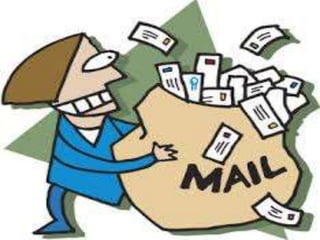
 Email or e-mail is short for electronic mail.
 An electronic message sent from one computer to
another or similar device.
 Service used to send and receive message quickly and
securely.
 It’s a modern method of transmitting data, text files,
digital photos, audio and video files from one
computer to another over the internet.
Elements of E-mail
 Sender
 Mail Agent
 Message
 Mail Transport Sub-System
 Recipient (Receiver)
 Recipient’s Mail Again
 E-mail Address
Sending Mess@ges
 A computer with internet access.
 You will need an e-mail server (post office) in order to
send and receive e-mail.
 An email account with a service provider such as
Yahoo, Gmail, hotmai, globo.com, ePaLs, etc
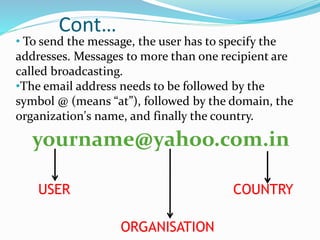
• To send the message, the user has to specify the
addresses. Messages to more than one recipient are
called broadcasting.
•The email address needs to be followed by the
symbol @ (means “at”), followed by the domain, the
organization's name, and finally the country.
yourname@yahoo.com.in
USER
ORGANISATION
COUNTRY
Cont…
Steps for Using E-mail
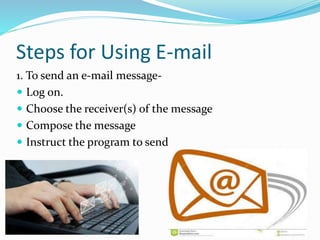
1. To send an e-mail message-
 Log on.
 Choose the receiver(s) of the message
 Compose the message
 Instruct the program to send
Cont…
2. To read our e-mail message-
 Log on
 Look at the list of our new mail
 Choose the message we wants to read
 Handle the current message by deleting, strong,
printing, forwarding, or replying.
 Continue to read other message
The parts of an email
 To : enter the exact email address of your recipient
(remember: name@provider.domain)
 CC : carbon copy
 Subject : the topic of your email – very important
 Body : the message of your email
 Attachments : the paperclip symbol - files or photos
Sending an email
 Communication can be tough with written
correspondence.
 No body language or facial cues to help.
 Err on the side of too formal
 Punctuation & spelling
 Greeting & closing signature
 ATTACH a file from a flash drive
 Once an email is sent, you cannot stop it or take it back
Receiving email
 If you have any messages you should see them listed on
the screen or in your Inbox
 At the top of each message is a header with information
about the sender, date, and routing of each message.
From: dwalker@surfcity-hb.org (Danielle Walker)
To: you@yahoo.com
CC:
Subject: Email Basics class
Date: Mon, 3 May 2010 8:31 PST
Replying to an email
 Reply vs Reply All
 When you click on Reply, your message will
automatically be sent to the person who sent you the
email.
 When you click on Reply All, your message will
automatically be sent to the person who sent you the
email AND everyone in the TO and CC fields in the
header.
Important – Sign Out!

E mail - karthik krishna

  • 1.
  • 2.
    Introduction  Email ore-mail is short for electronic mail.  An electronic message sent from one computer to another or similar device.  Service used to send and receive message quickly and securely.  It’s a modern method of transmitting data, text files, digital photos, audio and video files from one computer to another over the internet.
  • 4.
    Elements of E-mail Sender  Mail Agent  Message  Mail Transport Sub-System  Recipient (Receiver)  Recipient’s Mail Again  E-mail Address
  • 5.
    Sending Mess@ges  Acomputer with internet access.  You will need an e-mail server (post office) in order to send and receive e-mail.  An email account with a service provider such as Yahoo, Gmail, hotmai, globo.com, ePaLs, etc
  • 6.
    • To sendthe message, the user has to specify the addresses. Messages to more than one recipient are called broadcasting. •The email address needs to be followed by the symbol @ (means “at”), followed by the domain, the organization's name, and finally the country. yourname@yahoo.com.in USER ORGANISATION COUNTRY Cont…
  • 7.
    Steps for UsingE-mail 1. To send an e-mail message-  Log on.  Choose the receiver(s) of the message  Compose the message  Instruct the program to send
  • 8.
    Cont… 2. To readour e-mail message-  Log on  Look at the list of our new mail  Choose the message we wants to read  Handle the current message by deleting, strong, printing, forwarding, or replying.  Continue to read other message
  • 10.
    The parts ofan email  To : enter the exact email address of your recipient (remember: name@provider.domain)  CC : carbon copy  Subject : the topic of your email – very important  Body : the message of your email  Attachments : the paperclip symbol - files or photos
  • 11.
    Sending an email Communication can be tough with written correspondence.  No body language or facial cues to help.  Err on the side of too formal  Punctuation & spelling  Greeting & closing signature  ATTACH a file from a flash drive  Once an email is sent, you cannot stop it or take it back
  • 13.
    Receiving email  Ifyou have any messages you should see them listed on the screen or in your Inbox  At the top of each message is a header with information about the sender, date, and routing of each message. From: dwalker@surfcity-hb.org (Danielle Walker) To: you@yahoo.com CC: Subject: Email Basics class Date: Mon, 3 May 2010 8:31 PST
  • 14.
    Replying to anemail  Reply vs Reply All  When you click on Reply, your message will automatically be sent to the person who sent you the email.  When you click on Reply All, your message will automatically be sent to the person who sent you the email AND everyone in the TO and CC fields in the header.
  • 15.