Don't Be a One and Done
Matt Bergman
Milton Hershey School
Interactive Presentation
For today’s presentation visit:
student.infuselearning.com
About Me
Bergman-UDL@blogspot.com
Objectives for
Today
• Inspire you to take an honest look at how
you use iPads
• Provide you with FREE recipes that use
multiple Apps with the same purpose: help
ALL students learn
For today’s presentation visit:
student.infuselearning.com
For today’s presentation visit:
student.infuselearning.com
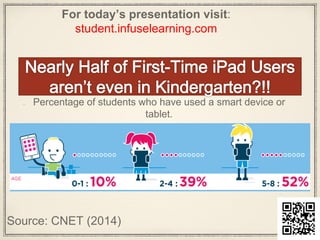
Percentage of students who have used a smart device or
tablet.
Source: CNET (2014)
For today’s presentation visit:
student.infuselearning.com
Let’s take a moment to think
about these statistics…
For today’s presentation visit:
student.infuselearning.c
om
Room ID 44064
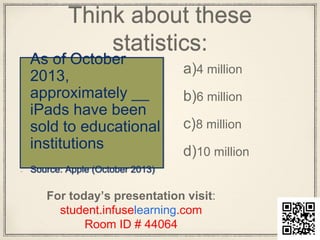
Think about these
statistics:
As of October
2013,
approximately __
iPads have been
sold to educational
institutions
Source: Apple (October 2013)
a)4 million
b)6 million
c)8 million
d)10 million
For today’s presentation visit:
student.infuselearning.com
Room ID # 44064
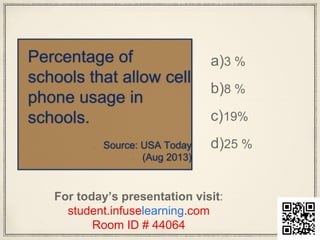
Percentage of
schools that allow cell
phone usage in
schools.
Source: USA Today
(Aug 2013)
For today’s presentation visit:
student.infuselearning.com
Room ID # 44064
a)3 %
b)8 %
c)19%
d)25 %
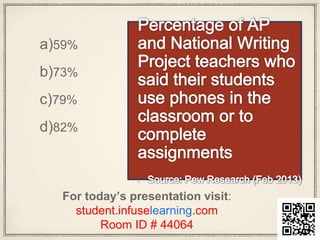
a)59%
b)73%
c)79%
d)82%
For today’s presentation visit:
student.infuselearning.com
Room ID # 44064
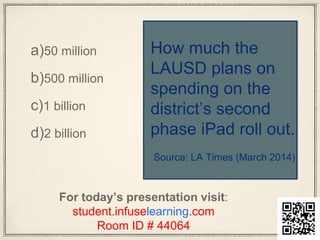
How much the
LAUSD plans on
spending on the
district’s second
phase iPad roll out.
Source: LA Times (March 2014)
a)50 million
b)500 million
c)1 billion
d)2 billion
For today’s presentation visit:
student.infuselearning.com
Room ID # 44064
FACT:
Tablets are changing the face
of education.
What are your favorite Apps to
use personally or in the
classroom? Why?
For today’s presentation visit:
student.infuselearning.com
Room ID # 44064
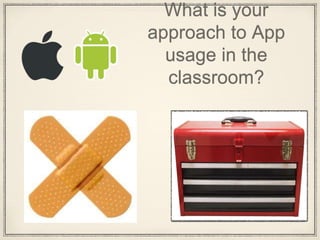
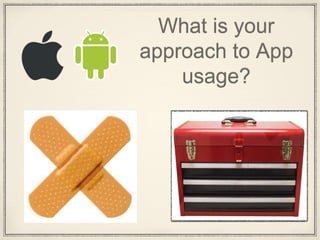
What is your
approach to App
usage in the
classroom?
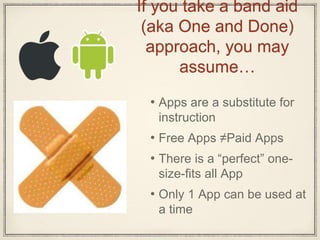
If you take a band aid
(aka One and Done)
approach, you may
assume…
• Apps are a substitute for
instruction
• Free Apps ≠Paid Apps
• There is a “perfect” one-
size-fits all App
• Only 1 App can be used at
a time
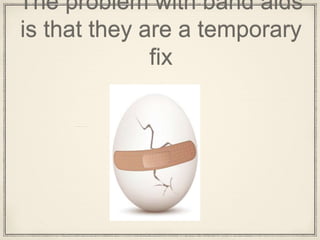
The problem with band aids
is that they are a temporary
fix
When you take a band aid
approach, you can easily
become a “One and Done”
(noun) An educator who takes a one-size-
fits-all approach to App usage
Consistently uses one App per
educational experience, addressing the
learning needs of some and neglecting
the needs of others
How do I know if I
am a one and
done?
You might be a one and done
if....
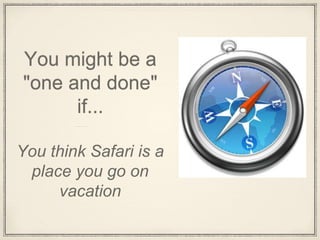
You might be a
"one and done"
if...
You think Safari is a
place you go on
vacation
You might be a
"one and done"
if...
The Home Button is
your favorite App
You might be a
"one and done"
if...
There is more
dust on your iPad
than Apps
You might be a
"one and done"
if...
Your closet sees
your iPad more
than you do
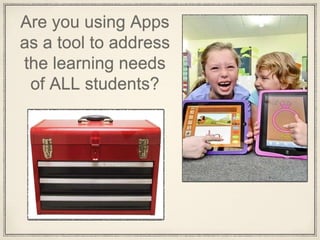
Are you using Apps
as a tool to address
the learning needs
of ALL students?
Using Apps as a tool..
• Addresses learner variability
• Provides scaffolds and supports
• Teaches students how to progress
from using the tool to finding the right
tool for job
Example that
started my
thinking
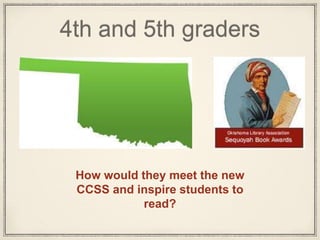
4th and 5th graders
How would they meet the new
CCSS and inspire students to
read?
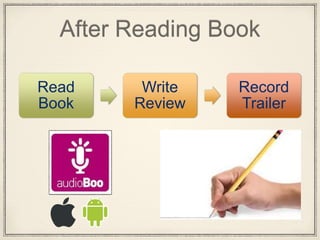
After Reading Book
Read
Book
Write
Review
Record
Trailer
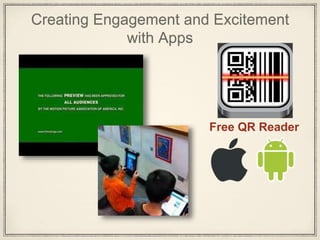
Creating Engagement and Excitement
with Apps
Free QR Reader
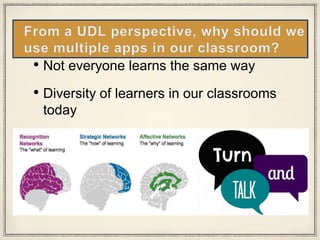
• Not everyone learns the same way
• Diversity of learners in our classrooms
today
The purpose of today is to
give you iPad recipes
With a few
sprinkles of
iPad tips
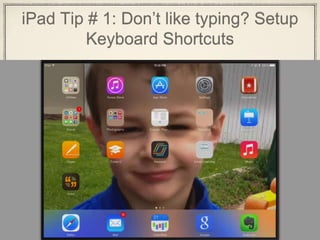
iPad Tip # 1: Don’t like typing? Setup
Keyboard Shortcuts
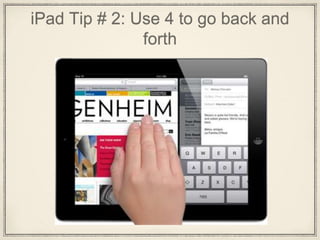
iPad Tip # 2: Use 4 to go back and
forth
Recipe # 1
A Basic Classroom Recipe
6
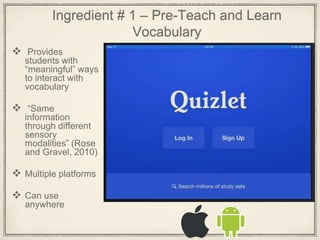
Ingredient # 1 – Pre-Teach and Learn
Vocabulary
 Provides
students with
“meaningful” ways
to interact with
vocabulary
 “Same
information
through different
sensory
modalities” (Rose
and Gravel, 2010)
 Multiple platforms
 Can use
anywhere
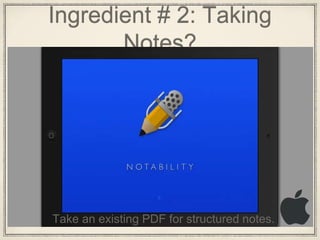
Ingredient # 2: Taking
Notes?
Take an existing PDF for structured notes.
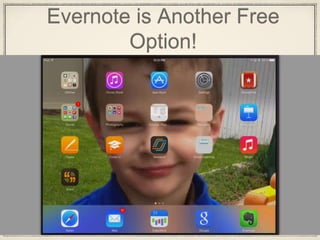
Evernote is Another Free
Option!
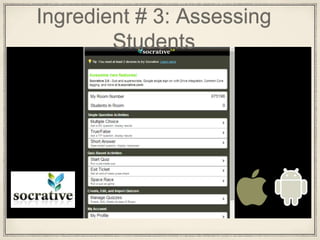
Ingredient # 3: Assessing
Students
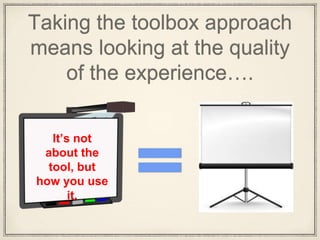
Taking the toolbox approach
means looking at the quality
of the experience….
It’s not
about the
tool, but
how you use
it.
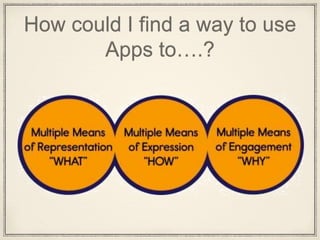
How could I find a way to use
Apps to….?
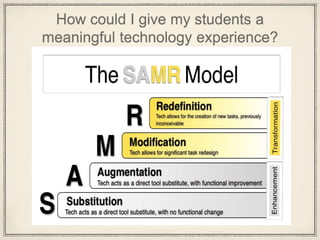
How could I give my students a
meaningful technology experience?
Recipe # 2
Creative Ways to Introduce a New Concept
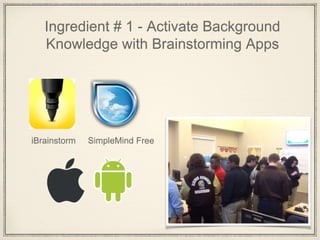
Ingredient # 1 - Activate Background
Knowledge with Brainstorming Apps
iBrainstorm SimpleMind Free
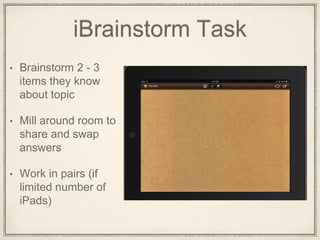
iBrainstorm Task
• Brainstorm 2 - 3
items they know
about topic
• Mill around room to
share and swap
answers
• Work in pairs (if
limited number of
iPads)
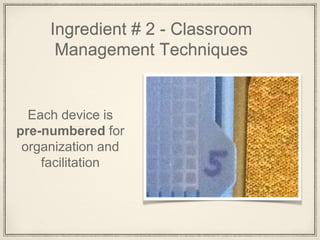
Ingredient # 2 - Classroom
Management Techniques
Each device is
pre-numbered for
organization and
facilitation
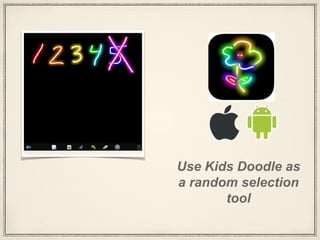
Use Kids Doodle as
a random selection
tool
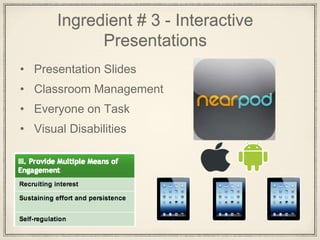
Ingredient # 3 - Interactive
Presentations
• Presentation Slides
• Classroom Management
• Everyone on Task
• Visual Disabilities
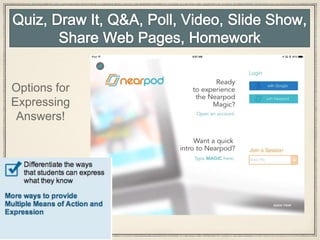
Options for
Expressing
Answers!
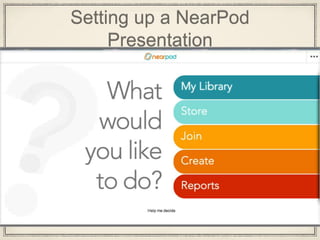
Setting up a NearPod
Presentation
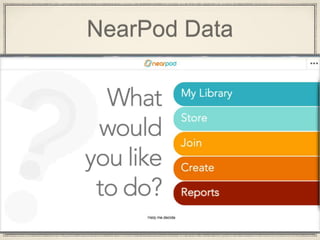
NearPod Data
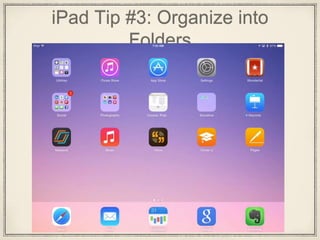
iPad Tip #3: Organize into
Folders
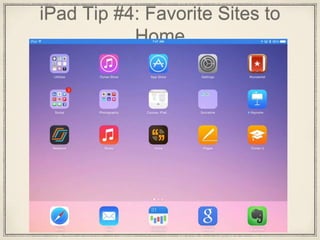
iPad Tip #4: Favorite Sites to
Home
Recipe # 3: Taking Ownership of
Learning
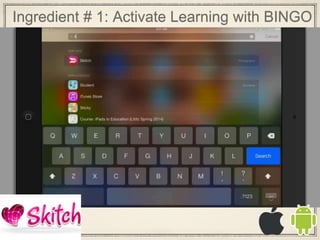
Ingredient # 1: Activate Learning with BINGO
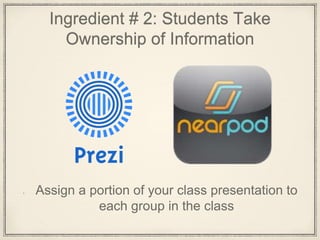
Ingredient # 2: Students Take
Ownership of Information
Assign a portion of your class presentation to
each group in the class
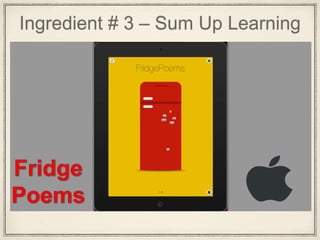
Ingredient # 3 – Sum Up Learning
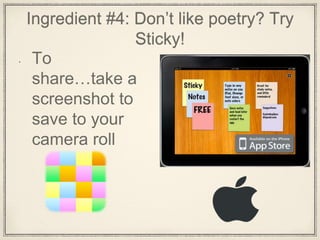
Ingredient #4: Don’t like poetry? Try
Sticky!
• To
share…take a
screenshot to
save to your
camera roll
iPad Tip # 5: One of the
biggest barriers?
File to
teachers?
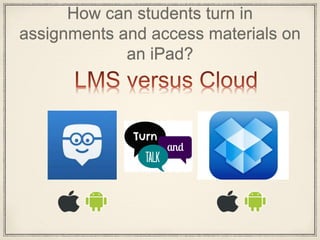
How can students turn in
assignments and access materials on
an iPad?
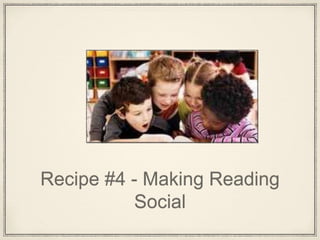
Recipe #4 - Making Reading
Social
shar.es/PyXQB
How often do you provide students with
different versions of text for an
assignment?
• All of the time
• Most of the time
• Sometimes
• Not very often
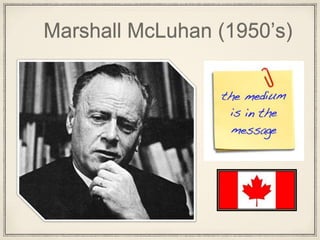
Marshall McLuhan (1950’s)
Ingredient # 1: Options for Reading
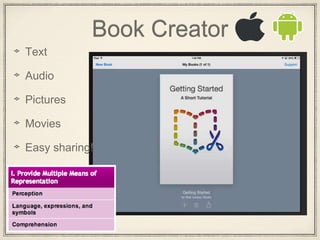
Book Creator
Text
Audio
Pictures
Movies
Easy sharing!
How do you hold students
accountable for reading
assignments?
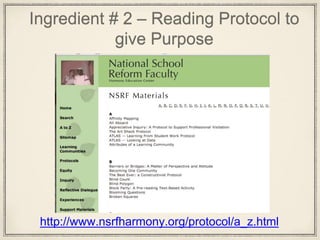
Ingredient # 2 – Reading Protocol to
give Purpose
http://www.nsrfharmony.org/protocol/a_z.html
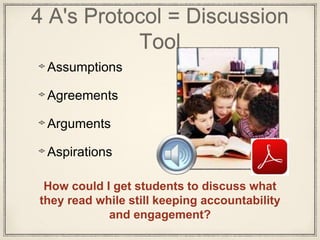
4 A's Protocol = Discussion
Tool
Assumptions
Agreements
Arguments
Aspirations
How could I get students to discuss what
they read while still keeping accountability
and engagement?
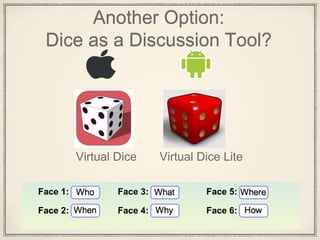
Another Option:
Dice as a Discussion Tool?
Virtual Dice Virtual Dice Lite
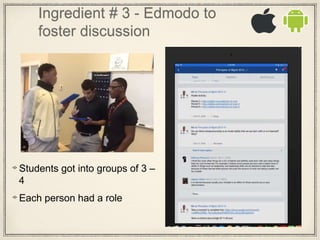
Ingredient # 3 - Edmodo to
foster discussion
Students got into groups of 3 –
4
Each person had a role
Have you noticed different ways
of learning is addressed in
discussion?
Verbal and Auditory =
Discussion
Visual and Kinestetic =
Edmodo
Written record of discussion for
accountability or students who
are not in class
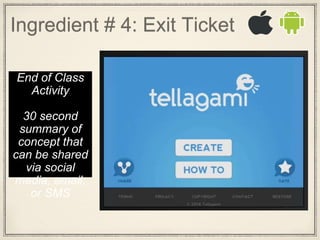
Ingredient # 4: Exit Ticket
End of Class
Activity
30 second
summary of
concept that
can be shared
via social
media, email,
or SMS
Other Ideas!
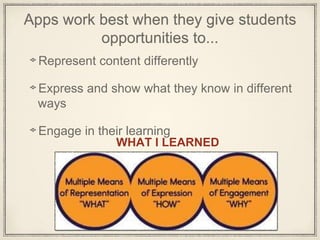
Apps work best when they give students
opportunities to...
Represent content differently
Express and show what they know in different
ways
Engage in their learning
WHAT I LEARNED
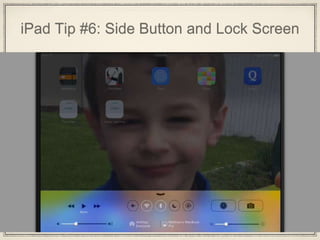
iPad Tip #6: Side Button and Lock Screen
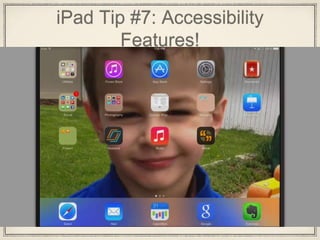
iPad Tip #7: Accessibility
Features!
What are the challenges of
having students write on
iPads?
Recipe # 5: Enhancing the Writing
Process
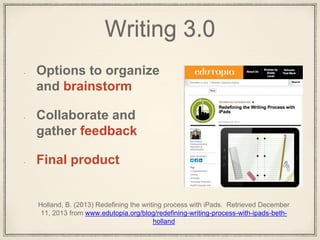
Writing 3.0
Options to organize
and brainstorm
Collaborate and
gather feedback
Final product
Holland, B. (2013) Redefining the writing process with iPads. Retrieved December
11, 2013 from www.edutopia.org/blog/redefining-writing-process-with-ipads-beth-
holland
Options to organize and brainstorm
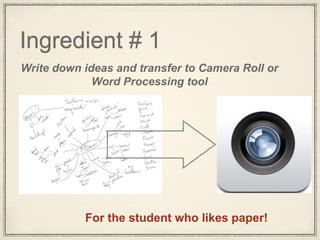
Ingredient # 1
Write down ideas and transfer to Camera Roll or
Word Processing tool
For the student who likes paper!
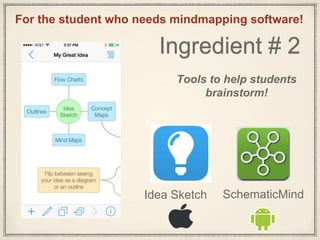
Ingredient # 2
Tools to help students
brainstorm!
Idea Sketch SchematicMind
For the student who needs mindmapping software!
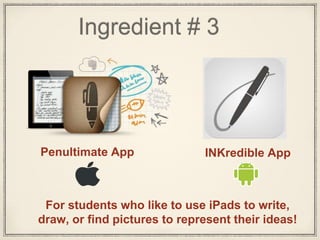
Ingredient # 3
For students who like to use iPads to write,
draw, or find pictures to represent their ideas!
Penultimate App INKredible App
Tools for final product
Ingredient # 4 Tools to get your ideas
on paper!
What about students who have trouble with getting
their thoughts to paper?
Learning disabilities?
Evernote Google Drive Dragon Dictation
Collaborate and gather feedback
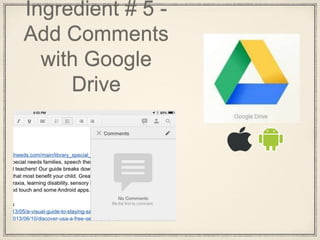
Ingredient # 5 -
Add Comments
with Google
Drive
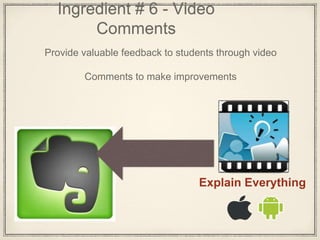
Ingredient # 6 - Video
Comments
Provide valuable feedback to students through video
Comments to make improvements
Explain Everything
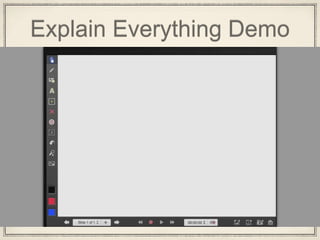
Explain Everything Demo
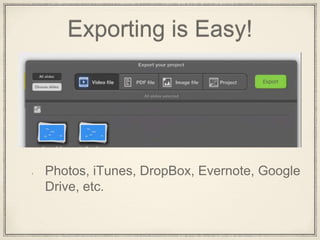
Exporting is Easy!
• Photos, iTunes, DropBox, Evernote, Google
Drive, etc.
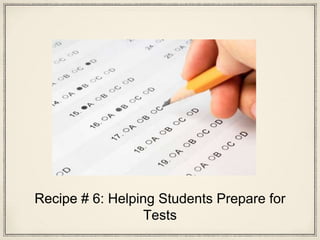
Recipe # 6: Helping Students Prepare for
Tests
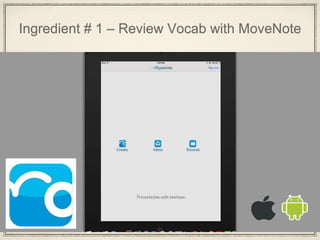
Ingredient # 1 – Review Vocab with MoveNote
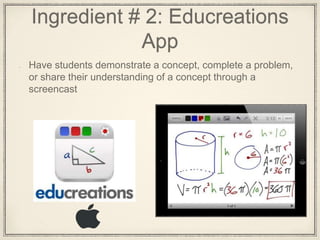
Ingredient # 2: Educreations
App
Have students demonstrate a concept, complete a problem,
or share their understanding of a concept through a
screencast
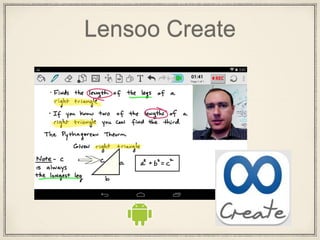
Lensoo Create
Ingredient # 3 - Share in
LiveBinder
Share MoveNote and
Educreation presentations in
binder
Store in a LiveBinder as a
scaffold or study tool
What is your
approach to App
usage?
A One and Done DOES NOT
See the diversity around them AND the need
to address it through different Apps
Take into consideration learner variability
Plan for student’s in “margins”
A One and Done DOES NOT
Plan for potential barriers with Apps
See Apps as a tool to scaffold and
support learning
A One and Done DOES NOT
See how Apps interact with
learners and the three major brain
networks
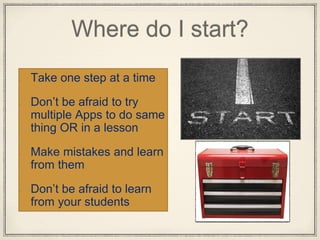
Where do I start?
Take one step at a time
Don’t be afraid to try
multiple Apps to do same
thing OR in a lesson
Make mistakes and learn
from them
Don’t be afraid to learn
from your students
Thank You
Email: mattbergman14@gmail.com
Blog: Bergman-UDL@blogspot.com
Twitter: @mattbergman14

Don't Be a One and Done: Creative Ways to Use Multiple Apps

  • 1.
    Don't Be aOne and Done Matt Bergman Milton Hershey School
  • 2.
    Interactive Presentation For today’spresentation visit: student.infuselearning.com
  • 3.
  • 4.
    Objectives for Today • Inspireyou to take an honest look at how you use iPads • Provide you with FREE recipes that use multiple Apps with the same purpose: help ALL students learn For today’s presentation visit: student.infuselearning.com
  • 5.
    For today’s presentationvisit: student.infuselearning.com
  • 6.
    Percentage of studentswho have used a smart device or tablet. Source: CNET (2014) For today’s presentation visit: student.infuselearning.com
  • 8.
    Let’s take amoment to think about these statistics… For today’s presentation visit: student.infuselearning.c om Room ID 44064
  • 9.
    Think about these statistics: Asof October 2013, approximately __ iPads have been sold to educational institutions Source: Apple (October 2013) a)4 million b)6 million c)8 million d)10 million For today’s presentation visit: student.infuselearning.com Room ID # 44064
  • 10.
    Percentage of schools thatallow cell phone usage in schools. Source: USA Today (Aug 2013) For today’s presentation visit: student.infuselearning.com Room ID # 44064 a)3 % b)8 % c)19% d)25 %
  • 11.
    a)59% b)73% c)79% d)82% For today’s presentationvisit: student.infuselearning.com Room ID # 44064
  • 12.
    How much the LAUSDplans on spending on the district’s second phase iPad roll out. Source: LA Times (March 2014) a)50 million b)500 million c)1 billion d)2 billion For today’s presentation visit: student.infuselearning.com Room ID # 44064
  • 13.
    FACT: Tablets are changingthe face of education.
  • 14.
    What are yourfavorite Apps to use personally or in the classroom? Why? For today’s presentation visit: student.infuselearning.com Room ID # 44064
  • 15.
    What is your approachto App usage in the classroom?
  • 16.
    If you takea band aid (aka One and Done) approach, you may assume… • Apps are a substitute for instruction • Free Apps ≠Paid Apps • There is a “perfect” one- size-fits all App • Only 1 App can be used at a time
  • 17.
    The problem withband aids is that they are a temporary fix
  • 18.
    When you takea band aid approach, you can easily become a “One and Done” (noun) An educator who takes a one-size- fits-all approach to App usage Consistently uses one App per educational experience, addressing the learning needs of some and neglecting the needs of others
  • 19.
    How do Iknow if I am a one and done? You might be a one and done if....
  • 20.
    You might bea "one and done" if... You think Safari is a place you go on vacation
  • 21.
    You might bea "one and done" if... The Home Button is your favorite App
  • 22.
    You might bea "one and done" if... There is more dust on your iPad than Apps
  • 23.
    You might bea "one and done" if... Your closet sees your iPad more than you do
  • 24.
    Are you usingApps as a tool to address the learning needs of ALL students?
  • 25.
    Using Apps asa tool.. • Addresses learner variability • Provides scaffolds and supports • Teaches students how to progress from using the tool to finding the right tool for job
  • 26.
  • 27.
    4th and 5thgraders How would they meet the new CCSS and inspire students to read?
  • 28.
  • 29.
    Creating Engagement andExcitement with Apps Free QR Reader
  • 30.
    • Not everyonelearns the same way • Diversity of learners in our classrooms today
  • 31.
    The purpose oftoday is to give you iPad recipes With a few sprinkles of iPad tips
  • 32.
    iPad Tip #1: Don’t like typing? Setup Keyboard Shortcuts
  • 33.
    iPad Tip #2: Use 4 to go back and forth
  • 34.
    Recipe # 1 ABasic Classroom Recipe
  • 35.
  • 36.
    Ingredient # 1– Pre-Teach and Learn Vocabulary  Provides students with “meaningful” ways to interact with vocabulary  “Same information through different sensory modalities” (Rose and Gravel, 2010)  Multiple platforms  Can use anywhere
  • 37.
    Ingredient # 2:Taking Notes? Take an existing PDF for structured notes.
  • 38.
    Evernote is AnotherFree Option!
  • 39.
    Ingredient # 3:Assessing Students
  • 40.
    Taking the toolboxapproach means looking at the quality of the experience…. It’s not about the tool, but how you use it.
  • 41.
    How could Ifind a way to use Apps to….?
  • 42.
    How could Igive my students a meaningful technology experience?
  • 44.
    Recipe # 2 CreativeWays to Introduce a New Concept
  • 45.
    Ingredient # 1- Activate Background Knowledge with Brainstorming Apps iBrainstorm SimpleMind Free
  • 46.
    iBrainstorm Task • Brainstorm2 - 3 items they know about topic • Mill around room to share and swap answers • Work in pairs (if limited number of iPads)
  • 47.
    Ingredient # 2- Classroom Management Techniques Each device is pre-numbered for organization and facilitation
  • 48.
    Use Kids Doodleas a random selection tool
  • 49.
    Ingredient # 3- Interactive Presentations • Presentation Slides • Classroom Management • Everyone on Task • Visual Disabilities
  • 50.
  • 51.
    Setting up aNearPod Presentation
  • 52.
  • 53.
    iPad Tip #3:Organize into Folders
  • 54.
    iPad Tip #4:Favorite Sites to Home
  • 55.
    Recipe # 3:Taking Ownership of Learning
  • 56.
    Ingredient # 1:Activate Learning with BINGO
  • 57.
    Ingredient # 2:Students Take Ownership of Information Assign a portion of your class presentation to each group in the class
  • 58.
    Ingredient # 3– Sum Up Learning
  • 59.
    Ingredient #4: Don’tlike poetry? Try Sticky! • To share…take a screenshot to save to your camera roll
  • 60.
    iPad Tip #5: One of the biggest barriers? File to teachers?
  • 61.
    How can studentsturn in assignments and access materials on an iPad?
  • 62.
    Recipe #4 -Making Reading Social
  • 63.
    shar.es/PyXQB How often doyou provide students with different versions of text for an assignment? • All of the time • Most of the time • Sometimes • Not very often
  • 64.
  • 65.
    Ingredient # 1:Options for Reading
  • 67.
  • 68.
    How do youhold students accountable for reading assignments?
  • 69.
    Ingredient # 2– Reading Protocol to give Purpose http://www.nsrfharmony.org/protocol/a_z.html
  • 70.
    4 A's Protocol= Discussion Tool Assumptions Agreements Arguments Aspirations How could I get students to discuss what they read while still keeping accountability and engagement?
  • 71.
    Another Option: Dice asa Discussion Tool? Virtual Dice Virtual Dice Lite
  • 72.
    Ingredient # 3- Edmodo to foster discussion Students got into groups of 3 – 4 Each person had a role
  • 73.
    Have you noticeddifferent ways of learning is addressed in discussion? Verbal and Auditory = Discussion Visual and Kinestetic = Edmodo Written record of discussion for accountability or students who are not in class
  • 74.
    Ingredient # 4:Exit Ticket End of Class Activity 30 second summary of concept that can be shared via social media, email, or SMS
  • 75.
  • 76.
    Apps work bestwhen they give students opportunities to... Represent content differently Express and show what they know in different ways Engage in their learning WHAT I LEARNED
  • 77.
    iPad Tip #6:Side Button and Lock Screen
  • 78.
    iPad Tip #7:Accessibility Features!
  • 79.
    What are thechallenges of having students write on iPads?
  • 80.
    Recipe # 5:Enhancing the Writing Process
  • 81.
    Writing 3.0 Options toorganize and brainstorm Collaborate and gather feedback Final product Holland, B. (2013) Redefining the writing process with iPads. Retrieved December 11, 2013 from www.edutopia.org/blog/redefining-writing-process-with-ipads-beth- holland
  • 82.
    Options to organizeand brainstorm
  • 83.
    Ingredient # 1 Writedown ideas and transfer to Camera Roll or Word Processing tool For the student who likes paper!
  • 84.
    Ingredient # 2 Toolsto help students brainstorm! Idea Sketch SchematicMind For the student who needs mindmapping software!
  • 85.
    Ingredient # 3 Forstudents who like to use iPads to write, draw, or find pictures to represent their ideas! Penultimate App INKredible App
  • 86.
  • 87.
    Ingredient # 4Tools to get your ideas on paper! What about students who have trouble with getting their thoughts to paper? Learning disabilities? Evernote Google Drive Dragon Dictation
  • 88.
  • 89.
    Ingredient # 5- Add Comments with Google Drive
  • 90.
    Ingredient # 6- Video Comments Provide valuable feedback to students through video Comments to make improvements Explain Everything
  • 91.
  • 92.
    Exporting is Easy! •Photos, iTunes, DropBox, Evernote, Google Drive, etc.
  • 93.
    Recipe # 6:Helping Students Prepare for Tests
  • 94.
    Ingredient # 1– Review Vocab with MoveNote
  • 95.
    Ingredient # 2:Educreations App Have students demonstrate a concept, complete a problem, or share their understanding of a concept through a screencast
  • 96.
  • 97.
    Ingredient # 3- Share in LiveBinder Share MoveNote and Educreation presentations in binder Store in a LiveBinder as a scaffold or study tool
  • 98.
    What is your approachto App usage?
  • 99.
    A One andDone DOES NOT See the diversity around them AND the need to address it through different Apps Take into consideration learner variability Plan for student’s in “margins”
  • 100.
    A One andDone DOES NOT Plan for potential barriers with Apps See Apps as a tool to scaffold and support learning
  • 101.
    A One andDone DOES NOT See how Apps interact with learners and the three major brain networks
  • 102.
    Where do Istart? Take one step at a time Don’t be afraid to try multiple Apps to do same thing OR in a lesson Make mistakes and learn from them Don’t be afraid to learn from your students
  • 104.
    Thank You Email: mattbergman14@gmail.com Blog:Bergman-UDL@blogspot.com Twitter: @mattbergman14

Editor's Notes

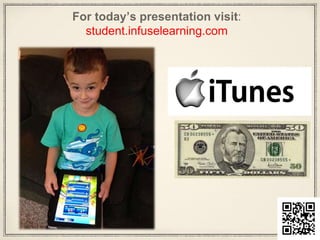
  • #6 Several years ago, when my son Trey was 3 years old – I gave him my iPad to play a game. The next day I received a bill from iTunes for $50. Eye opening experience because I realized that my son knew more about how an iPad works that I did.
  • #8 Our world is changing and we have a generation of kids, who are using technology in innovative and creative ways.
  • #9 I will need to use my REFLECTOR APP to reflect answers onto the screen.
  • #11 25% of schools
  • #12 73% of AP teachers
  • #16 Band Aid approach – we may be keeping up with the latest educational fad, instead of addressing learner needs. One-size-fits all approach. If we view apps as tools within a toolbox, we can address different learning styles to help students find the right tool for the job.
  • #17 Band Aid approach – we may be keeping up with the latest educational fad, instead of addressing learner needs. One-size-fits all approach. If we view apps as tools within a toolbox, we can address different learning styles to help students find the right tool for the job.
  • #18 And iPads spend more time accumulating dust, rather than helping students.
  • #25 Using Apps like a toolbox, help address the needs for students.
  • #28 A librarian in Oklahoma trying to inspire students to read books from the state reading list called the Sequoia Book Challenge.
  • #29 AudioBoo (Android): https://play.google.com/store/apps/details?id=com.moshen.audioboo2 AudioBoo (Apple): https://itunes.apple.com/us/app/audioboo/id305204540?mt=8
  • #30 She created QR codes for each of the AudioBoo recordings. If students were interested in reading a book, they could use a QR Code Reader to listen to a trailer. QR Reader (Android): https://play.google.com/store/apps/details?id=me.scan.android.client QR Reader (Apple): https://itunes.apple.com/us/app/qr-reader-for-iphone/id368494609?mt=8
  • #31 "The way we learn is as different as our fingerprints or DNA" (CAST, 2013) Stimulate 3 major brain networks to create effective learning experiences
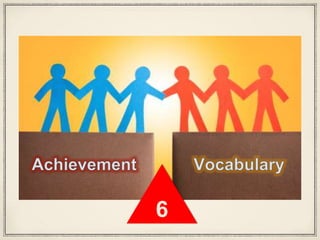
  • #36 One of the biggest barriers to learning is vocabulary development. If our student’s don’t understand it, then they won’t learn it. Research is showing us that the achievement gap can be attributed to a vocabulary gap According to research from Marzano, students need at least “6 meaningful interactions with new vocabulary terms”
  • #37 Quizlet (iTunes): https://itunes.apple.com/us/app/quizlet/id546473125?mt=8 Quizlet (Android): https://play.google.com/store/apps/details?id=com.quizlet.quizletandroid
  • #38 Notability (iTunes( https://itunes.apple.com/us/app/notability/id360593530?mt=8 Evernote (iTunes) - https://itunes.apple.com/us/app/evernote/id281796108?mt=8 Evernote (Android) - https://play.google.com/store/apps/details?id=com.evernote
  • #40 Socrative (Student Clicker on iTunes): https://itunes.apple.com/us/app/student-clicker-socrative/id477618130?mt=8 Socrative (Teacher on iTunes): https://itunes.apple.com/us/app/teacher-clicker-socrative/id477620120?mt=8 Socrative (Student Clicker on Android): https://play.google.com/store/apps/details?id=com.socrative.student Socrative (Teacher on Android): https://play.google.com/store/apps/details?id=com.socrative.teacher I end class with using Socrative as a way to have my students answer Multiple Choice, True False and Short Answer questions. I like this because I don’t have to prepare questions in advance. Students have the option to answer these questions and I can measure how the class is performing. I can highlight certain types of questions.
  • #41 Taking the toolbox approach means looking at the quality of the experience. It reminds me how I often see SmartBoards being used. Expensive projector screens. In other words, its not about the tool, but how you use it.
  • #46 SimpleMind Free (Android): https://play.google.com/store/apps/details?id=com.modelmakertools.simplemindfree iBrainstorm App (Apple): https://itunes.apple.com/us/app/ibrainstorm/id382252825?mt=8
  • #50 Kids Doodle (Android): https://play.google.com/store/apps/details?id=com.doodlejoy.studio.kidsdoojoy Kids Doodle (Apple): https://itunes.apple.com/us/app/kids-doodle-movie-kids-color/id460712294?mt=8
  • #51 NearPod (Apple): https://itunes.apple.com/us/app/nearpod-business/id657807508?mt=8 NearPod (Android): https://play.google.com/store/apps/details?id=air.Nearpod
  • #52 Participants can type, draw, or write answers.
  • #53 Participants can type, draw, or write answers.
  • #55 Real Time Data to make decisions
  • #56 If you aren’t organize you stuff into folders, it is a great idea to do so.
  • #59 If you want a more advanced idea, perhaps you create a people Bingo Card with spaces devoted to the topic. You can share this with your class and save as a photo. Have students download the photo and use a photo editing App called Skitch. Skitch (Android): https://play.google.com/store/apps/details?id=com.evernote.skitch Skitch (Apple): https://itunes.apple.com/us/app/skitch-snap.-mark-up.-share./id425955336?mt=12
  • #60 Prezi (iPad): https://itunes.apple.com/us/app/prezi/id407759942?mt=8
  • #61 Wanted a fun and creative way to assess what my students learned about our topic. I had them begin by using the free Fridge Poem App to create a 10 – 15 word definition or poem. This was challenging and many of my students needed to come up with 10 words related to the topic.
  • #62 Sticky (iTunes): https://itunes.apple.com/us/app/sticky-notes-for-ipad/id364899302?mt=8 ColorNote Notepad (Android): https://play.google.com/store/apps/details?id=com.socialnmobile.dictapps.notepad.color.note
  • #64 Due to the nature of the iPad, it can be difficult to share what students are doing with the class. You want to think about having a way to share. I usually have my students save their poems to the Camera Roll and upload to Edmodo or DropBox. Edmodo (Android): https://play.google.com/store/apps/details?id=com.fusionprojects.edmodo Edmodo (iTunes): https://itunes.apple.com/us/app/edmodo/id378352300?mt=8 DropBox (iTunes): https://itunes.apple.com/us/app/dropbox/id327630330?mt=8 DropBox (Android): https://play.google.com/store/apps/details?id=com.dropbox.android
  • #66 Take poll: http://shar.es/PyXQB Show results: http://www.polljunkie.com/poll/cmyadc/reading-options/view
  • #67 In the 1950’s a Canadian philosopher named Marshall McLuhan argued that the medium affects the way that we absorb information. In other words, the “medium is the message.”
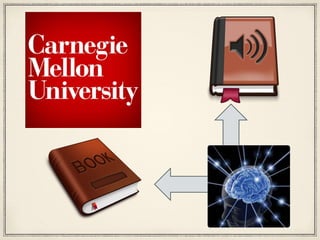
  • #69 Erica Michael and Marcel Just of Carnagie Mellon University tested this hypothesis by doing a brain scan test. Listening to an audio book leaves a different set of memories compared to reading a book (Grown Up Digital, pg.104)
  • #70 Book Creator (Android): https://play.google.com/store/apps/details?id=net.redjumper.bookcreator Book Creator (iTunes): https://itunes.apple.com/us/app/book-creator-for-ipad/id442378070?mt=8
  • #71 This is evidence of why giving students different ways to perceive. Can export as a PDF.
  • #75 Dice App to ask questions about the particular topic. One person will roll the dice and have to ask a question about the topic depending on the number rolled. This person will record the question and their partner’s response in Notes, Edmodo, EverNote, etc. Virtual Dice (iTunes) - https://itunes.apple.com/us/app/virtual-dice/id309948735?mt=8 Virtual Dice Lite (Android) - https://play.google.com/store/apps/details?id=br.melchior.dados
  • #76 Edmodo (Android) - https://play.google.com/store/apps/details?id=com.fusionprojects.edmodo Edmodo (iTunes) - https://itunes.apple.com/us/app/edmodo/id378352300?mt=8 Students got into groups of 3 – 4 Each person had a role Recorder
  • #77 Edmodo (Android) - https://play.google.com/store/apps/details?id=com.fusionprojects.edmodo Edmodo (iTunes) - https://itunes.apple.com/us/app/edmodo/id378352300?mt=8 Students got into groups of 3 – 4 Each person had a role Recorder
  • #79 Tellagami (Android) - https://play.google.com/store/apps/details?id=com.tellagami.Tellagami Tellagami (iTunes) - https://itunes.apple.com/us/app/tellagami/id572737805?mt=8
  • #80 Tellagami (Android) - https://play.google.com/store/apps/details?id=com.tellagami.Tellagami Tellagami (iTunes) - https://itunes.apple.com/us/app/tellagami/id572737805?mt=8
  • #81 Toontastic (iTunes): https://itunes.apple.com/us/app/toontastic/id404693282?mt=8
  • #90 Idea Sketch (iTunes) - https://itunes.apple.com/us/app/idea-sketch/id367246522?mt=8 SchematicMind (Android) - https://play.google.com/store/apps/details?id=com.qdvsoftworks.schematicmind
  • #91 Penultimate (iPad) - https://itunes.apple.com/us/app/penultimate/id354098826?mt=8 iNKredible (Android) - https://play.google.com/store/apps/details?id=com.viettran.INKredible
  • #93 Dragon Dictation (Android) - https://play.google.com/store/apps/details?id=nuance.com Dragon Dictation (iTunes) - https://itunes.apple.com/us/app/dragon-dictation/id341446764?mt=8 Evernote (iTunes) - https://itunes.apple.com/us/app/evernote/id281796108?mt=8 Evernote (Android) - https://play.google.com/store/apps/details?id=com.evernote
  • #95 Google Drive (iPad) – https://itunes.apple.com/us/app/google-drive/id507874739?mt=8 Google Drive (Android) - https://play.google.com/store/apps/details?id=com.google.android.apps.docs
  • #96 Explain Everything (Android) - https://play.google.com/store/apps/details?id=com.morriscooke.explaineverything Explain Everything (iTunes) - https://itunes.apple.com/us/app/explain-everything/id431493086?mt=8
  • #100 Assign students concept, vocabulary term, or problem to create on MoveNote Picture to illustrate term Words to describe what they know As Marzano has said, the achievement gap is a vocabulary gap. I begin by having students work in groups and assigning each group in the room a vocabulary. They have to use MoveNote to define the term, provide visual examples, and verbally describe. Students share their responses by sharing the MoveNotes through me. The App sends their video to my email address. MoveNote (Android) - https://play.google.com/store/apps/details?id=com.movenote MoveNote (iTunes) - https://itunes.apple.com/us/app/movenote/id535115011?mt=8
  • #101 After we have a grasp of vocabulary terms, then we can progress into the big ideas or concepts. I will have students use Educreations to create a screencast creating a graphic organizer of a concept, demonstrating how to solve a problem, etc. Educreations (iTunes): https://itunes.apple.com/us/app/educreations-interactive-whiteboard/id478617061?mt=8
  • #102 Lensoo Create (Android) - https://play.google.com/store/apps/details?id=com.lensoo.create
  • #104 Band Aid approach – we may be keeping up with the latest educational fad, instead of addressing learner needs. One-size-fits all approach. If we view apps as tools within a toolbox, we can address different learning styles to help students find the right tool for the job.