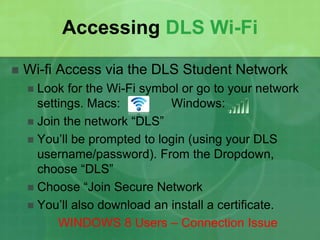
Accessing DLS Wi-Fi 
 Wi-fi Access via the DLS Student Network 
 Look for the Wi-Fi symbol or go to your network 
settings. Macs: Windows: 
 Join the network “DLS” 
 You’ll be prompted to login (using your DLS 
username/password). From the Dropdown, 
choose “DLS” 
 Choose “Join Secure Network 
 You’ll also download an install a certificate. 
WINDOWS 8 Users – Connection Issue
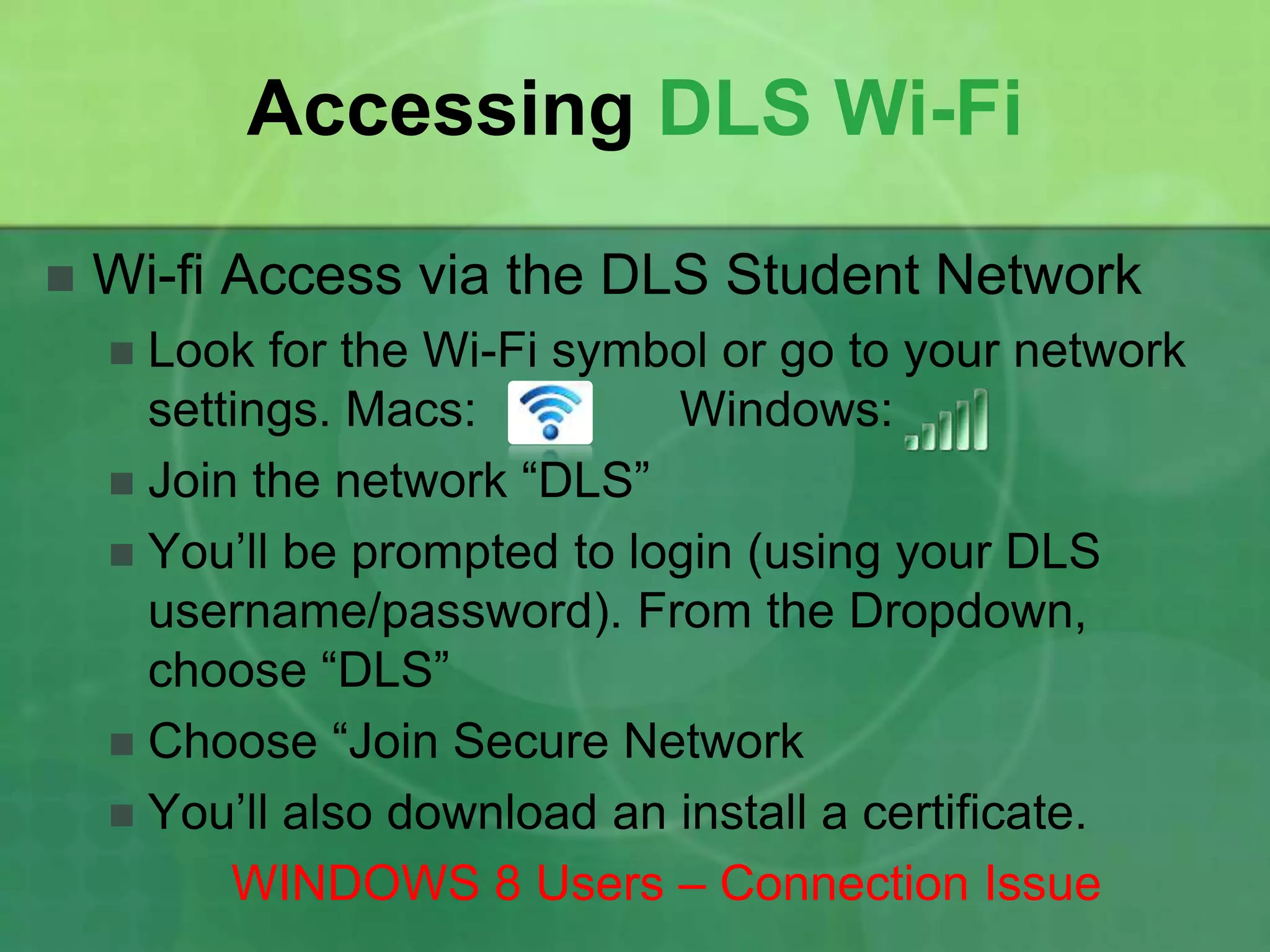
Before Joining the Wifi… 
If you have Windows 8 
 Select the DLS 
Network 
 Open Internet Explorer 
If you have a Mac 
 Open you “System 
Preferences” 
 Choose “Security & 
Privacy” 
 Click “General” 
 Click on the Lock to 
make changes 
 Allow apps to run from 
“Anywhere” 
 Finish joining Wifi
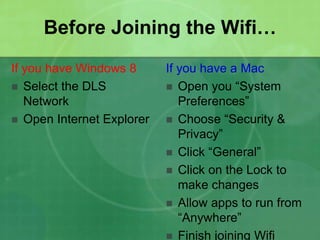
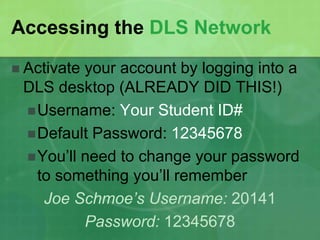
Accessing the DLS Network 
 Activate your account by logging into a 
DLS desktop (ALREADY DID THIS!) 
Username: Your Student ID# 
Default Password: 12345678 
You’ll need to change your password 
to something you’ll remember 
Joe Schmoe’s Username: 20141 
Password: 12345678
Welcome to De La Salle High School 
Tech Boot Camp 
Version 2014
Agenda for the Day 
Welcome Class of 2018 to the Brotherhood! 
1) Accessing & finding the stuff you need: 
a) Bookmarking Important Sites 
b) PowerSchool 
c) GoogleDrive Basics 
d) DLS Email 
2) File storage & printing 
3) Managing Distractions 
4) Personal Branding & Awareness 
5) Guidelines for technology use at DLS 
6) Where to get help 
7) How much do you know?/Evaluation
By the end of today… 
1) Know how to access wireless and DLS 
resources 
2) Set up bookmarks on your browser with: 
a) Powerschool 
b) Teacher Webpages 
3) (Possibly) Create a Google Doc 
4) Organize your Google Drive 
5) Know how to access DLS email 
6) Technology expectations at DLS
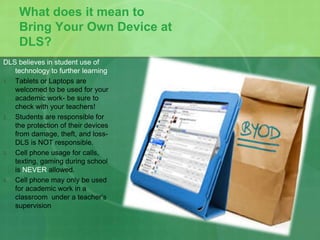
What does it mean to 
Bring Your Own Device at 
DLS? 
DLS believes in student use of 
technology to further learning 
1. Tablets or Laptops are 
welcomed to be used for your 
academic work- be sure to 
check with your teachers! 
2. Students are responsible for 
the protection of their devices 
from damage, theft, and loss- 
DLS is NOT responsible. 
3. Cell phone usage for calls, 
texting, gaming during school 
is NEVER allowed. 
4. Cell phone may only be used 
for academic work in a 
classroom under a teacher’s 
supervision
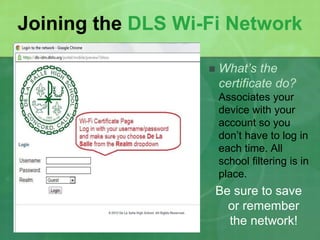
Joining the DLS Wi-Fi Network 
 What’s the 
certificate do? 
Associates your 
device with your 
account so you 
don’t have to log in 
each time. All 
school filtering is in 
place. 
Be sure to save 
or remember 
the network!
Internet Browsing 
 We suggest downloading and using Google 
Chrome (Firefox, Internet Explorer are also 
popular) 
 Many teachers use Google Apps 
 Works best with some eBooks and tools teachers use 
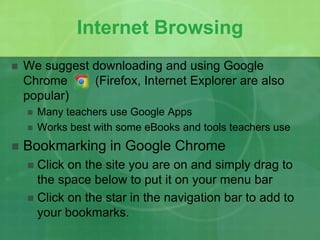
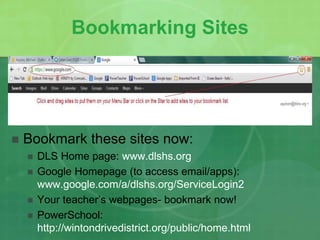
 Bookmarking in Google Chrome 
 Click on the site you are on and simply drag to 
the space below to put it on your menu bar 
 Click on the star in the navigation bar to add to 
your bookmarks.
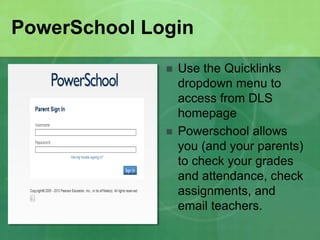
PowerSchool Login 
 Use the Quicklinks 
dropdown menu to 
access from DLS 
homepage 
 Powerschool allows 
you (and your parents) 
to check your grades 
and attendance, check 
assignments, and 
email teachers.
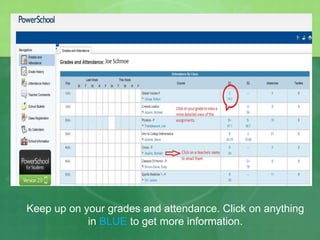
Keep up on your grades and attendance. Click on anything 
in BLUE to get more information.
Bookmarking Sites 
 Bookmark these sites now: 
 DLS Home page: www.dlshs.org 
 Google Homepage (to access email/apps): 
www.google.com/a/dlshs.org/ServiceLogin2 
 Your teacher’s webpages- bookmark now! 
 PowerSchool: 
http://wintondrivedistrict.org/public/home.html
Email & Google Apps 
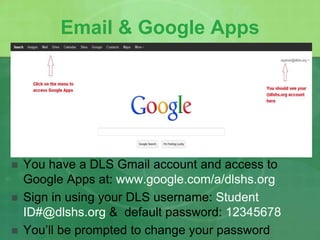
 You have a DLS Gmail account and access to 
Google Apps at: www.google.com/a/dlshs.org 
 Sign in using your DLS username: Student 
ID#@dlshs.org & default password: 12345678 
 You’ll be prompted to change your password
Google Drive 
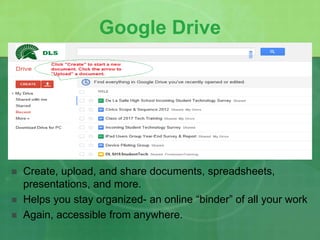
 Create, upload, and share documents, spreadsheets, 
presentations, and more. 
 Helps you stay organized- an online “binder” of all your work 
 Again, accessible from anywhere.
Saving your work in the Cloud 
 Be sure to save your work to the “Cloud” and not on 
your device so you can access from anywhere. 
 This means using Google Docs to start 
documents instead of Microsoft Work or Mac 
Pages 
 OR upload all created documents to Google 
Drive at home so you can access them (edit or 
print) from school 
 Google Drive allows you access to documents, 
spreadsheets, and presentations from anywhere, at 
anytime
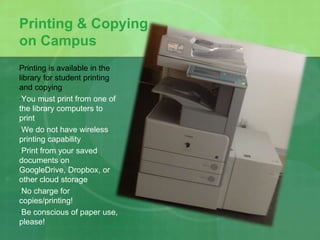
Printing & Copying 
on Campus 
Printing is available in the 
library for student printing 
and copying 
•You must print from one of 
the library computers to 
print 
•We do not have wireless 
printing capability 
•Print from your saved 
documents on 
GoogleDrive, Dropbox, or 
other cloud storage 
•No charge for 
copies/printing! 
•Be conscious of paper use, 
please!
Things to Remember… 
 Students must use their De La Salle email for 
ALL school-related communication, and be 
responsible for the information sent to them. 
 Check regularly! This is how your teachers will email you. 
 You are responsible for everything in your email & drive 
 Do not open emails and attachments from people you 
don’t know- beware of viruses & “phishing” 
 Upload or start all your work from your 
Google Drive so you can access it from 
anywhere.
BREAK 
Let’s take a 5-10 minute break!
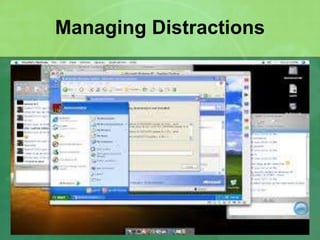
Managing Distractions
Self-Control & Cold Turkey 
 Self-Control (if you have a Mac) or Cold 
Turkey (if you have Windows) will temporarily 
block sites you choose like Facebook, 
Twitter, Tumblr, or games so you can get 
your work done. 
 This not about punishment, but productivity, 
and helping you manage distraction…only if 
YOU want to.
SelfControl & ColdTurkey 
 SelfControl (Macs): go to 
www.selfcontrolapp.com and 
download 
 ColdTurkey (Windows): go to 
www.getcoldturkey.com and 
download 
 Both SelfControl & ColdTurkey 
give you the control of what you 
“blacklist” and a timer to control 
it.
What do these represent to you?
What’s your “brand”? 
 What are other people putting online about 
you (photo “tags”, comments, retweets, 
etc.)? 
 How do you represent yourself online? 
 Can things about you be misinterpreted or 
taken out of context?
“Drunken Pirate”
Managing your brand… 
 We want the positive stuff: 
 Things we’ve done well/show us at our best 
 Compliments 
 We want to minimize/eliminate the negative: 
 Moments of stupidity/poor judgments 
 Mistakes/shortcomings. 
 How many of you use Twitter, Instagram? 
 How many put videos on Vine, Vimeo, or 
YouTube?
Brainstorm: 
Think Before You Post 
How do you decide what’s okay 
to post or tag? 
What are some question you 
should ask yourself before 
posting anything about someone 
else?
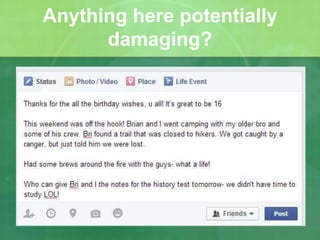
Anything here potentially 
damaging?
Getting Help 
For assistance with network connectivity, 
passwords, and application troubleshooting 
there are two places: 
 In the Library 
 Mr. Aquino, Director of Educational Technology 
 Library Staff: Ms Seed, Mr. Marzluft, and Mrs. 
Sanders 
 Tech Support Office (upstairs, 100 building) 
 Tech Staff: Mrs. Byrne, Mr. Riggs, and Mr. Valle
Acceptable Use 
Use of the DLS/CHS telecommunications 
system and network, as well as access to the 
Internet is a privilege offered each academic 
year, and inappropriate use will result in 
revocation, denial or suspension of that 
privilege by the administration. 
 Unauthorized access 
 Using resources to harass others, contrary to the 
mission of the school, or disrupt the educational 
environment of De La Salle High School
How much do you know, now? 
1) Login to your DLS Gmail 
2) Access your Google Drive 
a) Create a folder for each of your academic classes 
b) Create a Google Doc, name it “Survey Response” 
c) Respond to the following questions: Whare are two (2) 
things you learned today? Is there any question(s) you 
still have or are confused about? 
d) Share it with the person next to you (you’ll need to find 
out there dlshs.org email!). 
e) Cut and Paste your answers it into the survey you’ll 
answer on the next slide (2nd to last question).
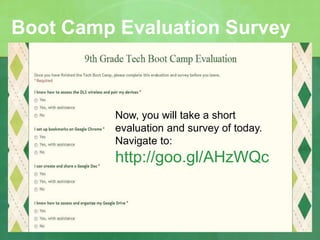
Boot Camp Evaluation Survey 
Now, you will take a short 
evaluation and survey of today. 
Navigate to: 
http://goo.gl/AHzWQc

DLSHS Summer Tech Boot Camp 2014

  • 1.
    Accessing DLS Wi-Fi  Wi-fi Access via the DLS Student Network  Look for the Wi-Fi symbol or go to your network settings. Macs: Windows:  Join the network “DLS”  You’ll be prompted to login (using your DLS username/password). From the Dropdown, choose “DLS”  Choose “Join Secure Network  You’ll also download an install a certificate. WINDOWS 8 Users – Connection Issue
  • 2.
    Before Joining theWifi… If you have Windows 8  Select the DLS Network  Open Internet Explorer If you have a Mac  Open you “System Preferences”  Choose “Security & Privacy”  Click “General”  Click on the Lock to make changes  Allow apps to run from “Anywhere”  Finish joining Wifi
  • 3.
    Accessing the DLSNetwork  Activate your account by logging into a DLS desktop (ALREADY DID THIS!) Username: Your Student ID# Default Password: 12345678 You’ll need to change your password to something you’ll remember Joe Schmoe’s Username: 20141 Password: 12345678
  • 4.
    Welcome to DeLa Salle High School Tech Boot Camp Version 2014
  • 5.
    Agenda for theDay Welcome Class of 2018 to the Brotherhood! 1) Accessing & finding the stuff you need: a) Bookmarking Important Sites b) PowerSchool c) GoogleDrive Basics d) DLS Email 2) File storage & printing 3) Managing Distractions 4) Personal Branding & Awareness 5) Guidelines for technology use at DLS 6) Where to get help 7) How much do you know?/Evaluation
  • 6.
    By the endof today… 1) Know how to access wireless and DLS resources 2) Set up bookmarks on your browser with: a) Powerschool b) Teacher Webpages 3) (Possibly) Create a Google Doc 4) Organize your Google Drive 5) Know how to access DLS email 6) Technology expectations at DLS
  • 7.
    What does itmean to Bring Your Own Device at DLS? DLS believes in student use of technology to further learning 1. Tablets or Laptops are welcomed to be used for your academic work- be sure to check with your teachers! 2. Students are responsible for the protection of their devices from damage, theft, and loss- DLS is NOT responsible. 3. Cell phone usage for calls, texting, gaming during school is NEVER allowed. 4. Cell phone may only be used for academic work in a classroom under a teacher’s supervision
  • 8.
    Joining the DLSWi-Fi Network  What’s the certificate do? Associates your device with your account so you don’t have to log in each time. All school filtering is in place. Be sure to save or remember the network!
  • 9.
    Internet Browsing We suggest downloading and using Google Chrome (Firefox, Internet Explorer are also popular)  Many teachers use Google Apps  Works best with some eBooks and tools teachers use  Bookmarking in Google Chrome  Click on the site you are on and simply drag to the space below to put it on your menu bar  Click on the star in the navigation bar to add to your bookmarks.
  • 10.
    PowerSchool Login Use the Quicklinks dropdown menu to access from DLS homepage  Powerschool allows you (and your parents) to check your grades and attendance, check assignments, and email teachers.
  • 11.
    Keep up onyour grades and attendance. Click on anything in BLUE to get more information.
  • 12.
    Bookmarking Sites Bookmark these sites now:  DLS Home page: www.dlshs.org  Google Homepage (to access email/apps): www.google.com/a/dlshs.org/ServiceLogin2  Your teacher’s webpages- bookmark now!  PowerSchool: http://wintondrivedistrict.org/public/home.html
  • 13.
    Email & GoogleApps  You have a DLS Gmail account and access to Google Apps at: www.google.com/a/dlshs.org  Sign in using your DLS username: Student ID#@dlshs.org & default password: 12345678  You’ll be prompted to change your password
  • 14.
    Google Drive Create, upload, and share documents, spreadsheets, presentations, and more.  Helps you stay organized- an online “binder” of all your work  Again, accessible from anywhere.
  • 15.
    Saving your workin the Cloud  Be sure to save your work to the “Cloud” and not on your device so you can access from anywhere.  This means using Google Docs to start documents instead of Microsoft Work or Mac Pages  OR upload all created documents to Google Drive at home so you can access them (edit or print) from school  Google Drive allows you access to documents, spreadsheets, and presentations from anywhere, at anytime
  • 16.
    Printing & Copying on Campus Printing is available in the library for student printing and copying •You must print from one of the library computers to print •We do not have wireless printing capability •Print from your saved documents on GoogleDrive, Dropbox, or other cloud storage •No charge for copies/printing! •Be conscious of paper use, please!
  • 17.
    Things to Remember…  Students must use their De La Salle email for ALL school-related communication, and be responsible for the information sent to them.  Check regularly! This is how your teachers will email you.  You are responsible for everything in your email & drive  Do not open emails and attachments from people you don’t know- beware of viruses & “phishing”  Upload or start all your work from your Google Drive so you can access it from anywhere.
  • 18.
    BREAK Let’s takea 5-10 minute break!
  • 19.
  • 20.
    Self-Control & ColdTurkey  Self-Control (if you have a Mac) or Cold Turkey (if you have Windows) will temporarily block sites you choose like Facebook, Twitter, Tumblr, or games so you can get your work done.  This not about punishment, but productivity, and helping you manage distraction…only if YOU want to.
  • 21.
    SelfControl & ColdTurkey  SelfControl (Macs): go to www.selfcontrolapp.com and download  ColdTurkey (Windows): go to www.getcoldturkey.com and download  Both SelfControl & ColdTurkey give you the control of what you “blacklist” and a timer to control it.
  • 22.
    What do theserepresent to you?
  • 24.
    What’s your “brand”?  What are other people putting online about you (photo “tags”, comments, retweets, etc.)?  How do you represent yourself online?  Can things about you be misinterpreted or taken out of context?
  • 25.
  • 26.
    Managing your brand…  We want the positive stuff:  Things we’ve done well/show us at our best  Compliments  We want to minimize/eliminate the negative:  Moments of stupidity/poor judgments  Mistakes/shortcomings.  How many of you use Twitter, Instagram?  How many put videos on Vine, Vimeo, or YouTube?
  • 27.
    Brainstorm: Think BeforeYou Post How do you decide what’s okay to post or tag? What are some question you should ask yourself before posting anything about someone else?
  • 28.
  • 29.
    Getting Help Forassistance with network connectivity, passwords, and application troubleshooting there are two places:  In the Library  Mr. Aquino, Director of Educational Technology  Library Staff: Ms Seed, Mr. Marzluft, and Mrs. Sanders  Tech Support Office (upstairs, 100 building)  Tech Staff: Mrs. Byrne, Mr. Riggs, and Mr. Valle
  • 30.
    Acceptable Use Useof the DLS/CHS telecommunications system and network, as well as access to the Internet is a privilege offered each academic year, and inappropriate use will result in revocation, denial or suspension of that privilege by the administration.  Unauthorized access  Using resources to harass others, contrary to the mission of the school, or disrupt the educational environment of De La Salle High School
  • 31.
    How much doyou know, now? 1) Login to your DLS Gmail 2) Access your Google Drive a) Create a folder for each of your academic classes b) Create a Google Doc, name it “Survey Response” c) Respond to the following questions: Whare are two (2) things you learned today? Is there any question(s) you still have or are confused about? d) Share it with the person next to you (you’ll need to find out there dlshs.org email!). e) Cut and Paste your answers it into the survey you’ll answer on the next slide (2nd to last question).
  • 32.
    Boot Camp EvaluationSurvey Now, you will take a short evaluation and survey of today. Navigate to: http://goo.gl/AHzWQc