Workshop Objectives & Goals The parents and students will… Realize why PASD wants to give each student a laptop Understand PASD policies supporting this intiative Understand how the Internet is utilized in this program Learn to responsibly manage/care for their laptop Understand the maintenance, repair, & student discipline issues Learn to use the laptop’s basic functions Determine whether the student can take the laptop home or not
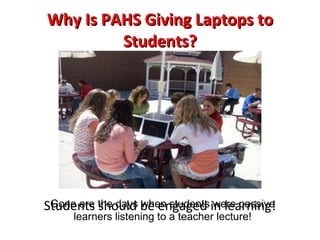
Why Is PAHS Giving Laptops to Students? Gone are the days when students were passive learners listening to a teacher lecture!
Why Is PAHS Giving Laptops to Students? Students should be engaged in learning!
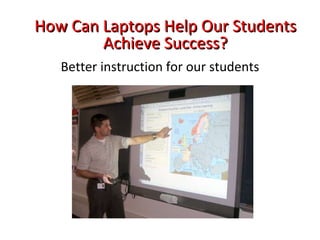
Better instruction for our students How Can Laptops Help Our Students Achieve Success?
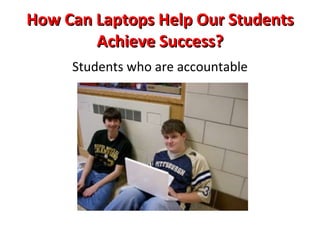
Students who are accountable How Can Laptops Help Our Students Achieve Success?
What Else Can Laptops Bring to Our Community? Promotion of local economic growth  and development
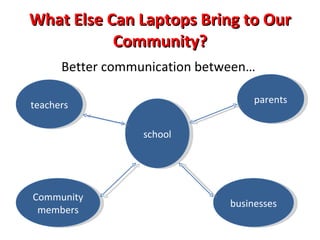
What Else Can Laptops Bring to Our Community? Better communication between…  parents school businesses Community members teachers
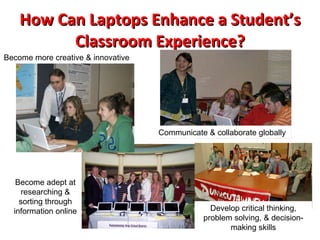
How Can Laptops Enhance a Student’s Classroom Experience? Become more creative & innovative Students Become adept at researching & sorting through information online Develop critical thinking, problem solving, & decision-making skills Communicate & collaborate globally
Why Apple Computers? MacBooks use Microsoft Office applications: Word, PowerPoint, and Excel Tools for projects are built into the laptop-podcasting, movies, slide presentations Durable & cost effective Teachers receive excellent training & support Less prone to viruses & problems One computer image for educational purposes-consistent education for all
What Training & Support for  Faculty & Parents Is Offered? Summer Tech Camp for Teachers In-Service Time  dedicated to technology training Tech Classes for Teachers (during PD time/Prep) Tech Coach conducts trainings during prep periods Parent and Student Orientation required for home use Adult Education Classes/Workshops  via PASD and community organizations
Internet Information Firefox Safari
What Kind of Internet  Access Is Needed for Use? broadband access (DSL, cable, or satellite) to use the Internet High school wireless access while building is open Working to build partnerships with community organizations to provide wireless Internet
Additional Internet Information Students will have VPN (Virtual Private Network) access to their files on the network PASD technicians are not able to service your Internet at home Internet is not required for participation in the program
How Will the Internet Work at School? Websites are filtered due to state and federal  regulations  Assignments will be set up so that students can gather info on the Internet at school & build the project at home.
How Can the Internet Be Used Educationally? Responding to & commenting on topics  (current events, predicting action in a novel, etc) Creating written/media projects & commenting on each other’s work Review before a test/quiz Collaborate on projects Create content pages on curriculum topics Research
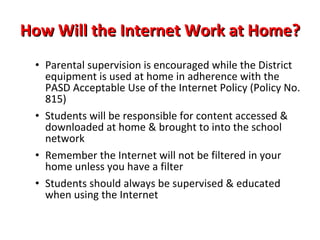
How Will the Internet Work at Home? Parental supervision is encouraged while the District equipment is used at home in adherence with the PASD Acceptable Use of the Internet Policy (Policy No. 815) Students will be responsible for content accessed & downloaded at home & brought into the school network Remember the Internet will not be filtered in your home unless you have a filter on your network Students should always be supervised & educated when using the Internet
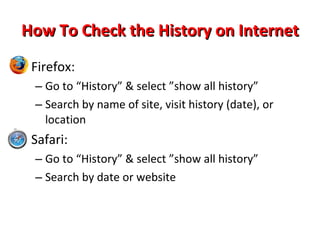
How To Check the History on Internet Firefox: Go to “History” & select ”show all history” Search by name of site, visit history (date), or location Safari: Go to “History” & select ”show all history” Search by date or website
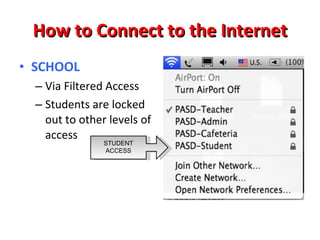
How to Connect to the Internet SCHOOL Via Filtered Access Students are locked out to other levels of access STUDENT ACCESS
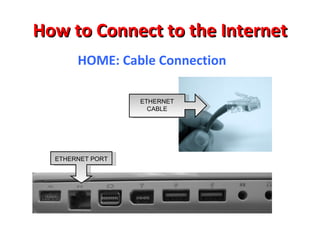
How to Connect to the Internet HOME: Cable Connection ETHERNET PORT ETHERNET CABLE
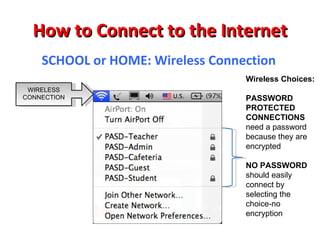
How to Connect to the Internet SCHOOL or HOME: Wireless Connection WIRELESS CONNECTION Wireless Choices: PASSWORD PROTECTED CONNECTIONS  need a password because they are encrypted  NO PASSWORD should easily connect by selecting the choice-no encryption
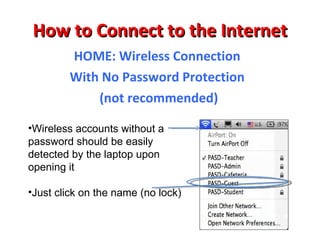
How to Connect to the Internet HOME: Wireless Connection  With No Password Protection  (not recommended) Wireless accounts without a password should be easily detected by the laptop upon opening it Just click on the name (no lock)
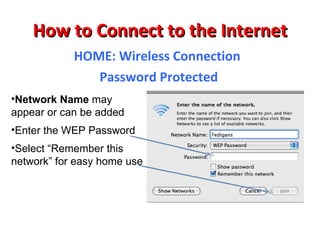
How to Connect to the Internet HOME: Wireless Connection  Password Protected Network Name  may appear or can be added Enter the WEP Password  Select “Remember this network” for easy home use
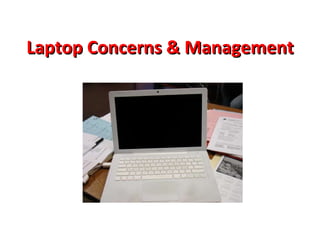
Laptop Concerns & Management
What are the Dos of Using the Computer at Home? Do: Homework/projects/school-related items Online shopping/browsing (news, weather, directions, presents, etc.) Editing pictures, videos Keep it safe from pets, small children, etc. Keep it charged so that you are prepared for school each day (Bring CHARGER to school daily) Back up important files (more on how-to later)
What are the Don’ts of Using the Computer at Home? Don’t: Save important family/personal files on the computer (documents, pictures, videos, etc.) Use social websites (MySpace, Facebook) to harm others or to post inappropriate materials Download or store illegally obtained media files on your computer (subject to copyright law) Use the computer near food or liquids
How Will Student Issues & Discipline Be Handled? Acceptable Use Policy Withdrawal from School Policy Lending of School Owned Equipment & Books Policy Copyright Material Policy Use of School Facilities Policy Care of School Property Policy Signed Agreement for Use of Laptop at Home
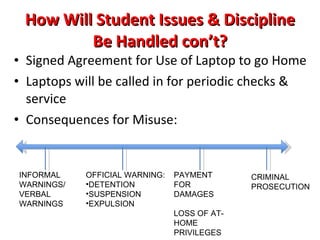
How Will Student Issues & Discipline Be Handled con’t? Signed Agreement for Use of Laptop to go Home Laptops will be called in for periodic checks & service Consequences for Misuse: INFORMAL WARNINGS/ VERBAL WARNINGS OFFICIAL WARNING: DETENTION SUSPENSION EXPULSION PAYMENT FOR DAMAGES LOSS OF AT-HOME PRIVILEGES CRIMINAL  PROSECUTION
How Will Tech Issues &  Repairs Be Handled? iTeam Tech Support (PHS Library staff): students providing tech support to faculty and students Determine need for loaner (if further repair needed) Schoolwires Help Desk Software: to track repairs in school New Technician:  primary duty is to support 21 st  Century Learning Initiative in high school Permanent District Technology Coach:  to assist teachers and provide training opportunities
Laptop Maintenance What steps to take if something is wrong: Turn the computer off & then on again Take it to the iTeam in the library to check Do not try to repair the laptop on your own ALL repairs MUST be done by PASD staff: Important for maintaining warranties Permits staff to track repairs & make proper repairs Modifications to hardware/software not permitted
How Much Will This Cost Families? NOTHING for responsible use and care of laptop, charger, and protective carrying case Lost equipment=full replacement cost Malicious, negligent, and willful damage to machines=full repair or replacement cost Student subject to Acceptable Use Policy
How Much Will This Cost Families Con’t? Stolen equipment must have proof of theft Homeowners insurance may cover damage or loss of theft  Check with provider Low cost ryder is an option
Turning On & Off
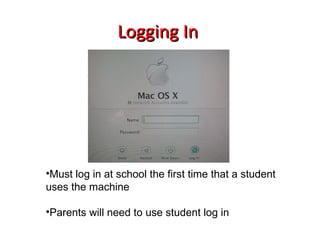
Logging In  Must log in at school the first time that a student uses the machine Parents will need to use student log in
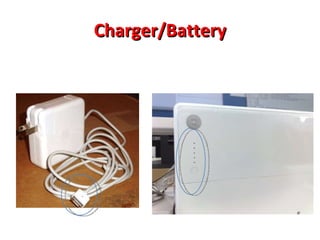
Charger/Battery
Finding Applications/Programs What is on the computer? “ Finder”-Applications (list of all programs on computer) The Dock-quick access to most used apps Checking overall computer activity Go to:  “Apple”-”Recent Items”-recent activity is listed here
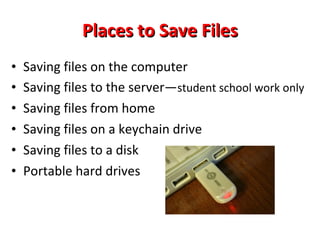
Places to Save Files Saving files on the computer  Saving files to the server— student school work only Saving files from home Saving files on a USB driver (keychain, flash, etc.) Saving files to a disk Portable hard drives
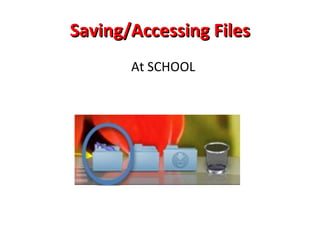
Saving/Accessing Files At SCHOOL
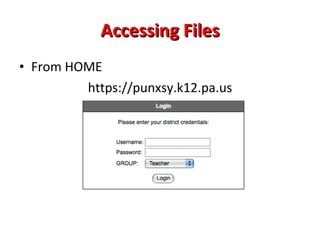
Accessing Files From HOME https://punxsy.k12.pa.us
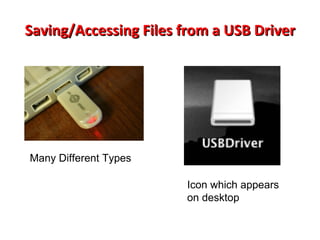
Saving/Accessing Files from a USB Driver Many Different Types Icon which appears on desktop
Saving/Accessing Files from CD
Files Saved to Laptop Not the school’s responsibility to  save  or  recover  them if something happens to the laptop You should back up important files (documents, pictures, music) Bookmarks can be lost-be careful!
Passwords Passwords-be careful if you have the laptop remember them! Keep passwords in a secure location not on computer Storing other personal information on the laptop is discouraged Caution with web-based applications (on-line banking, credit card sites, shopping sites)
Printing Students will be able to select a printer from a list while in school Printing can be down at multiple locations before and after school as needed Printing can be tracked by computer user, so be sure you are only printing what you are required to for each assignment Printing at home will require a UBS cord. The school will not add printer software for home use.
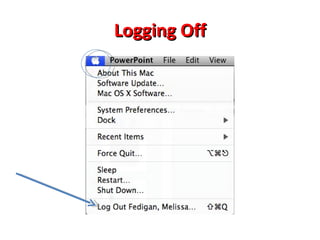
Logging Off
Cleaning the Laptop DO Be sure to turn off your Mac Unplug the power cord from the wall or power strip Use a damp, soft, lint-free cloth with mild non-abrasive soap or detergent.
Cleaning the Laptop DO NOT use window sprays or cleaning products containing ammonia, alcohol, or abrasive ingredients use rough towels or cloths to dry the plastic Spray cleaner directly onto your computer (Liquid could drip inside the case and cause an electrical shock and/or electrical malfunction.) Take the battery out of the machine
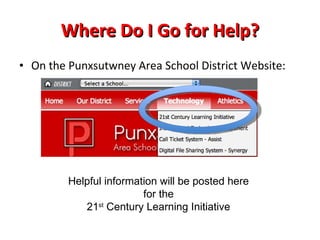
Where Do I Go for Help? On the Punxsutwney Area School District Website: Helpful information will be posted here  for the  21 st  Century Learning Initiative
Student & Parent Loan Agreement Form review
Questions? Comments? Review?

21st Century Learning Initiative Training Slideshow

  • 1.
  • 2.
    Workshop Objectives &Goals The parents and students will… Realize why PASD wants to give each student a laptop Understand PASD policies supporting this intiative Understand how the Internet is utilized in this program Learn to responsibly manage/care for their laptop Understand the maintenance, repair, & student discipline issues Learn to use the laptop’s basic functions Determine whether the student can take the laptop home or not
  • 3.
    Why Is PAHSGiving Laptops to Students? Gone are the days when students were passive learners listening to a teacher lecture!
  • 4.
    Why Is PAHSGiving Laptops to Students? Students should be engaged in learning!
  • 5.
    Better instruction forour students How Can Laptops Help Our Students Achieve Success?
  • 6.
    Students who areaccountable How Can Laptops Help Our Students Achieve Success?
  • 7.
    What Else CanLaptops Bring to Our Community? Promotion of local economic growth and development
  • 8.
    What Else CanLaptops Bring to Our Community? Better communication between… parents school businesses Community members teachers
  • 9.
    How Can LaptopsEnhance a Student’s Classroom Experience? Become more creative & innovative Students Become adept at researching & sorting through information online Develop critical thinking, problem solving, & decision-making skills Communicate & collaborate globally
  • 10.
    Why Apple Computers?MacBooks use Microsoft Office applications: Word, PowerPoint, and Excel Tools for projects are built into the laptop-podcasting, movies, slide presentations Durable & cost effective Teachers receive excellent training & support Less prone to viruses & problems One computer image for educational purposes-consistent education for all
  • 11.
    What Training &Support for Faculty & Parents Is Offered? Summer Tech Camp for Teachers In-Service Time dedicated to technology training Tech Classes for Teachers (during PD time/Prep) Tech Coach conducts trainings during prep periods Parent and Student Orientation required for home use Adult Education Classes/Workshops via PASD and community organizations
  • 12.
  • 13.
    What Kind ofInternet Access Is Needed for Use? broadband access (DSL, cable, or satellite) to use the Internet High school wireless access while building is open Working to build partnerships with community organizations to provide wireless Internet
  • 14.
    Additional Internet InformationStudents will have VPN (Virtual Private Network) access to their files on the network PASD technicians are not able to service your Internet at home Internet is not required for participation in the program
  • 15.
    How Will theInternet Work at School? Websites are filtered due to state and federal regulations Assignments will be set up so that students can gather info on the Internet at school & build the project at home.
  • 16.
    How Can theInternet Be Used Educationally? Responding to & commenting on topics (current events, predicting action in a novel, etc) Creating written/media projects & commenting on each other’s work Review before a test/quiz Collaborate on projects Create content pages on curriculum topics Research
  • 17.
    How Will theInternet Work at Home? Parental supervision is encouraged while the District equipment is used at home in adherence with the PASD Acceptable Use of the Internet Policy (Policy No. 815) Students will be responsible for content accessed & downloaded at home & brought into the school network Remember the Internet will not be filtered in your home unless you have a filter on your network Students should always be supervised & educated when using the Internet
  • 18.
    How To Checkthe History on Internet Firefox: Go to “History” & select ”show all history” Search by name of site, visit history (date), or location Safari: Go to “History” & select ”show all history” Search by date or website
  • 19.
    How to Connectto the Internet SCHOOL Via Filtered Access Students are locked out to other levels of access STUDENT ACCESS
  • 20.
    How to Connectto the Internet HOME: Cable Connection ETHERNET PORT ETHERNET CABLE
  • 21.
    How to Connectto the Internet SCHOOL or HOME: Wireless Connection WIRELESS CONNECTION Wireless Choices: PASSWORD PROTECTED CONNECTIONS need a password because they are encrypted NO PASSWORD should easily connect by selecting the choice-no encryption
  • 22.
    How to Connectto the Internet HOME: Wireless Connection With No Password Protection (not recommended) Wireless accounts without a password should be easily detected by the laptop upon opening it Just click on the name (no lock)
  • 23.
    How to Connectto the Internet HOME: Wireless Connection Password Protected Network Name may appear or can be added Enter the WEP Password Select “Remember this network” for easy home use
  • 24.
  • 25.
    What are theDos of Using the Computer at Home? Do: Homework/projects/school-related items Online shopping/browsing (news, weather, directions, presents, etc.) Editing pictures, videos Keep it safe from pets, small children, etc. Keep it charged so that you are prepared for school each day (Bring CHARGER to school daily) Back up important files (more on how-to later)
  • 26.
    What are theDon’ts of Using the Computer at Home? Don’t: Save important family/personal files on the computer (documents, pictures, videos, etc.) Use social websites (MySpace, Facebook) to harm others or to post inappropriate materials Download or store illegally obtained media files on your computer (subject to copyright law) Use the computer near food or liquids
  • 27.
    How Will StudentIssues & Discipline Be Handled? Acceptable Use Policy Withdrawal from School Policy Lending of School Owned Equipment & Books Policy Copyright Material Policy Use of School Facilities Policy Care of School Property Policy Signed Agreement for Use of Laptop at Home
  • 28.
    How Will StudentIssues & Discipline Be Handled con’t? Signed Agreement for Use of Laptop to go Home Laptops will be called in for periodic checks & service Consequences for Misuse: INFORMAL WARNINGS/ VERBAL WARNINGS OFFICIAL WARNING: DETENTION SUSPENSION EXPULSION PAYMENT FOR DAMAGES LOSS OF AT-HOME PRIVILEGES CRIMINAL PROSECUTION
  • 29.
    How Will TechIssues & Repairs Be Handled? iTeam Tech Support (PHS Library staff): students providing tech support to faculty and students Determine need for loaner (if further repair needed) Schoolwires Help Desk Software: to track repairs in school New Technician: primary duty is to support 21 st Century Learning Initiative in high school Permanent District Technology Coach: to assist teachers and provide training opportunities
  • 30.
    Laptop Maintenance Whatsteps to take if something is wrong: Turn the computer off & then on again Take it to the iTeam in the library to check Do not try to repair the laptop on your own ALL repairs MUST be done by PASD staff: Important for maintaining warranties Permits staff to track repairs & make proper repairs Modifications to hardware/software not permitted
  • 31.
    How Much WillThis Cost Families? NOTHING for responsible use and care of laptop, charger, and protective carrying case Lost equipment=full replacement cost Malicious, negligent, and willful damage to machines=full repair or replacement cost Student subject to Acceptable Use Policy
  • 32.
    How Much WillThis Cost Families Con’t? Stolen equipment must have proof of theft Homeowners insurance may cover damage or loss of theft Check with provider Low cost ryder is an option
  • 33.
  • 34.
    Logging In Must log in at school the first time that a student uses the machine Parents will need to use student log in
  • 35.
  • 36.
    Finding Applications/Programs Whatis on the computer? “ Finder”-Applications (list of all programs on computer) The Dock-quick access to most used apps Checking overall computer activity Go to: “Apple”-”Recent Items”-recent activity is listed here
  • 37.
    Places to SaveFiles Saving files on the computer Saving files to the server— student school work only Saving files from home Saving files on a USB driver (keychain, flash, etc.) Saving files to a disk Portable hard drives
  • 38.
  • 39.
    Accessing Files FromHOME https://punxsy.k12.pa.us
  • 40.
    Saving/Accessing Files froma USB Driver Many Different Types Icon which appears on desktop
  • 41.
  • 42.
    Files Saved toLaptop Not the school’s responsibility to save or recover them if something happens to the laptop You should back up important files (documents, pictures, music) Bookmarks can be lost-be careful!
  • 43.
    Passwords Passwords-be carefulif you have the laptop remember them! Keep passwords in a secure location not on computer Storing other personal information on the laptop is discouraged Caution with web-based applications (on-line banking, credit card sites, shopping sites)
  • 44.
    Printing Students willbe able to select a printer from a list while in school Printing can be down at multiple locations before and after school as needed Printing can be tracked by computer user, so be sure you are only printing what you are required to for each assignment Printing at home will require a UBS cord. The school will not add printer software for home use.
  • 45.
  • 46.
    Cleaning the LaptopDO Be sure to turn off your Mac Unplug the power cord from the wall or power strip Use a damp, soft, lint-free cloth with mild non-abrasive soap or detergent.
  • 47.
    Cleaning the LaptopDO NOT use window sprays or cleaning products containing ammonia, alcohol, or abrasive ingredients use rough towels or cloths to dry the plastic Spray cleaner directly onto your computer (Liquid could drip inside the case and cause an electrical shock and/or electrical malfunction.) Take the battery out of the machine
  • 48.
    Where Do IGo for Help? On the Punxsutwney Area School District Website: Helpful information will be posted here for the 21 st Century Learning Initiative
  • 49.
    Student & ParentLoan Agreement Form review
  • 50.

Editor's Notes

  • #2 Welcome
  • #3 Review all objectives
  • #4 Classrooms from generations before were set up for students to learn material by memorizing and repeating information back. Jobs were different back then, too. Kids are not competing within a small town anymore—the job market is global and we need to prepare them for this world
  • #5 Classrooms from generations before were set up for students to learn material by memorizing and repeating information back. Jobs were different back then, too. Kids are not competing within a small town anymore—the job market is global and we need to prepare them for this world
  • #6 Highlight ways instruction can be made better: (pick a few and/or add your own examples0 Examples: Teachers have been trained by Apple Professional Educators in many of the most up-to-date uses of technology. The training is hands-on and applies to classrooms in all grade levels and subject areas Teachers use whiteboards-notes can be saved, emailed, posted to a website, printed out up-to-date maps and materials always available online (see old maps hanging behind teacher? Most are outdated) Students use laptops to type notes, record & save information—all on one computer—no more lost homework! Students can use the computer to adapt it to individual needs—font size adjusted for visually impaired, speech recognition for hearing impaired. Materials can be put on laptop to review again and again in case student don’t get it the first time or need extra practice Projects can be diverse so that kids can pick their strengths and produce a project that they are proud of. Projects can be started in school and continued at home-more time in school for deeper content to be covered Many ways to collaborate with other students, classes, countries
  • #7 Talking points: you may add your own examples as needed Kids are responsible for the laptop just like they are their books. They take ownership of the laptop and realize that if they aren’t accountable for how they treat it and take care of it, they may be without one while it is repaired or replaced due to student neglect. The laptop allows kids to be better organized-homework is on the laptop instead of in 5 different folders or books. They must have the laptop ready to go for class just like they have their books and something to write with. Built in programs such as Dictionary, Thesaurus, calculators, mind mapping charts, electronic textbooks, video camera, digital camera, voice recorder, etc. We live in a technology driven world—we are bringing to the classroom what kids are doing outside of school—by using technology to learn, kids will become more interested in school—the benefits of this are Kids are present in school pay better attention to what is being taught they get better grades
  • #8 Highlight a few examples: We are training our students for jobs that don’t yet exist. What will happen in our community has amazing possibilities. We can use technology skills learned in our high school curriculum to entice businesses to locate here in Punxsy-we will be graduating tech savvy students We will have students who are capable of understanding how technology works and how it impacts the world. These local businesses have opportunities to compete in a global market thanks to technology and the Internet.
  • #9 Overall communication will improve throughout our entire community because more communication doors will open as a result of technology
  • #10 Examples to talk about—you may add own anecdotes Become creative and innovative: Teachers assign projects that allow for students to be creative and innovative-slideshows, movies, podcasts all allow students to explore their creative side in a new and exciting way. Communicate & Collaborate: Communication doors now open up to include discussions and collaborations outside the walls of the classroom and school building. Spanish teachers are using video conferencing to talk to students in our districts throughout our state and also across the world in other countries such as Venezuela. Students had an opportunity to speak to Governor Rendell and 9 other school districts last Spring via video conferencing Become Adept at research and sorting through online information: Students were invited to Harrisburg to showcase projects completed in school which related to various subjects connecting to a bigger picture. Mrs. Rydbom’s class researched the 3 branches of the government and created podcasts to share their findings. These kids were treated to a private tour of the Capitol Building as a result of their hard work—they got to see where the 3 branches work in the building! Develop critical thinking, problem solving, & decision making skills: The Gov. Rendell video session gave our students the chance to research a government topic about high ed tuition, form opinions and questions based on research, and finally ask the Governor questions! He said Punxsy had excellent questions-we must have really done our homework!
  • #11 Follow bullets
  • #12 Follow bullets—add from your experience as you see fit
  • #13 Intro Slide to Internet Info: Explain… Two browsers-Firefox and Safari—your choice on the MacBook
  • #14 Community partnerships with churches, businesses, etc—still working and will continue to work on this
  • #16 Bullet 1: We are required to filter—the Children’s Internet Protection Act (CIPA) Bullet 3: Give examples of possible projects in your classroom: Research important historical topic (gather pictures and info onto computer at school)-open up a movie, PowerPoint, etc. at home and build it. Gather info for a paper using the Internet and books at school—write the paper at home
  • #17 Review bullets—give examples from your class as appropriate
  • #18 Gerald/Dave slide? At Home: Discuss in detail how students and their family members need to realize that they are using school property. They should not do anything inappropriate on the school computer. See the school’s acceptable use policy for specific guidelines on Acceptable Use. If you are not comfortable having your child have Internet access on the laptop, don’t permit it to be connected to the Internet at home. Give examples of possible projects in your classroom: Research important historical topic (gather pictures and info onto computer at school)-open up a movie, PowerPoint, etc. at home and build it. Gather info for a paper using the Internet and books at school—write the paper at home
  • #19 How you can be a pro-active parent to teach responsible internet use
  • #20 Quickly run through how school is filtered and have access to one level Show this????
  • #21 Plug cable in and it should pick it up. FIRST TIME: May need to TURN OFF modem to allow the connection to occur Questions should be addressed to your local Internet provider
  • #22 Encrypted vs non-encrypted access-explain
  • #23 Go through steps of detecting wireless connection: Click on “fan” Go to wireless connection Select it to access the Internet
  • #25 Overview slide: Will cover some general concerns and management
  • #26 Follow bullets
  • #27 Follow bullets
  • #28 Administration should discuss all policies Acceptable Use Policy—go over highlighted ideas Withdrawal From School—a timely return of all district supplies and equipment in possession of the student (laptop, charger, power supply) Lend of School Owned Equipment/Books- Copyright Use of School Facilities Care of School Property
  • #29 Administrator talking for this slide Verbal warnings: Ie don’t share your music files Official warning: Just like we are doing with the laptops now. No email etc. Could result in a detention, suspension, explusion ALSO: Loss of at-home privileges
  • #30 Review bullets
  • #31 Review bullets
  • #32 Administrator slide? Review bullets
  • #33 Administrator slide?
  • #34 Turn on: Use the power button as pic above Turn off: Go to the apple in top left, select “Shut Down”—will either shut down in a minute or you can select the “shut Down” button to do it immediately. Don’t close lid until completely shut down sleep: what happens and how to fix it. The screen won’t turn on but the little white blinking light on the right side lights up and stays on without blinking---force the computer to quit by holding down the power key
  • #35 Review bullets
  • #36 Check battery life=green lights Removing battery=DON’T—bring to school to have iTeam look at it if trouble How to tell if battery is charging? Magnetic charger—breaks off if it is pulled instead of pulling laptop with it. Shows charge at top right
  • #37 Go through steps to show how to find apps Show how to add/remove apps from dock Go through “Check History”-to see what applications, documents, & servers have been accessed. You should never see another student’s name here! Clearning the history is an admission of guilt! If you are doing nothing wrong the history shouldn’t matter.
  • #38 Next few slides will take us through some of the basics for each of these methods Review bullets
  • #39 Students can directly access their server account from the dock while in school. They have been given instruction on how to do this.
  • #40 By going to this web address, students can access files saved on their accounts at school. They can work on these files and upload them to their account again from home—their changes will be accessible once they are back in school again. How to handout on technology link—we will show you later Cannot see this view while in school—only works outside the school’s network
  • #41 Many types (keychain, jump, etc)—plug into 1 of the 2 USB ports on the left side of the computer. USB driver: Icon appears on desktop Double click on file to access information saved to it or drag files on this icon to save them disconnect by dragging to trash
  • #42 Can burn files to a CD or DVD as a back up-works similarly to Jump Drive storage
  • #43 Review bullets
  • #44 Review bullets
  • #46 This is how you should always properly log out, shut down, or restart the computer
  • #49 Click on picture to go to link—show parents what info is on web link so far
  • #50 Administrator Slide
  • #51 Administrator lead