Produce a short movie using Windows Movie Maker.
At the end of this course, students will be able to:
- Differentiate between Windows Movie Maker elements.
- Import pictures and videos to the movie.
- Import sounds to the movie.
- Add effects to the movie.
- Add transition to the movie.
- Add titles and credits to the movie.
- Save the movie.
How to produce a short movie
using Windows movie maker
Learning
Outcome:
Learning
Objectives:
Windows Movie Maker is a very simple program provided in every
windows. You can use it for creating movies by importing images,
videos, sounds and adding effects, transitions and titles.
Lesson 1: "Learning the basics"
About Windows Movie Maker
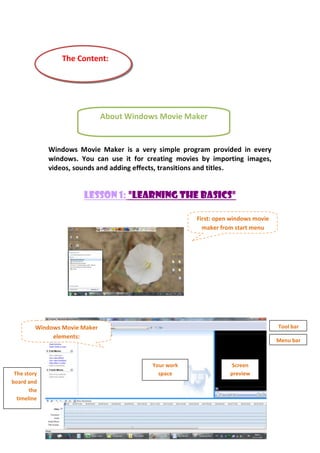
First: open windows movie
maker from start menu
Windows Movie Maker
elements:
Tool bar
Menu bar
Your work
space
Screen
previewThe story
board and
the
timeline
The Content:
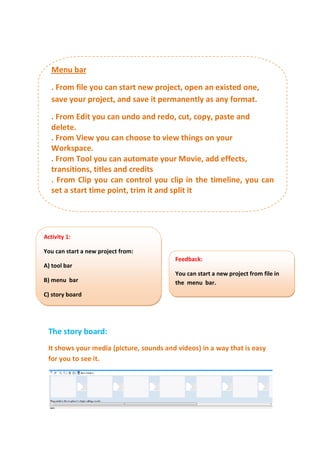
The story board:
It shows your media (picture, sounds and videos) in a way that is easy
for you to see it.
Menu bar
. From file you can start new project, open an existed one,
save your project, and save it permanently as any format.
. From Edit you can undo and redo, cut, copy, paste and
delete.
. From View you can choose to view things on your
Workspace.
. From Tool you can automate your Movie, add effects,
transitions, titles and credits
. From Clip you can control you clip in the timeline, you can
set a start time point, trim it and split it
Activity 1:
You can start a new project from:
A) tool bar
B) menu bar
C) story board
Feedback:
You can start a new project from file in
the menu bar.
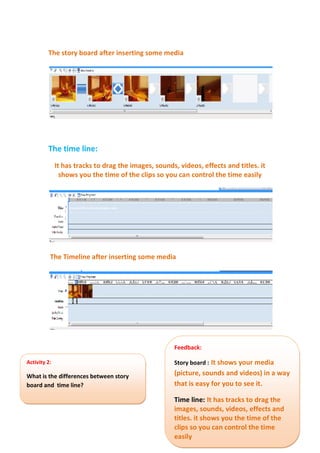
The story board after inserting some media
The time line:
It has tracks to drag the images, sounds, videos, effects and titles. it
shows you the time of the clips so you can control the time easily
The Timeline after inserting some media
Activity 2:
What is the differences between story
board and time line?
Feedback:
Story board : It shows your media
(picture, sounds and videos) in a way
that is easy for you to see it.
Time line: It has tracks to drag the
images, sounds, videos, effects and
titles. it shows you the time of the
clips so you can control the time
easily
Lesson 2: "how to drag the media"
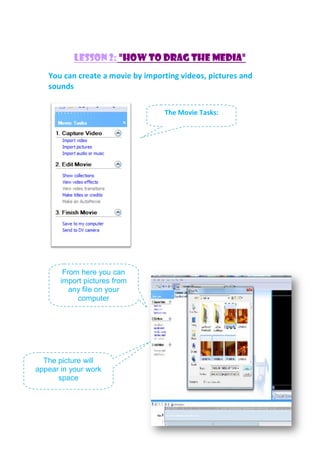
You can create a movie by importing videos, pictures and
sounds
The Movie Tasks:
From here you can
import pictures from
any file on your
computer
The picture will
appear in your work
space
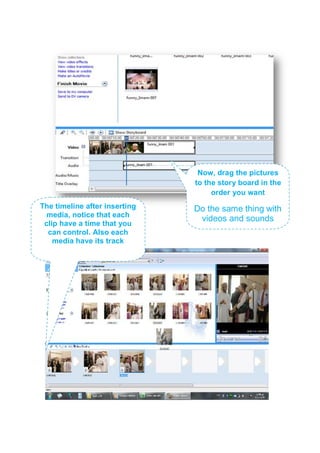
Now, drag the pictures
to the story board in the
order you want
Do the same thing with
videos and sounds
The timeline after inserting
media, notice that each
clip have a time that you
can control. Also each
media have its track
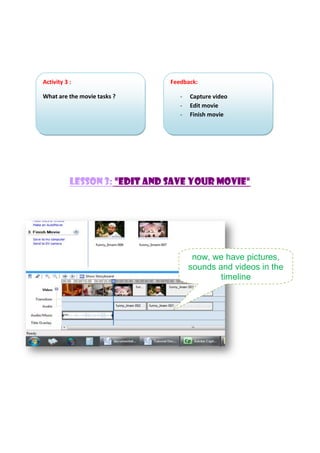
Lesson 3: "edit and save your movie"
now, we have pictures,
sounds and videos in the
timeline
Activity 3 :
What are the movie tasks ?
Feedback:
- Capture video
- Edit movie
- Finish movie
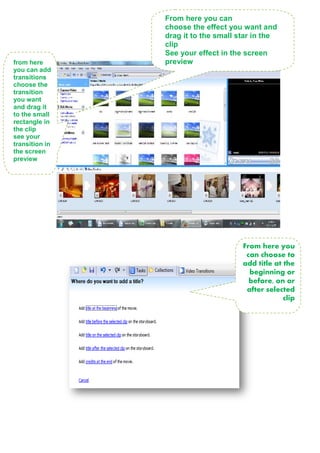
From here you can
choose the effect you want and
drag it to the small star in the
clip
See your effect in the screen
previewfrom here
you can add
transitions
choose the
transition
you want
and drag it
to the small
rectangle in
the clip
see your
transition in
the screen
preview
From here you
can choose to
add title at the
beginning or
before, on or
after selected
clip
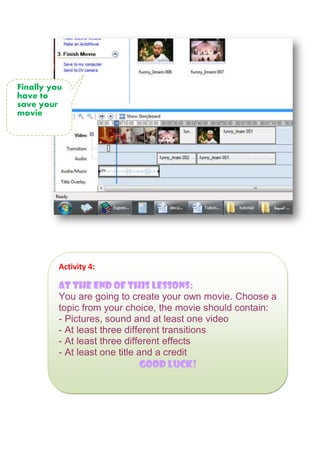
Finally you
have to
save your
movie
Activity 4:
At the end of this lessons:
You are going to create your own movie. Choose a
topic from your choice, the movie should contain:
- Pictures, sound and at least one video
- At least three different transitions
- At least three different effects
- At least one title and a credit
!kuul dooG

Dl materials

  • 1.
    Produce a shortmovie using Windows Movie Maker. At the end of this course, students will be able to: - Differentiate between Windows Movie Maker elements. - Import pictures and videos to the movie. - Import sounds to the movie. - Add effects to the movie. - Add transition to the movie. - Add titles and credits to the movie. - Save the movie. How to produce a short movie using Windows movie maker Learning Outcome: Learning Objectives:
  • 2.
    Windows Movie Makeris a very simple program provided in every windows. You can use it for creating movies by importing images, videos, sounds and adding effects, transitions and titles. Lesson 1: "Learning the basics" About Windows Movie Maker First: open windows movie maker from start menu Windows Movie Maker elements: Tool bar Menu bar Your work space Screen previewThe story board and the timeline The Content:
  • 3.
    The story board: Itshows your media (picture, sounds and videos) in a way that is easy for you to see it. Menu bar . From file you can start new project, open an existed one, save your project, and save it permanently as any format. . From Edit you can undo and redo, cut, copy, paste and delete. . From View you can choose to view things on your Workspace. . From Tool you can automate your Movie, add effects, transitions, titles and credits . From Clip you can control you clip in the timeline, you can set a start time point, trim it and split it Activity 1: You can start a new project from: A) tool bar B) menu bar C) story board Feedback: You can start a new project from file in the menu bar.
  • 4.
    The story boardafter inserting some media The time line: It has tracks to drag the images, sounds, videos, effects and titles. it shows you the time of the clips so you can control the time easily The Timeline after inserting some media Activity 2: What is the differences between story board and time line? Feedback: Story board : It shows your media (picture, sounds and videos) in a way that is easy for you to see it. Time line: It has tracks to drag the images, sounds, videos, effects and titles. it shows you the time of the clips so you can control the time easily
  • 5.
    Lesson 2: "howto drag the media" You can create a movie by importing videos, pictures and sounds The Movie Tasks: From here you can import pictures from any file on your computer The picture will appear in your work space
  • 6.
    Now, drag thepictures to the story board in the order you want Do the same thing with videos and sounds The timeline after inserting media, notice that each clip have a time that you can control. Also each media have its track
  • 7.
    Lesson 3: "editand save your movie" now, we have pictures, sounds and videos in the timeline Activity 3 : What are the movie tasks ? Feedback: - Capture video - Edit movie - Finish movie
  • 8.
    From here youcan choose the effect you want and drag it to the small star in the clip See your effect in the screen previewfrom here you can add transitions choose the transition you want and drag it to the small rectangle in the clip see your transition in the screen preview From here you can choose to add title at the beginning or before, on or after selected clip
  • 9.
    Finally you have to saveyour movie Activity 4: At the end of this lessons: You are going to create your own movie. Choose a topic from your choice, the movie should contain: - Pictures, sound and at least one video - At least three different transitions - At least three different effects - At least one title and a credit !kuul dooG