Adobe
Premiere Pro
CS5
How I created my Camera Test?
Creating a project:
 To create my camera test, I will be using Adobe Premiere Pro, as it is a
good software that allows you to create a film with features, such as
cutting and creating sequences.
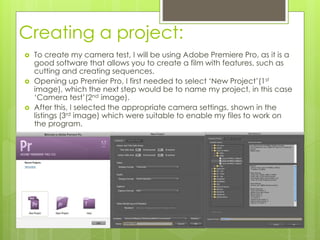
 Opening up Premier Pro, I first needed to select ‘New Project’(1st
image), which the next step would be to name my project, in this case
‘Camera test’(2nd image).
 After this, I selected the appropriate camera settings, shown in the
listings (3rd image) which were suitable to enable my files to work on
the program.
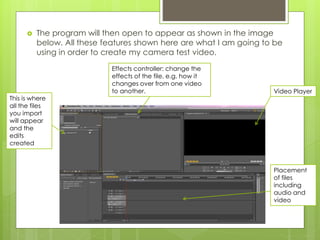
 The program will then open to appear as shown in the image
below. All these features shown here are what I am going to be
using in order to create my camera test video.
Placement
of files
including
audio and
video
Video Player
Effects controller: change the
effects of the file, e.g. how it
changes over from one video
to another.
This is where
all the files
you import
will appear
and the
edits
created
Importing Video Files:
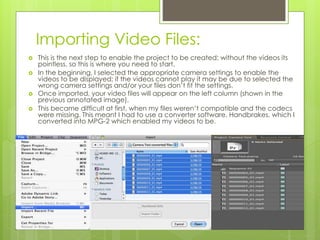
 This is the next step to enable the project to be created; without the videos its
pointless, so this is where you need to start.
 In the beginning, I selected the appropriate camera settings to enable the
videos to be displayed; if the videos cannot play it may be due to selected the
wrong camera settings and/or your files don’t fit the settings.
 Once imported, your video files will appear on the left column (shown in the
previous annotated image).
 This became difficult at first, when my files weren’t compatible and the codecs
were missing. This meant I had to use a converter software, Handbrakes, which I
converted into MPG-2 which enabled my videos to be.
Placing the Files:
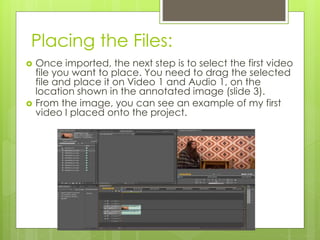
 Once imported, the next step is to select the first video
file you want to place. You need to drag the selected
file and place it on Video 1 and Audio 1, on the
location shown in the annotated image (slide 3).
 From the image, you can see an example of my first
video I placed onto the project.
Importing Audio Files.
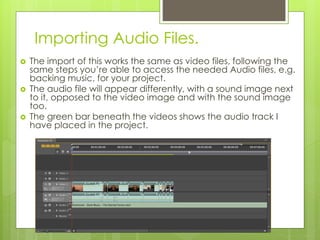
 The import of this works the same as video files, following the
same steps you’re able to access the needed Audio files, e.g.
backing music, for your project.
 The audio file will appear differently, with a sound image next
to it, opposed to the video image and with the sound image
too.
 The green bar beneath the videos shows the audio track I
have placed in the project.
Cutting the length of the file:
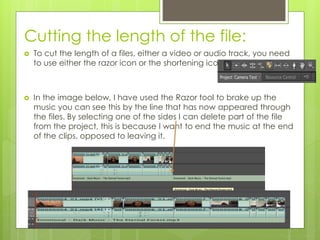
 To cut the length of a files, either a video or audio track, you need
to use either the razor icon or the shortening icon.
 In the image below, I have used the Razor tool to brake up the
music you can see this by the line that has now appeared through
the files. By selecting one of the sides I can delete part of the file
from the project, this is because I want to end the music at the end
of the clips, opposed to leaving it.
Adding text to image:
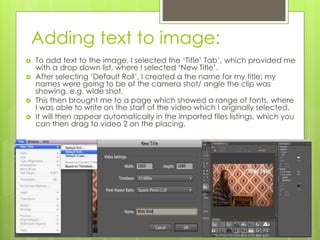
 To add text to the image, I selected the ‘Title’ Tab’, which provided me
with a drop down list, where I selected ‘New Title’.
 After selecting ‘Default Roll’, I created a the name for my title; my
names were going to be of the camera shot/ angle the clip was
showing, e.g. wide shot.
 This then brought me to a page which showed a range of fonts, where
I was able to write on the start of the video which I originally selected.
 It will then appear automatically in the imported files listings, which you
can then drag to video 2 on the placing.
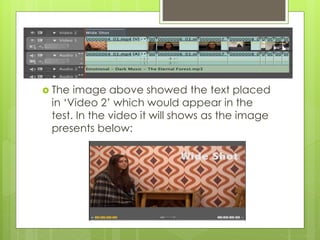
 The image above showed the text placed
in ‘Video 2’ which would appear in the
test. In the video it will shows as the image
presents below:
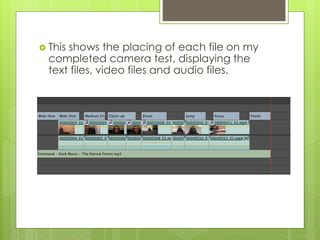
 This shows the placing of each file on my
completed camera test, displaying the
text files, video files and audio files.

Adobe premiere pro

  • 1.
    Adobe Premiere Pro CS5 How Icreated my Camera Test?
  • 2.
    Creating a project: To create my camera test, I will be using Adobe Premiere Pro, as it is a good software that allows you to create a film with features, such as cutting and creating sequences.  Opening up Premier Pro, I first needed to select ‘New Project’(1st image), which the next step would be to name my project, in this case ‘Camera test’(2nd image).  After this, I selected the appropriate camera settings, shown in the listings (3rd image) which were suitable to enable my files to work on the program.
  • 3.
     The programwill then open to appear as shown in the image below. All these features shown here are what I am going to be using in order to create my camera test video. Placement of files including audio and video Video Player Effects controller: change the effects of the file, e.g. how it changes over from one video to another. This is where all the files you import will appear and the edits created
  • 4.
    Importing Video Files: This is the next step to enable the project to be created; without the videos its pointless, so this is where you need to start.  In the beginning, I selected the appropriate camera settings to enable the videos to be displayed; if the videos cannot play it may be due to selected the wrong camera settings and/or your files don’t fit the settings.  Once imported, your video files will appear on the left column (shown in the previous annotated image).  This became difficult at first, when my files weren’t compatible and the codecs were missing. This meant I had to use a converter software, Handbrakes, which I converted into MPG-2 which enabled my videos to be.
  • 5.
    Placing the Files: Once imported, the next step is to select the first video file you want to place. You need to drag the selected file and place it on Video 1 and Audio 1, on the location shown in the annotated image (slide 3).  From the image, you can see an example of my first video I placed onto the project.
  • 6.
    Importing Audio Files. The import of this works the same as video files, following the same steps you’re able to access the needed Audio files, e.g. backing music, for your project.  The audio file will appear differently, with a sound image next to it, opposed to the video image and with the sound image too.  The green bar beneath the videos shows the audio track I have placed in the project.
  • 7.
    Cutting the lengthof the file:  To cut the length of a files, either a video or audio track, you need to use either the razor icon or the shortening icon.  In the image below, I have used the Razor tool to brake up the music you can see this by the line that has now appeared through the files. By selecting one of the sides I can delete part of the file from the project, this is because I want to end the music at the end of the clips, opposed to leaving it.
  • 8.
    Adding text toimage:  To add text to the image, I selected the ‘Title’ Tab’, which provided me with a drop down list, where I selected ‘New Title’.  After selecting ‘Default Roll’, I created a the name for my title; my names were going to be of the camera shot/ angle the clip was showing, e.g. wide shot.  This then brought me to a page which showed a range of fonts, where I was able to write on the start of the video which I originally selected.  It will then appear automatically in the imported files listings, which you can then drag to video 2 on the placing.
  • 9.
     The imageabove showed the text placed in ‘Video 2’ which would appear in the test. In the video it will shows as the image presents below:
  • 10.
     This showsthe placing of each file on my completed camera test, displaying the text files, video files and audio files.