Development Diary

 Double-page Spread
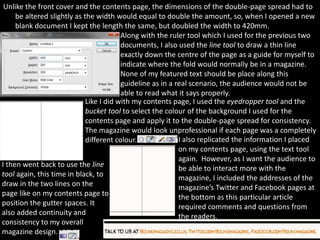
Unlike the front cover and the contents page, the dimensions of the double-page spread had to
     be altered slightly as the width would equal to double the amount, so, when I opened a new
     blank document I kept the length the same, but doubled the width to 420mm.
                                         Along with the ruler tool which I used for the previous two
                                         documents, I also used the line tool to draw a thin line
                                         exactly down the centre of the page as a guide for myself to
                                         indicate where the fold would normally be in a magazine.
                                         None of my featured text should be place along this
                                         guideline as in a real scenario, the audience would not be
                                         able to read what it says properly.
                             Like I did with my contents page, I used the eyedropper tool and the
                             bucket tool to select the colour of the background I used for the
                             contents page and apply it to the double-page spread for consistency.
                             The magazine would look unprofessional if each page was a completely
                             different colour.              I also replicated the information I placed
                                                            on my contents page, using the text tool
                                                            again. However, as I want the audience to
I then went back to use the line                            be able to interact more with the
tool again, this time in black, to                          magazine, I included the addresses of the
draw in the two lines on the                                magazine’s Twitter and Facebook pages at
page like on my contents page to                            the bottom as this particular article
position the gutter spaces. It                              required comments and questions from
also added continuity and                                   the readers.
consistency to my overall
magazine design.
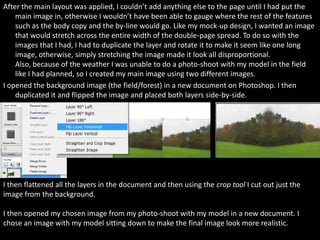
After the main layout was applied, I couldn’t add anything else to the page until I had put the
    main image in, otherwise I wouldn’t have been able to gauge where the rest of the features
    such as the body copy and the by-line would go. Like my mock-up design, I wanted an image
    that would stretch across the entire width of the double-page spread. To do so with the
    images that I had, I had to duplicate the layer and rotate it to make it seem like one long
    image, otherwise, simply stretching the image made it look all disproportional.
    Also, because of the weather I was unable to do a photo-shoot with my model in the field
    like I had planned, so I created my main image using two different images.
I opened the background image (the field/forest) in a new document on Photoshop. I then
    duplicated it and flipped the image and placed both layers side-by-side.


I then flattened all the layers in the document and then using the crop tool I cut out just the
image from the background.

I then opened my chosen image from my photo-shoot with my model in a new document. I
chose an image with my model sitting down to make the final image look more realistic.
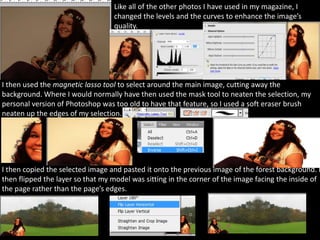
Like all of the other photos I have used in my magazine, I
                                  changed the levels and the curves to enhance the image’s
                                  quality.


I then used the magnetic lasso tool to select around the main image, cutting away the
background. Where I would normally have then used the mask tool to neaten the selection, my
personal version of Photoshop was too old to have that feature, so I used a soft eraser brush
neaten up the edges of my selection.


I then copied the selected image and pasted it onto the previous image of the forest background. I
then flipped the layer so that my model was sitting in the corner of the image facing the inside of
the page rather than the page’s edges.
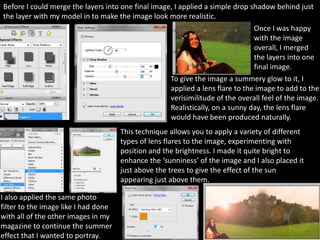
Before I could merge the layers into one final image, I applied a simple drop shadow behind just
the layer with my model in to make the image look more realistic.
                                                                                Once I was happy
                                                                                with the image
                                                                                overall, I merged
                                                                                the layers into one
                                                                                final image.
                                                     To give the image a summery glow to it, I
                                                     applied a lens flare to the image to add to the
                                                     verisimilitude of the overall feel of the image.
                                                     Realistically, on a sunny day, the lens flare
                                                     would have been produced naturally.
                                      This technique allows you to apply a variety of different
                                      types of lens flares to the image, experimenting with
                                      position and the brightness. I made it quite bright to
                                      enhance the ‘sunniness’ of the image and I also placed it
                                      just above the trees to give the effect of the sun
                                      appearing just above them.

I also applied the same photo
filter to the image like I had done
with all of the other images in my
magazine to continue the summer
effect that I wanted to portray.
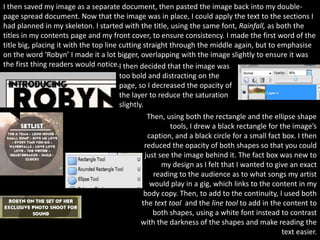
I then saved my image as a separate document, then pasted the image back into my double-
page spread document. Now that the image was in place, I could apply the text to the sections I
had planned in my skeleton. I started with the title, using the same font, Rainfall, as both the
titles in my contents page and my front cover, to ensure consistency. I made the first word of the
title big, placing it with the top line cutting straight through the middle again, but to emphasise
on the word ‘Robyn’ I made it a lot bigger, overlapping with the image slightly to ensure it was
the first thing readers would notice.I then decided that the image was
                                        too bold and distracting on the
                                        page, so I decreased the opacity of
                                        the layer to reduce the saturation
                                        slightly.
                                                   Then, using both the rectangle and the ellipse shape
                                                          tools, I drew a black rectangle for the image’s
                                                   caption, and a black circle for a small fact box. I then
                                                  reduced the opacity of both shapes so that you could
                                                  just see the image behind it. The fact box was new to
                                                        my design as I felt that I wanted to give an exact
                                                     reading to the audience as to what songs my artist
                                                    would play in a gig, which links to the content in my
                                                 body copy. Then, to add to the continuity, I used both
                                                the text tool and the line tool to add in the content to
                                                     both shapes, using a white font instead to contrast
                                                with the darkness of the shapes and make reading the
                                                                                                text easier.
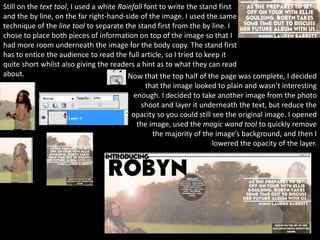
Still on the text tool, I used a white Rainfall font to write the stand first
and the by line, on the far right-hand-side of the image. I used the same
technique of the line tool to separate the stand first from the by line. I
chose to place both pieces of information on top of the image so that I
had more room underneath the image for the body copy. The stand first
has to entice the audience to read the full article, so I tried to keep it
quite short whilst also giving the readers a hint as to what they can read
about.                                    Now that the top half of the page was complete, I decided
                                                 that the image looked to plain and wasn’t interesting
                                            enough. I decided to take another image from the photo
                                              shoot and layer it underneath the text, but reduce the
                                           opacity so you could still see the original image. I opened
                                             the image, used the magic wand tool to quickly remove
                                                   the majority of the image’s background, and then I
                                                                      lowered the opacity of the layer.
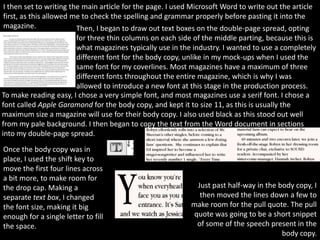
I then set to writing the main article for the page. I used Microsoft Word to write out the article
first, as this allowed me to check the spelling and grammar properly before pasting it into the
magazine.               Then, I began to draw out text boxes on the double-page spread, opting
                       for three thin columns on each side of the middle parting, because this is
                       what magazines typically use in the industry. I wanted to use a completely
                       different font for the body copy, unlike in my mock-ups when I used the
                       same font for my coverlines. Most magazines have a maximum of three
                       different fonts throughout the entire magazine, which is why I was
                       allowed to introduce a new font at this stage in the production process.
To make reading easy, I chose a very simple font, and most magazines use a serif font. I chose a
font called Apple Garamond for the body copy, and kept it to size 11, as this is usually the
maximum size a magazine will use for their body copy. I also used black as this stood out well
from my pale background. I then began to copy the text from the Word document in sections
into my double-page spread.
Once the body copy was in
place, I used the shift key to
move the first four lines across
a bit more, to make room for
the drop cap. Making a                                       Just past half-way in the body copy, I
separate text box, I changed                                  then moved the lines down a few to
the font size, making it big                                make room for the pull quote. The pull
enough for a single letter to fill                          quote was going to be a short snippet
the space.                                                   of some of the speech present in the
                                                                                        body copy.
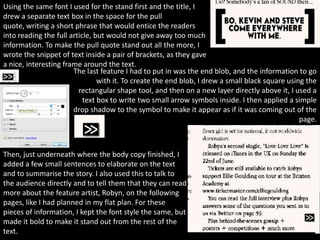
Using the same font I used for the stand first and the title, I
drew a separate text box in the space for the pull
quote, writing a short phrase that would entice the readers
into reading the full article, but would not give away too much
information. To make the pull quote stand out all the more, I
wrote the snippet of text inside a pair of brackets, as they gave
a nice, interesting frame around the text.
                       The last feature I had to put in was the end blob, and the information to go
                                with it. To create the end blob, I drew a small black square using the
                         rectangular shape tool, and then on a new layer directly above it, I used a
                           text box to write two small arrow symbols inside. I then applied a simple
                       drop shadow to the symbol to make it appear as if it was coming out of the
                                                                                                 page.


Then, just underneath where the body copy finished, I
added a few small sentences to elaborate on the text
and to summarise the story. I also used this to talk to
the audience directly and to tell them that they can read
more about the feature artist, Robyn, on the following
pages, like I had planned in my flat plan. For these
pieces of information, I kept the font style the same, but
made it bold to make it stand out from the rest of the
text.

Development diary double page spread

  • 1.
  • 2.
    Unlike the frontcover and the contents page, the dimensions of the double-page spread had to be altered slightly as the width would equal to double the amount, so, when I opened a new blank document I kept the length the same, but doubled the width to 420mm. Along with the ruler tool which I used for the previous two documents, I also used the line tool to draw a thin line exactly down the centre of the page as a guide for myself to indicate where the fold would normally be in a magazine. None of my featured text should be place along this guideline as in a real scenario, the audience would not be able to read what it says properly. Like I did with my contents page, I used the eyedropper tool and the bucket tool to select the colour of the background I used for the contents page and apply it to the double-page spread for consistency. The magazine would look unprofessional if each page was a completely different colour. I also replicated the information I placed on my contents page, using the text tool again. However, as I want the audience to I then went back to use the line be able to interact more with the tool again, this time in black, to magazine, I included the addresses of the draw in the two lines on the magazine’s Twitter and Facebook pages at page like on my contents page to the bottom as this particular article position the gutter spaces. It required comments and questions from also added continuity and the readers. consistency to my overall magazine design.
  • 3.
    After the mainlayout was applied, I couldn’t add anything else to the page until I had put the main image in, otherwise I wouldn’t have been able to gauge where the rest of the features such as the body copy and the by-line would go. Like my mock-up design, I wanted an image that would stretch across the entire width of the double-page spread. To do so with the images that I had, I had to duplicate the layer and rotate it to make it seem like one long image, otherwise, simply stretching the image made it look all disproportional. Also, because of the weather I was unable to do a photo-shoot with my model in the field like I had planned, so I created my main image using two different images. I opened the background image (the field/forest) in a new document on Photoshop. I then duplicated it and flipped the image and placed both layers side-by-side. I then flattened all the layers in the document and then using the crop tool I cut out just the image from the background. I then opened my chosen image from my photo-shoot with my model in a new document. I chose an image with my model sitting down to make the final image look more realistic.
  • 4.
    Like all ofthe other photos I have used in my magazine, I changed the levels and the curves to enhance the image’s quality. I then used the magnetic lasso tool to select around the main image, cutting away the background. Where I would normally have then used the mask tool to neaten the selection, my personal version of Photoshop was too old to have that feature, so I used a soft eraser brush neaten up the edges of my selection. I then copied the selected image and pasted it onto the previous image of the forest background. I then flipped the layer so that my model was sitting in the corner of the image facing the inside of the page rather than the page’s edges.
  • 5.
    Before I couldmerge the layers into one final image, I applied a simple drop shadow behind just the layer with my model in to make the image look more realistic. Once I was happy with the image overall, I merged the layers into one final image. To give the image a summery glow to it, I applied a lens flare to the image to add to the verisimilitude of the overall feel of the image. Realistically, on a sunny day, the lens flare would have been produced naturally. This technique allows you to apply a variety of different types of lens flares to the image, experimenting with position and the brightness. I made it quite bright to enhance the ‘sunniness’ of the image and I also placed it just above the trees to give the effect of the sun appearing just above them. I also applied the same photo filter to the image like I had done with all of the other images in my magazine to continue the summer effect that I wanted to portray.
  • 6.
    I then savedmy image as a separate document, then pasted the image back into my double- page spread document. Now that the image was in place, I could apply the text to the sections I had planned in my skeleton. I started with the title, using the same font, Rainfall, as both the titles in my contents page and my front cover, to ensure consistency. I made the first word of the title big, placing it with the top line cutting straight through the middle again, but to emphasise on the word ‘Robyn’ I made it a lot bigger, overlapping with the image slightly to ensure it was the first thing readers would notice.I then decided that the image was too bold and distracting on the page, so I decreased the opacity of the layer to reduce the saturation slightly. Then, using both the rectangle and the ellipse shape tools, I drew a black rectangle for the image’s caption, and a black circle for a small fact box. I then reduced the opacity of both shapes so that you could just see the image behind it. The fact box was new to my design as I felt that I wanted to give an exact reading to the audience as to what songs my artist would play in a gig, which links to the content in my body copy. Then, to add to the continuity, I used both the text tool and the line tool to add in the content to both shapes, using a white font instead to contrast with the darkness of the shapes and make reading the text easier.
  • 7.
    Still on thetext tool, I used a white Rainfall font to write the stand first and the by line, on the far right-hand-side of the image. I used the same technique of the line tool to separate the stand first from the by line. I chose to place both pieces of information on top of the image so that I had more room underneath the image for the body copy. The stand first has to entice the audience to read the full article, so I tried to keep it quite short whilst also giving the readers a hint as to what they can read about. Now that the top half of the page was complete, I decided that the image looked to plain and wasn’t interesting enough. I decided to take another image from the photo shoot and layer it underneath the text, but reduce the opacity so you could still see the original image. I opened the image, used the magic wand tool to quickly remove the majority of the image’s background, and then I lowered the opacity of the layer.
  • 8.
    I then setto writing the main article for the page. I used Microsoft Word to write out the article first, as this allowed me to check the spelling and grammar properly before pasting it into the magazine. Then, I began to draw out text boxes on the double-page spread, opting for three thin columns on each side of the middle parting, because this is what magazines typically use in the industry. I wanted to use a completely different font for the body copy, unlike in my mock-ups when I used the same font for my coverlines. Most magazines have a maximum of three different fonts throughout the entire magazine, which is why I was allowed to introduce a new font at this stage in the production process. To make reading easy, I chose a very simple font, and most magazines use a serif font. I chose a font called Apple Garamond for the body copy, and kept it to size 11, as this is usually the maximum size a magazine will use for their body copy. I also used black as this stood out well from my pale background. I then began to copy the text from the Word document in sections into my double-page spread. Once the body copy was in place, I used the shift key to move the first four lines across a bit more, to make room for the drop cap. Making a Just past half-way in the body copy, I separate text box, I changed then moved the lines down a few to the font size, making it big make room for the pull quote. The pull enough for a single letter to fill quote was going to be a short snippet the space. of some of the speech present in the body copy.
  • 9.
    Using the samefont I used for the stand first and the title, I drew a separate text box in the space for the pull quote, writing a short phrase that would entice the readers into reading the full article, but would not give away too much information. To make the pull quote stand out all the more, I wrote the snippet of text inside a pair of brackets, as they gave a nice, interesting frame around the text. The last feature I had to put in was the end blob, and the information to go with it. To create the end blob, I drew a small black square using the rectangular shape tool, and then on a new layer directly above it, I used a text box to write two small arrow symbols inside. I then applied a simple drop shadow to the symbol to make it appear as if it was coming out of the page. Then, just underneath where the body copy finished, I added a few small sentences to elaborate on the text and to summarise the story. I also used this to talk to the audience directly and to tell them that they can read more about the feature artist, Robyn, on the following pages, like I had planned in my flat plan. For these pieces of information, I kept the font style the same, but made it bold to make it stand out from the rest of the text.