Skills Development

    Contents page
1

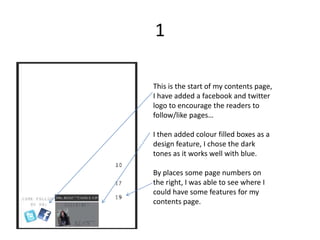
This is the start of my contents page,
I have added a facebook and twitter
logo to encourage the readers to
follow/like pages…

I then added colour filled boxes as a
design feature, I chose the dark
tones as it works well with blue.

By places some page numbers on
the right, I was able to see where I
could have some features for my
contents page.
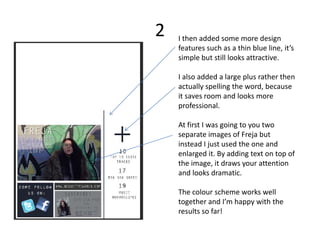
2   I then added some more design
    features such as a thin blue line, it’s
    simple but still looks attractive.

    I also added a large plus rather then
    actually spelling the word, because
    it saves room and looks more
    professional.

    At first I was going to you two
    separate images of Freja but
    instead I just used the one and
    enlarged it. By adding text on top of
    the image, it draws your attention
    and looks dramatic.

    The colour scheme works well
    together and I’m happy with the
    results so far!
3

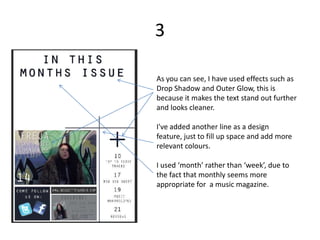
As you can see, I have used effects such as
Drop Shadow and Outer Glow, this is
because it makes the text stand out further
and looks cleaner.

I've added another line as a design
feature, just to fill up space and add more
relevant colours.

I used ‘month’ rather than ‘week’, due to
the fact that monthly seems more
appropriate for a music magazine.
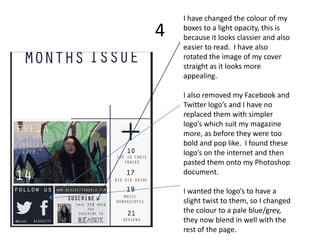
I have changed the colour of my
4   boxes to a light opacity, this is
    because it looks classier and also
    easier to read. I have also
    rotated the image of my cover
    straight as it looks more
    appealing.

    I also removed my Facebook and
    Twitter logo’s and I have no
    replaced them with simpler
    logo’s which suit my magazine
    more, as before they were too
    bold and pop like. I found these
    logo’s on the internet and then
    pasted them onto my Photoshop
    document.

    I wanted the logo’s to have a
    slight twist to them, so I changed
    the colour to a pale blue/grey,
    they now blend in well with the
    rest of the page.
5

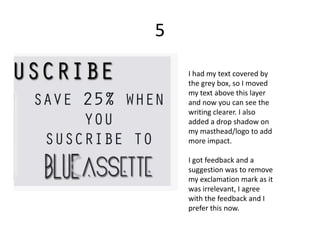
    I had my text covered by
    the grey box, so I moved
    my text above this layer
    and now you can see the
    writing clearer. I also
    added a drop shadow on
    my masthead/logo to add
    more impact.

    I got feedback and a
    suggestion was to remove
    my exclamation mark as it
    was irrelevant, I agree
    with the feedback and I
    prefer this now.
6


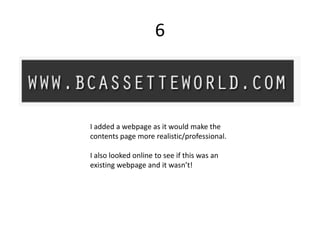
I added a webpage as it would make the
contents page more realistic/professional.

I also looked online to see if this was an
existing webpage and it wasn’t!
7
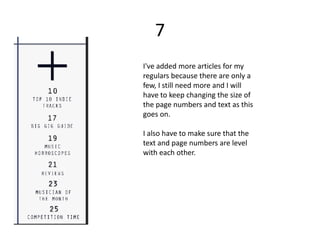
I've added more articles for my
regulars because there are only a
few, I still need more and I will
have to keep changing the size of
the page numbers and text as this
goes on.

I also have to make sure that the
text and page numbers are level
with each other.
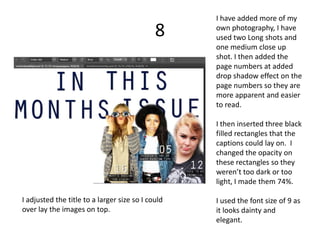
I have added more of my
                                             8     own photography, I have
                                                   used two Long shots and
                                                   one medium close up
                                                   shot. I then added the
                                                   page numbers at added
                                                   drop shadow effect on the
                                                   page numbers so they are
                                                   more apparent and easier
                                                   to read.

                                                   I then inserted three black
                                                   filled rectangles that the
                                                   captions could lay on. I
                                                   changed the opacity on
                                                   these rectangles so they
                                                   weren’t too dark or too
                                                   light, I made them 74%.

I adjusted the title to a larger size so I could   I used the font size of 9 as
over lay the images on top.                        it looks dainty and
                                                   elegant.
9
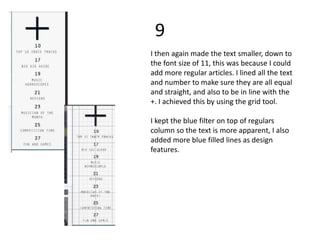
I then again made the text smaller, down to
the font size of 11, this was because I could
add more regular articles. I lined all the text
and number to make sure they are all equal
and straight, and also to be in line with the
+. I achieved this by using the grid tool.

I kept the blue filter on top of regulars
column so the text is more apparent, I also
added more blue filled lines as design
features.
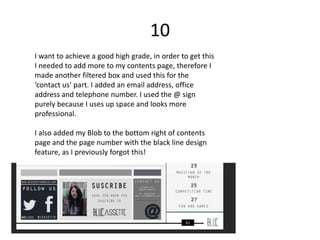
10
I want to achieve a good high grade, in order to get this
I needed to add more to my contents page, therefore I
made another filtered box and used this for the
‘contact us’ part. I added an email address, office
address and telephone number. I used the @ sign
purely because I uses up space and looks more
professional.

I also added my Blob to the bottom right of contents
page and the page number with the black line design
feature, as I previously forgot this!
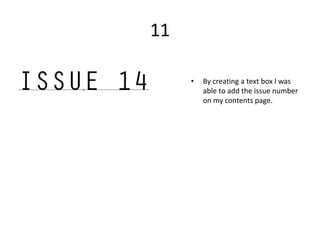
11

     •   By creating a text box I was
         able to add the issue number
         on my contents page.
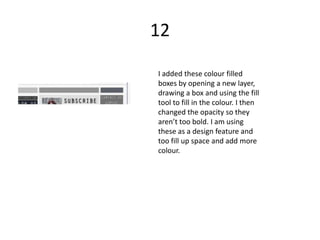
12

I added these colour filled
boxes by opening a new layer,
drawing a box and using the fill
tool to fill in the colour. I then
changed the opacity so they
aren’t too bold. I am using
these as a design feature and
too fill up space and add more
colour.
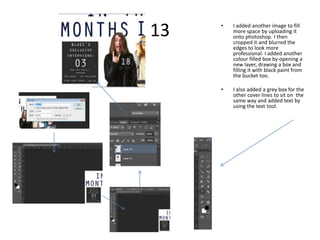
13   •   I added another image to fill
         more space by uploading it
         onto photoshop. I then
         cropped it and blurred the
         edges to look more
         professional. I added another
         colour filled box by opening a
         new layer, drawing a box and
         filling it with black paint from
         the bucket too.

     •   I also added a grey box for the
         other cover lines to sit on the
         same way and added text by
         using the text tool.

Skills development ccccc

  • 1.
    Skills Development Contents page
  • 2.
    1 This is thestart of my contents page, I have added a facebook and twitter logo to encourage the readers to follow/like pages… I then added colour filled boxes as a design feature, I chose the dark tones as it works well with blue. By places some page numbers on the right, I was able to see where I could have some features for my contents page.
  • 3.
    2 I then added some more design features such as a thin blue line, it’s simple but still looks attractive. I also added a large plus rather then actually spelling the word, because it saves room and looks more professional. At first I was going to you two separate images of Freja but instead I just used the one and enlarged it. By adding text on top of the image, it draws your attention and looks dramatic. The colour scheme works well together and I’m happy with the results so far!
  • 4.
    3 As you cansee, I have used effects such as Drop Shadow and Outer Glow, this is because it makes the text stand out further and looks cleaner. I've added another line as a design feature, just to fill up space and add more relevant colours. I used ‘month’ rather than ‘week’, due to the fact that monthly seems more appropriate for a music magazine.
  • 5.
    I have changedthe colour of my 4 boxes to a light opacity, this is because it looks classier and also easier to read. I have also rotated the image of my cover straight as it looks more appealing. I also removed my Facebook and Twitter logo’s and I have no replaced them with simpler logo’s which suit my magazine more, as before they were too bold and pop like. I found these logo’s on the internet and then pasted them onto my Photoshop document. I wanted the logo’s to have a slight twist to them, so I changed the colour to a pale blue/grey, they now blend in well with the rest of the page.
  • 6.
    5 I had my text covered by the grey box, so I moved my text above this layer and now you can see the writing clearer. I also added a drop shadow on my masthead/logo to add more impact. I got feedback and a suggestion was to remove my exclamation mark as it was irrelevant, I agree with the feedback and I prefer this now.
  • 7.
    6 I added awebpage as it would make the contents page more realistic/professional. I also looked online to see if this was an existing webpage and it wasn’t!
  • 8.
    7 I've added morearticles for my regulars because there are only a few, I still need more and I will have to keep changing the size of the page numbers and text as this goes on. I also have to make sure that the text and page numbers are level with each other.
  • 9.
    I have addedmore of my 8 own photography, I have used two Long shots and one medium close up shot. I then added the page numbers at added drop shadow effect on the page numbers so they are more apparent and easier to read. I then inserted three black filled rectangles that the captions could lay on. I changed the opacity on these rectangles so they weren’t too dark or too light, I made them 74%. I adjusted the title to a larger size so I could I used the font size of 9 as over lay the images on top. it looks dainty and elegant.
  • 10.
    9 I then againmade the text smaller, down to the font size of 11, this was because I could add more regular articles. I lined all the text and number to make sure they are all equal and straight, and also to be in line with the +. I achieved this by using the grid tool. I kept the blue filter on top of regulars column so the text is more apparent, I also added more blue filled lines as design features.
  • 11.
    10 I want toachieve a good high grade, in order to get this I needed to add more to my contents page, therefore I made another filtered box and used this for the ‘contact us’ part. I added an email address, office address and telephone number. I used the @ sign purely because I uses up space and looks more professional. I also added my Blob to the bottom right of contents page and the page number with the black line design feature, as I previously forgot this!
  • 12.
    11 • By creating a text box I was able to add the issue number on my contents page.
  • 13.
    12 I added thesecolour filled boxes by opening a new layer, drawing a box and using the fill tool to fill in the colour. I then changed the opacity so they aren’t too bold. I am using these as a design feature and too fill up space and add more colour.
  • 14.
    13 • I added another image to fill more space by uploading it onto photoshop. I then cropped it and blurred the edges to look more professional. I added another colour filled box by opening a new layer, drawing a box and filling it with black paint from the bucket too. • I also added a grey box for the other cover lines to sit on the same way and added text by using the text tool.