Data Visualization tools &
techniques
K Sravan Kumar
Outline
 Different visualizations
 How to draw in R
 How to draw in MS Excel
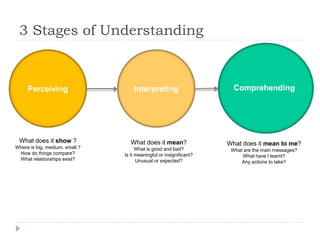
3 Stages of Understanding
Perceiving Interpreting Comprehending
What does it show ?
Where is big, medium, small ?
How do things compare?
What relationships exist?
What does it mean?
What is good and bad?
Is it meaningful or insignificant?
Unusual or expected?
What does it mean to me?
What are the main messages?
What have I learnt?
Any actions to take?
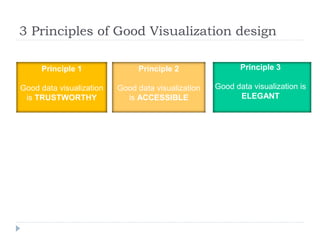
3 Principles of Good Visualization design
Principle 1
Good data visualization
is TRUSTWORTHY
Principle 2
Good data visualization
is ACCESSIBLE
Principle 3
Good data visualization is
ELEGANT
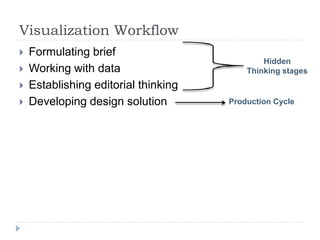
Visualization Workflow
 Formulating brief
 Working with data
 Establishing editorial thinking
 Developing design solution
Hidden
Thinking stages
Production Cycle
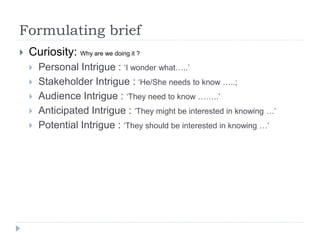
Formulating brief
 Curiosity: Why are we doing it ?
 Personal Intrigue : ‘I wonder what…..’
 Stakeholder Intrigue : ‘He/She needs to know …..;
 Audience Intrigue : ‘They need to know ……..’
 Anticipated Intrigue : ‘They might be interested in knowing …’
 Potential Intrigue : ‘They should be interested in knowing …’
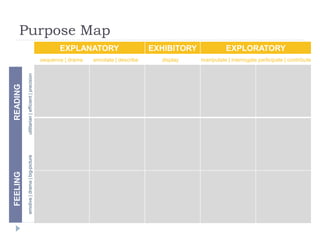
Purpose Map
EXPLANATORY EXHIBITORY EXPLORATORY
FEELINGREADING
sequence | drama annotate | describe display manipulate | interrogate participate | contribute
emotive|drama|big-pictureutilitarian|efficient|precision
Working with data
 Types of data
 Textual(Qualitative)
 Nominal (Qualitative)
 Ordinal (Qualitative)
 Interval (quantitative)
 Ratio (quantitative)
Working with data : steps
 Acquire
 Examine
 Transform
 Explore
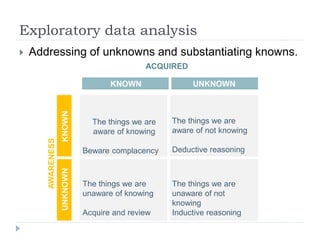
Exploratory data analysis
 Addressing of unknowns and substantiating knowns.
The things we are
aware of knowing
Beware complacency
The things we are
aware of not knowing
Deductive reasoning
The things we are
unaware of knowing
Acquire and review
The things we are
unaware of not
knowing
Inductive reasoning
KNOWN UNKNOWN
KNOWNUNKNOWN ACQUIRED
AWARENESS
Reasoning
 Deductive reasoning
Hypothesis framed by subject knowledge, interrogate the
data to find evidence of relevance or interest in concluding
the finding. (Sherlock Holmes)
 Inductive reasoning
Play around with data, based on sense or instinct and wait
and see what emerges.
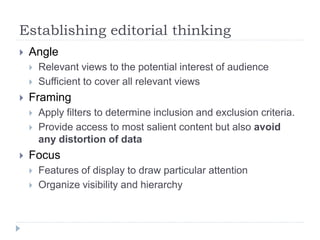
Establishing editorial thinking
 Angle
 Relevant views to the potential interest of audience
 Sufficient to cover all relevant views
 Framing
 Apply filters to determine inclusion and exclusion criteria.
 Provide access to most salient content but also avoid
any distortion of data
 Focus
 Features of display to draw particular attention
 Organize visibility and hierarchy
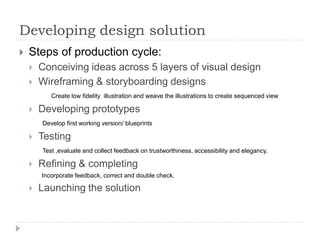
Developing design solution
 Steps of production cycle:
 Conceiving ideas across 5 layers of visual design
 Wireframing & storyboarding designs
Create low fidelity illustration and weave the illustrations to create sequenced view
 Developing prototypes
Develop first working version/ blueprints
 Testing
Test ,evaluate and collect feedback on trustworthiness, accessibility and elegancy.
 Refining & completing
Incorporate feedback, correct and double check.
 Launching the solution
5 layers of visual design
 Data representation
 Interactivity
 Annotation
 Color
 Composition
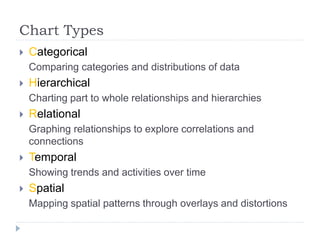
Chart Types
 Categorical
Comparing categories and distributions of data
 Hierarchical
Charting part to whole relationships and hierarchies
 Relational
Graphing relationships to explore correlations and
connections
 Temporal
Showing trends and activities over time
 Spatial
Mapping spatial patterns through overlays and distortions
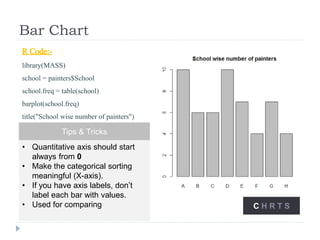
Bar Chart
R Code:-
library(MASS)
school = painters$School
school.freq = table(school)
barplot(school.freq)
title("School wise number of painters")
Tips & Tricks
• Quantitative axis should start
always from 0
• Make the categorical sorting
meaningful (X-axis).
• If you have axis labels, don’t
label each bar with values.
• Used for comparing C H R T S
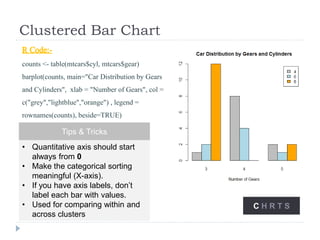
Clustered Bar Chart
R Code:-
counts <- table(mtcars$cyl, mtcars$gear)
barplot(counts, main="Car Distribution by Gears
and Cylinders", xlab = "Number of Gears", col =
c("grey","lightblue","orange") , legend =
rownames(counts), beside=TRUE)
C H R T S
Tips & Tricks
• Quantitative axis should start
always from 0
• Make the categorical sorting
meaningful (X-axis).
• If you have axis labels, don’t
label each bar with values.
• Used for comparing within and
across clusters
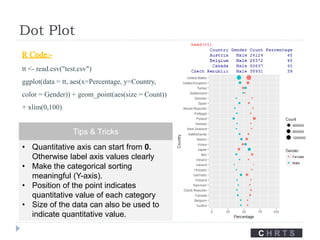
Dot Plot
R Code:-
tt <- read.csv("test.csv")
ggplot(data = tt, aes(x=Percentage, y=Country,
color = Gender)) + geom_point(aes(size = Count))
+ xlim(0,100)
Tips & Tricks
• Quantitative axis can start from 0.
Otherwise label axis values clearly
• Make the categorical sorting
meaningful (Y-axis).
• Position of the point indicates
quantitative value of each category
• Size of the data can also be used to
indicate quantitative value.
C H R T S
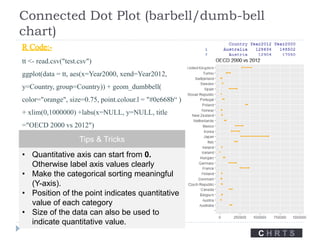
Connected Dot Plot (barbell/dumb-bell
chart)
C H R T S
R Code:-
tt <- read.csv("test.csv")
ggplot(data = tt, aes(x=Year2000, xend=Year2012,
y=Country, group=Country)) + geom_dumbbell(
color="orange", size=0.75, point.colour.l = "#0e668b“ )
+ xlim(0,1000000) +labs(x=NULL, y=NULL, title
="OECD 2000 vs 2012")
Tips & Tricks
• Quantitative axis can start from 0.
Otherwise label axis values clearly
• Make the categorical sorting meaningful
(Y-axis).
• Position of the point indicates quantitative
value of each category
• Size of the data can also be used to
indicate quantitative value.
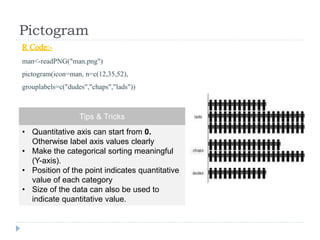
Pictogram
R Code:-
man<-readPNG("man.png")
pictogram(icon=man, n=c(12,35,52),
grouplabels=c("dudes","chaps","lads"))
Tips & Tricks
• Quantitative axis can start from 0.
Otherwise label axis values clearly
• Make the categorical sorting meaningful
(Y-axis).
• Position of the point indicates quantitative
value of each category
• Size of the data can also be used to
indicate quantitative value.
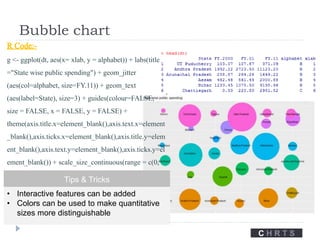
Bubble chart
C H R T S
R Code:-
g <- ggplot(dt, aes(x= xlab, y = alphabet)) + labs(title
="State wise public spending") + geom_jitter
(aes(col=alphabet, size=FY.11)) + geom_text
(aes(label=State), size=3) + guides(colour=FALSE,
size = FALSE, x = FALSE, y = FALSE) +
theme(axis.title.x=element_blank(),axis.text.x=element
_blank(),axis.ticks.x=element_blank(),axis.title.y=elem
ent_blank(),axis.text.y=element_blank(),axis.ticks.y=el
ement_blank()) + scale_size_continuous(range = c(0,
50)) Tips & Tricks
• Interactive features can be added
• Colors can be used to make quantitative
sizes more distinguishable
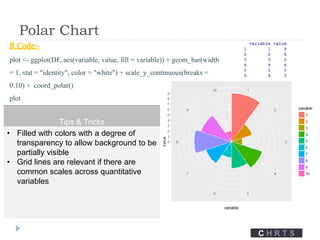
Polar Chart
R Code:-
plot <- ggplot(DF, aes(variable, value, fill = variable)) + geom_bar(width
= 1, stat = "identity", color = "white") + scale_y_continuous(breaks =
0:10) + coord_polar()
plot
Tips & Tricks
• Filled with colors with a degree of
transparency to allow background to be
partially visible
• Grid lines are relevant if there are
common scales across quantitative
variables
C H R T S

Data visualization tools & techniques - 1

  • 1.
    Data Visualization tools& techniques K Sravan Kumar
  • 2.
    Outline  Different visualizations How to draw in R  How to draw in MS Excel
  • 3.
    3 Stages ofUnderstanding Perceiving Interpreting Comprehending What does it show ? Where is big, medium, small ? How do things compare? What relationships exist? What does it mean? What is good and bad? Is it meaningful or insignificant? Unusual or expected? What does it mean to me? What are the main messages? What have I learnt? Any actions to take?
  • 4.
    3 Principles ofGood Visualization design Principle 1 Good data visualization is TRUSTWORTHY Principle 2 Good data visualization is ACCESSIBLE Principle 3 Good data visualization is ELEGANT
  • 5.
    Visualization Workflow  Formulatingbrief  Working with data  Establishing editorial thinking  Developing design solution Hidden Thinking stages Production Cycle
  • 6.
    Formulating brief  Curiosity:Why are we doing it ?  Personal Intrigue : ‘I wonder what…..’  Stakeholder Intrigue : ‘He/She needs to know …..;  Audience Intrigue : ‘They need to know ……..’  Anticipated Intrigue : ‘They might be interested in knowing …’  Potential Intrigue : ‘They should be interested in knowing …’
  • 7.
    Purpose Map EXPLANATORY EXHIBITORYEXPLORATORY FEELINGREADING sequence | drama annotate | describe display manipulate | interrogate participate | contribute emotive|drama|big-pictureutilitarian|efficient|precision
  • 8.
    Working with data Types of data  Textual(Qualitative)  Nominal (Qualitative)  Ordinal (Qualitative)  Interval (quantitative)  Ratio (quantitative)
  • 9.
    Working with data: steps  Acquire  Examine  Transform  Explore
  • 10.
    Exploratory data analysis Addressing of unknowns and substantiating knowns. The things we are aware of knowing Beware complacency The things we are aware of not knowing Deductive reasoning The things we are unaware of knowing Acquire and review The things we are unaware of not knowing Inductive reasoning KNOWN UNKNOWN KNOWNUNKNOWN ACQUIRED AWARENESS
  • 11.
    Reasoning  Deductive reasoning Hypothesisframed by subject knowledge, interrogate the data to find evidence of relevance or interest in concluding the finding. (Sherlock Holmes)  Inductive reasoning Play around with data, based on sense or instinct and wait and see what emerges.
  • 12.
    Establishing editorial thinking Angle  Relevant views to the potential interest of audience  Sufficient to cover all relevant views  Framing  Apply filters to determine inclusion and exclusion criteria.  Provide access to most salient content but also avoid any distortion of data  Focus  Features of display to draw particular attention  Organize visibility and hierarchy
  • 13.
    Developing design solution Steps of production cycle:  Conceiving ideas across 5 layers of visual design  Wireframing & storyboarding designs Create low fidelity illustration and weave the illustrations to create sequenced view  Developing prototypes Develop first working version/ blueprints  Testing Test ,evaluate and collect feedback on trustworthiness, accessibility and elegancy.  Refining & completing Incorporate feedback, correct and double check.  Launching the solution
  • 14.
    5 layers ofvisual design  Data representation  Interactivity  Annotation  Color  Composition
  • 15.
    Chart Types  Categorical Comparingcategories and distributions of data  Hierarchical Charting part to whole relationships and hierarchies  Relational Graphing relationships to explore correlations and connections  Temporal Showing trends and activities over time  Spatial Mapping spatial patterns through overlays and distortions
  • 16.
    Bar Chart R Code:- library(MASS) school= painters$School school.freq = table(school) barplot(school.freq) title("School wise number of painters") Tips & Tricks • Quantitative axis should start always from 0 • Make the categorical sorting meaningful (X-axis). • If you have axis labels, don’t label each bar with values. • Used for comparing C H R T S
  • 17.
    Clustered Bar Chart RCode:- counts <- table(mtcars$cyl, mtcars$gear) barplot(counts, main="Car Distribution by Gears and Cylinders", xlab = "Number of Gears", col = c("grey","lightblue","orange") , legend = rownames(counts), beside=TRUE) C H R T S Tips & Tricks • Quantitative axis should start always from 0 • Make the categorical sorting meaningful (X-axis). • If you have axis labels, don’t label each bar with values. • Used for comparing within and across clusters
  • 18.
    Dot Plot R Code:- tt<- read.csv("test.csv") ggplot(data = tt, aes(x=Percentage, y=Country, color = Gender)) + geom_point(aes(size = Count)) + xlim(0,100) Tips & Tricks • Quantitative axis can start from 0. Otherwise label axis values clearly • Make the categorical sorting meaningful (Y-axis). • Position of the point indicates quantitative value of each category • Size of the data can also be used to indicate quantitative value. C H R T S
  • 19.
    Connected Dot Plot(barbell/dumb-bell chart) C H R T S R Code:- tt <- read.csv("test.csv") ggplot(data = tt, aes(x=Year2000, xend=Year2012, y=Country, group=Country)) + geom_dumbbell( color="orange", size=0.75, point.colour.l = "#0e668b“ ) + xlim(0,1000000) +labs(x=NULL, y=NULL, title ="OECD 2000 vs 2012") Tips & Tricks • Quantitative axis can start from 0. Otherwise label axis values clearly • Make the categorical sorting meaningful (Y-axis). • Position of the point indicates quantitative value of each category • Size of the data can also be used to indicate quantitative value.
  • 20.
    Pictogram R Code:- man<-readPNG("man.png") pictogram(icon=man, n=c(12,35,52), grouplabels=c("dudes","chaps","lads")) Tips& Tricks • Quantitative axis can start from 0. Otherwise label axis values clearly • Make the categorical sorting meaningful (Y-axis). • Position of the point indicates quantitative value of each category • Size of the data can also be used to indicate quantitative value.
  • 21.
    Bubble chart C HR T S R Code:- g <- ggplot(dt, aes(x= xlab, y = alphabet)) + labs(title ="State wise public spending") + geom_jitter (aes(col=alphabet, size=FY.11)) + geom_text (aes(label=State), size=3) + guides(colour=FALSE, size = FALSE, x = FALSE, y = FALSE) + theme(axis.title.x=element_blank(),axis.text.x=element _blank(),axis.ticks.x=element_blank(),axis.title.y=elem ent_blank(),axis.text.y=element_blank(),axis.ticks.y=el ement_blank()) + scale_size_continuous(range = c(0, 50)) Tips & Tricks • Interactive features can be added • Colors can be used to make quantitative sizes more distinguishable
  • 22.
    Polar Chart R Code:- plot<- ggplot(DF, aes(variable, value, fill = variable)) + geom_bar(width = 1, stat = "identity", color = "white") + scale_y_continuous(breaks = 0:10) + coord_polar() plot Tips & Tricks • Filled with colors with a degree of transparency to allow background to be partially visible • Grid lines are relevant if there are common scales across quantitative variables C H R T S