DATA VISUALIZATION USING POWER BI
HOW TO CONNECT MICROSOFT FORMS TO POWER BI
PROF. BHAVANA KANAWADE
DEPARTMENT OF INFORMATION TECHNOLOGY
INTERNATIONAL INSTITUTE OF INFORMATION
www.isquareit.edu.in
1. Visualize Sales Versus Marketing
2. Take a look at your marketing health.
3. Take a look at your company's financial
4. performance in real time.
5. Generate reports
6. Feedback analysis
7. Sentiment analysis
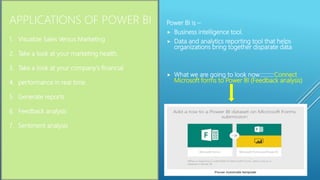
APPLICATIONS OF POWER BI Power BI is –
 Business intelligence tool.
 Data and analytics reporting tool that helps
organizations bring together disparate data
 What we are going to look now::::::::::Connect
Microsoft forms to Power BI (Feedback analysis)
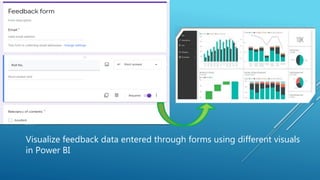
Visualize feedback data entered through forms using different visuals
in Power BI
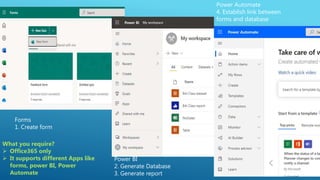
Forms
1. Create form
Power BI
2. Generate Database
3. Generate report
Power Automate
4. Establish link between
forms and database
What you require?
 Office365 only
 It supports different Apps like
forms, power BI, Power
Automate
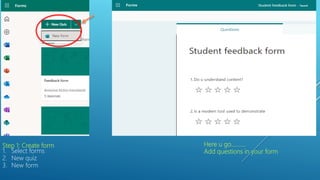
Step 1: Create form
1. Select forms
2. New quiz
3. New form
Here u go……….
Add questions in your form
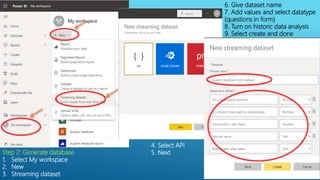
Step 2: Generate database
1. Select My workspace
2. New
3. Streaming dataset
4. Select API
5. Next
6. Give dataset name
7. Add values and select datatype
(questions in form)
8. Turn on historic data analysis
9. Select create and done
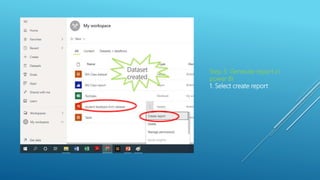
Step 3: Generate report in
power BI
1. Select create report
Dataset
created
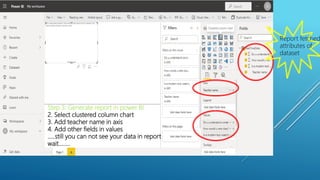
Step 3: Generate report in power BI
2. Select clustered column chart
3. Add teacher name in axis
4. Add other fields in values
…..still you can not see your data in report
wait……..
Report fetched
attributes of
dataset
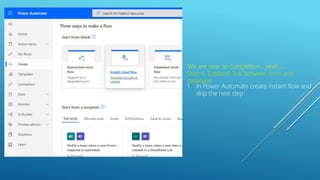
We are near to completion….yeah….
Step 4. Establish link between form and
database
1. In Power Automate create instant flow and
skip the nest step
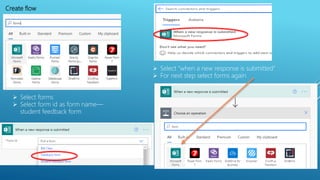
Create flow
 Select forms
 Select form id as form name—
student feedback form
 Select “when a new response is submitted”
 For next step select forms again
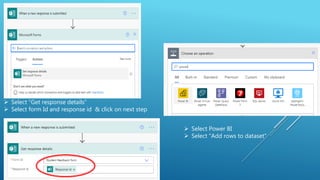
 Select “Get response details”
 Select form Id and response id & click on next step
 Select Power BI
 Select “Add rows to dataset”
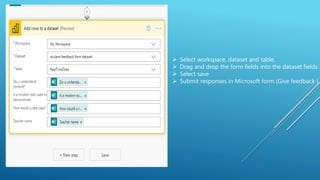
 Select workspace, dataset and table.
 Drag and drop the form fields into the dataset fields
 Select save
 Submit responses in Microsoft form (Give feedback )
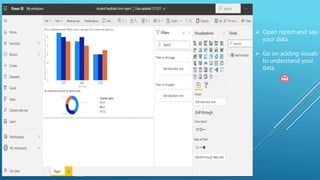
 Open report and see
your data
 Go on adding visuals
to understand your
data
THANK YOU
HTTPS://WWW.ISQUAREIT.EDU.IN/
International Institute of Information Technology, I²IT, P-14, Rajiv Gandhi Infotech Park, Hinjawadi Phase 1, Pune - 411 057
Phone - +91 20 22933441/2/3 | Website - www.isquareit.edu.in | Email - info@isquareit.edu.in

Data Visualization - How to connect Microsoft Forms to Power BI

  • 1.
    DATA VISUALIZATION USINGPOWER BI HOW TO CONNECT MICROSOFT FORMS TO POWER BI PROF. BHAVANA KANAWADE DEPARTMENT OF INFORMATION TECHNOLOGY INTERNATIONAL INSTITUTE OF INFORMATION www.isquareit.edu.in
  • 2.
    1. Visualize SalesVersus Marketing 2. Take a look at your marketing health. 3. Take a look at your company's financial 4. performance in real time. 5. Generate reports 6. Feedback analysis 7. Sentiment analysis APPLICATIONS OF POWER BI Power BI is –  Business intelligence tool.  Data and analytics reporting tool that helps organizations bring together disparate data  What we are going to look now::::::::::Connect Microsoft forms to Power BI (Feedback analysis)
  • 3.
    Visualize feedback dataentered through forms using different visuals in Power BI
  • 4.
    Forms 1. Create form PowerBI 2. Generate Database 3. Generate report Power Automate 4. Establish link between forms and database What you require?  Office365 only  It supports different Apps like forms, power BI, Power Automate
  • 5.
    Step 1: Createform 1. Select forms 2. New quiz 3. New form Here u go………. Add questions in your form
  • 6.
    Step 2: Generatedatabase 1. Select My workspace 2. New 3. Streaming dataset 4. Select API 5. Next 6. Give dataset name 7. Add values and select datatype (questions in form) 8. Turn on historic data analysis 9. Select create and done
  • 7.
    Step 3: Generatereport in power BI 1. Select create report Dataset created
  • 8.
    Step 3: Generatereport in power BI 2. Select clustered column chart 3. Add teacher name in axis 4. Add other fields in values …..still you can not see your data in report wait…….. Report fetched attributes of dataset
  • 9.
    We are nearto completion….yeah…. Step 4. Establish link between form and database 1. In Power Automate create instant flow and skip the nest step
  • 10.
    Create flow  Selectforms  Select form id as form name— student feedback form  Select “when a new response is submitted”  For next step select forms again
  • 11.
     Select “Getresponse details”  Select form Id and response id & click on next step  Select Power BI  Select “Add rows to dataset”
  • 12.
     Select workspace,dataset and table.  Drag and drop the form fields into the dataset fields  Select save  Submit responses in Microsoft form (Give feedback )
  • 13.
     Open reportand see your data  Go on adding visuals to understand your data
  • 14.
    THANK YOU HTTPS://WWW.ISQUAREIT.EDU.IN/ International Instituteof Information Technology, I²IT, P-14, Rajiv Gandhi Infotech Park, Hinjawadi Phase 1, Pune - 411 057 Phone - +91 20 22933441/2/3 | Website - www.isquareit.edu.in | Email - info@isquareit.edu.in