November 2010
CYME 5.02
Equipment
Reference Manual
© Copyright CYME International T&D Inc.
All Rights Reserved
No part of this publication may be reproduced, or transmitted in any form
or by any means without the written permission of CYME International T&D.
Possession or use of the CYME software described in this publication is
authorized only pursuant to a valid written license agreement from CYME.
CYME makes no warranty, either expressed or implied, including but not
limited to any implied warranties of merchantability or fitness for a particular
purpose, regarding these materials and makes such materials available solely on
an "as-is" basis.
CYME International T&D reserves the right to revise and improve its
products as it sees fit. The information in this manual is subject to modification
without notice.
While every precaution has been taken in the preparation of this manual,
CYME assumes no responsibility for errors or omissions, or for damages resulting
from the use of the information contained herein.
CYME International T&D Inc.
1485 Roberval, Suite 104
St-Bruno QC J3V 3P8
Canada
Tel.: (450) 461-3655
Fax: (450) 461-0966
Canada & United States: Tel.:1-800-361-3627
Internet : http://www.cyme.com
E-mail: support@cyme.com
Other Trademarks: The names of all products and services other than CYME’s
mentioned in this document are the trademarks or trade names of the respective owners.
CYME 5.02 – Equipment Reference Manual
TABLE OF CONTENTS 5
Table of Contents
Chapter 1 Introduction.................................................................................................1
Chapter 2 Properties and Settings .............................................................................3
2.1 Overview of the Equipment Properties.........................................................3
2.1.1 Common Window Elements.............................................................3
2.2 Overview of the Equipment Settings ............................................................8
2.2.1 Common Window Elements.............................................................8
Chapter 3 Sources......................................................................................................11
3.1 Source Properties.......................................................................................11
3.1.1 Source Equivalent Impedances .....................................................12
Chapter 4 Regulators .................................................................................................15
4.1 Regulator Properties...................................................................................15
4.2 Regulator Settings ......................................................................................16
4.3 Regulator Control........................................................................................17
4.4 Regulator Meter Settings............................................................................19
Chapter 5 Transformers.............................................................................................23
5.1 Connection and Phase Shift Symbols ........................................................23
5.2 Transformer – Two Winding .......................................................................24
5.2.1 Two-winding Transformer Properties.............................................24
5.2.2 Two-winding Transformer Settings ................................................26
5.2.3 Load Tap Changer Settings ...........................................................27
5.2.4 Transformer Meter Settings ...........................................................28
5.2.5 By Phase Settings..........................................................................30
5.2.6 Single-phase Two-wire Configurations ..........................................30
5.2.7 Three-phase Configurations ..........................................................32
5.3 Two-winding Auto-transformer ...................................................................34
5.3.1 Two-winding Auto-transformer Properties .....................................34
5.3.2 Two-winding Auto-transformer Settings.........................................36
5.3.3 Auto-transformer Meter Settings....................................................37
5.4 Transformer – Three-winding .....................................................................39
5.4.1 Three-winding Transformer Properties ..........................................39
5.4.2 Three-winding Transformers Settings............................................41
5.4.3 First / Second Load Tap Changer..................................................42
5.5 Three-winding Auto-transformer.................................................................43
5.5.1 Three-winding Auto-transformer Properties...................................43
5.5.2 Three-winding Auto-transformers Settings ....................................45
5.5.3 First / Second Load Tap Changer..................................................46
5.6 Grounding Transformer ..............................................................................47
5.6.1 Grounding Transformer Properties ................................................47
5.6.2 Grounding Transformer Settings....................................................48
Chapter 6 Generators.................................................................................................49
6.1 Synchronous Generator .............................................................................49
6.1.1 Synchronous Generator Properties ...............................................49
6.1.2 Synchronous Generator Settings...................................................53
6.2 Induction Generator....................................................................................55
6.2.1 Induction Generator Properties......................................................55
6.2.2 Induction Generator Settings .........................................................59
6.3 Electronically Coupled Generator...............................................................60
CYME 5.02 – Equipment Reference Manual
6 TABLE OF CONTENTS
6.3.1 Electronically Coupled Generator Properties.................................60
6.3.2 Electronically Coupled Generator Settings ....................................61
Chapter 7 Motors........................................................................................................63
7.1 Induction Motor...........................................................................................63
7.1.1 Induction Motor Properties.............................................................63
7.1.2 Induction Motor Settings ................................................................68
7.1.3 Induction Motor Starting Assistance (LRA)....................................68
7.2 Synchronous Motor.....................................................................................70
7.2.1 Synchronous Motor Properties ......................................................70
7.2.2 Synchronous Motor Settings..........................................................73
7.2.3 Synchronous Motor Starting Assistance (LRA) Settings ...............74
Chapter 8 Static Var Compensators (SVC)..............................................................77
8.1 SVC Properties...........................................................................................77
8.2 SVC Settings ..............................................................................................78
Chapter 9 Wind Energy Conversion Systems .........................................................79
9.1 Wind Energy Conversion Systems Properties ...........................................79
9.1.1 Wind Turbine Tab...........................................................................79
9.1.2 Generator Tab................................................................................80
9.1.3 Generator Equivalent Circuit Tab...................................................81
9.2 Wind Energy Conversion System Settings.................................................83
9.3 Blade Pitch Control Settings.......................................................................84
9.4 Voltage Source Converter Settings ............................................................85
9.4.1 Full Converter Control Settings......................................................86
9.4.2 Doubly-Fed Converter Control Settings.........................................87
9.5 Wind Model Settings...................................................................................88
Chapter 10 Micro-turbines...........................................................................................89
10.1 Micro-turbine Properties .............................................................................90
10.2 Micro-turbine Settings.................................................................................91
10.3 Voltage Source Converter Settings ............................................................91
10.3.1 Full Converter Control Settings......................................................92
Chapter 11 Photovoltaic ..............................................................................................93
11.1 Photovoltaic Properties...............................................................................94
11.2 Photovoltaic Settings ..................................................................................97
11.3 Voltage Source Converter Settings ............................................................98
11.3.1 Full Converter Control Settings......................................................99
11.4 Insolation Model Settings .........................................................................100
Chapter 12 Solid Oxide Fuel Cells............................................................................101
12.1 Solid Oxide Fuel Cell Properties...............................................................102
12.2 Solid Oxide Fuel Cell Settings ..................................................................103
12.3 Voltage Source Converter Settings ..........................................................103
12.3.1 Full Converter Control Settings....................................................104
Chapter 13 Protective Devices..................................................................................105
13.1 Protective Devices Properties ..................................................................105
13.1.1 Fuse .............................................................................................106
13.1.2 LVCB ............................................................................................107
13.1.3 Recloser .......................................................................................108
13.1.4 Sectionalizer.................................................................................109
13.1.5 Switch...........................................................................................110
13.1.6 Breaker.........................................................................................111
13.1.7 Network Protector ........................................................................112
13.2 State Settings ...........................................................................................113
CYME 5.02 – Equipment Reference Manual
TABLE OF CONTENTS 7
13.3 Operation Settings....................................................................................114
13.4 Meter Settings...........................................................................................114
13.5 TCC Settings ............................................................................................116
13.6 Relay Settings...........................................................................................117
Chapter 14 Miscellaneous Equipment .....................................................................119
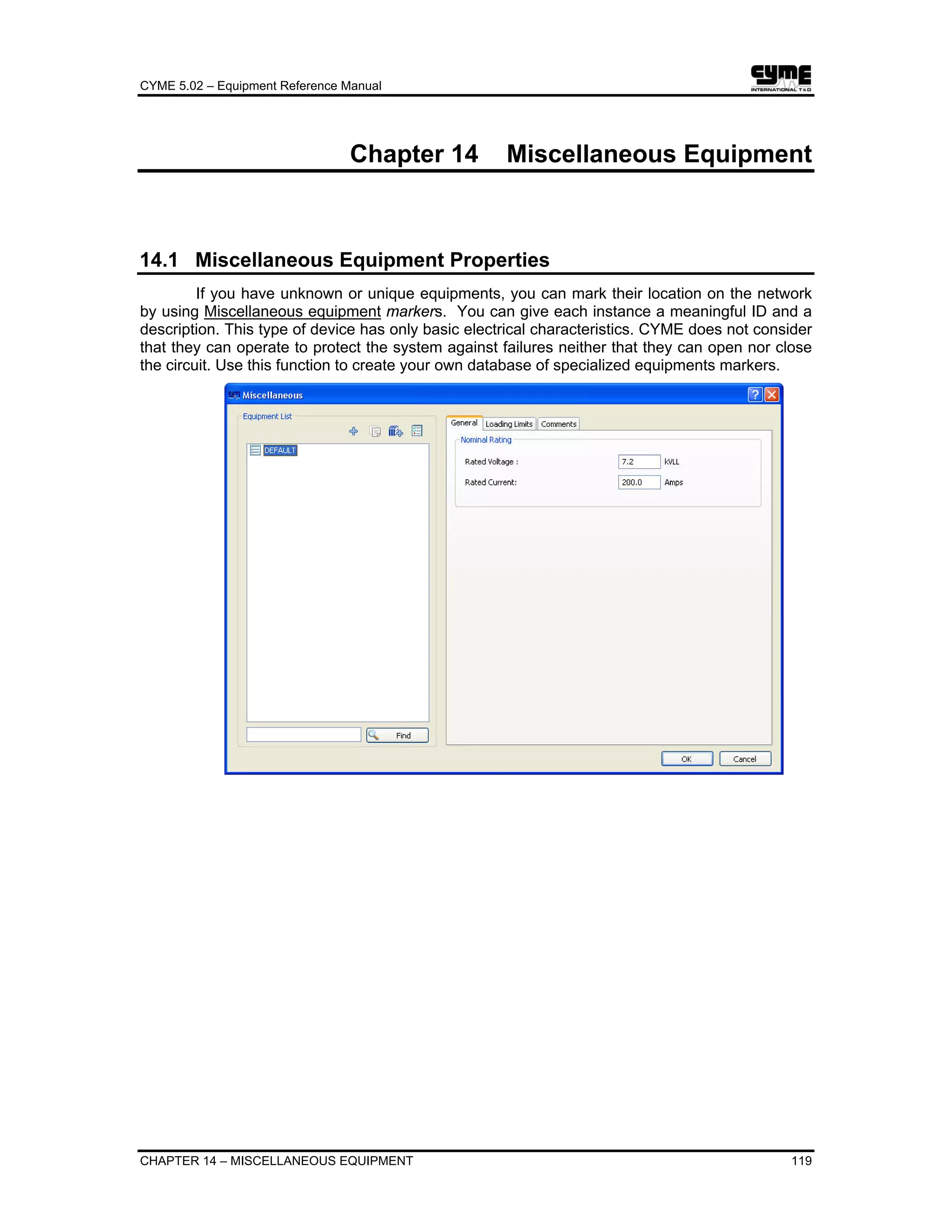
14.1 Miscellaneous Equipment Properties .......................................................119
14.2 Miscellaneous Equipment Settings...........................................................120
14.3 Miscellaneous Equipment Meter Settings ................................................120
Chapter 15 Lines and Cables ....................................................................................123
15.1 Overhead Line ..........................................................................................123
15.1.1 Overhead Line – Balanced...........................................................124
15.1.2 Overhead Line – Unbalanced ......................................................124
15.2 Cable.........................................................................................................125
15.2.1 General Tab .................................................................................125
15.2.2 Multi-wire concentric neutral cable...............................................126
15.2.3 Shielded cable..............................................................................128
15.2.4 Unshielded cable..........................................................................130
15.3 Conductor .................................................................................................131
15.3.1 General Tab .................................................................................131
15.4 Spacing.....................................................................................................133
15.5 Lines and Cables Settings........................................................................134
15.6 By Phase Configuration Settings..............................................................135
15.7 Spot Load and Distributed Load Settings.................................................136
Chapter 16 Shunt Capacitors....................................................................................141
16.1 Shunt Capacitor Properties ......................................................................141
16.2 Shunt Capacitor Settings..........................................................................142
Chapter 17 Shunt Reactors .......................................................................................145
17.1 Shunt Reactor Properties .........................................................................145
17.2 Shunt Reactor Settings.............................................................................146
Chapter 18 Series Capacitors ...................................................................................147
18.1 Series Capacitor Properties......................................................................147
18.2 Series Capacitor Settings .........................................................................148
18.3 Series Capacitor Meter Settings...............................................................148
Chapter 19 Series Reactors.......................................................................................151
19.1 Series Reactor Properties ........................................................................151
19.2 Series Reactor Settings............................................................................152
19.3 Series Reactor Meter Settings..................................................................152
Chapter 20 Network Equivalent ................................................................................155
20.1 Network Equivalent Settings.....................................................................155
20.2 Cumulated Information Settings ...............................................................156
Chapter 21 Harmonic Devices...................................................................................157
21.1 Frequency Source ....................................................................................157
21.1.1 Shunt Frequency Source Settings ...............................................158
21.2 Ideal Converter .........................................................................................159
21.2.1 Ideal Converter Settings...............................................................159
21.3 Non-Ideal Converter .................................................................................160
21.3.1 Non-Ideal Converter Settings.......................................................161
21.4 Arc Furnace ..............................................................................................162
21.4.1 Arc Furnace Settings....................................................................163
21.5 Filters ........................................................................................................164
CYME 5.02 – Equipment Reference Manual
8 TABLE OF CONTENTS
21.5.1 Single-Tuned Filter.......................................................................164
21.5.2 Single Tuned Filter Settings.........................................................165
21.5.3 Double-Tuned Filter .....................................................................166
21.5.4 Double Tuned Filter Settings........................................................168
21.5.5 High-Pass Filter............................................................................169
21.5.6 High Pass Filter Settings..............................................................169
21.5.7 C-Type Filter.................................................................................170
21.5.8 C-Type Filter Settings ..................................................................171
21.6 Branches...................................................................................................172
21.6.1 Shunt RLC Branch Settings .........................................................172
21.6.2 Shunt Parallel RLC Branch Settings ............................................172
21.6.3 Shunt Frequency Dependent Branch Settings ............................173
21.6.4 Shunt Mutually Coupled Three-phase Branch Settings...............174
21.6.5 Series RLC Branch Settings ........................................................174
21.6.6 Series Parallel RLC Branch Settings ...........................................174
21.6.7 Series Frequency Dependent Branch Settings............................175
21.6.8 Series Mutually Coupled Three-phase Branch Settings..............175
Chapter 22 Model Libraries .......................................................................................177
22.1 Control Model Library ...............................................................................177
22.2 Wind Model Library...................................................................................177
22.3 Insolation Model Library ...........................................................................177
Chapter 23 Symbol Library........................................................................................179
Chapter 24 Instruments .............................................................................................181
24.1 Instruments Settings.................................................................................182
24.1.1 Current Transformer.....................................................................182
24.1.2 Over Current Relay ......................................................................183
24.1.3 Motor Relay..................................................................................185
24.1.4 Potential Transformer...................................................................187
24.1.5 Voltage Relay...............................................................................188
24.1.6 Frequency Relay ..........................................................................190
24.1.7 Load Shedding Relay Control ......................................................192
24.1.8 Generic Control ............................................................................193
CYME 5.02 – Equipment Reference Manual
CHAPTER 1 – INTRODUCTION 1
Chapter 1 Introduction
The equipments database contains a set of generic equipment models to be used on the
distribution network. Once placed on a network section, the generic equipment may acquire new
properties and the original values of some of its parameters can be modified according to the
control to be performed. Thus, by virtue of its position on the network and its parameters new
values, from “generic” the equipment becomes “specific”. Consequently, it will acquire a new
identity through the equipment Number.
It is really important to realize that the original values of the generic equipment do not
change in the equipment database tables. Instead, the new values (the changes made to the
original values (that we also call the Settings) are saved in the network database tables.
Changes to a generic equipment require necessarily that you invoke one of the Equipment menu
commands in order to access the relevant equipment properties dialog boxes. Other access
points to the equipments properties dialog boxes will authorize only to visualize the parameters’
values. The modification of specific equipment in the network always requires access to the
properties dialog box of the section containing the equipment in question.
In the following chapters, the display of an equipment property dialog box (for example a
regulator) will imply the use of the command Equipment > Regulator. The display of an
equipment settings dialog box (for example shunt capacitor settings) will imply access to the
Properties dialog box of the section containing the shunt capacitor in question. You may access
the section properties dialog box in many ways using the one-line diagram or the Explorer Bar;
refer to the CYME Reference Manual for more details.
CYME 5.02 – Equipment Reference Manual
CHAPTER 2 – PROPERTIES AND SETTINGS 3
Chapter 2 Properties and Settings
2.1 Overview of the Equipment Properties
Every piece of equipment connected to a section in a feeder (network) represents an
individual unit of a type defined in the equipment database. You may think of the Equipment
database as a warehouse, or catalog, where each type of transformer is described.
Selecting an equipment type from the Equipment menu will display the appropriate
equipment dialog box, listing all available variants defined under that particular type, where you
can add, edit or delete equipment in the active equipment database.
2.1.1 Common Window Elements
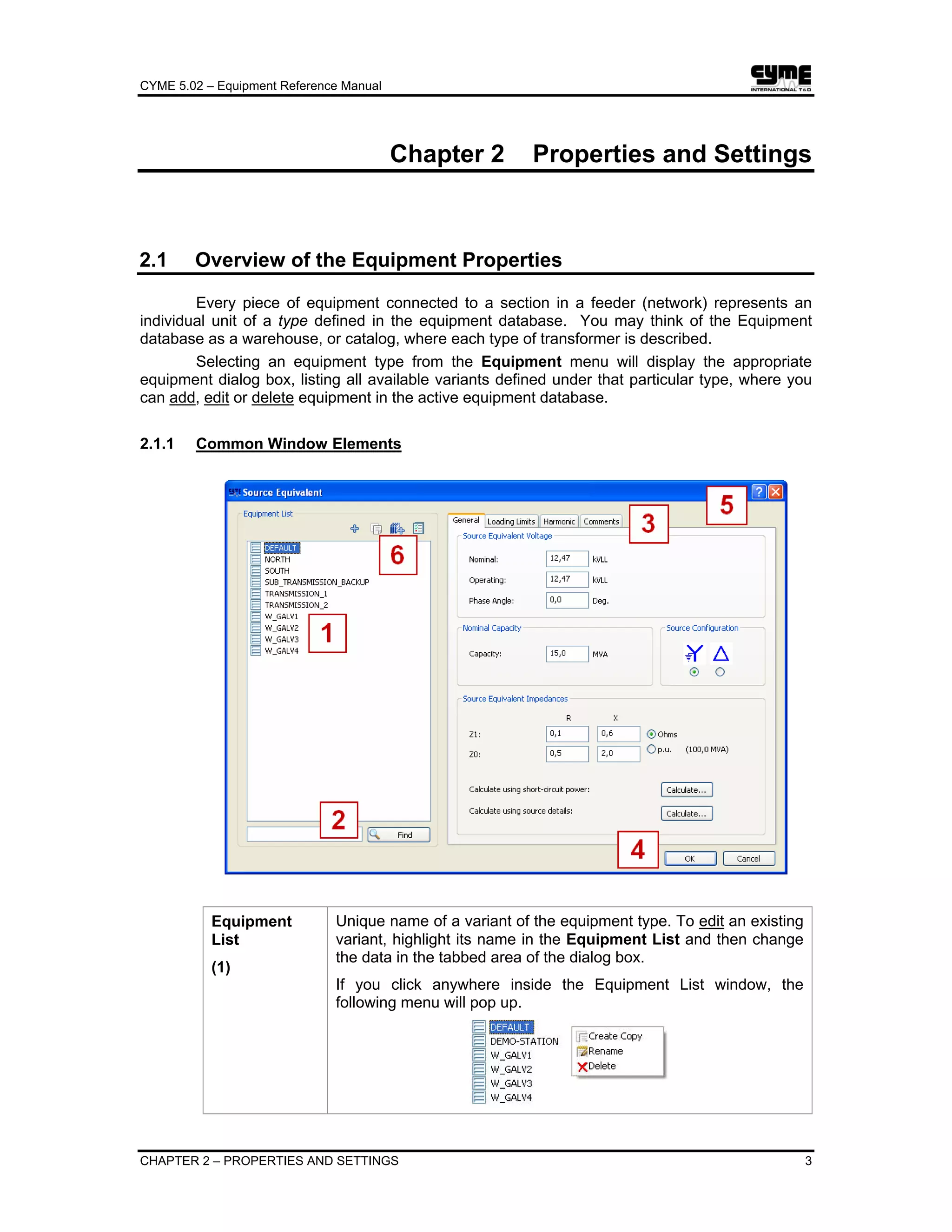
Equipment
List
(1)
Unique name of a variant of the equipment type. To edit an existing
variant, highlight its name in the Equipment List and then change
the data in the tabbed area of the dialog box.
If you click anywhere inside the Equipment List window, the
following menu will pop up.
CYME 5.02 – Equipment Reference Manual
4 CHAPTER 2 – PROPERTIES AND SETTINGS
Create Copy: To create a copy of the selected equipment. Pops up
the Equipment ID dialog box with the selected name highlighted to
allow you to enter a new name. The new name, if it is unique, will
be added to the list of available equipments.
Delete: To delete the selected equipment from the list.
Rename: Pops up the Equipment ID dialog box with the selected
name highlighted to allow you to enter a new name. This name, if it
is unique, will replace the old one in the list of available equipments.
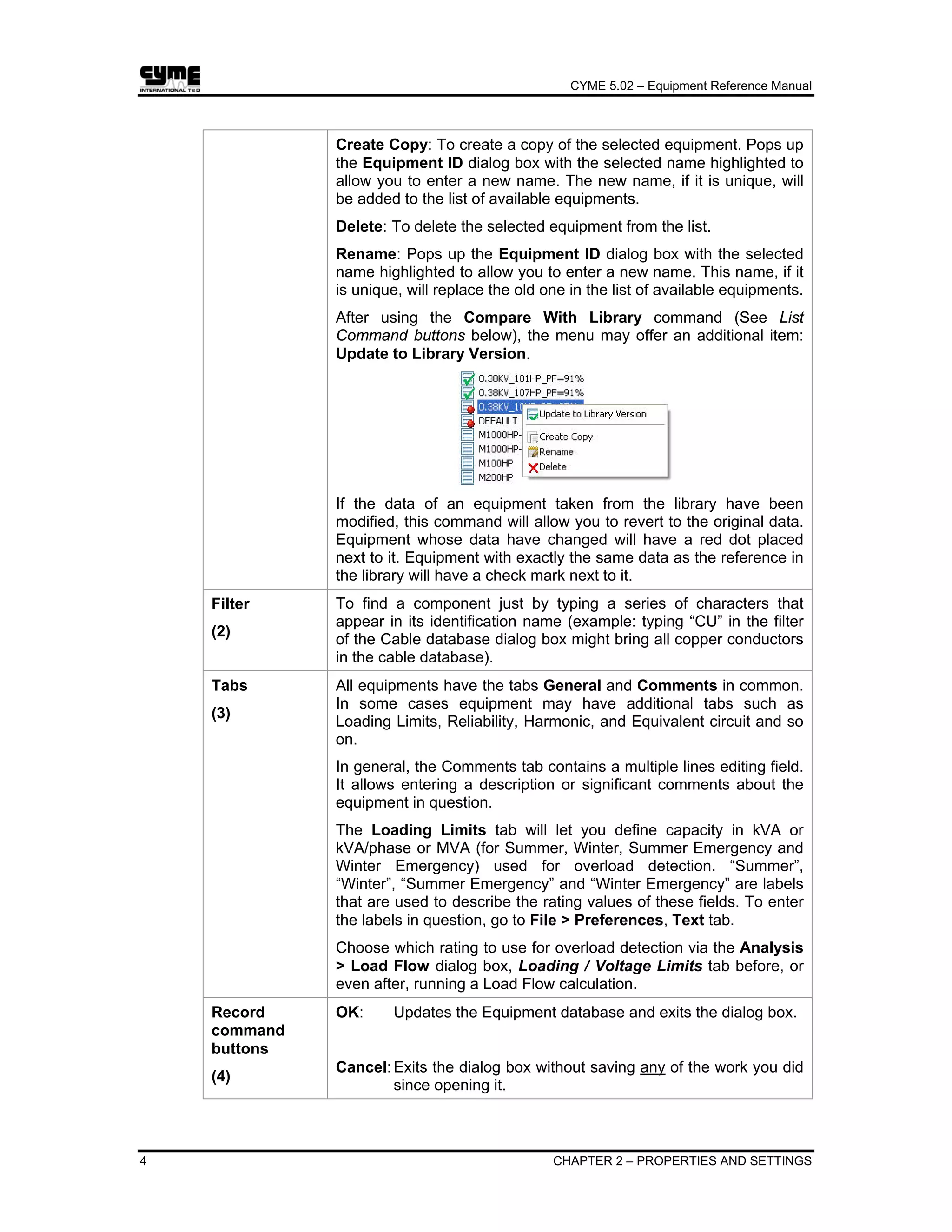
After using the Compare With Library command (See List
Command buttons below), the menu may offer an additional item:
Update to Library Version.
If the data of an equipment taken from the library have been
modified, this command will allow you to revert to the original data.
Equipment whose data have changed will have a red dot placed
next to it. Equipment with exactly the same data as the reference in
the library will have a check mark next to it.
Filter
(2)
To find a component just by typing a series of characters that
appear in its identification name (example: typing “CU” in the filter
of the Cable database dialog box might bring all copper conductors
in the cable database).
Tabs
(3)
All equipments have the tabs General and Comments in common.
In some cases equipment may have additional tabs such as
Loading Limits, Reliability, Harmonic, and Equivalent circuit and so
on.
In general, the Comments tab contains a multiple lines editing field.
It allows entering a description or significant comments about the
equipment in question.
The Loading Limits tab will let you define capacity in kVA or
kVA/phase or MVA (for Summer, Winter, Summer Emergency and
Winter Emergency) used for overload detection. “Summer”,
“Winter”, “Summer Emergency” and “Winter Emergency” are labels
that are used to describe the rating values of these fields. To enter
the labels in question, go to File > Preferences, Text tab.
Choose which rating to use for overload detection via the Analysis
> Load Flow dialog box, Loading / Voltage Limits tab before, or
even after, running a Load Flow calculation.
Record
command
buttons
(4)
OK: Updates the Equipment database and exits the dialog box.
Cancel:Exits the dialog box without saving any of the work you did
since opening it.
CYME 5.02 – Equipment Reference Manual
CHAPTER 2 – PROPERTIES AND SETTINGS 5
Title bar
buttons
(5)
Contextual help. It will display relevant section of the help file.
Closes the dialog box dismissing all changes.
List command
buttons
(6)
Add: To add a new variant to an equipment type. Pops up the
Equipment ID dialog box with the selected name highlighted to
allow you to enter a new name. The new name, if it is unique, will
be added to the list of available equipments.
Copy: Pops up the Equipment ID dialog box with the
selected name highlighted to allow you to enter a new name. This
name, if it is unique, will replace the old one in the list of available
equipments.
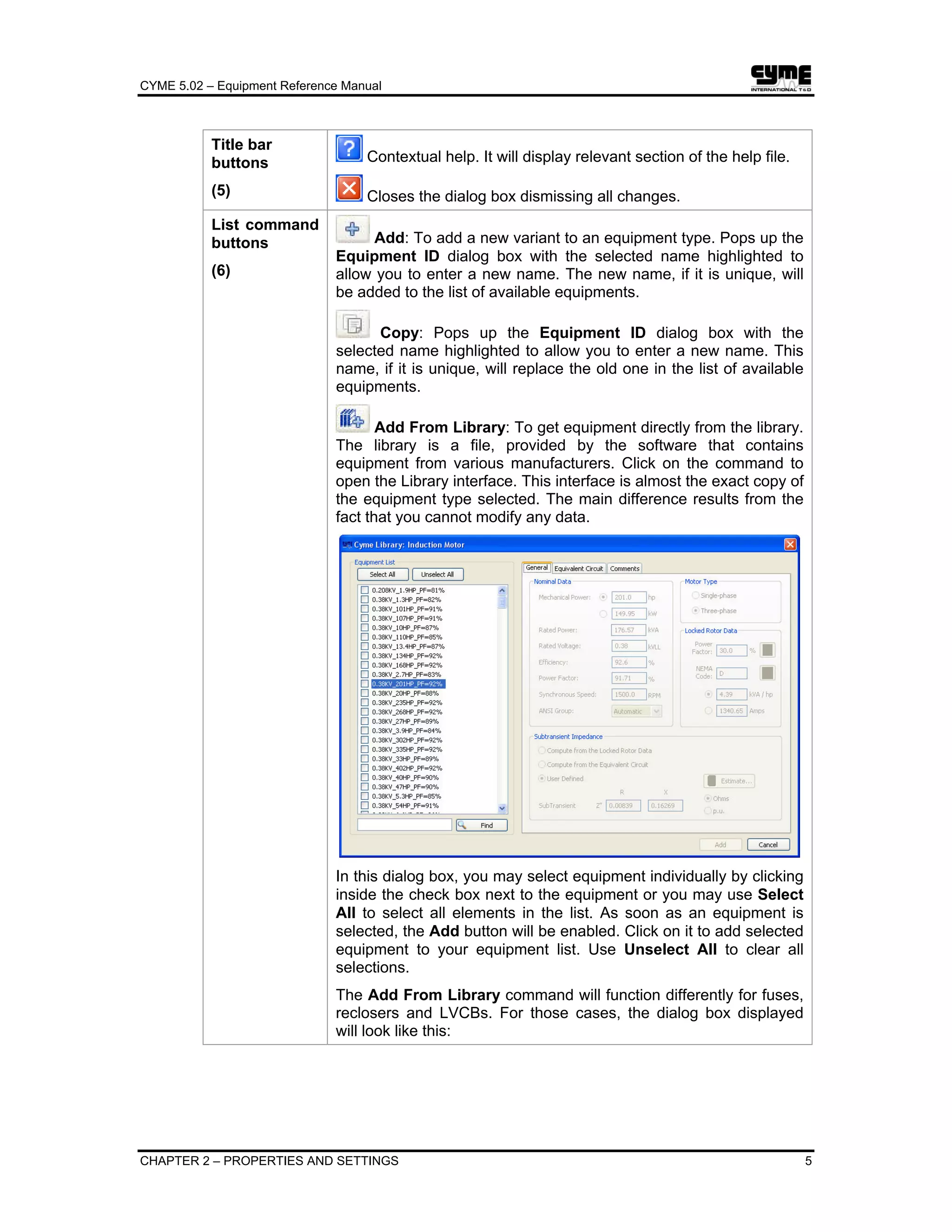
Add From Library: To get equipment directly from the library.
The library is a file, provided by the software that contains
equipment from various manufacturers. Click on the command to
open the Library interface. This interface is almost the exact copy of
the equipment type selected. The main difference results from the
fact that you cannot modify any data.
In this dialog box, you may select equipment individually by clicking
inside the check box next to the equipment or you may use Select
All to select all elements in the list. As soon as an equipment is
selected, the Add button will be enabled. Click on it to add selected
equipment to your equipment list. Use Unselect All to clear all
selections.
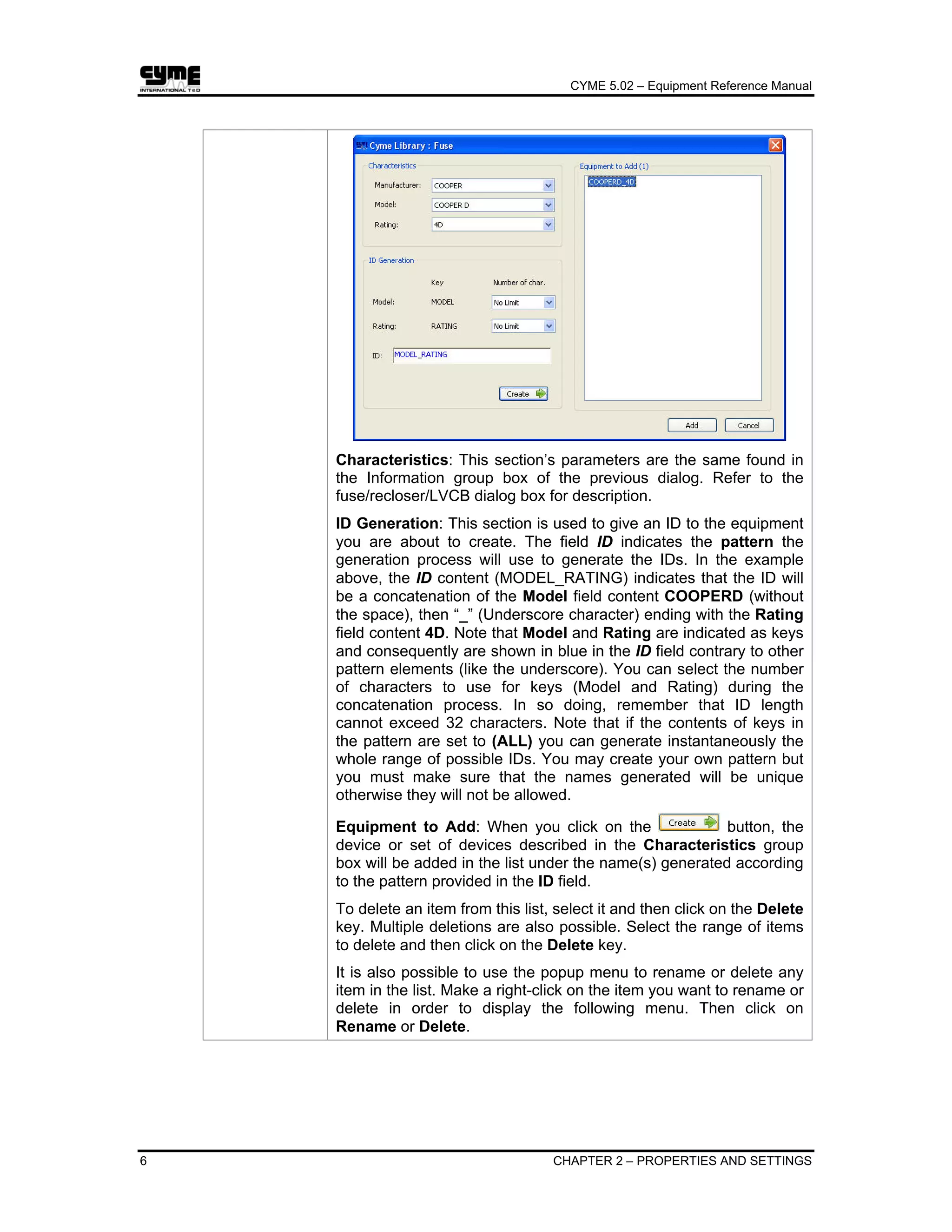
The Add From Library command will function differently for fuses,
reclosers and LVCBs. For those cases, the dialog box displayed
will look like this:
CYME 5.02 – Equipment Reference Manual
6 CHAPTER 2 – PROPERTIES AND SETTINGS
Characteristics: This section’s parameters are the same found in
the Information group box of the previous dialog. Refer to the
fuse/recloser/LVCB dialog box for description.
ID Generation: This section is used to give an ID to the equipment
you are about to create. The field ID indicates the pattern the
generation process will use to generate the IDs. In the example
above, the ID content (MODEL_RATING) indicates that the ID will
be a concatenation of the Model field content COOPERD (without
the space), then “_” (Underscore character) ending with the Rating
field content 4D. Note that Model and Rating are indicated as keys
and consequently are shown in blue in the ID field contrary to other
pattern elements (like the underscore). You can select the number
of characters to use for keys (Model and Rating) during the
concatenation process. In so doing, remember that ID length
cannot exceed 32 characters. Note that if the contents of keys in
the pattern are set to (ALL) you can generate instantaneously the
whole range of possible IDs. You may create your own pattern but
you must make sure that the names generated will be unique
otherwise they will not be allowed.
Equipment to Add: When you click on the button, the
device or set of devices described in the Characteristics group
box will be added in the list under the name(s) generated according
to the pattern provided in the ID field.
To delete an item from this list, select it and then click on the Delete
key. Multiple deletions are also possible. Select the range of items
to delete and then click on the Delete key.
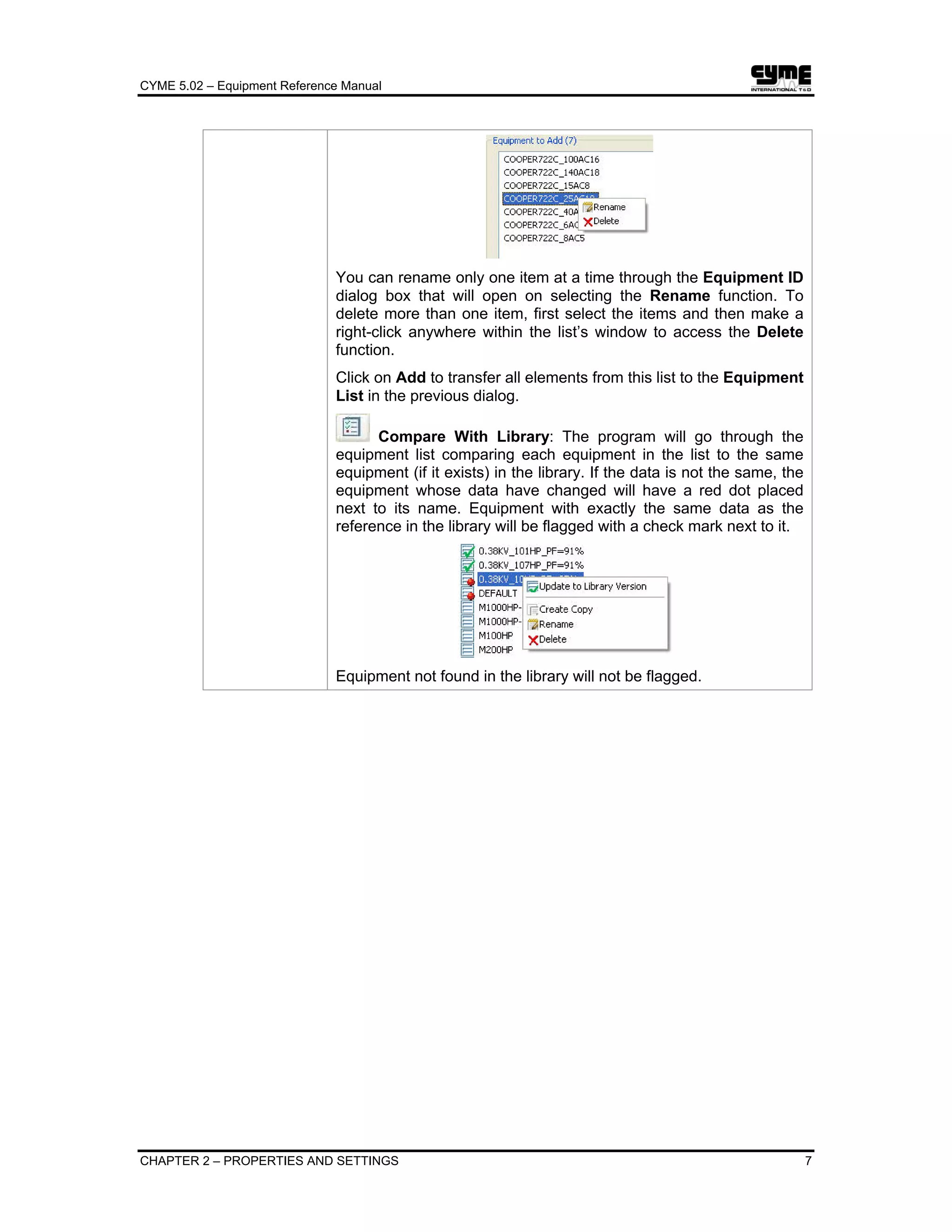
It is also possible to use the popup menu to rename or delete any
item in the list. Make a right-click on the item you want to rename or
delete in order to display the following menu. Then click on
Rename or Delete.
CYME 5.02 – Equipment Reference Manual
CHAPTER 2 – PROPERTIES AND SETTINGS 7
You can rename only one item at a time through the Equipment ID
dialog box that will open on selecting the Rename function. To
delete more than one item, first select the items and then make a
right-click anywhere within the list’s window to access the Delete
function.
Click on Add to transfer all elements from this list to the Equipment
List in the previous dialog.
Compare With Library: The program will go through the
equipment list comparing each equipment in the list to the same
equipment (if it exists) in the library. If the data is not the same, the
equipment whose data have changed will have a red dot placed
next to its name. Equipment with exactly the same data as the
reference in the library will be flagged with a check mark next to it.
Equipment not found in the library will not be flagged.
CYME 5.02 – Equipment Reference Manual
8 CHAPTER 2 – PROPERTIES AND SETTINGS
2.2 Overview of the Equipment Settings
The default properties for the devices, lines, etc. are set through the commands found
under the Equipment menu. Once a section is identified as a line or a cable, and when an
equipment is connected to a section, you can make adjustments to them “in the field”. These
adjustments are called “settings” and are comprised in the right hand portion of the Section
Properties dialog box.
Note: The data given in the settings pane of the Section Properties dialog box have
priority over the (default) data given when the equipment was originally defined
under the Equipment menu.
To modify the settings of a specific instance of a device, click on the elements in the
Devices list of the dialog box to select the target equipment’s layer, and sub-layers
(TCC Settings and or Meter Settings), and then modify the parameters in the Settings group box
according to your requirement.
2.2.1 Common Window Elements
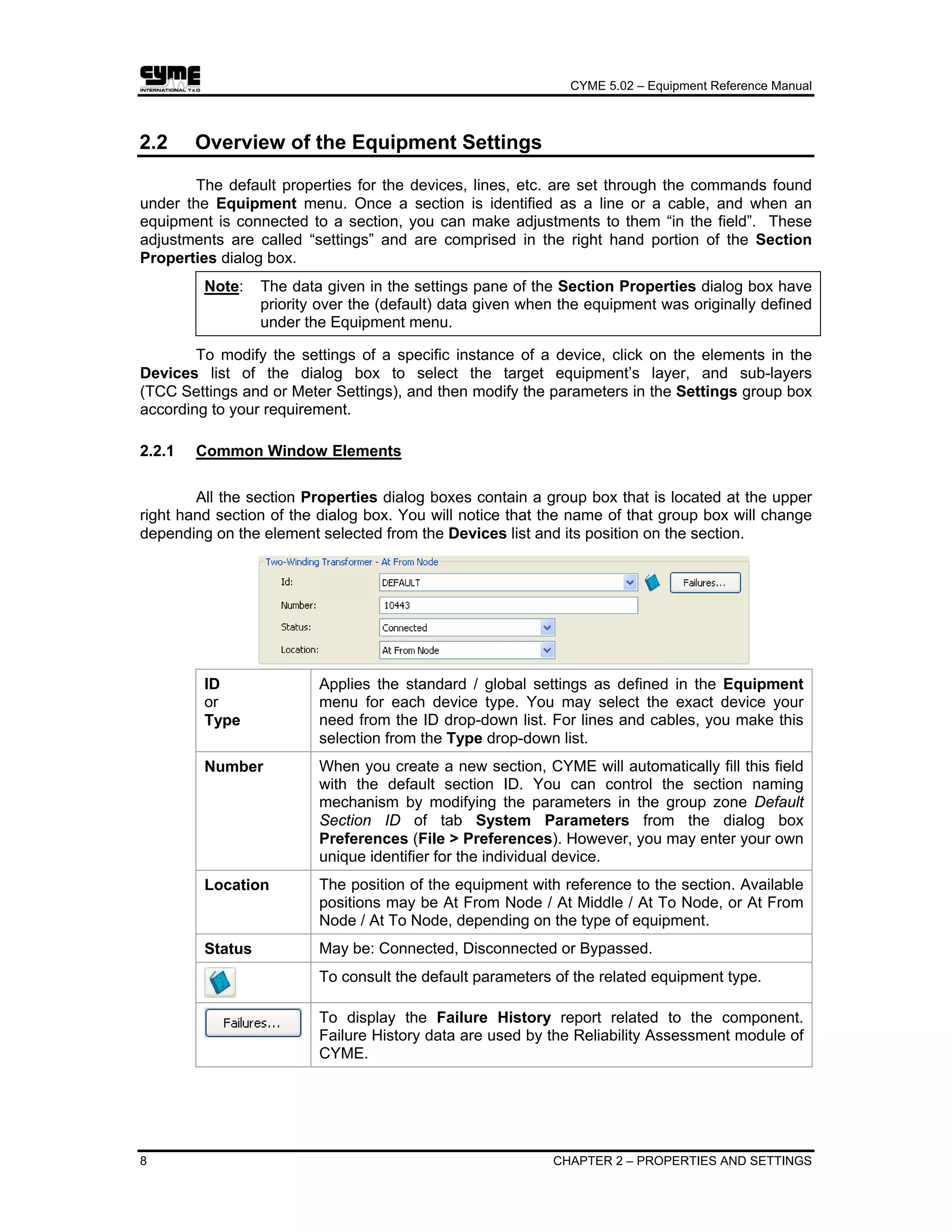
All the section Properties dialog boxes contain a group box that is located at the upper
right hand section of the dialog box. You will notice that the name of that group box will change
depending on the element selected from the Devices list and its position on the section.
ID
or
Type
Applies the standard / global settings as defined in the Equipment
menu for each device type. You may select the exact device your
need from the ID drop-down list. For lines and cables, you make this
selection from the Type drop-down list.
Number When you create a new section, CYME will automatically fill this field
with the default section ID. You can control the section naming
mechanism by modifying the parameters in the group zone Default
Section ID of tab System Parameters from the dialog box
Preferences (File > Preferences). However, you may enter your own
unique identifier for the individual device.
Location The position of the equipment with reference to the section. Available
positions may be At From Node / At Middle / At To Node, or At From
Node / At To Node, depending on the type of equipment.
Status May be: Connected, Disconnected or Bypassed.
To consult the default parameters of the related equipment type.
To display the Failure History report related to the component.
Failure History data are used by the Reliability Assessment module of
CYME.
CYME 5.02 – Equipment Reference Manual
CHAPTER 2 – PROPERTIES AND SETTINGS 9
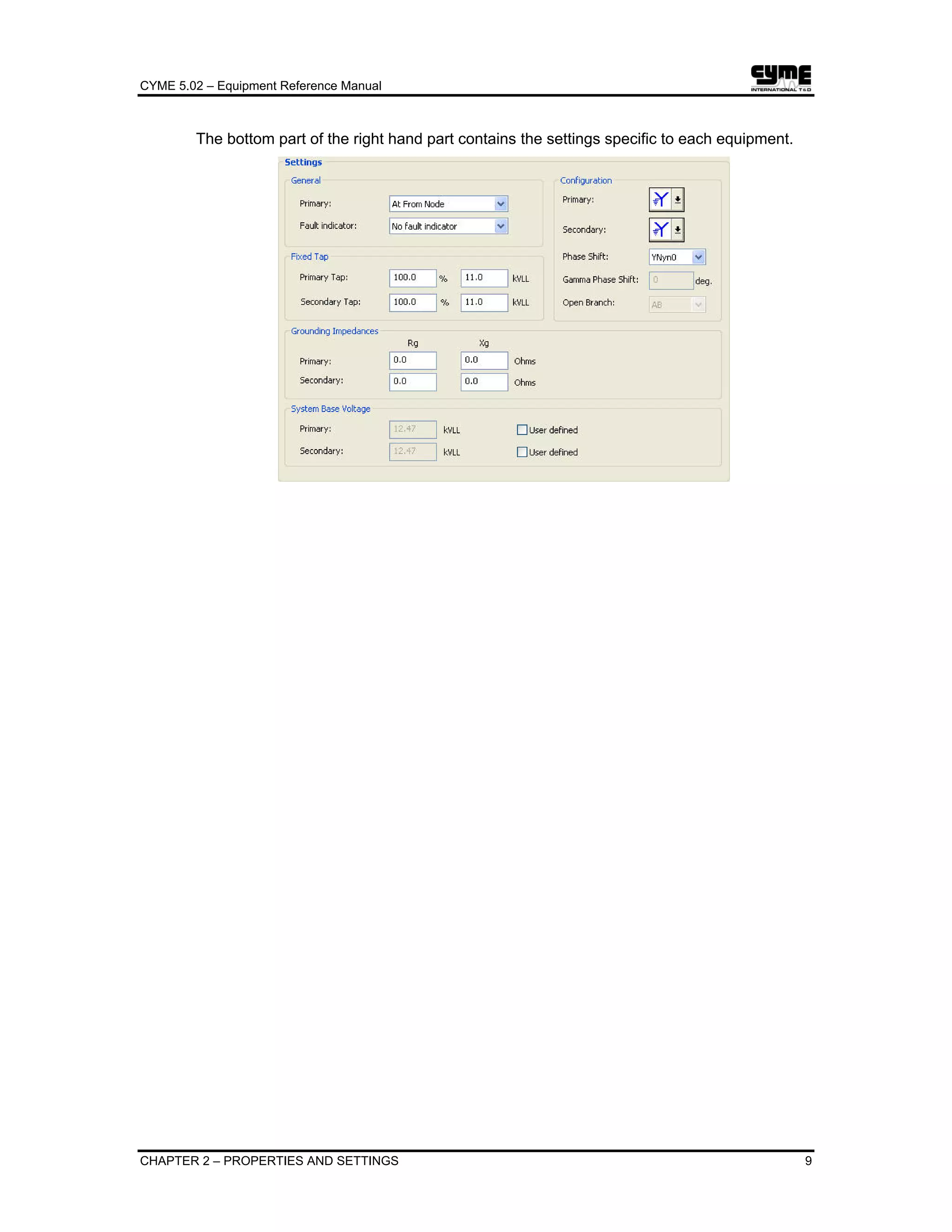
The bottom part of the right hand part contains the settings specific to each equipment.
CYME 5.02 – Equipment Reference Manual
CHAPTER 3 – SOURCES 11
Chapter 3 Sources
3.1 Source Properties
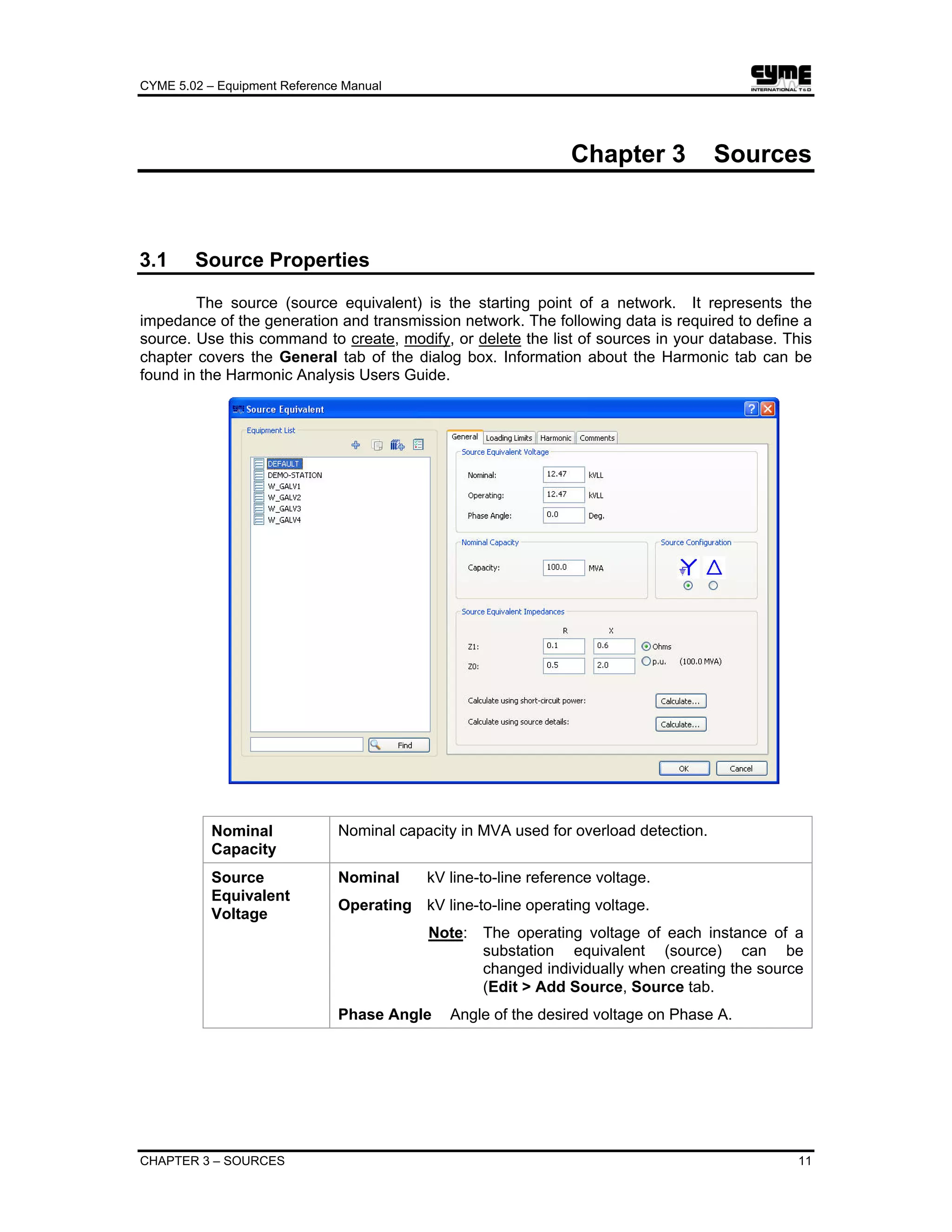
The source (source equivalent) is the starting point of a network. It represents the
impedance of the generation and transmission network. The following data is required to define a
source. Use this command to create, modify, or delete the list of sources in your database. This
chapter covers the General tab of the dialog box. Information about the Harmonic tab can be
found in the Harmonic Analysis Users Guide.
Nominal
Capacity
Nominal capacity in MVA used for overload detection.
Source
Equivalent
Voltage
Nominal kV line-to-line reference voltage.
Operating kV line-to-line operating voltage.
Note: The operating voltage of each instance of a
substation equivalent (source) can be
changed individually when creating the source
(Edit > Add Source, Source tab.
Phase Angle Angle of the desired voltage on Phase A.
CYME 5.02 – Equipment Reference Manual
12 CHAPTER 3 – SOURCES
Source
Equivalent
Impedances
Positive-sequence resistance and reactance, in Ohms at the
nominal voltage, or in per-unit on the system MVA base defined in
the File > System Parameters dialog box.
Zero-sequence resistance and reactance, in Ohms at the
nominal voltage, or in per-unit on the system MVA base defined in
the File > System Parameters dialog box.
Source
Configuration
Wye-Grounded or Delta. Note that the calculations and the
behavior of the network will take this data into account.
3.1.1 Source Equivalent Impedances
3.1.1.1 Calculate using short-circuit power
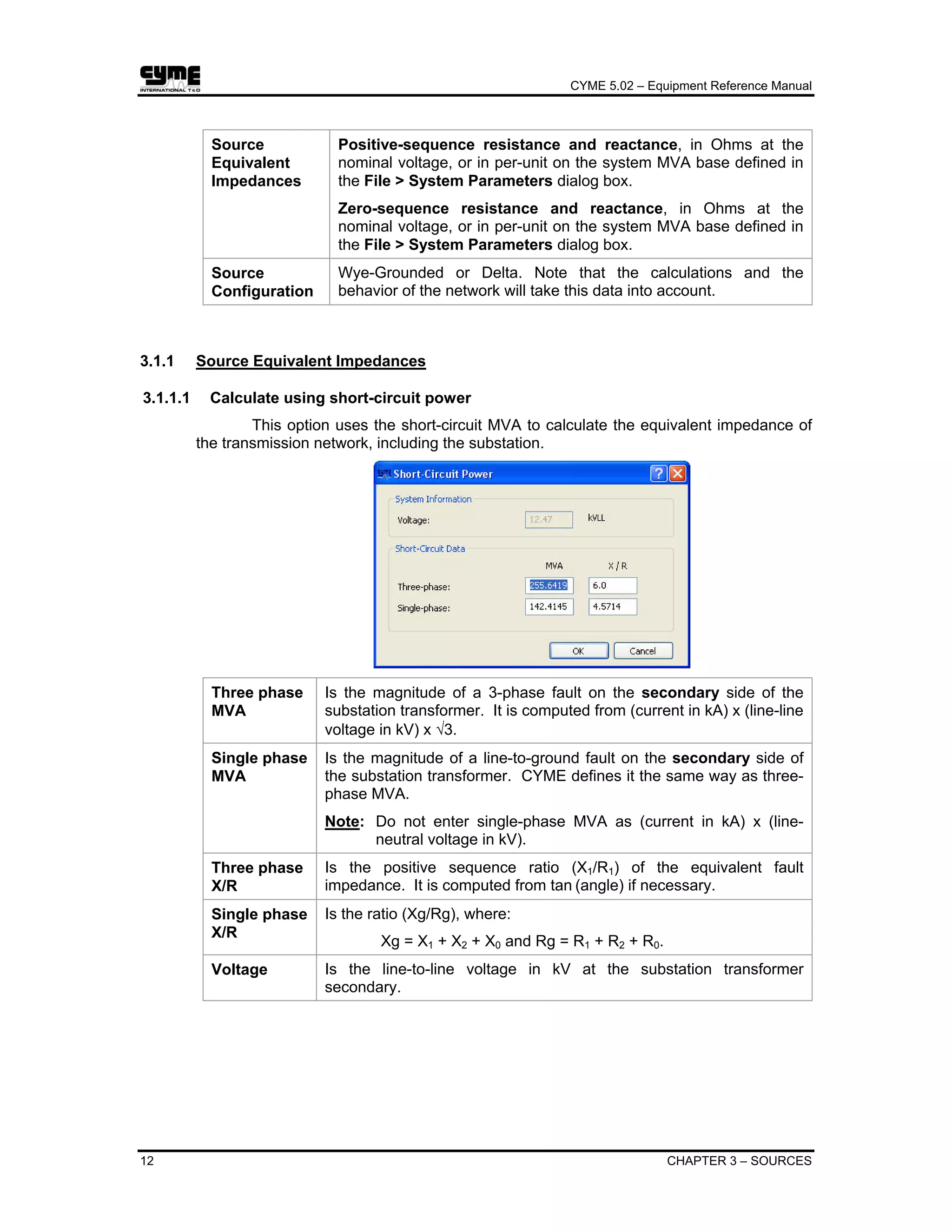
This option uses the short-circuit MVA to calculate the equivalent impedance of
the transmission network, including the substation.
Three phase
MVA
Is the magnitude of a 3-phase fault on the secondary side of the
substation transformer. It is computed from (current in kA) x (line-line
voltage in kV) x √3.
Single phase
MVA
Is the magnitude of a line-to-ground fault on the secondary side of
the substation transformer. CYME defines it the same way as three-
phase MVA.
Note: Do not enter single-phase MVA as (current in kA) x (line-
neutral voltage in kV).
Three phase
X/R
Is the positive sequence ratio (X1/R1) of the equivalent fault
impedance. It is computed from tan (angle) if necessary.
Single phase
X/R
Is the ratio (Xg/Rg), where:
Xg = X1 + X2 + X0 and Rg = R1 + R2 + R0.
Voltage Is the line-to-line voltage in kV at the substation transformer
secondary.
CYME 5.02 – Equipment Reference Manual
CHAPTER 3 – SOURCES 13
3.1.1.2 Calculate using source details
This option calculates the equivalent impedance from the sum of the impedances
of the substation transformer(s) and the transmission network. Refer to the diagram
below for a definition of the substation equipment and configuration.
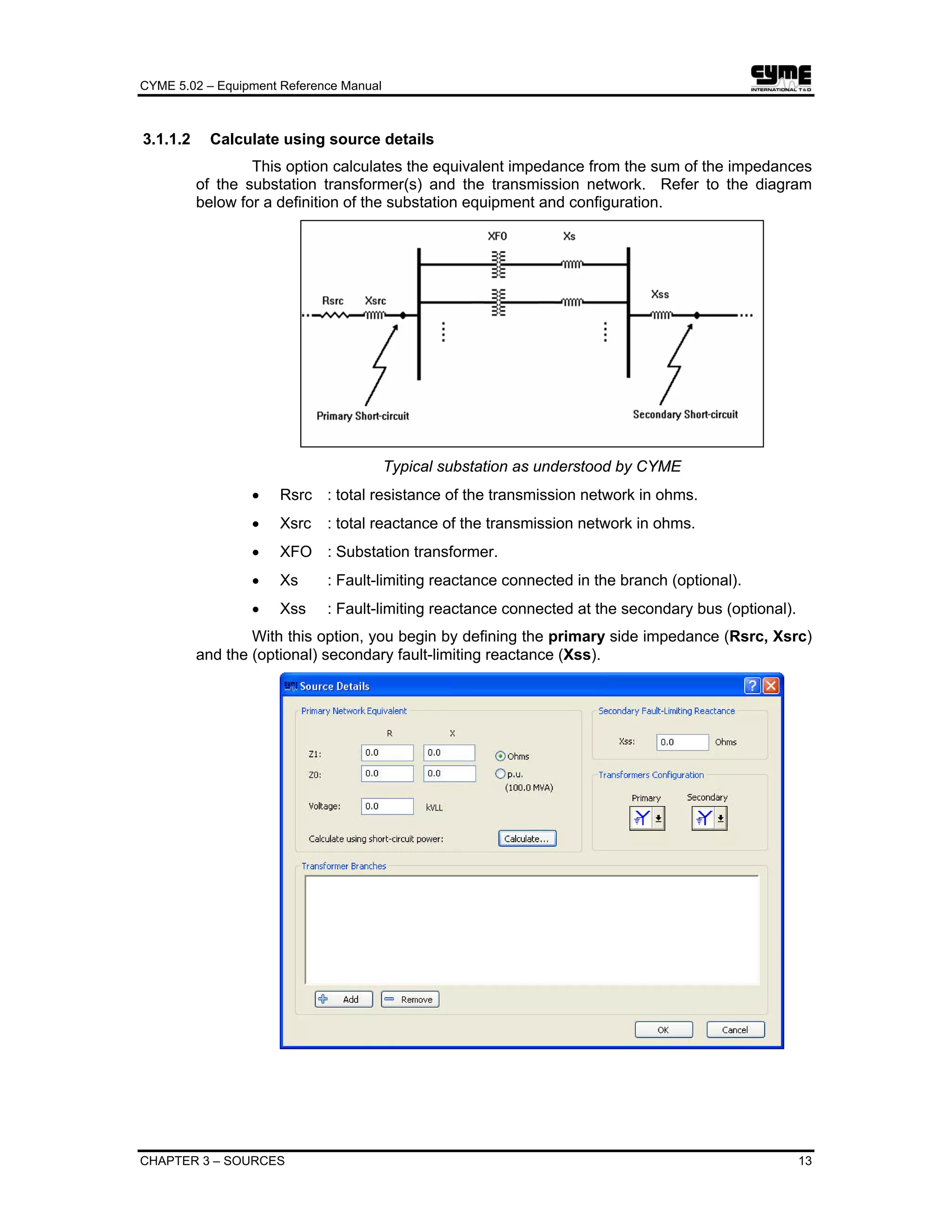
Typical substation as understood by CYME
• Rsrc : total resistance of the transmission network in ohms.
• Xsrc : total reactance of the transmission network in ohms.
• XFO : Substation transformer.
• Xs : Fault-limiting reactance connected in the branch (optional).
• Xss : Fault-limiting reactance connected at the secondary bus (optional).
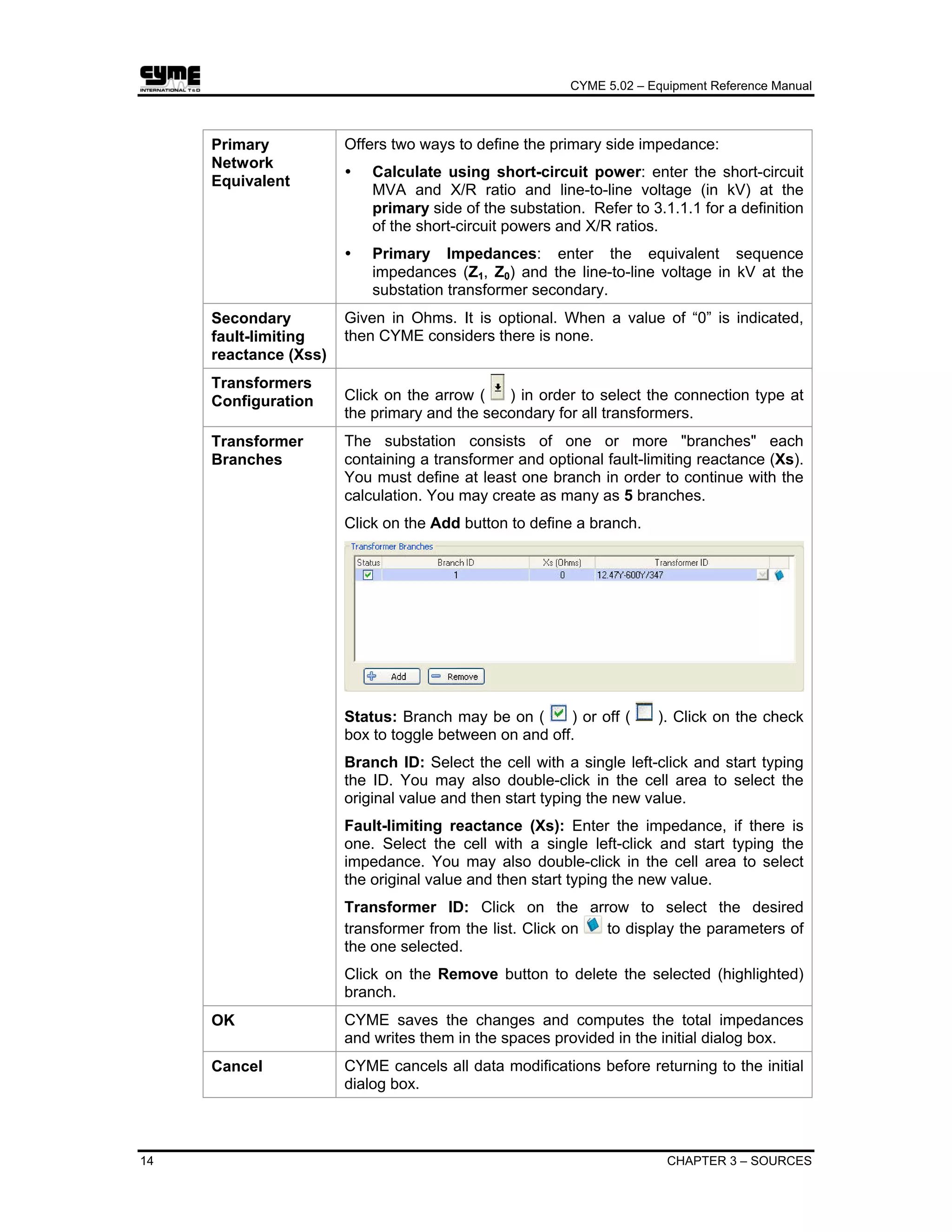
With this option, you begin by defining the primary side impedance (Rsrc, Xsrc)
and the (optional) secondary fault-limiting reactance (Xss).
CYME 5.02 – Equipment Reference Manual
14 CHAPTER 3 – SOURCES
Primary
Network
Equivalent
Offers two ways to define the primary side impedance:
Calculate using short-circuit power: enter the short-circuit
MVA and X/R ratio and line-to-line voltage (in kV) at the
primary side of the substation. Refer to 3.1.1.1 for a definition
of the short-circuit powers and X/R ratios.
Primary Impedances: enter the equivalent sequence
impedances (Z1, Z0) and the line-to-line voltage in kV at the
substation transformer secondary.
Secondary
fault-limiting
reactance (Xss)
Given in Ohms. It is optional. When a value of “0” is indicated,
then CYME considers there is none.
Transformers
Configuration Click on the arrow ( ) in order to select the connection type at
the primary and the secondary for all transformers.
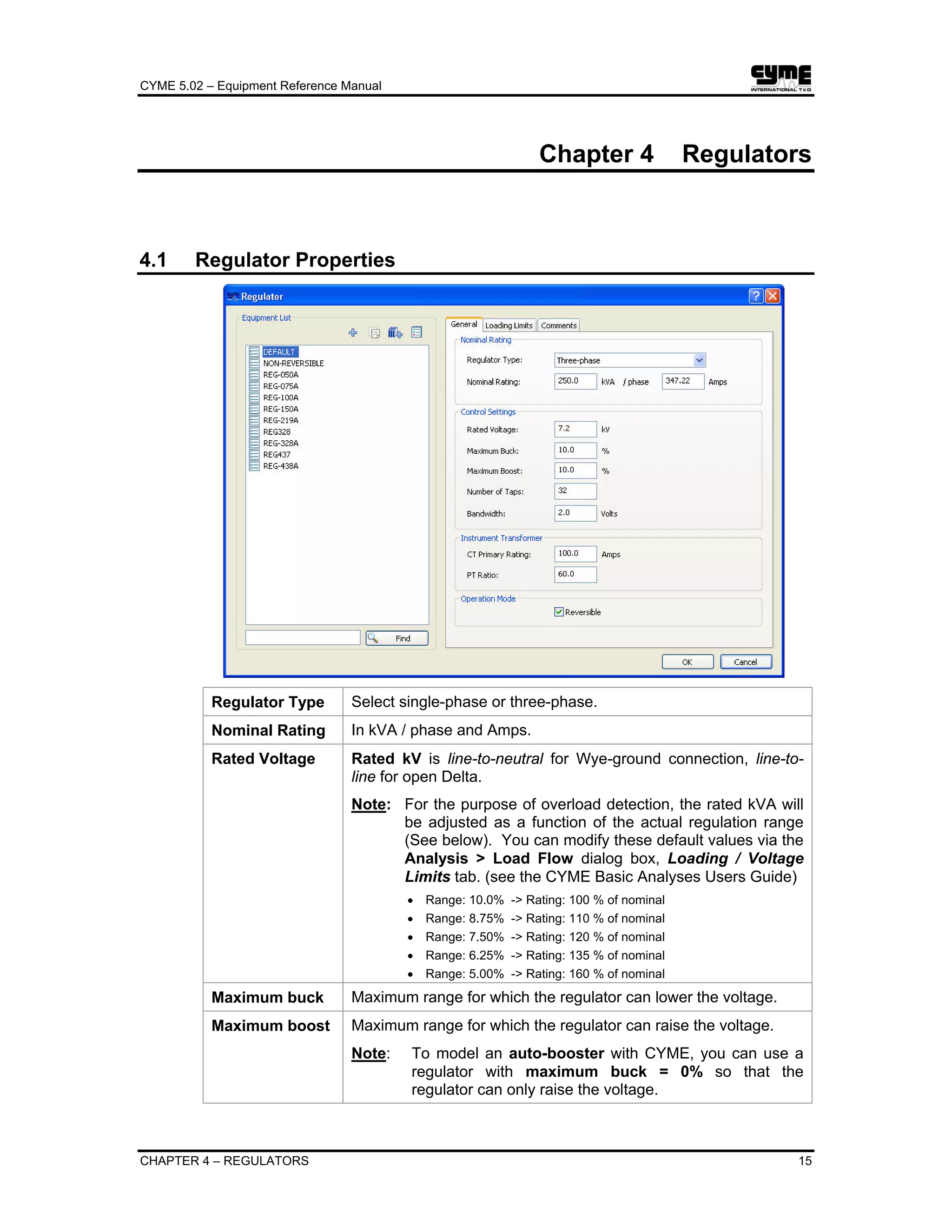
Transformer
Branches
The substation consists of one or more "branches" each
containing a transformer and optional fault-limiting reactance (Xs).
You must define at least one branch in order to continue with the
calculation. You may create as many as 5 branches.
Click on the Add button to define a branch.
Status: Branch may be on ( ) or off ( ). Click on the check
box to toggle between on and off.
Branch ID: Select the cell with a single left-click and start typing
the ID. You may also double-click in the cell area to select the
original value and then start typing the new value.
Fault-limiting reactance (Xs): Enter the impedance, if there is
one. Select the cell with a single left-click and start typing the
impedance. You may also double-click in the cell area to select
the original value and then start typing the new value.
Transformer ID: Click on the arrow to select the desired
transformer from the list. Click on to display the parameters of
the one selected.
Click on the Remove button to delete the selected (highlighted)
branch.
OK CYME saves the changes and computes the total impedances
and writes them in the spaces provided in the initial dialog box.
Cancel CYME cancels all data modifications before returning to the initial
dialog box.
CYME 5.02 – Equipment Reference Manual
CHAPTER 4 – REGULATORS 15
Chapter 4 Regulators
4.1 Regulator Properties
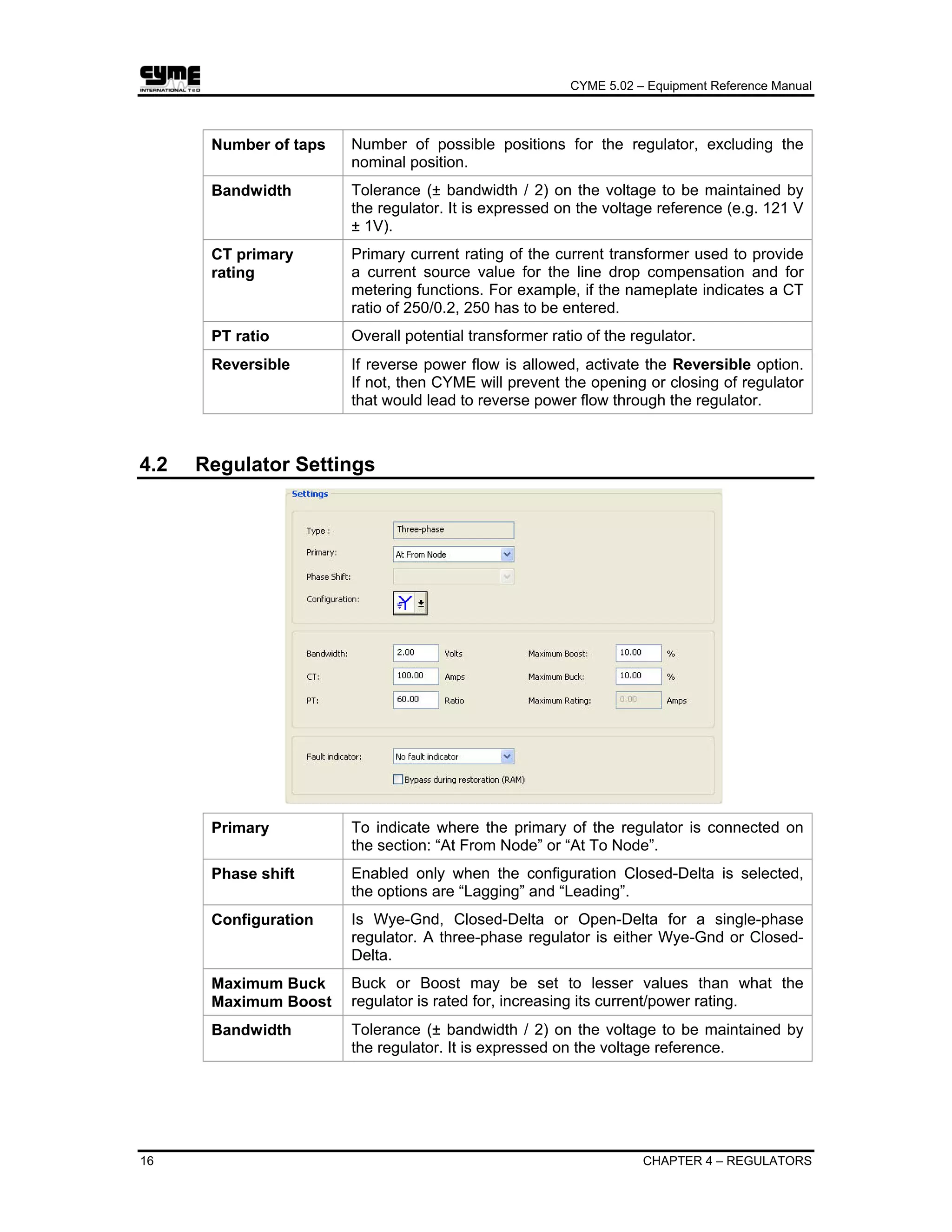
Regulator Type Select single-phase or three-phase.
Nominal Rating In kVA / phase and Amps.
Rated Voltage Rated kV is line-to-neutral for Wye-ground connection, line-to-
line for open Delta.
Note: For the purpose of overload detection, the rated kVA will
be adjusted as a function of the actual regulation range
(See below). You can modify these default values via the
Analysis > Load Flow dialog box, Loading / Voltage
Limits tab. (see the CYME Basic Analyses Users Guide)
• Range: 10.0% -> Rating: 100 % of nominal
• Range: 8.75% -> Rating: 110 % of nominal
• Range: 7.50% -> Rating: 120 % of nominal
• Range: 6.25% -> Rating: 135 % of nominal
• Range: 5.00% -> Rating: 160 % of nominal
Maximum buck Maximum range for which the regulator can lower the voltage.
Maximum boost Maximum range for which the regulator can raise the voltage.
Note: To model an auto-booster with CYME, you can use a
regulator with maximum buck = 0% so that the
regulator can only raise the voltage.
CYME 5.02 – Equipment Reference Manual
16 CHAPTER 4 – REGULATORS
Number of taps Number of possible positions for the regulator, excluding the
nominal position.
Bandwidth Tolerance (± bandwidth / 2) on the voltage to be maintained by
the regulator. It is expressed on the voltage reference (e.g. 121 V
± 1V).
CT primary
rating
Primary current rating of the current transformer used to provide
a current source value for the line drop compensation and for
metering functions. For example, if the nameplate indicates a CT
ratio of 250/0.2, 250 has to be entered.
PT ratio Overall potential transformer ratio of the regulator.
Reversible If reverse power flow is allowed, activate the Reversible option.
If not, then CYME will prevent the opening or closing of regulator
that would lead to reverse power flow through the regulator.
4.2 Regulator Settings
Primary To indicate where the primary of the regulator is connected on
the section: “At From Node” or “At To Node”.
Phase shift Enabled only when the configuration Closed-Delta is selected,
the options are “Lagging” and “Leading”.
Configuration Is Wye-Gnd, Closed-Delta or Open-Delta for a single-phase
regulator. A three-phase regulator is either Wye-Gnd or Closed-
Delta.
Maximum Buck
Maximum Boost
Buck or Boost may be set to lesser values than what the
regulator is rated for, increasing its current/power rating.
Bandwidth Tolerance (± bandwidth / 2) on the voltage to be maintained by
the regulator. It is expressed on the voltage reference.
CYME 5.02 – Equipment Reference Manual
CHAPTER 4 – REGULATORS 17
CT primary
rating
Primary current rating of the current transformer used to provide
a current source value for the line drop compensation and for
metering functions.
PT ratio Overall potential transformer ratio of the regulator.
The default voltage setting for regulators is set in the File > Preferences, Systems
Parameters tab dialog box. To ignore all regulators during a Capacitor Placement or Voltage
Drop, select the Analysis > Load Flow menu command and select the Controls tab.
4.3 Regulator Control
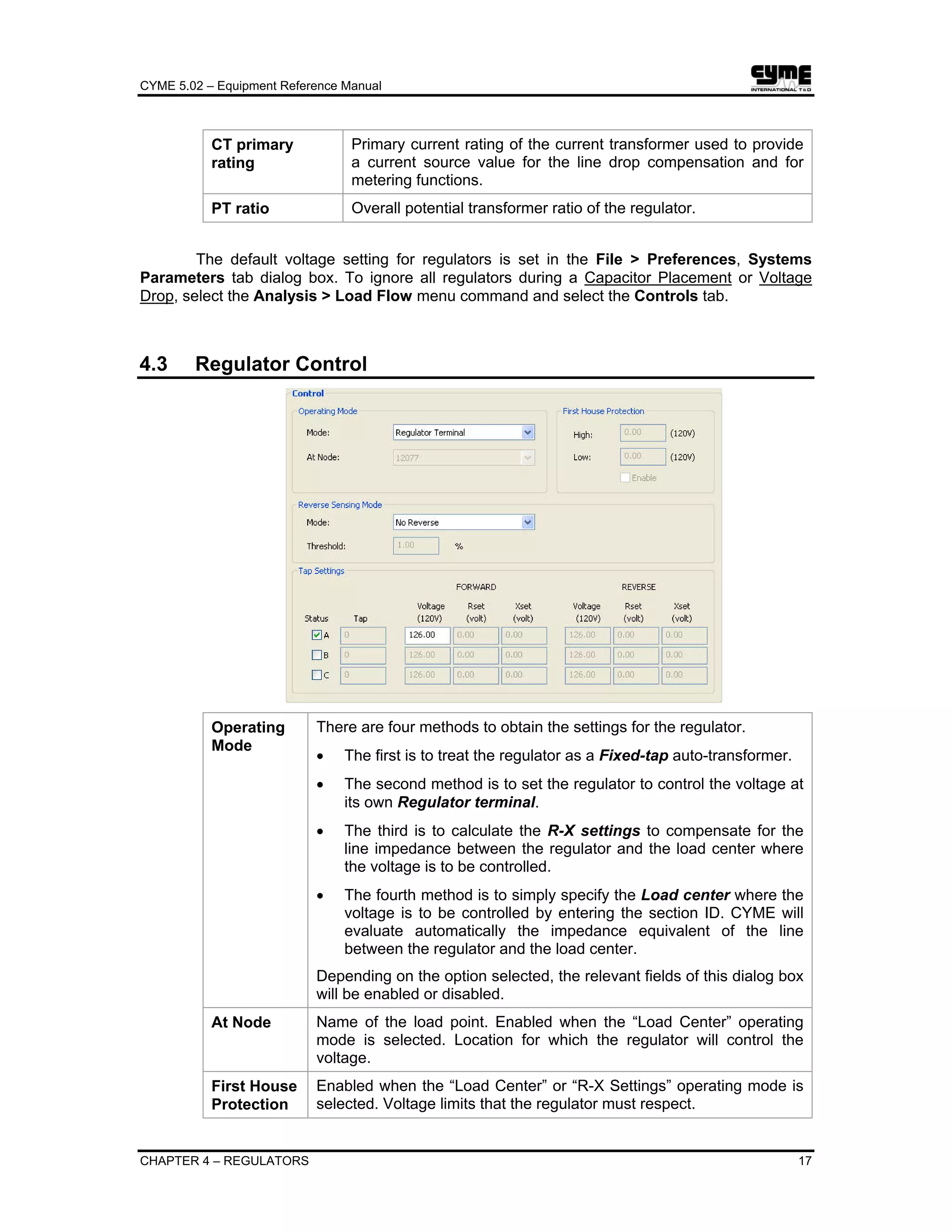
Operating
Mode
There are four methods to obtain the settings for the regulator.
• The first is to treat the regulator as a Fixed-tap auto-transformer.
• The second method is to set the regulator to control the voltage at
its own Regulator terminal.
• The third is to calculate the R-X settings to compensate for the
line impedance between the regulator and the load center where
the voltage is to be controlled.
• The fourth method is to simply specify the Load center where the
voltage is to be controlled by entering the section ID. CYME will
evaluate automatically the impedance equivalent of the line
between the regulator and the load center.
Depending on the option selected, the relevant fields of this dialog box
will be enabled or disabled.
At Node Name of the load point. Enabled when the “Load Center” operating
mode is selected. Location for which the regulator will control the
voltage.
First House
Protection
Enabled when the “Load Center” or “R-X Settings” operating mode is
selected. Voltage limits that the regulator must respect.
CYME 5.02 – Equipment Reference Manual
18 CHAPTER 4 – REGULATORS
Reverse
Sensing
Mode
Bi-Directional
Operates in both directions. If the real component of the current is
above the threshold, the regulator operates in the forward direction. If
the real component of the current is below the threshold, it operates in
the reverse direction. When the current is within the threshold, the
control stays at the last tap position.
Co-generation
When reverse power is detected, the control sensing input voltage will
not reverse (always in forward direction) and the line drop
compensation settings will be altered to account for the change in
power flow direction.
Locked Forward
Always operates in the forward direction. When more than 2% reverse
current is detected, the control stays on the last tap position.
Locked Reverse
Always operates in the reverse direction. If more than 2% forward
current is detected, the control stays on the last tap position.
Neutral Idle
Only operates in the forward direction when the real component of the
current is above the threshold. When the real component of the
current is reverse and is below the threshold, the control will tap to the
neutral position (buck/boost within ±0.3%).
No Reverse
Always operate in the forward direction. When the real component of
the current is reverse (>0), the control stays at the last tap position.
Reverse Idle
Operates in the forward directions. When the real component of the
current is above the threshold, the regulator operates in the forward
direction. When the real component of the current is below the
threshold, it stays at the last tap position.
Reactive Bi-Directional
Operates in both directions depending on both the real and reactive
component of the current. When the reactive component of the current
in the reverse direction, it operates in the forward direction. When the
real component of the current in the forward direction is above the
threshold and that the reactive component is within the threshold, it
also operates in the forward direction.
When the reactive component of the current in the forward direction is
above the threshold, it operates in the reverse direction. When the real
component of the current in the forward direction is above the
threshold and that the reactive component of the current is within the
threshold, it also operates in the reverse direction.
Threshold Current threshold at which the control switches operation, either from
forward to reverse or vice-versa.
Status For a single-phase regulator, indication of the phase(s) on which the
regulator is installed. The user will have to enter the settings for all
phases selected.
For a 3-phase regulator, indication of the control phase. Only one
phase can be selected.
CYME 5.02 – Equipment Reference Manual
CHAPTER 4 – REGULATORS 19
Tap If the option “Fixed Tap” is selected in the Operating Mode field, it is
the fixed tap position at which the regulator will be considered by
CYME. Otherwise, it is the present tap position of the regulator. During
any related load flow analysis, CYME will determine automatically the
tap position depending on the status of the network and update this
number.
FORWARD/
REVERSE
Depending on the Reverse Sensing Mode selected, the forward and
reverse settings will be enabled accordingly.
Voltage: Voltage to be maintained by the regulator.
Rset: Enabled when the “R-X Settings” option is selected, this is the
“R” setting of the regulator.
Xset: Enabled when the “R-X Settings” option is selected, this is the
“X” setting of the regulator.
Hint: If you already know the R-X Settings, simply select the R-X Settings option
and type the values in the appropriate spaces.
If you don’t know the R-X Settings, and want to use this control option, you
can use the following method:
• Under "Operating Mode/Mode", select "Load Center" from the pull
down menu.
• Click on the pull down menu of "At Node" to list all sections downstream
from the regulator. Click on the one whose voltage is to be regulated.
• Under "FORWARD/Voltage", enter the desired voltage (in terms of the
base voltage) at the regulated section. Do this for each phase selected.
• Under “First House Protection”, you can specify the High / Low voltage
limits.
• Click OK and run the Voltage Drop analysis. CYME will compute the R-
X settings and indicate them in the regulator/control dialog box.
• Return to this dialog box and change the “Operating Mode/Mode” to
“R-X Settings”.
Follow the same procedure for the reverse direction.
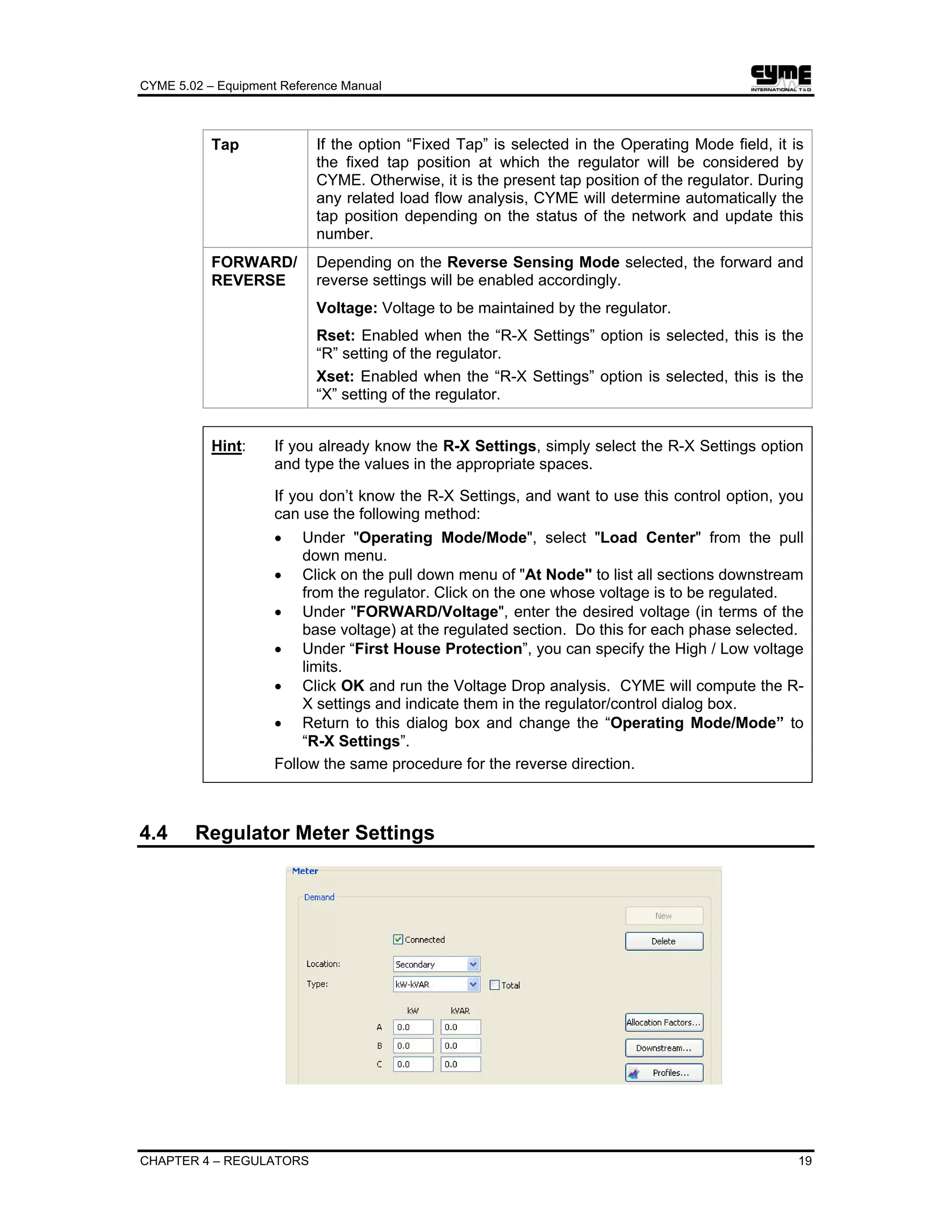
4.4 Regulator Meter Settings
CYME 5.02 – Equipment Reference Manual
20 CHAPTER 4 – REGULATORS
New To enable the meter settings input.
Delete To dismiss the meter settings input.
Connected To deactivate or activate the meter.
Location To indicate on which side (Primary or Secondary) of the regulator
the meter is connected.
Type Available options are: kVA-PF, AMP-PF, kW-PF, kW-kVAR. The
demand data fields (kW, kVAR in the illustration above) will vary
depending on the type you select.
In a PF(%) data field, you may enter a leading power factor by
typing a negative value (e.g., -98.0).
Total To allow entering combined demand for all three phases. Instead
of having to enter values for all phases as indicated in the above
illustration, you will enter only one (Total) value.
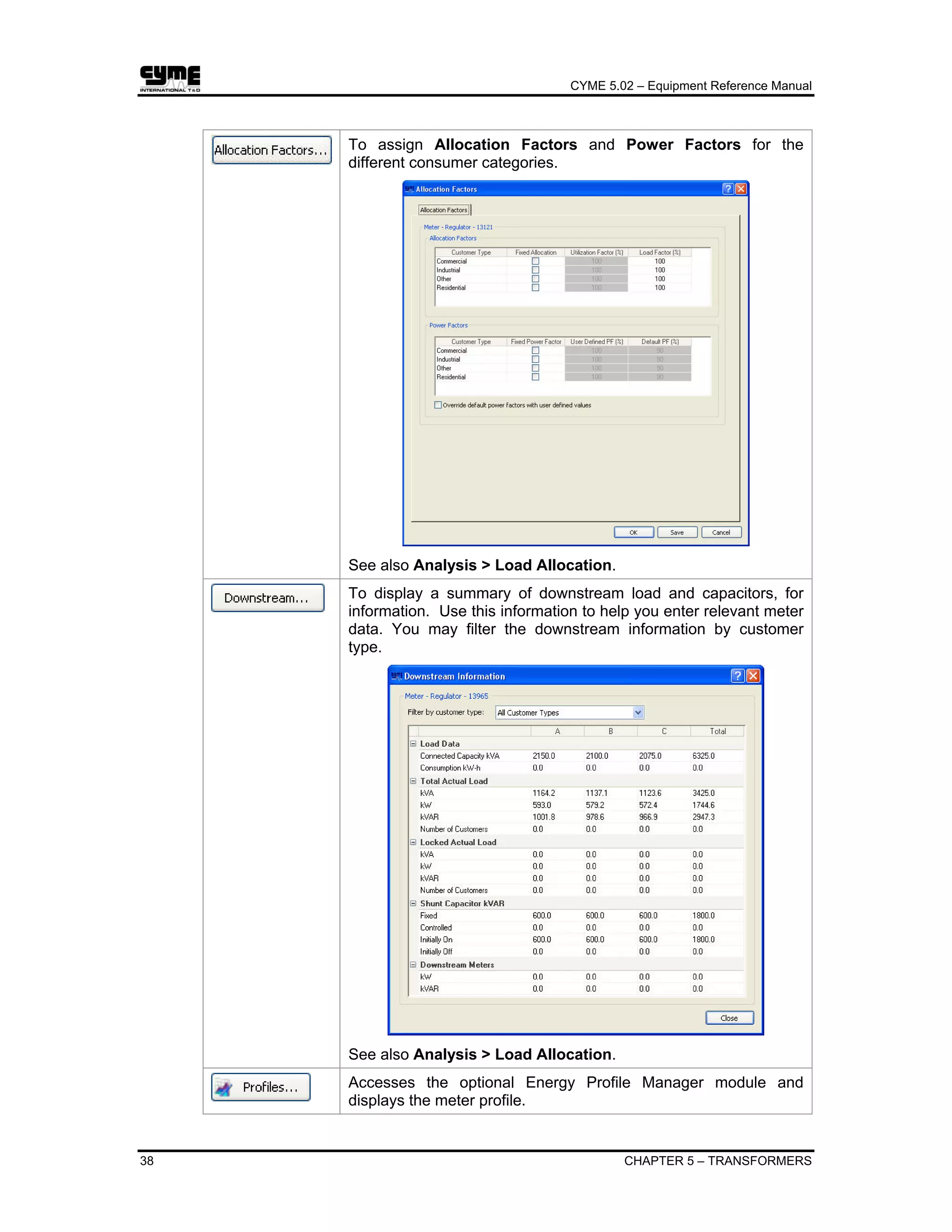
To assign Allocation Factors and Power Factors for the
different consumer categories. See also Analysis > Load
Allocation.
CYME 5.02 – Equipment Reference Manual
CHAPTER 4 – REGULATORS 21
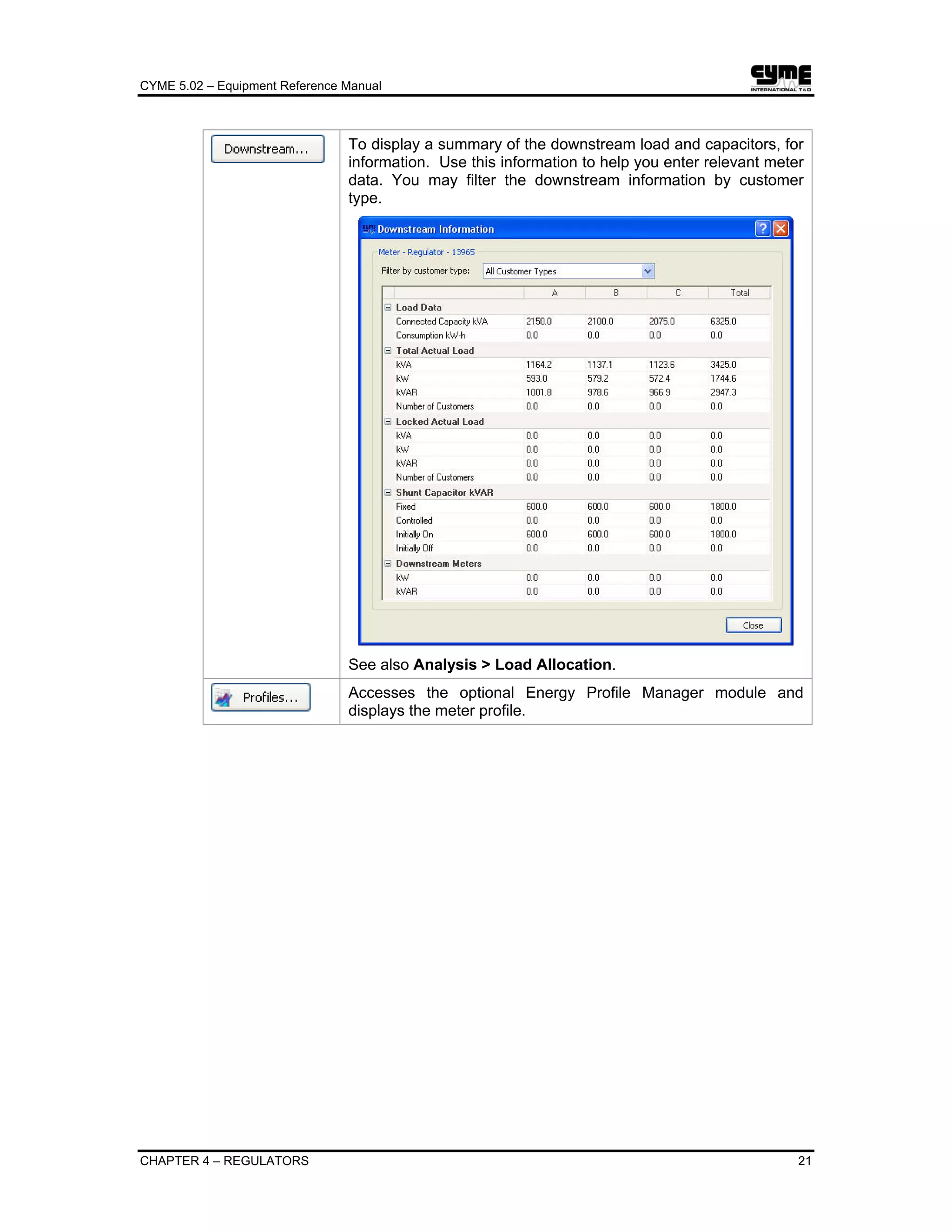
To display a summary of the downstream load and capacitors, for
information. Use this information to help you enter relevant meter
data. You may filter the downstream information by customer
type.
See also Analysis > Load Allocation.
Accesses the optional Energy Profile Manager module and
displays the meter profile.
CYME 5.02 – Equipment Reference Manual
CHAPTER 5 – TRANSFORMERS 23
Chapter 5 Transformers
5.1 Connection and Phase Shift Symbols
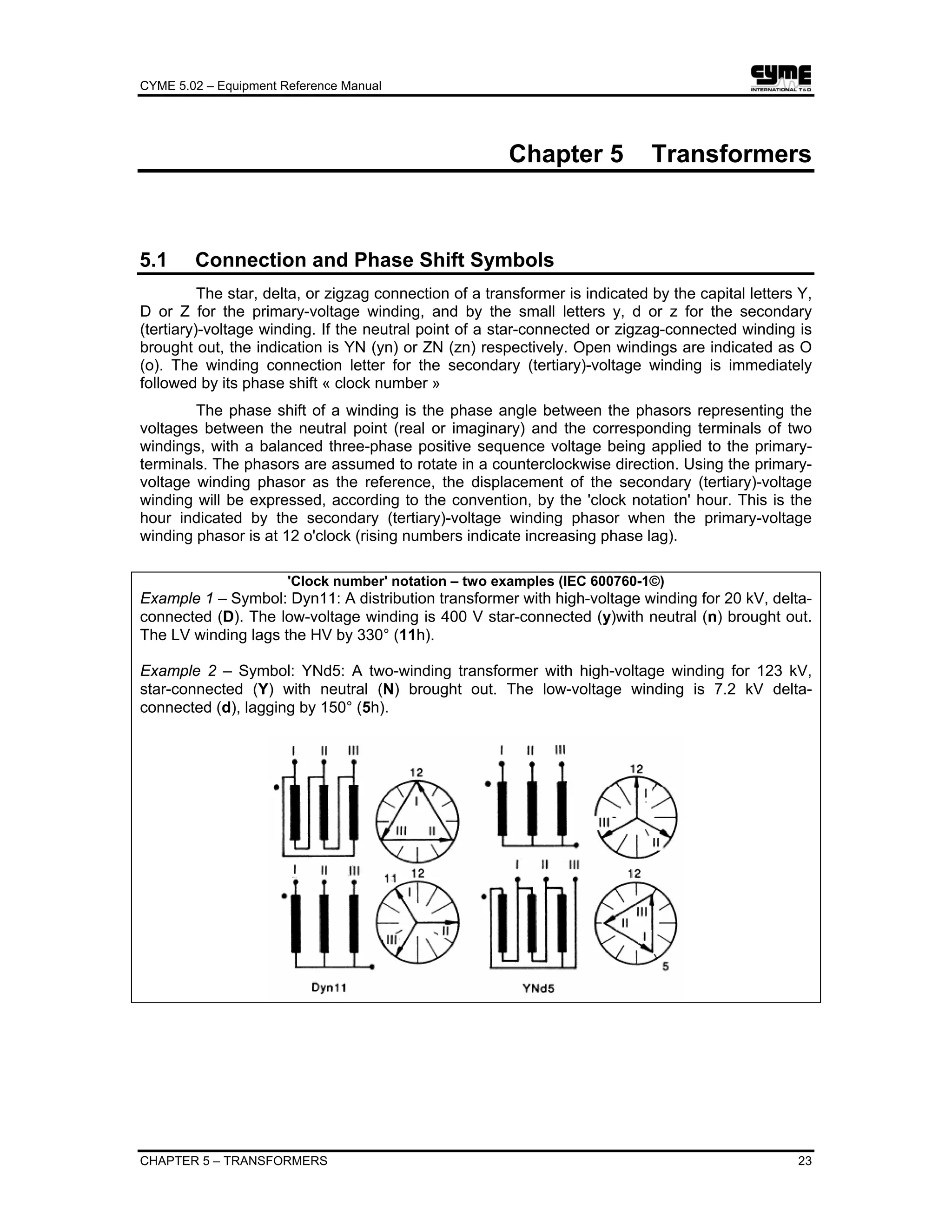
The star, delta, or zigzag connection of a transformer is indicated by the capital letters Y,
D or Z for the primary-voltage winding, and by the small letters y, d or z for the secondary
(tertiary)-voltage winding. If the neutral point of a star-connected or zigzag-connected winding is
brought out, the indication is YN (yn) or ZN (zn) respectively. Open windings are indicated as O
(o). The winding connection letter for the secondary (tertiary)-voltage winding is immediately
followed by its phase shift « clock number »
The phase shift of a winding is the phase angle between the phasors representing the
voltages between the neutral point (real or imaginary) and the corresponding terminals of two
windings, with a balanced three-phase positive sequence voltage being applied to the primary-
terminals. The phasors are assumed to rotate in a counterclockwise direction. Using the primary-
voltage winding phasor as the reference, the displacement of the secondary (tertiary)-voltage
winding will be expressed, according to the convention, by the 'clock notation' hour. This is the
hour indicated by the secondary (tertiary)-voltage winding phasor when the primary-voltage
winding phasor is at 12 o'clock (rising numbers indicate increasing phase lag).
'Clock number' notation – two examples (IEC 600760-1©)
Example 1 – Symbol: Dyn11: A distribution transformer with high-voltage winding for 20 kV, delta-
connected (D). The low-voltage winding is 400 V star-connected (y)with neutral (n) brought out.
The LV winding lags the HV by 330° (11h).
Example 2 – Symbol: YNd5: A two-winding transformer with high-voltage winding for 123 kV,
star-connected (Y) with neutral (N) brought out. The low-voltage winding is 7.2 kV delta-
connected (d), lagging by 150° (5h).
CYME 5.02 – Equipment Reference Manual
24 CHAPTER 5 – TRANSFORMERS
5.2 Transformer – Two Winding
5.2.1 Two-winding Transformer Properties
Generally, these transformers are “in-line”, step-down power transformers. Customer
(i.e., load) transformers are generally not modeled explicitly.
5.2.1.1 General Tab
Transformer Type Three types are available: Single-phase, Three-phase Shell
and Three-phase core. The latter requires three sets of zero-
sequence values compared to one for the other two.
Nominal Rating Total kVA for 3-phase Type transformer or per phase for 1-
phase Type.
Primary Voltage
Secondary Voltage
kV line-to-line.
kV line-to-line. For any winding of a 1-phase transformer
which is connected line-to-ground, enter (line-ground voltage)
x √3.
No load losses kW Total for 3-phase and kW per Phase for 1-phase.
Insulation Type Select either Liquid-filled or Dry.
CYME 5.02 – Equipment Reference Manual
CHAPTER 5 – TRANSFORMERS 25
Sequence
Impedances
Positive-sequence Impedance Z1 in percent on transformer
kVA base, zero-sequence Impedance Z0 in percent on
transformer kVA base, positive sequence (X1/R1) and zero-
sequence (X0/R0) ratios.
If you click on the Default button, CYME will suggest typical
values for Z1, Z0 and X/R based on the kVA and primary
voltage.
In a three-phase core transformer, zero-sequence impedance
and ratio are required for the following combinations: primary-
secondary, primary-magnetizing, secondary-magnetizing.
Grounding
Impedances
Grounding resistance and reactance for the primary side and
grounding resistance and reactance for the secondary side.
Reversible If Reversible is not active, then you will be prevented from
closing any switch that would direct power flow from the
transformer secondary side to its primary side.
Configuration CYME supports the four practical configurations for a single-
phase transformer: See also section 5.2.5 By Phase Settings,
5.2.6 Single-phase Two-wire Configurations, and 5.2.7 Three-
phase Configurations.
Note: If you connect a 1-phase unit to a 2-phase or 3-phase section, identical
transformers will be installed in each phase.
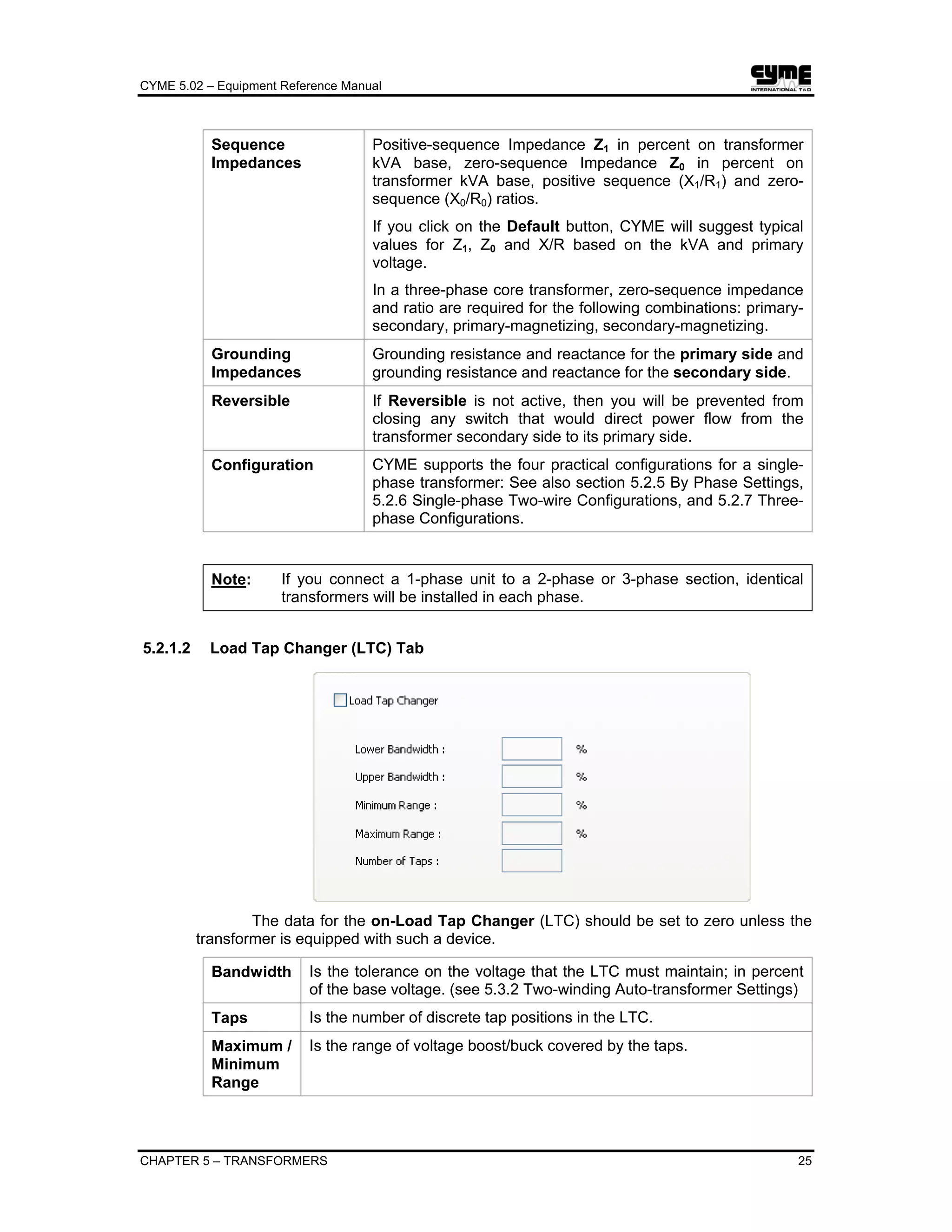
5.2.1.2 Load Tap Changer (LTC) Tab
The data for the on-Load Tap Changer (LTC) should be set to zero unless the
transformer is equipped with such a device.
Bandwidth Is the tolerance on the voltage that the LTC must maintain; in percent
of the base voltage. (see 5.3.2 Two-winding Auto-transformer Settings)
Taps Is the number of discrete tap positions in the LTC.
Maximum /
Minimum
Range
Is the range of voltage boost/buck covered by the taps.
CYME 5.02 – Equipment Reference Manual
26 CHAPTER 5 – TRANSFORMERS
5.2.2 Two-winding Transformer Settings
Primary To indicate on which node the primary of the transformer is
connected.
Fault
Indicator
To indicate via a signal that the fault is located downstream of the
device. The Reliability Assessment Module (RAM) uses this
parameter. See the Reliability Analysis Users Guide.
Fixed Tap To enter primary and secondary taps setting of this particular
transformer, either to raise or lower the voltage.
Grounding
Impedances
To define the grounding impedance on both the primary and
secondary side.
Configuration To define the configuration of this particular transformer.
Protection Will open the TCC protection coordination dialog box for the
selected device, so that you may inspect and adjust its settings as
well as create a new “standard” setting.
Note: You do not need to have CYMTCC installed in order to
use this command. However, with CYMTCC, you will be
able to perform more extensive protection analyses.
System Base
Voltage
To define the primary and or secondary base voltage. Checkmark
User defined to enable the voltage field.
CYME 5.02 – Equipment Reference Manual
CHAPTER 5 – TRANSFORMERS 27
5.2.3 Load Tap Changer Settings
If you entered data for a Load Tap Changer when you created the transformer in the
equipment database, then the Load Tap Changer sub-layer will appear directly under the main
transformer layer. These are the same as defined for Regulators. Click on the sub-layer to set
the desired voltage, R-X settings or tap position.
Location To indicate that the Load Tap Changer is located on the Primary or
secondary side of the transformer.
Mode The different methods to obtain the settings for the transformer. See
Operating Mode in chapter 4.3 Regulator Control.
At Node Enabled when the mode “Load Center” is selected. Location for which
the LTC will control the voltage.
LDC
settings
R: Resistive voltage drop on the line between the transformer and
the load location.
X: Reactive voltage drop on the line between the transformer and
the load location.
They represent the voltage drop on the line when the line is carrying
CT-rated primary current.
Set Voltage These values are in percentage of the system base voltage at the
secondary of the transformer.
Use last
load flow
To consider the last position of tap after a load flow analysis when the
VCR was active.
Initial Enter the initial tap position if you are not using the “Use last load flow”
option.
Final Final tap position at the end of the simulation.
Buck/Boost Range of voltage covered.
Is slave When connected in parallel, checkmark this option to enter a Master Id
for the two-winding transformer.
CYME 5.02 – Equipment Reference Manual
28 CHAPTER 5 – TRANSFORMERS
Master Id When two transformers are connected in parallel, one of them may
be chosen as Master and the control settings (fixed-tap, terminal, load
center, R-X settings) defined for it. The other transformer may be
designated as Slave by:
1. Selecting the Is Slave option in the Parallel Operation group box
(see illustration above)
2. Specifying the Master transformer section ID
The Slave’s controls are locked with the Master control in a load flow
calculation
(e.g., Voltage Drop).
If you have the Transient Stability module installed, you will notice that the Load Tap
Changer item in the Devices tree list can be expanded to reveal the Stability Model settings
group box. This element is discussed in the Transient Stability Analysis Users Guide.
5.2.4 Transformer Meter Settings
New To enable the meter settings input.
Delete To dismiss the meter settings input.
Location To indicate on which side (Primary or Secondary) of the two-
winding transformer the meter is connected.
Diversity Calculates the diversity factors based on the demands of each of
the feeders and the transformer demand. The value calculated is
displayed in the Diversity field.
Type Available options are: kVA-PF, AMP-PF, kW-PF, kW-kVAR. The
demand data fields (kW, kVAR in the illustration above) will vary
depending on the type you select.
In a PF(%) data field, you may enter a leading power factor by
typing a negative value (e.g., -98.0).
Total To allow entering combined demand for all three phases. Instead
of having to enter values for all phases as indicated in the above
illustration, you will enter only one (Total) value.
CYME 5.02 – Equipment Reference Manual
CHAPTER 5 – TRANSFORMERS 29
Connected To deactivate or activate the meter.
To assign Allocation Factors and Power Factors for the
different consumer categories.
See also Analysis > Load Allocation.
To display a summary of downstream load and capacitors, for
information. Use this information to help you enter relevant meter
data. You may filter the downstream information by customer
type.
See also Analysis > Load Allocation.
CYME 5.02 – Equipment Reference Manual
30 CHAPTER 5 – TRANSFORMERS
Accesses the optional Energy Profile Manager module and
displays the meter profile.
5.2.5 By Phase Settings
The transformer by-phase settings dialog box is to model a configuration of single-phase
transformers of different ratings. It is also the only model that permits the modeling of center tap
connections. To add this type of transformer configuration in the network, click the Add button in
the Devices group box of the Section Properties dialog box and select the Transformer By-
Phase from the pop up menu.
If you need to model loads connected to a center tap, you need to define a transformer
by-phase upstream of the load and enable the phases where a center tap connection is present.
5.2.6 Single-phase Two-wire Configurations
CYME supports the four practical configurations for a single-phase transformer:
Ygrd - Ygrd Ygrd - D D - Ygrd D - D
• Ygrd (Wye-grounded) means “single-phase, two wires, grounded”.
• D (Delta) means “single-phase, two wires, ungrounded”.
Single-phase
Ygrd – Ygrd
• The primary of this transformer must be connected to a single-
phase section.
• Downstream sections are connected to the same phase as the
primary.
• The load configuration downstream from this transformer must be
set to Ygrd.
CYME 5.02 – Equipment Reference Manual
CHAPTER 5 – TRANSFORMERS 31
Single-phase
Ygrd – D
The secondary of this transformer is a two-wire ungrounded system
(single-phase Delta). CYME reports the current on one wire only
since the other carries the same current.
• The primary of this transformer must be connected to a single-
phase section.
• Downstream sections are connected to the same phase as the
primary.
• The load configuration downstream from this transformer must be
set to Delta (D).
Single-phase
D – Ygrd
The primary of this transformer is connected between two phases
(AB, BC or CA).
• The primary of this transformer must be connected to a two-
phase section.
• Downstream sections and loads must be single-phase. See
table below.
• The load configuration downstream from this transformer must be
set to Ygrd.
Primary phases Secondary phase Load phase
AB A A
BC B B
CA C C
Example: If the primary side is connected between phases A and B,
any load or section connected to the secondary must be
connected to phase A.
Single-phase
D – D
The secondary of this transformer is a two-wire ungrounded system
(single-phase Delta). Although you connect the load to only one
phase, it is in fact connected between the two wires. CYME reports
the current on one wire only since the other carries the same current.
• The primary of this transformer is connected between two phases
(AB, BC or CA).
• The primary of this transformer must be connected to a two-
phase section.
• Downstream sections and loads must be single-phase. See table
below.
Primary phases Secondary phase Load phase
AB A A
BC B B
CA C C
Example: If the primary side is connected between phases A and B,
any load or section connected to the secondary must be
connected to phase A.
• The load configuration downstream from this transformer must be
set to Delta (D).
CYME 5.02 – Equipment Reference Manual
32 CHAPTER 5 – TRANSFORMERS
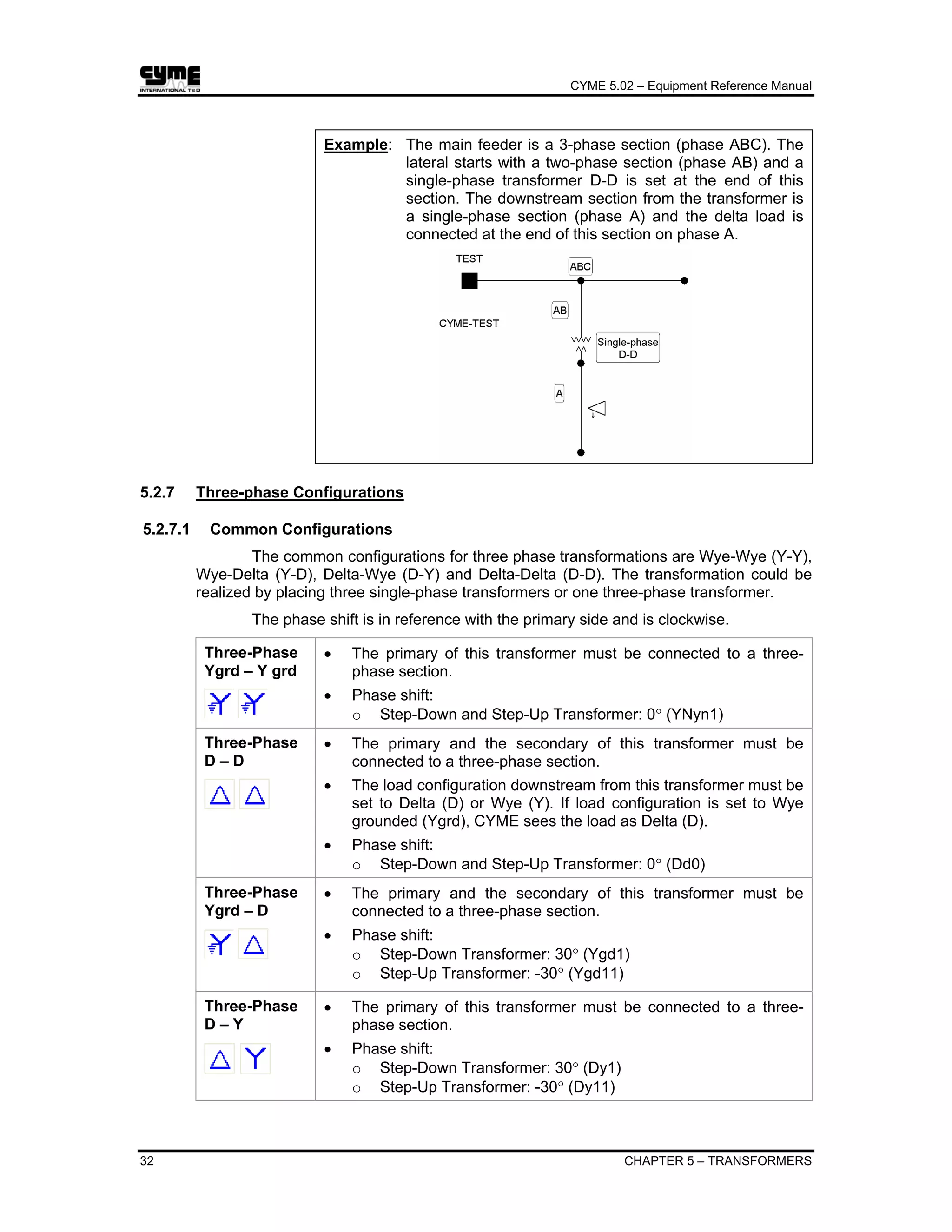
Example: The main feeder is a 3-phase section (phase ABC). The
lateral starts with a two-phase section (phase AB) and a
single-phase transformer D-D is set at the end of this
section. The downstream section from the transformer is
a single-phase section (phase A) and the delta load is
connected at the end of this section on phase A.
5.2.7 Three-phase Configurations
5.2.7.1 Common Configurations
The common configurations for three phase transformations are Wye-Wye (Y-Y),
Wye-Delta (Y-D), Delta-Wye (D-Y) and Delta-Delta (D-D). The transformation could be
realized by placing three single-phase transformers or one three-phase transformer.
The phase shift is in reference with the primary side and is clockwise.
Three-Phase
Ygrd – Y grd
• The primary of this transformer must be connected to a three-
phase section.
• Phase shift:
o Step-Down and Step-Up Transformer: 0° (YNyn1)
Three-Phase
D – D
• The primary and the secondary of this transformer must be
connected to a three-phase section.
• The load configuration downstream from this transformer must be
set to Delta (D) or Wye (Y). If load configuration is set to Wye
grounded (Ygrd), CYME sees the load as Delta (D).
• Phase shift:
o Step-Down and Step-Up Transformer: 0° (Dd0)
Three-Phase
Ygrd – D
• The primary and the secondary of this transformer must be
connected to a three-phase section.
• Phase shift:
o Step-Down Transformer: 30° (Ygd1)
o Step-Up Transformer: -30° (Ygd11)
Three-Phase
D – Y
• The primary of this transformer must be connected to a three-
phase section.
• Phase shift:
o Step-Down Transformer: 30° (Dy1)
o Step-Up Transformer: -30° (Dy11)
CYME 5.02 – Equipment Reference Manual
CHAPTER 5 – TRANSFORMERS 33
Three-Phase
D – Ygrd
• The primary of this transformer must be connected to a three-
phase section.
• This configuration should be use only with balanced network.
• Phase shift:
o Step-Down Transformer: 30° (Dyg1)
o Step-Up Transformer: -30° (Dyg11)
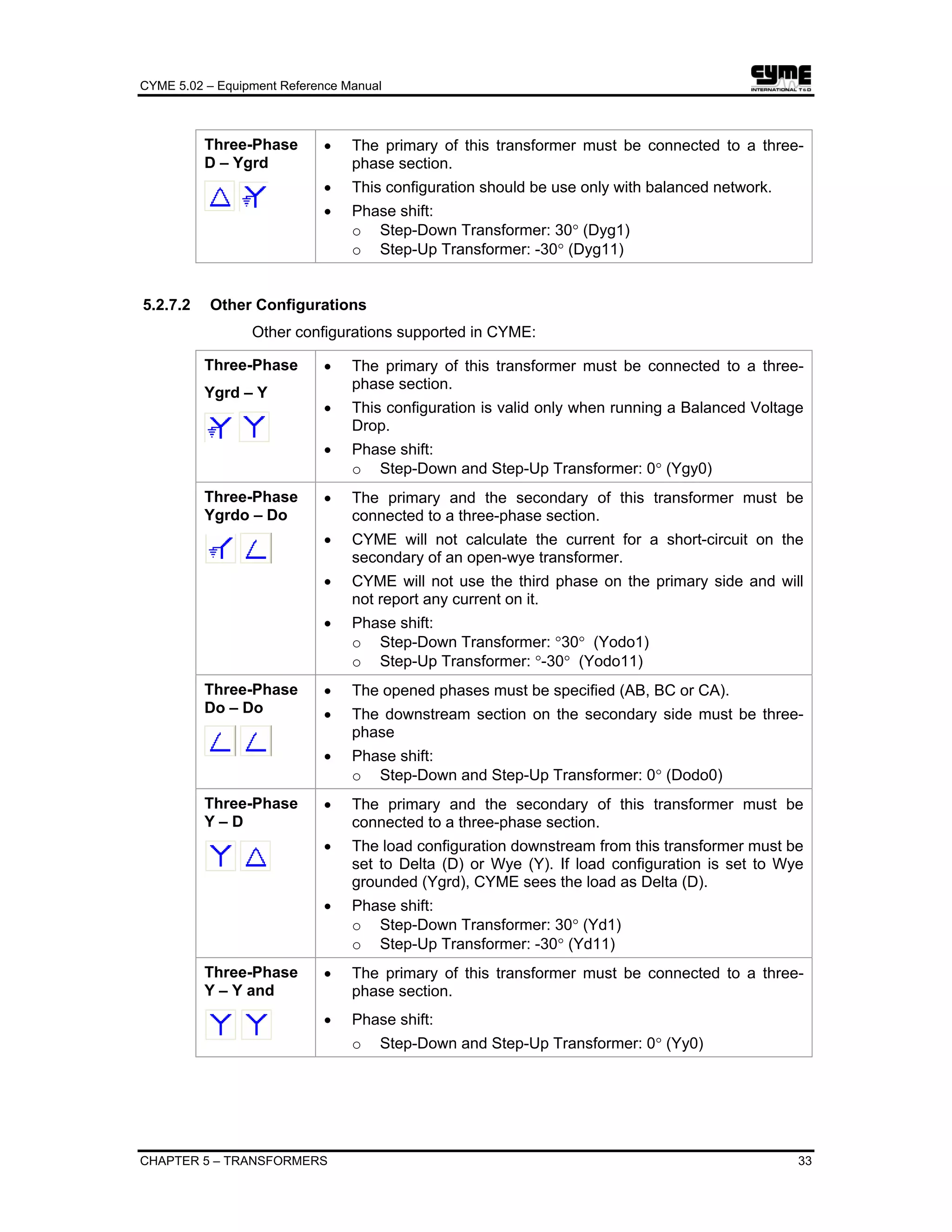
5.2.7.2 Other Configurations
Other configurations supported in CYME:
Three-Phase
Ygrd – Y
• The primary of this transformer must be connected to a three-
phase section.
• This configuration is valid only when running a Balanced Voltage
Drop.
• Phase shift:
o Step-Down and Step-Up Transformer: 0° (Ygy0)
Three-Phase
Ygrdo – Do
• The primary and the secondary of this transformer must be
connected to a three-phase section.
• CYME will not calculate the current for a short-circuit on the
secondary of an open-wye transformer.
• CYME will not use the third phase on the primary side and will
not report any current on it.
• Phase shift:
o Step-Down Transformer: °30° (Yodo1)
o Step-Up Transformer: °-30° (Yodo11)
Three-Phase
Do – Do
• The opened phases must be specified (AB, BC or CA).
• The downstream section on the secondary side must be three-
phase
• Phase shift:
o Step-Down and Step-Up Transformer: 0° (Dodo0)
Three-Phase
Y – D
• The primary and the secondary of this transformer must be
connected to a three-phase section.
• The load configuration downstream from this transformer must be
set to Delta (D) or Wye (Y). If load configuration is set to Wye
grounded (Ygrd), CYME sees the load as Delta (D).
• Phase shift:
o Step-Down Transformer: 30° (Yd1)
o Step-Up Transformer: -30° (Yd11)
Three-Phase
Y – Y and
• The primary of this transformer must be connected to a three-
phase section.
• Phase shift:
o Step-Down and Step-Up Transformer: 0° (Yy0)
CYME 5.02 – Equipment Reference Manual
34 CHAPTER 5 – TRANSFORMERS
Three-Phase
Y – Ygrd
• The primary of this transformer must be connected to a three-
phase section.
• This configuration in valid only when running a Balanced Voltage
Drop.
• Phase shift:
o Step-Down and Step-Up Transformer: 0° (Yyg0)
ZigZag • One end of each phase winding is connected to a common point
(neutral point).
• Each phase winding consists of two parts in which phase-
displaced voltages are induced.
5.3 Two-winding Auto-transformer
5.3.1 Two-winding Auto-transformer Properties
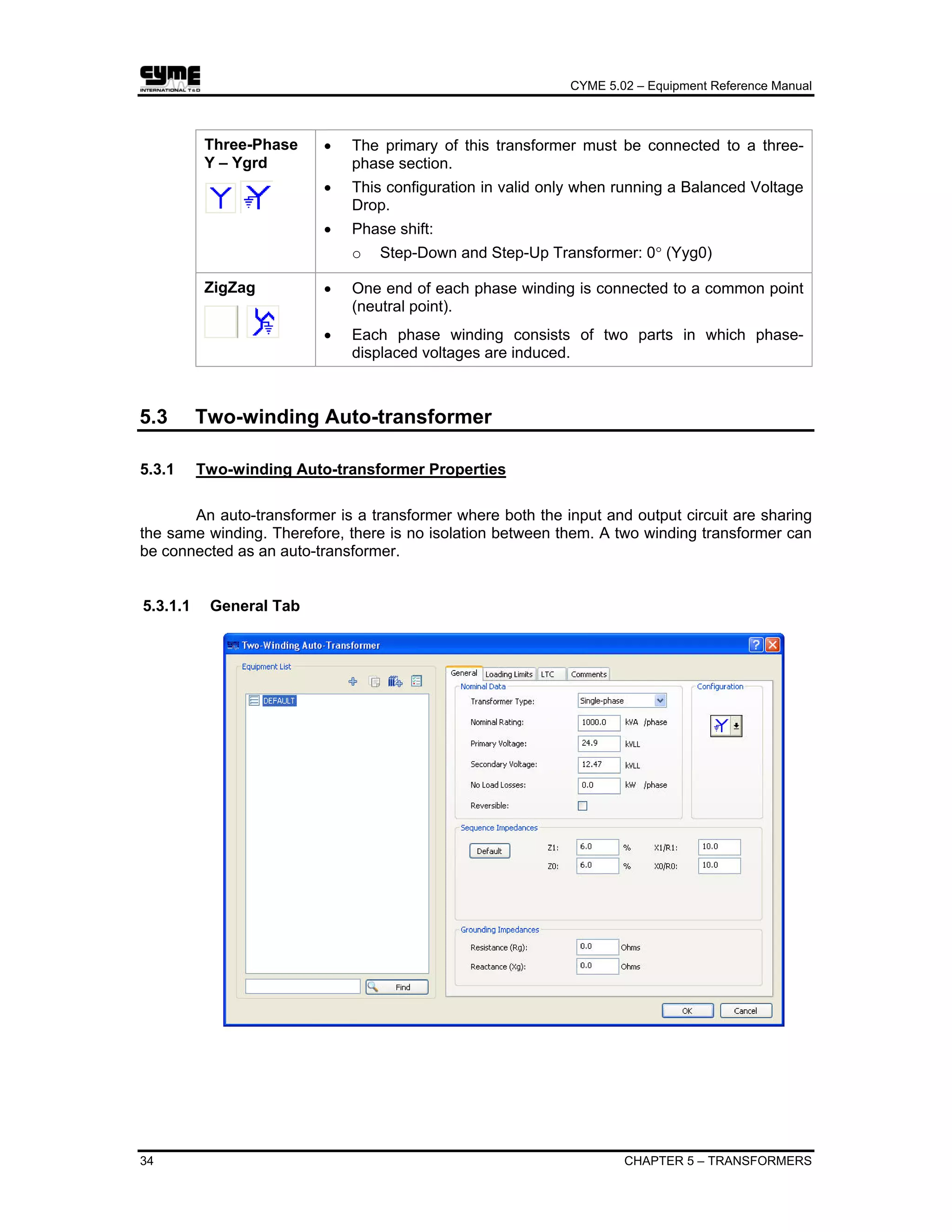
An auto-transformer is a transformer where both the input and output circuit are sharing
the same winding. Therefore, there is no isolation between them. A two winding transformer can
be connected as an auto-transformer.
5.3.1.1 General Tab
CYME 5.02 – Equipment Reference Manual
CHAPTER 5 – TRANSFORMERS 35
Transformer
Type
Three types are available: Single-phase, Three-phase Shell and
Three-phase Core. The latter requires three sets of zero-sequence
values compared to one for the other two types.
Nominal
Rating
Total kVA for 3-phase Type auto-transformer or per phase for 1-
phase Type.
Primary
Voltage
Secondary
Voltage
kV line-to-line.
kV line-to-line. For any winding of a 1-phase auto-transformer
which is connected line-to-ground, enter (line-ground voltage) x √3.
No load
losses
kW Total for 3-phase and kW per Phase for 1-phase.
Reversible If Reversible is not active, then you will be prevented from closing
any switch that would direct power flow from the auto-transformer
secondary side to its primary side.
Sequence
Impedances
Positive-sequence Impedance Z1 in percent on auto-transformer
kVA base, zero-sequence Impedance Z0 in percent on auto-
transformer kVA base, positive sequence (X1/R1) and zero-
sequence (X0/R0) ratios.
If you click on the Default button, CYME will suggest typical values
for Z1, Z0 and X/R based on the kVA and primary voltage.
In a three-phase core transformer, zero-sequence impedance and
ratio are required for the following combinations: primary-
secondary, primary-magnetizing, secondary-magnetizing.
Grounding
Impedances
Grounding resistance and reactance for the grounding connection.
Configuration YG connection only.
Note: If you connect a 1-phase unit to a 2-phase or 3-phase section, identical
transformers will be installed in each phase.
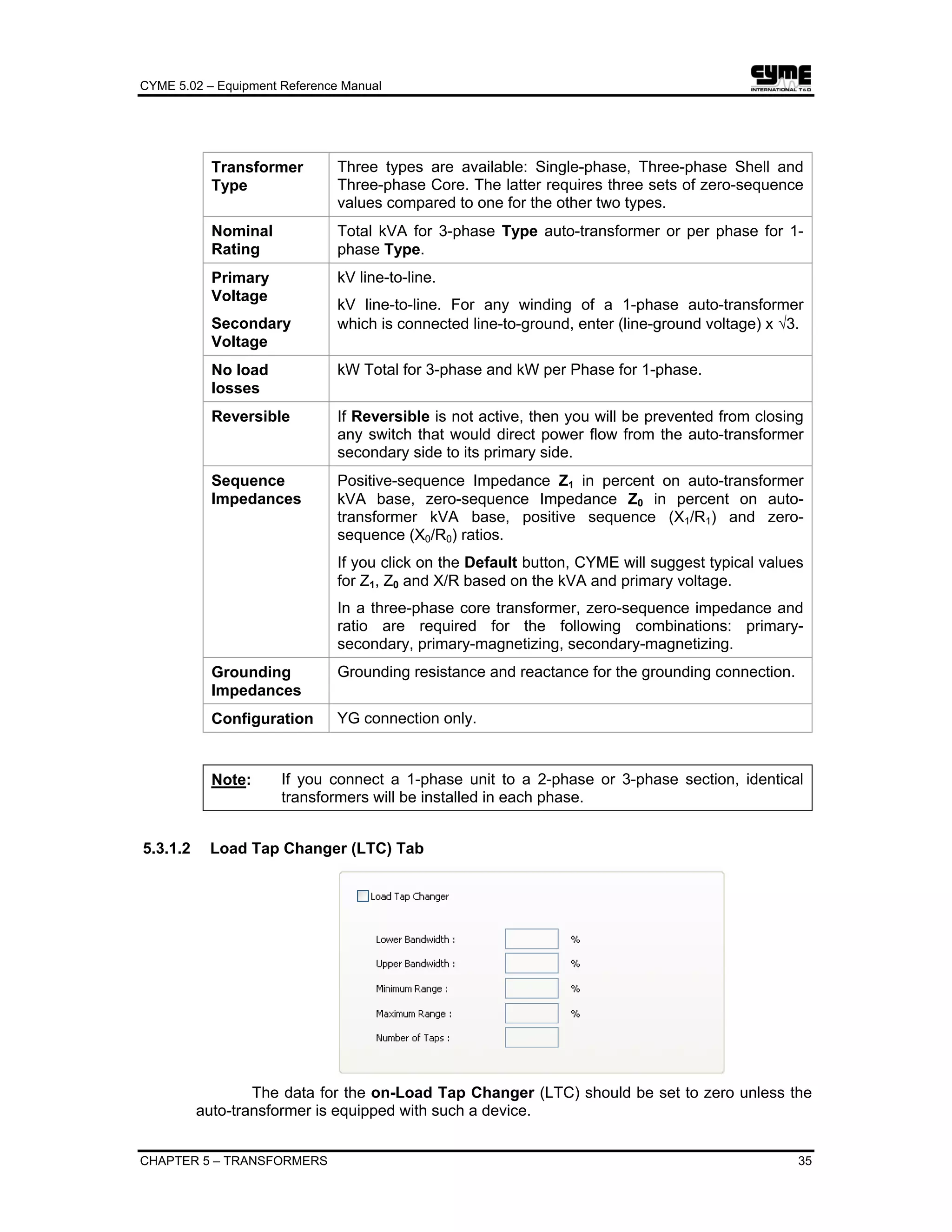
5.3.1.2 Load Tap Changer (LTC) Tab
The data for the on-Load Tap Changer (LTC) should be set to zero unless the
auto-transformer is equipped with such a device.
CYME 5.02 – Equipment Reference Manual
36 CHAPTER 5 – TRANSFORMERS
Bandwidth Is the tolerance on the voltage that the LTC must maintain; in percent
of the base voltage. (see 5.3.2 Two-winding Auto-transformer Settings)
Taps Is the number of discrete tap positions in the LTC.
Maximum /
Minimum
Range
Is the range of voltage boost/buck covered by the taps.
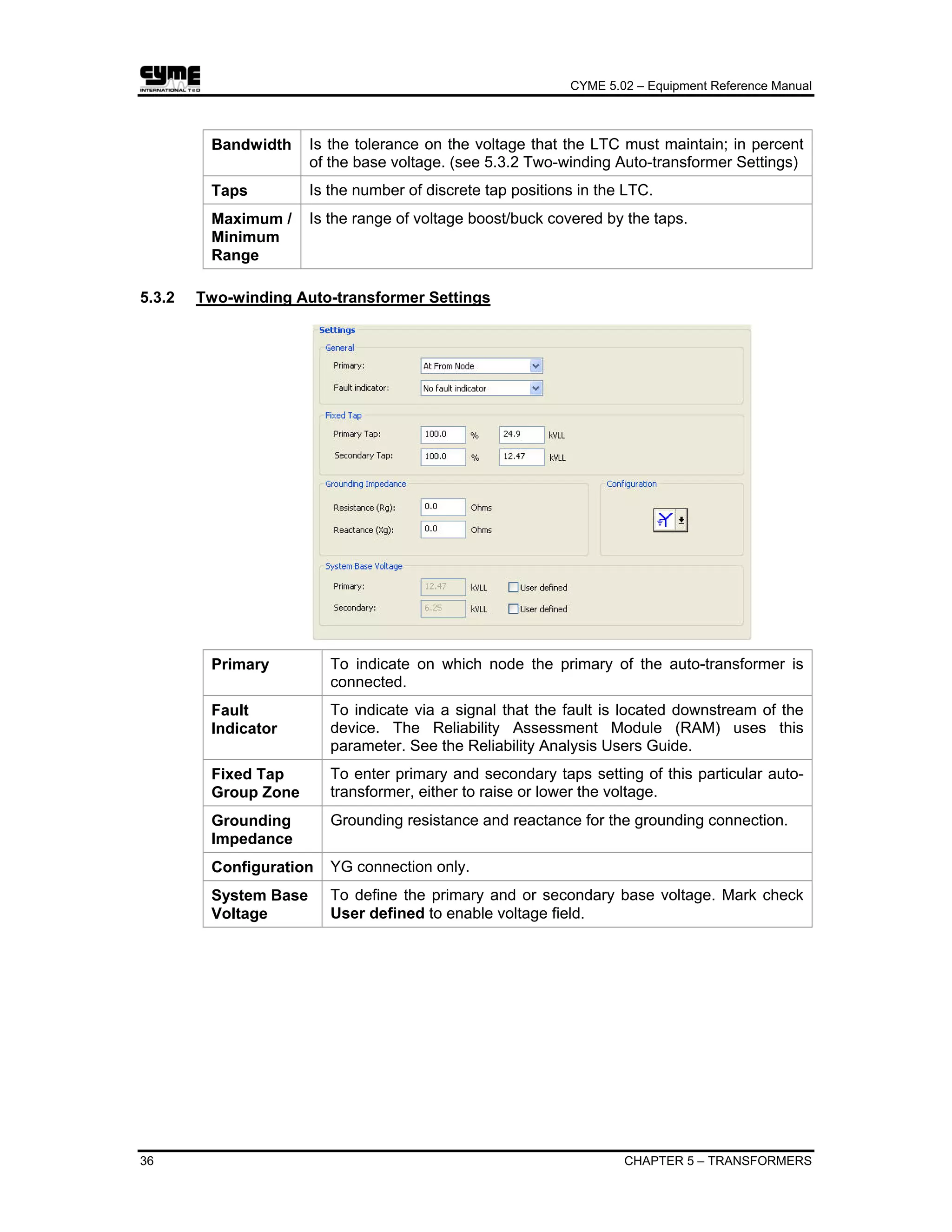
5.3.2 Two-winding Auto-transformer Settings
Primary To indicate on which node the primary of the auto-transformer is
connected.
Fault
Indicator
To indicate via a signal that the fault is located downstream of the
device. The Reliability Assessment Module (RAM) uses this
parameter. See the Reliability Analysis Users Guide.
Fixed Tap
Group Zone
To enter primary and secondary taps setting of this particular auto-
transformer, either to raise or lower the voltage.
Grounding
Impedance
Grounding resistance and reactance for the grounding connection.
Configuration YG connection only.
System Base
Voltage
To define the primary and or secondary base voltage. Mark check
User defined to enable voltage field.
CYME 5.02 – Equipment Reference Manual
CHAPTER 5 – TRANSFORMERS 37
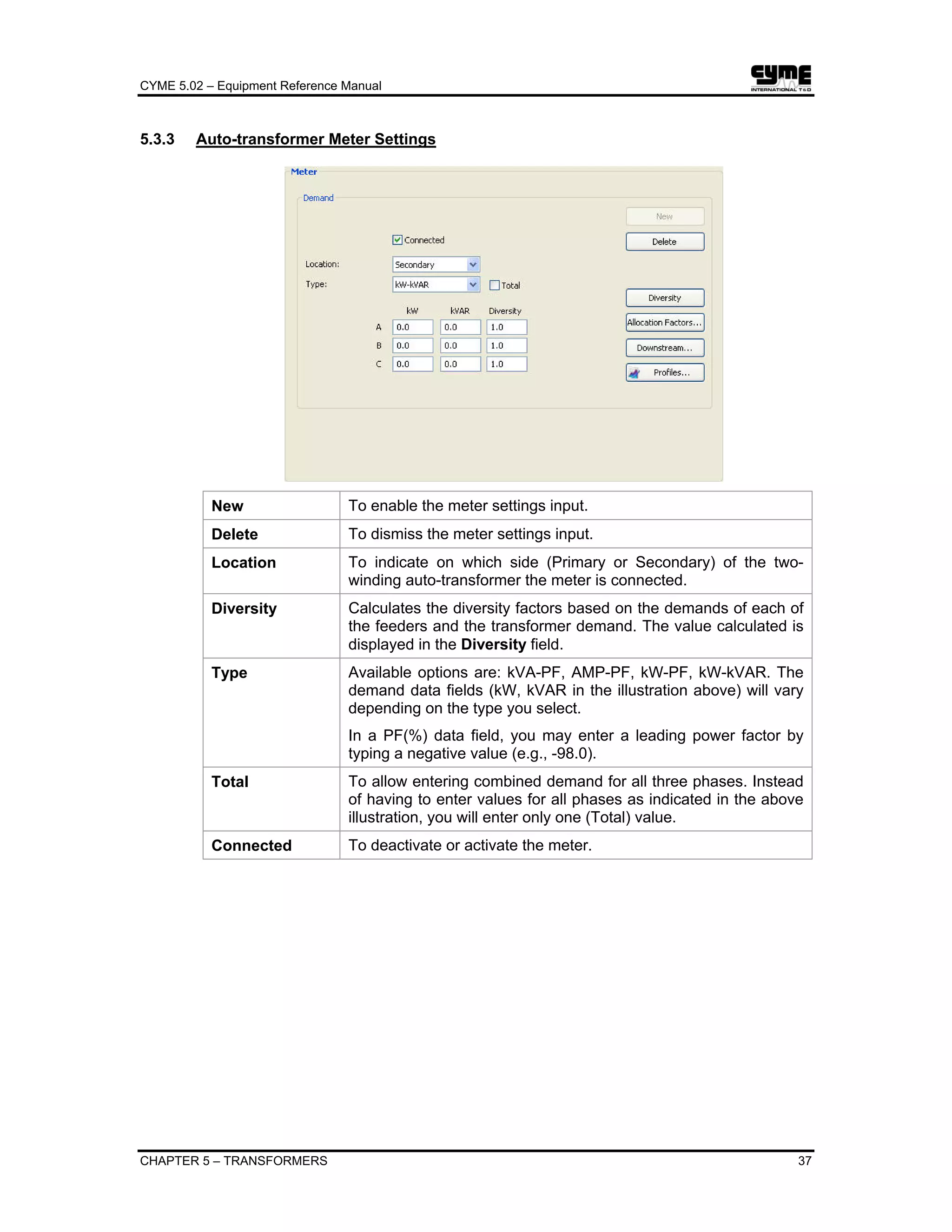
5.3.3 Auto-transformer Meter Settings
New To enable the meter settings input.
Delete To dismiss the meter settings input.
Location To indicate on which side (Primary or Secondary) of the two-
winding auto-transformer the meter is connected.
Diversity Calculates the diversity factors based on the demands of each of
the feeders and the transformer demand. The value calculated is
displayed in the Diversity field.
Type Available options are: kVA-PF, AMP-PF, kW-PF, kW-kVAR. The
demand data fields (kW, kVAR in the illustration above) will vary
depending on the type you select.
In a PF(%) data field, you may enter a leading power factor by
typing a negative value (e.g., -98.0).
Total To allow entering combined demand for all three phases. Instead
of having to enter values for all phases as indicated in the above
illustration, you will enter only one (Total) value.
Connected To deactivate or activate the meter.
CYME 5.02 – Equipment Reference Manual
38 CHAPTER 5 – TRANSFORMERS
To assign Allocation Factors and Power Factors for the
different consumer categories.
See also Analysis > Load Allocation.
To display a summary of downstream load and capacitors, for
information. Use this information to help you enter relevant meter
data. You may filter the downstream information by customer
type.
See also Analysis > Load Allocation.
Accesses the optional Energy Profile Manager module and
displays the meter profile.
CYME 5.02 – Equipment Reference Manual
CHAPTER 5 – TRANSFORMERS 39
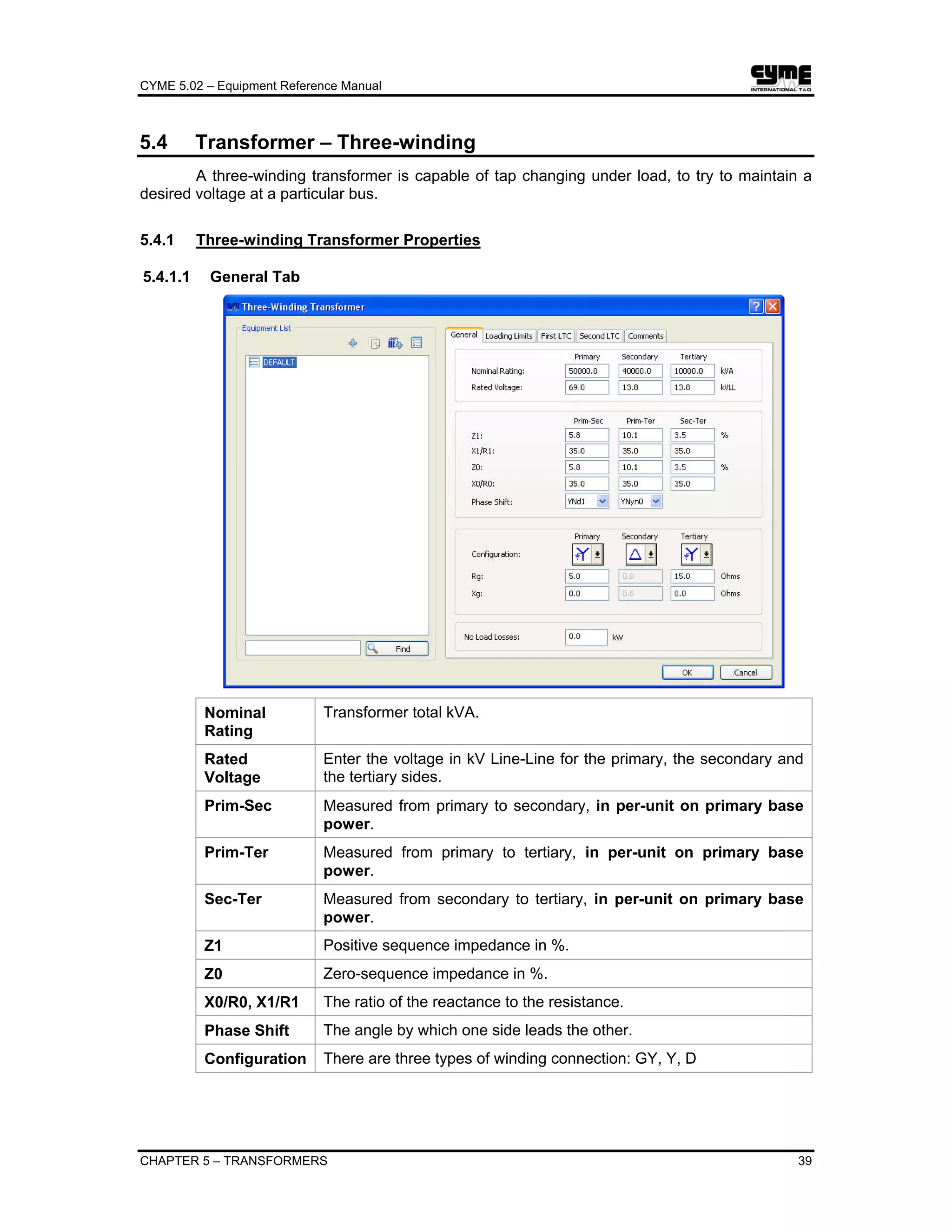
5.4 Transformer – Three-winding
A three-winding transformer is capable of tap changing under load, to try to maintain a
desired voltage at a particular bus.
5.4.1 Three-winding Transformer Properties
5.4.1.1 General Tab
Nominal
Rating
Transformer total kVA.
Rated
Voltage
Enter the voltage in kV Line-Line for the primary, the secondary and
the tertiary sides.
Prim-Sec Measured from primary to secondary, in per-unit on primary base
power.
Prim-Ter Measured from primary to tertiary, in per-unit on primary base
power.
Sec-Ter Measured from secondary to tertiary, in per-unit on primary base
power.
Z1 Positive sequence impedance in %.
Z0 Zero-sequence impedance in %.
X0/R0, X1/R1 The ratio of the reactance to the resistance.
Phase Shift The angle by which one side leads the other.
Configuration There are three types of winding connection: GY, Y, D
CYME 5.02 – Equipment Reference Manual
40 CHAPTER 5 – TRANSFORMERS
Rg, Xg Grounding impedances (in ohms) for the grounding connection of the
primary/secondary and the tertiary, respectively. (Applies to GY
winding connection only.)
No load
Losses
The core losses plus winding losses at no-load, in kW.
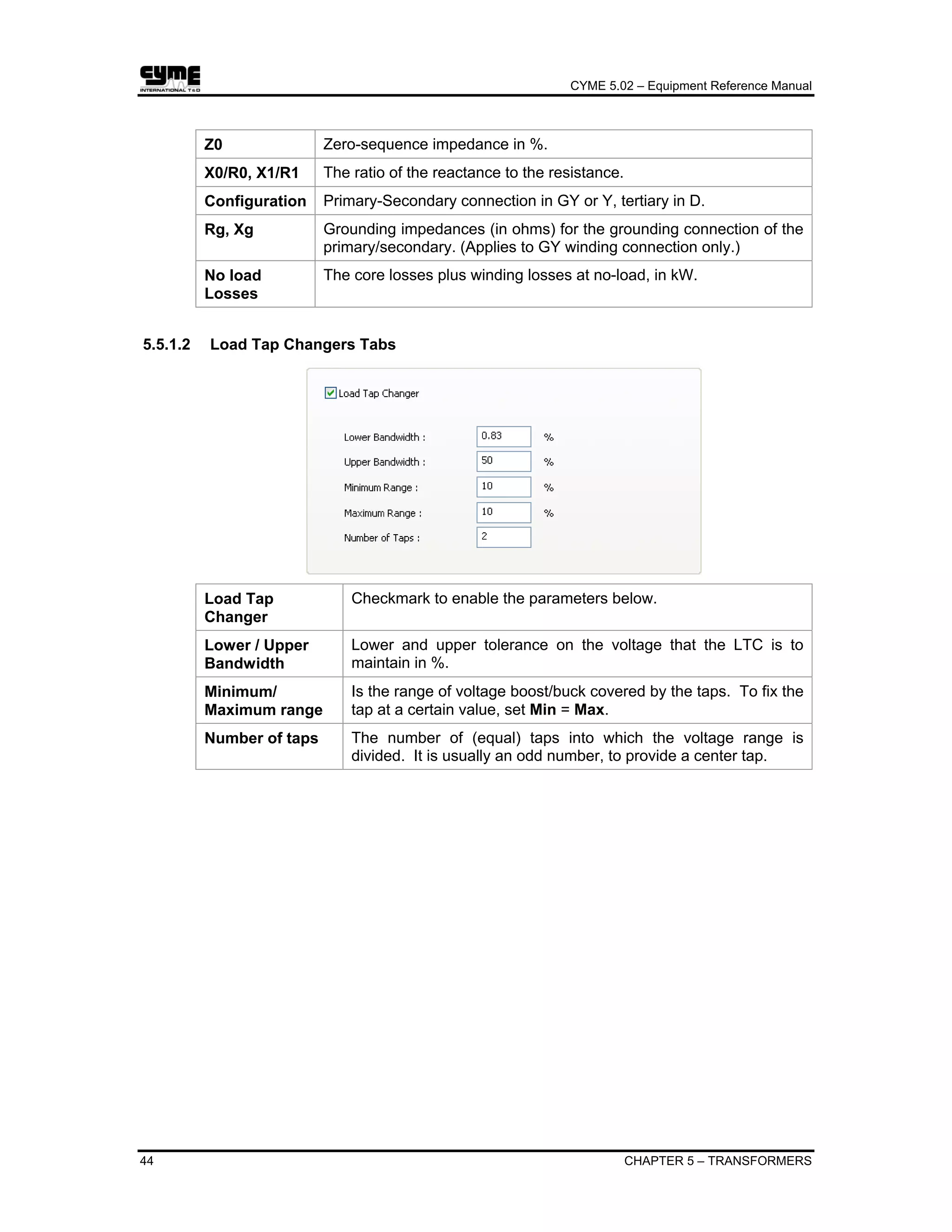
5.4.1.2 Load Tap Changers Tabs
Load Tap
Changer
Mark check to enable the parameters below.
Lower / Upper
Bandwidth
Lower and upper tolerance on the voltage that the LTC is to
maintain in %.
Minimum/
Maximum range
Is the range of voltage boost/buck covered by the taps. To fix the
tap at a certain value, set Min = Max.
Number of taps The number of (equal) taps into which the voltage range is
divided. It is usually an odd number, to provide a center tap.
CYME 5.02 – Equipment Reference Manual
CHAPTER 5 – TRANSFORMERS 41
5.4.2 Three-winding Transformers Settings
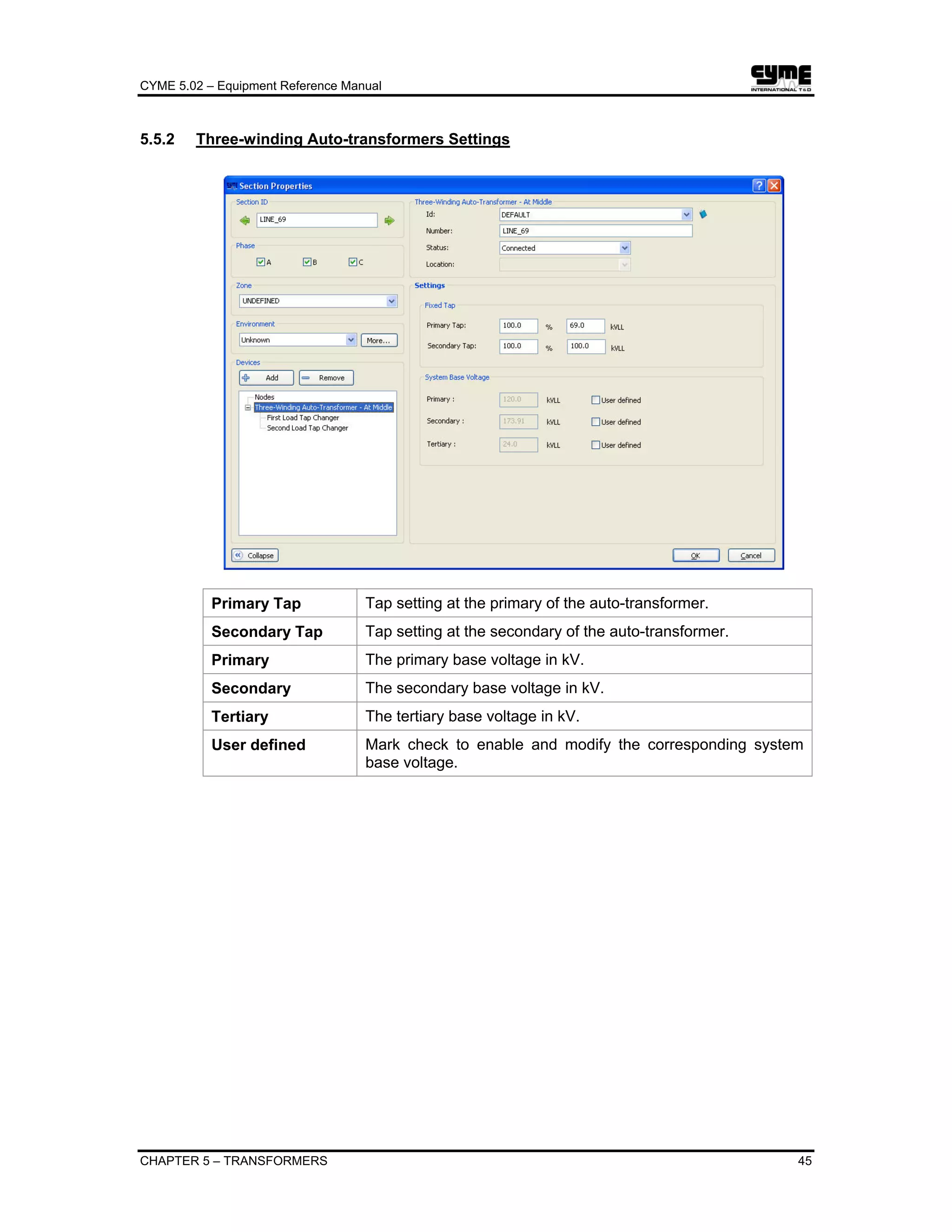
Primary Tap Tap setting at the primary of the transformer.
Secondary Tap Tap setting at the secondary of the transformer.
Primary The primary base voltage in kV.
Secondary The secondary base voltage in kV.
Tertiary The tertiary base voltage in kV.
User defined Mark check to enable and modify the corresponding system
base voltage.
CYME 5.02 – Equipment Reference Manual
42 CHAPTER 5 – TRANSFORMERS
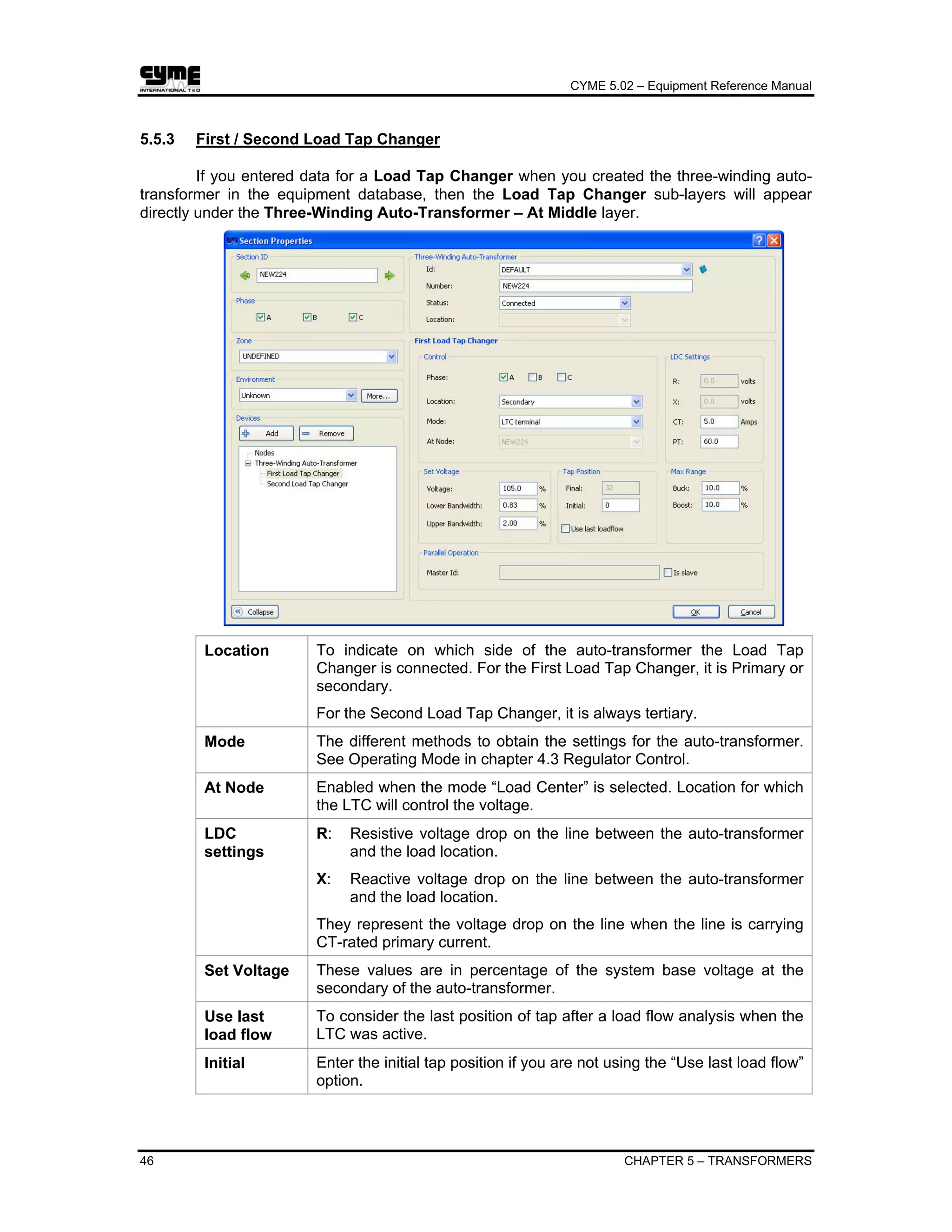
5.4.3 First / Second Load Tap Changer
If you entered data for a Load Tap Changer when you created the three-winding
transformer in the equipment database, then the Load Tap Changer sub-layers will appear
directly under the Three-Winding Transformer – At Middle layer.
Location To indicate on which side of the transformer the Load Tap Changer is
connected. For the First Load Tap Changer, it is Primary or
secondary.
For the Second Load Tap Changer, it is always tertiary.
Mode The different methods to obtain the settings for the transformer. See
Operating Mode in chapter 4.3 Regulator Control.
At Node Enabled when the mode “Load Center” is selected. Location for which
the LTC will control the voltage.
LDC
settings
R: Resistive voltage drop on the line between the transformer and
the load location.
X: Reactive voltage drop on the line between the transformer and
the load location.
They represent the voltage drop on the line when the line is carrying
CT-rated primary current.
Set Voltage These values are in percentage of the system base voltage at the
secondary of the transformer.
Use last
load flow
To consider the last position of tap after a load flow analysis when the
LTC was active.
Initial Enter the initial tap position if you are not using the “Use last load flow”
option.
CYME 5.02 – Equipment Reference Manual
CHAPTER 5 – TRANSFORMERS 43
Final Final tap position at the end of the simulation.
Buck/Boost Range of voltage covered.
Is slave When connected in parallel, checkmark this option to enter a Master Id
for the three-winding transformer.
Master Id When two transformers are connected in parallel, one of them may
be chosen as Master and the control settings (fixed-tap, terminal, load
center, R-X settings) defined for it. The other transformer may be
designated as Slave by:
1. Selecting the Is Slave option in the Parallel Operation group box
(see illustration above)
2. Specifying the Master transformer section ID.
The Slave’s controls are locked with the Master control in a load flow
calculation. (e.g., Voltage Drop).
5.5 Three-winding Auto-transformer
5.5.1 Three-winding Auto-transformer Properties
5.5.1.1 General Tab
Nominal
Rating
Auto-transformer total kVA.
Rated
Voltage
Enter the voltage in kV Line-Line for the primary, the secondary and
the tertiary sides.
Z1 Positive sequence impedance in %.
CYME 5.02 – Equipment Reference Manual
44 CHAPTER 5 – TRANSFORMERS
Z0 Zero-sequence impedance in %.
X0/R0, X1/R1 The ratio of the reactance to the resistance.
Configuration Primary-Secondary connection in GY or Y, tertiary in D.
Rg, Xg Grounding impedances (in ohms) for the grounding connection of the
primary/secondary. (Applies to GY winding connection only.)
No load
Losses
The core losses plus winding losses at no-load, in kW.
5.5.1.2 Load Tap Changers Tabs
Load Tap
Changer
Checkmark to enable the parameters below.
Lower / Upper
Bandwidth
Lower and upper tolerance on the voltage that the LTC is to
maintain in %.
Minimum/
Maximum range
Is the range of voltage boost/buck covered by the taps. To fix the
tap at a certain value, set Min = Max.
Number of taps The number of (equal) taps into which the voltage range is
divided. It is usually an odd number, to provide a center tap.
CYME 5.02 – Equipment Reference Manual
CHAPTER 5 – TRANSFORMERS 45
5.5.2 Three-winding Auto-transformers Settings
Primary Tap Tap setting at the primary of the auto-transformer.
Secondary Tap Tap setting at the secondary of the auto-transformer.
Primary The primary base voltage in kV.
Secondary The secondary base voltage in kV.
Tertiary The tertiary base voltage in kV.
User defined Mark check to enable and modify the corresponding system
base voltage.
CYME 5.02 – Equipment Reference Manual
46 CHAPTER 5 – TRANSFORMERS
5.5.3 First / Second Load Tap Changer
If you entered data for a Load Tap Changer when you created the three-winding auto-
transformer in the equipment database, then the Load Tap Changer sub-layers will appear
directly under the Three-Winding Auto-Transformer – At Middle layer.
Location To indicate on which side of the auto-transformer the Load Tap
Changer is connected. For the First Load Tap Changer, it is Primary or
secondary.
For the Second Load Tap Changer, it is always tertiary.
Mode The different methods to obtain the settings for the auto-transformer.
See Operating Mode in chapter 4.3 Regulator Control.
At Node Enabled when the mode “Load Center” is selected. Location for which
the LTC will control the voltage.
LDC
settings
R: Resistive voltage drop on the line between the auto-transformer
and the load location.
X: Reactive voltage drop on the line between the auto-transformer
and the load location.
They represent the voltage drop on the line when the line is carrying
CT-rated primary current.
Set Voltage These values are in percentage of the system base voltage at the
secondary of the auto-transformer.
Use last
load flow
To consider the last position of tap after a load flow analysis when the
LTC was active.
Initial Enter the initial tap position if you are not using the “Use last load flow”
option.
CYME 5.02 – Equipment Reference Manual
CHAPTER 5 – TRANSFORMERS 47
Final Final tap position at the end of the simulation.
Buck/Boost Range of voltage covered.
Is slave When connected in parallel, checkmark this option to enter a Master
ID for the three-winding auto-transformer.
Master Id When two transformers are connected in parallel, one of them may
be chosen as Master and the control settings (fixed-tap, terminal, load
center, R-X settings) defined for it. The other transformer may be
designated as Slave by:
1. Selecting the Is Slave option in the Parallel Operation group box
(see illustration above)
2. Specifying the Master transformer section ID.
The Slave’s controls are locked with the Master control in a load flow
calculation. (e.g., Voltage Drop).
5.6 Grounding Transformer
In many existing systems, particularly the older ones, the system neutral is not available.
You may want to use grounding transformers to create a neutral in order to ground these
systems. Basically all grounding transformers configurations aim at the same objective. They
must present high impedance to normal three-phase current and a low impedance path for the
zero-sequence currents under line-to-ground fault conditions.
5.6.1 Grounding Transformer Properties
CYME 5.02 – Equipment Reference Manual
48 CHAPTER 5 – TRANSFORMERS
Rated Capacity Transformer total kVA.
Rated Voltage kV line-to-line.
Configuration The configuration is either Wye-Grounded or ZigZag.
Z1 Positive-sequence Impedance in percent on transformer kVA base.
Z0 Zero-sequence Impedance in percent on transformer kVA base,
X1/R1 Positive sequence ratio.
X0/R0 Zero-sequence ratio.
5.6.2 Grounding Transformer Settings
Rg Grounding resistance.
Xg Grounding reactance.
Configuration The configuration is either Wye-Grounded or ZigZag.
CYME 5.02 – Equipment Reference Manual
CHAPTER 6 – GENERATORS 49
Chapter 6 Generators
6.1 Synchronous Generator
6.1.1 Synchronous Generator Properties
This chapter covers the General and the Equivalent Circuit tabs of the dialog box.
Information about the Harmonic tab can be found in the Harmonic Analysis Users Guide.
6.1.1.1 General Tab
Notes: 1. 3-phase synchronous generators only are allowed.
2. The reactive power output will be fixed by the power factor if the
generator is not individually set to control its voltage. If it is controlling
its voltage, then the Max and Min kVAR limits will apply, and the power
factor will vary.
3. The Steady State, Transient, and Subtransient impedances will be
used for the short-circuit and fault flow analysis according to the short-
circuit parameters setting.
CYME 5.02 – Equipment Reference Manual
50 CHAPTER 6 – GENERATORS
Rated Voltage The generator nameplate voltage, in kV.
Active
Generation
This is only a default value. The value that will be used is defined in
the Synchronous Generator Settings.
Power factor It could be positive or negative. A positive power factor will indicate
that the generator generates both active and reactive power. A
negative power factor will imply that the generator generates active
power and consumes reactive power.
Configuration There are three types of winding connection: GY, Y, D
Reactive Power
Max / Min
When the generator consumes reactive power these values can be
entered as positive in the dialog box, but during load flow
calculation, the generator will absorb reactive power instead of
generating it.
Z (R, X) Steady state impedance may be given in per-unit on the generator’s
kVA base or in Ohms.
Z’ (R’, X’) Transient impedance may be given in per-unit on the generator’s
kVA base or in Ohms.
Z’’ (R’’, X’’) Subtransient impedance may be given in per-unit on the generator’s
kVA base or in Ohms.
Z0 (R0, X0) Zero-sequence impedance may be given in per-unit on the
generator’s kVA base or in Ohms.
Zg (Rg, Xg) The grounding impedance is always given in Ohms.
Click on this button to open the Impedance Estimation dialog box
where you can estimate the subtransient reactance (X’’), transient
reactance (X’), zero-sequence reactance (X0) and ratio X/R.
CYME 5.02 – Equipment Reference Manual
CHAPTER 6 – GENERATORS 51
6.1.1.2 Equivalent Circuit Tab
Model Five models are available:
• Classical Model (type 1)
• Salient Pole – Transient Effect Only (Type 2)
• Salient Pole – Transient and Sub-Transient Effect (Type 3)
• Round Rotor – Transient Effect Only (Type 4)
• Round Rotor – Transient and Sub-Transient Effect (Type 5).
The number of parameters required will vary with the model
selected.
: For a better understanding of the parameters required for the
selected model, you may display its circuit diagram by
clicking on this button.
Mechanical
Data
These parameters values are required for all models. Enter either
“H” or “J” value for the inertia and the other value will be calculated
automatically.
The damping constant (KD) offers a way of introducing damping
torque, which is proportional to speed. A value of 1 to 3 p.u. is
sometimes used. However, if KD ≠ 0, and the speed of the machine
fall below its initial speed, then the active electrical power of the
machine will appear to be higher than the input mechanical power
from the prime mover. A value of KD = 0 is recommended.
Synchronous
Reactances
Xd and Xq are the synchronous reactances in the direct and
quadrature axes.
CYME 5.02 – Equipment Reference Manual
52 CHAPTER 6 – GENERATORS
Transient /
Subtransient
Data
X’d and X’q are the transient reactances in the direct and
quadrature axes.
T’do and T’qo are the transient direct-axis and quadrature-axis
open-circuit time constants.
X”d and X”q are the sub transient reactances in the direct and
quadrature axes.
T”do and T”qo are the sub transient direct-axis and quadrature-
axis open-circuit time constants.
Saturation Data EU and EL are two values of per-unit terminal voltage found on the
open-circuit saturation curve for the synchronous machine.
Typically, EU = 1.2 p.u. and EL = 1.0 p.u. See diagram below.
SGU and SGL are saturation coefficients defined in the figure
below.
Open-circuit Saturation curve
CYME 5.02 – Equipment Reference Manual
CHAPTER 6 – GENERATORS 53
6.1.2 Synchronous Generator Settings
You may alter all of the settings for a generator, including its status (Connected /
Disconnected).
If the generator is Connected, it produces active power equal to the amount specified in
the Active Generation field.
Control Type Three possible values: Voltage Controlled, Fixed Generation,
Swing.
• With “Voltage Controlled”, the machine will adjust its reactive
power to maintain the Desired Voltage at its terminals (subject
to the reactive power limits MAX and MIN).
• If it is “Fixed Generation” then the reactive power generated
during a voltage drop calculation is a fixed amount determined
by the stated active power and power factor:
1
PF
1
kWkVAR
2
−=
⎟
⎟
⎟
⎠
⎞
⎜
⎜
⎜
⎝
⎛
• A “Fixed Generation” type generator does not control the
voltage at any node/bus.
• If it is “Swing”, the generator will operate as an infinite power
source.
Hint: Use the “Swing” option to simulate the loss of a substation.
Feeders will be supplied by generators only (no substation).
At Node Node/Bus whose voltage is controlled by the generator. It will apply
only when the control type selected is “Voltage Controlled”.
CYME 5.02 – Equipment Reference Manual
54 CHAPTER 6 – GENERATORS
Desired Voltage A “Voltage Controlled” type generator will produce the active power
specified and vary its reactive power to maintain the Desired
Voltage at the node/bus selected in field “At Node”.
A “Swing” type generator will produce (or absorb) excess power not
accounted for by other generators. It always controls the Desired
Voltage at the node/bus where it is connected.
Initial Angle Enabled only for “Swing” generators, it defines the initial voltage
angle for all node/bus in an analysis but it is fixed for Swing
generators. Optional, its value may be set to 0.
Accesses the optional Energy Profile Manager module and
displays, if available, the consumption profile of the customer which
Id is shown.
Model as a
power system
unit
This option refers to short-circuit analysis based on IEC 60909-0©
Standard. It means that the generator will be considered as a power
system unit as far as there is one step-up transformer connected to
its terminal bus and also the option “Apply impedance correction
factors to…” Power station units (PSU) located in the “IEC
Parameters” tab of the “IEC Short Circuit Analysis Dialog” is
checked.
If you have the Transient Stability module and the Harmonic module installed, you will
notice that the Synchronous Generator item in the Devices tree list can be expanded to reveal
the Stability and Harmonic models. These models are discussed respectively in the Transient
Stability Analysis Users Guide and Harmonic Analysis Users Guide.
CYME 5.02 – Equipment Reference Manual
CHAPTER 6 – GENERATORS 55
6.2 Induction Generator
6.2.1 Induction Generator Properties
6.2.1.1 General Tab
Notes: 1. 1-phase, 2-phase and 3-phase induction generators are allowed.
2. With the induction generator, only subtransient impedance will be
involved and it will be used in short-circuit and fault flow analyses when
the generator impedance setting is subtransient.
Rated Voltage Rated Voltage is the generator nameplate voltage, in kV.
Active
Generation
This is only a default value. The value that will be used is defined in
the Induction Generator Settings.
Power factor It could be positive or negative. A positive power factor will indicate
that the generator generates both active and reactive power. A
negative power factor will imply that the generator generates active
power and consumes reactive power.
ANSI Motor
Group
Select Automatic to let CYME estimate the group according to other
motor parameters or select one group from 2, 3, 4, or 5.
CYME 5.02 – Equipment Reference Manual
56 CHAPTER 6 – GENERATORS
Compute from
the Equivalent
Circuit / User
Defined
If you select the “User Defined” option, you may either type directly
the R and the X values in their respective data field or use the
Estimate function to estimate the subtransient impedance.
If you select the alternative option, R and X values will be calculated
according to the values you set for the parameters found in the
Equivalent Circuit tab. If you don’t know the values then you can
use the Estimate function.
R’’, X’’ Subtransient impedance may be given in per-unit on the generator’s
kVA base or in Ohms. These values can be estimated with the
appropriate estimation function.
Click on this button to open the Impedance Estimation dialog box
where you can estimate the subtransient impedance (R’’, X’’).
CYME 5.02 – Equipment Reference Manual
CHAPTER 6 – GENERATORS 57
6.2.1.2 Equivalent Circuit Tab
Rotor Type Three types are available: Single circuit, Double circuit and Deep
bar. The equivalent circuit diagram is shown for each selected type.
Estimation
Method
Locked Rotor / Full Load Test
CYME 5.02 – Equipment Reference Manual
58 CHAPTER 6 – GENERATORS
Locked Rotor / No Load Test
Nominal Conditions Known
Starting Conditions Known
CYME 5.02 – Equipment Reference Manual
CHAPTER 6 – GENERATORS 59
Stator /
Magnetizing /
Rotor
Impedance
If these parameters values are known, you may type them directly in
the fields provided. Otherwise, use the estimation function. Select
the estimation method for which you have data, and click on the
Estimate button. These values may be given in per-unit on the
generator’s kVA base or in Ohms.
Cage Factor Cage factor CFr and Cage factor CFx allows taking into account
skin and proximity effects. See the appropriate equivalent circuit
diagram.
Inertia of all
rotating mass
Enter either H or J value and the other will be calculated
automatically.
Click on this button to open the dialog box where you can estimate
the impedances.
The dialog box displayed will vary depending on the estimation
method selected (See Estimation Method above).
6.2.2 Induction Generator Settings
Status The generator status (Connected, Disconnected)
Active
Generation
The active power produced by the generator.
CYME 5.02 – Equipment Reference Manual
60 CHAPTER 6 – GENERATORS
Power factor It could be positive or negative. A positive power factor will indicate
that the generator generates both active and reactive power. A
negative power factor will imply that the generator generates active
power and consumes reactive power.
Accesses the optional Energy Profile Manager module and displays
the generator profile.
If you have the Harmonic module installed, you will notice that the Induction Generator
item in the Devices tree list can be expanded to reveal the Harmonic model. This model is
discussed in the Harmonic Analysis Users Guide.
Note: Induction generator cannot have voltage control.
6.3 Electronically Coupled Generator
6.3.1 Electronically Coupled Generator Properties
Electronically coupled generators are units that are not directly connected to the system.
They are connected via inverter-based units such as HVDC links. For electronically coupled
generator, the inverter control mode is set such that, during short circuits, the source will continue to
contribute a percentage of its rated current.
Rated Voltage Rated Voltage is the generator nameplate voltage, in kV.
Active
Generation
This is only a default value. The value that will be used is defined in
the Electronically Coupled Generator Settings.
CYME 5.02 – Equipment Reference Manual
CHAPTER 6 – GENERATORS 61
Power factor It could be positive or negative. A positive power factor will indicate
that the generator generates both active and reactive power. A
negative power factor will imply that the generator generates active
power and consumes reactive power.
Fault
Contribution
Percentage of rated current the generator would contribute if a fault
occurred in the system. This is only a default value. The value that
will be used is defined in the Electronically Coupled Generator
Settings.
ANSI Motor
Group
Select Automatic to let CYME estimate the group according to other
motor parameters or select one item from 2, 3, 4, or 5.
Converter The inverter-based unit that connects the generator to the system
(HVDC, Others).
6.3.2 Electronically Coupled Generator Settings
Status The generator status (Connected, Disconnected)
Active
Generation
The active power produced by the generator.
Power factor It could be positive or negative. A positive power factor will indicate
that the generator generates both active and reactive power. A
negative power factor will imply that the generator generates active
power and consumes reactive power.
Accesses the optional Energy Profile Manager module and displays
the generator profile.
CYME 5.02 – Equipment Reference Manual
CHAPTER 7 – MOTORS 63
Chapter 7 Motors
With CYME, you can simulate the effects of induction or synchronous motors starting in
distribution electric power systems (networks) and estimate the maximum motor size that can be
started on a given section.
7.1 Induction Motor
7.1.1 Induction Motor Properties
7.1.1.1 General Tab
Rated Power This value may be entered as kVA, Horsepower or kW. Enter one
value and the other two will be calculated, using the power factor
and efficiency.
Rated Voltage It is the motor nameplate voltage, in kV.
ANSI Group Select Automatic to let CYME estimate the group according to
other motor parameters or select one item from 2, 3, 4, or 5.
CYME 5.02 – Equipment Reference Manual
64 CHAPTER 7 – MOTORS
Compute from
the Locked
Rotor Data /
Compute from
the Equivalent
Circuit / User
Defined
If you select the “User Defined” option, you may either type directly
the R and X values in their respective data field or use the Estimate
function to estimate the subtransient impedance.
If you select the “Compute from the Equivalent Circuit” option, R
and X values will be calculated according to the values you set for
the parameters found in the Equivalent Circuit tab. If you don’t
know the values then you can use the Estimate function.
If you select “Compute from the Locked Rotor Data” option, R and
X values will be calculated according to the values you set for the
parameters in group zone Locked Rotor Data.
: Click on this button to select appropriate NEMA code.
: Click on this button to load default power factor value.
R’’, X’’ They represent the subtransient impedance and they are given in
per-unit on the motor’s own base power. They can be expressed in
Ohms if you select this option.
This button is enabled only when you select the “User Defined”
option. Click on it to estimate the subtransient impedance (R’’, X’’)
from the NEMA code letter and other (American) nameplate data.
(The NEMA letter identifies the ratio of inrush starting current to
rated full-load current.)
CYME 5.02 – Equipment Reference Manual
CHAPTER 7 – MOTORS 65
Locked Rotor
Data
group box
The Locked Rotor data determines the
model for the motor when it is starting.
The Starting power factor may
be estimated by clicking on this
button to load default power
factor value if necessary.
Click on this button to select
appropriate NEMA code from
the List of NEMA Codes dialog
box.
The NEMA code (from the motor nameplate) represents a range of
values of the starting kVA/HP ratio. It is for information, since only
the value entered for kVA/HP ratio will be used. A second option
is to define the locked rotor current (typically about 6 times the full-
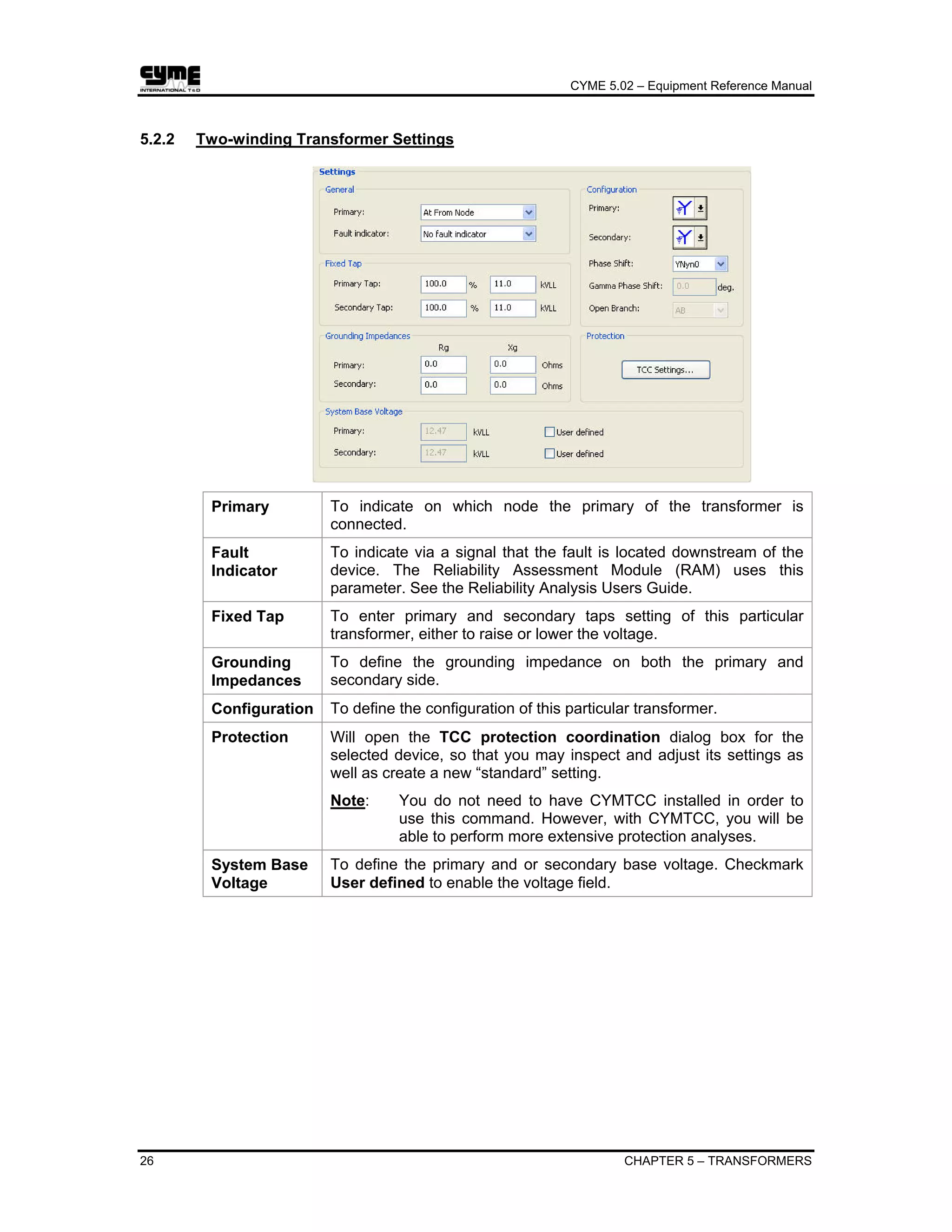
load current).
7.1.1.2 Equivalent Circuit Tab
Rotor Type Three types are available: Single circuit, Double circuit and Deep
bar. The equivalent circuit diagram is shown for each selected type.
CYME 5.02 – Equipment Reference Manual
66 CHAPTER 7 – MOTORS
Estimation
Method
Locked Rotor / Full Load Test
Locked Rotor / No Load Test
Nominal Conditions Known
CYME 5.02 – Equipment Reference Manual
CHAPTER 7 – MOTORS 67
Starting Conditions Known
Stator /
Magnetizing /
Rotor
Impedance
If these parameters values are known, you may type them directly in
the fields provided. Otherwise, use the estimation function. Select
the estimation method for which you have data, and click on the
Estimate button. These values may be given in per-unit on the
motor’s kVA base or in Ohms.
Cage Factor Cage factor CFr and Cage factor CFx taking into account skin and
proximity effects. See the appropriate equivalent circuit diagram.
Inertia of all
rotating mass
Enter either H or J value and the other will be calculated
automatically.
Click on this button to open the dialog box where you can estimate
the impedances.
The dialog box displayed will vary depending on the estimation
method selected (See Estimation Method).
CYME 5.02 – Equipment Reference Manual
68 CHAPTER 7 – MOTORS
7.1.2 Induction Motor Settings
Status Choose the motor Status (OFF, RUNNING, or LOCKED ROTOR), and
the number of starts per day.
Starts When RUNNING is selected, the normal motor load will be present at
the motor location. When motors are declared as running, the
contribution of these motors to the short circuit currents is neglected
because it decays quickly to zero.
Enable Load
Factor
Mark check this option so you can enter the desired load factor,
otherwise CYME will assume 100% of full load.
Loading Percentage of full load.
Power
Factor
The load power factor of the motor when it is operating at less than full
load.
7.1.3 Induction Motor Starting Assistance (LRA)
CYME 5.02 – Equipment Reference Manual
CHAPTER 7 – MOTORS 69
Six types of starting assistance are available. Depending on your choice, you may have
to define other parameters required by the model.
No Assistance
(Across the
Line)
Means the motor starts direct across the line (full circuit voltage is
applied to its terminals). This is the usual method.
Resistor and/or
Inductor
assistance
Places a resistor in series with the motor, to decrease the voltage
available at the motor terminals, so that the motor impedance will
draw less current. (In reality, the resistor is short-circuited after some
time delay, but this is not simulated.)
Resistance (R) and reactance (X) values are required for this type.
Capacitor
Assistance
Places a capacitor in parallel with the motor, to supply some of the
VARs drawn by the motor, and hence reduce the voltage drop.
The capacitor rating is required for this type.
Auto-
Transformer
Assistance
An auto-transformer steps the voltage down. (The auto-transformer
is not explicitly modeled, only its voltage ratio.) This method is used
to reduce the motor’s starting current, and is used to start very large
motors on weak systems. (In reality, the auto-transformer tap is
changed to 100% after some time delay, but this is not simulated.)
The Tap Position parameter is required.
If you want to take the transformer impedance into account by
checking the option Consider Auto Transformer impedance, you
will have to define:
• The Nominal Rating in kVA
• The Primary Voltage in kVLL
• The Nominal Z in %
• The X/R Ratio .
Star-Delta
Assistance
To switch from a Delta to a Wye connection in order to reduce the
starting current.
Variable
Frequency
Starter
To specify the starting current as a percentage of the nominal current
or as a percentage of the motor locked rotor current. The basic idea
is that the induction motor is fed by a variable frequency source
controlled by a Pulse-Width-Modulation (PWM) inverter.
IM
Rectifier PWM Inverter
Istart
System Bus
Motor fed by PWM inverter with constant V/F control
CYME 5.02 – Equipment Reference Manual
70 CHAPTER 7 – MOTORS
If you have the Harmonic Analysis, the Transient Stability Analysis or the Dynamic Motor
Starting modules installed, you will notice that the Induction Motor item in the Devices tree list
expansion reveals the Starting Assistance (MSA), the Load Characteristics, the Dynamic Model,
and the Harmonic model. These models are discussed in the Transient Analysis Users Guide
and the Harmonic Analysis Users Guide. See also the Dynamic Motor Starting Users Guide for
additional information about the motors models.
7.2 Synchronous Motor
7.2.1 Synchronous Motor Properties
This chapter covers the General tab and the Equivalent Circuit tab of the dialog box.
Information about the Harmonic tab can be found in the Harmonic Analysis Users Guide.
7.2.1.1 General Tab
Rated Power This value may be entered as kVA, Horsepower or kW. Enter one
value and the other two will be calculated, using the power factor and
efficiency.
Rated Voltage Rated Voltage is the motor nameplate voltage, in kV.
Z’’, Z0, Z The subtransient impedance (Z’’), zero-sequence impedance (Z0)
and internal impedance (saturated value Xd) can be expressed in
Ohms or in per-unit on the motor’s base power
Zg The grounding impedance is always given in Ohms.
CYME 5.02 – Equipment Reference Manual
CHAPTER 7 – MOTORS 71
Click on this button to open the Impedance Estimation dialog box
where you can estimate the subtransient impedance (R’’, X’’) and the
zero-sequence impedance (R0, X0).
7.2.1.2 Equivalent Circuit Tab
Model Five models are available:
• Classical Model (type 1)
• Salient Pole – Transient Effect Only (Type 2)
• Salient Pole – Transient and Sub-Transient Effect (Type 3)
• Round Rotor – Transient Effect Only (Type 4)
• Round Rotor – Transient and Sub-Transient Effect (Type 5).
The number of parameters required will vary with the model
selected.
CYME 5.02 – Equipment Reference Manual
72 CHAPTER 7 – MOTORS
For a better understanding of the parameters required for the
selected model, you may access its circuit diagram by
clicking on this button.
Mechanical
Data
These parameters values are required for all models. Enter either H
or J value for the inertia and the other will be calculated
automatically.
The damping constant (KD) offers a way of introducing damping
torque, which is proportional to speed. A value of 1 to 3 p.u. is
sometimes used to represent damping due to turbine windage and
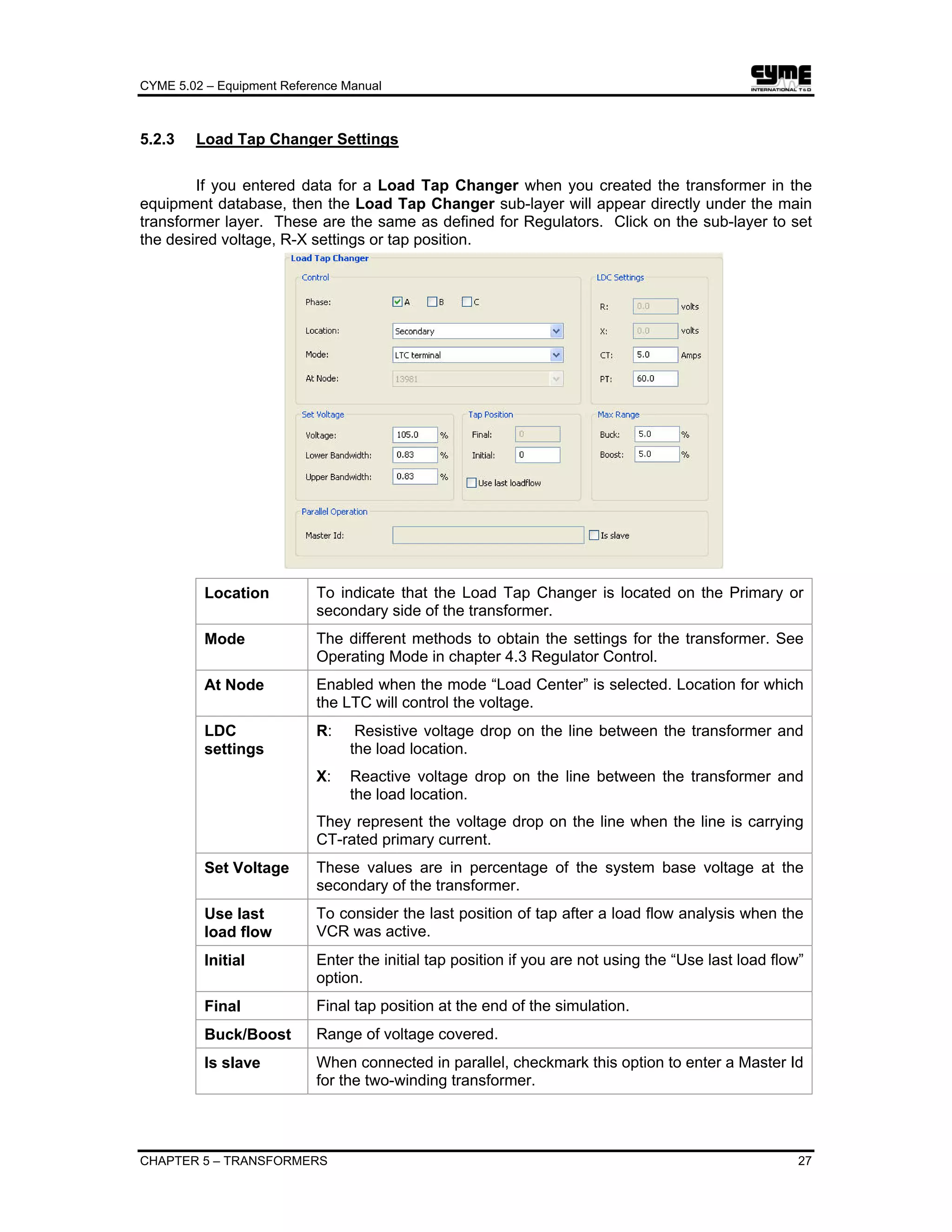
load effects. However, if KD ≠ 0, and the speed of the machine fall
below its initial speed, then the active electrical power of the
machine will appear to be higher than the input mechanical power
from the prime mover. A value of KD = 0 is recommended.
Synchronous
Reactances
Xd and Xq are the synchronous reactances in the direct and
quadrature axes.
Transient /
Subtransient
Data
X’d and X’q are the transient reactances in the direct and
quadrature axes.
T’do and T’qo are the transient direct-axis and quadrature-axis
open-circuit time constants
X”d and X”q are the sub transient reactances in the direct and
quadrature axes.
T”do and T”qo are the sub transient direct-axis and quadrature-
axis open-circuit time constants.
Saturation Data EU and EL are two values of per-unit terminal voltage found on the
open-circuit saturation curve for the synchronous machine.
Typically, EU = 1.2 p.u. and EL = 1.0 p.u. See the diagram below.
SGU and SGL are saturation coefficients defined in the figure
below.
Open-circuit Saturation curve
CYME 5.02 – Equipment Reference Manual
CHAPTER 7 – MOTORS 73
Allows to estimate the synchronous reactances, transient and
subtransient data in function of the stator armature impedances,
mutual reactances and leakage impedances.
7.2.2 Synchronous Motor Settings
Status Choose the motor Status (OFF, RUNNING, or LOCKED ROTOR), and
the number of starts per day.
Starts When RUNNING is selected, the normal motor load will be present at
the motor location. When motors are declared as running, the
contribution of these motors to the short circuit currents is neglected
because it decays quickly to zero.
CYME 5.02 – Equipment Reference Manual
74 CHAPTER 7 – MOTORS
Rg and Xg Represents the grounding impedance.
Enable Load
Factor
Mark check this option so you can enter the desired load factor,
otherwise CYME will assume 100% of full load.
Loading Percentage of full load.
Power Factor The load power factor of the motor when it is operating at less than full
load.
7.2.3 Synchronous Motor Starting Assistance (LRA) Settings
Six types of starting assistance are available. Depending on your choice, you may have
to define other parameters required by the model.
No Assistance
(Across the
Line)
Means the motor starts directly across the line (full circuit voltage is
applied to its terminals). This is the usual method.
Resistor and/or
Inductor
assistance
Places a resistor in series with the motor, to decrease the voltage
available at the motor terminals, so that the motor impedance will
draw less current. (In reality, the resistor is short-circuited after some
time delay, but this is not simulated.)
Resistance (R) and reactance (X) values are required for this type.
Capacitor
Assistance
Places a capacitor in parallel with the motor, to supply some of the
VARs drawn by the motor, and hence reduce the voltage drop.
The capacitor rating is required for this type.
CYME 5.02 – Equipment Reference Manual
CHAPTER 7 – MOTORS 75
Auto-
Transformer
Assistance
An auto-transformer steps the voltage down. (The auto-transformer
is not explicitly modeled, only its voltage ratio.) This method is used
to reduce the motor’s starting current, and is used to start very large
motors on weak systems. (In reality, the auto-transformer tap is
changed to 100% after some time delay, but this is not simulated.)
The Tap Position parameter is required.
If you want to take the transformer impedance into account by
checking the option Consider Auto Transformer impedance, you
will have to define:
• The Nominal Rating in kVA
• The Primary Voltage in kVLL
• The Nominal Z in %
• The X/R Ratio.
Star-Delta
Assistance
To switch from a Delta to a Wye connection in order to reduce the
starting current.
If you have the Harmonic Analysis, the Transient Stability Analysis or the Dynamic Motor
Starting modules installed, you will notice that the Synchronous Motor item in the Devices tree
list expansion reveals the Starting Assistance (MSA), the Load Characteristics, the Dynamic
Model, and the Harmonic model. These models are discussed in the Transient Analysis Users
Guide and the Harmonic Analysis Users Guide. See also the Dynamic Motor Starting Users
Guide for additional information about the motors models.
CYME 5.02 – Equipment Reference Manual
CHAPTER 8 – STATIC VAR COMPENSATORS 77
Chapter 8 Static Var Compensators (SVC)
Static Var Compensators are shunt capacitors and/or reactors which are controlled by
power electronic circuits so that the reactive power they absorb or furnish is continuously
adjustable over a given range [Qmin,Qmax]. They are used for voltage control where the
reactive power demand varies considerably.
8.1 SVC Properties
Number of
Pulse
Must be a multiple of 6.
Rated Voltage Nominal voltage in kilovolts.
Minimum /
Maximum
Reactive Power
Lower and upper limits of VAR injection. Qmin can be negative,
so that the SVC can absorb VARs.
CYME 5.02 – Equipment Reference Manual
78 CHAPTER 8 – STATIC VAR COMPENSATORS
8.2 SVC Settings
Control Type It may be either Voltage Controlled or Fixed Shunt.
At Node To select the node/bus controlled by the SVC.
Desired Voltage When the control type is Voltage Controlled, it is the voltage the
SVC will try to maintain by adjusting the reactive power.
Reactive Power When the control type is Fixed Shunt, this value will be
maintained regardless of the voltage at the node/bus selected.
CYME 5.02 – Equipment Reference Manual
CHAPTER 9 – WIND ENERGY CONVERSION SYSTEMS 79
Chapter 9 Wind Energy Conversion Systems
The Wind Energy Conversion System (WECS) dialog box allows the modeling of four
types of wind-turbine generation systems:
• WECS-IG: Induction generator directly connected with an ac grid.
• WECS-HVDC: Using Voltage-Source Converter (VSC) based dc-link to couple induction
generator to an ac grid.
• WECS-DFIG: Using Doubly-Fed Induction Generator (DFIG).
• WECS-PMSG: Full Converter Permanent Magnet Synchronous Generator.
9.1 Wind Energy Conversion Systems Properties
9.1.1 Wind Turbine Tab
This tab allows entering the Wind Turbine Operating, Rotor and Drive Train data common
to all WECS models.
Rated Power Wind turbine rated power.
Maximum
Power
Maximum power that the wind turbine can produce.
Rated Wind
Speed
Wind speed that corresponds to the wind turbine rated power.
CYME 5.02 – Equipment Reference Manual
80 CHAPTER 9 – WIND ENERGY CONVERSION SYSTEMS
Cut-In Wind
Speed
Speed at which the wind turbine begins to produce power.
Cut-Out Wind
Speed
Highest speed at which the wind turbine stops producing power.
Number of
Blades
Number of blades, usually three. If this data is not entered, the
software will assume three.
Rotor Radius Radius of the wind turbine blades.
Rated Speed Wind turbine rated rotation speed.
Minimum Speed Wind turbine minimum rotation speed.
Maximum Speed Wind turbine maximum rotation speed.
Turbine Inertia Wind turbine moment of inertia.
Gearbox Ratio Ratio of generator rated synchronous speed over wind turbine
rated speed.
Spring Constant Stiffness of the shaft linking the wind turbine to the generator.
Damping
Constant
Absorption of the shaft linking the wind turbine to the generator.
9.1.2 Generator Tab
This tab allows you to select the type of generator coupled to the wind turbine and to
enter the generator data common to all WECS models.
CYME 5.02 – Equipment Reference Manual
CHAPTER 9 – WIND ENERGY CONVERSION SYSTEMS 81
Generator Type Four types of wind turbine models are included in the library
namely:
• Directly coupled constant speed induction generator.
• Full converter variable speed induction generator.
• Doubly fed variable speed induction generator.
• Full converter variable speed permanent magnet
synchronous generator.
Rated Capacity Generator rated apparent power.
Rated Voltage Generator nominal voltage in kilovolts.
Rated Power Generator rated active power.
Rated Speed Generator synchronous speed.
9.1.3 Generator Equivalent Circuit Tab
This tab may present two different sets of parameters. The generator type selected in
Generator tab will determine which one will be displayed.
9.1.3.1 Induction Generator Data Entry Parameters
The following interface will be displayed if you select either one of the following types:
• Induction Generator – Constant Speed
• Full Converter Induction Generator – Variable Speed
• Doubly-Fed Induction Generator – Variable Speed
CYME 5.02 – Equipment Reference Manual
82 CHAPTER 9 – WIND ENERGY CONVERSION SYSTEMS
Rotor Type Generator equivalent circuit. The diagram corresponding to the
selection made here will be displayed in the Equivalent Circuit
Schema group box.
Impedances Generator equivalent circuit impedances. If these values are
known, you may type them directly in the fields provided.
Otherwise, select an estimation method for which you have data
and then click on the Estimate button ( ) to open
the corresponding dialog box that will allow you to estimate the
impedances.
Cage Factors CFr and CFx provide a means to approximate
skin and proximity effects in deep-bar and double-cage
generators. The rotor resistance may be allowed to increase
linearly with slip. The rotor reactance may be allowed to
decrease slightly in the same way
Generator
Inertia
Inertia constant (H) or moment of inertia (J) of the generator.
9.1.3.2 Synchronous Generator Data Entry Parameters
The following interface will be displayed if you select the following type: Full Converter
Permanent Magnet Synchronous Generator – Variable Speed.
Xd Synchronous reactance in the direct axis.
Xq Synchronous reactance in the quadrature axis.
Xl The leakage (or Potier) reactance.
X’d Transient reactance in the direct axis.
CYME 5.02 – Equipment Reference Manual
CHAPTER 9 – WIND ENERGY CONVERSION SYSTEMS 83
X’q Transient reactances in the quadrature axis.
T’d0 Transient direct axis open-circuit time constant expressed in
seconds.
T’q0 Transient quadrature axis open-circuit time constant expressed in
seconds.
X”d Subtransient reactance in the direct axes.
X”q Subtransient reactance in the quadrature axe.
T”d0 Subtransient direct axis open-circuit time constant expressed in
seconds.
T”q0 Subtransient quadrature axis open-circuit time constant.
expressed in seconds.
Generator
Inertia
The generator inertia is also required. It will be added to the
turbine inertia so that the sum of all rotating mass is considered
in the analysis.
9.2 Wind Energy Conversion System Settings
Rated Power Generator rated active power.
Active
Generation
Initial wind turbine generator active production.
Power Factor Initial wind turbine generator power factor.
CYME 5.02 – Equipment Reference Manual
84 CHAPTER 9 – WIND ENERGY CONVERSION SYSTEMS
9.3 Blade Pitch Control Settings
Enable Active
Blade Pitch
Control
To activate the blades’ pitch control in the simulation.
Bmin Minimum blades’ pitch angle.
Bopt Optimal blades’ pitch angle.
Bmax Maximum blades’ pitch angle.
Bratemax Maximum rate of change of the blades’ pitch angle.
T Actuator time constant.
K Proportional gain.
Power
Coefficient
Curve
Power coefficient versus tip speed ratio curve.
You have the option to use the curve equation, which will apply
the blades’ pitch angle coefficients and parameters T and K
entered on the left hand side of the dialog box to calculate the
curve.
You can also input the curve points corresponding to the
minimum, maximum and optimal pitch angles parameters as well
as the tip speed ratio (λ).
Refer to the Transient Stability Analysis Users Guide for more
details about the wind turbine network settings.
CYME 5.02 – Equipment Reference Manual
CHAPTER 9 – WIND ENERGY CONVERSION SYSTEMS 85
9.4 Voltage Source Converter Settings
VSC Rating Voltage Source Converter kVA or MVA rating.
DC capacitor DC capacitor capacitance value.
Rated DC
Voltage
Voltage Source Converter rated DC voltage.
Grid-Side
Coupling
Resistance
Grid-side coupling filter or transformer resistance.
Grid-Side
Coupling
Inductance
Grid-side coupling filter or transformer inductance.
CYME 5.02 – Equipment Reference Manual
86 CHAPTER 9 – WIND ENERGY CONVERSION SYSTEMS
9.4.1 Full Converter Control Settings
The following dialog is displayed if the WECS generator type is either Full converter
variable speed permanent magnet synchronous generator or Full converter variable speed
induction generator.
Enable Converter
Control
Activate grid-side converter control in the simulation.
References
Setting
Reactive power output and DC voltage references’ settings.
Gains in Control
of GSC
Proportional and integral gains of the grid-side converter
control.
: To display the inverter diagram.
CYME 5.02 – Equipment Reference Manual
CHAPTER 9 – WIND ENERGY CONVERSION SYSTEMS 87
9.4.2 Doubly-Fed Converter Control Settings
The following dialog is displayed if the WECS generator type is Doubly fed variable
speed induction generator.
Enable Converter
Control
Activate grid-side converter control in the simulation.
References Setting Reactive power output and DC voltage references’ settings.
Gains in Control of
GSC
Proportional and integral gains of the grid-side converter
control.
: To display the inverter diagram.
CYME 5.02 – Equipment Reference Manual
88 CHAPTER 9 – WIND ENERGY CONVERSION SYSTEMS
9.5 Wind Model Settings
Wind Model You can select a constant speed over time wind model or select
from the drop down list a model among the ones available from
the Wind Model Library. Click on to view the details of the
model selected in the drop down list.
Refer to the Transient Stability Analysis Users Guide for all
information about creating, deleting, renaming and editing wind
speeds patterns in the Wind Model Library.
The Cut-in and the Cut-out wind speeds are properties
pertaining to the wind turbine and are set in the Equipment >
Wind Energy Conversion Systems dialog box (see 9.1.1 Wind
Energy Conversion Systems Properties ).
Overwrite Wind
Speed at T=0
This option applies to the wind model selected from the Wind
Model Library. Enabling it overwrites the wind speed at T=0 and
replaces it with the initial value as computed from the electrical
power.
CYME 5.02 – Equipment Reference Manual
CHAPTER 10 – MICRO-TURBINES 89
Chapter 10 Micro-turbines
The Micro-Turbine co-generation consists of a single rotating shaft, with the generator,
air compressor, and turbine mounted on air bearings. The shaft operates at high speed without
any lubrication and it rotates between 15000 and 90000 RPM.
The generator provides a high frequency AC voltage source (angular frequencies up to
10000 rad/sec).
This high frequency can only be provided by permanent magnet synchronous generators
(PMSG). The connection of this PMSG to the grid requires a power electronic interface. This
interface consists of an AC to DC rectifier, a DC bus with a capacitor and a DC to AC inverter.
The generator and the rectifier can be modeled as a 3-phase, full-wave diode bridge
rectifier with the AC source being the Permanent Magnet Synchronous Generator (PMSG). The
equivalent circuit of the generator is represented by an AC source with 3-phase balanced field
voltages behind a synchronous reactance
A C
A C
A C
ss LR ,
ss LR ,
ss LR ,
su
misai
sbi
sci
mav
mbv
mcv
ae
be
ce
12mu
23mu
G en era to r
e qu iva len t circu it
11D 21D
12D 22D 32D
31D
CYME 5.02 – Equipment Reference Manual
90 CHAPTER 10 – MICRO-TURBINES
10.1 Micro-turbine Properties
Governor &
Turbine Data
Lets you specify governor proportional control gain (Kp),
governor integral control gain (KI) and turbine time constant.
: Click this button to see the Governor and Turbine block
Diagram
Turbine &
Generator
Inertia
Inertia constant (H) or moment of inertia (J) of turbine and
generator.
Permanent
Magnet
Generator Data
Recommended value and value range for the parameters.
• Rated Capacity: 30 to 400 KVA;
• Rated Voltage: 480 V;
• Rated Power: 30 to 400 KW;
• Rated Speed: 15,000 to 90,000 r.p.m;
• Synchronous reactance: 0.1 to 0.2 p.u;
CYME 5.02 – Equipment Reference Manual
CHAPTER 10 – MICRO-TURBINES 91
10.2 Micro-turbine Settings
Rated Power Indicated only as a reminder to help you specify active generation
value
Active
Generation
Active Generation should be inferior or equal to the Rated Power.
10.3 Voltage Source Converter Settings
VSC Rating Voltage Source Converter kVA rating.
DC Capacitor DC capacitor capacitance value.
Rated DC Voltage Voltage Source Converter rated DC voltage.
Grid-side Coupling
Resistance
Grid-side coupling filter or transformer resistance.
CYME 5.02 – Equipment Reference Manual
92 CHAPTER 10 – MICRO-TURBINES
Grid-side Coupling
Inductance
Grid-side coupling filter or transformer inductance
10.3.1 Full Converter Control Settings
Enable Converter
Control
Activate grid-side converter control in the simulation.
Reference Setting Reactive power output and DC voltage references’ settings.
Gains in Control of
GSC
Proportional and integral gains of the grid-side converter
control.
: To display the inverter diagram.
CYME 5.02 – Equipment Reference Manual
CHAPTER 11 - PHOTOVOLTAIC 93
Chapter 11 Photovoltaic
The Photovoltaic (PV Generation) technology uses semiconductor cells (wafers), each
of which is basically a large area p-n diode with the junction positioned close to the top surface.
The PV effect results in the generation of direct voltage and current from the solar light being
captured by the cell.
A simple structure of a PV system can be considered as PV cells connected directly to
the DC bus. Therefore, the only remaining control available is the DC bus voltage.
mri
su dcC
BusDC Inverter FilterNetwork
mpv ii =
CellPV
The data required for the representation of PV Generation systems and their dynamics
are as follows:
• Database as per manufacturer’s specification
• Number of cells per Row and the number of parallel rows since cells are assembled
in arrays to generate sufficient voltage and current for the desired Power generation.
• Grid side converter rating and controls.
• Insolation model to represent the solar energy.
CYME 5.02 – Equipment Reference Manual
94 CHAPTER 11 - PHOTOVOLTAIC
11.1 Photovoltaic Properties
A few words about the basics should provide a better understanding of the parameters
found in this dialog box.
Manufacturers provide the values of Impp, Vmpp, Isc, Voc and I vs V characteristic
parameters at Standard Test Conditions (TSTC = 250
C and GSTC = 1 000 W/m²).
A typical I vs V characteristic of a PV cell is shown in the following figure.
CYME 5.02 – Equipment Reference Manual
CHAPTER 11 - PHOTOVOLTAIC 95
The cell temperature ( )cT will vary with the ambient temperature aT and the insolation G
according to the following linear equation:
( )refaac TNOCT
G
TT ,
800
−+=
Where NOCT is the Normal Operating Cell Temperature and refaT , the
Reference Ambient Temperature.
When the temperature and the insolation change for example to cT and G respectively,
the new values of current and voltage for the PV cell are calculated as follows:
iii STCpvpv Δ+= ,
uuu STCpvpv Δ+= ,
Variations in current ( iΔ ), voltage ( uΔ ) and temperature ( cTΔ ) are derived as
follows:
STCSC
STC
c
STC
scT I
G
G
T
G
G
i ,1⎟⎟
⎠
⎞
⎜⎜
⎝
⎛
−+Δ⎟⎟
⎠
⎞
⎜⎜
⎝
⎛
=Δ α
iRTu scocT Δ−Δ−=Δ β
STCcc TTT −=Δ
The short-circuit current and open-circuit voltage will vary with temperature as follows:
( )TIIsc sc Δ+= α1
( )TVVoc oc Δ+= β1
Where scI and ocV represent respectively the short-circuit current and
open-circuit voltage at Standard Test Conditions. Note that both values
are given by the manufacturer.
Since the theoretical maximum power ( )maxP is given by the equation:
VocIscP ×=max
Replacing Isc and Voc by their values shows that maxP will also vary with the
temperature according to the following equation:
( ) ( )TVTIP ocsc Δ+×Δ+= βα 11max
CYME 5.02 – Equipment Reference Manual
96 CHAPTER 11 - PHOTOVOLTAIC
After regrouping terms and factoring out ocscVI , the equation becomes:
( )( )2
max 1 TTVIP ocsc Δ+Δ++= αββα
Considering the order of magnitude of the values α and β involved (typical values are
shown in the table below), the quadratic term ( )2
ΔΤαβ can be neglected. Thus maxP can be
expressed as:
( )( )TVIP ocsc Δ++= βα1max
Typical α and β values for PV cell
CYME 5.02 – Equipment Reference Manual
CHAPTER 11 - PHOTOVOLTAIC 97
11.2 Photovoltaic Settings
Number of
series-
connected PV
panels
The following example shows 4 panels connected in series.
Number of
Parallel strings
The following example shows 3 parallel strings of series-
connected PV panels.
PV Array Rated
Power
The maximum output power from the PV array is calculated as
follows:
Pmax = Ns x Np x Impp x Vmpp
A given solar module will have an I-V curve representing a range
of possible operating points.
CYME 5.02 – Equipment Reference Manual
98 CHAPTER 11 - PHOTOVOLTAIC
The inverter is the device that decides which operating point will
provide the most power output based on that I-V curve, and
controls the output from the array accordingly. This operating
point is called the Maximum Power Point (MPP).
Initial Active
Generation
Initial output power delivered at grid-side
Ambient
Temperature
Ambient temperature is one among a variety of changing and
uncertain conditions that can affect the I-V curve and therefore
the power output of PV systems.
11.3 Voltage Source Converter Settings
VSC rating Voltage Source Converter kVA or MVA rating.
DC Capacitor DC capacitor capacitance value.
Rated DC
Voltage
Voltage Source Converter rated DC voltage.
CYME 5.02 – Equipment Reference Manual
CHAPTER 11 - PHOTOVOLTAIC 99
Grid-side
Coupling
Resistance
Grid-side coupling filter or transformer resistance.
Grid-side
Coupling
Inductance
Grid-side coupling filter or transformer inductance.
11.3.1 Full Converter Control Settings
Enable
Converter
Control
Activate grid-side converter control in the simulation.
References
Setting
Reactive power output and DC voltage references’ settings.
Gains in Control
of GSC
Proportional and integral gains of the grid-side converter control.
: To display the inverter diagram.
CYME 5.02 – Equipment Reference Manual
100 CHAPTER 11 - PHOTOVOLTAIC
11.4 Insolation Model Settings
Insolation Model You can select a constant insolation over time model or select
from the drop down list a model among the ones available from
the Insolation Model Library. Click on to view the details of
the model selected in the drop down list.
Refer to the Transient Stability Analysis Users Guide for all
information about creating, deleting, renaming and editing
Insolation patterns in the Insolation Model Library.
Overwrite
insolation at
T=0
This option applies to the insolation model selected from the
Insolation Model Library. Enabling it overwrites the insolation
value at T=0 and replaces it with the initial value as computed
from the electrical power.
CYME 5.02 – Equipment Reference Manual
CHAPTER 12 – SOLID OXIDE FUEL CELLS 101
Chapter 12 Solid Oxide Fuel Cells
Fuel cells are electrochemical devices that convert the chemical energy of a gaseous
fuel directly into electricity and are widely regarded as a potential alternative to stationary power
source.
The benefits of energy production from Fuel Cells are the high efficiency and their
environmentally friendly by-products. The chemical reaction takes place to convert hydrogen and
oxygen into water, releasing electrons (current) in the process. In other words, the hydrogen fuel
is burnt in a simple reaction to produce water and an electric current.
2H2 + O2 → 2H2O + 2e-
A typical fuel cell consists of two electrodes (anode and cathode) where the reactions
take place. The electrodes are also the mediums that the current flows between. Sandwiched
between the electrodes is an electrolyte material which the ions flow through to keep the reaction
continuous.
There are several types of fuel cells being studied at present such as alkaline, proton
exchange membrane, phosphoric acid, molten carbonate and solid oxide.
The Solid Oxide Fuel Cell (SOFC) is the one that is modeled in the program. SOFCs
operate at extremely high temperatures-of the order of 700 to 1000 degrees Celsius. As a result,
they can tolerate relative impure fuels, such as those obtained from the gasification of coal.
Typical representation of a SOFC is shown below.
mi mri
su dcC
BusDC Inverter FilterNetworkChopper
fcV
r
fci
StackSOFC
in
Hq 2
in
Oq 2
The following are the assumptions in developing the dynamic model of the SOFC:
• The gases are ideal.
• The fuel cell is fed with hydrogen and air.
• The electrode channels are small enough that the pressure drop across them is
negligible.
• The ratio of pressures between the inside and outside of the electrode channels is
large enough to assume choked flow.
• The fuel cell temperature is stable.
• The Nernst equation will be used to determine the fuel cell output voltage.
• Only the ohmic losses are considered, activation and mass transport losses are
neglected.
CYME 5.02 – Equipment Reference Manual
102 CHAPTER 12 – SOLID OXIDE FUEL CELLS
Most fuel cells produce less than the application required voltage. Therefore, multiple
cells must be assembled into a fuel cell stack to boost the voltage.
The stack output voltage fcv is described by the Nerst equation. The
r
fcri term is the
ohmic loss. This is the loss due to the resistance of the electrodes and to the resistance of the
flow of 2O ions through the electrolyte.
r
fc
OH
OH
fc ri
P
pp
F
RT
ENV −
⎥
⎥
⎦
⎤
⎢
⎢
⎣
⎡
⎟
⎟
⎠
⎞
⎜
⎜
⎝
⎛
+=
2
22
ln
2
00
Symbol Description
N0 Number of cells in series in the stack
E0 Ideal standard potential which the open cell voltage in the standard
operating conditions (temperature = 25 0
C and a pressure of 1 atmosphere)
r Ohm losses in the stack
R [J/kmol-K] Universal gas constant
T [K] Absolute temperature
F [C/mol] Faraday’s constant
PH2 Partial pressure of Hydrogen
PO2 Partial pressure of Oxygen
PH2O Partial pressure of Water
12.1 Solid Oxide Fuel Cell Properties
CYME 5.02 – Equipment Reference Manual
CHAPTER 12 – SOLID OXIDE FUEL CELLS 103
The model takes into account all other parameters such as the molecular properties of
Hydrogen, Oxygen and chemical reaction constants so that only SOFC rated power and number
of cells in the stack are required. The potential power generated by a fuel cell stack will depend
on the number and size of the individual fuel cells that comprise the stack and the surface area of
the electrolyte membrane.
12.2 Solid Oxide Fuel Cell Settings
Rated Power Indicated only as a reminder to help you specify active generation
value.
Active
Generation
Active Generation should be inferior or equal to the Rated Power.
12.3 Voltage Source Converter Settings
CYME 5.02 – Equipment Reference Manual
104 CHAPTER 12 – SOLID OXIDE FUEL CELLS
VSC rating Voltage Source Converter kVA or MVA rating.
DC Capacitor DC capacitor capacitance value.
Rated DC
Voltage
Voltage Source Converter rated DC voltage.
Grid-side
Coupling
Resistance
Grid-side coupling filter or transformer resistance.
Grid-side
Coupling
Inductance
Grid-side coupling filter or transformer inductance.
12.3.1 Full Converter Control Settings
Enable
Converter
Control
Activate grid-side converter control in the simulation.
References
Setting
Reactive power output and DC voltage references’ settings.
Gains in Control
of GSC
Proportional and integral gains of the grid-side converter control.
: To display the inverter diagram.
CYME 5.02 – Equipment Reference Manual
CHAPTER 13 – PROTECTIVE DEVICES 105
Chapter 13 Protective Devices
The Equipment menu provides for the definition of seven types of protective devices:
Fuse (section 13.1.1), LVCB (section 13.1.2), Recloser (section 13.1.3), Sectionalizer (section
13.1.4), Switch (section 13.1.5), Breaker (section 13.1.6) and Network Protector (section 13.1.7).
13.1 Protective Devices Properties
The parameters that can be set include the following ones. Some of the protective
devices may not include all characteristics listed below; see the specific sections. This chapter
covers the General tab of the dialog box. Information about the Reliability tab can be found in the
Reliability Analysis Users Guide.
General group box
Rated current In Amps. Different Summer and Winter rated currents may be
defined for equipment in the Loading Limits tab.
Rated Voltage In kV.
Interrupting
rating
In the short-circuit results, CYME will check the Withstand Rating
for the following cases:
3-phase fault: IWithstand – Kmax * VLN/Z1
3-phase grounded fault: IWithstand – Kmax * VLN/(Z1 +Zf)
2-phase fault: IWithstand – Kmax * VLL/(2*Z1 +Zf)
2-phase grounded fault: IWithstand – Kmax * VLL * Y
where
3/2
01011
1001
2
,
*)(*
*)(* πj
ea
ZZZZZ
ZZaZZa
Y =
++
−−+
=
1-phase grounded fault: IWithstand – Kmax * (3*VLN)/(2*Z1 +
Z0+3*Zf)
If one of the above values is negative, the device is said to present
interrupting rating abnormal condition. However, you must enter
non-zero value for interrupting rating. If this value is zero no check
will be made.
Operation mode group box
The list of Operation modes that are available for each device will vary depending on
the type. Many of these options are data that is used by the CAM, the RAM or the
SRM modules. See the specific Users Guides for more information.
CYME 5.02 – Equipment Reference Manual
106 CHAPTER 13 – PROTECTIVE DEVICES
13.1.1 Fuse
These devices allow you to (dis)connect sections. To manipulate these devices, use the
menu command Edit > Open/Close, or right click on the device and select the desired
command.
Manufacturer List of fuse manufacturer names available in the TCC Database.
Model List of fuse models for the selected manufacturer. This list is not
populated if the manufacturer is Undefined.
Rating List of rating for the selected manufacturer and model. This list is
not populated if the model is Undefined. The rating value of the
selected model is automatically copied into the rated current
fields of Nominal Rating group box.
CYME 5.02 – Equipment Reference Manual
CHAPTER 13 – PROTECTIVE DEVICES 107
13.1.2 LVCB
These devices allow you to (dis)connect sections. To manipulate these devices, use the
menu command Edit > Open/Close, or right click on the device and select the relevant
command.
Type List of available LVCB types in the TCC database.
Manufacturer List of LVCB manufacturer names available in the TCC Database
for the selected LVCB type.
Model List of LVCB models for the selected type and manufacturer. This
list is not populated if the manufacturer is Undefined.
CYME 5.02 – Equipment Reference Manual
108 CHAPTER 13 – PROTECTIVE DEVICES
13.1.3 Recloser
These devices allow you to (dis)connect sections. To manipulate these devices, use the
menu command Edit > Open/Close, or right click on the device and select the relevant
command.
Type List of available Recloser types in the TCC database.
Control Type List of Recloser control types available in the TCC Database for
the selected LVCB type.
Model List of Recloser models for the selected type and control type.
This list is not populated if the manufacturer is Undefined.
CYME 5.02 – Equipment Reference Manual
CHAPTER 13 – PROTECTIVE DEVICES 109
13.1.4 Sectionalizer
These devices allow you to (dis)connect sections. To manipulate these devices, use the
menu command Edit > Open/Close, or right click on the device and select the relevant
command.
CYME 5.02 – Equipment Reference Manual
110 CHAPTER 13 – PROTECTIVE DEVICES
13.1.5 Switch
These devices allow you to (dis)connect sections. To manipulate these devices, use the
menu command Edit > Open/Close, or right click on the device and select the relevant
command.
CYME 5.02 – Equipment Reference Manual
CHAPTER 13 – PROTECTIVE DEVICES 111
13.1.6 Breaker
These devices allow you to (dis)connect sections. To manipulate these devices, use the
menu command Edit > Open/Close, or right click on the device and select the relevant
command.
CYME 5.02 – Equipment Reference Manual
112 CHAPTER 13 – PROTECTIVE DEVICES
13.1.7 Network Protector
These devices are mostly used in underground secondary networks mainly grid systems
or spot networks. Typically network protectors will open on reverse power flow out of the network
and if the relay senses backward flowing current. They will close when power flows into the
secondary grid or network. To manipulate these devices, use the menu command
Edit > Open/Close, or right click on the device and select the relevant command.
Note that network protectors are handled differently in CYME depending on the analysis
involved.
Load Flow Network protectors are seen as relays that, on one hand, will trip
open the protector when there is a net three-phase power flow
from the network to the primary (reverse power). On the other
hand, they must ensure automatic closure of the protector when
there is a potential for a forward flow of power into the secondary
network.
Short-circuit Network protectors have zero impedance.
Contingency Network protectors associated with involved feeders must be
opened. To accelerate the analysis, it is recommended that, at
the beginning, you open these network protectors even if the
Secondary Load Flow method has built-in capacity to address
this restriction.
Protection &
Coordination
Network protectors are seen as Definite Time Relay with
Operating Mode set to primary. That means you will have to
provide the primary pick-up current which is the minimum current
which will cause the relay to act. NOTE: Not implemented yet.
Other Analysis Network protectors are seen as a protective device such as a
recloser.
CYME 5.02 – Equipment Reference Manual
CHAPTER 13 – PROTECTIVE DEVICES 113
13.2 State Settings
The settings available for each of the Protective Devices equipment types are as follows:
Normal Infeed Identifies / defines the node normally feeding this device. This
value will be used to determine if the device is reversed or not.
Use “Undefined” to ignore this validation.
Open / Close
buttons
Open or close all phases at once. Use the radio buttons to open or
close the desired phases.
Locked If you enable the Locked check box, you will not be able to open
(or close) the fuse with the Edit > Open/Close command.
Restoration
group box
The Strategic check box allows filtering the switching devices. A
strategic device is a protective device that is identified as strategic
on the basis of its role in a pick up scenario. This attribute is also
used by the optional Contingency Analysis module for N-1
analyses.
The attribute “Strategic” can only be applied individually to devices
using this check box.
Note that there are keywords that can be used to identify the
devices specified as strategic. You can use these keywords, for
example, to prepare a display layer that will highlight them (see
Customize > Device View; explanations in the Customize
chapter of the CYME Reference Manual).
CYME 5.02 – Equipment Reference Manual
114 CHAPTER 13 – PROTECTIVE DEVICES
13.3 Operation Settings
The operation settings available related to the operation of the protective devices vary
depending on the device. The Reliability Assessment Module (RAM) uses this data. See the
Reliability Analysis Users Guide.
13.4 Meter Settings
For the purpose of Load Allocation, you can optionally attach meter readings to any
protective devices; you can also indicate the utilization factors for this location.
New To enable the meter settings input.
Delete To dismiss the meter settings input.
Type Available options are: kVA-PF, AMP-PF, kW-PF, kW-kVAR. The
demand data fields (kW, kVAR in the illustration above) will vary
depending on the type you select.
In a PF(%) data field, you may enter a leading power factor by
typing a negative value (e.g., -98.0).
Total To allow entering combined demand for all three phases. Instead
of having to enter values for all phases as indicated in the above
illustration, you will enter only one (Total) value.
Connected To deactivate or activate the meter.
CYME 5.02 – Equipment Reference Manual
CHAPTER 13 – PROTECTIVE DEVICES 115
To display a summary of downstream load and capacitors, for
information. Use this information to help you enter relevant meter
data. You may filter the downstream information by customer
type.
See also Analysis > Load Allocation.
To assign Allocation Factors and Power Factors for the
different consumer categories.
See also Analysis > Load Allocation.
Accesses the optional Energy Profile Manager module and
displays, if available, the consumption profile of the customer
which Id is shown.
CYME 5.02 – Equipment Reference Manual
116 CHAPTER 13 – PROTECTIVE DEVICES
13.5 TCC Settings
A TCC setting describes the adjustments made to an individual protective device (fuse,
LVCB or recloser) that is connected to a section of your network. Options will be enabled or
disabled depending on the equipment type.
Information
Group Box
These parameters are given only as a reminder. They
characterize the protective device selected in the drop down list
“Id:”.
Settings For reclosers; if you have CYMTCC installed; along with the
nominal settings, you may select among ten alternate pickups.
Will open the TCC protection coordination dialog box for the
selected device with its settings, so that you may inspect and
adjust its settings as well as create a new ‘standard’ setting.
Note: You do not need to have CYMTCC installed in order to
use this command. However, with CYMTCC, you will be
able to perform more extensive protection analyses.
See also Analysis > Protective Device Coordination > Reach
and Load Criteria.
The field below the Settings field and button will display a
description coming from the TCC database that corresponds to
the protective device identified.
CYME 5.02 – Equipment Reference Manual
CHAPTER 13 – PROTECTIVE DEVICES 117
Pickup To enter the pickup current.
• Short Circuit can identify downstream sections where the
fault level is insufficient to activate the device. See Report >
On calculation, “Protection – Minimum Fault Summary”
report.
• Voltage Drop will use the Phase Pick-up value in place of the
rated current when detecting overload conditions. (See
Analysis > Load Flow, Loading/Voltage Limits Tab (see the
CYME Basic Analysis Users Guide)
Use Alternate
Pickups
Pickup currents different than the ones defined in TCC can be
used for reclosers. Option available only if CYMTCC is not
installed.
13.6 Relay Settings
This setting applies only to network protector devices.
Trip Mode Four modes are available:
Remote: The network protector tripping is controlled from a
remote location. No parameter is required
Sensitive: This is the normal functioning mode for Load Flow
Analysis. Any reverse power flow from the network to the primary
that causes a current greater than the Reverse trip value will trip
open the network protector relay. Otherwise, the network protector
status will be determined by the parameters values specified in the
Close functions group zone when selecting Normal Reclose as
the closing mode.
Time Delay: Tripping is based on the duration of reclosing
condition. If you are not using the Stability module, this mode is
CYME 5.02 – Equipment Reference Manual
118 CHAPTER 13 – PROTECTIVE DEVICES
equivalent to choosing the Sensitive mode since the parameter
Time Delay becomes irrelevant.
Insensitive: This mode applies to Protection and Coordination.
The network protector will behave like a definite time relay with
operating mode set to primary. The parameter Over Current is
required to establish the relay pick up current. NOTE: Not
implemented yet.
CT Ratio Current transformer ratio (Primary value : Secondary value). In the
illustration the primary value is set to 800 and the secondary value
to 5.
Reverse Trip Set point in % of the current transformer primary rating. The
network protector will open if reverse current above this threshold
is detected. In the illustration above, the threshold will be set at 1.6
Amp.
Time Delay Trip condition must remain for this period before tripping is issued.
This parameter will be used in stability analysis.
Over Current Primary pick-up current which is the minimum current which will
cause the relay to trip.
Closing Mode Two modes are available: Remote Block and Normal Reclose.
Remote block: the network protector reclosing is controlled from
a remote location. No parameter is required.
Normal Reclose: It is based on straight closing curve method. In
this mode, the close contact will close only in the quadrant or zone
defined by the two lines termed master and phasing as
determined by their offset and angle values. The values DV
(representing the difference between the voltage from the
transformer side and the voltage from the secondary network side)
and P (representing the intersection point in (x,y) coordinates) are
calculated. Then a translation DV’ = DV – P is applied to get a
new DV vector: DV’ in the (0,0) coordinates. If the angle of DV’
lies between the phasing angle and the master angle, then the
initial DV is in the Must Close zone.
Phasing Offset Offset of the phasing line in Volts.
Phasing Angle Angle of the phasing line in degrees.
Master Offset Offset of the master line in Volts.
Master Angle Angle of the master line in degrees.
CYME 5.02 – Equipment Reference Manual
CHAPTER 14 – MISCELLANEOUS EQUIPMENT 119
Chapter 14 Miscellaneous Equipment
14.1 Miscellaneous Equipment Properties
If you have unknown or unique equipments, you can mark their location on the network
by using Miscellaneous equipment markers. You can give each instance a meaningful ID and a
description. This type of device has only basic electrical characteristics. CYME does not consider
that they can operate to protect the system against failures neither that they can open nor close
the circuit. Use this function to create your own database of specialized equipments markers.
CYME 5.02 – Equipment Reference Manual
120 CHAPTER 14 – MISCELLANEOUS EQUIPMENT
14.2 Miscellaneous Equipment Settings
The available settings options for the Miscellaneous Equipment are its Status
(Connected, Disconnected, Bypassed) and the Fault indicator (No, Visual, Remote), along with
a Description field. The Reliability Assessment Module (RAM) uses the parameter Fault
indicator. See the Reliability Analysis Users Guide for details.
14.3 Miscellaneous Equipment Meter Settings
New To enable the meter settings input.
Delete To dismiss the meter settings input.
Type Available options are: kVA-PF, AMP-PF, kW-PF, kW-kVAR. The
demand data fields (kW, kVAR in the illustration above) will vary
depending on the type you select.
In a PF(%) data field, you may enter a leading power factor by
typing a negative value (e.g., -98.0).
Total To allow entering combined demand for all three phases. Instead
of having to enter values for all phases as indicated in the above
illustration, you will enter only one (Total) value.
Connected To deactivate or activate the meter.
CYME 5.02 – Equipment Reference Manual
CHAPTER 14 – MISCELLANEOUS EQUIPMENT 121
To display a summary of downstream load and capacitors, for
information. Use this information to help you enter relevant meter
data. You may filter the downstream information by customer
type.
See also Analysis > Load Allocation.
To assign Allocation Factors and Power Factors for the
different consumer categories.
See also Analysis > Load Allocation.
Accesses the optional Energy Profile Manager module and
displays, if available, the consumption profile of the customer
which Id is shown.
CYME 5.02 – Equipment Reference Manual
CHAPTER 15 – LINES AND CABLES 123
Chapter 15 Lines and Cables
15.1 Overhead Line
For the balanced lines, CYME needs only the impedances (Z1 and Z0), susceptances (B1
and B0), and the ampacities (summer and winter) to associate to each Line ID. For the
unbalanced lines, CYME needs the phase impedances and susceptances and the ampacities.
Enter these values directly if you know them. If you do not, CYME can calculate them
from the conductor types and spacing arrangement on the pole.
Phase
conductor
Select from the list of available conductors (see section 15.3
Conductor)
Neutral
conductor
Choose “none” if there is no neutral conductor.
Spacing Select from list of available arrangements. (see section 15.4
Spacing)
Ampacity By default, the ampacity assigned to the phase conductor. The
categories are the ones defined at the Simulation tab in the File >
Preferences dialog box.
Equivalent
Impedances
For a balanced line, positive-sequence Z1 and zero-sequence Z0.
These values may be calculated using the chosen conductors and
spacing. (Click Calculate).
For an unbalanced line, impedance of each phase and mutual
impedance. All these values can be calculated (Calculate button)
based on the conductors selected. The susceptance (B) value may
be calculated using the conductors and spacing selected (Click
Calculate).
To consult the default parameters.
Calculates the Positive and the Zero-sequence impedances of all
types in the database.
Calculates the Positive Sequence impedances of the type selected.
You have the option to re-calculate for All Lines or just the Selected Line. You would
re-calculate for all lines if you have changed the earth resistivity.
Note: You have to remove the safeguard ("Block Impedance Update") before you
can calculate the impedances. It should be checked by default to protect any
impedance values, which you type in directly, from being replaced by
calculated values.
CYME 5.02 – Equipment Reference Manual
124 CHAPTER 15 – LINES AND CABLES
15.1.1 Overhead Line – Balanced
15.1.2 Overhead Line – Unbalanced
CYME 5.02 – Equipment Reference Manual
CHAPTER 15 – LINES AND CABLES 125
15.2 Cable
CYME allows you to specify the parameters, the impedance and the susceptance of
three types of cables: multi-wire concentric neutral, shielded and unshielded.
15.2.1 General Tab
Z1 Positive-sequence impedance Z1 (Ω / km or Ω / ft).
Z0 Zero-sequence impedance Z0 (Ω / km or Ω / ft).
Susceptance μS / km or μS / ft 1 μS = 1 μmho.
Nominal
Ampacity
Admissible current in Amps.
Withstand
Rating
In the short-circuit results, CYME will check the Withstand Rating for
the following cases:
3-phase fault: IWithstand – Kmax * VLN/Z1
3-phase grounded fault: IWithstand – Kmax * VLN/(Z1 +Zf)
2-phase fault: IWithstand – Kmax * VLL/(2*Z1 +Zf)
2-phase grounded fault: IWithstand – Kmax * VLL * Y
where
3/2
01011
1001
2
,
*)(*
*)(* πj
ea
ZZZZZ
ZZaZZa
Y =
++
−−+
=
1-phase grounded fault: IWithstand – Kmax * (3*VLN)/(2*Z1 + Z0+3*Zf)
If one of the above values is negative, the device is said to present
withstand rating abnormal condition. However, you must enter non-
zero value for withstand rating. If this value is zero no check will be
made.
CYME 5.02 – Equipment Reference Manual
126 CHAPTER 15 – LINES AND CABLES
Displays the Cable Impedance Calculator dialog box where you can
specify the type of cable you are defining and to calculate the
impedance and susceptance values based on the parameters you
will enter in this dialog box.
The contents of this dialog box will vary depending on the three
choices available:
Multi-wire concentric neutral cable (section 15.2.2)
Shielded cable (section 15.2.3)
Unshielded cable (section 15.2.4)
15.2.2 Multi-wire concentric neutral cable
Select Circuit
Type
Options available include: 3-phases, 2-phases and 1-phase. Upon
selection of the option, its typical diagram is displayed below the
selection field to further assist in filling out the related parameter
fields. Note that the fields of parameters that you cannot edit will
be grayed out.
Indicate below the diagram the distances between the phases.
This distance is calculated from center to center.
CYME 5.02 – Equipment Reference Manual
CHAPTER 15 – LINES AND CABLES 127
Insulation
Characteristics
Select the type of insulation from the drop down list. Upon
selection, its dielectric constant will be displayed. Indicate the
diameter over the insulation.
Continuous temperature rating: The maximum continuous
temperature that the cable can withstand during its lifetime.
Sc current temperature rating: The highest temperature that the
cable can withstand during an electrical short-circuit lasting up to
about half a second.
Both temperature values will be used by CYMTCC to plot the
conductors’ curve.
Phase
Conductor
Characteristics
Select the conductor type for the phases. Upon selection, its
characteristics will be displayed.
Neutral
Conductor
Characteristics
Select the conductor type for neutral. Upon selection, its
characteristics will be displayed.
Note: The resistance (R) temperature value displayed for the
phase and the neutral conductor can be selected at File >
Preferences, System parameters tab. It is expressed in
Celsius (10°C = 18°F).
Equivalent
Impedances
Once the cable parameters have been specified, click on the
Calculate button to calculate and display the computed
impedance and susceptance values. If these values are
satisfactory, Click OK and CYME will copy the values back to the
original dialog box. Note that the OK button will be disabled until
you click on the Calculate button.
CYME 5.02 – Equipment Reference Manual
128 CHAPTER 15 – LINES AND CABLES
15.2.3 Shielded cable
Select Circuit
Type
Options available include: 3-core and 3 single-core. Upon
selection of the option, its typical diagram is displayed below the
selection field to further assist in filling out the related parameter
fields. Note that the fields of parameters that you cannot edit will
be grayed out.
Indicate below the diagram the distances between the phases.
This distance is calculated from center to center.
Insulation
Characteristics
Select the type of insulation from the drop down list. Upon
selection, its dielectric constant will be displayed.
Continuous temperature rating: The maximum continuous
temperature that the cable can withstand during its lifetime.
Sc current temperature rating: The highest temperature that
the cable can withstand during an electrical short-circuit lasting
up to about half a second.
Both temperature values will be used by CYMTCC to plot the
conductors’ curve.
CYME 5.02 – Equipment Reference Manual
CHAPTER 15 – LINES AND CABLES 129
Phase Conductor
Characteristics
Select the conductor type for the phases. Upon selection, its
characteristics will be displayed.
Note: The resistance (R) temperature value displayed for the
phase conductor can be selected at File > Preferences,
System parameters tab. It is expressed in Celsius (10°C
= 18°F).
Sheath Bonding Enabled only when the circuit type is set to 3 single – core
cables. Two choices are available.
Single point (open): The sheaths are grounded at one
location, interrupting the current path, but giving potentially
high sheath voltages.
Two points (shorted): The sheaths are bonded to each other
and to ground at both ends of the line. Circulating currents
will flow in them, producing additional losses. Sheath currents
reduce ampacity, but the sheath voltage with respect to
ground is negligible.
From an ampacity point of view, single point bonded installations
are preferred. However, they need sheath voltage limiters to be
placed at the open end, and a ground continuity conductor is
required end-to-end.
Sheath
Characteristics
Indicate the inner radius and the outer radius of the cable. Its
geometric factor will be displayed.
The insulation thickness is enabled only when the circuit type is
set to 3-core cable. The value entered will be used to calculate
the cable impedance.
Equivalent
Impedances
Once the cable parameters have been specified, click on the
Calculate button to calculate and display the computed
impedance and susceptance values. If these values are
satisfactory, Click OK and CYME will copy the values back to the
original dialog box. Note that the OK button will be disabled until
you click on the Calculate button.
CYME 5.02 – Equipment Reference Manual
130 CHAPTER 15 – LINES AND CABLES
15.2.4 Unshielded cable
Select Cable
Arrangement
Options available include: 3-conductor triangular grouping, 3-
conductor cradled grouping, 6-conductor bunched grouping and
generic 1-conductor. Upon selection of the option, its typical
diagram is displayed below the selection field to further assist in
filling out the related parameter fields. Note that the fields of
parameters that you cannot edit will be grayed out.
Indicate the number of neutral cables; these will be automatically
represented on the typical diagram.
Indicate below the diagram the x,y coordinates of the phases and
of the neutral. The coordinates are calculated from center to
center.
Phase Conductor
Characteristics
Select the conductor type for the phases. Upon selection, its
characteristics will be displayed.
Neutral
Conductor
Characteristics
Select the conductor type for neutral. Upon selection, its
characteristics will be displayed.
Note: The resistance (R) temperature value displayed for the
phase and the neutral conductor can be selected at File
> Preferences, System Parameters tab. It is expressed
in Celsius (10°C = 18°F).
CYME 5.02 – Equipment Reference Manual
CHAPTER 15 – LINES AND CABLES 131
Equivalent
Impedances
Once the cable parameters have been specified, click on the
Calculate button to calculate and display the computed
impedance and susceptance values. If these values are
satisfactory, Click OK and CYME will copy the values back to the
original dialog box. Note that the OK button will be disabled until
you click on the Calculate button.
15.3 Conductor
The conductor types used in the specification of the lines and cables parameters are
defined here.
15.3.1 General Tab
kCMIL Cross-sectional area of the conductor in kCMIL.
Outside
diameter
Overall diameter of the conductor.
GMR (Geometric Mean Radius) may usually be found in many reference
books. It is defined as the N
2
root of the product of the N
2
distances
between the N sub-conductors (strands) of the conductor if the
strands are identical. (Not applicable to ACSR.)
NGMR
N
k
N
m
kmD
2
1 1
∏∏= =
=
If k =m, Dkm = e-1/4
⋅ radius = 0.7788 ⋅ radius for a cylindrical strand.
CYME 5.02 – Equipment Reference Manual
132 CHAPTER 15 – LINES AND CABLES
R 25°C
and
R 50°C
R 25°C and R 50°C are two different values for the resistance at
arbitrary temperatures (most commonly 25°C and 50°C). If the values
of the resistances that you have available do not correspond to 25°C
and 50°C, then you can enter your values to be used further in the
CYME calculations. (Note that the resistances of copper and aluminum
both increase with temperature at the rate of about 4% for every 10°C
rise. Recall that 10°C = 18°F.)
Note: The resistance (R@ temperature) value that is displayed in the
Cables dialog boxes is selected in the File > Preferences,
System parameters tab dialog box.
In that same dialog box, appears an Outside Temperature field
that is NOT used by CYME for the R calculation. It does not
calculate based on other temperatures than 25°C and 50°C. It
is up to you to select which one.
Hint: You would use the lower resistance value (that at lower
temperature) when calculating maximum short circuit current,
and the higher resistance value when calculating the worst-
case voltage drop.
Nominal
Rating
Summer and winter ratings in Amps.
Withstand
Rating
In the short-circuit results, CYME will check the Withstand Rating for
the following cases:
3-phase fault: IWithstand – Kmax * VLN/Z1
3-phase grounded fault: IWithstand – Kmax * VLN/(Z1 +Zf)
2-phase fault: IWithstand – Kmax * VLL/(2*Z1 +Zf)
2-phase grounded fault: IWithstand – Kmax * VLL * Y
where
3/2
01011
1001
2
,
*)(*
*)(* πj
ea
ZZZZZ
ZZaZZa
Y =
++
−−+
=
1-phase grounded fault: IWithstand – Kmax * (3*VLN)/(2*Z1 + Z0+3*Zf)
If one of the above values is negative, the device is said to present
withstand rating abnormal condition. However, you must enter non-zero
value for withstand rating. If this value is zero no check will be made.
CYME 5.02 – Equipment Reference Manual
CHAPTER 15 – LINES AND CABLES 133
15.4 Spacing
This dialog box is used to specify arrangements of conductors on a pole.
GMD (Geometric Mean Distance) between phase conductors and between
phase and neutral conductors, in meters or feet.
Average
Height
Of conductors above ground, in meters or feet.
Positions
of
conductors
CYME can compute the GMD and Average Height for you if you enter
the conductor positions with respect to an arbitrary reference point
(such as the foot of the Pole). Give the horizontal and vertical
distances in meters or feet and click on "GMD Calculation".
Note: Effect of Average Height on Voltage Drop results
If conductor spans have significant sag, you must decide whether to give the
conductor height at the pole (highest) or at the mid-point of the conductor
span (lowest). You may also use some value in between these extremes.
The lower the height, the higher is the line-to-neutral capacitance, and hence
the susceptance B0 = ωC.
The phase capacitance and the positive sequence B1 are increased by 1-2%
for a 10% reduction in Phase GMD (and decreased by 1-2% if the conductors
are spaced 10% further apart). Height has negligible effect on phase
capacitance.
The more capacitance in the circuit, the more kVAR support the lines give,
and the voltage will be slightly higher.
CYME 5.02 – Equipment Reference Manual
134 CHAPTER 15 – LINES AND CABLES
15.5 Lines and Cables Settings
The fields in the Properties group box will change depending on the Type selected.
There are four Types of line configuration you can select.
• Overhead line balanced
• Overhead line unbalanced
• Cable
• By phase configuration (see following section 15.6 By Phase Configuration Settings).
Type Applies the standard / global settings as defined in the Equipment
menu for each line or cable type. You may select the exact type you
need from the drop-down list.
Number Enter a (or change the) unique identifier for the individual line or
cable (optional). Once the related window is opened, you may also
consult the other default devices part of that device type.
To display the Failure History report related to the component
selected.
Length This field is displayed when selecting a line, a cable or a line
configuration from the Devices List.
Enter the “electrical” length of the section. The units of measure
may be changed via the Files > Preferences menu command,
System Parameters tab.
CYME 5.02 – Equipment Reference Manual
CHAPTER 15 – LINES AND CABLES 135
Alternatively, you may compute the length from the X and Y
coordinates of the upstream and downstream nodes by clicking on
the Calculate button.
Note: You may change the X and Y coordinates, either by typing
in the fields or by moving the node graphically (via menu
commands: Move or Rotate, or by dragging the node with
the mouse), without changing the section’s “electrical”
length. This feature allows you to draw not-to-scale if you
prefer.
To make the “electrical” length match the graphical length,
click on the Calculate button. The scaling factor will be
taken into account.
ID Select the Line ID from the pull-down list of available choices.
Hint: Click on to view detail information on the selected line.
Equivalent
impedance
Describes the impedance values for the line, or for the cable(s) of
the section in the case of cables.
Ampacity For Cables only. Summer and Winter ratings; enable the relevant
User Defined checkbox to enter a different current rating for this
particular section.
15.6 By Phase Configuration Settings
When the Line Configuration Type selection is ‘By Phase Configuration’, you can select
the conductors and spacing arrangement for the section without necessarily having to use a
predefined type from the equipment database.
Click on to view detail information on the selected Conductor (see 15.3) and or
Spacing (see 15.4).
CYME 5.02 – Equipment Reference Manual
136 CHAPTER 15 – LINES AND CABLES
Check the Display Equivalent Sequence Impedances checkbox to view the calculated
impedance in sequence, uncheck the check box to view it by phase.
15.7 Spot Load and Distributed Load Settings
The use of spot/distributed is determined by your own policies and what you need to
represent. For example, some utilities model all the customers’ transformers individually as spot
loads, where other customers would represent a series of small identical transformers on a group
of section as one section with an equivalent distributed load.
Source end
= From node
From
node
To
node
Load end
= To node
Distributed
load
“From”
Equipment
Conductor
“To”
Equipment
Distributed loads are evenly distributed on the whole section. Spot loads can be located
at the beginning, the middle or the end of the section.
Source end
= From node
From
node
To
node
Load end
= To node
“From”
Equipment
“To”
Equipment
Spot load
at
From
node
Spot load
at
To
Node
Spot load
at
Middle
Capacitor Capacitor
or or
Spot Loads and Distributed Loads are added after a section has been created. This
function is only available through the Properties dialog box of the section, and both options are
selected from the drop down menu of the Add button.
CYME 5.02 – Equipment Reference Manual
CHAPTER 15 – LINES AND CABLES 137
Once you have made your selection, the appropriate load parameters appear to the right
of the dialog box.
You can switch from “by phase” to “three phase” by
right clicking on the spot load item in the Devices tree list.
The fields are the same for both options, with only the
relevant ones being active, as indicated below.
CYME 5.02 – Equipment Reference Manual
138 CHAPTER 15 – LINES AND CABLES
Number The unique identification label for the load. The label can contain up
to 31 alphanumeric characters, but no blank spaces.
To display the Failure History report related to the component
selected.
Status Connected: To indicate that the load will be taken into account.
Disconnected: Select this option to temporarily remove the load.
(All the settings will be kept).
Location Grayed out for the Distributed Load option. Three locations for Spot
loads (‘At From Node’, ‘At Middle’ or ‘At To Node’).
Load Model Select your Load Model from the models available. These were
created using the Load Model Manager. The customer types part of
the load model are created using the Manage Customer Type
button . This data is saved with the self-contained study See
Network > Load Model Manager).
Customer
Type
Select from four categories (Residential, Commercial, Industrial,
Other). Used in Load Growth, Load Allocation and in Voltage Drop.
Click on the Manage Customer Type button to display the
Customer Types dialog box where you can edit the existing
customer types and create new ones. You can also access this
function by clicking on the Customer Type Manager button in the
Load Model toolbar.
Year Used in the Load Growth analysis, this the calendar year for which
the load indicated is applicable. Used in the Load Growth analysis.
Configuration To select the appropriate connection symbol. Three types of
connection are available: GY, Y, and Delta.
Priority Used in the Contingency Analysis and Service Restoration Modules.
You can set a Normal priority and an Emergency priority.
Load
Allocation
Three statuses are available:
• Locked: If you use Load Allocation, but want to preserve the
known loads you have entered.
• Unlocked: allows load to be allocated. This is the normal/default
status.
• Initially Locked: load is locked at the start of Load Allocation
but can be unlocked if there are convergence problems for
example.
CYME 5.02 – Equipment Reference Manual
CHAPTER 15 – LINES AND CABLES 139
Actual Load For Spot Load - This type of load is concentrated in one location.
Enter the known load (kW and kVAR) in the top two rows for each
phase.
For Distributed Load - This kind of load is spread uniformly along
the section. Enter the known load in the top two rows for each
phase.
Note: Load Allocation
The command Analysis > Load Allocation allows you to
estimate the known load as a portion of the metered
demand, based on the connected kVA or kW-h
consumption or number of consumers.
This data serves only for Load Allocation (i.e., to obtain the
known load). The known load (kW-kVAR, kVA-PF, kW-PF) is
necessary for the analyses.
Consumption Energy consumption in kW-h.
Connected
Capacity
kVA provided by supplier.
Customers Number of customers.
Displays the Customer Load summary dialog box where you can
specify the load per type of customers at the same load point.
Center Tap The percentage of the load connected on transformer center tap.
Accesses the optional Energy Profile Manager module and displays,
if available, the consumption profile of the customer which Id is
shown, or of the customer type selected.
CYME 5.02 – Equipment Reference Manual
CHAPTER 16 – SHUNT CAPACITORS 141
Chapter 16 Shunt Capacitors
16.1 Shunt Capacitor Properties
CYME allows you to define standard sizes and voltage classes of capacitor banks.
Capacitor banks may be chosen from two types: single-phase or three-phase.
When you connect a new capacitor bank on a section you do not have to select a model
from the equipment database; the USERDEFINED type can be used to enter directly the desired
kVAR/phase, voltage rating and losses.
The cost of fixed and switched banks can be used by the Optimal Capacitor
Placement analysis module. Refer to the CYMDIST Basic Analysis Users Guide for details.
To turn off capacitors according to their type of control, select Analysis > Load Flow,
Control tab (see the CYMDIST Basic Analyses Users Guide).
CYME 5.02 – Equipment Reference Manual
142 CHAPTER 16 – SHUNT CAPACITORS
16.2 Shunt Capacitor Settings
ID Choose a capacitor from the Equipment Database, or select
USERDEFINED and enter your own kVAR and kV ratings.
Number The unique identification label for the load. The label can contain up
to 31 alphanumeric characters, but no blank spaces.
Location Select from three positions: ‘At From Node’, ‘At Middle’ or ‘At To
Node’ - same as for Spot Loads (see 15.7 Spot Load and Distributed
Load Settings).
Phase Click in the desired box or boxes to connect a capacitor to the
corresponding phase(s).
Rated power
kVAR/phase
Enter the rated kVAR per phase.
Losses Enter the losses, in kW per phase.
Rated voltage Enter the rated voltage, in kV. The program indicates if the value
must be entered Line-to-Line or Line-to-Neutral based on the
connection.
Configuration To select the appropriate connection symbol. Three types of
connection are available: GY, Y, and Delta.
Control Type Click on the pull-down menu to view the types of capacitor control
available. For fixed capacitor banks, select Manual.
For switched capacitors, select one of these criteria for connecting
and disconnecting the capacitor: Voltage (in terms of base voltage),
Current (Amps), Reactive Current (Amps), Power Factor (%),
Temperature, Time or kVAR flow. This will enable the following
fields and checkboxes.
CYME 5.02 – Equipment Reference Manual
CHAPTER 16 – SHUNT CAPACITORS 143
Status Click on the pull-down menu to view the options corresponding to the
control type selected above. E.g. For fixed (Manual) capacitors, you
may select either Disconnected or Connected. Switched
capacitors may be Disconnected, initially On, or initially Off.
Switch ON at Value at which the capacitor bank is switched ON during a Voltage
Drop calculation. CYME will compare it to the average of the values
on the controlling phases at the capacitor location.
Switch OFF at Value at which the capacitor bank is switched OFF during a Voltage
Drop calculation. CYME will compare it to the average of the values
on the controlling phases at the capacitor location.
CYME 5.02 – Equipment Reference Manual
CHAPTER 17 – SHUNT REACTORS 145
Chapter 17 Shunt Reactors
17.1 Shunt Reactor Properties
CYME allows you to define standard sizes and voltage classes of reactor banks. Reactor
banks may be chosen from two types: single-phase or three-phase. (You can still enter any rating
and losses you like when you edit a section) See Settings below.
Note: The value for Rated Power must be positive.
CYME 5.02 – Equipment Reference Manual
146 CHAPTER 17 – SHUNT REACTORS
17.2 Shunt Reactor Settings
When connecting on a section you do not have to select a model from the equipment
database; the “user-defined” type can be used to enter directly the desired kVAR and voltage
rating.
ID Choose a reactor from the Equipment Database, or select
USERDEFINED and enter your own kVAR and kV ratings.
Number The unique identification label for the load. The label can contain up
to 31 alphanumeric characters, but no blank spaces.
Location Select from three positions: ‘At From Node’, ‘At Middle’ or ‘At To
Node’ - same as for Spot Loads (see 15.7 Spot Load and Distributed
Load Settings).
Phase Click in the desired box or boxes to connect a reactor to the
corresponding phase(s).
Rated power
kVAR/phase
Enter the rated kVAR per phase.
Rated voltage Enter the rated voltage, in kV. The program indicates if the value
must be entered Line-to-Line or Line-to-Neutral based on the
connection.
Losses Enter the losses, in kW per phase.
Configuration To select the appropriate connection symbol. Three types of
connection are available: GY, Y, and Delta.
CYME 5.02 – Equipment Reference Manual
CHAPTER 18 – SERIES CAPACITORS 147
Chapter 18 Series Capacitors
18.1 Series Capacitor Properties
Series capacitors are installed to reduce the line reactance, to aid power flow.
Rated current Current that the capacitor can sustain. This data allows CYME to
detect overload conditions; this data is used in result reporting.
In this example, “Summer” and “Winter” are labels that are used to
describe the rating values of these fields. To enter the labels in
question, go to File > Preferences, Simulation tab.
Capacitance The electric size of the capacitor in Ohms.
Note: The values for Rated currents must be positive.
CYME 5.02 – Equipment Reference Manual
148 CHAPTER 18 – SERIES CAPACITORS
18.2 Series Capacitor Settings
The available settings options for the Series Capacitor are its Status and the Fault
indicator. A comments field allows entering a description or significant comments.
18.3 Series Capacitor Meter Settings
New To enable the meter settings input.
Delete To dismiss the meter settings input.
Connected To deactivate or activate the meter.
Type Available options are: kVA-PF, AMP-PF, kW-PF, kW-kVAR. The
demand data fields (kW, kVAR in the illustration above) will vary
depending on the type you select.
In a PF(%) data field, you may enter a leading power factor by
typing a negative value (e.g., -98.0).
Total To allow entering combined demand for all three phases. Instead
of having to enter values for all phases as indicated in the above
illustration, you will enter only one (Total) value.
CYME 5.02 – Equipment Reference Manual
CHAPTER 18 – SERIES CAPACITORS 149
To assign Allocation Factors and Power Factors for the different
consumer categories.
See also Analysis > Load Allocation.
To display a summary of downstream load and capacitors, for
information. Use this information to help you enter relevant meter
data. You may filter the downstream information by customer type.
See also Analysis > Load Allocation.
CYME 5.02 – Equipment Reference Manual
150 CHAPTER 18 – SERIES CAPACITORS
Accesses the optional Energy Profile Manager module and
displays the meter profile.
If you have the Transient Stability module installed, you will notice that the Series
Capacitor item in the Devices tree list can be expanded to reveal the Stability Model settings
group box. This element is discussed in the Transient Stability Analysis Users Guide.
CYME 5.02 – Equipment Reference Manual
CHAPTER 19 – SERIES REACTORS 151
Chapter 19 Series Reactors
19.1 Series Reactor Properties
Series reactors are installed to limit short-circuit current.
Rated current Current that the reactor can sustain. This data allows CYME to
detect overload conditions; this data is used in result reporting.
In this example, “Summer” and “Winter” are labels that are used to
describe the rating values of these fields. To enter the labels in
question, go to File > Preferences, Simulation tab.
Reactance The electric size of the reactor in Ohms.
Note: The values for Rated currents must be positive.
CYME 5.02 – Equipment Reference Manual
152 CHAPTER 19 – SERIES REACTORS
19.2 Series Reactor Settings
The available settings options for the Series Reactor are its Status and the Fault
indicator, along with a Comments field.
19.3 Series Reactor Meter Settings
New To enable the meter settings input.
Delete To dismiss the meter settings input.
Connected To deactivate or activate the meter.
Type Available options are: kVA-PF, AMP-PF, kW-PF, kW-kVAR. The
demand data fields (kW, kVAR in the illustration above) will vary
depending on the type you select.
In a PF(%) data field, you may enter a leading power factor by
typing a negative value (e.g., -98.0).
Total To allow entering combined demand for all three phases. Instead
of having to enter values for all phases as indicated in the above
illustration, you will enter only one (Total) value.
CYME 5.02 – Equipment Reference Manual
CHAPTER 19 – SERIES REACTORS 153
To assign Allocation Factors and Power Factors for the
different consumer categories.
See also Analysis > Load Allocation.
To display a summary of downstream load and capacitors, for
information. Use this information to help you enter relevant meter
data. You may filter the downstream information by customer type.
See also Analysis > Load Allocation.
Accesses the optional Energy Profile Manager module and
displays the meter profile.
CYME 5.02 – Equipment Reference Manual
CHAPTER 20 – NETWORK EQUIVALENT 155
Chapter 20 Network Equivalent
The Network Equivalent can be used to model any part or zone of a network. It is
composed of an equivalent impedance to represent the conductors and devices in-line and a load
equivalent to represent the generation and the loads connected in that zone. It is a device used in
the Network Reduction calculation (Network > Network Reduction menu command).
20.1 Network Equivalent Settings
The full impedance matrix can be used to define the phase impedance and the mutual
impedances. The load equivalents can be defined at the From Node and/or at the To Node.
CYME 5.02 – Equipment Reference Manual
156 CHAPTER 20 – NETWORK EQUIVALENT
20.2 Cumulated Information Settings
The Cumulated Information is used to define the customers that were included in this
Network Equivalent. It is a sum of all the individual customers represented by spot and distributed
loads. When using the Network Reduction tool this information is populated automatically based
on the customer information in the zone being reduced.
CYME 5.02 – Equipment Reference Manual
CHAPTER 21 – HARMONIC DEVICES 157
Chapter 21 Harmonic Devices
21.1 Frequency Source
Select the menu option Equipment > Harmonic > Frequency Source to display the
corresponding dialog box.
This model is the general method to model any harmonic generating device. It requires
the current/voltage magnitudes in Amps/kV or in % of the current/voltage magnitude at the
fundamental frequency. You may enter currents comprising up to 100 frequencies. Click with the
mouse or use the <Tab> key to move to a field and type the number in. Press <Enter> to register
the number.
Source Type Current Source or Voltage Source
Harmonic Order Represents the vector of frequencies in per-unit of fundamental.
Current/Voltage
Magnitude [%] or
(Amps)/(kV)
Is the vector of current magnitudes (in Amp or in % of the
fundamental current magnitude).
Current/Voltage
Magnitude Units
To enter the current magnitude in % of the fundamental current
or in Amps, select the appropriate option in this group box.
Current Phase
Angle (o
)
Is the vector of phase angles (in degrees).
CYME 5.02 – Equipment Reference Manual
158 CHAPTER 21 – HARMONIC DEVICES
Hint: Except for special cases, you will not enter a current at the fundamental
frequency (Fpu = 1.0). Fundamental frequency currents and voltages are
obtained directly from the power flow solution.
21.1.1 Shunt Frequency Source Settings
When connected to the network, the shunt frequency source can be connected between
a bus and the ground.
Note that in the power flow analysis, the shunt multi frequency current source is treated
as a constant kW/kVAR industrial spot load and will be ignored in short-circuit analysis.
Phase Shunt frequency source can be installed on single-phase, two-phase
and three-phase sections.
Reactive
Power
The reactive power absorbed by the harmonic current source (i.e.
distorting load) at the fundamental frequency (in kVAR).
Real Power The active power absorbed by the harmonic current source in kW.
Fundamental
Frequency
current
Instead of P and Q powers, the user may specify the current
(magnitude in Amps and phase angle in degrees) absorbed by the
harmonic current source at the fundamental frequency. These values
will be used for harmonic model if the harmonic currents are based
on % of fundamental current magnitude.
CYME 5.02 – Equipment Reference Manual
CHAPTER 21 – HARMONIC DEVICES 159
21.2 Ideal Converter
Select the menu option Equipment > Harmonic > Ideal Converter to display the
corresponding dialog box. You need to specify the 3-Phase kVA rating of the Converter along
with the pulse number.
This model injects current at each of the characteristic harmonic frequencies of a diode
bridge rectifier, neglecting the effect of commutation overlap.
Each harmonic current magnitude is inversely proportional to the harmonic order:
h NP k 1= ⋅ ± for k 1,2,...= ( )h ≤ 50
21.2.1 Ideal Converter Settings
The Ideal Converters must be installed on three-phase sections. Note that in the Power
Flow the ideal converter will be treated as a constant P/S industrial Yg spot load where S (kVA) is
entered in the equipment database and P (kW) is specified in the equipment settings. The
converter is ignored in short circuit analysis.
When you install an ideal converter on the network, you will need to specify the active
power P that is being absorbed by the converter at the fundamental frequency. P will be used in
the power flow analysis.
CYME 5.02 – Equipment Reference Manual
160 CHAPTER 21 – HARMONIC DEVICES
21.3 Non-Ideal Converter
Select the menu option Equipment > Harmonic > Non-Ideal Converter to display the
corresponding dialog box. You need to specify the 3-Phase kVA and the rated voltage of the
Non-Ideal Converter along with the pulse number.
This model injects current at each of the characteristic harmonic frequencies of a
thyristor bridge rectifier. Harmonic current magnitudes are reduced due to commutation overlap.
Note that the Pulse Number must be at least six or a multiple of six.
CYME 5.02 – Equipment Reference Manual
CHAPTER 21 – HARMONIC DEVICES 161
21.3.1 Non-Ideal Converter Settings
Non-Ideal Converters must be installed on 3-phase sections. Note that in the power flow
analysis the non-ideal converter will be treated as a constant kW/kVA industrial Yg spot load and
is ignored in short-circuit analysis.
When you install a non-ideal converter in the network, you need to specify the Output
Power P which is being absorbed by the converter in kW, the three-phase fault level FL at the
location of the converter section in kVA or MVA, and the Transformer Data is also required.
P is used to determine the firing angle for the thyristors and to determine the power factor
angle of shunt impedance, which represents the converter at fundamental frequency.
The 3-phase short-circuit fault level value is used to compute the commutating reactance.
Lower fault levels mean higher reactance; more overlap and lower harmonic current magnitudes.
Click on Estimate to calculate the total commutating reactance Xc, given the transformer
and converter data.
CYME 5.02 – Equipment Reference Manual
162 CHAPTER 21 – HARMONIC DEVICES
21.4 Arc Furnace
This model requires the current magnitudes in percent of the fundamental current drawn
by the load. It is convenient to use this model for any harmonic source for which the harmonic
spectrum of currents is known in percent.
Click with the mouse or use the <Tab> key to move to a field and type the number in.
Press <Enter> to register the number.
Harmonic
Order
Represents the frequency in per-unit of fundamental.
Current
Magnitude
Is the current magnitude in % of the fundamental current drawn by the
load. You may enter currents for up to 100 frequencies.
Note: Do not include the fundamental (Fpu = 1) in the table. The fundamental
current is established by the power, given when you connect the source into
the network.
CYME 5.02 – Equipment Reference Manual
CHAPTER 21 – HARMONIC DEVICES 163
21.4.1 Arc Furnace Settings
The Arc furnace must be installed on 3-phase sections. Note that in the power flow
analysis the Arc Furnace will be treated as a constant kW / kVA industrial Yg spot load and is
ignored in short-circuit analysis.
Rated Power Represents the three-phase fundamental power in MVA.
Power Factor Is the fundamental power factor in %.
If the arc furnace is Balanced, the arc furnace model for harmonic analysis in all three
phases, taking into account the proper phase angles. If, on the other hand, you opt for an
Unbalanced source, you will be able to enter a source of your choice for each phase.
CYME 5.02 – Equipment Reference Manual
164 CHAPTER 21 – HARMONIC DEVICES
21.5 Filters
Filters are composed of resistances R, inductances L and capacitances C selected such
that the circuit they form absorbs current at selected harmonic frequencies. This current is
thereby prevented from propagating into the network.
Four standard types of Filters are included.
21.5.1 Single-Tuned Filter
This filter is a series RLC circuit in which the L and C resonate at a specific frequency. At
the resonant frequency, the filter’s impedance is minimum, equal to R alone.
Select the menu option Equipment > Harmonic > Single Tuned Filter to display the
corresponding dialog box. You need to specify the following:
R Filter resistance in Ohms.
L Filter inductance in mH.
C Filter capacitance in uF.
CYME 5.02 – Equipment Reference Manual
CHAPTER 21 – HARMONIC DEVICES 165
Compute Opens the Single Tuned Filter Parameters dialog box where you
can enter the capacitor rated power and voltage, the tuned
frequency and quality factor. By default, the fundamental frequency
will be the system frequency (the value entered in the System
Parameters tab of the Preferences dialog box). Click on Compute
to calculate the parameters R, L, C from the previous dialog box.
Note: The quality factor is equal to the ratio of the reactance of the
inductance at the tuned frequency to the resistance.
Tuned
Frequency
The tuned frequency in harmonic order.
Configuration To select the appropriate connection symbol. Three types of
connection are available: GY, Y, and Delta.
21.5.2 Single Tuned Filter Settings
You can install single tuned filter on single-phase, two-phase, and three-phase sections.
Note that in short-circuit analysis the single-tuned filter is ignored and will be treated as a
constant kVA Load for the power flow analysis.
)
1
(
C
LjRjXRZ
ϖ
ϖ −+=+=
R
XR
r
22
+
=
X
XR
x
22
+
=
r
Vbase
P
2
=
x
Vbase
Q
2
=
CYME 5.02 – Equipment Reference Manual
166 CHAPTER 21 – HARMONIC DEVICES
The Connection field will be disabled when the single tuned filter is installed on a 1-
phase or a 2-phase section. For a 3-phase section, the connection can be GY, Y, or D. If the
connection is GY, you may define a grounding impedance (Rg and Xg) connected between the
neutral of the Star and ground. Otherwise, these fields are disabled.
If the single-tuned filter is balanced, the equipment parameters R, L, and C will be used for
each phase. If the single-tuned filter is unbalanced, you may indicate the unbalanced factor for R, L,
and C for each phase, as a percentage of the nominal value. This factor can be positive or negative.
The final R, L, and C for each phase will be calculated as (1+ UnbalancedFactor / 100) *
nominalValue.
21.5.3 Double-Tuned Filter
Select the menu option Equipment > Harmonic > Double Tuned Filter to display the
corresponding dialog box. Near the resonant frequencies, the double-tuned filter behaves like
two single-tuned filters.
CYME 5.02 – Equipment Reference Manual
CHAPTER 21 – HARMONIC DEVICES 167
The R-L-C connections of the double-tuned filter are displayed in the diagram to the right
of the dialog box.
R1, R2, R3 Filter resistances in Ohm.
L1, L2 Filter inductances in mH.
C1, C2 Filter capacitances in uF.
Tuned Freq #1
and
Tuned Freq #2
Filter tuned frequencies in harmonic order. All these parameters can
be obtained with the aid of Compute… function.
Compute Opens the following dialog box where you can enter the capacitors’
powers and voltage ratings, the tuned frequencies and quality
factors. By default, the fundamental frequency will be the system
frequency (the value entered in the System Parameters tab of the
Preferences dialog box). Click on Compute to calculate the
parameters R1, L1, C1, R2, L2, C2, and R3 from the previous dialog
box. Each tuned frequency has its dedicated group box.
Note: The quality factor is equal to the ratio of the reactance of the
inductance at the tuned frequency to the resistance.
CYME 5.02 – Equipment Reference Manual
168 CHAPTER 21 – HARMONIC DEVICES
21.5.4 Double Tuned Filter Settings
When you connect a double tuned filter into the network, you may choose to connect one
single-phase filter from one phase of the bus to ground, or to connect three such filters to ground,
in a Star-grounded connection (3 phases).
Note that in short-circuit analysis the double-tuned filter is ignored and will be treated as
a constant kVA Load for the power flow analysis.
)
1
1
1(1111
C
LjRjXRZ
ϖ
ϖ −+=+=
)2(2222 LjRjXRZ ϖ+=+=
)
3
1
(3333
C
jRjXRZ
ϖ
−+=+=
32
3*2
1
ZZ
ZZ
ZjXRZ
+
+=+=
R
XR
r
22
+
=
X
XR
x
22
+
=
r
Vbase
P
2
=
x
Vbase
Q
2
=
CYME 5.02 – Equipment Reference Manual
CHAPTER 21 – HARMONIC DEVICES 169
21.5.5 High-Pass Filter
Select the menu option Equipment > Harmonic > High-Pass Filter to display the
corresponding dialog box. You need to specify the following:
The high-pass filter is designed to absorb harmonic currents of high frequencies. It is
often used in parallel with a single-tuned filter at the same bus.
The R-L-C connections of the high pass filter are displayed in the diagram shown on the
right of the dialog box.
21.5.6 High Pass Filter Settings
When you connect a high-pass filter into the network, you may choose to install it on
single-phase, two-phase, or to connect three such filters to ground, in a Star-grounded
connection (3 phases).
Note that in short-circuit analysis the high-pass filter is ignored and will be treated as a
constant kVA Load for the power flow analysis.
)
1
(11
C
jjXZ
ϖ
−==
)(22 LjjXZ ϖ==
RZ =3
CYME 5.02 – Equipment Reference Manual
170 CHAPTER 21 – HARMONIC DEVICES
32
3*2
1
ZZ
ZZ
ZjXRZ
+
+=+=
R
XR
r
22
+
=
X
XR
x
22
+
=
r
Vbase
P
2
=
x
Vbase
Q
2
=
21.5.7 C-Type Filter
Select the menu option Equipment > Harmonic > C-Type Filter to display the
corresponding dialog box. You need to specify the following:
The C-type filter is designed to have lower losses at fundamental frequency than other
types, especially when the tuned frequency is low.
The R-L-C connections of the C-Type Filter are displayed in the diagram shown on the
right of the dialog box.
R1, R2, R3 Filter resistances in Ohm
L1, L2, L3 Filter inductances in mH
C1, C2, C3 Filter capacitances in uF
CYME 5.02 – Equipment Reference Manual
CHAPTER 21 – HARMONIC DEVICES 171
21.5.8 C-Type Filter Settings
You can install C-Type filter on single-phase, two-phase, and three-phase sections.
Note that in short-circuit analysis the C-Type filter is ignored and will be treated as a
constant kVA Load for the power flow analysis.
)
1
1
1(1111
C
LjRjXRZ
ϖ
ϖ −+=+=
)
2
1
2(2222
C
LjRjXRZ
ω
ϖ −+=+=
)
3
1
3(3333
C
LjRjXRZ
ϖ
ϖ −+=+=
32
3*2
1
ZZ
ZZ
ZjXRZ
+
+=+=
R
XR
r
22
+
=
X
XR
x
22
+
=
r
Vbase
P
2
=
x
Vbase
Q
2
=
CYME 5.02 – Equipment Reference Manual
172 CHAPTER 21 – HARMONIC DEVICES
21.6 Branches
Branches are generalized circuits consisting of resistance, inductance and capacitance.
They may be connected to the network as single-phase or three-phase models to represent
anything that is not represented by a standard equipment type. For example, stray capacitances
may be modeled using either the series RLC or parallel RC branches.
21.6.1 Shunt RLC Branch Settings
This component is a series connection of resistance R, inductance L and capacitance C.
You can install it on single-phase, two-phase, and three-phase sections. For three-phase
sections, it may be connected in GY, Y, and D. Also, it is possible to apply a mathematical model
of skin effect on the resistance.
Two possible uses of the RLC branch are as a small capacitance to ground and as a
large resistance to ground, either of which could be connected to a bus which is otherwise not
connected to ground (for example, on the Delta side of a transformer).
21.6.2 Shunt Parallel RLC Branch Settings
This component is a parallel connection of resistance R, inductance L and capacitance
C. You can install it on single-phase, two-phase, and three-phase sections. For three-phase
sections, it may be connected in GY, Y, and D. Also, it is possible to apply a mathematical model
of skin effect on the resistance.
A possible use of the RLC branch to ground is as a small capacitance to ground. In that
case, the resistance value should be very high.
CYME 5.02 – Equipment Reference Manual
CHAPTER 21 – HARMONIC DEVICES 173
21.6.3 Shunt Frequency Dependent Branch Settings
For this component, the impedance is defined by magnitude and phase angle at up to
100 different harmonic orders. Linear interpolation is used to find the impedance at harmonic
orders between defined harmonic orders.
The impedance at frequencies below the lowest defined frequency will remain equal to
the impedance given for the lowest defined frequency. Similarly, the impedance for frequencies
above the highest defined frequency will remain equal to the impedance given at the highest
defined frequency.
Click on a field or use the <Tab> key (or Up, Down, Left and Right arrows keys ) to move
to a field and then type a number in it. Press <Enter> to register the value.
You can install it on single-phase, two-phase, and three-phase sections. For three-phase
sections, it may be connected in GY, Y, and D.
CYME 5.02 – Equipment Reference Manual
174 CHAPTER 21 – HARMONIC DEVICES
21.6.4 Shunt Mutually Coupled Three-phase Branch Settings
This component is a series connection of resistance R and inductance L, in which the
phase are mutually coupled. You can install it only on three-phase section.
21.6.5 Series RLC Branch Settings
This component is a series connection of resistance R, inductance L and capacitance C.
You can install it on single-phase, two-phase, and three-phase sections. Also, it is possible to
apply a mathematical model of skin effect on the resistance.
21.6.6 Series Parallel RLC Branch Settings
This component is a parallel connection of resistance R, inductance L and capacitance
C. You can install it on single-phase, two-phase, and three-phase sections. Also, it is possible to
apply a mathematical model of skin effect on the resistance.
CYME 5.02 – Equipment Reference Manual
CHAPTER 21 – HARMONIC DEVICES 175
21.6.7 Series Frequency Dependent Branch Settings
For this component, the impedance is defined by magnitude and phase angle at up to
100 different harmonic orders. Linear interpolation is used to find the impedance at harmonic
orders between defined harmonic orders.
The impedance at frequencies below the lowest defined frequency will remain equal to
the impedance given for the lowest defined frequency. Similarly, the impedance for frequencies
above the highest defined frequency will remain equal to the impedance given at the highest
defined frequency.
Click on a field or use the <Tab> key (or Up, Down, Left and Right arrows Keys ) to move
to a field and then type a number in it. Press <Enter> to register the value.
21.6.8 Series Mutually Coupled Three-phase Branch Settings
This component is a series connection of resistance R and inductance L, in which the
phase are mutually coupled. You can install it only on three-phase section.
CYME 5.02 – Equipment Reference Manual
CHAPTER 22 – MODEL LIBRARIES 177
Chapter 22 Model Libraries
22.1 Control Model Library
CYME comes with many turbines, exciters and stabilizers models. They are all listed with
the model diagram along with descriptions and values of the parameters model. It is also possible
to create new models or modify existing ones. Please refer to the Transient Stability Analysis
Users Guide for all information about creating and editing control models.
22.2 Wind Model Library
Provides an interface to manage wind speed curves. Please refer to the Transient
Stability Analysis Users Guide for all information about creating, deleting, renaming and editing
wind models.
22.3 Insolation Model Library
Provides an interface to manage insolation curves. Please refer to the Transient Stability
Analysis Users Guide for all information about creating, deleting, renaming and editing insolation
models.
CYME 5.02 – Equipment Reference Manual
CHAPTER 23 – SYMBOL LIBRARY 179
Chapter 23 Symbol Library
CYME comes with a library of equipment symbols. For each equipment type, you have
many predefined symbols you may choose from to meet your needs. You may also create your
own symbols with the help of the Symbol Editor that you can easily add to the library. You may
refer to the File Menu chapter in the CYME Reference Manual for details on using the Symbol
Editor.
Whenever you create an equipment, it is being associated with the default symbol
defined for its type.
Equipment
Type
Provides the name of all equipment types available. When you select
an equipment type from this list, the names of all database records
available for that equipment type are listed along with their
associated Symbols and Use Default indicators.
Equipment ID Each name or equipment ID is hyperlinked. When you click on a
name, the Equipment Properties dialog box will open allowing you
to visualize its parameters values.
Symbol Click on the symbol icon to open the Symbol Selection dialog box.
The equipment type of the associated equipment is automatically
selected and all its available symbols are listed. If you have created
new symbols of this type with the Symbol Editor they will also be
listed here. If it is so desired, you may even change the equipment
type selected for something else thus providing the capability to use
any of the symbols available in the library.
CYME 5.02 – Equipment Reference Manual
180 CHAPTER 23 – SYMBOL LIBRARY
To replace the previous symbol, click on one of the available symbols
to select it and then click on OK. The new symbol icon is being
displayed while the Use Default item is shown unchecked to reflect
the modification.
Note: Switching and protecting devices have two symbols to
represent them. One when they are opened and the other
when they are closed.
Use Default Checkmark this option to replace any equipment symbol by the
default symbol defined for this equipment type.
CYME 5.02 – Equipment Reference Manual
CHAPTER 24 – INSTRUMENTS 181
Chapter 24 Instruments
Unlike the other equipment, instruments are not accessible from the CYME Equipment
menu. Instead, they are available in the Switching and Protection group from the Explorer’s
Symbol Bar tab. You must use drag and drop to add an instrument from the list into the network.
Some instruments can be placed on nodes and others on sections. If a node or a section is
highlighted while you are dragging an instrument symbol on the network, it is an indication that
you can drop the selected instrument on that node or section. Here is the list of available
instruments:
• Current transformer
• Over current relay
• Motor relay
• Potential transformer
• Voltage relay
• Frequency relay
• Load shedding relay control model
• Generic control model
The following icon in the Display toolbar allows you to display or hide the
instruments on the network. If the instruments should be visible and they are not, you should try
to adjust their symbol parameters in the Symbols – Default Symbols dialog box under the
Instrument category. Refer to the chapter Display Options in CYME Reference Manual.
CYME 5.02 – Equipment Reference Manual
182 CHAPTER 24 – INSTRUMENTS
24.1 Instruments Settings
Dragging and dropping an instrument from the Switching and Protection group list of
the Explorer’s Symbol Bar will display the appropriate instrument dialog box, where you can set
the parameters. The following parameters are common to all instruments.
Number By default, this is the same as the device number the instrument is
connected to. However, You may type in any valid ID.
Status The instrument is either Connected or Disconnected.
24.1.1 Current Transformer
A current transformer is a type of instrument that is designed to provide a current in its
secondary which is accurately proportional to the current flowing in its primary. It measures
power flow and provides electrical inputs to power transformers and instruments.
Current transformers are applied in many applications among others to measure current
and voltage, to sense current overloads, detect ground faults, and isolate current feedback
signals.
Location Is either at To node or at From node of a section.
Phase
Connection
Mark check this option to indicate that phase line will be
measured.
Delta
connection
By default, the current transformer is Y connected. Mark check
this option to indicate a Delta connection.
CYME 5.02 – Equipment Reference Manual
CHAPTER 24 – INSTRUMENTS 183
Neutral
connection
Mark check this option to indicate that neutral line will be
measured.
Primary Rating Primary current rating of the current transformer in Amps
(Phase/Neutral).
Secondary
Rating
Secondary current rating of the current transformer in Amps
(Phase/Neutral).
24.1.2 Over Current Relay
This instrument is a type of protective relay which operates when the load current
exceeds a preset value.
In a typical application, the over current relay is connected to a current transformer and
calibrated to operate at or above a specific current level. When the relay operates, one or more
contact will operate and energize to trip (open) a circuit breaker.
24.1.2.1 General Tab
Symbol Text The text that appear within the relay symbol. In the example
above, “50” is used for an instantaneous over current (IOC),
“51” for a time over current (TOC).
Protection Type Phase protection only.
Type Electromechanical, Electronic, Definite Time
CYME 5.02 – Equipment Reference Manual
184 CHAPTER 24 – INSTRUMENTS
Manufacturer List of over current relay manufacturer names available in TCC
Database.
Model List of over current relay models for the selected manufacturer.
This list is not populated if the manufacturer is Undefined.
Click on this button to open the TCC protection coordination
dialog box for the relay, so that you may inspect and adjust its
settings as well as create a new ‘standard’ setting.
Note: You do not need to have TCC installed in order to use
this command. However, with CYMTCC, you will be
able to perform more extensive protection analyses.
The description field next to the TCC Settings button will
display key parameters information coming from the TCC
database that corresponds to the relay identified.
Pickup You may enter the pickup current directly or you may use the
settings provided by TCC. Select the desired option.
24.1.2.2 Controlled Breakers Tab
This tab is used to specify the breakers controlled by the relay identified in the
general tab.
CYME 5.02 – Equipment Reference Manual
CHAPTER 24 – INSTRUMENTS 185
Add Click on this button to add breakers that will be controlled by the
relay. Click on the down arrow ( ) to see the breakers
available in the network and select one. Click on the selected
breaker corresponding check box ( ) to enable
effective control by the relay.
Remove Click on this button to remove the selected breaker from the list.
Current
Transformer
Information on the associated default current transformer
installed. To modify default values, double-click on the current
transformer symbol (inside the dotted circle) to open its dialog
box.
24.1.3 Motor Relay
24.1.3.1 General Tab
CYME 5.02 – Equipment Reference Manual
186 CHAPTER 24 – INSTRUMENTS
Symbol Text The text that will be written down within the relay symbol.
Protection Type Phase protection only.
Manufacturer List of motor relay manufacturer names available in the TCC
Database.
Model List of motor relay models for the selected manufacturer. This
list is not populated if the manufacturer is Undefined.
Click on this button to open the TCC protection coordination
dialog box for the relay, so that you may inspect and adjust its
settings as well as create a new ‘standard’ setting.
Note: You do not need to have CYMTCC installed in order to
use this command. However, with CYMTCC, you will be
able to perform more extensive protection analyses.
The description field next to the TCC Settings button will
display key parameters information coming from the TCC
database that corresponds to the relay identified.
Pickup You may enter the pickup current directly or you may use the
settings provided by TCC. Select the desired option.
24.1.3.2 Controlled Breakers Tab
CYME 5.02 – Equipment Reference Manual
CHAPTER 24 – INSTRUMENTS 187
Add Click on this button to add the breakers that will be controlled by
the relay. Click on the down arrow ( ) to see the breakers
available in the network and select one. Click on the selected
breaker corresponding check box ( ) to enable effective
control by the relay.
Remove Click on this button to remove the selected breaker from the list.
Current
Transformer
Information on the associated default current transformer installed.
To modify default values, double-click on the current transformer
symbol (inside the dotted circle) to open its dialog box.
24.1.4 Potential Transformer
This instrument allows meters to take readings from electrical service connections with
higher voltage (potential) than the meter is normally capable of handling. Therefore, their main role is
to step down the voltage to be measured to levels suitable for the measuring instrument. It is
designed to have an accurately known transformation ratio in both magnitude and phase, over a
range of measuring circuit impedances so as to present a negligible load to the supply being
measured.
CYME 5.02 – Equipment Reference Manual
188 CHAPTER 24 – INSTRUMENTS
Node / Bus ID ID of node or bus where the potential transformer is installed.
Primary Rating Primary voltage rating of the potential transformer in kV.
Secondary
Rating
Secondary voltage rating of the potential transformer in kV.
24.1.5 Voltage Relay
Voltage relays respond to a decrease or increase in the voltage at a control point in a
network.
24.1.5.1 General Tab
Symbol Text The text that will appear in the relay symbol.
Operating Time Minimum approximate time delay for the relay to operate.
CYME 5.02 – Equipment Reference Manual
CHAPTER 24 – INSTRUMENTS 189
24.1.5.2 Controlled Breakers Tab
Breakers data may be entered for under voltage and overvoltage conditions.
Under voltage relays trip when the voltage drops below a set point. Overvoltage relays
trip when a voltage rises above a set point.
Add Click on this button to add the breakers that will be controlled by the
relay. Click on the down arrow ( ) in the Breaker Number column to
see the breakers available in the network and select one. Select the
cell in the Voltage Threshold column and type in the voltage value (set
point) that will cause the breaker to operate. Click on the down arrow
( ) in the Operation column to choose either operation Close or
Open for the selected breaker. Click on the selected breaker check
box ( ) to enable effective control by the relay.
Remove Click on this button to remove the selected breaker from the list.
Potential
Transformer
Information on the associated default potential transformer installed.
To modify default values, double-click on the potential transformer
symbol (inside the dotted circle) to open its dialog box.
CYME 5.02 – Equipment Reference Manual
190 CHAPTER 24 – INSTRUMENTS
24.1.6 Frequency Relay
Frequency relays respond to a decrease or increase in the frequency of an alternating
electrical quantity.
24.1.6.1 General Tab
Symbol Text The text that will appear in the relay symbol.
Operating Time Minimum approximate time delay for the relay to operate.
CYME 5.02 – Equipment Reference Manual
CHAPTER 24 – INSTRUMENTS 191
24.1.6.2 Controlled Breakers Tab
Breakers data may be entered for under frequency and over frequency
conditions. Under frequency relays trip when the frequency drops below a set point. Over
frequency relays trip when a frequency rises above a set point.
Add Click on this button to add breakers that will be controlled by the
relay. Click on the down arrow ( ) in the Breaker Number
column to see the breakers available in the network and select
one. Select the cell in the Voltage Threshold column and type in
the voltage value (set point) that will cause the breaker to
operate. Click on the down arrow ( ) in the Operation column to
choose either operation Close or Open for the selected breaker.
Click on the selected breaker corresponding check box
( ) to enable effective control by the relay.
Remove Click on this button to remove the selected breaker from the list.
Potential
Transformer
Information on the associated default potential transformer
installed. To modify default values, double-click on the potential
transformer symbol (inside the dotted circle) to open its dialog
box.
CYME 5.02 – Equipment Reference Manual
192 CHAPTER 24 – INSTRUMENTS
24.1.7 Load Shedding Relay Control
Node / Bus ID ID of node or bus where the load shedding relay control is
installed.
Control Model
Type
List of relay types available through the menu command
Equipment > Library > Control Model.
Control Model
ID
List of relay IDs available for the selected relay type. Click on
to consult the default parameters of the selected relay ID.
P/Q Load connected at node/bus.
Description You may type in any comment you feel relevant for this particular
relay control.
Name /
Description /
Value/ Unit
columns
This table shows the default parameters values for the relay ID
selected. You may change any parameter value. Select a
parameter cell in the Value column and then type the new value.
You may also double-click in a Value cell to position the cursor in
that cell and then use the normal editing functions to enter the
new value. Note that Value is the only column you can modify.
Name /
Description / ID
Use this table to indicate the bus controlled by the relay. Select
the desired bus ID in the drop-down list under The ID column.
CYME 5.02 – Equipment Reference Manual
CHAPTER 24 – INSTRUMENTS 193
24.1.8 Generic Control
Node / Bus ID Id of node or bus where the generic control is installed.
Control Model ID List of control model IDs available for the generic control type.
Click on to consult the default parameters of the selected
ID.
Description You may type in any comment you feel relevant for this particular
generic control.
Name /
Description /
Value/ Unit
columns
This table shows the default parameters values for the control
model ID selected. You may change any parameter value. Select
a parameter cell in the Value column and then type the new
value. You may also double-click in a Value cell to position the
cursor in that cell and then use the normal editing functions to
enter the new value. Note that Value is the only column you can
modify.
Name /
Description / ID
Use this table to indicate the bus controlled by the relay. Select
the desired bus ID in the drop-down list under the ID column.
CYME 5.02 – Equipment Reference Manual
INDEX 195
INDEX
Auto-transformer – Two-winding ...............34
Branches..................................................172
Cable - Multi-wire concentric neutral.......126
Cable - Shielded ......................................128
Cable - Unshielded..................................130
Calculate using short-circuit power ...........12
Calculate using source details...................13
Control
Regulator ...............................................17
Control Model Library ..............................177
Controlled Breakers Tab. 184, 186, 189, 191
Cumulated Information Settings ..............156
Equivalent Circuit Tab .............51, 57, 65, 71
Filters.......................................................164
General Tab... 24, 34, 39, 43, 49, 55, 63, 70,
125, 131, 183, 185, 188, 190
Generator – Electronically Coupled...........60
Generator - Induction.................................55
Generator - Synchronous ..........................49
Generator Equivalent Circuit Tab..............81
Generator Tab ...........................................80
Generators.................................................49
Grounding Transformer .............................47
Harmonic Devices ...................................157
Lines and Cables.....................................123
Load Tap Changer (LTC) Tab.............25, 35
Load Tap Changers Tabs....................40, 44
Micro-turbines............................................89
Miscellaneous Equipment........................119
Model Libraries ........................................177
Motor - Induction........................................63
Motor - Synchronous .................................70
Motors........................................................63
Network Equivalent..................................155
Network Equivalent Settings....................155
Parameters
Synchronous Generator Data
Entry ...................................................82
WECS Induction Generator Data
Entry ...................................................81
Photovoltaic ...............................................93
Properties
Arc Furnace .........................................162
Breaker.................................................111
Cable....................................................125
Common Window Elements.....................3
Conductor ............................................131
C-Type Filter ........................................170
Double-Tuned Filter .............................166
Frequency Source............................... 157
Fuse .................................................... 106
Generator - Electronically Coupled....... 60
Generator - Induction ............................ 55
Grounding Transformer......................... 47
High-Pass Filter................................... 169
Ideal Converter.................................... 159
Induction Motor ..................................... 63
LVCB................................................... 107
Micro-turbine ......................................... 90
Miscellaneous Equipment ................... 119
Network Protector ............................... 112
Non-Ideal Converter............................ 160
Overhead Line..................................... 123
Overhead Line - Balanced .................. 124
Overhead Line - Unbalanced.............. 124
Overview ................................................. 3
Photovoltaic........................................... 94
Protective Devices .............................. 105
Recloser .............................................. 108
Regulator............................................... 15
Sectionalizer........................................ 109
Series Capacitor.................................. 147
Series Reactor .................................... 151
Series RLC Branch ............................. 174
Shunt Capacitor .................................. 141
Shunt Reactor ..................................... 145
Single-Tuned Filter.............................. 164
Solid Oxide Fuel Cell........................... 102
Source................................................... 11
Spacing ............................................... 133
SVC....................................................... 77
Switch.................................................. 110
Synchronous Generator........................ 49
Three-winding Auto-transformer ........... 43
Three-winding Transformer................... 39
Two-winding Auto-transformer.............. 34
Two-winding Transformer ..................... 24
Wind Energy Conversion Systems ....... 79
Properties and Settings .............................. 3
Protective Devices .................................. 105
Regulators................................................. 15
Series Capacitors ................................... 147
Series Reactors ...................................... 151
Settings
Arc Furnace......................................... 163
Blade Pitch Control ............................... 84
By Phase Configuration ...................... 135
Common Window Elements.................... 8
C-Type Filter ....................................... 171
CYME 5.02 – Equipment Reference Manual
196 INDEX
Current Transformer ............................182
Double Tuned Filter .............................168
Doubly-Fed Converter Control...............87
First / Second Load Tap Changer....42, 46
Frequency Relay..................................190
Full Converter Control....... 86, 92, 99, 104
Generator – Electronically Coupled.......61
Generator - Induction.............................59
Generator - Synchronous ......................53
Generic Control....................................193
Grounding Transformer .........................48
High Pass Filter....................................169
Ideal Converter ....................................160
Induction Motor ......................................68
Induction Motor Starting
Assistance (LRA) ...............................68
Insolation Model...................................100
Instruments ..........................................182
Lines and Cables .................................134
Load Shedding Relay Control..............192
Micro-turbine..........................................91
Miscellaneous Equipment....................120
Miscellaneous Equipment Meter..........120
Motor Relay..........................................185
Non-Ideal Converter.............................161
Over Current Relay..............................183
Overview ..................................................8
Photovoltaic ...........................................97
Potential Transformer ..........................187
Protective Devices Meter.....................114
Protective Devices Operation ..............114
Protective Devices State......................113
Protective Devices TCC.......................116
Regulator ...............................................16
Regulator Meter .....................................19
Relay....................................................117
Series Capacitor ..................................148
Series Capacitor Meter ........................148
Series Frequency Dependent
Branch ..............................................175
Series Mutually Coupled Three-
phase Branch ...................................176
Series Parallel RLC Branch.................175
Series Reactor .....................................152
Series Reactor Meter...........................152
Shunt Capacitor ...................................142
Shunt Frequency Dependent
Branch ..............................................173
Shunt Frequency Source .................... 158
Shunt Mutually Coupled Three-
phase Branch .................................. 174
Shunt Parallel RLC Branch ................. 172
Shunt Reactor ..................................... 146
Shunt RLC Branch .............................. 172
Single Tuned Filter.............................. 165
Solid Oxide Fuel Cell........................... 103
Spot Load and Distributed Load ......... 136
SVC....................................................... 78
Synchronous Motor............................... 73
Synchronous Motor Starting
Assistance (LRA)............................... 74
Three-winding Auto-transformer ........... 45
Three-winding Transformer................... 41
Transformer by Phase........................... 30
Two-winding Auto-transformer.............. 36
Two-winding Auto-transformer
Meter.................................................. 37
Two-winding Transformer ..................... 26
Two-winding Transformer Load
Tap Changer...................................... 27
Two-winding Transformer Meter........... 28
Voltage Relay...................................... 188
Voltage Source Converter. 85, 91, 98, 103
Wind Energy Conversion System ......... 83
Wind Model ........................................... 88
Shunt Capacitors .................................... 141
Shunt Reactors ....................................... 145
Solid Oxide Fuel Cells ............................ 101
Source Equivalent Impedances................ 12
Sources..................................................... 11
Static Var Compensators (SVC)............... 77
Symbol Library........................................ 179
Three-winding Auto-transformer............... 43
Transformer – Three-winding ................... 39
Transformer – Two Winding ..................... 24
Transformer, Common Configurations ..... 32
Transformer, Other Configurations........... 33
Transformer, Single-phase Two-wire
Configurations....................................... 30
Transformer, Three-phase Configurations 32
Transformers ............................................ 23
Wind Energy Conversion Systems........... 79
Wind Model Library................................. 177
Wind Turbine Tab ..................................... 79

Cyme equipment reference manual

  • 1.
  • 3.
    © Copyright CYMEInternational T&D Inc. All Rights Reserved No part of this publication may be reproduced, or transmitted in any form or by any means without the written permission of CYME International T&D. Possession or use of the CYME software described in this publication is authorized only pursuant to a valid written license agreement from CYME. CYME makes no warranty, either expressed or implied, including but not limited to any implied warranties of merchantability or fitness for a particular purpose, regarding these materials and makes such materials available solely on an "as-is" basis. CYME International T&D reserves the right to revise and improve its products as it sees fit. The information in this manual is subject to modification without notice. While every precaution has been taken in the preparation of this manual, CYME assumes no responsibility for errors or omissions, or for damages resulting from the use of the information contained herein. CYME International T&D Inc. 1485 Roberval, Suite 104 St-Bruno QC J3V 3P8 Canada Tel.: (450) 461-3655 Fax: (450) 461-0966 Canada & United States: Tel.:1-800-361-3627 Internet : http://www.cyme.com E-mail: support@cyme.com Other Trademarks: The names of all products and services other than CYME’s mentioned in this document are the trademarks or trade names of the respective owners.
  • 5.
    CYME 5.02 –Equipment Reference Manual TABLE OF CONTENTS 5 Table of Contents Chapter 1 Introduction.................................................................................................1 Chapter 2 Properties and Settings .............................................................................3 2.1 Overview of the Equipment Properties.........................................................3 2.1.1 Common Window Elements.............................................................3 2.2 Overview of the Equipment Settings ............................................................8 2.2.1 Common Window Elements.............................................................8 Chapter 3 Sources......................................................................................................11 3.1 Source Properties.......................................................................................11 3.1.1 Source Equivalent Impedances .....................................................12 Chapter 4 Regulators .................................................................................................15 4.1 Regulator Properties...................................................................................15 4.2 Regulator Settings ......................................................................................16 4.3 Regulator Control........................................................................................17 4.4 Regulator Meter Settings............................................................................19 Chapter 5 Transformers.............................................................................................23 5.1 Connection and Phase Shift Symbols ........................................................23 5.2 Transformer – Two Winding .......................................................................24 5.2.1 Two-winding Transformer Properties.............................................24 5.2.2 Two-winding Transformer Settings ................................................26 5.2.3 Load Tap Changer Settings ...........................................................27 5.2.4 Transformer Meter Settings ...........................................................28 5.2.5 By Phase Settings..........................................................................30 5.2.6 Single-phase Two-wire Configurations ..........................................30 5.2.7 Three-phase Configurations ..........................................................32 5.3 Two-winding Auto-transformer ...................................................................34 5.3.1 Two-winding Auto-transformer Properties .....................................34 5.3.2 Two-winding Auto-transformer Settings.........................................36 5.3.3 Auto-transformer Meter Settings....................................................37 5.4 Transformer – Three-winding .....................................................................39 5.4.1 Three-winding Transformer Properties ..........................................39 5.4.2 Three-winding Transformers Settings............................................41 5.4.3 First / Second Load Tap Changer..................................................42 5.5 Three-winding Auto-transformer.................................................................43 5.5.1 Three-winding Auto-transformer Properties...................................43 5.5.2 Three-winding Auto-transformers Settings ....................................45 5.5.3 First / Second Load Tap Changer..................................................46 5.6 Grounding Transformer ..............................................................................47 5.6.1 Grounding Transformer Properties ................................................47 5.6.2 Grounding Transformer Settings....................................................48 Chapter 6 Generators.................................................................................................49 6.1 Synchronous Generator .............................................................................49 6.1.1 Synchronous Generator Properties ...............................................49 6.1.2 Synchronous Generator Settings...................................................53 6.2 Induction Generator....................................................................................55 6.2.1 Induction Generator Properties......................................................55 6.2.2 Induction Generator Settings .........................................................59 6.3 Electronically Coupled Generator...............................................................60
  • 6.
    CYME 5.02 –Equipment Reference Manual 6 TABLE OF CONTENTS 6.3.1 Electronically Coupled Generator Properties.................................60 6.3.2 Electronically Coupled Generator Settings ....................................61 Chapter 7 Motors........................................................................................................63 7.1 Induction Motor...........................................................................................63 7.1.1 Induction Motor Properties.............................................................63 7.1.2 Induction Motor Settings ................................................................68 7.1.3 Induction Motor Starting Assistance (LRA)....................................68 7.2 Synchronous Motor.....................................................................................70 7.2.1 Synchronous Motor Properties ......................................................70 7.2.2 Synchronous Motor Settings..........................................................73 7.2.3 Synchronous Motor Starting Assistance (LRA) Settings ...............74 Chapter 8 Static Var Compensators (SVC)..............................................................77 8.1 SVC Properties...........................................................................................77 8.2 SVC Settings ..............................................................................................78 Chapter 9 Wind Energy Conversion Systems .........................................................79 9.1 Wind Energy Conversion Systems Properties ...........................................79 9.1.1 Wind Turbine Tab...........................................................................79 9.1.2 Generator Tab................................................................................80 9.1.3 Generator Equivalent Circuit Tab...................................................81 9.2 Wind Energy Conversion System Settings.................................................83 9.3 Blade Pitch Control Settings.......................................................................84 9.4 Voltage Source Converter Settings ............................................................85 9.4.1 Full Converter Control Settings......................................................86 9.4.2 Doubly-Fed Converter Control Settings.........................................87 9.5 Wind Model Settings...................................................................................88 Chapter 10 Micro-turbines...........................................................................................89 10.1 Micro-turbine Properties .............................................................................90 10.2 Micro-turbine Settings.................................................................................91 10.3 Voltage Source Converter Settings ............................................................91 10.3.1 Full Converter Control Settings......................................................92 Chapter 11 Photovoltaic ..............................................................................................93 11.1 Photovoltaic Properties...............................................................................94 11.2 Photovoltaic Settings ..................................................................................97 11.3 Voltage Source Converter Settings ............................................................98 11.3.1 Full Converter Control Settings......................................................99 11.4 Insolation Model Settings .........................................................................100 Chapter 12 Solid Oxide Fuel Cells............................................................................101 12.1 Solid Oxide Fuel Cell Properties...............................................................102 12.2 Solid Oxide Fuel Cell Settings ..................................................................103 12.3 Voltage Source Converter Settings ..........................................................103 12.3.1 Full Converter Control Settings....................................................104 Chapter 13 Protective Devices..................................................................................105 13.1 Protective Devices Properties ..................................................................105 13.1.1 Fuse .............................................................................................106 13.1.2 LVCB ............................................................................................107 13.1.3 Recloser .......................................................................................108 13.1.4 Sectionalizer.................................................................................109 13.1.5 Switch...........................................................................................110 13.1.6 Breaker.........................................................................................111 13.1.7 Network Protector ........................................................................112 13.2 State Settings ...........................................................................................113
  • 7.
    CYME 5.02 –Equipment Reference Manual TABLE OF CONTENTS 7 13.3 Operation Settings....................................................................................114 13.4 Meter Settings...........................................................................................114 13.5 TCC Settings ............................................................................................116 13.6 Relay Settings...........................................................................................117 Chapter 14 Miscellaneous Equipment .....................................................................119 14.1 Miscellaneous Equipment Properties .......................................................119 14.2 Miscellaneous Equipment Settings...........................................................120 14.3 Miscellaneous Equipment Meter Settings ................................................120 Chapter 15 Lines and Cables ....................................................................................123 15.1 Overhead Line ..........................................................................................123 15.1.1 Overhead Line – Balanced...........................................................124 15.1.2 Overhead Line – Unbalanced ......................................................124 15.2 Cable.........................................................................................................125 15.2.1 General Tab .................................................................................125 15.2.2 Multi-wire concentric neutral cable...............................................126 15.2.3 Shielded cable..............................................................................128 15.2.4 Unshielded cable..........................................................................130 15.3 Conductor .................................................................................................131 15.3.1 General Tab .................................................................................131 15.4 Spacing.....................................................................................................133 15.5 Lines and Cables Settings........................................................................134 15.6 By Phase Configuration Settings..............................................................135 15.7 Spot Load and Distributed Load Settings.................................................136 Chapter 16 Shunt Capacitors....................................................................................141 16.1 Shunt Capacitor Properties ......................................................................141 16.2 Shunt Capacitor Settings..........................................................................142 Chapter 17 Shunt Reactors .......................................................................................145 17.1 Shunt Reactor Properties .........................................................................145 17.2 Shunt Reactor Settings.............................................................................146 Chapter 18 Series Capacitors ...................................................................................147 18.1 Series Capacitor Properties......................................................................147 18.2 Series Capacitor Settings .........................................................................148 18.3 Series Capacitor Meter Settings...............................................................148 Chapter 19 Series Reactors.......................................................................................151 19.1 Series Reactor Properties ........................................................................151 19.2 Series Reactor Settings............................................................................152 19.3 Series Reactor Meter Settings..................................................................152 Chapter 20 Network Equivalent ................................................................................155 20.1 Network Equivalent Settings.....................................................................155 20.2 Cumulated Information Settings ...............................................................156 Chapter 21 Harmonic Devices...................................................................................157 21.1 Frequency Source ....................................................................................157 21.1.1 Shunt Frequency Source Settings ...............................................158 21.2 Ideal Converter .........................................................................................159 21.2.1 Ideal Converter Settings...............................................................159 21.3 Non-Ideal Converter .................................................................................160 21.3.1 Non-Ideal Converter Settings.......................................................161 21.4 Arc Furnace ..............................................................................................162 21.4.1 Arc Furnace Settings....................................................................163 21.5 Filters ........................................................................................................164
  • 8.
    CYME 5.02 –Equipment Reference Manual 8 TABLE OF CONTENTS 21.5.1 Single-Tuned Filter.......................................................................164 21.5.2 Single Tuned Filter Settings.........................................................165 21.5.3 Double-Tuned Filter .....................................................................166 21.5.4 Double Tuned Filter Settings........................................................168 21.5.5 High-Pass Filter............................................................................169 21.5.6 High Pass Filter Settings..............................................................169 21.5.7 C-Type Filter.................................................................................170 21.5.8 C-Type Filter Settings ..................................................................171 21.6 Branches...................................................................................................172 21.6.1 Shunt RLC Branch Settings .........................................................172 21.6.2 Shunt Parallel RLC Branch Settings ............................................172 21.6.3 Shunt Frequency Dependent Branch Settings ............................173 21.6.4 Shunt Mutually Coupled Three-phase Branch Settings...............174 21.6.5 Series RLC Branch Settings ........................................................174 21.6.6 Series Parallel RLC Branch Settings ...........................................174 21.6.7 Series Frequency Dependent Branch Settings............................175 21.6.8 Series Mutually Coupled Three-phase Branch Settings..............175 Chapter 22 Model Libraries .......................................................................................177 22.1 Control Model Library ...............................................................................177 22.2 Wind Model Library...................................................................................177 22.3 Insolation Model Library ...........................................................................177 Chapter 23 Symbol Library........................................................................................179 Chapter 24 Instruments .............................................................................................181 24.1 Instruments Settings.................................................................................182 24.1.1 Current Transformer.....................................................................182 24.1.2 Over Current Relay ......................................................................183 24.1.3 Motor Relay..................................................................................185 24.1.4 Potential Transformer...................................................................187 24.1.5 Voltage Relay...............................................................................188 24.1.6 Frequency Relay ..........................................................................190 24.1.7 Load Shedding Relay Control ......................................................192 24.1.8 Generic Control ............................................................................193
  • 9.
    CYME 5.02 –Equipment Reference Manual CHAPTER 1 – INTRODUCTION 1 Chapter 1 Introduction The equipments database contains a set of generic equipment models to be used on the distribution network. Once placed on a network section, the generic equipment may acquire new properties and the original values of some of its parameters can be modified according to the control to be performed. Thus, by virtue of its position on the network and its parameters new values, from “generic” the equipment becomes “specific”. Consequently, it will acquire a new identity through the equipment Number. It is really important to realize that the original values of the generic equipment do not change in the equipment database tables. Instead, the new values (the changes made to the original values (that we also call the Settings) are saved in the network database tables. Changes to a generic equipment require necessarily that you invoke one of the Equipment menu commands in order to access the relevant equipment properties dialog boxes. Other access points to the equipments properties dialog boxes will authorize only to visualize the parameters’ values. The modification of specific equipment in the network always requires access to the properties dialog box of the section containing the equipment in question. In the following chapters, the display of an equipment property dialog box (for example a regulator) will imply the use of the command Equipment > Regulator. The display of an equipment settings dialog box (for example shunt capacitor settings) will imply access to the Properties dialog box of the section containing the shunt capacitor in question. You may access the section properties dialog box in many ways using the one-line diagram or the Explorer Bar; refer to the CYME Reference Manual for more details.
  • 11.
    CYME 5.02 –Equipment Reference Manual CHAPTER 2 – PROPERTIES AND SETTINGS 3 Chapter 2 Properties and Settings 2.1 Overview of the Equipment Properties Every piece of equipment connected to a section in a feeder (network) represents an individual unit of a type defined in the equipment database. You may think of the Equipment database as a warehouse, or catalog, where each type of transformer is described. Selecting an equipment type from the Equipment menu will display the appropriate equipment dialog box, listing all available variants defined under that particular type, where you can add, edit or delete equipment in the active equipment database. 2.1.1 Common Window Elements Equipment List (1) Unique name of a variant of the equipment type. To edit an existing variant, highlight its name in the Equipment List and then change the data in the tabbed area of the dialog box. If you click anywhere inside the Equipment List window, the following menu will pop up.
  • 12.
    CYME 5.02 –Equipment Reference Manual 4 CHAPTER 2 – PROPERTIES AND SETTINGS Create Copy: To create a copy of the selected equipment. Pops up the Equipment ID dialog box with the selected name highlighted to allow you to enter a new name. The new name, if it is unique, will be added to the list of available equipments. Delete: To delete the selected equipment from the list. Rename: Pops up the Equipment ID dialog box with the selected name highlighted to allow you to enter a new name. This name, if it is unique, will replace the old one in the list of available equipments. After using the Compare With Library command (See List Command buttons below), the menu may offer an additional item: Update to Library Version. If the data of an equipment taken from the library have been modified, this command will allow you to revert to the original data. Equipment whose data have changed will have a red dot placed next to it. Equipment with exactly the same data as the reference in the library will have a check mark next to it. Filter (2) To find a component just by typing a series of characters that appear in its identification name (example: typing “CU” in the filter of the Cable database dialog box might bring all copper conductors in the cable database). Tabs (3) All equipments have the tabs General and Comments in common. In some cases equipment may have additional tabs such as Loading Limits, Reliability, Harmonic, and Equivalent circuit and so on. In general, the Comments tab contains a multiple lines editing field. It allows entering a description or significant comments about the equipment in question. The Loading Limits tab will let you define capacity in kVA or kVA/phase or MVA (for Summer, Winter, Summer Emergency and Winter Emergency) used for overload detection. “Summer”, “Winter”, “Summer Emergency” and “Winter Emergency” are labels that are used to describe the rating values of these fields. To enter the labels in question, go to File > Preferences, Text tab. Choose which rating to use for overload detection via the Analysis > Load Flow dialog box, Loading / Voltage Limits tab before, or even after, running a Load Flow calculation. Record command buttons (4) OK: Updates the Equipment database and exits the dialog box. Cancel:Exits the dialog box without saving any of the work you did since opening it.
  • 13.
    CYME 5.02 –Equipment Reference Manual CHAPTER 2 – PROPERTIES AND SETTINGS 5 Title bar buttons (5) Contextual help. It will display relevant section of the help file. Closes the dialog box dismissing all changes. List command buttons (6) Add: To add a new variant to an equipment type. Pops up the Equipment ID dialog box with the selected name highlighted to allow you to enter a new name. The new name, if it is unique, will be added to the list of available equipments. Copy: Pops up the Equipment ID dialog box with the selected name highlighted to allow you to enter a new name. This name, if it is unique, will replace the old one in the list of available equipments. Add From Library: To get equipment directly from the library. The library is a file, provided by the software that contains equipment from various manufacturers. Click on the command to open the Library interface. This interface is almost the exact copy of the equipment type selected. The main difference results from the fact that you cannot modify any data. In this dialog box, you may select equipment individually by clicking inside the check box next to the equipment or you may use Select All to select all elements in the list. As soon as an equipment is selected, the Add button will be enabled. Click on it to add selected equipment to your equipment list. Use Unselect All to clear all selections. The Add From Library command will function differently for fuses, reclosers and LVCBs. For those cases, the dialog box displayed will look like this:
  • 14.
    CYME 5.02 –Equipment Reference Manual 6 CHAPTER 2 – PROPERTIES AND SETTINGS Characteristics: This section’s parameters are the same found in the Information group box of the previous dialog. Refer to the fuse/recloser/LVCB dialog box for description. ID Generation: This section is used to give an ID to the equipment you are about to create. The field ID indicates the pattern the generation process will use to generate the IDs. In the example above, the ID content (MODEL_RATING) indicates that the ID will be a concatenation of the Model field content COOPERD (without the space), then “_” (Underscore character) ending with the Rating field content 4D. Note that Model and Rating are indicated as keys and consequently are shown in blue in the ID field contrary to other pattern elements (like the underscore). You can select the number of characters to use for keys (Model and Rating) during the concatenation process. In so doing, remember that ID length cannot exceed 32 characters. Note that if the contents of keys in the pattern are set to (ALL) you can generate instantaneously the whole range of possible IDs. You may create your own pattern but you must make sure that the names generated will be unique otherwise they will not be allowed. Equipment to Add: When you click on the button, the device or set of devices described in the Characteristics group box will be added in the list under the name(s) generated according to the pattern provided in the ID field. To delete an item from this list, select it and then click on the Delete key. Multiple deletions are also possible. Select the range of items to delete and then click on the Delete key. It is also possible to use the popup menu to rename or delete any item in the list. Make a right-click on the item you want to rename or delete in order to display the following menu. Then click on Rename or Delete.
  • 15.
    CYME 5.02 –Equipment Reference Manual CHAPTER 2 – PROPERTIES AND SETTINGS 7 You can rename only one item at a time through the Equipment ID dialog box that will open on selecting the Rename function. To delete more than one item, first select the items and then make a right-click anywhere within the list’s window to access the Delete function. Click on Add to transfer all elements from this list to the Equipment List in the previous dialog. Compare With Library: The program will go through the equipment list comparing each equipment in the list to the same equipment (if it exists) in the library. If the data is not the same, the equipment whose data have changed will have a red dot placed next to its name. Equipment with exactly the same data as the reference in the library will be flagged with a check mark next to it. Equipment not found in the library will not be flagged.
  • 16.
    CYME 5.02 –Equipment Reference Manual 8 CHAPTER 2 – PROPERTIES AND SETTINGS 2.2 Overview of the Equipment Settings The default properties for the devices, lines, etc. are set through the commands found under the Equipment menu. Once a section is identified as a line or a cable, and when an equipment is connected to a section, you can make adjustments to them “in the field”. These adjustments are called “settings” and are comprised in the right hand portion of the Section Properties dialog box. Note: The data given in the settings pane of the Section Properties dialog box have priority over the (default) data given when the equipment was originally defined under the Equipment menu. To modify the settings of a specific instance of a device, click on the elements in the Devices list of the dialog box to select the target equipment’s layer, and sub-layers (TCC Settings and or Meter Settings), and then modify the parameters in the Settings group box according to your requirement. 2.2.1 Common Window Elements All the section Properties dialog boxes contain a group box that is located at the upper right hand section of the dialog box. You will notice that the name of that group box will change depending on the element selected from the Devices list and its position on the section. ID or Type Applies the standard / global settings as defined in the Equipment menu for each device type. You may select the exact device your need from the ID drop-down list. For lines and cables, you make this selection from the Type drop-down list. Number When you create a new section, CYME will automatically fill this field with the default section ID. You can control the section naming mechanism by modifying the parameters in the group zone Default Section ID of tab System Parameters from the dialog box Preferences (File > Preferences). However, you may enter your own unique identifier for the individual device. Location The position of the equipment with reference to the section. Available positions may be At From Node / At Middle / At To Node, or At From Node / At To Node, depending on the type of equipment. Status May be: Connected, Disconnected or Bypassed. To consult the default parameters of the related equipment type. To display the Failure History report related to the component. Failure History data are used by the Reliability Assessment module of CYME.
  • 17.
    CYME 5.02 –Equipment Reference Manual CHAPTER 2 – PROPERTIES AND SETTINGS 9 The bottom part of the right hand part contains the settings specific to each equipment.
  • 19.
    CYME 5.02 –Equipment Reference Manual CHAPTER 3 – SOURCES 11 Chapter 3 Sources 3.1 Source Properties The source (source equivalent) is the starting point of a network. It represents the impedance of the generation and transmission network. The following data is required to define a source. Use this command to create, modify, or delete the list of sources in your database. This chapter covers the General tab of the dialog box. Information about the Harmonic tab can be found in the Harmonic Analysis Users Guide. Nominal Capacity Nominal capacity in MVA used for overload detection. Source Equivalent Voltage Nominal kV line-to-line reference voltage. Operating kV line-to-line operating voltage. Note: The operating voltage of each instance of a substation equivalent (source) can be changed individually when creating the source (Edit > Add Source, Source tab. Phase Angle Angle of the desired voltage on Phase A.
  • 20.
    CYME 5.02 –Equipment Reference Manual 12 CHAPTER 3 – SOURCES Source Equivalent Impedances Positive-sequence resistance and reactance, in Ohms at the nominal voltage, or in per-unit on the system MVA base defined in the File > System Parameters dialog box. Zero-sequence resistance and reactance, in Ohms at the nominal voltage, or in per-unit on the system MVA base defined in the File > System Parameters dialog box. Source Configuration Wye-Grounded or Delta. Note that the calculations and the behavior of the network will take this data into account. 3.1.1 Source Equivalent Impedances 3.1.1.1 Calculate using short-circuit power This option uses the short-circuit MVA to calculate the equivalent impedance of the transmission network, including the substation. Three phase MVA Is the magnitude of a 3-phase fault on the secondary side of the substation transformer. It is computed from (current in kA) x (line-line voltage in kV) x √3. Single phase MVA Is the magnitude of a line-to-ground fault on the secondary side of the substation transformer. CYME defines it the same way as three- phase MVA. Note: Do not enter single-phase MVA as (current in kA) x (line- neutral voltage in kV). Three phase X/R Is the positive sequence ratio (X1/R1) of the equivalent fault impedance. It is computed from tan (angle) if necessary. Single phase X/R Is the ratio (Xg/Rg), where: Xg = X1 + X2 + X0 and Rg = R1 + R2 + R0. Voltage Is the line-to-line voltage in kV at the substation transformer secondary.
  • 21.
    CYME 5.02 –Equipment Reference Manual CHAPTER 3 – SOURCES 13 3.1.1.2 Calculate using source details This option calculates the equivalent impedance from the sum of the impedances of the substation transformer(s) and the transmission network. Refer to the diagram below for a definition of the substation equipment and configuration. Typical substation as understood by CYME • Rsrc : total resistance of the transmission network in ohms. • Xsrc : total reactance of the transmission network in ohms. • XFO : Substation transformer. • Xs : Fault-limiting reactance connected in the branch (optional). • Xss : Fault-limiting reactance connected at the secondary bus (optional). With this option, you begin by defining the primary side impedance (Rsrc, Xsrc) and the (optional) secondary fault-limiting reactance (Xss).
  • 22.
    CYME 5.02 –Equipment Reference Manual 14 CHAPTER 3 – SOURCES Primary Network Equivalent Offers two ways to define the primary side impedance: Calculate using short-circuit power: enter the short-circuit MVA and X/R ratio and line-to-line voltage (in kV) at the primary side of the substation. Refer to 3.1.1.1 for a definition of the short-circuit powers and X/R ratios. Primary Impedances: enter the equivalent sequence impedances (Z1, Z0) and the line-to-line voltage in kV at the substation transformer secondary. Secondary fault-limiting reactance (Xss) Given in Ohms. It is optional. When a value of “0” is indicated, then CYME considers there is none. Transformers Configuration Click on the arrow ( ) in order to select the connection type at the primary and the secondary for all transformers. Transformer Branches The substation consists of one or more "branches" each containing a transformer and optional fault-limiting reactance (Xs). You must define at least one branch in order to continue with the calculation. You may create as many as 5 branches. Click on the Add button to define a branch. Status: Branch may be on ( ) or off ( ). Click on the check box to toggle between on and off. Branch ID: Select the cell with a single left-click and start typing the ID. You may also double-click in the cell area to select the original value and then start typing the new value. Fault-limiting reactance (Xs): Enter the impedance, if there is one. Select the cell with a single left-click and start typing the impedance. You may also double-click in the cell area to select the original value and then start typing the new value. Transformer ID: Click on the arrow to select the desired transformer from the list. Click on to display the parameters of the one selected. Click on the Remove button to delete the selected (highlighted) branch. OK CYME saves the changes and computes the total impedances and writes them in the spaces provided in the initial dialog box. Cancel CYME cancels all data modifications before returning to the initial dialog box.
  • 23.
    CYME 5.02 –Equipment Reference Manual CHAPTER 4 – REGULATORS 15 Chapter 4 Regulators 4.1 Regulator Properties Regulator Type Select single-phase or three-phase. Nominal Rating In kVA / phase and Amps. Rated Voltage Rated kV is line-to-neutral for Wye-ground connection, line-to- line for open Delta. Note: For the purpose of overload detection, the rated kVA will be adjusted as a function of the actual regulation range (See below). You can modify these default values via the Analysis > Load Flow dialog box, Loading / Voltage Limits tab. (see the CYME Basic Analyses Users Guide) • Range: 10.0% -> Rating: 100 % of nominal • Range: 8.75% -> Rating: 110 % of nominal • Range: 7.50% -> Rating: 120 % of nominal • Range: 6.25% -> Rating: 135 % of nominal • Range: 5.00% -> Rating: 160 % of nominal Maximum buck Maximum range for which the regulator can lower the voltage. Maximum boost Maximum range for which the regulator can raise the voltage. Note: To model an auto-booster with CYME, you can use a regulator with maximum buck = 0% so that the regulator can only raise the voltage.
  • 24.
    CYME 5.02 –Equipment Reference Manual 16 CHAPTER 4 – REGULATORS Number of taps Number of possible positions for the regulator, excluding the nominal position. Bandwidth Tolerance (± bandwidth / 2) on the voltage to be maintained by the regulator. It is expressed on the voltage reference (e.g. 121 V ± 1V). CT primary rating Primary current rating of the current transformer used to provide a current source value for the line drop compensation and for metering functions. For example, if the nameplate indicates a CT ratio of 250/0.2, 250 has to be entered. PT ratio Overall potential transformer ratio of the regulator. Reversible If reverse power flow is allowed, activate the Reversible option. If not, then CYME will prevent the opening or closing of regulator that would lead to reverse power flow through the regulator. 4.2 Regulator Settings Primary To indicate where the primary of the regulator is connected on the section: “At From Node” or “At To Node”. Phase shift Enabled only when the configuration Closed-Delta is selected, the options are “Lagging” and “Leading”. Configuration Is Wye-Gnd, Closed-Delta or Open-Delta for a single-phase regulator. A three-phase regulator is either Wye-Gnd or Closed- Delta. Maximum Buck Maximum Boost Buck or Boost may be set to lesser values than what the regulator is rated for, increasing its current/power rating. Bandwidth Tolerance (± bandwidth / 2) on the voltage to be maintained by the regulator. It is expressed on the voltage reference.
  • 25.
    CYME 5.02 –Equipment Reference Manual CHAPTER 4 – REGULATORS 17 CT primary rating Primary current rating of the current transformer used to provide a current source value for the line drop compensation and for metering functions. PT ratio Overall potential transformer ratio of the regulator. The default voltage setting for regulators is set in the File > Preferences, Systems Parameters tab dialog box. To ignore all regulators during a Capacitor Placement or Voltage Drop, select the Analysis > Load Flow menu command and select the Controls tab. 4.3 Regulator Control Operating Mode There are four methods to obtain the settings for the regulator. • The first is to treat the regulator as a Fixed-tap auto-transformer. • The second method is to set the regulator to control the voltage at its own Regulator terminal. • The third is to calculate the R-X settings to compensate for the line impedance between the regulator and the load center where the voltage is to be controlled. • The fourth method is to simply specify the Load center where the voltage is to be controlled by entering the section ID. CYME will evaluate automatically the impedance equivalent of the line between the regulator and the load center. Depending on the option selected, the relevant fields of this dialog box will be enabled or disabled. At Node Name of the load point. Enabled when the “Load Center” operating mode is selected. Location for which the regulator will control the voltage. First House Protection Enabled when the “Load Center” or “R-X Settings” operating mode is selected. Voltage limits that the regulator must respect.
  • 26.
    CYME 5.02 –Equipment Reference Manual 18 CHAPTER 4 – REGULATORS Reverse Sensing Mode Bi-Directional Operates in both directions. If the real component of the current is above the threshold, the regulator operates in the forward direction. If the real component of the current is below the threshold, it operates in the reverse direction. When the current is within the threshold, the control stays at the last tap position. Co-generation When reverse power is detected, the control sensing input voltage will not reverse (always in forward direction) and the line drop compensation settings will be altered to account for the change in power flow direction. Locked Forward Always operates in the forward direction. When more than 2% reverse current is detected, the control stays on the last tap position. Locked Reverse Always operates in the reverse direction. If more than 2% forward current is detected, the control stays on the last tap position. Neutral Idle Only operates in the forward direction when the real component of the current is above the threshold. When the real component of the current is reverse and is below the threshold, the control will tap to the neutral position (buck/boost within ±0.3%). No Reverse Always operate in the forward direction. When the real component of the current is reverse (>0), the control stays at the last tap position. Reverse Idle Operates in the forward directions. When the real component of the current is above the threshold, the regulator operates in the forward direction. When the real component of the current is below the threshold, it stays at the last tap position. Reactive Bi-Directional Operates in both directions depending on both the real and reactive component of the current. When the reactive component of the current in the reverse direction, it operates in the forward direction. When the real component of the current in the forward direction is above the threshold and that the reactive component is within the threshold, it also operates in the forward direction. When the reactive component of the current in the forward direction is above the threshold, it operates in the reverse direction. When the real component of the current in the forward direction is above the threshold and that the reactive component of the current is within the threshold, it also operates in the reverse direction. Threshold Current threshold at which the control switches operation, either from forward to reverse or vice-versa. Status For a single-phase regulator, indication of the phase(s) on which the regulator is installed. The user will have to enter the settings for all phases selected. For a 3-phase regulator, indication of the control phase. Only one phase can be selected.
  • 27.
    CYME 5.02 –Equipment Reference Manual CHAPTER 4 – REGULATORS 19 Tap If the option “Fixed Tap” is selected in the Operating Mode field, it is the fixed tap position at which the regulator will be considered by CYME. Otherwise, it is the present tap position of the regulator. During any related load flow analysis, CYME will determine automatically the tap position depending on the status of the network and update this number. FORWARD/ REVERSE Depending on the Reverse Sensing Mode selected, the forward and reverse settings will be enabled accordingly. Voltage: Voltage to be maintained by the regulator. Rset: Enabled when the “R-X Settings” option is selected, this is the “R” setting of the regulator. Xset: Enabled when the “R-X Settings” option is selected, this is the “X” setting of the regulator. Hint: If you already know the R-X Settings, simply select the R-X Settings option and type the values in the appropriate spaces. If you don’t know the R-X Settings, and want to use this control option, you can use the following method: • Under "Operating Mode/Mode", select "Load Center" from the pull down menu. • Click on the pull down menu of "At Node" to list all sections downstream from the regulator. Click on the one whose voltage is to be regulated. • Under "FORWARD/Voltage", enter the desired voltage (in terms of the base voltage) at the regulated section. Do this for each phase selected. • Under “First House Protection”, you can specify the High / Low voltage limits. • Click OK and run the Voltage Drop analysis. CYME will compute the R- X settings and indicate them in the regulator/control dialog box. • Return to this dialog box and change the “Operating Mode/Mode” to “R-X Settings”. Follow the same procedure for the reverse direction. 4.4 Regulator Meter Settings
  • 28.
    CYME 5.02 –Equipment Reference Manual 20 CHAPTER 4 – REGULATORS New To enable the meter settings input. Delete To dismiss the meter settings input. Connected To deactivate or activate the meter. Location To indicate on which side (Primary or Secondary) of the regulator the meter is connected. Type Available options are: kVA-PF, AMP-PF, kW-PF, kW-kVAR. The demand data fields (kW, kVAR in the illustration above) will vary depending on the type you select. In a PF(%) data field, you may enter a leading power factor by typing a negative value (e.g., -98.0). Total To allow entering combined demand for all three phases. Instead of having to enter values for all phases as indicated in the above illustration, you will enter only one (Total) value. To assign Allocation Factors and Power Factors for the different consumer categories. See also Analysis > Load Allocation.
  • 29.
    CYME 5.02 –Equipment Reference Manual CHAPTER 4 – REGULATORS 21 To display a summary of the downstream load and capacitors, for information. Use this information to help you enter relevant meter data. You may filter the downstream information by customer type. See also Analysis > Load Allocation. Accesses the optional Energy Profile Manager module and displays the meter profile.
  • 31.
    CYME 5.02 –Equipment Reference Manual CHAPTER 5 – TRANSFORMERS 23 Chapter 5 Transformers 5.1 Connection and Phase Shift Symbols The star, delta, or zigzag connection of a transformer is indicated by the capital letters Y, D or Z for the primary-voltage winding, and by the small letters y, d or z for the secondary (tertiary)-voltage winding. If the neutral point of a star-connected or zigzag-connected winding is brought out, the indication is YN (yn) or ZN (zn) respectively. Open windings are indicated as O (o). The winding connection letter for the secondary (tertiary)-voltage winding is immediately followed by its phase shift « clock number » The phase shift of a winding is the phase angle between the phasors representing the voltages between the neutral point (real or imaginary) and the corresponding terminals of two windings, with a balanced three-phase positive sequence voltage being applied to the primary- terminals. The phasors are assumed to rotate in a counterclockwise direction. Using the primary- voltage winding phasor as the reference, the displacement of the secondary (tertiary)-voltage winding will be expressed, according to the convention, by the 'clock notation' hour. This is the hour indicated by the secondary (tertiary)-voltage winding phasor when the primary-voltage winding phasor is at 12 o'clock (rising numbers indicate increasing phase lag). 'Clock number' notation – two examples (IEC 600760-1©) Example 1 – Symbol: Dyn11: A distribution transformer with high-voltage winding for 20 kV, delta- connected (D). The low-voltage winding is 400 V star-connected (y)with neutral (n) brought out. The LV winding lags the HV by 330° (11h). Example 2 – Symbol: YNd5: A two-winding transformer with high-voltage winding for 123 kV, star-connected (Y) with neutral (N) brought out. The low-voltage winding is 7.2 kV delta- connected (d), lagging by 150° (5h).
  • 32.
    CYME 5.02 –Equipment Reference Manual 24 CHAPTER 5 – TRANSFORMERS 5.2 Transformer – Two Winding 5.2.1 Two-winding Transformer Properties Generally, these transformers are “in-line”, step-down power transformers. Customer (i.e., load) transformers are generally not modeled explicitly. 5.2.1.1 General Tab Transformer Type Three types are available: Single-phase, Three-phase Shell and Three-phase core. The latter requires three sets of zero- sequence values compared to one for the other two. Nominal Rating Total kVA for 3-phase Type transformer or per phase for 1- phase Type. Primary Voltage Secondary Voltage kV line-to-line. kV line-to-line. For any winding of a 1-phase transformer which is connected line-to-ground, enter (line-ground voltage) x √3. No load losses kW Total for 3-phase and kW per Phase for 1-phase. Insulation Type Select either Liquid-filled or Dry.
  • 33.
    CYME 5.02 –Equipment Reference Manual CHAPTER 5 – TRANSFORMERS 25 Sequence Impedances Positive-sequence Impedance Z1 in percent on transformer kVA base, zero-sequence Impedance Z0 in percent on transformer kVA base, positive sequence (X1/R1) and zero- sequence (X0/R0) ratios. If you click on the Default button, CYME will suggest typical values for Z1, Z0 and X/R based on the kVA and primary voltage. In a three-phase core transformer, zero-sequence impedance and ratio are required for the following combinations: primary- secondary, primary-magnetizing, secondary-magnetizing. Grounding Impedances Grounding resistance and reactance for the primary side and grounding resistance and reactance for the secondary side. Reversible If Reversible is not active, then you will be prevented from closing any switch that would direct power flow from the transformer secondary side to its primary side. Configuration CYME supports the four practical configurations for a single- phase transformer: See also section 5.2.5 By Phase Settings, 5.2.6 Single-phase Two-wire Configurations, and 5.2.7 Three- phase Configurations. Note: If you connect a 1-phase unit to a 2-phase or 3-phase section, identical transformers will be installed in each phase. 5.2.1.2 Load Tap Changer (LTC) Tab The data for the on-Load Tap Changer (LTC) should be set to zero unless the transformer is equipped with such a device. Bandwidth Is the tolerance on the voltage that the LTC must maintain; in percent of the base voltage. (see 5.3.2 Two-winding Auto-transformer Settings) Taps Is the number of discrete tap positions in the LTC. Maximum / Minimum Range Is the range of voltage boost/buck covered by the taps.
  • 34.
    CYME 5.02 –Equipment Reference Manual 26 CHAPTER 5 – TRANSFORMERS 5.2.2 Two-winding Transformer Settings Primary To indicate on which node the primary of the transformer is connected. Fault Indicator To indicate via a signal that the fault is located downstream of the device. The Reliability Assessment Module (RAM) uses this parameter. See the Reliability Analysis Users Guide. Fixed Tap To enter primary and secondary taps setting of this particular transformer, either to raise or lower the voltage. Grounding Impedances To define the grounding impedance on both the primary and secondary side. Configuration To define the configuration of this particular transformer. Protection Will open the TCC protection coordination dialog box for the selected device, so that you may inspect and adjust its settings as well as create a new “standard” setting. Note: You do not need to have CYMTCC installed in order to use this command. However, with CYMTCC, you will be able to perform more extensive protection analyses. System Base Voltage To define the primary and or secondary base voltage. Checkmark User defined to enable the voltage field.
  • 35.
    CYME 5.02 –Equipment Reference Manual CHAPTER 5 – TRANSFORMERS 27 5.2.3 Load Tap Changer Settings If you entered data for a Load Tap Changer when you created the transformer in the equipment database, then the Load Tap Changer sub-layer will appear directly under the main transformer layer. These are the same as defined for Regulators. Click on the sub-layer to set the desired voltage, R-X settings or tap position. Location To indicate that the Load Tap Changer is located on the Primary or secondary side of the transformer. Mode The different methods to obtain the settings for the transformer. See Operating Mode in chapter 4.3 Regulator Control. At Node Enabled when the mode “Load Center” is selected. Location for which the LTC will control the voltage. LDC settings R: Resistive voltage drop on the line between the transformer and the load location. X: Reactive voltage drop on the line between the transformer and the load location. They represent the voltage drop on the line when the line is carrying CT-rated primary current. Set Voltage These values are in percentage of the system base voltage at the secondary of the transformer. Use last load flow To consider the last position of tap after a load flow analysis when the VCR was active. Initial Enter the initial tap position if you are not using the “Use last load flow” option. Final Final tap position at the end of the simulation. Buck/Boost Range of voltage covered. Is slave When connected in parallel, checkmark this option to enter a Master Id for the two-winding transformer.
  • 36.
    CYME 5.02 –Equipment Reference Manual 28 CHAPTER 5 – TRANSFORMERS Master Id When two transformers are connected in parallel, one of them may be chosen as Master and the control settings (fixed-tap, terminal, load center, R-X settings) defined for it. The other transformer may be designated as Slave by: 1. Selecting the Is Slave option in the Parallel Operation group box (see illustration above) 2. Specifying the Master transformer section ID The Slave’s controls are locked with the Master control in a load flow calculation (e.g., Voltage Drop). If you have the Transient Stability module installed, you will notice that the Load Tap Changer item in the Devices tree list can be expanded to reveal the Stability Model settings group box. This element is discussed in the Transient Stability Analysis Users Guide. 5.2.4 Transformer Meter Settings New To enable the meter settings input. Delete To dismiss the meter settings input. Location To indicate on which side (Primary or Secondary) of the two- winding transformer the meter is connected. Diversity Calculates the diversity factors based on the demands of each of the feeders and the transformer demand. The value calculated is displayed in the Diversity field. Type Available options are: kVA-PF, AMP-PF, kW-PF, kW-kVAR. The demand data fields (kW, kVAR in the illustration above) will vary depending on the type you select. In a PF(%) data field, you may enter a leading power factor by typing a negative value (e.g., -98.0). Total To allow entering combined demand for all three phases. Instead of having to enter values for all phases as indicated in the above illustration, you will enter only one (Total) value.
  • 37.
    CYME 5.02 –Equipment Reference Manual CHAPTER 5 – TRANSFORMERS 29 Connected To deactivate or activate the meter. To assign Allocation Factors and Power Factors for the different consumer categories. See also Analysis > Load Allocation. To display a summary of downstream load and capacitors, for information. Use this information to help you enter relevant meter data. You may filter the downstream information by customer type. See also Analysis > Load Allocation.
  • 38.
    CYME 5.02 –Equipment Reference Manual 30 CHAPTER 5 – TRANSFORMERS Accesses the optional Energy Profile Manager module and displays the meter profile. 5.2.5 By Phase Settings The transformer by-phase settings dialog box is to model a configuration of single-phase transformers of different ratings. It is also the only model that permits the modeling of center tap connections. To add this type of transformer configuration in the network, click the Add button in the Devices group box of the Section Properties dialog box and select the Transformer By- Phase from the pop up menu. If you need to model loads connected to a center tap, you need to define a transformer by-phase upstream of the load and enable the phases where a center tap connection is present. 5.2.6 Single-phase Two-wire Configurations CYME supports the four practical configurations for a single-phase transformer: Ygrd - Ygrd Ygrd - D D - Ygrd D - D • Ygrd (Wye-grounded) means “single-phase, two wires, grounded”. • D (Delta) means “single-phase, two wires, ungrounded”. Single-phase Ygrd – Ygrd • The primary of this transformer must be connected to a single- phase section. • Downstream sections are connected to the same phase as the primary. • The load configuration downstream from this transformer must be set to Ygrd.
  • 39.
    CYME 5.02 –Equipment Reference Manual CHAPTER 5 – TRANSFORMERS 31 Single-phase Ygrd – D The secondary of this transformer is a two-wire ungrounded system (single-phase Delta). CYME reports the current on one wire only since the other carries the same current. • The primary of this transformer must be connected to a single- phase section. • Downstream sections are connected to the same phase as the primary. • The load configuration downstream from this transformer must be set to Delta (D). Single-phase D – Ygrd The primary of this transformer is connected between two phases (AB, BC or CA). • The primary of this transformer must be connected to a two- phase section. • Downstream sections and loads must be single-phase. See table below. • The load configuration downstream from this transformer must be set to Ygrd. Primary phases Secondary phase Load phase AB A A BC B B CA C C Example: If the primary side is connected between phases A and B, any load or section connected to the secondary must be connected to phase A. Single-phase D – D The secondary of this transformer is a two-wire ungrounded system (single-phase Delta). Although you connect the load to only one phase, it is in fact connected between the two wires. CYME reports the current on one wire only since the other carries the same current. • The primary of this transformer is connected between two phases (AB, BC or CA). • The primary of this transformer must be connected to a two- phase section. • Downstream sections and loads must be single-phase. See table below. Primary phases Secondary phase Load phase AB A A BC B B CA C C Example: If the primary side is connected between phases A and B, any load or section connected to the secondary must be connected to phase A. • The load configuration downstream from this transformer must be set to Delta (D).
  • 40.
    CYME 5.02 –Equipment Reference Manual 32 CHAPTER 5 – TRANSFORMERS Example: The main feeder is a 3-phase section (phase ABC). The lateral starts with a two-phase section (phase AB) and a single-phase transformer D-D is set at the end of this section. The downstream section from the transformer is a single-phase section (phase A) and the delta load is connected at the end of this section on phase A. 5.2.7 Three-phase Configurations 5.2.7.1 Common Configurations The common configurations for three phase transformations are Wye-Wye (Y-Y), Wye-Delta (Y-D), Delta-Wye (D-Y) and Delta-Delta (D-D). The transformation could be realized by placing three single-phase transformers or one three-phase transformer. The phase shift is in reference with the primary side and is clockwise. Three-Phase Ygrd – Y grd • The primary of this transformer must be connected to a three- phase section. • Phase shift: o Step-Down and Step-Up Transformer: 0° (YNyn1) Three-Phase D – D • The primary and the secondary of this transformer must be connected to a three-phase section. • The load configuration downstream from this transformer must be set to Delta (D) or Wye (Y). If load configuration is set to Wye grounded (Ygrd), CYME sees the load as Delta (D). • Phase shift: o Step-Down and Step-Up Transformer: 0° (Dd0) Three-Phase Ygrd – D • The primary and the secondary of this transformer must be connected to a three-phase section. • Phase shift: o Step-Down Transformer: 30° (Ygd1) o Step-Up Transformer: -30° (Ygd11) Three-Phase D – Y • The primary of this transformer must be connected to a three- phase section. • Phase shift: o Step-Down Transformer: 30° (Dy1) o Step-Up Transformer: -30° (Dy11)
  • 41.
    CYME 5.02 –Equipment Reference Manual CHAPTER 5 – TRANSFORMERS 33 Three-Phase D – Ygrd • The primary of this transformer must be connected to a three- phase section. • This configuration should be use only with balanced network. • Phase shift: o Step-Down Transformer: 30° (Dyg1) o Step-Up Transformer: -30° (Dyg11) 5.2.7.2 Other Configurations Other configurations supported in CYME: Three-Phase Ygrd – Y • The primary of this transformer must be connected to a three- phase section. • This configuration is valid only when running a Balanced Voltage Drop. • Phase shift: o Step-Down and Step-Up Transformer: 0° (Ygy0) Three-Phase Ygrdo – Do • The primary and the secondary of this transformer must be connected to a three-phase section. • CYME will not calculate the current for a short-circuit on the secondary of an open-wye transformer. • CYME will not use the third phase on the primary side and will not report any current on it. • Phase shift: o Step-Down Transformer: °30° (Yodo1) o Step-Up Transformer: °-30° (Yodo11) Three-Phase Do – Do • The opened phases must be specified (AB, BC or CA). • The downstream section on the secondary side must be three- phase • Phase shift: o Step-Down and Step-Up Transformer: 0° (Dodo0) Three-Phase Y – D • The primary and the secondary of this transformer must be connected to a three-phase section. • The load configuration downstream from this transformer must be set to Delta (D) or Wye (Y). If load configuration is set to Wye grounded (Ygrd), CYME sees the load as Delta (D). • Phase shift: o Step-Down Transformer: 30° (Yd1) o Step-Up Transformer: -30° (Yd11) Three-Phase Y – Y and • The primary of this transformer must be connected to a three- phase section. • Phase shift: o Step-Down and Step-Up Transformer: 0° (Yy0)
  • 42.
    CYME 5.02 –Equipment Reference Manual 34 CHAPTER 5 – TRANSFORMERS Three-Phase Y – Ygrd • The primary of this transformer must be connected to a three- phase section. • This configuration in valid only when running a Balanced Voltage Drop. • Phase shift: o Step-Down and Step-Up Transformer: 0° (Yyg0) ZigZag • One end of each phase winding is connected to a common point (neutral point). • Each phase winding consists of two parts in which phase- displaced voltages are induced. 5.3 Two-winding Auto-transformer 5.3.1 Two-winding Auto-transformer Properties An auto-transformer is a transformer where both the input and output circuit are sharing the same winding. Therefore, there is no isolation between them. A two winding transformer can be connected as an auto-transformer. 5.3.1.1 General Tab
  • 43.
    CYME 5.02 –Equipment Reference Manual CHAPTER 5 – TRANSFORMERS 35 Transformer Type Three types are available: Single-phase, Three-phase Shell and Three-phase Core. The latter requires three sets of zero-sequence values compared to one for the other two types. Nominal Rating Total kVA for 3-phase Type auto-transformer or per phase for 1- phase Type. Primary Voltage Secondary Voltage kV line-to-line. kV line-to-line. For any winding of a 1-phase auto-transformer which is connected line-to-ground, enter (line-ground voltage) x √3. No load losses kW Total for 3-phase and kW per Phase for 1-phase. Reversible If Reversible is not active, then you will be prevented from closing any switch that would direct power flow from the auto-transformer secondary side to its primary side. Sequence Impedances Positive-sequence Impedance Z1 in percent on auto-transformer kVA base, zero-sequence Impedance Z0 in percent on auto- transformer kVA base, positive sequence (X1/R1) and zero- sequence (X0/R0) ratios. If you click on the Default button, CYME will suggest typical values for Z1, Z0 and X/R based on the kVA and primary voltage. In a three-phase core transformer, zero-sequence impedance and ratio are required for the following combinations: primary- secondary, primary-magnetizing, secondary-magnetizing. Grounding Impedances Grounding resistance and reactance for the grounding connection. Configuration YG connection only. Note: If you connect a 1-phase unit to a 2-phase or 3-phase section, identical transformers will be installed in each phase. 5.3.1.2 Load Tap Changer (LTC) Tab The data for the on-Load Tap Changer (LTC) should be set to zero unless the auto-transformer is equipped with such a device.
  • 44.
    CYME 5.02 –Equipment Reference Manual 36 CHAPTER 5 – TRANSFORMERS Bandwidth Is the tolerance on the voltage that the LTC must maintain; in percent of the base voltage. (see 5.3.2 Two-winding Auto-transformer Settings) Taps Is the number of discrete tap positions in the LTC. Maximum / Minimum Range Is the range of voltage boost/buck covered by the taps. 5.3.2 Two-winding Auto-transformer Settings Primary To indicate on which node the primary of the auto-transformer is connected. Fault Indicator To indicate via a signal that the fault is located downstream of the device. The Reliability Assessment Module (RAM) uses this parameter. See the Reliability Analysis Users Guide. Fixed Tap Group Zone To enter primary and secondary taps setting of this particular auto- transformer, either to raise or lower the voltage. Grounding Impedance Grounding resistance and reactance for the grounding connection. Configuration YG connection only. System Base Voltage To define the primary and or secondary base voltage. Mark check User defined to enable voltage field.
  • 45.
    CYME 5.02 –Equipment Reference Manual CHAPTER 5 – TRANSFORMERS 37 5.3.3 Auto-transformer Meter Settings New To enable the meter settings input. Delete To dismiss the meter settings input. Location To indicate on which side (Primary or Secondary) of the two- winding auto-transformer the meter is connected. Diversity Calculates the diversity factors based on the demands of each of the feeders and the transformer demand. The value calculated is displayed in the Diversity field. Type Available options are: kVA-PF, AMP-PF, kW-PF, kW-kVAR. The demand data fields (kW, kVAR in the illustration above) will vary depending on the type you select. In a PF(%) data field, you may enter a leading power factor by typing a negative value (e.g., -98.0). Total To allow entering combined demand for all three phases. Instead of having to enter values for all phases as indicated in the above illustration, you will enter only one (Total) value. Connected To deactivate or activate the meter.
  • 46.
    CYME 5.02 –Equipment Reference Manual 38 CHAPTER 5 – TRANSFORMERS To assign Allocation Factors and Power Factors for the different consumer categories. See also Analysis > Load Allocation. To display a summary of downstream load and capacitors, for information. Use this information to help you enter relevant meter data. You may filter the downstream information by customer type. See also Analysis > Load Allocation. Accesses the optional Energy Profile Manager module and displays the meter profile.
  • 47.
    CYME 5.02 –Equipment Reference Manual CHAPTER 5 – TRANSFORMERS 39 5.4 Transformer – Three-winding A three-winding transformer is capable of tap changing under load, to try to maintain a desired voltage at a particular bus. 5.4.1 Three-winding Transformer Properties 5.4.1.1 General Tab Nominal Rating Transformer total kVA. Rated Voltage Enter the voltage in kV Line-Line for the primary, the secondary and the tertiary sides. Prim-Sec Measured from primary to secondary, in per-unit on primary base power. Prim-Ter Measured from primary to tertiary, in per-unit on primary base power. Sec-Ter Measured from secondary to tertiary, in per-unit on primary base power. Z1 Positive sequence impedance in %. Z0 Zero-sequence impedance in %. X0/R0, X1/R1 The ratio of the reactance to the resistance. Phase Shift The angle by which one side leads the other. Configuration There are three types of winding connection: GY, Y, D
  • 48.
    CYME 5.02 –Equipment Reference Manual 40 CHAPTER 5 – TRANSFORMERS Rg, Xg Grounding impedances (in ohms) for the grounding connection of the primary/secondary and the tertiary, respectively. (Applies to GY winding connection only.) No load Losses The core losses plus winding losses at no-load, in kW. 5.4.1.2 Load Tap Changers Tabs Load Tap Changer Mark check to enable the parameters below. Lower / Upper Bandwidth Lower and upper tolerance on the voltage that the LTC is to maintain in %. Minimum/ Maximum range Is the range of voltage boost/buck covered by the taps. To fix the tap at a certain value, set Min = Max. Number of taps The number of (equal) taps into which the voltage range is divided. It is usually an odd number, to provide a center tap.
  • 49.
    CYME 5.02 –Equipment Reference Manual CHAPTER 5 – TRANSFORMERS 41 5.4.2 Three-winding Transformers Settings Primary Tap Tap setting at the primary of the transformer. Secondary Tap Tap setting at the secondary of the transformer. Primary The primary base voltage in kV. Secondary The secondary base voltage in kV. Tertiary The tertiary base voltage in kV. User defined Mark check to enable and modify the corresponding system base voltage.
  • 50.
    CYME 5.02 –Equipment Reference Manual 42 CHAPTER 5 – TRANSFORMERS 5.4.3 First / Second Load Tap Changer If you entered data for a Load Tap Changer when you created the three-winding transformer in the equipment database, then the Load Tap Changer sub-layers will appear directly under the Three-Winding Transformer – At Middle layer. Location To indicate on which side of the transformer the Load Tap Changer is connected. For the First Load Tap Changer, it is Primary or secondary. For the Second Load Tap Changer, it is always tertiary. Mode The different methods to obtain the settings for the transformer. See Operating Mode in chapter 4.3 Regulator Control. At Node Enabled when the mode “Load Center” is selected. Location for which the LTC will control the voltage. LDC settings R: Resistive voltage drop on the line between the transformer and the load location. X: Reactive voltage drop on the line between the transformer and the load location. They represent the voltage drop on the line when the line is carrying CT-rated primary current. Set Voltage These values are in percentage of the system base voltage at the secondary of the transformer. Use last load flow To consider the last position of tap after a load flow analysis when the LTC was active. Initial Enter the initial tap position if you are not using the “Use last load flow” option.
  • 51.
    CYME 5.02 –Equipment Reference Manual CHAPTER 5 – TRANSFORMERS 43 Final Final tap position at the end of the simulation. Buck/Boost Range of voltage covered. Is slave When connected in parallel, checkmark this option to enter a Master Id for the three-winding transformer. Master Id When two transformers are connected in parallel, one of them may be chosen as Master and the control settings (fixed-tap, terminal, load center, R-X settings) defined for it. The other transformer may be designated as Slave by: 1. Selecting the Is Slave option in the Parallel Operation group box (see illustration above) 2. Specifying the Master transformer section ID. The Slave’s controls are locked with the Master control in a load flow calculation. (e.g., Voltage Drop). 5.5 Three-winding Auto-transformer 5.5.1 Three-winding Auto-transformer Properties 5.5.1.1 General Tab Nominal Rating Auto-transformer total kVA. Rated Voltage Enter the voltage in kV Line-Line for the primary, the secondary and the tertiary sides. Z1 Positive sequence impedance in %.
  • 52.
    CYME 5.02 –Equipment Reference Manual 44 CHAPTER 5 – TRANSFORMERS Z0 Zero-sequence impedance in %. X0/R0, X1/R1 The ratio of the reactance to the resistance. Configuration Primary-Secondary connection in GY or Y, tertiary in D. Rg, Xg Grounding impedances (in ohms) for the grounding connection of the primary/secondary. (Applies to GY winding connection only.) No load Losses The core losses plus winding losses at no-load, in kW. 5.5.1.2 Load Tap Changers Tabs Load Tap Changer Checkmark to enable the parameters below. Lower / Upper Bandwidth Lower and upper tolerance on the voltage that the LTC is to maintain in %. Minimum/ Maximum range Is the range of voltage boost/buck covered by the taps. To fix the tap at a certain value, set Min = Max. Number of taps The number of (equal) taps into which the voltage range is divided. It is usually an odd number, to provide a center tap.
  • 53.
    CYME 5.02 –Equipment Reference Manual CHAPTER 5 – TRANSFORMERS 45 5.5.2 Three-winding Auto-transformers Settings Primary Tap Tap setting at the primary of the auto-transformer. Secondary Tap Tap setting at the secondary of the auto-transformer. Primary The primary base voltage in kV. Secondary The secondary base voltage in kV. Tertiary The tertiary base voltage in kV. User defined Mark check to enable and modify the corresponding system base voltage.
  • 54.
    CYME 5.02 –Equipment Reference Manual 46 CHAPTER 5 – TRANSFORMERS 5.5.3 First / Second Load Tap Changer If you entered data for a Load Tap Changer when you created the three-winding auto- transformer in the equipment database, then the Load Tap Changer sub-layers will appear directly under the Three-Winding Auto-Transformer – At Middle layer. Location To indicate on which side of the auto-transformer the Load Tap Changer is connected. For the First Load Tap Changer, it is Primary or secondary. For the Second Load Tap Changer, it is always tertiary. Mode The different methods to obtain the settings for the auto-transformer. See Operating Mode in chapter 4.3 Regulator Control. At Node Enabled when the mode “Load Center” is selected. Location for which the LTC will control the voltage. LDC settings R: Resistive voltage drop on the line between the auto-transformer and the load location. X: Reactive voltage drop on the line between the auto-transformer and the load location. They represent the voltage drop on the line when the line is carrying CT-rated primary current. Set Voltage These values are in percentage of the system base voltage at the secondary of the auto-transformer. Use last load flow To consider the last position of tap after a load flow analysis when the LTC was active. Initial Enter the initial tap position if you are not using the “Use last load flow” option.
  • 55.
    CYME 5.02 –Equipment Reference Manual CHAPTER 5 – TRANSFORMERS 47 Final Final tap position at the end of the simulation. Buck/Boost Range of voltage covered. Is slave When connected in parallel, checkmark this option to enter a Master ID for the three-winding auto-transformer. Master Id When two transformers are connected in parallel, one of them may be chosen as Master and the control settings (fixed-tap, terminal, load center, R-X settings) defined for it. The other transformer may be designated as Slave by: 1. Selecting the Is Slave option in the Parallel Operation group box (see illustration above) 2. Specifying the Master transformer section ID. The Slave’s controls are locked with the Master control in a load flow calculation. (e.g., Voltage Drop). 5.6 Grounding Transformer In many existing systems, particularly the older ones, the system neutral is not available. You may want to use grounding transformers to create a neutral in order to ground these systems. Basically all grounding transformers configurations aim at the same objective. They must present high impedance to normal three-phase current and a low impedance path for the zero-sequence currents under line-to-ground fault conditions. 5.6.1 Grounding Transformer Properties
  • 56.
    CYME 5.02 –Equipment Reference Manual 48 CHAPTER 5 – TRANSFORMERS Rated Capacity Transformer total kVA. Rated Voltage kV line-to-line. Configuration The configuration is either Wye-Grounded or ZigZag. Z1 Positive-sequence Impedance in percent on transformer kVA base. Z0 Zero-sequence Impedance in percent on transformer kVA base, X1/R1 Positive sequence ratio. X0/R0 Zero-sequence ratio. 5.6.2 Grounding Transformer Settings Rg Grounding resistance. Xg Grounding reactance. Configuration The configuration is either Wye-Grounded or ZigZag.
  • 57.
    CYME 5.02 –Equipment Reference Manual CHAPTER 6 – GENERATORS 49 Chapter 6 Generators 6.1 Synchronous Generator 6.1.1 Synchronous Generator Properties This chapter covers the General and the Equivalent Circuit tabs of the dialog box. Information about the Harmonic tab can be found in the Harmonic Analysis Users Guide. 6.1.1.1 General Tab Notes: 1. 3-phase synchronous generators only are allowed. 2. The reactive power output will be fixed by the power factor if the generator is not individually set to control its voltage. If it is controlling its voltage, then the Max and Min kVAR limits will apply, and the power factor will vary. 3. The Steady State, Transient, and Subtransient impedances will be used for the short-circuit and fault flow analysis according to the short- circuit parameters setting.
  • 58.
    CYME 5.02 –Equipment Reference Manual 50 CHAPTER 6 – GENERATORS Rated Voltage The generator nameplate voltage, in kV. Active Generation This is only a default value. The value that will be used is defined in the Synchronous Generator Settings. Power factor It could be positive or negative. A positive power factor will indicate that the generator generates both active and reactive power. A negative power factor will imply that the generator generates active power and consumes reactive power. Configuration There are three types of winding connection: GY, Y, D Reactive Power Max / Min When the generator consumes reactive power these values can be entered as positive in the dialog box, but during load flow calculation, the generator will absorb reactive power instead of generating it. Z (R, X) Steady state impedance may be given in per-unit on the generator’s kVA base or in Ohms. Z’ (R’, X’) Transient impedance may be given in per-unit on the generator’s kVA base or in Ohms. Z’’ (R’’, X’’) Subtransient impedance may be given in per-unit on the generator’s kVA base or in Ohms. Z0 (R0, X0) Zero-sequence impedance may be given in per-unit on the generator’s kVA base or in Ohms. Zg (Rg, Xg) The grounding impedance is always given in Ohms. Click on this button to open the Impedance Estimation dialog box where you can estimate the subtransient reactance (X’’), transient reactance (X’), zero-sequence reactance (X0) and ratio X/R.
  • 59.
    CYME 5.02 –Equipment Reference Manual CHAPTER 6 – GENERATORS 51 6.1.1.2 Equivalent Circuit Tab Model Five models are available: • Classical Model (type 1) • Salient Pole – Transient Effect Only (Type 2) • Salient Pole – Transient and Sub-Transient Effect (Type 3) • Round Rotor – Transient Effect Only (Type 4) • Round Rotor – Transient and Sub-Transient Effect (Type 5). The number of parameters required will vary with the model selected. : For a better understanding of the parameters required for the selected model, you may display its circuit diagram by clicking on this button. Mechanical Data These parameters values are required for all models. Enter either “H” or “J” value for the inertia and the other value will be calculated automatically. The damping constant (KD) offers a way of introducing damping torque, which is proportional to speed. A value of 1 to 3 p.u. is sometimes used. However, if KD ≠ 0, and the speed of the machine fall below its initial speed, then the active electrical power of the machine will appear to be higher than the input mechanical power from the prime mover. A value of KD = 0 is recommended. Synchronous Reactances Xd and Xq are the synchronous reactances in the direct and quadrature axes.
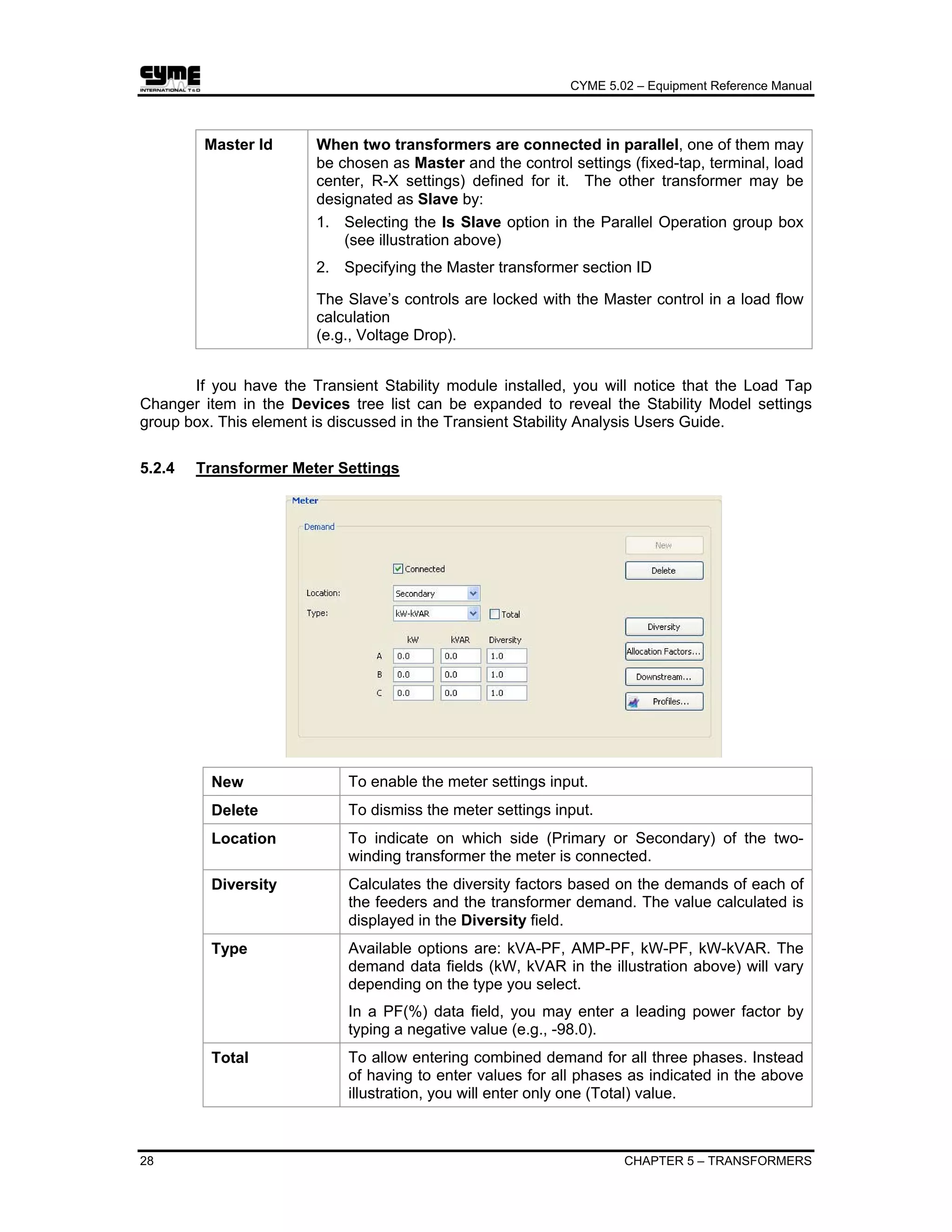
  • 60.
    CYME 5.02 –Equipment Reference Manual 52 CHAPTER 6 – GENERATORS Transient / Subtransient Data X’d and X’q are the transient reactances in the direct and quadrature axes. T’do and T’qo are the transient direct-axis and quadrature-axis open-circuit time constants. X”d and X”q are the sub transient reactances in the direct and quadrature axes. T”do and T”qo are the sub transient direct-axis and quadrature- axis open-circuit time constants. Saturation Data EU and EL are two values of per-unit terminal voltage found on the open-circuit saturation curve for the synchronous machine. Typically, EU = 1.2 p.u. and EL = 1.0 p.u. See diagram below. SGU and SGL are saturation coefficients defined in the figure below. Open-circuit Saturation curve
  • 61.
    CYME 5.02 –Equipment Reference Manual CHAPTER 6 – GENERATORS 53 6.1.2 Synchronous Generator Settings You may alter all of the settings for a generator, including its status (Connected / Disconnected). If the generator is Connected, it produces active power equal to the amount specified in the Active Generation field. Control Type Three possible values: Voltage Controlled, Fixed Generation, Swing. • With “Voltage Controlled”, the machine will adjust its reactive power to maintain the Desired Voltage at its terminals (subject to the reactive power limits MAX and MIN). • If it is “Fixed Generation” then the reactive power generated during a voltage drop calculation is a fixed amount determined by the stated active power and power factor: 1 PF 1 kWkVAR 2 −= ⎟ ⎟ ⎟ ⎠ ⎞ ⎜ ⎜ ⎜ ⎝ ⎛ • A “Fixed Generation” type generator does not control the voltage at any node/bus. • If it is “Swing”, the generator will operate as an infinite power source. Hint: Use the “Swing” option to simulate the loss of a substation. Feeders will be supplied by generators only (no substation). At Node Node/Bus whose voltage is controlled by the generator. It will apply only when the control type selected is “Voltage Controlled”.
  • 62.
    CYME 5.02 –Equipment Reference Manual 54 CHAPTER 6 – GENERATORS Desired Voltage A “Voltage Controlled” type generator will produce the active power specified and vary its reactive power to maintain the Desired Voltage at the node/bus selected in field “At Node”. A “Swing” type generator will produce (or absorb) excess power not accounted for by other generators. It always controls the Desired Voltage at the node/bus where it is connected. Initial Angle Enabled only for “Swing” generators, it defines the initial voltage angle for all node/bus in an analysis but it is fixed for Swing generators. Optional, its value may be set to 0. Accesses the optional Energy Profile Manager module and displays, if available, the consumption profile of the customer which Id is shown. Model as a power system unit This option refers to short-circuit analysis based on IEC 60909-0© Standard. It means that the generator will be considered as a power system unit as far as there is one step-up transformer connected to its terminal bus and also the option “Apply impedance correction factors to…” Power station units (PSU) located in the “IEC Parameters” tab of the “IEC Short Circuit Analysis Dialog” is checked. If you have the Transient Stability module and the Harmonic module installed, you will notice that the Synchronous Generator item in the Devices tree list can be expanded to reveal the Stability and Harmonic models. These models are discussed respectively in the Transient Stability Analysis Users Guide and Harmonic Analysis Users Guide.
  • 63.
    CYME 5.02 –Equipment Reference Manual CHAPTER 6 – GENERATORS 55 6.2 Induction Generator 6.2.1 Induction Generator Properties 6.2.1.1 General Tab Notes: 1. 1-phase, 2-phase and 3-phase induction generators are allowed. 2. With the induction generator, only subtransient impedance will be involved and it will be used in short-circuit and fault flow analyses when the generator impedance setting is subtransient. Rated Voltage Rated Voltage is the generator nameplate voltage, in kV. Active Generation This is only a default value. The value that will be used is defined in the Induction Generator Settings. Power factor It could be positive or negative. A positive power factor will indicate that the generator generates both active and reactive power. A negative power factor will imply that the generator generates active power and consumes reactive power. ANSI Motor Group Select Automatic to let CYME estimate the group according to other motor parameters or select one group from 2, 3, 4, or 5.
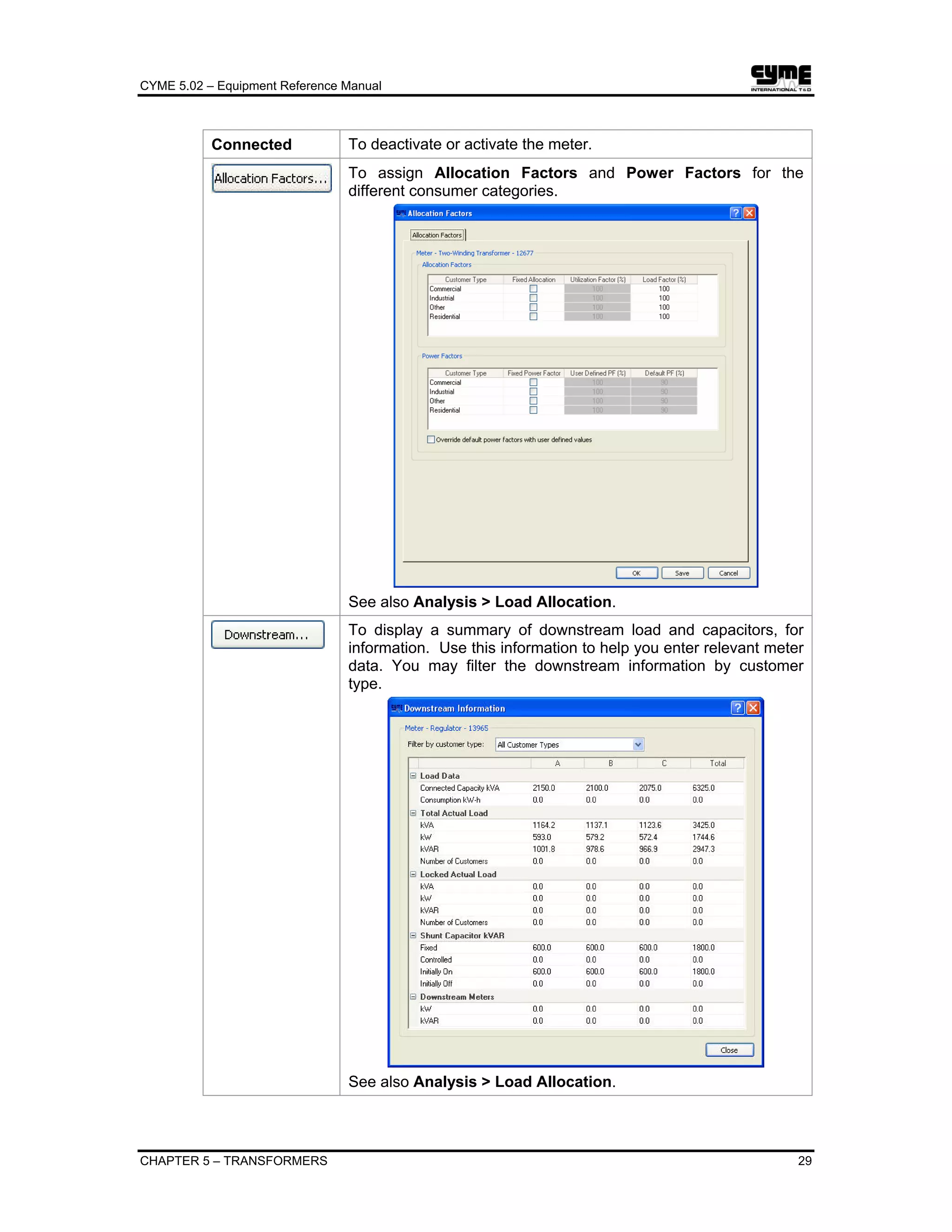
  • 64.
    CYME 5.02 –Equipment Reference Manual 56 CHAPTER 6 – GENERATORS Compute from the Equivalent Circuit / User Defined If you select the “User Defined” option, you may either type directly the R and the X values in their respective data field or use the Estimate function to estimate the subtransient impedance. If you select the alternative option, R and X values will be calculated according to the values you set for the parameters found in the Equivalent Circuit tab. If you don’t know the values then you can use the Estimate function. R’’, X’’ Subtransient impedance may be given in per-unit on the generator’s kVA base or in Ohms. These values can be estimated with the appropriate estimation function. Click on this button to open the Impedance Estimation dialog box where you can estimate the subtransient impedance (R’’, X’’).
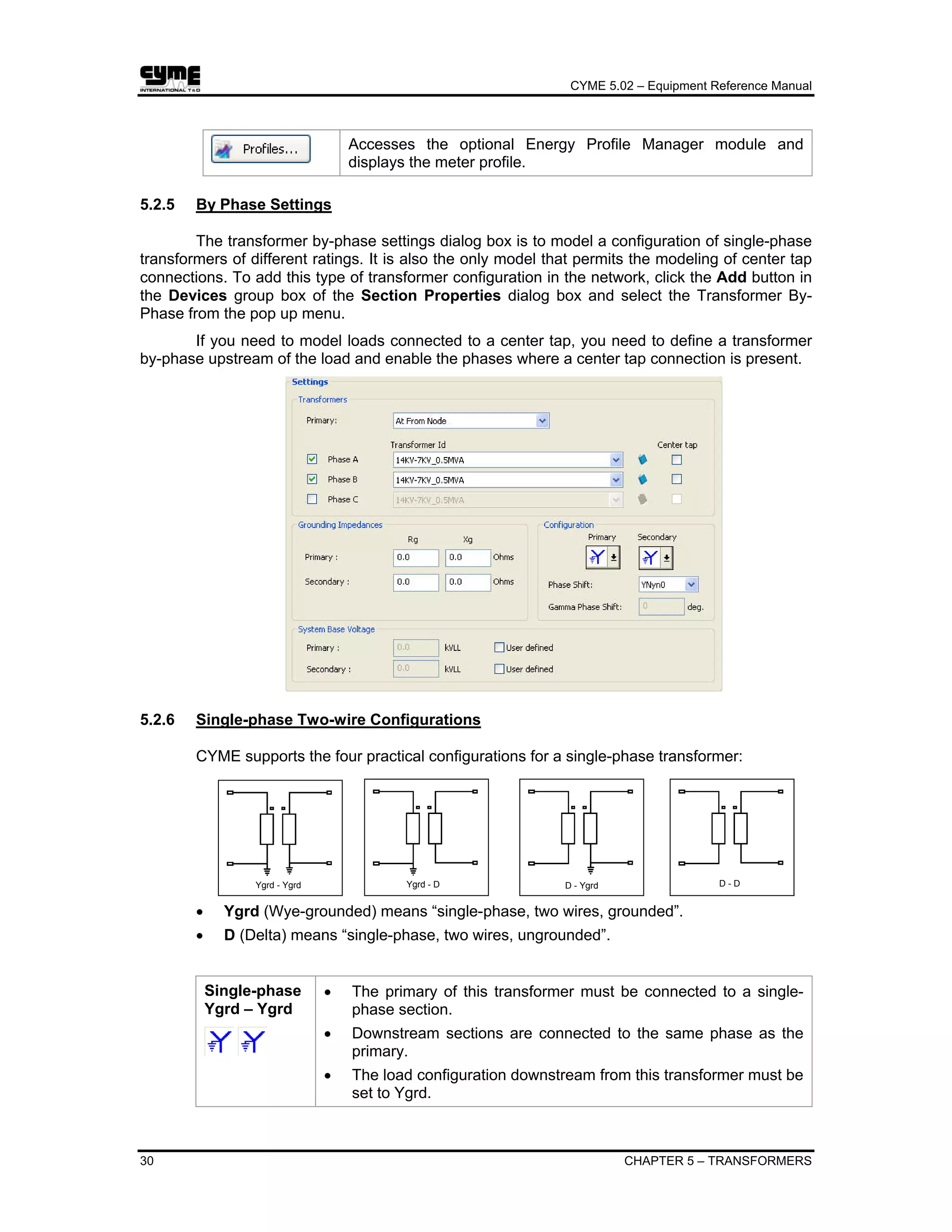
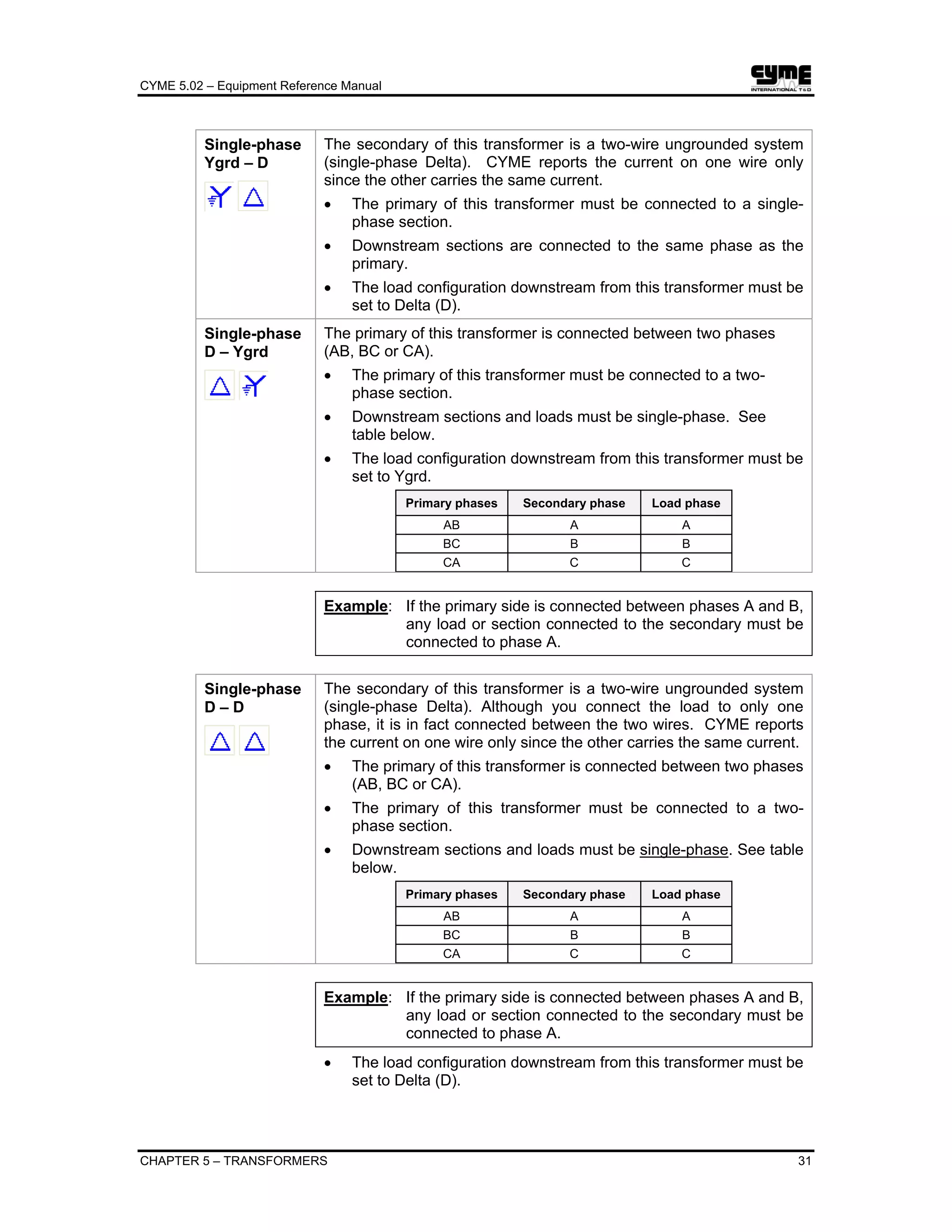
  • 65.
    CYME 5.02 –Equipment Reference Manual CHAPTER 6 – GENERATORS 57 6.2.1.2 Equivalent Circuit Tab Rotor Type Three types are available: Single circuit, Double circuit and Deep bar. The equivalent circuit diagram is shown for each selected type. Estimation Method Locked Rotor / Full Load Test
  • 66.
    CYME 5.02 –Equipment Reference Manual 58 CHAPTER 6 – GENERATORS Locked Rotor / No Load Test Nominal Conditions Known Starting Conditions Known
  • 67.
    CYME 5.02 –Equipment Reference Manual CHAPTER 6 – GENERATORS 59 Stator / Magnetizing / Rotor Impedance If these parameters values are known, you may type them directly in the fields provided. Otherwise, use the estimation function. Select the estimation method for which you have data, and click on the Estimate button. These values may be given in per-unit on the generator’s kVA base or in Ohms. Cage Factor Cage factor CFr and Cage factor CFx allows taking into account skin and proximity effects. See the appropriate equivalent circuit diagram. Inertia of all rotating mass Enter either H or J value and the other will be calculated automatically. Click on this button to open the dialog box where you can estimate the impedances. The dialog box displayed will vary depending on the estimation method selected (See Estimation Method above). 6.2.2 Induction Generator Settings Status The generator status (Connected, Disconnected) Active Generation The active power produced by the generator.
  • 68.
    CYME 5.02 –Equipment Reference Manual 60 CHAPTER 6 – GENERATORS Power factor It could be positive or negative. A positive power factor will indicate that the generator generates both active and reactive power. A negative power factor will imply that the generator generates active power and consumes reactive power. Accesses the optional Energy Profile Manager module and displays the generator profile. If you have the Harmonic module installed, you will notice that the Induction Generator item in the Devices tree list can be expanded to reveal the Harmonic model. This model is discussed in the Harmonic Analysis Users Guide. Note: Induction generator cannot have voltage control. 6.3 Electronically Coupled Generator 6.3.1 Electronically Coupled Generator Properties Electronically coupled generators are units that are not directly connected to the system. They are connected via inverter-based units such as HVDC links. For electronically coupled generator, the inverter control mode is set such that, during short circuits, the source will continue to contribute a percentage of its rated current. Rated Voltage Rated Voltage is the generator nameplate voltage, in kV. Active Generation This is only a default value. The value that will be used is defined in the Electronically Coupled Generator Settings.
  • 69.
    CYME 5.02 –Equipment Reference Manual CHAPTER 6 – GENERATORS 61 Power factor It could be positive or negative. A positive power factor will indicate that the generator generates both active and reactive power. A negative power factor will imply that the generator generates active power and consumes reactive power. Fault Contribution Percentage of rated current the generator would contribute if a fault occurred in the system. This is only a default value. The value that will be used is defined in the Electronically Coupled Generator Settings. ANSI Motor Group Select Automatic to let CYME estimate the group according to other motor parameters or select one item from 2, 3, 4, or 5. Converter The inverter-based unit that connects the generator to the system (HVDC, Others). 6.3.2 Electronically Coupled Generator Settings Status The generator status (Connected, Disconnected) Active Generation The active power produced by the generator. Power factor It could be positive or negative. A positive power factor will indicate that the generator generates both active and reactive power. A negative power factor will imply that the generator generates active power and consumes reactive power. Accesses the optional Energy Profile Manager module and displays the generator profile.
  • 71.
    CYME 5.02 –Equipment Reference Manual CHAPTER 7 – MOTORS 63 Chapter 7 Motors With CYME, you can simulate the effects of induction or synchronous motors starting in distribution electric power systems (networks) and estimate the maximum motor size that can be started on a given section. 7.1 Induction Motor 7.1.1 Induction Motor Properties 7.1.1.1 General Tab Rated Power This value may be entered as kVA, Horsepower or kW. Enter one value and the other two will be calculated, using the power factor and efficiency. Rated Voltage It is the motor nameplate voltage, in kV. ANSI Group Select Automatic to let CYME estimate the group according to other motor parameters or select one item from 2, 3, 4, or 5.
  • 72.
    CYME 5.02 –Equipment Reference Manual 64 CHAPTER 7 – MOTORS Compute from the Locked Rotor Data / Compute from the Equivalent Circuit / User Defined If you select the “User Defined” option, you may either type directly the R and X values in their respective data field or use the Estimate function to estimate the subtransient impedance. If you select the “Compute from the Equivalent Circuit” option, R and X values will be calculated according to the values you set for the parameters found in the Equivalent Circuit tab. If you don’t know the values then you can use the Estimate function. If you select “Compute from the Locked Rotor Data” option, R and X values will be calculated according to the values you set for the parameters in group zone Locked Rotor Data. : Click on this button to select appropriate NEMA code. : Click on this button to load default power factor value. R’’, X’’ They represent the subtransient impedance and they are given in per-unit on the motor’s own base power. They can be expressed in Ohms if you select this option. This button is enabled only when you select the “User Defined” option. Click on it to estimate the subtransient impedance (R’’, X’’) from the NEMA code letter and other (American) nameplate data. (The NEMA letter identifies the ratio of inrush starting current to rated full-load current.)
  • 73.
    CYME 5.02 –Equipment Reference Manual CHAPTER 7 – MOTORS 65 Locked Rotor Data group box The Locked Rotor data determines the model for the motor when it is starting. The Starting power factor may be estimated by clicking on this button to load default power factor value if necessary. Click on this button to select appropriate NEMA code from the List of NEMA Codes dialog box. The NEMA code (from the motor nameplate) represents a range of values of the starting kVA/HP ratio. It is for information, since only the value entered for kVA/HP ratio will be used. A second option is to define the locked rotor current (typically about 6 times the full- load current). 7.1.1.2 Equivalent Circuit Tab Rotor Type Three types are available: Single circuit, Double circuit and Deep bar. The equivalent circuit diagram is shown for each selected type.
  • 74.
    CYME 5.02 –Equipment Reference Manual 66 CHAPTER 7 – MOTORS Estimation Method Locked Rotor / Full Load Test Locked Rotor / No Load Test Nominal Conditions Known
  • 75.
    CYME 5.02 –Equipment Reference Manual CHAPTER 7 – MOTORS 67 Starting Conditions Known Stator / Magnetizing / Rotor Impedance If these parameters values are known, you may type them directly in the fields provided. Otherwise, use the estimation function. Select the estimation method for which you have data, and click on the Estimate button. These values may be given in per-unit on the motor’s kVA base or in Ohms. Cage Factor Cage factor CFr and Cage factor CFx taking into account skin and proximity effects. See the appropriate equivalent circuit diagram. Inertia of all rotating mass Enter either H or J value and the other will be calculated automatically. Click on this button to open the dialog box where you can estimate the impedances. The dialog box displayed will vary depending on the estimation method selected (See Estimation Method).
  • 76.
    CYME 5.02 –Equipment Reference Manual 68 CHAPTER 7 – MOTORS 7.1.2 Induction Motor Settings Status Choose the motor Status (OFF, RUNNING, or LOCKED ROTOR), and the number of starts per day. Starts When RUNNING is selected, the normal motor load will be present at the motor location. When motors are declared as running, the contribution of these motors to the short circuit currents is neglected because it decays quickly to zero. Enable Load Factor Mark check this option so you can enter the desired load factor, otherwise CYME will assume 100% of full load. Loading Percentage of full load. Power Factor The load power factor of the motor when it is operating at less than full load. 7.1.3 Induction Motor Starting Assistance (LRA)
  • 77.
    CYME 5.02 –Equipment Reference Manual CHAPTER 7 – MOTORS 69 Six types of starting assistance are available. Depending on your choice, you may have to define other parameters required by the model. No Assistance (Across the Line) Means the motor starts direct across the line (full circuit voltage is applied to its terminals). This is the usual method. Resistor and/or Inductor assistance Places a resistor in series with the motor, to decrease the voltage available at the motor terminals, so that the motor impedance will draw less current. (In reality, the resistor is short-circuited after some time delay, but this is not simulated.) Resistance (R) and reactance (X) values are required for this type. Capacitor Assistance Places a capacitor in parallel with the motor, to supply some of the VARs drawn by the motor, and hence reduce the voltage drop. The capacitor rating is required for this type. Auto- Transformer Assistance An auto-transformer steps the voltage down. (The auto-transformer is not explicitly modeled, only its voltage ratio.) This method is used to reduce the motor’s starting current, and is used to start very large motors on weak systems. (In reality, the auto-transformer tap is changed to 100% after some time delay, but this is not simulated.) The Tap Position parameter is required. If you want to take the transformer impedance into account by checking the option Consider Auto Transformer impedance, you will have to define: • The Nominal Rating in kVA • The Primary Voltage in kVLL • The Nominal Z in % • The X/R Ratio . Star-Delta Assistance To switch from a Delta to a Wye connection in order to reduce the starting current. Variable Frequency Starter To specify the starting current as a percentage of the nominal current or as a percentage of the motor locked rotor current. The basic idea is that the induction motor is fed by a variable frequency source controlled by a Pulse-Width-Modulation (PWM) inverter. IM Rectifier PWM Inverter Istart System Bus Motor fed by PWM inverter with constant V/F control
  • 78.
    CYME 5.02 –Equipment Reference Manual 70 CHAPTER 7 – MOTORS If you have the Harmonic Analysis, the Transient Stability Analysis or the Dynamic Motor Starting modules installed, you will notice that the Induction Motor item in the Devices tree list expansion reveals the Starting Assistance (MSA), the Load Characteristics, the Dynamic Model, and the Harmonic model. These models are discussed in the Transient Analysis Users Guide and the Harmonic Analysis Users Guide. See also the Dynamic Motor Starting Users Guide for additional information about the motors models. 7.2 Synchronous Motor 7.2.1 Synchronous Motor Properties This chapter covers the General tab and the Equivalent Circuit tab of the dialog box. Information about the Harmonic tab can be found in the Harmonic Analysis Users Guide. 7.2.1.1 General Tab Rated Power This value may be entered as kVA, Horsepower or kW. Enter one value and the other two will be calculated, using the power factor and efficiency. Rated Voltage Rated Voltage is the motor nameplate voltage, in kV. Z’’, Z0, Z The subtransient impedance (Z’’), zero-sequence impedance (Z0) and internal impedance (saturated value Xd) can be expressed in Ohms or in per-unit on the motor’s base power Zg The grounding impedance is always given in Ohms.
  • 79.
    CYME 5.02 –Equipment Reference Manual CHAPTER 7 – MOTORS 71 Click on this button to open the Impedance Estimation dialog box where you can estimate the subtransient impedance (R’’, X’’) and the zero-sequence impedance (R0, X0). 7.2.1.2 Equivalent Circuit Tab Model Five models are available: • Classical Model (type 1) • Salient Pole – Transient Effect Only (Type 2) • Salient Pole – Transient and Sub-Transient Effect (Type 3) • Round Rotor – Transient Effect Only (Type 4) • Round Rotor – Transient and Sub-Transient Effect (Type 5). The number of parameters required will vary with the model selected.
  • 80.
    CYME 5.02 –Equipment Reference Manual 72 CHAPTER 7 – MOTORS For a better understanding of the parameters required for the selected model, you may access its circuit diagram by clicking on this button. Mechanical Data These parameters values are required for all models. Enter either H or J value for the inertia and the other will be calculated automatically. The damping constant (KD) offers a way of introducing damping torque, which is proportional to speed. A value of 1 to 3 p.u. is sometimes used to represent damping due to turbine windage and load effects. However, if KD ≠ 0, and the speed of the machine fall below its initial speed, then the active electrical power of the machine will appear to be higher than the input mechanical power from the prime mover. A value of KD = 0 is recommended. Synchronous Reactances Xd and Xq are the synchronous reactances in the direct and quadrature axes. Transient / Subtransient Data X’d and X’q are the transient reactances in the direct and quadrature axes. T’do and T’qo are the transient direct-axis and quadrature-axis open-circuit time constants X”d and X”q are the sub transient reactances in the direct and quadrature axes. T”do and T”qo are the sub transient direct-axis and quadrature- axis open-circuit time constants. Saturation Data EU and EL are two values of per-unit terminal voltage found on the open-circuit saturation curve for the synchronous machine. Typically, EU = 1.2 p.u. and EL = 1.0 p.u. See the diagram below. SGU and SGL are saturation coefficients defined in the figure below. Open-circuit Saturation curve
  • 81.
    CYME 5.02 –Equipment Reference Manual CHAPTER 7 – MOTORS 73 Allows to estimate the synchronous reactances, transient and subtransient data in function of the stator armature impedances, mutual reactances and leakage impedances. 7.2.2 Synchronous Motor Settings Status Choose the motor Status (OFF, RUNNING, or LOCKED ROTOR), and the number of starts per day. Starts When RUNNING is selected, the normal motor load will be present at the motor location. When motors are declared as running, the contribution of these motors to the short circuit currents is neglected because it decays quickly to zero.
  • 82.
    CYME 5.02 –Equipment Reference Manual 74 CHAPTER 7 – MOTORS Rg and Xg Represents the grounding impedance. Enable Load Factor Mark check this option so you can enter the desired load factor, otherwise CYME will assume 100% of full load. Loading Percentage of full load. Power Factor The load power factor of the motor when it is operating at less than full load. 7.2.3 Synchronous Motor Starting Assistance (LRA) Settings Six types of starting assistance are available. Depending on your choice, you may have to define other parameters required by the model. No Assistance (Across the Line) Means the motor starts directly across the line (full circuit voltage is applied to its terminals). This is the usual method. Resistor and/or Inductor assistance Places a resistor in series with the motor, to decrease the voltage available at the motor terminals, so that the motor impedance will draw less current. (In reality, the resistor is short-circuited after some time delay, but this is not simulated.) Resistance (R) and reactance (X) values are required for this type. Capacitor Assistance Places a capacitor in parallel with the motor, to supply some of the VARs drawn by the motor, and hence reduce the voltage drop. The capacitor rating is required for this type.
  • 83.
    CYME 5.02 –Equipment Reference Manual CHAPTER 7 – MOTORS 75 Auto- Transformer Assistance An auto-transformer steps the voltage down. (The auto-transformer is not explicitly modeled, only its voltage ratio.) This method is used to reduce the motor’s starting current, and is used to start very large motors on weak systems. (In reality, the auto-transformer tap is changed to 100% after some time delay, but this is not simulated.) The Tap Position parameter is required. If you want to take the transformer impedance into account by checking the option Consider Auto Transformer impedance, you will have to define: • The Nominal Rating in kVA • The Primary Voltage in kVLL • The Nominal Z in % • The X/R Ratio. Star-Delta Assistance To switch from a Delta to a Wye connection in order to reduce the starting current. If you have the Harmonic Analysis, the Transient Stability Analysis or the Dynamic Motor Starting modules installed, you will notice that the Synchronous Motor item in the Devices tree list expansion reveals the Starting Assistance (MSA), the Load Characteristics, the Dynamic Model, and the Harmonic model. These models are discussed in the Transient Analysis Users Guide and the Harmonic Analysis Users Guide. See also the Dynamic Motor Starting Users Guide for additional information about the motors models.
  • 85.
    CYME 5.02 –Equipment Reference Manual CHAPTER 8 – STATIC VAR COMPENSATORS 77 Chapter 8 Static Var Compensators (SVC) Static Var Compensators are shunt capacitors and/or reactors which are controlled by power electronic circuits so that the reactive power they absorb or furnish is continuously adjustable over a given range [Qmin,Qmax]. They are used for voltage control where the reactive power demand varies considerably. 8.1 SVC Properties Number of Pulse Must be a multiple of 6. Rated Voltage Nominal voltage in kilovolts. Minimum / Maximum Reactive Power Lower and upper limits of VAR injection. Qmin can be negative, so that the SVC can absorb VARs.
  • 86.
    CYME 5.02 –Equipment Reference Manual 78 CHAPTER 8 – STATIC VAR COMPENSATORS 8.2 SVC Settings Control Type It may be either Voltage Controlled or Fixed Shunt. At Node To select the node/bus controlled by the SVC. Desired Voltage When the control type is Voltage Controlled, it is the voltage the SVC will try to maintain by adjusting the reactive power. Reactive Power When the control type is Fixed Shunt, this value will be maintained regardless of the voltage at the node/bus selected.
  • 87.
    CYME 5.02 –Equipment Reference Manual CHAPTER 9 – WIND ENERGY CONVERSION SYSTEMS 79 Chapter 9 Wind Energy Conversion Systems The Wind Energy Conversion System (WECS) dialog box allows the modeling of four types of wind-turbine generation systems: • WECS-IG: Induction generator directly connected with an ac grid. • WECS-HVDC: Using Voltage-Source Converter (VSC) based dc-link to couple induction generator to an ac grid. • WECS-DFIG: Using Doubly-Fed Induction Generator (DFIG). • WECS-PMSG: Full Converter Permanent Magnet Synchronous Generator. 9.1 Wind Energy Conversion Systems Properties 9.1.1 Wind Turbine Tab This tab allows entering the Wind Turbine Operating, Rotor and Drive Train data common to all WECS models. Rated Power Wind turbine rated power. Maximum Power Maximum power that the wind turbine can produce. Rated Wind Speed Wind speed that corresponds to the wind turbine rated power.
  • 88.
    CYME 5.02 –Equipment Reference Manual 80 CHAPTER 9 – WIND ENERGY CONVERSION SYSTEMS Cut-In Wind Speed Speed at which the wind turbine begins to produce power. Cut-Out Wind Speed Highest speed at which the wind turbine stops producing power. Number of Blades Number of blades, usually three. If this data is not entered, the software will assume three. Rotor Radius Radius of the wind turbine blades. Rated Speed Wind turbine rated rotation speed. Minimum Speed Wind turbine minimum rotation speed. Maximum Speed Wind turbine maximum rotation speed. Turbine Inertia Wind turbine moment of inertia. Gearbox Ratio Ratio of generator rated synchronous speed over wind turbine rated speed. Spring Constant Stiffness of the shaft linking the wind turbine to the generator. Damping Constant Absorption of the shaft linking the wind turbine to the generator. 9.1.2 Generator Tab This tab allows you to select the type of generator coupled to the wind turbine and to enter the generator data common to all WECS models.
  • 89.
    CYME 5.02 –Equipment Reference Manual CHAPTER 9 – WIND ENERGY CONVERSION SYSTEMS 81 Generator Type Four types of wind turbine models are included in the library namely: • Directly coupled constant speed induction generator. • Full converter variable speed induction generator. • Doubly fed variable speed induction generator. • Full converter variable speed permanent magnet synchronous generator. Rated Capacity Generator rated apparent power. Rated Voltage Generator nominal voltage in kilovolts. Rated Power Generator rated active power. Rated Speed Generator synchronous speed. 9.1.3 Generator Equivalent Circuit Tab This tab may present two different sets of parameters. The generator type selected in Generator tab will determine which one will be displayed. 9.1.3.1 Induction Generator Data Entry Parameters The following interface will be displayed if you select either one of the following types: • Induction Generator – Constant Speed • Full Converter Induction Generator – Variable Speed • Doubly-Fed Induction Generator – Variable Speed
  • 90.
    CYME 5.02 –Equipment Reference Manual 82 CHAPTER 9 – WIND ENERGY CONVERSION SYSTEMS Rotor Type Generator equivalent circuit. The diagram corresponding to the selection made here will be displayed in the Equivalent Circuit Schema group box. Impedances Generator equivalent circuit impedances. If these values are known, you may type them directly in the fields provided. Otherwise, select an estimation method for which you have data and then click on the Estimate button ( ) to open the corresponding dialog box that will allow you to estimate the impedances. Cage Factors CFr and CFx provide a means to approximate skin and proximity effects in deep-bar and double-cage generators. The rotor resistance may be allowed to increase linearly with slip. The rotor reactance may be allowed to decrease slightly in the same way Generator Inertia Inertia constant (H) or moment of inertia (J) of the generator. 9.1.3.2 Synchronous Generator Data Entry Parameters The following interface will be displayed if you select the following type: Full Converter Permanent Magnet Synchronous Generator – Variable Speed. Xd Synchronous reactance in the direct axis. Xq Synchronous reactance in the quadrature axis. Xl The leakage (or Potier) reactance. X’d Transient reactance in the direct axis.
  • 91.
    CYME 5.02 –Equipment Reference Manual CHAPTER 9 – WIND ENERGY CONVERSION SYSTEMS 83 X’q Transient reactances in the quadrature axis. T’d0 Transient direct axis open-circuit time constant expressed in seconds. T’q0 Transient quadrature axis open-circuit time constant expressed in seconds. X”d Subtransient reactance in the direct axes. X”q Subtransient reactance in the quadrature axe. T”d0 Subtransient direct axis open-circuit time constant expressed in seconds. T”q0 Subtransient quadrature axis open-circuit time constant. expressed in seconds. Generator Inertia The generator inertia is also required. It will be added to the turbine inertia so that the sum of all rotating mass is considered in the analysis. 9.2 Wind Energy Conversion System Settings Rated Power Generator rated active power. Active Generation Initial wind turbine generator active production. Power Factor Initial wind turbine generator power factor.
  • 92.
    CYME 5.02 –Equipment Reference Manual 84 CHAPTER 9 – WIND ENERGY CONVERSION SYSTEMS 9.3 Blade Pitch Control Settings Enable Active Blade Pitch Control To activate the blades’ pitch control in the simulation. Bmin Minimum blades’ pitch angle. Bopt Optimal blades’ pitch angle. Bmax Maximum blades’ pitch angle. Bratemax Maximum rate of change of the blades’ pitch angle. T Actuator time constant. K Proportional gain. Power Coefficient Curve Power coefficient versus tip speed ratio curve. You have the option to use the curve equation, which will apply the blades’ pitch angle coefficients and parameters T and K entered on the left hand side of the dialog box to calculate the curve. You can also input the curve points corresponding to the minimum, maximum and optimal pitch angles parameters as well as the tip speed ratio (λ). Refer to the Transient Stability Analysis Users Guide for more details about the wind turbine network settings.
  • 93.
    CYME 5.02 –Equipment Reference Manual CHAPTER 9 – WIND ENERGY CONVERSION SYSTEMS 85 9.4 Voltage Source Converter Settings VSC Rating Voltage Source Converter kVA or MVA rating. DC capacitor DC capacitor capacitance value. Rated DC Voltage Voltage Source Converter rated DC voltage. Grid-Side Coupling Resistance Grid-side coupling filter or transformer resistance. Grid-Side Coupling Inductance Grid-side coupling filter or transformer inductance.
  • 94.
    CYME 5.02 –Equipment Reference Manual 86 CHAPTER 9 – WIND ENERGY CONVERSION SYSTEMS 9.4.1 Full Converter Control Settings The following dialog is displayed if the WECS generator type is either Full converter variable speed permanent magnet synchronous generator or Full converter variable speed induction generator. Enable Converter Control Activate grid-side converter control in the simulation. References Setting Reactive power output and DC voltage references’ settings. Gains in Control of GSC Proportional and integral gains of the grid-side converter control. : To display the inverter diagram.
  • 95.
    CYME 5.02 –Equipment Reference Manual CHAPTER 9 – WIND ENERGY CONVERSION SYSTEMS 87 9.4.2 Doubly-Fed Converter Control Settings The following dialog is displayed if the WECS generator type is Doubly fed variable speed induction generator. Enable Converter Control Activate grid-side converter control in the simulation. References Setting Reactive power output and DC voltage references’ settings. Gains in Control of GSC Proportional and integral gains of the grid-side converter control. : To display the inverter diagram.
  • 96.
    CYME 5.02 –Equipment Reference Manual 88 CHAPTER 9 – WIND ENERGY CONVERSION SYSTEMS 9.5 Wind Model Settings Wind Model You can select a constant speed over time wind model or select from the drop down list a model among the ones available from the Wind Model Library. Click on to view the details of the model selected in the drop down list. Refer to the Transient Stability Analysis Users Guide for all information about creating, deleting, renaming and editing wind speeds patterns in the Wind Model Library. The Cut-in and the Cut-out wind speeds are properties pertaining to the wind turbine and are set in the Equipment > Wind Energy Conversion Systems dialog box (see 9.1.1 Wind Energy Conversion Systems Properties ). Overwrite Wind Speed at T=0 This option applies to the wind model selected from the Wind Model Library. Enabling it overwrites the wind speed at T=0 and replaces it with the initial value as computed from the electrical power.
  • 97.
    CYME 5.02 –Equipment Reference Manual CHAPTER 10 – MICRO-TURBINES 89 Chapter 10 Micro-turbines The Micro-Turbine co-generation consists of a single rotating shaft, with the generator, air compressor, and turbine mounted on air bearings. The shaft operates at high speed without any lubrication and it rotates between 15000 and 90000 RPM. The generator provides a high frequency AC voltage source (angular frequencies up to 10000 rad/sec). This high frequency can only be provided by permanent magnet synchronous generators (PMSG). The connection of this PMSG to the grid requires a power electronic interface. This interface consists of an AC to DC rectifier, a DC bus with a capacitor and a DC to AC inverter. The generator and the rectifier can be modeled as a 3-phase, full-wave diode bridge rectifier with the AC source being the Permanent Magnet Synchronous Generator (PMSG). The equivalent circuit of the generator is represented by an AC source with 3-phase balanced field voltages behind a synchronous reactance A C A C A C ss LR , ss LR , ss LR , su misai sbi sci mav mbv mcv ae be ce 12mu 23mu G en era to r e qu iva len t circu it 11D 21D 12D 22D 32D 31D
  • 98.
    CYME 5.02 –Equipment Reference Manual 90 CHAPTER 10 – MICRO-TURBINES 10.1 Micro-turbine Properties Governor & Turbine Data Lets you specify governor proportional control gain (Kp), governor integral control gain (KI) and turbine time constant. : Click this button to see the Governor and Turbine block Diagram Turbine & Generator Inertia Inertia constant (H) or moment of inertia (J) of turbine and generator. Permanent Magnet Generator Data Recommended value and value range for the parameters. • Rated Capacity: 30 to 400 KVA; • Rated Voltage: 480 V; • Rated Power: 30 to 400 KW; • Rated Speed: 15,000 to 90,000 r.p.m; • Synchronous reactance: 0.1 to 0.2 p.u;
  • 99.
    CYME 5.02 –Equipment Reference Manual CHAPTER 10 – MICRO-TURBINES 91 10.2 Micro-turbine Settings Rated Power Indicated only as a reminder to help you specify active generation value Active Generation Active Generation should be inferior or equal to the Rated Power. 10.3 Voltage Source Converter Settings VSC Rating Voltage Source Converter kVA rating. DC Capacitor DC capacitor capacitance value. Rated DC Voltage Voltage Source Converter rated DC voltage. Grid-side Coupling Resistance Grid-side coupling filter or transformer resistance.
  • 100.
    CYME 5.02 –Equipment Reference Manual 92 CHAPTER 10 – MICRO-TURBINES Grid-side Coupling Inductance Grid-side coupling filter or transformer inductance 10.3.1 Full Converter Control Settings Enable Converter Control Activate grid-side converter control in the simulation. Reference Setting Reactive power output and DC voltage references’ settings. Gains in Control of GSC Proportional and integral gains of the grid-side converter control. : To display the inverter diagram.
  • 101.
    CYME 5.02 –Equipment Reference Manual CHAPTER 11 - PHOTOVOLTAIC 93 Chapter 11 Photovoltaic The Photovoltaic (PV Generation) technology uses semiconductor cells (wafers), each of which is basically a large area p-n diode with the junction positioned close to the top surface. The PV effect results in the generation of direct voltage and current from the solar light being captured by the cell. A simple structure of a PV system can be considered as PV cells connected directly to the DC bus. Therefore, the only remaining control available is the DC bus voltage. mri su dcC BusDC Inverter FilterNetwork mpv ii = CellPV The data required for the representation of PV Generation systems and their dynamics are as follows: • Database as per manufacturer’s specification • Number of cells per Row and the number of parallel rows since cells are assembled in arrays to generate sufficient voltage and current for the desired Power generation. • Grid side converter rating and controls. • Insolation model to represent the solar energy.
  • 102.
    CYME 5.02 –Equipment Reference Manual 94 CHAPTER 11 - PHOTOVOLTAIC 11.1 Photovoltaic Properties A few words about the basics should provide a better understanding of the parameters found in this dialog box. Manufacturers provide the values of Impp, Vmpp, Isc, Voc and I vs V characteristic parameters at Standard Test Conditions (TSTC = 250 C and GSTC = 1 000 W/m²). A typical I vs V characteristic of a PV cell is shown in the following figure.
  • 103.
    CYME 5.02 –Equipment Reference Manual CHAPTER 11 - PHOTOVOLTAIC 95 The cell temperature ( )cT will vary with the ambient temperature aT and the insolation G according to the following linear equation: ( )refaac TNOCT G TT , 800 −+= Where NOCT is the Normal Operating Cell Temperature and refaT , the Reference Ambient Temperature. When the temperature and the insolation change for example to cT and G respectively, the new values of current and voltage for the PV cell are calculated as follows: iii STCpvpv Δ+= , uuu STCpvpv Δ+= , Variations in current ( iΔ ), voltage ( uΔ ) and temperature ( cTΔ ) are derived as follows: STCSC STC c STC scT I G G T G G i ,1⎟⎟ ⎠ ⎞ ⎜⎜ ⎝ ⎛ −+Δ⎟⎟ ⎠ ⎞ ⎜⎜ ⎝ ⎛ =Δ α iRTu scocT Δ−Δ−=Δ β STCcc TTT −=Δ The short-circuit current and open-circuit voltage will vary with temperature as follows: ( )TIIsc sc Δ+= α1 ( )TVVoc oc Δ+= β1 Where scI and ocV represent respectively the short-circuit current and open-circuit voltage at Standard Test Conditions. Note that both values are given by the manufacturer. Since the theoretical maximum power ( )maxP is given by the equation: VocIscP ×=max Replacing Isc and Voc by their values shows that maxP will also vary with the temperature according to the following equation: ( ) ( )TVTIP ocsc Δ+×Δ+= βα 11max
  • 104.
    CYME 5.02 –Equipment Reference Manual 96 CHAPTER 11 - PHOTOVOLTAIC After regrouping terms and factoring out ocscVI , the equation becomes: ( )( )2 max 1 TTVIP ocsc Δ+Δ++= αββα Considering the order of magnitude of the values α and β involved (typical values are shown in the table below), the quadratic term ( )2 ΔΤαβ can be neglected. Thus maxP can be expressed as: ( )( )TVIP ocsc Δ++= βα1max Typical α and β values for PV cell
  • 105.
    CYME 5.02 –Equipment Reference Manual CHAPTER 11 - PHOTOVOLTAIC 97 11.2 Photovoltaic Settings Number of series- connected PV panels The following example shows 4 panels connected in series. Number of Parallel strings The following example shows 3 parallel strings of series- connected PV panels. PV Array Rated Power The maximum output power from the PV array is calculated as follows: Pmax = Ns x Np x Impp x Vmpp A given solar module will have an I-V curve representing a range of possible operating points.
  • 106.
    CYME 5.02 –Equipment Reference Manual 98 CHAPTER 11 - PHOTOVOLTAIC The inverter is the device that decides which operating point will provide the most power output based on that I-V curve, and controls the output from the array accordingly. This operating point is called the Maximum Power Point (MPP). Initial Active Generation Initial output power delivered at grid-side Ambient Temperature Ambient temperature is one among a variety of changing and uncertain conditions that can affect the I-V curve and therefore the power output of PV systems. 11.3 Voltage Source Converter Settings VSC rating Voltage Source Converter kVA or MVA rating. DC Capacitor DC capacitor capacitance value. Rated DC Voltage Voltage Source Converter rated DC voltage.
  • 107.
    CYME 5.02 –Equipment Reference Manual CHAPTER 11 - PHOTOVOLTAIC 99 Grid-side Coupling Resistance Grid-side coupling filter or transformer resistance. Grid-side Coupling Inductance Grid-side coupling filter or transformer inductance. 11.3.1 Full Converter Control Settings Enable Converter Control Activate grid-side converter control in the simulation. References Setting Reactive power output and DC voltage references’ settings. Gains in Control of GSC Proportional and integral gains of the grid-side converter control. : To display the inverter diagram.
  • 108.
    CYME 5.02 –Equipment Reference Manual 100 CHAPTER 11 - PHOTOVOLTAIC 11.4 Insolation Model Settings Insolation Model You can select a constant insolation over time model or select from the drop down list a model among the ones available from the Insolation Model Library. Click on to view the details of the model selected in the drop down list. Refer to the Transient Stability Analysis Users Guide for all information about creating, deleting, renaming and editing Insolation patterns in the Insolation Model Library. Overwrite insolation at T=0 This option applies to the insolation model selected from the Insolation Model Library. Enabling it overwrites the insolation value at T=0 and replaces it with the initial value as computed from the electrical power.
  • 109.
    CYME 5.02 –Equipment Reference Manual CHAPTER 12 – SOLID OXIDE FUEL CELLS 101 Chapter 12 Solid Oxide Fuel Cells Fuel cells are electrochemical devices that convert the chemical energy of a gaseous fuel directly into electricity and are widely regarded as a potential alternative to stationary power source. The benefits of energy production from Fuel Cells are the high efficiency and their environmentally friendly by-products. The chemical reaction takes place to convert hydrogen and oxygen into water, releasing electrons (current) in the process. In other words, the hydrogen fuel is burnt in a simple reaction to produce water and an electric current. 2H2 + O2 → 2H2O + 2e- A typical fuel cell consists of two electrodes (anode and cathode) where the reactions take place. The electrodes are also the mediums that the current flows between. Sandwiched between the electrodes is an electrolyte material which the ions flow through to keep the reaction continuous. There are several types of fuel cells being studied at present such as alkaline, proton exchange membrane, phosphoric acid, molten carbonate and solid oxide. The Solid Oxide Fuel Cell (SOFC) is the one that is modeled in the program. SOFCs operate at extremely high temperatures-of the order of 700 to 1000 degrees Celsius. As a result, they can tolerate relative impure fuels, such as those obtained from the gasification of coal. Typical representation of a SOFC is shown below. mi mri su dcC BusDC Inverter FilterNetworkChopper fcV r fci StackSOFC in Hq 2 in Oq 2 The following are the assumptions in developing the dynamic model of the SOFC: • The gases are ideal. • The fuel cell is fed with hydrogen and air. • The electrode channels are small enough that the pressure drop across them is negligible. • The ratio of pressures between the inside and outside of the electrode channels is large enough to assume choked flow. • The fuel cell temperature is stable. • The Nernst equation will be used to determine the fuel cell output voltage. • Only the ohmic losses are considered, activation and mass transport losses are neglected.
  • 110.
    CYME 5.02 –Equipment Reference Manual 102 CHAPTER 12 – SOLID OXIDE FUEL CELLS Most fuel cells produce less than the application required voltage. Therefore, multiple cells must be assembled into a fuel cell stack to boost the voltage. The stack output voltage fcv is described by the Nerst equation. The r fcri term is the ohmic loss. This is the loss due to the resistance of the electrodes and to the resistance of the flow of 2O ions through the electrolyte. r fc OH OH fc ri P pp F RT ENV − ⎥ ⎥ ⎦ ⎤ ⎢ ⎢ ⎣ ⎡ ⎟ ⎟ ⎠ ⎞ ⎜ ⎜ ⎝ ⎛ += 2 22 ln 2 00 Symbol Description N0 Number of cells in series in the stack E0 Ideal standard potential which the open cell voltage in the standard operating conditions (temperature = 25 0 C and a pressure of 1 atmosphere) r Ohm losses in the stack R [J/kmol-K] Universal gas constant T [K] Absolute temperature F [C/mol] Faraday’s constant PH2 Partial pressure of Hydrogen PO2 Partial pressure of Oxygen PH2O Partial pressure of Water 12.1 Solid Oxide Fuel Cell Properties
  • 111.
    CYME 5.02 –Equipment Reference Manual CHAPTER 12 – SOLID OXIDE FUEL CELLS 103 The model takes into account all other parameters such as the molecular properties of Hydrogen, Oxygen and chemical reaction constants so that only SOFC rated power and number of cells in the stack are required. The potential power generated by a fuel cell stack will depend on the number and size of the individual fuel cells that comprise the stack and the surface area of the electrolyte membrane. 12.2 Solid Oxide Fuel Cell Settings Rated Power Indicated only as a reminder to help you specify active generation value. Active Generation Active Generation should be inferior or equal to the Rated Power. 12.3 Voltage Source Converter Settings
  • 112.
    CYME 5.02 –Equipment Reference Manual 104 CHAPTER 12 – SOLID OXIDE FUEL CELLS VSC rating Voltage Source Converter kVA or MVA rating. DC Capacitor DC capacitor capacitance value. Rated DC Voltage Voltage Source Converter rated DC voltage. Grid-side Coupling Resistance Grid-side coupling filter or transformer resistance. Grid-side Coupling Inductance Grid-side coupling filter or transformer inductance. 12.3.1 Full Converter Control Settings Enable Converter Control Activate grid-side converter control in the simulation. References Setting Reactive power output and DC voltage references’ settings. Gains in Control of GSC Proportional and integral gains of the grid-side converter control. : To display the inverter diagram.
  • 113.
    CYME 5.02 –Equipment Reference Manual CHAPTER 13 – PROTECTIVE DEVICES 105 Chapter 13 Protective Devices The Equipment menu provides for the definition of seven types of protective devices: Fuse (section 13.1.1), LVCB (section 13.1.2), Recloser (section 13.1.3), Sectionalizer (section 13.1.4), Switch (section 13.1.5), Breaker (section 13.1.6) and Network Protector (section 13.1.7). 13.1 Protective Devices Properties The parameters that can be set include the following ones. Some of the protective devices may not include all characteristics listed below; see the specific sections. This chapter covers the General tab of the dialog box. Information about the Reliability tab can be found in the Reliability Analysis Users Guide. General group box Rated current In Amps. Different Summer and Winter rated currents may be defined for equipment in the Loading Limits tab. Rated Voltage In kV. Interrupting rating In the short-circuit results, CYME will check the Withstand Rating for the following cases: 3-phase fault: IWithstand – Kmax * VLN/Z1 3-phase grounded fault: IWithstand – Kmax * VLN/(Z1 +Zf) 2-phase fault: IWithstand – Kmax * VLL/(2*Z1 +Zf) 2-phase grounded fault: IWithstand – Kmax * VLL * Y where 3/2 01011 1001 2 , *)(* *)(* πj ea ZZZZZ ZZaZZa Y = ++ −−+ = 1-phase grounded fault: IWithstand – Kmax * (3*VLN)/(2*Z1 + Z0+3*Zf) If one of the above values is negative, the device is said to present interrupting rating abnormal condition. However, you must enter non-zero value for interrupting rating. If this value is zero no check will be made. Operation mode group box The list of Operation modes that are available for each device will vary depending on the type. Many of these options are data that is used by the CAM, the RAM or the SRM modules. See the specific Users Guides for more information.
  • 114.
    CYME 5.02 –Equipment Reference Manual 106 CHAPTER 13 – PROTECTIVE DEVICES 13.1.1 Fuse These devices allow you to (dis)connect sections. To manipulate these devices, use the menu command Edit > Open/Close, or right click on the device and select the desired command. Manufacturer List of fuse manufacturer names available in the TCC Database. Model List of fuse models for the selected manufacturer. This list is not populated if the manufacturer is Undefined. Rating List of rating for the selected manufacturer and model. This list is not populated if the model is Undefined. The rating value of the selected model is automatically copied into the rated current fields of Nominal Rating group box.
  • 115.
    CYME 5.02 –Equipment Reference Manual CHAPTER 13 – PROTECTIVE DEVICES 107 13.1.2 LVCB These devices allow you to (dis)connect sections. To manipulate these devices, use the menu command Edit > Open/Close, or right click on the device and select the relevant command. Type List of available LVCB types in the TCC database. Manufacturer List of LVCB manufacturer names available in the TCC Database for the selected LVCB type. Model List of LVCB models for the selected type and manufacturer. This list is not populated if the manufacturer is Undefined.
  • 116.
    CYME 5.02 –Equipment Reference Manual 108 CHAPTER 13 – PROTECTIVE DEVICES 13.1.3 Recloser These devices allow you to (dis)connect sections. To manipulate these devices, use the menu command Edit > Open/Close, or right click on the device and select the relevant command. Type List of available Recloser types in the TCC database. Control Type List of Recloser control types available in the TCC Database for the selected LVCB type. Model List of Recloser models for the selected type and control type. This list is not populated if the manufacturer is Undefined.
  • 117.
    CYME 5.02 –Equipment Reference Manual CHAPTER 13 – PROTECTIVE DEVICES 109 13.1.4 Sectionalizer These devices allow you to (dis)connect sections. To manipulate these devices, use the menu command Edit > Open/Close, or right click on the device and select the relevant command.
  • 118.
    CYME 5.02 –Equipment Reference Manual 110 CHAPTER 13 – PROTECTIVE DEVICES 13.1.5 Switch These devices allow you to (dis)connect sections. To manipulate these devices, use the menu command Edit > Open/Close, or right click on the device and select the relevant command.
  • 119.
    CYME 5.02 –Equipment Reference Manual CHAPTER 13 – PROTECTIVE DEVICES 111 13.1.6 Breaker These devices allow you to (dis)connect sections. To manipulate these devices, use the menu command Edit > Open/Close, or right click on the device and select the relevant command.
  • 120.
    CYME 5.02 –Equipment Reference Manual 112 CHAPTER 13 – PROTECTIVE DEVICES 13.1.7 Network Protector These devices are mostly used in underground secondary networks mainly grid systems or spot networks. Typically network protectors will open on reverse power flow out of the network and if the relay senses backward flowing current. They will close when power flows into the secondary grid or network. To manipulate these devices, use the menu command Edit > Open/Close, or right click on the device and select the relevant command. Note that network protectors are handled differently in CYME depending on the analysis involved. Load Flow Network protectors are seen as relays that, on one hand, will trip open the protector when there is a net three-phase power flow from the network to the primary (reverse power). On the other hand, they must ensure automatic closure of the protector when there is a potential for a forward flow of power into the secondary network. Short-circuit Network protectors have zero impedance. Contingency Network protectors associated with involved feeders must be opened. To accelerate the analysis, it is recommended that, at the beginning, you open these network protectors even if the Secondary Load Flow method has built-in capacity to address this restriction. Protection & Coordination Network protectors are seen as Definite Time Relay with Operating Mode set to primary. That means you will have to provide the primary pick-up current which is the minimum current which will cause the relay to act. NOTE: Not implemented yet. Other Analysis Network protectors are seen as a protective device such as a recloser.
  • 121.
    CYME 5.02 –Equipment Reference Manual CHAPTER 13 – PROTECTIVE DEVICES 113 13.2 State Settings The settings available for each of the Protective Devices equipment types are as follows: Normal Infeed Identifies / defines the node normally feeding this device. This value will be used to determine if the device is reversed or not. Use “Undefined” to ignore this validation. Open / Close buttons Open or close all phases at once. Use the radio buttons to open or close the desired phases. Locked If you enable the Locked check box, you will not be able to open (or close) the fuse with the Edit > Open/Close command. Restoration group box The Strategic check box allows filtering the switching devices. A strategic device is a protective device that is identified as strategic on the basis of its role in a pick up scenario. This attribute is also used by the optional Contingency Analysis module for N-1 analyses. The attribute “Strategic” can only be applied individually to devices using this check box. Note that there are keywords that can be used to identify the devices specified as strategic. You can use these keywords, for example, to prepare a display layer that will highlight them (see Customize > Device View; explanations in the Customize chapter of the CYME Reference Manual).
  • 122.
    CYME 5.02 –Equipment Reference Manual 114 CHAPTER 13 – PROTECTIVE DEVICES 13.3 Operation Settings The operation settings available related to the operation of the protective devices vary depending on the device. The Reliability Assessment Module (RAM) uses this data. See the Reliability Analysis Users Guide. 13.4 Meter Settings For the purpose of Load Allocation, you can optionally attach meter readings to any protective devices; you can also indicate the utilization factors for this location. New To enable the meter settings input. Delete To dismiss the meter settings input. Type Available options are: kVA-PF, AMP-PF, kW-PF, kW-kVAR. The demand data fields (kW, kVAR in the illustration above) will vary depending on the type you select. In a PF(%) data field, you may enter a leading power factor by typing a negative value (e.g., -98.0). Total To allow entering combined demand for all three phases. Instead of having to enter values for all phases as indicated in the above illustration, you will enter only one (Total) value. Connected To deactivate or activate the meter.
  • 123.
    CYME 5.02 –Equipment Reference Manual CHAPTER 13 – PROTECTIVE DEVICES 115 To display a summary of downstream load and capacitors, for information. Use this information to help you enter relevant meter data. You may filter the downstream information by customer type. See also Analysis > Load Allocation. To assign Allocation Factors and Power Factors for the different consumer categories. See also Analysis > Load Allocation. Accesses the optional Energy Profile Manager module and displays, if available, the consumption profile of the customer which Id is shown.
  • 124.
    CYME 5.02 –Equipment Reference Manual 116 CHAPTER 13 – PROTECTIVE DEVICES 13.5 TCC Settings A TCC setting describes the adjustments made to an individual protective device (fuse, LVCB or recloser) that is connected to a section of your network. Options will be enabled or disabled depending on the equipment type. Information Group Box These parameters are given only as a reminder. They characterize the protective device selected in the drop down list “Id:”. Settings For reclosers; if you have CYMTCC installed; along with the nominal settings, you may select among ten alternate pickups. Will open the TCC protection coordination dialog box for the selected device with its settings, so that you may inspect and adjust its settings as well as create a new ‘standard’ setting. Note: You do not need to have CYMTCC installed in order to use this command. However, with CYMTCC, you will be able to perform more extensive protection analyses. See also Analysis > Protective Device Coordination > Reach and Load Criteria. The field below the Settings field and button will display a description coming from the TCC database that corresponds to the protective device identified.
  • 125.
    CYME 5.02 –Equipment Reference Manual CHAPTER 13 – PROTECTIVE DEVICES 117 Pickup To enter the pickup current. • Short Circuit can identify downstream sections where the fault level is insufficient to activate the device. See Report > On calculation, “Protection – Minimum Fault Summary” report. • Voltage Drop will use the Phase Pick-up value in place of the rated current when detecting overload conditions. (See Analysis > Load Flow, Loading/Voltage Limits Tab (see the CYME Basic Analysis Users Guide) Use Alternate Pickups Pickup currents different than the ones defined in TCC can be used for reclosers. Option available only if CYMTCC is not installed. 13.6 Relay Settings This setting applies only to network protector devices. Trip Mode Four modes are available: Remote: The network protector tripping is controlled from a remote location. No parameter is required Sensitive: This is the normal functioning mode for Load Flow Analysis. Any reverse power flow from the network to the primary that causes a current greater than the Reverse trip value will trip open the network protector relay. Otherwise, the network protector status will be determined by the parameters values specified in the Close functions group zone when selecting Normal Reclose as the closing mode. Time Delay: Tripping is based on the duration of reclosing condition. If you are not using the Stability module, this mode is
  • 126.
    CYME 5.02 –Equipment Reference Manual 118 CHAPTER 13 – PROTECTIVE DEVICES equivalent to choosing the Sensitive mode since the parameter Time Delay becomes irrelevant. Insensitive: This mode applies to Protection and Coordination. The network protector will behave like a definite time relay with operating mode set to primary. The parameter Over Current is required to establish the relay pick up current. NOTE: Not implemented yet. CT Ratio Current transformer ratio (Primary value : Secondary value). In the illustration the primary value is set to 800 and the secondary value to 5. Reverse Trip Set point in % of the current transformer primary rating. The network protector will open if reverse current above this threshold is detected. In the illustration above, the threshold will be set at 1.6 Amp. Time Delay Trip condition must remain for this period before tripping is issued. This parameter will be used in stability analysis. Over Current Primary pick-up current which is the minimum current which will cause the relay to trip. Closing Mode Two modes are available: Remote Block and Normal Reclose. Remote block: the network protector reclosing is controlled from a remote location. No parameter is required. Normal Reclose: It is based on straight closing curve method. In this mode, the close contact will close only in the quadrant or zone defined by the two lines termed master and phasing as determined by their offset and angle values. The values DV (representing the difference between the voltage from the transformer side and the voltage from the secondary network side) and P (representing the intersection point in (x,y) coordinates) are calculated. Then a translation DV’ = DV – P is applied to get a new DV vector: DV’ in the (0,0) coordinates. If the angle of DV’ lies between the phasing angle and the master angle, then the initial DV is in the Must Close zone. Phasing Offset Offset of the phasing line in Volts. Phasing Angle Angle of the phasing line in degrees. Master Offset Offset of the master line in Volts. Master Angle Angle of the master line in degrees.
  • 127.
    CYME 5.02 –Equipment Reference Manual CHAPTER 14 – MISCELLANEOUS EQUIPMENT 119 Chapter 14 Miscellaneous Equipment 14.1 Miscellaneous Equipment Properties If you have unknown or unique equipments, you can mark their location on the network by using Miscellaneous equipment markers. You can give each instance a meaningful ID and a description. This type of device has only basic electrical characteristics. CYME does not consider that they can operate to protect the system against failures neither that they can open nor close the circuit. Use this function to create your own database of specialized equipments markers.
  • 128.
    CYME 5.02 –Equipment Reference Manual 120 CHAPTER 14 – MISCELLANEOUS EQUIPMENT 14.2 Miscellaneous Equipment Settings The available settings options for the Miscellaneous Equipment are its Status (Connected, Disconnected, Bypassed) and the Fault indicator (No, Visual, Remote), along with a Description field. The Reliability Assessment Module (RAM) uses the parameter Fault indicator. See the Reliability Analysis Users Guide for details. 14.3 Miscellaneous Equipment Meter Settings New To enable the meter settings input. Delete To dismiss the meter settings input. Type Available options are: kVA-PF, AMP-PF, kW-PF, kW-kVAR. The demand data fields (kW, kVAR in the illustration above) will vary depending on the type you select. In a PF(%) data field, you may enter a leading power factor by typing a negative value (e.g., -98.0). Total To allow entering combined demand for all three phases. Instead of having to enter values for all phases as indicated in the above illustration, you will enter only one (Total) value. Connected To deactivate or activate the meter.
  • 129.
    CYME 5.02 –Equipment Reference Manual CHAPTER 14 – MISCELLANEOUS EQUIPMENT 121 To display a summary of downstream load and capacitors, for information. Use this information to help you enter relevant meter data. You may filter the downstream information by customer type. See also Analysis > Load Allocation. To assign Allocation Factors and Power Factors for the different consumer categories. See also Analysis > Load Allocation. Accesses the optional Energy Profile Manager module and displays, if available, the consumption profile of the customer which Id is shown.
  • 131.
    CYME 5.02 –Equipment Reference Manual CHAPTER 15 – LINES AND CABLES 123 Chapter 15 Lines and Cables 15.1 Overhead Line For the balanced lines, CYME needs only the impedances (Z1 and Z0), susceptances (B1 and B0), and the ampacities (summer and winter) to associate to each Line ID. For the unbalanced lines, CYME needs the phase impedances and susceptances and the ampacities. Enter these values directly if you know them. If you do not, CYME can calculate them from the conductor types and spacing arrangement on the pole. Phase conductor Select from the list of available conductors (see section 15.3 Conductor) Neutral conductor Choose “none” if there is no neutral conductor. Spacing Select from list of available arrangements. (see section 15.4 Spacing) Ampacity By default, the ampacity assigned to the phase conductor. The categories are the ones defined at the Simulation tab in the File > Preferences dialog box. Equivalent Impedances For a balanced line, positive-sequence Z1 and zero-sequence Z0. These values may be calculated using the chosen conductors and spacing. (Click Calculate). For an unbalanced line, impedance of each phase and mutual impedance. All these values can be calculated (Calculate button) based on the conductors selected. The susceptance (B) value may be calculated using the conductors and spacing selected (Click Calculate). To consult the default parameters. Calculates the Positive and the Zero-sequence impedances of all types in the database. Calculates the Positive Sequence impedances of the type selected. You have the option to re-calculate for All Lines or just the Selected Line. You would re-calculate for all lines if you have changed the earth resistivity. Note: You have to remove the safeguard ("Block Impedance Update") before you can calculate the impedances. It should be checked by default to protect any impedance values, which you type in directly, from being replaced by calculated values.
  • 132.
    CYME 5.02 –Equipment Reference Manual 124 CHAPTER 15 – LINES AND CABLES 15.1.1 Overhead Line – Balanced 15.1.2 Overhead Line – Unbalanced
  • 133.
    CYME 5.02 –Equipment Reference Manual CHAPTER 15 – LINES AND CABLES 125 15.2 Cable CYME allows you to specify the parameters, the impedance and the susceptance of three types of cables: multi-wire concentric neutral, shielded and unshielded. 15.2.1 General Tab Z1 Positive-sequence impedance Z1 (Ω / km or Ω / ft). Z0 Zero-sequence impedance Z0 (Ω / km or Ω / ft). Susceptance μS / km or μS / ft 1 μS = 1 μmho. Nominal Ampacity Admissible current in Amps. Withstand Rating In the short-circuit results, CYME will check the Withstand Rating for the following cases: 3-phase fault: IWithstand – Kmax * VLN/Z1 3-phase grounded fault: IWithstand – Kmax * VLN/(Z1 +Zf) 2-phase fault: IWithstand – Kmax * VLL/(2*Z1 +Zf) 2-phase grounded fault: IWithstand – Kmax * VLL * Y where 3/2 01011 1001 2 , *)(* *)(* πj ea ZZZZZ ZZaZZa Y = ++ −−+ = 1-phase grounded fault: IWithstand – Kmax * (3*VLN)/(2*Z1 + Z0+3*Zf) If one of the above values is negative, the device is said to present withstand rating abnormal condition. However, you must enter non- zero value for withstand rating. If this value is zero no check will be made.
  • 134.
    CYME 5.02 –Equipment Reference Manual 126 CHAPTER 15 – LINES AND CABLES Displays the Cable Impedance Calculator dialog box where you can specify the type of cable you are defining and to calculate the impedance and susceptance values based on the parameters you will enter in this dialog box. The contents of this dialog box will vary depending on the three choices available: Multi-wire concentric neutral cable (section 15.2.2) Shielded cable (section 15.2.3) Unshielded cable (section 15.2.4) 15.2.2 Multi-wire concentric neutral cable Select Circuit Type Options available include: 3-phases, 2-phases and 1-phase. Upon selection of the option, its typical diagram is displayed below the selection field to further assist in filling out the related parameter fields. Note that the fields of parameters that you cannot edit will be grayed out. Indicate below the diagram the distances between the phases. This distance is calculated from center to center.
  • 135.
    CYME 5.02 –Equipment Reference Manual CHAPTER 15 – LINES AND CABLES 127 Insulation Characteristics Select the type of insulation from the drop down list. Upon selection, its dielectric constant will be displayed. Indicate the diameter over the insulation. Continuous temperature rating: The maximum continuous temperature that the cable can withstand during its lifetime. Sc current temperature rating: The highest temperature that the cable can withstand during an electrical short-circuit lasting up to about half a second. Both temperature values will be used by CYMTCC to plot the conductors’ curve. Phase Conductor Characteristics Select the conductor type for the phases. Upon selection, its characteristics will be displayed. Neutral Conductor Characteristics Select the conductor type for neutral. Upon selection, its characteristics will be displayed. Note: The resistance (R) temperature value displayed for the phase and the neutral conductor can be selected at File > Preferences, System parameters tab. It is expressed in Celsius (10°C = 18°F). Equivalent Impedances Once the cable parameters have been specified, click on the Calculate button to calculate and display the computed impedance and susceptance values. If these values are satisfactory, Click OK and CYME will copy the values back to the original dialog box. Note that the OK button will be disabled until you click on the Calculate button.
  • 136.
    CYME 5.02 –Equipment Reference Manual 128 CHAPTER 15 – LINES AND CABLES 15.2.3 Shielded cable Select Circuit Type Options available include: 3-core and 3 single-core. Upon selection of the option, its typical diagram is displayed below the selection field to further assist in filling out the related parameter fields. Note that the fields of parameters that you cannot edit will be grayed out. Indicate below the diagram the distances between the phases. This distance is calculated from center to center. Insulation Characteristics Select the type of insulation from the drop down list. Upon selection, its dielectric constant will be displayed. Continuous temperature rating: The maximum continuous temperature that the cable can withstand during its lifetime. Sc current temperature rating: The highest temperature that the cable can withstand during an electrical short-circuit lasting up to about half a second. Both temperature values will be used by CYMTCC to plot the conductors’ curve.
  • 137.
    CYME 5.02 –Equipment Reference Manual CHAPTER 15 – LINES AND CABLES 129 Phase Conductor Characteristics Select the conductor type for the phases. Upon selection, its characteristics will be displayed. Note: The resistance (R) temperature value displayed for the phase conductor can be selected at File > Preferences, System parameters tab. It is expressed in Celsius (10°C = 18°F). Sheath Bonding Enabled only when the circuit type is set to 3 single – core cables. Two choices are available. Single point (open): The sheaths are grounded at one location, interrupting the current path, but giving potentially high sheath voltages. Two points (shorted): The sheaths are bonded to each other and to ground at both ends of the line. Circulating currents will flow in them, producing additional losses. Sheath currents reduce ampacity, but the sheath voltage with respect to ground is negligible. From an ampacity point of view, single point bonded installations are preferred. However, they need sheath voltage limiters to be placed at the open end, and a ground continuity conductor is required end-to-end. Sheath Characteristics Indicate the inner radius and the outer radius of the cable. Its geometric factor will be displayed. The insulation thickness is enabled only when the circuit type is set to 3-core cable. The value entered will be used to calculate the cable impedance. Equivalent Impedances Once the cable parameters have been specified, click on the Calculate button to calculate and display the computed impedance and susceptance values. If these values are satisfactory, Click OK and CYME will copy the values back to the original dialog box. Note that the OK button will be disabled until you click on the Calculate button.
  • 138.
    CYME 5.02 –Equipment Reference Manual 130 CHAPTER 15 – LINES AND CABLES 15.2.4 Unshielded cable Select Cable Arrangement Options available include: 3-conductor triangular grouping, 3- conductor cradled grouping, 6-conductor bunched grouping and generic 1-conductor. Upon selection of the option, its typical diagram is displayed below the selection field to further assist in filling out the related parameter fields. Note that the fields of parameters that you cannot edit will be grayed out. Indicate the number of neutral cables; these will be automatically represented on the typical diagram. Indicate below the diagram the x,y coordinates of the phases and of the neutral. The coordinates are calculated from center to center. Phase Conductor Characteristics Select the conductor type for the phases. Upon selection, its characteristics will be displayed. Neutral Conductor Characteristics Select the conductor type for neutral. Upon selection, its characteristics will be displayed. Note: The resistance (R) temperature value displayed for the phase and the neutral conductor can be selected at File > Preferences, System Parameters tab. It is expressed in Celsius (10°C = 18°F).
  • 139.
    CYME 5.02 –Equipment Reference Manual CHAPTER 15 – LINES AND CABLES 131 Equivalent Impedances Once the cable parameters have been specified, click on the Calculate button to calculate and display the computed impedance and susceptance values. If these values are satisfactory, Click OK and CYME will copy the values back to the original dialog box. Note that the OK button will be disabled until you click on the Calculate button. 15.3 Conductor The conductor types used in the specification of the lines and cables parameters are defined here. 15.3.1 General Tab kCMIL Cross-sectional area of the conductor in kCMIL. Outside diameter Overall diameter of the conductor. GMR (Geometric Mean Radius) may usually be found in many reference books. It is defined as the N 2 root of the product of the N 2 distances between the N sub-conductors (strands) of the conductor if the strands are identical. (Not applicable to ACSR.) NGMR N k N m kmD 2 1 1 ∏∏= = = If k =m, Dkm = e-1/4 ⋅ radius = 0.7788 ⋅ radius for a cylindrical strand.
  • 140.
    CYME 5.02 –Equipment Reference Manual 132 CHAPTER 15 – LINES AND CABLES R 25°C and R 50°C R 25°C and R 50°C are two different values for the resistance at arbitrary temperatures (most commonly 25°C and 50°C). If the values of the resistances that you have available do not correspond to 25°C and 50°C, then you can enter your values to be used further in the CYME calculations. (Note that the resistances of copper and aluminum both increase with temperature at the rate of about 4% for every 10°C rise. Recall that 10°C = 18°F.) Note: The resistance (R@ temperature) value that is displayed in the Cables dialog boxes is selected in the File > Preferences, System parameters tab dialog box. In that same dialog box, appears an Outside Temperature field that is NOT used by CYME for the R calculation. It does not calculate based on other temperatures than 25°C and 50°C. It is up to you to select which one. Hint: You would use the lower resistance value (that at lower temperature) when calculating maximum short circuit current, and the higher resistance value when calculating the worst- case voltage drop. Nominal Rating Summer and winter ratings in Amps. Withstand Rating In the short-circuit results, CYME will check the Withstand Rating for the following cases: 3-phase fault: IWithstand – Kmax * VLN/Z1 3-phase grounded fault: IWithstand – Kmax * VLN/(Z1 +Zf) 2-phase fault: IWithstand – Kmax * VLL/(2*Z1 +Zf) 2-phase grounded fault: IWithstand – Kmax * VLL * Y where 3/2 01011 1001 2 , *)(* *)(* πj ea ZZZZZ ZZaZZa Y = ++ −−+ = 1-phase grounded fault: IWithstand – Kmax * (3*VLN)/(2*Z1 + Z0+3*Zf) If one of the above values is negative, the device is said to present withstand rating abnormal condition. However, you must enter non-zero value for withstand rating. If this value is zero no check will be made.
  • 141.
    CYME 5.02 –Equipment Reference Manual CHAPTER 15 – LINES AND CABLES 133 15.4 Spacing This dialog box is used to specify arrangements of conductors on a pole. GMD (Geometric Mean Distance) between phase conductors and between phase and neutral conductors, in meters or feet. Average Height Of conductors above ground, in meters or feet. Positions of conductors CYME can compute the GMD and Average Height for you if you enter the conductor positions with respect to an arbitrary reference point (such as the foot of the Pole). Give the horizontal and vertical distances in meters or feet and click on "GMD Calculation". Note: Effect of Average Height on Voltage Drop results If conductor spans have significant sag, you must decide whether to give the conductor height at the pole (highest) or at the mid-point of the conductor span (lowest). You may also use some value in between these extremes. The lower the height, the higher is the line-to-neutral capacitance, and hence the susceptance B0 = ωC. The phase capacitance and the positive sequence B1 are increased by 1-2% for a 10% reduction in Phase GMD (and decreased by 1-2% if the conductors are spaced 10% further apart). Height has negligible effect on phase capacitance. The more capacitance in the circuit, the more kVAR support the lines give, and the voltage will be slightly higher.
  • 142.
    CYME 5.02 –Equipment Reference Manual 134 CHAPTER 15 – LINES AND CABLES 15.5 Lines and Cables Settings The fields in the Properties group box will change depending on the Type selected. There are four Types of line configuration you can select. • Overhead line balanced • Overhead line unbalanced • Cable • By phase configuration (see following section 15.6 By Phase Configuration Settings). Type Applies the standard / global settings as defined in the Equipment menu for each line or cable type. You may select the exact type you need from the drop-down list. Number Enter a (or change the) unique identifier for the individual line or cable (optional). Once the related window is opened, you may also consult the other default devices part of that device type. To display the Failure History report related to the component selected. Length This field is displayed when selecting a line, a cable or a line configuration from the Devices List. Enter the “electrical” length of the section. The units of measure may be changed via the Files > Preferences menu command, System Parameters tab.
  • 143.
    CYME 5.02 –Equipment Reference Manual CHAPTER 15 – LINES AND CABLES 135 Alternatively, you may compute the length from the X and Y coordinates of the upstream and downstream nodes by clicking on the Calculate button. Note: You may change the X and Y coordinates, either by typing in the fields or by moving the node graphically (via menu commands: Move or Rotate, or by dragging the node with the mouse), without changing the section’s “electrical” length. This feature allows you to draw not-to-scale if you prefer. To make the “electrical” length match the graphical length, click on the Calculate button. The scaling factor will be taken into account. ID Select the Line ID from the pull-down list of available choices. Hint: Click on to view detail information on the selected line. Equivalent impedance Describes the impedance values for the line, or for the cable(s) of the section in the case of cables. Ampacity For Cables only. Summer and Winter ratings; enable the relevant User Defined checkbox to enter a different current rating for this particular section. 15.6 By Phase Configuration Settings When the Line Configuration Type selection is ‘By Phase Configuration’, you can select the conductors and spacing arrangement for the section without necessarily having to use a predefined type from the equipment database. Click on to view detail information on the selected Conductor (see 15.3) and or Spacing (see 15.4).
  • 144.
    CYME 5.02 –Equipment Reference Manual 136 CHAPTER 15 – LINES AND CABLES Check the Display Equivalent Sequence Impedances checkbox to view the calculated impedance in sequence, uncheck the check box to view it by phase. 15.7 Spot Load and Distributed Load Settings The use of spot/distributed is determined by your own policies and what you need to represent. For example, some utilities model all the customers’ transformers individually as spot loads, where other customers would represent a series of small identical transformers on a group of section as one section with an equivalent distributed load. Source end = From node From node To node Load end = To node Distributed load “From” Equipment Conductor “To” Equipment Distributed loads are evenly distributed on the whole section. Spot loads can be located at the beginning, the middle or the end of the section. Source end = From node From node To node Load end = To node “From” Equipment “To” Equipment Spot load at From node Spot load at To Node Spot load at Middle Capacitor Capacitor or or Spot Loads and Distributed Loads are added after a section has been created. This function is only available through the Properties dialog box of the section, and both options are selected from the drop down menu of the Add button.
  • 145.
    CYME 5.02 –Equipment Reference Manual CHAPTER 15 – LINES AND CABLES 137 Once you have made your selection, the appropriate load parameters appear to the right of the dialog box. You can switch from “by phase” to “three phase” by right clicking on the spot load item in the Devices tree list. The fields are the same for both options, with only the relevant ones being active, as indicated below.
  • 146.
    CYME 5.02 –Equipment Reference Manual 138 CHAPTER 15 – LINES AND CABLES Number The unique identification label for the load. The label can contain up to 31 alphanumeric characters, but no blank spaces. To display the Failure History report related to the component selected. Status Connected: To indicate that the load will be taken into account. Disconnected: Select this option to temporarily remove the load. (All the settings will be kept). Location Grayed out for the Distributed Load option. Three locations for Spot loads (‘At From Node’, ‘At Middle’ or ‘At To Node’). Load Model Select your Load Model from the models available. These were created using the Load Model Manager. The customer types part of the load model are created using the Manage Customer Type button . This data is saved with the self-contained study See Network > Load Model Manager). Customer Type Select from four categories (Residential, Commercial, Industrial, Other). Used in Load Growth, Load Allocation and in Voltage Drop. Click on the Manage Customer Type button to display the Customer Types dialog box where you can edit the existing customer types and create new ones. You can also access this function by clicking on the Customer Type Manager button in the Load Model toolbar. Year Used in the Load Growth analysis, this the calendar year for which the load indicated is applicable. Used in the Load Growth analysis. Configuration To select the appropriate connection symbol. Three types of connection are available: GY, Y, and Delta. Priority Used in the Contingency Analysis and Service Restoration Modules. You can set a Normal priority and an Emergency priority. Load Allocation Three statuses are available: • Locked: If you use Load Allocation, but want to preserve the known loads you have entered. • Unlocked: allows load to be allocated. This is the normal/default status. • Initially Locked: load is locked at the start of Load Allocation but can be unlocked if there are convergence problems for example.
  • 147.
    CYME 5.02 –Equipment Reference Manual CHAPTER 15 – LINES AND CABLES 139 Actual Load For Spot Load - This type of load is concentrated in one location. Enter the known load (kW and kVAR) in the top two rows for each phase. For Distributed Load - This kind of load is spread uniformly along the section. Enter the known load in the top two rows for each phase. Note: Load Allocation The command Analysis > Load Allocation allows you to estimate the known load as a portion of the metered demand, based on the connected kVA or kW-h consumption or number of consumers. This data serves only for Load Allocation (i.e., to obtain the known load). The known load (kW-kVAR, kVA-PF, kW-PF) is necessary for the analyses. Consumption Energy consumption in kW-h. Connected Capacity kVA provided by supplier. Customers Number of customers. Displays the Customer Load summary dialog box where you can specify the load per type of customers at the same load point. Center Tap The percentage of the load connected on transformer center tap. Accesses the optional Energy Profile Manager module and displays, if available, the consumption profile of the customer which Id is shown, or of the customer type selected.
  • 149.
    CYME 5.02 –Equipment Reference Manual CHAPTER 16 – SHUNT CAPACITORS 141 Chapter 16 Shunt Capacitors 16.1 Shunt Capacitor Properties CYME allows you to define standard sizes and voltage classes of capacitor banks. Capacitor banks may be chosen from two types: single-phase or three-phase. When you connect a new capacitor bank on a section you do not have to select a model from the equipment database; the USERDEFINED type can be used to enter directly the desired kVAR/phase, voltage rating and losses. The cost of fixed and switched banks can be used by the Optimal Capacitor Placement analysis module. Refer to the CYMDIST Basic Analysis Users Guide for details. To turn off capacitors according to their type of control, select Analysis > Load Flow, Control tab (see the CYMDIST Basic Analyses Users Guide).
  • 150.
    CYME 5.02 –Equipment Reference Manual 142 CHAPTER 16 – SHUNT CAPACITORS 16.2 Shunt Capacitor Settings ID Choose a capacitor from the Equipment Database, or select USERDEFINED and enter your own kVAR and kV ratings. Number The unique identification label for the load. The label can contain up to 31 alphanumeric characters, but no blank spaces. Location Select from three positions: ‘At From Node’, ‘At Middle’ or ‘At To Node’ - same as for Spot Loads (see 15.7 Spot Load and Distributed Load Settings). Phase Click in the desired box or boxes to connect a capacitor to the corresponding phase(s). Rated power kVAR/phase Enter the rated kVAR per phase. Losses Enter the losses, in kW per phase. Rated voltage Enter the rated voltage, in kV. The program indicates if the value must be entered Line-to-Line or Line-to-Neutral based on the connection. Configuration To select the appropriate connection symbol. Three types of connection are available: GY, Y, and Delta. Control Type Click on the pull-down menu to view the types of capacitor control available. For fixed capacitor banks, select Manual. For switched capacitors, select one of these criteria for connecting and disconnecting the capacitor: Voltage (in terms of base voltage), Current (Amps), Reactive Current (Amps), Power Factor (%), Temperature, Time or kVAR flow. This will enable the following fields and checkboxes.
  • 151.
    CYME 5.02 –Equipment Reference Manual CHAPTER 16 – SHUNT CAPACITORS 143 Status Click on the pull-down menu to view the options corresponding to the control type selected above. E.g. For fixed (Manual) capacitors, you may select either Disconnected or Connected. Switched capacitors may be Disconnected, initially On, or initially Off. Switch ON at Value at which the capacitor bank is switched ON during a Voltage Drop calculation. CYME will compare it to the average of the values on the controlling phases at the capacitor location. Switch OFF at Value at which the capacitor bank is switched OFF during a Voltage Drop calculation. CYME will compare it to the average of the values on the controlling phases at the capacitor location.
  • 153.
    CYME 5.02 –Equipment Reference Manual CHAPTER 17 – SHUNT REACTORS 145 Chapter 17 Shunt Reactors 17.1 Shunt Reactor Properties CYME allows you to define standard sizes and voltage classes of reactor banks. Reactor banks may be chosen from two types: single-phase or three-phase. (You can still enter any rating and losses you like when you edit a section) See Settings below. Note: The value for Rated Power must be positive.
  • 154.
    CYME 5.02 –Equipment Reference Manual 146 CHAPTER 17 – SHUNT REACTORS 17.2 Shunt Reactor Settings When connecting on a section you do not have to select a model from the equipment database; the “user-defined” type can be used to enter directly the desired kVAR and voltage rating. ID Choose a reactor from the Equipment Database, or select USERDEFINED and enter your own kVAR and kV ratings. Number The unique identification label for the load. The label can contain up to 31 alphanumeric characters, but no blank spaces. Location Select from three positions: ‘At From Node’, ‘At Middle’ or ‘At To Node’ - same as for Spot Loads (see 15.7 Spot Load and Distributed Load Settings). Phase Click in the desired box or boxes to connect a reactor to the corresponding phase(s). Rated power kVAR/phase Enter the rated kVAR per phase. Rated voltage Enter the rated voltage, in kV. The program indicates if the value must be entered Line-to-Line or Line-to-Neutral based on the connection. Losses Enter the losses, in kW per phase. Configuration To select the appropriate connection symbol. Three types of connection are available: GY, Y, and Delta.
  • 155.
    CYME 5.02 –Equipment Reference Manual CHAPTER 18 – SERIES CAPACITORS 147 Chapter 18 Series Capacitors 18.1 Series Capacitor Properties Series capacitors are installed to reduce the line reactance, to aid power flow. Rated current Current that the capacitor can sustain. This data allows CYME to detect overload conditions; this data is used in result reporting. In this example, “Summer” and “Winter” are labels that are used to describe the rating values of these fields. To enter the labels in question, go to File > Preferences, Simulation tab. Capacitance The electric size of the capacitor in Ohms. Note: The values for Rated currents must be positive.
  • 156.
    CYME 5.02 –Equipment Reference Manual 148 CHAPTER 18 – SERIES CAPACITORS 18.2 Series Capacitor Settings The available settings options for the Series Capacitor are its Status and the Fault indicator. A comments field allows entering a description or significant comments. 18.3 Series Capacitor Meter Settings New To enable the meter settings input. Delete To dismiss the meter settings input. Connected To deactivate or activate the meter. Type Available options are: kVA-PF, AMP-PF, kW-PF, kW-kVAR. The demand data fields (kW, kVAR in the illustration above) will vary depending on the type you select. In a PF(%) data field, you may enter a leading power factor by typing a negative value (e.g., -98.0). Total To allow entering combined demand for all three phases. Instead of having to enter values for all phases as indicated in the above illustration, you will enter only one (Total) value.
  • 157.
    CYME 5.02 –Equipment Reference Manual CHAPTER 18 – SERIES CAPACITORS 149 To assign Allocation Factors and Power Factors for the different consumer categories. See also Analysis > Load Allocation. To display a summary of downstream load and capacitors, for information. Use this information to help you enter relevant meter data. You may filter the downstream information by customer type. See also Analysis > Load Allocation.
  • 158.
    CYME 5.02 –Equipment Reference Manual 150 CHAPTER 18 – SERIES CAPACITORS Accesses the optional Energy Profile Manager module and displays the meter profile. If you have the Transient Stability module installed, you will notice that the Series Capacitor item in the Devices tree list can be expanded to reveal the Stability Model settings group box. This element is discussed in the Transient Stability Analysis Users Guide.
  • 159.
    CYME 5.02 –Equipment Reference Manual CHAPTER 19 – SERIES REACTORS 151 Chapter 19 Series Reactors 19.1 Series Reactor Properties Series reactors are installed to limit short-circuit current. Rated current Current that the reactor can sustain. This data allows CYME to detect overload conditions; this data is used in result reporting. In this example, “Summer” and “Winter” are labels that are used to describe the rating values of these fields. To enter the labels in question, go to File > Preferences, Simulation tab. Reactance The electric size of the reactor in Ohms. Note: The values for Rated currents must be positive.
  • 160.
    CYME 5.02 –Equipment Reference Manual 152 CHAPTER 19 – SERIES REACTORS 19.2 Series Reactor Settings The available settings options for the Series Reactor are its Status and the Fault indicator, along with a Comments field. 19.3 Series Reactor Meter Settings New To enable the meter settings input. Delete To dismiss the meter settings input. Connected To deactivate or activate the meter. Type Available options are: kVA-PF, AMP-PF, kW-PF, kW-kVAR. The demand data fields (kW, kVAR in the illustration above) will vary depending on the type you select. In a PF(%) data field, you may enter a leading power factor by typing a negative value (e.g., -98.0). Total To allow entering combined demand for all three phases. Instead of having to enter values for all phases as indicated in the above illustration, you will enter only one (Total) value.
  • 161.
    CYME 5.02 –Equipment Reference Manual CHAPTER 19 – SERIES REACTORS 153 To assign Allocation Factors and Power Factors for the different consumer categories. See also Analysis > Load Allocation. To display a summary of downstream load and capacitors, for information. Use this information to help you enter relevant meter data. You may filter the downstream information by customer type. See also Analysis > Load Allocation. Accesses the optional Energy Profile Manager module and displays the meter profile.
  • 163.
    CYME 5.02 –Equipment Reference Manual CHAPTER 20 – NETWORK EQUIVALENT 155 Chapter 20 Network Equivalent The Network Equivalent can be used to model any part or zone of a network. It is composed of an equivalent impedance to represent the conductors and devices in-line and a load equivalent to represent the generation and the loads connected in that zone. It is a device used in the Network Reduction calculation (Network > Network Reduction menu command). 20.1 Network Equivalent Settings The full impedance matrix can be used to define the phase impedance and the mutual impedances. The load equivalents can be defined at the From Node and/or at the To Node.
  • 164.
    CYME 5.02 –Equipment Reference Manual 156 CHAPTER 20 – NETWORK EQUIVALENT 20.2 Cumulated Information Settings The Cumulated Information is used to define the customers that were included in this Network Equivalent. It is a sum of all the individual customers represented by spot and distributed loads. When using the Network Reduction tool this information is populated automatically based on the customer information in the zone being reduced.
  • 165.
    CYME 5.02 –Equipment Reference Manual CHAPTER 21 – HARMONIC DEVICES 157 Chapter 21 Harmonic Devices 21.1 Frequency Source Select the menu option Equipment > Harmonic > Frequency Source to display the corresponding dialog box. This model is the general method to model any harmonic generating device. It requires the current/voltage magnitudes in Amps/kV or in % of the current/voltage magnitude at the fundamental frequency. You may enter currents comprising up to 100 frequencies. Click with the mouse or use the <Tab> key to move to a field and type the number in. Press <Enter> to register the number. Source Type Current Source or Voltage Source Harmonic Order Represents the vector of frequencies in per-unit of fundamental. Current/Voltage Magnitude [%] or (Amps)/(kV) Is the vector of current magnitudes (in Amp or in % of the fundamental current magnitude). Current/Voltage Magnitude Units To enter the current magnitude in % of the fundamental current or in Amps, select the appropriate option in this group box. Current Phase Angle (o ) Is the vector of phase angles (in degrees).
  • 166.
    CYME 5.02 –Equipment Reference Manual 158 CHAPTER 21 – HARMONIC DEVICES Hint: Except for special cases, you will not enter a current at the fundamental frequency (Fpu = 1.0). Fundamental frequency currents and voltages are obtained directly from the power flow solution. 21.1.1 Shunt Frequency Source Settings When connected to the network, the shunt frequency source can be connected between a bus and the ground. Note that in the power flow analysis, the shunt multi frequency current source is treated as a constant kW/kVAR industrial spot load and will be ignored in short-circuit analysis. Phase Shunt frequency source can be installed on single-phase, two-phase and three-phase sections. Reactive Power The reactive power absorbed by the harmonic current source (i.e. distorting load) at the fundamental frequency (in kVAR). Real Power The active power absorbed by the harmonic current source in kW. Fundamental Frequency current Instead of P and Q powers, the user may specify the current (magnitude in Amps and phase angle in degrees) absorbed by the harmonic current source at the fundamental frequency. These values will be used for harmonic model if the harmonic currents are based on % of fundamental current magnitude.
  • 167.
    CYME 5.02 –Equipment Reference Manual CHAPTER 21 – HARMONIC DEVICES 159 21.2 Ideal Converter Select the menu option Equipment > Harmonic > Ideal Converter to display the corresponding dialog box. You need to specify the 3-Phase kVA rating of the Converter along with the pulse number. This model injects current at each of the characteristic harmonic frequencies of a diode bridge rectifier, neglecting the effect of commutation overlap. Each harmonic current magnitude is inversely proportional to the harmonic order: h NP k 1= ⋅ ± for k 1,2,...= ( )h ≤ 50 21.2.1 Ideal Converter Settings The Ideal Converters must be installed on three-phase sections. Note that in the Power Flow the ideal converter will be treated as a constant P/S industrial Yg spot load where S (kVA) is entered in the equipment database and P (kW) is specified in the equipment settings. The converter is ignored in short circuit analysis. When you install an ideal converter on the network, you will need to specify the active power P that is being absorbed by the converter at the fundamental frequency. P will be used in the power flow analysis.
  • 168.
    CYME 5.02 –Equipment Reference Manual 160 CHAPTER 21 – HARMONIC DEVICES 21.3 Non-Ideal Converter Select the menu option Equipment > Harmonic > Non-Ideal Converter to display the corresponding dialog box. You need to specify the 3-Phase kVA and the rated voltage of the Non-Ideal Converter along with the pulse number. This model injects current at each of the characteristic harmonic frequencies of a thyristor bridge rectifier. Harmonic current magnitudes are reduced due to commutation overlap. Note that the Pulse Number must be at least six or a multiple of six.
  • 169.
    CYME 5.02 –Equipment Reference Manual CHAPTER 21 – HARMONIC DEVICES 161 21.3.1 Non-Ideal Converter Settings Non-Ideal Converters must be installed on 3-phase sections. Note that in the power flow analysis the non-ideal converter will be treated as a constant kW/kVA industrial Yg spot load and is ignored in short-circuit analysis. When you install a non-ideal converter in the network, you need to specify the Output Power P which is being absorbed by the converter in kW, the three-phase fault level FL at the location of the converter section in kVA or MVA, and the Transformer Data is also required. P is used to determine the firing angle for the thyristors and to determine the power factor angle of shunt impedance, which represents the converter at fundamental frequency. The 3-phase short-circuit fault level value is used to compute the commutating reactance. Lower fault levels mean higher reactance; more overlap and lower harmonic current magnitudes. Click on Estimate to calculate the total commutating reactance Xc, given the transformer and converter data.
  • 170.
    CYME 5.02 –Equipment Reference Manual 162 CHAPTER 21 – HARMONIC DEVICES 21.4 Arc Furnace This model requires the current magnitudes in percent of the fundamental current drawn by the load. It is convenient to use this model for any harmonic source for which the harmonic spectrum of currents is known in percent. Click with the mouse or use the <Tab> key to move to a field and type the number in. Press <Enter> to register the number. Harmonic Order Represents the frequency in per-unit of fundamental. Current Magnitude Is the current magnitude in % of the fundamental current drawn by the load. You may enter currents for up to 100 frequencies. Note: Do not include the fundamental (Fpu = 1) in the table. The fundamental current is established by the power, given when you connect the source into the network.
  • 171.
    CYME 5.02 –Equipment Reference Manual CHAPTER 21 – HARMONIC DEVICES 163 21.4.1 Arc Furnace Settings The Arc furnace must be installed on 3-phase sections. Note that in the power flow analysis the Arc Furnace will be treated as a constant kW / kVA industrial Yg spot load and is ignored in short-circuit analysis. Rated Power Represents the three-phase fundamental power in MVA. Power Factor Is the fundamental power factor in %. If the arc furnace is Balanced, the arc furnace model for harmonic analysis in all three phases, taking into account the proper phase angles. If, on the other hand, you opt for an Unbalanced source, you will be able to enter a source of your choice for each phase.
  • 172.
    CYME 5.02 –Equipment Reference Manual 164 CHAPTER 21 – HARMONIC DEVICES 21.5 Filters Filters are composed of resistances R, inductances L and capacitances C selected such that the circuit they form absorbs current at selected harmonic frequencies. This current is thereby prevented from propagating into the network. Four standard types of Filters are included. 21.5.1 Single-Tuned Filter This filter is a series RLC circuit in which the L and C resonate at a specific frequency. At the resonant frequency, the filter’s impedance is minimum, equal to R alone. Select the menu option Equipment > Harmonic > Single Tuned Filter to display the corresponding dialog box. You need to specify the following: R Filter resistance in Ohms. L Filter inductance in mH. C Filter capacitance in uF.
  • 173.
    CYME 5.02 –Equipment Reference Manual CHAPTER 21 – HARMONIC DEVICES 165 Compute Opens the Single Tuned Filter Parameters dialog box where you can enter the capacitor rated power and voltage, the tuned frequency and quality factor. By default, the fundamental frequency will be the system frequency (the value entered in the System Parameters tab of the Preferences dialog box). Click on Compute to calculate the parameters R, L, C from the previous dialog box. Note: The quality factor is equal to the ratio of the reactance of the inductance at the tuned frequency to the resistance. Tuned Frequency The tuned frequency in harmonic order. Configuration To select the appropriate connection symbol. Three types of connection are available: GY, Y, and Delta. 21.5.2 Single Tuned Filter Settings You can install single tuned filter on single-phase, two-phase, and three-phase sections. Note that in short-circuit analysis the single-tuned filter is ignored and will be treated as a constant kVA Load for the power flow analysis. ) 1 ( C LjRjXRZ ϖ ϖ −+=+= R XR r 22 + = X XR x 22 + = r Vbase P 2 = x Vbase Q 2 =
  • 174.
    CYME 5.02 –Equipment Reference Manual 166 CHAPTER 21 – HARMONIC DEVICES The Connection field will be disabled when the single tuned filter is installed on a 1- phase or a 2-phase section. For a 3-phase section, the connection can be GY, Y, or D. If the connection is GY, you may define a grounding impedance (Rg and Xg) connected between the neutral of the Star and ground. Otherwise, these fields are disabled. If the single-tuned filter is balanced, the equipment parameters R, L, and C will be used for each phase. If the single-tuned filter is unbalanced, you may indicate the unbalanced factor for R, L, and C for each phase, as a percentage of the nominal value. This factor can be positive or negative. The final R, L, and C for each phase will be calculated as (1+ UnbalancedFactor / 100) * nominalValue. 21.5.3 Double-Tuned Filter Select the menu option Equipment > Harmonic > Double Tuned Filter to display the corresponding dialog box. Near the resonant frequencies, the double-tuned filter behaves like two single-tuned filters.
  • 175.
    CYME 5.02 –Equipment Reference Manual CHAPTER 21 – HARMONIC DEVICES 167 The R-L-C connections of the double-tuned filter are displayed in the diagram to the right of the dialog box. R1, R2, R3 Filter resistances in Ohm. L1, L2 Filter inductances in mH. C1, C2 Filter capacitances in uF. Tuned Freq #1 and Tuned Freq #2 Filter tuned frequencies in harmonic order. All these parameters can be obtained with the aid of Compute… function. Compute Opens the following dialog box where you can enter the capacitors’ powers and voltage ratings, the tuned frequencies and quality factors. By default, the fundamental frequency will be the system frequency (the value entered in the System Parameters tab of the Preferences dialog box). Click on Compute to calculate the parameters R1, L1, C1, R2, L2, C2, and R3 from the previous dialog box. Each tuned frequency has its dedicated group box. Note: The quality factor is equal to the ratio of the reactance of the inductance at the tuned frequency to the resistance.
  • 176.
    CYME 5.02 –Equipment Reference Manual 168 CHAPTER 21 – HARMONIC DEVICES 21.5.4 Double Tuned Filter Settings When you connect a double tuned filter into the network, you may choose to connect one single-phase filter from one phase of the bus to ground, or to connect three such filters to ground, in a Star-grounded connection (3 phases). Note that in short-circuit analysis the double-tuned filter is ignored and will be treated as a constant kVA Load for the power flow analysis. ) 1 1 1(1111 C LjRjXRZ ϖ ϖ −+=+= )2(2222 LjRjXRZ ϖ+=+= ) 3 1 (3333 C jRjXRZ ϖ −+=+= 32 3*2 1 ZZ ZZ ZjXRZ + +=+= R XR r 22 + = X XR x 22 + = r Vbase P 2 = x Vbase Q 2 =
  • 177.
    CYME 5.02 –Equipment Reference Manual CHAPTER 21 – HARMONIC DEVICES 169 21.5.5 High-Pass Filter Select the menu option Equipment > Harmonic > High-Pass Filter to display the corresponding dialog box. You need to specify the following: The high-pass filter is designed to absorb harmonic currents of high frequencies. It is often used in parallel with a single-tuned filter at the same bus. The R-L-C connections of the high pass filter are displayed in the diagram shown on the right of the dialog box. 21.5.6 High Pass Filter Settings When you connect a high-pass filter into the network, you may choose to install it on single-phase, two-phase, or to connect three such filters to ground, in a Star-grounded connection (3 phases). Note that in short-circuit analysis the high-pass filter is ignored and will be treated as a constant kVA Load for the power flow analysis. ) 1 (11 C jjXZ ϖ −== )(22 LjjXZ ϖ== RZ =3
  • 178.
    CYME 5.02 –Equipment Reference Manual 170 CHAPTER 21 – HARMONIC DEVICES 32 3*2 1 ZZ ZZ ZjXRZ + +=+= R XR r 22 + = X XR x 22 + = r Vbase P 2 = x Vbase Q 2 = 21.5.7 C-Type Filter Select the menu option Equipment > Harmonic > C-Type Filter to display the corresponding dialog box. You need to specify the following: The C-type filter is designed to have lower losses at fundamental frequency than other types, especially when the tuned frequency is low. The R-L-C connections of the C-Type Filter are displayed in the diagram shown on the right of the dialog box. R1, R2, R3 Filter resistances in Ohm L1, L2, L3 Filter inductances in mH C1, C2, C3 Filter capacitances in uF
  • 179.
    CYME 5.02 –Equipment Reference Manual CHAPTER 21 – HARMONIC DEVICES 171 21.5.8 C-Type Filter Settings You can install C-Type filter on single-phase, two-phase, and three-phase sections. Note that in short-circuit analysis the C-Type filter is ignored and will be treated as a constant kVA Load for the power flow analysis. ) 1 1 1(1111 C LjRjXRZ ϖ ϖ −+=+= ) 2 1 2(2222 C LjRjXRZ ω ϖ −+=+= ) 3 1 3(3333 C LjRjXRZ ϖ ϖ −+=+= 32 3*2 1 ZZ ZZ ZjXRZ + +=+= R XR r 22 + = X XR x 22 + = r Vbase P 2 = x Vbase Q 2 =
  • 180.
    CYME 5.02 –Equipment Reference Manual 172 CHAPTER 21 – HARMONIC DEVICES 21.6 Branches Branches are generalized circuits consisting of resistance, inductance and capacitance. They may be connected to the network as single-phase or three-phase models to represent anything that is not represented by a standard equipment type. For example, stray capacitances may be modeled using either the series RLC or parallel RC branches. 21.6.1 Shunt RLC Branch Settings This component is a series connection of resistance R, inductance L and capacitance C. You can install it on single-phase, two-phase, and three-phase sections. For three-phase sections, it may be connected in GY, Y, and D. Also, it is possible to apply a mathematical model of skin effect on the resistance. Two possible uses of the RLC branch are as a small capacitance to ground and as a large resistance to ground, either of which could be connected to a bus which is otherwise not connected to ground (for example, on the Delta side of a transformer). 21.6.2 Shunt Parallel RLC Branch Settings This component is a parallel connection of resistance R, inductance L and capacitance C. You can install it on single-phase, two-phase, and three-phase sections. For three-phase sections, it may be connected in GY, Y, and D. Also, it is possible to apply a mathematical model of skin effect on the resistance. A possible use of the RLC branch to ground is as a small capacitance to ground. In that case, the resistance value should be very high.
  • 181.
    CYME 5.02 –Equipment Reference Manual CHAPTER 21 – HARMONIC DEVICES 173 21.6.3 Shunt Frequency Dependent Branch Settings For this component, the impedance is defined by magnitude and phase angle at up to 100 different harmonic orders. Linear interpolation is used to find the impedance at harmonic orders between defined harmonic orders. The impedance at frequencies below the lowest defined frequency will remain equal to the impedance given for the lowest defined frequency. Similarly, the impedance for frequencies above the highest defined frequency will remain equal to the impedance given at the highest defined frequency. Click on a field or use the <Tab> key (or Up, Down, Left and Right arrows keys ) to move to a field and then type a number in it. Press <Enter> to register the value. You can install it on single-phase, two-phase, and three-phase sections. For three-phase sections, it may be connected in GY, Y, and D.
  • 182.
    CYME 5.02 –Equipment Reference Manual 174 CHAPTER 21 – HARMONIC DEVICES 21.6.4 Shunt Mutually Coupled Three-phase Branch Settings This component is a series connection of resistance R and inductance L, in which the phase are mutually coupled. You can install it only on three-phase section. 21.6.5 Series RLC Branch Settings This component is a series connection of resistance R, inductance L and capacitance C. You can install it on single-phase, two-phase, and three-phase sections. Also, it is possible to apply a mathematical model of skin effect on the resistance. 21.6.6 Series Parallel RLC Branch Settings This component is a parallel connection of resistance R, inductance L and capacitance C. You can install it on single-phase, two-phase, and three-phase sections. Also, it is possible to apply a mathematical model of skin effect on the resistance.
  • 183.
    CYME 5.02 –Equipment Reference Manual CHAPTER 21 – HARMONIC DEVICES 175 21.6.7 Series Frequency Dependent Branch Settings For this component, the impedance is defined by magnitude and phase angle at up to 100 different harmonic orders. Linear interpolation is used to find the impedance at harmonic orders between defined harmonic orders. The impedance at frequencies below the lowest defined frequency will remain equal to the impedance given for the lowest defined frequency. Similarly, the impedance for frequencies above the highest defined frequency will remain equal to the impedance given at the highest defined frequency. Click on a field or use the <Tab> key (or Up, Down, Left and Right arrows Keys ) to move to a field and then type a number in it. Press <Enter> to register the value. 21.6.8 Series Mutually Coupled Three-phase Branch Settings This component is a series connection of resistance R and inductance L, in which the phase are mutually coupled. You can install it only on three-phase section.
  • 185.
    CYME 5.02 –Equipment Reference Manual CHAPTER 22 – MODEL LIBRARIES 177 Chapter 22 Model Libraries 22.1 Control Model Library CYME comes with many turbines, exciters and stabilizers models. They are all listed with the model diagram along with descriptions and values of the parameters model. It is also possible to create new models or modify existing ones. Please refer to the Transient Stability Analysis Users Guide for all information about creating and editing control models. 22.2 Wind Model Library Provides an interface to manage wind speed curves. Please refer to the Transient Stability Analysis Users Guide for all information about creating, deleting, renaming and editing wind models. 22.3 Insolation Model Library Provides an interface to manage insolation curves. Please refer to the Transient Stability Analysis Users Guide for all information about creating, deleting, renaming and editing insolation models.
  • 187.
    CYME 5.02 –Equipment Reference Manual CHAPTER 23 – SYMBOL LIBRARY 179 Chapter 23 Symbol Library CYME comes with a library of equipment symbols. For each equipment type, you have many predefined symbols you may choose from to meet your needs. You may also create your own symbols with the help of the Symbol Editor that you can easily add to the library. You may refer to the File Menu chapter in the CYME Reference Manual for details on using the Symbol Editor. Whenever you create an equipment, it is being associated with the default symbol defined for its type. Equipment Type Provides the name of all equipment types available. When you select an equipment type from this list, the names of all database records available for that equipment type are listed along with their associated Symbols and Use Default indicators. Equipment ID Each name or equipment ID is hyperlinked. When you click on a name, the Equipment Properties dialog box will open allowing you to visualize its parameters values. Symbol Click on the symbol icon to open the Symbol Selection dialog box. The equipment type of the associated equipment is automatically selected and all its available symbols are listed. If you have created new symbols of this type with the Symbol Editor they will also be listed here. If it is so desired, you may even change the equipment type selected for something else thus providing the capability to use any of the symbols available in the library.
  • 188.
    CYME 5.02 –Equipment Reference Manual 180 CHAPTER 23 – SYMBOL LIBRARY To replace the previous symbol, click on one of the available symbols to select it and then click on OK. The new symbol icon is being displayed while the Use Default item is shown unchecked to reflect the modification. Note: Switching and protecting devices have two symbols to represent them. One when they are opened and the other when they are closed. Use Default Checkmark this option to replace any equipment symbol by the default symbol defined for this equipment type.
  • 189.
    CYME 5.02 –Equipment Reference Manual CHAPTER 24 – INSTRUMENTS 181 Chapter 24 Instruments Unlike the other equipment, instruments are not accessible from the CYME Equipment menu. Instead, they are available in the Switching and Protection group from the Explorer’s Symbol Bar tab. You must use drag and drop to add an instrument from the list into the network. Some instruments can be placed on nodes and others on sections. If a node or a section is highlighted while you are dragging an instrument symbol on the network, it is an indication that you can drop the selected instrument on that node or section. Here is the list of available instruments: • Current transformer • Over current relay • Motor relay • Potential transformer • Voltage relay • Frequency relay • Load shedding relay control model • Generic control model The following icon in the Display toolbar allows you to display or hide the instruments on the network. If the instruments should be visible and they are not, you should try to adjust their symbol parameters in the Symbols – Default Symbols dialog box under the Instrument category. Refer to the chapter Display Options in CYME Reference Manual.
  • 190.
    CYME 5.02 –Equipment Reference Manual 182 CHAPTER 24 – INSTRUMENTS 24.1 Instruments Settings Dragging and dropping an instrument from the Switching and Protection group list of the Explorer’s Symbol Bar will display the appropriate instrument dialog box, where you can set the parameters. The following parameters are common to all instruments. Number By default, this is the same as the device number the instrument is connected to. However, You may type in any valid ID. Status The instrument is either Connected or Disconnected. 24.1.1 Current Transformer A current transformer is a type of instrument that is designed to provide a current in its secondary which is accurately proportional to the current flowing in its primary. It measures power flow and provides electrical inputs to power transformers and instruments. Current transformers are applied in many applications among others to measure current and voltage, to sense current overloads, detect ground faults, and isolate current feedback signals. Location Is either at To node or at From node of a section. Phase Connection Mark check this option to indicate that phase line will be measured. Delta connection By default, the current transformer is Y connected. Mark check this option to indicate a Delta connection.
  • 191.
    CYME 5.02 –Equipment Reference Manual CHAPTER 24 – INSTRUMENTS 183 Neutral connection Mark check this option to indicate that neutral line will be measured. Primary Rating Primary current rating of the current transformer in Amps (Phase/Neutral). Secondary Rating Secondary current rating of the current transformer in Amps (Phase/Neutral). 24.1.2 Over Current Relay This instrument is a type of protective relay which operates when the load current exceeds a preset value. In a typical application, the over current relay is connected to a current transformer and calibrated to operate at or above a specific current level. When the relay operates, one or more contact will operate and energize to trip (open) a circuit breaker. 24.1.2.1 General Tab Symbol Text The text that appear within the relay symbol. In the example above, “50” is used for an instantaneous over current (IOC), “51” for a time over current (TOC). Protection Type Phase protection only. Type Electromechanical, Electronic, Definite Time
  • 192.
    CYME 5.02 –Equipment Reference Manual 184 CHAPTER 24 – INSTRUMENTS Manufacturer List of over current relay manufacturer names available in TCC Database. Model List of over current relay models for the selected manufacturer. This list is not populated if the manufacturer is Undefined. Click on this button to open the TCC protection coordination dialog box for the relay, so that you may inspect and adjust its settings as well as create a new ‘standard’ setting. Note: You do not need to have TCC installed in order to use this command. However, with CYMTCC, you will be able to perform more extensive protection analyses. The description field next to the TCC Settings button will display key parameters information coming from the TCC database that corresponds to the relay identified. Pickup You may enter the pickup current directly or you may use the settings provided by TCC. Select the desired option. 24.1.2.2 Controlled Breakers Tab This tab is used to specify the breakers controlled by the relay identified in the general tab.
  • 193.
    CYME 5.02 –Equipment Reference Manual CHAPTER 24 – INSTRUMENTS 185 Add Click on this button to add breakers that will be controlled by the relay. Click on the down arrow ( ) to see the breakers available in the network and select one. Click on the selected breaker corresponding check box ( ) to enable effective control by the relay. Remove Click on this button to remove the selected breaker from the list. Current Transformer Information on the associated default current transformer installed. To modify default values, double-click on the current transformer symbol (inside the dotted circle) to open its dialog box. 24.1.3 Motor Relay 24.1.3.1 General Tab
  • 194.
    CYME 5.02 –Equipment Reference Manual 186 CHAPTER 24 – INSTRUMENTS Symbol Text The text that will be written down within the relay symbol. Protection Type Phase protection only. Manufacturer List of motor relay manufacturer names available in the TCC Database. Model List of motor relay models for the selected manufacturer. This list is not populated if the manufacturer is Undefined. Click on this button to open the TCC protection coordination dialog box for the relay, so that you may inspect and adjust its settings as well as create a new ‘standard’ setting. Note: You do not need to have CYMTCC installed in order to use this command. However, with CYMTCC, you will be able to perform more extensive protection analyses. The description field next to the TCC Settings button will display key parameters information coming from the TCC database that corresponds to the relay identified. Pickup You may enter the pickup current directly or you may use the settings provided by TCC. Select the desired option. 24.1.3.2 Controlled Breakers Tab
  • 195.
    CYME 5.02 –Equipment Reference Manual CHAPTER 24 – INSTRUMENTS 187 Add Click on this button to add the breakers that will be controlled by the relay. Click on the down arrow ( ) to see the breakers available in the network and select one. Click on the selected breaker corresponding check box ( ) to enable effective control by the relay. Remove Click on this button to remove the selected breaker from the list. Current Transformer Information on the associated default current transformer installed. To modify default values, double-click on the current transformer symbol (inside the dotted circle) to open its dialog box. 24.1.4 Potential Transformer This instrument allows meters to take readings from electrical service connections with higher voltage (potential) than the meter is normally capable of handling. Therefore, their main role is to step down the voltage to be measured to levels suitable for the measuring instrument. It is designed to have an accurately known transformation ratio in both magnitude and phase, over a range of measuring circuit impedances so as to present a negligible load to the supply being measured.
  • 196.
    CYME 5.02 –Equipment Reference Manual 188 CHAPTER 24 – INSTRUMENTS Node / Bus ID ID of node or bus where the potential transformer is installed. Primary Rating Primary voltage rating of the potential transformer in kV. Secondary Rating Secondary voltage rating of the potential transformer in kV. 24.1.5 Voltage Relay Voltage relays respond to a decrease or increase in the voltage at a control point in a network. 24.1.5.1 General Tab Symbol Text The text that will appear in the relay symbol. Operating Time Minimum approximate time delay for the relay to operate.
  • 197.
    CYME 5.02 –Equipment Reference Manual CHAPTER 24 – INSTRUMENTS 189 24.1.5.2 Controlled Breakers Tab Breakers data may be entered for under voltage and overvoltage conditions. Under voltage relays trip when the voltage drops below a set point. Overvoltage relays trip when a voltage rises above a set point. Add Click on this button to add the breakers that will be controlled by the relay. Click on the down arrow ( ) in the Breaker Number column to see the breakers available in the network and select one. Select the cell in the Voltage Threshold column and type in the voltage value (set point) that will cause the breaker to operate. Click on the down arrow ( ) in the Operation column to choose either operation Close or Open for the selected breaker. Click on the selected breaker check box ( ) to enable effective control by the relay. Remove Click on this button to remove the selected breaker from the list. Potential Transformer Information on the associated default potential transformer installed. To modify default values, double-click on the potential transformer symbol (inside the dotted circle) to open its dialog box.
  • 198.
    CYME 5.02 –Equipment Reference Manual 190 CHAPTER 24 – INSTRUMENTS 24.1.6 Frequency Relay Frequency relays respond to a decrease or increase in the frequency of an alternating electrical quantity. 24.1.6.1 General Tab Symbol Text The text that will appear in the relay symbol. Operating Time Minimum approximate time delay for the relay to operate.
  • 199.
    CYME 5.02 –Equipment Reference Manual CHAPTER 24 – INSTRUMENTS 191 24.1.6.2 Controlled Breakers Tab Breakers data may be entered for under frequency and over frequency conditions. Under frequency relays trip when the frequency drops below a set point. Over frequency relays trip when a frequency rises above a set point. Add Click on this button to add breakers that will be controlled by the relay. Click on the down arrow ( ) in the Breaker Number column to see the breakers available in the network and select one. Select the cell in the Voltage Threshold column and type in the voltage value (set point) that will cause the breaker to operate. Click on the down arrow ( ) in the Operation column to choose either operation Close or Open for the selected breaker. Click on the selected breaker corresponding check box ( ) to enable effective control by the relay. Remove Click on this button to remove the selected breaker from the list. Potential Transformer Information on the associated default potential transformer installed. To modify default values, double-click on the potential transformer symbol (inside the dotted circle) to open its dialog box.
  • 200.
    CYME 5.02 –Equipment Reference Manual 192 CHAPTER 24 – INSTRUMENTS 24.1.7 Load Shedding Relay Control Node / Bus ID ID of node or bus where the load shedding relay control is installed. Control Model Type List of relay types available through the menu command Equipment > Library > Control Model. Control Model ID List of relay IDs available for the selected relay type. Click on to consult the default parameters of the selected relay ID. P/Q Load connected at node/bus. Description You may type in any comment you feel relevant for this particular relay control. Name / Description / Value/ Unit columns This table shows the default parameters values for the relay ID selected. You may change any parameter value. Select a parameter cell in the Value column and then type the new value. You may also double-click in a Value cell to position the cursor in that cell and then use the normal editing functions to enter the new value. Note that Value is the only column you can modify. Name / Description / ID Use this table to indicate the bus controlled by the relay. Select the desired bus ID in the drop-down list under The ID column.
  • 201.
    CYME 5.02 –Equipment Reference Manual CHAPTER 24 – INSTRUMENTS 193 24.1.8 Generic Control Node / Bus ID Id of node or bus where the generic control is installed. Control Model ID List of control model IDs available for the generic control type. Click on to consult the default parameters of the selected ID. Description You may type in any comment you feel relevant for this particular generic control. Name / Description / Value/ Unit columns This table shows the default parameters values for the control model ID selected. You may change any parameter value. Select a parameter cell in the Value column and then type the new value. You may also double-click in a Value cell to position the cursor in that cell and then use the normal editing functions to enter the new value. Note that Value is the only column you can modify. Name / Description / ID Use this table to indicate the bus controlled by the relay. Select the desired bus ID in the drop-down list under the ID column.
  • 203.
    CYME 5.02 –Equipment Reference Manual INDEX 195 INDEX Auto-transformer – Two-winding ...............34 Branches..................................................172 Cable - Multi-wire concentric neutral.......126 Cable - Shielded ......................................128 Cable - Unshielded..................................130 Calculate using short-circuit power ...........12 Calculate using source details...................13 Control Regulator ...............................................17 Control Model Library ..............................177 Controlled Breakers Tab. 184, 186, 189, 191 Cumulated Information Settings ..............156 Equivalent Circuit Tab .............51, 57, 65, 71 Filters.......................................................164 General Tab... 24, 34, 39, 43, 49, 55, 63, 70, 125, 131, 183, 185, 188, 190 Generator – Electronically Coupled...........60 Generator - Induction.................................55 Generator - Synchronous ..........................49 Generator Equivalent Circuit Tab..............81 Generator Tab ...........................................80 Generators.................................................49 Grounding Transformer .............................47 Harmonic Devices ...................................157 Lines and Cables.....................................123 Load Tap Changer (LTC) Tab.............25, 35 Load Tap Changers Tabs....................40, 44 Micro-turbines............................................89 Miscellaneous Equipment........................119 Model Libraries ........................................177 Motor - Induction........................................63 Motor - Synchronous .................................70 Motors........................................................63 Network Equivalent..................................155 Network Equivalent Settings....................155 Parameters Synchronous Generator Data Entry ...................................................82 WECS Induction Generator Data Entry ...................................................81 Photovoltaic ...............................................93 Properties Arc Furnace .........................................162 Breaker.................................................111 Cable....................................................125 Common Window Elements.....................3 Conductor ............................................131 C-Type Filter ........................................170 Double-Tuned Filter .............................166 Frequency Source............................... 157 Fuse .................................................... 106 Generator - Electronically Coupled....... 60 Generator - Induction ............................ 55 Grounding Transformer......................... 47 High-Pass Filter................................... 169 Ideal Converter.................................... 159 Induction Motor ..................................... 63 LVCB................................................... 107 Micro-turbine ......................................... 90 Miscellaneous Equipment ................... 119 Network Protector ............................... 112 Non-Ideal Converter............................ 160 Overhead Line..................................... 123 Overhead Line - Balanced .................. 124 Overhead Line - Unbalanced.............. 124 Overview ................................................. 3 Photovoltaic........................................... 94 Protective Devices .............................. 105 Recloser .............................................. 108 Regulator............................................... 15 Sectionalizer........................................ 109 Series Capacitor.................................. 147 Series Reactor .................................... 151 Series RLC Branch ............................. 174 Shunt Capacitor .................................. 141 Shunt Reactor ..................................... 145 Single-Tuned Filter.............................. 164 Solid Oxide Fuel Cell........................... 102 Source................................................... 11 Spacing ............................................... 133 SVC....................................................... 77 Switch.................................................. 110 Synchronous Generator........................ 49 Three-winding Auto-transformer ........... 43 Three-winding Transformer................... 39 Two-winding Auto-transformer.............. 34 Two-winding Transformer ..................... 24 Wind Energy Conversion Systems ....... 79 Properties and Settings .............................. 3 Protective Devices .................................. 105 Regulators................................................. 15 Series Capacitors ................................... 147 Series Reactors ...................................... 151 Settings Arc Furnace......................................... 163 Blade Pitch Control ............................... 84 By Phase Configuration ...................... 135 Common Window Elements.................... 8 C-Type Filter ....................................... 171
  • 204.
    CYME 5.02 –Equipment Reference Manual 196 INDEX Current Transformer ............................182 Double Tuned Filter .............................168 Doubly-Fed Converter Control...............87 First / Second Load Tap Changer....42, 46 Frequency Relay..................................190 Full Converter Control....... 86, 92, 99, 104 Generator – Electronically Coupled.......61 Generator - Induction.............................59 Generator - Synchronous ......................53 Generic Control....................................193 Grounding Transformer .........................48 High Pass Filter....................................169 Ideal Converter ....................................160 Induction Motor ......................................68 Induction Motor Starting Assistance (LRA) ...............................68 Insolation Model...................................100 Instruments ..........................................182 Lines and Cables .................................134 Load Shedding Relay Control..............192 Micro-turbine..........................................91 Miscellaneous Equipment....................120 Miscellaneous Equipment Meter..........120 Motor Relay..........................................185 Non-Ideal Converter.............................161 Over Current Relay..............................183 Overview ..................................................8 Photovoltaic ...........................................97 Potential Transformer ..........................187 Protective Devices Meter.....................114 Protective Devices Operation ..............114 Protective Devices State......................113 Protective Devices TCC.......................116 Regulator ...............................................16 Regulator Meter .....................................19 Relay....................................................117 Series Capacitor ..................................148 Series Capacitor Meter ........................148 Series Frequency Dependent Branch ..............................................175 Series Mutually Coupled Three- phase Branch ...................................176 Series Parallel RLC Branch.................175 Series Reactor .....................................152 Series Reactor Meter...........................152 Shunt Capacitor ...................................142 Shunt Frequency Dependent Branch ..............................................173 Shunt Frequency Source .................... 158 Shunt Mutually Coupled Three- phase Branch .................................. 174 Shunt Parallel RLC Branch ................. 172 Shunt Reactor ..................................... 146 Shunt RLC Branch .............................. 172 Single Tuned Filter.............................. 165 Solid Oxide Fuel Cell........................... 103 Spot Load and Distributed Load ......... 136 SVC....................................................... 78 Synchronous Motor............................... 73 Synchronous Motor Starting Assistance (LRA)............................... 74 Three-winding Auto-transformer ........... 45 Three-winding Transformer................... 41 Transformer by Phase........................... 30 Two-winding Auto-transformer.............. 36 Two-winding Auto-transformer Meter.................................................. 37 Two-winding Transformer ..................... 26 Two-winding Transformer Load Tap Changer...................................... 27 Two-winding Transformer Meter........... 28 Voltage Relay...................................... 188 Voltage Source Converter. 85, 91, 98, 103 Wind Energy Conversion System ......... 83 Wind Model ........................................... 88 Shunt Capacitors .................................... 141 Shunt Reactors ....................................... 145 Solid Oxide Fuel Cells ............................ 101 Source Equivalent Impedances................ 12 Sources..................................................... 11 Static Var Compensators (SVC)............... 77 Symbol Library........................................ 179 Three-winding Auto-transformer............... 43 Transformer – Three-winding ................... 39 Transformer – Two Winding ..................... 24 Transformer, Common Configurations ..... 32 Transformer, Other Configurations........... 33 Transformer, Single-phase Two-wire Configurations....................................... 30 Transformer, Three-phase Configurations 32 Transformers ............................................ 23 Wind Energy Conversion Systems........... 79 Wind Model Library................................. 177 Wind Turbine Tab ..................................... 79