GettingStartedwith Adobe Presenter
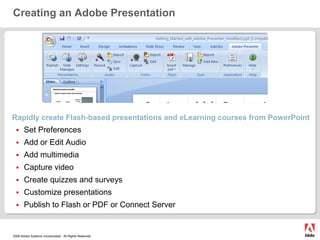
Creating an Adobe PresentationRapidly create Flash-based presentations and eLearning courses from PowerPoint Set PreferencesAdd or Edit AudioAdd multimediaCapture videoCreate quizzes and surveysCustomize presentations Publish to Flash or PDF or Connect Server
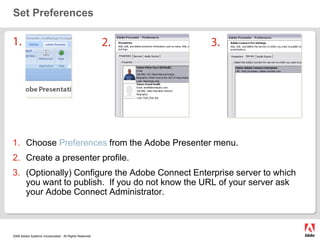
Set Preferences1.2.3.Choose Preferences from the Adobe Presenter menu.Create a presenter profile.  (Optionally) Configure the Adobe Connect Enterprise server to which you want to publish.  If you do not know the URL of your server ask your Adobe Connect Administrator.
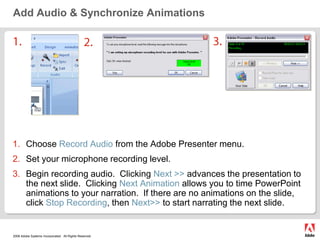
Add Audio & Synchronize Animations3.1.2.Choose Record Audiofrom the Adobe Presenter menu.Set your microphone recording level.Begin recording audio.  Clicking Next >> advances the presentation to the next slide.  Clicking Next Animation allows you to time PowerPoint animations to your narration.  If there are no animations on the slide, click Stop Recording, then Next>> to start narrating the next slide.
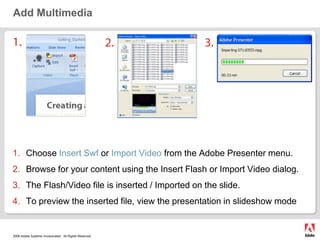
Add Multimedia1.2.3.Choose Insert Swf or Import Video from the Adobe Presenter menu.Browse for your content using the Insert Flash or Import Video dialog.The Flash/Video file is inserted / Imported on the slide.To preview the inserted file, view the presentation in slideshow mode
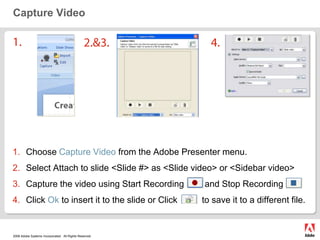
Capture Video1.2.&3.4.Choose Capture Video from the Adobe Presenter menu.Select Attach to slide <Slide #> as <Slide video> or <Sidebar video>Capture the video using Start Recording	        and Stop Recording         Click Ok to insert it to the slide or Click          to save it to a different file.
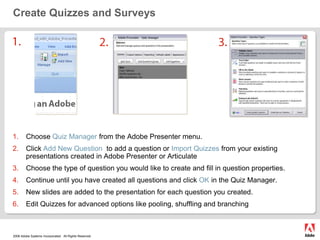
Create Quizzes and Surveys1.2.3.Choose Quiz Manager from the Adobe Presenter menu.Click Add New Question to add a question or Import Quizzes from your existing presentations created in Adobe Presenter or ArticulateChoose the type of question you would like to create and fill in question properties.Continue until you have created all questions and click OK in the Quiz Manager.New slides are added to the presentation for each question you created.Edit Quizzes for advanced options like pooling, shuffling and branching
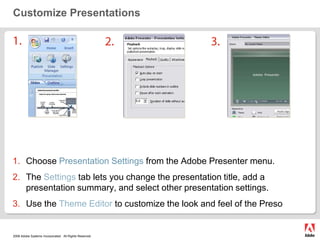
Customize Presentations1.2.3.Choose Presentation Settings from the Adobe Presenter menu.The Settings tab lets you change the presentation title, add a presentation summary, and select other presentation settings.Use the Theme Editor to customize the look and feel of the Preso
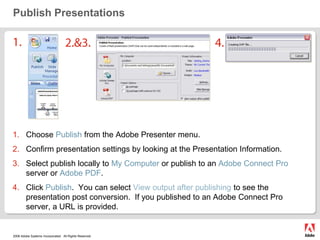
Publish Presentations1.2.&3.4.Choose Publish from the Adobe Presenter menu.Confirm presentation settings by looking at the Presentation Information.Select publish locally to My Computer or publish to an Adobe Connect Pro server or Adobe PDF.Click Publish.  You can select View output after publishing to see the presentation post conversion.  If you published to an Adobe Connect Pro server, a URL is provided.
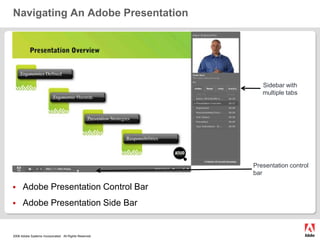
Navigating An Adobe Presentation Sidebar with multiple tabsPresentation control barAdobe Presentation Control BarAdobe Presentation Side Bar
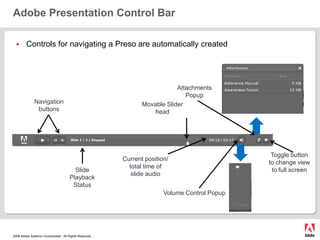
Adobe Presentation Control BarControls for navigating a Preso are automatically createdAttachments PopupNavigation buttonsMovable Slider headToggle button to change view to full screenCurrent position/total time of slide audioSlide Playback StatusVolume Control Popup
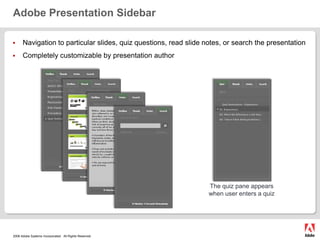
Adobe Presentation SidebarNavigation to particular slides, quiz questions, read slide notes, or search the presentationCompletely customizable by presentation authorThe quiz pane appears when user enters a quiz
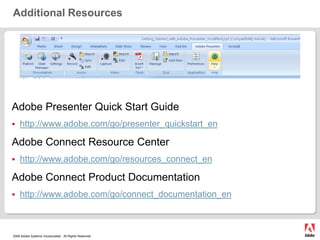
Additional ResourcesAdobe Presenter Quick Start Guidehttp://www.adobe.com/go/presenter_quickstart_enAdobe Connect Resource Centerhttp://www.adobe.com/go/resources_connect_enAdobe Connect Product Documentationhttp://www.adobe.com/go/connect_documentation_en

Adobe Presenter2

  • 1.
  • 2.
    Creating an AdobePresentationRapidly create Flash-based presentations and eLearning courses from PowerPoint Set PreferencesAdd or Edit AudioAdd multimediaCapture videoCreate quizzes and surveysCustomize presentations Publish to Flash or PDF or Connect Server
  • 3.
    Set Preferences1.2.3.Choose Preferencesfrom the Adobe Presenter menu.Create a presenter profile. (Optionally) Configure the Adobe Connect Enterprise server to which you want to publish. If you do not know the URL of your server ask your Adobe Connect Administrator.
  • 4.
    Add Audio &Synchronize Animations3.1.2.Choose Record Audiofrom the Adobe Presenter menu.Set your microphone recording level.Begin recording audio. Clicking Next >> advances the presentation to the next slide. Clicking Next Animation allows you to time PowerPoint animations to your narration. If there are no animations on the slide, click Stop Recording, then Next>> to start narrating the next slide.
  • 5.
    Add Multimedia1.2.3.Choose InsertSwf or Import Video from the Adobe Presenter menu.Browse for your content using the Insert Flash or Import Video dialog.The Flash/Video file is inserted / Imported on the slide.To preview the inserted file, view the presentation in slideshow mode
  • 6.
    Capture Video1.2.&3.4.Choose CaptureVideo from the Adobe Presenter menu.Select Attach to slide <Slide #> as <Slide video> or <Sidebar video>Capture the video using Start Recording and Stop Recording Click Ok to insert it to the slide or Click to save it to a different file.
  • 7.
    Create Quizzes andSurveys1.2.3.Choose Quiz Manager from the Adobe Presenter menu.Click Add New Question to add a question or Import Quizzes from your existing presentations created in Adobe Presenter or ArticulateChoose the type of question you would like to create and fill in question properties.Continue until you have created all questions and click OK in the Quiz Manager.New slides are added to the presentation for each question you created.Edit Quizzes for advanced options like pooling, shuffling and branching
  • 8.
    Customize Presentations1.2.3.Choose PresentationSettings from the Adobe Presenter menu.The Settings tab lets you change the presentation title, add a presentation summary, and select other presentation settings.Use the Theme Editor to customize the look and feel of the Preso
  • 9.
    Publish Presentations1.2.&3.4.Choose Publishfrom the Adobe Presenter menu.Confirm presentation settings by looking at the Presentation Information.Select publish locally to My Computer or publish to an Adobe Connect Pro server or Adobe PDF.Click Publish. You can select View output after publishing to see the presentation post conversion. If you published to an Adobe Connect Pro server, a URL is provided.
  • 10.
    Navigating An AdobePresentation Sidebar with multiple tabsPresentation control barAdobe Presentation Control BarAdobe Presentation Side Bar
  • 11.
    Adobe Presentation ControlBarControls for navigating a Preso are automatically createdAttachments PopupNavigation buttonsMovable Slider headToggle button to change view to full screenCurrent position/total time of slide audioSlide Playback StatusVolume Control Popup
  • 12.
    Adobe Presentation SidebarNavigationto particular slides, quiz questions, read slide notes, or search the presentationCompletely customizable by presentation authorThe quiz pane appears when user enters a quiz
  • 13.
    Additional ResourcesAdobe PresenterQuick Start Guidehttp://www.adobe.com/go/presenter_quickstart_enAdobe Connect Resource Centerhttp://www.adobe.com/go/resources_connect_enAdobe Connect Product Documentationhttp://www.adobe.com/go/connect_documentation_en