© 2013 Marty Hall
Customized Java EE Training: http://courses.coreservlets.com/
Java, JSF 2, PrimeFaces, HTML5, JSP, Ajax, jQuery, Spring, Hibernate, RESTful Web Services, Hadoop, Android.
Developed and taught by well-known author and developer. At public venues or onsite at your location.
Advanced Swing & MVC
2
Custom Data Models and Cell Renderers
Originals of Slides and Source Code for Examples:
http://courses.coreservlets.com/Course-Materials/java.html
© 2013 Marty Hall
Customized Java EE Training: http://courses.coreservlets.com/
Java, JSF 2, PrimeFaces, HTML5, JSP, Ajax, jQuery, Spring, Hibernate, RESTful Web Services, Hadoop, Android.
Developed and taught by well-known author and developer. At public venues or onsite at your location.
For live Java-related training,
see http://courses.coreservlets.com/
or email hall@coreservlets.com.
Taught by the author of Core Servlets and JSP, More Servlets
and JSP, and this tutorial. Available at public venues, or
customized versions can be held on-site at your organization.
• Courses developed and taught by Marty Hall
– JSF 2, PrimeFaces, servlets/JSP, Ajax, jQuery, Android development, Java 7 or 8 programming, custom mix of topics
– Courses available in any state or country. Maryland/DC area companies can also choose afternoon/evening courses.
• Courses developed and taught by coreservlets.com experts (edited by Marty)
– Spring, Hibernate/JPA, GWT, Hadoop, HTML5, RESTful Web Services
Contact hall@coreservlets.com for details
Agenda
• Building a simple static JList
• Adding and removing entries from
a JList at runtime
• Making a custom data model
– Telling JList how to extract data from
existing objects
– Using toString to display a String but return a complex
object upon selection
• Making a custom cell renderer
– Telling JList what GUI component to use for
each of the data cells
4
MVC Architecture
• Custom data models
– Changing the way the GUI control obtains the data.
Instead of copying data from an existing object into a
GUI control, simply tell the GUI control how to get at the
existing data.
• Custom cell renderers
– Changing the way the GUI control displays data values.
Instead of changing the data values, simply tell the GUI
control how to build a Swing component that represents
each data value.
• Main applicable components
– JList
– JTable
– JTree
5
JList with Fixed Set of Choices
• Build JList: pass strings to constructor
– The simplest way to use a JList is to supply an array of
strings to the JList constructor. Cannot add or remove
elements once the JList is created.
String options = { "Option 1", ... , "Option N"};
Jlist<String> optionList = new Jlist<>(options);
• Set visible rows
– Call setVisibleRowCount and drop JList into JScrollPane
optionList.setVisibleRowCount(4);
JScrollPane optionPane =
new JScrollPane(optionList);
someContainer.add(optionPane);
• Handle events
– Attach ListSelectionListener and use valueChanged
6
Simple JList: Example Code
public class JListSimpleExample extends JFrame {
...
public JListSimpleExample() {
super("Creating a Simple JList");
WindowUtilities.setNativeLookAndFeel();
addWindowListener(new ExitListener());
Container content = getContentPane();
String[] entries = { "Entry 1", "Entry 2", "Entry 3",
"Entry 4", "Entry 5", "Entry 6" };
sampleJList = new JList<>(entries);
sampleJList.setVisibleRowCount(4);
sampleJList.addListSelectionListener
(new ValueReporter());
JScrollPane listPane = new JScrollPane(sampleJList);
...
}
7
Simple JList: Example Code
(Continued)
private class ValueReporter implements ListSelectionListener {
/** You get three events in many cases -- one for the
* deselection of the originally selected entry, one
* indicating the selection is moving, and one for the
* selection of the new entry. In the first two cases,
* getValueIsAdjusting returns true; thus, the test
* below since only the third case is of interest.
*/
public void valueChanged(ListSelectionEvent event) {
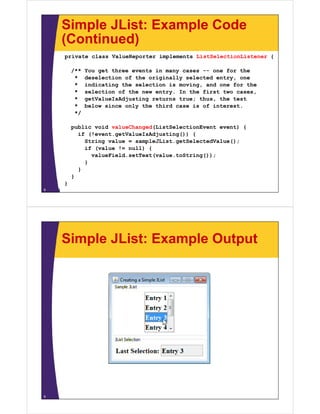
if (!event.getValueIsAdjusting()) {
String value = sampleJList.getSelectedValue();
if (value != null) {
valueField.setText(value.toString());
}
}
}
}
}8
Simple JList: Example Output
9
JList with Changeable Choices
• Build JList:
– Create a DefaultListModel, add data, pass to constructor
String choices = { "Choice 1", ... , "Choice N"};
DefaultListModel<String> sampleModel =
new DefaultListModel<>();
for(int i=0; i<choices.length; i++) {
sampleModel.addElement(choices[i]);
}
JList<String> optionList = new JList<>(sampleModel);
• Set visible rows
– Same: Use setVisibleRowCount and a JScrollPane
• Handle events
– Same: attach ListSelectionListener and use valueChanged
• Add/remove elements
– Use the model, not the JList directly
10
Changeable JList:
Example Code
String[] entries = { "Entry 1", "Entry 2", "Entry 3",
"Entry 4", "Entry 5", "Entry 6" };
sampleModel = new DefaultListModel<>();
for(int i=0; i<entries.length; i++) {
sampleModel.addElement(entries[i]);
}
sampleJList = new Jlist<>(sampleModel);
sampleJList.setVisibleRowCount(4);
Font displayFont = new Font("Serif", Font.BOLD, 18);
sampleJList.setFont(displayFont);
JScrollPane listPane = new JScrollPane(sampleJList);
11
Changeable JList:
Example Code (Continued)
private class ItemAdder implements ActionListener {
/** Add an entry to the ListModel whenever the user
* presses the button. Note that since the new entries
* may be wider than the old ones (e.g., "Entry 10" vs.
* "Entry 9"), you need to rerun the layout manager.
* You need to do this <I>before</I> trying to scroll
* to make the index visible.
*/
public void actionPerformed(ActionEvent event) {
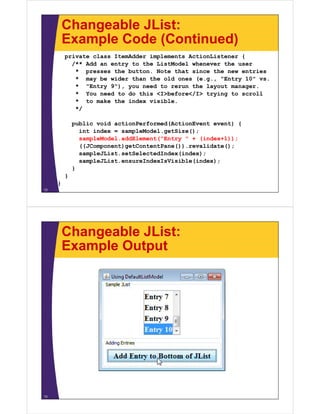
int index = sampleModel.getSize();
sampleModel.addElement("Entry " + (index+1));
((JComponent)getContentPane()).revalidate();
sampleJList.setSelectedIndex(index);
sampleJList.ensureIndexIsVisible(index);
}
}
}
12
Changeable JList:
Example Output
13
JList with Custom Data Model
• Build JList
– Have existing data implement ListModel interface
• getElementAt
– Given an index, returns data element
• getSize
– Tells JList how many entries are in list
• addListDataListener
– Lets user add listeners that should be notified when an item is
selected or deselected.
• removeListDataListener
– Pass model to JList constructor
• Set visible rows & handle events: as before
• Add/remove items: use the model
14
Custom Model: Example Code
public class JavaLocationListModel
implements ListModel<JavaLocation> {
private JavaLocationCollection collection;
public JavaLocationListModel(JavaLocationCollection collection) {
this.collection = collection;
}
public JavaLocation getElementAt(int index) {
return(collection.getLocations()[index]);
}
public int getSize() {
return(collection.getLocations().length);
}
public void addListDataListener(ListDataListener l) {}
public void removeListDataListener(ListDataListener l) {}
}
15
Actual Data
public class JavaLocationCollection {
private static JavaLocation[] defaultLocations =
{ new JavaLocation("Belgium",
"near Liege",
"flags/belgium.gif"),
new JavaLocation("Brazil",
"near Salvador",
"flags/brazil.gif"),
new JavaLocation("Colombia",
"near Bogota",
"flags/colombia.gif"),
... }; ...
}
• JavaLocation has toString plus 3 fields
– Country, comment, flag file
16
JList with Custom Model:
Example Code
JavaLocationCollection collection =
new JavaLocationCollection();
JavaLocationListModel listModel =
new JavaLocationListModel(collection);
JList<JavaLocation> sampleJList =
new JList<>(listModel);
Font displayFont =
new Font("Serif", Font.BOLD, 18);
sampleJList.setFont(displayFont);
content.add(sampleJList);
17
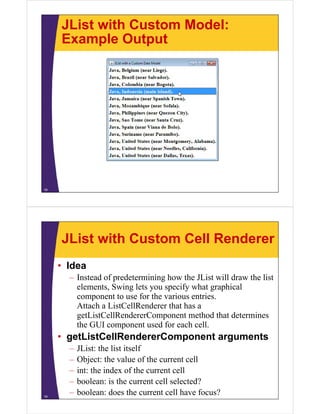
JList with Custom Model:
Example Output
18
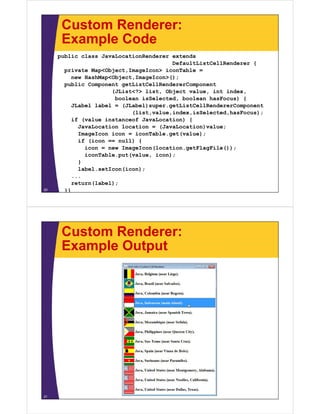
JList with Custom Cell Renderer
• Idea
– Instead of predetermining how the JList will draw the list
elements, Swing lets you specify what graphical
component to use for the various entries.
Attach a ListCellRenderer that has a
getListCellRendererComponent method that determines
the GUI component used for each cell.
• getListCellRendererComponent arguments
– JList: the list itself
– Object: the value of the current cell
– int: the index of the current cell
– boolean: is the current cell selected?
– boolean: does the current cell have focus?19
Custom Renderer:
Example Code
public class JavaLocationRenderer extends
DefaultListCellRenderer {
private Map<Object,ImageIcon> iconTable =
new HashMap<Object,ImageIcon>();
public Component getListCellRendererComponent
(JList<?> list, Object value, int index,
boolean isSelected, boolean hasFocus) {
JLabel label = (JLabel)super.getListCellRendererComponent
(list,value,index,isSelected,hasFocus);
if (value instanceof JavaLocation) {
JavaLocation location = (JavaLocation)value;
ImageIcon icon = iconTable.get(value);
if (icon == null) {
icon = new ImageIcon(location.getFlagFile());
iconTable.put(value, icon);
}
label.setIcon(icon);
...
return(label);
}}20
Custom Renderer:
Example Output
21
Summary
• Simple static JList
– Pass array of strings to JList constructor
• Simple changeable JList
– Pass DefaultListModel to JList constructor.
– Add/remove data to/from the model, not the JList.
• Custom data model
– Have real data implement ListModel interface.
– Pass real data to JList constructor.
• Custom cell renderer
– Assign a ListCellRenderer
– ListCellRenderer has a method that determines the
Component to be used for each cell
22
© 2013 Marty Hall
Customized Java EE Training: http://courses.coreservlets.com/
Java, JSF 2, PrimeFaces, HTML5, JSP, Ajax, jQuery, Spring, Hibernate, RESTful Web Services, Hadoop, Android.
Developed and taught by well-known author and developer. At public venues or onsite at your location.
Questions?
23
JSF 2, PrimeFaces, Java 7 or 8, HTML5, Ajax, jQuery, Hadoop, RESTful Web Services, Android, Spring, Hibernate, Servlets, JSP, GWT, and other Java EE training.

13 advanced-swing

  • 1.
    © 2013 MartyHall Customized Java EE Training: http://courses.coreservlets.com/ Java, JSF 2, PrimeFaces, HTML5, JSP, Ajax, jQuery, Spring, Hibernate, RESTful Web Services, Hadoop, Android. Developed and taught by well-known author and developer. At public venues or onsite at your location. Advanced Swing & MVC 2 Custom Data Models and Cell Renderers Originals of Slides and Source Code for Examples: http://courses.coreservlets.com/Course-Materials/java.html © 2013 Marty Hall Customized Java EE Training: http://courses.coreservlets.com/ Java, JSF 2, PrimeFaces, HTML5, JSP, Ajax, jQuery, Spring, Hibernate, RESTful Web Services, Hadoop, Android. Developed and taught by well-known author and developer. At public venues or onsite at your location. For live Java-related training, see http://courses.coreservlets.com/ or email hall@coreservlets.com. Taught by the author of Core Servlets and JSP, More Servlets and JSP, and this tutorial. Available at public venues, or customized versions can be held on-site at your organization. • Courses developed and taught by Marty Hall – JSF 2, PrimeFaces, servlets/JSP, Ajax, jQuery, Android development, Java 7 or 8 programming, custom mix of topics – Courses available in any state or country. Maryland/DC area companies can also choose afternoon/evening courses. • Courses developed and taught by coreservlets.com experts (edited by Marty) – Spring, Hibernate/JPA, GWT, Hadoop, HTML5, RESTful Web Services Contact hall@coreservlets.com for details
  • 2.
    Agenda • Building asimple static JList • Adding and removing entries from a JList at runtime • Making a custom data model – Telling JList how to extract data from existing objects – Using toString to display a String but return a complex object upon selection • Making a custom cell renderer – Telling JList what GUI component to use for each of the data cells 4 MVC Architecture • Custom data models – Changing the way the GUI control obtains the data. Instead of copying data from an existing object into a GUI control, simply tell the GUI control how to get at the existing data. • Custom cell renderers – Changing the way the GUI control displays data values. Instead of changing the data values, simply tell the GUI control how to build a Swing component that represents each data value. • Main applicable components – JList – JTable – JTree 5
  • 3.
    JList with FixedSet of Choices • Build JList: pass strings to constructor – The simplest way to use a JList is to supply an array of strings to the JList constructor. Cannot add or remove elements once the JList is created. String options = { "Option 1", ... , "Option N"}; Jlist<String> optionList = new Jlist<>(options); • Set visible rows – Call setVisibleRowCount and drop JList into JScrollPane optionList.setVisibleRowCount(4); JScrollPane optionPane = new JScrollPane(optionList); someContainer.add(optionPane); • Handle events – Attach ListSelectionListener and use valueChanged 6 Simple JList: Example Code public class JListSimpleExample extends JFrame { ... public JListSimpleExample() { super("Creating a Simple JList"); WindowUtilities.setNativeLookAndFeel(); addWindowListener(new ExitListener()); Container content = getContentPane(); String[] entries = { "Entry 1", "Entry 2", "Entry 3", "Entry 4", "Entry 5", "Entry 6" }; sampleJList = new JList<>(entries); sampleJList.setVisibleRowCount(4); sampleJList.addListSelectionListener (new ValueReporter()); JScrollPane listPane = new JScrollPane(sampleJList); ... } 7
  • 4.
    Simple JList: ExampleCode (Continued) private class ValueReporter implements ListSelectionListener { /** You get three events in many cases -- one for the * deselection of the originally selected entry, one * indicating the selection is moving, and one for the * selection of the new entry. In the first two cases, * getValueIsAdjusting returns true; thus, the test * below since only the third case is of interest. */ public void valueChanged(ListSelectionEvent event) { if (!event.getValueIsAdjusting()) { String value = sampleJList.getSelectedValue(); if (value != null) { valueField.setText(value.toString()); } } } } }8 Simple JList: Example Output 9
  • 5.
    JList with ChangeableChoices • Build JList: – Create a DefaultListModel, add data, pass to constructor String choices = { "Choice 1", ... , "Choice N"}; DefaultListModel<String> sampleModel = new DefaultListModel<>(); for(int i=0; i<choices.length; i++) { sampleModel.addElement(choices[i]); } JList<String> optionList = new JList<>(sampleModel); • Set visible rows – Same: Use setVisibleRowCount and a JScrollPane • Handle events – Same: attach ListSelectionListener and use valueChanged • Add/remove elements – Use the model, not the JList directly 10 Changeable JList: Example Code String[] entries = { "Entry 1", "Entry 2", "Entry 3", "Entry 4", "Entry 5", "Entry 6" }; sampleModel = new DefaultListModel<>(); for(int i=0; i<entries.length; i++) { sampleModel.addElement(entries[i]); } sampleJList = new Jlist<>(sampleModel); sampleJList.setVisibleRowCount(4); Font displayFont = new Font("Serif", Font.BOLD, 18); sampleJList.setFont(displayFont); JScrollPane listPane = new JScrollPane(sampleJList); 11
  • 6.
    Changeable JList: Example Code(Continued) private class ItemAdder implements ActionListener { /** Add an entry to the ListModel whenever the user * presses the button. Note that since the new entries * may be wider than the old ones (e.g., "Entry 10" vs. * "Entry 9"), you need to rerun the layout manager. * You need to do this <I>before</I> trying to scroll * to make the index visible. */ public void actionPerformed(ActionEvent event) { int index = sampleModel.getSize(); sampleModel.addElement("Entry " + (index+1)); ((JComponent)getContentPane()).revalidate(); sampleJList.setSelectedIndex(index); sampleJList.ensureIndexIsVisible(index); } } } 12 Changeable JList: Example Output 13
  • 7.
    JList with CustomData Model • Build JList – Have existing data implement ListModel interface • getElementAt – Given an index, returns data element • getSize – Tells JList how many entries are in list • addListDataListener – Lets user add listeners that should be notified when an item is selected or deselected. • removeListDataListener – Pass model to JList constructor • Set visible rows & handle events: as before • Add/remove items: use the model 14 Custom Model: Example Code public class JavaLocationListModel implements ListModel<JavaLocation> { private JavaLocationCollection collection; public JavaLocationListModel(JavaLocationCollection collection) { this.collection = collection; } public JavaLocation getElementAt(int index) { return(collection.getLocations()[index]); } public int getSize() { return(collection.getLocations().length); } public void addListDataListener(ListDataListener l) {} public void removeListDataListener(ListDataListener l) {} } 15
  • 8.
    Actual Data public classJavaLocationCollection { private static JavaLocation[] defaultLocations = { new JavaLocation("Belgium", "near Liege", "flags/belgium.gif"), new JavaLocation("Brazil", "near Salvador", "flags/brazil.gif"), new JavaLocation("Colombia", "near Bogota", "flags/colombia.gif"), ... }; ... } • JavaLocation has toString plus 3 fields – Country, comment, flag file 16 JList with Custom Model: Example Code JavaLocationCollection collection = new JavaLocationCollection(); JavaLocationListModel listModel = new JavaLocationListModel(collection); JList<JavaLocation> sampleJList = new JList<>(listModel); Font displayFont = new Font("Serif", Font.BOLD, 18); sampleJList.setFont(displayFont); content.add(sampleJList); 17
  • 9.
    JList with CustomModel: Example Output 18 JList with Custom Cell Renderer • Idea – Instead of predetermining how the JList will draw the list elements, Swing lets you specify what graphical component to use for the various entries. Attach a ListCellRenderer that has a getListCellRendererComponent method that determines the GUI component used for each cell. • getListCellRendererComponent arguments – JList: the list itself – Object: the value of the current cell – int: the index of the current cell – boolean: is the current cell selected? – boolean: does the current cell have focus?19
  • 10.
    Custom Renderer: Example Code publicclass JavaLocationRenderer extends DefaultListCellRenderer { private Map<Object,ImageIcon> iconTable = new HashMap<Object,ImageIcon>(); public Component getListCellRendererComponent (JList<?> list, Object value, int index, boolean isSelected, boolean hasFocus) { JLabel label = (JLabel)super.getListCellRendererComponent (list,value,index,isSelected,hasFocus); if (value instanceof JavaLocation) { JavaLocation location = (JavaLocation)value; ImageIcon icon = iconTable.get(value); if (icon == null) { icon = new ImageIcon(location.getFlagFile()); iconTable.put(value, icon); } label.setIcon(icon); ... return(label); }}20 Custom Renderer: Example Output 21
  • 11.
    Summary • Simple staticJList – Pass array of strings to JList constructor • Simple changeable JList – Pass DefaultListModel to JList constructor. – Add/remove data to/from the model, not the JList. • Custom data model – Have real data implement ListModel interface. – Pass real data to JList constructor. • Custom cell renderer – Assign a ListCellRenderer – ListCellRenderer has a method that determines the Component to be used for each cell 22 © 2013 Marty Hall Customized Java EE Training: http://courses.coreservlets.com/ Java, JSF 2, PrimeFaces, HTML5, JSP, Ajax, jQuery, Spring, Hibernate, RESTful Web Services, Hadoop, Android. Developed and taught by well-known author and developer. At public venues or onsite at your location. Questions? 23 JSF 2, PrimeFaces, Java 7 or 8, HTML5, Ajax, jQuery, Hadoop, RESTful Web Services, Android, Spring, Hibernate, Servlets, JSP, GWT, and other Java EE training.