CSC 130

Class 2













Software Development Lifecycle
Rewriting the Problem Statement
Three Components of Every Problem
Defining Diagram
Algorithm
Design Tools
Flowcharts
Starting and Ending Flow Chart
Control Structures
Sequence Structure in Flow Chart
Selection Structure in Flow Chart
Repetition Structure in Flow Chart




Analyze a simple problem and develop an algorithm for its
solution using various techniques to include top-down
development, pseudo code, flow charts, hand-checking, wellchosen test data, and stubs and drivers
Problem Analysis and algorithm development
◦ Top down program development
◦ Algorithm representation in pseudo code and flowcharts
Step #

Step Name

Description

1

Requirements Specification

Understanding the problem. This will begin by rewriting the problem statement in your own words. If you can’t understand
the problem in English you will not be able to solve the problem in a programming language.
Discuss the problem with the customers and the users. In this class your instructor is your customer and your user.

2

System Analysis

Translate the user and/or customer requirements into technical requirements.
Describe input values that are required for the program.
Describe the processing that must be accomplished in the program in order to take the input and generate the required
output..
Describe the outputs that are required for the program.

3

System Design

Develop a detailed logical plan to solve the problem that was analyzed in step 2.
Break down the problem into small manageable pieces.
Use pseudo code, UML, and other appropriate tools to represent your design.
Desk check your design using appropriate input data to make sure that the design will give you the correct output.

4

Implementation

Translate your design into a programming language. Write the computer program following the syntax of the language.
During this phase we will find syntax errors. Syntax errors are “grammar” errors in the programming language.

5

Testing

Run your completed program on the computer to make sure that it works. Input real life data and look at the resulting
output. You must test all paths through the program.
This process is called debugging. You are looking for bugs in your program – bugs are errors. During this phase we will
find logical errors. Logical errors are errors with our algorithm – our plan for solving the problem.









The first step for any problem is to fully understand your problem statement.
Understand the EXPLICIT details outlined in the problem
◦ These are the facts that you see stated immediately in the problem statement
Understand the IMPLIED details required by the problem
◦ These are details that are not stated immediately by the problem statement
◦ These are details that are required to support the EXPLICIT details outlined in
the problem.
Rewriting the problem statement in your own words helps to define both the
EXPLICIT and IMPLIED details.
Details to Consider
◦ What actions the program must be able to do
◦ What information the program must be able to remember






If you can’t explain the problem in your own words, then you are not
ready to continue with the design process
If you can rewrite the problem in your own words, then you have a good
understanding of the problem.
When you rewrite the problem statement, the rewritten version should be
longer than the original version.


We own a pizza shop, and we need a better way to control orders and
customer records. We’re a small shop, but have lots of part-time workers,
and we want to have as much uniformity as possible in how customers and
orders are handled. We sell only in the restaurant (no delivery) for both
eat-in and carry-out. Regular customers can join the Frequent-Eater’s
“club” which entitles them to a free pizza after purchasing 10 pizzas. We
sell pizzas with zero or one extra topping (extra cheese, pepperoni, green
pepper, mushrooms, or onions). We have two sizes: small and large. If a
customer is ordering multiple pizzas, all pizzas must be the same size and
have the same topping.


Explicit Details
◦ Details that written specifically in the problem statement.
◦ Consider action statements from the problem and list them as Action Verb Phrases in the
rewritten problem statement.
◦ Consider data details from the problem and list them as information to Remember in the
rewritten problem statement.



Example
◦ Remember the valid pizza sizes of small and large.
◦ Remember the number of pizzas in the order
◦ Remember the valid pizza toppings of extra cheese, pepperoni, green pepper, mushrooms,
or onions
◦ Be able to take an order for a pizza
◦ Be able to


Implied Details
◦ Details that are not written specifically in the problem statement.
◦ Details that are implied based on the problem specifics.
◦ Implied details can include both actions and information to remember.



Example
◦
◦
◦
◦
◦

Be able to validate the size of the pizzas in the order (small or large).
Be able to validate the number of pizzas in the order (greater than 0).
Prompt the user for the number of pizzas in the order
Read in the number of pizzas in the order.
Remember the number of pizzas in the order








Input
◦ A list of source data provided to the problem
Output
◦ A list of data generated and provided by the solution to the problem
Processing
◦ A list of actions that need to be completed in order to produce the required output for the
problem.
Examples
◦ Computer can receive information - Input
◦ Computer can print out information – Output
◦ Computer can perform Arithmetic – Processing
◦ Computer can assign a value to a variable or memory location – Storage
◦ Computer can compare two variables and select one of two alternative actions – Processing
◦ Computer an repeat a group of actions - Processing










A Defining Diagram is created using the details of the problems statement.
A Defining Diagram is created using the explicitly defined details of the problem
and also the implied details of the problem.
The Defining Diagram presents the input, output, and processing for the problem in
a simple tabular form.
The Defining Diagram does not show time sequence of the problem solution.
At this point you do not care how the processing is done – you just need to have a
place holder for the action.
Creating the Defining Diagram
◦ Look for descriptive words and nouns – these become the inputs and outputs
◦ Look for the actions required and verbs – these become the processing
◦ One column for Input, one column for processing, and one column for Output






Example – Adding Two Numbers
Problem Statement
Create a program that will calculate the sum of two numbers that are entered at the keyboard. The sum
should be printed to the screen.
Defining Diagram
Input

Processing

Output

first number

Prompt for numbers

second number

Get numbers from keyboard

Prompt message for first
number
Prompt message for second
number
sum

calculate sum
Display sum
List of steps involved in accomplish a task.
 Detailed precise ordered instructions describing the
process necessary to produce the desired output from
a given input.
 A logic plan for a solution to a problem.
 We will use the information from the rewritten
problem statement and the Defining Diagram to fill in
the details of the algorithm.










Once you understand the problem you are now ready to move forward in the design of the problem.
These tools can be used to represent your algorithm (your logical plan to solve the problem)
Different design tools work well for different programming languages.
Flow Charts
◦ Pictorial representation of the logical steps to solve the problem
◦ Flow charts show action and not data
◦ Flow Charts are good for procedural programming languages
◦ Flow Charts can also be used for defining the steps within a method.
Pseudo code
◦ Statements between English and a programming language that represent the logical steps to solve a
problem.
◦ Pseudo code can be used to support the design of procedural and object oriented programs
◦ Pseudo code can be used to represent both data and action.
UML – Unified Modeling Language
◦ This is a design tool used for object oriented programs
◦ This can easily show data and action
◦ This can easily show classes, objects, and how they relate and interact with each other

.













Pictorial representation of the logical steps it takes to solve a problem.
Flow charts show the flow of actions.
Flow charts do not show the any information about data
Flow charts are not the best tool used to design object oriented programs because they only
show actions and not information
Flow charts are good tools for procedural programming languages.
Program Steps are placed in different shaped boxes and connected with arrows. These
connections show the order in which the steps must take place.
Each shape for a box represents a specific type of action.
◦ Oval for Start and Stop
◦ Parallelogram for input and output.
◦ Rectangle for processing – for example calculations
◦ Diamond is used to ask a question. The question may only have two answers – Yes or No
(true or false)
The design for every program begins with Start.
The design for every program ends with Stop.






Every flow chart has a starting point
The Starting Point is marked with an Oval for Start.
Every flow chart has an ending point
The Ending Point is marked with an oval for Stop.
The actual steps required to accomplish the goals of the program are
represented by other shapes and connecting lines in between the Start and
the Stop.
Start

Stop


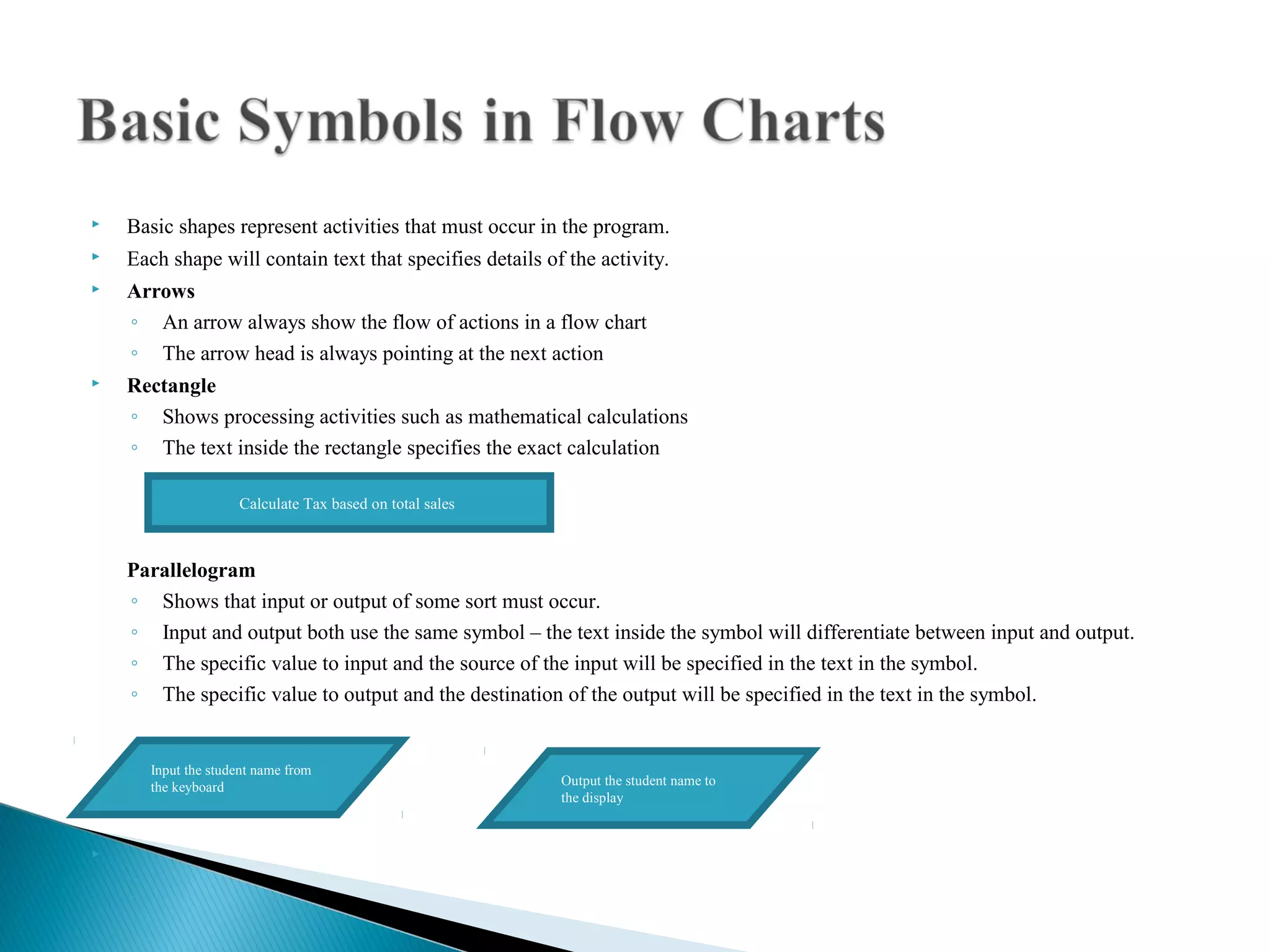
Basic shapes represent activities that must occur in the program.



Each shape will contain text that specifies details of the activity.



Arrows
◦ An arrow always show the flow of actions in a flow chart
◦ The arrow head is always pointing at the next action



Rectangle
◦ Shows processing activities such as mathematical calculations
◦ The text inside the rectangle specifies the exact calculation
Calculate Tax based on total sales

Parallelogram
◦ Shows that input or output of some sort must occur.
◦ Input and output both use the same symbol – the text inside the symbol will differentiate between input and output.
◦ The specific value to input and the source of the input will be specified in the text in the symbol.
◦ The specific value to output and the destination of the output will be specified in the text in the symbol.

Input the student name from
the keyboard



Output the student name to
the display


Diamond
◦ Shows that a decision must be made
◦ The decision is made based on the answer to a YES/NO question. The only questions that may be asked are YES/NO
questions.
◦ One side of the diamond leads to the path of activities that should occur if YES the answer to the question is.
◦ One side of the diamond leads to the path of activities that should occur if NO is the answer to the question.
◦ The text for the question goes inside the diamond
◦ The YES/NO symbols should be written on top of the arrow showing the direction to follow for that answer.
◦ More complicated questions can be made by having a sequence of diamonds.

YES

Is today
Wednesday?

NO








Control Structures in programming determine the order of
execution of our program statements.
3 Basic Control Structures
◦ Sequence
◦ Selection
◦ Repetition
For now we will discuss Control Structures in terms of flow
charts, later we will see how these control structures are
represented in pseudo code.
These control structures will be put together in various orders
to accomplish the goals of our program.









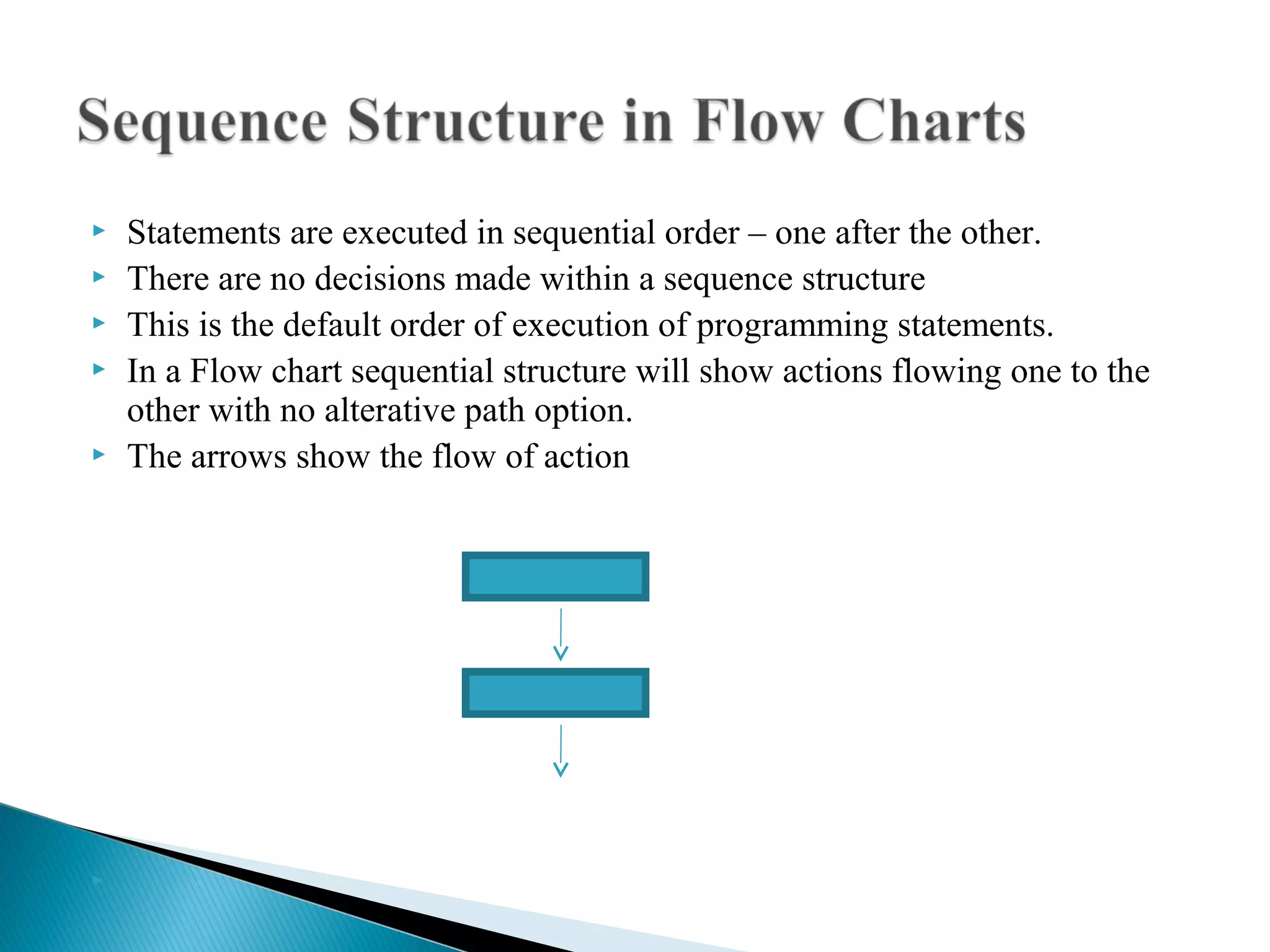
Statements are executed in sequential order – one after the other.
There are no decisions made within a sequence structure
This is the default order of execution of programming statements.
In a Flow chart sequential structure will show actions flowing one to the
other with no alterative path option.
The arrows show the flow of action


Selection means that a decision is made between alternative paths of execution



A question is asked to the computer – a question that has either a yes/no (true/false) answer



The answer to the question determines which path of execution is taken.



Execution proceeds in either one direction or the other



Once the actions have been completed in either the YES or the NO direction, then both paths of execution continue at the same point to
complete the remainder of the sequence of events.



A diamond represents a question



Arrows will lead from different sides of the diamond showing the optional paths.



You must define which direction is yes/true or no/false with a little message




Also known as a loop structure



A repetition structure allows us to repeat one or more statements in a program multiple times.



The statements that we want to repeat are included inside the body of the loop.



A decision will need to be made determining when the loop has repeated enough times



Again, this is a decision that has a yes/no answer – either you have repeated the loop enough times or you have not.



When you have not repeated the loop enough times, execution returns back to the previous steps.



When you have repeated the loop enough times, execution continues sequentially forward to other steps.



In terms of a flow chart you will need a decision box and arrows that go back to repeat and also to go forward to continue



The question that you ask will determine if the YES means to repeat the action or perhaps if the NO means to repeat the action.




Problem Statement
◦ Create a program that will
calculate the sum of two
numbers that are entered
at the keyboard. The sum
should be printed to the
screen



Defining Diagram

Input
first number

Processing
Prompt for first number

second number

Read first number from keyboard


Prompt for second number
Read second number from
keyboard
calculate sum of two numbers
Display sum


Output
Prompt message
for first number
Prompt message
for second number
sum




Software
◦ Visio (available free for students through Dreamspark)
◦ Raptor – http://www.raptor.martincarlisle.com/
◦ Dia -- https://wiki.gnome.org/action/show/Apps/Dia?action=show&redirect=Dia
◦ Word – you can insert shapes

Csc 130 class 2 problem analysis and flow charts(2)

  • 1.
  • 2.
                Software Development Lifecycle Rewritingthe Problem Statement Three Components of Every Problem Defining Diagram Algorithm Design Tools Flowcharts Starting and Ending Flow Chart Control Structures Sequence Structure in Flow Chart Selection Structure in Flow Chart Repetition Structure in Flow Chart
  • 3.
      Analyze a simpleproblem and develop an algorithm for its solution using various techniques to include top-down development, pseudo code, flow charts, hand-checking, wellchosen test data, and stubs and drivers Problem Analysis and algorithm development ◦ Top down program development ◦ Algorithm representation in pseudo code and flowcharts
  • 4.
    Step # Step Name Description 1 RequirementsSpecification Understanding the problem. This will begin by rewriting the problem statement in your own words. If you can’t understand the problem in English you will not be able to solve the problem in a programming language. Discuss the problem with the customers and the users. In this class your instructor is your customer and your user. 2 System Analysis Translate the user and/or customer requirements into technical requirements. Describe input values that are required for the program. Describe the processing that must be accomplished in the program in order to take the input and generate the required output.. Describe the outputs that are required for the program. 3 System Design Develop a detailed logical plan to solve the problem that was analyzed in step 2. Break down the problem into small manageable pieces. Use pseudo code, UML, and other appropriate tools to represent your design. Desk check your design using appropriate input data to make sure that the design will give you the correct output. 4 Implementation Translate your design into a programming language. Write the computer program following the syntax of the language. During this phase we will find syntax errors. Syntax errors are “grammar” errors in the programming language. 5 Testing Run your completed program on the computer to make sure that it works. Input real life data and look at the resulting output. You must test all paths through the program. This process is called debugging. You are looking for bugs in your program – bugs are errors. During this phase we will find logical errors. Logical errors are errors with our algorithm – our plan for solving the problem.
  • 5.
         The first stepfor any problem is to fully understand your problem statement. Understand the EXPLICIT details outlined in the problem ◦ These are the facts that you see stated immediately in the problem statement Understand the IMPLIED details required by the problem ◦ These are details that are not stated immediately by the problem statement ◦ These are details that are required to support the EXPLICIT details outlined in the problem. Rewriting the problem statement in your own words helps to define both the EXPLICIT and IMPLIED details. Details to Consider ◦ What actions the program must be able to do ◦ What information the program must be able to remember
  • 6.
       If you can’texplain the problem in your own words, then you are not ready to continue with the design process If you can rewrite the problem in your own words, then you have a good understanding of the problem. When you rewrite the problem statement, the rewritten version should be longer than the original version.
  • 7.
     We own apizza shop, and we need a better way to control orders and customer records. We’re a small shop, but have lots of part-time workers, and we want to have as much uniformity as possible in how customers and orders are handled. We sell only in the restaurant (no delivery) for both eat-in and carry-out. Regular customers can join the Frequent-Eater’s “club” which entitles them to a free pizza after purchasing 10 pizzas. We sell pizzas with zero or one extra topping (extra cheese, pepperoni, green pepper, mushrooms, or onions). We have two sizes: small and large. If a customer is ordering multiple pizzas, all pizzas must be the same size and have the same topping.
  • 8.
     Explicit Details ◦ Detailsthat written specifically in the problem statement. ◦ Consider action statements from the problem and list them as Action Verb Phrases in the rewritten problem statement. ◦ Consider data details from the problem and list them as information to Remember in the rewritten problem statement.  Example ◦ Remember the valid pizza sizes of small and large. ◦ Remember the number of pizzas in the order ◦ Remember the valid pizza toppings of extra cheese, pepperoni, green pepper, mushrooms, or onions ◦ Be able to take an order for a pizza ◦ Be able to
  • 9.
     Implied Details ◦ Detailsthat are not written specifically in the problem statement. ◦ Details that are implied based on the problem specifics. ◦ Implied details can include both actions and information to remember.  Example ◦ ◦ ◦ ◦ ◦ Be able to validate the size of the pizzas in the order (small or large). Be able to validate the number of pizzas in the order (greater than 0). Prompt the user for the number of pizzas in the order Read in the number of pizzas in the order. Remember the number of pizzas in the order
  • 10.
        Input ◦ A listof source data provided to the problem Output ◦ A list of data generated and provided by the solution to the problem Processing ◦ A list of actions that need to be completed in order to produce the required output for the problem. Examples ◦ Computer can receive information - Input ◦ Computer can print out information – Output ◦ Computer can perform Arithmetic – Processing ◦ Computer can assign a value to a variable or memory location – Storage ◦ Computer can compare two variables and select one of two alternative actions – Processing ◦ Computer an repeat a group of actions - Processing
  • 11.
          A Defining Diagramis created using the details of the problems statement. A Defining Diagram is created using the explicitly defined details of the problem and also the implied details of the problem. The Defining Diagram presents the input, output, and processing for the problem in a simple tabular form. The Defining Diagram does not show time sequence of the problem solution. At this point you do not care how the processing is done – you just need to have a place holder for the action. Creating the Defining Diagram ◦ Look for descriptive words and nouns – these become the inputs and outputs ◦ Look for the actions required and verbs – these become the processing ◦ One column for Input, one column for processing, and one column for Output
  • 12.
        Example – AddingTwo Numbers Problem Statement Create a program that will calculate the sum of two numbers that are entered at the keyboard. The sum should be printed to the screen. Defining Diagram Input Processing Output first number Prompt for numbers second number Get numbers from keyboard Prompt message for first number Prompt message for second number sum calculate sum Display sum
  • 13.
    List of stepsinvolved in accomplish a task.  Detailed precise ordered instructions describing the process necessary to produce the desired output from a given input.  A logic plan for a solution to a problem.  We will use the information from the rewritten problem statement and the Defining Diagram to fill in the details of the algorithm. 
  • 14.
          Once you understandthe problem you are now ready to move forward in the design of the problem. These tools can be used to represent your algorithm (your logical plan to solve the problem) Different design tools work well for different programming languages. Flow Charts ◦ Pictorial representation of the logical steps to solve the problem ◦ Flow charts show action and not data ◦ Flow Charts are good for procedural programming languages ◦ Flow Charts can also be used for defining the steps within a method. Pseudo code ◦ Statements between English and a programming language that represent the logical steps to solve a problem. ◦ Pseudo code can be used to support the design of procedural and object oriented programs ◦ Pseudo code can be used to represent both data and action. UML – Unified Modeling Language ◦ This is a design tool used for object oriented programs ◦ This can easily show data and action ◦ This can easily show classes, objects, and how they relate and interact with each other .
  • 15.
             Pictorial representation ofthe logical steps it takes to solve a problem. Flow charts show the flow of actions. Flow charts do not show the any information about data Flow charts are not the best tool used to design object oriented programs because they only show actions and not information Flow charts are good tools for procedural programming languages. Program Steps are placed in different shaped boxes and connected with arrows. These connections show the order in which the steps must take place. Each shape for a box represents a specific type of action. ◦ Oval for Start and Stop ◦ Parallelogram for input and output. ◦ Rectangle for processing – for example calculations ◦ Diamond is used to ask a question. The question may only have two answers – Yes or No (true or false) The design for every program begins with Start. The design for every program ends with Stop.
  • 16.
         Every flow charthas a starting point The Starting Point is marked with an Oval for Start. Every flow chart has an ending point The Ending Point is marked with an oval for Stop. The actual steps required to accomplish the goals of the program are represented by other shapes and connecting lines in between the Start and the Stop. Start Stop
  • 17.
     Basic shapes representactivities that must occur in the program.  Each shape will contain text that specifies details of the activity.  Arrows ◦ An arrow always show the flow of actions in a flow chart ◦ The arrow head is always pointing at the next action  Rectangle ◦ Shows processing activities such as mathematical calculations ◦ The text inside the rectangle specifies the exact calculation Calculate Tax based on total sales Parallelogram ◦ Shows that input or output of some sort must occur. ◦ Input and output both use the same symbol – the text inside the symbol will differentiate between input and output. ◦ The specific value to input and the source of the input will be specified in the text in the symbol. ◦ The specific value to output and the destination of the output will be specified in the text in the symbol. Input the student name from the keyboard  Output the student name to the display
  • 18.
     Diamond ◦ Shows thata decision must be made ◦ The decision is made based on the answer to a YES/NO question. The only questions that may be asked are YES/NO questions. ◦ One side of the diamond leads to the path of activities that should occur if YES the answer to the question is. ◦ One side of the diamond leads to the path of activities that should occur if NO is the answer to the question. ◦ The text for the question goes inside the diamond ◦ The YES/NO symbols should be written on top of the arrow showing the direction to follow for that answer. ◦ More complicated questions can be made by having a sequence of diamonds. YES Is today Wednesday? NO
  • 19.
        Control Structures inprogramming determine the order of execution of our program statements. 3 Basic Control Structures ◦ Sequence ◦ Selection ◦ Repetition For now we will discuss Control Structures in terms of flow charts, later we will see how these control structures are represented in pseudo code. These control structures will be put together in various orders to accomplish the goals of our program.
  • 20.
          Statements are executedin sequential order – one after the other. There are no decisions made within a sequence structure This is the default order of execution of programming statements. In a Flow chart sequential structure will show actions flowing one to the other with no alterative path option. The arrows show the flow of action
  • 21.
     Selection means thata decision is made between alternative paths of execution  A question is asked to the computer – a question that has either a yes/no (true/false) answer  The answer to the question determines which path of execution is taken.  Execution proceeds in either one direction or the other  Once the actions have been completed in either the YES or the NO direction, then both paths of execution continue at the same point to complete the remainder of the sequence of events.  A diamond represents a question  Arrows will lead from different sides of the diamond showing the optional paths.  You must define which direction is yes/true or no/false with a little message 
  • 22.
     Also known asa loop structure  A repetition structure allows us to repeat one or more statements in a program multiple times.  The statements that we want to repeat are included inside the body of the loop.  A decision will need to be made determining when the loop has repeated enough times  Again, this is a decision that has a yes/no answer – either you have repeated the loop enough times or you have not.  When you have not repeated the loop enough times, execution returns back to the previous steps.  When you have repeated the loop enough times, execution continues sequentially forward to other steps.  In terms of a flow chart you will need a decision box and arrows that go back to repeat and also to go forward to continue  The question that you ask will determine if the YES means to repeat the action or perhaps if the NO means to repeat the action. 
  • 23.
     Problem Statement ◦ Createa program that will calculate the sum of two numbers that are entered at the keyboard. The sum should be printed to the screen  Defining Diagram Input first number Processing Prompt for first number second number Read first number from keyboard     Prompt for second number Read second number from keyboard calculate sum of two numbers Display sum     Output Prompt message for first number Prompt message for second number sum      
  • 25.
     Software ◦ Visio (availablefree for students through Dreamspark) ◦ Raptor – http://www.raptor.martincarlisle.com/ ◦ Dia -- https://wiki.gnome.org/action/show/Apps/Dia?action=show&redirect=Dia ◦ Word – you can insert shapes