How to automatically populate the Quotes
  “Closed On” date through a workflow in
         Microsoft Dynamics CRM 2011.


                                www.dynamic-crm.com
   We recently received requirements to
    automatically populate the “Closed On” field of
    the Quote entity when the user wins, loses, or
    cancels a quote in MS Dynamics CRM 2011.

   Sounds like an easy enough workflow right?
    Just throw together a quick CRM dynamics
    workflow to update the field when the status
    changes, right? Well, not quite…


                                            www.dynamic-crm.com
   It turns out there are a couple of things that need
    to happen before you can simply update the
    field.

   The first thing we need to do is see if we are
    displaying the “Closed On” field on the form.

   If the field exists on the CRM form and it is
    disabled, it will prevent us from using it in the
    workflow.


                                                www.dynamic-crm.com
   My recommendation is to add it to either the
    header or the footer if you want it to display .

   Obviously we are setting it programmatically so
    there is no need for user interaction...

   Alternatively, you can add some JavaScript to your
    form load event to disable the field.


                                                 www.dynamic-crm.com
   However you will want to ensure that the “Read
    only” checkbox is not checked.

   You will find this by going to the Customization
    view of the form, selecting the field, then click into
    its properties.


                                                www.dynamic-crm.com
   Determine the current status
   Set the records status to a changeable state
   Update the field with the current date
   Activate the record
   Set the record back to its original status.


                                            www.dynamic-crm.com
   There are a few different ways that we can handle
    this, but for the purpose of this article, we thought
    it best to keep it as straight forward as possible.

   So let’s jump right into creating our CRM
    Dynamics workflow!


                                                www.dynamic-crm.com
   In MS CRM Dynamics 2011 click on the “Settings”
    link in the left hand navigation.

   Under the Process Center grouping, click on the
    Processes link.

   At the top left corner of the results grid, select the
    icon labeled “New” to launch the Create Process
    dialog.


                                                 www.dynamic-crm.com
   Enter a name for your process, select “Quote”
    from the “Entity” drop down list, select “Workflow”
    as the “Category”, then click on the “OK” button.

   (see image on next slide)


                                               www.dynamic-crm.com
www.dynamic-crm.com
   This will save the information and close the
    “Create Process” dialog window. The “Process”
    properties window will then open.

   Here we can change the scope and set when or
    how we want the process to run for this
    workflow.


                                            www.dynamic-crm.com
• Based on the requirements that we
  received for our purposes, we only want to
  start when the record status changes (see
  image below)


                                        www.dynamic-crm.com
   Now we are ready to add the details of our
    process. The first thing we want to do is verify that
    this quote is closed, more specifically that it is
    either marked as Won, Lost, or Cancelled.

   To accomplish this follow Steps 1-9


                                                www.dynamic-crm.com
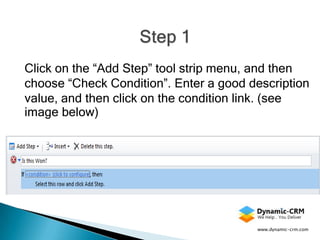
Click on the “Add Step” tool strip menu, and then
choose “Check Condition”. Enter a good description
value, and then click on the condition link. (see
image below)


                                        www.dynamic-crm.com
   Next, on the “Specify Condition” dialog page you
    will want to hover over the “Select” link.

   This will display the drop down list of entities.

   Choose Quote entity under the Primary Entity
    heading. Once selected, this will enable the field
    list immediately to the right of the entity list.


                                                 www.dynamic-crm.com
   Select “Status Reason” from the field list.
   Next, the operator drop down list will appear and
    from here choose the “Equals” selection. Now
    we need to enter our values to create this
    workflow.
   Click on the button labeled with an ellipse to
    launch the “Select Values” dialog.
   Then move the “Won” entry from the available
    values list to the selected values list, and then
    hit “OK”.
                                          www.dynamic-crm.com
www.dynamic-crm.com
   Click directly on the text that reads “Select this row
    and click Add Step”, and, you guessed it, click on
    “Add Step”.

   Choose “Change Status”, enter a description, and
    ensure that “Quote” is selected from the “Change
    record status to:” drop down list, and then choose
    “In Progress” from the “Draft” group. (see next
    image)


                                                www.dynamic-crm.com
www.dynamic-crm.com
   Select “Update Record” from the “Add Step” tool
    strip menu.

   Enter a description and ensure that “Quote” is
    selected in the Drop down list for the entity to
    update.

   Clicking on the “Set Properties” button will open
    the Process form with all of the available fields.


                                             www.dynamic-crm.com
If you already have the “Closed on” field within the
Quote Form, ensure that you actually read the
second paragraph of this post. *Otherwise you will
be left scratching your head when you try to set the
value of the field.


                                         www.dynamic-crm.com
   From our process, we want to locate the “Closed
    On” field on the form so we can update its value.

   Once located, click on the field as if you were
    going to manually type a value into the textbox, to
    ensure it has focus.

   Under the Form Assistant at the right hand side of
    the screen, you will want to choose Process from
    the “Look for:” drop down list. This should be the
    last entry under the “Local Values” heading.

                                             www.dynamic-crm.com
   Ensure that “Execution Time” is selected in the
    drop down list directly under the “Look For:” list,
    and then click on the “Add” button. Finally hit the
    “OK” button to set the dynamic value into the
    “Closed On” field.

   See next image


                                               www.dynamic-crm.com
www.dynamic-crm.com
   Step 6: Click on the “Save and Close” icon, in the
    top left hand corner of the window, to return to the
    main process window.

   Step 7: Click on “Change Status” from the “Add
    Step” menu, and ensure that we are now choosing
    the “Open” status from the “Active” group.

   Step 8: Click on “Change Status” from the “Add
    Step” menu, and ensure that we are now setting
    the “Won” status from the “Won” group.

                                                 www.dynamic-crm.com
   Click on the “Add Step” tool strip menu again, this
    time choose “Stop Workflow”. Enter a description
    and leave the default status of “Succeeded”.

   Now your CRM dynamics workflow from steps 1
    through 9 should look similar to the following:

   (see image)


                                              www.dynamic-crm.com
Now we can repeat steps 1 through 9 for both the
“Lost” and “Canceled” statuses. *Obviously make
sure we swap out the “Won” status in both steps
number 2 and number 8 with the appropriate
status value.

                                       www.dynamic-crm.com
   You may also choose to use a “Conditional
    Branch” instead of the “Check Condition” outlined
    in step 1.

   Before we finish up and activate the process for
    this workflow, it is not a bad idea to add another
    step as a default action to our initial conditional
    statement.


                                              www.dynamic-crm.com
   This will simply ensure that, if our CRM dynamics
    workflow fires off because the status is something
    other than what we care about, we have full
    execution.

   This also helps identify workflows from within the
    System Jobs within your Microsoft Dynamics CRM
    site.


                                            www.dynamic-crm.com
   To complete this default action, we will first click
    directly on a line in our process that reads “If
    Quote: Status Reason equals […] then:” Choose
    “Default Action” from the “Add Step” tool strip
    menu.

   Click to highlight the “Select this row and click Add
    Step” row.

   Click on the “Add Step” menu, and then select
    “Stop Workflow”.

   We can set a description and set the status value
    to “Canceled”.
                                                www.dynamic-crm.com
   Again, this will allow us to view the progress of
    CRM dynamics workflows to determine which
    ones were canceled because they did not meet
    our criteria, and which ones executed successfully
    because they did meet our criteria.


                                             www.dynamic-crm.com
   Hit the green “Activate” icon and that’s all there is
    too it!

   Sure it is not as simple as we would like, but this
    will fulfill our requirements without us having to
    write code to create this crm dynamics workflow.

   Happy coding!


                                                www.dynamic-crm.com
   Would you like to customize MS Dynamics CRM
    2011 forms without having to read, write, or debug
    code?

   Oh, and in about half the time it normally takes?

   Then…… Download “Script Author” for FREE!


                                             www.dynamic-crm.com
   Script Author is Dynamic-CRM’s javascript
    generator that generates scripts in formatted,
    readable code for MS Dynamics CRM 2011.

   Script Author works with existing customizations,
    there is no intricate syntax to memorize and it
    requires NO programming knowledge!


                                           www.dynamic-crm.com
   Download your FREE version of Script Author.

   When you are ready to push your customizations
    to your CRM environment, then purchase your
    license key(s)!

   Happy coding!


                                          www.dynamic-crm.com

Crm dynamics workflow

  • 1.
    How to automaticallypopulate the Quotes “Closed On” date through a workflow in Microsoft Dynamics CRM 2011. www.dynamic-crm.com
  • 2.
    We recently received requirements to automatically populate the “Closed On” field of the Quote entity when the user wins, loses, or cancels a quote in MS Dynamics CRM 2011.  Sounds like an easy enough workflow right? Just throw together a quick CRM dynamics workflow to update the field when the status changes, right? Well, not quite… www.dynamic-crm.com
  • 3.
    It turns out there are a couple of things that need to happen before you can simply update the field.  The first thing we need to do is see if we are displaying the “Closed On” field on the form.  If the field exists on the CRM form and it is disabled, it will prevent us from using it in the workflow. www.dynamic-crm.com
  • 4.
    My recommendation is to add it to either the header or the footer if you want it to display .  Obviously we are setting it programmatically so there is no need for user interaction...  Alternatively, you can add some JavaScript to your form load event to disable the field. www.dynamic-crm.com
  • 5.
    However you will want to ensure that the “Read only” checkbox is not checked.  You will find this by going to the Customization view of the form, selecting the field, then click into its properties. www.dynamic-crm.com
  • 6.
    Determine the current status  Set the records status to a changeable state  Update the field with the current date  Activate the record  Set the record back to its original status. www.dynamic-crm.com
  • 7.
    There are a few different ways that we can handle this, but for the purpose of this article, we thought it best to keep it as straight forward as possible.  So let’s jump right into creating our CRM Dynamics workflow! www.dynamic-crm.com
  • 8.
    In MS CRM Dynamics 2011 click on the “Settings” link in the left hand navigation.  Under the Process Center grouping, click on the Processes link.  At the top left corner of the results grid, select the icon labeled “New” to launch the Create Process dialog. www.dynamic-crm.com
  • 9.
    Enter a name for your process, select “Quote” from the “Entity” drop down list, select “Workflow” as the “Category”, then click on the “OK” button.  (see image on next slide) www.dynamic-crm.com
  • 10.
  • 11.
    This will save the information and close the “Create Process” dialog window. The “Process” properties window will then open.  Here we can change the scope and set when or how we want the process to run for this workflow. www.dynamic-crm.com
  • 12.
    • Based onthe requirements that we received for our purposes, we only want to start when the record status changes (see image below) www.dynamic-crm.com
  • 13.
    Now we are ready to add the details of our process. The first thing we want to do is verify that this quote is closed, more specifically that it is either marked as Won, Lost, or Cancelled.  To accomplish this follow Steps 1-9 www.dynamic-crm.com
  • 14.
    Click on the“Add Step” tool strip menu, and then choose “Check Condition”. Enter a good description value, and then click on the condition link. (see image below) www.dynamic-crm.com
  • 15.
    Next, on the “Specify Condition” dialog page you will want to hover over the “Select” link.  This will display the drop down list of entities.  Choose Quote entity under the Primary Entity heading. Once selected, this will enable the field list immediately to the right of the entity list. www.dynamic-crm.com
  • 16.
    Select “Status Reason” from the field list.  Next, the operator drop down list will appear and from here choose the “Equals” selection. Now we need to enter our values to create this workflow.  Click on the button labeled with an ellipse to launch the “Select Values” dialog.  Then move the “Won” entry from the available values list to the selected values list, and then hit “OK”. www.dynamic-crm.com
  • 17.
  • 18.
    Click directly on the text that reads “Select this row and click Add Step”, and, you guessed it, click on “Add Step”.  Choose “Change Status”, enter a description, and ensure that “Quote” is selected from the “Change record status to:” drop down list, and then choose “In Progress” from the “Draft” group. (see next image) www.dynamic-crm.com
  • 19.
  • 20.
    Select “Update Record” from the “Add Step” tool strip menu.  Enter a description and ensure that “Quote” is selected in the Drop down list for the entity to update.  Clicking on the “Set Properties” button will open the Process form with all of the available fields. www.dynamic-crm.com
  • 21.
    If you alreadyhave the “Closed on” field within the Quote Form, ensure that you actually read the second paragraph of this post. *Otherwise you will be left scratching your head when you try to set the value of the field. www.dynamic-crm.com
  • 22.
    From our process, we want to locate the “Closed On” field on the form so we can update its value.  Once located, click on the field as if you were going to manually type a value into the textbox, to ensure it has focus.  Under the Form Assistant at the right hand side of the screen, you will want to choose Process from the “Look for:” drop down list. This should be the last entry under the “Local Values” heading. www.dynamic-crm.com
  • 23.
    Ensure that “Execution Time” is selected in the drop down list directly under the “Look For:” list, and then click on the “Add” button. Finally hit the “OK” button to set the dynamic value into the “Closed On” field.  See next image www.dynamic-crm.com
  • 24.
  • 25.
    Step 6: Click on the “Save and Close” icon, in the top left hand corner of the window, to return to the main process window.  Step 7: Click on “Change Status” from the “Add Step” menu, and ensure that we are now choosing the “Open” status from the “Active” group.  Step 8: Click on “Change Status” from the “Add Step” menu, and ensure that we are now setting the “Won” status from the “Won” group. www.dynamic-crm.com
  • 26.
    Click on the “Add Step” tool strip menu again, this time choose “Stop Workflow”. Enter a description and leave the default status of “Succeeded”.  Now your CRM dynamics workflow from steps 1 through 9 should look similar to the following:  (see image) www.dynamic-crm.com
  • 27.
    Now we canrepeat steps 1 through 9 for both the “Lost” and “Canceled” statuses. *Obviously make sure we swap out the “Won” status in both steps number 2 and number 8 with the appropriate status value. www.dynamic-crm.com
  • 28.
    You may also choose to use a “Conditional Branch” instead of the “Check Condition” outlined in step 1.  Before we finish up and activate the process for this workflow, it is not a bad idea to add another step as a default action to our initial conditional statement. www.dynamic-crm.com
  • 29.
    This will simply ensure that, if our CRM dynamics workflow fires off because the status is something other than what we care about, we have full execution.  This also helps identify workflows from within the System Jobs within your Microsoft Dynamics CRM site. www.dynamic-crm.com
  • 30.
    To complete this default action, we will first click directly on a line in our process that reads “If Quote: Status Reason equals […] then:” Choose “Default Action” from the “Add Step” tool strip menu.  Click to highlight the “Select this row and click Add Step” row.  Click on the “Add Step” menu, and then select “Stop Workflow”.  We can set a description and set the status value to “Canceled”. www.dynamic-crm.com
  • 31.
    Again, this will allow us to view the progress of CRM dynamics workflows to determine which ones were canceled because they did not meet our criteria, and which ones executed successfully because they did meet our criteria. www.dynamic-crm.com
  • 32.
    Hit the green “Activate” icon and that’s all there is too it!  Sure it is not as simple as we would like, but this will fulfill our requirements without us having to write code to create this crm dynamics workflow.  Happy coding! www.dynamic-crm.com
  • 33.
    Would you like to customize MS Dynamics CRM 2011 forms without having to read, write, or debug code?  Oh, and in about half the time it normally takes?  Then…… Download “Script Author” for FREE! www.dynamic-crm.com
  • 34.
    Script Author is Dynamic-CRM’s javascript generator that generates scripts in formatted, readable code for MS Dynamics CRM 2011.  Script Author works with existing customizations, there is no intricate syntax to memorize and it requires NO programming knowledge! www.dynamic-crm.com
  • 35.
    Download your FREE version of Script Author.  When you are ready to push your customizations to your CRM environment, then purchase your license key(s)!  Happy coding! www.dynamic-crm.com