2011 User's Guide
Copyright
This document is provided "as-is". Information and views expressed in this document, including URL and other Internet Web site
references, may change without notice. You bear the risk of using it.
Some examples depicted herein are provided for illustration only and are fictitious. No real association or connection is intended or
should be inferred.
This document does not provide you with any legal rights to any intellectual property in any Microsoft product. You may copy and
use this document for your internal, reference purposes.
© 2011 Microsoft Corporation. All rights reserved.
Microsoft, Active Directory, Excel, Hyper-V, Internet Explorer, Microsoft Dynamics, Microsoft Dynamics logo, MSDN, Outlook,
Notepad, SharePoint, Silverlight, Visual C++, Windows, Windows Azure, Windows Live, Windows PowerShell, Windows Server,
and Windows Vista are trademarks of the Microsoft group of companies.
All other trademarks are property of their respective owners.
Table of Contents
Table of Contents.............................................................................................................i
Getting Started.................................................................................................................1
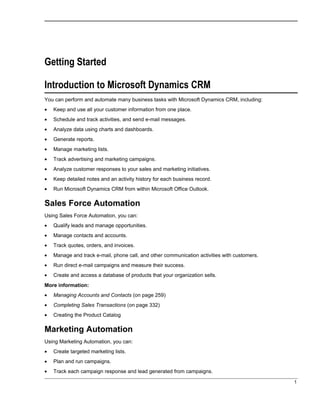
Introduction to Microsoft Dynamics CRM....................................................................1
Sales Force Automation..................................................................................................................1
Marketing Automation......................................................................................................................1
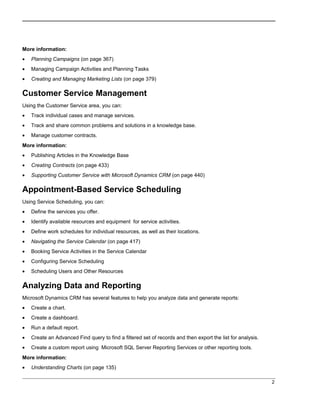
Customer Service Management......................................................................................................2
Appointment-Based Service Scheduling..........................................................................................2
Analyzing Data and Reporting.........................................................................................................2
Customization and Solutions...........................................................................................................3
Workflow.......................................................................................................................................... 3
Goal Management...........................................................................................................................3
Microsoft Dynamics CRM for Microsoft Office Outlook....................................................................4
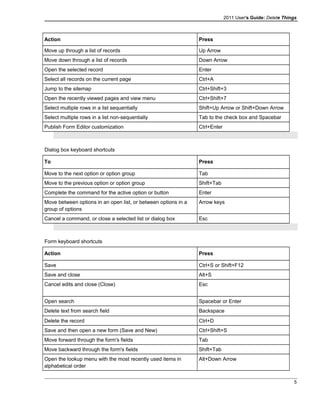
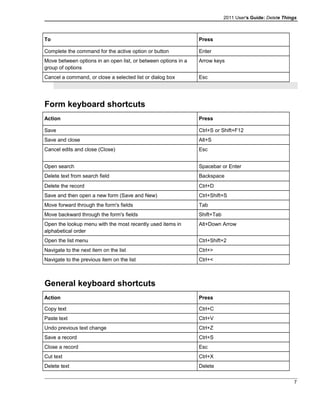
Use Keyboard Shortcuts..................................................................................................................4
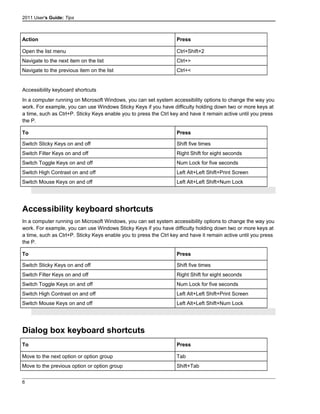
Accessibility keyboard shortcuts......................................................................................................6
Dialog box keyboard shortcuts.........................................................................................................6
Form keyboard shortcuts.................................................................................................................7
General keyboard shortcuts.............................................................................................................7
i
Find Things......................................................................................................................8
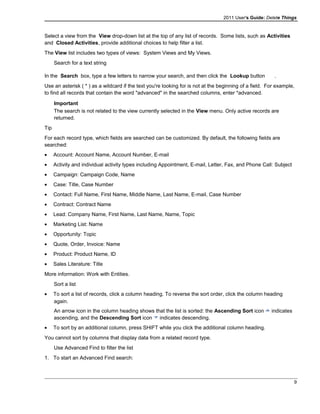
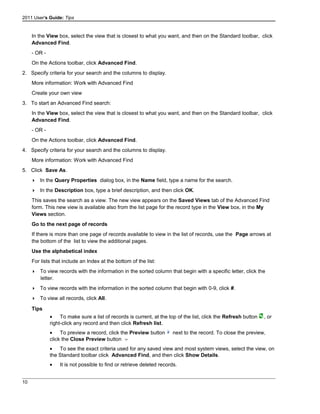
Find records in a list.......................................................................................................8
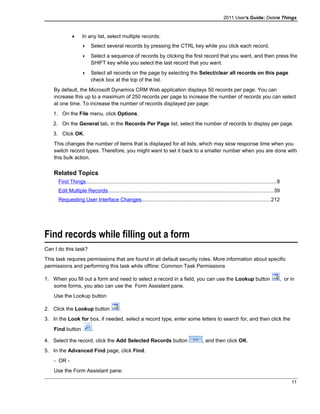
Find records while filling out a form...........................................................................11
Create, edit, or save an Advanced Find search.........................................................12
Work with saved views.................................................................................................15
Tips.................................................................................................................................17
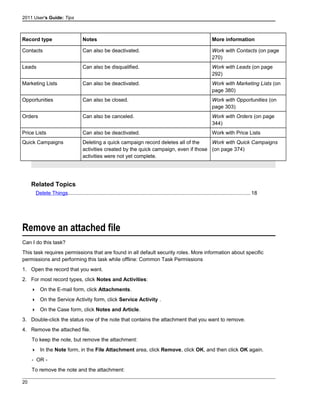
Delete Things.................................................................................................................18
Delete records................................................................................................................18
Special Cases................................................................................................................19
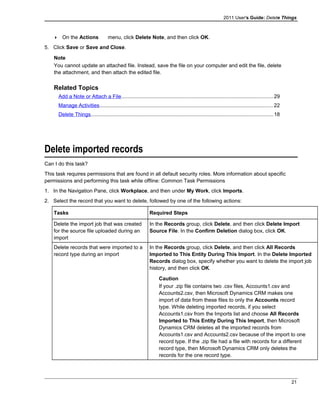
Remove an attached file...............................................................................................20
Delete imported records...............................................................................................21
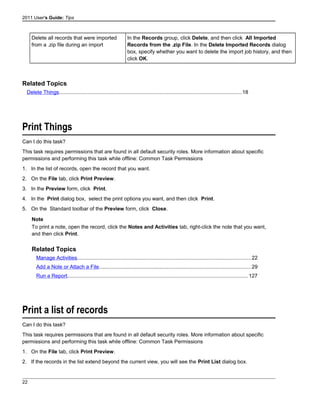
Print Things....................................................................................................................22
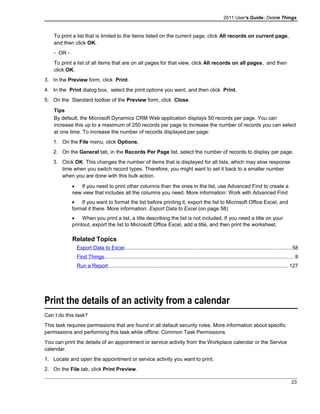
Print a list of records....................................................................................................22
Print the details of an activity from a calendar..........................................................23
Run a Report..................................................................................................................24
Manage Activities..........................................................................................................29
Create or edit an activity...............................................................................................29
Create and send an e-mail activity in the Microsoft Dynamics CRM Web
application......................................................................................................................31
Close an activity............................................................................................................34
Convert an activity to an opportunity.........................................................................35
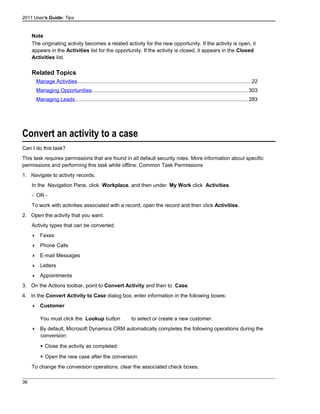
Convert an activity to a case........................................................................................36
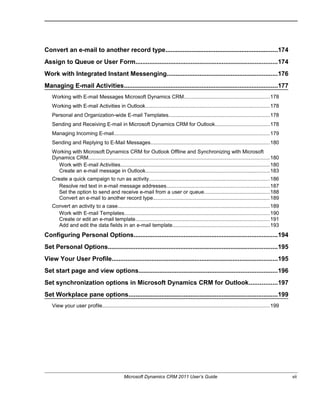
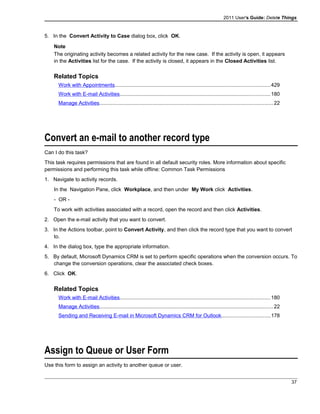
Convert an e-mail to another record type...................................................................37
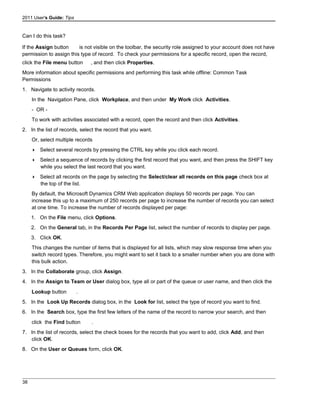
Assign to Queue or User Form....................................................................................37
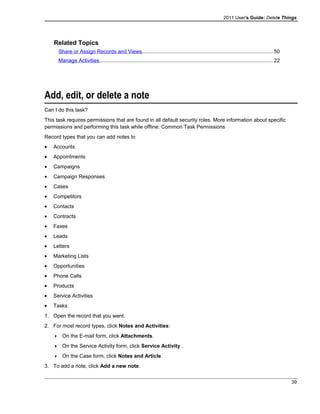
Add, edit, or delete a note............................................................................................39
Remove an attached file...............................................................................................40
Attach a file....................................................................................................................41
ii
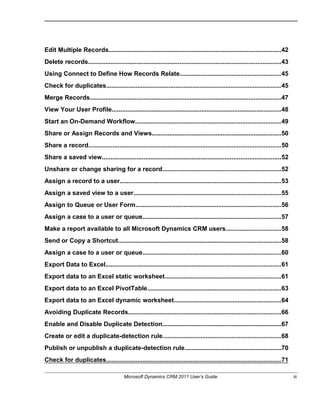
Edit Multiple Records....................................................................................................42
Delete records................................................................................................................43
Using Connect to Define How Records Relate..........................................................45
Check for duplicates.....................................................................................................45
Merge Records...............................................................................................................47
View Your User Profile..................................................................................................48
Start an On-Demand Workflow....................................................................................49
Share or Assign Records and Views...........................................................................50
Share a record...............................................................................................................50
Share a saved view.......................................................................................................52
Unshare or change sharing for a record.....................................................................52
Assign a record to a user.............................................................................................53
Assign a saved view to a user.....................................................................................55
Assign to Queue or User Form....................................................................................56
Assign a case to a user or queue................................................................................57
Make a report available to all Microsoft Dynamics CRM users................................58
Send or Copy a Shortcut..............................................................................................58
Assign a case to a user or queue................................................................................60
Export Data to Excel.....................................................................................................61
Export data to an Excel static worksheet...................................................................61
Export data to an Excel PivotTable.............................................................................63
Export data to an Excel dynamic worksheet..............................................................64
Avoiding Duplicate Records........................................................................................66
Enable and Disable Duplicate Detection.....................................................................67
Create or edit a duplicate-detection rule....................................................................68
Publish or unpublish a duplicate-detection rule........................................................70
Check for duplicates.....................................................................................................71
Microsoft Dynamics CRM 2011 User’s Guide iii
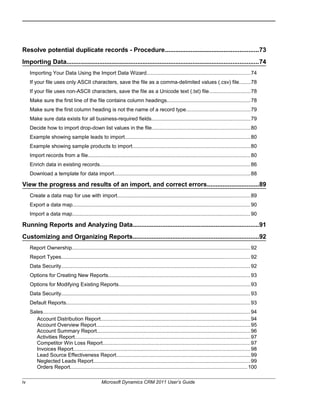
Resolve potential duplicate records - Procedure......................................................73
Importing Data...............................................................................................................74
Importing Your Data Using the Import Data Wizard.......................................................................74
If your file uses only ASCII characters, save the file as a comma-delimited values (.csv) file........78
If your file uses non-ASCII characters, save the file as a Unicode text (.txt) file............................78
Make sure the first line of the file contains column headings.........................................................78
Make sure the first column heading is not the name of a record type............................................79
Make sure data exists for all business-required fields...................................................................79
Decide how to import drop-down list values in the file...................................................................80
Example showing sample leads to import......................................................................................80
Example showing sample products to import.................................................................................80
Import records from a file...............................................................................................................80
Enrich data in existing records.......................................................................................................86
Download a template for data import.............................................................................................88
View the progress and results of an import, and correct errors..............................89
Create a data map for use with import...........................................................................................89
Export a data map.........................................................................................................................90
Import a data map..........................................................................................................................90
Running Reports and Analyzing Data.........................................................................91
Customizing and Organizing Reports.........................................................................92
Report Ownership..........................................................................................................................92
Report Types.................................................................................................................................92
Data Security.................................................................................................................................92
Options for Creating New Reports.................................................................................................93
Options for Modifying Existing Reports..........................................................................................93
Data Security.................................................................................................................................93
Default Reports..............................................................................................................................93
Sales.............................................................................................................................................. 94
Account Distribution Report......................................................................................................94
Account Overview Report.........................................................................................................95
Account Summary Report.........................................................................................................96
Activities Report........................................................................................................................97
Competitor Win Loss Report.....................................................................................................97
Invoices Report.........................................................................................................................98
Lead Source Effectiveness Report............................................................................................99
Neglected Leads Report...........................................................................................................99
Orders Report.........................................................................................................................100
iv Microsoft Dynamics CRM 2011 User’s Guide
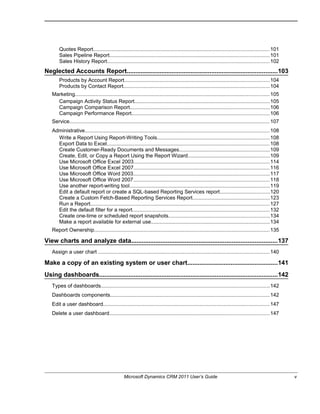
Quotes Report........................................................................................................................101
Sales Pipeline Report.............................................................................................................101
Sales History Report...............................................................................................................102
Neglected Accounts Report.......................................................................................103
Products by Account Report...................................................................................................104
Products by Contact Report....................................................................................................104
Marketing.....................................................................................................................................105
Campaign Activity Status Report............................................................................................105
Campaign Comparison Report...............................................................................................106
Campaign Performance Report..............................................................................................106
Service.........................................................................................................................................107
Administrative..............................................................................................................................108
Write a Report Using Report-Writing Tools.............................................................................108
Export Data to Excel...............................................................................................................108
Create Customer-Ready Documents and Messages..............................................................109
Create, Edit, or Copy a Report Using the Report Wizard........................................................109
Use Microsoft Office Excel 2003.............................................................................................114
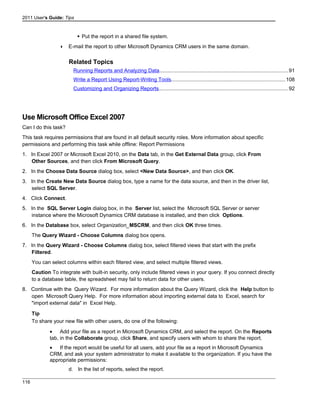
Use Microsoft Office Excel 2007.............................................................................................116
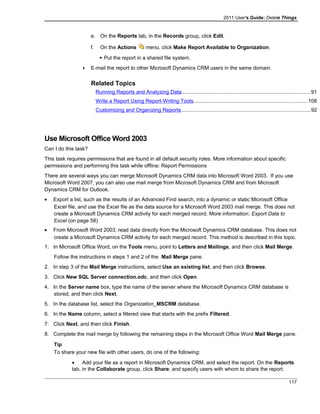
Use Microsoft Office Word 2003.............................................................................................117
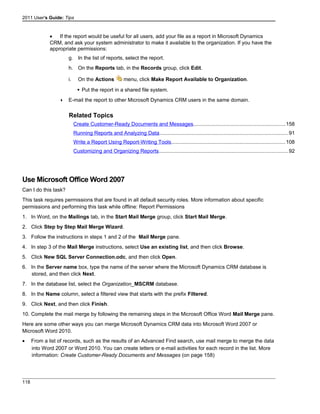
Use Microsoft Office Word 2007.............................................................................................118
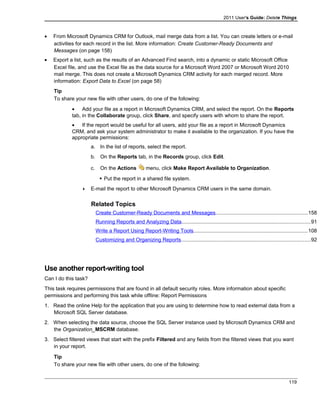
Use another report-writing tool................................................................................................119
Edit a default report or create a SQL-based Reporting Services report..................................120
Create a Custom Fetch-Based Reporting Services Report.....................................................123
Run a Report..........................................................................................................................127
Edit the default filter for a report..............................................................................................132
Create one-time or scheduled report snapshots.....................................................................134
Make a report available for external use.................................................................................134
Report Ownership........................................................................................................................135
View charts and analyze data....................................................................................137
Assign a user chart .....................................................................................................................140
Make a copy of an existing system or user chart....................................................141
Using dashboards.......................................................................................................142
Types of dashboards...................................................................................................................142
Dashboards components.............................................................................................................142
Edit a user dashboard..................................................................................................................147
Delete a user dashboard.............................................................................................................147
Microsoft Dynamics CRM 2011 User’s Guide v
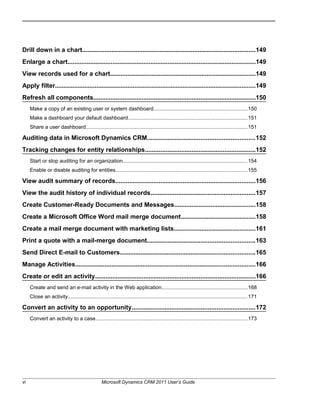
Drill down in a chart....................................................................................................149
Enlarge a chart.............................................................................................................149
View records used for a chart....................................................................................149
Apply filter....................................................................................................................149
Refresh all components..............................................................................................150
Make a copy of an existing user or system dashboard................................................................150
Make a dashboard your default dashboard.................................................................................151
Share a user dashboard..............................................................................................................151
Auditing data in Microsoft Dynamics CRM..............................................................152
Tracking changes for entity relationships................................................................152
Start or stop auditing for an organization.....................................................................................154
Enable or disable auditing for entities..........................................................................................155
View audit summary of records.................................................................................156
View the audit history of individual records............................................................157
Create Customer-Ready Documents and Messages...............................................158
Create a Microsoft Office Word mail merge document...........................................158
Create a mail merge document with marketing lists...............................................161
Print a quote with a mail-merge document..............................................................163
Send Direct E-mail to Customers..............................................................................165
Manage Activities........................................................................................................166
Create or edit an activity.............................................................................................166
Create and send an e-mail activity in the Web application..........................................................168
Close an activity...........................................................................................................................171
Convert an activity to an opportunity.......................................................................172
Convert an activity to a case........................................................................................................173
vi Microsoft Dynamics CRM 2011 User’s Guide
Convert an e-mail to another record type.................................................................174
Assign to Queue or User Form..................................................................................174
Work with Integrated Instant Messenging................................................................176
Managing E-mail Activities.........................................................................................177
Working with E-mail Messages Microsoft Dynamics CRM..........................................................178
Working with E-mail Activities in Outlook.....................................................................................178
Personal and Organization-wide E-mail Templates.....................................................................178
Sending and Receiving E-mail in Microsoft Dynamics CRM for Outlook.....................................178
Managing Incoming E-mail..........................................................................................................179
Sending and Replying to E-Mail Messages.................................................................................180
Working with Microsoft Dynamics CRM for Outlook Offline and Synchronizing with Microsoft
Dynamics CRM............................................................................................................................180
Work with E-mail Activities......................................................................................................180
Create an e-mail message in Outlook.....................................................................................183
Create a quick campaign to run as activity..................................................................................186
Resolve red text in e-mail message addresses......................................................................187
Set the option to send and receive e-mail from a user or queue.............................................188
Convert an e-mail to another record type................................................................................189
Convert an activity to a case........................................................................................................189
Work with E-mail Templates...................................................................................................190
Create or edit an e-mail template............................................................................................191
Add and edit the data fields in an e-mail template..................................................................193
Configuring Personal Options...................................................................................194
Set Personal Options..................................................................................................195
View Your User Profile................................................................................................195
Set start page and view options................................................................................196
Set synchronization options in Microsoft Dynamics CRM for Outlook................197
Set Workplace pane options......................................................................................199
View your user profile..................................................................................................................199
Microsoft Dynamics CRM 2011 User’s Guide vii
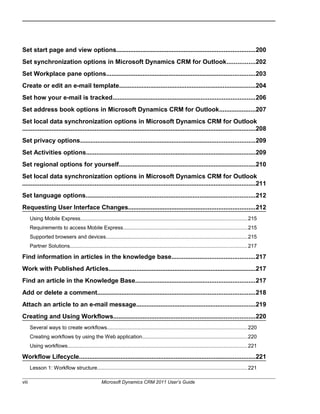
Set start page and view options................................................................................200
Set synchronization options in Microsoft Dynamics CRM for Outlook................202
Set Workplace pane options......................................................................................203
Create or edit an e-mail template...............................................................................204
Set how your e-mail is tracked..................................................................................206
Set address book options in Microsoft Dynamics CRM for Outlook.....................207
Set local data synchronization options in Microsoft Dynamics CRM for Outlook
.......................................................................................................................................208
Set privacy options.....................................................................................................209
Set Activities options..................................................................................................209
Set regional options for yourself...............................................................................210
Set local data synchronization options in Microsoft Dynamics CRM for Outlook
.......................................................................................................................................211
Set language options..................................................................................................212
Requesting User Interface Changes.........................................................................212
Using Mobile Express..................................................................................................................215
Requirements to access Mobile Express.....................................................................................215
Supported browsers and devices.................................................................................................215
Partner Solutions.........................................................................................................................217
Find information in articles in the knowledge base................................................217
Work with Published Articles.....................................................................................217
Find an article in the Knowledge Base.....................................................................217
Add or delete a comment...........................................................................................218
Attach an article to an e-mail message.....................................................................219
Creating and Using Workflows..................................................................................220
Several ways to create workflows................................................................................................220
Creating workflows by using the Web application........................................................................220
Using workflows...........................................................................................................................221
Workflow Lifecycle......................................................................................................221
Lesson 1: Workflow structure.......................................................................................................221
viii Microsoft Dynamics CRM 2011 User’s Guide
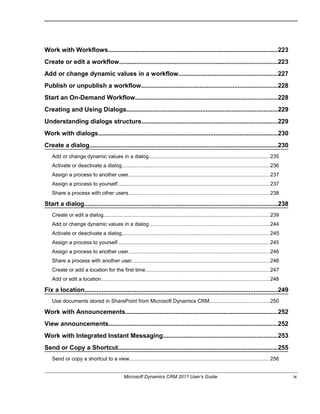
Work with Workflows..................................................................................................223
Create or edit a workflow............................................................................................223
Add or change dynamic values in a workflow.........................................................227
Publish or unpublish a workflow...............................................................................228
Start an On-Demand Workflow..................................................................................228
Creating and Using Dialogs.......................................................................................229
Understanding dialogs structure...............................................................................229
Work with dialogs........................................................................................................230
Create a dialog.............................................................................................................230
Add or change dynamic values in a dialog..................................................................................235
Activate or deactivate a dialog.....................................................................................................236
Assign a process to another user................................................................................................237
Assign a process to yourself........................................................................................................237
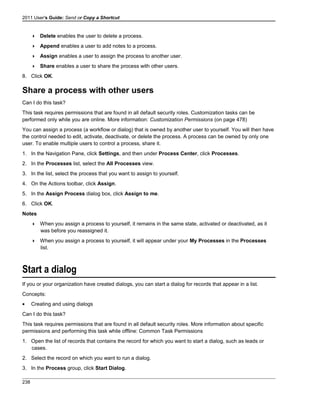
Share a process with other users................................................................................................238
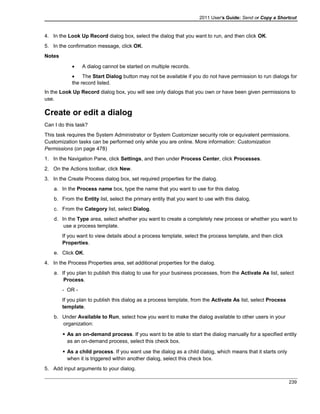
Start a dialog................................................................................................................238
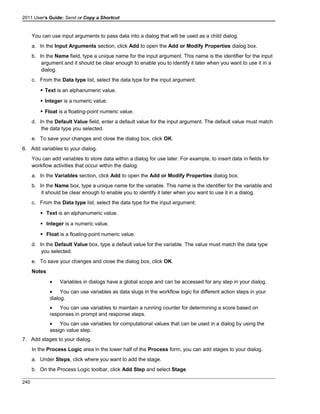
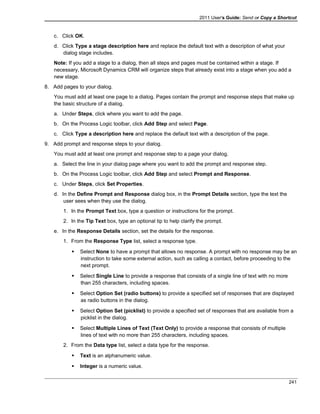
Create or edit a dialog.................................................................................................................239
Add or change dynamic values in a dialog .................................................................................244
Activate or deactivate a dialog.....................................................................................................245
Assign a process to yourself........................................................................................................245
Assign a process to another user................................................................................................246
Share a process with another user..............................................................................................246
Create or add a location for the first time.....................................................................................247
Add or edit a location...................................................................................................................248
Fix a location................................................................................................................249
Use documents stored in SharePoint from Microsoft Dynamics CRM.........................................250
Work with Announcements........................................................................................252
View announcements..................................................................................................252
Work with Integrated Instant Messaging..................................................................253
Send or Copy a Shortcut............................................................................................255
Send or copy a shortcut to a view................................................................................................256
Microsoft Dynamics CRM 2011 User’s Guide ix
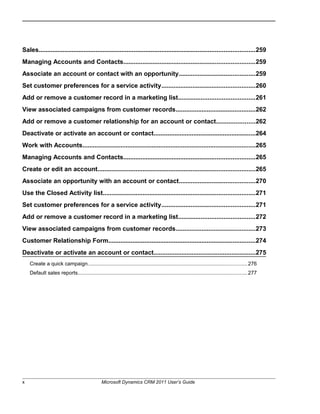
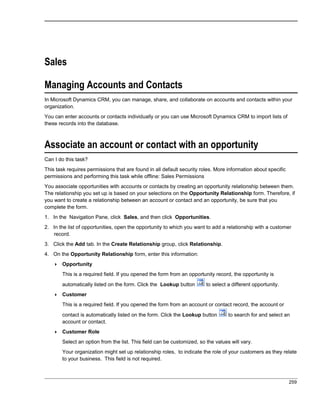
Sales.............................................................................................................................259
Managing Accounts and Contacts............................................................................259
Associate an account or contact with an opportunity............................................259
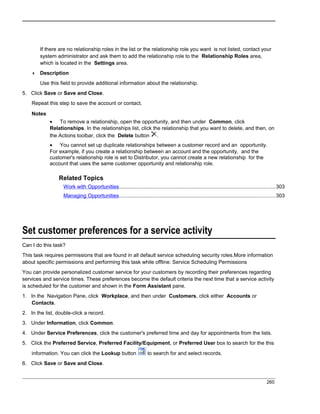
Set customer preferences for a service activity......................................................260
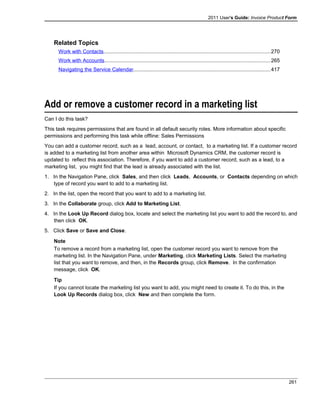
Add or remove a customer record in a marketing list............................................261
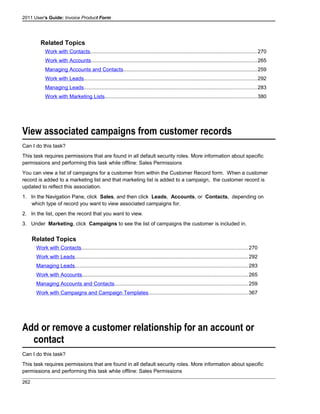
View associated campaigns from customer records..............................................262
Add or remove a customer relationship for an account or contact......................262
Deactivate or activate an account or contact...........................................................264
Work with Accounts....................................................................................................265
Managing Accounts and Contacts............................................................................265
Create or edit an account...........................................................................................265
Associate an opportunity with an account or contact............................................270
Use the Closed Activity list........................................................................................271
Set customer preferences for a service activity......................................................271
Add or remove a customer record in a marketing list............................................272
View associated campaigns from customer records..............................................273
Customer Relationship Form.....................................................................................274
Deactivate or activate an account or contact...........................................................275
Create a quick campaign.............................................................................................................276
Default sales reports....................................................................................................................277
x Microsoft Dynamics CRM 2011 User’s Guide
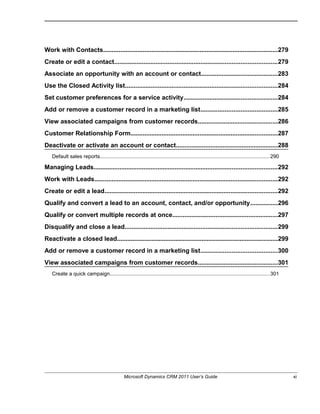
Work with Contacts.....................................................................................................279
Create or edit a contact..............................................................................................279
Associate an opportunity with an account or contact............................................283
Use the Closed Activity list........................................................................................284
Set customer preferences for a service activity......................................................284
Add or remove a customer record in a marketing list............................................285
View associated campaigns from customer records..............................................286
Customer Relationship Form.....................................................................................287
Deactivate or activate an account or contact...........................................................288
Default sales reports....................................................................................................................290
Managing Leads..........................................................................................................292
Work with Leads..........................................................................................................292
Create or edit a lead....................................................................................................292
Qualify and convert a lead to an account, contact, and/or opportunity................296
Qualify or convert multiple records at once.............................................................297
Disqualify and close a lead........................................................................................299
Reactivate a closed lead.............................................................................................299
Add or remove a customer record in a marketing list............................................300
View associated campaigns from customer records..............................................301
Create a quick campaign.............................................................................................................301
Microsoft Dynamics CRM 2011 User’s Guide xi
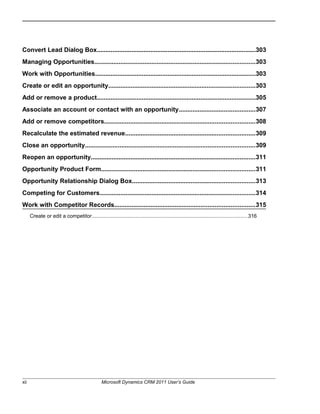
Convert Lead Dialog Box............................................................................................303
Managing Opportunities.............................................................................................303
Work with Opportunities.............................................................................................303
Create or edit an opportunity.....................................................................................303
Add or remove a product............................................................................................305
Associate an account or contact with an opportunity............................................307
Add or remove competitors.......................................................................................308
Recalculate the estimated revenue...........................................................................309
Close an opportunity..................................................................................................309
Reopen an opportunity...............................................................................................311
Opportunity Product Form.........................................................................................311
Opportunity Relationship Dialog Box.......................................................................313
Competing for Customers..........................................................................................314
Work with Competitor Records.................................................................................315
Create or edit a competitor..........................................................................................................316
xii Microsoft Dynamics CRM 2011 User’s Guide
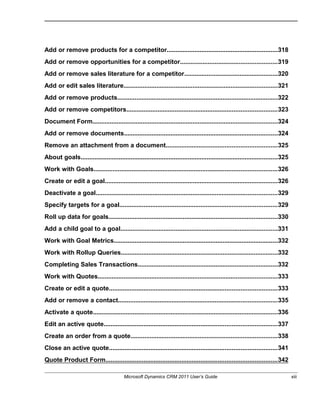
Add or remove products for a competitor................................................................318
Add or remove opportunities for a competitor........................................................319
Add or remove sales literature for a competitor......................................................320
Add or edit sales literature.........................................................................................321
Add or remove products.............................................................................................322
Add or remove competitors.......................................................................................323
Document Form...........................................................................................................324
Add or remove documents.........................................................................................324
Remove an attachment from a document................................................................325
About goals..................................................................................................................325
Work with Goals..........................................................................................................326
Create or edit a goal....................................................................................................326
Deactivate a goal.........................................................................................................329
Specify targets for a goal...........................................................................................329
Roll up data for goals..................................................................................................330
Add a child goal to a goal...........................................................................................331
Work with Goal Metrics...............................................................................................332
Work with Rollup Queries...........................................................................................332
Completing Sales Transactions.................................................................................332
Work with Quotes........................................................................................................333
Create or edit a quote.................................................................................................333
Add or remove a contact............................................................................................335
Activate a quote...........................................................................................................336
Edit an active quote....................................................................................................337
Create an order from a quote.....................................................................................338
Close an active quote.................................................................................................341
Quote Product Form...................................................................................................342
Microsoft Dynamics CRM 2011 User’s Guide xiii
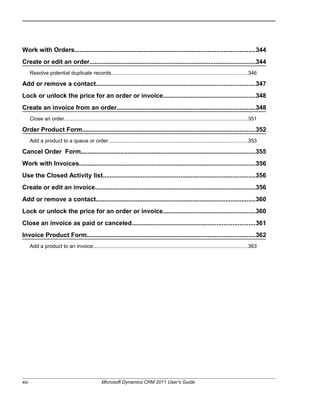
Work with Orders........................................................................................................344
Create or edit an order................................................................................................344
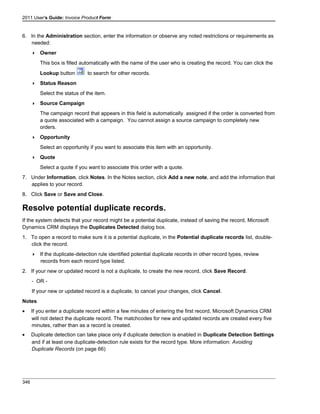
Resolve potential duplicate records.............................................................................................346
Add or remove a contact............................................................................................347
Lock or unlock the price for an order or invoice.....................................................348
Create an invoice from an order................................................................................348
Close an order.............................................................................................................................351
Order Product Form....................................................................................................352
Add a product to a queue or order...............................................................................................353
Cancel Order Form.....................................................................................................355
Work with Invoices......................................................................................................356
Use the Closed Activity list........................................................................................356
Create or edit an invoice.............................................................................................356
Add or remove a contact............................................................................................360
Lock or unlock the price for an order or invoice.....................................................360
Close an invoice as paid or canceled.......................................................................361
Invoice Product Form.................................................................................................362
Add a product to an invoice.........................................................................................................363
xiv Microsoft Dynamics CRM 2011 User’s Guide
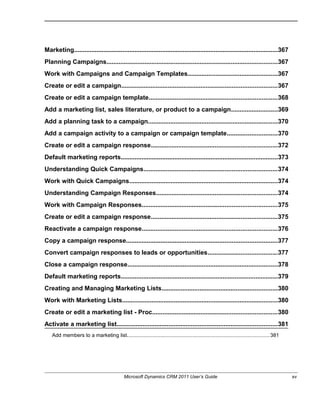
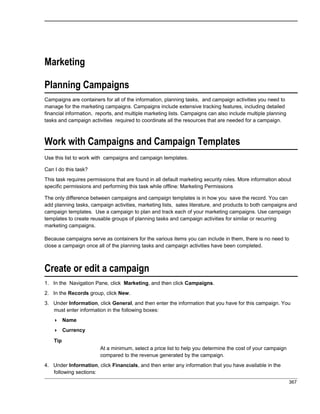
Marketing......................................................................................................................367
Planning Campaigns...................................................................................................367
Work with Campaigns and Campaign Templates....................................................367
Create or edit a campaign..........................................................................................367
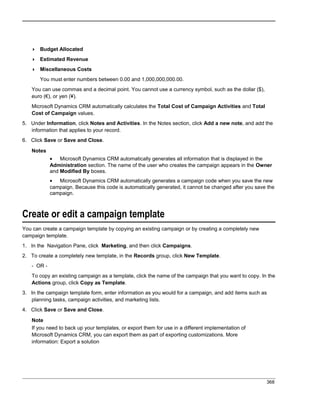
Create or edit a campaign template..........................................................................368
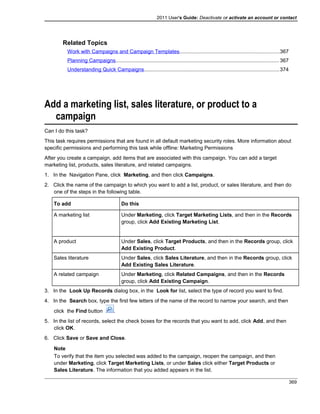
Add a marketing list, sales literature, or product to a campaign...........................369
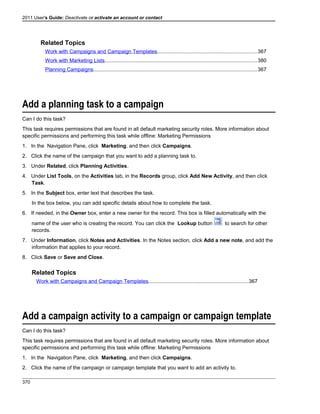
Add a planning task to a campaign...........................................................................370
Add a campaign activity to a campaign or campaign template.............................370
Create or edit a campaign response.........................................................................372
Default marketing reports...........................................................................................373
Understanding Quick Campaigns.............................................................................374
Work with Quick Campaigns......................................................................................374
Understanding Campaign Responses......................................................................374
Work with Campaign Responses..............................................................................375
Create or edit a campaign response.........................................................................375
Reactivate a campaign response..............................................................................376
Copy a campaign response.......................................................................................377
Convert campaign responses to leads or opportunities........................................377
Close a campaign response.......................................................................................378
Default marketing reports...........................................................................................379
Creating and Managing Marketing Lists...................................................................380
Work with Marketing Lists..........................................................................................380
Create or edit a marketing list - Proc........................................................................380
Activate a marketing list.............................................................................................381
Add members to a marketing list.................................................................................................381
Microsoft Dynamics CRM 2011 User’s Guide xv
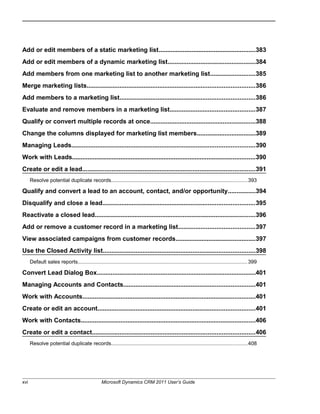
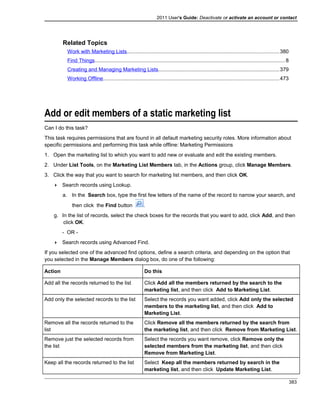
Add or edit members of a static marketing list........................................................383
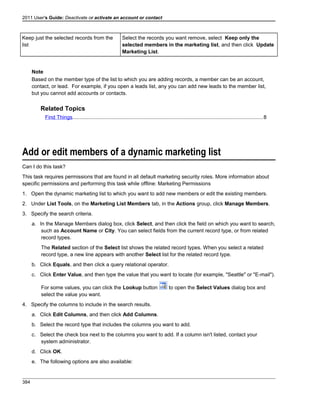
Add or edit members of a dynamic marketing list...................................................384
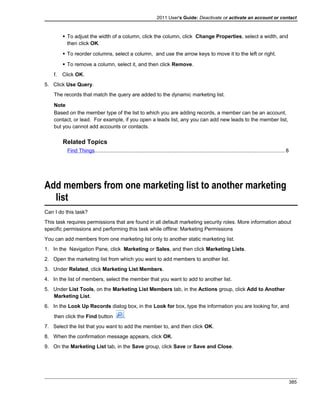
Add members from one marketing list to another marketing list..........................385
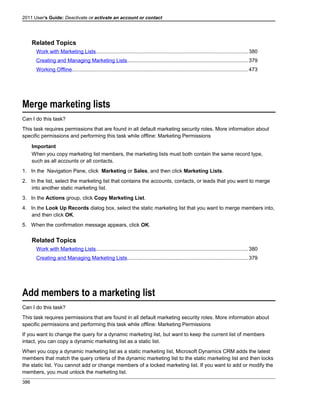
Merge marketing lists.................................................................................................386
Add members to a marketing list..............................................................................386
Evaluate and remove members in a marketing list.................................................387
Qualify or convert multiple records at once.............................................................388
Change the columns displayed for marketing list members..................................389
Managing Leads..........................................................................................................390
Work with Leads..........................................................................................................390
Create or edit a lead....................................................................................................391
Resolve potential duplicate records.............................................................................................393
Qualify and convert a lead to an account, contact, and/or opportunity................394
Disqualify and close a lead........................................................................................395
Reactivate a closed lead.............................................................................................396
Add or remove a customer record in a marketing list............................................397
View associated campaigns from customer records..............................................397
Use the Closed Activity list........................................................................................398
Default sales reports....................................................................................................................399
Convert Lead Dialog Box............................................................................................401
Managing Accounts and Contacts............................................................................401
Work with Accounts....................................................................................................401
Create or edit an account...........................................................................................401
Work with Contacts.....................................................................................................406
Create or edit a contact..............................................................................................406
Resolve potential duplicate records.............................................................................................408
xvi Microsoft Dynamics CRM 2011 User’s Guide
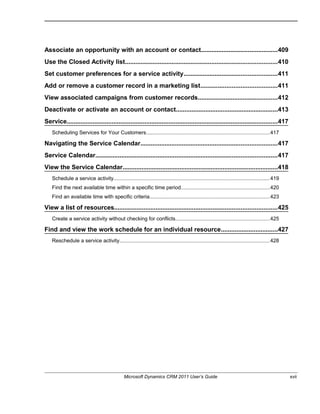
Associate an opportunity with an account or contact............................................409
Use the Closed Activity list........................................................................................410
Set customer preferences for a service activity......................................................411
Add or remove a customer record in a marketing list............................................411
View associated campaigns from customer records..............................................412
Deactivate or activate an account or contact...........................................................413
Service..........................................................................................................................417
Scheduling Services for Your Customers....................................................................................417
Navigating the Service Calendar...............................................................................417
Service Calendar.........................................................................................................417
View the Service Calendar..........................................................................................418
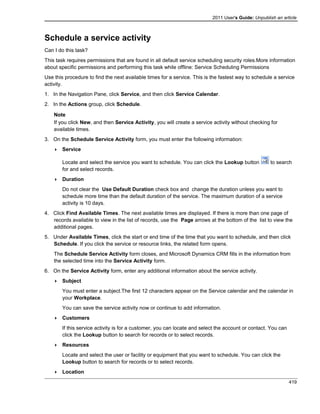
Schedule a service activity...........................................................................................................419
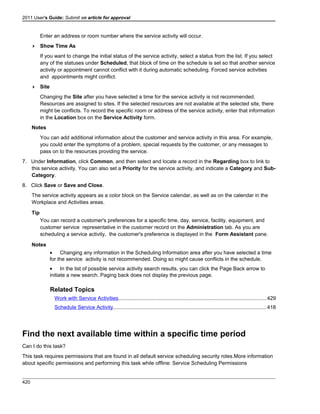
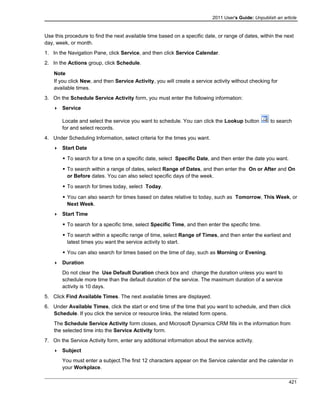
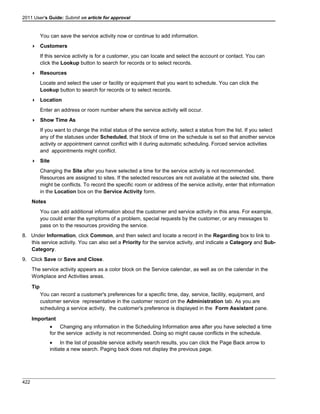
Find the next available time within a specific time period............................................................420
Find an available time with specific criteria..................................................................................423
View a list of resources..............................................................................................425
Create a service activity without checking for conflicts................................................................425
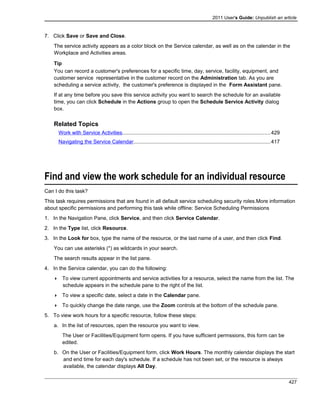
Find and view the work schedule for an individual resource.................................427
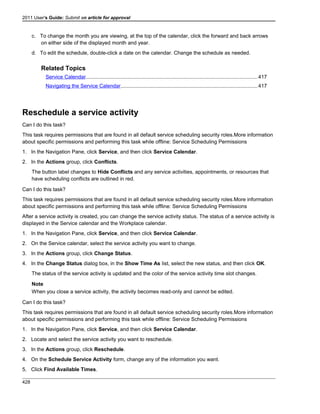
Reschedule a service activity.......................................................................................................428
Microsoft Dynamics CRM 2011 User’s Guide xvii
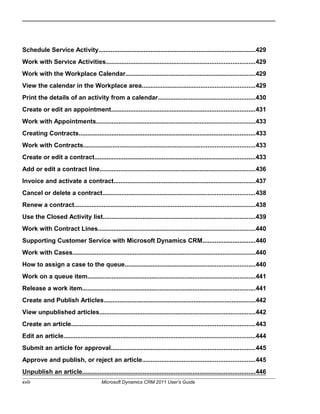
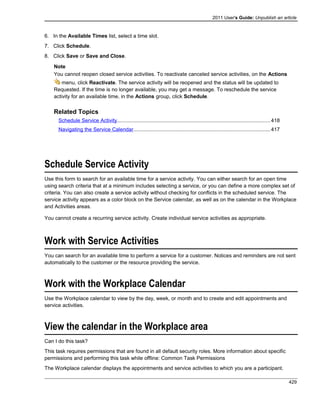
Schedule Service Activity...........................................................................................429
Work with Service Activities......................................................................................429
Work with the Workplace Calendar...........................................................................429
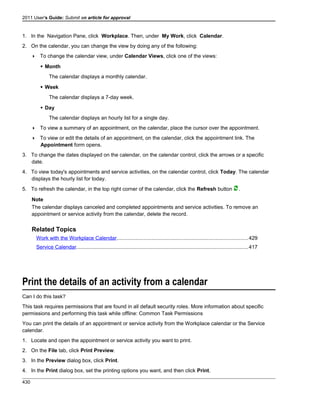
View the calendar in the Workplace area.................................................................429
Print the details of an activity from a calendar........................................................430
Create or edit an appointment...................................................................................431
Work with Appointments............................................................................................433
Creating Contracts......................................................................................................433
Work with Contracts...................................................................................................433
Create or edit a contract.............................................................................................433
Add or edit a contract line..........................................................................................436
Invoice and activate a contract..................................................................................437
Cancel or delete a contract........................................................................................438
Renew a contract.........................................................................................................438
Use the Closed Activity list........................................................................................439
Work with Contract Lines...........................................................................................440
Supporting Customer Service with Microsoft Dynamics CRM..............................440
Work with Cases..........................................................................................................440
How to assign a case to the queue...........................................................................440
Work on a queue item.................................................................................................441
Release a work item....................................................................................................441
Create and Publish Articles........................................................................................442
View unpublished articles..........................................................................................442
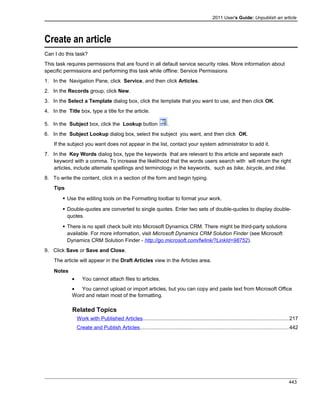
Create an article..........................................................................................................443
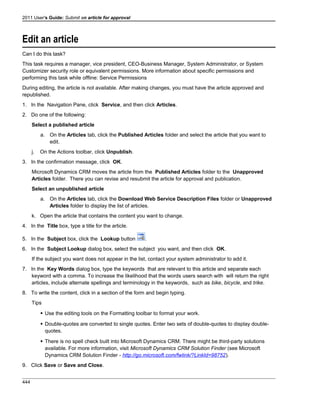
Edit an article...............................................................................................................444
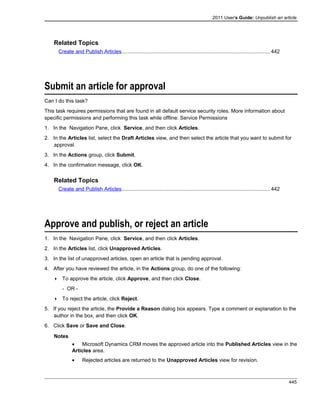
Submit an article for approval...................................................................................445
Approve and publish, or reject an article.................................................................445
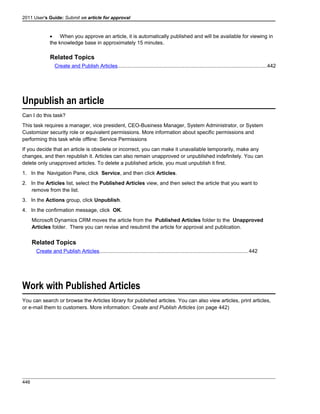
Unpublish an article....................................................................................................446
xviii Microsoft Dynamics CRM 2011 User’s Guide
Work with Published Articles.....................................................................................446
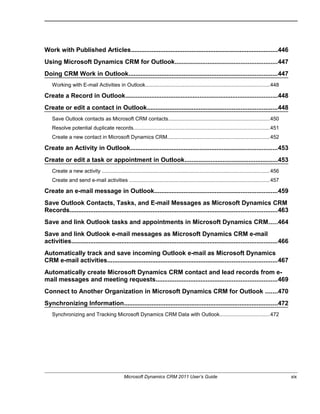
Using Microsoft Dynamics CRM for Outlook...........................................................447
Doing CRM Work in Outlook......................................................................................447
Working with E-mail Activities in Outlook.....................................................................................448
Create a Record in Outlook........................................................................................448
Create or edit a contact in Outlook...........................................................................448
Save Outlook contacts as Microsoft CRM contacts.....................................................................450
Resolve potential duplicate records.............................................................................................451
Create a new contact in Microsoft Dynamics CRM......................................................................452
Create an Activity in Outlook.....................................................................................453
Create or edit a task or appointment in Outlook......................................................453
Create a new activity ..................................................................................................................456
Create and send e-mail activities ................................................................................................457
Create an e-mail message in Outlook.......................................................................459
Save Outlook Contacts, Tasks, and E-mail Messages as Microsoft Dynamics CRM
Records........................................................................................................................463
Save and link Outlook tasks and appointments in Microsoft Dynamics CRM.....464
Save and link Outlook e-mail messages as Microsoft Dynamics CRM e-mail
activities.......................................................................................................................466
Automatically track and save incoming Outlook e-mail as Microsoft Dynamics
CRM e-mail activities..................................................................................................467
Automatically create Microsoft Dynamics CRM contact and lead records from e-
mail messages and meeting requests......................................................................469
Connect to Another Organization in Microsoft Dynamics CRM for Outlook .......470
Synchronizing Information.........................................................................................472
Synchronizing and Tracking Microsoft Dynamics CRM Data with Outlook..................................472
Microsoft Dynamics CRM 2011 User’s Guide xix
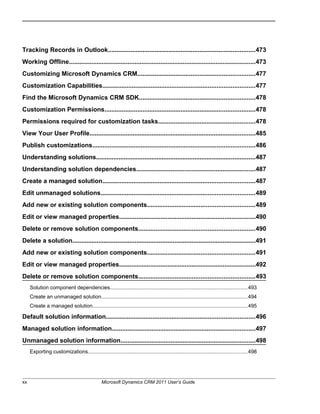
Tracking Records in Outlook.....................................................................................473
Working Offline............................................................................................................473
Customizing Microsoft Dynamics CRM....................................................................477
Customization Capabilities........................................................................................477
Find the Microsoft Dynamics CRM SDK...................................................................478
Customization Permissions.......................................................................................478
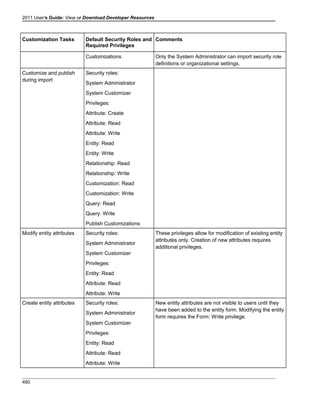
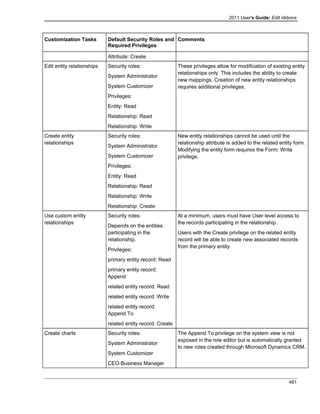
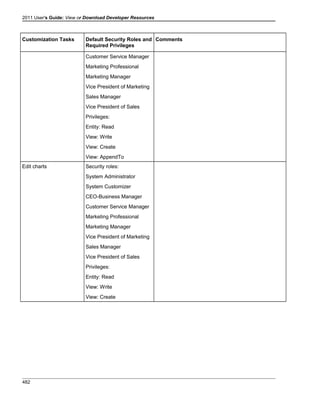
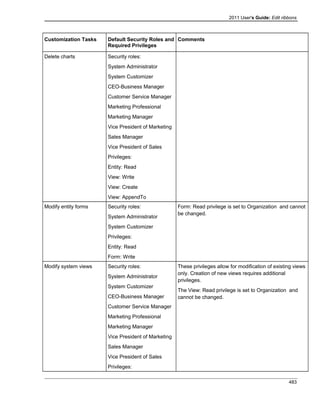
Permissions required for customization tasks........................................................478
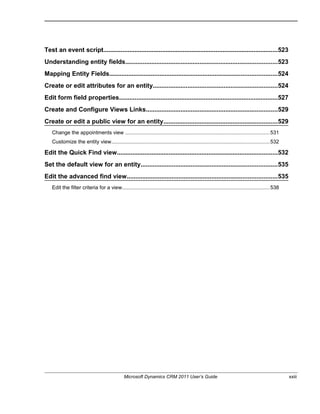
View Your User Profile................................................................................................485
Publish customizations..............................................................................................486
Understanding solutions............................................................................................487
Understanding solution dependencies.....................................................................487
Create a managed solution........................................................................................487
Edit unmanaged solutions.........................................................................................489
Add new or existing solution components..............................................................489
Edit or view managed properties...............................................................................490
Delete or remove solution components...................................................................490
Delete a solution..........................................................................................................491
Add new or existing solution components..............................................................491
Edit or view managed properties...............................................................................492
Delete or remove solution components...................................................................493
Solution component dependencies..............................................................................................493
Create an unmanaged solution....................................................................................................494
Create a managed solution..........................................................................................................495
Default solution information......................................................................................496
Managed solution information...................................................................................497
Unmanaged solution information..............................................................................498
Exporting customizations.............................................................................................................498
xx Microsoft Dynamics CRM 2011 User’s Guide
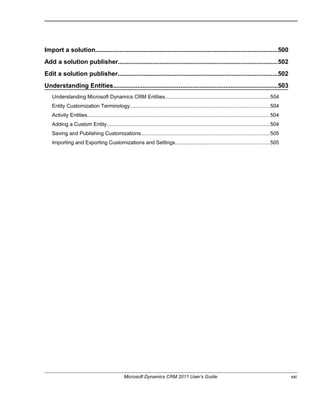
Import a solution.........................................................................................................500
Add a solution publisher............................................................................................502
Edit a solution publisher............................................................................................502
Understanding Entities...............................................................................................503
Understanding Microsoft Dynamics CRM Entities.......................................................................504
Entity Customization Terminology...............................................................................................504
Activity Entities.............................................................................................................................504
Adding a Custom Entity...............................................................................................................504
Saving and Publishing Customizations........................................................................................505
Importing and Exporting Customizations and Settings................................................................505
Microsoft Dynamics CRM 2011 User’s Guide xxi
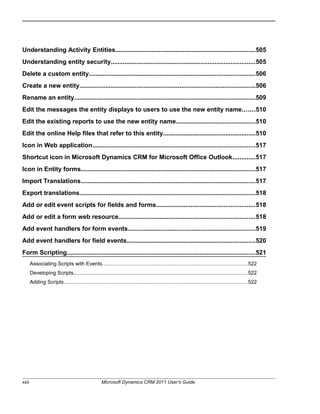
Understanding Activity Entities.................................................................................505
Understanding entity security...................................................................................505
Delete a custom entity................................................................................................506
Create a new entity......................................................................................................506
Rename an entity.........................................................................................................509
Edit the messages the entity displays to users to use the new entity name.......510
Edit the existing reports to use the new entity name..............................................510
Edit the online Help files that refer to this entity.....................................................510
Icon in Web application..............................................................................................517
Shortcut icon in Microsoft Dynamics CRM for Microsoft Office Outlook.............517
Icon in Entity forms.....................................................................................................517
Import Translations.....................................................................................................517
Export translations......................................................................................................518
Add or edit event scripts for fields and forms.........................................................518
Add or edit a form web resource...............................................................................518
Add event handlers for form events..........................................................................519
Add event handlers for field events..........................................................................520
Form Scripting.............................................................................................................521
Associating Scripts with Events...................................................................................................522
Developing Scripts.......................................................................................................................522
Adding Scripts..............................................................................................................................522
xxii Microsoft Dynamics CRM 2011 User’s Guide
Test an event script.....................................................................................................523
Understanding entity fields........................................................................................523
Mapping Entity Fields.................................................................................................524
Create or edit attributes for an entity........................................................................524
Edit form field properties............................................................................................527
Create and Configure Views Links............................................................................529
Create or edit a public view for an entity..................................................................529
Change the appointments view ...................................................................................................531
Customize the entity view............................................................................................................532
Edit the Quick Find view.............................................................................................532
Set the default view for an entity...............................................................................535
Edit the advanced find view.......................................................................................535
Edit the filter criteria for a view.....................................................................................................538
Microsoft Dynamics CRM 2011 User’s Guide xxiii
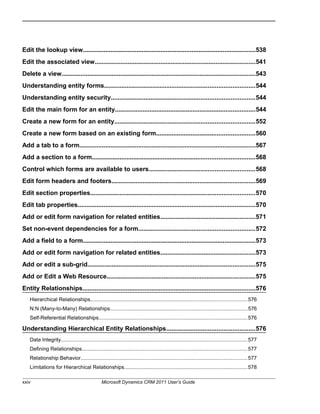
Edit the lookup view....................................................................................................538
Edit the associated view.............................................................................................541
Delete a view................................................................................................................543
Understanding entity forms.......................................................................................544
Understanding entity security...................................................................................544
Edit the main form for an entity.................................................................................544
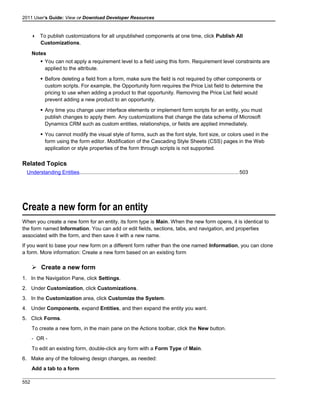
Create a new form for an entity.................................................................................552
Create a new form based on an existing form.........................................................560
Add a tab to a form......................................................................................................567
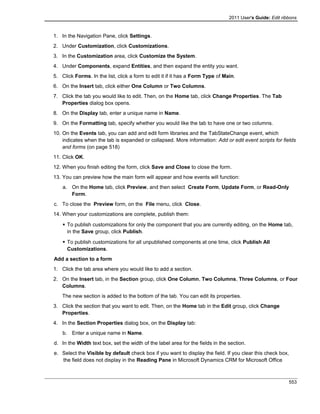
Add a section to a form..............................................................................................568
Control which forms are available to users.............................................................568
Edit form headers and footers...................................................................................569
Edit section properties...............................................................................................570
Edit tab properties.......................................................................................................570
Add or edit form navigation for related entities.......................................................571
Set non-event dependencies for a form...................................................................572
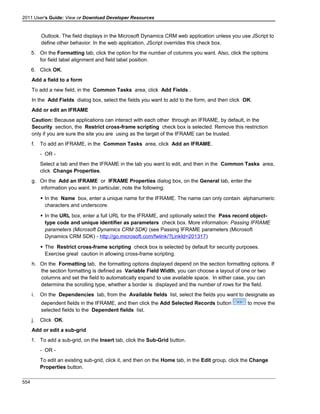
Add a field to a form....................................................................................................573
Add or edit form navigation for related entities.......................................................573
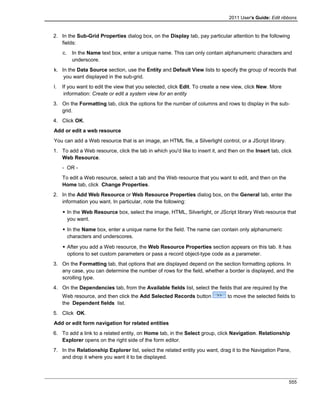
Add or edit a sub-grid.................................................................................................575
Add or Edit a Web Resource......................................................................................575
Entity Relationships....................................................................................................576
Hierarchical Relationships...........................................................................................................576
N:N (Many-to-Many) Relationships..............................................................................................576
Self-Referential Relationships......................................................................................................576
Understanding Hierarchical Entity Relationships...................................................576
Data Integrity...............................................................................................................................577
Defining Relationships.................................................................................................................577
Relationship Behavior..................................................................................................................577
Limitations for Hierarchical Relationships....................................................................................578
xxiv Microsoft Dynamics CRM 2011 User’s Guide
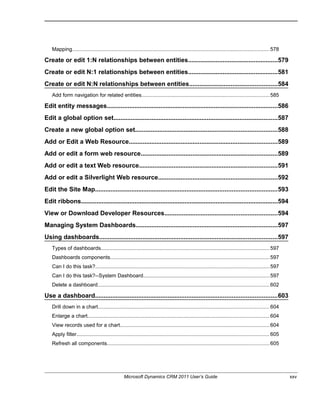
Mapping.......................................................................................................................................578
Create or edit 1:N relationships between entities....................................................579
Create or edit N:1 relationships between entities....................................................581
Create or edit N:N relationships between entities...................................................584
Add form navigation for related entities.......................................................................................585
Edit entity messages...................................................................................................586
Edit a global option set...............................................................................................587
Create a new global option set..................................................................................588
Add or Edit a Web Resource......................................................................................589
Add or edit a form web resource...............................................................................589
Add or edit a text Web resource................................................................................591
Add or edit a Silverlight Web resource.....................................................................592
Edit the Site Map.........................................................................................................593
Edit ribbons..................................................................................................................594
View or Download Developer Resources.................................................................594
Managing System Dashboards..................................................................................597
Using dashboards.......................................................................................................597
Types of dashboards...................................................................................................................597
Dashboards components.............................................................................................................597
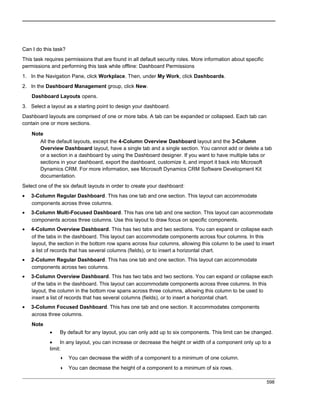
Can I do this task?.......................................................................................................................597
Can I do this task?--System Dashboard......................................................................................597
Delete a dashboard.....................................................................................................................602
Use a dashboard.........................................................................................................603
Drill down in a chart.....................................................................................................................604
Enlarge a chart............................................................................................................................604
View records used for a chart......................................................................................................604
Apply filter....................................................................................................................................605
Refresh all components...............................................................................................................605
Microsoft Dynamics CRM 2011 User’s Guide xxv
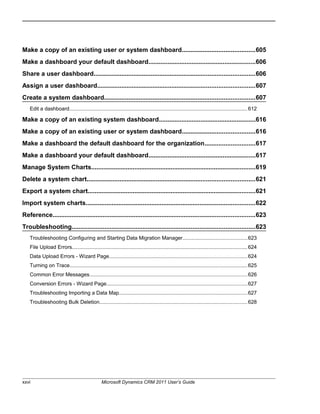
Make a copy of an existing user or system dashboard..........................................605
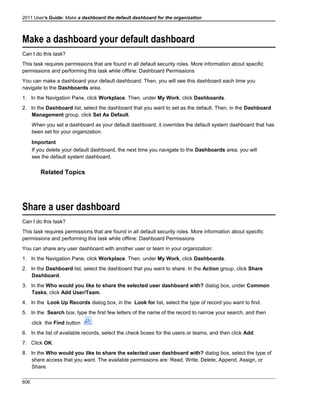
Make a dashboard your default dashboard..............................................................606
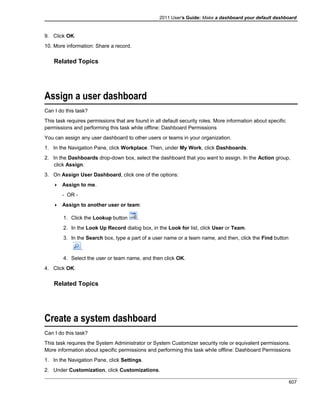
Share a user dashboard.............................................................................................606
Assign a user dashboard...........................................................................................607
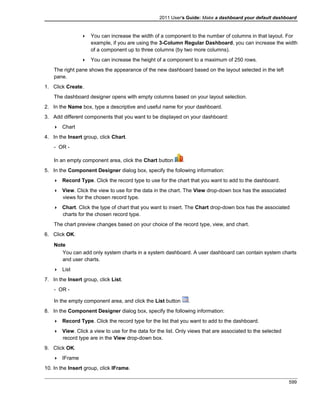
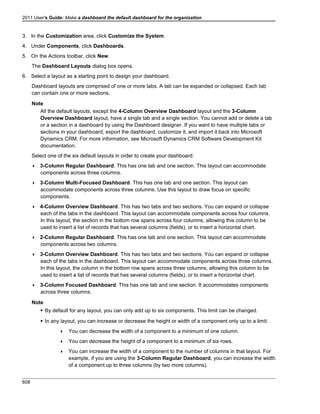
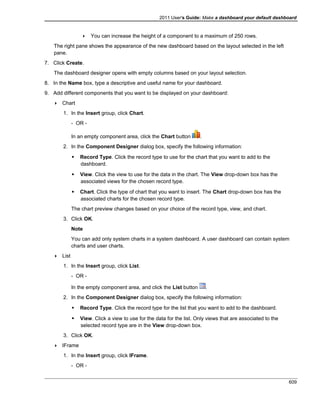
Create a system dashboard.......................................................................................607
Edit a dashboard..........................................................................................................................612
Make a copy of an existing system dashboard........................................................616
Make a copy of an existing user or system dashboard..........................................616
Make a dashboard the default dashboard for the organization.............................617
Make a dashboard your default dashboard..............................................................617
Manage System Charts...............................................................................................619
Delete a system chart.................................................................................................621
Export a system chart.................................................................................................621
Import system charts..................................................................................................622
Reference.....................................................................................................................623
Troubleshooting..........................................................................................................623
Troubleshooting Configuring and Starting Data Migration Manager............................................623
File Upload Errors........................................................................................................................624
Data Upload Errors - Wizard Page..............................................................................................624
Turning on Trace.........................................................................................................................625
Common Error Messages............................................................................................................626
Conversion Errors - Wizard Page................................................................................................627
Troubleshooting Importing a Data Map........................................................................................627
Troubleshooting Bulk Deletion.....................................................................................................628
xxvi Microsoft Dynamics CRM 2011 User’s Guide
Getting Started
Introduction to Microsoft Dynamics CRM
You can perform and automate many business tasks with Microsoft Dynamics CRM, including:
• Keep and use all your customer information from one place.
• Schedule and track activities, and send e-mail messages.
• Analyze data using charts and dashboards.
• Generate reports.
• Manage marketing lists.
• Track advertising and marketing campaigns.
• Analyze customer responses to your sales and marketing initiatives.
• Keep detailed notes and an activity history for each business record.
• Run Microsoft Dynamics CRM from within Microsoft Office Outlook.
Sales Force Automation
Using Sales Force Automation, you can:
• Qualify leads and manage opportunities.
• Manage contacts and accounts.
• Track quotes, orders, and invoices.
• Manage and track e-mail, phone call, and other communication activities with customers.
• Run direct e-mail campaigns and measure their success.
• Create and access a database of products that your organization sells.
More information:
• Managing Accounts and Contacts (on page 259)
• Completing Sales Transactions (on page 332)
• Creating the Product Catalog
Marketing Automation
Using Marketing Automation, you can:
• Create targeted marketing lists.
• Plan and run campaigns.
• Track each campaign response and lead generated from campaigns.
1
More information:
• Planning Campaigns (on page 367)
• Managing Campaign Activities and Planning Tasks
• Creating and Managing Marketing Lists (on page 379)
Customer Service Management
Using the Customer Service area, you can:
• Track individual cases and manage services.
• Track and share common problems and solutions in a knowledge base.
• Manage customer contracts.
More information:
• Publishing Articles in the Knowledge Base
• Creating Contracts (on page 433)
• Supporting Customer Service with Microsoft Dynamics CRM (on page 440)
Appointment-Based Service Scheduling
Using Service Scheduling, you can:
• Define the services you offer.
• Identify available resources and equipment for service activities.
• Define work schedules for individual resources, as well as their locations.
• Navigating the Service Calendar (on page 417)
• Booking Service Activities in the Service Calendar
• Configuring Service Scheduling
• Scheduling Users and Other Resources
Analyzing Data and Reporting
Microsoft Dynamics CRM has several features to help you analyze data and generate reports:
• Create a chart.
• Create a dashboard.
• Run a default report.
• Create an Advanced Find query to find a filtered set of records and then export the list for analysis.
• Create a custom report using Microsoft SQL Server Reporting Services or other reporting tools.
More information:
• Understanding Charts (on page 135)
2
2011 User's Guide: Delete Things
• Using dashboards (on page 142)
• Running Reports and Analyzing Data (on page 91)
• Default Reports (on page 93)
• Customizing and Organizing Reports (on page 92)
Customization and Solutions
By using the customization capabilities of Microsoft Dynamics CRM, you can:
• Create new Microsoft Dynamics CRM forms, entities, and fields without custom programming. The tools
to create these are in the application.
• Customize forms and views for enhanced integration with other Web applications, portals, and business
systems.
• Apply form validation and add client-side business logic through scripting.
A Microsoft Dynamics CRM solution is a software package made up of one or more components that extends
the user interface or functionality of Microsoft Dynamics CRM. A solution component must come with
Microsoft Dynamics CRM (native to Microsoft Dynamics CRM).
You can customize a solution component only if you can customize the component by default, or if the
solution developer made the component available for customization.
Solution components include custom entities, processes defined in workflows or plugins, form
customizations, Web resources, and templates.
More information:
• Understanding solutions (on page 487)
• Understanding entity forms (on page 544)
• Customizing Entities (see "Understanding Entities" on page 503)
• Permissions required for customization (see "Permissions required for customization tasks" on page 478)
Workflow
Beyond the business automation included in Microsoft Dynamics CRM, you can define processes, workflows,
and dialogs to automate your organization's business logic and to ensure consistent customer interactions.
Then, make your processes available as an on-demand process or, for workflows, an automatic workflow.
More information: Work with processes
Goal Management
Using Goal Management, you can:
• Track goals at every level of your goal hierarchy.
• Create child goals that roll up into parent goals.
• Define rollup fields for your goal metrics that identify the performance that you are tracking.
• View actual and in-progress data when you want it and at scheduled rollup times.
More information:
3
2011 User's Guide: Tips
• Work with goals (on page 326)
• Work with goal metrics (on page 326)
• Work with rollup queries (on page 332)
Microsoft Dynamics CRM for Microsoft Office Outlook
Microsoft Dynamics CRM for Outlook is add-on program for Outlook that provides Microsoft Dynamics CRM
functionality within Outlook. The information is kept in synchronization automatically between Outlook and
Microsoft Dynamics CRM. When you run Microsoft Dynamics CRM for Outlook, you can work either in online
or offline mode.
More information:
• Doing CRM Work in Outlook (on page 447)
• Working Offline (on page 473)
• Synchronizing Information (on page 472)
Use Keyboard Shortcuts
The shortcut keys described in this section refer to the U.S. keyboard layout. Keys on other layouts might not
correspond exactly to the keys on a U.S. keyboard.
General keyboard shortcuts
Action Press
Copy text Ctrl+C
Paste text Ctrl+V
Undo previous text change Ctrl+Z
Save a record Ctrl+S
Close a record Esc
Cut text Ctrl+X
Delete text Delete
Delete selected text immediately without putting it on the
Clipboard
Shift+Delete
Move to the first tab on the ribbon Ctrl+[
Move to the last tab on the ribbon Ctrl+]
Move the insertion point to the start of the next word Ctrl+Right Arrow
Move the insertion point to the start of the previous word Ctrl+Left Arrow
Select all text in the current field Ctrl+A
Display the System menu for the active window Alt+Spacebar
Display the shortcut menu for the selected item Shift+F10
Cancel the current task or command, or close a selected list or
dialog box
Esc
4
2011 User's Guide: Delete Things
Action Press
Move up through a list of records Up Arrow
Move down through a list of records Down Arrow
Open the selected record Enter
Select all records on the current page Ctrl+A
Jump to the sitemap Ctrl+Shift+3
Open the recently viewed pages and view menu Ctrl+Shift+7
Select multiple rows in a list sequentially Shift+Up Arrow or Shift+Down Arrow
Select multiple rows in a list non-sequentially Tab to the check box and Spacebar
Publish Form Editor customization Ctrl+Enter
Dialog box keyboard shortcuts
To Press
Move to the next option or option group Tab
Move to the previous option or option group Shift+Tab
Complete the command for the active option or button Enter
Move between options in an open list, or between options in a
group of options
Arrow keys
Cancel a command, or close a selected list or dialog box Esc
Form keyboard shortcuts
Action Press
Save Ctrl+S or Shift+F12
Save and close Alt+S
Cancel edits and close (Close) Esc
Open search Spacebar or Enter
Delete text from search field Backspace
Delete the record Ctrl+D
Save and then open a new form (Save and New) Ctrl+Shift+S
Move forward through the form's fields Tab
Move backward through the form's fields Shift+Tab
Open the lookup menu with the most recently used items in
alphabetical order
Alt+Down Arrow
5
2011 User's Guide: Tips
Action Press
Open the list menu Ctrl+Shift+2
Navigate to the next item on the list Ctrl+>
Navigate to the previous item on the list Ctrl+<
Accessibility keyboard shortcuts
In a computer running on Microsoft Windows, you can set system accessibility options to change the way you
work. For example, you can use Windows Sticky Keys if you have difficulty holding down two or more keys at
a time, such as Ctrl+P. Sticky Keys enable you to press the Ctrl key and have it remain active until you press
the P.
To Press
Switch Sticky Keys on and off Shift five times
Switch Filter Keys on and off Right Shift for eight seconds
Switch Toggle Keys on and off Num Lock for five seconds
Switch High Contrast on and off Left Alt+Left Shift+Print Screen
Switch Mouse Keys on and off Left Alt+Left Shift+Num Lock
Accessibility keyboard shortcuts
In a computer running on Microsoft Windows, you can set system accessibility options to change the way you
work. For example, you can use Windows Sticky Keys if you have difficulty holding down two or more keys at
a time, such as Ctrl+P. Sticky Keys enable you to press the Ctrl key and have it remain active until you press
the P.
To Press
Switch Sticky Keys on and off Shift five times
Switch Filter Keys on and off Right Shift for eight seconds
Switch Toggle Keys on and off Num Lock for five seconds
Switch High Contrast on and off Left Alt+Left Shift+Print Screen
Switch Mouse Keys on and off Left Alt+Left Shift+Num Lock
Dialog box keyboard shortcuts
To Press
Move to the next option or option group Tab
Move to the previous option or option group Shift+Tab
6
2011 User's Guide: Delete Things
To Press
Complete the command for the active option or button Enter
Move between options in an open list, or between options in a
group of options
Arrow keys
Cancel a command, or close a selected list or dialog box Esc
Form keyboard shortcuts
Action Press
Save Ctrl+S or Shift+F12
Save and close Alt+S
Cancel edits and close (Close) Esc
Open search Spacebar or Enter
Delete text from search field Backspace
Delete the record Ctrl+D
Save and then open a new form (Save and New) Ctrl+Shift+S
Move forward through the form's fields Tab
Move backward through the form's fields Shift+Tab
Open the lookup menu with the most recently used items in
alphabetical order
Alt+Down Arrow
Open the list menu Ctrl+Shift+2
Navigate to the next item on the list Ctrl+>
Navigate to the previous item on the list Ctrl+<
General keyboard shortcuts
Action Press
Copy text Ctrl+C
Paste text Ctrl+V
Undo previous text change Ctrl+Z
Save a record Ctrl+S
Close a record Esc
Cut text Ctrl+X
Delete text Delete
7
2011 User's Guide: Tips
Action Press
Delete selected text immediately without putting it on the
Clipboard
Shift+Delete
Move to the first tab on the ribbon Ctrl+[
Move to the last tab on the ribbon Ctrl+]
Move the insertion point to the start of the next word Ctrl+Right Arrow
Move the insertion point to the start of the previous word Ctrl+Left Arrow
Select all text in the current field Ctrl+A
Display the System menu for the active window Alt+Spacebar
Display the shortcut menu for the selected item Shift+F10
Cancel the current task or command, or close a selected list or
dialog box
Esc
Move up through a list of records Up Arrow
Move down through a list of records Down Arrow
Open the selected record Enter
Select all records on the current page Ctrl+A
Jump to the sitemap Ctrl+Shift+3
Open the recently viewed pages and view menu Ctrl+Shift+7
Select multiple rows in a list sequentially Shift+Up Arrow or Shift+Down Arrow
Select multiple rows in a list non-sequentially Tab to the check box and Spacebar
Publish Form Editor customization Ctrl+Enter
Find Things
There are several ways to locate a specific record when you are working with a list of records, or when you
are filling out a form. With Advanced Find, you can also save your search as a saved view to use again later.
Find records in a list
Can I do this task?
This task requires permissions that are found in all default security roles. More information about specific
permissions and performing this task while offline: Common Task Permissions
• Use one of the following methods to find records in a list:
Filter a list
8
2011 User's Guide: Delete Things
Select a view from the View drop-down list at the top of any list of records. Some lists, such as Activities
and Closed Activities, provide additional choices to help filter a list.
The View list includes two types of views: System Views and My Views.
Search for a text string
In the Search box, type a few letters to narrow your search, and then click the Lookup button .
Use an asterisk ( * ) as a wildcard if the text you're looking for is not at the beginning of a field. For example,
to find all records that contain the word "advanced" in the searched columns, enter *advanced.
Important
The search is not related to the view currently selected in the View menu. Only active records are
returned.
Tip
For each record type, which fields are searched can be customized. By default, the following fields are
searched:
• Account: Account Name, Account Number, E-mail
• Activity and individual activity types including Appointment, E-mail, Letter, Fax, and Phone Call: Subject
• Campaign: Campaign Code, Name
• Case: Title, Case Number
• Contact: Full Name, First Name, Middle Name, Last Name, E-mail, Case Number
• Contract: Contract Name
• Lead: Company Name, First Name, Last Name, Name, Topic
• Marketing List: Name
• Opportunity: Topic
• Quote, Order, Invoice: Name
• Product: Product Name, ID
• Sales Literature: Title
More information: Work with Entities.
Sort a list
• To sort a list of records, click a column heading. To reverse the sort order, click the column heading
again.
An arrow icon in the column heading shows that the list is sorted: the Ascending Sort icon indicates
ascending, and the Descending Sort icon indicates descending.
• To sort by an additional column, press SHIFT while you click the additional column heading.
You cannot sort by columns that display data from a related record type.
Use Advanced Find to filter the list
1. To start an Advanced Find search:
9
2011 User's Guide: Tips
In the View box, select the view that is closest to what you want, and then on the Standard toolbar, click
Advanced Find.
- OR -
On the Actions toolbar, click Advanced Find.
2. Specify criteria for your search and the columns to display.
More information: Work with Advanced Find
Create your own view
3. To start an Advanced Find search:
In the View box, select the view that is closest to what you want, and then on the Standard toolbar, click
Advanced Find.
- OR -
On the Actions toolbar, click Advanced Find.
4. Specify criteria for your search and the columns to display.
More information: Work with Advanced Find
5. Click Save As.
 In the Query Properties dialog box, in the Name field, type a name for the search.
 In the Description box, type a brief description, and then click OK.
This saves the search as a view. The new view appears on the Saved Views tab of the Advanced Find
form. This new view is available also from the list page for the record type in the View box, in the My
Views section.
Go to the next page of records
If there is more than one page of records available to view in the list of records, use the Page arrows at
the bottom of the list to view the additional pages.
Use the alphabetical index
For lists that include an Index at the bottom of the list:
 To view records with the information in the sorted column that begin with a specific letter, click the
letter.
 To view records with the information in the sorted column that begin with 0-9, click #.
 To view all records, click All.
Tips
• To make sure a list of records is current, at the top of the list, click the Refresh button , or
right-click any record and then click Refresh list.
• To preview a record, click the Preview button next to the record. To close the preview,
click the Close Preview button
• To see the exact criteria used for any saved view and most system views, select the view, on
the Standard toolbar click Advanced Find, and then click Show Details.
• It is not possible to find or retrieve deleted records.
10
2011 User's Guide: Delete Things
• In any list, select multiple records:
 Select several records by pressing the CTRL key while you click each record.
 Select a sequence of records by clicking the first record that you want, and then press the
SHIFT key while you select the last record that you want.
 Select all records on the page by selecting the Select/clear all records on this page
check box at the top of the list.
By default, the Microsoft Dynamics CRM Web application displays 50 records per page. You can
increase this up to a maximum of 250 records per page to increase the number of records you can select
at one time. To increase the number of records displayed per page:
1. On the File menu, click Options.
2. On the General tab, in the Records Per Page list, select the number of records to display per page.
3. Click OK.
This changes the number of items that is displayed for all lists, which may slow response time when you
switch record types. Therefore, you might want to set it back to a smaller number when you are done with
this bulk action.
Related Topics
Find Things..................................................................................................................................8
Edit Multiple Records.................................................................................................................39
Requesting User Interface Changes........................................................................................212
Find records while filling out a form
Can I do this task?
This task requires permissions that are found in all default security roles. More information about specific
permissions and performing this task while offline: Common Task Permissions
1. When you fill out a form and need to select a record in a field, you can use the Lookup button , or in
some forms, you also can use the Form Assistant pane.
Use the Lookup button
2. Click the Lookup button .
3. In the Look for box, if needed, select a record type, enter some letters to search for, and then click the
Find button .
4. Select the record, click the Add Selected Records button , and then click OK.
5. In the Advanced Find page, click Find.
- OR -
Use the Form Assistant pane:
11
2011 User's Guide: Tips
 To show or hide the Form Assistant pane, in the title bar of the pane, click the Expand button or
Collapse button .
 To collapse or expand an individual section, in the title bar of the section, click the Collapse button
or the Expand button .
 To select a record:
1. Put the insertion point in the text box for which you want to search for a record.
If a suggestion is available, the Form Assistant pane filters and displays the appropriate records.
2. In the Form Assistant pane, click a record.
The appropriate data fills the text box.
 To create follow-up activities related to the open record:
1. From an open record, on the Actions toolbar, click Follow Up .
The Form Assistant pane displays a partially completed activity.
2. Select the activity type.
You cannot create a follow up task activity for an e-mail activity created with a quick campaign.
Select a phone call, letter, fax, e-mail or appointment activity.
3. Complete the required fields.
4. Click Save or Save and Open.
Related Topics
Find Things..................................................................................................................................8
Create, edit, or save an Advanced Find search
Can I do this task?
This task requires permissions that are found in all default security roles. More information about specific
permissions and performing this task while offline: Common Task Permissions
1. To create a new search, in the Data area, click Advanced Find.
Tip
Advanced Find starts with criteria based on where you are in Microsoft Dynamics CRM. If you click
Advanced Find from a view, Microsoft Dynamics CRM loads the criteria for that view.
- OR -
To edit a saved search, in the Data area, click Advanced Find. Then, click the Saved Views tab, and
double-click the saved view.
2. Specify the search criteria.
 If Show Details is available on the toolbar, click it.
12
2011 User's Guide: Delete Things
Specify what to search for
a. In the Look for list, select the type of record you want to search for, such as Accounts, Leads, or
Users.
b. Click Select to select criteria for the search, including the field to search on (for example, Account
Name or City), the query relational operator, and the values to locate (for example, "Seattle" or "E-
mail").
You can select fields from the currrent record type, or from related records.
 For some values, you can click the Lookup button to open the Select Values dialog box
and select the value you want.
c. At the bottom of the Select list, the Related section shows related record types. When you select a
related record type, a new Select link appears to select fields from this related record type.
Clear, delete, or group search criteria clauses
 Clear all search criteria to start over.
a. Click Clear to remove all criteria.
d. In the confirmation message, click OK.
 Delete a row of search criteria.
a. Click the Options menu button next to a search criteria row, and then click Delete.
b. In the confirmation message, click OK.
 Group criteria.
a. Click the Options menu button next to a search criteria row, and then click Select Row.
To group search criteria, you must select two or more rows for the same record type. For
example, Sales Stage and Est. Revenue are both field values in the Opportunity record type
and two rows that specify search criteria for these fields can be grouped. However, rows with
field values from Account and Opportunity record types cannot be grouped.
b. On the Filter toolbar, select Group AND or Group OR.
e. Repeat steps a and b to create additional criteria groups.
 Select and deselect grouped criteria.
Click the Options menu button next to a search criteria row that has been selected, and then
click Deselect Row. You can unselect rows from a group or individually.
Click the Options menu button next to the group, and then click Select Group to select a
group, or click Deselect Group to unselect a group that has been previously selected.
 Add a search criteria clause to a criteria group.
i. Click the Options menu button next to the group, and then click Add Clause.
Add search criteria to the new clause.
 Ungroup rows of criteria that you have grouped together using Group AND or Group OR.
i. Click the Options menu button next to the group you want to ungroup, and then click
Ungroup.
13
2011 User's Guide: Tips
Repeat this step to ungroup additional search criteria groups.
 Change a Group AND group to a Group OR group, or a Group OR group to a Group AND
group.
i. Click the Options menu button next to the group, and then click Change to OR or
Change to AND.
Repeat this step to change additional search criteria groups.
 Hide or delete a row in Simple view:
i. To hide a row, click the Options menu button next to a search criteria row, and then click
Hide in Simple Mode.
To make a hidden row visible, click Show in Simple Mode
3. Specify the columns to include in the search results.
a. Click Edit Columns, and then click Add Columns.
b. Select the record type that includes the columns you want to add.
c. Select the check box next to the columns you want to add. If a column isn't listed, contact your
system administrator.
d. Click OK.
e. The following options are also available:
f. To adjust the width of a column, click the column, click Change Properties, select a width, and then
click OK.
g. To reorder columns, select a column, and use the arrow keys to move it to the left or right.
h. To remove a column, select it, and then click Remove.
i. Click OK.
4. Specify the sort order.
 Click Edit Columns, click Configure Sorting, and specify the column to sort on, and the sort order.
Tip: Each view is sorted by only one column. However, after you click Find, you can sort by additional
columns. To sort a search results list by an additional column, press SHIFT while you click the additional
column header.
You can only sort on columns from the primary record record type.
5. Save the search as a saved view.
a. If you're saving an existing saved view, click Save. If you are saving a new view or want to change
the name of the view because you changed the criteria, click Save As.
b. In the Query Properties dialog box, in the Name field, type a name for the search.
 In the Description box, type a brief description, and then click OK.
This saves the search as a view. The new view appears on the Saved Views tab of the Advanced Find
form. This new view is available also from the list page for the record type in the View box, in the My
Views section.
6. Click Find.
14
2011 User's Guide: Delete Things
Tips
• When you specify search criteria to find activity records, you can either search through all
types of activities or select one type of activity to search, such as Task or Appointment.
• The columns that are displayed by default are controlled by the Advanced Find View for the
record type. More information: Work with Entities.
• If you need to search based on the names of people who participated in an activity, in the
Advanced Find criteria, you must search fields in the related activity party. You can search based
on the person's name (Party field), or by their role in the activity, such as sender or recipient
(Participation Type field).
For example, to find e-mail messages sent to a specific contact:
a. In the Activities list, in the Type box, select E-mail.
b. Click Advanced Find, and then click Show Details.
c. Click Select, and then in the Related section, select Activity Parties (Activity).
d. Under Activity Parties (Activity), click Select.
e. In the Fields section, click Participation Type, click Enter Value, and then click the
Select or change the values for this field button .
f. In the Available Values list, select To Recipient, click the Add Selected Records
button , and then click OK.
g. Under Activity Parties (Activity), click Select.
h. In the Fields section, click Party.
i. Click the Equals Current User operator, and change it to Equals.
j. Click Enter Value, and then click the Lookup button .
k. In the Look for box, select Contact, enter some letters to search for, and then click
Start search.
l. Select the contact, click the Add Selected Records button , and then click OK.
m. In the Advanced Find page, click Find.
Note
You cannot use Advanced Find to find records related to quick campaigns.
Related Topics
Find Things..................................................................................................................................8
Export Data to Excel..................................................................................................................58
Work with Marketing Lists........................................................................................................380
Work with saved views
Can I do this task?
15
2011 User's Guide: Tips
This task requires permissions that are found in all default security roles. More information about specific
permissions and performing this task while offline: Common Task Permissions
You can run, share, assign, delete, or deactivate a saved view that you own. If another user has shared a
saved view with you, what you can do will depend on the specific privileges that they have given to you:
Share, Assign, Delete, or Write.
Run a saved view
On any list page in the View box, in the My Views section, select a saved view.
If there is not a My Views section, there are no saved views for this record type.
- OR -
On the Standard toolbar, click Advanced Find, and then click the Saved Views tab. Double-click a saved
view, and then click Find.
Share a saved view
1. On the Standard toolbar, click Advanced Find, and then click the Saved Views tab.
2. Select the view. On the Actions toolbar, click Actions, and then click Sharing.
3. In the sharing dialog box, under Common Tasks, click Add User/Team.
4. In the Look Up Records dialog box, in the Look for list, select the type of record you want to find.
5. In the Search box, type the first few letters of the name of the record to narrow your search, and then
click the Find button .
6. In the list of available records, click a user or team to select it, and then click the Add Selected Records
button to add the user or team to the Selected records list.
7. Click OK.
8. In the sharing dialog box, select the type of share access that you want. The available permissions are:
Read, Write, Delete, Append, Assign, or Share.
9. Click OK.
The saved view will show up in the My Views section of your coworker's View list.
Tips
• To cancel any changes that you have made and retain the previous permissions settings, click Reset.
• To select or clear all permissions on a selected item, click Toggle All Permissions of the Selected
Items.
Assign a saved view
1. On the Standard toolbar, click Advanced Find, and then click the Saved Views tab.
2. Select the view, and then on the Actions toolbar, click the Assign button .
3. In the Assign dialog box, click:
 Assign to me
Use this option to assign the record to yourself.
- OR -
16
2011 User's Guide: Delete Things
 Assign to another user
Click the Lookup button , type a part of the user's name, click the Find button , double-click
the user's name, and then to close Look Up Records dialog box, click OK.
4. Click OK.
Deactivate a saved view
1. On the Standard toolbar, click Advanced Find, and then click the Saved Views tab.
2. Select the view, and then on the Actions menu, click Deactivate.
Delete a saved view
1. On the Standard toolbar, click Advanced Find, and then click the Saved Views tab.
2. Select the view, and then on the Actions toolbar, click the Delete button .
E-mail or copy a link to a saved view
Send a shortcut in an e-mail
a. On the Actions toolbar, click E-mail a Link, and then click Of Current View.
b. Complete the e-mail form and send.
Copy a shortcut
a. On the Actions toolbar, click Copy a Link, and then click Of Current View.
b. Paste the shortcut into any application that supports copy and paste. For example, in Microsoft Office
Word, press CTRL+V. More information: Send or Copy a Shortcut (on page 50)
Tips
• To make sure a list of records is current, at the top of the list, click the Refresh button , or
right-click any record and then click Refresh list.
• To preview a record, click the Preview button next to the record. To close the preview,
click the Close Preview button .
• To see the exact criteria used for any saved view and most system views, select the view, on
the Standard toolbar click Advanced Find, and then click Show Details.
• It is not possible to find or retrieve deleted records.
• In any list, select multiple records:
 Select several records by pressing the CTRL key while you click each record.
 Select a sequence of records by clicking the first record that you want, and then press the
SHIFT key while you select the last record that you want.
 Select all records on the page by selecting the Select/clear all records on this page
check box at the top of the list.
By default, the Microsoft Dynamics CRM Web application displays 50 records per page. You can
increase this up to a maximum of 250 records per page to increase the number of records you can select
at one time. To increase the number of records displayed per page:
17
2011 User's Guide: Tips
1. On the File menu, click Options.
2. On the General tab, in the Records Per Page list, select the number of records to display per page.
3. Click OK.
This changes the number of items that is displayed for all lists, which may slow response time when you
switch record types. Therefore, you might want to set it back to a smaller number when you are done with
this bulk action.
Delete Things
Caution
Once you delete a record, it cannot be retrieved.
Typically you should only delete records that you entered by mistake. For some record types, you can
deactivate or close the record instead. Not all record types can be deleted. For details, select Special cases.
Delete records
Can I do this task?
If the Delete button is not visible on the toolbar, the security role assigned to your account does not have
permission to delete this type of record. To check your permissions for a specific record, open the record,
click the File menu button , and then click Properties.
If you are deleting a record that has child records, you can delete it only if you also have permission to delete
any child records.
More information about specific permissions and performing this task while offline: Common Task
Permissions
1. In any list of records, select the record that you want to delete.
- OR -
In any list, select multiple records:
 Select several records by pressing the CTRL key while you click each record.
 Select a sequence of records by clicking the first record that you want, and then press the SHIFT key
while you select the last record that you want.
 Select all records on the page by selecting the Select/clear all records on this page check box at
the top of the list.
Tip
By default, the Microsoft Dynamics CRM Web application displays 50 records per page. You can
increase this up to a maximum of 250 records per page to increase the number of records you can select
at one time. To increase the number of records displayed per page:
1. On the File menu, click Options.
2. On the General tab, in the Records Per Page list, select the number of records to display per page.
18
2011 User's Guide: Delete Things
3. Click OK.
This changes the number of items that is displayed for all lists, which may slow response time when you
switch record types. Therefore, you might want to set it back to a smaller number when you are done with
this bulk action.
2. On the Actions toolbar, click the Delete button .
3. If you are deleting accounts or contacts, you have the option to deactivate a record instead of deleting it.
In the Delete Confirmation dialog box:
 To delete the record, click Delete.
 To deactivate the record, click Deactivate.
For other record types, in the Confirm Deletion dialog box, click OK.
Notes
• When you delete a record, all its relationships to other records are also deleted.
• If a record has child records, and you have permission to delete the child records, deleting a
record also deletes the child records.
Related Topics
Edit Multiple Records.................................................................................................................39
Delete Things.............................................................................................................................18
Add a Note or Attach a File........................................................................................................29
Check Your Permissions for a Record.......................................................................................48
Special Cases
Record type Notes More information
Accounts Can also be deactivated. Work with Accounts (on page
265)
Activities in Queues When you delete an e-mail message in a queue, it is
removed from the queue, but is not deleted as an
active activity. To delete it, you must delete it from the
Activities list.
When you delete other activity types from a queue,
the activity record is deleted both from the queue and
from Microsoft Dynamics CRM.
Work with Queues
Articles Articles must be unpublished from the Articles library
before being deleted.
Create and Publish Articles (on
page 442)
Cases Can also be canceled. Work with Campaigns and
Campaign Templates (on
page 367)
19
2011 User's Guide: Tips
Record type Notes More information
Contacts Can also be deactivated. Work with Contacts (on page
270)
Leads Can also be disqualified. Work with Leads (on page
292)
Marketing Lists Can also be deactivated. Work with Marketing Lists (on
page 380)
Opportunities Can also be closed. Work with Opportunities (on
page 303)
Orders Can also be canceled. Work with Orders (on page
344)
Price Lists Can also be deactivated. Work with Price Lists
Quick Campaigns Deleting a quick campaign record deletes all of the
activities created by the quick campaign, even if those
activities were not yet complete.
Work with Quick Campaigns
(on page 374)
Related Topics
Delete Things.............................................................................................................................18
Remove an attached file
Can I do this task?
This task requires permissions that are found in all default security roles. More information about specific
permissions and performing this task while offline: Common Task Permissions
1. Open the record that you want.
2. For most record types, click Notes and Activities:
 On the E-mail form, click Attachments.
 On the Service Activity form, click Service Activity .
 On the Case form, click Notes and Article.
3. Double-click the status row of the note that contains the attachment that you want to remove.
4. Remove the attached file.
To keep the note, but remove the attachment:
 In the Note form, in the File Attachment area, click Remove, click OK, and then click OK again.
- OR -
To remove the note and the attachment:
20
2011 User's Guide: Delete Things
 On the Actions menu, click Delete Note, and then click OK.
5. Click Save or Save and Close.
Note
You cannot update an attached file. Instead, save the file on your computer and edit the file, delete
the attachment, and then attach the edited file.
Related Topics
Add a Note or Attach a File........................................................................................................29
Manage Activities.......................................................................................................................22
Delete Things.............................................................................................................................18
Delete imported records
Can I do this task?
This task requires permissions that are found in all default security roles. More information about specific
permissions and performing this task while offline: Common Task Permissions
1. In the Navigation Pane, click Workplace, and then under My Work, click Imports.
2. Select the record that you want to delete, followed by one of the following actions:
Tasks Required Steps
Delete the import job that was created
for the source file uploaded during an
import
In the Records group, click Delete, and then click Delete Import
Source File. In the Confirm Deletion dialog box, click OK.
Delete records that were imported to a
record type during an import
In the Records group, click Delete, and then click All Records
Imported to This Entity During This Import. In the Delete Imported
Records dialog box, specify whether you want to delete the import job
history, and then click OK.
Caution
If your .zip file contains two .csv files, Accounts1.csv and
Accounts2.csv, then Microsoft Dynamics CRM makes one
import of data from these files to only the Accounts record
type. While deleting imported records, if you select
Accounts1.csv from the Imports list and choose All Records
Imported to This Entity During This Import, then Microsoft
Dynamics CRM deletes all the imported records from
Accounts1.csv and Accounts2.csv because of the import to one
record type. If the .zip file had a file with records for a different
record type, then Microsoft Dynamics CRM only deletes the
records for the one record type.
21
2011 User's Guide: Tips
Delete all records that were imported
from a .zip file during an import
In the Records group, click Delete, and then click All Imported
Records from the .zip File. In the Delete Imported Records dialog
box, specify whether you want to delete the import job history, and then
click OK.
Related Topics
Delete Things.............................................................................................................................18
Print Things
Can I do this task?
This task requires permissions that are found in all default security roles. More information about specific
permissions and performing this task while offline: Common Task Permissions
1. In the list of records, open the record that you want.
2. On the File tab, click Print Preview.
3. In the Preview form, click Print.
4. In the Print dialog box, select the print options you want, and then click Print.
5. On the Standard toolbar of the Preview form, click Close.
Note
To print a note, open the record, click the Notes and Activities tab, right-click the note that you want,
and then click Print.
Related Topics
Manage Activities.......................................................................................................................22
Add a Note or Attach a File........................................................................................................29
Run a Report............................................................................................................................127
Print a list of records
Can I do this task?
This task requires permissions that are found in all default security roles. More information about specific
permissions and performing this task while offline: Common Task Permissions
1. On the File tab, click Print Preview.
2. If the records in the list extend beyond the current view, you will see the Print List dialog box.
22
2011 User's Guide: Delete Things
To print a list that is limited to the items listed on the current page, click All records on current page,
and then click OK.
- OR -
To print a list of all items that are on all pages for that view, click All records on all pages, and then
click OK.
3. In the Preview form, click Print.
4. In the Print dialog box, select the print options you want, and then click Print.
5. On the Standard toolbar of the Preview form, click Close.
Tips
By default, the Microsoft Dynamics CRM Web application displays 50 records per page. You can
increase this up to a maximum of 250 records per page to increase the number of records you can select
at one time. To increase the number of records displayed per page:
1. On the File menu, click Options.
2. On the General tab, in the Records Per Page list, select the number of records to display per page.
3. Click OK. This changes the number of items that is displayed for all lists, which may slow response
time when you switch record types. Therefore, you might want to set it back to a smaller number
when you are done with this bulk action.
• If you need to print other columns than the ones in the list, use Advanced Find to create a
new view that includes all the columns you need. More information: Work with Advanced Find
• If you want to format the list before printing it, export the list to Microsoft Office Excel, and
format it there. More information: Export Data to Excel (on page 58)
• When you print a list, a title describing the list is not included. If you need a title on your
printout, export the list to Microsoft Office Excel, add a title, and then print the worksheet.
Related Topics
Export Data to Excel..................................................................................................................58
Find Things..................................................................................................................................8
Run a Report............................................................................................................................127
Print the details of an activity from a calendar
Can I do this task?
This task requires permissions that are found in all default security roles. More information about specific
permissions and performing this task while offline: Common Task Permissions
You can print the details of an appointment or service activity from the Workplace calendar or the Service
calendar.
1. Locate and open the appointment or service activity you want to print.
2. On the File tab, click Print Preview.
23
2011 User's Guide: Tips
3. In the Preview dialog box, click Print.
4. In the Print dialog box, set the printing options you want, and then click Print.
5. On the Standard toolbar, click Close.
Note
To print the entire calendar as you see it in the window, click Print in Microsoft Internet Explorer.
Related Topics
Work with the Workplace Calendar..........................................................................................429
Print Things................................................................................................................................18
Run a Report
Can I do this task?
This task requires permissions that are found in all default security roles. More information about specific
permissions and performing this task while offline: Report Permissions
1. Find and open a report:
From the Reports area
a. In the Workplace, under My Work, click Reports.
b. To narrow the list, enter the first few letters of the report name, or use the asterisk (*) wildcard in the
Search box and then click the Find button . You can also select a view.
c. In the reports list, double-click the report that you want to run.
d. If the report has a default filter, the default filter will be displayed. Follow step 2 to change the filter.
Tip: To run a report without seeing the default filter, select the report, and then on the Actions toolbar,
click Actions, and then click Run Report.
From a list of records, including the results of an Advanced Find search
Only reports that relate to the current record type will be available.
You can run some reports on all records in the list, up to ten selected records, or without limiting the
records as if you were running the report from the Reports area.
 To run a report on all records on the list:
a. On the Actions toolbar, click Reports .
e. Under Run on Selected Records, click the name of the report.
f. In the Select Records dialog box, click All records on all pages in the current view, and then
click Run Report.
 To run a report on up to ten selected records from the list:
24
2011 User's Guide: Delete Things
a. Select the records to include. Select several records by pressing the CTRL key while you click
each record.
g. On the Actions toolbar, click Reports.
h. Under Run on Selected Records, click the name of the report.
i. In the Select Records dialog box, click The selected records, and then click Run Report.
 To run a report without limiting records to items on the list:
a. On the Actions toolbar, click Reports.
j. If the report is listed under Run on All Records, select the report.
- OR -
Under Run on Selected Records, click the name of the report. In the Select Records dialog
box, click All applicable records, and then click Run Report.
- OR -
If the report you want to run is not listed, you must go to the Reports area to run the report.
From a record
Only reports that relate to the current record type will be available.
 To run a report including data from just one record:
a. On the second tab, in the Data group, click Run Report.
k. Under Run on Current Record, click the name of the report.
From Microsoft Dynamics CRM for Outlook
All reports can be run when you are online.
To run a report while you are offline, you must first create a local data group that includes the report, as
well as a local data group that includes any data that should be included in the report.
To create a local data group that contains reports, on the CRM menu, click Modify Local Data Groups,
click New, select the the Report record type, and then define the criteria for which reports to include.
More information: Work with Data to Take Offline
 To run reports from the Reports area, in the Outlook Navigation Pane, under Microsoft Dynamics
CRM, click Workplace, click My Work, click Reports, and then select a report to run.
 To select a report from a record or list, follow the procedures above. These steps work the same way
in Microsoft Dynamics CRM for Outlook.
From a report you saved locally
 If you have saved a report on your computer or shared file system that reads dynamic data from
Microsoft Dynamics CRM, to open it, browse to the folder that contains your saved report, and
double-click the file.
2. If the report offers filter criteria, if needed, modify the filter criteria and then click Run Report.
The list of existing report filtering criteria is grouped by record types that you can use in the filter, such as
Accounts or Contacts. To edit a parameter in simple mode, click the underlined value and enter a new
value.
25
2011 User's Guide: Tips
- OR -
To edit the filter criteria in detailed mode:
a. Click Edit Filter.
b. To add a criteria row:
1. Click Select, and specify the field to filter on.
2. Click the query relational operator, and select an operator.
3. Click Enter Value, and enter a value to filter on. For some values, you can click the Select or
change the values for this field button to open the Select Values dialog box and select
the value you want.
c. To group criteria, you must select two or more rows for the same record type. For example, Sales
Stage and Est. Revenue are both field values in the Opportunity record type and two rows that
specify filter criteria for these fields can be grouped. However, rows with field values from different
record types, such as Account and Opportunity record types, cannot be grouped.
1. For each row you want to group, in detailed mode, click the Options menu button for that row,
and then click Select Row.
2. On the Filter toolbar, select Group AND or Group OR.
3. To remove a row from a group, click the Options menu button for that row, and then click
Delete.
4. To select a group, click the Options menu button for that group, and then click Select Group.
5. To add a criteria clause to a group, click the Options menu button for that group, click Add
Clause, and then select the field, query relational operator, and value.
6. To unselect a group that has been previously selected, click the Options menu button for that
group, and then click Deselect Group.
7. To ungroup a group, click the Options menu button for that group, and then click Ungroup.
8. To change a Group AND group to a Group OR group, or a Group OR group to a Group AND
group, click the Options menu button for that group, and then click Change to OR or
Change to AND.
Tips
 To clear all criteria and start over, on the Filter toolbar, click Clear, and then click Confirm.
 To delete a row, click the Options menu button for that row, and then click Delete.
 To hide a row in simple mode, while you are in detailed mode, click the Options menu button
for that row, and then click Hide in Simple Mode.
 If you have a hidden row when viewing filter criteria in simple mode and you want to show that row
again, then in detailed mode, you must click the Options menu button for that row, and then
click Show in Simple Mode.
 You can set your personal options so that report filters and Advanced Find criteria always open in
simple or detailed mode. More information: Set Personal Options (on page 195)
3. If the report offers parameters, if needed, modify the parameters and then click View Report.
26
2011 User's Guide: Delete Things
4. Locate data in the report.
 To view or change a record, click the first field in the row for the record. A separate Microsoft
Dynamics CRM window will open with the record.
 To view all records associated with a summary or chart report, click Show All at the bottom of the
report. To navigate back to the original report, click the Go back to the parent report button .
 To view detailed information about an area in a chart, click an area of the chart. To navigate back to
the original report, click Original Report in the report title area.
 To page through the report, on the Report toolbar, use the Page Navigation buttons. To locate a
specific page, type a page number in the box and then press Enter.
 To quickly locate specific information in your report, in Find | Next, type a few characters, and then
click Find.
 To sort a column, click the column title. The direction of sorting is indicated by the Ascending sort
button or the Descending sort button .
 To view or hide the filter summary, expand or collapse Filter Summary.
 To update your report, click the Refresh button .
 To hide or show the report parameters, click the Show / Hide Parameters button .
5. Print the report.
On the Report toolbar, click the Print button .
If you are working offline using Microsoft Dynamics CRM for Outlook, on the Report toolbar, click the
Export button , and select MHTML (web archive) format. Open the file, and on the File menu, click
Print.
Tips
 If a chart doesn't display the first time you export a report to MHTML (web archive) format, export the
report a second time.
 To print reports, you need a Reporting Services Microsoft ActiveX control. The first time you print a
Reporting Services report from either Microsoft Dynamics CRM or Microsoft Dynamics CRM for
Microsoft Office Outlook, you will see a prompt Do you want to install this software?.
To install the required control, click Install.
6. Export the report.
Important
The exported report is temporary. If you need to save the exported report to a local file, use the viewing
program to save the file to disk. The saved exported report is no longer connected to Microsoft Dynamics
CRM. Therefore, it does not change if Microsoft Dynamics CRM data changes.
d. Click the Export button and select a format to which you want to export the report.
A second browser window is used to display the report, using a viewer associated with the export
format you selected.
The formats that are available are determined by the rendering extensions that are installed on the
Microsoft SQL Server Reporting Services report server, and also by whether you are online or offline.
27
2011 User's Guide: Tips
 If you are working offline, only the Excel and Acrobat (PDF) file formats are available.
If a viewer is not available for the format you select, you must select a different format or install the
viewer.
The following export formats are included in a default installation when you are online. The list of
export formats available to you may vary from those listed here.
 XML file with report data
View the report as an XML file.
 CSV (comma delimited)
View the report as a text file, with fields separated by commas. This format includes all the row,
column, and field labels.
To export only the data, instead of using this format, export data from any list in Microsoft
Dynamics CRM, including results of Advanced Find searches, into Microsoft Office Excel, and
then save as a comma-delimited (CSV) file.
 Acrobat (PDF) file
View the report using a client-side PDF viewer. You must have Adobe Acrobat Reader to use this
format.
Choose this format for long reports, paginated reports, or reports that are delivered as a file.
 MHTML (web archive)
View the report in Microsoft Internet Explorer, as a MIME-encoded HTML format that keeps
images and linked content together with a report. For chart reports, if the chart is not displayed
correctly the first time that you export the report, export the report again.
Choose this format to view a report offline or for e-mailing the report.
 Excel
View the report in Microsoft Office Excel. This format includes all the row, column, and field labels,
in addition to report formatting.
Large reports and reports with charts might not display with the expected formatting when
exported in this file format. To export only the data, instead of using this format, from any list in
Microsoft Dynamics CRM, including results of Advanced Find searches, export the data into
Microsoft Office Excel, and then save as a comma-delimited (CSV) file. More information: Export
Data to Excel (on page 58)
 TIFF file
View the report in the default TIFF viewer. For some Windows clients, this is the Windows
Pictures and Fax Viewer.
Choose this format to a view a report in a page-oriented layout. The TIFF format is the
recommended format for printing reports.
 Word
View the report in Microsoft Office Word. This format includes all the row, column, and field labels,
in addition to report formatting.
28
2011 User's Guide: Delete Things
Tips
• If there is no report that gives you the information you need, you can either export data to
Microsoft Office Excel, or create your own report. More information: Export Data to Excel (on
page 58), Create and Work with Reports
• If a snapshot of a Reporting Services report exists, you can view it from the Reports area. To
see if any snapshots exist for a report, click the View Snapshots button next to the report. If a
snapshot exists, click the snapshot link to view the snapshot.
Note
If multiple Language Packs are installed, only reports that are marked for display in the language you
specified in Personal Options will be visible. More information: Set Personal Options (on page 195)
Related Topics
Print Things................................................................................................................................18
Running Reports and Analyzing Data........................................................................................91
Customizing and Organizing Reports........................................................................................92
Export Data to Excel..................................................................................................................58
Default Reports..........................................................................................................................93
Manage Activities
Create or edit an activity
Can I do this task?
This task requires permissions that are found in all default security roles. More information about specific
permissions and performing this task while offline: Common Task Permissions
1. Navigate to activity records.
In the Navigation Pane, click Workplace, and then under My Work click Activities.
- OR -
To work with activities associated with a record, open the record and then click Activities.
2. To add new activities from the Activities list, on the Activities tab in the New group, click the type of
activity you want to add.
- OR -
3. To add a new activity from a record, click Add New Activity. Select an activity type, and then click OK.
4. Enter the information that you want. At a minimum, entering information in the following boxes is useful
when you or others in your organization refer to the activity at a later date:
 Subject
Enter a meaningful description that can help you easily identify the activity in the Activities list view.
The subject field is required because, by default, most of the Activities views are sorted by it. This
29
2011 User's Guide: Tips
field is not related to Subjects, which are the hierarchical list of categories used to relate and organize
information in Microsoft Dynamics CRM.
 Regarding
This field is used to link the activity to another record so that you can view the activity from the record.
If you create a new activity from a record, this is automatically filled out.
 Owner
This box represents the user who owns the activity. By default, it is set to the user who creates the
activity.
 Duration
If this activity is related to a case, make sure that you record the time you spend on the activity in this
box. If the case is linked to a contract line, the durations of all the activities for this case are tallied and
updated automatically in the related active contract. The total, which includes the totals from any
other cases relating to that contract, can be adjusted manually before billing the customer. The
maximum duration of an appointment or service activity is 10 days.
 Due
Enter the date and time that the activity is expected to take place or be completed. You can quickly
sort on the Due field when you view activities.
Tip
 To automatically update the Regarding field with information from a record, click the Expand button
in the right pane to open the Form Assistant pane, and then select a record.
5. Some activities also have the following optional fields:
 Sender
You can use this field to record the user in your organization who initiated an outgoing
communication. Alternatively, if this is an incoming communication from a customer, you can select
the lead, account, or contact who initiates the communication. The sender must be a valid Microsoft
Dynamics CRM account, contact, or lead, but can also be a Microsoft Dynamics CRM user. By
default, this box contains the name of the user who creates the activity.
 Recipient
This is the person, typically an account, contact, lead, or Microsoft Dynamics CRM user, that receives
the communication.
 Category, Sub-Category
You can use these text fields to categorize tasks so that you can sort or view your tasks by category
and/or sub-category.
6. Click Save or Save and Close.
Tip
If you are using the activity to track something that has already been completed, on the File menu, click
Save as Completed.
When you save an activity as completed, duplicates will not be detected.
30
2011 User's Guide: Delete Things
Notes
• To create the same activity for multiple records, use a quick campaign. More information:
Work with Quick Campaigns (on page 374)
• You cannot edit multiple activities at once.
• You cannot schedule recurring activities.
• You cannot reactivate or edit a closed activity. However, you can add a note to a closed
activity.
• You cannot change one activity into another type of activity.
• You cannot set reminders in Microsoft Dynamics CRM for Microsoft Office Outlook for faxes,
phone calls, e-mails, letters, or campaign responses activities created in the Web application or
Microsoft Dynamics CRM for Outlook.
• When the duration of an activity is more than 60 minutes (an hour), the time you enter is
converted into hours. When the activity is saved, the value is rounded up and might change from
the entry that was originally displayed when it was converted from minutes into hours. Note that
rounding is only observed on the hundredth of an hour. The exact value for the duration,
however, is stored in the database in minutes, and this value is used to calculate the total billing
time when resolving cases.
• The letter and fax activities record when the letter or fax is sent or received. When you create
the activity, you attach the letter or fax document, such as a Microsoft Office Word file, to the
record. With the mail merge feature, you can write your letter and include Microsoft Dynamics
CRM data. More information: Create Customer-Ready Documents and Messages (on page 158)
Related Topics
Manage Activities.......................................................................................................................22
Create an Activity in Outlook....................................................................................................448
Send Direct E-mail to Customers.............................................................................................165
Create and send an e-mail activity in the Microsoft Dynamics
CRM Web application
Can I do this task?
This task requires permissions that are found in all default security roles. More information about specific
permissions and performing this task while offline: E-mail Permissions
You can create and send e-mail activities in Microsoft Dynamics CRM from the Activities area. E-mail
messages that are sent from Microsoft Dynamics CRM do not appear in the Microsoft Dynamics CRM mail
folders in Outlook, unless synchronization is set up.
1. Start Microsoft Dynamics CRM.
2. In the Navigation Pane, click Workplace, and then click Activities.
3. On the Activities tab, in the New group, click E-mail.
4. On the E-mail tab, enter the following information:
31
2011 User's Guide: Tips
 From
Locate and select the sender's name.
 To
Locate and select one or more recipients. You can click the Lookup button to search for and
select records.
 Subject
Type a subject for your e-mail message.
 Duration
This field is not required, but if you are tracking the amount of time spent on cases, and this message
is related to a case, enter the amount of time spent on this message.
 Due
If you are not sending your e-mail message immediately, enter a date to complete and send the
message. The message is not sent automatically.
Tip
 You can copy and paste content from Microsoft Office Word. This lets you take advantage of
features such as spelling check and some text formatting. If your text is double-spaced, you can
press SHIFT+ENTER to single-space lines of text.
 You can include an image if the file is hosted on a public Web site. Use the copy and paste feature
of Microsoft Internet Explorer to include a link to the image in the message. The image is displayed
as long as the receipient has access to the Web site.
You can also attach an article, template, or file to an e-mail activity.
To attach an article
a. To look up and select an article, on the Formatting toolbar, click Insert Article.
e. Use the Search tab to specify conditions or criteria to locate the article.
f. In the results list, select the article, and then click OK.
g. The article appears the body of in your e-mail message.
h. Type any additional text, or edit the article.
To attach an e-mail template
a. To look up and select an e-mail template, click Insert Template.
i. On the Insert Template dialog box, select the template you want to use. You can either use a global
template, or a template specific to the record type you selected as the recipient. For example,
account or customer.
j. Click OK.
k. The template appears in the body of your e-mail message and the subject line is updated with the
subject line of the template.
l. Type any additional text or edit the text provided. Editing the text or subject line in the message does
not change the template.
32
2011 User's Guide: Delete Things
To attach a file
a. Save the activity.
m. On the Attachments tab, click New E-mail Attachment.
n. In the Add Attachment dialog box, in the File Name box, type the name of the file, or click Browse
to locate the file that you want to attach.
o. Click Attach.
5. To send the message immediately, click Send.
The message is sent and the new closed activity appears in Microsoft Dynamics CRM in the Activities
area with an assigned message number appended to the subject. It also appears in Outlook in the Sent
Items folder.
- OR -
To send the message at a later time, click Save and Close. The new draft activity appears in Microsoft
Dynamics CRM in the Activities area. You can delete draft messages.
Important
After you save your e-mail message as a Microsoft Dynamics CRM e-mail activity, the saved
message can be accessed by anyone who has access to your activities in Microsoft Dynamics CRM.
Notes
• You can view the sent date of an e-mail message on the Activities list. The Actual End
Date is the date the message was sent and closed.
• You can forward or reply to an e-mail activity, but you cannot resend it.
To reply to only the original sender, open the e-mail message. In the Respond group, click Reply.
To reply to the original sender and to send copies to everyone who originally received the message,
click Reply All.
To forward the e-mail activity to new recipients, click Forward, and then select new recipients.
• There is no spell check built into Microsoft Dynamics CRM. There might be third-party
solutions available. For more information, visit Microsoft Dynamics CRM Solution Finder (see
Microsoft Dynamics CRM Solution Finder - http://go.microsoft.com/fwlink/?LinkId=98752).
Related Topics
Work with E-mail Activities.......................................................................................................180
Create an Activity in Outlook....................................................................................................448
Manage Activities.......................................................................................................................22
Send Direct E-mail to Customers.............................................................................................165
Save Outlook Contacts, Tasks, and E-mail Messages as Microsoft Dynamics CRM Records 453
Sending and Receiving E-mail in Microsoft Dynamics CRM for Outlook.................................178
Work with E-mail Templates....................................................................................................180
Managing E-mail Activities.......................................................................................................177
33
2011 User's Guide: Tips
Close an activity
Can I do this task?
This task requires permissions that are found in all default security roles. More information about specific
permissions and performing this task while offline: Common Task Permissions
Activity types that can be closed
• Tasks
• Faxes
• Phone Calls
• Letters
• Appointments
• Service Activities
• Campaign Activities
Unless you have created an activity record by mistake, it is better to close or convert an activity than to delete
it. You can view closed or converted activities at a later date for reference, or run reports to determine the
success rate of your activities.
1. Navigate to activity records.
In the Navigation Pane, click Workplace, and then under My Work click Activities.
- OR -
To work with activities associated with a record, open the record and then click Activities.
2. Open the activity that you want.
3. On the Actions menu, click Close activity type. For example, if you are in a task record, click Close
Task.
4. In the confirmation dialog box, select the status that you want from the Status list, such as Completed or
Canceled, and then click OK.
Notes
• When you close an activity, the activity becomes read-only and cannot be edited or
reopened.
• To view closed activities, do one of the following:
 In the Activities list, select the Closed Activities view.
 Use Advanced Find, and specify Activity Status in the search criteria.
 From an Account, Contact, Lead, or Opportunity record, under Common, click Closed
Activities. In the Filter on and Include lists, select the view options that you want.
• It is not possible to close multiple activities at once.
• The only way to close an e-mail activity is to send it. If you do not use Microsoft Dynamics
CRM to send or receive e-mail, click Send. This will close the activity, but no e-mail message will
be sent.
34
2011 User's Guide: Delete Things
Convert an activity to an opportunity
Can I do this task?
This task requires permissions that are found in all default security roles. More information about specific
permissions and performing this task while offline: Common Task Permissions
Activity types that can be converted
• Faxes
• Phone Calls
• E-mail Messages
• Letters
• Appointments
1. Navigate to activity records.
In the Navigation Pane, click Workplace, and then under My Work click Activities.
- OR -
To work with activities associated with a record, open the record and then click Activities.
2. Open the activity that you want.
3. On the Actions toolbar, click Convert Activity, and then click To Opportunity.
4. In the Convert Activity to Opportunity dialog box, enter information in the following boxes:
 Customer
You must click the Lookup button to select or create a new customer.
 Source Campaign
Click Lookup if you want to associate a source campaign with this activity.
 Actions
By default, Microsoft Dynamics CRM automatically completes the following operations during the
conversion.
 Close the activity as completed.
 Open the new opportunity after the conversion.
 Create a campaign response based on the information included in the opportunity.
Important If you are converting an activity to an opportunity that is not associated with a Source
Campaign, you must clear the Record a closed campaign response check box.
To change the conversion operations, clear the associated check boxes.
5. In the Convert Activity to Opportunity dialog box, click OK.
6. Click Save or Save and Close.
35
2011 User's Guide: Tips
Note
The originating activity becomes a related activity for the new opportunity. If the activity is open, it
appears in the Activities list for the opportunity. If the activity is closed, it appears in the Closed
Activities list.
Related Topics
Manage Activities.......................................................................................................................22
Managing Opportunities...........................................................................................................303
Managing Leads......................................................................................................................283
Convert an activity to a case
Can I do this task?
This task requires permissions that are found in all default security roles. More information about specific
permissions and performing this task while offline: Common Task Permissions
1. Navigate to activity records.
In the Navigation Pane, click Workplace, and then under My Work click Activities.
- OR -
To work with activities associated with a record, open the record and then click Activities.
2. Open the activity that you want.
Activity types that can be converted
 Faxes
 Phone Calls
 E-mail Messages
 Letters
 Appointments
3. On the Actions toolbar, point to Convert Activity and then to Case.
4. In the Convert Activity to Case dialog box, enter information in the following boxes:
 Customer
You must click the Lookup button to select or create a new customer.
 By default, Microsoft Dynamics CRM automatically completes the following operations during the
conversion:
 Close the activity as completed.
 Open the new case after the conversion.
To change the conversion operations, clear the associated check boxes.
36
2011 User's Guide: Delete Things
5. In the Convert Activity to Case dialog box, click OK.
Note
The originating activity becomes a related activity for the new case. If the activity is open, it appears
in the Activities list for the case. If the activity is closed, it appears in the Closed Activities list.
Related Topics
Work with Appointments..........................................................................................................429
Work with E-mail Activities.......................................................................................................180
Manage Activities.......................................................................................................................22
Convert an e-mail to another record type
Can I do this task?
This task requires permissions that are found in all default security roles. More information about specific
permissions and performing this task while offline: Common Task Permissions
1. Navigate to activity records.
In the Navigation Pane, click Workplace, and then under My Work click Activities.
- OR -
To work with activities associated with a record, open the record and then click Activities.
2. Open the e-mail activity that you want to convert.
3. In the Actions toolbar, point to Convert Activity, and then click the record type that you want to convert
to.
4. In the dialog box, type the appropriate information.
5. By default, Microsoft Dynamics CRM is set to perform specific operations when the conversion occurs. To
change the conversion operations, clear the associated check boxes.
6. Click OK.
Related Topics
Work with E-mail Activities.......................................................................................................180
Manage Activities.......................................................................................................................22
Sending and Receiving E-mail in Microsoft Dynamics CRM for Outlook.................................178
Assign to Queue or User Form
Use this form to assign an activity to another queue or user.
37
2011 User's Guide: Tips
Can I do this task?
If the Assign button is not visible on the toolbar, the security role assigned to your account does not have
permission to assign this type of record. To check your permissions for a specific record, open the record,
click the File menu button , and then click Properties.
More information about specific permissions and performing this task while offline: Common Task
Permissions
1. Navigate to activity records.
In the Navigation Pane, click Workplace, and then under My Work click Activities.
- OR -
To work with activities associated with a record, open the record and then click Activities.
2. In the list of records, select the record that you want.
Or, select multiple records
 Select several records by pressing the CTRL key while you click each record.
 Select a sequence of records by clicking the first record that you want, and then press the SHIFT key
while you select the last record that you want.
 Select all records on the page by selecting the Select/clear all records on this page check box at
the top of the list.
By default, the Microsoft Dynamics CRM Web application displays 50 records per page. You can
increase this up to a maximum of 250 records per page to increase the number of records you can select
at one time. To increase the number of records displayed per page:
1. On the File menu, click Options.
2. On the General tab, in the Records Per Page list, select the number of records to display per page.
3. Click OK.
This changes the number of items that is displayed for all lists, which may slow response time when you
switch record types. Therefore, you might want to set it back to a smaller number when you are done with
this bulk action.
3. In the Collaborate group, click Assign.
4. In the Assign to Team or User dialog box, type all or part of the queue or user name, and then click the
Lookup button .
5. In the Look Up Records dialog box, in the Look for list, select the type of record you want to find.
6. In the Search box, type the first few letters of the name of the record to narrow your search, and then
click the Find button .
7. In the list of records, select the check boxes for the records that you want to add, click Add, and then
click OK.
8. On the User or Queues form, click OK.
38
2011 User's Guide: Delete Things
Related Topics
Share or Assign Records and Views..........................................................................................50
Manage Activities.......................................................................................................................22
Add, edit, or delete a note
Can I do this task?
This task requires permissions that are found in all default security roles. More information about specific
permissions and performing this task while offline: Common Task Permissions
Record types that you can add notes to
• Accounts
• Appointments
• Campaigns
• Campaign Responses
• Cases
• Competitors
• Contacts
• Contracts
• Faxes
• Leads
• Letters
• Marketing Lists
• Opportunities
• Phone Calls
• Products
• Service Activities
• Tasks
1. Open the record that you want.
2. For most record types, click Notes and Activities:
 On the E-mail form, click Attachments.
 On the Service Activity form, click Service Activity .
 On the Case form, click Notes and Article.
3. To add a note, click Add a new note.
39
2011 User's Guide: Tips
- OR -
To open and edit a note, double-click the status row above the note, or right-click the note and then click
Open.
4. In the Note form, you can make changes to the following:
 Title
Change the title of the note. Titles must have a length of 64 characters or less. Titles are not
displayed in the notes list.
 Note content
Add, remove, or edit the note content.
 Regarding
You can use this item to open and make changes to the activity or record that this note is associated
with.
 File Attachment section
Add or remove a file attachment. In the File Name box, type the name of the file, or click Browse to
locate the file that you want to attach, and then click Attach.
Tips
 Each note can have only one attached file, so if you need to attach multiple files, create a note for
each file.
 The maximum size of the file that you can attach to a record is defined by your system administrator.
More information: System Settings Dialog Box - E-mail Tab
5. Click Save or Save and Close.
Tips
• To paste text from the Clipboard into a note, open the note, and then press CTRL+V.
• To use a tab in a note, copy the text from a file that includes the tab, and then use CTRL+V
to paste the text into the note.
Note
To delete a note, double-click the status row of the note to open it, and then on the Actions
menu, click Delete Note. If you do not have appropriate permissions to delete any of the records
associated with the note, you will not be able to delete the note.
Related Topics
Add a Note or Attach a File........................................................................................................29
Remove an attached file
Can I do this task?
40
2011 User's Guide: Delete Things
This task requires permissions that are found in all default security roles. More information about specific
permissions and performing this task while offline: Common Task Permissions
1. Open the record that you want.
2. For most record types, click Notes and Activities:
 On the E-mail form, click Attachments.
 On the Service Activity form, click Service Activity .
 On the Case form, click Notes and Article.
3. Double-click the status row of the note that contains the attachment that you want to remove.
4. Remove the attached file.
To keep the note, but remove the attachment:
 In the Note form, in the File Attachment area, click Remove, click OK, and then click OK again.
- OR -
To remove the note and the attachment:
 On the Actions menu, click Delete Note, and then click OK.
5. Click Save or Save and Close.
Note
You cannot update an attached file. Instead, save the file on your computer and edit the file, delete
the attachment, and then attach the edited file.
Related Topics
Add a Note or Attach a File........................................................................................................29
Manage Activities.......................................................................................................................22
Delete Things.............................................................................................................................18
Attach a file
Can I do this task?
This task requires permissions that are found in all default security roles. More information about specific
permissions and performing this task while offline: Common Task Permissions
1. Open the record that you want.
2. On the Add tab, in the Include group, click Attach File.
3. In the Manage Attachment dialog box, type the path and name of the file to attach or click Browse to
locate the file.
4. Click Attach, and then click Close.
The attachment is added as a note.
41
2011 User's Guide: Tips
5. Click Save or Save and Close.
Notes
• To add multiple files, for each file, repeat steps 2 through 4. Each attachment is added as a
new note.
• You cannot update an attached file. Instead, save the file on your computer and edit the file,
delete the attachment, and then attach the edited file.
• To add an attachment to an e-mail activity, first save the activity, and then on the
Attachments tab, click New E-mail Attachment. After selecting or browsing for a file, click
Attach.
• The maximum size of the file that you can attach to a record is defined by your system
administrator. More information: System Settings Dialog Box - E-mail Tab
• The types of files that can be attached are defined by your system administrator. More
information: Manage System Settings
Related Topics
Add a Note or Attach a File........................................................................................................29
Managing E-mail Activities.......................................................................................................177
Edit Multiple Records
Caution When you edit or delete multiple records, you cannot undo the changes.
Can I do this task?
This task requires permissions that are found in all default security roles. More information about specific
permissions and performing this task while offline: Common Task Permissions
Record types that can be bulk edited
• Accounts
• Cases
• Contacts
• Leads
• Marketing Lists
• Opportunities
1. In any list, select multiple records:
 Select several records by pressing the CTRL key while you click each record.
 Select a sequence of records by clicking the first record that you want, and then press the SHIFT key
while you select the last record that you want.
 Select all records on the page by selecting the Select/clear all records on this page check box at
the top of the list.
42
2011 User's Guide: Delete Things
Tip
By default, the Microsoft Dynamics CRM Web application displays 50 records per page. You can
increase this up to a maximum of 250 records per page to increase the number of records you can select
at one time. To increase the number of records displayed per page:
1. On the File menu, click Options.
2. On the General tab, in the Records Per Page list, select the number of records to display per page.
3. Click OK.
This changes the number of items that is displayed for all lists, which may slow response time when you
switch record types. Therefore, you might want to set it back to a smaller number when you are done with
this bulk action.
2. In the Records area, click Edit.
3. In the Edit Multiple Records form, make the changes.
This changes the fields in which you enter data for all selected records. The other fields in the selected
records do not change.
4. Click Save.
Notes
• You cannot edit multiple records for activities, lookup fields, or notes.
• You cannot use this method to clear data in a field.
• You cannot use this form to change the status of records. To change the status for a group of
leads, add them to a marketing list. More information: Work with Marketing Lists (on page 380)
Related Topics
Edit Multiple Records.................................................................................................................39
Check for duplicates..................................................................................................................45
Find Things..................................................................................................................................8
Delete records
Can I do this task?
If the Delete button is not visible on the toolbar, the security role assigned to your account does not have
permission to delete this type of record. To check your permissions for a specific record, open the record,
click the File menu button , and then click Properties.
If you are deleting a record that has child records, you can delete it only if you also have permission to delete
any child records.
More information about specific permissions and performing this task while offline: Common Task
Permissions
1. In any list of records, select the record that you want to delete.
43
2011 User's Guide: Tips
- OR -
In any list, select multiple records:
 Select several records by pressing the CTRL key while you click each record.
 Select a sequence of records by clicking the first record that you want, and then press the SHIFT key
while you select the last record that you want.
 Select all records on the page by selecting the Select/clear all records on this page check box at
the top of the list.
Tip
By default, the Microsoft Dynamics CRM Web application displays 50 records per page. You can
increase this up to a maximum of 250 records per page to increase the number of records you can select
at one time. To increase the number of records displayed per page:
1. On the File menu, click Options.
2. On the General tab, in the Records Per Page list, select the number of records to display per page.
3. Click OK.
This changes the number of items that is displayed for all lists, which may slow response time when you
switch record types. Therefore, you might want to set it back to a smaller number when you are done with
this bulk action.
2. On the Actions toolbar, click the Delete button .
3. If you are deleting accounts or contacts, you have the option to deactivate a record instead of deleting it.
In the Delete Confirmation dialog box:
 To delete the record, click Delete.
 To deactivate the record, click Deactivate.
For other record types, in the Confirm Deletion dialog box, click OK.
Notes
• When you delete a record, all its relationships to other records are also deleted.
• If a record has child records, and you have permission to delete the child records, deleting a
record also deletes the child records.
Related Topics
Edit Multiple Records.................................................................................................................39
Delete Things.............................................................................................................................18
Add a Note or Attach a File........................................................................................................29
Check Your Permissions for a Record.......................................................................................48
44
2011 User's Guide: Delete Things
Using Connect to Define How Records Relate
In Microsoft Dynamics CRM, create and view the relationship between two records by using Connect. When
you open a record, view all of the connections between it and other records by clicking Connections.
Microsoft Dynamics CRM offers several different roles you can use to identify your connection types. The
options are not limited. Your system administrator can add new role types.
Check for duplicates
Can I do this task?
This task requires permissions that are found in all default security roles. More information about specific
permissions and performing this task while offline: Common Task Permissions
Duplicate detection can take place only if duplicate detection is enabled in Duplicate Detection Settings and
if at least one duplicate-detection rule exists for the record type.
1. Start duplicate detection.
Start duplicate detection from any list of records, including results of an Advanced Find search
a. In any list, on the Actions menu, click Detect Duplicates.
a. To search selected records, click For Selected Records.
- OR -
To search all records on all pages of the current view, click For All Records on All Pages.
Start duplicate detection from the Workplace, Tools menu, or Settings area
b. On the Tools menu, click Duplicate Detection.
- OR -
In the Workplace, in the My Work section, click Duplicate Detection, and then click New.
- OR -
In the Navigation Pane, click Settings, click Data Management, click Duplicate Detection Jobs,
and then click New.
c. Click Next.
d. In the Look for list, click a record type.
The Look for list includes only record types that have published duplicate-detection rules. More
information: Work with Duplicate-detection Rules
e. Select criteria to define the records that Microsoft Dynamics CRM will use to check for duplicates:
 To use criteria from a saved view:
In the Use Saved View list, click a view from the System Views or My Views section.
- OR -
 To use new criteria:
45
2011 User's Guide: Tips
For each criteria to use in the search, click an item in the Select list. More information: Work with
Advanced Find
Tips
 To make sure that you have the records you want, click Preview Records.
 To change the columns that are displayed in the preview, or the column order, sort order, or column
widths, click Edit Columns.
 To save these criteria to use later, click Save As. This saved view will be available in the My Views
section of the View box.
f. Click Next.
2. Specify:
 The name of the duplicate-detection job.
 When you want the duplicate-detection job to start. You also can specify to run the job on a regular
schedule.
 Whether you want notification sent to you and to other users when the background duplicate-
detection job completes.
3. Click Next, and then click Submit.
The duplicate detection job processes in the background. If you requested notification, you will receive an
e-mail notification when the job completes, with a link to the page where you can resolve duplicates.
4. To view the potential duplicates, after the duplicate-detection job completes, in Workplace, under My
Work, click Duplicate Detection.
5. Open your duplicate-detection job.
6. Under Related, click View Duplicates.
The top list displays all records that have potential duplicates. When you select a record in the top list, the
bottom list shows all the potential duplicates for that record.
7. In the top list of records that may have duplicates, select a record.
8. In the list of potential duplicate records, for each potential duplicate record found, select the record, and
then do any of the following actions:
Action Do this
View the contents of a record to
help you decide what to do
Double-click the record.
Edit the record On the Actions menu, click Edit.
Deactivate the record a. On the Actions menu, click Deactivate.
b. In the confirmation dialog box, click OK.
Merge record by using the record in
the top list as the master
a. In the Records group, click Merge.
b. Click Automatically.
46
2011 User's Guide: Delete Things
Merge record by choosing the
master record
a. In the Records group, click Merge.
b. Click Select Master.
c. In the Merge Records dialog box, select which record to make
the new master record.
d. Select the fields from each record that you want to include in
the master record. Fields that are shaded will overwrite the
corresponding unshaded field during the merge operation.
e. When you are ready to merge the two records, click OK.
f. When you receive the message The selected records are
merged and the subordinate record is deactivated, click
OK.
Delete the record a. On the Actions toolbar, click the Delete button .
b. In the Select Delete or Deactivate dialog box, click Delete,
and then in the confirmation dialog box, click OK.
9. When you have finished resolving duplicates, click Close.
Notes
• Your system administrator or system customizer determines the criteria for identifying a
record as a potential duplicate. More information: Requesting User Interface Changes (on page
212)
• If you enter a duplicate record within a few minutes of entering the first record, Microsoft
Dynamics CRM will not detect the duplicate record. The matchcodes for new and updated
records are created every five minutes, rather than as a record is created.
• To refresh the list of duplicate records, you must run a new duplicate-detection job:
 After a record has been merged or deactivated, the record is still displayed on the bottom
list.
 You can use the Modified On column to determine whether a record was modified after
the duplicate-detection job was run.
 After a record has been deleted, merged or deactivated, the record is still displayed on the top list.
Related Topics
Enable and Disable Duplicate Detection....................................................................................67
Avoiding Duplicate Records.......................................................................................................66
Merge Records
Can I do this task?
This task requires permissions that are found in all default security roles. More information about specific
permissions and performing this task while offline: Common Task Permissions
47
2011 User's Guide: Tips
You can merge two lead, account, or contact records.
1. Select a record. Then, press the Ctrl key while you select the second record.
2. In the Records group, click Merge.
3. In the Merge Records dialog box, select which record to make the new master record.
4. Select the fields from each record that you want to include in the master record. Fields that are shaded
will overwrite the corresponding unshaded field during the merge operation.
5. When you are ready to merge the two records, click OK.
6. When you receive the message The selected records are merged and the subordinate record is
deactivated, click OK.
Note
When you merge two records, duplicates will not be detected.
Related Topics
Check for duplicates..................................................................................................................45
Find Things..................................................................................................................................8
View Your User Profile
Can I do this task?
This task requires permissions that are found in all default security roles. More information about specific
permissions and performing this task while offline: Common Task Permissions
Your user profile displays information about you, including general information such as your contact
information and addresses, what teams and resource groups you belong to, which services you can perform,
and your work hours and security roles. This information is visible to the entire organization. Depending on
your security role, you may be able to make changes to your user profile.
If you are working in Microsoft Dynamics CRM for Outlook, you can view this information from the User form.
More information: Work with Your User Record and Work Hours
1. Click the File tab, and then click Options.
2. In the Set Personal Options dialog box, click the General tab.
3. At the bottom of the page, click the View your user information link.
The User form with your information opens.
4. To view details or make changes, under Common or Service click any of the following:
 Teams
 Roles
 Quotas
 Work Hours
48
2011 User's Guide: Delete Things
 Services
 Resource groups
 Workflows
5. To close the form, on the File menu, click Close.
6. To close the Set Personal Options dialog box, click OK.
Related Topics
Check Your Permissions for a Record.......................................................................................48
Set Personal Options...............................................................................................................195
1. In the list of records, open the record that you want.
2. Click the File tab.
3. Click Properties.
Tip
If you do not have permissions that you need to do your job, contact your manager. More information:
Requesting User Interface Changes (on page 212)
Related Topics
Check Your Permissions for a Record.......................................................................................48
Start an On-Demand Workflow
If you or your organization have created on-demand workflows, you can apply these workflows to records that
appear in a list.
Concepts:
• Creating and Using Workflows (on page 217)
• Monitoring and Managing Workflows
Can I do this task?
This task requires permissions that are found in all default security roles. More information about specific
permissions and performing this task while offline: Common Task Permissions
1. Open the list of records that contains the record to which you want to apply a workflow, such as leads or
cases.
2. Select the record or records to which you want to apply a workflow.
3. In the Process group, click Run Workflow.
4. In the Look Up Record dialog box, select the workflow that you want to run, and then click OK.
49
2011 User's Guide: Tips
In the confirmation message, click OK.
Share or Assign Records and Views
When you share a record with another user, you are giving that user specific permissions, such as Read,
Write, or Delete, to that record.When you assign a record to another user, you are making that user the
owner of the record.
Share a record
Can I do this task?
This task requires permissions that are found in all default security roles. More information about specific
permissions and performing this task while offline: Common Task Permissions
1. Record types that can be shared
 Accounts
 Cases
 Campaigns
 Contacts
 Contracts
 Invoices
 Leads
 Marketing Lists
 Opportunities
 Orders
 Quotes
 Reports
2. In the list of records, select the record that you want.
3. Or, select multiple records
 Select several records by pressing the CTRL key while you click each record.
 Select a sequence of records by clicking the first record that you want, and then press the SHIFT key
while you select the last record that you want.
 Select all records on the page by selecting the Select/clear all records on this page check box at
the top of the list.
By default, the Microsoft Dynamics CRM Web application displays 50 records per page. You can
increase this up to a maximum of 250 records per page to increase the number of records you can select
at one time. To increase the number of records displayed per page:
1. On the File menu, click Options.
50
2011 User's Guide: Delete Things
2. On the General tab, in the Records Per Page list, select the number of records to display per page.
3. Click OK.
This changes the number of items that is displayed for all lists, which may slow response time when you
switch record types. Therefore, you might want to set it back to a smaller number when you are done with
this bulk action.
4. On the Actions toolbar, click Actions, and then click Sharing.
5. In the sharing dialog box, under Common Tasks, click Add User/Team.
6. In the Look Up Records dialog box, in the Look for list, select the type of record you want to find.
7. In the Search box, type the first few letters of the name of the record to narrow your search, and then
click the Find button .
8. In the list of available records, click a user or team to select it, and then click the Add Selected Records
button to add the user or team to the Selected records list.
9. Repeat step 6 to add more users or teams.
10. Click OK.
11. In the sharing dialog box, select the type of share access that you want. The available permissions are:
Read, Write, Delete, Append, Assign, or Share.
12. Click OK.
Tips
• To see records that have been shared with you, use Advanced Find to create a saved view
that includes the owner column. If you can access the record, but are not the owner, it has been
shared with you.
• If you want to limit the permissions on a record you own, you can share the record with
yourself. Then, you can limit the permissions on the record. For example, if you clear the delete
permission on a record, you will not be able to delete that record.
Notes
To cancel any changes that you have made and retain the previous permissions settings, click Reset.
To select or clear all permissions on a selected item, click Toggle All Permissions of the Selected Items.
• You cannot create a new contact or account that is shared by default.
• When you share a record, the user with whom you share the record inherits the privileges on
certain associated records. For example, when you share a contact, the user is also granted the
same privileges on the parent account. To prevent privileges from cascading, a user with the
appropriate security role can change this behavior by customizing the relationship definition for
the record type. More information: Work with Entities
Related Topics
Share or Assign Records and Views..........................................................................................50
Edit Multiple Records.................................................................................................................39
51
2011 User's Guide: Tips
Share a saved view
Can I do this task?
This task requires permissions that are found in all default security roles. More information about specific
permissions and performing this task while offline: Common Task Permissions
1. On the Standard toolbar, click Advanced Find, and then click the Saved Views tab.
2. Select the view. On the Actions toolbar, click Actions, and then click Sharing.
3. In the sharing dialog box, under Common Tasks, click Add User/Team.
4. In the Look Up Records dialog box, in the Look for list, select the type of record you want to find.
5. In the Search box, type the first few letters of the name of the record to narrow your search, and then
click the Find button .
6. In the list of available records, click a user or team to select it, and then click the Add Selected Records
button to add the user or team to the Selected records list.
7. Click OK.
8. In the sharing dialog box, select the type of share access that you want. The available permissions are:
Read, Write, Delete, Append, Assign, or Share.
9. Click OK.
The saved view will show up in the My Views section of your coworker's View list.
Tips
• To cancel any changes that you have made and retain the previous permissions settings,
click Reset.
• To select or clear all permissions on a selected item, click Toggle All Permissions of the
Selected Items.
Related Topics
Share or Assign Records and Views..........................................................................................50
Unshare or change sharing for a record
Can I do this task?
This task requires permissions that are found in all default security roles. More information about specific
permissions and performing this task while offline: Common Task Permissions
1. In the list of records, select the record that you want.
Or, select multiple records
 Select several records by pressing the CTRL key while you click each record.
52
2011 User's Guide: Delete Things
 Select a sequence of records by clicking the first record that you want, and then press the SHIFT key
while you select the last record that you want.
 Select all records on the page by selecting the Select/clear all records on this page check box at
the top of the list.
By default, the Microsoft Dynamics CRM Web application displays 50 records per page. You can
increase this up to a maximum of 250 records per page to increase the number of records you can select
at one time. To increase the number of records displayed per page:
1. On the File menu, click Options.
2. On the General tab, in the Records Per Page list, select the number of records to display per page.
3. Click OK.
This changes the number of items that is displayed for all lists, which may slow response time when you
switch record types. Therefore, you might want to set it back to a smaller number when you are done with
this bulk action.
2. On the Actions toolbar, click Actions, and then click Sharing.
3. To remove a user or team, in the row for the user or team whose rights you want to change, select the
check box, and then under Common Tasks click Remove Selected Items.
- OR -
To edit permissions on a record for a user or team, select or clear one or more permissions check boxes,
such as Read or Delete.
4. Click OK.
Notes
• To cancel any changes that you have made and retain the previous permission settings, click
Reset.
• To select or clear all permissions on a selected item, click Toggle All Permissions of the
Selected Items.
Related Topics
Share or Assign Records and Views..........................................................................................50
Edit Multiple Records.................................................................................................................39
Check Your Permissions for a Record.......................................................................................48
Assign a record to a user
Can I do this task?
If the Assign button is not visible on the toolbar, the security role assigned to your account does not have
permission to assign this type of record. To check your permissions for a specific record, open the record,
click the File menu button , and then click Properties.
53
2011 User's Guide: Tips
More information about specific permissions and performing this task while offline: Common Task
Permissions
1. In the list of records, select the record that you want.
Or, select multiple records
 Select several records by pressing the CTRL key while you click each record.
 Select a sequence of records by clicking the first record that you want, and then press the SHIFT key
while you select the last record that you want.
 Select all records on the page by selecting the Select/clear all records on this page check box at
the top of the list.
By default, the Microsoft Dynamics CRM Web application displays 50 records per page. You can
increase this up to a maximum of 250 records per page to increase the number of records you can select
at one time. To increase the number of records displayed per page:
1. On the File menu, click Options.
2. On the General tab, in the Records Per Page list, select the number of records to display per page.
3. Click OK.
This changes the number of items that is displayed for all lists, which may slow response time when you
switch record types. Therefore, you might want to set it back to a smaller number when you are done with
this bulk action.
2. In the Collaborate group, click Assign.
3. In the Assign dialog box, click:
 Assign to me
Use this option to assign the record to yourself.
- OR -
 Assign to another user
Click the Lookup button , type a part of the user's name, click the Find button , double-click
the user's name, and then to close Look Up Records dialog box, click OK.
4. Click OK.
Tips
• You can create your own Advanced Find view that includes records belonging to users to
whom you normally assign records.
• If you have a security role with needed permissions, you can reassign all records
belonging to one user to another user.
a. In the Navigation Pane, click Settings, click Administration, and then click Users.
b. Open the record for the user whose records you want to reassign.
c. On the Actions menu, click Reassign Records, and then click Assign to
another user.
54
2011 User's Guide: Delete Things
d. Click the Lookup button , type a part of the user's name, click the Find button
, double-click the user's name, and then to close Look Up Records dialog box,
click OK.
Notes
• To assign a report to a different user:
a. Select the report.
b. On the Actions toolbar toolbar, click Edit Report .
c. Click the Administration tab, and then select a new owner.
You can only assign a report once it has been saved.
• You cannot assign records to teams. To give a team access to a record, share the record
with the team.
• Your system administrator may have enabled reassigned records to be automatically shared
with the original owner. More information: Manage System Settings
Related Topics
Share or Assign Records and Views..........................................................................................50
Assign a saved view to a user
Can I do this task?
This task requires permissions that are found in all default security roles. More information about specific
permissions and performing this task while offline: Common Task Permissions
1. On the Standard toolbar, click Advanced Find, and then click the Saved Views tab.
2. Select the view, and then on the Actions toolbar, click the Assign button .
3. In the Assign dialog box, click:
 Assign to me
Use this option to assign the record to yourself.
- OR -
 Assign to another user
Click the Lookup button , type a part of the user's name, click the Find button , double-click
the user's name, and then to close Look Up Records dialog box, click OK.
4. Click OK.
55
2011 User's Guide: Tips
Related Topics
Share or Assign Records and Views..........................................................................................50
Assign to Queue or User Form
Use this form to assign an activity to another queue or user.
Can I do this task?
If the Assign button is not visible on the toolbar, the security role assigned to your account does not have
permission to assign this type of record. To check your permissions for a specific record, open the record,
click the File menu button and then click Properties.
More information about specific permissions and performing this task while offline: Common Task
Permissions
1. Navigate to activity records.
In the Navigation Pane, click Workplace, and then under My Work click Activities.
- OR -
To work with activities associated with a record, open the record and then click Activities.
2. In the list of records, select the record that you want.
Or, select multiple records
 Select several records by pressing the CTRL key while you click each record.
 Select a sequence of records by clicking the first record that you want, and then press the SHIFT key
while you select the last record that you want.
 Select all records on the page by selecting the Select/clear all records on this page check box at
the top of the list.
By default, the Microsoft Dynamics CRM Web application displays 50 records per page. You can
increase this up to a maximum of 250 records per page to increase the number of records you can select
at one time. To increase the number of records displayed per page:
1. On the File menu, click Options.
2. On the General tab, in the Records Per Page list, select the number of records to display per page.
3. Click OK.
This changes the number of items that is displayed for all lists, which may slow response time when you
switch record types. Therefore, you might want to set it back to a smaller number when you are done with
this bulk action.
3. In the Collaborate group, click Assign.
4. In the Assign to Team or User dialog box, type all or part of the queue or user name, and then click the
Lookup button .
56
2011 User's Guide: Delete Things
5. In the Look Up Records dialog box, in the Look for list, select the type of record you want to find.
6. In the Search box, type the first few letters of the name of the record to narrow your search, and then
click the Find button .
7. In the list of records, select the check boxes for the records that you want to add, click Add, and then
click OK.
8. On the User or Queues form, click OK.
Related Topics
Share or Assign Records and Views..........................................................................................50
Manage Activities.......................................................................................................................22
Assign a case to a user or queue
Can I do this task?
This task requires permissions that are found in all default service security roles. More information about
specific permissions and performing this task while offline: Service Permissions
After a case is created, it can be assigned to another user or to a team. After accepting a case, the assigned
user can continue working with the customer.
1. In the Navigation Pane, click Service, and then click Cases.
2. In the list of cases, select the case that you want to assign.
Or, select multiple records
 Select several records by pressing the CTRL key while you click each record.
 Select a sequence of records by clicking the first record that you want, and then press the SHIFT key
while you select the last record that you want.
 Select all records on the page by selecting the Select/clear all records on this page check box at
the top of the list.
By default, the Microsoft Dynamics CRM Web application displays 50 records per page. You can
increase this up to a maximum of 250 records per page to increase the number of records you can select
at one time. To increase the number of records displayed per page:
1. On the File menu, click Options.
2. On the General tab, in the Records Per Page list, select the number of records to display per page.
3. Click OK.
This changes the number of items that is displayed for all lists, which may slow response time when you
switch record types. Therefore, you might want to set it back to a smaller number when you are done with
this bulk action.
3. In the Collaborate group, click Assign.
4. In the Assign to Team or User dialog box, click Assign to another user or team.
57
2011 User's Guide: Tips
5. Click the Lookup button and select the record.
6. Click OK.
Note
An assigned case belongs to the user who created it until it is accepted by another user.
Related Topics
Work with Cases......................................................................................................................440
Edit Multiple Records.................................................................................................................39
Supporting Customer Service with Microsoft Dynamics CRM.................................................440
Make a report available to all Microsoft Dynamics CRM users
Can I do this task?
This task requires the System Administrator or System Customizer security role or equivalent permissions.
More information about specific permissions and performing this task while offline: Report Permissions
1. In the Navigation Pane, click Workplace, and then under My Work, click Reports.
2. Select the report that you created.
3. On the Reports tab, in the Records group, click Edit.
4. On the Actions menu, click Make Report Available to Organization.
Note
To revert a report back to a personal report, on the Actions menu, click Revert to Personal
Report.
Related Topics
Share or Assign Records and Views..........................................................................................50
Running Reports and Analyzing Data........................................................................................91
Customizing and Organizing Reports........................................................................................92
Send or Copy a Shortcut
Only another Microsoft Dynamics CRM user who has permission to see the view or the record will be able to
open the record.
Can I do this task?
This task requires permissions that are found in all default security roles. More information about specific
permissions and performing this task while offline: Common Task Permissions
58
2011 User's Guide: Delete Things
You can send a link to a specific record or group of selected records in Microsoft Dynamics CRM in an e-
mail message to any user.
This feature does not use Microsoft Dynamics CRM e-mail; it uses your default Microsoft Internet Explorer e-
mail. If the person receiving the e-mail does not have permissions to the view, they will receive an error. Not
all views are available. No activity is created for this action.
You can also copy the shortcut and paste it into any document.
1. In the list of records, select the record that you want.
Or, select multiple records
 Select several records by pressing the CTRL key while you click each record.
 Select a sequence of records by clicking the first record that you want, and then press the SHIFT key
while you select the last record that you want.
 Select all records on the page by selecting the Select/clear all records on this page check box at
the top of the list.
By default, the Microsoft Dynamics CRM Web application displays 50 records per page. You can
increase this up to a maximum of 250 records per page to increase the number of records you can select
at one time. To increase the number of records displayed per page:
1. On the File menu, click Options.
2. On the General tab, in the Records Per Page list, select the number of records to display per page.
3. Click OK. This changes the number of items that is displayed for all lists, which may slow response
time when you switch record types. Therefore, you might want to set it back to a smaller number
when you are done with this bulk action.
2. Do one of the following:
Send a shortcut in an e-mail
a. On the Actions toolbar, click E-mail a Link, and then click Of Selected Item.
b. Complete the e-mail form and send.
Tip
If you are working in Microsoft Dynamics CRM for Outlook and you want to track this e-mail, you can
use Track in CRM.
Copy a shortcut
a. On the Actions toolbar, click Copy a Link, and then click Of Selected Item.
g. Paste the shortcut into any application that supports copy and paste. For example, in Microsoft Office
Word, press CTRL+V.
Important
The shortcut is not a snapshot of the data, but a link to the live data.
59
2011 User's Guide: Tips
Related Topics
Find Things..................................................................................................................................8
Save Outlook Contacts, Tasks, and E-mail Messages as Microsoft Dynamics CRM Records 453
Assign a case to a user or queue
Can I do this task?
This task requires permissions that are found in all default security roles. More information about specific
permissions and performing this task while offline: Common Task Permissions
You can send a link to a specific saved view in Microsoft Dynamics CRM in an e-mail message to any user.
This feature does not use Microsoft Dynamics CRM e-mail; it uses your default Microsoft Internet Explorer e-
mail. If the person receiving the e-mail does not have permissions to the view, they will receive an error. Not
all views are available. No activity is created for this action.
You can also copy the shortcut and paste it into any document.
Pages that you cannot e-mail or copy
• Contract Template list
• Article list
1. In any available, saved view, do one of the following:
Send a shortcut in an e-mail
a. On the Actions toolbar, click E-mail a Link, and then click Of Selected Item.
b. Complete the e-mail form and send.
Tip
If you are working in Microsoft Dynamics CRM for Outlook and you want to track this e-mail, you can use
Track in CRM.
Copy a shortcut
a. On the Actions toolbar, click Copy a Link, and then click Of Current View.
b. Paste the shortcut into any application that supports copy and paste. For example, in Microsoft Office
Word, press CTRL+V.
Important
The shortcut is not a snapshot of the data, but a link to the live data.
Related Topics
Find Things..................................................................................................................................8
Save Outlook Contacts, Tasks, and E-mail Messages as Microsoft Dynamics CRM Records 453
60
2011 User's Guide: Delete Things
Export Data to Excel
You can export any list to Microsoft Office Excel, including the results of an Advanced Find search.
You can export to a static or dynamic Excel worksheet or to a PivotTable.
Export data to an Excel static worksheet
Can I do this task?
This task requires permissions that are found in all default security roles. More information about specific
permissions and performing this task while offline: Common Task Permissions
By default, an exported worksheet includes the fields that are displayed in the list, using the same field order,
sorting, and field widths.
To make changes to the columns in an Advanced Find View, click Edit Columns. You can make the
following types of changes:
Change the column order
To change the column order, select a column heading, such as Account Name, and then under Common
Tasks, click the Move Left button or the Move Right button to move the column.
Add columns
a. To add columns to the export list, click Add Columns.
b. To add columns for the main record type, select it, and then in the Add Columns list, click to select fields
that you want to add as columns.
c. To add columns from related records, first select the related record type, and then in the Add Columns
list, click to select fields that you want to add as columns.
d. Click OK.
Configure sorting
To change the sort order, click Configure Sorting, in the Column list, select the column that you want to
sort, in the Order area, click Ascending Order or click Descending Order, and then click OK.
You cannot sort on columns from related record types.
Change column width
To change the column width that will appear in the Excel worksheet, select a column heading, such as
Account Name, click Change Properties. In the Change Column Properties dialog box, select the width
(in pixels) that you want, and then click OK.
Remove columns
To remove a column, select the column heading that you want to remove, and under Common Tasks, click
Remove, and then in the confirmation message, click OK.
You cannot change the columns for a system view, such as All Active Accounts. You must either customize
the view, which requires the System Administrator or System Customizer security role, or use Advanced Find
61
2011 User's Guide: Tips
to create your own view based on the current view. To create your own view, with the system view open, click
Advanced Find.
1. In the Data group, click Export to Excel.
2. In the Export Data to Excel dialog box, click Static worksheet with records from this page.
- OR -
In the Export Data to Excel dialog box, click Static worksheet with records from all pages in the
current view.
The second option is visible only when your view includes more than one page of records.
Note:
If you are exporting the data so that you can make changes and import it back into
Microsoft Dynamics CRM, select the Make this data available for re-importing by
including required column headings check box.
3. Click Export.
4. To view the static worksheet, click Open.
You will see a message that says the file that you are trying to open is in a different format than specified
by the file extension. Click Yes.
5. Save the exported data to a file.
If you are using Microsoft Office Excel 2007, click the Microsoft Office Button , and then click Save.
If you are using Microsoft Excel 2010, on the File tab, click Save.
Tip
You can e-mail a static exported worksheet to anyone, or store it in a shared file. Anyone who opens
the file will see all the data in the file, whether or not they are a Microsoft Dynamics CRM user or
have privileges to view the data in Microsoft Dynamics CRM.
Notes
• In Microsoft Dynamics CRM, money values are exported to Microsoft Office Excel as
numbers. After you have completed the export, to format the data as currency, see the Excel
Help topic titled “Display numbers as currency.”
• By default, in Microsoft Dynamics CRM, you cannot export a list of more than 10,000
records at a time to a static Excel worksheet.
• By default, Microsoft Dynamics CRM lists up to 50 records per page. If there is more than
one page of records available to view in the list of records, use the Page arrows at the bottom of
the list to view the additional pages.
Related Topics
Export Data to Excel..................................................................................................................58
Create Customer-Ready Documents and Messages...............................................................158
Write a Report Using Report-Writing Tools..............................................................................108
Running Reports and Analyzing Data........................................................................................91
62
2011 User's Guide: Delete Things
Export data to an Excel PivotTable
Can I do this task?
Important: To refresh data in a dynamic Excel PivotTable or worksheet, you must have Microsoft Dynamics
CRM for Outlook installed. More information: Install Microsoft Dynamics CRM for Outlook
This task requires permissions that are found in all default security roles. More information about specific
permissions and performing this task while offline: Common Task Permissions
1. In any area with a list of records, on the <Record Type> tab, in the Share Data group, click the Export
to Excel.
2. Click Dynamic PivotTable.
3. To add or remove a column in the report, click Select Columns.
4. In the Select PivotTable Columns list, select or clear the check boxes for the fields as needed, and then
click OK.
By default, the PivotTable Field List includes only fields that are displayed in the Select PivotTable
Columns list.
5. Click Export.
6. Open the file containing the PivotTable:
a. To view the PivotTable, click Open.
h. If you are using Microsoft Office Excel 2007:
 You will see a message that says the file that you are trying to open is in a different format than
specified by the file extension. Click Yes.
 If you see the security warning Data connections have been disabled, click Options, click
Enable this content, and then click OK.
If you are using Microsoft Excel 2010:
 You will see a message that says the file that you are trying to open is in a different format than
specified by the file extension. Click Yes.
 You will see a message that says that the file was opened from a potentially unsafe location. Click
Enable Editing.
 If you see the security warning Data connections have been disabled, click Enable Content, and
then click OK.
7. Drag the fields from the PivotTable Field List to the PivotTable. For more information, see Microsoft
Office Excel Help.
8. To refresh data in the file, on the Data tab in the Connections group, click Refresh All.
9. Save the exported data to a file.
If you are using Microsoft Office Excel 2007, click the Microsoft Office Button , and then click Save.
If you are using Microsoft Excel 2010, on the File tab, click Save.
63
2011 User's Guide: Tips
Each time you open the file, if you have the Microsoft Dynamics CRM for Outlook installed, you will have
the option to refresh data from Microsoft Dynamics CRM.
Tips
• If you export a list to a dynamic worksheet or PivotTable that you think will be useful to other
Microsoft Dynamics CRM users, you can add the list as a report, and then share it with others or
make it available to all Microsoft Dynamics CRM users.
• If the recipients are in the same domain as you, and are Microsoft Dynamics CRM users, you
can e-mail a dynamic Excel file, or store it as a shared file. When recipients open the dynamic
file, they will see data they have permission to view in Microsoft Dynamics CRM, so the data they
see may be different from what you see.
Notes
• In Microsoft Dynamics CRM, money values are exported to Microsoft Office Excel as
numbers. After you have completed the export, to format the data as currency, see the Excel
Help topic titled “Display numbers as currency.”
• You must use Excel 2007 or Excel 2010 to export a list to a PivotTable.
• Some system views, such as Accounts: No Campaign Activities in Last 3 Months, can be
exported only to a static Excel worksheet.
Related Topics
Export Data to Excel..................................................................................................................58
Create Customer-Ready Documents and Messages...............................................................158
Write a Report Using Report-Writing Tools..............................................................................108
Running Reports and Analyzing Data........................................................................................91
Export data to an Excel dynamic worksheet
Can I do this task?
Important: To refresh data in a dynamic Excel PivotTable or worksheet, you must have Microsoft Dynamics
CRM for Outlook installed. More information: Install Microsoft Dynamics CRM for Outlook
This task requires permissions that are found in all default security roles. More information about specific
permissions and performing this task while offline: Common Task Permissions
Export data that is dynamic in nature to an Excel dynamic worksheet so that you can refresh the worksheet
and get the most current data every time you open the worksheet.
1. In any area with a list of records, on the <Record Type> tab, in the Share Data group, click the Export
to Excel.
2. Click Dynamic worksheet.
3. By default, an exported worksheet includes the fields that are displayed in the list, using the same field
order, sorting, and field widths.
To make changes to the columns, click Edit Columns. You can make the following types of changes:
Change the column order
64
2011 User's Guide: Delete Things
To change the column order, select a column heading, such as Account Name, and then under
Common Tasks, click the Move Left button or the Move Right button to move the column.
Add columns
a. To add columns to the export list, click Add Columns.
b. To add columns for the main record type, select it, and then in the Add Columns list, click to select
fields that you want to add as columns.
i. To add columns from related records, first select the related record type, and then in the Add
Columns list, click to select fields that you want to add as columns.
j. Click OK.
Configure sorting
To change the sort order, click Configure Sorting, in the Column list, select the column that you want to
sort, in the Order area, click Ascending Order or click Descending Order, and then click OK.
You cannot sort on columns from related record types.
Change column width
To change the column width that will appear in the Excel worksheet, select a column heading, such as
Account Name, click Change Properties. In the Change Column Properties dialog box, select the
width (in pixels) that you want, and then click OK.
Remove columns
To remove a column, select the column heading that you want to remove, and under Common Tasks,
click Remove, and then in the confirmation message, click OK.
4. Click OK, and then click Export.
5. View the file containing the dynamic worksheet:
a. To view the worksheet, click Open.
b. If you are using Microsoft Office Excel 2007:
 You will see a message that says the file that you are trying to open is in a different format than
specified by the file extension. Click Yes.
 If you see the security warning Data connections have been disabled, click Options, click
Enable this content, and then click OK.
If you are using Microsoft Excel 2010:
 You will see a message that says the file that you are trying to open is in a different format than
specified by the file extension. Click Yes.
 You will see a message that says that the file was opened from a potentially unsafe location. Click
Enable Editing.
 If you see the security warning Data connections have been disabled, click Enable Content, and
then click OK.
6. To refresh data in the file, on the Data tab in the Connections group, click Refresh All.
7. To save the exported data to a file, in Excel, on the File menu, click Save.
65
2011 User's Guide: Tips
Each time you open the file, if you have the Microsoft Dynamics CRM for Outlook installed, you will have
the option to refresh data from Microsoft Dynamics CRM.
Tips
• If you export a list to a dynamic worksheet or PivotTable that you think will be useful to other
Microsoft Dynamics CRM users, you can add the list as a report, and then share it with others or
make it available to all Microsoft Dynamics CRM users.
• If the recipients are in the same domain as you, and are Microsoft Dynamics CRM users, you
can e-mail a dynamic Excel file, or store it as a shared file. When recipients open the dynamic
file, they will see data they have permission to view in Microsoft Dynamics CRM, so the data they
see may be different from what you see.
Notes
• In Microsoft Dynamics CRM, money values are exported to Microsoft Office Excel as
numbers. After you have completed the export, to format the data as currency, see the Excel
Help topic titled “Display numbers as currency.”
• Some system views, such as Accounts: No Campaign Activities in Last 3 Months, can be
exported only to a static Excel worksheet.
Related Topics
Export Data to Excel..................................................................................................................58
Create Customer-Ready Documents and Messages...............................................................158
Write a Report Using Report-Writing Tools..............................................................................108
Running Reports and Analyzing Data........................................................................................91
Avoiding Duplicate Records
To determine whether a record is a potential duplicate, Microsoft Dynamics CRM uses duplicate detection
rules. When publishing a duplicate detection rule, a matchcode is created for each existing record. Every five
minutes, a matchcode is created for any records that have been added or updated. When a record is in the
process of being created or updated, its matchcode can be checked automatically against the matchcodes of
existing records.
By default, Microsoft Dynamics CRM has simple duplicate detection rules set up for accounts, contacts, and
leads that are based upon records with the same e-mail address. More information: Work with duplicate
detection rules
Important
After publishing a duplicate detection rule, increasing the length of fields that are included in the
duplicate detection criteria go undetected. The field length could exceed the matchcode length limit
and not be verified. This could result in duplicates not being detected.
A System Administrator or System Customizer makes duplicate detection available. They also define and
publish duplicate detection rules that make sense for your organization. More information: Enable and
Disable Duplicate Detection (on page 67)
66
2011 User's Guide: Delete Things
By default, duplicate detection is available:
• When a record is created or updated. This includes when a record created with the Microsoft Dynamics
CRM for Outlook is tracked in Microsoft Dynamics CRM.
CRM prompts users before saving or importing potential duplicate records.
Note
Duplicates cannot be detected when a user merges two records, converts a lead, or saves an activity
as completed.
• When the Microsoft Dynamics CRM for Outlook goes from offline to online.
By default, duplicates are not detected during synchronization. More information: Synchronize Data
• During data import.
Each time you define an import, the choice of checking for duplicates is available. More information: Work
with Imports
It still is possible to create duplicate records. So, you can schedule duplicate detection jobs. A duplicate
detection job runs in the background while you do other things on Microsoft Dynamics CRM. You can request
e-mail notification from CRM upon the completion of duplicate detection job. This informs you when you can
review the results.
Enable and Disable Duplicate Detection
Can I do this task?
This task requires the System Administrator or System Customizer security role or equivalent permissions.
More information about specific permissions and performing this task while offline: Configuration Permissions
Duplicate detection can take place only if duplicate detection is enabled in Duplicate Detection Settings and
if at least one duplicate-detection rule exists for the record type.
1. In the Navigation Pane, click Settings, click Data Management, and then click Duplicate Detection
Settings.
2. Select whether duplicate detection should be enabled.
Typically, most organizations use duplicate detection in as many scenarios as possible to ensure that
records are not duplicated. However, if your system has a large number of records, checking for
duplicates can hurt performance.
3. Review the parts of Microsoft Dynamics CRM where duplicate detection can occur, and modify the
settings as needed:
 When a record is created or updated
Users will be prompted automatically before saving or importing potential duplicate records of any
record type for which a published duplicate-detection rule exists.
Note
Duplicates cannot be detected when a user merges two records, converts a lead, or saves an activity
as completed.
 When Microsoft Dynamics CRM for Outlook goes from offline to online
67
2011 User's Guide: Tips
All users of Microsoft Dynamics CRM for Outlook must select how they want duplicate detection to
work when they synchronize data. By default, duplicates are not detected when Microsoft Dynamics
CRM for Outlook synchronizes records. More information: Synchronize Data
 During data import
Each time users define a data import job, the choice of whether to check for duplicates is available.
More information: Work with Imports
4. Click OK.
Tip
To remove duplicate-detection for one record type:
1. In the Navigation Pane, click Settings, click Customizations, and then click Customize the
System.
2. Double-click the record type.
3. In the Duplicate Detection section, clear the Enable Duplicate Detection check box.
4. Click Save and Close.
5. When your customizations are complete, publish your customizations:
 To publish customizations for the entity you are currently editing, on the Actions
menu, click Publish.
 To publish customizations for all entities at once, open the Customize the System list.
On the Actions menu, click Publish All Customizations.
 To publish customizations for specific entities, open the Customize the System list and
select the entities you want to publish. On the Actions toolbar, click Publish.
Related Topics
Check for duplicates..................................................................................................................45
Avoiding Duplicate Records..........................................................................................................66
Create or edit a duplicate-detection rule
Can I do this task?
This task requires a manager, vice president, CEO-Business Manager, System Administrator, or System
Customizer security role or equivalent permissions. More information about specific permissions and
performing this task while offline: Configuration Permissions
Microsoft Dynamics CRM includes default duplicate-detection rules for accounts, contacts, and leads. No
default rules are provided for other record types.
1. In the Navigation Pane, click Settings, click Data Management, and then click Duplicate Detection
Rules.
2. To create a new duplicate-detection rule, click New. Type a name and description.
68
2011 User's Guide: Delete Things
- OR -
To edit an unpublished existing duplicate-detection rule, double-click the duplicate-detection rule.
- OR -
To edit a published duplicate-detection rule, select the duplicate-detection rule, on the Actions menu,
click Unpublish, and then double-click the duplicate-detection rule.
3. Select the criteria to be used to identify a record as a duplicate.
a. If you are creating a new rule:
 In the Duplicate Detection Rule Criteria section, in the Base Record Type list, click the type of
record that this rule applies to.
 In the Matching Record Type box, click the type of record that this rule applies to.
b. If you want the rule to be case-sensitive, select the Case-sensitive check box.
c. If you selected different record types for the base and matching record types, for each new criteria:
1. In the Base Record Field column, click Select, and then click an attribute.
2. In the same row, in the Matching Record Field column, click Select, and then click an attribute.
3. In the same row, in the Criteria column, click Select, and then click an operator.
4. If you specified Same First Characters or Same Last Characters, in the No. of Characters
column, click Enter Value, and then enter the number of characters to compare.
Note
If you are unable to see the No. of Characters column, scroll the to the right of the dialog box.
d. If you selected the same record types for the base and matching record types, for each new criteria:
1. In the Attribute column, click Select, and then click a field.
2. In the same row, in the Criteria column, click Select, and then click an operator.
3. If you specified Same First Characters or Same Last Characters, in the No. of Characters
column, click Enter Value, and then enter the number of characters to compare.
The number of criteria that you can select is limited by the number of characters that can be stored in the
matchcode for the record. As you add criteria, watch the Current matchcode length value shown at the
bottom-left of the Duplicate Detection Rule area.
4. Click Save and Close.
5. To make the new or changed duplicate-detection rule usable, publish it.
 If there is no Publish button on the Actions toolbar, ask someone with the System Customizer or
System Administrator security role to publish the rule.
 If there is a Publish button, select the new or changed rule, and then click Publish.
When you publish a duplicate-detection rule, a matchcode is created for every record in the matching
record type for that rule. Publishing occurs in the background as a system job.
Important
Microsoft Dynamics CRM sets the value for any empty fields in a record to "NULL." When you create
a duplicate-detection rule with multiple criteria, Microsoft Dynamics CRM sets the value for any
69
2011 User's Guide: Tips
criteria that does not have a specified value to "NULL." During the duplicate-detection job, Microsoft
Dynamics CRM shows all records with the value set to "NULL" as potential duplicates. To avoid the
false potential duplicates, if you are creating a duplicate detection rule with multiple criteria, make
sure that you specify a value for all the criteria.
Note
• We recommend that you set the duplicate-detection criteria on a field that has unique values.
For example, E-mail.
• You can have more than one duplicate-detection rule for each record type.
Related Topics
Check for duplicates..................................................................................................................45
Avoiding Duplicate Records.......................................................................................................66
Publish or unpublish a duplicate-detection rule
Can I do this task?
This task requires the System Administrator or System Customizer security role or equivalent permissions.
More information about specific permissions and performing this task while offline: Configuration Permissions
When you publish a duplicate-detection rule, a matchcode is created for every record in the matching record
type for that rule. Publishing occurs in the background as a system job.
1. In the Navigation Pane, click Settings, click Data Management, and then click Duplicate Detection
Rules.
2. Select any duplicate-detection rules that you want to publish, and then on the Actions toolbar, click
Publish, and then click OK.
3. To monitor the status of the duplicate-detection publishing system job, look at the value of the Status
Reason column. For more detailed status information, open the duplicate-detection rule, and then under
Related, click System Jobs.
Use the commands on the Actions menu to cancel, resume, postpone, or pause the system job.
Note
To unpublish a rule, select the rule, and then on the Actions menu, click Unpublish.
Related Topics
Avoiding Duplicate Records.......................................................................................................66
Check for duplicates..................................................................................................................45
70
2011 User's Guide: Delete Things
Check for duplicates
Can I do this task?
This task requires permissions that are found in all default security roles. More information about specific
permissions and performing this task while offline: Common Task Permissions
Duplicate detection can take place only if duplicate detection is enabled in Duplicate Detection Settings and
if at least one duplicate-detection rule exists for the record type.
1. Start duplicate detection.
Start duplicate detection from any list of records, including results of an Advanced Find search
a. In any list, on the Actions menu, click Detect Duplicates.
b. To search selected records, click For Selected Records.
- OR -
To search all records on all pages of the current view, click For All Records on All Pages.
Start duplicate detection from the Workplace, Tools menu, or Settings area
e. On the Tools menu, click Duplicate Detection.
- OR -
In the Workplace, in the My Work section, click Duplicate Detection, and then click New.
- OR -
In the Navigation Pane, click Settings, click Data Management, click Duplicate Detection Jobs,
and then click New.
f. Click Next.
g. In the Look for list, click a record type.
The Look for list includes only record types that have published duplicate-detection rules. More
information: Work with Duplicate-detection Rules
h. Select criteria to define the records that Microsoft Dynamics CRM will use to check for duplicates:
 To use criteria from a saved view:
In the Use Saved View list, click a view from the System Views or My Views section.
- OR -
 To use new criteria:
For each criteria to use in the search, click an item in the Select list. More information: Work with
Advanced Find
Tips
 To make sure that you have the records you want, click Preview Records.
 To change the columns that are displayed in the preview, or the column order, sort order, or column
widths, click Edit Columns.
 To save these criteria to use later, click Save As. This saved view will be available in the My Views
section of the View box.
71
2011 User's Guide: Tips
i. Click Next.
2. Specify:
 The name of the duplicate-detection job.
 When you want the duplicate-detection job to start. You also can specify to run the job on a regular
schedule.
 Whether you want notification sent to you and to other users when the background duplicate-
detection job completes.
3. Click Next, and then click Submit.
The duplicate detection job processes in the background. If you requested notification, you will receive an
e-mail notification when the job completes, with a link to the page where you can resolve duplicates.
4. To view the potential duplicates, after the duplicate-detection job completes, in Workplace, under My
Work, click Duplicate Detection.
5. Open your duplicate-detection job.
6. Under Related, click View Duplicates.
The top list displays all records that have potential duplicates. When you select a record in the top list, the
bottom list shows all the potential duplicates for that record.
7. In the top list of records that may have duplicates, select a record.
8. In the list of potential duplicate records, for each potential duplicate record found, select the record, and
then do any of the following actions:
Action Do this
View the contents of a record to
help you decide what to do
Double-click the record.
Edit the record On the Actions menu, click Edit.
Deactivate the record a. On the Actions menu, click Deactivate.
b. In the confirmation dialog box, click OK.
Merge record by using the record in
the top list as the master
a. In the Records group, click Merge.
b. Click Automatically.
Merge record by choosing the
master record
a. In the Records group, click Merge.
b. Click Select Master.
c. In the Merge Records dialog box, select which record to make
the new master record.
d. Select the fields from each record that you want to include in the
master record. Fields that are shaded will overwrite the
corresponding unshaded field during the merge operation.
e. When you are ready to merge the two records, click OK.
f. When you receive the message The selected records are
merged and the subordinate record is deactivated, click OK.
72
2011 User's Guide: Delete Things
Delete the record a. On the Actions toolbar, click the Delete button .
b. In the Select Delete or Deactivate dialog box, click Delete, and
then in the confirmation dialog box, click OK.
9. When you have finished resolving duplicates, click Close.
Notes
• Your system administrator or system customizer determines the criteria for identifying a
record as a potential duplicate. More information: Requesting User Interface Changes (on page
212)
• If you enter a duplicate record within a few minutes of entering the first record, Microsoft
Dynamics CRM will not detect the duplicate record. The matchcodes for new and updated
records are created every five minutes, rather than as a record is created.
• To refresh the list of duplicate records, you must run a new duplicate-detection job:
 After a record has been merged or deactivated, the record is still displayed on the bottom
list.
 You can use the Modified On column to determine whether a record was modified after
the duplicate-detection job was run.
 After a record has been deleted, merged or deactivated, the record is still displayed on the top list.
Related Topics
Enable and Disable Duplicate Detection....................................................................................67
Avoiding Duplicate Records.......................................................................................................66
Resolve potential duplicate records - Procedure
1. To view the potential duplicates, after the duplicate-detection job completes, in Workplace, under My
Work, click Duplicate Detection.
2. Open your duplicate-detection job.
3. Under Related, click View Duplicates.
The top list displays all records that have potential duplicates. When you select a record in the top list, the
bottom list shows all the potential duplicates for that record.
4. In the top list of records that may have duplicates, select a record.
5. In the list of potential duplicate records, for each potential duplicate record found, select the record, and
then do any of the following actions:
Action Do this
View the contents of a record to
help you decide what to do
Double-click the record.
Edit the record On the Actions menu, click Edit.
73
2011 User's Guide: Tips
Deactivate the record a. On the Actions menu, click Deactivate.
b. In the confirmation dialog box, click OK.
Merge record by using the record in
the top list as the master
a. In the Records group, click Merge.
b. Click Automatically.
Merge record by choosing the
master record
a. In the Records group, click Merge.
b. Click Select Master.
c. In the Merge Records dialog box, select which record to make
the new master record.
d. Select the fields from each record that you want to include in
the master record. Fields that are shaded will overwrite the
corresponding unshaded field during the merge operation.
e. When you are ready to merge the two records, click OK.
f. When you receive the message The selected records are
merged and the subordinate record is deactivated, click
OK.
Delete the record a. On the Actions toolbar, click the Delete button .
b. In the Select Delete or Deactivate dialog box, click Delete,
and then in the confirmation dialog box, click OK.
6. When you have finished resolving duplicates, click Close.
Importing Data
Microsoft Dynamics CRM provides several tools for assist you to import bulk data:
• Import Data Wizard
• Add Contacts Wizard
Microsoft Dynamics CRM Software Development Kit http://go.microsoft.com/fwlink/?LinkId=191610 To
automate the import process, use the SDK to write a custom import tool.
Importing Your Data Using the Import Data Wizard
The Import Data Wizard is useful for importing data you have stored in a spreadsheet or importing leads that
you have purchased. It can be used for importing data into most record types. The Import Data Wizard is
designed for people in sales, marketing, and customer service to use with their own data. All imported data
will be owned by the user who does the import, or, if the user has permission to create records, all records in
an import can be assigned to another user. The Import Data Wizard can also import:
• Multiple files containing related record types, such as accounts with related contacts.
• Records that need to be assigned to different Microsoft Dynamics CRM users.
• Notes and attachments.
74
2011 User's Guide: Delete Things
The data must be in a comma-separated value (.csv) file, any other type of delimited text (.txt) file, an XML
Spreadsheet 2003 file, or a compressed (.zip) file. You can export or save data in comma-separated format
from many applications, such as Microsoft Office Excel, Microsoft Office Outlook contacts, and most
databases. If your import file uses column headings that match Microsoft Dynamics CRM display names, the
file automatically maps. If you frequently import data that is in the same format, to save time you can create
and use a data map for your source that maps your data.
Microsoft Dynamics CRM processes imports in the background. After an import completes, you can review
which records succeeded or failed to import. To fix the records that failed to import, export them into a
separate file, fix them, and then try to import them again. You can delete all records associated with an
import.
If your System Administrator or System Customizer has enabled duplicate detection during import, you can
select whether to import potential duplicates. Also, after completing an import job, you can run a duplicate-
detection job to detect any potential duplicates.
Can I do this task?
This task requires permissions that are found in all default security roles. More information about specific
permissions and performing this task while offline: Common Task Permissions
Follow the guidelines in this topic to make sure that your file imports successfully.
1. Put records for each record type in a separate file. More information: Exporting data to delimited text files.
Note
If your exported source file contains data for contacts and accounts, use the Generic Map for
Contact and Account data map. This is one of the default data maps provided with the Import Data
Wizard.
If your source file contains records for two record types other than contacts and accounts, make a
copy of the Generic Map for Contact and Account data map to customize for the records types in
your source file. Import the customized data map into Microsoft Dynamics CRM, and use this data
map to import your data. For more information, see Work with Data Maps.
2. Make sure that the file is in one of the following formats:
 Delimited text (.txt) format, with columns separated by commas
 Comma-separated value (CSV) file (.csv) format
 XML Spreadsheet 2003 (XMLSS) file (.xml) format
 Compressed file in a .zip format
A .zip file can include files using the .csv, .xml, or .txt formats. All files in a single compressed file must be
of the same format.
3. Make sure that each file is correctly delimited.
You can create delimited a file in the .txt, .csv, or .xml format by using Microsoft Office Excel.
If your file uses only ASCII characters, save the file as a comma-delimited values (.csv) file.
4. In Excel 2007, click the Microsoft Office Button , and then click Save As.
- OR -
In Excel 2010, click the File tab, and then click Save As.
75
2011 User's Guide: Tips
5. In the Save as type list, click CSV (Comma delimited (*.csv).
If your file uses non-ASCII characters, save the file as a Unicode text (.txt) file.
If your import file contains non-ASCII characters, the import file must be in a Unicode or UTF-8 format.
a. In Excel, click Save As, and select Unicode text (*.txt).
b. Use Notepad to open the .txt file.
c. Search for commas in the file. Enclose any data that includes commas with double-quotes. For
example:
"23 State Street, Apt 2".
d. Replace all tab characters with commas.
1. In Notepad, select the tab character with the keyboard or mouse and press CTRL+C to copy it to
the Clipboard.
2. On the Edit menu, click Replace.
3. In the Find what box, press CTRL+V to paste the Clipboard contents. This pastes the tab
character.
4. In the Replace with box, type a comma (,).
5. Click Replace All.
6. Click Save As.
7. In the Save as type box, select Text Documents (*.txt), and in the Encoding box, select
Unicode.
6. Make sure you complete the preparation tasks for specific record types.
7. Make sure you complete the preparation tasks for specific data types.
If you want to transform data as part of the import process, identify whether the provided transformations
can do the required changes. If not, decide if you need to edit your source data before importing it. For
more information, see Transformation Reference.
8. Make sure the first line of a file is the column headings.
Edit your file and add column headings if they are not already present.
Note
Make sure that the .csv file does not contain:
• Multiple lines in the first line (header row).
• Quotation marks in the first line. In Microsoft Dynamics CRM, quotation marks are used as
data delimiters.
• Data separated with a semicolon (;) or comma (,). In Microsoft Dynamics CRM, semicolons
and commas are used as field delimiters.
Important
To use automatic mapping, which is required for importing data that contains references to existing Microsoft
Dynamics CRM records, column headings must match attribute display name values in Microsoft Dynamics
CRM.
76
2011 User's Guide: Delete Things
• To identify display name values, open the form for the record type as if you were creating a new record.
The labels on the form typically match the display names, although it is possible for your system
customizer to have changed the form label values. If you have the appropriate security role, you identify
display names in the Customization area:
1. In the Navigation Pane, click Settings, click Customizations, and then click Customize the System.
2. Open the entity, and then click Attributes.
• If you are working in a multi-language environment, automatic mapping of columns uses the display
names from the user interface language, set on the Regional Options tab of the Set Personal Options
dialog box. More information: Set Personal Options (on page 195)
1. Make sure data exists for all business-required fields.
A record will only import if all Microsoft Dynamics CRM business-required attributes are mapped, and if
the data exists in each of the source columns that are mapped to the required attributes. You can either
determine the required attributes in advance, or use the Import Data Wizard to identify missing required
mappings. In either case, make sure you have required data in each record. To determine which fields
are business-required, open the form for the record type as if you were creating a new record, and
identify fields that are marked with a red asterisk (*).
The following list shows default business-required fields for commonly imported record types.
 Account: Account Name
 Contact: Last Name
 Lead: Topic, Last Name, Company Name
Product: Default Unit, Unit Group, Decimals Supported Campaign Response: Parent Campaign,
Subject, Owner Example showing sample leads to import.
The following lines show what the data might look like for a .csv format file containing leads to import. The
first line contains the field names, and the remaining lines are imported as data.
Company,Last Name,First Name,Topic,Email,Mobile Phone
Designer Bikes,Groth,Brian,Mountain bikes,someone@example.com,555-555-0112
Major Sporting Goods,Bedecs,Anna,Components,,555-555-0171
Note
By default, the maximum size of the files that you can import is 8 megabytes (MB). This means:
• Any .csv, .txt, or .xml file must not exceed 8 MB in size.
• The total size of the .zip file with the attachment folder cannot exceed 32 MB.
The total size of the extracted files must not exceed 200 MB.
Related Topics
Importing Data...........................................................................................................................74
77
2011 User's Guide: Tips
If your file uses only ASCII characters, save the file as a
comma-delimited values (.csv) file.
1. In Excel 2007, click the Microsoft Office Button , and then click Save As.
- OR -
In Excel 2010, click the File tab, and then click Save As.
2. In the Save as type list, click CSV (Comma delimited (*.csv).
If your file uses non-ASCII characters, save the file as a
Unicode text (.txt) file.
If your import file contains non-ASCII characters, the import file must be in a Unicode or UTF-8 format.
1. In Excel 2007, click the Microsoft Office Button , and then click Save As.
- OR -
In Excel 2010, click the File tab, and then click Save As.
2. In the Save as type list, click Unicode text (*.txt).
3. Use Notepad to open the .txt file.
8. Search for commas in the file. Enclose any data that includes commas with quotation marks. For
example, if you have 23 State Street, Apt 2, change it to "23 State Street, Apt 2" in the file.
Make sure the first line of the file contains column headings.
Edit your file and add column headings if they are not already present.
Note
Make sure that the .csv file does not contain:
• Multiple lines in the first line (header row).
• Quotation marks in the first line. In Microsoft Dynamics CRM, quotation marks are used as
data delimiters.
• Data separated with a semicolon (;) or comma (,). In Microsoft Dynamics CRM, semicolons
and commas are used as field delimiters.
Important
To use automatic mapping, which is required for importing data that contains references to existing Microsoft
Dynamics CRM records, column headings must match field display name values in Microsoft Dynamics
CRM.
• To identify display name values, open the form for the record type as if you were creating a new record.
The labels on the form typically match the display names, although it is possible for your system
customizer to have changed the form label values. If you have the appropriate security role, you identify
display names in the Customization area:
1. In the Navigation Pane, click Settings, click Customizations, and then click Customize the System.
78
2011 User's Guide: Delete Things
2. Open the entity, and then click Fields.
• If you are working in a multi-language environment, automatic mapping of columns uses the display
names from the user interface language, set on the Regional Options tab of the Set Personal Options
dialog box. More information: Set Personal Options (on page 195)
Make sure the first column heading is not the name of a record
type.
The first column heading in your file cannot be the name of another record type. For example, phone call,
task, letter, fax, and appointment records all require a Subject column. As Subject is also the name of a
record type, the Subject column must not be the first column in your file.
Make sure data exists for all business-required fields.
A record will only import if all Microsoft Dynamics CRM business-required fields are mapped, and if the
data exists in each of the source columns that are mapped to the required fields. You can either
determine the required fields in advance, or use the Import Data Wizard to identify missing required
mappings. In either case, make sure you have required data in each record. To determine which fields
are business-required, open the form for the record type as if you were creating a new record, and
identify fields that are marked with a red asterisk (*).
The following list shows default business-required fields for commonly imported record types.
 Account: Account Name
 Contact: Last Name
 Lead: Topic, Last Name, Company Name
 Product: Default Unit, Unit Group, Decimals Supported
 Campaign Response: Parent Campaign, Subject, Owner
Important
You cannot use a data map to import data if your data is connected to existing Microsoft Dynamics CRM
records. You must use automatic mapping, which means your column headings must match Microsoft
Dynamics CRM display names.
• The value in the column that refers to another record must be unique in the primary attribute for the
related record. The lookup is not case-sensitive.
For example, if you are importing a contact that you want associated with an existing account, you must
have a column in your source file containing the account name for an existing Microsoft Dynamics CRM
account record. Because automatic mapping is required, the column heading for this column must be
Parent Customer.
The Parent Customer attribute can be resolved either to an account or contact. The Import Data Wizard
looks for a unique account or contact record. If there is a contact record and an account record that have
identical values in the Account Name field in the account record and the Full Name field in the contact
record, the record will not be imported.
• The value in the column can also be a Microsoft Dynamics CRM globally unique identifier (GUID).
• If the column in your source file that is used to create the relationship contains multiple values, edit the
data to contain just one value.
79
2011 User's Guide: Tips
For example, if you are importing e-mail activities, and your source data has a record with multiple values
in the To column, edit the data to contain just one value.
Decide how to import drop-down list values in the file.
If you have data in columns that will be imported to drop-down lists in Microsoft Dynamics CRM, review the
data in these columns. If the values do not match valid values in Microsoft Dynamics CRM, you will need to
perform one of the following procedures:
• Use a data map to map each value in your source file to a valid value in Microsoft Dynamics CRM.
• Do a find-and-replace in your source file and then replace each value that isn't valid in Microsoft
Dynamics CRM, with one that is. This avoids the need to do list-value mapping in the data map.
• Customize the drop-down list attribute in Microsoft Dynamics CRM by adding each unique value in your
source file. This task requires privileges usually reserved for the System Administrator or System
Customizer security role.
Make sure that values have consistent capitalization.
Example showing sample leads to import
The following lines show what the data might look like for a .csv format file containing leads to import. The
first line contains the field names, and the remaining lines are imported as data.
Company,Last Name,First Name,Topic,Email,Mobile Phone
Designer Bikes,Groth,Brian,Mountain bikes,someone@example.com,555-555-0112
Major Sporting Goods,Bedecs,Anna,Components,,555-555-0171
Example showing sample products to import
The following lines show the minimum amount of data required for a .csv format file containing products to
import. The first line contains the field names, and the remaining lines are imported as data. Because Unit
Group and Default Unit are record types in Microsoft Dynamics CRM, the values for these columns must map
to valid values in Microsoft Dynamics CRM.
Product,Unit Group,Default Unit,Decimals Supported
Front Brakes,Single pair,Unit pair,0
Vest,Clothing,Single article,2
Import records from a file
Can I do this task?
This task requires permissions that are found in all default security roles. More information about specific
permissions and performing this task while offline: Common Task Permissions
To make sure that the import is successful, be sure to follow the steps in Prepare a file for import (see " " on
page 75).
80
2011 User's Guide: Delete Things
1. On the File tab, click Tools, and then click Import Data.
The Import Data Wizard opens.
2. Click Browse to upload a file.
Upload a file
a. To locate a file that you want to import, click Browse.
Microsoft Dynamics CRM supports importing data from the following file types:
 XML Spreadsheet 2003 (.xml)–Microsoft Excel format stored as an XML file. You can open the XML
spreadsheets with Microsoft Excel.
 Comma-separated values (.csv)–Comma-delimited format.
 Text (.txt)–Delimited text format with columns separated by commas.
 Compressed files (.zip)–Compressed file that contains one or more files of the same supported file
type (.xml, .csv, or .txt).
b. Click Next.
Note
By default, the maximum size of the files that you can import is 8 megabytes (MB). This means:
• Any .csv, .txt, or .xml file must not exceed 8 MB in size.
• The total size of the .zip file with the attachment folder cannot exceed 32 MB.
• The total size of the extracted files must not exceed 200 MB.
Important
When the Import Data Wizard extracts .zip files, extracted files are placed on the computer for a
while. During this time, the local administrator of the computer may access the extracted files and
may view the data in these files.
3. Review the file that you have uploaded. If you imported a .zip file, the review also includes a list of all of
the files contained in the .zip file.
4. To change delimiters, click Delimiter Settings on the Review File Upload Summary page. This displays
the delimiters settings. In the Field Delimiter list, click the field delimiter used in the uploaded data file. In
the Data Delimiter list, click the data delimiter used in the uploaded data file.
The default field delimiter is a comma (,). Other field delimiters in the list include the colon (:), semicolon
(;), and tab character (t).
The default data delimiter is a quotation mark ("). Other data delimiters in the list include the single
quotation mark (') and None.
Note
When importing a .zip file, all files contained in the .zip file must use the same field and data
delimiters.
5. If the first row in your file contains column headings, select the First row contains column headings
check box.
6. Click Next.
81
2011 User's Guide: Tips
7. Select a data map in order to map your source data to Microsoft Dynamics CRM record types and fields.
 Select Map Automatically to allow the Import Data Wizard to automatically map the source data with
Microsoft Dynamics CRM record types and fields. The Import Data Wizard tries to identify the
matching Microsoft Dynamics CRM record type and fields by comparing their display names with the
files you have uploaded for import and their column names. If the Import Data Wizard is not able to
map any entity or field, it will show the mapping pages so that you can manually map the unmapped
record types or fields.
 Select Use an Existing Data Map: and select a data map to use for the mappings.
The existing data map list includes all the maps that you may have imported or created at the time of
mapping the files manually. By default, Microsoft Dynamics CRM provides a data map for
Salesforce.com.
 Select For Full Data Export if you obtained your data from Salesforce.com using the Full-Data
Export.
 This is selected by default if you have uploaded a .zip file.
 Select For Report Export if you have obtained your data from Salesforce.com using the Report
Export.
 For more information about exporting data from Salesforce.com, see Work with Salesforce.com
Data.
 Select any other maps under Custom Maps if you already have the mappings defined for the type
of data you are importing.
Note
If a map for your source system isn't listed in the Import Data Wizard, check the Resource Center to
see if one is available. If not, you can export a data map to edit it manually and import it back. Or, you
can also save your mappings during an import session as a new data map.
8. Click Next.
If your data does not map automatically, you will be asked to manually map the source data to Microsoft
Dynamics CRM record types and fields.
9. Map the unmapped source files to Microsoft Dynamics CRM record types.
A green check mark appears for each source file that is successfully mapped to a Microsoft Dynamics
CRM record type. An alert symbol appears for each source data file that could not be mapped to a record
type in Microsoft Dynamics CRM automatically.
a. For each unmapped source data file, click the name under Microsoft Dynamics CRM Record
Types, and then click the record type to which it maps in the list.
- OR -
If no Microsoft Dynamics CRM record type in the list is appropriate for the data in your source file,
create a custom record type clicking Create New in the list.
Create a custom record type
1. Click Create New.
2. Enter the following information:
82
2011 User's Guide: Delete Things
 Record Type Name. Specify the name for the record type in Microsoft Dynamics CRM. By
default, the file name displays here.
Note
If the name that you specified already exists, Microsoft Dynamics CRM prompts you to specify a
new name.
 Plural Name of the Record Type. Specify the plural name for Microsoft Dynamics CRM to
use for this record type.
 Primary Field. Specify the name of the column that should be used as the primary field for
the record type.
The primary field displays when creating or displaying relationships to this record type, such
as in the Look Up Records dialog box.
Note
You can create a new record type only if you have the privileges to create and publish custom
record types in Microsoft Dynamics CRM.
3. Click OK.
- OR -
If you want to skip importing a file, click Ignore in the list for that file.
The Import Data Wizard will not import data from a file that is ignored.
b. Click Next when each file is either mapped or ignored.
10. Map the unmapped source columns to Microsoft Dynamics CRM fields.
The left pane on the Map Fields page shows the record types to which you have mapped your source
data files. The right pane contains two columns: Source Fields and CRM Fields. For each Microsoft
Dynamics CRM record type that has an alert symbol, the Source Fields column shows the various
column headings in your source file. The corresponding boxes in the CRM Fields column contain the
Microsoft Dynamics CRM fields for the record type.
a. For each record type in the left pane that has an alert symbol, click the record type name. Then, in the
right pane:
1. Map Microsoft Dynamics CRM required fields to source columns:
 Select a column from your source file that matches the field.
 Select Ignore to allow the Import Data Wizard to populate the field by default.
Important
Microsoft Dynamics CRM populates some fields by default, shown as Ignore, and you do not
need to map these fields to continue with your import.
2. Map source column to optional fields:
 If you want to map the unmapped columns, select the Microsoft Dynamics CRM field to which
it maps.
 If no existing Microsoft Dynamics CRM field is appropriate for the data in the column and you
want to create a new custom Microsoft Dynamics CRM field, create a new field.
83
2011 User's Guide: Tips
To create a new field
For each unmapped column, under Actions, click Create New Field from the corresponding list.
In the Field Name box, type a name for the new field.
If a field with the name that you specified already exists in Microsoft Dynamics CRM, you will be
prompted to specify a new name.
In Type, click the type for the field you want to create in Microsoft Dynamics CRM. The available
items in the list are Text, Picklist, Bit, Integer, Decimal, Datetime, and Lookup.
Create a field of the lookup type
If a record is related to another record, that record has a field that points to a field in the
related record. The field that points to another field is called a lookup field.
Specify the following details for the new field:
Related Record Types. Select a record type that contains the field that the new field
should reference in order to search for the record.
Referred Field. Select an existing Microsoft Dynamics CRM field that the new field should
reference in order to search for the record.
Create a field of the option set type
If you clicked Option Set from the list for Type, click a value from the CRM Option
Values list for each column of the source file.
By default, Microsoft Dynamics CRM adds every value in a column from the source file to
the CRM Option Values list, and maps that value automatically. Microsoft Dynamics
CRM creates these values in the CRM Option Values list during the import. If you do not
want to include a particular value from the source file in Microsoft Dynamics CRM, click
Ignore in the CRM Option Values list next to that value from the source file.
For example, a source file contains the column "Rating" containing three values: "Hot,"
"Warm," "Cold." You want to create a custom field in Microsoft Dynamics CRM for the
Rating column including only "Hot" and "Warm" while excluding "Cold." Click "Hot" and
"Warm" in the CRM Option Values list. For "Cold," click Ignore. The completed import
only includes the values "Hot" and "Warm" for the Rating field in Microsoft Dynamics
CRM.
Click OK.
Tip
You can filter the source fields using the filter list. You can choose to show all fields, show
only unmapped fields, or show only mapped fields.
Important
You can create new fields only if the target record type for which you are creating this field
is customizable and if you have the sufficient privileges. More information: Customize and
publish during import in Permissions required for customization tasks.
Note
If you create new custom fields for an existing record type or for a new record type that is
created during the import, the fields are created and published, and the imported data is
84
2011 User's Guide: Delete Things
added into these fields. However, these fields are not added to the record type form
automatically.
You will not see data imported into these fields on the record type form. If you want to see
the data on the record type form, after the import is complete, you must navigate to
Customizations and add the fields created during the import to their respective record type
forms.
If you want to skip importing data from this column, click Ignore.
You will see a yellow warning message icon for all the columns that are not mapped.
Important
If a field used in a data map for mapping data is no longer available in Microsoft Dynamics
CRM, an error is displayed. You will not be allowed to continue until you either map the
source column to a different field or ignore the column.
b. Click Next when you have mapped each column from the source file to a Microsoft Dynamics CRM
field or have have clicked Ignore in its list under CRM Fields.
The Review Mapping Summary page shows a summary of the mapped files that will be imported.
Tip
Click Edit if you want to edit the mappings.
11. Click Next.
12. Review the import settings.
a. Select whether you want the Import Data Wizard to allow importing duplicate records in Microsoft
Dynamics CRM.
b. In Select Owner for the Imported Records, click the Lookup button to select an owner who will
own the records if the owner mappings are not defined in the data map or the users.csv.
Important
Usually, owners are mapped or created using the owner information in the users.csv file. If the
source data does not contain a users.csv file, the records are still imported with the owner as the
user you specify in Select Owner for the Imported Records. For more information, see How
User Records Are Imported.
c. In Data Map Name, specify a name for the data map.
This data map can be used later for importing data from similar sources.
13. Click Submit.
Note
To view the status of your import, click the Imports link. Microsoft Dynamics CRM always displays
the success and error counts for an import file used to import user records as "0" for the Imports list.
Other files types may display other values for the Imports list.
14. Click Finish.
85
2011 User's Guide: Tips
Important
Because more than one user can submit import jobs at once, the import requests for files that are
larger than 1 MB are queued and processed one at a time. For example, if three users each submit
a .zip file that is larger than 1 MB, then the first file import starts immediately and queues the other
two. When finishing the first import task, Microsoft Dynamics CRM imports the second and third in the
order that they were submitted. Meanwhile, any small file (.zip, .csv, .txt, or .xml) submitted for import
might be imported immediately, depending on the asynchronous service.
Related Topics
Importing Data...........................................................................................................................74
Enrich data in existing records
Can I do this task?
This task requires permissions that are found in all default security roles. More information about specific
permissions and performing this task while offline: Common Task Permissions
You can export existing records, add or change data in the exported records, and then import only those
records with changes.
1. Use Advanced Find to select the records that you want to update and the columns to export.
Edit the search query results to add all the columns to the search results list you need to enrich the data.
This includes:
 Any columns that you plan to enrich. For example, if you used Advanced Find to identify all leads
missing a business phone number, add the Business Phone column.
All business-required fields. To determine which fields are business-required, open the form for the
record type as if you were creating a new record, and identify fields that are marked with a red
asterisk (*).
The following list shows default business-required fields for commonly imported record types.
 Account: Account Name
 Contact: Last Name
 Lead: Topic, Last Name, Company Name
 Product: Default Unit, Unit Group, Decimals Supported
 Campaign Response: Parent Campaign, Subject, Owner
More information: Work with Advanced Find
To avoid problems when re-importing data, either do not export the following types of columns, or delete
these columns after you have enriched data in other columns.
 Columns from other record types. Although you can use Advanced Find to export data from
related record types, you can enrich data in only one record type.
 Calculated columns. For example, the default view of contacts includes a column for Full
Name. Full Name is derived from the First Name, Middle Name, and Last Name values, and
cannot be imported.
86
2011 User's Guide: Delete Things
 Columns containing lookup attributes. Any changes to data in lookup attributes cannot be updated.
2. Export the data to Excel, including columns required for re-import.
3. Click the Export to Excel.
4. Select Static worksheet with records from this page, and select Make this data available for re-
importing by including required columns.
5. Click Export, click Save, and then click Save again to save the spreadsheet.
6. Open the Excel spreadsheet.
If you see an error message, The file you are trying to open 'Filename' is in a different format than
specified by the file extension, click Yes.
7. Add new data or change existing data in the spreadsheet.
Important
Do not delete or modify the data in columns that are marked DO NOT MODIFY.
Some columns in the spreadsheet are kept hidden on purpose:
 Two hidden columns. One column contains the globally unique identifier (GUID) for the record. The
other column contains the date and time the record was modified last.
 The column headings.
8. Save the spreadsheet.
9. On the File tab, click Tools, and then click Import Data.
10. Select the spreadsheet file that you saved in step 5. Note that:
 You can only update the modified rows or create records from the inserted rows of the exported file.
The Import Data Wizard does not recognize deleted rows from the exported file. That is, if you delete
a row from the exported file and then reimport the file, the corresponding record in Microsoft
Dynamics CRM will not be deleted.
 A record will not update if it was changed in Microsoft Dynamics CRM after it was exported.
 Make sure that you select the Enrich data by updating records rather than creating new records
check box. The records will not update if you do not select this check box.
11. Click Next.
12. To complete the import, follow the instructions in the Import Data Wizard.
13. If necessary, rename the import job and change the notification options, and then click Import.
An import job is started in the background. You can continue to work in Microsoft Dynamics CRM while
the import runs.
Notes
• By default, in Microsoft Dynamics CRM, you cannot export a list of more than 10,000 records at a time
to a static Excel worksheet. To work around this limitation, use Advanced Find to limit records in each
export to fewer than 10,000 records, and then combine your exported spreadsheets. More information:
Work with Advanced Find.
• By default, the maximum size of the files that you can import is 8 megabytes (MB). This means:
 Any .csv, .txt, or .xml file must not exceed 8 MB in size.
87
2011 User's Guide: Tips
 The total size of the .zip file with the attachment folder cannot exceed 32 MB.
 The total size of the extracted files must not exceed 200 MB.
Related Topics
Find Things..................................................................................................................................8
Export Data to Excel..................................................................................................................58
Importing Data...........................................................................................................................74
Download a template for data import
Can I do this task?
This task requires permissions that are found in all default security roles. More information about specific
permissions and performing this task while offline: Common Task Permissions
1. In the Navigation Pane, click Settings, click Data Management, and then click Templates for Data
Import.
- OR -
On the Get Started pane, click Download the Data Import Template.
2. Select the record type for which you want to download the template, and then click Download.
3. In the File Download box, click Save. Navigate to the location where you want to save the file, and then
click Save.
More information: About the Data Import Template.
Note
If you are using Microsoft Excel 2010, do not click Open. Clicking Open results in the error "The file
is corrupt and cannot be opened." To avoid this, first save the file, and then open it. If the file still
does not open, do the following:
d. Add the Microsoft Dynamics CRM URL to your browser’s Trusted site security zone.
e. Unblock the security in the downloaded Excel file.
a. Right-click the downloaded file, and click Properties.
d. On the General tab, for Security, click Unblock.
a. In Microsoft Excel 2010, enable Protected View for files originating from Internet.
e. Open Microsoft Excel 2010.
f. Click the File tab, and then click Options.
g. Click Trust Center, and then click Trust Center Settings.
h. Click Protected View, and then select the Enable Protected View for files originating from
Internet option.
88
2011 User's Guide: Delete Things
View the progress and results of an import, and correct errors
Can I do this task?
This task requires permissions that are found in all default security roles. More information about specific
permissions and performing this task while offline: Common Task Permissions
You must wait for an import job to complete before you can repair failures.
1. In the Navigation Pane, click Workplace, and then under My Work, click Imports.
2. Monitor the progress of the import.
To monitor status for an import, watch the Status Reason column. The values will change from
Submitted to Parsing to Transforming to Importing to Completed.
These values correspond with the three stages of each import: parsing the file, transforming the data, and
importing the data. For detailed information about the progress of the import job, double-click the import
job record, and then under Common, click System Jobs. One system job is created for each import
stage.
Tip: To refresh the status, click the Refresh button .
3. After the import is complete, view the summary information. It shows the number of records created and
the number of records that contain errors.
4. Do one or more of the following:
 Open the import record to view the records that did not import. Double-click the import record.
 View records that were successfully imported. Under Related, click <record types> Fully Imported.
 View records that were partially imported. Under Related, click <record types> Partially Imported.
 View rows that were not imported. Under Related, click Failures.
5. Export rows that failed to import to a new comma-separated value (CSV) file. Click Export Error Rows.
You can correct the errors in this file, and then import it.
Related Topics
Importing Data...........................................................................................................................74
Create a data map for use with import
Can I do this task?
This task requires permissions that are found in all default security roles. More information about specific
permissions and performing this task while offline: Common Task Permissions
In Microsoft Dynamics CRM, you can create data maps by saving the changes to the mappings you did
during an import as a new data map.
1. On the File tab, click Tools, and then click Import Data.
2. Upload a file for import. More information: Import records from a file
89
2011 User's Guide: Tips
3. Review the files that you have uploaded and change the delimiters, if required. More information: Import
records from a file
4. Select Default (Automatic Mapping) or any other existing data map.
If the Import Data Wizard is unable to map your source data automatically, you will be shown the Map
Record Types and Map Fields pages to manually map your data.
- OR -
If your source files and columns are automatically mapped to Microsoft Dynamics CRM record types and
fields and if you need to change the mapping, on the Review Mapping Summary page, click Edit.
5. Change the record type and field mappings, as required. More information: Import records from a file (on
page 78).
6. On the Review Settings and Import Data page, specify a name for the new data map, and click Submit.
This data map is added to the existing data map list under Customized Maps on the Select Data Map
page. You can use this data map later for importing data from similar sources.
Export a data map
Can I do this task?
This task requires permissions that are found in all default security roles. More information about specific
permissions and performing this task while offline: Common Task Permissions
1. In the Navigation Pane, click Settings, click Data Management, and then click Data Maps.
2. On the Actions toolbar, click Export.
3. In the File Download dialog box, click Open or Save.
Note
Exported XML files containing data maps can be edited manually. The complete syntax can be found
in the Data Map Schema section. More information: Data Map Schema Reference.
Import a data map
Can I do this task?
This task requires permissions that are found in all default security roles. More information about specific
permissions and performing this task while offline: Common Task Permissions
1. In the Navigation Pane, click Settings, click Data Management, and then click Data Maps.
2. On the Actions toolbar, click Import.
3. In the Import Data Map dialog box, type the name of the file to import, or click Browse locate the file,
and then click OK.
A data map must be a well-formed and valid XML file.
Note
Exported XML files containing data maps can be edited manually. The complete syntax can be found
in the Data Map Schema section. More information: Data Map Schema Reference.
90
2011 User's Guide: Delete Things
Tip
If you create a data map that you think will be useful for other users in your organization, you can
share it. More information: Share or Assign Records and Views (on page 50)
You do not have to change a data map when importing data. Before you import your data, export an existing
data map, change the exported data map, and then re-import the changed data map for the data import.
1. Export and rename a data map.
a. Click Data Maps.
b. Select a map, and then click Export.
i. Specify the location in which to save your file, and then click Save.
2. Open the new data map in your choice of XML editor.
3. Make changes to the data map following the required schema.
More information: Data Map Schema Reference
4. Import the new data map.
a. Click Data Maps.
b. Click IMPORT, click BROWSE, select a file, and then click Open.
5. Test the new data map by importing a limited amount of data before importing large amounts of data.
Running Reports and Analyzing Data
When you want to analyze data or view a report in Microsoft Dynamics CRM, there are several ways to view
the relevant data:
• Run a default report. More information: Default Reports (on page 93)
• Use Advanced Find to search for the subset of data you need. Then export the results list to a static or
dynamic Microsoft Office Excel worksheet or a PivotTable for further analysis. Once the data is exported,
you can create your own Microsoft Office Word file and mail-merge the data. More information: Export
Data to Excel (on page 58)
• Create your own report:
 Use the Report Wizard to create a new Reporting Services report. More information: Create, Edit, or
Copy a Report Using the Report Wizard
 Add any exported Excel file as a personal report, and share it with your colleagues, if warranted.
Or, ask your system administrator or system customizer to add any exported Excel file as a report
available to everyone in your organization. More information: Customizing and Organizing Reports
(on page 92)
 Add any file or link to a Web page as a personal report, and share it with your colleagues, if needed.
More information: Customizing and Organizing Reports (on page 92)
Reports can be used when Microsoft Dynamics CRM for Outlook is offline. More information: Working Offline
(on page 473)
91
2011 User's Guide: Tips
Customizing and Organizing Reports
Microsoft Dynamics CRM includes default reports for many common business needs. However, most
organizations customize the default reports and add custom reports for specific needs. To customize reports,
you need to understand:
• Report ownership
• Report types
• Data security
• Options for creating new reports
• Options for modifying existing reports
Report Ownership
System reports are available to all users. Reports owned by individual users can be shared with specific
colleagues or teams, or can be made available to the organization so that all users can use them.
Report Types
Microsoft Dynamics CRM supports two types of Microsoft SQL Server Reporting Services report:
• SQL-based Reporting Services report. These use SQL queries and filtered views to retrieve report
data. Filtered views restrict the report data to what is available to the security role of the person running
the report. Filtered views exist for all record types. Creating a new record type automatically creates a
new filtered view. All the default reports that are shipped with Microsoft Dynamics CRM are SQL-based
reports.
• Fetch-based Reporting Services report. These reports use Microsoft Dynamics CRM Report Authoring
Extension queries that are proprietary to Microsoft Dynamics CRM instead of filtered views to retrieve
data for reports. Reports that are created using the Report Wizard in Microsoft Dynamics CRM are Fetch-
based reports.
These reports can be:
• Links to Web pages.
• Static files.
• Dynamic Microsoft Office Excel files that read data from the Microsoft Dynamics CRM database.
For each report, you can edit the report properties. This includes the following:
• File name or URL.
• Display name.
• Description.
• Information about where the report displays in the user interface.
Data Security
All reports read Microsoft Dynamics CRM data from filtered views, which filter the data based on the user's
security role. Reports only display data that the person running the report has permission to view.
92
2011 User's Guide: Delete Things
Options for Creating New Reports
To create a new report, users with appropriate permissions can:
• Add a file or a link to a Web page as a report.
• Run the Report Wizard to create a new Reporting Services report. The Report Wizard can create table
and chart reports, including drill-through reports and top N reports.
• Write a new Fetch-based Reporting Services report. These reports use fetch XML queries that are
proprietary to Microsoft Dynamics CRM in order to retrieve report data. To author custom fetch-based
reports, you must install Microsoft Dynamics CRM Report Authoring Extension. More information: Create
a Custom Fetch-Based Reporting Services Report
Creating a new Reporting Services report requires a report development environment.
You can also use the following built-in reporting tools:
 Export Data to Excel (on page 58)
 Create Customer-Ready Documents and Messages (on page 158)
Options for Modifying Existing Reports
For existing reports, users with appropriate permissions can:
• Organize reports into categories to control which views in the Reports area display each report.
• Determine where a report is visible in the user interface, and edit other properties of the report.
• Edit a report created with the Report Wizard.
• Edit the default filter for default reports and reports created with the Report Wizard.
• Share a personal report with other users, or make it available to everyone in your organization.
Data Security
In Microsoft Dynamics CRM, reports are solution aware. Adding a report as a component to a solution makes
it become a single unit of software that extends Microsoft Dynamics CRM functionality and the user interface.
Only reports that are organization-owned or visible to the organization can be added to solutions.
Note
To find if a report is viewable to the organization:
• In the Records group, click Edit. Then, on the Administration tab, see if Viewable By is set
to Organization.
Snapshots of reports cannot be added, imported, or exported as part of a solution. In Microsoft Dynamics
CRM, reports, sub reports, report category, report display area, and report-related record type are considered
as components of a report set. When you import a solution update in a non-overwrite mode, any updates by
the solution to a report will be ignored if any component of the report set has been customized.
Default Reports
Microsoft Dynamics CRM has four categories of default reports: sales, marketing, service, and administrative.
This topic shows you how to use the different reports. To find more information, when you generate a report,
click Help, and then click Help on This Page.
93
2011 User's Guide: Tips
Sales
The following default sales reports are available:
• Account Distribution Report
• Account Overview Report
• Account Summary Report
• Activities Report
• Competitor Win Loss Report
• Invoices Report
• Invoice Status Report
• Lead Source Effectiveness Report
• Neglected Leads Report
• Orders Report
• Quotes Report
• Sales Pipeline Report
• Sales History Report
• Neglected Accounts Report
• Products by Account Report
• Products by Contact Report
• Progress Against Goals Report
Account Distribution Report
Use this report to identify patterns in your top revenue-generating accounts using two charts. The earned
revenue chart displays the earned revenue grouped by a market facet, such as product, territory, or industry.
The accounts count chart displays the amount of earned revenue using the same grouping as the earned
revenue chart.
Is data missing from the report?
There are several possible reasons why data that you expect to be in a report does not appear:
• Security. If you don't have permission in Microsoft Dynamics CRM to view a record, it will not appear in
the report.
• Data is not entered in Microsoft Dynamics CRM. The person entering data might have left fields
empty.
• Data does not match the criteria for the report. This report is generated from revenue that is based on
opportunity records that are closed as won. Other revenue is not measured in the report.
Where the data in this report comes from in Microsoft Dynamics CRM
• Account form
94
2011 User's Guide: Delete Things
Note
This topic documents the default report as it was shipped. To find out if this report has been
customized, contact your report administrator or system administrator.
Related Topics
Run a Report............................................................................................................................127
Export Data to Excel..................................................................................................................58
Customizing and Organizing Reports........................................................................................92
Account Overview Report
Use this report to obtain a one-page overview of everything occurring with an account. The report displays a
profile of the account, contact information, and summaries of opportunities and case activities.
For opportunities, this report displays two charts. The Active Opportunities by Probability chart displays the
active opportunities grouped by the probability of the opportunities turning into a sale. The Opportunity by
Current State chart displays the state the opportunities are currently in.
For cases, this report displays two charts. The All Closed Cases by Customer Satisfaction displays the closed
cases grouped by customer satisfaction level. The All Cases by Status displays the cases grouped by the
status.
Is data missing from the report?
There are several possible reasons why data that you expect to be in a report does not appear:
• Security. If you don't have permission in Microsoft Dynamics CRM to view a record, it will not appear in
the report.
• Data is not entered in Microsoft Dynamics CRM. The person entering data might have left fields
empty.
• Data does not match the criteria for the report. By default, this report displays only accounts that have
been modified within the last 30 days.
Where the data in this report comes from in Microsoft Dynamics CRM
• Account form
• Appointment form
• Case form
• Contact form
• E-mail form
• Fax form
• Opportunity form
• Phone Call form
• Service Activity form
• Task form
95
2011 User's Guide: Tips
Note
This topic documents the default report as it was shipped. To find out if this report has been
customized, contact your report administrator or system administrator.
Related Topics
Run a Report............................................................................................................................127
Export Data to Excel..................................................................................................................58
Customizing and Organizing Reports........................................................................................92
Account Summary Report
Use this report to determine historically what has occurred with an account. This report also displays what is
scheduled to occur in the future. The report displays a chronological summary for an account, including
sales and service activities, notes, and records.
Is data missing from the report?
There are several possible reasons why data that you expect to be in a report does not appear:
• Security. If you don't have permission in Microsoft Dynamics CRM to view a record, it will not appear in
the report.
• Data is not entered in Microsoft Dynamics CRM. The person entering data might have left fields
empty.
• Data does not match the criteria for the report. This report cannot display more than 10 accounts at a
time.
Where the data in this report comes from in Microsoft Dynamics CRM
• Activity form
• Case form
• Contact form
• Contract form
• Invoice form
• Note form
• Opportunity form
• Order form
• Quote form
Tip
To quickly view the Account Summary report for an account, open the account record. On the
Account tab, in the Data group, click Run Report, and then click Account Summary.
Note
This topic documents the default report as it was shipped. To find out if this report has been
customized, contact your report administrator or system administrator.
96
2011 User's Guide: Delete Things
Related Topics
Run a Report............................................................................................................................127
Export Data to Excel..................................................................................................................58
Customizing and Organizing Reports........................................................................................92
Activities Report
Use this report to identify patterns in activities. Activities can be grouped by owner or activity type, or by the
record the activity is regarding.
Is data missing from the report?
There are several possible reasons why data that you expect to be in a report does not appear:
• Security. If you don't have permission in Microsoft Dynamics CRM to view a record, it will not appear in
the report.
• Data is not entered in Microsoft Dynamics CRM. The person entering data might have left fields
empty.
• Data does not match the criteria for the report. By default, this report only displays activities created
within the last week. This report considers only the activities that are related to case and opportunity
records.
Where the data in this report comes from in Microsoft Dynamics CRM
• Activity form
Note
This topic documents the default report as it was shipped. To find out if this report has been
customized, contact your report administrator or system administrator.
Related Topics
Creating and Using Workflows.................................................................................................217
Run a Report............................................................................................................................127
Export Data to Excel..................................................................................................................58
Customizing and Organizing Reports........................................................................................92
Completing Sales Transactions...............................................................................................332
Work with Quotes.....................................................................................................................333
Competitor Win Loss Report
Use this report to compare how your sales team performs against your competitors. The report displays a list
of competitors, with data on open, closed, won, and lost opportunities for each.
Is data missing from the report?
There are several possible reasons why data that you expect to be in a report does not appear:
97
2011 User's Guide: Tips
• Security. If you don't have permission in Microsoft Dynamics CRM to view a record, it will not appear in
the report.
• Data is not entered in Microsoft Dynamics CRM. The person entering data might have left fields
empty.
• Data does not match the criteria for the report. By default, this report displays only opportunities that
have competitors associated, that the user running the report has permission to view, and that are in the
country or region and time period specified by the person running the report.
Where the data in this report comes from in Microsoft Dynamics CRM
• Close Opportunity dialog box
• Competitor form
• Opportunity form
Note
This topic documents the default report as it was shipped. To find out if this report has been
customized, contact your report administrator or system administrator.
Related Topics
Run a Report............................................................................................................................127
Export Data to Excel..................................................................................................................58
Customizing and Organizing Reports........................................................................................92
Invoices Report
Use this report to print invoices.
Is data missing from the report?
There are several possible reasons why data that you expect to be in a report does not appear:
• Security. If you don't have permission in Microsoft Dynamics CRM to view a record, it will not appear in
the report.
• Data is not entered in Microsoft Dynamics CRM. The person entering data might have left fields
empty.
• Data does not match the criteria for the report. If you run this report from a list without selecting any
records, the report generates a customer-ready invoice for each invoice record in the system. If you run
this report from within a specific record, the report generates a customer-ready invoice only for the record
you were working with.
Where the data in this report comes from in Microsoft Dynamics CRM
• Invoice form
Note
This topic documents the default report as it was shipped. To find out if this report has been
customized, contact your report administrator or system administrator.
98
2011 User's Guide: Delete Things
Related Topics
Creating and Using Workflows.................................................................................................217
Run a Report............................................................................................................................127
Export Data to Excel..................................................................................................................58
Customizing and Organizing Reports........................................................................................92
Completing Sales Transactions...............................................................................................332
Work with Invoices...................................................................................................................356
Lead Source Effectiveness Report
Use this report to compare how effective your lead sources are at generating quality opportunities. The
report lists the percentage of qualified leads, and leads that generate revenue for each lead category.
Is data missing from the report?
There are several possible reasons why data that you expect to be in a report does not appear:
• Security. If you don't have permission in Microsoft Dynamics CRM to view a record, it will not appear in
the report.
• Data is not entered in Microsoft Dynamics CRM. The person entering data might have left fields
empty.
• Data does not match the criteria for the report. By default, this report displays all leads.
Where the data in this report comes from in Microsoft Dynamics CRM
• Lead form
Note
This topic documents the default report as it was shipped. To find out if this report has been
customized, contact your report administrator or system administrator.
Related Topics
Run a Report............................................................................................................................127
Export Data to Excel..................................................................................................................58
Customizing and Organizing Reports........................................................................................92
Neglected Leads Report
Use this report to identify any leads that have not been contacted. The report displays a chart of leads that
have had no associated activities or notes during a specified time period.
Is data missing from the report?
There are several possible reasons why data that you expect to be in a report does not appear:
99
2011 User's Guide: Tips
• Security. If you don't have permission in Microsoft Dynamics CRM to view a record, it will not appear in
the report.
• Data is not entered in Microsoft Dynamics CRM. The person entering data might have left fields
empty.
• Data does not match the criteria for the report. By default, this report displays only active leads, with
no activities or notes, in the number of days specified by the person running the report.
Where the data in this report comes from in Microsoft Dynamics CRM
• Lead form
Note
This topic documents the default report as it was shipped. To find out if this report has been
customized, contact your report administrator or system administrator.
Related Topics
Run a Report............................................................................................................................127
Export Data to Excel..................................................................................................................58
Customizing and Organizing Reports........................................................................................92
Orders Report
Use this report to print orders.
Is data missing from the report?
There are several possible reasons why data that you expect to be in a report does not appear:
• Security. If you don't have permission in Microsoft Dynamics CRM to view a record, it will not appear in
the report.
• Data is not entered in Microsoft Dynamics CRM. The person entering data might have left fields
empty.
• Data does not match the criteria for the report. If you run this report from a list without selecting any
records, the report generates a customer-ready order for each active order record in the system. If you
run this report from within a specific record, the report generates a customer-ready order only for the
record you were working with.
Where the data in this report comes from in Microsoft Dynamics CRM
• Order form
Note
This topic documents the default report as it was shipped. To find out if this report has been
customized, contact your report administrator or system administrator.
100
2011 User's Guide: Delete Things
Related Topics
Customizing and Organizing Reports........................................................................................92
Completing Sales Transactions...............................................................................................332
Work with Orders.....................................................................................................................344
Quotes Report
Use this report to print quotes.
Is data missing from the report?
There are several possible reasons why data that you expect to be in a report does not appear:
• Security. If you don't have permission in Microsoft Dynamics CRM to view a record, it will not appear in
the report.
• Data is not entered in Microsoft Dynamics CRM. The person entering data might have left fields
empty.
• Data does not match the criteria for the report. If you run this report from a list without selecting any
records, the report generates a customer-ready quote for each quote record in the system. If you run this
report from within a specific record, the report generates a customer-ready quote only for the record you
were working with.
Where the data in this report comes from in Microsoft Dynamics CRM
• Quote form
Note
This topic documents the default report as it was shipped. To find out if this report has been
customized, contact your report administrator or system administrator.
Related Topics
Creating and Using Workflows.................................................................................................217
Run a Report............................................................................................................................127
Export Data to Excel..................................................................................................................58
Customizing and Organizing Reports........................................................................................92
Completing Sales Transactions...............................................................................................332
Work with Quotes.....................................................................................................................333
Sales Pipeline Report
Use this report to see anticipated potential sales. The report displays a chart of potential sales grouped by
user, sales territory, customer territory, date, products, rating, or sales stage.
101
2011 User's Guide: Tips
Note
Opportunities (potential sales) can be filtered based on the sales stages the opportunities are in. The
sales process with stages can be implemented using a workflow (process). For more information, see
Creating a sales process with stages using a workflow.
Is data missing from the report?
There are several possible reasons why data that you expect to be in a report does not appear:
• Security. If you don't have permission in Microsoft Dynamics CRM to view a record, it will not appear in
the report.
• Data is not entered in Microsoft Dynamics CRM. The person entering data might have left fields
empty.
• Data does not match the criteria for the report. If you group by product, this report cannot display user
provided revenue from opportunities.
Where the data in this report comes from in Microsoft Dynamics CRM
• Opportunity form
• Territory form
Note
This topic documents the default report as it was shipped. To find out if this report has been
customized, contact your report administrator or system administrator.
Related Topics
Creating and Using Workflows.................................................................................................217
Customizing and Organizing Reports........................................................................................92
Sales History Report
Use this report to view a history of sales performance by sales representative. The report displays a chart of
both lost and earned revenue. The report uses data only from the closed opportunities, and calculates the
earned revenue from Won opportunities and the lost revenue from the lost opportunities.
Is data missing from the report?
There are several possible reasons why data that you expect to be in a report does not appear:
• Security. If you don't have permission in Microsoft Dynamics CRM to view a record, it will not appear in
the report.
• Data is not entered in Microsoft Dynamics CRM. The person entering data might have left fields
empty.
Where the data in this report comes from in Microsoft Dynamics CRM
• Account form
• Contact form
• Opportunity form
102
2011 User's Guide: Delete Things
Note
This topic documents the default report as it was shipped. To find out if this report has been
customized, contact your report administrator or system administrator.
Related Topics
Run a Report............................................................................................................................127
Export Data to Excel..................................................................................................................58
Customizing and Organizing Reports........................................................................................92
Neglected Accounts Report
Use this report to identify accounts that have not been contacted recently. The report displays a chart with
accounts that have had no activities completed in a specified number of days.
Is data missing from the report?
There are several possible reasons why data that you expect to be in a report does not appear:
• Security. If you don't have permission in Microsoft Dynamics CRM to view a record, it will not appear in
the report.
• Data is not entered in Microsoft Dynamics CRM. The person entering data might have left fields
empty.
• Data does not match the criteria for the report. By default, this report displays only active accounts,
with no activities or notes, in the number of days specified by the person running the report.
Where the data in this report comes from in Microsoft Dynamics CRM
• Account form
• Task form
• Phone Call form
• E-mail form
• Letter form
• Appointment form
• Service Activity form
• Campaign Response form
• Account form
Note
This topic documents the default report as it was shipped. To find out if this report has been
customized, contact your report administrator or system administrator.
103
2011 User's Guide: Tips
Related Topics
Run a Report............................................................................................................................127
Export Data to Excel..................................................................................................................58
Customizing and Organizing Reports........................................................................................92
Products by Account Report
Use this report to see which products are used by an account. For each account, the report lists the
associated products.
Is data missing from the report?
There are several possible reasons why data that you expect to be in a report does not appear:
• Security. If you don't have permission in Microsoft Dynamics CRM to view a record, it will not appear in
the report.
• Data is not entered in Microsoft Dynamics CRM. The person entering data might have left fields
empty.
• Data does not match the criteria for the report.By default, this report displays only line items for orders
that don't have a status of Canceled, and line items for opportunities that have a status of Won.
Where the data in this report comes from in Microsoft Dynamics CRM
• Close Opportunity dialog box
• Opportunity form
• Order form
• Product form
Note
This topic documents the default report as it was shipped. To find out if this report has been
customized, contact your report administrator or system administrator.
Related Topics
Run a Report............................................................................................................................127
Export Data to Excel..................................................................................................................58
Customizing and Organizing Reports........................................................................................92
Products by Contact Report
Use this report to see which products are used by a contact. For each contact, the report lists the associated
products.
Is data missing from the report?
There are several possible reasons why data that you expect to be in a report does not appear:
104
2011 User's Guide: Delete Things
• Security. If you don't have permission in Microsoft Dynamics CRM to view a record, it will not appear in
the report.
• Data is not entered in Microsoft Dynamics CRM. The person entering data might have left fields
empty.
• Data does not match the criteria for the report.By default, this report displays only line items for orders
that don't have a status of Canceled, and line items for opportunities that have a status of Won.
Where the data in this report comes from in Microsoft Dynamics CRM
• Close Opportunity dialog box
• Order form
• Product form
Note
This topic documents the default report as it was shipped. To find out if this report has been
customized, contact your report administrator or system administrator.
Related Topics
Run a Report............................................................................................................................127
Export Data to Excel..................................................................................................................58
Customizing and Organizing Reports........................................................................................92
Marketing
The following default marketing reports are available:
• Campaign Activity Status Report
• Campaign Comparison Report
• Campaign Performance Report
Campaign Activity Status Report
Use this report to track a campaign. The report displays a summary for each campaign activity, including
planned and actual time parameters, parent campaign details, and definition status.
Is data missing from the report?
There are several possible reasons why data that you expect to be in a report does not appear:
• Security. If you don't have permission in Microsoft Dynamics CRM to view a record, it will not appear in
the report.
• Data is not entered in Microsoft Dynamics CRM. The person entering data might have left fields
empty.
• Data does not match the criteria for the report. By default, this report displays only campaigns with
activities or notes that were created within the dates specified by the person running the report.
Where the data in this report comes from in Microsoft Dynamics CRM
105
2011 User's Guide: Tips
• Campaigns form
• Campaign Activity form
Note
This topic documents the default report as it was shipped. To find out if this report has been
customized, contact your report administrator or system administrator.
Related Topics
Run a Report............................................................................................................................127
Export Data to Excel..................................................................................................................58
Customizing and Organizing Reports........................................................................................92
Campaign Comparison Report
Use this report to identify your most and least successful campaigns. The report compares two campaigns
based on parameters such as cost effectiveness and number of responses.
Is data missing from the report?
There are several possible reasons why data that you expect to be in a report does not appear:
• Security. If you don't have permission in Microsoft Dynamics CRM to view a record, it will not appear in
the report.
• Data is not entered in Microsoft Dynamics CRM. The person entering data might have left fields
empty.
• Data does not match the criteria for the report. By default, this report displays only data available
based on the two reports you select.
Where the data in this report comes from in Microsoft Dynamics CRM
• Campaigns form
Note
This topic documents the default report as it was shipped. To find out if this report has been
customized, contact your report administrator or system administrator.
Related Topics
Run a Report............................................................................................................................127
Export Data to Excel..................................................................................................................58
Customizing and Organizing Reports........................................................................................92
Campaign Performance Report
Use this report to track the progress and status of your campaigns. The report provides a detailed view,
including all the dates, targets, definitions, responses, and financial returns from each campaign.
Is data missing from the report?
106
2011 User's Guide: Delete Things
There are several possible reasons why data that you expect to be in a report does not appear:
• Security. If you don't have permission in Microsoft Dynamics CRM to view a record, it will not appear in
the report.
• Data is not entered in Microsoft Dynamics CRM. The person entering data might have left fields
empty.
• Data does not match the criteria for the report. By default, this report displays only campaigns
modified in the last 30 days.
Where the data in this report comes from in Microsoft Dynamics CRM
• Campaign Activity form
• Campaigns form
• Marketing List form
• Product form
• Sales Literature form
Note
This topic documents the default report as it was shipped. To find out if this report has been
customized, contact your report administrator or system administrator.
Related Topics
Run a Report............................................................................................................................127
Export Data to Excel..................................................................................................................58
Customizing and Organizing Reports........................................................................................92
Service
The following default service reports are available:
• Case Summary Table Report
Use this report to find out what kind of cases are being opened and resolved. You can select how data is
grouped in both the rows and columns in this report. This report provides a chart of cases, organized by
status reason, owner, priority, subject, customer, or product.
• Neglected Cases Report
Use this report to identify cases that have not been contacted recently. The report displays a chart of
cases that have had no changes to activities, notes, or the case itself in the specified number of days,
and no scheduled activities.
• Service Activity Volume Report
Use this report to review the patterns in service activity volume. The report displays either the duration of
or number of service activities, grouped by services, resources, time periods, and additional criteria.
• Top Knowledge Base Articles Report
107
2011 User's Guide: Tips
Use this report to identify the most frequently used articles. The report displays a chart grouped by the
subject of the article or case, or by the product associated with the case.
Administrative
The following default administrative report is available:
• User Summary Report
Use this report to identify contact information and Microsoft Dynamics CRM security roles for all Microsoft
Dynamics CRM users.
Is data missing from the report?
There are several possible reasons why data that you expect to be in a report does not appear:
• Security. If you don't have permission in Microsoft Dynamics CRM to view a record, it will not appear in
the report.
• Data is not entered in Microsoft Dynamics CRM. The person entering data might have left fields
empty.
• Data does not match the criteria for the report.If data does not match the criteria for the report, it won't
be displayed.
Where the data in this report comes from in Microsoft Dynamics CRM
• Users form
Note
This topic documents the default report as it was shipped. To find out if this report has been
customized, contact your report administrator or system administrator.
Related Topics
Run a Report............................................................................................................................127
Customizing and Organizing Reports........................................................................................92
Write a Report Using Report-Writing Tools
You can use any ODBC-compliant application to read data directly from the Microsoft Dynamics CRM
database. When possible, using built-in reporting tools is easier than using the other ways mentioned in this
topic. Recommended alternatives:
• Export Data to Excel (on page 58)
• Create Customer-Ready Documents and Messages (on page 158)
• Create, Edit, or Copy a Report Using the Report Wizard
Export Data to Excel
You can export any list to Microsoft Office Excel, including the results of an Advanced Find search.
You can export to a static or dynamic Excel worksheet or to a PivotTable.
108
2011 User's Guide: Delete Things
Create Customer-Ready Documents and Messages
There are two main methods of creating customer-ready documents: mail merge and direct e-mail. With mail
merge, you can use Microsoft Office Word and Microsoft Office Word templates to create letters, faxes,
envelopes, and e-mail messages. With direct e-mail, you can send a mass mailing of the same message
using Microsoft Dynamics CRM e-mail templates to multiple e-mail recipients. This is also known as sending
bulk e-mail.
Create, Edit, or Copy a Report Using the Report Wizard
Can I do this task?
This task requires permissions that are found in all default security roles. More information about specific
permissions and performing this task while offline: Report Permissions
How to determine which record types have the data you need
There is one record type for each type of data, such as accounts, contacts, or services.
In addition, there are separate record types for:
• Notes. Every note and attachment is stored as a separate record in the Notes record type.
• Close activities. Whenever you close an opportunity, quote or order, an activity is created that tracks the
reason for closing the record. These are stored respectively in the Opportunity Close Activity, Quote
Close Activity, and Order Close Activity record types. When you close a case, the data is stored in the
Case Resolution Activity.
If your report includes data from communication activities, you have two options:
• If you want data about multiple types of communication activities in one report such as the activity
subjects and due dates for all types of activities, use the Activity record type.
• If you need specific information about a specific type of activity, such as the recipients, use the Task, E-
mail Message, Fax, Appointment, Letter, or Phone Call record type.
Tip:
• While you are creating your report, keep a window open showing a record from the data type you are
including in your report. It will help you determine which columns to include.
All reports that are created using the Report Wizard are Fetch-based reports.
1. In the Navigation Pane, click Workplace, and then under My Work, click Reports.
2. To add a new report, on the Reports tab, in the Records group, click New.
3. In the Report: New dialog box, in the Report Type list, click Report Wizard Report, and then click
Report Wizard.
You can only use the Report Wizard to edit reports that were created with the wizard.
4. Select a starting point for your report.
a. To create a new report, select Start a new report.
- OR -
To start from a copy of an existing report, select Start from an existing report, select the report, and
also clear the Overwrite existing report check box.
109
2011 User's Guide: Tips
- OR -
To edit an existing report, select Start from an existing report, select the report, and check the
Overwrite existing report check box.
b. If multiple languages are installed, select the language to use for column names, record types, and
wizard-generated text in the report.
j. Click Next.
5. Enter the name of the report, and specify which record types the report will use.
The purpose of this step is to identify where the data in the report comes from. You can include data from
one or two record types, plus data from related records.
a. Enter data in each field:
 Report name. This value will be displayed on the Reports menu and in the Reports area.
 Primary record type. Data from all fields in this record type and related record types will be
available when you are defining criteria for which records to include. Data from this record type will
be available when you are selecting fields to display.
 Related record type. If you need to display data from a related record type, select an additional
record type here.
Tip: If you don't need data from a related record type, don't select one, as it makes the report take
longer to load.
b. Click Next.
6. Specify which records to include.
The purpose of this step is to determine which records are included in your report. This information is
saved as the default filter for the report.
You can select criteria based on the selected record types or on columns from related records.
a. To include only records defined by an existing system view or saved view, select a view.
- OR -
To define which records to include by selecting criteria:
 To add a criteria row:
1. Click Select, and specify the field to filter on.
2. Click the query relational operator, and select an operator.
3. Click Enter Value, and enter a value to filter on. For some values, you can click the Select or
change the values for this field button to open the Select Values dialog box and select
the value you want.
 To group criteria, you must select two or more rows for the same record type. For example, Sales
Stage and Est. Revenue are both field values in the Opportunity record type and two rows that
specify filter criteria for these fields can be grouped. However, rows with field values from different
record types, such as Account and Opportunity record types, cannot be grouped.
b. For each row you want to group, click the Select Row button for that row, and then click Select
Row.
110
2011 User's Guide: Delete Things
1. On the Filter toolbar, select Group AND or Group OR.
2. To remove a row from a group, click the Options menu button for that row, and then click
Delete.
3. To select a group, click the Options menu button for that group, and then click Select Group.
4. To add a criteria clause to a group, click the Options menu button for that group, click Add
Clause, and then select the field, query relational operator, and value.
5. To unselect a group that has been previously selected, click the Options menu button for that
group, and then click Deselect Group.
6. To ungroup a group, click the Options menu button for that group, and then click Ungroup.
7. To change a Group AND group to a Group OR group, or a Group OR group to a Group AND
group, click the Options menu button for that group, and then click Change to OR or
Change to AND.
c. Click Next.
7. Organize and lay out your data.
The purpose of this step is to determine which columns to include, the order in which they are displayed,
and whether to group data into subcategories. At a minimum, a report just includes columns. By grouping
and summarizing the data, you make it easier to see the patterns.
For example, your report could use one level of grouping to group opportunities by salesperson, or add a
second level of grouping to show each quarter's opportunities, or add a third level to show the percentage
won and lost in each quarter.
To use a chart in your report, if your report has no grouping, you must select at least one numeric
column. If your report uses grouping, you must select at least one numeric column with a summary type
defined.
a. Define how to organize the report:
 To group items so that they are organized together in the report by date or other common properties:
1. For each grouping level you need, click Click here to add a grouping.
2. Define the grouping:
 Record type. You can select records from the primary record type you selected, and from any
related record types. If you selected a secondary record type, you can also select records from the
secondary record type and its related records types.
 Column. The name of the Microsoft Dynamics CRM field that contains the data to define the
grouping.
 Time interval. For datetime fields, group the data by Month, Day, Week, or Year.
 Sort order. Sort order for displaying the groups.
 Column width. Width of the column heading in pixels.
 Summary type. You can group records by a count of matching records.
3. To reorder the grouping levels, use the up and down arrows in the Common Tasks section.
4. Click OK.
111
2011 User's Guide: Tips
 To define the sort order within each group, click Configure Sorting, select a column and sort order,
and then click OK.
 To limit reports to groups with the highest or lowest values, click Set Top or Bottom Number:
1. Select Top or Bottom.
2. Select the number of groups to display.
3. Click OK.
k. Define which COLUMNS to display in the report. You can display columns that show data from a
record, or columns that show summary information:
1. For each column you want to include, click Click here to add a column:
 Record type. You can select records from the primary record type you selected, and from
any related record types. If you selected a secondary record type, you can also select
records from the secondary record type and its related records types.
 Column. The name of the Microsoft Dynamics CRM field that contains the data to display or
summarize.
 Data type. The data type of the column, one of: primarykey, nvarchar, picklist, bit, decimal,
int, float, money, ntext, datetime, owner, lookup.
 Name. The name used in the database.
 Column width. The width in pixels of the column.
 Summary type. The specific type of summaries available depends on the data type of the
column.
 None: lookup, datetime, owner, picklist, bit, ntext
 Average, Maximum, Minimum, Percent of Total, Sum: all numeric record types (decimal,
int, float, money)
 Use the left and right arrows to reorganize the columns.
2. Click OK.
l. Click Next.
8. Select whether to use a chart in the report.
The purpose of this step is to determine whether to use a chart, and which type of chart to use.
a. Select whether to include a chart:
 Table only. This provides a table grouped and sorted as you specified.
 Chart and table. Displays both a chart and table.
 Show table below the chart on same page. Clicking on the chart does nothing.
 Show chart. To view data for a chart region, click the chart region. Clicking on an area in
the chart will display a table with details for that section of the chart.
b. Click Next.
9. If the report includes a chart, format the chart.
112
2011 User's Guide: Delete Things
The purpose of this step is to specify the type of chart, and how the data is displayed in the chart.
a. Select the chart type, and then click Next.
The Chart preview area shows how the data will be displayed.
 For vertical and horizontal bar charts and line charts, specify which data to display on each axis:
 In the Format Column (X) Axis section, select the field to use for the X axis, and the label that is
displayed on the chart for the field.
 In the Format Value (Y) Axis section, you can select two fields. For each field, you can specify the
label that is displayed on the chart.
 In the Format Labels and Legends section, specify whether or not to show the data labels and a
legend.
 For pie charts, specify the slices and values for the chart.
 For slices, you must select one of the groupings in your report.
 For values, you must select a numeric column with a summary type.
b. Click Next.
10. Review the summary of the report, click Next, and then click Finish.
11. Determine where the report can be run from.
When you finish defining the report, you return to the Report form, where you can update the name and
description of the report, and determine where the report is displayed:
 Categories
To specify the categories to include in this report, click the Select or change the values for this
field button , and then select the categories. More information: System Settings Dialog Box -
Reporting Tab
By default, a new report is not put into any category. If you want the report to be included in the category
views in the Reports area, such as the Marketing Reports view, add a category in the Categories box.
 Related Record Types
To have the report appear in the Reports list on a page for specific record types, click the Select or
change the values for this field button , and then select record types.
For example, if your new report includes data from accounts and activities, select Accounts and
Activities.
 Display In
To specify where reports should be visible, click the Select or change the values for this field
button , and then select one or more options:
 Reports area
Report will be displayed in the Reports area.
 Forms for related record types
Report will be displayed on the form for the record type that you select in Related Record Types.
113
2011 User's Guide: Tips
 Lists for related records types
Report will be displayed from specified list view pages.
If no values are selected, the report will not be visible to end-users. To view or manage reports not
visible to end-users, in the Reports area, select the All Reports, Including Sub-Reports view.
 Languages
If your Microsoft Dynamics CRM implementation has multiple languages enabled, specify a language.
The report will be displayed for all users who have selected that language in their personal options.
To make this report available to all users, select All Languages.
Note that this does not change the language used inside the report.
Tip: If you use the Microsoft Dynamics CRM for Outlook with Offline Access, by default all reports that
you own will be available when you are offline. More information: Work with Data to Take Offline
12. Test the report, and modify it if needed.
On the Report toolbar, click Run Report .
If the report needs modifications, start with step 2 and edit the existing report.
13. Determine who can use the report.
By default, the report is a personal report. This means that you are the only one who can use it.
 To share this report with other users, in the Reports area, select the report. Then on the Reports tab,
in the Collaborate group, click Share.
 To make this report available to everyone in the organization, in the Reports area, select the report.
On the Reports tab, in the Records group, click Edit. Then, click the Administration tab, and click
Organization.
 To change the owner, in the Reports area, select the report. On the Reports tab, in the Records
group, click Edit. Then, click the Administration tab, and select an owner.
If you use the Microsoft Dynamics CRM for Outlook with Offline Access, by default all reports that you own
will be available when you are offline. More information: Work with Data to Take Offline
Notes
• To edit an existing Report Wizard report, first select the report. Then, in the Records group,
clickEdit. Finally, click Report Wizard.
• All reports generated with the Report Wizard print in landscape mode.
• If you need to change data on the General or Administration tabs for a new report, wait
until the report is saved before making the changes. Any changes on these tabs made before a
report is saved will be ignored.
Use Microsoft Office Excel 2003
Can I do this task?
This task requires permissions that are found in all default security roles. More information about specific
permissions and performing this task while offline: Report Permissions
1. To create a PivotTable, in Excel 2003, on the Data menu, click PivotTable and PivotChart Report.
- OR -
114
2011 User's Guide: Delete Things
To create a worksheet, in Excel 2003, on the Data menu, click Import External Data, and then click New
Database Query.
2. Create a new data source for the Microsoft Dynamics CRMdatabase, or if you already have a data source
set up that connects to theMicrosoft Dynamics CRMdatabase, connect to it.
 To create a new data source:
a. If you are creating a data source for a PivotTable, in the PivotTable and PivotChart Wizard - Step
1 of 3 dialog box, select External Data Source, click Next, and then click Get Data.
b. In the Choose Data Source dialog box, select <New Data Source>, and then click OK.
c. In the Create New Data Source dialog box, type a name for the data source, and then in the driver
list, select SQL Server.
d. Click Connect.
e. In the SQL Server Login dialog box, in the Server list, select the Microsoft SQL Server or server
instance where the Microsoft Dynamics CRM database is installed, and then click Options.
f. In the Database box, select Organization_MSCRM, and then click OK three times.
The Query Wizard dialog box opens.
 To connect to an existing data source that uses the Microsoft Dynamics CRM database:
a. If you are creating a data source for a PivotTable, in the PivotTable and PivotChart Wizard - Step
1 of 3 dialog box, select External Data Source, click Next, and then click Get Data.
b. Select an existing data source that uses the Microsoft Dynamics CRM database, and then click OK.
3. In the Query Wizard Available tables and columns list dialog box, select filtered views that start with
the prefix Filtered
You can select columns within each filtered view, and select multiple filtered views.
Caution To integrate with built-in security, only include filtered views in your query. If you connect directly
to a database table, the spreadsheet may fail to return data for other users.
4. Continue with the Query Wizard. For more information about the Query Wizard, click the Help button to
open Microsoft Query Help. For more information about importing external data to Excel, search for
"import external data" in Excel Help.
5. For PivotTables, in the PivotTable and PivotChart Wizard - Step 2 of 3 dialog box, click Next, and then
click Finish. Then drag the fields as needed to your PivotTable.
Tip
To share your new file with other users, do one of the following:
• Add your file as a report in Microsoft Dynamics CRM, and select the report. On the Reports
tab, in the Collaborate group, click Share, and specify users with whom to share the report.
• If the report would be useful for all users, add your file as a report in Microsoft Dynamics
CRM, and ask your system administrator to make it available to the organization. If you have the
appropriate permissions:
a. In the list of reports, select the report.
b. On the Reports tab, in the Records group, click Edit.
c. On the Actions menu, click Make Report Available to Organization.
115
2011 User's Guide: Tips
 Put the report in a shared file system.
 E-mail the report to other Microsoft Dynamics CRM users in the same domain.
Related Topics
Running Reports and Analyzing Data........................................................................................91
Write a Report Using Report-Writing Tools..............................................................................108
Customizing and Organizing Reports........................................................................................92
Use Microsoft Office Excel 2007
Can I do this task?
This task requires permissions that are found in all default security roles. More information about specific
permissions and performing this task while offline: Report Permissions
1. In Excel 2007 or Microsoft Excel 2010, on the Data tab, in the Get External Data group, click From
Other Sources, and then click From Microsoft Query.
2. In the Choose Data Source dialog box, select <New Data Source>, and then click OK.
3. In the Create New Data Source dialog box, type a name for the data source, and then in the driver list,
select SQL Server.
4. Click Connect.
5. In the SQL Server Login dialog box, in the Server list, select the Microsoft SQL Server or server
instance where the Microsoft Dynamics CRM database is installed, and then click Options.
6. In the Database box, select Organization_MSCRM, and then click OK three times.
The Query Wizard - Choose Columns dialog box opens.
7. In the Query Wizard - Choose Columns dialog box, select filtered views that start with the prefix
Filtered.
You can select columns within each filtered view, and select multiple filtered views.
Caution To integrate with built-in security, only include filtered views in your query. If you connect directly
to a database table, the spreadsheet may fail to return data for other users.
8. Continue with the Query Wizard. For more information about the Query Wizard, click the Help button to
open Microsoft Query Help. For more information about importing external data to Excel, search for
"import external data" in Excel Help.
Tip
To share your new file with other users, do one of the following:
• Add your file as a report in Microsoft Dynamics CRM, and select the report. On the Reports
tab, in the Collaborate group, click Share, and specify users with whom to share the report.
• If the report would be useful for all users, add your file as a report in Microsoft Dynamics
CRM, and ask your system administrator to make it available to the organization. If you have the
appropriate permissions:
d. In the list of reports, select the report.
116
2011 User's Guide: Delete Things
e. On the Reports tab, in the Records group, click Edit.
f. On the Actions menu, click Make Report Available to Organization.
 Put the report in a shared file system.
 E-mail the report to other Microsoft Dynamics CRM users in the same domain.
Related Topics
Running Reports and Analyzing Data........................................................................................91
Write a Report Using Report-Writing Tools..............................................................................108
Customizing and Organizing Reports........................................................................................92
Use Microsoft Office Word 2003
Can I do this task?
This task requires permissions that are found in all default security roles. More information about specific
permissions and performing this task while offline: Report Permissions
There are several ways you can merge Microsoft Dynamics CRM data into Microsoft Word 2003. If you use
Microsoft Word 2007, you can also use mail merge from Microsoft Dynamics CRM and from Microsoft
Dynamics CRM for Outlook.
• Export a list, such as the results of an Advanced Find search, into a dynamic or static Microsoft Office
Excel file, and use the Excel file as the data source for a Microsoft Word 2003 mail merge. This does not
create a Microsoft Dynamics CRM activity for each merged record. More information: Export Data to
Excel (on page 58)
• From Microsoft Word 2003, read data directly from the Microsoft Dynamics CRM database. This does not
create a Microsoft Dynamics CRM activity for each merged record. This method is described in this topic.
1. In Microsoft Office Word, on the Tools menu, point to Letters and Mailings, and then click Mail Merge.
Follow the instructions in steps 1 and 2 of the Mail Merge pane.
2. In step 3 of the Mail Merge instructions, select Use an existing list, and then click Browse.
3. Click New SQL Server connection.odc, and then click Open.
4. In the Server name box, type the name of the server where the Microsoft Dynamics CRM database is
stored, and then click Next.
5. In the database list, select the Organization_MSCRM database.
6. In the Name column, select a filtered view that starts with the prefix Filtered.
7. Click Next, and then click Finish.
8. Complete the mail merge by following the remaining steps in the Microsoft Office Word Mail Merge pane.
Tip
To share your new file with other users, do one of the following:
• Add your file as a report in Microsoft Dynamics CRM, and select the report. On the Reports
tab, in the Collaborate group, click Share, and specify users with whom to share the report.
117
2011 User's Guide: Tips
• If the report would be useful for all users, add your file as a report in Microsoft Dynamics
CRM, and ask your system administrator to make it available to the organization. If you have the
appropriate permissions:
g. In the list of reports, select the report.
h. On the Reports tab, in the Records group, click Edit.
i. On the Actions menu, click Make Report Available to Organization.
 Put the report in a shared file system.
 E-mail the report to other Microsoft Dynamics CRM users in the same domain.
Related Topics
Create Customer-Ready Documents and Messages...............................................................158
Running Reports and Analyzing Data........................................................................................91
Write a Report Using Report-Writing Tools..............................................................................108
Customizing and Organizing Reports........................................................................................92
Use Microsoft Office Word 2007
Can I do this task?
This task requires permissions that are found in all default security roles. More information about specific
permissions and performing this task while offline: Report Permissions
1. In Word, on the Mailings tab, in the Start Mail Merge group, click Start Mail Merge.
2. Click Step by Step Mail Merge Wizard.
3. Follow the instructions in steps 1 and 2 of the Mail Merge pane.
4. In step 3 of the Mail Merge instructions, select Use an existing list, and then click Browse.
5. Click New SQL Server Connection.odc, and then click Open.
6. In the Server name box, type the name of the server where the Microsoft Dynamics CRM database is
stored, and then click Next.
7. In the database list, select the Organization_MSCRM database.
8. In the Name column, select a filtered view that starts with the prefix Filtered.
9. Click Next, and then click Finish.
10. Complete the mail merge by following the remaining steps in the Microsoft Office Word Mail Merge pane.
Here are some other ways you can merge Microsoft Dynamics CRM data into Microsoft Word 2007 or
Microsoft Word 2010.
• From a list of records, such as the results of an Advanced Find search, use mail merge to merge the data
into Word 2007 or Word 2010. You can create letters or e-mail activities for each record in the list. More
information: Create Customer-Ready Documents and Messages (on page 158)
118
2011 User's Guide: Delete Things
• From Microsoft Dynamics CRM for Outlook, mail merge data from a list. You can create letters or e-mail
activities for each record in the list. More information: Create Customer-Ready Documents and
Messages (on page 158)
• Export a list, such as the results of an Advanced Find search, into a dynamic or static Microsoft Office
Excel file, and use the Excel file as the data source for a Microsoft Word 2007 or Microsoft Word 2010
mail merge. This does not create a Microsoft Dynamics CRM activity for each merged record. More
information: Export Data to Excel (on page 58)
Tip
To share your new file with other users, do one of the following:
• Add your file as a report in Microsoft Dynamics CRM, and select the report. On the Reports
tab, in the Collaborate group, click Share, and specify users with whom to share the report.
• If the report would be useful for all users, add your file as a report in Microsoft Dynamics
CRM, and ask your system administrator to make it available to the organization. If you have the
appropriate permissions:
a. In the list of reports, select the report.
b. On the Reports tab, in the Records group, click Edit.
c. On the Actions menu, click Make Report Available to Organization.
 Put the report in a shared file system.
 E-mail the report to other Microsoft Dynamics CRM users in the same domain.
Related Topics
Create Customer-Ready Documents and Messages...............................................................158
Running Reports and Analyzing Data........................................................................................91
Write a Report Using Report-Writing Tools..............................................................................108
Customizing and Organizing Reports........................................................................................92
Use another report-writing tool
Can I do this task?
This task requires permissions that are found in all default security roles. More information about specific
permissions and performing this task while offline: Report Permissions
1. Read the online Help for the application that you are using to determine how to read external data from a
Microsoft SQL Server database.
2. When selecting the data source, choose the SQL Server instance used by Microsoft Dynamics CRM and
the Organization_MSCRM database.
3. Select filtered views that start with the prefix Filtered and any fields from the filtered views that you want
in your report.
Tip
To share your new file with other users, do one of the following:
119
2011 User's Guide: Tips
• Add your file as a report in Microsoft Dynamics CRM, and select the report. On the Reports
tab, in the Collaborate group, click Share, and specify users with whom to share the report.
• If the report would be useful for all users, add your file as a report in Microsoft Dynamics
CRM, and ask your system administrator to make it available to the organization. If you have the
appropriate permissions:
a. In the list of reports, select the report.
b. On the Reports tab, in the Records group, click Edit.
c. On the Actions menu, click Make Report Available to Organization.
 Put the report in a shared file system.
 E-mail the report to other Microsoft Dynamics CRM users in the same domain.
Related Topics
Running Reports and Analyzing Data........................................................................................91
Customizing and Organizing Reports........................................................................................92
Write a Report Using Report-Writing Tools..............................................................................108
Edit a default report or create a SQL-based Reporting Services report
Can I do this task?
This task requires the System Administrator or System Customizer security role or equivalent permissions.
More information about specific permissions and performing this task while offline: Report Permissions
The default reports in Microsoft Dynamics CRM are all SQL-based Reporting Services reports. Default
reports cannot be edited with the Report Wizard. To edit the default reports other than ones created by using
the Report Wizard, you need a report development environment:
How to set up a report development environment
Install the required components on your computer:
 Microsoft Visual Studio, or any product that uses the Visual Studio .NET integrated development
environment (such as Microsoft Visual Basic .NET).
 Reporting Services Report Designer
 Reporting Services Report Designer 2005 can be installed from the Microsoft SQL Server 2005 CD,
and requires Visual Studio .NET 2005.
 Make sure a security role assigned to your account includes the Publish Reports and Add Reporting
Services Reports privileges.
In addition to the required components, the following documentation is helpful:
 Reporting for Microsoft Dynamics CRM Using Microsoft SQL Server Reporting Services section of the
Microsoft Dynamics CRM 2011 Software Development Kit. More information: Writing Reporting
Services Reports (Microsoft Dynamics CRM SDK) (see Reporting Using Microsoft SQL Server
Reporting Services (Microsoft Dynamics CRM SDK) - http://go.microsoft.com/fwlink/?LinkId=199502)
120
2011 User's Guide: Delete Things
 Reporting Services Books Online provides help for Reporting Services. More information: SQL Server
2005 Reporting Services Books Online (see <ms_SQL_Server_2008_short> Reporting Services
Books Online - http://go.microsoft.com/fwlink/?LinkId=98256)
1. Identify the existing report that is closest in design to your new report.
2. Download the report from Microsoft Dynamics CRM to a computer that is set up with the report
development environment.
a. In the Navigation Pane, click Workplace, and then under My Work, click Reports.
g. On the Reports tab, in the Records group, click Edit.
h. On the Actions menu, click Download Report.
 The RDL file for the report contains tags that specify whether the report is a Fetch-based report or
an SQL-based report.
i. Click Save, and specify the location in which to save the file. If you are creating a new report rather
than modifying a report, rename the file.
j. In the Download Complete dialog box, click Close.
3. In a product using the Visual Studio integrated development environment (IDE), open the report, and
make the required changes.
If you are making major changes, first read Reporting Using Microsoft SQL Server Reporting Services
(Microsoft Dynamics CRM SDK) (see Reporting Using Microsoft SQL Server Reporting Services
(Microsoft Dynamics CRM SDK) - http://go.microsoft.com/fwlink/?LinkId=199502).
4. Add the report to Microsoft Dynamics CRM.
a. In the Microsoft Dynamics CRM Reports area, click New.
k. In the Report Type box, select Existing File.
l. In the File Location box, click Browse to locate the dynamic or static file, and then click Open.
m. Specify the properties for the report on the General tab:
 Name
The name for the report that is shown in the Reports area.
 Description
The description that is displayed in the Reports area.
 Parent Report
Displays the parent report of the current report, if one exists.
 Categories
To specify the categories to include in this report, click the Select or change the values for this
field button , and then select the categories. More information: System Settings Dialog Box -
Reporting Tab
 Related Record Types
To have the report appear in the Reports list on a page for specific record types, click the Select or
change the values for this field button , and then select record types.
121
2011 User's Guide: Tips
For example, if your new report includes data from accounts and activities, select Accounts and
Activities.
 Display In
To specify where reports should be visible, click the Select or change the values for this field
button , and then select one or more options:
 Reports area
Report will be displayed in the Reports area.
 Forms for related record types
Report will be displayed on the form for the record type that you select in Related Record Types.
If the report is enabled for prefiltering, from the record, users can specify running the report on the
current record.
 Lists for related records types
Report will be displayed from specified list view pages.
If the report has prefiltering enabled, from the list view, users can specify running the report on
selected records.
If no values are selected, the report will not be visible to end-users. To view or manage reports not
visible to end-users, in the Reports area, select the All Reports, Including Sub-Reports view.
 Languages
If your Microsoft Dynamics CRM implementation has multiple languages enabled, specify a language.
The report will be displayed for all users who have selected that language in their personal options.
To make this report available to all users, select All Languages.
Note that this does not change the language used inside the report.
n. Edit the report ownership information on the Administration tab:
 Owner
The owner of the report. This option is only available if you have Assign permission for the report.
 Viewable By
Select Individual to make the report viewable only by the owner and anyone the owner shares the
report with. Select Organization to make the report organization-owned, and to make it viewable by
anyone in the organization.
o. Click Save.
p. To modify the filter for the report, on the Actions toolbar, click Actions, and then click Edit Default
Filter.
Tips
To share your new file with other users, do one of the following:
• Add your file as a report in Microsoft Dynamics CRM, and select the report. On the Reports
tab, in the Collaborate group, click Share, and specify users with whom to share the report.
122
2011 User's Guide: Delete Things
• If the report would be useful for all users, add your file as a report in Microsoft Dynamics
CRM, and ask your system administrator to make it available to the organization. If you have the
appropriate permissions:
d. In the list of reports, select the report.
e. On the Reports tab, in the Records group, click Edit.
f. On the Actions menu, click Make Report Available to Organization.
 Put the report in a shared file system.
 E-mail the report to other Microsoft Dynamics CRM users in the same domain.
• If you don't want users to run the base report you started from:
a. In the Reports area, select the base report.
b. In the Records group, click Edit.
c. On the Actions menu, click Revert to Personal Report.
Related Topics
Running Reports and Analyzing Data........................................................................................91
Customizing and Organizing Reports........................................................................................92
Write a Report Using Report-Writing Tools..............................................................................108
Create a Custom Fetch-Based Reporting Services Report
Can I do this task?
This task requires the System Administrator or System Customizer security role or equivalent permissions.
More information about specific permissions and performing this task while offline: Report Permissions
All reports created by using the Report Wizard are Fetch-based reports. These reports provide basic report
authoring capabilities. However, to create complex reports (such as drill-through reports or sub reports) or to
change the layout and formatting of reports, create a custom Fetch-based report using the Business
Intelligence Development Studio. To create a complex report, you need a report development environment:
How to set up a report development environment
Install the required components on your computer:
• Microsoft Visual Studio, or any product that uses the Visual Studio .NET integrated development
environment (such as Microsoft Visual Basic .NET).
• Business Intelligence Development Studio. You can install Business Intelligence Development Studio
from the Microsoft SQL Server 2008 CD. Business Intelligence Development Studio requires Visual
Studio .NET 2008.
• Microsoft Dynamics CRM Report Authoring Extension
Microsoft Dynamics CRM Report Authoring Extension can be installed from the Microsoft Dynamics
CRM Server Setup DVD or from the Download Microsoft Dynamics CRM Report Authoring Extension
123
2011 User's Guide: Tips
page http://go.microsoft.com/fwlink/?LinkId=199124. Microsoft Dynamics CRM Report Authoring
Extension is required to author Fetch-based reports by using BI Development Studio. For more
information about installing Microsoft Dynamics CRM Report Authoring Extension, see Download
Microsoft Dynamics CRM Report Authoring Extension http://go.microsoft.com/fwlink/?LinkId=199124.
• Microsoft Dynamics CRM Reporting Extensions
Microsoft Dynamics CRM Reporting Extensions can be installed from the Microsoft Dynamics CRM
Server Setup DVD. Microsoft Dynamics CRM Reporting Extensions is required to create, run, and
schedule Fetch-based reports in Microsoft Dynamics CRM. For more information about installing
Microsoft Dynamics CRM Reporting Extensions, see the Microsoft Dynamics CRM 2011
Implementation Guide.
• Make sure a security role assigned to your account includes the Publish Reports and Add Reporting
Services Reports privileges.
In addition to the required components, the following documentation is helpful:
• Reporting for Microsoft Dynamics CRM Using Microsoft SQL Server Reporting Services section of
the Microsoft Dynamics CRM 2011 Software Development Kit. More information: Reporting Using
Microsoft SQL Server Reporting Services (Microsoft Dynamics CRM SDK) (see Reporting Using
Microsoft SQL Server Reporting Services (Microsoft Dynamics CRM SDK) -
http://go.microsoft.com/fwlink/?LinkId=199502)
• Reporting Services Books Online provides help for Reporting Services. More information:
<ms_SQL_Server_2008_short> Reporting Services Books Online (see
<ms_SQL_Server_2008_short> Reporting Services Books Online - http://go.microsoft.com/fwlink/?
LinkId=98256)
1. Open Business Intelligence Development Studio.
2. Create a report server project. For more information, see How to: Create a Report Server Project (see
How to: Create a Report Server Project - http://go.microsoft.com/fwlink/?LinkId=192208).
3. In Solution Explorer, right-click the Reports folder, and then click Add New Report.
The Report Wizard opens.
4. On the Welcome to the Report Wizard page, click Next.
5. On the Select the Data Source page, click New Data Source, and then specify the following details:
 Name. Type a name for the data source.
 Type. Select Microsoft Dynamics CRM Fetch as the data source type.
 Connection string. Type the connection string for the data source.
The connection string should be: <ServerURL>;<OrganizationUniqueName>;<HomeRealmURL>
In this connection string, only <ServerURL> is mandatory.
Note
To find the organization unique name, in the Navigation Pane, click Settings, click
Customizations, and then click Developer Resources.
If an organization name is not specified, the first organization that the user (who is running this query)
belongs to is used. If the home realm URL is not specified, the value is retrieved from the registry
value "HKLMSOFTWAREMicrosoftMSCRMBidsExtensionsHomeRealmUrl".
124
2011 User's Guide: Delete Things
6. Click Next.
7. Specify the credentials to connect to Microsoft Dynamics CRM Server 2011, and then click OK.
8. On the Design the Query page, type the Microsoft Dynamics CRM Report Authoring Extension query to
use for the report.
You can either filter records using Advanced Find in Microsoft Dynamics CRM, and use that query here,
or you can write your own query. To obtain a query from Microsoft Dynamics CRM, use Advanced Find to
find the records, and then click Download Fetch XML. Paste the query from the downloaded file in the
query area.
Note
Microsoft Dynamics CRM Report Authoring Extension queries do not support using "Managed
Property" as a data type attribute.
9. Click Next.
10. Select whether you want to create a tabular report or a matrix report.
11. Design the report.
12. Select a style to apply to the report, and then click Next.
13. Verify the the fields that you want will be included in the report, and then name the report.
For more information about creating Fetch-based reports in Microsoft Dynamics CRM, see Create, Edit,
or Copy a Report Using the Report Wizard. For detailed information about using the Report Wizard in
Business Intelligence Development Studio to create reports, see Creating a Report Using Report Wizard
(see Creating Reports with Report Designer - http://go.microsoft.com/fwlink/?LinkId=192209) and How to:
Create a Report (Reporting Services) (see How to: Create a Report (Reporting Services) -
http://go.microsoft.com/fwlink/?LinkId=192210).
14. Add the report to Microsoft Dynamics CRM.
a. In the Microsoft Dynamics CRM Reports area, click New.
b. In the Report Type box, select Existing File.
q. In the File Location box, click Browse to locate the dynamic or static file, and then click Open.
r. Specify the properties for the report on the General tab:
 Name
The name for the report that is shown in the Reports area.
 Description
The description that is displayed in the Reports area.
 Parent Report
Displays the parent report of the current report, if one exists.
 Categories
To specify the categories to include in this report, click the Select or change the values for this
field button , and then select the categories. More information: System Settings Dialog Box -
Reporting Tab
 Related Record Types
125
2011 User's Guide: Tips
To have the report appear in the Reports list on a page for specific record types, click the Select or
change the values for this field button , and then select record types.
For example, if your new report includes data from accounts and activities, select Accounts and
Activities.
 Display In
To specify where reports should be visible, click the Select or change the values for this field
button , and then select one or more options:
 Reports area
Report will be displayed in the Reports area.
 Forms for related record types
Report will be displayed on the form for the record type that you select in Related Record Types.
If the report is enabled for prefiltering, from the record, users can specify running the report on the
current record.
 Lists for related records types
Report will be displayed from specified list view pages.
If the report has prefiltering enabled, from the list view, users can specify running the report on
selected records.
If no values are selected, the report will not be visible to end-users. To view or manage reports not
visible to end-users, in the Reports area, select the All Reports, Including Sub-Reports view.
 Languages
If your Microsoft Dynamics CRM implementation has multiple languages enabled, specify a language.
The report will be displayed for all users who have selected that language in their personal options.
To make this report available to all users, select All Languages.
Note that this does not change the language used inside the report.
s. Edit the report ownership information on the Administration tab:
 Owner
The owner of the report. This option is only available if you have Assign permission for the report.
 Viewable By
Select Individual to make the report viewable only by the owner and anyone the owner shares the
report with. Select Organization to make the report organization-owned, and to make it viewable by
anyone in the organization.
t. Click Save.
u. To modify the filter for the report, on the Actions toolbar, click Actions, and then click Edit Default
Filter.
Tips
To share your new file with other users, do one of the following:
126
2011 User's Guide: Delete Things
• Add your file as a report in Microsoft Dynamics CRM, and select the report. On the Reports
tab, in the Collaborate group, click Share, and specify users with whom to share the report.
• If the report would be useful for all users, add your file as a report in Microsoft Dynamics
CRM, and ask your system administrator to make it available to the organization. If you have the
appropriate permissions:
a. In the list of reports, select the report.
b. On the Reports tab, in the Records group, click Edit.
c. On the Actions menu, click Make Report Available to Organization.
 Put the report in a shared file system.
 E-mail the report to other Microsoft Dynamics CRM users in the same domain.
• If you don't want users to run the base report you started from:
a. In the Reports area, select the base report.
b. In the Records group, click Edit.
c. On the Actions menu, click Revert to Personal Report.
Related Topics
Running Reports and Analyzing Data........................................................................................
Customizing and Organizing Reports........................................................................................
Write a Report Using Report-Writing Tools..............................................................................1
Run a Report
Can I do this task?
This task requires permissions that are found in all default security roles. More information about specific
permissions and performing this task while offline: Report Permissions
1. Find and open a report:
From the Reports area
 In the Workplace, under My Work, click Reports.
 To narrow the list, enter the first few letters of the report name, or use the asterisk (*) wildcard in the
Search box and then click the Find button . You can also select a view.
 In the reports list, double-click the report that you want to run.
 If the report has a default filter, the default filter will be displayed. Follow step 2 to change the filter.
Tip: To run a report without seeing the default filter, select the report, and then on the Actions toolbar,
click Actions, and then click Run Report.
From a list of records, including the results of an Advanced Find search
Only reports that relate to the current record type will be available.
127
2011 User's Guide: Tips
You can run some reports on all records in the list, up to ten selected records, or without limiting the
records as if you were running the report from the Reports area.
 To run a report on all records on the list:
a. On the Actions toolbar, click Reports .
b. Under Run on Selected Records, click the name of the report.
c. In the Select Records dialog box, click All records on all pages in the current view, and then
click Run Report.
 To run a report on up to ten selected records from the list:
a. Select the records to include. Select several records by pressing the CTRL key while you click each
record.
b. On the Actions toolbar, click Reports.
c. Under Run on Selected Records, click the name of the report.
d. In the Select Records dialog box, click The selected records, and then click Run Report.
 To run a report without limiting records to items on the list:
a. On the Actions toolbar, click Reports.
b. If the report is listed under Run on All Records, select the report.
- OR -
Under Run on Selected Records, click the name of the report. In the Select Records dialog box,
click All applicable records, and then click Run Report.
- OR -
If the report you want to run is not listed, you must go to the Reports area to run the report.
From a record
Only reports that relate to the current record type will be available.
To run a report including data from just one record:
a. On the second tab, in the Data group, click Run Report.
b. Under Run on Current Record, click the name of the report.
From Microsoft Dynamics CRM for Outlook
All reports can be run when you are online.
To run a report while you are offline, you must first create a local data group that includes the report, as
well as a local data group that includes any data that should be included in the report.
To create a local data group that contains reports, on the CRM menu, click Modify Local Data Groups,
click New, select the the Report record type, and then define the criteria for which reports to include.
More information: Work with Data to Take Offline
 To run reports from the Reports area, in the Outlook Navigation Pane, under Microsoft Dynamics
CRM, click Workplace, click My Work, click Reports, and then select a report to run.
 To select a report from a record or list, follow the procedures above. These steps work the same way
in Microsoft Dynamics CRM for Outlook.
128
2011 User's Guide: Delete Things
 From a report you saved locally
 If you have saved a report on your computer or shared file system that reads dynamic data from
Microsoft Dynamics CRM, to open it, browse to the folder that contains your saved report, and
double-click the file.
2. If the report offers filter criteria, if needed, modify the filter criteria and then click Run Report.
The list of existing report filtering criteria is grouped by record types that you can use in the filter, such as
Accounts or Contacts. To edit a parameter in simple mode, click the underlined value and enter a new
value.
- OR - To edit the filter criteria in detailed mode:
a. Click Edit Filter.
b. To add a criteria row:
1. Click Select, and specify the field to filter on.
2. Click the query relational operator, and select an operator.
3. Click Enter Value, and enter a value to filter on. For some values, you can click the Select or
change the values for this field button to open the Select Values dialog box and select
the value you want.
c. To group criteria, you must select two or more rows for the same record type. For example, Sales
Stage and Est. Revenue are both field values in the Opportunity record type and two rows that
specify filter criteria for these fields can be grouped. However, rows with field values from different
record types, such as Account and Opportunity record types, cannot be grouped.
1. For each row you want to group, in detailed mode, click the Options menu button for that row,
and then click Select Row.
2. On the Filter toolbar, select Group AND or Group OR.
3. To remove a row from a group, click the Options menu button for that row, and then click
Delete.
4. To select a group, click the Options menu button for that group, and then click Select Group.
5. To add a criteria clause to a group, click the Options menu button for that group, click Add
Clause, and then select the field, query relational operator, and value.
6. To unselect a group that has been previously selected, click the Options menu button for that
group, and then click Deselect Group.
7. To ungroup a group, click the Options menu button for that group, and then click Ungroup.
8. To change a Group AND group to a Group OR group, or a Group OR group to a Group AND
group, click the Options menu button for that group, and then click Change to OR or
Change to AND.
Tips
 To clear all criteria and start over, on the Filter toolbar, click Clear, and then click Confirm.
 To delete a row, click the Options menu button for that row, and then click Delete.
 To hide a row in simple mode, while you are in detailed mode, click the Options menu button
for that row, and then click Hide in Simple Mode.
129
2011 User's Guide: Tips
 If you have a hidden row when viewing filter criteria in simple mode and you want to show that row
again, then in detailed mode, you must click the Options menu button for that row, and then
click Show in Simple Mode.
 You can set your personal options so that report filters and Advanced Find criteria always open in
simple or detailed mode. More information: Set Personal Options (on page 195)
3. If the report offers parameters, if needed, modify the parameters and then click View Report.
4. Locate data in the report.
 To view or change a record, click the first field in the row for the record. A separate Microsoft
Dynamics CRM window will open with the record.
 To view all records associated with a summary or chart report, click Show All at the bottom of the
report. To navigate back to the original report, click the Go back to the parent report button .
 To view detailed information about an area in a chart, click an area of the chart. To navigate back to
the original report, click Original Report in the report title area.
 To page through the report, on the Report toolbar, use the Page Navigation buttons. To locate a
specific page, type a page number in the box and then press Enter.
 To quickly locate specific information in your report, in Find | Next, type a few characters, and then
click Find.
 To sort a column, click the column title. The direction of sorting is indicated by the Ascending sort
button or the Descending sort button .
 To view or hide the filter summary, expand or collapse Filter Summary.
 To update your report, click the Refresh button .
 To hide or show the report parameters, click the Show / Hide Parameters button .
5. Print the report.
On the Report toolbar, click the Print button .
If you are working offline using Microsoft Dynamics CRM for Outlook, on the Report toolbar, click the
Export button , and select MHTML (web archive) format. Open the file, and on the File menu, click
Print.
Tips
 If a chart doesn't display the first time you export a report to MHTML (web archive) format, export
the report a second time.
 To print reports, you need a Reporting Services Microsoft ActiveX control. The first time you print a
Reporting Services report from either Microsoft Dynamics CRM or Microsoft Dynamics CRM for
Microsoft Office Outlook, you will see a prompt Do you want to install this software?.
To install the required control, click Install.
6. Export the report.
Important
130
2011 User's Guide: Delete Things
The exported report is temporary. If you need to save the exported report to a local file, use the viewing
program to save the file to disk. The saved exported report is no longer connected to Microsoft Dynamics
CRM. Therefore, it does not change if Microsoft Dynamics CRM data changes.
a. Click the Export button and select a format to which you want to export the report.
A second browser window is used to display the report, using a viewer associated with the export
format you selected.
The formats that are available are determined by the rendering extensions that are installed on the
Microsoft SQL Server Reporting Services report server, and also by whether you are online or offline.
 If you are working offline, only the Excel and Acrobat (PDF) file formats are available.
If a viewer is not available for the format you select, you must select a different format or install the
viewer.
The following export formats are included in a default installation when you are online. The list of
export formats available to you may vary from those listed here.
 XML file with report data
View the report as an XML file.
 CSV (comma delimited)
View the report as a text file, with fields separated by commas. This format includes all the row,
column, and field labels.
To export only the data, instead of using this format, export data from any list in Microsoft
Dynamics CRM, including results of Advanced Find searches, into Microsoft Office Excel, and
then save as a comma-delimited (CSV) file.
 Acrobat (PDF) file
View the report using a client-side PDF viewer. You must have Adobe Acrobat Reader to use this
format.
Choose this format for long reports, paginated reports, or reports that are delivered as a file.
 MHTML (web archive)
View the report in Microsoft Internet Explorer, as a MIME-encoded HTML format that keeps
images and linked content together with a report. For chart reports, if the chart is not displayed
correctly the first time that you export the report, export the report again.
Choose this format to view a report offline or for e-mailing the report.
 Excel
View the report in Microsoft Office Excel. This format includes all the row, column, and field labels,
in addition to report formatting.
Large reports and reports with charts might not display with the expected formatting when
exported in this file format. To export only the data, instead of using this format, from any list in
Microsoft Dynamics CRM, including results of Advanced Find searches, export the data into
Microsoft Office Excel, and then save as a comma-delimited (CSV) file. More information: Export
Data to Excel (on page 58)
 TIFF file
131
2011 User's Guide: Tips
View the report in the default TIFF viewer. For some Windows clients, this is the Windows
Pictures and Fax Viewer.
Choose this format to a view a report in a page-oriented layout. The TIFF format is the
recommended format for printing reports.
 Word
View the report in Microsoft Office Word. This format includes all the row, column, and field labels,
in addition to report formatting.
Tips
• If there is no report that gives you the information you need, you can either export data to
Microsoft Office Excel, or create your own report. More information: Export Data to Excel (on
page 58), Create and Work with Reports
• If a snapshot of a Reporting Services report exists, you can view it from the Reports area. To
see if any snapshots exist for a report, click the View Snapshots button next to the report. If a
snapshot exists, click the snapshot link to view the snapshot.
Note
If multiple Language Packs are installed, only reports that are marked for display in the language you
specified in Personal Options will be visible. More information: Set Personal Options (on page 195)
Related Topics
Print Things................................................................................................................................18
Running Reports and Analyzing Data........................................................................................91
Customizing and Organizing Reports........................................................................................92
Export Data to Excel..................................................................................................................58
Default Reports..........................................................................................................................93
Edit the default filter for a report
Can I do this task?
For personal reports, this task requires permissions that are found in all default security roles. More
information about specific permissions and performing this task while offline: Report Permissions.
For reports available to everyone in your organization, this task requires the System Administrator security
role, System Customizer security role, or equivalent permissions. More information about specific
permissions and performing this task while offline: Report Permissions.
If a report is a Microsoft SQL Server Reporting Services report, is enabled for prefiltering, and has a default
filter, you can change the default filter that will be used each time any user runs the report.
1. In the Navigation Pane, click Workplace, and then under My Work, click Reports.
2. Select a report.
To see all reports, including sub-reports that are not visible in the default view, select the All Reports,
Including Sub-Reports view.
3. In the Actions group, click Edit Default Filter.
132
2011 User's Guide: Delete Things
4. Modify the filter criteria.
The criteria are grouped by record types that you can use in the filter, such as Accounts or Contacts.
 To edit an existing row, click the query relational operator and select an operator, or click the
underlined value and enter a new value.
 Click the query relational operator, and select an operator.
 To add a criteria row:
a. Click Select, and specify the field to filter on.
b. Click the query relational operator, and select an operator.
c. Click Enter Value, and enter a value to filter on. For some values, you can click the Select or
change the values for this field button to open the Select Values dialog box and select the
value you want.
 To group criteria, you must select two or more rows for the same record type. For example, Sales
Stage and Est. Revenue are both field values in the Opportunity record type and two rows that
specify filter criteria for these fields can be grouped. However, rows with field values from different
record types, such as Account and Opportunity record types, cannot be grouped.
a. For each row you want to group, in detailed mode, click the Options menu button for that row, and
then click Select Row.
b. On the Filter toolbar, select Group AND or Group OR.
b. To remove a row from a group, click the Options menu button for that row, and then click Delete.
c. To select a group, click the Options menu button for that group, and then click Select Group.
d. To add a criteria clause to a group, click the Options menu button for that group, click Add
Clause, and then select the field, query relational operator, and value.
e. To unselect a group that has been previously selected, click the Options menu button for that
group, and then click Deselect Group.
f. To ungroup a group, click the Options menu button for that group, and then click Ungroup.
g. To change a Group AND group to a Group OR group, or a Group OR group to a Group AND
group, click the Options menu button for that group, and then click Change to OR or Change to
AND.
Tips
 To clear all criteria and start over, on the Filter toolbar, click Clear, and then click Confirm.
 To delete a row, click the Options menu button for that row, and then click Delete.
5. Click Save Default Filter.
Related Topics
Customizing and Organizing Reports........................................................................................92
133
2011 User's Guide: Tips
Create one-time or scheduled report snapshots
Can I do this task?
For personal reports, this task requires permissions that are found in all default security roles. More
information about specific permissions and performing this task while offline: Report Permissions.
For reports available to everyone in your organization, this task requires the System Administrator security
role, System Customizer security role, or equivalent permissions. More information about specific
permissions and performing this task while offline: Report Permissions.
To create a snapshot of a Reporting Services report, you create a snapshot definition, which can be used to
create on-demand snapshots or to schedule snapshots to occur at specific times. Each snapshot definition
can create and store up to eight snapshots. Creating the ninth snapshot automatically deletes first snapshot.
Caution: When you make a snapshot available to other users, all the data in the snapshot is visible, whether
or not the other users have permission to view this data directly in Microsoft Dynamics CRM. Make sure you
do not share information that other users do not have permission to view.
1. In the Navigation Pane, click Workplace, and then under My Work, click Reports.
2. Select a report.
3. On the Reports tab, in the Actions group, click Schedule Report, and then complete the steps in the
wizard.
Tips
• After you create a snapshot definition, rename the snapshot definition so that users can
easily understand the purpose of the snapshot.
a. Select the snapshot definition, and then on the Actions toolbar, click Edit Report .
b. In the Name box, enter a new name, and then click Save and Close.
• After you have created snapshots, if you don't want users to be able to run the base report:
a. In the Reports area, select the base report.
b. In the Records group, click Edit.
c. On the Actions menu, click Revert to Personal Report.
Related Topics
Customizing and Organizing Reports........................................................................................92
Make a report available for external use
Can I do this task?
This task requires the System Administrator or System Customizer security role or equivalent permissions.
More information about specific permissions and performing this task while offline: Report Permissions
When you publish a report for external use, it is available for use in a Microsoft SharePoint Web part or in a
custom program. In addition, you can use Microsoft SQL Server Reporting Services to work with this report.
1. In the Navigation Pane, click Workplace, and then under My Work, click Reports.
134
2011 User's Guide: Delete Things
2. Select the report that you want to make available for external use.
3. On the Reports tab, in the Records group, click Edit.
4. On the Actions menu, click Publish Report For External Use.
Related Topics
Customizing and Organizing Reports........................................................................................92
Report Ownership
System reports are available to all users. Reports owned by individual users can be shared with specific
colleagues or teams, or can be made available to the organization so that all users can use them.
Charts present your organization's data graphically. Data presented in charts can quickly give you insight into
large quantities of data that is spread across different areas of your business. This helps you make relevant
and timely decisions.
Microsoft Dynamics CRM associates charts with record types. It generates charts using the data in the list of
records for any record type. For example, if you create a chart from the list of account records, the Chart
Designer shows you only the fields for the Account record type. Multiple charts can be created for a record
type. But, you can see only one chart at a time for a record type.
Because charts are created in the context of a list of records, changing the view of a list also changes the
chart. Filtering a list of records changes the chart to show the filtered data. Similarly, drilling down in a chart
updates the list of records to show the new data.
Creating charts in Microsoft Dynamics CRM
Microsoft Dynamics CRM supports two types of charts.
• System Charts. These are available to all users in the organization.
• User Charts. These are available to those with whom a chart has been shared or assigned. Sharing can
be by users or by teams.
More information: Work with User Charts ./help/ui_viz_work_with_charts.htm, Work with System Charts
The Chart Designer in Microsoft Dynamics CRM helps you create the following different form of charts:
• Column
• Bar
• Line
• Pie
• Funnel
To create a chart, specify fields to be displayed on the category and series axes. Typically, the category axis
displays data from numeric or non-numeric fields. The series axis displays data from numeric fields.
The Chart Designer supports creating only single-series charts. To create multi-series charts or comparison
charts, use Microsoft Dynamics CRM SDK.
135
2011 User's Guide: Tips
To change a chart or create a new chart from another chart, export an existing chart, change the chart's
definition file, and then import the changed definition file back to Microsoft Dynamics CRM. More information:
View Data using Charts (Microsoft Dynamics CRM SDK) http://go.microsoft.com/fwlink/?LinkId=191610.
Can I do this task?
This task requires permissions that are found in all default security roles. More information about specific
permissions and performing this task while offline: Chart Permissions
1. On the main page of the list of records, on the Charts tab, in the Charts group, click New Chart.
- OR -
To edit an existing chart, click the charts bar on the right or top of the list of records. Click the arrow next
to the chart name. In the list, click the name of the chart that you want to edit, and then on the Charts
tab, in the Charts group, click Edit Chart.
2. Format the chart.
The purpose of this step is to specify the type of chart, and how the data is displayed in the chart.
1. Select the chart type.
The Chart preview area shows how the data will be displayed.
2. Specify which data to display on each axis:
 In Legend Entries (Series), select the field to use for the X axis, and the label that is displayed on
the chart for the field.
 In Aggregate, select the option by which you want to group the field you selected in Legend
Entries (Series).
Note
For numeric fields, you can select any aggregate options. For non-numeric fields, Count: All is
selected by default and you cannot change it.
 In Category, select the field to use for the Y axis and the label that is displayed on the chart for the
field.
 For fields that are of datetime type, select the option by which you want to group the field you
selected in Category.
Based on your Legend Entries (Series) and Category selection, the chart name is populated.
3. If you want to specify a different name for the chart, click the chart name to edit it.
4. Type a useful description to identify the purpose of the chart.
5. To save the chart and close the designer, on the Design tab, in the Save group, click Save and Close.
- OR -
To close the chart without saving it, on the Design tab, in the Close group, click Close Designer.
Note
The chart obtains the data from the view that is selected for a record type. A chart automatically gets
updated every time that you change the view in the list of records. However, if the chart has been idle
for some time, we recommend that you click Refresh Chart on the Charts tab so that the chart and
the list of records show the synchronized data.
136
2011 User's Guide: Delete Things
Important
You can create and attach charts to only those record types in Microsoft Dynamics CRM that support
the new ribbon interface in the Web application. This is because all of the chart controls are only
present in the ribbon interface of Microsoft Dynamics CRM. For more information, see Charts
(Visualizations) for Microsoft Dynamics CRM in the Microsoft Dynamics CRM Software Development
Kit (see Microsoft Dynamics CRM Software Development Kit - http://go.microsoft.com/fwlink/?
LinkId=97596).
Related Topics
View charts and analyze data..................................................................................................137
View charts and analyze data
Can I do this task?
This task requires permissions that are found in all default security roles. More information about specific
permissions and performing this task while offline: Chart Permissions
You can view the charts from the main list of records or from the list of associated records for an individual
record. For example, you can view a chart for a list of account records. Otherwise, you can view a chart for
the Opportunity line item of any account record.
To view a chart for a list of associated records, open a record, click the line item of the associated record
type, on the <record type> tab, click Charts, and then click Right. For example, open an account record, and
under Sales, click Opportunities. On the Opportunities tab, click Charts. If there is an existing chart
created for this associated record type, the chart will be displayed to the right of the list of the associated
records.
Note
A chart will not display if you select the Related Regarding Records filter from the Include drop-
down box for a list of associated records.
When you are viewing charts in context of the list of records, you can apply filters on the list of records, or you
can drill down in a chart:
1. On the main page of the list of records, click the chart bar on the right or top of the list of records.
2. In the charts area, click the arrow next to the chart name, and then click the name of the chart that you
want to view from the list of charts.
The chart preview changes depending on the view that you selected.
3. Analyze the data in the chart.
You can either apply a filter on the list to view an updated chart of the narrowed down items or you can
drill down in a chart to obtain specific details about an item.
When you drill down in a chart, the data in the list of records is filtered automatically based on the drill-
down options you provide:
 Apply filter
137
2011 User's Guide: Tips
1. On the main page of any list of records, click the name of the view to use to generate the chart from
the <record type> list.
2. To see a chart for the record type, click the chart bar on the right or top of the list of records.
3. Click the arrow next to the chart name, and then click the name of the chart that you want to see.
4. On the View tab, in the List group, click Filter.
5. On the column on which you want to apply a filter, click the Filter button , and then click one of the
default filters for the column or click Custom Filter.
If you clicked Custom Filter, specify criteria for the filter.
a. In the Custom Filters dialog box, click one of the default query operators from the first list.
h. In the next box, enter a value for the query operator.
i. Click one of the default query operators from the second list.
j. In the box next to the second list, enter a value for the query operator for the second criteria.
k. Depending on whether you want both these criteria to be met, click And or OR.
l. Click OK.
6. In the chart area, click Refresh Chart.
The chart is refreshed, and the updated data obtained from the view and list is displayed in the chart.
Note
When you change the layout of a chart, all the filters applied on the view are reset. To
retain the filters, save the view as a new view before you change the layout.
 Drill down in a chart
1. Open the list of records that you want to view a chart. Then, click the chart bar on the right or top of
the list of records.
2. In the chart area, click the arrow next to the chart name, and then click a name of the chart that you
want to see or for drilling down.
3. Click the category area of the chart in which you want to drill down further to see lower level data.
4. In the shortcut menu, click Select Field, and then click the field by which you want to group the
category.
For example, you are viewing a chart that shows opportunities by potential customers. You want to
drill down to see the opportunities for one potential customer, grouped by probability. Click the
potential customer on the chart, click Select Field, and then click Probability. The chart now shows
the opportunities for this customer with the probability of each opportunity.
5. Click the corresponding icon for a chart type that you want use for viewing the data.
6. Click OK.
You can drill down even further on the resulting chart from the drill down on a chart.
Note
To go to the chart from which you drilled down, click Back.
138
2011 User's Guide: Delete Things
Important
 You cannot drill down in a chart if you cannot search on the field that you specified
for the category axis. A quick way to find whether you can search on a field is to
click Advanced Find, click the record type for the chart that you are viewing in the
Look for drop-down box, and then click Select. If a field is not listed in this list, you
cannot search on the field.
 You can drill down in only the charts that are of the following type: Bar, Column,
Line, Pie, Funnel. If you imported a custom chart of a different type, you will not be
able to drill down in the chart.
 You cannot drill down in chats that you are viewing from a list of associated
records.
Note
• To place the chart on the right or on top of a list of records, on the Charts tab, in the Layout
group, click Chart Pane, and then click Right or Top. To close the chart pane, on the Charts tab,
in the Layout group, click Chart Pane, and then click Off.
• In any list of records, to collapse a chart pane that is placed on the right of a list of records,
click the Click here for Collapsed View button . To open the chart pane, click the Click here
for Normal View button .
Can I do this task?
This task requires the System Administrator or System Customizer security role or equivalent permissions.
Customization tasks can be performed only while you are online. More information: Customization
Permissions (on page 478)
You cannot delete a user chart if the chart is assigned to another user or team.
1. On the main page of the list of records, click the chart bar on the right or top of the list of records.
2. Click the arrow next to the chart name, and then in the list, click the name of the chart that you want to
delete.
3. On the Charts tab, in the Charts group, click Delete Chart.
4. In the Confirm Chart Deletion dialog box, click OK.
Can I do this task?
This task requires the System Administrator or System Customizer security role or equivalent permissions.
More information about specific permissions and performing this task while offline: Chart Permissions
You cannot create complex visualizations such as multi-series charts or comparison charts by using the
Microsoft Dynamics CRM Web application. To create complex charts, export the chart, edit the chart
definition file, and then import it back into Microsoft Dynamics CRM.
1. In the Navigation Pane, click Settings.
2. Under Customization, click Customizations.
3. In the Customization area, click Customize the System.
4. Expand the name of the entity that has the chart that you want to export, and then click Charts.
5. Select the chart that you want to export and on the Actions toolbar, click Actions, and then click Export
Chart.
139
2011 User's Guide: Tips
6. To open the exported chart definition file, click Open.
- OR -
To save the file, click Save.
Can I do this task?
This task requires the System Administrator or System Customizer security role or equivalent permissions.
More information about specific permissions and performing this task while offline: Chart Permissions
You cannot create complex visualizations such as multi-series charts or comparison charts by using the
Microsoft Dynamics CRM Web application. To create complex charts, export the chart, edit the chart
definition file, and then import it back into Microsoft Dynamics CRM.
1. In the Navigation Pane, click Settings.
2. Under Customization, click Customizations.
3. In the Customization area, click Customize the System.
4. Under Components, expand Entities.
5. Expand the name of the entity to which you want to import the chart, and then click Charts.
6. On the Actions toolbar, click Actions, and then click Import Chart.
7. On the Import Chart dialog box, click Browse to select the definition file of the chart that you want to
import, and then click OK.
Note
When you import the definition file, Microsoft Dynamics CRM checks the chart definition file for the
chart ID, chart name, and the file name in the same order.
If a chart with the same ID already exists in Microsoft Dynamics CRM, you are given the option either
to replace the existing chart with a file or to save the chart that you are importing with a new name. If
an ID is not specified in the chart definition file, Microsoft Dynamics CRM checks to see if a chart with
the same name already exists. If a chart exists with the same name, you are given the option either
to replace the existing chart or to save the chart that you are importing with a new name. If both ID
and name are not specified, Microsoft Dynamics CRM checks to see if there is a chart with the name
same as the file name. If a chart exists with the same name, you are given the option either to
replace the existing chart or to save the chart that you are importing with a new name.
If there are two or more existing charts with the same name, you can only import a chart with a new
name.
Assign a user chart
Can I do this task?
This task requires permissions that are found in all default security roles. More information about specific
permissions and performing this task while offline: Chart Permissions
You can assign any user chart to other users or teams in your organization.
1. On the main page of the list of records, click the chart bar on the right or top of the list of records.
2. In the charts area, click the arrow next to the chart name, and then click the name of the chart that you
want to view from the list of charts.
140
2011 User's Guide: Delete Things
3. On the Charts tab, in the Collaborate group, click Assign.
4. In the Assign User Chart dialog box, click:
 Assign to me
Use this option to assign the record to yourself.
- OR -
 Assign to another user or team
1. Click the Lookup button .
2. In the Look Up Records dialog box, in the Look for box, select User or Team.
3. In the Search box, type all or part of the user's name or team's name and, click the Find button
.
4. Double-click the user's name or team's name, and click OK.
5. Click OK.
Can I do this task?
This task requires permissions that are found in all default security roles. More information about specific
permissions and performing this task while offline: Chart Permissions
You can share a user chart with other users or teams in your organization.
1. On the main page of the list of records, click the chart bar on the right or top of the list of records.
2. Click the arrow next to the chart name, and then click the name of the chart that you want to share in the
list.
3. On the Charts tab, in the Collaborate group, click Share.
4. Select a user or team you want to share your chart with. More information: Share a record
Make a copy of an existing system or user chart
Can I do this task?
This task requires permissions that are found in all default security roles. More information about specific
permissions and performing this task while offline: Chart Permissions
To use an existing chart as a base for creating another chart, make a copy of the existing chart. You can save
a user chart and a system chart as a user chart. Also, you can assign or share this chart with other users or
teams in your organization.
1. On the main page of the list of records, click the chart bar on the right or top of the list of records.
2. Click the arrow next to the chart name, and then click the name of the chart that you want to copy in the
list.
3. On the Charts tab, in the Charts group, click Save As.
4. Specify a name and a description for the new chart, and then click OK.
141
2011 User's Guide: Tips
Using dashboards
Dashboards in Microsoft Dynamics CRM provide an overview of business data. Act on information that is
spread across the organization from one place.
Create dashboard components that help you to dig out and analyze important data.
Types of dashboards
You can create two types of dashboard in Microsoft Dynamics CRM:
• User dashboards. An individual user owns a user dashboard. It can be assigned to other users or
teams. A user dashboard can be set as the default dashboard for individual users. User dashboards
override system dashboards.
• System dashboards. A system dashboard is available to all users in the organization. It can be set as a
default dashboard for the organization, but could be overridden by a user dashboard. Importing,
exporting, or uninstalling a solution applies, the relevant actions on the dashboards.
Dashboards components
Create new dashboards based on the default layouts in the dashboard designer.
• Charts. A system (organization-owned) dashboard only contains system charts. A user dashboard can
contain system charts and user charts. More information: Understanding Charts (on page 135), Work
with Charts ./help/ui_viz_work_with_charts.htm, Work with System Charts
• Lists. A system dashboard only contain lists that use public views to retrieve the data. A user dashboard
can contain a list that uses public views and saved views. More information: Create and Configure Views,
Work with saved views.
• IFrames. A system dashboard restricts or allows cross-frame scripting for an iFrame. A user dashboard
restricts cross-frame scripting for all iFrames. More information: Add or edit an IFrame.
• Web Resources. Add the HTML, Silverlight (.xap), and images (.jpeg or .jpg, .png, and .gif) Web
resources. More information: Microsoft Dynamics CRM Software Development Kit
http://go.microsoft.com/fwlink/?LinkId=191610.
Can I do this task?
This task requires permissions that are found in all default security roles. More information about specific
permissions and performing this task while offline: Dashboard Permissions
Can I do this task?--System Dashboard
This task requires the System Administrator or System Customizer security role or equivalent permissions.
More information about specific permissions and performing this task while offline: Dashboard Permissions
Can I do this task?
This task requires permissions that are found in all default security roles. More information about specific
permissions and performing this task while offline: Dashboard Permissions
1. In the Navigation Pane, click Workplace. Then, under My Work, click Dashboards.
2. In the Dashboard Management group, click New.
Dashboard Layouts opens.
142
2011 User's Guide: Delete Things
3. Select a layout as a starting point to design your dashboard.
Dashboard layouts are comprised of one or more tabs. A tab can be expanded or collapsed. Each tab
can contain one or more sections.
Note
All the default layouts, except the 4-Column Overview Dashboard layout and the 3-Column
Overview Dashboard layout, have a single tab and a single section. You cannot add or delete a tab
or a section in a dashboard by using the Dashboard designer. If you want to have multiple tabs or
sections in your dashboard, export the dashboard, customize it, and import it back into Microsoft
Dynamics CRM. For more information, see Microsoft Dynamics CRM Software Development Kit
documentation.
Select one of the six default layouts in order to create your dashboard:
 3-Column Regular Dashboard. This has one tab and one section. This layout can accommodate
components across three columns.
 3-Column Multi-Focused Dashboard. This has one tab and one section. This layout can
accommodate components across three columns. Use this layout to draw focus on specific
components.
 4-Column Overview Dashboard. This has two tabs and two sections. You can expand or collapse
each of the tabs in the dashboard. This layout can accommodate components across four columns.
In this layout, the section in the bottom row spans across four columns, allowing this column to be
used to insert a list of records that has several columns (fields), or to insert a horizontal chart.
 2-Column Regular Dashboard. This has one tab and one section. This layout can accommodate
components across two columns.
 3-Column Overview Dashboard. This has two tabs and two sections. You can expand or collapse
each of the tabs in the dashboard. This layout can accommodate components across three columns.
In this layout, the column in the bottom row spans across three columns, allowing this column to be
used to insert a list of records that has several columns (fields), or to insert a horizontal chart.
 3-Column Focused Dashboard. This has one tab and one section. It accommodates components
across three columns.
Note
• By default for any layout, you can only add up to six components. This limit can be changed.
• In any layout, you can increase or decrease the height or width of a component only up to a
limit:
 You can decrease the width of a component to a minimum of one column.
 You can decrease the height of a component to a minimum of six rows.
 You can increase the width of a component to the number of columns in that layout. For
example, if you are using the 3-Column Regular Dashboard, you can increase the width
of a component up to three columns (by two more columns).
 You can increase the height of a component to a maximum of 250 rows.
The right pane shows the appearance of the new dashboard based on the layout selected in the left
pane.
4. Click Create.
143
2011 User's Guide: Tips
The dashboard designer opens with empty columns based on your layout selection.
5. In the Name box, type a descriptive and useful name for your dashboard.
6. Add different components that you want to be displayed on your dashboard:
 Chart
1. In the Insert group, click Chart.
- OR -
In an empty component area, click the Chart button .
2. In the Component Designer dialog box, specify the following information:
 Record Type. Click the record type to use for the chart that you want to add to the dashboard.
 View. Click the view to use for the data in the chart. The View drop-down box has the associated
views for the chosen record type.
 Chart. Click the type of chart that you want to insert. The Chart drop-down box has the associated
charts for the chosen record type.
The chart preview changes based on your choice of the record type, view, and chart.
3. Click OK.
Note
You can add only system charts in a system dashboard. A user dashboard can contain system charts
and user charts.
 List
1. In the Insert group, click List.
- OR -
In the empty component area, and click the List button .
2. In the Component Designer dialog box, specify the following information:
 Record Type. Click the record type for the list that you want to add to the dashboard.
 View. Click a view to use for the data for the list. Only views that are associated to the selected
record type are in the View drop-down box.
3. Click OK.
 IFrame
1. In the Insert group, click IFrame.
- OR -
In the empty component area, click the IFrame button .
2. In Add an IFRAME, enter the following information:
 Name. Type a unique name for the IFrame. The name can only contain alphanumeric characters and
the underscore character.
144
2011 User's Guide: Delete Things
 URL. Type the full URL for the IFrame. You may select the check box. More information: Passing
Parameters to an IFRAME (Microsoft Dynamics CRM SDK) (see Passing IFRAME parameters
(Microsoft Dynamics CRM SDK) - http://go.microsoft.com/fwlink/?LinkId=201317)
 Label. Specify a label for the IFrame.
To display this label on the form, select the Display label on the form check box.
 Visibility. Select the Visible by default check box if you want the IFrame to be visible in the Web
application and the Microsoft Dynamics CRM for Outlook reading pane.
Caution
Applications can interact with each other through an IFrame. The Restrict cross-frame scripting
check box is selected by default for security purposes. When the check box is selected, it blocks
running scripts in the IFrame.
More information: Add or edit a form IFRAME.
Note
If you are using Microsoft Dynamics CRM 4.0 for Outlook, some URLs added by using an IFrame
may show script errors during dashboard loading. These script errors may also obstruct the charts
from loading. However in Microsoft Dynamics CRM 2011 for Outlook, you can limit the script errors by
selecting the Restrict cross-frame scripting check box.
3. Click OK.
 Web resource
1. In the Insert group, click Web Resource.
- OR -
In the empty component area, click the Web Resource button .
2. In Add Web Resource, specify the following information:
 Web Resource. Click the Lookup button , and then in the Look Up Record dialog box, select the
Web resource that you want to add to the dashboard, and then click OK.
Note
In a dashboard, you can only add Web resources of the following types: HTML,
Silverlight, PNG, GIF, JPEG, ICO.
 Name. Type a unique name for the Web resource. The name can only contain alphanumeric
characters and the underscore character.
 Label. Type a label for the Web resource. To display this label on the form, select the Display label
on the form check box.
 Visibility. Select the Visible by default check box if you want the Web resource to be visible in the
Web application and the Microsoft Dynamics CRM for Outlook reading pane.
 If you want to provide the target application with information about the context of the Web resource,
select the Pass record object-type code and unique identifier as parameters check box. More
information: Passing Parameters to an IFRAME (Microsoft Dynamics CRM SDK) (see Passing
IFRAME parameters (Microsoft Dynamics CRM SDK) - http://go.microsoft.com/fwlink/?
LinkId=201317).
145
2011 User's Guide: Tips
For more information about adding a Web resource, see Add or edit a form Web resource.
3. Click OK.
7. To change the dashboard properties, in the Action group, click Dashboard Properties. Type the name
and description for the dashboard, and then click OK.
4. To make changes to a component that you have added to the dashboard designer, select the component,
and in the Action group, click Edit Component. Verify the details or make changes, as required.
For an IFrame, see information about editing an IFrame.
For a web resource, see information about editing a web resource.
For a chart or list component, Sub-Grid Properties opens.
For more information about editing a chart or list component, click:
 Edit a chart component.
Verify or change the details, as required:
a. Name. This is the name of the chart.
b. Label. This is what displays on the chart component header.
m. Display label on the Dashboard. Select this check box if you want the label to display on the chart
component header.
n. Entity. Click the entity for the chart.
o. Default View. Click the view that will be used to retrieve the data for the chart.
p. Display Chart Selection. Select this check box if you want the option to select different charts from
the dashboard.
 Edit a list component.
Verify or change the information:
a. Name. Name of the chart.
b. Entity. Entity for which you want to insert a list.
q. Default View. View that is used to retrieve the data in the list.
r. Display Search Box. Select this check box if you want a search box to be available with the list. This
lets you search for records in the list.
s. Display Index. Select this check box if you want the alphabetical index to be available with the list.
This lets you jump to records starting with a particular letter or number.
t. Display View Selection. Select this check box if you want to be able to select a different view for the
list.
5. Click Save.
Tips
• While designing the dashboard, you can rearrange the components that you have already
added. Click the component header and drag it to an empty area on the dashboard or to the area
of an existing component. When you drag a component over other components, a red line
appears on top of the components to show that if you drop the component here, the existing
component will move down.
146
2011 User's Guide: Delete Things
• To undo the last action, in the Action group, click Undo. To repeat an action, in the Action
group, click Redo.
• To change the width of a component, first select the component. In the Layout group, click
Increase Width or Decrease Width. When you click Increase Width or Decrease Width, the
width increases or decreases by one column.
• To change the height of a component, first select the component. In the Layout group, click
Increase Height or Decrease Height. When you click Increase Height or Decrease Height, the
height increases or decreases by three rows.
Note
• To remove a component from the dashboard designer, in the Action group, click Remove.
When you remove a component, you cannot add a new component in the same place. A new
component is added in the bottom area of the designer. You can rearrange the components at
any time after you insert it.
• By default, you can add only six components to any dashboard layout. This limit is
configurable. For more information, contact your system administrator.
Edit a user dashboard
Can I do this task?
This task requires permissions that are found in all default security roles. More information about specific
permissions and performing this task while offline: Dashboard Permissions
Only the user who created a user dashboard or a user with whom the dashboard is shared can delete a
dashboard. The user with whom a dashboard is shared can delete it only when assigned Delete privileges at
the time of sharing the dashboard.
1. In the Navigation Pane, click Workplace. Then, under My Work, click Dashboards.
2. In the Dashboards drop-down box, select the dashboard that you want to delete, and in the Dashboard
Management group, click Delete.
3. In the confirmation message, click OK.
Important
If you delete your default dashboard, the next time you navigate to the Dashboards area, you will
see the default system dashboard.
Related Topics
Delete a user dashboard
Can I do this task?
This task requires permissions that are found in all default security roles. More information about specific
permissions and performing this task while offline: Dashboard Permissions
147
2011 User's Guide: Tips
Dashboards provide a way to combine data from different areas in a single place. The data is formatted to be
easier to understand to provide quick insights. You can use the dashboard components for more in-depth
information about the records.
After you design a dashboard, you can you can perform various actions on the dashboard and its
components.
Drill down in a chart.
1. In the Navigation Pane, click Workplace. Then, under My Work, click Dashboards.
2. In the Dashboard list, click the name of the dashboard that you want to open.
3. Click the category area of the chart in which you want to drill down further to see lower level data.
4. In the shortcut menu, click Select Field, and then click the field by which you want to group the category.
For example, you are viewing a chart that shows opportunities by potential customers. You want to drill
down to see the opportunities for one potential customer, grouped by probability. Click the potential
customer on the chart, click Select Field, and then click Probability. The chart now shows the
opportunities for this customer with the probability of each opportunity.
5. Click the corresponding icon for a chart type that you want use for viewing the data.
6. Click OK.
You can drill down even further on the resulting chart from the drill down on a chart.
Enlarge a chart.
1. In the Navigation Pane, click Workplace. Then, under My Work, click Dashboards.
2. In the Dashboard list, click the name of the dashboard that you want to open.
3. Move the pointer over the chart and pause, and then click the Enlarge the chart button .
View the records that are used to generate the chart.
1. In the Navigation Pane, click Workplace. Then, under My Work, click Dashboards.
2. In the Dashboard list, click the name of the dashboard that you want to open.
3. Move the pointer over the chart and pause, and click the View the records that are used to generate
the chart button .
Apply filters on the list.
1. In the Navigation Pane, click Workplace. Then, under My Work, click Dashboards.
2. In the Dashboard list, click the name of the dashboard that you want to open.
3. Click the component area that contains the list of records.
4. In the Current View group, click Filter.
A Filter button is now available for all the columns in the list.
5. On the column on which you want to apply a filter, click the Filter button . Then do one of the following:
 Click one of the default filters for the column.
- OR -
 Click Custom Filter, choose how to filter the records, and then click OK.
148
2011 User's Guide: Delete Things
Refresh all components in the dashboard.
1. In the Navigation Pane, click Workplace. Then, under My Work, click Dashboards.
2. In the Dashboard list, click the name of the dashboard that you want to refresh.
3. In the Action group, click Refresh All.
Drill down in a chart
1. In the Navigation Pane, click Workplace. Then, under My Work, click Dashboards.
2. In the Dashboard list, click the name of the dashboard that you want to open.
3. Click the category area of the chart in which you want to drill down further to see lower level data.
4. In the shortcut menu, click Select Field, and then click the field by which you want to group the category.
For example, you are viewing a chart that shows opportunities by potential customers. You want to drill
down to see the opportunities for one potential customer, grouped by probability. Click the potential
customer on the chart, click Select Field, and then click Probability. The chart now shows the
opportunities for this customer with the probability of each opportunity.
5. Click the corresponding icon for a chart type that you want use for viewing the data.
6. Click OK.
You can drill down even further on the resulting chart from the drill down on a chart.
Enlarge a chart
1. In the Navigation Pane, click Workplace. Then, under My Work, click Dashboards.
2. In the Dashboard list, click the name of the dashboard that you want to open.
3. Move the pointer over the chart and pause, and then click the Enlarge the chart button .
View records used for a chart
1. In the Navigation Pane, click Workplace. Then, under My Work, click Dashboards.
2. In the Dashboard list, click the name of the dashboard that you want to open.
3. Move the pointer over the chart and pause, and click the View the records that are used to generate
the chart button .
Apply filter
1. In the Navigation Pane, click Workplace. Then, under My Work, click Dashboards.
2. In the Dashboard list, click the name of the dashboard that you want to open.
3. Click the component area that contains the list of records.
149
2011 User's Guide: Tips
4. In the Current View group, click Filter.
A Filter button is now available for all the columns in the list.
5. On the column on which you want to apply a filter, click the Filter button . Then do one of the following:
 Click one of the default filters for the column.
- OR -
 Click Custom Filter, choose how to filter the records, and then click OK.
Refresh all components
1. In the Navigation Pane, click Workplace. Then, under My Work, click Dashboards.
2. In the Dashboard list, click the name of the dashboard that you want to refresh.
3. In the Action group, click Refresh All.
Can I do this task?
This task requires permissions that are found in all default security roles. More information about specific
permissions and performing this task while offline: Dashboard Permissions
To use an existing user dashboard or an existing system dashboard as a base to create another dashboard,
make a copy of the existing dashboard. You can save a system dashboard as a user dashboard and assign
or share it with users or teams in your organization.
Note
A system dashboard that contains an IFrame with the Restrict cross-frame scripting check box
cleared cannot be saved as a user dashboard.
1. In the Navigation Pane, click Workplace. Then, under My Work, click Dashboards.
2. In the Dashboard list, select the system or user dashboard that you want to copy as a new dashboard. In
the Dashboard Management group, click Save As.
3. In the Dashboard Properties dialog box, type a name and a description for the dashboard, and then
click OK.
Related Topics
Make a copy of an existing user or system dashboard
Can I do this task?
This task requires permissions that are found in all default security roles. More information about specific
permissions and performing this task while offline: Dashboard Permissions
You can make a dashboard your default dashboard. Then, you will see this dashboard each time you
navigate to the Dashboards area.
1. In the Navigation Pane, click Workplace. Then, under My Work, click Dashboards.
150
2011 User's Guide: Delete Things
2. In the Dashboard list, select the dashboard that you want to set as the default. Then, in the Dashboard
Management group, click Set As Default.
When you set a dashboard as your default dashboard, it overrides the default system dashboard that has
been set for your organization.
Important
If you delete your default dashboard, the next time you navigate to the Dashboards area, you will
see the default system dashboard.
Related Topics
Make a dashboard your default dashboard
Can I do this task?
This task requires permissions that are found in all default security roles. More information about specific
permissions and performing this task while offline: Dashboard Permissions
You can share any user dashboard with another user or team in your organization:
1. In the Navigation Pane, click Workplace. Then, under My Work, click Dashboards.
2. In the Dashboard list, select the dashboard that you want to share. In the Action group, click Share
Dashboard.
3. In the Who would you like to share the selected user dashboard with? dialog box, under Common
Tasks, click Add User/Team.
4. In the Look Up Records dialog box, in the Look for list, select the type of record you want to find.
5. In the Search box, type the first few letters of the name of the record to narrow your search, and then
click the Find button .
6. In the list of available records, select the check boxes for the users or teams, and then click Add.
7. Click OK.
8. In the Who would you like to share the selected user dashboard with? dialog box, select the type of
share access that you want. The available permissions are: Read, Write, Delete, Append, Assign, or
Share.
9. Click OK.
10. More information: Share a record.
Related Topics
Share a user dashboard
Can I do this task?
151
2011 User's Guide: Tips
This task requires permissions that are found in all default security roles. More information about specific
permissions and performing this task while offline: Dashboard Permissions
You can assign any user dashboard to other users or teams in your organization.
1. In the Navigation Pane, click Workplace. Then, under My Work, click Dashboards.
2. In the Dashboards drop-down box, select the dashboard that you want to assign. In the Action group,
click Assign.
3. On Assign User Dashboard, click one of the options:
 Assign to me.
- OR -
 Assign to another user or team:
1. Click the Lookup button .
2. In the Look Up Record dialog box, in the Look for list, click User or Team.
3. In the Search box, type a part of a user name or a team name, and then, click the Find button
.
4. Select the user or team name, and then click OK.
4. Click OK.
Related Topics
Auditing data in Microsoft Dynamics CRM
Track changes made to your business data by auditing your data. Use auditing to analyze the history of a
particular record, view a summary of everything that changed, or to comply with regulation standards. Keep
track of the changes done to a record, a field, or by a user. Microsoft Dynamics CRM automatically creates
logs for the changes that are tracked.
Tracking changes for entity relationships
In Microsoft Dynamics CRM, audit tracking for entity relationships is handled differently than audit tracking for
entities or fields. Here are some examples of how they are audited:
Entity
Relationships
Scenarios What is audited Summary
1:N Contact associated
with a parent account
If auditing is enabled for the
Contact entity, the changes to
the parent account reference
is tracked.
In a 1:N relationship between
entities, the change is reflected
only on a single entity. Only
changes to the entity that
changed are recorded,
152
2011 User's Guide: Delete Things
If auditing is enabled for the
Account entity but not for the
Contact entity, no change will
be tracked for this transaction
because the Account entity did
not change.
provided the entity is enabled
for audit.
N:N Lead added to a
marketing list
If auditing is enabled for the
Lead entity, the marketing list
it is added to is tracked for
changes.
If auditing is enabled for the
Marketing List entity, the lead
that is added is tracked for
changes.
In an N:N relationship between
entities, the change is
captured on both entities,
provided that the entities are
enabled for audit.
If auditing is enabled for one
entity, the association of this
entity with the other entity is
tracked.
Special Cases Lead added to an
activity, such as an e-
mail activity
If auditing is enabled for the e-
mail entity, e-mail activity is
tracked for changes.
If auditing is enabled for the
Lead entity, nothing is tracked
because the Lead entity did
not change.
When the N:N relationship
involves certain type of
entities, such as an
ActivityPartyBase or a
PartyList, the relationship
internally is handled as 1:N
and the changes are tracked
only on the ActivityPartyBase
entity or the PartyList entity,
provided ActivityPartyBase or
PartyList is enabled for audit.
Can I do this task?
This task requires the System Administrator or System Customizer security role or equivalent permissions.
More information about specific permissions and performing this task while offline: Auditing Permissions
Start auditing at the organization level to allow auditing for entities and fields. When you start auditing for the
first time, auditing is started by default on the following entities: Account, Contact, Goal, Goal Metric, Lead,
Marketing List, Product, Quick Campaign, Rollup Query, and Sales Literature.
You may want to stop auditing for maintenance purposes or when the database space is limited. Stopping
auditing at the organization level stops the tracking of changes for the entities or fields for the period for which
auditing is stopped at the organization level. When you start organization level auditing again, the same
entities and fields are selected for auditing that were selected when you stopped auditing for the organization.
1. In the Navigation Pane, click Settings. Then under System, click Auditing.
2. In the Audit area, click Global Audit Settings.
3. To start audit tracking, in the System Settings dialog box, click the Auditing tab. Then, select the Start
Auditing check box.
- OR -
153
2011 User's Guide: Tips
To stop audit tracking, clear the Start Auditing check box.
4. To start or stop auditing on specific business areas, select or clear one of the following the check boxes:
 Common Entities. This check box is selected by default when you start auditing for the first time.
 Sales Entities. When select or clear this check box, auditing is started or stopped for the following
entities: Competitor, Opportunity, Invoice, Order, and Quote.
 Marketing Entities. When select or clear this check box, auditing is started or stopped for the
Campaign entity.
 Customer Service Entities. When select or clear this check box, auditing is started or stopped for
the following entities: Case, Contract, and Service.
5. Click OK.
Related Topics
View the audit history of individual records..............................................................................157
View audit summary of records................................................................................................156
Start or stop auditing for an organization
Can I do this task?
This task requires the System Administrator or System Customizer security role or equivalent permissions.
More information about specific permissions and performing this task while offline: Auditing Permissions
You must start auditing at an organization level to enable auditing for an entity.
1. In the Navigation Pane, click Settings. Then under System, click Auditing.
2. In the Audit area, click Entity and Field Audit Settings.
3. Under Components, expand Entities.
4. Click the entity for which you want to start or stop auditing.
5. To start auditing, on the General tab, in the Options for Entity section, select the Auditing check box.
To stop auditing, clear the Auditing check box.
By default, when you start or stop auditing for an entity, you also start or stop auditing for all the fields of
this entity.
Note
To publish the changes, click Publish.
Related Topics
View the audit history of individual records..............................................................................157
View audit summary of records................................................................................................156
154
2011 User's Guide: Delete Things
Enable or disable auditing for entities
Can I do this task?
This task requires the System Administrator or System Customizer security role or equivalent permissions.
More information about specific permissions and performing this task while offline: Auditing Permissions
By default, when you enable auditing for an entity, auditing is also enabled on all its fields. You can select or
clear fields for which you want to enable auditing.
1. In the Navigation Pane, click Settings. Then under System, click Auditing.
2. In the Audit area, click Entity and Field Audit Settings.
3. Under Components, expand Entities.
4. Expand the entity that has the fields for which you want to start or stop auditing, and click Fields.
5. In the field list, to start or stop auditing for a single field, open the field, and in the Auditing field, click
Enabled or Disabled, respectively.
- OR -
To start or stop auditing for more than one field, select all the fields to be started or stopped. On the
Actions toolbar, click Edit. Then in the Edit Multiple Fields dialog box, in Auditing, click Enabled or
Disabled, respectively.
6. Click Save.
7. Click Publish All Customizations.
Notes
 Before you enable field auditing, you must first enable auditing for the organization.
 Field auditing only tracks value changes to the field. Field auditing does not track enabling or
disabling Field Level Security for the field.
 Not all fields can be audited in Microsoft Dynamics CRM. To know the fields on which you can enable
auditing:
1. In the Navigation Pane, click Settings.
2. Under Customization, click Customizations.
3. In the Customization area, click Customize the System.
4. Under Components, expand Entities, and then expand the entity you want.
5. Click Fields.
6. For each field, see the value in the Audit Status column. Auditing cannot be enabled on any field that
has Non Applicable in the Audit Status column.
Related Topics
View the audit history of individual records..............................................................................157
View audit summary of records................................................................................................156
155
2011 User's Guide: Tips
View audit summary of records
Can I do this task?
This task requires the System Administrator or System Customizer security role or equivalent permissions.
More information about specific permissions and performing this task while offline: Auditing Permissions
For each entity for which auditing is enabled, the audit summary shows the change details of all records that
are audited in a chronological order, starting from the recent ones.
1. In the Navigation Pane, click Settings. Then under System, click Auditing.
2. In the Audit area, click Audit Summary View.
3. The following table shows various tasks that you can perform on the Audit Summary View page.
Tasks Required Steps
See the changes made on a
particular date
a. Click Enable/Disable Filters.
b. On the Changed Date column header, click the Filter button
.
c. Click one of the default date filters, and then click OK.
- OR -
Click Custom Filter, specify the filter criteria, and then click
OK.
See the records on which a
particular action was performed
a. Click Enable/Disable Filters.
b. On the Action column header, click the Filter button .
c. Under Custom Filter, select the check boxes for the actions
that you want to see, and then click OK.
See the changes done by a
particular user
a. Click Enable/Disable Filters.
b. On the Changed By column header, click the Filter button
c. Click Custom Filter, specify the filter criteria, and then click OK
- OR -
Click Filter by specific Changed By..., and in the Look Up
Records dialog box, search and select users, and then click
OK.
See all the changes done in a
particular record
In the Record column, double-click the record.
See all the changes made to a
particular entity
a. Click Enable/Disable Filters.
b. On the Entity column header, click the Filter button .
c. Under Custom Filter, select the check box for the entity, and
then click OK.
156
2011 User's Guide: Delete Things
See the records that underwent a
particular operation
a. Click Enable/Disable Filters.
b. On the Operation column header, click the Filter button .
c. Under Custom Filter, select the check box for the operation,
and then click OK.
Important
If you share a record with another user, and if that user has the View Audit History privilege on the
shared record, the other user will be able to view the changes to the shared record.
Note
If auditing is stopped and restarted at the organization, entity, or field level, any new values prior to
stopping the audit will not be used in an audit log or audit history. For example, two days ago the
value in the Rating field is Cold when auditing is stopped. Auditing was started today. During the two
days without auditing, the value for the field changed from Cold to Warm to Hot. When restarting the
audit, the audit history has Cold (the value when the auditing stopped), although the New Values
column has a symbol to show you that auditing had been disrupted.
Related Topics
Tracking changes for entity relationships.................................................................................152
View the audit history of individual records
Can I do this task?
This task requires a manager, vice president, CEO-Business Manager, System Administrator, or System
Customizer security role or equivalent permissions. More information about specific permissions and
performing this task while offline: Auditing Permissions
You can view the audit history of records only when auditing is enabled for the organization and enabled for
the record types and fields.
1. In any list of records, open the record for which you want to view the changes made.
2. Under Related, click Audit History.
3. In the Filter on drop-down box, click a field for which you want to view the audit history.
- OR -
To view the audit history of all the fields in the record, click All Fields.
Note
By default, all fields for which auditing is enabled is displayed in the list.
The following details are listed for the audited fields:
 The date when the fields were changed.
 The user who updated the fields.
 The action performed on the fields, such as Create or Update.
157
2011 User's Guide: Tips
 The previous and new value for the changed field.
Note
If auditing is stopped and restarted at the organization, entity, or field level, any new values prior to
stopping the audit will not be used in an audit log or audit history. For example, two days ago the
value in the Rating field is Cold when auditing is stopped. Auditing was started today. During the two
days without auditing, the value for the field changed from Cold to Warm to Hot. When restarting the
audit, the audit history has Cold (the value when the auditing stopped), although the New Values
column has a symbol to show you that auditing had been disrupted.
4. To open the change list for an item, double-click the item.
Note
When a reference for a record to another record is changed or added, the changes for the referenced
record will not be tracked. The changes will be tracked for the referring record. More information:
Tracking changes for entity relationships (on page 152).
Related Topics
Tracking changes for entity relationships.................................................................................152
Create Customer-Ready Documents and Messages
There are two main methods of creating customer-ready documents: mail merge and direct e-mail. With mail
merge, you can use Microsoft Office Word and Microsoft Office Word templates to create letters, faxes,
envelopes, and e-mail messages. With direct e-mail, you can send a mass mailing of the same message
using Microsoft Dynamics CRM e-mail templates to multiple e-mail recipients. This is also known as sending
bulk e-mail.
Create a Microsoft Office Word mail merge document
Can I do this task?
This task requires permissions that are found in all default security roles. More information about specific
permissions and performing this task while offline: E-mail Permissions
In Microsoft Dynamics CRM for Outlook, only one mail merge can be run at a time. If you receive the
message "Microsoft Dynamics CRM Mail Merge is already running" and want to discontinue a mail merge,
close and then reopen Microsoft Office Word or Microsoft Internet Explorer. You can run multiple mail merge
processes at the same time in the Web application.
To use mail merge, your e-mail format must be HTML.
Record types that use mail merge
• Account
• Campaign
To use mail merge with a campaign, you must first distribute a mail campaign activity to a selected
marketing list.
158
2011 User's Guide: Delete Things
• Contact
• Lead
• Opportunity
• List Member in Marketing List
• Quick Campaign
In Microsoft Dynamics CRM for Outlook, you can create a mail merge, and then at the end of the
process, create a quick campaign.
• Quote
With mail merge, you can print only one quote at a time.
1. Open the list of records you want.
2. In the list, select the record you want to add to the mail-merge recipient list.
3. On the Add tab, in the Marketing group, click Mail Merge.
After mail merge starts, do not change the mail merge type and do not exit Microsoft Internet Explorer.
4. If you have other languages installed, you can select a language to filter the list of templates.
5. In the Mail Merge dialog box, select the type of document you want to use.
Note
If the E-mail option is not available, the Enable Direct E-mail via Mail Merge option in the System
Settings may be set to No. More information: Manage System Settings
6. Select if you want to start with a blank document or a template. If you select a template option, click the
Lookup button to select a template.
New mail merge templates are created in the Settings area. More information: Work with Mail Merge
Templates
7. If necessary, you can add or delete data fields.
Microsoft Office Word supports up to 64 data fields, of which Microsoft Dynamics CRM for Outlook
reserves two data fields to store the primary key and the record owner.
8. Click OK.
Microsoft Dynamics CRM automatically opens a Microsoft Office Word document. In the File Download
dialog box, click Open.
This is not your mail-merge document. This is an interim page. Follow the directions in the Word
document, including clicking CRM.
9. In the Mail Merge Recipient dialog box, verify that the list is accurate, and then click OK.
10. To continue the mail merge, follow the instructions provided by the Mail Merge pane. For more
information, see the Microsoft Office Word Help documentation.
Tip
 To display the information you want and select the format, in the Mail Merge wizard, click Address
Block and then Greeting Line.
 To add data fields to display more information, click More Items. You can use up to 64 data fields.
159
2011 User's Guide: Tips
• To display the information you want and select the format, in the Mail Merge wizard, click
Address Block and then Greeting Line.
• To add data fields to display more information, click More Items. You can use up to 64 data
fields.
11. If you are working in Microsoft Dynamics CRM for Outlook and you have either created a new template or
updated an existing template, you can upload the template.
 To save the document as a template, on the Complete the Merge pane, click Upload Template to
CRM.
If you are working in the Web application, you can upload the template in the Settings area. More
information: Work with Mail Merge Templates
12. When you have completed work on the mail merge document, close it, and then delete the interim mail-
merge document (Mail_Merge_nnnn.xml) and the associated text file (Mail_Merge_nnnn.txt) with the
same name.
Warning Mail merge may leave sensitive data on your computer.
The mail merge process creates two files in addition to your mail merge documents. These files are the
data sources used by mail merge and contain Microsoft Dynamics CRM data, which may include
sensitive customer data. You should delete these data source files after you complete the mail merge.
Both files have the same name: Mail_Merge[nnnn], where nnnn is a 4-character, randomly generated
number. One file is a .doc file and the other is a .txt file. Unless you moved the files or saved them to
another directory, these files are usually in a temporary files folder on your computer.
13. If you are working in Microsoft Dynamics CRM for Outlook, after you print or send the document, you can
choose to create activities for mail-merge items.
1. In the Create Activities dialog box, click Create Microsoft Dynamics CRM activities.
2. If you want to change the default values for the activity, click Activity Details, and then make any
changes. To save the changes, click OK.
3. Under Assign activities to, select to whom the new activities should be assigned.
4. You can choose to have the new activities closed immediately. E-mail activities are closed as soon as
the messages are sent.
5. If you are creating a mail merge from a marketing list, you can also make the mail merge a quick
campaign and include an link in e-mail messages for customers to remove themselves from your
marketing lists.
6. Click OK to save the changes and create the activities.
Closed activities appear in the history list of the customer record. Open activities appear in the activities list of
the customer record and in your list of active activities.
NOTE: The following Microsoft Word 2003 toolbar options do not create activities: Merge to New Documents,
Merge to Printer, and Merge to Word.
Note
If an account or contact does not have a valid e-mail address or has the Do Not Allow option set for
Bulk E-mail, the message is not sent to them, and no e-mail activity is created.
160
2011 User's Guide: Delete Things
Related Topics
Create Customer-Ready Documents and Messages...............................................................158
Send Direct E-mail to Customers.............................................................................................165
Work with Campaigns and Campaign Templates....................................................................367
Create a mail merge document with marketing lists
Can I do this task?
This task requires permissions that are found in all default security roles. More information about specific
permissions and performing this task while offline: E-mail Permissions
You can create a mail merge for a marketing list that is part of a campaign.
In Microsoft Dynamics CRM for Outlook, only one mail merge can be run at a time. If you receive the
message "Microsoft Dynamics CRM Mail Merge is already running" and want to discontinue a mail merge,
close and then reopen Microsoft Office Word or Microsoft Internet Explorer. You can run multiple mail merge
processes at the same time in the Web application.
1. In the Navigation Pane, click Marketing or Sales, and then click Marketing Lists.
You can also open a marketing list from a campaign.
2. On the Actions toolbar, click Mail Merge on List Members .
3. If you have other languages installed, you can select a language to filter the list of templates.
4. In the Mail Merge dialog box, select the type of document you want to use.
Note
If the E-mail option is not available, the Enable Direct E-mail via Mail Merge option in the System
Settings may be set to No. More information: Manage System Settings
5. Select if you want to start with a blank document or a template. If you select a template option, click the
Lookup button to select a template.
New mail merge templates are created in the Settings area. More information: Work with Mail Merge
Templates
6. If necessary, you can add or delete data fields.
Microsoft Office Word supports up to 64 data fields, of which Microsoft Dynamics CRM for Outlook
reserves two data fields to store the primary key and the record owner.
7. Click OK.
Microsoft Dynamics CRM automatically opens a Microsoft Office Word document. In the File Download
dialog box, click Open.
This is not your mail-merge document. This is an interim page. Follow the directions in the Word
document, including clicking CRM.
161
2011 User's Guide: Tips
8. In the Mail Merge Recipient dialog box, verify that the list is accurate, and then click OK.
9. To continue the mail merge, follow the instructions provided by the Mail Merge pane. For more
information, see the Microsoft Office Word Help documentation.
Tip
 To display the information you want and select the format, in the Mail Merge wizard, click Address
Block and then Greeting Line.
 To add data fields to display more information, click More Items. You can use up to 64 data fields.
10. If you are working in Microsoft Dynamics CRM for Outlook and you have either created a new template or
updated an existing template, you can upload the template.
 To save the document as a template, on the Complete the Merge pane, click Upload Template to
CRM.
If you are working in the Web application, you can upload the template in the Settings area. More
information: Work with Mail Merge Templates
11. When you have completed work on the mail merge document, close it, and then delete the interim mail-
merge document (Mail_Merge_nnnn.xml) and the associated text file (Mail_Merge_nnnn.txt) with the
same name.
Warning Mail merge may leave sensitive data on your computer.
The mail merge process creates two files in addition to your mail merge documents. These files are the
data sources used by mail merge and contain Microsoft Dynamics CRM data, which may include
sensitive customer data. You should delete these data source files after you complete the mail merge.
Both files have the same name: Mail_Merge[nnnn], where nnnn is a 4-character, randomly generated
number. One file is a .doc file and the other is a .txt file. Unless you moved the files or saved them to
another directory, these files are usually in a temporary files folder on your computer.
12. If you are working in Microsoft Dynamics CRM for Outlook, you can choose to create Microsoft Dynamics
CRM activities for mail merge items.
1. In the Create Activities dialog box, click Create Microsoft Dynamics CRM activities.
2. If you want to change the default values for the activity, click Activity Details, and then make any
changes. To save the changes, click OK.
3. Under Assign activities to, select to whom the new activities should be assigned.
4. You can choose to have the new activities closed immediately. E-mail activities are closed as soon as
the messages are sent.
5. If you are creating a mail merge from a marketing list, you can also make the mail merge a quick
campaign and include an link in e-mail messages for customers to remove themselves from your
marketing lists.
6. Click OK to save the changes and create the activities.
Closed activities appear in the history list of the customer record. Open activities appear in the activities list of
the customer record and in your list of active activities.
NOTE: The following Microsoft Word 2003 toolbar options do not create activities: Merge to New Documents,
Merge to Printer, and Merge to Word.
162
2011 User's Guide: Delete Things
Note
If an account or contact does not have a valid e-mail address or has the Do Not Allow option set for
Bulk E-mail, the message is not sent to them, and no e-mail activity is created.
Related Topics
Create Customer-Ready Documents and Messages...............................................................158
Send Direct E-mail to Customers.............................................................................................165
Work with Campaigns and Campaign Templates....................................................................367
Print a quote with a mail-merge document
Can I do this task?
This task requires permissions that are found in all default security roles. More information about specific
permissions and performing this task while offline: E-mail Permissions
You can use a mail-merge template to generate a customer-ready document that displays data from a saved
quote. That document includes a header and a footer.
In Microsoft Dynamics CRM for Outlook, only one mail merge can be run at a time. If you receive the
message "Microsoft Dynamics CRM Mail Merge is already running" and want to discontinue a mail merge,
close and then reopen Microsoft Office Word or Microsoft Internet Explorer. You can run multiple mail merge
processes at the same time in the Web application.
1. In the Navigation Pane, click Sales, and then click Quotes.
2. Open the quote you want to print. If you want to use mail merge with a new quote, before starting the mail
merge, save the quote first.
3. In the Actions group, click Print Quote for Customer.
4. If you have other languages installed, you can select a language to filter the list of templates.
5. Select if you want to start with a blank document or a template. If you select a template option, click the
Lookup button to select a template.
New mail merge templates are created in the Settings area. More information: Work with Mail Merge
Templates
6. If necessary, you can add or delete data fields.
Microsoft Office Word supports up to 64 data fields, of which Microsoft Dynamics CRM for Outlook
reserves two data fields to store the primary key and the record owner.
While working with quotes, removing or re-arranging data fields may cause the quote to not display or
print properly. The footer displays after "LastItem", which marks the end of the quote data fields.
7. Click OK.
Microsoft Dynamics CRM automatically opens a Microsoft Office Word document. In the File Download
dialog box, click Open.
163
2011 User's Guide: Tips
This is not your mail-merge document. This is an interim page. Follow the directions in the Word
document, including clicking CRM.
8. In the Mail Merge Recipient dialog box, verify that the list is accurate, and then click OK.
9. To continue the mail merge, follow the instructions provided by the Mail Merge pane. For more
information, see the Microsoft Office Word Help documentation.
Tip
 To display the information you want and select the format, in the Mail Merge wizard, click Address
Block and then Greeting Line.
 To add data fields to display more information, click More Items. You can use up to 64 data fields.
10. If you are working in Microsoft Dynamics CRM for Outlook and you have either created a new template or
updated an existing template, you can upload the template.
 To save the document as a template, on the Complete the Merge pane, click Upload Template to
CRM.
If you are working in the Web application, you can upload the template in the Settings area. More
information: Work with Mail Merge Templates
11. When you have completed work on the mail merge document, close it, and then delete the interim mail-
merge document (Mail_Merge_nnnn.xml) and the associated text file (Mail_Merge_nnnn.txt) with the
same name.
Warning Mail merge may leave sensitive data on your computer.
The mail merge process creates two files in addition to your mail merge documents. These files are the
data sources used by mail merge and contain Microsoft Dynamics CRM data, which may include
sensitive customer data. You should delete these data source files after you complete the mail merge.
Both files have the same name: Mail_Merge[nnnn], where nnnn is a 4-character, randomly generated
number. One file is a .doc file and the other is a .txt file. Unless you moved the files or saved them to
another directory, these files are usually in a temporary files folder on your computer.
12. If you are working in Microsoft Dynamics CRM for Outlook, after you merge the new document, you can
choose to create Microsoft Dynamics CRM activities for mail-merge items.
1. In the Create Activities dialog box, click Create Microsoft Dynamics CRM activities.
2. If you want to change the default values for the activity, click Activity Details, and then make any
changes. To save the changes, click OK.
3. Under Assign activities to, select to whom the new activities should be assigned.
4. You can choose to have the new activities closed immediately. E-mail activities are closed as soon as
the messages are sent.
5. If you are creating a mail merge from a marketing list, you can also make the mail merge a quick
campaign and include an link in e-mail messages for customers to remove themselves from your
marketing lists.
6. Click OK to save the changes and create the activities.
Closed activities appear in the history list of the customer record. Open activities appear in the activities list of
the customer record and in your list of active activities.
164
2011 User's Guide: Delete Things
NOTE: The following Microsoft Word 2003 toolbar options do not create activities: Merge to New Documents,
Merge to Printer, and Merge to Word.
Related Topics
Work with Quotes.....................................................................................................................333
Create Customer-Ready Documents and Messages...............................................................158
Send Direct E-mail to Customers.............................................................................................165
Work with Campaigns and Campaign Templates....................................................................367
Send Direct E-mail to Customers
You can send a mass-mailing of the same message using Microsoft Dynamics CRM e-mail templates to
multiple e-mail recipients. This is referred to as direct or bulk e-mailing.
You can also use mail merge with Microsoft Office Word and Microsoft Office Word templates to create the
message. More information: Create Customer-Ready Documents and Messages (on page 158)
Can I do this task?
This task requires permissions that are found in all default security roles. More information about specific
permissions and performing this task while offline: E-mail Permissions
Notes
 Direct e-mail uses Microsoft Dynamics CRM e-mail templates. If you want to use
Microsoft Office Word templates, use the mail merge feature.
 To use the Send Direct E-mail option for a custom entity that is enabled for sending e-
mail, you must select the Activities check box in the custom entity properties. More
information: Entity Properties
1. In the Navigation Pane, under Sales or Marketing, click the record type you want, for example,
Contacts.
Note
 Which panes you see will depend on the security roles you have been assigned.
 You can also send direct e-mail to users from the Users list.
2. In the View list, select the filtered view you want.
3. If you want to send direct e-mail to only a few people, select the records you want.
- OR -
If you want to send direct e-mail to everyone displayed in the current list, go to the next step.
4. On the Actions toolbar, click Send Direct E-mail .
165
2011 User's Guide: Tips
5. In the Send Direct E-mail dialog box, select the template you want to use. To view a description of the
template, select the template.
6. Click Send.
Note
If an account or contact does not have a valid e-mail address or has the Do Not Allow option set for
Bulk E-mail, the message is not sent to them, and no e-mail activity is created.
Tips
• You can also select recipients from a search in Advanced Find. When you use Advanced
Find, you can reduce the number of message failures that are due to customers for whom you do
not have e-mail addresses. In a new or saved search, click Select, and select E-mail. Click
Equals and select Contains Data. Enter any other search criteria and then click OK.
• You can change the sender's contact information. To change contact information, in the User
or Queues box, click the Lookup button to search for a record.
Related Topics
Create Customer-Ready Documents and Messages...............................................................158
Work with E-mail Templates....................................................................................................180
Manage Activities
Create or edit an activity
Can I do this task?
This task requires permissions that are found in all default security roles. More information about specific
permissions and performing this task while offline: Common Task Permissions
1. Navigate to activity records.
In the Navigation Pane, click Workplace, and then under My Work click Activities.
- OR -
To work with activities associated with a record, open the record and then click Activities.
2. To add new activities from the Activities list, on the Activities tab in the New group, click the type of
activity you want to add.
- OR -
3. To add a new activity from a record, click Add New Activity. Select an activity type, and then click OK.
4. Enter the information that you want. At a minimum, entering information in the following boxes is useful
when you or others in your organization refer to the activity at a later date:
 Subject
166
2011 User's Guide: Delete Things
Enter a meaningful description that can help you easily identify the activity in the Activities list view.
The subject field is required because, by default, most of the Activities views are sorted by it. This
field is not related to Subjects, which are the hierarchical list of categories used to relate and organize
information in Microsoft Dynamics CRM.
 Regarding
This field is used to link the activity to another record so that you can view the activity from the record.
If you create a new activity from a record, this is automatically filled out.
 Owner
This box represents the user who owns the activity. By default, it is set to the user who creates the
activity.
 Duration
If this activity is related to a case, make sure that you record the time you spend on the activity in this
box. If the case is linked to a contract line, the durations of all the activities for this case are tallied and
updated automatically in the related active contract. The total, which includes the totals from any
other cases relating to that contract, can be adjusted manually before billing the customer. The
maximum duration of an appointment or service activity is 10 days.
 Due
Enter the date and time that the activity is expected to take place or be completed. You can quickly
sort on the Due field when you view activities.
Tip
 To automatically update the Regarding field with information from a record, click the Expand button
in the right pane to open the Form Assistant pane, and then select a record.
5. Some activities also have the following optional fields:
 Sender
You can use this field to record the user in your organization who initiated an outgoing
communication. Alternatively, if this is an incoming communication from a customer, you can select
the lead, account, or contact who initiates the communication. The sender must be a valid Microsoft
Dynamics CRM account, contact, or lead, but can also be a Microsoft Dynamics CRM user. By
default, this box contains the name of the user who creates the activity.
 Recipient
This is the person, typically an account, contact, lead, or Microsoft Dynamics CRM user, that receives
the communication.
 Category, Sub-Category
You can use these text fields to categorize tasks so that you can sort or view your tasks by category
and/or sub-category.
6. Click Save or Save and Close.
Tip
If you are using the activity to track something that has already been completed, on the File menu,
click Save as Completed.
167
2011 User's Guide: Tips
When you save an activity as completed, duplicates will not be detected.
Notes
• To create the same activity for multiple records, use a quick campaign. More information:
Work with Quick Campaigns (on page 374)
• You cannot edit multiple activities at once.
• You cannot schedule recurring activities.
• You cannot reactivate or edit a closed activity. However, you can add a note to a closed
activity.
• You cannot change one activity into another type of activity.
• You cannot set reminders in Microsoft Dynamics CRM for Microsoft Office Outlook for faxes,
phone calls, e-mails, letters, or campaign responses activities created in the Web application or
Microsoft Dynamics CRM for Outlook.
• When the duration of an activity is more than 60 minutes (an hour), the time you enter is
converted into hours. When the activity is saved, the value is rounded up and might change from
the entry that was originally displayed when it was converted from minutes into hours. Note that
rounding is only observed on the hundredth of an hour. The exact value for the duration,
however, is stored in the database in minutes, and this value is used to calculate the total billing
time when resolving cases.
• The letter and fax activities record when the letter or fax is sent or received. When you create
the activity, you attach the letter or fax document, such as a Microsoft Office Word file, to the
record. With the mail merge feature, you can write your letter and include Microsoft Dynamics
CRM data. More information: Create Customer-Ready Documents and Messages (on page 158)
Related Topics
Manage Activities.......................................................................................................................22
Create an Activity in Outlook....................................................................................................448
Send Direct E-mail to Customers.............................................................................................165
Create and send an e-mail activity in the Web application
Can I do this task?
This task requires permissions that are found in all default security roles. More information about specific
permissions and performing this task while offline: E-mail Permissions
You can create and send e-mail activities in Microsoft Dynamics CRM from the Activities area. E-mail
messages that are sent from Microsoft Dynamics CRM do not appear in the Microsoft Dynamics CRM mail
folders in Outlook, unless synchronization is set up.
1. Start Microsoft Dynamics CRM.
2. In the Navigation Pane, click Workplace, and then click Activities.
3. On the Activities tab, in the New group, click E-mail.
4. On the E-mail tab, enter the following information:
 From
168
2011 User's Guide: Delete Things
Locate and select the sender's name.
 To
Locate and select one or more recipients. You can click the Lookup button to search for and
select records.
 Subject
Type a subject for your e-mail message.
 Duration
This field is not required, but if you are tracking the amount of time spent on cases, and this message
is related to a case, enter the amount of time spent on this message.
 Due
If you are not sending your e-mail message immediately, enter a date to complete and send the
message. The message is not sent automatically.
Tip
 You can copy and paste content from Microsoft Office Word. This lets you take advantage of
features such as spelling check and some text formatting. If your text is double-spaced, you can
press SHIFT+ENTER to single-space lines of text.
 You can include an image if the file is hosted on a public Web site. Use the copy and paste feature
of Microsoft Internet Explorer to include a link to the image in the message. The image is displayed
as long as the receipient has access to the Web site.
You can also attach an article, template, or file to an e-mail activity.
To attach an article
a. To look up and select an article, on the Formatting toolbar, click Insert Article.
b. Use the Search tab to specify conditions or criteria to locate the article.
c. In the results list, select the article, and then click OK.
The article appears the body of in your e-mail message.
d. Type any additional text, or edit the article.
To attach an e-mail template
e. To look up and select an e-mail template, click Insert Template.
f. On the Insert Template dialog box, select the template you want to use. You can either use a global
template, or a template specific to the record type you selected as the recipient. For example,
account or customer.
g. Click OK.
The template appears in the body of your e-mail message and the subject line is updated with the
subject line of the template.
h. Type any additional text or edit the text provided. Editing the text or subject line in the message does
not change the template.
To attach a file
169
2011 User's Guide: Tips
a. Save the activity.
b. On the Attachments tab, click New E-mail Attachment.
c. In the Add Attachment dialog box, in the File Name box, type the name of the file, or click Browse
to locate the file that you want to attach.
d. Click Attach.
5. To send the message immediately, click Send.
The message is sent and the new closed activity appears in Microsoft Dynamics CRM in the Activities
area with an assigned message number appended to the subject. It also appears in Outlook in the Sent
Items folder.
- OR -
To send the message at a later time, click Save and Close. The new draft activity appears in Microsoft
Dynamics CRM in the Activities area. You can delete draft messages.
Important
After you save your e-mail message as a Microsoft Dynamics CRM e-mail activity, the saved
message can be accessed by anyone who has access to your activities in Microsoft Dynamics CRM.
Notes
• You can view the sent date of an e-mail message on the Activities list. The Actual End
Date is the date the message was sent and closed.
• You can forward or reply to an e-mail activity, but you cannot resend it.
To reply to only the original sender, open the e-mail message. In the Respond group, click Reply.
To reply to the original sender and to send copies to everyone who originally received the message,
click Reply All.
To forward the e-mail activity to new recipients, click Forward, and then select new recipients.
• There is no spell check built into Microsoft Dynamics CRM. There might be third-party
solutions available. For more information, visit Microsoft Dynamics CRM Solution Finder (see
Microsoft Dynamics CRM Solution Finder - http://go.microsoft.com/fwlink/?LinkId=98752).
Related Topics
Work with E-mail Activities.......................................................................................................180
Create an Activity in Outlook....................................................................................................448
Manage Activities.......................................................................................................................22
Send Direct E-mail to Customers.............................................................................................165
Save Outlook Contacts, Tasks, and E-mail Messages as Microsoft Dynamics CRM Records 453
Sending and Receiving E-mail in Microsoft Dynamics CRM for Outlook.................................178
Work with E-mail Templates....................................................................................................180
Managing E-mail Activities.......................................................................................................177
170
2011 User's Guide: Delete Things
Close an activity
Can I do this task?
This task requires permissions that are found in all default security roles. More information about specific
permissions and performing this task while offline: Common Task Permissions
Activity types that can be closed
• Tasks
• Faxes
• Phone Calls
• Letters
• Appointments
• Service Activities
• Campaign Activities
Unless you have created an activity record by mistake, it is better to close or convert an activity than to delete
it. You can view closed or converted activities at a later date for reference, or run reports to determine the
success rate of your activities.
1. Navigate to activity records.
In the Navigation Pane, click Workplace, and then under My Work click Activities.
- OR -
To work with activities associated with a record, open the record and then click Activities.
2. Open the activity that you want.
3. On the Actions menu, click Close activity type. For example, if you are in a task record, click Close
Task.
4. In the confirmation dialog box, select the status that you want from the Status list, such as Completed or
Canceled, and then click OK.
Notes
• When you close an activity, the activity becomes read-only and cannot be edited or
reopened.
• To view closed activities, do one of the following:
 In the Activities list, select the Closed Activities view.
 Use Advanced Find, and specify Activity Status in the search criteria.
 From an Account, Contact, Lead, or Opportunity record, under Common, click Closed
Activities. In the Filter on and Include lists, select the view options that you want.
• It is not possible to close multiple activities at once.
• The only way to close an e-mail activity is to send it. If you do not use Microsoft Dynamics
CRM to send or receive e-mail, click Send. This will close the activity, but no e-mail message will
be sent.
171
2011 User's Guide: Tips
Convert an activity to an opportunity
Can I do this task?
This task requires permissions that are found in all default security roles. More information about specific
permissions and performing this task while offline: Common Task Permissions
Activity types that can be converted
• Faxes
• Phone Calls
• E-mail Messages
• Letters
• Appointments
1. Navigate to activity records.
In the Navigation Pane, click Workplace, and then under My Work click Activities.
- OR -
To work with activities associated with a record, open the record and then click Activities.
2. Open the activity that you want.
3. On the Actions toolbar, click Convert Activity, and then click To Opportunity.
4. In the Convert Activity to Opportunity dialog box, enter information in the following boxes:
 Customer
You must click the Lookup button to select or create a new customer.
 Source Campaign
Click Lookup if you want to associate a source campaign with this activity.
 Actions
By default, Microsoft Dynamics CRM automatically completes the following operations during the
conversion.
 Close the activity as completed.
 Open the new opportunity after the conversion.
 Create a campaign response based on the information included in the opportunity.
Important If you are converting an activity to an opportunity that is not associated with a Source
Campaign, you must clear the Record a closed campaign response check box.
To change the conversion operations, clear the associated check boxes.
5. In the Convert Activity to Opportunity dialog box, click OK.
6. Click Save or Save and Close.
172
2011 User's Guide: Delete Things
Note
The originating activity becomes a related activity for the new opportunity. If the activity is open, it
appears in the Activities list for the opportunity. If the activity is closed, it appears in the Closed
Activities list.
Related Topics
Manage Activities.......................................................................................................................22
Managing Opportunities...........................................................................................................303
Managing Leads......................................................................................................................283
Convert an activity to a case
Can I do this task?
This task requires permissions that are found in all default security roles. More information about specific
permissions and performing this task while offline: Common Task Permissions
1. Navigate to activity records.
In the Navigation Pane, click Workplace, and then under My Work click Activities.
- OR -
To work with activities associated with a record, open the record and then click Activities.
2. Open the activity that you want.
Activity types that can be converted
 Faxes
 Phone Calls
 E-mail Messages
 Letters
 Appointments
3. On the Actions toolbar, point to Convert Activity and then to Case.
4. In the Convert Activity to Case dialog box, enter information in the following boxes:
 Customer
You must click the Lookup button to select or create a new customer.
 By default, Microsoft Dynamics CRM automatically completes the following operations during the
conversion:
 Close the activity as completed.
 Open the new case after the conversion.
To change the conversion operations, clear the associated check boxes.
5. In the Convert Activity to Case dialog box, click OK.
173
2011 User's Guide: Tips
Note
The originating activity becomes a related activity for the new case. If the activity is open, it appears
in the Activities list for the case. If the activity is closed, it appears in the Closed Activities list.
Related Topics
Work with Appointments..........................................................................................................429
Work with E-mail Activities.......................................................................................................180
Manage Activities.......................................................................................................................22
Convert an e-mail to another record type
Can I do this task?
This task requires permissions that are found in all default security roles. More information about specific
permissions and performing this task while offline: Common Task Permissions
1. Navigate to activity records.
In the Navigation Pane, click Workplace, and then under My Work click Activities.
- OR -
To work with activities associated with a record, open the record and then click Activities.
2. Open the e-mail activity that you want to convert.
3. In the Actions toolbar, point to Convert Activity, and then click the record type that you want to convert
to.
4. In the dialog box, type the appropriate information.
5. By default, Microsoft Dynamics CRM is set to perform specific operations when the conversion occurs. To
change the conversion operations, clear the associated check boxes.
6. Click OK.
Related Topics
Work with E-mail Activities.......................................................................................................180
Manage Activities.......................................................................................................................22
Sending and Receiving E-mail in Microsoft Dynamics CRM for Outlook.................................178
Assign to Queue or User Form
Use this form to assign an activity to another queue or user.
Can I do this task?
174
2011 User's Guide: Delete Things
If the Assign button is not visible on the toolbar, the security role assigned to your account does not have
permission to assign this type of record. To check your permissions for a specific record, open the record,
click the File menu button , and then click Properties.
More information about specific permissions and performing this task while offline: Common Task
Permissions
1. Navigate to activity records.
In the Navigation Pane, click Workplace, and then under My Work click Activities.
- OR -
To work with activities associated with a record, open the record and then click Activities.
2. In the list of records, select the record that you want.
Or, select multiple records
 Select several records by pressing the CTRL key while you click each record.
 Select a sequence of records by clicking the first record that you want, and then press the SHIFT key
while you select the last record that you want.
 Select all records on the page by selecting the Select/clear all records on this page check box at
the top of the list.
By default, the Microsoft Dynamics CRM Web application displays 50 records per page. You can
increase this up to a maximum of 250 records per page to increase the number of records you can select
at one time. To increase the number of records displayed per page:
1. On the File menu, click Options.
2. On the General tab, in the Records Per Page list, select the number of records to display per page.
3. Click OK.
This changes the number of items that is displayed for all lists, which may slow response time when you
switch record types. Therefore, you might want to set it back to a smaller number when you are done with
this bulk action.
3. In the Collaborate group, click Assign.
4. In the Assign to Team or User dialog box, type all or part of the queue or user name, and then click the
Lookup button .
5. In the Look Up Records dialog box, in the Look for list, select the type of record you want to find.
6. In the Search box, type the first few letters of the name of the record to narrow your search, and then
click the Find button .
7. In the list of records, select the check boxes for the records that you want to add, click Add, and then
click OK.
8. On the User or Queues form, click OK.
175
2011 User's Guide: Tips
Related Topics
Share or Assign Records and Views..........................................................................................50
Manage Activities.......................................................................................................................22
Work with Integrated Instant Messenging
Can I do this task?
This task requires permissions that are found in all default security roles. More information about specific
permissions and performing this task while offline: Common Task Permissions
If you have Microsoft Office Communicator 2007, MSN Messenger, or Live Messenger installed, you can
send an instant message to any user, contact, opportunity, or lead in Microsoft Dynamics CRM with an e-mail
address and using one of the instant messaging applications listed.
Note
You may need to add the Microsoft Dynamics CRM server URL to the list of Internet Explorer trusted
sites for the online presence to display. See online Help in Internet Explorer for instructions.
Record types and columns that can display online presence
• Contact records: Full Name
• Lead records: Primary Contact
• Opportunity records: Potential Customer
• All customer records: Users
• All customer records: Owner
• All customer records: Modified By
To access the menu, click the Online Presence Jewel .
• A green jewel indicates the person can receive an instant message and is available.
• A red jewel indicates the person is busy. You can send a message, but they may not respond
immediately.
• A yellow jewel indicates the person is away or out of the office.
• A orange jewel indicates the person's online status is unknown. There are other communication methods
available from the menu.
Enabling online presence
There are two ways to enable the online presence for a personal view. Adding the associated e-mail address
for a user or contact enables online presence on the related column. For example, adding the owner's e-mail
column to a view enables the presence on the owner column.
If you do not want to include the e-mail column, you can also customize the view to enable online presence.
176
2011 User's Guide: Delete Things
These two example procedures describe how to add a presence to a saved view. If you have the correct
permissions, you can also edit a system view for an entity to enable the presence. More information: Work
with Views
To add an e-mail column to a saved view
a. In the list view you want to add online presence, click Advanced Find.
b. In the Advanced Find form, click Edit Columns.
c. In Common Tasks, click Add Columns
d. Select one of the e-mail related check boxes. For example, select E-mail.
e. Click OK twice.
f. In the Advanced Find form, click Find.
To save the view, click Back to Query, and then, on the Actions toolbar, click Save As.
To enable the online presence on a column in a saved view
a. In the Accounts or Contacts area, click Advanced Find.
b. In the Advanced Find form, click Edit Columns.
c. Do one of the following:
a. Select one of the columns that can display online presence, such as Full Name and then click OK.
b. Select the Full Name column, and then click Change Properties.
c. Select the Enable Presence for this column check box, and then click OK.
d. To save your changes and close the dialog box, click OK.
e. In the Advanced Find form, click Find.
To save the view, click Back to Query, and then on the Actions toolbar, click Save As.
Note
You cannot enable presence on columns for related record types or on deleted columns.
Related Topics
Understanding Entities.............................................................................................................503
Managing E-mail Activities
You can create, preview, track, and save e-mail messages and relate them to the specific accounts, contacts,
cases, and other records. These e-mail messages are tracked as activity records, and can be sent to
customers and other internal users, or saved as drafts for future editing. This helps you create a complete
history of your interaction with your customers.
More information:
• Managing Communication Activities
177
2011 User's Guide: Tips
• Understanding Quick Campaigns (on page 374)
• Creating and Using Workflows (on page 217)
• Send Direct E-mail to Customers
• Creating Queues for Incoming Cases
Working with E-mail Messages Microsoft Dynamics CRM
If your System Administrator has set up Microsoft Dynamics CRM to manage your e-mail, you can receive,
read, reply, forward, and attach files and notes to e-mail messages.
• You cannot resend sent e-mail messages.
• You cannot use quick campaigns or marketing lists to send e-mail to customers who have opted out of
receiving marketing messages.
• E-mail messages may be addressed to customers for whom you do not have a valid e-mail address or
who have an e-mail address that is associated with more than one record, but doing so may cause an
alert to appear.
• Your System Administrator can make settings to manage how Microsoft Dynamics CRM manages e-mail
messages without a valid Microsoft Dynamics CRM customer record.
• You can attach notes and documents to an e-mail message after you save it.
Working with E-mail Activities in Outlook
If you prefer to work with your e-mail activities in Outlook, you can create and manage e-mail messages
using Microsoft Dynamics CRM for Outlook. By using the Microsoft Dynamics CRM Address Book in Outlook,
you have access to the e-mail addresses of your customers and other users in your organization.
More information: Sending and Receiving E-mail in Microsoft Dynamics CRM for Outlook (on page 178)
You can save all or some of your Outlook e-mail messages as Microsoft Dynamics CRM records. Microsoft
Dynamics CRM for Outlook can check incoming e-mail for messages to save and track. This option can be
set in the Personal Options dialog box. More information: Set Personal Options (on page 195)
Personal and Organization-wide E-mail Templates
Microsoft Dynamics CRM provides e-mail templates for the organization. Organization templates are
available for general use, but only users who have the appropriate administrator privileges can delete or edit
them. Microsoft Dynamics CRM also gives users personal e-mail templates. Even when a personal template
is available for general use, only the person who has ownership rights to a personal template can delete or
edit it.
More information: Work with E-mail Templates (on page 180), Work with Mail Merge Templates
Sending and Receiving E-mail in Microsoft Dynamics CRM for
Outlook
When you are working in Microsoft Dynamics CRM for Microsoft Office Outlook, you can use all the familiar
Outlook buttons and toolbars with the Microsoft Dynamics CRM toolbar, menu, or tab to manage e-mail
messages and most other activities.
178
2011 User's Guide: Delete Things
At any time, you can track an Outlook e-mail message in Microsoft Dynamics CRM. Tracked messages still
appear in the Outlook mail folders. By default, tracked messages display a Microsoft Dynamics CRM
symbol. A copy of the e-mail message is saved as an activity and is available in the Microsoft Dynamics CRM
Activities area. You can link the activity to a record in Microsoft Dynamics CRM. You can also set your
personal options so that all incoming e-mail is tracked in Microsoft Dynamics CRM.
More information: Set Personal Options (on page 195)
Important
Because Microsoft Dynamics CRM shares data between users, many of the default privacy
assumptions of a full e-mail system do not apply. This means that an e-mail activity that is associated
with a Microsoft Dynamics CRM record (for example, a case, account, or contact) has the same
visibility as any other activity associated with that record. Any user who has access to the record and
its associated activities also has access to the e-mail message.
Managing Incoming E-mail
When you use Microsoft Dynamics CRM for Outlook, all the e-mail you receive arrives in your Outlook Inbox.
Only e-mail messages that originated as a Microsoft Dynamics CRM e-mail activity (that is, a response to e-
mail message you send from Microsoft Dynamics CRM) or that is marked as tracked in Microsoft Dynamics
CRM, arrives in the Microsoft Dynamics CRM Activities and My Work: Queues area. If you prefer, you can:
• Track all incoming e-mail messages as Microsoft Dynamics CRM e-mail activities.
• Track only e-mail messages that originated in Microsoft Dynamics CRM (that is, e-mail sent in response
to a Microsoft Dynamics CRM e-mail activity) into Microsoft Dynamics CRM e-mail activities.
• Track only e-mail messages related to your accounts, contacts, or leads.
• Track e-mail messages related to all Microsoft Dynamics CRM and custom record types that contain an
e-mail field.
Note
More than one custom record type could contain the same e-mail address. When this
happens, Microsoft Dynamics CRM links the e-mail messages that are received from
this e-mail address to the custom record type that was created first. For example, a
Patient record type that was created in January lists the e-mail address
someone@example.com. A Doctor record type created in February also lists the
same e-mail address. Microsoft Dynamics CRM links the e-mail messages received
from someone@example.com only to the Patient record type. Sending an e-mail
message to someone@example.com links the e-mail message to the Patient record
type and the Doctor record type.
If you choose not to track all incoming e-mail messages, you can manually track selected messages in
Outlook as e-mail activities in Microsoft Dynamics CRM.
If you track all your e-mail messages as Microsoft Dynamics CRM e-mail activities, they can be accessed by
anyone who has permission to view or work with your activities. Also, when you track an e-mail message with
attachments to a Microsoft Dynamics CRM activity, the attachments are included in the activity. If you do not
want these attachments to be available to other users, delete them from the e-mail activity.
More information: Save Outlook Contacts, Tasks, and E-mail Messages as Microsoft Dynamics CRM
Records (on page 453)
179
2011 User's Guide: Tips
Sending and Replying to E-Mail Messages
You can link Microsoft Dynamics CRM e-mail activities to active contacts, accounts, leads, facilities,
equipment, queues, or users in Microsoft Dynamics CRM. You can select active Microsoft Dynamics CRM
records with e-mail addresses from the Microsoft Dynamics CRM address book, which is installed
automatically when you install Microsoft Dynamics CRM for Outlook. E-mail activities can also be tracked in
Microsoft Dynamics CRM without being related to another record.
When you send, reply, or forward an e-mail message that is tracked as an e-mail activity, a closed activity is
created for each account and contact referenced and displayed in the Activities area. Closed e-mail activities
cannot be updated except to link them to a related Microsoft Dynamics CRM record. If a related record has
not already been selected, you have the option of select one.
More information: Managing E-mail Activities (on page 177)
Working with Microsoft Dynamics CRM for Outlook Offline and
Synchronizing with Microsoft Dynamics CRM
If you install Microsoft Dynamics CRM for Outlook, you have the option of working offline from the Microsoft
Dynamics CRM server. You can create Microsoft Dynamics CRM e-mail messages that are sent when you
go back online with the Microsoft Dynamics CRM server. If you send Outlook e-mail messages, those are
sent immediately if you have network access for sending e-mail.
More information: Synchronizing Information (on page 472)
When working with Microsoft Dynamics CRM for Outlook offline, a sent e-mail message can fail to be
delivered or can be blocked. This can happen because the recipient does not want to receive the e-mail
message or the mail server is down. If this happens, Outlook saves the e-mail message to your Drafts folder,
but Microsoft Dynamics CRM creates a closed activity. In Microsoft Dynamics CRM, use the Pending E-mail
view to see unsent messages.
When you are working offline, Microsoft Dynamics CRM e-mail messages that you send are saved to your
Outlook offline queue. When you go online, Microsoft Dynamics CRM automatically tries to send them and
create the activities. If an e-mail message cannot be sent, Microsoft Dynamics CRM saves it as a draft
activity, but it does not appear in your Drafts folder in Outlook.
More information: Working Offline (on page 473)
Using the Microsoft Dynamics CRM Address Book
Use the Microsoft Dynamics CRM address book to select Microsoft Dynamics CRM records in Outlook. The
address book includes accounts, contacts, facilities and equipment, leads, queues, and users. Access and
use the Microsoft Dynamics CRM address book using the same menu as your other Outlook address books.
The address book is used to reconcile e-mail recipients in incoming messages to Microsoft Dynamics CRM
contacts and link them automatically. How the contacts are matched is set in your personal options.
More information: Set Personal Options (on page 195)
Work with E-mail Activities
Can I do this task?
This task requires permissions that are found in all default security roles. More information about specific
permissions and performing this task while offline: E-mail Permissions
180
2011 User's Guide: Delete Things
You can create and send e-mail activities in Microsoft Dynamics CRM from the Activities area. E-mail
messages that are sent from Microsoft Dynamics CRM do not appear in the Microsoft Dynamics CRM mail
folders in Outlook, unless synchronization is set up.
1. Start Microsoft Dynamics CRM.
2. In the Navigation Pane, click Workplace, and then click Activities.
3. On the Activities tab, in the New group, click E-mail.
4. On the E-mail tab, enter the following information:
 From
Locate and select the sender's name.
 To
Locate and select one or more recipients. You can click the Lookup button to search for and
select records.
 Subject
Type a subject for your e-mail message.
 Duration
This field is not required, but if you are tracking the amount of time spent on cases, and this message
is related to a case, enter the amount of time spent on this message.
 Due
If you are not sending your e-mail message immediately, enter a date to complete and send the
message. The message is not sent automatically.
Tip
 You can copy and paste content from Microsoft Office Word. This lets you take advantage of
features such as spelling check and some text formatting. If your text is double-spaced, you can
press SHIFT+ENTER to single-space lines of text.
 You can include an image if the file is hosted on a public Web site. Use the copy and paste feature
of Microsoft Internet Explorer to include a link to the image in the message. The image is displayed
as long as the receipient has access to the Web site.
You can also attach an article, template, or file to an e-mail activity.
To attach an article
a. To look up and select an article, on the Formatting toolbar, click Insert Article.
b. Use the Search tab to specify conditions or criteria to locate the article.
c. In the results list, select the article, and then click OK.
The article appears the body of in your e-mail message.
d. Type any additional text, or edit the article.
To attach an e-mail template
a. To look up and select an e-mail template, click Insert Template.
181
2011 User's Guide: Tips
b. On the Insert Template dialog box, select the template you want to use. You can either use a global
template, or a template specific to the record type you selected as the recipient. For example,
account or customer.
c. Click OK.
The template appears in the body of your e-mail message and the subject line is updated with the
subject line of the template.
d. Type any additional text or edit the text provided. Editing the text or subject line in the message does
not change the template.
To attach a file
a. Save the activity.
b. On the Attachments tab, click New E-mail Attachment.
c. In the Add Attachment dialog box, in the File Name box, type the name of the file, or click Browse
to locate the file that you want to attach.
d. Click Attach.
5. To send the message immediately, click Send.
The message is sent and the new closed activity appears in Microsoft Dynamics CRM in the Activities
area with an assigned message number appended to the subject. It also appears in Outlook in the Sent
Items folder.
- OR -
To send the message at a later time, click Save and Close. The new draft activity appears in Microsoft
Dynamics CRM in the Activities area. You can delete draft messages.
Important
After you save your e-mail message as a Microsoft Dynamics CRM e-mail activity, the saved
message can be accessed by anyone who has access to your activities in Microsoft Dynamics CRM.
Notes
• You can view the sent date of an e-mail message on the Activities list. The Actual End
Date is the date the message was sent and closed.
• You can forward or reply to an e-mail activity, but you cannot resend it.
To reply to only the original sender, open the e-mail message. In the Respond group, click Reply.
To reply to the original sender and to send copies to everyone who originally received the message,
click Reply All.
To forward the e-mail activity to new recipients, click Forward, and then select new recipients.
• There is no spell check built into Microsoft Dynamics CRM. There might be third-party
solutions available. For more information, visit Microsoft Dynamics CRM Solution Finder (see
Microsoft Dynamics CRM Solution Finder - http://go.microsoft.com/fwlink/?LinkId=98752).
182
2011 User's Guide: Delete Things
Related Topics
Work with E-mail Activities.......................................................................................................180
Create an Activity in Outlook....................................................................................................448
Manage Activities.......................................................................................................................22
Send Direct E-mail to Customers.............................................................................................165
Save Outlook Contacts, Tasks, and E-mail Messages as Microsoft Dynamics CRM Records 453
Sending and Receiving E-mail in Microsoft Dynamics CRM for Outlook.................................178
Work with E-mail Templates....................................................................................................180
Managing E-mail Activities.......................................................................................................177
Create an e-mail message in Outlook
Can I do this task?
This task requires permissions that are found in all default security roles. More information about specific
permissions and performing this task while offline: E-mail Permissions
You can create e-mail messages in Microsoft Office Outlook by using either the Microsoft Dynamics CRM
forms or the Outlook forms. By default, an e-mail message that has been marked for tracking is
synchronized in Microsoft Dynamics CRM for Outlook and Microsoft Dynamics CRM, and when you reply to
or forward an e-mail message from it, the Outlook form opens.
1. Start Outlook. (Microsoft Dynamics CRM for Outlook must be installed.)
2. Do one of the following:
Create an e-mail message in an Outlook form
3. On the Microsoft Office Outlook Standard toolbar, click New.
4. In the New menu, click Mail Message.
5. In the Outlook form, you can use either your Outlook contacts or your Microsoft Dynamics CRM contacts.
For more information, see Microsoft Office Outlook Help.
6. On the Microsoft Dynamics CRM toolbar, click Track in CRM.
After you send the message, the View in CRM button becomes available.
7. Do one of the following to locate and select a parent record to link to this record:
 In Microsoft Office Outlook 2003, click Regarding.
 In Microsoft Office Outlook 2007, click Set Parent or Set Regarding.
8. On the Outlook toolbar, click Send.
The e-mail message appears in your Microsoft Dynamics CRM folders. The icon changes to the Track in
CRM button . The sent e-mail activity is saved as a Microsoft Dynamics CRM e-mail activity and
appears in the Microsoft Dynamics CRM Activities area.
An e-mail activity is not created until the message is sent.
183
2011 User's Guide: Tips
To view the contact record, on the Microsoft Dynamics CRM toolbar click, View in CRM.
Create an e-mail message in a Microsoft Dynamics CRM form
This procedure does not create an Outlook e-mail message. These e-mail messages only appear in the
Microsoft Dynamics CRM for Outlook folders and do not appear the Outlook Sent Items folder.
You can edit a draft e-mail message by following steps 1 through 2 to navigate to the Activities area in
Microsoft Dynamics CRM for Outlook. Then, open the record you want to edit.
9. In the Outlook Navigation Pane, click the button for your organization, and then expand Workplace.
10. Under Workplace, expand My Work, and then click Activities.
11. In the Activities area, on the Actions menu, click New.
12. In the New Activity dialog box, click E-mail, and then click OK.
13. On the E-mail tab, enter the following information:
 From
Locate and select the sender's name.
 To
Locate and select one or more recipients. You can click the Lookup button to search for and
select records.
 Subject
Type a subject for your e-mail message.
 Duration
This field is not required, but if you are tracking the amount of time spent on cases, and this message
is related to a case, enter the amount of time spent on this message.
 Due
If you are not sending your e-mail message immediately, enter a date to complete and send the
message. The message is not sent automatically.
Tip
 You can copy and paste content from Microsoft Office Word. This lets you take advantage of
features such as spelling check and some text formatting. If your text is double-spaced, you can
press SHIFT+ENTER to single-space lines of text.
 You can include an image if the file is hosted on a public Web site. Use the copy and paste feature
of Microsoft Internet Explorer to include a link to the image in the message. The image is displayed
as long as the receipient has access to the Web site.
You can also attach an article, template, or file to an e-mail activity.
To attach an article
e. To look up and select an article, on the Formatting toolbar, click Insert Article.
f. Use the Search tab to specify conditions or criteria to locate the article.
g. In the results list, select the article, and then click OK.
184
2011 User's Guide: Delete Things
The article appears the body of in your e-mail message.
h. Type any additional text, or edit the article.
To attach an e-mail template
i. To look up and select an e-mail template, click Insert Template.
j. On the Insert Template dialog box, select the template you want to use. You can either use a global
template, or a template specific to the record type you selected as the recipient. For example,
account or customer.
k. Click OK.
The template appears in the body of your e-mail message and the subject line is updated with the
subject line of the template.
l. Type any additional text or edit the text provided. Editing the text or subject line in the message does
not change the template.
To attach a file
m. Save the activity.
n. On the Attachments tab, click New E-mail Attachment.
o. In the Add Attachment dialog box, in the File Name box, type the name of the file, or click Browse
to locate the file that you want to attach.
p. Click Attach.
14. To send the message immediately, click Send.
The message is sent and the new closed activity appears in Microsoft Dynamics CRM in the Activities
area with an assigned message number appended to the subject. It also appears in Outlook in the Sent
Items folder.
- OR -
To send the message at a later time, click Save and Close. The new draft activity appears in Microsoft
Dynamics CRM in the Activities area. You can delete draft messages.
Important: If you are working offline, e-mail messages will not be sent until you go back online. The
status will still be Closed. You can view a list of unsent e-mail from the Activities list, with the My
Pending E-mails view.
Important
After you save your e-mail message as a Microsoft Dynamics CRM e-mail activity, the saved
message can be accessed by anyone who has access to your activities in Microsoft Dynamics CRM.
Notes
• After a message is sent, the status is changed to Closed and displayed in Microsoft
Dynamics CRM in the Activities pane. You cannot change the status or edit the message,
except to link a record in the Regarding box, if one has not been selected.
• You can forward or reply to an e-mail activity, but you cannot resend it.
To reply to only the original sender, open the e-mail message. In the Respond group, click Reply.
185
2011 User's Guide: Tips
To reply to the original sender and to send copies to everyone who originally received the message,
click Reply All.
To forward the e-mail activity to new recipients, click Forward, and then select new recipients.
Related Topics
Work with E-mail Activities.......................................................................................................180
Create an Activity in Outlook....................................................................................................448
Save Outlook Contacts, Tasks, and E-mail Messages as Microsoft Dynamics CRM Records 453
Sending and Receiving E-mail in Microsoft Dynamics CRM for Outlook.................................178
Managing E-mail Activities.......................................................................................................177
Requesting User Interface Changes........................................................................................212
Create a quick campaign to run as activity
Can I do this task?
This task requires permissions that are found in all default marketing security roles. More information about
specific permissions and performing this task while offline: Marketing Permissions
You can use quick campaigns to create one type of activity for many accounts, contacts, or leads at once.
1. Select the records or list that you want to run a quick campaign on, and then start the Create Quick
Campaign Wizard.
From a list of records, including the results of a search
You can run a quick campaign from any list of accounts, contacts, or leads.
a. Select the record or records for which you want to create a quick campaign. If you want to
include all records on the current page or all records on all pages, then skip this step.
q. On the Actions toolbar, click Create Quick Campaign , and then click one of the following:
 For Selected Records
Select this option if you have selected one or more records in the list.
 For All Records on Current Page
Select this option to include all records on the page for the quick campaign activity.
 For All Records on All Pages
Select this option to include all records on all pages for the quick campaign activity.
From the Marketing Lists list
You can run a quick campaign on one or more marketing lists in the Marketing Lists list.
a. In the Navigation Pane, click Marketing or Sales, and then click Marketing Lists.
r. Select the marketing list or marketing lists for which you want to create a quick campaign.
s. On the Actions toolbar, click Create Quick Campaign, and then click For Selected Records.
186
2011 User's Guide: Delete Things
From a marketing list
You can run a quick campaign on the accounts, contacts, or leads in any marketing list.
a. In the Navigation Pane, click Marketing or Sales, and then click Marketing Lists.
t. Double-click the marketing list for which you want to create a quick campaign.
u. On the Actions toolbar, click Create Quick Campaign.
2. In the Create Quick Campaign Wizard, follow the instructions to create the quick campaign.
Notes
• You cannot add additional records to a quick campaign after you have created it.
• In the Create Quick Campaign Wizard, you can select who you want Microsoft Dynamics
CRM to assign the activity to and whether Microsoft Dynamics CRM should perform the activity
automatically for appropriate activities (such as sending e-mail messages). For example, if you
are creating a phone call activity for all of the sales representatives, you can select the phone call
activity, and then select The owners of the records that are included in the quick campaign.
Each sales representative can then see the activity and take action on it. However, if you are
creating a large number of e-mail activities that Microsoft Dynamics CRM will perform
automatically, you can assign the e-mail activity to yourself instead of the record owners.
• Whether or not some activities are performed automatically depends on an option available
to users who have the Organization Settings Write privilege. More information: Manage System
Settings
Related Topics
Work with Quick Campaigns....................................................................................................374
Creating and Managing Marketing Lists...................................................................................379
Planning Campaigns................................................................................................................367
Understanding Quick Campaigns............................................................................................374
Resolve red text in e-mail message addresses
Can I do this task?
This task requires permissions that are found in all default security roles. More information about specific
permissions and performing this task while offline: E-mail Permissions
E-mail messages that appear as red text with the Unresolved Address button cannot be matched to
records in Microsoft Dynamics CRM. These messages contain e-mail addresses that are either not related to
a user, account, contact, or lead record, or are related to multiple records. You can match the e-mail address
to an existing record or create a new record.
1. Open the message.
2. Double-click the unresolved e-mail address.
3. In the Resolve Address dialog box, do one of the following procedures:
If the e-mail address belongs to an existing user, account, contact, or lead
 Click Resolve to an existing record. Click the Lookup button to search for records.
187
2011 User's Guide: Tips
If the e-mail address is not in the system
v. Click Resolve to a new record, select a record type, and then click Go.
w. Complete the form, and then click OK
4. Click OK.
Related Topics
Work with E-mail Activities.......................................................................................................180
Sending and Receiving E-mail in Microsoft Dynamics CRM for Outlook.................................178
Set the option to send and receive e-mail from a user or queue
Can I do this task?
This task requires a manager, vice president, CEO-Business Manager, System Administrator, or System
Customizer security role or equivalent permissions. More information about specific permissions and
performing this task while offline: E-mail Permissions
If this option is not set correctly, e-mail is not sent and a warning message "This message has not been
submitted for delivery" appears.
1. In the Navigation Pane, click Settings, click Administration, and then click Users.
- OR -
In the Navigation Pane, click Settings, click Business Management, and then click Queues.
2. Open the user or queue you want to modify.
3. Under E-mail Access Configuration, select how e-mail will be accessed for incoming and outgoing mail.
 None
E-mail will not be sent or received.
 Forward Mailbox
E-mail will be forwarded from another e-mail address.
 Microsoft Dynamics CRM for Outlook
E-mail is sent and received with Microsoft Dynamics CRM for Outlook.
 E-mail Router
E-mail is sent and received with the Microsoft Dynamics CRM E-mail Router. If this item is selected,
the Allow credentials check box is displayed. To require that credentials be entered, select the
check box.
4. Click Save or Save and Close.
Notes
• If you have selected an e-mail option, verify that there is a valid e-mail address in the E-mail
box.
188
2011 User's Guide: Delete Things
• If you select Microsoft Dynamics CRM for Outlook as your e-mail option, you must also
allow Microsoft Dynamics CRM to send mail through Microsoft Dynamics CRM for Outlook.
Related Topics
Work with E-mail Activities.......................................................................................................180
Managing E-mail Activities.......................................................................................................177
Convert an e-mail to another record type
Can I do this task?
This task requires permissions that are found in all default security roles. More information about specific
permissions and performing this task while offline: Common Task Permissions
1. Navigate to activity records.
In the Navigation Pane, click Workplace, and then under My Work click Activities.
- OR -
To work with activities associated with a record, open the record and then click Activities.
2. Open the e-mail activity that you want to convert.
3. In the Actions toolbar, point to Convert Activity, and then click the record type that you want to convert
to.
4. In the dialog box, type the appropriate information.
5. By default, Microsoft Dynamics CRM is set to perform specific operations when the conversion occurs. To
change the conversion operations, clear the associated check boxes.
6. Click OK.
Related Topics
Work with E-mail Activities.......................................................................................................180
Manage Activities.......................................................................................................................22
Sending and Receiving E-mail in Microsoft Dynamics CRM for Outlook.................................178
Convert an activity to a case
Can I do this task?
This task requires permissions that are found in all default security roles. More information about specific
permissions and performing this task while offline: Common Task Permissions
1. Navigate to activity records.
In the Navigation Pane, click Workplace, and then under My Work click Activities.
- OR -
189
2011 User's Guide: Tips
To work with activities associated with a record, open the record and then click Activities.
2. Open the activity that you want.
Activity types that can be converted
 Faxes
 Phone Calls
 E-mail Messages
 Letters
 Appointments
3. On the Actions toolbar, point to Convert Activity and then to Case.
4. In the Convert Activity to Case dialog box, enter information in the following boxes:
 Customer
You must click the Lookup button to select or create a new customer.
 By default, Microsoft Dynamics CRM automatically completes the following operations during the
conversion:
 Close the activity as completed.
 Open the new case after the conversion.
To change the conversion operations, clear the associated check boxes.
5. In the Convert Activity to Case dialog box, click OK.
Note
The originating activity becomes a related activity for the new case. If the activity is open, it appears
in the Activities list for the case. If the activity is closed, it appears in the Closed Activities list.
Related Topics
Work with Appointments..........................................................................................................429
Work with E-mail Activities.......................................................................................................180
Manage Activities.......................................................................................................................22
Work with E-mail Templates
E-mail templates provide boilerplate text and Microsoft Dynamics CRM data for e-mail messages. These
templates cannot be used with Microsoft Office Word mail merges.
Concepts:
• Managing E-mail Activities (on page 177)
• Work with Mail Merge Templates
190
2011 User's Guide: Delete Things
Create or edit an e-mail template
Can I do this task?
This task requires permissions that are found in all default security roles. More information about specific
permissions and performing this task while offline: E-mail Permissions
An e-mail template is attached to an e-mail activity after the activity is created. Typically, the template that
can be attached to an e-mail depends on which type of record the template is related to. For example, you
can only attach a case e-mail template to an e-mail activity created from a case record. However, you can
also create global templates that are available for any record type. In addition, you can create personal
templates that are available only to you, or organizational templates that are available to anyone in your
organization.
Notes
• This feature is not available in Microsoft Dynamics CRM for Outlook. Use Microsoft Office
Word mail merge templates instead. More information: Create Customer-Ready Documents and
Messages (on page 158)
• You can add attachments to an e-mail message template or any e-mail message created
with an e-mail template, such as a direct e-mail or a quick campaign. To add an attachment to an
e-mail template, you must first save the template.
1. Do one of the following.
To work with organization templates
 In the Navigation Pane, click Settings, click Templates, and then click E-mail Templates.
- OR -
To work with personal templates
 On the Tools menu, click Options, and then click the E-mail Templates tab.
2. On the Actions toolbar, click New.
3. In the E-Mail Template Type dialog box, in the Template Type list, select the type, and then click OK.
Important
If you choose a specific record type, such as lead or opportunity, the template is available only for
that record type. This cannot be changed. To use the same content for another record type, create a
new template.
4. On the E-mail Templates form, you must enter the following information:
 Title
Type a meaningful and descriptive title for the template. The title displays in the list of templates.
 Subject
Type the subject of the e-mail message created with this template. This appears as the Subject line in
the e-mail message and overwrites the existing text.
5. You can type a description of the template. This is not displayed to the recipient.
6. Type the text you want to send in this message. Use the Formatting toolbar to edit the text.
Tips
191
2011 User's Guide: Tips
 Although you cannot insert images or HTML directly into Microsoft Dynamics CRM e-mail
messages or e-mail templates, you can use the copy feature in Internet Explorer to copy an image
from a Web site and paste it into the e-mail message or e-mail template. The image is available as
long as the Web site is accessible.
 To include a hyperlink in an e-mail template, type the URL including the http://, for example,
http://www.microsoft.com and then press Enter. Do not include a period or comma or a space after
the URL, or the link will break. A link is automatically added to the URL and the text is underlined
and changed to blue.
 There is no spell check built into Microsoft Dynamics CRM. There might be third-party solutions
available. For more information, visit Microsoft Dynamics CRM Solution Finder (see Microsoft
Dynamics CRM Solution Finder - http://go.microsoft.com/fwlink/?LinkId=98752).
 The Formating toolbar has limited fonts and font sizes. However, you can copy and paste content
from Microsoft Office Word. This allows you to take advantage of features such as spell checking
and some advanced text formatting. To single-space a line of text, at the end of the line press
Shift+Enter.
7. To insert data fields to display information such as a customer's name or data from a quote, from a
Microsoft Dynamics CRM record, click Insert/Update, and then in the Data Field Values dialog box, click
Add.
8. In the Add Data Value dialog box, select the Record type and Field, and then click OK.
9. Click OK again to insert the data.
Tip
Use the Default Text box to define what text is displayed if the record does not have data for the field.
10. Click Save or Save and Close.
11. If necessary, click OK to close the Set Personal Options dialog box.
Notes
• To change a shared template to a personal one or a personal template to a shared one, on
the template form, on the Actions menu, click Revert to Personal Template or click Make
Template Available to Organization.
• If you use an e-mail template as a signature in addition to another template, insert the
signature template first, otherwise, the Subject line will be overwritten.
• If you need to back up your templates, or export them for use in a different implementation of
Microsoft Dynamics CRM, you can export them as part of exporting customizations. More
information: Export a solution
192
2011 User's Guide: Delete Things
Related Topics
Work with E-mail Templates....................................................................................................180
Set Personal Options...............................................................................................................195
Work with E-mail Activities.......................................................................................................180
Managing E-mail Activities.......................................................................................................177
Sending and Receiving E-mail in Microsoft Dynamics CRM for Outlook.................................178
Requesting User Interface Changes........................................................................................212
Add and edit the data fields in an e-mail template
Can I do this task?
This task requires permissions that are found in all default security roles. More information about specific
permissions and performing this task while offline: E-mail Permissions
Data fields are used with e-mail templates in the Web application. You can use custom fields, attributes, and
entities with e-mail templates.
This procedure does not work for Microsoft Office Word mail merge templates. You can use Microsoft Office
Word templates.
1. In the e-mail template, on the Form toolbar, click Insert/Update.
2. In the Data Field Values dialog box, do one of the following:
 To add a field, click Add, and then in the Add Data Value dialog box, select the record type and field
that you want to add, and then click OK.
The field appears in the Data Field Values list.
 To change the order in which your data fields appear, select the field, and then click Move Up or
Move Down.
 To provide substitute text for a field if there is no data, select the field, and then in the Default Text
box, type the text.
 To remove a data field value, select the field, and then click Delete.
 To insert the data field values into the e-mail template, click OK.
3. You can change the format for text displayed in a data field. Select the field, double-click the text, then
highlight the yellow text in the field, and then make the changes you want.
4. Click Save or Save and Close.
Important
• If you want multiple data fields to appear on your template, you must add each data field
individually and for one record type at a time.
• If you want to include data from different record types, repeat step 2 and select a different
record type.
193
2011 User's Guide: Tips
Related Topics
Work with E-mail Templates....................................................................................................180
Managing E-mail Activities.......................................................................................................177
Sending and Receiving E-mail in Microsoft Dynamics CRM for Outlook.................................178
Configuring Personal Options
Viewing Your User Information
In Microsoft Dynamics CRM you can view your personal information in your own profile, although you my not
be able to update it. This information includes your name, contact information, working hours, the teams and
resource groups you belong to, as well as the services you can perform. You can also review your security
roles. Understanding your security role is key to knowing what you can and cannot view, create, or edit in
Microsoft Dynamics CRM.
Personalizing Microsoft Dynamics CRM
Every user has the option of configuring his or her personal workspace within Microsoft Dynamics CRM. You
can change how Microsoft Dynamics CRM displays information, including:
• What links appear in your Workplace.
• How many records display in lists.
• Your language preferences.
• How to display numbers and dates.
More information: View Your User Profile
Creating Personal Views
You can create personal views of lists by creating custom Advanced Find queries and then saving them as
views.
More information: Find Things (on page 8)
Managing Your E-mail
You can create personal e-mail templates that you can reuse with your e-mail messages. If you are using an
e-mail service other than Microsoft Dynamics CRM for Microsoft Office Outlook, you can update your e-mail
password.
More information: Managing E-mail Activities (on page 177)
Synchronizing with Microsoft Dynamics CRM
If you use Microsoft Dynamics CRM for Outlook, you can change how Microsoft Dynamics CRMlooks for you
194
2011 User's Guide: Delete Things
as well as what information is synchronized and how often.
More information: Synchronizing Information (on page 472)
Set Personal Options
You can set your personal options for Microsoft Dynamics CRM and Microsoft Dynamics CRM for Outlook.
Not all options are available for both the Web application and Microsoft Dynamics CRM for Outlook.
Although you can use Advanced Find to create personal views, you cannot set a personal view as your
personal default view for a list.
More information: Work with Views and Work with Advanced Find
View Your User Profile
Can I do this task?
This task requires permissions that are found in all default security roles. More information about specific
permissions and performing this task while offline: Common Task Permissions
Your user profile displays information about you, including general information such as your contact
information and addresses, what teams and resource groups you belong to, which services you can perform,
and your work hours and security roles. This information is visible to the entire organization. Depending on
your security role, you may be able to make changes to your user profile.
If you are working in Microsoft Dynamics CRM for Outlook, you can view this information from the User form.
More information: Work with Your User Record and Work Hours
1. Click the File tab, and then click Options.
2. In the Set Personal Options dialog box, click the General tab.
3. At the bottom of the page, click the View your user information link.
The User form with your information opens.
4. To view details or make changes, under Common or Service click any of the following:
 Teams
 Roles
 Quotas
 Work Hours
 Services
 Resource groups
 Workflows
5. To close the form, on the File menu, click Close.
6. To close the Set Personal Options dialog box, click OK.
195
2011 User's Guide: Tips
Related Topics
Check Your Permissions for a Record.......................................................................................48
Set Personal Options...............................................................................................................195
Set start page and view options
Can I do this task?
This task requires permissions that are found in all default security roles. More information about specific
permissions and performing this task while offline: Common Task Permissions
You can update the options that determine how Microsoft Dynamics CRM displays information. Not all
settings on this tab are available in Microsoft Dynamics CRM for Outlook.
1. Click the File tab, and then click Options.
- OR -
In Outlook, on the CRM menu, click Options.
2. In the Set Personal Options dialog box, on the General tab, you can set any of the following options:
 Select activity forms used by Microsoft CRM client for Outlook
If you are using Microsoft Dynamics CRM for Outlook, select the forms that you want to use to create
activities.
 Default Pane
Select the area that you want to display when you open Microsoft Dynamics CRM. This option is not
available in Outlook.
 Default Tab
Select the tab that you want to display when you open Microsoft Dynamics CRM. This option is not
available in Outlook.
 Records Per Page
Select the number of records you want to display in a list. The number of records displayed can affect
the performance of Microsoft Dynamics CRM.
 Advanced Find Mode
Select the display mode for Advanced Find. This also affects Microsoft Dynamics CRM for Outlook
data groups. The Simple mode only lets you change the values. The Detailed mode displays the
Filter toolbar and lets you add additional criteria.
 Time Zone
If you are in a different time zone than the rest of your organization, select the time zone for your
current location. This option is not available in Outlook.
196
2011 User's Guide: Delete Things
If you are using the Microsoft Dynamics CRM for Outlook, we recommend that the Microsoft
Dynamics CRM time zone be set to the same time zone as Outlook, otherwise issues with
mismatched times and dates could occur.
 Currency
Click the Lookup button to select the currency to display.
 Enable high contrast
Select this check box if you have turned on High Contrast settings in either your browser or operating
system. This option improves the display of buttons and icons for accessiblity.
 View your user information
Click the View your user information link to view your user record in Microsoft Dynamics CRM. This
option is not available in Outlook.
 Always run the Microsoft Dynamics CRM application hoster process
Select this check box if you want Microsoft Dynamics CRM for Outlook to run continuously in the
background, even if Outlook is not running. This will improve how quickly pages are displayed. This
option is not available in the Web application.
3. To save your changes and close the dialog box, click OK.
Related Topics
Set Personal Options...............................................................................................................195
Manage Activities.......................................................................................................................22
Requesting User Interface Changes........................................................................................212
Set synchronization options in Microsoft Dynamics CRM for
Outlook
Can I do this task?
This task requires permissions that are found in all default security roles. More information about specific
permissions and performing this task while offline: Common Task Permissions
You can select the record types that you want to synchronize between Outlook and Microsoft Dynamics CRM
for Outlook and how often you want to synchronize them between applications. Filters enable you to specify
the types of items that are synchronized.
1. Start Outlook. (Microsoft Dynamics CRM for Outlook must be installed.)
2. If you have Outlook 2007 installed, on the CRM menu, click Options.
- OR -
If you have Outlook 2010 installed, click File. Click the CRM tab, and then click Options.
3. In the Set Personal Options dialog box, click the Synchronization tab.
197
2011 User's Guide: Tips
This tab is not available in the Web application.
4. To choose other record types, such as Accounts, that are synchronized, click the Outlook Filters link,
and then change and add the filters that you want. More information: Choose the types of Microsoft
Dynamics CRM records and other items that synchronize with Outlook
The filters that are provided with Microsoft Dynamics CRM for Outlook synchronize the following items if
you are the owner of the item.
 Recurring Appointments
 Faxes
 Tasks
 Service Activities
 Appointments. Appointments and service activities in which you are a participant and have accepted
the appointment are synchronized.
 Phone Calls
 Letters
 Contacts
5. If you want to include company names in Outlook contacts, select the Update Company fields with
parent account names check box.
Important: Subsequent changes to the company name field are not synchronized.
6. If you have more than one computer running Microsoft Dynamics CRM for Outlook and this computer is
online most often, select the Set this computer to be the Synchronizing client check box to
automatically synchronize information between Outlook and Microsoft Dynamics CRM.
7. If you want to define how often Microsoft Dynamics CRM items in your Microsoft Dynamics CRM for
Outlook folders are updated, select the Synchronize the CRM items in my Outlook folders every
check box and then enter the number of minutes.
You can increase the amount of time between synchronization of items in your Microsoft Dynamics CRM
for Outlook folders.
Your organization must permit you to change the Synchronize the CRM items in my Outlook folders
every check box. Your administrator sets the minimum time allowed between synchronization.
8. To save your changes and close the dialog box, click OK.
Related Topics
Set Personal Options...............................................................................................................195
Doing CRM Work in Outlook....................................................................................................447
Synchronizing Information.......................................................................................................472
198
2011 User's Guide: Delete Things
Set Workplace pane options
Can I do this task?
This task requires permissions that are found in all default security roles. More information about specific
permissions and performing this task while offline: Common Task Permissions
You can select which areas and record types are displayed in the Navigation Pane when you view your
Workplace. By default, the My Work area and the Customers area appear in the Navigation Pane in both
Microsoft Dynamics CRM and Microsoft Dynamics CRM for Outlook.
1. Click the File tab, and then click Options.
- OR -
In Outlook, on the CRM menu, click Options.
2. In the Set Personal Options dialog box, on the Workplace tab, select the areas you want to display. The
Preview pane displays each area and its sub-areas.
 Sales
This area displays marketing lists, orders, invoices, leads, opportunity, and quotes.
 Marketing
This area displays marketing lists, campaigns, and quick campaigns.
 Service
This area displays cases, contracts, and the knowledge base.
 Scheduling
This area displays the Service calendar.
The option to select the Scheduling area is not available in the Microsoft Dynamics CRM for Outlook,
but the area displays.
3. To save your changes and close the dialog box, click OK.
Related Topics
Set Personal Options...............................................................................................................195
Manage Activities.......................................................................................................................22
View your user profile
Can I do this task?
This task requires permissions that are found in all default security roles. More information about specific
permissions and performing this task while offline: Common Task Permissions
Your user profile displays information about you, including general information such as your contact
information and addresses, what teams and resource groups you belong to, which services you can perform,
and your work hours and security roles. This information is visible to the entire organization. Depending on
your security role, you may be able to make changes to your user profile.
199
2011 User's Guide: Tips
If you are working in Microsoft Dynamics CRM for Outlook, you can view this information from the User form.
More information: Work with Your User Record and Work Hours
1. Click the File tab, and then click Options.
2. In the Set Personal Options dialog box, click the General tab.
3. At the bottom of the page, click the View your user information link.
The User form with your information opens.
4. To view details or make changes, under Common or Service click any of the following:
 Teams
 Roles
 Quotas
 Work Hours
 Services
 Resource groups
 Workflows
5. To close the form, on the File menu, click Close.
6. To close the Set Personal Options dialog box, click OK.
Related Topics
Check Your Permissions for a Record.......................................................................................48
Set Personal Options...............................................................................................................195
Set start page and view options
Can I do this task?
This task requires permissions that are found in all default security roles. More information about specific
permissions and performing this task while offline: Common Task Permissions
You can update the options that determine how Microsoft Dynamics CRM displays information. Not all
settings on this tab are available in Microsoft Dynamics CRM for Outlook.
1. Click the File tab, and then click Options.
- OR -
In Outlook, on the CRM menu, click Options.
2. In the Set Personal Options dialog box, on the General tab, you can set any of the following options:
 Select activity forms used by Microsoft CRM client for Outlook
If you are using Microsoft Dynamics CRM for Outlook, select the forms that you want to use to create
activities.
200
2011 User's Guide: Delete Things
 Default Pane
Select the area that you want to display when you open Microsoft Dynamics CRM. This option is not
available in Outlook.
 Default Tab
Select the tab that you want to display when you open Microsoft Dynamics CRM. This option is not
available in Outlook.
 Records Per Page
Select the number of records you want to display in a list. The number of records displayed can affect
the performance of Microsoft Dynamics CRM.
 Advanced Find Mode
Select the display mode for Advanced Find. This also affects Microsoft Dynamics CRM for Outlook
data groups. The Simple mode only lets you change the values. The Detailed mode displays the
Filter toolbar and lets you add additional criteria.
 Time Zone
If you are in a different time zone than the rest of your organization, select the time zone for your
current location. This option is not available in Outlook.
If you are using the Microsoft Dynamics CRM for Outlook, we recommend that the Microsoft
Dynamics CRM time zone be set to the same time zone as Outlook, otherwise issues with
mismatched times and dates could occur.
 Currency
Click the Lookup button to select the currency to display.
 Enable high contrast
Select this check box if you have turned on High Contrast settings in either your browser or operating
system. This option improves the display of buttons and icons for accessiblity.
 View your user information
Click the View your user information link to view your user record in Microsoft Dynamics CRM. This
option is not available in Outlook.
 Always run the Microsoft Dynamics CRM application hoster process
Select this check box if you want Microsoft Dynamics CRM for Outlook to run continuously in the
background, even if Outlook is not running. This will improve how quickly pages are displayed. This
option is not available in the Web application.
3. To save your changes and close the dialog box, click OK.
Related Topics
Set Personal Options...............................................................................................................195
Manage Activities.......................................................................................................................22
Requesting User Interface Changes........................................................................................212
201
2011 User's Guide: Tips
Set synchronization options in Microsoft Dynamics CRM for
Outlook
Can I do this task?
This task requires permissions that are found in all default security roles. More information about specific
permissions and performing this task while offline: Common Task Permissions
You can select the record types that you want to synchronize between Outlook and Microsoft Dynamics CRM
for Outlook and how often you want to synchronize them between applications. Filters enable you to specify
the types of items that are synchronized.
1. Start Outlook. (Microsoft Dynamics CRM for Outlook must be installed.)
2. If you have Outlook 2007 installed, on the CRM menu, click Options.
- OR -
If you have Outlook 2010 installed, click File. Click the CRM tab, and then click Options.
3. In the Set Personal Options dialog box, click the Synchronization tab.
This tab is not available in the Web application.
4. To choose other record types, such as Accounts, that are synchronized, click the Outlook Filters link,
and then change and add the filters that you want. More information: Choose the types of Microsoft
Dynamics CRM records and other items that synchronize with Outlook
The filters that are provided with Microsoft Dynamics CRM for Outlook synchronize the following items if
you are the owner of the item.
 Recurring Appointments
 Faxes
 Tasks
 Service Activities
 Appointments. Appointments and service activities in which you are a participant and have accepted
the appointment are synchronized.
 Phone Calls
 Letters
 Contacts
5. If you want to include company names in Outlook contacts, select the Update Company fields with
parent account names check box.
Important: Subsequent changes to the company name field are not synchronized.
6. If you have more than one computer running Microsoft Dynamics CRM for Outlook and this computer is
online most often, select the Set this computer to be the Synchronizing client check box to
automatically synchronize information between Outlook and Microsoft Dynamics CRM.
7. If you want to define how often Microsoft Dynamics CRM items in your Microsoft Dynamics CRM for
Outlook folders are updated, select the Synchronize the CRM items in my Outlook folders every
check box and then enter the number of minutes.
202
2011 User's Guide: Delete Things
You can increase the amount of time between synchronization of items in your Microsoft Dynamics CRM
for Outlook folders.
Your organization must permit you to change the Synchronize the CRM items in my Outlook folders
every check box. Your administrator sets the minimum time allowed between synchronization.
8. To save your changes and close the dialog box, click OK.
Related Topics
Set Personal Options...............................................................................................................195
Doing CRM Work in Outlook....................................................................................................447
Synchronizing Information.......................................................................................................472
Set Workplace pane options
Can I do this task?
This task requires permissions that are found in all default security roles. More information about specific
permissions and performing this task while offline: Common Task Permissions
You can select which areas and record types are displayed in the Navigation Pane when you view your
Workplace. By default, the My Work area and the Customers area appear in the Navigation Pane in both
Microsoft Dynamics CRM and Microsoft Dynamics CRM for Outlook.
1. Click the File tab, and then click Options.
- OR -
In Outlook, on the CRM menu, click Options.
2. In the Set Personal Options dialog box, on the Workplace tab, select the areas you want to display. The
Preview pane displays each area and its sub-areas.
 Sales
This area displays marketing lists, orders, invoices, leads, opportunity, and quotes.
 Marketing
This area displays marketing lists, campaigns, and quick campaigns.
 Service
This area displays cases, contracts, and the knowledge base.
 Scheduling
This area displays the Service calendar.
The option to select the Scheduling area is not available in the Microsoft Dynamics CRM for Outlook,
but the area displays.
3. To save your changes and close the dialog box, click OK.
203
2011 User's Guide: Tips
Related Topics
Set Personal Options...............................................................................................................195
Manage Activities.......................................................................................................................22
Create or edit an e-mail template
Can I do this task?
This task requires permissions that are found in all default security roles. More information about specific
permissions and performing this task while offline: E-mail Permissions
An e-mail template is attached to an e-mail activity after the activity is created. Typically, the template that
can be attached to an e-mail depends on which type of record the template is related to. For example, you
can only attach a case e-mail template to an e-mail activity created from a case record. However, you can
also create global templates that are available for any record type. In addition, you can create personal
templates that are available only to you, or organizational templates that are available to anyone in your
organization.
Notes
• This feature is not available in Microsoft Dynamics CRM for Outlook. Use Microsoft Office
Word mail merge templates instead. More information: Create Customer-Ready Documents and
Messages (on page 158)
• You can add attachments to an e-mail message template or any e-mail message created
with an e-mail template, such as a direct e-mail or a quick campaign. To add an attachment to an
e-mail template, you must first save the template.
1. Do one of the following.
To work with organization templates
 In the Navigation Pane, click Settings, click Templates, and then click E-mail Templates.
- OR -
To work with personal templates
 On the Tools menu, click Options, and then click the E-mail Templates tab.
2. On the Actions toolbar, click New.
3. In the E-Mail Template Type dialog box, in the Template Type list, select the type, and then click OK.
Important
If you choose a specific record type, such as lead or opportunity, the template is available only for
that record type. This cannot be changed. To use the same content for another record type, create a
new template.
4. On the E-mail Templates form, you must enter the following information:
 Title
Type a meaningful and descriptive title for the template. The title displays in the list of templates.
204
2011 User's Guide: Delete Things
 Subject
Type the subject of the e-mail message created with this template. This appears as the Subject line in
the e-mail message and overwrites the existing text.
5. You can type a description of the template. This is not displayed to the recipient.
6. Type the text you want to send in this message. Use the Formatting toolbar to edit the text.
Tips
 Although you cannot insert images or HTML directly into Microsoft Dynamics CRM e-mail
messages or e-mail templates, you can use the copy feature in Internet Explorer to copy an image
from a Web site and paste it into the e-mail message or e-mail template. The image is available as
long as the Web site is accessible.
 To include a hyperlink in an e-mail template, type the URL including the http://, for example,
http://www.microsoft.com and then press Enter. Do not include a period or comma or a space after
the URL, or the link will break. A link is automatically added to the URL and the text is underlined
and changed to blue.
 There is no spell check built into Microsoft Dynamics CRM. There might be third-party solutions
available. For more information, visit Microsoft Dynamics CRM Solution Finder (see Microsoft
Dynamics CRM Solution Finder - http://go.microsoft.com/fwlink/?LinkId=98752).
 The Formating toolbar has limited fonts and font sizes. However, you can copy and paste content
from Microsoft Office Word. This allows you to take advantage of features such as spell checking
and some advanced text formatting. To single-space a line of text, at the end of the line press
Shift+Enter.
7. To insert data fields to display information such as a customer's name or data from a quote, from a
Microsoft Dynamics CRM record, click Insert/Update, and then in the Data Field Values dialog box, click
Add.
8. In the Add Data Value dialog box, select the Record type and Field, and then click OK.
9. Click OK again to insert the data.
Tip
Use the Default Text box to define what text is displayed if the record does not have data for the field.
10. Click Save or Save and Close.
11. If necessary, click OK to close the Set Personal Options dialog box.
Notes
• To change a shared template to a personal one or a personal template to a shared one, on
the template form, on the Actions menu, click Revert to Personal Template or click Make
Template Available to Organization.
• If you use an e-mail template as a signature in addition to another template, insert the
signature template first, otherwise, the Subject line will be overwritten.
• If you need to back up your templates, or export them for use in a different implementation of
Microsoft Dynamics CRM, you can export them as part of exporting customizations. More
information: Export a solution
205
2011 User's Guide: Tips
Related Topics
Work with E-mail Templates....................................................................................................180
Set Personal Options...............................................................................................................195
Work with E-mail Activities.......................................................................................................180
Managing E-mail Activities.......................................................................................................177
Sending and Receiving E-mail in Microsoft Dynamics CRM for Outlook.................................178
Requesting User Interface Changes........................................................................................212
Set how your e-mail is tracked
Can I do this task?
This task requires permissions that are found in all default security roles. More information about specific
permissions and performing this task while offline: Common Task Permissions
You can set which type of e-mail messages are tracked as activities in Microsoft Dynamics CRM. The tab is
available only in the Web application.
1. Click the File tab, and then click Options.
2. In the Set Personal Options dialog box, on the E-mail tab, you can choose one of the following options:
 All e-mail messages
Select this option if you want all of your e-mail messages to be saved as activities in Microsoft
Dynamics CRM.
 E-mail messages that contain a Microsoft Dynamics CRM tracking token
Select this option if you want only the replies to the e-mail messages that are already tracked in
Microsoft Dynamics CRM to be saved as e-mail activities.
3. To save your changes and close the dialog box, click OK.
Important
After you save your e-mail message as a Microsoft Dynamics CRM e-mail activity, the saved
message can be accessed by anyone who has access to your activities in Microsoft Dynamics CRM.
Related Topics
Manage Activities.......................................................................................................................22
206
2011 User's Guide: Delete Things
Set address book options in Microsoft Dynamics CRM for
Outlook
Can I do this task?
This task requires permissions that are found in all default security roles. More information about specific
permissions and performing this task while offline: Common Task Permissions
You can link e-mail messages to contacts and other Microsoft Dynamics CRM record types based on the
names and e-mail addresses that are in your Outlook address book.
When you send or receive an e-mail message, the names and e-mail addresses in the From and recipient
fields are compared to the names and e-mail addresses in the Microsoft Dynamics CRM record types that
you select. If there's a match, the e-mail messages are included as an activity for the records.
1. Start Outlook. (Microsoft Dynamics CRM for Outlook must be installed.)
2. If you have Outlook 2007 installed, on the CRM menu, click Options.
- OR -
If you have Outlook 2010 installed, click File. Click the CRM tab, and then click Options.
3. In the Set Personal Options dialog box, click the Address Book tab.
This tab is not available in the Web application.
4. For Contacts, choose whether names and e-mail addresses from the address book are compared to
some or all of your Microsoft Dynamics CRM contacts.
 Match only against contacts synchronized to Microsoft Dynamics CRM
This option is selected by default. If you want to link e-mail messages to the Microsoft Dynamics CRM
contact records that you have chosen to synchronize and also match a name or e-mail address in
your address book, leave this option selected. More information: Choose the types of Microsoft
Dynamics CRM records and other items that synchronize with Outlook
 Match all contacts in Microsoft Dynamics CRM
Click this option if you want to link e-mail messages to any Microsoft Dynamics CRM contact record
that also matches a name or e-mail address in the address book.
5. For Other record types, choose whether you want to link e-mail messages to other record types if the
names and e-mail addresses in the other record types match those in the address book. Also choose the
types of records.
a. If you do not want to link e-mail messages to other record types:
 Click Do not match.
- OR -
If you do want to link e-mail messages to other records types:
 Click Match only the items I own.
- OR -
 Click Match all items in Microsoft Dynamics CRM.
207
2011 User's Guide: Tips
b. In the Change the record types being synchronized to your Address book box, click the Select
or change the values for this field button . Add or remove record types, and then click OK.
6. To save your changes and close the dialog box, click OK.
Note
You can synchronize your address book manually:
 If you have Outlook 2007 installed, on the CRM menu, click Synchronize with CRM.
 If you have Outlook 2010 installed, click File. Click the CRM tab, and then click
Synchronize with CRM.
Related Topics
Set Personal Options...............................................................................................................195
Doing CRM Work in Outlook....................................................................................................447
Synchronizing Information.......................................................................................................472
Set local data synchronization options in Microsoft Dynamics
CRM for Outlook
Can I do this task?
This task requires permissions that are found in all default security roles. More information about specific
permissions and performing this task while offline: Common Task Permissions
If your organization allows it, you can select how frequently information is automatically updated between
Microsoft Dynamics CRM and Outlook.
When information is updated more frequently, you can go offline faster because there is less information to
update during the synchronization process.
1. Start Outlook. (Microsoft Dynamics CRM for Outlook must be installed.)
2. If you have Outlook 2007 installed, on the CRM menu, click Options.
- OR -
If you have Outlook 2010 installed, click File. Click the CRM tab, and then click Options.
3. In the Set Personal Options dialog box, click the Local Data tab.
This tab is not available in the Web application.
4. To change the interval that data is synchronized, select the Update local data every check box, and then
enter a number between 1 and 60.
By default, the Outlook local data is synchronized with the Microsoft Dynamics CRM address book every
15 minutes. Your administrator sets the minimum time allowed between synchronization.
5. To save your changes and close the dialog box, click OK.
208
2011 User's Guide: Delete Things
Note
You can synchronize information with Microsoft Dynamics CRM at any time.
• If you have Outlook 2007 installed, on the CRM menu, click Synchronize with CRM.
• If you have Outlook 2010 installed, click File. Click the CRM tab, and then click
Synchronize with CRM.
Related Topics
Set Personal Options...............................................................................................................195
Doing CRM Work in Outlook....................................................................................................447
Synchronizing Information.......................................................................................................472
Set privacy options
Can I do this task?
This task requires permissions that are found in all default security roles. More information about specific
permissions and performing this task while offline: Common Task Permissions
You can specify whether errors you encounter in Microsoft Dynamics CRM are sent to Microsoft. This data is
used to improve the quality of Microsoft Dynamics CRM.
1. Click the File tab, and then click Options.
- OR -
In Outlook, on the CRM menu, click Options.
2. Click the Privacy tab, and select when to send an error report to Microsoft Dynamics CRM. For more
information about the program, click the View Privacy Statement link.
3. To save your changes and close the dialog box, click OK.
Important
In the above options, if you chose to never send an error report, but continue to receive notification of
script errors, disable script debugging in Microsoft Internet Explorer. For instructions about how to do
this, see the Microsoft Internet Explorer Help.
Related Topics
Set Personal Options...............................................................................................................195
Set Activities options
Can I do this task?
209
2011 User's Guide: Tips
This task requires permissions that are found in all default security roles. More information about specific
permissions and performing this task while offline: Common Task Permissions
You can set the default view for your Workplace calendar, and set your working hours. This tab is not
available in Microsoft Dynamics CRM for Outlook.
1. Click the File tab, and then click Options.
2. In the Set Personal Options dialog box, on the Activities tab, you can make changes to the following
options:
 Default Calendar
Select whether you want your default calendar view to be by day, week, or month.
 Start Time and End Time
Select the time you start and end your work day. This affects scheduling and your calendars.
3. To save your changes and close the dialog box, click OK.
Related Topics
Set Personal Options...............................................................................................................195
Manage Activities.......................................................................................................................22
Set regional options for yourself
You can control how Microsoft Dynamics CRM displays numbers, currencies, times, and dates in your
account.
Can I do this task?
This task requires permissions that are found in all default security roles. This task can be performed only in
the Web application. More information: Common Task Permissions
1. Click the File tab, and then click Options.
- OR -
In Outlook, on the CRM menu, click Options.
2. Click the Formats tab.
3. From the Current Format list, select the name of the language and country or region that corresponds to
the format you want to use.
4. To save your changes and close the dialog box, click OK.
Tip
In addition to selecting a predefined combination of language and country or region, you can also
personalize number, currency, time, and date formats. To personalize these formats, click
Customize.
210
2011 User's Guide: Delete Things
Related Topics
Set Personal Options...............................................................................................................195
Requesting User Interface Changes........................................................................................212
Set local data synchronization options in Microsoft Dynamics
CRM for Outlook
Can I do this task?
This task requires permissions that are found in all default security roles. More information about specific
permissions and performing this task while offline: Common Task Permissions
If your organization allows it, you can select how frequently information is automatically updated between
Microsoft Dynamics CRM and Outlook.
When information is updated more frequently, you can go offline faster because there is less information to
update during the synchronization process.
1. Start Outlook. (Microsoft Dynamics CRM for Outlook must be installed.)
2. If you have Outlook 2007 installed, on the CRM menu, click Options.
- OR -
If you have Outlook 2010 installed, click File. Click the CRM tab, and then click Options.
3. In the Set Personal Options dialog box, click the Local Data tab.
This tab is not available in the Web application.
4. To change the interval that data is synchronized, select the Update local data every check box, and then
enter a number between 1 and 60.
By default, the Outlook local data is synchronized with the Microsoft Dynamics CRM address book every
15 minutes. Your administrator sets the minimum time allowed between synchronization.
5. To save your changes and close the dialog box, click OK.
Note
You can synchronize information with Microsoft Dynamics CRM at any time.
• If you have Outlook 2007 installed, on the CRM menu, click Synchronize with CRM.
• If you have Outlook 2010 installed, click File. Click the CRM tab, and then click
Synchronize with CRM.
211
2011 User's Guide: Tips
Related Topics
Set Personal Options...............................................................................................................195
Doing CRM Work in Outlook....................................................................................................447
Synchronizing Information.......................................................................................................472
Set language options
You can control the display language for the user interface and Help in Microsoft Dynamics CRM.
Can I do this task?
This task requires permissions that are found in all default security roles. This task can be performed only in
the Web application. More information: Common Task Permissions
1. Click the File tab, and then click Options.
- OR -
In Outlook 2007, on the CRM menu, click Options.
- OR -
In Outlook 2010, click the File tab. Click CRM, and then click Options.
2. Click the Languages tab.
3. From the User Interface Language list, select the language that you want Microsoft Dynamics CRM to
use for display.
4. From the Help Language list, select the language for Microsoft Dynamics CRM Help.
5. To save your changes and close the dialog box, click OK.
Important
If you are running Microsoft Dynamics CRM for Microsoft Office Outlook, before you can enable
additional languages, you must download one or more Language Packs
http://go.microsoft.com/fwlink/?LinkId=200478 on the same computer.
Related Topics
Set Personal Options...............................................................................................................195
Requesting User Interface Changes........................................................................................212
Requesting User Interface Changes
Because customizations affect all users, only a user with the System Administrator or System Customizer
security role, or equivalent permissions, can make customizations. If something would make it easier to do
your job, let your manager or system administrator know.
212
2011 User's Guide: Delete Things
Common customizations include:
• Change your permissions, if needed to do your job.
• Change the choices and the default value for a list. This includes the industry values in accounts and
leads. It also includes the reasons for closing an activity, case, or lead.
• Change the criteria that determines if there are potential duplicate records.
• Change the names of record types or the text labels used in forms and views to reflect your organization's
terminology.
• Link new record types and relationships with other record types to capture information you need.
• Add new fields on forms to track information that does not fit in existing fields.
• Hide features that you do not use.
• Modify reports.
• Change the columns that are displayed in views, the order the columns are displayed, and how the views
are sorted. For each record type, there are several types of views that can be changed.
213
Using Mobile Express
Mobile solutions for Microsoft Dynamics CRM Online enable companies to enhance the performance of their
business by giving people access to CRM data and information wherever and whenever they need it, while
keeping costs under control. With a choice of mobile solutions, Microsoft Dynamics CRM Online gives
companies the flexibility to achieve rapid return on investment today and innovate for tomorrow.
On This Page
Requirements to access Mobile Express.................................................................................215
Supported browsers and devices.............................................................................................215
Partner Solutions.....................................................................................................................217
Mobile Express for Microsoft Dynamics CRM gives users access to Microsoft Dynamics CRM Online data
through a Web browser on a mobile device. Mobile Express is an easy-to-use extension of Microsoft
Dynamics CRM Online that allows the ability to view, create, and modify CRM data on any Internet-capable
mobile device.
Requirements to access Mobile Express
You must have an Internet or intranet connection to use Mobile Express; you can access it in either of two
ways:
• To access Microsoft Dynamics CRM from your mobile Web browser, go to the URL for Mobile Express.
Typically this is https://<CRM_server>/m where <CRM_server> is the name of the server you use to
access CRM. Your system administrator will have the appropriate URL.
• To access Microsoft Dynamics CRM Online from your mobile Web browser, go to
http://crm.dynamics.com and log in.
Supported browsers and devices
Mobile Express for Microsoft Dynamics CRM is available through many mobile devices, operating systems,
and browsers. If your device’s browser supports HTML 4.0 (or newer) and JavaScript, you have met the basic
requirements to use Mobile Express. You do not need to install an application on your mobile device in order
to use Mobile Express. You can access its full functionality by simply logging in through your mobile browser.
As of March, 2011, Mobile Express supports the devices in the following list, among many others. Because
we strive to support the broadest possible audience of mobile users, this list might grow. So, even if you do
not see your device, you should try to access Mobile Express.
215
Supported devices, listed by operating system
Device Operating System Browser
All Windows Phone 7 Internet Explorer
Device Operating System Browser
HTC HD2 Windows Mobile 6.5 Internet Explorer, Opera
HTC Fuze Windows Mobile 6.5 Internet Explorer
Palm Treo Windows Mobile 6.1 Internet Explorer, Opera
Device Operating System Browser
Palm Pre Palm WebOS Palm
Device Operating System Browser
Nokia N97 mini,
Nokia E71
Nokia S60 Nokia
Nokia Nokia S40 Nokia
Device Operating System Browser
Various* Android Various*
*Almost all recently manufactured Android devices support HTML 4.0 and newer, as well as JavaScript.
Device Operating System Browser
iPhone 3.0 Apple Safari
iPhone 4.0 Apple Safari
iPad Apple Safari
Device Operating System Browser
Storm Blackberry Blackberry
Storm 2 Blackberry Blackberry
Curve Blackberry Blackberry, Opera
216
2011 User's Guide: Send or Copy a Shortcut
Partner Solutions
We have partners that offer solutions to enhance and extend the features and capabilities of Mobile Express.
Visit their Web sites for more information:
CWR Mobility http://www.cwrmobility.com/
TenDigits http://accessdynamicscrm.com/
Yes. You can use a mobile Web browser in your Web-enabled mobile phone to connect to your Microsoft
Dynamics CRM system. For more information, see Getting started with CRM mobility and Using Mobile
Express ./help/ug_mobile_use.htm.
Find information in articles in the knowledge base
The knowledge base is a collection of articles that your organization creates. They can include procedures,
answers to common questions, product sheets, problem solutions, or anything else your organization wants
to share.
You can search for an article by keyword, title, article, number, subject, or use a full-text search. For more
information about searching the knowledge base, click Help on This Page.
• To search for, and then view, an article, on the Navigation Pane, under My Work, click Articles.
Tip
If an article is outdated, incomplete, or incorrect, you can add comments.
Work with Published Articles
You can search or browse the Articles library for published articles. You can also view articles, print articles,
or e-mail them to customers. More information: Create and Publish Articles (on page 442)
Find an article in the Knowledge Base
Can I do this task?
This task requires permissions that are found in all default service security roles. More information about
specific permissions and performing this task while offline: Service Permissions
Search results do not include unpublished articles.
1. In the Navigation Pane, click Service, and then click Articles.
2. In the Search list, in the list, select a type of search.
 General
This search looks through all of the words in all published articles to find articles that match your
search criteria.
 Keyword Search
217
2011 User's Guide: Send or Copy a Shortcut
This search compares your search criteria with alternate terminology assigned to an article to find
articles. For example, an article about bicycles might use keywords such as "bike,""cycle," or "trike."
 Title Search
This search look at the title of all published articles to find articles that match your search criteria.
 Article Number Search
This search looks for the number that is assigned to the article when it is published. If you know the
article number, this is the fastest way to find a specific article.
3. In the Search for box, type a word, phrase, keyword, or article number.
4. To narrow your search by subject, locate and select a subject. You can click the Lookup button to
search for a subject. If you want to search the entire database, do not select a subject.
5. In the Options list, select Exact Text to search for the exact words that you enter in the Search for box,
or select Use Like Words to search for similar words. For example, if you enter "run," the search would
include "running" and "runs."
6. Click Search to perform the search.
The articles that match your criteria are displayed in the right pane. Double-click an article to open it.
Important
When you add a new article or comment, you cannot search for it until the catalog index is updated.
Microsoft Dynamics CRM updates the catalog index automatically every 15 minutes.
Notes
• If you want to view the article queues, in the Search list, select Articles, and then select the
queue.
• If you want to browse the subject tree for articles, in the Search list, select Subject Browse.
When you expand the subject tree, the related articles appear in the right pane.
• You can also view articles in the Workplace area, under My Work.
Related Topics
Work with Published Articles....................................................................................................217
Create and Publish Articles......................................................................................................442
Add or delete a comment
Can I do this task?
This task requires permissions that are found in all default service security roles. More information about
specific permissions and performing this task while offline: Service Permissions
1. In the Navigation Pane, click Service, and then click Articles.
2. In the Articles drop-down list, click the Draft Articles, Unapproved Articles, or Published Articles view
to display the list of articles.
218
2011 User's Guide: Send or Copy a Shortcut
3. Double-click the article you want.
4. Under Information, click Add Article Comment.
5. Add a comment.
a. On the Actions toolbar, click New Article Comment.
b. In the Comment on This Article dialog box, in the Comment Title box, type a title for your comment.
c. In the blank box, type your comment, and then click OK.
6. Delete a comment.
a. In the list of comments, select the comment you want to delete.
b. On the Actions toolbar, click the Delete button , and then click OK.
7. Click Save or Save and Close.
Related Topics
Work with Published Articles....................................................................................................217
Create and Publish Articles......................................................................................................442
Attach an article to an e-mail message
Can I do this task?
This task requires permissions that are found in all default service security roles. More information about
specific permissions and performing this task while offline: Service Permissions
You can attach or insert a published article to an e-mail message that is created in the Web application. This
procedure does not work for Microsoft Dynamics CRM for Outlook.
1. In the Web application, create an e-mail message.
2. In the E-mail form, in the Include group, click Insert Article.
3. In the list of articles, select the title of the article that you want to send.
To preview the article, click View Article.
4. Click OK.
The full text of the article is inserted into the e-mail.
5. Type any additional text, or edit the article.
6. Click Send.
7. Click Save or Save and Close.
219
2011 User's Guide: Send or Copy a Shortcut
Related Topics
Work with Published Articles....................................................................................................217
Create and Publish Articles......................................................................................................442
Work with E-mail Activities.......................................................................................................180
Creating and Using Workflows
By using workflows to automate your business processes, you can:
• Ensure consistency in how records are handled.
• Ensure consistency in the information that is stored in your organization's Microsoft Dynamics CRM
database.
• Allow people in your organization to focus on growing your business instead of performing repetitive
tasks.
If you have the System Administrator or System Customizer security role, you have the necessary
permissions to create workflows that can affect records throughout your organization's implementation of
Microsoft Dynamics CRM. However, even if you do not have one of these security roles, you can still create
workflows that affect the records that you own.
Several ways to create workflows
There are several ways that you can add workflows to your implementation of Microsoft Dynamics CRM:
• Create workflows by using the Microsoft Dynamics CRM Web application.
• Create custom workflows and custom workflow actions by using the information that is available in the
Microsoft Dynamics CRM Software Development Kit. For more information, refer to the Microsoft
Dynamics CRM Software Development Kit http://go.microsoft.com/fwlink/?LinkId=208672.
• Purchase custom workflows or custom workflow actions from third-party vendors who develop solutions
that are compatible with Microsoft Dynamics CRM. For more information about how to integrate a third-
party workflow or workflow action, contact the vendor.
Creating workflows by using the Web application
There are four basic steps to creating a workflow by using the Web application:
1. Create an empty workflow or use a workflow template to create the workflow.
2. Specify the workflow properties.
3. Add conditions, workflow actions, and other elements that define your workflow logic.
4. Activate the workflow.
More information:
 Work with Workflows (on page 223)
220
2011 User's Guide: Send or Copy a Shortcut
 Workflow Structure
Using workflows
You use workflows by either applying an on-demand workflow yourself or by specifying when Microsoft
Dynamics CRM should start an automatic workflow for you.
More information: Start an On-Demand Workflow (on page 48)
Workflow Lifecycle
There are three basic phases to a workflow lifecycle: creating workflows. publishing workflows, and
monitoring workflow jobs.
Lesson 1: Workflow structure
There are two types of processes in Microsoft Dynamics CRM: workflows and dialogs. Both process types
share some process properties and use some of the same process logic. Both types of processes are made
up of process properties and process logic. You start creating workflows dialogs in the same way. However,
the process properties you select define whether the process will be a dialog or a workflow. Once you define
the process as a workflow, the remaining properties and the process logic that is available will be specific to
workflows.
Process properties
At a minimum, each workflow requires the following properties:
• Process name. A descriptive name makes it easier to find and run the right workflow.
• Entity. Although a workflow can take action on more than one entity, it is still associated with a single
primary entity.
• Type. You can select whether the process you create is a new blank process or a process template. A
process template is a type of process that serves exclusively as the basis for creating other process.
Process templates cannot start workflow jobs.
• Category. Workflows and dialogs are both processes, but there are differences. You must select
Workflow as the category in order to use the properties and logic that is specific to workflows.
• Scope. A workflow's scope determines the records that the workflow can take action on. The scope is
limited by the permissions that the workflow's owner has, as well as by the access level the owner selects
for the scope when they create the workflow.
Scope options are:
 Organization
 Parent:Child Business Units
 Business Unit
 User
221
2011 User's Guide: Send or Copy a Shortcut
• How automatic processes are started. You can specify what events in your Microsoft Dynamics CRM
implementation will cause the workflow to take action, such as the creation of a new lead record or a
specific change to a case record.
Available events are:
 When a record is created.
 When the status of a record changes, such as when it is closed or deactivated.
 When a record is assigned to someone else.
 When a specified field in the record changes.
 When a record is deleted.
• Availability. In addition to workflows that run automatically when certain events occur, you make the
workflow available as an on-demand process, a child process, or both:
 An on-demand process runs only when a user chooses to apply it to records from a toolbar or menu
in Microsoft Dynamics CRM.
 A child process runs only when started by another process. It is contained within a parent process
and cannot be run on its own.
Process logic
The process logic you add to your workflow determines the specific actions that the workflow will take on
records.
Process logic for a workflow includes the following elements:
• Stages. Stages are elements of process logic that group steps. Process rules determine the required
activities for a workflow and the order in which those activities must be performed. By adding stages to
your process logic, you can group the steps in your workflow. Stages make the process logic of the
workflow easier to read, and explain. However, stages do not affect the logic or behavior of workflows.
A system job is a process that Microsoft Dynamics CRM performs independently or in the background.
Stage descriptions appear as headings in system job forms, which display the progress of a workflow job,
a type of system job. Stage descriptions can also appear in reports.
You can use stages to define business processes that your organization uses. For example, one
workflow could use stages to describe the opportunity management process for your sales team, while
another workflow could define the case resolution process for your customer service representatives.
• Steps. A step is an element of process logic that defines a unit of business logic within a workflow. Steps
can include conditions, actions, other steps, or a combination of these elements. There is no limit to how
deeply you can nest workflow steps.
You can add the following types of steps to workflows:
 Check Condition. Defines a specific situation and any actions that should be taken if that situation
occurs. A logical "if-then" statement in a workflow.
 Conditional Branch. Defines an alternative condition and action or additional steps, in cases when
the criteria in a check condition element are not met. A logical "else-if-then" statement in a workflow.
 Default Action. Defines an alternative action in all cases that do not match the criteria defined in
check conditions or parallel wait branch elements. A logical "else" statement in a workflow.
222
2011 User's Guide: Send or Copy a Shortcut
 Wait Condition. Enables a workflow to pause itself until the criteria defined by the condition have
been met. The workflow starts again automatically when the criteria in the wait condition have been
met.
 Parallel Wait Branch. Defines an alternative wait condition with a corresponding set of additional
steps that are performed only when the initial criterion is met. You can use parallel wait branches to
create timeouts in your process logic. They help prevent the workflow from waiting indefinitely until
the criteria defined in a wait condition have been met.
 Custom step. Provides extensions to the logical elements available by default in Microsoft Dynamics
CRM. Steps can include conditions, actions, other steps, or a combination of these elements. Custom
workflow steps can be developed by using the information in the Microsoft Dynamics CRM SDK
http://go.microsoft.com/fwlink/?LinkId=104332.
• Actions. Actions are elements of process logic that specify the actions to be performed by workflow jobs
when conditions defined in the workflow have been met. By adding actions to workflow steps, you define
the specific actions you want the workflow to perform.
You can add the following actions to workflows:
 Create a record
 Update a record
 Assign a record
 Send an e-mail notification
 Start a child workflow
 Change the status of a record
 Stop the current workflow
 Perform a custom workflow action
Work with Workflows
By creating workflows, you can create the business logic necessary to automate some or all of your business
processes.
Create or edit a workflow
Can I do this task?
This task requires the System Administrator or System Customizer security role or equivalent permissions.
Customization tasks can be performed only while you are online. More information: Customization
Permissions (on page 478)
1. In the Navigation Pane, click Settings, and then under Process Center, click Processes.
2. On the Actions toolbar, click New.
3. In the dialog box, set required properties for the workflow.
a. In the Workflow name box, type the name that you want to use for this workflow.
223
2011 User's Guide: Send or Copy a Shortcut
b. From the Entity list, select the primary entity that you want to use with this workflow.
c. In the Type area, select whether you want to create a completely new workflow or whether you want
to use a workflow template.
d. If you want to vew details about the workflow template, select the workflow template and click
Properties.
e. Click OK.
4. In the area in the top half of the Workflow form, set additional properties for the workflow.
a. If you plan to publish this workflow to automate your business processes, from the Publish As list,
select Workflow.
- OR -
If you plan to publish this workflow as a workflow template, from the PUBLISH AS list, select
WORKFLOW TEMPLATE.
b. Under Available to Run, select how you want to make the workflow available to other users in your
organization:
 On demand. If you want to make the workflow available as an on-demand workflow, select this
check box.
 As a child workflow. If you want to make the workflow available as a child workflow, select this
check box.
c. If you are creating an automatic workflow, under Options for Automatic Workflows, set options
unique to workflows that run automatically:
 Scope. Select the access level that matches the workflow scope that you want to set for this
workflow.
Note: The items available to you in this list depend on the privileges that have been assigned to
your security role for the workflow's primary entity.
 Start when. Select the check boxes that correspond to the events in your implementation of
Microsoft Dynamics CRM that you want to start the workflow.
Note: If you select the Record attributes change check box, you must click Select and specify
the attributes of the primary entity that you want the workflow to monitor for changes.
5. Add stages to your workflow logic.
In the lower half of the Workflow form, you can add workflow stages to your workflow logic.
a. Select the line in your workflow logic where you want to add the workflow stage.
b. On the Workflow Logic toolbar, click Add Step and select Stage.
c. Click OK.
d. Click Type a stage description here and replace the default text with a description of what your
workflow stage includes.
Note: If you want to add more stages to your workflow, first click the area to the left of the existing
workflow stage. Next, click the Insert menu and select whether you want to add the stage above or below
the one that you selected. Click Add Step, select Stage, and then click OK.
6. Add steps to your workflow logic.
224
2011 User's Guide: Send or Copy a Shortcut
In the lower half of the Workflow form, you can add workflow steps to your workflow logic.
Tip: You can repeat these steps to add whatever steps you want to include in your workflow logic.
d. Select the line in your workflow logic where you want to add the workflow step.
a. On the Workflow Logic toolbar, click Add Step and select one of the following items:
 Check Condition. Adds a check condition to the workflow. You can add a check condition at any
level in your workflow logic.
After you have added a check condition to your workflow, you can add one or more conditional
branches and a default action to the check condition:
 Conditional Branch. Adds a conditional branch to the workflow. To add a conditional branch,
you must select the If line in a check condition or the Otherwise, if line in another conditional
branch.
Note that more than six levels of conditional branching are not displayed.
 Default Action. Adds a default action to the workflow. You can include only one default action
associated with a check condition. To add a default action, you must select the If line in a
check condition or the Otherwise, if line in a conditional branch.
 Wait Condition. Adds a wait condition to the workflow. You can add a wait condition at any level in
your workflow logic.
After you have added a wait condition to your workflow, you can add one or more parallel wait
branches to the wait condition:
 Parallel Wait Branch. Adds a parallel wait branch to the workflow. To add a parallel wait
branch, you must select the Wait until line in a wait condition or the Otherwise, wait until
line in another parallel wait branch.
b. Click condition.
c. In the Specify Condition dialog box, select the condition for the step:
Tip: After you specify one condition, move your cursor over the area to the right of the condition you
just specified. New fields appear, in which you can specify additional details about the condition.
1. In the first list, select a primary entity or related entity.
2. In the second list, select a field in the entity you selected in the previous step.
3. In the third list, select the logical operator that best fits the condition you want to specify, such as
Contains or Equals.
4. In the last lists or boxes, enter the values that you want to use as the criteria for your condition.
5. Click Save and Close.
Tip: You can specify multiple conditions for a single process step. After you select an entity from the first
column, a second line appears, where you can specify another condition. The process considers the
conditions to have been met only when an event matches all of the criteria.
d. On the Workflow form, click Type a step description here and replace the default text with a
description of what your workflow step includes.
7. Add actions to your workflow logic.
225
2011 User's Guide: Send or Copy a Shortcut
In the Workflow Logic area in the lower half of the Workflow form, you can add workflow actions to
your workflow logic.
Tip: You can repeat these steps to add whatever actions you want to include in your workflow logic.
a. Select the line in your workflow logic where you want to add an action.
b. On the Workflow Logic toolbar, click Add Step and select one of the following items:
 Create Record. Creates a new record. From the Create list, select the entity for which you want to
create individual records.
 Update Record. Updates a record. From the Update list, select the record that you want to
update.
 Assign Record. Assigns a record from one user to another user. From the Assign list, select the
record that you want to reassign, and then click the Lookup button and select the user you
want to assign the record to.
 Send E-mail. Sends an e-mail notification. From the Send e-mail list, select whether you want to
create a new e-mail message or use an E-mail Template.
 Start Child Workflow. Starts a child workflow. From the Start child workflow list, select the
primary entity of the child workflow you want to use, and then click the Lookup button and
select the child workflow.
 Change Status. Changes the status of a record. From the first Change status list, select the
record that you want to change the status of, and then select the status from the second list.
 Stop Workflow. Stops the current workflow. From the Stop workflow with status of list, select
the status that you want to set for the stopped workflow.
c. If a Set Properties button appears next to the new action you added, click Set Properties and
specify details about the entity that this step in your workflow is taking action on.
d. Click Type a step description here and replace the default text with a description of what your
workflow step includes.
8. Click Save or Save and Close.
Notes
• If you use a wait condition to wait for a timeout, you cannot change the timeout condition
(you can change individual details for the timeout, but you cannot change the timeout to another
type of condition). If you need to change the conditions, delete the timeout and add a new wait
condition.
• If you need to back up workflows, or export them for use in a different implementation of
Microsoft Dynamics CRM, you can export them as part of exporting customizations. More
information: Export Customizations and Configurations
Related Topics
Work with Workflows................................................................................................................223
Creating and Using Workflows.................................................................................................217
Workflow Lifecycle...................................................................................................................221
226
2011 User's Guide: Send or Copy a Shortcut
Add or change dynamic values in a workflow
Can I do this task?
This task requires permissions that are found in all default security roles. Customization tasks can be
performed only while you are online. More information: Customization Permissions (on page 478)
You can use dynamic values in the entities or records that you use in a workflow, as well as in the conditions
in your workflow logic.
1. In the Navigation Pane, click Settings, and then under Process Center, click Processes.
2. Open the workflow that includes fields where you want to use dynamic values.
3. If you want to add dynamic values to fields in a workflow condition, open the condition that includes the
fields.
- OR -
If you want to add dynamic values to fields in an entity or record that a workflow action uses, click Set
Properties for that entity or record.
4. If the Form Assistant pane is not displayed, click the Expand button .
5. Click the field where you want to insert a dynamic value.
6. Under Dynamic Values in the Form Assistant pane, from the Operator list, select a logical operator.
7. From the first list under Look for, select the entity or record that includes the fields you want to insert as
dynamic values.
8. From the second list under Look for, select the specific field you want to insert, and then click Add.
9. If you want Microsoft Dynamics CRM to insert alternative values in cases when the field you specified in
steps 4 through 6 is empty, repeat these steps to add additional fields, and then use the Move Up and
Move Down buttons to arrange them in the order that you want Microsoft Dynamics CRM to evaluate
them.
10. If you want Microsoft Dynamics CRM to insert static text when none of the fields you have specified
contain any data, in the Default text box, type the text that you want Microsoft Dynamics CRM to display
instead of a dynamic value.
11. Click OK.
The dynamic values appear as yellow boxes in the fields where you inserted them.
12. In the form for the entity, record, or conditions used in your workflow, click Save and Close.
13. In the Workflow form, click Save or Save and Close.
Note
You cannot edit dynamic values that you have already inserted in a field. To change a dynamic value,
you must remove the old value and add a new one. Select the yellow box in the field for the value you
want to change, press the DELETE key on your keyboard, and then add the dynamic value you want
to use in its place.
227
2011 User's Guide: Send or Copy a Shortcut
Related Topics
Work with Workflows................................................................................................................223
Creating and Using Workflows.................................................................................................217
Workflow Lifecycle...................................................................................................................221
Publish or unpublish a workflow
Can I do this task?
This task requires permissions that are found in all default security roles. Customization tasks can be
performed only while you are online. More information: Customization Permissions (on page 478)
Activating a workflow makes it available to use as an automatic workflow, on-demand workflow, or child
workflow. Unactivated workflows that are in a draft state cannot be used.
1. In the Navigation Pane, click Settings, and then under Process Center, click Processes.
2. Select the workflow that you want to activate or deactivate.
3. To activate a workflow, on the Actions toolbar, click Activate.
- OR -
To deactivate a workflow, on the Actions toolbar, click Deactivate.
4. In the confirmation message, click OK.
Note
You cannot deactivate workflows that have active workflow jobs. Before you deactivate a workflow,
check for any active workflow jobs and cancel them. More information: Work with System Jobs
Related Topics
Work with Workflows................................................................................................................223
Creating and Using Workflows.................................................................................................217
Workflow Lifecycle...................................................................................................................221
Start an On-Demand Workflow
If you or your organization have created on-demand workflows, you can apply these workflows to records that
appear in a list.
Concepts:
• Creating and Using Workflows (on page 217)
228
2011 User's Guide: Send or Copy a Shortcut
• Monitoring and Managing Workflows
Can I do this task?
This task requires permissions that are found in all default security roles. More information about specific
permissions and performing this task while offline: Common Task Permissions
1. Open the list of records that contains the record to which you want to apply a workflow, such as leads or
cases.
2. Select the record or records to which you want to apply a workflow.
3. In the Process group, click Run Workflow.
4. In the Look Up Record dialog box, select the workflow that you want to run, and then click OK.
In the confirmation message, click OK.
Creating and Using Dialogs
Dialogs are interactive scripts. Create them to guide users step-by-step through a defined business process.
Dialogs provide:
• Consistent customer interactions and interactive user tasks.
• Consistent information entry into your organization's database.
• A way for people in your organization to focus on growing your business, instead of performing repetitive
tasks.
If you have the System Administrator or System Customizer security role, you have the necessary
permissions to create dialogs that can be started your organization. If you do not have one of these security
roles, you can create dialogs that can be started for the records that you own.
Understanding dialogs structure
Dialogs are a combination of:
• Process properties
• Input arguments
• Variables
• Prompt and response steps
• Workflow logic
process properties
The basic details of a process, whether a workflow or dialog, including its name and the primary entity that it
acts on (such as Lead or Case).
input argument
229
2011 User's Guide: Send or Copy a Shortcut
A user-defined value that is used to pass data from a parent dialog into a child dialog. An input argument can
be included only in a child dialog.
variables
Data that you can store in a dialog and pass in as values in steps and actions.
prompt and response
A step in a dialog process that prompts customers to make selections from a set of values or to enter values
in fields. The customer’s selection is their response. A prompt and response step may also simply provide
instructions to a user that require no response in the user interface.
workflow logic
All of the conditions, actions, and other logical elements that define when and how a particular workflow takes
action on Microsoft Dynamics CRM records.
Work with dialogs
You can use dialogs to create processes that combine interactive scripts with workflow logic steps.
Create a dialog
Add or change dynamic values in a dialog
Activate or deactivate a dialog
Assign a process to another user
Assign a process to yourself
Share a process with other users
Start a dialog
What else can I do? More tasks...
Create a dialog
Can I do this task?
This task requires the System Administrator or System Customizer security role or equivalent permissions.
Customization tasks can be performed only while you are online. More information: Customization
Permissions (on page 478)
1. In the Navigation Pane, click Settings, and then under Process Center, click Processes.
2. On the Actions toolbar, click New.
3. In the Create Process dialog box, set required properties for the dialog.
a. In the Process name box, type the name that you want to use for this dialog.
b. From the Entity list, select the primary entity that you want to use with this dialog.
230
2011 User's Guide: Send or Copy a Shortcut
c. From the Category list, select Dialog.
d. In the Type area, select whether you want to create a completely new process or whether you want to
use a process template.
If you want to view details about a process template, select the process template, and then click
Properties.
e. Click OK.
4. In the Process Properties area, set additional properties for the dialog.
a. If you plan to publish this dialog to use for your business processes, from the Activate As list, select
Process.
- OR -
If you plan to publish this dialog as a process template, from the Activate As list, select Process
template.
b. Under Available to Run, select how you want to make the dialog available to other users in your
organization:
 As an on-demand process. If you want to be able to start the dialog manually for a specified entity
as an on-demand process, select this check box.
 As a child process. If you want use the dialog as a child dialog, which means that it starts only
when it is triggered within another dialog, select this check box.
5. Add input arguments to your dialog.
You can use input arguments to pass data into a dialog that will be used as a child dialog.
a. In the Input Arguments section, click Add to open the Add or Modify Properties dialog box.
b. In the Name field, type a unique name for the input argument. This name is the identifier for the input
argument and it should be clear enough to enable you to identify it later when you want to use it in a
dialog.
c. From the Data type list, select the data type for the input argument:
 Text is an alphanumeric value.
 Integer is a numeric value.
 Float is a floating-point numeric value.
d. In the Default Value field, enter a default value for the input argument. The default value must match
the data type you selected.
e. To save your changes and close the dialog box, click OK.
6. Add variables to your dialog.
You can add variables to store data within a dialog for use later. For example, to insert data in fields for
workflow activities that occur within the dialog:
a. In the Variables section, click Add to open the Add or Modify Properties dialog box.
b. In the Name box, type a unique name for the variable. This name is the identifier for the variable and
it should be clear enough to enable you to identify it later when you want to use it in a dialog.
c. From the Data type list, select the data type for the input argument:
231
2011 User's Guide: Send or Copy a Shortcut
 Text is an alphanumeric value.
 Integer is a numeric value.
 Float is a floating-point numeric value.
d. In the Default Value box, type a default value for the variable. The value must match the data type
you selected.
e. To save your changes and close the dialog box, click OK.
Notes
• Variables in dialogs have a global scope and can be accessed for any step in your dialog.
• You can use variables as data slugs in the workflow logic for different action steps in your
dialog.
• You can use variables to maintain a running counter for determining a score based on
responses in prompt and response steps.
• You can use variables for computational values that can be used in a dialog by using the
assign value step.
7. Add stages to your dialog.
In the Process Logic area in the lower half of the Process form, you can add stages to your dialog.
a. Under Steps, click where you want to add the stage.
b. On the Process Logic toolbar, click Add Step and select Stage.
c. Click OK.
d. Click Type a stage description here and replace the default text with a description of what your
dialog stage includes.
Note: If you add a stage to a dialog, then all steps and pages must be contained within a stage. If
necessary, Microsoft Dynamics CRM will organize steps that already exist into a stage when you add a
new stage.
8. Add pages to your dialog.
You must add at least one page to a dialog. Pages contain the prompt and response steps that make up
the basic structure of a dialog.
e. Under Steps, click where you want to add the page.
f. On the Process Logic toolbar, click Add Step and select Page.
g. Click Type a description here and replace the default text with a description of the page.
9. Add prompt and response steps to your dialog.
You must add at least one prompt and response step to a page your dialog.
a. Select the line in your dialog page where you want to add the prompt and response step.
b. On the Process Logic toolbar, click Add Step and select Prompt and Response.
c. Under Steps, click Set Properties.
d. In the Define Prompt and Response dialog box, in the Prompt Details section, type the text the
user sees when they use the dialog.
232
2011 User's Guide: Send or Copy a Shortcut
1. In the Prompt Text box, type a question or instructions for the prompt.
2. In the Tip Text box, type an optional tip to help clarify the prompt.
e. In the Response Details section, set the details for the response.
1. From the Response Type list, select a response type.
 Select None to have a prompt that allows no response. A prompt with no response may be an
instruction to take some external action, such as calling a contact, before proceeding to the
next prompt.
 Select Single Line to provide a response that consists of a single line of text with no more
than 255 characters, including spaces.
 Select Option Set (radio buttons) to provide a specified set of responses that are displayed
as radio buttons in the dialog.
 Select Option Set (picklist) to provide a specified set of responses that are available from a
picklist in the dialog.
 Select Multiple Lines of Text (Text Only) to provide a response that consists of multiple
lines of text with no more than 255 characters, including spaces.
2. From the Data type list, select a data type for the response.
 Text is an alphanumeric value.
 Integer is a numeric value.
 Float is a floating-point numeric value.
3. If you selected Single Line or Multiple Lines (Text Only) as the response type, type a default
value in the Default Value box, and then, next to Log Response, select whether or not to log the
response so that it can be used in another place in the dialog.
4. If you selected Option Set (radio buttons) or Option Set (picklist) as the response type, for
Provide Values, select how you will provide values for the response.
 Define Values enables you to define your own values to the response.
 Query CRM Data enables you to provide values from a record in Microsoft Dynamics CRM.
f. Click Save and Close.
g. Click Type a step description here and replace the default text with a description of what your dialog
step includes.
10. Add steps to your dialog.
In the Process Logic area in the lower half of the Process form, you can add a check condition step to
your dialog. This step checks the data in the entity where you are running the dialog and performs an
assigned action.
a. Under Steps, click where you want to add the check condition step.
b. On the Process Logic toolbar, click Add Step, and then select Check Condition. You can add a
check condition at any level in your workflow logic.
After you have added a check condition to your workflow, you can add one or more conditional
branches and assign a default action to the check condition:
233
2011 User's Guide: Send or Copy a Shortcut
 Conditional Branch. Adds a conditional branch to the workflow. To add a conditional branch, you
must select the If line in a check condition or the Otherwise, if line in another conditional branch.
Note that more than six levels of conditional branching are not displayed.
 Default Action. Adds a default action to the If dialog box. You can include only one default action
associated with a check condition. To add a default action, you must select the If line in a check
condition or the Otherwise, if line in a conditional branch.
c. Click condition.
d. In the Specify Condition dialog box, select the condition for the step:
Tip: After you specify one condition, move your cursor over the area to the right of the condition you
just specified. New fields appear, in which you can specify additional details about the condition.
1. In the first list, select a primary entity or related entity.
2. In the second list, select a field in the entity you selected in the previous step.
3. In the third list, select the logical operator that best fits the condition you want to specify, such as
Contains or Equals.
4. In the last lists or boxes, enter the values that you want to use as the criteria for your condition.
5. Click Save and Close.
Tip: You can specify multiple conditions for a single process step. After you select an entity from the
first column, a second line appears, where you can specify another condition. The process considers
the conditions to have been met only when an event matches all of the criteria.
e. In the Process Logic area, click Type a step description here and replace the default text with a
description of what your check condition step includes.
11. Add actions to your dialog.
In the Process Logic area in the lower half of the Process form, you can add actions to your dialog.
a. Under Steps, click where you want to add an action.
b. On the Process Logic toolbar, click Add Step, and then select one of the following items:
 Query CRM Data. Queries a Microsoft Dynamics CRM record to return specified data.
 Assign Value. Assigns a specified value to a variable or input argument that you have set up for
the dialog.
 Create Record. Creates a new record. From the Create list, select the entity for which you want to
create individual records.
 Update Record. Updates a record. From the Update list, select the record that you want to update.
 Assign Record. Assigns a record from one user to another user. From the Assign list, select the
record that you want to reassign, and then click the Lookup button and select the user you
want to assign the record to.
 Send E-mail. Sends an e-mail notification. From the Send e-mail list, select whether you want to
create a new e-mail message or use an e-mail template.
234
2011 User's Guide: Send or Copy a Shortcut
 Start Child Workflow. Starts a child workflow. From the Start child workflow list, select the
primary entity of the child workflow you want to use, and then click the Lookup button and
select the child workflow.
 Link Child Dialog. Starts a child dialog. From the Link Child Dialog list, select the primary entity
of the child dialog you want to use, and then click the Lookup button and select the child
dialog.
Note: A link to a child dialog is the last action or step you should have in a dialog. When the
dialog runs, the link to a child dialog takes you away from the parent dialog and you can't return to
it. Any steps that follow the link to a child dialog will be ignored.
 Change Status. Changes the status of a record. From the first Change status list. Select the
record that you want to change the status of and then select the status from the second list.
 Stop Dialog. Stops the current dialog. From the Stop workflow with status of list, select the
status that you want to set for the stopped dialog.
c. If a Set Properties button appears next to the new action you added, click Set Properties and
specify details about the entity that this step in your dialog is taking action on.
d. Click Type a step description here and replace the default text with a description of what your dialog
step includes.
12. Click Save or Save and Close.
Add or change dynamic values in a dialog
Can I do this task?
This task requires permissions that are found in all default security roles. Customization tasks can be
performed only while you are online. More information: Customization Permissions (on page 478)
You can use dynamic values in the entities or records that you use in a dialog, as well as in the conditions in
the workflow logic you include in your dialog.
1. In the Navigation Pane, click Settings, and then under Process Center, click Processes.
2. Open the dialog that includes fields where you want to use dynamic values.
3. If you want to add dynamic values to fields in a condition, open the condition that includes the fields.
- OR -
If you want to add dynamic values to fields in an entity or record that a workflow action uses, click Set
Properties for that entity or record.
4. If the Form Assistant pane is not displayed, click the Expand button .
5. Click the field where you want to insert a dynamic value.
6. Under Dynamic Values in the Form Assistant pane, from the Operator list, select a logical operator.
7. From the first list under Look for, select the entity or record that includes the attributes you want to insert
as dynamic values.
8. From the second list under Look for, select the specific attribute you want to insert, and then click Add.
235
2011 User's Guide: Send or Copy a Shortcut
9. If you want Microsoft Dynamics CRM to insert alternative attribute values in cases when the attribute you
specified in steps 4 through 6 is empty, repeat these steps to add additional attributes, and then use the
Move Up and Move Down buttons to arrange the attributes in the order that you want Microsoft
Dynamics CRM to evaluate them.
10. If you want Microsoft Dynamics CRM to insert static text when none of the attributes you have specified
contain any data, in the Default text box, type the text that you want Microsoft Dynamics CRM to display
instead of a dynamic value.
11. Click OK.
The dynamic values appear as yellow boxes in the field where you inserted them.
12. In the form for the entity, record, or conditions used in your workflow, click Save and Close.
13. In the Process Logic area, click Save or Save and Close.
Note
You cannot edit dynamic values that you have already inserted in a field. To change a dynamic value,
you must remove the old value and add a new one. Select the yellow box in the field for the value you
want to change, press the Delete key on your keyboard, and then add the dynamic value you want to
use in its place.
Related Topics
Work with Workflows................................................................................................................223
Creating and Using Workflows.................................................................................................217
Workflow Lifecycle...................................................................................................................221
Activate or deactivate a dialog
Can I do this task?
This task requires permissions that are found in all default security roles. Customization tasks can be
performed only while you are online. More information: Customization Permissions (on page 478)
Activating a dialog makes it available to use as an on-demand process or child process. You cannot use
unactivated dialogs that are in a draft state.
1. In the Navigation Pane, click Settings, and then under Process Center, click Processes.
2. Select the dialog that you want to activate or deactivate.
3. To activate a dialog, on the Actions toolbar, click Activate.
- OR -
To deactivate a dialog, on the Actions toolbar, click Deactivate.
4. In the confirmation message, click OK.
Note
Dialogs cannot be started automatically.
236
2011 User's Guide: Send or Copy a Shortcut
Assign a process to another user
Can I do this task?
This task requires the System Administrator or System Customizer security role or equivalent permissions.
More information about specific permissions and performing this task while offline: Configuration Permissions
You can assign a process (a workflow or dialog) you own, or have assign permissions for, to another user.
The new owner will then have the control needed to edit, activate, deactivate, or delete the process.
1. In the Navigation Pane, click Settings, and then under Process Center, click Processes.
2. In the Processes list, select the My Processes view.
3. Double-click the process that you want to assign.
4. On the Actions toolbar, click Actions, and then click Assign.
5. In the Confirm Assignment dialog box, click Assign to another user.
6. In the Assign the selected Process to the following user list, click the Lookup button .
7. Click OK.
Notes
 When you assign a process to another user, Microsoft Dynamics CRM deactivates it. The new
owner of the process must activate it again.
 When you assign a process to another user, it will no longer appear in your My Processes view in
the Processes list.
 A process can be owned by only one user. To enable multiple users to control a process, share it.
Assign a process to yourself
Can I do this task?
This task requires permissions that are found in all default security roles. Customization tasks can be
performed only while you are online. More information: Customization Permissions (on page 478)
You can make a process that you own or have share permissions for, available to other users by sharing it.
1. In the Navigation Pane, click Settings, and then under Process Center, click Processes.
2. In the Processes list, select the My Processes view.
3. Select the check box next to the process you want to share.
4. On the Actions toolbar, click More Actions, and then click Sharing.
5. In the Who would you like to share the selected contacts with dialog box, click Add User/Team.
6. In the Look Up Records dialog box, add the users whom you want to share the process with, and then
click OK.
7. Select the permissions you want for each user:
 Read enables the user to view and run the process.
 Write enables a user to edit the process.
237
2011 User's Guide: Send or Copy a Shortcut
 Delete enables the user to delete a process.
 Append enables a user to add notes to a process.
 Assign enables a user to assign the process to another user.
 Share enables a user to share the process with other users.
8. Click OK.
Share a process with other users
Can I do this task?
This task requires permissions that are found in all default security roles. Customization tasks can be
performed only while you are online. More information: Customization Permissions (on page 478)
You can assign a process (a workflow or dialog) that is owned by another user to yourself. You will then have
the control needed to edit, activate, deactivate, or delete the process. A process can be owned by only one
user. To enable multiple users to control a process, share it.
1. In the Navigation Pane, click Settings, and then under Process Center, click Processes.
2. In the Processes list, select the All Processes view.
3. In the list, select the process that you want to assign to yourself.
4. On the Actions toolbar, click Assign.
5. In the Assign Process dialog box, click Assign to me.
6. Click OK.
Notes
 When you assign a process to yourself, it remains in the same state, activated or deactivated, as it
was before you reassigned it.
 When you assign a process to yourself, it will appear under your My Processes in the Processes
list.
Start a dialog
If you or your organization have created dialogs, you can start a dialog for records that appear in a list.
Concepts:
• Creating and using dialogs
Can I do this task?
This task requires permissions that are found in all default security roles. More information about specific
permissions and performing this task while offline: Common Task Permissions
1. Open the list of records that contains the record for which you want to start a dialog, such as leads or
cases.
2. Select the record on which you want to run a dialog.
3. In the Process group, click Start Dialog.
238
2011 User's Guide: Send or Copy a Shortcut
4. In the Look Up Record dialog box, select the dialog that you want to run, and then click OK.
5. In the confirmation message, click OK.
Notes
• A dialog cannot be started on multiple records.
• The Start Dialog button may not be available if you do not have permission to run dialogs for
the record listed.
In the Look Up Record dialog box, you will see only dialogs that you own or have been given permissions to
use.
Create or edit a dialog
Can I do this task?
This task requires the System Administrator or System Customizer security role or equivalent permissions.
Customization tasks can be performed only while you are online. More information: Customization
Permissions (on page 478)
1. In the Navigation Pane, click Settings, and then under Process Center, click Processes.
2. On the Actions toolbar, click New.
3. In the Create Process dialog box, set required properties for the dialog.
a. In the Process name box, type the name that you want to use for this dialog.
b. From the Entity list, select the primary entity that you want to use with this dialog.
c. From the Category list, select Dialog.
d. In the Type area, select whether you want to create a completely new process or whether you want to
use a process template.
If you want to view details about a process template, select the process template, and then click
Properties.
e. Click OK.
4. In the Process Properties area, set additional properties for the dialog.
a. If you plan to publish this dialog to use for your business processes, from the Activate As list, select
Process.
- OR -
If you plan to publish this dialog as a process template, from the Activate As list, select Process
template.
b. Under Available to Run, select how you want to make the dialog available to other users in your
organization:
 As an on-demand process. If you want to be able to start the dialog manually for a specified entity
as an on-demand process, select this check box.
 As a child process. If you want use the dialog as a child dialog, which means that it starts only
when it is triggered within another dialog, select this check box.
5. Add input arguments to your dialog.
239
2011 User's Guide: Send or Copy a Shortcut
You can use input arguments to pass data into a dialog that will be used as a child dialog.
a. In the Input Arguments section, click Add to open the Add or Modify Properties dialog box.
b. In the Name field, type a unique name for the input argument. This name is the identifier for the input
argument and it should be clear enough to enable you to identify it later when you want to use it in a
dialog.
c. From the Data type list, select the data type for the input argument:
 Text is an alphanumeric value.
 Integer is a numeric value.
 Float is a floating-point numeric value.
d. In the Default Value field, enter a default value for the input argument. The default value must match
the data type you selected.
e. To save your changes and close the dialog box, click OK.
6. Add variables to your dialog.
You can add variables to store data within a dialog for use later. For example, to insert data in fields for
workflow activities that occur within the dialog:
a. In the Variables section, click Add to open the Add or Modify Properties dialog box.
b. In the Name box, type a unique name for the variable. This name is the identifier for the variable and
it should be clear enough to enable you to identify it later when you want to use it in a dialog.
c. From the Data type list, select the data type for the input argument:
 Text is an alphanumeric value.
 Integer is a numeric value.
 Float is a floating-point numeric value.
d. In the Default Value box, type a default value for the variable. The value must match the data type
you selected.
e. To save your changes and close the dialog box, click OK.
Notes
• Variables in dialogs have a global scope and can be accessed for any step in your dialog.
• You can use variables as data slugs in the workflow logic for different action steps in your
dialog.
• You can use variables to maintain a running counter for determining a score based on
responses in prompt and response steps.
• You can use variables for computational values that can be used in a dialog by using the
assign value step.
7. Add stages to your dialog.
In the Process Logic area in the lower half of the Process form, you can add stages to your dialog.
a. Under Steps, click where you want to add the stage.
b. On the Process Logic toolbar, click Add Step and select Stage.
240
2011 User's Guide: Send or Copy a Shortcut
c. Click OK.
d. Click Type a stage description here and replace the default text with a description of what your
dialog stage includes.
Note: If you add a stage to a dialog, then all steps and pages must be contained within a stage. If
necessary, Microsoft Dynamics CRM will organize steps that already exist into a stage when you add a
new stage.
8. Add pages to your dialog.
You must add at least one page to a dialog. Pages contain the prompt and response steps that make up
the basic structure of a dialog.
a. Under Steps, click where you want to add the page.
b. On the Process Logic toolbar, click Add Step and select Page.
c. Click Type a description here and replace the default text with a description of the page.
9. Add prompt and response steps to your dialog.
You must add at least one prompt and response step to a page your dialog.
a. Select the line in your dialog page where you want to add the prompt and response step.
b. On the Process Logic toolbar, click Add Step and select Prompt and Response.
c. Under Steps, click Set Properties.
d. In the Define Prompt and Response dialog box, in the Prompt Details section, type the text the
user sees when they use the dialog.
1. In the Prompt Text box, type a question or instructions for the prompt.
2. In the Tip Text box, type an optional tip to help clarify the prompt.
e. In the Response Details section, set the details for the response.
1. From the Response Type list, select a response type.
 Select None to have a prompt that allows no response. A prompt with no response may be an
instruction to take some external action, such as calling a contact, before proceeding to the
next prompt.
 Select Single Line to provide a response that consists of a single line of text with no more
than 255 characters, including spaces.
 Select Option Set (radio buttons) to provide a specified set of responses that are displayed
as radio buttons in the dialog.
 Select Option Set (picklist) to provide a specified set of responses that are available from a
picklist in the dialog.
 Select Multiple Lines of Text (Text Only) to provide a response that consists of multiple
lines of text with no more than 255 characters, including spaces.
2. From the Data type list, select a data type for the response.
 Text is an alphanumeric value.
 Integer is a numeric value.
241
2011 User's Guide: Send or Copy a Shortcut
 Float is a floating-point numeric value.
3. If you selected Single Line or Multiple Lines (Text Only) as the response type, type a default
value in the Default Value box, and then, next to Log Response, select whether or not to log the
response so that it can be used in another place in the dialog.
4. If you selected Option Set (radio buttons) or Option Set (picklist) as the response type, for
Provide Values, select how you will provide values for the response.
 Define Values enables you to define your own values to the response.
 Query CRM Data enables you to provide values from a record in Microsoft Dynamics CRM.
f. Click Save and Close.
g. Click Type a step description here and replace the default text with a description of what your dialog
step includes.
10. Add steps to your dialog.
In the Process Logic area in the lower half of the Process form, you can add a check condition step to
your dialog. This step checks the data in the entity where you are running the dialog and performs an
assigned action.
a. Under Steps, click where you want to add the check condition step.
b. On the Process Logic toolbar, click Add Step, and then select Check Condition. You can add a
check condition at any level in your workflow logic.
After you have added a check condition to your workflow, you can add one or more conditional
branches and assign a default action to the check condition:
 Conditional Branch. Adds a conditional branch to the workflow. To add a conditional branch, you
must select the If line in a check condition or the Otherwise, if line in another conditional branch.
Note that more than six levels of conditional branching are not displayed.
 Default Action. Adds a default action to the If dialog box. You can include only one default action
associated with a check condition. To add a default action, you must select the If line in a check
condition or the Otherwise, if line in a conditional branch.
c. Click condition.
d. In the Specify Condition dialog box, select the condition for the step:
Tip: After you specify one condition, move your cursor over the area to the right of the condition you
just specified. New fields appear, in which you can specify additional details about the condition.
1. In the first list, select a primary entity or related entity.
2. In the second list, select a field in the entity you selected in the previous step.
3. In the third list, select the logical operator that best fits the condition you want to specify, such as
Contains or Equals.
4. In the last lists or boxes, enter the values that you want to use as the criteria for your condition.
5. Click Save and Close.
242
2011 User's Guide: Send or Copy a Shortcut
Tip: You can specify multiple conditions for a single process step. After you select an entity from the
first column, a second line appears, where you can specify another condition. The process considers
the conditions to have been met only when an event matches all of the criteria.
e. In the Process Logic area, click Type a step description here and replace the default text with a
description of what your check condition step includes.
11. Add actions to your dialog.
In the Process Logic area in the lower half of the Process form, you can add actions to your dialog.
a. Under Steps, click where you want to add an action.
b. On the Process Logic toolbar, click Add Step, and then select one of the following items:
 Query CRM Data. Queries a Microsoft Dynamics CRM record to return specified data.
 Assign Value. Assigns a specified value to a variable or input argument that you have set up for
the dialog.
 Create Record. Creates a new record. From the Create list, select the entity for which you want to
create individual records.
 Update Record. Updates a record. From the Update list, select the record that you want to update.
 Assign Record. Assigns a record from one user to another user. From the Assign list, select the
record that you want to reassign, and then click the Lookup button and select the user you
want to assign the record to.
 Send E-mail. Sends an e-mail notification. From the Send e-mail list, select whether you want to
create a new e-mail message or use an e-mail template.
 Start Child Workflow. Starts a child workflow. From the Start child workflow list, select the
primary entity of the child workflow you want to use, and then click the Lookup button and
select the child workflow.
 Link Child Dialog. Starts a child dialog. From the Link Child Dialog list, select the primary entity
of the child dialog you want to use, and then click the Lookup button and select the child
dialog.
Note: A link to a child dialog is the last action or step you should have in a dialog. When the
dialog runs, the link to a child dialog takes you away from the parent dialog and you can't return to
it. Any steps that follow the link to a child dialog will be ignored.
 Change Status. Changes the status of a record. From the first Change status list. Select the
record that you want to change the status of and then select the status from the second list.
 Stop Dialog. Stops the current dialog. From the Stop workflow with status of list, select the
status that you want to set for the stopped dialog.
c. If a Set Properties button appears next to the new action you added, click Set Properties and
specify details about the entity that this step in your dialog is taking action on.
d. Click Type a step description here and replace the default text with a description of what your dialog
step includes.
12. Click Save or Save and Close.
243
2011 User's Guide: Send or Copy a Shortcut
Add or change dynamic values in a dialog
Can I do this task?
This task requires permissions that are found in all default security roles. Customization tasks can be
performed only while you are online. More information: Customization Permissions (on page 478)
You can use dynamic values in the entities or records that you use in a dialog, as well as in the conditions in
the workflow logic you include in your dialog.
1. In the Navigation Pane, click Settings, and then under Process Center, click Processes.
2. Open the dialog that includes fields where you want to use dynamic values.
3. If you want to add dynamic values to fields in a condition, open the condition that includes the fields.
- OR -
If you want to add dynamic values to fields in an entity or record that a workflow action uses, click Set
Properties for that entity or record.
4. If the Form Assistant pane is not displayed, click the Expand button .
5. Click the field where you want to insert a dynamic value.
6. Under Dynamic Values in the Form Assistant pane, from the Operator list, select a logical operator.
7. From the first list under Look for, select the entity or record that includes the attributes you want to insert
as dynamic values.
8. From the second list under Look for, select the specific attribute you want to insert, and then click Add.
9. If you want Microsoft Dynamics CRM to insert alternative attribute values in cases when the attribute you
specified in steps 4 through 6 is empty, repeat these steps to add additional attributes, and then use the
Move Up and Move Down buttons to arrange the attributes in the order that you want Microsoft
Dynamics CRM to evaluate them.
10. If you want Microsoft Dynamics CRM to insert static text when none of the attributes you have specified
contain any data, in the Default text box, type the text that you want Microsoft Dynamics CRM to display
instead of a dynamic value.
11. Click OK.
The dynamic values appear as yellow boxes in the field where you inserted them.
12. In the form for the entity, record, or conditions used in your workflow, click Save and Close.
13. In the Process Logic area, click Save or Save and Close.
Note
You cannot edit dynamic values that you have already inserted in a field. To change a dynamic value,
you must remove the old value and add a new one. Select the yellow box in the field for the value you
want to change, press the Delete key on your keyboard, and then add the dynamic value you want to
use in its place.
244
2011 User's Guide: Send or Copy a Shortcut
Related Topics
Work with Workflows................................................................................................................223
Creating and Using Workflows.................................................................................................217
Workflow Lifecycle...................................................................................................................221
Activate or deactivate a dialog
Can I do this task?
This task requires permissions that are found in all default security roles. Customization tasks can be
performed only while you are online. More information: Customization Permissions (on page 478)
Activating a dialog makes it available to use as an on-demand process or child process. You cannot use
unactivated dialogs that are in a draft state.
1. In the Navigation Pane, click Settings, and then under Process Center, click Processes.
2. Select the dialog that you want to activate or deactivate.
3. To activate a dialog, on the Actions toolbar, click Activate.
- OR -
To deactivate a dialog, on the Actions toolbar, click Deactivate.
4. In the confirmation message, click OK.
Note
Dialogs cannot be started automatically.
Assign a process to yourself
Can I do this task?
This task requires permissions that are found in all default security roles. Customization tasks can be
performed only while you are online. More information: Customization Permissions (on page 478)
You can assign a process (a workflow or dialog) that is owned by another user to yourself. You will then have
the control needed to edit, activate, deactivate, or delete the process. A process can be owned by only one
user. To enable multiple users to control a process, share it.
1. In the Navigation Pane, click Settings, and then under Process Center, click Processes.
2. In the Processes list, select the All Processes view.
3. In the list, select the process that you want to assign to yourself.
4. On the Actions toolbar, click Assign.
5. In the Assign Process dialog box, click Assign to me.
6. Click OK.
Notes
245
2011 User's Guide: Send or Copy a Shortcut
• When you assign a process to yourself, it remains in the same state, activated or deactivated, as it was
before you reassigned it.
• When you assign a process to yourself, it will appear under your My Processes in the Processes list.
Assign a process to another user
Can I do this task?
This task requires the System Administrator or System Customizer security role or equivalent permissions.
More information about specific permissions and performing this task while offline: Configuration Permissions
You can assign a process (a workflow or dialog) you own, or have assign permissions for, to another user.
The new owner will then have the control needed to edit, activate, deactivate, or delete the process.
1. In the Navigation Pane, click Settings, and then under Process Center, click Processes.
2. In the Processes list, select the My Processes view.
3. Double-click the process that you want to assign.
4. On the Actions toolbar, click Actions, and then click Assign.
5. In the Confirm Assignment dialog box, click Assign to another user.
6. In the Assign the selected Process to the following user list, click the Lookup button .
7. Click OK.
Notes
• When you assign a process to another user, Microsoft Dynamics CRM deactivates it. The new owner of
the process must activate it again.
• When you assign a process to another user, it will no longer appear in your My Processes view in the
Processes list.
• A process can be owned by only one user. To enable multiple users to control a process, share it.
Share a process with another user
Can I do this task?
This task requires permissions that are found in all default security roles. Customization tasks can be
performed only while you are online. More information: Customization Permissions (on page 478)
You can make a process that you own or have share permissions for, available to other users by sharing it.
1. In the Navigation Pane, click Settings, and then under Process Center, click Processes.
2. In the Processes list, select the My Processes view.
3. Select the check box next to the process you want to share.
4. On the Actions toolbar, click More Actions, and then click Sharing.
5. In the Who would you like to share the selected contacts with dialog box, click Add User/Team.
6. In the Look Up Records dialog box, add the users whom you want to share the process with, and then
click OK.
7. Select the permissions you want for each user:
246
2011 User's Guide: Send or Copy a Shortcut
 Read enables the user to view and run the process.
 Write enables a user to edit the process.
 Delete enables the user to delete a process.
 Append enables a user to add notes to a process.
 Assign enables a user to assign the process to another user.
 Share enables a user to share the process with other users.
8. Click OK.
Create or add a location for the first time
Can I do this task?
This task requires permissions that are found in all default sales security roles. More information about
specific permissions and performing this task while offline: Document Management Permissions
Before you can manage documents for a record from Microsoft Dynamics CRM, you must create a location
record in Microsoft Dynamics CRM that points to libraries and folders on SharePoint where the documents
will be stored.
1. Open the Microsoft Dynamics CRM record that has the documents you want to manage.
2. Under Related, click Documents.
3. If a location is not associated, Microsoft Dynamics CRM will display the Add Document Location dialog
box or Create SharePoint Location dialog box. The following table shows the possible scenarios.
Depending upon what you see, perform the steps in the Next Steps column.
Scenario What Appears Next Steps
There is at least one site
record in Microsoft
Dynamics CRM that points
to site collection in
SharePoint, and the site
record has the List
component is installed
check box selected.
Add Document Location
opens with an option to
specify either an absolute
URL or a relative URL.
a. In the Name box, verify or type the name.
The document location record is created in
Microsoft Dynamics CRM with this name.
b. In the Document Location box, enter the
URL of the SharePoint folder to which the
location record points. This location is
associated with the Microsoft Dynamics
CRM record to store the documents.
- OR -
Click Create a new folder. In the Parent
Site or Location box, click the Lookup
button to select an existing document
location record under which the folder will
be created on SharePoint. In the Folder
Name box, verify or change the name, and
click OK. A folder with this name is created
in SharePoint.
c. Click Save.
247
2011 User's Guide: Send or Copy a Shortcut
Scenario What Appears Next Steps
There is one site record in
Microsoft Dynamics CRM
but the List component
is installed check box is
not selected.
Add Document Location
appears with only the
absolute URL option.
a. In the Name box, verify or type a name. The
document location record is created in
Microsoft Dynamics CRM with this name.
b. In the Document Location box, enter the
URL of the SharePoint folder to which the
location record points. This location record
is associated with the Microsoft Dynamics
CRM record to store the documents.
c. Click Save.
There is no existing
location associated with
the record, the URL
specified in the Document
Management Settings
wizard is for a site
collection on SharePoint
Server 2010, and this site
record has the List
component is installed
check box selected.
Create SharePoint
Location appears.
Microsoft Dynamics CRM tries to automatically
create a folder in SharePoint. If the folder is
created successfully, Microsoft Dynamics CRM
opens Create SharePoint Location with the
URL of the new folder. Microsoft Dynamics CRM
creates a document location record that
contains the URL of this new folder and
associates the document location record with
the Microsoft Dynamics CRM record.
Click OK.
A new document location record is created in Microsoft Dynamics CRM that contains the links to the folders
in SharePoint. The location that you just associated is added to the Document Locations list.
Related Topics
Fix a location............................................................................................................................249
Add or edit a location
Can I do this task?
This task requires permissions that are found in all default sales security roles. More information about
specific permissions and performing this task while offline: Document Management Permissions
1. Open the Microsoft Dynamics CRM record that has the documents you want to manage.
2. Under Related, click Documents.
3. In the Document Locations group, click Add Location.
4. In Add Document Location, enter the following information:
 Name. Enter a descriptive name that is easy to use for the document location.
 Document Location. Specify the URL of the SharePoint folder that you want to use as the location
for this record.
 Use an existing SharePoint folder. Click Specify the URL of an existing SharePoint folder and
paste the existing URL of the SharePoint folder here.
248
2011 User's Guide: Send or Copy a Shortcut
- OR -
 Create a new SharePoint folder. Click Create a new folder. In the Parent Site or Location box,
click the Lookup button and select a parent site. In the Folder Name box, the Microsoft
Dynamics CRM record name is added by default. Verify the name.
The option of creating a location under a parent URL is shown only if there is at least one site
record in Microsoft Dynamics CRM with the List component is installed check box selected.
5. Click Save.
A folder is created in SharePoint. A document location record containing the link to the folder is
created in Microsoft Dynamics CRM.
Note
To update a location that was associated previously, click the location that you want to edit in the
Document Locations. In the Document Locations group, click Edit Location.
Related Topics
Fix a location............................................................................................................................249
Fix a location
Can I do this task?
This task requires permissions that are found in all default sales security roles. More information about
specific permissions and performing this task while offline: Document Management Permissions
In Microsoft Dynamics CRM, SharePoint document location records contain links to document libraries and
folders on SharePoint. These document location records are associated with Microsoft Dynamics CRM
records so that the documents for Microsoft Dynamics CRM records could be stored in SharePoint.
Sometimes the links between Microsoft Dynamics CRM and SharePoint break. As an example, a SharePoint
user can change the name of a folder (document location). If this happens, you must fix the folder so that the
Microsoft Dynamics CRM records again point to the correct document location.
1. Open the Microsoft Dynamics CRM record that has the documents you want to manage.
2. Under Related, click Documents.
If the location URL is broken, Local URL Not Found opens.
3. Click Change URL.
4. In Edit Document Location, change or verify the information:
 Display Name. Enter a descriptive and easy to use name for the document location. The location is
stored with this name.
 Specify the URL of an existing SharePoint folder. Use this option if you have an existing location
that you want to add to this record. Specify the URL of an existing folder on SharePoint.
 Specify the name of an existing folder or create a new folder. Use this option to specify an
existing folder or create a new folder. In the Parent Site or Location box, click the Lookup button
249
2011 User's Guide: Send or Copy a Shortcut
, and select an existing document location record that points to a document library on SharePoint.
In the Folder Name box, change the name of the location (SharePoint folder) if needed.
5. Click Save.
Related Topics
Use documents stored in SharePoint from Microsoft Dynamics
CRM
Can I do this task?
This task requires permissions that are found in all default sales security roles. More information about
specific permissions and performing this task while offline: Document Management Permissions
Before you can store documents for a record in SharePoint, you must do the following:
• Enable document management for the record type.
• Make sure that the corresponding folders are created in SharePoint to store the documents.
Important
If the site that you are using to store the documents is on Microsoft SharePoint Server 2010, and if
the site collection under which the site is hosted has the Microsoft Dynamics CRM List component
installed, Microsoft Dynamics CRM delivers the documents similar to other list of records in Microsoft
Dynamics CRM. However, if the site that you are using to store the documents is not on Microsoft
SharePoint Server 2010 or if the site collection under which the site is hosted does not have the
Microsoft Dynamics CRM List component installed, the documents are displayed in an IFrame
instead of a Microsoft Dynamics CRM list. To make it look like a Microsoft Dynamics CRM list, ask
your administrator to install the Microsoft Dynamics CRM List component on the SharePoint site
collection.
1. Open the Microsoft Dynamics CRM record that has the documents you want to manage.
2. Under Related, click Documents.
3. From the Document Locations list, click the location that has the documents that you want to manage or
work on.
4. Perform any of the following tasks.
250
2011 User's Guide: Send or Copy a Shortcut
Basic Tasks
Tasks Do This
Create a document using a
template
On the Actions toolbar, click New, and then click Document.
Note
When you create a document using a template and try to
save it, Microsoft Dynamics CRM suggests a location
(SharePoint folder) in Save As when saving the document.
If you save the document to a location other than the one
that is suggested, the document is not visible in the
Documents area.
Create a folder On the Actions toolbar, click New, and then click Folder.
Add a document from your
computer and store it in the
SharePoint folder
On the Actions toolbar, click Add.
Edit a document On the Actions toolbar, click Edit.
Delete a document from the
SharePoint site
On the Actions toolbar, click the Delete button .
Additional Tasks
Tasks Do This
Check out a selected document On the Actions toolbar, click Actions, and then click Check Out.
Check in a document that is
checked out
On the Actions toolbar, click Actions, and then click Check In.
Discard any changes to a checked-
out document and keep the last
version.
On the Actions toolbar, click Actions, and then click Discard.
Receive a notification when a
document changes
On the Actions toolbar, click Actions, and then click Alert Me.
Download a copy of the selected
document to your local computer
On the Actions toolbar, click Actions, and then click Download a
Copy.
Copy the shortcut of the selected
location where the document is
stored
On the Actions toolbar, click Actions, and then click Copy
Shortcut.
Send the shortcut of the document
location to another user
On the Actions toolbar, click Actions, and then click Send
Shortcut.
View the properties of a selected
document
On the Actions toolbar, click Actions, and then click View
Properties.
251
2011 User's Guide: Send or Copy a Shortcut
Edit the properties of a selected
document
On the Actions toolbar, click Actions, and then click Edit
Properties.
View the version history of a
document
On the Actions toolbar, click Actions, and then click Version
History.
Open the document location in
SharePoint in a different browser
window
On the Actions toolbar, click Open SharePoint.
Important
The document actions are available to you based on the permissions you have on the SharePoint
document library.
For more information about the SharePoint Document Management capabilities, see the Microsoft
SharePoint Server 2010 documentation.
Work with Announcements
You can view Announcements in the Workplace area.
View announcements
Can I do this task?
This task requires permissions that are found in all default security roles. More information about specific
permissions and performing this task while offline: Configuration Permissions
• Under Workplace, click Announcements.
Related Topics
Work with Announcements......................................................................................................252
Can I do this task?
This task requires a manager, vice president, CEO-Business Manager, System Administrator, or System
Customizer security role or equivalent permissions. More information about specific permissions and
performing this task while offline: Configuration Permissions
1. In the Navigation Pane, click Settings, click Administration, and then click Announcements.
2. On the Actions toolbar, click New.
3. On the Announcement tab, enter information or observe any noted restrictions or requirements as
needed:
 Title
Enter a title that clearly and unambiguously describes the nature and purpose of the announcement.
252
2011 User's Guide: Send or Copy a Shortcut
 Body
Enter the entire text of the announcement. You can cut and paste an announcement text from another
application. However, any formatting will be lost.
4. Under Additional Settings, you can also enter additional information.
 More Information URL
Enter a Web address path for a Web site with more details related to the announcement. A Web address
that does not include "http://" is automatically expanded to a full Web address.
In the announcement, the Web address is an active external link.
 Expiration Date
Enter the expiration date for the announcement, or click the Select Date button to select the date.
When an announcement expires, its expiration date cannot be updated. Microsoft Dynamics CRM
removes it from the Announcements area, and you must create a new announcement.
5. Click Save or Save and Close.
Note
You must enter the date in the format your organization has set for dates. For example, 01/01/2006
or 31.12.2005.
If you omit leading zeros in a date, Microsoft Dynamics CRM will add them automatically. For
example, when you type 1/1/06, Microsoft Dynamics CRM will display it as 01/01/2006, if that is the
date format of your organization.
Related Topics
Delete Things.............................................................................................................................18
Work with Integrated Instant Messaging
Can I do this task?
This task requires permissions that are found in all default security roles. More information about specific
permissions and performing this task while offline: Common Task Permissions
If you have Microsoft Office Communicator 2007, MSN Messenger, or Live Messenger installed, you can
send an instant message to any user, contact, opportunity, or lead in Microsoft Dynamics CRM with an e-mail
address and using one of the instant messaging applications listed.
Note
You may need to add the Microsoft Dynamics CRM server URL to the list of Internet Explorer trusted
sites for the online presence to display. See online Help in Internet Explorer for instructions.
Record types and columns that can display online presence
• Contact records: Full Name
• Lead records: Primary Contact
253
2011 User's Guide: Send or Copy a Shortcut
• Opportunity records: Potential Customer
• All customer records: Users
• All customer records: Owner
• All customer records: Modified By
To access the menu, click the Online Presence Jewel .
• A green jewel indicates the person can receive an instant message and is available.
• A red jewel indicates the person is busy. You can send a message, but they may not respond
immediately.
• A yellow jewel indicates the person is away or out of the office.
• A orange jewel indicates the person's online status is unknown. There are other communication methods
available from the menu.
Enabling online presence
There are two ways to enable the online presence for a personal view. Adding the associated e-mail address
for a user or contact enables online presence on the related column. For example, adding the owner's e-mail
column to a view enables the presence on the owner column.
If you do not want to include the e-mail column, you can also customize the view to enable online presence.
These two example procedures describe how to add a presence to a saved view. If you have the correct
permissions, you can also edit a system view for an entity to enable the presence. More information: Work
with Views
To add an e-mail column to a saved view
a. In the list view you want to add online presence, click Advanced Find.
b. In the Advanced Find form, click Edit Columns.
c. In Common Tasks, click Add Columns
d. Select one of the e-mail related check boxes. For example, select E-mail.
e. Click OK twice.
f. In the Advanced Find form, click Find.
To save the view, click Back to Query, and then, on the Actions toolbar, click Save As.
To enable the online presence on a column in a saved view
a. In the Accounts or Contacts area, click Advanced Find.
b. In the Advanced Find form, click Edit Columns.
c. Do one of the following:
a. Select one of the columns that can display online presence, such as Full Name and then click OK.
b. Select the Full Name column, and then click Change Properties.
c. Select the Enable Presence for this column check box, and then click OK.
d. To save your changes and close the dialog box, click OK.
e. In the Advanced Find form, click Find.
254
2011 User's Guide: Send or Copy a Shortcut
To save the view, click Back to Query, and then on the Actions toolbar, click Save As.
Note
You cannot enable presence on columns for related record types or on deleted columns.
Related Topics
Understanding Entities.............................................................................................................503
Send or Copy a Shortcut
Only another Microsoft Dynamics CRM user who has permission to see the view or the record will be able to
open the record.
Can I do this task?
This task requires permissions that are found in all default security roles. More information about specific
permissions and performing this task while offline: Common Task Permissions
You can send a link to a specific record or group of selected records in Microsoft Dynamics CRM in an e-
mail message to any user.
This feature does not use Microsoft Dynamics CRM e-mail; it uses your default Microsoft Internet Explorer e-
mail. If the person receiving the e-mail does not have permissions to the view, they will receive an error. Not
all views are available. No activity is created for this action.
You can also copy the shortcut and paste it into any document.
1. In the list of records, select the record that you want.
Or, select multiple records
 Select several records by pressing the CTRL key while you click each record.
 Select a sequence of records by clicking the first record that you want, and then press the SHIFT key
while you select the last record that you want.
 Select all records on the page by selecting the Select/clear all records on this page check box at
the top of the list.
By default, the Microsoft Dynamics CRM Web application displays 50 records per page. You can
increase this up to a maximum of 250 records per page to increase the number of records you can select
at one time. To increase the number of records displayed per page:
1. On the File menu, click Options.
2. On the General tab, in the Records Per Page list, select the number of records to display per
page.
3. Click OK. This changes the number of items that is displayed for all lists, which may slow
response time when you switch record types. Therefore, you might want to set it back to a
smaller number when you are done with this bulk action.
2. Do one of the following:
Send a shortcut in an e-mail
255
2011 User's Guide: Send or Copy a Shortcut
a. On the Actions toolbar, click E-mail a Link, and then click Of Selected Item.
f. Complete the e-mail form and send.
Tip
If you are working in Microsoft Dynamics CRM for Outlook and you want to track this e-mail, you can
use Track in CRM.
Copy a shortcut
a. On the Actions toolbar, click Copy a Link, and then click Of Selected Item.
g. Paste the shortcut into any application that supports copy and paste. For example, in Microsoft Office
Word, press CTRL+V.
Important
The shortcut is not a snapshot of the data, but a link to the live data.
Related Topics
Find Things..................................................................................................................................8
Save Outlook Contacts, Tasks, and E-mail Messages as Microsoft Dynamics CRM Records 453
Send or copy a shortcut to a view
Can I do this task?
This task requires permissions that are found in all default security roles. More information about specific
permissions and performing this task while offline: Common Task Permissions
You can send a link to a specific saved view in Microsoft Dynamics CRM in an e-mail message to any user.
This feature does not use Microsoft Dynamics CRM e-mail; it uses your default Microsoft Internet Explorer e-
mail. If the person receiving the e-mail does not have permissions to the view, they will receive an error. Not
all views are available. No activity is created for this action.
You can also copy the shortcut and paste it into any document.
Pages that you cannot e-mail or copy
• Contract Template list
• Article list
1. In any available, saved view, do one of the following:
Send a shortcut in an e-mail
a. On the Actions toolbar, click E-mail a Link, and then click Of Selected Item.
b. Complete the e-mail form and send.
Tip
If you are working in Microsoft Dynamics CRM for Outlook and you want to track this e-mail, you can
use Track in CRM.
Copy a shortcut
256
2011 User's Guide: Send or Copy a Shortcut
a. On the Actions toolbar, click Copy a Link, and then click Of Selected Item.
b. Paste the shortcut into any application that supports copy and paste. For example, in Microsoft Office
Word, press CTRL+V.
Important
The shortcut is not a snapshot of the data, but a link to the live data.
Related Topics
Find Things..................................................................................................................................8
Save Outlook Contacts, Tasks, and E-mail Messages as Microsoft Dynamics CRM Records 453
257
Sales
Managing Accounts and Contacts
In Microsoft Dynamics CRM, you can manage, share, and collaborate on accounts and contacts within your
organization.
You can enter accounts or contacts individually or you can use Microsoft Dynamics CRM to import lists of
these records into the database.
Associate an account or contact with an opportunity
Can I do this task?
This task requires permissions that are found in all default security roles. More information about specific
permissions and performing this task while offline: Sales Permissions
You associate opportunities with accounts or contacts by creating an opportunity relationship between them.
The relationship you set up is based on your selections on the Opportunity Relationship form. Therefore, if
you want to create a relationship between an account or contact and an opportunity, be sure that you
complete the form.
1. In the Navigation Pane, click Sales, and then click Opportunities.
2. In the list of opportunities, open the opportunity to which you want to add a relationship with a customer
record.
3. Click the Add tab. In the Create Relationship group, click Relationship.
4. On the Opportunity Relationship form, enter this information:
 Opportunity
This is a required field. If you opened the form from an opportunity record, the opportunity is
automatically listed on the form. Click the Lookup button to select a different opportunity.
 Customer
This is a required field. If you opened the form from an account or contact record, the account or
contact is automatically listed on the form. Click the Lookup button to search for and select an
account or contact.
 Customer Role
Select an option from the list. This field can be customized, so the values will vary.
Your organization might set up relationship roles, to indicate the role of your customers as they relate
to your business. This field is not required.
259
If there are no relationship roles in the list or the relationship role you want is not listed, contact your
system administrator and ask them to add the relationship role to the Relationship Roles area,
which is located in the Settings area.
 Description
Use this field to provide additional information about the relationship.
5. Click Save or Save and Close.
Repeat this step to save the account or contact.
Notes
• To remove a relationship, open the opportunity, and then under Common, click
Relationships. In the relationships list, click the relationship that you want to delete, and then, on
the Actions toolbar, click the Delete button .
• You cannot set up duplicate relationships between a customer record and an opportunity.
For example, if you create a relationship between an account and the opportunity, and the
customer's relationship role is set to Distributor, you cannot create a new relationship for the
account that uses the same customer opportunity and relationship role.
Related Topics
Work with Opportunities...........................................................................................................303
Managing Opportunities...........................................................................................................303
Set customer preferences for a service activity
Can I do this task?
This task requires permissions that are found in all default service scheduling security roles.More information
about specific permissions and performing this task while offline: Service Scheduling Permissions
You can provide personalized customer service for your customers by recording their preferences regarding
services and service times. These preferences become the default criteria the next time that a service activity
is scheduled for the customer and shown in the Form Assistant pane.
1. In the Navigation Pane, click Workplace, and then under Customers, click either Accounts or
Contacts.
2. In the list, double-click a record.
3. Under Information, click Common.
4. Under Service Preferences, click the customer's preferred time and day for appointments from the lists.
5. Click the Preferred Service, Preferred Facility/Equipment, or Preferred User box to search for the this
information. You can click the Lookup button to search for and select records.
6. Click Save or Save and Close.
260
2011 User's Guide: Invoice Product Form
Related Topics
Work with Contacts..................................................................................................................270
Work with Accounts.................................................................................................................265
Navigating the Service Calendar..............................................................................................417
Add or remove a customer record in a marketing list
Can I do this task?
This task requires permissions that are found in all default security roles. More information about specific
permissions and performing this task while offline: Sales Permissions
You can add a customer record, such as a lead, account, or contact, to a marketing list. If a customer record
is added to a marketing list from another area within Microsoft Dynamics CRM, the customer record is
updated to reflect this association. Therefore, if you want to add a customer record, such as a lead, to a
marketing list, you might find that the lead is already associated with the list.
1. In the Navigation Pane, click Sales, and then click Leads, Accounts, or Contacts depending on which
type of record you want to add to a marketing list.
2. In the list, open the record that you want to add to a marketing list.
3. In the Collaborate group, click Add to Marketing List.
4. In the Look Up Record dialog box, locate and select the marketing list you want to add the record to, and
then click OK.
5. Click Save or Save and Close.
Note
To remove a record from a marketing list, open the customer record you want to remove from the
marketing list. In the Navigation Pane, under Marketing, click Marketing Lists. Select the marketing
list that you want to remove, and then, in the Records group, click Remove. In the confirmation
message, click OK.
Tip
If you cannot locate the marketing list you want to add, you might need to create it. To do this, in the
Look Up Records dialog box, click New and then complete the form.
261
2011 User's Guide: Invoice Product Form
Related Topics
Work with Contacts..................................................................................................................270
Work with Accounts.................................................................................................................265
Managing Accounts and Contacts...........................................................................................259
Work with Leads......................................................................................................................292
Managing Leads......................................................................................................................283
Work with Marketing Lists........................................................................................................380
View associated campaigns from customer records
Can I do this task?
This task requires permissions that are found in all default security roles. More information about specific
permissions and performing this task while offline: Sales Permissions
You can view a list of campaigns for a customer from within the Customer Record form. When a customer
record is added to a marketing list and that marketing list is added to a campaign, the customer record is
updated to reflect this association.
1. In the Navigation Pane, click Sales, and then click Leads, Accounts, or Contacts, depending on
which type of record you want to view associated campaigns for.
2. In the list, open the record that you want to view.
3. Under Marketing, click Campaigns to see the list of campaigns the customer is included in.
Related Topics
Work with Contacts..................................................................................................................270
Work with Leads......................................................................................................................292
Managing Leads......................................................................................................................283
Work with Accounts.................................................................................................................265
Managing Accounts and Contacts...........................................................................................259
Work with Campaigns and Campaign Templates....................................................................367
Add or remove a customer relationship for an account or
contact
Can I do this task?
This task requires permissions that are found in all default security roles. More information about specific
permissions and performing this task while offline: Sales Permissions
262
2011 User's Guide: Invoice Product Form
In Microsoft Dynamics CRM, you can create relationships between one customer record and one or more
other records. These relationships are defined by their relationship role. The relationship that you set up is
based on your selection on the Customer Relationship form.
1. In the Navigation Pane, click Sales, and then click either Accounts or Contacts.
2. In the list of accounts or contacts, open the record that you want.
3. In the record, click the Add tab.
4. In the Create Relationship group, click Relationship, and then select, Customer Relationship.
5. On the Customer Relationship form, enter information in the following boxes:
 Party 1
This field automatically displays the name of the customer whose record you opened.
 However, you can click the Lookup button to search for and select a different account or contact
record. If you do so, the new relationship that you set up will not appear in the customer record that
you originally opened.
 Party 2
Select the customer record that you want to associate with the Party 1 record. Click the Lookup
button to search for an account or contact record.
 Role 1
Select an option from the list. This field can be customized, so the values will vary.
Your organization might set up relationship roles, to indicate the role of your customers as they relate
to your business. This field is not required.
If there are no relationship roles in the list or the relationship role you want is not listed, contact your
system administrator and ask them to add the relationship role to the Relationship Roles area,
which is located in the Settings area.
 Description 1
Use this field to provide additional information about the relationship.
 Role 2
In the list, click the relationship role that best describes the relationship of Party 1 to Party 2. The
same items will appear in the list for Role 1 and Role 2.
For example, if you selected Supplier from Role 1, you might select Retailer from Role 2.
 Description 2
Use this field to provide additional information about the relationship.
6. Click Save or Save and Close.
7. Close the account or contact record.
263
2011 User's Guide: Invoice Product Form
Important
You cannot create duplicate relationships between records. For example, if there is already a
relationship between the account Fabrikam, Inc, with the role of distributor, and the account, Litware,
Inc, with the role of seller, you cannot create the same relationship between the records.
Note
To remove a relationship, open the account or contact, and then in the Navigation Pane, under
Common, click Relationships. In the list of relationships, select the relationship that you want to
delete, and then on the Actions toolbar, click the Delete button . Deleting the relationship does not
delete the customer records.
Related Topics
Work with Contacts..................................................................................................................270
Managing Accounts and Contacts...........................................................................................259
Work with Accounts.................................................................................................................265
Deactivate or activate an account or contact
Can I do this task?
This task requires permissions that are found in all default security roles. More information about specific
permissions and performing this task while offline: Sales Permissions
Instead of deleting an account or contact, you can deactivate it and still have an audit trail for your sales
process. When an account or contact is deactivated, it cannot be edited, and relationships between the
account or contact and other records cannot be created.
The only way to view a deactivated account or contact is to select Inactive Accounts or Inactive Contacts
in the View list. If the representative of the account or the individual contact for the record that you
deactivated contacts you in the future, you have the option of reactivating the account or contact without
reentering all the data.
1. In the Navigation Pane, click Sales, and then click either Accounts or Contacts.
2. Select the accounts or contacts that you want to deactivate or activate.
3. In the Records group, click Deactivate.
- OR -
 In the Records group, click Activate.
4. In the confirmation dialog box, click OK.
Note
When you deactivate a record, all relationships created while it was active continue to be available;
however, you cannot create new relationships with a deactivated record.
264
2011 User's Guide: Invoice Product Form
Related Topics
Work with Contacts..................................................................................................................270
Work with Accounts.................................................................................................................265
Managing Accounts and Contacts...........................................................................................259
Work with Accounts
Accounts represent companies that your organization may do business with.
Concepts: Managing Accounts and Contacts (on page 259)
Managing Accounts and Contacts
In Microsoft Dynamics CRM, you can manage, share, and collaborate on accounts and contacts within your
organization.
You can enter accounts or contacts individually or you can use Microsoft Dynamics CRM to import lists of
these records into the database.
Create or edit an account
Can I do this task?
This task requires permissions that are found in all default security roles. More information about specific
permissions and performing this task while offline: Sales Permissions
1. In the Navigation Pane, click Sales, and then click Accounts.
2. In the Records group, click New or open the record that you want to edit.
3. In the General section, enter or edit information or observe any noted restrictions or requirements as
needed:
 Account Name
You can use accent marks when you enter data, for example, in a customer's name. Your ability to
sort and find information is not affected by these accent marks.
 Primary Contact
To locate and select a primary contact, click the Lookup button .
 Account Number
You must enter 20 characters or less.
 Parent Account
265
2011 User's Guide: Invoice Product Form
If the account that you are creating is a sub-account, then you must set up a relationship to its parent
account. To locate and select a parent account, click the Lookup button .
If the account that you are creating is a parent account, leave this field blank.
 E-mail
E-mail addresses must be valid. For example, someone@example.com. Although this field is
optional, including an e-mail address allows you to communicate with the account by using e-mail.
 ZIP/Postal Code
Enter a code of 20 characters or fewer. Although this field is optional, including a ZIP Code or postal
code can provide basic geographical information about the account that you can use in other areas of
the application, such as reports and workflows.
4. In the Details section, observe any noted restrictions or requirements and enter all the information you
have available in the following fields:
 Industry
Select an option from the list. This field can be customized, so the values will vary.
If the account specifies an industry that is not in the list, you can ask your system administrator to add
new industries to the list. This field is used in various reports such as Account Overview.
The lead form also includes the industry field. If your system administrator adds custom industries to
the account form, he or she should also add them to the lead form to keep the two lists synchronized.
 Annual Revenue
You must enter numbers between 0.00 and 1,000,000,000.00.
You can use commas and a decimal point. You cannot use a currency symbol, such as the dollar ($),
euro (€), or yen (¥).
 No. of Employees
You must enter a whole number between 0 and 1,000,000.
 SIC Code
Indicate the Standard Industrial Classification (SIC) code for this account. You can search on SIC for
organizations with a particular code to display all accounts of businesses in that category. Enter a
code of 20 characters or fewer.
 Ownership
Select an option that indicates how shares of the company are held. For example, if the company is
held publicly, meaning its stock is traded on the open market, then its ownership is public.
 Ticker Symbol
If you enter a ticker symbol for a market outside the United States, you must prefix it with the country
code, for example US:MSFT (country code:ticker symbol). This information is available only for
markets that are currently listed on the MSN Money Web site. In addition to the United States (US),
MSN Money also provides information for markets in Australia (AU), Belgium (BE), Canada (CA),
France (FR), Germany (DE), Italy (IT), Japan (JP), Netherlands (NL), Spain (ES), Sweden (SE), and
the United Kingdom (UK). For more information, go to the MSN Money Web site (see MSN Money
Web site - http://go.microsoft.com/fwlink/?LinkId=95957).
266
2011 User's Guide: Invoice Product Form
 Territory
To locate and select a record, click the Lookup button .
The Territory field can be customized, so the values will vary. If there are no territories in the list or the
territory that you want is not listed, contact your system administrator and ask him or her to add the
territory to the Sales Territories area, which is located in the Settings area.
 Category
Select an option from the list. This field can be customized, so the values will vary.
The default values are Preferred Customer and Standard. Your organization might add other values
to manage territories.
These values help determine how to set up territories so that your organization has roughly an equal
number of highly rated accounts. The values might also reflect the priority of the account.
 Relationship Type
Select an option from the list. This field can be customized, so the values will vary.
Your organization might set up relationship roles, to indicate the role of your customers as they relate
to your business. This field is not required.
If there are no relationship roles in the list or the relationship role you want is not listed, contact your
system administrator and ask them to add the relationship role to the Relationship Roles area,
which is located in the Settings area.
 Credit Limit
This field is not used as part of the business logic in Microsoft Dynamics CRM; however, your
organization might use it as part of a workflow process.
 Credit Hold
This field is not used as part of the business logic in Microsoft Dynamics CRM; however, your
organization might use it as part of a workflow process.
 Payment Terms
This field is mapped to any orders that are created for the record.
 Price List
If your organization has price lists set up, you can click the Lookup button to search for and
select the appropriate price list.
This field is mapped to any orders that are created for the record.
5. Under Information, click Notes and Activities. In the Notes section, click Add a new note, and add the
information that applies to your record.
6. In the Preferences section, enter information or observe any noted restrictions or requirements as
needed:
 Owner
This box is filled automatically with the name of the user who is creating the record. You can click the
Lookup button to search for other records.
267
2011 User's Guide: Invoice Product Form
 Contact Methods
 Preferred
Select the option that best describes the preferred method of contact.
 E-mail
If you select Allow, Microsoft Dynamics CRM allows all e-mail, including e-mails related to
campaign activities, to be sent to the e-mail address associated with the record. However, if you
select Do Not Allow, Microsoft Dynamics CRM does not allow any e-mail to be sent to the e-
mail address associated with the record.
 Bulk E-mail
If you select Allow, Microsoft Dynamics CRM allows any e-mail as part of a bulk e-mail process,
including bulk e-mails related to campaign activities, to be sent to the e-mail address associated
with the record. However, if you select Do Not Allow, Microsoft Dynamics CRM does not allow
any bulk e-mail to be sent to the e-mail address associated with the record.
 Phone
The selected option simply provides information to anyone who views the record. This field is not
used by Microsoft Dynamics CRM to control initiating or receiving phone calls.
 Fax
The selected option simply provides information to anyone who views the record.
 Mail
The selected option simply provides information to anyone who views the record. This field is not
used by Microsoft Dynamics CRM to control initiating or receiving mail.
 Marketing Information
 Originating Lead
If this account was the result of converting a lead, then this field will automatically show the lead
record. You can also enter the originating lead.
To locate and select a lead, click the Lookup button .
 Send Marketing Materials
If you select Send, marketing material corresponding to campaigns is sent to the respective
addresses (e-mail, physical address) for the record. This includes general marketing mailers that
might be sent on a regular basis that are not part of a targeted marketing campaign. If you select
Do Not Send, marketing materials are not sent, nor can activities related to sending marketing
materials be created for the record.
 Last Date Included in Campaign
Microsoft Dynamics CRM automatically sets the date for this field when any marketing
communication is sent to the addresses for the record. You can also manually update this field
and enter a date. This field is used as filter criteria in Marketing Automation. For example, the
Anti-Spam Setting area of a Campaign form uses the date in this field to make sure that you do
not send frequent mailers to a customer.
 Service Preferences
268
2011 User's Guide: Invoice Product Form
Select the customer's preferred time and day for service activities.
Click the Lookup button in the Preferred Service, Preferred Facility/Equipment, or Preferred
User box to search for the appropriate record.
Click the Preferred Service, Preferred Facility/Equipment, or Preferred User box to search for the
appropriate record.
7. Click Save or Save and Close.
Resolve potential duplicate records.
If the system detects that your record might be a potential duplicate, instead of saving the record, Microsoft
Dynamics CRM displays the Duplicates Detected dialog box.
1. To open a record to make sure it is a potential duplicate, in the Potential duplicate records list, double-
click the record.
 If the duplicate-detection rule identified potential duplicate records in other record types, review
records from each record type listed.
2. If your new or updated record is not a duplicate, to create the new record, click Save Record.
- OR -
If your new or updated record is a duplicate, to cancel your changes, click Cancel.
Notes
• If you enter a duplicate record within a few minutes of entering the first record, Microsoft Dynamics CRM
will not detect the duplicate record. The matchcodes for new and updated records are created every five
minutes, rather than as a record is created.
• Duplicate detection can take place only if duplicate detection is enabled in Duplicate Detection Settings
and if at least one duplicate-detection rule exists for the record type. More information: Avoiding
Duplicate Records (on page 66)
Tips
• You can add more addresses to handle various locations for a given account or contact. To
do this, under Common, click More Addresses, and then in the Records group, click Add
New Address.
• When the Look Up Records dialog box is open, if the record you need doesn't exist, click
New, and create the record.
• If you create both accounts and subaccounts, and create relationships between them, then
you can use the reporting features to get subtotals or total revenue reports for all the related
accounts.
Related Topics
Work with Accounts.................................................................................................................265
Manage Activities.......................................................................................................................22
Managing Accounts and Contacts...........................................................................................259
Requesting User Interface Changes........................................................................................212
269
2011 User's Guide: Invoice Product Form
Associate an opportunity with an account or contact
Can I do this task?
This task requires permissions that are found in all default security roles. More information about specific
permissions and performing this task while offline: Sales Permissions
You associate opportunities with accounts or contacts by creating an opportunity relationship between them.
The relationship you set up is based on your selection on the Opportunity Relationship form.
1. In the Navigation Pane, click Sales, and then click either Accounts or Contacts.
2. In the list of accounts or contacts, open the record to which you want to add an opportunity relationship.
3. Click the Add tab. In the Create Relationship group, click Relationship, and then click Opportunity.
4. On the Opportunity Relationship form, enter information in the following boxes:
 Opportunity
You must select the opportunity that you want to associate with the record. Click the Lookup button
to search for an opportunity.
 Customer
Microsoft Dynamics CRM enters the account or contact record automatically.
 Customer Role
Select an option from the list. This field can be customized, so the values will vary.
Your organization might set up relationship roles, to indicate the role of your customers as they relate
to your business. This field is not required.
If there are no relationship roles in the list or the relationship role you want is not listed, contact your
system administrator and ask them to add the relationship role to the Relationship Roles area,
which is located in the Settings area.
 Description
Use this field to provide additional information about the relationship.
5. Click Save or Save and Close.
6. Click the Account or Contact tab. Click Save or Save and Close.
Note
You cannot set up duplicate relationships between a customer record and an opportunity. For
example, if you create a relationship between an account and the opportunity, and the customer's
relationship role is set to Distributor, you cannot create a new relationship for the account that uses
the same customer opportunity and relationship role.
270
2011 User's Guide: Invoice Product Form
Related Topics
Work with Contacts..................................................................................................................270
Work with Accounts.................................................................................................................265
Work with Opportunities...........................................................................................................303
Managing Opportunities...........................................................................................................303
Requesting User Interface Changes........................................................................................212
Use the Closed Activity list
Can I do this task?
This task requires permissions that are found in all default security roles. More information about specific
permissions and performing this task while offline: Sales Permissions
Many record types allow for activities to be associated with them. For example, an opportunity might have an
associated phone call activity. When you close any associated activity as completed, that activity shows up in
the record history of the associated record. To view the record history, in the record, under Common, click
Closed Activities.
You can do the following in the Closed Activities list:
• While the record is in draft form, you can create a new activity for this record by clicking the New Activity
button. You can no longer do this when the record is activated. Note that even though you create this
activity from the Closed Activities list, it will be displayed in the Activities list while it is active. It will be
displayed in the Closed Activities list after you set the status to completed.
• You can also do standard tasks such as printing, exporting data, running a report, or assigning. For
information about doing those tasks, see the topic What else can I do? More tasks...
The Closed Activities list for opportunities, accounts, and contacts includes two lists that help you narrow
down the number of completed activities:
• To narrow down the list to a certain time period, such as Last 30 days, click Filter on.
• To see completed activities for one particular record, click Include, and then select This Record Only.
• To create a list of activities that are related to any record associated with the account or contact, select
Related Regarding Records.
Related Topics
Manage Activities.......................................................................................................................22
Set customer preferences for a service activity
Can I do this task?
271
2011 User's Guide: Invoice Product Form
This task requires permissions that are found in all default service scheduling security roles.More information
about specific permissions and performing this task while offline: Service Scheduling Permissions
You can provide personalized customer service for your customers by recording their preferences regarding
services and service times. These preferences become the default criteria the next time that a service activity
is scheduled for the customer and shown in the Form Assistant pane.
1. In the Navigation Pane, click Workplace, and then under Customers, click either Accounts or
Contacts.
2. In the list, double-click a record.
3. Under Information, click Common.
4. Under Service Preferences, click the customer's preferred time and day for appointments from the lists.
5. Click the Preferred Service, Preferred Facility/Equipment, or Preferred User box to search for the this
information. You can click the Lookup button to search for and select records.
6. Click Save or Save and Close.
Related Topics
Work with Contacts..................................................................................................................270
Work with Accounts.................................................................................................................265
Navigating the Service Calendar..............................................................................................417
Add or remove a customer record in a marketing list
Can I do this task?
This task requires permissions that are found in all default security roles. More information about specific
permissions and performing this task while offline: Sales Permissions
You can add a customer record, such as a lead, account, or contact, to a marketing list. If a customer record
is added to a marketing list from another area within Microsoft Dynamics CRM, the customer record is
updated to reflect this association. Therefore, if you want to add a customer record, such as a lead, to a
marketing list, you might find that the lead is already associated with the list.
1. In the Navigation Pane, click Sales, and then click Leads, Accounts, or Contacts depending on which
type of record you want to add to a marketing list.
2. In the list, open the record that you want to add to a marketing list.
3. In the Collaborate group, click Add to Marketing List.
4. In the Look Up Record dialog box, locate and select the marketing list you want to add the record to, and
then click OK.
5. Click Save or Save and Close.
Note
To remove a record from a marketing list, open the customer record you want to remove from the
marketing list. In the Navigation Pane, under Marketing, click Marketing Lists. Select the marketing
272
2011 User's Guide: Invoice Product Form
list that you want to remove, and then, in the Records group, click Remove. In the confirmation
message, click OK.
Tip
If you cannot locate the marketing list you want to add, you might need to create it. To do this, in the
Look Up Records dialog box, click New and then complete the form.
Related Topics
Work with Contacts..................................................................................................................270
Work with Accounts.................................................................................................................265
Managing Accounts and Contacts...........................................................................................259
Work with Leads......................................................................................................................292
Managing Leads......................................................................................................................283
Work with Marketing Lists........................................................................................................380
View associated campaigns from customer records
Can I do this task?
This task requires permissions that are found in all default security roles. More information about specific
permissions and performing this task while offline: Sales Permissions
You can view a list of campaigns for a customer from within the Customer Record form. When a customer
record is added to a marketing list and that marketing list is added to a campaign, the customer record is
updated to reflect this association.
1. In the Navigation Pane, click Sales, and then click Leads, Accounts, or Contacts, depending on
which type of record you want to view associated campaigns for.
2. In the list, open the record that you want to view.
3. Under Marketing, click Campaigns to see the list of campaigns the customer is included in.
Related Topics
Work with Contacts..................................................................................................................270
Work with Leads......................................................................................................................292
Managing Leads......................................................................................................................283
Work with Accounts.................................................................................................................265
Managing Accounts and Contacts...........................................................................................259
Work with Campaigns and Campaign Templates....................................................................367
273
2011 User's Guide: Invoice Product Form
Customer Relationship Form
Use the Customer Relationship form to specify the type of relationship between accounts and contacts
and the relationship role that they have relative to each other; that is, how they affect, influence, or contribute
to each other.
Can I do this task?
This task requires permissions that are found in all default security roles. More information about specific
permissions and performing this task while offline: Sales Permissions
In Microsoft Dynamics CRM, you can create relationships between one customer record and one or more
other records. These relationships are defined by their relationship role. The relationship that you set up is
based on your selection on the Customer Relationship form.
1. In the Navigation Pane, click Sales, and then click either Accounts or Contacts.
2. In the list of accounts or contacts, open the record that you want.
3. In the record, click the Add tab.
4. In the Create Relationship group, click Relationship, and then select, Customer Relationship.
5. On the Customer Relationship form, enter information in the following boxes:
 Party 1
This field automatically displays the name of the customer whose record you opened.
 However, you can click the Lookup button to search for and select a different account or contact
record. If you do so, the new relationship that you set up will not appear in the customer record that
you originally opened.
 Party 2
Select the customer record that you want to associate with the Party 1 record. Click the Lookup
button to search for an account or contact record.
 Role 1
Select an option from the list. This field can be customized, so the values will vary.
Your organization might set up relationship roles, to indicate the role of your customers as they relate
to your business. This field is not required.
If there are no relationship roles in the list or the relationship role you want is not listed, contact your
system administrator and ask them to add the relationship role to the Relationship Roles area,
which is located in the Settings area.
 Description 1
Use this field to provide additional information about the relationship.
 Role 2
In the list, click the relationship role that best describes the relationship of Party 1 to Party 2. The
same items will appear in the list for Role 1 and Role 2.
274
2011 User's Guide: Invoice Product Form
For example, if you selected Supplier from Role 1, you might select Retailer from Role 2.
 Description 2
Use this field to provide additional information about the relationship.
6. Click Save or Save and Close.
7. Close the account or contact record.
Important
You cannot create duplicate relationships between records. For example, if there is already a
relationship between the account Fabrikam, Inc, with the role of distributor, and the account, Litware,
Inc, with the role of seller, you cannot create the same relationship between the records.
Note
To remove a relationship, open the account or contact, and then in the Navigation Pane, under
Common, click Relationships. In the list of relationships, select the relationship that you want to
delete, and then on the Actions toolbar, click the Delete button . Deleting the relationship does not
delete the customer records.
Related Topics
Work with Contacts..................................................................................................................270
Managing Accounts and Contacts...........................................................................................259
Work with Accounts.................................................................................................................265
Deactivate or activate an account or contact
Can I do this task?
This task requires permissions that are found in all default security roles. More information about specific
permissions and performing this task while offline: Sales Permissions
Instead of deleting an account or contact, you can deactivate it and still have an audit trail for your sales
process. When an account or contact is deactivated, it cannot be edited, and relationships between the
account or contact and other records cannot be created.
The only way to view a deactivated account or contact is to select Inactive Accounts or Inactive Contacts
in the View list. If the representative of the account or the individual contact for the record that you
deactivated contacts you in the future, you have the option of reactivating the account or contact without
reentering all the data.
1. In the Navigation Pane, click Sales, and then click either Accounts or Contacts.
2. Select the accounts or contacts that you want to deactivate or activate.
3. In the Records group, click Deactivate.
- OR -
275
2011 User's Guide: Invoice Product Form
 In the Records group, click Activate.
4. In the confirmation dialog box, click OK.
Note
When you deactivate a record, all relationships created while it was active continue to be available;
however, you cannot create new relationships with a deactivated record.
Related Topics
Work with Contacts..................................................................................................................270
Work with Accounts.................................................................................................................265
Managing Accounts and Contacts...........................................................................................259
Create a quick campaign
Can I do this task?
This task requires permissions that are found in all default marketing security roles. More information about
specific permissions and performing this task while offline: Marketing Permissions
You can use quick campaigns to create one type of activity for many accounts, contacts, or leads at once.
1. Select the records or list that you want to run a quick campaign on, and then start the Create Quick
Campaign Wizard.
From a list of records, including the results of a search
You can run a quick campaign from any list of accounts, contacts, or leads.
h. Select the record or records for which you want to create a quick campaign. If you want to include all
records on the current page or all records on all pages, then skip this step.
i. On the Actions toolbar, click Create Quick Campaign , and then click one of the following:
 For Selected Records
Select this option if you have selected one or more records in the list.
 For All Records on Current Page
Select this option to include all records on the page for the quick campaign activity.
 For All Records on All Pages
Select this option to include all records on all pages for the quick campaign activity.
From the Marketing Lists list
You can run a quick campaign on one or more marketing lists in the Marketing Lists list.
a. In the Navigation Pane, click Marketing or Sales, and then click Marketing Lists.
b. Select the marketing list or marketing lists for which you want to create a quick campaign.
c. On the Actions toolbar, click Create Quick Campaign, and then click For Selected Records.
From a marketing list
276
2011 User's Guide: Invoice Product Form
You can run a quick campaign on the accounts, contacts, or leads in any marketing list.
a. In the Navigation Pane, click Marketing or Sales, and then click Marketing Lists.
b. Double-click the marketing list for which you want to create a quick campaign.
c. On the Actions toolbar, click Create Quick Campaign.
2. In the Create Quick Campaign Wizard, follow the instructions to create the quick campaign.
Notes
• You cannot add additional records to a quick campaign after you have created it.
• In the Create Quick Campaign Wizard, you can select who you want Microsoft Dynamics
CRM to assign the activity to and whether Microsoft Dynamics CRM should perform the activity
automatically for appropriate activities (such as sending e-mail messages). For example, if you
are creating a phone call activity for all of the sales representatives, you can select the phone call
activity, and then select The owners of the records that are included in the quick campaign.
Each sales representative can then see the activity and take action on it. However, if you are
creating a large number of e-mail activities that Microsoft Dynamics CRM will perform
automatically, you can assign the e-mail activity to yourself instead of the record owners.
• Whether or not some activities are performed automatically depends on an option available
to users who have the Organization Settings Write privilege. More information: Manage System
Settings
Related Topics
Work with Quick Campaigns....................................................................................................374
Creating and Managing Marketing Lists...................................................................................379
Planning Campaigns................................................................................................................367
Understanding Quick Campaigns............................................................................................374
Default sales reports
The following sales reports are available:
This topic shows you how to use the different reports. To find more information, when you generate a report,
click Help, and then click Help on This Page.
• Account Distribution Report (on page Error: Reference source not found)
Use this report to identify patterns in your top revenue-generating accounts using two charts. The earned
revenue chart displays the earned revenue grouped by a market facet, such as product, territory, or
industry. The accounts count chart displays the amount of earned revenue using the same grouping as
the earned revenue chart.
• Account Overview Report (on page 95)
Use this report to obtain a one-page overview of everything occurring with an account. The report
displays a profile of the account, contact information, and summaries of opportunities and case activities.
• Account Summary Report (on page 96)
277
2011 User's Guide: Invoice Product Form
Use this report to determine historically what has occurred with an account. This report also displays
what is scheduled to occur in the future. The report displays a chronological summary for an account,
including sales and service activities, notes, and records.
• Activities Report (on page 97)
Use this report to identify patterns in activities. Activities can be grouped by owner or activity type, or by
the record the activity is regarding.
• Competitor Win Loss Report (on page 97)
Use this report to compare how your sales team performs against your competitors. The report displays
a list of competitors, with data on open, closed, won, and lost opportunities for each.
• Invoices Report (on page 98)
Use this report to print invoices.
• Invoice Status Report
Use this report to view your accounts receivable. The chart displays the number of invoices grouped by
status with the total amount of invoices in each status.
• Lead Source Effectiveness Report (on page 99)
Use this report to compare how effective your lead sources are at generating quality opportunities. The
report lists the percentage of qualified leads, and leads that generate revenue for each lead category.
• Neglected Accounts Report (on page 103)
Use this report to identify accounts that have not been contacted recently. The report displays a chart
with accounts that have had no activities completed in a specified number of days.
• Neglected Leads Report (on page 99)
Use this report to identify any leads that have not been contacted. The report displays a chart of leads
that have had no associated activities or notes during a specified time period.
• Orders Report (on page 100)
Use this report to print orders.
• Products by Account Report (on page 104)
Use this report to see which products are used by an account. For each account, the report lists the
associated products.
• Products by Contact Report (on page 104)
Use this report to see which products are used by a contact. For each contact, the report lists the
associated products.
• Progress Against Goals Report
• Use this report to view the sales progress against the primary and subordinate goals. This report displays
a chart with the target values and the actual values of the goals.
• Quotes Report (on page 101)
Use this report to print quotes.
• Sales History Report (on page 102)
278
2011 User's Guide: Invoice Product Form
Use this report to view a history of sales performance by sales representative. The report displays a chart
of both lost and earned revenue. The report uses data only from the closed opportunities, and calculates
the earned revenue from Won opportunities and the lost revenue from the lost opportunities.
• Sales Pipeline Report (on page 101)
Use this report to see anticipated potential sales. The report displays a chart of potential sales grouped
by user, sales territory, customer territory, date, products, rating, or sales stage.
If the default reports don't provide the information you need, try creating an Advanced Find search, and
exporting the results to Microsoft Office Excel.
Note
This topic documents the list of default reports as they were shipped. If this list differs from the
reports that are available to you, contact your report administrator or system administrator for
information about the customized reports.
Related Topics
Work with Opportunities...........................................................................................................303
Work with Leads......................................................................................................................292
Work with Contacts..................................................................................................................270
Work with Accounts.................................................................................................................265
Work with Contacts
Contacts are people who represent customers or potential customers, or someone related to an account. You
can bulk add Microsoft Office Outlook contacts into Microsoft Dynamics CRM with the Add Contacts Wizard.
More information: Resource Center (see Resource Center - http://go.microsoft.com/fwlink/?LinkId=208670).
Create or edit a contact
Can I do this task?
This task requires permissions that are found in all default security roles. More information about specific
permissions and performing this task while offline: Sales Permissions
1. In the Navigation Pane, click Sales, and then click Contacts.
2. In the Records group, click New, or open the record that you want to edit.
3. In the General section, enter or edit information or observe any noted restrictions or requirements as
needed:
 First Name
Enter a first name between 1 and 50 characters.You can use accent marks when you enter data, for
example, in a customer's name. Your ability to sort and find information is not affected by these
accent marks.
279
2011 User's Guide: Invoice Product Form
 Last Name
Enter a name between 1 and 50 characters.
 Parent Customer
If the contact record that you are creating is a subcontact, you can specify its parent contact or
customer record. To locate and select a parent customer, click the Lookup button .
If the contact that you are creating is a parent customer, leave this field blank.
 E-mail
E-mail addresses must be valid. For example, someone@example.com.
 ZIP/Postal Code
Enter a code of 20 characters or fewer.
4. In the Details section, observe any noted restrictions or requirements and enter all the information you
have available in the following fields:
 Birthday
You must enter the date in the format your organization has set for dates. For example, 01/01/2006
or 31.12.2005.
If you omit leading zeros in a date, Microsoft Dynamics CRM will add them automatically. For
example, when you type 1/1/06, Microsoft Dynamics CRM will display it as 01/01/2006, if that is the
date format of your organization.
 Anniversary
You must enter the date in the format your organization has set for dates. For example, 01/01/2006
or 31.12.2005.
If you omit leading zeros in a date, Microsoft Dynamics CRM will add them automatically. For
example, when you type 1/1/06, Microsoft Dynamics CRM will display it as 01/01/2006, if that is the
date format of your organization.
5. Under Information, click Notes and Activities. In the Notes section, click Add a new note, and add the
information that applies to your record.
6. In the Preferences section, enter information or observe any noted restrictions or requirements as
needed:
 Owner
This box is filled automatically with the name of the user who is creating the record. You can click the
Lookup button to search for other records.
 Credit Limit
This field is not used as part of the business logic in Microsoft Dynamics CRM; however, your
organization might use it as part of a workflow process.
 Credit Hold
This field is not used as part of the business logic in Microsoft Dynamics CRM; however, your
organization might use it as part of a workflow process.
280
2011 User's Guide: Invoice Product Form
 Payment Terms
This field is mapped to any orders that are created for the record.
 Price List
If your organization has price lists set up, you can click the Lookup button to search for and
select the appropriate price list. This field is mapped to any orders that are created for the record.
 Contact Methods
 Preferred
Select the option that best describes the preferred method of contact.
 E-mail
If you select Allow, Microsoft Dynamics CRM allows all e-mail, including e-mails related to
campaign activities, to be sent to the e-mail address associated with the record. However, if you
select Do Not Allow, Microsoft Dynamics CRM does not allow any e-mail to be sent to the e-
mail address associated with the record.
 Bulk E-mail
If you select Allow, Microsoft Dynamics CRM allows any e-mail as part of a bulk e-mail process,
including bulk e-mails related to campaign activities, to be sent to the e-mail address associated
with the record. However, if you select Do Not Allow, Microsoft Dynamics CRM does not allow
any bulk e-mail to be sent to the e-mail address associated with the record.
 Phone
The selected option simply provides information to anyone who views the record. This field is not
used by Microsoft Dynamics CRM to control initiating or receiving phone calls.
 Fax
The selected option simply provides information to anyone who views the record.
 Mail
The selected option simply provides information to anyone who views the record. This field is not
used by Microsoft Dynamics CRM to control initiating or receiving mail.
 Marketing Information
 Originating Lead
If this contact was the result of converting a lead, then this field will automatically show the lead
record. You can also enter the originating lead. To locate and select a lead, click the Lookup
button .
 Send Marketing Materials
If you select Send, marketing material corresponding to campaigns is sent to the respective
addresses (e-mail, physical address) for the record. This includes general marketing mailers that
might be sent on a regular basis that are not part of a targeted marketing campaign. If you select
Do Not Send, marketing materials are not sent, nor can activities related to sending marketing
materials be created for the record.
 Last Date Included in Campaign
281
2011 User's Guide: Invoice Product Form
Microsoft Dynamics CRM automatically sets the date for this field when any marketing
communication is sent to the addresses for the record. You can also manually update this field
and enter a date. This field is used as filter criteria in Marketing Automation. For example, the
Anti-Spam Setting area of a Campaign form uses the date in this field to make sure that you do
not send frequent mailers to a customer.
 Service Preferences
Select the customer's preferred time and day for service activities.
Click the Lookup button in the Preferred Service, Preferred Facility/Equipment, or Preferred
User box to search for the appropriate record.
7. Click Save or Save and Close.
Resolve potential duplicate records.
If the system detects that your record might be a potential duplicate, instead of saving the record, Microsoft
Dynamics CRM displays the Duplicates Detected dialog box.
1. To open a record to make sure it is a potential duplicate, in the Potential duplicate records list, double-
click the record.
 If the duplicate-detection rule identified potential duplicate records in other record types, review
records from each record type listed.
2. If your new or updated record is not a duplicate, to create the new record, click Save Record.
- OR -
If your new or updated record is a duplicate, to cancel your changes, click Cancel.
Notes
• If you enter a duplicate record within a few minutes of entering the first record, Microsoft Dynamics CRM
will not detect the duplicate record. The matchcodes for new and updated records are created every five
minutes, rather than as a record is created.
• Duplicate detection can take place only if duplicate detection is enabled in Duplicate Detection Settings
and if at least one duplicate-detection rule exists for the record type. More information: Avoiding
Duplicate Records (on page 66)
Note
You can associate multiple contacts with an account, but only one contact can be the primary contact
for an account. If you consolidate contacts and subcontacts, you can create relationships between
them and use the reporting features to generate revenue reports for all the related contacts.
-
Related Topics
Work with Contacts..................................................................................................................270
Manage Activities.......................................................................................................................22
Create Customer-Ready Documents and Messages...............................................................158
Requesting User Interface Changes........................................................................................212
282
2011 User's Guide: Invoice Product Form
Associate an opportunity with an account or contact
Can I do this task?
This task requires permissions that are found in all default security roles. More information about specific
permissions and performing this task while offline: Sales Permissions
You associate opportunities with accounts or contacts by creating an opportunity relationship between them.
The relationship you set up is based on your selection on the Opportunity Relationship form.
1. In the Navigation Pane, click Sales, and then click either Accounts or Contacts.
2. In the list of accounts or contacts, open the record to which you want to add an opportunity relationship.
3. Click the Add tab. In the Create Relationship group, click Relationship, and then click Opportunity.
4. On the Opportunity Relationship form, enter information in the following boxes:
 Opportunity
You must select the opportunity that you want to associate with the record. Click the Lookup button
to search for an opportunity.
 Customer
Microsoft Dynamics CRM enters the account or contact record automatically.
 Customer Role
Select an option from the list. This field can be customized, so the values will vary.
Your organization might set up relationship roles, to indicate the role of your customers as they relate
to your business. This field is not required.
If there are no relationship roles in the list or the relationship role you want is not listed, contact your
system administrator and ask them to add the relationship role to the Relationship Roles area,
which is located in the Settings area.
 Description
Use this field to provide additional information about the relationship.
5. Click Save or Save and Close.
6. Click the Account or Contact tab. Click Save or Save and Close.
Note
You cannot set up duplicate relationships between a customer record and an opportunity. For
example, if you create a relationship between an account and the opportunity, and the customer's
relationship role is set to Distributor, you cannot create a new relationship for the account that uses
the same customer opportunity and relationship role.
283
2011 User's Guide: Invoice Product Form
Related Topics
Work with Contacts..................................................................................................................270
Work with Accounts.................................................................................................................265
Work with Opportunities...........................................................................................................303
Managing Opportunities...........................................................................................................303
Requesting User Interface Changes........................................................................................212
Use the Closed Activity list
Can I do this task?
This task requires permissions that are found in all default security roles. More information about specific
permissions and performing this task while offline: Sales Permissions
Many record types allow for activities to be associated with them. For example, an opportunity might have an
associated phone call activity. When you close any associated activity as completed, that activity shows up in
the record history of the associated record. To view the record history, in the record, under Common, click
Closed Activities.
You can do the following in the Closed Activities list:
• While the record is in draft form, you can create a new activity for this record by clicking the New Activity
button. You can no longer do this when the record is activated. Note that even though you create this
activity from the Closed Activities list, it will be displayed in the Activities list while it is active. It will be
displayed in the Closed Activities list after you set the status to completed.
• You can also do standard tasks such as printing, exporting data, running a report, or assigning. For
information about doing those tasks, see the topic What else can I do? More tasks...
The Closed Activities list for opportunities, accounts, and contacts includes two lists that help you narrow
down the number of completed activities:
• To narrow down the list to a certain time period, such as Last 30 days, click Filter on.
• To see completed activities for one particular record, click Include, and then select This Record Only.
• To create a list of activities that are related to any record associated with the account or contact, select
Related Regarding Records.
Related Topics
Manage Activities.......................................................................................................................22
Set customer preferences for a service activity
Can I do this task?
284
2011 User's Guide: Invoice Product Form
This task requires permissions that are found in all default service scheduling security roles.More information
about specific permissions and performing this task while offline: Service Scheduling Permissions
You can provide personalized customer service for your customers by recording their preferences regarding
services and service times. These preferences become the default criteria the next time that a service activity
is scheduled for the customer and shown in the Form Assistant pane.
1. In the Navigation Pane, click Workplace, and then under Customers, click either Accounts or
Contacts.
2. In the list, double-click a record.
3. Under Information, click Common.
4. Under Service Preferences, click the customer's preferred time and day for appointments from the lists.
5. Click the Preferred Service, Preferred Facility/Equipment, or Preferred User box to search for the this
information. You can click the Lookup button to search for and select records.
6. Click Save or Save and Close.
Related Topics
Work with Contacts..................................................................................................................270
Work with Accounts.................................................................................................................265
Navigating the Service Calendar..............................................................................................417
Add or remove a customer record in a marketing list
Can I do this task?
This task requires permissions that are found in all default security roles. More information about specific
permissions and performing this task while offline: Sales Permissions
You can add a customer record, such as a lead, account, or contact, to a marketing list. If a customer record
is added to a marketing list from another area within Microsoft Dynamics CRM, the customer record is
updated to reflect this association. Therefore, if you want to add a customer record, such as a lead, to a
marketing list, you might find that the lead is already associated with the list.
1. In the Navigation Pane, click Sales, and then click Leads, Accounts, or Contacts depending on which
type of record you want to add to a marketing list.
2. In the list, open the record that you want to add to a marketing list.
3. In the Collaborate group, click Add to Marketing List.
4. In the Look Up Record dialog box, locate and select the marketing list you want to add the record to, and
then click OK.
5. Click Save or Save and Close.
Note
To remove a record from a marketing list, open the customer record you want to remove from the
marketing list. In the Navigation Pane, under Marketing, click Marketing Lists. Select the marketing
285
2011 User's Guide: Invoice Product Form
list that you want to remove, and then, in the Records group, click Remove. In the confirmation
message, click OK.
Tip
If you cannot locate the marketing list you want to add, you might need to create it. To do this, in the
Look Up Records dialog box, click New and then complete the form.
Related Topics
Work with Contacts..................................................................................................................270
Work with Accounts.................................................................................................................265
Managing Accounts and Contacts...........................................................................................259
Work with Leads......................................................................................................................292
Managing Leads......................................................................................................................283
Work with Marketing Lists........................................................................................................380
View associated campaigns from customer records
Can I do this task?
This task requires permissions that are found in all default security roles. More information about specific
permissions and performing this task while offline: Sales Permissions
You can view a list of campaigns for a customer from within the Customer Record form. When a customer
record is added to a marketing list and that marketing list is added to a campaign, the customer record is
updated to reflect this association.
1. In the Navigation Pane, click Sales, and then click Leads, Accounts, or Contacts, depending on
which type of record you want to view associated campaigns for.
2. In the list, open the record that you want to view.
3. Under Marketing, click Campaigns to see the list of campaigns the customer is included in.
Related Topics
Work with Contacts..................................................................................................................270
Work with Leads......................................................................................................................292
Managing Leads......................................................................................................................283
Work with Accounts.................................................................................................................265
Managing Accounts and Contacts...........................................................................................259
Work with Campaigns and Campaign Templates....................................................................367
286
2011 User's Guide: Invoice Product Form
Customer Relationship Form
Use the Customer Relationship form to specify the type of relationship between accounts and contacts
and the relationship role that they have relative to each other; that is, how they affect, influence, or contribute
to each other.
Can I do this task?
This task requires permissions that are found in all default security roles. More information about specific
permissions and performing this task while offline: Sales Permissions
In Microsoft Dynamics CRM, you can create relationships between one customer record and one or more
other records. These relationships are defined by their relationship role. The relationship that you set up is
based on your selection on the Customer Relationship form.
1. In the Navigation Pane, click Sales, and then click either Accounts or Contacts.
2. In the list of accounts or contacts, open the record that you want.
3. In the record, click the Add tab.
4. In the Create Relationship group, click Relationship, and then select, Customer Relationship.
5. On the Customer Relationship form, enter information in the following boxes:
 Party 1
This field automatically displays the name of the customer whose record you opened.
 However, you can click the Lookup button to search for and select a different account or contact
record. If you do so, the new relationship that you set up will not appear in the customer record that
you originally opened.
 Party 2
Select the customer record that you want to associate with the Party 1 record. Click the Lookup
button to search for an account or contact record.
 Role 1
Select an option from the list. This field can be customized, so the values will vary.
Your organization might set up relationship roles, to indicate the role of your customers as they relate
to your business. This field is not required.
If there are no relationship roles in the list or the relationship role you want is not listed, contact your
system administrator and ask them to add the relationship role to the Relationship Roles area,
which is located in the Settings area.
 Description 1
Use this field to provide additional information about the relationship.
 Role 2
In the list, click the relationship role that best describes the relationship of Party 1 to Party 2. The
same items will appear in the list for Role 1 and Role 2.
287
2011 User's Guide: Invoice Product Form
For example, if you selected Supplier from Role 1, you might select Retailer from Role 2.
 Description 2
Use this field to provide additional information about the relationship.
6. Click Save or Save and Close.
7. Close the account or contact record.
Important
You cannot create duplicate relationships between records. For example, if there is already a
relationship between the account Fabrikam, Inc, with the role of distributor, and the account, Litware,
Inc, with the role of seller, you cannot create the same relationship between the records.
Note
To remove a relationship, open the account or contact, and then in the Navigation Pane, under
Common, click Relationships. In the list of relationships, select the relationship that you want to
delete, and then on the Actions toolbar, click the Delete button . Deleting the relationship does not
delete the customer records.
Related Topics
Work with Contacts..................................................................................................................270
Managing Accounts and Contacts...........................................................................................259
Work with Accounts.................................................................................................................265
Deactivate or activate an account or contact
Can I do this task?
This task requires permissions that are found in all default security roles. More information about specific
permissions and performing this task while offline: Sales Permissions
Instead of deleting an account or contact, you can deactivate it and still have an audit trail for your sales
process. When an account or contact is deactivated, it cannot be edited, and relationships between the
account or contact and other records cannot be created.
The only way to view a deactivated account or contact is to select Inactive Accounts or Inactive Contacts
in the View list. If the representative of the account or the individual contact for the record that you
deactivated contacts you in the future, you have the option of reactivating the account or contact without
reentering all the data.
1. In the Navigation Pane, click Sales, and then click either Accounts or Contacts.
2. Select the accounts or contacts that you want to deactivate or activate.
3. In the Records group, click Deactivate.
- OR -
288
2011 User's Guide: Invoice Product Form
 In the Records group, click Activate.
4. In the confirmation dialog box, click OK.
Note
When you deactivate a record, all relationships created while it was active continue to be available;
however, you cannot create new relationships with a deactivated record.
Related Topics
Work with Contacts..................................................................................................................270
Work with Accounts.................................................................................................................265
Managing Accounts and Contacts...........................................................................................259
Can I do this task?
This task requires permissions that are found in all default marketing security roles. More information about
specific permissions and performing this task while offline: Marketing Permissions
You can use quick campaigns to create one type of activity for many accounts, contacts, or leads at once.
1. Select the records or list that you want to run a quick campaign on, and then start the Create Quick
Campaign Wizard.
From a list of records, including the results of a search
You can run a quick campaign from any list of accounts, contacts, or leads.
a. Select the record or records for which you want to create a quick campaign. If you want to include all
records on the current page or all records on all pages, then skip this step.
b. On the Actions toolbar, click Create Quick Campaign , and then click one of the following:
 For Selected Records
Select this option if you have selected one or more records in the list.
 For All Records on Current Page
Select this option to include all records on the page for the quick campaign activity.
 For All Records on All Pages
Select this option to include all records on all pages for the quick campaign activity.
From the Marketing Lists list
You can run a quick campaign on one or more marketing lists in the Marketing Lists list.
a. In the Navigation Pane, click Marketing or Sales, and then click Marketing Lists.
b. Select the marketing list or marketing lists for which you want to create a quick campaign.
c. On the Actions toolbar, click Create Quick Campaign, and then click For Selected Records.
From a marketing list
You can run a quick campaign on the accounts, contacts, or leads in any marketing list.
289
2011 User's Guide: Invoice Product Form
a. In the Navigation Pane, click Marketing or Sales, and then click Marketing Lists.
b. Double-click the marketing list for which you want to create a quick campaign.
c. On the Actions toolbar, click Create Quick Campaign.
2. In the Create Quick Campaign Wizard, follow the instructions to create the quick campaign.
Notes
• You cannot add additional records to a quick campaign after you have created it.
• In the Create Quick Campaign Wizard, you can select who you want Microsoft Dynamics
CRM to assign the activity to and whether Microsoft Dynamics CRM should perform the activity
automatically for appropriate activities (such as sending e-mail messages). For example, if you
are creating a phone call activity for all of the sales representatives, you can select the phone call
activity, and then select The owners of the records that are included in the quick campaign.
Each sales representative can then see the activity and take action on it. However, if you are
creating a large number of e-mail activities that Microsoft Dynamics CRM will perform
automatically, you can assign the e-mail activity to yourself instead of the record owners.
• Whether or not some activities are performed automatically depends on an option available
to users who have the Organization Settings Write privilege. More information: Manage System
Settings
Related Topics
Work with Quick Campaigns....................................................................................................374
Creating and Managing Marketing Lists...................................................................................379
Planning Campaigns................................................................................................................367
Understanding Quick Campaigns............................................................................................374
Default sales reports
The following sales reports are available:
This topic shows you how to use the different reports. To find more information, when you generate a report,
click Help, and then click Help on This Page.
• Account Distribution Report (on page Error: Reference source not found)
Use this report to identify patterns in your top revenue-generating accounts using two charts. The earned
revenue chart displays the earned revenue grouped by a market facet, such as product, territory, or
industry. The accounts count chart displays the amount of earned revenue using the same grouping as
the earned revenue chart.
• Account Overview Report (on page 95)
Use this report to obtain a one-page overview of everything occurring with an account. The report
displays a profile of the account, contact information, and summaries of opportunities and case activities.
• Account Summary Report (on page 96)
Use this report to determine historically what has occurred with an account. This report also displays
what is scheduled to occur in the future. The report displays a chronological summary for an account,
including sales and service activities, notes, and records.
290
2011 User's Guide: Invoice Product Form
• Activities Report (on page 97)
Use this report to identify patterns in activities. Activities can be grouped by owner or activity type, or by
the record the activity is regarding.
• Competitor Win Loss Report (on page 97)
Use this report to compare how your sales team performs against your competitors. The report displays
a list of competitors, with data on open, closed, won, and lost opportunities for each.
• Invoices Report (on page 98)
Use this report to print invoices.
• Invoice Status Report
Use this report to view your accounts receivable. The chart displays the number of invoices grouped by
status with the total amount of invoices in each status.
• Lead Source Effectiveness Report (on page 99)
Use this report to compare how effective your lead sources are at generating quality opportunities. The
report lists the percentage of qualified leads, and leads that generate revenue for each lead category.
• Neglected Accounts Report (on page 103)
Use this report to identify accounts that have not been contacted recently. The report displays a chart
with accounts that have had no activities completed in a specified number of days.
• Neglected Leads Report (on page 99)
Use this report to identify any leads that have not been contacted. The report displays a chart of leads
that have had no associated activities or notes during a specified time period.
• Orders Report (on page 100)
Use this report to print orders.
• Products by Account Report (on page 104)
Use this report to see which products are used by an account. For each account, the report lists the
associated products.
• Products by Contact Report (on page 104)
Use this report to see which products are used by a contact. For each contact, the report lists the
associated products.
• Progress Against Goals Report
• Use this report to view the sales progress against the primary and subordinate goals. This report displays
a chart with the target values and the actual values of the goals.
• Quotes Report (on page 101)
Use this report to print quotes.
• Sales History Report (on page 102)
Use this report to view a history of sales performance by sales representative. The report displays a chart
of both lost and earned revenue. The report uses data only from the closed opportunities, and calculates
the earned revenue from Won opportunities and the lost revenue from the lost opportunities.
• Sales Pipeline Report (on page 101)
291
2011 User's Guide: Invoice Product Form
Use this report to see anticipated potential sales. The report displays a chart of potential sales grouped
by user, sales territory, customer territory, date, products, rating, or sales stage.
If the default reports don't provide the information you need, try creating an Advanced Find search, and
exporting the results to Microsoft Office Excel.
Note
This topic documents the list of default reports as they were shipped. If this list differs from the
reports that are available to you, contact your report administrator or system administrator for
information about the customized reports.
Related Topics
Work with Opportunities...........................................................................................................303
Work with Leads......................................................................................................................292
Work with Contacts..................................................................................................................270
Work with Accounts.................................................................................................................265
Managing Leads
In Microsoft Dynamics CRM, you can get lead information in the Sales area. All activities are logged and a
running history of every activity with the lead is kept, once it is completed.
You can enter leads individually. In addition, you can use Microsoft Dynamics CRM to import lead lists into
the database, perform the common qualifying activities, and convert leads to opportunities, if they qualify.
Each disqualified lead is retained in the database for business-reporting purposes.
You can track information about prospective customers, and then qualify and assign inquiries. Because
leads are tracked separately from customers throughout the sales cycle, you can focus on building your
customer base.
Understanding How Accounts, Contacts, Leads, and Opportunities Relate
Account and contact records represent established customers. Leads are potential or prospective
customers. Opportunities are not a specific customer, such as a lead, contact, or account, and therefore
require a customer record to be added to the opportunity.
Work with Leads
Leads represent potential customers who have not yet been qualified by your sales process. As you qualify
leads, you can convert them to other types of records.
Create or edit a lead
Can I do this task?
292
2011 User's Guide: Invoice Product Form
This task requires permissions that are found in all default security roles. More information about specific
permissions and performing this task while offline: Sales Permissions
When you create a lead, you might be tempted to only enter the system-required fields (marked with
asterisks Business-required symbol ) or business-recommended fields (marked with plus signs
Business-recommended symbol ); however, the more data you collect and enter into this form, the more
likely you are to turn those leads into business opportunities. Remember that e-mail addresses, the source of
the lead, and specific product interests are key factors in helping your sales staff complete the necessary
follow-up.
1. In the Navigation Pane, click Sales, and then click Leads.
2. In the Records group, click New, or open the record that you want to edit.
3. In the General section, enter or edit information or observe any noted restrictions or requirements as
needed:
 Topic
This information should reflect what the lead is interested in. For example, if a potential customer calls
and asks for details on a product, list the name of the product here.
 First Name
Enter a first name between 1 and 50 characters. You can use accent marks when you enter data, for
example, in a customer's name. Your ability to sort and find information is not affected by these
accent marks.
 Last Name
Enter a name between 1 and 50 characters.
 Company Name
You must enter a name with a length of 100 characters or fewer.
 Enter all the contact information you have available for this lead because this information will assist a
salesperson in making future contacts. E-mail addresses must be valid. For example,
someone@example.com.
 Address
 Enter the address of the lead.
 ZIP/Postal Code
Enter a code of 20 characters or fewer.
4. In the Common section, enter all the information you have available in the following sections:
 Lead Information
It is very important to provide the lead source information so that you can determine which marketing
method, such as advertisement or trade shows, generates the most leads for your organization. If you
specify lead information, you can filter on Lead Source to determine how many leads were generated
by a given method.
 Company Information
 Industry
293
2011 User's Guide: Invoice Product Form
If the lead specifies an industry that is not in the list, you can work with your system administrator
to get new industries added to the list because this field is customizable. This field is used in
various reports such as Lead Source Effectiveness; which, if used with filtering, can display the
lead source effectiveness by industry. Another form that includes the industry field is the Account
form. If your system administrator adds custom industries to the Leads form, they should also add
them to the Account form to keep the two lists in sync.
 Annual Revenue
You must enter numbers between 0.00 and 1,000,000,000.00.
You can use commas and a decimal point. You cannot use a currency symbol, such as the dollar ($),
euro (€), or yen (¥).
 SIC Code
Indicate the Standard Industrial Classification (SIC) code for this account. You can search on SIC
for organizations with a particular code to display all accounts of businesses in that category.Enter
a code of 20 characters or fewer.
 No. of Employees
You must enter a whole number between 0 and 1,000,000.
5. Under Information, click Notes and Activities. In the Notes section, click Add a new note, and add the
information that applies to your record.
6. In the Preferences section, enter information or observe any noted restrictions or requirements as
needed:
 Owner
This box is filled automatically with the name of the user who is creating the record. You can click the
Lookup button to search for other records.
 Status Reason
This value appears in the list of leads in the Leads area. You can sort by the Status Reason column
in that area to quickly view new leads or those already contacted.
 Contact Methods
 Preferred
Select the option that best describes the preferred method of contact.
 E-mail
If you select Allow, Microsoft Dynamics CRM allows all e-mail, including e-mails related to
campaign activities, to be sent to the e-mail address associated with the record. However, if you
select Do Not Allow, Microsoft Dynamics CRM does not allow any e-mail to be sent to the e-
mail address associated with the record.
 Bulk E-mail
If you select Allow, Microsoft Dynamics CRM allows any e-mail as part of a bulk e-mail process,
including bulk e-mails related to campaign activities, to be sent to the e-mail address associated
with the record. However, if you select Do Not Allow, Microsoft Dynamics CRM does not allow
any bulk e-mail to be sent to the e-mail address associated with the record.
294
2011 User's Guide: Invoice Product Form
 Phone
The selected option simply provides information to anyone who views the record. This field is not
used by Microsoft Dynamics CRM to control initiating or receiving phone calls.
 Fax
The selected option simply provides information to anyone who views the record.
 Mail
The selected option simply provides information to anyone who views the record. This field is not
used by Microsoft Dynamics CRM to control initiating or receiving mail.
 Marketing Information
 Source Campaign
Search for and enter the campaign record if this lead was generated as a result of a campaign
that has been created in Microsoft Dynamics CRM.
 Send Marketing Materials
If you select Send, marketing material corresponding to campaigns is sent to the respective
addresses (e-mail, physical address) for the record. This includes general marketing mailers that
might be sent on a regular basis that are not part of a targeted marketing campaign. If you select
Do Not Send, marketing materials are not sent, nor can activities related to sending marketing
materials be created for the record.
 Last Date Included in Campaign
Microsoft Dynamics CRM automatically sets the date for this field when any marketing
communication is sent to the addresses for the record. You can also manually update this field
and enter a date. This field is used as filter criteria in Marketing Automation. For example, the
Anti-Spam Setting area of a Campaign form uses the date in this field to make sure that you do
not send frequent mailers to a customer.
7. Click Save or Save and Close.
Resolve potential duplicate records.
If the system detects that your record might be a potential duplicate, instead of saving the record, Microsoft
Dynamics CRM displays the Duplicates Detected dialog box.
1. To open a record to make sure it is a potential duplicate, in the Potential duplicate records list, double-
click the record.
 If the duplicate-detection rule identified potential duplicate records in other record types, review
records from each record type listed.
2. If your new or updated record is not a duplicate, to create the new record, click Save Record.
- OR -
If your new or updated record is a duplicate, to cancel your changes, click Cancel.
Notes
• If you enter a duplicate record within a few minutes of entering the first record, Microsoft Dynamics CRM
will not detect the duplicate record. The matchcodes for new and updated records are created every five
minutes, rather than as a record is created.
295
2011 User's Guide: Invoice Product Form
• Duplicate detection can take place only if duplicate detection is enabled in Duplicate Detection Settings
and if at least one duplicate-detection rule exists for the record type. More information: Avoiding
Duplicate Records (on page 66)
Tip
To qualify or disqualify a lead, you convert the lead. First, open the lead that you want to convert,
click Convert Lead, select options for how you want to convert the lead, and then click OK.
Related Topics
Work with Leads......................................................................................................................292
Managing Leads......................................................................................................................283
Work with Marketing Lists........................................................................................................380
Requesting User Interface Changes........................................................................................212
Qualify and convert a lead to an account, contact, and/or
opportunity
Can I do this task?
This task requires permissions that are found in all default security roles. More information about specific
permissions and performing this task while offline: Sales Permissions
Turning leads into customers, or at least opportunities, is the goal of any organization. After you qualify a lead
based on the metrics used by your organization, use Microsoft Dynamics CRM to create up to three new
records quickly in which the lead is represented as an account, contact, or opportunity.
Only one lead at a time can be converted, unless you add the leads you want to convert to a marketing list.
More information: Work with Marketing Lists (on page 380)
1. In the Navigation Pane, click Sales, and then click Leads.
2. In the list of leads, open the lead you want to qualify and convert.
3. On the Lead tab, in the Actions group, click Qualify.
4. In the Convert Lead dialog box, Qualify and convert into the following records is selected by default.
Select one or more of the following:
 Account
Select this check box to create an account record. Do this if there is an actual company with which
you are doing business.
 Contact
Select this check box to create a contact record. Do this if you are doing business with an specific
individual at a company or just an individual customer (consumer).
 Opportunity
296
2011 User's Guide: Invoice Product Form
Select this check box to create an opportunity record. If this is the only option you select, then in the
Potential Customer box, you must associate an account or contact with the lead. Click the Lookup
button to search for an account or contact.
 Currency
If you select Opportunity, you must select the currency in which to calculate the opportunity.
 Open newly created records
Select this check box to open each record in a new window.
5. Click OK.
6. If you did not select the Open newly created records check box, then you must click the Close button to
close the lead record.
Tip
To view the lead record after it has been converted to an opportunity, open the opportunity, and then
click Originating Lead on the Administration tab.
Notes
• Based on the security privileges assigned to your user account, you might not be able to
qualify leads that you do not own. If you have to qualify them, you must have the necessary
privileges. Also, regardless of who qualifies the lead and performs the conversion, all the newly
created records are, by default, owned by the user who owned the original lead.
• Any notes on a lead record do not transfer to the new account, contact, or opportunity record.
The notes remain with the originating lead record.
• When you convert a lead, the new record that is created will not be checked to see if it is a
duplicate.
Related Topics
Work with Leads......................................................................................................................292
Convert Lead Dialog Box.........................................................................................................303
Managing Leads......................................................................................................................283
Work with Marketing Lists........................................................................................................380
Qualify or convert multiple records at once
Can I do this task?
This task requires permissions that are found in all default security roles. More information about specific
permissions and performing this task while offline: Sales Permissions
If you need to disqualify a group of leads or if you decide a group of leads are all good, you do not have to
process them one by one. Instead, put the leads into a marketing list, and then disqualify the whole group or
qualify them by converting the whole group into accounts, contacts, or opportunities all in one step.
1. Create a new marketing list.
297
2011 User's Guide: Invoice Product Form
a. In the Navigation Pane, click Marketing or Sales, and then click Marketing Lists.
b. On the Actions toolbar, click New.
c. In the Name box, type a name for the list, and in the Member Type box, select Lead.
d. Click Save.
2. Under Related, click Marketing List Members.
3. Under List Tools, on the Marketing List Members tab, in the Actions group, click Manage Members.
4. In the Manage Members dialog box, click Use Advanced Find to add members, and then click OK.
5. Create a query to find the list of leads to disqualify or convert.
a. From the Use Saved View list, select My Open Leads.
b. Add any additional criteria you need to the query.
Tip
If this query is one that you will use again, click Save As, and specify a name for the query.
6. To see the records, click Find.
7. Select one of the option buttons at the bottom of the window either to add all the leads returned by the
search to the list or to add only selected leads to the list, and then click Add to Marketing List.
8. In the marketing list, select multiple lead records:
 Select several records by pressing the CTRL key while you click each record.
 Select a sequence of records by clicking the first record that you want, and then press the SHIFT key
while you select the last record that you want.
 Select all records on the page by selecting the Select/clear all records on this page check box at
the top of the list.
Tip
By default, the Microsoft Dynamics CRM Web application displays 50 records per page. You can
increase this up to a maximum of 250 records per page to increase the number of records you can
select at one time. To increase the number of records displayed per page:
1. On the File menu, click Options.
2. On the General tab, in the Records Per Page list, select the number of records to display per
page.
3. Click OK. This changes the number of items that is displayed for all lists, which may slow
response time when you switch record types. Therefore, you might want to set it back to a
smaller number when you are done with this bulk action.
9. After you select the leads you want to convert, under List Tools, on the Marketing List Members tab,
click Qualify.
10. In the Convert Lead dialog box, disqualify the leads, or select the record types to convert the leads to,
and then click OK. The leads will still appear on your marketing list, but will no longer appear in your My
Open Leads view.
298
2011 User's Guide: Invoice Product Form
Related Topics
Work with Leads......................................................................................................................292
Managing Leads......................................................................................................................283
Work with Marketing Lists........................................................................................................380
Disqualify and close a lead
Can I do this task?
This task requires permissions that are found in all default security roles. More information about specific
permissions and performing this task while offline: Sales Permissions
When you decide that a lead will not turn into an opportunity or become a customer, you can disqualify it and
still have an audit trail for your sales process. You can reactivate the record, including any attachments and
notes, without having to re-enter all the data if the lead contacts you in the future. Deleting the record also
removes any attachments and notes.
1. In the Navigation Pane, click Sales, and then click Leads.
2. In the list of leads, open the lead that you want to disqualify.
3. In the Actions group, click Qualify.
4. In the Convert Lead dialog box, select Disqualify, and then in the Status list, click an option.
5. Click OK, and then close the record.
Note
Disqualified leads appear in the Closed Leads view.
Related Topics
Work with Leads......................................................................................................................292
Convert Lead Dialog Box.........................................................................................................303
Managing Leads......................................................................................................................283
Reactivate a closed lead
Can I do this task?
This task requires permissions that are found in all default security roles. More information about specific
permissions and performing this task while offline: Sales Permissions
You disqualify a lead by closing the lead record. Closed leads can be reactivated. Deleted leads are
permanently removed and cannot be reactivated. When you reactivate a lead, you save time by not having to
re-enter any data and you maintain the original history of the lead.
299
2011 User's Guide: Invoice Product Form
1. In the Navigation Pane, click Sales, and then click Leads.
2. In the View list, click Closed Leads.
3. In the list of closed leads, open the lead you want to reactivate.
4. In the Actions group, click Reactivate Lead.
5. In the Confirm Lead Activation dialog box, click OK.
6. Click Save or Save and Close.
Related Topics
Work with Leads......................................................................................................................292
Managing Leads......................................................................................................................283
Add or remove a customer record in a marketing list
Can I do this task?
This task requires permissions that are found in all default security roles. More information about specific
permissions and performing this task while offline: Sales Permissions
You can add a customer record, such as a lead, account, or contact, to a marketing list. If a customer record
is added to a marketing list from another area within Microsoft Dynamics CRM, the customer record is
updated to reflect this association. Therefore, if you want to add a customer record, such as a lead, to a
marketing list, you might find that the lead is already associated with the list.
1. In the Navigation Pane, click Sales, and then click Leads, Accounts, or Contacts depending on which
type of record you want to add to a marketing list.
2. In the list, open the record that you want to add to a marketing list.
3. In the Collaborate group, click Add to Marketing List.
4. In the Look Up Record dialog box, locate and select the marketing list you want to add the record to, and
then click OK.
5. Click Save or Save and Close.
Note
To remove a record from a marketing list, open the customer record you want to remove from the
marketing list. In the Navigation Pane, under Marketing, click Marketing Lists. Select the marketing
list that you want to remove, and then, in the Records group, click Remove. In the confirmation
message, click OK.
Tip
If you cannot locate the marketing list you want to add, you might need to create it. To do this, in the
Look Up Records dialog box, click New and then complete the form.
300
2011 User's Guide: Invoice Product Form
Related Topics
Work with Contacts..................................................................................................................270
Work with Accounts.................................................................................................................265
Managing Accounts and Contacts...........................................................................................259
Work with Leads......................................................................................................................292
Managing Leads......................................................................................................................283
Work with Marketing Lists........................................................................................................380
View associated campaigns from customer records
Can I do this task?
This task requires permissions that are found in all default security roles. More information about specific
permissions and performing this task while offline: Sales Permissions
You can view a list of campaigns for a customer from within the Customer Record form. When a customer
record is added to a marketing list and that marketing list is added to a campaign, the customer record is
updated to reflect this association.
1. In the Navigation Pane, click Sales, and then click Leads, Accounts, or Contacts, depending on
which type of record you want to view associated campaigns for.
2. In the list, open the record that you want to view.
3. Under Marketing, click Campaigns to see the list of campaigns the customer is included in.
Related Topics
Work with Contacts..................................................................................................................270
Work with Leads......................................................................................................................292
Managing Leads......................................................................................................................283
Work with Accounts.................................................................................................................265
Managing Accounts and Contacts...........................................................................................259
Work with Campaigns and Campaign Templates....................................................................367
Create a quick campaign
Can I do this task?
This task requires permissions that are found in all default marketing security roles. More information about
specific permissions and performing this task while offline: Marketing Permissions
You can use quick campaigns to create one type of activity for many accounts, contacts, or leads at once.
301
2011 User's Guide: Invoice Product Form
1. Select the records or list that you want to run a quick campaign on, and then start the Create Quick
Campaign Wizard.
From a list of records, including the results of a search
You can run a quick campaign from any list of accounts, contacts, or leads.
a. Select the record or records for which you want to create a quick campaign. If you want to include all
records on the current page or all records on all pages, then skip this step.
b. On the Actions toolbar, click Create Quick Campaign , and then click one of the following:
 For Selected Records
Select this option if you have selected one or more records in the list.
 For All Records on Current Page
Select this option to include all records on the page for the quick campaign activity.
 For All Records on All Pages
Select this option to include all records on all pages for the quick campaign activity.
From the Marketing Lists list
You can run a quick campaign on one or more marketing lists in the Marketing Lists list.
a. In the Navigation Pane, click Marketing or Sales, and then click Marketing Lists.
b. Select the marketing list or marketing lists for which you want to create a quick campaign.
c. On the Actions toolbar, click Create Quick Campaign, and then click For Selected Records.
From a marketing list
You can run a quick campaign on the accounts, contacts, or leads in any marketing list.
a. In the Navigation Pane, click Marketing or Sales, and then click Marketing Lists.
b. Double-click the marketing list for which you want to create a quick campaign.
c. On the Actions toolbar, click Create Quick Campaign.
2. In the Create Quick Campaign Wizard, follow the instructions to create the quick campaign.
Notes
• You cannot add additional records to a quick campaign after you have created it.
• In the Create Quick Campaign Wizard, you can select who you want Microsoft Dynamics
CRM to assign the activity to and whether Microsoft Dynamics CRM should perform the activity
automatically for appropriate activities (such as sending e-mail messages). For example, if you
are creating a phone call activity for all of the sales representatives, you can select the phone call
activity, and then select The owners of the records that are included in the quick campaign.
Each sales representative can then see the activity and take action on it. However, if you are
creating a large number of e-mail activities that Microsoft Dynamics CRM will perform
automatically, you can assign the e-mail activity to yourself instead of the record owners.
• Whether or not some activities are performed automatically depends on an option available
to users who have the Organization Settings Write privilege. More information: Manage System
Settings
302
2011 User's Guide: Invoice Product Form
Related Topics
Work with Quick Campaigns....................................................................................................374
Creating and Managing Marketing Lists...................................................................................379
Planning Campaigns................................................................................................................367
Understanding Quick Campaigns............................................................................................374
Convert Lead Dialog Box
Use this dialog box to qualify or disqualify a lead as a potential customer.
To qualify leads, you convert them into opportunities with associated accounts or contacts or into new
accounts or contacts. To disqualify leads, click the Disqualify option which closes the leads without
converting them.
Managing Opportunities
An opportunity is a potential sale, which is similar to a lead. However, the subtle difference is that with an
opportunity you can forecast sales revenue, set a potential close date, and factor in a probability for the sale
to occur.
When you create an opportunity, you must specify an existing account or contact record. Also, an opportunity
requires that you link the record to a particular price list. This is needed for the automated pricing of the
proposed products that the opportunity is interested in purchasing.
Using opportunities in your business process enables you to run pipeline reports to view estimated revenue
flows based on pending new sales.
Work with Opportunities
Opportunities represent a potential sale to an account or contact.
Create or edit an opportunity
Can I do this task?
This task requires permissions that are found in all default security roles. More information about specific
permissions and performing this task while offline: Sales Permissions
1. In the Navigation Pane, click Sales, and then click Opportunities.
2. In the Records group, click New or open the record that you want to edit.
303
2011 User's Guide: Invoice Product Form
3. In the General section, enter or edit information or observe any noted restrictions or requirements as
needed:
 Topic
This information should reflect what the opportunity is interested in. For example, if an existing
customer called and asked for details on a product, then list the name of the product as the topic.
 Potential Customer
This customer is the account or contact associated with this opportunity. This value appears in the list
of opportunities on the main opportunities page.
 Revenue
If pricing is automated for your company, select System Calculated. If not, select User Provided.
 Est. Revenue
Opportunities with products added to them have their estimated revenue value calculated based on
the base price, volume discounts, manual discounts, taxes, and other pricing modifications. When
opportunities are saved, Microsoft Dynamics CRM recalculates the estimated revenue value based
on any changes to the products or product quantities associated with the opportunity. This value
appears in the list of opportunities on the main opportunities page.
 Probability
Enter a number from 1 to 100 to indicate the likelihood of a sale occurring.
 Est. Close Date
You must enter the date in the format your organization has set for dates. For example, 01/01/2006
or 31.12.2005.
If you omit leading zeros in a date, Microsoft Dynamics CRM will add them automatically. For
example, when you type 1/1/06, Microsoft Dynamics CRM will display it as 01/01/2006, if that is the
date format of your organization. This value appears in the list of opportunities on the main
opportunities page.
 Currency
Select the currency in which to calculate the opportunity.
4. In the Line Items section, enter information or observe any noted restrictions or requirements as needed:
 Price List
If your company has price lists set up, specify the appropriate price list.
5. Under Information, click Notes & Activities. In the Notes section, add the information that applies to
your record.
6. Under Preferences, enter information or observe any noted restrictions or requirements as needed:
 Owner
This box is filled automatically with the name of the user who is creating the record. You can click the
Lookup button to search for other records.
 Originating Lead
304
2011 User's Guide: Invoice Product Form
If this opportunity was the result of converting a lead, then this field will automatically show the lead
record.
 Source Campaign
If this opportunity was a result of converting a campaign response to a lead, or if this field was set
when the lead was created, then this field will automatically show the campaign record. However, you
cannot set the Source Campaign field for a completely new opportunity record.
7. Click Save or Save and Close.
Note
To convert an opportunity into the originating lead, open the opportunity. In the Preferences section,
click the lead in the Originating Lead box. Then, on the lead form, in the Actions group, click
Reactivate Lead. Close the opportunity that was created when you converted the lead.
Tips
• When the Look Up Records dialog box is open, if the record you need doesn't exist, click
New, and create the record.
• To add a related record, on the Add tab, in the Create Relationship group, click
Relationship. Complete the form as needed.
Related Topics
Work with Opportunities...........................................................................................................303
Managing Opportunities...........................................................................................................303
Requesting User Interface Changes........................................................................................212
Add or remove a product
Can I do this task?
This task requires a manager, vice president, CEO-Business Manager, System Administrator, or System
Customizer security role or equivalent permissions. More information about specific permissions and
performing this task while offline: Sales Permissions
1. In the Navigation Pane, click Sales, and then click Opportunities.
2. In the list of opportunities, open the opportunity to which you want to add a product.
3. Under Line Items, verify that a price list appears in the Price List box. You can click the Lookup button
to search for and select records. You must select a price list before you can add a product.
4. If you added a price list, you must save the opportunity form before you can add a product. Click Save.
5. On the form, under Line Items, click the area under the Price List box.
6. Under List Tools, on the Opportunity Products tab, in the Records group, click Add New Opportunity
Product.
7. On the Opportunity Product form, enter information or observe any noted restrictions or requirements
as needed:
305
2011 User's Guide: Invoice Product Form
 Select Product
To use an existing product, leave the Existing option selected.
If you are using an existing product, click the Lookup button to search for and add a product.
- OR -
To create a write-in product, click Write-In, and then type the name of the product.
Note
The available options and fields change depending upon whether you choose an existing or write-in
product.
 Unit
Search for and select a unit.
 Pricing
Select the pricing option. By default, Microsoft Dynamics CRM will use the price that is listed in the
product catalog. To override the price, click Override Price. If you choose to override the price, you
can specify a price that you want to charge for each unit of the product.
 Quantity
You must enter the quantity of the product or service that will be included.
You can enter numbers between 0.00 and 1,000,000,000.00. You can use a comma and a decimal
point. You cannot use a currency symbol, such as the dollar ($), euro (€), or yen (¥).
 Manual Discount
If you want, you can enter a discount to the product.
You can enter numbers between 0.00 and 1,000,000,000.00.
You can use a comma and a decimal point. You cannot use a currency symbol, such as the dollar ($),
euro (€), or yen (¥).
 Tax
If required, enter the appropriate tax amount.
8. Click Save or Save and Close.
Notes
• You can also remove a product from an opportunity. Open the opportunity, under Line Items,
select the product that you want to remove. Under List Tools, on the Opportunity Products tab,
in the Records group, click Delete Opportunity Product.
• To add a write-in product, you must create at least one price list in the product catalog. To
add a product from the product catalog, you must create at least one unit group, price list, and
product. More information: Creating the Product Catalog
306
2011 User's Guide: Invoice Product Form
Related Topics
Work with Opportunities...........................................................................................................303
Managing Opportunities...........................................................................................................303
Requesting User Interface Changes........................................................................................212
Associate an account or contact with an opportunity
Can I do this task?
This task requires permissions that are found in all default security roles. More information about specific
permissions and performing this task while offline: Sales Permissions
You associate opportunities with accounts or contacts by creating an opportunity relationship between them.
The relationship you set up is based on your selections on the Opportunity Relationship form. Therefore, if
you want to create a relationship between an account or contact and an opportunity, be sure that you
complete the form.
1. In the Navigation Pane, click Sales, and then click Opportunities.
2. In the list of opportunities, open the opportunity to which you want to add a relationship with a customer
record.
3. Click the Add tab. In the Create Relationship group, click Relationship.
4. On the Opportunity Relationship form, enter this information:
 Opportunity
This is a required field. If you opened the form from an opportunity record, the opportunity is
automatically listed on the form. Click the Lookup button to select a different opportunity.
 Customer
This is a required field. If you opened the form from an account or contact record, the account or
contact is automatically listed on the form. Click the Lookup button to search for and select an
account or contact.
 Customer Role
Select an option from the list. This field can be customized, so the values will vary.
Your organization might set up relationship roles, to indicate the role of your customers as they relate
to your business. This field is not required.
If there are no relationship roles in the list or the relationship role you want is not listed, contact your
system administrator and ask them to add the relationship role to the Relationship Roles area,
which is located in the Settings area.
 Description
Use this field to provide additional information about the relationship.
5. Click Save or Save and Close.
307
2011 User's Guide: Invoice Product Form
Repeat this step to save the account or contact.
Notes
• To remove a relationship, open the opportunity, and then under Common, click
Relationships. In the relationships list, click the relationship that you want to delete, and then, on
the Actions toolbar, click the Delete button .
• You cannot set up duplicate relationships between a customer record and an opportunity.
For example, if you create a relationship between an account and the opportunity, and the
customer's relationship role is set to Distributor, you cannot create a new relationship for the
account that uses the same customer opportunity and relationship role.
Related Topics
Work with Opportunities...........................................................................................................303
Managing Opportunities...........................................................................................................303
Add or remove competitors
Can I do this task?
This task requires permissions that are found in all default security roles. More information about specific
permissions and performing this task while offline: Sales Permissions
You can add a known competitor to a sales literature record to help you track other companies who are
competing against you and your products or services. If you determine that the competitor you have
associated with the sales literature is no longer a threat to making the sale, you can disassociate that
competitor from the sales literature without deleting the competitor from Microsoft Dynamics CRM.
1. In the Navigation Pane, click Sales, and then click Sales Literature.
2. In the list of sales literature, open the sales literature to which you want to add competitors.
3. Under Sales, click Competitors.
4. In the Records group, click Add Existing Competitor.
5. In the Look Up Records dialog box, locate and select the competitors, and then click OK.
6. Click the Sales Literature tab. Click Save or Save and Close.
Notes
• To remove competitors from sales literature, follow steps 1, 2, and 3 above to navigate to the
appropriate area. Select the competitors you want to remove. In the Records group, click
Remove. In the confirmation message, click OK.
• When you add or remove a competitor from a sales literature record, both records are
updated to reflect the association between them.
308
2011 User's Guide: Invoice Product Form
Related Topics
Work with Competitor Records................................................................................................315
Competing for Customers........................................................................................................314
Recalculate the estimated revenue
Can I do this task?
This task requires permissions that are found in all default security roles. More information about specific
permissions and performing this task while offline: Sales Permissions
1. In the Navigation Pane, click Sales, and then click Opportunities.
2. In the list of opportunities, open the opportunity for which you want to recalculate the estimated revenue.
3. In the Line Items section, modify the list of products associated with the opportunity. (When
opportunities are saved, Microsoft Dynamics CRM recalculates the estimated revenue value based on
any changes to the products or product quantities associated with the opportunity.)
4. In the Forecast Information section, verify that System Calculated is selected, and then in the
Actions group, click Recalculate Opportunity.
5. Click Save or Save and Close.
Related Topics
Work with Opportunities...........................................................................................................303
Work with Quotes.....................................................................................................................333
Work with Orders.....................................................................................................................344
Work with Invoices...................................................................................................................356
Managing Opportunities...........................................................................................................303
Close an opportunity
Can I do this task?
This task requires permissions that are found in all default security roles. More information about specific
permissions and performing this task while offline: Sales Permissions
Whether you win a sale or lose it, you probably want to close the opportunity. If you have lost the sale, you
can delete the opportunity, but deletions are not recommended because they are permanent. If you delete
the opportunity, related items such as attachments and notes are also deleted, in addition to the audit trail for
your sales organization. Therefore, it is best to close the opportunity. You will have the option to reopen the
opportunity later if it becomes a viable sale.
1. In the Navigation Pane, click Sales, and then click Opportunities.
309
2011 User's Guide: Invoice Product Form
2. In the list of opportunities, open the opportunity you want to close.
3. In the Actions group, click Close as Won or Close as Lost.
4. In the Close Opportunity dialog box, click a Status option.
If you select Won, enter the appropriate information in the following fields:
 Status Reason
The status for this field depends on whether the status is Won or Lost. Your systems administrator
can make changes to the default status for your organization if desired.
 Actual Revenue
You must enter numbers between 0.00 and 1,000,000,000.00.
You can use commas and a decimal point. You cannot use a currency symbol, such as the dollar ($),
euro (€), or yen (¥).
This value should represent the actual agreed upon price.
 Close Date
You must enter the date in the format your organization has set for dates. For example, 01/01/2006
or 31.12.2005.
If you omit leading zeros in a date, Microsoft Dynamics CRM will add them automatically. For
example, when you type 1/1/06, Microsoft Dynamics CRM will display it as 01/01/2006, if that is the
date format of your organization.
 Description
Enter the reason for the win.
If you select Lost, enter the appropriate information in the following fields:
 Status Reason
Select an option. The default options are Canceled or Out-Sold. Your systems administrator can
change the default status for your organization that you want.
 Actual Revenue
You do not have to enter a value. However, it is helpful to know what the deal was worth had it been
achieved.
You must enter numbers between 0.00 and 1,000,000,000.00.
You can use commas and a decimal point. You cannot use a currency symbol, such as the dollar ($),
euro (€), or yen (¥).
 Close Date
You must enter the date in the format your organization has set for dates. For example, 01/01/2006
or 31.12.2005.
If you omit leading zeros in a date, Microsoft Dynamics CRM will add them automatically. For
example, when you type 1/1/06, Microsoft Dynamics CRM will display it as 01/01/2006, if that is the
date format of your organization.
 Competitor
310
2011 User's Guide: Invoice Product Form
If you know the competitor you lost the deal to, click the Lookup button to search for a
competitor.
 Description
Enter the reason for the loss.
5. Click OK.
6. Click Save or Save and Close.
Related Topics
Work with Opportunities...........................................................................................................303
Delete Things.............................................................................................................................18
Managing Opportunities...........................................................................................................303
Reopen an opportunity
Can I do this task?
This task requires permissions that are found in all default security roles. More information about specific
permissions and performing this task while offline: Sales Permissions
An opportunity you closed previously might become viable again. If this occurs, you can reopen the
opportunity. You cannot reopen a deleted opportunity. You must create a new opportunity if you deleted one
instead of closing it.
1. In the Navigation Pane, click Sales, and then click Opportunities.
2. In the View list, click Closed Opportunities.
3. In the list of opportunities, open the opportunity you want to reopen.
4. In the Actions group, click Reopen Opportunity.
5. In the Reopen This Opportunity dialog box, click OK.
6. Click Save or Save and Close.
Related Topics
Work with Opportunities...........................................................................................................303
Delete Things.............................................................................................................................18
Managing Opportunities...........................................................................................................303
Opportunity Product Form
Use this form to add a product to an opportunity.
311
2011 User's Guide: Invoice Product Form
Can I do this task?
This task requires a manager, vice president, CEO-Business Manager, System Administrator, or System
Customizer security role or equivalent permissions. More information about specific permissions and
performing this task while offline: Sales Permissions
1. In the Navigation Pane, click Sales, and then click Opportunities.
2. In the list of opportunities, open the opportunity to which you want to add a product.
3. Under Line Items, verify that a price list appears in the Price List box. You can click the Lookup button
to search for and select records. You must select a price list before you can add a product.
4. If you added a price list, you must save the opportunity form before you can add a product. Click Save.
5. On the form, under Line Items, click the area under the Price List box.
6. Under List Tools, on the Opportunity Products tab, in the Records group, click Add New Opportunity
Product.
7. On the Opportunity Product form, enter information or observe any noted restrictions or requirements
as needed:
 Select Product
To use an existing product, leave the Existing option selected.
If you are using an existing product, click the Lookup button to search for and add a product.
- OR -
To create a write-in product, click Write-In, and then type the name of the product.
Note
The available options and fields change depending upon whether you choose an existing or write-in
product.
 Unit
Search for and select a unit.
 Pricing
Select the pricing option. By default, Microsoft Dynamics CRM will use the price that is listed in the
product catalog. To override the price, click Override Price. If you choose to override the price, you
can specify a price that you want to charge for each unit of the product.
 Quantity
You must enter the quantity of the product or service that will be included.
You can enter numbers between 0.00 and 1,000,000,000.00. You can use a comma and a decimal
point. You cannot use a currency symbol, such as the dollar ($), euro (€), or yen (¥).
 Manual Discount
If you want, you can enter a discount to the product.
You can enter numbers between 0.00 and 1,000,000,000.00.
You can use a comma and a decimal point. You cannot use a currency symbol, such as the dollar ($),
euro (€), or yen (¥).
312
2011 User's Guide: Invoice Product Form
 Tax
If required, enter the appropriate tax amount.
8. Click Save or Save and Close.
Notes
• You can also remove a product from an opportunity. Open the opportunity, under Line Items,
select the product that you want to remove. Under List Tools, on the Opportunity Products tab,
in the Records group, click Delete Opportunity Product.
• To add a write-in product, you must create at least one price list in the product catalog. To
add a product from the product catalog, you must create at least one unit group, price list, and
product. More information: Creating the Product Catalog
Related Topics
Work with Opportunities...........................................................................................................303
Managing Opportunities...........................................................................................................303
Requesting User Interface Changes........................................................................................212
Opportunity Relationship Dialog Box
Use this dialog box to specify the type of relationship between opportunities, accounts, and contacts and the
role that they have relative to each other; that is, how they affect, influence, or contribute to each other.
Can I do this task?
This task requires permissions that are found in all default security roles. More information about specific
permissions and performing this task while offline: Sales Permissions
You associate opportunities with accounts or contacts by creating an opportunity relationship between them.
The relationship you set up is based on your selections on the Opportunity Relationship form. Therefore, if
you want to create a relationship between an account or contact and an opportunity, be sure that you
complete the form.
1. In the Navigation Pane, click Sales, and then click Opportunities.
2. In the list of opportunities, open the opportunity to which you want to add a relationship with a customer
record.
3. Click the Add tab. In the Create Relationship group, click Relationship.
4. On the Opportunity Relationship form, enter this information:
 Opportunity
This is a required field. If you opened the form from an opportunity record, the opportunity is
automatically listed on the form. Click the Lookup button to select a different opportunity.
 Customer
313
2011 User's Guide: Invoice Product Form
This is a required field. If you opened the form from an account or contact record, the account or
contact is automatically listed on the form. Click the Lookup button to search for and select an
account or contact.
 Customer Role
Select an option from the list. This field can be customized, so the values will vary.
Your organization might set up relationship roles, to indicate the role of your customers as they relate
to your business. This field is not required.
If there are no relationship roles in the list or the relationship role you want is not listed, contact your
system administrator and ask them to add the relationship role to the Relationship Roles area,
which is located in the Settings area.
 Description
Use this field to provide additional information about the relationship.
5. Click Save or Save and Close.
Repeat this step to save the account or contact.
Notes
• To remove a relationship, open the opportunity, and then under Common, click
Relationships. In the relationships list, click the relationship that you want to delete, and then, on
the Actions toolbar, click the Delete button .
• You cannot set up duplicate relationships between a customer record and an opportunity.
For example, if you create a relationship between an account and the opportunity, and the
customer's relationship role is set to Distributor, you cannot create a new relationship for the
account that uses the same customer opportunity and relationship role.
Related Topics
Work with Opportunities...........................................................................................................303
Managing Opportunities...........................................................................................................303
Competing for Customers
Using competitor information management, you can compile a repository of information, such as product
literature, pricing structures and product reviews, for each of your competitors. If you add products or sales
literature to a competitor record, your sales staff will be able to access the competitor data from within the
product or sales literature forms.
You can also create and maintain information about your competitors' strengths and weaknesses, and the
opportunities you are both working on. If you create a relationship between a competitor and an opportunity,
you can access information about both from either form.
The competitor information management in Microsoft Dynamics CRM also helps you associate opportunities
to competitors so you can assess opportunities lost to or won against each competitor.
314
2011 User's Guide: Invoice Product Form
Work with Competitor Records
Competitors represent people or organizations that your business unit competes with for sales opportunities.
The following sales reports are available:
This topic shows you how to use the different reports. To find more information, when you generate a report,
click Help, and then click Help on This Page.
• Account Distribution Report (on page Error: Reference source not found)
Use this report to identify patterns in your top revenue-generating accounts using two charts. The earned
revenue chart displays the earned revenue grouped by a market facet, such as product, territory, or
industry. The accounts count chart displays the amount of earned revenue using the same grouping as
the earned revenue chart.
• Account Overview Report (on page 95)
Use this report to obtain a one-page overview of everything occurring with an account. The report
displays a profile of the account, contact information, and summaries of opportunities and case activities.
• Account Summary Report (on page 96)
Use this report to determine historically what has occurred with an account. This report also displays
what is scheduled to occur in the future. The report displays a chronological summary for an account,
including sales and service activities, notes, and records.
• Activities Report (on page 97)
Use this report to identify patterns in activities. Activities can be grouped by owner or activity type, or by
the record the activity is regarding.
• Competitor Win Loss Report (on page 97)
Use this report to compare how your sales team performs against your competitors. The report displays
a list of competitors, with data on open, closed, won, and lost opportunities for each.
• Invoices Report (on page 98)
Use this report to print invoices.
• Invoice Status Report
Use this report to view your accounts receivable. The chart displays the number of invoices grouped by
status with the total amount of invoices in each status.
• Lead Source Effectiveness Report (on page 99)
Use this report to compare how effective your lead sources are at generating quality opportunities. The
report lists the percentage of qualified leads, and leads that generate revenue for each lead category.
• Neglected Accounts Report (on page 103)
Use this report to identify accounts that have not been contacted recently. The report displays a chart
with accounts that have had no activities completed in a specified number of days.
• Neglected Leads Report (on page 99)
Use this report to identify any leads that have not been contacted. The report displays a chart of leads
that have had no associated activities or notes during a specified time period.
315
2011 User's Guide: Invoice Product Form
• Orders Report (on page 100)
Use this report to print orders.
• Products by Account Report (on page 104)
Use this report to see which products are used by an account. For each account, the report lists the
associated products.
• Products by Contact Report (on page 104)
Use this report to see which products are used by a contact. For each contact, the report lists the
associated products.
• Progress Against Goals Report
• Use this report to view the sales progress against the primary and subordinate goals. This report displays
a chart with the target values and the actual values of the goals.
• Quotes Report (on page 101)
Use this report to print quotes.
• Sales History Report (on page 102)
Use this report to view a history of sales performance by sales representative. The report displays a chart
of both lost and earned revenue. The report uses data only from the closed opportunities, and calculates
the earned revenue from Won opportunities and the lost revenue from the lost opportunities.
• Sales Pipeline Report (on page 101)
Use this report to see anticipated potential sales. The report displays a chart of potential sales grouped
by user, sales territory, customer territory, date, products, rating, or sales stage.
If the default reports don't provide the information you need, try creating an Advanced Find search, and
exporting the results to Microsoft Office Excel.
Note
This topic documents the list of default reports as they were shipped. If this list differs from the
reports that are available to you, contact your report administrator or system administrator for
information about the customized reports.
Related Topics
Work with Opportunities...........................................................................................................303
Work with Leads......................................................................................................................292
Work with Contacts..................................................................................................................270
Work with Accounts.................................................................................................................265
Create or edit a competitor
Can I do this task?
This task requires permissions that are found in all default security roles. More information about specific
permissions and performing this task while offline: Sales Permissions
316
2011 User's Guide: Invoice Product Form
Tracking competitors is a key aspect of a sales process. The more information that your team has about a
competitor's strengths, weaknesses, opportunities, and the threats a competitor might have to your
organization's ability to make a sale, the more likely you are to win against that company.
1. In the Navigation Pane, click Sales, and then click Competitors.
2. In the Records group, click New, or open the record that you want to edit.
3. In the General section, enter or edit information or observe any noted restrictions or requirements as
needed:
 Name
Type a name that is between 1 and 100 characters. The name should be meaningful and unique.You
can use accent marks when you enter data, for example, in a customer's name. Your ability to sort
and find information is not affected by these accent marks.
 Ticker Symbol
If you enter a ticker symbol for a market outside the United States, you must prefix it with the country
code, for example US:MSFT (country code:ticker symbol). This information is available only for
markets that are currently listed on the MSN Money Web site. In addition to the United States (US),
MSN Money also provides information for markets in Australia (AU), Belgium (BE), Canada (CA),
France (FR), Germany (DE), Italy (IT), Japan (JP), Netherlands (NL), Spain (ES), Sweden (SE), and
the United Kingdom (UK). For more information, go to the MSN Money Web site (see MSN Money
Web site - http://go.microsoft.com/fwlink/?LinkId=95957).
 Key Product
Enter the competitor's product that you most frequently compete with for sales.
 Web Site
Web site addresses must be valid. For example, http://www.adventure-works.com.
 Reported Revenue
You must enter numbers between 0.00 and 1,000,000,000.00.
You can use commas and a decimal point. You cannot use a currency symbol, such as the dollar ($),
euro (€), or yen (¥).
 Address
Enter all the address information that you have for this competitor. Note this restriction:
ZIP/Postal Code
Enter a code of 20 characters or fewer.
4. In the Analysis section, enter everything that you know about the competitor.
5. In the Notes section, click Add a new note, and add the information that applies to your record.
6. Click Save or Save and Close.
Resolve potential duplicate records.
If the system detects that your record might be a potential duplicate, instead of saving the record, Microsoft
Dynamics CRM displays the Duplicates Detected dialog box.
317
2011 User's Guide: Invoice Product Form
1. To open a record to make sure it is a potential duplicate, in the Potential duplicate records list, double-
click the record.
 If the duplicate-detection rule identified potential duplicate records in other record types, review
records from each record type listed.
2. If your new or updated record is not a duplicate, to create the new record, click Save Record.
- OR -
If your new or updated record is a duplicate, to cancel your changes, click Cancel.
Notes
• If you enter a duplicate record within a few minutes of entering the first record, Microsoft Dynamics CRM
will not detect the duplicate record. The matchcodes for new and updated records are created every five
minutes, rather than as a record is created.
• Duplicate detection can take place only if duplicate detection is enabled in Duplicate Detection Settings
and if at least one duplicate-detection rule exists for the record type. More information: Avoiding
Duplicate Records (on page 66)
Related Topics
Work with Competitor Records................................................................................................315
Managing Leads......................................................................................................................283
Competing for Customers........................................................................................................314
Add or remove products for a competitor
Can I do this task?
This task requires a manager, vice president, CEO-Business Manager, System Administrator, or System
Customizer security role or equivalent permissions. More information about specific permissions and
performing this task while offline: Sales Permissions
Knowing the products that your competitors carry helps you to identify areas within your own inventory where
you can expect the greatest challenges to making a sale. If you list the products that your competitors offer,
then you can create a scorecard that helps your sales organization present data to potential customers about
how your products provide benefits that your competitors cannot meet.
Note
To be able to add the products of your competitors to competitor records, you must customize the
product catalog to also include products that are sold by your competitors.
1. In the Navigation Pane, click Sales, and then click Competitors.
2. In the list of competitors, open the competitor record that you want to add products to.
3. Under Common, click Products.
4. In the Records group, click Add Existing Product.
318
2011 User's Guide: Invoice Product Form
5. In the Look Up Records dialog box, search for and select the products that you want to add to the
competitor record, and then click OK.
6. Click the Competitor tab. Click Save or Save and Close.
Note
To remove products from a competitor record, follow steps 1, 2, and 3 to navigate to the appropriate
area. Select the products that you want to remove. In the Records group, Remove. In the
confirmation message, click OK. Close the record.
Related Topics
Work with Competitor Records................................................................................................315
Find Things..................................................................................................................................8
Competing for Customers........................................................................................................314
Add or remove opportunities for a competitor
Can I do this task?
This task requires permissions that are found in all default security roles. More information about specific
permissions and performing this task while offline: Sales Permissions
Adding existing opportunities to a competitor record helps you track other companies who are competing
against you for a potential sale. If you determine that the competitor is no longer a threat to making the sale
with the associated opportunity, then you can remove that opportunity from the competitor without deleting
the opportunity from Microsoft Dynamics CRM.
1. In the Navigation Pane, click Sales, and then click Competitors.
2. In the list of competitors, open the competitor you want to add an opportunity to.
3. Under Sales, click Opportunities.
4. In the Records group, click Add Existing Opportunity.
5. In the Look Up Records dialog box, search for and select the opportunity you want to add to the
competitor, and then click OK.
6. Click the Competitor tab. Click Save or Save and Close.
Tip
If you cannot locate the opportunity you want to add, you might need to create it. To do this, in the
Look Up Records dialog box, click New and then complete the form.
Note
To remove an opportunity from a competitor, follow steps 1, 2, and 3 above to navigate to the
appropriate area. Select the opportunity you want to remove. In the Records group, click Remove. In
the confirmation message, click OK.
319
2011 User's Guide: Invoice Product Form
Related Topics
Work with Competitor Records................................................................................................315
Find Things..................................................................................................................................8
Work with Opportunities...........................................................................................................303
Managing Opportunities...........................................................................................................303
Competing for Customers........................................................................................................314
Add or remove sales literature for a competitor
Can I do this task?
This task requires permissions that are found in all default security roles. More information about specific
permissions and performing this task while offline: Sales Permissions
Adding existing sales literature to a competitor record helps you to track information, such as product or
service offerings, about the competitor. You can relate or link a competitor's sales literature that you collect to
the competitor record. If the sales literature becomes out-dated or the competitor no longer offers the
products, then you can remove the sales literature from the competitor record without deleting the sales
literature from Microsoft Dynamics CRM.
1. In the Navigation Pane, click Sales, and then click Competitors.
2. In the list of competitors, open the competitor record that you want to add sales literature to.
3. Under Sales, click Sales Literature.
4. In the Records group, click Add Existing Sales Literature.
5. In the Look Up Records dialog box, search for and select the sales literature that you want to add to the
competitor, and then click OK.
6. Click the Competitor tab. Click Save or Save and Close.
Note
To remove sales literature from a competitor record, follow steps 1, 2, and 3 to navigate to the
appropriate area. Select the sales literature that you want to remove. In the Records group, click
Remove. In the confirmation message, click OK. Close the form.
Related Topics
Work with Competitor Records................................................................................................315
Find Things..................................................................................................................................8
Competing for Customers........................................................................................................314
320
2011 User's Guide: Invoice Product Form
Add or edit sales literature
Can I do this task?
This task requires permissions that are found in all default security roles. More information about specific
permissions and performing this task while offline: Sales Permissions
1. In the Navigation Pane, click Sales, and then click Sales Literature.
2. In the Records group, click New, or open the sales literature record that you want to edit.
3. In the Title box, type a title for the sales literature. This field is required.
4. In the Subject box, click the Lookup button to search for the subject that you want. This field is
required. If the subject you want does not appear in the list, contact your system administrator to add it.
More information: Requesting User Interface Changes (on page 212)
5. In the Subject Lookup dialog box, select the subject that you want, and then click OK.
6. In the Employee Contact box, click the Lookup button . In the Look Up Record dialog box, select
the user record for the employee that you want to associate with the sales literature record, and then click
OK. The person that you select is typically the person responsible for the creation or maintenance of the
sales literature.
7. In the Type list, click the sales literature type that most closely matches the description of the sales
literature.
8. In the Expiration Date box, select or enter a date. For example, if the sales literature is associated with a
sale, the date that the sale ends is the expiration date.
You must enter the date in the format your organization has set for dates. For example, 01/01/2006
or 31.12.2005.
If you omit leading zeros in a date, Microsoft Dynamics CRM will add them automatically. For
example, when you type 1/1/06, Microsoft Dynamics CRM will display it as 01/01/2006, if that is the
date format of your organization.
9. If the sales literature record is new, click Save to continue.
10. In the Actions group, click Add a Sales Attachment.
11. Enter a title (required field), author name, keywords, and an abstract for your sales attachment.
12. If you want to attach a file to the sales attachment record, click Browse to locate the file, and then click
Attach. Attaching a file might take a few minutes, depending on the size of the file.
13. On the sales attachment form, click Save and Close.
14. On the sales literature form, click Save or Save and Close.
Resolve potential duplicate records.
If the system detects that your record might be a potential duplicate, instead of saving the record, Microsoft
Dynamics CRM displays the Duplicates Detected dialog box.
1. To open a record to make sure it is a potential duplicate, in the Potential duplicate records list, double-
click the record.
321
2011 User's Guide: Invoice Product Form
 If the duplicate-detection rule identified potential duplicate records in other record types, review
records from each record type listed.
2. If your new or updated record is not a duplicate, to create the new record, click Save Record.
- OR -
If your new or updated record is a duplicate, to cancel your changes, click Cancel.
Notes
• If you enter a duplicate record within a few minutes of entering the first record, Microsoft Dynamics CRM
will not detect the duplicate record. The matchcodes for new and updated records are created every five
minutes, rather than as a record is created.
• Duplicate detection can take place only if duplicate detection is enabled in Duplicate Detection Settings
and if at least one duplicate-detection rule exists for the record type. More information: Avoiding
Duplicate Records (on page 66)
Tip
Although you cannot attach sales literature records directly to e-mail activities and send them to
customers, you can save the file that is attached to a sales attachment record to your desktop and
then attach it to the outgoing e-mail.
Related Topics
Competing for Customers........................................................................................................314
Requesting User Interface Changes........................................................................................212
Add or remove products
Can I do this task?
This task requires permissions that are found in all default security roles. More information about specific
permissions and performing this task while offline: Sales Permissions
If you develop sales literature to support your products, you can link the two types of records. When you are
selling a particular product, you will know what information is available about the product.
1. In the Navigation Pane, click Sales, and then click Sales Literature.
2. In the list of sales literature, open the sales literature you want to add products to.
3. Under Common, click Products.
4. In the Records group, click Add Existing Product.
5. In the Look Up Records dialog box, search for and select the products you want to add to the sales
literature, and then click OK.
6. Click the Sales Literature tab. Click Save or Save and Close.
322
2011 User's Guide: Invoice Product Form
Notes
• To remove products from sales literature, follow steps 1, 2, and 3 to navigate to the
appropriate area. Select the products you want to remove. In the Records group, click
Remove. In the confirmation message, click OK.
• When you add or remove a product from a sales literature record, both records are updated
to reflect the association between them.
Related Topics
Find Things..................................................................................................................................8
Competing for Customers........................................................................................................314
Add or remove competitors
Can I do this task?
This task requires permissions that are found in all default security roles. More information about specific
permissions and performing this task while offline: Sales Permissions
You can add a known competitor to a sales literature record to help you track other companies who are
competing against you and your products or services. If you determine that the competitor you have
associated with the sales literature is no longer a threat to making the sale, you can disassociate that
competitor from the sales literature without deleting the competitor from Microsoft Dynamics CRM.
1. In the Navigation Pane, click Sales, and then click Sales Literature.
2. In the list of sales literature, open the sales literature to which you want to add competitors.
3. Under Sales, click Competitors.
4. In the Records group, click Add Existing Competitor.
5. In the Look Up Records dialog box, locate and select the competitors, and then click OK.
6. Click the Sales Literature tab. Click Save or Save and Close.
Notes
• To remove competitors from sales literature, follow steps 1, 2, and 3 above to navigate to the
appropriate area. Select the competitors you want to remove. In the Records group, click
Remove. In the confirmation message, click OK.
• When you add or remove a competitor from a sales literature record, both records are
updated to reflect the association between them.
Related Topics
Work with Competitor Records................................................................................................315
Competing for Customers........................................................................................................314
323
2011 User's Guide: Invoice Product Form
Document Form
Use this form to create a sales attachment for a sales literature record and to describe the sales attachment.
You can also use this form to attach a file to the sales attachment record.
Add or remove documents
Can I do this task?
This task requires permissions that are found in all default security roles. More information about specific
permissions and performing this task while offline: Sales Permissions
You can add sales attachments to your sales literature records.
1. In the Navigation Pane, click Sales, and then click Sales Literature.
2. In the list of sales literature, open the sales literature record that you want.
3. In the Actions group, click Add a Sales Attachment.
4. Enter a title (required field), author name, keywords, and an abstract for your sales attachment.
Tip
The author name and keywords can help you find the attachment later.
5. If you want to attach a file to the sales attachment record, click Browse to locate the file, and then click
Attach. Attaching a file might take a few minutes, depending on the size of the file.
6. Click Save or Save and Close.
7. On the Sales Literature form, click Save and Close.
Tip
Although you cannot attach sales literature records directly to e-mail activities and send them to
customers, you can save the file that is attached to a sales attachment record to your desktop and
then attach it to the outgoing e-mail.
Note
To remove attachments from a sales literature record, follow steps 1 and 2 to navigate to the
appropriate area. Under Common, click Sales Attachments. Select the attachments that you want
to remove. On the Actions toolbar, click the Delete button . In the confirmation message, click OK.
Close the form.
Related Topics
Document Form.......................................................................................................................324
Competing for Customers........................................................................................................314
324
2011 User's Guide: Invoice Product Form
Remove an attachment from a document
Can I do this task?
This task requires permissions that are found in all default security roles. More information about specific
permissions and performing this task while offline: Sales Permissions
If you want to attach a different file to a sales attachment form, you must first remove the existing attached
file. Then you can add (or attach) a new file. When you remove the attached file, the references on the sales
attachment form, such as the title, author, and keywords, remain.
1. In the Navigation Pane, click Sales, and then click Sales Literature.
2. In the list of sales literature, open the sales literature record that has the file attachment that you want to
remove.
3. Under Common, click Sales Attachments.
4. Open the sales attachment record that contains the file attachment that you want to remove, and then
click Remove.
5. In the confirmation message, click OK.
6. Click OK.
7. Click Save or Save and Close.
Related Topics
Document Form.......................................................................................................................324
Competing for Customers........................................................................................................314
About goals
You set the goals for your organization. In Microsoft Dynamics CRM, you can track these goals using any
metric that measures the performance of your team. For example, you can track things like sales revenue for
a territory, the number of sales calls made, the number of leads created, or the number of product units sold.
Typically, a company sets its overall goals using a top-down forecast based on things such as market
research, budget planning, and historical performance. In Microsoft Dynamics CRM, you create the overall
goals as parent goals and assign them to the sales managers who have the responsibility for achieving them.
You then create child goals that you assign to individuals, teams, organizations, territories, and product lines.
These child goals roll up into the overall goals for a specified metric.
For example, you could set as a parent goal that your organization adds a certain number of sales leads
during the third quarter of the fiscal year. Then, you set child goals that you assign to territories, sales teams,
or individuals for their portion of the overall parent goal. Microsoft Dynamics CRM tracks these child goals
separately, with each child goal contributing to the parent goal.
In Microsoft Dynamics CRM, you can easily plan and set goals for every level of your organization. You can
view the actual and in-progress results in a scheduled rollup or whenever you want. To effectively plan and
set goals in Microsoft Dynamics CRM, use the following information:
325
2011 User's Guide: Invoice Product Form
• Goal hierarchy
• Setting goal metrics
• Defining rollup queries
• Setting targets
• Time periods for goals
• Monitoring goals
• Goals and security roles
Work with Goals
Create or edit a goal
Can I do this task?
This task requires a manager, vice president, CEO-Business Manager, System Administrator, or System
Customizer security role or equivalent permissions. More information about specific permissions and
performing this task while offline: Sales Permissions
1. In the Navigation Pane, click Sales, and then click Goals.
2. In the Records group, click New.
- OR -
To edit a goal, select the goal that you want, and then click Edit.
3. Under General, enter information or observe any noted restrictions or requirements as needed:
 Name
You must enter a name that is between 1 and 100 characters. The name should be meaningful and
unique.
 Parent Goal
If you are creating a child goal, click the Lookup button and select the parent goal associated
with this goal.
 Goal Owner
You must click the Lookup button and select the user or team who will own this goal.
 Goal Metric
You must click the Lookup button and select the metric for this goal. You can also click New in
the Look Up Record dialog box and create a new goal metric for this goal.
 Manager
You must click the Lookup button and select the manager for this goal.
326
2011 User's Guide: Invoice Product Form
4. Under Information, click Time Period, and then enter information or observe any noted restrictions or
requirements as needed:
 Goal Period Type
Select whether this goal is for a Fiscal Period that is defined by your organization or for a Custom
Period that you can define specifically for this goal.
 Fiscal Period
If you selected Fiscal Period as the Goal Period Type, you must select a fiscal quarter from the list.
 Fiscal Year
If you selected Fiscal Period as the Goal Period Type, you must select a fiscal year from the list.
 From
If you selected Custom Period as the Goal Period Type, you must enter or select a start date for the
custom period.
 To
If you selected Custom Period as the Goal Period Type, you must enter or select an end date for
the custom period.
5. Under Information, click Targets, and then enter the value for this goal. The target type depends on the
Amount Data Type selected for the goal metric that you chose for this goal. You will see one of the
following fields:
 Target (Decimal)
You must enter a decimal value for the goal target. This field is available if the goal Metric Type is
Amount and the Amount Data Type is Decimal.
 Target (Money)
You must type a monetary value for the goal target. This field is available if the goal Metric Type is
Amount and the Amount Data Type is Money.
 Target (Integer)
You must type a numeric value for the goal target. This field is available if the goal Metric Type is
Amount and the Amount Data Type is Integer or if the goal Metric Type is Count.
If the goal metric you are using has Track Stretch Target selected, you will also see one of the following
fields:
 Stretched Target (Decimal)
You must enter a decimal value for the goal stretch target. This field is available if the goal Metric
Type is Amount and the Amount Data Type is Decimal.
 Stretched Target (Money)
You must type a monetary value for the goal stretch target. This field is available if the goal Metric
Type is Amount and the Amount Data Type is Money.
 Stretched Target (Integer)
You must type a numeric value for the goal stretch target. This field is available if the goal Metric
Type is Amount and the Amount Data Type is Integer or if the goal Metric Type is Count.
327
2011 User's Guide: Invoice Product Form
6. Under Information, click Child Goals, and then select one or more child goals for this goal.
7. Under Information, click Actuals, and then enter information or observe any noted restrictions or
requirements as needed:
 Actual (Money)
If the goal metric for this goal uses Money as the Amount Data Type, this field shows the total
amount of money achieved towards the goal as of the last rolled up date.
 In-progress (Money)
If the goal metric for this goal uses as Money the Amount Data Type, this field shows the amount of
money achieved towards the goal since the last time the actuals were calculated.
 Percentage Achieved
If the goal metric is Decimal or Integer, this field shows the percentage of the goal that is complete
as of the last rolled up date.
 Last Rolled Up Date
This field shows the last date and time that the actuals were recalculated.
8. Under Information, click Goal Criteria, and then enter the goal criteria you want to use for this goal:
 Roll Up Only From Child Goals
If you want to limit the data used for the roll up to only child goals, click Yes. To allow other data to be
used for the roll ups, click No.
 Record Set for Rollup
If you want to limit the records that can be included in the roll up to only those records owned by the
goal owner, select Owned by goal owner. To allow all records to be included in the roll up data,
select All.
The available rollup queries depend on the type of Goal Metric you selected. The rollup query is used to
create the actual and in-progress data for the goal.
 Rollup Query - Actual (Money)
Shows the actual data for the goal. This option is available if your goal Metric Type is Amount and
the Amount Data Type is Money.
 Rollup Query - In-progress (Money)
Shows the in-progress data for the goal. This option is available if your goal Metric Type is Amount
and the Amount Data Type is Money.
 Rollup Query - Actual (Integer)
Shows the actual data for the goal. This option is available if your goal Metric Type is Amount and
the Amount Data Type is Integer, or if the goal Metric Type is Count.
 Rollup Query - In-progress (Integer)
Shows the in-progress data for the goal. This option is available if your goal Metric Type is Amount
and the Amount Data Type is Integer.
9. Under Information, click Notes and Activities, and then enter any notes for this goal.
10. Click Save or Save and Close.
328
2011 User's Guide: Invoice Product Form
Deactivate a goal
A goal is automatically activated when you create it. However, you can close a goal whose time period has
completed or which you no longer want to use. You cannot edit a closed goal. However, you can still can still
share and assign closed goals.
1. In the Navigation Pane, click Sales, and then click Goals.
2. Select the goal you want to close.
3. In the Records group, click Close Goal.
4. In the Confirm Closing Goal dialog box, in the Status list, click the status to apply to the inactive goal.
5. Click OK.
You can delete a goal when you no longer need it. A goal does not have to be inactive to be deleted.
Can I do this task?
This task requires a manager, vice president, CEO-Business Manager, System Administrator, or System
Customizer security role or equivalent permissions. More information about specific permissions and
performing this task while offline: Sales Permissions
1. In the Navigation Pane, click Sales, and then click Goals.
2. Select the goal, or multiple goals, that you want to delete.
3. In the Records group, click Delete.
4. When the confirmation message appears, click OK.
Notes
• When you delete a goal, the deletion cannot be undone.
• When you delete a goal, any child goals for that goal will remain. However, the Parent Goal
field in those goals will be empty.
• Goal metrics that are used by a deleted goal will not be affected.
Specify targets for a goal
The target for a goal includes all the targets set for child goals that roll up into the parent goal.
Can I do this task?
This task requires a manager, vice president, CEO-Business Manager, System Administrator, or System
Customizer security role or equivalent permissions. More information about specific permissions and
performing this task while offline: Sales Permissions
1. In the Navigation Pane, click Sales, and then click Goals.
2. In the Records group, click New.
- OR -
To edit a goal, select the goal that you want, and then click Edit.
329
2011 User's Guide: Invoice Product Form
3. Under Information, click Targets, and then enter the value for this goal. The target type depends on the
Amount Data Type selected for the goal metric that you chose for this goal. You will see one of the
following fields:
 Target (Decimal)
You must enter a decimal value for the goal target. This field is available if the goal Metric Type is
Amount and the Amount Data Type is Decimal.
 Target (Money)
You must type a monetary value for the goal target. This field is available if the goal Metric Type is
Amount and the Amount Data Type is Money.
 Target (Integer)
You must type a numeric value for the goal target. This field is available if the goal Metric Type is
Amount and the Amount Data Type is Integer or if the goal Metric Type is Count.
If the goal metric you are using has Track Stretch Target selected, you will also see one of the following
fields:
 Stretched Target (Decimal)
You must enter a decimal value for the goal stretch target. This field is available if the goal Metric
Type is Amount and the Amount Data Type is Decimal.
 Stretched Target (Money)
You must type a monetary value for the goal stretch target. This field is available if the goal Metric
Type is Amount and the Amount Data Type is Money.
 Stretched Target (Integer)
You must type a numeric value for the goal stretch target. This field is available if the goal Metric
Type is Amount and the Amount Data Type is Integer or if the goal Metric Type is Count.
4. Click Save or Save and Close.
Roll up data for goals
The data that rolls up for your goals is based on the goal criteria and rollup queries that are associated with
the goal.
Can I do this task?
This task requires a manager, vice president, CEO-Business Manager, System Administrator, or System
Customizer security role or equivalent permissions. More information about specific permissions and
performing this task while offline: Sales Permissions
1. In the Navigation Pane, click Sales, and then click Goals.
2. Select the goal whose data you want to roll up.
3. In the Actions group, click Recalculate.
The values of the actuals are recalculated. In the grid, you can see the recalculated values in the
Percentage Achieved, Actual, and In-Progress columns. If you open the goal, under Actuals, you can
see the Last Rolled Up Date field, which shows the date when the actuals data was last recalculated.
330
2011 User's Guide: Invoice Product Form
Add a child goal to a goal
Can I do this task?
This task requires a manager, vice president, CEO-Business Manager, System Administrator, or System
Customizer security role or equivalent permissions. More information about specific permissions and
performing this task while offline: Sales Permissions
Goals can have a parent-child relationship. A child goal contributes its data to its parent goal when you roll up
the data for the parent goal. The parent goal and child goal must have the same goal metric and time period.
You can add a child goal to a goal in different ways.
1. In the Navigation Pane, click Sales, and then click Goals.
2. In the Records group, click New.
- OR -
To edit a goal, select the goal that you want, and then click Edit.
3. In the Goal form, do one of the following:
Add a new goal as a child goal
You can only add a child goal to a goal that has been saved. If you are creating a new goal, you must save it
first before you can add child goals.
4. Click the field under Child Goals.
5. In the Records group, click Add New Goal.
6. In the Goal form, under General, enter information or observe any noted restrictions or requirements as
needed:
 Name
You must enter a name that is between 1 and 100 characters. The name should be meaningful and
unique.
Parent Goal The parent goal is selected automatically to be the goal from which you created the child
goal.
Goal Owner You must click the Lookup button and select the user or team who will own this
goal.
Goal Metric The goal metric is selected automatically and matches the goal metric set for the parent
goal. You cannot change this selection.
Manager You must click the Lookup button and select the manager for this goal.
7. Under Information, click Goal Criteria, and edit the rollup criteria for the child goal.
8. Click Save, Save and Close, or, to create another child goal, Save and New.
Add an existing goal as a child goal
You can only add a child goal to a goal that has been saved. If you are creating a new goal, you must save it
first before you can add child goals.
331
2011 User's Guide: Invoice Product Form
9. Click the field under Child Goals.
10. In the Records group, click Add Existing Goal.
11. In the Look Up Records dialog box, select one or more goals you want to add as a child goal.
12. Click OK.
Associate a child goal to a parent goal
When you create a new goal, you can make it a child goal by selecting an existing goal to be its parent goal.
13. Under Information, click General.
14. In the Parent Goal list, click the Lookup button .
15. In the Look Up Records dialog box, select a parent goal for this goal, and then click OK.
16. Set other properties for the goal as appropriate.
17. Click OK.
18. Click Save or Save and Close.
Note
The Metric Type field and the Time Period area automatically inherit their values from the parent
goal. If you change these values for the child goal you are creating, you will not be able to save the
goal.
Work with Goal Metrics
Work with Rollup Queries
Create or edit a rollup query
Deactivate a rollup query
Delete a rollup query
Completing Sales Transactions
The life of a successful sales transaction typically starts with a draft quote. When the quote is ready, it is
activated and sent to the customer. A quote frequently undergoes several revisions between the salesperson
and customer before it is accepted.
After the quote is accepted, an order is generated from the quote. The order is used to fulfill the agreement
of goods or services that were offered in the quote. Finally, after the order for the goods or services is
shipped, an invoice is generated.
In Microsoft Dynamics CRM, quotes, orders, and invoices are considered to be the same item, but in
different states of transition.
332
2011 User's Guide: Invoice Product Form
Your sales force can use the tools and templates in Microsoft Dynamics CRM to create and print quotes,
orders, and invoices when they are working either online or offline at a customer site. Additionally, these
tools are used to set expiration dates and convert quotes into orders or orders into invoices.
Work with Quotes
Most sales are preceded by a quote or a series of quotes. A quote might go through several revisions before
it becomes an order. When you revise a quote by changing products or discounts, those changes are also
reflected in your overall sales forecast.
When you first create a quote it has a status of Draft. A quote that is a draft can be changed. When the quote
is ready to send to the customer, you change the status of the quote to Active. When you open a quote that is
active, the quote information is displayed as read-only and cannot be changed.
Create or edit a quote
Can I do this task?
This task requires permissions that are found in all default security roles. More information about specific
permissions and performing this task while offline: Sales Permissions
1. In the Navigation Pane, click Sales, and then click Quotes.
2. In the Records group, click New, or open the record that you want to edit.
3. To edit an active quote, in the Actions group of the record, click Revise.
The status of a quote is listed in the Status column in the list of quotes.
4. In the General section, enter or edit information or observe any noted restrictions or requirements as
needed:
You can use accent marks when you enter data, for example, in a customer's name. Your ability to sort
and find information is not affected by these accent marks.
 Quote ID
This information is automatically created.System administrators can set the auto-numbering format for
this ID from the Administration page, under Set Auto-Numbering.
 Revision ID
This information is automatically created.The Revision ID tracks the number of times an active
quote has been revised.
 Name
Type a name that is between 1 and 100 characters. The name should be meaningful and unique.By
default, these records are sorted by Name in the records list.
 Potential Customer
Search for and select an account or contact.You can click the Lookup button to search for and
select records.
333
2011 User's Guide: Invoice Product Form
 Currency
Select the currency in which the quote will be calculated.
 Price List
Search for and select the price list that you want. Price lists are created in the product catalog. At
least one price list must exist in the product catalog before you can select it.You can click the
Lookup button to search for records or to select records.
In the Totals area, enter all the information you have available. If you are adding a discount, you can
add a percentage discount, a monetary discount amount, or both.
 Detail Amount
This box is read-only and automatically calculates the sum of all existing quote, order, or invoice line
items, which includes products and write-in products.
 Quote Discount (%)
This number represents a percentage of the total amount (not including freight charges) that will be
discounted from the total amount. This must be a number between 0.00 and 100.00. You can use a
decimal point, but you cannot use a percent sign (%).
 Quote Discount
This number represents a whole monetary amount that will be discounted from the total amount. This
must be a number between 0.00 and 100,000,000,000.00. You can use commas and a decimal
point, but you cannot use a currency symbol, such as dollar ($), euro (€), or yen (¥).
 Pre-Freight Amount
This box is read-only and automatically calculates a subtotal based on the detail amount and any
discounts.
 Freight Amount
This must be a number between 0.00 and 100,000,000,000.00. You can use commas and a decimal
point, but you cannot use a currency symbol, such as dollar ($) or euro (€).
 Total Tax
The total tax is calculated when you click Recalculate or when you click Save.
 Total Amount
The total amount is calculated when you click Recalculate or when you click Save.
5. Under Information, click Notes. In the Notes section, click Add a new note, and add the information that
applies to your record.
6. Click Save or Save and Close.
Resolve potential duplicate records.
If the system detects that your record might be a potential duplicate, instead of saving the record, Microsoft
Dynamics CRM displays the Duplicates Detected dialog box.
1. To open a record to make sure it is a potential duplicate, in the Potential duplicate records list, double-
click the record.
334
2011 User's Guide: Invoice Product Form
 If the duplicate-detection rule identified potential duplicate records in other record types, review
records from each record type listed.
2. If your new or updated record is not a duplicate, to create the new record, click Save Record.
- OR -
If your new or updated record is a duplicate, to cancel your changes, click Cancel.
Notes
• If you enter a duplicate record within a few minutes of entering the first record, Microsoft Dynamics CRM
will not detect the duplicate record. The matchcodes for new and updated records are created every five
minutes, rather than as a record is created.
• Duplicate detection can take place only if duplicate detection is enabled in Duplicate Detection Settings
and if at least one duplicate-detection rule exists for the record type. More information: Avoiding
Duplicate Records (on page 66)
Tips
• To activate a quote, on the Quote form, in the Actions group, click Activate Quote.
• You must manually enter the tax amount when you add a product to a quote, order, or
invoice. Microsoft Dynamics CRM does not automatically calculate tax for individual products.
However, the total tax is calculated automatically based on the sum of the tax amounts for all of
the individual products in a quote, order, or invoice.
• When the Look Up Records dialog box is open, if the record you need doesn't exist, click
New, and create the record.
Related Topics
Work with Quotes.....................................................................................................................333
Completing Sales Transactions...............................................................................................332
Requesting User Interface Changes........................................................................................212
Add or remove a contact
Can I do this task?
This task requires permissions that are found in all default security roles. More information about specific
permissions and performing this task while offline: Sales Permissions
1. In the Navigation Pane, click Sales, and then click Quotes.
- OR -
In the Navigation Pane, click Sales, and then click Orders.
- OR -
In the Navigation Pane, click Sales, and then click Invoices.
2. In the list of quotes, orders, or invoices, open the record that you want to add a contact to.
3. Under Common, click Other Contacts.
335
2011 User's Guide: Invoice Product Form
4. In the Records group, click Add Existing Contact.
5. In the Look Up Records dialog box, search for and select the contact records that you want to add to the
quote, order, or invoice, and then click OK.
6. Click the Quote, Order, or Invoice tab. Click Save or Save and Close.
Tip
If you cannot locate the contact you want to add, you might need to create it. To do this, in the Look
Up Records dialog box, click New and then complete the form.
Note
To remove a contact from a quote, order, or invoice, follow steps 1, 2, and 3 to navigate to the
appropriate area. Select the contact or contacts that you want to remove, and then in the Records
group, click Remove. In the confirmation message, click OK.
Related Topics
Work with Quotes.....................................................................................................................333
Work with Orders.....................................................................................................................344
Work with Invoices...................................................................................................................356
Managing Accounts and Contacts...........................................................................................259
Completing Sales Transactions...............................................................................................332
Activate a quote
Can I do this task?
This task requires permissions that are found in all default security roles. More information about specific
permissions and performing this task while offline: Sales Permissions
Before you send your quote to a customer, you must activate it. When you activate a quote, the quote is
displayed as read-only.
1. In the Navigation Pane, click Sales, and then click Quotes.
2. Open the draft quote that you want to activate.
3. In the Actions group, click Activate Quote.
Related Topics
Work with Quotes.....................................................................................................................333
Completing Sales Transactions...............................................................................................332
336
2011 User's Guide: Invoice Product Form
Edit an active quote
Can I do this task?
This task requires permissions that are found in all default security roles. More information about specific
permissions and performing this task while offline: Sales Permissions
When you revise an active quote, a new quote with a new quote ID is created. The original quote is
automatically closed and stored in the Microsoft Dynamics CRM database for tracking purposes.
1. In the Navigation Pane, click Sales, and then click Quotes.
2. Open the record that you want.
3. In the Actions group, click Revise.
4. In the General section, make the changes that you want in the following boxes:
 Quote ID
This information is automatically created.System administrators can set the auto-numbering format for
this ID from the Administration page, under Set Auto-Numbering.
 Revision ID
This information is automatically created. The Revision ID tracks the number of times an active
quote has been revised.
 Name
Type a name that is between 1 and 100 characters. The name should be meaningful and unique.By
default, these records are sorted by Name in the records list.
 Potential Customer
Search for and select an account or contact.You can click the Lookup button to search for and
select records.
 Currency
Select the currency in which the quote will be calculated.
 Price List
Search for and select the price list that you want. Price lists are created in the product catalog. At
least one price list must exist in the product catalog before you can select it.You can click the
Lookup button to search for records or to select records.
In the Totals area, enter all the information you have available. If you are adding a discount, you can
add a percentage discount, a monetary discount amount, or both.
 Quote Discount (%)
This number represents a percentage of the total amount (not including freight charges) that will be
discounted from the total amount. This must be a number between 0.00 and 100.00. You can use a
decimal point, but you cannot use a percent sign (%).
 Quote Discount
337
2011 User's Guide: Invoice Product Form
This number represents a whole monetary amount that will be discounted from the total amount. This
must be a number between 0.00 and 100,000,000,000.00. You can use commas and a decimal
point, but you cannot use a currency symbol, such as dollar ($), euro (€), or yen (¥).
 Freight Amount
This must be a number between 0.00 and 100,000,000,000.00. You can use commas and a decimal
point, but you cannot use a currency symbol, such as dollar ($) or euro (€).
 Total Tax
The total tax is calculated when you click Recalculate or when you click Save.
 Total Amount
The total amount is calculated when you click Recalculate or when you click Save.
5. Under Information, click Notes. In the Notes section, click Add a new note, and add the information that
applies to your record.
6. Click Save or Save and Close.
Related Topics
Work with Quotes.....................................................................................................................333
Delete Things.............................................................................................................................18
Create an order from a quote
Can I do this task?
This task requires permissions that are found in all default security roles. More information about specific
permissions and performing this task while offline: Sales Permissions
When your customer has agreed to the terms of your quote, you can convert it to an order. In Microsoft
Dynamics CRM, you can only convert an active quote to an order.
Note: After you create an order from a quote, you can no longer revise the quote.
1. In the Navigation Pane, click Sales, and then click Quotes.
2. Open the active quote that you want.
3. In the Actions group, click Create Order.
4. In the Create Order dialog box, make the changes that you want, and then click OK.
 Status Reason and Date Won
The status and date are entered automatically.
 Description
Add information about the new order.
 Opportunity record
If the quote is not linked to an Opportunity record, the options in this section are not available.
338
2011 User's Guide: Invoice Product Form
If the quote is linked to an opportunity record, you can update the opportunity record and close it or
you can leave the opportunity record intact.
Close Opportunity is selected by default. To enter the revenue from the opportunity, click Actual
revenue is and enter the amount. Or, leave the Calculated from quotes option selected.
- OR -
Select Don't update opportunity.
The new order record opens automatically.
5. In the General section, make the changes that you want in the following boxes:
 Order ID
This information is automatically created. System administrators can set the auto-numbering format
for this ID from the Administration page, under Set Auto-Numbering.
 Name
Type a name that is between 1 and 100 characters. The name should be meaningful and unique.You
can use accent marks when you enter data, for example, in a customer's name. Your ability to sort
and find information is not affected by these accent marks.By default, these records are sorted by
Name in the records list.
 Customer
You must search for and select an account or contact.You can click the Lookup button to
search for and select records.
 Price List
Search for and select the price list that you want. Price lists are created in the product catalog. At
least one price list must exist in the product catalog before you can select it.You can click the
Lookup button to search for records or to select records.
In the Totals area, enter all the information you have available. If you are adding a discount, you can
add a percentage discount, a monetary discount amount, or both.
 Prices Locked
This check box is read-only. You set Prices Locked by clicking Lock Pricing in the Actions group.
Alternatively, you disable Prices Locked by clicking Use Current Pricing in the Actions group.
More information: Completing Sales Transactions (on page 332)
 Order Discount (%)
This number represents a percentage of the total amount (not including freight charges) that will be
discounted from the total amount. This must be a number between 0.00 and 100.00. You can use a
decimal point, but you cannot use a percent sign (%).
 Order Discount
This number represents a whole monetary amount that will be discounted from the total amount. This
must be a number between 0.00 and 100,000,000,000.00. You can use commas and a decimal
point, but you cannot use a currency symbol, such as dollar ($), euro (€), or yen (¥).
 Freight Amount
339
2011 User's Guide: Invoice Product Form
This must be a number between 0.00 and 100,000,000,000.00. You can use commas and a decimal
point, but you cannot use a currency symbol, such as dollar ($) or euro (€).
 Total Tax
The total tax is calculated when you click Recalculate or when you click Save.
 Total Amount
The total amount is calculated when you click Recalculate or when you click Save.
6. In the Shipping section, enter all the information you have available and observe any noted restrictions
or requirements.
You must enter the date in the format your organization has set for dates. For example, 01/01/2006
or 31.12.2005.
If you omit leading zeros in a date, Microsoft Dynamics CRM will add them automatically. For example,
when you type 1/1/06, Microsoft Dynamics CRM will display it as 01/01/2006, if that is the date format of
your organization.
7. In the Addresses section, enter all the information that you have available in the following sections:
 Bill To Address
Enter the address where the billing information will be sent.
 Ship To Address
Enter the address information to ship the items to the customer. Select Will Call if the customer will
pick up the items.
To look up the Bill To Address or Ship To Address information, follow these steps:
1. In the Actions group, click Look Up Address.
2. In the Look Up Address dialog box, select the Bill To Address check box, the Ship To Address
check box, or both.
3. Click the Lookup button.
4. In the list of records, select the record you want, and then click OK.
8. In the Administration section, enter the information or observe any noted restrictions or requirements as
needed:
 Owner
This box is filled automatically with the name of the user who is creating the record. You can click the
Lookup button to search for other records.
 Status Reason
Select the status of the item.
 Source Campaign
The campaign record that appears in this field is automatically assigned when you convert a quote
associated with a campaign into an order.
 Opportunity
Select an opportunity if you want to associate this item with an opportunity.
340
2011 User's Guide: Invoice Product Form
 Quote
Select a quote if you want to associate this order with a quote.
9. Under Information, click Notes. In the Notes section, click Add a new note, and add the information that
applies to your record.
10. Click Save or Save and Close.
Resolve potential duplicate records.
If the system detects that your record might be a potential duplicate, instead of saving the record, Microsoft
Dynamics CRM displays the Duplicates Detected dialog box.
1. To open a record to make sure it is a potential duplicate, in the Potential duplicate records list, double-
click the record.
 If the duplicate-detection rule identified potential duplicate records in other record types, review
records from each record type listed.
2. If your new or updated record is not a duplicate, to create the new record, click Save Record.
- OR -
If your new or updated record is a duplicate, to cancel your changes, click Cancel.
Notes
• If you enter a duplicate record within a few minutes of entering the first record, Microsoft Dynamics CRM
will not detect the duplicate record. The matchcodes for new and updated records are created every five
minutes, rather than as a record is created.
• Duplicate detection can take place only if duplicate detection is enabled in Duplicate Detection Settings
and if at least one duplicate-detection rule exists for the record type. More information: Avoiding
Duplicate Records (on page 66)
Tip
When the Look Up Records dialog box is open, if the record you need doesn't exist, click New, and
create the record.
Related Topics
Work with Quotes.....................................................................................................................333
Completing Sales Transactions...............................................................................................332
Requesting User Interface Changes........................................................................................212
Close an active quote
Can I do this task?
This task requires permissions that are found in all default security roles. More information about specific
permissions and performing this task while offline: Sales Permissions
Important: You cannot edit a closed quote record.
341
2011 User's Guide: Invoice Product Form
1. In the Navigation Pane, click Sales, and then click Quotes.
2. Open the active quote that you want to close.
3. In the Actions group, click Close Quote.
4. Enter the following information:
 Status Reason
Select the status of the item. The choices available by default are Lost, Canceled, and Revised.
 Close Date
Enter the date that the quote is closed.
 Description
Enter additional details about why the quote is closed.
 Create a revised quote
If you are closing the quote because you need to create a new, revised quote, select this option.
- OR -
Do not revise this quote
If you do not want to create a revised quote, select this option.
 Close the associated opportunity
If this quote is associated with an opportunity, you can select Close the associated opportunity
to close the opportunity.
Related Topics
Work with Quotes.....................................................................................................................333
Completing Sales Transactions...............................................................................................332
Quote Product Form
Use this form to add a product to a quote.
Can I do this task?
This task requires permissions that are found in all default security roles. More information about specific
permissions and performing this task while offline: Sales Permissions
1. In the Navigation Pane, click Sales, and then click Quotes.
- OR -
In the Navigation Pane, click Sales, and then click Orders.
2. Open the quote or order that you want to add a product to.
3. In the Navigation Pane, under Common, click Products.
342
2011 User's Guide: Invoice Product Form
4. Under List Tools, on the Quote Products tab, in the Records group, click Add New Quote Product.
Note
To add products to a quote, the status of the quote must be Draft.
- OR -
Under List Tools on the Order Products tab, in the Records group, click Add New Order Product.
5. In the form, you enter information in the following boxes or observe any noted restrictions or requirements
as needed:
 Select Product
To use an existing product, leave the Existing option selected.
If you are using an existing product, click the Lookup button to search for and add a product.
- OR -
To create a write-in product, click Write-In, and then type the name of the product.
Note
The available options and fields change depending upon whether you choose an existing or write-in
product.
 Unit
Search for and select a unit.
 Pricing
Select the pricing option. By default, Microsoft Dynamics CRM will use the price that is listed in the
product catalog. To override the price, click Override Price. If you choose to override the price, you
can specify a price that you want to charge for each unit of the product.
 Quantity
You must enter the quantity of the product or service that will be included.
You can enter numbers between 0.00 and 1,000,000,000.00. You can use a comma and a decimal
point. You cannot use a currency symbol, such as the dollar ($), euro (€), or yen (¥).
 Manual Discount
If you want, you can enter a discount to the product.
You can enter numbers between 0.00 and 1,000,000,000.00.
You can use a comma and a decimal point. You cannot use a currency symbol, such as the dollar ($),
euro (€), or yen (¥).
 Tax
If required, enter the appropriate tax amount.
6. Click Save or Save and Close.
Related Topics
Requesting User Interface Changes........................................................................................212
343
2011 User's Guide: Invoice Product Form
Work with Orders
When a customer is ready to purchase a product, you can create an order to record the potential sale.
Create or edit an order
Can I do this task?
This task requires permissions that are found in all default security roles. More information about specific
permissions and performing this task while offline: Sales Permissions
Typically, you convert a quote that is won into an order. However, you can also use Microsoft Dynamics
CRM to create an order that does not originate from a quote.
1. In the Navigation Pane, click Sales, and then click Orders.
2. In the Records group, click New, or open the record that you want to edit.
3. In the General section, enter or edit information or observe any noted restrictions or requirements as
needed:
 Order ID
This information is automatically created.System administrators can set the auto-numbering format for
this ID from the Administration page, under Set Auto-Numbering.
 Name
Type a name that is between 1 and 100 characters. The name should be meaningful and unique.You
can use accent marks when you enter data, for example, in a customer's name. Your ability to sort
and find information is not affected by these accent marks.By default, these records are sorted by
Name in the records list.
 Customer
You must search for and select an account or contact.You can click the Lookup button to
search for and select records.
 Currency
Select the currency in which the order will be calculated.
 Price List
Search for and select the price list that you want. Price lists are created in the product catalog. At
least one price list must exist in the product catalog before you can select it.You can click the
Lookup button to search for records or to select records.
In the Totals area, enter all the information you have available. If you are adding a discount, you can
add a percentage discount, a monetary discount amount, or both.
 Detail Amount
This box is read-only and automatically calculates the sum of all existing quote, order, or invoice line
items, which includes products and write-in products.
344
2011 User's Guide: Invoice Product Form
 Prices Locked
This check box is read-only. You set Prices Locked by clicking Lock Pricing in the Actions group.
Alternatively, you disable Prices Locked by clicking Use Current Pricing in the Actions group.
More information: Completing Sales Transactions (on page 332)
 Order Discount (%)
This number represents a percentage of the total amount (not including freight charges) that will be
discounted from the total amount. This must be a number between 0.00 and 100.00. You can use a
decimal point, but you cannot use a percent sign (%).
 Order Discount
This number represents a whole monetary amount that will be discounted from the total amount. This
must be a number between 0.00 and 100,000,000,000.00. You can use commas and a decimal
point, but you cannot use a currency symbol, such as dollar ($), euro (€), or yen (¥).
 Freight Amount
This must be a number between 0.00 and 100,000,000,000.00. You can use commas and a decimal
point, but you cannot use a currency symbol, such as dollar ($) or euro (€).
 Total Tax
The total tax is calculated when you click Recalculate or when you click Save.
 Total Amount
The total amount is calculated when you click Recalculate or when you click Save.
4. In the Shipping section, enter all the information you have available and observe any noted restrictions
or requirements.
You must enter the date in the format your organization has set for dates. For example, 01/01/2006
or 31.12.2005.
If you omit leading zeros in a date, Microsoft Dynamics CRM will add them automatically. For example,
when you type 1/1/06, Microsoft Dynamics CRM will display it as 01/01/2006, if that is the date format of
your organization.
5. In the Addresses section, enter all the information that you have available in the following sections:
 Bill To Address
Enter the address where the billing information will be sent.
 Ship To Address
Enter the address information to ship the items to the customer. Select Will Call if the customer will
pick up the items.
To look up the Bill To Address or Ship To Address information, follow these steps:
1. In the Actions group, click Look Up Address.
2. In the Look Up Address dialog box, select the Bill To Address check box, the Ship To Address
check box, or both.
3. Click the Lookup button.
4. In the list of records, select the record you want, and then click OK.
345
2011 User's Guide: Invoice Product Form
6. In the Administration section, enter the information or observe any noted restrictions or requirements as
needed:
 Owner
This box is filled automatically with the name of the user who is creating the record. You can click the
Lookup button to search for other records.
 Status Reason
Select the status of the item.
 Source Campaign
The campaign record that appears in this field is automatically assigned if the order is converted from
a quote associated with a campaign. You cannot assign a source campaign to completely new
orders.
 Opportunity
Select an opportunity if you want to associate this item with an opportunity.
 Quote
Select a quote if you want to associate this order with a quote.
7. Under Information, click Notes. In the Notes section, click Add a new note, and add the information that
applies to your record.
8. Click Save or Save and Close.
Resolve potential duplicate records.
If the system detects that your record might be a potential duplicate, instead of saving the record, Microsoft
Dynamics CRM displays the Duplicates Detected dialog box.
1. To open a record to make sure it is a potential duplicate, in the Potential duplicate records list, double-
click the record.
 If the duplicate-detection rule identified potential duplicate records in other record types, review
records from each record type listed.
2. If your new or updated record is not a duplicate, to create the new record, click Save Record.
- OR -
If your new or updated record is a duplicate, to cancel your changes, click Cancel.
Notes
• If you enter a duplicate record within a few minutes of entering the first record, Microsoft Dynamics CRM
will not detect the duplicate record. The matchcodes for new and updated records are created every five
minutes, rather than as a record is created.
• Duplicate detection can take place only if duplicate detection is enabled in Duplicate Detection Settings
and if at least one duplicate-detection rule exists for the record type. More information: Avoiding
Duplicate Records (on page 66)
346
2011 User's Guide: Invoice Product Form
Tip
When the Look Up Records dialog box is open, if the record you need doesn't exist, click New, and
create the record.
Note
You must manually enter the tax amount when you add a product to a quote, order, or invoice.
Microsoft Dynamics CRM does not automatically calculate tax for individual products. However, the
total tax is calculated automatically based on the sum of the tax amounts for all of the individual
products in a quote, order, or invoice.
Related Topics
Work with Orders.....................................................................................................................344
Completing Sales Transactions...............................................................................................332
Requesting User Interface Changes........................................................................................212
Add or remove a contact
Can I do this task?
This task requires permissions that are found in all default security roles. More information about specific
permissions and performing this task while offline: Sales Permissions
1. In the Navigation Pane, click Sales, and then click Quotes.
- OR -
In the Navigation Pane, click Sales, and then click Orders.
- OR -
In the Navigation Pane, click Sales, and then click Invoices.
2. In the list of quotes, orders, or invoices, open the record that you want to add a contact to.
3. Under Common, click Other Contacts.
4. In the Records group, click Add Existing Contact.
5. In the Look Up Records dialog box, search for and select the contact records that you want to add to the
quote, order, or invoice, and then click OK.
6. Click the Quote, Order, or Invoice tab. Click Save or Save and Close.
Tip
If you cannot locate the contact you want to add, you might need to create it. To do this, in the Look
Up Records dialog box, click New and then complete the form.
Note
To remove a contact from a quote, order, or invoice, follow steps 1, 2, and 3 to navigate to the
appropriate area. Select the contact or contacts that you want to remove, and then in the Records
group, click Remove. In the confirmation message, click OK.
347
2011 User's Guide: Invoice Product Form
Related Topics
Work with Quotes.....................................................................................................................333
Work with Orders.....................................................................................................................344
Work with Invoices...................................................................................................................356
Managing Accounts and Contacts...........................................................................................259
Completing Sales Transactions...............................................................................................332
Lock or unlock the price for an order or invoice
Can I do this task?
This task requires permissions that are found in all default security roles. More information about specific
permissions and performing this task while offline: Sales Permissions
To determine whether your order or invoice is using Prices Locked, view the Prices Locked check box in the
General section of the Invoice or Order form. If the Prices Locked check box is not selected, Use Current
Pricing is enabled.
Note that this check box is read-only. You cannot enable or disable Prices Locked by clicking the Prices
Locked check box in the General section.
1. In the Navigation Pane, click Sales, and then click Orders or Invoices.
2. Open the order or invoice that you want.
3. To enable Prices Locked, in the Actions group, click Lock Pricing.
- OR -
To enable Use Current Pricing, in the Actions group, click Use Current Pricing.
Related Topics
Work with Orders.....................................................................................................................344
Work with Invoices...................................................................................................................356
Completing Sales Transactions...............................................................................................332
Create an invoice from an order
Can I do this task?
This task requires permissions that are found in all default security roles. More information about specific
permissions and performing this task while offline: Sales Permissions
In Microsoft Dynamics CRM, you can quickly generate an invoice based on the information that is in an order.
348
2011 User's Guide: Invoice Product Form
1. In the Navigation Pane, click Sales, and then click Orders.
2. Open the record that you want.
3. In the Actions group, click Create Invoice.
4. In the General section, make the changes that you want in the following boxes:
 Invoice ID
This information is automatically created.System administrators can set the auto-numbering format for
this ID from the Administration page, under Set Auto-Numbering.
 Name
Type a name that is between 1 and 100 characters. The name should be meaningful and unique.You
can use accent marks when you enter data, for example, in a customer's name. Your ability to sort
and find information is not affected by these accent marks.By default, these records are sorted by
Name in the records list.
 Customer
You must search for and select an account or contact.You can click the Lookup button to
search for and select records.
 Currency
Select the currency in which the invoice will be calculated.
 Price List
Search for and select the price list that you want. Price lists are created in the product catalog. At
least one price list must exist in the product catalog before you can select it.You can click the
Lookup button to search for records or to select records.
In the Totals area, enter all the information you have available. If you are adding a discount, you can
add a percentage discount, a monetary discount amount, or both.
 Prices Locked
This check box is read-only. You set Prices Locked by clicking Lock Pricing in the Actions group.
Alternatively, you disable Prices Locked by clicking Use Current Pricing in the Actions group.
More information: Completing Sales Transactions (on page 332)
 Invoice Discount (%)
This number represents a percentage of the total amount (not including freight charges) that will be
discounted from the total amount. This must be a number between 0.00 and 100.00. You can use a
decimal point, but you cannot use a percent sign (%).
 Invoice Discount
This number represents a whole monetary amount that will be discounted from the total amount. This
must be a number between 0.00 and 100,000,000,000.00. You can use commas and a decimal
point, but you cannot use a currency symbol, such as dollar ($), euro (€), or yen (¥).
 Pre-Freight Amount
This box is read-only and automatically calculates a subtotal based on the detail amount and any
discounts.
349
2011 User's Guide: Invoice Product Form
 Freight Amount
This must be a number between 0.00 and 100,000,000,000.00. You can use commas and a decimal
point, but you cannot use a currency symbol, such as dollar ($) or euro (€).
 Total Tax
The total tax is calculated when you click Recalculate or when you click Save.
 Total Amount
The total amount is calculated when you click Recalculate or when you click Save.
5. In the Shipping section, enter all the information you have available and observe any noted restrictions
or requirements.
You must enter the date in the format your organization has set for dates. For example, 01/01/2006
or 31.12.2005.
If you omit leading zeros in a date, Microsoft Dynamics CRM will add them automatically. For example,
when you type 1/1/06, Microsoft Dynamics CRM will display it as 01/01/2006, if that is the date format of
your organization.
6. In the Addresses section, enter all the information that you have available in the following sections:
 Bill To Address
Enter the address where the billing information will be sent.
 Ship To Address
Enter the address information to ship the items to the customer. Select Will Call if the customer will
pick up the items.
To look up the Bill To Address or Ship To Address information, follow these steps:
1. In the Actions group, click Look Up Address.
2. In the Look Up Address dialog box, select the Bill To Address check box, the Ship To Address
check box, or both.
3. Click the Lookup button.
4. In the list of records, select the record you want, and then click OK.
7. In the Administration section, enter the information or observe any noted restrictions or requirements as
needed:
 Owner
This box is filled automatically with the name of the user who is creating the record. You can click the
Lookup button to search for other records.
 Status Reason
Select the status of the item.
 Opportunity
Select an opportunity if you want to associate this item with an opportunity.
 Order
Select an order if you want to associate this invoice with an order.
350
2011 User's Guide: Invoice Product Form
8. Under Information, click Notes. In the Notes section, click Add a new note, and add the information that
applies to your record.
9. Click Save or Save and Close.
Resolve potential duplicate records.
If the system detects that your record might be a potential duplicate, instead of saving the record, Microsoft
Dynamics CRM displays the Duplicates Detected dialog box.
1. To open a record to make sure it is a potential duplicate, in the Potential duplicate records list, double-
click the record.
 If the duplicate-detection rule identified potential duplicate records in other record types, review
records from each record type listed.
2. If your new or updated record is not a duplicate, to create the new record, click Save Record.
- OR -
If your new or updated record is a duplicate, to cancel your changes, click Cancel.
Notes
• If you enter a duplicate record within a few minutes of entering the first record, Microsoft Dynamics CRM
will not detect the duplicate record. The matchcodes for new and updated records are created every five
minutes, rather than as a record is created.
• Duplicate detection can take place only if duplicate detection is enabled in Duplicate Detection Settings
and if at least one duplicate-detection rule exists for the record type. More information: Avoiding
Duplicate Records (on page 66)
Tip
When the Look Up Records dialog box is open, if the record you need doesn't exist, click New, and
create the record.
Related Topics
Work with Orders.....................................................................................................................344
Completing Sales Transactions...............................................................................................332
Requesting User Interface Changes........................................................................................212
Close an order
Can I do this task?
This task requires permissions that are found in all default security roles. More information about specific
permissions and performing this task while offline: Sales Permissions
You close an order by either fulfilling the order or canceling the order. Products or services that are shipped
are fulfilled. Conversely, products or services that are not shipped should be canceled.
1. In the Navigation Pane, click Sales, and then click Orders.
2. In the Orders list, open the order that you want.
3. If your organization fulfilled the order, in the Actions group, click Fulfill Order
351
2011 User's Guide: Invoice Product Form
- OR -
If the order is canceled, click Cancel Order.
4. In the dialog box, enter information in the following boxes, and then click OK:
 Status Reason
Select the status of the item.
 Date Fulfilled or Cancel Date
Select the date that the order was fulfilled or canceled.
 Description
Enter a description of the order fulfillment or cancelation.
Important
You cannot update or change an order after it has been closed. Additionally, you cannot update or
change an order that has been partially or completely fulfilled.
Related Topics
Work with Orders.....................................................................................................................344
Completing Sales Transactions...............................................................................................332
Order Product Form
Use this form to add a product to an order.
Can I do this task?
This task requires permissions that are found in all default security roles. More information about specific
permissions and performing this task while offline: Sales Permissions
1. In the Navigation Pane, click Sales, and then click Quotes.
- OR -
In the Navigation Pane, click Sales, and then click Orders.
2. Open the quote or order that you want to add a product to.
3. In the Navigation Pane, under Common, click Products.
4. Under List Tools, on the Quote Products tab, in the Records group, click Add New Quote Product.
Note
To add products to a quote, the status of the quote must be Draft.
- OR -
Under List Tools on the Order Products tab, in the Records group, click Add New Order Product.
5. In the form, you enter information in the following boxes or observe any noted restrictions or requirements
as needed:
352
2011 User's Guide: Invoice Product Form
 Select Product
To use an existing product, leave the Existing option selected.
If you are using an existing product, click the Lookup button to search for and add a product.
- OR -
To create a write-in product, click Write-In, and then type the name of the product.
Note
The available options and fields change depending upon whether you choose an existing or write-in
product.
 Unit
Search for and select a unit.
 Pricing
Select the pricing option. By default, Microsoft Dynamics CRM will use the price that is listed in the
product catalog. To override the price, click Override Price. If you choose to override the price, you
can specify a price that you want to charge for each unit of the product.
 Quantity
You must enter the quantity of the product or service that will be included.
You can enter numbers between 0.00 and 1,000,000,000.00. You can use a comma and a decimal
point. You cannot use a currency symbol, such as the dollar ($), euro (€), or yen (¥).
 Manual Discount
If you want, you can enter a discount to the product.
You can enter numbers between 0.00 and 1,000,000,000.00.
You can use a comma and a decimal point. You cannot use a currency symbol, such as the dollar ($),
euro (€), or yen (¥).
 Tax
If required, enter the appropriate tax amount.
6. Click Save or Save and Close.
Related Topics
Requesting User Interface Changes........................................................................................212
Add a product to a queue or order
Can I do this task?
This task requires permissions that are found in all default security roles. More information about specific
permissions and performing this task while offline: Sales Permissions
1. In the Navigation Pane, click Sales, and then click Quotes.
- OR -
353
2011 User's Guide: Invoice Product Form
In the Navigation Pane, click Sales, and then click Orders.
2. Open the quote or order that you want to add a product to.
3. In the Navigation Pane, under Common, click Products.
4. Under List Tools, on the Quote Products tab, in the Records group, click Add New Quote Product.
Note
To add products to a quote, the status of the quote must be Draft.
- OR -
Under List Tools on the Order Products tab, in the Records group, click Add New Order Product.
5. In the form, you enter information in the following boxes or observe any noted restrictions or requirements
as needed:
 Select Product
To use an existing product, leave the Existing option selected.
If you are using an existing product, click the Lookup button to search for and add a product.
- OR -
To create a write-in product, click Write-In, and then type the name of the product.
Note
The available options and fields change depending upon whether you choose an existing or write-in
product.
 Unit
Search for and select a unit.
 Pricing
Select the pricing option. By default, Microsoft Dynamics CRM will use the price that is listed in the
product catalog. To override the price, click Override Price. If you choose to override the price, you
can specify a price that you want to charge for each unit of the product.
 Quantity
You must enter the quantity of the product or service that will be included.
You can enter numbers between 0.00 and 1,000,000,000.00. You can use a comma and a decimal
point. You cannot use a currency symbol, such as the dollar ($), euro (€), or yen (¥).
 Manual Discount
If you want, you can enter a discount to the product.
You can enter numbers between 0.00 and 1,000,000,000.00.
You can use a comma and a decimal point. You cannot use a currency symbol, such as the dollar ($),
euro (€), or yen (¥).
 Tax
If required, enter the appropriate tax amount.
6. Click Save or Save and Close.
354
2011 User's Guide: Invoice Product Form
Related Topics
Requesting User Interface Changes........................................................................................212
Cancel Order Form
Use this form to cancel an order.
Can I do this task?
This task requires permissions that are found in all default security roles. More information about specific
permissions and performing this task while offline: Sales Permissions
You close an order by either fulfilling the order or canceling the order. Products or services that are shipped
are fulfilled. Conversely, products or services that are not shipped should be canceled.
1. In the Navigation Pane, click Sales, and then click Orders.
2. In the Orders list, open the order that you want.
3. If your organization fulfilled the order, in the Actions group, click Fulfill Order
- OR -
If the order is canceled, click Cancel Order.
4. In the dialog box, enter information in the following boxes, and then click OK:
 Status Reason
Select the status of the item.
 Date Fulfilled or Cancel Date
Select the date that the order was fulfilled or canceled.
 Description
Enter a description of the order fulfillment or cancelation.
Important
You cannot update or change an order after it has been closed. Additionally, you cannot update or
change an order that has been partially or completely fulfilled.
Related Topics
Work with Orders.....................................................................................................................344
Completing Sales Transactions...............................................................................................332
355
2011 User's Guide: Invoice Product Form
Work with Invoices
When a customer has agreed to the terms of an order for one or more of your products, you can create an
invoice to record the upcoming sale.
Use the Closed Activity list
Can I do this task?
This task requires permissions that are found in all default security roles. More information about specific
permissions and performing this task while offline: Sales Permissions
Many record types allow for activities to be associated with them. For example, an opportunity might have an
associated phone call activity. When you close any associated activity as completed, that activity shows up in
the record history of the associated record. To view the record history, in the record, under Common, click
Closed Activities.
You can do the following in the Closed Activities list:
• While the record is in draft form, you can create a new activity for this record by clicking the New Activity
button. You can no longer do this when the record is activated. Note that even though you create this
activity from the Closed Activities list, it will be displayed in the Activities list while it is active. It will be
displayed in the Closed Activities list after you set the status to completed.
• You can also do standard tasks such as printing, exporting data, running a report, or assigning. For
information about doing those tasks, see the topic What else can I do? More tasks...
The Closed Activities list for opportunities, accounts, and contacts includes two lists that help you narrow
down the number of completed activities:
• To narrow down the list to a certain time period, such as Last 30 days, click Filter on.
• To see completed activities for one particular record, click Include, and then select This Record Only.
• To create a list of activities that are related to any record associated with the account or contact, select
Related Regarding Records.
Related Topics
Manage Activities.......................................................................................................................22
Create or edit an invoice
Can I do this task?
This task requires permissions that are found in all default security roles. More information about specific
permissions and performing this task while offline: Sales Permissions
Typically, you convert an order into an invoice. In Microsoft Dynamics CRM, you can create an invoice that
does not originate from an order.
356
2011 User's Guide: Invoice Product Form
1. In the Navigation Pane, click Sales, and then click Invoices.
2. In the Records group, click New, or open the record that you want to edit.
3. In the General section, enter or edit information or observe any noted restrictions or requirements as
needed:
 Invoice ID
This information is automatically created.System administrators can set the auto-numbering format for
this ID from the Administration page, under Set Auto-Numbering.
 Name
Type a name that is between 1 and 100 characters. The name should be meaningful and unique.You
can use accent marks when you enter data, for example, in a customer's name. Your ability to sort
and find information is not affected by these accent marks.By default, these records are sorted by
Name in the records list.
 Customer
You must search for and select an account or contact.You can click the Lookup button to
search for and select records.
 Currency
Select the currency in which the invoice will be calculated.
 Price List
Search for and select the price list that you want. Price lists are created in the product catalog. At
least one price list must exist in the product catalog before you can select it.You can click the
Lookup button to search for records or to select records.
In the Totals area, enter all the information you have available. If you are adding a discount, you can
add a percentage discount, a monetary discount amount, or both.
 Detail Amount
This box is read-only and automatically calculates the sum of all existing quote, order, or invoice line
items, which includes products and write-in products.
 Prices Locked
This check box is read-only. You set Prices Locked by clicking Lock Pricing in the Actions group.
Alternatively, you disable Prices Locked by clicking Use Current Pricing in the Actions group.
More information: Completing Sales Transactions (on page 332)
 Invoice Discount (%)
This number represents a percentage of the total amount (not including freight charges) that will be
discounted from the total amount. This must be a number between 0.00 and 100.00. You can use a
decimal point, but you cannot use a percent sign (%).
 Invoice Discount
This number represents a whole monetary amount that will be discounted from the total amount. This
must be a number between 0.00 and 100,000,000,000.00. You can use commas and a decimal
point, but you cannot use a currency symbol, such as dollar ($), euro (€), or yen (¥).
357
2011 User's Guide: Invoice Product Form
 Pre-Freight Amount
This box is read-only and automatically calculates a subtotal based on the detail amount and any
discounts.
 Freight Amount
This must be a number between 0.00 and 100,000,000,000.00. You can use commas and a decimal
point, but you cannot use a currency symbol, such as dollar ($) or euro (€).
 Total Tax
The total tax is calculated when you click Recalculate or when you click Save.
 Total Amount
The total amount is calculated when you click Recalculate or when you click Save.
4. In the Shipping section, enter all the information you have available and observe any noted restrictions
or requirements.
You must enter the date in the format your organization has set for dates. For example, 01/01/2006
or 31.12.2005.
If you omit leading zeros in a date, Microsoft Dynamics CRM will add them automatically. For example,
when you type 1/1/06, Microsoft Dynamics CRM will display it as 01/01/2006, if that is the date format of
your organization.
5. In the Addresses section, enter all the information that you have available in the following sections:
 Bill To Address
Enter the address where the billing information will be sent.
 Ship To Address
Enter the address information to ship the items to the customer. Select Will Call if the customer will
pick up the items.
To look up the Bill To Address or Ship To Address information, follow these steps:
1. In the Actions group, click Look Up Address.
2. In the Look Up Address dialog box, select the Bill To Address check box, the Ship To Address
check box, or both.
3. Click the Lookup button.
4. In the list of records, select the record you want, and then click OK.
6. In the Administration section, enter the information or observe any noted restrictions or requirements as
needed:
 Owner
This box is filled automatically with the name of the user who is creating the record. You can click the
Lookup button to search for other records.
 Status Reason
Select the status of the item.
 Opportunity
358
2011 User's Guide: Invoice Product Form
Select an opportunity if you want to associate this item with an opportunity.
 Order
Select an order if you want to associate this invoice with an order.
7. Under Information, click Notes. In the Notes section, click Add a new note, and add the information that
applies to your record.
8. Click Save or Save and Close.
Resolve potential duplicate records.
If the system detects that your record might be a potential duplicate, instead of saving the record, Microsoft
Dynamics CRM displays the Duplicates Detected dialog box.
1. To open a record to make sure it is a potential duplicate, in the Potential duplicate records list, double-
click the record.
 If the duplicate-detection rule identified potential duplicate records in other record types, review
records from each record type listed.
2. If your new or updated record is not a duplicate, to create the new record, click Save Record.
- OR -
If your new or updated record is a duplicate, to cancel your changes, click Cancel.
Notes
• If you enter a duplicate record within a few minutes of entering the first record, Microsoft Dynamics CRM
will not detect the duplicate record. The matchcodes for new and updated records are created every five
minutes, rather than as a record is created.
• Duplicate detection can take place only if duplicate detection is enabled in Duplicate Detection Settings
and if at least one duplicate-detection rule exists for the record type. More information: Avoiding
Duplicate Records (on page 66)
Note
You must manually enter the tax amount when you add a product to a quote, order, or invoice.
Microsoft Dynamics CRM does not automatically calculate tax for individual products. However, the
total tax is calculated automatically based on the sum of the tax amounts for all of the individual
products in a quote, order, or invoice.
Tip
When the Look Up Records dialog box is open, if the record you need doesn't exist, click New, and
create the record.
Related Topics
Work with Invoices...................................................................................................................356
Completing Sales Transactions...............................................................................................332
Requesting User Interface Changes........................................................................................212
359
2011 User's Guide: Invoice Product Form
Add or remove a contact
Can I do this task?
This task requires permissions that are found in all default security roles. More information about specific
permissions and performing this task while offline: Sales Permissions
1. In the Navigation Pane, click Sales, and then click Quotes.
- OR -
In the Navigation Pane, click Sales, and then click Orders.
- OR -
In the Navigation Pane, click Sales, and then click Invoices.
2. In the list of quotes, orders, or invoices, open the record that you want to add a contact to.
3. Under Common, click Other Contacts.
4. In the Records group, click Add Existing Contact.
5. In the Look Up Records dialog box, search for and select the contact records that you want to add to the
quote, order, or invoice, and then click OK.
6. Click the Quote, Order, or Invoice tab. Click Save or Save and Close.
Tip
If you cannot locate the contact you want to add, you might need to create it. To do this, in the Look
Up Records dialog box, click New and then complete the form.
Note
To remove a contact from a quote, order, or invoice, follow steps 1, 2, and 3 to navigate to the
appropriate area. Select the contact or contacts that you want to remove, and then in the Records
group, click Remove. In the confirmation message, click OK.
Related Topics
Work with Quotes.....................................................................................................................333
Work with Orders.....................................................................................................................344
Work with Invoices...................................................................................................................356
Managing Accounts and Contacts...........................................................................................259
Completing Sales Transactions...............................................................................................332
Lock or unlock the price for an order or invoice
Can I do this task?
This task requires permissions that are found in all default security roles. More information about specific
permissions and performing this task while offline: Sales Permissions
360
2011 User's Guide: Invoice Product Form
To determine whether your order or invoice is using Prices Locked, view the Prices Locked check box in the
General section of the Invoice or Order form. If the Prices Locked check box is not selected, Use Current
Pricing is enabled.
Note that this check box is read-only. You cannot enable or disable Prices Locked by clicking the Prices
Locked check box in the General section.
1. In the Navigation Pane, click Sales, and then click Orders or Invoices.
2. Open the order or invoice that you want.
3. To enable Prices Locked, in the Actions group, click Lock Pricing.
- OR -
To enable Use Current Pricing, in the Actions group, click Use Current Pricing.
Related Topics
Work with Orders.....................................................................................................................344
Work with Invoices...................................................................................................................356
Completing Sales Transactions...............................................................................................332
Close an invoice as paid or canceled
Can I do this task?
This task requires permissions that are found in all default security roles. More information about specific
permissions and performing this task while offline: Sales Permissions
You close an invoice either by canceling the invoice or setting the invoice status as paid.
1. In the Navigation Pane, click Sales, and then click Invoices.
2. Open the record that you want.
3. If the invoice is paid, in the Actions group, click Invoice Paid.
- OR -
If the invoice is canceled, in the Actions group, click Cancel Invoice.
4. In the Paid Invoice or Cancel Invoice dialog box, in the Status Reason list, click the reason.
5. Click OK.
Related Topics
Work with Invoices...................................................................................................................356
Work with Quotes.....................................................................................................................333
Work with Orders.....................................................................................................................344
Completing Sales Transactions...............................................................................................332
361
2011 User's Guide: Invoice Product Form
Invoice Product Form
Use this form to add a product to an invoice.
Can I do this task?
This task requires permissions that are found in all default security roles. More information about specific
permissions and performing this task while offline: Sales Permissions
To add a product to an invoice, you must select a price list on the invoice form.
After you have done this, you can add one or more products. The price list is required because Microsoft
Dynamics CRM uses the list to calculate the values in the following fields:
 Price Per Unit
 Volume Discount
 Manual Discount
 Extended Amount
Values for these fields will be displayed after you save the record.
1. In the Navigation Pane, click Sales, and then click Invoices.
2. To add a product, in the list of quotes, orders or invoices, open the record that you want.
3. Under Common, click Products
4. In the Records group, click Add New Invoice Product.
5. In the General section, enter or edit information or observe any noted restrictions or requirements as
needed:
 Select Product
In the Existing Products box, click the Lookup button to search for and add a product. Or, click
Write In, and then, in the Write-In Product box, type the name of the product that you want to add.
 Unit
Click the Lookup button to search for and add a unit.
 Price Per Unit
This value is automatically calculated based on the price list associated with the product that you
selected. You cannot manually enter this value.
 Volume Discount
This value is automatically calculated based on the price list associated with the product that you
selected. You cannot manually enter this value.
 Quantity
Enter the number of product items.
You must enter numbers between 0.00 and 1,000,000,000.00.
362
2011 User's Guide: Invoice Product Form
You can use commas and a decimal point. You cannot use a currency symbol, such as the dollar ($),
euro (€), or yen (¥).
 Amount
This field is calculated automatically based on the price per unit, volume discount, and quantity.
 Manual Discount
If appropriate, enter a discount.
You must enter numbers between 0.00 and 1,000,000,000.00.
You can use commas and a decimal point. You cannot use a currency symbol, such as the dollar ($),
euro (€), or yen (¥).
 Tax
If required, enter the appropriate tax amount.
 Extended Amount
This field is calculated automatically based on the amount, manual discount, and tax.
6. Click Save or Save and Close.
Important
When you change the Quantity field on a product record, the amounts are not updated until the
record is saved.
You must click Recalculate in the quote, order, or invoice record to update the amount fields.
Notes
• To add a product from the product catalog, you must create at least one unit group, price
list, and product. More information: Creating the Product Catalog
• You must manually enter the tax amount when you add a product to a quote, order, or
invoice. Microsoft Dynamics CRM does not automatically calculate tax for individual products.
However, the total tax is calculated automatically based on the sum of the tax amounts for all of
the individual products in a quote, order, or invoice.
Related Topics
Completing Sales Transactions...............................................................................................332
Requesting User Interface Changes........................................................................................212
Add a product to an invoice
Can I do this task?
This task requires permissions that are found in all default security roles. More information about specific
permissions and performing this task while offline: Sales Permissions
To add a product to an invoice, you must select a price list on the invoice form.
After you have done this, you can add one or more products. The price list is required because Microsoft
Dynamics CRM uses the list to calculate the values in the following fields:
363
2011 User's Guide: Invoice Product Form
 Price Per Unit
 Volume Discount
 Manual Discount
 Extended Amount
Values for these fields will be displayed after you save the record.
1. In the Navigation Pane, click Sales, and then click Invoices.
2. To add a product, in the list of quotes, orders or invoices, open the record that you want.
3. Under Common, click Products
4. In the Records group, click Add New Invoice Product.
5. In the General section, enter or edit information or observe any noted restrictions or requirements as
needed:
 Select Product
In the Existing Products box, click the Lookup button to search for and add a product. Or, click
Write In, and then, in the Write-In Product box, type the name of the product that you want to add.
 Unit
Click the Lookup button to search for and add a unit.
 Price Per Unit
This value is automatically calculated based on the price list associated with the product that you
selected. You cannot manually enter this value.
 Volume Discount
This value is automatically calculated based on the price list associated with the product that you
selected. You cannot manually enter this value.
 Quantity
Enter the number of product items.
You must enter numbers between 0.00 and 1,000,000,000.00.
You can use commas and a decimal point. You cannot use a currency symbol, such as the dollar ($),
euro (€), or yen (¥).
 Amount
This field is calculated automatically based on the price per unit, volume discount, and quantity.
 Manual Discount
If appropriate, enter a discount.
You must enter numbers between 0.00 and 1,000,000,000.00.
You can use commas and a decimal point. You cannot use a currency symbol, such as the dollar ($),
euro (€), or yen (¥).
 Tax
364
2011 User's Guide: Invoice Product Form
If required, enter the appropriate tax amount.
 Extended Amount
This field is calculated automatically based on the amount, manual discount, and tax.
6. Click Save or Save and Close.
Important
When you change the Quantity field on a product record, the amounts are not updated until the
record is saved.
You must click Recalculate in the quote, order, or invoice record to update the amount fields.
Notes
• To add a product from the product catalog, you must create at least one unit group, price
list, and product. More information: Creating the Product Catalog
• You must manually enter the tax amount when you add a product to a quote, order, or
invoice. Microsoft Dynamics CRM does not automatically calculate tax for individual products.
However, the total tax is calculated automatically based on the sum of the tax amounts for all of
the individual products in a quote, order, or invoice.
Related Topics
Completing Sales Transactions...............................................................................................332
Requesting User Interface Changes........................................................................................212
365
Marketing
Planning Campaigns
Campaigns are containers for all of the information, planning tasks, and campaign activities you need to
manage for the marketing campaigns. Campaigns include extensive tracking features, including detailed
financial information, reports, and multiple marketing lists. Campaigns can also include multiple planning
tasks and campaign activities required to coordinate all the resources that are needed for a campaign.
Work with Campaigns and Campaign Templates
Use this list to work with campaigns and campaign templates.
Can I do this task?
This task requires permissions that are found in all default marketing security roles. More information about
specific permissions and performing this task while offline: Marketing Permissions
The only difference between campaigns and campaign templates is in how you save the record. You can
add planning tasks, campaign activities, marketing lists, sales literature, and products to both campaigns and
campaign templates. Use a campaign to plan and track each of your marketing campaigns. Use campaign
templates to create reusable groups of planning tasks and campaign activities for similar or recurring
marketing campaigns.
Because campaigns serve as containers for the various items you can include in them, there is no need to
close a campaign once all of the planning tasks and campaign activities have been completed.
Create or edit a campaign
1. In the Navigation Pane, click Marketing, and then click Campaigns.
2. In the Records group, click New.
3. Under Information, click General, and then enter the information that you have for this campaign. You
must enter information in the following boxes:
 Name
 Currency
Tip
At a minimum, select a price list to help you determine the cost of your campaign
compared to the revenue generated by the campaign.
4. Under Information, click Financials, and then enter any information that you have available in the
following sections:
367
 Budget Allocated
 Estimated Revenue
 Miscellaneous Costs
You must enter numbers between 0.00 and 1,000,000,000.00.
You can use commas and a decimal point. You cannot use a currency symbol, such as the dollar ($),
euro (€), or yen (¥).
Microsoft Dynamics CRM automatically calculates the Total Cost of Campaign Activities and Total
Cost of Campaign values.
5. Under Information, click Notes and Activities. In the Notes section, click Add a new note, and add the
information that applies to your record.
6. Click Save or Save and Close.
Notes
• Microsoft Dynamics CRM automatically generates all information that is displayed in the
Administration section. The name of the user who creates the campaign appears in the Owner
and Modified By boxes.
• Microsoft Dynamics CRM automatically generates a campaign code when you save the new
campaign. Because this code is automatically generated, it cannot be changed after you save the
campaign.
Create or edit a campaign template
You can create a campaign template by copying an existing campaign or by creating a completely new
campaign template.
1. In the Navigation Pane, click Marketing, and then click Campaigns.
2. To create a completely new template, in the Records group, click New Template.
- OR -
To copy an existing campaign as a template, click the name of the campaign that you want to copy. In the
Actions group, click Copy as Template.
3. In the campaign template form, enter information as you would for a campaign, and add items such as
planning tasks, campaign activities, and marketing lists.
4. Click Save or Save and Close.
Note
If you need to back up your templates, or export them for use in a different implementation of
Microsoft Dynamics CRM, you can export them as part of exporting customizations. More
information: Export a solution
368
2011 User's Guide: Deactivate or activate an account or contact
Related Topics
Work with Campaigns and Campaign Templates....................................................................367
Planning Campaigns................................................................................................................367
Understanding Quick Campaigns............................................................................................374
Add a marketing list, sales literature, or product to a
campaign
Can I do this task?
This task requires permissions that are found in all default marketing security roles. More information about
specific permissions and performing this task while offline: Marketing Permissions
After you create a campaign, add items that are associated with this campaign. You can add a target
marketing list, products, sales literature, and related campaigns.
1. In the Navigation Pane, click Marketing, and then click Campaigns.
2. Click the name of the campaign to which you want to add a list, product, or sales literature, and then do
one of the steps in the following table.
To add Do this
A marketing list Under Marketing, click Target Marketing Lists, and then in the Records
group, click Add Existing Marketing List.
A product Under Sales, click Target Products, and then in the Records group, click
Add Existing Product.
Sales literature Under Sales, click Sales Literature, and then in the Records group, click
Add Existing Sales Literature.
A related campaign Under Marketing, click Related Campaigns, and then in the Records
group, click Add Existing Campaign.
3. In the Look Up Records dialog box, in the Look for list, select the type of record you want to find.
4. In the Search box, type the first few letters of the name of the record to narrow your search, and then
click the Find button .
5. In the list of records, select the check boxes for the records that you want to add, click Add, and then
click OK.
6. Click Save or Save and Close.
Note
To verify that the item you selected was added to the campaign, reopen the campaign, and then
under Marketing, click Target Marketing Lists, or under Sales click either Target Products or
Sales Literature. The information that you added appears in the list.
369
2011 User's Guide: Deactivate or activate an account or contact
Related Topics
Work with Campaigns and Campaign Templates....................................................................367
Work with Marketing Lists........................................................................................................380
Planning Campaigns................................................................................................................367
Add a planning task to a campaign
Can I do this task?
This task requires permissions that are found in all default marketing security roles. More information about
specific permissions and performing this task while offline: Marketing Permissions
1. In the Navigation Pane, click Marketing, and then click Campaigns.
2. Click the name of the campaign that you want to add a planning task to.
3. Under Related, click Planning Activities.
4. Under List Tools, on the Activities tab, in the Records group, click Add New Activity, and then click
Task.
5. In the Subject box, enter text that describes the task.
In the box below, you can add specific details about how to complete the task.
6. If needed, in the Owner box, enter a new owner for the record. This box is filled automatically with the
name of the user who is creating the record. You can click the Lookup button to search for other
records.
7. Under Information, click Notes and Activities. In the Notes section, click Add a new note, and add the
information that applies to your record.
8. Click Save or Save and Close.
Related Topics
Work with Campaigns and Campaign Templates....................................................................367
Add a campaign activity to a campaign or campaign template
Can I do this task?
This task requires permissions that are found in all default marketing security roles. More information about
specific permissions and performing this task while offline: Marketing Permissions
1. In the Navigation Pane, click Marketing, and then click Campaigns.
2. Click the name of the campaign or campaign template that you want to add an activity to.
370
2011 User's Guide: Deactivate or activate an account or contact
3. Under Related, click Campaign Activities.
4. Under List Tools, on the Campaign Activities tab, in the Records group, click Add New Campaign
Activity.
The Parent Campaign box is populated with the campaign or campaign template to which you are
adding the activity.
5. In the Channel list, click the channel for the activity that you are creating.
6. In the Type list, click the option that describes the activity.
7. In the Subject box, enter text that describes the activity.
In the box below, you can add specific details about how to complete the task.
8. If needed, specify a new owner for the record in the Owner box. Click the Lookup button to search
for another owner.
9. To select a vendor that is involved in the activity, in the Outsource Vendors box, click the Lookup button
.
10. In the Scheduled Start and Scheduled End boxes, click the start and end dates for the activity.
The end date that you select appears in the Due Date column in Activities in the Workplace.
11. In the Budget Allocated box, enter the amount designated for the campaign activity.
12. In the Priority list, click the appropriate priority level.
13. Under the Anti-Spam Setting, enter the number of days that you want to pass before a marketing list
member is contacted again.
14. Click Save.
Important
After you create a campaign activity, you must distribute the activity. To distribute your new campaign
activity, in the Actions group, click Distribute Campaign Activity.
Notes
• You can only distribute mail merge campaign activities to marketing lists that all contain the
same type of record. For example, if one marketing list contains accounts and a second
marketing list contains leads, the mail merge campaign activity will fail. Create a separate mail
merge campaign activity for each group of marketing lists with the same record type.
• If you have used the Anti-Spam Setting option to specify contact restrictions for accounts,
contacts, or leads, Microsoft Dynamics CRM applies a date and time stamp to these accounts,
contacts, or leads in the marketing list. You will not be able to distribute activities to these
accounts, contacts, or leads for the exact amount of time that you have specified.
Related Topics
Work with Campaigns and Campaign Templates....................................................................367
Work with Marketing Lists........................................................................................................380
371
2011 User's Guide: Deactivate or activate an account or contact
Create or edit a campaign response
Can I do this task?
This task requires permissions that are found in all default marketing security roles. More information about
specific permissions and performing this task while offline: Marketing Permissions
1. In the Navigation Pane, click Marketing, and then click Campaigns.
2. Click the campaign that you want to add a campaign response to.
3. Under Related, click Campaign Responses.
4. Under List Tools, on the Campaign Responses tab, in the Records group, click Add New Campaign
Response.
- OR -
In the list of campaign responses, click the name of the campaign response that you want to edit.
5. Under Information, click Campaign Response.
6. Enter information or observe any noted restrictions or requirements:
 Parent Campaign
This information is automatically entered based on the name of the campaign you selected to add this
response to.
 Response Code
Select an option from the list that reflects the type of response provided by the customer.
 Customer
If an existing customer provided the response, then you can link that customer record to the
response. To locate and specify a customer, select a record from a filtered list in the Form
Assistant pane, or click Lookup to search for other records. If the customer record does not exist,
you can click New to create a new customer record.
 Outsource Vendor
You can specify an account or contact as the vendor who provided the response information. To
locate and specify an outsource vendor, select a record from a filtered list in the Form Assistant
pane, or click Lookup to search for other records or to add a new record.
 Originating Activity
You can link the campaign response to an activity, such as a phone call that you or someone else in
your organization recorded. To locate and specify an activity, select a record from a filtered list in the
Form Assistant pane, or click Lookup to search for other records.
 Subject
Type in the subject of the campaign response.
 Owner
This box is filled automatically with the name of the user who is creating the record. You can click the
Lookup button to search for other records.
372
2011 User's Guide: Deactivate or activate an account or contact
7. Click Save or Save and Close.
Tip
You can also create a campaign response from the Activities area. To do this, in the Navigation
Pane, click Workplace, and then under My Work, click Activities. On the Actions toolbar, click
New and then in the New Activity dialog box, click Campaign Response. If you create a response
from this area, you must specify a value for the Parent Campaign.
Note
There are four ways to create new campaign responses in Microsoft Dynamics CRM. More
information: Understanding Campaign Responses (on page 374)
Related Topics
Work with Campaigns and Campaign Templates....................................................................367
Work with Campaign Responses.............................................................................................375
Planning Campaigns................................................................................................................367
Importing Data...........................................................................................................................74
Default marketing reports
The following marketing reports are available:
This topic shows you how to use the different reports. To find more information, when you generate a report,
click Help, and then click Help on This Page.
• Campaign Activity Status Report
Use this report to track a campaign. The report displays a summary for each campaign activity, including
planned and actual time parameters, parent campaign details, and definition status.
• Campaign Comparison Report
Use this report to identify your most and least successful campaigns. The report compares two
campaigns based on parameters such as cost effectiveness and number of responses.
• Campaign Performance Report
Use this report to track the progress and status of your campaigns. The report provides a detailed view,
including all the dates, targets, definitions, responses, and financial returns from each campaign.
If the default reports don't provide the information you need, try creating an Advanced Find search, and
exporting the results to Microsoft Office Excel.
Note
This topic documents the list of default reports as they were shipped. If this list differs from the
reports that are available to you, contact your report administrator or system administrator for
information about the customized reports.
373
2011 User's Guide: Deactivate or activate an account or contact
Related Topics
Work with Campaign Responses.............................................................................................375
Work with Campaigns and Campaign Templates....................................................................367
Planning Campaigns................................................................................................................367
Understanding Quick Campaigns
You can use a quick campaign to communicate with an ad-hoc list of customers (accounts, contacts, or
leads). More information: Work with Quick Campaigns (on page 374)
Work with Quick Campaigns
Use a quick campaign to create an activity to communicate with a group of accounts, contacts, leads, or even
to a marketing list.
Although you can print or export the quick campaign list and delete quick campaigns that you no longer need,
you must select records in other lists to create a new quick campaign.
Caution: Deleting a quick campaign record deletes all of the activities created by the quick campaign, even if
those activities were not yet complete.
Concepts:
• Understanding Quick Campaigns (on page 374)
• Create a quick campaign
• What else can I do? More tasks...
Create Quick Campaign
A privilege required to create a new quick campaign. This privilege is on the Marketing tab in Security
Roles.
Understanding Campaign Responses
In Microsoft Dynamics CRM, campaign responses are records of the communication you receive from
potential customers in response to a specific marketing campaign. There are four ways to create campaign
responses:
• Record campaign responses manually.
• Convert an existing activity to a campaign response.
• Automatically generate campaign responses.
• Import responses from a file, such as a Microsoft Office Excel workbook.
374
2011 User's Guide: Deactivate or activate an account or contact
Capturing campaign responses in Microsoft Dynamics CRM helps to make sure that your team is aware that
a customer has responded. By running reports that contain the campaign response data that you have
captured in Microsoft Dynamics CRM, you can measure the success of specific activities based on their
response rates.
Note
Campaign responses are records of the responses you have received from potential customers, not
automated responses back to your potential customers. Understanding this difference is especially
important when you work with automatically generated campaign responses for e-mail activities.
Work with Campaign Responses
A campaign response is a record of the communication you receive from a potential customer in response to
a specific campaign.
Create or edit a campaign response
Can I do this task?
This task requires permissions that are found in all default marketing security roles. More information about
specific permissions and performing this task while offline: Marketing Permissions
1. In the Navigation Pane, click Marketing, and then click Campaigns.
2. Click the campaign that you want to add a campaign response to.
3. Under Related, click Campaign Responses.
4. Under List Tools, on the Campaign Responses tab, in the Records group, click Add New Campaign
Response.
- OR -
In the list of campaign responses, click the name of the campaign response that you want to edit.
5. Under Information, click Campaign Response.
6. Enter information or observe any noted restrictions or requirements:
 Parent Campaign
This information is automatically entered based on the name of the campaign you selected to add this
response to.
 Response Code
Select an option from the list that reflects the type of response provided by the customer.
 Customer
If an existing customer provided the response, then you can link that customer record to the
response. To locate and specify a customer, select a record from a filtered list in the Form
Assistant pane, or click Lookup to search for other records. If the customer record does not exist,
you can click New to create a new customer record.
 Outsource Vendor
375
2011 User's Guide: Deactivate or activate an account or contact
You can specify an account or contact as the vendor who provided the response information. To
locate and specify an outsource vendor, select a record from a filtered list in the Form Assistant
pane, or click Lookup to search for other records or to add a new record.
 Originating Activity
You can link the campaign response to an activity, such as a phone call that you or someone else in
your organization recorded. To locate and specify an activity, select a record from a filtered list in the
Form Assistant pane, or click Lookup to search for other records.
 Subject
Type in the subject of the campaign response.
 Owner
This box is filled automatically with the name of the user who is creating the record. You can click the
Lookup button to search for other records.
7. Click Save or Save and Close.
Tip
You can also create a campaign response from the Activities area. To do this, in the Navigation
Pane, click Workplace, and then under My Work, click Activities. On the Actions toolbar, click
New and then in the New Activity dialog box, click Campaign Response. If you create a response
from this area, you must specify a value for the Parent Campaign.
Note
There are four ways to create new campaign responses in Microsoft Dynamics CRM. More
information: Understanding Campaign Responses (on page 374)
Related Topics
Work with Campaigns and Campaign Templates....................................................................367
Work with Campaign Responses.............................................................................................375
Planning Campaigns................................................................................................................367
Importing Data...........................................................................................................................74
Reactivate a campaign response
Can I do this task?
This task requires permissions that are found in all default marketing security roles. More information about
specific permissions and performing this task while offline: Marketing Permissions
1. In the Navigation Pane, click Marketing, and then click Campaigns.
2. Open the campaign that contains the campaign response that you want to reactivate.
3. Open the closed campaign response that you want to reactivate.
4. In the Actions group, click Reactivate Campaign Response.
376
2011 User's Guide: Deactivate or activate an account or contact
5. In the confirmation message, click OK.
6. Click Save or Save and Close.
Related Topics
Work with Campaign Responses.............................................................................................375
Planning Campaigns................................................................................................................367
Copy a campaign response
Can I do this task?
This task requires permissions that are found in all default marketing security roles. More information about
specific permissions and performing this task while offline: Marketing Permissions
1. In the Navigation Pane, click Marketing, and then click Campaigns.
2. Click the campaign that contains the campaign response that you want to copy.
3. Under Related, click Campaign Responses.
4. Click the campaign response that you want to copy.
5. In the Actions group, click Copy Campaign Response.
6. In the new campaign response form that opens with the same information as the original campaign
response, make any necessary changes, such as changing the subject.
7. Click Save or Save and Close.
Related Topics
Work with Campaign Responses.............................................................................................375
Planning Campaigns................................................................................................................367
Convert campaign responses to leads or opportunities
You can convert a campaign response to another record, such as a lead, quote, order, or opportunity. You
can also use the campaign response to convert an existing lead to an account. Converting a campaign
response automatically closes it.
Can I do this task?
This task requires permissions that are found in all default marketing security roles. More information about
specific permissions and performing this task while offline: Marketing Permissions
1. In the Navigation Pane, click Marketing, and then click Campaigns.
2. Click the name of the campaign that contains responses that you want to qualify.
377
2011 User's Guide: Deactivate or activate an account or contact
3. Under Related, click Campaign Responses.
4. Click the individual campaign response that you want to qualify.
5. In the Actions group, click Convert Campaign Response.
6. In the Close and Convert the Response dialog box, click Close response and convert into a record,
and then do one of the following:
 To create a new lead record, click Create New Lead.
 To use the campaign response to convert an existing lead to an account or contact record, click
Convert an existing lead. You can click the Lookup button to search for the existing lead.
 To create an opportunity, quote, or order for an existing customer, click Create new record for a
customer, and then click the type of new record you want to create. In the Create new record for a
customer box, click the Lookup button to search for and select an existing account or contact
record.
If you do not have a record for the existing customer, you can click New in the Look Up Records
dialog box to create the record now.
Note
By default, the currency for the new record will be selected. To select a different currency, in the
Currency box, click the Lookup button to search for and select another currency.
7. To open the new record, select the Open newly created records check box. After you click OK, forms
for any new leads, quotes, orders, or opportunities open, and you can fill out additional information about
each new record.
8. Click OK.
Tip
• If you want to view the new records you have created, select the Open newly created
records check box. After you click OK, forms for any new leads, quotes, orders, or opportunities
open, and you can fill out additional information about each new record.
• If you want to disqualify the campaign response, you can close it without converting it to
another record.
Related Topics
Work with Campaign Responses.............................................................................................375
Planning Campaigns................................................................................................................367
Close a campaign response
You can close a campaign response without converting it to another record.
Can I do this task?
This task requires permissions that are found in all default marketing security roles. More information about
specific permissions and performing this task while offline: Marketing Permissions
378
2011 User's Guide: Deactivate or activate an account or contact
1. In the Navigation Pane, click Marketing, and then click Campaigns.
2. Click the campaign that contains responses that you want to close.
3. Under Related, click Campaign Responses.
4. Click the name of the campaign response that you want to close.
5. In the Actions group, click Close Campaign Response.
6. Select an appropriate status for the disqualified campaign response, and then click OK.
Related Topics
Work with Campaign Responses.............................................................................................375
Planning Campaigns................................................................................................................367
Default marketing reports
The following marketing reports are available:
This topic shows you how to use the different reports. To find more information, when you generate a report,
click Help, and then click Help on This Page.
• Campaign Activity Status Report (on page Error: Reference source not found)
Use this report to track a campaign. The report displays a summary for each campaign activity, including
planned and actual time parameters, parent campaign details, and definition status.
• Campaign Comparison Report (on page 106)
Use this report to identify your most and least successful campaigns. The report compares two
campaigns based on parameters such as cost effectiveness and number of responses.
• Campaign Performance Report (on page 106)
Use this report to track the progress and status of your campaigns. The report provides a detailed view,
including all the dates, targets, definitions, responses, and financial returns from each campaign.
If the default reports don't provide the information you need, try creating an Advanced Find search, and
exporting the results to Microsoft Office Excel.
Note
This topic documents the list of default reports as they were shipped. If this list differs from the
reports that are available to you, contact your report administrator or system administrator for
information about the customized reports.
Related Topics
Work with Campaign Responses.............................................................................................375
Work with Campaigns and Campaign Templates....................................................................367
Planning Campaigns................................................................................................................367
379
2011 User's Guide: Deactivate or activate an account or contact
Creating and Managing Marketing Lists
In Microsoft Dynamics CRM, marketing lists are groups of accounts, contacts, or leads filtered by criteria that
you specify. You can associate marketing lists with campaigns, create quick campaigns for the records in a
marketing list, and export the members in the marketing list to Microsoft Office Excel.
Depending upon your requirements, you can create two types of marketing lists: static and dynamic.
The members in a static marketing list are unchanging. A dynamic marketing list is based on a dynamic query
that retrieves the updated list of members each time you open the dynamic marketing list, create a quick
campaign from this marketing list, or distribute a campaign activity for a campaign associated with this
marketing list.
Note
Marketing lists can contain only one type of record, such as accounts, contacts, or leads.
Work with Marketing Lists
Marketing lists are lists of accounts, contacts, or leads that match a specific set of criteria.
Create or edit a marketing list - Proc
1. In the Navigation Pane, click Marketing or Sales, and then click Marketing Lists.
2. In the Records group, click New, or open the marketing list that you want to edit.
3. Under Information, click General, and specify the information in the following required boxes:
 Name
 Member Type
4. Enter any other information that you have for the list.
 If you want to prevent members from being added or removed from the list, next to Locked, click Yes.
 To specify if you want the members in the marketing list to be static or dynamic, next to Type, click
Static or Dynamic, respectively.
If you click Dynamic, the members in the marketing list will change each time you open the marketing
list and navigate to the Marketing List Members area. If you click Static, the members in the
marketing list will change only when you manually add or remove members from the list.
5. To add any other information that applies to your marketing list, under Information, click Notes and
Activities, click Add a new note, and then enter the information.
6. Click Save or Save and Close.
Notes
• After you create a marketing list, you cannot change the member type.
380
2011 User's Guide: Deactivate or activate an account or contact
• After you create an empty marketing list, you must add marketing list members before you
can use the list.
• If you enter a value in the Cost box, you must enter a value with commas and decimal points
only. Do not enter a currency symbol.
Activate a marketing list
Can I do this task?
This task requires permissions that are found in all default marketing security roles. More information about
specific permissions and performing this task while offline: Marketing Permissions
Before you can use a marketing list, you must activate it. After you activate it, you can add or remove
members, attach a file, create a follow-up activity, use the list in a quick campaign, or add the list to a
campaign.
1. In the Navigation Pane, click Marketing or Sales, and then click Marketing Lists.
2. Select the marketing list that you want to activate.
3. In the Records group, click Activate, and then click OK.
Related Topics
Work with Marketing Lists........................................................................................................380
Creating and Managing Marketing Lists...................................................................................379
Work with Campaigns and Campaign Templates....................................................................367
Planning Campaigns................................................................................................................367
Work with Quick Campaigns....................................................................................................374
Understanding Quick Campaigns............................................................................................374
Add members to a marketing list
Can I do this task?
This task requires permissions that are found in all default marketing security roles. More information about
specific permissions and performing this task while offline: Marketing Permissions
1. In the Navigation Pane, click Marketing or Sales, and then click Marketing Lists.
2. Open the marketing list to which you want to add members.
3. Under Related, click Marketing List Members.
4. Under List Tools, on the Marketing List Members tab, in the Actions group, click Manage Members.
5. For a static marketing list, in the Manage Members dialog box, click one of the following options, and
then click OK:
Use Lookup to add members
381
2011 User's Guide: Deactivate or activate an account or contact
a. In the Search box, type the first few letters of the name of the record to narrow your search, and then
click the Find button .
b. In the list of records, select the check boxes for the records that you want to add, click Add, and then
click OK.
Use Advanced Find to add members
a. Select options to search for list members, and then click Find. More information: Find Things (on
page 8)
b. To add all the records to the marketing list, click Add all the members returned by the search to
the marketing list, and then click Add to Marketing List.
c. To add only some records to the list, select the records that you want, click Add only the selected
members to the marketing list, and then click Add to Marketing List.
- OR -
For a dynamic marketing list, in the Manage Members dialog box, specify a search criteria to identify
the records to be added, and then click Use Query:
Specify the search criteria
d. In the Manage Members dialog box, click Select, and then click the field on which you want to search,
such as Account Name or City. You can select fields from the current record type, or from related
record types.
The Related section of the Select list shows the related record types. When you select a related
record type, a new line appears with another Select list for the related record type.
e. Click Equals, and then click a query relational operator.
f. Click Enter Value, and then type the value that you want to locate (for example, "Seattle" or "E-mail").
For some values, you can click the Lookup button to open the Select Values dialog box and
select the value you want.
6. Click Save or Save and Close.
Tip
You can also add members to a marketing list from the Sales area. To do this, in the Navigation
Pane, click Sales, and then click Accounts, Contacts, or Leads. Next, select the records you
want to add to a marketing list, and on the Actions toolbar, click Actions, and then click Add to
Marketing List. Locate and select the marketing list you want to add the records to and then click
OK. If necessary, you can create a new marketing list from the Look Up Records dialog box.
Note
Based on the member type of the list to which you are adding records, a member can be an account,
contact, or lead. For example, if you open a leads list, any you can add new leads to the member list,
but you cannot add accounts or contacts.
382
2011 User's Guide: Deactivate or activate an account or contact
Related Topics
Work with Marketing Lists........................................................................................................380
Find Things..................................................................................................................................8
Creating and Managing Marketing Lists...................................................................................379
Working Offline........................................................................................................................473
Add or edit members of a static marketing list
Can I do this task?
This task requires permissions that are found in all default marketing security roles. More information about
specific permissions and performing this task while offline: Marketing Permissions
1. Open the marketing list to which you want to add new or evaluate and edit the existing members.
2. Under List Tools, on the Marketing List Members tab, in the Actions group, click Manage Members.
3. Click the way that you want to search for marketing list members, and then click OK.
 Search records using Lookup.
a. In the Search box, type the first few letters of the name of the record to narrow your search, and
then click the Find button .
g. In the list of records, select the check boxes for the records that you want to add, click Add, and then
click OK.
- OR -
 Search records using Advanced Find.
If you selected one of the advanced find options, define a search criteria, and depending on the option that
you selected in the Manage Members dialog box, do one of the following:
Action Do this
Add all the records returned to the list Click Add all the members returned by the search to the
marketing list, and then click Add to Marketing List.
Add only the selected records to the list Select the records you want added, click Add only the selected
members to the marketing list, and then click Add to
Marketing List.
Remove all the records returned to the
list
Click Remove all the members returned by the search from
the marketing list, and then click Remove from Marketing List.
Remove just the selected records from
the list
Select the records you want remove, click Remove only the
selected members from the marketing list, and then click
Remove from Marketing List.
Keep all the records returned to the list Select Keep all the members returned by search in the
marketing list, and then click Update Marketing List.
383
2011 User's Guide: Deactivate or activate an account or contact
Keep just the selected records from the
list
Select the records you want remove, select Keep only the
selected members in the marketing list, and then click Update
Marketing List.
Note
Based on the member type of the list to which you are adding records, a member can be an account,
contact, or lead. For example, if you open a leads list, any you can add new leads to the member list,
but you cannot add accounts or contacts.
Related Topics
Find Things..................................................................................................................................8
Add or edit members of a dynamic marketing list
Can I do this task?
This task requires permissions that are found in all default marketing security roles. More information about
specific permissions and performing this task while offline: Marketing Permissions
1. Open the dynamic marketing list to which you want to add new members or edit the existing members.
2. Under List Tools, on the Marketing List Members tab, in the Actions group, click Manage Members.
3. Specify the search criteria.
a. In the Manage Members dialog box, click Select, and then click the field on which you want to search,
such as Account Name or City. You can select fields from the current record type, or from related
record types.
The Related section of the Select list shows the related record types. When you select a related
record type, a new line appears with another Select list for the related record type.
b. Click Equals, and then click a query relational operator.
c. Click Enter Value, and then type the value that you want to locate (for example, "Seattle" or "E-mail").
For some values, you can click the Lookup button to open the Select Values dialog box and
select the value you want.
4. Specify the columns to include in the search results.
a. Click Edit Columns, and then click Add Columns.
b. Select the record type that includes the columns you want to add.
c. Select the check box next to the columns you want to add. If a column isn't listed, contact your
system administrator.
d. Click OK.
e. The following options are also available:
384
2011 User's Guide: Deactivate or activate an account or contact
 To adjust the width of a column, click the column, click Change Properties, select a width, and
then click OK.
 To reorder columns, select a column, and use the arrow keys to move it to the left or right.
 To remove a column, select it, and then click Remove.
f. Click OK.
5. Click Use Query.
The records that match the query are added to the dynamic marketing list.
Note
Based on the member type of the list to which you are adding records, a member can be an account,
contact, or lead. For example, if you open a leads list, any you can add new leads to the member list,
but you cannot add accounts or contacts.
Related Topics
Find Things..................................................................................................................................8
Add members from one marketing list to another marketing
list
Can I do this task?
This task requires permissions that are found in all default marketing security roles. More information about
specific permissions and performing this task while offline: Marketing Permissions
You can add members from one marketing list only to another static marketing list.
1. In the Navigation Pane, click Marketing or Sales, and then click Marketing Lists.
2. Open the marketing list from which you want to add members to another list.
3. Under Related, click Marketing List Members.
4. In the list of members, select the member that you want to add to another list.
5. Under List Tools, on the Marketing List Members tab, in the Actions group, click Add to Another
Marketing List.
6. In the Look Up Records dialog box, in the Look for box, type the information you are looking for, and
then click the Find button .
7. Select the list that you want to add the member to, and then click OK.
8. When the confirmation message appears, click OK.
9. On the Marketing List tab, in the Save group, click Save or Save and Close.
385
2011 User's Guide: Deactivate or activate an account or contact
Related Topics
Work with Marketing Lists........................................................................................................380
Creating and Managing Marketing Lists...................................................................................379
Working Offline........................................................................................................................473
Merge marketing lists
Can I do this task?
This task requires permissions that are found in all default marketing security roles. More information about
specific permissions and performing this task while offline: Marketing Permissions
Important
When you copy marketing list members, the marketing lists must both contain the same record type,
such as all accounts or all contacts.
1. In the Navigation Pane, click Marketing or Sales, and then click Marketing Lists.
2. In the list, select the marketing list that contains the accounts, contacts, or leads that you want to merge
into another static marketing list.
3. In the Actions group, click Copy Marketing List.
4. In the Look Up Records dialog box, select the static marketing list that you want to merge members into,
and then click OK.
5. When the confirmation message appears, click OK.
Related Topics
Work with Marketing Lists........................................................................................................380
Creating and Managing Marketing Lists...................................................................................379
Add members to a marketing list
Can I do this task?
This task requires permissions that are found in all default marketing security roles. More information about
specific permissions and performing this task while offline: Marketing Permissions
If you want to change the query for a dynamic marketing list, but want to keep the current list of members
intact, you can copy a dynamic marketing list as a static list.
When you copy a dynamic marketing list as a static marketing list, Microsoft Dynamics CRM adds the latest
members that match the query criteria of the dynamic marketing list to the static marketing list and then locks
the static list. You cannot add or change members of a locked marketing list. If you want to add or modify the
members, you must unlock the marketing list.
386
2011 User's Guide: Deactivate or activate an account or contact
1. In the Navigation Pane, click Marketing or Sales, and then click Marketing Lists.
2. Click the name of the dynamic marketing list that you want to save as a static list.
3. In the Actions group, click Copy To Static.
4. When the confirmation message appears, click OK.
Related Topics
Work with Marketing Lists........................................................................................................380
Find Things..................................................................................................................................8
Creating and Managing Marketing Lists...................................................................................379
Working Offline........................................................................................................................473
Evaluate and remove members in a marketing list
Can I do this task?
This task requires permissions that are found in all default marketing security roles. More information about
specific permissions and performing this task while offline: Marketing Permissions
1. In the Navigation Pane, click Marketing or Sales, and then click Marketing Lists.
2. Open the marketing list from which you want to remove members.
3. Under Related, click Marketing List Members.
4. Under List Tools, on the Marketing List Members tab, in the Actions group, click Manage Members.
5. In the Manage Members dialog box, click one of the following options, and then click OK:
Use Advanced Find to remove members
a. Select options to search for list members that you want to remove from your list, and then click Find.
More information: Find Things (on page 8)
b. To remove all the records returned to the list, click Remove all the members returned by the
search from the marketing list, and then click Remove from Marketing List.
c. To remove just the selected records from the list, select the records you want to remove, click
Remove only the selected members from the marketing list, and then click Remove from
Marketing List.
Use Advanced Find to evaluate members
a. Select options to search for and locate list members that you want to keep on your list, and then click
Find. More information: Find Things (on page 8)
b. To keep all the records returned to the list, click Keep all the members returned by search in the
marketing list, and then click Update Marketing List.
c. To keep just the selected records from the list, select the records you want to keep, click Keep only
the selected members in the marketing list, and then click Update Marketing List.
6. Click Save or Save and Close.
387
2011 User's Guide: Deactivate or activate an account or contact
Related Topics
Work with Marketing Lists........................................................................................................380
Find Things..................................................................................................................................8
Creating and Managing Marketing Lists...................................................................................379
Working Offline........................................................................................................................473
Qualify or convert multiple records at once
Can I do this task?
This task requires permissions that are found in all default security roles. More information about specific
permissions and performing this task while offline: Sales Permissions
If you need to disqualify a group of leads or if you decide a group of leads are all good, you do not have to
process them one by one. Instead, put the leads into a marketing list, and then disqualify the whole group or
qualify them by converting the whole group into accounts, contacts, or opportunities all in one step.
1. Create a new marketing list.
d. In the Navigation Pane, click Marketing or Sales, and then click Marketing Lists.
a. On the Actions toolbar, click New.
b. In the Name box, type a name for the list, and in the Member Type box, select Lead.
c. Click Save.
2. Under Related, click Marketing List Members.
3. Under List Tools, on the Marketing List Members tab, in the Actions group, click Manage Members.
4. In the Manage Members dialog box, click Use Advanced Find to add members, and then click OK.
5. Create a query to find the list of leads to disqualify or convert.
a. From the Use Saved View list, select My Open Leads.
b. Add any additional criteria you need to the query.
Tip
If this query is one that you will use again, click Save As, and specify a name for the query.
6. To see the records, click Find.
7. Select one of the option buttons at the bottom of the window either to add all the leads returned by the
search to the list or to add only selected leads to the list, and then click Add to Marketing List.
8. In the marketing list, select multiple lead records:
 Select several records by pressing the CTRL key while you click each record.
 Select a sequence of records by clicking the first record that you want, and then press the SHIFT key
while you select the last record that you want.
388
2011 User's Guide: Deactivate or activate an account or contact
 Select all records on the page by selecting the Select/clear all records on this page check box at
the top of the list.
Tip
By default, the Microsoft Dynamics CRM Web application displays 50 records per page. You can
increase this up to a maximum of 250 records per page to increase the number of records you can
select at one time. To increase the number of records displayed per page:
1. On the File menu, click Options.
2. On the General tab, in the Records Per Page list, select the number of records to display per
page.
3. Click OK. This changes the number of items that is displayed for all lists, which may slow
response time when you switch record types. Therefore, you might want to set it back to a
smaller number when you are done with this bulk action.
9. After you select the leads you want to convert, under List Tools, on the Marketing List Members tab,
click Qualify.
10. In the Convert Lead dialog box, disqualify the leads, or select the record types to convert the leads to,
and then click OK. The leads will still appear on your marketing list, but will no longer appear in your My
Open Leads view.
Related Topics
Work with Leads......................................................................................................................292
Managing Leads......................................................................................................................283
Work with Marketing Lists........................................................................................................380
Change the columns displayed for marketing list members
Can I do this task?
This task requires permissions that are found in all default marketing security roles. More information about
specific permissions and performing this task while offline: Marketing Permissions
Although you cannot change the default view for marketing list members, you can create your own views
with the columns you need, and export these views to Microsoft Office Excel if you need them for printing
mailing labels or creating call lists.
1. In the Navigation Pane, click Marketing or Sales, and then click Marketing Lists.
2. Open a marketing list.
3. Under Related, click Marketing List Members.
4. Under List Tools, on the Marketing List Members tab, in the Actions group, click Manage Members.
5. In the Manage Members dialog box, click Use Advanced Find to evaluate members, and then click
OK.
389
2011 User's Guide: Deactivate or activate an account or contact
6. On the Standard toolbar, click Edit Columns, and then in the Common Tasks area, click Add
Columns.
7. Select the columns to add, and then click OK twice.
8. In the lower right corner of the window, click Find.
9. Click Update Marketing List.
Tip
If you save the Advanced Find view to use later, to return to it from any marketing list, click Manage
Members. When you select to add, remove, or evaluate members, you can select the saved view
from the View list.
Related Topics
Work with Marketing Lists........................................................................................................380
Creating and Managing Marketing Lists...................................................................................379
Working Offline........................................................................................................................473
Export Data to Excel..................................................................................................................58
Find Things..................................................................................................................................8
Managing Leads
In Microsoft Dynamics CRM, you can get lead information in the Sales area. All activities are logged and a
running history of every activity with the lead is kept, once it is completed.
You can enter leads individually. In addition, you can use Microsoft Dynamics CRM to import lead lists into
the database, perform the common qualifying activities, and convert leads to opportunities, if they qualify.
Each disqualified lead is retained in the database for business-reporting purposes.
You can track information about prospective customers, and then qualify and assign inquiries. Because
leads are tracked separately from customers throughout the sales cycle, you can focus on building your
customer base.
Understanding How Accounts, Contacts, Leads, and Opportunities Relate
Account and contact records represent established customers. Leads are potential or prospective
customers. Opportunities are not a specific customer, such as a lead, contact, or account, and therefore
require a customer record to be added to the opportunity.
Work with Leads
Leads represent potential customers who have not yet been qualified by your sales process. As you qualify
leads, you can convert them to other types of records.
390
2011 User's Guide: Deactivate or activate an account or contact
Create or edit a lead
Can I do this task?
This task requires permissions that are found in all default security roles. More information about specific
permissions and performing this task while offline: Sales Permissions
When you create a lead, you might be tempted to only enter the system-required fields (marked with
asterisks Business-required symbol ) or business-recommended fields (marked with plus signs
Business-recommended symbol ); however, the more data you collect and enter into this form, the more
likely you are to turn those leads into business opportunities. Remember that e-mail addresses, the source of
the lead, and specific product interests are key factors in helping your sales staff complete the necessary
follow-up.
1. In the Navigation Pane, click Sales, and then click Leads.
2. In the Records group, click New, or open the record that you want to edit.
3. In the General section, enter or edit information or observe any noted restrictions or requirements as
needed:
 Topic
This information should reflect what the lead is interested in. For example, if a potential customer calls
and asks for details on a product, list the name of the product here.
 First Name
Enter a first name between 1 and 50 characters. You can use accent marks when you enter data, for
example, in a customer's name. Your ability to sort and find information is not affected by these
accent marks.
 Last Name
Enter a name between 1 and 50 characters.
 Company Name
You must enter a name with a length of 100 characters or fewer.
 Enter all the contact information you have available for this lead because this information will assist a
salesperson in making future contacts. E-mail addresses must be valid. For example,
someone@example.com.
 Address
 Enter the address of the lead.
 ZIP/Postal Code
Enter a code of 20 characters or fewer.
4. In the Common section, enter all the information you have available in the following sections:
 Lead Information
It is very important to provide the lead source information so that you can determine which marketing
method, such as advertisement or trade shows, generates the most leads for your organization. If you
specify lead information, you can filter on Lead Source to determine how many leads were generated
by a given method.
391
2011 User's Guide: Deactivate or activate an account or contact
 Company Information
 Industry
If the lead specifies an industry that is not in the list, you can work with your system administrator
to get new industries added to the list because this field is customizable. This field is used in
various reports such as Lead Source Effectiveness; which, if used with filtering, can display the
lead source effectiveness by industry. Another form that includes the industry field is the Account
form. If your system administrator adds custom industries to the Leads form, they should also add
them to the Account form to keep the two lists in sync.
 Annual Revenue
You must enter numbers between 0.00 and 1,000,000,000.00.
You can use commas and a decimal point. You cannot use a currency symbol, such as the dollar ($),
euro (€), or yen (¥).
 SIC Code
Indicate the Standard Industrial Classification (SIC) code for this account. You can search on SIC
for organizations with a particular code to display all accounts of businesses in that category.Enter
a code of 20 characters or fewer.
 No. of Employees
You must enter a whole number between 0 and 1,000,000.
5. Under Information, click Notes and Activities. In the Notes section, click Add a new note, and add the
information that applies to your record.
6. In the Preferences section, enter information or observe any noted restrictions or requirements as
needed:
 Owner
This box is filled automatically with the name of the user who is creating the record. You can click the
Lookup button to search for other records.
 Status Reason
This value appears in the list of leads in the Leads area. You can sort by the Status Reason column
in that area to quickly view new leads or those already contacted.
 Contact Methods
 Preferred
Select the option that best describes the preferred method of contact.
 E-mail
If you select Allow, Microsoft Dynamics CRM allows all e-mail, including e-mails related to
campaign activities, to be sent to the e-mail address associated with the record. However, if you
select Do Not Allow, Microsoft Dynamics CRM does not allow any e-mail to be sent to the e-
mail address associated with the record.
 Bulk E-mail
392
2011 User's Guide: Deactivate or activate an account or contact
If you select Allow, Microsoft Dynamics CRM allows any e-mail as part of a bulk e-mail process,
including bulk e-mails related to campaign activities, to be sent to the e-mail address associated
with the record. However, if you select Do Not Allow, Microsoft Dynamics CRM does not allow
any bulk e-mail to be sent to the e-mail address associated with the record.
 Phone
The selected option simply provides information to anyone who views the record. This field is not
used by Microsoft Dynamics CRM to control initiating or receiving phone calls.
 Fax
The selected option simply provides information to anyone who views the record.
 Mail
The selected option simply provides information to anyone who views the record. This field is not
used by Microsoft Dynamics CRM to control initiating or receiving mail.
 Marketing Information
 Source Campaign
Search for and enter the campaign record if this lead was generated as a result of a campaign
that has been created in Microsoft Dynamics CRM.
 Send Marketing Materials
If you select Send, marketing material corresponding to campaigns is sent to the respective
addresses (e-mail, physical address) for the record. This includes general marketing mailers that
might be sent on a regular basis that are not part of a targeted marketing campaign. If you select
Do Not Send, marketing materials are not sent, nor can activities related to sending marketing
materials be created for the record.
 Last Date Included in Campaign
Microsoft Dynamics CRM automatically sets the date for this field when any marketing
communication is sent to the addresses for the record. You can also manually update this field
and enter a date. This field is used as filter criteria in Marketing Automation. For example, the
Anti-Spam Setting area of a Campaign form uses the date in this field to make sure that you do
not send frequent mailers to a customer.
7. Click Save or Save and Close.
Resolve potential duplicate records.
If the system detects that your record might be a potential duplicate, instead of saving the record, Microsoft
Dynamics CRM displays the Duplicates Detected dialog box.
1. To open a record to make sure it is a potential duplicate, in the Potential duplicate records list, double-
click the record.
 If the duplicate-detection rule identified potential duplicate records in other record types, review
records from each record type listed.
2. If your new or updated record is not a duplicate, to create the new record, click Save Record.
- OR -
393
2011 User's Guide: Deactivate or activate an account or contact
If your new or updated record is a duplicate, to cancel your changes, click Cancel.
Notes
• If you enter a duplicate record within a few minutes of entering the first record, Microsoft Dynamics CRM
will not detect the duplicate record. The matchcodes for new and updated records are created every five
minutes, rather than as a record is created.
• Duplicate detection can take place only if duplicate detection is enabled in Duplicate Detection Settings
and if at least one duplicate-detection rule exists for the record type. More information: Avoiding
Duplicate Records (on page 66)
Tip
To qualify or disqualify a lead, you convert the lead. First, open the lead that you want to convert,
click Convert Lead, select options for how you want to convert the lead, and then click OK.
Related Topics
Work with Leads......................................................................................................................292
Managing Leads......................................................................................................................283
Work with Marketing Lists........................................................................................................380
Requesting User Interface Changes........................................................................................212
Qualify and convert a lead to an account, contact, and/or
opportunity
Can I do this task?
This task requires permissions that are found in all default security roles. More information about specific
permissions and performing this task while offline: Sales Permissions
Turning leads into customers, or at least opportunities, is the goal of any organization. After you qualify a lead
based on the metrics used by your organization, use Microsoft Dynamics CRM to create up to three new
records quickly in which the lead is represented as an account, contact, or opportunity.
Only one lead at a time can be converted, unless you add the leads you want to convert to a marketing list.
More information: Work with Marketing Lists (on page 380)
1. In the Navigation Pane, click Sales, and then click Leads.
2. In the list of leads, open the lead you want to qualify and convert.
3. On the Lead tab, in the Actions group, click Qualify.
4. In the Convert Lead dialog box, Qualify and convert into the following records is selected by default.
Select one or more of the following:
 Account
Select this check box to create an account record. Do this if there is an actual company with which
you are doing business.
394
2011 User's Guide: Deactivate or activate an account or contact
 Contact
Select this check box to create a contact record. Do this if you are doing business with an specific
individual at a company or just an individual customer (consumer).
 Opportunity
Select this check box to create an opportunity record. If this is the only option you select, then in the
Potential Customer box, you must associate an account or contact with the lead. Click the Lookup
button to search for an account or contact.
 Currency
If you select Opportunity, you must select the currency in which to calculate the opportunity.
 Open newly created records
Select this check box to open each record in a new window.
5. Click OK.
6. If you did not select the Open newly created records check box, then you must click the Close button to
close the lead record.
Tip
To view the lead record after it has been converted to an opportunity, open the opportunity, and then
click Originating Lead on the Administration tab.
Notes
• Based on the security privileges assigned to your user account, you might not be able to
qualify leads that you do not own. If you have to qualify them, you must have the necessary
privileges. Also, regardless of who qualifies the lead and performs the conversion, all the newly
created records are, by default, owned by the user who owned the original lead.
• Any notes on a lead record do not transfer to the new account, contact, or opportunity record.
The notes remain with the originating lead record.
• When you convert a lead, the new record that is created will not be checked to see if it is a
duplicate.
Related Topics
Work with Leads......................................................................................................................292
Convert Lead Dialog Box.........................................................................................................303
Managing Leads......................................................................................................................283
Work with Marketing Lists........................................................................................................380
Disqualify and close a lead
Can I do this task?
This task requires permissions that are found in all default security roles. More information about specific
permissions and performing this task while offline: Sales Permissions
395
2011 User's Guide: Deactivate or activate an account or contact
When you decide that a lead will not turn into an opportunity or become a customer, you can disqualify it and
still have an audit trail for your sales process. You can reactivate the record, including any attachments and
notes, without having to re-enter all the data if the lead contacts you in the future. Deleting the record also
removes any attachments and notes.
1. In the Navigation Pane, click Sales, and then click Leads.
2. In the list of leads, open the lead that you want to disqualify.
3. In the Actions group, click Qualify.
4. In the Convert Lead dialog box, select Disqualify, and then in the Status list, click an option.
5. Click OK, and then close the record.
Note
Disqualified leads appear in the Closed Leads view.
Related Topics
Work with Leads......................................................................................................................292
Convert Lead Dialog Box.........................................................................................................303
Managing Leads......................................................................................................................283
Reactivate a closed lead
Can I do this task?
This task requires permissions that are found in all default security roles. More information about specific
permissions and performing this task while offline: Sales Permissions
You disqualify a lead by closing the lead record. Closed leads can be reactivated. Deleted leads are
permanently removed and cannot be reactivated. When you reactivate a lead, you save time by not having to
re-enter any data and you maintain the original history of the lead.
1. In the Navigation Pane, click Sales, and then click Leads.
2. In the View list, click Closed Leads.
3. In the list of closed leads, open the lead you want to reactivate.
4. In the Actions group, click Reactivate Lead.
5. In the Confirm Lead Activation dialog box, click OK.
6. Click Save or Save and Close.
Related Topics
Work with Leads......................................................................................................................292
Managing Leads......................................................................................................................283
396
2011 User's Guide: Deactivate or activate an account or contact
Add or remove a customer record in a marketing list
Can I do this task?
This task requires permissions that are found in all default security roles. More information about specific
permissions and performing this task while offline: Sales Permissions
You can add a customer record, such as a lead, account, or contact, to a marketing list. If a customer record
is added to a marketing list from another area within Microsoft Dynamics CRM, the customer record is
updated to reflect this association. Therefore, if you want to add a customer record, such as a lead, to a
marketing list, you might find that the lead is already associated with the list.
1. In the Navigation Pane, click Sales, and then click Leads, Accounts, or Contacts depending on which
type of record you want to add to a marketing list.
2. In the list, open the record that you want to add to a marketing list.
3. In the Collaborate group, click Add to Marketing List.
4. In the Look Up Record dialog box, locate and select the marketing list you want to add the record to, and
then click OK.
5. Click Save or Save and Close.
Note
To remove a record from a marketing list, open the customer record you want to remove from the
marketing list. In the Navigation Pane, under Marketing, click Marketing Lists. Select the marketing
list that you want to remove, and then, in the Records group, click Remove. In the confirmation
message, click OK.
Tip
If you cannot locate the marketing list you want to add, you might need to create it. To do this, in the
Look Up Records dialog box, click New and then complete the form.
Related Topics
Work with Contacts..................................................................................................................270
Work with Accounts.................................................................................................................265
Managing Accounts and Contacts...........................................................................................259
Work with Leads......................................................................................................................292
Managing Leads......................................................................................................................283
Work with Marketing Lists........................................................................................................380
View associated campaigns from customer records
Can I do this task?
This task requires permissions that are found in all default security roles. More information about specific
permissions and performing this task while offline: Sales Permissions
397
2011 User's Guide: Deactivate or activate an account or contact
You can view a list of campaigns for a customer from within the Customer Record form. When a customer
record is added to a marketing list and that marketing list is added to a campaign, the customer record is
updated to reflect this association.
1. In the Navigation Pane, click Sales, and then click Leads, Accounts, or Contacts, depending on
which type of record you want to view associated campaigns for.
2. In the list, open the record that you want to view.
3. Under Marketing, click Campaigns to see the list of campaigns the customer is included in.
Related Topics
Work with Contacts..................................................................................................................270
Work with Leads......................................................................................................................292
Managing Leads......................................................................................................................283
Work with Accounts.................................................................................................................265
Managing Accounts and Contacts...........................................................................................259
Work with Campaigns and Campaign Templates....................................................................367
Create Quick Campaign
A privilege required to create a new quick campaign. This privilege is on the Marketing tab in Security
Roles.
Use the Closed Activity list
Can I do this task?
This task requires permissions that are found in all default security roles. More information about specific
permissions and performing this task while offline: Sales Permissions
Many record types allow for activities to be associated with them. For example, an opportunity might have an
associated phone call activity. When you close any associated activity as completed, that activity shows up in
the record history of the associated record. To view the record history, in the record, under Common, click
Closed Activities.
You can do the following in the Closed Activities list:
• While the record is in draft form, you can create a new activity for this record by clicking the New Activity
button. You can no longer do this when the record is activated. Note that even though you create this
activity from the Closed Activities list, it will be displayed in the Activities list while it is active. It will be
displayed in the Closed Activities list after you set the status to completed.
• You can also do standard tasks such as printing, exporting data, running a report, or assigning. For
information about doing those tasks, see the topic What else can I do? More tasks...
The Closed Activities list for opportunities, accounts, and contacts includes two lists that help you narrow
down the number of completed activities:
• To narrow down the list to a certain time period, such as Last 30 days, click Filter on.
398
2011 User's Guide: Deactivate or activate an account or contact
• To see completed activities for one particular record, click Include, and then select This Record Only.
• To create a list of activities that are related to any record associated with the account or contact, select
Related Regarding Records.
Related Topics
Manage Activities.......................................................................................................................22
Default sales reports
The following sales reports are available:
This topic shows you how to use the different reports. To find more information, when you generate a report,
click Help, and then click Help on This Page.
• Account Distribution Report (on page Error: Reference source not found)
Use this report to identify patterns in your top revenue-generating accounts using two charts. The earned
revenue chart displays the earned revenue grouped by a market facet, such as product, territory, or
industry. The accounts count chart displays the amount of earned revenue using the same grouping as
the earned revenue chart.
• Account Overview Report (on page 95)
Use this report to obtain a one-page overview of everything occurring with an account. The report
displays a profile of the account, contact information, and summaries of opportunities and case activities.
• Account Summary Report (on page 96)
Use this report to determine historically what has occurred with an account. This report also displays
what is scheduled to occur in the future. The report displays a chronological summary for an account,
including sales and service activities, notes, and records.
• Activities Report (on page 97)
Use this report to identify patterns in activities. Activities can be grouped by owner or activity type, or by
the record the activity is regarding.
• Competitor Win Loss Report (on page 97)
Use this report to compare how your sales team performs against your competitors. The report displays
a list of competitors, with data on open, closed, won, and lost opportunities for each.
• Invoices Report (on page 98)
Use this report to print invoices.
• Invoice Status Report
Use this report to view your accounts receivable. The chart displays the number of invoices grouped by
status with the total amount of invoices in each status.
• Lead Source Effectiveness Report (on page 99)
Use this report to compare how effective your lead sources are at generating quality opportunities. The
report lists the percentage of qualified leads, and leads that generate revenue for each lead category.
• Neglected Accounts Report (on page 103)
399
2011 User's Guide: Deactivate or activate an account or contact
Use this report to identify accounts that have not been contacted recently. The report displays a chart
with accounts that have had no activities completed in a specified number of days.
• Neglected Leads Report (on page 99)
Use this report to identify any leads that have not been contacted. The report displays a chart of leads
that have had no associated activities or notes during a specified time period.
• Orders Report (on page 100)
Use this report to print orders.
• Products by Account Report (on page 104)
Use this report to see which products are used by an account. For each account, the report lists the
associated products.
• Products by Contact Report (on page 104)
Use this report to see which products are used by a contact. For each contact, the report lists the
associated products.
• Progress Against Goals Report
• Use this report to view the sales progress against the primary and subordinate goals. This report displays
a chart with the target values and the actual values of the goals.
• Quotes Report (on page 101)
Use this report to print quotes.
• Sales History Report (on page 102)
Use this report to view a history of sales performance by sales representative. The report displays a chart
of both lost and earned revenue. The report uses data only from the closed opportunities, and calculates
the earned revenue from Won opportunities and the lost revenue from the lost opportunities.
• Sales Pipeline Report (on page 101)
Use this report to see anticipated potential sales. The report displays a chart of potential sales grouped
by user, sales territory, customer territory, date, products, rating, or sales stage.
If the default reports don't provide the information you need, try creating an Advanced Find search, and
exporting the results to Microsoft Office Excel.
Note
This topic documents the list of default reports as they were shipped. If this list differs from the
reports that are available to you, contact your report administrator or system administrator for
information about the customized reports.
Related Topics
Work with Opportunities...........................................................................................................303
Work with Leads......................................................................................................................292
Work with Contacts..................................................................................................................270
Work with Accounts.................................................................................................................265
400
2011 User's Guide: Deactivate or activate an account or contact
Convert Lead Dialog Box
Use this dialog box to qualify or disqualify a lead as a potential customer.
To qualify leads, you convert them into opportunities with associated accounts or contacts or into new
accounts or contacts. To disqualify leads, click the Disqualify option which closes the leads without
converting them.
Managing Accounts and Contacts
In Microsoft Dynamics CRM, you can manage, share, and collaborate on accounts and contacts within your
organization.
You can enter accounts or contacts individually or you can use Microsoft Dynamics CRM to import lists of
these records into the database.
Work with Accounts
Accounts represent companies that your organization may do business with.
Concepts: Managing Accounts and Contacts (on page 259)
Create or edit an account
Can I do this task?
This task requires permissions that are found in all default security roles. More information about specific
permissions and performing this task while offline: Sales Permissions
1. In the Navigation Pane, click Sales, and then click Accounts.
2. In the Records group, click New or open the record that you want to edit.
3. In the General section, enter or edit information or observe any noted restrictions or requirements as
needed:
 Account Name
You can use accent marks when you enter data, for example, in a customer's name. Your ability to
sort and find information is not affected by these accent marks.
 Primary Contact
To locate and select a primary contact, click the Lookup button .
 Account Number
You must enter 20 characters or less.
 Parent Account
401
2011 User's Guide: Deactivate or activate an account or contact
If the account that you are creating is a sub-account, then you must set up a relationship to its parent
account. To locate and select a parent account, click the Lookup button .
If the account that you are creating is a parent account, leave this field blank.
 E-mail
E-mail addresses must be valid. For example, someone@example.com. Although this field is
optional, including an e-mail address allows you to communicate with the account by using e-mail.
 ZIP/Postal Code
Enter a code of 20 characters or fewer. Although this field is optional, including a ZIP Code or postal
code can provide basic geographical information about the account that you can use in other areas of
the application, such as reports and workflows.
4. In the Details section, observe any noted restrictions or requirements and enter all the information you
have available in the following fields:
 Industry
Select an option from the list. This field can be customized, so the values will vary.
If the account specifies an industry that is not in the list, you can ask your system administrator to add
new industries to the list. This field is used in various reports such as Account Overview.
The lead form also includes the industry field. If your system administrator adds custom industries to
the account form, he or she should also add them to the lead form to keep the two lists synchronized.
 Annual Revenue
You must enter numbers between 0.00 and 1,000,000,000.00.
You can use commas and a decimal point. You cannot use a currency symbol, such as the dollar ($),
euro (€), or yen (¥).
 No. of Employees
You must enter a whole number between 0 and 1,000,000.
 SIC Code
Indicate the Standard Industrial Classification (SIC) code for this account. You can search on SIC for
organizations with a particular code to display all accounts of businesses in that category. Enter a
code of 20 characters or fewer.
 Ownership
Select an option that indicates how shares of the company are held. For example, if the company is
held publicly, meaning its stock is traded on the open market, then its ownership is public.
 Ticker Symbol
If you enter a ticker symbol for a market outside the United States, you must prefix it with the country
code, for example US:MSFT (country code:ticker symbol). This information is available only for
markets that are currently listed on the MSN Money Web site. In addition to the United States (US),
MSN Money also provides information for markets in Australia (AU), Belgium (BE), Canada (CA),
France (FR), Germany (DE), Italy (IT), Japan (JP), Netherlands (NL), Spain (ES), Sweden (SE), and
the United Kingdom (UK). For more information, go to the MSN Money Web site (see MSN Money
Web site - http://go.microsoft.com/fwlink/?LinkId=95957).
402
2011 User's Guide: Deactivate or activate an account or contact
 Territory
To locate and select a record, click the Lookup button .
The Territory field can be customized, so the values will vary. If there are no territories in the list or the
territory that you want is not listed, contact your system administrator and ask him or her to add the
territory to the Sales Territories area, which is located in the Settings area.
 Category
Select an option from the list. This field can be customized, so the values will vary.
The default values are Preferred Customer and Standard. Your organization might add other values
to manage territories.
These values help determine how to set up territories so that your organization has roughly an equal
number of highly rated accounts. The values might also reflect the priority of the account.
 Relationship Type
Select an option from the list. This field can be customized, so the values will vary.
Your organization might set up relationship roles, to indicate the role of your customers as they relate
to your business. This field is not required.
If there are no relationship roles in the list or the relationship role you want is not listed, contact your
system administrator and ask them to add the relationship role to the Relationship Roles area,
which is located in the Settings area.
 Credit Limit
This field is not used as part of the business logic in Microsoft Dynamics CRM; however, your
organization might use it as part of a workflow process.
 Credit Hold
This field is not used as part of the business logic in Microsoft Dynamics CRM; however, your
organization might use it as part of a workflow process.
 Payment Terms
This field is mapped to any orders that are created for the record.
 Price List
If your organization has price lists set up, you can click the Lookup button to search for and
select the appropriate price list.
This field is mapped to any orders that are created for the record.
5. Under Information, click Notes and Activities. In the Notes section, click Add a new note, and add the
information that applies to your record.
6. In the Preferences section, enter information or observe any noted restrictions or requirements as
needed:
 Owner
This box is filled automatically with the name of the user who is creating the record. You can click the
Lookup button to search for other records.
403
2011 User's Guide: Deactivate or activate an account or contact
 Contact Methods
 Preferred
Select the option that best describes the preferred method of contact.
 E-mail
If you select Allow, Microsoft Dynamics CRM allows all e-mail, including e-mails related to
campaign activities, to be sent to the e-mail address associated with the record. However, if you
select Do Not Allow, Microsoft Dynamics CRM does not allow any e-mail to be sent to the e-
mail address associated with the record.
 Bulk E-mail
If you select Allow, Microsoft Dynamics CRM allows any e-mail as part of a bulk e-mail process,
including bulk e-mails related to campaign activities, to be sent to the e-mail address associated
with the record. However, if you select Do Not Allow, Microsoft Dynamics CRM does not allow
any bulk e-mail to be sent to the e-mail address associated with the record.
 Phone
The selected option simply provides information to anyone who views the record. This field is not
used by Microsoft Dynamics CRM to control initiating or receiving phone calls.
 Fax
The selected option simply provides information to anyone who views the record.
 Mail
The selected option simply provides information to anyone who views the record. This field is not
used by Microsoft Dynamics CRM to control initiating or receiving mail.
 Marketing Information
 Originating Lead
If this account was the result of converting a lead, then this field will automatically show the lead
record. You can also enter the originating lead.
To locate and select a lead, click the Lookup button .
 Send Marketing Materials
If you select Send, marketing material corresponding to campaigns is sent to the respective
addresses (e-mail, physical address) for the record. This includes general marketing mailers that
might be sent on a regular basis that are not part of a targeted marketing campaign. If you select
Do Not Send, marketing materials are not sent, nor can activities related to sending marketing
materials be created for the record.
 Last Date Included in Campaign
Microsoft Dynamics CRM automatically sets the date for this field when any marketing
communication is sent to the addresses for the record. You can also manually update this field
and enter a date. This field is used as filter criteria in Marketing Automation. For example, the
Anti-Spam Setting area of a Campaign form uses the date in this field to make sure that you do
not send frequent mailers to a customer.
 Service Preferences
404
2011 User's Guide: Deactivate or activate an account or contact
Select the customer's preferred time and day for service activities.
Click the Lookup button in the Preferred Service, Preferred Facility/Equipment, or Preferred
User box to search for the appropriate record.
Click the Preferred Service, Preferred Facility/Equipment, or Preferred User box to search for the
appropriate record.
7. Click Save or Save and Close.
Resolve potential duplicate records.
If the system detects that your record might be a potential duplicate, instead of saving the record, Microsoft
Dynamics CRM displays the Duplicates Detected dialog box.
1. To open a record to make sure it is a potential duplicate, in the Potential duplicate records list, double-
click the record.
 If the duplicate-detection rule identified potential duplicate records in other record types, review
records from each record type listed.
2. If your new or updated record is not a duplicate, to create the new record, click Save Record.
- OR -
If your new or updated record is a duplicate, to cancel your changes, click Cancel.
Notes
• If you enter a duplicate record within a few minutes of entering the first record, Microsoft Dynamics CRM
will not detect the duplicate record. The matchcodes for new and updated records are created every five
minutes, rather than as a record is created.
• Duplicate detection can take place only if duplicate detection is enabled in Duplicate Detection Settings
and if at least one duplicate-detection rule exists for the record type. More information: Avoiding
Duplicate Records (on page 66)
Tips
• You can add more addresses to handle various locations for a given account or contact. To
do this, under Common, click More Addresses, and then in the Records group, click Add
New Address.
• When the Look Up Records dialog box is open, if the record you need doesn't exist, click
New, and create the record.
• If you create both accounts and subaccounts, and create relationships between them, then
you can use the reporting features to get subtotals or total revenue reports for all the related
accounts.
Related Topics
Work with Accounts.................................................................................................................265
Manage Activities.......................................................................................................................22
Managing Accounts and Contacts...........................................................................................259
Requesting User Interface Changes........................................................................................212
405
2011 User's Guide: Deactivate or activate an account or contact
Work with Contacts
Contacts are people who represent customers or potential customers, or someone related to an account. You
can bulk add Microsoft Office Outlook contacts into Microsoft Dynamics CRM with the Add Contacts Wizard.
More information: Resource Center (see Resource Center - http://go.microsoft.com/fwlink/?LinkId=208670).
Create or edit a contact
Can I do this task?
This task requires permissions that are found in all default security roles. More information about specific
permissions and performing this task while offline: Sales Permissions
1. In the Navigation Pane, click Sales, and then click Contacts.
2. In the Records group, click New, or open the record that you want to edit.
3. In the General section, enter or edit information or observe any noted restrictions or requirements as
needed:
 First Name
Enter a first name between 1 and 50 characters.You can use accent marks when you enter data, for
example, in a customer's name. Your ability to sort and find information is not affected by these
accent marks.
 Last Name
Enter a name between 1 and 50 characters.
 Parent Customer
If the contact record that you are creating is a subcontact, you can specify its parent contact or
customer record. To locate and select a parent customer, click the Lookup button .
If the contact that you are creating is a parent customer, leave this field blank.
 E-mail
E-mail addresses must be valid. For example, someone@example.com.
 ZIP/Postal Code
Enter a code of 20 characters or fewer.
4. In the Details section, observe any noted restrictions or requirements and enter all the information you
have available in the following fields:
 Birthday
You must enter the date in the format your organization has set for dates. For example, 01/01/2006
or 31.12.2005.
If you omit leading zeros in a date, Microsoft Dynamics CRM will add them automatically. For
example, when you type 1/1/06, Microsoft Dynamics CRM will display it as 01/01/2006, if that is the
date format of your organization.
 Anniversary
406
2011 User's Guide: Deactivate or activate an account or contact
You must enter the date in the format your organization has set for dates. For example, 01/01/2006
or 31.12.2005.
If you omit leading zeros in a date, Microsoft Dynamics CRM will add them automatically. For
example, when you type 1/1/06, Microsoft Dynamics CRM will display it as 01/01/2006, if that is the
date format of your organization.
5. Under Information, click Notes and Activities. In the Notes section, click Add a new note, and add the
information that applies to your record.
6. In the Preferences section, enter information or observe any noted restrictions or requirements as
needed:
 Owner
This box is filled automatically with the name of the user who is creating the record. You can click the
Lookup button to search for other records.
 Credit Limit
This field is not used as part of the business logic in Microsoft Dynamics CRM; however, your
organization might use it as part of a workflow process.
 Credit Hold
This field is not used as part of the business logic in Microsoft Dynamics CRM; however, your
organization might use it as part of a workflow process.
 Payment Terms
This field is mapped to any orders that are created for the record.
 Price List
If your organization has price lists set up, you can click the Lookup button to search for and
select the appropriate price list. This field is mapped to any orders that are created for the record.
 Contact Methods
 Preferred
Select the option that best describes the preferred method of contact.
 E-mail
If you select Allow, Microsoft Dynamics CRM allows all e-mail, including e-mails related to
campaign activities, to be sent to the e-mail address associated with the record. However, if you
select Do Not Allow, Microsoft Dynamics CRM does not allow any e-mail to be sent to the e-
mail address associated with the record.
 Bulk E-mail
If you select Allow, Microsoft Dynamics CRM allows any e-mail as part of a bulk e-mail process,
including bulk e-mails related to campaign activities, to be sent to the e-mail address associated
with the record. However, if you select Do Not Allow, Microsoft Dynamics CRM does not allow
any bulk e-mail to be sent to the e-mail address associated with the record.
 Phone
407
2011 User's Guide: Deactivate or activate an account or contact
The selected option simply provides information to anyone who views the record. This field is not
used by Microsoft Dynamics CRM to control initiating or receiving phone calls.
 Fax
The selected option simply provides information to anyone who views the record.
 Mail
The selected option simply provides information to anyone who views the record. This field is not
used by Microsoft Dynamics CRM to control initiating or receiving mail.
 Marketing Information
 Originating Lead
If this contact was the result of converting a lead, then this field will automatically show the lead
record. You can also enter the originating lead. To locate and select a lead, click the Lookup
button .
 Send Marketing Materials
If you select Send, marketing material corresponding to campaigns is sent to the respective
addresses (e-mail, physical address) for the record. This includes general marketing mailers that
might be sent on a regular basis that are not part of a targeted marketing campaign. If you select
Do Not Send, marketing materials are not sent, nor can activities related to sending marketing
materials be created for the record.
 Last Date Included in Campaign
Microsoft Dynamics CRM automatically sets the date for this field when any marketing
communication is sent to the addresses for the record. You can also manually update this field
and enter a date. This field is used as filter criteria in Marketing Automation. For example, the
Anti-Spam Setting area of a Campaign form uses the date in this field to make sure that you do
not send frequent mailers to a customer.
 Service Preferences
Select the customer's preferred time and day for service activities.
Click the Lookup button in the Preferred Service, Preferred Facility/Equipment, or Preferred
User box to search for the appropriate record.
7. Click Save or Save and Close.
Resolve potential duplicate records.
If the system detects that your record might be a potential duplicate, instead of saving the record, Microsoft
Dynamics CRM displays the Duplicates Detected dialog box.
1. To open a record to make sure it is a potential duplicate, in the Potential duplicate records list, double-
click the record.
 If the duplicate-detection rule identified potential duplicate records in other record types, review
records from each record type listed.
2. If your new or updated record is not a duplicate, to create the new record, click Save Record.
- OR -
408
2011 User's Guide: Deactivate or activate an account or contact
If your new or updated record is a duplicate, to cancel your changes, click Cancel.
Notes
• If you enter a duplicate record within a few minutes of entering the first record, Microsoft Dynamics CRM
will not detect the duplicate record. The matchcodes for new and updated records are created every five
minutes, rather than as a record is created.
• Duplicate detection can take place only if duplicate detection is enabled in Duplicate Detection Settings
and if at least one duplicate-detection rule exists for the record type. More information: Avoiding
Duplicate Records (on page 66)
Note
You can associate multiple contacts with an account, but only one contact can be the primary contact
for an account. If you consolidate contacts and subcontacts, you can create relationships between
them and use the reporting features to generate revenue reports for all the related contacts.
-
Related Topics
Work with Contacts..................................................................................................................270
Manage Activities.......................................................................................................................22
Create Customer-Ready Documents and Messages...............................................................158
Requesting User Interface Changes........................................................................................212
Associate an opportunity with an account or contact
Can I do this task?
This task requires permissions that are found in all default security roles. More information about specific
permissions and performing this task while offline: Sales Permissions
You associate opportunities with accounts or contacts by creating an opportunity relationship between them.
The relationship you set up is based on your selection on the Opportunity Relationship form.
1. In the Navigation Pane, click Sales, and then click either Accounts or Contacts.
2. In the list of accounts or contacts, open the record to which you want to add an opportunity relationship.
3. Click the Add tab. In the Create Relationship group, click Relationship, and then click Opportunity.
4. On the Opportunity Relationship form, enter information in the following boxes:
 Opportunity
You must select the opportunity that you want to associate with the record. Click the Lookup button
to search for an opportunity.
 Customer
Microsoft Dynamics CRM enters the account or contact record automatically.
 Customer Role
409
2011 User's Guide: Deactivate or activate an account or contact
Select an option from the list. This field can be customized, so the values will vary.
Your organization might set up relationship roles, to indicate the role of your customers as they relate
to your business. This field is not required.
If there are no relationship roles in the list or the relationship role you want is not listed, contact your
system administrator and ask them to add the relationship role to the Relationship Roles area,
which is located in the Settings area.
 Description
Use this field to provide additional information about the relationship.
5. Click Save or Save and Close.
6. Click the Account or Contact tab. Click Save or Save and Close.
Note
You cannot set up duplicate relationships between a customer record and an opportunity. For
example, if you create a relationship between an account and the opportunity, and the customer's
relationship role is set to Distributor, you cannot create a new relationship for the account that uses
the same customer opportunity and relationship role.
Related Topics
Work with Contacts..................................................................................................................270
Work with Accounts.................................................................................................................265
Work with Opportunities...........................................................................................................303
Managing Opportunities...........................................................................................................303
Requesting User Interface Changes........................................................................................212
Use the Closed Activity list
Can I do this task?
This task requires permissions that are found in all default security roles. More information about specific
permissions and performing this task while offline: Sales Permissions
Many record types allow for activities to be associated with them. For example, an opportunity might have an
associated phone call activity. When you close any associated activity as completed, that activity shows up in
the record history of the associated record. To view the record history, in the record, under Common, click
Closed Activities.
You can do the following in the Closed Activities list:
• While the record is in draft form, you can create a new activity for this record by clicking the New Activity
button. You can no longer do this when the record is activated. Note that even though you create this
activity from the Closed Activities list, it will be displayed in the Activities list while it is active. It will be
displayed in the Closed Activities list after you set the status to completed.
• You can also do standard tasks such as printing, exporting data, running a report, or assigning. For
information about doing those tasks, see the topic What else can I do? More tasks...
410
2011 User's Guide: Deactivate or activate an account or contact
The Closed Activities list for opportunities, accounts, and contacts includes two lists that help you narrow
down the number of completed activities:
• To narrow down the list to a certain time period, such as Last 30 days, click Filter on.
• To see completed activities for one particular record, click Include, and then select This Record Only.
• To create a list of activities that are related to any record associated with the account or contact, select
Related Regarding Records.
Related Topics
Manage Activities.......................................................................................................................22
Set customer preferences for a service activity
Can I do this task?
This task requires permissions that are found in all default service scheduling security roles.More information
about specific permissions and performing this task while offline: Service Scheduling Permissions
You can provide personalized customer service for your customers by recording their preferences regarding
services and service times. These preferences become the default criteria the next time that a service activity
is scheduled for the customer and shown in the Form Assistant pane.
1. In the Navigation Pane, click Workplace, and then under Customers, click either Accounts or
Contacts.
2. In the list, double-click a record.
3. Under Information, click Common.
4. Under Service Preferences, click the customer's preferred time and day for appointments from the lists.
5. Click the Preferred Service, Preferred Facility/Equipment, or Preferred User box to search for the this
information. You can click the Lookup button to search for and select records.
6. Click Save or Save and Close.
Related Topics
Work with Contacts..................................................................................................................270
Work with Accounts.................................................................................................................265
Navigating the Service Calendar..............................................................................................417
Add or remove a customer record in a marketing list
Can I do this task?
411
2011 User's Guide: Deactivate or activate an account or contact
This task requires permissions that are found in all default security roles. More information about specific
permissions and performing this task while offline: Sales Permissions
You can add a customer record, such as a lead, account, or contact, to a marketing list. If a customer record
is added to a marketing list from another area within Microsoft Dynamics CRM, the customer record is
updated to reflect this association. Therefore, if you want to add a customer record, such as a lead, to a
marketing list, you might find that the lead is already associated with the list.
1. In the Navigation Pane, click Sales, and then click Leads, Accounts, or Contacts depending on which
type of record you want to add to a marketing list.
2. In the list, open the record that you want to add to a marketing list.
3. In the Collaborate group, click Add to Marketing List.
4. In the Look Up Record dialog box, locate and select the marketing list you want to add the record to, and
then click OK.
5. Click Save or Save and Close.
Note
To remove a record from a marketing list, open the customer record you want to remove from the
marketing list. In the Navigation Pane, under Marketing, click Marketing Lists. Select the marketing
list that you want to remove, and then, in the Records group, click Remove. In the confirmation
message, click OK.
Tip
If you cannot locate the marketing list you want to add, you might need to create it. To do this, in the
Look Up Records dialog box, click New and then complete the form.
Related Topics
Work with Contacts..................................................................................................................270
Work with Accounts.................................................................................................................265
Managing Accounts and Contacts...........................................................................................259
Work with Leads......................................................................................................................292
Managing Leads......................................................................................................................283
Work with Marketing Lists........................................................................................................380
View associated campaigns from customer records
Can I do this task?
This task requires permissions that are found in all default security roles. More information about specific
permissions and performing this task while offline: Sales Permissions
You can view a list of campaigns for a customer from within the Customer Record form. When a customer
record is added to a marketing list and that marketing list is added to a campaign, the customer record is
updated to reflect this association.
412
2011 User's Guide: Deactivate or activate an account or contact
1. In the Navigation Pane, click Sales, and then click Leads, Accounts, or Contacts, depending on
which type of record you want to view associated campaigns for.
2. In the list, open the record that you want to view.
3. Under Marketing, click Campaigns to see the list of campaigns the customer is included in.
Related Topics
Work with Contacts..................................................................................................................270
Work with Leads......................................................................................................................292
Managing Leads......................................................................................................................283
Work with Accounts.................................................................................................................265
Managing Accounts and Contacts...........................................................................................259
Work with Campaigns and Campaign Templates....................................................................367
Deactivate or activate an account or contact
Can I do this task?
This task requires permissions that are found in all default security roles. More information about specific
permissions and performing this task while offline: Sales Permissions
Instead of deleting an account or contact, you can deactivate it and still have an audit trail for your sales
process. When an account or contact is deactivated, it cannot be edited, and relationships between the
account or contact and other records cannot be created.
The only way to view a deactivated account or contact is to select Inactive Accounts or Inactive Contacts
in the View list. If the representative of the account or the individual contact for the record that you
deactivated contacts you in the future, you have the option of reactivating the account or contact without
reentering all the data.
1. In the Navigation Pane, click Sales, and then click either Accounts or Contacts.
2. Select the accounts or contacts that you want to deactivate or activate.
3. In the Records group, click Deactivate.
- OR -
 In the Records group, click Activate.
4. In the confirmation dialog box, click OK.
Note
When you deactivate a record, all relationships created while it was active continue to be available;
however, you cannot create new relationships with a deactivated record.
413
2011 User's Guide: Deactivate or activate an account or contact
Related Topics
Work with Contacts..................................................................................................................270
Work with Accounts.................................................................................................................265
Managing Accounts and Contacts...........................................................................................259
Create Quick Campaign
A privilege required to create a new quick campaign. This privilege is on the Marketing tab in Security
Roles.
The following sales reports are available:
This topic shows you how to use the different reports. To find more information, when you generate a report,
click Help, and then click Help on This Page.
• Account Distribution Report
Use this report to identify patterns in your top revenue-generating accounts using two charts. The earned
revenue chart displays the earned revenue grouped by a market facet, such as product, territory, or
industry. The accounts count chart displays the amount of earned revenue using the same grouping as
the earned revenue chart.
• Account Overview Report
Use this report to obtain a one-page overview of everything occurring with an account. The report
displays a profile of the account, contact information, and summaries of opportunities and case activities.
• Account Summary Report
Use this report to determine historically what has occurred with an account. This report also displays
what is scheduled to occur in the future. The report displays a chronological summary for an account,
including sales and service activities, notes, and records.
• Activities Report
Use this report to identify patterns in activities. Activities can be grouped by owner or activity type, or by
the record the activity is regarding.
• Competitor Win Loss Report
Use this report to compare how your sales team performs against your competitors. The report displays
a list of competitors, with data on open, closed, won, and lost opportunities for each.
• Invoices Report
Use this report to print invoices.
• Invoice Status Report
Use this report to view your accounts receivable. The chart displays the number of invoices grouped by
status with the total amount of invoices in each status.
• Lead Source Effectiveness Report
Use this report to compare how effective your lead sources are at generating quality opportunities. The
report lists the percentage of qualified leads, and leads that generate revenue for each lead category.
414
2011 User's Guide: Deactivate or activate an account or contact
• Neglected Accounts Report
Use this report to identify accounts that have not been contacted recently. The report displays a chart
with accounts that have had no activities completed in a specified number of days.
• Neglected Leads Report
Use this report to identify any leads that have not been contacted. The report displays a chart of leads
that have had no associated activities or notes during a specified time period.
• Orders Report
Use this report to print orders.
• Products by Account Report
Use this report to see which products are used by an account. For each account, the report lists the
associated products.
• Products by Contact Report
Use this report to see which products are used by a contact. For each contact, the report lists the
associated products.
• Progress Against Goals Report
• Use this report to view the sales progress against the primary and subordinate goals. This report displays
a chart with the target values and the actual values of the goals.
• Quotes Report
Use this report to print quotes.
• Sales History Report
Use this report to view a history of sales performance by sales representative. The report displays a chart
of both lost and earned revenue. The report uses data only from the closed opportunities, and calculates
the earned revenue from Won opportunities and the lost revenue from the lost opportunities.
• Sales Pipeline Report
Use this report to see anticipated potential sales. The report displays a chart of potential sales grouped
by user, sales territory, customer territory, date, products, rating, or sales stage.
If the default reports don't provide the information you need, try creating an Advanced Find search, and
exporting the results to Microsoft Office Excel.
Note
This topic documents the list of default reports as they were shipped. If this list differs from the
reports that are available to you, contact your report administrator or system administrator for
information about the customized reports.
Related Topics
Work with Opportunities...........................................................................................................303
Work with Leads......................................................................................................................292
Work with Contacts..................................................................................................................270
Work with Accounts.................................................................................................................265
415
2011 User's Guide: Deactivate or activate an account or contact
416
Service
Scheduling Services for Your Customers
You can view a list of resources and manage service activities in the Service calendar area.
When you create a new service activity, you can search for an available time based on your criteria, including
by times or resources. At any time, you can check for conflicts in the schedule.
If your business uses workflow, you can create workflow rules and processes that include service activities.
More information: Schedule Service Activity (on page 418)
Navigating the Service Calendar
You can use the Service calendar that is available in the Service area to schedule service activities and
appointments for your organization. In the Service calendar, you can do all of the following tasks and
activities:
• View your organization's daily, weekly, and monthly schedule of appointments and service activities.
• View work schedules and service activity schedules for a variety of resources.
• Create new appointments and schedule service activities.
• Change the status of an existing service activity.
• Search for conflicts in the schedule.
You cannot customize the Service calendar or change the default view with the application. However, you
can use ISV.Config to change the colors of the time blocks.
More information: Resource Center (see Resource Center - http://go.microsoft.com/fwlink/?LinkId=208669)
Read more about:
• Viewing Appointments and Service Activities
• Viewing Details for Resources, Appointments, and Service Activities
• Legend of Colors and Statuses
• Using the Calendar Pane to Change the Date Display
Service Calendar
Use the calendar to create, view, and edit service activities and appointments.
417
View the Service Calendar
Can I do this task?
This task requires permissions that are found in all default service scheduling security roles.More information
about specific permissions and performing this task while offline: Service Scheduling Permissions
The Service calendar displays the appointments and service activities for your organization. The Service
calendar is not available in Microsoft Dynamics CRM for Outlook.
1. In the Navigation Pane, click Service, and then click Service Calendar.
2. On the Service calendar, you can change the view by doing any of the following:
 Change the calendar view.
Under Calendar Views, click one of the views:
 Today
The daily schedule.
 Month
The monthly schedule.
 Week
The schedule for the 7-day week.
 Day
The daily schedule for an individual, selected day.
 View a summary of an appointment or service activity.
On the Service calendar, place the cursor over the appointment or service activity.
 View or edit the details of an appointment or service activity.
On the Service calendar, double-click the appointment. The Appointment form opens.
 Change the dates displayed on theService calendar.
On the Calendar control, click the arrows or a specific date.
 View today's appointments and service activities.
On the calendar control, click Today. The calendar displays the hourly list for today.
 Refresh the calendar.
In the upper-right corner of the calendar, click the Refresh button .
Related Topics
Service Calendar.....................................................................................................................417
Navigating the Service Calendar..............................................................................................417
418
2011 User's Guide: Unpublish an article
Schedule a service activity
Can I do this task?
This task requires permissions that are found in all default service scheduling security roles.More information
about specific permissions and performing this task while offline: Service Scheduling Permissions
Use this procedure to find the next available times for a service. This is the fastest way to schedule a service
activity.
1. In the Navigation Pane, click Service, and then click Service Calendar.
2. In the Actions group, click Schedule.
Note
If you click New, and then Service Activity, you will create a service activity without checking for
available times.
3. On the Schedule Service Activity form, you must enter the following information:
 Service
Locate and select the service you want to schedule. You can click the Lookup button to search
for and select records.
 Duration
Do not clear the Use Default Duration check box and change the duration unless you want to
schedule more time than the default duration of the service. The maximum duration of a service
activity is 10 days.
4. Click Find Available Times. The next available times are displayed. If there is more than one page of
records available to view in the list of records, use the Page arrows at the bottom of the list to view the
additional pages.
5. Under Available Times, click the start or end time of the time that you want to schedule, and then click
Schedule. If you click the service or resource links, the related form opens.
The Schedule Service Activity form closes, and Microsoft Dynamics CRM fills in the information from
the selected time into the Service Activity form.
6. On the Service Activity form, enter any additional information about the service activity.
 Subject
You must enter a subject.The first 12 characters appear on the Service calendar and the calendar in
your Workplace.
You can save the service activity now or continue to add information.
 Customers
If this service activity is for a customer, you can locate and select the account or contact. You can
click the Lookup button to search for records or to select records.
 Resources
Locate and select the user or facility or equipment that you want to schedule. You can click the
Lookup button to search for records or to select records.
 Location
419
2011 User's Guide: Submit an article for approval
Enter an address or room number where the service activity will occur.
 Show Time As
If you want to change the initial status of the service activity, select a status from the list. If you select
any of the statuses under Scheduled, that block of time on the schedule is set so that another service
activity or appointment cannot conflict with it during automatic scheduling. Forced service activities
and appointments might conflict.
 Site
Changing the Site after you have selected a time for the service activity is not recommended.
Resources are assigned to sites. If the selected resources are not available at the selected site, there
might be conflicts. To record the specific room or address of the service activity, enter that information
in the Location box on the Service Activity form.
Notes
You can add additional information about the customer and service activity in this area. For example,
you could enter the symptoms of a problem, special requests by the customer, or any messages to
pass on to the resources providing the service.
7. Under Information, click Common, and then select and locate a record in the Regarding box to link to
this service activity. You can also set a Priority for the service activity, and indicate a Category and Sub-
Category.
8. Click Save or Save and Close.
The service activity appears as a color block on the Service calendar, as well as on the calendar in the
Workplace and Activities areas.
Tip
You can record a customer's preferences for a specific time, day, service, facility, equipment, and
customer service representative in the customer record on the Administration tab. As you are
scheduling a service activity, the customer's preference is displayed in the Form Assistant pane.
Notes
• Changing any information in the Scheduling Information area after you have selected a time
for the service activity is not recommended. Doing so might cause conflicts in the schedule.
• In the list of possible service activity search results, you can click the Page Back arrow to
initiate a new search. Paging back does not display the previous page.
Related Topics
Work with Service Activities.....................................................................................................429
Schedule Service Activity.........................................................................................................418
Find the next available time within a specific time period
Can I do this task?
This task requires permissions that are found in all default service scheduling security roles.More information
about specific permissions and performing this task while offline: Service Scheduling Permissions
420
2011 User's Guide: Unpublish an article
Use this procedure to find the next available time based on a specific date, or range of dates, within the next
day, week, or month.
1. In the Navigation Pane, click Service, and then click Service Calendar.
2. In the Actions group, click Schedule.
Note
If you click New, and then Service Activity, you will create a service activity without checking for
available times.
3. On the Schedule Service Activity form, you must enter the following information:
 Service
Locate and select the service you want to schedule. You can click the Lookup button to search
for and select records.
4. Under Scheduling Information, select criteria for the times you want.
 Start Date
 To search for a time on a specific date, select Specific Date, and then enter the date you want.
 To search within a range of dates, select Range of Dates, and then enter the On or After and On
or Before dates. You can also select specific days of the week.
 To search for times today, select Today.
 You can also search for times based on dates relative to today, such as Tomorrow, This Week, or
Next Week.
 Start Time
 To search for a specific time, select Specific Time, and then enter the specific time.
 To search within a specific range of time, select Range of Times, and then enter the earliest and
latest times you want the service activity to start.
 You can also search for times based on the time of day, such as Morning or Evening.
 Duration
Do not clear the Use Default Duration check box and change the duration unless you want to
schedule more time than the default duration of the service. The maximum duration of a service
activity is 10 days.
5. Click Find Available Times. The next available times are displayed.
6. Under Available Times, click the start or end time of the time that you want to schedule, and then click
Schedule. If you click the service or resource links, the related form opens.
The Schedule Service Activity form closes, and Microsoft Dynamics CRM fills in the information from
the selected time into the Service Activity form.
7. On the Service Activity form, enter any additional information about the service activity.
 Subject
You must enter a subject.The first 12 characters appear on the Service calendar and the calendar in
your Workplace.
421
2011 User's Guide: Submit an article for approval
You can save the service activity now or continue to add information.
 Customers
If this service activity is for a customer, you can locate and select the account or contact. You can
click the Lookup button to search for records or to select records.
 Resources
Locate and select the user or facility or equipment that you want to schedule. You can click the
Lookup button to search for records or to select records.
 Location
Enter an address or room number where the service activity will occur.
 Show Time As
If you want to change the initial status of the service activity, select a status from the list. If you select
any of the statuses under Scheduled, that block of time on the schedule is set so that another service
activity or appointment cannot conflict with it during automatic scheduling. Forced service activities
and appointments might conflict.
 Site
Changing the Site after you have selected a time for the service activity is not recommended.
Resources are assigned to sites. If the selected resources are not available at the selected site, there
might be conflicts. To record the specific room or address of the service activity, enter that information
in the Location box on the Service Activity form.
Notes
You can add additional information about the customer and service activity in this area. For example,
you could enter the symptoms of a problem, special requests by the customer, or any messages to
pass on to the resources providing the service.
8. Under Information, click Common, and then select and locate a record in the Regarding box to link to
this service activity. You can also set a Priority for the service activity, and indicate a Category and Sub-
Category.
9. Click Save or Save and Close.
The service activity appears as a color block on the Service calendar, as well as on the calendar in the
Workplace and Activities areas.
Tip
You can record a customer's preferences for a specific time, day, service, facility, equipment, and
customer service representative in the customer record on the Administration tab. As you are
scheduling a service activity, the customer's preference is displayed in the Form Assistant pane.
Important
• Changing any information in the Scheduling Information area after you have selected a time
for the service activity is not recommended. Doing so might cause conflicts in the schedule.
• In the list of possible service activity search results, you can click the Page Back arrow to
initiate a new search. Paging back does not display the previous page.
422
2011 User's Guide: Unpublish an article
Related Topics
Work with Service Activities.....................................................................................................429
Navigating the Service Calendar..............................................................................................417
Find an available time with specific criteria
Can I do this task?
This task requires permissions that are found in all default service scheduling security roles.More information
about specific permissions and performing this task while offline: Service Scheduling Permissions
Use this procedure to find the next available time based on a set of specific criteria. For example, if the
customer wants your head mechanic to work on his bicycle, you can search the head mechanic's schedule
for the next available time.
1. In the Navigation Pane, click Service, and then click Service Calendar.
2. In the Actions group, click Schedule.
Note
If you click New, and then Service Activity, you will create a service activity without checking for
available times.
3. On the Schedule Service Activity form, you must enter the following information:
 Service
Locate and select the service you want to schedule. You can click the Lookup button to search
for and select records.
 Duration
Do not clear the Use Default Duration check box and change the duration unless you want to
schedule more time than the default duration of the service. The maximum duration of a service
activity is 10 days.
4. Click Find Available Times. The next available times in the selected resource's schedule are displayed.
If there is more than one page of records available to view in the list of records, use the Page arrows at
the bottom of the list to view the additional pages.
5. Under Available Times, click the start or end time of the time that you want to schedule, and then click
Schedule. If you click the service or resource links, the related form opens.
The Schedule Service Activity form closes, and Microsoft Dynamics CRM fills in the information from
the selected time into the Service Activity form.
6. On the Service Activity form, enter any additional information about the service activity.
 Subject
You must enter a subject. The first 12 characters appear on the Service calendar and the calendar in
your Workplace.
You can save the service activity now or continue to add information.
423
2011 User's Guide: Submit an article for approval
 Customers
If this service activity is for a customer, you can locate and select the account or contact. You can
click the Lookup button to search for records or to select records.
 Location
Enter an address or room number where the service activity will occur.
 Show Time As
If you want to change the initial status of the service activity, select a status from the list. If you select
any of the statuses under Scheduled, that block of time on the schedule is set so that another service
activity or appointment cannot conflict with it during automatic scheduling. Forced service activities
and appointments might conflict.
 Site
Changing the Site after you have selected a time for the service activity is not recommended.
Resources are assigned to sites. If the selected resources are not available at the selected site, there
might be conflicts. To record the specific room or address of the service activity, enter that information
in the Location box on the Service Activity form.
Notes
You can add additional information about the customer and service activity in this area. For example,
you could enter the symptoms of a problem, special requests by the customer, or any messages to
pass on to the resources providing the service.
Under Information, click Common, and then select and locate a record in the Regarding box to link
to this service activity. You can also set a Priority for the service activity, and indicate a Category
and Sub-Category.
7. Click Save or Save and Close.
The service activity appears as a color block on the Service calendar, as well as on the calendar in the
Workplace and Activities areas.
Tip
You can record a customer's preferences for a specific time, day, service, facility, equipment, and
customer service representative in the customer record on the Administration tab. As you are
scheduling a service activity, the customer's preference is displayed in the Form Assistant pane.
Notes
• Changing any information in the Scheduling Information area after you have selected a time
for the service activity is not recommended. Doing so might cause conflicts in the schedule.
• In the list of possible service activity search results, you can click the Page Back arrow to
initiate a new search. Paging back does not display the previous page.
Related Topics
Work with Service Activities.....................................................................................................429
Navigating the Service Calendar..............................................................................................417
424
2011 User's Guide: Unpublish an article
View a list of resources
Can I do this task?
This task requires permissions that are found in all default service scheduling security roles.More information
about specific permissions and performing this task while offline: Service Scheduling Permissions
You can view a list of resources in the Service calendar area. The Service calendar includes a scalable,
linear view of the resources' schedules.
1. In the Navigation Pane, click Service, and then click Service Calendar.
2. In the Type list, select the type of resource (user, resource, or facilities and equipment), and then in the
View list, select the view of that resource that you want to see.
3. In the list of resources, you can do any of the following:
 Click a letter on the alphabetical jump bar at the bottom of the list to go to that section of the list.
 Expand the list pane by dragging the right edge to view additional columns of information.
 Reverse the sort order of the list by clicking a column heading.
 View general information about a single resource by selecting the resource in the list and then clicking
the Expand button under the Zoom bar.
Related Topics
Service Calendar.....................................................................................................................417
Navigating the Service Calendar..............................................................................................417
Create a service activity without checking for conflicts
Can I do this task?
This task requires permissions that are found in all default service scheduling security roles.More information
about specific permissions and performing this task while offline: Service Scheduling Permissions
If you save a service activity without finding available times in the schedule, then Microsoft Dynamics CRM
displays the service activity in the schedule without checking for conflicts.
One reason to force a service activity into a time slot is to squeeze another service activity into the leftover
time from a previous service activity.
1. In the Navigation Pane, click Service, and then click Service Calendar.
2. In the New group, click Service Activity.
3. On the Service Activity form, you must enter the following information:
 Subject
You must enter a subject.The first 12 characters appear on the Service calendar and the calendar in
your Workplace.
 Service
425
2011 User's Guide: Submit an article for approval
Locate and select the service you want to schedule. You can click the Lookup button to search
for and select records.
4. You can enter additional information about the service activity.
 Customers
If this service activity is for a customer, you can locate and select the account or contact. You can
click the Lookup button to search for records or to select records.
 Resources
Locate and select the user or facility or equipment that you want to schedule. You can click the
Lookup button to search for records or to select records.
 Location
Enter an address or room number where the service activity will occur.
 Show Time As
If you want to change the initial status of the service activity, select a status from the list. If you select
any of the statuses under Scheduled, that block of time on the schedule is set so that another service
activity or appointment cannot conflict with it during automatic scheduling. Forced service activities
and appointments might conflict.
 Site
Locate and select the site for the service activity. Sites are defined in Microsoft Dynamics CRM and
assigned to resources. Only resources from the same site will be selected. To record the specific
room or address of the service activity, enter information in the Location box. You can click the
Lookup button to search for records or to select records.
5. Under Scheduling Information, you must enter the Start Time and End Time, but the other information is
optional.
 Start Time and End Time
Select or type in the date and times the service activity starts and ends. The Duration box is updated
to the length of the service activity. If you select a different duration, the End Time is adjusted. If you
type in both the start and end times, the duration will change.
If this is an all-day event, click All Day Event. An all-day event is actually the entire working day of
the selected resource. If the resource works 8 a.m. to noon, then an all-day event is four hours.
 Duration
You can add additional time to the end of a time slot by changing the duration. The maximum
duration of an activity is 10 days. The default duration is determined by the selected service.
 Notes
You can add additional information about the customer and service activity in this area. For example,
you could enter the symptoms of a problem, special requests by the customer, or any messages to
pass on to the resources providing the service.
6. Under Information, click Common, and then select and locate a record in the Regarding box to link to
this service activity. You can also set a Priority for the service activity, and indicate a Category and Sub-
Category.
426
2011 User's Guide: Unpublish an article
7. Click Save or Save and Close.
The service activity appears as a color block on the Service calendar, as well as on the calendar in the
Workplace and Activities areas.
Tip
You can record a customer's preferences for a specific time, day, service, facility, equipment, and
customer service representative in the customer record on the Administration tab. As you are
s
Microsoft dynamics crm 2011 user's guide

Microsoft dynamics crm 2011 user's guide

  • 1.
  • 2.
    Copyright This document isprovided "as-is". Information and views expressed in this document, including URL and other Internet Web site references, may change without notice. You bear the risk of using it. Some examples depicted herein are provided for illustration only and are fictitious. No real association or connection is intended or should be inferred. This document does not provide you with any legal rights to any intellectual property in any Microsoft product. You may copy and use this document for your internal, reference purposes. © 2011 Microsoft Corporation. All rights reserved. Microsoft, Active Directory, Excel, Hyper-V, Internet Explorer, Microsoft Dynamics, Microsoft Dynamics logo, MSDN, Outlook, Notepad, SharePoint, Silverlight, Visual C++, Windows, Windows Azure, Windows Live, Windows PowerShell, Windows Server, and Windows Vista are trademarks of the Microsoft group of companies. All other trademarks are property of their respective owners.
  • 3.
    Table of Contents Tableof Contents.............................................................................................................i Getting Started.................................................................................................................1 Introduction to Microsoft Dynamics CRM....................................................................1 Sales Force Automation..................................................................................................................1 Marketing Automation......................................................................................................................1 Customer Service Management......................................................................................................2 Appointment-Based Service Scheduling..........................................................................................2 Analyzing Data and Reporting.........................................................................................................2 Customization and Solutions...........................................................................................................3 Workflow.......................................................................................................................................... 3 Goal Management...........................................................................................................................3 Microsoft Dynamics CRM for Microsoft Office Outlook....................................................................4 Use Keyboard Shortcuts..................................................................................................................4 Accessibility keyboard shortcuts......................................................................................................6 Dialog box keyboard shortcuts.........................................................................................................6 Form keyboard shortcuts.................................................................................................................7 General keyboard shortcuts.............................................................................................................7 i
  • 4.
    Find Things......................................................................................................................8 Find recordsin a list.......................................................................................................8 Find records while filling out a form...........................................................................11 Create, edit, or save an Advanced Find search.........................................................12 Work with saved views.................................................................................................15 Tips.................................................................................................................................17 Delete Things.................................................................................................................18 Delete records................................................................................................................18 Special Cases................................................................................................................19 Remove an attached file...............................................................................................20 Delete imported records...............................................................................................21 Print Things....................................................................................................................22 Print a list of records....................................................................................................22 Print the details of an activity from a calendar..........................................................23 Run a Report..................................................................................................................24 Manage Activities..........................................................................................................29 Create or edit an activity...............................................................................................29 Create and send an e-mail activity in the Microsoft Dynamics CRM Web application......................................................................................................................31 Close an activity............................................................................................................34 Convert an activity to an opportunity.........................................................................35 Convert an activity to a case........................................................................................36 Convert an e-mail to another record type...................................................................37 Assign to Queue or User Form....................................................................................37 Add, edit, or delete a note............................................................................................39 Remove an attached file...............................................................................................40 Attach a file....................................................................................................................41 ii
  • 5.
    Edit Multiple Records....................................................................................................42 Deleterecords................................................................................................................43 Using Connect to Define How Records Relate..........................................................45 Check for duplicates.....................................................................................................45 Merge Records...............................................................................................................47 View Your User Profile..................................................................................................48 Start an On-Demand Workflow....................................................................................49 Share or Assign Records and Views...........................................................................50 Share a record...............................................................................................................50 Share a saved view.......................................................................................................52 Unshare or change sharing for a record.....................................................................52 Assign a record to a user.............................................................................................53 Assign a saved view to a user.....................................................................................55 Assign to Queue or User Form....................................................................................56 Assign a case to a user or queue................................................................................57 Make a report available to all Microsoft Dynamics CRM users................................58 Send or Copy a Shortcut..............................................................................................58 Assign a case to a user or queue................................................................................60 Export Data to Excel.....................................................................................................61 Export data to an Excel static worksheet...................................................................61 Export data to an Excel PivotTable.............................................................................63 Export data to an Excel dynamic worksheet..............................................................64 Avoiding Duplicate Records........................................................................................66 Enable and Disable Duplicate Detection.....................................................................67 Create or edit a duplicate-detection rule....................................................................68 Publish or unpublish a duplicate-detection rule........................................................70 Check for duplicates.....................................................................................................71 Microsoft Dynamics CRM 2011 User’s Guide iii
  • 6.
    Resolve potential duplicaterecords - Procedure......................................................73 Importing Data...............................................................................................................74 Importing Your Data Using the Import Data Wizard.......................................................................74 If your file uses only ASCII characters, save the file as a comma-delimited values (.csv) file........78 If your file uses non-ASCII characters, save the file as a Unicode text (.txt) file............................78 Make sure the first line of the file contains column headings.........................................................78 Make sure the first column heading is not the name of a record type............................................79 Make sure data exists for all business-required fields...................................................................79 Decide how to import drop-down list values in the file...................................................................80 Example showing sample leads to import......................................................................................80 Example showing sample products to import.................................................................................80 Import records from a file...............................................................................................................80 Enrich data in existing records.......................................................................................................86 Download a template for data import.............................................................................................88 View the progress and results of an import, and correct errors..............................89 Create a data map for use with import...........................................................................................89 Export a data map.........................................................................................................................90 Import a data map..........................................................................................................................90 Running Reports and Analyzing Data.........................................................................91 Customizing and Organizing Reports.........................................................................92 Report Ownership..........................................................................................................................92 Report Types.................................................................................................................................92 Data Security.................................................................................................................................92 Options for Creating New Reports.................................................................................................93 Options for Modifying Existing Reports..........................................................................................93 Data Security.................................................................................................................................93 Default Reports..............................................................................................................................93 Sales.............................................................................................................................................. 94 Account Distribution Report......................................................................................................94 Account Overview Report.........................................................................................................95 Account Summary Report.........................................................................................................96 Activities Report........................................................................................................................97 Competitor Win Loss Report.....................................................................................................97 Invoices Report.........................................................................................................................98 Lead Source Effectiveness Report............................................................................................99 Neglected Leads Report...........................................................................................................99 Orders Report.........................................................................................................................100 iv Microsoft Dynamics CRM 2011 User’s Guide
  • 7.
    Quotes Report........................................................................................................................101 Sales PipelineReport.............................................................................................................101 Sales History Report...............................................................................................................102 Neglected Accounts Report.......................................................................................103 Products by Account Report...................................................................................................104 Products by Contact Report....................................................................................................104 Marketing.....................................................................................................................................105 Campaign Activity Status Report............................................................................................105 Campaign Comparison Report...............................................................................................106 Campaign Performance Report..............................................................................................106 Service.........................................................................................................................................107 Administrative..............................................................................................................................108 Write a Report Using Report-Writing Tools.............................................................................108 Export Data to Excel...............................................................................................................108 Create Customer-Ready Documents and Messages..............................................................109 Create, Edit, or Copy a Report Using the Report Wizard........................................................109 Use Microsoft Office Excel 2003.............................................................................................114 Use Microsoft Office Excel 2007.............................................................................................116 Use Microsoft Office Word 2003.............................................................................................117 Use Microsoft Office Word 2007.............................................................................................118 Use another report-writing tool................................................................................................119 Edit a default report or create a SQL-based Reporting Services report..................................120 Create a Custom Fetch-Based Reporting Services Report.....................................................123 Run a Report..........................................................................................................................127 Edit the default filter for a report..............................................................................................132 Create one-time or scheduled report snapshots.....................................................................134 Make a report available for external use.................................................................................134 Report Ownership........................................................................................................................135 View charts and analyze data....................................................................................137 Assign a user chart .....................................................................................................................140 Make a copy of an existing system or user chart....................................................141 Using dashboards.......................................................................................................142 Types of dashboards...................................................................................................................142 Dashboards components.............................................................................................................142 Edit a user dashboard..................................................................................................................147 Delete a user dashboard.............................................................................................................147 Microsoft Dynamics CRM 2011 User’s Guide v
  • 8.
    Drill down ina chart....................................................................................................149 Enlarge a chart.............................................................................................................149 View records used for a chart....................................................................................149 Apply filter....................................................................................................................149 Refresh all components..............................................................................................150 Make a copy of an existing user or system dashboard................................................................150 Make a dashboard your default dashboard.................................................................................151 Share a user dashboard..............................................................................................................151 Auditing data in Microsoft Dynamics CRM..............................................................152 Tracking changes for entity relationships................................................................152 Start or stop auditing for an organization.....................................................................................154 Enable or disable auditing for entities..........................................................................................155 View audit summary of records.................................................................................156 View the audit history of individual records............................................................157 Create Customer-Ready Documents and Messages...............................................158 Create a Microsoft Office Word mail merge document...........................................158 Create a mail merge document with marketing lists...............................................161 Print a quote with a mail-merge document..............................................................163 Send Direct E-mail to Customers..............................................................................165 Manage Activities........................................................................................................166 Create or edit an activity.............................................................................................166 Create and send an e-mail activity in the Web application..........................................................168 Close an activity...........................................................................................................................171 Convert an activity to an opportunity.......................................................................172 Convert an activity to a case........................................................................................................173 vi Microsoft Dynamics CRM 2011 User’s Guide
  • 9.
    Convert an e-mailto another record type.................................................................174 Assign to Queue or User Form..................................................................................174 Work with Integrated Instant Messenging................................................................176 Managing E-mail Activities.........................................................................................177 Working with E-mail Messages Microsoft Dynamics CRM..........................................................178 Working with E-mail Activities in Outlook.....................................................................................178 Personal and Organization-wide E-mail Templates.....................................................................178 Sending and Receiving E-mail in Microsoft Dynamics CRM for Outlook.....................................178 Managing Incoming E-mail..........................................................................................................179 Sending and Replying to E-Mail Messages.................................................................................180 Working with Microsoft Dynamics CRM for Outlook Offline and Synchronizing with Microsoft Dynamics CRM............................................................................................................................180 Work with E-mail Activities......................................................................................................180 Create an e-mail message in Outlook.....................................................................................183 Create a quick campaign to run as activity..................................................................................186 Resolve red text in e-mail message addresses......................................................................187 Set the option to send and receive e-mail from a user or queue.............................................188 Convert an e-mail to another record type................................................................................189 Convert an activity to a case........................................................................................................189 Work with E-mail Templates...................................................................................................190 Create or edit an e-mail template............................................................................................191 Add and edit the data fields in an e-mail template..................................................................193 Configuring Personal Options...................................................................................194 Set Personal Options..................................................................................................195 View Your User Profile................................................................................................195 Set start page and view options................................................................................196 Set synchronization options in Microsoft Dynamics CRM for Outlook................197 Set Workplace pane options......................................................................................199 View your user profile..................................................................................................................199 Microsoft Dynamics CRM 2011 User’s Guide vii
  • 10.
    Set start pageand view options................................................................................200 Set synchronization options in Microsoft Dynamics CRM for Outlook................202 Set Workplace pane options......................................................................................203 Create or edit an e-mail template...............................................................................204 Set how your e-mail is tracked..................................................................................206 Set address book options in Microsoft Dynamics CRM for Outlook.....................207 Set local data synchronization options in Microsoft Dynamics CRM for Outlook .......................................................................................................................................208 Set privacy options.....................................................................................................209 Set Activities options..................................................................................................209 Set regional options for yourself...............................................................................210 Set local data synchronization options in Microsoft Dynamics CRM for Outlook .......................................................................................................................................211 Set language options..................................................................................................212 Requesting User Interface Changes.........................................................................212 Using Mobile Express..................................................................................................................215 Requirements to access Mobile Express.....................................................................................215 Supported browsers and devices.................................................................................................215 Partner Solutions.........................................................................................................................217 Find information in articles in the knowledge base................................................217 Work with Published Articles.....................................................................................217 Find an article in the Knowledge Base.....................................................................217 Add or delete a comment...........................................................................................218 Attach an article to an e-mail message.....................................................................219 Creating and Using Workflows..................................................................................220 Several ways to create workflows................................................................................................220 Creating workflows by using the Web application........................................................................220 Using workflows...........................................................................................................................221 Workflow Lifecycle......................................................................................................221 Lesson 1: Workflow structure.......................................................................................................221 viii Microsoft Dynamics CRM 2011 User’s Guide
  • 11.
    Work with Workflows..................................................................................................223 Createor edit a workflow............................................................................................223 Add or change dynamic values in a workflow.........................................................227 Publish or unpublish a workflow...............................................................................228 Start an On-Demand Workflow..................................................................................228 Creating and Using Dialogs.......................................................................................229 Understanding dialogs structure...............................................................................229 Work with dialogs........................................................................................................230 Create a dialog.............................................................................................................230 Add or change dynamic values in a dialog..................................................................................235 Activate or deactivate a dialog.....................................................................................................236 Assign a process to another user................................................................................................237 Assign a process to yourself........................................................................................................237 Share a process with other users................................................................................................238 Start a dialog................................................................................................................238 Create or edit a dialog.................................................................................................................239 Add or change dynamic values in a dialog .................................................................................244 Activate or deactivate a dialog.....................................................................................................245 Assign a process to yourself........................................................................................................245 Assign a process to another user................................................................................................246 Share a process with another user..............................................................................................246 Create or add a location for the first time.....................................................................................247 Add or edit a location...................................................................................................................248 Fix a location................................................................................................................249 Use documents stored in SharePoint from Microsoft Dynamics CRM.........................................250 Work with Announcements........................................................................................252 View announcements..................................................................................................252 Work with Integrated Instant Messaging..................................................................253 Send or Copy a Shortcut............................................................................................255 Send or copy a shortcut to a view................................................................................................256 Microsoft Dynamics CRM 2011 User’s Guide ix
  • 12.
    Sales.............................................................................................................................259 Managing Accounts andContacts............................................................................259 Associate an account or contact with an opportunity............................................259 Set customer preferences for a service activity......................................................260 Add or remove a customer record in a marketing list............................................261 View associated campaigns from customer records..............................................262 Add or remove a customer relationship for an account or contact......................262 Deactivate or activate an account or contact...........................................................264 Work with Accounts....................................................................................................265 Managing Accounts and Contacts............................................................................265 Create or edit an account...........................................................................................265 Associate an opportunity with an account or contact............................................270 Use the Closed Activity list........................................................................................271 Set customer preferences for a service activity......................................................271 Add or remove a customer record in a marketing list............................................272 View associated campaigns from customer records..............................................273 Customer Relationship Form.....................................................................................274 Deactivate or activate an account or contact...........................................................275 Create a quick campaign.............................................................................................................276 Default sales reports....................................................................................................................277 x Microsoft Dynamics CRM 2011 User’s Guide
  • 13.
    Work with Contacts.....................................................................................................279 Createor edit a contact..............................................................................................279 Associate an opportunity with an account or contact............................................283 Use the Closed Activity list........................................................................................284 Set customer preferences for a service activity......................................................284 Add or remove a customer record in a marketing list............................................285 View associated campaigns from customer records..............................................286 Customer Relationship Form.....................................................................................287 Deactivate or activate an account or contact...........................................................288 Default sales reports....................................................................................................................290 Managing Leads..........................................................................................................292 Work with Leads..........................................................................................................292 Create or edit a lead....................................................................................................292 Qualify and convert a lead to an account, contact, and/or opportunity................296 Qualify or convert multiple records at once.............................................................297 Disqualify and close a lead........................................................................................299 Reactivate a closed lead.............................................................................................299 Add or remove a customer record in a marketing list............................................300 View associated campaigns from customer records..............................................301 Create a quick campaign.............................................................................................................301 Microsoft Dynamics CRM 2011 User’s Guide xi
  • 14.
    Convert Lead DialogBox............................................................................................303 Managing Opportunities.............................................................................................303 Work with Opportunities.............................................................................................303 Create or edit an opportunity.....................................................................................303 Add or remove a product............................................................................................305 Associate an account or contact with an opportunity............................................307 Add or remove competitors.......................................................................................308 Recalculate the estimated revenue...........................................................................309 Close an opportunity..................................................................................................309 Reopen an opportunity...............................................................................................311 Opportunity Product Form.........................................................................................311 Opportunity Relationship Dialog Box.......................................................................313 Competing for Customers..........................................................................................314 Work with Competitor Records.................................................................................315 Create or edit a competitor..........................................................................................................316 xii Microsoft Dynamics CRM 2011 User’s Guide
  • 15.
    Add or removeproducts for a competitor................................................................318 Add or remove opportunities for a competitor........................................................319 Add or remove sales literature for a competitor......................................................320 Add or edit sales literature.........................................................................................321 Add or remove products.............................................................................................322 Add or remove competitors.......................................................................................323 Document Form...........................................................................................................324 Add or remove documents.........................................................................................324 Remove an attachment from a document................................................................325 About goals..................................................................................................................325 Work with Goals..........................................................................................................326 Create or edit a goal....................................................................................................326 Deactivate a goal.........................................................................................................329 Specify targets for a goal...........................................................................................329 Roll up data for goals..................................................................................................330 Add a child goal to a goal...........................................................................................331 Work with Goal Metrics...............................................................................................332 Work with Rollup Queries...........................................................................................332 Completing Sales Transactions.................................................................................332 Work with Quotes........................................................................................................333 Create or edit a quote.................................................................................................333 Add or remove a contact............................................................................................335 Activate a quote...........................................................................................................336 Edit an active quote....................................................................................................337 Create an order from a quote.....................................................................................338 Close an active quote.................................................................................................341 Quote Product Form...................................................................................................342 Microsoft Dynamics CRM 2011 User’s Guide xiii
  • 16.
    Work with Orders........................................................................................................344 Createor edit an order................................................................................................344 Resolve potential duplicate records.............................................................................................346 Add or remove a contact............................................................................................347 Lock or unlock the price for an order or invoice.....................................................348 Create an invoice from an order................................................................................348 Close an order.............................................................................................................................351 Order Product Form....................................................................................................352 Add a product to a queue or order...............................................................................................353 Cancel Order Form.....................................................................................................355 Work with Invoices......................................................................................................356 Use the Closed Activity list........................................................................................356 Create or edit an invoice.............................................................................................356 Add or remove a contact............................................................................................360 Lock or unlock the price for an order or invoice.....................................................360 Close an invoice as paid or canceled.......................................................................361 Invoice Product Form.................................................................................................362 Add a product to an invoice.........................................................................................................363 xiv Microsoft Dynamics CRM 2011 User’s Guide
  • 17.
    Marketing......................................................................................................................367 Planning Campaigns...................................................................................................367 Work withCampaigns and Campaign Templates....................................................367 Create or edit a campaign..........................................................................................367 Create or edit a campaign template..........................................................................368 Add a marketing list, sales literature, or product to a campaign...........................369 Add a planning task to a campaign...........................................................................370 Add a campaign activity to a campaign or campaign template.............................370 Create or edit a campaign response.........................................................................372 Default marketing reports...........................................................................................373 Understanding Quick Campaigns.............................................................................374 Work with Quick Campaigns......................................................................................374 Understanding Campaign Responses......................................................................374 Work with Campaign Responses..............................................................................375 Create or edit a campaign response.........................................................................375 Reactivate a campaign response..............................................................................376 Copy a campaign response.......................................................................................377 Convert campaign responses to leads or opportunities........................................377 Close a campaign response.......................................................................................378 Default marketing reports...........................................................................................379 Creating and Managing Marketing Lists...................................................................380 Work with Marketing Lists..........................................................................................380 Create or edit a marketing list - Proc........................................................................380 Activate a marketing list.............................................................................................381 Add members to a marketing list.................................................................................................381 Microsoft Dynamics CRM 2011 User’s Guide xv
  • 18.
    Add or editmembers of a static marketing list........................................................383 Add or edit members of a dynamic marketing list...................................................384 Add members from one marketing list to another marketing list..........................385 Merge marketing lists.................................................................................................386 Add members to a marketing list..............................................................................386 Evaluate and remove members in a marketing list.................................................387 Qualify or convert multiple records at once.............................................................388 Change the columns displayed for marketing list members..................................389 Managing Leads..........................................................................................................390 Work with Leads..........................................................................................................390 Create or edit a lead....................................................................................................391 Resolve potential duplicate records.............................................................................................393 Qualify and convert a lead to an account, contact, and/or opportunity................394 Disqualify and close a lead........................................................................................395 Reactivate a closed lead.............................................................................................396 Add or remove a customer record in a marketing list............................................397 View associated campaigns from customer records..............................................397 Use the Closed Activity list........................................................................................398 Default sales reports....................................................................................................................399 Convert Lead Dialog Box............................................................................................401 Managing Accounts and Contacts............................................................................401 Work with Accounts....................................................................................................401 Create or edit an account...........................................................................................401 Work with Contacts.....................................................................................................406 Create or edit a contact..............................................................................................406 Resolve potential duplicate records.............................................................................................408 xvi Microsoft Dynamics CRM 2011 User’s Guide
  • 19.
    Associate an opportunitywith an account or contact............................................409 Use the Closed Activity list........................................................................................410 Set customer preferences for a service activity......................................................411 Add or remove a customer record in a marketing list............................................411 View associated campaigns from customer records..............................................412 Deactivate or activate an account or contact...........................................................413 Service..........................................................................................................................417 Scheduling Services for Your Customers....................................................................................417 Navigating the Service Calendar...............................................................................417 Service Calendar.........................................................................................................417 View the Service Calendar..........................................................................................418 Schedule a service activity...........................................................................................................419 Find the next available time within a specific time period............................................................420 Find an available time with specific criteria..................................................................................423 View a list of resources..............................................................................................425 Create a service activity without checking for conflicts................................................................425 Find and view the work schedule for an individual resource.................................427 Reschedule a service activity.......................................................................................................428 Microsoft Dynamics CRM 2011 User’s Guide xvii
  • 20.
    Schedule Service Activity...........................................................................................429 Workwith Service Activities......................................................................................429 Work with the Workplace Calendar...........................................................................429 View the calendar in the Workplace area.................................................................429 Print the details of an activity from a calendar........................................................430 Create or edit an appointment...................................................................................431 Work with Appointments............................................................................................433 Creating Contracts......................................................................................................433 Work with Contracts...................................................................................................433 Create or edit a contract.............................................................................................433 Add or edit a contract line..........................................................................................436 Invoice and activate a contract..................................................................................437 Cancel or delete a contract........................................................................................438 Renew a contract.........................................................................................................438 Use the Closed Activity list........................................................................................439 Work with Contract Lines...........................................................................................440 Supporting Customer Service with Microsoft Dynamics CRM..............................440 Work with Cases..........................................................................................................440 How to assign a case to the queue...........................................................................440 Work on a queue item.................................................................................................441 Release a work item....................................................................................................441 Create and Publish Articles........................................................................................442 View unpublished articles..........................................................................................442 Create an article..........................................................................................................443 Edit an article...............................................................................................................444 Submit an article for approval...................................................................................445 Approve and publish, or reject an article.................................................................445 Unpublish an article....................................................................................................446 xviii Microsoft Dynamics CRM 2011 User’s Guide
  • 21.
    Work with PublishedArticles.....................................................................................446 Using Microsoft Dynamics CRM for Outlook...........................................................447 Doing CRM Work in Outlook......................................................................................447 Working with E-mail Activities in Outlook.....................................................................................448 Create a Record in Outlook........................................................................................448 Create or edit a contact in Outlook...........................................................................448 Save Outlook contacts as Microsoft CRM contacts.....................................................................450 Resolve potential duplicate records.............................................................................................451 Create a new contact in Microsoft Dynamics CRM......................................................................452 Create an Activity in Outlook.....................................................................................453 Create or edit a task or appointment in Outlook......................................................453 Create a new activity ..................................................................................................................456 Create and send e-mail activities ................................................................................................457 Create an e-mail message in Outlook.......................................................................459 Save Outlook Contacts, Tasks, and E-mail Messages as Microsoft Dynamics CRM Records........................................................................................................................463 Save and link Outlook tasks and appointments in Microsoft Dynamics CRM.....464 Save and link Outlook e-mail messages as Microsoft Dynamics CRM e-mail activities.......................................................................................................................466 Automatically track and save incoming Outlook e-mail as Microsoft Dynamics CRM e-mail activities..................................................................................................467 Automatically create Microsoft Dynamics CRM contact and lead records from e- mail messages and meeting requests......................................................................469 Connect to Another Organization in Microsoft Dynamics CRM for Outlook .......470 Synchronizing Information.........................................................................................472 Synchronizing and Tracking Microsoft Dynamics CRM Data with Outlook..................................472 Microsoft Dynamics CRM 2011 User’s Guide xix
  • 22.
    Tracking Records inOutlook.....................................................................................473 Working Offline............................................................................................................473 Customizing Microsoft Dynamics CRM....................................................................477 Customization Capabilities........................................................................................477 Find the Microsoft Dynamics CRM SDK...................................................................478 Customization Permissions.......................................................................................478 Permissions required for customization tasks........................................................478 View Your User Profile................................................................................................485 Publish customizations..............................................................................................486 Understanding solutions............................................................................................487 Understanding solution dependencies.....................................................................487 Create a managed solution........................................................................................487 Edit unmanaged solutions.........................................................................................489 Add new or existing solution components..............................................................489 Edit or view managed properties...............................................................................490 Delete or remove solution components...................................................................490 Delete a solution..........................................................................................................491 Add new or existing solution components..............................................................491 Edit or view managed properties...............................................................................492 Delete or remove solution components...................................................................493 Solution component dependencies..............................................................................................493 Create an unmanaged solution....................................................................................................494 Create a managed solution..........................................................................................................495 Default solution information......................................................................................496 Managed solution information...................................................................................497 Unmanaged solution information..............................................................................498 Exporting customizations.............................................................................................................498 xx Microsoft Dynamics CRM 2011 User’s Guide
  • 23.
    Import a solution.........................................................................................................500 Adda solution publisher............................................................................................502 Edit a solution publisher............................................................................................502 Understanding Entities...............................................................................................503 Understanding Microsoft Dynamics CRM Entities.......................................................................504 Entity Customization Terminology...............................................................................................504 Activity Entities.............................................................................................................................504 Adding a Custom Entity...............................................................................................................504 Saving and Publishing Customizations........................................................................................505 Importing and Exporting Customizations and Settings................................................................505 Microsoft Dynamics CRM 2011 User’s Guide xxi
  • 24.
    Understanding Activity Entities.................................................................................505 Understandingentity security...................................................................................505 Delete a custom entity................................................................................................506 Create a new entity......................................................................................................506 Rename an entity.........................................................................................................509 Edit the messages the entity displays to users to use the new entity name.......510 Edit the existing reports to use the new entity name..............................................510 Edit the online Help files that refer to this entity.....................................................510 Icon in Web application..............................................................................................517 Shortcut icon in Microsoft Dynamics CRM for Microsoft Office Outlook.............517 Icon in Entity forms.....................................................................................................517 Import Translations.....................................................................................................517 Export translations......................................................................................................518 Add or edit event scripts for fields and forms.........................................................518 Add or edit a form web resource...............................................................................518 Add event handlers for form events..........................................................................519 Add event handlers for field events..........................................................................520 Form Scripting.............................................................................................................521 Associating Scripts with Events...................................................................................................522 Developing Scripts.......................................................................................................................522 Adding Scripts..............................................................................................................................522 xxii Microsoft Dynamics CRM 2011 User’s Guide
  • 25.
    Test an eventscript.....................................................................................................523 Understanding entity fields........................................................................................523 Mapping Entity Fields.................................................................................................524 Create or edit attributes for an entity........................................................................524 Edit form field properties............................................................................................527 Create and Configure Views Links............................................................................529 Create or edit a public view for an entity..................................................................529 Change the appointments view ...................................................................................................531 Customize the entity view............................................................................................................532 Edit the Quick Find view.............................................................................................532 Set the default view for an entity...............................................................................535 Edit the advanced find view.......................................................................................535 Edit the filter criteria for a view.....................................................................................................538 Microsoft Dynamics CRM 2011 User’s Guide xxiii
  • 26.
    Edit the lookupview....................................................................................................538 Edit the associated view.............................................................................................541 Delete a view................................................................................................................543 Understanding entity forms.......................................................................................544 Understanding entity security...................................................................................544 Edit the main form for an entity.................................................................................544 Create a new form for an entity.................................................................................552 Create a new form based on an existing form.........................................................560 Add a tab to a form......................................................................................................567 Add a section to a form..............................................................................................568 Control which forms are available to users.............................................................568 Edit form headers and footers...................................................................................569 Edit section properties...............................................................................................570 Edit tab properties.......................................................................................................570 Add or edit form navigation for related entities.......................................................571 Set non-event dependencies for a form...................................................................572 Add a field to a form....................................................................................................573 Add or edit form navigation for related entities.......................................................573 Add or edit a sub-grid.................................................................................................575 Add or Edit a Web Resource......................................................................................575 Entity Relationships....................................................................................................576 Hierarchical Relationships...........................................................................................................576 N:N (Many-to-Many) Relationships..............................................................................................576 Self-Referential Relationships......................................................................................................576 Understanding Hierarchical Entity Relationships...................................................576 Data Integrity...............................................................................................................................577 Defining Relationships.................................................................................................................577 Relationship Behavior..................................................................................................................577 Limitations for Hierarchical Relationships....................................................................................578 xxiv Microsoft Dynamics CRM 2011 User’s Guide
  • 27.
    Mapping.......................................................................................................................................578 Create or edit1:N relationships between entities....................................................579 Create or edit N:1 relationships between entities....................................................581 Create or edit N:N relationships between entities...................................................584 Add form navigation for related entities.......................................................................................585 Edit entity messages...................................................................................................586 Edit a global option set...............................................................................................587 Create a new global option set..................................................................................588 Add or Edit a Web Resource......................................................................................589 Add or edit a form web resource...............................................................................589 Add or edit a text Web resource................................................................................591 Add or edit a Silverlight Web resource.....................................................................592 Edit the Site Map.........................................................................................................593 Edit ribbons..................................................................................................................594 View or Download Developer Resources.................................................................594 Managing System Dashboards..................................................................................597 Using dashboards.......................................................................................................597 Types of dashboards...................................................................................................................597 Dashboards components.............................................................................................................597 Can I do this task?.......................................................................................................................597 Can I do this task?--System Dashboard......................................................................................597 Delete a dashboard.....................................................................................................................602 Use a dashboard.........................................................................................................603 Drill down in a chart.....................................................................................................................604 Enlarge a chart............................................................................................................................604 View records used for a chart......................................................................................................604 Apply filter....................................................................................................................................605 Refresh all components...............................................................................................................605 Microsoft Dynamics CRM 2011 User’s Guide xxv
  • 28.
    Make a copyof an existing user or system dashboard..........................................605 Make a dashboard your default dashboard..............................................................606 Share a user dashboard.............................................................................................606 Assign a user dashboard...........................................................................................607 Create a system dashboard.......................................................................................607 Edit a dashboard..........................................................................................................................612 Make a copy of an existing system dashboard........................................................616 Make a copy of an existing user or system dashboard..........................................616 Make a dashboard the default dashboard for the organization.............................617 Make a dashboard your default dashboard..............................................................617 Manage System Charts...............................................................................................619 Delete a system chart.................................................................................................621 Export a system chart.................................................................................................621 Import system charts..................................................................................................622 Reference.....................................................................................................................623 Troubleshooting..........................................................................................................623 Troubleshooting Configuring and Starting Data Migration Manager............................................623 File Upload Errors........................................................................................................................624 Data Upload Errors - Wizard Page..............................................................................................624 Turning on Trace.........................................................................................................................625 Common Error Messages............................................................................................................626 Conversion Errors - Wizard Page................................................................................................627 Troubleshooting Importing a Data Map........................................................................................627 Troubleshooting Bulk Deletion.....................................................................................................628 xxvi Microsoft Dynamics CRM 2011 User’s Guide
  • 29.
    Getting Started Introduction toMicrosoft Dynamics CRM You can perform and automate many business tasks with Microsoft Dynamics CRM, including: • Keep and use all your customer information from one place. • Schedule and track activities, and send e-mail messages. • Analyze data using charts and dashboards. • Generate reports. • Manage marketing lists. • Track advertising and marketing campaigns. • Analyze customer responses to your sales and marketing initiatives. • Keep detailed notes and an activity history for each business record. • Run Microsoft Dynamics CRM from within Microsoft Office Outlook. Sales Force Automation Using Sales Force Automation, you can: • Qualify leads and manage opportunities. • Manage contacts and accounts. • Track quotes, orders, and invoices. • Manage and track e-mail, phone call, and other communication activities with customers. • Run direct e-mail campaigns and measure their success. • Create and access a database of products that your organization sells. More information: • Managing Accounts and Contacts (on page 259) • Completing Sales Transactions (on page 332) • Creating the Product Catalog Marketing Automation Using Marketing Automation, you can: • Create targeted marketing lists. • Plan and run campaigns. • Track each campaign response and lead generated from campaigns. 1
  • 30.
    More information: • PlanningCampaigns (on page 367) • Managing Campaign Activities and Planning Tasks • Creating and Managing Marketing Lists (on page 379) Customer Service Management Using the Customer Service area, you can: • Track individual cases and manage services. • Track and share common problems and solutions in a knowledge base. • Manage customer contracts. More information: • Publishing Articles in the Knowledge Base • Creating Contracts (on page 433) • Supporting Customer Service with Microsoft Dynamics CRM (on page 440) Appointment-Based Service Scheduling Using Service Scheduling, you can: • Define the services you offer. • Identify available resources and equipment for service activities. • Define work schedules for individual resources, as well as their locations. • Navigating the Service Calendar (on page 417) • Booking Service Activities in the Service Calendar • Configuring Service Scheduling • Scheduling Users and Other Resources Analyzing Data and Reporting Microsoft Dynamics CRM has several features to help you analyze data and generate reports: • Create a chart. • Create a dashboard. • Run a default report. • Create an Advanced Find query to find a filtered set of records and then export the list for analysis. • Create a custom report using Microsoft SQL Server Reporting Services or other reporting tools. More information: • Understanding Charts (on page 135) 2
  • 31.
    2011 User's Guide:Delete Things • Using dashboards (on page 142) • Running Reports and Analyzing Data (on page 91) • Default Reports (on page 93) • Customizing and Organizing Reports (on page 92) Customization and Solutions By using the customization capabilities of Microsoft Dynamics CRM, you can: • Create new Microsoft Dynamics CRM forms, entities, and fields without custom programming. The tools to create these are in the application. • Customize forms and views for enhanced integration with other Web applications, portals, and business systems. • Apply form validation and add client-side business logic through scripting. A Microsoft Dynamics CRM solution is a software package made up of one or more components that extends the user interface or functionality of Microsoft Dynamics CRM. A solution component must come with Microsoft Dynamics CRM (native to Microsoft Dynamics CRM). You can customize a solution component only if you can customize the component by default, or if the solution developer made the component available for customization. Solution components include custom entities, processes defined in workflows or plugins, form customizations, Web resources, and templates. More information: • Understanding solutions (on page 487) • Understanding entity forms (on page 544) • Customizing Entities (see "Understanding Entities" on page 503) • Permissions required for customization (see "Permissions required for customization tasks" on page 478) Workflow Beyond the business automation included in Microsoft Dynamics CRM, you can define processes, workflows, and dialogs to automate your organization's business logic and to ensure consistent customer interactions. Then, make your processes available as an on-demand process or, for workflows, an automatic workflow. More information: Work with processes Goal Management Using Goal Management, you can: • Track goals at every level of your goal hierarchy. • Create child goals that roll up into parent goals. • Define rollup fields for your goal metrics that identify the performance that you are tracking. • View actual and in-progress data when you want it and at scheduled rollup times. More information: 3
  • 32.
    2011 User's Guide:Tips • Work with goals (on page 326) • Work with goal metrics (on page 326) • Work with rollup queries (on page 332) Microsoft Dynamics CRM for Microsoft Office Outlook Microsoft Dynamics CRM for Outlook is add-on program for Outlook that provides Microsoft Dynamics CRM functionality within Outlook. The information is kept in synchronization automatically between Outlook and Microsoft Dynamics CRM. When you run Microsoft Dynamics CRM for Outlook, you can work either in online or offline mode. More information: • Doing CRM Work in Outlook (on page 447) • Working Offline (on page 473) • Synchronizing Information (on page 472) Use Keyboard Shortcuts The shortcut keys described in this section refer to the U.S. keyboard layout. Keys on other layouts might not correspond exactly to the keys on a U.S. keyboard. General keyboard shortcuts Action Press Copy text Ctrl+C Paste text Ctrl+V Undo previous text change Ctrl+Z Save a record Ctrl+S Close a record Esc Cut text Ctrl+X Delete text Delete Delete selected text immediately without putting it on the Clipboard Shift+Delete Move to the first tab on the ribbon Ctrl+[ Move to the last tab on the ribbon Ctrl+] Move the insertion point to the start of the next word Ctrl+Right Arrow Move the insertion point to the start of the previous word Ctrl+Left Arrow Select all text in the current field Ctrl+A Display the System menu for the active window Alt+Spacebar Display the shortcut menu for the selected item Shift+F10 Cancel the current task or command, or close a selected list or dialog box Esc 4
  • 33.
    2011 User's Guide:Delete Things Action Press Move up through a list of records Up Arrow Move down through a list of records Down Arrow Open the selected record Enter Select all records on the current page Ctrl+A Jump to the sitemap Ctrl+Shift+3 Open the recently viewed pages and view menu Ctrl+Shift+7 Select multiple rows in a list sequentially Shift+Up Arrow or Shift+Down Arrow Select multiple rows in a list non-sequentially Tab to the check box and Spacebar Publish Form Editor customization Ctrl+Enter Dialog box keyboard shortcuts To Press Move to the next option or option group Tab Move to the previous option or option group Shift+Tab Complete the command for the active option or button Enter Move between options in an open list, or between options in a group of options Arrow keys Cancel a command, or close a selected list or dialog box Esc Form keyboard shortcuts Action Press Save Ctrl+S or Shift+F12 Save and close Alt+S Cancel edits and close (Close) Esc Open search Spacebar or Enter Delete text from search field Backspace Delete the record Ctrl+D Save and then open a new form (Save and New) Ctrl+Shift+S Move forward through the form's fields Tab Move backward through the form's fields Shift+Tab Open the lookup menu with the most recently used items in alphabetical order Alt+Down Arrow 5
  • 34.
    2011 User's Guide:Tips Action Press Open the list menu Ctrl+Shift+2 Navigate to the next item on the list Ctrl+> Navigate to the previous item on the list Ctrl+< Accessibility keyboard shortcuts In a computer running on Microsoft Windows, you can set system accessibility options to change the way you work. For example, you can use Windows Sticky Keys if you have difficulty holding down two or more keys at a time, such as Ctrl+P. Sticky Keys enable you to press the Ctrl key and have it remain active until you press the P. To Press Switch Sticky Keys on and off Shift five times Switch Filter Keys on and off Right Shift for eight seconds Switch Toggle Keys on and off Num Lock for five seconds Switch High Contrast on and off Left Alt+Left Shift+Print Screen Switch Mouse Keys on and off Left Alt+Left Shift+Num Lock Accessibility keyboard shortcuts In a computer running on Microsoft Windows, you can set system accessibility options to change the way you work. For example, you can use Windows Sticky Keys if you have difficulty holding down two or more keys at a time, such as Ctrl+P. Sticky Keys enable you to press the Ctrl key and have it remain active until you press the P. To Press Switch Sticky Keys on and off Shift five times Switch Filter Keys on and off Right Shift for eight seconds Switch Toggle Keys on and off Num Lock for five seconds Switch High Contrast on and off Left Alt+Left Shift+Print Screen Switch Mouse Keys on and off Left Alt+Left Shift+Num Lock Dialog box keyboard shortcuts To Press Move to the next option or option group Tab Move to the previous option or option group Shift+Tab 6
  • 35.
    2011 User's Guide:Delete Things To Press Complete the command for the active option or button Enter Move between options in an open list, or between options in a group of options Arrow keys Cancel a command, or close a selected list or dialog box Esc Form keyboard shortcuts Action Press Save Ctrl+S or Shift+F12 Save and close Alt+S Cancel edits and close (Close) Esc Open search Spacebar or Enter Delete text from search field Backspace Delete the record Ctrl+D Save and then open a new form (Save and New) Ctrl+Shift+S Move forward through the form's fields Tab Move backward through the form's fields Shift+Tab Open the lookup menu with the most recently used items in alphabetical order Alt+Down Arrow Open the list menu Ctrl+Shift+2 Navigate to the next item on the list Ctrl+> Navigate to the previous item on the list Ctrl+< General keyboard shortcuts Action Press Copy text Ctrl+C Paste text Ctrl+V Undo previous text change Ctrl+Z Save a record Ctrl+S Close a record Esc Cut text Ctrl+X Delete text Delete 7
  • 36.
    2011 User's Guide:Tips Action Press Delete selected text immediately without putting it on the Clipboard Shift+Delete Move to the first tab on the ribbon Ctrl+[ Move to the last tab on the ribbon Ctrl+] Move the insertion point to the start of the next word Ctrl+Right Arrow Move the insertion point to the start of the previous word Ctrl+Left Arrow Select all text in the current field Ctrl+A Display the System menu for the active window Alt+Spacebar Display the shortcut menu for the selected item Shift+F10 Cancel the current task or command, or close a selected list or dialog box Esc Move up through a list of records Up Arrow Move down through a list of records Down Arrow Open the selected record Enter Select all records on the current page Ctrl+A Jump to the sitemap Ctrl+Shift+3 Open the recently viewed pages and view menu Ctrl+Shift+7 Select multiple rows in a list sequentially Shift+Up Arrow or Shift+Down Arrow Select multiple rows in a list non-sequentially Tab to the check box and Spacebar Publish Form Editor customization Ctrl+Enter Find Things There are several ways to locate a specific record when you are working with a list of records, or when you are filling out a form. With Advanced Find, you can also save your search as a saved view to use again later. Find records in a list Can I do this task? This task requires permissions that are found in all default security roles. More information about specific permissions and performing this task while offline: Common Task Permissions • Use one of the following methods to find records in a list: Filter a list 8
  • 37.
    2011 User's Guide:Delete Things Select a view from the View drop-down list at the top of any list of records. Some lists, such as Activities and Closed Activities, provide additional choices to help filter a list. The View list includes two types of views: System Views and My Views. Search for a text string In the Search box, type a few letters to narrow your search, and then click the Lookup button . Use an asterisk ( * ) as a wildcard if the text you're looking for is not at the beginning of a field. For example, to find all records that contain the word "advanced" in the searched columns, enter *advanced. Important The search is not related to the view currently selected in the View menu. Only active records are returned. Tip For each record type, which fields are searched can be customized. By default, the following fields are searched: • Account: Account Name, Account Number, E-mail • Activity and individual activity types including Appointment, E-mail, Letter, Fax, and Phone Call: Subject • Campaign: Campaign Code, Name • Case: Title, Case Number • Contact: Full Name, First Name, Middle Name, Last Name, E-mail, Case Number • Contract: Contract Name • Lead: Company Name, First Name, Last Name, Name, Topic • Marketing List: Name • Opportunity: Topic • Quote, Order, Invoice: Name • Product: Product Name, ID • Sales Literature: Title More information: Work with Entities. Sort a list • To sort a list of records, click a column heading. To reverse the sort order, click the column heading again. An arrow icon in the column heading shows that the list is sorted: the Ascending Sort icon indicates ascending, and the Descending Sort icon indicates descending. • To sort by an additional column, press SHIFT while you click the additional column heading. You cannot sort by columns that display data from a related record type. Use Advanced Find to filter the list 1. To start an Advanced Find search: 9
  • 38.
    2011 User's Guide:Tips In the View box, select the view that is closest to what you want, and then on the Standard toolbar, click Advanced Find. - OR - On the Actions toolbar, click Advanced Find. 2. Specify criteria for your search and the columns to display. More information: Work with Advanced Find Create your own view 3. To start an Advanced Find search: In the View box, select the view that is closest to what you want, and then on the Standard toolbar, click Advanced Find. - OR - On the Actions toolbar, click Advanced Find. 4. Specify criteria for your search and the columns to display. More information: Work with Advanced Find 5. Click Save As.  In the Query Properties dialog box, in the Name field, type a name for the search.  In the Description box, type a brief description, and then click OK. This saves the search as a view. The new view appears on the Saved Views tab of the Advanced Find form. This new view is available also from the list page for the record type in the View box, in the My Views section. Go to the next page of records If there is more than one page of records available to view in the list of records, use the Page arrows at the bottom of the list to view the additional pages. Use the alphabetical index For lists that include an Index at the bottom of the list:  To view records with the information in the sorted column that begin with a specific letter, click the letter.  To view records with the information in the sorted column that begin with 0-9, click #.  To view all records, click All. Tips • To make sure a list of records is current, at the top of the list, click the Refresh button , or right-click any record and then click Refresh list. • To preview a record, click the Preview button next to the record. To close the preview, click the Close Preview button • To see the exact criteria used for any saved view and most system views, select the view, on the Standard toolbar click Advanced Find, and then click Show Details. • It is not possible to find or retrieve deleted records. 10
  • 39.
    2011 User's Guide:Delete Things • In any list, select multiple records:  Select several records by pressing the CTRL key while you click each record.  Select a sequence of records by clicking the first record that you want, and then press the SHIFT key while you select the last record that you want.  Select all records on the page by selecting the Select/clear all records on this page check box at the top of the list. By default, the Microsoft Dynamics CRM Web application displays 50 records per page. You can increase this up to a maximum of 250 records per page to increase the number of records you can select at one time. To increase the number of records displayed per page: 1. On the File menu, click Options. 2. On the General tab, in the Records Per Page list, select the number of records to display per page. 3. Click OK. This changes the number of items that is displayed for all lists, which may slow response time when you switch record types. Therefore, you might want to set it back to a smaller number when you are done with this bulk action. Related Topics Find Things..................................................................................................................................8 Edit Multiple Records.................................................................................................................39 Requesting User Interface Changes........................................................................................212 Find records while filling out a form Can I do this task? This task requires permissions that are found in all default security roles. More information about specific permissions and performing this task while offline: Common Task Permissions 1. When you fill out a form and need to select a record in a field, you can use the Lookup button , or in some forms, you also can use the Form Assistant pane. Use the Lookup button 2. Click the Lookup button . 3. In the Look for box, if needed, select a record type, enter some letters to search for, and then click the Find button . 4. Select the record, click the Add Selected Records button , and then click OK. 5. In the Advanced Find page, click Find. - OR - Use the Form Assistant pane: 11
  • 40.
    2011 User's Guide:Tips  To show or hide the Form Assistant pane, in the title bar of the pane, click the Expand button or Collapse button .  To collapse or expand an individual section, in the title bar of the section, click the Collapse button or the Expand button .  To select a record: 1. Put the insertion point in the text box for which you want to search for a record. If a suggestion is available, the Form Assistant pane filters and displays the appropriate records. 2. In the Form Assistant pane, click a record. The appropriate data fills the text box.  To create follow-up activities related to the open record: 1. From an open record, on the Actions toolbar, click Follow Up . The Form Assistant pane displays a partially completed activity. 2. Select the activity type. You cannot create a follow up task activity for an e-mail activity created with a quick campaign. Select a phone call, letter, fax, e-mail or appointment activity. 3. Complete the required fields. 4. Click Save or Save and Open. Related Topics Find Things..................................................................................................................................8 Create, edit, or save an Advanced Find search Can I do this task? This task requires permissions that are found in all default security roles. More information about specific permissions and performing this task while offline: Common Task Permissions 1. To create a new search, in the Data area, click Advanced Find. Tip Advanced Find starts with criteria based on where you are in Microsoft Dynamics CRM. If you click Advanced Find from a view, Microsoft Dynamics CRM loads the criteria for that view. - OR - To edit a saved search, in the Data area, click Advanced Find. Then, click the Saved Views tab, and double-click the saved view. 2. Specify the search criteria.  If Show Details is available on the toolbar, click it. 12
  • 41.
    2011 User's Guide:Delete Things Specify what to search for a. In the Look for list, select the type of record you want to search for, such as Accounts, Leads, or Users. b. Click Select to select criteria for the search, including the field to search on (for example, Account Name or City), the query relational operator, and the values to locate (for example, "Seattle" or "E- mail"). You can select fields from the currrent record type, or from related records.  For some values, you can click the Lookup button to open the Select Values dialog box and select the value you want. c. At the bottom of the Select list, the Related section shows related record types. When you select a related record type, a new Select link appears to select fields from this related record type. Clear, delete, or group search criteria clauses  Clear all search criteria to start over. a. Click Clear to remove all criteria. d. In the confirmation message, click OK.  Delete a row of search criteria. a. Click the Options menu button next to a search criteria row, and then click Delete. b. In the confirmation message, click OK.  Group criteria. a. Click the Options menu button next to a search criteria row, and then click Select Row. To group search criteria, you must select two or more rows for the same record type. For example, Sales Stage and Est. Revenue are both field values in the Opportunity record type and two rows that specify search criteria for these fields can be grouped. However, rows with field values from Account and Opportunity record types cannot be grouped. b. On the Filter toolbar, select Group AND or Group OR. e. Repeat steps a and b to create additional criteria groups.  Select and deselect grouped criteria. Click the Options menu button next to a search criteria row that has been selected, and then click Deselect Row. You can unselect rows from a group or individually. Click the Options menu button next to the group, and then click Select Group to select a group, or click Deselect Group to unselect a group that has been previously selected.  Add a search criteria clause to a criteria group. i. Click the Options menu button next to the group, and then click Add Clause. Add search criteria to the new clause.  Ungroup rows of criteria that you have grouped together using Group AND or Group OR. i. Click the Options menu button next to the group you want to ungroup, and then click Ungroup. 13
  • 42.
    2011 User's Guide:Tips Repeat this step to ungroup additional search criteria groups.  Change a Group AND group to a Group OR group, or a Group OR group to a Group AND group. i. Click the Options menu button next to the group, and then click Change to OR or Change to AND. Repeat this step to change additional search criteria groups.  Hide or delete a row in Simple view: i. To hide a row, click the Options menu button next to a search criteria row, and then click Hide in Simple Mode. To make a hidden row visible, click Show in Simple Mode 3. Specify the columns to include in the search results. a. Click Edit Columns, and then click Add Columns. b. Select the record type that includes the columns you want to add. c. Select the check box next to the columns you want to add. If a column isn't listed, contact your system administrator. d. Click OK. e. The following options are also available: f. To adjust the width of a column, click the column, click Change Properties, select a width, and then click OK. g. To reorder columns, select a column, and use the arrow keys to move it to the left or right. h. To remove a column, select it, and then click Remove. i. Click OK. 4. Specify the sort order.  Click Edit Columns, click Configure Sorting, and specify the column to sort on, and the sort order. Tip: Each view is sorted by only one column. However, after you click Find, you can sort by additional columns. To sort a search results list by an additional column, press SHIFT while you click the additional column header. You can only sort on columns from the primary record record type. 5. Save the search as a saved view. a. If you're saving an existing saved view, click Save. If you are saving a new view or want to change the name of the view because you changed the criteria, click Save As. b. In the Query Properties dialog box, in the Name field, type a name for the search.  In the Description box, type a brief description, and then click OK. This saves the search as a view. The new view appears on the Saved Views tab of the Advanced Find form. This new view is available also from the list page for the record type in the View box, in the My Views section. 6. Click Find. 14
  • 43.
    2011 User's Guide:Delete Things Tips • When you specify search criteria to find activity records, you can either search through all types of activities or select one type of activity to search, such as Task or Appointment. • The columns that are displayed by default are controlled by the Advanced Find View for the record type. More information: Work with Entities. • If you need to search based on the names of people who participated in an activity, in the Advanced Find criteria, you must search fields in the related activity party. You can search based on the person's name (Party field), or by their role in the activity, such as sender or recipient (Participation Type field). For example, to find e-mail messages sent to a specific contact: a. In the Activities list, in the Type box, select E-mail. b. Click Advanced Find, and then click Show Details. c. Click Select, and then in the Related section, select Activity Parties (Activity). d. Under Activity Parties (Activity), click Select. e. In the Fields section, click Participation Type, click Enter Value, and then click the Select or change the values for this field button . f. In the Available Values list, select To Recipient, click the Add Selected Records button , and then click OK. g. Under Activity Parties (Activity), click Select. h. In the Fields section, click Party. i. Click the Equals Current User operator, and change it to Equals. j. Click Enter Value, and then click the Lookup button . k. In the Look for box, select Contact, enter some letters to search for, and then click Start search. l. Select the contact, click the Add Selected Records button , and then click OK. m. In the Advanced Find page, click Find. Note You cannot use Advanced Find to find records related to quick campaigns. Related Topics Find Things..................................................................................................................................8 Export Data to Excel..................................................................................................................58 Work with Marketing Lists........................................................................................................380 Work with saved views Can I do this task? 15
  • 44.
    2011 User's Guide:Tips This task requires permissions that are found in all default security roles. More information about specific permissions and performing this task while offline: Common Task Permissions You can run, share, assign, delete, or deactivate a saved view that you own. If another user has shared a saved view with you, what you can do will depend on the specific privileges that they have given to you: Share, Assign, Delete, or Write. Run a saved view On any list page in the View box, in the My Views section, select a saved view. If there is not a My Views section, there are no saved views for this record type. - OR - On the Standard toolbar, click Advanced Find, and then click the Saved Views tab. Double-click a saved view, and then click Find. Share a saved view 1. On the Standard toolbar, click Advanced Find, and then click the Saved Views tab. 2. Select the view. On the Actions toolbar, click Actions, and then click Sharing. 3. In the sharing dialog box, under Common Tasks, click Add User/Team. 4. In the Look Up Records dialog box, in the Look for list, select the type of record you want to find. 5. In the Search box, type the first few letters of the name of the record to narrow your search, and then click the Find button . 6. In the list of available records, click a user or team to select it, and then click the Add Selected Records button to add the user or team to the Selected records list. 7. Click OK. 8. In the sharing dialog box, select the type of share access that you want. The available permissions are: Read, Write, Delete, Append, Assign, or Share. 9. Click OK. The saved view will show up in the My Views section of your coworker's View list. Tips • To cancel any changes that you have made and retain the previous permissions settings, click Reset. • To select or clear all permissions on a selected item, click Toggle All Permissions of the Selected Items. Assign a saved view 1. On the Standard toolbar, click Advanced Find, and then click the Saved Views tab. 2. Select the view, and then on the Actions toolbar, click the Assign button . 3. In the Assign dialog box, click:  Assign to me Use this option to assign the record to yourself. - OR - 16
  • 45.
    2011 User's Guide:Delete Things  Assign to another user Click the Lookup button , type a part of the user's name, click the Find button , double-click the user's name, and then to close Look Up Records dialog box, click OK. 4. Click OK. Deactivate a saved view 1. On the Standard toolbar, click Advanced Find, and then click the Saved Views tab. 2. Select the view, and then on the Actions menu, click Deactivate. Delete a saved view 1. On the Standard toolbar, click Advanced Find, and then click the Saved Views tab. 2. Select the view, and then on the Actions toolbar, click the Delete button . E-mail or copy a link to a saved view Send a shortcut in an e-mail a. On the Actions toolbar, click E-mail a Link, and then click Of Current View. b. Complete the e-mail form and send. Copy a shortcut a. On the Actions toolbar, click Copy a Link, and then click Of Current View. b. Paste the shortcut into any application that supports copy and paste. For example, in Microsoft Office Word, press CTRL+V. More information: Send or Copy a Shortcut (on page 50) Tips • To make sure a list of records is current, at the top of the list, click the Refresh button , or right-click any record and then click Refresh list. • To preview a record, click the Preview button next to the record. To close the preview, click the Close Preview button . • To see the exact criteria used for any saved view and most system views, select the view, on the Standard toolbar click Advanced Find, and then click Show Details. • It is not possible to find or retrieve deleted records. • In any list, select multiple records:  Select several records by pressing the CTRL key while you click each record.  Select a sequence of records by clicking the first record that you want, and then press the SHIFT key while you select the last record that you want.  Select all records on the page by selecting the Select/clear all records on this page check box at the top of the list. By default, the Microsoft Dynamics CRM Web application displays 50 records per page. You can increase this up to a maximum of 250 records per page to increase the number of records you can select at one time. To increase the number of records displayed per page: 17
  • 46.
    2011 User's Guide:Tips 1. On the File menu, click Options. 2. On the General tab, in the Records Per Page list, select the number of records to display per page. 3. Click OK. This changes the number of items that is displayed for all lists, which may slow response time when you switch record types. Therefore, you might want to set it back to a smaller number when you are done with this bulk action. Delete Things Caution Once you delete a record, it cannot be retrieved. Typically you should only delete records that you entered by mistake. For some record types, you can deactivate or close the record instead. Not all record types can be deleted. For details, select Special cases. Delete records Can I do this task? If the Delete button is not visible on the toolbar, the security role assigned to your account does not have permission to delete this type of record. To check your permissions for a specific record, open the record, click the File menu button , and then click Properties. If you are deleting a record that has child records, you can delete it only if you also have permission to delete any child records. More information about specific permissions and performing this task while offline: Common Task Permissions 1. In any list of records, select the record that you want to delete. - OR - In any list, select multiple records:  Select several records by pressing the CTRL key while you click each record.  Select a sequence of records by clicking the first record that you want, and then press the SHIFT key while you select the last record that you want.  Select all records on the page by selecting the Select/clear all records on this page check box at the top of the list. Tip By default, the Microsoft Dynamics CRM Web application displays 50 records per page. You can increase this up to a maximum of 250 records per page to increase the number of records you can select at one time. To increase the number of records displayed per page: 1. On the File menu, click Options. 2. On the General tab, in the Records Per Page list, select the number of records to display per page. 18
  • 47.
    2011 User's Guide:Delete Things 3. Click OK. This changes the number of items that is displayed for all lists, which may slow response time when you switch record types. Therefore, you might want to set it back to a smaller number when you are done with this bulk action. 2. On the Actions toolbar, click the Delete button . 3. If you are deleting accounts or contacts, you have the option to deactivate a record instead of deleting it. In the Delete Confirmation dialog box:  To delete the record, click Delete.  To deactivate the record, click Deactivate. For other record types, in the Confirm Deletion dialog box, click OK. Notes • When you delete a record, all its relationships to other records are also deleted. • If a record has child records, and you have permission to delete the child records, deleting a record also deletes the child records. Related Topics Edit Multiple Records.................................................................................................................39 Delete Things.............................................................................................................................18 Add a Note or Attach a File........................................................................................................29 Check Your Permissions for a Record.......................................................................................48 Special Cases Record type Notes More information Accounts Can also be deactivated. Work with Accounts (on page 265) Activities in Queues When you delete an e-mail message in a queue, it is removed from the queue, but is not deleted as an active activity. To delete it, you must delete it from the Activities list. When you delete other activity types from a queue, the activity record is deleted both from the queue and from Microsoft Dynamics CRM. Work with Queues Articles Articles must be unpublished from the Articles library before being deleted. Create and Publish Articles (on page 442) Cases Can also be canceled. Work with Campaigns and Campaign Templates (on page 367) 19
  • 48.
    2011 User's Guide:Tips Record type Notes More information Contacts Can also be deactivated. Work with Contacts (on page 270) Leads Can also be disqualified. Work with Leads (on page 292) Marketing Lists Can also be deactivated. Work with Marketing Lists (on page 380) Opportunities Can also be closed. Work with Opportunities (on page 303) Orders Can also be canceled. Work with Orders (on page 344) Price Lists Can also be deactivated. Work with Price Lists Quick Campaigns Deleting a quick campaign record deletes all of the activities created by the quick campaign, even if those activities were not yet complete. Work with Quick Campaigns (on page 374) Related Topics Delete Things.............................................................................................................................18 Remove an attached file Can I do this task? This task requires permissions that are found in all default security roles. More information about specific permissions and performing this task while offline: Common Task Permissions 1. Open the record that you want. 2. For most record types, click Notes and Activities:  On the E-mail form, click Attachments.  On the Service Activity form, click Service Activity .  On the Case form, click Notes and Article. 3. Double-click the status row of the note that contains the attachment that you want to remove. 4. Remove the attached file. To keep the note, but remove the attachment:  In the Note form, in the File Attachment area, click Remove, click OK, and then click OK again. - OR - To remove the note and the attachment: 20
  • 49.
    2011 User's Guide:Delete Things  On the Actions menu, click Delete Note, and then click OK. 5. Click Save or Save and Close. Note You cannot update an attached file. Instead, save the file on your computer and edit the file, delete the attachment, and then attach the edited file. Related Topics Add a Note or Attach a File........................................................................................................29 Manage Activities.......................................................................................................................22 Delete Things.............................................................................................................................18 Delete imported records Can I do this task? This task requires permissions that are found in all default security roles. More information about specific permissions and performing this task while offline: Common Task Permissions 1. In the Navigation Pane, click Workplace, and then under My Work, click Imports. 2. Select the record that you want to delete, followed by one of the following actions: Tasks Required Steps Delete the import job that was created for the source file uploaded during an import In the Records group, click Delete, and then click Delete Import Source File. In the Confirm Deletion dialog box, click OK. Delete records that were imported to a record type during an import In the Records group, click Delete, and then click All Records Imported to This Entity During This Import. In the Delete Imported Records dialog box, specify whether you want to delete the import job history, and then click OK. Caution If your .zip file contains two .csv files, Accounts1.csv and Accounts2.csv, then Microsoft Dynamics CRM makes one import of data from these files to only the Accounts record type. While deleting imported records, if you select Accounts1.csv from the Imports list and choose All Records Imported to This Entity During This Import, then Microsoft Dynamics CRM deletes all the imported records from Accounts1.csv and Accounts2.csv because of the import to one record type. If the .zip file had a file with records for a different record type, then Microsoft Dynamics CRM only deletes the records for the one record type. 21
  • 50.
    2011 User's Guide:Tips Delete all records that were imported from a .zip file during an import In the Records group, click Delete, and then click All Imported Records from the .zip File. In the Delete Imported Records dialog box, specify whether you want to delete the import job history, and then click OK. Related Topics Delete Things.............................................................................................................................18 Print Things Can I do this task? This task requires permissions that are found in all default security roles. More information about specific permissions and performing this task while offline: Common Task Permissions 1. In the list of records, open the record that you want. 2. On the File tab, click Print Preview. 3. In the Preview form, click Print. 4. In the Print dialog box, select the print options you want, and then click Print. 5. On the Standard toolbar of the Preview form, click Close. Note To print a note, open the record, click the Notes and Activities tab, right-click the note that you want, and then click Print. Related Topics Manage Activities.......................................................................................................................22 Add a Note or Attach a File........................................................................................................29 Run a Report............................................................................................................................127 Print a list of records Can I do this task? This task requires permissions that are found in all default security roles. More information about specific permissions and performing this task while offline: Common Task Permissions 1. On the File tab, click Print Preview. 2. If the records in the list extend beyond the current view, you will see the Print List dialog box. 22
  • 51.
    2011 User's Guide:Delete Things To print a list that is limited to the items listed on the current page, click All records on current page, and then click OK. - OR - To print a list of all items that are on all pages for that view, click All records on all pages, and then click OK. 3. In the Preview form, click Print. 4. In the Print dialog box, select the print options you want, and then click Print. 5. On the Standard toolbar of the Preview form, click Close. Tips By default, the Microsoft Dynamics CRM Web application displays 50 records per page. You can increase this up to a maximum of 250 records per page to increase the number of records you can select at one time. To increase the number of records displayed per page: 1. On the File menu, click Options. 2. On the General tab, in the Records Per Page list, select the number of records to display per page. 3. Click OK. This changes the number of items that is displayed for all lists, which may slow response time when you switch record types. Therefore, you might want to set it back to a smaller number when you are done with this bulk action. • If you need to print other columns than the ones in the list, use Advanced Find to create a new view that includes all the columns you need. More information: Work with Advanced Find • If you want to format the list before printing it, export the list to Microsoft Office Excel, and format it there. More information: Export Data to Excel (on page 58) • When you print a list, a title describing the list is not included. If you need a title on your printout, export the list to Microsoft Office Excel, add a title, and then print the worksheet. Related Topics Export Data to Excel..................................................................................................................58 Find Things..................................................................................................................................8 Run a Report............................................................................................................................127 Print the details of an activity from a calendar Can I do this task? This task requires permissions that are found in all default security roles. More information about specific permissions and performing this task while offline: Common Task Permissions You can print the details of an appointment or service activity from the Workplace calendar or the Service calendar. 1. Locate and open the appointment or service activity you want to print. 2. On the File tab, click Print Preview. 23
  • 52.
    2011 User's Guide:Tips 3. In the Preview dialog box, click Print. 4. In the Print dialog box, set the printing options you want, and then click Print. 5. On the Standard toolbar, click Close. Note To print the entire calendar as you see it in the window, click Print in Microsoft Internet Explorer. Related Topics Work with the Workplace Calendar..........................................................................................429 Print Things................................................................................................................................18 Run a Report Can I do this task? This task requires permissions that are found in all default security roles. More information about specific permissions and performing this task while offline: Report Permissions 1. Find and open a report: From the Reports area a. In the Workplace, under My Work, click Reports. b. To narrow the list, enter the first few letters of the report name, or use the asterisk (*) wildcard in the Search box and then click the Find button . You can also select a view. c. In the reports list, double-click the report that you want to run. d. If the report has a default filter, the default filter will be displayed. Follow step 2 to change the filter. Tip: To run a report without seeing the default filter, select the report, and then on the Actions toolbar, click Actions, and then click Run Report. From a list of records, including the results of an Advanced Find search Only reports that relate to the current record type will be available. You can run some reports on all records in the list, up to ten selected records, or without limiting the records as if you were running the report from the Reports area.  To run a report on all records on the list: a. On the Actions toolbar, click Reports . e. Under Run on Selected Records, click the name of the report. f. In the Select Records dialog box, click All records on all pages in the current view, and then click Run Report.  To run a report on up to ten selected records from the list: 24
  • 53.
    2011 User's Guide:Delete Things a. Select the records to include. Select several records by pressing the CTRL key while you click each record. g. On the Actions toolbar, click Reports. h. Under Run on Selected Records, click the name of the report. i. In the Select Records dialog box, click The selected records, and then click Run Report.  To run a report without limiting records to items on the list: a. On the Actions toolbar, click Reports. j. If the report is listed under Run on All Records, select the report. - OR - Under Run on Selected Records, click the name of the report. In the Select Records dialog box, click All applicable records, and then click Run Report. - OR - If the report you want to run is not listed, you must go to the Reports area to run the report. From a record Only reports that relate to the current record type will be available.  To run a report including data from just one record: a. On the second tab, in the Data group, click Run Report. k. Under Run on Current Record, click the name of the report. From Microsoft Dynamics CRM for Outlook All reports can be run when you are online. To run a report while you are offline, you must first create a local data group that includes the report, as well as a local data group that includes any data that should be included in the report. To create a local data group that contains reports, on the CRM menu, click Modify Local Data Groups, click New, select the the Report record type, and then define the criteria for which reports to include. More information: Work with Data to Take Offline  To run reports from the Reports area, in the Outlook Navigation Pane, under Microsoft Dynamics CRM, click Workplace, click My Work, click Reports, and then select a report to run.  To select a report from a record or list, follow the procedures above. These steps work the same way in Microsoft Dynamics CRM for Outlook. From a report you saved locally  If you have saved a report on your computer or shared file system that reads dynamic data from Microsoft Dynamics CRM, to open it, browse to the folder that contains your saved report, and double-click the file. 2. If the report offers filter criteria, if needed, modify the filter criteria and then click Run Report. The list of existing report filtering criteria is grouped by record types that you can use in the filter, such as Accounts or Contacts. To edit a parameter in simple mode, click the underlined value and enter a new value. 25
  • 54.
    2011 User's Guide:Tips - OR - To edit the filter criteria in detailed mode: a. Click Edit Filter. b. To add a criteria row: 1. Click Select, and specify the field to filter on. 2. Click the query relational operator, and select an operator. 3. Click Enter Value, and enter a value to filter on. For some values, you can click the Select or change the values for this field button to open the Select Values dialog box and select the value you want. c. To group criteria, you must select two or more rows for the same record type. For example, Sales Stage and Est. Revenue are both field values in the Opportunity record type and two rows that specify filter criteria for these fields can be grouped. However, rows with field values from different record types, such as Account and Opportunity record types, cannot be grouped. 1. For each row you want to group, in detailed mode, click the Options menu button for that row, and then click Select Row. 2. On the Filter toolbar, select Group AND or Group OR. 3. To remove a row from a group, click the Options menu button for that row, and then click Delete. 4. To select a group, click the Options menu button for that group, and then click Select Group. 5. To add a criteria clause to a group, click the Options menu button for that group, click Add Clause, and then select the field, query relational operator, and value. 6. To unselect a group that has been previously selected, click the Options menu button for that group, and then click Deselect Group. 7. To ungroup a group, click the Options menu button for that group, and then click Ungroup. 8. To change a Group AND group to a Group OR group, or a Group OR group to a Group AND group, click the Options menu button for that group, and then click Change to OR or Change to AND. Tips  To clear all criteria and start over, on the Filter toolbar, click Clear, and then click Confirm.  To delete a row, click the Options menu button for that row, and then click Delete.  To hide a row in simple mode, while you are in detailed mode, click the Options menu button for that row, and then click Hide in Simple Mode.  If you have a hidden row when viewing filter criteria in simple mode and you want to show that row again, then in detailed mode, you must click the Options menu button for that row, and then click Show in Simple Mode.  You can set your personal options so that report filters and Advanced Find criteria always open in simple or detailed mode. More information: Set Personal Options (on page 195) 3. If the report offers parameters, if needed, modify the parameters and then click View Report. 26
  • 55.
    2011 User's Guide:Delete Things 4. Locate data in the report.  To view or change a record, click the first field in the row for the record. A separate Microsoft Dynamics CRM window will open with the record.  To view all records associated with a summary or chart report, click Show All at the bottom of the report. To navigate back to the original report, click the Go back to the parent report button .  To view detailed information about an area in a chart, click an area of the chart. To navigate back to the original report, click Original Report in the report title area.  To page through the report, on the Report toolbar, use the Page Navigation buttons. To locate a specific page, type a page number in the box and then press Enter.  To quickly locate specific information in your report, in Find | Next, type a few characters, and then click Find.  To sort a column, click the column title. The direction of sorting is indicated by the Ascending sort button or the Descending sort button .  To view or hide the filter summary, expand or collapse Filter Summary.  To update your report, click the Refresh button .  To hide or show the report parameters, click the Show / Hide Parameters button . 5. Print the report. On the Report toolbar, click the Print button . If you are working offline using Microsoft Dynamics CRM for Outlook, on the Report toolbar, click the Export button , and select MHTML (web archive) format. Open the file, and on the File menu, click Print. Tips  If a chart doesn't display the first time you export a report to MHTML (web archive) format, export the report a second time.  To print reports, you need a Reporting Services Microsoft ActiveX control. The first time you print a Reporting Services report from either Microsoft Dynamics CRM or Microsoft Dynamics CRM for Microsoft Office Outlook, you will see a prompt Do you want to install this software?. To install the required control, click Install. 6. Export the report. Important The exported report is temporary. If you need to save the exported report to a local file, use the viewing program to save the file to disk. The saved exported report is no longer connected to Microsoft Dynamics CRM. Therefore, it does not change if Microsoft Dynamics CRM data changes. d. Click the Export button and select a format to which you want to export the report. A second browser window is used to display the report, using a viewer associated with the export format you selected. The formats that are available are determined by the rendering extensions that are installed on the Microsoft SQL Server Reporting Services report server, and also by whether you are online or offline. 27
  • 56.
    2011 User's Guide:Tips  If you are working offline, only the Excel and Acrobat (PDF) file formats are available. If a viewer is not available for the format you select, you must select a different format or install the viewer. The following export formats are included in a default installation when you are online. The list of export formats available to you may vary from those listed here.  XML file with report data View the report as an XML file.  CSV (comma delimited) View the report as a text file, with fields separated by commas. This format includes all the row, column, and field labels. To export only the data, instead of using this format, export data from any list in Microsoft Dynamics CRM, including results of Advanced Find searches, into Microsoft Office Excel, and then save as a comma-delimited (CSV) file.  Acrobat (PDF) file View the report using a client-side PDF viewer. You must have Adobe Acrobat Reader to use this format. Choose this format for long reports, paginated reports, or reports that are delivered as a file.  MHTML (web archive) View the report in Microsoft Internet Explorer, as a MIME-encoded HTML format that keeps images and linked content together with a report. For chart reports, if the chart is not displayed correctly the first time that you export the report, export the report again. Choose this format to view a report offline or for e-mailing the report.  Excel View the report in Microsoft Office Excel. This format includes all the row, column, and field labels, in addition to report formatting. Large reports and reports with charts might not display with the expected formatting when exported in this file format. To export only the data, instead of using this format, from any list in Microsoft Dynamics CRM, including results of Advanced Find searches, export the data into Microsoft Office Excel, and then save as a comma-delimited (CSV) file. More information: Export Data to Excel (on page 58)  TIFF file View the report in the default TIFF viewer. For some Windows clients, this is the Windows Pictures and Fax Viewer. Choose this format to a view a report in a page-oriented layout. The TIFF format is the recommended format for printing reports.  Word View the report in Microsoft Office Word. This format includes all the row, column, and field labels, in addition to report formatting. 28
  • 57.
    2011 User's Guide:Delete Things Tips • If there is no report that gives you the information you need, you can either export data to Microsoft Office Excel, or create your own report. More information: Export Data to Excel (on page 58), Create and Work with Reports • If a snapshot of a Reporting Services report exists, you can view it from the Reports area. To see if any snapshots exist for a report, click the View Snapshots button next to the report. If a snapshot exists, click the snapshot link to view the snapshot. Note If multiple Language Packs are installed, only reports that are marked for display in the language you specified in Personal Options will be visible. More information: Set Personal Options (on page 195) Related Topics Print Things................................................................................................................................18 Running Reports and Analyzing Data........................................................................................91 Customizing and Organizing Reports........................................................................................92 Export Data to Excel..................................................................................................................58 Default Reports..........................................................................................................................93 Manage Activities Create or edit an activity Can I do this task? This task requires permissions that are found in all default security roles. More information about specific permissions and performing this task while offline: Common Task Permissions 1. Navigate to activity records. In the Navigation Pane, click Workplace, and then under My Work click Activities. - OR - To work with activities associated with a record, open the record and then click Activities. 2. To add new activities from the Activities list, on the Activities tab in the New group, click the type of activity you want to add. - OR - 3. To add a new activity from a record, click Add New Activity. Select an activity type, and then click OK. 4. Enter the information that you want. At a minimum, entering information in the following boxes is useful when you or others in your organization refer to the activity at a later date:  Subject Enter a meaningful description that can help you easily identify the activity in the Activities list view. The subject field is required because, by default, most of the Activities views are sorted by it. This 29
  • 58.
    2011 User's Guide:Tips field is not related to Subjects, which are the hierarchical list of categories used to relate and organize information in Microsoft Dynamics CRM.  Regarding This field is used to link the activity to another record so that you can view the activity from the record. If you create a new activity from a record, this is automatically filled out.  Owner This box represents the user who owns the activity. By default, it is set to the user who creates the activity.  Duration If this activity is related to a case, make sure that you record the time you spend on the activity in this box. If the case is linked to a contract line, the durations of all the activities for this case are tallied and updated automatically in the related active contract. The total, which includes the totals from any other cases relating to that contract, can be adjusted manually before billing the customer. The maximum duration of an appointment or service activity is 10 days.  Due Enter the date and time that the activity is expected to take place or be completed. You can quickly sort on the Due field when you view activities. Tip  To automatically update the Regarding field with information from a record, click the Expand button in the right pane to open the Form Assistant pane, and then select a record. 5. Some activities also have the following optional fields:  Sender You can use this field to record the user in your organization who initiated an outgoing communication. Alternatively, if this is an incoming communication from a customer, you can select the lead, account, or contact who initiates the communication. The sender must be a valid Microsoft Dynamics CRM account, contact, or lead, but can also be a Microsoft Dynamics CRM user. By default, this box contains the name of the user who creates the activity.  Recipient This is the person, typically an account, contact, lead, or Microsoft Dynamics CRM user, that receives the communication.  Category, Sub-Category You can use these text fields to categorize tasks so that you can sort or view your tasks by category and/or sub-category. 6. Click Save or Save and Close. Tip If you are using the activity to track something that has already been completed, on the File menu, click Save as Completed. When you save an activity as completed, duplicates will not be detected. 30
  • 59.
    2011 User's Guide:Delete Things Notes • To create the same activity for multiple records, use a quick campaign. More information: Work with Quick Campaigns (on page 374) • You cannot edit multiple activities at once. • You cannot schedule recurring activities. • You cannot reactivate or edit a closed activity. However, you can add a note to a closed activity. • You cannot change one activity into another type of activity. • You cannot set reminders in Microsoft Dynamics CRM for Microsoft Office Outlook for faxes, phone calls, e-mails, letters, or campaign responses activities created in the Web application or Microsoft Dynamics CRM for Outlook. • When the duration of an activity is more than 60 minutes (an hour), the time you enter is converted into hours. When the activity is saved, the value is rounded up and might change from the entry that was originally displayed when it was converted from minutes into hours. Note that rounding is only observed on the hundredth of an hour. The exact value for the duration, however, is stored in the database in minutes, and this value is used to calculate the total billing time when resolving cases. • The letter and fax activities record when the letter or fax is sent or received. When you create the activity, you attach the letter or fax document, such as a Microsoft Office Word file, to the record. With the mail merge feature, you can write your letter and include Microsoft Dynamics CRM data. More information: Create Customer-Ready Documents and Messages (on page 158) Related Topics Manage Activities.......................................................................................................................22 Create an Activity in Outlook....................................................................................................448 Send Direct E-mail to Customers.............................................................................................165 Create and send an e-mail activity in the Microsoft Dynamics CRM Web application Can I do this task? This task requires permissions that are found in all default security roles. More information about specific permissions and performing this task while offline: E-mail Permissions You can create and send e-mail activities in Microsoft Dynamics CRM from the Activities area. E-mail messages that are sent from Microsoft Dynamics CRM do not appear in the Microsoft Dynamics CRM mail folders in Outlook, unless synchronization is set up. 1. Start Microsoft Dynamics CRM. 2. In the Navigation Pane, click Workplace, and then click Activities. 3. On the Activities tab, in the New group, click E-mail. 4. On the E-mail tab, enter the following information: 31
  • 60.
    2011 User's Guide:Tips  From Locate and select the sender's name.  To Locate and select one or more recipients. You can click the Lookup button to search for and select records.  Subject Type a subject for your e-mail message.  Duration This field is not required, but if you are tracking the amount of time spent on cases, and this message is related to a case, enter the amount of time spent on this message.  Due If you are not sending your e-mail message immediately, enter a date to complete and send the message. The message is not sent automatically. Tip  You can copy and paste content from Microsoft Office Word. This lets you take advantage of features such as spelling check and some text formatting. If your text is double-spaced, you can press SHIFT+ENTER to single-space lines of text.  You can include an image if the file is hosted on a public Web site. Use the copy and paste feature of Microsoft Internet Explorer to include a link to the image in the message. The image is displayed as long as the receipient has access to the Web site. You can also attach an article, template, or file to an e-mail activity. To attach an article a. To look up and select an article, on the Formatting toolbar, click Insert Article. e. Use the Search tab to specify conditions or criteria to locate the article. f. In the results list, select the article, and then click OK. g. The article appears the body of in your e-mail message. h. Type any additional text, or edit the article. To attach an e-mail template a. To look up and select an e-mail template, click Insert Template. i. On the Insert Template dialog box, select the template you want to use. You can either use a global template, or a template specific to the record type you selected as the recipient. For example, account or customer. j. Click OK. k. The template appears in the body of your e-mail message and the subject line is updated with the subject line of the template. l. Type any additional text or edit the text provided. Editing the text or subject line in the message does not change the template. 32
  • 61.
    2011 User's Guide:Delete Things To attach a file a. Save the activity. m. On the Attachments tab, click New E-mail Attachment. n. In the Add Attachment dialog box, in the File Name box, type the name of the file, or click Browse to locate the file that you want to attach. o. Click Attach. 5. To send the message immediately, click Send. The message is sent and the new closed activity appears in Microsoft Dynamics CRM in the Activities area with an assigned message number appended to the subject. It also appears in Outlook in the Sent Items folder. - OR - To send the message at a later time, click Save and Close. The new draft activity appears in Microsoft Dynamics CRM in the Activities area. You can delete draft messages. Important After you save your e-mail message as a Microsoft Dynamics CRM e-mail activity, the saved message can be accessed by anyone who has access to your activities in Microsoft Dynamics CRM. Notes • You can view the sent date of an e-mail message on the Activities list. The Actual End Date is the date the message was sent and closed. • You can forward or reply to an e-mail activity, but you cannot resend it. To reply to only the original sender, open the e-mail message. In the Respond group, click Reply. To reply to the original sender and to send copies to everyone who originally received the message, click Reply All. To forward the e-mail activity to new recipients, click Forward, and then select new recipients. • There is no spell check built into Microsoft Dynamics CRM. There might be third-party solutions available. For more information, visit Microsoft Dynamics CRM Solution Finder (see Microsoft Dynamics CRM Solution Finder - http://go.microsoft.com/fwlink/?LinkId=98752). Related Topics Work with E-mail Activities.......................................................................................................180 Create an Activity in Outlook....................................................................................................448 Manage Activities.......................................................................................................................22 Send Direct E-mail to Customers.............................................................................................165 Save Outlook Contacts, Tasks, and E-mail Messages as Microsoft Dynamics CRM Records 453 Sending and Receiving E-mail in Microsoft Dynamics CRM for Outlook.................................178 Work with E-mail Templates....................................................................................................180 Managing E-mail Activities.......................................................................................................177 33
  • 62.
    2011 User's Guide:Tips Close an activity Can I do this task? This task requires permissions that are found in all default security roles. More information about specific permissions and performing this task while offline: Common Task Permissions Activity types that can be closed • Tasks • Faxes • Phone Calls • Letters • Appointments • Service Activities • Campaign Activities Unless you have created an activity record by mistake, it is better to close or convert an activity than to delete it. You can view closed or converted activities at a later date for reference, or run reports to determine the success rate of your activities. 1. Navigate to activity records. In the Navigation Pane, click Workplace, and then under My Work click Activities. - OR - To work with activities associated with a record, open the record and then click Activities. 2. Open the activity that you want. 3. On the Actions menu, click Close activity type. For example, if you are in a task record, click Close Task. 4. In the confirmation dialog box, select the status that you want from the Status list, such as Completed or Canceled, and then click OK. Notes • When you close an activity, the activity becomes read-only and cannot be edited or reopened. • To view closed activities, do one of the following:  In the Activities list, select the Closed Activities view.  Use Advanced Find, and specify Activity Status in the search criteria.  From an Account, Contact, Lead, or Opportunity record, under Common, click Closed Activities. In the Filter on and Include lists, select the view options that you want. • It is not possible to close multiple activities at once. • The only way to close an e-mail activity is to send it. If you do not use Microsoft Dynamics CRM to send or receive e-mail, click Send. This will close the activity, but no e-mail message will be sent. 34
  • 63.
    2011 User's Guide:Delete Things Convert an activity to an opportunity Can I do this task? This task requires permissions that are found in all default security roles. More information about specific permissions and performing this task while offline: Common Task Permissions Activity types that can be converted • Faxes • Phone Calls • E-mail Messages • Letters • Appointments 1. Navigate to activity records. In the Navigation Pane, click Workplace, and then under My Work click Activities. - OR - To work with activities associated with a record, open the record and then click Activities. 2. Open the activity that you want. 3. On the Actions toolbar, click Convert Activity, and then click To Opportunity. 4. In the Convert Activity to Opportunity dialog box, enter information in the following boxes:  Customer You must click the Lookup button to select or create a new customer.  Source Campaign Click Lookup if you want to associate a source campaign with this activity.  Actions By default, Microsoft Dynamics CRM automatically completes the following operations during the conversion.  Close the activity as completed.  Open the new opportunity after the conversion.  Create a campaign response based on the information included in the opportunity. Important If you are converting an activity to an opportunity that is not associated with a Source Campaign, you must clear the Record a closed campaign response check box. To change the conversion operations, clear the associated check boxes. 5. In the Convert Activity to Opportunity dialog box, click OK. 6. Click Save or Save and Close. 35
  • 64.
    2011 User's Guide:Tips Note The originating activity becomes a related activity for the new opportunity. If the activity is open, it appears in the Activities list for the opportunity. If the activity is closed, it appears in the Closed Activities list. Related Topics Manage Activities.......................................................................................................................22 Managing Opportunities...........................................................................................................303 Managing Leads......................................................................................................................283 Convert an activity to a case Can I do this task? This task requires permissions that are found in all default security roles. More information about specific permissions and performing this task while offline: Common Task Permissions 1. Navigate to activity records. In the Navigation Pane, click Workplace, and then under My Work click Activities. - OR - To work with activities associated with a record, open the record and then click Activities. 2. Open the activity that you want. Activity types that can be converted  Faxes  Phone Calls  E-mail Messages  Letters  Appointments 3. On the Actions toolbar, point to Convert Activity and then to Case. 4. In the Convert Activity to Case dialog box, enter information in the following boxes:  Customer You must click the Lookup button to select or create a new customer.  By default, Microsoft Dynamics CRM automatically completes the following operations during the conversion:  Close the activity as completed.  Open the new case after the conversion. To change the conversion operations, clear the associated check boxes. 36
  • 65.
    2011 User's Guide:Delete Things 5. In the Convert Activity to Case dialog box, click OK. Note The originating activity becomes a related activity for the new case. If the activity is open, it appears in the Activities list for the case. If the activity is closed, it appears in the Closed Activities list. Related Topics Work with Appointments..........................................................................................................429 Work with E-mail Activities.......................................................................................................180 Manage Activities.......................................................................................................................22 Convert an e-mail to another record type Can I do this task? This task requires permissions that are found in all default security roles. More information about specific permissions and performing this task while offline: Common Task Permissions 1. Navigate to activity records. In the Navigation Pane, click Workplace, and then under My Work click Activities. - OR - To work with activities associated with a record, open the record and then click Activities. 2. Open the e-mail activity that you want to convert. 3. In the Actions toolbar, point to Convert Activity, and then click the record type that you want to convert to. 4. In the dialog box, type the appropriate information. 5. By default, Microsoft Dynamics CRM is set to perform specific operations when the conversion occurs. To change the conversion operations, clear the associated check boxes. 6. Click OK. Related Topics Work with E-mail Activities.......................................................................................................180 Manage Activities.......................................................................................................................22 Sending and Receiving E-mail in Microsoft Dynamics CRM for Outlook.................................178 Assign to Queue or User Form Use this form to assign an activity to another queue or user. 37
  • 66.
    2011 User's Guide:Tips Can I do this task? If the Assign button is not visible on the toolbar, the security role assigned to your account does not have permission to assign this type of record. To check your permissions for a specific record, open the record, click the File menu button , and then click Properties. More information about specific permissions and performing this task while offline: Common Task Permissions 1. Navigate to activity records. In the Navigation Pane, click Workplace, and then under My Work click Activities. - OR - To work with activities associated with a record, open the record and then click Activities. 2. In the list of records, select the record that you want. Or, select multiple records  Select several records by pressing the CTRL key while you click each record.  Select a sequence of records by clicking the first record that you want, and then press the SHIFT key while you select the last record that you want.  Select all records on the page by selecting the Select/clear all records on this page check box at the top of the list. By default, the Microsoft Dynamics CRM Web application displays 50 records per page. You can increase this up to a maximum of 250 records per page to increase the number of records you can select at one time. To increase the number of records displayed per page: 1. On the File menu, click Options. 2. On the General tab, in the Records Per Page list, select the number of records to display per page. 3. Click OK. This changes the number of items that is displayed for all lists, which may slow response time when you switch record types. Therefore, you might want to set it back to a smaller number when you are done with this bulk action. 3. In the Collaborate group, click Assign. 4. In the Assign to Team or User dialog box, type all or part of the queue or user name, and then click the Lookup button . 5. In the Look Up Records dialog box, in the Look for list, select the type of record you want to find. 6. In the Search box, type the first few letters of the name of the record to narrow your search, and then click the Find button . 7. In the list of records, select the check boxes for the records that you want to add, click Add, and then click OK. 8. On the User or Queues form, click OK. 38
  • 67.
    2011 User's Guide:Delete Things Related Topics Share or Assign Records and Views..........................................................................................50 Manage Activities.......................................................................................................................22 Add, edit, or delete a note Can I do this task? This task requires permissions that are found in all default security roles. More information about specific permissions and performing this task while offline: Common Task Permissions Record types that you can add notes to • Accounts • Appointments • Campaigns • Campaign Responses • Cases • Competitors • Contacts • Contracts • Faxes • Leads • Letters • Marketing Lists • Opportunities • Phone Calls • Products • Service Activities • Tasks 1. Open the record that you want. 2. For most record types, click Notes and Activities:  On the E-mail form, click Attachments.  On the Service Activity form, click Service Activity .  On the Case form, click Notes and Article. 3. To add a note, click Add a new note. 39
  • 68.
    2011 User's Guide:Tips - OR - To open and edit a note, double-click the status row above the note, or right-click the note and then click Open. 4. In the Note form, you can make changes to the following:  Title Change the title of the note. Titles must have a length of 64 characters or less. Titles are not displayed in the notes list.  Note content Add, remove, or edit the note content.  Regarding You can use this item to open and make changes to the activity or record that this note is associated with.  File Attachment section Add or remove a file attachment. In the File Name box, type the name of the file, or click Browse to locate the file that you want to attach, and then click Attach. Tips  Each note can have only one attached file, so if you need to attach multiple files, create a note for each file.  The maximum size of the file that you can attach to a record is defined by your system administrator. More information: System Settings Dialog Box - E-mail Tab 5. Click Save or Save and Close. Tips • To paste text from the Clipboard into a note, open the note, and then press CTRL+V. • To use a tab in a note, copy the text from a file that includes the tab, and then use CTRL+V to paste the text into the note. Note To delete a note, double-click the status row of the note to open it, and then on the Actions menu, click Delete Note. If you do not have appropriate permissions to delete any of the records associated with the note, you will not be able to delete the note. Related Topics Add a Note or Attach a File........................................................................................................29 Remove an attached file Can I do this task? 40
  • 69.
    2011 User's Guide:Delete Things This task requires permissions that are found in all default security roles. More information about specific permissions and performing this task while offline: Common Task Permissions 1. Open the record that you want. 2. For most record types, click Notes and Activities:  On the E-mail form, click Attachments.  On the Service Activity form, click Service Activity .  On the Case form, click Notes and Article. 3. Double-click the status row of the note that contains the attachment that you want to remove. 4. Remove the attached file. To keep the note, but remove the attachment:  In the Note form, in the File Attachment area, click Remove, click OK, and then click OK again. - OR - To remove the note and the attachment:  On the Actions menu, click Delete Note, and then click OK. 5. Click Save or Save and Close. Note You cannot update an attached file. Instead, save the file on your computer and edit the file, delete the attachment, and then attach the edited file. Related Topics Add a Note or Attach a File........................................................................................................29 Manage Activities.......................................................................................................................22 Delete Things.............................................................................................................................18 Attach a file Can I do this task? This task requires permissions that are found in all default security roles. More information about specific permissions and performing this task while offline: Common Task Permissions 1. Open the record that you want. 2. On the Add tab, in the Include group, click Attach File. 3. In the Manage Attachment dialog box, type the path and name of the file to attach or click Browse to locate the file. 4. Click Attach, and then click Close. The attachment is added as a note. 41
  • 70.
    2011 User's Guide:Tips 5. Click Save or Save and Close. Notes • To add multiple files, for each file, repeat steps 2 through 4. Each attachment is added as a new note. • You cannot update an attached file. Instead, save the file on your computer and edit the file, delete the attachment, and then attach the edited file. • To add an attachment to an e-mail activity, first save the activity, and then on the Attachments tab, click New E-mail Attachment. After selecting or browsing for a file, click Attach. • The maximum size of the file that you can attach to a record is defined by your system administrator. More information: System Settings Dialog Box - E-mail Tab • The types of files that can be attached are defined by your system administrator. More information: Manage System Settings Related Topics Add a Note or Attach a File........................................................................................................29 Managing E-mail Activities.......................................................................................................177 Edit Multiple Records Caution When you edit or delete multiple records, you cannot undo the changes. Can I do this task? This task requires permissions that are found in all default security roles. More information about specific permissions and performing this task while offline: Common Task Permissions Record types that can be bulk edited • Accounts • Cases • Contacts • Leads • Marketing Lists • Opportunities 1. In any list, select multiple records:  Select several records by pressing the CTRL key while you click each record.  Select a sequence of records by clicking the first record that you want, and then press the SHIFT key while you select the last record that you want.  Select all records on the page by selecting the Select/clear all records on this page check box at the top of the list. 42
  • 71.
    2011 User's Guide:Delete Things Tip By default, the Microsoft Dynamics CRM Web application displays 50 records per page. You can increase this up to a maximum of 250 records per page to increase the number of records you can select at one time. To increase the number of records displayed per page: 1. On the File menu, click Options. 2. On the General tab, in the Records Per Page list, select the number of records to display per page. 3. Click OK. This changes the number of items that is displayed for all lists, which may slow response time when you switch record types. Therefore, you might want to set it back to a smaller number when you are done with this bulk action. 2. In the Records area, click Edit. 3. In the Edit Multiple Records form, make the changes. This changes the fields in which you enter data for all selected records. The other fields in the selected records do not change. 4. Click Save. Notes • You cannot edit multiple records for activities, lookup fields, or notes. • You cannot use this method to clear data in a field. • You cannot use this form to change the status of records. To change the status for a group of leads, add them to a marketing list. More information: Work with Marketing Lists (on page 380) Related Topics Edit Multiple Records.................................................................................................................39 Check for duplicates..................................................................................................................45 Find Things..................................................................................................................................8 Delete records Can I do this task? If the Delete button is not visible on the toolbar, the security role assigned to your account does not have permission to delete this type of record. To check your permissions for a specific record, open the record, click the File menu button , and then click Properties. If you are deleting a record that has child records, you can delete it only if you also have permission to delete any child records. More information about specific permissions and performing this task while offline: Common Task Permissions 1. In any list of records, select the record that you want to delete. 43
  • 72.
    2011 User's Guide:Tips - OR - In any list, select multiple records:  Select several records by pressing the CTRL key while you click each record.  Select a sequence of records by clicking the first record that you want, and then press the SHIFT key while you select the last record that you want.  Select all records on the page by selecting the Select/clear all records on this page check box at the top of the list. Tip By default, the Microsoft Dynamics CRM Web application displays 50 records per page. You can increase this up to a maximum of 250 records per page to increase the number of records you can select at one time. To increase the number of records displayed per page: 1. On the File menu, click Options. 2. On the General tab, in the Records Per Page list, select the number of records to display per page. 3. Click OK. This changes the number of items that is displayed for all lists, which may slow response time when you switch record types. Therefore, you might want to set it back to a smaller number when you are done with this bulk action. 2. On the Actions toolbar, click the Delete button . 3. If you are deleting accounts or contacts, you have the option to deactivate a record instead of deleting it. In the Delete Confirmation dialog box:  To delete the record, click Delete.  To deactivate the record, click Deactivate. For other record types, in the Confirm Deletion dialog box, click OK. Notes • When you delete a record, all its relationships to other records are also deleted. • If a record has child records, and you have permission to delete the child records, deleting a record also deletes the child records. Related Topics Edit Multiple Records.................................................................................................................39 Delete Things.............................................................................................................................18 Add a Note or Attach a File........................................................................................................29 Check Your Permissions for a Record.......................................................................................48 44
  • 73.
    2011 User's Guide:Delete Things Using Connect to Define How Records Relate In Microsoft Dynamics CRM, create and view the relationship between two records by using Connect. When you open a record, view all of the connections between it and other records by clicking Connections. Microsoft Dynamics CRM offers several different roles you can use to identify your connection types. The options are not limited. Your system administrator can add new role types. Check for duplicates Can I do this task? This task requires permissions that are found in all default security roles. More information about specific permissions and performing this task while offline: Common Task Permissions Duplicate detection can take place only if duplicate detection is enabled in Duplicate Detection Settings and if at least one duplicate-detection rule exists for the record type. 1. Start duplicate detection. Start duplicate detection from any list of records, including results of an Advanced Find search a. In any list, on the Actions menu, click Detect Duplicates. a. To search selected records, click For Selected Records. - OR - To search all records on all pages of the current view, click For All Records on All Pages. Start duplicate detection from the Workplace, Tools menu, or Settings area b. On the Tools menu, click Duplicate Detection. - OR - In the Workplace, in the My Work section, click Duplicate Detection, and then click New. - OR - In the Navigation Pane, click Settings, click Data Management, click Duplicate Detection Jobs, and then click New. c. Click Next. d. In the Look for list, click a record type. The Look for list includes only record types that have published duplicate-detection rules. More information: Work with Duplicate-detection Rules e. Select criteria to define the records that Microsoft Dynamics CRM will use to check for duplicates:  To use criteria from a saved view: In the Use Saved View list, click a view from the System Views or My Views section. - OR -  To use new criteria: 45
  • 74.
    2011 User's Guide:Tips For each criteria to use in the search, click an item in the Select list. More information: Work with Advanced Find Tips  To make sure that you have the records you want, click Preview Records.  To change the columns that are displayed in the preview, or the column order, sort order, or column widths, click Edit Columns.  To save these criteria to use later, click Save As. This saved view will be available in the My Views section of the View box. f. Click Next. 2. Specify:  The name of the duplicate-detection job.  When you want the duplicate-detection job to start. You also can specify to run the job on a regular schedule.  Whether you want notification sent to you and to other users when the background duplicate- detection job completes. 3. Click Next, and then click Submit. The duplicate detection job processes in the background. If you requested notification, you will receive an e-mail notification when the job completes, with a link to the page where you can resolve duplicates. 4. To view the potential duplicates, after the duplicate-detection job completes, in Workplace, under My Work, click Duplicate Detection. 5. Open your duplicate-detection job. 6. Under Related, click View Duplicates. The top list displays all records that have potential duplicates. When you select a record in the top list, the bottom list shows all the potential duplicates for that record. 7. In the top list of records that may have duplicates, select a record. 8. In the list of potential duplicate records, for each potential duplicate record found, select the record, and then do any of the following actions: Action Do this View the contents of a record to help you decide what to do Double-click the record. Edit the record On the Actions menu, click Edit. Deactivate the record a. On the Actions menu, click Deactivate. b. In the confirmation dialog box, click OK. Merge record by using the record in the top list as the master a. In the Records group, click Merge. b. Click Automatically. 46
  • 75.
    2011 User's Guide:Delete Things Merge record by choosing the master record a. In the Records group, click Merge. b. Click Select Master. c. In the Merge Records dialog box, select which record to make the new master record. d. Select the fields from each record that you want to include in the master record. Fields that are shaded will overwrite the corresponding unshaded field during the merge operation. e. When you are ready to merge the two records, click OK. f. When you receive the message The selected records are merged and the subordinate record is deactivated, click OK. Delete the record a. On the Actions toolbar, click the Delete button . b. In the Select Delete or Deactivate dialog box, click Delete, and then in the confirmation dialog box, click OK. 9. When you have finished resolving duplicates, click Close. Notes • Your system administrator or system customizer determines the criteria for identifying a record as a potential duplicate. More information: Requesting User Interface Changes (on page 212) • If you enter a duplicate record within a few minutes of entering the first record, Microsoft Dynamics CRM will not detect the duplicate record. The matchcodes for new and updated records are created every five minutes, rather than as a record is created. • To refresh the list of duplicate records, you must run a new duplicate-detection job:  After a record has been merged or deactivated, the record is still displayed on the bottom list.  You can use the Modified On column to determine whether a record was modified after the duplicate-detection job was run.  After a record has been deleted, merged or deactivated, the record is still displayed on the top list. Related Topics Enable and Disable Duplicate Detection....................................................................................67 Avoiding Duplicate Records.......................................................................................................66 Merge Records Can I do this task? This task requires permissions that are found in all default security roles. More information about specific permissions and performing this task while offline: Common Task Permissions 47
  • 76.
    2011 User's Guide:Tips You can merge two lead, account, or contact records. 1. Select a record. Then, press the Ctrl key while you select the second record. 2. In the Records group, click Merge. 3. In the Merge Records dialog box, select which record to make the new master record. 4. Select the fields from each record that you want to include in the master record. Fields that are shaded will overwrite the corresponding unshaded field during the merge operation. 5. When you are ready to merge the two records, click OK. 6. When you receive the message The selected records are merged and the subordinate record is deactivated, click OK. Note When you merge two records, duplicates will not be detected. Related Topics Check for duplicates..................................................................................................................45 Find Things..................................................................................................................................8 View Your User Profile Can I do this task? This task requires permissions that are found in all default security roles. More information about specific permissions and performing this task while offline: Common Task Permissions Your user profile displays information about you, including general information such as your contact information and addresses, what teams and resource groups you belong to, which services you can perform, and your work hours and security roles. This information is visible to the entire organization. Depending on your security role, you may be able to make changes to your user profile. If you are working in Microsoft Dynamics CRM for Outlook, you can view this information from the User form. More information: Work with Your User Record and Work Hours 1. Click the File tab, and then click Options. 2. In the Set Personal Options dialog box, click the General tab. 3. At the bottom of the page, click the View your user information link. The User form with your information opens. 4. To view details or make changes, under Common or Service click any of the following:  Teams  Roles  Quotas  Work Hours 48
  • 77.
    2011 User's Guide:Delete Things  Services  Resource groups  Workflows 5. To close the form, on the File menu, click Close. 6. To close the Set Personal Options dialog box, click OK. Related Topics Check Your Permissions for a Record.......................................................................................48 Set Personal Options...............................................................................................................195 1. In the list of records, open the record that you want. 2. Click the File tab. 3. Click Properties. Tip If you do not have permissions that you need to do your job, contact your manager. More information: Requesting User Interface Changes (on page 212) Related Topics Check Your Permissions for a Record.......................................................................................48 Start an On-Demand Workflow If you or your organization have created on-demand workflows, you can apply these workflows to records that appear in a list. Concepts: • Creating and Using Workflows (on page 217) • Monitoring and Managing Workflows Can I do this task? This task requires permissions that are found in all default security roles. More information about specific permissions and performing this task while offline: Common Task Permissions 1. Open the list of records that contains the record to which you want to apply a workflow, such as leads or cases. 2. Select the record or records to which you want to apply a workflow. 3. In the Process group, click Run Workflow. 4. In the Look Up Record dialog box, select the workflow that you want to run, and then click OK. 49
  • 78.
    2011 User's Guide:Tips In the confirmation message, click OK. Share or Assign Records and Views When you share a record with another user, you are giving that user specific permissions, such as Read, Write, or Delete, to that record.When you assign a record to another user, you are making that user the owner of the record. Share a record Can I do this task? This task requires permissions that are found in all default security roles. More information about specific permissions and performing this task while offline: Common Task Permissions 1. Record types that can be shared  Accounts  Cases  Campaigns  Contacts  Contracts  Invoices  Leads  Marketing Lists  Opportunities  Orders  Quotes  Reports 2. In the list of records, select the record that you want. 3. Or, select multiple records  Select several records by pressing the CTRL key while you click each record.  Select a sequence of records by clicking the first record that you want, and then press the SHIFT key while you select the last record that you want.  Select all records on the page by selecting the Select/clear all records on this page check box at the top of the list. By default, the Microsoft Dynamics CRM Web application displays 50 records per page. You can increase this up to a maximum of 250 records per page to increase the number of records you can select at one time. To increase the number of records displayed per page: 1. On the File menu, click Options. 50
  • 79.
    2011 User's Guide:Delete Things 2. On the General tab, in the Records Per Page list, select the number of records to display per page. 3. Click OK. This changes the number of items that is displayed for all lists, which may slow response time when you switch record types. Therefore, you might want to set it back to a smaller number when you are done with this bulk action. 4. On the Actions toolbar, click Actions, and then click Sharing. 5. In the sharing dialog box, under Common Tasks, click Add User/Team. 6. In the Look Up Records dialog box, in the Look for list, select the type of record you want to find. 7. In the Search box, type the first few letters of the name of the record to narrow your search, and then click the Find button . 8. In the list of available records, click a user or team to select it, and then click the Add Selected Records button to add the user or team to the Selected records list. 9. Repeat step 6 to add more users or teams. 10. Click OK. 11. In the sharing dialog box, select the type of share access that you want. The available permissions are: Read, Write, Delete, Append, Assign, or Share. 12. Click OK. Tips • To see records that have been shared with you, use Advanced Find to create a saved view that includes the owner column. If you can access the record, but are not the owner, it has been shared with you. • If you want to limit the permissions on a record you own, you can share the record with yourself. Then, you can limit the permissions on the record. For example, if you clear the delete permission on a record, you will not be able to delete that record. Notes To cancel any changes that you have made and retain the previous permissions settings, click Reset. To select or clear all permissions on a selected item, click Toggle All Permissions of the Selected Items. • You cannot create a new contact or account that is shared by default. • When you share a record, the user with whom you share the record inherits the privileges on certain associated records. For example, when you share a contact, the user is also granted the same privileges on the parent account. To prevent privileges from cascading, a user with the appropriate security role can change this behavior by customizing the relationship definition for the record type. More information: Work with Entities Related Topics Share or Assign Records and Views..........................................................................................50 Edit Multiple Records.................................................................................................................39 51
  • 80.
    2011 User's Guide:Tips Share a saved view Can I do this task? This task requires permissions that are found in all default security roles. More information about specific permissions and performing this task while offline: Common Task Permissions 1. On the Standard toolbar, click Advanced Find, and then click the Saved Views tab. 2. Select the view. On the Actions toolbar, click Actions, and then click Sharing. 3. In the sharing dialog box, under Common Tasks, click Add User/Team. 4. In the Look Up Records dialog box, in the Look for list, select the type of record you want to find. 5. In the Search box, type the first few letters of the name of the record to narrow your search, and then click the Find button . 6. In the list of available records, click a user or team to select it, and then click the Add Selected Records button to add the user or team to the Selected records list. 7. Click OK. 8. In the sharing dialog box, select the type of share access that you want. The available permissions are: Read, Write, Delete, Append, Assign, or Share. 9. Click OK. The saved view will show up in the My Views section of your coworker's View list. Tips • To cancel any changes that you have made and retain the previous permissions settings, click Reset. • To select or clear all permissions on a selected item, click Toggle All Permissions of the Selected Items. Related Topics Share or Assign Records and Views..........................................................................................50 Unshare or change sharing for a record Can I do this task? This task requires permissions that are found in all default security roles. More information about specific permissions and performing this task while offline: Common Task Permissions 1. In the list of records, select the record that you want. Or, select multiple records  Select several records by pressing the CTRL key while you click each record. 52
  • 81.
    2011 User's Guide:Delete Things  Select a sequence of records by clicking the first record that you want, and then press the SHIFT key while you select the last record that you want.  Select all records on the page by selecting the Select/clear all records on this page check box at the top of the list. By default, the Microsoft Dynamics CRM Web application displays 50 records per page. You can increase this up to a maximum of 250 records per page to increase the number of records you can select at one time. To increase the number of records displayed per page: 1. On the File menu, click Options. 2. On the General tab, in the Records Per Page list, select the number of records to display per page. 3. Click OK. This changes the number of items that is displayed for all lists, which may slow response time when you switch record types. Therefore, you might want to set it back to a smaller number when you are done with this bulk action. 2. On the Actions toolbar, click Actions, and then click Sharing. 3. To remove a user or team, in the row for the user or team whose rights you want to change, select the check box, and then under Common Tasks click Remove Selected Items. - OR - To edit permissions on a record for a user or team, select or clear one or more permissions check boxes, such as Read or Delete. 4. Click OK. Notes • To cancel any changes that you have made and retain the previous permission settings, click Reset. • To select or clear all permissions on a selected item, click Toggle All Permissions of the Selected Items. Related Topics Share or Assign Records and Views..........................................................................................50 Edit Multiple Records.................................................................................................................39 Check Your Permissions for a Record.......................................................................................48 Assign a record to a user Can I do this task? If the Assign button is not visible on the toolbar, the security role assigned to your account does not have permission to assign this type of record. To check your permissions for a specific record, open the record, click the File menu button , and then click Properties. 53
  • 82.
    2011 User's Guide:Tips More information about specific permissions and performing this task while offline: Common Task Permissions 1. In the list of records, select the record that you want. Or, select multiple records  Select several records by pressing the CTRL key while you click each record.  Select a sequence of records by clicking the first record that you want, and then press the SHIFT key while you select the last record that you want.  Select all records on the page by selecting the Select/clear all records on this page check box at the top of the list. By default, the Microsoft Dynamics CRM Web application displays 50 records per page. You can increase this up to a maximum of 250 records per page to increase the number of records you can select at one time. To increase the number of records displayed per page: 1. On the File menu, click Options. 2. On the General tab, in the Records Per Page list, select the number of records to display per page. 3. Click OK. This changes the number of items that is displayed for all lists, which may slow response time when you switch record types. Therefore, you might want to set it back to a smaller number when you are done with this bulk action. 2. In the Collaborate group, click Assign. 3. In the Assign dialog box, click:  Assign to me Use this option to assign the record to yourself. - OR -  Assign to another user Click the Lookup button , type a part of the user's name, click the Find button , double-click the user's name, and then to close Look Up Records dialog box, click OK. 4. Click OK. Tips • You can create your own Advanced Find view that includes records belonging to users to whom you normally assign records. • If you have a security role with needed permissions, you can reassign all records belonging to one user to another user. a. In the Navigation Pane, click Settings, click Administration, and then click Users. b. Open the record for the user whose records you want to reassign. c. On the Actions menu, click Reassign Records, and then click Assign to another user. 54
  • 83.
    2011 User's Guide:Delete Things d. Click the Lookup button , type a part of the user's name, click the Find button , double-click the user's name, and then to close Look Up Records dialog box, click OK. Notes • To assign a report to a different user: a. Select the report. b. On the Actions toolbar toolbar, click Edit Report . c. Click the Administration tab, and then select a new owner. You can only assign a report once it has been saved. • You cannot assign records to teams. To give a team access to a record, share the record with the team. • Your system administrator may have enabled reassigned records to be automatically shared with the original owner. More information: Manage System Settings Related Topics Share or Assign Records and Views..........................................................................................50 Assign a saved view to a user Can I do this task? This task requires permissions that are found in all default security roles. More information about specific permissions and performing this task while offline: Common Task Permissions 1. On the Standard toolbar, click Advanced Find, and then click the Saved Views tab. 2. Select the view, and then on the Actions toolbar, click the Assign button . 3. In the Assign dialog box, click:  Assign to me Use this option to assign the record to yourself. - OR -  Assign to another user Click the Lookup button , type a part of the user's name, click the Find button , double-click the user's name, and then to close Look Up Records dialog box, click OK. 4. Click OK. 55
  • 84.
    2011 User's Guide:Tips Related Topics Share or Assign Records and Views..........................................................................................50 Assign to Queue or User Form Use this form to assign an activity to another queue or user. Can I do this task? If the Assign button is not visible on the toolbar, the security role assigned to your account does not have permission to assign this type of record. To check your permissions for a specific record, open the record, click the File menu button and then click Properties. More information about specific permissions and performing this task while offline: Common Task Permissions 1. Navigate to activity records. In the Navigation Pane, click Workplace, and then under My Work click Activities. - OR - To work with activities associated with a record, open the record and then click Activities. 2. In the list of records, select the record that you want. Or, select multiple records  Select several records by pressing the CTRL key while you click each record.  Select a sequence of records by clicking the first record that you want, and then press the SHIFT key while you select the last record that you want.  Select all records on the page by selecting the Select/clear all records on this page check box at the top of the list. By default, the Microsoft Dynamics CRM Web application displays 50 records per page. You can increase this up to a maximum of 250 records per page to increase the number of records you can select at one time. To increase the number of records displayed per page: 1. On the File menu, click Options. 2. On the General tab, in the Records Per Page list, select the number of records to display per page. 3. Click OK. This changes the number of items that is displayed for all lists, which may slow response time when you switch record types. Therefore, you might want to set it back to a smaller number when you are done with this bulk action. 3. In the Collaborate group, click Assign. 4. In the Assign to Team or User dialog box, type all or part of the queue or user name, and then click the Lookup button . 56
  • 85.
    2011 User's Guide:Delete Things 5. In the Look Up Records dialog box, in the Look for list, select the type of record you want to find. 6. In the Search box, type the first few letters of the name of the record to narrow your search, and then click the Find button . 7. In the list of records, select the check boxes for the records that you want to add, click Add, and then click OK. 8. On the User or Queues form, click OK. Related Topics Share or Assign Records and Views..........................................................................................50 Manage Activities.......................................................................................................................22 Assign a case to a user or queue Can I do this task? This task requires permissions that are found in all default service security roles. More information about specific permissions and performing this task while offline: Service Permissions After a case is created, it can be assigned to another user or to a team. After accepting a case, the assigned user can continue working with the customer. 1. In the Navigation Pane, click Service, and then click Cases. 2. In the list of cases, select the case that you want to assign. Or, select multiple records  Select several records by pressing the CTRL key while you click each record.  Select a sequence of records by clicking the first record that you want, and then press the SHIFT key while you select the last record that you want.  Select all records on the page by selecting the Select/clear all records on this page check box at the top of the list. By default, the Microsoft Dynamics CRM Web application displays 50 records per page. You can increase this up to a maximum of 250 records per page to increase the number of records you can select at one time. To increase the number of records displayed per page: 1. On the File menu, click Options. 2. On the General tab, in the Records Per Page list, select the number of records to display per page. 3. Click OK. This changes the number of items that is displayed for all lists, which may slow response time when you switch record types. Therefore, you might want to set it back to a smaller number when you are done with this bulk action. 3. In the Collaborate group, click Assign. 4. In the Assign to Team or User dialog box, click Assign to another user or team. 57
  • 86.
    2011 User's Guide:Tips 5. Click the Lookup button and select the record. 6. Click OK. Note An assigned case belongs to the user who created it until it is accepted by another user. Related Topics Work with Cases......................................................................................................................440 Edit Multiple Records.................................................................................................................39 Supporting Customer Service with Microsoft Dynamics CRM.................................................440 Make a report available to all Microsoft Dynamics CRM users Can I do this task? This task requires the System Administrator or System Customizer security role or equivalent permissions. More information about specific permissions and performing this task while offline: Report Permissions 1. In the Navigation Pane, click Workplace, and then under My Work, click Reports. 2. Select the report that you created. 3. On the Reports tab, in the Records group, click Edit. 4. On the Actions menu, click Make Report Available to Organization. Note To revert a report back to a personal report, on the Actions menu, click Revert to Personal Report. Related Topics Share or Assign Records and Views..........................................................................................50 Running Reports and Analyzing Data........................................................................................91 Customizing and Organizing Reports........................................................................................92 Send or Copy a Shortcut Only another Microsoft Dynamics CRM user who has permission to see the view or the record will be able to open the record. Can I do this task? This task requires permissions that are found in all default security roles. More information about specific permissions and performing this task while offline: Common Task Permissions 58
  • 87.
    2011 User's Guide:Delete Things You can send a link to a specific record or group of selected records in Microsoft Dynamics CRM in an e- mail message to any user. This feature does not use Microsoft Dynamics CRM e-mail; it uses your default Microsoft Internet Explorer e- mail. If the person receiving the e-mail does not have permissions to the view, they will receive an error. Not all views are available. No activity is created for this action. You can also copy the shortcut and paste it into any document. 1. In the list of records, select the record that you want. Or, select multiple records  Select several records by pressing the CTRL key while you click each record.  Select a sequence of records by clicking the first record that you want, and then press the SHIFT key while you select the last record that you want.  Select all records on the page by selecting the Select/clear all records on this page check box at the top of the list. By default, the Microsoft Dynamics CRM Web application displays 50 records per page. You can increase this up to a maximum of 250 records per page to increase the number of records you can select at one time. To increase the number of records displayed per page: 1. On the File menu, click Options. 2. On the General tab, in the Records Per Page list, select the number of records to display per page. 3. Click OK. This changes the number of items that is displayed for all lists, which may slow response time when you switch record types. Therefore, you might want to set it back to a smaller number when you are done with this bulk action. 2. Do one of the following: Send a shortcut in an e-mail a. On the Actions toolbar, click E-mail a Link, and then click Of Selected Item. b. Complete the e-mail form and send. Tip If you are working in Microsoft Dynamics CRM for Outlook and you want to track this e-mail, you can use Track in CRM. Copy a shortcut a. On the Actions toolbar, click Copy a Link, and then click Of Selected Item. g. Paste the shortcut into any application that supports copy and paste. For example, in Microsoft Office Word, press CTRL+V. Important The shortcut is not a snapshot of the data, but a link to the live data. 59
  • 88.
    2011 User's Guide:Tips Related Topics Find Things..................................................................................................................................8 Save Outlook Contacts, Tasks, and E-mail Messages as Microsoft Dynamics CRM Records 453 Assign a case to a user or queue Can I do this task? This task requires permissions that are found in all default security roles. More information about specific permissions and performing this task while offline: Common Task Permissions You can send a link to a specific saved view in Microsoft Dynamics CRM in an e-mail message to any user. This feature does not use Microsoft Dynamics CRM e-mail; it uses your default Microsoft Internet Explorer e- mail. If the person receiving the e-mail does not have permissions to the view, they will receive an error. Not all views are available. No activity is created for this action. You can also copy the shortcut and paste it into any document. Pages that you cannot e-mail or copy • Contract Template list • Article list 1. In any available, saved view, do one of the following: Send a shortcut in an e-mail a. On the Actions toolbar, click E-mail a Link, and then click Of Selected Item. b. Complete the e-mail form and send. Tip If you are working in Microsoft Dynamics CRM for Outlook and you want to track this e-mail, you can use Track in CRM. Copy a shortcut a. On the Actions toolbar, click Copy a Link, and then click Of Current View. b. Paste the shortcut into any application that supports copy and paste. For example, in Microsoft Office Word, press CTRL+V. Important The shortcut is not a snapshot of the data, but a link to the live data. Related Topics Find Things..................................................................................................................................8 Save Outlook Contacts, Tasks, and E-mail Messages as Microsoft Dynamics CRM Records 453 60
  • 89.
    2011 User's Guide:Delete Things Export Data to Excel You can export any list to Microsoft Office Excel, including the results of an Advanced Find search. You can export to a static or dynamic Excel worksheet or to a PivotTable. Export data to an Excel static worksheet Can I do this task? This task requires permissions that are found in all default security roles. More information about specific permissions and performing this task while offline: Common Task Permissions By default, an exported worksheet includes the fields that are displayed in the list, using the same field order, sorting, and field widths. To make changes to the columns in an Advanced Find View, click Edit Columns. You can make the following types of changes: Change the column order To change the column order, select a column heading, such as Account Name, and then under Common Tasks, click the Move Left button or the Move Right button to move the column. Add columns a. To add columns to the export list, click Add Columns. b. To add columns for the main record type, select it, and then in the Add Columns list, click to select fields that you want to add as columns. c. To add columns from related records, first select the related record type, and then in the Add Columns list, click to select fields that you want to add as columns. d. Click OK. Configure sorting To change the sort order, click Configure Sorting, in the Column list, select the column that you want to sort, in the Order area, click Ascending Order or click Descending Order, and then click OK. You cannot sort on columns from related record types. Change column width To change the column width that will appear in the Excel worksheet, select a column heading, such as Account Name, click Change Properties. In the Change Column Properties dialog box, select the width (in pixels) that you want, and then click OK. Remove columns To remove a column, select the column heading that you want to remove, and under Common Tasks, click Remove, and then in the confirmation message, click OK. You cannot change the columns for a system view, such as All Active Accounts. You must either customize the view, which requires the System Administrator or System Customizer security role, or use Advanced Find 61
  • 90.
    2011 User's Guide:Tips to create your own view based on the current view. To create your own view, with the system view open, click Advanced Find. 1. In the Data group, click Export to Excel. 2. In the Export Data to Excel dialog box, click Static worksheet with records from this page. - OR - In the Export Data to Excel dialog box, click Static worksheet with records from all pages in the current view. The second option is visible only when your view includes more than one page of records. Note: If you are exporting the data so that you can make changes and import it back into Microsoft Dynamics CRM, select the Make this data available for re-importing by including required column headings check box. 3. Click Export. 4. To view the static worksheet, click Open. You will see a message that says the file that you are trying to open is in a different format than specified by the file extension. Click Yes. 5. Save the exported data to a file. If you are using Microsoft Office Excel 2007, click the Microsoft Office Button , and then click Save. If you are using Microsoft Excel 2010, on the File tab, click Save. Tip You can e-mail a static exported worksheet to anyone, or store it in a shared file. Anyone who opens the file will see all the data in the file, whether or not they are a Microsoft Dynamics CRM user or have privileges to view the data in Microsoft Dynamics CRM. Notes • In Microsoft Dynamics CRM, money values are exported to Microsoft Office Excel as numbers. After you have completed the export, to format the data as currency, see the Excel Help topic titled “Display numbers as currency.” • By default, in Microsoft Dynamics CRM, you cannot export a list of more than 10,000 records at a time to a static Excel worksheet. • By default, Microsoft Dynamics CRM lists up to 50 records per page. If there is more than one page of records available to view in the list of records, use the Page arrows at the bottom of the list to view the additional pages. Related Topics Export Data to Excel..................................................................................................................58 Create Customer-Ready Documents and Messages...............................................................158 Write a Report Using Report-Writing Tools..............................................................................108 Running Reports and Analyzing Data........................................................................................91 62
  • 91.
    2011 User's Guide:Delete Things Export data to an Excel PivotTable Can I do this task? Important: To refresh data in a dynamic Excel PivotTable or worksheet, you must have Microsoft Dynamics CRM for Outlook installed. More information: Install Microsoft Dynamics CRM for Outlook This task requires permissions that are found in all default security roles. More information about specific permissions and performing this task while offline: Common Task Permissions 1. In any area with a list of records, on the <Record Type> tab, in the Share Data group, click the Export to Excel. 2. Click Dynamic PivotTable. 3. To add or remove a column in the report, click Select Columns. 4. In the Select PivotTable Columns list, select or clear the check boxes for the fields as needed, and then click OK. By default, the PivotTable Field List includes only fields that are displayed in the Select PivotTable Columns list. 5. Click Export. 6. Open the file containing the PivotTable: a. To view the PivotTable, click Open. h. If you are using Microsoft Office Excel 2007:  You will see a message that says the file that you are trying to open is in a different format than specified by the file extension. Click Yes.  If you see the security warning Data connections have been disabled, click Options, click Enable this content, and then click OK. If you are using Microsoft Excel 2010:  You will see a message that says the file that you are trying to open is in a different format than specified by the file extension. Click Yes.  You will see a message that says that the file was opened from a potentially unsafe location. Click Enable Editing.  If you see the security warning Data connections have been disabled, click Enable Content, and then click OK. 7. Drag the fields from the PivotTable Field List to the PivotTable. For more information, see Microsoft Office Excel Help. 8. To refresh data in the file, on the Data tab in the Connections group, click Refresh All. 9. Save the exported data to a file. If you are using Microsoft Office Excel 2007, click the Microsoft Office Button , and then click Save. If you are using Microsoft Excel 2010, on the File tab, click Save. 63
  • 92.
    2011 User's Guide:Tips Each time you open the file, if you have the Microsoft Dynamics CRM for Outlook installed, you will have the option to refresh data from Microsoft Dynamics CRM. Tips • If you export a list to a dynamic worksheet or PivotTable that you think will be useful to other Microsoft Dynamics CRM users, you can add the list as a report, and then share it with others or make it available to all Microsoft Dynamics CRM users. • If the recipients are in the same domain as you, and are Microsoft Dynamics CRM users, you can e-mail a dynamic Excel file, or store it as a shared file. When recipients open the dynamic file, they will see data they have permission to view in Microsoft Dynamics CRM, so the data they see may be different from what you see. Notes • In Microsoft Dynamics CRM, money values are exported to Microsoft Office Excel as numbers. After you have completed the export, to format the data as currency, see the Excel Help topic titled “Display numbers as currency.” • You must use Excel 2007 or Excel 2010 to export a list to a PivotTable. • Some system views, such as Accounts: No Campaign Activities in Last 3 Months, can be exported only to a static Excel worksheet. Related Topics Export Data to Excel..................................................................................................................58 Create Customer-Ready Documents and Messages...............................................................158 Write a Report Using Report-Writing Tools..............................................................................108 Running Reports and Analyzing Data........................................................................................91 Export data to an Excel dynamic worksheet Can I do this task? Important: To refresh data in a dynamic Excel PivotTable or worksheet, you must have Microsoft Dynamics CRM for Outlook installed. More information: Install Microsoft Dynamics CRM for Outlook This task requires permissions that are found in all default security roles. More information about specific permissions and performing this task while offline: Common Task Permissions Export data that is dynamic in nature to an Excel dynamic worksheet so that you can refresh the worksheet and get the most current data every time you open the worksheet. 1. In any area with a list of records, on the <Record Type> tab, in the Share Data group, click the Export to Excel. 2. Click Dynamic worksheet. 3. By default, an exported worksheet includes the fields that are displayed in the list, using the same field order, sorting, and field widths. To make changes to the columns, click Edit Columns. You can make the following types of changes: Change the column order 64
  • 93.
    2011 User's Guide:Delete Things To change the column order, select a column heading, such as Account Name, and then under Common Tasks, click the Move Left button or the Move Right button to move the column. Add columns a. To add columns to the export list, click Add Columns. b. To add columns for the main record type, select it, and then in the Add Columns list, click to select fields that you want to add as columns. i. To add columns from related records, first select the related record type, and then in the Add Columns list, click to select fields that you want to add as columns. j. Click OK. Configure sorting To change the sort order, click Configure Sorting, in the Column list, select the column that you want to sort, in the Order area, click Ascending Order or click Descending Order, and then click OK. You cannot sort on columns from related record types. Change column width To change the column width that will appear in the Excel worksheet, select a column heading, such as Account Name, click Change Properties. In the Change Column Properties dialog box, select the width (in pixels) that you want, and then click OK. Remove columns To remove a column, select the column heading that you want to remove, and under Common Tasks, click Remove, and then in the confirmation message, click OK. 4. Click OK, and then click Export. 5. View the file containing the dynamic worksheet: a. To view the worksheet, click Open. b. If you are using Microsoft Office Excel 2007:  You will see a message that says the file that you are trying to open is in a different format than specified by the file extension. Click Yes.  If you see the security warning Data connections have been disabled, click Options, click Enable this content, and then click OK. If you are using Microsoft Excel 2010:  You will see a message that says the file that you are trying to open is in a different format than specified by the file extension. Click Yes.  You will see a message that says that the file was opened from a potentially unsafe location. Click Enable Editing.  If you see the security warning Data connections have been disabled, click Enable Content, and then click OK. 6. To refresh data in the file, on the Data tab in the Connections group, click Refresh All. 7. To save the exported data to a file, in Excel, on the File menu, click Save. 65
  • 94.
    2011 User's Guide:Tips Each time you open the file, if you have the Microsoft Dynamics CRM for Outlook installed, you will have the option to refresh data from Microsoft Dynamics CRM. Tips • If you export a list to a dynamic worksheet or PivotTable that you think will be useful to other Microsoft Dynamics CRM users, you can add the list as a report, and then share it with others or make it available to all Microsoft Dynamics CRM users. • If the recipients are in the same domain as you, and are Microsoft Dynamics CRM users, you can e-mail a dynamic Excel file, or store it as a shared file. When recipients open the dynamic file, they will see data they have permission to view in Microsoft Dynamics CRM, so the data they see may be different from what you see. Notes • In Microsoft Dynamics CRM, money values are exported to Microsoft Office Excel as numbers. After you have completed the export, to format the data as currency, see the Excel Help topic titled “Display numbers as currency.” • Some system views, such as Accounts: No Campaign Activities in Last 3 Months, can be exported only to a static Excel worksheet. Related Topics Export Data to Excel..................................................................................................................58 Create Customer-Ready Documents and Messages...............................................................158 Write a Report Using Report-Writing Tools..............................................................................108 Running Reports and Analyzing Data........................................................................................91 Avoiding Duplicate Records To determine whether a record is a potential duplicate, Microsoft Dynamics CRM uses duplicate detection rules. When publishing a duplicate detection rule, a matchcode is created for each existing record. Every five minutes, a matchcode is created for any records that have been added or updated. When a record is in the process of being created or updated, its matchcode can be checked automatically against the matchcodes of existing records. By default, Microsoft Dynamics CRM has simple duplicate detection rules set up for accounts, contacts, and leads that are based upon records with the same e-mail address. More information: Work with duplicate detection rules Important After publishing a duplicate detection rule, increasing the length of fields that are included in the duplicate detection criteria go undetected. The field length could exceed the matchcode length limit and not be verified. This could result in duplicates not being detected. A System Administrator or System Customizer makes duplicate detection available. They also define and publish duplicate detection rules that make sense for your organization. More information: Enable and Disable Duplicate Detection (on page 67) 66
  • 95.
    2011 User's Guide:Delete Things By default, duplicate detection is available: • When a record is created or updated. This includes when a record created with the Microsoft Dynamics CRM for Outlook is tracked in Microsoft Dynamics CRM. CRM prompts users before saving or importing potential duplicate records. Note Duplicates cannot be detected when a user merges two records, converts a lead, or saves an activity as completed. • When the Microsoft Dynamics CRM for Outlook goes from offline to online. By default, duplicates are not detected during synchronization. More information: Synchronize Data • During data import. Each time you define an import, the choice of checking for duplicates is available. More information: Work with Imports It still is possible to create duplicate records. So, you can schedule duplicate detection jobs. A duplicate detection job runs in the background while you do other things on Microsoft Dynamics CRM. You can request e-mail notification from CRM upon the completion of duplicate detection job. This informs you when you can review the results. Enable and Disable Duplicate Detection Can I do this task? This task requires the System Administrator or System Customizer security role or equivalent permissions. More information about specific permissions and performing this task while offline: Configuration Permissions Duplicate detection can take place only if duplicate detection is enabled in Duplicate Detection Settings and if at least one duplicate-detection rule exists for the record type. 1. In the Navigation Pane, click Settings, click Data Management, and then click Duplicate Detection Settings. 2. Select whether duplicate detection should be enabled. Typically, most organizations use duplicate detection in as many scenarios as possible to ensure that records are not duplicated. However, if your system has a large number of records, checking for duplicates can hurt performance. 3. Review the parts of Microsoft Dynamics CRM where duplicate detection can occur, and modify the settings as needed:  When a record is created or updated Users will be prompted automatically before saving or importing potential duplicate records of any record type for which a published duplicate-detection rule exists. Note Duplicates cannot be detected when a user merges two records, converts a lead, or saves an activity as completed.  When Microsoft Dynamics CRM for Outlook goes from offline to online 67
  • 96.
    2011 User's Guide:Tips All users of Microsoft Dynamics CRM for Outlook must select how they want duplicate detection to work when they synchronize data. By default, duplicates are not detected when Microsoft Dynamics CRM for Outlook synchronizes records. More information: Synchronize Data  During data import Each time users define a data import job, the choice of whether to check for duplicates is available. More information: Work with Imports 4. Click OK. Tip To remove duplicate-detection for one record type: 1. In the Navigation Pane, click Settings, click Customizations, and then click Customize the System. 2. Double-click the record type. 3. In the Duplicate Detection section, clear the Enable Duplicate Detection check box. 4. Click Save and Close. 5. When your customizations are complete, publish your customizations:  To publish customizations for the entity you are currently editing, on the Actions menu, click Publish.  To publish customizations for all entities at once, open the Customize the System list. On the Actions menu, click Publish All Customizations.  To publish customizations for specific entities, open the Customize the System list and select the entities you want to publish. On the Actions toolbar, click Publish. Related Topics Check for duplicates..................................................................................................................45 Avoiding Duplicate Records..........................................................................................................66 Create or edit a duplicate-detection rule Can I do this task? This task requires a manager, vice president, CEO-Business Manager, System Administrator, or System Customizer security role or equivalent permissions. More information about specific permissions and performing this task while offline: Configuration Permissions Microsoft Dynamics CRM includes default duplicate-detection rules for accounts, contacts, and leads. No default rules are provided for other record types. 1. In the Navigation Pane, click Settings, click Data Management, and then click Duplicate Detection Rules. 2. To create a new duplicate-detection rule, click New. Type a name and description. 68
  • 97.
    2011 User's Guide:Delete Things - OR - To edit an unpublished existing duplicate-detection rule, double-click the duplicate-detection rule. - OR - To edit a published duplicate-detection rule, select the duplicate-detection rule, on the Actions menu, click Unpublish, and then double-click the duplicate-detection rule. 3. Select the criteria to be used to identify a record as a duplicate. a. If you are creating a new rule:  In the Duplicate Detection Rule Criteria section, in the Base Record Type list, click the type of record that this rule applies to.  In the Matching Record Type box, click the type of record that this rule applies to. b. If you want the rule to be case-sensitive, select the Case-sensitive check box. c. If you selected different record types for the base and matching record types, for each new criteria: 1. In the Base Record Field column, click Select, and then click an attribute. 2. In the same row, in the Matching Record Field column, click Select, and then click an attribute. 3. In the same row, in the Criteria column, click Select, and then click an operator. 4. If you specified Same First Characters or Same Last Characters, in the No. of Characters column, click Enter Value, and then enter the number of characters to compare. Note If you are unable to see the No. of Characters column, scroll the to the right of the dialog box. d. If you selected the same record types for the base and matching record types, for each new criteria: 1. In the Attribute column, click Select, and then click a field. 2. In the same row, in the Criteria column, click Select, and then click an operator. 3. If you specified Same First Characters or Same Last Characters, in the No. of Characters column, click Enter Value, and then enter the number of characters to compare. The number of criteria that you can select is limited by the number of characters that can be stored in the matchcode for the record. As you add criteria, watch the Current matchcode length value shown at the bottom-left of the Duplicate Detection Rule area. 4. Click Save and Close. 5. To make the new or changed duplicate-detection rule usable, publish it.  If there is no Publish button on the Actions toolbar, ask someone with the System Customizer or System Administrator security role to publish the rule.  If there is a Publish button, select the new or changed rule, and then click Publish. When you publish a duplicate-detection rule, a matchcode is created for every record in the matching record type for that rule. Publishing occurs in the background as a system job. Important Microsoft Dynamics CRM sets the value for any empty fields in a record to "NULL." When you create a duplicate-detection rule with multiple criteria, Microsoft Dynamics CRM sets the value for any 69
  • 98.
    2011 User's Guide:Tips criteria that does not have a specified value to "NULL." During the duplicate-detection job, Microsoft Dynamics CRM shows all records with the value set to "NULL" as potential duplicates. To avoid the false potential duplicates, if you are creating a duplicate detection rule with multiple criteria, make sure that you specify a value for all the criteria. Note • We recommend that you set the duplicate-detection criteria on a field that has unique values. For example, E-mail. • You can have more than one duplicate-detection rule for each record type. Related Topics Check for duplicates..................................................................................................................45 Avoiding Duplicate Records.......................................................................................................66 Publish or unpublish a duplicate-detection rule Can I do this task? This task requires the System Administrator or System Customizer security role or equivalent permissions. More information about specific permissions and performing this task while offline: Configuration Permissions When you publish a duplicate-detection rule, a matchcode is created for every record in the matching record type for that rule. Publishing occurs in the background as a system job. 1. In the Navigation Pane, click Settings, click Data Management, and then click Duplicate Detection Rules. 2. Select any duplicate-detection rules that you want to publish, and then on the Actions toolbar, click Publish, and then click OK. 3. To monitor the status of the duplicate-detection publishing system job, look at the value of the Status Reason column. For more detailed status information, open the duplicate-detection rule, and then under Related, click System Jobs. Use the commands on the Actions menu to cancel, resume, postpone, or pause the system job. Note To unpublish a rule, select the rule, and then on the Actions menu, click Unpublish. Related Topics Avoiding Duplicate Records.......................................................................................................66 Check for duplicates..................................................................................................................45 70
  • 99.
    2011 User's Guide:Delete Things Check for duplicates Can I do this task? This task requires permissions that are found in all default security roles. More information about specific permissions and performing this task while offline: Common Task Permissions Duplicate detection can take place only if duplicate detection is enabled in Duplicate Detection Settings and if at least one duplicate-detection rule exists for the record type. 1. Start duplicate detection. Start duplicate detection from any list of records, including results of an Advanced Find search a. In any list, on the Actions menu, click Detect Duplicates. b. To search selected records, click For Selected Records. - OR - To search all records on all pages of the current view, click For All Records on All Pages. Start duplicate detection from the Workplace, Tools menu, or Settings area e. On the Tools menu, click Duplicate Detection. - OR - In the Workplace, in the My Work section, click Duplicate Detection, and then click New. - OR - In the Navigation Pane, click Settings, click Data Management, click Duplicate Detection Jobs, and then click New. f. Click Next. g. In the Look for list, click a record type. The Look for list includes only record types that have published duplicate-detection rules. More information: Work with Duplicate-detection Rules h. Select criteria to define the records that Microsoft Dynamics CRM will use to check for duplicates:  To use criteria from a saved view: In the Use Saved View list, click a view from the System Views or My Views section. - OR -  To use new criteria: For each criteria to use in the search, click an item in the Select list. More information: Work with Advanced Find Tips  To make sure that you have the records you want, click Preview Records.  To change the columns that are displayed in the preview, or the column order, sort order, or column widths, click Edit Columns.  To save these criteria to use later, click Save As. This saved view will be available in the My Views section of the View box. 71
  • 100.
    2011 User's Guide:Tips i. Click Next. 2. Specify:  The name of the duplicate-detection job.  When you want the duplicate-detection job to start. You also can specify to run the job on a regular schedule.  Whether you want notification sent to you and to other users when the background duplicate- detection job completes. 3. Click Next, and then click Submit. The duplicate detection job processes in the background. If you requested notification, you will receive an e-mail notification when the job completes, with a link to the page where you can resolve duplicates. 4. To view the potential duplicates, after the duplicate-detection job completes, in Workplace, under My Work, click Duplicate Detection. 5. Open your duplicate-detection job. 6. Under Related, click View Duplicates. The top list displays all records that have potential duplicates. When you select a record in the top list, the bottom list shows all the potential duplicates for that record. 7. In the top list of records that may have duplicates, select a record. 8. In the list of potential duplicate records, for each potential duplicate record found, select the record, and then do any of the following actions: Action Do this View the contents of a record to help you decide what to do Double-click the record. Edit the record On the Actions menu, click Edit. Deactivate the record a. On the Actions menu, click Deactivate. b. In the confirmation dialog box, click OK. Merge record by using the record in the top list as the master a. In the Records group, click Merge. b. Click Automatically. Merge record by choosing the master record a. In the Records group, click Merge. b. Click Select Master. c. In the Merge Records dialog box, select which record to make the new master record. d. Select the fields from each record that you want to include in the master record. Fields that are shaded will overwrite the corresponding unshaded field during the merge operation. e. When you are ready to merge the two records, click OK. f. When you receive the message The selected records are merged and the subordinate record is deactivated, click OK. 72
  • 101.
    2011 User's Guide:Delete Things Delete the record a. On the Actions toolbar, click the Delete button . b. In the Select Delete or Deactivate dialog box, click Delete, and then in the confirmation dialog box, click OK. 9. When you have finished resolving duplicates, click Close. Notes • Your system administrator or system customizer determines the criteria for identifying a record as a potential duplicate. More information: Requesting User Interface Changes (on page 212) • If you enter a duplicate record within a few minutes of entering the first record, Microsoft Dynamics CRM will not detect the duplicate record. The matchcodes for new and updated records are created every five minutes, rather than as a record is created. • To refresh the list of duplicate records, you must run a new duplicate-detection job:  After a record has been merged or deactivated, the record is still displayed on the bottom list.  You can use the Modified On column to determine whether a record was modified after the duplicate-detection job was run.  After a record has been deleted, merged or deactivated, the record is still displayed on the top list. Related Topics Enable and Disable Duplicate Detection....................................................................................67 Avoiding Duplicate Records.......................................................................................................66 Resolve potential duplicate records - Procedure 1. To view the potential duplicates, after the duplicate-detection job completes, in Workplace, under My Work, click Duplicate Detection. 2. Open your duplicate-detection job. 3. Under Related, click View Duplicates. The top list displays all records that have potential duplicates. When you select a record in the top list, the bottom list shows all the potential duplicates for that record. 4. In the top list of records that may have duplicates, select a record. 5. In the list of potential duplicate records, for each potential duplicate record found, select the record, and then do any of the following actions: Action Do this View the contents of a record to help you decide what to do Double-click the record. Edit the record On the Actions menu, click Edit. 73
  • 102.
    2011 User's Guide:Tips Deactivate the record a. On the Actions menu, click Deactivate. b. In the confirmation dialog box, click OK. Merge record by using the record in the top list as the master a. In the Records group, click Merge. b. Click Automatically. Merge record by choosing the master record a. In the Records group, click Merge. b. Click Select Master. c. In the Merge Records dialog box, select which record to make the new master record. d. Select the fields from each record that you want to include in the master record. Fields that are shaded will overwrite the corresponding unshaded field during the merge operation. e. When you are ready to merge the two records, click OK. f. When you receive the message The selected records are merged and the subordinate record is deactivated, click OK. Delete the record a. On the Actions toolbar, click the Delete button . b. In the Select Delete or Deactivate dialog box, click Delete, and then in the confirmation dialog box, click OK. 6. When you have finished resolving duplicates, click Close. Importing Data Microsoft Dynamics CRM provides several tools for assist you to import bulk data: • Import Data Wizard • Add Contacts Wizard Microsoft Dynamics CRM Software Development Kit http://go.microsoft.com/fwlink/?LinkId=191610 To automate the import process, use the SDK to write a custom import tool. Importing Your Data Using the Import Data Wizard The Import Data Wizard is useful for importing data you have stored in a spreadsheet or importing leads that you have purchased. It can be used for importing data into most record types. The Import Data Wizard is designed for people in sales, marketing, and customer service to use with their own data. All imported data will be owned by the user who does the import, or, if the user has permission to create records, all records in an import can be assigned to another user. The Import Data Wizard can also import: • Multiple files containing related record types, such as accounts with related contacts. • Records that need to be assigned to different Microsoft Dynamics CRM users. • Notes and attachments. 74
  • 103.
    2011 User's Guide:Delete Things The data must be in a comma-separated value (.csv) file, any other type of delimited text (.txt) file, an XML Spreadsheet 2003 file, or a compressed (.zip) file. You can export or save data in comma-separated format from many applications, such as Microsoft Office Excel, Microsoft Office Outlook contacts, and most databases. If your import file uses column headings that match Microsoft Dynamics CRM display names, the file automatically maps. If you frequently import data that is in the same format, to save time you can create and use a data map for your source that maps your data. Microsoft Dynamics CRM processes imports in the background. After an import completes, you can review which records succeeded or failed to import. To fix the records that failed to import, export them into a separate file, fix them, and then try to import them again. You can delete all records associated with an import. If your System Administrator or System Customizer has enabled duplicate detection during import, you can select whether to import potential duplicates. Also, after completing an import job, you can run a duplicate- detection job to detect any potential duplicates. Can I do this task? This task requires permissions that are found in all default security roles. More information about specific permissions and performing this task while offline: Common Task Permissions Follow the guidelines in this topic to make sure that your file imports successfully. 1. Put records for each record type in a separate file. More information: Exporting data to delimited text files. Note If your exported source file contains data for contacts and accounts, use the Generic Map for Contact and Account data map. This is one of the default data maps provided with the Import Data Wizard. If your source file contains records for two record types other than contacts and accounts, make a copy of the Generic Map for Contact and Account data map to customize for the records types in your source file. Import the customized data map into Microsoft Dynamics CRM, and use this data map to import your data. For more information, see Work with Data Maps. 2. Make sure that the file is in one of the following formats:  Delimited text (.txt) format, with columns separated by commas  Comma-separated value (CSV) file (.csv) format  XML Spreadsheet 2003 (XMLSS) file (.xml) format  Compressed file in a .zip format A .zip file can include files using the .csv, .xml, or .txt formats. All files in a single compressed file must be of the same format. 3. Make sure that each file is correctly delimited. You can create delimited a file in the .txt, .csv, or .xml format by using Microsoft Office Excel. If your file uses only ASCII characters, save the file as a comma-delimited values (.csv) file. 4. In Excel 2007, click the Microsoft Office Button , and then click Save As. - OR - In Excel 2010, click the File tab, and then click Save As. 75
  • 104.
    2011 User's Guide:Tips 5. In the Save as type list, click CSV (Comma delimited (*.csv). If your file uses non-ASCII characters, save the file as a Unicode text (.txt) file. If your import file contains non-ASCII characters, the import file must be in a Unicode or UTF-8 format. a. In Excel, click Save As, and select Unicode text (*.txt). b. Use Notepad to open the .txt file. c. Search for commas in the file. Enclose any data that includes commas with double-quotes. For example: "23 State Street, Apt 2". d. Replace all tab characters with commas. 1. In Notepad, select the tab character with the keyboard or mouse and press CTRL+C to copy it to the Clipboard. 2. On the Edit menu, click Replace. 3. In the Find what box, press CTRL+V to paste the Clipboard contents. This pastes the tab character. 4. In the Replace with box, type a comma (,). 5. Click Replace All. 6. Click Save As. 7. In the Save as type box, select Text Documents (*.txt), and in the Encoding box, select Unicode. 6. Make sure you complete the preparation tasks for specific record types. 7. Make sure you complete the preparation tasks for specific data types. If you want to transform data as part of the import process, identify whether the provided transformations can do the required changes. If not, decide if you need to edit your source data before importing it. For more information, see Transformation Reference. 8. Make sure the first line of a file is the column headings. Edit your file and add column headings if they are not already present. Note Make sure that the .csv file does not contain: • Multiple lines in the first line (header row). • Quotation marks in the first line. In Microsoft Dynamics CRM, quotation marks are used as data delimiters. • Data separated with a semicolon (;) or comma (,). In Microsoft Dynamics CRM, semicolons and commas are used as field delimiters. Important To use automatic mapping, which is required for importing data that contains references to existing Microsoft Dynamics CRM records, column headings must match attribute display name values in Microsoft Dynamics CRM. 76
  • 105.
    2011 User's Guide:Delete Things • To identify display name values, open the form for the record type as if you were creating a new record. The labels on the form typically match the display names, although it is possible for your system customizer to have changed the form label values. If you have the appropriate security role, you identify display names in the Customization area: 1. In the Navigation Pane, click Settings, click Customizations, and then click Customize the System. 2. Open the entity, and then click Attributes. • If you are working in a multi-language environment, automatic mapping of columns uses the display names from the user interface language, set on the Regional Options tab of the Set Personal Options dialog box. More information: Set Personal Options (on page 195) 1. Make sure data exists for all business-required fields. A record will only import if all Microsoft Dynamics CRM business-required attributes are mapped, and if the data exists in each of the source columns that are mapped to the required attributes. You can either determine the required attributes in advance, or use the Import Data Wizard to identify missing required mappings. In either case, make sure you have required data in each record. To determine which fields are business-required, open the form for the record type as if you were creating a new record, and identify fields that are marked with a red asterisk (*). The following list shows default business-required fields for commonly imported record types.  Account: Account Name  Contact: Last Name  Lead: Topic, Last Name, Company Name Product: Default Unit, Unit Group, Decimals Supported Campaign Response: Parent Campaign, Subject, Owner Example showing sample leads to import. The following lines show what the data might look like for a .csv format file containing leads to import. The first line contains the field names, and the remaining lines are imported as data. Company,Last Name,First Name,Topic,Email,Mobile Phone Designer Bikes,Groth,Brian,Mountain bikes,someone@example.com,555-555-0112 Major Sporting Goods,Bedecs,Anna,Components,,555-555-0171 Note By default, the maximum size of the files that you can import is 8 megabytes (MB). This means: • Any .csv, .txt, or .xml file must not exceed 8 MB in size. • The total size of the .zip file with the attachment folder cannot exceed 32 MB. The total size of the extracted files must not exceed 200 MB. Related Topics Importing Data...........................................................................................................................74 77
  • 106.
    2011 User's Guide:Tips If your file uses only ASCII characters, save the file as a comma-delimited values (.csv) file. 1. In Excel 2007, click the Microsoft Office Button , and then click Save As. - OR - In Excel 2010, click the File tab, and then click Save As. 2. In the Save as type list, click CSV (Comma delimited (*.csv). If your file uses non-ASCII characters, save the file as a Unicode text (.txt) file. If your import file contains non-ASCII characters, the import file must be in a Unicode or UTF-8 format. 1. In Excel 2007, click the Microsoft Office Button , and then click Save As. - OR - In Excel 2010, click the File tab, and then click Save As. 2. In the Save as type list, click Unicode text (*.txt). 3. Use Notepad to open the .txt file. 8. Search for commas in the file. Enclose any data that includes commas with quotation marks. For example, if you have 23 State Street, Apt 2, change it to "23 State Street, Apt 2" in the file. Make sure the first line of the file contains column headings. Edit your file and add column headings if they are not already present. Note Make sure that the .csv file does not contain: • Multiple lines in the first line (header row). • Quotation marks in the first line. In Microsoft Dynamics CRM, quotation marks are used as data delimiters. • Data separated with a semicolon (;) or comma (,). In Microsoft Dynamics CRM, semicolons and commas are used as field delimiters. Important To use automatic mapping, which is required for importing data that contains references to existing Microsoft Dynamics CRM records, column headings must match field display name values in Microsoft Dynamics CRM. • To identify display name values, open the form for the record type as if you were creating a new record. The labels on the form typically match the display names, although it is possible for your system customizer to have changed the form label values. If you have the appropriate security role, you identify display names in the Customization area: 1. In the Navigation Pane, click Settings, click Customizations, and then click Customize the System. 78
  • 107.
    2011 User's Guide:Delete Things 2. Open the entity, and then click Fields. • If you are working in a multi-language environment, automatic mapping of columns uses the display names from the user interface language, set on the Regional Options tab of the Set Personal Options dialog box. More information: Set Personal Options (on page 195) Make sure the first column heading is not the name of a record type. The first column heading in your file cannot be the name of another record type. For example, phone call, task, letter, fax, and appointment records all require a Subject column. As Subject is also the name of a record type, the Subject column must not be the first column in your file. Make sure data exists for all business-required fields. A record will only import if all Microsoft Dynamics CRM business-required fields are mapped, and if the data exists in each of the source columns that are mapped to the required fields. You can either determine the required fields in advance, or use the Import Data Wizard to identify missing required mappings. In either case, make sure you have required data in each record. To determine which fields are business-required, open the form for the record type as if you were creating a new record, and identify fields that are marked with a red asterisk (*). The following list shows default business-required fields for commonly imported record types.  Account: Account Name  Contact: Last Name  Lead: Topic, Last Name, Company Name  Product: Default Unit, Unit Group, Decimals Supported  Campaign Response: Parent Campaign, Subject, Owner Important You cannot use a data map to import data if your data is connected to existing Microsoft Dynamics CRM records. You must use automatic mapping, which means your column headings must match Microsoft Dynamics CRM display names. • The value in the column that refers to another record must be unique in the primary attribute for the related record. The lookup is not case-sensitive. For example, if you are importing a contact that you want associated with an existing account, you must have a column in your source file containing the account name for an existing Microsoft Dynamics CRM account record. Because automatic mapping is required, the column heading for this column must be Parent Customer. The Parent Customer attribute can be resolved either to an account or contact. The Import Data Wizard looks for a unique account or contact record. If there is a contact record and an account record that have identical values in the Account Name field in the account record and the Full Name field in the contact record, the record will not be imported. • The value in the column can also be a Microsoft Dynamics CRM globally unique identifier (GUID). • If the column in your source file that is used to create the relationship contains multiple values, edit the data to contain just one value. 79
  • 108.
    2011 User's Guide:Tips For example, if you are importing e-mail activities, and your source data has a record with multiple values in the To column, edit the data to contain just one value. Decide how to import drop-down list values in the file. If you have data in columns that will be imported to drop-down lists in Microsoft Dynamics CRM, review the data in these columns. If the values do not match valid values in Microsoft Dynamics CRM, you will need to perform one of the following procedures: • Use a data map to map each value in your source file to a valid value in Microsoft Dynamics CRM. • Do a find-and-replace in your source file and then replace each value that isn't valid in Microsoft Dynamics CRM, with one that is. This avoids the need to do list-value mapping in the data map. • Customize the drop-down list attribute in Microsoft Dynamics CRM by adding each unique value in your source file. This task requires privileges usually reserved for the System Administrator or System Customizer security role. Make sure that values have consistent capitalization. Example showing sample leads to import The following lines show what the data might look like for a .csv format file containing leads to import. The first line contains the field names, and the remaining lines are imported as data. Company,Last Name,First Name,Topic,Email,Mobile Phone Designer Bikes,Groth,Brian,Mountain bikes,someone@example.com,555-555-0112 Major Sporting Goods,Bedecs,Anna,Components,,555-555-0171 Example showing sample products to import The following lines show the minimum amount of data required for a .csv format file containing products to import. The first line contains the field names, and the remaining lines are imported as data. Because Unit Group and Default Unit are record types in Microsoft Dynamics CRM, the values for these columns must map to valid values in Microsoft Dynamics CRM. Product,Unit Group,Default Unit,Decimals Supported Front Brakes,Single pair,Unit pair,0 Vest,Clothing,Single article,2 Import records from a file Can I do this task? This task requires permissions that are found in all default security roles. More information about specific permissions and performing this task while offline: Common Task Permissions To make sure that the import is successful, be sure to follow the steps in Prepare a file for import (see " " on page 75). 80
  • 109.
    2011 User's Guide:Delete Things 1. On the File tab, click Tools, and then click Import Data. The Import Data Wizard opens. 2. Click Browse to upload a file. Upload a file a. To locate a file that you want to import, click Browse. Microsoft Dynamics CRM supports importing data from the following file types:  XML Spreadsheet 2003 (.xml)–Microsoft Excel format stored as an XML file. You can open the XML spreadsheets with Microsoft Excel.  Comma-separated values (.csv)–Comma-delimited format.  Text (.txt)–Delimited text format with columns separated by commas.  Compressed files (.zip)–Compressed file that contains one or more files of the same supported file type (.xml, .csv, or .txt). b. Click Next. Note By default, the maximum size of the files that you can import is 8 megabytes (MB). This means: • Any .csv, .txt, or .xml file must not exceed 8 MB in size. • The total size of the .zip file with the attachment folder cannot exceed 32 MB. • The total size of the extracted files must not exceed 200 MB. Important When the Import Data Wizard extracts .zip files, extracted files are placed on the computer for a while. During this time, the local administrator of the computer may access the extracted files and may view the data in these files. 3. Review the file that you have uploaded. If you imported a .zip file, the review also includes a list of all of the files contained in the .zip file. 4. To change delimiters, click Delimiter Settings on the Review File Upload Summary page. This displays the delimiters settings. In the Field Delimiter list, click the field delimiter used in the uploaded data file. In the Data Delimiter list, click the data delimiter used in the uploaded data file. The default field delimiter is a comma (,). Other field delimiters in the list include the colon (:), semicolon (;), and tab character (t). The default data delimiter is a quotation mark ("). Other data delimiters in the list include the single quotation mark (') and None. Note When importing a .zip file, all files contained in the .zip file must use the same field and data delimiters. 5. If the first row in your file contains column headings, select the First row contains column headings check box. 6. Click Next. 81
  • 110.
    2011 User's Guide:Tips 7. Select a data map in order to map your source data to Microsoft Dynamics CRM record types and fields.  Select Map Automatically to allow the Import Data Wizard to automatically map the source data with Microsoft Dynamics CRM record types and fields. The Import Data Wizard tries to identify the matching Microsoft Dynamics CRM record type and fields by comparing their display names with the files you have uploaded for import and their column names. If the Import Data Wizard is not able to map any entity or field, it will show the mapping pages so that you can manually map the unmapped record types or fields.  Select Use an Existing Data Map: and select a data map to use for the mappings. The existing data map list includes all the maps that you may have imported or created at the time of mapping the files manually. By default, Microsoft Dynamics CRM provides a data map for Salesforce.com.  Select For Full Data Export if you obtained your data from Salesforce.com using the Full-Data Export.  This is selected by default if you have uploaded a .zip file.  Select For Report Export if you have obtained your data from Salesforce.com using the Report Export.  For more information about exporting data from Salesforce.com, see Work with Salesforce.com Data.  Select any other maps under Custom Maps if you already have the mappings defined for the type of data you are importing. Note If a map for your source system isn't listed in the Import Data Wizard, check the Resource Center to see if one is available. If not, you can export a data map to edit it manually and import it back. Or, you can also save your mappings during an import session as a new data map. 8. Click Next. If your data does not map automatically, you will be asked to manually map the source data to Microsoft Dynamics CRM record types and fields. 9. Map the unmapped source files to Microsoft Dynamics CRM record types. A green check mark appears for each source file that is successfully mapped to a Microsoft Dynamics CRM record type. An alert symbol appears for each source data file that could not be mapped to a record type in Microsoft Dynamics CRM automatically. a. For each unmapped source data file, click the name under Microsoft Dynamics CRM Record Types, and then click the record type to which it maps in the list. - OR - If no Microsoft Dynamics CRM record type in the list is appropriate for the data in your source file, create a custom record type clicking Create New in the list. Create a custom record type 1. Click Create New. 2. Enter the following information: 82
  • 111.
    2011 User's Guide:Delete Things  Record Type Name. Specify the name for the record type in Microsoft Dynamics CRM. By default, the file name displays here. Note If the name that you specified already exists, Microsoft Dynamics CRM prompts you to specify a new name.  Plural Name of the Record Type. Specify the plural name for Microsoft Dynamics CRM to use for this record type.  Primary Field. Specify the name of the column that should be used as the primary field for the record type. The primary field displays when creating or displaying relationships to this record type, such as in the Look Up Records dialog box. Note You can create a new record type only if you have the privileges to create and publish custom record types in Microsoft Dynamics CRM. 3. Click OK. - OR - If you want to skip importing a file, click Ignore in the list for that file. The Import Data Wizard will not import data from a file that is ignored. b. Click Next when each file is either mapped or ignored. 10. Map the unmapped source columns to Microsoft Dynamics CRM fields. The left pane on the Map Fields page shows the record types to which you have mapped your source data files. The right pane contains two columns: Source Fields and CRM Fields. For each Microsoft Dynamics CRM record type that has an alert symbol, the Source Fields column shows the various column headings in your source file. The corresponding boxes in the CRM Fields column contain the Microsoft Dynamics CRM fields for the record type. a. For each record type in the left pane that has an alert symbol, click the record type name. Then, in the right pane: 1. Map Microsoft Dynamics CRM required fields to source columns:  Select a column from your source file that matches the field.  Select Ignore to allow the Import Data Wizard to populate the field by default. Important Microsoft Dynamics CRM populates some fields by default, shown as Ignore, and you do not need to map these fields to continue with your import. 2. Map source column to optional fields:  If you want to map the unmapped columns, select the Microsoft Dynamics CRM field to which it maps.  If no existing Microsoft Dynamics CRM field is appropriate for the data in the column and you want to create a new custom Microsoft Dynamics CRM field, create a new field. 83
  • 112.
    2011 User's Guide:Tips To create a new field For each unmapped column, under Actions, click Create New Field from the corresponding list. In the Field Name box, type a name for the new field. If a field with the name that you specified already exists in Microsoft Dynamics CRM, you will be prompted to specify a new name. In Type, click the type for the field you want to create in Microsoft Dynamics CRM. The available items in the list are Text, Picklist, Bit, Integer, Decimal, Datetime, and Lookup. Create a field of the lookup type If a record is related to another record, that record has a field that points to a field in the related record. The field that points to another field is called a lookup field. Specify the following details for the new field: Related Record Types. Select a record type that contains the field that the new field should reference in order to search for the record. Referred Field. Select an existing Microsoft Dynamics CRM field that the new field should reference in order to search for the record. Create a field of the option set type If you clicked Option Set from the list for Type, click a value from the CRM Option Values list for each column of the source file. By default, Microsoft Dynamics CRM adds every value in a column from the source file to the CRM Option Values list, and maps that value automatically. Microsoft Dynamics CRM creates these values in the CRM Option Values list during the import. If you do not want to include a particular value from the source file in Microsoft Dynamics CRM, click Ignore in the CRM Option Values list next to that value from the source file. For example, a source file contains the column "Rating" containing three values: "Hot," "Warm," "Cold." You want to create a custom field in Microsoft Dynamics CRM for the Rating column including only "Hot" and "Warm" while excluding "Cold." Click "Hot" and "Warm" in the CRM Option Values list. For "Cold," click Ignore. The completed import only includes the values "Hot" and "Warm" for the Rating field in Microsoft Dynamics CRM. Click OK. Tip You can filter the source fields using the filter list. You can choose to show all fields, show only unmapped fields, or show only mapped fields. Important You can create new fields only if the target record type for which you are creating this field is customizable and if you have the sufficient privileges. More information: Customize and publish during import in Permissions required for customization tasks. Note If you create new custom fields for an existing record type or for a new record type that is created during the import, the fields are created and published, and the imported data is 84
  • 113.
    2011 User's Guide:Delete Things added into these fields. However, these fields are not added to the record type form automatically. You will not see data imported into these fields on the record type form. If you want to see the data on the record type form, after the import is complete, you must navigate to Customizations and add the fields created during the import to their respective record type forms. If you want to skip importing data from this column, click Ignore. You will see a yellow warning message icon for all the columns that are not mapped. Important If a field used in a data map for mapping data is no longer available in Microsoft Dynamics CRM, an error is displayed. You will not be allowed to continue until you either map the source column to a different field or ignore the column. b. Click Next when you have mapped each column from the source file to a Microsoft Dynamics CRM field or have have clicked Ignore in its list under CRM Fields. The Review Mapping Summary page shows a summary of the mapped files that will be imported. Tip Click Edit if you want to edit the mappings. 11. Click Next. 12. Review the import settings. a. Select whether you want the Import Data Wizard to allow importing duplicate records in Microsoft Dynamics CRM. b. In Select Owner for the Imported Records, click the Lookup button to select an owner who will own the records if the owner mappings are not defined in the data map or the users.csv. Important Usually, owners are mapped or created using the owner information in the users.csv file. If the source data does not contain a users.csv file, the records are still imported with the owner as the user you specify in Select Owner for the Imported Records. For more information, see How User Records Are Imported. c. In Data Map Name, specify a name for the data map. This data map can be used later for importing data from similar sources. 13. Click Submit. Note To view the status of your import, click the Imports link. Microsoft Dynamics CRM always displays the success and error counts for an import file used to import user records as "0" for the Imports list. Other files types may display other values for the Imports list. 14. Click Finish. 85
  • 114.
    2011 User's Guide:Tips Important Because more than one user can submit import jobs at once, the import requests for files that are larger than 1 MB are queued and processed one at a time. For example, if three users each submit a .zip file that is larger than 1 MB, then the first file import starts immediately and queues the other two. When finishing the first import task, Microsoft Dynamics CRM imports the second and third in the order that they were submitted. Meanwhile, any small file (.zip, .csv, .txt, or .xml) submitted for import might be imported immediately, depending on the asynchronous service. Related Topics Importing Data...........................................................................................................................74 Enrich data in existing records Can I do this task? This task requires permissions that are found in all default security roles. More information about specific permissions and performing this task while offline: Common Task Permissions You can export existing records, add or change data in the exported records, and then import only those records with changes. 1. Use Advanced Find to select the records that you want to update and the columns to export. Edit the search query results to add all the columns to the search results list you need to enrich the data. This includes:  Any columns that you plan to enrich. For example, if you used Advanced Find to identify all leads missing a business phone number, add the Business Phone column. All business-required fields. To determine which fields are business-required, open the form for the record type as if you were creating a new record, and identify fields that are marked with a red asterisk (*). The following list shows default business-required fields for commonly imported record types.  Account: Account Name  Contact: Last Name  Lead: Topic, Last Name, Company Name  Product: Default Unit, Unit Group, Decimals Supported  Campaign Response: Parent Campaign, Subject, Owner More information: Work with Advanced Find To avoid problems when re-importing data, either do not export the following types of columns, or delete these columns after you have enriched data in other columns.  Columns from other record types. Although you can use Advanced Find to export data from related record types, you can enrich data in only one record type.  Calculated columns. For example, the default view of contacts includes a column for Full Name. Full Name is derived from the First Name, Middle Name, and Last Name values, and cannot be imported. 86
  • 115.
    2011 User's Guide:Delete Things  Columns containing lookup attributes. Any changes to data in lookup attributes cannot be updated. 2. Export the data to Excel, including columns required for re-import. 3. Click the Export to Excel. 4. Select Static worksheet with records from this page, and select Make this data available for re- importing by including required columns. 5. Click Export, click Save, and then click Save again to save the spreadsheet. 6. Open the Excel spreadsheet. If you see an error message, The file you are trying to open 'Filename' is in a different format than specified by the file extension, click Yes. 7. Add new data or change existing data in the spreadsheet. Important Do not delete or modify the data in columns that are marked DO NOT MODIFY. Some columns in the spreadsheet are kept hidden on purpose:  Two hidden columns. One column contains the globally unique identifier (GUID) for the record. The other column contains the date and time the record was modified last.  The column headings. 8. Save the spreadsheet. 9. On the File tab, click Tools, and then click Import Data. 10. Select the spreadsheet file that you saved in step 5. Note that:  You can only update the modified rows or create records from the inserted rows of the exported file. The Import Data Wizard does not recognize deleted rows from the exported file. That is, if you delete a row from the exported file and then reimport the file, the corresponding record in Microsoft Dynamics CRM will not be deleted.  A record will not update if it was changed in Microsoft Dynamics CRM after it was exported.  Make sure that you select the Enrich data by updating records rather than creating new records check box. The records will not update if you do not select this check box. 11. Click Next. 12. To complete the import, follow the instructions in the Import Data Wizard. 13. If necessary, rename the import job and change the notification options, and then click Import. An import job is started in the background. You can continue to work in Microsoft Dynamics CRM while the import runs. Notes • By default, in Microsoft Dynamics CRM, you cannot export a list of more than 10,000 records at a time to a static Excel worksheet. To work around this limitation, use Advanced Find to limit records in each export to fewer than 10,000 records, and then combine your exported spreadsheets. More information: Work with Advanced Find. • By default, the maximum size of the files that you can import is 8 megabytes (MB). This means:  Any .csv, .txt, or .xml file must not exceed 8 MB in size. 87
  • 116.
    2011 User's Guide:Tips  The total size of the .zip file with the attachment folder cannot exceed 32 MB.  The total size of the extracted files must not exceed 200 MB. Related Topics Find Things..................................................................................................................................8 Export Data to Excel..................................................................................................................58 Importing Data...........................................................................................................................74 Download a template for data import Can I do this task? This task requires permissions that are found in all default security roles. More information about specific permissions and performing this task while offline: Common Task Permissions 1. In the Navigation Pane, click Settings, click Data Management, and then click Templates for Data Import. - OR - On the Get Started pane, click Download the Data Import Template. 2. Select the record type for which you want to download the template, and then click Download. 3. In the File Download box, click Save. Navigate to the location where you want to save the file, and then click Save. More information: About the Data Import Template. Note If you are using Microsoft Excel 2010, do not click Open. Clicking Open results in the error "The file is corrupt and cannot be opened." To avoid this, first save the file, and then open it. If the file still does not open, do the following: d. Add the Microsoft Dynamics CRM URL to your browser’s Trusted site security zone. e. Unblock the security in the downloaded Excel file. a. Right-click the downloaded file, and click Properties. d. On the General tab, for Security, click Unblock. a. In Microsoft Excel 2010, enable Protected View for files originating from Internet. e. Open Microsoft Excel 2010. f. Click the File tab, and then click Options. g. Click Trust Center, and then click Trust Center Settings. h. Click Protected View, and then select the Enable Protected View for files originating from Internet option. 88
  • 117.
    2011 User's Guide:Delete Things View the progress and results of an import, and correct errors Can I do this task? This task requires permissions that are found in all default security roles. More information about specific permissions and performing this task while offline: Common Task Permissions You must wait for an import job to complete before you can repair failures. 1. In the Navigation Pane, click Workplace, and then under My Work, click Imports. 2. Monitor the progress of the import. To monitor status for an import, watch the Status Reason column. The values will change from Submitted to Parsing to Transforming to Importing to Completed. These values correspond with the three stages of each import: parsing the file, transforming the data, and importing the data. For detailed information about the progress of the import job, double-click the import job record, and then under Common, click System Jobs. One system job is created for each import stage. Tip: To refresh the status, click the Refresh button . 3. After the import is complete, view the summary information. It shows the number of records created and the number of records that contain errors. 4. Do one or more of the following:  Open the import record to view the records that did not import. Double-click the import record.  View records that were successfully imported. Under Related, click <record types> Fully Imported.  View records that were partially imported. Under Related, click <record types> Partially Imported.  View rows that were not imported. Under Related, click Failures. 5. Export rows that failed to import to a new comma-separated value (CSV) file. Click Export Error Rows. You can correct the errors in this file, and then import it. Related Topics Importing Data...........................................................................................................................74 Create a data map for use with import Can I do this task? This task requires permissions that are found in all default security roles. More information about specific permissions and performing this task while offline: Common Task Permissions In Microsoft Dynamics CRM, you can create data maps by saving the changes to the mappings you did during an import as a new data map. 1. On the File tab, click Tools, and then click Import Data. 2. Upload a file for import. More information: Import records from a file 89
  • 118.
    2011 User's Guide:Tips 3. Review the files that you have uploaded and change the delimiters, if required. More information: Import records from a file 4. Select Default (Automatic Mapping) or any other existing data map. If the Import Data Wizard is unable to map your source data automatically, you will be shown the Map Record Types and Map Fields pages to manually map your data. - OR - If your source files and columns are automatically mapped to Microsoft Dynamics CRM record types and fields and if you need to change the mapping, on the Review Mapping Summary page, click Edit. 5. Change the record type and field mappings, as required. More information: Import records from a file (on page 78). 6. On the Review Settings and Import Data page, specify a name for the new data map, and click Submit. This data map is added to the existing data map list under Customized Maps on the Select Data Map page. You can use this data map later for importing data from similar sources. Export a data map Can I do this task? This task requires permissions that are found in all default security roles. More information about specific permissions and performing this task while offline: Common Task Permissions 1. In the Navigation Pane, click Settings, click Data Management, and then click Data Maps. 2. On the Actions toolbar, click Export. 3. In the File Download dialog box, click Open or Save. Note Exported XML files containing data maps can be edited manually. The complete syntax can be found in the Data Map Schema section. More information: Data Map Schema Reference. Import a data map Can I do this task? This task requires permissions that are found in all default security roles. More information about specific permissions and performing this task while offline: Common Task Permissions 1. In the Navigation Pane, click Settings, click Data Management, and then click Data Maps. 2. On the Actions toolbar, click Import. 3. In the Import Data Map dialog box, type the name of the file to import, or click Browse locate the file, and then click OK. A data map must be a well-formed and valid XML file. Note Exported XML files containing data maps can be edited manually. The complete syntax can be found in the Data Map Schema section. More information: Data Map Schema Reference. 90
  • 119.
    2011 User's Guide:Delete Things Tip If you create a data map that you think will be useful for other users in your organization, you can share it. More information: Share or Assign Records and Views (on page 50) You do not have to change a data map when importing data. Before you import your data, export an existing data map, change the exported data map, and then re-import the changed data map for the data import. 1. Export and rename a data map. a. Click Data Maps. b. Select a map, and then click Export. i. Specify the location in which to save your file, and then click Save. 2. Open the new data map in your choice of XML editor. 3. Make changes to the data map following the required schema. More information: Data Map Schema Reference 4. Import the new data map. a. Click Data Maps. b. Click IMPORT, click BROWSE, select a file, and then click Open. 5. Test the new data map by importing a limited amount of data before importing large amounts of data. Running Reports and Analyzing Data When you want to analyze data or view a report in Microsoft Dynamics CRM, there are several ways to view the relevant data: • Run a default report. More information: Default Reports (on page 93) • Use Advanced Find to search for the subset of data you need. Then export the results list to a static or dynamic Microsoft Office Excel worksheet or a PivotTable for further analysis. Once the data is exported, you can create your own Microsoft Office Word file and mail-merge the data. More information: Export Data to Excel (on page 58) • Create your own report:  Use the Report Wizard to create a new Reporting Services report. More information: Create, Edit, or Copy a Report Using the Report Wizard  Add any exported Excel file as a personal report, and share it with your colleagues, if warranted. Or, ask your system administrator or system customizer to add any exported Excel file as a report available to everyone in your organization. More information: Customizing and Organizing Reports (on page 92)  Add any file or link to a Web page as a personal report, and share it with your colleagues, if needed. More information: Customizing and Organizing Reports (on page 92) Reports can be used when Microsoft Dynamics CRM for Outlook is offline. More information: Working Offline (on page 473) 91
  • 120.
    2011 User's Guide:Tips Customizing and Organizing Reports Microsoft Dynamics CRM includes default reports for many common business needs. However, most organizations customize the default reports and add custom reports for specific needs. To customize reports, you need to understand: • Report ownership • Report types • Data security • Options for creating new reports • Options for modifying existing reports Report Ownership System reports are available to all users. Reports owned by individual users can be shared with specific colleagues or teams, or can be made available to the organization so that all users can use them. Report Types Microsoft Dynamics CRM supports two types of Microsoft SQL Server Reporting Services report: • SQL-based Reporting Services report. These use SQL queries and filtered views to retrieve report data. Filtered views restrict the report data to what is available to the security role of the person running the report. Filtered views exist for all record types. Creating a new record type automatically creates a new filtered view. All the default reports that are shipped with Microsoft Dynamics CRM are SQL-based reports. • Fetch-based Reporting Services report. These reports use Microsoft Dynamics CRM Report Authoring Extension queries that are proprietary to Microsoft Dynamics CRM instead of filtered views to retrieve data for reports. Reports that are created using the Report Wizard in Microsoft Dynamics CRM are Fetch- based reports. These reports can be: • Links to Web pages. • Static files. • Dynamic Microsoft Office Excel files that read data from the Microsoft Dynamics CRM database. For each report, you can edit the report properties. This includes the following: • File name or URL. • Display name. • Description. • Information about where the report displays in the user interface. Data Security All reports read Microsoft Dynamics CRM data from filtered views, which filter the data based on the user's security role. Reports only display data that the person running the report has permission to view. 92
  • 121.
    2011 User's Guide:Delete Things Options for Creating New Reports To create a new report, users with appropriate permissions can: • Add a file or a link to a Web page as a report. • Run the Report Wizard to create a new Reporting Services report. The Report Wizard can create table and chart reports, including drill-through reports and top N reports. • Write a new Fetch-based Reporting Services report. These reports use fetch XML queries that are proprietary to Microsoft Dynamics CRM in order to retrieve report data. To author custom fetch-based reports, you must install Microsoft Dynamics CRM Report Authoring Extension. More information: Create a Custom Fetch-Based Reporting Services Report Creating a new Reporting Services report requires a report development environment. You can also use the following built-in reporting tools:  Export Data to Excel (on page 58)  Create Customer-Ready Documents and Messages (on page 158) Options for Modifying Existing Reports For existing reports, users with appropriate permissions can: • Organize reports into categories to control which views in the Reports area display each report. • Determine where a report is visible in the user interface, and edit other properties of the report. • Edit a report created with the Report Wizard. • Edit the default filter for default reports and reports created with the Report Wizard. • Share a personal report with other users, or make it available to everyone in your organization. Data Security In Microsoft Dynamics CRM, reports are solution aware. Adding a report as a component to a solution makes it become a single unit of software that extends Microsoft Dynamics CRM functionality and the user interface. Only reports that are organization-owned or visible to the organization can be added to solutions. Note To find if a report is viewable to the organization: • In the Records group, click Edit. Then, on the Administration tab, see if Viewable By is set to Organization. Snapshots of reports cannot be added, imported, or exported as part of a solution. In Microsoft Dynamics CRM, reports, sub reports, report category, report display area, and report-related record type are considered as components of a report set. When you import a solution update in a non-overwrite mode, any updates by the solution to a report will be ignored if any component of the report set has been customized. Default Reports Microsoft Dynamics CRM has four categories of default reports: sales, marketing, service, and administrative. This topic shows you how to use the different reports. To find more information, when you generate a report, click Help, and then click Help on This Page. 93
  • 122.
    2011 User's Guide:Tips Sales The following default sales reports are available: • Account Distribution Report • Account Overview Report • Account Summary Report • Activities Report • Competitor Win Loss Report • Invoices Report • Invoice Status Report • Lead Source Effectiveness Report • Neglected Leads Report • Orders Report • Quotes Report • Sales Pipeline Report • Sales History Report • Neglected Accounts Report • Products by Account Report • Products by Contact Report • Progress Against Goals Report Account Distribution Report Use this report to identify patterns in your top revenue-generating accounts using two charts. The earned revenue chart displays the earned revenue grouped by a market facet, such as product, territory, or industry. The accounts count chart displays the amount of earned revenue using the same grouping as the earned revenue chart. Is data missing from the report? There are several possible reasons why data that you expect to be in a report does not appear: • Security. If you don't have permission in Microsoft Dynamics CRM to view a record, it will not appear in the report. • Data is not entered in Microsoft Dynamics CRM. The person entering data might have left fields empty. • Data does not match the criteria for the report. This report is generated from revenue that is based on opportunity records that are closed as won. Other revenue is not measured in the report. Where the data in this report comes from in Microsoft Dynamics CRM • Account form 94
  • 123.
    2011 User's Guide:Delete Things Note This topic documents the default report as it was shipped. To find out if this report has been customized, contact your report administrator or system administrator. Related Topics Run a Report............................................................................................................................127 Export Data to Excel..................................................................................................................58 Customizing and Organizing Reports........................................................................................92 Account Overview Report Use this report to obtain a one-page overview of everything occurring with an account. The report displays a profile of the account, contact information, and summaries of opportunities and case activities. For opportunities, this report displays two charts. The Active Opportunities by Probability chart displays the active opportunities grouped by the probability of the opportunities turning into a sale. The Opportunity by Current State chart displays the state the opportunities are currently in. For cases, this report displays two charts. The All Closed Cases by Customer Satisfaction displays the closed cases grouped by customer satisfaction level. The All Cases by Status displays the cases grouped by the status. Is data missing from the report? There are several possible reasons why data that you expect to be in a report does not appear: • Security. If you don't have permission in Microsoft Dynamics CRM to view a record, it will not appear in the report. • Data is not entered in Microsoft Dynamics CRM. The person entering data might have left fields empty. • Data does not match the criteria for the report. By default, this report displays only accounts that have been modified within the last 30 days. Where the data in this report comes from in Microsoft Dynamics CRM • Account form • Appointment form • Case form • Contact form • E-mail form • Fax form • Opportunity form • Phone Call form • Service Activity form • Task form 95
  • 124.
    2011 User's Guide:Tips Note This topic documents the default report as it was shipped. To find out if this report has been customized, contact your report administrator or system administrator. Related Topics Run a Report............................................................................................................................127 Export Data to Excel..................................................................................................................58 Customizing and Organizing Reports........................................................................................92 Account Summary Report Use this report to determine historically what has occurred with an account. This report also displays what is scheduled to occur in the future. The report displays a chronological summary for an account, including sales and service activities, notes, and records. Is data missing from the report? There are several possible reasons why data that you expect to be in a report does not appear: • Security. If you don't have permission in Microsoft Dynamics CRM to view a record, it will not appear in the report. • Data is not entered in Microsoft Dynamics CRM. The person entering data might have left fields empty. • Data does not match the criteria for the report. This report cannot display more than 10 accounts at a time. Where the data in this report comes from in Microsoft Dynamics CRM • Activity form • Case form • Contact form • Contract form • Invoice form • Note form • Opportunity form • Order form • Quote form Tip To quickly view the Account Summary report for an account, open the account record. On the Account tab, in the Data group, click Run Report, and then click Account Summary. Note This topic documents the default report as it was shipped. To find out if this report has been customized, contact your report administrator or system administrator. 96
  • 125.
    2011 User's Guide:Delete Things Related Topics Run a Report............................................................................................................................127 Export Data to Excel..................................................................................................................58 Customizing and Organizing Reports........................................................................................92 Activities Report Use this report to identify patterns in activities. Activities can be grouped by owner or activity type, or by the record the activity is regarding. Is data missing from the report? There are several possible reasons why data that you expect to be in a report does not appear: • Security. If you don't have permission in Microsoft Dynamics CRM to view a record, it will not appear in the report. • Data is not entered in Microsoft Dynamics CRM. The person entering data might have left fields empty. • Data does not match the criteria for the report. By default, this report only displays activities created within the last week. This report considers only the activities that are related to case and opportunity records. Where the data in this report comes from in Microsoft Dynamics CRM • Activity form Note This topic documents the default report as it was shipped. To find out if this report has been customized, contact your report administrator or system administrator. Related Topics Creating and Using Workflows.................................................................................................217 Run a Report............................................................................................................................127 Export Data to Excel..................................................................................................................58 Customizing and Organizing Reports........................................................................................92 Completing Sales Transactions...............................................................................................332 Work with Quotes.....................................................................................................................333 Competitor Win Loss Report Use this report to compare how your sales team performs against your competitors. The report displays a list of competitors, with data on open, closed, won, and lost opportunities for each. Is data missing from the report? There are several possible reasons why data that you expect to be in a report does not appear: 97
  • 126.
    2011 User's Guide:Tips • Security. If you don't have permission in Microsoft Dynamics CRM to view a record, it will not appear in the report. • Data is not entered in Microsoft Dynamics CRM. The person entering data might have left fields empty. • Data does not match the criteria for the report. By default, this report displays only opportunities that have competitors associated, that the user running the report has permission to view, and that are in the country or region and time period specified by the person running the report. Where the data in this report comes from in Microsoft Dynamics CRM • Close Opportunity dialog box • Competitor form • Opportunity form Note This topic documents the default report as it was shipped. To find out if this report has been customized, contact your report administrator or system administrator. Related Topics Run a Report............................................................................................................................127 Export Data to Excel..................................................................................................................58 Customizing and Organizing Reports........................................................................................92 Invoices Report Use this report to print invoices. Is data missing from the report? There are several possible reasons why data that you expect to be in a report does not appear: • Security. If you don't have permission in Microsoft Dynamics CRM to view a record, it will not appear in the report. • Data is not entered in Microsoft Dynamics CRM. The person entering data might have left fields empty. • Data does not match the criteria for the report. If you run this report from a list without selecting any records, the report generates a customer-ready invoice for each invoice record in the system. If you run this report from within a specific record, the report generates a customer-ready invoice only for the record you were working with. Where the data in this report comes from in Microsoft Dynamics CRM • Invoice form Note This topic documents the default report as it was shipped. To find out if this report has been customized, contact your report administrator or system administrator. 98
  • 127.
    2011 User's Guide:Delete Things Related Topics Creating and Using Workflows.................................................................................................217 Run a Report............................................................................................................................127 Export Data to Excel..................................................................................................................58 Customizing and Organizing Reports........................................................................................92 Completing Sales Transactions...............................................................................................332 Work with Invoices...................................................................................................................356 Lead Source Effectiveness Report Use this report to compare how effective your lead sources are at generating quality opportunities. The report lists the percentage of qualified leads, and leads that generate revenue for each lead category. Is data missing from the report? There are several possible reasons why data that you expect to be in a report does not appear: • Security. If you don't have permission in Microsoft Dynamics CRM to view a record, it will not appear in the report. • Data is not entered in Microsoft Dynamics CRM. The person entering data might have left fields empty. • Data does not match the criteria for the report. By default, this report displays all leads. Where the data in this report comes from in Microsoft Dynamics CRM • Lead form Note This topic documents the default report as it was shipped. To find out if this report has been customized, contact your report administrator or system administrator. Related Topics Run a Report............................................................................................................................127 Export Data to Excel..................................................................................................................58 Customizing and Organizing Reports........................................................................................92 Neglected Leads Report Use this report to identify any leads that have not been contacted. The report displays a chart of leads that have had no associated activities or notes during a specified time period. Is data missing from the report? There are several possible reasons why data that you expect to be in a report does not appear: 99
  • 128.
    2011 User's Guide:Tips • Security. If you don't have permission in Microsoft Dynamics CRM to view a record, it will not appear in the report. • Data is not entered in Microsoft Dynamics CRM. The person entering data might have left fields empty. • Data does not match the criteria for the report. By default, this report displays only active leads, with no activities or notes, in the number of days specified by the person running the report. Where the data in this report comes from in Microsoft Dynamics CRM • Lead form Note This topic documents the default report as it was shipped. To find out if this report has been customized, contact your report administrator or system administrator. Related Topics Run a Report............................................................................................................................127 Export Data to Excel..................................................................................................................58 Customizing and Organizing Reports........................................................................................92 Orders Report Use this report to print orders. Is data missing from the report? There are several possible reasons why data that you expect to be in a report does not appear: • Security. If you don't have permission in Microsoft Dynamics CRM to view a record, it will not appear in the report. • Data is not entered in Microsoft Dynamics CRM. The person entering data might have left fields empty. • Data does not match the criteria for the report. If you run this report from a list without selecting any records, the report generates a customer-ready order for each active order record in the system. If you run this report from within a specific record, the report generates a customer-ready order only for the record you were working with. Where the data in this report comes from in Microsoft Dynamics CRM • Order form Note This topic documents the default report as it was shipped. To find out if this report has been customized, contact your report administrator or system administrator. 100
  • 129.
    2011 User's Guide:Delete Things Related Topics Customizing and Organizing Reports........................................................................................92 Completing Sales Transactions...............................................................................................332 Work with Orders.....................................................................................................................344 Quotes Report Use this report to print quotes. Is data missing from the report? There are several possible reasons why data that you expect to be in a report does not appear: • Security. If you don't have permission in Microsoft Dynamics CRM to view a record, it will not appear in the report. • Data is not entered in Microsoft Dynamics CRM. The person entering data might have left fields empty. • Data does not match the criteria for the report. If you run this report from a list without selecting any records, the report generates a customer-ready quote for each quote record in the system. If you run this report from within a specific record, the report generates a customer-ready quote only for the record you were working with. Where the data in this report comes from in Microsoft Dynamics CRM • Quote form Note This topic documents the default report as it was shipped. To find out if this report has been customized, contact your report administrator or system administrator. Related Topics Creating and Using Workflows.................................................................................................217 Run a Report............................................................................................................................127 Export Data to Excel..................................................................................................................58 Customizing and Organizing Reports........................................................................................92 Completing Sales Transactions...............................................................................................332 Work with Quotes.....................................................................................................................333 Sales Pipeline Report Use this report to see anticipated potential sales. The report displays a chart of potential sales grouped by user, sales territory, customer territory, date, products, rating, or sales stage. 101
  • 130.
    2011 User's Guide:Tips Note Opportunities (potential sales) can be filtered based on the sales stages the opportunities are in. The sales process with stages can be implemented using a workflow (process). For more information, see Creating a sales process with stages using a workflow. Is data missing from the report? There are several possible reasons why data that you expect to be in a report does not appear: • Security. If you don't have permission in Microsoft Dynamics CRM to view a record, it will not appear in the report. • Data is not entered in Microsoft Dynamics CRM. The person entering data might have left fields empty. • Data does not match the criteria for the report. If you group by product, this report cannot display user provided revenue from opportunities. Where the data in this report comes from in Microsoft Dynamics CRM • Opportunity form • Territory form Note This topic documents the default report as it was shipped. To find out if this report has been customized, contact your report administrator or system administrator. Related Topics Creating and Using Workflows.................................................................................................217 Customizing and Organizing Reports........................................................................................92 Sales History Report Use this report to view a history of sales performance by sales representative. The report displays a chart of both lost and earned revenue. The report uses data only from the closed opportunities, and calculates the earned revenue from Won opportunities and the lost revenue from the lost opportunities. Is data missing from the report? There are several possible reasons why data that you expect to be in a report does not appear: • Security. If you don't have permission in Microsoft Dynamics CRM to view a record, it will not appear in the report. • Data is not entered in Microsoft Dynamics CRM. The person entering data might have left fields empty. Where the data in this report comes from in Microsoft Dynamics CRM • Account form • Contact form • Opportunity form 102
  • 131.
    2011 User's Guide:Delete Things Note This topic documents the default report as it was shipped. To find out if this report has been customized, contact your report administrator or system administrator. Related Topics Run a Report............................................................................................................................127 Export Data to Excel..................................................................................................................58 Customizing and Organizing Reports........................................................................................92 Neglected Accounts Report Use this report to identify accounts that have not been contacted recently. The report displays a chart with accounts that have had no activities completed in a specified number of days. Is data missing from the report? There are several possible reasons why data that you expect to be in a report does not appear: • Security. If you don't have permission in Microsoft Dynamics CRM to view a record, it will not appear in the report. • Data is not entered in Microsoft Dynamics CRM. The person entering data might have left fields empty. • Data does not match the criteria for the report. By default, this report displays only active accounts, with no activities or notes, in the number of days specified by the person running the report. Where the data in this report comes from in Microsoft Dynamics CRM • Account form • Task form • Phone Call form • E-mail form • Letter form • Appointment form • Service Activity form • Campaign Response form • Account form Note This topic documents the default report as it was shipped. To find out if this report has been customized, contact your report administrator or system administrator. 103
  • 132.
    2011 User's Guide:Tips Related Topics Run a Report............................................................................................................................127 Export Data to Excel..................................................................................................................58 Customizing and Organizing Reports........................................................................................92 Products by Account Report Use this report to see which products are used by an account. For each account, the report lists the associated products. Is data missing from the report? There are several possible reasons why data that you expect to be in a report does not appear: • Security. If you don't have permission in Microsoft Dynamics CRM to view a record, it will not appear in the report. • Data is not entered in Microsoft Dynamics CRM. The person entering data might have left fields empty. • Data does not match the criteria for the report.By default, this report displays only line items for orders that don't have a status of Canceled, and line items for opportunities that have a status of Won. Where the data in this report comes from in Microsoft Dynamics CRM • Close Opportunity dialog box • Opportunity form • Order form • Product form Note This topic documents the default report as it was shipped. To find out if this report has been customized, contact your report administrator or system administrator. Related Topics Run a Report............................................................................................................................127 Export Data to Excel..................................................................................................................58 Customizing and Organizing Reports........................................................................................92 Products by Contact Report Use this report to see which products are used by a contact. For each contact, the report lists the associated products. Is data missing from the report? There are several possible reasons why data that you expect to be in a report does not appear: 104
  • 133.
    2011 User's Guide:Delete Things • Security. If you don't have permission in Microsoft Dynamics CRM to view a record, it will not appear in the report. • Data is not entered in Microsoft Dynamics CRM. The person entering data might have left fields empty. • Data does not match the criteria for the report.By default, this report displays only line items for orders that don't have a status of Canceled, and line items for opportunities that have a status of Won. Where the data in this report comes from in Microsoft Dynamics CRM • Close Opportunity dialog box • Order form • Product form Note This topic documents the default report as it was shipped. To find out if this report has been customized, contact your report administrator or system administrator. Related Topics Run a Report............................................................................................................................127 Export Data to Excel..................................................................................................................58 Customizing and Organizing Reports........................................................................................92 Marketing The following default marketing reports are available: • Campaign Activity Status Report • Campaign Comparison Report • Campaign Performance Report Campaign Activity Status Report Use this report to track a campaign. The report displays a summary for each campaign activity, including planned and actual time parameters, parent campaign details, and definition status. Is data missing from the report? There are several possible reasons why data that you expect to be in a report does not appear: • Security. If you don't have permission in Microsoft Dynamics CRM to view a record, it will not appear in the report. • Data is not entered in Microsoft Dynamics CRM. The person entering data might have left fields empty. • Data does not match the criteria for the report. By default, this report displays only campaigns with activities or notes that were created within the dates specified by the person running the report. Where the data in this report comes from in Microsoft Dynamics CRM 105
  • 134.
    2011 User's Guide:Tips • Campaigns form • Campaign Activity form Note This topic documents the default report as it was shipped. To find out if this report has been customized, contact your report administrator or system administrator. Related Topics Run a Report............................................................................................................................127 Export Data to Excel..................................................................................................................58 Customizing and Organizing Reports........................................................................................92 Campaign Comparison Report Use this report to identify your most and least successful campaigns. The report compares two campaigns based on parameters such as cost effectiveness and number of responses. Is data missing from the report? There are several possible reasons why data that you expect to be in a report does not appear: • Security. If you don't have permission in Microsoft Dynamics CRM to view a record, it will not appear in the report. • Data is not entered in Microsoft Dynamics CRM. The person entering data might have left fields empty. • Data does not match the criteria for the report. By default, this report displays only data available based on the two reports you select. Where the data in this report comes from in Microsoft Dynamics CRM • Campaigns form Note This topic documents the default report as it was shipped. To find out if this report has been customized, contact your report administrator or system administrator. Related Topics Run a Report............................................................................................................................127 Export Data to Excel..................................................................................................................58 Customizing and Organizing Reports........................................................................................92 Campaign Performance Report Use this report to track the progress and status of your campaigns. The report provides a detailed view, including all the dates, targets, definitions, responses, and financial returns from each campaign. Is data missing from the report? 106
  • 135.
    2011 User's Guide:Delete Things There are several possible reasons why data that you expect to be in a report does not appear: • Security. If you don't have permission in Microsoft Dynamics CRM to view a record, it will not appear in the report. • Data is not entered in Microsoft Dynamics CRM. The person entering data might have left fields empty. • Data does not match the criteria for the report. By default, this report displays only campaigns modified in the last 30 days. Where the data in this report comes from in Microsoft Dynamics CRM • Campaign Activity form • Campaigns form • Marketing List form • Product form • Sales Literature form Note This topic documents the default report as it was shipped. To find out if this report has been customized, contact your report administrator or system administrator. Related Topics Run a Report............................................................................................................................127 Export Data to Excel..................................................................................................................58 Customizing and Organizing Reports........................................................................................92 Service The following default service reports are available: • Case Summary Table Report Use this report to find out what kind of cases are being opened and resolved. You can select how data is grouped in both the rows and columns in this report. This report provides a chart of cases, organized by status reason, owner, priority, subject, customer, or product. • Neglected Cases Report Use this report to identify cases that have not been contacted recently. The report displays a chart of cases that have had no changes to activities, notes, or the case itself in the specified number of days, and no scheduled activities. • Service Activity Volume Report Use this report to review the patterns in service activity volume. The report displays either the duration of or number of service activities, grouped by services, resources, time periods, and additional criteria. • Top Knowledge Base Articles Report 107
  • 136.
    2011 User's Guide:Tips Use this report to identify the most frequently used articles. The report displays a chart grouped by the subject of the article or case, or by the product associated with the case. Administrative The following default administrative report is available: • User Summary Report Use this report to identify contact information and Microsoft Dynamics CRM security roles for all Microsoft Dynamics CRM users. Is data missing from the report? There are several possible reasons why data that you expect to be in a report does not appear: • Security. If you don't have permission in Microsoft Dynamics CRM to view a record, it will not appear in the report. • Data is not entered in Microsoft Dynamics CRM. The person entering data might have left fields empty. • Data does not match the criteria for the report.If data does not match the criteria for the report, it won't be displayed. Where the data in this report comes from in Microsoft Dynamics CRM • Users form Note This topic documents the default report as it was shipped. To find out if this report has been customized, contact your report administrator or system administrator. Related Topics Run a Report............................................................................................................................127 Customizing and Organizing Reports........................................................................................92 Write a Report Using Report-Writing Tools You can use any ODBC-compliant application to read data directly from the Microsoft Dynamics CRM database. When possible, using built-in reporting tools is easier than using the other ways mentioned in this topic. Recommended alternatives: • Export Data to Excel (on page 58) • Create Customer-Ready Documents and Messages (on page 158) • Create, Edit, or Copy a Report Using the Report Wizard Export Data to Excel You can export any list to Microsoft Office Excel, including the results of an Advanced Find search. You can export to a static or dynamic Excel worksheet or to a PivotTable. 108
  • 137.
    2011 User's Guide:Delete Things Create Customer-Ready Documents and Messages There are two main methods of creating customer-ready documents: mail merge and direct e-mail. With mail merge, you can use Microsoft Office Word and Microsoft Office Word templates to create letters, faxes, envelopes, and e-mail messages. With direct e-mail, you can send a mass mailing of the same message using Microsoft Dynamics CRM e-mail templates to multiple e-mail recipients. This is also known as sending bulk e-mail. Create, Edit, or Copy a Report Using the Report Wizard Can I do this task? This task requires permissions that are found in all default security roles. More information about specific permissions and performing this task while offline: Report Permissions How to determine which record types have the data you need There is one record type for each type of data, such as accounts, contacts, or services. In addition, there are separate record types for: • Notes. Every note and attachment is stored as a separate record in the Notes record type. • Close activities. Whenever you close an opportunity, quote or order, an activity is created that tracks the reason for closing the record. These are stored respectively in the Opportunity Close Activity, Quote Close Activity, and Order Close Activity record types. When you close a case, the data is stored in the Case Resolution Activity. If your report includes data from communication activities, you have two options: • If you want data about multiple types of communication activities in one report such as the activity subjects and due dates for all types of activities, use the Activity record type. • If you need specific information about a specific type of activity, such as the recipients, use the Task, E- mail Message, Fax, Appointment, Letter, or Phone Call record type. Tip: • While you are creating your report, keep a window open showing a record from the data type you are including in your report. It will help you determine which columns to include. All reports that are created using the Report Wizard are Fetch-based reports. 1. In the Navigation Pane, click Workplace, and then under My Work, click Reports. 2. To add a new report, on the Reports tab, in the Records group, click New. 3. In the Report: New dialog box, in the Report Type list, click Report Wizard Report, and then click Report Wizard. You can only use the Report Wizard to edit reports that were created with the wizard. 4. Select a starting point for your report. a. To create a new report, select Start a new report. - OR - To start from a copy of an existing report, select Start from an existing report, select the report, and also clear the Overwrite existing report check box. 109
  • 138.
    2011 User's Guide:Tips - OR - To edit an existing report, select Start from an existing report, select the report, and check the Overwrite existing report check box. b. If multiple languages are installed, select the language to use for column names, record types, and wizard-generated text in the report. j. Click Next. 5. Enter the name of the report, and specify which record types the report will use. The purpose of this step is to identify where the data in the report comes from. You can include data from one or two record types, plus data from related records. a. Enter data in each field:  Report name. This value will be displayed on the Reports menu and in the Reports area.  Primary record type. Data from all fields in this record type and related record types will be available when you are defining criteria for which records to include. Data from this record type will be available when you are selecting fields to display.  Related record type. If you need to display data from a related record type, select an additional record type here. Tip: If you don't need data from a related record type, don't select one, as it makes the report take longer to load. b. Click Next. 6. Specify which records to include. The purpose of this step is to determine which records are included in your report. This information is saved as the default filter for the report. You can select criteria based on the selected record types or on columns from related records. a. To include only records defined by an existing system view or saved view, select a view. - OR - To define which records to include by selecting criteria:  To add a criteria row: 1. Click Select, and specify the field to filter on. 2. Click the query relational operator, and select an operator. 3. Click Enter Value, and enter a value to filter on. For some values, you can click the Select or change the values for this field button to open the Select Values dialog box and select the value you want.  To group criteria, you must select two or more rows for the same record type. For example, Sales Stage and Est. Revenue are both field values in the Opportunity record type and two rows that specify filter criteria for these fields can be grouped. However, rows with field values from different record types, such as Account and Opportunity record types, cannot be grouped. b. For each row you want to group, click the Select Row button for that row, and then click Select Row. 110
  • 139.
    2011 User's Guide:Delete Things 1. On the Filter toolbar, select Group AND or Group OR. 2. To remove a row from a group, click the Options menu button for that row, and then click Delete. 3. To select a group, click the Options menu button for that group, and then click Select Group. 4. To add a criteria clause to a group, click the Options menu button for that group, click Add Clause, and then select the field, query relational operator, and value. 5. To unselect a group that has been previously selected, click the Options menu button for that group, and then click Deselect Group. 6. To ungroup a group, click the Options menu button for that group, and then click Ungroup. 7. To change a Group AND group to a Group OR group, or a Group OR group to a Group AND group, click the Options menu button for that group, and then click Change to OR or Change to AND. c. Click Next. 7. Organize and lay out your data. The purpose of this step is to determine which columns to include, the order in which they are displayed, and whether to group data into subcategories. At a minimum, a report just includes columns. By grouping and summarizing the data, you make it easier to see the patterns. For example, your report could use one level of grouping to group opportunities by salesperson, or add a second level of grouping to show each quarter's opportunities, or add a third level to show the percentage won and lost in each quarter. To use a chart in your report, if your report has no grouping, you must select at least one numeric column. If your report uses grouping, you must select at least one numeric column with a summary type defined. a. Define how to organize the report:  To group items so that they are organized together in the report by date or other common properties: 1. For each grouping level you need, click Click here to add a grouping. 2. Define the grouping:  Record type. You can select records from the primary record type you selected, and from any related record types. If you selected a secondary record type, you can also select records from the secondary record type and its related records types.  Column. The name of the Microsoft Dynamics CRM field that contains the data to define the grouping.  Time interval. For datetime fields, group the data by Month, Day, Week, or Year.  Sort order. Sort order for displaying the groups.  Column width. Width of the column heading in pixels.  Summary type. You can group records by a count of matching records. 3. To reorder the grouping levels, use the up and down arrows in the Common Tasks section. 4. Click OK. 111
  • 140.
    2011 User's Guide:Tips  To define the sort order within each group, click Configure Sorting, select a column and sort order, and then click OK.  To limit reports to groups with the highest or lowest values, click Set Top or Bottom Number: 1. Select Top or Bottom. 2. Select the number of groups to display. 3. Click OK. k. Define which COLUMNS to display in the report. You can display columns that show data from a record, or columns that show summary information: 1. For each column you want to include, click Click here to add a column:  Record type. You can select records from the primary record type you selected, and from any related record types. If you selected a secondary record type, you can also select records from the secondary record type and its related records types.  Column. The name of the Microsoft Dynamics CRM field that contains the data to display or summarize.  Data type. The data type of the column, one of: primarykey, nvarchar, picklist, bit, decimal, int, float, money, ntext, datetime, owner, lookup.  Name. The name used in the database.  Column width. The width in pixels of the column.  Summary type. The specific type of summaries available depends on the data type of the column.  None: lookup, datetime, owner, picklist, bit, ntext  Average, Maximum, Minimum, Percent of Total, Sum: all numeric record types (decimal, int, float, money)  Use the left and right arrows to reorganize the columns. 2. Click OK. l. Click Next. 8. Select whether to use a chart in the report. The purpose of this step is to determine whether to use a chart, and which type of chart to use. a. Select whether to include a chart:  Table only. This provides a table grouped and sorted as you specified.  Chart and table. Displays both a chart and table.  Show table below the chart on same page. Clicking on the chart does nothing.  Show chart. To view data for a chart region, click the chart region. Clicking on an area in the chart will display a table with details for that section of the chart. b. Click Next. 9. If the report includes a chart, format the chart. 112
  • 141.
    2011 User's Guide:Delete Things The purpose of this step is to specify the type of chart, and how the data is displayed in the chart. a. Select the chart type, and then click Next. The Chart preview area shows how the data will be displayed.  For vertical and horizontal bar charts and line charts, specify which data to display on each axis:  In the Format Column (X) Axis section, select the field to use for the X axis, and the label that is displayed on the chart for the field.  In the Format Value (Y) Axis section, you can select two fields. For each field, you can specify the label that is displayed on the chart.  In the Format Labels and Legends section, specify whether or not to show the data labels and a legend.  For pie charts, specify the slices and values for the chart.  For slices, you must select one of the groupings in your report.  For values, you must select a numeric column with a summary type. b. Click Next. 10. Review the summary of the report, click Next, and then click Finish. 11. Determine where the report can be run from. When you finish defining the report, you return to the Report form, where you can update the name and description of the report, and determine where the report is displayed:  Categories To specify the categories to include in this report, click the Select or change the values for this field button , and then select the categories. More information: System Settings Dialog Box - Reporting Tab By default, a new report is not put into any category. If you want the report to be included in the category views in the Reports area, such as the Marketing Reports view, add a category in the Categories box.  Related Record Types To have the report appear in the Reports list on a page for specific record types, click the Select or change the values for this field button , and then select record types. For example, if your new report includes data from accounts and activities, select Accounts and Activities.  Display In To specify where reports should be visible, click the Select or change the values for this field button , and then select one or more options:  Reports area Report will be displayed in the Reports area.  Forms for related record types Report will be displayed on the form for the record type that you select in Related Record Types. 113
  • 142.
    2011 User's Guide:Tips  Lists for related records types Report will be displayed from specified list view pages. If no values are selected, the report will not be visible to end-users. To view or manage reports not visible to end-users, in the Reports area, select the All Reports, Including Sub-Reports view.  Languages If your Microsoft Dynamics CRM implementation has multiple languages enabled, specify a language. The report will be displayed for all users who have selected that language in their personal options. To make this report available to all users, select All Languages. Note that this does not change the language used inside the report. Tip: If you use the Microsoft Dynamics CRM for Outlook with Offline Access, by default all reports that you own will be available when you are offline. More information: Work with Data to Take Offline 12. Test the report, and modify it if needed. On the Report toolbar, click Run Report . If the report needs modifications, start with step 2 and edit the existing report. 13. Determine who can use the report. By default, the report is a personal report. This means that you are the only one who can use it.  To share this report with other users, in the Reports area, select the report. Then on the Reports tab, in the Collaborate group, click Share.  To make this report available to everyone in the organization, in the Reports area, select the report. On the Reports tab, in the Records group, click Edit. Then, click the Administration tab, and click Organization.  To change the owner, in the Reports area, select the report. On the Reports tab, in the Records group, click Edit. Then, click the Administration tab, and select an owner. If you use the Microsoft Dynamics CRM for Outlook with Offline Access, by default all reports that you own will be available when you are offline. More information: Work with Data to Take Offline Notes • To edit an existing Report Wizard report, first select the report. Then, in the Records group, clickEdit. Finally, click Report Wizard. • All reports generated with the Report Wizard print in landscape mode. • If you need to change data on the General or Administration tabs for a new report, wait until the report is saved before making the changes. Any changes on these tabs made before a report is saved will be ignored. Use Microsoft Office Excel 2003 Can I do this task? This task requires permissions that are found in all default security roles. More information about specific permissions and performing this task while offline: Report Permissions 1. To create a PivotTable, in Excel 2003, on the Data menu, click PivotTable and PivotChart Report. - OR - 114
  • 143.
    2011 User's Guide:Delete Things To create a worksheet, in Excel 2003, on the Data menu, click Import External Data, and then click New Database Query. 2. Create a new data source for the Microsoft Dynamics CRMdatabase, or if you already have a data source set up that connects to theMicrosoft Dynamics CRMdatabase, connect to it.  To create a new data source: a. If you are creating a data source for a PivotTable, in the PivotTable and PivotChart Wizard - Step 1 of 3 dialog box, select External Data Source, click Next, and then click Get Data. b. In the Choose Data Source dialog box, select <New Data Source>, and then click OK. c. In the Create New Data Source dialog box, type a name for the data source, and then in the driver list, select SQL Server. d. Click Connect. e. In the SQL Server Login dialog box, in the Server list, select the Microsoft SQL Server or server instance where the Microsoft Dynamics CRM database is installed, and then click Options. f. In the Database box, select Organization_MSCRM, and then click OK three times. The Query Wizard dialog box opens.  To connect to an existing data source that uses the Microsoft Dynamics CRM database: a. If you are creating a data source for a PivotTable, in the PivotTable and PivotChart Wizard - Step 1 of 3 dialog box, select External Data Source, click Next, and then click Get Data. b. Select an existing data source that uses the Microsoft Dynamics CRM database, and then click OK. 3. In the Query Wizard Available tables and columns list dialog box, select filtered views that start with the prefix Filtered You can select columns within each filtered view, and select multiple filtered views. Caution To integrate with built-in security, only include filtered views in your query. If you connect directly to a database table, the spreadsheet may fail to return data for other users. 4. Continue with the Query Wizard. For more information about the Query Wizard, click the Help button to open Microsoft Query Help. For more information about importing external data to Excel, search for "import external data" in Excel Help. 5. For PivotTables, in the PivotTable and PivotChart Wizard - Step 2 of 3 dialog box, click Next, and then click Finish. Then drag the fields as needed to your PivotTable. Tip To share your new file with other users, do one of the following: • Add your file as a report in Microsoft Dynamics CRM, and select the report. On the Reports tab, in the Collaborate group, click Share, and specify users with whom to share the report. • If the report would be useful for all users, add your file as a report in Microsoft Dynamics CRM, and ask your system administrator to make it available to the organization. If you have the appropriate permissions: a. In the list of reports, select the report. b. On the Reports tab, in the Records group, click Edit. c. On the Actions menu, click Make Report Available to Organization. 115
  • 144.
    2011 User's Guide:Tips  Put the report in a shared file system.  E-mail the report to other Microsoft Dynamics CRM users in the same domain. Related Topics Running Reports and Analyzing Data........................................................................................91 Write a Report Using Report-Writing Tools..............................................................................108 Customizing and Organizing Reports........................................................................................92 Use Microsoft Office Excel 2007 Can I do this task? This task requires permissions that are found in all default security roles. More information about specific permissions and performing this task while offline: Report Permissions 1. In Excel 2007 or Microsoft Excel 2010, on the Data tab, in the Get External Data group, click From Other Sources, and then click From Microsoft Query. 2. In the Choose Data Source dialog box, select <New Data Source>, and then click OK. 3. In the Create New Data Source dialog box, type a name for the data source, and then in the driver list, select SQL Server. 4. Click Connect. 5. In the SQL Server Login dialog box, in the Server list, select the Microsoft SQL Server or server instance where the Microsoft Dynamics CRM database is installed, and then click Options. 6. In the Database box, select Organization_MSCRM, and then click OK three times. The Query Wizard - Choose Columns dialog box opens. 7. In the Query Wizard - Choose Columns dialog box, select filtered views that start with the prefix Filtered. You can select columns within each filtered view, and select multiple filtered views. Caution To integrate with built-in security, only include filtered views in your query. If you connect directly to a database table, the spreadsheet may fail to return data for other users. 8. Continue with the Query Wizard. For more information about the Query Wizard, click the Help button to open Microsoft Query Help. For more information about importing external data to Excel, search for "import external data" in Excel Help. Tip To share your new file with other users, do one of the following: • Add your file as a report in Microsoft Dynamics CRM, and select the report. On the Reports tab, in the Collaborate group, click Share, and specify users with whom to share the report. • If the report would be useful for all users, add your file as a report in Microsoft Dynamics CRM, and ask your system administrator to make it available to the organization. If you have the appropriate permissions: d. In the list of reports, select the report. 116
  • 145.
    2011 User's Guide:Delete Things e. On the Reports tab, in the Records group, click Edit. f. On the Actions menu, click Make Report Available to Organization.  Put the report in a shared file system.  E-mail the report to other Microsoft Dynamics CRM users in the same domain. Related Topics Running Reports and Analyzing Data........................................................................................91 Write a Report Using Report-Writing Tools..............................................................................108 Customizing and Organizing Reports........................................................................................92 Use Microsoft Office Word 2003 Can I do this task? This task requires permissions that are found in all default security roles. More information about specific permissions and performing this task while offline: Report Permissions There are several ways you can merge Microsoft Dynamics CRM data into Microsoft Word 2003. If you use Microsoft Word 2007, you can also use mail merge from Microsoft Dynamics CRM and from Microsoft Dynamics CRM for Outlook. • Export a list, such as the results of an Advanced Find search, into a dynamic or static Microsoft Office Excel file, and use the Excel file as the data source for a Microsoft Word 2003 mail merge. This does not create a Microsoft Dynamics CRM activity for each merged record. More information: Export Data to Excel (on page 58) • From Microsoft Word 2003, read data directly from the Microsoft Dynamics CRM database. This does not create a Microsoft Dynamics CRM activity for each merged record. This method is described in this topic. 1. In Microsoft Office Word, on the Tools menu, point to Letters and Mailings, and then click Mail Merge. Follow the instructions in steps 1 and 2 of the Mail Merge pane. 2. In step 3 of the Mail Merge instructions, select Use an existing list, and then click Browse. 3. Click New SQL Server connection.odc, and then click Open. 4. In the Server name box, type the name of the server where the Microsoft Dynamics CRM database is stored, and then click Next. 5. In the database list, select the Organization_MSCRM database. 6. In the Name column, select a filtered view that starts with the prefix Filtered. 7. Click Next, and then click Finish. 8. Complete the mail merge by following the remaining steps in the Microsoft Office Word Mail Merge pane. Tip To share your new file with other users, do one of the following: • Add your file as a report in Microsoft Dynamics CRM, and select the report. On the Reports tab, in the Collaborate group, click Share, and specify users with whom to share the report. 117
  • 146.
    2011 User's Guide:Tips • If the report would be useful for all users, add your file as a report in Microsoft Dynamics CRM, and ask your system administrator to make it available to the organization. If you have the appropriate permissions: g. In the list of reports, select the report. h. On the Reports tab, in the Records group, click Edit. i. On the Actions menu, click Make Report Available to Organization.  Put the report in a shared file system.  E-mail the report to other Microsoft Dynamics CRM users in the same domain. Related Topics Create Customer-Ready Documents and Messages...............................................................158 Running Reports and Analyzing Data........................................................................................91 Write a Report Using Report-Writing Tools..............................................................................108 Customizing and Organizing Reports........................................................................................92 Use Microsoft Office Word 2007 Can I do this task? This task requires permissions that are found in all default security roles. More information about specific permissions and performing this task while offline: Report Permissions 1. In Word, on the Mailings tab, in the Start Mail Merge group, click Start Mail Merge. 2. Click Step by Step Mail Merge Wizard. 3. Follow the instructions in steps 1 and 2 of the Mail Merge pane. 4. In step 3 of the Mail Merge instructions, select Use an existing list, and then click Browse. 5. Click New SQL Server Connection.odc, and then click Open. 6. In the Server name box, type the name of the server where the Microsoft Dynamics CRM database is stored, and then click Next. 7. In the database list, select the Organization_MSCRM database. 8. In the Name column, select a filtered view that starts with the prefix Filtered. 9. Click Next, and then click Finish. 10. Complete the mail merge by following the remaining steps in the Microsoft Office Word Mail Merge pane. Here are some other ways you can merge Microsoft Dynamics CRM data into Microsoft Word 2007 or Microsoft Word 2010. • From a list of records, such as the results of an Advanced Find search, use mail merge to merge the data into Word 2007 or Word 2010. You can create letters or e-mail activities for each record in the list. More information: Create Customer-Ready Documents and Messages (on page 158) 118
  • 147.
    2011 User's Guide:Delete Things • From Microsoft Dynamics CRM for Outlook, mail merge data from a list. You can create letters or e-mail activities for each record in the list. More information: Create Customer-Ready Documents and Messages (on page 158) • Export a list, such as the results of an Advanced Find search, into a dynamic or static Microsoft Office Excel file, and use the Excel file as the data source for a Microsoft Word 2007 or Microsoft Word 2010 mail merge. This does not create a Microsoft Dynamics CRM activity for each merged record. More information: Export Data to Excel (on page 58) Tip To share your new file with other users, do one of the following: • Add your file as a report in Microsoft Dynamics CRM, and select the report. On the Reports tab, in the Collaborate group, click Share, and specify users with whom to share the report. • If the report would be useful for all users, add your file as a report in Microsoft Dynamics CRM, and ask your system administrator to make it available to the organization. If you have the appropriate permissions: a. In the list of reports, select the report. b. On the Reports tab, in the Records group, click Edit. c. On the Actions menu, click Make Report Available to Organization.  Put the report in a shared file system.  E-mail the report to other Microsoft Dynamics CRM users in the same domain. Related Topics Create Customer-Ready Documents and Messages...............................................................158 Running Reports and Analyzing Data........................................................................................91 Write a Report Using Report-Writing Tools..............................................................................108 Customizing and Organizing Reports........................................................................................92 Use another report-writing tool Can I do this task? This task requires permissions that are found in all default security roles. More information about specific permissions and performing this task while offline: Report Permissions 1. Read the online Help for the application that you are using to determine how to read external data from a Microsoft SQL Server database. 2. When selecting the data source, choose the SQL Server instance used by Microsoft Dynamics CRM and the Organization_MSCRM database. 3. Select filtered views that start with the prefix Filtered and any fields from the filtered views that you want in your report. Tip To share your new file with other users, do one of the following: 119
  • 148.
    2011 User's Guide:Tips • Add your file as a report in Microsoft Dynamics CRM, and select the report. On the Reports tab, in the Collaborate group, click Share, and specify users with whom to share the report. • If the report would be useful for all users, add your file as a report in Microsoft Dynamics CRM, and ask your system administrator to make it available to the organization. If you have the appropriate permissions: a. In the list of reports, select the report. b. On the Reports tab, in the Records group, click Edit. c. On the Actions menu, click Make Report Available to Organization.  Put the report in a shared file system.  E-mail the report to other Microsoft Dynamics CRM users in the same domain. Related Topics Running Reports and Analyzing Data........................................................................................91 Customizing and Organizing Reports........................................................................................92 Write a Report Using Report-Writing Tools..............................................................................108 Edit a default report or create a SQL-based Reporting Services report Can I do this task? This task requires the System Administrator or System Customizer security role or equivalent permissions. More information about specific permissions and performing this task while offline: Report Permissions The default reports in Microsoft Dynamics CRM are all SQL-based Reporting Services reports. Default reports cannot be edited with the Report Wizard. To edit the default reports other than ones created by using the Report Wizard, you need a report development environment: How to set up a report development environment Install the required components on your computer:  Microsoft Visual Studio, or any product that uses the Visual Studio .NET integrated development environment (such as Microsoft Visual Basic .NET).  Reporting Services Report Designer  Reporting Services Report Designer 2005 can be installed from the Microsoft SQL Server 2005 CD, and requires Visual Studio .NET 2005.  Make sure a security role assigned to your account includes the Publish Reports and Add Reporting Services Reports privileges. In addition to the required components, the following documentation is helpful:  Reporting for Microsoft Dynamics CRM Using Microsoft SQL Server Reporting Services section of the Microsoft Dynamics CRM 2011 Software Development Kit. More information: Writing Reporting Services Reports (Microsoft Dynamics CRM SDK) (see Reporting Using Microsoft SQL Server Reporting Services (Microsoft Dynamics CRM SDK) - http://go.microsoft.com/fwlink/?LinkId=199502) 120
  • 149.
    2011 User's Guide:Delete Things  Reporting Services Books Online provides help for Reporting Services. More information: SQL Server 2005 Reporting Services Books Online (see <ms_SQL_Server_2008_short> Reporting Services Books Online - http://go.microsoft.com/fwlink/?LinkId=98256) 1. Identify the existing report that is closest in design to your new report. 2. Download the report from Microsoft Dynamics CRM to a computer that is set up with the report development environment. a. In the Navigation Pane, click Workplace, and then under My Work, click Reports. g. On the Reports tab, in the Records group, click Edit. h. On the Actions menu, click Download Report.  The RDL file for the report contains tags that specify whether the report is a Fetch-based report or an SQL-based report. i. Click Save, and specify the location in which to save the file. If you are creating a new report rather than modifying a report, rename the file. j. In the Download Complete dialog box, click Close. 3. In a product using the Visual Studio integrated development environment (IDE), open the report, and make the required changes. If you are making major changes, first read Reporting Using Microsoft SQL Server Reporting Services (Microsoft Dynamics CRM SDK) (see Reporting Using Microsoft SQL Server Reporting Services (Microsoft Dynamics CRM SDK) - http://go.microsoft.com/fwlink/?LinkId=199502). 4. Add the report to Microsoft Dynamics CRM. a. In the Microsoft Dynamics CRM Reports area, click New. k. In the Report Type box, select Existing File. l. In the File Location box, click Browse to locate the dynamic or static file, and then click Open. m. Specify the properties for the report on the General tab:  Name The name for the report that is shown in the Reports area.  Description The description that is displayed in the Reports area.  Parent Report Displays the parent report of the current report, if one exists.  Categories To specify the categories to include in this report, click the Select or change the values for this field button , and then select the categories. More information: System Settings Dialog Box - Reporting Tab  Related Record Types To have the report appear in the Reports list on a page for specific record types, click the Select or change the values for this field button , and then select record types. 121
  • 150.
    2011 User's Guide:Tips For example, if your new report includes data from accounts and activities, select Accounts and Activities.  Display In To specify where reports should be visible, click the Select or change the values for this field button , and then select one or more options:  Reports area Report will be displayed in the Reports area.  Forms for related record types Report will be displayed on the form for the record type that you select in Related Record Types. If the report is enabled for prefiltering, from the record, users can specify running the report on the current record.  Lists for related records types Report will be displayed from specified list view pages. If the report has prefiltering enabled, from the list view, users can specify running the report on selected records. If no values are selected, the report will not be visible to end-users. To view or manage reports not visible to end-users, in the Reports area, select the All Reports, Including Sub-Reports view.  Languages If your Microsoft Dynamics CRM implementation has multiple languages enabled, specify a language. The report will be displayed for all users who have selected that language in their personal options. To make this report available to all users, select All Languages. Note that this does not change the language used inside the report. n. Edit the report ownership information on the Administration tab:  Owner The owner of the report. This option is only available if you have Assign permission for the report.  Viewable By Select Individual to make the report viewable only by the owner and anyone the owner shares the report with. Select Organization to make the report organization-owned, and to make it viewable by anyone in the organization. o. Click Save. p. To modify the filter for the report, on the Actions toolbar, click Actions, and then click Edit Default Filter. Tips To share your new file with other users, do one of the following: • Add your file as a report in Microsoft Dynamics CRM, and select the report. On the Reports tab, in the Collaborate group, click Share, and specify users with whom to share the report. 122
  • 151.
    2011 User's Guide:Delete Things • If the report would be useful for all users, add your file as a report in Microsoft Dynamics CRM, and ask your system administrator to make it available to the organization. If you have the appropriate permissions: d. In the list of reports, select the report. e. On the Reports tab, in the Records group, click Edit. f. On the Actions menu, click Make Report Available to Organization.  Put the report in a shared file system.  E-mail the report to other Microsoft Dynamics CRM users in the same domain. • If you don't want users to run the base report you started from: a. In the Reports area, select the base report. b. In the Records group, click Edit. c. On the Actions menu, click Revert to Personal Report. Related Topics Running Reports and Analyzing Data........................................................................................91 Customizing and Organizing Reports........................................................................................92 Write a Report Using Report-Writing Tools..............................................................................108 Create a Custom Fetch-Based Reporting Services Report Can I do this task? This task requires the System Administrator or System Customizer security role or equivalent permissions. More information about specific permissions and performing this task while offline: Report Permissions All reports created by using the Report Wizard are Fetch-based reports. These reports provide basic report authoring capabilities. However, to create complex reports (such as drill-through reports or sub reports) or to change the layout and formatting of reports, create a custom Fetch-based report using the Business Intelligence Development Studio. To create a complex report, you need a report development environment: How to set up a report development environment Install the required components on your computer: • Microsoft Visual Studio, or any product that uses the Visual Studio .NET integrated development environment (such as Microsoft Visual Basic .NET). • Business Intelligence Development Studio. You can install Business Intelligence Development Studio from the Microsoft SQL Server 2008 CD. Business Intelligence Development Studio requires Visual Studio .NET 2008. • Microsoft Dynamics CRM Report Authoring Extension Microsoft Dynamics CRM Report Authoring Extension can be installed from the Microsoft Dynamics CRM Server Setup DVD or from the Download Microsoft Dynamics CRM Report Authoring Extension 123
  • 152.
    2011 User's Guide:Tips page http://go.microsoft.com/fwlink/?LinkId=199124. Microsoft Dynamics CRM Report Authoring Extension is required to author Fetch-based reports by using BI Development Studio. For more information about installing Microsoft Dynamics CRM Report Authoring Extension, see Download Microsoft Dynamics CRM Report Authoring Extension http://go.microsoft.com/fwlink/?LinkId=199124. • Microsoft Dynamics CRM Reporting Extensions Microsoft Dynamics CRM Reporting Extensions can be installed from the Microsoft Dynamics CRM Server Setup DVD. Microsoft Dynamics CRM Reporting Extensions is required to create, run, and schedule Fetch-based reports in Microsoft Dynamics CRM. For more information about installing Microsoft Dynamics CRM Reporting Extensions, see the Microsoft Dynamics CRM 2011 Implementation Guide. • Make sure a security role assigned to your account includes the Publish Reports and Add Reporting Services Reports privileges. In addition to the required components, the following documentation is helpful: • Reporting for Microsoft Dynamics CRM Using Microsoft SQL Server Reporting Services section of the Microsoft Dynamics CRM 2011 Software Development Kit. More information: Reporting Using Microsoft SQL Server Reporting Services (Microsoft Dynamics CRM SDK) (see Reporting Using Microsoft SQL Server Reporting Services (Microsoft Dynamics CRM SDK) - http://go.microsoft.com/fwlink/?LinkId=199502) • Reporting Services Books Online provides help for Reporting Services. More information: <ms_SQL_Server_2008_short> Reporting Services Books Online (see <ms_SQL_Server_2008_short> Reporting Services Books Online - http://go.microsoft.com/fwlink/? LinkId=98256) 1. Open Business Intelligence Development Studio. 2. Create a report server project. For more information, see How to: Create a Report Server Project (see How to: Create a Report Server Project - http://go.microsoft.com/fwlink/?LinkId=192208). 3. In Solution Explorer, right-click the Reports folder, and then click Add New Report. The Report Wizard opens. 4. On the Welcome to the Report Wizard page, click Next. 5. On the Select the Data Source page, click New Data Source, and then specify the following details:  Name. Type a name for the data source.  Type. Select Microsoft Dynamics CRM Fetch as the data source type.  Connection string. Type the connection string for the data source. The connection string should be: <ServerURL>;<OrganizationUniqueName>;<HomeRealmURL> In this connection string, only <ServerURL> is mandatory. Note To find the organization unique name, in the Navigation Pane, click Settings, click Customizations, and then click Developer Resources. If an organization name is not specified, the first organization that the user (who is running this query) belongs to is used. If the home realm URL is not specified, the value is retrieved from the registry value "HKLMSOFTWAREMicrosoftMSCRMBidsExtensionsHomeRealmUrl". 124
  • 153.
    2011 User's Guide:Delete Things 6. Click Next. 7. Specify the credentials to connect to Microsoft Dynamics CRM Server 2011, and then click OK. 8. On the Design the Query page, type the Microsoft Dynamics CRM Report Authoring Extension query to use for the report. You can either filter records using Advanced Find in Microsoft Dynamics CRM, and use that query here, or you can write your own query. To obtain a query from Microsoft Dynamics CRM, use Advanced Find to find the records, and then click Download Fetch XML. Paste the query from the downloaded file in the query area. Note Microsoft Dynamics CRM Report Authoring Extension queries do not support using "Managed Property" as a data type attribute. 9. Click Next. 10. Select whether you want to create a tabular report or a matrix report. 11. Design the report. 12. Select a style to apply to the report, and then click Next. 13. Verify the the fields that you want will be included in the report, and then name the report. For more information about creating Fetch-based reports in Microsoft Dynamics CRM, see Create, Edit, or Copy a Report Using the Report Wizard. For detailed information about using the Report Wizard in Business Intelligence Development Studio to create reports, see Creating a Report Using Report Wizard (see Creating Reports with Report Designer - http://go.microsoft.com/fwlink/?LinkId=192209) and How to: Create a Report (Reporting Services) (see How to: Create a Report (Reporting Services) - http://go.microsoft.com/fwlink/?LinkId=192210). 14. Add the report to Microsoft Dynamics CRM. a. In the Microsoft Dynamics CRM Reports area, click New. b. In the Report Type box, select Existing File. q. In the File Location box, click Browse to locate the dynamic or static file, and then click Open. r. Specify the properties for the report on the General tab:  Name The name for the report that is shown in the Reports area.  Description The description that is displayed in the Reports area.  Parent Report Displays the parent report of the current report, if one exists.  Categories To specify the categories to include in this report, click the Select or change the values for this field button , and then select the categories. More information: System Settings Dialog Box - Reporting Tab  Related Record Types 125
  • 154.
    2011 User's Guide:Tips To have the report appear in the Reports list on a page for specific record types, click the Select or change the values for this field button , and then select record types. For example, if your new report includes data from accounts and activities, select Accounts and Activities.  Display In To specify where reports should be visible, click the Select or change the values for this field button , and then select one or more options:  Reports area Report will be displayed in the Reports area.  Forms for related record types Report will be displayed on the form for the record type that you select in Related Record Types. If the report is enabled for prefiltering, from the record, users can specify running the report on the current record.  Lists for related records types Report will be displayed from specified list view pages. If the report has prefiltering enabled, from the list view, users can specify running the report on selected records. If no values are selected, the report will not be visible to end-users. To view or manage reports not visible to end-users, in the Reports area, select the All Reports, Including Sub-Reports view.  Languages If your Microsoft Dynamics CRM implementation has multiple languages enabled, specify a language. The report will be displayed for all users who have selected that language in their personal options. To make this report available to all users, select All Languages. Note that this does not change the language used inside the report. s. Edit the report ownership information on the Administration tab:  Owner The owner of the report. This option is only available if you have Assign permission for the report.  Viewable By Select Individual to make the report viewable only by the owner and anyone the owner shares the report with. Select Organization to make the report organization-owned, and to make it viewable by anyone in the organization. t. Click Save. u. To modify the filter for the report, on the Actions toolbar, click Actions, and then click Edit Default Filter. Tips To share your new file with other users, do one of the following: 126
  • 155.
    2011 User's Guide:Delete Things • Add your file as a report in Microsoft Dynamics CRM, and select the report. On the Reports tab, in the Collaborate group, click Share, and specify users with whom to share the report. • If the report would be useful for all users, add your file as a report in Microsoft Dynamics CRM, and ask your system administrator to make it available to the organization. If you have the appropriate permissions: a. In the list of reports, select the report. b. On the Reports tab, in the Records group, click Edit. c. On the Actions menu, click Make Report Available to Organization.  Put the report in a shared file system.  E-mail the report to other Microsoft Dynamics CRM users in the same domain. • If you don't want users to run the base report you started from: a. In the Reports area, select the base report. b. In the Records group, click Edit. c. On the Actions menu, click Revert to Personal Report. Related Topics Running Reports and Analyzing Data........................................................................................ Customizing and Organizing Reports........................................................................................ Write a Report Using Report-Writing Tools..............................................................................1 Run a Report Can I do this task? This task requires permissions that are found in all default security roles. More information about specific permissions and performing this task while offline: Report Permissions 1. Find and open a report: From the Reports area  In the Workplace, under My Work, click Reports.  To narrow the list, enter the first few letters of the report name, or use the asterisk (*) wildcard in the Search box and then click the Find button . You can also select a view.  In the reports list, double-click the report that you want to run.  If the report has a default filter, the default filter will be displayed. Follow step 2 to change the filter. Tip: To run a report without seeing the default filter, select the report, and then on the Actions toolbar, click Actions, and then click Run Report. From a list of records, including the results of an Advanced Find search Only reports that relate to the current record type will be available. 127
  • 156.
    2011 User's Guide:Tips You can run some reports on all records in the list, up to ten selected records, or without limiting the records as if you were running the report from the Reports area.  To run a report on all records on the list: a. On the Actions toolbar, click Reports . b. Under Run on Selected Records, click the name of the report. c. In the Select Records dialog box, click All records on all pages in the current view, and then click Run Report.  To run a report on up to ten selected records from the list: a. Select the records to include. Select several records by pressing the CTRL key while you click each record. b. On the Actions toolbar, click Reports. c. Under Run on Selected Records, click the name of the report. d. In the Select Records dialog box, click The selected records, and then click Run Report.  To run a report without limiting records to items on the list: a. On the Actions toolbar, click Reports. b. If the report is listed under Run on All Records, select the report. - OR - Under Run on Selected Records, click the name of the report. In the Select Records dialog box, click All applicable records, and then click Run Report. - OR - If the report you want to run is not listed, you must go to the Reports area to run the report. From a record Only reports that relate to the current record type will be available. To run a report including data from just one record: a. On the second tab, in the Data group, click Run Report. b. Under Run on Current Record, click the name of the report. From Microsoft Dynamics CRM for Outlook All reports can be run when you are online. To run a report while you are offline, you must first create a local data group that includes the report, as well as a local data group that includes any data that should be included in the report. To create a local data group that contains reports, on the CRM menu, click Modify Local Data Groups, click New, select the the Report record type, and then define the criteria for which reports to include. More information: Work with Data to Take Offline  To run reports from the Reports area, in the Outlook Navigation Pane, under Microsoft Dynamics CRM, click Workplace, click My Work, click Reports, and then select a report to run.  To select a report from a record or list, follow the procedures above. These steps work the same way in Microsoft Dynamics CRM for Outlook. 128
  • 157.
    2011 User's Guide:Delete Things  From a report you saved locally  If you have saved a report on your computer or shared file system that reads dynamic data from Microsoft Dynamics CRM, to open it, browse to the folder that contains your saved report, and double-click the file. 2. If the report offers filter criteria, if needed, modify the filter criteria and then click Run Report. The list of existing report filtering criteria is grouped by record types that you can use in the filter, such as Accounts or Contacts. To edit a parameter in simple mode, click the underlined value and enter a new value. - OR - To edit the filter criteria in detailed mode: a. Click Edit Filter. b. To add a criteria row: 1. Click Select, and specify the field to filter on. 2. Click the query relational operator, and select an operator. 3. Click Enter Value, and enter a value to filter on. For some values, you can click the Select or change the values for this field button to open the Select Values dialog box and select the value you want. c. To group criteria, you must select two or more rows for the same record type. For example, Sales Stage and Est. Revenue are both field values in the Opportunity record type and two rows that specify filter criteria for these fields can be grouped. However, rows with field values from different record types, such as Account and Opportunity record types, cannot be grouped. 1. For each row you want to group, in detailed mode, click the Options menu button for that row, and then click Select Row. 2. On the Filter toolbar, select Group AND or Group OR. 3. To remove a row from a group, click the Options menu button for that row, and then click Delete. 4. To select a group, click the Options menu button for that group, and then click Select Group. 5. To add a criteria clause to a group, click the Options menu button for that group, click Add Clause, and then select the field, query relational operator, and value. 6. To unselect a group that has been previously selected, click the Options menu button for that group, and then click Deselect Group. 7. To ungroup a group, click the Options menu button for that group, and then click Ungroup. 8. To change a Group AND group to a Group OR group, or a Group OR group to a Group AND group, click the Options menu button for that group, and then click Change to OR or Change to AND. Tips  To clear all criteria and start over, on the Filter toolbar, click Clear, and then click Confirm.  To delete a row, click the Options menu button for that row, and then click Delete.  To hide a row in simple mode, while you are in detailed mode, click the Options menu button for that row, and then click Hide in Simple Mode. 129
  • 158.
    2011 User's Guide:Tips  If you have a hidden row when viewing filter criteria in simple mode and you want to show that row again, then in detailed mode, you must click the Options menu button for that row, and then click Show in Simple Mode.  You can set your personal options so that report filters and Advanced Find criteria always open in simple or detailed mode. More information: Set Personal Options (on page 195) 3. If the report offers parameters, if needed, modify the parameters and then click View Report. 4. Locate data in the report.  To view or change a record, click the first field in the row for the record. A separate Microsoft Dynamics CRM window will open with the record.  To view all records associated with a summary or chart report, click Show All at the bottom of the report. To navigate back to the original report, click the Go back to the parent report button .  To view detailed information about an area in a chart, click an area of the chart. To navigate back to the original report, click Original Report in the report title area.  To page through the report, on the Report toolbar, use the Page Navigation buttons. To locate a specific page, type a page number in the box and then press Enter.  To quickly locate specific information in your report, in Find | Next, type a few characters, and then click Find.  To sort a column, click the column title. The direction of sorting is indicated by the Ascending sort button or the Descending sort button .  To view or hide the filter summary, expand or collapse Filter Summary.  To update your report, click the Refresh button .  To hide or show the report parameters, click the Show / Hide Parameters button . 5. Print the report. On the Report toolbar, click the Print button . If you are working offline using Microsoft Dynamics CRM for Outlook, on the Report toolbar, click the Export button , and select MHTML (web archive) format. Open the file, and on the File menu, click Print. Tips  If a chart doesn't display the first time you export a report to MHTML (web archive) format, export the report a second time.  To print reports, you need a Reporting Services Microsoft ActiveX control. The first time you print a Reporting Services report from either Microsoft Dynamics CRM or Microsoft Dynamics CRM for Microsoft Office Outlook, you will see a prompt Do you want to install this software?. To install the required control, click Install. 6. Export the report. Important 130
  • 159.
    2011 User's Guide:Delete Things The exported report is temporary. If you need to save the exported report to a local file, use the viewing program to save the file to disk. The saved exported report is no longer connected to Microsoft Dynamics CRM. Therefore, it does not change if Microsoft Dynamics CRM data changes. a. Click the Export button and select a format to which you want to export the report. A second browser window is used to display the report, using a viewer associated with the export format you selected. The formats that are available are determined by the rendering extensions that are installed on the Microsoft SQL Server Reporting Services report server, and also by whether you are online or offline.  If you are working offline, only the Excel and Acrobat (PDF) file formats are available. If a viewer is not available for the format you select, you must select a different format or install the viewer. The following export formats are included in a default installation when you are online. The list of export formats available to you may vary from those listed here.  XML file with report data View the report as an XML file.  CSV (comma delimited) View the report as a text file, with fields separated by commas. This format includes all the row, column, and field labels. To export only the data, instead of using this format, export data from any list in Microsoft Dynamics CRM, including results of Advanced Find searches, into Microsoft Office Excel, and then save as a comma-delimited (CSV) file.  Acrobat (PDF) file View the report using a client-side PDF viewer. You must have Adobe Acrobat Reader to use this format. Choose this format for long reports, paginated reports, or reports that are delivered as a file.  MHTML (web archive) View the report in Microsoft Internet Explorer, as a MIME-encoded HTML format that keeps images and linked content together with a report. For chart reports, if the chart is not displayed correctly the first time that you export the report, export the report again. Choose this format to view a report offline or for e-mailing the report.  Excel View the report in Microsoft Office Excel. This format includes all the row, column, and field labels, in addition to report formatting. Large reports and reports with charts might not display with the expected formatting when exported in this file format. To export only the data, instead of using this format, from any list in Microsoft Dynamics CRM, including results of Advanced Find searches, export the data into Microsoft Office Excel, and then save as a comma-delimited (CSV) file. More information: Export Data to Excel (on page 58)  TIFF file 131
  • 160.
    2011 User's Guide:Tips View the report in the default TIFF viewer. For some Windows clients, this is the Windows Pictures and Fax Viewer. Choose this format to a view a report in a page-oriented layout. The TIFF format is the recommended format for printing reports.  Word View the report in Microsoft Office Word. This format includes all the row, column, and field labels, in addition to report formatting. Tips • If there is no report that gives you the information you need, you can either export data to Microsoft Office Excel, or create your own report. More information: Export Data to Excel (on page 58), Create and Work with Reports • If a snapshot of a Reporting Services report exists, you can view it from the Reports area. To see if any snapshots exist for a report, click the View Snapshots button next to the report. If a snapshot exists, click the snapshot link to view the snapshot. Note If multiple Language Packs are installed, only reports that are marked for display in the language you specified in Personal Options will be visible. More information: Set Personal Options (on page 195) Related Topics Print Things................................................................................................................................18 Running Reports and Analyzing Data........................................................................................91 Customizing and Organizing Reports........................................................................................92 Export Data to Excel..................................................................................................................58 Default Reports..........................................................................................................................93 Edit the default filter for a report Can I do this task? For personal reports, this task requires permissions that are found in all default security roles. More information about specific permissions and performing this task while offline: Report Permissions. For reports available to everyone in your organization, this task requires the System Administrator security role, System Customizer security role, or equivalent permissions. More information about specific permissions and performing this task while offline: Report Permissions. If a report is a Microsoft SQL Server Reporting Services report, is enabled for prefiltering, and has a default filter, you can change the default filter that will be used each time any user runs the report. 1. In the Navigation Pane, click Workplace, and then under My Work, click Reports. 2. Select a report. To see all reports, including sub-reports that are not visible in the default view, select the All Reports, Including Sub-Reports view. 3. In the Actions group, click Edit Default Filter. 132
  • 161.
    2011 User's Guide:Delete Things 4. Modify the filter criteria. The criteria are grouped by record types that you can use in the filter, such as Accounts or Contacts.  To edit an existing row, click the query relational operator and select an operator, or click the underlined value and enter a new value.  Click the query relational operator, and select an operator.  To add a criteria row: a. Click Select, and specify the field to filter on. b. Click the query relational operator, and select an operator. c. Click Enter Value, and enter a value to filter on. For some values, you can click the Select or change the values for this field button to open the Select Values dialog box and select the value you want.  To group criteria, you must select two or more rows for the same record type. For example, Sales Stage and Est. Revenue are both field values in the Opportunity record type and two rows that specify filter criteria for these fields can be grouped. However, rows with field values from different record types, such as Account and Opportunity record types, cannot be grouped. a. For each row you want to group, in detailed mode, click the Options menu button for that row, and then click Select Row. b. On the Filter toolbar, select Group AND or Group OR. b. To remove a row from a group, click the Options menu button for that row, and then click Delete. c. To select a group, click the Options menu button for that group, and then click Select Group. d. To add a criteria clause to a group, click the Options menu button for that group, click Add Clause, and then select the field, query relational operator, and value. e. To unselect a group that has been previously selected, click the Options menu button for that group, and then click Deselect Group. f. To ungroup a group, click the Options menu button for that group, and then click Ungroup. g. To change a Group AND group to a Group OR group, or a Group OR group to a Group AND group, click the Options menu button for that group, and then click Change to OR or Change to AND. Tips  To clear all criteria and start over, on the Filter toolbar, click Clear, and then click Confirm.  To delete a row, click the Options menu button for that row, and then click Delete. 5. Click Save Default Filter. Related Topics Customizing and Organizing Reports........................................................................................92 133
  • 162.
    2011 User's Guide:Tips Create one-time or scheduled report snapshots Can I do this task? For personal reports, this task requires permissions that are found in all default security roles. More information about specific permissions and performing this task while offline: Report Permissions. For reports available to everyone in your organization, this task requires the System Administrator security role, System Customizer security role, or equivalent permissions. More information about specific permissions and performing this task while offline: Report Permissions. To create a snapshot of a Reporting Services report, you create a snapshot definition, which can be used to create on-demand snapshots or to schedule snapshots to occur at specific times. Each snapshot definition can create and store up to eight snapshots. Creating the ninth snapshot automatically deletes first snapshot. Caution: When you make a snapshot available to other users, all the data in the snapshot is visible, whether or not the other users have permission to view this data directly in Microsoft Dynamics CRM. Make sure you do not share information that other users do not have permission to view. 1. In the Navigation Pane, click Workplace, and then under My Work, click Reports. 2. Select a report. 3. On the Reports tab, in the Actions group, click Schedule Report, and then complete the steps in the wizard. Tips • After you create a snapshot definition, rename the snapshot definition so that users can easily understand the purpose of the snapshot. a. Select the snapshot definition, and then on the Actions toolbar, click Edit Report . b. In the Name box, enter a new name, and then click Save and Close. • After you have created snapshots, if you don't want users to be able to run the base report: a. In the Reports area, select the base report. b. In the Records group, click Edit. c. On the Actions menu, click Revert to Personal Report. Related Topics Customizing and Organizing Reports........................................................................................92 Make a report available for external use Can I do this task? This task requires the System Administrator or System Customizer security role or equivalent permissions. More information about specific permissions and performing this task while offline: Report Permissions When you publish a report for external use, it is available for use in a Microsoft SharePoint Web part or in a custom program. In addition, you can use Microsoft SQL Server Reporting Services to work with this report. 1. In the Navigation Pane, click Workplace, and then under My Work, click Reports. 134
  • 163.
    2011 User's Guide:Delete Things 2. Select the report that you want to make available for external use. 3. On the Reports tab, in the Records group, click Edit. 4. On the Actions menu, click Publish Report For External Use. Related Topics Customizing and Organizing Reports........................................................................................92 Report Ownership System reports are available to all users. Reports owned by individual users can be shared with specific colleagues or teams, or can be made available to the organization so that all users can use them. Charts present your organization's data graphically. Data presented in charts can quickly give you insight into large quantities of data that is spread across different areas of your business. This helps you make relevant and timely decisions. Microsoft Dynamics CRM associates charts with record types. It generates charts using the data in the list of records for any record type. For example, if you create a chart from the list of account records, the Chart Designer shows you only the fields for the Account record type. Multiple charts can be created for a record type. But, you can see only one chart at a time for a record type. Because charts are created in the context of a list of records, changing the view of a list also changes the chart. Filtering a list of records changes the chart to show the filtered data. Similarly, drilling down in a chart updates the list of records to show the new data. Creating charts in Microsoft Dynamics CRM Microsoft Dynamics CRM supports two types of charts. • System Charts. These are available to all users in the organization. • User Charts. These are available to those with whom a chart has been shared or assigned. Sharing can be by users or by teams. More information: Work with User Charts ./help/ui_viz_work_with_charts.htm, Work with System Charts The Chart Designer in Microsoft Dynamics CRM helps you create the following different form of charts: • Column • Bar • Line • Pie • Funnel To create a chart, specify fields to be displayed on the category and series axes. Typically, the category axis displays data from numeric or non-numeric fields. The series axis displays data from numeric fields. The Chart Designer supports creating only single-series charts. To create multi-series charts or comparison charts, use Microsoft Dynamics CRM SDK. 135
  • 164.
    2011 User's Guide:Tips To change a chart or create a new chart from another chart, export an existing chart, change the chart's definition file, and then import the changed definition file back to Microsoft Dynamics CRM. More information: View Data using Charts (Microsoft Dynamics CRM SDK) http://go.microsoft.com/fwlink/?LinkId=191610. Can I do this task? This task requires permissions that are found in all default security roles. More information about specific permissions and performing this task while offline: Chart Permissions 1. On the main page of the list of records, on the Charts tab, in the Charts group, click New Chart. - OR - To edit an existing chart, click the charts bar on the right or top of the list of records. Click the arrow next to the chart name. In the list, click the name of the chart that you want to edit, and then on the Charts tab, in the Charts group, click Edit Chart. 2. Format the chart. The purpose of this step is to specify the type of chart, and how the data is displayed in the chart. 1. Select the chart type. The Chart preview area shows how the data will be displayed. 2. Specify which data to display on each axis:  In Legend Entries (Series), select the field to use for the X axis, and the label that is displayed on the chart for the field.  In Aggregate, select the option by which you want to group the field you selected in Legend Entries (Series). Note For numeric fields, you can select any aggregate options. For non-numeric fields, Count: All is selected by default and you cannot change it.  In Category, select the field to use for the Y axis and the label that is displayed on the chart for the field.  For fields that are of datetime type, select the option by which you want to group the field you selected in Category. Based on your Legend Entries (Series) and Category selection, the chart name is populated. 3. If you want to specify a different name for the chart, click the chart name to edit it. 4. Type a useful description to identify the purpose of the chart. 5. To save the chart and close the designer, on the Design tab, in the Save group, click Save and Close. - OR - To close the chart without saving it, on the Design tab, in the Close group, click Close Designer. Note The chart obtains the data from the view that is selected for a record type. A chart automatically gets updated every time that you change the view in the list of records. However, if the chart has been idle for some time, we recommend that you click Refresh Chart on the Charts tab so that the chart and the list of records show the synchronized data. 136
  • 165.
    2011 User's Guide:Delete Things Important You can create and attach charts to only those record types in Microsoft Dynamics CRM that support the new ribbon interface in the Web application. This is because all of the chart controls are only present in the ribbon interface of Microsoft Dynamics CRM. For more information, see Charts (Visualizations) for Microsoft Dynamics CRM in the Microsoft Dynamics CRM Software Development Kit (see Microsoft Dynamics CRM Software Development Kit - http://go.microsoft.com/fwlink/? LinkId=97596). Related Topics View charts and analyze data..................................................................................................137 View charts and analyze data Can I do this task? This task requires permissions that are found in all default security roles. More information about specific permissions and performing this task while offline: Chart Permissions You can view the charts from the main list of records or from the list of associated records for an individual record. For example, you can view a chart for a list of account records. Otherwise, you can view a chart for the Opportunity line item of any account record. To view a chart for a list of associated records, open a record, click the line item of the associated record type, on the <record type> tab, click Charts, and then click Right. For example, open an account record, and under Sales, click Opportunities. On the Opportunities tab, click Charts. If there is an existing chart created for this associated record type, the chart will be displayed to the right of the list of the associated records. Note A chart will not display if you select the Related Regarding Records filter from the Include drop- down box for a list of associated records. When you are viewing charts in context of the list of records, you can apply filters on the list of records, or you can drill down in a chart: 1. On the main page of the list of records, click the chart bar on the right or top of the list of records. 2. In the charts area, click the arrow next to the chart name, and then click the name of the chart that you want to view from the list of charts. The chart preview changes depending on the view that you selected. 3. Analyze the data in the chart. You can either apply a filter on the list to view an updated chart of the narrowed down items or you can drill down in a chart to obtain specific details about an item. When you drill down in a chart, the data in the list of records is filtered automatically based on the drill- down options you provide:  Apply filter 137
  • 166.
    2011 User's Guide:Tips 1. On the main page of any list of records, click the name of the view to use to generate the chart from the <record type> list. 2. To see a chart for the record type, click the chart bar on the right or top of the list of records. 3. Click the arrow next to the chart name, and then click the name of the chart that you want to see. 4. On the View tab, in the List group, click Filter. 5. On the column on which you want to apply a filter, click the Filter button , and then click one of the default filters for the column or click Custom Filter. If you clicked Custom Filter, specify criteria for the filter. a. In the Custom Filters dialog box, click one of the default query operators from the first list. h. In the next box, enter a value for the query operator. i. Click one of the default query operators from the second list. j. In the box next to the second list, enter a value for the query operator for the second criteria. k. Depending on whether you want both these criteria to be met, click And or OR. l. Click OK. 6. In the chart area, click Refresh Chart. The chart is refreshed, and the updated data obtained from the view and list is displayed in the chart. Note When you change the layout of a chart, all the filters applied on the view are reset. To retain the filters, save the view as a new view before you change the layout.  Drill down in a chart 1. Open the list of records that you want to view a chart. Then, click the chart bar on the right or top of the list of records. 2. In the chart area, click the arrow next to the chart name, and then click a name of the chart that you want to see or for drilling down. 3. Click the category area of the chart in which you want to drill down further to see lower level data. 4. In the shortcut menu, click Select Field, and then click the field by which you want to group the category. For example, you are viewing a chart that shows opportunities by potential customers. You want to drill down to see the opportunities for one potential customer, grouped by probability. Click the potential customer on the chart, click Select Field, and then click Probability. The chart now shows the opportunities for this customer with the probability of each opportunity. 5. Click the corresponding icon for a chart type that you want use for viewing the data. 6. Click OK. You can drill down even further on the resulting chart from the drill down on a chart. Note To go to the chart from which you drilled down, click Back. 138
  • 167.
    2011 User's Guide:Delete Things Important  You cannot drill down in a chart if you cannot search on the field that you specified for the category axis. A quick way to find whether you can search on a field is to click Advanced Find, click the record type for the chart that you are viewing in the Look for drop-down box, and then click Select. If a field is not listed in this list, you cannot search on the field.  You can drill down in only the charts that are of the following type: Bar, Column, Line, Pie, Funnel. If you imported a custom chart of a different type, you will not be able to drill down in the chart.  You cannot drill down in chats that you are viewing from a list of associated records. Note • To place the chart on the right or on top of a list of records, on the Charts tab, in the Layout group, click Chart Pane, and then click Right or Top. To close the chart pane, on the Charts tab, in the Layout group, click Chart Pane, and then click Off. • In any list of records, to collapse a chart pane that is placed on the right of a list of records, click the Click here for Collapsed View button . To open the chart pane, click the Click here for Normal View button . Can I do this task? This task requires the System Administrator or System Customizer security role or equivalent permissions. Customization tasks can be performed only while you are online. More information: Customization Permissions (on page 478) You cannot delete a user chart if the chart is assigned to another user or team. 1. On the main page of the list of records, click the chart bar on the right or top of the list of records. 2. Click the arrow next to the chart name, and then in the list, click the name of the chart that you want to delete. 3. On the Charts tab, in the Charts group, click Delete Chart. 4. In the Confirm Chart Deletion dialog box, click OK. Can I do this task? This task requires the System Administrator or System Customizer security role or equivalent permissions. More information about specific permissions and performing this task while offline: Chart Permissions You cannot create complex visualizations such as multi-series charts or comparison charts by using the Microsoft Dynamics CRM Web application. To create complex charts, export the chart, edit the chart definition file, and then import it back into Microsoft Dynamics CRM. 1. In the Navigation Pane, click Settings. 2. Under Customization, click Customizations. 3. In the Customization area, click Customize the System. 4. Expand the name of the entity that has the chart that you want to export, and then click Charts. 5. Select the chart that you want to export and on the Actions toolbar, click Actions, and then click Export Chart. 139
  • 168.
    2011 User's Guide:Tips 6. To open the exported chart definition file, click Open. - OR - To save the file, click Save. Can I do this task? This task requires the System Administrator or System Customizer security role or equivalent permissions. More information about specific permissions and performing this task while offline: Chart Permissions You cannot create complex visualizations such as multi-series charts or comparison charts by using the Microsoft Dynamics CRM Web application. To create complex charts, export the chart, edit the chart definition file, and then import it back into Microsoft Dynamics CRM. 1. In the Navigation Pane, click Settings. 2. Under Customization, click Customizations. 3. In the Customization area, click Customize the System. 4. Under Components, expand Entities. 5. Expand the name of the entity to which you want to import the chart, and then click Charts. 6. On the Actions toolbar, click Actions, and then click Import Chart. 7. On the Import Chart dialog box, click Browse to select the definition file of the chart that you want to import, and then click OK. Note When you import the definition file, Microsoft Dynamics CRM checks the chart definition file for the chart ID, chart name, and the file name in the same order. If a chart with the same ID already exists in Microsoft Dynamics CRM, you are given the option either to replace the existing chart with a file or to save the chart that you are importing with a new name. If an ID is not specified in the chart definition file, Microsoft Dynamics CRM checks to see if a chart with the same name already exists. If a chart exists with the same name, you are given the option either to replace the existing chart or to save the chart that you are importing with a new name. If both ID and name are not specified, Microsoft Dynamics CRM checks to see if there is a chart with the name same as the file name. If a chart exists with the same name, you are given the option either to replace the existing chart or to save the chart that you are importing with a new name. If there are two or more existing charts with the same name, you can only import a chart with a new name. Assign a user chart Can I do this task? This task requires permissions that are found in all default security roles. More information about specific permissions and performing this task while offline: Chart Permissions You can assign any user chart to other users or teams in your organization. 1. On the main page of the list of records, click the chart bar on the right or top of the list of records. 2. In the charts area, click the arrow next to the chart name, and then click the name of the chart that you want to view from the list of charts. 140
  • 169.
    2011 User's Guide:Delete Things 3. On the Charts tab, in the Collaborate group, click Assign. 4. In the Assign User Chart dialog box, click:  Assign to me Use this option to assign the record to yourself. - OR -  Assign to another user or team 1. Click the Lookup button . 2. In the Look Up Records dialog box, in the Look for box, select User or Team. 3. In the Search box, type all or part of the user's name or team's name and, click the Find button . 4. Double-click the user's name or team's name, and click OK. 5. Click OK. Can I do this task? This task requires permissions that are found in all default security roles. More information about specific permissions and performing this task while offline: Chart Permissions You can share a user chart with other users or teams in your organization. 1. On the main page of the list of records, click the chart bar on the right or top of the list of records. 2. Click the arrow next to the chart name, and then click the name of the chart that you want to share in the list. 3. On the Charts tab, in the Collaborate group, click Share. 4. Select a user or team you want to share your chart with. More information: Share a record Make a copy of an existing system or user chart Can I do this task? This task requires permissions that are found in all default security roles. More information about specific permissions and performing this task while offline: Chart Permissions To use an existing chart as a base for creating another chart, make a copy of the existing chart. You can save a user chart and a system chart as a user chart. Also, you can assign or share this chart with other users or teams in your organization. 1. On the main page of the list of records, click the chart bar on the right or top of the list of records. 2. Click the arrow next to the chart name, and then click the name of the chart that you want to copy in the list. 3. On the Charts tab, in the Charts group, click Save As. 4. Specify a name and a description for the new chart, and then click OK. 141
  • 170.
    2011 User's Guide:Tips Using dashboards Dashboards in Microsoft Dynamics CRM provide an overview of business data. Act on information that is spread across the organization from one place. Create dashboard components that help you to dig out and analyze important data. Types of dashboards You can create two types of dashboard in Microsoft Dynamics CRM: • User dashboards. An individual user owns a user dashboard. It can be assigned to other users or teams. A user dashboard can be set as the default dashboard for individual users. User dashboards override system dashboards. • System dashboards. A system dashboard is available to all users in the organization. It can be set as a default dashboard for the organization, but could be overridden by a user dashboard. Importing, exporting, or uninstalling a solution applies, the relevant actions on the dashboards. Dashboards components Create new dashboards based on the default layouts in the dashboard designer. • Charts. A system (organization-owned) dashboard only contains system charts. A user dashboard can contain system charts and user charts. More information: Understanding Charts (on page 135), Work with Charts ./help/ui_viz_work_with_charts.htm, Work with System Charts • Lists. A system dashboard only contain lists that use public views to retrieve the data. A user dashboard can contain a list that uses public views and saved views. More information: Create and Configure Views, Work with saved views. • IFrames. A system dashboard restricts or allows cross-frame scripting for an iFrame. A user dashboard restricts cross-frame scripting for all iFrames. More information: Add or edit an IFrame. • Web Resources. Add the HTML, Silverlight (.xap), and images (.jpeg or .jpg, .png, and .gif) Web resources. More information: Microsoft Dynamics CRM Software Development Kit http://go.microsoft.com/fwlink/?LinkId=191610. Can I do this task? This task requires permissions that are found in all default security roles. More information about specific permissions and performing this task while offline: Dashboard Permissions Can I do this task?--System Dashboard This task requires the System Administrator or System Customizer security role or equivalent permissions. More information about specific permissions and performing this task while offline: Dashboard Permissions Can I do this task? This task requires permissions that are found in all default security roles. More information about specific permissions and performing this task while offline: Dashboard Permissions 1. In the Navigation Pane, click Workplace. Then, under My Work, click Dashboards. 2. In the Dashboard Management group, click New. Dashboard Layouts opens. 142
  • 171.
    2011 User's Guide:Delete Things 3. Select a layout as a starting point to design your dashboard. Dashboard layouts are comprised of one or more tabs. A tab can be expanded or collapsed. Each tab can contain one or more sections. Note All the default layouts, except the 4-Column Overview Dashboard layout and the 3-Column Overview Dashboard layout, have a single tab and a single section. You cannot add or delete a tab or a section in a dashboard by using the Dashboard designer. If you want to have multiple tabs or sections in your dashboard, export the dashboard, customize it, and import it back into Microsoft Dynamics CRM. For more information, see Microsoft Dynamics CRM Software Development Kit documentation. Select one of the six default layouts in order to create your dashboard:  3-Column Regular Dashboard. This has one tab and one section. This layout can accommodate components across three columns.  3-Column Multi-Focused Dashboard. This has one tab and one section. This layout can accommodate components across three columns. Use this layout to draw focus on specific components.  4-Column Overview Dashboard. This has two tabs and two sections. You can expand or collapse each of the tabs in the dashboard. This layout can accommodate components across four columns. In this layout, the section in the bottom row spans across four columns, allowing this column to be used to insert a list of records that has several columns (fields), or to insert a horizontal chart.  2-Column Regular Dashboard. This has one tab and one section. This layout can accommodate components across two columns.  3-Column Overview Dashboard. This has two tabs and two sections. You can expand or collapse each of the tabs in the dashboard. This layout can accommodate components across three columns. In this layout, the column in the bottom row spans across three columns, allowing this column to be used to insert a list of records that has several columns (fields), or to insert a horizontal chart.  3-Column Focused Dashboard. This has one tab and one section. It accommodates components across three columns. Note • By default for any layout, you can only add up to six components. This limit can be changed. • In any layout, you can increase or decrease the height or width of a component only up to a limit:  You can decrease the width of a component to a minimum of one column.  You can decrease the height of a component to a minimum of six rows.  You can increase the width of a component to the number of columns in that layout. For example, if you are using the 3-Column Regular Dashboard, you can increase the width of a component up to three columns (by two more columns).  You can increase the height of a component to a maximum of 250 rows. The right pane shows the appearance of the new dashboard based on the layout selected in the left pane. 4. Click Create. 143
  • 172.
    2011 User's Guide:Tips The dashboard designer opens with empty columns based on your layout selection. 5. In the Name box, type a descriptive and useful name for your dashboard. 6. Add different components that you want to be displayed on your dashboard:  Chart 1. In the Insert group, click Chart. - OR - In an empty component area, click the Chart button . 2. In the Component Designer dialog box, specify the following information:  Record Type. Click the record type to use for the chart that you want to add to the dashboard.  View. Click the view to use for the data in the chart. The View drop-down box has the associated views for the chosen record type.  Chart. Click the type of chart that you want to insert. The Chart drop-down box has the associated charts for the chosen record type. The chart preview changes based on your choice of the record type, view, and chart. 3. Click OK. Note You can add only system charts in a system dashboard. A user dashboard can contain system charts and user charts.  List 1. In the Insert group, click List. - OR - In the empty component area, and click the List button . 2. In the Component Designer dialog box, specify the following information:  Record Type. Click the record type for the list that you want to add to the dashboard.  View. Click a view to use for the data for the list. Only views that are associated to the selected record type are in the View drop-down box. 3. Click OK.  IFrame 1. In the Insert group, click IFrame. - OR - In the empty component area, click the IFrame button . 2. In Add an IFRAME, enter the following information:  Name. Type a unique name for the IFrame. The name can only contain alphanumeric characters and the underscore character. 144
  • 173.
    2011 User's Guide:Delete Things  URL. Type the full URL for the IFrame. You may select the check box. More information: Passing Parameters to an IFRAME (Microsoft Dynamics CRM SDK) (see Passing IFRAME parameters (Microsoft Dynamics CRM SDK) - http://go.microsoft.com/fwlink/?LinkId=201317)  Label. Specify a label for the IFrame. To display this label on the form, select the Display label on the form check box.  Visibility. Select the Visible by default check box if you want the IFrame to be visible in the Web application and the Microsoft Dynamics CRM for Outlook reading pane. Caution Applications can interact with each other through an IFrame. The Restrict cross-frame scripting check box is selected by default for security purposes. When the check box is selected, it blocks running scripts in the IFrame. More information: Add or edit a form IFRAME. Note If you are using Microsoft Dynamics CRM 4.0 for Outlook, some URLs added by using an IFrame may show script errors during dashboard loading. These script errors may also obstruct the charts from loading. However in Microsoft Dynamics CRM 2011 for Outlook, you can limit the script errors by selecting the Restrict cross-frame scripting check box. 3. Click OK.  Web resource 1. In the Insert group, click Web Resource. - OR - In the empty component area, click the Web Resource button . 2. In Add Web Resource, specify the following information:  Web Resource. Click the Lookup button , and then in the Look Up Record dialog box, select the Web resource that you want to add to the dashboard, and then click OK. Note In a dashboard, you can only add Web resources of the following types: HTML, Silverlight, PNG, GIF, JPEG, ICO.  Name. Type a unique name for the Web resource. The name can only contain alphanumeric characters and the underscore character.  Label. Type a label for the Web resource. To display this label on the form, select the Display label on the form check box.  Visibility. Select the Visible by default check box if you want the Web resource to be visible in the Web application and the Microsoft Dynamics CRM for Outlook reading pane.  If you want to provide the target application with information about the context of the Web resource, select the Pass record object-type code and unique identifier as parameters check box. More information: Passing Parameters to an IFRAME (Microsoft Dynamics CRM SDK) (see Passing IFRAME parameters (Microsoft Dynamics CRM SDK) - http://go.microsoft.com/fwlink/? LinkId=201317). 145
  • 174.
    2011 User's Guide:Tips For more information about adding a Web resource, see Add or edit a form Web resource. 3. Click OK. 7. To change the dashboard properties, in the Action group, click Dashboard Properties. Type the name and description for the dashboard, and then click OK. 4. To make changes to a component that you have added to the dashboard designer, select the component, and in the Action group, click Edit Component. Verify the details or make changes, as required. For an IFrame, see information about editing an IFrame. For a web resource, see information about editing a web resource. For a chart or list component, Sub-Grid Properties opens. For more information about editing a chart or list component, click:  Edit a chart component. Verify or change the details, as required: a. Name. This is the name of the chart. b. Label. This is what displays on the chart component header. m. Display label on the Dashboard. Select this check box if you want the label to display on the chart component header. n. Entity. Click the entity for the chart. o. Default View. Click the view that will be used to retrieve the data for the chart. p. Display Chart Selection. Select this check box if you want the option to select different charts from the dashboard.  Edit a list component. Verify or change the information: a. Name. Name of the chart. b. Entity. Entity for which you want to insert a list. q. Default View. View that is used to retrieve the data in the list. r. Display Search Box. Select this check box if you want a search box to be available with the list. This lets you search for records in the list. s. Display Index. Select this check box if you want the alphabetical index to be available with the list. This lets you jump to records starting with a particular letter or number. t. Display View Selection. Select this check box if you want to be able to select a different view for the list. 5. Click Save. Tips • While designing the dashboard, you can rearrange the components that you have already added. Click the component header and drag it to an empty area on the dashboard or to the area of an existing component. When you drag a component over other components, a red line appears on top of the components to show that if you drop the component here, the existing component will move down. 146
  • 175.
    2011 User's Guide:Delete Things • To undo the last action, in the Action group, click Undo. To repeat an action, in the Action group, click Redo. • To change the width of a component, first select the component. In the Layout group, click Increase Width or Decrease Width. When you click Increase Width or Decrease Width, the width increases or decreases by one column. • To change the height of a component, first select the component. In the Layout group, click Increase Height or Decrease Height. When you click Increase Height or Decrease Height, the height increases or decreases by three rows. Note • To remove a component from the dashboard designer, in the Action group, click Remove. When you remove a component, you cannot add a new component in the same place. A new component is added in the bottom area of the designer. You can rearrange the components at any time after you insert it. • By default, you can add only six components to any dashboard layout. This limit is configurable. For more information, contact your system administrator. Edit a user dashboard Can I do this task? This task requires permissions that are found in all default security roles. More information about specific permissions and performing this task while offline: Dashboard Permissions Only the user who created a user dashboard or a user with whom the dashboard is shared can delete a dashboard. The user with whom a dashboard is shared can delete it only when assigned Delete privileges at the time of sharing the dashboard. 1. In the Navigation Pane, click Workplace. Then, under My Work, click Dashboards. 2. In the Dashboards drop-down box, select the dashboard that you want to delete, and in the Dashboard Management group, click Delete. 3. In the confirmation message, click OK. Important If you delete your default dashboard, the next time you navigate to the Dashboards area, you will see the default system dashboard. Related Topics Delete a user dashboard Can I do this task? This task requires permissions that are found in all default security roles. More information about specific permissions and performing this task while offline: Dashboard Permissions 147
  • 176.
    2011 User's Guide:Tips Dashboards provide a way to combine data from different areas in a single place. The data is formatted to be easier to understand to provide quick insights. You can use the dashboard components for more in-depth information about the records. After you design a dashboard, you can you can perform various actions on the dashboard and its components. Drill down in a chart. 1. In the Navigation Pane, click Workplace. Then, under My Work, click Dashboards. 2. In the Dashboard list, click the name of the dashboard that you want to open. 3. Click the category area of the chart in which you want to drill down further to see lower level data. 4. In the shortcut menu, click Select Field, and then click the field by which you want to group the category. For example, you are viewing a chart that shows opportunities by potential customers. You want to drill down to see the opportunities for one potential customer, grouped by probability. Click the potential customer on the chart, click Select Field, and then click Probability. The chart now shows the opportunities for this customer with the probability of each opportunity. 5. Click the corresponding icon for a chart type that you want use for viewing the data. 6. Click OK. You can drill down even further on the resulting chart from the drill down on a chart. Enlarge a chart. 1. In the Navigation Pane, click Workplace. Then, under My Work, click Dashboards. 2. In the Dashboard list, click the name of the dashboard that you want to open. 3. Move the pointer over the chart and pause, and then click the Enlarge the chart button . View the records that are used to generate the chart. 1. In the Navigation Pane, click Workplace. Then, under My Work, click Dashboards. 2. In the Dashboard list, click the name of the dashboard that you want to open. 3. Move the pointer over the chart and pause, and click the View the records that are used to generate the chart button . Apply filters on the list. 1. In the Navigation Pane, click Workplace. Then, under My Work, click Dashboards. 2. In the Dashboard list, click the name of the dashboard that you want to open. 3. Click the component area that contains the list of records. 4. In the Current View group, click Filter. A Filter button is now available for all the columns in the list. 5. On the column on which you want to apply a filter, click the Filter button . Then do one of the following:  Click one of the default filters for the column. - OR -  Click Custom Filter, choose how to filter the records, and then click OK. 148
  • 177.
    2011 User's Guide:Delete Things Refresh all components in the dashboard. 1. In the Navigation Pane, click Workplace. Then, under My Work, click Dashboards. 2. In the Dashboard list, click the name of the dashboard that you want to refresh. 3. In the Action group, click Refresh All. Drill down in a chart 1. In the Navigation Pane, click Workplace. Then, under My Work, click Dashboards. 2. In the Dashboard list, click the name of the dashboard that you want to open. 3. Click the category area of the chart in which you want to drill down further to see lower level data. 4. In the shortcut menu, click Select Field, and then click the field by which you want to group the category. For example, you are viewing a chart that shows opportunities by potential customers. You want to drill down to see the opportunities for one potential customer, grouped by probability. Click the potential customer on the chart, click Select Field, and then click Probability. The chart now shows the opportunities for this customer with the probability of each opportunity. 5. Click the corresponding icon for a chart type that you want use for viewing the data. 6. Click OK. You can drill down even further on the resulting chart from the drill down on a chart. Enlarge a chart 1. In the Navigation Pane, click Workplace. Then, under My Work, click Dashboards. 2. In the Dashboard list, click the name of the dashboard that you want to open. 3. Move the pointer over the chart and pause, and then click the Enlarge the chart button . View records used for a chart 1. In the Navigation Pane, click Workplace. Then, under My Work, click Dashboards. 2. In the Dashboard list, click the name of the dashboard that you want to open. 3. Move the pointer over the chart and pause, and click the View the records that are used to generate the chart button . Apply filter 1. In the Navigation Pane, click Workplace. Then, under My Work, click Dashboards. 2. In the Dashboard list, click the name of the dashboard that you want to open. 3. Click the component area that contains the list of records. 149
  • 178.
    2011 User's Guide:Tips 4. In the Current View group, click Filter. A Filter button is now available for all the columns in the list. 5. On the column on which you want to apply a filter, click the Filter button . Then do one of the following:  Click one of the default filters for the column. - OR -  Click Custom Filter, choose how to filter the records, and then click OK. Refresh all components 1. In the Navigation Pane, click Workplace. Then, under My Work, click Dashboards. 2. In the Dashboard list, click the name of the dashboard that you want to refresh. 3. In the Action group, click Refresh All. Can I do this task? This task requires permissions that are found in all default security roles. More information about specific permissions and performing this task while offline: Dashboard Permissions To use an existing user dashboard or an existing system dashboard as a base to create another dashboard, make a copy of the existing dashboard. You can save a system dashboard as a user dashboard and assign or share it with users or teams in your organization. Note A system dashboard that contains an IFrame with the Restrict cross-frame scripting check box cleared cannot be saved as a user dashboard. 1. In the Navigation Pane, click Workplace. Then, under My Work, click Dashboards. 2. In the Dashboard list, select the system or user dashboard that you want to copy as a new dashboard. In the Dashboard Management group, click Save As. 3. In the Dashboard Properties dialog box, type a name and a description for the dashboard, and then click OK. Related Topics Make a copy of an existing user or system dashboard Can I do this task? This task requires permissions that are found in all default security roles. More information about specific permissions and performing this task while offline: Dashboard Permissions You can make a dashboard your default dashboard. Then, you will see this dashboard each time you navigate to the Dashboards area. 1. In the Navigation Pane, click Workplace. Then, under My Work, click Dashboards. 150
  • 179.
    2011 User's Guide:Delete Things 2. In the Dashboard list, select the dashboard that you want to set as the default. Then, in the Dashboard Management group, click Set As Default. When you set a dashboard as your default dashboard, it overrides the default system dashboard that has been set for your organization. Important If you delete your default dashboard, the next time you navigate to the Dashboards area, you will see the default system dashboard. Related Topics Make a dashboard your default dashboard Can I do this task? This task requires permissions that are found in all default security roles. More information about specific permissions and performing this task while offline: Dashboard Permissions You can share any user dashboard with another user or team in your organization: 1. In the Navigation Pane, click Workplace. Then, under My Work, click Dashboards. 2. In the Dashboard list, select the dashboard that you want to share. In the Action group, click Share Dashboard. 3. In the Who would you like to share the selected user dashboard with? dialog box, under Common Tasks, click Add User/Team. 4. In the Look Up Records dialog box, in the Look for list, select the type of record you want to find. 5. In the Search box, type the first few letters of the name of the record to narrow your search, and then click the Find button . 6. In the list of available records, select the check boxes for the users or teams, and then click Add. 7. Click OK. 8. In the Who would you like to share the selected user dashboard with? dialog box, select the type of share access that you want. The available permissions are: Read, Write, Delete, Append, Assign, or Share. 9. Click OK. 10. More information: Share a record. Related Topics Share a user dashboard Can I do this task? 151
  • 180.
    2011 User's Guide:Tips This task requires permissions that are found in all default security roles. More information about specific permissions and performing this task while offline: Dashboard Permissions You can assign any user dashboard to other users or teams in your organization. 1. In the Navigation Pane, click Workplace. Then, under My Work, click Dashboards. 2. In the Dashboards drop-down box, select the dashboard that you want to assign. In the Action group, click Assign. 3. On Assign User Dashboard, click one of the options:  Assign to me. - OR -  Assign to another user or team: 1. Click the Lookup button . 2. In the Look Up Record dialog box, in the Look for list, click User or Team. 3. In the Search box, type a part of a user name or a team name, and then, click the Find button . 4. Select the user or team name, and then click OK. 4. Click OK. Related Topics Auditing data in Microsoft Dynamics CRM Track changes made to your business data by auditing your data. Use auditing to analyze the history of a particular record, view a summary of everything that changed, or to comply with regulation standards. Keep track of the changes done to a record, a field, or by a user. Microsoft Dynamics CRM automatically creates logs for the changes that are tracked. Tracking changes for entity relationships In Microsoft Dynamics CRM, audit tracking for entity relationships is handled differently than audit tracking for entities or fields. Here are some examples of how they are audited: Entity Relationships Scenarios What is audited Summary 1:N Contact associated with a parent account If auditing is enabled for the Contact entity, the changes to the parent account reference is tracked. In a 1:N relationship between entities, the change is reflected only on a single entity. Only changes to the entity that changed are recorded, 152
  • 181.
    2011 User's Guide:Delete Things If auditing is enabled for the Account entity but not for the Contact entity, no change will be tracked for this transaction because the Account entity did not change. provided the entity is enabled for audit. N:N Lead added to a marketing list If auditing is enabled for the Lead entity, the marketing list it is added to is tracked for changes. If auditing is enabled for the Marketing List entity, the lead that is added is tracked for changes. In an N:N relationship between entities, the change is captured on both entities, provided that the entities are enabled for audit. If auditing is enabled for one entity, the association of this entity with the other entity is tracked. Special Cases Lead added to an activity, such as an e- mail activity If auditing is enabled for the e- mail entity, e-mail activity is tracked for changes. If auditing is enabled for the Lead entity, nothing is tracked because the Lead entity did not change. When the N:N relationship involves certain type of entities, such as an ActivityPartyBase or a PartyList, the relationship internally is handled as 1:N and the changes are tracked only on the ActivityPartyBase entity or the PartyList entity, provided ActivityPartyBase or PartyList is enabled for audit. Can I do this task? This task requires the System Administrator or System Customizer security role or equivalent permissions. More information about specific permissions and performing this task while offline: Auditing Permissions Start auditing at the organization level to allow auditing for entities and fields. When you start auditing for the first time, auditing is started by default on the following entities: Account, Contact, Goal, Goal Metric, Lead, Marketing List, Product, Quick Campaign, Rollup Query, and Sales Literature. You may want to stop auditing for maintenance purposes or when the database space is limited. Stopping auditing at the organization level stops the tracking of changes for the entities or fields for the period for which auditing is stopped at the organization level. When you start organization level auditing again, the same entities and fields are selected for auditing that were selected when you stopped auditing for the organization. 1. In the Navigation Pane, click Settings. Then under System, click Auditing. 2. In the Audit area, click Global Audit Settings. 3. To start audit tracking, in the System Settings dialog box, click the Auditing tab. Then, select the Start Auditing check box. - OR - 153
  • 182.
    2011 User's Guide:Tips To stop audit tracking, clear the Start Auditing check box. 4. To start or stop auditing on specific business areas, select or clear one of the following the check boxes:  Common Entities. This check box is selected by default when you start auditing for the first time.  Sales Entities. When select or clear this check box, auditing is started or stopped for the following entities: Competitor, Opportunity, Invoice, Order, and Quote.  Marketing Entities. When select or clear this check box, auditing is started or stopped for the Campaign entity.  Customer Service Entities. When select or clear this check box, auditing is started or stopped for the following entities: Case, Contract, and Service. 5. Click OK. Related Topics View the audit history of individual records..............................................................................157 View audit summary of records................................................................................................156 Start or stop auditing for an organization Can I do this task? This task requires the System Administrator or System Customizer security role or equivalent permissions. More information about specific permissions and performing this task while offline: Auditing Permissions You must start auditing at an organization level to enable auditing for an entity. 1. In the Navigation Pane, click Settings. Then under System, click Auditing. 2. In the Audit area, click Entity and Field Audit Settings. 3. Under Components, expand Entities. 4. Click the entity for which you want to start or stop auditing. 5. To start auditing, on the General tab, in the Options for Entity section, select the Auditing check box. To stop auditing, clear the Auditing check box. By default, when you start or stop auditing for an entity, you also start or stop auditing for all the fields of this entity. Note To publish the changes, click Publish. Related Topics View the audit history of individual records..............................................................................157 View audit summary of records................................................................................................156 154
  • 183.
    2011 User's Guide:Delete Things Enable or disable auditing for entities Can I do this task? This task requires the System Administrator or System Customizer security role or equivalent permissions. More information about specific permissions and performing this task while offline: Auditing Permissions By default, when you enable auditing for an entity, auditing is also enabled on all its fields. You can select or clear fields for which you want to enable auditing. 1. In the Navigation Pane, click Settings. Then under System, click Auditing. 2. In the Audit area, click Entity and Field Audit Settings. 3. Under Components, expand Entities. 4. Expand the entity that has the fields for which you want to start or stop auditing, and click Fields. 5. In the field list, to start or stop auditing for a single field, open the field, and in the Auditing field, click Enabled or Disabled, respectively. - OR - To start or stop auditing for more than one field, select all the fields to be started or stopped. On the Actions toolbar, click Edit. Then in the Edit Multiple Fields dialog box, in Auditing, click Enabled or Disabled, respectively. 6. Click Save. 7. Click Publish All Customizations. Notes  Before you enable field auditing, you must first enable auditing for the organization.  Field auditing only tracks value changes to the field. Field auditing does not track enabling or disabling Field Level Security for the field.  Not all fields can be audited in Microsoft Dynamics CRM. To know the fields on which you can enable auditing: 1. In the Navigation Pane, click Settings. 2. Under Customization, click Customizations. 3. In the Customization area, click Customize the System. 4. Under Components, expand Entities, and then expand the entity you want. 5. Click Fields. 6. For each field, see the value in the Audit Status column. Auditing cannot be enabled on any field that has Non Applicable in the Audit Status column. Related Topics View the audit history of individual records..............................................................................157 View audit summary of records................................................................................................156 155
  • 184.
    2011 User's Guide:Tips View audit summary of records Can I do this task? This task requires the System Administrator or System Customizer security role or equivalent permissions. More information about specific permissions and performing this task while offline: Auditing Permissions For each entity for which auditing is enabled, the audit summary shows the change details of all records that are audited in a chronological order, starting from the recent ones. 1. In the Navigation Pane, click Settings. Then under System, click Auditing. 2. In the Audit area, click Audit Summary View. 3. The following table shows various tasks that you can perform on the Audit Summary View page. Tasks Required Steps See the changes made on a particular date a. Click Enable/Disable Filters. b. On the Changed Date column header, click the Filter button . c. Click one of the default date filters, and then click OK. - OR - Click Custom Filter, specify the filter criteria, and then click OK. See the records on which a particular action was performed a. Click Enable/Disable Filters. b. On the Action column header, click the Filter button . c. Under Custom Filter, select the check boxes for the actions that you want to see, and then click OK. See the changes done by a particular user a. Click Enable/Disable Filters. b. On the Changed By column header, click the Filter button c. Click Custom Filter, specify the filter criteria, and then click OK - OR - Click Filter by specific Changed By..., and in the Look Up Records dialog box, search and select users, and then click OK. See all the changes done in a particular record In the Record column, double-click the record. See all the changes made to a particular entity a. Click Enable/Disable Filters. b. On the Entity column header, click the Filter button . c. Under Custom Filter, select the check box for the entity, and then click OK. 156
  • 185.
    2011 User's Guide:Delete Things See the records that underwent a particular operation a. Click Enable/Disable Filters. b. On the Operation column header, click the Filter button . c. Under Custom Filter, select the check box for the operation, and then click OK. Important If you share a record with another user, and if that user has the View Audit History privilege on the shared record, the other user will be able to view the changes to the shared record. Note If auditing is stopped and restarted at the organization, entity, or field level, any new values prior to stopping the audit will not be used in an audit log or audit history. For example, two days ago the value in the Rating field is Cold when auditing is stopped. Auditing was started today. During the two days without auditing, the value for the field changed from Cold to Warm to Hot. When restarting the audit, the audit history has Cold (the value when the auditing stopped), although the New Values column has a symbol to show you that auditing had been disrupted. Related Topics Tracking changes for entity relationships.................................................................................152 View the audit history of individual records Can I do this task? This task requires a manager, vice president, CEO-Business Manager, System Administrator, or System Customizer security role or equivalent permissions. More information about specific permissions and performing this task while offline: Auditing Permissions You can view the audit history of records only when auditing is enabled for the organization and enabled for the record types and fields. 1. In any list of records, open the record for which you want to view the changes made. 2. Under Related, click Audit History. 3. In the Filter on drop-down box, click a field for which you want to view the audit history. - OR - To view the audit history of all the fields in the record, click All Fields. Note By default, all fields for which auditing is enabled is displayed in the list. The following details are listed for the audited fields:  The date when the fields were changed.  The user who updated the fields.  The action performed on the fields, such as Create or Update. 157
  • 186.
    2011 User's Guide:Tips  The previous and new value for the changed field. Note If auditing is stopped and restarted at the organization, entity, or field level, any new values prior to stopping the audit will not be used in an audit log or audit history. For example, two days ago the value in the Rating field is Cold when auditing is stopped. Auditing was started today. During the two days without auditing, the value for the field changed from Cold to Warm to Hot. When restarting the audit, the audit history has Cold (the value when the auditing stopped), although the New Values column has a symbol to show you that auditing had been disrupted. 4. To open the change list for an item, double-click the item. Note When a reference for a record to another record is changed or added, the changes for the referenced record will not be tracked. The changes will be tracked for the referring record. More information: Tracking changes for entity relationships (on page 152). Related Topics Tracking changes for entity relationships.................................................................................152 Create Customer-Ready Documents and Messages There are two main methods of creating customer-ready documents: mail merge and direct e-mail. With mail merge, you can use Microsoft Office Word and Microsoft Office Word templates to create letters, faxes, envelopes, and e-mail messages. With direct e-mail, you can send a mass mailing of the same message using Microsoft Dynamics CRM e-mail templates to multiple e-mail recipients. This is also known as sending bulk e-mail. Create a Microsoft Office Word mail merge document Can I do this task? This task requires permissions that are found in all default security roles. More information about specific permissions and performing this task while offline: E-mail Permissions In Microsoft Dynamics CRM for Outlook, only one mail merge can be run at a time. If you receive the message "Microsoft Dynamics CRM Mail Merge is already running" and want to discontinue a mail merge, close and then reopen Microsoft Office Word or Microsoft Internet Explorer. You can run multiple mail merge processes at the same time in the Web application. To use mail merge, your e-mail format must be HTML. Record types that use mail merge • Account • Campaign To use mail merge with a campaign, you must first distribute a mail campaign activity to a selected marketing list. 158
  • 187.
    2011 User's Guide:Delete Things • Contact • Lead • Opportunity • List Member in Marketing List • Quick Campaign In Microsoft Dynamics CRM for Outlook, you can create a mail merge, and then at the end of the process, create a quick campaign. • Quote With mail merge, you can print only one quote at a time. 1. Open the list of records you want. 2. In the list, select the record you want to add to the mail-merge recipient list. 3. On the Add tab, in the Marketing group, click Mail Merge. After mail merge starts, do not change the mail merge type and do not exit Microsoft Internet Explorer. 4. If you have other languages installed, you can select a language to filter the list of templates. 5. In the Mail Merge dialog box, select the type of document you want to use. Note If the E-mail option is not available, the Enable Direct E-mail via Mail Merge option in the System Settings may be set to No. More information: Manage System Settings 6. Select if you want to start with a blank document or a template. If you select a template option, click the Lookup button to select a template. New mail merge templates are created in the Settings area. More information: Work with Mail Merge Templates 7. If necessary, you can add or delete data fields. Microsoft Office Word supports up to 64 data fields, of which Microsoft Dynamics CRM for Outlook reserves two data fields to store the primary key and the record owner. 8. Click OK. Microsoft Dynamics CRM automatically opens a Microsoft Office Word document. In the File Download dialog box, click Open. This is not your mail-merge document. This is an interim page. Follow the directions in the Word document, including clicking CRM. 9. In the Mail Merge Recipient dialog box, verify that the list is accurate, and then click OK. 10. To continue the mail merge, follow the instructions provided by the Mail Merge pane. For more information, see the Microsoft Office Word Help documentation. Tip  To display the information you want and select the format, in the Mail Merge wizard, click Address Block and then Greeting Line.  To add data fields to display more information, click More Items. You can use up to 64 data fields. 159
  • 188.
    2011 User's Guide:Tips • To display the information you want and select the format, in the Mail Merge wizard, click Address Block and then Greeting Line. • To add data fields to display more information, click More Items. You can use up to 64 data fields. 11. If you are working in Microsoft Dynamics CRM for Outlook and you have either created a new template or updated an existing template, you can upload the template.  To save the document as a template, on the Complete the Merge pane, click Upload Template to CRM. If you are working in the Web application, you can upload the template in the Settings area. More information: Work with Mail Merge Templates 12. When you have completed work on the mail merge document, close it, and then delete the interim mail- merge document (Mail_Merge_nnnn.xml) and the associated text file (Mail_Merge_nnnn.txt) with the same name. Warning Mail merge may leave sensitive data on your computer. The mail merge process creates two files in addition to your mail merge documents. These files are the data sources used by mail merge and contain Microsoft Dynamics CRM data, which may include sensitive customer data. You should delete these data source files after you complete the mail merge. Both files have the same name: Mail_Merge[nnnn], where nnnn is a 4-character, randomly generated number. One file is a .doc file and the other is a .txt file. Unless you moved the files or saved them to another directory, these files are usually in a temporary files folder on your computer. 13. If you are working in Microsoft Dynamics CRM for Outlook, after you print or send the document, you can choose to create activities for mail-merge items. 1. In the Create Activities dialog box, click Create Microsoft Dynamics CRM activities. 2. If you want to change the default values for the activity, click Activity Details, and then make any changes. To save the changes, click OK. 3. Under Assign activities to, select to whom the new activities should be assigned. 4. You can choose to have the new activities closed immediately. E-mail activities are closed as soon as the messages are sent. 5. If you are creating a mail merge from a marketing list, you can also make the mail merge a quick campaign and include an link in e-mail messages for customers to remove themselves from your marketing lists. 6. Click OK to save the changes and create the activities. Closed activities appear in the history list of the customer record. Open activities appear in the activities list of the customer record and in your list of active activities. NOTE: The following Microsoft Word 2003 toolbar options do not create activities: Merge to New Documents, Merge to Printer, and Merge to Word. Note If an account or contact does not have a valid e-mail address or has the Do Not Allow option set for Bulk E-mail, the message is not sent to them, and no e-mail activity is created. 160
  • 189.
    2011 User's Guide:Delete Things Related Topics Create Customer-Ready Documents and Messages...............................................................158 Send Direct E-mail to Customers.............................................................................................165 Work with Campaigns and Campaign Templates....................................................................367 Create a mail merge document with marketing lists Can I do this task? This task requires permissions that are found in all default security roles. More information about specific permissions and performing this task while offline: E-mail Permissions You can create a mail merge for a marketing list that is part of a campaign. In Microsoft Dynamics CRM for Outlook, only one mail merge can be run at a time. If you receive the message "Microsoft Dynamics CRM Mail Merge is already running" and want to discontinue a mail merge, close and then reopen Microsoft Office Word or Microsoft Internet Explorer. You can run multiple mail merge processes at the same time in the Web application. 1. In the Navigation Pane, click Marketing or Sales, and then click Marketing Lists. You can also open a marketing list from a campaign. 2. On the Actions toolbar, click Mail Merge on List Members . 3. If you have other languages installed, you can select a language to filter the list of templates. 4. In the Mail Merge dialog box, select the type of document you want to use. Note If the E-mail option is not available, the Enable Direct E-mail via Mail Merge option in the System Settings may be set to No. More information: Manage System Settings 5. Select if you want to start with a blank document or a template. If you select a template option, click the Lookup button to select a template. New mail merge templates are created in the Settings area. More information: Work with Mail Merge Templates 6. If necessary, you can add or delete data fields. Microsoft Office Word supports up to 64 data fields, of which Microsoft Dynamics CRM for Outlook reserves two data fields to store the primary key and the record owner. 7. Click OK. Microsoft Dynamics CRM automatically opens a Microsoft Office Word document. In the File Download dialog box, click Open. This is not your mail-merge document. This is an interim page. Follow the directions in the Word document, including clicking CRM. 161
  • 190.
    2011 User's Guide:Tips 8. In the Mail Merge Recipient dialog box, verify that the list is accurate, and then click OK. 9. To continue the mail merge, follow the instructions provided by the Mail Merge pane. For more information, see the Microsoft Office Word Help documentation. Tip  To display the information you want and select the format, in the Mail Merge wizard, click Address Block and then Greeting Line.  To add data fields to display more information, click More Items. You can use up to 64 data fields. 10. If you are working in Microsoft Dynamics CRM for Outlook and you have either created a new template or updated an existing template, you can upload the template.  To save the document as a template, on the Complete the Merge pane, click Upload Template to CRM. If you are working in the Web application, you can upload the template in the Settings area. More information: Work with Mail Merge Templates 11. When you have completed work on the mail merge document, close it, and then delete the interim mail- merge document (Mail_Merge_nnnn.xml) and the associated text file (Mail_Merge_nnnn.txt) with the same name. Warning Mail merge may leave sensitive data on your computer. The mail merge process creates two files in addition to your mail merge documents. These files are the data sources used by mail merge and contain Microsoft Dynamics CRM data, which may include sensitive customer data. You should delete these data source files after you complete the mail merge. Both files have the same name: Mail_Merge[nnnn], where nnnn is a 4-character, randomly generated number. One file is a .doc file and the other is a .txt file. Unless you moved the files or saved them to another directory, these files are usually in a temporary files folder on your computer. 12. If you are working in Microsoft Dynamics CRM for Outlook, you can choose to create Microsoft Dynamics CRM activities for mail merge items. 1. In the Create Activities dialog box, click Create Microsoft Dynamics CRM activities. 2. If you want to change the default values for the activity, click Activity Details, and then make any changes. To save the changes, click OK. 3. Under Assign activities to, select to whom the new activities should be assigned. 4. You can choose to have the new activities closed immediately. E-mail activities are closed as soon as the messages are sent. 5. If you are creating a mail merge from a marketing list, you can also make the mail merge a quick campaign and include an link in e-mail messages for customers to remove themselves from your marketing lists. 6. Click OK to save the changes and create the activities. Closed activities appear in the history list of the customer record. Open activities appear in the activities list of the customer record and in your list of active activities. NOTE: The following Microsoft Word 2003 toolbar options do not create activities: Merge to New Documents, Merge to Printer, and Merge to Word. 162
  • 191.
    2011 User's Guide:Delete Things Note If an account or contact does not have a valid e-mail address or has the Do Not Allow option set for Bulk E-mail, the message is not sent to them, and no e-mail activity is created. Related Topics Create Customer-Ready Documents and Messages...............................................................158 Send Direct E-mail to Customers.............................................................................................165 Work with Campaigns and Campaign Templates....................................................................367 Print a quote with a mail-merge document Can I do this task? This task requires permissions that are found in all default security roles. More information about specific permissions and performing this task while offline: E-mail Permissions You can use a mail-merge template to generate a customer-ready document that displays data from a saved quote. That document includes a header and a footer. In Microsoft Dynamics CRM for Outlook, only one mail merge can be run at a time. If you receive the message "Microsoft Dynamics CRM Mail Merge is already running" and want to discontinue a mail merge, close and then reopen Microsoft Office Word or Microsoft Internet Explorer. You can run multiple mail merge processes at the same time in the Web application. 1. In the Navigation Pane, click Sales, and then click Quotes. 2. Open the quote you want to print. If you want to use mail merge with a new quote, before starting the mail merge, save the quote first. 3. In the Actions group, click Print Quote for Customer. 4. If you have other languages installed, you can select a language to filter the list of templates. 5. Select if you want to start with a blank document or a template. If you select a template option, click the Lookup button to select a template. New mail merge templates are created in the Settings area. More information: Work with Mail Merge Templates 6. If necessary, you can add or delete data fields. Microsoft Office Word supports up to 64 data fields, of which Microsoft Dynamics CRM for Outlook reserves two data fields to store the primary key and the record owner. While working with quotes, removing or re-arranging data fields may cause the quote to not display or print properly. The footer displays after "LastItem", which marks the end of the quote data fields. 7. Click OK. Microsoft Dynamics CRM automatically opens a Microsoft Office Word document. In the File Download dialog box, click Open. 163
  • 192.
    2011 User's Guide:Tips This is not your mail-merge document. This is an interim page. Follow the directions in the Word document, including clicking CRM. 8. In the Mail Merge Recipient dialog box, verify that the list is accurate, and then click OK. 9. To continue the mail merge, follow the instructions provided by the Mail Merge pane. For more information, see the Microsoft Office Word Help documentation. Tip  To display the information you want and select the format, in the Mail Merge wizard, click Address Block and then Greeting Line.  To add data fields to display more information, click More Items. You can use up to 64 data fields. 10. If you are working in Microsoft Dynamics CRM for Outlook and you have either created a new template or updated an existing template, you can upload the template.  To save the document as a template, on the Complete the Merge pane, click Upload Template to CRM. If you are working in the Web application, you can upload the template in the Settings area. More information: Work with Mail Merge Templates 11. When you have completed work on the mail merge document, close it, and then delete the interim mail- merge document (Mail_Merge_nnnn.xml) and the associated text file (Mail_Merge_nnnn.txt) with the same name. Warning Mail merge may leave sensitive data on your computer. The mail merge process creates two files in addition to your mail merge documents. These files are the data sources used by mail merge and contain Microsoft Dynamics CRM data, which may include sensitive customer data. You should delete these data source files after you complete the mail merge. Both files have the same name: Mail_Merge[nnnn], where nnnn is a 4-character, randomly generated number. One file is a .doc file and the other is a .txt file. Unless you moved the files or saved them to another directory, these files are usually in a temporary files folder on your computer. 12. If you are working in Microsoft Dynamics CRM for Outlook, after you merge the new document, you can choose to create Microsoft Dynamics CRM activities for mail-merge items. 1. In the Create Activities dialog box, click Create Microsoft Dynamics CRM activities. 2. If you want to change the default values for the activity, click Activity Details, and then make any changes. To save the changes, click OK. 3. Under Assign activities to, select to whom the new activities should be assigned. 4. You can choose to have the new activities closed immediately. E-mail activities are closed as soon as the messages are sent. 5. If you are creating a mail merge from a marketing list, you can also make the mail merge a quick campaign and include an link in e-mail messages for customers to remove themselves from your marketing lists. 6. Click OK to save the changes and create the activities. Closed activities appear in the history list of the customer record. Open activities appear in the activities list of the customer record and in your list of active activities. 164
  • 193.
    2011 User's Guide:Delete Things NOTE: The following Microsoft Word 2003 toolbar options do not create activities: Merge to New Documents, Merge to Printer, and Merge to Word. Related Topics Work with Quotes.....................................................................................................................333 Create Customer-Ready Documents and Messages...............................................................158 Send Direct E-mail to Customers.............................................................................................165 Work with Campaigns and Campaign Templates....................................................................367 Send Direct E-mail to Customers You can send a mass-mailing of the same message using Microsoft Dynamics CRM e-mail templates to multiple e-mail recipients. This is referred to as direct or bulk e-mailing. You can also use mail merge with Microsoft Office Word and Microsoft Office Word templates to create the message. More information: Create Customer-Ready Documents and Messages (on page 158) Can I do this task? This task requires permissions that are found in all default security roles. More information about specific permissions and performing this task while offline: E-mail Permissions Notes  Direct e-mail uses Microsoft Dynamics CRM e-mail templates. If you want to use Microsoft Office Word templates, use the mail merge feature.  To use the Send Direct E-mail option for a custom entity that is enabled for sending e- mail, you must select the Activities check box in the custom entity properties. More information: Entity Properties 1. In the Navigation Pane, under Sales or Marketing, click the record type you want, for example, Contacts. Note  Which panes you see will depend on the security roles you have been assigned.  You can also send direct e-mail to users from the Users list. 2. In the View list, select the filtered view you want. 3. If you want to send direct e-mail to only a few people, select the records you want. - OR - If you want to send direct e-mail to everyone displayed in the current list, go to the next step. 4. On the Actions toolbar, click Send Direct E-mail . 165
  • 194.
    2011 User's Guide:Tips 5. In the Send Direct E-mail dialog box, select the template you want to use. To view a description of the template, select the template. 6. Click Send. Note If an account or contact does not have a valid e-mail address or has the Do Not Allow option set for Bulk E-mail, the message is not sent to them, and no e-mail activity is created. Tips • You can also select recipients from a search in Advanced Find. When you use Advanced Find, you can reduce the number of message failures that are due to customers for whom you do not have e-mail addresses. In a new or saved search, click Select, and select E-mail. Click Equals and select Contains Data. Enter any other search criteria and then click OK. • You can change the sender's contact information. To change contact information, in the User or Queues box, click the Lookup button to search for a record. Related Topics Create Customer-Ready Documents and Messages...............................................................158 Work with E-mail Templates....................................................................................................180 Manage Activities Create or edit an activity Can I do this task? This task requires permissions that are found in all default security roles. More information about specific permissions and performing this task while offline: Common Task Permissions 1. Navigate to activity records. In the Navigation Pane, click Workplace, and then under My Work click Activities. - OR - To work with activities associated with a record, open the record and then click Activities. 2. To add new activities from the Activities list, on the Activities tab in the New group, click the type of activity you want to add. - OR - 3. To add a new activity from a record, click Add New Activity. Select an activity type, and then click OK. 4. Enter the information that you want. At a minimum, entering information in the following boxes is useful when you or others in your organization refer to the activity at a later date:  Subject 166
  • 195.
    2011 User's Guide:Delete Things Enter a meaningful description that can help you easily identify the activity in the Activities list view. The subject field is required because, by default, most of the Activities views are sorted by it. This field is not related to Subjects, which are the hierarchical list of categories used to relate and organize information in Microsoft Dynamics CRM.  Regarding This field is used to link the activity to another record so that you can view the activity from the record. If you create a new activity from a record, this is automatically filled out.  Owner This box represents the user who owns the activity. By default, it is set to the user who creates the activity.  Duration If this activity is related to a case, make sure that you record the time you spend on the activity in this box. If the case is linked to a contract line, the durations of all the activities for this case are tallied and updated automatically in the related active contract. The total, which includes the totals from any other cases relating to that contract, can be adjusted manually before billing the customer. The maximum duration of an appointment or service activity is 10 days.  Due Enter the date and time that the activity is expected to take place or be completed. You can quickly sort on the Due field when you view activities. Tip  To automatically update the Regarding field with information from a record, click the Expand button in the right pane to open the Form Assistant pane, and then select a record. 5. Some activities also have the following optional fields:  Sender You can use this field to record the user in your organization who initiated an outgoing communication. Alternatively, if this is an incoming communication from a customer, you can select the lead, account, or contact who initiates the communication. The sender must be a valid Microsoft Dynamics CRM account, contact, or lead, but can also be a Microsoft Dynamics CRM user. By default, this box contains the name of the user who creates the activity.  Recipient This is the person, typically an account, contact, lead, or Microsoft Dynamics CRM user, that receives the communication.  Category, Sub-Category You can use these text fields to categorize tasks so that you can sort or view your tasks by category and/or sub-category. 6. Click Save or Save and Close. Tip If you are using the activity to track something that has already been completed, on the File menu, click Save as Completed. 167
  • 196.
    2011 User's Guide:Tips When you save an activity as completed, duplicates will not be detected. Notes • To create the same activity for multiple records, use a quick campaign. More information: Work with Quick Campaigns (on page 374) • You cannot edit multiple activities at once. • You cannot schedule recurring activities. • You cannot reactivate or edit a closed activity. However, you can add a note to a closed activity. • You cannot change one activity into another type of activity. • You cannot set reminders in Microsoft Dynamics CRM for Microsoft Office Outlook for faxes, phone calls, e-mails, letters, or campaign responses activities created in the Web application or Microsoft Dynamics CRM for Outlook. • When the duration of an activity is more than 60 minutes (an hour), the time you enter is converted into hours. When the activity is saved, the value is rounded up and might change from the entry that was originally displayed when it was converted from minutes into hours. Note that rounding is only observed on the hundredth of an hour. The exact value for the duration, however, is stored in the database in minutes, and this value is used to calculate the total billing time when resolving cases. • The letter and fax activities record when the letter or fax is sent or received. When you create the activity, you attach the letter or fax document, such as a Microsoft Office Word file, to the record. With the mail merge feature, you can write your letter and include Microsoft Dynamics CRM data. More information: Create Customer-Ready Documents and Messages (on page 158) Related Topics Manage Activities.......................................................................................................................22 Create an Activity in Outlook....................................................................................................448 Send Direct E-mail to Customers.............................................................................................165 Create and send an e-mail activity in the Web application Can I do this task? This task requires permissions that are found in all default security roles. More information about specific permissions and performing this task while offline: E-mail Permissions You can create and send e-mail activities in Microsoft Dynamics CRM from the Activities area. E-mail messages that are sent from Microsoft Dynamics CRM do not appear in the Microsoft Dynamics CRM mail folders in Outlook, unless synchronization is set up. 1. Start Microsoft Dynamics CRM. 2. In the Navigation Pane, click Workplace, and then click Activities. 3. On the Activities tab, in the New group, click E-mail. 4. On the E-mail tab, enter the following information:  From 168
  • 197.
    2011 User's Guide:Delete Things Locate and select the sender's name.  To Locate and select one or more recipients. You can click the Lookup button to search for and select records.  Subject Type a subject for your e-mail message.  Duration This field is not required, but if you are tracking the amount of time spent on cases, and this message is related to a case, enter the amount of time spent on this message.  Due If you are not sending your e-mail message immediately, enter a date to complete and send the message. The message is not sent automatically. Tip  You can copy and paste content from Microsoft Office Word. This lets you take advantage of features such as spelling check and some text formatting. If your text is double-spaced, you can press SHIFT+ENTER to single-space lines of text.  You can include an image if the file is hosted on a public Web site. Use the copy and paste feature of Microsoft Internet Explorer to include a link to the image in the message. The image is displayed as long as the receipient has access to the Web site. You can also attach an article, template, or file to an e-mail activity. To attach an article a. To look up and select an article, on the Formatting toolbar, click Insert Article. b. Use the Search tab to specify conditions or criteria to locate the article. c. In the results list, select the article, and then click OK. The article appears the body of in your e-mail message. d. Type any additional text, or edit the article. To attach an e-mail template e. To look up and select an e-mail template, click Insert Template. f. On the Insert Template dialog box, select the template you want to use. You can either use a global template, or a template specific to the record type you selected as the recipient. For example, account or customer. g. Click OK. The template appears in the body of your e-mail message and the subject line is updated with the subject line of the template. h. Type any additional text or edit the text provided. Editing the text or subject line in the message does not change the template. To attach a file 169
  • 198.
    2011 User's Guide:Tips a. Save the activity. b. On the Attachments tab, click New E-mail Attachment. c. In the Add Attachment dialog box, in the File Name box, type the name of the file, or click Browse to locate the file that you want to attach. d. Click Attach. 5. To send the message immediately, click Send. The message is sent and the new closed activity appears in Microsoft Dynamics CRM in the Activities area with an assigned message number appended to the subject. It also appears in Outlook in the Sent Items folder. - OR - To send the message at a later time, click Save and Close. The new draft activity appears in Microsoft Dynamics CRM in the Activities area. You can delete draft messages. Important After you save your e-mail message as a Microsoft Dynamics CRM e-mail activity, the saved message can be accessed by anyone who has access to your activities in Microsoft Dynamics CRM. Notes • You can view the sent date of an e-mail message on the Activities list. The Actual End Date is the date the message was sent and closed. • You can forward or reply to an e-mail activity, but you cannot resend it. To reply to only the original sender, open the e-mail message. In the Respond group, click Reply. To reply to the original sender and to send copies to everyone who originally received the message, click Reply All. To forward the e-mail activity to new recipients, click Forward, and then select new recipients. • There is no spell check built into Microsoft Dynamics CRM. There might be third-party solutions available. For more information, visit Microsoft Dynamics CRM Solution Finder (see Microsoft Dynamics CRM Solution Finder - http://go.microsoft.com/fwlink/?LinkId=98752). Related Topics Work with E-mail Activities.......................................................................................................180 Create an Activity in Outlook....................................................................................................448 Manage Activities.......................................................................................................................22 Send Direct E-mail to Customers.............................................................................................165 Save Outlook Contacts, Tasks, and E-mail Messages as Microsoft Dynamics CRM Records 453 Sending and Receiving E-mail in Microsoft Dynamics CRM for Outlook.................................178 Work with E-mail Templates....................................................................................................180 Managing E-mail Activities.......................................................................................................177 170
  • 199.
    2011 User's Guide:Delete Things Close an activity Can I do this task? This task requires permissions that are found in all default security roles. More information about specific permissions and performing this task while offline: Common Task Permissions Activity types that can be closed • Tasks • Faxes • Phone Calls • Letters • Appointments • Service Activities • Campaign Activities Unless you have created an activity record by mistake, it is better to close or convert an activity than to delete it. You can view closed or converted activities at a later date for reference, or run reports to determine the success rate of your activities. 1. Navigate to activity records. In the Navigation Pane, click Workplace, and then under My Work click Activities. - OR - To work with activities associated with a record, open the record and then click Activities. 2. Open the activity that you want. 3. On the Actions menu, click Close activity type. For example, if you are in a task record, click Close Task. 4. In the confirmation dialog box, select the status that you want from the Status list, such as Completed or Canceled, and then click OK. Notes • When you close an activity, the activity becomes read-only and cannot be edited or reopened. • To view closed activities, do one of the following:  In the Activities list, select the Closed Activities view.  Use Advanced Find, and specify Activity Status in the search criteria.  From an Account, Contact, Lead, or Opportunity record, under Common, click Closed Activities. In the Filter on and Include lists, select the view options that you want. • It is not possible to close multiple activities at once. • The only way to close an e-mail activity is to send it. If you do not use Microsoft Dynamics CRM to send or receive e-mail, click Send. This will close the activity, but no e-mail message will be sent. 171
  • 200.
    2011 User's Guide:Tips Convert an activity to an opportunity Can I do this task? This task requires permissions that are found in all default security roles. More information about specific permissions and performing this task while offline: Common Task Permissions Activity types that can be converted • Faxes • Phone Calls • E-mail Messages • Letters • Appointments 1. Navigate to activity records. In the Navigation Pane, click Workplace, and then under My Work click Activities. - OR - To work with activities associated with a record, open the record and then click Activities. 2. Open the activity that you want. 3. On the Actions toolbar, click Convert Activity, and then click To Opportunity. 4. In the Convert Activity to Opportunity dialog box, enter information in the following boxes:  Customer You must click the Lookup button to select or create a new customer.  Source Campaign Click Lookup if you want to associate a source campaign with this activity.  Actions By default, Microsoft Dynamics CRM automatically completes the following operations during the conversion.  Close the activity as completed.  Open the new opportunity after the conversion.  Create a campaign response based on the information included in the opportunity. Important If you are converting an activity to an opportunity that is not associated with a Source Campaign, you must clear the Record a closed campaign response check box. To change the conversion operations, clear the associated check boxes. 5. In the Convert Activity to Opportunity dialog box, click OK. 6. Click Save or Save and Close. 172
  • 201.
    2011 User's Guide:Delete Things Note The originating activity becomes a related activity for the new opportunity. If the activity is open, it appears in the Activities list for the opportunity. If the activity is closed, it appears in the Closed Activities list. Related Topics Manage Activities.......................................................................................................................22 Managing Opportunities...........................................................................................................303 Managing Leads......................................................................................................................283 Convert an activity to a case Can I do this task? This task requires permissions that are found in all default security roles. More information about specific permissions and performing this task while offline: Common Task Permissions 1. Navigate to activity records. In the Navigation Pane, click Workplace, and then under My Work click Activities. - OR - To work with activities associated with a record, open the record and then click Activities. 2. Open the activity that you want. Activity types that can be converted  Faxes  Phone Calls  E-mail Messages  Letters  Appointments 3. On the Actions toolbar, point to Convert Activity and then to Case. 4. In the Convert Activity to Case dialog box, enter information in the following boxes:  Customer You must click the Lookup button to select or create a new customer.  By default, Microsoft Dynamics CRM automatically completes the following operations during the conversion:  Close the activity as completed.  Open the new case after the conversion. To change the conversion operations, clear the associated check boxes. 5. In the Convert Activity to Case dialog box, click OK. 173
  • 202.
    2011 User's Guide:Tips Note The originating activity becomes a related activity for the new case. If the activity is open, it appears in the Activities list for the case. If the activity is closed, it appears in the Closed Activities list. Related Topics Work with Appointments..........................................................................................................429 Work with E-mail Activities.......................................................................................................180 Manage Activities.......................................................................................................................22 Convert an e-mail to another record type Can I do this task? This task requires permissions that are found in all default security roles. More information about specific permissions and performing this task while offline: Common Task Permissions 1. Navigate to activity records. In the Navigation Pane, click Workplace, and then under My Work click Activities. - OR - To work with activities associated with a record, open the record and then click Activities. 2. Open the e-mail activity that you want to convert. 3. In the Actions toolbar, point to Convert Activity, and then click the record type that you want to convert to. 4. In the dialog box, type the appropriate information. 5. By default, Microsoft Dynamics CRM is set to perform specific operations when the conversion occurs. To change the conversion operations, clear the associated check boxes. 6. Click OK. Related Topics Work with E-mail Activities.......................................................................................................180 Manage Activities.......................................................................................................................22 Sending and Receiving E-mail in Microsoft Dynamics CRM for Outlook.................................178 Assign to Queue or User Form Use this form to assign an activity to another queue or user. Can I do this task? 174
  • 203.
    2011 User's Guide:Delete Things If the Assign button is not visible on the toolbar, the security role assigned to your account does not have permission to assign this type of record. To check your permissions for a specific record, open the record, click the File menu button , and then click Properties. More information about specific permissions and performing this task while offline: Common Task Permissions 1. Navigate to activity records. In the Navigation Pane, click Workplace, and then under My Work click Activities. - OR - To work with activities associated with a record, open the record and then click Activities. 2. In the list of records, select the record that you want. Or, select multiple records  Select several records by pressing the CTRL key while you click each record.  Select a sequence of records by clicking the first record that you want, and then press the SHIFT key while you select the last record that you want.  Select all records on the page by selecting the Select/clear all records on this page check box at the top of the list. By default, the Microsoft Dynamics CRM Web application displays 50 records per page. You can increase this up to a maximum of 250 records per page to increase the number of records you can select at one time. To increase the number of records displayed per page: 1. On the File menu, click Options. 2. On the General tab, in the Records Per Page list, select the number of records to display per page. 3. Click OK. This changes the number of items that is displayed for all lists, which may slow response time when you switch record types. Therefore, you might want to set it back to a smaller number when you are done with this bulk action. 3. In the Collaborate group, click Assign. 4. In the Assign to Team or User dialog box, type all or part of the queue or user name, and then click the Lookup button . 5. In the Look Up Records dialog box, in the Look for list, select the type of record you want to find. 6. In the Search box, type the first few letters of the name of the record to narrow your search, and then click the Find button . 7. In the list of records, select the check boxes for the records that you want to add, click Add, and then click OK. 8. On the User or Queues form, click OK. 175
  • 204.
    2011 User's Guide:Tips Related Topics Share or Assign Records and Views..........................................................................................50 Manage Activities.......................................................................................................................22 Work with Integrated Instant Messenging Can I do this task? This task requires permissions that are found in all default security roles. More information about specific permissions and performing this task while offline: Common Task Permissions If you have Microsoft Office Communicator 2007, MSN Messenger, or Live Messenger installed, you can send an instant message to any user, contact, opportunity, or lead in Microsoft Dynamics CRM with an e-mail address and using one of the instant messaging applications listed. Note You may need to add the Microsoft Dynamics CRM server URL to the list of Internet Explorer trusted sites for the online presence to display. See online Help in Internet Explorer for instructions. Record types and columns that can display online presence • Contact records: Full Name • Lead records: Primary Contact • Opportunity records: Potential Customer • All customer records: Users • All customer records: Owner • All customer records: Modified By To access the menu, click the Online Presence Jewel . • A green jewel indicates the person can receive an instant message and is available. • A red jewel indicates the person is busy. You can send a message, but they may not respond immediately. • A yellow jewel indicates the person is away or out of the office. • A orange jewel indicates the person's online status is unknown. There are other communication methods available from the menu. Enabling online presence There are two ways to enable the online presence for a personal view. Adding the associated e-mail address for a user or contact enables online presence on the related column. For example, adding the owner's e-mail column to a view enables the presence on the owner column. If you do not want to include the e-mail column, you can also customize the view to enable online presence. 176
  • 205.
    2011 User's Guide:Delete Things These two example procedures describe how to add a presence to a saved view. If you have the correct permissions, you can also edit a system view for an entity to enable the presence. More information: Work with Views To add an e-mail column to a saved view a. In the list view you want to add online presence, click Advanced Find. b. In the Advanced Find form, click Edit Columns. c. In Common Tasks, click Add Columns d. Select one of the e-mail related check boxes. For example, select E-mail. e. Click OK twice. f. In the Advanced Find form, click Find. To save the view, click Back to Query, and then, on the Actions toolbar, click Save As. To enable the online presence on a column in a saved view a. In the Accounts or Contacts area, click Advanced Find. b. In the Advanced Find form, click Edit Columns. c. Do one of the following: a. Select one of the columns that can display online presence, such as Full Name and then click OK. b. Select the Full Name column, and then click Change Properties. c. Select the Enable Presence for this column check box, and then click OK. d. To save your changes and close the dialog box, click OK. e. In the Advanced Find form, click Find. To save the view, click Back to Query, and then on the Actions toolbar, click Save As. Note You cannot enable presence on columns for related record types or on deleted columns. Related Topics Understanding Entities.............................................................................................................503 Managing E-mail Activities You can create, preview, track, and save e-mail messages and relate them to the specific accounts, contacts, cases, and other records. These e-mail messages are tracked as activity records, and can be sent to customers and other internal users, or saved as drafts for future editing. This helps you create a complete history of your interaction with your customers. More information: • Managing Communication Activities 177
  • 206.
    2011 User's Guide:Tips • Understanding Quick Campaigns (on page 374) • Creating and Using Workflows (on page 217) • Send Direct E-mail to Customers • Creating Queues for Incoming Cases Working with E-mail Messages Microsoft Dynamics CRM If your System Administrator has set up Microsoft Dynamics CRM to manage your e-mail, you can receive, read, reply, forward, and attach files and notes to e-mail messages. • You cannot resend sent e-mail messages. • You cannot use quick campaigns or marketing lists to send e-mail to customers who have opted out of receiving marketing messages. • E-mail messages may be addressed to customers for whom you do not have a valid e-mail address or who have an e-mail address that is associated with more than one record, but doing so may cause an alert to appear. • Your System Administrator can make settings to manage how Microsoft Dynamics CRM manages e-mail messages without a valid Microsoft Dynamics CRM customer record. • You can attach notes and documents to an e-mail message after you save it. Working with E-mail Activities in Outlook If you prefer to work with your e-mail activities in Outlook, you can create and manage e-mail messages using Microsoft Dynamics CRM for Outlook. By using the Microsoft Dynamics CRM Address Book in Outlook, you have access to the e-mail addresses of your customers and other users in your organization. More information: Sending and Receiving E-mail in Microsoft Dynamics CRM for Outlook (on page 178) You can save all or some of your Outlook e-mail messages as Microsoft Dynamics CRM records. Microsoft Dynamics CRM for Outlook can check incoming e-mail for messages to save and track. This option can be set in the Personal Options dialog box. More information: Set Personal Options (on page 195) Personal and Organization-wide E-mail Templates Microsoft Dynamics CRM provides e-mail templates for the organization. Organization templates are available for general use, but only users who have the appropriate administrator privileges can delete or edit them. Microsoft Dynamics CRM also gives users personal e-mail templates. Even when a personal template is available for general use, only the person who has ownership rights to a personal template can delete or edit it. More information: Work with E-mail Templates (on page 180), Work with Mail Merge Templates Sending and Receiving E-mail in Microsoft Dynamics CRM for Outlook When you are working in Microsoft Dynamics CRM for Microsoft Office Outlook, you can use all the familiar Outlook buttons and toolbars with the Microsoft Dynamics CRM toolbar, menu, or tab to manage e-mail messages and most other activities. 178
  • 207.
    2011 User's Guide:Delete Things At any time, you can track an Outlook e-mail message in Microsoft Dynamics CRM. Tracked messages still appear in the Outlook mail folders. By default, tracked messages display a Microsoft Dynamics CRM symbol. A copy of the e-mail message is saved as an activity and is available in the Microsoft Dynamics CRM Activities area. You can link the activity to a record in Microsoft Dynamics CRM. You can also set your personal options so that all incoming e-mail is tracked in Microsoft Dynamics CRM. More information: Set Personal Options (on page 195) Important Because Microsoft Dynamics CRM shares data between users, many of the default privacy assumptions of a full e-mail system do not apply. This means that an e-mail activity that is associated with a Microsoft Dynamics CRM record (for example, a case, account, or contact) has the same visibility as any other activity associated with that record. Any user who has access to the record and its associated activities also has access to the e-mail message. Managing Incoming E-mail When you use Microsoft Dynamics CRM for Outlook, all the e-mail you receive arrives in your Outlook Inbox. Only e-mail messages that originated as a Microsoft Dynamics CRM e-mail activity (that is, a response to e- mail message you send from Microsoft Dynamics CRM) or that is marked as tracked in Microsoft Dynamics CRM, arrives in the Microsoft Dynamics CRM Activities and My Work: Queues area. If you prefer, you can: • Track all incoming e-mail messages as Microsoft Dynamics CRM e-mail activities. • Track only e-mail messages that originated in Microsoft Dynamics CRM (that is, e-mail sent in response to a Microsoft Dynamics CRM e-mail activity) into Microsoft Dynamics CRM e-mail activities. • Track only e-mail messages related to your accounts, contacts, or leads. • Track e-mail messages related to all Microsoft Dynamics CRM and custom record types that contain an e-mail field. Note More than one custom record type could contain the same e-mail address. When this happens, Microsoft Dynamics CRM links the e-mail messages that are received from this e-mail address to the custom record type that was created first. For example, a Patient record type that was created in January lists the e-mail address someone@example.com. A Doctor record type created in February also lists the same e-mail address. Microsoft Dynamics CRM links the e-mail messages received from someone@example.com only to the Patient record type. Sending an e-mail message to someone@example.com links the e-mail message to the Patient record type and the Doctor record type. If you choose not to track all incoming e-mail messages, you can manually track selected messages in Outlook as e-mail activities in Microsoft Dynamics CRM. If you track all your e-mail messages as Microsoft Dynamics CRM e-mail activities, they can be accessed by anyone who has permission to view or work with your activities. Also, when you track an e-mail message with attachments to a Microsoft Dynamics CRM activity, the attachments are included in the activity. If you do not want these attachments to be available to other users, delete them from the e-mail activity. More information: Save Outlook Contacts, Tasks, and E-mail Messages as Microsoft Dynamics CRM Records (on page 453) 179
  • 208.
    2011 User's Guide:Tips Sending and Replying to E-Mail Messages You can link Microsoft Dynamics CRM e-mail activities to active contacts, accounts, leads, facilities, equipment, queues, or users in Microsoft Dynamics CRM. You can select active Microsoft Dynamics CRM records with e-mail addresses from the Microsoft Dynamics CRM address book, which is installed automatically when you install Microsoft Dynamics CRM for Outlook. E-mail activities can also be tracked in Microsoft Dynamics CRM without being related to another record. When you send, reply, or forward an e-mail message that is tracked as an e-mail activity, a closed activity is created for each account and contact referenced and displayed in the Activities area. Closed e-mail activities cannot be updated except to link them to a related Microsoft Dynamics CRM record. If a related record has not already been selected, you have the option of select one. More information: Managing E-mail Activities (on page 177) Working with Microsoft Dynamics CRM for Outlook Offline and Synchronizing with Microsoft Dynamics CRM If you install Microsoft Dynamics CRM for Outlook, you have the option of working offline from the Microsoft Dynamics CRM server. You can create Microsoft Dynamics CRM e-mail messages that are sent when you go back online with the Microsoft Dynamics CRM server. If you send Outlook e-mail messages, those are sent immediately if you have network access for sending e-mail. More information: Synchronizing Information (on page 472) When working with Microsoft Dynamics CRM for Outlook offline, a sent e-mail message can fail to be delivered or can be blocked. This can happen because the recipient does not want to receive the e-mail message or the mail server is down. If this happens, Outlook saves the e-mail message to your Drafts folder, but Microsoft Dynamics CRM creates a closed activity. In Microsoft Dynamics CRM, use the Pending E-mail view to see unsent messages. When you are working offline, Microsoft Dynamics CRM e-mail messages that you send are saved to your Outlook offline queue. When you go online, Microsoft Dynamics CRM automatically tries to send them and create the activities. If an e-mail message cannot be sent, Microsoft Dynamics CRM saves it as a draft activity, but it does not appear in your Drafts folder in Outlook. More information: Working Offline (on page 473) Using the Microsoft Dynamics CRM Address Book Use the Microsoft Dynamics CRM address book to select Microsoft Dynamics CRM records in Outlook. The address book includes accounts, contacts, facilities and equipment, leads, queues, and users. Access and use the Microsoft Dynamics CRM address book using the same menu as your other Outlook address books. The address book is used to reconcile e-mail recipients in incoming messages to Microsoft Dynamics CRM contacts and link them automatically. How the contacts are matched is set in your personal options. More information: Set Personal Options (on page 195) Work with E-mail Activities Can I do this task? This task requires permissions that are found in all default security roles. More information about specific permissions and performing this task while offline: E-mail Permissions 180
  • 209.
    2011 User's Guide:Delete Things You can create and send e-mail activities in Microsoft Dynamics CRM from the Activities area. E-mail messages that are sent from Microsoft Dynamics CRM do not appear in the Microsoft Dynamics CRM mail folders in Outlook, unless synchronization is set up. 1. Start Microsoft Dynamics CRM. 2. In the Navigation Pane, click Workplace, and then click Activities. 3. On the Activities tab, in the New group, click E-mail. 4. On the E-mail tab, enter the following information:  From Locate and select the sender's name.  To Locate and select one or more recipients. You can click the Lookup button to search for and select records.  Subject Type a subject for your e-mail message.  Duration This field is not required, but if you are tracking the amount of time spent on cases, and this message is related to a case, enter the amount of time spent on this message.  Due If you are not sending your e-mail message immediately, enter a date to complete and send the message. The message is not sent automatically. Tip  You can copy and paste content from Microsoft Office Word. This lets you take advantage of features such as spelling check and some text formatting. If your text is double-spaced, you can press SHIFT+ENTER to single-space lines of text.  You can include an image if the file is hosted on a public Web site. Use the copy and paste feature of Microsoft Internet Explorer to include a link to the image in the message. The image is displayed as long as the receipient has access to the Web site. You can also attach an article, template, or file to an e-mail activity. To attach an article a. To look up and select an article, on the Formatting toolbar, click Insert Article. b. Use the Search tab to specify conditions or criteria to locate the article. c. In the results list, select the article, and then click OK. The article appears the body of in your e-mail message. d. Type any additional text, or edit the article. To attach an e-mail template a. To look up and select an e-mail template, click Insert Template. 181
  • 210.
    2011 User's Guide:Tips b. On the Insert Template dialog box, select the template you want to use. You can either use a global template, or a template specific to the record type you selected as the recipient. For example, account or customer. c. Click OK. The template appears in the body of your e-mail message and the subject line is updated with the subject line of the template. d. Type any additional text or edit the text provided. Editing the text or subject line in the message does not change the template. To attach a file a. Save the activity. b. On the Attachments tab, click New E-mail Attachment. c. In the Add Attachment dialog box, in the File Name box, type the name of the file, or click Browse to locate the file that you want to attach. d. Click Attach. 5. To send the message immediately, click Send. The message is sent and the new closed activity appears in Microsoft Dynamics CRM in the Activities area with an assigned message number appended to the subject. It also appears in Outlook in the Sent Items folder. - OR - To send the message at a later time, click Save and Close. The new draft activity appears in Microsoft Dynamics CRM in the Activities area. You can delete draft messages. Important After you save your e-mail message as a Microsoft Dynamics CRM e-mail activity, the saved message can be accessed by anyone who has access to your activities in Microsoft Dynamics CRM. Notes • You can view the sent date of an e-mail message on the Activities list. The Actual End Date is the date the message was sent and closed. • You can forward or reply to an e-mail activity, but you cannot resend it. To reply to only the original sender, open the e-mail message. In the Respond group, click Reply. To reply to the original sender and to send copies to everyone who originally received the message, click Reply All. To forward the e-mail activity to new recipients, click Forward, and then select new recipients. • There is no spell check built into Microsoft Dynamics CRM. There might be third-party solutions available. For more information, visit Microsoft Dynamics CRM Solution Finder (see Microsoft Dynamics CRM Solution Finder - http://go.microsoft.com/fwlink/?LinkId=98752). 182
  • 211.
    2011 User's Guide:Delete Things Related Topics Work with E-mail Activities.......................................................................................................180 Create an Activity in Outlook....................................................................................................448 Manage Activities.......................................................................................................................22 Send Direct E-mail to Customers.............................................................................................165 Save Outlook Contacts, Tasks, and E-mail Messages as Microsoft Dynamics CRM Records 453 Sending and Receiving E-mail in Microsoft Dynamics CRM for Outlook.................................178 Work with E-mail Templates....................................................................................................180 Managing E-mail Activities.......................................................................................................177 Create an e-mail message in Outlook Can I do this task? This task requires permissions that are found in all default security roles. More information about specific permissions and performing this task while offline: E-mail Permissions You can create e-mail messages in Microsoft Office Outlook by using either the Microsoft Dynamics CRM forms or the Outlook forms. By default, an e-mail message that has been marked for tracking is synchronized in Microsoft Dynamics CRM for Outlook and Microsoft Dynamics CRM, and when you reply to or forward an e-mail message from it, the Outlook form opens. 1. Start Outlook. (Microsoft Dynamics CRM for Outlook must be installed.) 2. Do one of the following: Create an e-mail message in an Outlook form 3. On the Microsoft Office Outlook Standard toolbar, click New. 4. In the New menu, click Mail Message. 5. In the Outlook form, you can use either your Outlook contacts or your Microsoft Dynamics CRM contacts. For more information, see Microsoft Office Outlook Help. 6. On the Microsoft Dynamics CRM toolbar, click Track in CRM. After you send the message, the View in CRM button becomes available. 7. Do one of the following to locate and select a parent record to link to this record:  In Microsoft Office Outlook 2003, click Regarding.  In Microsoft Office Outlook 2007, click Set Parent or Set Regarding. 8. On the Outlook toolbar, click Send. The e-mail message appears in your Microsoft Dynamics CRM folders. The icon changes to the Track in CRM button . The sent e-mail activity is saved as a Microsoft Dynamics CRM e-mail activity and appears in the Microsoft Dynamics CRM Activities area. An e-mail activity is not created until the message is sent. 183
  • 212.
    2011 User's Guide:Tips To view the contact record, on the Microsoft Dynamics CRM toolbar click, View in CRM. Create an e-mail message in a Microsoft Dynamics CRM form This procedure does not create an Outlook e-mail message. These e-mail messages only appear in the Microsoft Dynamics CRM for Outlook folders and do not appear the Outlook Sent Items folder. You can edit a draft e-mail message by following steps 1 through 2 to navigate to the Activities area in Microsoft Dynamics CRM for Outlook. Then, open the record you want to edit. 9. In the Outlook Navigation Pane, click the button for your organization, and then expand Workplace. 10. Under Workplace, expand My Work, and then click Activities. 11. In the Activities area, on the Actions menu, click New. 12. In the New Activity dialog box, click E-mail, and then click OK. 13. On the E-mail tab, enter the following information:  From Locate and select the sender's name.  To Locate and select one or more recipients. You can click the Lookup button to search for and select records.  Subject Type a subject for your e-mail message.  Duration This field is not required, but if you are tracking the amount of time spent on cases, and this message is related to a case, enter the amount of time spent on this message.  Due If you are not sending your e-mail message immediately, enter a date to complete and send the message. The message is not sent automatically. Tip  You can copy and paste content from Microsoft Office Word. This lets you take advantage of features such as spelling check and some text formatting. If your text is double-spaced, you can press SHIFT+ENTER to single-space lines of text.  You can include an image if the file is hosted on a public Web site. Use the copy and paste feature of Microsoft Internet Explorer to include a link to the image in the message. The image is displayed as long as the receipient has access to the Web site. You can also attach an article, template, or file to an e-mail activity. To attach an article e. To look up and select an article, on the Formatting toolbar, click Insert Article. f. Use the Search tab to specify conditions or criteria to locate the article. g. In the results list, select the article, and then click OK. 184
  • 213.
    2011 User's Guide:Delete Things The article appears the body of in your e-mail message. h. Type any additional text, or edit the article. To attach an e-mail template i. To look up and select an e-mail template, click Insert Template. j. On the Insert Template dialog box, select the template you want to use. You can either use a global template, or a template specific to the record type you selected as the recipient. For example, account or customer. k. Click OK. The template appears in the body of your e-mail message and the subject line is updated with the subject line of the template. l. Type any additional text or edit the text provided. Editing the text or subject line in the message does not change the template. To attach a file m. Save the activity. n. On the Attachments tab, click New E-mail Attachment. o. In the Add Attachment dialog box, in the File Name box, type the name of the file, or click Browse to locate the file that you want to attach. p. Click Attach. 14. To send the message immediately, click Send. The message is sent and the new closed activity appears in Microsoft Dynamics CRM in the Activities area with an assigned message number appended to the subject. It also appears in Outlook in the Sent Items folder. - OR - To send the message at a later time, click Save and Close. The new draft activity appears in Microsoft Dynamics CRM in the Activities area. You can delete draft messages. Important: If you are working offline, e-mail messages will not be sent until you go back online. The status will still be Closed. You can view a list of unsent e-mail from the Activities list, with the My Pending E-mails view. Important After you save your e-mail message as a Microsoft Dynamics CRM e-mail activity, the saved message can be accessed by anyone who has access to your activities in Microsoft Dynamics CRM. Notes • After a message is sent, the status is changed to Closed and displayed in Microsoft Dynamics CRM in the Activities pane. You cannot change the status or edit the message, except to link a record in the Regarding box, if one has not been selected. • You can forward or reply to an e-mail activity, but you cannot resend it. To reply to only the original sender, open the e-mail message. In the Respond group, click Reply. 185
  • 214.
    2011 User's Guide:Tips To reply to the original sender and to send copies to everyone who originally received the message, click Reply All. To forward the e-mail activity to new recipients, click Forward, and then select new recipients. Related Topics Work with E-mail Activities.......................................................................................................180 Create an Activity in Outlook....................................................................................................448 Save Outlook Contacts, Tasks, and E-mail Messages as Microsoft Dynamics CRM Records 453 Sending and Receiving E-mail in Microsoft Dynamics CRM for Outlook.................................178 Managing E-mail Activities.......................................................................................................177 Requesting User Interface Changes........................................................................................212 Create a quick campaign to run as activity Can I do this task? This task requires permissions that are found in all default marketing security roles. More information about specific permissions and performing this task while offline: Marketing Permissions You can use quick campaigns to create one type of activity for many accounts, contacts, or leads at once. 1. Select the records or list that you want to run a quick campaign on, and then start the Create Quick Campaign Wizard. From a list of records, including the results of a search You can run a quick campaign from any list of accounts, contacts, or leads. a. Select the record or records for which you want to create a quick campaign. If you want to include all records on the current page or all records on all pages, then skip this step. q. On the Actions toolbar, click Create Quick Campaign , and then click one of the following:  For Selected Records Select this option if you have selected one or more records in the list.  For All Records on Current Page Select this option to include all records on the page for the quick campaign activity.  For All Records on All Pages Select this option to include all records on all pages for the quick campaign activity. From the Marketing Lists list You can run a quick campaign on one or more marketing lists in the Marketing Lists list. a. In the Navigation Pane, click Marketing or Sales, and then click Marketing Lists. r. Select the marketing list or marketing lists for which you want to create a quick campaign. s. On the Actions toolbar, click Create Quick Campaign, and then click For Selected Records. 186
  • 215.
    2011 User's Guide:Delete Things From a marketing list You can run a quick campaign on the accounts, contacts, or leads in any marketing list. a. In the Navigation Pane, click Marketing or Sales, and then click Marketing Lists. t. Double-click the marketing list for which you want to create a quick campaign. u. On the Actions toolbar, click Create Quick Campaign. 2. In the Create Quick Campaign Wizard, follow the instructions to create the quick campaign. Notes • You cannot add additional records to a quick campaign after you have created it. • In the Create Quick Campaign Wizard, you can select who you want Microsoft Dynamics CRM to assign the activity to and whether Microsoft Dynamics CRM should perform the activity automatically for appropriate activities (such as sending e-mail messages). For example, if you are creating a phone call activity for all of the sales representatives, you can select the phone call activity, and then select The owners of the records that are included in the quick campaign. Each sales representative can then see the activity and take action on it. However, if you are creating a large number of e-mail activities that Microsoft Dynamics CRM will perform automatically, you can assign the e-mail activity to yourself instead of the record owners. • Whether or not some activities are performed automatically depends on an option available to users who have the Organization Settings Write privilege. More information: Manage System Settings Related Topics Work with Quick Campaigns....................................................................................................374 Creating and Managing Marketing Lists...................................................................................379 Planning Campaigns................................................................................................................367 Understanding Quick Campaigns............................................................................................374 Resolve red text in e-mail message addresses Can I do this task? This task requires permissions that are found in all default security roles. More information about specific permissions and performing this task while offline: E-mail Permissions E-mail messages that appear as red text with the Unresolved Address button cannot be matched to records in Microsoft Dynamics CRM. These messages contain e-mail addresses that are either not related to a user, account, contact, or lead record, or are related to multiple records. You can match the e-mail address to an existing record or create a new record. 1. Open the message. 2. Double-click the unresolved e-mail address. 3. In the Resolve Address dialog box, do one of the following procedures: If the e-mail address belongs to an existing user, account, contact, or lead  Click Resolve to an existing record. Click the Lookup button to search for records. 187
  • 216.
    2011 User's Guide:Tips If the e-mail address is not in the system v. Click Resolve to a new record, select a record type, and then click Go. w. Complete the form, and then click OK 4. Click OK. Related Topics Work with E-mail Activities.......................................................................................................180 Sending and Receiving E-mail in Microsoft Dynamics CRM for Outlook.................................178 Set the option to send and receive e-mail from a user or queue Can I do this task? This task requires a manager, vice president, CEO-Business Manager, System Administrator, or System Customizer security role or equivalent permissions. More information about specific permissions and performing this task while offline: E-mail Permissions If this option is not set correctly, e-mail is not sent and a warning message "This message has not been submitted for delivery" appears. 1. In the Navigation Pane, click Settings, click Administration, and then click Users. - OR - In the Navigation Pane, click Settings, click Business Management, and then click Queues. 2. Open the user or queue you want to modify. 3. Under E-mail Access Configuration, select how e-mail will be accessed for incoming and outgoing mail.  None E-mail will not be sent or received.  Forward Mailbox E-mail will be forwarded from another e-mail address.  Microsoft Dynamics CRM for Outlook E-mail is sent and received with Microsoft Dynamics CRM for Outlook.  E-mail Router E-mail is sent and received with the Microsoft Dynamics CRM E-mail Router. If this item is selected, the Allow credentials check box is displayed. To require that credentials be entered, select the check box. 4. Click Save or Save and Close. Notes • If you have selected an e-mail option, verify that there is a valid e-mail address in the E-mail box. 188
  • 217.
    2011 User's Guide:Delete Things • If you select Microsoft Dynamics CRM for Outlook as your e-mail option, you must also allow Microsoft Dynamics CRM to send mail through Microsoft Dynamics CRM for Outlook. Related Topics Work with E-mail Activities.......................................................................................................180 Managing E-mail Activities.......................................................................................................177 Convert an e-mail to another record type Can I do this task? This task requires permissions that are found in all default security roles. More information about specific permissions and performing this task while offline: Common Task Permissions 1. Navigate to activity records. In the Navigation Pane, click Workplace, and then under My Work click Activities. - OR - To work with activities associated with a record, open the record and then click Activities. 2. Open the e-mail activity that you want to convert. 3. In the Actions toolbar, point to Convert Activity, and then click the record type that you want to convert to. 4. In the dialog box, type the appropriate information. 5. By default, Microsoft Dynamics CRM is set to perform specific operations when the conversion occurs. To change the conversion operations, clear the associated check boxes. 6. Click OK. Related Topics Work with E-mail Activities.......................................................................................................180 Manage Activities.......................................................................................................................22 Sending and Receiving E-mail in Microsoft Dynamics CRM for Outlook.................................178 Convert an activity to a case Can I do this task? This task requires permissions that are found in all default security roles. More information about specific permissions and performing this task while offline: Common Task Permissions 1. Navigate to activity records. In the Navigation Pane, click Workplace, and then under My Work click Activities. - OR - 189
  • 218.
    2011 User's Guide:Tips To work with activities associated with a record, open the record and then click Activities. 2. Open the activity that you want. Activity types that can be converted  Faxes  Phone Calls  E-mail Messages  Letters  Appointments 3. On the Actions toolbar, point to Convert Activity and then to Case. 4. In the Convert Activity to Case dialog box, enter information in the following boxes:  Customer You must click the Lookup button to select or create a new customer.  By default, Microsoft Dynamics CRM automatically completes the following operations during the conversion:  Close the activity as completed.  Open the new case after the conversion. To change the conversion operations, clear the associated check boxes. 5. In the Convert Activity to Case dialog box, click OK. Note The originating activity becomes a related activity for the new case. If the activity is open, it appears in the Activities list for the case. If the activity is closed, it appears in the Closed Activities list. Related Topics Work with Appointments..........................................................................................................429 Work with E-mail Activities.......................................................................................................180 Manage Activities.......................................................................................................................22 Work with E-mail Templates E-mail templates provide boilerplate text and Microsoft Dynamics CRM data for e-mail messages. These templates cannot be used with Microsoft Office Word mail merges. Concepts: • Managing E-mail Activities (on page 177) • Work with Mail Merge Templates 190
  • 219.
    2011 User's Guide:Delete Things Create or edit an e-mail template Can I do this task? This task requires permissions that are found in all default security roles. More information about specific permissions and performing this task while offline: E-mail Permissions An e-mail template is attached to an e-mail activity after the activity is created. Typically, the template that can be attached to an e-mail depends on which type of record the template is related to. For example, you can only attach a case e-mail template to an e-mail activity created from a case record. However, you can also create global templates that are available for any record type. In addition, you can create personal templates that are available only to you, or organizational templates that are available to anyone in your organization. Notes • This feature is not available in Microsoft Dynamics CRM for Outlook. Use Microsoft Office Word mail merge templates instead. More information: Create Customer-Ready Documents and Messages (on page 158) • You can add attachments to an e-mail message template or any e-mail message created with an e-mail template, such as a direct e-mail or a quick campaign. To add an attachment to an e-mail template, you must first save the template. 1. Do one of the following. To work with organization templates  In the Navigation Pane, click Settings, click Templates, and then click E-mail Templates. - OR - To work with personal templates  On the Tools menu, click Options, and then click the E-mail Templates tab. 2. On the Actions toolbar, click New. 3. In the E-Mail Template Type dialog box, in the Template Type list, select the type, and then click OK. Important If you choose a specific record type, such as lead or opportunity, the template is available only for that record type. This cannot be changed. To use the same content for another record type, create a new template. 4. On the E-mail Templates form, you must enter the following information:  Title Type a meaningful and descriptive title for the template. The title displays in the list of templates.  Subject Type the subject of the e-mail message created with this template. This appears as the Subject line in the e-mail message and overwrites the existing text. 5. You can type a description of the template. This is not displayed to the recipient. 6. Type the text you want to send in this message. Use the Formatting toolbar to edit the text. Tips 191
  • 220.
    2011 User's Guide:Tips  Although you cannot insert images or HTML directly into Microsoft Dynamics CRM e-mail messages or e-mail templates, you can use the copy feature in Internet Explorer to copy an image from a Web site and paste it into the e-mail message or e-mail template. The image is available as long as the Web site is accessible.  To include a hyperlink in an e-mail template, type the URL including the http://, for example, http://www.microsoft.com and then press Enter. Do not include a period or comma or a space after the URL, or the link will break. A link is automatically added to the URL and the text is underlined and changed to blue.  There is no spell check built into Microsoft Dynamics CRM. There might be third-party solutions available. For more information, visit Microsoft Dynamics CRM Solution Finder (see Microsoft Dynamics CRM Solution Finder - http://go.microsoft.com/fwlink/?LinkId=98752).  The Formating toolbar has limited fonts and font sizes. However, you can copy and paste content from Microsoft Office Word. This allows you to take advantage of features such as spell checking and some advanced text formatting. To single-space a line of text, at the end of the line press Shift+Enter. 7. To insert data fields to display information such as a customer's name or data from a quote, from a Microsoft Dynamics CRM record, click Insert/Update, and then in the Data Field Values dialog box, click Add. 8. In the Add Data Value dialog box, select the Record type and Field, and then click OK. 9. Click OK again to insert the data. Tip Use the Default Text box to define what text is displayed if the record does not have data for the field. 10. Click Save or Save and Close. 11. If necessary, click OK to close the Set Personal Options dialog box. Notes • To change a shared template to a personal one or a personal template to a shared one, on the template form, on the Actions menu, click Revert to Personal Template or click Make Template Available to Organization. • If you use an e-mail template as a signature in addition to another template, insert the signature template first, otherwise, the Subject line will be overwritten. • If you need to back up your templates, or export them for use in a different implementation of Microsoft Dynamics CRM, you can export them as part of exporting customizations. More information: Export a solution 192
  • 221.
    2011 User's Guide:Delete Things Related Topics Work with E-mail Templates....................................................................................................180 Set Personal Options...............................................................................................................195 Work with E-mail Activities.......................................................................................................180 Managing E-mail Activities.......................................................................................................177 Sending and Receiving E-mail in Microsoft Dynamics CRM for Outlook.................................178 Requesting User Interface Changes........................................................................................212 Add and edit the data fields in an e-mail template Can I do this task? This task requires permissions that are found in all default security roles. More information about specific permissions and performing this task while offline: E-mail Permissions Data fields are used with e-mail templates in the Web application. You can use custom fields, attributes, and entities with e-mail templates. This procedure does not work for Microsoft Office Word mail merge templates. You can use Microsoft Office Word templates. 1. In the e-mail template, on the Form toolbar, click Insert/Update. 2. In the Data Field Values dialog box, do one of the following:  To add a field, click Add, and then in the Add Data Value dialog box, select the record type and field that you want to add, and then click OK. The field appears in the Data Field Values list.  To change the order in which your data fields appear, select the field, and then click Move Up or Move Down.  To provide substitute text for a field if there is no data, select the field, and then in the Default Text box, type the text.  To remove a data field value, select the field, and then click Delete.  To insert the data field values into the e-mail template, click OK. 3. You can change the format for text displayed in a data field. Select the field, double-click the text, then highlight the yellow text in the field, and then make the changes you want. 4. Click Save or Save and Close. Important • If you want multiple data fields to appear on your template, you must add each data field individually and for one record type at a time. • If you want to include data from different record types, repeat step 2 and select a different record type. 193
  • 222.
    2011 User's Guide:Tips Related Topics Work with E-mail Templates....................................................................................................180 Managing E-mail Activities.......................................................................................................177 Sending and Receiving E-mail in Microsoft Dynamics CRM for Outlook.................................178 Configuring Personal Options Viewing Your User Information In Microsoft Dynamics CRM you can view your personal information in your own profile, although you my not be able to update it. This information includes your name, contact information, working hours, the teams and resource groups you belong to, as well as the services you can perform. You can also review your security roles. Understanding your security role is key to knowing what you can and cannot view, create, or edit in Microsoft Dynamics CRM. Personalizing Microsoft Dynamics CRM Every user has the option of configuring his or her personal workspace within Microsoft Dynamics CRM. You can change how Microsoft Dynamics CRM displays information, including: • What links appear in your Workplace. • How many records display in lists. • Your language preferences. • How to display numbers and dates. More information: View Your User Profile Creating Personal Views You can create personal views of lists by creating custom Advanced Find queries and then saving them as views. More information: Find Things (on page 8) Managing Your E-mail You can create personal e-mail templates that you can reuse with your e-mail messages. If you are using an e-mail service other than Microsoft Dynamics CRM for Microsoft Office Outlook, you can update your e-mail password. More information: Managing E-mail Activities (on page 177) Synchronizing with Microsoft Dynamics CRM If you use Microsoft Dynamics CRM for Outlook, you can change how Microsoft Dynamics CRMlooks for you 194
  • 223.
    2011 User's Guide:Delete Things as well as what information is synchronized and how often. More information: Synchronizing Information (on page 472) Set Personal Options You can set your personal options for Microsoft Dynamics CRM and Microsoft Dynamics CRM for Outlook. Not all options are available for both the Web application and Microsoft Dynamics CRM for Outlook. Although you can use Advanced Find to create personal views, you cannot set a personal view as your personal default view for a list. More information: Work with Views and Work with Advanced Find View Your User Profile Can I do this task? This task requires permissions that are found in all default security roles. More information about specific permissions and performing this task while offline: Common Task Permissions Your user profile displays information about you, including general information such as your contact information and addresses, what teams and resource groups you belong to, which services you can perform, and your work hours and security roles. This information is visible to the entire organization. Depending on your security role, you may be able to make changes to your user profile. If you are working in Microsoft Dynamics CRM for Outlook, you can view this information from the User form. More information: Work with Your User Record and Work Hours 1. Click the File tab, and then click Options. 2. In the Set Personal Options dialog box, click the General tab. 3. At the bottom of the page, click the View your user information link. The User form with your information opens. 4. To view details or make changes, under Common or Service click any of the following:  Teams  Roles  Quotas  Work Hours  Services  Resource groups  Workflows 5. To close the form, on the File menu, click Close. 6. To close the Set Personal Options dialog box, click OK. 195
  • 224.
    2011 User's Guide:Tips Related Topics Check Your Permissions for a Record.......................................................................................48 Set Personal Options...............................................................................................................195 Set start page and view options Can I do this task? This task requires permissions that are found in all default security roles. More information about specific permissions and performing this task while offline: Common Task Permissions You can update the options that determine how Microsoft Dynamics CRM displays information. Not all settings on this tab are available in Microsoft Dynamics CRM for Outlook. 1. Click the File tab, and then click Options. - OR - In Outlook, on the CRM menu, click Options. 2. In the Set Personal Options dialog box, on the General tab, you can set any of the following options:  Select activity forms used by Microsoft CRM client for Outlook If you are using Microsoft Dynamics CRM for Outlook, select the forms that you want to use to create activities.  Default Pane Select the area that you want to display when you open Microsoft Dynamics CRM. This option is not available in Outlook.  Default Tab Select the tab that you want to display when you open Microsoft Dynamics CRM. This option is not available in Outlook.  Records Per Page Select the number of records you want to display in a list. The number of records displayed can affect the performance of Microsoft Dynamics CRM.  Advanced Find Mode Select the display mode for Advanced Find. This also affects Microsoft Dynamics CRM for Outlook data groups. The Simple mode only lets you change the values. The Detailed mode displays the Filter toolbar and lets you add additional criteria.  Time Zone If you are in a different time zone than the rest of your organization, select the time zone for your current location. This option is not available in Outlook. 196
  • 225.
    2011 User's Guide:Delete Things If you are using the Microsoft Dynamics CRM for Outlook, we recommend that the Microsoft Dynamics CRM time zone be set to the same time zone as Outlook, otherwise issues with mismatched times and dates could occur.  Currency Click the Lookup button to select the currency to display.  Enable high contrast Select this check box if you have turned on High Contrast settings in either your browser or operating system. This option improves the display of buttons and icons for accessiblity.  View your user information Click the View your user information link to view your user record in Microsoft Dynamics CRM. This option is not available in Outlook.  Always run the Microsoft Dynamics CRM application hoster process Select this check box if you want Microsoft Dynamics CRM for Outlook to run continuously in the background, even if Outlook is not running. This will improve how quickly pages are displayed. This option is not available in the Web application. 3. To save your changes and close the dialog box, click OK. Related Topics Set Personal Options...............................................................................................................195 Manage Activities.......................................................................................................................22 Requesting User Interface Changes........................................................................................212 Set synchronization options in Microsoft Dynamics CRM for Outlook Can I do this task? This task requires permissions that are found in all default security roles. More information about specific permissions and performing this task while offline: Common Task Permissions You can select the record types that you want to synchronize between Outlook and Microsoft Dynamics CRM for Outlook and how often you want to synchronize them between applications. Filters enable you to specify the types of items that are synchronized. 1. Start Outlook. (Microsoft Dynamics CRM for Outlook must be installed.) 2. If you have Outlook 2007 installed, on the CRM menu, click Options. - OR - If you have Outlook 2010 installed, click File. Click the CRM tab, and then click Options. 3. In the Set Personal Options dialog box, click the Synchronization tab. 197
  • 226.
    2011 User's Guide:Tips This tab is not available in the Web application. 4. To choose other record types, such as Accounts, that are synchronized, click the Outlook Filters link, and then change and add the filters that you want. More information: Choose the types of Microsoft Dynamics CRM records and other items that synchronize with Outlook The filters that are provided with Microsoft Dynamics CRM for Outlook synchronize the following items if you are the owner of the item.  Recurring Appointments  Faxes  Tasks  Service Activities  Appointments. Appointments and service activities in which you are a participant and have accepted the appointment are synchronized.  Phone Calls  Letters  Contacts 5. If you want to include company names in Outlook contacts, select the Update Company fields with parent account names check box. Important: Subsequent changes to the company name field are not synchronized. 6. If you have more than one computer running Microsoft Dynamics CRM for Outlook and this computer is online most often, select the Set this computer to be the Synchronizing client check box to automatically synchronize information between Outlook and Microsoft Dynamics CRM. 7. If you want to define how often Microsoft Dynamics CRM items in your Microsoft Dynamics CRM for Outlook folders are updated, select the Synchronize the CRM items in my Outlook folders every check box and then enter the number of minutes. You can increase the amount of time between synchronization of items in your Microsoft Dynamics CRM for Outlook folders. Your organization must permit you to change the Synchronize the CRM items in my Outlook folders every check box. Your administrator sets the minimum time allowed between synchronization. 8. To save your changes and close the dialog box, click OK. Related Topics Set Personal Options...............................................................................................................195 Doing CRM Work in Outlook....................................................................................................447 Synchronizing Information.......................................................................................................472 198
  • 227.
    2011 User's Guide:Delete Things Set Workplace pane options Can I do this task? This task requires permissions that are found in all default security roles. More information about specific permissions and performing this task while offline: Common Task Permissions You can select which areas and record types are displayed in the Navigation Pane when you view your Workplace. By default, the My Work area and the Customers area appear in the Navigation Pane in both Microsoft Dynamics CRM and Microsoft Dynamics CRM for Outlook. 1. Click the File tab, and then click Options. - OR - In Outlook, on the CRM menu, click Options. 2. In the Set Personal Options dialog box, on the Workplace tab, select the areas you want to display. The Preview pane displays each area and its sub-areas.  Sales This area displays marketing lists, orders, invoices, leads, opportunity, and quotes.  Marketing This area displays marketing lists, campaigns, and quick campaigns.  Service This area displays cases, contracts, and the knowledge base.  Scheduling This area displays the Service calendar. The option to select the Scheduling area is not available in the Microsoft Dynamics CRM for Outlook, but the area displays. 3. To save your changes and close the dialog box, click OK. Related Topics Set Personal Options...............................................................................................................195 Manage Activities.......................................................................................................................22 View your user profile Can I do this task? This task requires permissions that are found in all default security roles. More information about specific permissions and performing this task while offline: Common Task Permissions Your user profile displays information about you, including general information such as your contact information and addresses, what teams and resource groups you belong to, which services you can perform, and your work hours and security roles. This information is visible to the entire organization. Depending on your security role, you may be able to make changes to your user profile. 199
  • 228.
    2011 User's Guide:Tips If you are working in Microsoft Dynamics CRM for Outlook, you can view this information from the User form. More information: Work with Your User Record and Work Hours 1. Click the File tab, and then click Options. 2. In the Set Personal Options dialog box, click the General tab. 3. At the bottom of the page, click the View your user information link. The User form with your information opens. 4. To view details or make changes, under Common or Service click any of the following:  Teams  Roles  Quotas  Work Hours  Services  Resource groups  Workflows 5. To close the form, on the File menu, click Close. 6. To close the Set Personal Options dialog box, click OK. Related Topics Check Your Permissions for a Record.......................................................................................48 Set Personal Options...............................................................................................................195 Set start page and view options Can I do this task? This task requires permissions that are found in all default security roles. More information about specific permissions and performing this task while offline: Common Task Permissions You can update the options that determine how Microsoft Dynamics CRM displays information. Not all settings on this tab are available in Microsoft Dynamics CRM for Outlook. 1. Click the File tab, and then click Options. - OR - In Outlook, on the CRM menu, click Options. 2. In the Set Personal Options dialog box, on the General tab, you can set any of the following options:  Select activity forms used by Microsoft CRM client for Outlook If you are using Microsoft Dynamics CRM for Outlook, select the forms that you want to use to create activities. 200
  • 229.
    2011 User's Guide:Delete Things  Default Pane Select the area that you want to display when you open Microsoft Dynamics CRM. This option is not available in Outlook.  Default Tab Select the tab that you want to display when you open Microsoft Dynamics CRM. This option is not available in Outlook.  Records Per Page Select the number of records you want to display in a list. The number of records displayed can affect the performance of Microsoft Dynamics CRM.  Advanced Find Mode Select the display mode for Advanced Find. This also affects Microsoft Dynamics CRM for Outlook data groups. The Simple mode only lets you change the values. The Detailed mode displays the Filter toolbar and lets you add additional criteria.  Time Zone If you are in a different time zone than the rest of your organization, select the time zone for your current location. This option is not available in Outlook. If you are using the Microsoft Dynamics CRM for Outlook, we recommend that the Microsoft Dynamics CRM time zone be set to the same time zone as Outlook, otherwise issues with mismatched times and dates could occur.  Currency Click the Lookup button to select the currency to display.  Enable high contrast Select this check box if you have turned on High Contrast settings in either your browser or operating system. This option improves the display of buttons and icons for accessiblity.  View your user information Click the View your user information link to view your user record in Microsoft Dynamics CRM. This option is not available in Outlook.  Always run the Microsoft Dynamics CRM application hoster process Select this check box if you want Microsoft Dynamics CRM for Outlook to run continuously in the background, even if Outlook is not running. This will improve how quickly pages are displayed. This option is not available in the Web application. 3. To save your changes and close the dialog box, click OK. Related Topics Set Personal Options...............................................................................................................195 Manage Activities.......................................................................................................................22 Requesting User Interface Changes........................................................................................212 201
  • 230.
    2011 User's Guide:Tips Set synchronization options in Microsoft Dynamics CRM for Outlook Can I do this task? This task requires permissions that are found in all default security roles. More information about specific permissions and performing this task while offline: Common Task Permissions You can select the record types that you want to synchronize between Outlook and Microsoft Dynamics CRM for Outlook and how often you want to synchronize them between applications. Filters enable you to specify the types of items that are synchronized. 1. Start Outlook. (Microsoft Dynamics CRM for Outlook must be installed.) 2. If you have Outlook 2007 installed, on the CRM menu, click Options. - OR - If you have Outlook 2010 installed, click File. Click the CRM tab, and then click Options. 3. In the Set Personal Options dialog box, click the Synchronization tab. This tab is not available in the Web application. 4. To choose other record types, such as Accounts, that are synchronized, click the Outlook Filters link, and then change and add the filters that you want. More information: Choose the types of Microsoft Dynamics CRM records and other items that synchronize with Outlook The filters that are provided with Microsoft Dynamics CRM for Outlook synchronize the following items if you are the owner of the item.  Recurring Appointments  Faxes  Tasks  Service Activities  Appointments. Appointments and service activities in which you are a participant and have accepted the appointment are synchronized.  Phone Calls  Letters  Contacts 5. If you want to include company names in Outlook contacts, select the Update Company fields with parent account names check box. Important: Subsequent changes to the company name field are not synchronized. 6. If you have more than one computer running Microsoft Dynamics CRM for Outlook and this computer is online most often, select the Set this computer to be the Synchronizing client check box to automatically synchronize information between Outlook and Microsoft Dynamics CRM. 7. If you want to define how often Microsoft Dynamics CRM items in your Microsoft Dynamics CRM for Outlook folders are updated, select the Synchronize the CRM items in my Outlook folders every check box and then enter the number of minutes. 202
  • 231.
    2011 User's Guide:Delete Things You can increase the amount of time between synchronization of items in your Microsoft Dynamics CRM for Outlook folders. Your organization must permit you to change the Synchronize the CRM items in my Outlook folders every check box. Your administrator sets the minimum time allowed between synchronization. 8. To save your changes and close the dialog box, click OK. Related Topics Set Personal Options...............................................................................................................195 Doing CRM Work in Outlook....................................................................................................447 Synchronizing Information.......................................................................................................472 Set Workplace pane options Can I do this task? This task requires permissions that are found in all default security roles. More information about specific permissions and performing this task while offline: Common Task Permissions You can select which areas and record types are displayed in the Navigation Pane when you view your Workplace. By default, the My Work area and the Customers area appear in the Navigation Pane in both Microsoft Dynamics CRM and Microsoft Dynamics CRM for Outlook. 1. Click the File tab, and then click Options. - OR - In Outlook, on the CRM menu, click Options. 2. In the Set Personal Options dialog box, on the Workplace tab, select the areas you want to display. The Preview pane displays each area and its sub-areas.  Sales This area displays marketing lists, orders, invoices, leads, opportunity, and quotes.  Marketing This area displays marketing lists, campaigns, and quick campaigns.  Service This area displays cases, contracts, and the knowledge base.  Scheduling This area displays the Service calendar. The option to select the Scheduling area is not available in the Microsoft Dynamics CRM for Outlook, but the area displays. 3. To save your changes and close the dialog box, click OK. 203
  • 232.
    2011 User's Guide:Tips Related Topics Set Personal Options...............................................................................................................195 Manage Activities.......................................................................................................................22 Create or edit an e-mail template Can I do this task? This task requires permissions that are found in all default security roles. More information about specific permissions and performing this task while offline: E-mail Permissions An e-mail template is attached to an e-mail activity after the activity is created. Typically, the template that can be attached to an e-mail depends on which type of record the template is related to. For example, you can only attach a case e-mail template to an e-mail activity created from a case record. However, you can also create global templates that are available for any record type. In addition, you can create personal templates that are available only to you, or organizational templates that are available to anyone in your organization. Notes • This feature is not available in Microsoft Dynamics CRM for Outlook. Use Microsoft Office Word mail merge templates instead. More information: Create Customer-Ready Documents and Messages (on page 158) • You can add attachments to an e-mail message template or any e-mail message created with an e-mail template, such as a direct e-mail or a quick campaign. To add an attachment to an e-mail template, you must first save the template. 1. Do one of the following. To work with organization templates  In the Navigation Pane, click Settings, click Templates, and then click E-mail Templates. - OR - To work with personal templates  On the Tools menu, click Options, and then click the E-mail Templates tab. 2. On the Actions toolbar, click New. 3. In the E-Mail Template Type dialog box, in the Template Type list, select the type, and then click OK. Important If you choose a specific record type, such as lead or opportunity, the template is available only for that record type. This cannot be changed. To use the same content for another record type, create a new template. 4. On the E-mail Templates form, you must enter the following information:  Title Type a meaningful and descriptive title for the template. The title displays in the list of templates. 204
  • 233.
    2011 User's Guide:Delete Things  Subject Type the subject of the e-mail message created with this template. This appears as the Subject line in the e-mail message and overwrites the existing text. 5. You can type a description of the template. This is not displayed to the recipient. 6. Type the text you want to send in this message. Use the Formatting toolbar to edit the text. Tips  Although you cannot insert images or HTML directly into Microsoft Dynamics CRM e-mail messages or e-mail templates, you can use the copy feature in Internet Explorer to copy an image from a Web site and paste it into the e-mail message or e-mail template. The image is available as long as the Web site is accessible.  To include a hyperlink in an e-mail template, type the URL including the http://, for example, http://www.microsoft.com and then press Enter. Do not include a period or comma or a space after the URL, or the link will break. A link is automatically added to the URL and the text is underlined and changed to blue.  There is no spell check built into Microsoft Dynamics CRM. There might be third-party solutions available. For more information, visit Microsoft Dynamics CRM Solution Finder (see Microsoft Dynamics CRM Solution Finder - http://go.microsoft.com/fwlink/?LinkId=98752).  The Formating toolbar has limited fonts and font sizes. However, you can copy and paste content from Microsoft Office Word. This allows you to take advantage of features such as spell checking and some advanced text formatting. To single-space a line of text, at the end of the line press Shift+Enter. 7. To insert data fields to display information such as a customer's name or data from a quote, from a Microsoft Dynamics CRM record, click Insert/Update, and then in the Data Field Values dialog box, click Add. 8. In the Add Data Value dialog box, select the Record type and Field, and then click OK. 9. Click OK again to insert the data. Tip Use the Default Text box to define what text is displayed if the record does not have data for the field. 10. Click Save or Save and Close. 11. If necessary, click OK to close the Set Personal Options dialog box. Notes • To change a shared template to a personal one or a personal template to a shared one, on the template form, on the Actions menu, click Revert to Personal Template or click Make Template Available to Organization. • If you use an e-mail template as a signature in addition to another template, insert the signature template first, otherwise, the Subject line will be overwritten. • If you need to back up your templates, or export them for use in a different implementation of Microsoft Dynamics CRM, you can export them as part of exporting customizations. More information: Export a solution 205
  • 234.
    2011 User's Guide:Tips Related Topics Work with E-mail Templates....................................................................................................180 Set Personal Options...............................................................................................................195 Work with E-mail Activities.......................................................................................................180 Managing E-mail Activities.......................................................................................................177 Sending and Receiving E-mail in Microsoft Dynamics CRM for Outlook.................................178 Requesting User Interface Changes........................................................................................212 Set how your e-mail is tracked Can I do this task? This task requires permissions that are found in all default security roles. More information about specific permissions and performing this task while offline: Common Task Permissions You can set which type of e-mail messages are tracked as activities in Microsoft Dynamics CRM. The tab is available only in the Web application. 1. Click the File tab, and then click Options. 2. In the Set Personal Options dialog box, on the E-mail tab, you can choose one of the following options:  All e-mail messages Select this option if you want all of your e-mail messages to be saved as activities in Microsoft Dynamics CRM.  E-mail messages that contain a Microsoft Dynamics CRM tracking token Select this option if you want only the replies to the e-mail messages that are already tracked in Microsoft Dynamics CRM to be saved as e-mail activities. 3. To save your changes and close the dialog box, click OK. Important After you save your e-mail message as a Microsoft Dynamics CRM e-mail activity, the saved message can be accessed by anyone who has access to your activities in Microsoft Dynamics CRM. Related Topics Manage Activities.......................................................................................................................22 206
  • 235.
    2011 User's Guide:Delete Things Set address book options in Microsoft Dynamics CRM for Outlook Can I do this task? This task requires permissions that are found in all default security roles. More information about specific permissions and performing this task while offline: Common Task Permissions You can link e-mail messages to contacts and other Microsoft Dynamics CRM record types based on the names and e-mail addresses that are in your Outlook address book. When you send or receive an e-mail message, the names and e-mail addresses in the From and recipient fields are compared to the names and e-mail addresses in the Microsoft Dynamics CRM record types that you select. If there's a match, the e-mail messages are included as an activity for the records. 1. Start Outlook. (Microsoft Dynamics CRM for Outlook must be installed.) 2. If you have Outlook 2007 installed, on the CRM menu, click Options. - OR - If you have Outlook 2010 installed, click File. Click the CRM tab, and then click Options. 3. In the Set Personal Options dialog box, click the Address Book tab. This tab is not available in the Web application. 4. For Contacts, choose whether names and e-mail addresses from the address book are compared to some or all of your Microsoft Dynamics CRM contacts.  Match only against contacts synchronized to Microsoft Dynamics CRM This option is selected by default. If you want to link e-mail messages to the Microsoft Dynamics CRM contact records that you have chosen to synchronize and also match a name or e-mail address in your address book, leave this option selected. More information: Choose the types of Microsoft Dynamics CRM records and other items that synchronize with Outlook  Match all contacts in Microsoft Dynamics CRM Click this option if you want to link e-mail messages to any Microsoft Dynamics CRM contact record that also matches a name or e-mail address in the address book. 5. For Other record types, choose whether you want to link e-mail messages to other record types if the names and e-mail addresses in the other record types match those in the address book. Also choose the types of records. a. If you do not want to link e-mail messages to other record types:  Click Do not match. - OR - If you do want to link e-mail messages to other records types:  Click Match only the items I own. - OR -  Click Match all items in Microsoft Dynamics CRM. 207
  • 236.
    2011 User's Guide:Tips b. In the Change the record types being synchronized to your Address book box, click the Select or change the values for this field button . Add or remove record types, and then click OK. 6. To save your changes and close the dialog box, click OK. Note You can synchronize your address book manually:  If you have Outlook 2007 installed, on the CRM menu, click Synchronize with CRM.  If you have Outlook 2010 installed, click File. Click the CRM tab, and then click Synchronize with CRM. Related Topics Set Personal Options...............................................................................................................195 Doing CRM Work in Outlook....................................................................................................447 Synchronizing Information.......................................................................................................472 Set local data synchronization options in Microsoft Dynamics CRM for Outlook Can I do this task? This task requires permissions that are found in all default security roles. More information about specific permissions and performing this task while offline: Common Task Permissions If your organization allows it, you can select how frequently information is automatically updated between Microsoft Dynamics CRM and Outlook. When information is updated more frequently, you can go offline faster because there is less information to update during the synchronization process. 1. Start Outlook. (Microsoft Dynamics CRM for Outlook must be installed.) 2. If you have Outlook 2007 installed, on the CRM menu, click Options. - OR - If you have Outlook 2010 installed, click File. Click the CRM tab, and then click Options. 3. In the Set Personal Options dialog box, click the Local Data tab. This tab is not available in the Web application. 4. To change the interval that data is synchronized, select the Update local data every check box, and then enter a number between 1 and 60. By default, the Outlook local data is synchronized with the Microsoft Dynamics CRM address book every 15 minutes. Your administrator sets the minimum time allowed between synchronization. 5. To save your changes and close the dialog box, click OK. 208
  • 237.
    2011 User's Guide:Delete Things Note You can synchronize information with Microsoft Dynamics CRM at any time. • If you have Outlook 2007 installed, on the CRM menu, click Synchronize with CRM. • If you have Outlook 2010 installed, click File. Click the CRM tab, and then click Synchronize with CRM. Related Topics Set Personal Options...............................................................................................................195 Doing CRM Work in Outlook....................................................................................................447 Synchronizing Information.......................................................................................................472 Set privacy options Can I do this task? This task requires permissions that are found in all default security roles. More information about specific permissions and performing this task while offline: Common Task Permissions You can specify whether errors you encounter in Microsoft Dynamics CRM are sent to Microsoft. This data is used to improve the quality of Microsoft Dynamics CRM. 1. Click the File tab, and then click Options. - OR - In Outlook, on the CRM menu, click Options. 2. Click the Privacy tab, and select when to send an error report to Microsoft Dynamics CRM. For more information about the program, click the View Privacy Statement link. 3. To save your changes and close the dialog box, click OK. Important In the above options, if you chose to never send an error report, but continue to receive notification of script errors, disable script debugging in Microsoft Internet Explorer. For instructions about how to do this, see the Microsoft Internet Explorer Help. Related Topics Set Personal Options...............................................................................................................195 Set Activities options Can I do this task? 209
  • 238.
    2011 User's Guide:Tips This task requires permissions that are found in all default security roles. More information about specific permissions and performing this task while offline: Common Task Permissions You can set the default view for your Workplace calendar, and set your working hours. This tab is not available in Microsoft Dynamics CRM for Outlook. 1. Click the File tab, and then click Options. 2. In the Set Personal Options dialog box, on the Activities tab, you can make changes to the following options:  Default Calendar Select whether you want your default calendar view to be by day, week, or month.  Start Time and End Time Select the time you start and end your work day. This affects scheduling and your calendars. 3. To save your changes and close the dialog box, click OK. Related Topics Set Personal Options...............................................................................................................195 Manage Activities.......................................................................................................................22 Set regional options for yourself You can control how Microsoft Dynamics CRM displays numbers, currencies, times, and dates in your account. Can I do this task? This task requires permissions that are found in all default security roles. This task can be performed only in the Web application. More information: Common Task Permissions 1. Click the File tab, and then click Options. - OR - In Outlook, on the CRM menu, click Options. 2. Click the Formats tab. 3. From the Current Format list, select the name of the language and country or region that corresponds to the format you want to use. 4. To save your changes and close the dialog box, click OK. Tip In addition to selecting a predefined combination of language and country or region, you can also personalize number, currency, time, and date formats. To personalize these formats, click Customize. 210
  • 239.
    2011 User's Guide:Delete Things Related Topics Set Personal Options...............................................................................................................195 Requesting User Interface Changes........................................................................................212 Set local data synchronization options in Microsoft Dynamics CRM for Outlook Can I do this task? This task requires permissions that are found in all default security roles. More information about specific permissions and performing this task while offline: Common Task Permissions If your organization allows it, you can select how frequently information is automatically updated between Microsoft Dynamics CRM and Outlook. When information is updated more frequently, you can go offline faster because there is less information to update during the synchronization process. 1. Start Outlook. (Microsoft Dynamics CRM for Outlook must be installed.) 2. If you have Outlook 2007 installed, on the CRM menu, click Options. - OR - If you have Outlook 2010 installed, click File. Click the CRM tab, and then click Options. 3. In the Set Personal Options dialog box, click the Local Data tab. This tab is not available in the Web application. 4. To change the interval that data is synchronized, select the Update local data every check box, and then enter a number between 1 and 60. By default, the Outlook local data is synchronized with the Microsoft Dynamics CRM address book every 15 minutes. Your administrator sets the minimum time allowed between synchronization. 5. To save your changes and close the dialog box, click OK. Note You can synchronize information with Microsoft Dynamics CRM at any time. • If you have Outlook 2007 installed, on the CRM menu, click Synchronize with CRM. • If you have Outlook 2010 installed, click File. Click the CRM tab, and then click Synchronize with CRM. 211
  • 240.
    2011 User's Guide:Tips Related Topics Set Personal Options...............................................................................................................195 Doing CRM Work in Outlook....................................................................................................447 Synchronizing Information.......................................................................................................472 Set language options You can control the display language for the user interface and Help in Microsoft Dynamics CRM. Can I do this task? This task requires permissions that are found in all default security roles. This task can be performed only in the Web application. More information: Common Task Permissions 1. Click the File tab, and then click Options. - OR - In Outlook 2007, on the CRM menu, click Options. - OR - In Outlook 2010, click the File tab. Click CRM, and then click Options. 2. Click the Languages tab. 3. From the User Interface Language list, select the language that you want Microsoft Dynamics CRM to use for display. 4. From the Help Language list, select the language for Microsoft Dynamics CRM Help. 5. To save your changes and close the dialog box, click OK. Important If you are running Microsoft Dynamics CRM for Microsoft Office Outlook, before you can enable additional languages, you must download one or more Language Packs http://go.microsoft.com/fwlink/?LinkId=200478 on the same computer. Related Topics Set Personal Options...............................................................................................................195 Requesting User Interface Changes........................................................................................212 Requesting User Interface Changes Because customizations affect all users, only a user with the System Administrator or System Customizer security role, or equivalent permissions, can make customizations. If something would make it easier to do your job, let your manager or system administrator know. 212
  • 241.
    2011 User's Guide:Delete Things Common customizations include: • Change your permissions, if needed to do your job. • Change the choices and the default value for a list. This includes the industry values in accounts and leads. It also includes the reasons for closing an activity, case, or lead. • Change the criteria that determines if there are potential duplicate records. • Change the names of record types or the text labels used in forms and views to reflect your organization's terminology. • Link new record types and relationships with other record types to capture information you need. • Add new fields on forms to track information that does not fit in existing fields. • Hide features that you do not use. • Modify reports. • Change the columns that are displayed in views, the order the columns are displayed, and how the views are sorted. For each record type, there are several types of views that can be changed. 213
  • 242.
    Using Mobile Express Mobilesolutions for Microsoft Dynamics CRM Online enable companies to enhance the performance of their business by giving people access to CRM data and information wherever and whenever they need it, while keeping costs under control. With a choice of mobile solutions, Microsoft Dynamics CRM Online gives companies the flexibility to achieve rapid return on investment today and innovate for tomorrow. On This Page Requirements to access Mobile Express.................................................................................215 Supported browsers and devices.............................................................................................215 Partner Solutions.....................................................................................................................217 Mobile Express for Microsoft Dynamics CRM gives users access to Microsoft Dynamics CRM Online data through a Web browser on a mobile device. Mobile Express is an easy-to-use extension of Microsoft Dynamics CRM Online that allows the ability to view, create, and modify CRM data on any Internet-capable mobile device. Requirements to access Mobile Express You must have an Internet or intranet connection to use Mobile Express; you can access it in either of two ways: • To access Microsoft Dynamics CRM from your mobile Web browser, go to the URL for Mobile Express. Typically this is https://<CRM_server>/m where <CRM_server> is the name of the server you use to access CRM. Your system administrator will have the appropriate URL. • To access Microsoft Dynamics CRM Online from your mobile Web browser, go to http://crm.dynamics.com and log in. Supported browsers and devices Mobile Express for Microsoft Dynamics CRM is available through many mobile devices, operating systems, and browsers. If your device’s browser supports HTML 4.0 (or newer) and JavaScript, you have met the basic requirements to use Mobile Express. You do not need to install an application on your mobile device in order to use Mobile Express. You can access its full functionality by simply logging in through your mobile browser. As of March, 2011, Mobile Express supports the devices in the following list, among many others. Because we strive to support the broadest possible audience of mobile users, this list might grow. So, even if you do not see your device, you should try to access Mobile Express. 215
  • 243.
    Supported devices, listedby operating system Device Operating System Browser All Windows Phone 7 Internet Explorer Device Operating System Browser HTC HD2 Windows Mobile 6.5 Internet Explorer, Opera HTC Fuze Windows Mobile 6.5 Internet Explorer Palm Treo Windows Mobile 6.1 Internet Explorer, Opera Device Operating System Browser Palm Pre Palm WebOS Palm Device Operating System Browser Nokia N97 mini, Nokia E71 Nokia S60 Nokia Nokia Nokia S40 Nokia Device Operating System Browser Various* Android Various* *Almost all recently manufactured Android devices support HTML 4.0 and newer, as well as JavaScript. Device Operating System Browser iPhone 3.0 Apple Safari iPhone 4.0 Apple Safari iPad Apple Safari Device Operating System Browser Storm Blackberry Blackberry Storm 2 Blackberry Blackberry Curve Blackberry Blackberry, Opera 216
  • 244.
    2011 User's Guide:Send or Copy a Shortcut Partner Solutions We have partners that offer solutions to enhance and extend the features and capabilities of Mobile Express. Visit their Web sites for more information: CWR Mobility http://www.cwrmobility.com/ TenDigits http://accessdynamicscrm.com/ Yes. You can use a mobile Web browser in your Web-enabled mobile phone to connect to your Microsoft Dynamics CRM system. For more information, see Getting started with CRM mobility and Using Mobile Express ./help/ug_mobile_use.htm. Find information in articles in the knowledge base The knowledge base is a collection of articles that your organization creates. They can include procedures, answers to common questions, product sheets, problem solutions, or anything else your organization wants to share. You can search for an article by keyword, title, article, number, subject, or use a full-text search. For more information about searching the knowledge base, click Help on This Page. • To search for, and then view, an article, on the Navigation Pane, under My Work, click Articles. Tip If an article is outdated, incomplete, or incorrect, you can add comments. Work with Published Articles You can search or browse the Articles library for published articles. You can also view articles, print articles, or e-mail them to customers. More information: Create and Publish Articles (on page 442) Find an article in the Knowledge Base Can I do this task? This task requires permissions that are found in all default service security roles. More information about specific permissions and performing this task while offline: Service Permissions Search results do not include unpublished articles. 1. In the Navigation Pane, click Service, and then click Articles. 2. In the Search list, in the list, select a type of search.  General This search looks through all of the words in all published articles to find articles that match your search criteria.  Keyword Search 217
  • 245.
    2011 User's Guide:Send or Copy a Shortcut This search compares your search criteria with alternate terminology assigned to an article to find articles. For example, an article about bicycles might use keywords such as "bike,""cycle," or "trike."  Title Search This search look at the title of all published articles to find articles that match your search criteria.  Article Number Search This search looks for the number that is assigned to the article when it is published. If you know the article number, this is the fastest way to find a specific article. 3. In the Search for box, type a word, phrase, keyword, or article number. 4. To narrow your search by subject, locate and select a subject. You can click the Lookup button to search for a subject. If you want to search the entire database, do not select a subject. 5. In the Options list, select Exact Text to search for the exact words that you enter in the Search for box, or select Use Like Words to search for similar words. For example, if you enter "run," the search would include "running" and "runs." 6. Click Search to perform the search. The articles that match your criteria are displayed in the right pane. Double-click an article to open it. Important When you add a new article or comment, you cannot search for it until the catalog index is updated. Microsoft Dynamics CRM updates the catalog index automatically every 15 minutes. Notes • If you want to view the article queues, in the Search list, select Articles, and then select the queue. • If you want to browse the subject tree for articles, in the Search list, select Subject Browse. When you expand the subject tree, the related articles appear in the right pane. • You can also view articles in the Workplace area, under My Work. Related Topics Work with Published Articles....................................................................................................217 Create and Publish Articles......................................................................................................442 Add or delete a comment Can I do this task? This task requires permissions that are found in all default service security roles. More information about specific permissions and performing this task while offline: Service Permissions 1. In the Navigation Pane, click Service, and then click Articles. 2. In the Articles drop-down list, click the Draft Articles, Unapproved Articles, or Published Articles view to display the list of articles. 218
  • 246.
    2011 User's Guide:Send or Copy a Shortcut 3. Double-click the article you want. 4. Under Information, click Add Article Comment. 5. Add a comment. a. On the Actions toolbar, click New Article Comment. b. In the Comment on This Article dialog box, in the Comment Title box, type a title for your comment. c. In the blank box, type your comment, and then click OK. 6. Delete a comment. a. In the list of comments, select the comment you want to delete. b. On the Actions toolbar, click the Delete button , and then click OK. 7. Click Save or Save and Close. Related Topics Work with Published Articles....................................................................................................217 Create and Publish Articles......................................................................................................442 Attach an article to an e-mail message Can I do this task? This task requires permissions that are found in all default service security roles. More information about specific permissions and performing this task while offline: Service Permissions You can attach or insert a published article to an e-mail message that is created in the Web application. This procedure does not work for Microsoft Dynamics CRM for Outlook. 1. In the Web application, create an e-mail message. 2. In the E-mail form, in the Include group, click Insert Article. 3. In the list of articles, select the title of the article that you want to send. To preview the article, click View Article. 4. Click OK. The full text of the article is inserted into the e-mail. 5. Type any additional text, or edit the article. 6. Click Send. 7. Click Save or Save and Close. 219
  • 247.
    2011 User's Guide:Send or Copy a Shortcut Related Topics Work with Published Articles....................................................................................................217 Create and Publish Articles......................................................................................................442 Work with E-mail Activities.......................................................................................................180 Creating and Using Workflows By using workflows to automate your business processes, you can: • Ensure consistency in how records are handled. • Ensure consistency in the information that is stored in your organization's Microsoft Dynamics CRM database. • Allow people in your organization to focus on growing your business instead of performing repetitive tasks. If you have the System Administrator or System Customizer security role, you have the necessary permissions to create workflows that can affect records throughout your organization's implementation of Microsoft Dynamics CRM. However, even if you do not have one of these security roles, you can still create workflows that affect the records that you own. Several ways to create workflows There are several ways that you can add workflows to your implementation of Microsoft Dynamics CRM: • Create workflows by using the Microsoft Dynamics CRM Web application. • Create custom workflows and custom workflow actions by using the information that is available in the Microsoft Dynamics CRM Software Development Kit. For more information, refer to the Microsoft Dynamics CRM Software Development Kit http://go.microsoft.com/fwlink/?LinkId=208672. • Purchase custom workflows or custom workflow actions from third-party vendors who develop solutions that are compatible with Microsoft Dynamics CRM. For more information about how to integrate a third- party workflow or workflow action, contact the vendor. Creating workflows by using the Web application There are four basic steps to creating a workflow by using the Web application: 1. Create an empty workflow or use a workflow template to create the workflow. 2. Specify the workflow properties. 3. Add conditions, workflow actions, and other elements that define your workflow logic. 4. Activate the workflow. More information:  Work with Workflows (on page 223) 220
  • 248.
    2011 User's Guide:Send or Copy a Shortcut  Workflow Structure Using workflows You use workflows by either applying an on-demand workflow yourself or by specifying when Microsoft Dynamics CRM should start an automatic workflow for you. More information: Start an On-Demand Workflow (on page 48) Workflow Lifecycle There are three basic phases to a workflow lifecycle: creating workflows. publishing workflows, and monitoring workflow jobs. Lesson 1: Workflow structure There are two types of processes in Microsoft Dynamics CRM: workflows and dialogs. Both process types share some process properties and use some of the same process logic. Both types of processes are made up of process properties and process logic. You start creating workflows dialogs in the same way. However, the process properties you select define whether the process will be a dialog or a workflow. Once you define the process as a workflow, the remaining properties and the process logic that is available will be specific to workflows. Process properties At a minimum, each workflow requires the following properties: • Process name. A descriptive name makes it easier to find and run the right workflow. • Entity. Although a workflow can take action on more than one entity, it is still associated with a single primary entity. • Type. You can select whether the process you create is a new blank process or a process template. A process template is a type of process that serves exclusively as the basis for creating other process. Process templates cannot start workflow jobs. • Category. Workflows and dialogs are both processes, but there are differences. You must select Workflow as the category in order to use the properties and logic that is specific to workflows. • Scope. A workflow's scope determines the records that the workflow can take action on. The scope is limited by the permissions that the workflow's owner has, as well as by the access level the owner selects for the scope when they create the workflow. Scope options are:  Organization  Parent:Child Business Units  Business Unit  User 221
  • 249.
    2011 User's Guide:Send or Copy a Shortcut • How automatic processes are started. You can specify what events in your Microsoft Dynamics CRM implementation will cause the workflow to take action, such as the creation of a new lead record or a specific change to a case record. Available events are:  When a record is created.  When the status of a record changes, such as when it is closed or deactivated.  When a record is assigned to someone else.  When a specified field in the record changes.  When a record is deleted. • Availability. In addition to workflows that run automatically when certain events occur, you make the workflow available as an on-demand process, a child process, or both:  An on-demand process runs only when a user chooses to apply it to records from a toolbar or menu in Microsoft Dynamics CRM.  A child process runs only when started by another process. It is contained within a parent process and cannot be run on its own. Process logic The process logic you add to your workflow determines the specific actions that the workflow will take on records. Process logic for a workflow includes the following elements: • Stages. Stages are elements of process logic that group steps. Process rules determine the required activities for a workflow and the order in which those activities must be performed. By adding stages to your process logic, you can group the steps in your workflow. Stages make the process logic of the workflow easier to read, and explain. However, stages do not affect the logic or behavior of workflows. A system job is a process that Microsoft Dynamics CRM performs independently or in the background. Stage descriptions appear as headings in system job forms, which display the progress of a workflow job, a type of system job. Stage descriptions can also appear in reports. You can use stages to define business processes that your organization uses. For example, one workflow could use stages to describe the opportunity management process for your sales team, while another workflow could define the case resolution process for your customer service representatives. • Steps. A step is an element of process logic that defines a unit of business logic within a workflow. Steps can include conditions, actions, other steps, or a combination of these elements. There is no limit to how deeply you can nest workflow steps. You can add the following types of steps to workflows:  Check Condition. Defines a specific situation and any actions that should be taken if that situation occurs. A logical "if-then" statement in a workflow.  Conditional Branch. Defines an alternative condition and action or additional steps, in cases when the criteria in a check condition element are not met. A logical "else-if-then" statement in a workflow.  Default Action. Defines an alternative action in all cases that do not match the criteria defined in check conditions or parallel wait branch elements. A logical "else" statement in a workflow. 222
  • 250.
    2011 User's Guide:Send or Copy a Shortcut  Wait Condition. Enables a workflow to pause itself until the criteria defined by the condition have been met. The workflow starts again automatically when the criteria in the wait condition have been met.  Parallel Wait Branch. Defines an alternative wait condition with a corresponding set of additional steps that are performed only when the initial criterion is met. You can use parallel wait branches to create timeouts in your process logic. They help prevent the workflow from waiting indefinitely until the criteria defined in a wait condition have been met.  Custom step. Provides extensions to the logical elements available by default in Microsoft Dynamics CRM. Steps can include conditions, actions, other steps, or a combination of these elements. Custom workflow steps can be developed by using the information in the Microsoft Dynamics CRM SDK http://go.microsoft.com/fwlink/?LinkId=104332. • Actions. Actions are elements of process logic that specify the actions to be performed by workflow jobs when conditions defined in the workflow have been met. By adding actions to workflow steps, you define the specific actions you want the workflow to perform. You can add the following actions to workflows:  Create a record  Update a record  Assign a record  Send an e-mail notification  Start a child workflow  Change the status of a record  Stop the current workflow  Perform a custom workflow action Work with Workflows By creating workflows, you can create the business logic necessary to automate some or all of your business processes. Create or edit a workflow Can I do this task? This task requires the System Administrator or System Customizer security role or equivalent permissions. Customization tasks can be performed only while you are online. More information: Customization Permissions (on page 478) 1. In the Navigation Pane, click Settings, and then under Process Center, click Processes. 2. On the Actions toolbar, click New. 3. In the dialog box, set required properties for the workflow. a. In the Workflow name box, type the name that you want to use for this workflow. 223
  • 251.
    2011 User's Guide:Send or Copy a Shortcut b. From the Entity list, select the primary entity that you want to use with this workflow. c. In the Type area, select whether you want to create a completely new workflow or whether you want to use a workflow template. d. If you want to vew details about the workflow template, select the workflow template and click Properties. e. Click OK. 4. In the area in the top half of the Workflow form, set additional properties for the workflow. a. If you plan to publish this workflow to automate your business processes, from the Publish As list, select Workflow. - OR - If you plan to publish this workflow as a workflow template, from the PUBLISH AS list, select WORKFLOW TEMPLATE. b. Under Available to Run, select how you want to make the workflow available to other users in your organization:  On demand. If you want to make the workflow available as an on-demand workflow, select this check box.  As a child workflow. If you want to make the workflow available as a child workflow, select this check box. c. If you are creating an automatic workflow, under Options for Automatic Workflows, set options unique to workflows that run automatically:  Scope. Select the access level that matches the workflow scope that you want to set for this workflow. Note: The items available to you in this list depend on the privileges that have been assigned to your security role for the workflow's primary entity.  Start when. Select the check boxes that correspond to the events in your implementation of Microsoft Dynamics CRM that you want to start the workflow. Note: If you select the Record attributes change check box, you must click Select and specify the attributes of the primary entity that you want the workflow to monitor for changes. 5. Add stages to your workflow logic. In the lower half of the Workflow form, you can add workflow stages to your workflow logic. a. Select the line in your workflow logic where you want to add the workflow stage. b. On the Workflow Logic toolbar, click Add Step and select Stage. c. Click OK. d. Click Type a stage description here and replace the default text with a description of what your workflow stage includes. Note: If you want to add more stages to your workflow, first click the area to the left of the existing workflow stage. Next, click the Insert menu and select whether you want to add the stage above or below the one that you selected. Click Add Step, select Stage, and then click OK. 6. Add steps to your workflow logic. 224
  • 252.
    2011 User's Guide:Send or Copy a Shortcut In the lower half of the Workflow form, you can add workflow steps to your workflow logic. Tip: You can repeat these steps to add whatever steps you want to include in your workflow logic. d. Select the line in your workflow logic where you want to add the workflow step. a. On the Workflow Logic toolbar, click Add Step and select one of the following items:  Check Condition. Adds a check condition to the workflow. You can add a check condition at any level in your workflow logic. After you have added a check condition to your workflow, you can add one or more conditional branches and a default action to the check condition:  Conditional Branch. Adds a conditional branch to the workflow. To add a conditional branch, you must select the If line in a check condition or the Otherwise, if line in another conditional branch. Note that more than six levels of conditional branching are not displayed.  Default Action. Adds a default action to the workflow. You can include only one default action associated with a check condition. To add a default action, you must select the If line in a check condition or the Otherwise, if line in a conditional branch.  Wait Condition. Adds a wait condition to the workflow. You can add a wait condition at any level in your workflow logic. After you have added a wait condition to your workflow, you can add one or more parallel wait branches to the wait condition:  Parallel Wait Branch. Adds a parallel wait branch to the workflow. To add a parallel wait branch, you must select the Wait until line in a wait condition or the Otherwise, wait until line in another parallel wait branch. b. Click condition. c. In the Specify Condition dialog box, select the condition for the step: Tip: After you specify one condition, move your cursor over the area to the right of the condition you just specified. New fields appear, in which you can specify additional details about the condition. 1. In the first list, select a primary entity or related entity. 2. In the second list, select a field in the entity you selected in the previous step. 3. In the third list, select the logical operator that best fits the condition you want to specify, such as Contains or Equals. 4. In the last lists or boxes, enter the values that you want to use as the criteria for your condition. 5. Click Save and Close. Tip: You can specify multiple conditions for a single process step. After you select an entity from the first column, a second line appears, where you can specify another condition. The process considers the conditions to have been met only when an event matches all of the criteria. d. On the Workflow form, click Type a step description here and replace the default text with a description of what your workflow step includes. 7. Add actions to your workflow logic. 225
  • 253.
    2011 User's Guide:Send or Copy a Shortcut In the Workflow Logic area in the lower half of the Workflow form, you can add workflow actions to your workflow logic. Tip: You can repeat these steps to add whatever actions you want to include in your workflow logic. a. Select the line in your workflow logic where you want to add an action. b. On the Workflow Logic toolbar, click Add Step and select one of the following items:  Create Record. Creates a new record. From the Create list, select the entity for which you want to create individual records.  Update Record. Updates a record. From the Update list, select the record that you want to update.  Assign Record. Assigns a record from one user to another user. From the Assign list, select the record that you want to reassign, and then click the Lookup button and select the user you want to assign the record to.  Send E-mail. Sends an e-mail notification. From the Send e-mail list, select whether you want to create a new e-mail message or use an E-mail Template.  Start Child Workflow. Starts a child workflow. From the Start child workflow list, select the primary entity of the child workflow you want to use, and then click the Lookup button and select the child workflow.  Change Status. Changes the status of a record. From the first Change status list, select the record that you want to change the status of, and then select the status from the second list.  Stop Workflow. Stops the current workflow. From the Stop workflow with status of list, select the status that you want to set for the stopped workflow. c. If a Set Properties button appears next to the new action you added, click Set Properties and specify details about the entity that this step in your workflow is taking action on. d. Click Type a step description here and replace the default text with a description of what your workflow step includes. 8. Click Save or Save and Close. Notes • If you use a wait condition to wait for a timeout, you cannot change the timeout condition (you can change individual details for the timeout, but you cannot change the timeout to another type of condition). If you need to change the conditions, delete the timeout and add a new wait condition. • If you need to back up workflows, or export them for use in a different implementation of Microsoft Dynamics CRM, you can export them as part of exporting customizations. More information: Export Customizations and Configurations Related Topics Work with Workflows................................................................................................................223 Creating and Using Workflows.................................................................................................217 Workflow Lifecycle...................................................................................................................221 226
  • 254.
    2011 User's Guide:Send or Copy a Shortcut Add or change dynamic values in a workflow Can I do this task? This task requires permissions that are found in all default security roles. Customization tasks can be performed only while you are online. More information: Customization Permissions (on page 478) You can use dynamic values in the entities or records that you use in a workflow, as well as in the conditions in your workflow logic. 1. In the Navigation Pane, click Settings, and then under Process Center, click Processes. 2. Open the workflow that includes fields where you want to use dynamic values. 3. If you want to add dynamic values to fields in a workflow condition, open the condition that includes the fields. - OR - If you want to add dynamic values to fields in an entity or record that a workflow action uses, click Set Properties for that entity or record. 4. If the Form Assistant pane is not displayed, click the Expand button . 5. Click the field where you want to insert a dynamic value. 6. Under Dynamic Values in the Form Assistant pane, from the Operator list, select a logical operator. 7. From the first list under Look for, select the entity or record that includes the fields you want to insert as dynamic values. 8. From the second list under Look for, select the specific field you want to insert, and then click Add. 9. If you want Microsoft Dynamics CRM to insert alternative values in cases when the field you specified in steps 4 through 6 is empty, repeat these steps to add additional fields, and then use the Move Up and Move Down buttons to arrange them in the order that you want Microsoft Dynamics CRM to evaluate them. 10. If you want Microsoft Dynamics CRM to insert static text when none of the fields you have specified contain any data, in the Default text box, type the text that you want Microsoft Dynamics CRM to display instead of a dynamic value. 11. Click OK. The dynamic values appear as yellow boxes in the fields where you inserted them. 12. In the form for the entity, record, or conditions used in your workflow, click Save and Close. 13. In the Workflow form, click Save or Save and Close. Note You cannot edit dynamic values that you have already inserted in a field. To change a dynamic value, you must remove the old value and add a new one. Select the yellow box in the field for the value you want to change, press the DELETE key on your keyboard, and then add the dynamic value you want to use in its place. 227
  • 255.
    2011 User's Guide:Send or Copy a Shortcut Related Topics Work with Workflows................................................................................................................223 Creating and Using Workflows.................................................................................................217 Workflow Lifecycle...................................................................................................................221 Publish or unpublish a workflow Can I do this task? This task requires permissions that are found in all default security roles. Customization tasks can be performed only while you are online. More information: Customization Permissions (on page 478) Activating a workflow makes it available to use as an automatic workflow, on-demand workflow, or child workflow. Unactivated workflows that are in a draft state cannot be used. 1. In the Navigation Pane, click Settings, and then under Process Center, click Processes. 2. Select the workflow that you want to activate or deactivate. 3. To activate a workflow, on the Actions toolbar, click Activate. - OR - To deactivate a workflow, on the Actions toolbar, click Deactivate. 4. In the confirmation message, click OK. Note You cannot deactivate workflows that have active workflow jobs. Before you deactivate a workflow, check for any active workflow jobs and cancel them. More information: Work with System Jobs Related Topics Work with Workflows................................................................................................................223 Creating and Using Workflows.................................................................................................217 Workflow Lifecycle...................................................................................................................221 Start an On-Demand Workflow If you or your organization have created on-demand workflows, you can apply these workflows to records that appear in a list. Concepts: • Creating and Using Workflows (on page 217) 228
  • 256.
    2011 User's Guide:Send or Copy a Shortcut • Monitoring and Managing Workflows Can I do this task? This task requires permissions that are found in all default security roles. More information about specific permissions and performing this task while offline: Common Task Permissions 1. Open the list of records that contains the record to which you want to apply a workflow, such as leads or cases. 2. Select the record or records to which you want to apply a workflow. 3. In the Process group, click Run Workflow. 4. In the Look Up Record dialog box, select the workflow that you want to run, and then click OK. In the confirmation message, click OK. Creating and Using Dialogs Dialogs are interactive scripts. Create them to guide users step-by-step through a defined business process. Dialogs provide: • Consistent customer interactions and interactive user tasks. • Consistent information entry into your organization's database. • A way for people in your organization to focus on growing your business, instead of performing repetitive tasks. If you have the System Administrator or System Customizer security role, you have the necessary permissions to create dialogs that can be started your organization. If you do not have one of these security roles, you can create dialogs that can be started for the records that you own. Understanding dialogs structure Dialogs are a combination of: • Process properties • Input arguments • Variables • Prompt and response steps • Workflow logic process properties The basic details of a process, whether a workflow or dialog, including its name and the primary entity that it acts on (such as Lead or Case). input argument 229
  • 257.
    2011 User's Guide:Send or Copy a Shortcut A user-defined value that is used to pass data from a parent dialog into a child dialog. An input argument can be included only in a child dialog. variables Data that you can store in a dialog and pass in as values in steps and actions. prompt and response A step in a dialog process that prompts customers to make selections from a set of values or to enter values in fields. The customer’s selection is their response. A prompt and response step may also simply provide instructions to a user that require no response in the user interface. workflow logic All of the conditions, actions, and other logical elements that define when and how a particular workflow takes action on Microsoft Dynamics CRM records. Work with dialogs You can use dialogs to create processes that combine interactive scripts with workflow logic steps. Create a dialog Add or change dynamic values in a dialog Activate or deactivate a dialog Assign a process to another user Assign a process to yourself Share a process with other users Start a dialog What else can I do? More tasks... Create a dialog Can I do this task? This task requires the System Administrator or System Customizer security role or equivalent permissions. Customization tasks can be performed only while you are online. More information: Customization Permissions (on page 478) 1. In the Navigation Pane, click Settings, and then under Process Center, click Processes. 2. On the Actions toolbar, click New. 3. In the Create Process dialog box, set required properties for the dialog. a. In the Process name box, type the name that you want to use for this dialog. b. From the Entity list, select the primary entity that you want to use with this dialog. 230
  • 258.
    2011 User's Guide:Send or Copy a Shortcut c. From the Category list, select Dialog. d. In the Type area, select whether you want to create a completely new process or whether you want to use a process template. If you want to view details about a process template, select the process template, and then click Properties. e. Click OK. 4. In the Process Properties area, set additional properties for the dialog. a. If you plan to publish this dialog to use for your business processes, from the Activate As list, select Process. - OR - If you plan to publish this dialog as a process template, from the Activate As list, select Process template. b. Under Available to Run, select how you want to make the dialog available to other users in your organization:  As an on-demand process. If you want to be able to start the dialog manually for a specified entity as an on-demand process, select this check box.  As a child process. If you want use the dialog as a child dialog, which means that it starts only when it is triggered within another dialog, select this check box. 5. Add input arguments to your dialog. You can use input arguments to pass data into a dialog that will be used as a child dialog. a. In the Input Arguments section, click Add to open the Add or Modify Properties dialog box. b. In the Name field, type a unique name for the input argument. This name is the identifier for the input argument and it should be clear enough to enable you to identify it later when you want to use it in a dialog. c. From the Data type list, select the data type for the input argument:  Text is an alphanumeric value.  Integer is a numeric value.  Float is a floating-point numeric value. d. In the Default Value field, enter a default value for the input argument. The default value must match the data type you selected. e. To save your changes and close the dialog box, click OK. 6. Add variables to your dialog. You can add variables to store data within a dialog for use later. For example, to insert data in fields for workflow activities that occur within the dialog: a. In the Variables section, click Add to open the Add or Modify Properties dialog box. b. In the Name box, type a unique name for the variable. This name is the identifier for the variable and it should be clear enough to enable you to identify it later when you want to use it in a dialog. c. From the Data type list, select the data type for the input argument: 231
  • 259.
    2011 User's Guide:Send or Copy a Shortcut  Text is an alphanumeric value.  Integer is a numeric value.  Float is a floating-point numeric value. d. In the Default Value box, type a default value for the variable. The value must match the data type you selected. e. To save your changes and close the dialog box, click OK. Notes • Variables in dialogs have a global scope and can be accessed for any step in your dialog. • You can use variables as data slugs in the workflow logic for different action steps in your dialog. • You can use variables to maintain a running counter for determining a score based on responses in prompt and response steps. • You can use variables for computational values that can be used in a dialog by using the assign value step. 7. Add stages to your dialog. In the Process Logic area in the lower half of the Process form, you can add stages to your dialog. a. Under Steps, click where you want to add the stage. b. On the Process Logic toolbar, click Add Step and select Stage. c. Click OK. d. Click Type a stage description here and replace the default text with a description of what your dialog stage includes. Note: If you add a stage to a dialog, then all steps and pages must be contained within a stage. If necessary, Microsoft Dynamics CRM will organize steps that already exist into a stage when you add a new stage. 8. Add pages to your dialog. You must add at least one page to a dialog. Pages contain the prompt and response steps that make up the basic structure of a dialog. e. Under Steps, click where you want to add the page. f. On the Process Logic toolbar, click Add Step and select Page. g. Click Type a description here and replace the default text with a description of the page. 9. Add prompt and response steps to your dialog. You must add at least one prompt and response step to a page your dialog. a. Select the line in your dialog page where you want to add the prompt and response step. b. On the Process Logic toolbar, click Add Step and select Prompt and Response. c. Under Steps, click Set Properties. d. In the Define Prompt and Response dialog box, in the Prompt Details section, type the text the user sees when they use the dialog. 232
  • 260.
    2011 User's Guide:Send or Copy a Shortcut 1. In the Prompt Text box, type a question or instructions for the prompt. 2. In the Tip Text box, type an optional tip to help clarify the prompt. e. In the Response Details section, set the details for the response. 1. From the Response Type list, select a response type.  Select None to have a prompt that allows no response. A prompt with no response may be an instruction to take some external action, such as calling a contact, before proceeding to the next prompt.  Select Single Line to provide a response that consists of a single line of text with no more than 255 characters, including spaces.  Select Option Set (radio buttons) to provide a specified set of responses that are displayed as radio buttons in the dialog.  Select Option Set (picklist) to provide a specified set of responses that are available from a picklist in the dialog.  Select Multiple Lines of Text (Text Only) to provide a response that consists of multiple lines of text with no more than 255 characters, including spaces. 2. From the Data type list, select a data type for the response.  Text is an alphanumeric value.  Integer is a numeric value.  Float is a floating-point numeric value. 3. If you selected Single Line or Multiple Lines (Text Only) as the response type, type a default value in the Default Value box, and then, next to Log Response, select whether or not to log the response so that it can be used in another place in the dialog. 4. If you selected Option Set (radio buttons) or Option Set (picklist) as the response type, for Provide Values, select how you will provide values for the response.  Define Values enables you to define your own values to the response.  Query CRM Data enables you to provide values from a record in Microsoft Dynamics CRM. f. Click Save and Close. g. Click Type a step description here and replace the default text with a description of what your dialog step includes. 10. Add steps to your dialog. In the Process Logic area in the lower half of the Process form, you can add a check condition step to your dialog. This step checks the data in the entity where you are running the dialog and performs an assigned action. a. Under Steps, click where you want to add the check condition step. b. On the Process Logic toolbar, click Add Step, and then select Check Condition. You can add a check condition at any level in your workflow logic. After you have added a check condition to your workflow, you can add one or more conditional branches and assign a default action to the check condition: 233
  • 261.
    2011 User's Guide:Send or Copy a Shortcut  Conditional Branch. Adds a conditional branch to the workflow. To add a conditional branch, you must select the If line in a check condition or the Otherwise, if line in another conditional branch. Note that more than six levels of conditional branching are not displayed.  Default Action. Adds a default action to the If dialog box. You can include only one default action associated with a check condition. To add a default action, you must select the If line in a check condition or the Otherwise, if line in a conditional branch. c. Click condition. d. In the Specify Condition dialog box, select the condition for the step: Tip: After you specify one condition, move your cursor over the area to the right of the condition you just specified. New fields appear, in which you can specify additional details about the condition. 1. In the first list, select a primary entity or related entity. 2. In the second list, select a field in the entity you selected in the previous step. 3. In the third list, select the logical operator that best fits the condition you want to specify, such as Contains or Equals. 4. In the last lists or boxes, enter the values that you want to use as the criteria for your condition. 5. Click Save and Close. Tip: You can specify multiple conditions for a single process step. After you select an entity from the first column, a second line appears, where you can specify another condition. The process considers the conditions to have been met only when an event matches all of the criteria. e. In the Process Logic area, click Type a step description here and replace the default text with a description of what your check condition step includes. 11. Add actions to your dialog. In the Process Logic area in the lower half of the Process form, you can add actions to your dialog. a. Under Steps, click where you want to add an action. b. On the Process Logic toolbar, click Add Step, and then select one of the following items:  Query CRM Data. Queries a Microsoft Dynamics CRM record to return specified data.  Assign Value. Assigns a specified value to a variable or input argument that you have set up for the dialog.  Create Record. Creates a new record. From the Create list, select the entity for which you want to create individual records.  Update Record. Updates a record. From the Update list, select the record that you want to update.  Assign Record. Assigns a record from one user to another user. From the Assign list, select the record that you want to reassign, and then click the Lookup button and select the user you want to assign the record to.  Send E-mail. Sends an e-mail notification. From the Send e-mail list, select whether you want to create a new e-mail message or use an e-mail template. 234
  • 262.
    2011 User's Guide:Send or Copy a Shortcut  Start Child Workflow. Starts a child workflow. From the Start child workflow list, select the primary entity of the child workflow you want to use, and then click the Lookup button and select the child workflow.  Link Child Dialog. Starts a child dialog. From the Link Child Dialog list, select the primary entity of the child dialog you want to use, and then click the Lookup button and select the child dialog. Note: A link to a child dialog is the last action or step you should have in a dialog. When the dialog runs, the link to a child dialog takes you away from the parent dialog and you can't return to it. Any steps that follow the link to a child dialog will be ignored.  Change Status. Changes the status of a record. From the first Change status list. Select the record that you want to change the status of and then select the status from the second list.  Stop Dialog. Stops the current dialog. From the Stop workflow with status of list, select the status that you want to set for the stopped dialog. c. If a Set Properties button appears next to the new action you added, click Set Properties and specify details about the entity that this step in your dialog is taking action on. d. Click Type a step description here and replace the default text with a description of what your dialog step includes. 12. Click Save or Save and Close. Add or change dynamic values in a dialog Can I do this task? This task requires permissions that are found in all default security roles. Customization tasks can be performed only while you are online. More information: Customization Permissions (on page 478) You can use dynamic values in the entities or records that you use in a dialog, as well as in the conditions in the workflow logic you include in your dialog. 1. In the Navigation Pane, click Settings, and then under Process Center, click Processes. 2. Open the dialog that includes fields where you want to use dynamic values. 3. If you want to add dynamic values to fields in a condition, open the condition that includes the fields. - OR - If you want to add dynamic values to fields in an entity or record that a workflow action uses, click Set Properties for that entity or record. 4. If the Form Assistant pane is not displayed, click the Expand button . 5. Click the field where you want to insert a dynamic value. 6. Under Dynamic Values in the Form Assistant pane, from the Operator list, select a logical operator. 7. From the first list under Look for, select the entity or record that includes the attributes you want to insert as dynamic values. 8. From the second list under Look for, select the specific attribute you want to insert, and then click Add. 235
  • 263.
    2011 User's Guide:Send or Copy a Shortcut 9. If you want Microsoft Dynamics CRM to insert alternative attribute values in cases when the attribute you specified in steps 4 through 6 is empty, repeat these steps to add additional attributes, and then use the Move Up and Move Down buttons to arrange the attributes in the order that you want Microsoft Dynamics CRM to evaluate them. 10. If you want Microsoft Dynamics CRM to insert static text when none of the attributes you have specified contain any data, in the Default text box, type the text that you want Microsoft Dynamics CRM to display instead of a dynamic value. 11. Click OK. The dynamic values appear as yellow boxes in the field where you inserted them. 12. In the form for the entity, record, or conditions used in your workflow, click Save and Close. 13. In the Process Logic area, click Save or Save and Close. Note You cannot edit dynamic values that you have already inserted in a field. To change a dynamic value, you must remove the old value and add a new one. Select the yellow box in the field for the value you want to change, press the Delete key on your keyboard, and then add the dynamic value you want to use in its place. Related Topics Work with Workflows................................................................................................................223 Creating and Using Workflows.................................................................................................217 Workflow Lifecycle...................................................................................................................221 Activate or deactivate a dialog Can I do this task? This task requires permissions that are found in all default security roles. Customization tasks can be performed only while you are online. More information: Customization Permissions (on page 478) Activating a dialog makes it available to use as an on-demand process or child process. You cannot use unactivated dialogs that are in a draft state. 1. In the Navigation Pane, click Settings, and then under Process Center, click Processes. 2. Select the dialog that you want to activate or deactivate. 3. To activate a dialog, on the Actions toolbar, click Activate. - OR - To deactivate a dialog, on the Actions toolbar, click Deactivate. 4. In the confirmation message, click OK. Note Dialogs cannot be started automatically. 236
  • 264.
    2011 User's Guide:Send or Copy a Shortcut Assign a process to another user Can I do this task? This task requires the System Administrator or System Customizer security role or equivalent permissions. More information about specific permissions and performing this task while offline: Configuration Permissions You can assign a process (a workflow or dialog) you own, or have assign permissions for, to another user. The new owner will then have the control needed to edit, activate, deactivate, or delete the process. 1. In the Navigation Pane, click Settings, and then under Process Center, click Processes. 2. In the Processes list, select the My Processes view. 3. Double-click the process that you want to assign. 4. On the Actions toolbar, click Actions, and then click Assign. 5. In the Confirm Assignment dialog box, click Assign to another user. 6. In the Assign the selected Process to the following user list, click the Lookup button . 7. Click OK. Notes  When you assign a process to another user, Microsoft Dynamics CRM deactivates it. The new owner of the process must activate it again.  When you assign a process to another user, it will no longer appear in your My Processes view in the Processes list.  A process can be owned by only one user. To enable multiple users to control a process, share it. Assign a process to yourself Can I do this task? This task requires permissions that are found in all default security roles. Customization tasks can be performed only while you are online. More information: Customization Permissions (on page 478) You can make a process that you own or have share permissions for, available to other users by sharing it. 1. In the Navigation Pane, click Settings, and then under Process Center, click Processes. 2. In the Processes list, select the My Processes view. 3. Select the check box next to the process you want to share. 4. On the Actions toolbar, click More Actions, and then click Sharing. 5. In the Who would you like to share the selected contacts with dialog box, click Add User/Team. 6. In the Look Up Records dialog box, add the users whom you want to share the process with, and then click OK. 7. Select the permissions you want for each user:  Read enables the user to view and run the process.  Write enables a user to edit the process. 237
  • 265.
    2011 User's Guide:Send or Copy a Shortcut  Delete enables the user to delete a process.  Append enables a user to add notes to a process.  Assign enables a user to assign the process to another user.  Share enables a user to share the process with other users. 8. Click OK. Share a process with other users Can I do this task? This task requires permissions that are found in all default security roles. Customization tasks can be performed only while you are online. More information: Customization Permissions (on page 478) You can assign a process (a workflow or dialog) that is owned by another user to yourself. You will then have the control needed to edit, activate, deactivate, or delete the process. A process can be owned by only one user. To enable multiple users to control a process, share it. 1. In the Navigation Pane, click Settings, and then under Process Center, click Processes. 2. In the Processes list, select the All Processes view. 3. In the list, select the process that you want to assign to yourself. 4. On the Actions toolbar, click Assign. 5. In the Assign Process dialog box, click Assign to me. 6. Click OK. Notes  When you assign a process to yourself, it remains in the same state, activated or deactivated, as it was before you reassigned it.  When you assign a process to yourself, it will appear under your My Processes in the Processes list. Start a dialog If you or your organization have created dialogs, you can start a dialog for records that appear in a list. Concepts: • Creating and using dialogs Can I do this task? This task requires permissions that are found in all default security roles. More information about specific permissions and performing this task while offline: Common Task Permissions 1. Open the list of records that contains the record for which you want to start a dialog, such as leads or cases. 2. Select the record on which you want to run a dialog. 3. In the Process group, click Start Dialog. 238
  • 266.
    2011 User's Guide:Send or Copy a Shortcut 4. In the Look Up Record dialog box, select the dialog that you want to run, and then click OK. 5. In the confirmation message, click OK. Notes • A dialog cannot be started on multiple records. • The Start Dialog button may not be available if you do not have permission to run dialogs for the record listed. In the Look Up Record dialog box, you will see only dialogs that you own or have been given permissions to use. Create or edit a dialog Can I do this task? This task requires the System Administrator or System Customizer security role or equivalent permissions. Customization tasks can be performed only while you are online. More information: Customization Permissions (on page 478) 1. In the Navigation Pane, click Settings, and then under Process Center, click Processes. 2. On the Actions toolbar, click New. 3. In the Create Process dialog box, set required properties for the dialog. a. In the Process name box, type the name that you want to use for this dialog. b. From the Entity list, select the primary entity that you want to use with this dialog. c. From the Category list, select Dialog. d. In the Type area, select whether you want to create a completely new process or whether you want to use a process template. If you want to view details about a process template, select the process template, and then click Properties. e. Click OK. 4. In the Process Properties area, set additional properties for the dialog. a. If you plan to publish this dialog to use for your business processes, from the Activate As list, select Process. - OR - If you plan to publish this dialog as a process template, from the Activate As list, select Process template. b. Under Available to Run, select how you want to make the dialog available to other users in your organization:  As an on-demand process. If you want to be able to start the dialog manually for a specified entity as an on-demand process, select this check box.  As a child process. If you want use the dialog as a child dialog, which means that it starts only when it is triggered within another dialog, select this check box. 5. Add input arguments to your dialog. 239
  • 267.
    2011 User's Guide:Send or Copy a Shortcut You can use input arguments to pass data into a dialog that will be used as a child dialog. a. In the Input Arguments section, click Add to open the Add or Modify Properties dialog box. b. In the Name field, type a unique name for the input argument. This name is the identifier for the input argument and it should be clear enough to enable you to identify it later when you want to use it in a dialog. c. From the Data type list, select the data type for the input argument:  Text is an alphanumeric value.  Integer is a numeric value.  Float is a floating-point numeric value. d. In the Default Value field, enter a default value for the input argument. The default value must match the data type you selected. e. To save your changes and close the dialog box, click OK. 6. Add variables to your dialog. You can add variables to store data within a dialog for use later. For example, to insert data in fields for workflow activities that occur within the dialog: a. In the Variables section, click Add to open the Add or Modify Properties dialog box. b. In the Name box, type a unique name for the variable. This name is the identifier for the variable and it should be clear enough to enable you to identify it later when you want to use it in a dialog. c. From the Data type list, select the data type for the input argument:  Text is an alphanumeric value.  Integer is a numeric value.  Float is a floating-point numeric value. d. In the Default Value box, type a default value for the variable. The value must match the data type you selected. e. To save your changes and close the dialog box, click OK. Notes • Variables in dialogs have a global scope and can be accessed for any step in your dialog. • You can use variables as data slugs in the workflow logic for different action steps in your dialog. • You can use variables to maintain a running counter for determining a score based on responses in prompt and response steps. • You can use variables for computational values that can be used in a dialog by using the assign value step. 7. Add stages to your dialog. In the Process Logic area in the lower half of the Process form, you can add stages to your dialog. a. Under Steps, click where you want to add the stage. b. On the Process Logic toolbar, click Add Step and select Stage. 240
  • 268.
    2011 User's Guide:Send or Copy a Shortcut c. Click OK. d. Click Type a stage description here and replace the default text with a description of what your dialog stage includes. Note: If you add a stage to a dialog, then all steps and pages must be contained within a stage. If necessary, Microsoft Dynamics CRM will organize steps that already exist into a stage when you add a new stage. 8. Add pages to your dialog. You must add at least one page to a dialog. Pages contain the prompt and response steps that make up the basic structure of a dialog. a. Under Steps, click where you want to add the page. b. On the Process Logic toolbar, click Add Step and select Page. c. Click Type a description here and replace the default text with a description of the page. 9. Add prompt and response steps to your dialog. You must add at least one prompt and response step to a page your dialog. a. Select the line in your dialog page where you want to add the prompt and response step. b. On the Process Logic toolbar, click Add Step and select Prompt and Response. c. Under Steps, click Set Properties. d. In the Define Prompt and Response dialog box, in the Prompt Details section, type the text the user sees when they use the dialog. 1. In the Prompt Text box, type a question or instructions for the prompt. 2. In the Tip Text box, type an optional tip to help clarify the prompt. e. In the Response Details section, set the details for the response. 1. From the Response Type list, select a response type.  Select None to have a prompt that allows no response. A prompt with no response may be an instruction to take some external action, such as calling a contact, before proceeding to the next prompt.  Select Single Line to provide a response that consists of a single line of text with no more than 255 characters, including spaces.  Select Option Set (radio buttons) to provide a specified set of responses that are displayed as radio buttons in the dialog.  Select Option Set (picklist) to provide a specified set of responses that are available from a picklist in the dialog.  Select Multiple Lines of Text (Text Only) to provide a response that consists of multiple lines of text with no more than 255 characters, including spaces. 2. From the Data type list, select a data type for the response.  Text is an alphanumeric value.  Integer is a numeric value. 241
  • 269.
    2011 User's Guide:Send or Copy a Shortcut  Float is a floating-point numeric value. 3. If you selected Single Line or Multiple Lines (Text Only) as the response type, type a default value in the Default Value box, and then, next to Log Response, select whether or not to log the response so that it can be used in another place in the dialog. 4. If you selected Option Set (radio buttons) or Option Set (picklist) as the response type, for Provide Values, select how you will provide values for the response.  Define Values enables you to define your own values to the response.  Query CRM Data enables you to provide values from a record in Microsoft Dynamics CRM. f. Click Save and Close. g. Click Type a step description here and replace the default text with a description of what your dialog step includes. 10. Add steps to your dialog. In the Process Logic area in the lower half of the Process form, you can add a check condition step to your dialog. This step checks the data in the entity where you are running the dialog and performs an assigned action. a. Under Steps, click where you want to add the check condition step. b. On the Process Logic toolbar, click Add Step, and then select Check Condition. You can add a check condition at any level in your workflow logic. After you have added a check condition to your workflow, you can add one or more conditional branches and assign a default action to the check condition:  Conditional Branch. Adds a conditional branch to the workflow. To add a conditional branch, you must select the If line in a check condition or the Otherwise, if line in another conditional branch. Note that more than six levels of conditional branching are not displayed.  Default Action. Adds a default action to the If dialog box. You can include only one default action associated with a check condition. To add a default action, you must select the If line in a check condition or the Otherwise, if line in a conditional branch. c. Click condition. d. In the Specify Condition dialog box, select the condition for the step: Tip: After you specify one condition, move your cursor over the area to the right of the condition you just specified. New fields appear, in which you can specify additional details about the condition. 1. In the first list, select a primary entity or related entity. 2. In the second list, select a field in the entity you selected in the previous step. 3. In the third list, select the logical operator that best fits the condition you want to specify, such as Contains or Equals. 4. In the last lists or boxes, enter the values that you want to use as the criteria for your condition. 5. Click Save and Close. 242
  • 270.
    2011 User's Guide:Send or Copy a Shortcut Tip: You can specify multiple conditions for a single process step. After you select an entity from the first column, a second line appears, where you can specify another condition. The process considers the conditions to have been met only when an event matches all of the criteria. e. In the Process Logic area, click Type a step description here and replace the default text with a description of what your check condition step includes. 11. Add actions to your dialog. In the Process Logic area in the lower half of the Process form, you can add actions to your dialog. a. Under Steps, click where you want to add an action. b. On the Process Logic toolbar, click Add Step, and then select one of the following items:  Query CRM Data. Queries a Microsoft Dynamics CRM record to return specified data.  Assign Value. Assigns a specified value to a variable or input argument that you have set up for the dialog.  Create Record. Creates a new record. From the Create list, select the entity for which you want to create individual records.  Update Record. Updates a record. From the Update list, select the record that you want to update.  Assign Record. Assigns a record from one user to another user. From the Assign list, select the record that you want to reassign, and then click the Lookup button and select the user you want to assign the record to.  Send E-mail. Sends an e-mail notification. From the Send e-mail list, select whether you want to create a new e-mail message or use an e-mail template.  Start Child Workflow. Starts a child workflow. From the Start child workflow list, select the primary entity of the child workflow you want to use, and then click the Lookup button and select the child workflow.  Link Child Dialog. Starts a child dialog. From the Link Child Dialog list, select the primary entity of the child dialog you want to use, and then click the Lookup button and select the child dialog. Note: A link to a child dialog is the last action or step you should have in a dialog. When the dialog runs, the link to a child dialog takes you away from the parent dialog and you can't return to it. Any steps that follow the link to a child dialog will be ignored.  Change Status. Changes the status of a record. From the first Change status list. Select the record that you want to change the status of and then select the status from the second list.  Stop Dialog. Stops the current dialog. From the Stop workflow with status of list, select the status that you want to set for the stopped dialog. c. If a Set Properties button appears next to the new action you added, click Set Properties and specify details about the entity that this step in your dialog is taking action on. d. Click Type a step description here and replace the default text with a description of what your dialog step includes. 12. Click Save or Save and Close. 243
  • 271.
    2011 User's Guide:Send or Copy a Shortcut Add or change dynamic values in a dialog Can I do this task? This task requires permissions that are found in all default security roles. Customization tasks can be performed only while you are online. More information: Customization Permissions (on page 478) You can use dynamic values in the entities or records that you use in a dialog, as well as in the conditions in the workflow logic you include in your dialog. 1. In the Navigation Pane, click Settings, and then under Process Center, click Processes. 2. Open the dialog that includes fields where you want to use dynamic values. 3. If you want to add dynamic values to fields in a condition, open the condition that includes the fields. - OR - If you want to add dynamic values to fields in an entity or record that a workflow action uses, click Set Properties for that entity or record. 4. If the Form Assistant pane is not displayed, click the Expand button . 5. Click the field where you want to insert a dynamic value. 6. Under Dynamic Values in the Form Assistant pane, from the Operator list, select a logical operator. 7. From the first list under Look for, select the entity or record that includes the attributes you want to insert as dynamic values. 8. From the second list under Look for, select the specific attribute you want to insert, and then click Add. 9. If you want Microsoft Dynamics CRM to insert alternative attribute values in cases when the attribute you specified in steps 4 through 6 is empty, repeat these steps to add additional attributes, and then use the Move Up and Move Down buttons to arrange the attributes in the order that you want Microsoft Dynamics CRM to evaluate them. 10. If you want Microsoft Dynamics CRM to insert static text when none of the attributes you have specified contain any data, in the Default text box, type the text that you want Microsoft Dynamics CRM to display instead of a dynamic value. 11. Click OK. The dynamic values appear as yellow boxes in the field where you inserted them. 12. In the form for the entity, record, or conditions used in your workflow, click Save and Close. 13. In the Process Logic area, click Save or Save and Close. Note You cannot edit dynamic values that you have already inserted in a field. To change a dynamic value, you must remove the old value and add a new one. Select the yellow box in the field for the value you want to change, press the Delete key on your keyboard, and then add the dynamic value you want to use in its place. 244
  • 272.
    2011 User's Guide:Send or Copy a Shortcut Related Topics Work with Workflows................................................................................................................223 Creating and Using Workflows.................................................................................................217 Workflow Lifecycle...................................................................................................................221 Activate or deactivate a dialog Can I do this task? This task requires permissions that are found in all default security roles. Customization tasks can be performed only while you are online. More information: Customization Permissions (on page 478) Activating a dialog makes it available to use as an on-demand process or child process. You cannot use unactivated dialogs that are in a draft state. 1. In the Navigation Pane, click Settings, and then under Process Center, click Processes. 2. Select the dialog that you want to activate or deactivate. 3. To activate a dialog, on the Actions toolbar, click Activate. - OR - To deactivate a dialog, on the Actions toolbar, click Deactivate. 4. In the confirmation message, click OK. Note Dialogs cannot be started automatically. Assign a process to yourself Can I do this task? This task requires permissions that are found in all default security roles. Customization tasks can be performed only while you are online. More information: Customization Permissions (on page 478) You can assign a process (a workflow or dialog) that is owned by another user to yourself. You will then have the control needed to edit, activate, deactivate, or delete the process. A process can be owned by only one user. To enable multiple users to control a process, share it. 1. In the Navigation Pane, click Settings, and then under Process Center, click Processes. 2. In the Processes list, select the All Processes view. 3. In the list, select the process that you want to assign to yourself. 4. On the Actions toolbar, click Assign. 5. In the Assign Process dialog box, click Assign to me. 6. Click OK. Notes 245
  • 273.
    2011 User's Guide:Send or Copy a Shortcut • When you assign a process to yourself, it remains in the same state, activated or deactivated, as it was before you reassigned it. • When you assign a process to yourself, it will appear under your My Processes in the Processes list. Assign a process to another user Can I do this task? This task requires the System Administrator or System Customizer security role or equivalent permissions. More information about specific permissions and performing this task while offline: Configuration Permissions You can assign a process (a workflow or dialog) you own, or have assign permissions for, to another user. The new owner will then have the control needed to edit, activate, deactivate, or delete the process. 1. In the Navigation Pane, click Settings, and then under Process Center, click Processes. 2. In the Processes list, select the My Processes view. 3. Double-click the process that you want to assign. 4. On the Actions toolbar, click Actions, and then click Assign. 5. In the Confirm Assignment dialog box, click Assign to another user. 6. In the Assign the selected Process to the following user list, click the Lookup button . 7. Click OK. Notes • When you assign a process to another user, Microsoft Dynamics CRM deactivates it. The new owner of the process must activate it again. • When you assign a process to another user, it will no longer appear in your My Processes view in the Processes list. • A process can be owned by only one user. To enable multiple users to control a process, share it. Share a process with another user Can I do this task? This task requires permissions that are found in all default security roles. Customization tasks can be performed only while you are online. More information: Customization Permissions (on page 478) You can make a process that you own or have share permissions for, available to other users by sharing it. 1. In the Navigation Pane, click Settings, and then under Process Center, click Processes. 2. In the Processes list, select the My Processes view. 3. Select the check box next to the process you want to share. 4. On the Actions toolbar, click More Actions, and then click Sharing. 5. In the Who would you like to share the selected contacts with dialog box, click Add User/Team. 6. In the Look Up Records dialog box, add the users whom you want to share the process with, and then click OK. 7. Select the permissions you want for each user: 246
  • 274.
    2011 User's Guide:Send or Copy a Shortcut  Read enables the user to view and run the process.  Write enables a user to edit the process.  Delete enables the user to delete a process.  Append enables a user to add notes to a process.  Assign enables a user to assign the process to another user.  Share enables a user to share the process with other users. 8. Click OK. Create or add a location for the first time Can I do this task? This task requires permissions that are found in all default sales security roles. More information about specific permissions and performing this task while offline: Document Management Permissions Before you can manage documents for a record from Microsoft Dynamics CRM, you must create a location record in Microsoft Dynamics CRM that points to libraries and folders on SharePoint where the documents will be stored. 1. Open the Microsoft Dynamics CRM record that has the documents you want to manage. 2. Under Related, click Documents. 3. If a location is not associated, Microsoft Dynamics CRM will display the Add Document Location dialog box or Create SharePoint Location dialog box. The following table shows the possible scenarios. Depending upon what you see, perform the steps in the Next Steps column. Scenario What Appears Next Steps There is at least one site record in Microsoft Dynamics CRM that points to site collection in SharePoint, and the site record has the List component is installed check box selected. Add Document Location opens with an option to specify either an absolute URL or a relative URL. a. In the Name box, verify or type the name. The document location record is created in Microsoft Dynamics CRM with this name. b. In the Document Location box, enter the URL of the SharePoint folder to which the location record points. This location is associated with the Microsoft Dynamics CRM record to store the documents. - OR - Click Create a new folder. In the Parent Site or Location box, click the Lookup button to select an existing document location record under which the folder will be created on SharePoint. In the Folder Name box, verify or change the name, and click OK. A folder with this name is created in SharePoint. c. Click Save. 247
  • 275.
    2011 User's Guide:Send or Copy a Shortcut Scenario What Appears Next Steps There is one site record in Microsoft Dynamics CRM but the List component is installed check box is not selected. Add Document Location appears with only the absolute URL option. a. In the Name box, verify or type a name. The document location record is created in Microsoft Dynamics CRM with this name. b. In the Document Location box, enter the URL of the SharePoint folder to which the location record points. This location record is associated with the Microsoft Dynamics CRM record to store the documents. c. Click Save. There is no existing location associated with the record, the URL specified in the Document Management Settings wizard is for a site collection on SharePoint Server 2010, and this site record has the List component is installed check box selected. Create SharePoint Location appears. Microsoft Dynamics CRM tries to automatically create a folder in SharePoint. If the folder is created successfully, Microsoft Dynamics CRM opens Create SharePoint Location with the URL of the new folder. Microsoft Dynamics CRM creates a document location record that contains the URL of this new folder and associates the document location record with the Microsoft Dynamics CRM record. Click OK. A new document location record is created in Microsoft Dynamics CRM that contains the links to the folders in SharePoint. The location that you just associated is added to the Document Locations list. Related Topics Fix a location............................................................................................................................249 Add or edit a location Can I do this task? This task requires permissions that are found in all default sales security roles. More information about specific permissions and performing this task while offline: Document Management Permissions 1. Open the Microsoft Dynamics CRM record that has the documents you want to manage. 2. Under Related, click Documents. 3. In the Document Locations group, click Add Location. 4. In Add Document Location, enter the following information:  Name. Enter a descriptive name that is easy to use for the document location.  Document Location. Specify the URL of the SharePoint folder that you want to use as the location for this record.  Use an existing SharePoint folder. Click Specify the URL of an existing SharePoint folder and paste the existing URL of the SharePoint folder here. 248
  • 276.
    2011 User's Guide:Send or Copy a Shortcut - OR -  Create a new SharePoint folder. Click Create a new folder. In the Parent Site or Location box, click the Lookup button and select a parent site. In the Folder Name box, the Microsoft Dynamics CRM record name is added by default. Verify the name. The option of creating a location under a parent URL is shown only if there is at least one site record in Microsoft Dynamics CRM with the List component is installed check box selected. 5. Click Save. A folder is created in SharePoint. A document location record containing the link to the folder is created in Microsoft Dynamics CRM. Note To update a location that was associated previously, click the location that you want to edit in the Document Locations. In the Document Locations group, click Edit Location. Related Topics Fix a location............................................................................................................................249 Fix a location Can I do this task? This task requires permissions that are found in all default sales security roles. More information about specific permissions and performing this task while offline: Document Management Permissions In Microsoft Dynamics CRM, SharePoint document location records contain links to document libraries and folders on SharePoint. These document location records are associated with Microsoft Dynamics CRM records so that the documents for Microsoft Dynamics CRM records could be stored in SharePoint. Sometimes the links between Microsoft Dynamics CRM and SharePoint break. As an example, a SharePoint user can change the name of a folder (document location). If this happens, you must fix the folder so that the Microsoft Dynamics CRM records again point to the correct document location. 1. Open the Microsoft Dynamics CRM record that has the documents you want to manage. 2. Under Related, click Documents. If the location URL is broken, Local URL Not Found opens. 3. Click Change URL. 4. In Edit Document Location, change or verify the information:  Display Name. Enter a descriptive and easy to use name for the document location. The location is stored with this name.  Specify the URL of an existing SharePoint folder. Use this option if you have an existing location that you want to add to this record. Specify the URL of an existing folder on SharePoint.  Specify the name of an existing folder or create a new folder. Use this option to specify an existing folder or create a new folder. In the Parent Site or Location box, click the Lookup button 249
  • 277.
    2011 User's Guide:Send or Copy a Shortcut , and select an existing document location record that points to a document library on SharePoint. In the Folder Name box, change the name of the location (SharePoint folder) if needed. 5. Click Save. Related Topics Use documents stored in SharePoint from Microsoft Dynamics CRM Can I do this task? This task requires permissions that are found in all default sales security roles. More information about specific permissions and performing this task while offline: Document Management Permissions Before you can store documents for a record in SharePoint, you must do the following: • Enable document management for the record type. • Make sure that the corresponding folders are created in SharePoint to store the documents. Important If the site that you are using to store the documents is on Microsoft SharePoint Server 2010, and if the site collection under which the site is hosted has the Microsoft Dynamics CRM List component installed, Microsoft Dynamics CRM delivers the documents similar to other list of records in Microsoft Dynamics CRM. However, if the site that you are using to store the documents is not on Microsoft SharePoint Server 2010 or if the site collection under which the site is hosted does not have the Microsoft Dynamics CRM List component installed, the documents are displayed in an IFrame instead of a Microsoft Dynamics CRM list. To make it look like a Microsoft Dynamics CRM list, ask your administrator to install the Microsoft Dynamics CRM List component on the SharePoint site collection. 1. Open the Microsoft Dynamics CRM record that has the documents you want to manage. 2. Under Related, click Documents. 3. From the Document Locations list, click the location that has the documents that you want to manage or work on. 4. Perform any of the following tasks. 250
  • 278.
    2011 User's Guide:Send or Copy a Shortcut Basic Tasks Tasks Do This Create a document using a template On the Actions toolbar, click New, and then click Document. Note When you create a document using a template and try to save it, Microsoft Dynamics CRM suggests a location (SharePoint folder) in Save As when saving the document. If you save the document to a location other than the one that is suggested, the document is not visible in the Documents area. Create a folder On the Actions toolbar, click New, and then click Folder. Add a document from your computer and store it in the SharePoint folder On the Actions toolbar, click Add. Edit a document On the Actions toolbar, click Edit. Delete a document from the SharePoint site On the Actions toolbar, click the Delete button . Additional Tasks Tasks Do This Check out a selected document On the Actions toolbar, click Actions, and then click Check Out. Check in a document that is checked out On the Actions toolbar, click Actions, and then click Check In. Discard any changes to a checked- out document and keep the last version. On the Actions toolbar, click Actions, and then click Discard. Receive a notification when a document changes On the Actions toolbar, click Actions, and then click Alert Me. Download a copy of the selected document to your local computer On the Actions toolbar, click Actions, and then click Download a Copy. Copy the shortcut of the selected location where the document is stored On the Actions toolbar, click Actions, and then click Copy Shortcut. Send the shortcut of the document location to another user On the Actions toolbar, click Actions, and then click Send Shortcut. View the properties of a selected document On the Actions toolbar, click Actions, and then click View Properties. 251
  • 279.
    2011 User's Guide:Send or Copy a Shortcut Edit the properties of a selected document On the Actions toolbar, click Actions, and then click Edit Properties. View the version history of a document On the Actions toolbar, click Actions, and then click Version History. Open the document location in SharePoint in a different browser window On the Actions toolbar, click Open SharePoint. Important The document actions are available to you based on the permissions you have on the SharePoint document library. For more information about the SharePoint Document Management capabilities, see the Microsoft SharePoint Server 2010 documentation. Work with Announcements You can view Announcements in the Workplace area. View announcements Can I do this task? This task requires permissions that are found in all default security roles. More information about specific permissions and performing this task while offline: Configuration Permissions • Under Workplace, click Announcements. Related Topics Work with Announcements......................................................................................................252 Can I do this task? This task requires a manager, vice president, CEO-Business Manager, System Administrator, or System Customizer security role or equivalent permissions. More information about specific permissions and performing this task while offline: Configuration Permissions 1. In the Navigation Pane, click Settings, click Administration, and then click Announcements. 2. On the Actions toolbar, click New. 3. On the Announcement tab, enter information or observe any noted restrictions or requirements as needed:  Title Enter a title that clearly and unambiguously describes the nature and purpose of the announcement. 252
  • 280.
    2011 User's Guide:Send or Copy a Shortcut  Body Enter the entire text of the announcement. You can cut and paste an announcement text from another application. However, any formatting will be lost. 4. Under Additional Settings, you can also enter additional information.  More Information URL Enter a Web address path for a Web site with more details related to the announcement. A Web address that does not include "http://" is automatically expanded to a full Web address. In the announcement, the Web address is an active external link.  Expiration Date Enter the expiration date for the announcement, or click the Select Date button to select the date. When an announcement expires, its expiration date cannot be updated. Microsoft Dynamics CRM removes it from the Announcements area, and you must create a new announcement. 5. Click Save or Save and Close. Note You must enter the date in the format your organization has set for dates. For example, 01/01/2006 or 31.12.2005. If you omit leading zeros in a date, Microsoft Dynamics CRM will add them automatically. For example, when you type 1/1/06, Microsoft Dynamics CRM will display it as 01/01/2006, if that is the date format of your organization. Related Topics Delete Things.............................................................................................................................18 Work with Integrated Instant Messaging Can I do this task? This task requires permissions that are found in all default security roles. More information about specific permissions and performing this task while offline: Common Task Permissions If you have Microsoft Office Communicator 2007, MSN Messenger, or Live Messenger installed, you can send an instant message to any user, contact, opportunity, or lead in Microsoft Dynamics CRM with an e-mail address and using one of the instant messaging applications listed. Note You may need to add the Microsoft Dynamics CRM server URL to the list of Internet Explorer trusted sites for the online presence to display. See online Help in Internet Explorer for instructions. Record types and columns that can display online presence • Contact records: Full Name • Lead records: Primary Contact 253
  • 281.
    2011 User's Guide:Send or Copy a Shortcut • Opportunity records: Potential Customer • All customer records: Users • All customer records: Owner • All customer records: Modified By To access the menu, click the Online Presence Jewel . • A green jewel indicates the person can receive an instant message and is available. • A red jewel indicates the person is busy. You can send a message, but they may not respond immediately. • A yellow jewel indicates the person is away or out of the office. • A orange jewel indicates the person's online status is unknown. There are other communication methods available from the menu. Enabling online presence There are two ways to enable the online presence for a personal view. Adding the associated e-mail address for a user or contact enables online presence on the related column. For example, adding the owner's e-mail column to a view enables the presence on the owner column. If you do not want to include the e-mail column, you can also customize the view to enable online presence. These two example procedures describe how to add a presence to a saved view. If you have the correct permissions, you can also edit a system view for an entity to enable the presence. More information: Work with Views To add an e-mail column to a saved view a. In the list view you want to add online presence, click Advanced Find. b. In the Advanced Find form, click Edit Columns. c. In Common Tasks, click Add Columns d. Select one of the e-mail related check boxes. For example, select E-mail. e. Click OK twice. f. In the Advanced Find form, click Find. To save the view, click Back to Query, and then, on the Actions toolbar, click Save As. To enable the online presence on a column in a saved view a. In the Accounts or Contacts area, click Advanced Find. b. In the Advanced Find form, click Edit Columns. c. Do one of the following: a. Select one of the columns that can display online presence, such as Full Name and then click OK. b. Select the Full Name column, and then click Change Properties. c. Select the Enable Presence for this column check box, and then click OK. d. To save your changes and close the dialog box, click OK. e. In the Advanced Find form, click Find. 254
  • 282.
    2011 User's Guide:Send or Copy a Shortcut To save the view, click Back to Query, and then on the Actions toolbar, click Save As. Note You cannot enable presence on columns for related record types or on deleted columns. Related Topics Understanding Entities.............................................................................................................503 Send or Copy a Shortcut Only another Microsoft Dynamics CRM user who has permission to see the view or the record will be able to open the record. Can I do this task? This task requires permissions that are found in all default security roles. More information about specific permissions and performing this task while offline: Common Task Permissions You can send a link to a specific record or group of selected records in Microsoft Dynamics CRM in an e- mail message to any user. This feature does not use Microsoft Dynamics CRM e-mail; it uses your default Microsoft Internet Explorer e- mail. If the person receiving the e-mail does not have permissions to the view, they will receive an error. Not all views are available. No activity is created for this action. You can also copy the shortcut and paste it into any document. 1. In the list of records, select the record that you want. Or, select multiple records  Select several records by pressing the CTRL key while you click each record.  Select a sequence of records by clicking the first record that you want, and then press the SHIFT key while you select the last record that you want.  Select all records on the page by selecting the Select/clear all records on this page check box at the top of the list. By default, the Microsoft Dynamics CRM Web application displays 50 records per page. You can increase this up to a maximum of 250 records per page to increase the number of records you can select at one time. To increase the number of records displayed per page: 1. On the File menu, click Options. 2. On the General tab, in the Records Per Page list, select the number of records to display per page. 3. Click OK. This changes the number of items that is displayed for all lists, which may slow response time when you switch record types. Therefore, you might want to set it back to a smaller number when you are done with this bulk action. 2. Do one of the following: Send a shortcut in an e-mail 255
  • 283.
    2011 User's Guide:Send or Copy a Shortcut a. On the Actions toolbar, click E-mail a Link, and then click Of Selected Item. f. Complete the e-mail form and send. Tip If you are working in Microsoft Dynamics CRM for Outlook and you want to track this e-mail, you can use Track in CRM. Copy a shortcut a. On the Actions toolbar, click Copy a Link, and then click Of Selected Item. g. Paste the shortcut into any application that supports copy and paste. For example, in Microsoft Office Word, press CTRL+V. Important The shortcut is not a snapshot of the data, but a link to the live data. Related Topics Find Things..................................................................................................................................8 Save Outlook Contacts, Tasks, and E-mail Messages as Microsoft Dynamics CRM Records 453 Send or copy a shortcut to a view Can I do this task? This task requires permissions that are found in all default security roles. More information about specific permissions and performing this task while offline: Common Task Permissions You can send a link to a specific saved view in Microsoft Dynamics CRM in an e-mail message to any user. This feature does not use Microsoft Dynamics CRM e-mail; it uses your default Microsoft Internet Explorer e- mail. If the person receiving the e-mail does not have permissions to the view, they will receive an error. Not all views are available. No activity is created for this action. You can also copy the shortcut and paste it into any document. Pages that you cannot e-mail or copy • Contract Template list • Article list 1. In any available, saved view, do one of the following: Send a shortcut in an e-mail a. On the Actions toolbar, click E-mail a Link, and then click Of Selected Item. b. Complete the e-mail form and send. Tip If you are working in Microsoft Dynamics CRM for Outlook and you want to track this e-mail, you can use Track in CRM. Copy a shortcut 256
  • 284.
    2011 User's Guide:Send or Copy a Shortcut a. On the Actions toolbar, click Copy a Link, and then click Of Selected Item. b. Paste the shortcut into any application that supports copy and paste. For example, in Microsoft Office Word, press CTRL+V. Important The shortcut is not a snapshot of the data, but a link to the live data. Related Topics Find Things..................................................................................................................................8 Save Outlook Contacts, Tasks, and E-mail Messages as Microsoft Dynamics CRM Records 453 257
  • 285.
    Sales Managing Accounts andContacts In Microsoft Dynamics CRM, you can manage, share, and collaborate on accounts and contacts within your organization. You can enter accounts or contacts individually or you can use Microsoft Dynamics CRM to import lists of these records into the database. Associate an account or contact with an opportunity Can I do this task? This task requires permissions that are found in all default security roles. More information about specific permissions and performing this task while offline: Sales Permissions You associate opportunities with accounts or contacts by creating an opportunity relationship between them. The relationship you set up is based on your selections on the Opportunity Relationship form. Therefore, if you want to create a relationship between an account or contact and an opportunity, be sure that you complete the form. 1. In the Navigation Pane, click Sales, and then click Opportunities. 2. In the list of opportunities, open the opportunity to which you want to add a relationship with a customer record. 3. Click the Add tab. In the Create Relationship group, click Relationship. 4. On the Opportunity Relationship form, enter this information:  Opportunity This is a required field. If you opened the form from an opportunity record, the opportunity is automatically listed on the form. Click the Lookup button to select a different opportunity.  Customer This is a required field. If you opened the form from an account or contact record, the account or contact is automatically listed on the form. Click the Lookup button to search for and select an account or contact.  Customer Role Select an option from the list. This field can be customized, so the values will vary. Your organization might set up relationship roles, to indicate the role of your customers as they relate to your business. This field is not required. 259
  • 286.
    If there areno relationship roles in the list or the relationship role you want is not listed, contact your system administrator and ask them to add the relationship role to the Relationship Roles area, which is located in the Settings area.  Description Use this field to provide additional information about the relationship. 5. Click Save or Save and Close. Repeat this step to save the account or contact. Notes • To remove a relationship, open the opportunity, and then under Common, click Relationships. In the relationships list, click the relationship that you want to delete, and then, on the Actions toolbar, click the Delete button . • You cannot set up duplicate relationships between a customer record and an opportunity. For example, if you create a relationship between an account and the opportunity, and the customer's relationship role is set to Distributor, you cannot create a new relationship for the account that uses the same customer opportunity and relationship role. Related Topics Work with Opportunities...........................................................................................................303 Managing Opportunities...........................................................................................................303 Set customer preferences for a service activity Can I do this task? This task requires permissions that are found in all default service scheduling security roles.More information about specific permissions and performing this task while offline: Service Scheduling Permissions You can provide personalized customer service for your customers by recording their preferences regarding services and service times. These preferences become the default criteria the next time that a service activity is scheduled for the customer and shown in the Form Assistant pane. 1. In the Navigation Pane, click Workplace, and then under Customers, click either Accounts or Contacts. 2. In the list, double-click a record. 3. Under Information, click Common. 4. Under Service Preferences, click the customer's preferred time and day for appointments from the lists. 5. Click the Preferred Service, Preferred Facility/Equipment, or Preferred User box to search for the this information. You can click the Lookup button to search for and select records. 6. Click Save or Save and Close. 260
  • 287.
    2011 User's Guide:Invoice Product Form Related Topics Work with Contacts..................................................................................................................270 Work with Accounts.................................................................................................................265 Navigating the Service Calendar..............................................................................................417 Add or remove a customer record in a marketing list Can I do this task? This task requires permissions that are found in all default security roles. More information about specific permissions and performing this task while offline: Sales Permissions You can add a customer record, such as a lead, account, or contact, to a marketing list. If a customer record is added to a marketing list from another area within Microsoft Dynamics CRM, the customer record is updated to reflect this association. Therefore, if you want to add a customer record, such as a lead, to a marketing list, you might find that the lead is already associated with the list. 1. In the Navigation Pane, click Sales, and then click Leads, Accounts, or Contacts depending on which type of record you want to add to a marketing list. 2. In the list, open the record that you want to add to a marketing list. 3. In the Collaborate group, click Add to Marketing List. 4. In the Look Up Record dialog box, locate and select the marketing list you want to add the record to, and then click OK. 5. Click Save or Save and Close. Note To remove a record from a marketing list, open the customer record you want to remove from the marketing list. In the Navigation Pane, under Marketing, click Marketing Lists. Select the marketing list that you want to remove, and then, in the Records group, click Remove. In the confirmation message, click OK. Tip If you cannot locate the marketing list you want to add, you might need to create it. To do this, in the Look Up Records dialog box, click New and then complete the form. 261
  • 288.
    2011 User's Guide:Invoice Product Form Related Topics Work with Contacts..................................................................................................................270 Work with Accounts.................................................................................................................265 Managing Accounts and Contacts...........................................................................................259 Work with Leads......................................................................................................................292 Managing Leads......................................................................................................................283 Work with Marketing Lists........................................................................................................380 View associated campaigns from customer records Can I do this task? This task requires permissions that are found in all default security roles. More information about specific permissions and performing this task while offline: Sales Permissions You can view a list of campaigns for a customer from within the Customer Record form. When a customer record is added to a marketing list and that marketing list is added to a campaign, the customer record is updated to reflect this association. 1. In the Navigation Pane, click Sales, and then click Leads, Accounts, or Contacts, depending on which type of record you want to view associated campaigns for. 2. In the list, open the record that you want to view. 3. Under Marketing, click Campaigns to see the list of campaigns the customer is included in. Related Topics Work with Contacts..................................................................................................................270 Work with Leads......................................................................................................................292 Managing Leads......................................................................................................................283 Work with Accounts.................................................................................................................265 Managing Accounts and Contacts...........................................................................................259 Work with Campaigns and Campaign Templates....................................................................367 Add or remove a customer relationship for an account or contact Can I do this task? This task requires permissions that are found in all default security roles. More information about specific permissions and performing this task while offline: Sales Permissions 262
  • 289.
    2011 User's Guide:Invoice Product Form In Microsoft Dynamics CRM, you can create relationships between one customer record and one or more other records. These relationships are defined by their relationship role. The relationship that you set up is based on your selection on the Customer Relationship form. 1. In the Navigation Pane, click Sales, and then click either Accounts or Contacts. 2. In the list of accounts or contacts, open the record that you want. 3. In the record, click the Add tab. 4. In the Create Relationship group, click Relationship, and then select, Customer Relationship. 5. On the Customer Relationship form, enter information in the following boxes:  Party 1 This field automatically displays the name of the customer whose record you opened.  However, you can click the Lookup button to search for and select a different account or contact record. If you do so, the new relationship that you set up will not appear in the customer record that you originally opened.  Party 2 Select the customer record that you want to associate with the Party 1 record. Click the Lookup button to search for an account or contact record.  Role 1 Select an option from the list. This field can be customized, so the values will vary. Your organization might set up relationship roles, to indicate the role of your customers as they relate to your business. This field is not required. If there are no relationship roles in the list or the relationship role you want is not listed, contact your system administrator and ask them to add the relationship role to the Relationship Roles area, which is located in the Settings area.  Description 1 Use this field to provide additional information about the relationship.  Role 2 In the list, click the relationship role that best describes the relationship of Party 1 to Party 2. The same items will appear in the list for Role 1 and Role 2. For example, if you selected Supplier from Role 1, you might select Retailer from Role 2.  Description 2 Use this field to provide additional information about the relationship. 6. Click Save or Save and Close. 7. Close the account or contact record. 263
  • 290.
    2011 User's Guide:Invoice Product Form Important You cannot create duplicate relationships between records. For example, if there is already a relationship between the account Fabrikam, Inc, with the role of distributor, and the account, Litware, Inc, with the role of seller, you cannot create the same relationship between the records. Note To remove a relationship, open the account or contact, and then in the Navigation Pane, under Common, click Relationships. In the list of relationships, select the relationship that you want to delete, and then on the Actions toolbar, click the Delete button . Deleting the relationship does not delete the customer records. Related Topics Work with Contacts..................................................................................................................270 Managing Accounts and Contacts...........................................................................................259 Work with Accounts.................................................................................................................265 Deactivate or activate an account or contact Can I do this task? This task requires permissions that are found in all default security roles. More information about specific permissions and performing this task while offline: Sales Permissions Instead of deleting an account or contact, you can deactivate it and still have an audit trail for your sales process. When an account or contact is deactivated, it cannot be edited, and relationships between the account or contact and other records cannot be created. The only way to view a deactivated account or contact is to select Inactive Accounts or Inactive Contacts in the View list. If the representative of the account or the individual contact for the record that you deactivated contacts you in the future, you have the option of reactivating the account or contact without reentering all the data. 1. In the Navigation Pane, click Sales, and then click either Accounts or Contacts. 2. Select the accounts or contacts that you want to deactivate or activate. 3. In the Records group, click Deactivate. - OR -  In the Records group, click Activate. 4. In the confirmation dialog box, click OK. Note When you deactivate a record, all relationships created while it was active continue to be available; however, you cannot create new relationships with a deactivated record. 264
  • 291.
    2011 User's Guide:Invoice Product Form Related Topics Work with Contacts..................................................................................................................270 Work with Accounts.................................................................................................................265 Managing Accounts and Contacts...........................................................................................259 Work with Accounts Accounts represent companies that your organization may do business with. Concepts: Managing Accounts and Contacts (on page 259) Managing Accounts and Contacts In Microsoft Dynamics CRM, you can manage, share, and collaborate on accounts and contacts within your organization. You can enter accounts or contacts individually or you can use Microsoft Dynamics CRM to import lists of these records into the database. Create or edit an account Can I do this task? This task requires permissions that are found in all default security roles. More information about specific permissions and performing this task while offline: Sales Permissions 1. In the Navigation Pane, click Sales, and then click Accounts. 2. In the Records group, click New or open the record that you want to edit. 3. In the General section, enter or edit information or observe any noted restrictions or requirements as needed:  Account Name You can use accent marks when you enter data, for example, in a customer's name. Your ability to sort and find information is not affected by these accent marks.  Primary Contact To locate and select a primary contact, click the Lookup button .  Account Number You must enter 20 characters or less.  Parent Account 265
  • 292.
    2011 User's Guide:Invoice Product Form If the account that you are creating is a sub-account, then you must set up a relationship to its parent account. To locate and select a parent account, click the Lookup button . If the account that you are creating is a parent account, leave this field blank.  E-mail E-mail addresses must be valid. For example, someone@example.com. Although this field is optional, including an e-mail address allows you to communicate with the account by using e-mail.  ZIP/Postal Code Enter a code of 20 characters or fewer. Although this field is optional, including a ZIP Code or postal code can provide basic geographical information about the account that you can use in other areas of the application, such as reports and workflows. 4. In the Details section, observe any noted restrictions or requirements and enter all the information you have available in the following fields:  Industry Select an option from the list. This field can be customized, so the values will vary. If the account specifies an industry that is not in the list, you can ask your system administrator to add new industries to the list. This field is used in various reports such as Account Overview. The lead form also includes the industry field. If your system administrator adds custom industries to the account form, he or she should also add them to the lead form to keep the two lists synchronized.  Annual Revenue You must enter numbers between 0.00 and 1,000,000,000.00. You can use commas and a decimal point. You cannot use a currency symbol, such as the dollar ($), euro (€), or yen (¥).  No. of Employees You must enter a whole number between 0 and 1,000,000.  SIC Code Indicate the Standard Industrial Classification (SIC) code for this account. You can search on SIC for organizations with a particular code to display all accounts of businesses in that category. Enter a code of 20 characters or fewer.  Ownership Select an option that indicates how shares of the company are held. For example, if the company is held publicly, meaning its stock is traded on the open market, then its ownership is public.  Ticker Symbol If you enter a ticker symbol for a market outside the United States, you must prefix it with the country code, for example US:MSFT (country code:ticker symbol). This information is available only for markets that are currently listed on the MSN Money Web site. In addition to the United States (US), MSN Money also provides information for markets in Australia (AU), Belgium (BE), Canada (CA), France (FR), Germany (DE), Italy (IT), Japan (JP), Netherlands (NL), Spain (ES), Sweden (SE), and the United Kingdom (UK). For more information, go to the MSN Money Web site (see MSN Money Web site - http://go.microsoft.com/fwlink/?LinkId=95957). 266
  • 293.
    2011 User's Guide:Invoice Product Form  Territory To locate and select a record, click the Lookup button . The Territory field can be customized, so the values will vary. If there are no territories in the list or the territory that you want is not listed, contact your system administrator and ask him or her to add the territory to the Sales Territories area, which is located in the Settings area.  Category Select an option from the list. This field can be customized, so the values will vary. The default values are Preferred Customer and Standard. Your organization might add other values to manage territories. These values help determine how to set up territories so that your organization has roughly an equal number of highly rated accounts. The values might also reflect the priority of the account.  Relationship Type Select an option from the list. This field can be customized, so the values will vary. Your organization might set up relationship roles, to indicate the role of your customers as they relate to your business. This field is not required. If there are no relationship roles in the list or the relationship role you want is not listed, contact your system administrator and ask them to add the relationship role to the Relationship Roles area, which is located in the Settings area.  Credit Limit This field is not used as part of the business logic in Microsoft Dynamics CRM; however, your organization might use it as part of a workflow process.  Credit Hold This field is not used as part of the business logic in Microsoft Dynamics CRM; however, your organization might use it as part of a workflow process.  Payment Terms This field is mapped to any orders that are created for the record.  Price List If your organization has price lists set up, you can click the Lookup button to search for and select the appropriate price list. This field is mapped to any orders that are created for the record. 5. Under Information, click Notes and Activities. In the Notes section, click Add a new note, and add the information that applies to your record. 6. In the Preferences section, enter information or observe any noted restrictions or requirements as needed:  Owner This box is filled automatically with the name of the user who is creating the record. You can click the Lookup button to search for other records. 267
  • 294.
    2011 User's Guide:Invoice Product Form  Contact Methods  Preferred Select the option that best describes the preferred method of contact.  E-mail If you select Allow, Microsoft Dynamics CRM allows all e-mail, including e-mails related to campaign activities, to be sent to the e-mail address associated with the record. However, if you select Do Not Allow, Microsoft Dynamics CRM does not allow any e-mail to be sent to the e- mail address associated with the record.  Bulk E-mail If you select Allow, Microsoft Dynamics CRM allows any e-mail as part of a bulk e-mail process, including bulk e-mails related to campaign activities, to be sent to the e-mail address associated with the record. However, if you select Do Not Allow, Microsoft Dynamics CRM does not allow any bulk e-mail to be sent to the e-mail address associated with the record.  Phone The selected option simply provides information to anyone who views the record. This field is not used by Microsoft Dynamics CRM to control initiating or receiving phone calls.  Fax The selected option simply provides information to anyone who views the record.  Mail The selected option simply provides information to anyone who views the record. This field is not used by Microsoft Dynamics CRM to control initiating or receiving mail.  Marketing Information  Originating Lead If this account was the result of converting a lead, then this field will automatically show the lead record. You can also enter the originating lead. To locate and select a lead, click the Lookup button .  Send Marketing Materials If you select Send, marketing material corresponding to campaigns is sent to the respective addresses (e-mail, physical address) for the record. This includes general marketing mailers that might be sent on a regular basis that are not part of a targeted marketing campaign. If you select Do Not Send, marketing materials are not sent, nor can activities related to sending marketing materials be created for the record.  Last Date Included in Campaign Microsoft Dynamics CRM automatically sets the date for this field when any marketing communication is sent to the addresses for the record. You can also manually update this field and enter a date. This field is used as filter criteria in Marketing Automation. For example, the Anti-Spam Setting area of a Campaign form uses the date in this field to make sure that you do not send frequent mailers to a customer.  Service Preferences 268
  • 295.
    2011 User's Guide:Invoice Product Form Select the customer's preferred time and day for service activities. Click the Lookup button in the Preferred Service, Preferred Facility/Equipment, or Preferred User box to search for the appropriate record. Click the Preferred Service, Preferred Facility/Equipment, or Preferred User box to search for the appropriate record. 7. Click Save or Save and Close. Resolve potential duplicate records. If the system detects that your record might be a potential duplicate, instead of saving the record, Microsoft Dynamics CRM displays the Duplicates Detected dialog box. 1. To open a record to make sure it is a potential duplicate, in the Potential duplicate records list, double- click the record.  If the duplicate-detection rule identified potential duplicate records in other record types, review records from each record type listed. 2. If your new or updated record is not a duplicate, to create the new record, click Save Record. - OR - If your new or updated record is a duplicate, to cancel your changes, click Cancel. Notes • If you enter a duplicate record within a few minutes of entering the first record, Microsoft Dynamics CRM will not detect the duplicate record. The matchcodes for new and updated records are created every five minutes, rather than as a record is created. • Duplicate detection can take place only if duplicate detection is enabled in Duplicate Detection Settings and if at least one duplicate-detection rule exists for the record type. More information: Avoiding Duplicate Records (on page 66) Tips • You can add more addresses to handle various locations for a given account or contact. To do this, under Common, click More Addresses, and then in the Records group, click Add New Address. • When the Look Up Records dialog box is open, if the record you need doesn't exist, click New, and create the record. • If you create both accounts and subaccounts, and create relationships between them, then you can use the reporting features to get subtotals or total revenue reports for all the related accounts. Related Topics Work with Accounts.................................................................................................................265 Manage Activities.......................................................................................................................22 Managing Accounts and Contacts...........................................................................................259 Requesting User Interface Changes........................................................................................212 269
  • 296.
    2011 User's Guide:Invoice Product Form Associate an opportunity with an account or contact Can I do this task? This task requires permissions that are found in all default security roles. More information about specific permissions and performing this task while offline: Sales Permissions You associate opportunities with accounts or contacts by creating an opportunity relationship between them. The relationship you set up is based on your selection on the Opportunity Relationship form. 1. In the Navigation Pane, click Sales, and then click either Accounts or Contacts. 2. In the list of accounts or contacts, open the record to which you want to add an opportunity relationship. 3. Click the Add tab. In the Create Relationship group, click Relationship, and then click Opportunity. 4. On the Opportunity Relationship form, enter information in the following boxes:  Opportunity You must select the opportunity that you want to associate with the record. Click the Lookup button to search for an opportunity.  Customer Microsoft Dynamics CRM enters the account or contact record automatically.  Customer Role Select an option from the list. This field can be customized, so the values will vary. Your organization might set up relationship roles, to indicate the role of your customers as they relate to your business. This field is not required. If there are no relationship roles in the list or the relationship role you want is not listed, contact your system administrator and ask them to add the relationship role to the Relationship Roles area, which is located in the Settings area.  Description Use this field to provide additional information about the relationship. 5. Click Save or Save and Close. 6. Click the Account or Contact tab. Click Save or Save and Close. Note You cannot set up duplicate relationships between a customer record and an opportunity. For example, if you create a relationship between an account and the opportunity, and the customer's relationship role is set to Distributor, you cannot create a new relationship for the account that uses the same customer opportunity and relationship role. 270
  • 297.
    2011 User's Guide:Invoice Product Form Related Topics Work with Contacts..................................................................................................................270 Work with Accounts.................................................................................................................265 Work with Opportunities...........................................................................................................303 Managing Opportunities...........................................................................................................303 Requesting User Interface Changes........................................................................................212 Use the Closed Activity list Can I do this task? This task requires permissions that are found in all default security roles. More information about specific permissions and performing this task while offline: Sales Permissions Many record types allow for activities to be associated with them. For example, an opportunity might have an associated phone call activity. When you close any associated activity as completed, that activity shows up in the record history of the associated record. To view the record history, in the record, under Common, click Closed Activities. You can do the following in the Closed Activities list: • While the record is in draft form, you can create a new activity for this record by clicking the New Activity button. You can no longer do this when the record is activated. Note that even though you create this activity from the Closed Activities list, it will be displayed in the Activities list while it is active. It will be displayed in the Closed Activities list after you set the status to completed. • You can also do standard tasks such as printing, exporting data, running a report, or assigning. For information about doing those tasks, see the topic What else can I do? More tasks... The Closed Activities list for opportunities, accounts, and contacts includes two lists that help you narrow down the number of completed activities: • To narrow down the list to a certain time period, such as Last 30 days, click Filter on. • To see completed activities for one particular record, click Include, and then select This Record Only. • To create a list of activities that are related to any record associated with the account or contact, select Related Regarding Records. Related Topics Manage Activities.......................................................................................................................22 Set customer preferences for a service activity Can I do this task? 271
  • 298.
    2011 User's Guide:Invoice Product Form This task requires permissions that are found in all default service scheduling security roles.More information about specific permissions and performing this task while offline: Service Scheduling Permissions You can provide personalized customer service for your customers by recording their preferences regarding services and service times. These preferences become the default criteria the next time that a service activity is scheduled for the customer and shown in the Form Assistant pane. 1. In the Navigation Pane, click Workplace, and then under Customers, click either Accounts or Contacts. 2. In the list, double-click a record. 3. Under Information, click Common. 4. Under Service Preferences, click the customer's preferred time and day for appointments from the lists. 5. Click the Preferred Service, Preferred Facility/Equipment, or Preferred User box to search for the this information. You can click the Lookup button to search for and select records. 6. Click Save or Save and Close. Related Topics Work with Contacts..................................................................................................................270 Work with Accounts.................................................................................................................265 Navigating the Service Calendar..............................................................................................417 Add or remove a customer record in a marketing list Can I do this task? This task requires permissions that are found in all default security roles. More information about specific permissions and performing this task while offline: Sales Permissions You can add a customer record, such as a lead, account, or contact, to a marketing list. If a customer record is added to a marketing list from another area within Microsoft Dynamics CRM, the customer record is updated to reflect this association. Therefore, if you want to add a customer record, such as a lead, to a marketing list, you might find that the lead is already associated with the list. 1. In the Navigation Pane, click Sales, and then click Leads, Accounts, or Contacts depending on which type of record you want to add to a marketing list. 2. In the list, open the record that you want to add to a marketing list. 3. In the Collaborate group, click Add to Marketing List. 4. In the Look Up Record dialog box, locate and select the marketing list you want to add the record to, and then click OK. 5. Click Save or Save and Close. Note To remove a record from a marketing list, open the customer record you want to remove from the marketing list. In the Navigation Pane, under Marketing, click Marketing Lists. Select the marketing 272
  • 299.
    2011 User's Guide:Invoice Product Form list that you want to remove, and then, in the Records group, click Remove. In the confirmation message, click OK. Tip If you cannot locate the marketing list you want to add, you might need to create it. To do this, in the Look Up Records dialog box, click New and then complete the form. Related Topics Work with Contacts..................................................................................................................270 Work with Accounts.................................................................................................................265 Managing Accounts and Contacts...........................................................................................259 Work with Leads......................................................................................................................292 Managing Leads......................................................................................................................283 Work with Marketing Lists........................................................................................................380 View associated campaigns from customer records Can I do this task? This task requires permissions that are found in all default security roles. More information about specific permissions and performing this task while offline: Sales Permissions You can view a list of campaigns for a customer from within the Customer Record form. When a customer record is added to a marketing list and that marketing list is added to a campaign, the customer record is updated to reflect this association. 1. In the Navigation Pane, click Sales, and then click Leads, Accounts, or Contacts, depending on which type of record you want to view associated campaigns for. 2. In the list, open the record that you want to view. 3. Under Marketing, click Campaigns to see the list of campaigns the customer is included in. Related Topics Work with Contacts..................................................................................................................270 Work with Leads......................................................................................................................292 Managing Leads......................................................................................................................283 Work with Accounts.................................................................................................................265 Managing Accounts and Contacts...........................................................................................259 Work with Campaigns and Campaign Templates....................................................................367 273
  • 300.
    2011 User's Guide:Invoice Product Form Customer Relationship Form Use the Customer Relationship form to specify the type of relationship between accounts and contacts and the relationship role that they have relative to each other; that is, how they affect, influence, or contribute to each other. Can I do this task? This task requires permissions that are found in all default security roles. More information about specific permissions and performing this task while offline: Sales Permissions In Microsoft Dynamics CRM, you can create relationships between one customer record and one or more other records. These relationships are defined by their relationship role. The relationship that you set up is based on your selection on the Customer Relationship form. 1. In the Navigation Pane, click Sales, and then click either Accounts or Contacts. 2. In the list of accounts or contacts, open the record that you want. 3. In the record, click the Add tab. 4. In the Create Relationship group, click Relationship, and then select, Customer Relationship. 5. On the Customer Relationship form, enter information in the following boxes:  Party 1 This field automatically displays the name of the customer whose record you opened.  However, you can click the Lookup button to search for and select a different account or contact record. If you do so, the new relationship that you set up will not appear in the customer record that you originally opened.  Party 2 Select the customer record that you want to associate with the Party 1 record. Click the Lookup button to search for an account or contact record.  Role 1 Select an option from the list. This field can be customized, so the values will vary. Your organization might set up relationship roles, to indicate the role of your customers as they relate to your business. This field is not required. If there are no relationship roles in the list or the relationship role you want is not listed, contact your system administrator and ask them to add the relationship role to the Relationship Roles area, which is located in the Settings area.  Description 1 Use this field to provide additional information about the relationship.  Role 2 In the list, click the relationship role that best describes the relationship of Party 1 to Party 2. The same items will appear in the list for Role 1 and Role 2. 274
  • 301.
    2011 User's Guide:Invoice Product Form For example, if you selected Supplier from Role 1, you might select Retailer from Role 2.  Description 2 Use this field to provide additional information about the relationship. 6. Click Save or Save and Close. 7. Close the account or contact record. Important You cannot create duplicate relationships between records. For example, if there is already a relationship between the account Fabrikam, Inc, with the role of distributor, and the account, Litware, Inc, with the role of seller, you cannot create the same relationship between the records. Note To remove a relationship, open the account or contact, and then in the Navigation Pane, under Common, click Relationships. In the list of relationships, select the relationship that you want to delete, and then on the Actions toolbar, click the Delete button . Deleting the relationship does not delete the customer records. Related Topics Work with Contacts..................................................................................................................270 Managing Accounts and Contacts...........................................................................................259 Work with Accounts.................................................................................................................265 Deactivate or activate an account or contact Can I do this task? This task requires permissions that are found in all default security roles. More information about specific permissions and performing this task while offline: Sales Permissions Instead of deleting an account or contact, you can deactivate it and still have an audit trail for your sales process. When an account or contact is deactivated, it cannot be edited, and relationships between the account or contact and other records cannot be created. The only way to view a deactivated account or contact is to select Inactive Accounts or Inactive Contacts in the View list. If the representative of the account or the individual contact for the record that you deactivated contacts you in the future, you have the option of reactivating the account or contact without reentering all the data. 1. In the Navigation Pane, click Sales, and then click either Accounts or Contacts. 2. Select the accounts or contacts that you want to deactivate or activate. 3. In the Records group, click Deactivate. - OR - 275
  • 302.
    2011 User's Guide:Invoice Product Form  In the Records group, click Activate. 4. In the confirmation dialog box, click OK. Note When you deactivate a record, all relationships created while it was active continue to be available; however, you cannot create new relationships with a deactivated record. Related Topics Work with Contacts..................................................................................................................270 Work with Accounts.................................................................................................................265 Managing Accounts and Contacts...........................................................................................259 Create a quick campaign Can I do this task? This task requires permissions that are found in all default marketing security roles. More information about specific permissions and performing this task while offline: Marketing Permissions You can use quick campaigns to create one type of activity for many accounts, contacts, or leads at once. 1. Select the records or list that you want to run a quick campaign on, and then start the Create Quick Campaign Wizard. From a list of records, including the results of a search You can run a quick campaign from any list of accounts, contacts, or leads. h. Select the record or records for which you want to create a quick campaign. If you want to include all records on the current page or all records on all pages, then skip this step. i. On the Actions toolbar, click Create Quick Campaign , and then click one of the following:  For Selected Records Select this option if you have selected one or more records in the list.  For All Records on Current Page Select this option to include all records on the page for the quick campaign activity.  For All Records on All Pages Select this option to include all records on all pages for the quick campaign activity. From the Marketing Lists list You can run a quick campaign on one or more marketing lists in the Marketing Lists list. a. In the Navigation Pane, click Marketing or Sales, and then click Marketing Lists. b. Select the marketing list or marketing lists for which you want to create a quick campaign. c. On the Actions toolbar, click Create Quick Campaign, and then click For Selected Records. From a marketing list 276
  • 303.
    2011 User's Guide:Invoice Product Form You can run a quick campaign on the accounts, contacts, or leads in any marketing list. a. In the Navigation Pane, click Marketing or Sales, and then click Marketing Lists. b. Double-click the marketing list for which you want to create a quick campaign. c. On the Actions toolbar, click Create Quick Campaign. 2. In the Create Quick Campaign Wizard, follow the instructions to create the quick campaign. Notes • You cannot add additional records to a quick campaign after you have created it. • In the Create Quick Campaign Wizard, you can select who you want Microsoft Dynamics CRM to assign the activity to and whether Microsoft Dynamics CRM should perform the activity automatically for appropriate activities (such as sending e-mail messages). For example, if you are creating a phone call activity for all of the sales representatives, you can select the phone call activity, and then select The owners of the records that are included in the quick campaign. Each sales representative can then see the activity and take action on it. However, if you are creating a large number of e-mail activities that Microsoft Dynamics CRM will perform automatically, you can assign the e-mail activity to yourself instead of the record owners. • Whether or not some activities are performed automatically depends on an option available to users who have the Organization Settings Write privilege. More information: Manage System Settings Related Topics Work with Quick Campaigns....................................................................................................374 Creating and Managing Marketing Lists...................................................................................379 Planning Campaigns................................................................................................................367 Understanding Quick Campaigns............................................................................................374 Default sales reports The following sales reports are available: This topic shows you how to use the different reports. To find more information, when you generate a report, click Help, and then click Help on This Page. • Account Distribution Report (on page Error: Reference source not found) Use this report to identify patterns in your top revenue-generating accounts using two charts. The earned revenue chart displays the earned revenue grouped by a market facet, such as product, territory, or industry. The accounts count chart displays the amount of earned revenue using the same grouping as the earned revenue chart. • Account Overview Report (on page 95) Use this report to obtain a one-page overview of everything occurring with an account. The report displays a profile of the account, contact information, and summaries of opportunities and case activities. • Account Summary Report (on page 96) 277
  • 304.
    2011 User's Guide:Invoice Product Form Use this report to determine historically what has occurred with an account. This report also displays what is scheduled to occur in the future. The report displays a chronological summary for an account, including sales and service activities, notes, and records. • Activities Report (on page 97) Use this report to identify patterns in activities. Activities can be grouped by owner or activity type, or by the record the activity is regarding. • Competitor Win Loss Report (on page 97) Use this report to compare how your sales team performs against your competitors. The report displays a list of competitors, with data on open, closed, won, and lost opportunities for each. • Invoices Report (on page 98) Use this report to print invoices. • Invoice Status Report Use this report to view your accounts receivable. The chart displays the number of invoices grouped by status with the total amount of invoices in each status. • Lead Source Effectiveness Report (on page 99) Use this report to compare how effective your lead sources are at generating quality opportunities. The report lists the percentage of qualified leads, and leads that generate revenue for each lead category. • Neglected Accounts Report (on page 103) Use this report to identify accounts that have not been contacted recently. The report displays a chart with accounts that have had no activities completed in a specified number of days. • Neglected Leads Report (on page 99) Use this report to identify any leads that have not been contacted. The report displays a chart of leads that have had no associated activities or notes during a specified time period. • Orders Report (on page 100) Use this report to print orders. • Products by Account Report (on page 104) Use this report to see which products are used by an account. For each account, the report lists the associated products. • Products by Contact Report (on page 104) Use this report to see which products are used by a contact. For each contact, the report lists the associated products. • Progress Against Goals Report • Use this report to view the sales progress against the primary and subordinate goals. This report displays a chart with the target values and the actual values of the goals. • Quotes Report (on page 101) Use this report to print quotes. • Sales History Report (on page 102) 278
  • 305.
    2011 User's Guide:Invoice Product Form Use this report to view a history of sales performance by sales representative. The report displays a chart of both lost and earned revenue. The report uses data only from the closed opportunities, and calculates the earned revenue from Won opportunities and the lost revenue from the lost opportunities. • Sales Pipeline Report (on page 101) Use this report to see anticipated potential sales. The report displays a chart of potential sales grouped by user, sales territory, customer territory, date, products, rating, or sales stage. If the default reports don't provide the information you need, try creating an Advanced Find search, and exporting the results to Microsoft Office Excel. Note This topic documents the list of default reports as they were shipped. If this list differs from the reports that are available to you, contact your report administrator or system administrator for information about the customized reports. Related Topics Work with Opportunities...........................................................................................................303 Work with Leads......................................................................................................................292 Work with Contacts..................................................................................................................270 Work with Accounts.................................................................................................................265 Work with Contacts Contacts are people who represent customers or potential customers, or someone related to an account. You can bulk add Microsoft Office Outlook contacts into Microsoft Dynamics CRM with the Add Contacts Wizard. More information: Resource Center (see Resource Center - http://go.microsoft.com/fwlink/?LinkId=208670). Create or edit a contact Can I do this task? This task requires permissions that are found in all default security roles. More information about specific permissions and performing this task while offline: Sales Permissions 1. In the Navigation Pane, click Sales, and then click Contacts. 2. In the Records group, click New, or open the record that you want to edit. 3. In the General section, enter or edit information or observe any noted restrictions or requirements as needed:  First Name Enter a first name between 1 and 50 characters.You can use accent marks when you enter data, for example, in a customer's name. Your ability to sort and find information is not affected by these accent marks. 279
  • 306.
    2011 User's Guide:Invoice Product Form  Last Name Enter a name between 1 and 50 characters.  Parent Customer If the contact record that you are creating is a subcontact, you can specify its parent contact or customer record. To locate and select a parent customer, click the Lookup button . If the contact that you are creating is a parent customer, leave this field blank.  E-mail E-mail addresses must be valid. For example, someone@example.com.  ZIP/Postal Code Enter a code of 20 characters or fewer. 4. In the Details section, observe any noted restrictions or requirements and enter all the information you have available in the following fields:  Birthday You must enter the date in the format your organization has set for dates. For example, 01/01/2006 or 31.12.2005. If you omit leading zeros in a date, Microsoft Dynamics CRM will add them automatically. For example, when you type 1/1/06, Microsoft Dynamics CRM will display it as 01/01/2006, if that is the date format of your organization.  Anniversary You must enter the date in the format your organization has set for dates. For example, 01/01/2006 or 31.12.2005. If you omit leading zeros in a date, Microsoft Dynamics CRM will add them automatically. For example, when you type 1/1/06, Microsoft Dynamics CRM will display it as 01/01/2006, if that is the date format of your organization. 5. Under Information, click Notes and Activities. In the Notes section, click Add a new note, and add the information that applies to your record. 6. In the Preferences section, enter information or observe any noted restrictions or requirements as needed:  Owner This box is filled automatically with the name of the user who is creating the record. You can click the Lookup button to search for other records.  Credit Limit This field is not used as part of the business logic in Microsoft Dynamics CRM; however, your organization might use it as part of a workflow process.  Credit Hold This field is not used as part of the business logic in Microsoft Dynamics CRM; however, your organization might use it as part of a workflow process. 280
  • 307.
    2011 User's Guide:Invoice Product Form  Payment Terms This field is mapped to any orders that are created for the record.  Price List If your organization has price lists set up, you can click the Lookup button to search for and select the appropriate price list. This field is mapped to any orders that are created for the record.  Contact Methods  Preferred Select the option that best describes the preferred method of contact.  E-mail If you select Allow, Microsoft Dynamics CRM allows all e-mail, including e-mails related to campaign activities, to be sent to the e-mail address associated with the record. However, if you select Do Not Allow, Microsoft Dynamics CRM does not allow any e-mail to be sent to the e- mail address associated with the record.  Bulk E-mail If you select Allow, Microsoft Dynamics CRM allows any e-mail as part of a bulk e-mail process, including bulk e-mails related to campaign activities, to be sent to the e-mail address associated with the record. However, if you select Do Not Allow, Microsoft Dynamics CRM does not allow any bulk e-mail to be sent to the e-mail address associated with the record.  Phone The selected option simply provides information to anyone who views the record. This field is not used by Microsoft Dynamics CRM to control initiating or receiving phone calls.  Fax The selected option simply provides information to anyone who views the record.  Mail The selected option simply provides information to anyone who views the record. This field is not used by Microsoft Dynamics CRM to control initiating or receiving mail.  Marketing Information  Originating Lead If this contact was the result of converting a lead, then this field will automatically show the lead record. You can also enter the originating lead. To locate and select a lead, click the Lookup button .  Send Marketing Materials If you select Send, marketing material corresponding to campaigns is sent to the respective addresses (e-mail, physical address) for the record. This includes general marketing mailers that might be sent on a regular basis that are not part of a targeted marketing campaign. If you select Do Not Send, marketing materials are not sent, nor can activities related to sending marketing materials be created for the record.  Last Date Included in Campaign 281
  • 308.
    2011 User's Guide:Invoice Product Form Microsoft Dynamics CRM automatically sets the date for this field when any marketing communication is sent to the addresses for the record. You can also manually update this field and enter a date. This field is used as filter criteria in Marketing Automation. For example, the Anti-Spam Setting area of a Campaign form uses the date in this field to make sure that you do not send frequent mailers to a customer.  Service Preferences Select the customer's preferred time and day for service activities. Click the Lookup button in the Preferred Service, Preferred Facility/Equipment, or Preferred User box to search for the appropriate record. 7. Click Save or Save and Close. Resolve potential duplicate records. If the system detects that your record might be a potential duplicate, instead of saving the record, Microsoft Dynamics CRM displays the Duplicates Detected dialog box. 1. To open a record to make sure it is a potential duplicate, in the Potential duplicate records list, double- click the record.  If the duplicate-detection rule identified potential duplicate records in other record types, review records from each record type listed. 2. If your new or updated record is not a duplicate, to create the new record, click Save Record. - OR - If your new or updated record is a duplicate, to cancel your changes, click Cancel. Notes • If you enter a duplicate record within a few minutes of entering the first record, Microsoft Dynamics CRM will not detect the duplicate record. The matchcodes for new and updated records are created every five minutes, rather than as a record is created. • Duplicate detection can take place only if duplicate detection is enabled in Duplicate Detection Settings and if at least one duplicate-detection rule exists for the record type. More information: Avoiding Duplicate Records (on page 66) Note You can associate multiple contacts with an account, but only one contact can be the primary contact for an account. If you consolidate contacts and subcontacts, you can create relationships between them and use the reporting features to generate revenue reports for all the related contacts. - Related Topics Work with Contacts..................................................................................................................270 Manage Activities.......................................................................................................................22 Create Customer-Ready Documents and Messages...............................................................158 Requesting User Interface Changes........................................................................................212 282
  • 309.
    2011 User's Guide:Invoice Product Form Associate an opportunity with an account or contact Can I do this task? This task requires permissions that are found in all default security roles. More information about specific permissions and performing this task while offline: Sales Permissions You associate opportunities with accounts or contacts by creating an opportunity relationship between them. The relationship you set up is based on your selection on the Opportunity Relationship form. 1. In the Navigation Pane, click Sales, and then click either Accounts or Contacts. 2. In the list of accounts or contacts, open the record to which you want to add an opportunity relationship. 3. Click the Add tab. In the Create Relationship group, click Relationship, and then click Opportunity. 4. On the Opportunity Relationship form, enter information in the following boxes:  Opportunity You must select the opportunity that you want to associate with the record. Click the Lookup button to search for an opportunity.  Customer Microsoft Dynamics CRM enters the account or contact record automatically.  Customer Role Select an option from the list. This field can be customized, so the values will vary. Your organization might set up relationship roles, to indicate the role of your customers as they relate to your business. This field is not required. If there are no relationship roles in the list or the relationship role you want is not listed, contact your system administrator and ask them to add the relationship role to the Relationship Roles area, which is located in the Settings area.  Description Use this field to provide additional information about the relationship. 5. Click Save or Save and Close. 6. Click the Account or Contact tab. Click Save or Save and Close. Note You cannot set up duplicate relationships between a customer record and an opportunity. For example, if you create a relationship between an account and the opportunity, and the customer's relationship role is set to Distributor, you cannot create a new relationship for the account that uses the same customer opportunity and relationship role. 283
  • 310.
    2011 User's Guide:Invoice Product Form Related Topics Work with Contacts..................................................................................................................270 Work with Accounts.................................................................................................................265 Work with Opportunities...........................................................................................................303 Managing Opportunities...........................................................................................................303 Requesting User Interface Changes........................................................................................212 Use the Closed Activity list Can I do this task? This task requires permissions that are found in all default security roles. More information about specific permissions and performing this task while offline: Sales Permissions Many record types allow for activities to be associated with them. For example, an opportunity might have an associated phone call activity. When you close any associated activity as completed, that activity shows up in the record history of the associated record. To view the record history, in the record, under Common, click Closed Activities. You can do the following in the Closed Activities list: • While the record is in draft form, you can create a new activity for this record by clicking the New Activity button. You can no longer do this when the record is activated. Note that even though you create this activity from the Closed Activities list, it will be displayed in the Activities list while it is active. It will be displayed in the Closed Activities list after you set the status to completed. • You can also do standard tasks such as printing, exporting data, running a report, or assigning. For information about doing those tasks, see the topic What else can I do? More tasks... The Closed Activities list for opportunities, accounts, and contacts includes two lists that help you narrow down the number of completed activities: • To narrow down the list to a certain time period, such as Last 30 days, click Filter on. • To see completed activities for one particular record, click Include, and then select This Record Only. • To create a list of activities that are related to any record associated with the account or contact, select Related Regarding Records. Related Topics Manage Activities.......................................................................................................................22 Set customer preferences for a service activity Can I do this task? 284
  • 311.
    2011 User's Guide:Invoice Product Form This task requires permissions that are found in all default service scheduling security roles.More information about specific permissions and performing this task while offline: Service Scheduling Permissions You can provide personalized customer service for your customers by recording their preferences regarding services and service times. These preferences become the default criteria the next time that a service activity is scheduled for the customer and shown in the Form Assistant pane. 1. In the Navigation Pane, click Workplace, and then under Customers, click either Accounts or Contacts. 2. In the list, double-click a record. 3. Under Information, click Common. 4. Under Service Preferences, click the customer's preferred time and day for appointments from the lists. 5. Click the Preferred Service, Preferred Facility/Equipment, or Preferred User box to search for the this information. You can click the Lookup button to search for and select records. 6. Click Save or Save and Close. Related Topics Work with Contacts..................................................................................................................270 Work with Accounts.................................................................................................................265 Navigating the Service Calendar..............................................................................................417 Add or remove a customer record in a marketing list Can I do this task? This task requires permissions that are found in all default security roles. More information about specific permissions and performing this task while offline: Sales Permissions You can add a customer record, such as a lead, account, or contact, to a marketing list. If a customer record is added to a marketing list from another area within Microsoft Dynamics CRM, the customer record is updated to reflect this association. Therefore, if you want to add a customer record, such as a lead, to a marketing list, you might find that the lead is already associated with the list. 1. In the Navigation Pane, click Sales, and then click Leads, Accounts, or Contacts depending on which type of record you want to add to a marketing list. 2. In the list, open the record that you want to add to a marketing list. 3. In the Collaborate group, click Add to Marketing List. 4. In the Look Up Record dialog box, locate and select the marketing list you want to add the record to, and then click OK. 5. Click Save or Save and Close. Note To remove a record from a marketing list, open the customer record you want to remove from the marketing list. In the Navigation Pane, under Marketing, click Marketing Lists. Select the marketing 285
  • 312.
    2011 User's Guide:Invoice Product Form list that you want to remove, and then, in the Records group, click Remove. In the confirmation message, click OK. Tip If you cannot locate the marketing list you want to add, you might need to create it. To do this, in the Look Up Records dialog box, click New and then complete the form. Related Topics Work with Contacts..................................................................................................................270 Work with Accounts.................................................................................................................265 Managing Accounts and Contacts...........................................................................................259 Work with Leads......................................................................................................................292 Managing Leads......................................................................................................................283 Work with Marketing Lists........................................................................................................380 View associated campaigns from customer records Can I do this task? This task requires permissions that are found in all default security roles. More information about specific permissions and performing this task while offline: Sales Permissions You can view a list of campaigns for a customer from within the Customer Record form. When a customer record is added to a marketing list and that marketing list is added to a campaign, the customer record is updated to reflect this association. 1. In the Navigation Pane, click Sales, and then click Leads, Accounts, or Contacts, depending on which type of record you want to view associated campaigns for. 2. In the list, open the record that you want to view. 3. Under Marketing, click Campaigns to see the list of campaigns the customer is included in. Related Topics Work with Contacts..................................................................................................................270 Work with Leads......................................................................................................................292 Managing Leads......................................................................................................................283 Work with Accounts.................................................................................................................265 Managing Accounts and Contacts...........................................................................................259 Work with Campaigns and Campaign Templates....................................................................367 286
  • 313.
    2011 User's Guide:Invoice Product Form Customer Relationship Form Use the Customer Relationship form to specify the type of relationship between accounts and contacts and the relationship role that they have relative to each other; that is, how they affect, influence, or contribute to each other. Can I do this task? This task requires permissions that are found in all default security roles. More information about specific permissions and performing this task while offline: Sales Permissions In Microsoft Dynamics CRM, you can create relationships between one customer record and one or more other records. These relationships are defined by their relationship role. The relationship that you set up is based on your selection on the Customer Relationship form. 1. In the Navigation Pane, click Sales, and then click either Accounts or Contacts. 2. In the list of accounts or contacts, open the record that you want. 3. In the record, click the Add tab. 4. In the Create Relationship group, click Relationship, and then select, Customer Relationship. 5. On the Customer Relationship form, enter information in the following boxes:  Party 1 This field automatically displays the name of the customer whose record you opened.  However, you can click the Lookup button to search for and select a different account or contact record. If you do so, the new relationship that you set up will not appear in the customer record that you originally opened.  Party 2 Select the customer record that you want to associate with the Party 1 record. Click the Lookup button to search for an account or contact record.  Role 1 Select an option from the list. This field can be customized, so the values will vary. Your organization might set up relationship roles, to indicate the role of your customers as they relate to your business. This field is not required. If there are no relationship roles in the list or the relationship role you want is not listed, contact your system administrator and ask them to add the relationship role to the Relationship Roles area, which is located in the Settings area.  Description 1 Use this field to provide additional information about the relationship.  Role 2 In the list, click the relationship role that best describes the relationship of Party 1 to Party 2. The same items will appear in the list for Role 1 and Role 2. 287
  • 314.
    2011 User's Guide:Invoice Product Form For example, if you selected Supplier from Role 1, you might select Retailer from Role 2.  Description 2 Use this field to provide additional information about the relationship. 6. Click Save or Save and Close. 7. Close the account or contact record. Important You cannot create duplicate relationships between records. For example, if there is already a relationship between the account Fabrikam, Inc, with the role of distributor, and the account, Litware, Inc, with the role of seller, you cannot create the same relationship between the records. Note To remove a relationship, open the account or contact, and then in the Navigation Pane, under Common, click Relationships. In the list of relationships, select the relationship that you want to delete, and then on the Actions toolbar, click the Delete button . Deleting the relationship does not delete the customer records. Related Topics Work with Contacts..................................................................................................................270 Managing Accounts and Contacts...........................................................................................259 Work with Accounts.................................................................................................................265 Deactivate or activate an account or contact Can I do this task? This task requires permissions that are found in all default security roles. More information about specific permissions and performing this task while offline: Sales Permissions Instead of deleting an account or contact, you can deactivate it and still have an audit trail for your sales process. When an account or contact is deactivated, it cannot be edited, and relationships between the account or contact and other records cannot be created. The only way to view a deactivated account or contact is to select Inactive Accounts or Inactive Contacts in the View list. If the representative of the account or the individual contact for the record that you deactivated contacts you in the future, you have the option of reactivating the account or contact without reentering all the data. 1. In the Navigation Pane, click Sales, and then click either Accounts or Contacts. 2. Select the accounts or contacts that you want to deactivate or activate. 3. In the Records group, click Deactivate. - OR - 288
  • 315.
    2011 User's Guide:Invoice Product Form  In the Records group, click Activate. 4. In the confirmation dialog box, click OK. Note When you deactivate a record, all relationships created while it was active continue to be available; however, you cannot create new relationships with a deactivated record. Related Topics Work with Contacts..................................................................................................................270 Work with Accounts.................................................................................................................265 Managing Accounts and Contacts...........................................................................................259 Can I do this task? This task requires permissions that are found in all default marketing security roles. More information about specific permissions and performing this task while offline: Marketing Permissions You can use quick campaigns to create one type of activity for many accounts, contacts, or leads at once. 1. Select the records or list that you want to run a quick campaign on, and then start the Create Quick Campaign Wizard. From a list of records, including the results of a search You can run a quick campaign from any list of accounts, contacts, or leads. a. Select the record or records for which you want to create a quick campaign. If you want to include all records on the current page or all records on all pages, then skip this step. b. On the Actions toolbar, click Create Quick Campaign , and then click one of the following:  For Selected Records Select this option if you have selected one or more records in the list.  For All Records on Current Page Select this option to include all records on the page for the quick campaign activity.  For All Records on All Pages Select this option to include all records on all pages for the quick campaign activity. From the Marketing Lists list You can run a quick campaign on one or more marketing lists in the Marketing Lists list. a. In the Navigation Pane, click Marketing or Sales, and then click Marketing Lists. b. Select the marketing list or marketing lists for which you want to create a quick campaign. c. On the Actions toolbar, click Create Quick Campaign, and then click For Selected Records. From a marketing list You can run a quick campaign on the accounts, contacts, or leads in any marketing list. 289
  • 316.
    2011 User's Guide:Invoice Product Form a. In the Navigation Pane, click Marketing or Sales, and then click Marketing Lists. b. Double-click the marketing list for which you want to create a quick campaign. c. On the Actions toolbar, click Create Quick Campaign. 2. In the Create Quick Campaign Wizard, follow the instructions to create the quick campaign. Notes • You cannot add additional records to a quick campaign after you have created it. • In the Create Quick Campaign Wizard, you can select who you want Microsoft Dynamics CRM to assign the activity to and whether Microsoft Dynamics CRM should perform the activity automatically for appropriate activities (such as sending e-mail messages). For example, if you are creating a phone call activity for all of the sales representatives, you can select the phone call activity, and then select The owners of the records that are included in the quick campaign. Each sales representative can then see the activity and take action on it. However, if you are creating a large number of e-mail activities that Microsoft Dynamics CRM will perform automatically, you can assign the e-mail activity to yourself instead of the record owners. • Whether or not some activities are performed automatically depends on an option available to users who have the Organization Settings Write privilege. More information: Manage System Settings Related Topics Work with Quick Campaigns....................................................................................................374 Creating and Managing Marketing Lists...................................................................................379 Planning Campaigns................................................................................................................367 Understanding Quick Campaigns............................................................................................374 Default sales reports The following sales reports are available: This topic shows you how to use the different reports. To find more information, when you generate a report, click Help, and then click Help on This Page. • Account Distribution Report (on page Error: Reference source not found) Use this report to identify patterns in your top revenue-generating accounts using two charts. The earned revenue chart displays the earned revenue grouped by a market facet, such as product, territory, or industry. The accounts count chart displays the amount of earned revenue using the same grouping as the earned revenue chart. • Account Overview Report (on page 95) Use this report to obtain a one-page overview of everything occurring with an account. The report displays a profile of the account, contact information, and summaries of opportunities and case activities. • Account Summary Report (on page 96) Use this report to determine historically what has occurred with an account. This report also displays what is scheduled to occur in the future. The report displays a chronological summary for an account, including sales and service activities, notes, and records. 290
  • 317.
    2011 User's Guide:Invoice Product Form • Activities Report (on page 97) Use this report to identify patterns in activities. Activities can be grouped by owner or activity type, or by the record the activity is regarding. • Competitor Win Loss Report (on page 97) Use this report to compare how your sales team performs against your competitors. The report displays a list of competitors, with data on open, closed, won, and lost opportunities for each. • Invoices Report (on page 98) Use this report to print invoices. • Invoice Status Report Use this report to view your accounts receivable. The chart displays the number of invoices grouped by status with the total amount of invoices in each status. • Lead Source Effectiveness Report (on page 99) Use this report to compare how effective your lead sources are at generating quality opportunities. The report lists the percentage of qualified leads, and leads that generate revenue for each lead category. • Neglected Accounts Report (on page 103) Use this report to identify accounts that have not been contacted recently. The report displays a chart with accounts that have had no activities completed in a specified number of days. • Neglected Leads Report (on page 99) Use this report to identify any leads that have not been contacted. The report displays a chart of leads that have had no associated activities or notes during a specified time period. • Orders Report (on page 100) Use this report to print orders. • Products by Account Report (on page 104) Use this report to see which products are used by an account. For each account, the report lists the associated products. • Products by Contact Report (on page 104) Use this report to see which products are used by a contact. For each contact, the report lists the associated products. • Progress Against Goals Report • Use this report to view the sales progress against the primary and subordinate goals. This report displays a chart with the target values and the actual values of the goals. • Quotes Report (on page 101) Use this report to print quotes. • Sales History Report (on page 102) Use this report to view a history of sales performance by sales representative. The report displays a chart of both lost and earned revenue. The report uses data only from the closed opportunities, and calculates the earned revenue from Won opportunities and the lost revenue from the lost opportunities. • Sales Pipeline Report (on page 101) 291
  • 318.
    2011 User's Guide:Invoice Product Form Use this report to see anticipated potential sales. The report displays a chart of potential sales grouped by user, sales territory, customer territory, date, products, rating, or sales stage. If the default reports don't provide the information you need, try creating an Advanced Find search, and exporting the results to Microsoft Office Excel. Note This topic documents the list of default reports as they were shipped. If this list differs from the reports that are available to you, contact your report administrator or system administrator for information about the customized reports. Related Topics Work with Opportunities...........................................................................................................303 Work with Leads......................................................................................................................292 Work with Contacts..................................................................................................................270 Work with Accounts.................................................................................................................265 Managing Leads In Microsoft Dynamics CRM, you can get lead information in the Sales area. All activities are logged and a running history of every activity with the lead is kept, once it is completed. You can enter leads individually. In addition, you can use Microsoft Dynamics CRM to import lead lists into the database, perform the common qualifying activities, and convert leads to opportunities, if they qualify. Each disqualified lead is retained in the database for business-reporting purposes. You can track information about prospective customers, and then qualify and assign inquiries. Because leads are tracked separately from customers throughout the sales cycle, you can focus on building your customer base. Understanding How Accounts, Contacts, Leads, and Opportunities Relate Account and contact records represent established customers. Leads are potential or prospective customers. Opportunities are not a specific customer, such as a lead, contact, or account, and therefore require a customer record to be added to the opportunity. Work with Leads Leads represent potential customers who have not yet been qualified by your sales process. As you qualify leads, you can convert them to other types of records. Create or edit a lead Can I do this task? 292
  • 319.
    2011 User's Guide:Invoice Product Form This task requires permissions that are found in all default security roles. More information about specific permissions and performing this task while offline: Sales Permissions When you create a lead, you might be tempted to only enter the system-required fields (marked with asterisks Business-required symbol ) or business-recommended fields (marked with plus signs Business-recommended symbol ); however, the more data you collect and enter into this form, the more likely you are to turn those leads into business opportunities. Remember that e-mail addresses, the source of the lead, and specific product interests are key factors in helping your sales staff complete the necessary follow-up. 1. In the Navigation Pane, click Sales, and then click Leads. 2. In the Records group, click New, or open the record that you want to edit. 3. In the General section, enter or edit information or observe any noted restrictions or requirements as needed:  Topic This information should reflect what the lead is interested in. For example, if a potential customer calls and asks for details on a product, list the name of the product here.  First Name Enter a first name between 1 and 50 characters. You can use accent marks when you enter data, for example, in a customer's name. Your ability to sort and find information is not affected by these accent marks.  Last Name Enter a name between 1 and 50 characters.  Company Name You must enter a name with a length of 100 characters or fewer.  Enter all the contact information you have available for this lead because this information will assist a salesperson in making future contacts. E-mail addresses must be valid. For example, someone@example.com.  Address  Enter the address of the lead.  ZIP/Postal Code Enter a code of 20 characters or fewer. 4. In the Common section, enter all the information you have available in the following sections:  Lead Information It is very important to provide the lead source information so that you can determine which marketing method, such as advertisement or trade shows, generates the most leads for your organization. If you specify lead information, you can filter on Lead Source to determine how many leads were generated by a given method.  Company Information  Industry 293
  • 320.
    2011 User's Guide:Invoice Product Form If the lead specifies an industry that is not in the list, you can work with your system administrator to get new industries added to the list because this field is customizable. This field is used in various reports such as Lead Source Effectiveness; which, if used with filtering, can display the lead source effectiveness by industry. Another form that includes the industry field is the Account form. If your system administrator adds custom industries to the Leads form, they should also add them to the Account form to keep the two lists in sync.  Annual Revenue You must enter numbers between 0.00 and 1,000,000,000.00. You can use commas and a decimal point. You cannot use a currency symbol, such as the dollar ($), euro (€), or yen (¥).  SIC Code Indicate the Standard Industrial Classification (SIC) code for this account. You can search on SIC for organizations with a particular code to display all accounts of businesses in that category.Enter a code of 20 characters or fewer.  No. of Employees You must enter a whole number between 0 and 1,000,000. 5. Under Information, click Notes and Activities. In the Notes section, click Add a new note, and add the information that applies to your record. 6. In the Preferences section, enter information or observe any noted restrictions or requirements as needed:  Owner This box is filled automatically with the name of the user who is creating the record. You can click the Lookup button to search for other records.  Status Reason This value appears in the list of leads in the Leads area. You can sort by the Status Reason column in that area to quickly view new leads or those already contacted.  Contact Methods  Preferred Select the option that best describes the preferred method of contact.  E-mail If you select Allow, Microsoft Dynamics CRM allows all e-mail, including e-mails related to campaign activities, to be sent to the e-mail address associated with the record. However, if you select Do Not Allow, Microsoft Dynamics CRM does not allow any e-mail to be sent to the e- mail address associated with the record.  Bulk E-mail If you select Allow, Microsoft Dynamics CRM allows any e-mail as part of a bulk e-mail process, including bulk e-mails related to campaign activities, to be sent to the e-mail address associated with the record. However, if you select Do Not Allow, Microsoft Dynamics CRM does not allow any bulk e-mail to be sent to the e-mail address associated with the record. 294
  • 321.
    2011 User's Guide:Invoice Product Form  Phone The selected option simply provides information to anyone who views the record. This field is not used by Microsoft Dynamics CRM to control initiating or receiving phone calls.  Fax The selected option simply provides information to anyone who views the record.  Mail The selected option simply provides information to anyone who views the record. This field is not used by Microsoft Dynamics CRM to control initiating or receiving mail.  Marketing Information  Source Campaign Search for and enter the campaign record if this lead was generated as a result of a campaign that has been created in Microsoft Dynamics CRM.  Send Marketing Materials If you select Send, marketing material corresponding to campaigns is sent to the respective addresses (e-mail, physical address) for the record. This includes general marketing mailers that might be sent on a regular basis that are not part of a targeted marketing campaign. If you select Do Not Send, marketing materials are not sent, nor can activities related to sending marketing materials be created for the record.  Last Date Included in Campaign Microsoft Dynamics CRM automatically sets the date for this field when any marketing communication is sent to the addresses for the record. You can also manually update this field and enter a date. This field is used as filter criteria in Marketing Automation. For example, the Anti-Spam Setting area of a Campaign form uses the date in this field to make sure that you do not send frequent mailers to a customer. 7. Click Save or Save and Close. Resolve potential duplicate records. If the system detects that your record might be a potential duplicate, instead of saving the record, Microsoft Dynamics CRM displays the Duplicates Detected dialog box. 1. To open a record to make sure it is a potential duplicate, in the Potential duplicate records list, double- click the record.  If the duplicate-detection rule identified potential duplicate records in other record types, review records from each record type listed. 2. If your new or updated record is not a duplicate, to create the new record, click Save Record. - OR - If your new or updated record is a duplicate, to cancel your changes, click Cancel. Notes • If you enter a duplicate record within a few minutes of entering the first record, Microsoft Dynamics CRM will not detect the duplicate record. The matchcodes for new and updated records are created every five minutes, rather than as a record is created. 295
  • 322.
    2011 User's Guide:Invoice Product Form • Duplicate detection can take place only if duplicate detection is enabled in Duplicate Detection Settings and if at least one duplicate-detection rule exists for the record type. More information: Avoiding Duplicate Records (on page 66) Tip To qualify or disqualify a lead, you convert the lead. First, open the lead that you want to convert, click Convert Lead, select options for how you want to convert the lead, and then click OK. Related Topics Work with Leads......................................................................................................................292 Managing Leads......................................................................................................................283 Work with Marketing Lists........................................................................................................380 Requesting User Interface Changes........................................................................................212 Qualify and convert a lead to an account, contact, and/or opportunity Can I do this task? This task requires permissions that are found in all default security roles. More information about specific permissions and performing this task while offline: Sales Permissions Turning leads into customers, or at least opportunities, is the goal of any organization. After you qualify a lead based on the metrics used by your organization, use Microsoft Dynamics CRM to create up to three new records quickly in which the lead is represented as an account, contact, or opportunity. Only one lead at a time can be converted, unless you add the leads you want to convert to a marketing list. More information: Work with Marketing Lists (on page 380) 1. In the Navigation Pane, click Sales, and then click Leads. 2. In the list of leads, open the lead you want to qualify and convert. 3. On the Lead tab, in the Actions group, click Qualify. 4. In the Convert Lead dialog box, Qualify and convert into the following records is selected by default. Select one or more of the following:  Account Select this check box to create an account record. Do this if there is an actual company with which you are doing business.  Contact Select this check box to create a contact record. Do this if you are doing business with an specific individual at a company or just an individual customer (consumer).  Opportunity 296
  • 323.
    2011 User's Guide:Invoice Product Form Select this check box to create an opportunity record. If this is the only option you select, then in the Potential Customer box, you must associate an account or contact with the lead. Click the Lookup button to search for an account or contact.  Currency If you select Opportunity, you must select the currency in which to calculate the opportunity.  Open newly created records Select this check box to open each record in a new window. 5. Click OK. 6. If you did not select the Open newly created records check box, then you must click the Close button to close the lead record. Tip To view the lead record after it has been converted to an opportunity, open the opportunity, and then click Originating Lead on the Administration tab. Notes • Based on the security privileges assigned to your user account, you might not be able to qualify leads that you do not own. If you have to qualify them, you must have the necessary privileges. Also, regardless of who qualifies the lead and performs the conversion, all the newly created records are, by default, owned by the user who owned the original lead. • Any notes on a lead record do not transfer to the new account, contact, or opportunity record. The notes remain with the originating lead record. • When you convert a lead, the new record that is created will not be checked to see if it is a duplicate. Related Topics Work with Leads......................................................................................................................292 Convert Lead Dialog Box.........................................................................................................303 Managing Leads......................................................................................................................283 Work with Marketing Lists........................................................................................................380 Qualify or convert multiple records at once Can I do this task? This task requires permissions that are found in all default security roles. More information about specific permissions and performing this task while offline: Sales Permissions If you need to disqualify a group of leads or if you decide a group of leads are all good, you do not have to process them one by one. Instead, put the leads into a marketing list, and then disqualify the whole group or qualify them by converting the whole group into accounts, contacts, or opportunities all in one step. 1. Create a new marketing list. 297
  • 324.
    2011 User's Guide:Invoice Product Form a. In the Navigation Pane, click Marketing or Sales, and then click Marketing Lists. b. On the Actions toolbar, click New. c. In the Name box, type a name for the list, and in the Member Type box, select Lead. d. Click Save. 2. Under Related, click Marketing List Members. 3. Under List Tools, on the Marketing List Members tab, in the Actions group, click Manage Members. 4. In the Manage Members dialog box, click Use Advanced Find to add members, and then click OK. 5. Create a query to find the list of leads to disqualify or convert. a. From the Use Saved View list, select My Open Leads. b. Add any additional criteria you need to the query. Tip If this query is one that you will use again, click Save As, and specify a name for the query. 6. To see the records, click Find. 7. Select one of the option buttons at the bottom of the window either to add all the leads returned by the search to the list or to add only selected leads to the list, and then click Add to Marketing List. 8. In the marketing list, select multiple lead records:  Select several records by pressing the CTRL key while you click each record.  Select a sequence of records by clicking the first record that you want, and then press the SHIFT key while you select the last record that you want.  Select all records on the page by selecting the Select/clear all records on this page check box at the top of the list. Tip By default, the Microsoft Dynamics CRM Web application displays 50 records per page. You can increase this up to a maximum of 250 records per page to increase the number of records you can select at one time. To increase the number of records displayed per page: 1. On the File menu, click Options. 2. On the General tab, in the Records Per Page list, select the number of records to display per page. 3. Click OK. This changes the number of items that is displayed for all lists, which may slow response time when you switch record types. Therefore, you might want to set it back to a smaller number when you are done with this bulk action. 9. After you select the leads you want to convert, under List Tools, on the Marketing List Members tab, click Qualify. 10. In the Convert Lead dialog box, disqualify the leads, or select the record types to convert the leads to, and then click OK. The leads will still appear on your marketing list, but will no longer appear in your My Open Leads view. 298
  • 325.
    2011 User's Guide:Invoice Product Form Related Topics Work with Leads......................................................................................................................292 Managing Leads......................................................................................................................283 Work with Marketing Lists........................................................................................................380 Disqualify and close a lead Can I do this task? This task requires permissions that are found in all default security roles. More information about specific permissions and performing this task while offline: Sales Permissions When you decide that a lead will not turn into an opportunity or become a customer, you can disqualify it and still have an audit trail for your sales process. You can reactivate the record, including any attachments and notes, without having to re-enter all the data if the lead contacts you in the future. Deleting the record also removes any attachments and notes. 1. In the Navigation Pane, click Sales, and then click Leads. 2. In the list of leads, open the lead that you want to disqualify. 3. In the Actions group, click Qualify. 4. In the Convert Lead dialog box, select Disqualify, and then in the Status list, click an option. 5. Click OK, and then close the record. Note Disqualified leads appear in the Closed Leads view. Related Topics Work with Leads......................................................................................................................292 Convert Lead Dialog Box.........................................................................................................303 Managing Leads......................................................................................................................283 Reactivate a closed lead Can I do this task? This task requires permissions that are found in all default security roles. More information about specific permissions and performing this task while offline: Sales Permissions You disqualify a lead by closing the lead record. Closed leads can be reactivated. Deleted leads are permanently removed and cannot be reactivated. When you reactivate a lead, you save time by not having to re-enter any data and you maintain the original history of the lead. 299
  • 326.
    2011 User's Guide:Invoice Product Form 1. In the Navigation Pane, click Sales, and then click Leads. 2. In the View list, click Closed Leads. 3. In the list of closed leads, open the lead you want to reactivate. 4. In the Actions group, click Reactivate Lead. 5. In the Confirm Lead Activation dialog box, click OK. 6. Click Save or Save and Close. Related Topics Work with Leads......................................................................................................................292 Managing Leads......................................................................................................................283 Add or remove a customer record in a marketing list Can I do this task? This task requires permissions that are found in all default security roles. More information about specific permissions and performing this task while offline: Sales Permissions You can add a customer record, such as a lead, account, or contact, to a marketing list. If a customer record is added to a marketing list from another area within Microsoft Dynamics CRM, the customer record is updated to reflect this association. Therefore, if you want to add a customer record, such as a lead, to a marketing list, you might find that the lead is already associated with the list. 1. In the Navigation Pane, click Sales, and then click Leads, Accounts, or Contacts depending on which type of record you want to add to a marketing list. 2. In the list, open the record that you want to add to a marketing list. 3. In the Collaborate group, click Add to Marketing List. 4. In the Look Up Record dialog box, locate and select the marketing list you want to add the record to, and then click OK. 5. Click Save or Save and Close. Note To remove a record from a marketing list, open the customer record you want to remove from the marketing list. In the Navigation Pane, under Marketing, click Marketing Lists. Select the marketing list that you want to remove, and then, in the Records group, click Remove. In the confirmation message, click OK. Tip If you cannot locate the marketing list you want to add, you might need to create it. To do this, in the Look Up Records dialog box, click New and then complete the form. 300
  • 327.
    2011 User's Guide:Invoice Product Form Related Topics Work with Contacts..................................................................................................................270 Work with Accounts.................................................................................................................265 Managing Accounts and Contacts...........................................................................................259 Work with Leads......................................................................................................................292 Managing Leads......................................................................................................................283 Work with Marketing Lists........................................................................................................380 View associated campaigns from customer records Can I do this task? This task requires permissions that are found in all default security roles. More information about specific permissions and performing this task while offline: Sales Permissions You can view a list of campaigns for a customer from within the Customer Record form. When a customer record is added to a marketing list and that marketing list is added to a campaign, the customer record is updated to reflect this association. 1. In the Navigation Pane, click Sales, and then click Leads, Accounts, or Contacts, depending on which type of record you want to view associated campaigns for. 2. In the list, open the record that you want to view. 3. Under Marketing, click Campaigns to see the list of campaigns the customer is included in. Related Topics Work with Contacts..................................................................................................................270 Work with Leads......................................................................................................................292 Managing Leads......................................................................................................................283 Work with Accounts.................................................................................................................265 Managing Accounts and Contacts...........................................................................................259 Work with Campaigns and Campaign Templates....................................................................367 Create a quick campaign Can I do this task? This task requires permissions that are found in all default marketing security roles. More information about specific permissions and performing this task while offline: Marketing Permissions You can use quick campaigns to create one type of activity for many accounts, contacts, or leads at once. 301
  • 328.
    2011 User's Guide:Invoice Product Form 1. Select the records or list that you want to run a quick campaign on, and then start the Create Quick Campaign Wizard. From a list of records, including the results of a search You can run a quick campaign from any list of accounts, contacts, or leads. a. Select the record or records for which you want to create a quick campaign. If you want to include all records on the current page or all records on all pages, then skip this step. b. On the Actions toolbar, click Create Quick Campaign , and then click one of the following:  For Selected Records Select this option if you have selected one or more records in the list.  For All Records on Current Page Select this option to include all records on the page for the quick campaign activity.  For All Records on All Pages Select this option to include all records on all pages for the quick campaign activity. From the Marketing Lists list You can run a quick campaign on one or more marketing lists in the Marketing Lists list. a. In the Navigation Pane, click Marketing or Sales, and then click Marketing Lists. b. Select the marketing list or marketing lists for which you want to create a quick campaign. c. On the Actions toolbar, click Create Quick Campaign, and then click For Selected Records. From a marketing list You can run a quick campaign on the accounts, contacts, or leads in any marketing list. a. In the Navigation Pane, click Marketing or Sales, and then click Marketing Lists. b. Double-click the marketing list for which you want to create a quick campaign. c. On the Actions toolbar, click Create Quick Campaign. 2. In the Create Quick Campaign Wizard, follow the instructions to create the quick campaign. Notes • You cannot add additional records to a quick campaign after you have created it. • In the Create Quick Campaign Wizard, you can select who you want Microsoft Dynamics CRM to assign the activity to and whether Microsoft Dynamics CRM should perform the activity automatically for appropriate activities (such as sending e-mail messages). For example, if you are creating a phone call activity for all of the sales representatives, you can select the phone call activity, and then select The owners of the records that are included in the quick campaign. Each sales representative can then see the activity and take action on it. However, if you are creating a large number of e-mail activities that Microsoft Dynamics CRM will perform automatically, you can assign the e-mail activity to yourself instead of the record owners. • Whether or not some activities are performed automatically depends on an option available to users who have the Organization Settings Write privilege. More information: Manage System Settings 302
  • 329.
    2011 User's Guide:Invoice Product Form Related Topics Work with Quick Campaigns....................................................................................................374 Creating and Managing Marketing Lists...................................................................................379 Planning Campaigns................................................................................................................367 Understanding Quick Campaigns............................................................................................374 Convert Lead Dialog Box Use this dialog box to qualify or disqualify a lead as a potential customer. To qualify leads, you convert them into opportunities with associated accounts or contacts or into new accounts or contacts. To disqualify leads, click the Disqualify option which closes the leads without converting them. Managing Opportunities An opportunity is a potential sale, which is similar to a lead. However, the subtle difference is that with an opportunity you can forecast sales revenue, set a potential close date, and factor in a probability for the sale to occur. When you create an opportunity, you must specify an existing account or contact record. Also, an opportunity requires that you link the record to a particular price list. This is needed for the automated pricing of the proposed products that the opportunity is interested in purchasing. Using opportunities in your business process enables you to run pipeline reports to view estimated revenue flows based on pending new sales. Work with Opportunities Opportunities represent a potential sale to an account or contact. Create or edit an opportunity Can I do this task? This task requires permissions that are found in all default security roles. More information about specific permissions and performing this task while offline: Sales Permissions 1. In the Navigation Pane, click Sales, and then click Opportunities. 2. In the Records group, click New or open the record that you want to edit. 303
  • 330.
    2011 User's Guide:Invoice Product Form 3. In the General section, enter or edit information or observe any noted restrictions or requirements as needed:  Topic This information should reflect what the opportunity is interested in. For example, if an existing customer called and asked for details on a product, then list the name of the product as the topic.  Potential Customer This customer is the account or contact associated with this opportunity. This value appears in the list of opportunities on the main opportunities page.  Revenue If pricing is automated for your company, select System Calculated. If not, select User Provided.  Est. Revenue Opportunities with products added to them have their estimated revenue value calculated based on the base price, volume discounts, manual discounts, taxes, and other pricing modifications. When opportunities are saved, Microsoft Dynamics CRM recalculates the estimated revenue value based on any changes to the products or product quantities associated with the opportunity. This value appears in the list of opportunities on the main opportunities page.  Probability Enter a number from 1 to 100 to indicate the likelihood of a sale occurring.  Est. Close Date You must enter the date in the format your organization has set for dates. For example, 01/01/2006 or 31.12.2005. If you omit leading zeros in a date, Microsoft Dynamics CRM will add them automatically. For example, when you type 1/1/06, Microsoft Dynamics CRM will display it as 01/01/2006, if that is the date format of your organization. This value appears in the list of opportunities on the main opportunities page.  Currency Select the currency in which to calculate the opportunity. 4. In the Line Items section, enter information or observe any noted restrictions or requirements as needed:  Price List If your company has price lists set up, specify the appropriate price list. 5. Under Information, click Notes & Activities. In the Notes section, add the information that applies to your record. 6. Under Preferences, enter information or observe any noted restrictions or requirements as needed:  Owner This box is filled automatically with the name of the user who is creating the record. You can click the Lookup button to search for other records.  Originating Lead 304
  • 331.
    2011 User's Guide:Invoice Product Form If this opportunity was the result of converting a lead, then this field will automatically show the lead record.  Source Campaign If this opportunity was a result of converting a campaign response to a lead, or if this field was set when the lead was created, then this field will automatically show the campaign record. However, you cannot set the Source Campaign field for a completely new opportunity record. 7. Click Save or Save and Close. Note To convert an opportunity into the originating lead, open the opportunity. In the Preferences section, click the lead in the Originating Lead box. Then, on the lead form, in the Actions group, click Reactivate Lead. Close the opportunity that was created when you converted the lead. Tips • When the Look Up Records dialog box is open, if the record you need doesn't exist, click New, and create the record. • To add a related record, on the Add tab, in the Create Relationship group, click Relationship. Complete the form as needed. Related Topics Work with Opportunities...........................................................................................................303 Managing Opportunities...........................................................................................................303 Requesting User Interface Changes........................................................................................212 Add or remove a product Can I do this task? This task requires a manager, vice president, CEO-Business Manager, System Administrator, or System Customizer security role or equivalent permissions. More information about specific permissions and performing this task while offline: Sales Permissions 1. In the Navigation Pane, click Sales, and then click Opportunities. 2. In the list of opportunities, open the opportunity to which you want to add a product. 3. Under Line Items, verify that a price list appears in the Price List box. You can click the Lookup button to search for and select records. You must select a price list before you can add a product. 4. If you added a price list, you must save the opportunity form before you can add a product. Click Save. 5. On the form, under Line Items, click the area under the Price List box. 6. Under List Tools, on the Opportunity Products tab, in the Records group, click Add New Opportunity Product. 7. On the Opportunity Product form, enter information or observe any noted restrictions or requirements as needed: 305
  • 332.
    2011 User's Guide:Invoice Product Form  Select Product To use an existing product, leave the Existing option selected. If you are using an existing product, click the Lookup button to search for and add a product. - OR - To create a write-in product, click Write-In, and then type the name of the product. Note The available options and fields change depending upon whether you choose an existing or write-in product.  Unit Search for and select a unit.  Pricing Select the pricing option. By default, Microsoft Dynamics CRM will use the price that is listed in the product catalog. To override the price, click Override Price. If you choose to override the price, you can specify a price that you want to charge for each unit of the product.  Quantity You must enter the quantity of the product or service that will be included. You can enter numbers between 0.00 and 1,000,000,000.00. You can use a comma and a decimal point. You cannot use a currency symbol, such as the dollar ($), euro (€), or yen (¥).  Manual Discount If you want, you can enter a discount to the product. You can enter numbers between 0.00 and 1,000,000,000.00. You can use a comma and a decimal point. You cannot use a currency symbol, such as the dollar ($), euro (€), or yen (¥).  Tax If required, enter the appropriate tax amount. 8. Click Save or Save and Close. Notes • You can also remove a product from an opportunity. Open the opportunity, under Line Items, select the product that you want to remove. Under List Tools, on the Opportunity Products tab, in the Records group, click Delete Opportunity Product. • To add a write-in product, you must create at least one price list in the product catalog. To add a product from the product catalog, you must create at least one unit group, price list, and product. More information: Creating the Product Catalog 306
  • 333.
    2011 User's Guide:Invoice Product Form Related Topics Work with Opportunities...........................................................................................................303 Managing Opportunities...........................................................................................................303 Requesting User Interface Changes........................................................................................212 Associate an account or contact with an opportunity Can I do this task? This task requires permissions that are found in all default security roles. More information about specific permissions and performing this task while offline: Sales Permissions You associate opportunities with accounts or contacts by creating an opportunity relationship between them. The relationship you set up is based on your selections on the Opportunity Relationship form. Therefore, if you want to create a relationship between an account or contact and an opportunity, be sure that you complete the form. 1. In the Navigation Pane, click Sales, and then click Opportunities. 2. In the list of opportunities, open the opportunity to which you want to add a relationship with a customer record. 3. Click the Add tab. In the Create Relationship group, click Relationship. 4. On the Opportunity Relationship form, enter this information:  Opportunity This is a required field. If you opened the form from an opportunity record, the opportunity is automatically listed on the form. Click the Lookup button to select a different opportunity.  Customer This is a required field. If you opened the form from an account or contact record, the account or contact is automatically listed on the form. Click the Lookup button to search for and select an account or contact.  Customer Role Select an option from the list. This field can be customized, so the values will vary. Your organization might set up relationship roles, to indicate the role of your customers as they relate to your business. This field is not required. If there are no relationship roles in the list or the relationship role you want is not listed, contact your system administrator and ask them to add the relationship role to the Relationship Roles area, which is located in the Settings area.  Description Use this field to provide additional information about the relationship. 5. Click Save or Save and Close. 307
  • 334.
    2011 User's Guide:Invoice Product Form Repeat this step to save the account or contact. Notes • To remove a relationship, open the opportunity, and then under Common, click Relationships. In the relationships list, click the relationship that you want to delete, and then, on the Actions toolbar, click the Delete button . • You cannot set up duplicate relationships between a customer record and an opportunity. For example, if you create a relationship between an account and the opportunity, and the customer's relationship role is set to Distributor, you cannot create a new relationship for the account that uses the same customer opportunity and relationship role. Related Topics Work with Opportunities...........................................................................................................303 Managing Opportunities...........................................................................................................303 Add or remove competitors Can I do this task? This task requires permissions that are found in all default security roles. More information about specific permissions and performing this task while offline: Sales Permissions You can add a known competitor to a sales literature record to help you track other companies who are competing against you and your products or services. If you determine that the competitor you have associated with the sales literature is no longer a threat to making the sale, you can disassociate that competitor from the sales literature without deleting the competitor from Microsoft Dynamics CRM. 1. In the Navigation Pane, click Sales, and then click Sales Literature. 2. In the list of sales literature, open the sales literature to which you want to add competitors. 3. Under Sales, click Competitors. 4. In the Records group, click Add Existing Competitor. 5. In the Look Up Records dialog box, locate and select the competitors, and then click OK. 6. Click the Sales Literature tab. Click Save or Save and Close. Notes • To remove competitors from sales literature, follow steps 1, 2, and 3 above to navigate to the appropriate area. Select the competitors you want to remove. In the Records group, click Remove. In the confirmation message, click OK. • When you add or remove a competitor from a sales literature record, both records are updated to reflect the association between them. 308
  • 335.
    2011 User's Guide:Invoice Product Form Related Topics Work with Competitor Records................................................................................................315 Competing for Customers........................................................................................................314 Recalculate the estimated revenue Can I do this task? This task requires permissions that are found in all default security roles. More information about specific permissions and performing this task while offline: Sales Permissions 1. In the Navigation Pane, click Sales, and then click Opportunities. 2. In the list of opportunities, open the opportunity for which you want to recalculate the estimated revenue. 3. In the Line Items section, modify the list of products associated with the opportunity. (When opportunities are saved, Microsoft Dynamics CRM recalculates the estimated revenue value based on any changes to the products or product quantities associated with the opportunity.) 4. In the Forecast Information section, verify that System Calculated is selected, and then in the Actions group, click Recalculate Opportunity. 5. Click Save or Save and Close. Related Topics Work with Opportunities...........................................................................................................303 Work with Quotes.....................................................................................................................333 Work with Orders.....................................................................................................................344 Work with Invoices...................................................................................................................356 Managing Opportunities...........................................................................................................303 Close an opportunity Can I do this task? This task requires permissions that are found in all default security roles. More information about specific permissions and performing this task while offline: Sales Permissions Whether you win a sale or lose it, you probably want to close the opportunity. If you have lost the sale, you can delete the opportunity, but deletions are not recommended because they are permanent. If you delete the opportunity, related items such as attachments and notes are also deleted, in addition to the audit trail for your sales organization. Therefore, it is best to close the opportunity. You will have the option to reopen the opportunity later if it becomes a viable sale. 1. In the Navigation Pane, click Sales, and then click Opportunities. 309
  • 336.
    2011 User's Guide:Invoice Product Form 2. In the list of opportunities, open the opportunity you want to close. 3. In the Actions group, click Close as Won or Close as Lost. 4. In the Close Opportunity dialog box, click a Status option. If you select Won, enter the appropriate information in the following fields:  Status Reason The status for this field depends on whether the status is Won or Lost. Your systems administrator can make changes to the default status for your organization if desired.  Actual Revenue You must enter numbers between 0.00 and 1,000,000,000.00. You can use commas and a decimal point. You cannot use a currency symbol, such as the dollar ($), euro (€), or yen (¥). This value should represent the actual agreed upon price.  Close Date You must enter the date in the format your organization has set for dates. For example, 01/01/2006 or 31.12.2005. If you omit leading zeros in a date, Microsoft Dynamics CRM will add them automatically. For example, when you type 1/1/06, Microsoft Dynamics CRM will display it as 01/01/2006, if that is the date format of your organization.  Description Enter the reason for the win. If you select Lost, enter the appropriate information in the following fields:  Status Reason Select an option. The default options are Canceled or Out-Sold. Your systems administrator can change the default status for your organization that you want.  Actual Revenue You do not have to enter a value. However, it is helpful to know what the deal was worth had it been achieved. You must enter numbers between 0.00 and 1,000,000,000.00. You can use commas and a decimal point. You cannot use a currency symbol, such as the dollar ($), euro (€), or yen (¥).  Close Date You must enter the date in the format your organization has set for dates. For example, 01/01/2006 or 31.12.2005. If you omit leading zeros in a date, Microsoft Dynamics CRM will add them automatically. For example, when you type 1/1/06, Microsoft Dynamics CRM will display it as 01/01/2006, if that is the date format of your organization.  Competitor 310
  • 337.
    2011 User's Guide:Invoice Product Form If you know the competitor you lost the deal to, click the Lookup button to search for a competitor.  Description Enter the reason for the loss. 5. Click OK. 6. Click Save or Save and Close. Related Topics Work with Opportunities...........................................................................................................303 Delete Things.............................................................................................................................18 Managing Opportunities...........................................................................................................303 Reopen an opportunity Can I do this task? This task requires permissions that are found in all default security roles. More information about specific permissions and performing this task while offline: Sales Permissions An opportunity you closed previously might become viable again. If this occurs, you can reopen the opportunity. You cannot reopen a deleted opportunity. You must create a new opportunity if you deleted one instead of closing it. 1. In the Navigation Pane, click Sales, and then click Opportunities. 2. In the View list, click Closed Opportunities. 3. In the list of opportunities, open the opportunity you want to reopen. 4. In the Actions group, click Reopen Opportunity. 5. In the Reopen This Opportunity dialog box, click OK. 6. Click Save or Save and Close. Related Topics Work with Opportunities...........................................................................................................303 Delete Things.............................................................................................................................18 Managing Opportunities...........................................................................................................303 Opportunity Product Form Use this form to add a product to an opportunity. 311
  • 338.
    2011 User's Guide:Invoice Product Form Can I do this task? This task requires a manager, vice president, CEO-Business Manager, System Administrator, or System Customizer security role or equivalent permissions. More information about specific permissions and performing this task while offline: Sales Permissions 1. In the Navigation Pane, click Sales, and then click Opportunities. 2. In the list of opportunities, open the opportunity to which you want to add a product. 3. Under Line Items, verify that a price list appears in the Price List box. You can click the Lookup button to search for and select records. You must select a price list before you can add a product. 4. If you added a price list, you must save the opportunity form before you can add a product. Click Save. 5. On the form, under Line Items, click the area under the Price List box. 6. Under List Tools, on the Opportunity Products tab, in the Records group, click Add New Opportunity Product. 7. On the Opportunity Product form, enter information or observe any noted restrictions or requirements as needed:  Select Product To use an existing product, leave the Existing option selected. If you are using an existing product, click the Lookup button to search for and add a product. - OR - To create a write-in product, click Write-In, and then type the name of the product. Note The available options and fields change depending upon whether you choose an existing or write-in product.  Unit Search for and select a unit.  Pricing Select the pricing option. By default, Microsoft Dynamics CRM will use the price that is listed in the product catalog. To override the price, click Override Price. If you choose to override the price, you can specify a price that you want to charge for each unit of the product.  Quantity You must enter the quantity of the product or service that will be included. You can enter numbers between 0.00 and 1,000,000,000.00. You can use a comma and a decimal point. You cannot use a currency symbol, such as the dollar ($), euro (€), or yen (¥).  Manual Discount If you want, you can enter a discount to the product. You can enter numbers between 0.00 and 1,000,000,000.00. You can use a comma and a decimal point. You cannot use a currency symbol, such as the dollar ($), euro (€), or yen (¥). 312
  • 339.
    2011 User's Guide:Invoice Product Form  Tax If required, enter the appropriate tax amount. 8. Click Save or Save and Close. Notes • You can also remove a product from an opportunity. Open the opportunity, under Line Items, select the product that you want to remove. Under List Tools, on the Opportunity Products tab, in the Records group, click Delete Opportunity Product. • To add a write-in product, you must create at least one price list in the product catalog. To add a product from the product catalog, you must create at least one unit group, price list, and product. More information: Creating the Product Catalog Related Topics Work with Opportunities...........................................................................................................303 Managing Opportunities...........................................................................................................303 Requesting User Interface Changes........................................................................................212 Opportunity Relationship Dialog Box Use this dialog box to specify the type of relationship between opportunities, accounts, and contacts and the role that they have relative to each other; that is, how they affect, influence, or contribute to each other. Can I do this task? This task requires permissions that are found in all default security roles. More information about specific permissions and performing this task while offline: Sales Permissions You associate opportunities with accounts or contacts by creating an opportunity relationship between them. The relationship you set up is based on your selections on the Opportunity Relationship form. Therefore, if you want to create a relationship between an account or contact and an opportunity, be sure that you complete the form. 1. In the Navigation Pane, click Sales, and then click Opportunities. 2. In the list of opportunities, open the opportunity to which you want to add a relationship with a customer record. 3. Click the Add tab. In the Create Relationship group, click Relationship. 4. On the Opportunity Relationship form, enter this information:  Opportunity This is a required field. If you opened the form from an opportunity record, the opportunity is automatically listed on the form. Click the Lookup button to select a different opportunity.  Customer 313
  • 340.
    2011 User's Guide:Invoice Product Form This is a required field. If you opened the form from an account or contact record, the account or contact is automatically listed on the form. Click the Lookup button to search for and select an account or contact.  Customer Role Select an option from the list. This field can be customized, so the values will vary. Your organization might set up relationship roles, to indicate the role of your customers as they relate to your business. This field is not required. If there are no relationship roles in the list or the relationship role you want is not listed, contact your system administrator and ask them to add the relationship role to the Relationship Roles area, which is located in the Settings area.  Description Use this field to provide additional information about the relationship. 5. Click Save or Save and Close. Repeat this step to save the account or contact. Notes • To remove a relationship, open the opportunity, and then under Common, click Relationships. In the relationships list, click the relationship that you want to delete, and then, on the Actions toolbar, click the Delete button . • You cannot set up duplicate relationships between a customer record and an opportunity. For example, if you create a relationship between an account and the opportunity, and the customer's relationship role is set to Distributor, you cannot create a new relationship for the account that uses the same customer opportunity and relationship role. Related Topics Work with Opportunities...........................................................................................................303 Managing Opportunities...........................................................................................................303 Competing for Customers Using competitor information management, you can compile a repository of information, such as product literature, pricing structures and product reviews, for each of your competitors. If you add products or sales literature to a competitor record, your sales staff will be able to access the competitor data from within the product or sales literature forms. You can also create and maintain information about your competitors' strengths and weaknesses, and the opportunities you are both working on. If you create a relationship between a competitor and an opportunity, you can access information about both from either form. The competitor information management in Microsoft Dynamics CRM also helps you associate opportunities to competitors so you can assess opportunities lost to or won against each competitor. 314
  • 341.
    2011 User's Guide:Invoice Product Form Work with Competitor Records Competitors represent people or organizations that your business unit competes with for sales opportunities. The following sales reports are available: This topic shows you how to use the different reports. To find more information, when you generate a report, click Help, and then click Help on This Page. • Account Distribution Report (on page Error: Reference source not found) Use this report to identify patterns in your top revenue-generating accounts using two charts. The earned revenue chart displays the earned revenue grouped by a market facet, such as product, territory, or industry. The accounts count chart displays the amount of earned revenue using the same grouping as the earned revenue chart. • Account Overview Report (on page 95) Use this report to obtain a one-page overview of everything occurring with an account. The report displays a profile of the account, contact information, and summaries of opportunities and case activities. • Account Summary Report (on page 96) Use this report to determine historically what has occurred with an account. This report also displays what is scheduled to occur in the future. The report displays a chronological summary for an account, including sales and service activities, notes, and records. • Activities Report (on page 97) Use this report to identify patterns in activities. Activities can be grouped by owner or activity type, or by the record the activity is regarding. • Competitor Win Loss Report (on page 97) Use this report to compare how your sales team performs against your competitors. The report displays a list of competitors, with data on open, closed, won, and lost opportunities for each. • Invoices Report (on page 98) Use this report to print invoices. • Invoice Status Report Use this report to view your accounts receivable. The chart displays the number of invoices grouped by status with the total amount of invoices in each status. • Lead Source Effectiveness Report (on page 99) Use this report to compare how effective your lead sources are at generating quality opportunities. The report lists the percentage of qualified leads, and leads that generate revenue for each lead category. • Neglected Accounts Report (on page 103) Use this report to identify accounts that have not been contacted recently. The report displays a chart with accounts that have had no activities completed in a specified number of days. • Neglected Leads Report (on page 99) Use this report to identify any leads that have not been contacted. The report displays a chart of leads that have had no associated activities or notes during a specified time period. 315
  • 342.
    2011 User's Guide:Invoice Product Form • Orders Report (on page 100) Use this report to print orders. • Products by Account Report (on page 104) Use this report to see which products are used by an account. For each account, the report lists the associated products. • Products by Contact Report (on page 104) Use this report to see which products are used by a contact. For each contact, the report lists the associated products. • Progress Against Goals Report • Use this report to view the sales progress against the primary and subordinate goals. This report displays a chart with the target values and the actual values of the goals. • Quotes Report (on page 101) Use this report to print quotes. • Sales History Report (on page 102) Use this report to view a history of sales performance by sales representative. The report displays a chart of both lost and earned revenue. The report uses data only from the closed opportunities, and calculates the earned revenue from Won opportunities and the lost revenue from the lost opportunities. • Sales Pipeline Report (on page 101) Use this report to see anticipated potential sales. The report displays a chart of potential sales grouped by user, sales territory, customer territory, date, products, rating, or sales stage. If the default reports don't provide the information you need, try creating an Advanced Find search, and exporting the results to Microsoft Office Excel. Note This topic documents the list of default reports as they were shipped. If this list differs from the reports that are available to you, contact your report administrator or system administrator for information about the customized reports. Related Topics Work with Opportunities...........................................................................................................303 Work with Leads......................................................................................................................292 Work with Contacts..................................................................................................................270 Work with Accounts.................................................................................................................265 Create or edit a competitor Can I do this task? This task requires permissions that are found in all default security roles. More information about specific permissions and performing this task while offline: Sales Permissions 316
  • 343.
    2011 User's Guide:Invoice Product Form Tracking competitors is a key aspect of a sales process. The more information that your team has about a competitor's strengths, weaknesses, opportunities, and the threats a competitor might have to your organization's ability to make a sale, the more likely you are to win against that company. 1. In the Navigation Pane, click Sales, and then click Competitors. 2. In the Records group, click New, or open the record that you want to edit. 3. In the General section, enter or edit information or observe any noted restrictions or requirements as needed:  Name Type a name that is between 1 and 100 characters. The name should be meaningful and unique.You can use accent marks when you enter data, for example, in a customer's name. Your ability to sort and find information is not affected by these accent marks.  Ticker Symbol If you enter a ticker symbol for a market outside the United States, you must prefix it with the country code, for example US:MSFT (country code:ticker symbol). This information is available only for markets that are currently listed on the MSN Money Web site. In addition to the United States (US), MSN Money also provides information for markets in Australia (AU), Belgium (BE), Canada (CA), France (FR), Germany (DE), Italy (IT), Japan (JP), Netherlands (NL), Spain (ES), Sweden (SE), and the United Kingdom (UK). For more information, go to the MSN Money Web site (see MSN Money Web site - http://go.microsoft.com/fwlink/?LinkId=95957).  Key Product Enter the competitor's product that you most frequently compete with for sales.  Web Site Web site addresses must be valid. For example, http://www.adventure-works.com.  Reported Revenue You must enter numbers between 0.00 and 1,000,000,000.00. You can use commas and a decimal point. You cannot use a currency symbol, such as the dollar ($), euro (€), or yen (¥).  Address Enter all the address information that you have for this competitor. Note this restriction: ZIP/Postal Code Enter a code of 20 characters or fewer. 4. In the Analysis section, enter everything that you know about the competitor. 5. In the Notes section, click Add a new note, and add the information that applies to your record. 6. Click Save or Save and Close. Resolve potential duplicate records. If the system detects that your record might be a potential duplicate, instead of saving the record, Microsoft Dynamics CRM displays the Duplicates Detected dialog box. 317
  • 344.
    2011 User's Guide:Invoice Product Form 1. To open a record to make sure it is a potential duplicate, in the Potential duplicate records list, double- click the record.  If the duplicate-detection rule identified potential duplicate records in other record types, review records from each record type listed. 2. If your new or updated record is not a duplicate, to create the new record, click Save Record. - OR - If your new or updated record is a duplicate, to cancel your changes, click Cancel. Notes • If you enter a duplicate record within a few minutes of entering the first record, Microsoft Dynamics CRM will not detect the duplicate record. The matchcodes for new and updated records are created every five minutes, rather than as a record is created. • Duplicate detection can take place only if duplicate detection is enabled in Duplicate Detection Settings and if at least one duplicate-detection rule exists for the record type. More information: Avoiding Duplicate Records (on page 66) Related Topics Work with Competitor Records................................................................................................315 Managing Leads......................................................................................................................283 Competing for Customers........................................................................................................314 Add or remove products for a competitor Can I do this task? This task requires a manager, vice president, CEO-Business Manager, System Administrator, or System Customizer security role or equivalent permissions. More information about specific permissions and performing this task while offline: Sales Permissions Knowing the products that your competitors carry helps you to identify areas within your own inventory where you can expect the greatest challenges to making a sale. If you list the products that your competitors offer, then you can create a scorecard that helps your sales organization present data to potential customers about how your products provide benefits that your competitors cannot meet. Note To be able to add the products of your competitors to competitor records, you must customize the product catalog to also include products that are sold by your competitors. 1. In the Navigation Pane, click Sales, and then click Competitors. 2. In the list of competitors, open the competitor record that you want to add products to. 3. Under Common, click Products. 4. In the Records group, click Add Existing Product. 318
  • 345.
    2011 User's Guide:Invoice Product Form 5. In the Look Up Records dialog box, search for and select the products that you want to add to the competitor record, and then click OK. 6. Click the Competitor tab. Click Save or Save and Close. Note To remove products from a competitor record, follow steps 1, 2, and 3 to navigate to the appropriate area. Select the products that you want to remove. In the Records group, Remove. In the confirmation message, click OK. Close the record. Related Topics Work with Competitor Records................................................................................................315 Find Things..................................................................................................................................8 Competing for Customers........................................................................................................314 Add or remove opportunities for a competitor Can I do this task? This task requires permissions that are found in all default security roles. More information about specific permissions and performing this task while offline: Sales Permissions Adding existing opportunities to a competitor record helps you track other companies who are competing against you for a potential sale. If you determine that the competitor is no longer a threat to making the sale with the associated opportunity, then you can remove that opportunity from the competitor without deleting the opportunity from Microsoft Dynamics CRM. 1. In the Navigation Pane, click Sales, and then click Competitors. 2. In the list of competitors, open the competitor you want to add an opportunity to. 3. Under Sales, click Opportunities. 4. In the Records group, click Add Existing Opportunity. 5. In the Look Up Records dialog box, search for and select the opportunity you want to add to the competitor, and then click OK. 6. Click the Competitor tab. Click Save or Save and Close. Tip If you cannot locate the opportunity you want to add, you might need to create it. To do this, in the Look Up Records dialog box, click New and then complete the form. Note To remove an opportunity from a competitor, follow steps 1, 2, and 3 above to navigate to the appropriate area. Select the opportunity you want to remove. In the Records group, click Remove. In the confirmation message, click OK. 319
  • 346.
    2011 User's Guide:Invoice Product Form Related Topics Work with Competitor Records................................................................................................315 Find Things..................................................................................................................................8 Work with Opportunities...........................................................................................................303 Managing Opportunities...........................................................................................................303 Competing for Customers........................................................................................................314 Add or remove sales literature for a competitor Can I do this task? This task requires permissions that are found in all default security roles. More information about specific permissions and performing this task while offline: Sales Permissions Adding existing sales literature to a competitor record helps you to track information, such as product or service offerings, about the competitor. You can relate or link a competitor's sales literature that you collect to the competitor record. If the sales literature becomes out-dated or the competitor no longer offers the products, then you can remove the sales literature from the competitor record without deleting the sales literature from Microsoft Dynamics CRM. 1. In the Navigation Pane, click Sales, and then click Competitors. 2. In the list of competitors, open the competitor record that you want to add sales literature to. 3. Under Sales, click Sales Literature. 4. In the Records group, click Add Existing Sales Literature. 5. In the Look Up Records dialog box, search for and select the sales literature that you want to add to the competitor, and then click OK. 6. Click the Competitor tab. Click Save or Save and Close. Note To remove sales literature from a competitor record, follow steps 1, 2, and 3 to navigate to the appropriate area. Select the sales literature that you want to remove. In the Records group, click Remove. In the confirmation message, click OK. Close the form. Related Topics Work with Competitor Records................................................................................................315 Find Things..................................................................................................................................8 Competing for Customers........................................................................................................314 320
  • 347.
    2011 User's Guide:Invoice Product Form Add or edit sales literature Can I do this task? This task requires permissions that are found in all default security roles. More information about specific permissions and performing this task while offline: Sales Permissions 1. In the Navigation Pane, click Sales, and then click Sales Literature. 2. In the Records group, click New, or open the sales literature record that you want to edit. 3. In the Title box, type a title for the sales literature. This field is required. 4. In the Subject box, click the Lookup button to search for the subject that you want. This field is required. If the subject you want does not appear in the list, contact your system administrator to add it. More information: Requesting User Interface Changes (on page 212) 5. In the Subject Lookup dialog box, select the subject that you want, and then click OK. 6. In the Employee Contact box, click the Lookup button . In the Look Up Record dialog box, select the user record for the employee that you want to associate with the sales literature record, and then click OK. The person that you select is typically the person responsible for the creation or maintenance of the sales literature. 7. In the Type list, click the sales literature type that most closely matches the description of the sales literature. 8. In the Expiration Date box, select or enter a date. For example, if the sales literature is associated with a sale, the date that the sale ends is the expiration date. You must enter the date in the format your organization has set for dates. For example, 01/01/2006 or 31.12.2005. If you omit leading zeros in a date, Microsoft Dynamics CRM will add them automatically. For example, when you type 1/1/06, Microsoft Dynamics CRM will display it as 01/01/2006, if that is the date format of your organization. 9. If the sales literature record is new, click Save to continue. 10. In the Actions group, click Add a Sales Attachment. 11. Enter a title (required field), author name, keywords, and an abstract for your sales attachment. 12. If you want to attach a file to the sales attachment record, click Browse to locate the file, and then click Attach. Attaching a file might take a few minutes, depending on the size of the file. 13. On the sales attachment form, click Save and Close. 14. On the sales literature form, click Save or Save and Close. Resolve potential duplicate records. If the system detects that your record might be a potential duplicate, instead of saving the record, Microsoft Dynamics CRM displays the Duplicates Detected dialog box. 1. To open a record to make sure it is a potential duplicate, in the Potential duplicate records list, double- click the record. 321
  • 348.
    2011 User's Guide:Invoice Product Form  If the duplicate-detection rule identified potential duplicate records in other record types, review records from each record type listed. 2. If your new or updated record is not a duplicate, to create the new record, click Save Record. - OR - If your new or updated record is a duplicate, to cancel your changes, click Cancel. Notes • If you enter a duplicate record within a few minutes of entering the first record, Microsoft Dynamics CRM will not detect the duplicate record. The matchcodes for new and updated records are created every five minutes, rather than as a record is created. • Duplicate detection can take place only if duplicate detection is enabled in Duplicate Detection Settings and if at least one duplicate-detection rule exists for the record type. More information: Avoiding Duplicate Records (on page 66) Tip Although you cannot attach sales literature records directly to e-mail activities and send them to customers, you can save the file that is attached to a sales attachment record to your desktop and then attach it to the outgoing e-mail. Related Topics Competing for Customers........................................................................................................314 Requesting User Interface Changes........................................................................................212 Add or remove products Can I do this task? This task requires permissions that are found in all default security roles. More information about specific permissions and performing this task while offline: Sales Permissions If you develop sales literature to support your products, you can link the two types of records. When you are selling a particular product, you will know what information is available about the product. 1. In the Navigation Pane, click Sales, and then click Sales Literature. 2. In the list of sales literature, open the sales literature you want to add products to. 3. Under Common, click Products. 4. In the Records group, click Add Existing Product. 5. In the Look Up Records dialog box, search for and select the products you want to add to the sales literature, and then click OK. 6. Click the Sales Literature tab. Click Save or Save and Close. 322
  • 349.
    2011 User's Guide:Invoice Product Form Notes • To remove products from sales literature, follow steps 1, 2, and 3 to navigate to the appropriate area. Select the products you want to remove. In the Records group, click Remove. In the confirmation message, click OK. • When you add or remove a product from a sales literature record, both records are updated to reflect the association between them. Related Topics Find Things..................................................................................................................................8 Competing for Customers........................................................................................................314 Add or remove competitors Can I do this task? This task requires permissions that are found in all default security roles. More information about specific permissions and performing this task while offline: Sales Permissions You can add a known competitor to a sales literature record to help you track other companies who are competing against you and your products or services. If you determine that the competitor you have associated with the sales literature is no longer a threat to making the sale, you can disassociate that competitor from the sales literature without deleting the competitor from Microsoft Dynamics CRM. 1. In the Navigation Pane, click Sales, and then click Sales Literature. 2. In the list of sales literature, open the sales literature to which you want to add competitors. 3. Under Sales, click Competitors. 4. In the Records group, click Add Existing Competitor. 5. In the Look Up Records dialog box, locate and select the competitors, and then click OK. 6. Click the Sales Literature tab. Click Save or Save and Close. Notes • To remove competitors from sales literature, follow steps 1, 2, and 3 above to navigate to the appropriate area. Select the competitors you want to remove. In the Records group, click Remove. In the confirmation message, click OK. • When you add or remove a competitor from a sales literature record, both records are updated to reflect the association between them. Related Topics Work with Competitor Records................................................................................................315 Competing for Customers........................................................................................................314 323
  • 350.
    2011 User's Guide:Invoice Product Form Document Form Use this form to create a sales attachment for a sales literature record and to describe the sales attachment. You can also use this form to attach a file to the sales attachment record. Add or remove documents Can I do this task? This task requires permissions that are found in all default security roles. More information about specific permissions and performing this task while offline: Sales Permissions You can add sales attachments to your sales literature records. 1. In the Navigation Pane, click Sales, and then click Sales Literature. 2. In the list of sales literature, open the sales literature record that you want. 3. In the Actions group, click Add a Sales Attachment. 4. Enter a title (required field), author name, keywords, and an abstract for your sales attachment. Tip The author name and keywords can help you find the attachment later. 5. If you want to attach a file to the sales attachment record, click Browse to locate the file, and then click Attach. Attaching a file might take a few minutes, depending on the size of the file. 6. Click Save or Save and Close. 7. On the Sales Literature form, click Save and Close. Tip Although you cannot attach sales literature records directly to e-mail activities and send them to customers, you can save the file that is attached to a sales attachment record to your desktop and then attach it to the outgoing e-mail. Note To remove attachments from a sales literature record, follow steps 1 and 2 to navigate to the appropriate area. Under Common, click Sales Attachments. Select the attachments that you want to remove. On the Actions toolbar, click the Delete button . In the confirmation message, click OK. Close the form. Related Topics Document Form.......................................................................................................................324 Competing for Customers........................................................................................................314 324
  • 351.
    2011 User's Guide:Invoice Product Form Remove an attachment from a document Can I do this task? This task requires permissions that are found in all default security roles. More information about specific permissions and performing this task while offline: Sales Permissions If you want to attach a different file to a sales attachment form, you must first remove the existing attached file. Then you can add (or attach) a new file. When you remove the attached file, the references on the sales attachment form, such as the title, author, and keywords, remain. 1. In the Navigation Pane, click Sales, and then click Sales Literature. 2. In the list of sales literature, open the sales literature record that has the file attachment that you want to remove. 3. Under Common, click Sales Attachments. 4. Open the sales attachment record that contains the file attachment that you want to remove, and then click Remove. 5. In the confirmation message, click OK. 6. Click OK. 7. Click Save or Save and Close. Related Topics Document Form.......................................................................................................................324 Competing for Customers........................................................................................................314 About goals You set the goals for your organization. In Microsoft Dynamics CRM, you can track these goals using any metric that measures the performance of your team. For example, you can track things like sales revenue for a territory, the number of sales calls made, the number of leads created, or the number of product units sold. Typically, a company sets its overall goals using a top-down forecast based on things such as market research, budget planning, and historical performance. In Microsoft Dynamics CRM, you create the overall goals as parent goals and assign them to the sales managers who have the responsibility for achieving them. You then create child goals that you assign to individuals, teams, organizations, territories, and product lines. These child goals roll up into the overall goals for a specified metric. For example, you could set as a parent goal that your organization adds a certain number of sales leads during the third quarter of the fiscal year. Then, you set child goals that you assign to territories, sales teams, or individuals for their portion of the overall parent goal. Microsoft Dynamics CRM tracks these child goals separately, with each child goal contributing to the parent goal. In Microsoft Dynamics CRM, you can easily plan and set goals for every level of your organization. You can view the actual and in-progress results in a scheduled rollup or whenever you want. To effectively plan and set goals in Microsoft Dynamics CRM, use the following information: 325
  • 352.
    2011 User's Guide:Invoice Product Form • Goal hierarchy • Setting goal metrics • Defining rollup queries • Setting targets • Time periods for goals • Monitoring goals • Goals and security roles Work with Goals Create or edit a goal Can I do this task? This task requires a manager, vice president, CEO-Business Manager, System Administrator, or System Customizer security role or equivalent permissions. More information about specific permissions and performing this task while offline: Sales Permissions 1. In the Navigation Pane, click Sales, and then click Goals. 2. In the Records group, click New. - OR - To edit a goal, select the goal that you want, and then click Edit. 3. Under General, enter information or observe any noted restrictions or requirements as needed:  Name You must enter a name that is between 1 and 100 characters. The name should be meaningful and unique.  Parent Goal If you are creating a child goal, click the Lookup button and select the parent goal associated with this goal.  Goal Owner You must click the Lookup button and select the user or team who will own this goal.  Goal Metric You must click the Lookup button and select the metric for this goal. You can also click New in the Look Up Record dialog box and create a new goal metric for this goal.  Manager You must click the Lookup button and select the manager for this goal. 326
  • 353.
    2011 User's Guide:Invoice Product Form 4. Under Information, click Time Period, and then enter information or observe any noted restrictions or requirements as needed:  Goal Period Type Select whether this goal is for a Fiscal Period that is defined by your organization or for a Custom Period that you can define specifically for this goal.  Fiscal Period If you selected Fiscal Period as the Goal Period Type, you must select a fiscal quarter from the list.  Fiscal Year If you selected Fiscal Period as the Goal Period Type, you must select a fiscal year from the list.  From If you selected Custom Period as the Goal Period Type, you must enter or select a start date for the custom period.  To If you selected Custom Period as the Goal Period Type, you must enter or select an end date for the custom period. 5. Under Information, click Targets, and then enter the value for this goal. The target type depends on the Amount Data Type selected for the goal metric that you chose for this goal. You will see one of the following fields:  Target (Decimal) You must enter a decimal value for the goal target. This field is available if the goal Metric Type is Amount and the Amount Data Type is Decimal.  Target (Money) You must type a monetary value for the goal target. This field is available if the goal Metric Type is Amount and the Amount Data Type is Money.  Target (Integer) You must type a numeric value for the goal target. This field is available if the goal Metric Type is Amount and the Amount Data Type is Integer or if the goal Metric Type is Count. If the goal metric you are using has Track Stretch Target selected, you will also see one of the following fields:  Stretched Target (Decimal) You must enter a decimal value for the goal stretch target. This field is available if the goal Metric Type is Amount and the Amount Data Type is Decimal.  Stretched Target (Money) You must type a monetary value for the goal stretch target. This field is available if the goal Metric Type is Amount and the Amount Data Type is Money.  Stretched Target (Integer) You must type a numeric value for the goal stretch target. This field is available if the goal Metric Type is Amount and the Amount Data Type is Integer or if the goal Metric Type is Count. 327
  • 354.
    2011 User's Guide:Invoice Product Form 6. Under Information, click Child Goals, and then select one or more child goals for this goal. 7. Under Information, click Actuals, and then enter information or observe any noted restrictions or requirements as needed:  Actual (Money) If the goal metric for this goal uses Money as the Amount Data Type, this field shows the total amount of money achieved towards the goal as of the last rolled up date.  In-progress (Money) If the goal metric for this goal uses as Money the Amount Data Type, this field shows the amount of money achieved towards the goal since the last time the actuals were calculated.  Percentage Achieved If the goal metric is Decimal or Integer, this field shows the percentage of the goal that is complete as of the last rolled up date.  Last Rolled Up Date This field shows the last date and time that the actuals were recalculated. 8. Under Information, click Goal Criteria, and then enter the goal criteria you want to use for this goal:  Roll Up Only From Child Goals If you want to limit the data used for the roll up to only child goals, click Yes. To allow other data to be used for the roll ups, click No.  Record Set for Rollup If you want to limit the records that can be included in the roll up to only those records owned by the goal owner, select Owned by goal owner. To allow all records to be included in the roll up data, select All. The available rollup queries depend on the type of Goal Metric you selected. The rollup query is used to create the actual and in-progress data for the goal.  Rollup Query - Actual (Money) Shows the actual data for the goal. This option is available if your goal Metric Type is Amount and the Amount Data Type is Money.  Rollup Query - In-progress (Money) Shows the in-progress data for the goal. This option is available if your goal Metric Type is Amount and the Amount Data Type is Money.  Rollup Query - Actual (Integer) Shows the actual data for the goal. This option is available if your goal Metric Type is Amount and the Amount Data Type is Integer, or if the goal Metric Type is Count.  Rollup Query - In-progress (Integer) Shows the in-progress data for the goal. This option is available if your goal Metric Type is Amount and the Amount Data Type is Integer. 9. Under Information, click Notes and Activities, and then enter any notes for this goal. 10. Click Save or Save and Close. 328
  • 355.
    2011 User's Guide:Invoice Product Form Deactivate a goal A goal is automatically activated when you create it. However, you can close a goal whose time period has completed or which you no longer want to use. You cannot edit a closed goal. However, you can still can still share and assign closed goals. 1. In the Navigation Pane, click Sales, and then click Goals. 2. Select the goal you want to close. 3. In the Records group, click Close Goal. 4. In the Confirm Closing Goal dialog box, in the Status list, click the status to apply to the inactive goal. 5. Click OK. You can delete a goal when you no longer need it. A goal does not have to be inactive to be deleted. Can I do this task? This task requires a manager, vice president, CEO-Business Manager, System Administrator, or System Customizer security role or equivalent permissions. More information about specific permissions and performing this task while offline: Sales Permissions 1. In the Navigation Pane, click Sales, and then click Goals. 2. Select the goal, or multiple goals, that you want to delete. 3. In the Records group, click Delete. 4. When the confirmation message appears, click OK. Notes • When you delete a goal, the deletion cannot be undone. • When you delete a goal, any child goals for that goal will remain. However, the Parent Goal field in those goals will be empty. • Goal metrics that are used by a deleted goal will not be affected. Specify targets for a goal The target for a goal includes all the targets set for child goals that roll up into the parent goal. Can I do this task? This task requires a manager, vice president, CEO-Business Manager, System Administrator, or System Customizer security role or equivalent permissions. More information about specific permissions and performing this task while offline: Sales Permissions 1. In the Navigation Pane, click Sales, and then click Goals. 2. In the Records group, click New. - OR - To edit a goal, select the goal that you want, and then click Edit. 329
  • 356.
    2011 User's Guide:Invoice Product Form 3. Under Information, click Targets, and then enter the value for this goal. The target type depends on the Amount Data Type selected for the goal metric that you chose for this goal. You will see one of the following fields:  Target (Decimal) You must enter a decimal value for the goal target. This field is available if the goal Metric Type is Amount and the Amount Data Type is Decimal.  Target (Money) You must type a monetary value for the goal target. This field is available if the goal Metric Type is Amount and the Amount Data Type is Money.  Target (Integer) You must type a numeric value for the goal target. This field is available if the goal Metric Type is Amount and the Amount Data Type is Integer or if the goal Metric Type is Count. If the goal metric you are using has Track Stretch Target selected, you will also see one of the following fields:  Stretched Target (Decimal) You must enter a decimal value for the goal stretch target. This field is available if the goal Metric Type is Amount and the Amount Data Type is Decimal.  Stretched Target (Money) You must type a monetary value for the goal stretch target. This field is available if the goal Metric Type is Amount and the Amount Data Type is Money.  Stretched Target (Integer) You must type a numeric value for the goal stretch target. This field is available if the goal Metric Type is Amount and the Amount Data Type is Integer or if the goal Metric Type is Count. 4. Click Save or Save and Close. Roll up data for goals The data that rolls up for your goals is based on the goal criteria and rollup queries that are associated with the goal. Can I do this task? This task requires a manager, vice president, CEO-Business Manager, System Administrator, or System Customizer security role or equivalent permissions. More information about specific permissions and performing this task while offline: Sales Permissions 1. In the Navigation Pane, click Sales, and then click Goals. 2. Select the goal whose data you want to roll up. 3. In the Actions group, click Recalculate. The values of the actuals are recalculated. In the grid, you can see the recalculated values in the Percentage Achieved, Actual, and In-Progress columns. If you open the goal, under Actuals, you can see the Last Rolled Up Date field, which shows the date when the actuals data was last recalculated. 330
  • 357.
    2011 User's Guide:Invoice Product Form Add a child goal to a goal Can I do this task? This task requires a manager, vice president, CEO-Business Manager, System Administrator, or System Customizer security role or equivalent permissions. More information about specific permissions and performing this task while offline: Sales Permissions Goals can have a parent-child relationship. A child goal contributes its data to its parent goal when you roll up the data for the parent goal. The parent goal and child goal must have the same goal metric and time period. You can add a child goal to a goal in different ways. 1. In the Navigation Pane, click Sales, and then click Goals. 2. In the Records group, click New. - OR - To edit a goal, select the goal that you want, and then click Edit. 3. In the Goal form, do one of the following: Add a new goal as a child goal You can only add a child goal to a goal that has been saved. If you are creating a new goal, you must save it first before you can add child goals. 4. Click the field under Child Goals. 5. In the Records group, click Add New Goal. 6. In the Goal form, under General, enter information or observe any noted restrictions or requirements as needed:  Name You must enter a name that is between 1 and 100 characters. The name should be meaningful and unique. Parent Goal The parent goal is selected automatically to be the goal from which you created the child goal. Goal Owner You must click the Lookup button and select the user or team who will own this goal. Goal Metric The goal metric is selected automatically and matches the goal metric set for the parent goal. You cannot change this selection. Manager You must click the Lookup button and select the manager for this goal. 7. Under Information, click Goal Criteria, and edit the rollup criteria for the child goal. 8. Click Save, Save and Close, or, to create another child goal, Save and New. Add an existing goal as a child goal You can only add a child goal to a goal that has been saved. If you are creating a new goal, you must save it first before you can add child goals. 331
  • 358.
    2011 User's Guide:Invoice Product Form 9. Click the field under Child Goals. 10. In the Records group, click Add Existing Goal. 11. In the Look Up Records dialog box, select one or more goals you want to add as a child goal. 12. Click OK. Associate a child goal to a parent goal When you create a new goal, you can make it a child goal by selecting an existing goal to be its parent goal. 13. Under Information, click General. 14. In the Parent Goal list, click the Lookup button . 15. In the Look Up Records dialog box, select a parent goal for this goal, and then click OK. 16. Set other properties for the goal as appropriate. 17. Click OK. 18. Click Save or Save and Close. Note The Metric Type field and the Time Period area automatically inherit their values from the parent goal. If you change these values for the child goal you are creating, you will not be able to save the goal. Work with Goal Metrics Work with Rollup Queries Create or edit a rollup query Deactivate a rollup query Delete a rollup query Completing Sales Transactions The life of a successful sales transaction typically starts with a draft quote. When the quote is ready, it is activated and sent to the customer. A quote frequently undergoes several revisions between the salesperson and customer before it is accepted. After the quote is accepted, an order is generated from the quote. The order is used to fulfill the agreement of goods or services that were offered in the quote. Finally, after the order for the goods or services is shipped, an invoice is generated. In Microsoft Dynamics CRM, quotes, orders, and invoices are considered to be the same item, but in different states of transition. 332
  • 359.
    2011 User's Guide:Invoice Product Form Your sales force can use the tools and templates in Microsoft Dynamics CRM to create and print quotes, orders, and invoices when they are working either online or offline at a customer site. Additionally, these tools are used to set expiration dates and convert quotes into orders or orders into invoices. Work with Quotes Most sales are preceded by a quote or a series of quotes. A quote might go through several revisions before it becomes an order. When you revise a quote by changing products or discounts, those changes are also reflected in your overall sales forecast. When you first create a quote it has a status of Draft. A quote that is a draft can be changed. When the quote is ready to send to the customer, you change the status of the quote to Active. When you open a quote that is active, the quote information is displayed as read-only and cannot be changed. Create or edit a quote Can I do this task? This task requires permissions that are found in all default security roles. More information about specific permissions and performing this task while offline: Sales Permissions 1. In the Navigation Pane, click Sales, and then click Quotes. 2. In the Records group, click New, or open the record that you want to edit. 3. To edit an active quote, in the Actions group of the record, click Revise. The status of a quote is listed in the Status column in the list of quotes. 4. In the General section, enter or edit information or observe any noted restrictions or requirements as needed: You can use accent marks when you enter data, for example, in a customer's name. Your ability to sort and find information is not affected by these accent marks.  Quote ID This information is automatically created.System administrators can set the auto-numbering format for this ID from the Administration page, under Set Auto-Numbering.  Revision ID This information is automatically created.The Revision ID tracks the number of times an active quote has been revised.  Name Type a name that is between 1 and 100 characters. The name should be meaningful and unique.By default, these records are sorted by Name in the records list.  Potential Customer Search for and select an account or contact.You can click the Lookup button to search for and select records. 333
  • 360.
    2011 User's Guide:Invoice Product Form  Currency Select the currency in which the quote will be calculated.  Price List Search for and select the price list that you want. Price lists are created in the product catalog. At least one price list must exist in the product catalog before you can select it.You can click the Lookup button to search for records or to select records. In the Totals area, enter all the information you have available. If you are adding a discount, you can add a percentage discount, a monetary discount amount, or both.  Detail Amount This box is read-only and automatically calculates the sum of all existing quote, order, or invoice line items, which includes products and write-in products.  Quote Discount (%) This number represents a percentage of the total amount (not including freight charges) that will be discounted from the total amount. This must be a number between 0.00 and 100.00. You can use a decimal point, but you cannot use a percent sign (%).  Quote Discount This number represents a whole monetary amount that will be discounted from the total amount. This must be a number between 0.00 and 100,000,000,000.00. You can use commas and a decimal point, but you cannot use a currency symbol, such as dollar ($), euro (€), or yen (¥).  Pre-Freight Amount This box is read-only and automatically calculates a subtotal based on the detail amount and any discounts.  Freight Amount This must be a number between 0.00 and 100,000,000,000.00. You can use commas and a decimal point, but you cannot use a currency symbol, such as dollar ($) or euro (€).  Total Tax The total tax is calculated when you click Recalculate or when you click Save.  Total Amount The total amount is calculated when you click Recalculate or when you click Save. 5. Under Information, click Notes. In the Notes section, click Add a new note, and add the information that applies to your record. 6. Click Save or Save and Close. Resolve potential duplicate records. If the system detects that your record might be a potential duplicate, instead of saving the record, Microsoft Dynamics CRM displays the Duplicates Detected dialog box. 1. To open a record to make sure it is a potential duplicate, in the Potential duplicate records list, double- click the record. 334
  • 361.
    2011 User's Guide:Invoice Product Form  If the duplicate-detection rule identified potential duplicate records in other record types, review records from each record type listed. 2. If your new or updated record is not a duplicate, to create the new record, click Save Record. - OR - If your new or updated record is a duplicate, to cancel your changes, click Cancel. Notes • If you enter a duplicate record within a few minutes of entering the first record, Microsoft Dynamics CRM will not detect the duplicate record. The matchcodes for new and updated records are created every five minutes, rather than as a record is created. • Duplicate detection can take place only if duplicate detection is enabled in Duplicate Detection Settings and if at least one duplicate-detection rule exists for the record type. More information: Avoiding Duplicate Records (on page 66) Tips • To activate a quote, on the Quote form, in the Actions group, click Activate Quote. • You must manually enter the tax amount when you add a product to a quote, order, or invoice. Microsoft Dynamics CRM does not automatically calculate tax for individual products. However, the total tax is calculated automatically based on the sum of the tax amounts for all of the individual products in a quote, order, or invoice. • When the Look Up Records dialog box is open, if the record you need doesn't exist, click New, and create the record. Related Topics Work with Quotes.....................................................................................................................333 Completing Sales Transactions...............................................................................................332 Requesting User Interface Changes........................................................................................212 Add or remove a contact Can I do this task? This task requires permissions that are found in all default security roles. More information about specific permissions and performing this task while offline: Sales Permissions 1. In the Navigation Pane, click Sales, and then click Quotes. - OR - In the Navigation Pane, click Sales, and then click Orders. - OR - In the Navigation Pane, click Sales, and then click Invoices. 2. In the list of quotes, orders, or invoices, open the record that you want to add a contact to. 3. Under Common, click Other Contacts. 335
  • 362.
    2011 User's Guide:Invoice Product Form 4. In the Records group, click Add Existing Contact. 5. In the Look Up Records dialog box, search for and select the contact records that you want to add to the quote, order, or invoice, and then click OK. 6. Click the Quote, Order, or Invoice tab. Click Save or Save and Close. Tip If you cannot locate the contact you want to add, you might need to create it. To do this, in the Look Up Records dialog box, click New and then complete the form. Note To remove a contact from a quote, order, or invoice, follow steps 1, 2, and 3 to navigate to the appropriate area. Select the contact or contacts that you want to remove, and then in the Records group, click Remove. In the confirmation message, click OK. Related Topics Work with Quotes.....................................................................................................................333 Work with Orders.....................................................................................................................344 Work with Invoices...................................................................................................................356 Managing Accounts and Contacts...........................................................................................259 Completing Sales Transactions...............................................................................................332 Activate a quote Can I do this task? This task requires permissions that are found in all default security roles. More information about specific permissions and performing this task while offline: Sales Permissions Before you send your quote to a customer, you must activate it. When you activate a quote, the quote is displayed as read-only. 1. In the Navigation Pane, click Sales, and then click Quotes. 2. Open the draft quote that you want to activate. 3. In the Actions group, click Activate Quote. Related Topics Work with Quotes.....................................................................................................................333 Completing Sales Transactions...............................................................................................332 336
  • 363.
    2011 User's Guide:Invoice Product Form Edit an active quote Can I do this task? This task requires permissions that are found in all default security roles. More information about specific permissions and performing this task while offline: Sales Permissions When you revise an active quote, a new quote with a new quote ID is created. The original quote is automatically closed and stored in the Microsoft Dynamics CRM database for tracking purposes. 1. In the Navigation Pane, click Sales, and then click Quotes. 2. Open the record that you want. 3. In the Actions group, click Revise. 4. In the General section, make the changes that you want in the following boxes:  Quote ID This information is automatically created.System administrators can set the auto-numbering format for this ID from the Administration page, under Set Auto-Numbering.  Revision ID This information is automatically created. The Revision ID tracks the number of times an active quote has been revised.  Name Type a name that is between 1 and 100 characters. The name should be meaningful and unique.By default, these records are sorted by Name in the records list.  Potential Customer Search for and select an account or contact.You can click the Lookup button to search for and select records.  Currency Select the currency in which the quote will be calculated.  Price List Search for and select the price list that you want. Price lists are created in the product catalog. At least one price list must exist in the product catalog before you can select it.You can click the Lookup button to search for records or to select records. In the Totals area, enter all the information you have available. If you are adding a discount, you can add a percentage discount, a monetary discount amount, or both.  Quote Discount (%) This number represents a percentage of the total amount (not including freight charges) that will be discounted from the total amount. This must be a number between 0.00 and 100.00. You can use a decimal point, but you cannot use a percent sign (%).  Quote Discount 337
  • 364.
    2011 User's Guide:Invoice Product Form This number represents a whole monetary amount that will be discounted from the total amount. This must be a number between 0.00 and 100,000,000,000.00. You can use commas and a decimal point, but you cannot use a currency symbol, such as dollar ($), euro (€), or yen (¥).  Freight Amount This must be a number between 0.00 and 100,000,000,000.00. You can use commas and a decimal point, but you cannot use a currency symbol, such as dollar ($) or euro (€).  Total Tax The total tax is calculated when you click Recalculate or when you click Save.  Total Amount The total amount is calculated when you click Recalculate or when you click Save. 5. Under Information, click Notes. In the Notes section, click Add a new note, and add the information that applies to your record. 6. Click Save or Save and Close. Related Topics Work with Quotes.....................................................................................................................333 Delete Things.............................................................................................................................18 Create an order from a quote Can I do this task? This task requires permissions that are found in all default security roles. More information about specific permissions and performing this task while offline: Sales Permissions When your customer has agreed to the terms of your quote, you can convert it to an order. In Microsoft Dynamics CRM, you can only convert an active quote to an order. Note: After you create an order from a quote, you can no longer revise the quote. 1. In the Navigation Pane, click Sales, and then click Quotes. 2. Open the active quote that you want. 3. In the Actions group, click Create Order. 4. In the Create Order dialog box, make the changes that you want, and then click OK.  Status Reason and Date Won The status and date are entered automatically.  Description Add information about the new order.  Opportunity record If the quote is not linked to an Opportunity record, the options in this section are not available. 338
  • 365.
    2011 User's Guide:Invoice Product Form If the quote is linked to an opportunity record, you can update the opportunity record and close it or you can leave the opportunity record intact. Close Opportunity is selected by default. To enter the revenue from the opportunity, click Actual revenue is and enter the amount. Or, leave the Calculated from quotes option selected. - OR - Select Don't update opportunity. The new order record opens automatically. 5. In the General section, make the changes that you want in the following boxes:  Order ID This information is automatically created. System administrators can set the auto-numbering format for this ID from the Administration page, under Set Auto-Numbering.  Name Type a name that is between 1 and 100 characters. The name should be meaningful and unique.You can use accent marks when you enter data, for example, in a customer's name. Your ability to sort and find information is not affected by these accent marks.By default, these records are sorted by Name in the records list.  Customer You must search for and select an account or contact.You can click the Lookup button to search for and select records.  Price List Search for and select the price list that you want. Price lists are created in the product catalog. At least one price list must exist in the product catalog before you can select it.You can click the Lookup button to search for records or to select records. In the Totals area, enter all the information you have available. If you are adding a discount, you can add a percentage discount, a monetary discount amount, or both.  Prices Locked This check box is read-only. You set Prices Locked by clicking Lock Pricing in the Actions group. Alternatively, you disable Prices Locked by clicking Use Current Pricing in the Actions group. More information: Completing Sales Transactions (on page 332)  Order Discount (%) This number represents a percentage of the total amount (not including freight charges) that will be discounted from the total amount. This must be a number between 0.00 and 100.00. You can use a decimal point, but you cannot use a percent sign (%).  Order Discount This number represents a whole monetary amount that will be discounted from the total amount. This must be a number between 0.00 and 100,000,000,000.00. You can use commas and a decimal point, but you cannot use a currency symbol, such as dollar ($), euro (€), or yen (¥).  Freight Amount 339
  • 366.
    2011 User's Guide:Invoice Product Form This must be a number between 0.00 and 100,000,000,000.00. You can use commas and a decimal point, but you cannot use a currency symbol, such as dollar ($) or euro (€).  Total Tax The total tax is calculated when you click Recalculate or when you click Save.  Total Amount The total amount is calculated when you click Recalculate or when you click Save. 6. In the Shipping section, enter all the information you have available and observe any noted restrictions or requirements. You must enter the date in the format your organization has set for dates. For example, 01/01/2006 or 31.12.2005. If you omit leading zeros in a date, Microsoft Dynamics CRM will add them automatically. For example, when you type 1/1/06, Microsoft Dynamics CRM will display it as 01/01/2006, if that is the date format of your organization. 7. In the Addresses section, enter all the information that you have available in the following sections:  Bill To Address Enter the address where the billing information will be sent.  Ship To Address Enter the address information to ship the items to the customer. Select Will Call if the customer will pick up the items. To look up the Bill To Address or Ship To Address information, follow these steps: 1. In the Actions group, click Look Up Address. 2. In the Look Up Address dialog box, select the Bill To Address check box, the Ship To Address check box, or both. 3. Click the Lookup button. 4. In the list of records, select the record you want, and then click OK. 8. In the Administration section, enter the information or observe any noted restrictions or requirements as needed:  Owner This box is filled automatically with the name of the user who is creating the record. You can click the Lookup button to search for other records.  Status Reason Select the status of the item.  Source Campaign The campaign record that appears in this field is automatically assigned when you convert a quote associated with a campaign into an order.  Opportunity Select an opportunity if you want to associate this item with an opportunity. 340
  • 367.
    2011 User's Guide:Invoice Product Form  Quote Select a quote if you want to associate this order with a quote. 9. Under Information, click Notes. In the Notes section, click Add a new note, and add the information that applies to your record. 10. Click Save or Save and Close. Resolve potential duplicate records. If the system detects that your record might be a potential duplicate, instead of saving the record, Microsoft Dynamics CRM displays the Duplicates Detected dialog box. 1. To open a record to make sure it is a potential duplicate, in the Potential duplicate records list, double- click the record.  If the duplicate-detection rule identified potential duplicate records in other record types, review records from each record type listed. 2. If your new or updated record is not a duplicate, to create the new record, click Save Record. - OR - If your new or updated record is a duplicate, to cancel your changes, click Cancel. Notes • If you enter a duplicate record within a few minutes of entering the first record, Microsoft Dynamics CRM will not detect the duplicate record. The matchcodes for new and updated records are created every five minutes, rather than as a record is created. • Duplicate detection can take place only if duplicate detection is enabled in Duplicate Detection Settings and if at least one duplicate-detection rule exists for the record type. More information: Avoiding Duplicate Records (on page 66) Tip When the Look Up Records dialog box is open, if the record you need doesn't exist, click New, and create the record. Related Topics Work with Quotes.....................................................................................................................333 Completing Sales Transactions...............................................................................................332 Requesting User Interface Changes........................................................................................212 Close an active quote Can I do this task? This task requires permissions that are found in all default security roles. More information about specific permissions and performing this task while offline: Sales Permissions Important: You cannot edit a closed quote record. 341
  • 368.
    2011 User's Guide:Invoice Product Form 1. In the Navigation Pane, click Sales, and then click Quotes. 2. Open the active quote that you want to close. 3. In the Actions group, click Close Quote. 4. Enter the following information:  Status Reason Select the status of the item. The choices available by default are Lost, Canceled, and Revised.  Close Date Enter the date that the quote is closed.  Description Enter additional details about why the quote is closed.  Create a revised quote If you are closing the quote because you need to create a new, revised quote, select this option. - OR - Do not revise this quote If you do not want to create a revised quote, select this option.  Close the associated opportunity If this quote is associated with an opportunity, you can select Close the associated opportunity to close the opportunity. Related Topics Work with Quotes.....................................................................................................................333 Completing Sales Transactions...............................................................................................332 Quote Product Form Use this form to add a product to a quote. Can I do this task? This task requires permissions that are found in all default security roles. More information about specific permissions and performing this task while offline: Sales Permissions 1. In the Navigation Pane, click Sales, and then click Quotes. - OR - In the Navigation Pane, click Sales, and then click Orders. 2. Open the quote or order that you want to add a product to. 3. In the Navigation Pane, under Common, click Products. 342
  • 369.
    2011 User's Guide:Invoice Product Form 4. Under List Tools, on the Quote Products tab, in the Records group, click Add New Quote Product. Note To add products to a quote, the status of the quote must be Draft. - OR - Under List Tools on the Order Products tab, in the Records group, click Add New Order Product. 5. In the form, you enter information in the following boxes or observe any noted restrictions or requirements as needed:  Select Product To use an existing product, leave the Existing option selected. If you are using an existing product, click the Lookup button to search for and add a product. - OR - To create a write-in product, click Write-In, and then type the name of the product. Note The available options and fields change depending upon whether you choose an existing or write-in product.  Unit Search for and select a unit.  Pricing Select the pricing option. By default, Microsoft Dynamics CRM will use the price that is listed in the product catalog. To override the price, click Override Price. If you choose to override the price, you can specify a price that you want to charge for each unit of the product.  Quantity You must enter the quantity of the product or service that will be included. You can enter numbers between 0.00 and 1,000,000,000.00. You can use a comma and a decimal point. You cannot use a currency symbol, such as the dollar ($), euro (€), or yen (¥).  Manual Discount If you want, you can enter a discount to the product. You can enter numbers between 0.00 and 1,000,000,000.00. You can use a comma and a decimal point. You cannot use a currency symbol, such as the dollar ($), euro (€), or yen (¥).  Tax If required, enter the appropriate tax amount. 6. Click Save or Save and Close. Related Topics Requesting User Interface Changes........................................................................................212 343
  • 370.
    2011 User's Guide:Invoice Product Form Work with Orders When a customer is ready to purchase a product, you can create an order to record the potential sale. Create or edit an order Can I do this task? This task requires permissions that are found in all default security roles. More information about specific permissions and performing this task while offline: Sales Permissions Typically, you convert a quote that is won into an order. However, you can also use Microsoft Dynamics CRM to create an order that does not originate from a quote. 1. In the Navigation Pane, click Sales, and then click Orders. 2. In the Records group, click New, or open the record that you want to edit. 3. In the General section, enter or edit information or observe any noted restrictions or requirements as needed:  Order ID This information is automatically created.System administrators can set the auto-numbering format for this ID from the Administration page, under Set Auto-Numbering.  Name Type a name that is between 1 and 100 characters. The name should be meaningful and unique.You can use accent marks when you enter data, for example, in a customer's name. Your ability to sort and find information is not affected by these accent marks.By default, these records are sorted by Name in the records list.  Customer You must search for and select an account or contact.You can click the Lookup button to search for and select records.  Currency Select the currency in which the order will be calculated.  Price List Search for and select the price list that you want. Price lists are created in the product catalog. At least one price list must exist in the product catalog before you can select it.You can click the Lookup button to search for records or to select records. In the Totals area, enter all the information you have available. If you are adding a discount, you can add a percentage discount, a monetary discount amount, or both.  Detail Amount This box is read-only and automatically calculates the sum of all existing quote, order, or invoice line items, which includes products and write-in products. 344
  • 371.
    2011 User's Guide:Invoice Product Form  Prices Locked This check box is read-only. You set Prices Locked by clicking Lock Pricing in the Actions group. Alternatively, you disable Prices Locked by clicking Use Current Pricing in the Actions group. More information: Completing Sales Transactions (on page 332)  Order Discount (%) This number represents a percentage of the total amount (not including freight charges) that will be discounted from the total amount. This must be a number between 0.00 and 100.00. You can use a decimal point, but you cannot use a percent sign (%).  Order Discount This number represents a whole monetary amount that will be discounted from the total amount. This must be a number between 0.00 and 100,000,000,000.00. You can use commas and a decimal point, but you cannot use a currency symbol, such as dollar ($), euro (€), or yen (¥).  Freight Amount This must be a number between 0.00 and 100,000,000,000.00. You can use commas and a decimal point, but you cannot use a currency symbol, such as dollar ($) or euro (€).  Total Tax The total tax is calculated when you click Recalculate or when you click Save.  Total Amount The total amount is calculated when you click Recalculate or when you click Save. 4. In the Shipping section, enter all the information you have available and observe any noted restrictions or requirements. You must enter the date in the format your organization has set for dates. For example, 01/01/2006 or 31.12.2005. If you omit leading zeros in a date, Microsoft Dynamics CRM will add them automatically. For example, when you type 1/1/06, Microsoft Dynamics CRM will display it as 01/01/2006, if that is the date format of your organization. 5. In the Addresses section, enter all the information that you have available in the following sections:  Bill To Address Enter the address where the billing information will be sent.  Ship To Address Enter the address information to ship the items to the customer. Select Will Call if the customer will pick up the items. To look up the Bill To Address or Ship To Address information, follow these steps: 1. In the Actions group, click Look Up Address. 2. In the Look Up Address dialog box, select the Bill To Address check box, the Ship To Address check box, or both. 3. Click the Lookup button. 4. In the list of records, select the record you want, and then click OK. 345
  • 372.
    2011 User's Guide:Invoice Product Form 6. In the Administration section, enter the information or observe any noted restrictions or requirements as needed:  Owner This box is filled automatically with the name of the user who is creating the record. You can click the Lookup button to search for other records.  Status Reason Select the status of the item.  Source Campaign The campaign record that appears in this field is automatically assigned if the order is converted from a quote associated with a campaign. You cannot assign a source campaign to completely new orders.  Opportunity Select an opportunity if you want to associate this item with an opportunity.  Quote Select a quote if you want to associate this order with a quote. 7. Under Information, click Notes. In the Notes section, click Add a new note, and add the information that applies to your record. 8. Click Save or Save and Close. Resolve potential duplicate records. If the system detects that your record might be a potential duplicate, instead of saving the record, Microsoft Dynamics CRM displays the Duplicates Detected dialog box. 1. To open a record to make sure it is a potential duplicate, in the Potential duplicate records list, double- click the record.  If the duplicate-detection rule identified potential duplicate records in other record types, review records from each record type listed. 2. If your new or updated record is not a duplicate, to create the new record, click Save Record. - OR - If your new or updated record is a duplicate, to cancel your changes, click Cancel. Notes • If you enter a duplicate record within a few minutes of entering the first record, Microsoft Dynamics CRM will not detect the duplicate record. The matchcodes for new and updated records are created every five minutes, rather than as a record is created. • Duplicate detection can take place only if duplicate detection is enabled in Duplicate Detection Settings and if at least one duplicate-detection rule exists for the record type. More information: Avoiding Duplicate Records (on page 66) 346
  • 373.
    2011 User's Guide:Invoice Product Form Tip When the Look Up Records dialog box is open, if the record you need doesn't exist, click New, and create the record. Note You must manually enter the tax amount when you add a product to a quote, order, or invoice. Microsoft Dynamics CRM does not automatically calculate tax for individual products. However, the total tax is calculated automatically based on the sum of the tax amounts for all of the individual products in a quote, order, or invoice. Related Topics Work with Orders.....................................................................................................................344 Completing Sales Transactions...............................................................................................332 Requesting User Interface Changes........................................................................................212 Add or remove a contact Can I do this task? This task requires permissions that are found in all default security roles. More information about specific permissions and performing this task while offline: Sales Permissions 1. In the Navigation Pane, click Sales, and then click Quotes. - OR - In the Navigation Pane, click Sales, and then click Orders. - OR - In the Navigation Pane, click Sales, and then click Invoices. 2. In the list of quotes, orders, or invoices, open the record that you want to add a contact to. 3. Under Common, click Other Contacts. 4. In the Records group, click Add Existing Contact. 5. In the Look Up Records dialog box, search for and select the contact records that you want to add to the quote, order, or invoice, and then click OK. 6. Click the Quote, Order, or Invoice tab. Click Save or Save and Close. Tip If you cannot locate the contact you want to add, you might need to create it. To do this, in the Look Up Records dialog box, click New and then complete the form. Note To remove a contact from a quote, order, or invoice, follow steps 1, 2, and 3 to navigate to the appropriate area. Select the contact or contacts that you want to remove, and then in the Records group, click Remove. In the confirmation message, click OK. 347
  • 374.
    2011 User's Guide:Invoice Product Form Related Topics Work with Quotes.....................................................................................................................333 Work with Orders.....................................................................................................................344 Work with Invoices...................................................................................................................356 Managing Accounts and Contacts...........................................................................................259 Completing Sales Transactions...............................................................................................332 Lock or unlock the price for an order or invoice Can I do this task? This task requires permissions that are found in all default security roles. More information about specific permissions and performing this task while offline: Sales Permissions To determine whether your order or invoice is using Prices Locked, view the Prices Locked check box in the General section of the Invoice or Order form. If the Prices Locked check box is not selected, Use Current Pricing is enabled. Note that this check box is read-only. You cannot enable or disable Prices Locked by clicking the Prices Locked check box in the General section. 1. In the Navigation Pane, click Sales, and then click Orders or Invoices. 2. Open the order or invoice that you want. 3. To enable Prices Locked, in the Actions group, click Lock Pricing. - OR - To enable Use Current Pricing, in the Actions group, click Use Current Pricing. Related Topics Work with Orders.....................................................................................................................344 Work with Invoices...................................................................................................................356 Completing Sales Transactions...............................................................................................332 Create an invoice from an order Can I do this task? This task requires permissions that are found in all default security roles. More information about specific permissions and performing this task while offline: Sales Permissions In Microsoft Dynamics CRM, you can quickly generate an invoice based on the information that is in an order. 348
  • 375.
    2011 User's Guide:Invoice Product Form 1. In the Navigation Pane, click Sales, and then click Orders. 2. Open the record that you want. 3. In the Actions group, click Create Invoice. 4. In the General section, make the changes that you want in the following boxes:  Invoice ID This information is automatically created.System administrators can set the auto-numbering format for this ID from the Administration page, under Set Auto-Numbering.  Name Type a name that is between 1 and 100 characters. The name should be meaningful and unique.You can use accent marks when you enter data, for example, in a customer's name. Your ability to sort and find information is not affected by these accent marks.By default, these records are sorted by Name in the records list.  Customer You must search for and select an account or contact.You can click the Lookup button to search for and select records.  Currency Select the currency in which the invoice will be calculated.  Price List Search for and select the price list that you want. Price lists are created in the product catalog. At least one price list must exist in the product catalog before you can select it.You can click the Lookup button to search for records or to select records. In the Totals area, enter all the information you have available. If you are adding a discount, you can add a percentage discount, a monetary discount amount, or both.  Prices Locked This check box is read-only. You set Prices Locked by clicking Lock Pricing in the Actions group. Alternatively, you disable Prices Locked by clicking Use Current Pricing in the Actions group. More information: Completing Sales Transactions (on page 332)  Invoice Discount (%) This number represents a percentage of the total amount (not including freight charges) that will be discounted from the total amount. This must be a number between 0.00 and 100.00. You can use a decimal point, but you cannot use a percent sign (%).  Invoice Discount This number represents a whole monetary amount that will be discounted from the total amount. This must be a number between 0.00 and 100,000,000,000.00. You can use commas and a decimal point, but you cannot use a currency symbol, such as dollar ($), euro (€), or yen (¥).  Pre-Freight Amount This box is read-only and automatically calculates a subtotal based on the detail amount and any discounts. 349
  • 376.
    2011 User's Guide:Invoice Product Form  Freight Amount This must be a number between 0.00 and 100,000,000,000.00. You can use commas and a decimal point, but you cannot use a currency symbol, such as dollar ($) or euro (€).  Total Tax The total tax is calculated when you click Recalculate or when you click Save.  Total Amount The total amount is calculated when you click Recalculate or when you click Save. 5. In the Shipping section, enter all the information you have available and observe any noted restrictions or requirements. You must enter the date in the format your organization has set for dates. For example, 01/01/2006 or 31.12.2005. If you omit leading zeros in a date, Microsoft Dynamics CRM will add them automatically. For example, when you type 1/1/06, Microsoft Dynamics CRM will display it as 01/01/2006, if that is the date format of your organization. 6. In the Addresses section, enter all the information that you have available in the following sections:  Bill To Address Enter the address where the billing information will be sent.  Ship To Address Enter the address information to ship the items to the customer. Select Will Call if the customer will pick up the items. To look up the Bill To Address or Ship To Address information, follow these steps: 1. In the Actions group, click Look Up Address. 2. In the Look Up Address dialog box, select the Bill To Address check box, the Ship To Address check box, or both. 3. Click the Lookup button. 4. In the list of records, select the record you want, and then click OK. 7. In the Administration section, enter the information or observe any noted restrictions or requirements as needed:  Owner This box is filled automatically with the name of the user who is creating the record. You can click the Lookup button to search for other records.  Status Reason Select the status of the item.  Opportunity Select an opportunity if you want to associate this item with an opportunity.  Order Select an order if you want to associate this invoice with an order. 350
  • 377.
    2011 User's Guide:Invoice Product Form 8. Under Information, click Notes. In the Notes section, click Add a new note, and add the information that applies to your record. 9. Click Save or Save and Close. Resolve potential duplicate records. If the system detects that your record might be a potential duplicate, instead of saving the record, Microsoft Dynamics CRM displays the Duplicates Detected dialog box. 1. To open a record to make sure it is a potential duplicate, in the Potential duplicate records list, double- click the record.  If the duplicate-detection rule identified potential duplicate records in other record types, review records from each record type listed. 2. If your new or updated record is not a duplicate, to create the new record, click Save Record. - OR - If your new or updated record is a duplicate, to cancel your changes, click Cancel. Notes • If you enter a duplicate record within a few minutes of entering the first record, Microsoft Dynamics CRM will not detect the duplicate record. The matchcodes for new and updated records are created every five minutes, rather than as a record is created. • Duplicate detection can take place only if duplicate detection is enabled in Duplicate Detection Settings and if at least one duplicate-detection rule exists for the record type. More information: Avoiding Duplicate Records (on page 66) Tip When the Look Up Records dialog box is open, if the record you need doesn't exist, click New, and create the record. Related Topics Work with Orders.....................................................................................................................344 Completing Sales Transactions...............................................................................................332 Requesting User Interface Changes........................................................................................212 Close an order Can I do this task? This task requires permissions that are found in all default security roles. More information about specific permissions and performing this task while offline: Sales Permissions You close an order by either fulfilling the order or canceling the order. Products or services that are shipped are fulfilled. Conversely, products or services that are not shipped should be canceled. 1. In the Navigation Pane, click Sales, and then click Orders. 2. In the Orders list, open the order that you want. 3. If your organization fulfilled the order, in the Actions group, click Fulfill Order 351
  • 378.
    2011 User's Guide:Invoice Product Form - OR - If the order is canceled, click Cancel Order. 4. In the dialog box, enter information in the following boxes, and then click OK:  Status Reason Select the status of the item.  Date Fulfilled or Cancel Date Select the date that the order was fulfilled or canceled.  Description Enter a description of the order fulfillment or cancelation. Important You cannot update or change an order after it has been closed. Additionally, you cannot update or change an order that has been partially or completely fulfilled. Related Topics Work with Orders.....................................................................................................................344 Completing Sales Transactions...............................................................................................332 Order Product Form Use this form to add a product to an order. Can I do this task? This task requires permissions that are found in all default security roles. More information about specific permissions and performing this task while offline: Sales Permissions 1. In the Navigation Pane, click Sales, and then click Quotes. - OR - In the Navigation Pane, click Sales, and then click Orders. 2. Open the quote or order that you want to add a product to. 3. In the Navigation Pane, under Common, click Products. 4. Under List Tools, on the Quote Products tab, in the Records group, click Add New Quote Product. Note To add products to a quote, the status of the quote must be Draft. - OR - Under List Tools on the Order Products tab, in the Records group, click Add New Order Product. 5. In the form, you enter information in the following boxes or observe any noted restrictions or requirements as needed: 352
  • 379.
    2011 User's Guide:Invoice Product Form  Select Product To use an existing product, leave the Existing option selected. If you are using an existing product, click the Lookup button to search for and add a product. - OR - To create a write-in product, click Write-In, and then type the name of the product. Note The available options and fields change depending upon whether you choose an existing or write-in product.  Unit Search for and select a unit.  Pricing Select the pricing option. By default, Microsoft Dynamics CRM will use the price that is listed in the product catalog. To override the price, click Override Price. If you choose to override the price, you can specify a price that you want to charge for each unit of the product.  Quantity You must enter the quantity of the product or service that will be included. You can enter numbers between 0.00 and 1,000,000,000.00. You can use a comma and a decimal point. You cannot use a currency symbol, such as the dollar ($), euro (€), or yen (¥).  Manual Discount If you want, you can enter a discount to the product. You can enter numbers between 0.00 and 1,000,000,000.00. You can use a comma and a decimal point. You cannot use a currency symbol, such as the dollar ($), euro (€), or yen (¥).  Tax If required, enter the appropriate tax amount. 6. Click Save or Save and Close. Related Topics Requesting User Interface Changes........................................................................................212 Add a product to a queue or order Can I do this task? This task requires permissions that are found in all default security roles. More information about specific permissions and performing this task while offline: Sales Permissions 1. In the Navigation Pane, click Sales, and then click Quotes. - OR - 353
  • 380.
    2011 User's Guide:Invoice Product Form In the Navigation Pane, click Sales, and then click Orders. 2. Open the quote or order that you want to add a product to. 3. In the Navigation Pane, under Common, click Products. 4. Under List Tools, on the Quote Products tab, in the Records group, click Add New Quote Product. Note To add products to a quote, the status of the quote must be Draft. - OR - Under List Tools on the Order Products tab, in the Records group, click Add New Order Product. 5. In the form, you enter information in the following boxes or observe any noted restrictions or requirements as needed:  Select Product To use an existing product, leave the Existing option selected. If you are using an existing product, click the Lookup button to search for and add a product. - OR - To create a write-in product, click Write-In, and then type the name of the product. Note The available options and fields change depending upon whether you choose an existing or write-in product.  Unit Search for and select a unit.  Pricing Select the pricing option. By default, Microsoft Dynamics CRM will use the price that is listed in the product catalog. To override the price, click Override Price. If you choose to override the price, you can specify a price that you want to charge for each unit of the product.  Quantity You must enter the quantity of the product or service that will be included. You can enter numbers between 0.00 and 1,000,000,000.00. You can use a comma and a decimal point. You cannot use a currency symbol, such as the dollar ($), euro (€), or yen (¥).  Manual Discount If you want, you can enter a discount to the product. You can enter numbers between 0.00 and 1,000,000,000.00. You can use a comma and a decimal point. You cannot use a currency symbol, such as the dollar ($), euro (€), or yen (¥).  Tax If required, enter the appropriate tax amount. 6. Click Save or Save and Close. 354
  • 381.
    2011 User's Guide:Invoice Product Form Related Topics Requesting User Interface Changes........................................................................................212 Cancel Order Form Use this form to cancel an order. Can I do this task? This task requires permissions that are found in all default security roles. More information about specific permissions and performing this task while offline: Sales Permissions You close an order by either fulfilling the order or canceling the order. Products or services that are shipped are fulfilled. Conversely, products or services that are not shipped should be canceled. 1. In the Navigation Pane, click Sales, and then click Orders. 2. In the Orders list, open the order that you want. 3. If your organization fulfilled the order, in the Actions group, click Fulfill Order - OR - If the order is canceled, click Cancel Order. 4. In the dialog box, enter information in the following boxes, and then click OK:  Status Reason Select the status of the item.  Date Fulfilled or Cancel Date Select the date that the order was fulfilled or canceled.  Description Enter a description of the order fulfillment or cancelation. Important You cannot update or change an order after it has been closed. Additionally, you cannot update or change an order that has been partially or completely fulfilled. Related Topics Work with Orders.....................................................................................................................344 Completing Sales Transactions...............................................................................................332 355
  • 382.
    2011 User's Guide:Invoice Product Form Work with Invoices When a customer has agreed to the terms of an order for one or more of your products, you can create an invoice to record the upcoming sale. Use the Closed Activity list Can I do this task? This task requires permissions that are found in all default security roles. More information about specific permissions and performing this task while offline: Sales Permissions Many record types allow for activities to be associated with them. For example, an opportunity might have an associated phone call activity. When you close any associated activity as completed, that activity shows up in the record history of the associated record. To view the record history, in the record, under Common, click Closed Activities. You can do the following in the Closed Activities list: • While the record is in draft form, you can create a new activity for this record by clicking the New Activity button. You can no longer do this when the record is activated. Note that even though you create this activity from the Closed Activities list, it will be displayed in the Activities list while it is active. It will be displayed in the Closed Activities list after you set the status to completed. • You can also do standard tasks such as printing, exporting data, running a report, or assigning. For information about doing those tasks, see the topic What else can I do? More tasks... The Closed Activities list for opportunities, accounts, and contacts includes two lists that help you narrow down the number of completed activities: • To narrow down the list to a certain time period, such as Last 30 days, click Filter on. • To see completed activities for one particular record, click Include, and then select This Record Only. • To create a list of activities that are related to any record associated with the account or contact, select Related Regarding Records. Related Topics Manage Activities.......................................................................................................................22 Create or edit an invoice Can I do this task? This task requires permissions that are found in all default security roles. More information about specific permissions and performing this task while offline: Sales Permissions Typically, you convert an order into an invoice. In Microsoft Dynamics CRM, you can create an invoice that does not originate from an order. 356
  • 383.
    2011 User's Guide:Invoice Product Form 1. In the Navigation Pane, click Sales, and then click Invoices. 2. In the Records group, click New, or open the record that you want to edit. 3. In the General section, enter or edit information or observe any noted restrictions or requirements as needed:  Invoice ID This information is automatically created.System administrators can set the auto-numbering format for this ID from the Administration page, under Set Auto-Numbering.  Name Type a name that is between 1 and 100 characters. The name should be meaningful and unique.You can use accent marks when you enter data, for example, in a customer's name. Your ability to sort and find information is not affected by these accent marks.By default, these records are sorted by Name in the records list.  Customer You must search for and select an account or contact.You can click the Lookup button to search for and select records.  Currency Select the currency in which the invoice will be calculated.  Price List Search for and select the price list that you want. Price lists are created in the product catalog. At least one price list must exist in the product catalog before you can select it.You can click the Lookup button to search for records or to select records. In the Totals area, enter all the information you have available. If you are adding a discount, you can add a percentage discount, a monetary discount amount, or both.  Detail Amount This box is read-only and automatically calculates the sum of all existing quote, order, or invoice line items, which includes products and write-in products.  Prices Locked This check box is read-only. You set Prices Locked by clicking Lock Pricing in the Actions group. Alternatively, you disable Prices Locked by clicking Use Current Pricing in the Actions group. More information: Completing Sales Transactions (on page 332)  Invoice Discount (%) This number represents a percentage of the total amount (not including freight charges) that will be discounted from the total amount. This must be a number between 0.00 and 100.00. You can use a decimal point, but you cannot use a percent sign (%).  Invoice Discount This number represents a whole monetary amount that will be discounted from the total amount. This must be a number between 0.00 and 100,000,000,000.00. You can use commas and a decimal point, but you cannot use a currency symbol, such as dollar ($), euro (€), or yen (¥). 357
  • 384.
    2011 User's Guide:Invoice Product Form  Pre-Freight Amount This box is read-only and automatically calculates a subtotal based on the detail amount and any discounts.  Freight Amount This must be a number between 0.00 and 100,000,000,000.00. You can use commas and a decimal point, but you cannot use a currency symbol, such as dollar ($) or euro (€).  Total Tax The total tax is calculated when you click Recalculate or when you click Save.  Total Amount The total amount is calculated when you click Recalculate or when you click Save. 4. In the Shipping section, enter all the information you have available and observe any noted restrictions or requirements. You must enter the date in the format your organization has set for dates. For example, 01/01/2006 or 31.12.2005. If you omit leading zeros in a date, Microsoft Dynamics CRM will add them automatically. For example, when you type 1/1/06, Microsoft Dynamics CRM will display it as 01/01/2006, if that is the date format of your organization. 5. In the Addresses section, enter all the information that you have available in the following sections:  Bill To Address Enter the address where the billing information will be sent.  Ship To Address Enter the address information to ship the items to the customer. Select Will Call if the customer will pick up the items. To look up the Bill To Address or Ship To Address information, follow these steps: 1. In the Actions group, click Look Up Address. 2. In the Look Up Address dialog box, select the Bill To Address check box, the Ship To Address check box, or both. 3. Click the Lookup button. 4. In the list of records, select the record you want, and then click OK. 6. In the Administration section, enter the information or observe any noted restrictions or requirements as needed:  Owner This box is filled automatically with the name of the user who is creating the record. You can click the Lookup button to search for other records.  Status Reason Select the status of the item.  Opportunity 358
  • 385.
    2011 User's Guide:Invoice Product Form Select an opportunity if you want to associate this item with an opportunity.  Order Select an order if you want to associate this invoice with an order. 7. Under Information, click Notes. In the Notes section, click Add a new note, and add the information that applies to your record. 8. Click Save or Save and Close. Resolve potential duplicate records. If the system detects that your record might be a potential duplicate, instead of saving the record, Microsoft Dynamics CRM displays the Duplicates Detected dialog box. 1. To open a record to make sure it is a potential duplicate, in the Potential duplicate records list, double- click the record.  If the duplicate-detection rule identified potential duplicate records in other record types, review records from each record type listed. 2. If your new or updated record is not a duplicate, to create the new record, click Save Record. - OR - If your new or updated record is a duplicate, to cancel your changes, click Cancel. Notes • If you enter a duplicate record within a few minutes of entering the first record, Microsoft Dynamics CRM will not detect the duplicate record. The matchcodes for new and updated records are created every five minutes, rather than as a record is created. • Duplicate detection can take place only if duplicate detection is enabled in Duplicate Detection Settings and if at least one duplicate-detection rule exists for the record type. More information: Avoiding Duplicate Records (on page 66) Note You must manually enter the tax amount when you add a product to a quote, order, or invoice. Microsoft Dynamics CRM does not automatically calculate tax for individual products. However, the total tax is calculated automatically based on the sum of the tax amounts for all of the individual products in a quote, order, or invoice. Tip When the Look Up Records dialog box is open, if the record you need doesn't exist, click New, and create the record. Related Topics Work with Invoices...................................................................................................................356 Completing Sales Transactions...............................................................................................332 Requesting User Interface Changes........................................................................................212 359
  • 386.
    2011 User's Guide:Invoice Product Form Add or remove a contact Can I do this task? This task requires permissions that are found in all default security roles. More information about specific permissions and performing this task while offline: Sales Permissions 1. In the Navigation Pane, click Sales, and then click Quotes. - OR - In the Navigation Pane, click Sales, and then click Orders. - OR - In the Navigation Pane, click Sales, and then click Invoices. 2. In the list of quotes, orders, or invoices, open the record that you want to add a contact to. 3. Under Common, click Other Contacts. 4. In the Records group, click Add Existing Contact. 5. In the Look Up Records dialog box, search for and select the contact records that you want to add to the quote, order, or invoice, and then click OK. 6. Click the Quote, Order, or Invoice tab. Click Save or Save and Close. Tip If you cannot locate the contact you want to add, you might need to create it. To do this, in the Look Up Records dialog box, click New and then complete the form. Note To remove a contact from a quote, order, or invoice, follow steps 1, 2, and 3 to navigate to the appropriate area. Select the contact or contacts that you want to remove, and then in the Records group, click Remove. In the confirmation message, click OK. Related Topics Work with Quotes.....................................................................................................................333 Work with Orders.....................................................................................................................344 Work with Invoices...................................................................................................................356 Managing Accounts and Contacts...........................................................................................259 Completing Sales Transactions...............................................................................................332 Lock or unlock the price for an order or invoice Can I do this task? This task requires permissions that are found in all default security roles. More information about specific permissions and performing this task while offline: Sales Permissions 360
  • 387.
    2011 User's Guide:Invoice Product Form To determine whether your order or invoice is using Prices Locked, view the Prices Locked check box in the General section of the Invoice or Order form. If the Prices Locked check box is not selected, Use Current Pricing is enabled. Note that this check box is read-only. You cannot enable or disable Prices Locked by clicking the Prices Locked check box in the General section. 1. In the Navigation Pane, click Sales, and then click Orders or Invoices. 2. Open the order or invoice that you want. 3. To enable Prices Locked, in the Actions group, click Lock Pricing. - OR - To enable Use Current Pricing, in the Actions group, click Use Current Pricing. Related Topics Work with Orders.....................................................................................................................344 Work with Invoices...................................................................................................................356 Completing Sales Transactions...............................................................................................332 Close an invoice as paid or canceled Can I do this task? This task requires permissions that are found in all default security roles. More information about specific permissions and performing this task while offline: Sales Permissions You close an invoice either by canceling the invoice or setting the invoice status as paid. 1. In the Navigation Pane, click Sales, and then click Invoices. 2. Open the record that you want. 3. If the invoice is paid, in the Actions group, click Invoice Paid. - OR - If the invoice is canceled, in the Actions group, click Cancel Invoice. 4. In the Paid Invoice or Cancel Invoice dialog box, in the Status Reason list, click the reason. 5. Click OK. Related Topics Work with Invoices...................................................................................................................356 Work with Quotes.....................................................................................................................333 Work with Orders.....................................................................................................................344 Completing Sales Transactions...............................................................................................332 361
  • 388.
    2011 User's Guide:Invoice Product Form Invoice Product Form Use this form to add a product to an invoice. Can I do this task? This task requires permissions that are found in all default security roles. More information about specific permissions and performing this task while offline: Sales Permissions To add a product to an invoice, you must select a price list on the invoice form. After you have done this, you can add one or more products. The price list is required because Microsoft Dynamics CRM uses the list to calculate the values in the following fields:  Price Per Unit  Volume Discount  Manual Discount  Extended Amount Values for these fields will be displayed after you save the record. 1. In the Navigation Pane, click Sales, and then click Invoices. 2. To add a product, in the list of quotes, orders or invoices, open the record that you want. 3. Under Common, click Products 4. In the Records group, click Add New Invoice Product. 5. In the General section, enter or edit information or observe any noted restrictions or requirements as needed:  Select Product In the Existing Products box, click the Lookup button to search for and add a product. Or, click Write In, and then, in the Write-In Product box, type the name of the product that you want to add.  Unit Click the Lookup button to search for and add a unit.  Price Per Unit This value is automatically calculated based on the price list associated with the product that you selected. You cannot manually enter this value.  Volume Discount This value is automatically calculated based on the price list associated with the product that you selected. You cannot manually enter this value.  Quantity Enter the number of product items. You must enter numbers between 0.00 and 1,000,000,000.00. 362
  • 389.
    2011 User's Guide:Invoice Product Form You can use commas and a decimal point. You cannot use a currency symbol, such as the dollar ($), euro (€), or yen (¥).  Amount This field is calculated automatically based on the price per unit, volume discount, and quantity.  Manual Discount If appropriate, enter a discount. You must enter numbers between 0.00 and 1,000,000,000.00. You can use commas and a decimal point. You cannot use a currency symbol, such as the dollar ($), euro (€), or yen (¥).  Tax If required, enter the appropriate tax amount.  Extended Amount This field is calculated automatically based on the amount, manual discount, and tax. 6. Click Save or Save and Close. Important When you change the Quantity field on a product record, the amounts are not updated until the record is saved. You must click Recalculate in the quote, order, or invoice record to update the amount fields. Notes • To add a product from the product catalog, you must create at least one unit group, price list, and product. More information: Creating the Product Catalog • You must manually enter the tax amount when you add a product to a quote, order, or invoice. Microsoft Dynamics CRM does not automatically calculate tax for individual products. However, the total tax is calculated automatically based on the sum of the tax amounts for all of the individual products in a quote, order, or invoice. Related Topics Completing Sales Transactions...............................................................................................332 Requesting User Interface Changes........................................................................................212 Add a product to an invoice Can I do this task? This task requires permissions that are found in all default security roles. More information about specific permissions and performing this task while offline: Sales Permissions To add a product to an invoice, you must select a price list on the invoice form. After you have done this, you can add one or more products. The price list is required because Microsoft Dynamics CRM uses the list to calculate the values in the following fields: 363
  • 390.
    2011 User's Guide:Invoice Product Form  Price Per Unit  Volume Discount  Manual Discount  Extended Amount Values for these fields will be displayed after you save the record. 1. In the Navigation Pane, click Sales, and then click Invoices. 2. To add a product, in the list of quotes, orders or invoices, open the record that you want. 3. Under Common, click Products 4. In the Records group, click Add New Invoice Product. 5. In the General section, enter or edit information or observe any noted restrictions or requirements as needed:  Select Product In the Existing Products box, click the Lookup button to search for and add a product. Or, click Write In, and then, in the Write-In Product box, type the name of the product that you want to add.  Unit Click the Lookup button to search for and add a unit.  Price Per Unit This value is automatically calculated based on the price list associated with the product that you selected. You cannot manually enter this value.  Volume Discount This value is automatically calculated based on the price list associated with the product that you selected. You cannot manually enter this value.  Quantity Enter the number of product items. You must enter numbers between 0.00 and 1,000,000,000.00. You can use commas and a decimal point. You cannot use a currency symbol, such as the dollar ($), euro (€), or yen (¥).  Amount This field is calculated automatically based on the price per unit, volume discount, and quantity.  Manual Discount If appropriate, enter a discount. You must enter numbers between 0.00 and 1,000,000,000.00. You can use commas and a decimal point. You cannot use a currency symbol, such as the dollar ($), euro (€), or yen (¥).  Tax 364
  • 391.
    2011 User's Guide:Invoice Product Form If required, enter the appropriate tax amount.  Extended Amount This field is calculated automatically based on the amount, manual discount, and tax. 6. Click Save or Save and Close. Important When you change the Quantity field on a product record, the amounts are not updated until the record is saved. You must click Recalculate in the quote, order, or invoice record to update the amount fields. Notes • To add a product from the product catalog, you must create at least one unit group, price list, and product. More information: Creating the Product Catalog • You must manually enter the tax amount when you add a product to a quote, order, or invoice. Microsoft Dynamics CRM does not automatically calculate tax for individual products. However, the total tax is calculated automatically based on the sum of the tax amounts for all of the individual products in a quote, order, or invoice. Related Topics Completing Sales Transactions...............................................................................................332 Requesting User Interface Changes........................................................................................212 365
  • 392.
    Marketing Planning Campaigns Campaigns arecontainers for all of the information, planning tasks, and campaign activities you need to manage for the marketing campaigns. Campaigns include extensive tracking features, including detailed financial information, reports, and multiple marketing lists. Campaigns can also include multiple planning tasks and campaign activities required to coordinate all the resources that are needed for a campaign. Work with Campaigns and Campaign Templates Use this list to work with campaigns and campaign templates. Can I do this task? This task requires permissions that are found in all default marketing security roles. More information about specific permissions and performing this task while offline: Marketing Permissions The only difference between campaigns and campaign templates is in how you save the record. You can add planning tasks, campaign activities, marketing lists, sales literature, and products to both campaigns and campaign templates. Use a campaign to plan and track each of your marketing campaigns. Use campaign templates to create reusable groups of planning tasks and campaign activities for similar or recurring marketing campaigns. Because campaigns serve as containers for the various items you can include in them, there is no need to close a campaign once all of the planning tasks and campaign activities have been completed. Create or edit a campaign 1. In the Navigation Pane, click Marketing, and then click Campaigns. 2. In the Records group, click New. 3. Under Information, click General, and then enter the information that you have for this campaign. You must enter information in the following boxes:  Name  Currency Tip At a minimum, select a price list to help you determine the cost of your campaign compared to the revenue generated by the campaign. 4. Under Information, click Financials, and then enter any information that you have available in the following sections: 367
  • 393.
     Budget Allocated Estimated Revenue  Miscellaneous Costs You must enter numbers between 0.00 and 1,000,000,000.00. You can use commas and a decimal point. You cannot use a currency symbol, such as the dollar ($), euro (€), or yen (¥). Microsoft Dynamics CRM automatically calculates the Total Cost of Campaign Activities and Total Cost of Campaign values. 5. Under Information, click Notes and Activities. In the Notes section, click Add a new note, and add the information that applies to your record. 6. Click Save or Save and Close. Notes • Microsoft Dynamics CRM automatically generates all information that is displayed in the Administration section. The name of the user who creates the campaign appears in the Owner and Modified By boxes. • Microsoft Dynamics CRM automatically generates a campaign code when you save the new campaign. Because this code is automatically generated, it cannot be changed after you save the campaign. Create or edit a campaign template You can create a campaign template by copying an existing campaign or by creating a completely new campaign template. 1. In the Navigation Pane, click Marketing, and then click Campaigns. 2. To create a completely new template, in the Records group, click New Template. - OR - To copy an existing campaign as a template, click the name of the campaign that you want to copy. In the Actions group, click Copy as Template. 3. In the campaign template form, enter information as you would for a campaign, and add items such as planning tasks, campaign activities, and marketing lists. 4. Click Save or Save and Close. Note If you need to back up your templates, or export them for use in a different implementation of Microsoft Dynamics CRM, you can export them as part of exporting customizations. More information: Export a solution 368
  • 394.
    2011 User's Guide:Deactivate or activate an account or contact Related Topics Work with Campaigns and Campaign Templates....................................................................367 Planning Campaigns................................................................................................................367 Understanding Quick Campaigns............................................................................................374 Add a marketing list, sales literature, or product to a campaign Can I do this task? This task requires permissions that are found in all default marketing security roles. More information about specific permissions and performing this task while offline: Marketing Permissions After you create a campaign, add items that are associated with this campaign. You can add a target marketing list, products, sales literature, and related campaigns. 1. In the Navigation Pane, click Marketing, and then click Campaigns. 2. Click the name of the campaign to which you want to add a list, product, or sales literature, and then do one of the steps in the following table. To add Do this A marketing list Under Marketing, click Target Marketing Lists, and then in the Records group, click Add Existing Marketing List. A product Under Sales, click Target Products, and then in the Records group, click Add Existing Product. Sales literature Under Sales, click Sales Literature, and then in the Records group, click Add Existing Sales Literature. A related campaign Under Marketing, click Related Campaigns, and then in the Records group, click Add Existing Campaign. 3. In the Look Up Records dialog box, in the Look for list, select the type of record you want to find. 4. In the Search box, type the first few letters of the name of the record to narrow your search, and then click the Find button . 5. In the list of records, select the check boxes for the records that you want to add, click Add, and then click OK. 6. Click Save or Save and Close. Note To verify that the item you selected was added to the campaign, reopen the campaign, and then under Marketing, click Target Marketing Lists, or under Sales click either Target Products or Sales Literature. The information that you added appears in the list. 369
  • 395.
    2011 User's Guide:Deactivate or activate an account or contact Related Topics Work with Campaigns and Campaign Templates....................................................................367 Work with Marketing Lists........................................................................................................380 Planning Campaigns................................................................................................................367 Add a planning task to a campaign Can I do this task? This task requires permissions that are found in all default marketing security roles. More information about specific permissions and performing this task while offline: Marketing Permissions 1. In the Navigation Pane, click Marketing, and then click Campaigns. 2. Click the name of the campaign that you want to add a planning task to. 3. Under Related, click Planning Activities. 4. Under List Tools, on the Activities tab, in the Records group, click Add New Activity, and then click Task. 5. In the Subject box, enter text that describes the task. In the box below, you can add specific details about how to complete the task. 6. If needed, in the Owner box, enter a new owner for the record. This box is filled automatically with the name of the user who is creating the record. You can click the Lookup button to search for other records. 7. Under Information, click Notes and Activities. In the Notes section, click Add a new note, and add the information that applies to your record. 8. Click Save or Save and Close. Related Topics Work with Campaigns and Campaign Templates....................................................................367 Add a campaign activity to a campaign or campaign template Can I do this task? This task requires permissions that are found in all default marketing security roles. More information about specific permissions and performing this task while offline: Marketing Permissions 1. In the Navigation Pane, click Marketing, and then click Campaigns. 2. Click the name of the campaign or campaign template that you want to add an activity to. 370
  • 396.
    2011 User's Guide:Deactivate or activate an account or contact 3. Under Related, click Campaign Activities. 4. Under List Tools, on the Campaign Activities tab, in the Records group, click Add New Campaign Activity. The Parent Campaign box is populated with the campaign or campaign template to which you are adding the activity. 5. In the Channel list, click the channel for the activity that you are creating. 6. In the Type list, click the option that describes the activity. 7. In the Subject box, enter text that describes the activity. In the box below, you can add specific details about how to complete the task. 8. If needed, specify a new owner for the record in the Owner box. Click the Lookup button to search for another owner. 9. To select a vendor that is involved in the activity, in the Outsource Vendors box, click the Lookup button . 10. In the Scheduled Start and Scheduled End boxes, click the start and end dates for the activity. The end date that you select appears in the Due Date column in Activities in the Workplace. 11. In the Budget Allocated box, enter the amount designated for the campaign activity. 12. In the Priority list, click the appropriate priority level. 13. Under the Anti-Spam Setting, enter the number of days that you want to pass before a marketing list member is contacted again. 14. Click Save. Important After you create a campaign activity, you must distribute the activity. To distribute your new campaign activity, in the Actions group, click Distribute Campaign Activity. Notes • You can only distribute mail merge campaign activities to marketing lists that all contain the same type of record. For example, if one marketing list contains accounts and a second marketing list contains leads, the mail merge campaign activity will fail. Create a separate mail merge campaign activity for each group of marketing lists with the same record type. • If you have used the Anti-Spam Setting option to specify contact restrictions for accounts, contacts, or leads, Microsoft Dynamics CRM applies a date and time stamp to these accounts, contacts, or leads in the marketing list. You will not be able to distribute activities to these accounts, contacts, or leads for the exact amount of time that you have specified. Related Topics Work with Campaigns and Campaign Templates....................................................................367 Work with Marketing Lists........................................................................................................380 371
  • 397.
    2011 User's Guide:Deactivate or activate an account or contact Create or edit a campaign response Can I do this task? This task requires permissions that are found in all default marketing security roles. More information about specific permissions and performing this task while offline: Marketing Permissions 1. In the Navigation Pane, click Marketing, and then click Campaigns. 2. Click the campaign that you want to add a campaign response to. 3. Under Related, click Campaign Responses. 4. Under List Tools, on the Campaign Responses tab, in the Records group, click Add New Campaign Response. - OR - In the list of campaign responses, click the name of the campaign response that you want to edit. 5. Under Information, click Campaign Response. 6. Enter information or observe any noted restrictions or requirements:  Parent Campaign This information is automatically entered based on the name of the campaign you selected to add this response to.  Response Code Select an option from the list that reflects the type of response provided by the customer.  Customer If an existing customer provided the response, then you can link that customer record to the response. To locate and specify a customer, select a record from a filtered list in the Form Assistant pane, or click Lookup to search for other records. If the customer record does not exist, you can click New to create a new customer record.  Outsource Vendor You can specify an account or contact as the vendor who provided the response information. To locate and specify an outsource vendor, select a record from a filtered list in the Form Assistant pane, or click Lookup to search for other records or to add a new record.  Originating Activity You can link the campaign response to an activity, such as a phone call that you or someone else in your organization recorded. To locate and specify an activity, select a record from a filtered list in the Form Assistant pane, or click Lookup to search for other records.  Subject Type in the subject of the campaign response.  Owner This box is filled automatically with the name of the user who is creating the record. You can click the Lookup button to search for other records. 372
  • 398.
    2011 User's Guide:Deactivate or activate an account or contact 7. Click Save or Save and Close. Tip You can also create a campaign response from the Activities area. To do this, in the Navigation Pane, click Workplace, and then under My Work, click Activities. On the Actions toolbar, click New and then in the New Activity dialog box, click Campaign Response. If you create a response from this area, you must specify a value for the Parent Campaign. Note There are four ways to create new campaign responses in Microsoft Dynamics CRM. More information: Understanding Campaign Responses (on page 374) Related Topics Work with Campaigns and Campaign Templates....................................................................367 Work with Campaign Responses.............................................................................................375 Planning Campaigns................................................................................................................367 Importing Data...........................................................................................................................74 Default marketing reports The following marketing reports are available: This topic shows you how to use the different reports. To find more information, when you generate a report, click Help, and then click Help on This Page. • Campaign Activity Status Report Use this report to track a campaign. The report displays a summary for each campaign activity, including planned and actual time parameters, parent campaign details, and definition status. • Campaign Comparison Report Use this report to identify your most and least successful campaigns. The report compares two campaigns based on parameters such as cost effectiveness and number of responses. • Campaign Performance Report Use this report to track the progress and status of your campaigns. The report provides a detailed view, including all the dates, targets, definitions, responses, and financial returns from each campaign. If the default reports don't provide the information you need, try creating an Advanced Find search, and exporting the results to Microsoft Office Excel. Note This topic documents the list of default reports as they were shipped. If this list differs from the reports that are available to you, contact your report administrator or system administrator for information about the customized reports. 373
  • 399.
    2011 User's Guide:Deactivate or activate an account or contact Related Topics Work with Campaign Responses.............................................................................................375 Work with Campaigns and Campaign Templates....................................................................367 Planning Campaigns................................................................................................................367 Understanding Quick Campaigns You can use a quick campaign to communicate with an ad-hoc list of customers (accounts, contacts, or leads). More information: Work with Quick Campaigns (on page 374) Work with Quick Campaigns Use a quick campaign to create an activity to communicate with a group of accounts, contacts, leads, or even to a marketing list. Although you can print or export the quick campaign list and delete quick campaigns that you no longer need, you must select records in other lists to create a new quick campaign. Caution: Deleting a quick campaign record deletes all of the activities created by the quick campaign, even if those activities were not yet complete. Concepts: • Understanding Quick Campaigns (on page 374) • Create a quick campaign • What else can I do? More tasks... Create Quick Campaign A privilege required to create a new quick campaign. This privilege is on the Marketing tab in Security Roles. Understanding Campaign Responses In Microsoft Dynamics CRM, campaign responses are records of the communication you receive from potential customers in response to a specific marketing campaign. There are four ways to create campaign responses: • Record campaign responses manually. • Convert an existing activity to a campaign response. • Automatically generate campaign responses. • Import responses from a file, such as a Microsoft Office Excel workbook. 374
  • 400.
    2011 User's Guide:Deactivate or activate an account or contact Capturing campaign responses in Microsoft Dynamics CRM helps to make sure that your team is aware that a customer has responded. By running reports that contain the campaign response data that you have captured in Microsoft Dynamics CRM, you can measure the success of specific activities based on their response rates. Note Campaign responses are records of the responses you have received from potential customers, not automated responses back to your potential customers. Understanding this difference is especially important when you work with automatically generated campaign responses for e-mail activities. Work with Campaign Responses A campaign response is a record of the communication you receive from a potential customer in response to a specific campaign. Create or edit a campaign response Can I do this task? This task requires permissions that are found in all default marketing security roles. More information about specific permissions and performing this task while offline: Marketing Permissions 1. In the Navigation Pane, click Marketing, and then click Campaigns. 2. Click the campaign that you want to add a campaign response to. 3. Under Related, click Campaign Responses. 4. Under List Tools, on the Campaign Responses tab, in the Records group, click Add New Campaign Response. - OR - In the list of campaign responses, click the name of the campaign response that you want to edit. 5. Under Information, click Campaign Response. 6. Enter information or observe any noted restrictions or requirements:  Parent Campaign This information is automatically entered based on the name of the campaign you selected to add this response to.  Response Code Select an option from the list that reflects the type of response provided by the customer.  Customer If an existing customer provided the response, then you can link that customer record to the response. To locate and specify a customer, select a record from a filtered list in the Form Assistant pane, or click Lookup to search for other records. If the customer record does not exist, you can click New to create a new customer record.  Outsource Vendor 375
  • 401.
    2011 User's Guide:Deactivate or activate an account or contact You can specify an account or contact as the vendor who provided the response information. To locate and specify an outsource vendor, select a record from a filtered list in the Form Assistant pane, or click Lookup to search for other records or to add a new record.  Originating Activity You can link the campaign response to an activity, such as a phone call that you or someone else in your organization recorded. To locate and specify an activity, select a record from a filtered list in the Form Assistant pane, or click Lookup to search for other records.  Subject Type in the subject of the campaign response.  Owner This box is filled automatically with the name of the user who is creating the record. You can click the Lookup button to search for other records. 7. Click Save or Save and Close. Tip You can also create a campaign response from the Activities area. To do this, in the Navigation Pane, click Workplace, and then under My Work, click Activities. On the Actions toolbar, click New and then in the New Activity dialog box, click Campaign Response. If you create a response from this area, you must specify a value for the Parent Campaign. Note There are four ways to create new campaign responses in Microsoft Dynamics CRM. More information: Understanding Campaign Responses (on page 374) Related Topics Work with Campaigns and Campaign Templates....................................................................367 Work with Campaign Responses.............................................................................................375 Planning Campaigns................................................................................................................367 Importing Data...........................................................................................................................74 Reactivate a campaign response Can I do this task? This task requires permissions that are found in all default marketing security roles. More information about specific permissions and performing this task while offline: Marketing Permissions 1. In the Navigation Pane, click Marketing, and then click Campaigns. 2. Open the campaign that contains the campaign response that you want to reactivate. 3. Open the closed campaign response that you want to reactivate. 4. In the Actions group, click Reactivate Campaign Response. 376
  • 402.
    2011 User's Guide:Deactivate or activate an account or contact 5. In the confirmation message, click OK. 6. Click Save or Save and Close. Related Topics Work with Campaign Responses.............................................................................................375 Planning Campaigns................................................................................................................367 Copy a campaign response Can I do this task? This task requires permissions that are found in all default marketing security roles. More information about specific permissions and performing this task while offline: Marketing Permissions 1. In the Navigation Pane, click Marketing, and then click Campaigns. 2. Click the campaign that contains the campaign response that you want to copy. 3. Under Related, click Campaign Responses. 4. Click the campaign response that you want to copy. 5. In the Actions group, click Copy Campaign Response. 6. In the new campaign response form that opens with the same information as the original campaign response, make any necessary changes, such as changing the subject. 7. Click Save or Save and Close. Related Topics Work with Campaign Responses.............................................................................................375 Planning Campaigns................................................................................................................367 Convert campaign responses to leads or opportunities You can convert a campaign response to another record, such as a lead, quote, order, or opportunity. You can also use the campaign response to convert an existing lead to an account. Converting a campaign response automatically closes it. Can I do this task? This task requires permissions that are found in all default marketing security roles. More information about specific permissions and performing this task while offline: Marketing Permissions 1. In the Navigation Pane, click Marketing, and then click Campaigns. 2. Click the name of the campaign that contains responses that you want to qualify. 377
  • 403.
    2011 User's Guide:Deactivate or activate an account or contact 3. Under Related, click Campaign Responses. 4. Click the individual campaign response that you want to qualify. 5. In the Actions group, click Convert Campaign Response. 6. In the Close and Convert the Response dialog box, click Close response and convert into a record, and then do one of the following:  To create a new lead record, click Create New Lead.  To use the campaign response to convert an existing lead to an account or contact record, click Convert an existing lead. You can click the Lookup button to search for the existing lead.  To create an opportunity, quote, or order for an existing customer, click Create new record for a customer, and then click the type of new record you want to create. In the Create new record for a customer box, click the Lookup button to search for and select an existing account or contact record. If you do not have a record for the existing customer, you can click New in the Look Up Records dialog box to create the record now. Note By default, the currency for the new record will be selected. To select a different currency, in the Currency box, click the Lookup button to search for and select another currency. 7. To open the new record, select the Open newly created records check box. After you click OK, forms for any new leads, quotes, orders, or opportunities open, and you can fill out additional information about each new record. 8. Click OK. Tip • If you want to view the new records you have created, select the Open newly created records check box. After you click OK, forms for any new leads, quotes, orders, or opportunities open, and you can fill out additional information about each new record. • If you want to disqualify the campaign response, you can close it without converting it to another record. Related Topics Work with Campaign Responses.............................................................................................375 Planning Campaigns................................................................................................................367 Close a campaign response You can close a campaign response without converting it to another record. Can I do this task? This task requires permissions that are found in all default marketing security roles. More information about specific permissions and performing this task while offline: Marketing Permissions 378
  • 404.
    2011 User's Guide:Deactivate or activate an account or contact 1. In the Navigation Pane, click Marketing, and then click Campaigns. 2. Click the campaign that contains responses that you want to close. 3. Under Related, click Campaign Responses. 4. Click the name of the campaign response that you want to close. 5. In the Actions group, click Close Campaign Response. 6. Select an appropriate status for the disqualified campaign response, and then click OK. Related Topics Work with Campaign Responses.............................................................................................375 Planning Campaigns................................................................................................................367 Default marketing reports The following marketing reports are available: This topic shows you how to use the different reports. To find more information, when you generate a report, click Help, and then click Help on This Page. • Campaign Activity Status Report (on page Error: Reference source not found) Use this report to track a campaign. The report displays a summary for each campaign activity, including planned and actual time parameters, parent campaign details, and definition status. • Campaign Comparison Report (on page 106) Use this report to identify your most and least successful campaigns. The report compares two campaigns based on parameters such as cost effectiveness and number of responses. • Campaign Performance Report (on page 106) Use this report to track the progress and status of your campaigns. The report provides a detailed view, including all the dates, targets, definitions, responses, and financial returns from each campaign. If the default reports don't provide the information you need, try creating an Advanced Find search, and exporting the results to Microsoft Office Excel. Note This topic documents the list of default reports as they were shipped. If this list differs from the reports that are available to you, contact your report administrator or system administrator for information about the customized reports. Related Topics Work with Campaign Responses.............................................................................................375 Work with Campaigns and Campaign Templates....................................................................367 Planning Campaigns................................................................................................................367 379
  • 405.
    2011 User's Guide:Deactivate or activate an account or contact Creating and Managing Marketing Lists In Microsoft Dynamics CRM, marketing lists are groups of accounts, contacts, or leads filtered by criteria that you specify. You can associate marketing lists with campaigns, create quick campaigns for the records in a marketing list, and export the members in the marketing list to Microsoft Office Excel. Depending upon your requirements, you can create two types of marketing lists: static and dynamic. The members in a static marketing list are unchanging. A dynamic marketing list is based on a dynamic query that retrieves the updated list of members each time you open the dynamic marketing list, create a quick campaign from this marketing list, or distribute a campaign activity for a campaign associated with this marketing list. Note Marketing lists can contain only one type of record, such as accounts, contacts, or leads. Work with Marketing Lists Marketing lists are lists of accounts, contacts, or leads that match a specific set of criteria. Create or edit a marketing list - Proc 1. In the Navigation Pane, click Marketing or Sales, and then click Marketing Lists. 2. In the Records group, click New, or open the marketing list that you want to edit. 3. Under Information, click General, and specify the information in the following required boxes:  Name  Member Type 4. Enter any other information that you have for the list.  If you want to prevent members from being added or removed from the list, next to Locked, click Yes.  To specify if you want the members in the marketing list to be static or dynamic, next to Type, click Static or Dynamic, respectively. If you click Dynamic, the members in the marketing list will change each time you open the marketing list and navigate to the Marketing List Members area. If you click Static, the members in the marketing list will change only when you manually add or remove members from the list. 5. To add any other information that applies to your marketing list, under Information, click Notes and Activities, click Add a new note, and then enter the information. 6. Click Save or Save and Close. Notes • After you create a marketing list, you cannot change the member type. 380
  • 406.
    2011 User's Guide:Deactivate or activate an account or contact • After you create an empty marketing list, you must add marketing list members before you can use the list. • If you enter a value in the Cost box, you must enter a value with commas and decimal points only. Do not enter a currency symbol. Activate a marketing list Can I do this task? This task requires permissions that are found in all default marketing security roles. More information about specific permissions and performing this task while offline: Marketing Permissions Before you can use a marketing list, you must activate it. After you activate it, you can add or remove members, attach a file, create a follow-up activity, use the list in a quick campaign, or add the list to a campaign. 1. In the Navigation Pane, click Marketing or Sales, and then click Marketing Lists. 2. Select the marketing list that you want to activate. 3. In the Records group, click Activate, and then click OK. Related Topics Work with Marketing Lists........................................................................................................380 Creating and Managing Marketing Lists...................................................................................379 Work with Campaigns and Campaign Templates....................................................................367 Planning Campaigns................................................................................................................367 Work with Quick Campaigns....................................................................................................374 Understanding Quick Campaigns............................................................................................374 Add members to a marketing list Can I do this task? This task requires permissions that are found in all default marketing security roles. More information about specific permissions and performing this task while offline: Marketing Permissions 1. In the Navigation Pane, click Marketing or Sales, and then click Marketing Lists. 2. Open the marketing list to which you want to add members. 3. Under Related, click Marketing List Members. 4. Under List Tools, on the Marketing List Members tab, in the Actions group, click Manage Members. 5. For a static marketing list, in the Manage Members dialog box, click one of the following options, and then click OK: Use Lookup to add members 381
  • 407.
    2011 User's Guide:Deactivate or activate an account or contact a. In the Search box, type the first few letters of the name of the record to narrow your search, and then click the Find button . b. In the list of records, select the check boxes for the records that you want to add, click Add, and then click OK. Use Advanced Find to add members a. Select options to search for list members, and then click Find. More information: Find Things (on page 8) b. To add all the records to the marketing list, click Add all the members returned by the search to the marketing list, and then click Add to Marketing List. c. To add only some records to the list, select the records that you want, click Add only the selected members to the marketing list, and then click Add to Marketing List. - OR - For a dynamic marketing list, in the Manage Members dialog box, specify a search criteria to identify the records to be added, and then click Use Query: Specify the search criteria d. In the Manage Members dialog box, click Select, and then click the field on which you want to search, such as Account Name or City. You can select fields from the current record type, or from related record types. The Related section of the Select list shows the related record types. When you select a related record type, a new line appears with another Select list for the related record type. e. Click Equals, and then click a query relational operator. f. Click Enter Value, and then type the value that you want to locate (for example, "Seattle" or "E-mail"). For some values, you can click the Lookup button to open the Select Values dialog box and select the value you want. 6. Click Save or Save and Close. Tip You can also add members to a marketing list from the Sales area. To do this, in the Navigation Pane, click Sales, and then click Accounts, Contacts, or Leads. Next, select the records you want to add to a marketing list, and on the Actions toolbar, click Actions, and then click Add to Marketing List. Locate and select the marketing list you want to add the records to and then click OK. If necessary, you can create a new marketing list from the Look Up Records dialog box. Note Based on the member type of the list to which you are adding records, a member can be an account, contact, or lead. For example, if you open a leads list, any you can add new leads to the member list, but you cannot add accounts or contacts. 382
  • 408.
    2011 User's Guide:Deactivate or activate an account or contact Related Topics Work with Marketing Lists........................................................................................................380 Find Things..................................................................................................................................8 Creating and Managing Marketing Lists...................................................................................379 Working Offline........................................................................................................................473 Add or edit members of a static marketing list Can I do this task? This task requires permissions that are found in all default marketing security roles. More information about specific permissions and performing this task while offline: Marketing Permissions 1. Open the marketing list to which you want to add new or evaluate and edit the existing members. 2. Under List Tools, on the Marketing List Members tab, in the Actions group, click Manage Members. 3. Click the way that you want to search for marketing list members, and then click OK.  Search records using Lookup. a. In the Search box, type the first few letters of the name of the record to narrow your search, and then click the Find button . g. In the list of records, select the check boxes for the records that you want to add, click Add, and then click OK. - OR -  Search records using Advanced Find. If you selected one of the advanced find options, define a search criteria, and depending on the option that you selected in the Manage Members dialog box, do one of the following: Action Do this Add all the records returned to the list Click Add all the members returned by the search to the marketing list, and then click Add to Marketing List. Add only the selected records to the list Select the records you want added, click Add only the selected members to the marketing list, and then click Add to Marketing List. Remove all the records returned to the list Click Remove all the members returned by the search from the marketing list, and then click Remove from Marketing List. Remove just the selected records from the list Select the records you want remove, click Remove only the selected members from the marketing list, and then click Remove from Marketing List. Keep all the records returned to the list Select Keep all the members returned by search in the marketing list, and then click Update Marketing List. 383
  • 409.
    2011 User's Guide:Deactivate or activate an account or contact Keep just the selected records from the list Select the records you want remove, select Keep only the selected members in the marketing list, and then click Update Marketing List. Note Based on the member type of the list to which you are adding records, a member can be an account, contact, or lead. For example, if you open a leads list, any you can add new leads to the member list, but you cannot add accounts or contacts. Related Topics Find Things..................................................................................................................................8 Add or edit members of a dynamic marketing list Can I do this task? This task requires permissions that are found in all default marketing security roles. More information about specific permissions and performing this task while offline: Marketing Permissions 1. Open the dynamic marketing list to which you want to add new members or edit the existing members. 2. Under List Tools, on the Marketing List Members tab, in the Actions group, click Manage Members. 3. Specify the search criteria. a. In the Manage Members dialog box, click Select, and then click the field on which you want to search, such as Account Name or City. You can select fields from the current record type, or from related record types. The Related section of the Select list shows the related record types. When you select a related record type, a new line appears with another Select list for the related record type. b. Click Equals, and then click a query relational operator. c. Click Enter Value, and then type the value that you want to locate (for example, "Seattle" or "E-mail"). For some values, you can click the Lookup button to open the Select Values dialog box and select the value you want. 4. Specify the columns to include in the search results. a. Click Edit Columns, and then click Add Columns. b. Select the record type that includes the columns you want to add. c. Select the check box next to the columns you want to add. If a column isn't listed, contact your system administrator. d. Click OK. e. The following options are also available: 384
  • 410.
    2011 User's Guide:Deactivate or activate an account or contact  To adjust the width of a column, click the column, click Change Properties, select a width, and then click OK.  To reorder columns, select a column, and use the arrow keys to move it to the left or right.  To remove a column, select it, and then click Remove. f. Click OK. 5. Click Use Query. The records that match the query are added to the dynamic marketing list. Note Based on the member type of the list to which you are adding records, a member can be an account, contact, or lead. For example, if you open a leads list, any you can add new leads to the member list, but you cannot add accounts or contacts. Related Topics Find Things..................................................................................................................................8 Add members from one marketing list to another marketing list Can I do this task? This task requires permissions that are found in all default marketing security roles. More information about specific permissions and performing this task while offline: Marketing Permissions You can add members from one marketing list only to another static marketing list. 1. In the Navigation Pane, click Marketing or Sales, and then click Marketing Lists. 2. Open the marketing list from which you want to add members to another list. 3. Under Related, click Marketing List Members. 4. In the list of members, select the member that you want to add to another list. 5. Under List Tools, on the Marketing List Members tab, in the Actions group, click Add to Another Marketing List. 6. In the Look Up Records dialog box, in the Look for box, type the information you are looking for, and then click the Find button . 7. Select the list that you want to add the member to, and then click OK. 8. When the confirmation message appears, click OK. 9. On the Marketing List tab, in the Save group, click Save or Save and Close. 385
  • 411.
    2011 User's Guide:Deactivate or activate an account or contact Related Topics Work with Marketing Lists........................................................................................................380 Creating and Managing Marketing Lists...................................................................................379 Working Offline........................................................................................................................473 Merge marketing lists Can I do this task? This task requires permissions that are found in all default marketing security roles. More information about specific permissions and performing this task while offline: Marketing Permissions Important When you copy marketing list members, the marketing lists must both contain the same record type, such as all accounts or all contacts. 1. In the Navigation Pane, click Marketing or Sales, and then click Marketing Lists. 2. In the list, select the marketing list that contains the accounts, contacts, or leads that you want to merge into another static marketing list. 3. In the Actions group, click Copy Marketing List. 4. In the Look Up Records dialog box, select the static marketing list that you want to merge members into, and then click OK. 5. When the confirmation message appears, click OK. Related Topics Work with Marketing Lists........................................................................................................380 Creating and Managing Marketing Lists...................................................................................379 Add members to a marketing list Can I do this task? This task requires permissions that are found in all default marketing security roles. More information about specific permissions and performing this task while offline: Marketing Permissions If you want to change the query for a dynamic marketing list, but want to keep the current list of members intact, you can copy a dynamic marketing list as a static list. When you copy a dynamic marketing list as a static marketing list, Microsoft Dynamics CRM adds the latest members that match the query criteria of the dynamic marketing list to the static marketing list and then locks the static list. You cannot add or change members of a locked marketing list. If you want to add or modify the members, you must unlock the marketing list. 386
  • 412.
    2011 User's Guide:Deactivate or activate an account or contact 1. In the Navigation Pane, click Marketing or Sales, and then click Marketing Lists. 2. Click the name of the dynamic marketing list that you want to save as a static list. 3. In the Actions group, click Copy To Static. 4. When the confirmation message appears, click OK. Related Topics Work with Marketing Lists........................................................................................................380 Find Things..................................................................................................................................8 Creating and Managing Marketing Lists...................................................................................379 Working Offline........................................................................................................................473 Evaluate and remove members in a marketing list Can I do this task? This task requires permissions that are found in all default marketing security roles. More information about specific permissions and performing this task while offline: Marketing Permissions 1. In the Navigation Pane, click Marketing or Sales, and then click Marketing Lists. 2. Open the marketing list from which you want to remove members. 3. Under Related, click Marketing List Members. 4. Under List Tools, on the Marketing List Members tab, in the Actions group, click Manage Members. 5. In the Manage Members dialog box, click one of the following options, and then click OK: Use Advanced Find to remove members a. Select options to search for list members that you want to remove from your list, and then click Find. More information: Find Things (on page 8) b. To remove all the records returned to the list, click Remove all the members returned by the search from the marketing list, and then click Remove from Marketing List. c. To remove just the selected records from the list, select the records you want to remove, click Remove only the selected members from the marketing list, and then click Remove from Marketing List. Use Advanced Find to evaluate members a. Select options to search for and locate list members that you want to keep on your list, and then click Find. More information: Find Things (on page 8) b. To keep all the records returned to the list, click Keep all the members returned by search in the marketing list, and then click Update Marketing List. c. To keep just the selected records from the list, select the records you want to keep, click Keep only the selected members in the marketing list, and then click Update Marketing List. 6. Click Save or Save and Close. 387
  • 413.
    2011 User's Guide:Deactivate or activate an account or contact Related Topics Work with Marketing Lists........................................................................................................380 Find Things..................................................................................................................................8 Creating and Managing Marketing Lists...................................................................................379 Working Offline........................................................................................................................473 Qualify or convert multiple records at once Can I do this task? This task requires permissions that are found in all default security roles. More information about specific permissions and performing this task while offline: Sales Permissions If you need to disqualify a group of leads or if you decide a group of leads are all good, you do not have to process them one by one. Instead, put the leads into a marketing list, and then disqualify the whole group or qualify them by converting the whole group into accounts, contacts, or opportunities all in one step. 1. Create a new marketing list. d. In the Navigation Pane, click Marketing or Sales, and then click Marketing Lists. a. On the Actions toolbar, click New. b. In the Name box, type a name for the list, and in the Member Type box, select Lead. c. Click Save. 2. Under Related, click Marketing List Members. 3. Under List Tools, on the Marketing List Members tab, in the Actions group, click Manage Members. 4. In the Manage Members dialog box, click Use Advanced Find to add members, and then click OK. 5. Create a query to find the list of leads to disqualify or convert. a. From the Use Saved View list, select My Open Leads. b. Add any additional criteria you need to the query. Tip If this query is one that you will use again, click Save As, and specify a name for the query. 6. To see the records, click Find. 7. Select one of the option buttons at the bottom of the window either to add all the leads returned by the search to the list or to add only selected leads to the list, and then click Add to Marketing List. 8. In the marketing list, select multiple lead records:  Select several records by pressing the CTRL key while you click each record.  Select a sequence of records by clicking the first record that you want, and then press the SHIFT key while you select the last record that you want. 388
  • 414.
    2011 User's Guide:Deactivate or activate an account or contact  Select all records on the page by selecting the Select/clear all records on this page check box at the top of the list. Tip By default, the Microsoft Dynamics CRM Web application displays 50 records per page. You can increase this up to a maximum of 250 records per page to increase the number of records you can select at one time. To increase the number of records displayed per page: 1. On the File menu, click Options. 2. On the General tab, in the Records Per Page list, select the number of records to display per page. 3. Click OK. This changes the number of items that is displayed for all lists, which may slow response time when you switch record types. Therefore, you might want to set it back to a smaller number when you are done with this bulk action. 9. After you select the leads you want to convert, under List Tools, on the Marketing List Members tab, click Qualify. 10. In the Convert Lead dialog box, disqualify the leads, or select the record types to convert the leads to, and then click OK. The leads will still appear on your marketing list, but will no longer appear in your My Open Leads view. Related Topics Work with Leads......................................................................................................................292 Managing Leads......................................................................................................................283 Work with Marketing Lists........................................................................................................380 Change the columns displayed for marketing list members Can I do this task? This task requires permissions that are found in all default marketing security roles. More information about specific permissions and performing this task while offline: Marketing Permissions Although you cannot change the default view for marketing list members, you can create your own views with the columns you need, and export these views to Microsoft Office Excel if you need them for printing mailing labels or creating call lists. 1. In the Navigation Pane, click Marketing or Sales, and then click Marketing Lists. 2. Open a marketing list. 3. Under Related, click Marketing List Members. 4. Under List Tools, on the Marketing List Members tab, in the Actions group, click Manage Members. 5. In the Manage Members dialog box, click Use Advanced Find to evaluate members, and then click OK. 389
  • 415.
    2011 User's Guide:Deactivate or activate an account or contact 6. On the Standard toolbar, click Edit Columns, and then in the Common Tasks area, click Add Columns. 7. Select the columns to add, and then click OK twice. 8. In the lower right corner of the window, click Find. 9. Click Update Marketing List. Tip If you save the Advanced Find view to use later, to return to it from any marketing list, click Manage Members. When you select to add, remove, or evaluate members, you can select the saved view from the View list. Related Topics Work with Marketing Lists........................................................................................................380 Creating and Managing Marketing Lists...................................................................................379 Working Offline........................................................................................................................473 Export Data to Excel..................................................................................................................58 Find Things..................................................................................................................................8 Managing Leads In Microsoft Dynamics CRM, you can get lead information in the Sales area. All activities are logged and a running history of every activity with the lead is kept, once it is completed. You can enter leads individually. In addition, you can use Microsoft Dynamics CRM to import lead lists into the database, perform the common qualifying activities, and convert leads to opportunities, if they qualify. Each disqualified lead is retained in the database for business-reporting purposes. You can track information about prospective customers, and then qualify and assign inquiries. Because leads are tracked separately from customers throughout the sales cycle, you can focus on building your customer base. Understanding How Accounts, Contacts, Leads, and Opportunities Relate Account and contact records represent established customers. Leads are potential or prospective customers. Opportunities are not a specific customer, such as a lead, contact, or account, and therefore require a customer record to be added to the opportunity. Work with Leads Leads represent potential customers who have not yet been qualified by your sales process. As you qualify leads, you can convert them to other types of records. 390
  • 416.
    2011 User's Guide:Deactivate or activate an account or contact Create or edit a lead Can I do this task? This task requires permissions that are found in all default security roles. More information about specific permissions and performing this task while offline: Sales Permissions When you create a lead, you might be tempted to only enter the system-required fields (marked with asterisks Business-required symbol ) or business-recommended fields (marked with plus signs Business-recommended symbol ); however, the more data you collect and enter into this form, the more likely you are to turn those leads into business opportunities. Remember that e-mail addresses, the source of the lead, and specific product interests are key factors in helping your sales staff complete the necessary follow-up. 1. In the Navigation Pane, click Sales, and then click Leads. 2. In the Records group, click New, or open the record that you want to edit. 3. In the General section, enter or edit information or observe any noted restrictions or requirements as needed:  Topic This information should reflect what the lead is interested in. For example, if a potential customer calls and asks for details on a product, list the name of the product here.  First Name Enter a first name between 1 and 50 characters. You can use accent marks when you enter data, for example, in a customer's name. Your ability to sort and find information is not affected by these accent marks.  Last Name Enter a name between 1 and 50 characters.  Company Name You must enter a name with a length of 100 characters or fewer.  Enter all the contact information you have available for this lead because this information will assist a salesperson in making future contacts. E-mail addresses must be valid. For example, someone@example.com.  Address  Enter the address of the lead.  ZIP/Postal Code Enter a code of 20 characters or fewer. 4. In the Common section, enter all the information you have available in the following sections:  Lead Information It is very important to provide the lead source information so that you can determine which marketing method, such as advertisement or trade shows, generates the most leads for your organization. If you specify lead information, you can filter on Lead Source to determine how many leads were generated by a given method. 391
  • 417.
    2011 User's Guide:Deactivate or activate an account or contact  Company Information  Industry If the lead specifies an industry that is not in the list, you can work with your system administrator to get new industries added to the list because this field is customizable. This field is used in various reports such as Lead Source Effectiveness; which, if used with filtering, can display the lead source effectiveness by industry. Another form that includes the industry field is the Account form. If your system administrator adds custom industries to the Leads form, they should also add them to the Account form to keep the two lists in sync.  Annual Revenue You must enter numbers between 0.00 and 1,000,000,000.00. You can use commas and a decimal point. You cannot use a currency symbol, such as the dollar ($), euro (€), or yen (¥).  SIC Code Indicate the Standard Industrial Classification (SIC) code for this account. You can search on SIC for organizations with a particular code to display all accounts of businesses in that category.Enter a code of 20 characters or fewer.  No. of Employees You must enter a whole number between 0 and 1,000,000. 5. Under Information, click Notes and Activities. In the Notes section, click Add a new note, and add the information that applies to your record. 6. In the Preferences section, enter information or observe any noted restrictions or requirements as needed:  Owner This box is filled automatically with the name of the user who is creating the record. You can click the Lookup button to search for other records.  Status Reason This value appears in the list of leads in the Leads area. You can sort by the Status Reason column in that area to quickly view new leads or those already contacted.  Contact Methods  Preferred Select the option that best describes the preferred method of contact.  E-mail If you select Allow, Microsoft Dynamics CRM allows all e-mail, including e-mails related to campaign activities, to be sent to the e-mail address associated with the record. However, if you select Do Not Allow, Microsoft Dynamics CRM does not allow any e-mail to be sent to the e- mail address associated with the record.  Bulk E-mail 392
  • 418.
    2011 User's Guide:Deactivate or activate an account or contact If you select Allow, Microsoft Dynamics CRM allows any e-mail as part of a bulk e-mail process, including bulk e-mails related to campaign activities, to be sent to the e-mail address associated with the record. However, if you select Do Not Allow, Microsoft Dynamics CRM does not allow any bulk e-mail to be sent to the e-mail address associated with the record.  Phone The selected option simply provides information to anyone who views the record. This field is not used by Microsoft Dynamics CRM to control initiating or receiving phone calls.  Fax The selected option simply provides information to anyone who views the record.  Mail The selected option simply provides information to anyone who views the record. This field is not used by Microsoft Dynamics CRM to control initiating or receiving mail.  Marketing Information  Source Campaign Search for and enter the campaign record if this lead was generated as a result of a campaign that has been created in Microsoft Dynamics CRM.  Send Marketing Materials If you select Send, marketing material corresponding to campaigns is sent to the respective addresses (e-mail, physical address) for the record. This includes general marketing mailers that might be sent on a regular basis that are not part of a targeted marketing campaign. If you select Do Not Send, marketing materials are not sent, nor can activities related to sending marketing materials be created for the record.  Last Date Included in Campaign Microsoft Dynamics CRM automatically sets the date for this field when any marketing communication is sent to the addresses for the record. You can also manually update this field and enter a date. This field is used as filter criteria in Marketing Automation. For example, the Anti-Spam Setting area of a Campaign form uses the date in this field to make sure that you do not send frequent mailers to a customer. 7. Click Save or Save and Close. Resolve potential duplicate records. If the system detects that your record might be a potential duplicate, instead of saving the record, Microsoft Dynamics CRM displays the Duplicates Detected dialog box. 1. To open a record to make sure it is a potential duplicate, in the Potential duplicate records list, double- click the record.  If the duplicate-detection rule identified potential duplicate records in other record types, review records from each record type listed. 2. If your new or updated record is not a duplicate, to create the new record, click Save Record. - OR - 393
  • 419.
    2011 User's Guide:Deactivate or activate an account or contact If your new or updated record is a duplicate, to cancel your changes, click Cancel. Notes • If you enter a duplicate record within a few minutes of entering the first record, Microsoft Dynamics CRM will not detect the duplicate record. The matchcodes for new and updated records are created every five minutes, rather than as a record is created. • Duplicate detection can take place only if duplicate detection is enabled in Duplicate Detection Settings and if at least one duplicate-detection rule exists for the record type. More information: Avoiding Duplicate Records (on page 66) Tip To qualify or disqualify a lead, you convert the lead. First, open the lead that you want to convert, click Convert Lead, select options for how you want to convert the lead, and then click OK. Related Topics Work with Leads......................................................................................................................292 Managing Leads......................................................................................................................283 Work with Marketing Lists........................................................................................................380 Requesting User Interface Changes........................................................................................212 Qualify and convert a lead to an account, contact, and/or opportunity Can I do this task? This task requires permissions that are found in all default security roles. More information about specific permissions and performing this task while offline: Sales Permissions Turning leads into customers, or at least opportunities, is the goal of any organization. After you qualify a lead based on the metrics used by your organization, use Microsoft Dynamics CRM to create up to three new records quickly in which the lead is represented as an account, contact, or opportunity. Only one lead at a time can be converted, unless you add the leads you want to convert to a marketing list. More information: Work with Marketing Lists (on page 380) 1. In the Navigation Pane, click Sales, and then click Leads. 2. In the list of leads, open the lead you want to qualify and convert. 3. On the Lead tab, in the Actions group, click Qualify. 4. In the Convert Lead dialog box, Qualify and convert into the following records is selected by default. Select one or more of the following:  Account Select this check box to create an account record. Do this if there is an actual company with which you are doing business. 394
  • 420.
    2011 User's Guide:Deactivate or activate an account or contact  Contact Select this check box to create a contact record. Do this if you are doing business with an specific individual at a company or just an individual customer (consumer).  Opportunity Select this check box to create an opportunity record. If this is the only option you select, then in the Potential Customer box, you must associate an account or contact with the lead. Click the Lookup button to search for an account or contact.  Currency If you select Opportunity, you must select the currency in which to calculate the opportunity.  Open newly created records Select this check box to open each record in a new window. 5. Click OK. 6. If you did not select the Open newly created records check box, then you must click the Close button to close the lead record. Tip To view the lead record after it has been converted to an opportunity, open the opportunity, and then click Originating Lead on the Administration tab. Notes • Based on the security privileges assigned to your user account, you might not be able to qualify leads that you do not own. If you have to qualify them, you must have the necessary privileges. Also, regardless of who qualifies the lead and performs the conversion, all the newly created records are, by default, owned by the user who owned the original lead. • Any notes on a lead record do not transfer to the new account, contact, or opportunity record. The notes remain with the originating lead record. • When you convert a lead, the new record that is created will not be checked to see if it is a duplicate. Related Topics Work with Leads......................................................................................................................292 Convert Lead Dialog Box.........................................................................................................303 Managing Leads......................................................................................................................283 Work with Marketing Lists........................................................................................................380 Disqualify and close a lead Can I do this task? This task requires permissions that are found in all default security roles. More information about specific permissions and performing this task while offline: Sales Permissions 395
  • 421.
    2011 User's Guide:Deactivate or activate an account or contact When you decide that a lead will not turn into an opportunity or become a customer, you can disqualify it and still have an audit trail for your sales process. You can reactivate the record, including any attachments and notes, without having to re-enter all the data if the lead contacts you in the future. Deleting the record also removes any attachments and notes. 1. In the Navigation Pane, click Sales, and then click Leads. 2. In the list of leads, open the lead that you want to disqualify. 3. In the Actions group, click Qualify. 4. In the Convert Lead dialog box, select Disqualify, and then in the Status list, click an option. 5. Click OK, and then close the record. Note Disqualified leads appear in the Closed Leads view. Related Topics Work with Leads......................................................................................................................292 Convert Lead Dialog Box.........................................................................................................303 Managing Leads......................................................................................................................283 Reactivate a closed lead Can I do this task? This task requires permissions that are found in all default security roles. More information about specific permissions and performing this task while offline: Sales Permissions You disqualify a lead by closing the lead record. Closed leads can be reactivated. Deleted leads are permanently removed and cannot be reactivated. When you reactivate a lead, you save time by not having to re-enter any data and you maintain the original history of the lead. 1. In the Navigation Pane, click Sales, and then click Leads. 2. In the View list, click Closed Leads. 3. In the list of closed leads, open the lead you want to reactivate. 4. In the Actions group, click Reactivate Lead. 5. In the Confirm Lead Activation dialog box, click OK. 6. Click Save or Save and Close. Related Topics Work with Leads......................................................................................................................292 Managing Leads......................................................................................................................283 396
  • 422.
    2011 User's Guide:Deactivate or activate an account or contact Add or remove a customer record in a marketing list Can I do this task? This task requires permissions that are found in all default security roles. More information about specific permissions and performing this task while offline: Sales Permissions You can add a customer record, such as a lead, account, or contact, to a marketing list. If a customer record is added to a marketing list from another area within Microsoft Dynamics CRM, the customer record is updated to reflect this association. Therefore, if you want to add a customer record, such as a lead, to a marketing list, you might find that the lead is already associated with the list. 1. In the Navigation Pane, click Sales, and then click Leads, Accounts, or Contacts depending on which type of record you want to add to a marketing list. 2. In the list, open the record that you want to add to a marketing list. 3. In the Collaborate group, click Add to Marketing List. 4. In the Look Up Record dialog box, locate and select the marketing list you want to add the record to, and then click OK. 5. Click Save or Save and Close. Note To remove a record from a marketing list, open the customer record you want to remove from the marketing list. In the Navigation Pane, under Marketing, click Marketing Lists. Select the marketing list that you want to remove, and then, in the Records group, click Remove. In the confirmation message, click OK. Tip If you cannot locate the marketing list you want to add, you might need to create it. To do this, in the Look Up Records dialog box, click New and then complete the form. Related Topics Work with Contacts..................................................................................................................270 Work with Accounts.................................................................................................................265 Managing Accounts and Contacts...........................................................................................259 Work with Leads......................................................................................................................292 Managing Leads......................................................................................................................283 Work with Marketing Lists........................................................................................................380 View associated campaigns from customer records Can I do this task? This task requires permissions that are found in all default security roles. More information about specific permissions and performing this task while offline: Sales Permissions 397
  • 423.
    2011 User's Guide:Deactivate or activate an account or contact You can view a list of campaigns for a customer from within the Customer Record form. When a customer record is added to a marketing list and that marketing list is added to a campaign, the customer record is updated to reflect this association. 1. In the Navigation Pane, click Sales, and then click Leads, Accounts, or Contacts, depending on which type of record you want to view associated campaigns for. 2. In the list, open the record that you want to view. 3. Under Marketing, click Campaigns to see the list of campaigns the customer is included in. Related Topics Work with Contacts..................................................................................................................270 Work with Leads......................................................................................................................292 Managing Leads......................................................................................................................283 Work with Accounts.................................................................................................................265 Managing Accounts and Contacts...........................................................................................259 Work with Campaigns and Campaign Templates....................................................................367 Create Quick Campaign A privilege required to create a new quick campaign. This privilege is on the Marketing tab in Security Roles. Use the Closed Activity list Can I do this task? This task requires permissions that are found in all default security roles. More information about specific permissions and performing this task while offline: Sales Permissions Many record types allow for activities to be associated with them. For example, an opportunity might have an associated phone call activity. When you close any associated activity as completed, that activity shows up in the record history of the associated record. To view the record history, in the record, under Common, click Closed Activities. You can do the following in the Closed Activities list: • While the record is in draft form, you can create a new activity for this record by clicking the New Activity button. You can no longer do this when the record is activated. Note that even though you create this activity from the Closed Activities list, it will be displayed in the Activities list while it is active. It will be displayed in the Closed Activities list after you set the status to completed. • You can also do standard tasks such as printing, exporting data, running a report, or assigning. For information about doing those tasks, see the topic What else can I do? More tasks... The Closed Activities list for opportunities, accounts, and contacts includes two lists that help you narrow down the number of completed activities: • To narrow down the list to a certain time period, such as Last 30 days, click Filter on. 398
  • 424.
    2011 User's Guide:Deactivate or activate an account or contact • To see completed activities for one particular record, click Include, and then select This Record Only. • To create a list of activities that are related to any record associated with the account or contact, select Related Regarding Records. Related Topics Manage Activities.......................................................................................................................22 Default sales reports The following sales reports are available: This topic shows you how to use the different reports. To find more information, when you generate a report, click Help, and then click Help on This Page. • Account Distribution Report (on page Error: Reference source not found) Use this report to identify patterns in your top revenue-generating accounts using two charts. The earned revenue chart displays the earned revenue grouped by a market facet, such as product, territory, or industry. The accounts count chart displays the amount of earned revenue using the same grouping as the earned revenue chart. • Account Overview Report (on page 95) Use this report to obtain a one-page overview of everything occurring with an account. The report displays a profile of the account, contact information, and summaries of opportunities and case activities. • Account Summary Report (on page 96) Use this report to determine historically what has occurred with an account. This report also displays what is scheduled to occur in the future. The report displays a chronological summary for an account, including sales and service activities, notes, and records. • Activities Report (on page 97) Use this report to identify patterns in activities. Activities can be grouped by owner or activity type, or by the record the activity is regarding. • Competitor Win Loss Report (on page 97) Use this report to compare how your sales team performs against your competitors. The report displays a list of competitors, with data on open, closed, won, and lost opportunities for each. • Invoices Report (on page 98) Use this report to print invoices. • Invoice Status Report Use this report to view your accounts receivable. The chart displays the number of invoices grouped by status with the total amount of invoices in each status. • Lead Source Effectiveness Report (on page 99) Use this report to compare how effective your lead sources are at generating quality opportunities. The report lists the percentage of qualified leads, and leads that generate revenue for each lead category. • Neglected Accounts Report (on page 103) 399
  • 425.
    2011 User's Guide:Deactivate or activate an account or contact Use this report to identify accounts that have not been contacted recently. The report displays a chart with accounts that have had no activities completed in a specified number of days. • Neglected Leads Report (on page 99) Use this report to identify any leads that have not been contacted. The report displays a chart of leads that have had no associated activities or notes during a specified time period. • Orders Report (on page 100) Use this report to print orders. • Products by Account Report (on page 104) Use this report to see which products are used by an account. For each account, the report lists the associated products. • Products by Contact Report (on page 104) Use this report to see which products are used by a contact. For each contact, the report lists the associated products. • Progress Against Goals Report • Use this report to view the sales progress against the primary and subordinate goals. This report displays a chart with the target values and the actual values of the goals. • Quotes Report (on page 101) Use this report to print quotes. • Sales History Report (on page 102) Use this report to view a history of sales performance by sales representative. The report displays a chart of both lost and earned revenue. The report uses data only from the closed opportunities, and calculates the earned revenue from Won opportunities and the lost revenue from the lost opportunities. • Sales Pipeline Report (on page 101) Use this report to see anticipated potential sales. The report displays a chart of potential sales grouped by user, sales territory, customer territory, date, products, rating, or sales stage. If the default reports don't provide the information you need, try creating an Advanced Find search, and exporting the results to Microsoft Office Excel. Note This topic documents the list of default reports as they were shipped. If this list differs from the reports that are available to you, contact your report administrator or system administrator for information about the customized reports. Related Topics Work with Opportunities...........................................................................................................303 Work with Leads......................................................................................................................292 Work with Contacts..................................................................................................................270 Work with Accounts.................................................................................................................265 400
  • 426.
    2011 User's Guide:Deactivate or activate an account or contact Convert Lead Dialog Box Use this dialog box to qualify or disqualify a lead as a potential customer. To qualify leads, you convert them into opportunities with associated accounts or contacts or into new accounts or contacts. To disqualify leads, click the Disqualify option which closes the leads without converting them. Managing Accounts and Contacts In Microsoft Dynamics CRM, you can manage, share, and collaborate on accounts and contacts within your organization. You can enter accounts or contacts individually or you can use Microsoft Dynamics CRM to import lists of these records into the database. Work with Accounts Accounts represent companies that your organization may do business with. Concepts: Managing Accounts and Contacts (on page 259) Create or edit an account Can I do this task? This task requires permissions that are found in all default security roles. More information about specific permissions and performing this task while offline: Sales Permissions 1. In the Navigation Pane, click Sales, and then click Accounts. 2. In the Records group, click New or open the record that you want to edit. 3. In the General section, enter or edit information or observe any noted restrictions or requirements as needed:  Account Name You can use accent marks when you enter data, for example, in a customer's name. Your ability to sort and find information is not affected by these accent marks.  Primary Contact To locate and select a primary contact, click the Lookup button .  Account Number You must enter 20 characters or less.  Parent Account 401
  • 427.
    2011 User's Guide:Deactivate or activate an account or contact If the account that you are creating is a sub-account, then you must set up a relationship to its parent account. To locate and select a parent account, click the Lookup button . If the account that you are creating is a parent account, leave this field blank.  E-mail E-mail addresses must be valid. For example, someone@example.com. Although this field is optional, including an e-mail address allows you to communicate with the account by using e-mail.  ZIP/Postal Code Enter a code of 20 characters or fewer. Although this field is optional, including a ZIP Code or postal code can provide basic geographical information about the account that you can use in other areas of the application, such as reports and workflows. 4. In the Details section, observe any noted restrictions or requirements and enter all the information you have available in the following fields:  Industry Select an option from the list. This field can be customized, so the values will vary. If the account specifies an industry that is not in the list, you can ask your system administrator to add new industries to the list. This field is used in various reports such as Account Overview. The lead form also includes the industry field. If your system administrator adds custom industries to the account form, he or she should also add them to the lead form to keep the two lists synchronized.  Annual Revenue You must enter numbers between 0.00 and 1,000,000,000.00. You can use commas and a decimal point. You cannot use a currency symbol, such as the dollar ($), euro (€), or yen (¥).  No. of Employees You must enter a whole number between 0 and 1,000,000.  SIC Code Indicate the Standard Industrial Classification (SIC) code for this account. You can search on SIC for organizations with a particular code to display all accounts of businesses in that category. Enter a code of 20 characters or fewer.  Ownership Select an option that indicates how shares of the company are held. For example, if the company is held publicly, meaning its stock is traded on the open market, then its ownership is public.  Ticker Symbol If you enter a ticker symbol for a market outside the United States, you must prefix it with the country code, for example US:MSFT (country code:ticker symbol). This information is available only for markets that are currently listed on the MSN Money Web site. In addition to the United States (US), MSN Money also provides information for markets in Australia (AU), Belgium (BE), Canada (CA), France (FR), Germany (DE), Italy (IT), Japan (JP), Netherlands (NL), Spain (ES), Sweden (SE), and the United Kingdom (UK). For more information, go to the MSN Money Web site (see MSN Money Web site - http://go.microsoft.com/fwlink/?LinkId=95957). 402
  • 428.
    2011 User's Guide:Deactivate or activate an account or contact  Territory To locate and select a record, click the Lookup button . The Territory field can be customized, so the values will vary. If there are no territories in the list or the territory that you want is not listed, contact your system administrator and ask him or her to add the territory to the Sales Territories area, which is located in the Settings area.  Category Select an option from the list. This field can be customized, so the values will vary. The default values are Preferred Customer and Standard. Your organization might add other values to manage territories. These values help determine how to set up territories so that your organization has roughly an equal number of highly rated accounts. The values might also reflect the priority of the account.  Relationship Type Select an option from the list. This field can be customized, so the values will vary. Your organization might set up relationship roles, to indicate the role of your customers as they relate to your business. This field is not required. If there are no relationship roles in the list or the relationship role you want is not listed, contact your system administrator and ask them to add the relationship role to the Relationship Roles area, which is located in the Settings area.  Credit Limit This field is not used as part of the business logic in Microsoft Dynamics CRM; however, your organization might use it as part of a workflow process.  Credit Hold This field is not used as part of the business logic in Microsoft Dynamics CRM; however, your organization might use it as part of a workflow process.  Payment Terms This field is mapped to any orders that are created for the record.  Price List If your organization has price lists set up, you can click the Lookup button to search for and select the appropriate price list. This field is mapped to any orders that are created for the record. 5. Under Information, click Notes and Activities. In the Notes section, click Add a new note, and add the information that applies to your record. 6. In the Preferences section, enter information or observe any noted restrictions or requirements as needed:  Owner This box is filled automatically with the name of the user who is creating the record. You can click the Lookup button to search for other records. 403
  • 429.
    2011 User's Guide:Deactivate or activate an account or contact  Contact Methods  Preferred Select the option that best describes the preferred method of contact.  E-mail If you select Allow, Microsoft Dynamics CRM allows all e-mail, including e-mails related to campaign activities, to be sent to the e-mail address associated with the record. However, if you select Do Not Allow, Microsoft Dynamics CRM does not allow any e-mail to be sent to the e- mail address associated with the record.  Bulk E-mail If you select Allow, Microsoft Dynamics CRM allows any e-mail as part of a bulk e-mail process, including bulk e-mails related to campaign activities, to be sent to the e-mail address associated with the record. However, if you select Do Not Allow, Microsoft Dynamics CRM does not allow any bulk e-mail to be sent to the e-mail address associated with the record.  Phone The selected option simply provides information to anyone who views the record. This field is not used by Microsoft Dynamics CRM to control initiating or receiving phone calls.  Fax The selected option simply provides information to anyone who views the record.  Mail The selected option simply provides information to anyone who views the record. This field is not used by Microsoft Dynamics CRM to control initiating or receiving mail.  Marketing Information  Originating Lead If this account was the result of converting a lead, then this field will automatically show the lead record. You can also enter the originating lead. To locate and select a lead, click the Lookup button .  Send Marketing Materials If you select Send, marketing material corresponding to campaigns is sent to the respective addresses (e-mail, physical address) for the record. This includes general marketing mailers that might be sent on a regular basis that are not part of a targeted marketing campaign. If you select Do Not Send, marketing materials are not sent, nor can activities related to sending marketing materials be created for the record.  Last Date Included in Campaign Microsoft Dynamics CRM automatically sets the date for this field when any marketing communication is sent to the addresses for the record. You can also manually update this field and enter a date. This field is used as filter criteria in Marketing Automation. For example, the Anti-Spam Setting area of a Campaign form uses the date in this field to make sure that you do not send frequent mailers to a customer.  Service Preferences 404
  • 430.
    2011 User's Guide:Deactivate or activate an account or contact Select the customer's preferred time and day for service activities. Click the Lookup button in the Preferred Service, Preferred Facility/Equipment, or Preferred User box to search for the appropriate record. Click the Preferred Service, Preferred Facility/Equipment, or Preferred User box to search for the appropriate record. 7. Click Save or Save and Close. Resolve potential duplicate records. If the system detects that your record might be a potential duplicate, instead of saving the record, Microsoft Dynamics CRM displays the Duplicates Detected dialog box. 1. To open a record to make sure it is a potential duplicate, in the Potential duplicate records list, double- click the record.  If the duplicate-detection rule identified potential duplicate records in other record types, review records from each record type listed. 2. If your new or updated record is not a duplicate, to create the new record, click Save Record. - OR - If your new or updated record is a duplicate, to cancel your changes, click Cancel. Notes • If you enter a duplicate record within a few minutes of entering the first record, Microsoft Dynamics CRM will not detect the duplicate record. The matchcodes for new and updated records are created every five minutes, rather than as a record is created. • Duplicate detection can take place only if duplicate detection is enabled in Duplicate Detection Settings and if at least one duplicate-detection rule exists for the record type. More information: Avoiding Duplicate Records (on page 66) Tips • You can add more addresses to handle various locations for a given account or contact. To do this, under Common, click More Addresses, and then in the Records group, click Add New Address. • When the Look Up Records dialog box is open, if the record you need doesn't exist, click New, and create the record. • If you create both accounts and subaccounts, and create relationships between them, then you can use the reporting features to get subtotals or total revenue reports for all the related accounts. Related Topics Work with Accounts.................................................................................................................265 Manage Activities.......................................................................................................................22 Managing Accounts and Contacts...........................................................................................259 Requesting User Interface Changes........................................................................................212 405
  • 431.
    2011 User's Guide:Deactivate or activate an account or contact Work with Contacts Contacts are people who represent customers or potential customers, or someone related to an account. You can bulk add Microsoft Office Outlook contacts into Microsoft Dynamics CRM with the Add Contacts Wizard. More information: Resource Center (see Resource Center - http://go.microsoft.com/fwlink/?LinkId=208670). Create or edit a contact Can I do this task? This task requires permissions that are found in all default security roles. More information about specific permissions and performing this task while offline: Sales Permissions 1. In the Navigation Pane, click Sales, and then click Contacts. 2. In the Records group, click New, or open the record that you want to edit. 3. In the General section, enter or edit information or observe any noted restrictions or requirements as needed:  First Name Enter a first name between 1 and 50 characters.You can use accent marks when you enter data, for example, in a customer's name. Your ability to sort and find information is not affected by these accent marks.  Last Name Enter a name between 1 and 50 characters.  Parent Customer If the contact record that you are creating is a subcontact, you can specify its parent contact or customer record. To locate and select a parent customer, click the Lookup button . If the contact that you are creating is a parent customer, leave this field blank.  E-mail E-mail addresses must be valid. For example, someone@example.com.  ZIP/Postal Code Enter a code of 20 characters or fewer. 4. In the Details section, observe any noted restrictions or requirements and enter all the information you have available in the following fields:  Birthday You must enter the date in the format your organization has set for dates. For example, 01/01/2006 or 31.12.2005. If you omit leading zeros in a date, Microsoft Dynamics CRM will add them automatically. For example, when you type 1/1/06, Microsoft Dynamics CRM will display it as 01/01/2006, if that is the date format of your organization.  Anniversary 406
  • 432.
    2011 User's Guide:Deactivate or activate an account or contact You must enter the date in the format your organization has set for dates. For example, 01/01/2006 or 31.12.2005. If you omit leading zeros in a date, Microsoft Dynamics CRM will add them automatically. For example, when you type 1/1/06, Microsoft Dynamics CRM will display it as 01/01/2006, if that is the date format of your organization. 5. Under Information, click Notes and Activities. In the Notes section, click Add a new note, and add the information that applies to your record. 6. In the Preferences section, enter information or observe any noted restrictions or requirements as needed:  Owner This box is filled automatically with the name of the user who is creating the record. You can click the Lookup button to search for other records.  Credit Limit This field is not used as part of the business logic in Microsoft Dynamics CRM; however, your organization might use it as part of a workflow process.  Credit Hold This field is not used as part of the business logic in Microsoft Dynamics CRM; however, your organization might use it as part of a workflow process.  Payment Terms This field is mapped to any orders that are created for the record.  Price List If your organization has price lists set up, you can click the Lookup button to search for and select the appropriate price list. This field is mapped to any orders that are created for the record.  Contact Methods  Preferred Select the option that best describes the preferred method of contact.  E-mail If you select Allow, Microsoft Dynamics CRM allows all e-mail, including e-mails related to campaign activities, to be sent to the e-mail address associated with the record. However, if you select Do Not Allow, Microsoft Dynamics CRM does not allow any e-mail to be sent to the e- mail address associated with the record.  Bulk E-mail If you select Allow, Microsoft Dynamics CRM allows any e-mail as part of a bulk e-mail process, including bulk e-mails related to campaign activities, to be sent to the e-mail address associated with the record. However, if you select Do Not Allow, Microsoft Dynamics CRM does not allow any bulk e-mail to be sent to the e-mail address associated with the record.  Phone 407
  • 433.
    2011 User's Guide:Deactivate or activate an account or contact The selected option simply provides information to anyone who views the record. This field is not used by Microsoft Dynamics CRM to control initiating or receiving phone calls.  Fax The selected option simply provides information to anyone who views the record.  Mail The selected option simply provides information to anyone who views the record. This field is not used by Microsoft Dynamics CRM to control initiating or receiving mail.  Marketing Information  Originating Lead If this contact was the result of converting a lead, then this field will automatically show the lead record. You can also enter the originating lead. To locate and select a lead, click the Lookup button .  Send Marketing Materials If you select Send, marketing material corresponding to campaigns is sent to the respective addresses (e-mail, physical address) for the record. This includes general marketing mailers that might be sent on a regular basis that are not part of a targeted marketing campaign. If you select Do Not Send, marketing materials are not sent, nor can activities related to sending marketing materials be created for the record.  Last Date Included in Campaign Microsoft Dynamics CRM automatically sets the date for this field when any marketing communication is sent to the addresses for the record. You can also manually update this field and enter a date. This field is used as filter criteria in Marketing Automation. For example, the Anti-Spam Setting area of a Campaign form uses the date in this field to make sure that you do not send frequent mailers to a customer.  Service Preferences Select the customer's preferred time and day for service activities. Click the Lookup button in the Preferred Service, Preferred Facility/Equipment, or Preferred User box to search for the appropriate record. 7. Click Save or Save and Close. Resolve potential duplicate records. If the system detects that your record might be a potential duplicate, instead of saving the record, Microsoft Dynamics CRM displays the Duplicates Detected dialog box. 1. To open a record to make sure it is a potential duplicate, in the Potential duplicate records list, double- click the record.  If the duplicate-detection rule identified potential duplicate records in other record types, review records from each record type listed. 2. If your new or updated record is not a duplicate, to create the new record, click Save Record. - OR - 408
  • 434.
    2011 User's Guide:Deactivate or activate an account or contact If your new or updated record is a duplicate, to cancel your changes, click Cancel. Notes • If you enter a duplicate record within a few minutes of entering the first record, Microsoft Dynamics CRM will not detect the duplicate record. The matchcodes for new and updated records are created every five minutes, rather than as a record is created. • Duplicate detection can take place only if duplicate detection is enabled in Duplicate Detection Settings and if at least one duplicate-detection rule exists for the record type. More information: Avoiding Duplicate Records (on page 66) Note You can associate multiple contacts with an account, but only one contact can be the primary contact for an account. If you consolidate contacts and subcontacts, you can create relationships between them and use the reporting features to generate revenue reports for all the related contacts. - Related Topics Work with Contacts..................................................................................................................270 Manage Activities.......................................................................................................................22 Create Customer-Ready Documents and Messages...............................................................158 Requesting User Interface Changes........................................................................................212 Associate an opportunity with an account or contact Can I do this task? This task requires permissions that are found in all default security roles. More information about specific permissions and performing this task while offline: Sales Permissions You associate opportunities with accounts or contacts by creating an opportunity relationship between them. The relationship you set up is based on your selection on the Opportunity Relationship form. 1. In the Navigation Pane, click Sales, and then click either Accounts or Contacts. 2. In the list of accounts or contacts, open the record to which you want to add an opportunity relationship. 3. Click the Add tab. In the Create Relationship group, click Relationship, and then click Opportunity. 4. On the Opportunity Relationship form, enter information in the following boxes:  Opportunity You must select the opportunity that you want to associate with the record. Click the Lookup button to search for an opportunity.  Customer Microsoft Dynamics CRM enters the account or contact record automatically.  Customer Role 409
  • 435.
    2011 User's Guide:Deactivate or activate an account or contact Select an option from the list. This field can be customized, so the values will vary. Your organization might set up relationship roles, to indicate the role of your customers as they relate to your business. This field is not required. If there are no relationship roles in the list or the relationship role you want is not listed, contact your system administrator and ask them to add the relationship role to the Relationship Roles area, which is located in the Settings area.  Description Use this field to provide additional information about the relationship. 5. Click Save or Save and Close. 6. Click the Account or Contact tab. Click Save or Save and Close. Note You cannot set up duplicate relationships between a customer record and an opportunity. For example, if you create a relationship between an account and the opportunity, and the customer's relationship role is set to Distributor, you cannot create a new relationship for the account that uses the same customer opportunity and relationship role. Related Topics Work with Contacts..................................................................................................................270 Work with Accounts.................................................................................................................265 Work with Opportunities...........................................................................................................303 Managing Opportunities...........................................................................................................303 Requesting User Interface Changes........................................................................................212 Use the Closed Activity list Can I do this task? This task requires permissions that are found in all default security roles. More information about specific permissions and performing this task while offline: Sales Permissions Many record types allow for activities to be associated with them. For example, an opportunity might have an associated phone call activity. When you close any associated activity as completed, that activity shows up in the record history of the associated record. To view the record history, in the record, under Common, click Closed Activities. You can do the following in the Closed Activities list: • While the record is in draft form, you can create a new activity for this record by clicking the New Activity button. You can no longer do this when the record is activated. Note that even though you create this activity from the Closed Activities list, it will be displayed in the Activities list while it is active. It will be displayed in the Closed Activities list after you set the status to completed. • You can also do standard tasks such as printing, exporting data, running a report, or assigning. For information about doing those tasks, see the topic What else can I do? More tasks... 410
  • 436.
    2011 User's Guide:Deactivate or activate an account or contact The Closed Activities list for opportunities, accounts, and contacts includes two lists that help you narrow down the number of completed activities: • To narrow down the list to a certain time period, such as Last 30 days, click Filter on. • To see completed activities for one particular record, click Include, and then select This Record Only. • To create a list of activities that are related to any record associated with the account or contact, select Related Regarding Records. Related Topics Manage Activities.......................................................................................................................22 Set customer preferences for a service activity Can I do this task? This task requires permissions that are found in all default service scheduling security roles.More information about specific permissions and performing this task while offline: Service Scheduling Permissions You can provide personalized customer service for your customers by recording their preferences regarding services and service times. These preferences become the default criteria the next time that a service activity is scheduled for the customer and shown in the Form Assistant pane. 1. In the Navigation Pane, click Workplace, and then under Customers, click either Accounts or Contacts. 2. In the list, double-click a record. 3. Under Information, click Common. 4. Under Service Preferences, click the customer's preferred time and day for appointments from the lists. 5. Click the Preferred Service, Preferred Facility/Equipment, or Preferred User box to search for the this information. You can click the Lookup button to search for and select records. 6. Click Save or Save and Close. Related Topics Work with Contacts..................................................................................................................270 Work with Accounts.................................................................................................................265 Navigating the Service Calendar..............................................................................................417 Add or remove a customer record in a marketing list Can I do this task? 411
  • 437.
    2011 User's Guide:Deactivate or activate an account or contact This task requires permissions that are found in all default security roles. More information about specific permissions and performing this task while offline: Sales Permissions You can add a customer record, such as a lead, account, or contact, to a marketing list. If a customer record is added to a marketing list from another area within Microsoft Dynamics CRM, the customer record is updated to reflect this association. Therefore, if you want to add a customer record, such as a lead, to a marketing list, you might find that the lead is already associated with the list. 1. In the Navigation Pane, click Sales, and then click Leads, Accounts, or Contacts depending on which type of record you want to add to a marketing list. 2. In the list, open the record that you want to add to a marketing list. 3. In the Collaborate group, click Add to Marketing List. 4. In the Look Up Record dialog box, locate and select the marketing list you want to add the record to, and then click OK. 5. Click Save or Save and Close. Note To remove a record from a marketing list, open the customer record you want to remove from the marketing list. In the Navigation Pane, under Marketing, click Marketing Lists. Select the marketing list that you want to remove, and then, in the Records group, click Remove. In the confirmation message, click OK. Tip If you cannot locate the marketing list you want to add, you might need to create it. To do this, in the Look Up Records dialog box, click New and then complete the form. Related Topics Work with Contacts..................................................................................................................270 Work with Accounts.................................................................................................................265 Managing Accounts and Contacts...........................................................................................259 Work with Leads......................................................................................................................292 Managing Leads......................................................................................................................283 Work with Marketing Lists........................................................................................................380 View associated campaigns from customer records Can I do this task? This task requires permissions that are found in all default security roles. More information about specific permissions and performing this task while offline: Sales Permissions You can view a list of campaigns for a customer from within the Customer Record form. When a customer record is added to a marketing list and that marketing list is added to a campaign, the customer record is updated to reflect this association. 412
  • 438.
    2011 User's Guide:Deactivate or activate an account or contact 1. In the Navigation Pane, click Sales, and then click Leads, Accounts, or Contacts, depending on which type of record you want to view associated campaigns for. 2. In the list, open the record that you want to view. 3. Under Marketing, click Campaigns to see the list of campaigns the customer is included in. Related Topics Work with Contacts..................................................................................................................270 Work with Leads......................................................................................................................292 Managing Leads......................................................................................................................283 Work with Accounts.................................................................................................................265 Managing Accounts and Contacts...........................................................................................259 Work with Campaigns and Campaign Templates....................................................................367 Deactivate or activate an account or contact Can I do this task? This task requires permissions that are found in all default security roles. More information about specific permissions and performing this task while offline: Sales Permissions Instead of deleting an account or contact, you can deactivate it and still have an audit trail for your sales process. When an account or contact is deactivated, it cannot be edited, and relationships between the account or contact and other records cannot be created. The only way to view a deactivated account or contact is to select Inactive Accounts or Inactive Contacts in the View list. If the representative of the account or the individual contact for the record that you deactivated contacts you in the future, you have the option of reactivating the account or contact without reentering all the data. 1. In the Navigation Pane, click Sales, and then click either Accounts or Contacts. 2. Select the accounts or contacts that you want to deactivate or activate. 3. In the Records group, click Deactivate. - OR -  In the Records group, click Activate. 4. In the confirmation dialog box, click OK. Note When you deactivate a record, all relationships created while it was active continue to be available; however, you cannot create new relationships with a deactivated record. 413
  • 439.
    2011 User's Guide:Deactivate or activate an account or contact Related Topics Work with Contacts..................................................................................................................270 Work with Accounts.................................................................................................................265 Managing Accounts and Contacts...........................................................................................259 Create Quick Campaign A privilege required to create a new quick campaign. This privilege is on the Marketing tab in Security Roles. The following sales reports are available: This topic shows you how to use the different reports. To find more information, when you generate a report, click Help, and then click Help on This Page. • Account Distribution Report Use this report to identify patterns in your top revenue-generating accounts using two charts. The earned revenue chart displays the earned revenue grouped by a market facet, such as product, territory, or industry. The accounts count chart displays the amount of earned revenue using the same grouping as the earned revenue chart. • Account Overview Report Use this report to obtain a one-page overview of everything occurring with an account. The report displays a profile of the account, contact information, and summaries of opportunities and case activities. • Account Summary Report Use this report to determine historically what has occurred with an account. This report also displays what is scheduled to occur in the future. The report displays a chronological summary for an account, including sales and service activities, notes, and records. • Activities Report Use this report to identify patterns in activities. Activities can be grouped by owner or activity type, or by the record the activity is regarding. • Competitor Win Loss Report Use this report to compare how your sales team performs against your competitors. The report displays a list of competitors, with data on open, closed, won, and lost opportunities for each. • Invoices Report Use this report to print invoices. • Invoice Status Report Use this report to view your accounts receivable. The chart displays the number of invoices grouped by status with the total amount of invoices in each status. • Lead Source Effectiveness Report Use this report to compare how effective your lead sources are at generating quality opportunities. The report lists the percentage of qualified leads, and leads that generate revenue for each lead category. 414
  • 440.
    2011 User's Guide:Deactivate or activate an account or contact • Neglected Accounts Report Use this report to identify accounts that have not been contacted recently. The report displays a chart with accounts that have had no activities completed in a specified number of days. • Neglected Leads Report Use this report to identify any leads that have not been contacted. The report displays a chart of leads that have had no associated activities or notes during a specified time period. • Orders Report Use this report to print orders. • Products by Account Report Use this report to see which products are used by an account. For each account, the report lists the associated products. • Products by Contact Report Use this report to see which products are used by a contact. For each contact, the report lists the associated products. • Progress Against Goals Report • Use this report to view the sales progress against the primary and subordinate goals. This report displays a chart with the target values and the actual values of the goals. • Quotes Report Use this report to print quotes. • Sales History Report Use this report to view a history of sales performance by sales representative. The report displays a chart of both lost and earned revenue. The report uses data only from the closed opportunities, and calculates the earned revenue from Won opportunities and the lost revenue from the lost opportunities. • Sales Pipeline Report Use this report to see anticipated potential sales. The report displays a chart of potential sales grouped by user, sales territory, customer territory, date, products, rating, or sales stage. If the default reports don't provide the information you need, try creating an Advanced Find search, and exporting the results to Microsoft Office Excel. Note This topic documents the list of default reports as they were shipped. If this list differs from the reports that are available to you, contact your report administrator or system administrator for information about the customized reports. Related Topics Work with Opportunities...........................................................................................................303 Work with Leads......................................................................................................................292 Work with Contacts..................................................................................................................270 Work with Accounts.................................................................................................................265 415
  • 441.
    2011 User's Guide:Deactivate or activate an account or contact 416
  • 442.
    Service Scheduling Services forYour Customers You can view a list of resources and manage service activities in the Service calendar area. When you create a new service activity, you can search for an available time based on your criteria, including by times or resources. At any time, you can check for conflicts in the schedule. If your business uses workflow, you can create workflow rules and processes that include service activities. More information: Schedule Service Activity (on page 418) Navigating the Service Calendar You can use the Service calendar that is available in the Service area to schedule service activities and appointments for your organization. In the Service calendar, you can do all of the following tasks and activities: • View your organization's daily, weekly, and monthly schedule of appointments and service activities. • View work schedules and service activity schedules for a variety of resources. • Create new appointments and schedule service activities. • Change the status of an existing service activity. • Search for conflicts in the schedule. You cannot customize the Service calendar or change the default view with the application. However, you can use ISV.Config to change the colors of the time blocks. More information: Resource Center (see Resource Center - http://go.microsoft.com/fwlink/?LinkId=208669) Read more about: • Viewing Appointments and Service Activities • Viewing Details for Resources, Appointments, and Service Activities • Legend of Colors and Statuses • Using the Calendar Pane to Change the Date Display Service Calendar Use the calendar to create, view, and edit service activities and appointments. 417
  • 443.
    View the ServiceCalendar Can I do this task? This task requires permissions that are found in all default service scheduling security roles.More information about specific permissions and performing this task while offline: Service Scheduling Permissions The Service calendar displays the appointments and service activities for your organization. The Service calendar is not available in Microsoft Dynamics CRM for Outlook. 1. In the Navigation Pane, click Service, and then click Service Calendar. 2. On the Service calendar, you can change the view by doing any of the following:  Change the calendar view. Under Calendar Views, click one of the views:  Today The daily schedule.  Month The monthly schedule.  Week The schedule for the 7-day week.  Day The daily schedule for an individual, selected day.  View a summary of an appointment or service activity. On the Service calendar, place the cursor over the appointment or service activity.  View or edit the details of an appointment or service activity. On the Service calendar, double-click the appointment. The Appointment form opens.  Change the dates displayed on theService calendar. On the Calendar control, click the arrows or a specific date.  View today's appointments and service activities. On the calendar control, click Today. The calendar displays the hourly list for today.  Refresh the calendar. In the upper-right corner of the calendar, click the Refresh button . Related Topics Service Calendar.....................................................................................................................417 Navigating the Service Calendar..............................................................................................417 418
  • 444.
    2011 User's Guide:Unpublish an article Schedule a service activity Can I do this task? This task requires permissions that are found in all default service scheduling security roles.More information about specific permissions and performing this task while offline: Service Scheduling Permissions Use this procedure to find the next available times for a service. This is the fastest way to schedule a service activity. 1. In the Navigation Pane, click Service, and then click Service Calendar. 2. In the Actions group, click Schedule. Note If you click New, and then Service Activity, you will create a service activity without checking for available times. 3. On the Schedule Service Activity form, you must enter the following information:  Service Locate and select the service you want to schedule. You can click the Lookup button to search for and select records.  Duration Do not clear the Use Default Duration check box and change the duration unless you want to schedule more time than the default duration of the service. The maximum duration of a service activity is 10 days. 4. Click Find Available Times. The next available times are displayed. If there is more than one page of records available to view in the list of records, use the Page arrows at the bottom of the list to view the additional pages. 5. Under Available Times, click the start or end time of the time that you want to schedule, and then click Schedule. If you click the service or resource links, the related form opens. The Schedule Service Activity form closes, and Microsoft Dynamics CRM fills in the information from the selected time into the Service Activity form. 6. On the Service Activity form, enter any additional information about the service activity.  Subject You must enter a subject.The first 12 characters appear on the Service calendar and the calendar in your Workplace. You can save the service activity now or continue to add information.  Customers If this service activity is for a customer, you can locate and select the account or contact. You can click the Lookup button to search for records or to select records.  Resources Locate and select the user or facility or equipment that you want to schedule. You can click the Lookup button to search for records or to select records.  Location 419
  • 445.
    2011 User's Guide:Submit an article for approval Enter an address or room number where the service activity will occur.  Show Time As If you want to change the initial status of the service activity, select a status from the list. If you select any of the statuses under Scheduled, that block of time on the schedule is set so that another service activity or appointment cannot conflict with it during automatic scheduling. Forced service activities and appointments might conflict.  Site Changing the Site after you have selected a time for the service activity is not recommended. Resources are assigned to sites. If the selected resources are not available at the selected site, there might be conflicts. To record the specific room or address of the service activity, enter that information in the Location box on the Service Activity form. Notes You can add additional information about the customer and service activity in this area. For example, you could enter the symptoms of a problem, special requests by the customer, or any messages to pass on to the resources providing the service. 7. Under Information, click Common, and then select and locate a record in the Regarding box to link to this service activity. You can also set a Priority for the service activity, and indicate a Category and Sub- Category. 8. Click Save or Save and Close. The service activity appears as a color block on the Service calendar, as well as on the calendar in the Workplace and Activities areas. Tip You can record a customer's preferences for a specific time, day, service, facility, equipment, and customer service representative in the customer record on the Administration tab. As you are scheduling a service activity, the customer's preference is displayed in the Form Assistant pane. Notes • Changing any information in the Scheduling Information area after you have selected a time for the service activity is not recommended. Doing so might cause conflicts in the schedule. • In the list of possible service activity search results, you can click the Page Back arrow to initiate a new search. Paging back does not display the previous page. Related Topics Work with Service Activities.....................................................................................................429 Schedule Service Activity.........................................................................................................418 Find the next available time within a specific time period Can I do this task? This task requires permissions that are found in all default service scheduling security roles.More information about specific permissions and performing this task while offline: Service Scheduling Permissions 420
  • 446.
    2011 User's Guide:Unpublish an article Use this procedure to find the next available time based on a specific date, or range of dates, within the next day, week, or month. 1. In the Navigation Pane, click Service, and then click Service Calendar. 2. In the Actions group, click Schedule. Note If you click New, and then Service Activity, you will create a service activity without checking for available times. 3. On the Schedule Service Activity form, you must enter the following information:  Service Locate and select the service you want to schedule. You can click the Lookup button to search for and select records. 4. Under Scheduling Information, select criteria for the times you want.  Start Date  To search for a time on a specific date, select Specific Date, and then enter the date you want.  To search within a range of dates, select Range of Dates, and then enter the On or After and On or Before dates. You can also select specific days of the week.  To search for times today, select Today.  You can also search for times based on dates relative to today, such as Tomorrow, This Week, or Next Week.  Start Time  To search for a specific time, select Specific Time, and then enter the specific time.  To search within a specific range of time, select Range of Times, and then enter the earliest and latest times you want the service activity to start.  You can also search for times based on the time of day, such as Morning or Evening.  Duration Do not clear the Use Default Duration check box and change the duration unless you want to schedule more time than the default duration of the service. The maximum duration of a service activity is 10 days. 5. Click Find Available Times. The next available times are displayed. 6. Under Available Times, click the start or end time of the time that you want to schedule, and then click Schedule. If you click the service or resource links, the related form opens. The Schedule Service Activity form closes, and Microsoft Dynamics CRM fills in the information from the selected time into the Service Activity form. 7. On the Service Activity form, enter any additional information about the service activity.  Subject You must enter a subject.The first 12 characters appear on the Service calendar and the calendar in your Workplace. 421
  • 447.
    2011 User's Guide:Submit an article for approval You can save the service activity now or continue to add information.  Customers If this service activity is for a customer, you can locate and select the account or contact. You can click the Lookup button to search for records or to select records.  Resources Locate and select the user or facility or equipment that you want to schedule. You can click the Lookup button to search for records or to select records.  Location Enter an address or room number where the service activity will occur.  Show Time As If you want to change the initial status of the service activity, select a status from the list. If you select any of the statuses under Scheduled, that block of time on the schedule is set so that another service activity or appointment cannot conflict with it during automatic scheduling. Forced service activities and appointments might conflict.  Site Changing the Site after you have selected a time for the service activity is not recommended. Resources are assigned to sites. If the selected resources are not available at the selected site, there might be conflicts. To record the specific room or address of the service activity, enter that information in the Location box on the Service Activity form. Notes You can add additional information about the customer and service activity in this area. For example, you could enter the symptoms of a problem, special requests by the customer, or any messages to pass on to the resources providing the service. 8. Under Information, click Common, and then select and locate a record in the Regarding box to link to this service activity. You can also set a Priority for the service activity, and indicate a Category and Sub- Category. 9. Click Save or Save and Close. The service activity appears as a color block on the Service calendar, as well as on the calendar in the Workplace and Activities areas. Tip You can record a customer's preferences for a specific time, day, service, facility, equipment, and customer service representative in the customer record on the Administration tab. As you are scheduling a service activity, the customer's preference is displayed in the Form Assistant pane. Important • Changing any information in the Scheduling Information area after you have selected a time for the service activity is not recommended. Doing so might cause conflicts in the schedule. • In the list of possible service activity search results, you can click the Page Back arrow to initiate a new search. Paging back does not display the previous page. 422
  • 448.
    2011 User's Guide:Unpublish an article Related Topics Work with Service Activities.....................................................................................................429 Navigating the Service Calendar..............................................................................................417 Find an available time with specific criteria Can I do this task? This task requires permissions that are found in all default service scheduling security roles.More information about specific permissions and performing this task while offline: Service Scheduling Permissions Use this procedure to find the next available time based on a set of specific criteria. For example, if the customer wants your head mechanic to work on his bicycle, you can search the head mechanic's schedule for the next available time. 1. In the Navigation Pane, click Service, and then click Service Calendar. 2. In the Actions group, click Schedule. Note If you click New, and then Service Activity, you will create a service activity without checking for available times. 3. On the Schedule Service Activity form, you must enter the following information:  Service Locate and select the service you want to schedule. You can click the Lookup button to search for and select records.  Duration Do not clear the Use Default Duration check box and change the duration unless you want to schedule more time than the default duration of the service. The maximum duration of a service activity is 10 days. 4. Click Find Available Times. The next available times in the selected resource's schedule are displayed. If there is more than one page of records available to view in the list of records, use the Page arrows at the bottom of the list to view the additional pages. 5. Under Available Times, click the start or end time of the time that you want to schedule, and then click Schedule. If you click the service or resource links, the related form opens. The Schedule Service Activity form closes, and Microsoft Dynamics CRM fills in the information from the selected time into the Service Activity form. 6. On the Service Activity form, enter any additional information about the service activity.  Subject You must enter a subject. The first 12 characters appear on the Service calendar and the calendar in your Workplace. You can save the service activity now or continue to add information. 423
  • 449.
    2011 User's Guide:Submit an article for approval  Customers If this service activity is for a customer, you can locate and select the account or contact. You can click the Lookup button to search for records or to select records.  Location Enter an address or room number where the service activity will occur.  Show Time As If you want to change the initial status of the service activity, select a status from the list. If you select any of the statuses under Scheduled, that block of time on the schedule is set so that another service activity or appointment cannot conflict with it during automatic scheduling. Forced service activities and appointments might conflict.  Site Changing the Site after you have selected a time for the service activity is not recommended. Resources are assigned to sites. If the selected resources are not available at the selected site, there might be conflicts. To record the specific room or address of the service activity, enter that information in the Location box on the Service Activity form. Notes You can add additional information about the customer and service activity in this area. For example, you could enter the symptoms of a problem, special requests by the customer, or any messages to pass on to the resources providing the service. Under Information, click Common, and then select and locate a record in the Regarding box to link to this service activity. You can also set a Priority for the service activity, and indicate a Category and Sub-Category. 7. Click Save or Save and Close. The service activity appears as a color block on the Service calendar, as well as on the calendar in the Workplace and Activities areas. Tip You can record a customer's preferences for a specific time, day, service, facility, equipment, and customer service representative in the customer record on the Administration tab. As you are scheduling a service activity, the customer's preference is displayed in the Form Assistant pane. Notes • Changing any information in the Scheduling Information area after you have selected a time for the service activity is not recommended. Doing so might cause conflicts in the schedule. • In the list of possible service activity search results, you can click the Page Back arrow to initiate a new search. Paging back does not display the previous page. Related Topics Work with Service Activities.....................................................................................................429 Navigating the Service Calendar..............................................................................................417 424
  • 450.
    2011 User's Guide:Unpublish an article View a list of resources Can I do this task? This task requires permissions that are found in all default service scheduling security roles.More information about specific permissions and performing this task while offline: Service Scheduling Permissions You can view a list of resources in the Service calendar area. The Service calendar includes a scalable, linear view of the resources' schedules. 1. In the Navigation Pane, click Service, and then click Service Calendar. 2. In the Type list, select the type of resource (user, resource, or facilities and equipment), and then in the View list, select the view of that resource that you want to see. 3. In the list of resources, you can do any of the following:  Click a letter on the alphabetical jump bar at the bottom of the list to go to that section of the list.  Expand the list pane by dragging the right edge to view additional columns of information.  Reverse the sort order of the list by clicking a column heading.  View general information about a single resource by selecting the resource in the list and then clicking the Expand button under the Zoom bar. Related Topics Service Calendar.....................................................................................................................417 Navigating the Service Calendar..............................................................................................417 Create a service activity without checking for conflicts Can I do this task? This task requires permissions that are found in all default service scheduling security roles.More information about specific permissions and performing this task while offline: Service Scheduling Permissions If you save a service activity without finding available times in the schedule, then Microsoft Dynamics CRM displays the service activity in the schedule without checking for conflicts. One reason to force a service activity into a time slot is to squeeze another service activity into the leftover time from a previous service activity. 1. In the Navigation Pane, click Service, and then click Service Calendar. 2. In the New group, click Service Activity. 3. On the Service Activity form, you must enter the following information:  Subject You must enter a subject.The first 12 characters appear on the Service calendar and the calendar in your Workplace.  Service 425
  • 451.
    2011 User's Guide:Submit an article for approval Locate and select the service you want to schedule. You can click the Lookup button to search for and select records. 4. You can enter additional information about the service activity.  Customers If this service activity is for a customer, you can locate and select the account or contact. You can click the Lookup button to search for records or to select records.  Resources Locate and select the user or facility or equipment that you want to schedule. You can click the Lookup button to search for records or to select records.  Location Enter an address or room number where the service activity will occur.  Show Time As If you want to change the initial status of the service activity, select a status from the list. If you select any of the statuses under Scheduled, that block of time on the schedule is set so that another service activity or appointment cannot conflict with it during automatic scheduling. Forced service activities and appointments might conflict.  Site Locate and select the site for the service activity. Sites are defined in Microsoft Dynamics CRM and assigned to resources. Only resources from the same site will be selected. To record the specific room or address of the service activity, enter information in the Location box. You can click the Lookup button to search for records or to select records. 5. Under Scheduling Information, you must enter the Start Time and End Time, but the other information is optional.  Start Time and End Time Select or type in the date and times the service activity starts and ends. The Duration box is updated to the length of the service activity. If you select a different duration, the End Time is adjusted. If you type in both the start and end times, the duration will change. If this is an all-day event, click All Day Event. An all-day event is actually the entire working day of the selected resource. If the resource works 8 a.m. to noon, then an all-day event is four hours.  Duration You can add additional time to the end of a time slot by changing the duration. The maximum duration of an activity is 10 days. The default duration is determined by the selected service.  Notes You can add additional information about the customer and service activity in this area. For example, you could enter the symptoms of a problem, special requests by the customer, or any messages to pass on to the resources providing the service. 6. Under Information, click Common, and then select and locate a record in the Regarding box to link to this service activity. You can also set a Priority for the service activity, and indicate a Category and Sub- Category. 426
  • 452.
    2011 User's Guide:Unpublish an article 7. Click Save or Save and Close. The service activity appears as a color block on the Service calendar, as well as on the calendar in the Workplace and Activities areas. Tip You can record a customer's preferences for a specific time, day, service, facility, equipment, and customer service representative in the customer record on the Administration tab. As you are s