Creating a Resume using
  Microsoft Word 2010

              Allison Grubbs
    Parkland/Spanaway Branch Library
      Pierce County Library System
What is a Resume?


A resume is a personal summary of your professional
history and qualifications. It includes information about
your career goals, education, work experience,
activities, honors, and any special skills you might have.
General Guidelines


Length
  Entry Level = No more than 1 typed page
  Experienced = No more than 2 typed pages
Paper
  Use 8.5” x 11” 20 lb paper (aka resume paper)
  Print using a laser or high quality ink-jet printer
Let’s Get Started!


Left click the Windows button in the lower-left corner
of your screen.


Left click on Microsoft Word 2010.
You Have a
Blank Document – Now What?


In the upper left hand corner of your screen, left click
the blue File button.
Left click on New – this will show options to the right.
Almost There…

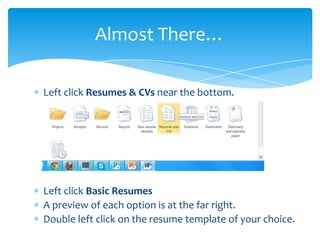
Left click Resumes & CVs near the bottom.


Left click Basic Resumes
A preview of each option is at the far right.
Double left click on the resume template of your choice.
Fill in the Blanks


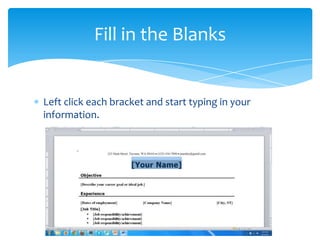
Left click each bracket and start typing in your
information.
Don’t Forget to Save!


Left click File in the upper left corner of your screen.
Left click Save
If saving to a flash drive, look to the far left sidebar.
Scroll down until you see Computer. Choose your flash
drive.
Type the document name: Your Name Resume
Left click Save
Continue working on your resume

Creating a Resume Using Microsoft Word 2010

  • 1.
    Creating a Resumeusing Microsoft Word 2010 Allison Grubbs Parkland/Spanaway Branch Library Pierce County Library System
  • 2.
    What is aResume? A resume is a personal summary of your professional history and qualifications. It includes information about your career goals, education, work experience, activities, honors, and any special skills you might have.
  • 3.
    General Guidelines Length Entry Level = No more than 1 typed page Experienced = No more than 2 typed pages Paper Use 8.5” x 11” 20 lb paper (aka resume paper) Print using a laser or high quality ink-jet printer
  • 4.
    Let’s Get Started! Leftclick the Windows button in the lower-left corner of your screen. Left click on Microsoft Word 2010.
  • 5.
    You Have a BlankDocument – Now What? In the upper left hand corner of your screen, left click the blue File button. Left click on New – this will show options to the right.
  • 6.
    Almost There… Left clickResumes & CVs near the bottom. Left click Basic Resumes A preview of each option is at the far right. Double left click on the resume template of your choice.
  • 7.
    Fill in theBlanks Left click each bracket and start typing in your information.
  • 8.
    Don’t Forget toSave! Left click File in the upper left corner of your screen. Left click Save If saving to a flash drive, look to the far left sidebar. Scroll down until you see Computer. Choose your flash drive. Type the document name: Your Name Resume Left click Save Continue working on your resume