drtamil@gmail.com
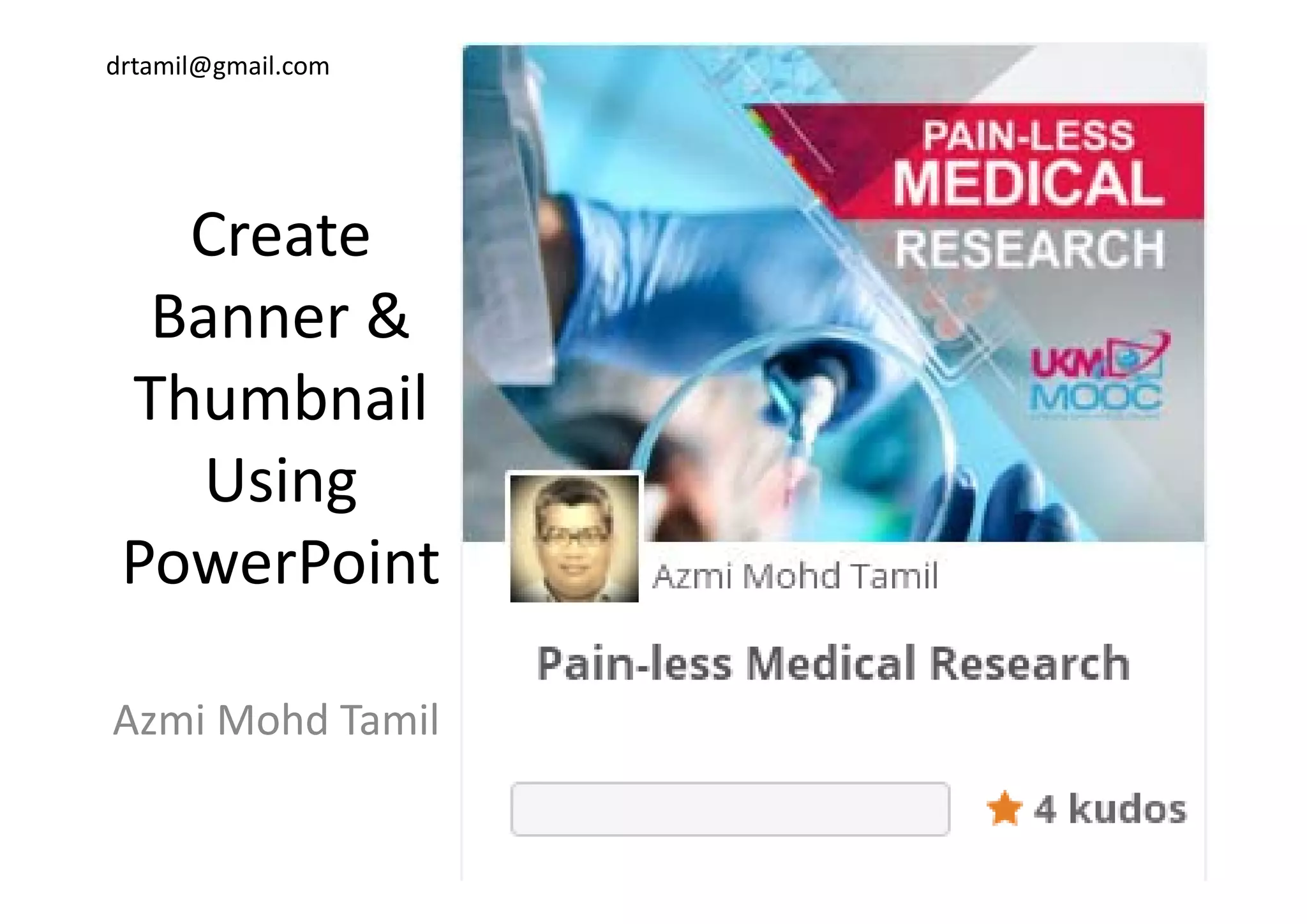
CreateCreate 
Banner & 
Thumbnail 
U iUsing 
PowerPointPowerPoint
Azmi Mohd Tamil
drtamil@gmail.com
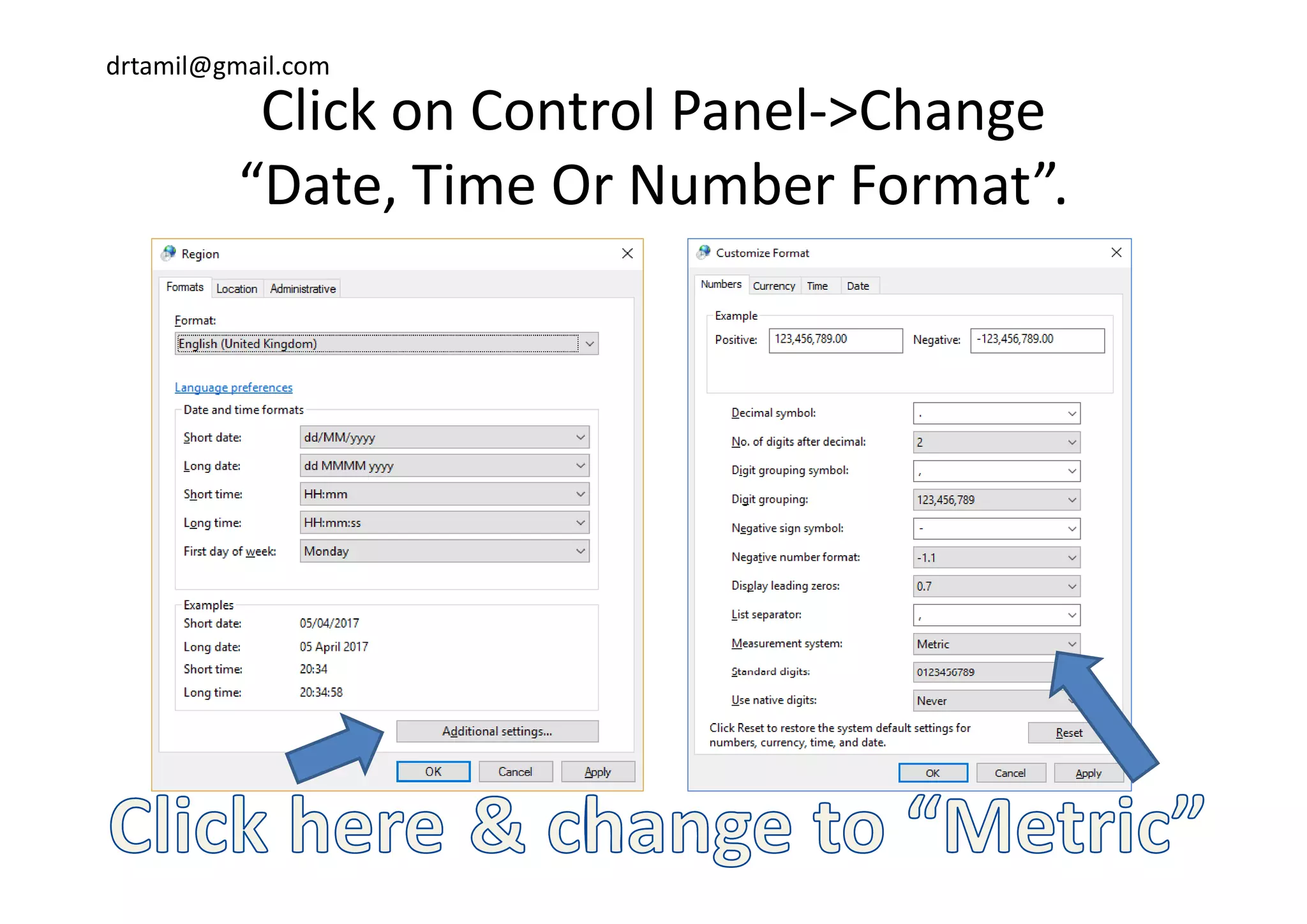
Click on Control Panel‐>Change 
“Date, Time Or Number Format”.
drtamil@gmail.com
Criteria to be listed at UKM MOOC:Criteria to be listed at UKM MOOC:
•Your course thumbnail 
must have UKM MOOC 
logo.
•Your course banner must 
have UKM MOOC logo.
drtamil@gmail.com
Download these logosDownload these logos
• MOOC logo (464x300p) 
https://drive.google.com/open?id=0B3ezxW1p g g p
8hp9QWDdNNHFuSDJjcWs
• UKM logo (185x80p)
https://drive.google.com/open?id=0B3ezxW1
8hp9QSWRabHROTFVnV2c8hp9QSWRabHROTFVnV2c
drtamil@gmail.com
Why use PowerPoint?Why use PowerPoint?
d i h i d• We need to come out with a customised
banner & thumbnail. 
• But medical lecturers tend to be better with 
their scalpel compared to a graphics p p g p
programme. 
• But every lecturers tend to be familiar withBut every lecturers tend to be familiar with 
PowerPoint.
S I ill h h t d it ith• So I will show you how to do it with 
PowerPoint.
drtamil@gmail.com
Thumbnail
drtamil@gmail.com
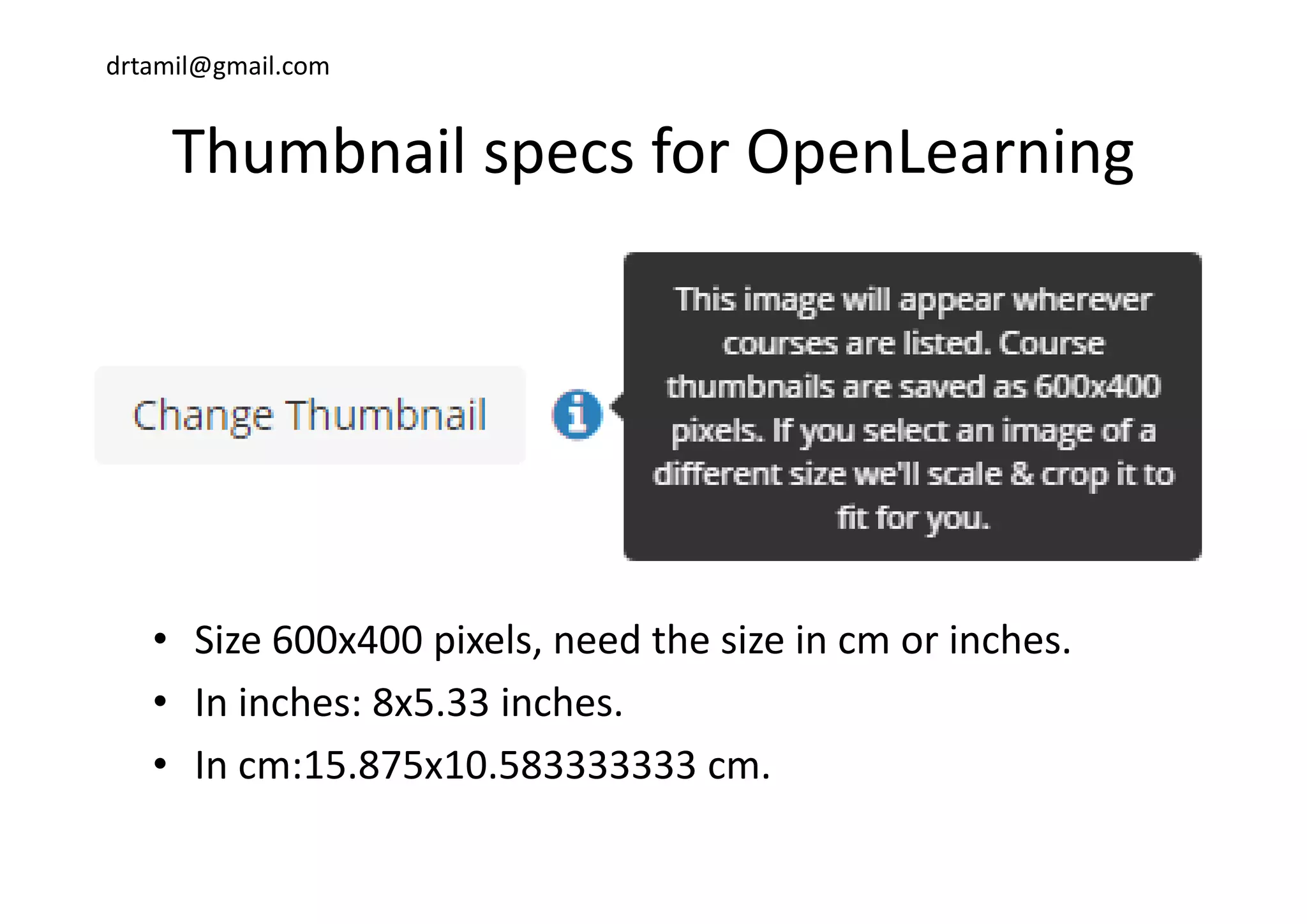
Thumbnail specs for OpenLearningThumbnail specs for OpenLearning
• Size 600x400 pixels, need the size in cm or inches.
• In inches: 8x5.33 inches.
• In cm:15.875x10.583333333 cm.In cm:15.875x10.583333333 cm.
drtamil@gmail.com
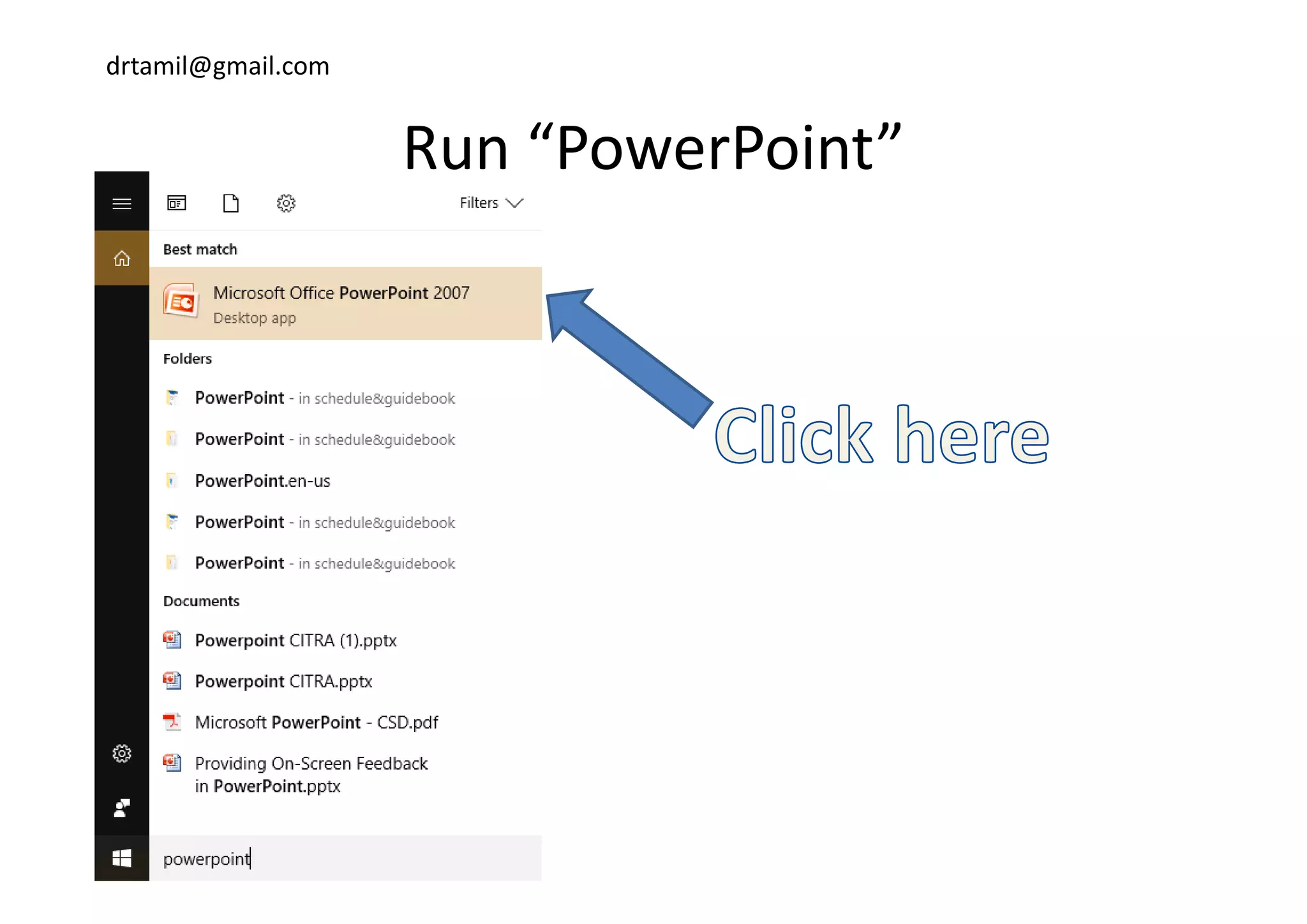
Run “PowerPoint”Run  PowerPoint
drtamil@gmail.com
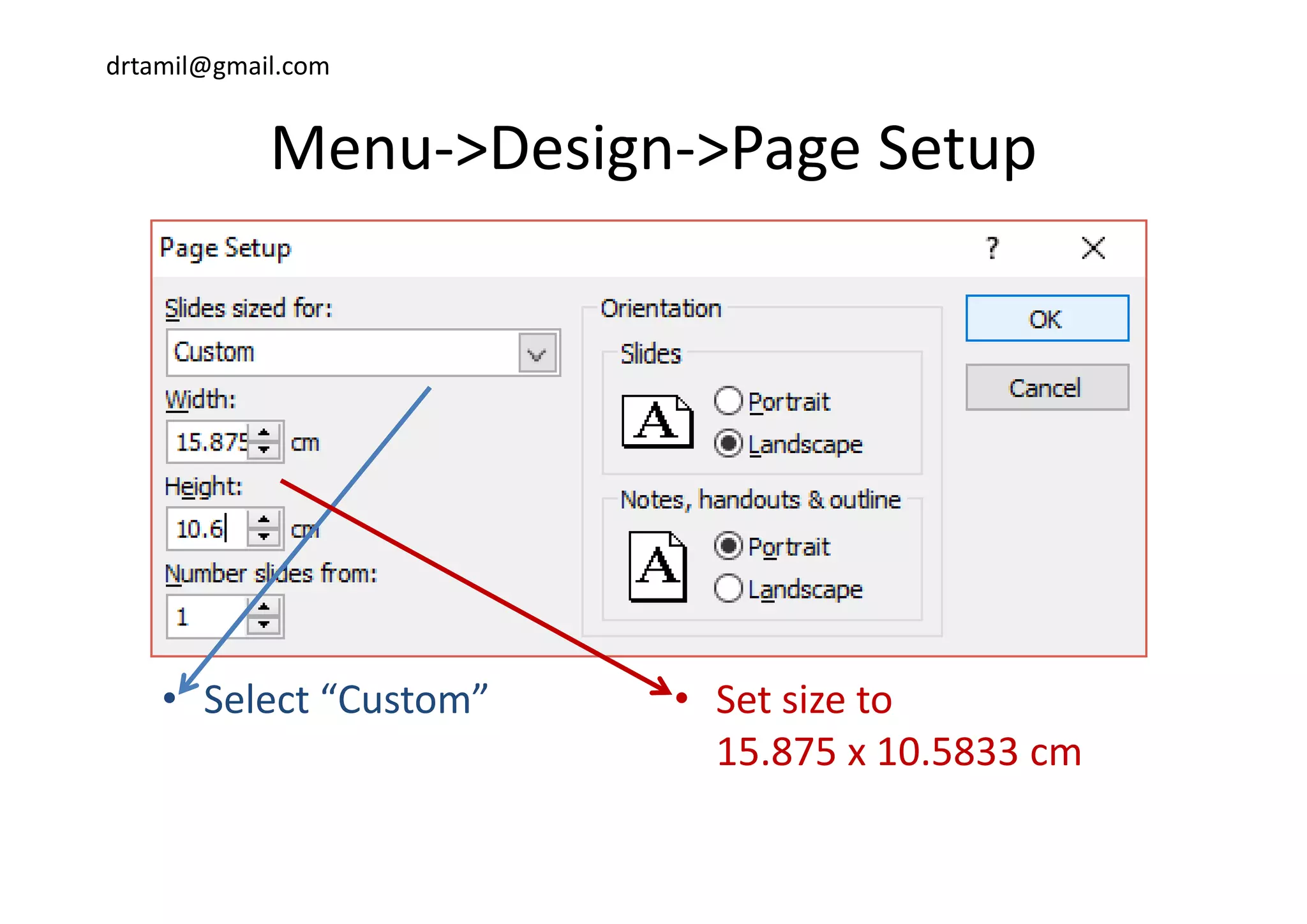
Menu >Design >Page SetupMenu‐>Design‐>Page Setup
• Select “Custom” • Set size to 
15.875 x 10.5833 cm
drtamil@gmail.com
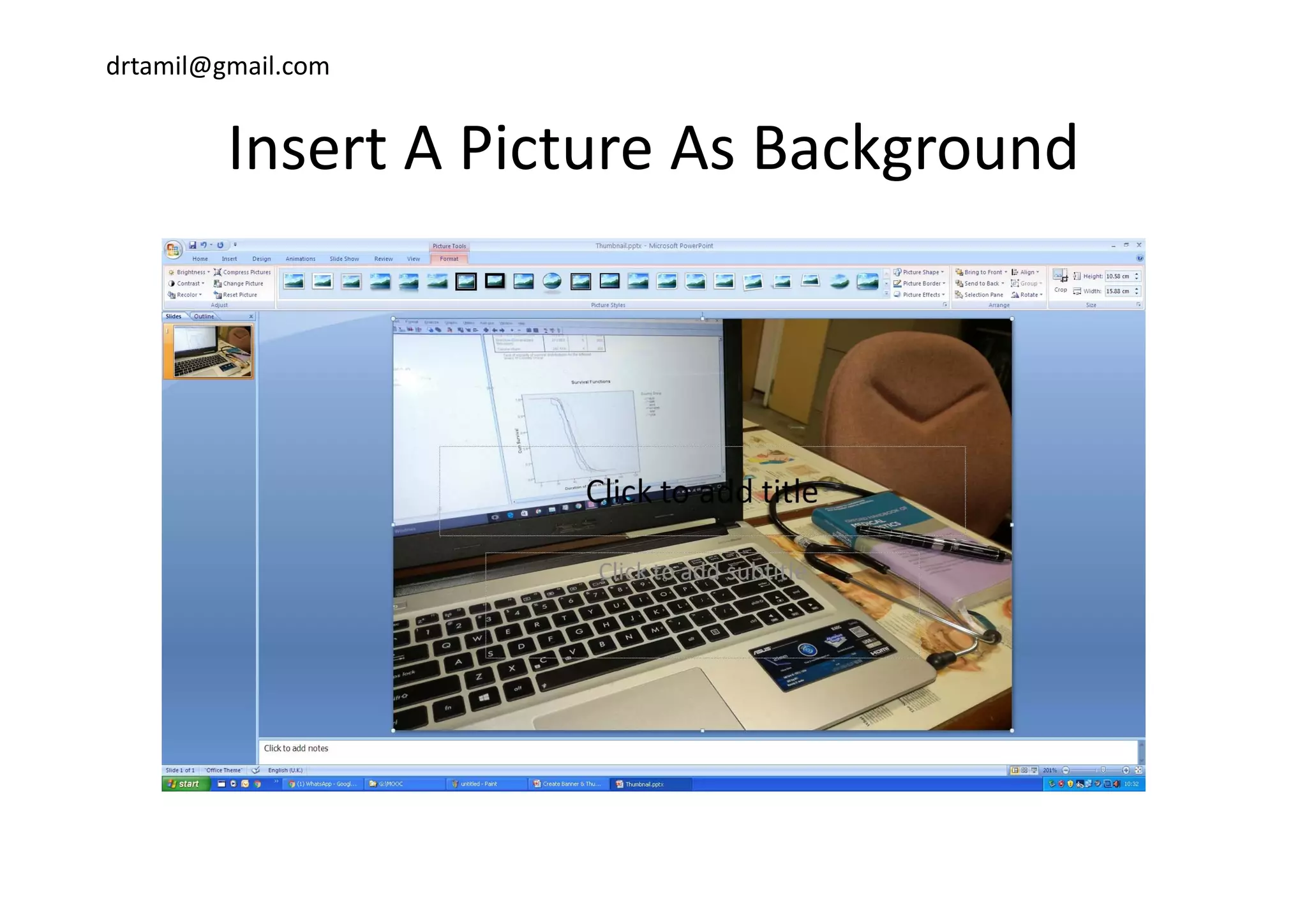
Insert A Picture As BackgroundInsert A Picture As Background
drtamil@gmail.com
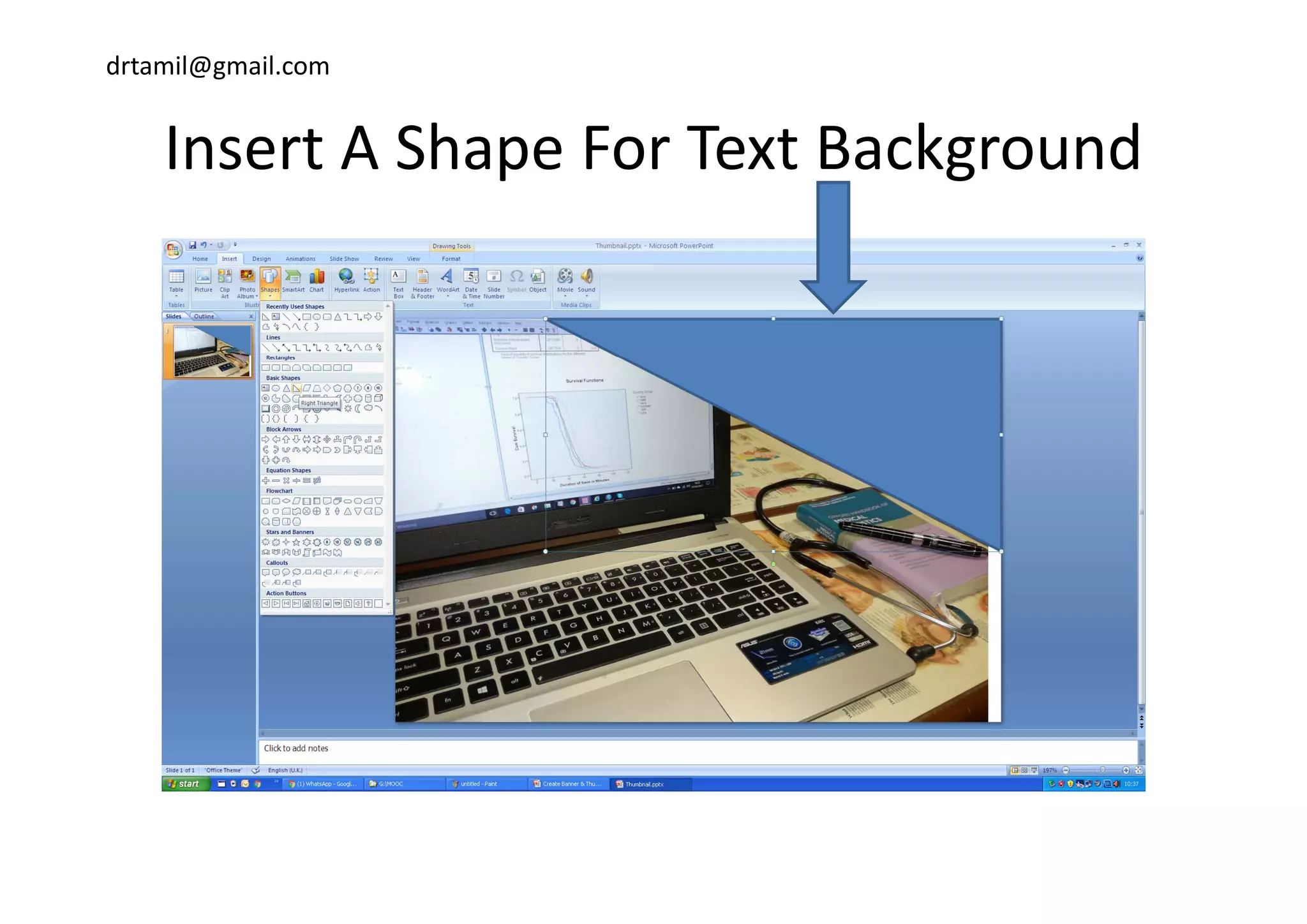
Insert A Shape For Text BackgroundInsert A Shape For Text Background
drtamil@gmail.com
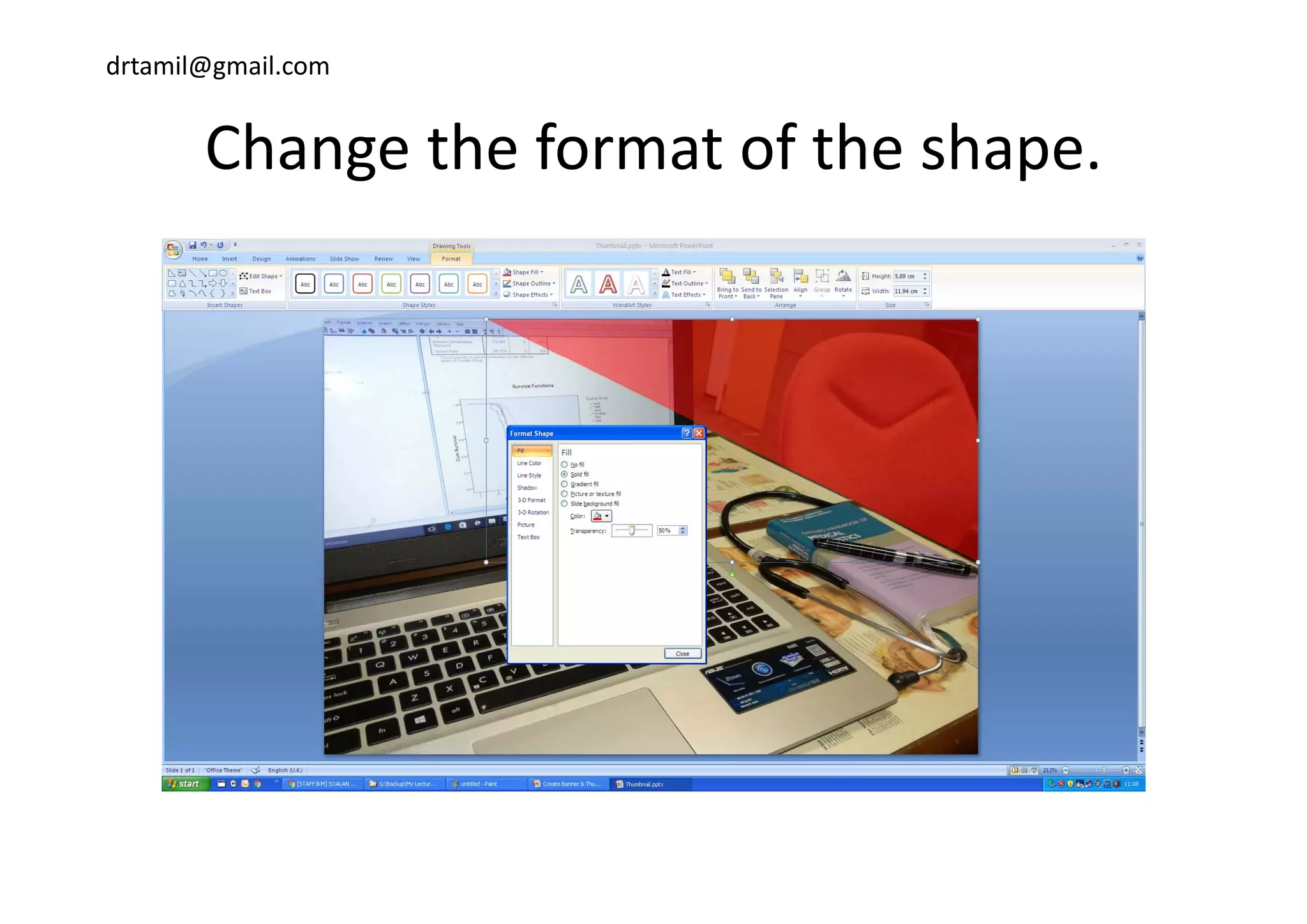
Change the format of the shapeChange the format of the shape. 
drtamil@gmail.com
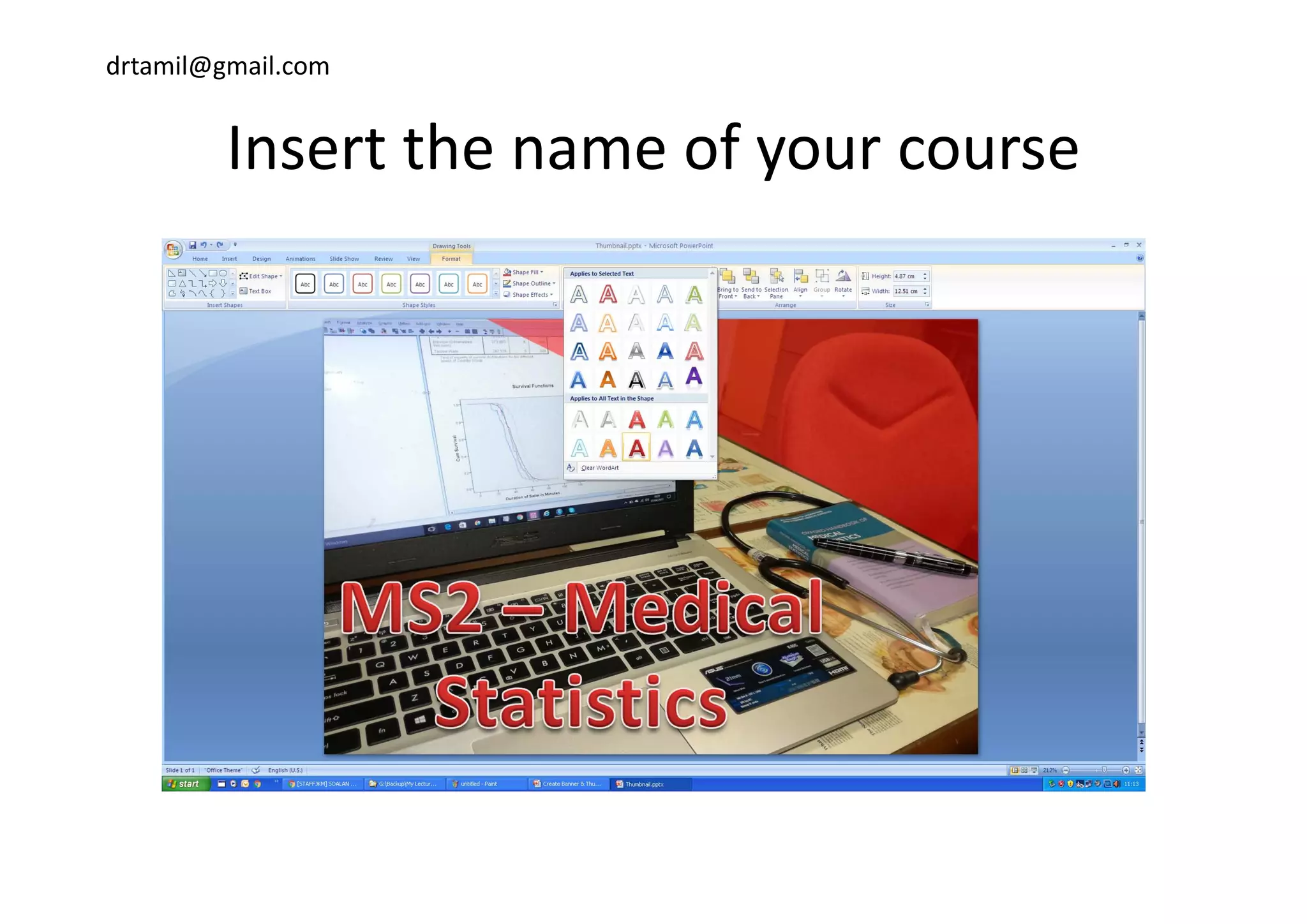
Insert the name of your courseInsert the name of your course
drtamil@gmail.com
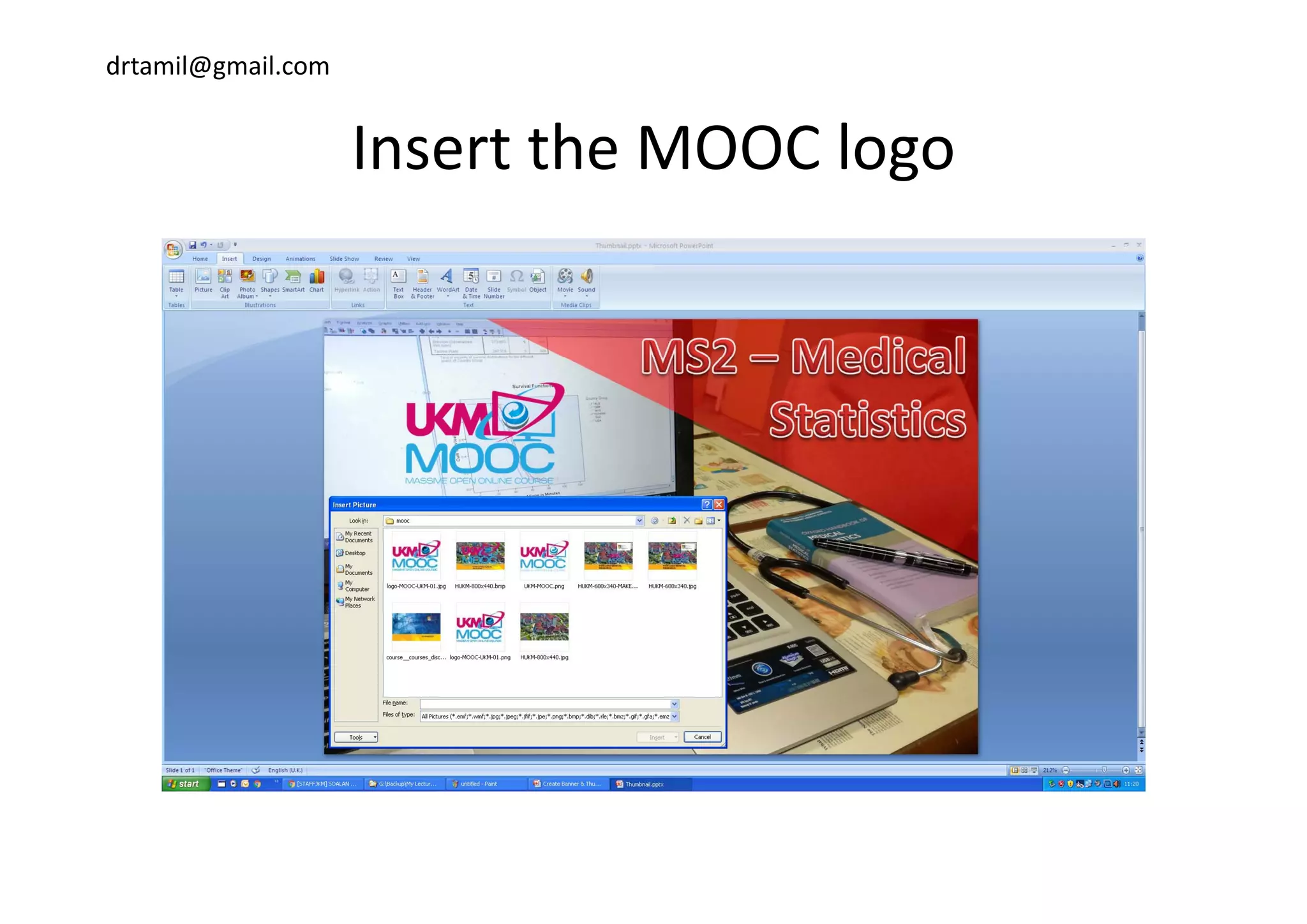
Insert the MOOC logoInsert the MOOC logo
drtamil@gmail.com
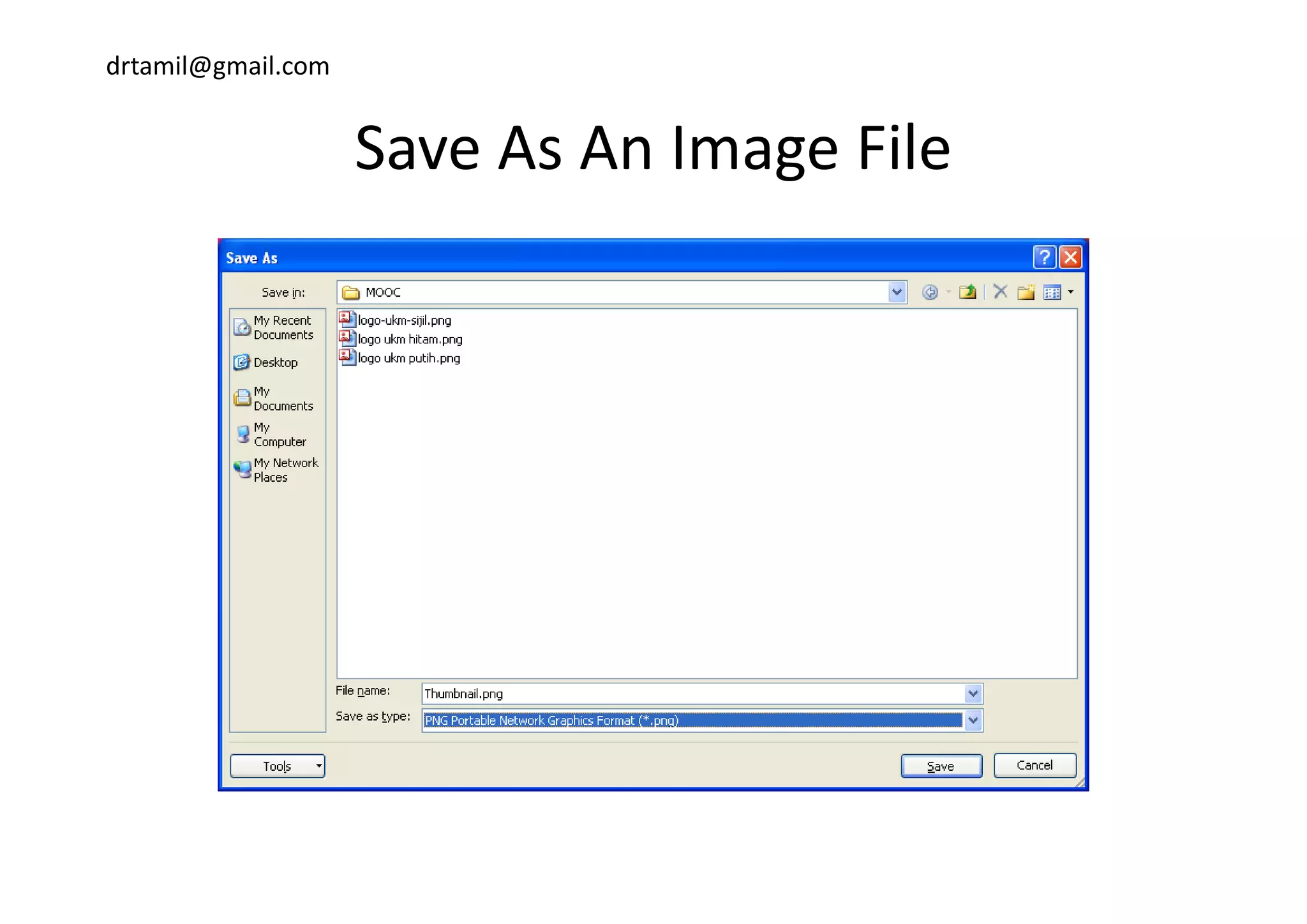
Save As An Image FileSave As An Image File
drtamil@gmail.com
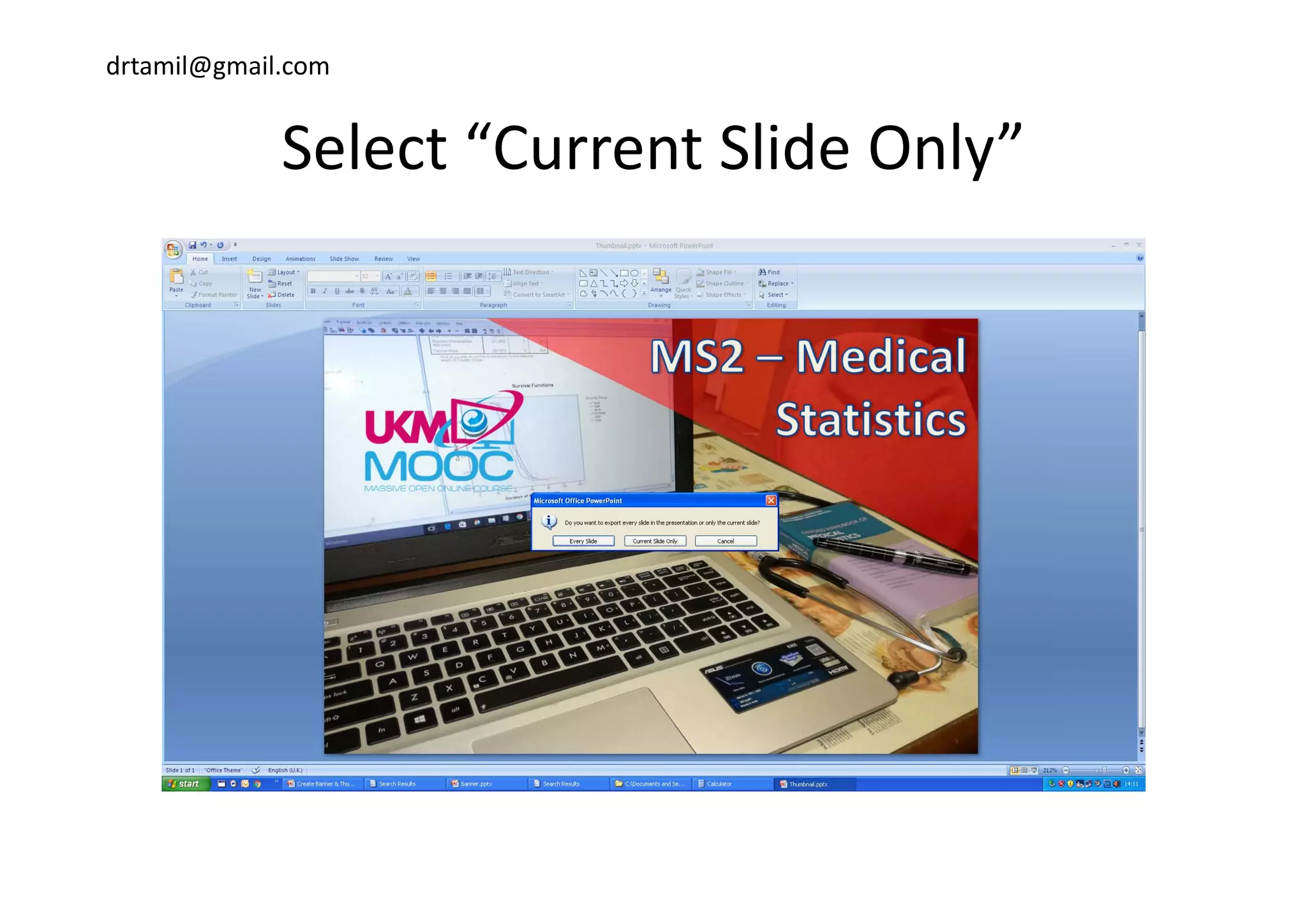
Select “Current Slide Only”Select  Current Slide Only
drtamil@gmail.com
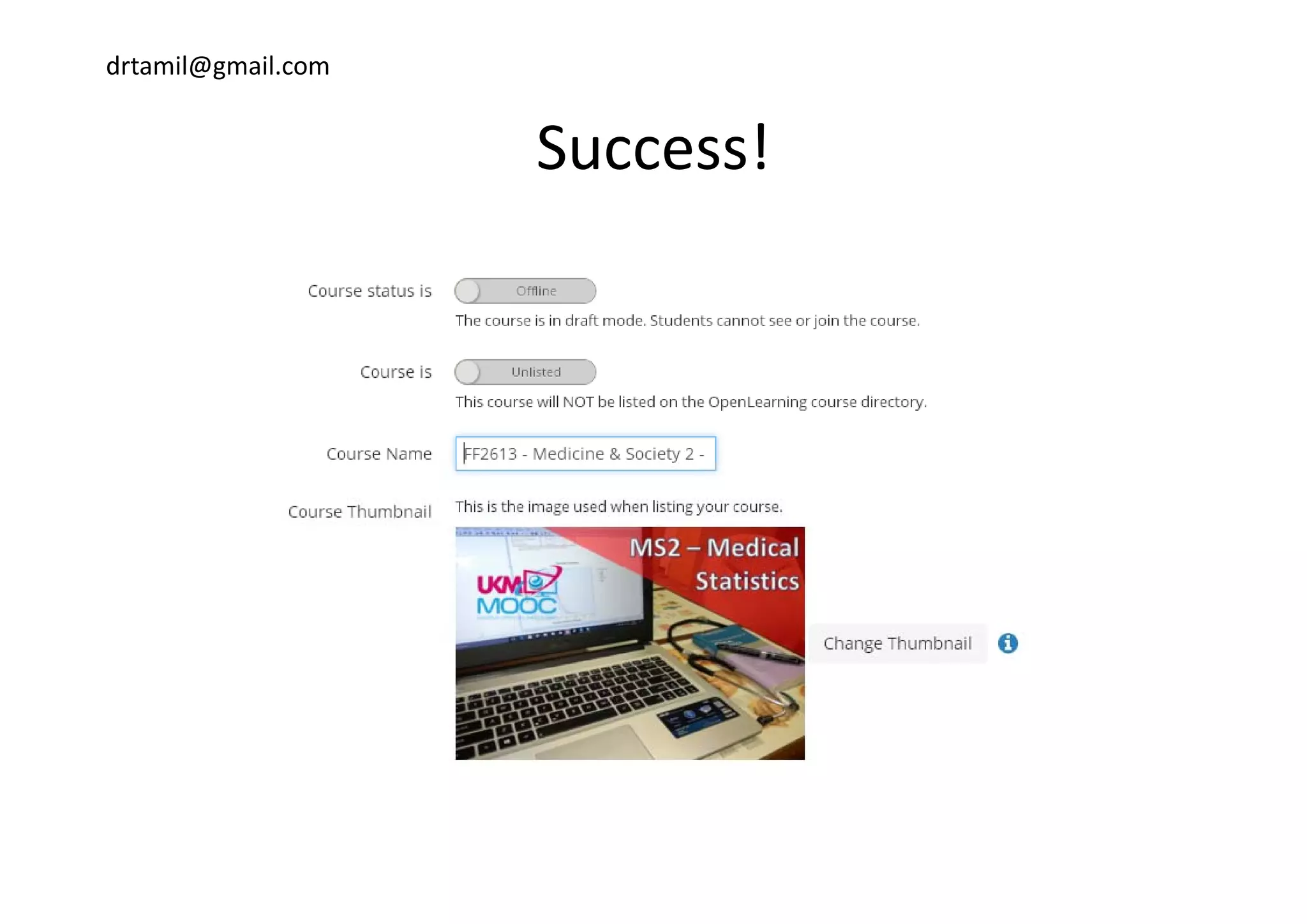
Success!Success!
drtamil@gmail.com
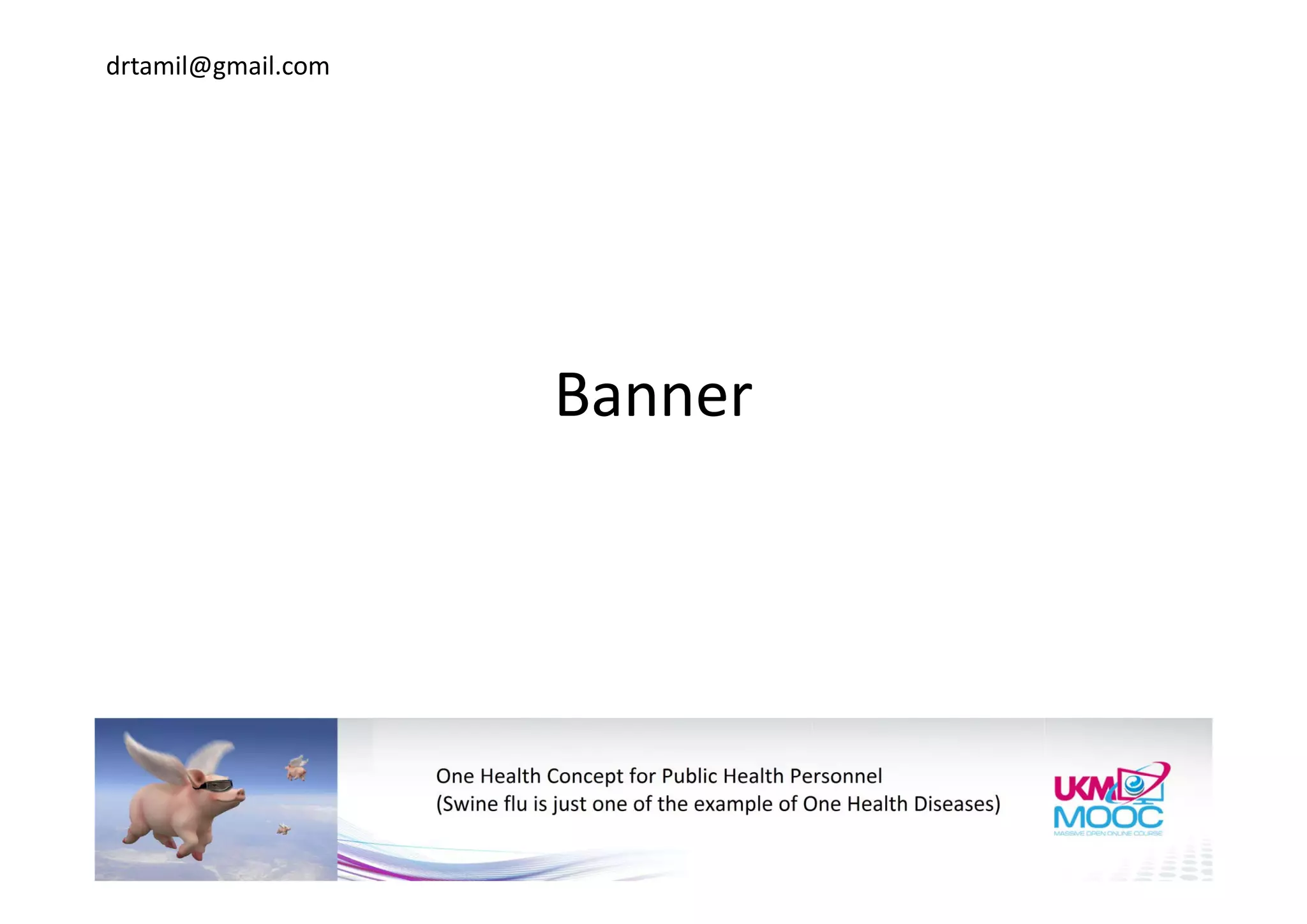
Banner
drtamil@gmail.com
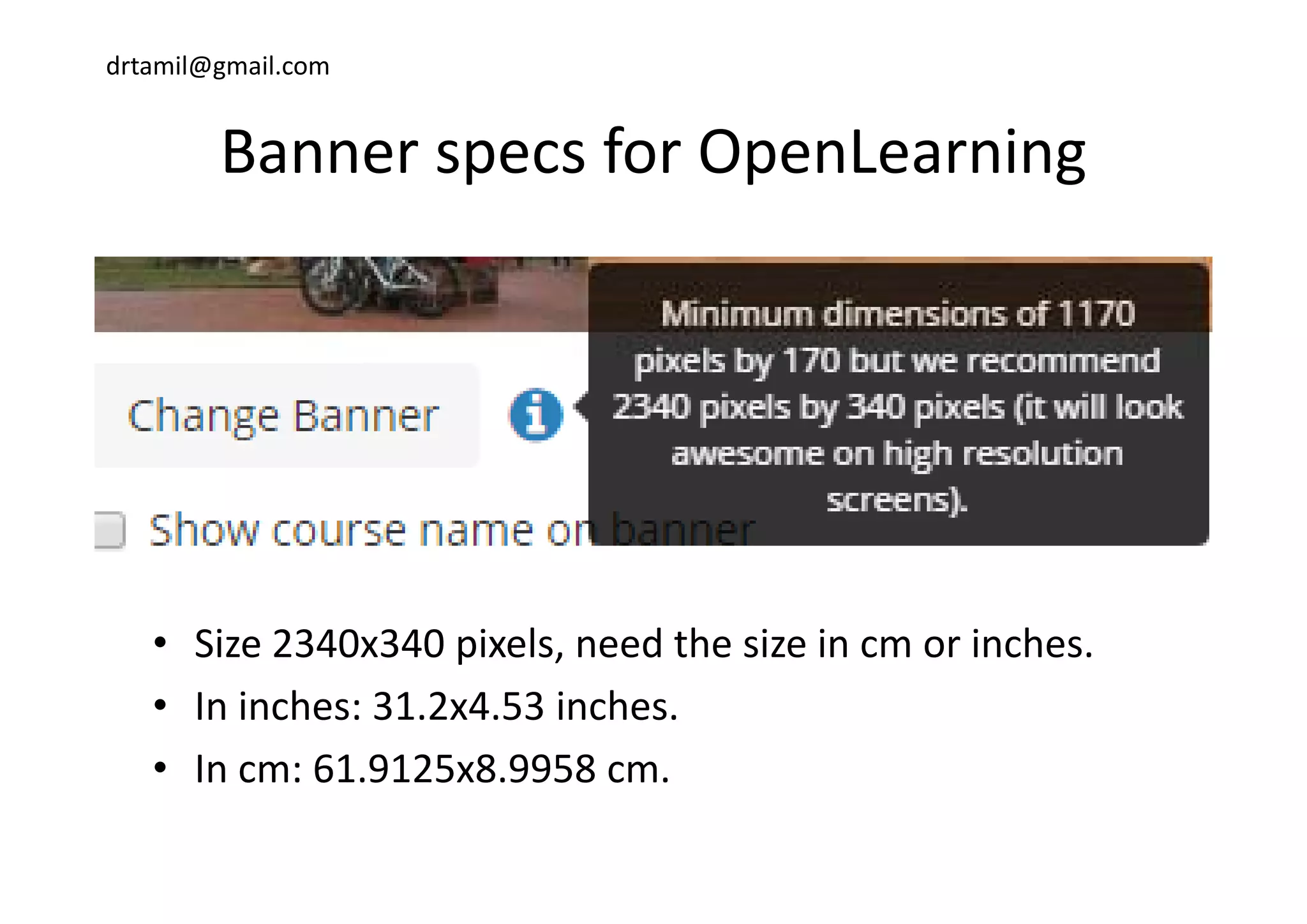
Banner specs for OpenLearningBanner specs for OpenLearning
• Size 2340x340 pixels, need the size in cm or inches.
• In inches: 31.2x4.53 inches.
• In cm: 61 9125x8 9958 cmIn cm: 61.9125x8.9958 cm.
drtamil@gmail.com
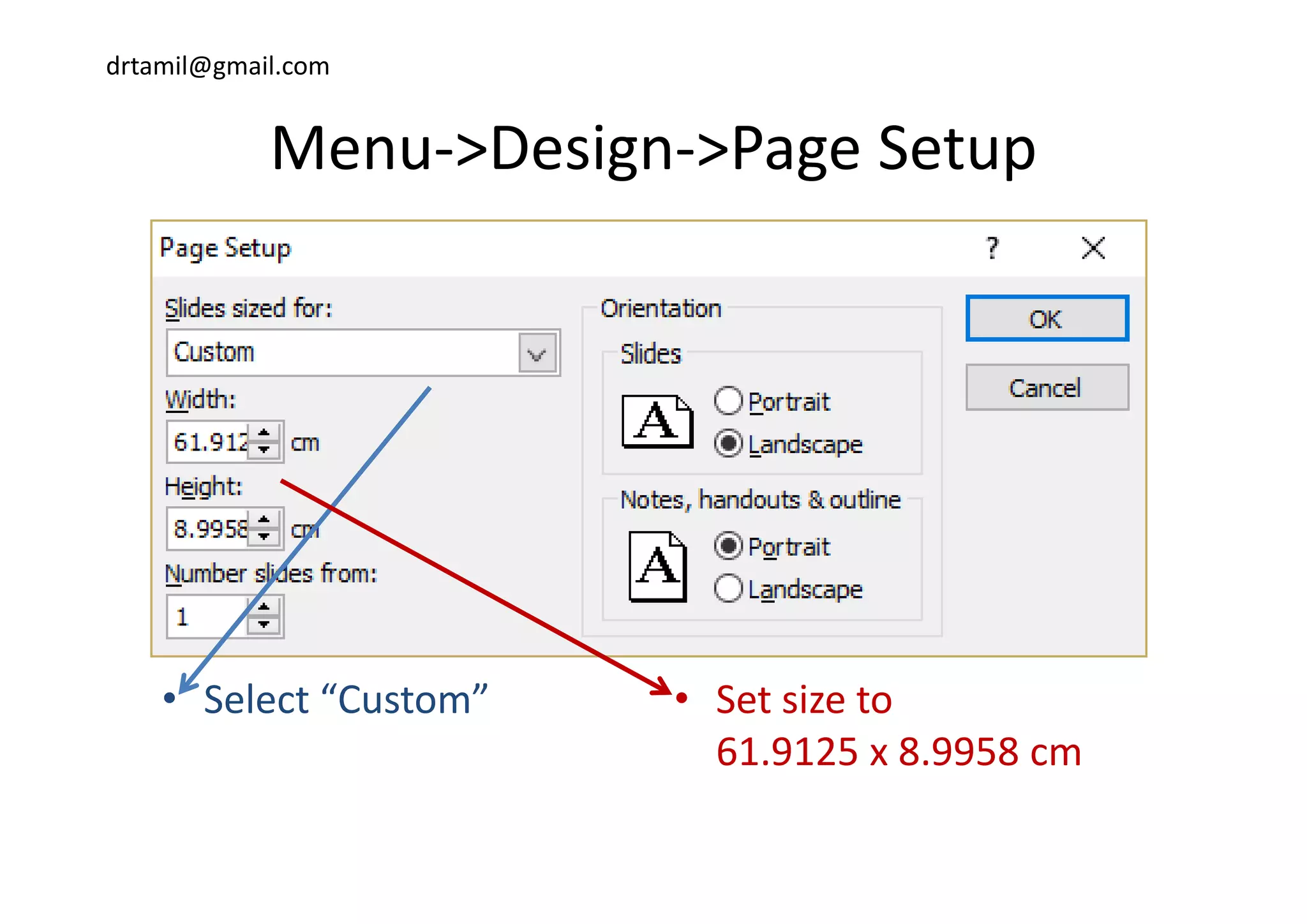
Menu >Design >Page SetupMenu‐>Design‐>Page Setup
• Select “Custom” • Set size to 
61.9125 x 8.9958 cm
drtamil@gmail.com
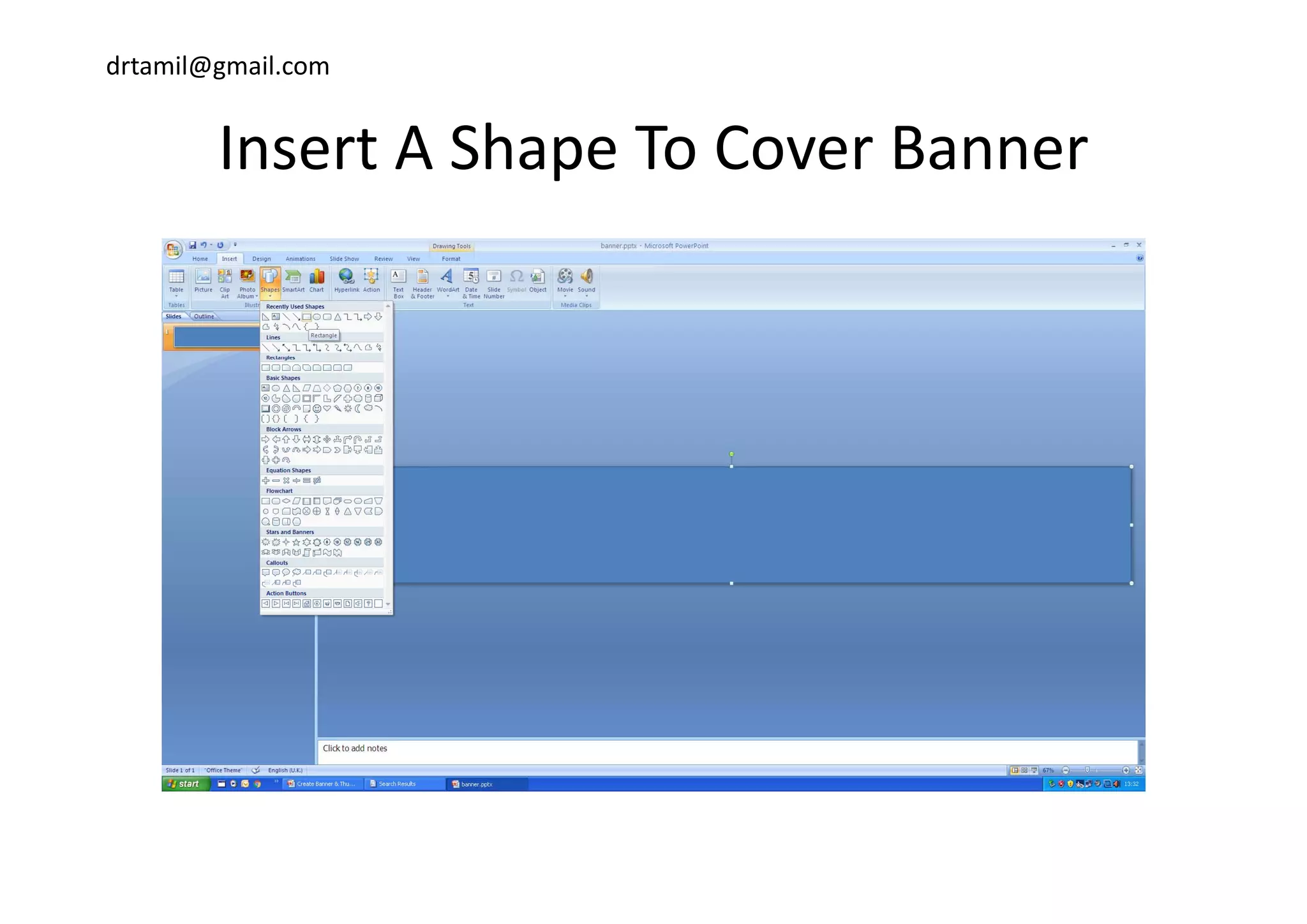
Insert A Shape To Cover BannerInsert A Shape To Cover Banner
drtamil@gmail.com
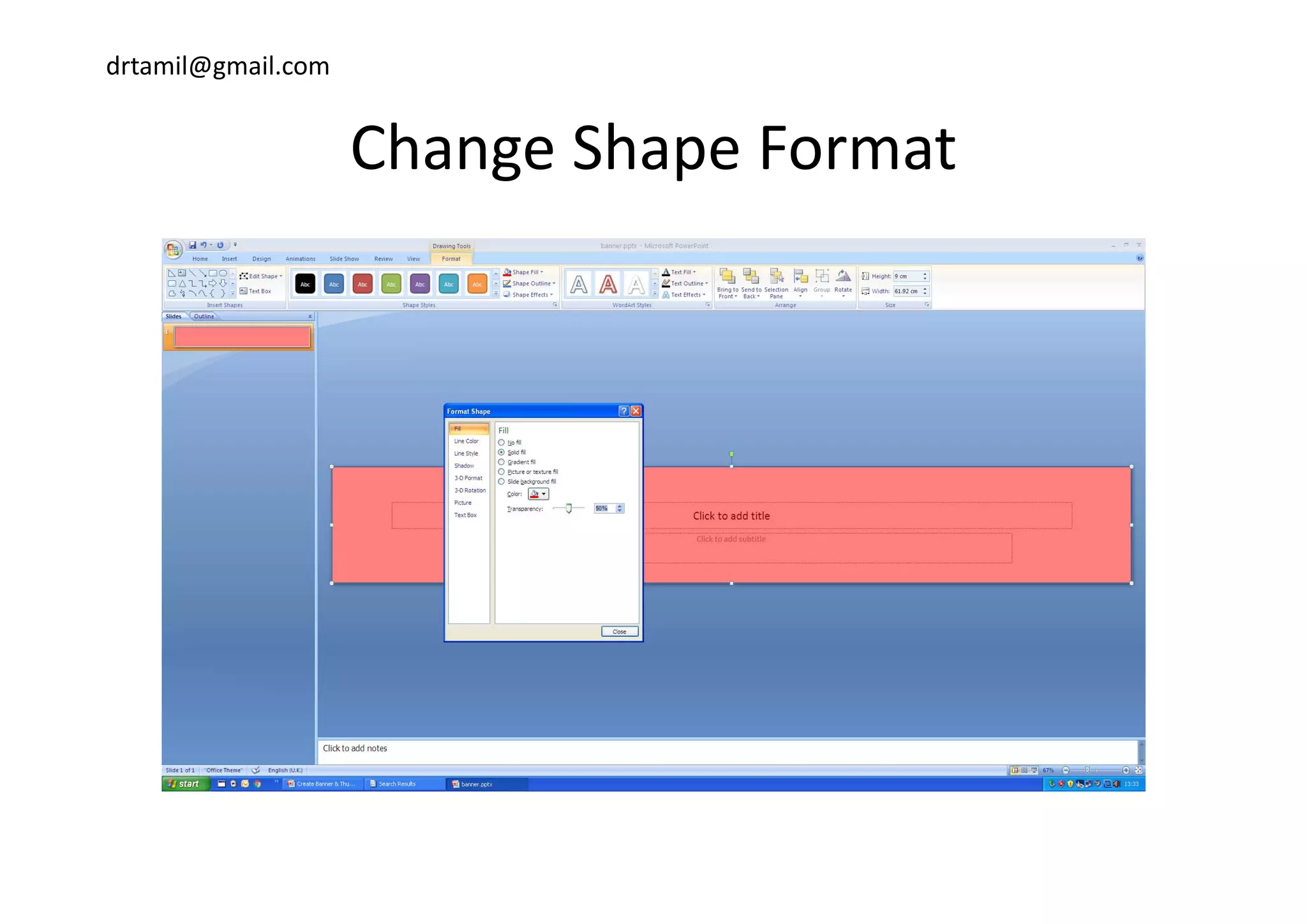
Change Shape FormatChange Shape Format
drtamil@gmail.com
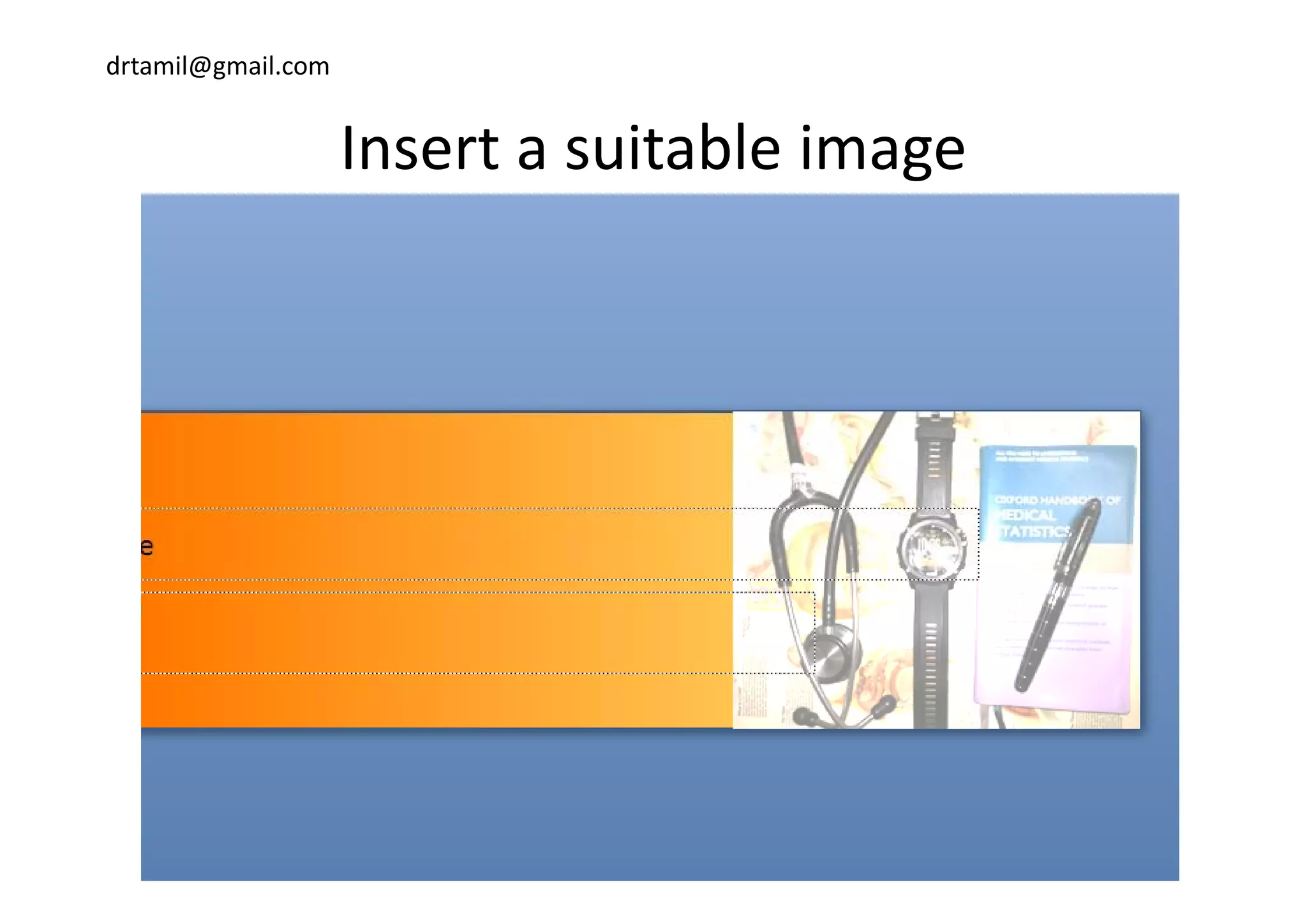
Insert a suitable imageInsert a suitable image
drtamil@gmail.com
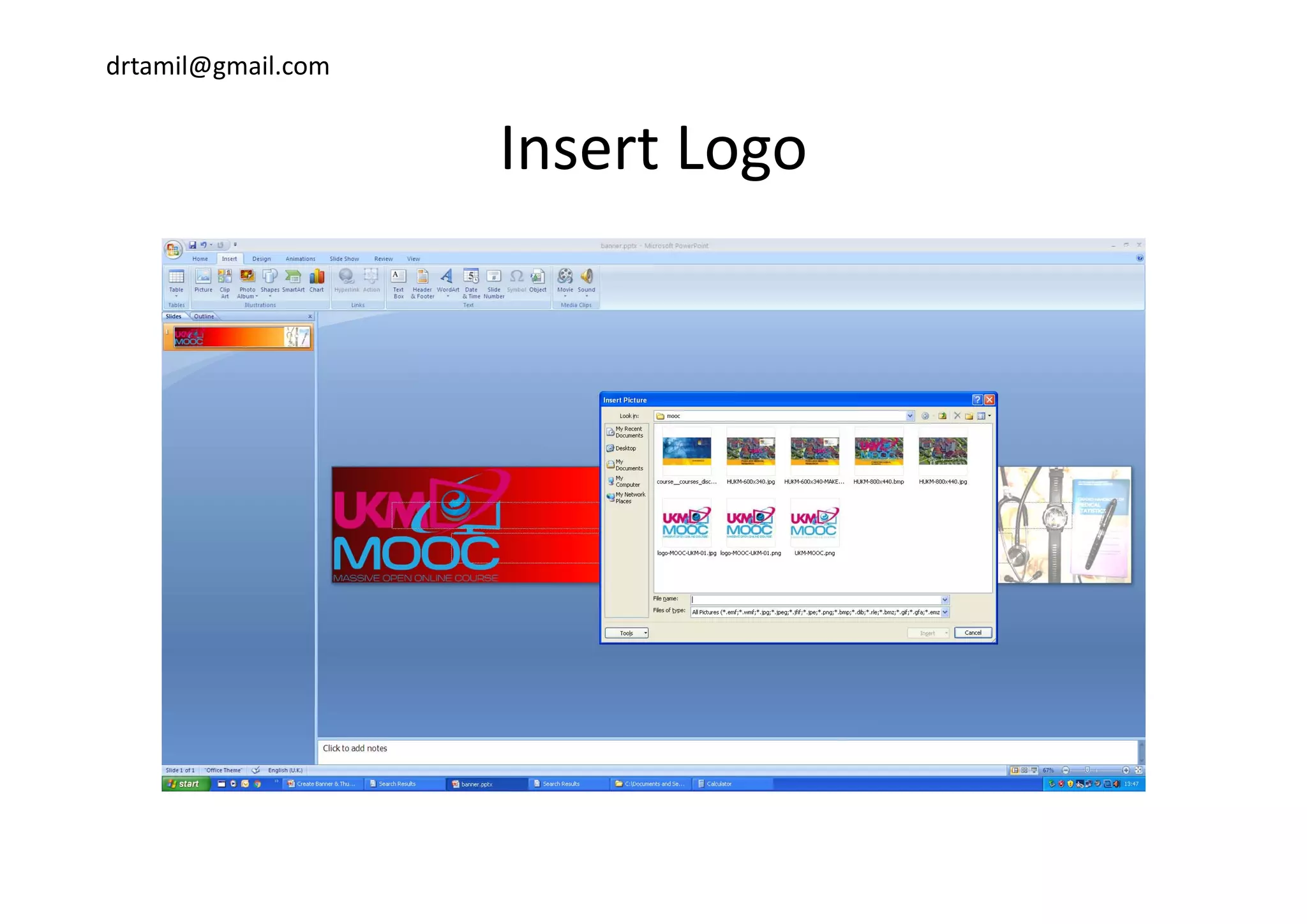
Insert LogoInsert Logo
drtamil@gmail.com
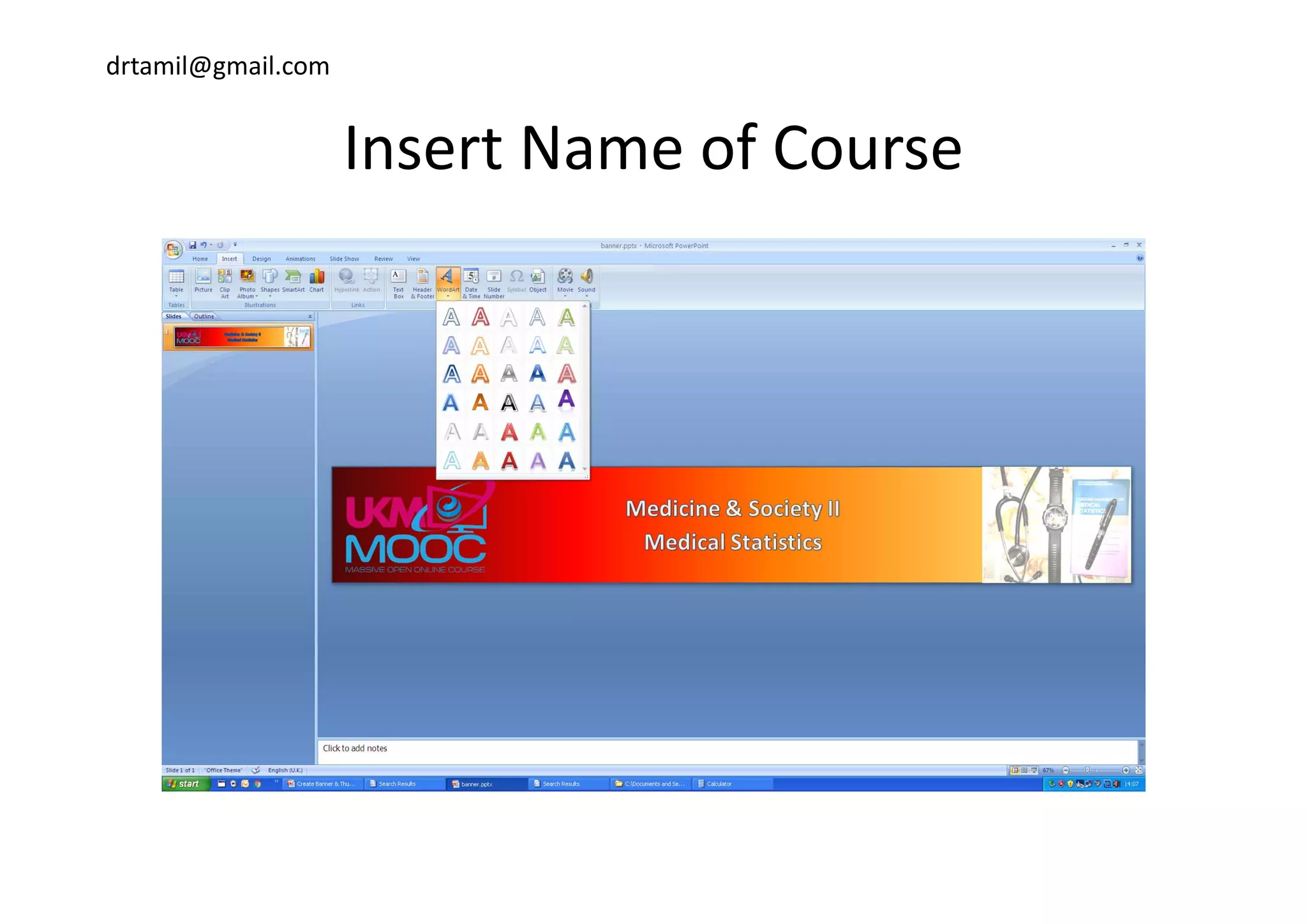
Insert Name of CourseInsert Name of Course
drtamil@gmail.com
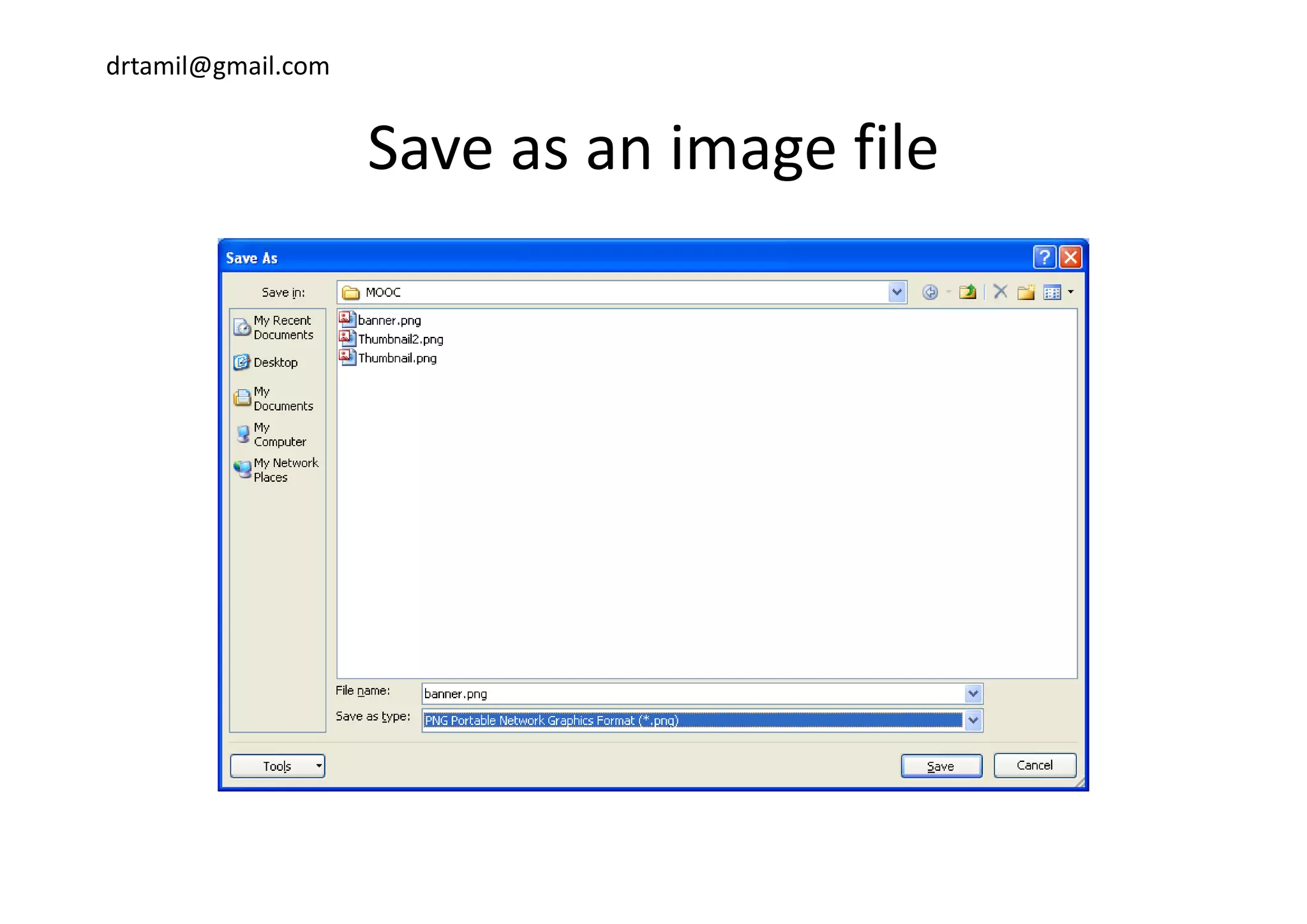
Save as an image fileSave as an image file
drtamil@gmail.com
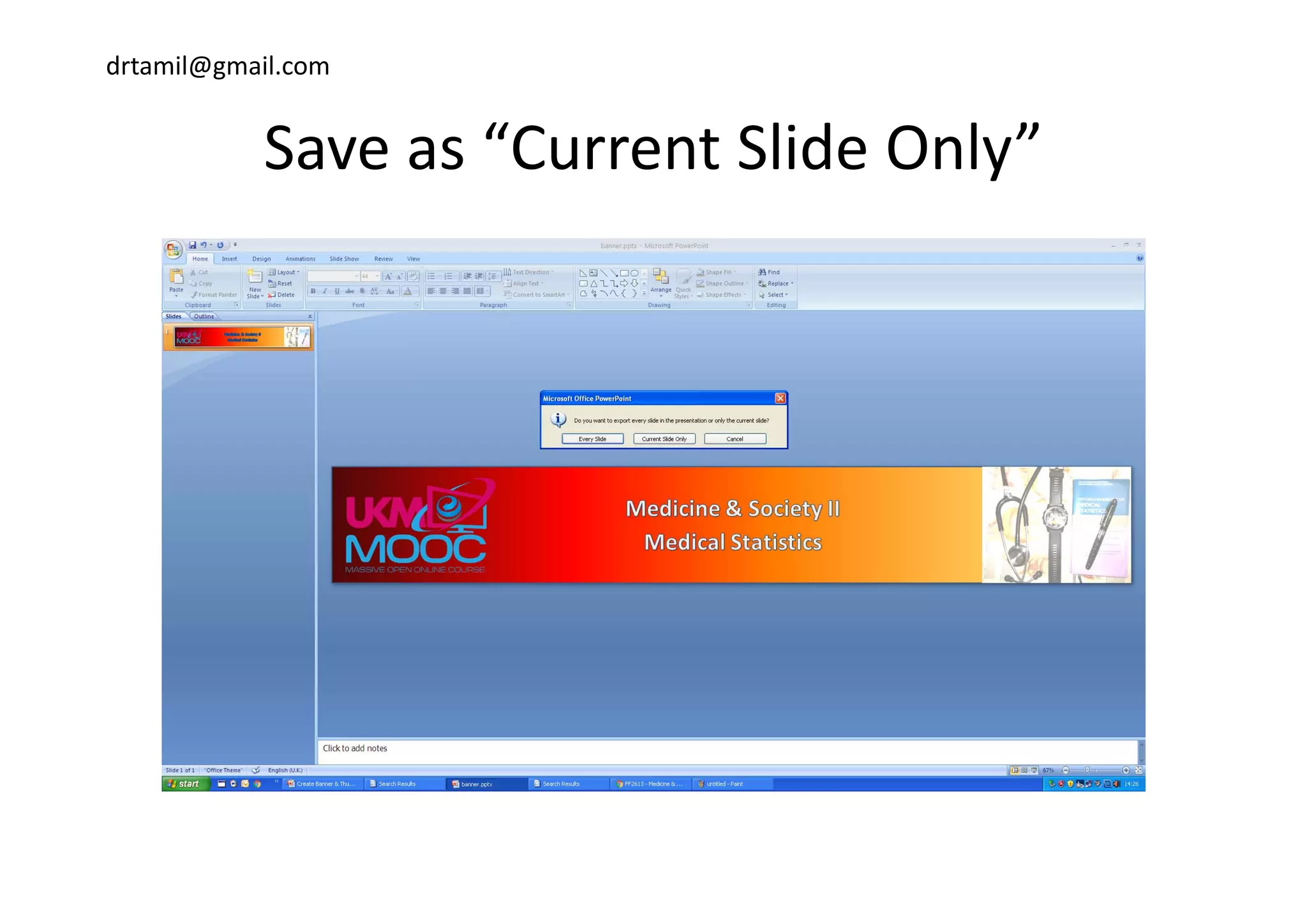
Save as “Current Slide Only”Save as  Current Slide Only
drtamil@gmail.com
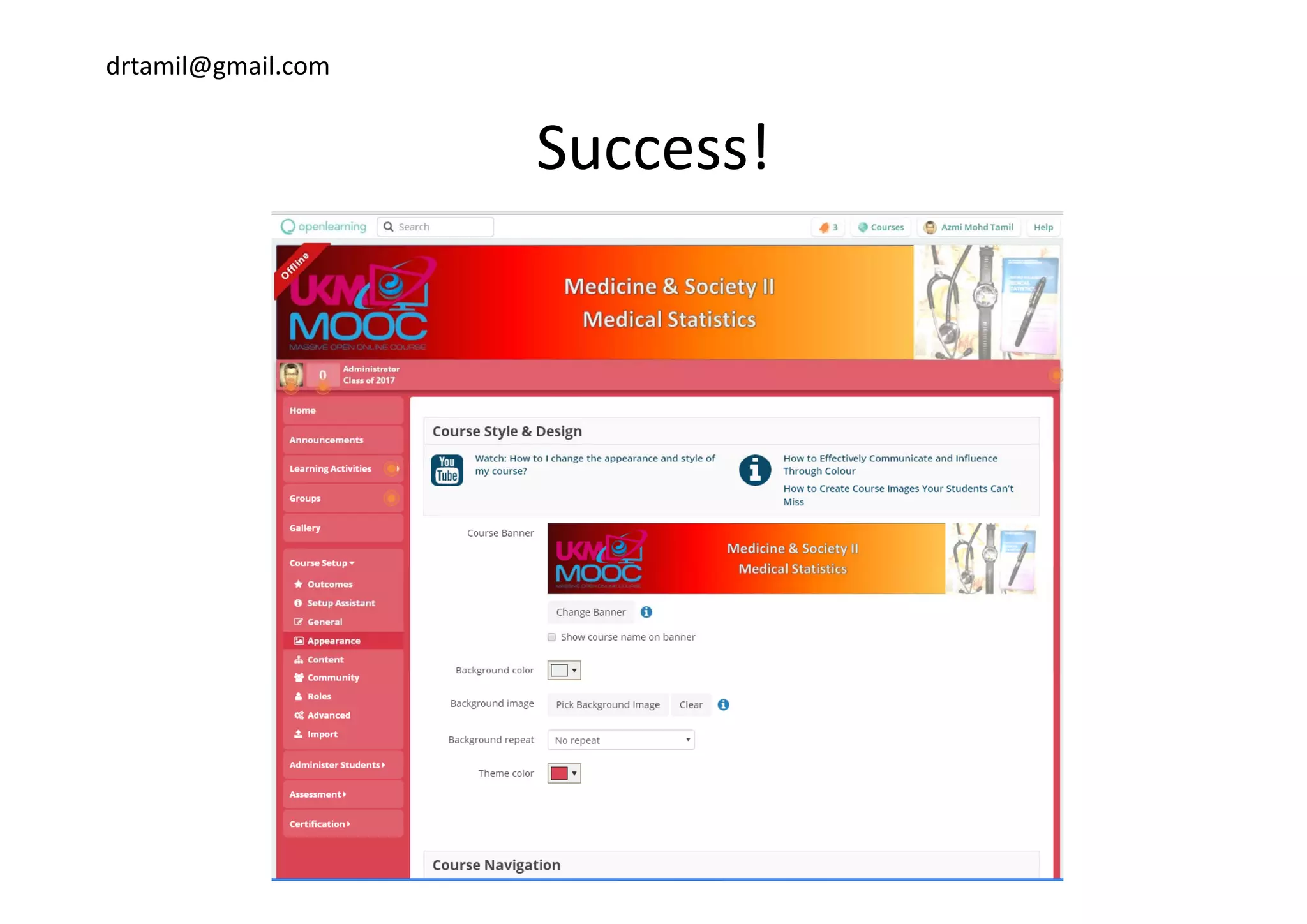
Success!Success!
drtamil@gmail.com
ConclusionConclusion
• Upload your creations on your respective 
course or share it with the others at the 
assigned area.

Create banner & thumbnail using PowerPoint