Course Content Considerations
Outline
• Curating Content
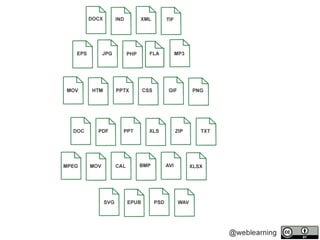
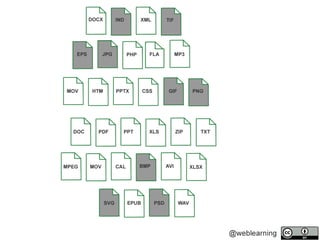
• Common File Types
• Creating a Style Guide
CURATING CONTENT
Overview
• Copyright & Content
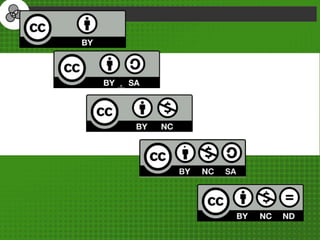
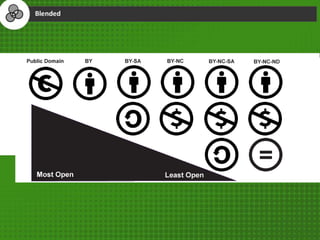
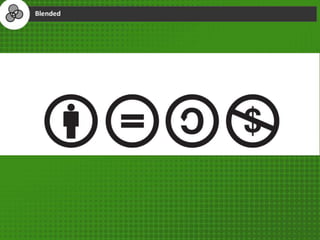
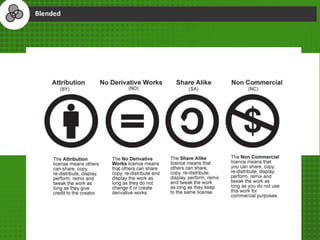
• Using Creative Commons Licences
• Usage Standards
OER
• Open educational resources (OER) are
freely accessible, openly licensed text,
media, and other digital assets that are
useful for teaching, learning, & assessing
as well as for research purposes
FILE TYPES
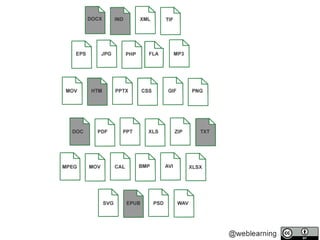
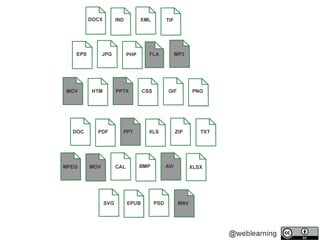
File Types
• Types of files
• How to provide files to students
Style Guide
The Good, the Bad and the Ugly
(or common design standards)
The GoodThe Good
Consistent Functionality
• Opening Links
• Opening Documents
Familiarity & Consistency
• Same Design Elements
– Font
– Headings
– Line Height
Look & Feel
• Is there continuity?
– Colour Scheme
– Boarders
– Images
Optimization
• What about the low bandwidth student
– Pictures as .jpg
– Audio as .mp3
– Video as .mp4
Accessibility
• Have you considered all students
– Visually impaired
– Hard of hearing
The BadThe Bad
Six typographic errors.
It is tempting to try squeeze as much as possible within the margins of
the page. When we wanted to save paper, this might have been an
understandable practice. You wanted to communicate as much as
possible within limited amount of wasted paper. We need to remember
that full pages of text are hard work on the eyes and this makes it much
more difficult to comprehend. Although you may want to make as much
of the space available, you also should avoid “squeezing the margin” and
trying to fit in too much. It could be helpful to look at adverts and see how
they have made use of white space.
White Space
“A little text and a lot of white
space gives a classic and
elegant look.”
White Space
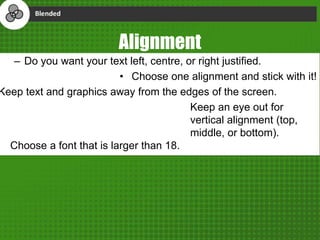
– Do you want your text left, centre, or right justified.
• Choose one alignment and stick with it!
Keep text and graphics away from the edges of the screen.
Keep an eye out for
vertical alignment (top,
middle, or bottom).
Choose a font that is larger than 18.
Alignment
Alignment
Alignment is very important so that the user can
scan and read text easily. Left aligned text is what
most people are used to and you don’t want to
frustrate readers comprehension
Bullets
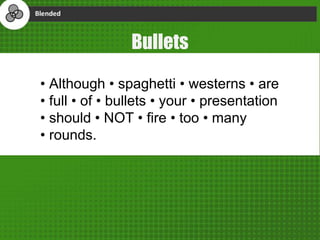
• Although • spaghetti • westerns • are
• full • of • bullets • your • presentation
• should • NOT • fire • too • many
• rounds.
Bullets
• Start with a verb or noun
• Focus on key words
• Reduce sentences to phrases
• Remeber 6 6 6
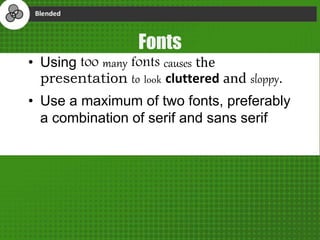
Fonts
• Using too many fonts causes the
presentation to look cluttered and sloppy.
• Use a maximum of two fonts, preferably
a combination of serif and sans serif
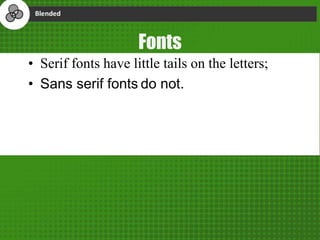
Fonts
• Serif fonts have little tails on the letters;
• Sans serif fonts do not.
Case
CAPITALS ARE USUALLY USED TO
EMPHAISE A POINT.
AN AUDIENCE MEMBER WILL
USUALLY PAUSE WHEN THEY SEE
CAPITAL LETTERS.
Case
Use UPPER and lower case letter for readability
Over suppply
In many presentations there is too much writing. The presenter thinks that it is
important that every word gets seen by his/her audience. Or sometimes the
presenter used the presentation as a place to dump notes.
While it might be tempting to think that your viewer hanging on each of your
words, it’s more likely that they have become glazed over (much like you are
feeling now) and are suffering from cognitive load and can’t really take all the
information in.
Sometimes the presenter might even try to reduce the font size to ensure that everything fits in. But this
does not work, because the excess of text has already caused him/her to loose an audience and now the
audience can’t see what he/she has written.
Simple presentation & language
• Hast thou e’er been irritated whilst a comrade spaketh in
o’erbearing tongues that soared right over thine pate
Simple presentation & language
Have you ever been annoyed to hear your
friend speak in language that was far too
formal for the setting?
Remember
“Less is more”
Mies van der Rohe
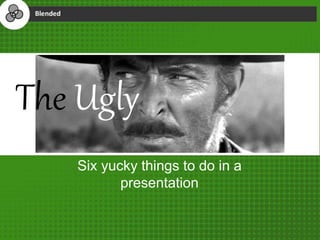
The Ugly
Six yucky things to do in a
presentation
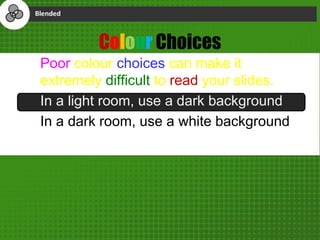
Colour Choices
Poor colour choices can make it
extremely difficult to read your slides.
In a light room, use a dark background
In a dark room, use a white background
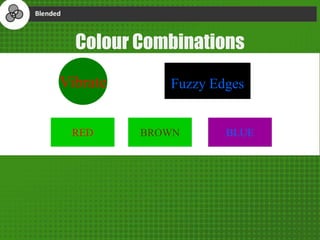
Fuzzy Edges
Colour Combinations
Vibrate
RED BROWN BLUE
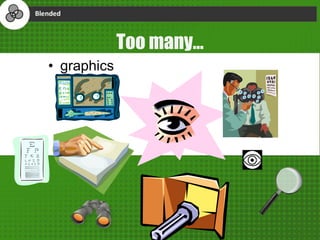
Too many…
• graphics
Too many…
• animations
Too many…
• Slide transitions
Too many…
• Slide transitions and
Too many…
• Slide transitions and
inappropriate sounds
Silly pointless text effects will not
enhance your presentation.
Typewriter text
Summary: Curating Content
• Copyright
• Creative Commons
Summary: Common File Types
• Images
• Multimedia
• Written content
Summary: Good, Bad & Ugly
• Style guide
– Good Practice
– Typography
– Visuals
The End
By Derek Moore

Course Content Considerations

  • 1.
  • 2.
    Outline • Curating Content •Common File Types • Creating a Style Guide
  • 3.
  • 4.
    Overview • Copyright &Content • Using Creative Commons Licences • Usage Standards
  • 7.
    OER • Open educationalresources (OER) are freely accessible, openly licensed text, media, and other digital assets that are useful for teaching, learning, & assessing as well as for research purposes
  • 15.
  • 17.
    File Types • Typesof files • How to provide files to students
  • 22.
    Style Guide The Good,the Bad and the Ugly (or common design standards)
  • 23.
  • 24.
    Consistent Functionality • OpeningLinks • Opening Documents
  • 25.
    Familiarity & Consistency •Same Design Elements – Font – Headings – Line Height
  • 26.
    Look & Feel •Is there continuity? – Colour Scheme – Boarders – Images
  • 27.
    Optimization • What aboutthe low bandwidth student – Pictures as .jpg – Audio as .mp3 – Video as .mp4
  • 28.
    Accessibility • Have youconsidered all students – Visually impaired – Hard of hearing
  • 29.
    The BadThe Bad Sixtypographic errors.
  • 30.
    It is temptingto try squeeze as much as possible within the margins of the page. When we wanted to save paper, this might have been an understandable practice. You wanted to communicate as much as possible within limited amount of wasted paper. We need to remember that full pages of text are hard work on the eyes and this makes it much more difficult to comprehend. Although you may want to make as much of the space available, you also should avoid “squeezing the margin” and trying to fit in too much. It could be helpful to look at adverts and see how they have made use of white space. White Space
  • 31.
    “A little textand a lot of white space gives a classic and elegant look.” White Space
  • 32.
    – Do youwant your text left, centre, or right justified. • Choose one alignment and stick with it! Keep text and graphics away from the edges of the screen. Keep an eye out for vertical alignment (top, middle, or bottom). Choose a font that is larger than 18. Alignment
  • 33.
    Alignment Alignment is veryimportant so that the user can scan and read text easily. Left aligned text is what most people are used to and you don’t want to frustrate readers comprehension
  • 34.
    Bullets • Although •spaghetti • westerns • are • full • of • bullets • your • presentation • should • NOT • fire • too • many • rounds.
  • 35.
    Bullets • Start witha verb or noun • Focus on key words • Reduce sentences to phrases • Remeber 6 6 6
  • 36.
    Fonts • Using toomany fonts causes the presentation to look cluttered and sloppy. • Use a maximum of two fonts, preferably a combination of serif and sans serif
  • 37.
    Fonts • Serif fontshave little tails on the letters; • Sans serif fonts do not.
  • 38.
    Case CAPITALS ARE USUALLYUSED TO EMPHAISE A POINT. AN AUDIENCE MEMBER WILL USUALLY PAUSE WHEN THEY SEE CAPITAL LETTERS.
  • 39.
    Case Use UPPER andlower case letter for readability
  • 40.
    Over suppply In manypresentations there is too much writing. The presenter thinks that it is important that every word gets seen by his/her audience. Or sometimes the presenter used the presentation as a place to dump notes. While it might be tempting to think that your viewer hanging on each of your words, it’s more likely that they have become glazed over (much like you are feeling now) and are suffering from cognitive load and can’t really take all the information in. Sometimes the presenter might even try to reduce the font size to ensure that everything fits in. But this does not work, because the excess of text has already caused him/her to loose an audience and now the audience can’t see what he/she has written.
  • 41.
    Simple presentation &language • Hast thou e’er been irritated whilst a comrade spaketh in o’erbearing tongues that soared right over thine pate
  • 42.
    Simple presentation &language Have you ever been annoyed to hear your friend speak in language that was far too formal for the setting?
  • 43.
  • 44.
    The Ugly Six yuckythings to do in a presentation
  • 45.
    Colour Choices Poor colourchoices can make it extremely difficult to read your slides. In a light room, use a dark background In a dark room, use a white background
  • 46.
  • 47.
  • 48.
  • 49.
  • 50.
    Too many… • Slidetransitions and
  • 51.
    Too many… • Slidetransitions and inappropriate sounds
  • 52.
    Silly pointless texteffects will not enhance your presentation. Typewriter text
  • 53.
    Summary: Curating Content •Copyright • Creative Commons
  • 54.
    Summary: Common FileTypes • Images • Multimedia • Written content
  • 55.
    Summary: Good, Bad& Ugly • Style guide – Good Practice – Typography – Visuals
  • 56.

Editor's Notes

  • #4 CC 0 https://pixabay.com/en/needle-in-a-haystack-needle-haystack-1752846/
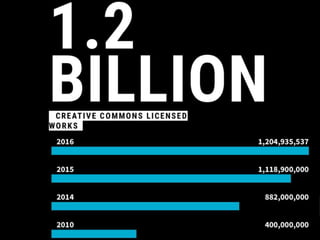
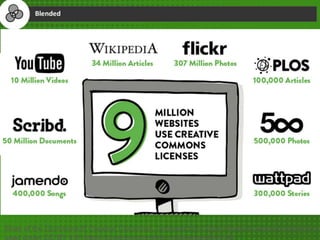
  • #9 State of the Commons, 2017 CC BY
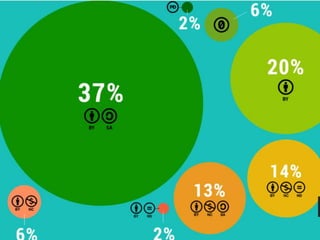
  • #11 State of the Commons, 2017 CC BY
  • #16 https://www.flickr.com/photos/mwichary/2481681915