


Making Presentations
That Audiences Will
Love
Use a Template
• Use a set font and color scheme.
• Different styles are disconcerting to
the audience.
• You want the audience to focus on
what you present, not the way you
present.
Fonts
• Choose a clean font that is easy to
read.
• Roman and Gothic typefaces are
easier to read than Script or Comic.
• Stick with one or two types of fonts.
Bullets
• Keep each bullet to one line, two at
the most.
• Limit the number of bullets in a
screen to six
Bullets & Cueing
• Bullets allow you to “cue” the
audience in on what you are going to
say.
• Cues can be thought of as a brief
“preview.”
• This gives the audience a “framework” to
build upon.
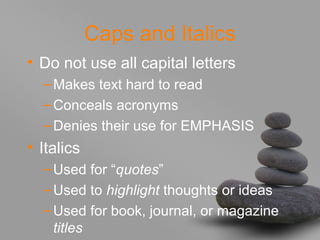
Caps and Italics
• Do not use all capital letters
–Makes text hard to read
–Conceals acronyms
–Denies their use for EMPHASIS
• Italics
–Used for “quotes”
–Used to highlight thoughts or ideas
–Used for book, journal, or magazine
titles
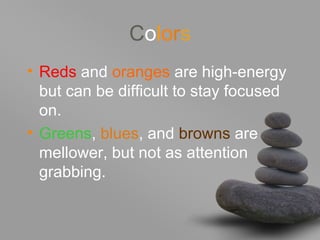
Colors
• Reds and oranges are high-energy
but can be difficult to stay focused
on.
• Greens, blues, and browns are
mellower, but not as attention
grabbing.
Backgrounds
• A white on a dark background is
used for this presentation as:
–The author assumes most users will
view the presentation on their own
computer.
–Having a darker background on a
computer screen reduces glare.
–White on dark background should not
be used if the audience is more than
20 feet away.
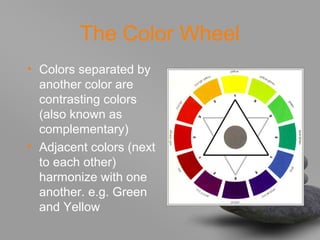
The Color Wheel
• Colors separated by
another color are
contrasting colors
(also known as
complementary)
• Adjacent colors (next
to each other)
harmonize with one
another. e.g. Green
and Yellow
To make a slide stand
out, change the font
and/or background
Illustrations
• Use only when needed, otherwise
they become distracters instead of
communicators
• They should relate to the message
and help make a point
• Ask yourself if it makes the message
clearer
• Simple diagrams are great
communicators
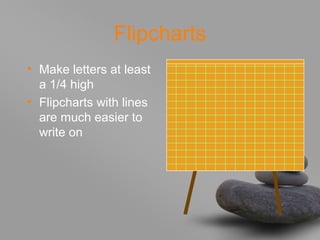
Flipcharts
• Make letters at least
a 1/4 high
• Flipcharts with lines
are much easier to
write on
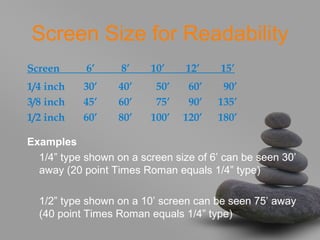
Screen Size for Readability
Screen 6’ 8’ 10’ 12’ 15’
1/4 inch 30’ 40’ 50’ 60’ 90’
3/8 inch 45’ 60’ 75’ 90’ 135’
1/2 inch 60’ 80’ 100’ 120’ 180’
Examples
1/4” type shown on a screen size of 6’ can be seen 30’
away (20 point Times Roman equals 1/4” type)
1/2” type shown on a 10’ screen can be seen 75’ away
(40 point Times Roman equals 1/4” type)
YOU
• Do not use the media to hide you
• The audience came to see you
• The media should enhance the presentation,
not BE the presentation
• If all you are going to do is read from the slides
or overheads, then just send them the slides
• Remember, only you can prevent
“Death by PowerPoint”
Credit to
by Donald R. Clark

How to make presentations

  • 1.
  • 2.
    Use a Template •Use a set font and color scheme. • Different styles are disconcerting to the audience. • You want the audience to focus on what you present, not the way you present.
  • 3.
    Fonts • Choose aclean font that is easy to read. • Roman and Gothic typefaces are easier to read than Script or Comic. • Stick with one or two types of fonts.
  • 4.
    Bullets • Keep eachbullet to one line, two at the most. • Limit the number of bullets in a screen to six
  • 5.
    Bullets & Cueing •Bullets allow you to “cue” the audience in on what you are going to say. • Cues can be thought of as a brief “preview.” • This gives the audience a “framework” to build upon.
  • 6.
    Caps and Italics •Do not use all capital letters –Makes text hard to read –Conceals acronyms –Denies their use for EMPHASIS • Italics –Used for “quotes” –Used to highlight thoughts or ideas –Used for book, journal, or magazine titles
  • 7.
    Colors • Reds andoranges are high-energy but can be difficult to stay focused on. • Greens, blues, and browns are mellower, but not as attention grabbing.
  • 8.
    Backgrounds • A whiteon a dark background is used for this presentation as: –The author assumes most users will view the presentation on their own computer. –Having a darker background on a computer screen reduces glare. –White on dark background should not be used if the audience is more than 20 feet away.
  • 9.
    The Color Wheel •Colors separated by another color are contrasting colors (also known as complementary) • Adjacent colors (next to each other) harmonize with one another. e.g. Green and Yellow
  • 10.
    To make aslide stand out, change the font and/or background
  • 11.
    Illustrations • Use onlywhen needed, otherwise they become distracters instead of communicators • They should relate to the message and help make a point • Ask yourself if it makes the message clearer • Simple diagrams are great communicators
  • 12.
    Flipcharts • Make lettersat least a 1/4 high • Flipcharts with lines are much easier to write on
  • 13.
    Screen Size forReadability Screen 6’ 8’ 10’ 12’ 15’ 1/4 inch 30’ 40’ 50’ 60’ 90’ 3/8 inch 45’ 60’ 75’ 90’ 135’ 1/2 inch 60’ 80’ 100’ 120’ 180’ Examples 1/4” type shown on a screen size of 6’ can be seen 30’ away (20 point Times Roman equals 1/4” type) 1/2” type shown on a 10’ screen can be seen 75’ away (40 point Times Roman equals 1/4” type)
  • 14.
    YOU • Do notuse the media to hide you • The audience came to see you • The media should enhance the presentation, not BE the presentation • If all you are going to do is read from the slides or overheads, then just send them the slides • Remember, only you can prevent “Death by PowerPoint”
  • 15.