Continuous Deployment 
GIT to AWS and everything in between.
The CI Server – Github to Build 
 The CI Server has a project that is connected to a Github repo (1:1 Mapping) 
 Each Github repo has a single Solution file (.sln) with multiple projects 
(.csproj) 
 The CI Server will watch the repo for changes pushed to master and trigger a 
build automatically
The CI Server – Build to NuGet 
 Each build in the CI Server will have logic to generate NuSpec file for libraries 
and websites (an existing NuSpec will override the default generation logic) 
 The NuSpec file will be ‘pack’ed into a NuGet package for each website, 
library, and declared NuSpec file 
 Each NuPkg (package) created will be ‘push’ed to the NuGet Gallery 
 Library packages will be consumed from gallery while developing code to 
share functionality 
 Website packages will be downloaded and configured on new ‘computers’ in 
AWS
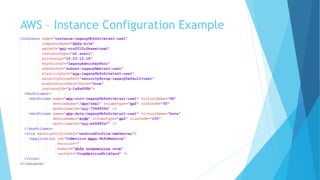
AWS – Instance Configuration Example
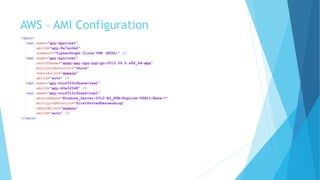
AWS – AMI Configuration
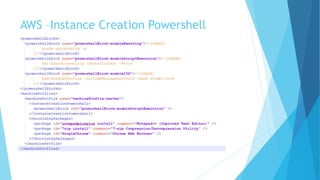
AWS –Instance Creation Powershell
Creating a new ‘computer’ in AWS 
 Two components: 
 Configuration file 
 Powershell script to create and configure the EC2 instance 
 One command will create and fully configure a new instance: 
 .AWS-CreateDeployedInstance.ps1 -Credentials $creds -Region 'us-east-1' - 
ConfigXml './AWS-Config.xml' -InstanceName 'MyComputersNameInConfig‘ 
 The application(s) that are to be deployed must exist in the NuGet Gallery 
and be specified in the Configuration file
AWS – New Instance Steps (AWS API) 
 The new instance will be created with the specified AMI (finding latest if 
applicable; i.e. latest Windows 2012 R2 AMI from Amazon…) 
 The new instance will be named 
 The new instance get the specified EBS Volumes (disk drives) and name them 
 The new instance will get the specified Elastic IP attached if applicable 
 The new instance will get configured with certain necessary components (i.e. 
IIS, ASP.NET) and Choclatey NuGet packages (i.e. Chrome, 7-Zip) using 
Instance Creation Powershell
AWS – Instance Configuration Steps 
(WinRM – Remote Powershell Commands) 
 When the new instance is running we will install and configure the specified 
software (NuGet packages in the private gallery) 
 The commands will be executed via WinRM as remote commands to the new 
instance 
 Any necessary support configuration will be installed (i.e. https certificates) 
 Once the packages are downloaded the appropriate mappings in IIS
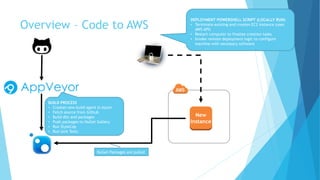
Overview – Code to AWS 
DEPLOYMENT POWERSHELL SCRIPT (LOCALLY RUN) 
• Terminate existing and creates EC2 instance (uses 
AWS API) 
• Restart computer to finalize creation tasks 
• Invoke remote deployment logic to configure 
machine with necessary software 
New 
Instance 
BUILD PROCESS 
• Creates new build agent in Azure 
• Fetch source from Github 
• Build dlls and packages 
• Push packages to NuGet Gallery 
• Run StyleCop 
• Run Unit Tests 
NuGet Packages are pulled
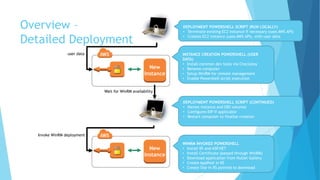
Overview – 
Detailed Deployment 
New 
Instance 
DEPLOYMENT POWERSHELL SCRIPT (RUN LOCALLY) 
• Terminate existing EC2 instance if necessary (uses AWS API) 
• Creates EC2 instance (uses AWS API), with user data 
INSTANCE CREATION POWERSHELL (USER 
DATA) 
• Install common dev tools via Choclatey 
• Rename computer 
• Setup WinRM for remote management 
• Enable Powershell script execution 
DEPLOYMENT POWERSHELL SCRIPT (CONTINUED) 
• Names instance and EBS volumes 
• Configures EIP if applicable 
• Wait for WinRM availability 
• Restart computer to finalize creation 
• Wait for WinRM availability 
• Invoke remote deployment logic 
New 
Instance 
WINRM INVOKED POWERSHELL 
• Install IIS and ASP.NET 
• Install Certificate (passed through WinRM) 
• Download application from NuGet Gallery 
• Create AppPool in IIS 
• Create Site in IIS pointed to download 
user data 
Invoke WinRM deployment 
Wait for AWS to recognize instance
Resources 
 Author: Lawson Caudill – http://www.getthinktank.com 
 Powershell tools available at: 
 http://www.naosllc.com 
 https://github.com/NaosFramework/

Continuous Deployment

  • 1.
    Continuous Deployment GITto AWS and everything in between.
  • 2.
    The CI Server– Github to Build  The CI Server has a project that is connected to a Github repo (1:1 Mapping)  Each Github repo has a single Solution file (.sln) with multiple projects (.csproj)  The CI Server will watch the repo for changes pushed to master and trigger a build automatically
  • 3.
    The CI Server– Build to NuGet  Each build in the CI Server will have logic to generate NuSpec file for libraries and websites (an existing NuSpec will override the default generation logic)  The NuSpec file will be ‘pack’ed into a NuGet package for each website, library, and declared NuSpec file  Each NuPkg (package) created will be ‘push’ed to the NuGet Gallery  Library packages will be consumed from gallery while developing code to share functionality  Website packages will be downloaded and configured on new ‘computers’ in AWS
  • 4.
    AWS – InstanceConfiguration Example
  • 5.
    AWS – AMIConfiguration
  • 6.
  • 7.
    Creating a new‘computer’ in AWS  Two components:  Configuration file  Powershell script to create and configure the EC2 instance  One command will create and fully configure a new instance:  .AWS-CreateDeployedInstance.ps1 -Credentials $creds -Region 'us-east-1' - ConfigXml './AWS-Config.xml' -InstanceName 'MyComputersNameInConfig‘  The application(s) that are to be deployed must exist in the NuGet Gallery and be specified in the Configuration file
  • 8.
    AWS – NewInstance Steps (AWS API)  The new instance will be created with the specified AMI (finding latest if applicable; i.e. latest Windows 2012 R2 AMI from Amazon…)  The new instance will be named  The new instance get the specified EBS Volumes (disk drives) and name them  The new instance will get the specified Elastic IP attached if applicable  The new instance will get configured with certain necessary components (i.e. IIS, ASP.NET) and Choclatey NuGet packages (i.e. Chrome, 7-Zip) using Instance Creation Powershell
  • 9.
    AWS – InstanceConfiguration Steps (WinRM – Remote Powershell Commands)  When the new instance is running we will install and configure the specified software (NuGet packages in the private gallery)  The commands will be executed via WinRM as remote commands to the new instance  Any necessary support configuration will be installed (i.e. https certificates)  Once the packages are downloaded the appropriate mappings in IIS
  • 10.
    Overview – Codeto AWS DEPLOYMENT POWERSHELL SCRIPT (LOCALLY RUN) • Terminate existing and creates EC2 instance (uses AWS API) • Restart computer to finalize creation tasks • Invoke remote deployment logic to configure machine with necessary software New Instance BUILD PROCESS • Creates new build agent in Azure • Fetch source from Github • Build dlls and packages • Push packages to NuGet Gallery • Run StyleCop • Run Unit Tests NuGet Packages are pulled
  • 11.
    Overview – DetailedDeployment New Instance DEPLOYMENT POWERSHELL SCRIPT (RUN LOCALLY) • Terminate existing EC2 instance if necessary (uses AWS API) • Creates EC2 instance (uses AWS API), with user data INSTANCE CREATION POWERSHELL (USER DATA) • Install common dev tools via Choclatey • Rename computer • Setup WinRM for remote management • Enable Powershell script execution DEPLOYMENT POWERSHELL SCRIPT (CONTINUED) • Names instance and EBS volumes • Configures EIP if applicable • Wait for WinRM availability • Restart computer to finalize creation • Wait for WinRM availability • Invoke remote deployment logic New Instance WINRM INVOKED POWERSHELL • Install IIS and ASP.NET • Install Certificate (passed through WinRM) • Download application from NuGet Gallery • Create AppPool in IIS • Create Site in IIS pointed to download user data Invoke WinRM deployment Wait for AWS to recognize instance
  • 12.
    Resources  Author:Lawson Caudill – http://www.getthinktank.com  Powershell tools available at:  http://www.naosllc.com  https://github.com/NaosFramework/