Course Outline
GRADING SYSTEM
Attendance - 10%
Quizzes -10%
Practical -25 %
Class Participation - 30%
Final Examination - 25%
Total - 100%
• Introduction of computer
• Basic Components
• Anatomy of computer system
• Hardware components
• Computer software
• Internet
• Keyboard Shortcuts
• Word, Excel and Power Point
Any question?
s
Why is it important to know how to
use a computer?
Computers are everywhere and everyone is
using them! Computers are in our cars, our
kitchens, our living rooms, our stores and, most
importantly, in our workplaces. They are used to
communicate, to play, and to make everyday
tasks easier
Introduction of Computer
A computer is an electronic device, operating under the
control of instructions stored in its own memory.
These instructions tell the machine what to do. The
computer is capable of accepting data (input), processing
data arithmetically and logically, producing output from the
processing, and storing the results for future use.
Computer
A computer is composed of hardware and
software, and can exist in a variety of sizes
and configurations.
Computer
Computer
Father of Computer
Charles Babbage
Computer
Little History
• First Generation - 1940-1956: Vacuum Tubes
• Second Generation - 1956-1963: Transistors
• Third Generation - 1964-1971: Integrated Circuits
• Fourth Generation - 1971-Present:Microprocessors
• Fifth Generation - Present and Beyond: Artificial
Intelligence
Hardware & Software
The term hardware refers to the physical
components of your
computer such as the system unit, mouse,
keyboard, monitor etc.
Hardware & Software
The software is the instructions that
makes the computer work.
Step-by-step instructions that
tell the computer how to perform
a specific task.
Hardware
Software
Hardware Components
Input Devices
Output Devices
Hardware Components
Input Devices -- "How to tell it what to do“
- A keyboard and mouse are the standard way to
interact with the computer. Other devices include
joysticks and game pads used primarily for games.
Hardware Components
Output Devices -- "How it shows you what it is
doing“
- The monitor (the screen) is how the
computer sends information back to you. A
printer is also an output device.
Hardware Components
INPUT DEVICES
 The Mouse
Used to ‘drive’ Microsoft Windows
The Keyboard
The keyboard is still the commonest
way of entering information into a computer.
Hardware Components
These comprise of letters, numbers and the symbols.
They are used to insert/display readable characters on the
screen which is equivalent to the keystroke pressed.
Letters a, b, c, d, e, f, g, h, i, j, k, l, m, n, o, p, q, r, s, t,
v, w, x, y, z
Numbers 0, 1, 2, 3, 4, 5, 6, 7, 8, 9
Hardware Components
Hardware Components
Scanners
A scanner allows you to scan printed
material and convert it into a file
format that may be used within
the PC
Hardware Components
OUTPUT DEVICES
 VDU
The computer screen is used for outputting
information in an understandable format
 Printers
There are many different types of printers.
In large organizations laser printers are most
commonly used due to the fact that they can
print very fast and give a very high quality output.
Hardware Components
 Plotters
A plotter is an output device similar to
a printer, but normally allows you to print
larger images.
 Speakers
Enhances the value of educational
and presentation products.
Hardware Components
Storage Devices
Hardware Components
 Storage Devices -- "How it saves data and programs“
There are two types of storage devices used
with computers: a primary storage device, such as RAM,
and a Secondary storage device, such as a hard drive.
RAM (random-access memory) is a hardware device that
allows information to be stored and retrieved on a
computer.
Hardware Components
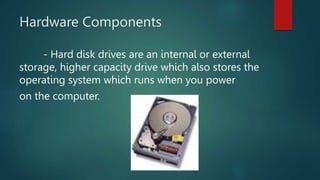
- Hard disk drives are an internal or external
storage, higher capacity drive which also stores the
operating system which runs when you power
on the computer.
Hardware Components
A flash drive is a small, ultra-portable storage device
which, unlike an optical drive or a traditional hard drive, has
no moving parts.
Flash drives connect to computers and other devices via a
built-in
USB Type-A plug, making a
flash drive a kind of combination
USB device and cable.
COMPUTER SOFTWARE
Software is the set of instruction that tells the
computer what to do and when to do it. The
computer uses this instruction to manipulate
data, and enhance the proper functioning of the
hardware components. It is designed to exploit
and provide the potential capabilities of the
hardware to the user
Operating System
An operating system is a program that acts as an
intermediary between the application programs and
the computer hardware. You cannot directly use
computer applications (or programs) with computer
hardware without a translation system between the
hardware and the applications. This translation
system is called the operating system (OS).
WORKING WITH DESKTOP
Windows Desktop
WORKING WITH DESKTOP
The computer's interface uses a desktop
metaphor. The desktop is the colored
background you see on the screen when
you start your computer (this may vary for
different computer since it is customizable).
INTRODUCTION TO THE INTERNET
A network is a group of computers
linked together so that they can share
resources such as printers, software
programs and documents. Computer
network is the interconnectivity of
autonomous computers.
INTRODUCTION TO THE INTERNET
Connection of Computers using the Hub
INTRODUCTION TO THE INTERNET
LAN stands for local area network. The local area
typically is an office, but it can also be found in
homes due to the rise of Wi-Fi.
WAN covers a wider area than a LAN. A wide area
network can be used to connect a number of
buildings.
INTRODUCTION TO THE INTERNET
The internet
INTRODUCTION TO THE INTERNET
The advantages of using a network are:
a) Data and information sharing
b) Resources sharing such as a printer, even if they
are not physically connected.
c) Reliability and security
d) You can use email
e) You can access the internet

Basic Computer Week 1.pptx

  • 3.
    Course Outline GRADING SYSTEM Attendance- 10% Quizzes -10% Practical -25 % Class Participation - 30% Final Examination - 25% Total - 100%
  • 5.
    • Introduction ofcomputer • Basic Components • Anatomy of computer system • Hardware components • Computer software
  • 6.
    • Internet • KeyboardShortcuts • Word, Excel and Power Point
  • 7.
  • 8.
  • 9.
    Why is itimportant to know how to use a computer? Computers are everywhere and everyone is using them! Computers are in our cars, our kitchens, our living rooms, our stores and, most importantly, in our workplaces. They are used to communicate, to play, and to make everyday tasks easier
  • 10.
    Introduction of Computer Acomputer is an electronic device, operating under the control of instructions stored in its own memory. These instructions tell the machine what to do. The computer is capable of accepting data (input), processing data arithmetically and logically, producing output from the processing, and storing the results for future use.
  • 11.
    Computer A computer iscomposed of hardware and software, and can exist in a variety of sizes and configurations.
  • 12.
  • 13.
  • 14.
    Computer Little History • FirstGeneration - 1940-1956: Vacuum Tubes • Second Generation - 1956-1963: Transistors • Third Generation - 1964-1971: Integrated Circuits • Fourth Generation - 1971-Present:Microprocessors • Fifth Generation - Present and Beyond: Artificial Intelligence
  • 15.
    Hardware & Software Theterm hardware refers to the physical components of your computer such as the system unit, mouse, keyboard, monitor etc.
  • 16.
    Hardware & Software Thesoftware is the instructions that makes the computer work. Step-by-step instructions that tell the computer how to perform a specific task.
  • 17.
  • 18.
  • 20.
  • 21.
    Hardware Components Input Devices-- "How to tell it what to do“ - A keyboard and mouse are the standard way to interact with the computer. Other devices include joysticks and game pads used primarily for games.
  • 22.
    Hardware Components Output Devices-- "How it shows you what it is doing“ - The monitor (the screen) is how the computer sends information back to you. A printer is also an output device.
  • 23.
    Hardware Components INPUT DEVICES The Mouse Used to ‘drive’ Microsoft Windows The Keyboard The keyboard is still the commonest way of entering information into a computer.
  • 24.
    Hardware Components These compriseof letters, numbers and the symbols. They are used to insert/display readable characters on the screen which is equivalent to the keystroke pressed. Letters a, b, c, d, e, f, g, h, i, j, k, l, m, n, o, p, q, r, s, t, v, w, x, y, z Numbers 0, 1, 2, 3, 4, 5, 6, 7, 8, 9
  • 25.
  • 26.
    Hardware Components Scanners A scannerallows you to scan printed material and convert it into a file format that may be used within the PC
  • 27.
    Hardware Components OUTPUT DEVICES VDU The computer screen is used for outputting information in an understandable format  Printers There are many different types of printers. In large organizations laser printers are most commonly used due to the fact that they can print very fast and give a very high quality output.
  • 28.
    Hardware Components  Plotters Aplotter is an output device similar to a printer, but normally allows you to print larger images.  Speakers Enhances the value of educational and presentation products.
  • 29.
  • 30.
    Hardware Components  StorageDevices -- "How it saves data and programs“ There are two types of storage devices used with computers: a primary storage device, such as RAM, and a Secondary storage device, such as a hard drive. RAM (random-access memory) is a hardware device that allows information to be stored and retrieved on a computer.
  • 31.
    Hardware Components - Harddisk drives are an internal or external storage, higher capacity drive which also stores the operating system which runs when you power on the computer.
  • 32.
    Hardware Components A flashdrive is a small, ultra-portable storage device which, unlike an optical drive or a traditional hard drive, has no moving parts. Flash drives connect to computers and other devices via a built-in USB Type-A plug, making a flash drive a kind of combination USB device and cable.
  • 33.
    COMPUTER SOFTWARE Software isthe set of instruction that tells the computer what to do and when to do it. The computer uses this instruction to manipulate data, and enhance the proper functioning of the hardware components. It is designed to exploit and provide the potential capabilities of the hardware to the user
  • 34.
    Operating System An operatingsystem is a program that acts as an intermediary between the application programs and the computer hardware. You cannot directly use computer applications (or programs) with computer hardware without a translation system between the hardware and the applications. This translation system is called the operating system (OS).
  • 35.
  • 36.
    WORKING WITH DESKTOP Thecomputer's interface uses a desktop metaphor. The desktop is the colored background you see on the screen when you start your computer (this may vary for different computer since it is customizable).
  • 37.
    INTRODUCTION TO THEINTERNET A network is a group of computers linked together so that they can share resources such as printers, software programs and documents. Computer network is the interconnectivity of autonomous computers.
  • 38.
    INTRODUCTION TO THEINTERNET Connection of Computers using the Hub
  • 39.
    INTRODUCTION TO THEINTERNET LAN stands for local area network. The local area typically is an office, but it can also be found in homes due to the rise of Wi-Fi. WAN covers a wider area than a LAN. A wide area network can be used to connect a number of buildings.
  • 40.
    INTRODUCTION TO THEINTERNET The internet
  • 41.
    INTRODUCTION TO THEINTERNET The advantages of using a network are: a) Data and information sharing b) Resources sharing such as a printer, even if they are not physically connected. c) Reliability and security d) You can use email e) You can access the internet