Excel Tips and Tricks
              Utilizing Excel 2007


    Click to edit Master subtitle style
                    Date/Time: October 15th - 12pm
                    (EST)

                    Webinar Offered by: Federally
                    Employed Women's Foundation
                    for Education & Training

                    Presenter: Nikki Follis, Grantham
                    University
Microsoft Office 2007-Illustrated   11/2/09
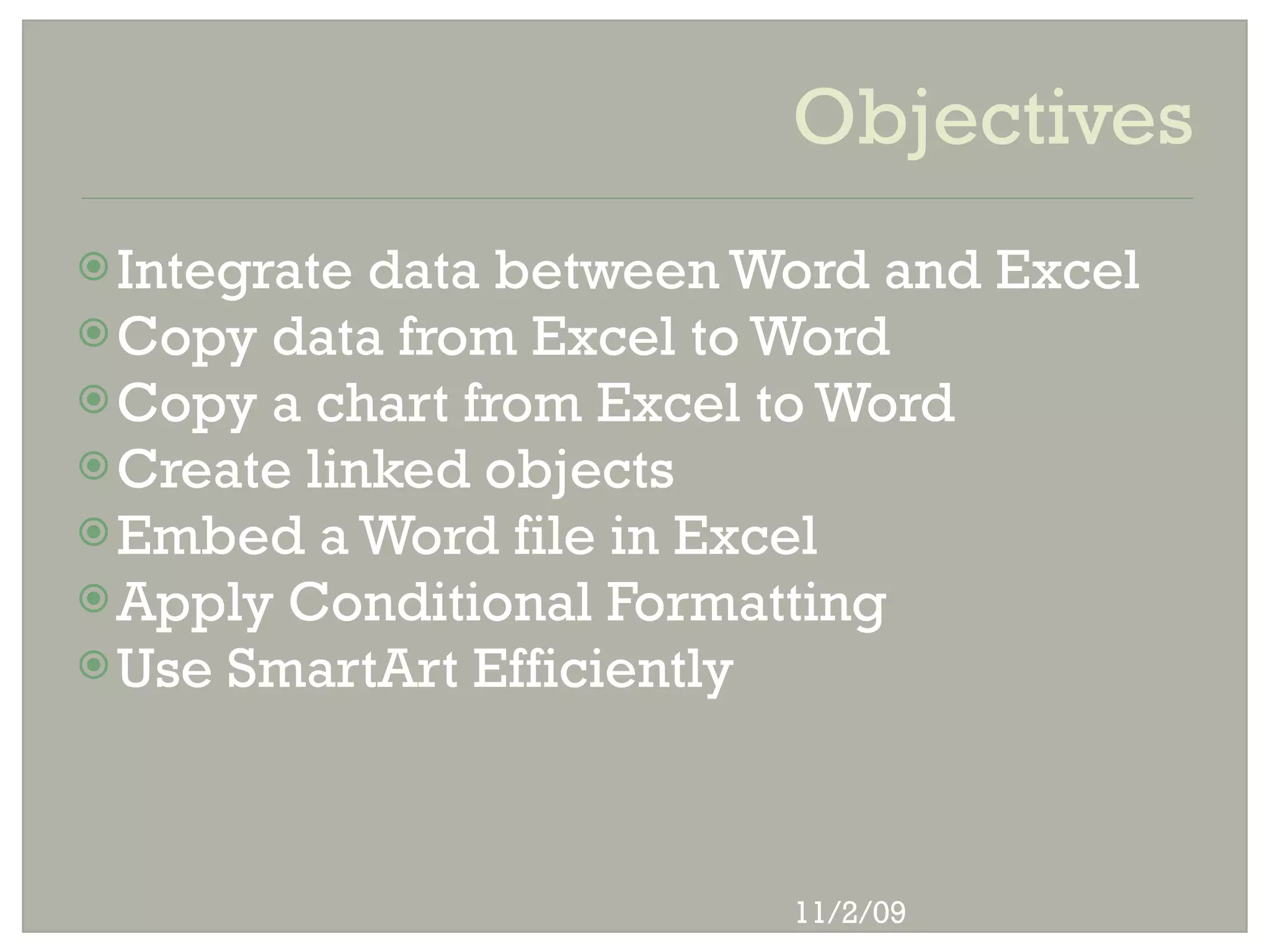
Objectives
 Integrate data between Word and Excel
 Copy data from Excel to Word
 Copy a chart from Excel to Word
 Create linked objects
 Embed a Word file in Excel
 Apply Conditional Formatting
 Use SmartArt Efficiently


                          11/2/09
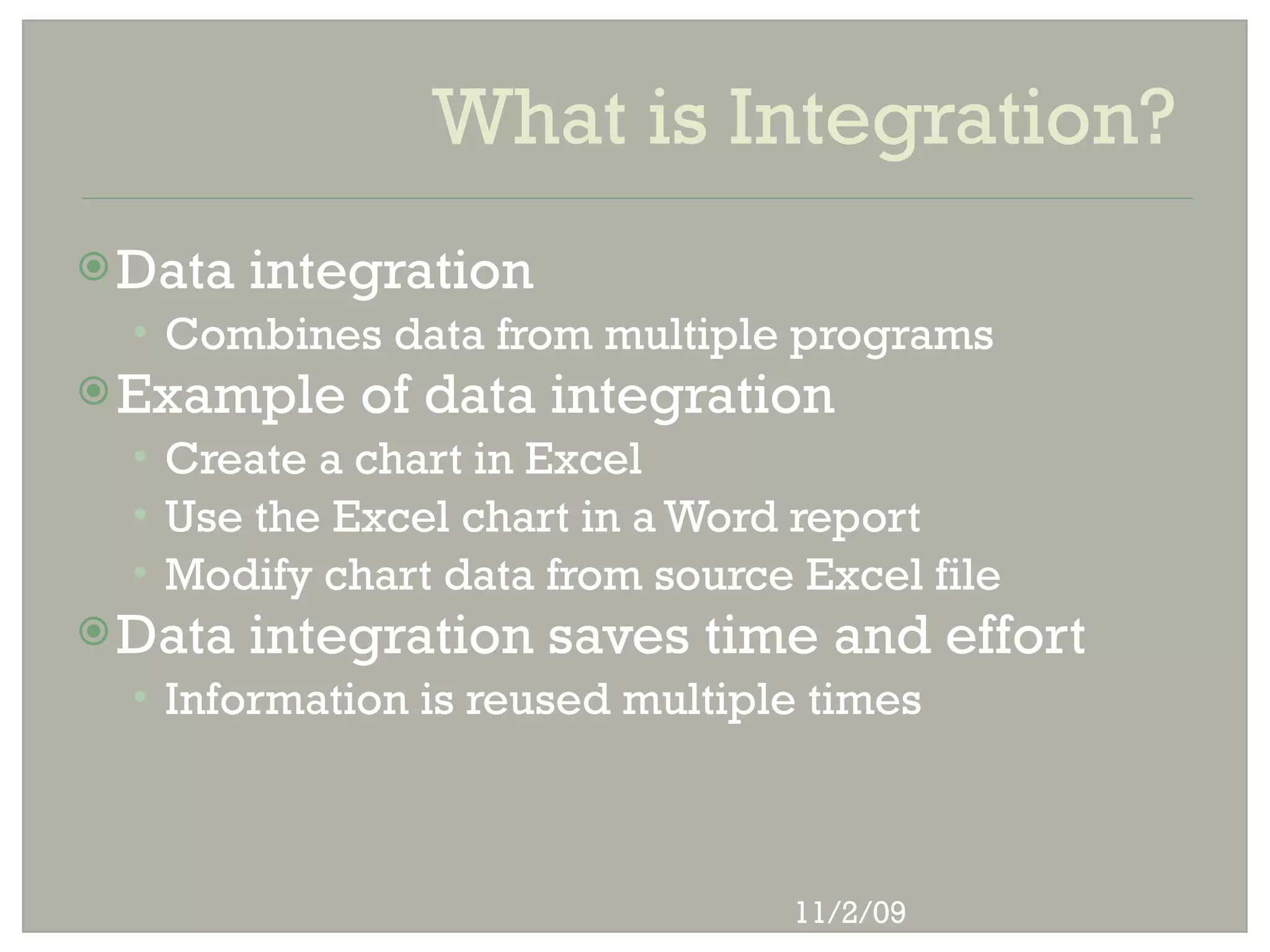
What is Integration?
 Data   integration
  • Combines data from multiple programs
 Example    of data integration
  • Create a chart in Excel
  • Use the Excel chart in a Word report
  • Modify chart data from source Excel file
 Data   integration saves time and effort
  • Information is reused multiple times


                                 11/2/09
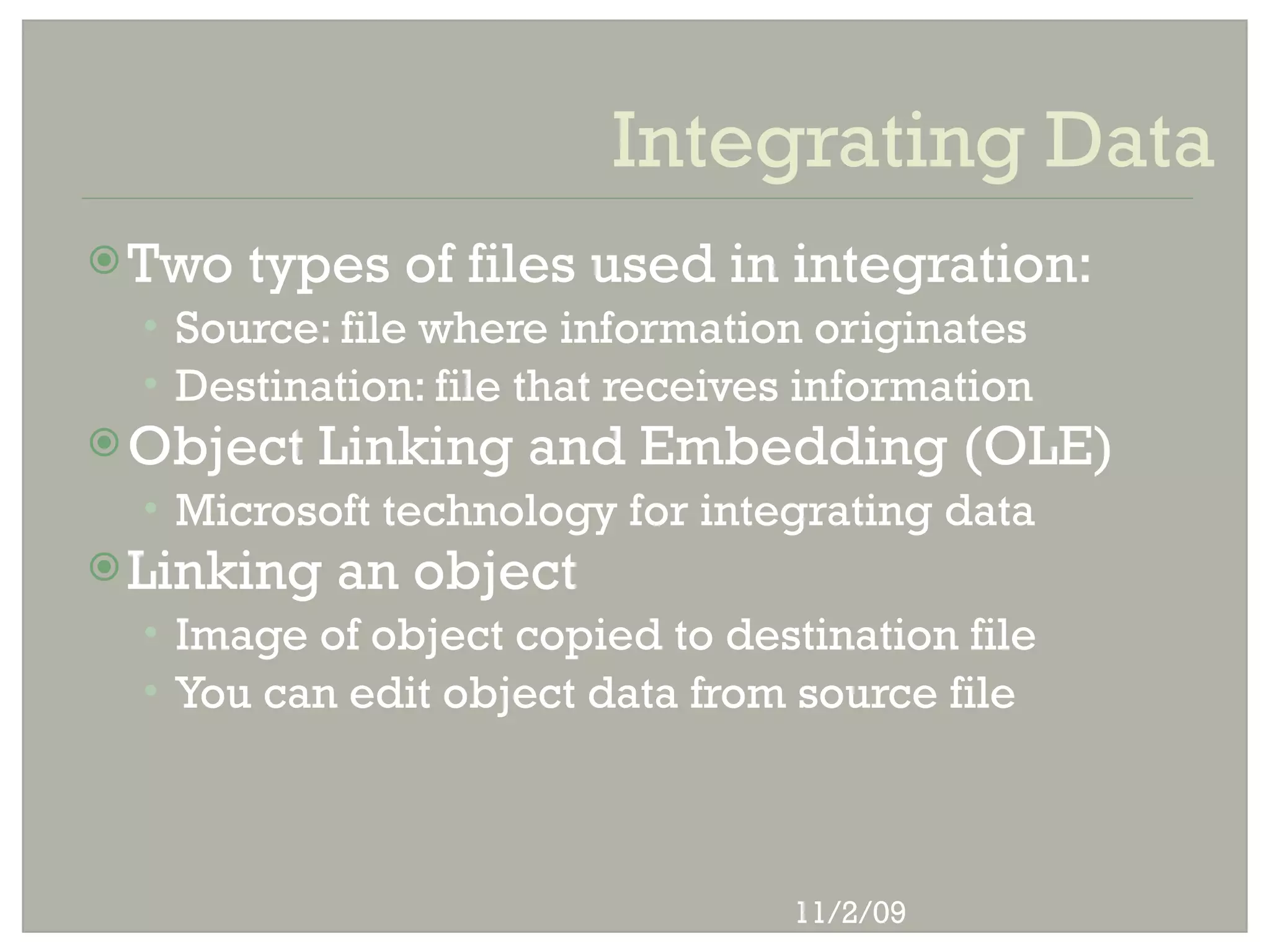
Integrating Data
 Two   types of files used in integration:
  • Source: file where information originates
  • Destination: file that receives information
 Object   Linking and Embedding (OLE)
  • Microsoft technology for integrating data
 Linking   an object
  • Image of object copied to destination file
  • You can edit object data from source file


                                  11/2/09
Integrating Data
 Embedding      an object:
 • Copy of object is placed in destination file
 • Edit object with source program tools
 Ways   to integrate Word and Excel:
 •   Copy and paste data from the Clipboard
 •   Link data between two files
 •   Copy Excel chart and paste into Word
 •   Embed a Word file into Excel worksheet


                                 11/2/09
Integrating Data
 Embedding   vs. linking


                            11/2/09
Integrating Data

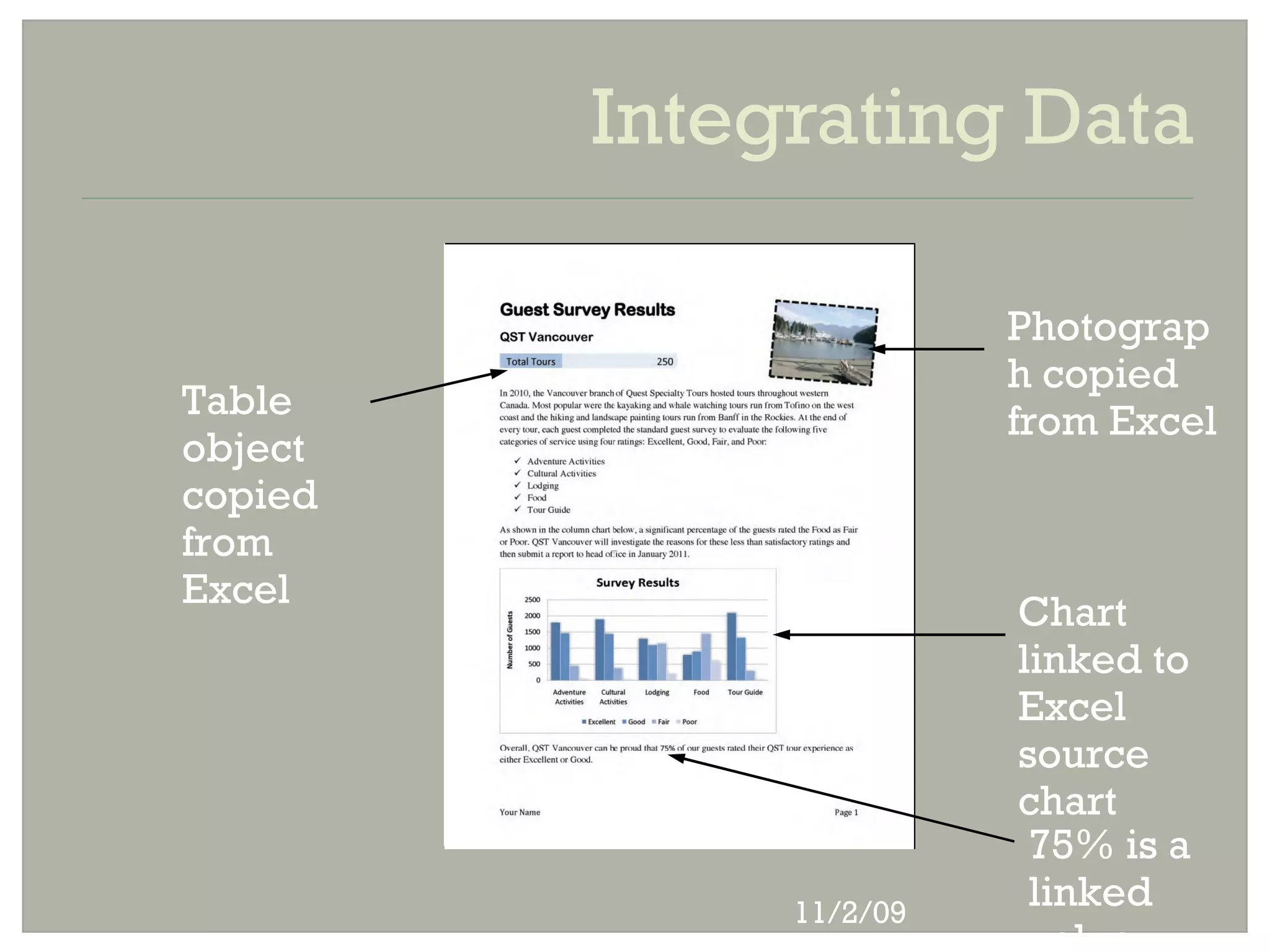
                        Photograp
                        h copied
Table                   from Excel
object
copied
from
Excel
                        Chart
                        linked to
                        Excel
                        source
                        chart
                         75% is a
              11/2/09
                         linked
Copying Data from Excel to Word
 Uses   of Copy and Paste commands
  • Copy and paste items within a document
  • Copy and paste items between programs
 Items   transferred with Copy and Paste
  • Line of text, value, picture, chart
 Properties    of a copied object
  • Retains formatting of original object
  • Independent of source (except chart)


                                  11/2/09
Copying Data from Excel to
Word
 Use the Copy and Paste commands
 Excel is the source file
 Word is the destination file
 Pasted chart is automatically linked
 Effect of revising chart in source file
  • Linked data changes in destination file
  • Note: chart style does not update


                                11/2/09
Copying a Chart from Excel to Word

    Linked   chart updated in Word

                                      Colum
                                      ns
                                      updat
                                      ed


                           11/2/09
Copying a Chart from Excel to Word

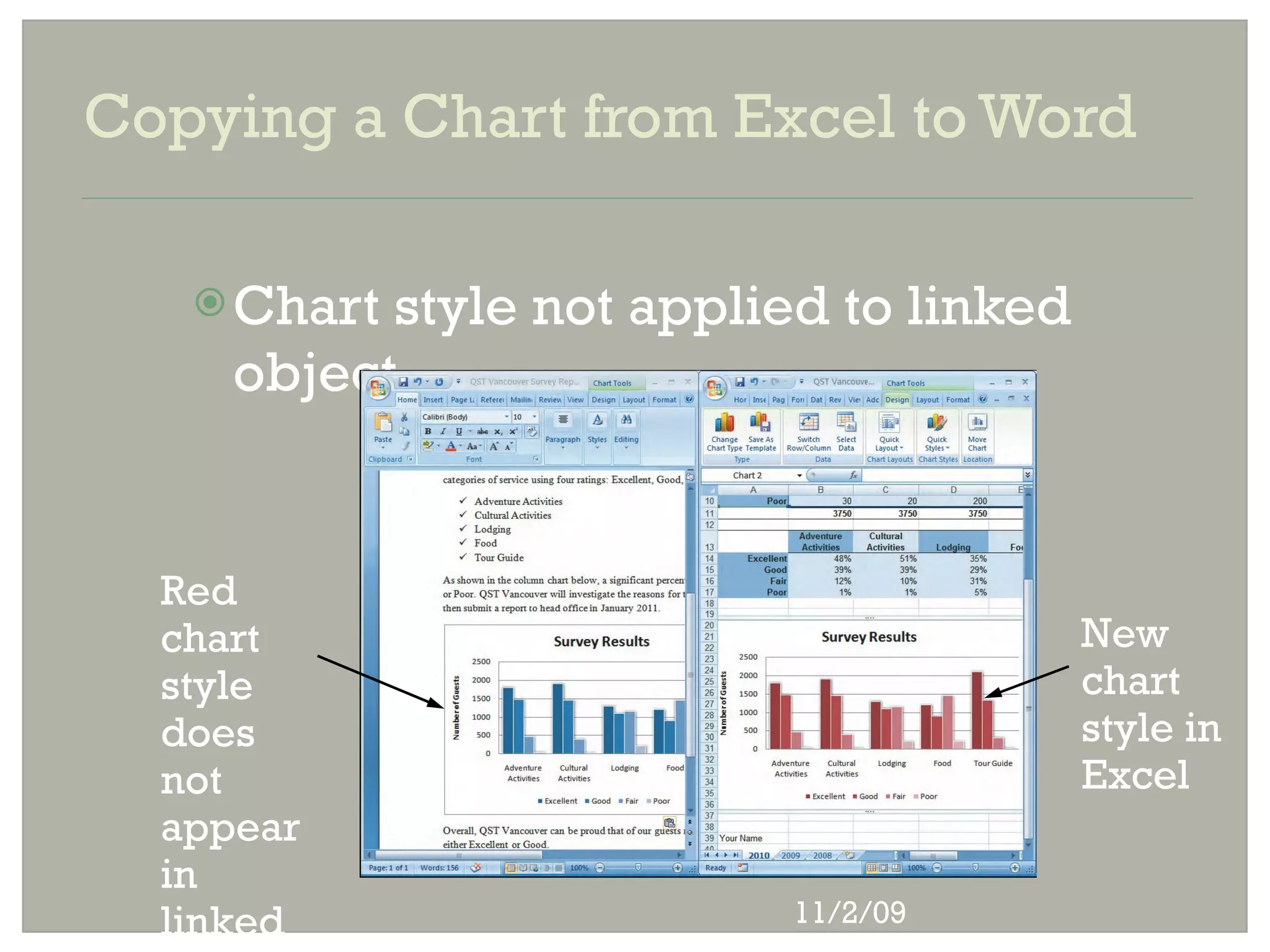
    Chart style not applied to linked
     object


  Red
  chart                                  New
  style                                  chart
  does                                   style in
  not                                    Excel
  appear
  in
  linked                   11/2/09
Creating Linked Objects
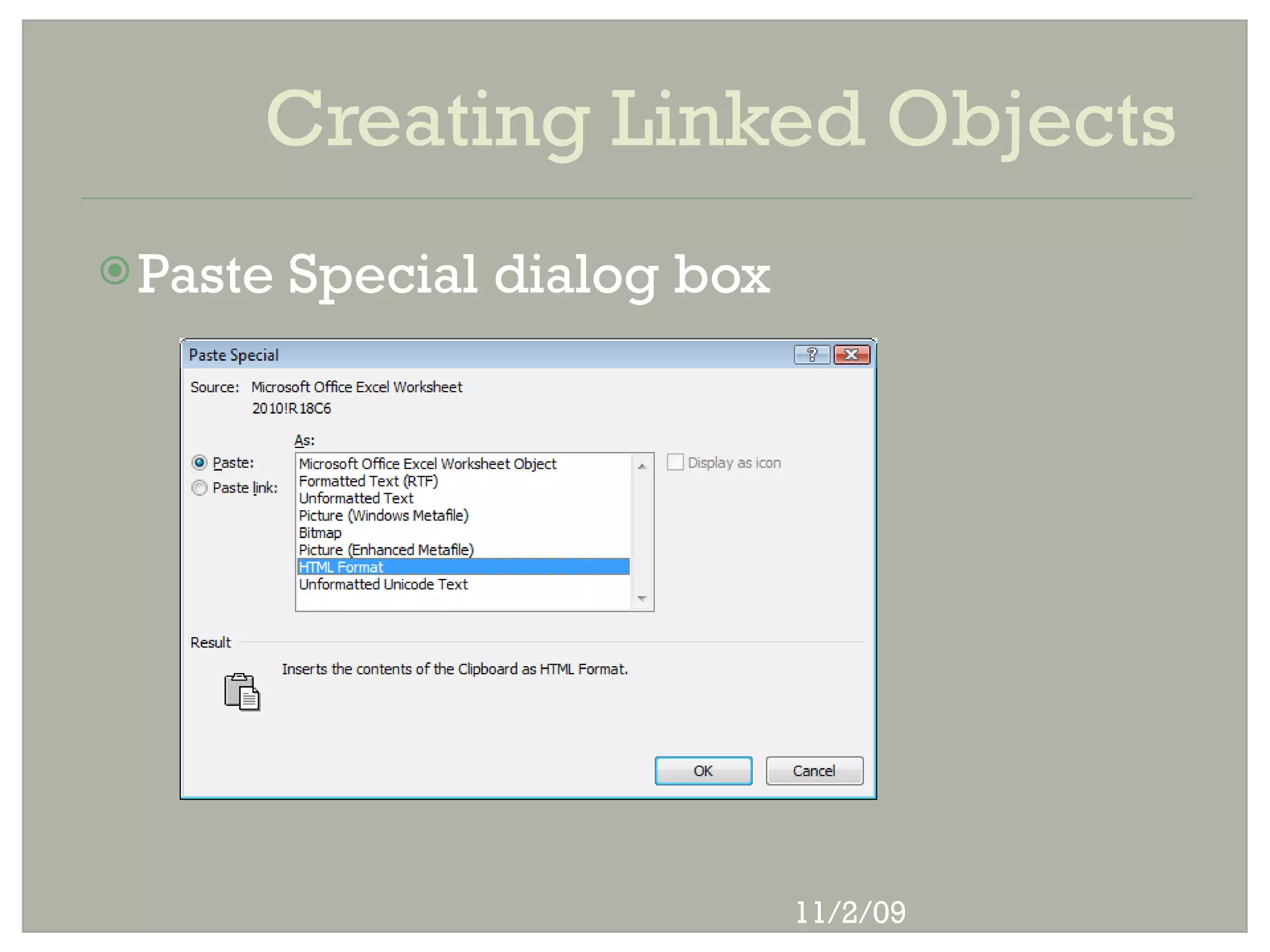
 Copy   and Paste Special commands
  • Perform advanced copy and paste tasks
  • Can link copied object to a source file
  • Needed to link all items except chart
 Features   of Paste Special command
  • Paste
  • Paste Link
  • Formatting options


                                11/2/09
Creating Linked Objects
 Paste   Special dialog box


                               11/2/09
Embedding a Word File in Excel
 Embedding       an object
  • Inserts an entire file in a destination file
  • You can embed an existing or new file
 Editing   an embedded object
  • Double-click the embedded object
  • Edit tools from source program display
 Accessing     embedding tool in Excel
  • Click Insert tab, then click Object button


                                   11/2/09
Embedding a Word File in Excel
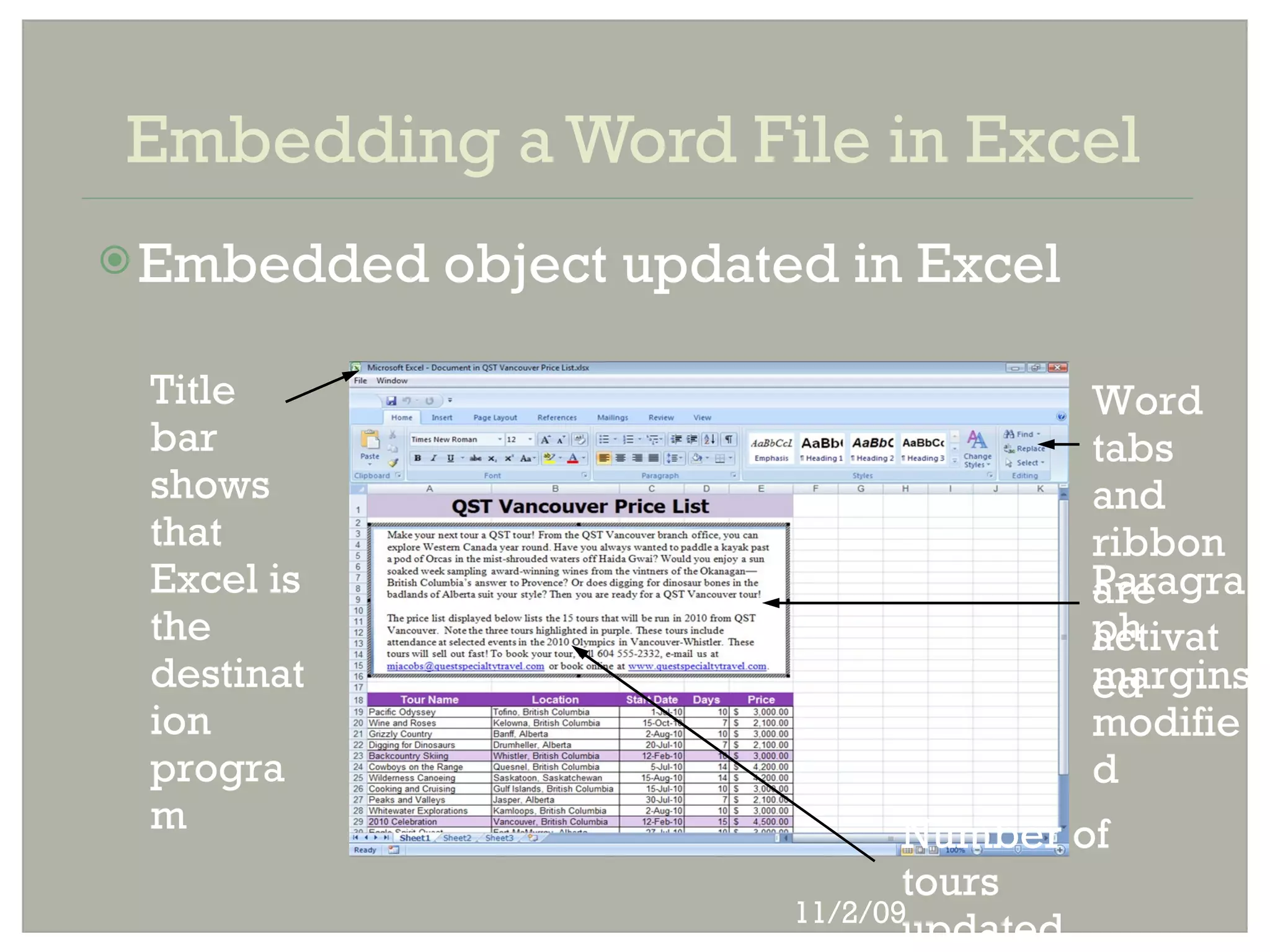
 Embedded   object updated in Excel

 Title                                   Word
 bar                                     tabs
 shows                                   and
 that                                    ribbon
 Excel is                                Paragra
                                         are
 the                                     ph
                                         activat
 destinat                                margins
                                         ed
 ion                                     modifie
 progra                                  d
 m                               Number of
                                 tours
                          11/2/09
                                 updated
Word, Excel, and Access
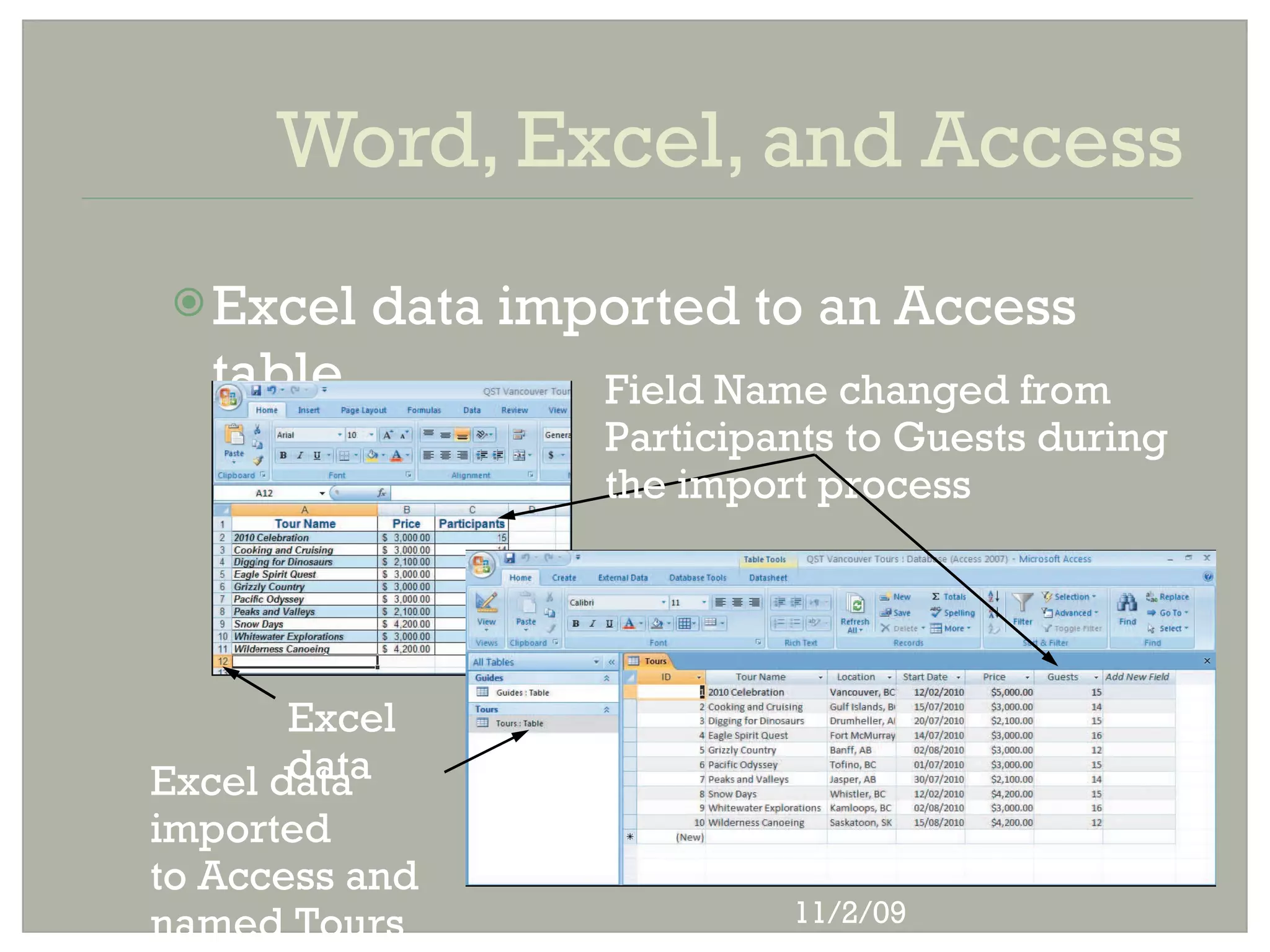
  Excel   data imported to an Access
  table            Field Name changed from
                   Participants to Guests during
                   the import process


       Excel
       data
Excel data
imported
to Access and
named Tours                 11/2/09
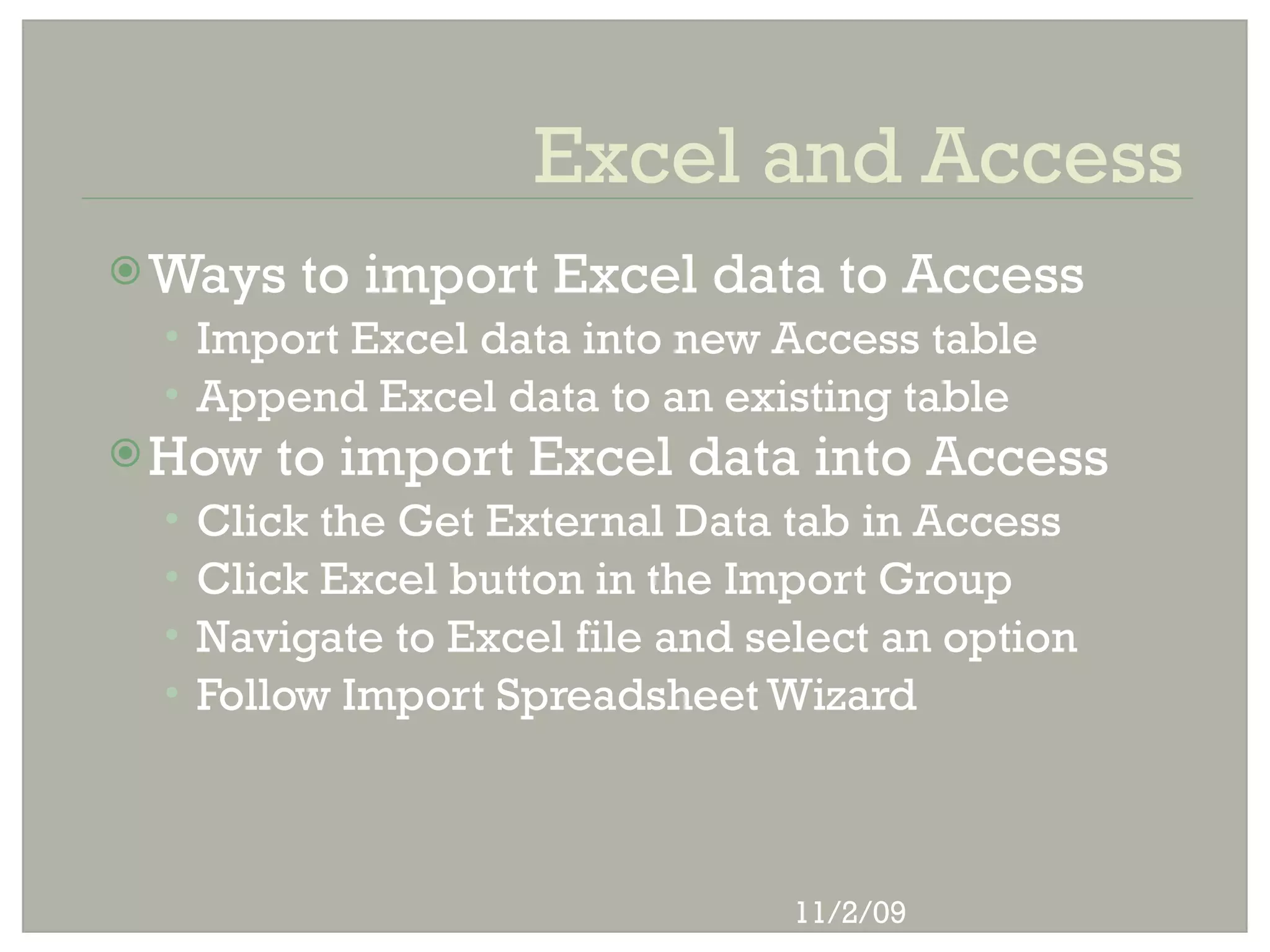
Excel and Access
 Ways    to import Excel data to Access
 • Import Excel data into new Access table
 • Append Excel data to an existing table
 How   to import Excel data into Access
 •   Click the Get External Data tab in Access
 •   Click Excel button in the Import Group
 •   Navigate to Excel file and select an option
 •   Follow Import Spreadsheet Wizard


                                  11/2/09
Excel and Access
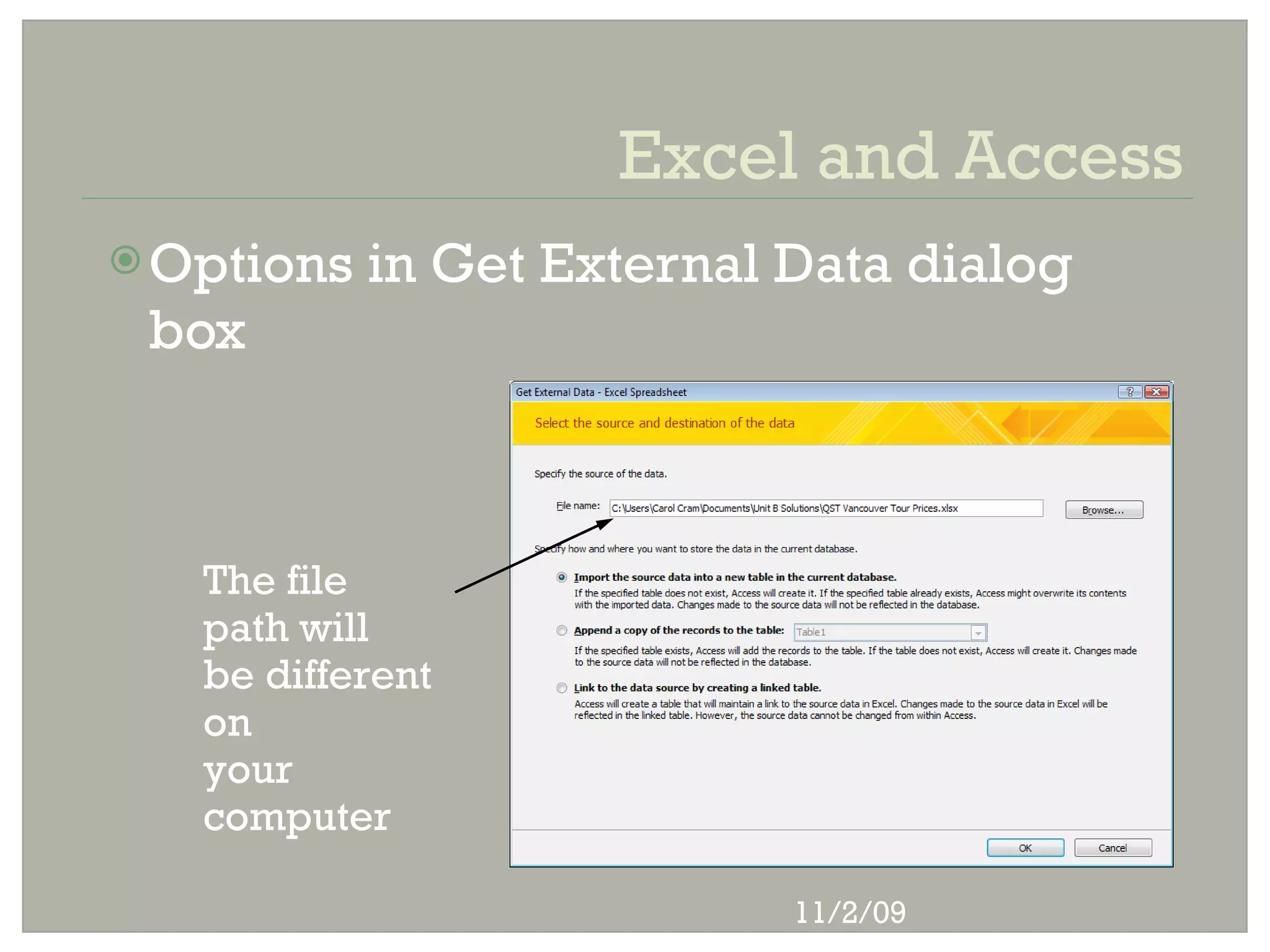
 Options   in Get External Data dialog
 box


   The file
   path will
   be different
   on
   your
   computer

                            11/2/09
Excel and Access
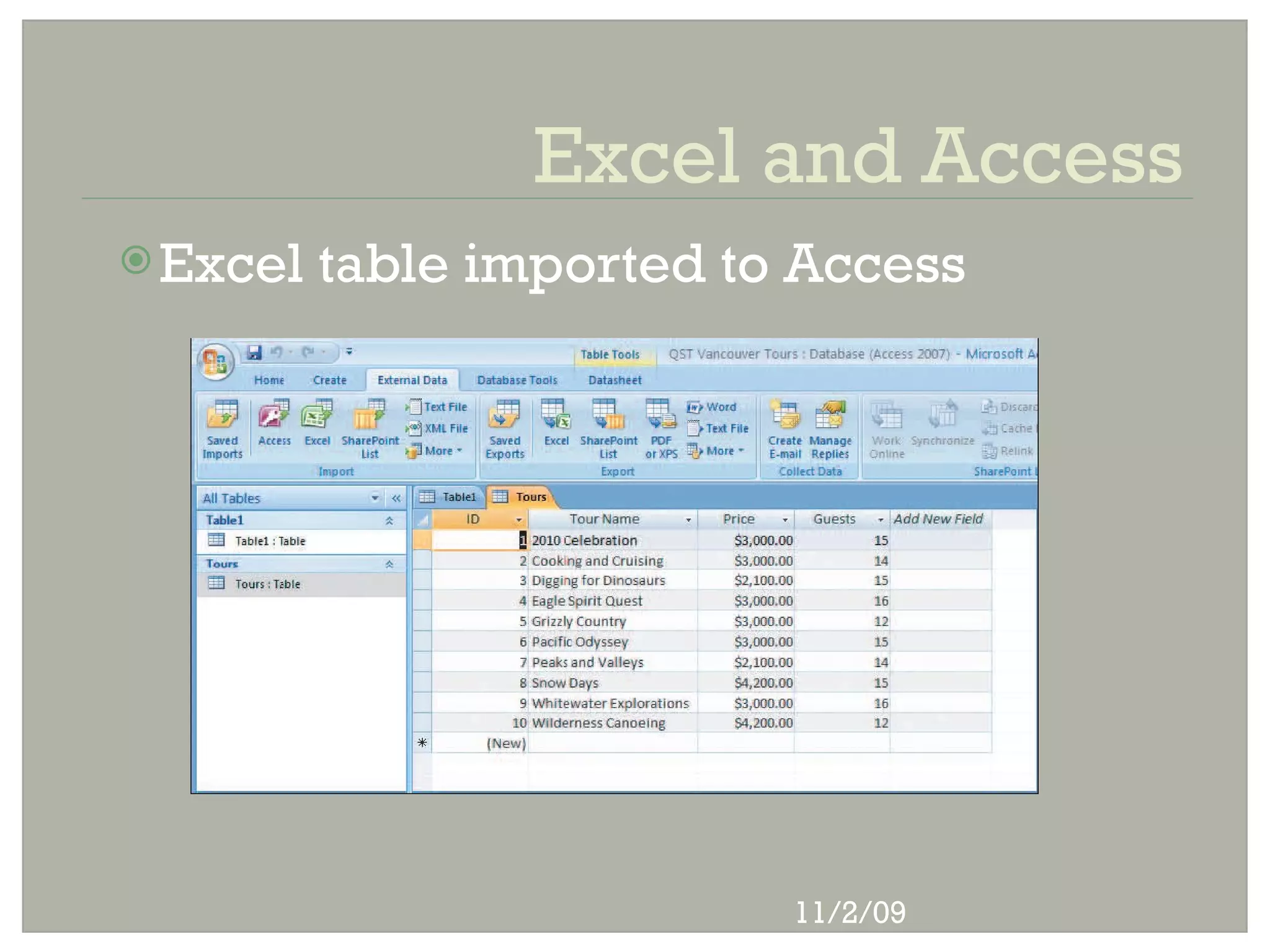
 Excel   table imported to Access


                           11/2/09
Excel, Access, and Word
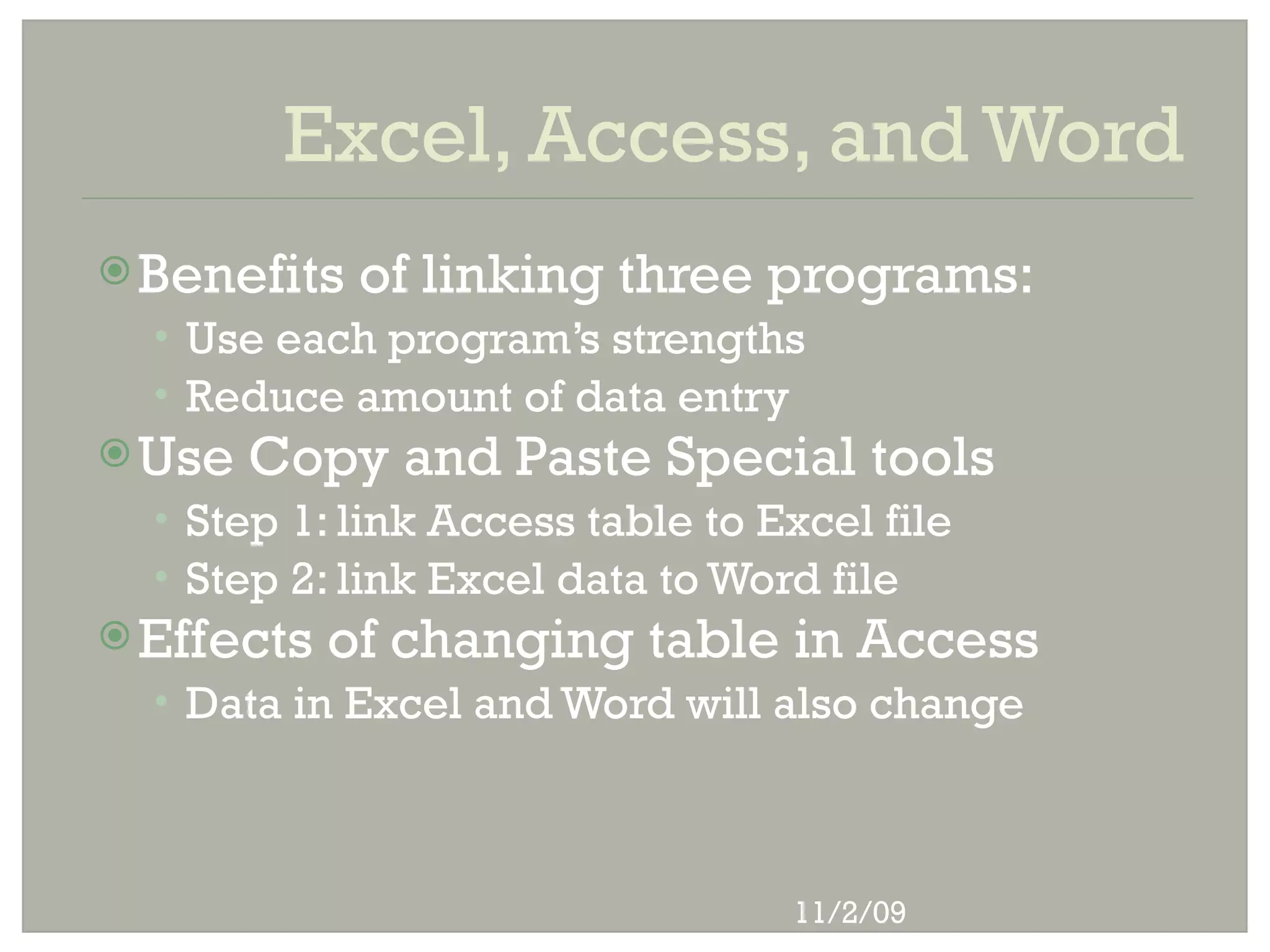
 Benefits   of linking three programs:
  • Use each program’s strengths
  • Reduce amount of data entry
 Use   Copy and Paste Special tools
  • Step 1: link Access table to Excel file
  • Step 2: link Excel data to Word file
 Effects   of changing table in Access
  • Data in Excel and Word will also change


                                  11/2/09
Excel, Access, and Word
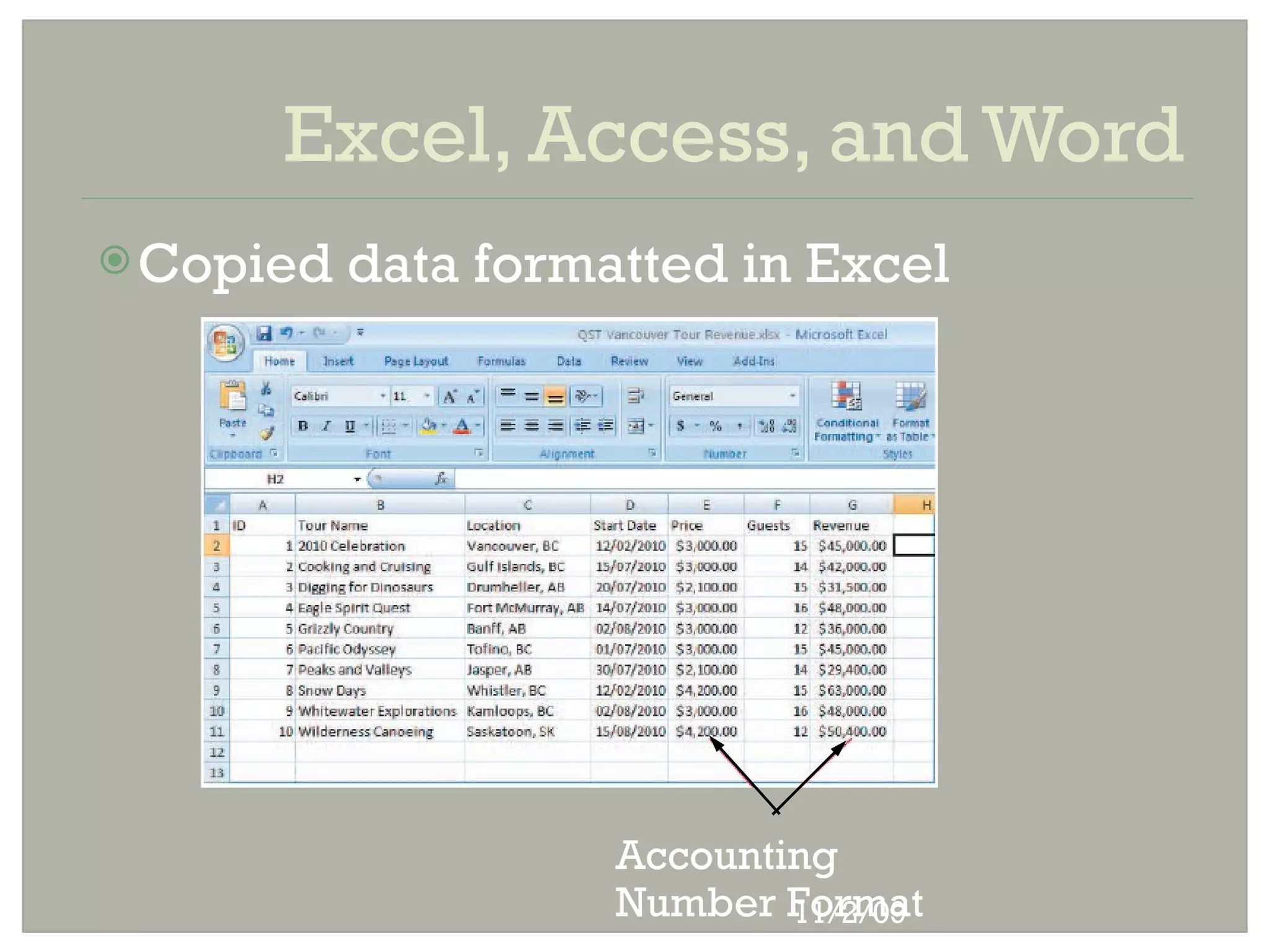
 Copied   data formatted in Excel


                     Accounting
                     Number Format
                             11/2/09
Excel and PowerPoint
 Object  command: embedding tool
 Identifying an embedded Excel file
  • Worksheet appears in PowerPoint slide
  • Excel ribbons and tabs appear
  • PowerPoint title bar and menu remain
 Editing   an embedded worksheet
  • Double-click the embedded object
  • Show only cells containing data


                               11/2/09
Excel and PowerPoint
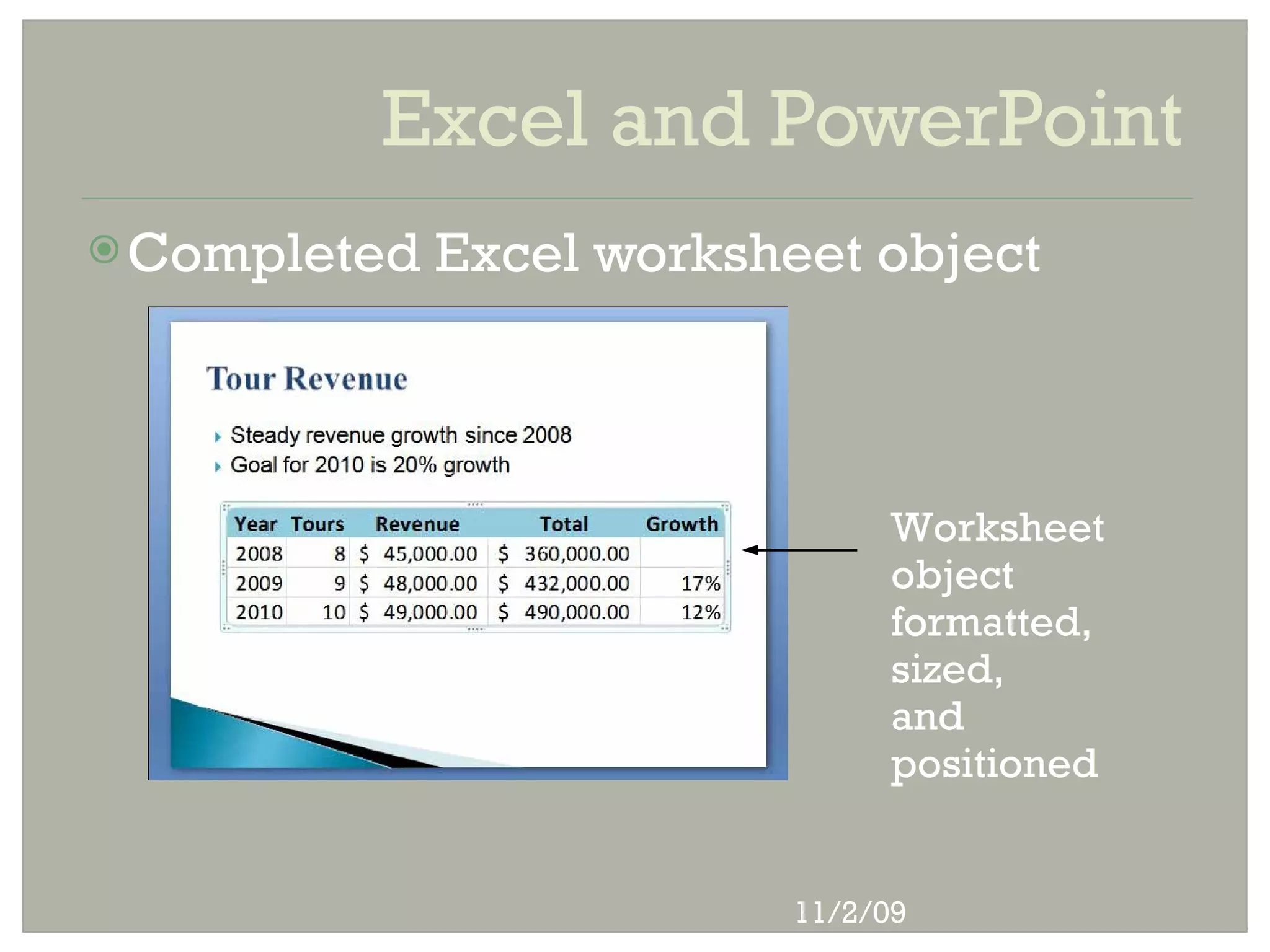
 Completed   Excel worksheet object


                                 Worksheet
                                 object
                                 formatted,
                                 sized,
                                 and
                                 positioned


                           11/2/09
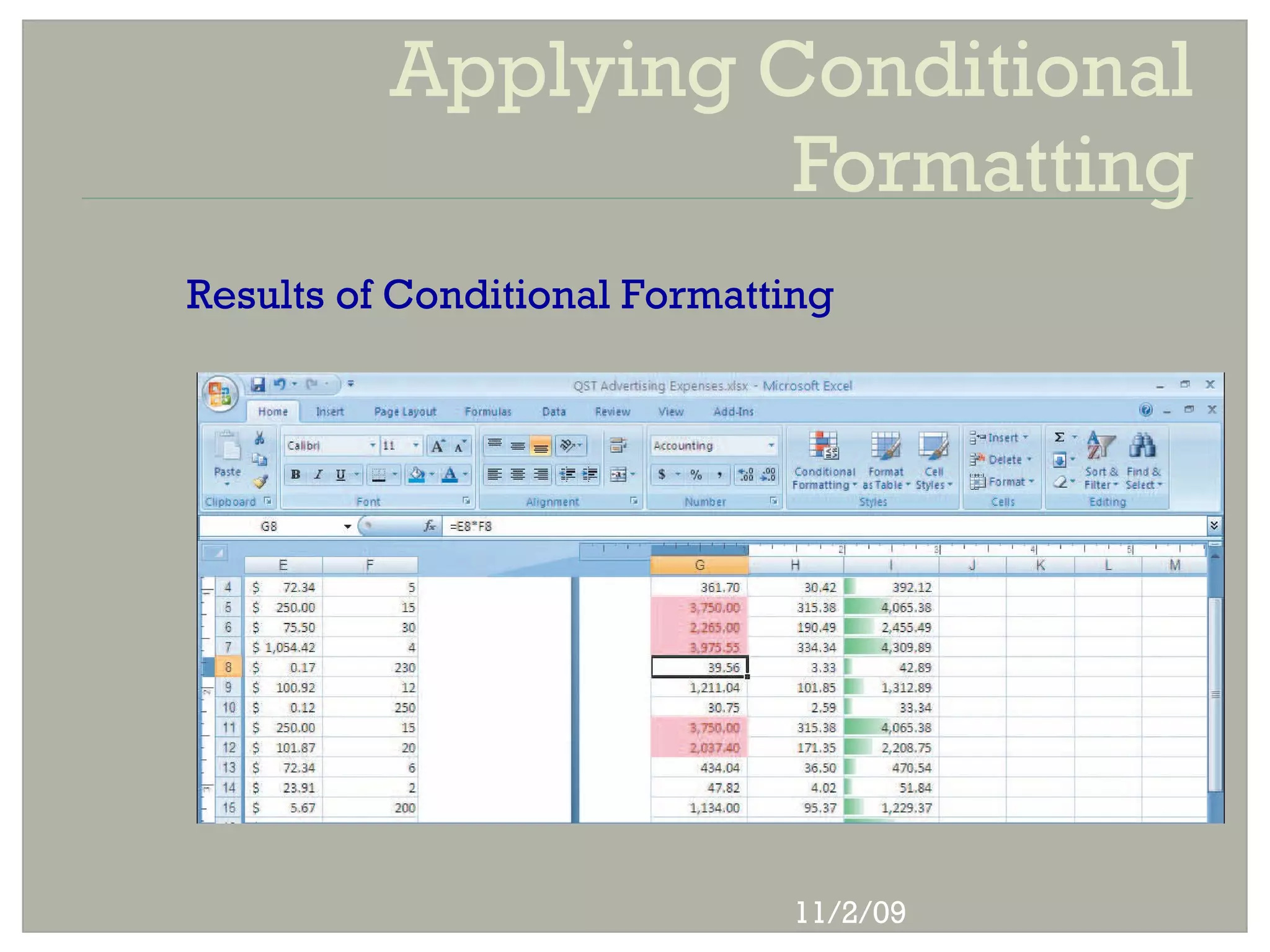
Conditional Formatting
 Excel can format cells based on specific
 results
  • Automatic application of formatting attributes on
    cell values is called conditional formatting
  • For example: values above a certain number can
    be one color and values below a certain number
    can be another color


                                  11/2/09
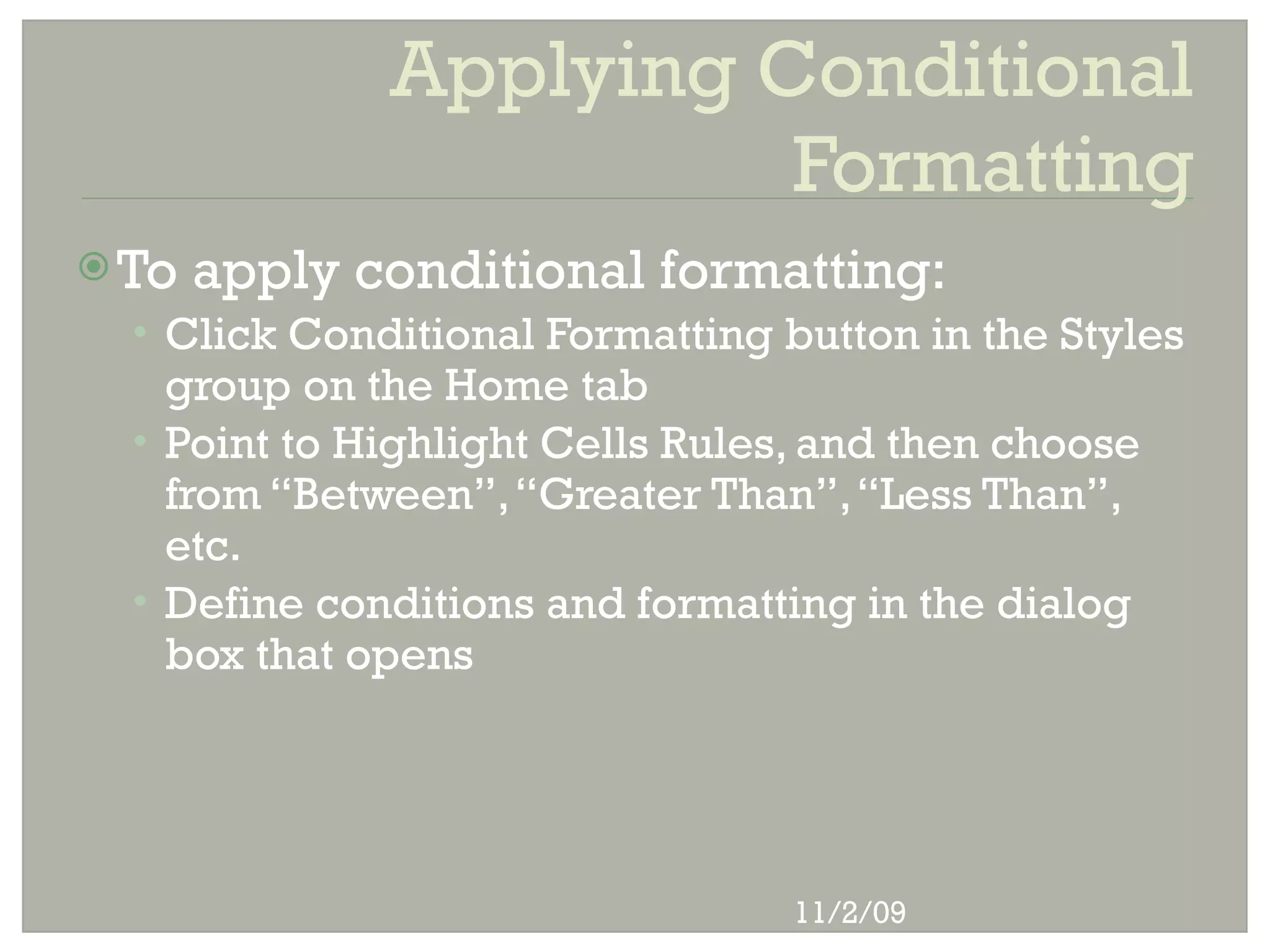
Applying Conditional
                        Formatting
 To   apply conditional formatting:
  • Click Conditional Formatting button in the Styles
    group on the Home tab
  • Point to Highlight Cells Rules, and then choose
    from “Between”, “Greater Than”, “Less Than”,
    etc.
  • Define conditions and formatting in the dialog
    box that opens


                                  11/2/09
Applying Conditional
                        Formatting
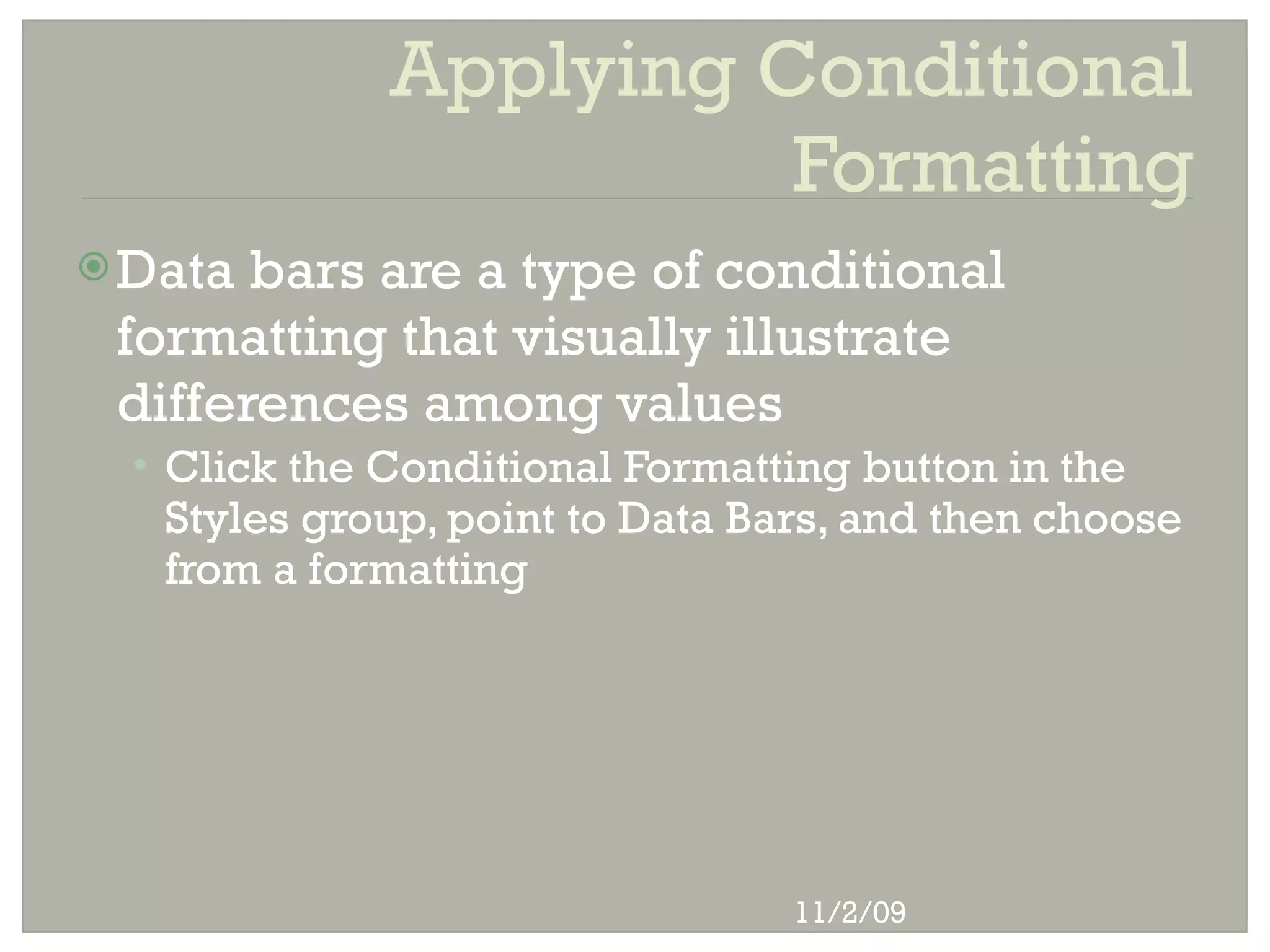
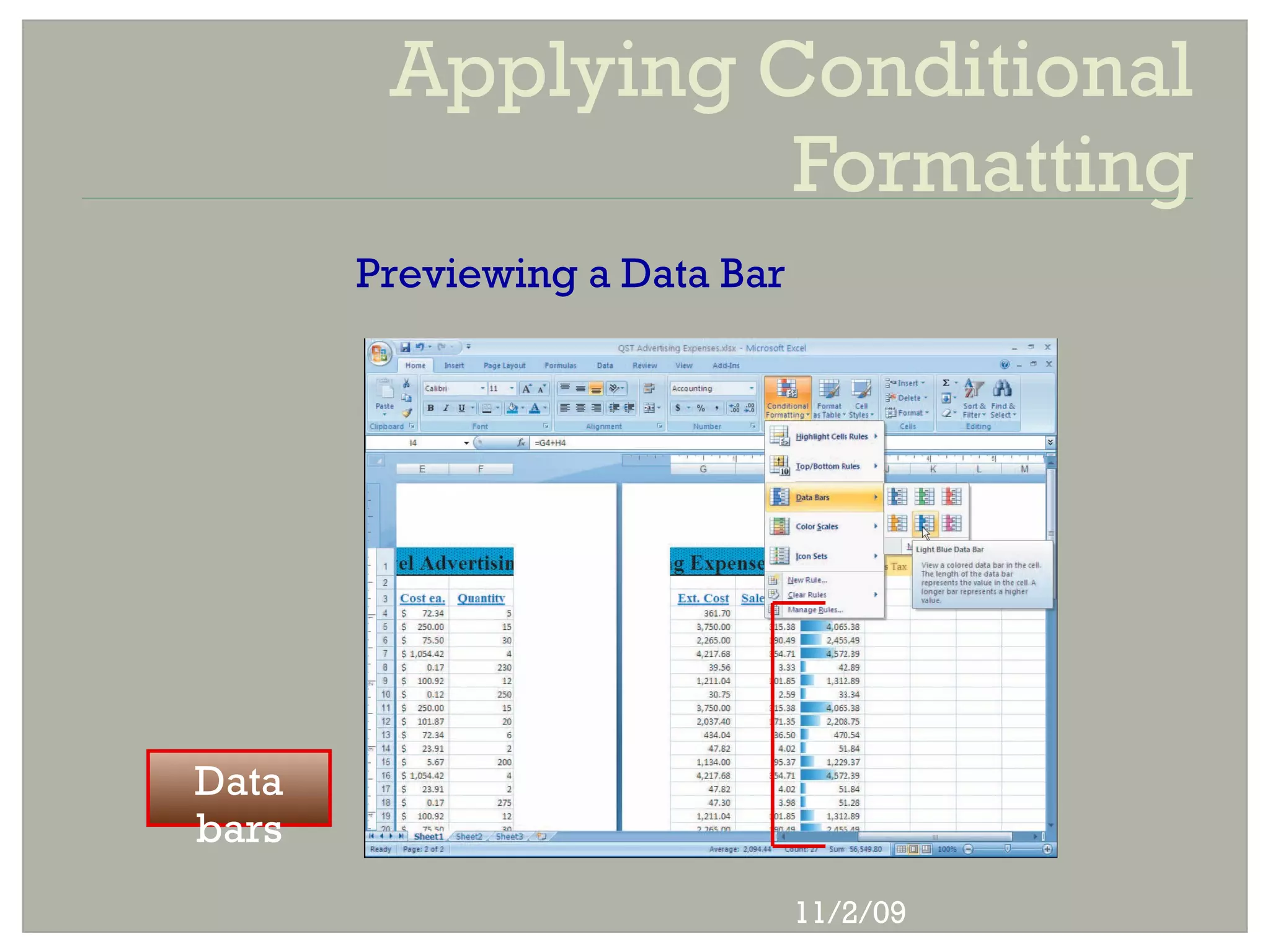
 Data bars are a type of conditional
 formatting that visually illustrate
 differences among values
  • Click the Conditional Formatting button in the
   Styles group, point to Data Bars, and then choose
   from a formatting


                                 11/2/09
Applying Conditional
                  Formatting
       Previewing a Data Bar


Data
bars
                               11/2/09
Applying Conditional
                    Formatting
Results of Conditional Formatting


                              11/2/09
SmartArt
 What   is SmartArt?
 • A SmartArt graphic is a professional-quality
   diagram that visually illustrates text

 When   to Use SmartArt?
 • When formatting your text alone simply does not
   work, you can use SmartArt
 • You can convert existing text into a SmartArt
   graphic or start from scratch


                                   11/2/09
SmartArt
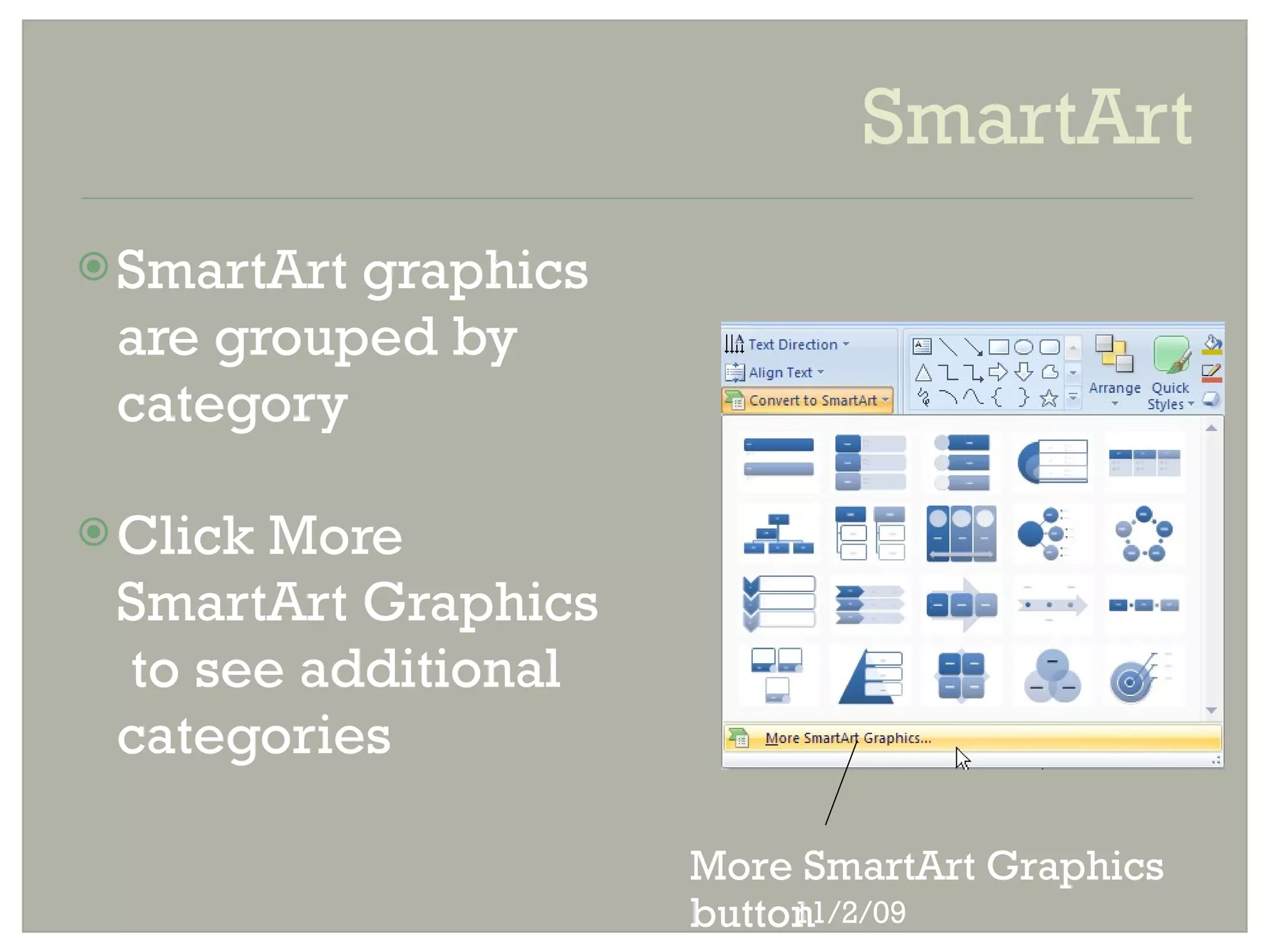
 SmartArtgraphics
 are grouped by
 category

 Click
      More
 SmartArt Graphics
 to see additional
 categories

                     More SmartArt Graphics
                     button
                          11/2/09
SmartArt
Basic Venn SmartArt
graphic
                                              Outco
                                              me


Click text placeholders to   Notice the words that
enter text                   filled in [Text]


                                  11/2/09
SmartArt


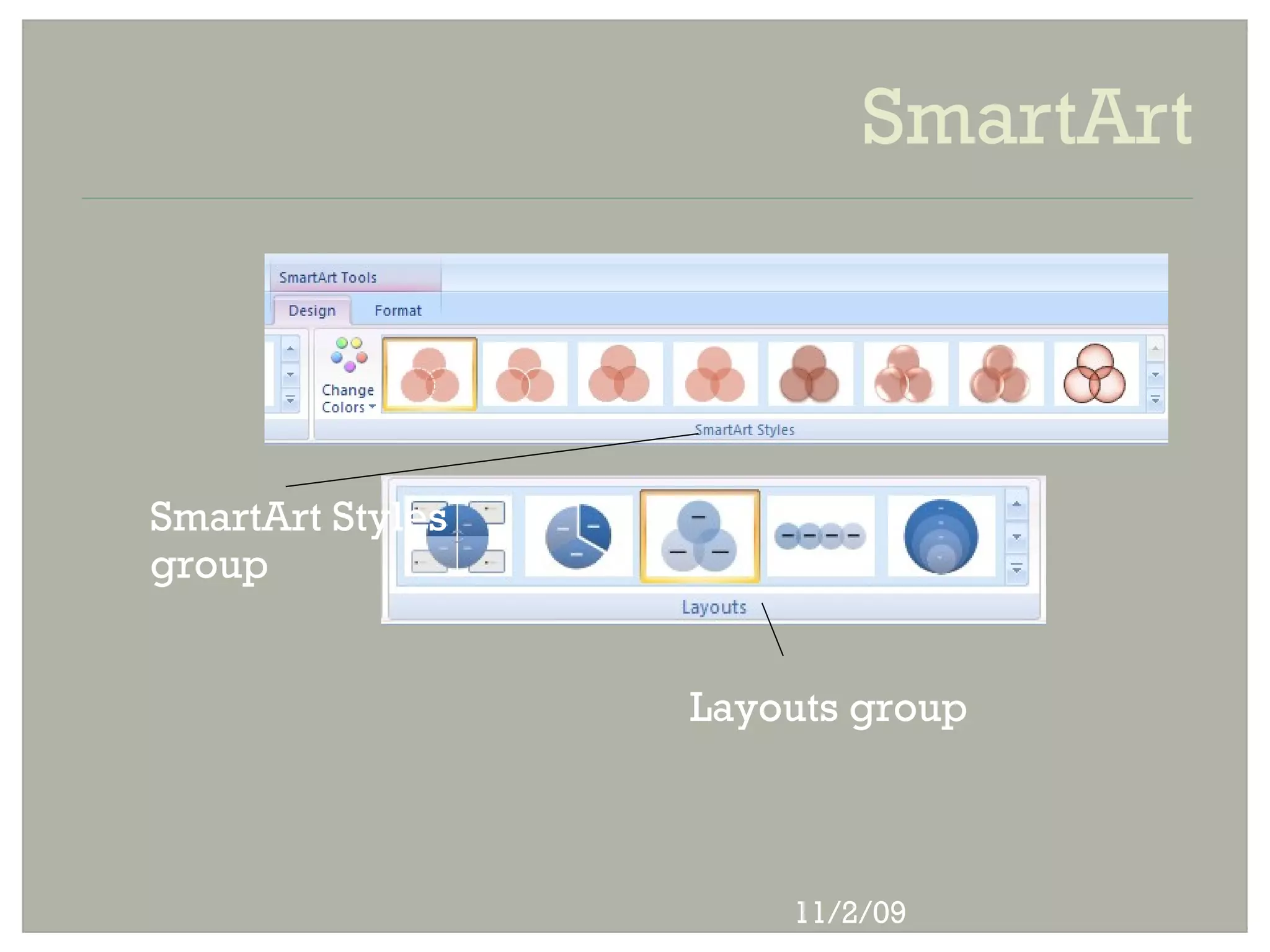
SmartArt Styles
group


                  Layouts group


                      11/2/09
Summary
   Integration allows the user to use the Office
    2007 programs to work together effectively and
    efficiently

   SmartArt allows the user to create professional-
    quality diagrams that visually illustrates text

   Conditional Formatting automatically applies
    formatting attributes on cell values to make
    worksheets stand out


                                11/2/09
Questions?
Please contact me with any questions at:
        nikkifollis@gmail.com

       Thank you for your time!


                          11/2/09

Excel Tips and Tricks Webinar - PDF

  • 1.
    Excel Tips andTricks Utilizing Excel 2007 Click to edit Master subtitle style Date/Time: October 15th - 12pm (EST) Webinar Offered by: Federally Employed Women's Foundation for Education & Training Presenter: Nikki Follis, Grantham University Microsoft Office 2007-Illustrated 11/2/09
  • 2.
    Objectives  Integrate databetween Word and Excel  Copy data from Excel to Word  Copy a chart from Excel to Word  Create linked objects  Embed a Word file in Excel  Apply Conditional Formatting  Use SmartArt Efficiently 11/2/09
  • 3.
    What is Integration? Data integration • Combines data from multiple programs  Example of data integration • Create a chart in Excel • Use the Excel chart in a Word report • Modify chart data from source Excel file  Data integration saves time and effort • Information is reused multiple times 11/2/09
  • 4.
    Integrating Data  Two types of files used in integration: • Source: file where information originates • Destination: file that receives information  Object Linking and Embedding (OLE) • Microsoft technology for integrating data  Linking an object • Image of object copied to destination file • You can edit object data from source file 11/2/09
  • 5.
    Integrating Data  Embedding an object: • Copy of object is placed in destination file • Edit object with source program tools  Ways to integrate Word and Excel: • Copy and paste data from the Clipboard • Link data between two files • Copy Excel chart and paste into Word • Embed a Word file into Excel worksheet 11/2/09
  • 6.
    Integrating Data  Embedding vs. linking 11/2/09
  • 7.
    Integrating Data Photograp h copied Table from Excel object copied from Excel Chart linked to Excel source chart 75% is a 11/2/09 linked
  • 8.
    Copying Data fromExcel to Word  Uses of Copy and Paste commands • Copy and paste items within a document • Copy and paste items between programs  Items transferred with Copy and Paste • Line of text, value, picture, chart  Properties of a copied object • Retains formatting of original object • Independent of source (except chart) 11/2/09
  • 9.
    Copying Data fromExcel to Word  Use the Copy and Paste commands  Excel is the source file  Word is the destination file  Pasted chart is automatically linked  Effect of revising chart in source file • Linked data changes in destination file • Note: chart style does not update 11/2/09
  • 10.
    Copying a Chartfrom Excel to Word  Linked chart updated in Word Colum ns updat ed 11/2/09
  • 11.
    Copying a Chartfrom Excel to Word  Chart style not applied to linked object Red chart New style chart does style in not Excel appear in linked 11/2/09
  • 12.
    Creating Linked Objects Copy and Paste Special commands • Perform advanced copy and paste tasks • Can link copied object to a source file • Needed to link all items except chart  Features of Paste Special command • Paste • Paste Link • Formatting options 11/2/09
  • 13.
    Creating Linked Objects Paste Special dialog box 11/2/09
  • 14.
    Embedding a WordFile in Excel  Embedding an object • Inserts an entire file in a destination file • You can embed an existing or new file  Editing an embedded object • Double-click the embedded object • Edit tools from source program display  Accessing embedding tool in Excel • Click Insert tab, then click Object button 11/2/09
  • 15.
    Embedding a WordFile in Excel  Embedded object updated in Excel Title Word bar tabs shows and that ribbon Excel is Paragra are the ph activat destinat margins ed ion modifie progra d m Number of tours 11/2/09 updated
  • 16.
    Word, Excel, andAccess  Excel data imported to an Access table Field Name changed from Participants to Guests during the import process Excel data Excel data imported to Access and named Tours 11/2/09
  • 17.
    Excel and Access Ways to import Excel data to Access • Import Excel data into new Access table • Append Excel data to an existing table  How to import Excel data into Access • Click the Get External Data tab in Access • Click Excel button in the Import Group • Navigate to Excel file and select an option • Follow Import Spreadsheet Wizard 11/2/09
  • 18.
    Excel and Access Options in Get External Data dialog box The file path will be different on your computer 11/2/09
  • 19.
    Excel and Access Excel table imported to Access 11/2/09
  • 20.
    Excel, Access, andWord  Benefits of linking three programs: • Use each program’s strengths • Reduce amount of data entry  Use Copy and Paste Special tools • Step 1: link Access table to Excel file • Step 2: link Excel data to Word file  Effects of changing table in Access • Data in Excel and Word will also change 11/2/09
  • 21.
    Excel, Access, andWord  Copied data formatted in Excel Accounting Number Format 11/2/09
  • 22.
    Excel and PowerPoint Object command: embedding tool  Identifying an embedded Excel file • Worksheet appears in PowerPoint slide • Excel ribbons and tabs appear • PowerPoint title bar and menu remain  Editing an embedded worksheet • Double-click the embedded object • Show only cells containing data 11/2/09
  • 23.
    Excel and PowerPoint Completed Excel worksheet object Worksheet object formatted, sized, and positioned 11/2/09
  • 24.
    Conditional Formatting  Excelcan format cells based on specific results • Automatic application of formatting attributes on cell values is called conditional formatting • For example: values above a certain number can be one color and values below a certain number can be another color 11/2/09
  • 25.
    Applying Conditional Formatting  To apply conditional formatting: • Click Conditional Formatting button in the Styles group on the Home tab • Point to Highlight Cells Rules, and then choose from “Between”, “Greater Than”, “Less Than”, etc. • Define conditions and formatting in the dialog box that opens 11/2/09
  • 26.
    Applying Conditional Formatting  Data bars are a type of conditional formatting that visually illustrate differences among values • Click the Conditional Formatting button in the Styles group, point to Data Bars, and then choose from a formatting 11/2/09
  • 27.
    Applying Conditional Formatting Previewing a Data Bar Data bars 11/2/09
  • 28.
    Applying Conditional Formatting Results of Conditional Formatting 11/2/09
  • 29.
    SmartArt  What is SmartArt? • A SmartArt graphic is a professional-quality diagram that visually illustrates text  When to Use SmartArt? • When formatting your text alone simply does not work, you can use SmartArt • You can convert existing text into a SmartArt graphic or start from scratch 11/2/09
  • 30.
    SmartArt  SmartArtgraphics aregrouped by category  Click More SmartArt Graphics to see additional categories More SmartArt Graphics button 11/2/09
  • 31.
    SmartArt Basic Venn SmartArt graphic Outco me Click text placeholders to Notice the words that enter text filled in [Text] 11/2/09
  • 32.
    SmartArt SmartArt Styles group Layouts group 11/2/09
  • 33.
    Summary  Integration allows the user to use the Office 2007 programs to work together effectively and efficiently  SmartArt allows the user to create professional- quality diagrams that visually illustrates text  Conditional Formatting automatically applies formatting attributes on cell values to make worksheets stand out 11/2/09
  • 34.
    Questions? Please contact mewith any questions at: nikkifollis@gmail.com Thank you for your time! 11/2/09