DEFINING SELECTORS
HTML5 & CSS Visual Quickstart Guide
Chapter 9
Constructing Selectors
• The selector determines which elements a style rule
  applies to
• A selector can define up to 5 different criteria for choosing
  the elements that should be formatted:
  • Type or name of the element
  • Context in which element is found
  • Class or id of an element
  • Pseudo-class of an element or a pseudo-element itself
  • Whether or not an element has certain attributes or values
Selecting Elements by Name
• Type selector, where selector is the name of the desired
 type of element, without any attributes
  • p
  • h1
  • a
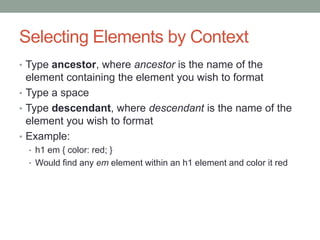
Selecting Elements by Context
• Type ancestor, where ancestor is the name of the
  element containing the element you wish to format
• Type a space
• Type descendant, where descendant is the name of the
  element you wish to format
• Example:
 • h1 em { color: red; }
 • Would find any em element within an h1 element and color it red
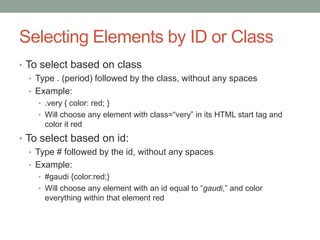
Selecting Elements by ID or Class
• To select based on class
   • Type . (period) followed by the class, without any spaces
   • Example:
     • .very { color: red; }
     • Will choose any element with class=“very” in its HTML start tag and
       color it red
• To select based on id:
   • Type # followed by the id, without any spaces
   • Example:
     • #gaudi {color:red;}
     • Will choose any element with an id equal to “gaudi,” and color
       everything within that element red
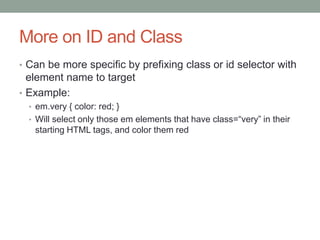
More on ID and Class
• Can be more specific by prefixing class or id selector with
  element name to target
• Example:
  • em.very { color: red; }
  • Will select only those em elements that have class=“very” in their
   starting HTML tags, and color them red
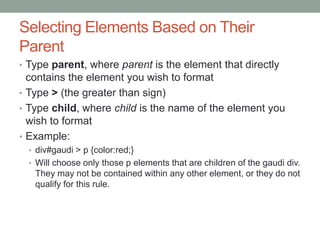
Selecting Elements Based on Their
Parent
• Type parent, where parent is the element that directly
  contains the element you wish to format
• Type > (the greater than sign)
• Type child, where child is the name of the element you
  wish to format
• Example:
  • div#gaudi > p {color:red;}
  • Will choose only those p elements that are children of the gaudi div.
   They may not be contained within any other element, or they do not
   qualify for this rule.
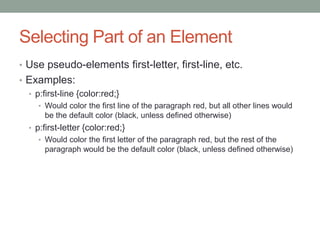
Selecting Part of an Element
• Use pseudo-elements first-letter, first-line, etc.
• Examples:
  • p:first-line {color:red;}
     • Would color the first line of the paragraph red, but all other lines would
       be the default color (black, unless defined otherwise)
  • p:first-letter {color:red;}
     • Would color the first letter of the paragraph red, but the rest of the
       paragraph would be the default color (black, unless defined otherwise)
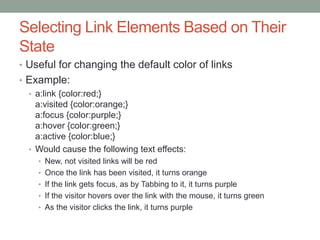
Selecting Link Elements Based on Their
State
• Useful for changing the default color of links
• Example:
  • a:link {color:red;}
    a:visited {color:orange;}
    a:focus {color:purple;}
    a:hover {color:green;}
    a:active {color:blue;}
  • Would cause the following text effects:
    • New, not visited links will be red
    • Once the link has been visited, it turns orange
    • If the link gets focus, as by Tabbing to it, it turns purple
    • If the visitor hovers over the link with the mouse, it turns green
    • As the visitor clicks the link, it turns purple
Specifying Groups of Selectors
• Occasionally want to set the same attributes to several
  elements
• Example:
  • h1, h2 {color:red;}
  • Will set color of both h1 and h2 elements to red.

Castro Chapter 9

  • 1.
    DEFINING SELECTORS HTML5 &CSS Visual Quickstart Guide Chapter 9
  • 2.
    Constructing Selectors • Theselector determines which elements a style rule applies to • A selector can define up to 5 different criteria for choosing the elements that should be formatted: • Type or name of the element • Context in which element is found • Class or id of an element • Pseudo-class of an element or a pseudo-element itself • Whether or not an element has certain attributes or values
  • 3.
    Selecting Elements byName • Type selector, where selector is the name of the desired type of element, without any attributes • p • h1 • a
  • 4.
    Selecting Elements byContext • Type ancestor, where ancestor is the name of the element containing the element you wish to format • Type a space • Type descendant, where descendant is the name of the element you wish to format • Example: • h1 em { color: red; } • Would find any em element within an h1 element and color it red
  • 5.
    Selecting Elements byID or Class • To select based on class • Type . (period) followed by the class, without any spaces • Example: • .very { color: red; } • Will choose any element with class=“very” in its HTML start tag and color it red • To select based on id: • Type # followed by the id, without any spaces • Example: • #gaudi {color:red;} • Will choose any element with an id equal to “gaudi,” and color everything within that element red
  • 6.
    More on IDand Class • Can be more specific by prefixing class or id selector with element name to target • Example: • em.very { color: red; } • Will select only those em elements that have class=“very” in their starting HTML tags, and color them red
  • 7.
    Selecting Elements Basedon Their Parent • Type parent, where parent is the element that directly contains the element you wish to format • Type > (the greater than sign) • Type child, where child is the name of the element you wish to format • Example: • div#gaudi > p {color:red;} • Will choose only those p elements that are children of the gaudi div. They may not be contained within any other element, or they do not qualify for this rule.
  • 8.
    Selecting Part ofan Element • Use pseudo-elements first-letter, first-line, etc. • Examples: • p:first-line {color:red;} • Would color the first line of the paragraph red, but all other lines would be the default color (black, unless defined otherwise) • p:first-letter {color:red;} • Would color the first letter of the paragraph red, but the rest of the paragraph would be the default color (black, unless defined otherwise)
  • 9.
    Selecting Link ElementsBased on Their State • Useful for changing the default color of links • Example: • a:link {color:red;} a:visited {color:orange;} a:focus {color:purple;} a:hover {color:green;} a:active {color:blue;} • Would cause the following text effects: • New, not visited links will be red • Once the link has been visited, it turns orange • If the link gets focus, as by Tabbing to it, it turns purple • If the visitor hovers over the link with the mouse, it turns green • As the visitor clicks the link, it turns purple
  • 10.
    Specifying Groups ofSelectors • Occasionally want to set the same attributes to several elements • Example: • h1, h2 {color:red;} • Will set color of both h1 and h2 elements to red.