Fundamental of
Website Development
by
Paul Umoren
Cascading Style Sheet(CSS)
CSS is the presentation part of web page layout. CSS gives the
beauty and flexibility in Web design. The styles are the rules that
tell web browser that understand them how to display specific
types of content structures when it encounters these structures
while delivering a web page to users.
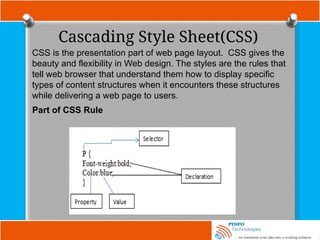
Part of CSS Rule
Part of CSS Rule
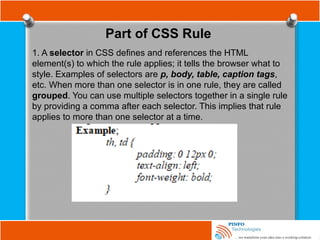
1. A selector in CSS defines and references the HTML
element(s) to which the rule applies; it tells the browser what to
style. Examples of selectors are p, body, table, caption tags,
etc. When more than one selector is in one rule, they are called
grouped. You can use multiple selectors together in a single rule
by providing a comma after each selector. This implies that rule
applies to more than one selector at a time.
Part of CSS Rule
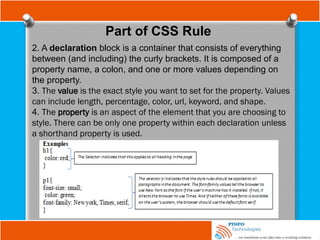
2. A declaration block is a container that consists of everything
between (and including) the curly brackets. It is composed of a
property name, a colon, and one or more values depending on
the property.
3. The value is the exact style you want to set for the property. Values
can include length, percentage, color, url, keyword, and shape.
4. The property is an aspect of the element that you are choosing to
style. There can be only one property within each declaration unless
a shorthand property is used.
Length and measurement in CSS
The two kinds of lengths used in CSS are relative and absolute
lengths. Absolute measurements are defined based on real world
units such as inches, centimetres, points, etc., and they are mostly
used in print work.
Relative measurement is suited for onscreen layout; the four types of
relative measurement that CSS allows are emphasis (em), x-height
(ex), pixels (px) and percentage (%).
Ways of including CSS in html document
CSS declaration can be included in a document as follows;
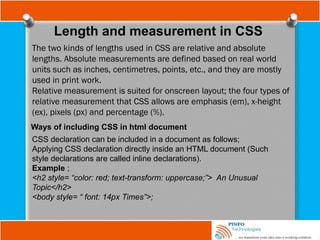
Applying CSS declaration directly inside an HTML document (Such
style declarations are called inline declarations).
Example ;
<h2 style= “color: red; text-transform: uppercase;”> An Unusual
Topic</h2>
<body style= “ font: 14px Times”>;
Ways of including CSS in html document
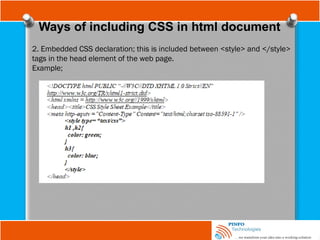
2. Embedded CSS declaration; this is included between <style> and </style>
tags in the head element of the web page.
Example;
Color and CSS
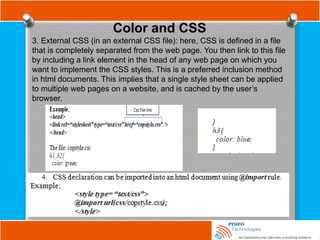
3. External CSS (in an external CSS file): here, CSS is defined in a file
that is completely separated from the web page. You then link to this file
by including a link element in the head of any web page on which you
want to implement the CSS styles. This is a preferred inclusion method
in html documents. This implies that a single style sheet can be applied
to multiple web pages on a website, and is cached by the user’s
browser.
Color and CSS
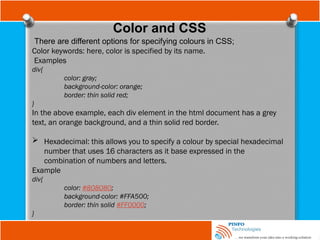
There are different options for specifying colours in CSS;
Color keywords: here, color is specified by its name.
Examples
div{
color: gray;
background-color: orange;
border: thin solid red;
}
In the above example, each div element in the html document has a grey
text, an orange background, and a thin solid red border.
 Hexadecimal: this allows you to specify a colour by special hexadecimal
number that uses 16 characters as it base expressed in the
combination of numbers and letters.
Example
div{
color: #808080;
background-color: #FFA500;
border: thin solid #FF0000;
}
Color and CSS
There are different options for specifying colours in CSS;
Color keywords: here, color is specified by its name.
Examples
div{
color: gray;
background-color: orange;
border: thin solid red;
}
In the above example, each div element in the html document has a grey
text, an orange background, and a thin solid red border.
 Hexadecimal: this allows you to specify a colour by special hexadecimal
number that uses 16 characters as it base expressed in the
combination of numbers and letters.
Example
div{
color: #808080;
background-color: #FFA500;
border: thin solid #FF0000;
}
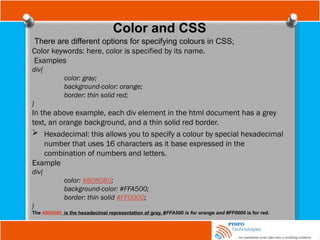
The #808080 is the hexadecimal representation of gray, #FFA500 is for orange and #FF0000 is for red.
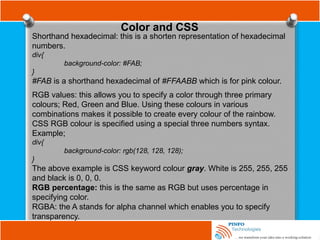
Color and CSS
Shorthand hexadecimal: this is a shorten representation of hexadecimal
numbers.
div{
background-color: #FAB;
}
#FAB is a shorthand hexadecimal of #FFAABB which is for pink colour.
RGB values: this allows you to specify a color through three primary
colours; Red, Green and Blue. Using these colours in various
combinations makes it possible to create every colour of the rainbow.
CSS RGB colour is specified using a special three numbers syntax.
Example;
div{
background-color: rgb(128, 128, 128);
}
The above example is CSS keyword colour gray. White is 255, 255, 255
and black is 0, 0, 0.
RGB percentage: this is the same as RGB but uses percentage in
specifying color.
RGBA: the A stands for alpha channel which enables you to specify
transparency.
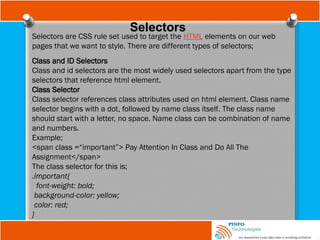
Selectors
Selectors are CSS rule set used to target the HTML elements on our web
pages that we want to style. There are different types of selectors;
Class and ID Selectors
Class and id selectors are the most widely used selectors apart from the type
selectors that reference html element.
Class Selector
Class selector references class attributes used on html element. Class name
selector begins with a dot, followed by name class itself. The class name
should start with a letter, no space. Name class can be combination of name
and numbers.
Example;
<span class =“important”> Pay Attention In Class and Do All The
Assignment</span>
The class selector for this is;
.important{
font-weight: bold;
background-color: yellow;
color: red;
}
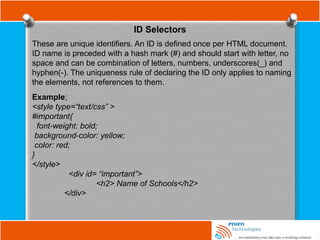
ID Selectors
These are unique identifiers. An ID is defined once per HTML document.
ID name is preceded with a hash mark (#) and should start with letter, no
space and can be combination of letters, numbers, underscores(_) and
hyphen(-). The uniqueness rule of declaring the ID only applies to naming
the elements, not references to them.
Example;
<style type=“text/css” >
#important{
font-weight: bold;
background-color: yellow;
color: red;
}
</style>
<div id= “important”>
<h2> Name of Schools</h2>
</div>
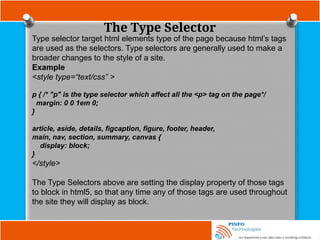
The Type Selector
Type selector target html elements type of the page because html’s tags
are used as the selectors. Type selectors are generally used to make a
broader changes to the style of a site.
Example
<style type=“text/css” >
p { /* "p" is the type selector which affect all the <p> tag on the page*/
margin: 0 0 1em 0;
}
article, aside, details, figcaption, figure, footer, header,
main, nav, section, summary, canvas {
display: block;
}
</style>
The Type Selectors above are setting the display property of those tags
to block in html5, so that any time any of those tags are used throughout
the site they will display as block.
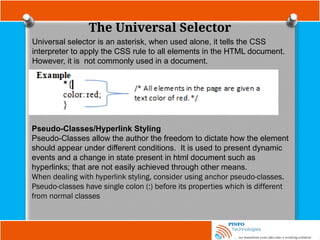
The Universal Selector
Universal selector is an asterisk, when used alone, it tells the CSS
interpreter to apply the CSS rule to all elements in the HTML document.
However, it is not commonly used in a document.
Pseudo-Classes/Hyperlink Styling
Pseudo-Classes allow the author the freedom to dictate how the element
should appear under different conditions. It is used to present dynamic
events and a change in state present in html document such as
hyperlinks; that are not easily achieved through other means.
When dealing with hyperlink styling, consider using anchor pseudo-classes.
Pseudo-classes have single colon (:) before its properties which is different
from normal classes
Pseudo-Classes/Hyperlink Styling
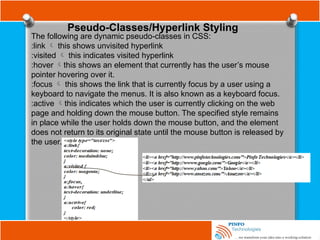
The following are dynamic pseudo-classes in CSS:
:link  this shows unvisited hyperlink
:visited  this indicates visited hyperlink
:hover this shows an element that currently has the user’s mouse
pointer hovering over it.
:focus  this shows the link that is currently focus by a user using a
keyboard to navigate the menus. It is also known as a keyboard focus.
:active this indicates which the user is currently clicking on the web
page and holding down the mouse button. The specified style remains
in place while the user holds down the mouse button, and the element
does not return to its original state until the mouse button is released by
the user.
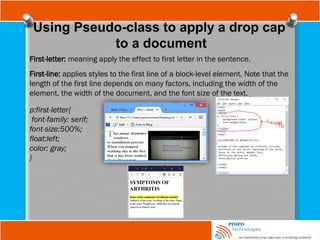
Using Pseudo-class to apply a drop cap
to a document
First-letter: meaning apply the effect to first letter in the sentence.
First-line: applies styles to the first line of a block-level element. Note that the
length of the first line depends on many factors, including the width of the
element, the width of the document, and the font size of the text.
p:first-letter{
font-family: serif;
font-size:500%;
float:left;
color: gray;
}
Other Selectors
The following are other CSS selectors; direct child selectors, next sibling
selectors, attribute selectors, pseudo-elements and structural pseudo-
classes;
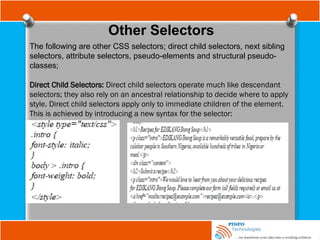
Direct Child Selectors: Direct child selectors operate much like descendant
selectors; they also rely on an ancestral relationship to decide where to apply
style. Direct child selectors apply only to immediate children of the element.
This is achieved by introducing a new syntax for the selector:
Other Selectors
Attribute selector
Attribute selectors are used to apply style sheet declarations based on the
presence of attributes or attribute values of an HTML element.
The syntax for attribute selectors is as follows;
In the above, a simple type selector is used to give all input elements a
yellow background. Then using a combined type and attribute selector,
input[name], a dashed border is only added to those inputs that have a
name attribute -the final input, <input type=”submit” value=”Send recipe”>,
does not have a name attribute and therefore does not have a dotted
border around it. This type of attribute selector is known as Select by
Presence of an Attribute.
Other Selectors
Attribute selector
input[name=“email”] {
border: 2px dashed #996600;
}
Here, both an attribute (name) and a value for that attribute (email), to select
on only input elements with name attribute values of email will only match
this selector.
Now using a combined type, attribute, and value selector, input
[name=”email”], a dashed border is only applied to those input elements that
have a name attribute with value equal to email as it is shown above.
Other Selectors
Attribute substring selectors : This chooses elements based on
whether a particular string appears at the beginning of an attribute’s value,
at the end of an attribute’s value, or anywhere inside an attribute’s value.
This is also known as regular expression in CSS3.
A combined type, attribute, and a value selector with the ^ character
indicating that you want to match the start of the value with your string,
a[href^=”mailto:”]; you added an envelope icon as a background image.
. This changes all input elements with an id
attribute value that ends in the string name.
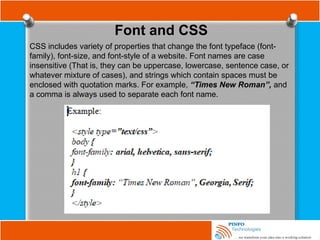
Font and CSS
CSS includes variety of properties that change the font typeface (font-
family), font-size, and font-style of a website. Font names are case
insensitive (That is, they can be uppercase, lowercase, sentence case, or
whatever mixture of cases), and strings which contain spaces must be
enclosed with quotation marks. For example, “Times New Roman”, and
a comma is always used to separate each font name.
Font and CSS
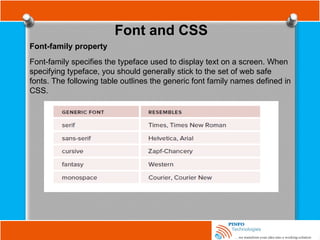
Font-family property
Font-family specifies the typeface used to display text on a screen. When
specifying typeface, you should generally stick to the set of web safe
fonts. The following table outlines the generic font family names defined in
CSS.
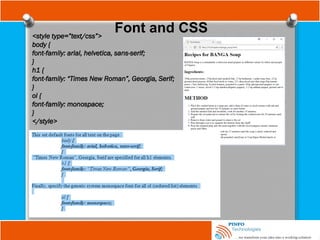
Font and CSS
<style type=”text/css”>
body {
font-family: arial, helvetica, sans-serif;
}
h1 {
font-family: “Times New Roman”, Georgia, Serif;
}
ol {
font-family: monospace;
}
</style>
Font and CSS
Font-style
Font-style property is used
to switch between styles
provided by a particular
font. The values for
possible font-style property
are italic, normal, inherit,
and oblique.
Font-weight
Font-weight property
provides the functionality
on how bold a font should
be. The values for font-
weight property are
normal, bold, bolder,
lighter, 100, 200, 300, 400,
500, 600, 700, 800, and
900.
<style type="text/css">
body {
font-family: arial, helvetica, sans-serif;
}
h1{
font-family: “Times New Roman”, Georgia,
Serif;
font-weight: bolder;
}
.intro {
font-weight: bold;
}
.recipe .intro {
font-weight: normal;
font-style:italic;
}
</style>
Font and CSS
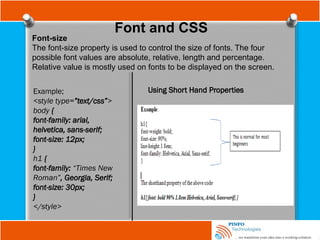
Font-size
The font-size property is used to control the size of fonts. The four
possible font values are absolute, relative, length and percentage.
Relative value is mostly used on fonts to be displayed on the screen.
Example;
<style type=”text/css”>
body {
font-family: arial,
helvetica, sans-serif;
font-size: 12px;
}
h1 {
font-family: “Times New
Roman”, Georgia, Serif;
font-size: 30px;
}
</style>
Using Short Hand Properties
Font and CSS
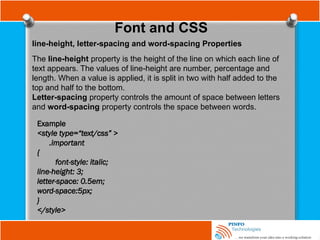
line-height, letter-spacing and word-spacing Properties
The line-height property is the height of the line on which each line of
text appears. The values of line-height are number, percentage and
length. When a value is applied, it is split in two with half added to the
top and half to the bottom.
Letter-spacing property controls the amount of space between letters
and word-spacing property controls the space between words.
Example
<style type=“text/css” >
.important
{
font-style: italic;
line-height: 3;
letter-space: 0.5em;
word-space:5px;
}
</style>
Font and CSS
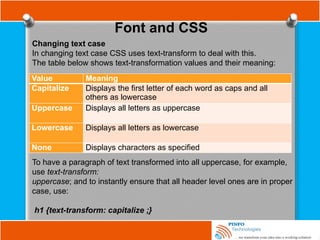
Changing text case
In changing text case CSS uses text-transform to deal with this.
The table below shows text-transformation values and their meaning:
Value Meaning
Capitalize Displays the first letter of each word as caps and all
others as lowercase
Uppercase Displays all letters as uppercase
Lowercase Displays all letters as lowercase
None Displays characters as specified
To have a paragraph of text transformed into all uppercase, for example,
use text-transform:
uppercase; and to instantly ensure that all header level ones are in proper
case, use:
h1 {text-transform: capitalize ;}
Font and CSS
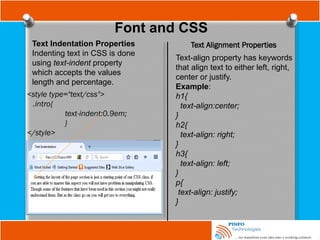
Text Indentation Properties
Indenting text in CSS is done
using text-indent property
which accepts the values
length and percentage.
<style type="text/css">
.intro{
text-indent:0.9em;
}
</style>
Text Alignment Properties
Text-align property has keywords
that align text to either left, right,
center or justify.
Example:
h1{
text-align:center;
}
h2{
text-align: right;
}
h3{
text-align: left;
}
p{
text-align: justify;
}
Font and CSS
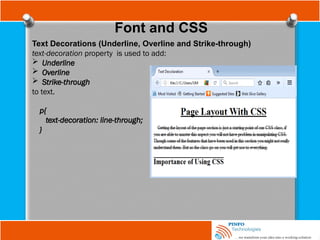
Text Decorations (Underline, Overline and Strike-through)
text-decoration property is used to add:
 Underline
 Overline
 Strike-through
to text.
p{
text-decoration: line-through;
}
Working with Images in CSS
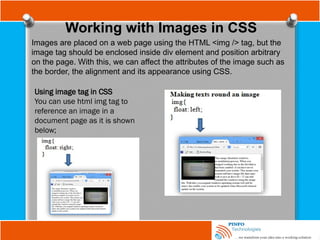
Images are placed on a web page using the HTML <img /> tag, but the
image tag should be enclosed inside div element and position arbitrary
on the page. With this, we can affect the attributes of the image such as
the border, the alignment and its appearance using CSS.
Using image tag in CSS
You can use html img tag to
reference an image in a
document page as it is shown
below;
Working with Images in CSS
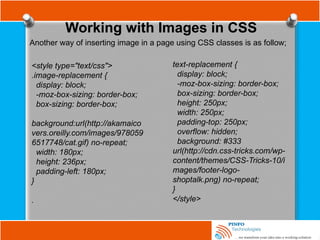
Another way of inserting image in a page using CSS classes is as follow;
<style type="text/css">
.image-replacement {
display: block;
-moz-box-sizing: border-box;
box-sizing: border-box;
background:url(http://akamaico
vers.oreilly.com/images/978059
6517748/cat.gif) no-repeat;
width: 180px;
height: 236px;
padding-left: 180px;
}
.
text-replacement {
display: block;
-moz-box-sizing: border-box;
box-sizing: border-box;
height: 250px;
width: 250px;
padding-top: 250px;
overflow: hidden;
background: #333
url(http://cdn.css-tricks.com/wp-
content/themes/CSS-Tricks-10/i
mages/footer-logo-
shoptalk.png) no-repeat;
}
</style>
Working with background images
in CSS
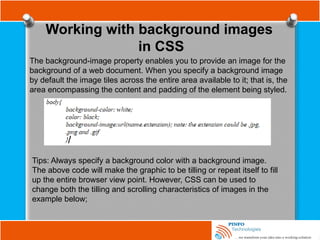
The background-image property enables you to provide an image for the
background of a web document. When you specify a background image
by default the image tiles across the entire area available to it; that is, the
area encompassing the content and padding of the element being styled.
Tips: Always specify a background color with a background image.
The above code will make the graphic to be tilling or repeat itself to fill
up the entire browser view point. However, CSS can be used to
change both the tilling and scrolling characteristics of images in the
example below;
Working with background images
in CSS
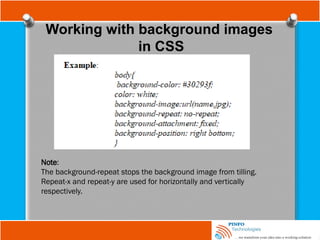
Note:
The background-repeat stops the background image from tilling.
Repeat-x and repeat-y are used for horizontally and vertically
respectively.
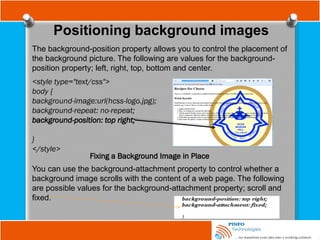
Positioning background images
The background-position property allows you to control the placement of
the background picture. The following are values for the background-
position property; left, right, top, bottom and center.
<style type="text/css">
body {
background-image:url(hcss-logo.jpg);
background-repeat: no-repeat;
background-position: top right;
}
</style>
Fixing a Background Image in Place
You can use the background-attachment property to control whether a
background image scrolls with the content of a web page. The following
are possible values for the background-attachment property; scroll and
fixed.
Controlling Margins, Borders, Padding, Width,
and Height in CSS
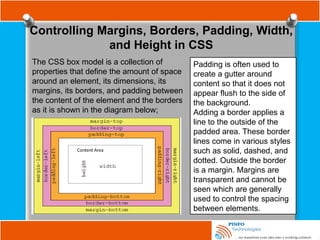
The CSS box model is a collection of
properties that define the amount of space
around an element, its dimensions, its
margins, its borders, and padding between
the content of the element and the borders
as it is shown in the diagram below;
Content Area
Padding is often used to
create a gutter around
content so that it does not
appear flush to the side of
the background.
Adding a border applies a
line to the outside of the
padded area. These border
lines come in various styles
such as solid, dashed, and
dotted. Outside the border
is a margin. Margins are
transparent and cannot be
seen which are generally
used to control the spacing
between elements.
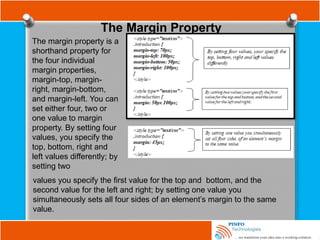
The Margin Property
The margin property is a
shorthand property for
the four individual
margin properties,
margin-top, margin-
right, margin-bottom,
and margin-left. You can
set either four, two or
one value to margin
property. By setting four
values, you specify the
top, bottom, right and
left values differently; by
setting two
values you specify the first value for the top and bottom, and the
second value for the left and right; by setting one value you
simultaneously sets all four sides of an element’s margin to the same
value.
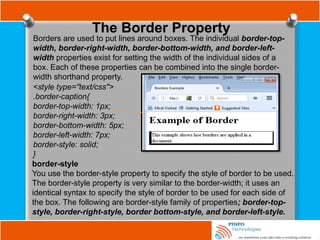
The Border Property
Borders are used to put lines around boxes. The individual border-top-
width, border-right-width, border-bottom-width, and border-left-
width properties exist for setting the width of the individual sides of a
box. Each of these properties can be combined into the single border-
width shorthand property.
<style type="text/css">
.border-caption{
border-top-width: 1px;
border-right-width: 3px;
border-bottom-width: 5px;
border-left-width: 7px;
border-style: solid;
}
border-style
You use the border-style property to specify the style of border to be used.
The border-style property is very similar to the border-width; it uses an
identical syntax to specify the style of border to be used for each side of
the box. The following are border-style family of properties; border-top-
style, border-right-style, border bottom-style, and border-left-style.
The Border Property
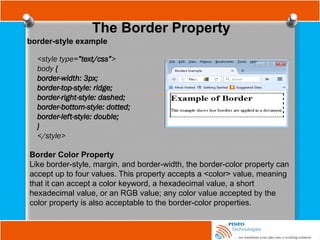
border-style example
<style type=”text/css”>
body {
border-width: 3px;
border-top-style: ridge;
border-right-style: dashed;
border-bottom-style: dotted;
border-left-style: double;
}
</style>
Border Color Property
Like border-style, margin, and border-width, the border-color property can
accept up to four values. This property accepts a <color> value, meaning
that it can accept a color keyword, a hexadecimal value, a short
hexadecimal value, or an RGB value; any color value accepted by the
color property is also acceptable to the border-color properties.
The Border Property
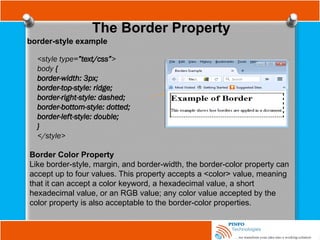
border-style example
<style type=”text/css”>
body {
border-width: 3px;
border-top-style: ridge;
border-right-style: dashed;
border-bottom-style: dotted;
border-left-style: double;
}
</style>
Border Color Property
Like border-style, margin, and border-width, the border-color property can
accept up to four values. This property accepts a <color> value, meaning
that it can accept a color keyword, a hexadecimal value, a short
hexadecimal value, or an RGB value; any color value accepted by the
color property is also acceptable to the border-color properties.
The Border Property
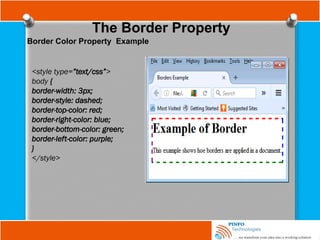
Border Color Property Example
<style type=”text/css”>
body {
border-width: 3px;
border-style: dashed;
border-top-color: red;
border-right-color: blue;
border-bottom-color: green;
border-left-color: purple;
}
</style>
The Padding Property
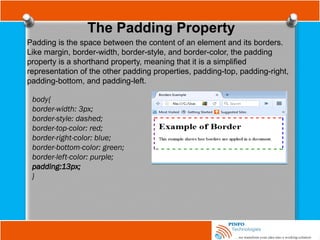
Padding is the space between the content of an element and its borders.
Like margin, border-width, border-style, and border-color, the padding
property is a shorthand property, meaning that it is a simplified
representation of the other padding properties, padding-top, padding-right,
padding-bottom, and padding-left.
body{
border-width: 3px;
border-style: dashed;
border-top-color: red;
border-right-color: blue;
border-bottom-color: green;
border-left-color: purple;
padding:13px;
}
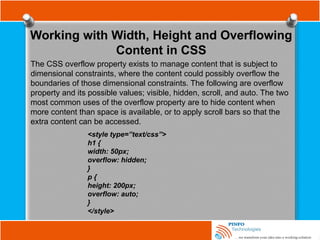
Working with Width, Height and Overflowing
Content in CSS
The CSS overflow property exists to manage content that is subject to
dimensional constraints, where the content could possibly overflow the
boundaries of those dimensional constraints. The following are overflow
property and its possible values; visible, hidden, scroll, and auto. The two
most common uses of the overflow property are to hide content when
more content than space is available, or to apply scroll bars so that the
extra content can be accessed.
<style type=”text/css”>
h1 {
width: 50px;
overflow: hidden;
}
p {
height: 200px;
overflow: auto;
}
</style>
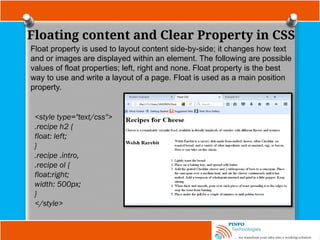
Floating content and Clear Property in CSS
Float property is used to layout content side-by-side; it changes how text
and or images are displayed within an element. The following are possible
values of float properties; left, right and none. Float property is the best
way to use and write a layout of a page. Float is used as a main position
property.
<style type="text/css">
.recipe h2 {
float: left;
}
.recipe .intro,
.recipe ol {
float:right;
width: 500px;
}
</style>
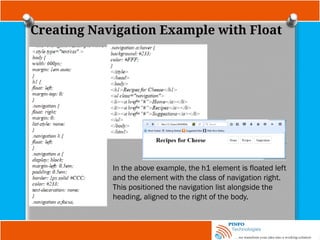
Creating Navigation Example with Float
In the above example, the h1 element is floated left
and the element with the class of navigation right.
This positioned the navigation list alongside the
heading, aligned to the right of the body.
Styling Lists and Tables with CSS
Lists are a very versatile group of elements in HTML, used for all sort of
things, such as site and page navigation, tab controls, and simple lists
of items such as for-tasks or shopping basket contents.
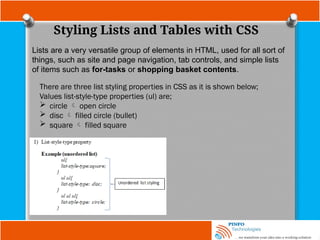
There are three list styling properties in CSS as it is shown below;
Values list-style-type properties (ul) are;
 circle  open circle
 disc  filled circle (bullet)
 square  filled square
Styling Lists and Tables with CSS
Code Example
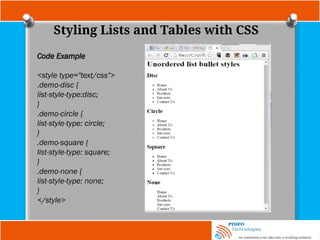
<style type="text/css">
.demo-disc {
list-style-type:disc;
}
.demo-circle {
list-style-type: circle;
}
.demo-square {
list-style-type: square;
}
.demo-none {
list-style-type: none;
}
</style>
Styling Lists and Tables with CSS
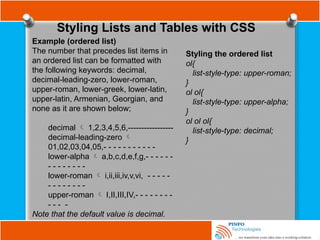
Example (ordered list)
The number that precedes list items in
an ordered list can be formatted with
the following keywords: decimal,
decimal-leading-zero, lower-roman,
upper-roman, lower-greek, lower-latin,
upper-latin, Armenian, Georgian, and
none as it are shown below;
decimal  1,2,3,4,5,6,-----------------
decimal-leading-zero 
01,02,03,04,05,- - - - - - - - - - -
lower-alpha  a,b,c,d,e,f,g,- - - - - -
- - - - - - - -
lower-roman  i,ii,iii,iv,v,vi, - - - - -
- - - - - - - -
upper-roman  I,II,III,IV,- - - - - - - -
- - - -
Note that the default value is decimal.
Styling the ordered list
ol{
list-style-type: upper-roman;
}
ol ol{
list-style-type: upper-alpha;
}
ol ol ol{
list-style-type: decimal;
}
Styling Lists and Tables with CSS
Ordered list Code Example
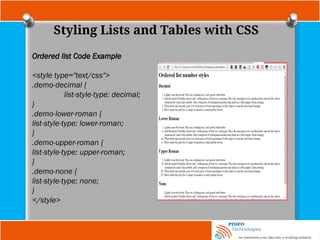
<style type="text/css">
.demo-decimal {
list-style-type: decimal;
}
.demo-lower-roman {
list-style-type: lower-roman;
}
.demo-upper-roman {
list-style-type: upper-roman;
}
.demo-none {
list-style-type: none;
}
</style>
Styling Lists and Tables with CSS
List-style-position
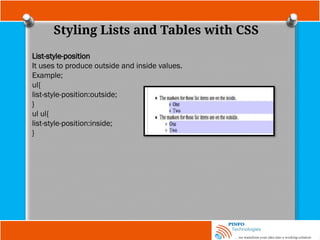
It uses to produce outside and inside values.
Example;
ul{
list-style-position:outside;
}
ul ul{
list-style-position:inside;
}
Styling Lists and Tables with CSS
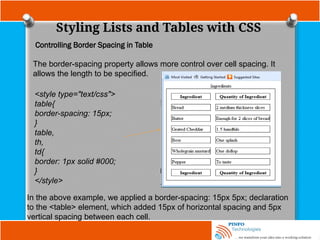
Controlling Border Spacing in Table
The border-spacing property allows more control over cell spacing. It
allows the length to be specified.
<style type="text/css">
table{
border-spacing: 15px;
}
table,
th,
td{
border: 1px solid #000;
}
</style>
In the above example, we applied a border-spacing: 15px 5px; declaration
to the <table> element, which added 15px of horizontal spacing and 5px
vertical spacing between each cell.
Styling Lists and Tables with CSS
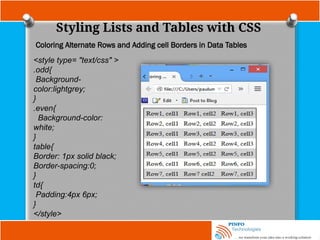
Coloring Alternate Rows and Adding cell Borders in Data Tables
<style type= "text/css" >
.odd{
Background-
color:lightgrey;
}
.even{
Background-color:
white;
}
table{
Border: 1px solid black;
Border-spacing:0;
}
td{
Padding:4px 6px;
}
</style>
CSS Layout
A layout could either describe as 2-column layout with a header, footer
and sidebar (left or right or both) or 3-column as the case may be.
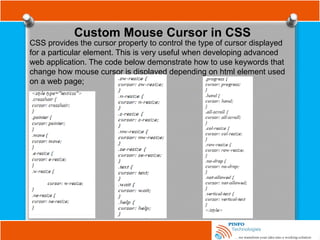
Custom Mouse Cursor in CSS
CSS provides the cursor property to control the type of cursor displayed
for a particular element. This is very useful when developing advanced
web application. The code below demonstrate how to use keywords that
change how mouse cursor is displayed depending on html element used
on a web page;
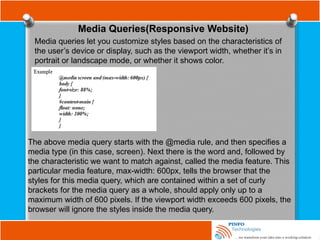
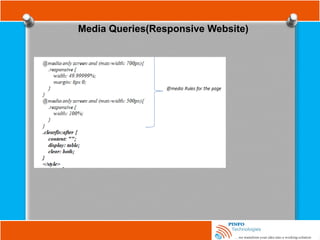
Media Queries(Responsive Website)
Media queries let you customize styles based on the characteristics of
the user’s device or display, such as the viewport width, whether it’s in
portrait or landscape mode, or whether it shows color.
The above media query starts with the @media rule, and then specifies a
media type (in this case, screen). Next there is the word and, followed by
the characteristic we want to match against, called the media feature. This
particular media feature, max-width: 600px, tells the browser that the
styles for this media query, which are contained within a set of curly
brackets for the media query as a whole, should apply only up to a
maximum width of 600 pixels. If the viewport width exceeds 600 pixels, the
browser will ignore the styles inside the media query.
Media Queries(Responsive Website)
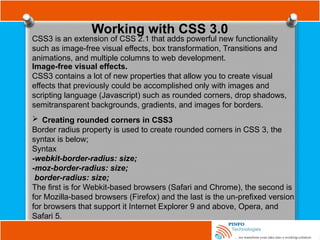
Working with CSS 3.0
CSS3 is an extension of CSS 2.1 that adds powerful new functionality
such as image-free visual effects, box transformation, Transitions and
animations, and multiple columns to web development.
Image-free visual effects.
CSS3 contains a lot of new properties that allow you to create visual
effects that previously could be accomplished only with images and
scripting language (Javascript) such as rounded corners, drop shadows,
semitransparent backgrounds, gradients, and images for borders.
 Creating rounded corners in CSS3
Border radius property is used to create rounded corners in CSS 3, the
syntax is below;
Syntax
-webkit-border-radius: size;
-moz-border-radius: size;
border-radius: size;
The first is for Webkit-based browsers (Safari and Chrome), the second is
for Mozilla-based browsers (Firefox) and the last is the un-prefixed version
for browsers that support it Internet Explorer 9 and above, Opera, and
Safari 5.
Working with CSS 3.0
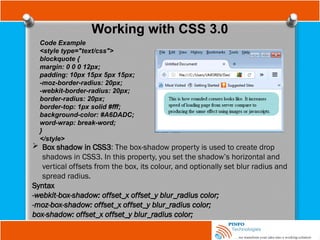
Code Example
<style type="text/css">
blockquote {
margin: 0 0 0 12px;
padding: 10px 15px 5px 15px;
-moz-border-radius: 20px;
-webkit-border-radius: 20px;
border-radius: 20px;
border-top: 1px solid #fff;
background-color: #A6DADC;
word-wrap: break-word;
}
</style>
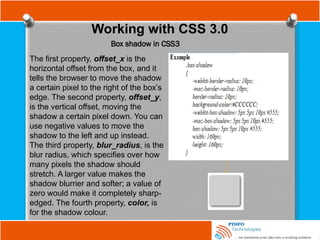
 Box shadow in CSS3: The box-shadow property is used to create drop
shadows in CSS3. In this property, you set the shadow’s horizontal and
vertical offsets from the box, its colour, and optionally set blur radius and
spread radius.
Syntax
-webkit-box-shadow: offset_x offset_y blur_radius color;
-moz-box-shadow: offset_x offset_y blur_radius color;
box-shadow: offset_x offset_y blur_radius color;
Working with CSS 3.0
Box shadow in CSS3
The first property, offset_x is the
horizontal offset from the box, and it
tells the browser to move the shadow
a certain pixel to the right of the box’s
edge. The second property, offset_y,
is the vertical offset, moving the
shadow a certain pixel down. You can
use negative values to move the
shadow to the left and up instead.
The third property, blur_radius, is the
blur radius, which specifies over how
many pixels the shadow should
stretch. A larger value makes the
shadow blurrier and softer; a value of
zero would make it completely sharp-
edged. The fourth property, color, is
for the shadow colour.
Working with CSS 3.0
Box shadow in CSS3
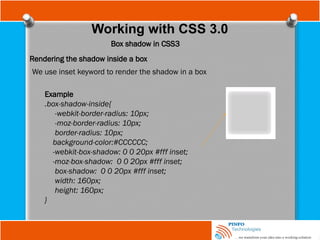
Rendering the shadow inside a box
We use inset keyword to render the shadow in a box
Example
.box-shadow-inside{
-webkit-border-radius: 10px;
-moz-border-radius: 10px;
border-radius: 10px;
background-color:#CCCCCC;
-webkit-box-shadow: 0 0 20px #fff inset;
-moz-box-shadow: 0 0 20px #fff inset;
box-shadow: 0 0 20px #fff inset;
width: 160px;
height: 160px;
}
Working with CSS 3.0
Text Shadows
The property, text-shadow, is used to apply shadow to text in CSS3. It
uses the same properties as box shadow. The only difference is the
property is applied on texts.
Syntax
text-shadow: offset_x offset_y blur_radius color;
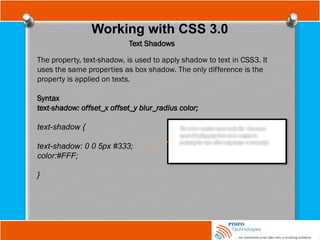
text-shadow {
text-shadow: 0 0 5px #333;
color:#FFF;
}

Fundamental of Web Development Tutorials-CSS by PINFO Technologies.pptx

  • 1.
  • 2.
    Cascading Style Sheet(CSS) CSSis the presentation part of web page layout. CSS gives the beauty and flexibility in Web design. The styles are the rules that tell web browser that understand them how to display specific types of content structures when it encounters these structures while delivering a web page to users. Part of CSS Rule
  • 3.
    Part of CSSRule 1. A selector in CSS defines and references the HTML element(s) to which the rule applies; it tells the browser what to style. Examples of selectors are p, body, table, caption tags, etc. When more than one selector is in one rule, they are called grouped. You can use multiple selectors together in a single rule by providing a comma after each selector. This implies that rule applies to more than one selector at a time.
  • 4.
    Part of CSSRule 2. A declaration block is a container that consists of everything between (and including) the curly brackets. It is composed of a property name, a colon, and one or more values depending on the property. 3. The value is the exact style you want to set for the property. Values can include length, percentage, color, url, keyword, and shape. 4. The property is an aspect of the element that you are choosing to style. There can be only one property within each declaration unless a shorthand property is used.
  • 5.
    Length and measurementin CSS The two kinds of lengths used in CSS are relative and absolute lengths. Absolute measurements are defined based on real world units such as inches, centimetres, points, etc., and they are mostly used in print work. Relative measurement is suited for onscreen layout; the four types of relative measurement that CSS allows are emphasis (em), x-height (ex), pixels (px) and percentage (%). Ways of including CSS in html document CSS declaration can be included in a document as follows; Applying CSS declaration directly inside an HTML document (Such style declarations are called inline declarations). Example ; <h2 style= “color: red; text-transform: uppercase;”> An Unusual Topic</h2> <body style= “ font: 14px Times”>;
  • 6.
    Ways of includingCSS in html document 2. Embedded CSS declaration; this is included between <style> and </style> tags in the head element of the web page. Example;
  • 7.
    Color and CSS 3.External CSS (in an external CSS file): here, CSS is defined in a file that is completely separated from the web page. You then link to this file by including a link element in the head of any web page on which you want to implement the CSS styles. This is a preferred inclusion method in html documents. This implies that a single style sheet can be applied to multiple web pages on a website, and is cached by the user’s browser.
  • 8.
    Color and CSS Thereare different options for specifying colours in CSS; Color keywords: here, color is specified by its name. Examples div{ color: gray; background-color: orange; border: thin solid red; } In the above example, each div element in the html document has a grey text, an orange background, and a thin solid red border.  Hexadecimal: this allows you to specify a colour by special hexadecimal number that uses 16 characters as it base expressed in the combination of numbers and letters. Example div{ color: #808080; background-color: #FFA500; border: thin solid #FF0000; }
  • 9.
    Color and CSS Thereare different options for specifying colours in CSS; Color keywords: here, color is specified by its name. Examples div{ color: gray; background-color: orange; border: thin solid red; } In the above example, each div element in the html document has a grey text, an orange background, and a thin solid red border.  Hexadecimal: this allows you to specify a colour by special hexadecimal number that uses 16 characters as it base expressed in the combination of numbers and letters. Example div{ color: #808080; background-color: #FFA500; border: thin solid #FF0000; } The #808080 is the hexadecimal representation of gray, #FFA500 is for orange and #FF0000 is for red.
  • 10.
    Color and CSS Shorthandhexadecimal: this is a shorten representation of hexadecimal numbers. div{ background-color: #FAB; } #FAB is a shorthand hexadecimal of #FFAABB which is for pink colour. RGB values: this allows you to specify a color through three primary colours; Red, Green and Blue. Using these colours in various combinations makes it possible to create every colour of the rainbow. CSS RGB colour is specified using a special three numbers syntax. Example; div{ background-color: rgb(128, 128, 128); } The above example is CSS keyword colour gray. White is 255, 255, 255 and black is 0, 0, 0. RGB percentage: this is the same as RGB but uses percentage in specifying color. RGBA: the A stands for alpha channel which enables you to specify transparency.
  • 11.
    Selectors Selectors are CSSrule set used to target the HTML elements on our web pages that we want to style. There are different types of selectors; Class and ID Selectors Class and id selectors are the most widely used selectors apart from the type selectors that reference html element. Class Selector Class selector references class attributes used on html element. Class name selector begins with a dot, followed by name class itself. The class name should start with a letter, no space. Name class can be combination of name and numbers. Example; <span class =“important”> Pay Attention In Class and Do All The Assignment</span> The class selector for this is; .important{ font-weight: bold; background-color: yellow; color: red; }
  • 12.
    ID Selectors These areunique identifiers. An ID is defined once per HTML document. ID name is preceded with a hash mark (#) and should start with letter, no space and can be combination of letters, numbers, underscores(_) and hyphen(-). The uniqueness rule of declaring the ID only applies to naming the elements, not references to them. Example; <style type=“text/css” > #important{ font-weight: bold; background-color: yellow; color: red; } </style> <div id= “important”> <h2> Name of Schools</h2> </div>
  • 13.
    The Type Selector Typeselector target html elements type of the page because html’s tags are used as the selectors. Type selectors are generally used to make a broader changes to the style of a site. Example <style type=“text/css” > p { /* "p" is the type selector which affect all the <p> tag on the page*/ margin: 0 0 1em 0; } article, aside, details, figcaption, figure, footer, header, main, nav, section, summary, canvas { display: block; } </style> The Type Selectors above are setting the display property of those tags to block in html5, so that any time any of those tags are used throughout the site they will display as block.
  • 14.
    The Universal Selector Universalselector is an asterisk, when used alone, it tells the CSS interpreter to apply the CSS rule to all elements in the HTML document. However, it is not commonly used in a document. Pseudo-Classes/Hyperlink Styling Pseudo-Classes allow the author the freedom to dictate how the element should appear under different conditions. It is used to present dynamic events and a change in state present in html document such as hyperlinks; that are not easily achieved through other means. When dealing with hyperlink styling, consider using anchor pseudo-classes. Pseudo-classes have single colon (:) before its properties which is different from normal classes
  • 15.
    Pseudo-Classes/Hyperlink Styling The followingare dynamic pseudo-classes in CSS: :link  this shows unvisited hyperlink :visited  this indicates visited hyperlink :hover this shows an element that currently has the user’s mouse pointer hovering over it. :focus  this shows the link that is currently focus by a user using a keyboard to navigate the menus. It is also known as a keyboard focus. :active this indicates which the user is currently clicking on the web page and holding down the mouse button. The specified style remains in place while the user holds down the mouse button, and the element does not return to its original state until the mouse button is released by the user.
  • 16.
    Using Pseudo-class toapply a drop cap to a document First-letter: meaning apply the effect to first letter in the sentence. First-line: applies styles to the first line of a block-level element. Note that the length of the first line depends on many factors, including the width of the element, the width of the document, and the font size of the text. p:first-letter{ font-family: serif; font-size:500%; float:left; color: gray; }
  • 17.
    Other Selectors The followingare other CSS selectors; direct child selectors, next sibling selectors, attribute selectors, pseudo-elements and structural pseudo- classes; Direct Child Selectors: Direct child selectors operate much like descendant selectors; they also rely on an ancestral relationship to decide where to apply style. Direct child selectors apply only to immediate children of the element. This is achieved by introducing a new syntax for the selector:
  • 18.
    Other Selectors Attribute selector Attributeselectors are used to apply style sheet declarations based on the presence of attributes or attribute values of an HTML element. The syntax for attribute selectors is as follows; In the above, a simple type selector is used to give all input elements a yellow background. Then using a combined type and attribute selector, input[name], a dashed border is only added to those inputs that have a name attribute -the final input, <input type=”submit” value=”Send recipe”>, does not have a name attribute and therefore does not have a dotted border around it. This type of attribute selector is known as Select by Presence of an Attribute.
  • 19.
    Other Selectors Attribute selector input[name=“email”]{ border: 2px dashed #996600; } Here, both an attribute (name) and a value for that attribute (email), to select on only input elements with name attribute values of email will only match this selector. Now using a combined type, attribute, and value selector, input [name=”email”], a dashed border is only applied to those input elements that have a name attribute with value equal to email as it is shown above.
  • 20.
    Other Selectors Attribute substringselectors : This chooses elements based on whether a particular string appears at the beginning of an attribute’s value, at the end of an attribute’s value, or anywhere inside an attribute’s value. This is also known as regular expression in CSS3. A combined type, attribute, and a value selector with the ^ character indicating that you want to match the start of the value with your string, a[href^=”mailto:”]; you added an envelope icon as a background image. . This changes all input elements with an id attribute value that ends in the string name.
  • 21.
    Font and CSS CSSincludes variety of properties that change the font typeface (font- family), font-size, and font-style of a website. Font names are case insensitive (That is, they can be uppercase, lowercase, sentence case, or whatever mixture of cases), and strings which contain spaces must be enclosed with quotation marks. For example, “Times New Roman”, and a comma is always used to separate each font name.
  • 22.
    Font and CSS Font-familyproperty Font-family specifies the typeface used to display text on a screen. When specifying typeface, you should generally stick to the set of web safe fonts. The following table outlines the generic font family names defined in CSS.
  • 23.
    Font and CSS <styletype=”text/css”> body { font-family: arial, helvetica, sans-serif; } h1 { font-family: “Times New Roman”, Georgia, Serif; } ol { font-family: monospace; } </style>
  • 24.
    Font and CSS Font-style Font-styleproperty is used to switch between styles provided by a particular font. The values for possible font-style property are italic, normal, inherit, and oblique. Font-weight Font-weight property provides the functionality on how bold a font should be. The values for font- weight property are normal, bold, bolder, lighter, 100, 200, 300, 400, 500, 600, 700, 800, and 900. <style type="text/css"> body { font-family: arial, helvetica, sans-serif; } h1{ font-family: “Times New Roman”, Georgia, Serif; font-weight: bolder; } .intro { font-weight: bold; } .recipe .intro { font-weight: normal; font-style:italic; } </style>
  • 25.
    Font and CSS Font-size Thefont-size property is used to control the size of fonts. The four possible font values are absolute, relative, length and percentage. Relative value is mostly used on fonts to be displayed on the screen. Example; <style type=”text/css”> body { font-family: arial, helvetica, sans-serif; font-size: 12px; } h1 { font-family: “Times New Roman”, Georgia, Serif; font-size: 30px; } </style> Using Short Hand Properties
  • 26.
    Font and CSS line-height,letter-spacing and word-spacing Properties The line-height property is the height of the line on which each line of text appears. The values of line-height are number, percentage and length. When a value is applied, it is split in two with half added to the top and half to the bottom. Letter-spacing property controls the amount of space between letters and word-spacing property controls the space between words. Example <style type=“text/css” > .important { font-style: italic; line-height: 3; letter-space: 0.5em; word-space:5px; } </style>
  • 27.
    Font and CSS Changingtext case In changing text case CSS uses text-transform to deal with this. The table below shows text-transformation values and their meaning: Value Meaning Capitalize Displays the first letter of each word as caps and all others as lowercase Uppercase Displays all letters as uppercase Lowercase Displays all letters as lowercase None Displays characters as specified To have a paragraph of text transformed into all uppercase, for example, use text-transform: uppercase; and to instantly ensure that all header level ones are in proper case, use: h1 {text-transform: capitalize ;}
  • 28.
    Font and CSS TextIndentation Properties Indenting text in CSS is done using text-indent property which accepts the values length and percentage. <style type="text/css"> .intro{ text-indent:0.9em; } </style> Text Alignment Properties Text-align property has keywords that align text to either left, right, center or justify. Example: h1{ text-align:center; } h2{ text-align: right; } h3{ text-align: left; } p{ text-align: justify; }
  • 29.
    Font and CSS TextDecorations (Underline, Overline and Strike-through) text-decoration property is used to add:  Underline  Overline  Strike-through to text. p{ text-decoration: line-through; }
  • 30.
    Working with Imagesin CSS Images are placed on a web page using the HTML <img /> tag, but the image tag should be enclosed inside div element and position arbitrary on the page. With this, we can affect the attributes of the image such as the border, the alignment and its appearance using CSS. Using image tag in CSS You can use html img tag to reference an image in a document page as it is shown below;
  • 31.
    Working with Imagesin CSS Another way of inserting image in a page using CSS classes is as follow; <style type="text/css"> .image-replacement { display: block; -moz-box-sizing: border-box; box-sizing: border-box; background:url(http://akamaico vers.oreilly.com/images/978059 6517748/cat.gif) no-repeat; width: 180px; height: 236px; padding-left: 180px; } . text-replacement { display: block; -moz-box-sizing: border-box; box-sizing: border-box; height: 250px; width: 250px; padding-top: 250px; overflow: hidden; background: #333 url(http://cdn.css-tricks.com/wp- content/themes/CSS-Tricks-10/i mages/footer-logo- shoptalk.png) no-repeat; } </style>
  • 32.
    Working with backgroundimages in CSS The background-image property enables you to provide an image for the background of a web document. When you specify a background image by default the image tiles across the entire area available to it; that is, the area encompassing the content and padding of the element being styled. Tips: Always specify a background color with a background image. The above code will make the graphic to be tilling or repeat itself to fill up the entire browser view point. However, CSS can be used to change both the tilling and scrolling characteristics of images in the example below;
  • 33.
    Working with backgroundimages in CSS Note: The background-repeat stops the background image from tilling. Repeat-x and repeat-y are used for horizontally and vertically respectively.
  • 34.
    Positioning background images Thebackground-position property allows you to control the placement of the background picture. The following are values for the background- position property; left, right, top, bottom and center. <style type="text/css"> body { background-image:url(hcss-logo.jpg); background-repeat: no-repeat; background-position: top right; } </style> Fixing a Background Image in Place You can use the background-attachment property to control whether a background image scrolls with the content of a web page. The following are possible values for the background-attachment property; scroll and fixed.
  • 35.
    Controlling Margins, Borders,Padding, Width, and Height in CSS The CSS box model is a collection of properties that define the amount of space around an element, its dimensions, its margins, its borders, and padding between the content of the element and the borders as it is shown in the diagram below; Content Area Padding is often used to create a gutter around content so that it does not appear flush to the side of the background. Adding a border applies a line to the outside of the padded area. These border lines come in various styles such as solid, dashed, and dotted. Outside the border is a margin. Margins are transparent and cannot be seen which are generally used to control the spacing between elements.
  • 36.
    The Margin Property Themargin property is a shorthand property for the four individual margin properties, margin-top, margin- right, margin-bottom, and margin-left. You can set either four, two or one value to margin property. By setting four values, you specify the top, bottom, right and left values differently; by setting two values you specify the first value for the top and bottom, and the second value for the left and right; by setting one value you simultaneously sets all four sides of an element’s margin to the same value.
  • 37.
    The Border Property Bordersare used to put lines around boxes. The individual border-top- width, border-right-width, border-bottom-width, and border-left- width properties exist for setting the width of the individual sides of a box. Each of these properties can be combined into the single border- width shorthand property. <style type="text/css"> .border-caption{ border-top-width: 1px; border-right-width: 3px; border-bottom-width: 5px; border-left-width: 7px; border-style: solid; } border-style You use the border-style property to specify the style of border to be used. The border-style property is very similar to the border-width; it uses an identical syntax to specify the style of border to be used for each side of the box. The following are border-style family of properties; border-top- style, border-right-style, border bottom-style, and border-left-style.
  • 38.
    The Border Property border-styleexample <style type=”text/css”> body { border-width: 3px; border-top-style: ridge; border-right-style: dashed; border-bottom-style: dotted; border-left-style: double; } </style> Border Color Property Like border-style, margin, and border-width, the border-color property can accept up to four values. This property accepts a <color> value, meaning that it can accept a color keyword, a hexadecimal value, a short hexadecimal value, or an RGB value; any color value accepted by the color property is also acceptable to the border-color properties.
  • 39.
    The Border Property border-styleexample <style type=”text/css”> body { border-width: 3px; border-top-style: ridge; border-right-style: dashed; border-bottom-style: dotted; border-left-style: double; } </style> Border Color Property Like border-style, margin, and border-width, the border-color property can accept up to four values. This property accepts a <color> value, meaning that it can accept a color keyword, a hexadecimal value, a short hexadecimal value, or an RGB value; any color value accepted by the color property is also acceptable to the border-color properties.
  • 40.
    The Border Property BorderColor Property Example <style type=”text/css”> body { border-width: 3px; border-style: dashed; border-top-color: red; border-right-color: blue; border-bottom-color: green; border-left-color: purple; } </style>
  • 41.
    The Padding Property Paddingis the space between the content of an element and its borders. Like margin, border-width, border-style, and border-color, the padding property is a shorthand property, meaning that it is a simplified representation of the other padding properties, padding-top, padding-right, padding-bottom, and padding-left. body{ border-width: 3px; border-style: dashed; border-top-color: red; border-right-color: blue; border-bottom-color: green; border-left-color: purple; padding:13px; }
  • 42.
    Working with Width,Height and Overflowing Content in CSS The CSS overflow property exists to manage content that is subject to dimensional constraints, where the content could possibly overflow the boundaries of those dimensional constraints. The following are overflow property and its possible values; visible, hidden, scroll, and auto. The two most common uses of the overflow property are to hide content when more content than space is available, or to apply scroll bars so that the extra content can be accessed. <style type=”text/css”> h1 { width: 50px; overflow: hidden; } p { height: 200px; overflow: auto; } </style>
  • 43.
    Floating content andClear Property in CSS Float property is used to layout content side-by-side; it changes how text and or images are displayed within an element. The following are possible values of float properties; left, right and none. Float property is the best way to use and write a layout of a page. Float is used as a main position property. <style type="text/css"> .recipe h2 { float: left; } .recipe .intro, .recipe ol { float:right; width: 500px; } </style>
  • 44.
    Creating Navigation Examplewith Float In the above example, the h1 element is floated left and the element with the class of navigation right. This positioned the navigation list alongside the heading, aligned to the right of the body.
  • 45.
    Styling Lists andTables with CSS Lists are a very versatile group of elements in HTML, used for all sort of things, such as site and page navigation, tab controls, and simple lists of items such as for-tasks or shopping basket contents. There are three list styling properties in CSS as it is shown below; Values list-style-type properties (ul) are;  circle  open circle  disc  filled circle (bullet)  square  filled square
  • 46.
    Styling Lists andTables with CSS Code Example <style type="text/css"> .demo-disc { list-style-type:disc; } .demo-circle { list-style-type: circle; } .demo-square { list-style-type: square; } .demo-none { list-style-type: none; } </style>
  • 47.
    Styling Lists andTables with CSS Example (ordered list) The number that precedes list items in an ordered list can be formatted with the following keywords: decimal, decimal-leading-zero, lower-roman, upper-roman, lower-greek, lower-latin, upper-latin, Armenian, Georgian, and none as it are shown below; decimal  1,2,3,4,5,6,----------------- decimal-leading-zero  01,02,03,04,05,- - - - - - - - - - - lower-alpha  a,b,c,d,e,f,g,- - - - - - - - - - - - - - lower-roman  i,ii,iii,iv,v,vi, - - - - - - - - - - - - - upper-roman  I,II,III,IV,- - - - - - - - - - - - Note that the default value is decimal. Styling the ordered list ol{ list-style-type: upper-roman; } ol ol{ list-style-type: upper-alpha; } ol ol ol{ list-style-type: decimal; }
  • 48.
    Styling Lists andTables with CSS Ordered list Code Example <style type="text/css"> .demo-decimal { list-style-type: decimal; } .demo-lower-roman { list-style-type: lower-roman; } .demo-upper-roman { list-style-type: upper-roman; } .demo-none { list-style-type: none; } </style>
  • 49.
    Styling Lists andTables with CSS List-style-position It uses to produce outside and inside values. Example; ul{ list-style-position:outside; } ul ul{ list-style-position:inside; }
  • 50.
    Styling Lists andTables with CSS Controlling Border Spacing in Table The border-spacing property allows more control over cell spacing. It allows the length to be specified. <style type="text/css"> table{ border-spacing: 15px; } table, th, td{ border: 1px solid #000; } </style> In the above example, we applied a border-spacing: 15px 5px; declaration to the <table> element, which added 15px of horizontal spacing and 5px vertical spacing between each cell.
  • 51.
    Styling Lists andTables with CSS Coloring Alternate Rows and Adding cell Borders in Data Tables <style type= "text/css" > .odd{ Background- color:lightgrey; } .even{ Background-color: white; } table{ Border: 1px solid black; Border-spacing:0; } td{ Padding:4px 6px; } </style>
  • 52.
    CSS Layout A layoutcould either describe as 2-column layout with a header, footer and sidebar (left or right or both) or 3-column as the case may be.
  • 53.
    Custom Mouse Cursorin CSS CSS provides the cursor property to control the type of cursor displayed for a particular element. This is very useful when developing advanced web application. The code below demonstrate how to use keywords that change how mouse cursor is displayed depending on html element used on a web page;
  • 54.
    Media Queries(Responsive Website) Mediaqueries let you customize styles based on the characteristics of the user’s device or display, such as the viewport width, whether it’s in portrait or landscape mode, or whether it shows color. The above media query starts with the @media rule, and then specifies a media type (in this case, screen). Next there is the word and, followed by the characteristic we want to match against, called the media feature. This particular media feature, max-width: 600px, tells the browser that the styles for this media query, which are contained within a set of curly brackets for the media query as a whole, should apply only up to a maximum width of 600 pixels. If the viewport width exceeds 600 pixels, the browser will ignore the styles inside the media query.
  • 55.
  • 56.
    Working with CSS3.0 CSS3 is an extension of CSS 2.1 that adds powerful new functionality such as image-free visual effects, box transformation, Transitions and animations, and multiple columns to web development. Image-free visual effects. CSS3 contains a lot of new properties that allow you to create visual effects that previously could be accomplished only with images and scripting language (Javascript) such as rounded corners, drop shadows, semitransparent backgrounds, gradients, and images for borders.  Creating rounded corners in CSS3 Border radius property is used to create rounded corners in CSS 3, the syntax is below; Syntax -webkit-border-radius: size; -moz-border-radius: size; border-radius: size; The first is for Webkit-based browsers (Safari and Chrome), the second is for Mozilla-based browsers (Firefox) and the last is the un-prefixed version for browsers that support it Internet Explorer 9 and above, Opera, and Safari 5.
  • 57.
    Working with CSS3.0 Code Example <style type="text/css"> blockquote { margin: 0 0 0 12px; padding: 10px 15px 5px 15px; -moz-border-radius: 20px; -webkit-border-radius: 20px; border-radius: 20px; border-top: 1px solid #fff; background-color: #A6DADC; word-wrap: break-word; } </style>  Box shadow in CSS3: The box-shadow property is used to create drop shadows in CSS3. In this property, you set the shadow’s horizontal and vertical offsets from the box, its colour, and optionally set blur radius and spread radius. Syntax -webkit-box-shadow: offset_x offset_y blur_radius color; -moz-box-shadow: offset_x offset_y blur_radius color; box-shadow: offset_x offset_y blur_radius color;
  • 58.
    Working with CSS3.0 Box shadow in CSS3 The first property, offset_x is the horizontal offset from the box, and it tells the browser to move the shadow a certain pixel to the right of the box’s edge. The second property, offset_y, is the vertical offset, moving the shadow a certain pixel down. You can use negative values to move the shadow to the left and up instead. The third property, blur_radius, is the blur radius, which specifies over how many pixels the shadow should stretch. A larger value makes the shadow blurrier and softer; a value of zero would make it completely sharp- edged. The fourth property, color, is for the shadow colour.
  • 59.
    Working with CSS3.0 Box shadow in CSS3 Rendering the shadow inside a box We use inset keyword to render the shadow in a box Example .box-shadow-inside{ -webkit-border-radius: 10px; -moz-border-radius: 10px; border-radius: 10px; background-color:#CCCCCC; -webkit-box-shadow: 0 0 20px #fff inset; -moz-box-shadow: 0 0 20px #fff inset; box-shadow: 0 0 20px #fff inset; width: 160px; height: 160px; }
  • 60.
    Working with CSS3.0 Text Shadows The property, text-shadow, is used to apply shadow to text in CSS3. It uses the same properties as box shadow. The only difference is the property is applied on texts. Syntax text-shadow: offset_x offset_y blur_radius color; text-shadow { text-shadow: 0 0 5px #333; color:#FFF; }