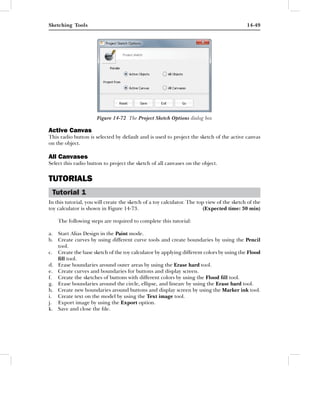
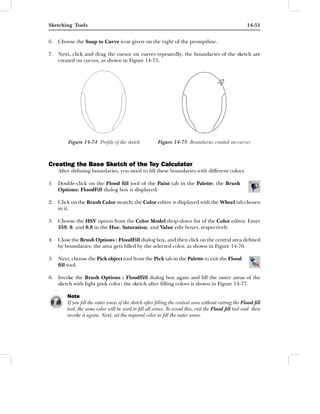
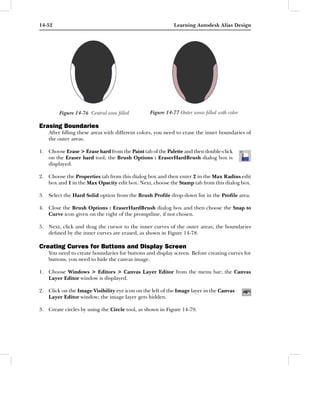
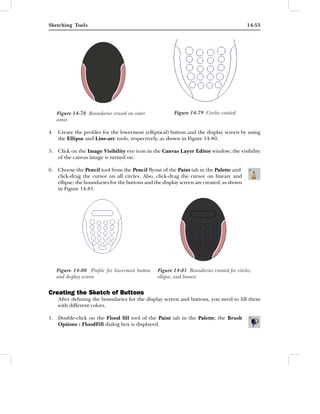
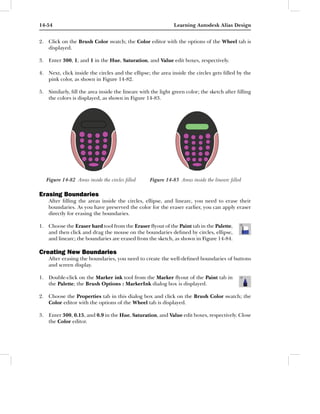
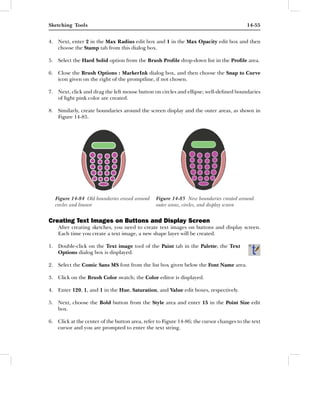
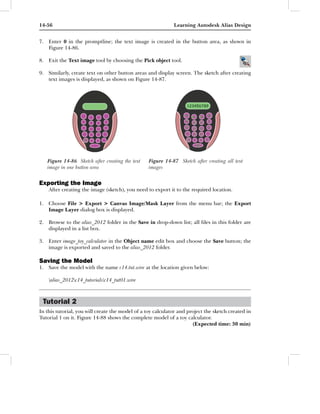
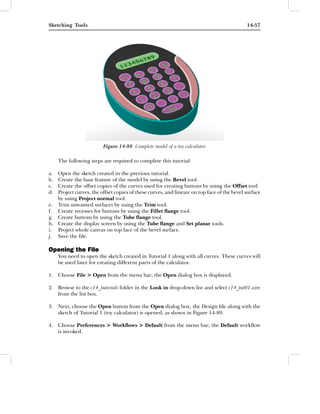
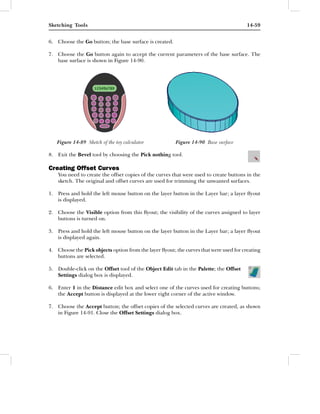
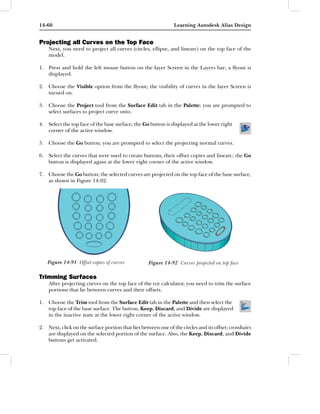
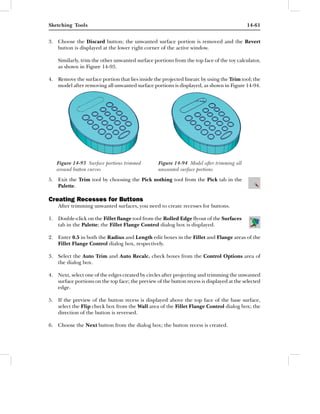
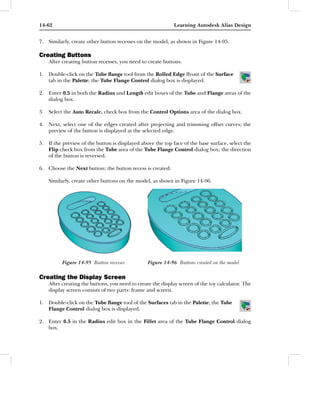
Chapter                           14
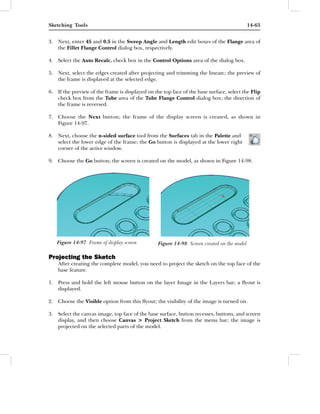
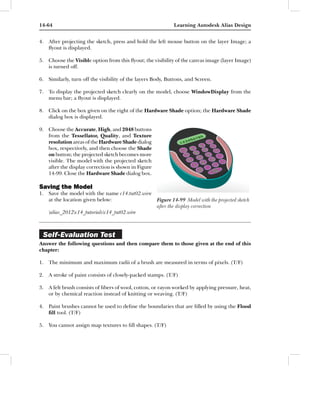
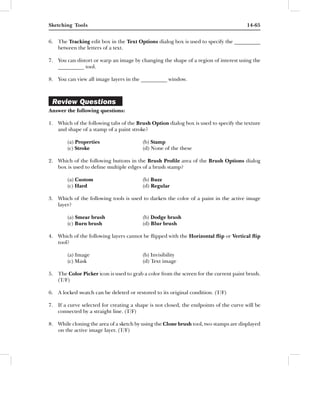
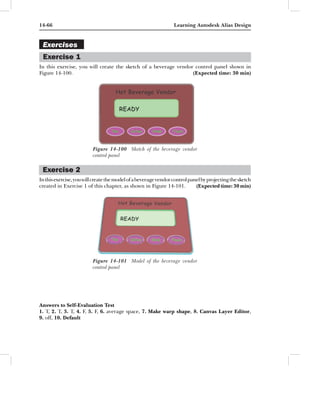
                            Sketching Tools

 Learning Objectives
After completing this chapter, you will be able to:
• Use different paint brushes and markers.
• Use erasers.
• Sharpen, dodge, blur, smear, burn, and clone sketches.
• Fill images.
• Mask images.
• Work on shapes.
• Work on layers.
• Correct colors in an image.
14-2                                                          Learning Autodesk Alias Design


INTRODUCTION
In the previous chapter, you learned about the basics of sketching/painting features, canvas,
layer and its types, layer organization, and color schemes. In this chapter, you will learn
different sketching tools such as paint brushes, erasers, shapes, masks, layer editing, paint
editing, and so on.


PAINTING/SKETCHING TOOLS
In Alias Design, you can paint or sketch a drawing by using the paint and sketching tools.
These tools are available in the Paint tab of the Palette. Various sketching tools available in
Alias Design are shown in Figure 14-1. These tools are discussed next.


                      Figure 14-1 The Pencil, Marker, Airbrush, and
                      Solid Brush flyouts in the Paint tab

Sketching with Pencil
Palette:         Paint > Pencil > pencil
         To sketch on the canvas with a pencil, choose the pencil tool from the Pencil flyout
         of the Paint tab in the Palette; the cursor will change into crosshairs with the letter P
         attached to it. Also, the preview of the pencil will be displayed with crosshairs. If you
move the cursor, the preview of the pencil will also move with it. If you click on the Paint
window, a stamp will be created, refer to Figure 14-2. If you click-drag the cursor on the Paint
window, a stroke of paint will be created, as shown in Figure 14-3. A stroke of paint consists of
closely packed stamps.


           Figure 14-2 Stamps of paint                    Figure 14-3 Stroke of paint

You can create horizontal as well as vertical stroke on a canvas. To create horizontal strokes
of paint on the canvas, drag the cursor with the middle mouse button, and to create vertical
strokes of paint on the canvas, drag the cursor with the right mouse button.
Sketching Tools                                                                             14-3


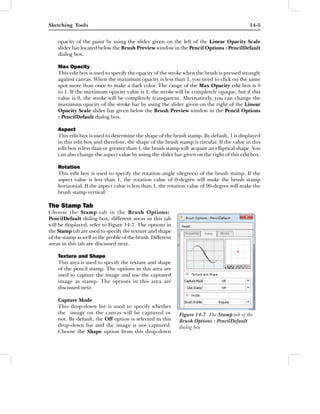
To set the parameters of the Pencil tool, double-click on
the Pencil tool; the Brush Options : PencilDefault
dialog box will be displayed, as shown in Figure 14-4.
The options in this dialog box are discussed next.

The Properties Tab
The Properties tab of this dialog box displays the
properties of the pencil stroke such as color, opacity,
radius, and so on. Various areas in this tab are discussed
next.

    Brush Stroke Preview Window
    The Brush Stroke Preview window displays the
    preview of the brush stroke. This window is
    common for all the tabs in the Brush Options
    : PencilDefault dialog box. If you change the
    properties of the pencil; the preview of the brush
    stroke will also change.

    Brush Preview Window
    The Brush Preview window displays the preview
    of the pencil. This window is common for all tabs
                                                             Figure 14-4 The Brush Options:
    in the Brush Options : PencilDefault dialog box.
                                                             PencilDefault dialog box
    If you change the properties of the pencil; the
    preview of the pencil will change accordingly.

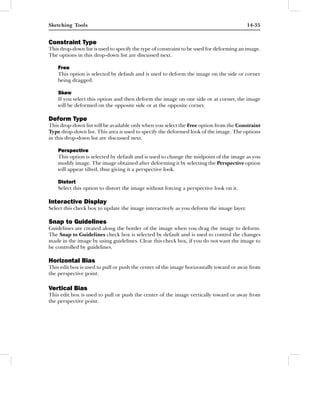
    Brush Mode
    The Brush Mode drop-down list specifies the
    application of the pencil (brush) while sketching
    on the canvas. You can use the brush for erasing,
    dodging, sharpening, and so on. To do so, press
    and hold the left mouse button on the Paint option
    given on the right of the Brush Mode drop-down
    list; the Brush Mode drop-down will be displayed,
    as shown in Figure 14-5. Choose a option from this
    flyout to perform the corresponding action.
    Alternatively, follow the promptline commands to
    perform different actions of the pencil. On doing
    so, you will notice that the crosshairs keeps on
    changing their preview on the canvas whenever the        Figure 14-5 The Brush Mode
    brush mode is changed.                                   drop-down

    Brush Color
    The Brush Color area is used to specify the color of the pencil (brush). By default, the
    brush color is black and creates the sketch in black color. To change the color of the brush,
    click on the color chip button on the right of the Brush Color area; the Color dialog box
    will be displayed. Choose the required color from the Color dialog box and then close
14-4                                                         Learning Autodesk Alias Design


   it; the color of the pencil will be changed. Alternatively, choose the Brush Color button
   located below the menu bar at the upper left corner of the interface window; the Color
   dialog box will be displayed. The Color dialog box will be discussed later in this chapter.
   You can change the intensity of the selected color by using the slider given on the right
   of the Brush Color area.

   Color Opacity
   This edit box is used to specify a value to change the opacity of the paint. The range of
   the Color Opacity edit box is 0 to 1. By default, 1.00 is displayed in this edit box and
   therefore, the color of the paint is dark. On decreasing the color opacity, the color becomes
   lighter. To change the color opacity, enter a new value in this edit box. Alternatively, use
   the slider bar on the right of this edit box to change the opacity.

   Preserve Color
   If you want to use the pencil of a particular color, set the required color in the Brush Color
   area and select the Preserve Color check box. Next, drag the pencil button by using the
   middle mouse button and then place it in the PaintShelf. Now, if you choose the pencil
   (brush) from the PaintShelf, the color preserved for this pencil will be used in sketching.

   Min Radius
   The Min Radius edit box is used to specify
   the minimum radius of the brush. The
   minimum radius of the brush is represented
   by dotted lines in the preview of the pencil,
   as shown in Figure 14-6. You can also change
   the minimum radius of the brush by using
   the slider bar given on the right of this edit
   box.

   Max Radius
   The Max Radius edit box is used to specify
   the maximum radius of the brush. The
   maximum radius of the brush is represented Figure 14-6 Preview of the pencil (brush)
   by solid lines, refer to Figure 14-6. You can
   also change the maximum radius of the brush by using the slider bar given on the right
   of this edit box.

       Note
       The minimum and maximum radii are measured in terms of pixels. Also, the maximum radius
       is always greater than or equal to minimum radius of the pencil (brush).

   Min Opacity
   This edit box is used to specify the opacity of the stroke when the brush is pressed slightly
   against canvas. When the minimum opacity is less than 1, you need to click on the same
   spot more than once to make a dark color. The range of the Min Opacity edit box is 0
   to 1. If the minimum opacity value is 1, the stroke will be completely opaque, but if this
   value is 0, the stroke will be completely transparent. You can also change the minimum
Sketching Tools                                                                              14-5


    opacity of the paint by using the slider given on the left of the Linear Opacity Scale
    slider bar located below the Brush Preview window in the Pencil Options : PencilDefault
    dialog box.

    Max Opacity
    This edit box is used to specify the opacity of the stroke when the brush is pressed strongly
    against canvas. When the maximum opacity is less than 1, you need to click on the same
    spot more than once to make a dark color. The range of the Max Opacity edit box is 0
    to 1. If the maximum opacity value is 1, the stroke will be completely opaque, but if this
    value is 0, the stroke will be completely transparent. Alternatively, you can change the
    maximum opacity of the stroke bar by using the slider given on the right of the Linear
    Opacity Scale slider bar given below the Brush Preview window in the Pencil Options
    : PencilDefault dialog box.

    Aspect
    This edit box is used to determine the shape of the brush stamp. By default, 1 is displayed
    in this edit box and therefore, the shape of the brush stamp is circular. If the value in this
    edit box is less than or greater than 1, the brush stamp will acquire an elliptical shape. You
    can also change the aspect value by using the slider bar given on the right of this edit box.

    Rotation
    This edit box is used to specify the rotation angle (degrees) of the brush stamp. If the
    aspect value is less than 1, the rotation value of 0-degree will make the brush stamp
    horizontal. If the aspect value is less than 1, the rotation value of 90-degree will make the
    brush stamp vertical.

The Stamp Tab
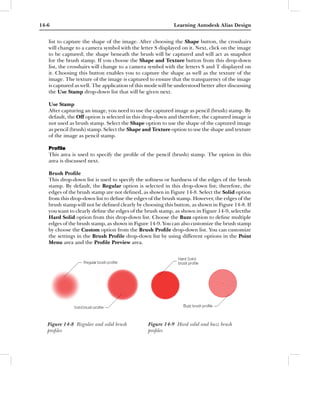
Choose the Stamp tab in the Brush Options:
PencilDefault dialog box; different areas in this tab
will be displayed, refer to Figure 14-7. The options in
the Stamp tab are used to specify the texture and shape
of the stamp as well as the profile of the brush. Different
areas in this tab are discussed next.

    Texture and Shape
    This area is used to specify the texture and shape
    of the pencil stamp. The options in this area are
    used to capture the image and use the captured
    image as stamp. The options in this area are
    discussed next.

    Capture Mode
    This drop-down list is used to specify whether
    the image on the canvas will be captured or              Figure 14-7 The Stamp tab of the
    not. By default, the Off option is selected in this      Brush Options : PencilDefault
    drop-down list and the image is not captured.            dialog box
    Choose the Shape option from this drop-down
14-6                                                       Learning Autodesk Alias Design


   list to capture the shape of the image. After choosing the Shape button, the crosshairs
   will change to a camera symbol with the letter S displayed on it. Next, click on the image
   to be captured; the shape beneath the brush will be captured and will act as snapshot
   for the brush stamp. If you choose the Shape and Texture button from this drop-down
   list, the crosshairs will change to a camera symbol with the letters S and T displayed on
   it. Choosing this button enables you to capture the shape as well as the texture of the
   image. The texture of the image is captured to ensure that the transparency of the image
   is captured as well. The application of this mode will be understood better after discussing
   the Use Stamp drop-down list that will be given next.

   Use Stamp
   After capturing an image, you need to use the captured image as pencil (brush) stamp. By
   default, the Off option is selected in this drop-down and therefore, the captured image is
   not used as brush stamp. Select the Shape option to use the shape of the captured image
   as pencil (brush) stamp. Select the Shape and Texture option to use the shape and texture
   of the image as pencil stamp.

   Profile
   This area is used to specify the profile of the pencil (brush) stamp. The option in this
   area is discussed next.

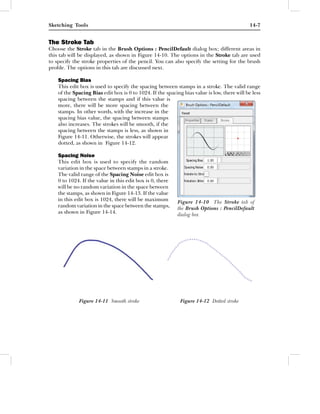
   Brush Profile
   This drop-down list is used to specify the softness or hardness of the edges of the brush
   stamp. By default, the Regular option is selected in this drop-down list; therefore, the
   edges of the brush stamp are not defined, as shown in Figure 14-8. Select the Solid option
   from this drop-down list to define the edges of the brush stamp. However, the edges of the
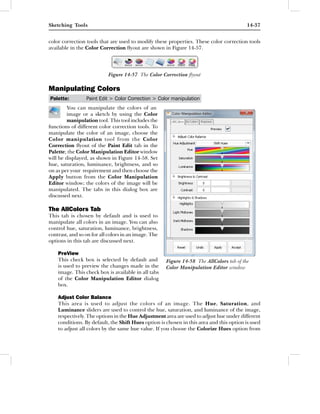
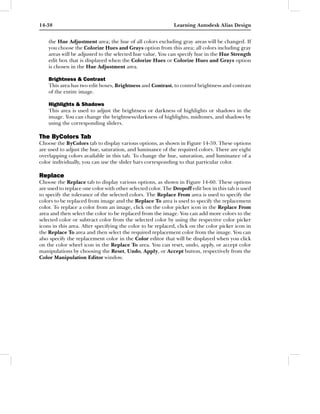
   brush stamp will not be defined clearly by choosing this button, as shown in Figure 14-8. If
   you want to clearly define the edges of the brush stamp, as shown in Figure 14-9, selectthe
   Hard Solid option from this drop-down list. Choose the Buzz option to define multiple
   edges of the brush stamp, as shown in Figure 14-9. You can also customize the brush stamp
   by choose the Custom option from the Brush Profile drop-down list. You can customize
   the settings in the Brush Profile drop-down list by using different options in the Point
   Menu area and the Profile Preview area.


   Figure 14-8 Regular and solid brush          Figure 14-9 Hard solid and buzz brush
   profiles                                      profiles
Sketching Tools                                                                               14-7


The Stroke Tab
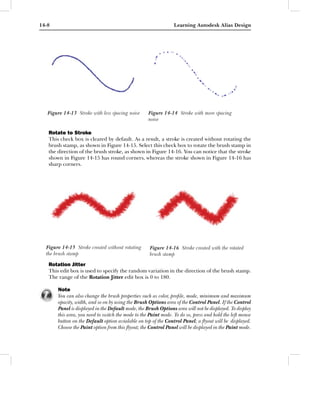
Choose the Stroke tab in the Brush Options : PencilDefault dialog box; different areas in
this tab will be displayed, as shown in Figure 14-10. The options in the Stroke tab are used
to specify the stroke properties of the pencil. You can also specify the setting for the brush
profile. The options in this tab are discussed next.

    Spacing Bias
    This edit box is used to specify the spacing between stamps in a stroke. The valid range
    of the Spacing Bias edit box is 0 to 1024. If the spacing bias value is low, there will be less
    spacing between the stamps and if this value is
    more, there will be more spacing between the
    stamps. In other words, with the increase in the
    spacing bias value, the spacing between stamps
    also increases. The strokes will be smooth, if the
    spacing between the stamps is less, as shown in
    Figure 14-11. Otherwise, the strokes will appear
    dotted, as shown in Figure 14-12.

    Spacing Noise
    This edit box is used to specify the random
    variation in the space between stamps in a stroke.
    The valid range of the Spacing Noise edit box is
    0 to 1024. If the value in this edit box is 0, there
    will be no random variation in the space between
    the stamps, as shown in Figure 14-13. If the value
    in this edit box is 1024, there will be maximum         Figure 14-10 The Stroke tab of
    random variation in the space between the stamps,       the Brush Options : PencilDefault
    as shown in Figure 14-14.                               dialog box


             Figure 14-11 Smooth stroke                      Figure 14-12 Dotted stroke
14-8                                                             Learning Autodesk Alias Design


   Figure 14-13 Stroke with less spacing noise      Figure 14-14 Stroke with more spacing
                                                    noise

   Rotate to Stroke
   This check box is cleared by default. As a result, a stroke is created without rotating the
   brush stamp, as shown in Figure 14-15. Select this check box to rotate the brush stamp in
   the direction of the brush stroke, as shown in Figure 14-16. You can notice that the stroke
   shown in Figure 14-15 has round corners, whereas the stroke shown in Figure 14-16 has
   sharp corners.


  Figure 14-15 Stroke created without rotating       Figure 14-16 Stroke created with the rotated
  the brush stamp                                    brush stamp
   Rotation Jitter
   This edit box is used to specify the random variation in the direction of the brush stamp.
   The range of the Rotation Jitter edit box is 0 to 180.

       Note
       You can also change the brush properties such as color, profile, mode, minimum and maximum
       opacity, width, and so on by using the Brush Options area of the Control Panel. If the Control
       Panel is displayed in the Default mode, the Brush Options area will not be displayed. To display
       this area, you need to switch the mode to the Paint mode. To do so, press and hold the left mouse
       button on the Default option avialable on top of the Control Panel; a flyout will be displayed.
       Choose the Paint option from this flyout; the Control Panel will be displayed in the Paint mode.
Sketching Tools                                                                             14-9


Sketching with Round Pencil
Palette:         Paint > Pencil > Pencil round
        You can sketch on the canvas with the round pencil to create the strokes that are less
        sharper than the strokes created using the Pencil tool. To do so, choose the Pencil
        round tool from the Pencil flyout of the Paint tab in the Palette; the cursor will change
to crosshairs with the letter P displayed on it. Next, click and drag the crosshairs in the Paint
window to create a stroke. To create horizontal strokes of paint on the canvas, drag the cursor
with the middle mouse button, and to create vertical strokes of paint on the canvas, drag the
cursor with the right mouse button.

To set the parameters of the Pencil round tool, double-click on the Pencil round tool; the
Brush Options : PencilRound dialog box will be displayed. The options in this dialog box
are the same as those discussed in the Brush Options : PencilDefault dialog box.

Sketching with Marker Ink
Palette:         Paint > Marker > Marker ink
        You can create marker strokes in the active image layer. To create a marker stroke,
        choose the Marker ink tool from the Marker flyout of the Paint tab in the Palette;
        the cursor will change to crosshairs. Next, click and drag the crosshairs in the Paint
window to create a stroke. You can create horizontal strokes of paint on the canvas by dragging
the cursor with the middle mouse button. To create vertical strokes of paint on the canvas,
drag the cursor with the right mouse button.

To set the parameters of the Marker ink tool, double-click on the Marker ink tool; the Brush
Options : MarkerInk dialog box will be displayed. Most of the options in this dialog box are
the same as those discussed in the Brush Options : PencilDefault dialog box. The rest of the
options in the dialog box are discussed next.

Marker Properties
This area is used to specify the properties of the marker. This area is available in Properties
tab. The option in this area is discussed next.

    Wetness
    This edit box is used to specify the wetness of the marker. You can create a paint stroke
    with a dry or a wet marker. The marker with a wetness value of 0 acts as a very old marker.
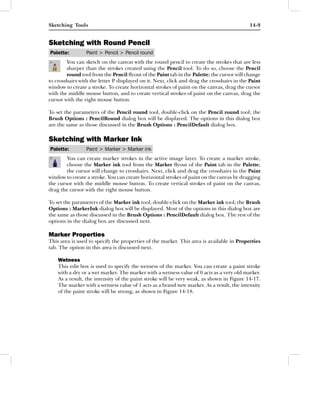
    As a result, the intensity of the paint stroke will be very weak, as shown in Figure 14-17.
    The marker with a wetness value of 1 acts as a brand new marker. As a result, the intensity
    of the paint stroke will be strong, as shown in Figure 14-18.
14-10                                                        Learning Autodesk Alias Design


        Figure 14-17 Stroke with 0 wetness            Figure 14-18 Stroke with 1 wetness

Sketching with Fine Marker
Palette:         Paint > Marker > Marker fine
        You can create fine marker strokes in the active image layer by using the Marker fine
        tool. To create fine strokes, choose the Marker fine tool from the Marker flyout of the
        Paint tab in the Palette; the cursor will change to crosshairs. Click and drag the
crosshairs in the Paint window to create a stroke.

To set the parameters of the Marker fine tool, double-click on the Marker fine tool; the Brush
Options : MarkerFine2 dialog box will be displayed. The options in this dialog box are the
same as those discussed in the Brush Options : MarkerInk dialog box.

Sketching with Broad Marker
Palette:         Paint > Marker > Marker broad
        You can create broad marker strokes in the active image layer by using the Marker
        broad tool. To create broad strokes, choose the Marker broad tool from the Marker
        flyout of the Paint tab in the Palette; the cursor will change to crosshairs. Click and
drag the crosshairs in the Paint window to create strokes.

To set the parameters of the Marker broad tool, double-click on the Marker broad tool; the
Brush Options : MarkerBroad dialog box will be displayed. The options in this dialog box
are the same as those discussed in the Brush Options : MarkerInk dialog box.

Sketching with Soft Airbrush
Palette:         Paint > Airbrush > Airbrush soft
        You can sketch on the active image layer with soft airbrush paint of low intensity. To
        create a soft airbrush paint, choose the Airbrush soft tool from the Airbrush flyout
        of the Paint tab in the Palette; the cursor will change to crosshairs. Click and drag the
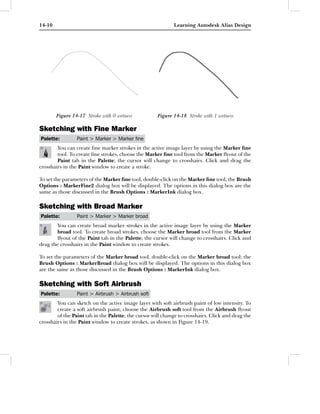
crosshairs in the Paint window to create strokes, as shown in Figure 14-19.
Sketching Tools                                                                           14-11


To set the parameters of the Airbrush soft tool, double-click on the Airbrush soft tool; the
Brush Options : AirbrushSoft dialog box will be displayed. The options in this dialog box
are the same as those discussed in the Brush Options : PencilDefault dialog box.

Sketching with Medium Airbrush
Palette:         Paint > Airbrush > Airbrush medium
        You can apply medium airbrush paint on an active image layer. The medium airbrush
        has more intensity than the soft airbrush. To apply the medium airbrush paint, choose
        the Airbrush medium tool from the Airbrush flyout of the Paint tab in the Palette;
the cursor will change to crosshairs. Click and drag the crosshairs in the Paint window to
create a stroke, as shown in Figure 14-20.

To set the parameters of the Airbrush medium tool, double-click on the Airbrush medium
tool; the Brush Options : AirbrushMedium2 dialog box will be displayed. The options in this
dialog box are the same as those discussed in the Brush Options : PencilDefault dialog box.


        Figure 14-19 Soft airbrush stroke           Figure 14-20 Medium airbrush stroke

Sketching with Pastel
Palette:         Paint > Pastel soft
        A pastel is also known as colored chalk. You can apply the brush stroke that is identical
        to the stroke of the colored chalk in the active image layer by using the Pastel soft
        tool. To create the paint with the pastel soft brush, choose the Pastel soft tool from
the Paint tab in the Palette; the cursor will change to crosshairs. Click and drag the crosshairs
in the Paint window to create a stroke.

To set the parameters of the Pastel soft tool, double-click on the Pastel soft tool; the Brush
Options : PastelSoft dialog box will be displayed. The options in this dialog box are the same
as those discussed in the Brush Options: PencilDefault dialog box.
14-12                                                           Learning Autodesk Alias Design


Sketching with Felt Brush
Palette:          Paint > Solid Brush > Brush felt
        A felt brush consists of fibres of wool, cotton, or rayon worked by applying pressure,
        heat, or by chemical reaction instead of knitting or weaving. The Brush felt tool is
        used to apply the felt brush paint stroke on the active image layer. To create a paint
with the felt brush, choose the Brush felt tool from the Solid Brush flyout of the Paint tab in
the Palette; the cursor will change to crosshairs. Click and drag the crosshairs in the Paint
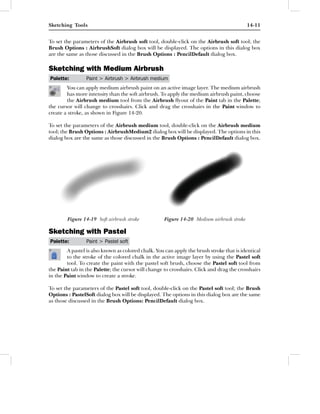
window to create a stroke, as shown in Figure 14-21.

To set the parameters of the Brush felt tool, double-click on the Brush felt tool; the Brush
Options : SolidbrushFelt dialog box will be displayed. The options in this dialog box are the
same as those discussed in the Brush Options : PencilDefault dialog box.

Sketching with Solid Brush
Palette:          Paint > Solid Brush > Brush solid
        You can apply solid paint strokes on an active image layer by using the Brush solid
        tool. To create solid paint strokes, choose the Brush solid tool from the Solid Brush
        flyout of the Paint tab in the Palette; the cursor will change to crosshairs. Click and
drag the crosshairs in the Paint window to create a stroke, as shown in Figure 14-22.

To set the parameters of the Brush solid tool, double-click on the Brush solid tool; the Brush
Options : SolidbrushLarge2 dialog box will be displayed. The options in this dialog box are
the same as those discussed in the Brush Options : PencilDefault dialog box.


           Figure 14-21 Felt brush stroke                 Figure 14-22 Solid brush stroke

ERASING THE PAINT
Alias Design allows you to erase the paint or an image in a canvas. You can erase a paint in
multiple strokes or in a single stroke. Different tools used to erase paint in a canvas are available
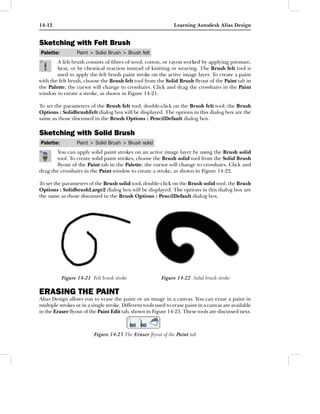
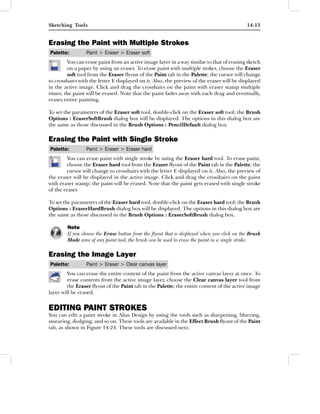
in the Eraser flyout of the Paint Edit tab, shown in Figure 14-23. These tools are discussed next.


                          Figure 14-23 The Eraser flyout of the Paint tab
Sketching Tools                                                                             14-13


Erasing the Paint with Multiple Strokes
Palette:         Paint > Eraser > Eraser soft
        You can erase paint from an active image layer in a way similar to that of erasing sketch
        on a paper by using an eraser. To erase paint with multiple stokes, choose the Eraser
        soft tool from the Eraser flyout of the Paint tab in the Palette; the cursor will change
to crosshairs with the letter E displayed on it. Also, the preview of the eraser will be displayed
in the active image. Click and drag the crosshairs on the paint with eraser stamp multiple
times; the paint will be erased. Note that the paint fades away with each drag and eventually,
erases entire painting.

To set the parameters of the Eraser soft tool, double-click on the Eraser soft tool; the Brush
Options : EraserSoftBrush dialog box will be displayed. The options in this dialog box are
the same as those discussed in the Brush Options : PencilDefault dialog box.

Erasing the Paint with Single Stroke
Palette:         Paint > Eraser > Eraser hard
        You can erase paint with single stroke by using the Eraser hard tool. To erase paint,
        choose the Eraser hard tool from the Eraser flyout of the Paint tab in the Palette; the
        cursor will change to crosshairs with the letter E displayed on it. Also, the preview of
the eraser will be displayed in the active image. Click and drag the crosshairs on the paint
with eraser stamp; the paint will be erased. Note that the paint gets erased with single stroke
of the eraser.

To set the parameters of the Eraser hard tool, double-click on the Eraser hard tool; the Brush
Options : EraserHardBrush dialog box will be displayed. The options in this dialog box are
the same as those discussed in the Brush Options : EraserSoftBrush dialog box.

        Note
        If you choose the Erase button from the flyout that is displayed when you click on the Brush
        Mode area of any paint tool, the brush can be used to erase the paint in a single stroke.

Erasing the Image Layer
Palette:         Paint > Eraser > Clear canvas layer
        You can erase the entire content of the paint from the active canvas layer at once. To
        erase contents from the active image layer, choose the Clear canvas layer tool from
        the Eraser flyout of the Paint tab in the Palette; the entire content of the active image
layer will be erased.


EDITING PAINT STROKES
You can edit a paint stroke in Alias Design by using the tools such as sharpening, blurring,
smearing, dodging, and so on. These tools are available in the Effect Brush flyout of the Paint
tab, as shown in Figure 14-24. These tools are discussed next.
14-14                                                        Learning Autodesk Alias Design


                          Figure 14-24 The Effect Brush flyout of the
                          Paint tab
Sharpening the Paint
Palette:         Paint > Effect Brush > Sharpen brush
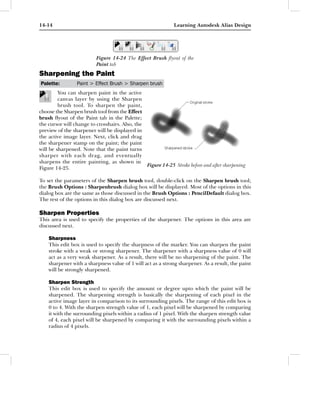
         You can sharpen paint in the active
         canvas layer by using the Sharpen
         brush tool. To sharpen the paint,
choose the Sharpen brush tool from the Effect
brush flyout of the Paint tab in the Palette;
the cursor will change to crosshairs. Also, the
preview of the sharpener will be displayed in
the active image layer. Next, click and drag
the sharpener stamp on the paint; the paint
will be sharpened. Note that the paint turns
sharper with each drag, and eventually
sharpens the entire painting, as shown in
                                                Figure 14-25 Stroke before and after sharpening
Figure 14-25.

To set the parameters of the Sharpen brush tool, double-click on the Sharpen brush tool;
the Brush Options : Sharpenbrush dialog box will be displayed. Most of the options in this
dialog box are the same as those discussed in the Brush Options : PencilDefault dialog box.
The rest of the options in this dialog box are discussed next.

Sharpen Properties
This area is used to specify the properties of the sharpener. The options in this area are
discussed next.

    Sharpness
    This edit box is used to specify the sharpness of the marker. You can sharpen the paint
    stroke with a weak or strong sharpener. The sharpener with a sharpness value of 0 will
    act as a very weak sharpener. As a result, there will be no sharpening of the paint. The
    sharpener with a sharpness value of 1 will act as a strong sharpener. As a result, the paint
    will be strongly sharpened.

    Sharpen Strength
    This edit box is used to specify the amount or degree upto which the paint will be
    sharpened. The sharpening strength is basically the sharpening of each pixel in the
    active image layer in comparison to its surrounding pixels. The range of this edit box is
    0 to 4. With the sharpen strength value of 1, each pixel will be sharpened by comparing
    it with the surrounding pixels within a radius of 1 pixel. With the sharpen strength value
    of 4, each pixel will be sharpened by comparing it with the surrounding pixels within a
    radius of 4 pixels.
Sketching Tools                                                                              14-15


Blurring the Paint
Palette:         Paint > Effect Brush > Blur brush
        In Alias Design, you can blur paint in
        an active image layer by using the Blur
        brush tool. To blur paint, choose the
Blur brush tool from the Effect Brush flyout
of the Paint tab in the Palette; the cursor will
change to crosshairs. Also, the preview of the
blur stamp will be displayed in the active image
layer. Click and drag the blur stamp on the
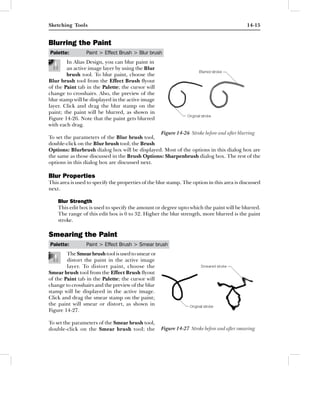
paint; the paint will be blurred, as shown in
Figure 14-26. Note that the paint gets blurred
with each drag.
                                                Figure 14-26 Stroke before and after blurring
To set the parameters of the Blur brush tool,
double-click on the Blur brush tool; the Brush
Options: Blurbrush dialog box will be displayed. Most of the options in this dialog box are
the same as those discussed in the Brush Options: Sharpenbrush dialog box. The rest of the
options in this dialog box are discussed next.

Blur Properties
This area is used to specify the properties of the blur stamp. The option in this area is discussed
next.

    Blur Strength
    This edit box is used to specify the amount or degree upto which the paint will be blurred.
    The range of this edit box is 0 to 32. Higher the blur strength, more blurred is the paint
    stroke.

Smearing the Paint
Palette:         Paint > Effect Brush > Smear brush
        The Smear brush tool is used to smear or
        distort the paint in the active image
        layer. To distort paint, choose the
Smear brush tool from the Effect Brush flyout
of the Paint tab in the Palette; the cursor will
change to crosshairs and the preview of the blur
stamp will be displayed in the active image.
Click and drag the smear stamp on the paint;
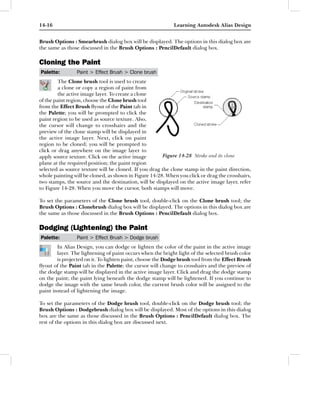
the paint will smear or distort, as shown in
Figure 14-27.

To set the parameters of the Smear brush tool,
double-click on the Smear brush tool; the           Figure 14-27 Stroke before and after smearing
14-16                                                       Learning Autodesk Alias Design


Brush Options : Smearbrush dialog box will be displayed. The options in this dialog box are
the same as those discussed in the Brush Options : PencilDefault dialog box.

Cloning the Paint
Palette:        Paint > Effect Brush > Clone brush
         The Clone brush tool is used to create
         a clone or copy a region of paint from
         the active image layer. To create a clone
of the paint region, choose the Clone brush tool
from the Effect Brush flyout of the Paint tab in
the Palette; you will be prompted to click the
paint region to be used as source texture. Also,
the cursor will change to crosshairs and the
preview of the clone stamp will be displayed in
the active image layer. Next, click on paint
region to be cloned; you will be prompted to
click or drag anywhere on the image layer to
apply source texture. Click on the active image         Figure 14-28 Stroke and its clone
plane at the required position; the paint region
selected as source texture will be cloned. If you drag the clone stamp in the paint direction,
whole painting will be cloned, as shown in Figure 14-28. When you click or drag the crosshairs,
two stamps, the source and the destination, will be displayed on the active image layer, refer
to Figure 14-28. When you move the cursor, both stamps will move.

To set the parameters of the Clone brush tool, double-click on the Clone brush tool; the
Brush Options : Clonebrush dialog box will be displayed. The options in this dialog box are
the same as those discussed in the Brush Options : PencilDefault dialog box.

Dodging (Lightening) the Paint
Palette:        Paint > Effect Brush > Dodge brush
        In Alias Design, you can dodge or lighten the color of the paint in the active image
        layer. The lightening of paint occurs when the bright light of the selected brush color
        is projected on it. To lighten paint, choose the Dodge brush tool from the Effect Brush
flyout of the Paint tab in the Palette; the cursor will change to crosshairs and the preview of
the dodge stamp will be displayed in the active image layer. Click and drag the dodge stamp
on the paint; the paint lying beneath the dodge stamp will be lightened. If you continue to
dodge the image with the same brush color, the current brush color will be assigned to the
paint instead of lightening the image.

To set the parameters of the Dodge brush tool, double-click on the Dodge brush tool; the
Brush Options : Dodgebrush dialog box will be displayed. Most of the options in this dialog
box are the same as those discussed in the Brush Options : PencilDefault dialog box. The
rest of the options in this dialog box are discussed next.
Sketching Tools                                                                         14-17


Dodge Properties
This area is used to specify the properties of the dodge stamp. The options in this area are
discussed next.

    Selection
    This drop-down list is used to specify the range of color values to be dodged. By default,
    the Midtone option is selected in this drop-down list which dodge the image with the
    brightness that lies in between the shadows and highlights. Choose the All option to
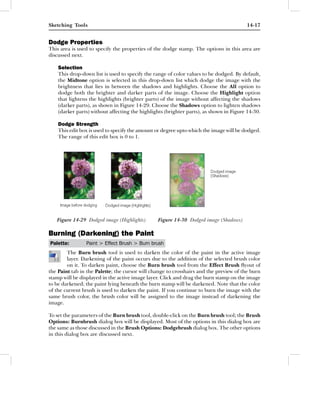
    dodge both the brighter and darker parts of the image. Choose the Highlight option
    that lightens the highlights (brighter parts) of the image without affecting the shadows
    (darker parts), as shown in Figure 14-29. Choose the Shadows option to lighten shadows
    (darker parts) without affecting the highlights (brighter parts), as shown in Figure 14-30.

    Dodge Strength
    This edit box is used to specify the amount or degree upto which the image will be dodged.
    The range of this edit box is 0 to 1.


   Figure 14-29 Dodged image (Highlights)       Figure 14-30 Dodged image (Shadows)

Burning (Darkening) the Paint
Palette:        Paint > Effect Brush > Burn brush
        The Burn brush tool is used to darken the color of the paint in the active image
        layer. Darkening of the paint occurs due to the addition of the selected brush color
        on it. To darken paint, choose the Burn brush tool from the Effect Brush flyout of
the Paint tab in the Palette; the cursor will change to crosshairs and the preview of the burn
stamp will be displayed in the active image layer. Click and drag the burn stamp on the image
to be darkened; the paint lying beneath the burn stamp will be darkened. Note that the color
of the current brush is used to darken the paint. If you continue to burn the image with the
same brush color, the brush color will be assigned to the image instead of darkening the
image.

To set the parameters of the Burn brush tool, double-click on the Burn brush tool; the Brush
Options: Burnbrush dialog box will be displayed. Most of the options in this dialog box are
the same as those discussed in the Brush Options: Dodgebrush dialog box. The other options
in this dialog box are discussed next.
14-18                                                         Learning Autodesk Alias Design


Burn Properties
This area is used to specify the properties of the burn stamp. The options in this area are
discussed next.

    Selection
    This drop-down list is used to specify the areas of the image to be darkened. By default,
    the Midtone option is selected in this drop-down list which burns the image with the
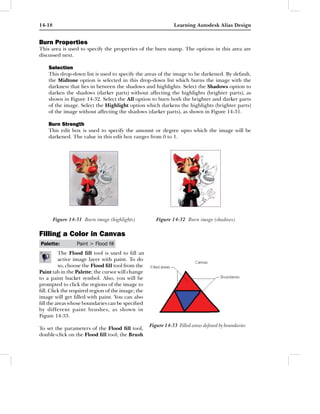
    darkness that lies in between the shadows and highlights. Select the Shadows option to
    darken the shadows (darker parts) without affecting the highlights (brighter parts), as
    shown in Figure 14-32. Select the All option to burn both the brighter and darker parts
    of the image. Select the Highlight option which darkens the highlights (brighter parts)
    of the image without affecting the shadows (darker parts), as shown in Figure 14-31.

    Burn Strength
    This edit box is used to specify the amount or degree upto which the image will be
    darkened. The value in this edit box ranges from 0 to 1.


        Figure 14-31 Burn image (highlights)          Figure 14-32 Burn image (shadows)

Filling a Color in Canvas
Palette:          Paint > Flood fill
         The Flood fill tool is used to fill an
         active image layer with paint. To do
         so, choose the Flood fill tool from the
Paint tab in the Palette; the cursor will change
to a paint bucket symbol. Also, you will be
prompted to click the regions of the image to
fill. Click the required region of the image; the
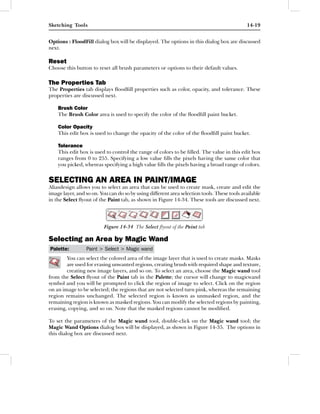
image will get filled with paint. You can also
fill the areas whose boundaries can be specified
by different paint brushes, as shown in
Figure 14-33.
                                                   Figure 14-33 Filled areas defined by boundaries
To set the parameters of the Flood fill tool,
double-click on the Flood fill tool; the Brush
Sketching Tools                                                                              14-19


Options : FloodFill dialog box will be displayed. The options in this dialog box are discussed
next.

Reset
Choose this button to reset all brush parameters or options to their default values.

The Properties Tab
The Properties tab displays floodfill properties such as color, opacity, and tolerance. These
properties are discussed next.

    Brush Color
    The Brush Color area is used to specify the color of the floodfill paint bucket.

    Color Opacity
    This edit box is used to change the opacity of the color of the floodfill paint bucket.

    Tolerance
    This edit box is used to control the range of colors to be filled. The value in this edit box
    ranges from 0 to 255. Specifying a low value fills the pixels having the same color that
    you picked, whereas specifying a high value fills the pixels having a broad range of colors.


SELECTING AN AREA IN PAINT/IMAGE
Aliasdesign allows you to select an area that can be used to create mask, create and edit the
image layer, and so on. You can do so by using different area selection tools. These tools available
in the Select flyout of the Paint tab, as shown in Figure 14-34. These tools are discussed next.


                          Figure 14-34 The Select flyout of the Paint tab

Selecting an Area by Magic Wand
Palette:         Paint > Select > Magic wand
        You can select the colored area of the image layer that is used to create masks. Masks
        are used for erasing unwanted regions, creating brush with required shape and texture,
        creating new image layers, and so on. To select an area, choose the Magic wand tool
from the Select flyout of the Paint tab in the Palette; the cursor will change to magicwand
symbol and you will be prompted to click the region of image to select. Click on the region
on an image to be selected; the regions that are not selected turn pink, whereas the remaining
region remains unchanged. The selected region is known as unmasked region, and the
remaining region is known as masked regions. You can modify the selected regions by painting,
erasing, copying, and so on. Note that the masked regions cannot be modified.

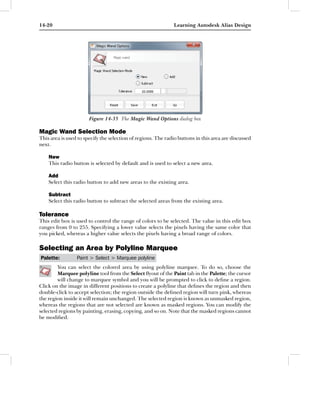
To set the parameters of the Magic wand tool, double-click on the Magic wand tool; the
Magic Wand Options dialog box will be displayed, as shown in Figure 14-35. The options in
this dialog box are discussed next.
14-20                                                         Learning Autodesk Alias Design


                       Figure 14-35 The Magic Wand Options dialog box

Magic Wand Selection Mode
This area is used to specify the selection of regions. The radio buttons in this area are discussed
next.

    New
    This radio button is selected by default and is used to select a new area.

    Add
    Select this radio button to add new areas to the existing area.

    Subtract
    Select this radio button to subtract the selected areas from the existing area.

Tolerance
This edit box is used to control the range of colors to be selected. The value in this edit box
ranges from 0 to 255. Specifying a lower value selects the pixels having the same color that
you picked, whereas a higher value selects the pixels having a broad range of colors.

Selecting an Area by Polyline Marquee
Palette:         Paint > Select > Marquee polyline
        You can select the colored area by using polyline marquee. To do so, choose the
        Marquee polyline tool from the Select flyout of the Paint tab in the Palette; the cursor
        will change to marquee symbol and you will be prompted to click to define a region.
Click on the image in different positions to create a polyline that defines the region and then
double-click to accept selection; the region outside the defined region will turn pink, whereas
the region inside it will remain unchanged. The selected region is known as unmasked region,
whereas the regions that are not selected are known as masked regions. You can modify the
selected regions by painting, erasing, copying, and so on. Note that the masked regions cannot
be modified.
Sketching Tools                                                                             14-21


To set the parameters of the Marquee polyline tool, double-click on the Marquee polyline
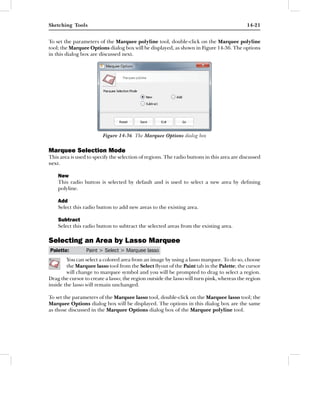
tool; the Marquee Options dialog box will be displayed, as shown in Figure 14-36. The options
in this dialog box are discussed next.


                         Figure 14-36 The Marquee Options dialog box

Marquee Selection Mode
This area is used to specify the selection of regions. The radio buttons in this area are discussed
next.

    New
    This radio button is selected by default and is used to select a new area by defining
    polyline.

    Add
    Select this radio button to add new areas to the existing area.

    Subtract
    Select this radio button to subtract the selected areas from the existing area.

Selecting an Area by Lasso Marquee
Palette:         Paint > Select > Marquee lasso
        You can select a colored area from an image by using a lasso marquee. To do so, choose
        the Marquee lasso tool from the Select flyout of the Paint tab in the Palette; the cursor
        will change to marquee symbol and you will be prompted to drag to select a region.
Drag the cursor to create a lasso; the region outside the lasso will turn pink, whereas the region
inside the lasso will remain unchanged.

To set the parameters of the Marquee lasso tool, double-click on the Marquee lasso tool; the
Marquee Options dialog box will be displayed. The options in this dialog box are the same
as those discussed in the Marquee Options dialog box of the Marquee polyline tool.
14-22                                                      Learning Autodesk Alias Design


Selecting an Area by Rectangular Marquee
Palette:        Paint > Select > Marquee rectangle
        You can select the colored area by using a rectangular marquee. To do so, choose the
        Marquee rectangle tool from the Select flyout of the Paint tab in the Palette; the
        cursor will change to marquee symbol and you will be prompted to drag to select the
region. Drag the marquee to create a rectangular box; the region outside the box will turn
pink, whereas the region inside the box will remain unchanged.

To set the parameters of the Marquee rectangle tool, double-click on the Marquee rectangle
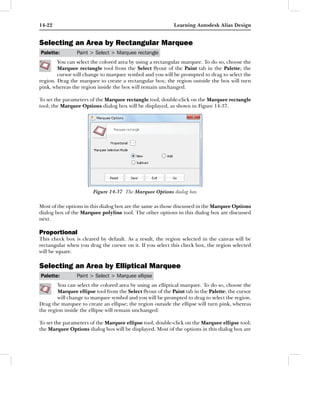
tool; the Marquee Options dialog box will be displayed, as shown in Figure 14-37.


                       Figure 14-37 The Marquee Options dialog box

Most of the options in this dialog box are the same as those discussed in the Marquee Options
dialog box of the Marquee polyline tool. The other options in this dialog box are discussed
next.

Proportional
This check box is cleared by default. As a result, the region selected in the canvas will be
rectangular when you drag the cursor on it. If you select this check box, the region selected
will be square.

Selecting an Area by Elliptical Marquee
Palette:        Paint > Select > Marquee ellipse
        You can select the colored area by using an elliptical marquee. To do so, choose the
        Marquee ellipse tool from the Select flyout of the Paint tab in the Palette; the cursor
        will change to marquee symbol and you will be prompted to drag to select the region.
Drag the marquee to create an ellipse; the region outside the ellipse will turn pink, whereas
the region inside the ellipse will remain unchanged.

To set the parameters of the Marquee ellipse tool, double-click on the Marquee ellipse tool;
the Marquee Options dialog box will be displayed. Most of the options in this dialog box are
Sketching Tools                                                                            14-23


the same as those discussed in the Marquee Options dialog box of the Marquee polyline
tool. The other option in this dialog box is discussed next.

Proportional
This check box is cleared by default. As a result, the region selected in the canvas will be
elliptical when you drag the cursor on it. If you select this check box, the region selected in
the canvas will be circular.

Toggling the Marquee
Palette:         Paint > Select > Toggle marquee
        You can toggle the marquee between the visible and invisible modes. If you have
        created a marquee with any of the marquee tools, you can toggle its visibility on or
        off. To do so, choose the Toggle marquee tool from the Select flyout of the Paint tab
in the Palette; the visibility of marquee will turn on or off, depending on its initial condition.

Inverting the Marquee
Palette:         Paint > Select > Invert marquee
         You can invert the marquee so that the masked area of the image is converted into an
         unmasked area and vice versa. To do so, choose the Invert marquee tool from the
         Select flyout of the Paint tab in the Palette; the marquee will be inverted, depending
on its initial condition.

Clearing the Marquee
Palette:         Paint > Select > Clear marquee
        You can clear the marquee in the active image layer. To do so, choose the Clear
        marquee tool from the Select flyout of the Paint tab in the Palette; the marquee will
        be cleared. Next, you can create a new marquee by using different marquee tools.

Transforming the Marquee
Palette:         Paint > Select > Transform marquee
         You can transform (move, rotate, and
         scale) the selected area defined by the
         marquee. To transform the defined
region, choose the Transform marquee tool
from the Select flyout of the Paint tab in the
Palette; a manipulator will be displayed on the
marquee in the image layer and you will be
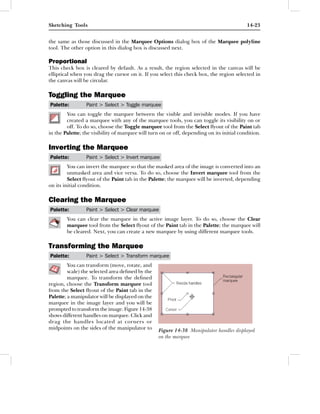
prompted to transform the image. Figure 14-38
shows different handles on marquee. Click and
drag the handles located at corners or
midpoints on the sides of the manipulator to      Figure 14-38 Manipulator handles displayed
                                                  on the marquee
14-24                                                         Learning Autodesk Alias Design


scale the marquee; the three buttons, Accept, Reset Pivot, and Reset All will be displayed at
the lower right corner of the active window. Choose the Accept button to accept the new size
of the marquee. Choose the Reset Pivot button to reset the pivot point to its default position.
Choose the Reset All button to reset the entire marquee to its default size. You can move the
selected marquee by dragging it with the middle mouse button and can rotate the selected
marquee by dragging it from the sides. You can also change the position of the pivot point by
placing the cursor on it so that the cursor changes to crosshairs and then dragging it.

Creating Image Shapes
Palette:         Paint > Shape > Make image shape
         You can create shapes from curves or a
         set of curves and fill the areas defined
         by these curves. These shapes are used
for painting, masking, and so on. Also, these
shapes are used to create the precise images.
You can modify these images by modifying the
curves. To create a shape, first you need to create
curves by using any curve tool. Next, choose the
Make image shape tool from the Shape flyout
of the Paint tab in the Palette; you will be
prompted to select the curve. Select the curve
from the image layer; you will be prompted to
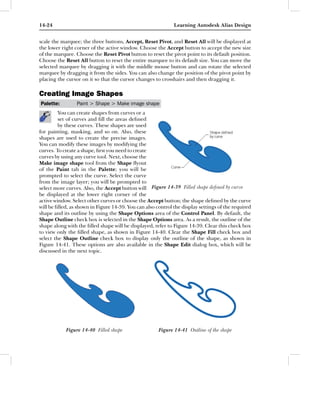
select more curves. Also, the Accept button will Figure 14-39 Filled shape defined by curve
be displayed at the lower right corner of the
active window. Select other curves or choose the Accept button; the shape defined by the curve
will be filled, as shown in Figure 14-39. You can also control the display settings of the required
shape and its outline by using the Shape Options area of the Control Panel. By default, the
Shape Outline check box is selected in the Shape Options area. As a result, the outline of the
shape along with the filled shape will be displayed, refer to Figure 14-39. Clear this check box
to view only the filled shape, as shown in Figure 14-40. Clear the Shape Fill check box and
select the Shape Outline check box to display only the outline of the shape, as shown in
Figure 14-41. These options are also available in the Shape Edit dialog box, which will be
discussed in the next topic.


            Figure 14-40 Filled shape                  Figure 14-41 Outline of the shape
Sketching Tools                                                                                    14-25


You can view only the shape fill. If the curve selected for creating shape is not closed, the
endpoints of the curve will be connected by a straight line. This straight line will not have
any outline properties.

        Note
        You can select multiple curves by dragging a box around them. However, it is not recommended
        as you may not get the required shape. Therefore, you are advised to select the curves one by one.

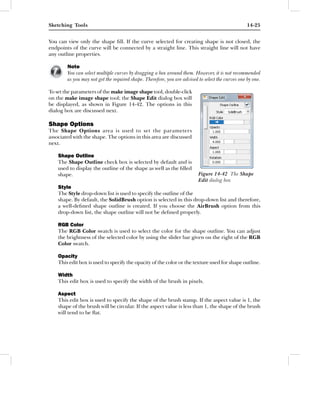
To set the parameters of the make image shape tool, double-click
on the make image shape tool; the Shape Edit dialog box will
be displayed, as shown in Figure 14-42. The options in this
dialog box are discussed next.

Shape Options
The Shape Options area is used to set the parameters
associated with the shape. The options in this area are discussed
next.

    Shape Outline
    The Shape Outline check box is selected by default and is
    used to display the outline of the shape as well as the filled
    shape.                                                                Figure 14-42 The Shape
                                                                          Edit dialog box
    Style
    The Style drop-down list is used to specify the outline of the
    shape. By default, the SolidBrush option is selected in this drop-down list and therefore,
    a well-defined shape outline is created. If you choose the AirBrush option from this
    drop-down list, the shape outline will not be defined properly.

    RGB Color
    The RGB Color swatch is used to select the color for the shape outline. You can adjust
    the brightness of the selected color by using the slider bar given on the right of the RGB
    Color swatch.

    Opacity
    This edit box is used to specify the opacity of the color or the texture used for shape outline.

    Width
    This edit box is used to specify the width of the brush in pixels.

    Aspect
    This edit box is used to specify the shape of the brush stamp. If the aspect value is 1, the
    shape of the brush will be circular. If the aspect value is less than 1, the shape of the brush
    will tend to be flat.
14-26                                                         Learning Autodesk Alias Design


    Rotation
    This edit box is used to specify the angle of rotation in degrees for the brush stamp. If
    the aspect value is less than 1, changing the rotation angle will result in the brush stamp
    to be more horizontal or vertical.

    Spacing
    This edit box is used to specify the distance between the stamps of a brush stroke while
    creating a shape.

    Shape Fill
    This check box is used to control the display settings of the interior of the shape formed
    by curve.

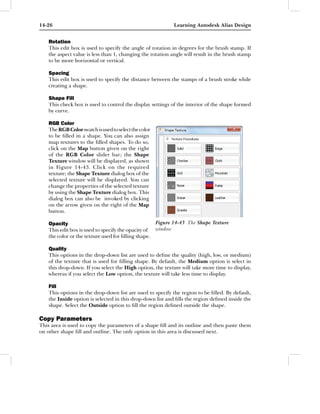
    RGB Color
    The RGB Color swatch is used to select the color
    to be filled in a shape. You can also assign
    map textures to the filled shapes. To do so,
    click on the Map button given on the right
    of the RGB Color slider bar; the Shape
    Texture window will be displayed, as shown
    in Figure 14-43. Click on the required
    texture; the Shape Texture dialog box of the
    selected texture will be displayed. You can
    change the properties of the selected texture
    by using the Shape Texture dialog box. This
    dialog box can also be invoked by clicking
    on the arrow given on the right of the Map
    button.

    Opacity                                            Figure 14-43 The Shape Texture
    This edit box is used to specify the opacity of    window
    the color or the texture used for filling shape.

    Quality
    This options in the drop-down list are used to define the quality (high, low, or medium)
    of the texture that is used for filling shape. By default, the Medium option is select in
    this drop-down. If you select the High option, the texture will take more time to display,
    whereas if you select the Low option, the texture will take less time to display.

    Fill
    This options in the drop-down list are used to specify the region to be filled. By default,
    the Inside option is selected in this drop-down list and fills the region defined inside the
    shape. Select the Outside option to fill the region defined outside the shape.

Copy Parameters
This area is used to copy the parameters of a shape fill and its outline and then paste them
on other shape fill and outline. The only option in this area is discussed next.
Sketching Tools                                                                         14-27


    Option
    This options in the drop-down list are used to specify the component of the shape to be
    copied and pasted. By default, the Outline and Fill option is selected in this drop-down
    and is used to copy and paste the parameters of both the outline and shape fill. Select
    the Outline option to copy and paste the parameters of the outline only. Select the Fill
    option to copy and paste the parameters of the shape fill only. To copy the parameters
    of outline and shape, select the curve whose outline and shape fill need to be copied and
    then select the Copy option. Next, select the curve to which the copied outline and shape
    fill need to be pasted and select the Paste option; the parameters of outline and shape
    fill will be pasted.


Masking a Shape
Palette:        Paint > Shape > Make mask shape
         The Make mask shape tool is used to create a mask using curves. This tool cannot
         work on shape layers. To create masks using curves, choose the Make mask shape tool
         from the Shape flyout of the Paint tab in the Palette; you will be prompted to select
a curve. Select the required curve; you will be prompted to select another curve and the Accept
button will be displayed at the lower right corner of the active window. Select the other curve
or choose the Accept button; the mask will be created on the selected curves. You can also
create masks from text. In this case, you need to select the curves of the text one by one.

To set the parameters of the Make mask shape tool, double-click on the Make mask shape
tool; the Shape Edit dialog box will be displayed. The options in this dialog box are the same
as those discussed in the Shape Edit dialog box of the Make image shape tool.

Creating Invisible Masks
Palette:        Paint > Shape > Make invisibility mask shape
         The Make invisibility mask shape tool is used to work on a specified area in an image
         layer. This tool cannot work on shape layers. To create an invisible mask from curves,
         choose the Make invisibility mask shape tool from the Shape flyout of the Paint tab
in the Palette; you will be prompted to select a curve. Select the curve; you will be prompted
to select another curve and the Accept button will be displayed at the lower right corner of
the active window. Select the other curve or choose the Accept button; the area enclosed by
the curves will be visible. You can specify the area inside or outside the curves to work upon
by setting the options in the Shape Fill area of the Shape Edit dialog box. After creating
invisibility mask, if you transform (move or scale) the curve, the area will get updated
accordingly.

To set the parameters of the Make invisibility mask shape tool, double-click on the Make
invisibility mask shape tool; the Shape Edit dialog box will be displayed. The options in this
dialog box are the same as those discussed in the Shape Edit dialog box of the make image
shape tool.
14-28                                                               Learning Autodesk Alias Design


Creating Text Images
Palette:         Paint > Text Image
         Alias Design allows you to create text
         images in the Paint workflow. You can
         use the text thus created to annotate
images. Alias Design allows you to work with
the text in a particular layer without affecting
the underlying layers. To create a text image,
choose the Text Image tool from the Paint tab
in the Palette and click on the canvas where you
want the text to be created; the cursor will
change to the text cursor and you will be
prompted to enter the text string. Enter the
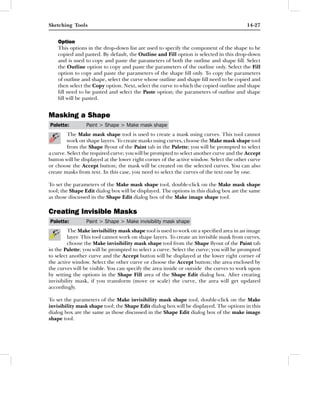
text; the text image will be created, as shown in
Figure 14-44. Note that when you create a text                     Figure 14-44 Text image
image, a new text layer is created.

        Note
        After creating the text, if you click outside the text box, a new text box will be displayed in which
        you can write a new text. Also, a new text layer will be created.

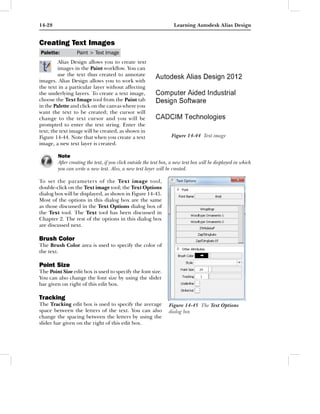
To set the parameters of the Text image tool,
double-click on the Text image tool; the Text Options
dialog box will be displayed, as shown in Figure 14-45.
Most of the options in this dialog box are the same
as those discussed in the Text Options dialog box of
the Text tool. The Text tool has been discussed in
Chapter 2. The rest of the options in this dialog box
are discussed next.

Brush Color
The Brush Color area is used to specify the color of
the text.

Point Size
The Point Size edit box is used to specify the font size.
You can also change the font size by using the slider
bar given on right of this edit box.

Tracking
The Tracking edit box is used to specify the average              Figure 14-45 The Text Options
space between the letters of the text. You can also               dialog box
change the spacing between the letters by using the
slider bar given on the right of this edit box.
Sketching Tools                                                                         14-29


Underline
Select this check box to underline the text.

StrikeOut
Select this check box to create a horizontal line that cuts through the text.

Creating Mirror Images
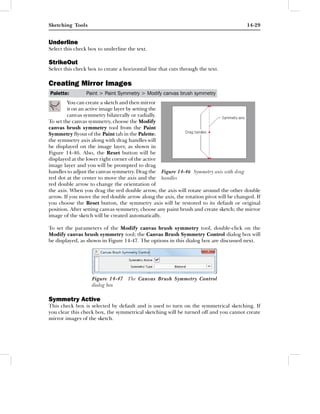
Palette:         Paint > Paint Symmetry > Modify canvas brush symmetry
         You can create a sketch and then mirror
         it on an active image layer by setting the
         canvas symmetry bilaterally or radially.
To set the canvas symmetry, choose the Modify
canvas brush symmetry tool from the Paint
Symmetry flyout of the Paint tab in the Palette;
the symmetry axis along with drag handles will
be displayed on the image layer, as shown in
Figure 14-46. Also, the Reset button will be
displayed at the lower right corner of the active
image layer and you will be prompted to drag
handles to adjust the canvas symmetry. Drag the Figure 14-46 Symmetry axis with drag
red dot at the center to move the axis and the handles
red double arrow to change the orientation of
the axis. When you drag the red double arrow, the axis will rotate around the other double
arrow. If you move the red double arrow along the axis, the rotation pivot will be changed. If
you choose the Reset button, the symmetry axis will be restored to its default or original
position. After setting canvas symmetry, choose any paint brush and create sketch; the mirror
image of the sketch will be created automatically.

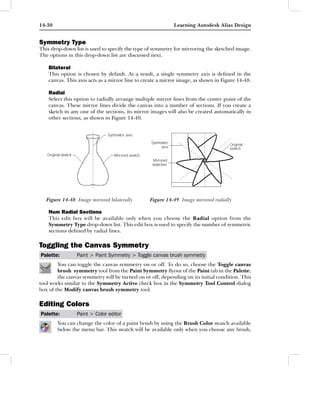
To set the parameters of the Modify canvas brush symmetry tool, double-click on the
Modify canvas brush symmetry tool; the Canvas Brush Symmetry Control dialog box will
be displayed, as shown in Figure 14-47. The options in this dialog box are discussed next.


                   Figure 14-47 The Canvas Brush Symmetry Control
                   dialog box

Symmetry Active
This check box is selected by default and is used to turn on the symmetrical sketching. If
you clear this check box, the symmetrical sketching will be turned off and you cannot create
mirror images of the sketch.
14-30                                                       Learning Autodesk Alias Design


Symmetry Type
This drop-down list is used to specify the type of symmetry for mirroring the sketched image.
The options in this drop-down list are discussed next.

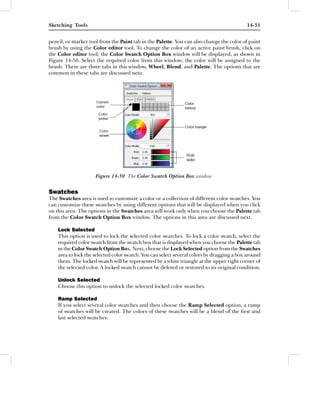
    Bilateral
    This option is chosen by default. As a result, a single symmetry axis is defined in the
    canvas. This axis acts as a mirror line to create a mirror image, as shown in Figure 14-48.

    Radial
    Select this option to radially arrange multiple mirror lines from the center point of the
    canvas. These mirror lines divide the canvas into a number of sections. If you create a
    sketch in any one of the sections, its mirror images will also be created automatically in
    other sections, as shown in Figure 14-49.


   Figure 14-48 Image mirrored bilaterally       Figure 14-49 Image mirrored radially

    Num Radial Sections
    This edit box will be available only when you choose the Radial option from the
    Symmetry Type drop-down list. This edit box is used to specify the number of symmetric
    sections defined by radial lines.

Toggling the Canvas Symmetry
Palette:        Paint > Paint Symmetry > Toggle canvas brush symmetry
        You can toggle the canvas symmetry on or off. To do so, choose the Toggle canvas
        brush symmetry tool from the Paint Symmetry flyout of the Paint tab in the Palette;
        the canvas symmetry will be turned on or off, depending on its initial condition. This
tool works similar to the Symmetry Active check box in the Symmetry Tool Control dialog
box of the Modify canvas brush symmetry tool.

Editing Colors
Palette:        Paint > Color editor
        You can change the color of a paint brush by using the Brush Color swatch available
        below the menu bar. This swatch will be available only when you choose any brush,
Sketching Tools                                                                            14-31


pencil, or marker tool from the Paint tab in the Palette. You can also change the color of paint
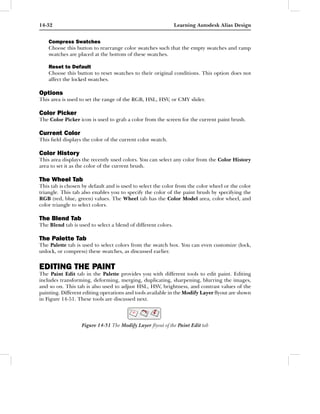
brush by using the Color editor tool. To change the color of an active paint brush, click on
the Color editor tool; the Color Swatch Option Box window will be displayed, as shown in
Figure 14-50. Select the required color from this window; the color will be assigned to the
brush. There are three tabs in this window, Wheel, Blend, and Palette. The options that are
common in these tabs are discussed next.


                     Figure 14-50 The Color Swatch Option Box window


Swatches
The Swatches area is used to customize a color or a collection of different color swatches. You
can customize these swatches by using different options that will be displayed when you click
on this area. The options in the Swatches area will work only when you choose the Palette tab
from the Color Swatch Option Box window. The options in this area are discussed next.

    Lock Selected
    This option is used to lock the selected color swatches. To lock a color swatch, select the
    required color swatch from the swatch box that is displayed when you choose the Palette tab
    in the Color Swatch Option Box. Next, choose the Lock Selected option from the Swatches
    area to lock the selected color swatch. You can select several colors by dragging a box around
    them. The locked swatch will be represented by a white triangle at the upper right corner of
    the selected color. A locked swatch cannot be deleted or restored to its original condition.

    Unlock Selected
    Choose this option to unlock the selected locked color swatches.

    Ramp Selected
    If you select several color swatches and then choose the Ramp Selected option, a ramp
    of swatches will be created. The colors of these swatches will be a blend of the first and
    last selected swatches.
14-32                                                          Learning Autodesk Alias Design


    Compress Swatches
    Choose this button to rearrange color swatches such that the empty swatches and ramp
    swatches are placed at the bottom of these swatches.

    Reset to Default
    Choose this button to reset swatches to their original conditions. This option does not
    affect the locked swatches.

Options
This area is used to set the range of the RGB, HSL, HSV, or CMY slider.

Color Picker
The Color Picker icon is used to grab a color from the screen for the current paint brush.

Current Color
This field displays the color of the current color swatch.

Color History
This area displays the recently used colors. You can select any color from the Color History
area to set it as the color of the current brush.

The Wheel Tab
This tab is chosen by default and is used to select the color from the color wheel or the color
triangle. This tab also enables you to specify the color of the paint brush by specifying the
RGB (red, blue, green) values. The Wheel tab has the Color Model area, color wheel, and
color triangle to select colors.

The Blend Tab
The Blend tab is used to select a blend of different colors.

The Palette Tab
The Palette tab is used to select colors from the swatch box. You can even customize (lock,
unlock, or compress) these swatches, as discussed earlier.


EDITING THE PAINT
The Paint Edit tab in the Palette provides you with different tools to edit paint. Editing
includes transforming, deforming, merging, duplicating, sharpening, blurring the images,
and so on. This tab is also used to adjust HSL, HSV, brightness, and contrast values of the
painting. Different editing operations and tools available in the Modify Layer flyout are shown
in Figure 14-51. These tools are discussed next.


                   Figure 14-51 The Modify Layer flyout of the Paint Edit tab
Sketching Tools                                                                         14-33


Transforming Image Layers
Palette:        Paint Edit > Modify Layer > Transform layer
        You can transform (move, resize, or rotate) the contents of an image layer. To do so,
        choose the Transform layer tool; the contents of the image layer will be enclosed in
        a box, known as manipulator, and you will be prompted to transform the image. The
image can be transformed in a way similar to transforming of the marquee that has been
discussed earlier in the Transform marquee topic.

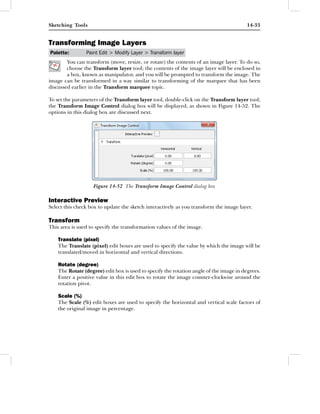
To set the parameters of the Transform layer tool, double-click on the Transform layer tool;
the Transform Image Control dialog box will be displayed, as shown in Figure 14-52. The
options in this dialog box are discussed next.


                   Figure 14-52 The Transform Image Control dialog box

Interactive Preview
Select this check box to update the sketch interactively as you transform the image layer.

Transform
This area is used to specify the transformation values of the image.

    Translate (pixel)
    The Translate (pixel) edit boxes are used to specify the value by which the image will be
    translated/moved in horizontal and vertical directions.

    Rotate (degree)
    The Rotate (degree) edit box is used to specify the rotation angle of the image in degrees.
    Enter a positive value in this edit box to rotate the image counter-clockwise around the
    rotation pivot.

    Scale (%)
    The Scale (%) edit boxes are used to specify the horizontal and vertical scale factors of
    the original image in percentage.
14-34                                                         Learning Autodesk Alias Design


Flipping the Image Horizontally
Palette:        Paint Edit > Modify Layer > Horizontal flip
        You can flip an image layer from left to right and vice versa. To do so, choose the
        Horizontal flip tool from the Modify Layer flyout of the Paint Edit tab in the Palette;
        the image layer will be flipped from right to left. To restore the image to its original
position, choose this button again.

Flipping the Image Vertically
Palette:        Paint Edit > Modify Layer > Vertical flip
        You can flip an image layer from top to bottom and vice versa. To do so, choose the
        Vertical flip tool from the Modify Layer flyout of the Paint Edit tab in the Palette;
        the image layer will be flipped from top to bottom. To restore the image to its original
position, choose this button again.

        Note
        A text image cannot be flipped with the Horizontal flip or Vertical flip tool.

Deforming the Image
Palette:        Paint Edit > Deform image layer
        The Deform image layer tool is used to deform or warp an image layer. To do so,
        choose the Deform image layer tool from the Paint Edit tab in the Palette; the
        manipulator handles will be displayed on the image and you will be prompted to drag
manipulator handles. Drag one of the manipulator handles at corner or sides; the image will
be deformed and the Accept button will be displayed at the lower right corner of the active
window. Choose the Accept button to accept the new shape of the image. To deform an image
by moving it, drag the handle located at the center of the image. To deform an image by
rotation, drag any handle with the SHIFT key pressed.

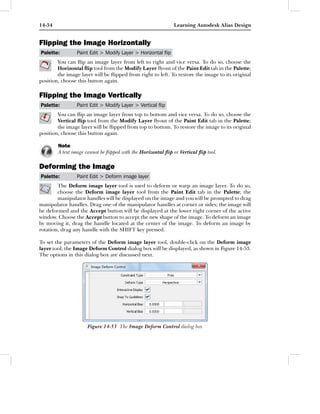
To set the parameters of the Deform image layer tool, double-click on the Deform image
layer tool; the Image Deform Control dialog box will be displayed, as shown in Figure 14-53.
The options in this dialog box are discussed next.


                     Figure 14-53 The Image Deform Control dialog box
Sketching Tools                                                                          14-35


Constraint Type
This drop-down list is used to specify the type of constraint to be used for deforming an image.
The options in this drop-down list are discussed next.

    Free
    This option is selected by default and is used to deform the image on the side or corner
    being dragged.

    Skew
    If you select this option and then deform the image on one side or at corner, the image
    will be deformed on the opposite side or at the opposite corner.

Deform Type
This drop-down list will be available only when you select the Free option from the Constraint
Type drop-down list. This area is used to specify the deformed look of the image. The options
in this drop-down list are discussed next.

    Perspective
    This option is selected by default and is used to change the midpoint of the image as you
    modify image. The image obtained after deforming it by selecting the Perspective option
    will appear tilted, thus giving it a perspective look.

    Distort
    Select this option to distort the image without forcing a perspective look on it.

Interactive Display
Select this check box to update the image interactively as you deform the image layer.

Snap to Guidelines
Guidelines are created along the border of the image when you drag the image to deform.
The Snap to Guidelines check box is selected by default and is used to control the changes
made in the image by using guidelines. Clear this check box, if you do not want the image to
be controlled by guidelines.

Horizontal Bias
This edit box is used to pull or push the center of the image horizontally toward or away from
the perspective point.

Vertical Bias
This edit box is used to pull or push the center of the image vertically toward or away from
the perspective point.
14-36                                                         Learning Autodesk Alias Design


Warping an Image by Using a Shape
Palette:         Paint Edit > Make warp shape
        You can distort or warp an image by changing the shape of the region of interest by
        using the Make warp shape tool. Before using this tool, you need to create curves.
        After creating curves, choose the Make warp shape tool from the Paint Edit tab in
the Palette; you will be prompted to select a curve. Select the curve; you will be prompted to
select more curves. Also, the Accept button will be displayed at the lower right corner of the
active window. Select other curves or choose the Accept button; a deformable warp shape will
be created, as shown in Figure 14-54. Next, drag CVs or edit points, scale curves, or perform
any other operation on the curve; the shape of the image will get updated interactively, as
shown in Figure 14-55. The warping of a shape can be controlled by using the Shape Warp
Options area that will be displayed in the Control Panel. The options in the Shape Warp
Options area are discussed next.


            Figure 14-54 Warp shape                 Figure 14-55 Warp shape deformed by
                                                    moving a CV


Influence
This edit box is used to specify the image area to be distorted. This edit box is used to control
the number of pixels that will be affected by warping the image.

Feedback
Select this check box to view the modification/
distortion done into the image visually. When
you select this check box, the blue colored grids
showing the warped regions will be displayed
on the image, as shown in Figure 14-56.


CORRECTING THE
COLORS OF A SKETCH
After completing the sketch, you may need
to modify the properties of its color such as
brightness, contrast, hue, saturation, and so       Figure 14-56 Warp feedback displayed in the
on. Alias Design provides you with various          form of grids
Sketching Tools                                                                           14-37


color correction tools that are used to modify these properties. These color correction tools
available in the Color Correction flyout are shown in Figure 14-57.


                           Figure 14-57 The Color Correction flyout

Manipulating Colors
Palette:         Paint Edit > Color Correction > Color manipulation
         You can manipulate the colors of an
         image or a sketch by using the Color
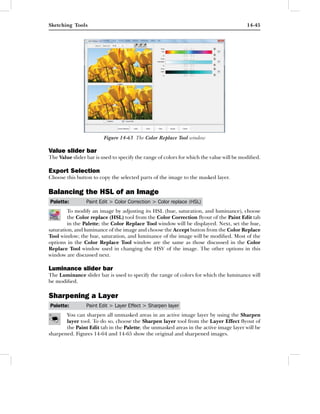
         manipulation tool. This tool includes the
functions of different color correction tools. To
manipulate the color of an image, choose the
Color manipulation tool from the Color
Correction flyout of the Paint Edit tab in the
Palette; the Color Manipulation Editor window
will be displayed, as shown in Figure 14-58. Set
hue, saturation, luminance, brightness, and so
on as per your requirement and then choose the
Apply button from the Color Manipulation
Editor window; the colors of the image will be
manipulated. The tabs in this dialog box are
discussed next.

The AllColors Tab
This tab is chosen by default and is used to
manipulate all colors in an image. You can also
control hue, saturation, luminance, brightness,
contrast, and so on for all colors in an image. The
options in this tab are discussed next.

    PreView
    This check box is selected by default and         Figure 14-58 The AllColors tab of the
    is used to preview the changes made in the        Color Manipulation Editor window
    image. This check box is available in all tabs
    of the Color Manipulation Editor dialog
    box.

    Adjust Color Balance
    This area is used to adjust the colors of an image. The Hue, Saturation, and
    Luminance sliders are used to control the hue, saturation, and luminance of the image,
    respectively. The options in the Hue Adjustment area are used to adjust hue under different
    conditions. By default, the Shift Hues option is chosen in this area and this option is used
    to adjust all colors by the same hue value. If you choose the Colorize Hues option from
14-38                                                        Learning Autodesk Alias Design


    the Hue Adjustment area; the hue of all colors excluding gray areas will be changed. If
    you choose the Colorize Hues and Grays option from this area; all colors including gray
    areas will be adjusted to the selected hue value. You can specify hue in the Hue Strength
    edit box that is displayed when the Colorize Hues or Colorize Hues and Grays option
    is chosen in the Hue Adjustment area.

    Brightness & Contrast
    This area has two edit boxes, Brightness and Contrast, to control brightness and contrast
    of the entire image.

    Highlights & Shadows
    This area is used to adjust the brightness or darkness of highlights or shadows in the
    image. You can change the brightness/darkness of highlights, midtones, and shadows by
    using the corresponding sliders.

The ByColors Tab
Choose the ByColors tab to display various options, as shown in Figure 14-59. These options
are used to adjust the hue, saturation, and luminance of the required colors. There are eight
overlapping colors available in this tab. To change the hue, saturation, and luminance of a
color individually, you can use the slider bars corresponding to that particular color.

Replace
Choose the Replace tab to display various options, as shown in Figure 14-60. These options
are used to replace one color with other selected color. The Dropoff edit box in this tab is used
to specify the tolerance of the selected colors. The Replace From area is used to specify the
colors to be replaced from image and the Replace To area is used to specify the replacement
color. To replace a color from an image, click on the color picker icon in the Replace From
area and then select the color to be replaced from the image. You can add more colors to the
selected color or subtract color from the selected color by using the respective color picker
icons in this area. After specifying the color to be replaced, click on the color picker icon in
the Replace To area and then select the required replacement color from the image. You can
also specify the replacement color in the Color editor that will be displayed when you click
on the color wheel icon in the Replace To area. You can reset, undo, apply, or accept color
manipulations by choosing the Reset, Undo, Apply, or Accept button, respectively from the
Color Manipulation Editor window.
Sketching Tools                                                                           14-39


          Figure 14-59 The ByColors tab of the    Figure 14-60 The Replace tab of the
          Color Manipulation Editor window        Color Manipulation Editor window

Correcting the Brightness and Contrast of an Image
Palette:          Paint Edit > Color Correction > Brightness/contrast
         You can adjust the appearance of an image layer by modifying its brightness and
         contrast. To modify the brightness and contrast settings of the image, choose the
         Brightness/contrast tool from the Color Correction flyout of the Paint Edit tab in
the Palette; the Brightness and Contrast Tool window will be displayed, as shown in
Figure 14-61. Adjust the view, range of colors, brightness, and contrast of the image as required
in this window. Next, choose the Accept button; the brightness and contrast settings of the
image will be modified. Different options in this window are discussed next.

Zoom In
The Zoom In button is used to magnify the view of the image layer.

Zoom Out
The Zoom Out button is used to reduce the view of the image layer.

Fit All
Choose this button to fit the image to the size of the Brightness and Contrast Tool window.

1:1
The 1:1 button is used to enlarge the image to its true scale.

Original Window
The Original window displays the original state of the image layer.
14-40                                                        Learning Autodesk Alias Design


                    Figure 14-61 The Brightness and Contrast Tool window

Current Pick
The Current Pick window displays the current state, which is, the modified state of the
image layer.

Adjustment Type
This area is used to specify the range of color values to be modified. The radio buttons in this
area are discussed next.

    All Color Tones
    This radio button is selected by default and is used to modify the brightness and contrast
    settings of the entire range of colors in image.

    Only Highlight
    Select this radio button to modify the brightness and contrast of highlights (brighter parts)
    in the image without affecting shadows (darker parts).

    Only Midtones
    Select this radio button to modify the image with the brightness that lies in between
    shadows and highlights.

    Only Shadows
    Select this radio button to modify the brightness and contrast properties of shadows (darker
    parts) in the image without affecting the highlights (brighter parts).

Brightness Factor
This edit box is used to specify the brightness value of the image. You can also specify the
brightness value of image by using the slider bar given on the right of this edit box. When
you change the brightness factor, the image gets updated in the Current Pick window, thus
allowing you to compare the image before and after its modification.
Sketching Tools                                                                             14-41


Contrast Factor
This edit box is used to specify the contrast value of the image. You can also specify the contrast
value of the image by using the slider bar given on the right of this edit box. By changing the
contrast value, you can update the image in the Current Pick window, thus allowing you to
compare the image before and after its modification.

Clear
Choose this button to revert the changes done in the image to restore its original color and
appearance.

Accept
Choose this button to apply the modification made in the image and exit the Brightness and
Contrast Tool window.

Cancel
Choose this button to exit the Brightness and Contrast Tool window without saving any
change made in the image.

Correcting the Saturation and Value of an Image
Palette:         Paint Edit > Color Correction > Saturation/value
        To modify the saturation and value properties of an image, choose the Saturation/
        value tool of the Color Correction flyout from the Paint Edit tab in the Palette; the
        Saturation and Value Tool window will be displayed. Adjust the view, range of colors,
saturation, and value of the image as required in this window. Next, choose the Accept button;
the saturation and the value of the image will be modified. Most of the options in the Saturation
and Value Tool window are the same as those discussed in the Brightness and Contrast Tool
window. The other options in this area are discussed next.

Saturation Factor
This edit box is used to specify the saturation value of the image. You can also specify the
saturation value by using the slider bar given on the right of this edit box. When you change
the saturation value, the image gets updated in the Current Pick window, thus allowing you
to compare the image before and after its modification.

Value Factor
This edit box is used to specify the amount of value for the image. You can also specify the
amount of value by using the slider bar given on the right of this edit box. When you change
the value factor, the image gets updated in the Current Pick window, thus allowing you to
compare the image before and after its modification.

Correcting the Dodge of an Image
 Palette:        Paint Edit > Color Correction > Dodge
        To modify the dodge property of an image, choose the Dodge tool of the Color
        Correction flyout from the Paint Edit tab in the Palette; the Dodge Tool window will
14-42                                                      Learning Autodesk Alias Design


be displayed. Adjust the view, range of colors, dodge factor, and dodge color of the image as
required. Next, choose the Accept button; the dodge property of the image will be modified.
Most of the options in this window are the same as those discussed in the Brightness and
Contrast Tool window. The other options in this area are discussed next.

Dodge Factor
This edit box is used to specify the dodge value of the image. You can also specify the dodge
value by using the slider bar given on the right of this edit box. When you change the dodge
factor, the image gets updated in the Current Pick window, thus allowing you to compare the
image before and after its modification.

Color
The Color swatch is used to specify the color with which the image will be dodged. Click on
the Color swatch to invoke the Color editor that is used to select the dodge color. You can
change the intensity of the selected dodge color by using the slider bar given on the right of
this swatch. When you change the dodge color, the image gets updated in the Current Pick
window, thus allowing you to compare the image before and after modification.

Correcting the Burn of an Image
Palette:        Paint Edit > Color Correction > Burn
        To modify the burn property of an image, choose the Burn tool from the Color
        Correction flyout of the Paint Edit tab in the Palette; the Burn Tool window will be
        displayed. Adjust the view, range of colors, burn factor, and burn color of the image
as required. Next, choose the Accept button; the burn property of the image will be modified.
Most of the options in this window are the same as those discussed in the Brightness and
Contrast Tool window. The other options in this area are discussed next.

Burn Factor
This edit box is used to specify the burn value of the image. You can also specify the burn
value by using the slider bar given on the right of this edit box. When you change the burn
factor, the image gets updated in the Current Pick window, thus allowing you to compare the
image before and after its modification.

Color
The Color swatch is used to specify the color with which the image will be burn. Click on the
Color swatch to invoke the Color dialog box that is used to select the burn color. You can
change the intensity of the selected burn color by using the slider bar given on the right of
this swatch. When you change the burn color, the image gets updated in the Current Pick
window, thus allowing you to compare the image before and after modification.

Balancing the Color of an Image
Palette:        Paint Edit > Color Correction > Color balance
        To modify an image by adjusting colors, choose the Color balance tool from the Color
        Correction flyout of the Paint Edit tab in the Palette; the Color Balance Tool window
Sketching Tools                                                                          14-43


will be displayed, as shown in Figure 14-62. Adjust the view, range of colors, color balance
factor, and hue of the image as required. Next, choose the Accept button; the colors of the
image will be modified. Most of the options in this window are the same as those discussed in
the Brightness and Contrast Tool window. The other options in this area are discussed next.


                        Figure 14-62 The Color Balance Tool window

Color Balance Factor
This edit box is used to specify the degree of color variation between the original image and
the modified image. You can also specify the degree of color variation by using the slider bar
given on the right of this edit box. When you change the color balance factor, the image gets
updated in the Current Pick window, thus allowing you to compare the image before and
after its modification.

Add Hue to Gray Scale Areas
Generally, when you modify image with the Color balance tool, the gray areas of the image
remain the same. To add color to these gray areas, select the Add Hue to Gray Scale Areas
check box.

More Green
Click on the More Green image to modify the green color in the image. Clicking on this
image makes the image more green.

If you want to modify other colors in the image such as yellow, cyan, and so on, click on the
respective images in this Color Balance Tool window.

        Note
        You need to select the Add Hue to Gray Scale Areas check box to add the arfore-mentioned
        colors to the gray areas of the image.

Undo
Choose this button to undo the changes made in the image one by one.
14-44                                                        Learning Autodesk Alias Design


Redo
Choose this button to redo the undone changes in the image step by step.

Balancing the HSV of an Image
Palette:         Paint Edit > Color Correction > Color replace (HSV)
         To modify an image by adjusting its HSV (hue, saturation, and value), choose the
         Color replace (HSV) tool from the Color Correction flyout of the Paint Edit tab in
         the Palette; the Color Replace Tool window will be displayed, as shown in Figure 14-63.
To replace hue in the image, first specify the range of colors for which the hue will be modified
by using the Hue slider bar. You can also use eyedroppers to specify the range of colors. The
Hue slider bar is used to specify the range of colors for which the hue will be modified. The
From area of the Hue slider bar is used to modify the range of colors in the original image.
The To area of the Hue slider bar is used to select the range of colors in the target region.
You can also use eyedroppers to specify the range of colors. Select the check box on the right
of the Hue slider bar to adjust hue for the image. There are five sliders in each region. These
sliders are used to fine tune the color selection. Drag the outer arrow sliders to fade the
selected colors. Adjusting the tolerance makes the hue mask semitransparent. Drag the inner
arrow sliders to broaden or narrow the range of the selected region. Drag the middle arrow
sliders to move the entire range of colors. Click on the down-arrow given on the right of the
From area to move the selected color range to the target color range. Click on the up-arrow
given on the right of the To area to move the target color range to the selected regions. The
movement of the color ranges can be viewed on the slider bar. Similarly, set the saturation
and value of the image. After changing the hue, saturation, and value of the image, choose
the Accept button; the hue, saturation, and value of the image will be modified.

Most of the options in this window are the same as those discussed in the Brightness and
Contrast Tool window. The other options in this area are discussed next.

Eyedroppers
The three eyedroppers given on the right of the zoom options in the Color Replace Tool
window are used to pick, add, and subtract the selected color of an image.

Selection
Select this check box to display the masked areas of the image. On selecting this check box, the
masked areas will be displayed in pink color, whereas the unmasked regions will be displayed
in white color.

Hue slider bar
The Hue slider bar is used to specify the range of colors for which the hue will be modified.

Saturation slider bar
The Saturation slider bar is used to specify the range of colors for which the saturation will
be modified.
Sketching Tools                                                                          14-45


                         Figure 14-63 The Color Replace Tool window

Value slider bar
The Value slider bar is used to specify the range of colors for which the value will be modified.

Export Selection
Choose this button to copy the selected parts of the image to the masked layer.

Balancing the HSL of an Image
Palette:         Paint Edit > Color Correction > Color replace (HSL)
        To modify an image by adjusting its HSL (hue, saturation, and luminance), choose
        the Color replace (HSL) tool from the Color Correction flyout of the Paint Edit tab
        in the Palette; the Color Replace Tool window will be displayed. Next, set the hue,
saturation, and luminance of the image and choose the Accept button from the Color Replace
Tool window; the hue, saturation, and luminance of the image will be modified. Most of the
options in the Color Replace Tool window are the same as those discussed in the Color
Replace Tool window used in changing the HSV of the image. The other options in this
window are discussed next.

Luminance slider bar
The Luminance slider bar is used to specify the range of colors for which the luminance will
be modified.

Sharpening a Layer
Palette:         Paint Edit > Layer Effect > Sharpen layer
       You can sharpen all unmasked areas in an active image layer by using the Sharpen
       layer tool. To do so, choose the Sharpen layer tool from the Layer Effect flyout of
       the Paint Edit tab in the Palette; the unmasked areas in the active image layer will be
sharpened. Figures 14-64 and 14-65 show the original and sharpened images.
14-46                                                          Learning Autodesk Alias Design


           Figure 14-64 Original image                    Figure 14-65 Sharpened image
To set the parameters of the Sharpen layer tool, double-click on the Sharpen layer tool; the
Sharpen Layer Options dialog box will be displayed, as shown in Figure 14-66. The options
in this dialog box are discussed next.


                      Figure 14-66 The Sharpen Layer Options dialog box


Sharpness
This edit box is used to specify the amount of sharpness of the active image layer. The range
of sharpness in this edit box is 0 (no sharpening) to 10 (maximum sharpening). You can also
specify the sharpness value by using the slider bar given on the right of this edit box.

Sharpen Strength
This edit box is used to specify the amount or the degree upto which the unmasked region
of the image will be sharpened. The sharpening strength has been discussed earlier in the
Sharpen brush tool of this chapter.

Blurring a Layer
Palette:         Paint Edit > Layer Effect > Blur layer
        The Blur layer tool is used to blur all unmasked areas in an active image layer. To
        blur an unmasked area, choose the Blur layer tool from the Layer Effect flyout of
        the Paint Edit tab in the Palette; the unmasked areas in the active image will be
blurred. Figures 14-67 and 14-68 show the original and blurred images.
Sketching Tools                                                                             14-47


          Figure 14-67 Original image                     Figure 14-68 Blurred image

To set the parameters of the Blur layer tool, double-click on the Blur layer tool; the Blur
Layer Options dialog box will be displayed, as shown in Figure 14-69. The options in this
dialog box are discussed next.


                        Figure 14-69 The Blur Layer Options dialog box

Blur Strength
This edit box is used to specify the amount or the degree upto which the unmasked region of the
image will be blurred. The blur strength determines how much will a pixel in the active image
layer be blurred in comparison to surrounding pixels. The value in this edit box ranges from 1
to 32. If the value in the Blur Strength edit box is 1, each pixel will be blurred by comparing
it with the surrounding pixels within a radius of 1 pixel. If the value in this edit box is 4, each
pixel will be blurred by comparing it with the surrounding pixels within a radius of 4 pixels.


PROJECTING SKETCHES
Menu bar:        Canvas > Project sketch
Alias Design allows you to project canvas sketch on object(s) by using the Project Sketch
option. Projecting the sketches helps you conceptualize the final product. You can add the
details of design details to objects (models) in the form of projected sketches and then create
the model accordingly. The Project sketch option is available in the Default mode of Alias
Design. To project a canvas sketch on object(s), select the canvas that has sketch and object
and then choose Canvas > Project sketch from the menu bar; the confirm message box
will be displayed. Choose the OK button from this message box; the sketch on the canvas
will be projected on the object. To view the projected sketch, shade the object by choosing
14-48                                                         Learning Autodesk Alias Design


WindowDisplay > Hardware Shade from the menu bar. Figure 14-70 shows the top surface of the
model and the sketch. Figure 14-71 shows the sketch projected on the top surface of the model.


        Figure 14-70 Sketch and top surface        Figure 14-71 Sketch projected on top surface


When you project a sketch on an object; shaders are created automatically. These
shaders are placed above the shaders that are originally assigned to the object. If there are any
transparent areas on the projected sketch, these areas will use the originally assigned shaders.

If you create a paint or the sketch on the canvas that is already projected on an object, the
paint or the sketch will automatically be projected on the object. In other words, the paint or
the sketch will be reprojected on the object automatically. Therefore, in such cases, you need
not invoke the Project Sketch tool again to project the modified paint or sketch.

To set the parameters of the Project sketch option, click on the box on the right of the Project
sketch option; the Project Sketch Options dialog box will be displayed, as shown in Figure 14-72.
The options in this dialog box are discussed next.

Render
This area is used to specify the objects on which the sketch will be projected. The radio buttons
in this area are discussed next.

Active Objects
This radio button is selected by default and is used to project the sketch on the active (selected)
objects only.

All Objects
Select this radio button to project the sketch on all objects in the active window.

Project from
This area is used to specify the canvas whose sketch will be projected on the object. In other
words, this area is used to control the order of sketches of different canvases to be projected
on the object. The radio buttons in this area are discussed next.
Sketching Tools                                                                             14-49


                      Figure 14-72 The Project Sketch Options dialog box

Active Canvas
This radio button is selected by default and is used to project the sketch of the active canvas
on the object.

All Canvases
Select this radio button to project the sketch of all canvases on the object.


TUTORIALS
 Tutorial 1
In this tutorial, you will create the sketch of a toy calculator. The top view of the sketch of the
toy calculator is shown in Figure 14-73.                                (Expected time: 30 min)

    The following steps are required to complete this tutorial:

a. Start Alias Design in the Paint mode.
b. Create curves by using different curve tools and create boundaries by using the Pencil
   tool.
c. Create the base sketch of the toy calculator by applying different colors by using the Flood
   fill tool.
d. Erase boundaries around outer areas by using the Erase hard tool.
e. Create curves and boundaries for buttons and display screen.
f. Create the sketches of buttons with different colors by using the Flood fill tool.
g. Erase boundaries around the circle, ellipse, and linearc by using the Erase hard tool.
h. Create new boundaries around buttons and display screen by using the Marker ink tool.
i. Create text on the model by using the Text image tool.
j. Export image by using the Export option.
k. Save and close the file.
14-50                                                       Learning Autodesk Alias Design


                            Figure 14-73 Sketch of a toy calculator


Starting Alias Design in the Paint Mode
1. Double-click on the Alias 2012 icon on your desktop; the Design window is displayed.

2. Choose Preferences > Workflows > Paint from the menu bar; the Paint mode is invoked.

3. Choose File > New from the menu bar; the confirm message box is displayed.

4. Choose the Yes button from this message box; the New Canvas dialog box is displayed.

5. Next, choose the Top (Default) button from the Orientation area and then choose the
   OK button from this dialog box; the Top [Paint] window expands to fill the entire screen.

Creating Curves and Boundaries
    You need to create curves for defining the boundaries of the sketch.

1. Create the profile of the sketch by using different curve tools, as shown in Figure 14-74.

2. Double-click on the pencil tool from the Pencil flyout of the Paint tab in the
   Palette with the Properties tab chosen.

3. Enter 1 in the Max Radius and Max Opacity edit boxes and then choose the Stamp tab
   from this dialog box.

4. Press and hold the left mouse button on the Regular button in the Brush Profile
   drop-down list; a flyout is displayed.

5. Select the Hard Solid option from the drop-down list and close the Brush
   Options : PencilDefault dialog box.
Sketching Tools                                                                                      14-51


6. Choose the Snap to Curve icon given on the right of the promptline.

7. Next, click and drag the cursor on curves repeatedly; the boundaries of the sketch are
   created on curves, as shown in Figure 14-75.


        Figure 14-74 Profile of the sketch             Figure 14-75 Boundaries created on curves


Creating the Base Sketch of the Toy Calculator
    After defining boundaries, you need to fill these boundaries with different colors.

1. Double-click on the Flood fill tool of the Paint tab in the Palette; the Brush
   Options: FloodFill dialog box is displayed.

2. Click on the Brush Color swatch; the Color editor is displayed with the Wheel tab chosen
   in it.

3. Choose the HSV option from the Color Model drop-down list of the Color editor. Enter
   359, 0, and 0.8 in the Hue, Saturation, and Value edit boxes, respectively.

4. Close the Brush Options : FloodFill dialog box, and then click on the central area defined
   by boundaries; the area gets filled by the selected color, as shown in Figure 14-76.

5. Next, choose the Pick object tool from the Pick tab in the Palette to exit the Flood
   fill tool.

6. Invoke the Brush Options : FloodFill dialog box again and fill the outer areas of the
   sketch with light pink color; the sketch after filling colors is shown in Figure 14-77.

        Note
        If you fill the outer areas of the sketch after filling the central area without exiting the Flood fill
        tool, the same color will be used to fill all areas. To avoid this, exit the Flood fill tool and then
        invoke it again. Next, set the required color to fill the outer areas.
14-52                                                      Learning Autodesk Alias Design


        Figure 14-76 Central area filled         Figure 14-77 Outer areas filled with color

Erasing Boundaries
    After filling these areas with different colors, you need to erase the inner boundaries of
    the outer areas.

1. Choose Erase > Erase hard from the Paint tab of the Palette and then double-click
   on the Eraser hard tool; the Brush Options : EraserHardBrush dialog box is
   displayed.

2. Choose the Properties tab from this dialog box and then enter 2 in the Max Radius edit
   box and 1 in the Max Opacity edit box. Next, choose the Stamp tab from this dialog box.

3. Select the Hard Solid option from the Brush Profile drop-down list in the Profile area.

4. Close the Brush Options : EraserHardBrush dialog box and then choose the Snap to
   Curve icon given on the right of the promptline, if not chosen.

5. Next, click and drag the cursor to the inner curves of the outer areas; the boundaries
   defined by the inner curves are erased, as shown in Figure 14-78.

Creating Curves for Buttons and Display Screen
    You need to create boundaries for buttons and display screen. Before creating curves for
    buttons, you need to hide the canvas image.

1. Choose Windows > Editors > Canvas Layer Editor from the menu bar; the Canvas
   Layer Editor window is displayed.

2. Click on the Image Visibility eye icon on the left of the Image layer in the Canvas
   Layer Editor window; the image layer gets hidden.

3. Create circles by using the Circle tool, as shown in Figure 14-79.
Sketching Tools                                                                           14-53


   Figure 14-78 Boundaries erased on outer              Figure 14-79 Circles created
   areas

4. Create the profiles for the lowermost (elliptical) button and the display screen by using
   the Ellipse and Line-arc tools, respectively, as shown in Figure 14-80.

5. Click on the Image Visibility eye icon in the Canvas Layer Editor window; the visibility
   of the canvas image is turned on.

6. Choose the Pencil tool from the Pencil flyout of the Paint tab in the Palette and
   click-drag the cursor on all circles. Also, click-drag the cursor on linearc and
   ellipse; the boundaries for the buttons and the display screen are created, as shown
   in Figure 14-81.


   Figure 14-80 Profile for lowermost button      Figure 14-81 Boundaries created for circles,
   and display screen                            ellipse, and linearc


Creating the Sketch of Buttons
    After defining the boundaries for the display screen and buttons, you need to fill them
    with different colors.

1. Double-click on the Flood fill tool of the Paint tab in the Palette; the Brush
   Options : FloodFill dialog box is displayed.
14-54                                                        Learning Autodesk Alias Design


2. Click on the Brush Color swatch; the Color editor with the options of the Wheel tab is
   displayed.

3. Enter 300, 1, and 1 in the Hue, Saturation, and Value edit boxes, respectively.

4. Next, click inside the circles and the ellipse; the area inside the circles gets filled by the
   pink color, as shown in Figure 14-82.

5. Similarly, fill the area inside the linearc with the light green color; the sketch after filling
   the colors is displayed, as shown in Figure 14-83.


   Figure 14-82 Areas inside the circles filled    Figure 14-83 Areas inside the linearc filled

Erasing Boundaries
    After filling the areas inside the circles, ellipse, and linearc, you need to erase their
    boundaries. As you have preserved the color for the eraser earlier, you can apply eraser
    directly for erasing the boundaries.

1. Choose the Eraser hard tool from the Eraser flyout of the Paint tab in the Palette,
   and then click and drag the mouse on the boundaries defined by circles, ellipse,
   and linearc; the boundaries are erased from the sketch, as shown in Figure 14-84.

Creating New Boundaries
    After erasing the boundaries, you need to create the well-defined boundaries of buttons
    and screen display.

1. Double-click on the Marker ink tool from the Marker flyout of the Paint tab in
   the Palette; the Brush Options : MarkerInk dialog box is displayed.

2. Choose the Properties tab in this dialog box and click on the Brush Color swatch; the
   Color editor with the options of the Wheel tab is displayed.

3. Enter 300, 0.15, and 0.9 in the Hue, Saturation, and Value edit boxes, respectively. Close
   the Color editor.
Sketching Tools                                                                          14-55


4. Next, enter 2 in the Max Radius edit box and 1 in the Max Opacity edit box and then
   choose the Stamp tab from this dialog box.

5. Select the Hard Solid option from the Brush Profile drop-down list in the Profile area.

6. Close the Brush Options : MarkerInk dialog box, and then choose the Snap to Curve
   icon given on the right of the promptline, if not chosen.

7. Next, click and drag the left mouse button on circles and ellipse; well-defined boundaries
   of light pink color are created.

8. Similarly, create boundaries around the screen display and the outer areas, as shown in
   Figure 14-85.


   Figure 14-84 Old boundaries erased around    Figure 14-85 New boundaries created around
   circles and linearc                          outer areas, circles, and display screen


Creating Text Images on Buttons and Display Screen
    After creating sketches, you need to create text images on buttons and display screen.
    Each time you create a text image, a new shape layer will be created.

1. Double-click on the Text image tool of the Paint tab in the Palette; the Text
   Options dialog box is displayed.

2. Select the Comic Sans MS font from the list box given below the Font Name area.

3. Click on the Brush Color swatch; the Color editor is displayed.

4. Enter 120, 1, and 1 in the Hue, Saturation, and Value edit boxes, respectively.

5. Next, choose the Bold button from the Style area and enter 15 in the Point Size edit
   box.

6. Click at the center of the button area, refer to Figure 14-86; the cursor changes to the text
   cursor and you are prompted to enter the text string.
14-56                                                        Learning Autodesk Alias Design


7. Enter 0 in the promptline; the text image is created in the button area, as shown in
   Figure 14-86.

8. Exit the Text image tool by choosing the Pick object tool.

9. Similarly, create text on other button areas and display screen. The sketch after creating
   text images is displayed, as shown on Figure 14-87.


   Figure 14-86 Sketch after creating the text    Figure 14-87 Sketch after creating all text
   image in one button area                       images


Exporting the Image
    After creating the image (sketch), you need to export it to the required location.

1. Choose File > Export > Canvas Image/Mask Layer from the menu bar; the Export
   Image Layer dialog box is displayed.

2. Browse to the alias_2012 folder in the Save in drop-down list; all files in this folder are
   displayed in a list box.

3. Enter image_toy_calculator in the Object name edit box and choose the Save button; the
   image is exported and saved to the alias_2012 folder.

Saving the Model
1. Save the model with the name c14.tut.wire at the location given below:

    alias_2012c14_tutorialsc14_tut01.wire


 Tutorial 2
In this tutorial, you will create the model of a toy calculator and project the sketch created in
Tutorial 1 on it. Figure 14-88 shows the complete model of a toy calculator.
                                                                      (Expected time: 30 min)
Sketching Tools                                                                            14-57


                         Figure 14-88 Complete model of a toy calculator

     The following steps are required to complete this tutorial:

a. Open the sketch created in the previous tutorial.
b. Create the base feature of the model by using the Bevel tool.
c. Create the offset copies of the curves used for creating buttons by using the Offset tool.
d. Project curves, the offset copies of these curves, and linearc on top face of the bevel surface
   by using Project normal tool.
e. Trim unwanted surfaces by using the Trim tool.
f. Create recesses for buttons by using the Fillet flange tool.
g. Create buttons by using the Tube flange tool.
h. Create the display screen by using the Tube flange and Set planar tools.
i. Project whole canvas on top face of the bevel surface.
j. Save the file.

Opening the File
     You need to open the sketch created in Tutorial 1 along with all curves. These curves will
     be used later for creating different parts of the calculator.

1. Choose File > Open from the menu bar; the Open dialog box is displayed.

2. Browse to the c14_tutorials folder in the Look in drop-down list and select c14_tut01.wire
   from the list box.

3. Next, choose the Open button from the Open dialog box; the Design file along with the
   sketch of Tutorial 1 (toy calculator) is opened, as shown in Figure 14-89.

4. Choose Preferences > Workflows > Default from the menu bar; the Default workflow
   is invoked.
14-58                                                             Learning Autodesk Alias Design


5. Choose Layers > New from the menu bar; a new layer is created in the Layers bar.

6. Double-click on this layer; the layer text edit field is displayed.

7. Enter Image in the layer text edit field; the layer name is changed to Image.

8. Select the canvas (rectangular boundary displayed around the image) that was used to
   create the entire sketch in Tutorial 1 and then press and hold the left mouse button on
   the layer Image; a flyout is displayed.

9. Choose the Assign option from this flyout; the canvas is assigned to the layer Image.

10. Create another layer with the name Body and then assign the ellipse that was used to
    create the outer boundary of the sketch to this layer.

11. Similarly, create two more layers with the names Buttons and Screen and then assign the
    curves used for creating buttons and display screen to these layers.

12. Press and hold the left mouse button on the layer Image in the Layers bar; a flyout is
    displayed.

13. Choose the Visible option from this flyout; the visibility of the image is turned off.

14. Similarly, turn off the display of the layers: Body, Buttons, and Screen.

        Note
        You need to use different layouts such as Top, Left, and Back to create different features in this
        tutorial.

Creating the Base Feature
    You need to create the base feature of the toy calculator by using the Bevel tool.

1. Press and hold the left mouse button on the Set planar tool of the Surfaces tab in the
   Palette; a flyout is displayed.

2. Double-click on the Bevel tool in the flyout; the Bevel Options dialog box is
   displayed.

3. Enter 5 or suitable values in both the Bevel Width and Bevel Depth edit boxes and 25
   or a suitable value in the Bevel Extrusion Depth edit box.

4. Next, choose the Go button from the Bevel Options dialog box; you are prompted to
   select curves to bevel.

5. Turn on the visibility of the layer Body. Select the ellipse that was used to create the outer
   boundary of the sketch; the Go button is displayed.
Sketching Tools                                                                         14-59


6. Choose the Go button; the base surface is created.

7. Choose the Go button again to accept the current parameters of the base surface. The
   base surface is shown in Figure 14-90.


   Figure 14-89 Sketch of the toy calculator            Figure 14-90 Base surface

8. Exit the Bevel tool by choosing the Pick nothing tool.

Creating Offset Curves
    You need to create the offset copies of the curves that were used to create buttons in the
    sketch. The original and offset curves are used for trimming the unwanted surfaces.

1. Press and hold the left mouse button on the layer button in the Layer bar; a layer flyout
   is displayed.

2. Choose the Visible option from this flyout; the visibility of the curves assigned to layer
   buttons is turned on.

3. Press and hold the left mouse button on the layer button in the Layer bar; a layer flyout
   is displayed again.

4. Choose the Pick objects option from the layer flyout; the curves that were used for creating
   buttons are selected.

5. Double-click on the Offset tool of the Object Edit tab in the Palette; the Offset
   Settings dialog box is displayed.

6. Enter 1 in the Distance edit box and select one of the curves used for creating buttons;
   the Accept button is displayed at the lower right corner of the active window.

7. Choose the Accept button; the offset copies of the selected curves are created, as shown
   in Figure 14-91. Close the Offset Settings dialog box.
14-60                                                           Learning Autodesk Alias Design


Projecting all Curves on the Top Face
    Next, you need to project all curves (circles, ellipse, and linearc) on the top face of the
    model.

1. Press and hold the left mouse button on the layer Screen in the Layers bar; a flyout is
   displayed.

2. Choose the Visible option from the flyout; the visibility of curves in the layer Screen is
   turned on.

3. Choose the Project tool from the Surface Edit tab in the Palette; you are prompted to
   select surfaces to project curve onto.

4. Select the top face of the base surface; the Go button is displayed at the lower right
   corner of the active window.

5. Choose the Go button; you are prompted to select the projecting normal curves.

6. Select the curves that were used to create buttons, their offset copies and linearc; the Go
   button is displayed again at the lower right corner of the active window.

7. Choose the Go button; the selected curves are projected on the top face of the base surface,
   as shown in Figure 14-92.


   Figure 14-91 Offset copies of curves             Figure 14-92 Curves projected on top face

Trimming Surfaces
    After projecting curves on the top face of the toy calculator, you need to trim the surface
    portions that lie between curves and their offsets.

1. Choose the Trim tool from the Surface Edit tab in the Palette and then select the
   top face of the base surface. The button, Keep, Discard, and Divide are displayed
   in the inactive state at the lower right corner of the active window.

2. Next, click on the surface portion that lies between one of the circles and its offset; crosshairs
   are displayed on the selected portion of the surface. Also, the Keep, Discard, and Divide
   buttons get activated.
Sketching Tools                                                                            14-61


3. Choose the Discard button; the unwanted surface portion is removed and the Revert
   button is displayed at the lower right corner of the active window.

    Similarly, trim the other unwanted surface portions from the top face of the toy calculator,
    as shown in Figure 14-93.

4. Remove the surface portion that lies inside the projected linearc by using the Trim tool; the
   model after removing all unwanted surface portions is displayed, as shown in Figure 14-94.


   Figure 14-93 Surface portions trimmed          Figure 14-94 Model after trimming all
   around button curves                           unwanted surface portions
5. Exit the Trim tool by choosing the Pick nothing tool from the Pick tab in the
   Palette.

Creating Recesses for Buttons
    After trimming unwanted surfaces, you need to create recesses for buttons.

1. Double-click on the Fillet flange tool from the Rolled Edge flyout of the Surfaces
   tab in the Palette; the Fillet Flange Control dialog box is displayed.

2. Enter 0.5 in both the Radius and Length edit boxes in the Fillet and Flange areas of the
   Fillet Flange Control dialog box, respectively.

3. Select the Auto Trim and Auto Recalc. check boxes from the Control Options area of
   the dialog box.

4. Next, select one of the edges created by circles after projecting and trimming the unwanted
   surface portions on the top face; the preview of the button recess is displayed at the selected
   edge.

5. If the preview of the button recess is displayed above the top face of the base surface,
   select the Flip check box from the Wall area of the Fillet Flange Control dialog box; the
   direction of the button is reversed.

6. Choose the Next button from the dialog box; the button recess is created.
14-62                                                       Learning Autodesk Alias Design


7. Similarly, create other button recesses on the model, as shown in Figure 14-95.

Creating Buttons
    After creating button recesses, you need to create buttons.

1. Double-click on the Tube flange tool from the Rolled Edge flyout of the Surface
   tab in the Palette; the Tube Flange Control dialog box is displayed.

2. Enter 0.5 in both the Radius and Length edit boxes of the Tube and Flange areas of the
   dialog box.

3. Select the Auto Recalc. check box from the Control Options area of the dialog box.

4. Next, select one of the edges created after projecting and trimming offset curves; the
   preview of the button is displayed at the selected edge.

5. If the preview of the button is displayed above the top face of the base surface, select the
   Flip check box from the Tube area of the Tube Flange Control dialog box; the direction
   of the button is reversed.

6. Choose the Next button; the button recess is created.

    Similarly, create other buttons on the model, as shown in Figure 14-96.


          Figure 14-95 Button recesses           Figure 14-96 Buttons created on the model

Creating the Display Screen
    After creating the buttons, you need to create the display screen of the toy calculator. The
    display screen consists of two parts: frame and screen.

1. Double-click on the Tube flange tool of the Surfaces tab in the Palette; the Tube
   Flange Control dialog box is displayed.

2. Enter 0.5 in the Radius edit box in the Fillet area of the Tube Flange Control dialog
   box.
Sketching Tools                                                                             14-63


3. Next, enter 45 and 0.5 in the Sweep Angle and Length edit boxes of the Flange area of
   the Fillet Flange Control dialog box, respectively.

4. Select the Auto Recalc. check box in the Control Options area of the dialog box.

5. Next, select the edges created after projecting and trimming the linearc; the preview of
   the frame is displayed at the selected edge.

6. If the preview of the frame is displayed on the top face of the base surface, select the Flip
   check box from the Tube area of the Tube Flange Control dialog box; the direction of
   the frame is reversed.

7. Choose the Next button; the frame of the display screen is created, as shown in
   Figure 14-97.

8. Next, choose the n-sided surface tool from the Surfaces tab in the Palette and
   select the lower edge of the frame; the Go button is displayed at the lower right
   corner of the active window.

9. Choose the Go button; the screen is created on the model, as shown in Figure 14-98.


   Figure 14-97 Frame of display screen          Figure 14-98 Screen created on the model

Projecting the Sketch
    After creating the complete model, you need to project the sketch on the top face of the
    base feature.

1. Press and hold the left mouse button on the layer Image in the Layers bar; a flyout is
   displayed.

2. Choose the Visible option from this flyout; the visibility of the image is turned on.

3. Select the canvas image, top face of the base surface, button recesses, buttons, and screen
   display, and then choose Canvas > Project Sketch from the menu bar; the image is
   projected on the selected parts of the model.
14-64                                                        Learning Autodesk Alias Design


4. After projecting the sketch, press and hold the left mouse button on the layer Image; a
   flyout is displayed.

5. Choose the Visible option from this flyout; the visibility of the canvas image (layer Image)
   is turned off.

6. Similarly, turn off the visibility of the layers Body, Buttons, and Screen.

7. To display the projected sketch clearly on the model, choose WindowDisplay from the
   menu bar; a flyout is displayed.

8. Click on the box given on the right of the Hardware Shade option; the Hardware Shade
   dialog box is displayed.

9. Choose the Accurate, High, and 2048 buttons
   from the Tessellator, Quality, and Texture
   resolution areas of the Hardware Shade dialog
   box, respectively, and then choose the Shade
   on button; the projected sketch becomes more
   visible. The model with the projected sketch
   after the display correction is shown in Figure
   14-99. Close the Hardware Shade dialog box.

Saving the Model
1. Save the model with the name c14.tut02.wire
   at the location given below:                      Figure 14-99 Model with the projected sketch
                                                     after the display correction
    alias_2012c14_tutorialsc14_tut02.wire


 Self-Evaluation Test
Answer the following questions and then compare them to those given at the end of this
chapter:

1. The minimum and maximum radii of a brush are measured in terms of pixels. (T/F)

2. A stroke of paint consists of closely-packed stamps. (T/F)

3. A felt brush consists of fibers of wool, cotton, or rayon worked by applying pressure, heat,
   or by chemical reaction instead of knitting or weaving. (T/F)

4. Paint brushes cannot be used to define the boundaries that are filled by using the Flood
   fill tool. (T/F)

5. You cannot assign map textures to fill shapes. (T/F)
Sketching Tools                                                                        14-65


6. The Tracking edit box in the Text Options dialog box is used to specify the __________
   between the letters of a text.

7. You can distort or warp an image by changing the shape of a region of interest using the
   __________ tool.

8. You can view all image layers in the __________ window.


 Review Questions
Answer the following questions:

1. Which of the following tabs of the Brush Option dialog box is used to specify the texture
   and shape of a stamp of a paint stroke?

        (a) Properties                   (b) Stamp
        (c) Stroke                       (d) None of the these

2. Which of the following buttons in the Brush Profile area of the Brush Options dialog
   box is used to define multiple edges of a brush stamp?

        (a) Custom                       (b) Buzz
        (c) Hard                         (d) Regular

3. Which of the following tools is used to darken the color of a paint in the active image
   layer?

        (a) Smear brush                  (b) Dodge brush
        (c) Burn brush                   (d) Blur brush

4. Which of the following layers cannot be flipped with the Horizontal flip or Vertical flip
   tool?

        (a) Image                        (b) Invisibility
        (c) Mask                         (d) Text image

5. The Color Picker icon is used to grab a color from the screen for the current paint brush.
   (T/F)

6. A locked swatch can be deleted or restored to its original condition. (T/F)

7. If a curve selected for creating a shape is not closed, the endpoints of the curve will be
   connected by a straight line. (T/F)

8. While cloning the area of a sketch by using the Clone brush tool, two stamps are displayed
   on the active image layer. (T/F)
14-66                                                            Learning Autodesk Alias Design


 Exercises
 Exercise 1
In this exercise, you will create the sketch of a beverage vendor control panel shown in
Figure 14-100.                                                   (Expected time: 30 min)


                          Figure 14-100 Sketch of the beverage vendor
                          control panel

 Exercise 2
In this exercise, you will create the model of a beverage vendor control panel by projecting the sketch
created in Exercise 1 of this chapter, as shown in Figure 14-101.           (Expected time: 30 min)


                          Figure 14-101 Model of the beverage vendor
                          control panel


Answers to Self-Evaluation Test
1. T, 2. T, 3. T, 4. F, 5. F, 6. average space, 7. Make warp shape, 8. Canvas Layer Editor,
9. off, 10. Default

C14 aliasstudio 2012

  • 1.
    Chapter 14 Sketching Tools Learning Objectives After completing this chapter, you will be able to: • Use different paint brushes and markers. • Use erasers. • Sharpen, dodge, blur, smear, burn, and clone sketches. • Fill images. • Mask images. • Work on shapes. • Work on layers. • Correct colors in an image.
  • 2.
    14-2 Learning Autodesk Alias Design INTRODUCTION In the previous chapter, you learned about the basics of sketching/painting features, canvas, layer and its types, layer organization, and color schemes. In this chapter, you will learn different sketching tools such as paint brushes, erasers, shapes, masks, layer editing, paint editing, and so on. PAINTING/SKETCHING TOOLS In Alias Design, you can paint or sketch a drawing by using the paint and sketching tools. These tools are available in the Paint tab of the Palette. Various sketching tools available in Alias Design are shown in Figure 14-1. These tools are discussed next. Figure 14-1 The Pencil, Marker, Airbrush, and Solid Brush flyouts in the Paint tab Sketching with Pencil Palette: Paint > Pencil > pencil To sketch on the canvas with a pencil, choose the pencil tool from the Pencil flyout of the Paint tab in the Palette; the cursor will change into crosshairs with the letter P attached to it. Also, the preview of the pencil will be displayed with crosshairs. If you move the cursor, the preview of the pencil will also move with it. If you click on the Paint window, a stamp will be created, refer to Figure 14-2. If you click-drag the cursor on the Paint window, a stroke of paint will be created, as shown in Figure 14-3. A stroke of paint consists of closely packed stamps. Figure 14-2 Stamps of paint Figure 14-3 Stroke of paint You can create horizontal as well as vertical stroke on a canvas. To create horizontal strokes of paint on the canvas, drag the cursor with the middle mouse button, and to create vertical strokes of paint on the canvas, drag the cursor with the right mouse button.
  • 3.
    Sketching Tools 14-3 To set the parameters of the Pencil tool, double-click on the Pencil tool; the Brush Options : PencilDefault dialog box will be displayed, as shown in Figure 14-4. The options in this dialog box are discussed next. The Properties Tab The Properties tab of this dialog box displays the properties of the pencil stroke such as color, opacity, radius, and so on. Various areas in this tab are discussed next. Brush Stroke Preview Window The Brush Stroke Preview window displays the preview of the brush stroke. This window is common for all the tabs in the Brush Options : PencilDefault dialog box. If you change the properties of the pencil; the preview of the brush stroke will also change. Brush Preview Window The Brush Preview window displays the preview of the pencil. This window is common for all tabs Figure 14-4 The Brush Options: in the Brush Options : PencilDefault dialog box. PencilDefault dialog box If you change the properties of the pencil; the preview of the pencil will change accordingly. Brush Mode The Brush Mode drop-down list specifies the application of the pencil (brush) while sketching on the canvas. You can use the brush for erasing, dodging, sharpening, and so on. To do so, press and hold the left mouse button on the Paint option given on the right of the Brush Mode drop-down list; the Brush Mode drop-down will be displayed, as shown in Figure 14-5. Choose a option from this flyout to perform the corresponding action. Alternatively, follow the promptline commands to perform different actions of the pencil. On doing so, you will notice that the crosshairs keeps on changing their preview on the canvas whenever the Figure 14-5 The Brush Mode brush mode is changed. drop-down Brush Color The Brush Color area is used to specify the color of the pencil (brush). By default, the brush color is black and creates the sketch in black color. To change the color of the brush, click on the color chip button on the right of the Brush Color area; the Color dialog box will be displayed. Choose the required color from the Color dialog box and then close
  • 4.
    14-4 Learning Autodesk Alias Design it; the color of the pencil will be changed. Alternatively, choose the Brush Color button located below the menu bar at the upper left corner of the interface window; the Color dialog box will be displayed. The Color dialog box will be discussed later in this chapter. You can change the intensity of the selected color by using the slider given on the right of the Brush Color area. Color Opacity This edit box is used to specify a value to change the opacity of the paint. The range of the Color Opacity edit box is 0 to 1. By default, 1.00 is displayed in this edit box and therefore, the color of the paint is dark. On decreasing the color opacity, the color becomes lighter. To change the color opacity, enter a new value in this edit box. Alternatively, use the slider bar on the right of this edit box to change the opacity. Preserve Color If you want to use the pencil of a particular color, set the required color in the Brush Color area and select the Preserve Color check box. Next, drag the pencil button by using the middle mouse button and then place it in the PaintShelf. Now, if you choose the pencil (brush) from the PaintShelf, the color preserved for this pencil will be used in sketching. Min Radius The Min Radius edit box is used to specify the minimum radius of the brush. The minimum radius of the brush is represented by dotted lines in the preview of the pencil, as shown in Figure 14-6. You can also change the minimum radius of the brush by using the slider bar given on the right of this edit box. Max Radius The Max Radius edit box is used to specify the maximum radius of the brush. The maximum radius of the brush is represented Figure 14-6 Preview of the pencil (brush) by solid lines, refer to Figure 14-6. You can also change the maximum radius of the brush by using the slider bar given on the right of this edit box. Note The minimum and maximum radii are measured in terms of pixels. Also, the maximum radius is always greater than or equal to minimum radius of the pencil (brush). Min Opacity This edit box is used to specify the opacity of the stroke when the brush is pressed slightly against canvas. When the minimum opacity is less than 1, you need to click on the same spot more than once to make a dark color. The range of the Min Opacity edit box is 0 to 1. If the minimum opacity value is 1, the stroke will be completely opaque, but if this value is 0, the stroke will be completely transparent. You can also change the minimum
  • 5.
    Sketching Tools 14-5 opacity of the paint by using the slider given on the left of the Linear Opacity Scale slider bar located below the Brush Preview window in the Pencil Options : PencilDefault dialog box. Max Opacity This edit box is used to specify the opacity of the stroke when the brush is pressed strongly against canvas. When the maximum opacity is less than 1, you need to click on the same spot more than once to make a dark color. The range of the Max Opacity edit box is 0 to 1. If the maximum opacity value is 1, the stroke will be completely opaque, but if this value is 0, the stroke will be completely transparent. Alternatively, you can change the maximum opacity of the stroke bar by using the slider given on the right of the Linear Opacity Scale slider bar given below the Brush Preview window in the Pencil Options : PencilDefault dialog box. Aspect This edit box is used to determine the shape of the brush stamp. By default, 1 is displayed in this edit box and therefore, the shape of the brush stamp is circular. If the value in this edit box is less than or greater than 1, the brush stamp will acquire an elliptical shape. You can also change the aspect value by using the slider bar given on the right of this edit box. Rotation This edit box is used to specify the rotation angle (degrees) of the brush stamp. If the aspect value is less than 1, the rotation value of 0-degree will make the brush stamp horizontal. If the aspect value is less than 1, the rotation value of 90-degree will make the brush stamp vertical. The Stamp Tab Choose the Stamp tab in the Brush Options: PencilDefault dialog box; different areas in this tab will be displayed, refer to Figure 14-7. The options in the Stamp tab are used to specify the texture and shape of the stamp as well as the profile of the brush. Different areas in this tab are discussed next. Texture and Shape This area is used to specify the texture and shape of the pencil stamp. The options in this area are used to capture the image and use the captured image as stamp. The options in this area are discussed next. Capture Mode This drop-down list is used to specify whether the image on the canvas will be captured or Figure 14-7 The Stamp tab of the not. By default, the Off option is selected in this Brush Options : PencilDefault drop-down list and the image is not captured. dialog box Choose the Shape option from this drop-down
  • 6.
    14-6 Learning Autodesk Alias Design list to capture the shape of the image. After choosing the Shape button, the crosshairs will change to a camera symbol with the letter S displayed on it. Next, click on the image to be captured; the shape beneath the brush will be captured and will act as snapshot for the brush stamp. If you choose the Shape and Texture button from this drop-down list, the crosshairs will change to a camera symbol with the letters S and T displayed on it. Choosing this button enables you to capture the shape as well as the texture of the image. The texture of the image is captured to ensure that the transparency of the image is captured as well. The application of this mode will be understood better after discussing the Use Stamp drop-down list that will be given next. Use Stamp After capturing an image, you need to use the captured image as pencil (brush) stamp. By default, the Off option is selected in this drop-down and therefore, the captured image is not used as brush stamp. Select the Shape option to use the shape of the captured image as pencil (brush) stamp. Select the Shape and Texture option to use the shape and texture of the image as pencil stamp. Profile This area is used to specify the profile of the pencil (brush) stamp. The option in this area is discussed next. Brush Profile This drop-down list is used to specify the softness or hardness of the edges of the brush stamp. By default, the Regular option is selected in this drop-down list; therefore, the edges of the brush stamp are not defined, as shown in Figure 14-8. Select the Solid option from this drop-down list to define the edges of the brush stamp. However, the edges of the brush stamp will not be defined clearly by choosing this button, as shown in Figure 14-8. If you want to clearly define the edges of the brush stamp, as shown in Figure 14-9, selectthe Hard Solid option from this drop-down list. Choose the Buzz option to define multiple edges of the brush stamp, as shown in Figure 14-9. You can also customize the brush stamp by choose the Custom option from the Brush Profile drop-down list. You can customize the settings in the Brush Profile drop-down list by using different options in the Point Menu area and the Profile Preview area. Figure 14-8 Regular and solid brush Figure 14-9 Hard solid and buzz brush profiles profiles
  • 7.
    Sketching Tools 14-7 The Stroke Tab Choose the Stroke tab in the Brush Options : PencilDefault dialog box; different areas in this tab will be displayed, as shown in Figure 14-10. The options in the Stroke tab are used to specify the stroke properties of the pencil. You can also specify the setting for the brush profile. The options in this tab are discussed next. Spacing Bias This edit box is used to specify the spacing between stamps in a stroke. The valid range of the Spacing Bias edit box is 0 to 1024. If the spacing bias value is low, there will be less spacing between the stamps and if this value is more, there will be more spacing between the stamps. In other words, with the increase in the spacing bias value, the spacing between stamps also increases. The strokes will be smooth, if the spacing between the stamps is less, as shown in Figure 14-11. Otherwise, the strokes will appear dotted, as shown in Figure 14-12. Spacing Noise This edit box is used to specify the random variation in the space between stamps in a stroke. The valid range of the Spacing Noise edit box is 0 to 1024. If the value in this edit box is 0, there will be no random variation in the space between the stamps, as shown in Figure 14-13. If the value in this edit box is 1024, there will be maximum Figure 14-10 The Stroke tab of random variation in the space between the stamps, the Brush Options : PencilDefault as shown in Figure 14-14. dialog box Figure 14-11 Smooth stroke Figure 14-12 Dotted stroke
  • 8.
    14-8 Learning Autodesk Alias Design Figure 14-13 Stroke with less spacing noise Figure 14-14 Stroke with more spacing noise Rotate to Stroke This check box is cleared by default. As a result, a stroke is created without rotating the brush stamp, as shown in Figure 14-15. Select this check box to rotate the brush stamp in the direction of the brush stroke, as shown in Figure 14-16. You can notice that the stroke shown in Figure 14-15 has round corners, whereas the stroke shown in Figure 14-16 has sharp corners. Figure 14-15 Stroke created without rotating Figure 14-16 Stroke created with the rotated the brush stamp brush stamp Rotation Jitter This edit box is used to specify the random variation in the direction of the brush stamp. The range of the Rotation Jitter edit box is 0 to 180. Note You can also change the brush properties such as color, profile, mode, minimum and maximum opacity, width, and so on by using the Brush Options area of the Control Panel. If the Control Panel is displayed in the Default mode, the Brush Options area will not be displayed. To display this area, you need to switch the mode to the Paint mode. To do so, press and hold the left mouse button on the Default option avialable on top of the Control Panel; a flyout will be displayed. Choose the Paint option from this flyout; the Control Panel will be displayed in the Paint mode.
  • 9.
    Sketching Tools 14-9 Sketching with Round Pencil Palette: Paint > Pencil > Pencil round You can sketch on the canvas with the round pencil to create the strokes that are less sharper than the strokes created using the Pencil tool. To do so, choose the Pencil round tool from the Pencil flyout of the Paint tab in the Palette; the cursor will change to crosshairs with the letter P displayed on it. Next, click and drag the crosshairs in the Paint window to create a stroke. To create horizontal strokes of paint on the canvas, drag the cursor with the middle mouse button, and to create vertical strokes of paint on the canvas, drag the cursor with the right mouse button. To set the parameters of the Pencil round tool, double-click on the Pencil round tool; the Brush Options : PencilRound dialog box will be displayed. The options in this dialog box are the same as those discussed in the Brush Options : PencilDefault dialog box. Sketching with Marker Ink Palette: Paint > Marker > Marker ink You can create marker strokes in the active image layer. To create a marker stroke, choose the Marker ink tool from the Marker flyout of the Paint tab in the Palette; the cursor will change to crosshairs. Next, click and drag the crosshairs in the Paint window to create a stroke. You can create horizontal strokes of paint on the canvas by dragging the cursor with the middle mouse button. To create vertical strokes of paint on the canvas, drag the cursor with the right mouse button. To set the parameters of the Marker ink tool, double-click on the Marker ink tool; the Brush Options : MarkerInk dialog box will be displayed. Most of the options in this dialog box are the same as those discussed in the Brush Options : PencilDefault dialog box. The rest of the options in the dialog box are discussed next. Marker Properties This area is used to specify the properties of the marker. This area is available in Properties tab. The option in this area is discussed next. Wetness This edit box is used to specify the wetness of the marker. You can create a paint stroke with a dry or a wet marker. The marker with a wetness value of 0 acts as a very old marker. As a result, the intensity of the paint stroke will be very weak, as shown in Figure 14-17. The marker with a wetness value of 1 acts as a brand new marker. As a result, the intensity of the paint stroke will be strong, as shown in Figure 14-18.
  • 10.
    14-10 Learning Autodesk Alias Design Figure 14-17 Stroke with 0 wetness Figure 14-18 Stroke with 1 wetness Sketching with Fine Marker Palette: Paint > Marker > Marker fine You can create fine marker strokes in the active image layer by using the Marker fine tool. To create fine strokes, choose the Marker fine tool from the Marker flyout of the Paint tab in the Palette; the cursor will change to crosshairs. Click and drag the crosshairs in the Paint window to create a stroke. To set the parameters of the Marker fine tool, double-click on the Marker fine tool; the Brush Options : MarkerFine2 dialog box will be displayed. The options in this dialog box are the same as those discussed in the Brush Options : MarkerInk dialog box. Sketching with Broad Marker Palette: Paint > Marker > Marker broad You can create broad marker strokes in the active image layer by using the Marker broad tool. To create broad strokes, choose the Marker broad tool from the Marker flyout of the Paint tab in the Palette; the cursor will change to crosshairs. Click and drag the crosshairs in the Paint window to create strokes. To set the parameters of the Marker broad tool, double-click on the Marker broad tool; the Brush Options : MarkerBroad dialog box will be displayed. The options in this dialog box are the same as those discussed in the Brush Options : MarkerInk dialog box. Sketching with Soft Airbrush Palette: Paint > Airbrush > Airbrush soft You can sketch on the active image layer with soft airbrush paint of low intensity. To create a soft airbrush paint, choose the Airbrush soft tool from the Airbrush flyout of the Paint tab in the Palette; the cursor will change to crosshairs. Click and drag the crosshairs in the Paint window to create strokes, as shown in Figure 14-19.
  • 11.
    Sketching Tools 14-11 To set the parameters of the Airbrush soft tool, double-click on the Airbrush soft tool; the Brush Options : AirbrushSoft dialog box will be displayed. The options in this dialog box are the same as those discussed in the Brush Options : PencilDefault dialog box. Sketching with Medium Airbrush Palette: Paint > Airbrush > Airbrush medium You can apply medium airbrush paint on an active image layer. The medium airbrush has more intensity than the soft airbrush. To apply the medium airbrush paint, choose the Airbrush medium tool from the Airbrush flyout of the Paint tab in the Palette; the cursor will change to crosshairs. Click and drag the crosshairs in the Paint window to create a stroke, as shown in Figure 14-20. To set the parameters of the Airbrush medium tool, double-click on the Airbrush medium tool; the Brush Options : AirbrushMedium2 dialog box will be displayed. The options in this dialog box are the same as those discussed in the Brush Options : PencilDefault dialog box. Figure 14-19 Soft airbrush stroke Figure 14-20 Medium airbrush stroke Sketching with Pastel Palette: Paint > Pastel soft A pastel is also known as colored chalk. You can apply the brush stroke that is identical to the stroke of the colored chalk in the active image layer by using the Pastel soft tool. To create the paint with the pastel soft brush, choose the Pastel soft tool from the Paint tab in the Palette; the cursor will change to crosshairs. Click and drag the crosshairs in the Paint window to create a stroke. To set the parameters of the Pastel soft tool, double-click on the Pastel soft tool; the Brush Options : PastelSoft dialog box will be displayed. The options in this dialog box are the same as those discussed in the Brush Options: PencilDefault dialog box.
  • 12.
    14-12 Learning Autodesk Alias Design Sketching with Felt Brush Palette: Paint > Solid Brush > Brush felt A felt brush consists of fibres of wool, cotton, or rayon worked by applying pressure, heat, or by chemical reaction instead of knitting or weaving. The Brush felt tool is used to apply the felt brush paint stroke on the active image layer. To create a paint with the felt brush, choose the Brush felt tool from the Solid Brush flyout of the Paint tab in the Palette; the cursor will change to crosshairs. Click and drag the crosshairs in the Paint window to create a stroke, as shown in Figure 14-21. To set the parameters of the Brush felt tool, double-click on the Brush felt tool; the Brush Options : SolidbrushFelt dialog box will be displayed. The options in this dialog box are the same as those discussed in the Brush Options : PencilDefault dialog box. Sketching with Solid Brush Palette: Paint > Solid Brush > Brush solid You can apply solid paint strokes on an active image layer by using the Brush solid tool. To create solid paint strokes, choose the Brush solid tool from the Solid Brush flyout of the Paint tab in the Palette; the cursor will change to crosshairs. Click and drag the crosshairs in the Paint window to create a stroke, as shown in Figure 14-22. To set the parameters of the Brush solid tool, double-click on the Brush solid tool; the Brush Options : SolidbrushLarge2 dialog box will be displayed. The options in this dialog box are the same as those discussed in the Brush Options : PencilDefault dialog box. Figure 14-21 Felt brush stroke Figure 14-22 Solid brush stroke ERASING THE PAINT Alias Design allows you to erase the paint or an image in a canvas. You can erase a paint in multiple strokes or in a single stroke. Different tools used to erase paint in a canvas are available in the Eraser flyout of the Paint Edit tab, shown in Figure 14-23. These tools are discussed next. Figure 14-23 The Eraser flyout of the Paint tab
  • 13.
    Sketching Tools 14-13 Erasing the Paint with Multiple Strokes Palette: Paint > Eraser > Eraser soft You can erase paint from an active image layer in a way similar to that of erasing sketch on a paper by using an eraser. To erase paint with multiple stokes, choose the Eraser soft tool from the Eraser flyout of the Paint tab in the Palette; the cursor will change to crosshairs with the letter E displayed on it. Also, the preview of the eraser will be displayed in the active image. Click and drag the crosshairs on the paint with eraser stamp multiple times; the paint will be erased. Note that the paint fades away with each drag and eventually, erases entire painting. To set the parameters of the Eraser soft tool, double-click on the Eraser soft tool; the Brush Options : EraserSoftBrush dialog box will be displayed. The options in this dialog box are the same as those discussed in the Brush Options : PencilDefault dialog box. Erasing the Paint with Single Stroke Palette: Paint > Eraser > Eraser hard You can erase paint with single stroke by using the Eraser hard tool. To erase paint, choose the Eraser hard tool from the Eraser flyout of the Paint tab in the Palette; the cursor will change to crosshairs with the letter E displayed on it. Also, the preview of the eraser will be displayed in the active image. Click and drag the crosshairs on the paint with eraser stamp; the paint will be erased. Note that the paint gets erased with single stroke of the eraser. To set the parameters of the Eraser hard tool, double-click on the Eraser hard tool; the Brush Options : EraserHardBrush dialog box will be displayed. The options in this dialog box are the same as those discussed in the Brush Options : EraserSoftBrush dialog box. Note If you choose the Erase button from the flyout that is displayed when you click on the Brush Mode area of any paint tool, the brush can be used to erase the paint in a single stroke. Erasing the Image Layer Palette: Paint > Eraser > Clear canvas layer You can erase the entire content of the paint from the active canvas layer at once. To erase contents from the active image layer, choose the Clear canvas layer tool from the Eraser flyout of the Paint tab in the Palette; the entire content of the active image layer will be erased. EDITING PAINT STROKES You can edit a paint stroke in Alias Design by using the tools such as sharpening, blurring, smearing, dodging, and so on. These tools are available in the Effect Brush flyout of the Paint tab, as shown in Figure 14-24. These tools are discussed next.
  • 14.
    14-14 Learning Autodesk Alias Design Figure 14-24 The Effect Brush flyout of the Paint tab Sharpening the Paint Palette: Paint > Effect Brush > Sharpen brush You can sharpen paint in the active canvas layer by using the Sharpen brush tool. To sharpen the paint, choose the Sharpen brush tool from the Effect brush flyout of the Paint tab in the Palette; the cursor will change to crosshairs. Also, the preview of the sharpener will be displayed in the active image layer. Next, click and drag the sharpener stamp on the paint; the paint will be sharpened. Note that the paint turns sharper with each drag, and eventually sharpens the entire painting, as shown in Figure 14-25 Stroke before and after sharpening Figure 14-25. To set the parameters of the Sharpen brush tool, double-click on the Sharpen brush tool; the Brush Options : Sharpenbrush dialog box will be displayed. Most of the options in this dialog box are the same as those discussed in the Brush Options : PencilDefault dialog box. The rest of the options in this dialog box are discussed next. Sharpen Properties This area is used to specify the properties of the sharpener. The options in this area are discussed next. Sharpness This edit box is used to specify the sharpness of the marker. You can sharpen the paint stroke with a weak or strong sharpener. The sharpener with a sharpness value of 0 will act as a very weak sharpener. As a result, there will be no sharpening of the paint. The sharpener with a sharpness value of 1 will act as a strong sharpener. As a result, the paint will be strongly sharpened. Sharpen Strength This edit box is used to specify the amount or degree upto which the paint will be sharpened. The sharpening strength is basically the sharpening of each pixel in the active image layer in comparison to its surrounding pixels. The range of this edit box is 0 to 4. With the sharpen strength value of 1, each pixel will be sharpened by comparing it with the surrounding pixels within a radius of 1 pixel. With the sharpen strength value of 4, each pixel will be sharpened by comparing it with the surrounding pixels within a radius of 4 pixels.
  • 15.
    Sketching Tools 14-15 Blurring the Paint Palette: Paint > Effect Brush > Blur brush In Alias Design, you can blur paint in an active image layer by using the Blur brush tool. To blur paint, choose the Blur brush tool from the Effect Brush flyout of the Paint tab in the Palette; the cursor will change to crosshairs. Also, the preview of the blur stamp will be displayed in the active image layer. Click and drag the blur stamp on the paint; the paint will be blurred, as shown in Figure 14-26. Note that the paint gets blurred with each drag. Figure 14-26 Stroke before and after blurring To set the parameters of the Blur brush tool, double-click on the Blur brush tool; the Brush Options: Blurbrush dialog box will be displayed. Most of the options in this dialog box are the same as those discussed in the Brush Options: Sharpenbrush dialog box. The rest of the options in this dialog box are discussed next. Blur Properties This area is used to specify the properties of the blur stamp. The option in this area is discussed next. Blur Strength This edit box is used to specify the amount or degree upto which the paint will be blurred. The range of this edit box is 0 to 32. Higher the blur strength, more blurred is the paint stroke. Smearing the Paint Palette: Paint > Effect Brush > Smear brush The Smear brush tool is used to smear or distort the paint in the active image layer. To distort paint, choose the Smear brush tool from the Effect Brush flyout of the Paint tab in the Palette; the cursor will change to crosshairs and the preview of the blur stamp will be displayed in the active image. Click and drag the smear stamp on the paint; the paint will smear or distort, as shown in Figure 14-27. To set the parameters of the Smear brush tool, double-click on the Smear brush tool; the Figure 14-27 Stroke before and after smearing
  • 16.
    14-16 Learning Autodesk Alias Design Brush Options : Smearbrush dialog box will be displayed. The options in this dialog box are the same as those discussed in the Brush Options : PencilDefault dialog box. Cloning the Paint Palette: Paint > Effect Brush > Clone brush The Clone brush tool is used to create a clone or copy a region of paint from the active image layer. To create a clone of the paint region, choose the Clone brush tool from the Effect Brush flyout of the Paint tab in the Palette; you will be prompted to click the paint region to be used as source texture. Also, the cursor will change to crosshairs and the preview of the clone stamp will be displayed in the active image layer. Next, click on paint region to be cloned; you will be prompted to click or drag anywhere on the image layer to apply source texture. Click on the active image Figure 14-28 Stroke and its clone plane at the required position; the paint region selected as source texture will be cloned. If you drag the clone stamp in the paint direction, whole painting will be cloned, as shown in Figure 14-28. When you click or drag the crosshairs, two stamps, the source and the destination, will be displayed on the active image layer, refer to Figure 14-28. When you move the cursor, both stamps will move. To set the parameters of the Clone brush tool, double-click on the Clone brush tool; the Brush Options : Clonebrush dialog box will be displayed. The options in this dialog box are the same as those discussed in the Brush Options : PencilDefault dialog box. Dodging (Lightening) the Paint Palette: Paint > Effect Brush > Dodge brush In Alias Design, you can dodge or lighten the color of the paint in the active image layer. The lightening of paint occurs when the bright light of the selected brush color is projected on it. To lighten paint, choose the Dodge brush tool from the Effect Brush flyout of the Paint tab in the Palette; the cursor will change to crosshairs and the preview of the dodge stamp will be displayed in the active image layer. Click and drag the dodge stamp on the paint; the paint lying beneath the dodge stamp will be lightened. If you continue to dodge the image with the same brush color, the current brush color will be assigned to the paint instead of lightening the image. To set the parameters of the Dodge brush tool, double-click on the Dodge brush tool; the Brush Options : Dodgebrush dialog box will be displayed. Most of the options in this dialog box are the same as those discussed in the Brush Options : PencilDefault dialog box. The rest of the options in this dialog box are discussed next.
  • 17.
    Sketching Tools 14-17 Dodge Properties This area is used to specify the properties of the dodge stamp. The options in this area are discussed next. Selection This drop-down list is used to specify the range of color values to be dodged. By default, the Midtone option is selected in this drop-down list which dodge the image with the brightness that lies in between the shadows and highlights. Choose the All option to dodge both the brighter and darker parts of the image. Choose the Highlight option that lightens the highlights (brighter parts) of the image without affecting the shadows (darker parts), as shown in Figure 14-29. Choose the Shadows option to lighten shadows (darker parts) without affecting the highlights (brighter parts), as shown in Figure 14-30. Dodge Strength This edit box is used to specify the amount or degree upto which the image will be dodged. The range of this edit box is 0 to 1. Figure 14-29 Dodged image (Highlights) Figure 14-30 Dodged image (Shadows) Burning (Darkening) the Paint Palette: Paint > Effect Brush > Burn brush The Burn brush tool is used to darken the color of the paint in the active image layer. Darkening of the paint occurs due to the addition of the selected brush color on it. To darken paint, choose the Burn brush tool from the Effect Brush flyout of the Paint tab in the Palette; the cursor will change to crosshairs and the preview of the burn stamp will be displayed in the active image layer. Click and drag the burn stamp on the image to be darkened; the paint lying beneath the burn stamp will be darkened. Note that the color of the current brush is used to darken the paint. If you continue to burn the image with the same brush color, the brush color will be assigned to the image instead of darkening the image. To set the parameters of the Burn brush tool, double-click on the Burn brush tool; the Brush Options: Burnbrush dialog box will be displayed. Most of the options in this dialog box are the same as those discussed in the Brush Options: Dodgebrush dialog box. The other options in this dialog box are discussed next.
  • 18.
    14-18 Learning Autodesk Alias Design Burn Properties This area is used to specify the properties of the burn stamp. The options in this area are discussed next. Selection This drop-down list is used to specify the areas of the image to be darkened. By default, the Midtone option is selected in this drop-down list which burns the image with the darkness that lies in between the shadows and highlights. Select the Shadows option to darken the shadows (darker parts) without affecting the highlights (brighter parts), as shown in Figure 14-32. Select the All option to burn both the brighter and darker parts of the image. Select the Highlight option which darkens the highlights (brighter parts) of the image without affecting the shadows (darker parts), as shown in Figure 14-31. Burn Strength This edit box is used to specify the amount or degree upto which the image will be darkened. The value in this edit box ranges from 0 to 1. Figure 14-31 Burn image (highlights) Figure 14-32 Burn image (shadows) Filling a Color in Canvas Palette: Paint > Flood fill The Flood fill tool is used to fill an active image layer with paint. To do so, choose the Flood fill tool from the Paint tab in the Palette; the cursor will change to a paint bucket symbol. Also, you will be prompted to click the regions of the image to fill. Click the required region of the image; the image will get filled with paint. You can also fill the areas whose boundaries can be specified by different paint brushes, as shown in Figure 14-33. Figure 14-33 Filled areas defined by boundaries To set the parameters of the Flood fill tool, double-click on the Flood fill tool; the Brush
  • 19.
    Sketching Tools 14-19 Options : FloodFill dialog box will be displayed. The options in this dialog box are discussed next. Reset Choose this button to reset all brush parameters or options to their default values. The Properties Tab The Properties tab displays floodfill properties such as color, opacity, and tolerance. These properties are discussed next. Brush Color The Brush Color area is used to specify the color of the floodfill paint bucket. Color Opacity This edit box is used to change the opacity of the color of the floodfill paint bucket. Tolerance This edit box is used to control the range of colors to be filled. The value in this edit box ranges from 0 to 255. Specifying a low value fills the pixels having the same color that you picked, whereas specifying a high value fills the pixels having a broad range of colors. SELECTING AN AREA IN PAINT/IMAGE Aliasdesign allows you to select an area that can be used to create mask, create and edit the image layer, and so on. You can do so by using different area selection tools. These tools available in the Select flyout of the Paint tab, as shown in Figure 14-34. These tools are discussed next. Figure 14-34 The Select flyout of the Paint tab Selecting an Area by Magic Wand Palette: Paint > Select > Magic wand You can select the colored area of the image layer that is used to create masks. Masks are used for erasing unwanted regions, creating brush with required shape and texture, creating new image layers, and so on. To select an area, choose the Magic wand tool from the Select flyout of the Paint tab in the Palette; the cursor will change to magicwand symbol and you will be prompted to click the region of image to select. Click on the region on an image to be selected; the regions that are not selected turn pink, whereas the remaining region remains unchanged. The selected region is known as unmasked region, and the remaining region is known as masked regions. You can modify the selected regions by painting, erasing, copying, and so on. Note that the masked regions cannot be modified. To set the parameters of the Magic wand tool, double-click on the Magic wand tool; the Magic Wand Options dialog box will be displayed, as shown in Figure 14-35. The options in this dialog box are discussed next.
  • 20.
    14-20 Learning Autodesk Alias Design Figure 14-35 The Magic Wand Options dialog box Magic Wand Selection Mode This area is used to specify the selection of regions. The radio buttons in this area are discussed next. New This radio button is selected by default and is used to select a new area. Add Select this radio button to add new areas to the existing area. Subtract Select this radio button to subtract the selected areas from the existing area. Tolerance This edit box is used to control the range of colors to be selected. The value in this edit box ranges from 0 to 255. Specifying a lower value selects the pixels having the same color that you picked, whereas a higher value selects the pixels having a broad range of colors. Selecting an Area by Polyline Marquee Palette: Paint > Select > Marquee polyline You can select the colored area by using polyline marquee. To do so, choose the Marquee polyline tool from the Select flyout of the Paint tab in the Palette; the cursor will change to marquee symbol and you will be prompted to click to define a region. Click on the image in different positions to create a polyline that defines the region and then double-click to accept selection; the region outside the defined region will turn pink, whereas the region inside it will remain unchanged. The selected region is known as unmasked region, whereas the regions that are not selected are known as masked regions. You can modify the selected regions by painting, erasing, copying, and so on. Note that the masked regions cannot be modified.
  • 21.
    Sketching Tools 14-21 To set the parameters of the Marquee polyline tool, double-click on the Marquee polyline tool; the Marquee Options dialog box will be displayed, as shown in Figure 14-36. The options in this dialog box are discussed next. Figure 14-36 The Marquee Options dialog box Marquee Selection Mode This area is used to specify the selection of regions. The radio buttons in this area are discussed next. New This radio button is selected by default and is used to select a new area by defining polyline. Add Select this radio button to add new areas to the existing area. Subtract Select this radio button to subtract the selected areas from the existing area. Selecting an Area by Lasso Marquee Palette: Paint > Select > Marquee lasso You can select a colored area from an image by using a lasso marquee. To do so, choose the Marquee lasso tool from the Select flyout of the Paint tab in the Palette; the cursor will change to marquee symbol and you will be prompted to drag to select a region. Drag the cursor to create a lasso; the region outside the lasso will turn pink, whereas the region inside the lasso will remain unchanged. To set the parameters of the Marquee lasso tool, double-click on the Marquee lasso tool; the Marquee Options dialog box will be displayed. The options in this dialog box are the same as those discussed in the Marquee Options dialog box of the Marquee polyline tool.
  • 22.
    14-22 Learning Autodesk Alias Design Selecting an Area by Rectangular Marquee Palette: Paint > Select > Marquee rectangle You can select the colored area by using a rectangular marquee. To do so, choose the Marquee rectangle tool from the Select flyout of the Paint tab in the Palette; the cursor will change to marquee symbol and you will be prompted to drag to select the region. Drag the marquee to create a rectangular box; the region outside the box will turn pink, whereas the region inside the box will remain unchanged. To set the parameters of the Marquee rectangle tool, double-click on the Marquee rectangle tool; the Marquee Options dialog box will be displayed, as shown in Figure 14-37. Figure 14-37 The Marquee Options dialog box Most of the options in this dialog box are the same as those discussed in the Marquee Options dialog box of the Marquee polyline tool. The other options in this dialog box are discussed next. Proportional This check box is cleared by default. As a result, the region selected in the canvas will be rectangular when you drag the cursor on it. If you select this check box, the region selected will be square. Selecting an Area by Elliptical Marquee Palette: Paint > Select > Marquee ellipse You can select the colored area by using an elliptical marquee. To do so, choose the Marquee ellipse tool from the Select flyout of the Paint tab in the Palette; the cursor will change to marquee symbol and you will be prompted to drag to select the region. Drag the marquee to create an ellipse; the region outside the ellipse will turn pink, whereas the region inside the ellipse will remain unchanged. To set the parameters of the Marquee ellipse tool, double-click on the Marquee ellipse tool; the Marquee Options dialog box will be displayed. Most of the options in this dialog box are
  • 23.
    Sketching Tools 14-23 the same as those discussed in the Marquee Options dialog box of the Marquee polyline tool. The other option in this dialog box is discussed next. Proportional This check box is cleared by default. As a result, the region selected in the canvas will be elliptical when you drag the cursor on it. If you select this check box, the region selected in the canvas will be circular. Toggling the Marquee Palette: Paint > Select > Toggle marquee You can toggle the marquee between the visible and invisible modes. If you have created a marquee with any of the marquee tools, you can toggle its visibility on or off. To do so, choose the Toggle marquee tool from the Select flyout of the Paint tab in the Palette; the visibility of marquee will turn on or off, depending on its initial condition. Inverting the Marquee Palette: Paint > Select > Invert marquee You can invert the marquee so that the masked area of the image is converted into an unmasked area and vice versa. To do so, choose the Invert marquee tool from the Select flyout of the Paint tab in the Palette; the marquee will be inverted, depending on its initial condition. Clearing the Marquee Palette: Paint > Select > Clear marquee You can clear the marquee in the active image layer. To do so, choose the Clear marquee tool from the Select flyout of the Paint tab in the Palette; the marquee will be cleared. Next, you can create a new marquee by using different marquee tools. Transforming the Marquee Palette: Paint > Select > Transform marquee You can transform (move, rotate, and scale) the selected area defined by the marquee. To transform the defined region, choose the Transform marquee tool from the Select flyout of the Paint tab in the Palette; a manipulator will be displayed on the marquee in the image layer and you will be prompted to transform the image. Figure 14-38 shows different handles on marquee. Click and drag the handles located at corners or midpoints on the sides of the manipulator to Figure 14-38 Manipulator handles displayed on the marquee
  • 24.
    14-24 Learning Autodesk Alias Design scale the marquee; the three buttons, Accept, Reset Pivot, and Reset All will be displayed at the lower right corner of the active window. Choose the Accept button to accept the new size of the marquee. Choose the Reset Pivot button to reset the pivot point to its default position. Choose the Reset All button to reset the entire marquee to its default size. You can move the selected marquee by dragging it with the middle mouse button and can rotate the selected marquee by dragging it from the sides. You can also change the position of the pivot point by placing the cursor on it so that the cursor changes to crosshairs and then dragging it. Creating Image Shapes Palette: Paint > Shape > Make image shape You can create shapes from curves or a set of curves and fill the areas defined by these curves. These shapes are used for painting, masking, and so on. Also, these shapes are used to create the precise images. You can modify these images by modifying the curves. To create a shape, first you need to create curves by using any curve tool. Next, choose the Make image shape tool from the Shape flyout of the Paint tab in the Palette; you will be prompted to select the curve. Select the curve from the image layer; you will be prompted to select more curves. Also, the Accept button will Figure 14-39 Filled shape defined by curve be displayed at the lower right corner of the active window. Select other curves or choose the Accept button; the shape defined by the curve will be filled, as shown in Figure 14-39. You can also control the display settings of the required shape and its outline by using the Shape Options area of the Control Panel. By default, the Shape Outline check box is selected in the Shape Options area. As a result, the outline of the shape along with the filled shape will be displayed, refer to Figure 14-39. Clear this check box to view only the filled shape, as shown in Figure 14-40. Clear the Shape Fill check box and select the Shape Outline check box to display only the outline of the shape, as shown in Figure 14-41. These options are also available in the Shape Edit dialog box, which will be discussed in the next topic. Figure 14-40 Filled shape Figure 14-41 Outline of the shape
  • 25.
    Sketching Tools 14-25 You can view only the shape fill. If the curve selected for creating shape is not closed, the endpoints of the curve will be connected by a straight line. This straight line will not have any outline properties. Note You can select multiple curves by dragging a box around them. However, it is not recommended as you may not get the required shape. Therefore, you are advised to select the curves one by one. To set the parameters of the make image shape tool, double-click on the make image shape tool; the Shape Edit dialog box will be displayed, as shown in Figure 14-42. The options in this dialog box are discussed next. Shape Options The Shape Options area is used to set the parameters associated with the shape. The options in this area are discussed next. Shape Outline The Shape Outline check box is selected by default and is used to display the outline of the shape as well as the filled shape. Figure 14-42 The Shape Edit dialog box Style The Style drop-down list is used to specify the outline of the shape. By default, the SolidBrush option is selected in this drop-down list and therefore, a well-defined shape outline is created. If you choose the AirBrush option from this drop-down list, the shape outline will not be defined properly. RGB Color The RGB Color swatch is used to select the color for the shape outline. You can adjust the brightness of the selected color by using the slider bar given on the right of the RGB Color swatch. Opacity This edit box is used to specify the opacity of the color or the texture used for shape outline. Width This edit box is used to specify the width of the brush in pixels. Aspect This edit box is used to specify the shape of the brush stamp. If the aspect value is 1, the shape of the brush will be circular. If the aspect value is less than 1, the shape of the brush will tend to be flat.
  • 26.
    14-26 Learning Autodesk Alias Design Rotation This edit box is used to specify the angle of rotation in degrees for the brush stamp. If the aspect value is less than 1, changing the rotation angle will result in the brush stamp to be more horizontal or vertical. Spacing This edit box is used to specify the distance between the stamps of a brush stroke while creating a shape. Shape Fill This check box is used to control the display settings of the interior of the shape formed by curve. RGB Color The RGB Color swatch is used to select the color to be filled in a shape. You can also assign map textures to the filled shapes. To do so, click on the Map button given on the right of the RGB Color slider bar; the Shape Texture window will be displayed, as shown in Figure 14-43. Click on the required texture; the Shape Texture dialog box of the selected texture will be displayed. You can change the properties of the selected texture by using the Shape Texture dialog box. This dialog box can also be invoked by clicking on the arrow given on the right of the Map button. Opacity Figure 14-43 The Shape Texture This edit box is used to specify the opacity of window the color or the texture used for filling shape. Quality This options in the drop-down list are used to define the quality (high, low, or medium) of the texture that is used for filling shape. By default, the Medium option is select in this drop-down. If you select the High option, the texture will take more time to display, whereas if you select the Low option, the texture will take less time to display. Fill This options in the drop-down list are used to specify the region to be filled. By default, the Inside option is selected in this drop-down list and fills the region defined inside the shape. Select the Outside option to fill the region defined outside the shape. Copy Parameters This area is used to copy the parameters of a shape fill and its outline and then paste them on other shape fill and outline. The only option in this area is discussed next.
  • 27.
    Sketching Tools 14-27 Option This options in the drop-down list are used to specify the component of the shape to be copied and pasted. By default, the Outline and Fill option is selected in this drop-down and is used to copy and paste the parameters of both the outline and shape fill. Select the Outline option to copy and paste the parameters of the outline only. Select the Fill option to copy and paste the parameters of the shape fill only. To copy the parameters of outline and shape, select the curve whose outline and shape fill need to be copied and then select the Copy option. Next, select the curve to which the copied outline and shape fill need to be pasted and select the Paste option; the parameters of outline and shape fill will be pasted. Masking a Shape Palette: Paint > Shape > Make mask shape The Make mask shape tool is used to create a mask using curves. This tool cannot work on shape layers. To create masks using curves, choose the Make mask shape tool from the Shape flyout of the Paint tab in the Palette; you will be prompted to select a curve. Select the required curve; you will be prompted to select another curve and the Accept button will be displayed at the lower right corner of the active window. Select the other curve or choose the Accept button; the mask will be created on the selected curves. You can also create masks from text. In this case, you need to select the curves of the text one by one. To set the parameters of the Make mask shape tool, double-click on the Make mask shape tool; the Shape Edit dialog box will be displayed. The options in this dialog box are the same as those discussed in the Shape Edit dialog box of the Make image shape tool. Creating Invisible Masks Palette: Paint > Shape > Make invisibility mask shape The Make invisibility mask shape tool is used to work on a specified area in an image layer. This tool cannot work on shape layers. To create an invisible mask from curves, choose the Make invisibility mask shape tool from the Shape flyout of the Paint tab in the Palette; you will be prompted to select a curve. Select the curve; you will be prompted to select another curve and the Accept button will be displayed at the lower right corner of the active window. Select the other curve or choose the Accept button; the area enclosed by the curves will be visible. You can specify the area inside or outside the curves to work upon by setting the options in the Shape Fill area of the Shape Edit dialog box. After creating invisibility mask, if you transform (move or scale) the curve, the area will get updated accordingly. To set the parameters of the Make invisibility mask shape tool, double-click on the Make invisibility mask shape tool; the Shape Edit dialog box will be displayed. The options in this dialog box are the same as those discussed in the Shape Edit dialog box of the make image shape tool.
  • 28.
    14-28 Learning Autodesk Alias Design Creating Text Images Palette: Paint > Text Image Alias Design allows you to create text images in the Paint workflow. You can use the text thus created to annotate images. Alias Design allows you to work with the text in a particular layer without affecting the underlying layers. To create a text image, choose the Text Image tool from the Paint tab in the Palette and click on the canvas where you want the text to be created; the cursor will change to the text cursor and you will be prompted to enter the text string. Enter the text; the text image will be created, as shown in Figure 14-44. Note that when you create a text Figure 14-44 Text image image, a new text layer is created. Note After creating the text, if you click outside the text box, a new text box will be displayed in which you can write a new text. Also, a new text layer will be created. To set the parameters of the Text image tool, double-click on the Text image tool; the Text Options dialog box will be displayed, as shown in Figure 14-45. Most of the options in this dialog box are the same as those discussed in the Text Options dialog box of the Text tool. The Text tool has been discussed in Chapter 2. The rest of the options in this dialog box are discussed next. Brush Color The Brush Color area is used to specify the color of the text. Point Size The Point Size edit box is used to specify the font size. You can also change the font size by using the slider bar given on right of this edit box. Tracking The Tracking edit box is used to specify the average Figure 14-45 The Text Options space between the letters of the text. You can also dialog box change the spacing between the letters by using the slider bar given on the right of this edit box.
  • 29.
    Sketching Tools 14-29 Underline Select this check box to underline the text. StrikeOut Select this check box to create a horizontal line that cuts through the text. Creating Mirror Images Palette: Paint > Paint Symmetry > Modify canvas brush symmetry You can create a sketch and then mirror it on an active image layer by setting the canvas symmetry bilaterally or radially. To set the canvas symmetry, choose the Modify canvas brush symmetry tool from the Paint Symmetry flyout of the Paint tab in the Palette; the symmetry axis along with drag handles will be displayed on the image layer, as shown in Figure 14-46. Also, the Reset button will be displayed at the lower right corner of the active image layer and you will be prompted to drag handles to adjust the canvas symmetry. Drag the Figure 14-46 Symmetry axis with drag red dot at the center to move the axis and the handles red double arrow to change the orientation of the axis. When you drag the red double arrow, the axis will rotate around the other double arrow. If you move the red double arrow along the axis, the rotation pivot will be changed. If you choose the Reset button, the symmetry axis will be restored to its default or original position. After setting canvas symmetry, choose any paint brush and create sketch; the mirror image of the sketch will be created automatically. To set the parameters of the Modify canvas brush symmetry tool, double-click on the Modify canvas brush symmetry tool; the Canvas Brush Symmetry Control dialog box will be displayed, as shown in Figure 14-47. The options in this dialog box are discussed next. Figure 14-47 The Canvas Brush Symmetry Control dialog box Symmetry Active This check box is selected by default and is used to turn on the symmetrical sketching. If you clear this check box, the symmetrical sketching will be turned off and you cannot create mirror images of the sketch.
  • 30.
    14-30 Learning Autodesk Alias Design Symmetry Type This drop-down list is used to specify the type of symmetry for mirroring the sketched image. The options in this drop-down list are discussed next. Bilateral This option is chosen by default. As a result, a single symmetry axis is defined in the canvas. This axis acts as a mirror line to create a mirror image, as shown in Figure 14-48. Radial Select this option to radially arrange multiple mirror lines from the center point of the canvas. These mirror lines divide the canvas into a number of sections. If you create a sketch in any one of the sections, its mirror images will also be created automatically in other sections, as shown in Figure 14-49. Figure 14-48 Image mirrored bilaterally Figure 14-49 Image mirrored radially Num Radial Sections This edit box will be available only when you choose the Radial option from the Symmetry Type drop-down list. This edit box is used to specify the number of symmetric sections defined by radial lines. Toggling the Canvas Symmetry Palette: Paint > Paint Symmetry > Toggle canvas brush symmetry You can toggle the canvas symmetry on or off. To do so, choose the Toggle canvas brush symmetry tool from the Paint Symmetry flyout of the Paint tab in the Palette; the canvas symmetry will be turned on or off, depending on its initial condition. This tool works similar to the Symmetry Active check box in the Symmetry Tool Control dialog box of the Modify canvas brush symmetry tool. Editing Colors Palette: Paint > Color editor You can change the color of a paint brush by using the Brush Color swatch available below the menu bar. This swatch will be available only when you choose any brush,
  • 31.
    Sketching Tools 14-31 pencil, or marker tool from the Paint tab in the Palette. You can also change the color of paint brush by using the Color editor tool. To change the color of an active paint brush, click on the Color editor tool; the Color Swatch Option Box window will be displayed, as shown in Figure 14-50. Select the required color from this window; the color will be assigned to the brush. There are three tabs in this window, Wheel, Blend, and Palette. The options that are common in these tabs are discussed next. Figure 14-50 The Color Swatch Option Box window Swatches The Swatches area is used to customize a color or a collection of different color swatches. You can customize these swatches by using different options that will be displayed when you click on this area. The options in the Swatches area will work only when you choose the Palette tab from the Color Swatch Option Box window. The options in this area are discussed next. Lock Selected This option is used to lock the selected color swatches. To lock a color swatch, select the required color swatch from the swatch box that is displayed when you choose the Palette tab in the Color Swatch Option Box. Next, choose the Lock Selected option from the Swatches area to lock the selected color swatch. You can select several colors by dragging a box around them. The locked swatch will be represented by a white triangle at the upper right corner of the selected color. A locked swatch cannot be deleted or restored to its original condition. Unlock Selected Choose this option to unlock the selected locked color swatches. Ramp Selected If you select several color swatches and then choose the Ramp Selected option, a ramp of swatches will be created. The colors of these swatches will be a blend of the first and last selected swatches.
  • 32.
    14-32 Learning Autodesk Alias Design Compress Swatches Choose this button to rearrange color swatches such that the empty swatches and ramp swatches are placed at the bottom of these swatches. Reset to Default Choose this button to reset swatches to their original conditions. This option does not affect the locked swatches. Options This area is used to set the range of the RGB, HSL, HSV, or CMY slider. Color Picker The Color Picker icon is used to grab a color from the screen for the current paint brush. Current Color This field displays the color of the current color swatch. Color History This area displays the recently used colors. You can select any color from the Color History area to set it as the color of the current brush. The Wheel Tab This tab is chosen by default and is used to select the color from the color wheel or the color triangle. This tab also enables you to specify the color of the paint brush by specifying the RGB (red, blue, green) values. The Wheel tab has the Color Model area, color wheel, and color triangle to select colors. The Blend Tab The Blend tab is used to select a blend of different colors. The Palette Tab The Palette tab is used to select colors from the swatch box. You can even customize (lock, unlock, or compress) these swatches, as discussed earlier. EDITING THE PAINT The Paint Edit tab in the Palette provides you with different tools to edit paint. Editing includes transforming, deforming, merging, duplicating, sharpening, blurring the images, and so on. This tab is also used to adjust HSL, HSV, brightness, and contrast values of the painting. Different editing operations and tools available in the Modify Layer flyout are shown in Figure 14-51. These tools are discussed next. Figure 14-51 The Modify Layer flyout of the Paint Edit tab
  • 33.
    Sketching Tools 14-33 Transforming Image Layers Palette: Paint Edit > Modify Layer > Transform layer You can transform (move, resize, or rotate) the contents of an image layer. To do so, choose the Transform layer tool; the contents of the image layer will be enclosed in a box, known as manipulator, and you will be prompted to transform the image. The image can be transformed in a way similar to transforming of the marquee that has been discussed earlier in the Transform marquee topic. To set the parameters of the Transform layer tool, double-click on the Transform layer tool; the Transform Image Control dialog box will be displayed, as shown in Figure 14-52. The options in this dialog box are discussed next. Figure 14-52 The Transform Image Control dialog box Interactive Preview Select this check box to update the sketch interactively as you transform the image layer. Transform This area is used to specify the transformation values of the image. Translate (pixel) The Translate (pixel) edit boxes are used to specify the value by which the image will be translated/moved in horizontal and vertical directions. Rotate (degree) The Rotate (degree) edit box is used to specify the rotation angle of the image in degrees. Enter a positive value in this edit box to rotate the image counter-clockwise around the rotation pivot. Scale (%) The Scale (%) edit boxes are used to specify the horizontal and vertical scale factors of the original image in percentage.
  • 34.
    14-34 Learning Autodesk Alias Design Flipping the Image Horizontally Palette: Paint Edit > Modify Layer > Horizontal flip You can flip an image layer from left to right and vice versa. To do so, choose the Horizontal flip tool from the Modify Layer flyout of the Paint Edit tab in the Palette; the image layer will be flipped from right to left. To restore the image to its original position, choose this button again. Flipping the Image Vertically Palette: Paint Edit > Modify Layer > Vertical flip You can flip an image layer from top to bottom and vice versa. To do so, choose the Vertical flip tool from the Modify Layer flyout of the Paint Edit tab in the Palette; the image layer will be flipped from top to bottom. To restore the image to its original position, choose this button again. Note A text image cannot be flipped with the Horizontal flip or Vertical flip tool. Deforming the Image Palette: Paint Edit > Deform image layer The Deform image layer tool is used to deform or warp an image layer. To do so, choose the Deform image layer tool from the Paint Edit tab in the Palette; the manipulator handles will be displayed on the image and you will be prompted to drag manipulator handles. Drag one of the manipulator handles at corner or sides; the image will be deformed and the Accept button will be displayed at the lower right corner of the active window. Choose the Accept button to accept the new shape of the image. To deform an image by moving it, drag the handle located at the center of the image. To deform an image by rotation, drag any handle with the SHIFT key pressed. To set the parameters of the Deform image layer tool, double-click on the Deform image layer tool; the Image Deform Control dialog box will be displayed, as shown in Figure 14-53. The options in this dialog box are discussed next. Figure 14-53 The Image Deform Control dialog box
  • 35.
    Sketching Tools 14-35 Constraint Type This drop-down list is used to specify the type of constraint to be used for deforming an image. The options in this drop-down list are discussed next. Free This option is selected by default and is used to deform the image on the side or corner being dragged. Skew If you select this option and then deform the image on one side or at corner, the image will be deformed on the opposite side or at the opposite corner. Deform Type This drop-down list will be available only when you select the Free option from the Constraint Type drop-down list. This area is used to specify the deformed look of the image. The options in this drop-down list are discussed next. Perspective This option is selected by default and is used to change the midpoint of the image as you modify image. The image obtained after deforming it by selecting the Perspective option will appear tilted, thus giving it a perspective look. Distort Select this option to distort the image without forcing a perspective look on it. Interactive Display Select this check box to update the image interactively as you deform the image layer. Snap to Guidelines Guidelines are created along the border of the image when you drag the image to deform. The Snap to Guidelines check box is selected by default and is used to control the changes made in the image by using guidelines. Clear this check box, if you do not want the image to be controlled by guidelines. Horizontal Bias This edit box is used to pull or push the center of the image horizontally toward or away from the perspective point. Vertical Bias This edit box is used to pull or push the center of the image vertically toward or away from the perspective point.
  • 36.
    14-36 Learning Autodesk Alias Design Warping an Image by Using a Shape Palette: Paint Edit > Make warp shape You can distort or warp an image by changing the shape of the region of interest by using the Make warp shape tool. Before using this tool, you need to create curves. After creating curves, choose the Make warp shape tool from the Paint Edit tab in the Palette; you will be prompted to select a curve. Select the curve; you will be prompted to select more curves. Also, the Accept button will be displayed at the lower right corner of the active window. Select other curves or choose the Accept button; a deformable warp shape will be created, as shown in Figure 14-54. Next, drag CVs or edit points, scale curves, or perform any other operation on the curve; the shape of the image will get updated interactively, as shown in Figure 14-55. The warping of a shape can be controlled by using the Shape Warp Options area that will be displayed in the Control Panel. The options in the Shape Warp Options area are discussed next. Figure 14-54 Warp shape Figure 14-55 Warp shape deformed by moving a CV Influence This edit box is used to specify the image area to be distorted. This edit box is used to control the number of pixels that will be affected by warping the image. Feedback Select this check box to view the modification/ distortion done into the image visually. When you select this check box, the blue colored grids showing the warped regions will be displayed on the image, as shown in Figure 14-56. CORRECTING THE COLORS OF A SKETCH After completing the sketch, you may need to modify the properties of its color such as brightness, contrast, hue, saturation, and so Figure 14-56 Warp feedback displayed in the on. Alias Design provides you with various form of grids
  • 37.
    Sketching Tools 14-37 color correction tools that are used to modify these properties. These color correction tools available in the Color Correction flyout are shown in Figure 14-57. Figure 14-57 The Color Correction flyout Manipulating Colors Palette: Paint Edit > Color Correction > Color manipulation You can manipulate the colors of an image or a sketch by using the Color manipulation tool. This tool includes the functions of different color correction tools. To manipulate the color of an image, choose the Color manipulation tool from the Color Correction flyout of the Paint Edit tab in the Palette; the Color Manipulation Editor window will be displayed, as shown in Figure 14-58. Set hue, saturation, luminance, brightness, and so on as per your requirement and then choose the Apply button from the Color Manipulation Editor window; the colors of the image will be manipulated. The tabs in this dialog box are discussed next. The AllColors Tab This tab is chosen by default and is used to manipulate all colors in an image. You can also control hue, saturation, luminance, brightness, contrast, and so on for all colors in an image. The options in this tab are discussed next. PreView This check box is selected by default and Figure 14-58 The AllColors tab of the is used to preview the changes made in the Color Manipulation Editor window image. This check box is available in all tabs of the Color Manipulation Editor dialog box. Adjust Color Balance This area is used to adjust the colors of an image. The Hue, Saturation, and Luminance sliders are used to control the hue, saturation, and luminance of the image, respectively. The options in the Hue Adjustment area are used to adjust hue under different conditions. By default, the Shift Hues option is chosen in this area and this option is used to adjust all colors by the same hue value. If you choose the Colorize Hues option from
  • 38.
    14-38 Learning Autodesk Alias Design the Hue Adjustment area; the hue of all colors excluding gray areas will be changed. If you choose the Colorize Hues and Grays option from this area; all colors including gray areas will be adjusted to the selected hue value. You can specify hue in the Hue Strength edit box that is displayed when the Colorize Hues or Colorize Hues and Grays option is chosen in the Hue Adjustment area. Brightness & Contrast This area has two edit boxes, Brightness and Contrast, to control brightness and contrast of the entire image. Highlights & Shadows This area is used to adjust the brightness or darkness of highlights or shadows in the image. You can change the brightness/darkness of highlights, midtones, and shadows by using the corresponding sliders. The ByColors Tab Choose the ByColors tab to display various options, as shown in Figure 14-59. These options are used to adjust the hue, saturation, and luminance of the required colors. There are eight overlapping colors available in this tab. To change the hue, saturation, and luminance of a color individually, you can use the slider bars corresponding to that particular color. Replace Choose the Replace tab to display various options, as shown in Figure 14-60. These options are used to replace one color with other selected color. The Dropoff edit box in this tab is used to specify the tolerance of the selected colors. The Replace From area is used to specify the colors to be replaced from image and the Replace To area is used to specify the replacement color. To replace a color from an image, click on the color picker icon in the Replace From area and then select the color to be replaced from the image. You can add more colors to the selected color or subtract color from the selected color by using the respective color picker icons in this area. After specifying the color to be replaced, click on the color picker icon in the Replace To area and then select the required replacement color from the image. You can also specify the replacement color in the Color editor that will be displayed when you click on the color wheel icon in the Replace To area. You can reset, undo, apply, or accept color manipulations by choosing the Reset, Undo, Apply, or Accept button, respectively from the Color Manipulation Editor window.
  • 39.
    Sketching Tools 14-39 Figure 14-59 The ByColors tab of the Figure 14-60 The Replace tab of the Color Manipulation Editor window Color Manipulation Editor window Correcting the Brightness and Contrast of an Image Palette: Paint Edit > Color Correction > Brightness/contrast You can adjust the appearance of an image layer by modifying its brightness and contrast. To modify the brightness and contrast settings of the image, choose the Brightness/contrast tool from the Color Correction flyout of the Paint Edit tab in the Palette; the Brightness and Contrast Tool window will be displayed, as shown in Figure 14-61. Adjust the view, range of colors, brightness, and contrast of the image as required in this window. Next, choose the Accept button; the brightness and contrast settings of the image will be modified. Different options in this window are discussed next. Zoom In The Zoom In button is used to magnify the view of the image layer. Zoom Out The Zoom Out button is used to reduce the view of the image layer. Fit All Choose this button to fit the image to the size of the Brightness and Contrast Tool window. 1:1 The 1:1 button is used to enlarge the image to its true scale. Original Window The Original window displays the original state of the image layer.
  • 40.
    14-40 Learning Autodesk Alias Design Figure 14-61 The Brightness and Contrast Tool window Current Pick The Current Pick window displays the current state, which is, the modified state of the image layer. Adjustment Type This area is used to specify the range of color values to be modified. The radio buttons in this area are discussed next. All Color Tones This radio button is selected by default and is used to modify the brightness and contrast settings of the entire range of colors in image. Only Highlight Select this radio button to modify the brightness and contrast of highlights (brighter parts) in the image without affecting shadows (darker parts). Only Midtones Select this radio button to modify the image with the brightness that lies in between shadows and highlights. Only Shadows Select this radio button to modify the brightness and contrast properties of shadows (darker parts) in the image without affecting the highlights (brighter parts). Brightness Factor This edit box is used to specify the brightness value of the image. You can also specify the brightness value of image by using the slider bar given on the right of this edit box. When you change the brightness factor, the image gets updated in the Current Pick window, thus allowing you to compare the image before and after its modification.
  • 41.
    Sketching Tools 14-41 Contrast Factor This edit box is used to specify the contrast value of the image. You can also specify the contrast value of the image by using the slider bar given on the right of this edit box. By changing the contrast value, you can update the image in the Current Pick window, thus allowing you to compare the image before and after its modification. Clear Choose this button to revert the changes done in the image to restore its original color and appearance. Accept Choose this button to apply the modification made in the image and exit the Brightness and Contrast Tool window. Cancel Choose this button to exit the Brightness and Contrast Tool window without saving any change made in the image. Correcting the Saturation and Value of an Image Palette: Paint Edit > Color Correction > Saturation/value To modify the saturation and value properties of an image, choose the Saturation/ value tool of the Color Correction flyout from the Paint Edit tab in the Palette; the Saturation and Value Tool window will be displayed. Adjust the view, range of colors, saturation, and value of the image as required in this window. Next, choose the Accept button; the saturation and the value of the image will be modified. Most of the options in the Saturation and Value Tool window are the same as those discussed in the Brightness and Contrast Tool window. The other options in this area are discussed next. Saturation Factor This edit box is used to specify the saturation value of the image. You can also specify the saturation value by using the slider bar given on the right of this edit box. When you change the saturation value, the image gets updated in the Current Pick window, thus allowing you to compare the image before and after its modification. Value Factor This edit box is used to specify the amount of value for the image. You can also specify the amount of value by using the slider bar given on the right of this edit box. When you change the value factor, the image gets updated in the Current Pick window, thus allowing you to compare the image before and after its modification. Correcting the Dodge of an Image Palette: Paint Edit > Color Correction > Dodge To modify the dodge property of an image, choose the Dodge tool of the Color Correction flyout from the Paint Edit tab in the Palette; the Dodge Tool window will
  • 42.
    14-42 Learning Autodesk Alias Design be displayed. Adjust the view, range of colors, dodge factor, and dodge color of the image as required. Next, choose the Accept button; the dodge property of the image will be modified. Most of the options in this window are the same as those discussed in the Brightness and Contrast Tool window. The other options in this area are discussed next. Dodge Factor This edit box is used to specify the dodge value of the image. You can also specify the dodge value by using the slider bar given on the right of this edit box. When you change the dodge factor, the image gets updated in the Current Pick window, thus allowing you to compare the image before and after its modification. Color The Color swatch is used to specify the color with which the image will be dodged. Click on the Color swatch to invoke the Color editor that is used to select the dodge color. You can change the intensity of the selected dodge color by using the slider bar given on the right of this swatch. When you change the dodge color, the image gets updated in the Current Pick window, thus allowing you to compare the image before and after modification. Correcting the Burn of an Image Palette: Paint Edit > Color Correction > Burn To modify the burn property of an image, choose the Burn tool from the Color Correction flyout of the Paint Edit tab in the Palette; the Burn Tool window will be displayed. Adjust the view, range of colors, burn factor, and burn color of the image as required. Next, choose the Accept button; the burn property of the image will be modified. Most of the options in this window are the same as those discussed in the Brightness and Contrast Tool window. The other options in this area are discussed next. Burn Factor This edit box is used to specify the burn value of the image. You can also specify the burn value by using the slider bar given on the right of this edit box. When you change the burn factor, the image gets updated in the Current Pick window, thus allowing you to compare the image before and after its modification. Color The Color swatch is used to specify the color with which the image will be burn. Click on the Color swatch to invoke the Color dialog box that is used to select the burn color. You can change the intensity of the selected burn color by using the slider bar given on the right of this swatch. When you change the burn color, the image gets updated in the Current Pick window, thus allowing you to compare the image before and after modification. Balancing the Color of an Image Palette: Paint Edit > Color Correction > Color balance To modify an image by adjusting colors, choose the Color balance tool from the Color Correction flyout of the Paint Edit tab in the Palette; the Color Balance Tool window
  • 43.
    Sketching Tools 14-43 will be displayed, as shown in Figure 14-62. Adjust the view, range of colors, color balance factor, and hue of the image as required. Next, choose the Accept button; the colors of the image will be modified. Most of the options in this window are the same as those discussed in the Brightness and Contrast Tool window. The other options in this area are discussed next. Figure 14-62 The Color Balance Tool window Color Balance Factor This edit box is used to specify the degree of color variation between the original image and the modified image. You can also specify the degree of color variation by using the slider bar given on the right of this edit box. When you change the color balance factor, the image gets updated in the Current Pick window, thus allowing you to compare the image before and after its modification. Add Hue to Gray Scale Areas Generally, when you modify image with the Color balance tool, the gray areas of the image remain the same. To add color to these gray areas, select the Add Hue to Gray Scale Areas check box. More Green Click on the More Green image to modify the green color in the image. Clicking on this image makes the image more green. If you want to modify other colors in the image such as yellow, cyan, and so on, click on the respective images in this Color Balance Tool window. Note You need to select the Add Hue to Gray Scale Areas check box to add the arfore-mentioned colors to the gray areas of the image. Undo Choose this button to undo the changes made in the image one by one.
  • 44.
    14-44 Learning Autodesk Alias Design Redo Choose this button to redo the undone changes in the image step by step. Balancing the HSV of an Image Palette: Paint Edit > Color Correction > Color replace (HSV) To modify an image by adjusting its HSV (hue, saturation, and value), choose the Color replace (HSV) tool from the Color Correction flyout of the Paint Edit tab in the Palette; the Color Replace Tool window will be displayed, as shown in Figure 14-63. To replace hue in the image, first specify the range of colors for which the hue will be modified by using the Hue slider bar. You can also use eyedroppers to specify the range of colors. The Hue slider bar is used to specify the range of colors for which the hue will be modified. The From area of the Hue slider bar is used to modify the range of colors in the original image. The To area of the Hue slider bar is used to select the range of colors in the target region. You can also use eyedroppers to specify the range of colors. Select the check box on the right of the Hue slider bar to adjust hue for the image. There are five sliders in each region. These sliders are used to fine tune the color selection. Drag the outer arrow sliders to fade the selected colors. Adjusting the tolerance makes the hue mask semitransparent. Drag the inner arrow sliders to broaden or narrow the range of the selected region. Drag the middle arrow sliders to move the entire range of colors. Click on the down-arrow given on the right of the From area to move the selected color range to the target color range. Click on the up-arrow given on the right of the To area to move the target color range to the selected regions. The movement of the color ranges can be viewed on the slider bar. Similarly, set the saturation and value of the image. After changing the hue, saturation, and value of the image, choose the Accept button; the hue, saturation, and value of the image will be modified. Most of the options in this window are the same as those discussed in the Brightness and Contrast Tool window. The other options in this area are discussed next. Eyedroppers The three eyedroppers given on the right of the zoom options in the Color Replace Tool window are used to pick, add, and subtract the selected color of an image. Selection Select this check box to display the masked areas of the image. On selecting this check box, the masked areas will be displayed in pink color, whereas the unmasked regions will be displayed in white color. Hue slider bar The Hue slider bar is used to specify the range of colors for which the hue will be modified. Saturation slider bar The Saturation slider bar is used to specify the range of colors for which the saturation will be modified.
  • 45.
    Sketching Tools 14-45 Figure 14-63 The Color Replace Tool window Value slider bar The Value slider bar is used to specify the range of colors for which the value will be modified. Export Selection Choose this button to copy the selected parts of the image to the masked layer. Balancing the HSL of an Image Palette: Paint Edit > Color Correction > Color replace (HSL) To modify an image by adjusting its HSL (hue, saturation, and luminance), choose the Color replace (HSL) tool from the Color Correction flyout of the Paint Edit tab in the Palette; the Color Replace Tool window will be displayed. Next, set the hue, saturation, and luminance of the image and choose the Accept button from the Color Replace Tool window; the hue, saturation, and luminance of the image will be modified. Most of the options in the Color Replace Tool window are the same as those discussed in the Color Replace Tool window used in changing the HSV of the image. The other options in this window are discussed next. Luminance slider bar The Luminance slider bar is used to specify the range of colors for which the luminance will be modified. Sharpening a Layer Palette: Paint Edit > Layer Effect > Sharpen layer You can sharpen all unmasked areas in an active image layer by using the Sharpen layer tool. To do so, choose the Sharpen layer tool from the Layer Effect flyout of the Paint Edit tab in the Palette; the unmasked areas in the active image layer will be sharpened. Figures 14-64 and 14-65 show the original and sharpened images.
  • 46.
    14-46 Learning Autodesk Alias Design Figure 14-64 Original image Figure 14-65 Sharpened image To set the parameters of the Sharpen layer tool, double-click on the Sharpen layer tool; the Sharpen Layer Options dialog box will be displayed, as shown in Figure 14-66. The options in this dialog box are discussed next. Figure 14-66 The Sharpen Layer Options dialog box Sharpness This edit box is used to specify the amount of sharpness of the active image layer. The range of sharpness in this edit box is 0 (no sharpening) to 10 (maximum sharpening). You can also specify the sharpness value by using the slider bar given on the right of this edit box. Sharpen Strength This edit box is used to specify the amount or the degree upto which the unmasked region of the image will be sharpened. The sharpening strength has been discussed earlier in the Sharpen brush tool of this chapter. Blurring a Layer Palette: Paint Edit > Layer Effect > Blur layer The Blur layer tool is used to blur all unmasked areas in an active image layer. To blur an unmasked area, choose the Blur layer tool from the Layer Effect flyout of the Paint Edit tab in the Palette; the unmasked areas in the active image will be blurred. Figures 14-67 and 14-68 show the original and blurred images.
  • 47.
    Sketching Tools 14-47 Figure 14-67 Original image Figure 14-68 Blurred image To set the parameters of the Blur layer tool, double-click on the Blur layer tool; the Blur Layer Options dialog box will be displayed, as shown in Figure 14-69. The options in this dialog box are discussed next. Figure 14-69 The Blur Layer Options dialog box Blur Strength This edit box is used to specify the amount or the degree upto which the unmasked region of the image will be blurred. The blur strength determines how much will a pixel in the active image layer be blurred in comparison to surrounding pixels. The value in this edit box ranges from 1 to 32. If the value in the Blur Strength edit box is 1, each pixel will be blurred by comparing it with the surrounding pixels within a radius of 1 pixel. If the value in this edit box is 4, each pixel will be blurred by comparing it with the surrounding pixels within a radius of 4 pixels. PROJECTING SKETCHES Menu bar: Canvas > Project sketch Alias Design allows you to project canvas sketch on object(s) by using the Project Sketch option. Projecting the sketches helps you conceptualize the final product. You can add the details of design details to objects (models) in the form of projected sketches and then create the model accordingly. The Project sketch option is available in the Default mode of Alias Design. To project a canvas sketch on object(s), select the canvas that has sketch and object and then choose Canvas > Project sketch from the menu bar; the confirm message box will be displayed. Choose the OK button from this message box; the sketch on the canvas will be projected on the object. To view the projected sketch, shade the object by choosing
  • 48.
    14-48 Learning Autodesk Alias Design WindowDisplay > Hardware Shade from the menu bar. Figure 14-70 shows the top surface of the model and the sketch. Figure 14-71 shows the sketch projected on the top surface of the model. Figure 14-70 Sketch and top surface Figure 14-71 Sketch projected on top surface When you project a sketch on an object; shaders are created automatically. These shaders are placed above the shaders that are originally assigned to the object. If there are any transparent areas on the projected sketch, these areas will use the originally assigned shaders. If you create a paint or the sketch on the canvas that is already projected on an object, the paint or the sketch will automatically be projected on the object. In other words, the paint or the sketch will be reprojected on the object automatically. Therefore, in such cases, you need not invoke the Project Sketch tool again to project the modified paint or sketch. To set the parameters of the Project sketch option, click on the box on the right of the Project sketch option; the Project Sketch Options dialog box will be displayed, as shown in Figure 14-72. The options in this dialog box are discussed next. Render This area is used to specify the objects on which the sketch will be projected. The radio buttons in this area are discussed next. Active Objects This radio button is selected by default and is used to project the sketch on the active (selected) objects only. All Objects Select this radio button to project the sketch on all objects in the active window. Project from This area is used to specify the canvas whose sketch will be projected on the object. In other words, this area is used to control the order of sketches of different canvases to be projected on the object. The radio buttons in this area are discussed next.
  • 49.
    Sketching Tools 14-49 Figure 14-72 The Project Sketch Options dialog box Active Canvas This radio button is selected by default and is used to project the sketch of the active canvas on the object. All Canvases Select this radio button to project the sketch of all canvases on the object. TUTORIALS Tutorial 1 In this tutorial, you will create the sketch of a toy calculator. The top view of the sketch of the toy calculator is shown in Figure 14-73. (Expected time: 30 min) The following steps are required to complete this tutorial: a. Start Alias Design in the Paint mode. b. Create curves by using different curve tools and create boundaries by using the Pencil tool. c. Create the base sketch of the toy calculator by applying different colors by using the Flood fill tool. d. Erase boundaries around outer areas by using the Erase hard tool. e. Create curves and boundaries for buttons and display screen. f. Create the sketches of buttons with different colors by using the Flood fill tool. g. Erase boundaries around the circle, ellipse, and linearc by using the Erase hard tool. h. Create new boundaries around buttons and display screen by using the Marker ink tool. i. Create text on the model by using the Text image tool. j. Export image by using the Export option. k. Save and close the file.
  • 50.
    14-50 Learning Autodesk Alias Design Figure 14-73 Sketch of a toy calculator Starting Alias Design in the Paint Mode 1. Double-click on the Alias 2012 icon on your desktop; the Design window is displayed. 2. Choose Preferences > Workflows > Paint from the menu bar; the Paint mode is invoked. 3. Choose File > New from the menu bar; the confirm message box is displayed. 4. Choose the Yes button from this message box; the New Canvas dialog box is displayed. 5. Next, choose the Top (Default) button from the Orientation area and then choose the OK button from this dialog box; the Top [Paint] window expands to fill the entire screen. Creating Curves and Boundaries You need to create curves for defining the boundaries of the sketch. 1. Create the profile of the sketch by using different curve tools, as shown in Figure 14-74. 2. Double-click on the pencil tool from the Pencil flyout of the Paint tab in the Palette with the Properties tab chosen. 3. Enter 1 in the Max Radius and Max Opacity edit boxes and then choose the Stamp tab from this dialog box. 4. Press and hold the left mouse button on the Regular button in the Brush Profile drop-down list; a flyout is displayed. 5. Select the Hard Solid option from the drop-down list and close the Brush Options : PencilDefault dialog box.
  • 51.
    Sketching Tools 14-51 6. Choose the Snap to Curve icon given on the right of the promptline. 7. Next, click and drag the cursor on curves repeatedly; the boundaries of the sketch are created on curves, as shown in Figure 14-75. Figure 14-74 Profile of the sketch Figure 14-75 Boundaries created on curves Creating the Base Sketch of the Toy Calculator After defining boundaries, you need to fill these boundaries with different colors. 1. Double-click on the Flood fill tool of the Paint tab in the Palette; the Brush Options: FloodFill dialog box is displayed. 2. Click on the Brush Color swatch; the Color editor is displayed with the Wheel tab chosen in it. 3. Choose the HSV option from the Color Model drop-down list of the Color editor. Enter 359, 0, and 0.8 in the Hue, Saturation, and Value edit boxes, respectively. 4. Close the Brush Options : FloodFill dialog box, and then click on the central area defined by boundaries; the area gets filled by the selected color, as shown in Figure 14-76. 5. Next, choose the Pick object tool from the Pick tab in the Palette to exit the Flood fill tool. 6. Invoke the Brush Options : FloodFill dialog box again and fill the outer areas of the sketch with light pink color; the sketch after filling colors is shown in Figure 14-77. Note If you fill the outer areas of the sketch after filling the central area without exiting the Flood fill tool, the same color will be used to fill all areas. To avoid this, exit the Flood fill tool and then invoke it again. Next, set the required color to fill the outer areas.
  • 52.
    14-52 Learning Autodesk Alias Design Figure 14-76 Central area filled Figure 14-77 Outer areas filled with color Erasing Boundaries After filling these areas with different colors, you need to erase the inner boundaries of the outer areas. 1. Choose Erase > Erase hard from the Paint tab of the Palette and then double-click on the Eraser hard tool; the Brush Options : EraserHardBrush dialog box is displayed. 2. Choose the Properties tab from this dialog box and then enter 2 in the Max Radius edit box and 1 in the Max Opacity edit box. Next, choose the Stamp tab from this dialog box. 3. Select the Hard Solid option from the Brush Profile drop-down list in the Profile area. 4. Close the Brush Options : EraserHardBrush dialog box and then choose the Snap to Curve icon given on the right of the promptline, if not chosen. 5. Next, click and drag the cursor to the inner curves of the outer areas; the boundaries defined by the inner curves are erased, as shown in Figure 14-78. Creating Curves for Buttons and Display Screen You need to create boundaries for buttons and display screen. Before creating curves for buttons, you need to hide the canvas image. 1. Choose Windows > Editors > Canvas Layer Editor from the menu bar; the Canvas Layer Editor window is displayed. 2. Click on the Image Visibility eye icon on the left of the Image layer in the Canvas Layer Editor window; the image layer gets hidden. 3. Create circles by using the Circle tool, as shown in Figure 14-79.
  • 53.
    Sketching Tools 14-53 Figure 14-78 Boundaries erased on outer Figure 14-79 Circles created areas 4. Create the profiles for the lowermost (elliptical) button and the display screen by using the Ellipse and Line-arc tools, respectively, as shown in Figure 14-80. 5. Click on the Image Visibility eye icon in the Canvas Layer Editor window; the visibility of the canvas image is turned on. 6. Choose the Pencil tool from the Pencil flyout of the Paint tab in the Palette and click-drag the cursor on all circles. Also, click-drag the cursor on linearc and ellipse; the boundaries for the buttons and the display screen are created, as shown in Figure 14-81. Figure 14-80 Profile for lowermost button Figure 14-81 Boundaries created for circles, and display screen ellipse, and linearc Creating the Sketch of Buttons After defining the boundaries for the display screen and buttons, you need to fill them with different colors. 1. Double-click on the Flood fill tool of the Paint tab in the Palette; the Brush Options : FloodFill dialog box is displayed.
  • 54.
    14-54 Learning Autodesk Alias Design 2. Click on the Brush Color swatch; the Color editor with the options of the Wheel tab is displayed. 3. Enter 300, 1, and 1 in the Hue, Saturation, and Value edit boxes, respectively. 4. Next, click inside the circles and the ellipse; the area inside the circles gets filled by the pink color, as shown in Figure 14-82. 5. Similarly, fill the area inside the linearc with the light green color; the sketch after filling the colors is displayed, as shown in Figure 14-83. Figure 14-82 Areas inside the circles filled Figure 14-83 Areas inside the linearc filled Erasing Boundaries After filling the areas inside the circles, ellipse, and linearc, you need to erase their boundaries. As you have preserved the color for the eraser earlier, you can apply eraser directly for erasing the boundaries. 1. Choose the Eraser hard tool from the Eraser flyout of the Paint tab in the Palette, and then click and drag the mouse on the boundaries defined by circles, ellipse, and linearc; the boundaries are erased from the sketch, as shown in Figure 14-84. Creating New Boundaries After erasing the boundaries, you need to create the well-defined boundaries of buttons and screen display. 1. Double-click on the Marker ink tool from the Marker flyout of the Paint tab in the Palette; the Brush Options : MarkerInk dialog box is displayed. 2. Choose the Properties tab in this dialog box and click on the Brush Color swatch; the Color editor with the options of the Wheel tab is displayed. 3. Enter 300, 0.15, and 0.9 in the Hue, Saturation, and Value edit boxes, respectively. Close the Color editor.
  • 55.
    Sketching Tools 14-55 4. Next, enter 2 in the Max Radius edit box and 1 in the Max Opacity edit box and then choose the Stamp tab from this dialog box. 5. Select the Hard Solid option from the Brush Profile drop-down list in the Profile area. 6. Close the Brush Options : MarkerInk dialog box, and then choose the Snap to Curve icon given on the right of the promptline, if not chosen. 7. Next, click and drag the left mouse button on circles and ellipse; well-defined boundaries of light pink color are created. 8. Similarly, create boundaries around the screen display and the outer areas, as shown in Figure 14-85. Figure 14-84 Old boundaries erased around Figure 14-85 New boundaries created around circles and linearc outer areas, circles, and display screen Creating Text Images on Buttons and Display Screen After creating sketches, you need to create text images on buttons and display screen. Each time you create a text image, a new shape layer will be created. 1. Double-click on the Text image tool of the Paint tab in the Palette; the Text Options dialog box is displayed. 2. Select the Comic Sans MS font from the list box given below the Font Name area. 3. Click on the Brush Color swatch; the Color editor is displayed. 4. Enter 120, 1, and 1 in the Hue, Saturation, and Value edit boxes, respectively. 5. Next, choose the Bold button from the Style area and enter 15 in the Point Size edit box. 6. Click at the center of the button area, refer to Figure 14-86; the cursor changes to the text cursor and you are prompted to enter the text string.
  • 56.
    14-56 Learning Autodesk Alias Design 7. Enter 0 in the promptline; the text image is created in the button area, as shown in Figure 14-86. 8. Exit the Text image tool by choosing the Pick object tool. 9. Similarly, create text on other button areas and display screen. The sketch after creating text images is displayed, as shown on Figure 14-87. Figure 14-86 Sketch after creating the text Figure 14-87 Sketch after creating all text image in one button area images Exporting the Image After creating the image (sketch), you need to export it to the required location. 1. Choose File > Export > Canvas Image/Mask Layer from the menu bar; the Export Image Layer dialog box is displayed. 2. Browse to the alias_2012 folder in the Save in drop-down list; all files in this folder are displayed in a list box. 3. Enter image_toy_calculator in the Object name edit box and choose the Save button; the image is exported and saved to the alias_2012 folder. Saving the Model 1. Save the model with the name c14.tut.wire at the location given below: alias_2012c14_tutorialsc14_tut01.wire Tutorial 2 In this tutorial, you will create the model of a toy calculator and project the sketch created in Tutorial 1 on it. Figure 14-88 shows the complete model of a toy calculator. (Expected time: 30 min)
  • 57.
    Sketching Tools 14-57 Figure 14-88 Complete model of a toy calculator The following steps are required to complete this tutorial: a. Open the sketch created in the previous tutorial. b. Create the base feature of the model by using the Bevel tool. c. Create the offset copies of the curves used for creating buttons by using the Offset tool. d. Project curves, the offset copies of these curves, and linearc on top face of the bevel surface by using Project normal tool. e. Trim unwanted surfaces by using the Trim tool. f. Create recesses for buttons by using the Fillet flange tool. g. Create buttons by using the Tube flange tool. h. Create the display screen by using the Tube flange and Set planar tools. i. Project whole canvas on top face of the bevel surface. j. Save the file. Opening the File You need to open the sketch created in Tutorial 1 along with all curves. These curves will be used later for creating different parts of the calculator. 1. Choose File > Open from the menu bar; the Open dialog box is displayed. 2. Browse to the c14_tutorials folder in the Look in drop-down list and select c14_tut01.wire from the list box. 3. Next, choose the Open button from the Open dialog box; the Design file along with the sketch of Tutorial 1 (toy calculator) is opened, as shown in Figure 14-89. 4. Choose Preferences > Workflows > Default from the menu bar; the Default workflow is invoked.
  • 58.
    14-58 Learning Autodesk Alias Design 5. Choose Layers > New from the menu bar; a new layer is created in the Layers bar. 6. Double-click on this layer; the layer text edit field is displayed. 7. Enter Image in the layer text edit field; the layer name is changed to Image. 8. Select the canvas (rectangular boundary displayed around the image) that was used to create the entire sketch in Tutorial 1 and then press and hold the left mouse button on the layer Image; a flyout is displayed. 9. Choose the Assign option from this flyout; the canvas is assigned to the layer Image. 10. Create another layer with the name Body and then assign the ellipse that was used to create the outer boundary of the sketch to this layer. 11. Similarly, create two more layers with the names Buttons and Screen and then assign the curves used for creating buttons and display screen to these layers. 12. Press and hold the left mouse button on the layer Image in the Layers bar; a flyout is displayed. 13. Choose the Visible option from this flyout; the visibility of the image is turned off. 14. Similarly, turn off the display of the layers: Body, Buttons, and Screen. Note You need to use different layouts such as Top, Left, and Back to create different features in this tutorial. Creating the Base Feature You need to create the base feature of the toy calculator by using the Bevel tool. 1. Press and hold the left mouse button on the Set planar tool of the Surfaces tab in the Palette; a flyout is displayed. 2. Double-click on the Bevel tool in the flyout; the Bevel Options dialog box is displayed. 3. Enter 5 or suitable values in both the Bevel Width and Bevel Depth edit boxes and 25 or a suitable value in the Bevel Extrusion Depth edit box. 4. Next, choose the Go button from the Bevel Options dialog box; you are prompted to select curves to bevel. 5. Turn on the visibility of the layer Body. Select the ellipse that was used to create the outer boundary of the sketch; the Go button is displayed.
  • 59.
    Sketching Tools 14-59 6. Choose the Go button; the base surface is created. 7. Choose the Go button again to accept the current parameters of the base surface. The base surface is shown in Figure 14-90. Figure 14-89 Sketch of the toy calculator Figure 14-90 Base surface 8. Exit the Bevel tool by choosing the Pick nothing tool. Creating Offset Curves You need to create the offset copies of the curves that were used to create buttons in the sketch. The original and offset curves are used for trimming the unwanted surfaces. 1. Press and hold the left mouse button on the layer button in the Layer bar; a layer flyout is displayed. 2. Choose the Visible option from this flyout; the visibility of the curves assigned to layer buttons is turned on. 3. Press and hold the left mouse button on the layer button in the Layer bar; a layer flyout is displayed again. 4. Choose the Pick objects option from the layer flyout; the curves that were used for creating buttons are selected. 5. Double-click on the Offset tool of the Object Edit tab in the Palette; the Offset Settings dialog box is displayed. 6. Enter 1 in the Distance edit box and select one of the curves used for creating buttons; the Accept button is displayed at the lower right corner of the active window. 7. Choose the Accept button; the offset copies of the selected curves are created, as shown in Figure 14-91. Close the Offset Settings dialog box.
  • 60.
    14-60 Learning Autodesk Alias Design Projecting all Curves on the Top Face Next, you need to project all curves (circles, ellipse, and linearc) on the top face of the model. 1. Press and hold the left mouse button on the layer Screen in the Layers bar; a flyout is displayed. 2. Choose the Visible option from the flyout; the visibility of curves in the layer Screen is turned on. 3. Choose the Project tool from the Surface Edit tab in the Palette; you are prompted to select surfaces to project curve onto. 4. Select the top face of the base surface; the Go button is displayed at the lower right corner of the active window. 5. Choose the Go button; you are prompted to select the projecting normal curves. 6. Select the curves that were used to create buttons, their offset copies and linearc; the Go button is displayed again at the lower right corner of the active window. 7. Choose the Go button; the selected curves are projected on the top face of the base surface, as shown in Figure 14-92. Figure 14-91 Offset copies of curves Figure 14-92 Curves projected on top face Trimming Surfaces After projecting curves on the top face of the toy calculator, you need to trim the surface portions that lie between curves and their offsets. 1. Choose the Trim tool from the Surface Edit tab in the Palette and then select the top face of the base surface. The button, Keep, Discard, and Divide are displayed in the inactive state at the lower right corner of the active window. 2. Next, click on the surface portion that lies between one of the circles and its offset; crosshairs are displayed on the selected portion of the surface. Also, the Keep, Discard, and Divide buttons get activated.
  • 61.
    Sketching Tools 14-61 3. Choose the Discard button; the unwanted surface portion is removed and the Revert button is displayed at the lower right corner of the active window. Similarly, trim the other unwanted surface portions from the top face of the toy calculator, as shown in Figure 14-93. 4. Remove the surface portion that lies inside the projected linearc by using the Trim tool; the model after removing all unwanted surface portions is displayed, as shown in Figure 14-94. Figure 14-93 Surface portions trimmed Figure 14-94 Model after trimming all around button curves unwanted surface portions 5. Exit the Trim tool by choosing the Pick nothing tool from the Pick tab in the Palette. Creating Recesses for Buttons After trimming unwanted surfaces, you need to create recesses for buttons. 1. Double-click on the Fillet flange tool from the Rolled Edge flyout of the Surfaces tab in the Palette; the Fillet Flange Control dialog box is displayed. 2. Enter 0.5 in both the Radius and Length edit boxes in the Fillet and Flange areas of the Fillet Flange Control dialog box, respectively. 3. Select the Auto Trim and Auto Recalc. check boxes from the Control Options area of the dialog box. 4. Next, select one of the edges created by circles after projecting and trimming the unwanted surface portions on the top face; the preview of the button recess is displayed at the selected edge. 5. If the preview of the button recess is displayed above the top face of the base surface, select the Flip check box from the Wall area of the Fillet Flange Control dialog box; the direction of the button is reversed. 6. Choose the Next button from the dialog box; the button recess is created.
  • 62.
    14-62 Learning Autodesk Alias Design 7. Similarly, create other button recesses on the model, as shown in Figure 14-95. Creating Buttons After creating button recesses, you need to create buttons. 1. Double-click on the Tube flange tool from the Rolled Edge flyout of the Surface tab in the Palette; the Tube Flange Control dialog box is displayed. 2. Enter 0.5 in both the Radius and Length edit boxes of the Tube and Flange areas of the dialog box. 3. Select the Auto Recalc. check box from the Control Options area of the dialog box. 4. Next, select one of the edges created after projecting and trimming offset curves; the preview of the button is displayed at the selected edge. 5. If the preview of the button is displayed above the top face of the base surface, select the Flip check box from the Tube area of the Tube Flange Control dialog box; the direction of the button is reversed. 6. Choose the Next button; the button recess is created. Similarly, create other buttons on the model, as shown in Figure 14-96. Figure 14-95 Button recesses Figure 14-96 Buttons created on the model Creating the Display Screen After creating the buttons, you need to create the display screen of the toy calculator. The display screen consists of two parts: frame and screen. 1. Double-click on the Tube flange tool of the Surfaces tab in the Palette; the Tube Flange Control dialog box is displayed. 2. Enter 0.5 in the Radius edit box in the Fillet area of the Tube Flange Control dialog box.
  • 63.
    Sketching Tools 14-63 3. Next, enter 45 and 0.5 in the Sweep Angle and Length edit boxes of the Flange area of the Fillet Flange Control dialog box, respectively. 4. Select the Auto Recalc. check box in the Control Options area of the dialog box. 5. Next, select the edges created after projecting and trimming the linearc; the preview of the frame is displayed at the selected edge. 6. If the preview of the frame is displayed on the top face of the base surface, select the Flip check box from the Tube area of the Tube Flange Control dialog box; the direction of the frame is reversed. 7. Choose the Next button; the frame of the display screen is created, as shown in Figure 14-97. 8. Next, choose the n-sided surface tool from the Surfaces tab in the Palette and select the lower edge of the frame; the Go button is displayed at the lower right corner of the active window. 9. Choose the Go button; the screen is created on the model, as shown in Figure 14-98. Figure 14-97 Frame of display screen Figure 14-98 Screen created on the model Projecting the Sketch After creating the complete model, you need to project the sketch on the top face of the base feature. 1. Press and hold the left mouse button on the layer Image in the Layers bar; a flyout is displayed. 2. Choose the Visible option from this flyout; the visibility of the image is turned on. 3. Select the canvas image, top face of the base surface, button recesses, buttons, and screen display, and then choose Canvas > Project Sketch from the menu bar; the image is projected on the selected parts of the model.
  • 64.
    14-64 Learning Autodesk Alias Design 4. After projecting the sketch, press and hold the left mouse button on the layer Image; a flyout is displayed. 5. Choose the Visible option from this flyout; the visibility of the canvas image (layer Image) is turned off. 6. Similarly, turn off the visibility of the layers Body, Buttons, and Screen. 7. To display the projected sketch clearly on the model, choose WindowDisplay from the menu bar; a flyout is displayed. 8. Click on the box given on the right of the Hardware Shade option; the Hardware Shade dialog box is displayed. 9. Choose the Accurate, High, and 2048 buttons from the Tessellator, Quality, and Texture resolution areas of the Hardware Shade dialog box, respectively, and then choose the Shade on button; the projected sketch becomes more visible. The model with the projected sketch after the display correction is shown in Figure 14-99. Close the Hardware Shade dialog box. Saving the Model 1. Save the model with the name c14.tut02.wire at the location given below: Figure 14-99 Model with the projected sketch after the display correction alias_2012c14_tutorialsc14_tut02.wire Self-Evaluation Test Answer the following questions and then compare them to those given at the end of this chapter: 1. The minimum and maximum radii of a brush are measured in terms of pixels. (T/F) 2. A stroke of paint consists of closely-packed stamps. (T/F) 3. A felt brush consists of fibers of wool, cotton, or rayon worked by applying pressure, heat, or by chemical reaction instead of knitting or weaving. (T/F) 4. Paint brushes cannot be used to define the boundaries that are filled by using the Flood fill tool. (T/F) 5. You cannot assign map textures to fill shapes. (T/F)
  • 65.
    Sketching Tools 14-65 6. The Tracking edit box in the Text Options dialog box is used to specify the __________ between the letters of a text. 7. You can distort or warp an image by changing the shape of a region of interest using the __________ tool. 8. You can view all image layers in the __________ window. Review Questions Answer the following questions: 1. Which of the following tabs of the Brush Option dialog box is used to specify the texture and shape of a stamp of a paint stroke? (a) Properties (b) Stamp (c) Stroke (d) None of the these 2. Which of the following buttons in the Brush Profile area of the Brush Options dialog box is used to define multiple edges of a brush stamp? (a) Custom (b) Buzz (c) Hard (d) Regular 3. Which of the following tools is used to darken the color of a paint in the active image layer? (a) Smear brush (b) Dodge brush (c) Burn brush (d) Blur brush 4. Which of the following layers cannot be flipped with the Horizontal flip or Vertical flip tool? (a) Image (b) Invisibility (c) Mask (d) Text image 5. The Color Picker icon is used to grab a color from the screen for the current paint brush. (T/F) 6. A locked swatch can be deleted or restored to its original condition. (T/F) 7. If a curve selected for creating a shape is not closed, the endpoints of the curve will be connected by a straight line. (T/F) 8. While cloning the area of a sketch by using the Clone brush tool, two stamps are displayed on the active image layer. (T/F)
  • 66.
    14-66 Learning Autodesk Alias Design Exercises Exercise 1 In this exercise, you will create the sketch of a beverage vendor control panel shown in Figure 14-100. (Expected time: 30 min) Figure 14-100 Sketch of the beverage vendor control panel Exercise 2 In this exercise, you will create the model of a beverage vendor control panel by projecting the sketch created in Exercise 1 of this chapter, as shown in Figure 14-101. (Expected time: 30 min) Figure 14-101 Model of the beverage vendor control panel Answers to Self-Evaluation Test 1. T, 2. T, 3. T, 4. F, 5. F, 6. average space, 7. Make warp shape, 8. Canvas Layer Editor, 9. off, 10. Default