MEDIA MASHUP
The Learning Technology Team
Villa R. Vance
March 7, 2018 – Brookhaven College
Our Objectives for Today
 Learn what the term mashup mean in
eCampus.
 Learn 3 different mashup tools available in
eCampus.
 Demonstrate how to use the media mashup.
 Have participants practice adding media
mashup in their course.
What is Media Mashup?
 A mashup combines two elements from two
or more sources.
 Blackboard recognizes mashup as social media
elements that appear in a course.
 Example:
 When you view a YouTube video as part of the
course content, you are experiencing a mashup.
Benefits of Media Mashup?
 Rich media makes it possible to present
knowledge in different ways
 It can target many different types of learners.
 It can provide diverse teaching techniques.
 It can be used to simplify and explain complex
problems.
 It gives student other ways to access the content.
 Allows you to add rich media content to your
course without leaving your course or ecampus
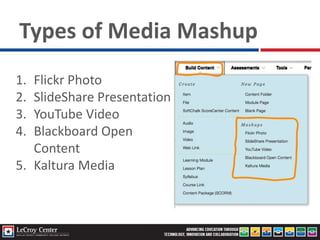
Types of Media Mashup
1. Flickr Photo
2. SlideShare Presentation
3. YouTube Video
4. Blackboard Open
Content
5. Kaltura Media
Where can I add the Mashup?
 Any content area where there is content editor
(textbox), a mashup can be added.
 For example:
 Item
 Discussion
 Assignment
 Test/Quiz Questions
 Blog
 Wiki
 Journals
 Learning Modules
 Anywhere a text
editor is present.
3 Types of Mashup
Flickr Photo
Slide Share Presentation
YouTube Video
Flickr Photo
 Online photo management and sharing
application
Demo Time!
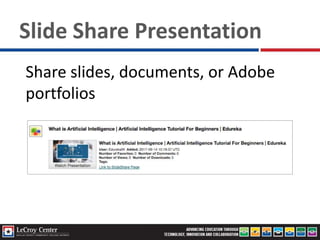
Slide Share Presentation
Share slides, documents, or Adobe
portfolios
Slide Share Presentation
 Great way to make slide presentation
accessible to student when they don’t have
access to PowerPoint.
 Use your own slides or use the resources
available
Demo Time!
YouTube Video
Adding YouTube Video to your
course.
Demo Time!
Calibrate Technology Comfort Level
1 10
Regardless of technical expertise you
CAN use these media mashup
The Learning Technology Team at LeCroy is here to help!
QUESTIONS
Contact the Learning Technology Team
ltt@dcccd.edu
or
villavance@dcccd.edu
References
Deaken Learning Futures Teaching Development Team. Using Audio and Video for Educational
Purposes. Retrieved from
http://www.deakin.edu.au/__data/assets/pdf_file/0003/179013/Modules_1-
4_Using_audio_and_video_for_educational_purposes-2014-02-28.pdf
Blacboard Learn. Retrieved from
https://help.blackboard.com/Learn/Instructor/Course_Content/Create_Content/Create_Course_
Materials/Add_Social_Media

Blackboard Media Mashup

  • 1.
    MEDIA MASHUP The LearningTechnology Team Villa R. Vance March 7, 2018 – Brookhaven College
  • 2.
    Our Objectives forToday  Learn what the term mashup mean in eCampus.  Learn 3 different mashup tools available in eCampus.  Demonstrate how to use the media mashup.  Have participants practice adding media mashup in their course.
  • 3.
    What is MediaMashup?  A mashup combines two elements from two or more sources.  Blackboard recognizes mashup as social media elements that appear in a course.  Example:  When you view a YouTube video as part of the course content, you are experiencing a mashup.
  • 4.
    Benefits of MediaMashup?  Rich media makes it possible to present knowledge in different ways  It can target many different types of learners.  It can provide diverse teaching techniques.  It can be used to simplify and explain complex problems.  It gives student other ways to access the content.  Allows you to add rich media content to your course without leaving your course or ecampus
  • 5.
    Types of MediaMashup 1. Flickr Photo 2. SlideShare Presentation 3. YouTube Video 4. Blackboard Open Content 5. Kaltura Media
  • 6.
    Where can Iadd the Mashup?  Any content area where there is content editor (textbox), a mashup can be added.  For example:  Item  Discussion  Assignment  Test/Quiz Questions  Blog  Wiki  Journals  Learning Modules  Anywhere a text editor is present.
  • 7.
    3 Types ofMashup Flickr Photo Slide Share Presentation YouTube Video
  • 8.
    Flickr Photo  Onlinephoto management and sharing application
  • 9.
  • 10.
    Slide Share Presentation Shareslides, documents, or Adobe portfolios
  • 11.
    Slide Share Presentation Great way to make slide presentation accessible to student when they don’t have access to PowerPoint.  Use your own slides or use the resources available
  • 12.
  • 13.
    YouTube Video Adding YouTubeVideo to your course.
  • 14.
  • 15.
    Calibrate Technology ComfortLevel 1 10 Regardless of technical expertise you CAN use these media mashup The Learning Technology Team at LeCroy is here to help!
  • 16.
    QUESTIONS Contact the LearningTechnology Team ltt@dcccd.edu or villavance@dcccd.edu
  • 17.
    References Deaken Learning FuturesTeaching Development Team. Using Audio and Video for Educational Purposes. Retrieved from http://www.deakin.edu.au/__data/assets/pdf_file/0003/179013/Modules_1- 4_Using_audio_and_video_for_educational_purposes-2014-02-28.pdf Blacboard Learn. Retrieved from https://help.blackboard.com/Learn/Instructor/Course_Content/Create_Content/Create_Course_ Materials/Add_Social_Media

Editor's Notes

  • #5 Rich media such as images, slides, audio and video makes it possible to present knowledge in different ways and can target many different types of learners.
  • #6 These are the 5 content available to DCCCD faculty. The institution controls which mashup is available for their faculty. If you are teaching in another college/university, they will have other mashup available for their faculty.
  • #8 Notes: Topic to search for : Panama Canal, Type of Paintings, Flying Birds, Bird Migration, etc Demonstrations: Open eCampus and demonstrate how to use the Flickr Photo Mashup Directly use the Flickr on the content page Create an item to add the Flickr photo Create an assignment then add the Flickr Photo Talk about the SETTINGS OPTIONS
  • #9 Notes: Topic to search for : Panama Canal, Type of Paintings, Flying Birds, Bird Migration, etc Photo sharing – great for courses in the arts and humanities. Photography, digital media, courses in the sciences. Any courses that uses images in their content. When adding images, less worry about adding references, because it is already provided. Demonstrations: Open eCampus and demonstrate how to use the Flickr Photo Mashup Directly use the Flickr on the content page Create an item to add the Flickr photo Create an assignment then add the Flickr Photo Talk about the SETTINGS OPTIONS for image display.
  • #10 Notes: Topic to search for : Panama Canal, Type of Paintings, Flying Birds, Bird Migration, etc Demonstrations: Open eCampus and demonstrate how to use the Flickr Photo Mashup Directly use the Flickr on the content page Create an item to add the Flickr photo Create an assignment then add the Flickr Photo Talk about the SETTINGS OPTIONS Different ways to display the image in the course You can choose how a mashup will appear on the screen: Embed: The mashup appears directly on the screen. Thumbnail: A small picture of the mashup appears with a Watch function. Text Link with Player: A link to the mashup appears. This option doesn't appear for photos. However, you can set a size for a photo.
  • #11 Notes: Topic to search for : Artificial Intelligence, Leaders SlideShare is a part of LinkedIn Learning No need to worry about reference, it is already provided. A short description is also provided. TALK ABOUT SETTINGS: Different Views Thumbnail Text Link with Player Embed Presentation
  • #12 Notes: Topic to search for : Artificial Intelligence, Leaders SlideShare is a part of LinkedIn Learning No need to worry about reference, it is already provided. A short description is also provided. TALK ABOUT SETTINGS: Different Views Thumbnail Text Link with Player Embed Presentation
  • #13 Notes: Topic to search for : Panama Canal, Type of Paintings, Flying Birds, Bird Migration, etc Demonstrations: Open eCampus and demonstrate how to use the Flickr Photo Mashup Directly use the Flickr on the content page Create an item to add the Flickr photo Create an assignment then add the Flickr Photo Talk about the SETTINGS OPTIONS Different ways to display the image in the course
  • #14 Notes: Topic to search for : Texas Revolution, Mitosis, Civil War A lot of faculty utilize and uses YouTube video as a supplement for their course. However, it gets a little tricky adding the video from youtube because you have to get the code and them embed it in your course. Using the YouTube mashup, all you have to do is search for the topic or if you already know the title of the video, you can use that in the search to make it easier finding the video. No need to worry about reference, it is already provided. TALK ABOUT SETTINGS: Different Views Thumbnail Text Link with Player Embed Video
  • #15 Notes: Topic to search for : Texas Revolution, Mitosis, etc Demonstrations: Open eCampus and demonstrate how to use the Flickr Photo Mashup Directly use the Flickr on the content page Create an item to add the Flickr photo Create an assignment then add the Flickr Photo Talk about the SETTINGS OPTIONS Different ways to display the image in the course Make sure to choose the right settings the first time, otherwise, you will have to redo the mashup again. If you want the video information to show up.
  • #16 Your Tech Competency is based largely on the equipment you have available and your confidence to use that equipment. Everyone starts at a 1 at some time or another with a new technology tool. But over time, when we work with the tool we move up the scale.
  • #18 To find out more about the Learning Technology Team or to request our slides for this presentation contact us at ltt@dcccd.edu