
Introduction to R
We are drowning in information and starving for knowledge.
 Survey R
3Confidential | Copyright © Fractal 2013
What does the Economic Survey tell us about Policy
making & Data ?
 People discount the importance of playing with the most
obvious data and working creatively with it – Universal Basic
Income
 When most evident sources of data fail to suffice, some Out
of the Box thinking is very helpful– Migration
 Thanks to the world of Big Data we can now move to
Space..!!! – Cities & Property Taxes
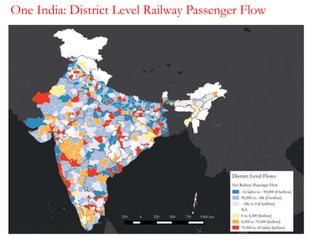
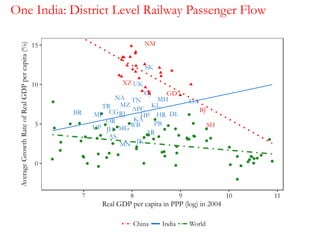
One India: District Level Railway Passenger Flow
APC
AR
AS
BR CG DL
GA
GJ
HRHP
JK
JH
KA
KL
MP
MH
MN
MG
MZ
NA
OR PB
RJ
SK
TN
TR
UP
UK
WB
BJ
GD
NM
SH
XZ
0
5
10
15
7 8 9 10 11
Real GDP per capita in PPP (log) in 2004
AverageGrowthRateofRealGDPpercapita(%)
China India World
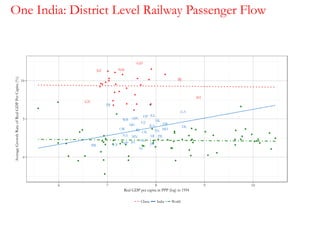
One India: District Level Railway Passenger Flow
APC
AR
AS
BR
CG
DL
GA
GJ HR
HP
JKJH
KA
KL
MP
MH
MN
MG
NA
OR
PB
RJ
SK
TN
TR
UP
UK
WB
BJ
GD
GZ
NM
SH
XZ
0
5
10
6 7 8 9 10
Real GDP per capita in PPP (log) in 1994
AverageGrowthRateofRealGDPPerCapita(%)
China India World
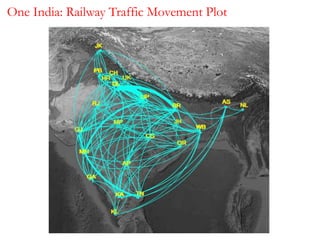
One India: Railway Traffic Movement Plot
8Confidential | Copyright © Fractal 2013
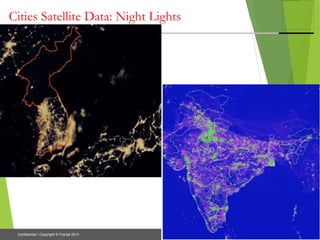
Cities Satellite Data: Night Lights
9Confidential | Copyright © Fractal 2013
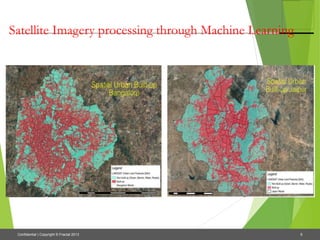
Satellite Imagery processing through Machine Learning
10Confidential | Copyright © Fractal 2013
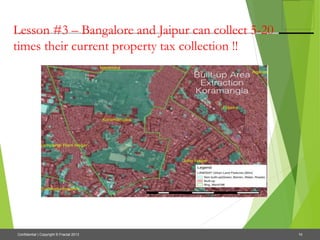
Lesson #3 – Bangalore and Jaipur can collect 5-20
times their current property tax collection !!
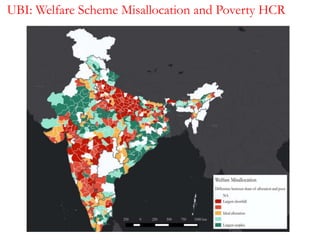
UBI: Welfare Scheme Misallocation and Poverty HCR
 Introduction R
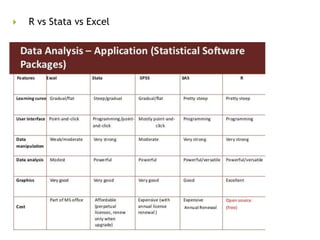
 R vs Stata vs Excel
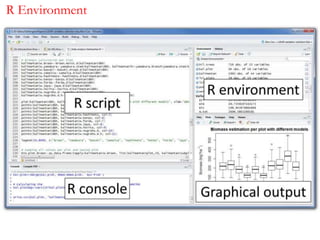
R Environment
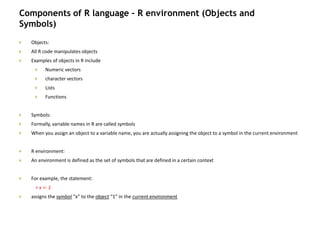
Components of R language – R environment (Objects and
Symbols)
 Objects:
 All R code manipulates objects
 Examples of objects in R include
 Numeric vectors
 character vectors
 Lists
 Functions
 Symbols:
 Formally, variable names in R are called symbols
 When you assign an object to a variable name, you are actually assigning the object to a symbol in the current environment
 R environment:
 An environment is defined as the set of symbols that are defined in a certain context
 For example, the statement:
> x <- 1
 assigns the symbol “x” to the object “1” in the current environment
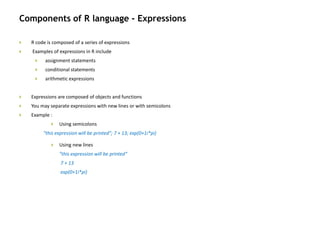
Components of R language - Expressions
 R code is composed of a series of expressions
 Examples of expressions in R include
 assignment statements
 conditional statements
 arithmetic expressions
 Expressions are composed of objects and functions
 You may separate expressions with new lines or with semicolons
 Example :
 Using semicolons
"this expression will be printed"; 7 + 13; exp(0+1i*pi)
 Using new lines
"this expression will be printed“
7 + 13
exp(0+1i*pi)
 Basic Operations and Data structures in R
Basic Operations in R
 R has a wide variety of data structures, we will look at few basic ones
 Vectors (numerical, character, logical)
 Matrices
 Data frames
 Lists
 Your first Operations in R
 When you enter an expression into the R console and press the Enter key, R will evaluate that expression and display
the results
 The interactive R interpreter will automatically print an object returned by an expression entered into the R console
> 1 + 2 + 3
[1] 6
 In R, any number that you enter in the console is interpreted as a vector
Variables in R
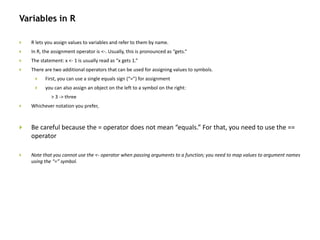
 R lets you assign values to variables and refer to them by name.
 In R, the assignment operator is <-. Usually, this is pronounced as “gets.”
 The statement: x <- 1 is usually read as “x gets 1.”
 There are two additional operators that can be used for assigning values to symbols.
 First, you can use a single equals sign (“=”) for assignment
 you can also assign an object on the left to a symbol on the right:
> 3 -> three
 Whichever notation you prefer,
 Be careful because the = operator does not mean “equals.” For that, you need to use the ==
operator
 Note that you cannot use the <- operator when passing arguments to a function; you need to map values to argument names
using the “=” symbol.
What is a Vector in R??
 A vector is an ordered collection of same data type
 The “[1]” means that the index of the first item displayed in the row is 1
 You can construct longer vectors using the c(...) function. (c stands for “combine.”)
> c(0, 1, 1, 2, 3, 5, 8)
[1] 0 1 1 2 3 5 8
> 1:50
[1] 1 2 3 4 5 6 7 8 9 10 11 12 13 14 15 16 17 18 19 20 21 22
[23] 23 24 25 26 27 28 29 30 31 32 33 34 35 36 37 38 39 40 41 42 43 44
[45] 45 46 47 48 49 50
 The numbers in the brackets on the left hand side of the results indicate the index of the first element shown in each row
 When you perform an operation on two vectors, R will match the elements of the two vectors pair wise and return a vector
> c(1, 2, 3, 4) + c(10, 20, 30, 40)
[1] 11 22 33 44
 If the two vectors aren’t the same size, R will repeat the smaller sequence multiple times:
> c(1, 2, 3, 4, 5) + c(10, 100)
[1] 11 102 13 104 15
Warning message:
In c(1, 2, 3, 4, 5) + c(10, 100) :
longer object length is not a multiple of shorter object length
Arrays
 An array is a multidimensional vector.
 Vectors and arrays are stored the same way internally, but an array may be displayed differently and accessed differently.
 An array object is just a vector that’s associated with a dimension attribute.
 Let’s define an array explicitly
>a <- array(c(1,2,3,4,5,6,7,8,9,10,11,12),dim=c(3,4))
> a
[,1] [,2] [,3] [,4]
[1,] 1 4 7 10
[2,] 2 5 8 11
[3,] 3 6 9 12
 Here is how you reference one cell
a[2,2]
[1] 5
 Arrays can have more than two dimensions.
> w <- array(c(1,2,3,4,5,6,7,8,9,10,11,12,13,14,15,16,17,18),dim=c(3,3,2))
> w
Arrays & Matrix
 R uses very clean syntax for referring to part of an array. You specify separate indices for each dimension, separated by
commas
> w[1,1,1]
[1] 1
 To get all rows (or columns) from a dimension, simply omit the indices
> # first row only
> a[1,]
[1] 1 4 7 10
> # first column only
> a[,1]
[1] 1 2 3
 A matrix is just a two-dimensional array
> m <- matrix(data=c(1,2,3,4,5,6,7,8,9,10,11,12),nrow=3,ncol=4)
> m
[,1] [,2] [,3] [,4]
[1,] 1 4 7 10
[2,] 2 5 8 11
[3,] 3 6 9 12
Data Frames
 A data frame is a list that contains multiple named vectors of same length
 A data frame is a lot like a spreadsheet or a database table
 Data frames are particularly good for representing data
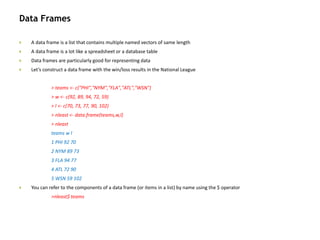
 Let’s construct a data frame with the win/loss results in the National League
> teams <- c("PHI","NYM","FLA","ATL","WSN")
> w <- c(92, 89, 94, 72, 59)
> l <- c(70, 73, 77, 90, 102)
> nleast <- data.frame(teams,w,l)
> nleast
teams w l
1 PHI 92 70
2 NYM 89 73
3 FLA 94 77
4 ATL 72 90
5 WSN 59 102
 You can refer to the components of a data frame (or items in a list) by name using the $ operator
>nleast$ teams
Lists
 It’s possible to construct more complicated structures with multiple data types.
 R has a built-in data type for mixing objects of different types, called lists.
 Lists in R may contain a heterogeneous selection of objects.
 You can name each component in a list.
 Items in a list may be referred to by either location or name.
 Creating your first list
> e <- list(thing="hat", size="8.25")
> e
 You can access an item in the list in multiple ways
 Using the name with help of $ operator
> e$thing
 Using the location as index
> e[1]
 A list can even contain other lists
Revision: Data Structures
Some of the data types are:
• Factor: Categorical variable
• Vector
• Matrix
• Data Frame
• List
To identify the data type of an object we us the function class
> library(datasets)
> air <- airquality
> class(air)
> [1] "data.frame"
Data Types
Data Types
To check whether the object/variable is of a certain type, use is. functions
is.numeric(), is.character(), is.vector(), is.matrix(), is.data.frame()
These are Logical functions
Returns TRUE/FALSE values
To convert an object/variable of a certain type to another, use as. functions
as.numeric(), as.character(), as.vector(), as.matrix(), as.data.frame(),
as.factor(), as.list()
> is.numeric(airquality$Ozone)
> [1] TRUE
> airquality$Ozone <- as.character(airquality$Ozone)
> is.numeric(airquality$Ozone)
[1] FALSE
> is.character(airquality$Ozone)
> [1] TRUE
Saving, Loading, and Editing Data
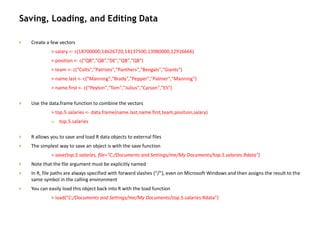
 Create a few vectors
> salary <- c(18700000,14626720,14137500,13980000,12916666)
> position <- c("QB","QB","DE","QB","QB")
> team <- c("Colts","Patriots","Panthers","Bengals","Giants")
> name.last <- c("Manning","Brady","Pepper","Palmer","Manning")
> name.first <- c("Peyton","Tom","Julius","Carson","Eli")
 Use the data.frame function to combine the vectors
> top.5.salaries <- data.frame(name.last,name.first,team,position,salary)
 top.5.salaries
 R allows you to save and load R data objects to external files
 The simplest way to save an object is with the save function
> save(top.5.salaries, file="C:/Documents and Settings/me/My Documents/top.5.salaries.Rdata")
 Note that the file argument must be explicitly named
 In R, file paths are always specified with forward slashes (“/”), even on Microsoft Windows and then assigns the result to the
same symbol in the calling environment
 You can easily load this object back into R with the load function
> load("C:/Documents and Settings/me/My Documents/top.5.salaries.Rdata")
Importing Data into R
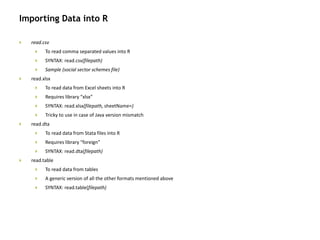
 read.csv
 To read comma separated values into R
 SYNTAX: read.csv(filepath)
 Sample (social sector schemes file)
 read.xlsx
 To read data from Excel sheets into R
 Requires library “xlsx”
 SYNTAX: read.xlsx(filepath, sheetName=)
 Tricky to use in case of Java version mismatch
 read.dta
 To read data from Stata files into R
 Requires library “foreign”
 SYNTAX: read.dta(filepath)
 read.table
 To read data from tables
 A generic version of all the other formats mentioned above
 SYNTAX: read.table(filepath)
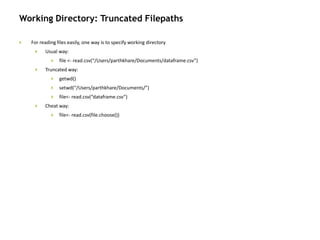
Working Directory: Truncated Filepaths
 For reading files easily, one way is to specify working directory
 Usual way:
 file <- read.csv(“/Users/parthkhare/Documents/dataframe.csv”)
 Truncated way:
 getwd()
 setwd(“/Users/parthkhare/Documents/”)
 file<- read.csv(“dataframe.csv”)
 Cheat way:
 file<- read.csv(file.choose())
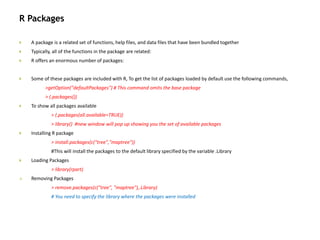
R Packages
 A package is a related set of functions, help files, and data files that have been bundled together
 Typically, all of the functions in the package are related:
 R offers an enormous number of packages:
 Some of these packages are included with R, To get the list of packages loaded by default use the following commands,
>getOption("defaultPackages") # This command omits the base package
> (.packages())
 To show all packages available
> (.packages(all.available=TRUE))
> library() #new window will pop up showing you the set of available packages
 Installing R package
> install.packages(c("tree","maptree"))
#This will install the packages to the default library specified by the variable .Library
 Loading Packages
> library(rpart)
 Removing Packages
> remove.packages(c("tree", "maptree"),.Library)
# You need to specify the library where the packages were installed
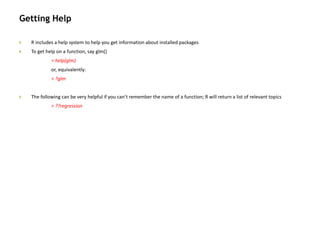
Getting Help
 R includes a help system to help you get information about installed packages
 To get help on a function, say glm()
> help(glm)
or, equivalently:
> ?glm
 The following can be very helpful if you can’t remember the name of a function; R will return a list of relevant topics
> ??regression
Data Manipulation
Names, Renaming
Syntax : names(dataset)
> names(airquality)
1] "Ozone" "Solar.R" "Wind" "Temp" "Month" "Day"
> names(airquality) <- NULL
> names(airquality)
> NULL
Renaming
In the following example we will change the variable name “Ozone” to”Oz”
> names(airquality) <- org.names
> names(airquality)[names(airquality)=="Ozone"]= "Oz"
[1] "Oz" "Solar.R" "Wind" "Temp" "Month" "Day"
#Renaming the second variable in data frame “airquality” to “NewName”
> names(airquality)[2] = "Sol"
> names(airquality)
[1] "Oz" "Sol" "Wind" "Temp" "Month" "Day"
Drop/Keep Variables
 Selecting (Keeping) Variables
• # select variables “Ozone “ and “Temp”
> names(airquality) <- org.names
> keep.airquality <- airquality[c("Ozone", “Temp")]
# select 1st and 3rd through 5th variables
> keep.airquality_1 <- airquality[c(1,3:5)]
 Excluding (DROPPING) Variables
• Dropping a variable from the dataset can be done by prefixing a “-” sign
before the variable name or the variable index in the Dataframe.
> drop.airquality <- airquality[,c(-3, -4)]
Subsetting datasets
Subseting is done by using subset function
#subsetting the data set “airquality” where Temperature is greater than 80
> subset_1 <- subset(airquality, Temp>80)
#subsetting the data set “airquality” where Temperature is greater than 80 and finally get only the “Day”
column
> subset_2 = subset(airquality, Temp>80, select=c(“Day"))
#subsetting a column where Temperature is greater than 80 and Day is equal to 8, notice the “==”
> subset_3 = subset(airquality, Temp<80& Day==8)
#subsetting rows without using “subset” function, notice the [ ] square brackets
> subset_4 = airquality[airquality$Temp==80, ]
#We use the %in% notation when we want to subset rows on multiple values of a variable
> subset_5 = airquality[airquality$Temp %in% c(70,90), ]
> subset_5.1 = airquality[airquality$Temp %in% c(70:90), ]
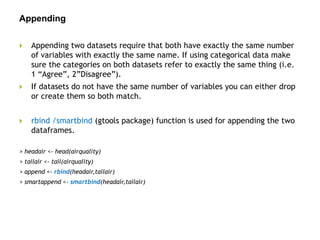
Appending
 Appending two datasets require that both have exactly the same number
of variables with exactly the same name. If using categorical data make
sure the categories on both datasets refer to exactly the same thing (i.e.
1 “Agree”, 2”Disagree”).
 If datasets do not have the same number of variables you can either drop
or create them so both match.
 rbind /smartbind (gtools package) function is used for appending the two
dataframes.
> headair <- head(airquality)
> tailair <- tail(airquality)
> append <- rbind(headair,tailair)
> smartappend <- smartbind(headair,tailair)
Sorting
 To sort a data frame in R, use the order( ) function. By default, sorting is
ASCENDING. Prepend the sorting variable by a minus sign to indicate
DESCENDING order. Here are some examples.
 sorting examples using the mtcars dataset
attach(mtcars)
# sort by hp in ascending order
> sort.mtcars<-mtcars[order(mtcars$hp),]
# sort by hp in discending order
> sort.mtcars<-mtcars[order(-mtcars$hp),]
#Multi level sort a dataset by columns in descending order, put a “-” sign,
> sort.mtcars<-mtcars[order(vs, -mtcars$hp),]
Remove Duplicate Values
Duplicates are identified using “duplicated” function
#To remove duplicate rows by 2nd column from airquality
> dupair1 = airquality[!duplicated(airquality[,c(2)]),]
#To get duplicate rows in another dataset just remove the “!” sign
> dupair2 = airquality[duplicated(airquality[,c(2)]),]
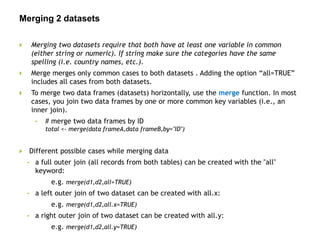
Merging 2 datasets
 Merging two datasets require that both have at least one variable in common
(either string or numeric). If string make sure the categories have the same
spelling (i.e. country names, etc.).
 Merge merges only common cases to both datasets . Adding the option “all=TRUE”
includes all cases from both datasets.
 To merge two data frames (datasets) horizontally, use the merge function. In most
cases, you join two data frames by one or more common key variables (i.e., an
inner join).
• # merge two data frames by ID
total <- merge(data frameA,data frameB,by="ID")
 Different possible cases while merging data
• a full outer join (all records from both tables) can be created with the "all"
keyword:
e.g. merge(d1,d2,all=TRUE)
• a left outer join of two dataset can be created with all.x:
e.g. merge(d1,d2,all.x=TRUE)
• a right outer join of two dataset can be created with all.y:
e.g. merge(d1,d2,all.y=TRUE)
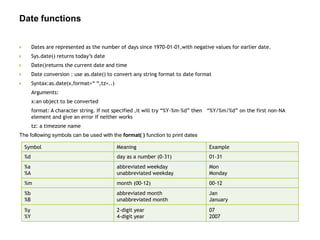
Date functions
 Dates are represented as the number of days since 1970-01-01,with negative values for earlier date.
 Sys.date() returns today’s date
 Date()returns the current date and time
 Date conversion : use as.date() to convert any string format to date format
 Syntax:as.date(x,format=“ “,tz=..)
Arguments:
x:an object to be converted
format: A character string. If not specified ,it will try “%Y-%m-%d” then “%Y/%m/%d” on the first non-NA
element and give an error if neither works
tz: a timezone name
The following symbols can be used with the format( ) function to print dates
Symbol Meaning Example
%d day as a number (0-31) 01-31
%a
%A
abbreviated weekday
unabbreviated weekday
Mon
Monday
%m month (00-12) 00-12
%b
%B
abbreviated month
unabbreviated month
Jan
January
%y
%Y
2-digit year
4-digit year
07
2007
Useful Packages
 The Reshape2 Package :
 Melting:
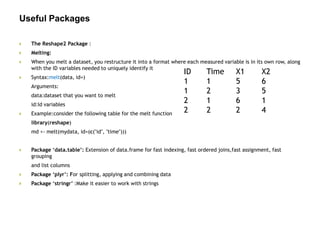
 When you melt a dataset, you restructure it into a format where each measured variable is in its own row, along
with the ID variables needed to uniquely identify it
 Syntax:melt(data, id=)
Arguments:
data:dataset that you want to melt
id:Id variables
 Example:consider the following table for the melt function
library(reshape)
md <- melt(mydata, id=(c("id", "time")))
 Package ‘data.table’: Extension of data.frame for fast indexing, fast ordered joins,fast assignment, fast
grouping
and list columns
 Package ‘plyr’: For splitting, applying and combining data
 Package ‘stringr’ :Make it easier to work with strings
ID Time X1 X2
1 1 5 6
1 2 3 5
2 1 6 1
2 2 2 4
General Utility Function
 which()
 attach()
 head()
 tail()
 with()
 didq_summry()
 sumry_continuos()
 sumry_categorical()
 cat_ident()
 ident_cont()
 ident_cat()
General Utility Function
 read.csv
 read.xlsx
 read.dta
 read.table
 Reserve
Special Values
 NA
 In R, the NA values are used to represent missing values. (NA stands for “not available.”)
 You will encounter NA values in text loaded into R (to represent missing values) or in data loaded from databases (to
replace NULL values)
 If you expand the size of a vector (or matrix or array) beyond the size where values were defined, the new spaces will
have the value NA (meaning “not available”)
 Inf and -Inf
 If a computation results in a number that is too big, R will return Inf for a positive number and -Inf for a negative
number (meaning positive and negative infinity, respectively)
 NaN
 Sometimes, a computation will produce a result that makes little sense. In these cases, R will often return NaN
(meaning “not a number”)
 E.g. Inf – Inf or 0 / 0
 NULL
 Additionally, there is a null object in R, represented by the symbol NULL
 The symbol NULL always points to the same object
 NULL is often used as an argument in functions to mean that no value was assigned to the argument. Additionally,
some functions may return NULL
 NULL is not the same as NA, Inf, -Inf, or NaN

Big Data Mining in Indian Economic Survey 2017

  • 1.
    Introduction to R Weare drowning in information and starving for knowledge.
  • 2.
  • 3.
    3Confidential | Copyright© Fractal 2013 What does the Economic Survey tell us about Policy making & Data ?  People discount the importance of playing with the most obvious data and working creatively with it – Universal Basic Income  When most evident sources of data fail to suffice, some Out of the Box thinking is very helpful– Migration  Thanks to the world of Big Data we can now move to Space..!!! – Cities & Property Taxes
  • 4.
    One India: DistrictLevel Railway Passenger Flow
  • 5.
    One India: DistrictLevel Railway Passenger Flow APC AR AS BR CG DL GA GJ HRHP JK JH KA KL MP MH MN MG MZ NA OR PB RJ SK TN TR UP UK WB BJ GD NM SH XZ 0 5 10 15 7 8 9 10 11 Real GDP per capita in PPP (log) in 2004 AverageGrowthRateofRealGDPpercapita(%) China India World
  • 6.
    One India: DistrictLevel Railway Passenger Flow APC AR AS BR CG DL GA GJ HR HP JKJH KA KL MP MH MN MG NA OR PB RJ SK TN TR UP UK WB BJ GD GZ NM SH XZ 0 5 10 6 7 8 9 10 Real GDP per capita in PPP (log) in 1994 AverageGrowthRateofRealGDPPerCapita(%) China India World
  • 7.
    One India: RailwayTraffic Movement Plot
  • 8.
    8Confidential | Copyright© Fractal 2013 Cities Satellite Data: Night Lights
  • 9.
    9Confidential | Copyright© Fractal 2013 Satellite Imagery processing through Machine Learning
  • 10.
    10Confidential | Copyright© Fractal 2013 Lesson #3 – Bangalore and Jaipur can collect 5-20 times their current property tax collection !!
  • 11.
    UBI: Welfare SchemeMisallocation and Poverty HCR
  • 12.
  • 13.
     R vsStata vs Excel
  • 14.
     R vsStata vs Excel R Environment
  • 15.
    Components of Rlanguage – R environment (Objects and Symbols)  Objects:  All R code manipulates objects  Examples of objects in R include  Numeric vectors  character vectors  Lists  Functions  Symbols:  Formally, variable names in R are called symbols  When you assign an object to a variable name, you are actually assigning the object to a symbol in the current environment  R environment:  An environment is defined as the set of symbols that are defined in a certain context  For example, the statement: > x <- 1  assigns the symbol “x” to the object “1” in the current environment
  • 16.
    Components of Rlanguage - Expressions  R code is composed of a series of expressions  Examples of expressions in R include  assignment statements  conditional statements  arithmetic expressions  Expressions are composed of objects and functions  You may separate expressions with new lines or with semicolons  Example :  Using semicolons "this expression will be printed"; 7 + 13; exp(0+1i*pi)  Using new lines "this expression will be printed“ 7 + 13 exp(0+1i*pi)
  • 17.
     Basic Operationsand Data structures in R
  • 18.
    Basic Operations inR  R has a wide variety of data structures, we will look at few basic ones  Vectors (numerical, character, logical)  Matrices  Data frames  Lists  Your first Operations in R  When you enter an expression into the R console and press the Enter key, R will evaluate that expression and display the results  The interactive R interpreter will automatically print an object returned by an expression entered into the R console > 1 + 2 + 3 [1] 6  In R, any number that you enter in the console is interpreted as a vector
  • 19.
    Variables in R R lets you assign values to variables and refer to them by name.  In R, the assignment operator is <-. Usually, this is pronounced as “gets.”  The statement: x <- 1 is usually read as “x gets 1.”  There are two additional operators that can be used for assigning values to symbols.  First, you can use a single equals sign (“=”) for assignment  you can also assign an object on the left to a symbol on the right: > 3 -> three  Whichever notation you prefer,  Be careful because the = operator does not mean “equals.” For that, you need to use the == operator  Note that you cannot use the <- operator when passing arguments to a function; you need to map values to argument names using the “=” symbol.
  • 20.
    What is aVector in R??  A vector is an ordered collection of same data type  The “[1]” means that the index of the first item displayed in the row is 1  You can construct longer vectors using the c(...) function. (c stands for “combine.”) > c(0, 1, 1, 2, 3, 5, 8) [1] 0 1 1 2 3 5 8 > 1:50 [1] 1 2 3 4 5 6 7 8 9 10 11 12 13 14 15 16 17 18 19 20 21 22 [23] 23 24 25 26 27 28 29 30 31 32 33 34 35 36 37 38 39 40 41 42 43 44 [45] 45 46 47 48 49 50  The numbers in the brackets on the left hand side of the results indicate the index of the first element shown in each row  When you perform an operation on two vectors, R will match the elements of the two vectors pair wise and return a vector > c(1, 2, 3, 4) + c(10, 20, 30, 40) [1] 11 22 33 44  If the two vectors aren’t the same size, R will repeat the smaller sequence multiple times: > c(1, 2, 3, 4, 5) + c(10, 100) [1] 11 102 13 104 15 Warning message: In c(1, 2, 3, 4, 5) + c(10, 100) : longer object length is not a multiple of shorter object length
  • 21.
    Arrays  An arrayis a multidimensional vector.  Vectors and arrays are stored the same way internally, but an array may be displayed differently and accessed differently.  An array object is just a vector that’s associated with a dimension attribute.  Let’s define an array explicitly >a <- array(c(1,2,3,4,5,6,7,8,9,10,11,12),dim=c(3,4)) > a [,1] [,2] [,3] [,4] [1,] 1 4 7 10 [2,] 2 5 8 11 [3,] 3 6 9 12  Here is how you reference one cell a[2,2] [1] 5  Arrays can have more than two dimensions. > w <- array(c(1,2,3,4,5,6,7,8,9,10,11,12,13,14,15,16,17,18),dim=c(3,3,2)) > w
  • 22.
    Arrays & Matrix R uses very clean syntax for referring to part of an array. You specify separate indices for each dimension, separated by commas > w[1,1,1] [1] 1  To get all rows (or columns) from a dimension, simply omit the indices > # first row only > a[1,] [1] 1 4 7 10 > # first column only > a[,1] [1] 1 2 3  A matrix is just a two-dimensional array > m <- matrix(data=c(1,2,3,4,5,6,7,8,9,10,11,12),nrow=3,ncol=4) > m [,1] [,2] [,3] [,4] [1,] 1 4 7 10 [2,] 2 5 8 11 [3,] 3 6 9 12
  • 23.
    Data Frames  Adata frame is a list that contains multiple named vectors of same length  A data frame is a lot like a spreadsheet or a database table  Data frames are particularly good for representing data  Let’s construct a data frame with the win/loss results in the National League > teams <- c("PHI","NYM","FLA","ATL","WSN") > w <- c(92, 89, 94, 72, 59) > l <- c(70, 73, 77, 90, 102) > nleast <- data.frame(teams,w,l) > nleast teams w l 1 PHI 92 70 2 NYM 89 73 3 FLA 94 77 4 ATL 72 90 5 WSN 59 102  You can refer to the components of a data frame (or items in a list) by name using the $ operator >nleast$ teams
  • 24.
    Lists  It’s possibleto construct more complicated structures with multiple data types.  R has a built-in data type for mixing objects of different types, called lists.  Lists in R may contain a heterogeneous selection of objects.  You can name each component in a list.  Items in a list may be referred to by either location or name.  Creating your first list > e <- list(thing="hat", size="8.25") > e  You can access an item in the list in multiple ways  Using the name with help of $ operator > e$thing  Using the location as index > e[1]  A list can even contain other lists
  • 25.
    Revision: Data Structures Someof the data types are: • Factor: Categorical variable • Vector • Matrix • Data Frame • List To identify the data type of an object we us the function class > library(datasets) > air <- airquality > class(air) > [1] "data.frame" Data Types
  • 26.
    Data Types To checkwhether the object/variable is of a certain type, use is. functions is.numeric(), is.character(), is.vector(), is.matrix(), is.data.frame() These are Logical functions Returns TRUE/FALSE values To convert an object/variable of a certain type to another, use as. functions as.numeric(), as.character(), as.vector(), as.matrix(), as.data.frame(), as.factor(), as.list() > is.numeric(airquality$Ozone) > [1] TRUE > airquality$Ozone <- as.character(airquality$Ozone) > is.numeric(airquality$Ozone) [1] FALSE > is.character(airquality$Ozone) > [1] TRUE
  • 27.
    Saving, Loading, andEditing Data  Create a few vectors > salary <- c(18700000,14626720,14137500,13980000,12916666) > position <- c("QB","QB","DE","QB","QB") > team <- c("Colts","Patriots","Panthers","Bengals","Giants") > name.last <- c("Manning","Brady","Pepper","Palmer","Manning") > name.first <- c("Peyton","Tom","Julius","Carson","Eli")  Use the data.frame function to combine the vectors > top.5.salaries <- data.frame(name.last,name.first,team,position,salary)  top.5.salaries  R allows you to save and load R data objects to external files  The simplest way to save an object is with the save function > save(top.5.salaries, file="C:/Documents and Settings/me/My Documents/top.5.salaries.Rdata")  Note that the file argument must be explicitly named  In R, file paths are always specified with forward slashes (“/”), even on Microsoft Windows and then assigns the result to the same symbol in the calling environment  You can easily load this object back into R with the load function > load("C:/Documents and Settings/me/My Documents/top.5.salaries.Rdata")
  • 28.
    Importing Data intoR  read.csv  To read comma separated values into R  SYNTAX: read.csv(filepath)  Sample (social sector schemes file)  read.xlsx  To read data from Excel sheets into R  Requires library “xlsx”  SYNTAX: read.xlsx(filepath, sheetName=)  Tricky to use in case of Java version mismatch  read.dta  To read data from Stata files into R  Requires library “foreign”  SYNTAX: read.dta(filepath)  read.table  To read data from tables  A generic version of all the other formats mentioned above  SYNTAX: read.table(filepath)
  • 29.
    Working Directory: TruncatedFilepaths  For reading files easily, one way is to specify working directory  Usual way:  file <- read.csv(“/Users/parthkhare/Documents/dataframe.csv”)  Truncated way:  getwd()  setwd(“/Users/parthkhare/Documents/”)  file<- read.csv(“dataframe.csv”)  Cheat way:  file<- read.csv(file.choose())
  • 30.
    R Packages  Apackage is a related set of functions, help files, and data files that have been bundled together  Typically, all of the functions in the package are related:  R offers an enormous number of packages:  Some of these packages are included with R, To get the list of packages loaded by default use the following commands, >getOption("defaultPackages") # This command omits the base package > (.packages())  To show all packages available > (.packages(all.available=TRUE)) > library() #new window will pop up showing you the set of available packages  Installing R package > install.packages(c("tree","maptree")) #This will install the packages to the default library specified by the variable .Library  Loading Packages > library(rpart)  Removing Packages > remove.packages(c("tree", "maptree"),.Library) # You need to specify the library where the packages were installed
  • 31.
    Getting Help  Rincludes a help system to help you get information about installed packages  To get help on a function, say glm() > help(glm) or, equivalently: > ?glm  The following can be very helpful if you can’t remember the name of a function; R will return a list of relevant topics > ??regression
  • 32.
  • 33.
    Names, Renaming Syntax :names(dataset) > names(airquality) 1] "Ozone" "Solar.R" "Wind" "Temp" "Month" "Day" > names(airquality) <- NULL > names(airquality) > NULL Renaming In the following example we will change the variable name “Ozone” to”Oz” > names(airquality) <- org.names > names(airquality)[names(airquality)=="Ozone"]= "Oz" [1] "Oz" "Solar.R" "Wind" "Temp" "Month" "Day" #Renaming the second variable in data frame “airquality” to “NewName” > names(airquality)[2] = "Sol" > names(airquality) [1] "Oz" "Sol" "Wind" "Temp" "Month" "Day"
  • 34.
    Drop/Keep Variables  Selecting(Keeping) Variables • # select variables “Ozone “ and “Temp” > names(airquality) <- org.names > keep.airquality <- airquality[c("Ozone", “Temp")] # select 1st and 3rd through 5th variables > keep.airquality_1 <- airquality[c(1,3:5)]  Excluding (DROPPING) Variables • Dropping a variable from the dataset can be done by prefixing a “-” sign before the variable name or the variable index in the Dataframe. > drop.airquality <- airquality[,c(-3, -4)]
  • 35.
    Subsetting datasets Subseting isdone by using subset function #subsetting the data set “airquality” where Temperature is greater than 80 > subset_1 <- subset(airquality, Temp>80) #subsetting the data set “airquality” where Temperature is greater than 80 and finally get only the “Day” column > subset_2 = subset(airquality, Temp>80, select=c(“Day")) #subsetting a column where Temperature is greater than 80 and Day is equal to 8, notice the “==” > subset_3 = subset(airquality, Temp<80& Day==8) #subsetting rows without using “subset” function, notice the [ ] square brackets > subset_4 = airquality[airquality$Temp==80, ] #We use the %in% notation when we want to subset rows on multiple values of a variable > subset_5 = airquality[airquality$Temp %in% c(70,90), ] > subset_5.1 = airquality[airquality$Temp %in% c(70:90), ]
  • 36.
    Appending  Appending twodatasets require that both have exactly the same number of variables with exactly the same name. If using categorical data make sure the categories on both datasets refer to exactly the same thing (i.e. 1 “Agree”, 2”Disagree”).  If datasets do not have the same number of variables you can either drop or create them so both match.  rbind /smartbind (gtools package) function is used for appending the two dataframes. > headair <- head(airquality) > tailair <- tail(airquality) > append <- rbind(headair,tailair) > smartappend <- smartbind(headair,tailair)
  • 37.
    Sorting  To sorta data frame in R, use the order( ) function. By default, sorting is ASCENDING. Prepend the sorting variable by a minus sign to indicate DESCENDING order. Here are some examples.  sorting examples using the mtcars dataset attach(mtcars) # sort by hp in ascending order > sort.mtcars<-mtcars[order(mtcars$hp),] # sort by hp in discending order > sort.mtcars<-mtcars[order(-mtcars$hp),] #Multi level sort a dataset by columns in descending order, put a “-” sign, > sort.mtcars<-mtcars[order(vs, -mtcars$hp),]
  • 38.
    Remove Duplicate Values Duplicatesare identified using “duplicated” function #To remove duplicate rows by 2nd column from airquality > dupair1 = airquality[!duplicated(airquality[,c(2)]),] #To get duplicate rows in another dataset just remove the “!” sign > dupair2 = airquality[duplicated(airquality[,c(2)]),]
  • 39.
    Merging 2 datasets Merging two datasets require that both have at least one variable in common (either string or numeric). If string make sure the categories have the same spelling (i.e. country names, etc.).  Merge merges only common cases to both datasets . Adding the option “all=TRUE” includes all cases from both datasets.  To merge two data frames (datasets) horizontally, use the merge function. In most cases, you join two data frames by one or more common key variables (i.e., an inner join). • # merge two data frames by ID total <- merge(data frameA,data frameB,by="ID")  Different possible cases while merging data • a full outer join (all records from both tables) can be created with the "all" keyword: e.g. merge(d1,d2,all=TRUE) • a left outer join of two dataset can be created with all.x: e.g. merge(d1,d2,all.x=TRUE) • a right outer join of two dataset can be created with all.y: e.g. merge(d1,d2,all.y=TRUE)
  • 40.
    Date functions  Datesare represented as the number of days since 1970-01-01,with negative values for earlier date.  Sys.date() returns today’s date  Date()returns the current date and time  Date conversion : use as.date() to convert any string format to date format  Syntax:as.date(x,format=“ “,tz=..) Arguments: x:an object to be converted format: A character string. If not specified ,it will try “%Y-%m-%d” then “%Y/%m/%d” on the first non-NA element and give an error if neither works tz: a timezone name The following symbols can be used with the format( ) function to print dates Symbol Meaning Example %d day as a number (0-31) 01-31 %a %A abbreviated weekday unabbreviated weekday Mon Monday %m month (00-12) 00-12 %b %B abbreviated month unabbreviated month Jan January %y %Y 2-digit year 4-digit year 07 2007
  • 41.
    Useful Packages  TheReshape2 Package :  Melting:  When you melt a dataset, you restructure it into a format where each measured variable is in its own row, along with the ID variables needed to uniquely identify it  Syntax:melt(data, id=) Arguments: data:dataset that you want to melt id:Id variables  Example:consider the following table for the melt function library(reshape) md <- melt(mydata, id=(c("id", "time")))  Package ‘data.table’: Extension of data.frame for fast indexing, fast ordered joins,fast assignment, fast grouping and list columns  Package ‘plyr’: For splitting, applying and combining data  Package ‘stringr’ :Make it easier to work with strings ID Time X1 X2 1 1 5 6 1 2 3 5 2 1 6 1 2 2 2 4
  • 42.
    General Utility Function which()  attach()  head()  tail()  with()  didq_summry()  sumry_continuos()  sumry_categorical()  cat_ident()  ident_cont()  ident_cat()
  • 43.
    General Utility Function read.csv  read.xlsx  read.dta  read.table
  • 44.
  • 45.
    Special Values  NA In R, the NA values are used to represent missing values. (NA stands for “not available.”)  You will encounter NA values in text loaded into R (to represent missing values) or in data loaded from databases (to replace NULL values)  If you expand the size of a vector (or matrix or array) beyond the size where values were defined, the new spaces will have the value NA (meaning “not available”)  Inf and -Inf  If a computation results in a number that is too big, R will return Inf for a positive number and -Inf for a negative number (meaning positive and negative infinity, respectively)  NaN  Sometimes, a computation will produce a result that makes little sense. In these cases, R will often return NaN (meaning “not a number”)  E.g. Inf – Inf or 0 / 0  NULL  Additionally, there is a null object in R, represented by the symbol NULL  The symbol NULL always points to the same object  NULL is often used as an argument in functions to mean that no value was assigned to the argument. Additionally, some functions may return NULL  NULL is not the same as NA, Inf, -Inf, or NaN

Editor's Notes

  • #4 What R and Data can do Once you decide on a question after rounds of iterations the next question is WHAT DATA ? Based on the experience of working with data in the Survey there are 3 lessons that I wish to share.
  • #9 Power of data: Nkorea, SKorea
  • #10 The building density on the ground provides an estimate of total build-up area (in square feet/km), which when interacted with zone specific guidance value of property tax per unit area gives an aggregate sum of potential property tax to be collected.
  • #11 The building density on the ground provides an estimate of total build-up area (in square feet/km), which when interacted with zone specific guidance value of property tax per unit area gives an aggregate sum of potential property tax to be collected. I just took you all through a journey of what potential data, creative thinking about data and Big data holds to influence and shape policy making
  • #12 Tables in bland format no utility:
  • #16 Open R and R Studio: Difference between them: Ram usage Objects: Symbols All 4 windows description
  • #17 X <- 1
  • #19 Data types vs data structures
  • #21 Board: vector, matrix, data frame, list[data structures]
  • #28 Operations: within R doing operations [Exercise]
  • #29 Operations: within R doing operations [Exercise]