Best Practices &
Lessons Learned
from the field on
EMC Documentum
xCP 2.0
Jim Lewonski
EMC – Systems Engineer Manager
Jason Adams
EMC – Practice Manager, xCP
© Copyright 2013 EMC Corporation. All rights reserved.

1
© Copyright 2013 EMC Corporation. All rights reserved.

2
We Want to Hear Your
Thoughts On This
Session!
OPTION 1:

Download the Momentum Mobile
App and take the Survey

OPTION 2: Complete the Survey sent via Email

© Copyright 2013 EMC Corporation. All rights reserved.

3
Agenda
Ÿ  Best Practices
Ÿ  Debugging in Designer
Ÿ  Tips and Tricks

© Copyright 2013 EMC Corporation. All rights reserved.

4
Best Practices

© Copyright 2013 EMC Corporation. All rights reserved.

5
5
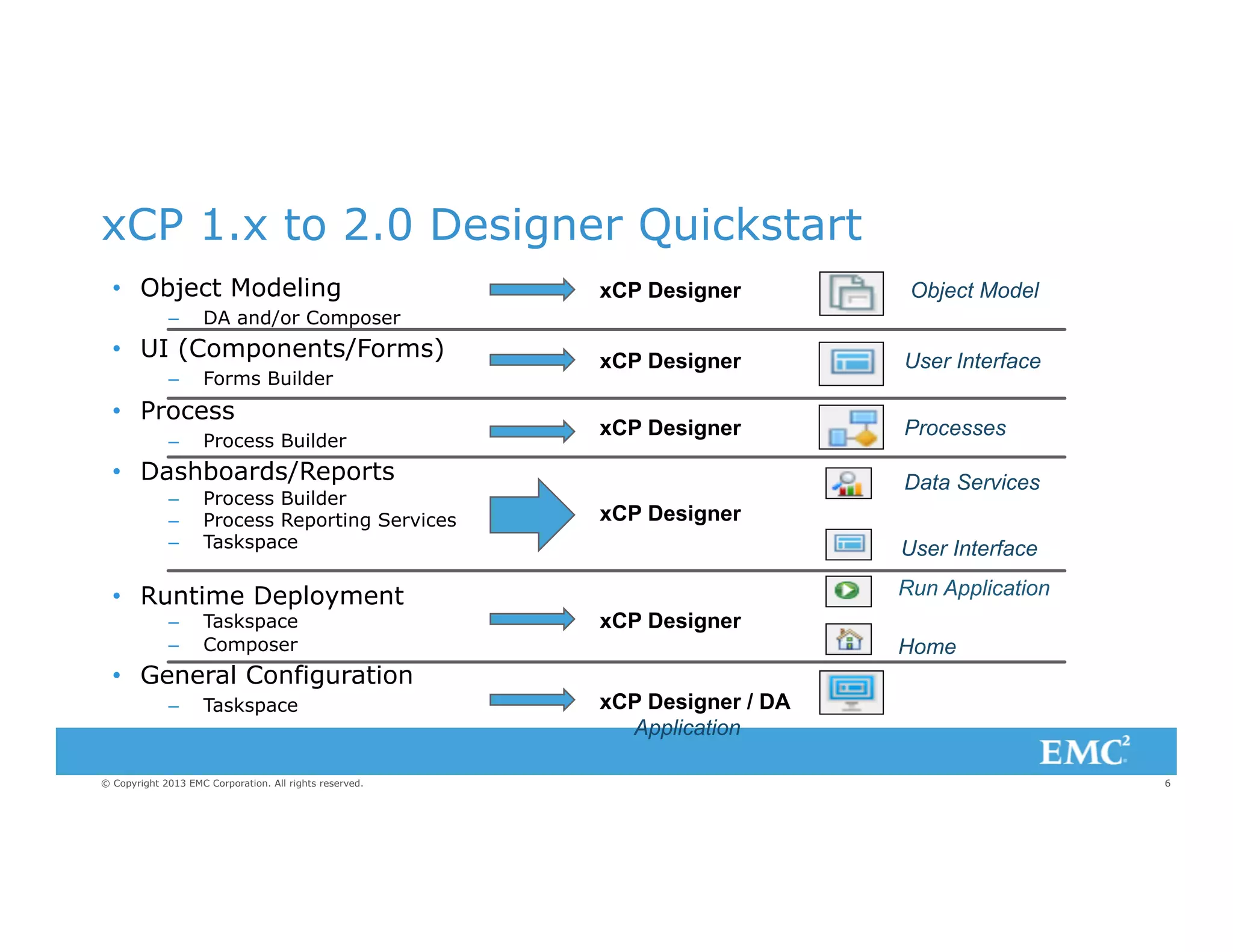
xCP 1.x to 2.0 Designer Quickstart
•  Object Modeling
– 

Forms Builder

•  Process
– 

Object Model

xCP Designer

User Interface

xCP Designer

Processes

DA and/or Composer

•  UI (Components/Forms)
– 

xCP Designer

Process Builder

•  Dashboards/Reports
– 
– 
– 

Process Builder
Process Reporting Services
Taskspace

•  Runtime Deployment
– 
– 

Taskspace
Composer

Data Services
xCP Designer
User Interface
Run Application
xCP Designer
Home

•  General Configuration
– 

Taskspace

© Copyright 2013 EMC Corporation. All rights reserved.

xCP Designer / DA
Application
6
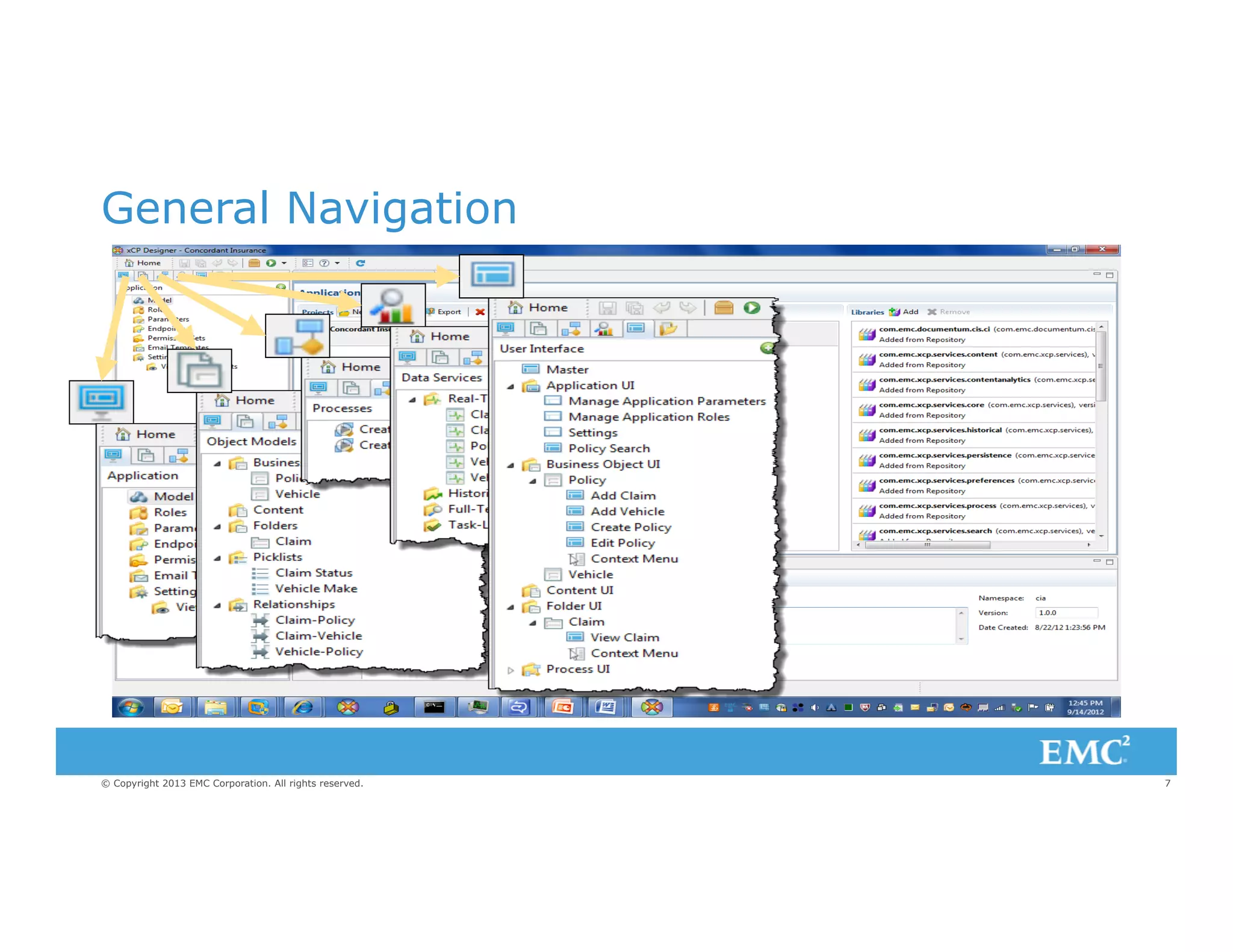
General Navigation

© Copyright 2013 EMC Corporation. All rights reserved.

7
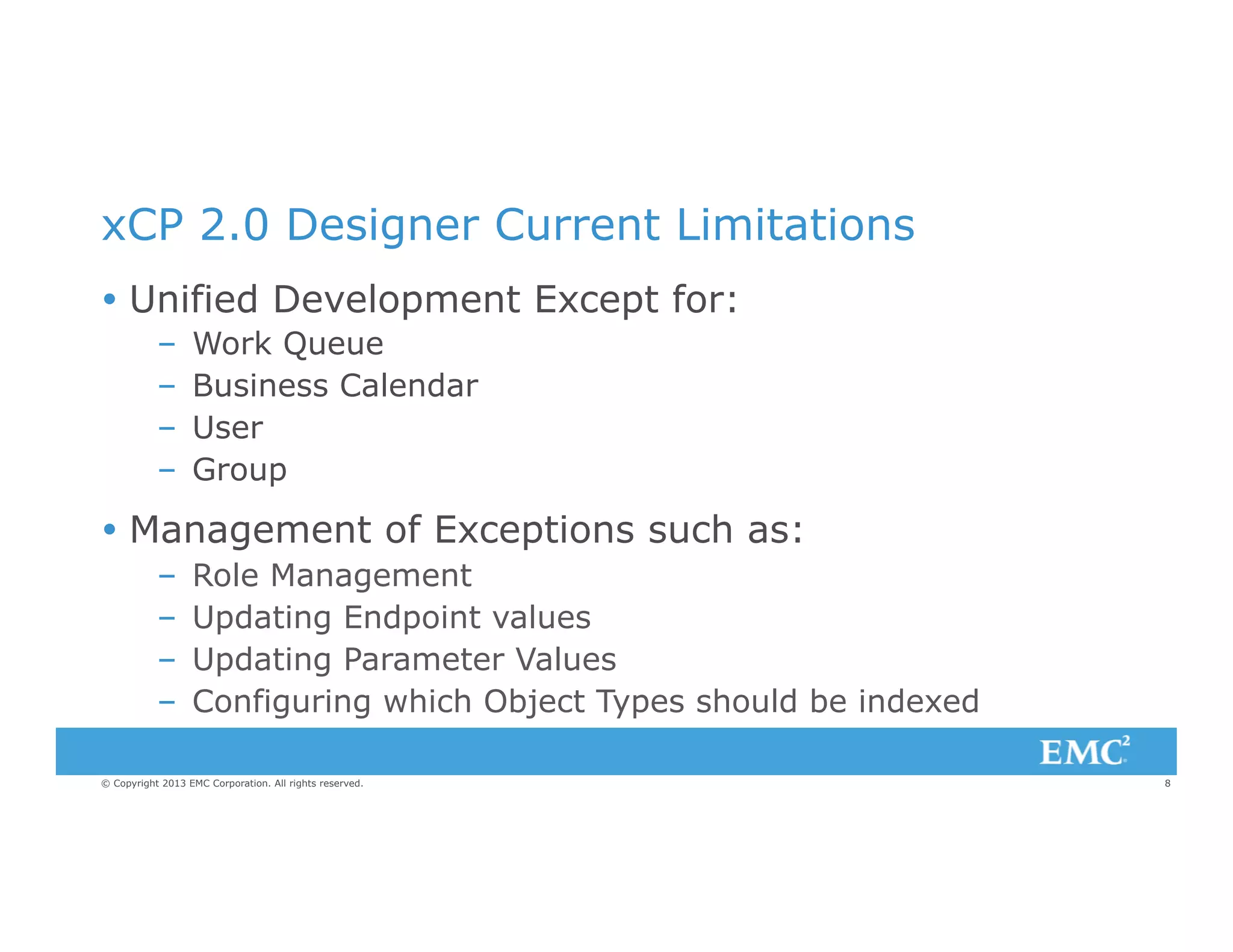
xCP 2.0 Designer Current Limitations
Ÿ  Unified Development Except for:
– 
– 
– 
– 

Work Queue
Business Calendar
User
Group

Ÿ  Management of Exceptions such as:
– 
– 
– 
– 

Role Management
Updating Endpoint values
Updating Parameter Values
Configuring which Object Types should be indexed

© Copyright 2013 EMC Corporation. All rights reserved.

8
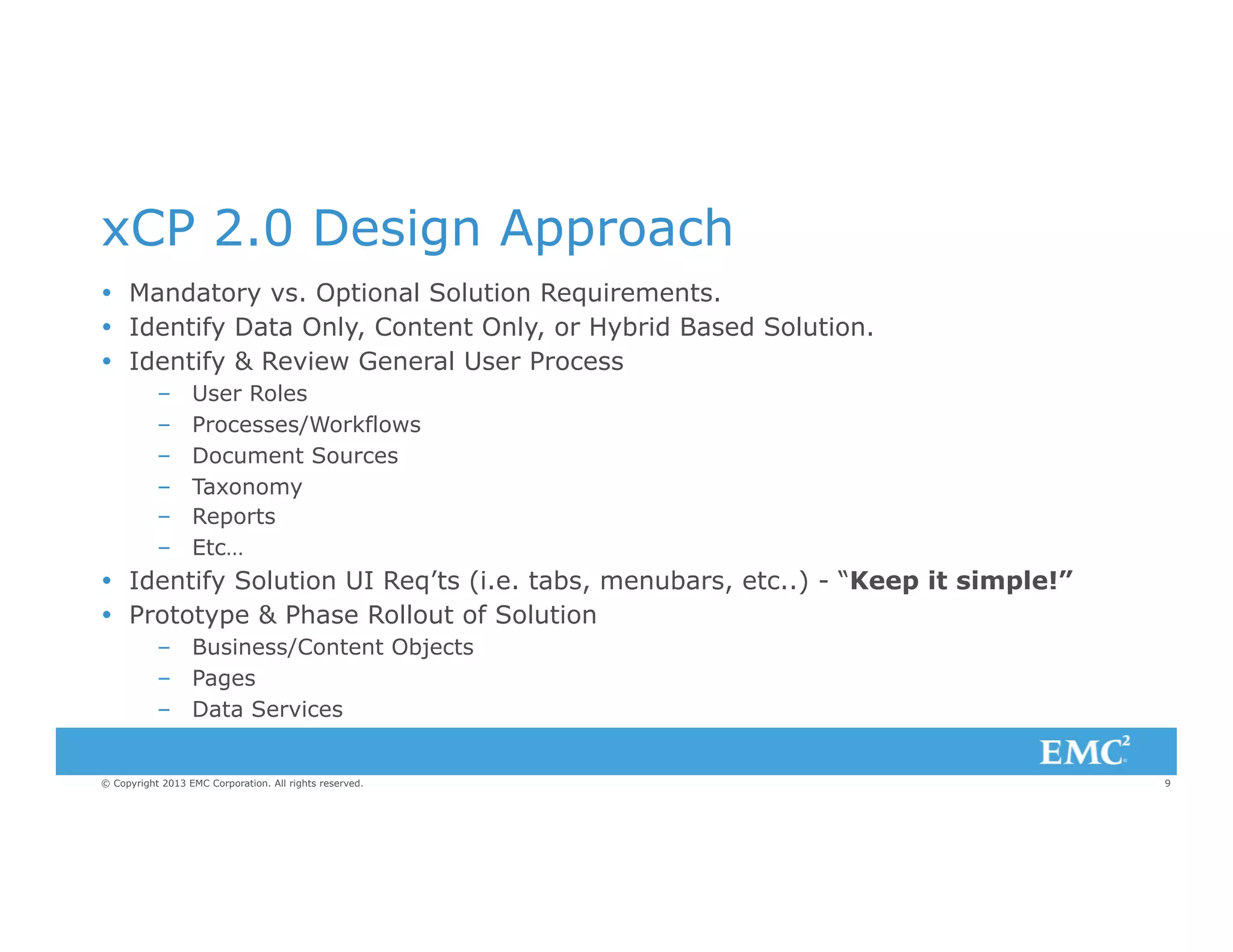
xCP 2.0 Design Approach
Ÿ  Mandatory vs. Optional Solution Requirements.
Ÿ  Identify Data Only, Content Only, or Hybrid Based Solution.
Ÿ  Identify & Review General User Process
– 
– 
– 
– 
– 
– 

User Roles
Processes/Workflows
Document Sources
Taxonomy
Reports
Etc…

Ÿ  Identify Solution UI Req’ts (i.e. tabs, menubars, etc..) - “Keep it simple!”
Ÿ  Prototype & Phase Rollout of Solution
–  Business/Content Objects
–  Pages
–  Data Services

© Copyright 2013 EMC Corporation. All rights reserved.

9
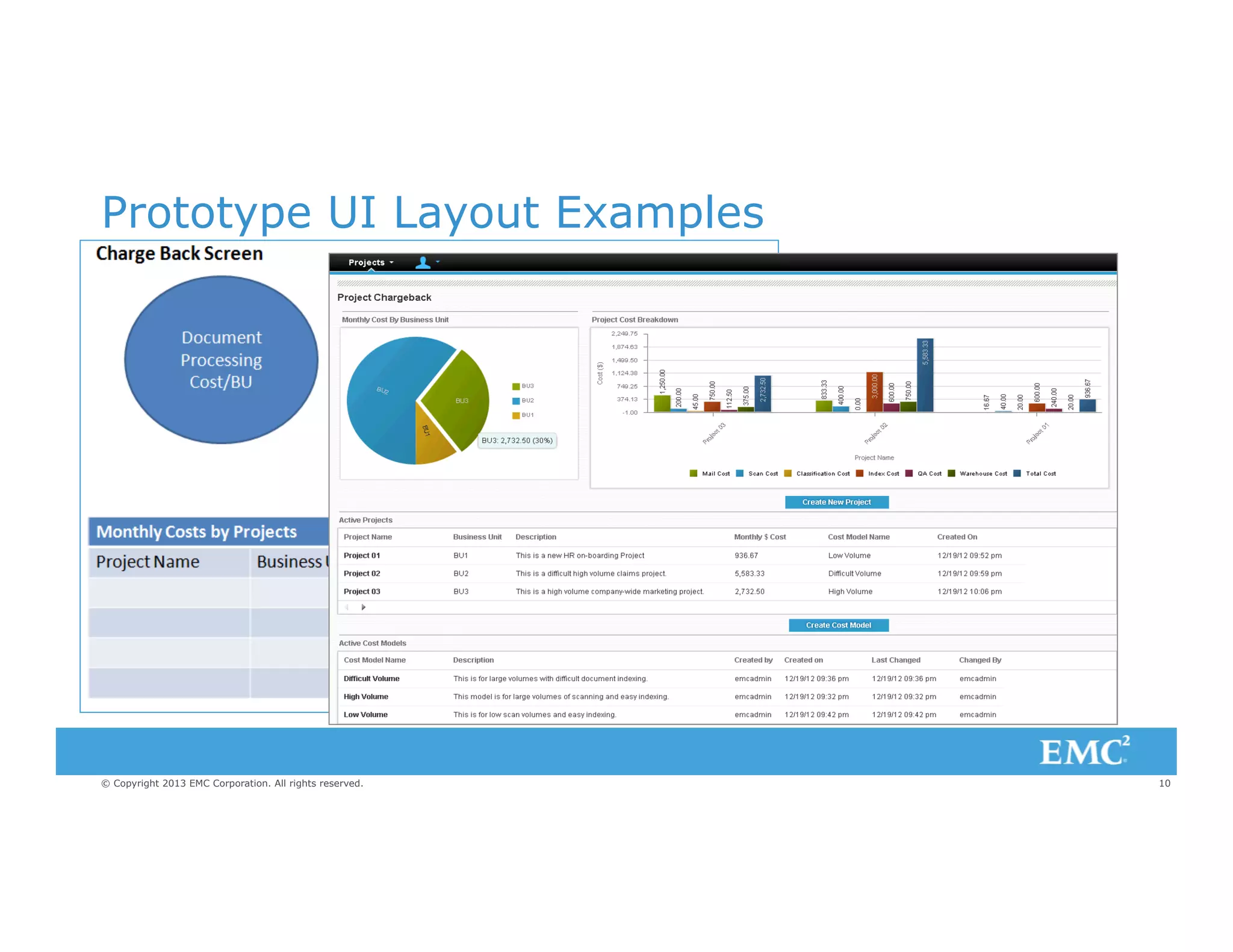
Prototype UI Layout Examples

© Copyright 2013 EMC Corporation. All rights reserved.

10
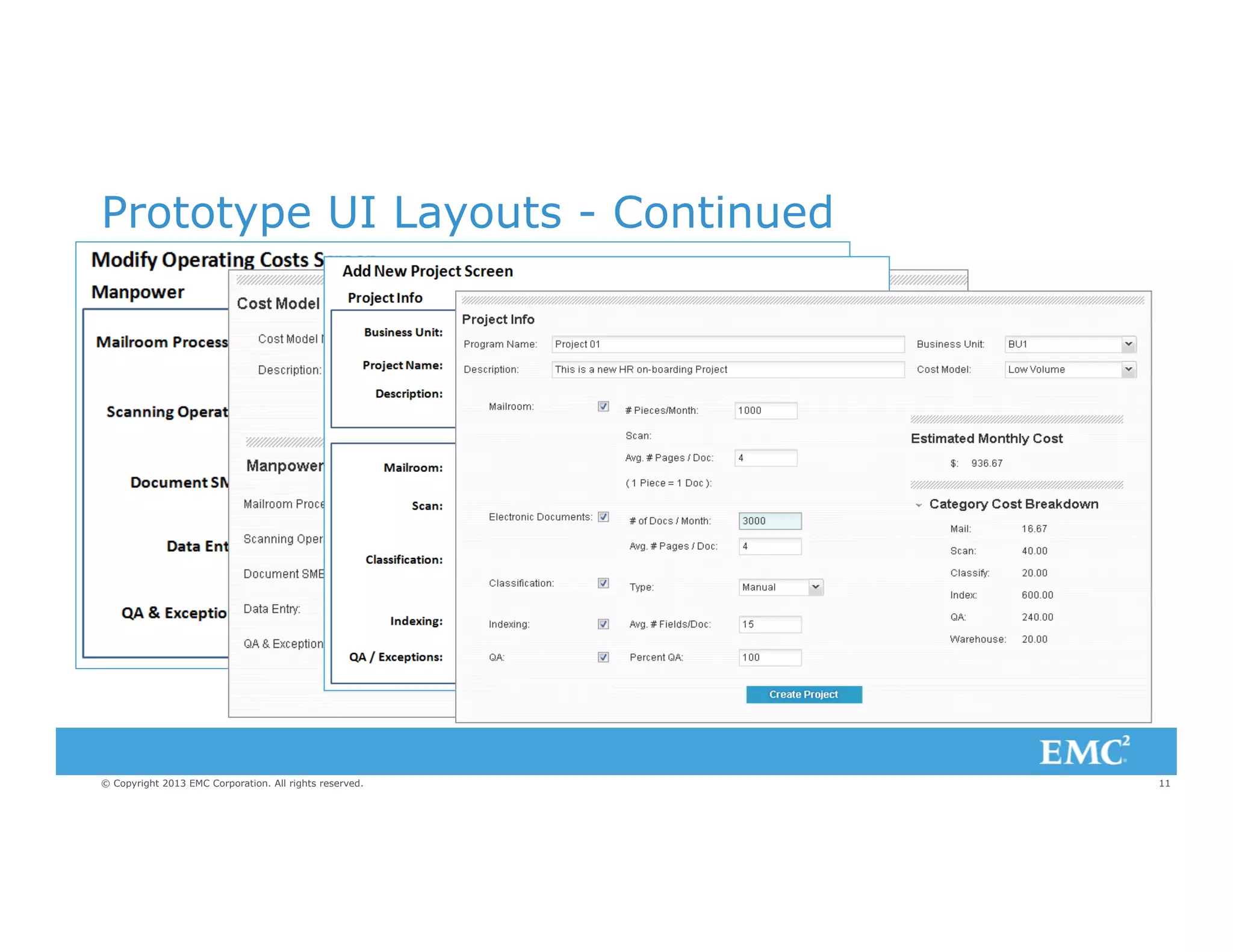
Prototype UI Layouts - Continued

© Copyright 2013 EMC Corporation. All rights reserved.

11
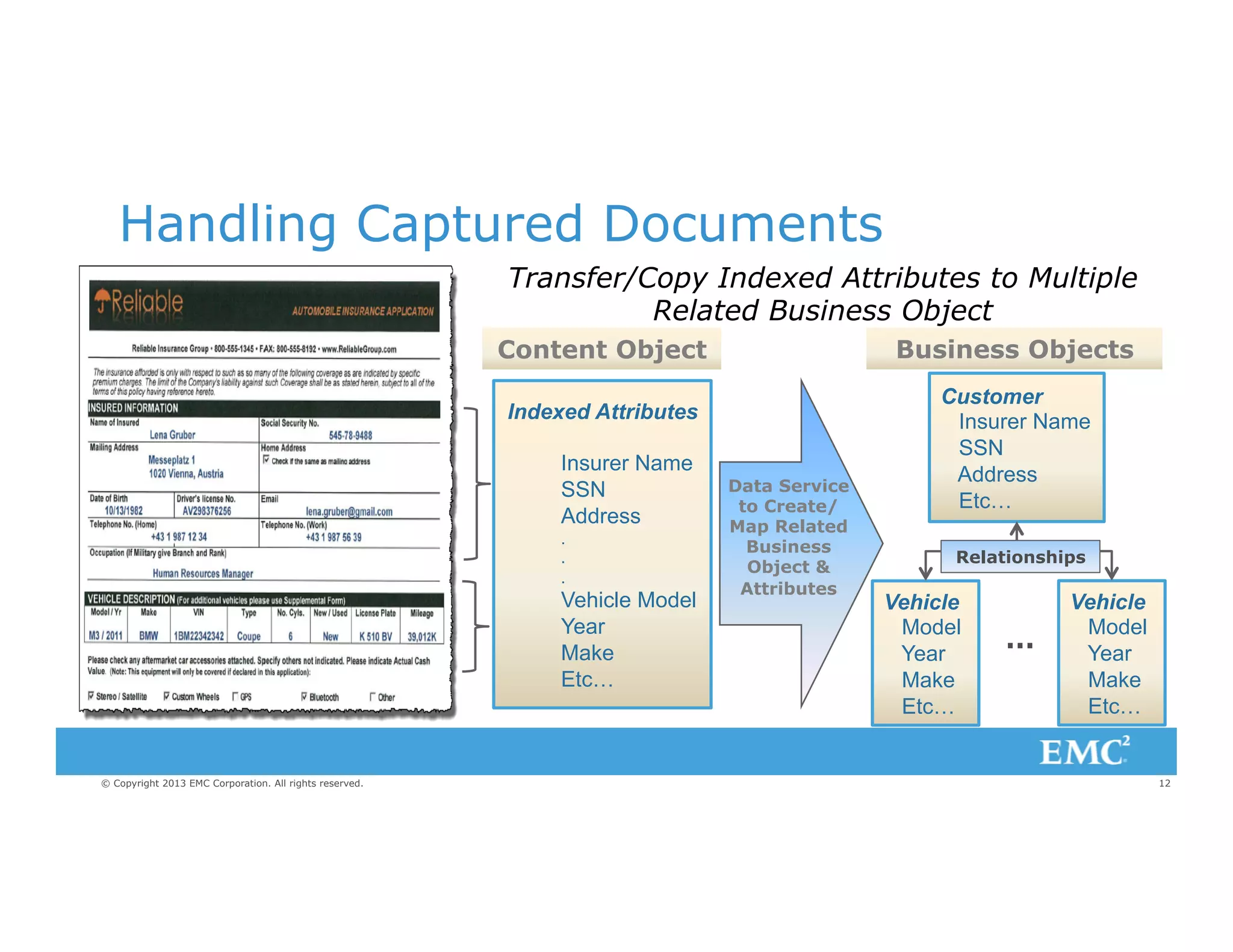
Handling Captured Documents
Transfer/Copy Indexed Attributes to Multiple
Related Business Object
Business Objects

Content Object
Indexed Attributes
Insurer Name
SSN
Address
.
.
.

Vehicle Model
Year
Make
Etc…

© Copyright 2013 EMC Corporation. All rights reserved.

Data Service
to Create/
Map Related
Business
Object &
Attributes

Customer
Insurer Name
SSN
Address
Etc…
Relationships

Vehicle
Model
Year
Make
Etc…

…

Vehicle
Model
Year
Make
Etc…

12
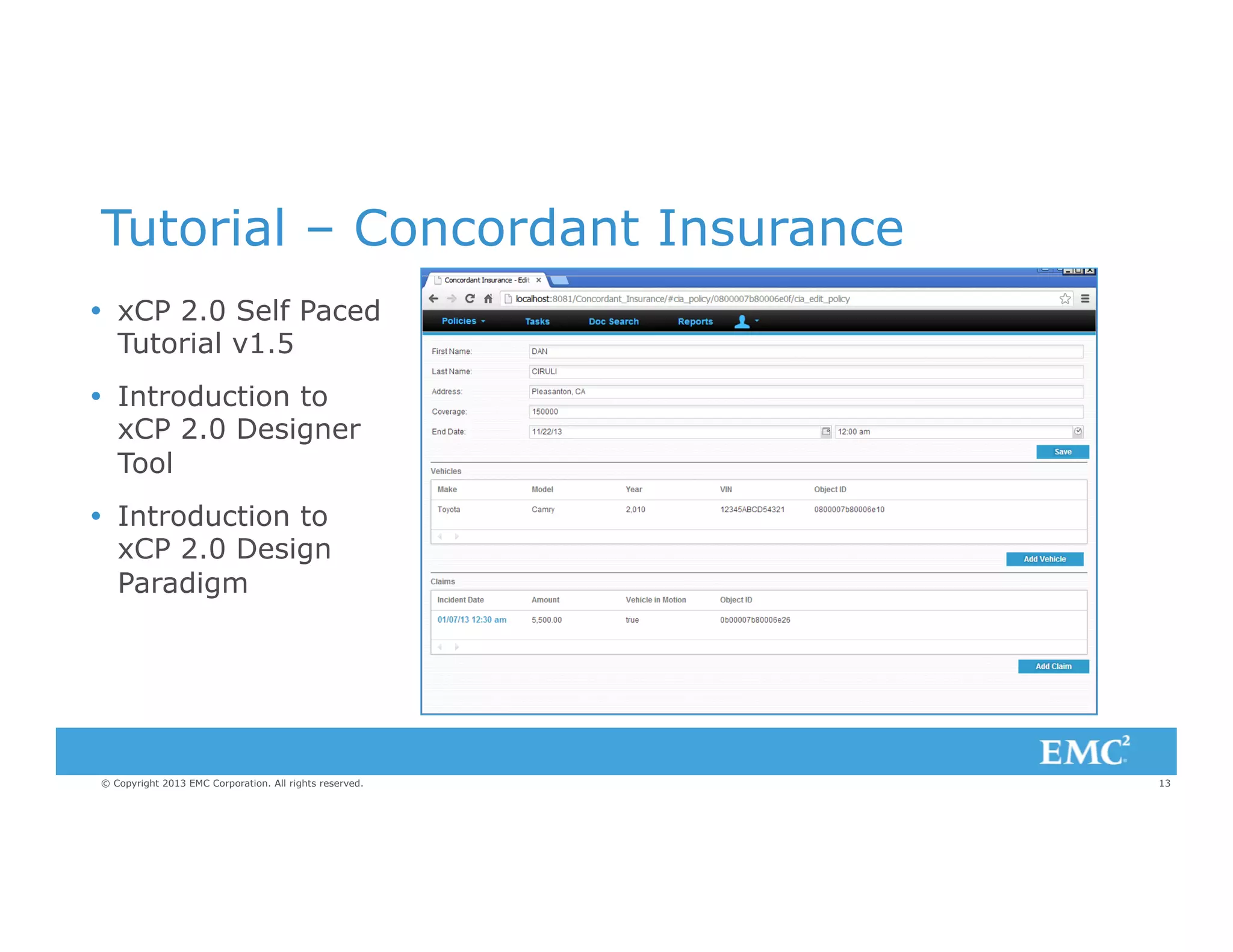
Tutorial – Concordant Insurance
Ÿ  xCP 2.0 Self Paced
Tutorial v1.5
Ÿ  Introduction to
xCP 2.0 Designer
Tool
Ÿ  Introduction to
xCP 2.0 Design
Paradigm

© Copyright 2013 EMC Corporation. All rights reserved.

13
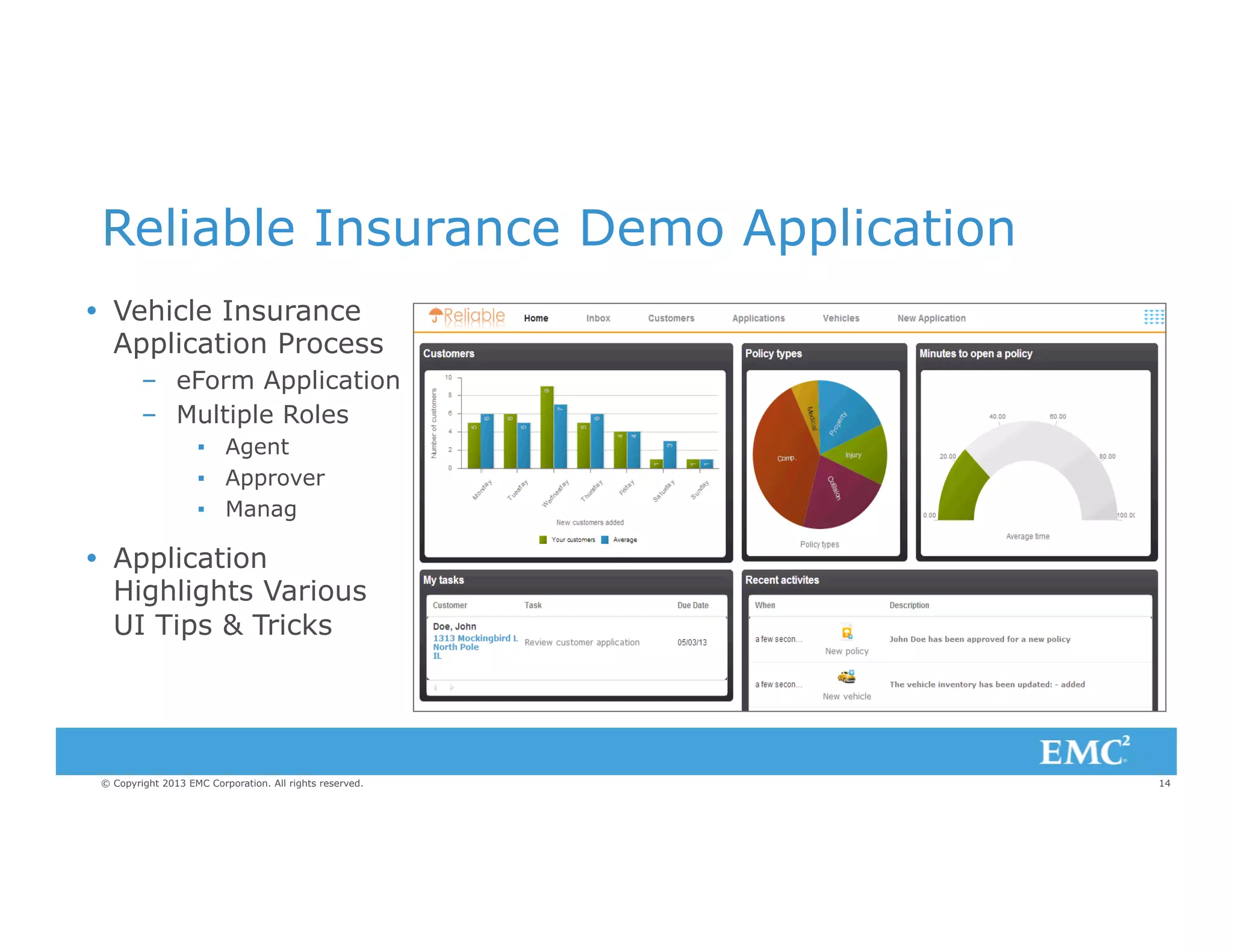
Reliable Insurance Demo Application
Ÿ  Vehicle Insurance
Application Process
–  eForm Application
–  Multiple Roles
▪  Agent
▪  Approver
▪  Manag

Ÿ  Application
Highlights Various
UI Tips & Tricks

© Copyright 2013 EMC Corporation. All rights reserved.

14
Navigation Menu (with images)

Each menu item label is a piece of HTML code referencing:
Ÿ  An image
Ÿ  A link to an application page
<div>
<img style="height:32px;width=32px;vertical-align:middle" src=”[YOUR_IMAGE]" border="0"/>
<span style="font-family:verdana;white-space:normal;font-size:10px"> [YOUR_LABEL]</span>
</div>
© Copyright 2013 EMC Corporation. All rights reserved.

15
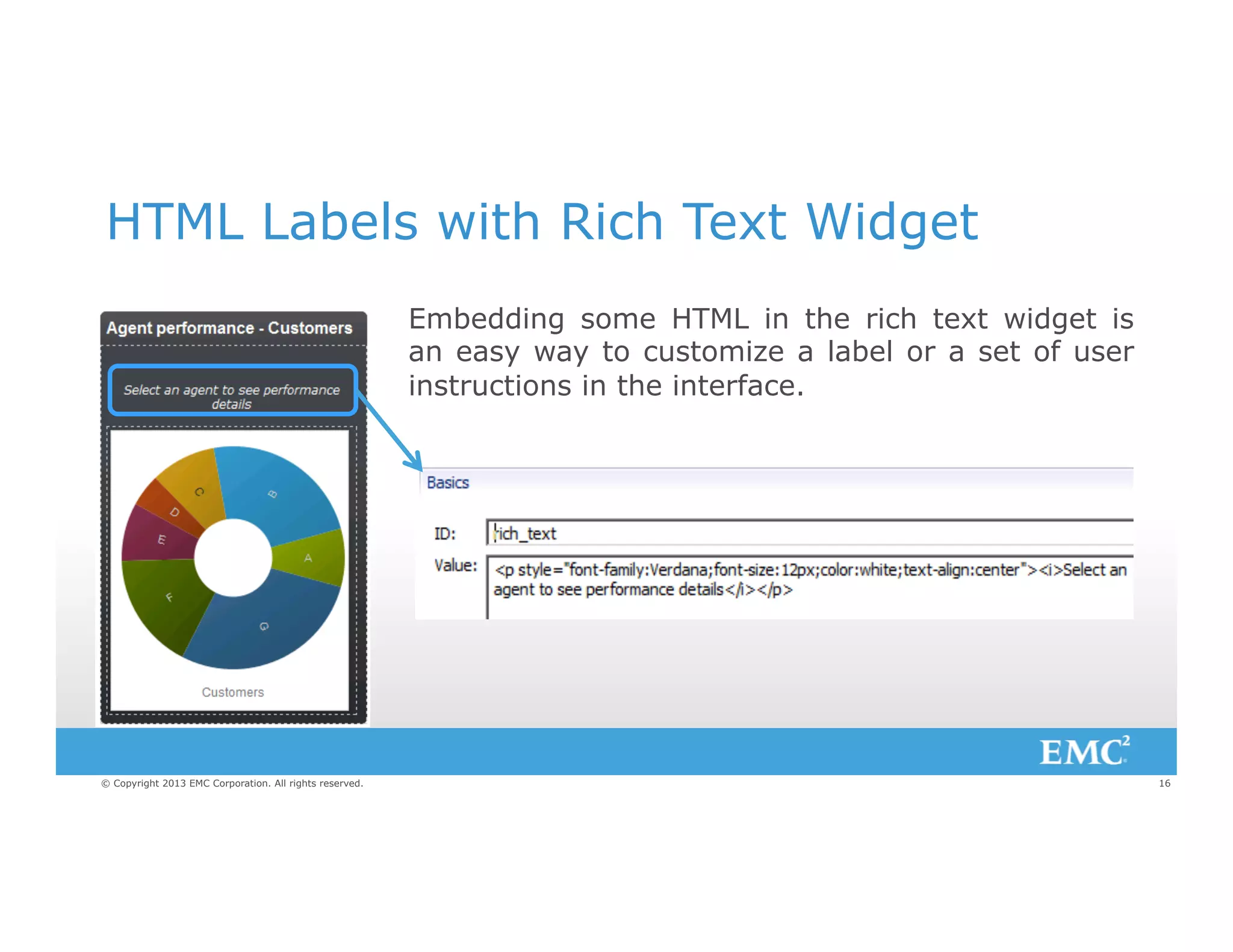
HTML Labels with Rich Text Widget
Embedding some HTML in the rich text widget is
an easy way to customize a label or a set of user
instructions in the interface.

© Copyright 2013 EMC Corporation. All rights reserved.

16
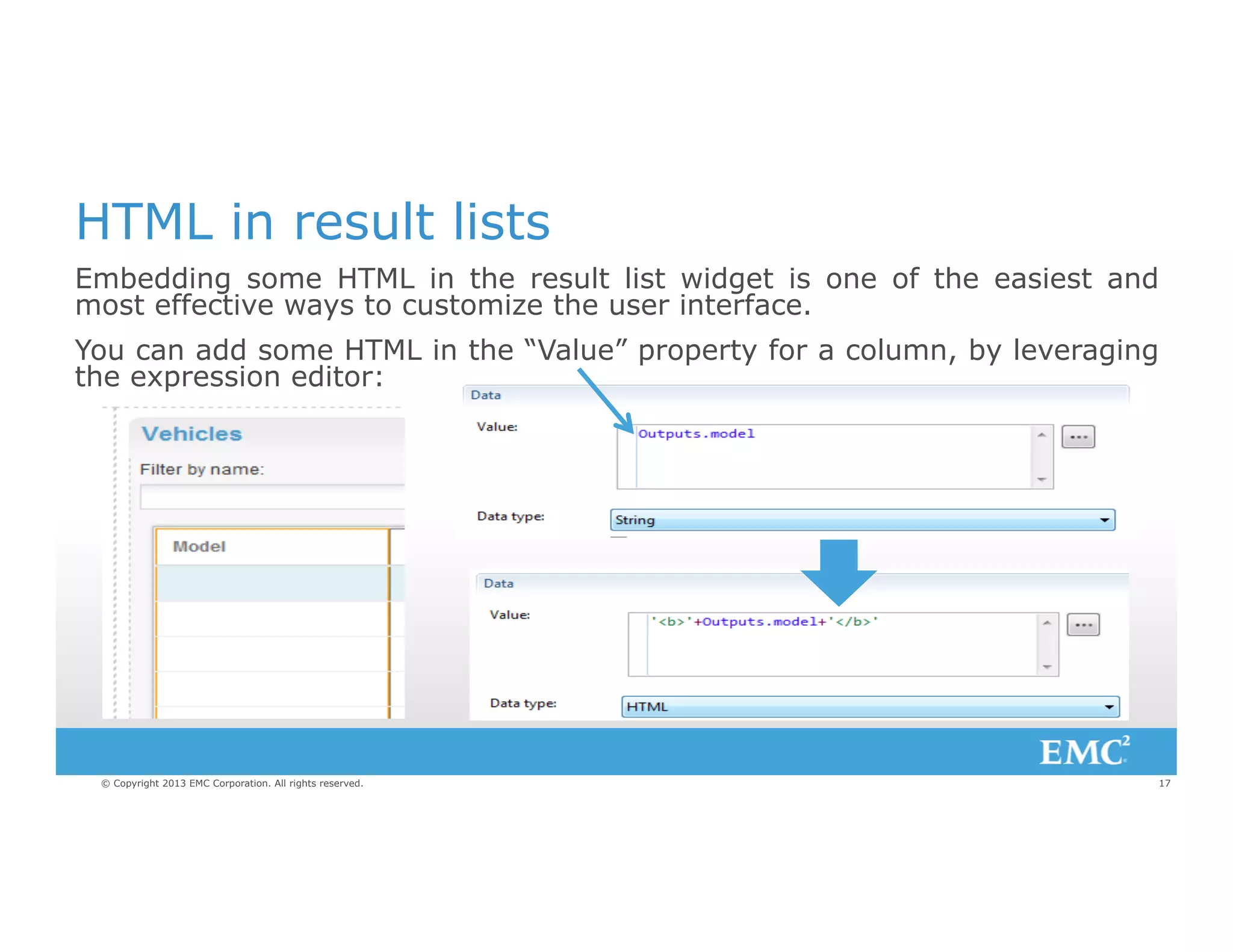
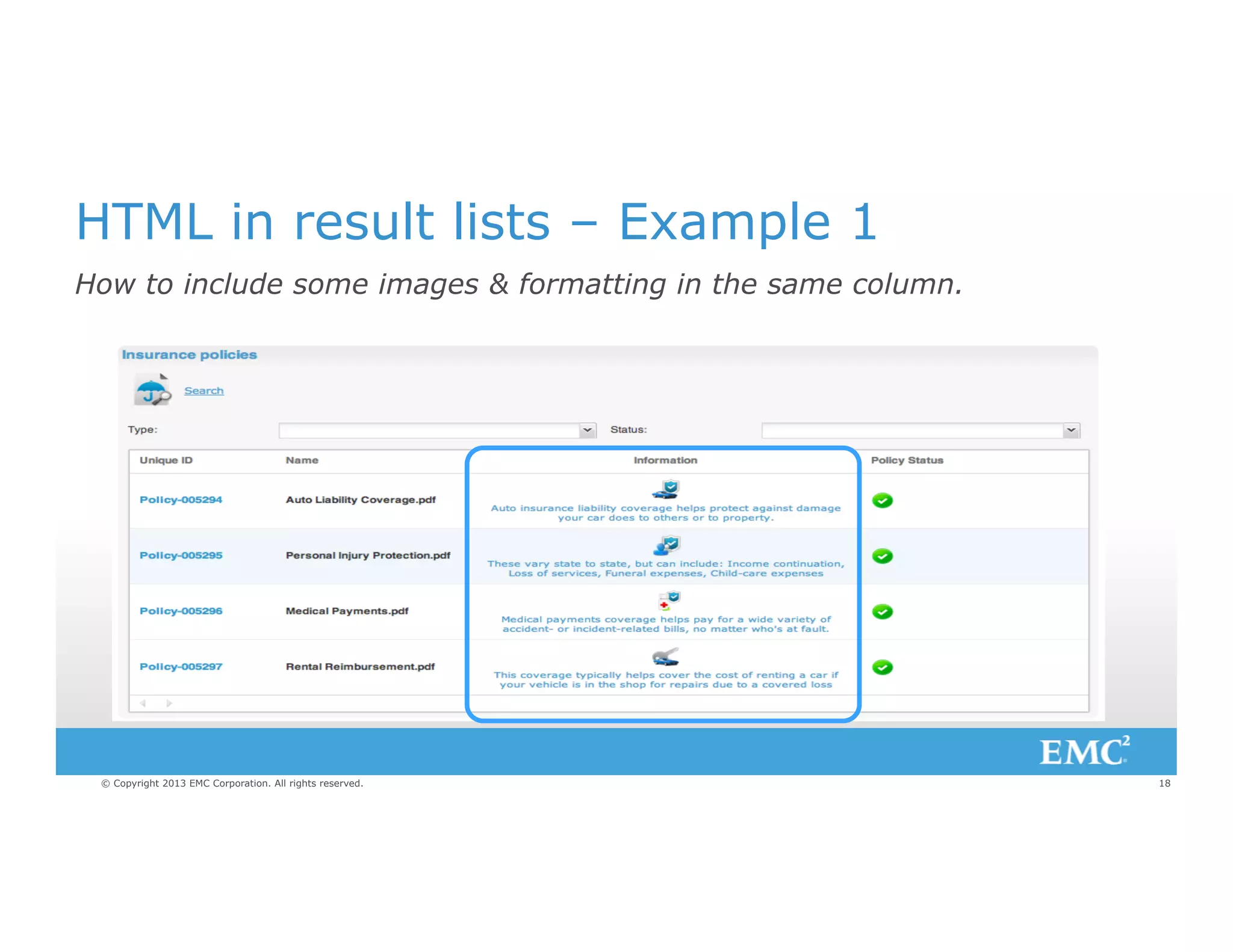
HTML in result lists
Embedding some HTML in the result list widget is one of the easiest and
most effective ways to customize the user interface.
You can add some HTML in the “Value” property for a column, by leveraging
the expression editor:

© Copyright 2013 EMC Corporation. All rights reserved.

17
HTML in result lists – Example 1
How to include some images & formatting in the same column.

© Copyright 2013 EMC Corporation. All rights reserved.

18
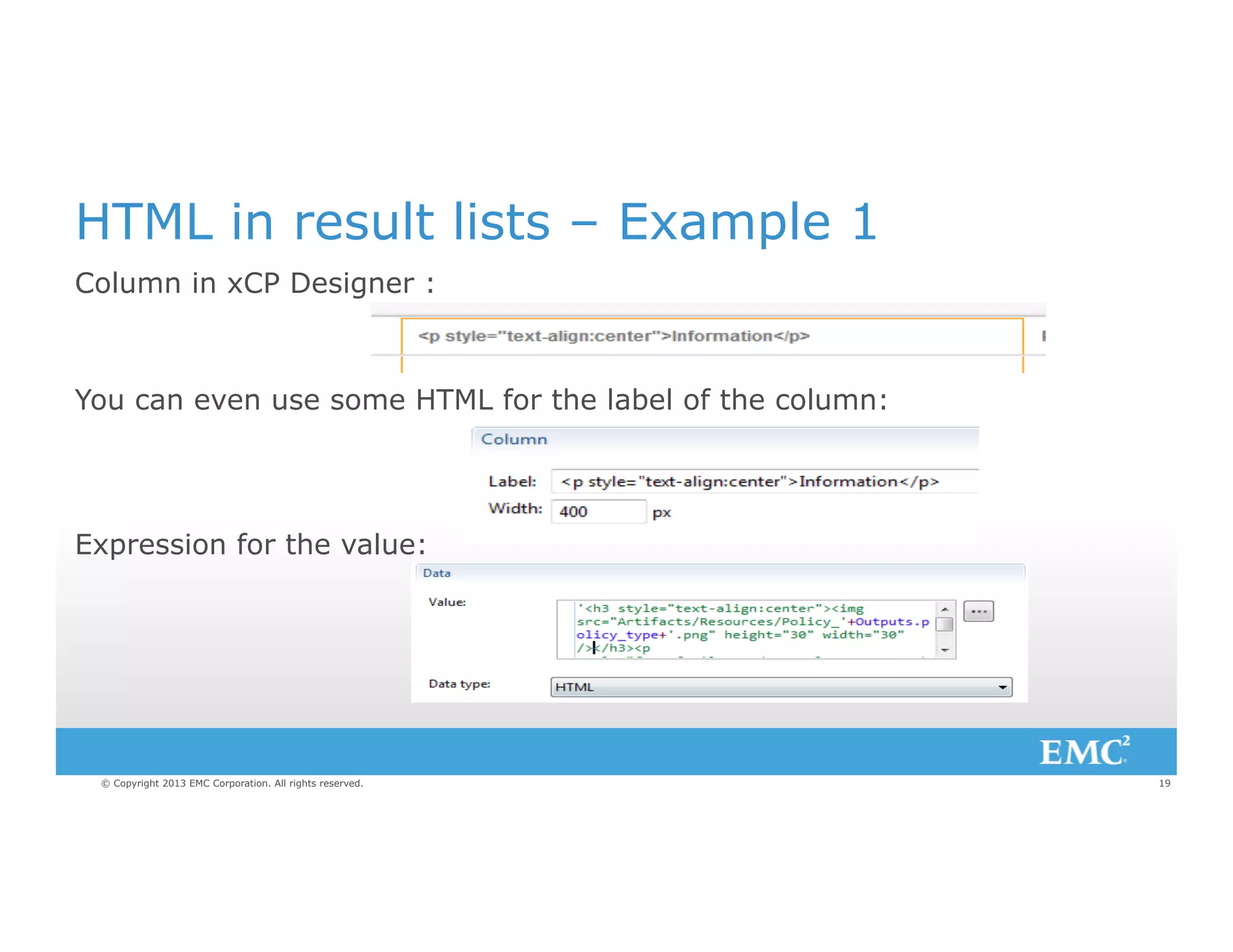
HTML in result lists – Example 1
Column in xCP Designer :

You can even use some HTML for the label of the column:

Expression for the value:

© Copyright 2013 EMC Corporation. All rights reserved.

19
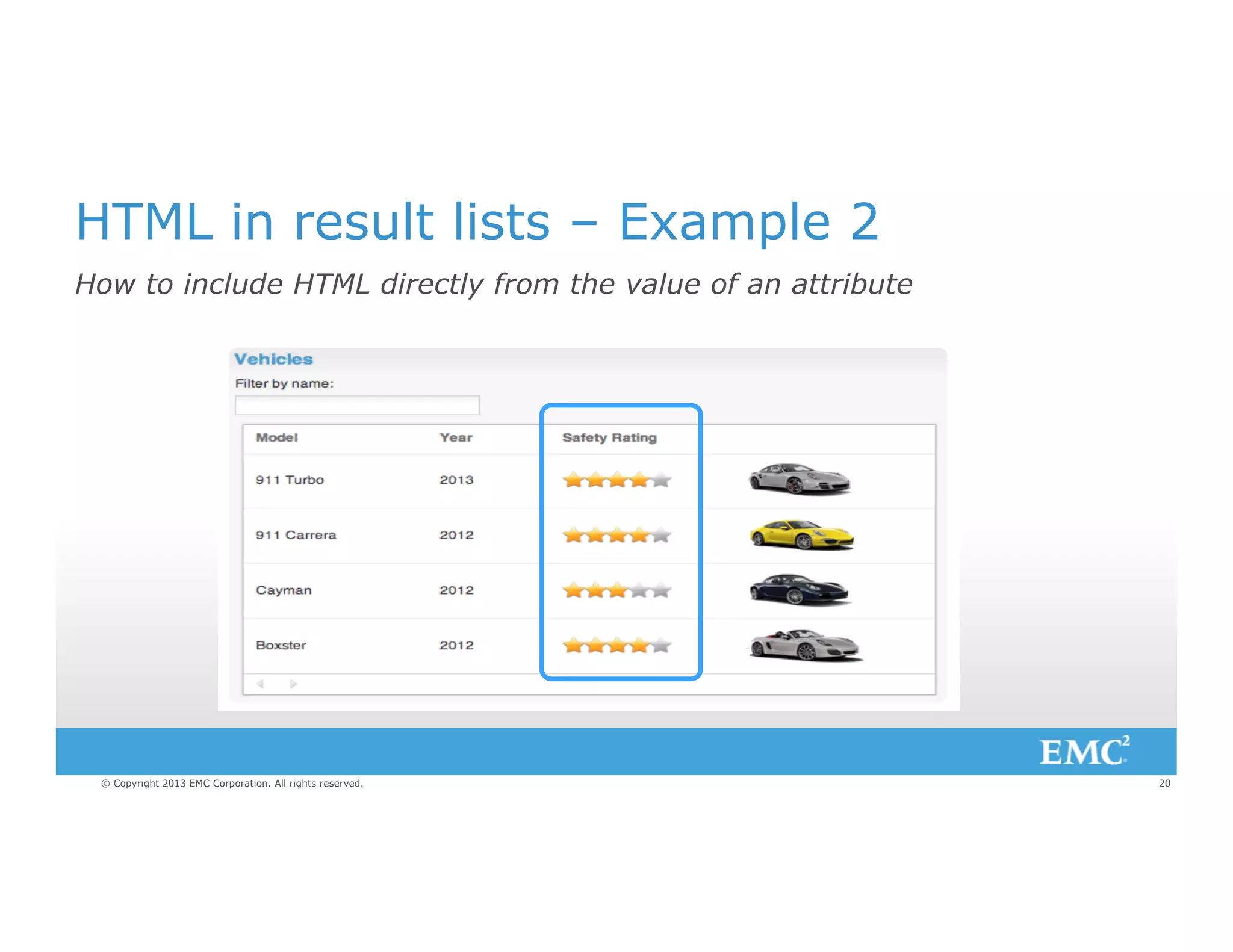
HTML in result lists – Example 2
How to include HTML directly from the value of an attribute

© Copyright 2013 EMC Corporation. All rights reserved.

20
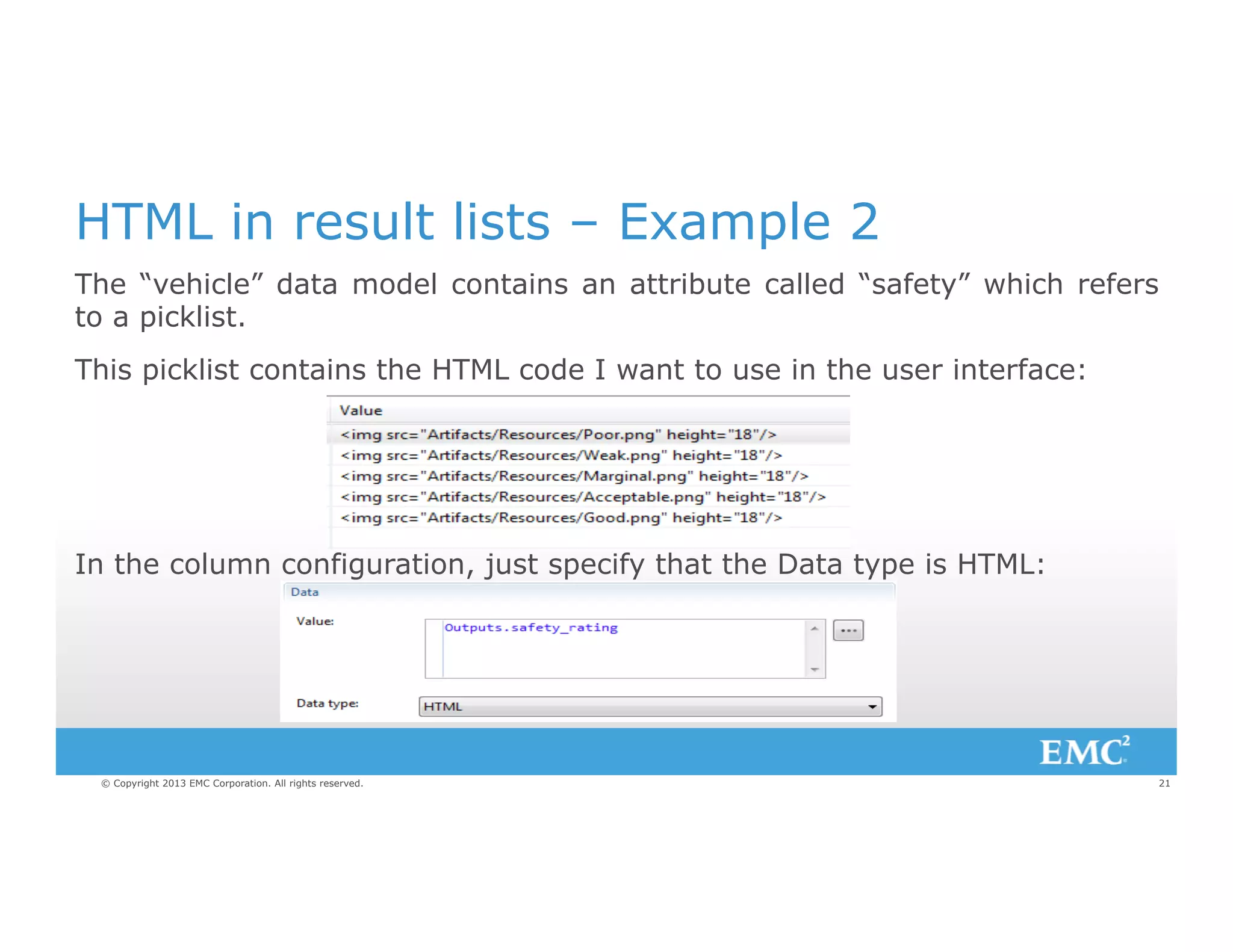
HTML in result lists – Example 2
The “vehicle” data model contains an attribute called “safety” which refers
to a picklist.
This picklist contains the HTML code I want to use in the user interface:

In the column configuration, just specify that the Data type is HTML:

© Copyright 2013 EMC Corporation. All rights reserved.

21
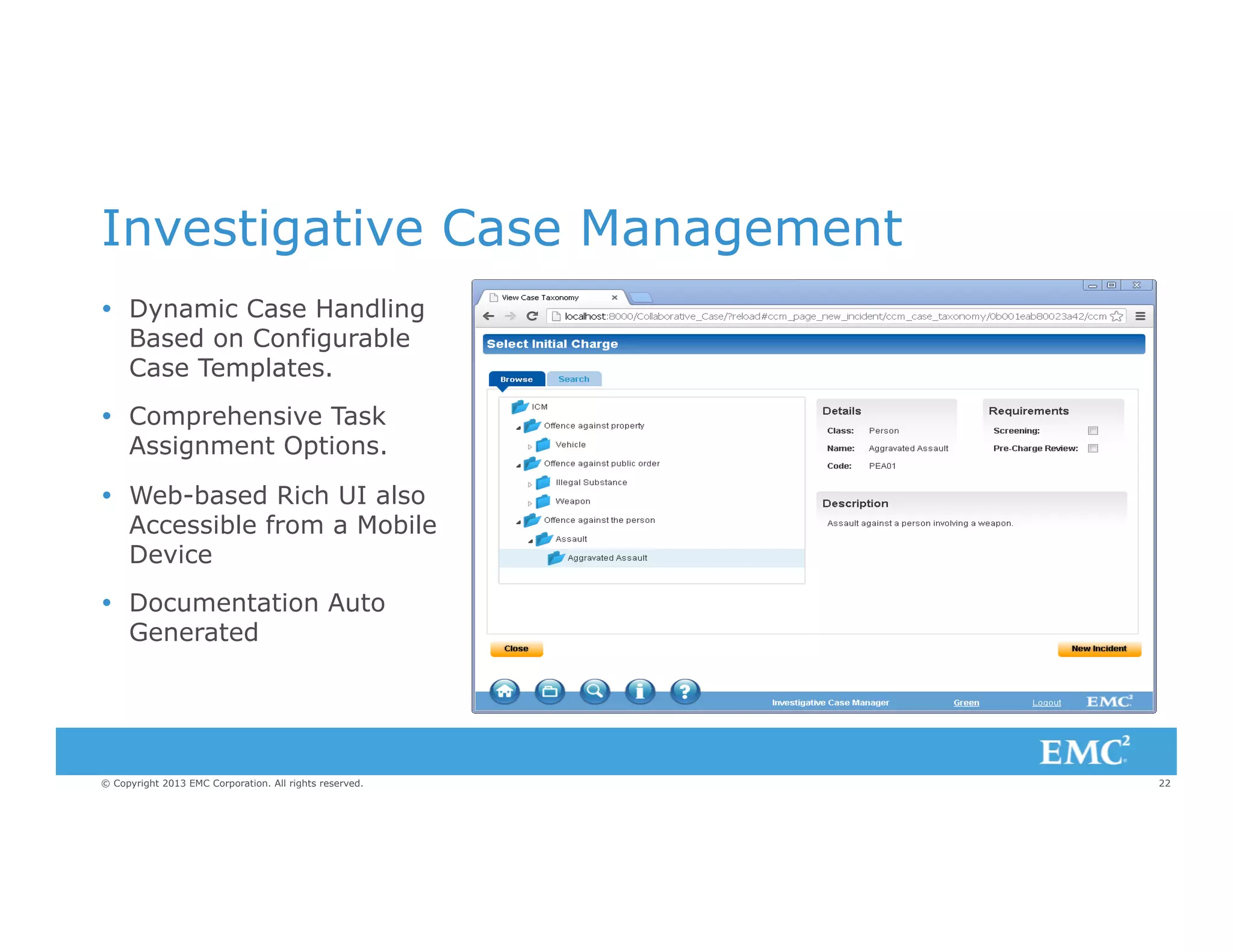
Investigative Case Management
Ÿ  Dynamic Case Handling
Based on Configurable
Case Templates.
Ÿ  Comprehensive Task
Assignment Options.
Ÿ  Web-based Rich UI also
Accessible from a Mobile
Device
Ÿ  Documentation Auto
Generated

© Copyright 2013 EMC Corporation. All rights reserved.

22
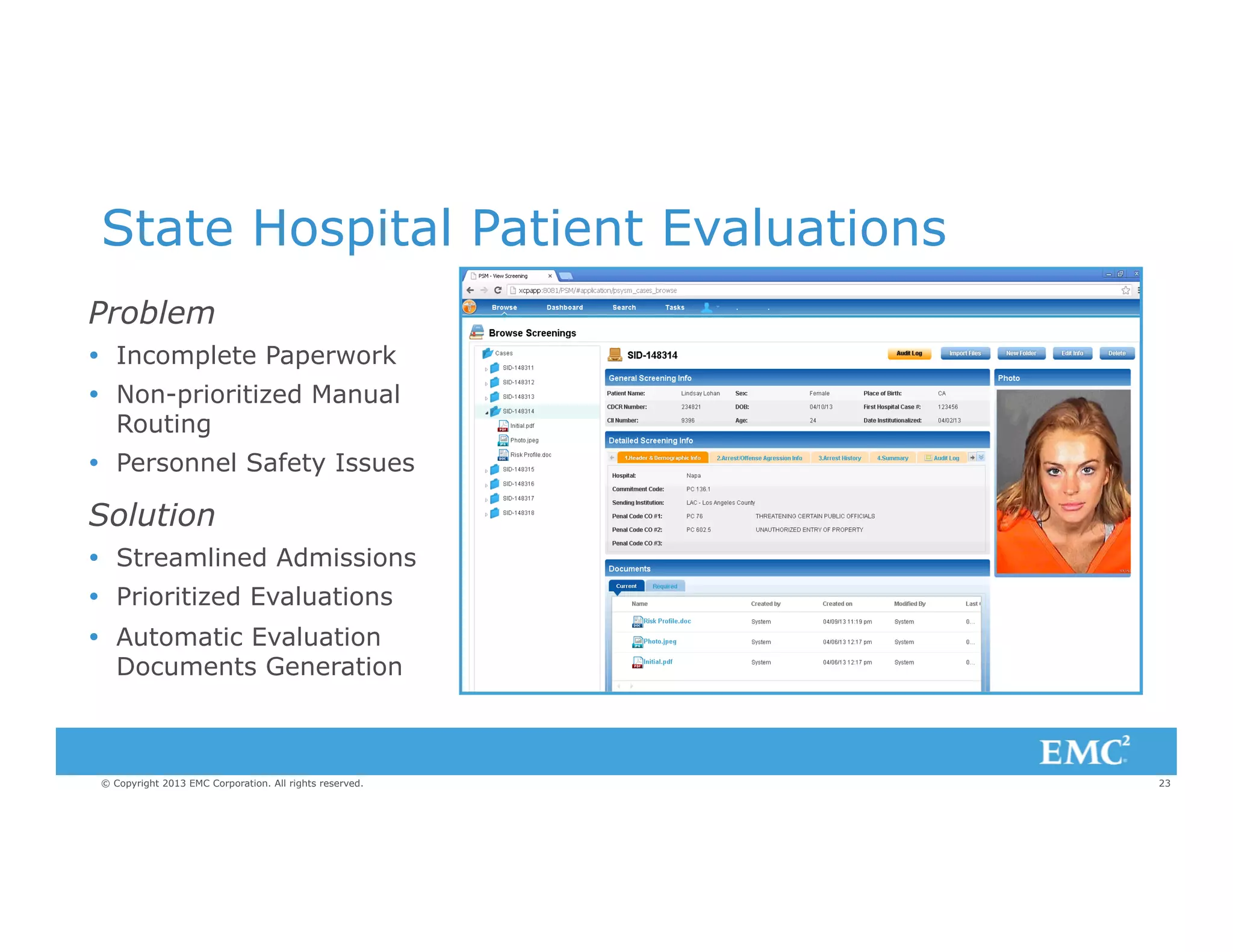
State Hospital Patient Evaluations
Problem
Ÿ  Incomplete Paperwork
Ÿ  Non-prioritized Manual
Routing
Ÿ  Personnel Safety Issues

Solution
Ÿ  Streamlined Admissions
Ÿ  Prioritized Evaluations
Ÿ  Automatic Evaluation
Documents Generation

© Copyright 2013 EMC Corporation. All rights reserved.

23
Debugging in Designer

© Copyright 2013 EMC Corporation. All rights reserved.

24
24
Debugging
Ÿ  No process debugger (yet!)
Ÿ  Would like to bring a larger, application-level
debugger (business events, page logic, queries?)

Ÿ  Don’t Panic… there are some things you can
do!

© Copyright 2013 EMC Corporation. All rights reserved.

25
Design Time Troubleshooting
Ÿ  Problems tab
Ÿ  Logs
–  Runapp.log
–  Deployment log

Ÿ  Broken references
Ÿ  Refactoring/renaming

© Copyright 2013 EMC Corporation. All rights reserved.

26
Runtime troubleshooting
Ÿ  Browser tools

–  Use Incognito/Private Browsing to eliminate caching

Ÿ  Invocation of REST services
Ÿ  Logs
– 
– 
– 
– 

JMS
bpm-runtime
xCPApplication (runtime log)
runapp.log

Ÿ  Think outside the box…
© Copyright 2013 EMC Corporation. All rights reserved.

27
Browser Developer Tools
These are your new best friends

Ÿ  Bundled in Chrome, IE and Opera; Firefox has a
“Firebug” add-in
Ÿ  Let you see each individual server call, along with
inputs and outputs
Ÿ  Quickly ensure that your inputs are getting passed in
correctly (are your expressions on your page
working right?)
© Copyright 2013 EMC Corporation. All rights reserved.

28
How to debug a stateless process
Using browser development tools

1.  Use debugging tools to ensure that inputs are
being passed in correctly
2.  Use RESTful service to call it with arbitrary inputs
3.  Check log files.
4.  Run it statefully

© Copyright 2013 EMC Corporation. All rights reserved.

29
Tips and Tricks

© Copyright 2013 EMC Corporation. All rights reserved.

30
30
Pass Multi Selection to Stateless Process
Ÿ  Multi selected row_ids can be
passed to a single value
process variable in a concat
format with ","

© Copyright 2013 EMC Corporation. All rights reserved.

31
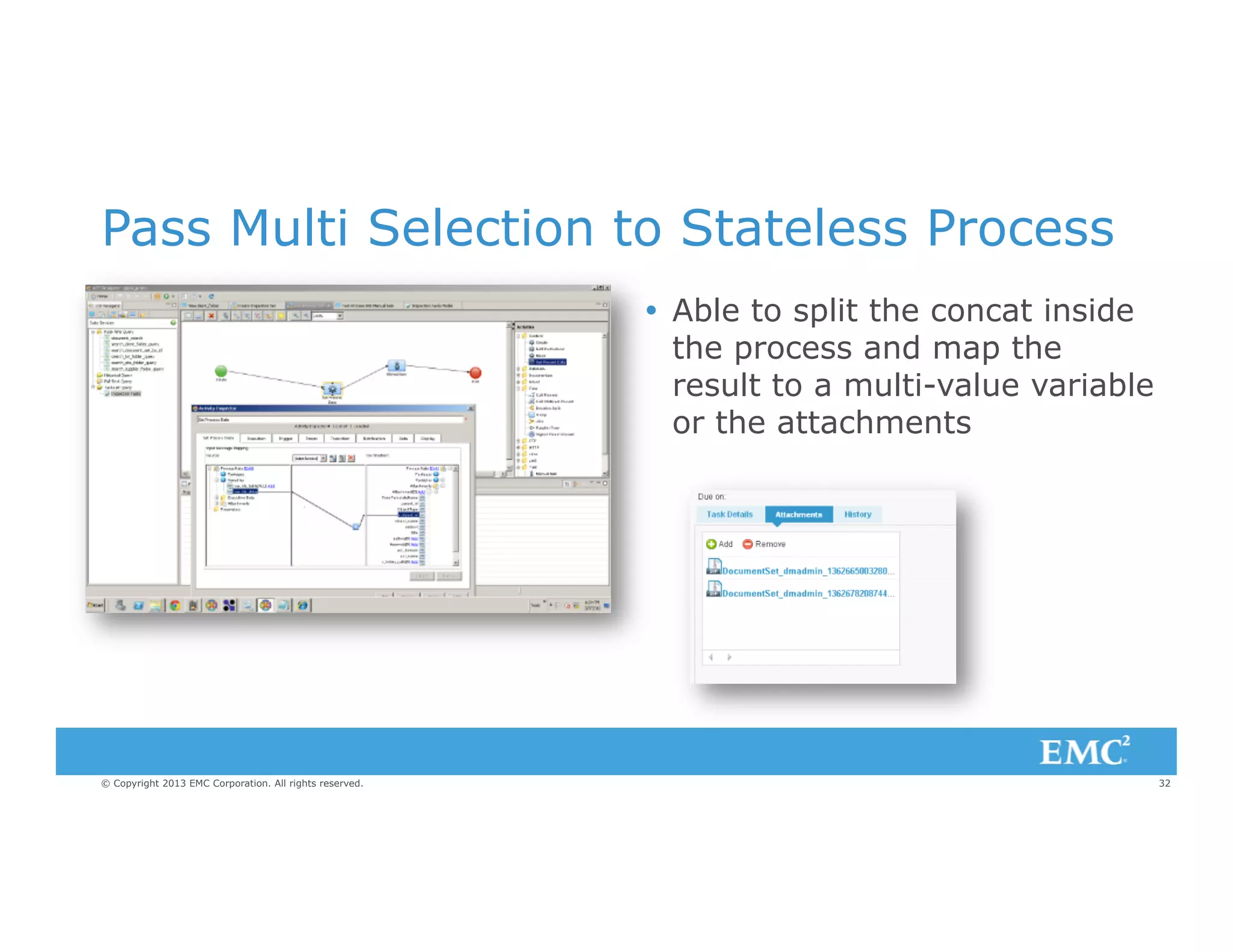
Pass Multi Selection to Stateless Process
Ÿ  Able to split the concat inside
the process and map the
result to a multi-value variable
or the attachments

© Copyright 2013 EMC Corporation. All rights reserved.

32
Open Document in Native Application
Ÿ  The URL to open the document directly is:
–  http://localhost:8000/<application_name>/application/document/<r_object_id>

Ÿ  The link could look something like:
<a href = "/MyApplication/application/document/' +
widgets.my_results_list.selected_row.doc_object_id + '">Open</a>

Ÿ  The onclick event would have something like:
'<div class="x-btn xcp_button-cls x-box-item x-btn-default-small x-noicon xbtn-noicon x-btn-default-small-noicon" style="border-width: 0px; left: 0px;
top: 0px; margin: 0px; " onclick="window.open('/MyApplication/application/
document/' + widgets.my_results_list.selected_row.doc_object_id + '/',
'_self')"><span class="x-btn-inner" style="">Open Document</span></div>'

© Copyright 2013 EMC Corporation. All rights reserved.

33
DB Endpoints & Custom Drivers
Ÿ  JDBC driver: PostgreSQL, DB2, Oracle, MS SQL, & ODBC
Ÿ  Need another type of database with a different JDBC driver
(such as MySQL, LDAP)
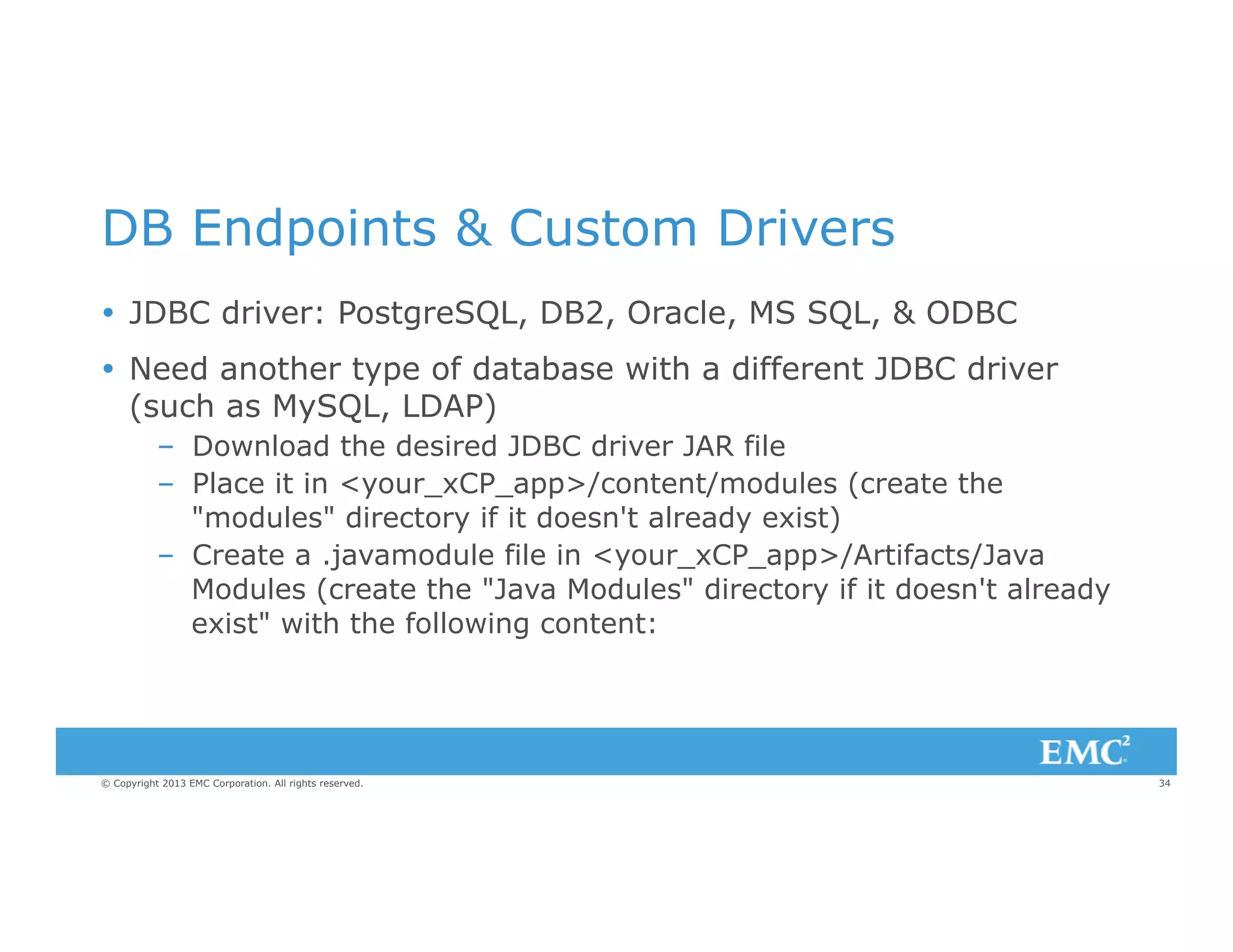
–  Download the desired JDBC driver JAR file
–  Place it in <your_xCP_app>/content/modules (create the
"modules" directory if it doesn't already exist)
–  Create a .javamodule file in <your_xCP_app>/Artifacts/Java
Modules (create the "Java Modules" directory if it doesn't already
exist" with the following content:

© Copyright 2013 EMC Corporation. All rights reserved.

34
DB Endpoints & Custom Drivers
<?xml version="1.0" encoding="UTF-8"?>
<nsJavaModule:JavaModule xmlns:nsJavaModule="http://xcp.emc.com/javamodule"
urn="urn:your_xCP_app_namespace:com.emc.xcp.artifact.javamodule.category:Artifacts/
Java Modules/your_java_module_name.javamodule"
categoryId="com.emc.xcp.artifact.javamodule.category"
name="your_java_module_name"
label="your_java_module_name"
implementationClass="your_JDBC_implementation_class">
<interfaceClassNames>java.sql.Driver</interfaceClassNames>
<implementationJars contentPath="content/modules/your_JDBC_driver_jar_file"/
>
</nsJavaModule:JavaModule>
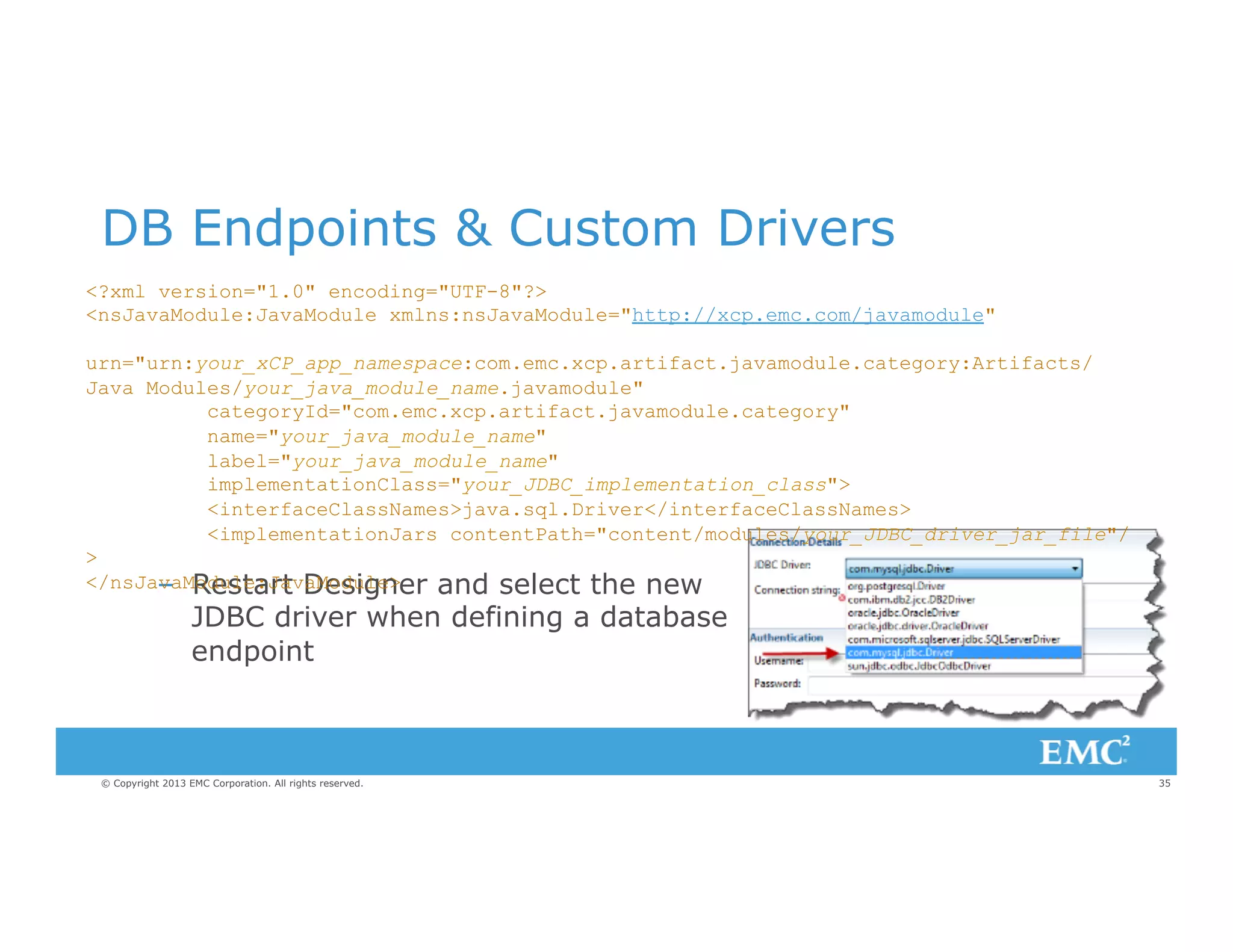
–  Restart Designer and select the new

JDBC driver when defining a database
endpoint

© Copyright 2013 EMC Corporation. All rights reserved.

35
Enabling File Upload From an iPad
Ÿ  Locate the jar file xcp-core-2.0.0000.xxxx.jar in
–  C:Usersdmadmin.m2repositorycomemcxcpxcp-core2.0.0000.1949

Ÿ  Open the jar file with 7-Zip or similar and edit the file: xcp-core
contentxcpactionImportFileAction.js
–  Comment out line 31: //return xcp.Enablement.HIDE;

Ÿ  Close the file make sure the jar is updated with the modified file.
Ÿ  Go to your application directory and delete the 'target' folder.
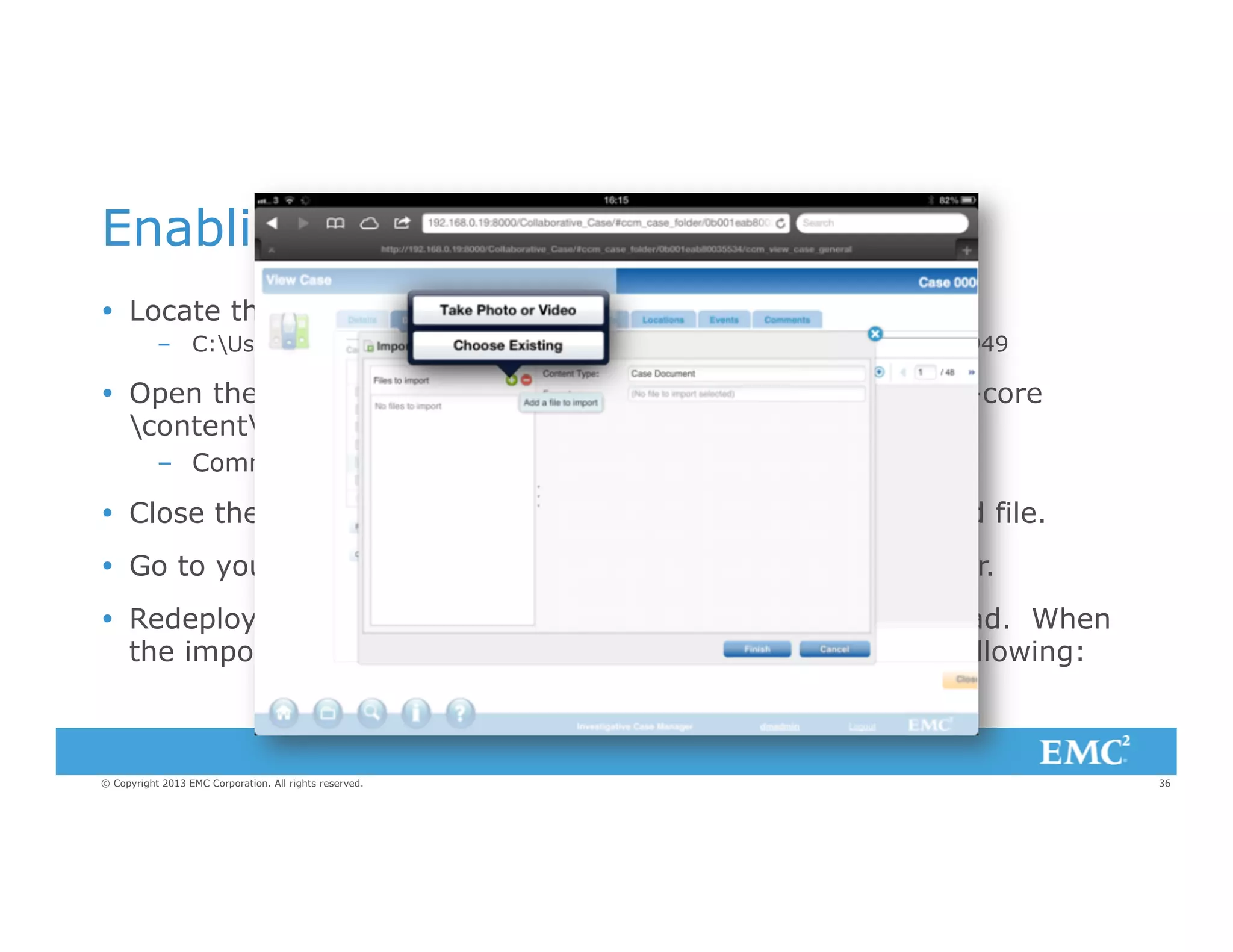
Ÿ  Redeploy your app and you have an Import button on an iPad. When
the import dialog loads and you click on the you get the following:

© Copyright 2013 EMC Corporation. All rights reserved.

36
Changing the Logo on the Sign In Page
Ÿ  Create your logo with a size of 448 x 50 pixels
Ÿ  Include your logo graphic in your applications /
Artifacts/Resources folder
Ÿ  Add the this style to your themes CSS.signin-panel
.signin-logo-panel .x-panel-body {
background: url("../../../../../Artifacts/Resources/Logo.png") norepeat scroll 0 0 transparent;
margin-left: 0px;
}

© Copyright 2013 EMC Corporation. All rights reserved.

37
Changing the Logo - Continued
Ÿ  What if you have a graphic that is not 448 x 50?
–  Resize image to 448 px wide and modify the page layout

Ÿ  Locate the signin page definition here:
–  C:xCPDesignerApplications<APP_NAME><APP_NAME>srcmainwebapppages
applicationapplication_signin.json

Ÿ  Backup the file
Ÿ  Edit the file, modifying the highlighted lines, to
resize the boxes as needed.

© Copyright 2013 EMC Corporation. All rights reserved.

38
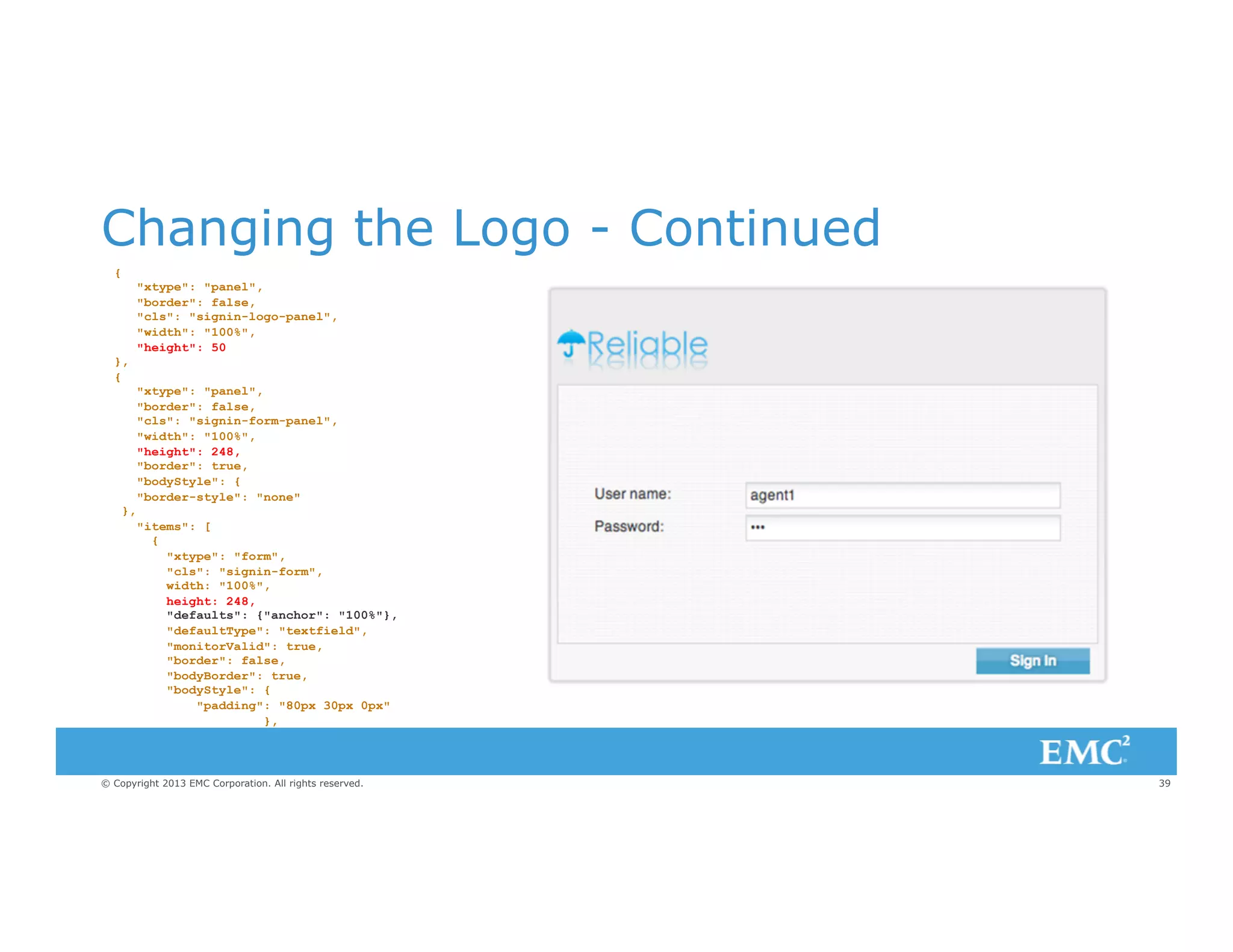
Changing the Logo - Continued
{

},
{

},

"xtype": "panel",
"border": false,
"cls": "signin-logo-panel",
"width": "100%",
"height": 50
"xtype": "panel",
"border": false,
"cls": "signin-form-panel",
"width": "100%",
"height": 248,
"border": true,
"bodyStyle": {
"border-style": "none"
"items": [
{
"xtype": "form",
"cls": "signin-form",
width: "100%",
height: 248,
"defaults": {"anchor": "100%"},
"defaultType": "textfield",
"monitorValid": true,
"border": false,
"bodyBorder": true,
"bodyStyle": {
"padding": "80px 30px 0px"
},

© Copyright 2013 EMC Corporation. All rights reserved.

39
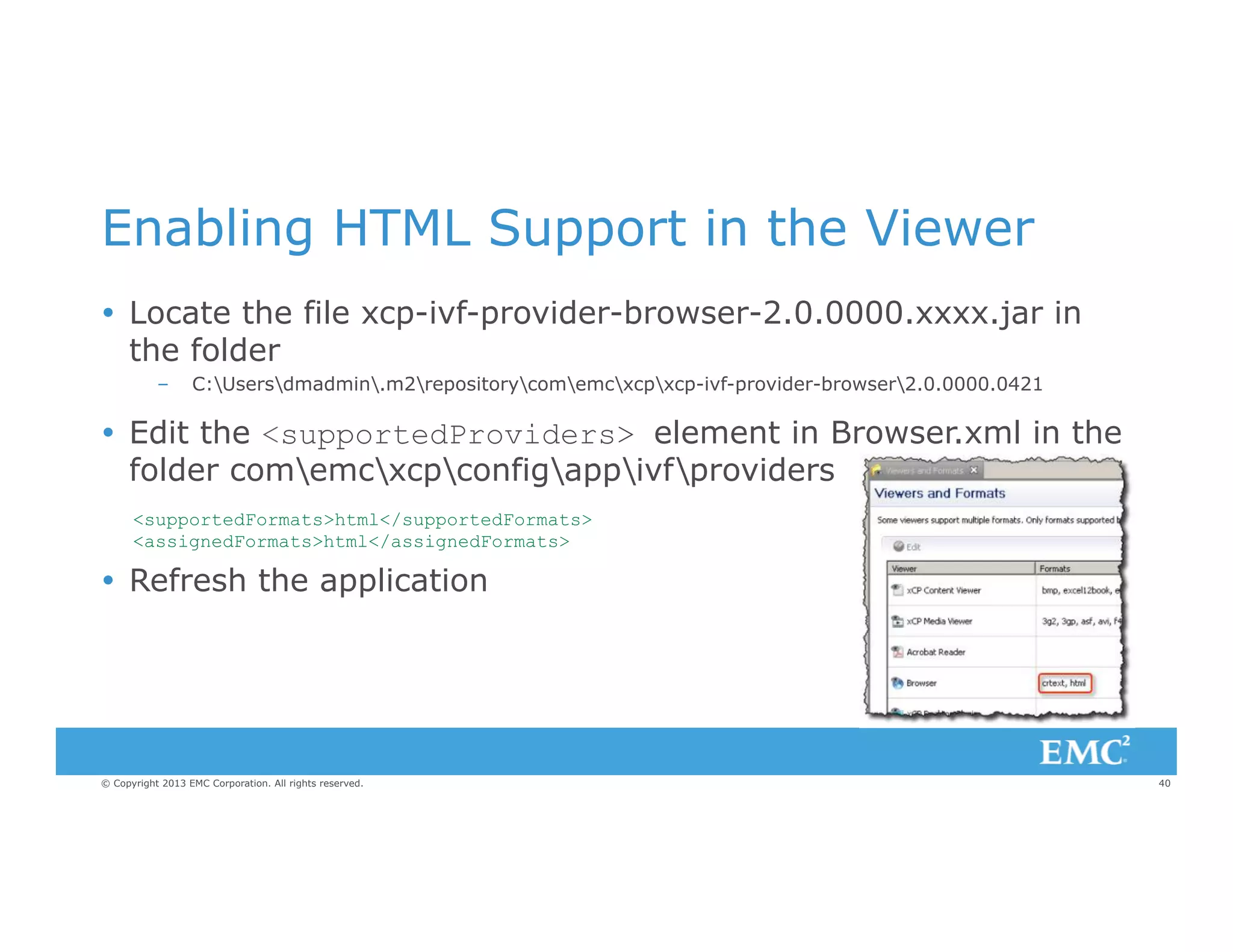
Enabling HTML Support in the Viewer
Ÿ  Locate the file xcp-ivf-provider-browser-2.0.0000.xxxx.jar in
the folder
– 

C:Usersdmadmin.m2repositorycomemcxcpxcp-ivf-provider-browser2.0.0000.0421

Ÿ  Edit the <supportedProviders> element in Browser.xml in the
folder comemcxcpconfigappivfproviders
<supportedFormats>html</supportedFormats>
<assignedFormats>html</assignedFormats>

Ÿ  Refresh the application

© Copyright 2013 EMC Corporation. All rights reserved.

40
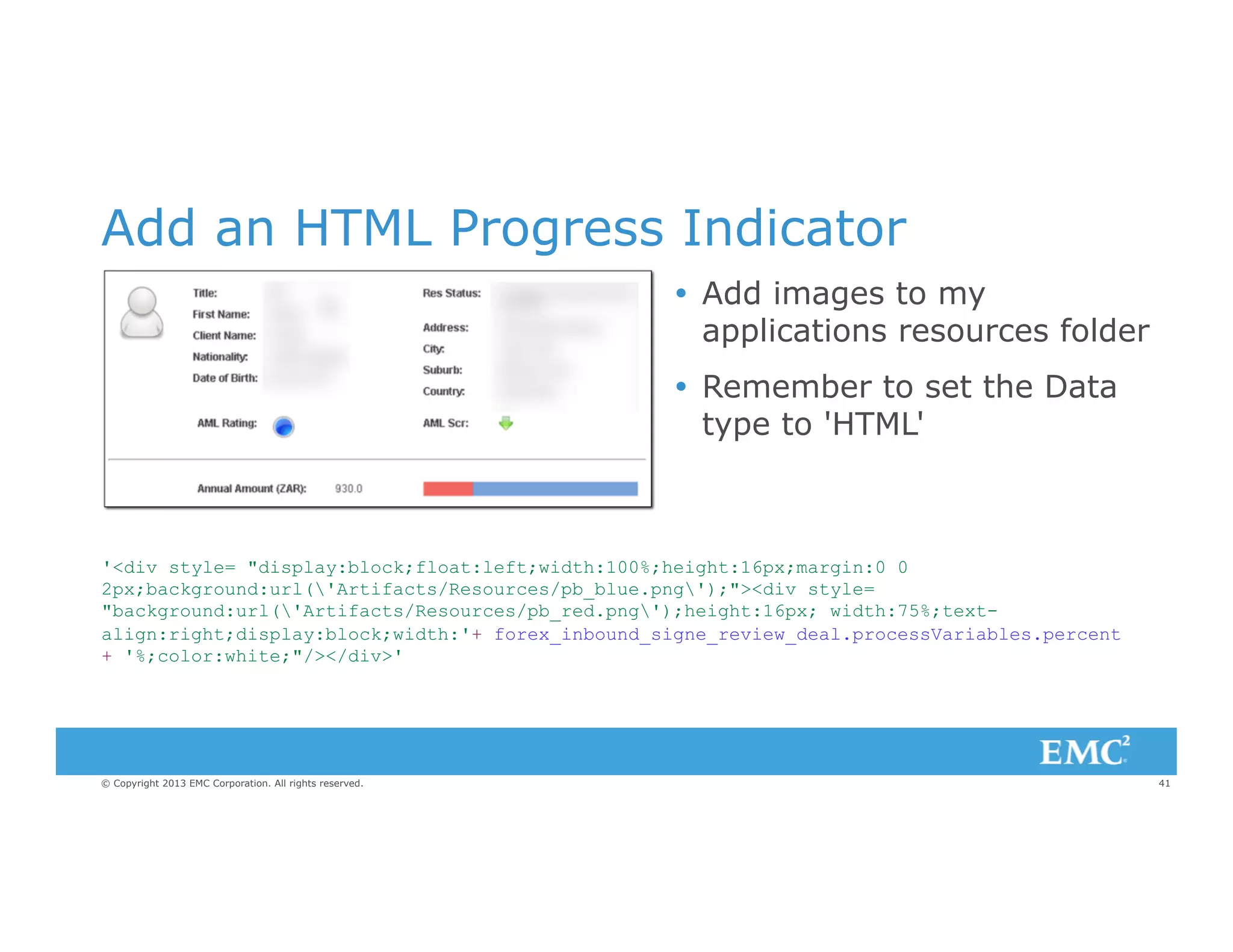
Add an HTML Progress Indicator
Ÿ  Add images to my
applications resources folder
Ÿ  Remember to set the Data
type to 'HTML'

'<div style= "display:block;float:left;width:100%;height:16px;margin:0 0
2px;background:url('Artifacts/Resources/pb_blue.png');"><div style=
"background:url('Artifacts/Resources/pb_red.png');height:16px; width:75%;textalign:right;display:block;width:'+ forex_inbound_signe_review_deal.processVariables.percent
+ '%;color:white;"/></div>'

© Copyright 2013 EMC Corporation. All rights reserved.

41
SVN in xCP 2.0 Designer
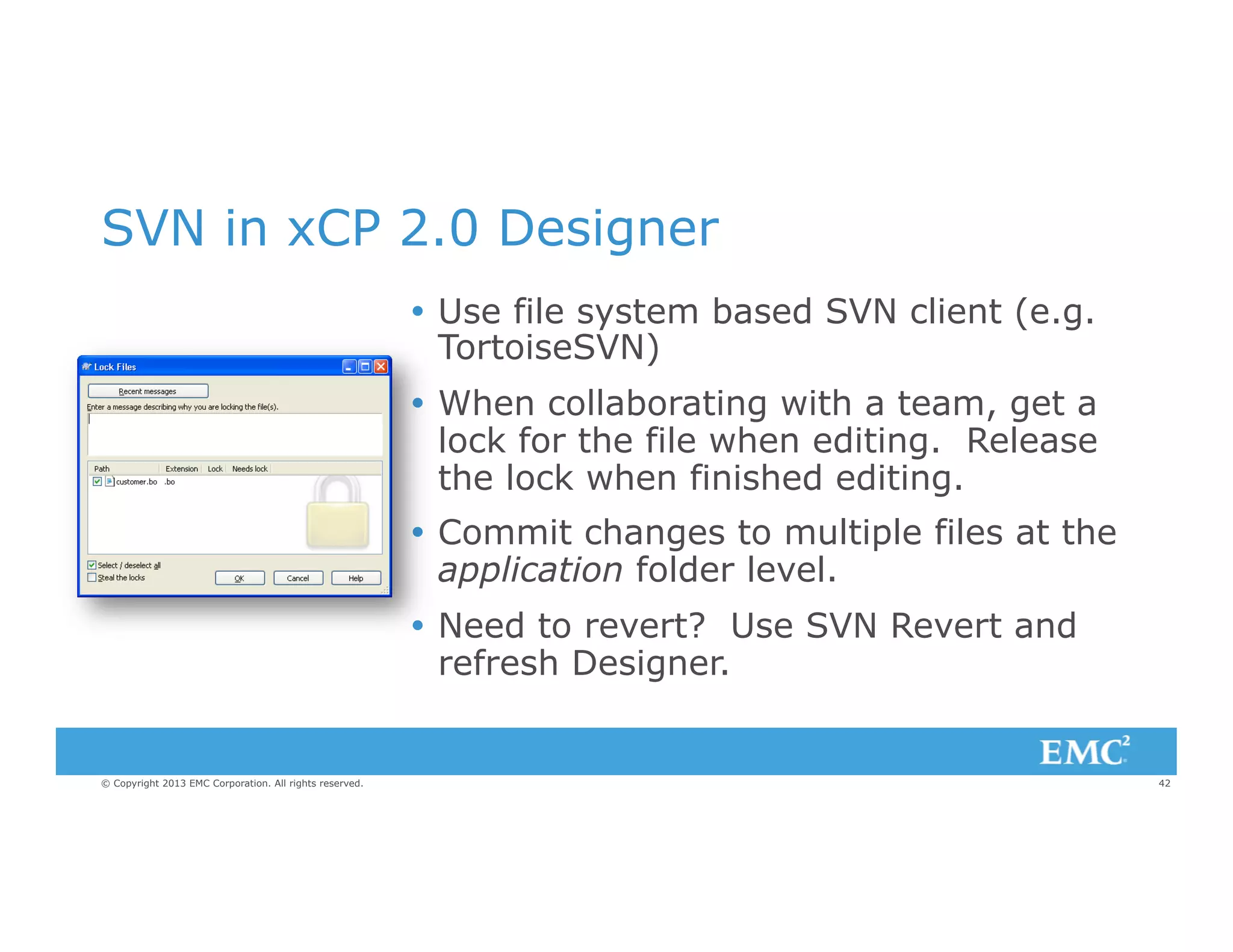
Ÿ  Use file system based SVN client (e.g.
TortoiseSVN)
Ÿ  When collaborating with a team, get a
lock for the file when editing. Release
the lock when finished editing.
Ÿ  Commit changes to multiple files at the
application folder level.
Ÿ  Need to revert? Use SVN Revert and
refresh Designer.

© Copyright 2013 EMC Corporation. All rights reserved.

42
SVN in xCP 2.0 Designer
Retrieving updated files from SVN

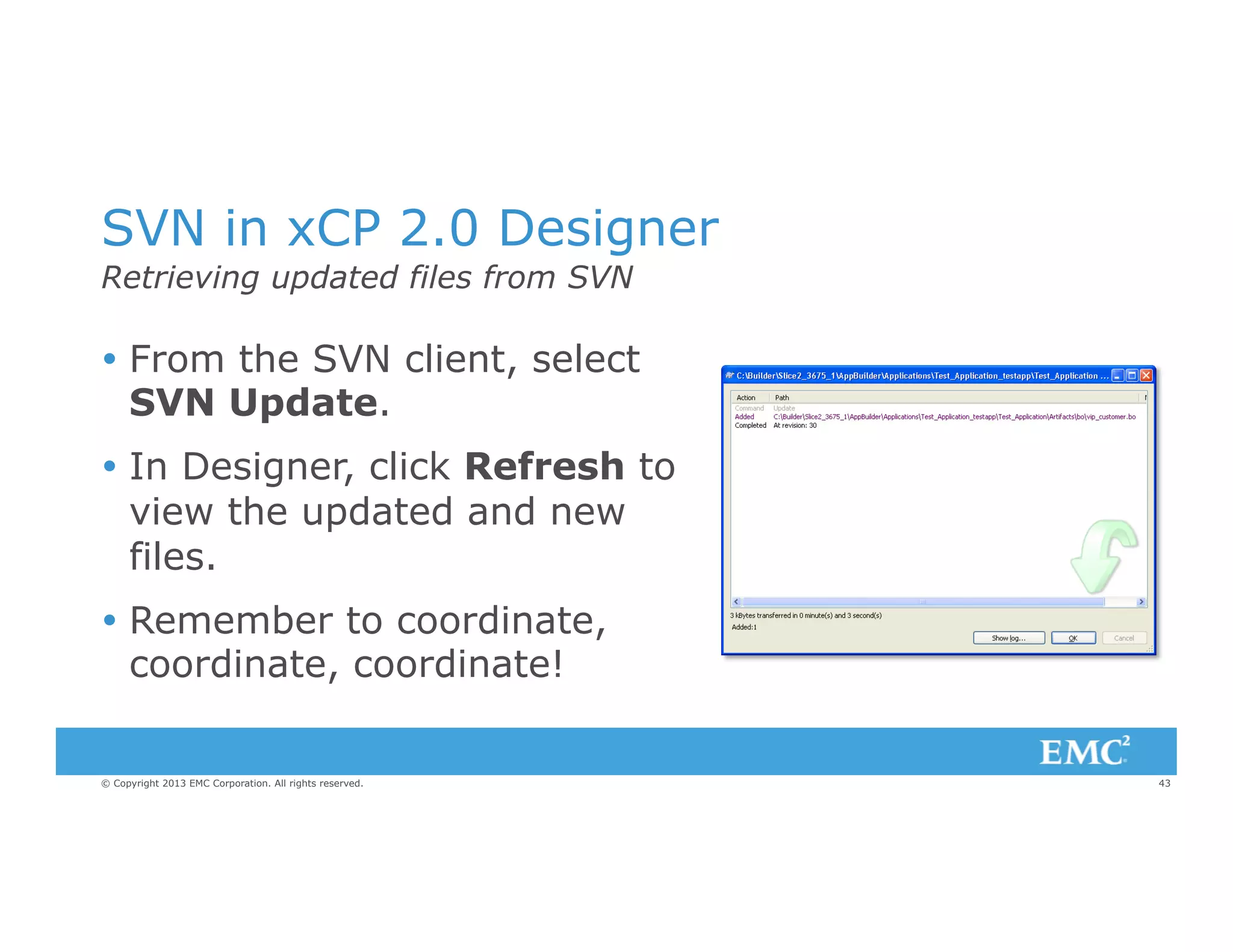
Ÿ  From the SVN client, select
SVN Update.
Ÿ  In Designer, click Refresh to
view the updated and new
files.
Ÿ  Remember to coordinate,
coordinate, coordinate!
© Copyright 2013 EMC Corporation. All rights reserved.

43
SVN in xCP 2.0 Designer
Importing an application into a clean build
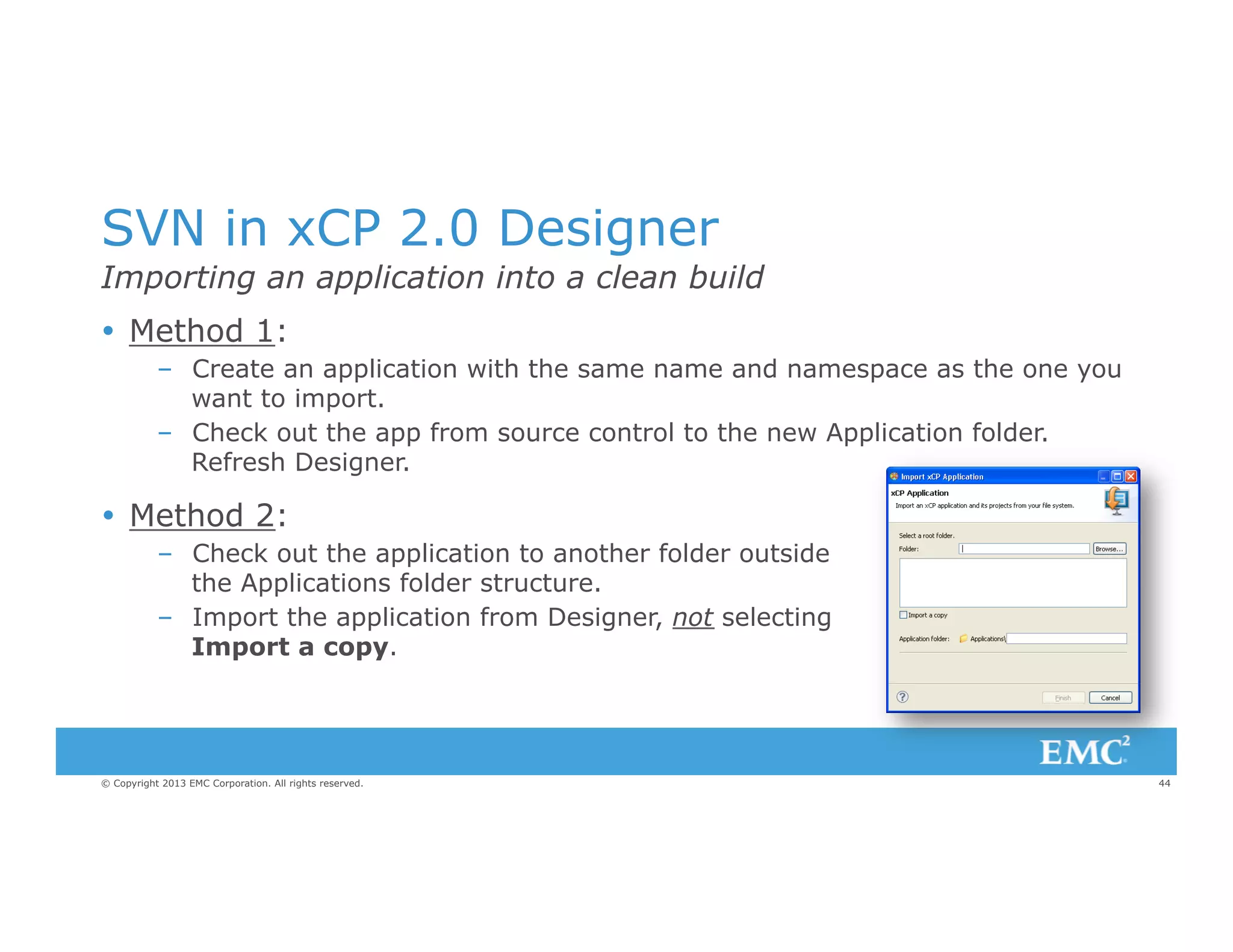
Ÿ  Method 1:
–  Create an application with the same name and namespace as the one you
want to import.
–  Check out the app from source control to the new Application folder.
Refresh Designer.

Ÿ  Method 2:
–  Check out the application to another folder outside
the Applications folder structure.
–  Import the application from Designer, not selecting
Import a copy.

© Copyright 2013 EMC Corporation. All rights reserved.

44
STAY IN TOUCH!
Come to the Social Media Center to play, win, learn and more.

facebook.com/

youtube.com/

linkd.in/

twitter.com/

emcMMTM
emcDocumentum
Syncplicity
emcDocSciences
emcCaptiva

EmcSoftware

emc-mmtm

EMC_Momentum
EMC_Documentum
Syncplicity
EMC_Captiva
EMC_DocSciences

© Copyright 2013 EMC Corporation. All rights reserved.

slideshare.net/ community.emc.com/
emc_iig

go/MomentumECM
go/Documentum

45
Best Practices & Lessons Learned from the field on EMC Documentum xCP 2.0

Best Practices & Lessons Learned from the field on EMC Documentum xCP 2.0

  • 1.
    Best Practices & LessonsLearned from the field on EMC Documentum xCP 2.0 Jim Lewonski EMC – Systems Engineer Manager Jason Adams EMC – Practice Manager, xCP © Copyright 2013 EMC Corporation. All rights reserved. 1
  • 2.
    © Copyright 2013EMC Corporation. All rights reserved. 2
  • 3.
    We Want toHear Your Thoughts On This Session! OPTION 1: Download the Momentum Mobile App and take the Survey OPTION 2: Complete the Survey sent via Email © Copyright 2013 EMC Corporation. All rights reserved. 3
  • 4.
    Agenda Ÿ  Best Practices Ÿ Debugging in Designer Ÿ  Tips and Tricks © Copyright 2013 EMC Corporation. All rights reserved. 4
  • 5.
    Best Practices © Copyright2013 EMC Corporation. All rights reserved. © Copyright 2013 EMC Corporation. All rights reserved. 5 5
  • 6.
    xCP 1.x to2.0 Designer Quickstart •  Object Modeling –  Forms Builder •  Process –  Object Model xCP Designer User Interface xCP Designer Processes DA and/or Composer •  UI (Components/Forms) –  xCP Designer Process Builder •  Dashboards/Reports –  –  –  Process Builder Process Reporting Services Taskspace •  Runtime Deployment –  –  Taskspace Composer Data Services xCP Designer User Interface Run Application xCP Designer Home •  General Configuration –  Taskspace © Copyright 2013 EMC Corporation. All rights reserved. xCP Designer / DA Application 6
  • 7.
    General Navigation © Copyright2013 EMC Corporation. All rights reserved. 7
  • 8.
    xCP 2.0 DesignerCurrent Limitations Ÿ  Unified Development Except for: –  –  –  –  Work Queue Business Calendar User Group Ÿ  Management of Exceptions such as: –  –  –  –  Role Management Updating Endpoint values Updating Parameter Values Configuring which Object Types should be indexed © Copyright 2013 EMC Corporation. All rights reserved. 8
  • 9.
    xCP 2.0 DesignApproach Ÿ  Mandatory vs. Optional Solution Requirements. Ÿ  Identify Data Only, Content Only, or Hybrid Based Solution. Ÿ  Identify & Review General User Process –  –  –  –  –  –  User Roles Processes/Workflows Document Sources Taxonomy Reports Etc… Ÿ  Identify Solution UI Req’ts (i.e. tabs, menubars, etc..) - “Keep it simple!” Ÿ  Prototype & Phase Rollout of Solution –  Business/Content Objects –  Pages –  Data Services © Copyright 2013 EMC Corporation. All rights reserved. 9
  • 10.
    Prototype UI LayoutExamples © Copyright 2013 EMC Corporation. All rights reserved. 10
  • 11.
    Prototype UI Layouts- Continued © Copyright 2013 EMC Corporation. All rights reserved. 11
  • 12.
    Handling Captured Documents Transfer/CopyIndexed Attributes to Multiple Related Business Object Business Objects Content Object Indexed Attributes Insurer Name SSN Address . . . Vehicle Model Year Make Etc… © Copyright 2013 EMC Corporation. All rights reserved. Data Service to Create/ Map Related Business Object & Attributes Customer Insurer Name SSN Address Etc… Relationships Vehicle Model Year Make Etc… … Vehicle Model Year Make Etc… 12
  • 13.
    Tutorial – ConcordantInsurance Ÿ  xCP 2.0 Self Paced Tutorial v1.5 Ÿ  Introduction to xCP 2.0 Designer Tool Ÿ  Introduction to xCP 2.0 Design Paradigm © Copyright 2013 EMC Corporation. All rights reserved. 13
  • 14.
    Reliable Insurance DemoApplication Ÿ  Vehicle Insurance Application Process –  eForm Application –  Multiple Roles ▪  Agent ▪  Approver ▪  Manag Ÿ  Application Highlights Various UI Tips & Tricks © Copyright 2013 EMC Corporation. All rights reserved. 14
  • 15.
    Navigation Menu (withimages) Each menu item label is a piece of HTML code referencing: Ÿ  An image Ÿ  A link to an application page <div> <img style="height:32px;width=32px;vertical-align:middle" src=”[YOUR_IMAGE]" border="0"/> <span style="font-family:verdana;white-space:normal;font-size:10px"> [YOUR_LABEL]</span> </div> © Copyright 2013 EMC Corporation. All rights reserved. 15
  • 16.
    HTML Labels withRich Text Widget Embedding some HTML in the rich text widget is an easy way to customize a label or a set of user instructions in the interface. © Copyright 2013 EMC Corporation. All rights reserved. 16
  • 17.
    HTML in resultlists Embedding some HTML in the result list widget is one of the easiest and most effective ways to customize the user interface. You can add some HTML in the “Value” property for a column, by leveraging the expression editor: © Copyright 2013 EMC Corporation. All rights reserved. 17
  • 18.
    HTML in resultlists – Example 1 How to include some images & formatting in the same column. © Copyright 2013 EMC Corporation. All rights reserved. 18
  • 19.
    HTML in resultlists – Example 1 Column in xCP Designer : You can even use some HTML for the label of the column: Expression for the value: © Copyright 2013 EMC Corporation. All rights reserved. 19
  • 20.
    HTML in resultlists – Example 2 How to include HTML directly from the value of an attribute © Copyright 2013 EMC Corporation. All rights reserved. 20
  • 21.
    HTML in resultlists – Example 2 The “vehicle” data model contains an attribute called “safety” which refers to a picklist. This picklist contains the HTML code I want to use in the user interface: In the column configuration, just specify that the Data type is HTML: © Copyright 2013 EMC Corporation. All rights reserved. 21
  • 22.
    Investigative Case Management Ÿ Dynamic Case Handling Based on Configurable Case Templates. Ÿ  Comprehensive Task Assignment Options. Ÿ  Web-based Rich UI also Accessible from a Mobile Device Ÿ  Documentation Auto Generated © Copyright 2013 EMC Corporation. All rights reserved. 22
  • 23.
    State Hospital PatientEvaluations Problem Ÿ  Incomplete Paperwork Ÿ  Non-prioritized Manual Routing Ÿ  Personnel Safety Issues Solution Ÿ  Streamlined Admissions Ÿ  Prioritized Evaluations Ÿ  Automatic Evaluation Documents Generation © Copyright 2013 EMC Corporation. All rights reserved. 23
  • 24.
    Debugging in Designer ©Copyright 2013 EMC Corporation. All rights reserved. © Copyright 2013 EMC Corporation. All rights reserved. 24 24
  • 25.
    Debugging Ÿ  No processdebugger (yet!) Ÿ  Would like to bring a larger, application-level debugger (business events, page logic, queries?) Ÿ  Don’t Panic… there are some things you can do! © Copyright 2013 EMC Corporation. All rights reserved. 25
  • 26.
    Design Time Troubleshooting Ÿ Problems tab Ÿ  Logs –  Runapp.log –  Deployment log Ÿ  Broken references Ÿ  Refactoring/renaming © Copyright 2013 EMC Corporation. All rights reserved. 26
  • 27.
    Runtime troubleshooting Ÿ  Browsertools –  Use Incognito/Private Browsing to eliminate caching Ÿ  Invocation of REST services Ÿ  Logs –  –  –  –  JMS bpm-runtime xCPApplication (runtime log) runapp.log Ÿ  Think outside the box… © Copyright 2013 EMC Corporation. All rights reserved. 27
  • 28.
    Browser Developer Tools Theseare your new best friends Ÿ  Bundled in Chrome, IE and Opera; Firefox has a “Firebug” add-in Ÿ  Let you see each individual server call, along with inputs and outputs Ÿ  Quickly ensure that your inputs are getting passed in correctly (are your expressions on your page working right?) © Copyright 2013 EMC Corporation. All rights reserved. 28
  • 29.
    How to debuga stateless process Using browser development tools 1.  Use debugging tools to ensure that inputs are being passed in correctly 2.  Use RESTful service to call it with arbitrary inputs 3.  Check log files. 4.  Run it statefully © Copyright 2013 EMC Corporation. All rights reserved. 29
  • 30.
    Tips and Tricks ©Copyright 2013 EMC Corporation. All rights reserved. © Copyright 2013 EMC Corporation. All rights reserved. 30 30
  • 31.
    Pass Multi Selectionto Stateless Process Ÿ  Multi selected row_ids can be passed to a single value process variable in a concat format with "," © Copyright 2013 EMC Corporation. All rights reserved. 31
  • 32.
    Pass Multi Selectionto Stateless Process Ÿ  Able to split the concat inside the process and map the result to a multi-value variable or the attachments © Copyright 2013 EMC Corporation. All rights reserved. 32
  • 33.
    Open Document inNative Application Ÿ  The URL to open the document directly is: –  http://localhost:8000/<application_name>/application/document/<r_object_id> Ÿ  The link could look something like: <a href = "/MyApplication/application/document/' + widgets.my_results_list.selected_row.doc_object_id + '">Open</a> Ÿ  The onclick event would have something like: '<div class="x-btn xcp_button-cls x-box-item x-btn-default-small x-noicon xbtn-noicon x-btn-default-small-noicon" style="border-width: 0px; left: 0px; top: 0px; margin: 0px; " onclick="window.open('/MyApplication/application/ document/' + widgets.my_results_list.selected_row.doc_object_id + '/', '_self')"><span class="x-btn-inner" style="">Open Document</span></div>' © Copyright 2013 EMC Corporation. All rights reserved. 33
  • 34.
    DB Endpoints &Custom Drivers Ÿ  JDBC driver: PostgreSQL, DB2, Oracle, MS SQL, & ODBC Ÿ  Need another type of database with a different JDBC driver (such as MySQL, LDAP) –  Download the desired JDBC driver JAR file –  Place it in <your_xCP_app>/content/modules (create the "modules" directory if it doesn't already exist) –  Create a .javamodule file in <your_xCP_app>/Artifacts/Java Modules (create the "Java Modules" directory if it doesn't already exist" with the following content: © Copyright 2013 EMC Corporation. All rights reserved. 34
  • 35.
    DB Endpoints &Custom Drivers <?xml version="1.0" encoding="UTF-8"?> <nsJavaModule:JavaModule xmlns:nsJavaModule="http://xcp.emc.com/javamodule" urn="urn:your_xCP_app_namespace:com.emc.xcp.artifact.javamodule.category:Artifacts/ Java Modules/your_java_module_name.javamodule" categoryId="com.emc.xcp.artifact.javamodule.category" name="your_java_module_name" label="your_java_module_name" implementationClass="your_JDBC_implementation_class"> <interfaceClassNames>java.sql.Driver</interfaceClassNames> <implementationJars contentPath="content/modules/your_JDBC_driver_jar_file"/ > </nsJavaModule:JavaModule> –  Restart Designer and select the new JDBC driver when defining a database endpoint © Copyright 2013 EMC Corporation. All rights reserved. 35
  • 36.
    Enabling File UploadFrom an iPad Ÿ  Locate the jar file xcp-core-2.0.0000.xxxx.jar in –  C:Usersdmadmin.m2repositorycomemcxcpxcp-core2.0.0000.1949 Ÿ  Open the jar file with 7-Zip or similar and edit the file: xcp-core contentxcpactionImportFileAction.js –  Comment out line 31: //return xcp.Enablement.HIDE; Ÿ  Close the file make sure the jar is updated with the modified file. Ÿ  Go to your application directory and delete the 'target' folder. Ÿ  Redeploy your app and you have an Import button on an iPad. When the import dialog loads and you click on the you get the following: © Copyright 2013 EMC Corporation. All rights reserved. 36
  • 37.
    Changing the Logoon the Sign In Page Ÿ  Create your logo with a size of 448 x 50 pixels Ÿ  Include your logo graphic in your applications / Artifacts/Resources folder Ÿ  Add the this style to your themes CSS.signin-panel .signin-logo-panel .x-panel-body { background: url("../../../../../Artifacts/Resources/Logo.png") norepeat scroll 0 0 transparent; margin-left: 0px; } © Copyright 2013 EMC Corporation. All rights reserved. 37
  • 38.
    Changing the Logo- Continued Ÿ  What if you have a graphic that is not 448 x 50? –  Resize image to 448 px wide and modify the page layout Ÿ  Locate the signin page definition here: –  C:xCPDesignerApplications<APP_NAME><APP_NAME>srcmainwebapppages applicationapplication_signin.json Ÿ  Backup the file Ÿ  Edit the file, modifying the highlighted lines, to resize the boxes as needed. © Copyright 2013 EMC Corporation. All rights reserved. 38
  • 39.
    Changing the Logo- Continued { }, { }, "xtype": "panel", "border": false, "cls": "signin-logo-panel", "width": "100%", "height": 50 "xtype": "panel", "border": false, "cls": "signin-form-panel", "width": "100%", "height": 248, "border": true, "bodyStyle": { "border-style": "none" "items": [ { "xtype": "form", "cls": "signin-form", width: "100%", height: 248, "defaults": {"anchor": "100%"}, "defaultType": "textfield", "monitorValid": true, "border": false, "bodyBorder": true, "bodyStyle": { "padding": "80px 30px 0px" }, © Copyright 2013 EMC Corporation. All rights reserved. 39
  • 40.
    Enabling HTML Supportin the Viewer Ÿ  Locate the file xcp-ivf-provider-browser-2.0.0000.xxxx.jar in the folder –  C:Usersdmadmin.m2repositorycomemcxcpxcp-ivf-provider-browser2.0.0000.0421 Ÿ  Edit the <supportedProviders> element in Browser.xml in the folder comemcxcpconfigappivfproviders <supportedFormats>html</supportedFormats> <assignedFormats>html</assignedFormats> Ÿ  Refresh the application © Copyright 2013 EMC Corporation. All rights reserved. 40
  • 41.
    Add an HTMLProgress Indicator Ÿ  Add images to my applications resources folder Ÿ  Remember to set the Data type to 'HTML' '<div style= "display:block;float:left;width:100%;height:16px;margin:0 0 2px;background:url('Artifacts/Resources/pb_blue.png');"><div style= "background:url('Artifacts/Resources/pb_red.png');height:16px; width:75%;textalign:right;display:block;width:'+ forex_inbound_signe_review_deal.processVariables.percent + '%;color:white;"/></div>' © Copyright 2013 EMC Corporation. All rights reserved. 41
  • 42.
    SVN in xCP2.0 Designer Ÿ  Use file system based SVN client (e.g. TortoiseSVN) Ÿ  When collaborating with a team, get a lock for the file when editing. Release the lock when finished editing. Ÿ  Commit changes to multiple files at the application folder level. Ÿ  Need to revert? Use SVN Revert and refresh Designer. © Copyright 2013 EMC Corporation. All rights reserved. 42
  • 43.
    SVN in xCP2.0 Designer Retrieving updated files from SVN Ÿ  From the SVN client, select SVN Update. Ÿ  In Designer, click Refresh to view the updated and new files. Ÿ  Remember to coordinate, coordinate, coordinate! © Copyright 2013 EMC Corporation. All rights reserved. 43
  • 44.
    SVN in xCP2.0 Designer Importing an application into a clean build Ÿ  Method 1: –  Create an application with the same name and namespace as the one you want to import. –  Check out the app from source control to the new Application folder. Refresh Designer. Ÿ  Method 2: –  Check out the application to another folder outside the Applications folder structure. –  Import the application from Designer, not selecting Import a copy. © Copyright 2013 EMC Corporation. All rights reserved. 44
  • 45.
    STAY IN TOUCH! Cometo the Social Media Center to play, win, learn and more. facebook.com/ youtube.com/ linkd.in/ twitter.com/ emcMMTM emcDocumentum Syncplicity emcDocSciences emcCaptiva EmcSoftware emc-mmtm EMC_Momentum EMC_Documentum Syncplicity EMC_Captiva EMC_DocSciences © Copyright 2013 EMC Corporation. All rights reserved. slideshare.net/ community.emc.com/ emc_iig go/MomentumECM go/Documentum 45