Best Practices of
Using Webex for Online
Teaching and Learning
Nurbiha A Shukor
Creative Multimedia & Learning Technologies
Manager/ Lecturer
Universiti Teknologi Malaysia
This work is licensed under a Creative Commons Attribution-
NonCommercial-ShareAlike 4.0 International License.
Outline
Different Webex Versions: Which is which?
Before Using Webex for Live Lecture
At the beginning of Live Lecture
At then end of Live Lecture
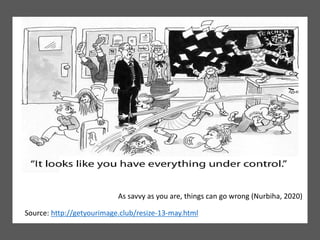
Source: http://getyourimage.club/resize-13-may.html
As savvy as you are, things can go wrong (Nurbiha, 2020)
Pre-cautions:
Lessons from UTM
• The purpose of Webex:
• Synchronous online learning?
• Emergency Traditional Lecture à Online Lecture?
• Minimum bandwidth requirement
• Video conferencing internet data consumption
• Incurred cost to both students and lecturers: $$$$
• Number of credits taken by students this semester:
$$$$ and Time
• Break-up sessions
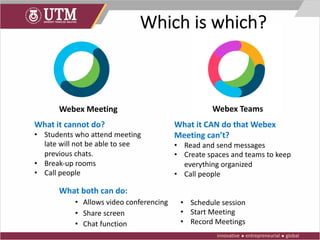
Which is which?
What both can do:
• Allows video conferencing
• Share screen
• Chat function
What it cannot do?
• Students who attend meeting
late will not be able to see
previous chats.
• Break-up rooms
• Call people
What it CAN do that Webex
Meeting can’t?
• Read and send messages
• Create spaces and teams to keep
everything organized
• Call people
• Schedule session
• Start Meeting
• Record Meetings
Webex Meeting Webex Teams
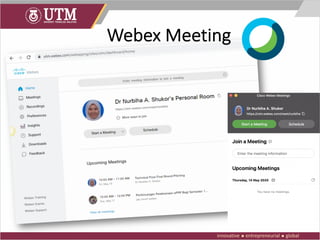
Webex Meeting
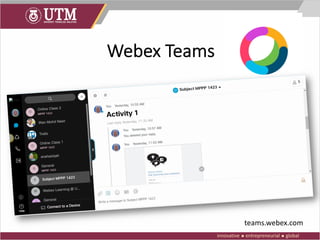
Webex Teams
teams.webex.com
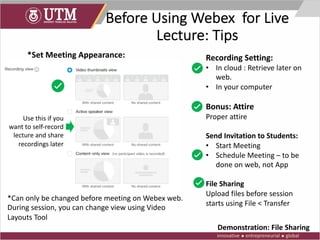
Before Using Webex for Live
Lecture: Tips
*Set Meeting Appearance:
*Can only be changed before meeting on Webex web.
During session, you can change view using Video
Layouts Tool
Use this if you
want to self-record
lecture and share
recordings later
Recording Setting:
• In cloud : Retrieve later on
web.
• In your computer
Bonus: Attire
Proper attire
Send Invitation to Students:
• Start Meeting
• Schedule Meeting – to be
done on web, not App
File Sharing
Upload files before session
starts using File < Transfer
Demonstration: File Sharing
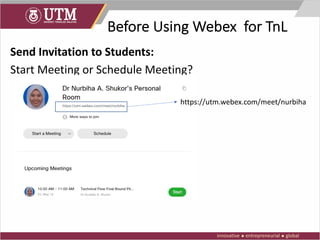
Before Using Webex for TnL
Send Invitation to Students:
Start Meeting or Schedule Meeting?
https://utm.webex.com/meet/nurbiha
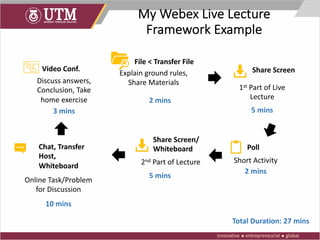
My Webex Live Lecture
Framework Example
Explain ground rules,
Share Materials
1st Part of Live
Lecture
Short Activity2nd Part of Lecture
Online Task/Problem
for Discussion
Discuss answers,
Conclusion, Take
home exercise 2 mins
5 mins
2 mins
5 mins
10 mins
3 mins
Total Duration: 27 mins
File < Transfer File
Share Screen
Poll
Share Screen/
WhiteboardChat, Transfer
Host,
Whiteboard
Video Conf.
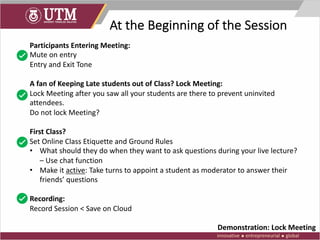
At the Beginning of the Session
Participants Entering Meeting:
Mute on entry
Entry and Exit Tone
A fan of Keeping Late students out of Class? Lock Meeting:
Lock Meeting after you saw all your students are there to prevent uninvited
attendees.
Do not lock Meeting?
First Class?
Set Online Class Etiquette and Ground Rules
• What should they do when they want to ask questions during your live lecture?
– Use chat function
• Make it active: Take turns to appoint a student as moderator to answer their
friends’ questions
Recording:
Record Session < Save on Cloud
Demonstration: Lock Meeting
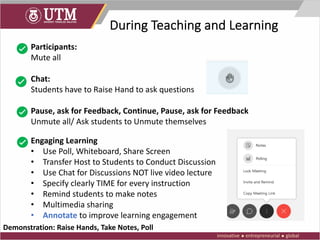
During Teaching and Learning
Participants:
Mute all
Chat:
Students have to Raise Hand to ask questions
Pause, ask for Feedback, Continue, Pause, ask for Feedback
Unmute all/ Ask students to Unmute themselves
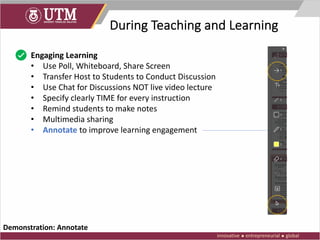
Engaging Learning
• Use Poll, Whiteboard, Share Screen
• Transfer Host to Students to Conduct Discussion
• Use Chat for Discussions NOT live video lecture
• Specify clearly TIME for every instruction
• Remind students to make notes
• Multimedia sharing
• Annotate to improve learning engagement
Demonstration: Raise Hands, Take Notes, Poll
During Teaching and Learning
Engaging Learning
• Use Poll, Whiteboard, Share Screen
• Transfer Host to Students to Conduct Discussion
• Use Chat for Discussions NOT live video lecture
• Specify clearly TIME for every instruction
• Remind students to make notes
• Multimedia sharing
• Annotate to improve learning engagement
Demonstration: Annotate
At the End of Teaching and
Learning Session
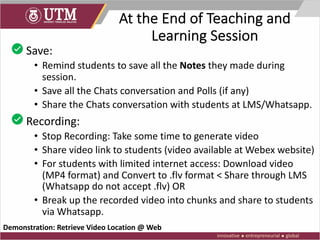
• Save:
• Remind students to save all the Notes they made during
session.
• Save all the Chats conversation and Polls (if any)
• Share the Chats conversation with students at LMS/Whatsapp.
• Recording:
• Stop Recording: Take some time to generate video
• Share video link to students (video available at Webex website)
• For students with limited internet access: Download video
(MP4 format) and Convert to .flv format < Share through LMS
(Whatsapp do not accept .flv) OR
• Break up the recorded video into chunks and share to students
via Whatsapp.
Demonstration: Retrieve Video Location @ Web
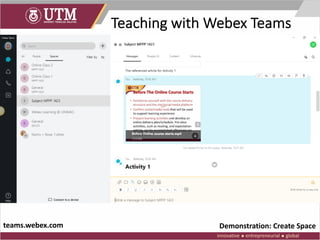
Teaching with Webex Teams
Demonstration: Create Spaceteams.webex.com
Things you need to know
using Webex Teams
• It is like a mini Learning Management System: can
manage students in groups, manage content
• Students have to create account at Webex Teams
• You have to invite students manually into ‘Space’
using their email address.
• Multimedia content sharing is more friendly.
• Suitable for students with limited internet
connection: Asynchronous online learning can
happen.
Thank you!
For technical step-by-step on using Webex Meeting:
Notes available at: olc.utm.my < Services < Guides
and Resources.
This presentation is available at https://olc.utm.my

Best Practices for Using Webex for Teaching and Learning

  • 1.
    Best Practices of UsingWebex for Online Teaching and Learning Nurbiha A Shukor Creative Multimedia & Learning Technologies Manager/ Lecturer Universiti Teknologi Malaysia This work is licensed under a Creative Commons Attribution- NonCommercial-ShareAlike 4.0 International License.
  • 2.
    Outline Different Webex Versions:Which is which? Before Using Webex for Live Lecture At the beginning of Live Lecture At then end of Live Lecture
  • 3.
    Source: http://getyourimage.club/resize-13-may.html As savvyas you are, things can go wrong (Nurbiha, 2020)
  • 4.
    Pre-cautions: Lessons from UTM •The purpose of Webex: • Synchronous online learning? • Emergency Traditional Lecture à Online Lecture? • Minimum bandwidth requirement • Video conferencing internet data consumption • Incurred cost to both students and lecturers: $$$$ • Number of credits taken by students this semester: $$$$ and Time • Break-up sessions
  • 5.
    Which is which? Whatboth can do: • Allows video conferencing • Share screen • Chat function What it cannot do? • Students who attend meeting late will not be able to see previous chats. • Break-up rooms • Call people What it CAN do that Webex Meeting can’t? • Read and send messages • Create spaces and teams to keep everything organized • Call people • Schedule session • Start Meeting • Record Meetings Webex Meeting Webex Teams
  • 6.
  • 7.
  • 8.
    Before Using Webexfor Live Lecture: Tips *Set Meeting Appearance: *Can only be changed before meeting on Webex web. During session, you can change view using Video Layouts Tool Use this if you want to self-record lecture and share recordings later Recording Setting: • In cloud : Retrieve later on web. • In your computer Bonus: Attire Proper attire Send Invitation to Students: • Start Meeting • Schedule Meeting – to be done on web, not App File Sharing Upload files before session starts using File < Transfer Demonstration: File Sharing
  • 9.
    Before Using Webexfor TnL Send Invitation to Students: Start Meeting or Schedule Meeting? https://utm.webex.com/meet/nurbiha
  • 10.
    My Webex LiveLecture Framework Example Explain ground rules, Share Materials 1st Part of Live Lecture Short Activity2nd Part of Lecture Online Task/Problem for Discussion Discuss answers, Conclusion, Take home exercise 2 mins 5 mins 2 mins 5 mins 10 mins 3 mins Total Duration: 27 mins File < Transfer File Share Screen Poll Share Screen/ WhiteboardChat, Transfer Host, Whiteboard Video Conf.
  • 11.
    At the Beginningof the Session Participants Entering Meeting: Mute on entry Entry and Exit Tone A fan of Keeping Late students out of Class? Lock Meeting: Lock Meeting after you saw all your students are there to prevent uninvited attendees. Do not lock Meeting? First Class? Set Online Class Etiquette and Ground Rules • What should they do when they want to ask questions during your live lecture? – Use chat function • Make it active: Take turns to appoint a student as moderator to answer their friends’ questions Recording: Record Session < Save on Cloud Demonstration: Lock Meeting
  • 12.
    During Teaching andLearning Participants: Mute all Chat: Students have to Raise Hand to ask questions Pause, ask for Feedback, Continue, Pause, ask for Feedback Unmute all/ Ask students to Unmute themselves Engaging Learning • Use Poll, Whiteboard, Share Screen • Transfer Host to Students to Conduct Discussion • Use Chat for Discussions NOT live video lecture • Specify clearly TIME for every instruction • Remind students to make notes • Multimedia sharing • Annotate to improve learning engagement Demonstration: Raise Hands, Take Notes, Poll
  • 13.
    During Teaching andLearning Engaging Learning • Use Poll, Whiteboard, Share Screen • Transfer Host to Students to Conduct Discussion • Use Chat for Discussions NOT live video lecture • Specify clearly TIME for every instruction • Remind students to make notes • Multimedia sharing • Annotate to improve learning engagement Demonstration: Annotate
  • 14.
    At the Endof Teaching and Learning Session • Save: • Remind students to save all the Notes they made during session. • Save all the Chats conversation and Polls (if any) • Share the Chats conversation with students at LMS/Whatsapp. • Recording: • Stop Recording: Take some time to generate video • Share video link to students (video available at Webex website) • For students with limited internet access: Download video (MP4 format) and Convert to .flv format < Share through LMS (Whatsapp do not accept .flv) OR • Break up the recorded video into chunks and share to students via Whatsapp. Demonstration: Retrieve Video Location @ Web
  • 15.
    Teaching with WebexTeams Demonstration: Create Spaceteams.webex.com
  • 16.
    Things you needto know using Webex Teams • It is like a mini Learning Management System: can manage students in groups, manage content • Students have to create account at Webex Teams • You have to invite students manually into ‘Space’ using their email address. • Multimedia content sharing is more friendly. • Suitable for students with limited internet connection: Asynchronous online learning can happen.
  • 17.
    Thank you! For technicalstep-by-step on using Webex Meeting: Notes available at: olc.utm.my < Services < Guides and Resources. This presentation is available at https://olc.utm.my