Week 2: Creating Intro &
Structure
Your Course Intro
Course Structure & The Template
Creating Lessons
Copyright & Digitization
Course Structure:
*Your course is going to contain a considerable
amount of material - it’s extremely important to
maintain a consistent structure from week to
week so students can find what they are
looking for.
Course Structure: The Template
*In your course, you will find a template has
been uploaded for you to use
*We use a template for online courses to
provide consistency between classes, to make
it easier for students to navigate, and to ensure
instructors include important elements.
Course structure: Template
*Everything on the template that is in maroon is
instructional and should be deleted when you
are done revising content.
*Bold headings indicate headings that should
remain in the course. Edit the text below these
headings with your content.
Course Structure: the Template
* If you are teaching a previously designed
course, we will work with you to merge the
content with the template. (contact Erin!).
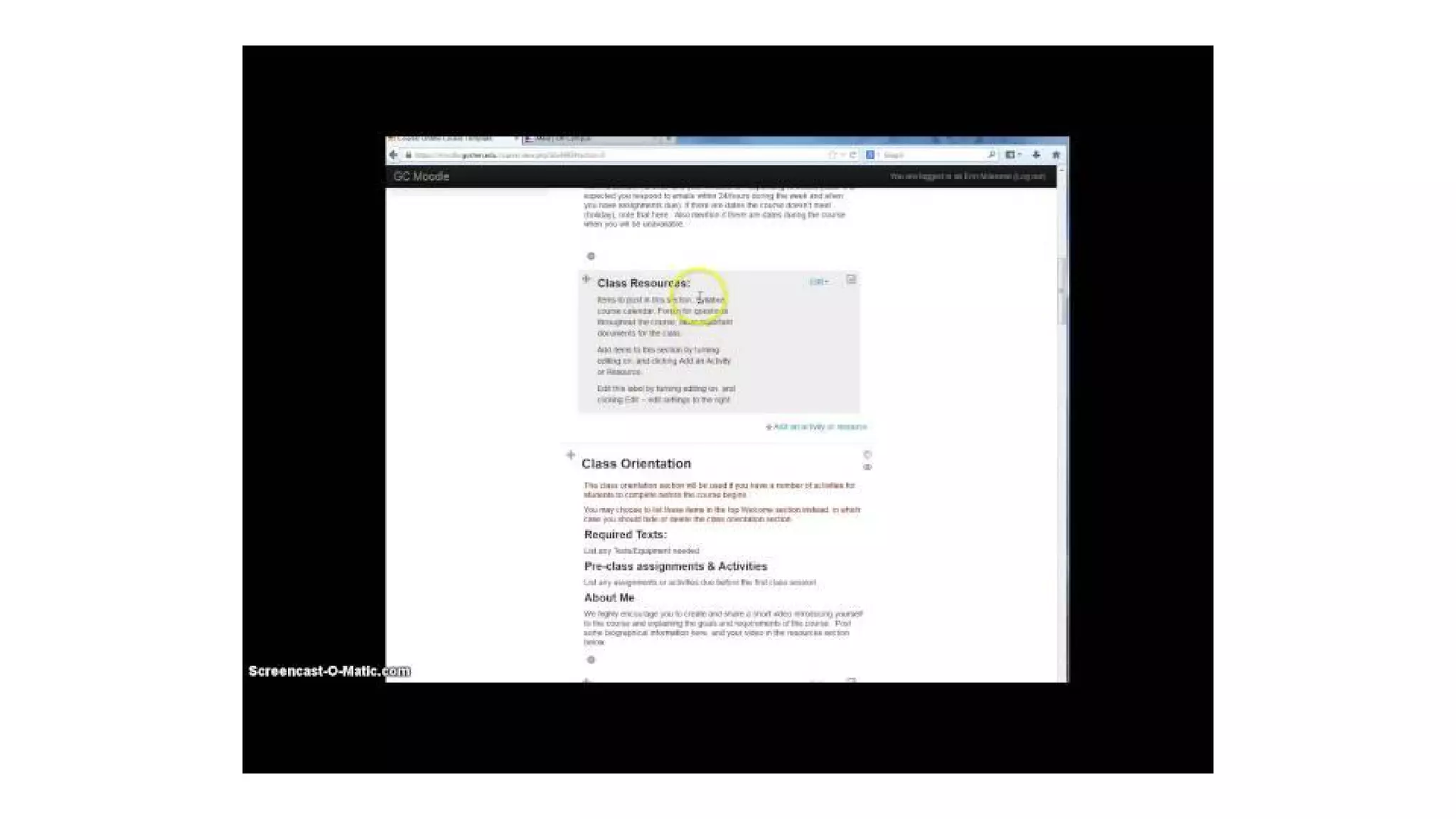
* The next slide contains a short video on how
to edit the template.
Course Structure:
*Choose 1 or 2 days assignments will be due,
and keep those the same each week (example:
discussion post due each Thursday, weekly
assignments due Sundays).
*Be aware of your students’ schedules. You
may need to tweak the days & times
assignments are due to accomodate.
Course Structure: Ideas:
*Practice consistency in all elements of the
course:
-email reminders the same day each week
-use the same Moodle assignment type
-use the same type of forum for discussion
-Be available via chat or phone the same
day/time each week
Novelty within the Structure:
*Having a consistent structure is not meant to
remove innovation from the classroom.
*Build novelty into activities from week to week
- new websites, videos, graphics, etc.
*Allow for flexibility with online ‘office hours’ - let
students set virtual appointments at times that
work for them.
Remember to Think Backwards:
*As you think about the structure of your
course, and begin building assignments and
lessons for the class, always be asking how
those materials align with the final course goal.
Your Course Intro:
*Use the top section of your course as the
course intro.
*This is where you will place items and
announcements students need before the
course begins.
*Use directives, such as “START HERE!” to
grab students’ attention.
What to Include in Your Course Intro:
*Syllabus & Course Calendar
*Course description, goals & objectives
*Instructor introduction and contact information
*Tech requirements (software & skills), how to
navigate the course, who to contact for tech help
*A list of major assignments, percentages, grading
scale, & rubric
*A forum for students to introduce themselves.
Forum for student introductions:
*Asking students to introduce themselves
promotes community building online.
*Provide the first thread, and consider posting a
picture. Encourage students to do so as well.
*Along with a name & short bio, ask students
why they are taking an online class, and if they
have any experience with online classes.
Your Intro: Several Options:
*Students love getting to know their instructors,
even in the online environment. Consider
making a video using an iPad or a
screencasting program to introduce yourself to
the class.
*Other options - create a powerpoint
presentation with your info & pics, or write up a
short biography.
Online Lessons
*Your online lessons will be a combination of
readings, powerpoints, and video lessons.
Best Practices for Powerpoint
Lessons:
*If converting presentations from a traditional
classroom, review and edit your powerpoint
slides carefully - make sure to include written
explanations for concepts usually done
verbally.
Best Practices for Video Lectures:
*Keep them short! If you have a lot of content
to cover in a video lecture, break it up into 5
minutes sections and record several short
videos instead of one long one.
*Write an outline or script before recording.
This ensures you won’t forget anything
important, and helps you stay within the time
limits.
Tools for Video Lectures:
*iPad or other tablet device
- great for intro videos - just point at your face and
record
*Screen-casto-Matic & Screenr.com
- Screenr & Screen-cast-o-matic are great for recording
audio over your powerpoint slides. When
you are done, send videos to YouTube, or save the file
to your computer.
Embedding Your Content into Moodle:
1. Record your video using the iPad
(instructions posted in Moodle) or a
Screencasting tool
2. Send it to YouTube (you can create a
YouTube account with your Goshen
Username/Password
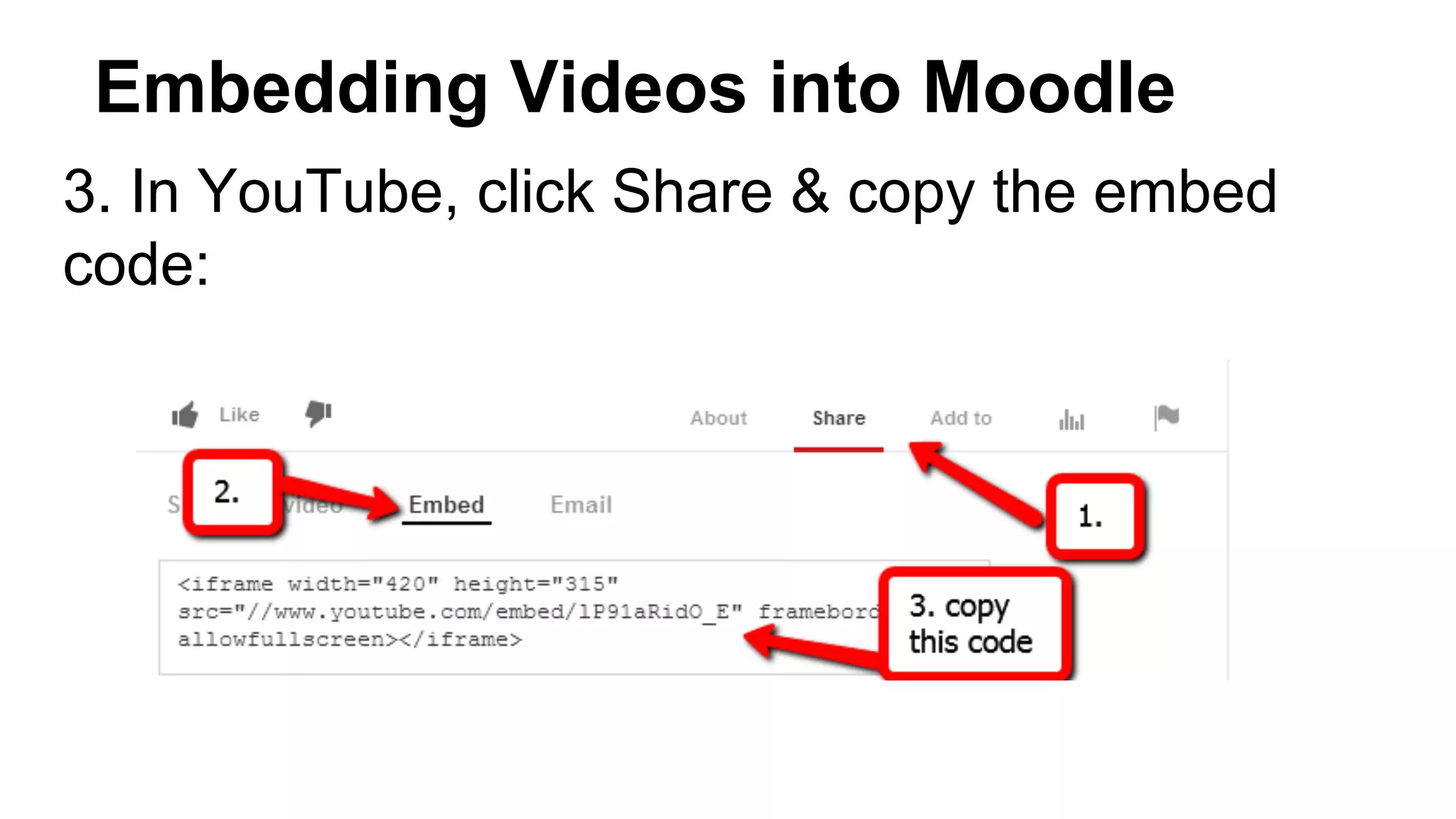
Embedding Videos into Moodle
3. In YouTube, click Share & copy the embed
code:
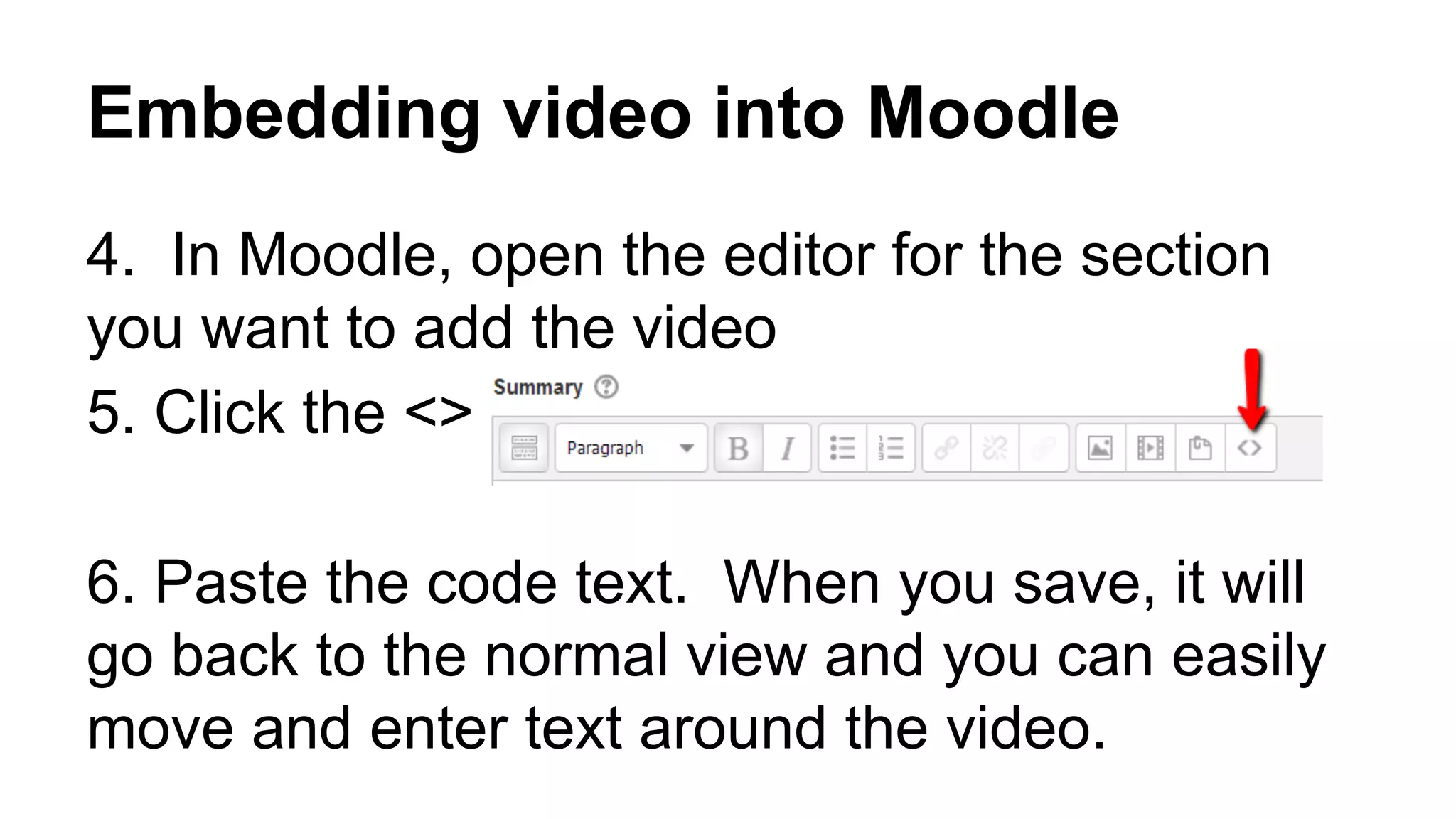
Embedding video into Moodle
4. In Moodle, open the editor for the section
you want to add the video
5. Click the <>
6. Paste the code text. When you save, it will
go back to the normal view and you can easily
move and enter text around the video.
Using Copyrighted Materials Online:
As you prepare your lessons and materials, you
may find outside resources - websites, articles,
images, and videos - you want to include in
your course.
Copyright & Fair Use in the online environment is
extremely complicated!
Using Copyrighted Materials Online:
*Use database articles, websites, and images
as you normally would (Business faculty-
please contact your librarian for information on
using case studies from Harvard Business
Review).
*DVD or VHS Videos you use in a traditional
classroom likely CANNOT be converted for use
in your online course.
Why can’t I convert my DVDs?
*Fair Use and copyright law is vague, but
recent decisions imply that fair use doesn’t
extend to online classrooms.
*To secure legal rights to convert/stream video
is time consuming, and often expensive.
*Even if legal rights are secured, it can take
weeks to complete the conversion process.
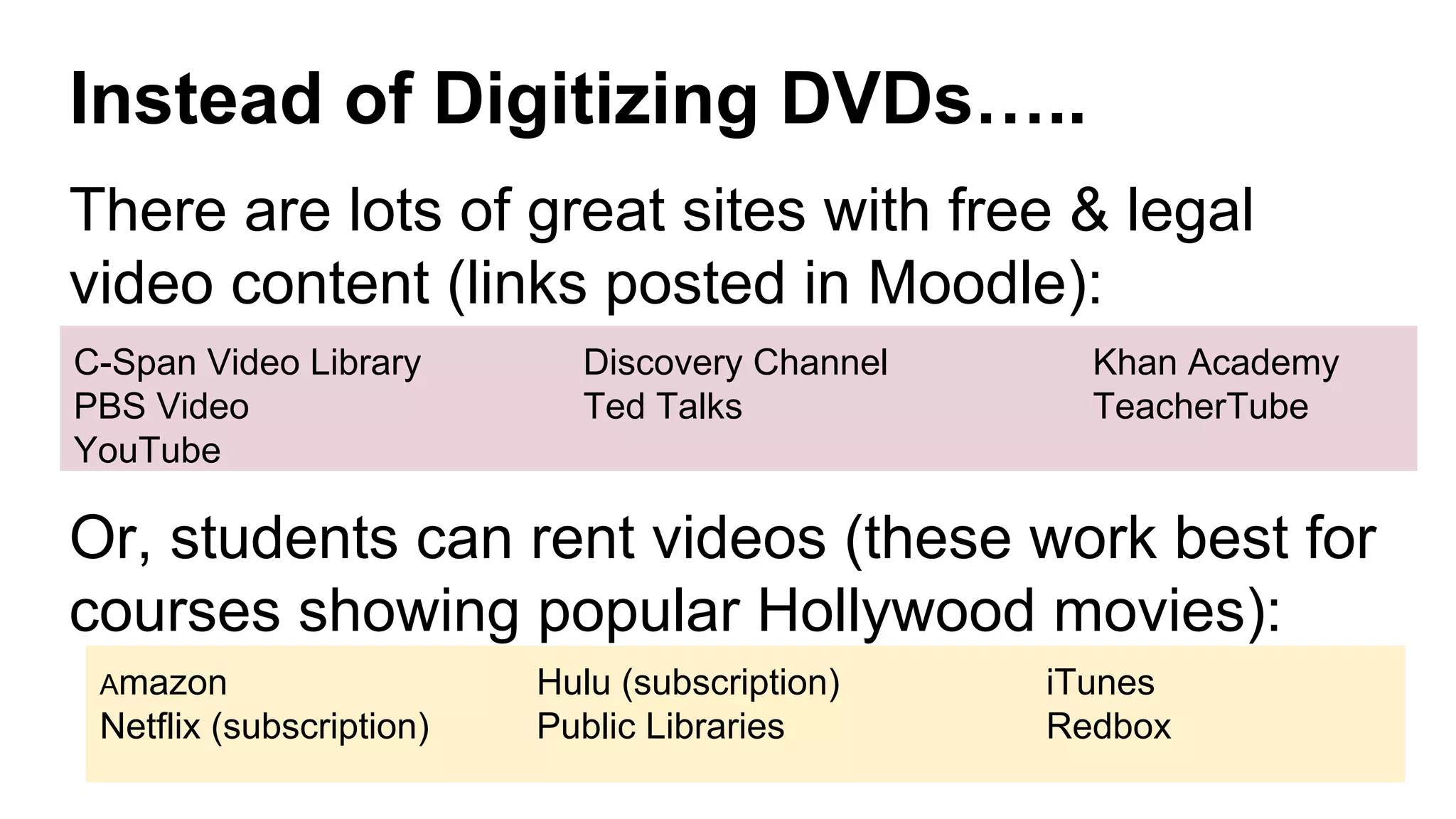
Instead of Digitizing DVDs…..
There are lots of great sites with free & legal
video content (links posted in Moodle):
Or, students can rent videos (these work best for
courses showing popular Hollywood movies):
C-Span Video Library Discovery Channel Khan Academy
PBS Video Ted Talks TeacherTube
YouTube
Amazon Hulu (subscription) iTunes
Netflix (subscription) Public Libraries Redbox
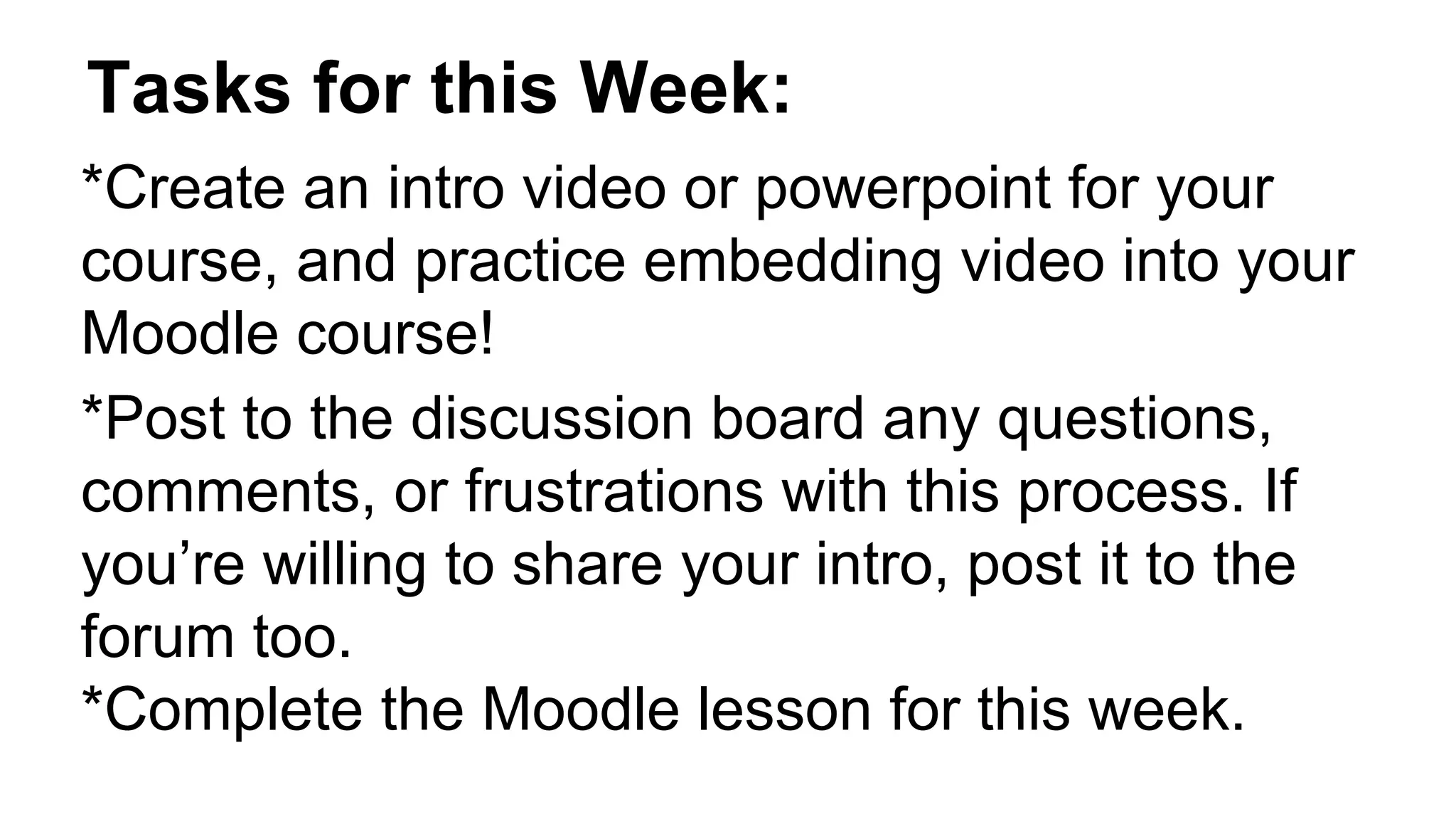
Tasks for this Week:
*Create an intro video or powerpoint for your
course, and practice embedding video into your
Moodle course!
*Post to the discussion board any questions,
comments, or frustrations with this process. If
you’re willing to share your intro, post it to the
forum too.
*Complete the Moodle lesson for this week.

Week 2 lesson goshen version

  • 1.
    Week 2: CreatingIntro & Structure Your Course Intro Course Structure & The Template Creating Lessons Copyright & Digitization
  • 2.
    Course Structure: *Your courseis going to contain a considerable amount of material - it’s extremely important to maintain a consistent structure from week to week so students can find what they are looking for.
  • 3.
    Course Structure: TheTemplate *In your course, you will find a template has been uploaded for you to use *We use a template for online courses to provide consistency between classes, to make it easier for students to navigate, and to ensure instructors include important elements.
  • 4.
    Course structure: Template *Everythingon the template that is in maroon is instructional and should be deleted when you are done revising content. *Bold headings indicate headings that should remain in the course. Edit the text below these headings with your content.
  • 5.
    Course Structure: theTemplate * If you are teaching a previously designed course, we will work with you to merge the content with the template. (contact Erin!). * The next slide contains a short video on how to edit the template.
  • 7.
    Course Structure: *Choose 1or 2 days assignments will be due, and keep those the same each week (example: discussion post due each Thursday, weekly assignments due Sundays). *Be aware of your students’ schedules. You may need to tweak the days & times assignments are due to accomodate.
  • 8.
    Course Structure: Ideas: *Practiceconsistency in all elements of the course: -email reminders the same day each week -use the same Moodle assignment type -use the same type of forum for discussion -Be available via chat or phone the same day/time each week
  • 9.
    Novelty within theStructure: *Having a consistent structure is not meant to remove innovation from the classroom. *Build novelty into activities from week to week - new websites, videos, graphics, etc. *Allow for flexibility with online ‘office hours’ - let students set virtual appointments at times that work for them.
  • 10.
    Remember to ThinkBackwards: *As you think about the structure of your course, and begin building assignments and lessons for the class, always be asking how those materials align with the final course goal.
  • 11.
    Your Course Intro: *Usethe top section of your course as the course intro. *This is where you will place items and announcements students need before the course begins. *Use directives, such as “START HERE!” to grab students’ attention.
  • 12.
    What to Includein Your Course Intro: *Syllabus & Course Calendar *Course description, goals & objectives *Instructor introduction and contact information *Tech requirements (software & skills), how to navigate the course, who to contact for tech help *A list of major assignments, percentages, grading scale, & rubric *A forum for students to introduce themselves.
  • 13.
    Forum for studentintroductions: *Asking students to introduce themselves promotes community building online. *Provide the first thread, and consider posting a picture. Encourage students to do so as well. *Along with a name & short bio, ask students why they are taking an online class, and if they have any experience with online classes.
  • 14.
    Your Intro: SeveralOptions: *Students love getting to know their instructors, even in the online environment. Consider making a video using an iPad or a screencasting program to introduce yourself to the class. *Other options - create a powerpoint presentation with your info & pics, or write up a short biography.
  • 15.
    Online Lessons *Your onlinelessons will be a combination of readings, powerpoints, and video lessons.
  • 16.
    Best Practices forPowerpoint Lessons: *If converting presentations from a traditional classroom, review and edit your powerpoint slides carefully - make sure to include written explanations for concepts usually done verbally.
  • 17.
    Best Practices forVideo Lectures: *Keep them short! If you have a lot of content to cover in a video lecture, break it up into 5 minutes sections and record several short videos instead of one long one. *Write an outline or script before recording. This ensures you won’t forget anything important, and helps you stay within the time limits.
  • 18.
    Tools for VideoLectures: *iPad or other tablet device - great for intro videos - just point at your face and record *Screen-casto-Matic & Screenr.com - Screenr & Screen-cast-o-matic are great for recording audio over your powerpoint slides. When you are done, send videos to YouTube, or save the file to your computer.
  • 19.
    Embedding Your Contentinto Moodle: 1. Record your video using the iPad (instructions posted in Moodle) or a Screencasting tool 2. Send it to YouTube (you can create a YouTube account with your Goshen Username/Password
  • 20.
    Embedding Videos intoMoodle 3. In YouTube, click Share & copy the embed code:
  • 21.
    Embedding video intoMoodle 4. In Moodle, open the editor for the section you want to add the video 5. Click the <> 6. Paste the code text. When you save, it will go back to the normal view and you can easily move and enter text around the video.
  • 22.
    Using Copyrighted MaterialsOnline: As you prepare your lessons and materials, you may find outside resources - websites, articles, images, and videos - you want to include in your course. Copyright & Fair Use in the online environment is extremely complicated!
  • 23.
    Using Copyrighted MaterialsOnline: *Use database articles, websites, and images as you normally would (Business faculty- please contact your librarian for information on using case studies from Harvard Business Review). *DVD or VHS Videos you use in a traditional classroom likely CANNOT be converted for use in your online course.
  • 24.
    Why can’t Iconvert my DVDs? *Fair Use and copyright law is vague, but recent decisions imply that fair use doesn’t extend to online classrooms. *To secure legal rights to convert/stream video is time consuming, and often expensive. *Even if legal rights are secured, it can take weeks to complete the conversion process.
  • 25.
    Instead of DigitizingDVDs….. There are lots of great sites with free & legal video content (links posted in Moodle): Or, students can rent videos (these work best for courses showing popular Hollywood movies): C-Span Video Library Discovery Channel Khan Academy PBS Video Ted Talks TeacherTube YouTube Amazon Hulu (subscription) iTunes Netflix (subscription) Public Libraries Redbox
  • 26.
    Tasks for thisWeek: *Create an intro video or powerpoint for your course, and practice embedding video into your Moodle course! *Post to the discussion board any questions, comments, or frustrations with this process. If you’re willing to share your intro, post it to the forum too. *Complete the Moodle lesson for this week.