PROSES DATA SDR (1)
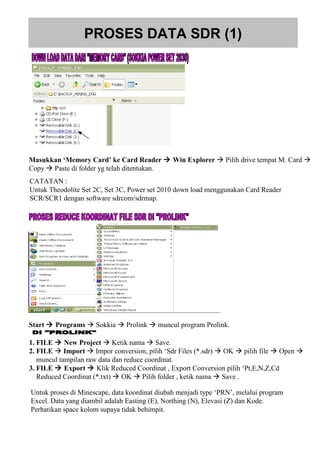
Masukkan ‘Memory Card’ ke Card Reader  Win Explorer  Pilih drive tempat M. Card 
Copy  Paste di folder yg telah ditentukan.
CATATAN :
Untuk Theodolite Set 2C, Set 3C, Power set 2010 down load menggunakan Card Reader
SCR/SCR1 dengan software sdrcom/sdrmap.
Start  Programs  Sokkia  Prolink  muncul program Prolink.
1. FILE  New Project  Ketik nama  Save.
2. FILE  Import  Impor conversion, pilih ‘Sdr Files (*.sdr)  OK  pilih file  Open 
muncul tampilan raw data dan reduce coordinat.
3. FILE  Export  Klik Reduced Coordinat , Export Conversion pilih ‘Pt,E,N,Z,Cd
Reduced Coordinat (*.txt)  OK  Pilih folder , ketik nama  Save .
Untuk proses di Minescape, data koordinat diubah menjadi type ‘PRN’, melalui program
Excel. Data yang diambil adalah Easting (E), Northing (N), Elevasi (Z) dan Kode.
Perhatikan space kolom supaya tidak behimpit.
PROSES DATA SDR (2)
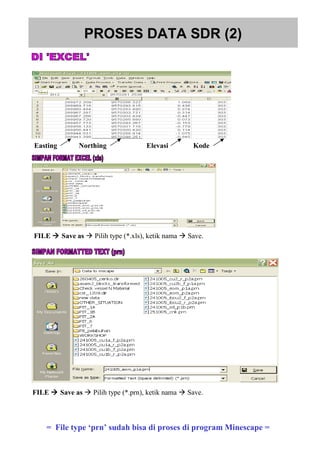
Easting Northing Elevasi Kode
FILE  Save as  Pilih type (*.xls), ketik nama  Save.
FILE  Save as  Pilih type (*.prn), ketik nama  Save.
= File type ‘prn’ sudah bisa di proses di program Minescape =
MEMULAI PROGRAM MINESCAPE
2X KLIK ICON INI
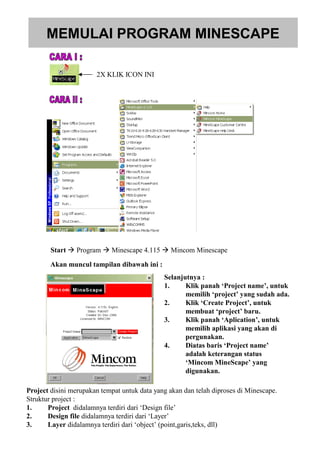
Start  Program  Minescape 4.115  Mincom Minescape
Akan muncul tampilan dibawah ini :
Selanjutnya :
1. Klik panah ‘Project name’, untuk
memilih ‘project’ yang sudah ada.
2. Klik ‘Create Project’, untuk
membuat ‘project’ baru.
3. Klik panah ‘Aplication’, untuk
memilih aplikasi yang akan di
pergunakan.
4. Diatas baris ‘Project name’
adalah keterangan status
‘Mincom MineScape’ yang
digunakan.
Project disini merupakan tempat untuk data yang akan dan telah diproses di Minescape.
Struktur project :
1. Project didalamnya terdiri dari ‘Design file’
2. Design file didalamnya terdiri dari ‘Layer’
3. Layer didalamnya terdiri dari ‘object’ (point,garis,teks, dll)
MEMBUAT PROJECT BARU
Akan muncul tampilan dibawah ini :
Klik Create project
Ketik nama project
Ketik koordinat tengah tambang
Klik segitiga hitam dan pilih NE
Pilih / isi sesuai keperluan.
Contoh :
-Angle pilih degree desimal 2
-Area pilih sq. Metres desimal 2
-Dept pilih metre
-Volume pilih Cu. Metres
-Yang lain pilih sesuai keperluan
Menu Bar
Tool Bar
Work Area (Area kerja)
Icon Bar
Docking Area
Tracker Koordinat
Status area
Feedback area
MINESCAPE EXPLORER
Akan muncul tampilan dibawah ini :
Create design file/layer
Klik Icon MineScape Explorer
Import data
Export data
Delete design file/layer
Process
Rename design
file/layer
Copy design file/layer
Tempat design file
Tempat layer
Tempat file plot
Tempat file hasil proses report
Tempat file hasil proses surface
Tempat file hasil proses volume
Tempat file hasil proses triangle
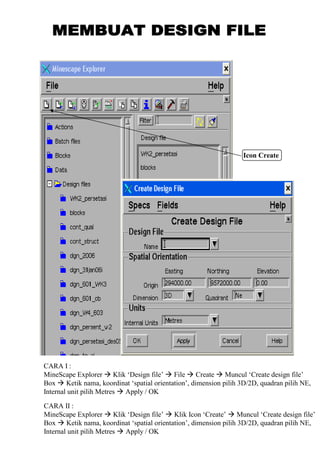
CARA I :
MineScape Explorer  Klik ‘Design file’  File  Create  Muncul ‘Create design file’
Box  Ketik nama, koordinat ‘spatial orientation’, dimension pilih 3D/2D, quadran pilih NE,
Internal unit pilih Metres  Apply / OK
CARA II :
MineScape Explorer  Klik ‘Design file’  Klik Icon ‘Create’  Muncul ‘Create design file’
Box  Ketik nama, koordinat ‘spatial orientation’, dimension pilih 3D/2D, quadran pilih NE,
Internal unit pilih Metres  Apply / OK
Icon Create
CARA I :
MineScape Explorer  Klik ‘Design file’ Klik nama design file File  Create 
Muncul ‘Layer Creation’ Box  Ketik nama layer  Apply / OK
CARA II :
MineScape Explorer  Klik ‘Design file’ Klik nama design file Klik Icon Create 
Muncul ‘Layer Creation’ Box  Ketik nama layer  Apply / OK
Icon Create
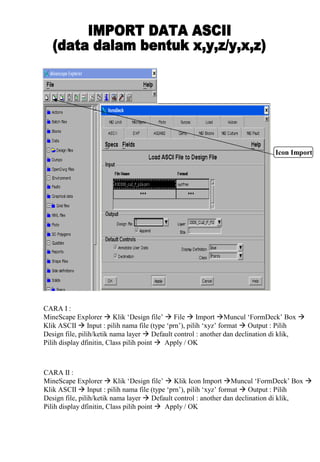
CARA I :
MineScape Explorer  Klik ‘Design file’  File  Import Muncul ‘FormDeck’ Box 
Klik ASCII  Input : pilih nama file (type ‘prn’), pilih ‘xyz’ format  Output : Pilih
Design file, pilih/ketik nama layer  Default control : another dan declination di klik,
Pilih display dfinitin, Class pilih point  Apply / OK
CARA II :
MineScape Explorer  Klik ‘Design file’  Klik Icon Import Muncul ‘FormDeck’ Box 
Klik ASCII  Input : pilih nama file (type ‘prn’), pilih ‘xyz’ format  Output : Pilih
Design file, pilih/ketik nama layer  Default control : another dan declination di klik,
Pilih display dfinitin, Class pilih point  Apply / OK
Icon Import
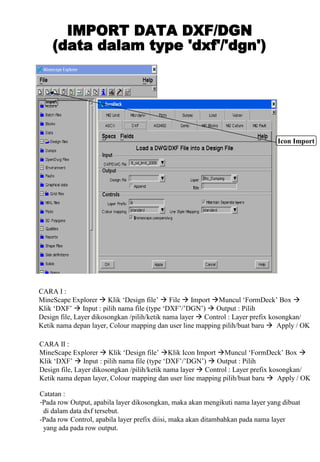
CARA I :
MineScape Explorer  Klik ‘Design file’  File  Import Muncul ‘FormDeck’ Box 
Klik ‘DXF’  Input : pilih nama file (type ‘DXF’/’DGN’)  Output : Pilih
Design file, Layer dikosongkan /pilih/ketik nama layer  Control : Layer prefix kosongkan/
Ketik nama depan layer, Colour mapping dan user line mapping pilih/buat baru  Apply / OK
Icon Import
CARA II :
MineScape Explorer  Klik ‘Design file’ Klik Icon Import Muncul ‘FormDeck’ Box 
Klik ‘DXF’  Input : pilih nama file (type ‘DXF’/’DGN’)  Output : Pilih
Design file, Layer dikosongkan /pilih/ketik nama layer  Control : Layer prefix kosongkan/
Ketik nama depan layer, Colour mapping dan user line mapping pilih/buat baru  Apply / OK
Catatan :
-Pada row Output, apabila layer dikosongkan, maka akan mengikuti nama layer yang dibuat
di dalam data dxf tersebut.
-Pada row Control, apabila layer prefix diisi, maka akan ditambahkan pada nama layer
yang ada pada row output.
PAGE  Files  Open Write Muncul ‘open current Write’ Box  Source Type pilih
‘design file’ Name : pilih nama design file’  Apply / OK
Klik Icon open write file
Pilih nama design file
Pilih ‘design file’
Klik Icon layer on/off  Muncul ‘Layer Manager’ Box 
Pilih sesuai keperluan  Apply / OK
PAGE  Exit / tanda ‘X’ di pojok kanan atas  muncul ‘Confirm Gti Exit’  OK
Icon layer on/off
Pilih current layer
Menampilkan semua layer
Menampilkan satu / beberapa layer
Mengeluarkan satu / beberapa layer dari tampilan
Mengeluarkan semua layer (kecuali current layer)
dari tampilan
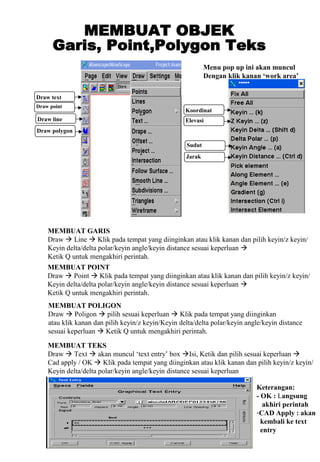
MEMBUAT GARIS
Draw  Line  Klik pada tempat yang diinginkan atau klik kanan dan pilih keyin/z keyin/
Keyin delta/delta polar/keyin angle/keyin distance sesuai keperluan 
Ketik Q untuk mengakhiri perintah.
MEMBUAT POINT
Draw  Point  Klik pada tempat yang diinginkan atau klik kanan dan pilih keyin/z keyin/
Keyin delta/delta polar/keyin angle/keyin distance sesuai keperluan 
Ketik Q untuk mengakhiri perintah.
MEMBUAT POLIGON
Draw  Poligon  pilih sesuai keperluan  Klik pada tempat yang diinginkan
atau klik kanan dan pilih keyin/z keyin/Keyin delta/delta polar/keyin angle/keyin distance
sesuai keperluan  Ketik Q untuk mengakhiri perintah.
MEMBUAT TEKS
Draw  Text  akan muncul ‘text entry’ box Isi, Ketik dan pilih sesuai keperluan 
Cad apply / OK  Klik pada tempat yang diinginkan atau klik kanan dan pilih keyin/z keyin/
Keyin delta/delta polar/keyin angle/keyin distance sesuai keperluan
Keterangan:
- OK : Langsung
akhiri perintah
-CAD Apply : akan
kembali ke text
entry
Draw text
Draw point
Draw line
Draw polygon
Koordinat
Elevasi
Sudut
Jarak
Menu pop up ini akan muncul
Dengan klik kanan ‘work area’
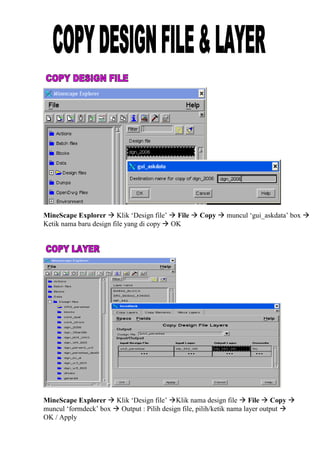
MineScape Explorer  Klik ‘Design file’  File  Copy  muncul ‘gui_askdata’ box 
Ketik nama baru design file yang di copy  OK
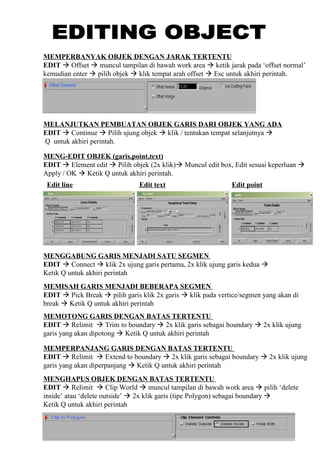
MineScape Explorer  Klik ‘Design file’ Klik nama design file  File  Copy 
muncul ‘formdeck’ box  Output : Pilih design file, pilih/ketik nama layer output 
OK / Apply
MEMBATALKAN OBJEK YANG DIBUAT SEBELUMNYA
EDIT  Undo  muncul ‘CAD Undo’ box  pilih major undo (icon) untuk semua
sebelumnya, pilih minor undo (icon) untuk yang baru saja dibuat  klik Cancel / tanda
silang dipojok kanan atas untuk akhiri perintah.
MENG-COPY OBJEK
EDIT  Copy  Single  Pilih objek (2x klik)  klik tempat objek yang di copy 
klik tempat tujuan objek (penempatan hasil copy)  2x Q untuk akhiri perintah.
MENG-COPY DUPLIKAT OBJEK
EDIT  Copy  duplicate  Pilih objek (2x klik) enter  muncul ‘duplicate element’
box, Beri tanda centang pada ‘re-display this massage’ OK  Ketik Q untuk akhiri erintah.
MENGHAPUS OBJEK
EDIT  Delete  Pilih objek (2x klik) Ketik Q untuk akhiri erintah.
MEMINDAHKAN OBJEK
EDIT  Move  Pilih objek (2x klik)  klik tempat objek yang akan di pindahkan 
klik tempat tujuan objek (penempatan hasil pemindahan)  Ketik Q untuk akhiri perintah.
MEMUTAR OBJEK
EDIT  Pivot  Pilih objek (2x klik)  klik tempat sumbu putar  klik tempat acuan
kedua (sudut orientasi) putar objek kemudian klik tempat tujuan.
MENEMPATKAN OBJEK PADA ELEVASI TERTENTU
EDIT  Drape  Pilih objek (2x klik)  muncul ‘drape elements’  pilih elevasi tujuan
(surface/elevation), tentukan sampling density  CAD Appply / OK .
Jarak antar vertice
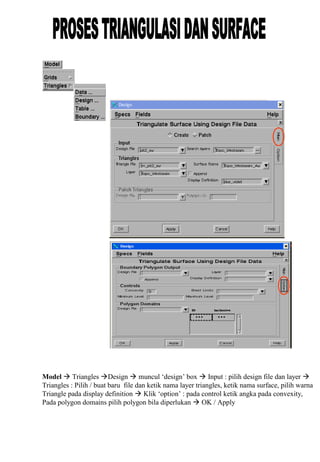
MEMPERBANYAK OBJEK DENGAN JARAK TERTENTU
EDIT  Offset  muncul tampilan di bawah work area  ketik jarak pada ‘offset normal’
kemudian enter  pilih objek  klik tempat arah offset  Esc untuk akhiri perintah.
MELANJUTKAN PEMBUATAN OBJEK GARIS DARI OBJEK YANG ADA
EDIT  Continue  Pilih ujung objek  klik / tentukan tempat selanjutnya 
Q untuk akhiri perintah.
MENG-EDIT OBJEK (garis,point,text)
EDIT  Element edit  Pilih objek (2x klik) Muncul edit box, Edit sesuai keperluan 
Apply / OK  Ketik Q untuk akhiri perintah.
MENGGABUNG GARIS MENJADI SATU SEGMEN
EDIT  Connect  klik 2x ujung garis pertama, 2x klik ujung garis kedua 
Ketik Q untuk akhiri perintah
Edit line Edit text Edit point
MEMISAH GARIS MENJADI BEBERAPA SEGMEN
EDIT  Pick Break  pilih garis klik 2x garis  klik pada vertice/segmen yang akan di
break  Ketik Q untuk akhiri perintah
MEMOTONG GARIS DENGAN BATAS TERTENTU
EDIT  Relimit  Trim to boundary  2x klik garis sebagai boundary  2x klik ujung
garis yang akan dipotong  Ketik Q untuk akhiri perintah
MEMPERPANJANG GARIS DENGAN BATAS TERTENTU
EDIT  Relimit  Extend to boundary  2x klik garis sebagai boundary  2x klik ujung
garis yang akan diperpanjang  Ketik Q untuk akhiri perintah
MENGHAPUS OBJEK DENGAN BATAS TERTENTU
EDIT  Relimit  Clip World  muncul tampilan di bawah work area  pilih ‘delete
inside’ atau ‘delete outside’  2x klik garis (tipe Polygon) sebagai boundary 
Ketik Q untuk akhiri perintah
Model  Triangles Design  muncul ‘design’ box  Input : pilih design file dan layer 
Triangles : Pilih / buat baru file dan ketik nama layer triangles, ketik nama surface, pilih warna
Triangle pada display definition  Klik ‘option’ : pada control ketik angka pada convexity,
Pada polygon domains pilih polygon bila diperlukan  OK / Apply
GRAPHICS  Contour Triangle  Input : pilih layer triangle file 
Output : pilih design file Dan pilih/ketik layer  Masing-masing ‘contour’ box
pilih sesuai kperluan  OK / Apply
Kontur minor
Kontur mayor
Pilih
Pilih
Ketik minimu dan
maximum level
(dikosongkan saja,
bila tak terbatas)
Pilih polygon
(dikosongkan saja,
bila tak terbatas)
Pilih warna Kontur mayor
Pilih warna Kontur minor
Pilih
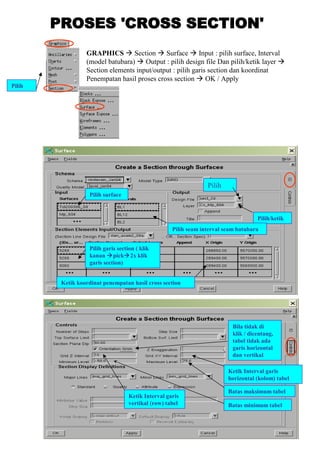
GRAPHICS  Section  Surface  Input : pilih surface, Interval
(model batubara)  Output : pilih design file Dan pilih/ketik layer 
Section elements input/output : pilih garis section dan koordinat
Penempatan hasil proses cross section  OK / Apply
Pilih
Pilih/ketik
Pilih seam interval seam batubara
Pilih surface
Pilih garis section ( klik
kanan pick2x klik
garis section)
Ketik koordinat penempatan hasil cross section
Ketik Interval garis
horizontal (kolom) tabel
Batas maksimum tabel
Batas minimum tabel
Ketik Interval garis
vertikal (row) tabel
Bila tidak di
klik / dicentang,
tabel tidak ada
garis horizontal
dan vertikal
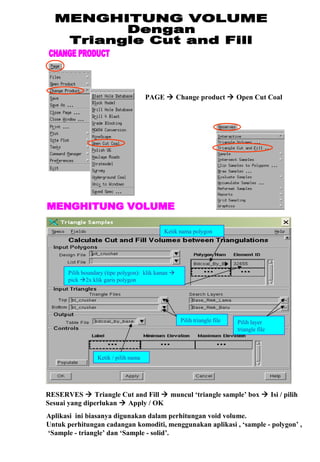
PAGE  Change product  Open Cut Coal
Pilih layer
triangle file
Pilih triangle file
Pilih boundary (tipe polygon): klik kanan 
pick 2x klik garis polygon
Ketik nama polygon
Ketik / pilih nama
RESERVES  Triangle Cut and Fill  muncul ‘triangle sample’ box  Isi / pilih
Sesuai yang diperlukan  Apply / OK
Aplikasi ini biasanya digunakan dalam perhitungan void volume.
Untuk perhitungan cadangan komoditi, menggunakan aplikasi , ‘sample - polygon’ ,
‘Sample - triangle’ dan ‘Sample - solid’.
RESERVES  Sample Triangles  muncul ‘triangle sample’ box  Isi / pilih
Sesuai yang diperlukan  Apply / OK
Pilih triangle
file dan layer
Ketik / pilih nama
1.Ketik nama polygon
2.Pilih garis boundary (klik
kananpick2x klik polygon)
3.Tentukan Recover
Ketik / pilih sesuai keperluan
Pilih interval seam batubara (2x
klikklik segitiga hitam
pilih sesuai keperluan)
Pilih surface expression (bawah)
Pilih surface expression (atas)
Ketik Elevasi subset
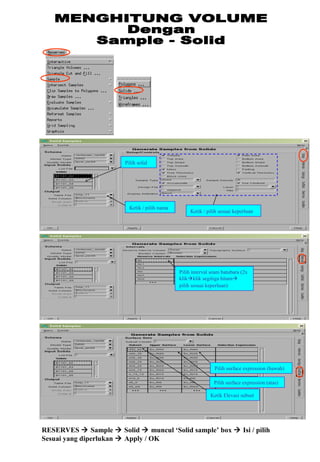
RESERVES  Sample  Solid  muncul ‘Solid sample’ box  Isi / pilih
Sesuai yang diperlukan  Apply / OK
Ketik / pilih sesuai keperluan
Ketik / pilih nama
Pilih solid
Pilih interval seam batubara (2x
klikklik segitiga hitam
pilih sesuai keperluan)
Pilih surface expression (bawah)
Pilih surface expression (atas)
Ketik Elevasi subset
PAGE  Files  Attach Reference  muncul ‘Attach Reference’ box  pilih
Sesuai yang diperlukan  Next  muncul ‘Reference Layer Manager’ box 
pilih sesuai yang diperlukan  Next  muncul ‘Reference Overrides’ box 
Pilih sesuai keperluan  Finish
Klik Icon Attach
MENAMPILKAN LAYER LAIN
PADA LAYER YANG SEDANG AKTIF
Pilih nama design file
Pilih ‘file’
MELEPAS LAYER ‘ATTACH’
PADA LAYER YANG SEDANG AKTIF
PAGE  Files  Detach Reference  muncul ‘Detach Reference’ box 
Pilih layer  Apply / OK
Icon Detach
QUICK PLOT
PAGE  Plot  Quick Plot  muncul ‘Quick Plot’ box  Isi sesuai keperluan 
Apply / OK
Pilih ‘Next’
PILIH AREA YANG AKAN DI PLOT
Pilih Kertas
Klik Scale / Fit
Tentukan skala
Posisi kertas
Klik Next
Klik tulis title
Klik pilih simbol arah utara
Klik pilih
Klik tentukan interval
grid
Untuk ganti skala
Klik Next
Klik ‘file’
Ketik / pilih nama
file plot
Apply / OK

Belajar minescape

  • 2.
    PROSES DATA SDR(1) Masukkan ‘Memory Card’ ke Card Reader  Win Explorer  Pilih drive tempat M. Card  Copy  Paste di folder yg telah ditentukan. CATATAN : Untuk Theodolite Set 2C, Set 3C, Power set 2010 down load menggunakan Card Reader SCR/SCR1 dengan software sdrcom/sdrmap. Start  Programs  Sokkia  Prolink  muncul program Prolink. 1. FILE  New Project  Ketik nama  Save. 2. FILE  Import  Impor conversion, pilih ‘Sdr Files (*.sdr)  OK  pilih file  Open  muncul tampilan raw data dan reduce coordinat. 3. FILE  Export  Klik Reduced Coordinat , Export Conversion pilih ‘Pt,E,N,Z,Cd Reduced Coordinat (*.txt)  OK  Pilih folder , ketik nama  Save . Untuk proses di Minescape, data koordinat diubah menjadi type ‘PRN’, melalui program Excel. Data yang diambil adalah Easting (E), Northing (N), Elevasi (Z) dan Kode. Perhatikan space kolom supaya tidak behimpit.
  • 3.
    PROSES DATA SDR(2) Easting Northing Elevasi Kode FILE  Save as  Pilih type (*.xls), ketik nama  Save. FILE  Save as  Pilih type (*.prn), ketik nama  Save. = File type ‘prn’ sudah bisa di proses di program Minescape =
  • 4.
    MEMULAI PROGRAM MINESCAPE 2XKLIK ICON INI Start  Program  Minescape 4.115  Mincom Minescape Akan muncul tampilan dibawah ini : Selanjutnya : 1. Klik panah ‘Project name’, untuk memilih ‘project’ yang sudah ada. 2. Klik ‘Create Project’, untuk membuat ‘project’ baru. 3. Klik panah ‘Aplication’, untuk memilih aplikasi yang akan di pergunakan. 4. Diatas baris ‘Project name’ adalah keterangan status ‘Mincom MineScape’ yang digunakan. Project disini merupakan tempat untuk data yang akan dan telah diproses di Minescape. Struktur project : 1. Project didalamnya terdiri dari ‘Design file’ 2. Design file didalamnya terdiri dari ‘Layer’ 3. Layer didalamnya terdiri dari ‘object’ (point,garis,teks, dll)
  • 5.
    MEMBUAT PROJECT BARU Akanmuncul tampilan dibawah ini : Klik Create project Ketik nama project Ketik koordinat tengah tambang Klik segitiga hitam dan pilih NE Pilih / isi sesuai keperluan. Contoh : -Angle pilih degree desimal 2 -Area pilih sq. Metres desimal 2 -Dept pilih metre -Volume pilih Cu. Metres -Yang lain pilih sesuai keperluan
  • 6.
    Menu Bar Tool Bar WorkArea (Area kerja) Icon Bar Docking Area Tracker Koordinat Status area Feedback area
  • 7.
    MINESCAPE EXPLORER Akan muncultampilan dibawah ini : Create design file/layer Klik Icon MineScape Explorer Import data Export data Delete design file/layer Process Rename design file/layer Copy design file/layer Tempat design file Tempat layer Tempat file plot Tempat file hasil proses report Tempat file hasil proses surface Tempat file hasil proses volume Tempat file hasil proses triangle
  • 8.
    CARA I : MineScapeExplorer  Klik ‘Design file’  File  Create  Muncul ‘Create design file’ Box  Ketik nama, koordinat ‘spatial orientation’, dimension pilih 3D/2D, quadran pilih NE, Internal unit pilih Metres  Apply / OK CARA II : MineScape Explorer  Klik ‘Design file’  Klik Icon ‘Create’  Muncul ‘Create design file’ Box  Ketik nama, koordinat ‘spatial orientation’, dimension pilih 3D/2D, quadran pilih NE, Internal unit pilih Metres  Apply / OK Icon Create
  • 9.
    CARA I : MineScapeExplorer  Klik ‘Design file’ Klik nama design file File  Create  Muncul ‘Layer Creation’ Box  Ketik nama layer  Apply / OK CARA II : MineScape Explorer  Klik ‘Design file’ Klik nama design file Klik Icon Create  Muncul ‘Layer Creation’ Box  Ketik nama layer  Apply / OK Icon Create
  • 10.
    CARA I : MineScapeExplorer  Klik ‘Design file’  File  Import Muncul ‘FormDeck’ Box  Klik ASCII  Input : pilih nama file (type ‘prn’), pilih ‘xyz’ format  Output : Pilih Design file, pilih/ketik nama layer  Default control : another dan declination di klik, Pilih display dfinitin, Class pilih point  Apply / OK CARA II : MineScape Explorer  Klik ‘Design file’  Klik Icon Import Muncul ‘FormDeck’ Box  Klik ASCII  Input : pilih nama file (type ‘prn’), pilih ‘xyz’ format  Output : Pilih Design file, pilih/ketik nama layer  Default control : another dan declination di klik, Pilih display dfinitin, Class pilih point  Apply / OK Icon Import
  • 11.
    CARA I : MineScapeExplorer  Klik ‘Design file’  File  Import Muncul ‘FormDeck’ Box  Klik ‘DXF’  Input : pilih nama file (type ‘DXF’/’DGN’)  Output : Pilih Design file, Layer dikosongkan /pilih/ketik nama layer  Control : Layer prefix kosongkan/ Ketik nama depan layer, Colour mapping dan user line mapping pilih/buat baru  Apply / OK Icon Import CARA II : MineScape Explorer  Klik ‘Design file’ Klik Icon Import Muncul ‘FormDeck’ Box  Klik ‘DXF’  Input : pilih nama file (type ‘DXF’/’DGN’)  Output : Pilih Design file, Layer dikosongkan /pilih/ketik nama layer  Control : Layer prefix kosongkan/ Ketik nama depan layer, Colour mapping dan user line mapping pilih/buat baru  Apply / OK Catatan : -Pada row Output, apabila layer dikosongkan, maka akan mengikuti nama layer yang dibuat di dalam data dxf tersebut. -Pada row Control, apabila layer prefix diisi, maka akan ditambahkan pada nama layer yang ada pada row output.
  • 12.
    PAGE  Files Open Write Muncul ‘open current Write’ Box  Source Type pilih ‘design file’ Name : pilih nama design file’  Apply / OK Klik Icon open write file Pilih nama design file Pilih ‘design file’ Klik Icon layer on/off  Muncul ‘Layer Manager’ Box  Pilih sesuai keperluan  Apply / OK PAGE  Exit / tanda ‘X’ di pojok kanan atas  muncul ‘Confirm Gti Exit’  OK Icon layer on/off Pilih current layer Menampilkan semua layer Menampilkan satu / beberapa layer Mengeluarkan satu / beberapa layer dari tampilan Mengeluarkan semua layer (kecuali current layer) dari tampilan
  • 13.
    MEMBUAT GARIS Draw Line  Klik pada tempat yang diinginkan atau klik kanan dan pilih keyin/z keyin/ Keyin delta/delta polar/keyin angle/keyin distance sesuai keperluan  Ketik Q untuk mengakhiri perintah. MEMBUAT POINT Draw  Point  Klik pada tempat yang diinginkan atau klik kanan dan pilih keyin/z keyin/ Keyin delta/delta polar/keyin angle/keyin distance sesuai keperluan  Ketik Q untuk mengakhiri perintah. MEMBUAT POLIGON Draw  Poligon  pilih sesuai keperluan  Klik pada tempat yang diinginkan atau klik kanan dan pilih keyin/z keyin/Keyin delta/delta polar/keyin angle/keyin distance sesuai keperluan  Ketik Q untuk mengakhiri perintah. MEMBUAT TEKS Draw  Text  akan muncul ‘text entry’ box Isi, Ketik dan pilih sesuai keperluan  Cad apply / OK  Klik pada tempat yang diinginkan atau klik kanan dan pilih keyin/z keyin/ Keyin delta/delta polar/keyin angle/keyin distance sesuai keperluan Keterangan: - OK : Langsung akhiri perintah -CAD Apply : akan kembali ke text entry Draw text Draw point Draw line Draw polygon Koordinat Elevasi Sudut Jarak Menu pop up ini akan muncul Dengan klik kanan ‘work area’
  • 14.
    MineScape Explorer Klik ‘Design file’  File  Copy  muncul ‘gui_askdata’ box  Ketik nama baru design file yang di copy  OK MineScape Explorer  Klik ‘Design file’ Klik nama design file  File  Copy  muncul ‘formdeck’ box  Output : Pilih design file, pilih/ketik nama layer output  OK / Apply
  • 15.
    MEMBATALKAN OBJEK YANGDIBUAT SEBELUMNYA EDIT  Undo  muncul ‘CAD Undo’ box  pilih major undo (icon) untuk semua sebelumnya, pilih minor undo (icon) untuk yang baru saja dibuat  klik Cancel / tanda silang dipojok kanan atas untuk akhiri perintah. MENG-COPY OBJEK EDIT  Copy  Single  Pilih objek (2x klik)  klik tempat objek yang di copy  klik tempat tujuan objek (penempatan hasil copy)  2x Q untuk akhiri perintah. MENG-COPY DUPLIKAT OBJEK EDIT  Copy  duplicate  Pilih objek (2x klik) enter  muncul ‘duplicate element’ box, Beri tanda centang pada ‘re-display this massage’ OK  Ketik Q untuk akhiri erintah. MENGHAPUS OBJEK EDIT  Delete  Pilih objek (2x klik) Ketik Q untuk akhiri erintah. MEMINDAHKAN OBJEK EDIT  Move  Pilih objek (2x klik)  klik tempat objek yang akan di pindahkan  klik tempat tujuan objek (penempatan hasil pemindahan)  Ketik Q untuk akhiri perintah. MEMUTAR OBJEK EDIT  Pivot  Pilih objek (2x klik)  klik tempat sumbu putar  klik tempat acuan kedua (sudut orientasi) putar objek kemudian klik tempat tujuan. MENEMPATKAN OBJEK PADA ELEVASI TERTENTU EDIT  Drape  Pilih objek (2x klik)  muncul ‘drape elements’  pilih elevasi tujuan (surface/elevation), tentukan sampling density  CAD Appply / OK . Jarak antar vertice
  • 16.
    MEMPERBANYAK OBJEK DENGANJARAK TERTENTU EDIT  Offset  muncul tampilan di bawah work area  ketik jarak pada ‘offset normal’ kemudian enter  pilih objek  klik tempat arah offset  Esc untuk akhiri perintah. MELANJUTKAN PEMBUATAN OBJEK GARIS DARI OBJEK YANG ADA EDIT  Continue  Pilih ujung objek  klik / tentukan tempat selanjutnya  Q untuk akhiri perintah. MENG-EDIT OBJEK (garis,point,text) EDIT  Element edit  Pilih objek (2x klik) Muncul edit box, Edit sesuai keperluan  Apply / OK  Ketik Q untuk akhiri perintah. MENGGABUNG GARIS MENJADI SATU SEGMEN EDIT  Connect  klik 2x ujung garis pertama, 2x klik ujung garis kedua  Ketik Q untuk akhiri perintah Edit line Edit text Edit point MEMISAH GARIS MENJADI BEBERAPA SEGMEN EDIT  Pick Break  pilih garis klik 2x garis  klik pada vertice/segmen yang akan di break  Ketik Q untuk akhiri perintah MEMOTONG GARIS DENGAN BATAS TERTENTU EDIT  Relimit  Trim to boundary  2x klik garis sebagai boundary  2x klik ujung garis yang akan dipotong  Ketik Q untuk akhiri perintah MEMPERPANJANG GARIS DENGAN BATAS TERTENTU EDIT  Relimit  Extend to boundary  2x klik garis sebagai boundary  2x klik ujung garis yang akan diperpanjang  Ketik Q untuk akhiri perintah MENGHAPUS OBJEK DENGAN BATAS TERTENTU EDIT  Relimit  Clip World  muncul tampilan di bawah work area  pilih ‘delete inside’ atau ‘delete outside’  2x klik garis (tipe Polygon) sebagai boundary  Ketik Q untuk akhiri perintah
  • 17.
    Model  TrianglesDesign  muncul ‘design’ box  Input : pilih design file dan layer  Triangles : Pilih / buat baru file dan ketik nama layer triangles, ketik nama surface, pilih warna Triangle pada display definition  Klik ‘option’ : pada control ketik angka pada convexity, Pada polygon domains pilih polygon bila diperlukan  OK / Apply
  • 18.
    GRAPHICS  ContourTriangle  Input : pilih layer triangle file  Output : pilih design file Dan pilih/ketik layer  Masing-masing ‘contour’ box pilih sesuai kperluan  OK / Apply Kontur minor Kontur mayor Pilih Pilih Ketik minimu dan maximum level (dikosongkan saja, bila tak terbatas) Pilih polygon (dikosongkan saja, bila tak terbatas) Pilih warna Kontur mayor Pilih warna Kontur minor
  • 19.
    Pilih GRAPHICS  Section Surface  Input : pilih surface, Interval (model batubara)  Output : pilih design file Dan pilih/ketik layer  Section elements input/output : pilih garis section dan koordinat Penempatan hasil proses cross section  OK / Apply Pilih Pilih/ketik Pilih seam interval seam batubara Pilih surface Pilih garis section ( klik kanan pick2x klik garis section) Ketik koordinat penempatan hasil cross section Ketik Interval garis horizontal (kolom) tabel Batas maksimum tabel Batas minimum tabel Ketik Interval garis vertikal (row) tabel Bila tidak di klik / dicentang, tabel tidak ada garis horizontal dan vertikal
  • 20.
    PAGE  Changeproduct  Open Cut Coal Pilih layer triangle file Pilih triangle file Pilih boundary (tipe polygon): klik kanan  pick 2x klik garis polygon Ketik nama polygon Ketik / pilih nama RESERVES  Triangle Cut and Fill  muncul ‘triangle sample’ box  Isi / pilih Sesuai yang diperlukan  Apply / OK Aplikasi ini biasanya digunakan dalam perhitungan void volume. Untuk perhitungan cadangan komoditi, menggunakan aplikasi , ‘sample - polygon’ , ‘Sample - triangle’ dan ‘Sample - solid’.
  • 21.
    RESERVES  SampleTriangles  muncul ‘triangle sample’ box  Isi / pilih Sesuai yang diperlukan  Apply / OK Pilih triangle file dan layer Ketik / pilih nama 1.Ketik nama polygon 2.Pilih garis boundary (klik kananpick2x klik polygon) 3.Tentukan Recover Ketik / pilih sesuai keperluan Pilih interval seam batubara (2x klikklik segitiga hitam pilih sesuai keperluan) Pilih surface expression (bawah) Pilih surface expression (atas) Ketik Elevasi subset
  • 22.
    RESERVES  Sample Solid  muncul ‘Solid sample’ box  Isi / pilih Sesuai yang diperlukan  Apply / OK Ketik / pilih sesuai keperluan Ketik / pilih nama Pilih solid Pilih interval seam batubara (2x klikklik segitiga hitam pilih sesuai keperluan) Pilih surface expression (bawah) Pilih surface expression (atas) Ketik Elevasi subset
  • 23.
    PAGE  Files Attach Reference  muncul ‘Attach Reference’ box  pilih Sesuai yang diperlukan  Next  muncul ‘Reference Layer Manager’ box  pilih sesuai yang diperlukan  Next  muncul ‘Reference Overrides’ box  Pilih sesuai keperluan  Finish Klik Icon Attach MENAMPILKAN LAYER LAIN PADA LAYER YANG SEDANG AKTIF Pilih nama design file Pilih ‘file’ MELEPAS LAYER ‘ATTACH’ PADA LAYER YANG SEDANG AKTIF PAGE  Files  Detach Reference  muncul ‘Detach Reference’ box  Pilih layer  Apply / OK Icon Detach
  • 24.
    QUICK PLOT PAGE Plot  Quick Plot  muncul ‘Quick Plot’ box  Isi sesuai keperluan  Apply / OK Pilih ‘Next’ PILIH AREA YANG AKAN DI PLOT Pilih Kertas Klik Scale / Fit Tentukan skala Posisi kertas Klik Next Klik tulis title Klik pilih simbol arah utara Klik pilih Klik tentukan interval grid Untuk ganti skala Klik Next Klik ‘file’ Ketik / pilih nama file plot Apply / OK