Order Processing - Automobiles
In this module, we will discuss:
1. How to process an order?
2. How to check the uploaded documents?
How to process an order?
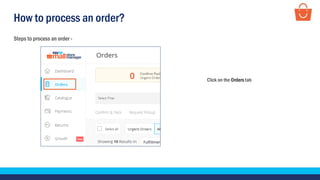
Steps to process an order -
Click on the Orders tab
How to process an order?
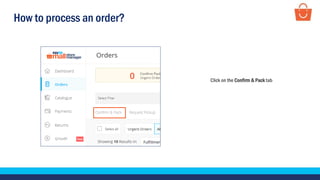
Click on the Confirm & Pack tab
How to process an order?
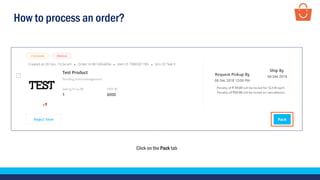
Click on the Pack tab
How to process an order?
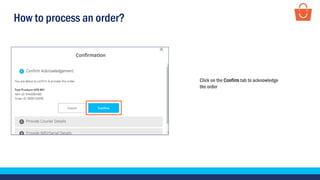
Click on the Confirm tab to acknowledge
the order
How to process an order?
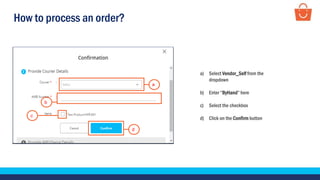
a) Select Vendor_Self from the
dropdown
b) Enter “ByHand” here
c) Select the checkbox
d) Click on the Confirm button
a
b
c
d
How to process an order?
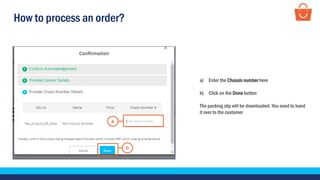
a) Enter the Chassis number here
b) Click on the Done button
The packing slip will be downloaded. You need to hand
it over to the customer
a
b
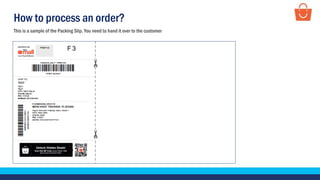
This is a sample of the Packing Slip. You need to hand it over to the customer
How to process an order?
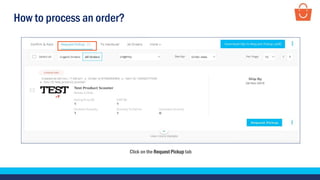
Click on the Request Pickup tab
How to process an order?
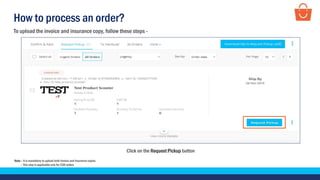
Click on the Request Pickup button
To upload the invoice and insurance copy, follow these steps -
Note – It is mandatory to upload both Invoice and Insurance copies.
– This step is applicable only for COD orders
How to process an order?
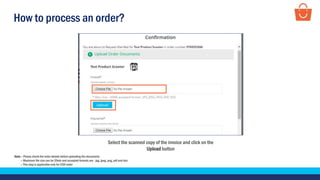
Select the scanned copy of the invoice and click on the
Upload button
Note – Please check the order details before uploading the documents
– Maximum file size can be 20mb and accepted formats are - jpg, jpeg, png, pdf and doc
– This step is applicable only for COD order
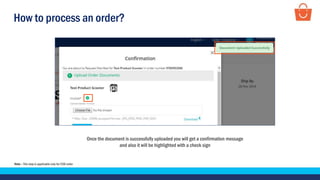
How to process an order?
Once the document is successfully uploaded you will get a confirmation message
and also it will be highlighted with a check sign
Note – This step is applicable only for COD order
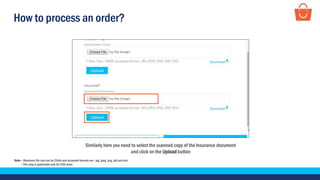
How to process an order?
Similarly here you need to select the scanned copy of the Insurance document
and click on the Upload button
Note – Maximum file size can be 20mb and accepted formats are - jpg, jpeg, png, pdf and doc
– This step is applicable only for COD order
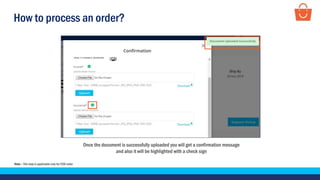
How to process an order?
Once the document is successfully uploaded you will get a confirmation message
and also it will be highlighted with a check sign
Note – This step is applicable only for COD order
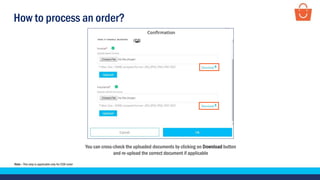
How to process an order?
You can cross-check the uploaded documents by clicking on Download button
and re-upload the correct document if applicable
Note – This step is applicable only for COD order
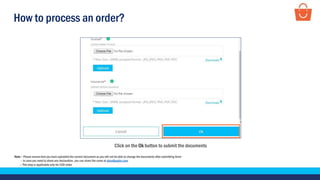
How to process an order?
Click on the Ok button to submit the documents
Note – Please ensure that you have uploaded the correct document as you will not be able to change the documents after submitting them
– In case you need to share any declaration, you can share the same at docs@paytm.com
– This step is applicable only for COD order
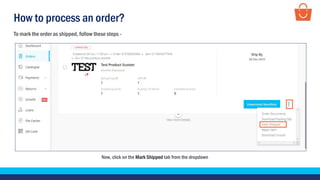
How to process an order?
Now, click on the Mark Shipped tab from the dropdown
To mark the order as shipped, follow these steps -
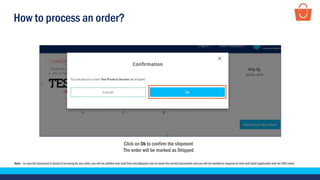
How to process an order?
Click on Ok to confirm the shipment
The order will be marked as Shipped
Note – In case the document is found to be wrong for any order, you will be notified over mail from docs@paytm.com to share the correct documents and you will be needed to respond on that mail itself (applicable only for COD order)
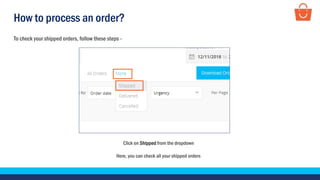
How to process an order?
Click on Shipped from the dropdown
Here, you can check all your shipped orders
To check your shipped orders, follow these steps -
How to process an order?
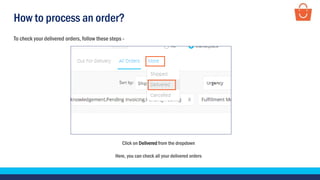
Click on Delivered from the dropdown
Here, you can check all your delivered orders
To check your delivered orders, follow these steps -
Checking the uploaded documents
How to check the uploaded documents?
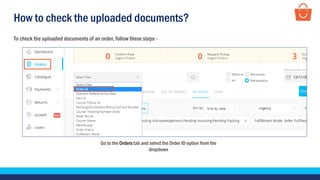
Go to the Orders tab and select the Order ID option from the
dropdown
To check the uploaded documents of an order, follow these steps -
How to check the uploaded documents?
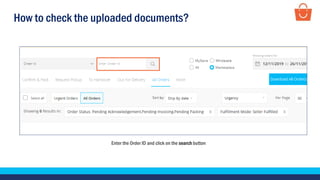
Enter the Order ID and click on the search button
How to check the uploaded documents?
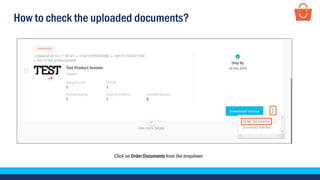
Click on Order Documents from the dropdown
How to check the uploaded documents?
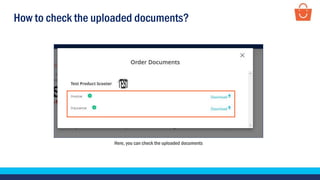
Here, you can check the uploaded documents
Thankseveryone!
For any query, please raise a ticket using the Support tab on your seller panel.

Automobiles order processing_English

  • 1.
    Order Processing -Automobiles In this module, we will discuss: 1. How to process an order? 2. How to check the uploaded documents?
  • 2.
    How to processan order? Steps to process an order - Click on the Orders tab
  • 3.
    How to processan order? Click on the Confirm & Pack tab
  • 4.
    How to processan order? Click on the Pack tab
  • 5.
    How to processan order? Click on the Confirm tab to acknowledge the order
  • 6.
    How to processan order? a) Select Vendor_Self from the dropdown b) Enter “ByHand” here c) Select the checkbox d) Click on the Confirm button a b c d
  • 7.
    How to processan order? a) Enter the Chassis number here b) Click on the Done button The packing slip will be downloaded. You need to hand it over to the customer a b
  • 8.
    This is asample of the Packing Slip. You need to hand it over to the customer How to process an order?
  • 9.
    How to processan order? Click on the Request Pickup tab
  • 10.
    How to processan order? Click on the Request Pickup button To upload the invoice and insurance copy, follow these steps - Note – It is mandatory to upload both Invoice and Insurance copies. – This step is applicable only for COD orders
  • 11.
    How to processan order? Select the scanned copy of the invoice and click on the Upload button Note – Please check the order details before uploading the documents – Maximum file size can be 20mb and accepted formats are - jpg, jpeg, png, pdf and doc – This step is applicable only for COD order
  • 12.
    How to processan order? Once the document is successfully uploaded you will get a confirmation message and also it will be highlighted with a check sign Note – This step is applicable only for COD order
  • 13.
    How to processan order? Similarly here you need to select the scanned copy of the Insurance document and click on the Upload button Note – Maximum file size can be 20mb and accepted formats are - jpg, jpeg, png, pdf and doc – This step is applicable only for COD order
  • 14.
    How to processan order? Once the document is successfully uploaded you will get a confirmation message and also it will be highlighted with a check sign Note – This step is applicable only for COD order
  • 15.
    How to processan order? You can cross-check the uploaded documents by clicking on Download button and re-upload the correct document if applicable Note – This step is applicable only for COD order
  • 16.
    How to processan order? Click on the Ok button to submit the documents Note – Please ensure that you have uploaded the correct document as you will not be able to change the documents after submitting them – In case you need to share any declaration, you can share the same at docs@paytm.com – This step is applicable only for COD order
  • 17.
    How to processan order? Now, click on the Mark Shipped tab from the dropdown To mark the order as shipped, follow these steps -
  • 18.
    How to processan order? Click on Ok to confirm the shipment The order will be marked as Shipped Note – In case the document is found to be wrong for any order, you will be notified over mail from docs@paytm.com to share the correct documents and you will be needed to respond on that mail itself (applicable only for COD order)
  • 19.
    How to processan order? Click on Shipped from the dropdown Here, you can check all your shipped orders To check your shipped orders, follow these steps -
  • 20.
    How to processan order? Click on Delivered from the dropdown Here, you can check all your delivered orders To check your delivered orders, follow these steps -
  • 21.
  • 22.
    How to checkthe uploaded documents? Go to the Orders tab and select the Order ID option from the dropdown To check the uploaded documents of an order, follow these steps -
  • 23.
    How to checkthe uploaded documents? Enter the Order ID and click on the search button
  • 24.
    How to checkthe uploaded documents? Click on Order Documents from the dropdown
  • 25.
    How to checkthe uploaded documents? Here, you can check the uploaded documents
  • 26.
    Thankseveryone! For any query,please raise a ticket using the Support tab on your seller panel.