ICT applied to English Teaching – 2012

Assignment # 4

Blog: http://mariaeugeniapiazza.blogspot.com.ar/

FIRST ENTRY:

Welcome to my blog!

Hello! My name is María Eugenia Piazza and this blog was created for the subject ICT
applied to English Teaching, for the Profesorado en Inglés e Inglés Técnico, from the
INSPT- UTN.

I chose to use a blog because I think it is an easy way for the students to find the activities,
follow the instructions for each of them and leave comments if they wish to do so. It’s
visually attractive and friendly.

According to Dudeney and Hockly (2007), a blog is an example of social software, is it to
say, a computer tool which allow people to connect. A blog is essentially a web page with
regular diary or journal entries. The term is short for web log. A blog can be set up and used
by teacher and / or learners and the ideas and content can be generated by learners
individually or collaboratively.

A blog can consist only of written text or even audio, video, and photos. Most blogs allow
readers to leave comments on blog entries, creating an online community around a topic,
intererest or person.

Blogs can be classified into class blogs, in which students in the same class can post their
entries. Blogs used in education are known as edublogs. They cover a wide range of topics
related to education such as educational policies and development to learner composition.
A blog set up and maintained by a teacher is known as a tutor blog. She can decide to allow
their learners to write comments to the things she uploads, like exercises, reviews class
work, and extra material. Also, a teacher can encourage their learners to set up a blog. This
will be called student blog with the purpose of uploading comments of current affairs or
description of daily activities so as students from other countries can comment on their blog
entries. A class blog, is the one used by an entire class in which students post their work in
the same blog.

Using blogs in the classroom has some advantages: they provide a “real world” tool for
learners to practise their writing skills and a way of contacting learners from other parts of
the world.
One of the issues to bear in mind when setting up blogs is that the teacher needs to be
prepared to give learners time for writing, reviewing, redrafting and checking posting
before they write their final version in the blog.
Another issue to be considered is assessment. Criteria will probably include those that we,
as teachers, are accustomed to doing when we evaluate more traditional, paper-based forms
of writing, such as accuracy, fluency, coherence and relevance, but they may also include
criteria related to the visual nature such as effect use of visuals, length of posting and
awareness of audience.
The main purpose of this blog is to provide some activities for the students to do using
different Web 2.0 tools. These activities will be evaluated taking into account the
evaluation criteria especially designed for each activity.


SECOND ENTRY:

1-Activity #1: How to create a video using Animoto.

Steps to follow:

1- Go to www.animoto.com

Animoto is a very useful website to create stunning videos. You can turn your photos in
   video clips. It’s fast and free! This website is visually attractive. It’s up-to-date because
   you can login using your facebook account and there are apps for Ihone and Android.
   There’s an about us section which is about how the authors started creating the website.
Their names didn’t appear in the about us section. The links work perfectly and it’s a
    good website for the students to create videos.

2- Log in using your facebook account or click on sign up. You can also use the password
    of the class account the teacher gives you.
3- Enter your class’ e-mail address and your password.


4- Go to create a video.
5- Then, choose a style for your video. You have several options that you can use for free.
6-Then, you can start creating your own video, by choosing between style, adding your
   own piece of music from your computer or just choosing between the ones that there are in
   the website, and also you can add text and pictures.

   7- While you are working on the video, you can click on the option Preview Video to see
   your production and make the necessary changes if they are. Once you are satisfied with the
   product, you can click on the option Save and you video will be saved.


Before doing activity # 1, take a look at this example:
   http://animoto.com/play/CnDLJ2P4jHhhImR7a0jfQw


NEW ENTRY:

   Now, do this activity, using www.animoto.com: My favourite star

   Level: Elementary
   Grade:5th Grade

       1. First, think of your favourite star. It could be a singer, a football player or an actor.
       2. Then, find images of your favourite star and information about him or her.
       3. Open a word document and try to write his or her biography very briefly. (Stick to
          Simple Past) Then, click on Save Document. We will use this in case there are
          problems with the Internet connection.
4. Once you have written a very short biography including place of birth, date of birth
          and the most important events in his life, create the video, using this information
          and the pictures you have searched for before. You may add some piece of music of
          you favourite singer or band if you like.
       5. When the video is finished, send the link to your teacher. She will give you some
          feedback.


    This would be taken into account for the evaluation.

·    Use of search engines and selection of information.

·    Assignment handed in in time

·    Correct use of language and grammar

·    Good use of the website

·    Creativity


To do the activity, go to http://mariaeugeniapiazza.blogspot.com.ar/2012/11/1-activity-1-how-
   to-create-video-using.html


NEW ENTRY:

Activity #2: How to create an avatar using http://voki.com/

    Steps to follow:

    1- Go to http://voki.com/

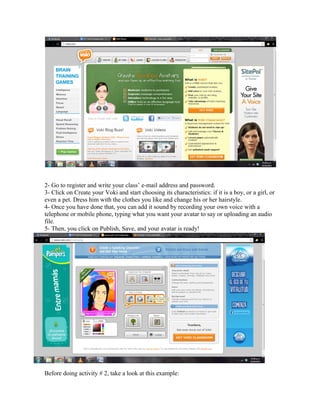
    Voki is a very good website to create avatars. You can create your own avatar and even
    your pet’s. You can add them sound and play with the different English accents. This
    website is visually attractive and it is up-to-date. It has an about voki section in which the
    authors whose names are not mentioned, about the characteristics of the website and the
    things you can do in it. You have to log in to start creating your product, but it is free and
    the links are working properly. For students, I think it is a funny way to practise the
    language and also to involve learning with their lives.
2- Go to register and write your class’ e-mail address and password.
3- Click on Create your Voki and start choosing its characteristics: if it is a boy, or a girl, or
even a pet. Dress him with the clothes you like and change his or her hairstyle.
4- Once you have done that, you can add it sound by recording your own voice with a
telephone or mobile phone, typing what you want your avatar to say or uploading an audio
file.
5- Then, you click on Publish, Save, and your avatar is ready!


Before doing activity # 2, take a look at this example:
http://www.voki.com/pickup.php?scid=6829633&height=267&width=200

    NEW ENTRY:

    Now, do this activity: Describe your ideal pet using http://voki.com/

    Level: Beginner:
    Grade: 4th Grade

    1- Think of your ideal pet.
    2- Describe it, including its name, its age, its abilities, its colour and its physical
    appearance. Write a short description, just five or six lines. Use a word document to save
    your work.
    3- Go to the website and start choosing the colour of your pet and its characteristics.
    4- Add sound by typing your description out.
    5- Click on save and send the link to your teacher. She will give you some feedback.
    6- You also have to send the links to your mate, so as to share your work with them.


    This would be taken into account for the evaluation.

·    Clear and concise message.

·    Assignment handed in in time

·    Use of Language and Grammar

·    Good use of the website and Internet.

·    Creativity


    To do the activity, go to http://mariaeugeniapiazza.blogspot.com.ar/2012/11/activity-2-
    how-to-create-avatar-using.html


    NEW ENTRY:

    Activity #3: How to create a poster using www.glogster.com

    1. Go to www.glogster.com


    This website is used to create posters and brochures. I think that it could be useful for
    students. This website includes an “about us” section but has no author. It’s visually
attractive. It’s like a community in which students share their works, comment and also
they can participate in contests. The links are working and the website is easy to navigate
but you need to sign up or use your facebook account to start using the tools and creating
the projects.


2- Click on the sign up bottom. You can log in using your facebook account or by clicking
on the create your account bottom. Use the class’ e-mail account and the password your
teacher gives you.
3- Go to create a new glog.

4- Choose a template. In this case, choose a flypaper glog.


5- When you have your template ready, you can start by exploring the tools such as add
photos, add videos, or add text and even audio. You don’t have to use the bubbles and
templates in the poster. You can change them the way you like.
6- When you think you have finished, you can click on the preview bottom and see your
poster. If you don’t like what you did, you can change them and start again.
7-Once you have finished your work, click on the save bottom and your poster will be
ready.


Before doing activity # 3, take a look at this example:
NEW ENTRY:
    Now, do this activity: Create a poster about your likes and dislikes using
    www.glogster.com.

    Level: Elementary
    Grade: 5th Grade

    1- Think of the things and the activities you like doing.
    2- Write in a word document a short paragraph about your likes and dislikes. The title will
    be “All about me” Then, click on Save Document. We will use this in case there are
    problems with the Internet connection.
    3- Using www.glogster.com, create a flypaper glog. Add videos from YouTube of your
    favourite singer, add text, add photos either from the Internet or even from your own
    computer and write your paragraph about your favourite things and activities.
    4- Save your document and send the link of your poster to your teacher. She will give you
    feedback.
    5- When your poster is done, you can send the link to your mates and they have to guess
    which poster belongs to whom and write about their mate’s likes and dislikes.


    This would be taken into account for the evaluation.

·    Assignment handed in in time

·    Use of Language and Grammar

·    Good use of the website and Internet.

·    Creativity

-    Motivation


    To do the activity, go to http://mariaeugeniapiazza.blogspot.com.ar/2012/11/activity-3-
    how-to-create-poster-using.html

    NEW ENTRY:

    Activity #4: How to create a movie using www.dvolver.com
1. Go to www.dvolver.com

This website is visually attractive and friendly. You don’t have to sign up to start creating a
movie. It has an about us section in which the authors don’t say their names but talk about
the website and the quantity of movies made. The links work properly, and for students, the
instructions are easy to follow. The website is for free and students can send their movies
by e-mail to their partners or teacher. I find it useful because creating movies is really easy
and they can play with music, text and characters.


2- Click on the make a movie button and start making your movie by chossing a
background and a sky. Then, as you continue, you will have to choose the plot, the
characters and the lines of the dialogue, and the music.
3- If you want to include a new scene, you have to click on the add new scene button. You
will have to choose the background, characters, etc. Otherwise, click on finish movie.
4- If you click on finish movie, write your movie’s name, the layout of the title and your
name. You will have to write the recipient’s names, their e-mails and your e-mails. Then,
click on send. Also, you can preview your movie and make changes if necessary.


Before doing activity # 4, take a look at this example:
http://www.dvolver.com/live/movies-777700


NEW ENTRY
Now, do this activity: Create a movie using www.dvolver.com

Level: Elementary
Grade: 5th Grade

 1- Think of a story with a partner.
2- Write some ideas in a Word document. The title will be “At the Park” Then, click on
Save Document. We will use this in case there are problems with the Internet connection.
3- Using www.dvolver.com, create a movie. Choose the background, the plot, the
characters, the dialogues and the music.
4- Once you have finished your work, send the link to your mates and your teacher. She
    will give you feedback.
    5- After sending the link to your mates, choose one of their stories and write the end of it.
    Then, share your work with your classmates.


    This would be taken into account for the evaluation.

·    Assignment handed in in time

·    Use of Language and Grammar

·    Good use of the website and Internet.

·    Creativity

.    Collaborative work


    To do this activity: go to http://mariaeugeniapiazza.blogspot.com.ar/2012/11/activity-4-
    how-to-create-movie-using.html

Assignment 4 informatica

  • 1.
    ICT applied toEnglish Teaching – 2012 Assignment # 4 Blog: http://mariaeugeniapiazza.blogspot.com.ar/ FIRST ENTRY: Welcome to my blog! Hello! My name is María Eugenia Piazza and this blog was created for the subject ICT applied to English Teaching, for the Profesorado en Inglés e Inglés Técnico, from the INSPT- UTN. I chose to use a blog because I think it is an easy way for the students to find the activities, follow the instructions for each of them and leave comments if they wish to do so. It’s visually attractive and friendly. According to Dudeney and Hockly (2007), a blog is an example of social software, is it to say, a computer tool which allow people to connect. A blog is essentially a web page with regular diary or journal entries. The term is short for web log. A blog can be set up and used by teacher and / or learners and the ideas and content can be generated by learners individually or collaboratively. A blog can consist only of written text or even audio, video, and photos. Most blogs allow readers to leave comments on blog entries, creating an online community around a topic, intererest or person. Blogs can be classified into class blogs, in which students in the same class can post their entries. Blogs used in education are known as edublogs. They cover a wide range of topics related to education such as educational policies and development to learner composition. A blog set up and maintained by a teacher is known as a tutor blog. She can decide to allow their learners to write comments to the things she uploads, like exercises, reviews class work, and extra material. Also, a teacher can encourage their learners to set up a blog. This will be called student blog with the purpose of uploading comments of current affairs or description of daily activities so as students from other countries can comment on their blog entries. A class blog, is the one used by an entire class in which students post their work in the same blog. Using blogs in the classroom has some advantages: they provide a “real world” tool for learners to practise their writing skills and a way of contacting learners from other parts of the world. One of the issues to bear in mind when setting up blogs is that the teacher needs to be prepared to give learners time for writing, reviewing, redrafting and checking posting before they write their final version in the blog.
  • 2.
    Another issue tobe considered is assessment. Criteria will probably include those that we, as teachers, are accustomed to doing when we evaluate more traditional, paper-based forms of writing, such as accuracy, fluency, coherence and relevance, but they may also include criteria related to the visual nature such as effect use of visuals, length of posting and awareness of audience. The main purpose of this blog is to provide some activities for the students to do using different Web 2.0 tools. These activities will be evaluated taking into account the evaluation criteria especially designed for each activity. SECOND ENTRY: 1-Activity #1: How to create a video using Animoto. Steps to follow: 1- Go to www.animoto.com Animoto is a very useful website to create stunning videos. You can turn your photos in video clips. It’s fast and free! This website is visually attractive. It’s up-to-date because you can login using your facebook account and there are apps for Ihone and Android. There’s an about us section which is about how the authors started creating the website.
  • 3.
    Their names didn’tappear in the about us section. The links work perfectly and it’s a good website for the students to create videos. 2- Log in using your facebook account or click on sign up. You can also use the password of the class account the teacher gives you. 3- Enter your class’ e-mail address and your password. 4- Go to create a video. 5- Then, choose a style for your video. You have several options that you can use for free.
  • 4.
    6-Then, you canstart creating your own video, by choosing between style, adding your own piece of music from your computer or just choosing between the ones that there are in the website, and also you can add text and pictures. 7- While you are working on the video, you can click on the option Preview Video to see your production and make the necessary changes if they are. Once you are satisfied with the product, you can click on the option Save and you video will be saved. Before doing activity # 1, take a look at this example: http://animoto.com/play/CnDLJ2P4jHhhImR7a0jfQw NEW ENTRY: Now, do this activity, using www.animoto.com: My favourite star Level: Elementary Grade:5th Grade 1. First, think of your favourite star. It could be a singer, a football player or an actor. 2. Then, find images of your favourite star and information about him or her. 3. Open a word document and try to write his or her biography very briefly. (Stick to Simple Past) Then, click on Save Document. We will use this in case there are problems with the Internet connection.
  • 5.
    4. Once youhave written a very short biography including place of birth, date of birth and the most important events in his life, create the video, using this information and the pictures you have searched for before. You may add some piece of music of you favourite singer or band if you like. 5. When the video is finished, send the link to your teacher. She will give you some feedback. This would be taken into account for the evaluation. · Use of search engines and selection of information. · Assignment handed in in time · Correct use of language and grammar · Good use of the website · Creativity To do the activity, go to http://mariaeugeniapiazza.blogspot.com.ar/2012/11/1-activity-1-how- to-create-video-using.html NEW ENTRY: Activity #2: How to create an avatar using http://voki.com/ Steps to follow: 1- Go to http://voki.com/ Voki is a very good website to create avatars. You can create your own avatar and even your pet’s. You can add them sound and play with the different English accents. This website is visually attractive and it is up-to-date. It has an about voki section in which the authors whose names are not mentioned, about the characteristics of the website and the things you can do in it. You have to log in to start creating your product, but it is free and the links are working properly. For students, I think it is a funny way to practise the language and also to involve learning with their lives.
  • 6.
    2- Go toregister and write your class’ e-mail address and password. 3- Click on Create your Voki and start choosing its characteristics: if it is a boy, or a girl, or even a pet. Dress him with the clothes you like and change his or her hairstyle. 4- Once you have done that, you can add it sound by recording your own voice with a telephone or mobile phone, typing what you want your avatar to say or uploading an audio file. 5- Then, you click on Publish, Save, and your avatar is ready! Before doing activity # 2, take a look at this example:
  • 7.
    http://www.voki.com/pickup.php?scid=6829633&height=267&width=200 NEW ENTRY: Now, do this activity: Describe your ideal pet using http://voki.com/ Level: Beginner: Grade: 4th Grade 1- Think of your ideal pet. 2- Describe it, including its name, its age, its abilities, its colour and its physical appearance. Write a short description, just five or six lines. Use a word document to save your work. 3- Go to the website and start choosing the colour of your pet and its characteristics. 4- Add sound by typing your description out. 5- Click on save and send the link to your teacher. She will give you some feedback. 6- You also have to send the links to your mate, so as to share your work with them. This would be taken into account for the evaluation. · Clear and concise message. · Assignment handed in in time · Use of Language and Grammar · Good use of the website and Internet. · Creativity To do the activity, go to http://mariaeugeniapiazza.blogspot.com.ar/2012/11/activity-2- how-to-create-avatar-using.html NEW ENTRY: Activity #3: How to create a poster using www.glogster.com 1. Go to www.glogster.com This website is used to create posters and brochures. I think that it could be useful for students. This website includes an “about us” section but has no author. It’s visually
  • 8.
    attractive. It’s likea community in which students share their works, comment and also they can participate in contests. The links are working and the website is easy to navigate but you need to sign up or use your facebook account to start using the tools and creating the projects. 2- Click on the sign up bottom. You can log in using your facebook account or by clicking on the create your account bottom. Use the class’ e-mail account and the password your teacher gives you.
  • 9.
    3- Go tocreate a new glog. 4- Choose a template. In this case, choose a flypaper glog. 5- When you have your template ready, you can start by exploring the tools such as add photos, add videos, or add text and even audio. You don’t have to use the bubbles and templates in the poster. You can change them the way you like.
  • 10.
    6- When youthink you have finished, you can click on the preview bottom and see your poster. If you don’t like what you did, you can change them and start again. 7-Once you have finished your work, click on the save bottom and your poster will be ready. Before doing activity # 3, take a look at this example:
  • 11.
    NEW ENTRY: Now, do this activity: Create a poster about your likes and dislikes using www.glogster.com. Level: Elementary Grade: 5th Grade 1- Think of the things and the activities you like doing. 2- Write in a word document a short paragraph about your likes and dislikes. The title will be “All about me” Then, click on Save Document. We will use this in case there are problems with the Internet connection. 3- Using www.glogster.com, create a flypaper glog. Add videos from YouTube of your favourite singer, add text, add photos either from the Internet or even from your own computer and write your paragraph about your favourite things and activities. 4- Save your document and send the link of your poster to your teacher. She will give you feedback. 5- When your poster is done, you can send the link to your mates and they have to guess which poster belongs to whom and write about their mate’s likes and dislikes. This would be taken into account for the evaluation. · Assignment handed in in time · Use of Language and Grammar · Good use of the website and Internet. · Creativity - Motivation To do the activity, go to http://mariaeugeniapiazza.blogspot.com.ar/2012/11/activity-3- how-to-create-poster-using.html NEW ENTRY: Activity #4: How to create a movie using www.dvolver.com
  • 12.
    1. Go towww.dvolver.com This website is visually attractive and friendly. You don’t have to sign up to start creating a movie. It has an about us section in which the authors don’t say their names but talk about the website and the quantity of movies made. The links work properly, and for students, the instructions are easy to follow. The website is for free and students can send their movies by e-mail to their partners or teacher. I find it useful because creating movies is really easy and they can play with music, text and characters. 2- Click on the make a movie button and start making your movie by chossing a background and a sky. Then, as you continue, you will have to choose the plot, the characters and the lines of the dialogue, and the music.
  • 13.
    3- If youwant to include a new scene, you have to click on the add new scene button. You will have to choose the background, characters, etc. Otherwise, click on finish movie.
  • 14.
    4- If youclick on finish movie, write your movie’s name, the layout of the title and your name. You will have to write the recipient’s names, their e-mails and your e-mails. Then, click on send. Also, you can preview your movie and make changes if necessary. Before doing activity # 4, take a look at this example: http://www.dvolver.com/live/movies-777700 NEW ENTRY Now, do this activity: Create a movie using www.dvolver.com Level: Elementary Grade: 5th Grade 1- Think of a story with a partner. 2- Write some ideas in a Word document. The title will be “At the Park” Then, click on Save Document. We will use this in case there are problems with the Internet connection. 3- Using www.dvolver.com, create a movie. Choose the background, the plot, the characters, the dialogues and the music.
  • 15.
    4- Once youhave finished your work, send the link to your mates and your teacher. She will give you feedback. 5- After sending the link to your mates, choose one of their stories and write the end of it. Then, share your work with your classmates. This would be taken into account for the evaluation. · Assignment handed in in time · Use of Language and Grammar · Good use of the website and Internet. · Creativity . Collaborative work To do this activity: go to http://mariaeugeniapiazza.blogspot.com.ar/2012/11/activity-4- how-to-create-movie-using.html