FieldDataCollectionutilizing Tablet andArcGIS Collector technology
ArcGIS Collector is an iPad application that will allow field crews to display existing GIS layers (project
alignment, parcel access, known archeological sites, etc.), and aerial imagery / topo / street map for
navigation. This application is designed to be used with or without cellular data reception. However, in most
situations the app will be setup to work offline unless specifically requested not to, in order to allow for more
flexibility and ensure that data is captured and stored on the device. Because of this, background imagery will
be downloaded in advance and stored directly on each iPad before the crews head into the field.
This program utilizes the built-in GPS receiver within each iPad and is able to display its current location within
~10-20 meters. However, we are currently researching some emerging technology that may allow us to
increase the accuracy to <1 meter in the future. Stay tuned.
GPS location does not require internet access, just an unobstructed view of the sky, as it utilizes constantly
orbiting satellites to triangulate location. In addition to viewing your GPS position relative to existing GIS
layers, the crews will be able collect new data while in the field. This data is comprised of two parts: the first is
the approximate geographic location of the resource of interest; the second part is tabular (form) data that
users will populate to describe features found at each location.
Note: ArcGIS Online (www.ArcGIS.com) and ArcGIS Collector apps access the same data in the cloud. So you
can collect features in the field using the Collector app on an iPad and review / edit them on your computer
via a web browser on www.ArcGIS.com and vice versa.
Data Hierarchy Overview:
ArcGIS Online / Collector data is structured like so:
 User Name (Usually named by office or region)
o Group (ICF Project)
 Collector Map (Specific Map Name)
 Data Layer (Editable Resource Layer, Project Boundary, Topo Background)
To begin launch the ArcGIS Collector app on the tablet which looks like this:
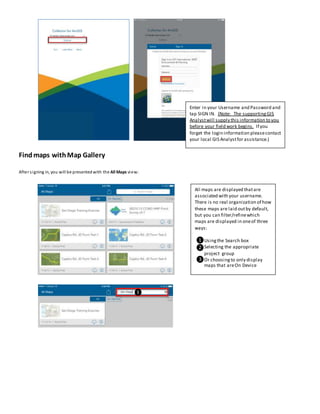
You will be presented with the following screen, tap “Continue”
Findmaps withMap Gallery
After signing in, you will be presentedwith the All Maps view:
All maps are displayed thatare
associated with your username.
There is no real organization of how
these maps are laid outby default,
but you can filter/refinewhich
maps are displayed in oneof three
ways:
Usingthe Search box
Selecting the appropriate
project group
Or choosingto only display
maps that areOn Device
Enter in your Username and Password and
tap SIGN IN. (Note: The supportingGIS
Analystwill supply this information to you
before your field work begins. If you
forget the login information pleasecontact
your local GIS Analystfor assistance.)
❶
❷
❸
❶
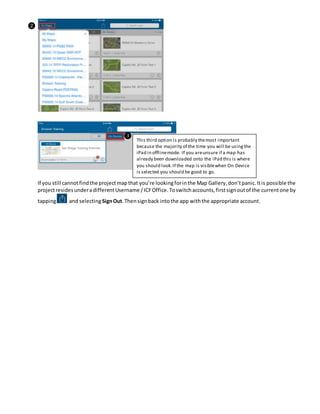
If you still cannotfindthe projectmapthat you’re lookingforinthe Map Gallery,don’tpanic.Itis possible the
projectresidesunderadifferentUsername /ICFOffice.Toswitchaccounts,firstsignoutof the currentone by
tapping and selectingSignOut.Thensignback intothe app withthe appropriate account.
❷
❸
This third option is probably themost important
because the majority of the time you will be usingthe
iPad in offlinemode. If you areunsure if a map has
already been downloaded onto the iPad this is where
you should look.If the map is visiblewhen On Device
is selected you should be good to go.
Downloading a Map tothe iPad
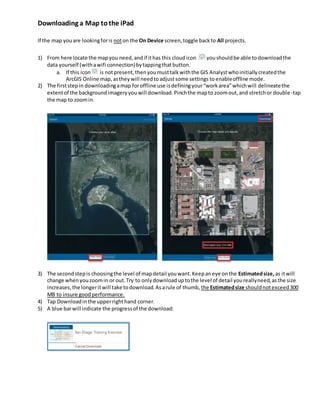
If the map youare lookingforis noton the On Device screen,toggle backto All projects.
1) From here locate the mapyou need,andif ithas this cloudicon youshouldbe able todownloadthe
data yourself (withawifi connection)bytappingthatbutton.
a. If this icon is notpresent,thenyoumusttalkwiththe GIS Analystwhoinitiallycreatedthe
ArcGIS Online map,astheywill needtoadjustsome settings toenableoffline mode.
2) The firststepin downloadingamap foroffline use isdefiningyour“workarea”whichwill delineatethe
extentof the backgroundimageryyouwill download.Pinchthe mapto zoomout,and stretchor double-tap
the map to zoomin.
3) The secondstepis choosingthe level of mapdetail youwant.Keepaneye onthe Estimatedsize, as itwill
change whenyouzoomin or out.Try to onlydownloaduptothe level of detail youreallyneed,asthe size
increases,the longeritwill take todownload. Asarule of thumb, the Estimatedsize shouldnotexceed300
MB to insure goodperformance.
4) Tap Downloadinthe upperrighthand corner.
5) A blue barwill indicate the progressof the download:
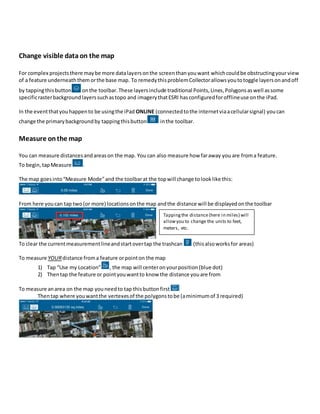
Change visible data on the map
For complex projectsthere maybe more datalayersonthe screenthanyouwant whichcouldbe obstructingyour view
of a feature underneaththem orthe base map. To remedythisproblemCollectorallowsyoutotoggle layersonandoff
by tappingthisbutton onthe toolbar.These layersinclude traditional Points,Lines,Polygonsaswell assome
specificrasterbackgroundlayerssuchastopo and imagerythatESRI hasconfiguredforofflineuse onthe iPad.
In the eventthatyouhappento be usingthe iPad ONLINE (connectedtothe internetviaacellularsignal) youcan
change the primarybackgroundby tappingthisbutton inthe toolbar.
Measure onthe map
You can measure distancesandareason the map. You can also measure how faraway you are froma feature.
To begin,tapMeasure .
The map goesinto“Measure Mode”and the toolbarat the topwill change tolooklike this:
From here youcan tap two(or more) locationsonthe map andthe distance will be displayedonthe toolbar
To clear the currentmeasurementlineandstartovertap the trashcan (thisalsoworksfor areas)
To measure YOURdistance froma feature orpointon the map
1) Tap “Use my Location” , the map will centeronyourposition(blue dot)
2) Thentap the feature or pointyouwantto know the distance youare from
To measure anarea on the map youneedto tap thisbuttonfirst
Thentap where youwantthe vertexesof the polygonstobe (aminimumof 3 required)
Tappingthe distance(here in miles) will
allowyou to change the units to feet,
meters, etc.
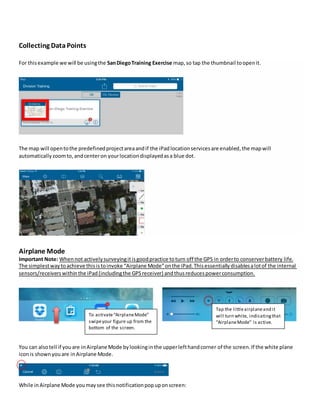
Collecting Data Points
For thisexample we will be usingthe SanDiegoTraining Exercise map,so tap the thumbnail toopenit.
The map will opentothe predefinedprojectareaandif the iPad locationservicesare enabled,the mapwill
automatically zoomto, andcenteron yourlocationdisplayedasa blue dot.
Airplane Mode
Important Note: Whennot activelysurveyingitisgoodpractice toturn off the GPS in orderto conserverbattery life.
The simplestwaytoachieve thisistoinvoke “Airplane Mode”onthe iPad.Thisessentiallydisablesalotof the internal
sensors/receivers withinthe iPad(includingthe GPSreceiver) andthusreducespowerconsumption.
You can alsotell if youare inAirplane Mode bylookinginthe upperlefthandcorner of the screen.If the white plane
iconis shownyouare inAirplane Mode.
While inAirplane Mode youmaysee thisnotificationpopuponscreen:
To activate“AirplaneMode”
swipeyour figure up from the
bottom of the screen.
Tap the littleairplaneand it
will turn white, indicatingthat
“AirplaneMode” is active.
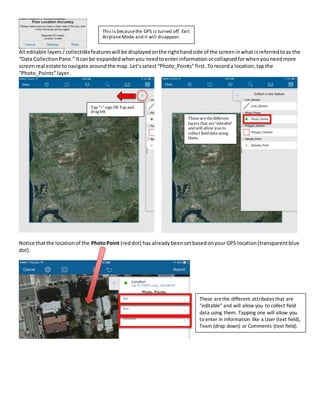
All editable layers/collectiblefeatureswill be displayedonthe righthandside of the screeninwhat isreferredtoas the
“Data CollectionPane.”Itcanbe expandedwhenyou needtoenterinformationorcollapsedforwhenyouneedmore
screenreal estate tonavigate aroundthe map. Let’sselect“Photo_Points”first. Torecord a location,tapthe
“Photo_Points”layer.
Notice thatthe locationof the PhotoPoint (reddot) has alreadybeensetbasedonyour GPS location (transparentblue
dot).
Tap “+” sign OR Tap and
dragleft
Thesearethedifferent
layers that are“editable”
and will allow you to
collect field datausing
them.
These arethe different attributes that are
“editable” and will allow you to collect field
data using them. Tapping one will allow you
to enter in information like a User (text field),
Team (drop down) or Comments (text field).
This is becausethe GPS is turned off. Exit
AirplaneMode and it will disappear.
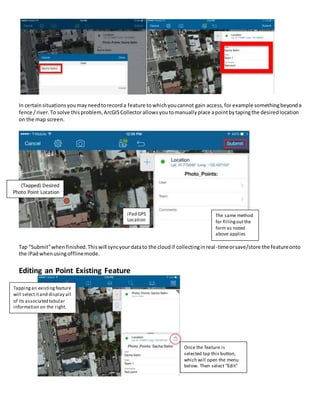
In certainsituationsyoumayneedtorecorda feature towhichyoucannot gain access,for example somethingbeyonda
fence /river.To solve thisproblem,ArcGISCollectorallowsyoutomanuallyplace apointbytapingthe desiredlocation
on the map screen.
Tap “Submit”whenfinished.Thiswill syncyourdatato the cloudif collectinginreal-timeorsave/store the featureonto
the iPadwhenusingofflinemode.
Editing an Point Existing Feature
(Tapped) Desired
Photo Point Location
iPad GPS
Location
The same method
for fillingoutthe
form as noted
above applies
Tappingan existingfeature
will selectitand display all
of its associated tabular
information on the right.
Once the feature is
selected tap this button,
which will open the menu
below. Then select “Edit”
Lines and Polygons
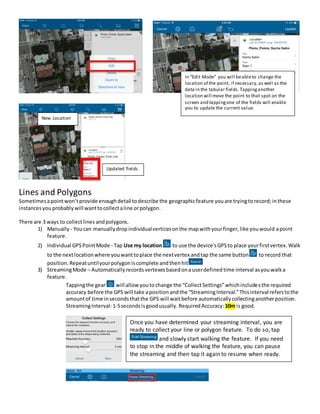
Sometimesapointwon’tprovide enoughdetail todescribe the geographicfeature youare tryingto record;inthese
instancesyou probably will wanttocollectaline orpolygon.
There are 3 ways to collectlines andpolygons.
1) Manually - Youcan manuallydropindividualverticesonthe mapwithyourfinger,like youwould apoint
feature.
2) Individual GPSPointMode - Tap Use my location to use the device'sGPSto place yourfirstvertex.Walk
to the nextlocationwhere youwanttoplace the nextvertex andtap the same button to record that
position.Repeatuntilyourpolygoniscomplete andthenhit
3) StreamingMode – Automaticallyrecordsvertexesbasedonauserdefined time interval asyouwalka
feature.
Tappingthe gear will allow youtochange the “CollectSettings”whichincludesthe required
accuracy before the GPS will take apositionandthe “StreamingInterval.”Thisinterval referstothe
amountof time insecondsthatthe GPS will waitbefore automaticallycollectinganotherposition.
StreamingInterval:1-5secondsisgoodusually. RequiredAccuracy: 10m is good.
In “Edit Mode” you will beableto change the
location of the point, if necessary,as well as the
data in the tabular fields. Tappinganother
location will move the point to that spot on the
screen and tappingone of the fields will enable
you to update the current value.
New Location
Updated fields
Once you have determined your streaming interval, you are
ready to collect your line or polygon feature. To do so, tap
and slowly start walking the feature. If you need
to stop in the middle of walking the feature, you can pause
the streaming and then tap it again to resume when ready.
More Lines and Polygons Details
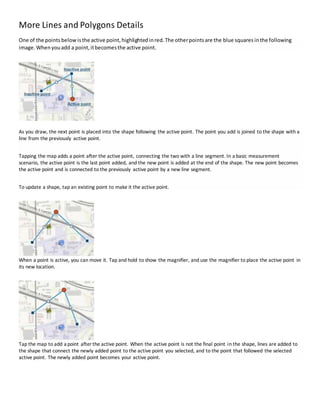
One of the points below isthe active point,highlightedinred.The otherpointsare the blue squares inthe following
image.Whenyouadd a point,itbecomesthe active point.
As you draw, the next point is placed into the shape following the active point. The point you add is joined to the shape with a
line from the previously active point.
Tapping the map adds a point after the active point, connecting the two with a line segment. In a basic measurement
scenario, the active point is the last point added, and the new point is added at the end of the shape. The new point becomes
the active point and is connected to the previously active point by a new line segment.
To update a shape, tap an existing point to make it the active point.
When a point is active, you can move it. Tap and hold to show the magnifier, and use the magnifier to place the active point in
its new location.
Tap the map to add a point after the active point. When the active point is not the final point in the shape, lines are added to
the shape that connect the newly added point to the active point you selected, and to the point that followed the selected
active point. The newly added point becomes your active point.
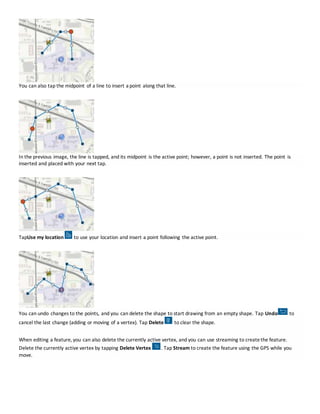
You can also tap the midpoint of a line to insert a point along that line.
In the previous image, the line is tapped, and its midpoint is the active point; however, a point is not inserted. The point is
inserted and placed with your next tap.
TapUse my location to use your location and insert a point following the active point.
You can undo changes to the points, and you can delete the shape to start drawing from an empty shape. Tap Undo to
cancel the last change (adding or moving of a vertex). Tap Delete to clear the shape.
When editing a feature, you can also delete the currently active vertex, and you can use streaming to createthe feature.
Delete the currently active vertex by tapping Delete Vertex . Tap Stream to create the feature using the GPS while you
move.
Adding Photographs While Collecting Features
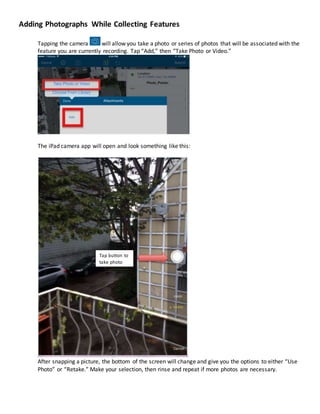
Tapping the camera will allow you take a photo or series of photos that will be associated with the
feature you are currently recording. Tap “Add,” then “Take Photo or Video.”
The iPad camera app will open and look something like this:
After snapping a picture, the bottom of the screen will change and give you the options to either “Use
Photo” or “Retake.” Make your selection, then rinse and repeat if more photos are necessary.
Tap button to
take photo
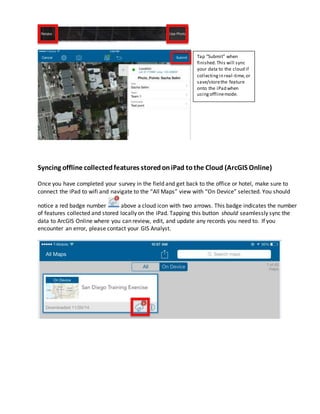
Syncing offline collectedfeatures storedoniPad tothe Cloud (ArcGIS Online)
Once you have completed your survey in the field and get back to the office or hotel, make sure to
connect the iPad to wifi and navigate to the “All Maps” view with “On Device” selected. You should
notice a red badge number above a cloud icon with two arrows. This badge indicates the number
of features collected and stored locally on the iPad. Tapping this button should seamlessly sync the
data to ArcGIS Online where you can review, edit, and update any records you need to. If you
encounter an error, please contact your GIS Analyst.
Tap “Submit” when
finished.This will sync
your data to the cloud if
collectingin real-time,or
save/storethe feature
onto the iPad when
usingofflinemode.

ArcGIS_Collector_Field_Guide_201411204_

  • 1.
    FieldDataCollectionutilizing Tablet andArcGISCollector technology ArcGIS Collector is an iPad application that will allow field crews to display existing GIS layers (project alignment, parcel access, known archeological sites, etc.), and aerial imagery / topo / street map for navigation. This application is designed to be used with or without cellular data reception. However, in most situations the app will be setup to work offline unless specifically requested not to, in order to allow for more flexibility and ensure that data is captured and stored on the device. Because of this, background imagery will be downloaded in advance and stored directly on each iPad before the crews head into the field. This program utilizes the built-in GPS receiver within each iPad and is able to display its current location within ~10-20 meters. However, we are currently researching some emerging technology that may allow us to increase the accuracy to <1 meter in the future. Stay tuned. GPS location does not require internet access, just an unobstructed view of the sky, as it utilizes constantly orbiting satellites to triangulate location. In addition to viewing your GPS position relative to existing GIS layers, the crews will be able collect new data while in the field. This data is comprised of two parts: the first is the approximate geographic location of the resource of interest; the second part is tabular (form) data that users will populate to describe features found at each location. Note: ArcGIS Online (www.ArcGIS.com) and ArcGIS Collector apps access the same data in the cloud. So you can collect features in the field using the Collector app on an iPad and review / edit them on your computer via a web browser on www.ArcGIS.com and vice versa. Data Hierarchy Overview: ArcGIS Online / Collector data is structured like so:  User Name (Usually named by office or region) o Group (ICF Project)  Collector Map (Specific Map Name)  Data Layer (Editable Resource Layer, Project Boundary, Topo Background) To begin launch the ArcGIS Collector app on the tablet which looks like this: You will be presented with the following screen, tap “Continue”
  • 2.
    Findmaps withMap Gallery Aftersigning in, you will be presentedwith the All Maps view: All maps are displayed thatare associated with your username. There is no real organization of how these maps are laid outby default, but you can filter/refinewhich maps are displayed in oneof three ways: Usingthe Search box Selecting the appropriate project group Or choosingto only display maps that areOn Device Enter in your Username and Password and tap SIGN IN. (Note: The supportingGIS Analystwill supply this information to you before your field work begins. If you forget the login information pleasecontact your local GIS Analystfor assistance.) ❶ ❷ ❸ ❶
  • 3.
    If you stillcannotfindthe projectmapthat you’re lookingforinthe Map Gallery,don’tpanic.Itis possible the projectresidesunderadifferentUsername /ICFOffice.Toswitchaccounts,firstsignoutof the currentone by tapping and selectingSignOut.Thensignback intothe app withthe appropriate account. ❷ ❸ This third option is probably themost important because the majority of the time you will be usingthe iPad in offlinemode. If you areunsure if a map has already been downloaded onto the iPad this is where you should look.If the map is visiblewhen On Device is selected you should be good to go.
  • 4.
    Downloading a Maptothe iPad If the map youare lookingforis noton the On Device screen,toggle backto All projects. 1) From here locate the mapyou need,andif ithas this cloudicon youshouldbe able todownloadthe data yourself (withawifi connection)bytappingthatbutton. a. If this icon is notpresent,thenyoumusttalkwiththe GIS Analystwhoinitiallycreatedthe ArcGIS Online map,astheywill needtoadjustsome settings toenableoffline mode. 2) The firststepin downloadingamap foroffline use isdefiningyour“workarea”whichwill delineatethe extentof the backgroundimageryyouwill download.Pinchthe mapto zoomout,and stretchor double-tap the map to zoomin. 3) The secondstepis choosingthe level of mapdetail youwant.Keepaneye onthe Estimatedsize, as itwill change whenyouzoomin or out.Try to onlydownloaduptothe level of detail youreallyneed,asthe size increases,the longeritwill take todownload. Asarule of thumb, the Estimatedsize shouldnotexceed300 MB to insure goodperformance. 4) Tap Downloadinthe upperrighthand corner. 5) A blue barwill indicate the progressof the download:
  • 5.
    Change visible dataon the map For complex projectsthere maybe more datalayersonthe screenthanyouwant whichcouldbe obstructingyour view of a feature underneaththem orthe base map. To remedythisproblemCollectorallowsyoutotoggle layersonandoff by tappingthisbutton onthe toolbar.These layersinclude traditional Points,Lines,Polygonsaswell assome specificrasterbackgroundlayerssuchastopo and imagerythatESRI hasconfiguredforofflineuse onthe iPad. In the eventthatyouhappento be usingthe iPad ONLINE (connectedtothe internetviaacellularsignal) youcan change the primarybackgroundby tappingthisbutton inthe toolbar. Measure onthe map You can measure distancesandareason the map. You can also measure how faraway you are froma feature. To begin,tapMeasure . The map goesinto“Measure Mode”and the toolbarat the topwill change tolooklike this: From here youcan tap two(or more) locationsonthe map andthe distance will be displayedonthe toolbar To clear the currentmeasurementlineandstartovertap the trashcan (thisalsoworksfor areas) To measure YOURdistance froma feature orpointon the map 1) Tap “Use my Location” , the map will centeronyourposition(blue dot) 2) Thentap the feature or pointyouwantto know the distance youare from To measure anarea on the map youneedto tap thisbuttonfirst Thentap where youwantthe vertexesof the polygonstobe (aminimumof 3 required) Tappingthe distance(here in miles) will allowyou to change the units to feet, meters, etc.
  • 6.
    Collecting Data Points Forthisexample we will be usingthe SanDiegoTraining Exercise map,so tap the thumbnail toopenit. The map will opentothe predefinedprojectareaandif the iPad locationservicesare enabled,the mapwill automatically zoomto, andcenteron yourlocationdisplayedasa blue dot. Airplane Mode Important Note: Whennot activelysurveyingitisgoodpractice toturn off the GPS in orderto conserverbattery life. The simplestwaytoachieve thisistoinvoke “Airplane Mode”onthe iPad.Thisessentiallydisablesalotof the internal sensors/receivers withinthe iPad(includingthe GPSreceiver) andthusreducespowerconsumption. You can alsotell if youare inAirplane Mode bylookinginthe upperlefthandcorner of the screen.If the white plane iconis shownyouare inAirplane Mode. While inAirplane Mode youmaysee thisnotificationpopuponscreen: To activate“AirplaneMode” swipeyour figure up from the bottom of the screen. Tap the littleairplaneand it will turn white, indicatingthat “AirplaneMode” is active.
  • 7.
    All editable layers/collectiblefeatureswillbe displayedonthe righthandside of the screeninwhat isreferredtoas the “Data CollectionPane.”Itcanbe expandedwhenyou needtoenterinformationorcollapsedforwhenyouneedmore screenreal estate tonavigate aroundthe map. Let’sselect“Photo_Points”first. Torecord a location,tapthe “Photo_Points”layer. Notice thatthe locationof the PhotoPoint (reddot) has alreadybeensetbasedonyour GPS location (transparentblue dot). Tap “+” sign OR Tap and dragleft Thesearethedifferent layers that are“editable” and will allow you to collect field datausing them. These arethe different attributes that are “editable” and will allow you to collect field data using them. Tapping one will allow you to enter in information like a User (text field), Team (drop down) or Comments (text field). This is becausethe GPS is turned off. Exit AirplaneMode and it will disappear.
  • 8.
    In certainsituationsyoumayneedtorecorda featuretowhichyoucannot gain access,for example somethingbeyonda fence /river.To solve thisproblem,ArcGISCollectorallowsyoutomanuallyplace apointbytapingthe desiredlocation on the map screen. Tap “Submit”whenfinished.Thiswill syncyourdatato the cloudif collectinginreal-timeorsave/store the featureonto the iPadwhenusingofflinemode. Editing an Point Existing Feature (Tapped) Desired Photo Point Location iPad GPS Location The same method for fillingoutthe form as noted above applies Tappingan existingfeature will selectitand display all of its associated tabular information on the right. Once the feature is selected tap this button, which will open the menu below. Then select “Edit”
  • 9.
    Lines and Polygons Sometimesapointwon’tprovideenoughdetail todescribe the geographicfeature youare tryingto record;inthese instancesyou probably will wanttocollectaline orpolygon. There are 3 ways to collectlines andpolygons. 1) Manually - Youcan manuallydropindividualverticesonthe mapwithyourfinger,like youwould apoint feature. 2) Individual GPSPointMode - Tap Use my location to use the device'sGPSto place yourfirstvertex.Walk to the nextlocationwhere youwanttoplace the nextvertex andtap the same button to record that position.Repeatuntilyourpolygoniscomplete andthenhit 3) StreamingMode – Automaticallyrecordsvertexesbasedonauserdefined time interval asyouwalka feature. Tappingthe gear will allow youtochange the “CollectSettings”whichincludesthe required accuracy before the GPS will take apositionandthe “StreamingInterval.”Thisinterval referstothe amountof time insecondsthatthe GPS will waitbefore automaticallycollectinganotherposition. StreamingInterval:1-5secondsisgoodusually. RequiredAccuracy: 10m is good. In “Edit Mode” you will beableto change the location of the point, if necessary,as well as the data in the tabular fields. Tappinganother location will move the point to that spot on the screen and tappingone of the fields will enable you to update the current value. New Location Updated fields Once you have determined your streaming interval, you are ready to collect your line or polygon feature. To do so, tap and slowly start walking the feature. If you need to stop in the middle of walking the feature, you can pause the streaming and then tap it again to resume when ready.
  • 10.
    More Lines andPolygons Details One of the points below isthe active point,highlightedinred.The otherpointsare the blue squares inthe following image.Whenyouadd a point,itbecomesthe active point. As you draw, the next point is placed into the shape following the active point. The point you add is joined to the shape with a line from the previously active point. Tapping the map adds a point after the active point, connecting the two with a line segment. In a basic measurement scenario, the active point is the last point added, and the new point is added at the end of the shape. The new point becomes the active point and is connected to the previously active point by a new line segment. To update a shape, tap an existing point to make it the active point. When a point is active, you can move it. Tap and hold to show the magnifier, and use the magnifier to place the active point in its new location. Tap the map to add a point after the active point. When the active point is not the final point in the shape, lines are added to the shape that connect the newly added point to the active point you selected, and to the point that followed the selected active point. The newly added point becomes your active point.
  • 11.
    You can alsotap the midpoint of a line to insert a point along that line. In the previous image, the line is tapped, and its midpoint is the active point; however, a point is not inserted. The point is inserted and placed with your next tap. TapUse my location to use your location and insert a point following the active point. You can undo changes to the points, and you can delete the shape to start drawing from an empty shape. Tap Undo to cancel the last change (adding or moving of a vertex). Tap Delete to clear the shape. When editing a feature, you can also delete the currently active vertex, and you can use streaming to createthe feature. Delete the currently active vertex by tapping Delete Vertex . Tap Stream to create the feature using the GPS while you move.
  • 12.
    Adding Photographs WhileCollecting Features Tapping the camera will allow you take a photo or series of photos that will be associated with the feature you are currently recording. Tap “Add,” then “Take Photo or Video.” The iPad camera app will open and look something like this: After snapping a picture, the bottom of the screen will change and give you the options to either “Use Photo” or “Retake.” Make your selection, then rinse and repeat if more photos are necessary. Tap button to take photo
  • 13.
    Syncing offline collectedfeaturesstoredoniPad tothe Cloud (ArcGIS Online) Once you have completed your survey in the field and get back to the office or hotel, make sure to connect the iPad to wifi and navigate to the “All Maps” view with “On Device” selected. You should notice a red badge number above a cloud icon with two arrows. This badge indicates the number of features collected and stored locally on the iPad. Tapping this button should seamlessly sync the data to ArcGIS Online where you can review, edit, and update any records you need to. If you encounter an error, please contact your GIS Analyst. Tap “Submit” when finished.This will sync your data to the cloud if collectingin real-time,or save/storethe feature onto the iPad when usingofflinemode.