Android
studio
#Android meetup
Željko Plesac
Android developer at
Infinum
zeljko.plesac@infinum.co
long time ago, in a
galaxy far, far away…
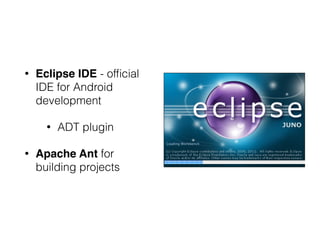
• Eclipse IDE - official
IDE for Android
development
• ADT plugin
• Apache Ant for
building projects
Reality
• ADT plugin was buggy and unstable
• frequent crashes
• agony and crying after updates
• no multi-flavour support
• slow
• Clear project -> Restart -> Crying -> Clear project ->
Restart -> Praying to God -> Clear project…
…so Google said…
and so, Android
studio was born!
• officially announced at Google I/0 2013
Conference
• early alpha release was published in July, 2013
• quickly got attention of Android developers
Android studio #1
Basic info
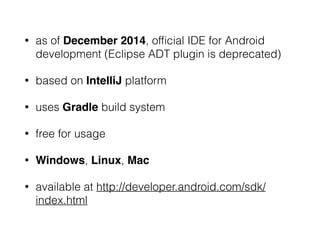
• as of December 2014, official IDE for Android
development (Eclipse ADT plugin is deprecated)
• based on IntelliJ platform
• uses Gradle build system
• free for usage
• Windows, Linux, Mac
• available at http://developer.android.com/sdk/
index.html
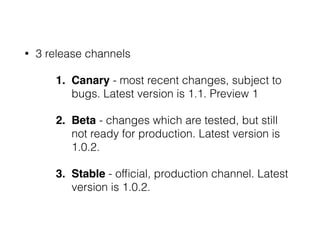
• 3 release channels
1. Canary - most recent changes, subject to
bugs. Latest version is 1.1. Preview 1
2. Beta - changes which are tested, but still
not ready for production. Latest version is
1.0.2.
3. Stable - official, production channel. Latest
version is 1.0.2.
Android studio #2
Migrating from Eclipse
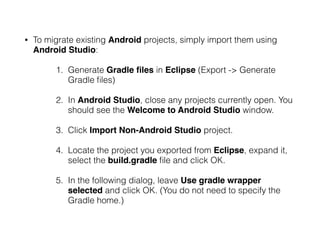
• To migrate existing Android projects, simply import them using
Android Studio:
1. Generate Gradle files in Eclipse (Export -> Generate
Gradle files)
2. In Android Studio, close any projects currently open. You
should see the Welcome to Android Studio window.
3. Click Import Non-Android Studio project.
4. Locate the project you exported from Eclipse, expand it,
select the build.gradle file and click OK.
5. In the following dialog, leave Use gradle wrapper
selected and click OK. (You do not need to specify the
Gradle home.)
AND DANCE THE
VICTORY DANCE!!!
Also, don’t forget to
delete Eclipse.
Android studio #3
Project structure
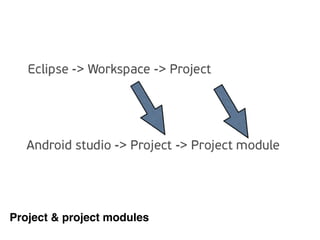
Project & project modules
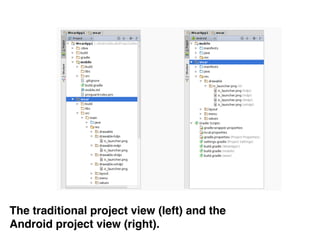
The traditional project view (left) and the
Android project view (right).
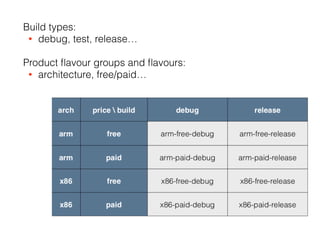
Build types:
• debug, test, release…
Product flavour groups and flavours:
• architecture, free/paid…
Android studio #4
Gradle
• Gradle is project automation tool which is used
for build our Android apps
• based upon concepts of Apache Ant and Apache
Maven
• uses Groovy-based domain-specific-language
(DSL)
• your new best friend and worst enemy
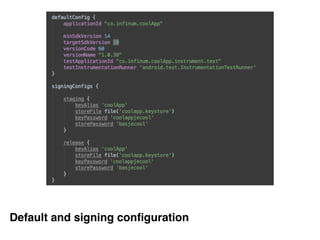
Default and signing configuration
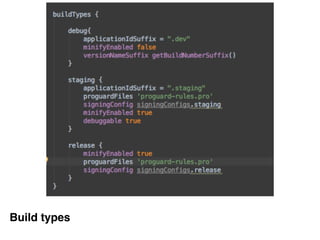
Build types
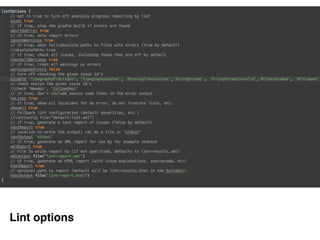
Lint options
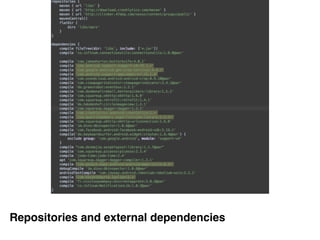
Repositories and external dependencies
• Gradle also has a few drawbacks:
• speed of execution - it’s slower than Apache
Ant
• work in progress - every new version brings a
lot of changes
• still has some bugs
Android studio #5
Sexy features
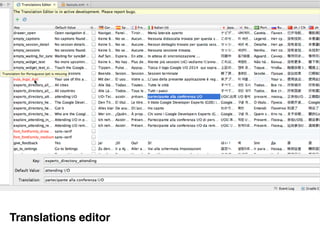
Translations editor
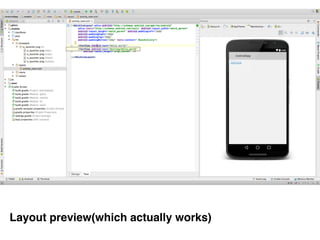
Layout preview(which actually works)
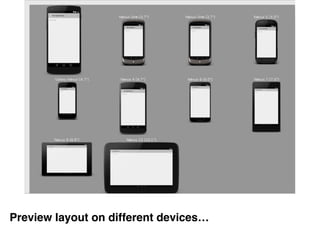
Preview layout on different devices…
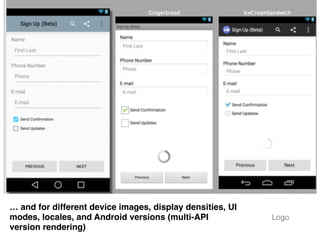
… and for different device images, display densities, UI
modes, locales, and Android versions (multi-API
version rendering)
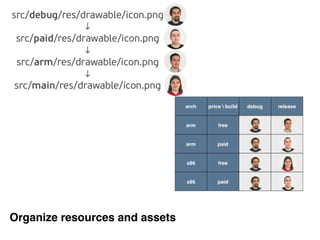
Logo
Organize resources and assets
• bitmap rendering in the debugger
• image and color preview
• support for version control systems
• style extraction
• deep code analysis
Android studio #6
Tips and tricks
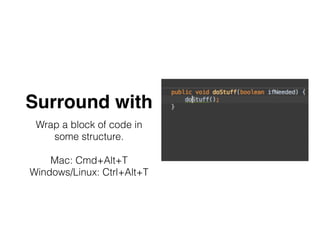
Surround with
Wrap a block of code in
some structure.
Mac: Cmd+Alt+T
Windows/Linux: Ctrl+Alt+T
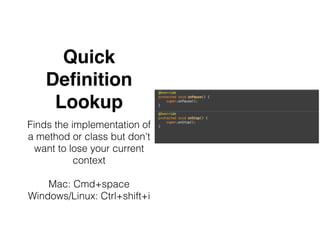
Quick
Definition
Lookup
Finds the implementation of
a method or class but don't
want to lose your current
context
Mac: Cmd+space
Windows/Linux: Ctrl+shift+i
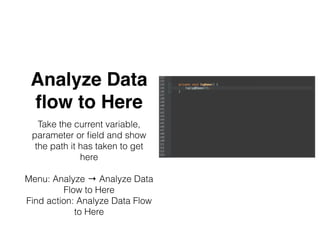
Analyze Data
flow to Here
Take the current variable,
parameter or field and show
the path it has taken to get
here
Menu: Analyze → Analyze Data
Flow to Here
Find action: Analyze Data Flow
to Here
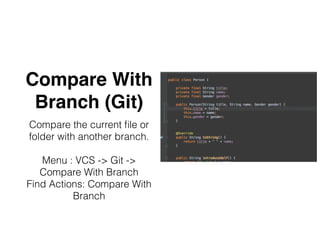
Compare With
Branch (Git)
Compare the current file or
folder with another branch.
Menu : VCS -> Git ->
Compare With Branch
Find Actions: Compare With
Branch
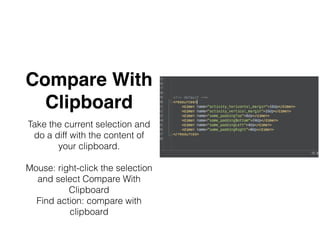
Compare With
Clipboard
Take the current selection and
do a diff with the content of
your clipboard.
Mouse: right-click the selection
and select Compare With
Clipboard
Find action: compare with
clipboard
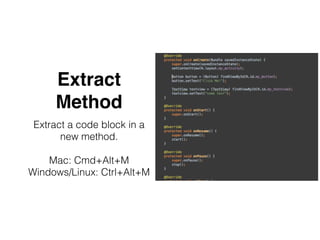
Extract
Method
Extract a code block in a
new method.
Mac: Cmd+Alt+M
Windows/Linux: Ctrl+Alt+M
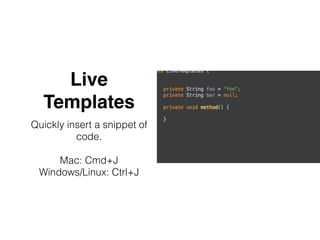
Live
Templates
Quickly insert a snippet of
code.
Mac: Cmd+J
Windows/Linux: Ctrl+J
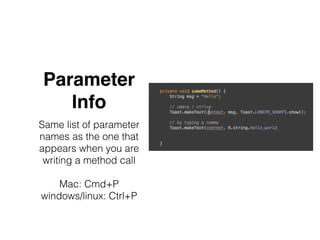
Parameter
Info
Same list of parameter
names as the one that
appears when you are
writing a method call
Mac: Cmd+P
windows/linux: Ctrl+P
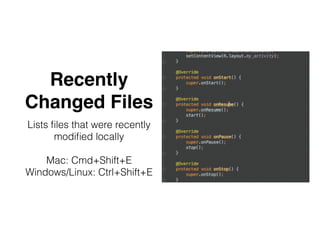
Recently
Changed Files
Lists files that were recently
modified locally
Mac: Cmd+Shift+E
Windows/Linux: Ctrl+Shift+E
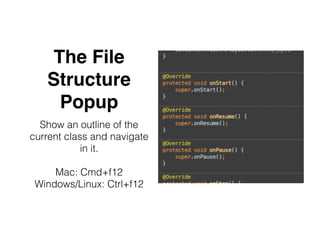
The File
Structure
Popup
Show an outline of the
current class and navigate
in it.
Mac: Cmd+f12
Windows/Linux: Ctrl+f12
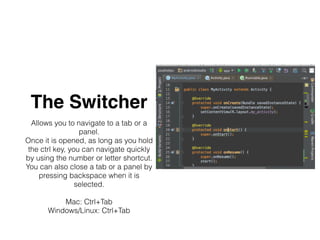
The Switcher
Allows you to navigate to a tab or a
panel.
Once it is opened, as long as you hold
the ctrl key, you can navigate quickly
by using the number or letter shortcut.
You can also close a tab or a panel by
pressing backspace when it is
selected.
Mac: Ctrl+Tab
Windows/Linux: Ctrl+Tab
Suggested plugins
• Parcelable Generator - for generating parceable code
• Genymotion
• Crashlytics
• ButterKnifeZelezny - one-click creation of Butterknife
view injections.
• would like to find some good database management
plugin
Android studio #7
Additional info
Infinum #swag
• read our blog - a lot of cool stuff about technology
https://www.infinum.co/the-capsized-eight
• subscribe to our newsletter
• come and join us for Android talks
www.infinum.co/android-talks
https://www.infinum.co/careers
Thanks!
zeljko.plesac@infinum.co
skype: zeljko.plesac
twitter: @ZeljkoPlesac

Android studio